@tencent-rtc/mcp 1.3.1 → 1.3.2
This diff represents the content of publicly available package versions that have been released to one of the supported registries. The information contained in this diff is provided for informational purposes only and reflects changes between package versions as they appear in their respective public registries.
- package/index.js +4 -0
- package/index.js.map +1 -1
- package/package.json +1 -1
- package/resource/doc/chatuikit/faq/web_sdk/faq.md +125 -0
- package/resource/doc/chatuikit/flutter/faq.md +17 -114
- package/resource/doc/chatuikit/flutter/integrate_tuikit_Flutter.md +86 -722
- package/resource/doc/roomkit/vue/features/call-user-to-room.md +256 -0
- package/resource/doc/roomkit/vue/features/device-detection.md +388 -0
- package/resource/doc/roomkit/vue/features/device-state.md +480 -0
- package/resource/doc/roomkit/vue/features/free-beauty-panel.md +238 -0
- package/resource/doc/roomkit/vue/features/room-chat.md +427 -0
- package/resource/doc/roomkit/vue/features/room-participant-state.md +407 -0
- package/resource/doc/roomkit/vue/features/room-state.md +291 -0
- package/resource/doc/roomkit/vue/features/room-view.md +338 -0
- package/resource/doc/roomkit/vue/features/schedule-room.md +349 -0
- package/resource/doc/roomkit/vue/features/screen-share.md +333 -0
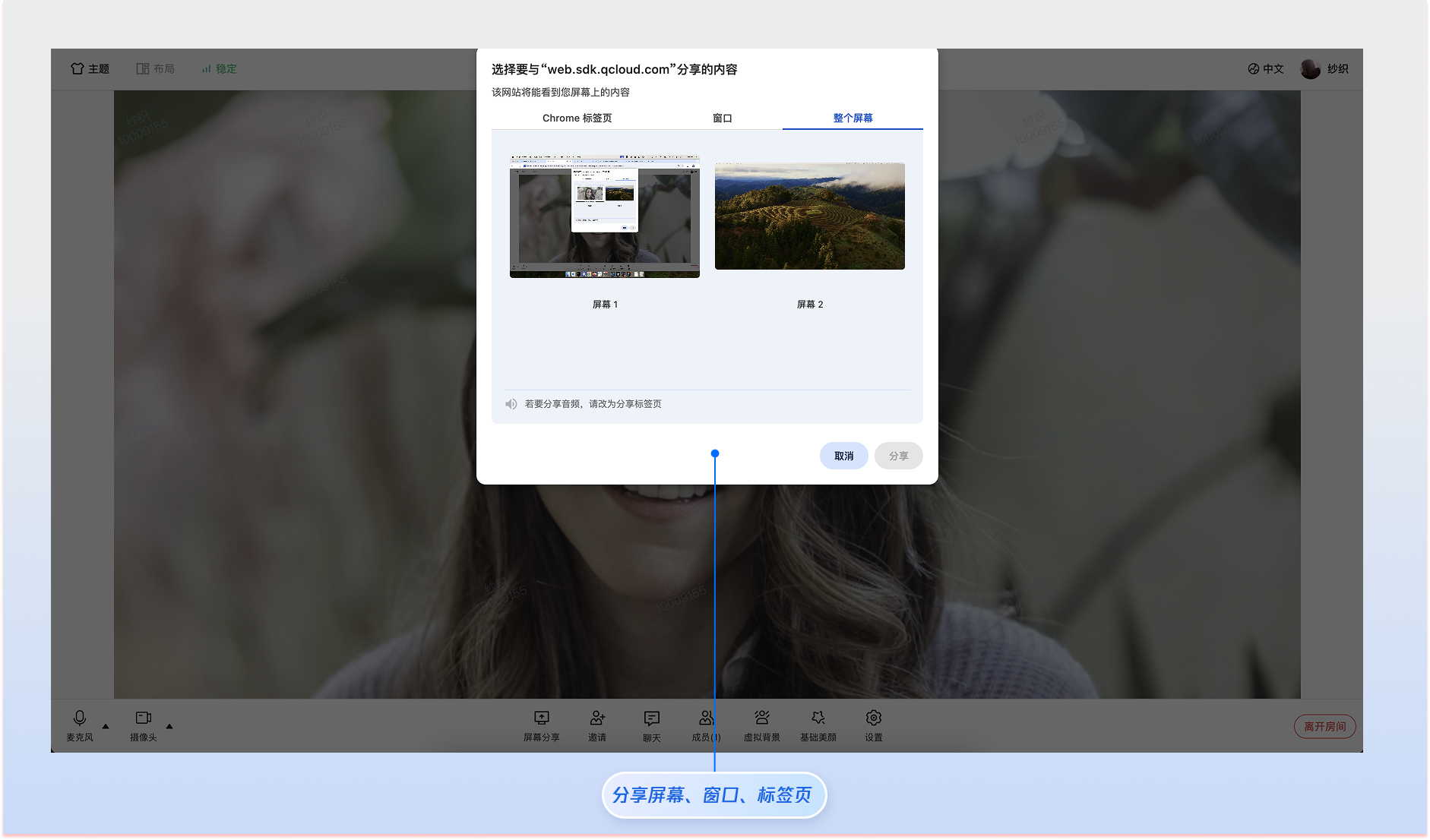
- package/resource/doc/roomkit/vue/features/virtual-background.md +287 -0
- package/resource/doc/roomkit/vue/features/workflow.md +553 -0
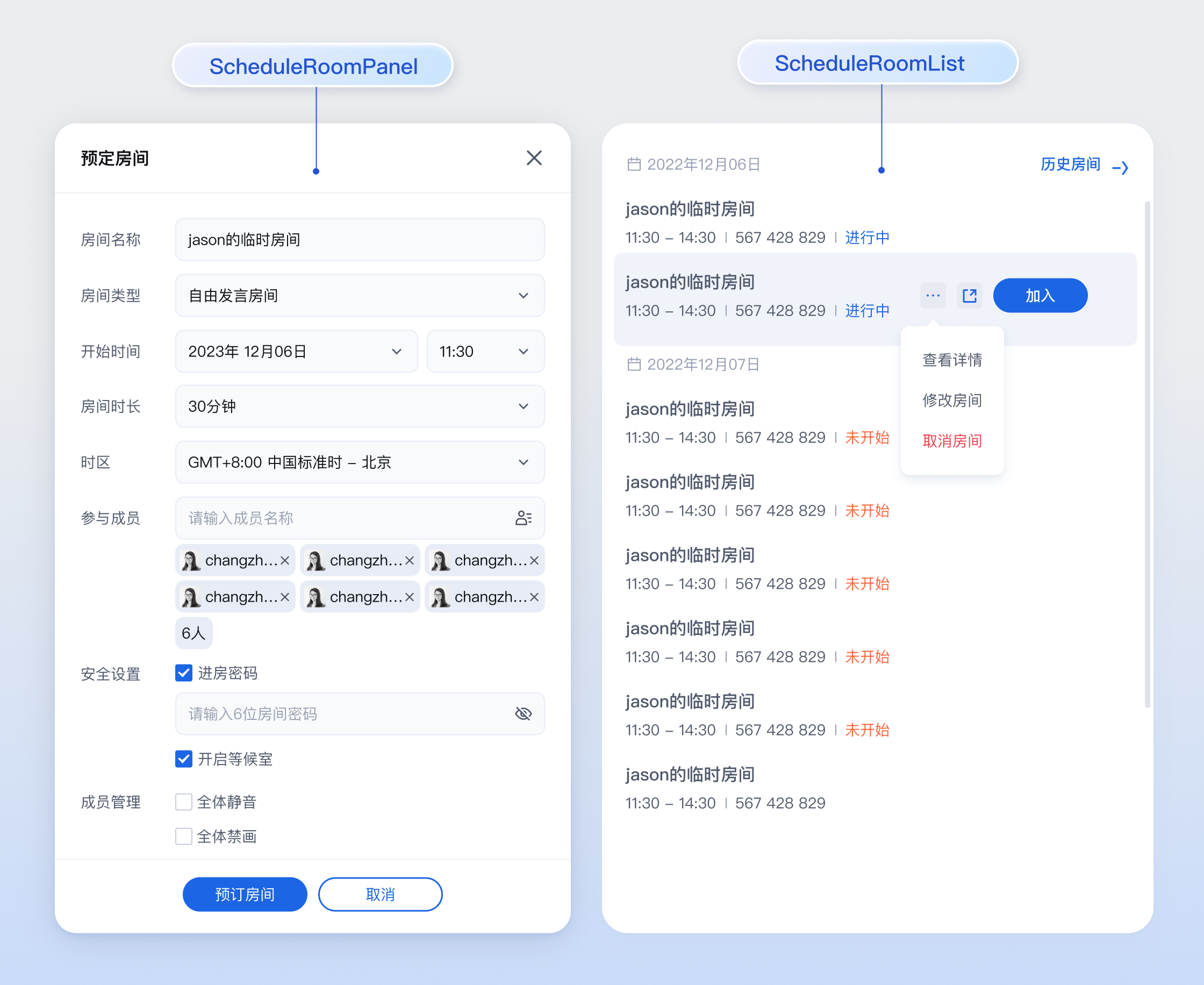
- package/resource/doc/roomkit/vue/integration.md +479 -0
- package/resource/doc/roomkit/vue/workflow.md +487 -0
- package/resource/doc/tuicallkit/react/api.md +21 -0
- package/resource/doc/tuicallkit/vue/api.md +21 -0
- package/tools/definitions/get_web_room_feature_detail_def.js +95 -0
- package/tools/definitions/get_web_room_feature_detail_def.js.map +1 -0
- package/tools/definitions/get_web_room_uikit_integration_def.js +44 -0
- package/tools/definitions/get_web_room_uikit_integration_def.js.map +1 -0
- package/tools/index.js +4 -2
- package/tools/index.js.map +1 -1
- package/tools/room/get-web-room-feature-detail.js +68 -0
- package/tools/room/get-web-room-feature-detail.js.map +1 -0
- package/tools/room/get-web-room-integration.js +43 -0
- package/tools/room/get-web-room-integration.js.map +1 -0
- package/utils/report-cls-client.js +1 -1
- package/utils/report-es-client.js +1 -1
- package/resource/doc/chatuikit/flutter/integrate_only_tuichat_Flutter.md +0 -333
- package/resource/doc/chatuikit/flutter/quick_start_Flutter.md +0 -217
- package/resource/doc/roomkit/vue/states/device-state.md +0 -369
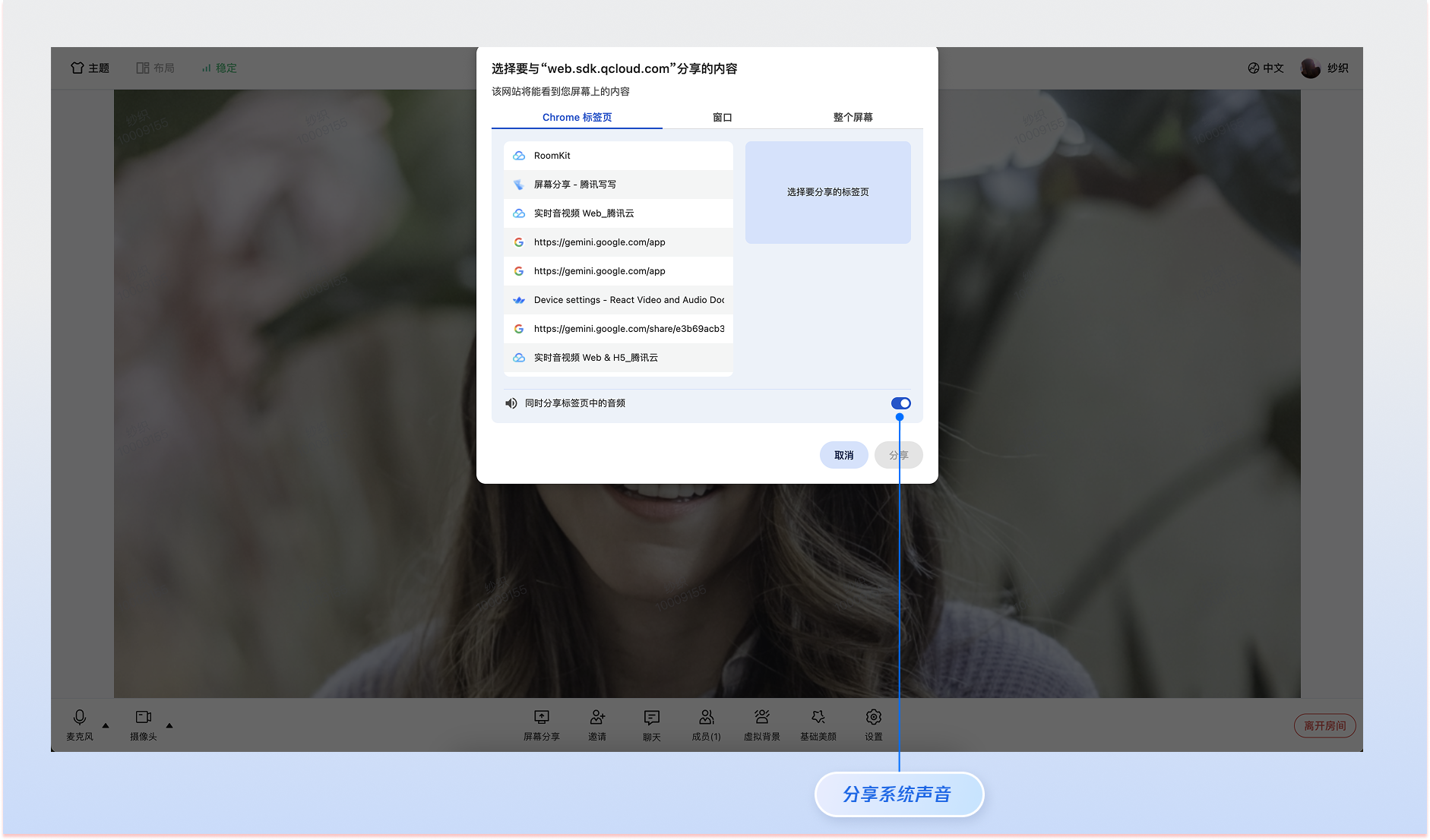
- package/resource/doc/roomkit/vue/states/login-state.md +0 -59
- package/resource/doc/roomkit/vue/states/room-list-state.md +0 -355
- package/resource/doc/roomkit/vue/states/room-participant-state.md +0 -388
- package/tools/room/get-web-room-state-detail.js +0 -31
- package/tools/room/get-web-room-state-detail.js.map +0 -1
|
@@ -0,0 +1,349 @@
|
|
|
1
|
+
The scheduled room feature allows users to plan meeting times, topics, and entry passwords in advance. Through this feature, users can create future meeting plans, generate exclusive meeting numbers and entry links, making it convenient to notify participants in advance.
|
|
2
|
+
|
|
3
|
+
## Use Cases
|
|
4
|
+
- **Corporate Regular Meetings:** Schedule weekly and monthly meetings in advance to ensure participants receive notifications ahead of time.
|
|
5
|
+
|
|
6
|
+
- **Online Class Scheduling:** Teachers can set up course schedules for the week in advance.
|
|
7
|
+
|
|
8
|
+
- **Remote Interview Appointments:** HR can schedule specific time slots for interviewees and interviewers.
|
|
9
|
+
|
|
10
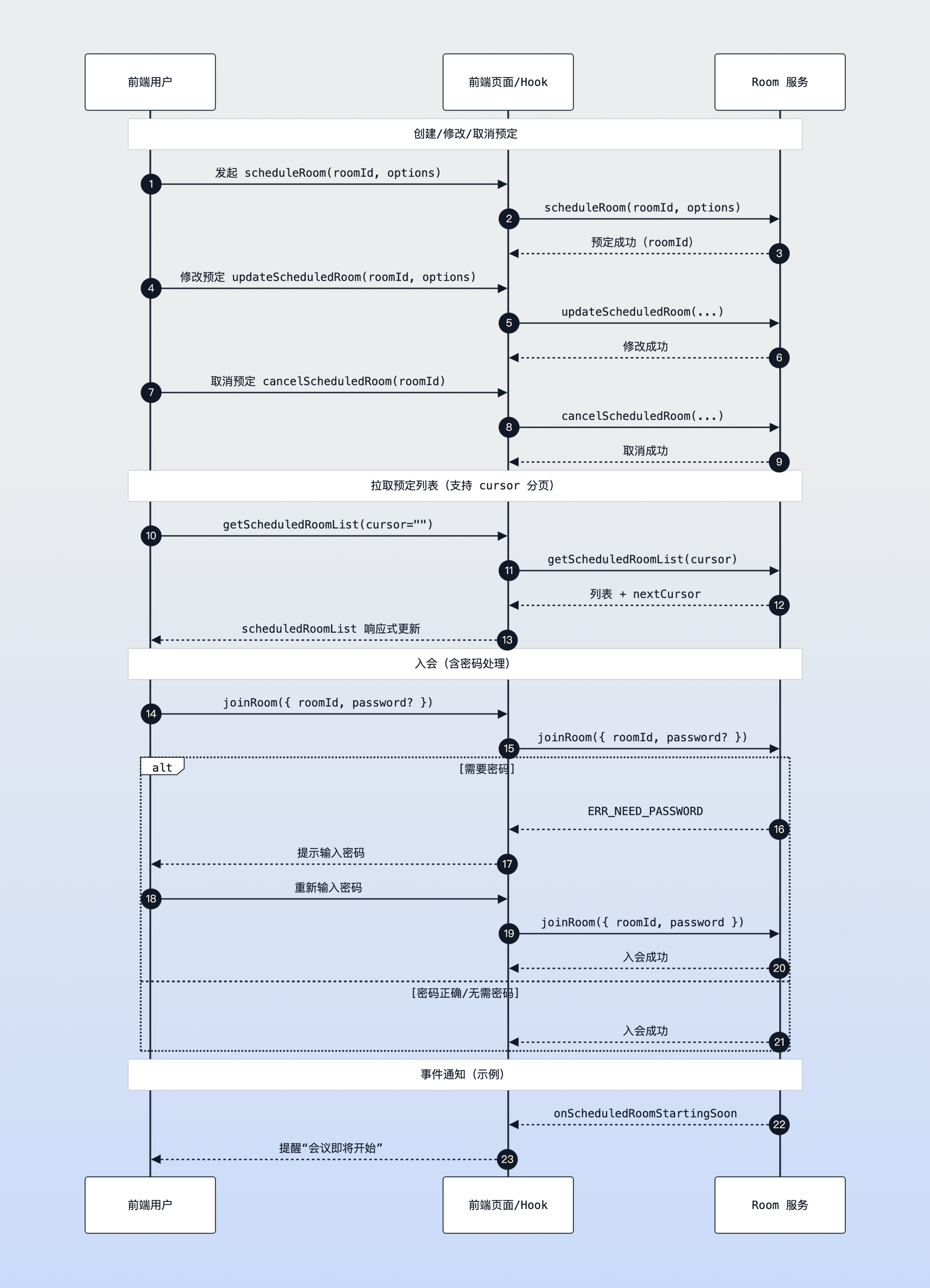
|
+
|
|
11
|
+
## Prerequisites
|
|
12
|
+
- **User Status:** The user has completed login authentication through useLoginState, refer to [Integration Overview](https://write.woa.com/document/197379797539790848), and must be in **logged in** status to initiate scheduling or view scheduled list.
|
|
13
|
+
|
|
14
|
+
- **Environment Dependencies:** The project has imported `tuikit-atomicx-vue3`.
|
|
15
|
+
|
|
16
|
+
|
|
17
|
+
## Implementing Scheduled Room Feature
|
|
18
|
+
|
|
19
|
+
This feature provides two integration solutions. You can choose the most suitable one according to business needs:
|
|
20
|
+
- **Solution 1 (Recommended):** Quick integration using UI components. Directly import the schedule room panel ([ScheduleRoomPanel](https://github.com/Tencent-RTC/TUIKit_Vue3/blob/main/packages/tuikit-atomicx-vue3/src/components/ScheduleRoomPanel/ScheduleRoomPanel.vue)) and scheduled room list component ([ScheduledRoomList](https://github.com/Tencent-RTC/TUIKit_Vue3/blob/main/packages/tuikit-atomicx-vue3/src/components/ScheduleRoomPanel/ScheduledRoomList.vue)) provided by `tuikit-atomicx-vue3`, with the lowest development cost.
|
|
21
|
+
|
|
22
|
+
- **Solution 2 (Advanced):** Custom integration using underlying API. Based on atomicx-core SDK API `useRoomState` state hook to implement UI and interaction logic yourself, with the highest flexibility.
|
|
23
|
+
|
|
24
|
+
|
|
25
|
+
|
|
26
|
+
|
|
27
|
+
## Solution 1: Quick Integration Using UI Components
|
|
28
|
+
|
|
29
|
+
`tuikit-atomicx-vue3` provides two core components:
|
|
30
|
+
- [**ScheduleRoomPanel**](https://github.com/Tencent-RTC/TUIKit_Vue3/blob/main/packages/tuikit-atomicx-vue3/src/components/ScheduleRoomPanel/ScheduleRoomPanel.vue)**:** Configuration panel for scheduling meetings, including time selection, member invitation, and other functions.
|
|
31
|
+
|
|
32
|
+
- [**ScheduledRoomList**](https://github.com/Tencent-RTC/TUIKit_Vue3/blob/main/packages/tuikit-atomicx-vue3/src/components/ScheduleRoomPanel/ScheduledRoomList.vue)**:** Displays the current user's scheduled meeting list, supports clicking to join, modify, and cancel schedules.
|
|
33
|
+
|
|
34
|
+
|
|
35
|
+
### Step 1: Import Components
|
|
36
|
+
``` typescript
|
|
37
|
+
import { ScheduleRoomPanel, ScheduledRoomList } from 'tuikit-atomicx-vue3/room';
|
|
38
|
+
```
|
|
39
|
+
|
|
40
|
+
### Step 2: Use Components
|
|
41
|
+
|
|
42
|
+
In your page, you can directly combine these two components.
|
|
43
|
+
``` typescript
|
|
44
|
+
<template>
|
|
45
|
+
<UIKitProvider theme="light" language="zh-CN">
|
|
46
|
+
<div class="schedule-container">
|
|
47
|
+
<!-- Schedule button, displays schedule dialog after clicking -->
|
|
48
|
+
<button @click="showSchedulePanel = true">
|
|
49
|
+
Schedule Meeting
|
|
50
|
+
</button>
|
|
51
|
+
|
|
52
|
+
<!-- Schedule list component -->
|
|
53
|
+
<div class="list-container">
|
|
54
|
+
<!-- Listen to join-room event to handle joining logic -->
|
|
55
|
+
<ScheduledRoomList @join-room="handleJoinRoom" />
|
|
56
|
+
</div>
|
|
57
|
+
|
|
58
|
+
<!-- Schedule panel dialog -->
|
|
59
|
+
<!-- It is recommended to wrap it in a Dialog or Modal component -->
|
|
60
|
+
<div v-if="showSchedulePanel" class="modal-mask">
|
|
61
|
+
<div class="modal-content">
|
|
62
|
+
<ScheduleRoomPanel
|
|
63
|
+
@confirm="handleScheduleConfirm"
|
|
64
|
+
@cancel="showSchedulePanel = false"
|
|
65
|
+
/>
|
|
66
|
+
</div>
|
|
67
|
+
</div>
|
|
68
|
+
</div>
|
|
69
|
+
</UIKitProvider>
|
|
70
|
+
</template>
|
|
71
|
+
|
|
72
|
+
<script setup lang="ts">
|
|
73
|
+
import { ref } from 'vue';
|
|
74
|
+
import { UIKitProvider } from '@tencentcloud/uikit-base-component-vue3';
|
|
75
|
+
import { ScheduleRoomPanel, ScheduledRoomList, useRoomState } from 'tuikit-atomicx-vue3/room';
|
|
76
|
+
|
|
77
|
+
const { joinRoom } = useRoomState();
|
|
78
|
+
|
|
79
|
+
const showSchedulePanel = ref(false);
|
|
80
|
+
|
|
81
|
+
const handleScheduleConfirm = (roomId: string, options: Record<string, any>) => {
|
|
82
|
+
console.log('Schedule successful', roomId, options);
|
|
83
|
+
showSchedulePanel.value = false;
|
|
84
|
+
// Optional: Display invitation dialog or copy link
|
|
85
|
+
};
|
|
86
|
+
|
|
87
|
+
const handleJoinRoom = async (roomInfo: { roomId: string }) => {
|
|
88
|
+
console.log('Click to join', roomInfo.roomId);
|
|
89
|
+
await joinRoom(roomInfo.roomId);
|
|
90
|
+
};
|
|
91
|
+
</script>
|
|
92
|
+
|
|
93
|
+
<style scoped>
|
|
94
|
+
.schedule-container{padding:24px;max-width:1000px;margin:0 auto;font-family:-apple-system,BlinkMacSystemFont,'Segoe UI',Roboto,'Helvetica Neue',Arial,sans-serif}button{background-color:#006eff;color:#fff;border:none;padding:10px 20px;border-radius:4px;cursor:pointer;font-size:14px;font-weight:500;transition:background-color .2s;margin-bottom:24px}button:hover{background-color:#0056cc}.list-container{background:#fff;border-radius:8px;box-shadow:0 2px 8px rgba(0,0,0,.05);padding:16px}.modal-mask{position:fixed;top:0;left:0;right:0;bottom:0;background-color:rgba(0,0,0,.4);backdrop-filter:blur(4px);display:flex;align-items:center;justify-content:center;z-index:1000}.modal-content{background-color:#fff;border-radius:8px;box-shadow:0 4px 16px rgba(0,0,0,.1);padding:24px;width:100%;max-width:480px}
|
|
95
|
+
</style>
|
|
96
|
+
```
|
|
97
|
+
|
|
98
|
+
## Solution 2: Custom Integration Using Underlying API
|
|
99
|
+
|
|
100
|
+
This section mainly introduces how to implement the core logic of scheduled rooms through atomicx-core SDK API [useRoomState](https://web.sdk.qcloud.com/trtc/live/web/doc/zh/index.html#module-RoomState) interface.
|
|
101
|
+
|
|
102
|
+
|
|
103
|
+
|
|
104
|
+
Scheduled room sequence diagram
|
|
105
|
+
|
|
106
|
+
|
|
107
|
+
### Step 1: Initiate Schedule
|
|
108
|
+
|
|
109
|
+
Use the [scheduleRoom](https://web.sdk.qcloud.com/trtc/live/web/doc/zh/index.html#scheduleRoom) method to create a new scheduled meeting. You need to specify the meeting's start time, end time, room name, and other information.
|
|
110
|
+
``` typescript
|
|
111
|
+
import { useRoomState } from 'tuikit-atomicx-vue3/room';
|
|
112
|
+
|
|
113
|
+
const { scheduleRoom } = useRoomState();
|
|
114
|
+
|
|
115
|
+
const createSchedule = async () => {
|
|
116
|
+
try {
|
|
117
|
+
// roomId restriction: string type, required parameter, recommended to generate randomly
|
|
118
|
+
const roomId = '123456';
|
|
119
|
+
|
|
120
|
+
// Note: Timestamp unit must be **seconds** (Date.getTime() gets milliseconds, need to divide by 1000)
|
|
121
|
+
const startTime = Math.floor(new Date().getTime() / 1000) + 3600; // Start after 1 hour
|
|
122
|
+
const duration = 1800; // 30 minutes
|
|
123
|
+
|
|
124
|
+
const options = {
|
|
125
|
+
roomName: 'Product Requirements Review Meeting',
|
|
126
|
+
scheduleStartTime: startTime, // Unit: seconds
|
|
127
|
+
scheduleEndTime: startTime + duration, // Unit: seconds
|
|
128
|
+
scheduleAttendees: ['userA', 'userB'], // Invited participant ID list
|
|
129
|
+
password: '123', // Optional: Set entry password
|
|
130
|
+
isAllMicrophoneDisabled: false, // Optional: Mute all microphones
|
|
131
|
+
isAllCameraDisabled: false, // Optional: Disable all cameras
|
|
132
|
+
};
|
|
133
|
+
|
|
134
|
+
await scheduleRoom({ roomId, options });
|
|
135
|
+
console.log('Schedule successful', roomId);
|
|
136
|
+
} catch (error) {
|
|
137
|
+
console.error('Schedule failed', error);
|
|
138
|
+
}
|
|
139
|
+
};
|
|
140
|
+
```
|
|
141
|
+
|
|
142
|
+
### Step 2: Get Scheduled List
|
|
143
|
+
|
|
144
|
+
Use the [getScheduledRoomList](https://web.sdk.qcloud.com/trtc/live/web/doc/zh/index.html#getScheduledRoomList) method to retrieve the current user's scheduled meeting list. The list data will be reactively updated to the [scheduledRoomList](https://web.sdk.qcloud.com/trtc/live/web/doc/zh/index.html#scheduledRoomList) state.
|
|
145
|
+
``` typescript
|
|
146
|
+
import { onMounted, watch } from 'vue';
|
|
147
|
+
import { useRoomState } from 'tuikit-atomicx-vue3/room';
|
|
148
|
+
|
|
149
|
+
const {
|
|
150
|
+
scheduledRoomList, // Reactive data: scheduled meeting list
|
|
151
|
+
getScheduledRoomList // Method: Retrieve list
|
|
152
|
+
} = useRoomState();
|
|
153
|
+
|
|
154
|
+
// Initialize and load list
|
|
155
|
+
onMounted(async () => {
|
|
156
|
+
// cursor indicates where to start pulling data, empty string means start from beginning
|
|
157
|
+
// getScheduledRoomList return value includes new cursor
|
|
158
|
+
const { cursor } = await getScheduledRoomList({ cursor: '' });
|
|
159
|
+
// If cursor is not empty, it means there is more data, can continue calling to retrieve
|
|
160
|
+
});
|
|
161
|
+
|
|
162
|
+
// Listen for list changes and update UI in real-time
|
|
163
|
+
watch(scheduledRoomList, (list) => {
|
|
164
|
+
console.log('Current scheduled list:', list);
|
|
165
|
+
});
|
|
166
|
+
```
|
|
167
|
+
|
|
168
|
+
### Step 3: Modify Schedule
|
|
169
|
+
|
|
170
|
+
If you need to adjust the time or topic of a scheduled meeting, you can use the [updateScheduledRoom](https://web.sdk.qcloud.com/trtc/live/web/doc/zh/index.html#updateScheduledRoom) method.
|
|
171
|
+
``` typescript
|
|
172
|
+
import { useRoomState } from 'tuikit-atomicx-vue3/room';
|
|
173
|
+
|
|
174
|
+
const { updateScheduledRoom } = useRoomState();
|
|
175
|
+
|
|
176
|
+
const updateRoom = async (roomId: string) => {
|
|
177
|
+
try {
|
|
178
|
+
const newStartTime = Math.floor(new Date().getTime() / 1000) + 7200; // Postpone by 2 hours
|
|
179
|
+
const options = {
|
|
180
|
+
roomName: 'Product Requirements Review Meeting (Rescheduled)',
|
|
181
|
+
scheduleStartTime: newStartTime,
|
|
182
|
+
scheduleEndTime: newStartTime + 1800,
|
|
183
|
+
};
|
|
184
|
+
|
|
185
|
+
await updateScheduledRoom({ roomId, options });
|
|
186
|
+
console.log('Modification successful');
|
|
187
|
+
} catch (error) {
|
|
188
|
+
console.error('Modification failed', error);
|
|
189
|
+
}
|
|
190
|
+
};
|
|
191
|
+
```
|
|
192
|
+
|
|
193
|
+
### Step 4: Cancel Schedule
|
|
194
|
+
|
|
195
|
+
If you need to cancel a scheduled meeting, you can call the [cancelScheduledRoom](https://web.sdk.qcloud.com/trtc/live/web/doc/zh/index.html#cancelScheduledRoom) method.
|
|
196
|
+
``` typescript
|
|
197
|
+
import { useRoomState } from 'tuikit-atomicx-vue3/room';
|
|
198
|
+
|
|
199
|
+
const { cancelScheduledRoom } = useRoomState();
|
|
200
|
+
|
|
201
|
+
const cancelRoom = async (roomId: string) => {
|
|
202
|
+
try {
|
|
203
|
+
await cancelScheduledRoom({ roomId });
|
|
204
|
+
console.log('Cancellation successful');
|
|
205
|
+
// After successful cancellation, scheduledRoomList will automatically update, no need to manually retrieve again
|
|
206
|
+
} catch (error) {
|
|
207
|
+
console.error('Cancellation failed', error);
|
|
208
|
+
}
|
|
209
|
+
};
|
|
210
|
+
```
|
|
211
|
+
|
|
212
|
+
### Step 5: Handle Entry Password
|
|
213
|
+
|
|
214
|
+
For scheduled meetings with passwords, when calling the [joinRoom](https://web.sdk.qcloud.com/trtc/live/web/doc/zh/index.html#joinRoom) interface to join, you need to catch authentication failure errors and guide users to enter the password.
|
|
215
|
+
``` typescript
|
|
216
|
+
import { useRoomState, TUIErrorCode } from 'tuikit-atomicx-vue3/room';
|
|
217
|
+
|
|
218
|
+
const { joinRoom } = useRoomState();
|
|
219
|
+
|
|
220
|
+
const enterRoom = async (roomId: string, password?: string) => {
|
|
221
|
+
try {
|
|
222
|
+
await joinRoom({ roomId, password });
|
|
223
|
+
} catch (error: any) {
|
|
224
|
+
// Catch specific error code, TUIErrorCode.ERR_NEED_PASSWORD (-2010)
|
|
225
|
+
if (error.code === TUIErrorCode.ERR_NEED_PASSWORD) {
|
|
226
|
+
console.log('This room requires a password, please guide user to enter');
|
|
227
|
+
// 1. Pop up password input box
|
|
228
|
+
// 2. Get user entered password inputPassword
|
|
229
|
+
// 3. Re-call enterRoom(roomId, inputPassword)
|
|
230
|
+
} else if (error.code === TUIErrorCode.ERR_WRONG_PASSWORD) {
|
|
231
|
+
console.error('Incorrect password, please re-enter');
|
|
232
|
+
} else {
|
|
233
|
+
console.error('Join failed', error);
|
|
234
|
+
}
|
|
235
|
+
}
|
|
236
|
+
};
|
|
237
|
+
```
|
|
238
|
+
|
|
239
|
+
### Step 6: Listen for Schedule Events
|
|
240
|
+
|
|
241
|
+
In addition to passively responding to data changes, you can also listen to specific schedule events to handle business logic, such as popping up reminders when meetings are about to start.
|
|
242
|
+
``` typescript
|
|
243
|
+
import { onMounted, onUnmounted } from 'vue';
|
|
244
|
+
import { useRoomState, RoomEvent } from 'tuikit-atomicx-vue3/room';
|
|
245
|
+
|
|
246
|
+
const { subscribeEvent, unsubscribeEvent } = useRoomState();
|
|
247
|
+
|
|
248
|
+
// Meeting starting soon notification (default is 5 minutes before start)
|
|
249
|
+
const handleRoomStartingSoon = (info: { roomInfo: any }) => {
|
|
250
|
+
console.log('Meeting starting soon:', info.roomInfo.roomName);
|
|
251
|
+
// Can implement Toast reminder or system notification here
|
|
252
|
+
};
|
|
253
|
+
|
|
254
|
+
// Meeting cancelled notification
|
|
255
|
+
const handleRoomCancelled = (info: { roomInfo: any; operateUser: any }) => {
|
|
256
|
+
console.log(`Meeting ${info.roomInfo.roomName} has been cancelled by ${info.operateUser.userName}`);
|
|
257
|
+
};
|
|
258
|
+
|
|
259
|
+
// Received new meeting invitation notification
|
|
260
|
+
const handleRoomAdded = (info: { roomInfo: any }) => {
|
|
261
|
+
console.log('Received new meeting invitation:', info.roomInfo.roomName);
|
|
262
|
+
};
|
|
263
|
+
|
|
264
|
+
// Removed from meeting notification
|
|
265
|
+
const handleRemovedFromRoom = (info: { roomInfo: any; operateUser: any }) => {
|
|
266
|
+
console.log(`You have been removed from meeting ${info.roomInfo.roomName} by ${info.operateUser.userName}`);
|
|
267
|
+
};
|
|
268
|
+
|
|
269
|
+
onMounted(() => {
|
|
270
|
+
// Register event listeners
|
|
271
|
+
subscribeEvent(RoomEvent.onScheduledRoomStartingSoon, handleRoomStartingSoon);
|
|
272
|
+
subscribeEvent(RoomEvent.onScheduledRoomCancelled, handleRoomCancelled);
|
|
273
|
+
subscribeEvent(RoomEvent.onAddedToScheduledRoom, handleRoomAdded);
|
|
274
|
+
subscribeEvent(RoomEvent.onRemovedFromScheduledRoom, handleRemovedFromRoom);
|
|
275
|
+
});
|
|
276
|
+
|
|
277
|
+
onUnmounted(() => {
|
|
278
|
+
// Remove event listeners
|
|
279
|
+
unsubscribeEvent(RoomEvent.onScheduledRoomStartingSoon, handleRoomStartingSoon);
|
|
280
|
+
unsubscribeEvent(RoomEvent.onScheduledRoomCancelled, handleRoomCancelled);
|
|
281
|
+
unsubscribeEvent(RoomEvent.onAddedToScheduledRoom, handleRoomAdded);
|
|
282
|
+
unsubscribeEvent(RoomEvent.onRemovedFromScheduledRoom, handleRemovedFromRoom);
|
|
283
|
+
});
|
|
284
|
+
```
|
|
285
|
+
|
|
286
|
+
## Development Notes
|
|
287
|
+
1. **Timestamp Unit**: All time parameters involved in the SDK (e.g., `scheduleStartTime`, `scheduleEndTime`) are in **seconds**, not milliseconds as in JavaScript's `Date` object by default. Please make sure to perform `/ 1000` operation before passing parameters.
|
|
288
|
+
|
|
289
|
+
2. **Style Import**: When using UI components, make sure to import `UIKitProvider`, otherwise component styles will not render properly.
|
|
290
|
+
|
|
291
|
+
3. **RoomID Recommendation**: Although `scheduleRoom` allows the frontend to pass in `roomId`, to avoid ID conflicts, it is recommended that this ID be generated by the business backend and ensure global uniqueness.
|
|
292
|
+
|
|
293
|
+
4. **Pagination Handling**: The scheduled list may be very long, and the `getScheduledRoomList` interface supports paginated retrieval. Please pay attention to the `cursor` field in the return value. If it is not empty, it means there is more data.
|
|
294
|
+
|
|
295
|
+
|
|
296
|
+
## Common Questions
|
|
297
|
+
1. **Schedule successful but list not updating?**
|
|
298
|
+
|
|
299
|
+
|
|
300
|
+
Please confirm that you are logged in and have called `getScheduledRoomList` on the first screen (e.g., `cursor: ''`). If the returned `cursor` is not empty, you need to continue retrieving; the list is reactive and UI will synchronize after updates.
|
|
301
|
+
|
|
302
|
+
2. `joinRoom`** how to pass parameters?**
|
|
303
|
+
|
|
304
|
+
|
|
305
|
+
It is recommended to use object parameters uniformly: `joinRoom({ roomId, password })`, avoid directly passing strings which may cause type mismatch or limit subsequent extensions.
|
|
306
|
+
|
|
307
|
+
3. **Using milliseconds for timestamp causes appointment failure?**
|
|
308
|
+
|
|
309
|
+
|
|
310
|
+
All time-related parameters must be in seconds, `Date.now()` needs `/ 1000`, otherwise it will return time conflict error.
|
|
311
|
+
|
|
312
|
+
4. **How to handle rooms with passwords?**
|
|
313
|
+
|
|
314
|
+
|
|
315
|
+
Catch `TUIErrorCode.ERR_NEED_PASSWORD` / `ERR_WRONG_PASSWORD`, pop up password input box, re-call `joinRoom({ roomId, password })`; after multiple errors, you can prompt to contact room owner to reset.
|
|
316
|
+
|
|
317
|
+
5. **roomId conflict or duplication?**
|
|
318
|
+
|
|
319
|
+
|
|
320
|
+
It is recommended that roomId be generated by the backend to ensure global uniqueness; if generated by the frontend, please check for conflicts before scheduling and have a retry strategy.
|
|
321
|
+
|
|
322
|
+
6. **How to continue paginated retrieval?**
|
|
323
|
+
|
|
324
|
+
|
|
325
|
+
When the `cursor` returned by `getScheduledRoomList` is not empty, continue passing it in; empty means all data has been retrieved.
|
|
326
|
+
|
|
327
|
+
|
|
328
|
+
## **Sample Project**
|
|
329
|
+
|
|
330
|
+
Tencent Cloud provides a sample project [atomicx-vite-vue3-ts](https://github.com/Tencent-RTC/TUIRoomKit/tree/main/Web/example/atomicx-vite-vue3-ts) on GitHub, which you can refer to for implementing complete RoomKit functionality.
|
|
331
|
+
|
|
332
|
+
## API Documentation
|
|
333
|
+
<table>
|
|
334
|
+
<tr>
|
|
335
|
+
<td rowspan="1" colSpan="1" >**State/Component**</td>
|
|
336
|
+
|
|
337
|
+
<td rowspan="1" colSpan="1" >**Feature Description**</td>
|
|
338
|
+
|
|
339
|
+
<td rowspan="1" colSpan="1" >**API Documentation**</td>
|
|
340
|
+
</tr>
|
|
341
|
+
|
|
342
|
+
<tr>
|
|
343
|
+
<td rowspan="1" colSpan="1" >**useRoomState**</td>
|
|
344
|
+
|
|
345
|
+
<td rowspan="1" colSpan="1" >Room state management (create, join, schedule, etc.)</td>
|
|
346
|
+
|
|
347
|
+
<td rowspan="1" colSpan="1" >[API Documentation](https://web.sdk.qcloud.com/trtc/live/web/doc/zh/index.html#module-RoomState)</td>
|
|
348
|
+
</tr>
|
|
349
|
+
</table>
|
|
@@ -0,0 +1,333 @@
|
|
|
1
|
+
This document guides you on how to use Atomicx to implement screen sharing capabilities and handle room interactions based on screen sharing status.
|
|
2
|
+
|
|
3
|
+
## Prerequisites
|
|
4
|
+
- The user has completed login authentication through [useLoginState](https://web.sdk.qcloud.com/trtc/live/web/doc/zh/index.html#module-LoginState), please refer to [Integration Overview](https://write.woa.com/document/197379797539790848).
|
|
5
|
+
|
|
6
|
+
- The user has entered a room through [useRoomState](https://web.sdk.qcloud.com/trtc/live/web/doc/zh/index.html#module-RoomState), please refer to [Room Management](https://write.woa.com/document/197379861957083136).
|
|
7
|
+
|
|
8
|
+
- If integrating in `iframe`, permissions need to be declared in the tag.
|
|
9
|
+
|
|
10
|
+
``` typescript
|
|
11
|
+
<iframe allow="display-capture; fullscreen;"></iframe>
|
|
12
|
+
```
|
|
13
|
+
|
|
14
|
+
## Implementing Screen Sharing Feature
|
|
15
|
+
|
|
16
|
+
### Step 1: Start Screen Sharing
|
|
17
|
+
|
|
18
|
+
Use the [startScreenShare](https://web.sdk.qcloud.com/trtc/live/web/doc/zh/index.html#startScreenShare) method to start screen sharing. In the Web environment, you will see the browser's screen selector where you can choose to share the entire screen, application window, or browser tab.
|
|
19
|
+
|
|
20
|
+
|
|
21
|
+
|
|
22
|
+
``` typescript
|
|
23
|
+
import { useDeviceState } from 'tuikit-atomicx-vue3/room';
|
|
24
|
+
const { startScreenShare } = useDeviceState();
|
|
25
|
+
|
|
26
|
+
// Try to start screen sharing and attempt to share system audio
|
|
27
|
+
const handleStartShare = async () => {
|
|
28
|
+
try {
|
|
29
|
+
await startScreenShare({ screenAudio: true });
|
|
30
|
+
} catch (error) {
|
|
31
|
+
// Handle errors such as user rejection or browser not supporting
|
|
32
|
+
console.error('Failed to start screen sharing:', error);
|
|
33
|
+
}
|
|
34
|
+
};
|
|
35
|
+
```
|
|
36
|
+
|
|
37
|
+
### Step 2: Share System Audio
|
|
38
|
+
|
|
39
|
+
By setting the `screenAudio: true` parameter, you can share system audio while screen sharing. This is very useful when sharing videos, presentations, music, and other audio content.
|
|
40
|
+
|
|
41
|
+
|
|
42
|
+
|
|
43
|
+
``` typescript
|
|
44
|
+
import { useDeviceState } from 'tuikit-atomicx-vue3/room';
|
|
45
|
+
const { startScreenShare } = useDeviceState();
|
|
46
|
+
|
|
47
|
+
// Start screen sharing and share system audio
|
|
48
|
+
const handleStartScreenShareWithAudio = async () => {
|
|
49
|
+
try {
|
|
50
|
+
await startScreenShare({ screenAudio: true });
|
|
51
|
+
console.log('Screen sharing (with audio) started');
|
|
52
|
+
} catch (error) {
|
|
53
|
+
console.error('Failed to start screen sharing:', error);
|
|
54
|
+
}
|
|
55
|
+
};
|
|
56
|
+
```
|
|
57
|
+
|
|
58
|
+
**Browser Compatibility Notes:**
|
|
59
|
+
<table>
|
|
60
|
+
<tr>
|
|
61
|
+
<td rowspan="1" colSpan="1" >Browser</td>
|
|
62
|
+
|
|
63
|
+
<td rowspan="1" colSpan="1" >System Audio Sharing Support</td>
|
|
64
|
+
|
|
65
|
+
<td rowspan="1" colSpan="1" >Notes</td>
|
|
66
|
+
</tr>
|
|
67
|
+
|
|
68
|
+
<tr>
|
|
69
|
+
<td rowspan="1" colSpan="1" >Chrome 74+</td>
|
|
70
|
+
|
|
71
|
+
<td rowspan="1" colSpan="1" >Supported</td>
|
|
72
|
+
|
|
73
|
+
<td rowspan="1" colSpan="1" >Need to check **Share audio** in selector</td>
|
|
74
|
+
</tr>
|
|
75
|
+
|
|
76
|
+
<tr>
|
|
77
|
+
<td rowspan="1" colSpan="1" >Edge 79+</td>
|
|
78
|
+
|
|
79
|
+
<td rowspan="1" colSpan="1" >Supported</td>
|
|
80
|
+
|
|
81
|
+
<td rowspan="1" colSpan="1" >Based on Chromium, same experience as Chrome</td>
|
|
82
|
+
</tr>
|
|
83
|
+
|
|
84
|
+
<tr>
|
|
85
|
+
<td rowspan="1" colSpan="1" >Firefox</td>
|
|
86
|
+
|
|
87
|
+
<td rowspan="1" colSpan="1" >Not Supported</td>
|
|
88
|
+
|
|
89
|
+
<td rowspan="1" colSpan="1" >System audio sharing not supported yet</td>
|
|
90
|
+
</tr>
|
|
91
|
+
|
|
92
|
+
<tr>
|
|
93
|
+
<td rowspan="1" colSpan="1" >Safari</td>
|
|
94
|
+
|
|
95
|
+
<td rowspan="1" colSpan="1" >Not Supported</td>
|
|
96
|
+
|
|
97
|
+
<td rowspan="1" colSpan="1" >System audio sharing not supported yet</td>
|
|
98
|
+
</tr>
|
|
99
|
+
</table>
|
|
100
|
+
|
|
101
|
+
|
|
102
|
+
> **Note:**
|
|
103
|
+
>
|
|
104
|
+
|
|
105
|
+
> System audio sharing requires browser support, and users need to check the **Share audio** option in the screen selector. If the browser doesn't support system audio sharing, the `screenAudio` parameter will be ignored, but screen video sharing will work normally.
|
|
106
|
+
>
|
|
107
|
+
|
|
108
|
+
|
|
109
|
+
### Step 3: Stop Screen Sharing
|
|
110
|
+
|
|
111
|
+
Users can stop screen sharing through the following methods:
|
|
112
|
+
1. **Call the **[**stopScreenShare()**](https://web.sdk.qcloud.com/trtc/live/web/doc/zh/index.html#stopScreenShare)** interface**
|
|
113
|
+
|
|
114
|
+
``` typescript
|
|
115
|
+
import { useDeviceState, DeviceStatus } from 'tuikit-atomicx-vue3/room';
|
|
116
|
+
const { screenStatus, stopScreenShare } = useDeviceState();
|
|
117
|
+
|
|
118
|
+
// Stop screen sharing
|
|
119
|
+
const handleStopScreenShare = async () => {
|
|
120
|
+
try {
|
|
121
|
+
await stopScreenShare();
|
|
122
|
+
console.log('Screen sharing stopped');
|
|
123
|
+
} catch (error) {
|
|
124
|
+
console.error('Failed to stop screen sharing:', error);
|
|
125
|
+
}
|
|
126
|
+
};
|
|
127
|
+
```
|
|
128
|
+
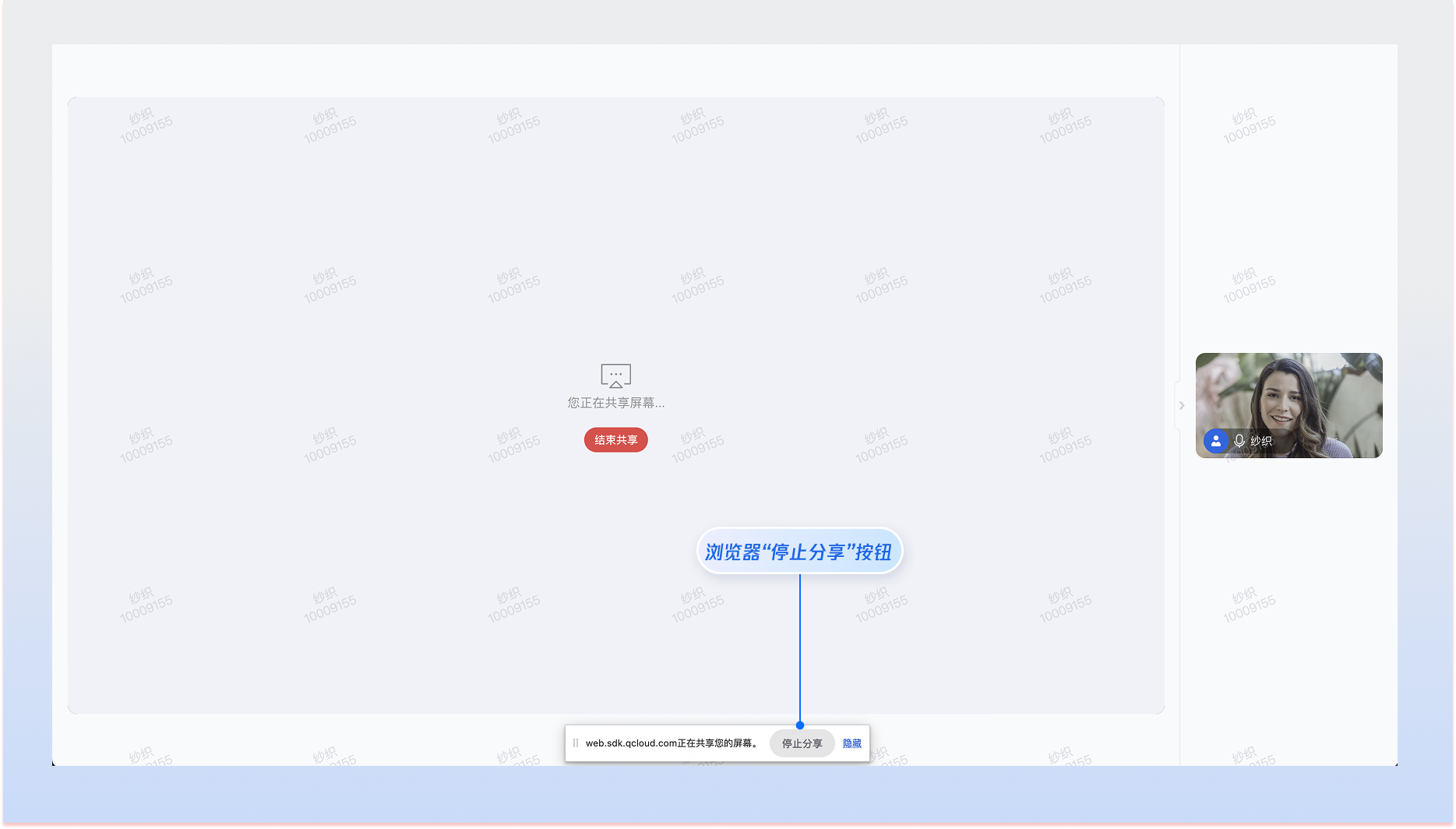
2. **Click the browser's native "Stop sharing" button**
|
|
129
|
+
|
|
130
|
+
|
|
131
|
+
|
|
132
|
+
3. **Close the shared window or tab**
|
|
133
|
+
|
|
134
|
+
|
|
135
|
+
> **Note:**
|
|
136
|
+
>
|
|
137
|
+
|
|
138
|
+
> When users stop screen sharing using any method, Atomicx will automatically update the [screenStatus](https://web.sdk.qcloud.com/trtc/live/web/doc/zh/index.html#screenStatus) state.
|
|
139
|
+
>
|
|
140
|
+
|
|
141
|
+
|
|
142
|
+
### Step 4: Permission Control and State Listening
|
|
143
|
+
|
|
144
|
+
#### **Set Screen Sharing Permissions**
|
|
145
|
+
|
|
146
|
+
You can control screen management permissions in the room through member management interfaces provided by [useRoomParticipantState](https://web.sdk.qcloud.com/trtc/live/web/doc/zh/index.html#module-RoomParticipantState).
|
|
147
|
+
``` typescript
|
|
148
|
+
import { useRoomParticipantState, DeviceType } from 'tuikit-atomicx-vue3/room';
|
|
149
|
+
const { disableAllDevices } = useRoomParticipantState();
|
|
150
|
+
|
|
151
|
+
// Restrict screen sharing to only room owner/admin
|
|
152
|
+
async function handleDisableAllScreen() {
|
|
153
|
+
await disableAllDevices({
|
|
154
|
+
deviceType: DeviceType.Screen,
|
|
155
|
+
disable: true,
|
|
156
|
+
});
|
|
157
|
+
}
|
|
158
|
+
|
|
159
|
+
// Allow all users in the room to initiate screen sharing
|
|
160
|
+
async function handleEnableAllScreen() {
|
|
161
|
+
await disableAllDevices({
|
|
162
|
+
deviceType: DeviceType.Screen,
|
|
163
|
+
disable: false,
|
|
164
|
+
});
|
|
165
|
+
}
|
|
166
|
+
```
|
|
167
|
+
|
|
168
|
+
#### **Automatic Layout Switching**
|
|
169
|
+
|
|
170
|
+
When detecting that a user in the room has started screen sharing, it is recommended to switch to sidebar layout (`RoomLayoutTemplate.SidebarLayout`), enlarging the shared screen while displaying other participants' screens in the sidebar.
|
|
171
|
+
``` typescript
|
|
172
|
+
<template>
|
|
173
|
+
<div class="room-container">
|
|
174
|
+
<RoomView :layout-template="layoutTemplate">
|
|
175
|
+
<template #participantViewUI="{ participant, streamType }">
|
|
176
|
+
<ParticipantViewUI
|
|
177
|
+
:participant="participant"
|
|
178
|
+
:stream-type="streamType"
|
|
179
|
+
/>
|
|
180
|
+
</template>
|
|
181
|
+
</RoomView>
|
|
182
|
+
</div>
|
|
183
|
+
</template>
|
|
184
|
+
|
|
185
|
+
<script setup lang="ts">
|
|
186
|
+
import { ref, watch } from 'vue';
|
|
187
|
+
import {
|
|
188
|
+
RoomView,
|
|
189
|
+
RoomLayoutTemplate,
|
|
190
|
+
useRoomParticipantState
|
|
191
|
+
} from 'tuikit-atomicx-vue3/room';
|
|
192
|
+
|
|
193
|
+
const layoutTemplate = ref(RoomLayoutTemplate.GridLayout);
|
|
194
|
+
const { participantWithScreen } = useRoomParticipantState();
|
|
195
|
+
|
|
196
|
+
// Listen for screen sharing state and automatically switch layout
|
|
197
|
+
watch(participantWithScreen, (participant) => {
|
|
198
|
+
if (participant) {
|
|
199
|
+
// Someone is sharing screen, switch to sidebar layout
|
|
200
|
+
layoutTemplate.value = RoomLayoutTemplate.SidebarLayout;
|
|
201
|
+
} else {
|
|
202
|
+
// No one is sharing screen, switch back to grid layout
|
|
203
|
+
layoutTemplate.value = RoomLayoutTemplate.GridLayout;
|
|
204
|
+
}
|
|
205
|
+
});
|
|
206
|
+
</script>
|
|
207
|
+
```
|
|
208
|
+
|
|
209
|
+
#### **Restrict to One Person Screen Sharing**
|
|
210
|
+
|
|
211
|
+
Only one person should be allowed to share screen in a room. When someone is sharing, disable other users' share buttons:
|
|
212
|
+
``` typescript
|
|
213
|
+
<script setup>
|
|
214
|
+
import { computed } from 'vue';
|
|
215
|
+
import { useRoomParticipantState } from 'tuikit-atomicx-vue3/room';
|
|
216
|
+
|
|
217
|
+
const { participantWithScreen, localParticipant } = useRoomParticipantState();
|
|
218
|
+
|
|
219
|
+
const isOtherSharing = computed(() => {
|
|
220
|
+
const sharer = participantWithScreen.value;
|
|
221
|
+
if (!sharer) return false;
|
|
222
|
+
return sharer.userId !== localParticipant.value?.userId;
|
|
223
|
+
});
|
|
224
|
+
|
|
225
|
+
const canStartScreenShare = computed(() => {
|
|
226
|
+
return !isOtherSharing.value;
|
|
227
|
+
});
|
|
228
|
+
</script>
|
|
229
|
+
|
|
230
|
+
// Use in template
|
|
231
|
+
<template>
|
|
232
|
+
<button :disabled="!canStartScreenShare" @click="handleStartShare">
|
|
233
|
+
Start Screen Sharing
|
|
234
|
+
</button>
|
|
235
|
+
<template>
|
|
236
|
+
```
|
|
237
|
+
|
|
238
|
+
### Step 5: Handle Screen Sharing Errors
|
|
239
|
+
|
|
240
|
+
When screen sharing encounters errors, provide appropriate prompts to users based on error messages.
|
|
241
|
+
|
|
242
|
+
**Code Example:**
|
|
243
|
+
``` typescript
|
|
244
|
+
import { useDeviceState, DeviceError } from 'tuikit-atomicx-vue3/room';
|
|
245
|
+
import { TUIToast } from '@tencentcloud/uikit-base-component-vue3';
|
|
246
|
+
|
|
247
|
+
const { startScreenShare } = useDeviceState();
|
|
248
|
+
|
|
249
|
+
try {
|
|
250
|
+
await startScreenShare();
|
|
251
|
+
} catch (error: any) {
|
|
252
|
+
let message = '';
|
|
253
|
+
switch (error.name) {
|
|
254
|
+
case 'NotReadableError':
|
|
255
|
+
message = 'System prohibits current browser from accessing screen content, please enable screen sharing permission.';
|
|
256
|
+
break;
|
|
257
|
+
case 'NotAllowedError':
|
|
258
|
+
if (error.message.includes('Permission denied by system')) {
|
|
259
|
+
message = 'System prohibits current browser from accessing screen content, please enable screen sharing permission.';
|
|
260
|
+
} else {
|
|
261
|
+
message = 'User cancelled screen sharing';
|
|
262
|
+
}
|
|
263
|
+
break;
|
|
264
|
+
default:
|
|
265
|
+
message = 'Unknown error occurred during screen sharing, please try again.';
|
|
266
|
+
break;
|
|
267
|
+
}
|
|
268
|
+
TUIToast.warning({
|
|
269
|
+
message,
|
|
270
|
+
});
|
|
271
|
+
}
|
|
272
|
+
```
|
|
273
|
+
|
|
274
|
+
## API Documentation
|
|
275
|
+
<table>
|
|
276
|
+
<tr>
|
|
277
|
+
<td rowspan="1" colSpan="1" >**State/Component**</td>
|
|
278
|
+
|
|
279
|
+
<td rowspan="1" colSpan="1" >**Feature Description**</td>
|
|
280
|
+
|
|
281
|
+
<td rowspan="1" colSpan="1" >**API Documentation**</td>
|
|
282
|
+
</tr>
|
|
283
|
+
|
|
284
|
+
<tr>
|
|
285
|
+
<td rowspan="1" colSpan="1" >**useDeviceState**</td>
|
|
286
|
+
|
|
287
|
+
<td rowspan="1" colSpan="1" >Contains audio/video device status, audio/video device list, and operation interfaces.</td>
|
|
288
|
+
|
|
289
|
+
<td rowspan="1" colSpan="1" >[API Documentation](https://web.sdk.qcloud.com/trtc/live/web/doc/zh/index.html#module-DeviceState)</td>
|
|
290
|
+
</tr>
|
|
291
|
+
|
|
292
|
+
<tr>
|
|
293
|
+
<td rowspan="1" colSpan="1" >**useRoomParticipantState**</td>
|
|
294
|
+
|
|
295
|
+
<td rowspan="1" colSpan="1" >Contains room user data and user management interface.</td>
|
|
296
|
+
|
|
297
|
+
<td rowspan="1" colSpan="1" >[API Documentation](https://web.sdk.qcloud.com/trtc/live/web/doc/zh/index.html#module-RoomParticipantState)</td>
|
|
298
|
+
</tr>
|
|
299
|
+
</table>
|
|
300
|
+
|
|
301
|
+
|
|
302
|
+
## Common Questions
|
|
303
|
+
|
|
304
|
+
### Why doesn't system audio sharing work?
|
|
305
|
+
- **Platform Restriction:** Audio sharing is currently only supported on modern browsers like Chrome and Edge.
|
|
306
|
+
|
|
307
|
+
- **Operational Details:** Users must manually select **Share audio** in the browser's screen selector.
|
|
308
|
+
|
|
309
|
+
- **System Restriction:** Some operating systems do not support sharing audio from specific **application windows**. It is recommended to prioritize selecting **entire screen** or **browser tab**.
|
|
310
|
+
|
|
311
|
+
|
|
312
|
+
### How to detect when users stop screen sharing by clicking the browser's "Stop sharing" button?
|
|
313
|
+
|
|
314
|
+
Atomicx automatically listens for the browser's stop sharing event and updates the `screenStatus` state. You just need to listen for changes in `screenStatus`:
|
|
315
|
+
``` typescript
|
|
316
|
+
watch(screenStatus, (newStatus, oldStatus) => {
|
|
317
|
+
if (oldStatus === DeviceStatus.On && newStatus === DeviceStatus.Off) {
|
|
318
|
+
console.log('User has stopped screen sharing.');
|
|
319
|
+
}
|
|
320
|
+
});
|
|
321
|
+
```
|
|
322
|
+
|
|
323
|
+
### Do mobile browsers support screen sharing?
|
|
324
|
+
|
|
325
|
+
Only desktop browsers support screen sharing. Mobile browsers do not support screen sharing capabilities.
|
|
326
|
+
|
|
327
|
+
### Why does the user's microphone status display as "on" when they enable screen sharing audio?
|
|
328
|
+
|
|
329
|
+
This is expected system behavior for the following reasons:
|
|
330
|
+
|
|
331
|
+
**Technical Principle:**`microphoneStatus` indicates whether the current device is transmitting audio signals externally. When screen sharing is enabled and **system audio capture is checked**, Atomicx SDK will start an audio transmission channel. Since the remote end receives a continuous audio data stream, the system cannot distinguish whether the audio source is from a physical microphone or system playback sound, so the audio capture status is uniformly marked as `DeviceStatus.On`.
|
|
332
|
+
|
|
333
|
+
**Privacy Note:** Please rest assured, this does not mean your microphone is capturing voice. Whether the microphone voice is being pushed is only related to microphone control interfaces (`openLocalMicrophone` and `unmuteLocalMicrophone`), and is independent of screen sharing audio capture. Even if screen sharing audio is being transmitted, as long as microphone-related interfaces are not called, your microphone voice will not be captured and pushed.
|