@tencent-rtc/mcp 1.3.1 → 1.3.2
This diff represents the content of publicly available package versions that have been released to one of the supported registries. The information contained in this diff is provided for informational purposes only and reflects changes between package versions as they appear in their respective public registries.
- package/index.js +4 -0
- package/index.js.map +1 -1
- package/package.json +1 -1
- package/resource/doc/chatuikit/faq/web_sdk/faq.md +125 -0
- package/resource/doc/chatuikit/flutter/faq.md +17 -114
- package/resource/doc/chatuikit/flutter/integrate_tuikit_Flutter.md +86 -722
- package/resource/doc/roomkit/vue/features/call-user-to-room.md +256 -0
- package/resource/doc/roomkit/vue/features/device-detection.md +388 -0
- package/resource/doc/roomkit/vue/features/device-state.md +480 -0
- package/resource/doc/roomkit/vue/features/free-beauty-panel.md +238 -0
- package/resource/doc/roomkit/vue/features/room-chat.md +427 -0
- package/resource/doc/roomkit/vue/features/room-participant-state.md +407 -0
- package/resource/doc/roomkit/vue/features/room-state.md +291 -0
- package/resource/doc/roomkit/vue/features/room-view.md +338 -0
- package/resource/doc/roomkit/vue/features/schedule-room.md +349 -0
- package/resource/doc/roomkit/vue/features/screen-share.md +333 -0
- package/resource/doc/roomkit/vue/features/virtual-background.md +287 -0
- package/resource/doc/roomkit/vue/features/workflow.md +553 -0
- package/resource/doc/roomkit/vue/integration.md +479 -0
- package/resource/doc/roomkit/vue/workflow.md +487 -0
- package/resource/doc/tuicallkit/react/api.md +21 -0
- package/resource/doc/tuicallkit/vue/api.md +21 -0
- package/tools/definitions/get_web_room_feature_detail_def.js +95 -0
- package/tools/definitions/get_web_room_feature_detail_def.js.map +1 -0
- package/tools/definitions/get_web_room_uikit_integration_def.js +44 -0
- package/tools/definitions/get_web_room_uikit_integration_def.js.map +1 -0
- package/tools/index.js +4 -2
- package/tools/index.js.map +1 -1
- package/tools/room/get-web-room-feature-detail.js +68 -0
- package/tools/room/get-web-room-feature-detail.js.map +1 -0
- package/tools/room/get-web-room-integration.js +43 -0
- package/tools/room/get-web-room-integration.js.map +1 -0
- package/utils/report-cls-client.js +1 -1
- package/utils/report-es-client.js +1 -1
- package/resource/doc/chatuikit/flutter/integrate_only_tuichat_Flutter.md +0 -333
- package/resource/doc/chatuikit/flutter/quick_start_Flutter.md +0 -217
- package/resource/doc/roomkit/vue/states/device-state.md +0 -369
- package/resource/doc/roomkit/vue/states/login-state.md +0 -59
- package/resource/doc/roomkit/vue/states/room-list-state.md +0 -355
- package/resource/doc/roomkit/vue/states/room-participant-state.md +0 -388
- package/tools/room/get-web-room-state-detail.js +0 -31
- package/tools/room/get-web-room-state-detail.js.map +0 -1
|
@@ -0,0 +1,238 @@
|
|
|
1
|
+
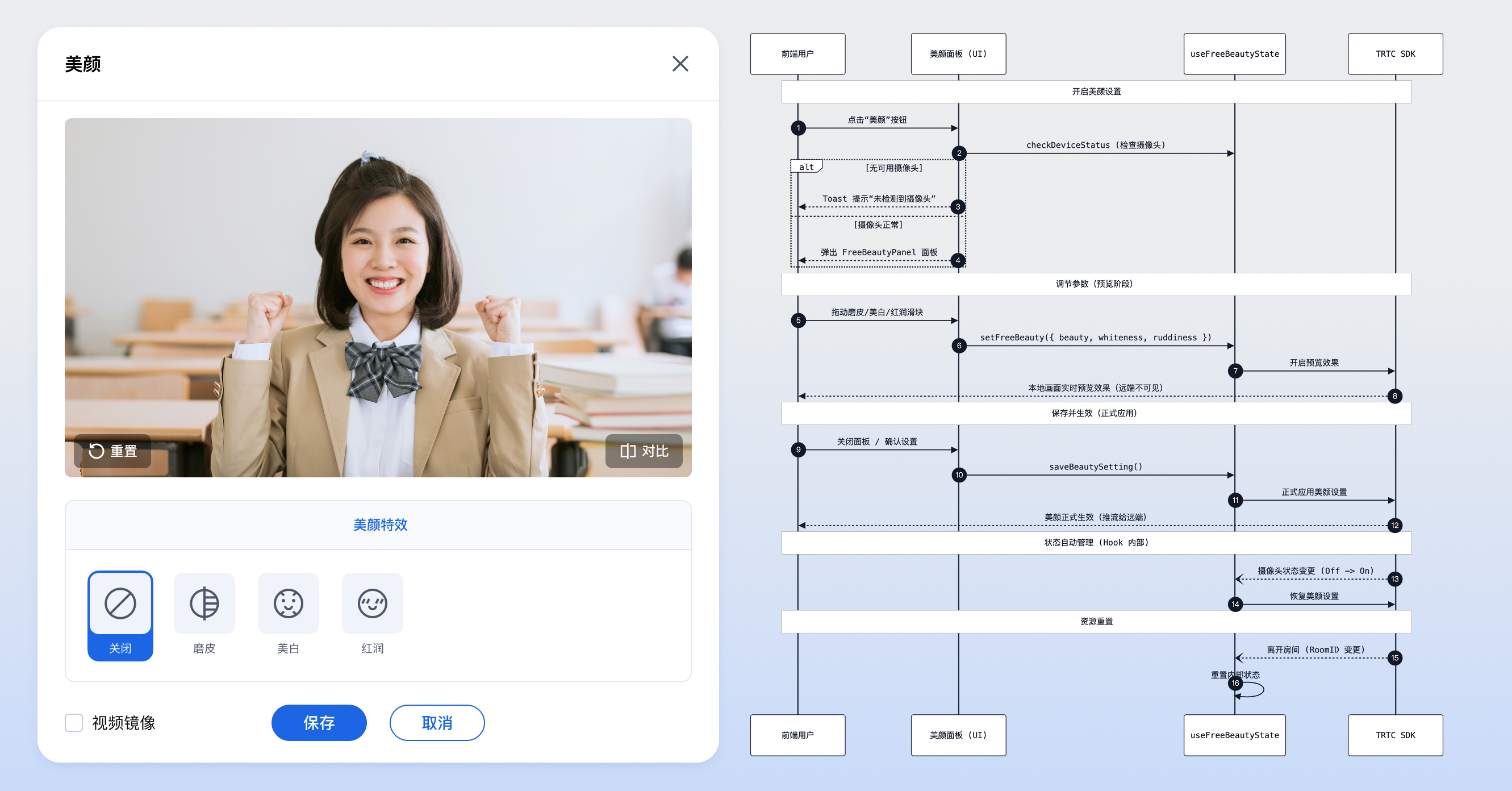
The basic beauty feature allows users to apply skin smoothing, whitening, and ruddiness adjustments to portraits during video calls or live streaming.
|
|
2
|
+
|
|
3
|
+
## Use Cases
|
|
4
|
+
- **Video Conferencing:** Minimize skin blemishes, brighten skin tone, making participants look more professional and energetic.
|
|
5
|
+
|
|
6
|
+
- **Online Live Streaming:** Hosts use beauty features to enhance visual appeal and attract more viewers.
|
|
7
|
+
|
|
8
|
+
- **Online Education:** Teachers and students maintain a clean and natural appearance, creating a good classroom atmosphere.
|
|
9
|
+
|
|
10
|
+
|
|
11
|
+
## Prerequisites
|
|
12
|
+
- **User Status:** The user has completed login authentication through useLoginState, refer to [Integration Overview](https://write.woa.com/document/197379797539790848), and is in **logged in** status.
|
|
13
|
+
|
|
14
|
+
- **Environment Dependencies:** The project has imported `tuikit-atomicx-vue3`.
|
|
15
|
+
|
|
16
|
+
- **Device Requirements:** A working camera device is required, and the user has authorized camera access. If the user denies authorization, the virtual background feature will not be available.
|
|
17
|
+
|
|
18
|
+
|
|
19
|
+
## Implementing Basic Beauty Feature
|
|
20
|
+
|
|
21
|
+
This feature provides two integration solutions. You can choose the most suitable one according to business needs:
|
|
22
|
+
- **Solution 1 (Recommended):** Quick integration using UI components. Directly import the beauty panel component ([FreeBeautyPanel](https://github.com/Tencent-RTC/TUIKit_Vue3/tree/main/packages/tuikit-atomicx-vue3/src/components/FreeBeautyPanel)) provided by `tuikit-atomicx-vue3`, embed it into your application dialog, with the lowest development cost.
|
|
23
|
+
|
|
24
|
+
- **Solution 2 (Advanced):** Custom integration using underlying API. Based on atomicx-core SDK API [useFreeBeautyState](https://web.sdk.qcloud.com/trtc/live/web/doc/zh/index.html#module-FreeBeautyState) state hook to implement UI and interaction logic yourself, with the highest flexibility.
|
|
25
|
+
|
|
26
|
+
|
|
27
|
+
|
|
28
|
+
|
|
29
|
+
## Solution 1: Quick Integration Using UI Components
|
|
30
|
+
|
|
31
|
+
`tuikit-atomicx-vue3` provides a core beauty settings panel component:
|
|
32
|
+
- [**FreeBeautyPanel**](https://github.com/Tencent-RTC/TUIKit_Vue3/tree/main/packages/tuikit-atomicx-vue3/src/components/FreeBeautyPanel)**:** Basic beauty configuration panel, including parameter adjustment functions for skin smoothing, whitening, and ruddiness.
|
|
33
|
+
|
|
34
|
+
|
|
35
|
+
### Step 1: Import Component
|
|
36
|
+
``` typescript
|
|
37
|
+
import { FreeBeautyPanel } from 'tuikit-atomicx-vue3/room';
|
|
38
|
+
```
|
|
39
|
+
|
|
40
|
+
### Step 2: Use Component
|
|
41
|
+
|
|
42
|
+
It is generally recommended to place `FreeBeautyPanel` in a dialog or modal, triggered by button click.
|
|
43
|
+
|
|
44
|
+
**The following example shows how to implement a complete interaction for clicking a button to open beauty settings:**
|
|
45
|
+
|
|
46
|
+
> **Note:**
|
|
47
|
+
>
|
|
48
|
+
|
|
49
|
+
> All TUIKit components must be wrapped inside [UIKitProvider](https://write.woa.com/document/197379797539790848), otherwise they will not be able to obtain context dependencies, causing style anomalies.
|
|
50
|
+
>
|
|
51
|
+
|
|
52
|
+
``` typescript
|
|
53
|
+
<template>
|
|
54
|
+
<UIKitProvider theme="light" language="zh-CN">
|
|
55
|
+
<div class="toolbar-container">
|
|
56
|
+
<!-- 1. Trigger button -->
|
|
57
|
+
<button @click="openBeautySettings">Beauty Settings</button>
|
|
58
|
+
|
|
59
|
+
<!-- 2. Settings dialog -->
|
|
60
|
+
<div v-if="showSettings" class="modal-mask">
|
|
61
|
+
<div class="modal-content">
|
|
62
|
+
<div class="modal-header">
|
|
63
|
+
<span>Basic Beauty</span>
|
|
64
|
+
<button @click="showSettings = false">Close</button>
|
|
65
|
+
</div>
|
|
66
|
+
|
|
67
|
+
<div class="modal-body">
|
|
68
|
+
<!-- 3. Import panel component -->
|
|
69
|
+
<!-- @close event: Triggered when user clicks the close button (if any) inside the panel -->
|
|
70
|
+
<FreeBeautyPanel @close="showSettings = false" />
|
|
71
|
+
</div>
|
|
72
|
+
</div>
|
|
73
|
+
</div>
|
|
74
|
+
</div>
|
|
75
|
+
</UIKitProvider>
|
|
76
|
+
</template>
|
|
77
|
+
|
|
78
|
+
<script setup lang="ts">
|
|
79
|
+
import { ref } from 'vue';
|
|
80
|
+
import { UIKitProvider } from '@tencentcloud/uikit-base-component-vue3';
|
|
81
|
+
import { FreeBeautyPanel, useDeviceState } from 'tuikit-atomicx-vue3/room';
|
|
82
|
+
|
|
83
|
+
const showSettings = ref(false);
|
|
84
|
+
const { cameraList } = useDeviceState();
|
|
85
|
+
|
|
86
|
+
const openBeautySettings = () => {
|
|
87
|
+
// 1. Check if there is an available camera
|
|
88
|
+
if (cameraList.value.length === 0) {
|
|
89
|
+
alert('No camera detected, cannot set beauty effects');
|
|
90
|
+
return;
|
|
91
|
+
}
|
|
92
|
+
|
|
93
|
+
// 2. Open settings panel
|
|
94
|
+
showSettings.value = true;
|
|
95
|
+
};
|
|
96
|
+
</script>
|
|
97
|
+
|
|
98
|
+
<style scoped>
|
|
99
|
+
.modal-mask {
|
|
100
|
+
position: fixed; top: 0; left: 0; width: 100%; height: 100%;
|
|
101
|
+
background: rgba(0,0,0,0.5); display: flex; justify-content: center; align-items: center; z-index: 1000;
|
|
102
|
+
}
|
|
103
|
+
.modal-content { background: white; width: 600px; border-radius: 8px; overflow: hidden; }
|
|
104
|
+
.modal-header { padding: 16px; display: flex; justify-content: space-between; border-bottom: 1px solid #eee; }
|
|
105
|
+
.modal-body { padding: 16px; }
|
|
106
|
+
</style>
|
|
107
|
+
```
|
|
108
|
+
|
|
109
|
+
The internal logic of this component is as follows:
|
|
110
|
+
- **Display Panel:** After users click the button, a dialog containing `FreeBeautyPanel` pops up.
|
|
111
|
+
|
|
112
|
+
- **Adjust Parameters:** Users drag sliders inside the panel to adjust skin smoothing, whitening, and ruddiness parameters.
|
|
113
|
+
|
|
114
|
+
- **Real-time Preview:** During adjustment, the preview interface is called in real-time to preview beauty effects.
|
|
115
|
+
|
|
116
|
+
- **Save and Apply:** When closing the panel (triggering `@close` event), the current settings are automatically saved to take effect for remote users.
|
|
117
|
+
|
|
118
|
+
|
|
119
|
+
## Solution 2: Custom Integration Using Underlying API
|
|
120
|
+
|
|
121
|
+
This section mainly introduces how to implement basic beauty through atomicx-core SDK API [useFreeBeautyState](https://web.sdk.qcloud.com/trtc/live/web/doc/zh/index.html#module-FreeBeautyState) interface.
|
|
122
|
+
|
|
123
|
+
### Step 1: Set Preview
|
|
124
|
+
|
|
125
|
+
When users adjust beauty parameters (e.g., dragging sliders), use [setFreeBeauty](https://web.sdk.qcloud.com/trtc/live/web/doc/zh/index.html#setFreeBeauty) for real-time preview. At this time, the effect is only visible locally and will not be transmitted to remote users.
|
|
126
|
+
|
|
127
|
+
> **Note:**
|
|
128
|
+
>
|
|
129
|
+
|
|
130
|
+
> Parameter values range from 0-100.
|
|
131
|
+
>
|
|
132
|
+
|
|
133
|
+
``` typescript
|
|
134
|
+
import { useFreeBeautyState } from 'tuikit-atomicx-vue3/room';
|
|
135
|
+
|
|
136
|
+
const { setFreeBeauty, beautyConfig } = useFreeBeautyState();
|
|
137
|
+
|
|
138
|
+
// Example: Adjust beauty parameters
|
|
139
|
+
const updatePreview = async (beauty: number, white: number, ruddy: number) => {
|
|
140
|
+
// The values in beautyConfig will update automatically, here's how to manually set preview
|
|
141
|
+
await setFreeBeauty({
|
|
142
|
+
beautyLevel: beauty, // Skin smoothing (0-100)
|
|
143
|
+
whitenessLevel: white, // Whitening (0-100)
|
|
144
|
+
ruddinessLevel: ruddy // Ruddiness (0-100)
|
|
145
|
+
});
|
|
146
|
+
};
|
|
147
|
+
```
|
|
148
|
+
|
|
149
|
+
### Step 2: Save and Apply
|
|
150
|
+
|
|
151
|
+
After users confirm the preview effect is satisfactory, call [saveBeautySetting](https://web.sdk.qcloud.com/trtc/live/web/doc/zh/index.html#saveBeautySetting) to apply the current configuration to the video stream. At this time, remote users can see the beauty effect.
|
|
152
|
+
|
|
153
|
+
> **Note:**
|
|
154
|
+
>
|
|
155
|
+
|
|
156
|
+
> The virtual background feature depends on camera devices. You can use [useDeviceState](https://web.sdk.qcloud.com/trtc/live/web/doc/zh/index.html#module-DeviceState) to check device status.
|
|
157
|
+
>
|
|
158
|
+
> - [cameraList](https://web.sdk.qcloud.com/trtc/live/web/doc/zh/index.html#cameraList): List of currently available camera devices. If the list is empty, it means no camera was detected or camera permission was denied.
|
|
159
|
+
|
|
160
|
+
``` typescript
|
|
161
|
+
import { useFreeBeautyState } from 'tuikit-atomicx-vue3/room';
|
|
162
|
+
|
|
163
|
+
const { saveBeautySetting } = useFreeBeautyState();
|
|
164
|
+
|
|
165
|
+
const applyBeauty = async () => {
|
|
166
|
+
// Save the currently previewed settings to take effect for remote users
|
|
167
|
+
await saveBeautySetting();
|
|
168
|
+
console.log('Beauty effects applied');
|
|
169
|
+
};
|
|
170
|
+
```
|
|
171
|
+
|
|
172
|
+
### Step 3: Disable Beauty Effects
|
|
173
|
+
|
|
174
|
+
To disable beauty, simply set all parameters to 0 and save.
|
|
175
|
+
``` typescript
|
|
176
|
+
const closeBeauty = async () => {
|
|
177
|
+
// 1. Set all parameters to 0 and preview
|
|
178
|
+
await setFreeBeauty({
|
|
179
|
+
beautyLevel: 0,
|
|
180
|
+
whitenessLevel: 0,
|
|
181
|
+
ruddinessLevel: 0
|
|
182
|
+
});
|
|
183
|
+
|
|
184
|
+
// 2. Save to apply
|
|
185
|
+
await saveBeautySetting();
|
|
186
|
+
};
|
|
187
|
+
```
|
|
188
|
+
|
|
189
|
+
## Development Notes
|
|
190
|
+
- **Parameter Range:**`setFreeBeauty` accepts parameters (`beautyLevel`, `whitenessLevel`, `ruddinessLevel`) all ranging from 0-100.
|
|
191
|
+
|
|
192
|
+
- **Preview and Apply:** To provide better user experience, beauty adjustment is divided into **"preview"** and **"apply"** stages. `setFreeBeauty` is only used for local preview, and you must call `saveBeautySetting` to formally apply by calling `trtcCloud.setBeautyStyle` to the stream.
|
|
193
|
+
|
|
194
|
+
- **Device Dependencies:** Beauty features depend on video streams, so effects can only be seen when the camera is enabled. If no camera is detected, it is recommended to disable the beauty entry point.
|
|
195
|
+
|
|
196
|
+
- **Performance Consumption:** Enabling beauty will increase CPU and GPU load. It is recommended to guide users to use moderately on low-end devices.
|
|
197
|
+
|
|
198
|
+
|
|
199
|
+
## Common Questions
|
|
200
|
+
|
|
201
|
+
### **Why can't remote users see the effect after adjusting beauty?**
|
|
202
|
+
|
|
203
|
+
Please confirm if `saveBeautySetting()` was called. `setFreeBeauty()` is only used for local preview, and effects will only be applied to the streaming video after saving.
|
|
204
|
+
|
|
205
|
+
### **Can beauty be set without a camera?**
|
|
206
|
+
|
|
207
|
+
No. Beauty features process video streams. If no video is captured, beauty cannot take effect. It is recommended to hide or disable the beauty entry point when there is no camera.
|
|
208
|
+
|
|
209
|
+
### **Do I need to manually reset beauty after leaving the room or turning off the camera?**
|
|
210
|
+
|
|
211
|
+
No. `useFreeBeautyState` has internally implemented automatic state management:
|
|
212
|
+
- Camera switch: Beauty pauses when camera is turned off, and automatically restores the last saved settings when reopened.
|
|
213
|
+
|
|
214
|
+
- Entering/exiting rooms: All beauty parameters are automatically reset when exiting a room, no need for developers to clean up manually.
|
|
215
|
+
|
|
216
|
+
|
|
217
|
+
## **Sample Project**
|
|
218
|
+
|
|
219
|
+
Tencent Cloud provides a sample project [atomicx-vite-vue3-ts](https://github.com/Tencent-RTC/TUIRoomKit/tree/main/Web/example/atomicx-vite-vue3-ts) on GitHub, which you can refer to for implementing complete RoomKit functionality.
|
|
220
|
+
|
|
221
|
+
## API Documentation
|
|
222
|
+
<table>
|
|
223
|
+
<tr>
|
|
224
|
+
<td rowspan="1" colSpan="1" >**State/Component**</td>
|
|
225
|
+
|
|
226
|
+
<td rowspan="1" colSpan="1" >**Feature Description**</td>
|
|
227
|
+
|
|
228
|
+
<td rowspan="1" colSpan="1" >**API Documentation**</td>
|
|
229
|
+
</tr>
|
|
230
|
+
|
|
231
|
+
<tr>
|
|
232
|
+
<td rowspan="1" colSpan="1" >**useFreeBeautyState**</td>
|
|
233
|
+
|
|
234
|
+
<td rowspan="1" colSpan="1" >Free beauty feature management</td>
|
|
235
|
+
|
|
236
|
+
<td rowspan="1" colSpan="1" >[API Documentation](https://web.sdk.qcloud.com/trtc/live/web/doc/zh/index.html#module-FreeBeautyState)</td>
|
|
237
|
+
</tr>
|
|
238
|
+
</table>
|
|
@@ -0,0 +1,427 @@
|
|
|
1
|
+
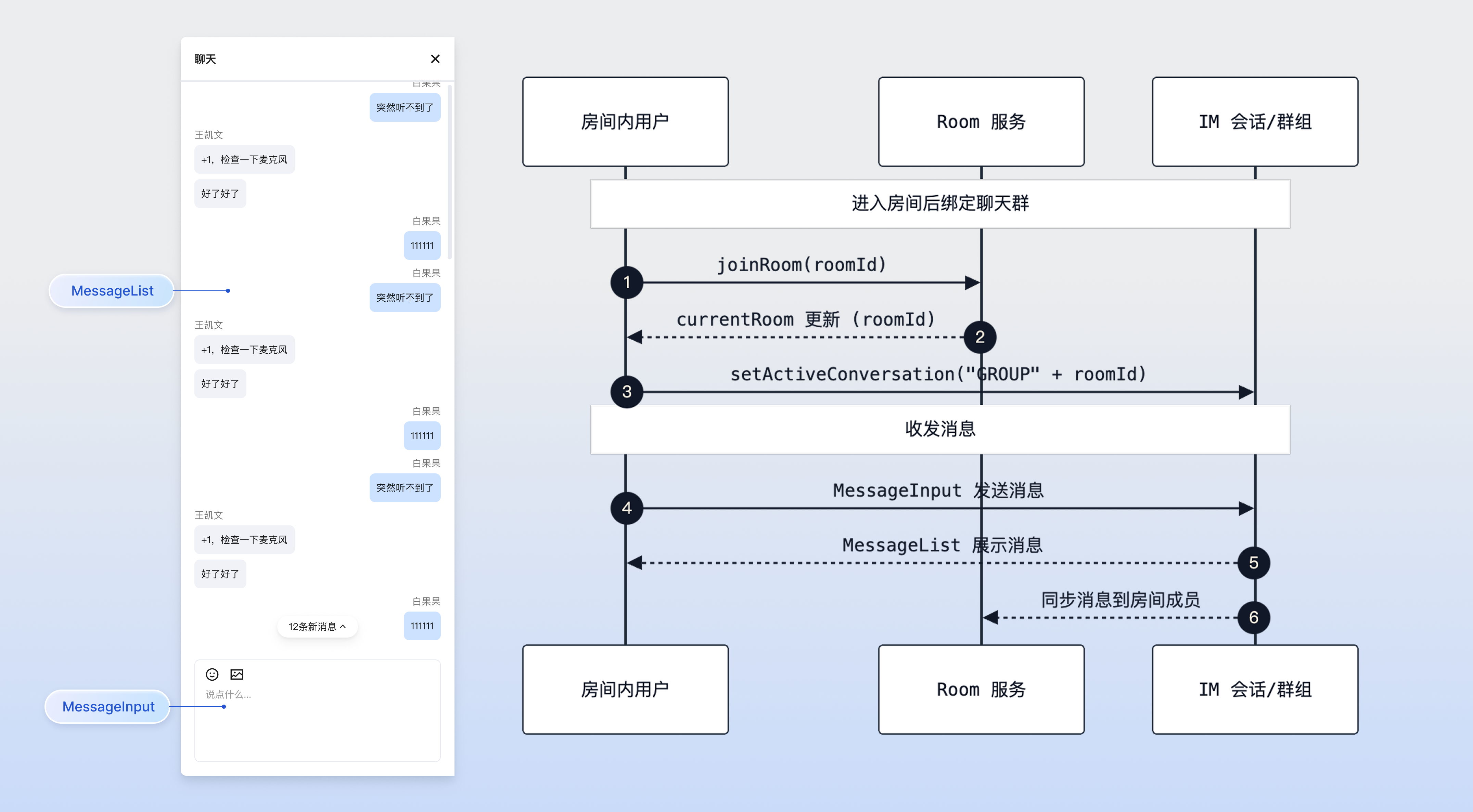
The in-room chat feature allows members within a meeting to interact in real-time through text, emojis, and other forms. This feature is implemented based on the IM component capabilities of `tuikit-atomicx-vue3`, providing users with a convenient instant messaging experience.
|
|
2
|
+
|
|
3
|
+
## Use Cases
|
|
4
|
+
- **Online Seminars:** When speakers give video presentations, participants can ask questions or discuss through text.
|
|
5
|
+
|
|
6
|
+
- **Remote Collaboration:** Team members can send text, images, files, etc. during communication.
|
|
7
|
+
|
|
8
|
+
- **Live Teaching:** Students can send bullet comments or questions in the chat area, and teachers can view and answer in real-time, enhancing classroom interaction.
|
|
9
|
+
|
|
10
|
+
|
|
11
|
+
## Prerequisites
|
|
12
|
+
|
|
13
|
+
Before integrating this feature, please ensure the following conditions are met:
|
|
14
|
+
- **User Status:** The user has completed login authentication through useLoginState, refer to [Integration Overview](https://write.woa.com/document/197379797539790848), and is already in a room as the room owner or member, refer to [Room Management](https://write.woa.com/document/197379861957083136).
|
|
15
|
+
|
|
16
|
+
- **Environment Dependencies:** The project has correctly installed and imported `tuikit-atomicx-vue3`.
|
|
17
|
+
|
|
18
|
+
|
|
19
|
+
## Implementing In-Room Chat Feature
|
|
20
|
+
|
|
21
|
+
This feature provides two integration solutions. You can choose the most suitable one according to business needs:
|
|
22
|
+
- **Solution 1 (Recommended):** Quick integration using UI components. Directly import the message list component ([MessageList](https://github.com/Tencent-RTC/TUIKit_Vue3/tree/main/packages/tuikit-atomicx-vue3/src/components/MessageList)) and message input component ([MessageInput](https://github.com/Tencent-RTC/TUIKit_Vue3/tree/main/packages/tuikit-atomicx-vue3/src/components/MessageInput)) provided by `tuikit-atomicx-vue3`, with the lowest development cost.
|
|
23
|
+
|
|
24
|
+
- **Solution 2 (Advanced):** Custom integration using underlying API. Based on atomicx-core SDK API [useMessageListState](https://web.sdk.qcloud.com/trtc/live/web/doc/zh/index.html#module-MessageListState) and [useMessageInputState](https://web.sdk.qcloud.com/trtc/live/web/doc/zh/index.html#module-MessageInputState) state hooks to implement UI and interaction logic yourself, with the highest flexibility.
|
|
25
|
+
|
|
26
|
+
|
|
27
|
+
|
|
28
|
+
In-room chat
|
|
29
|
+
|
|
30
|
+
|
|
31
|
+
## Solution 1: Quick Integration Using UI Components
|
|
32
|
+
|
|
33
|
+
`tuikit-atomicx-vue3` provides two core components:
|
|
34
|
+
- [**MessageList**](https://github.com/Tencent-RTC/TUIKit_Vue3/tree/main/packages/tuikit-atomicx-vue3/src/components/MessageList)**:** Message list component that displays chat history and supports operations such as copying, recalling, and deleting messages.
|
|
35
|
+
|
|
36
|
+
- [**MessageInput**](https://github.com/Tencent-RTC/TUIKit_Vue3/tree/main/packages/tuikit-atomicx-vue3/src/components/MessageInput)**:** Message input component that supports sending text, emojis, images, and files, and can be automatically disabled based on mute status.
|
|
37
|
+
|
|
38
|
+
|
|
39
|
+
### Step 1: Data Initialization
|
|
40
|
+
|
|
41
|
+
After the user successfully joins a room, you need to call the [setActiveConversation](https://web.sdk.qcloud.com/trtc/live/web/doc/zh/index.html#setActiveConversation) interface to initialize chat data. It is recommended to listen for changes in [currentRoom](https://web.sdk.qcloud.com/trtc/live/web/doc/zh/index.html#currentRoom) to handle this automatically.
|
|
42
|
+
|
|
43
|
+
> **Note:**
|
|
44
|
+
>
|
|
45
|
+
> - `GROUP` is a fixed prefix, the `setActiveConversation` parameter must be ``GROUP${roomId}``, otherwise messages cannot be sent or received normally.
|
|
46
|
+
> - `GROUP` is the fixed prefix for IM SDK group conversations (refer to [IM Conversation Types](https://web.sdk.qcloud.com/im/doc/zh-cn/Conversation.html)). Room chat is based on IM groups, so the conversation ID must be in the ``GROUP${roomId}`` format.
|
|
47
|
+
|
|
48
|
+
``` typescript
|
|
49
|
+
import { watch } from 'vue';
|
|
50
|
+
import { useConversationListState } from 'tuikit-atomicx-vue3/chat';
|
|
51
|
+
import { useRoomState } from 'tuikit-atomicx-vue3/room';
|
|
52
|
+
|
|
53
|
+
const { currentRoom } = useRoomState();
|
|
54
|
+
const { setActiveConversation } = useConversationListState();
|
|
55
|
+
|
|
56
|
+
// Listen for room ID changes and automatically switch to the corresponding IM group conversation
|
|
57
|
+
watch(() => currentRoom.value?.roomId, (roomId) => {
|
|
58
|
+
if (roomId) {
|
|
59
|
+
// Key step: Set the current active conversation ID, the rule is "GROUP" + room ID
|
|
60
|
+
setActiveConversation(`GROUP${roomId}`);
|
|
61
|
+
}
|
|
62
|
+
}, { immediate: true });
|
|
63
|
+
```
|
|
64
|
+
|
|
65
|
+
### Step 2: Use Components
|
|
66
|
+
|
|
67
|
+
In your page, you can directly combine these two components. Also combine [useRoomParticipantState](https://web.sdk.qcloud.com/trtc/live/web/doc/zh/index.html#module-RoomParticipantState) to get the current user's mute status and control the availability of the input box.
|
|
68
|
+
|
|
69
|
+
> **Note:**
|
|
70
|
+
>
|
|
71
|
+
|
|
72
|
+
> All TUIKit components must be wrapped inside [UIKitProvider](https://write.woa.com/document/197379797539790848), otherwise they will not be able to obtain context dependencies, causing style anomalies.
|
|
73
|
+
>
|
|
74
|
+
|
|
75
|
+
``` typescript
|
|
76
|
+
<template>
|
|
77
|
+
<UIKitProvider theme="light" language="zh-CN">
|
|
78
|
+
<div class="room-chat-container">
|
|
79
|
+
<!-- Message list component -->
|
|
80
|
+
<!-- messageActionList: Configure operations supported by long-pressing messages, such as copy, recall, delete -->
|
|
81
|
+
<MessageList
|
|
82
|
+
class="message-list"
|
|
83
|
+
:messageActionList="['copy', 'recall', 'delete']"
|
|
84
|
+
/>
|
|
85
|
+
|
|
86
|
+
<!-- Message input component -->
|
|
87
|
+
<!-- disabled: Disable input box when user is muted -->
|
|
88
|
+
<!-- hideSendButton: Optional, hide send button, use enter to send -->
|
|
89
|
+
<MessageInput
|
|
90
|
+
class="message-input"
|
|
91
|
+
:placeholder="inputPlaceholder"
|
|
92
|
+
:disabled="isMessageDisabled"
|
|
93
|
+
hideSendButton
|
|
94
|
+
/>
|
|
95
|
+
</div>
|
|
96
|
+
</UIKitProvider>
|
|
97
|
+
</template>
|
|
98
|
+
|
|
99
|
+
<script setup lang="ts">
|
|
100
|
+
import { computed } from 'vue';
|
|
101
|
+
import { UIKitProvider } from '@tencentcloud/uikit-base-component-vue3';
|
|
102
|
+
import { MessageInput, MessageList } from 'tuikit-atomicx-vue3/chat';
|
|
103
|
+
import { useRoomParticipantState } from 'tuikit-atomicx-vue3/room';
|
|
104
|
+
|
|
105
|
+
const { localParticipant } = useRoomParticipantState();
|
|
106
|
+
|
|
107
|
+
// Get current user's mute status, isMessageDisabled is synchronized in real-time by the room backend, no need for frontend active polling, frontend only needs to bind this state to automatically respond to mute changes.
|
|
108
|
+
const isMessageDisabled = computed(() => localParticipant.value?.isMessageDisabled);
|
|
109
|
+
|
|
110
|
+
// Dynamically display placeholder prompt based on status
|
|
111
|
+
const inputPlaceholder = computed(() =>
|
|
112
|
+
isMessageDisabled.value ? 'You have been muted' : 'Please enter message...'
|
|
113
|
+
);
|
|
114
|
+
</script>
|
|
115
|
+
|
|
116
|
+
<style scoped>
|
|
117
|
+
.room-chat-container{display:flex;flex-direction:column;height:100%;padding:8px;gap:8px}.message-list{flex:1;overflow:hidden}.message-input{flex-shrink:0;border:1px solid #e0e0e0;border-radius:8px}
|
|
118
|
+
</style>
|
|
119
|
+
```
|
|
120
|
+
|
|
121
|
+
### Step 3: Handle Unread Message Count (Optional)
|
|
122
|
+
|
|
123
|
+
If the chat window is usually collapsed or closed, you need to listen for changes in [messageList](https://web.sdk.qcloud.com/trtc/live/web/doc/zh/index.html#messageList) to count unread messages and provide prompts on the UI (such as chat icon badges).
|
|
124
|
+
``` typescript
|
|
125
|
+
import { ref, watch } from 'vue';
|
|
126
|
+
import { useMessageListState } from 'tuikit-atomicx-vue3/chat';
|
|
127
|
+
|
|
128
|
+
const { messageList } = useMessageListState();
|
|
129
|
+
const unreadCount = ref(0);
|
|
130
|
+
const isChatWindowOpen = ref(false); // Need to maintain this state according to your business logic
|
|
131
|
+
|
|
132
|
+
watch(() => messageList.value?.length, (newLength, oldLength) => {
|
|
133
|
+
// If this is the first load or data is empty, do not count
|
|
134
|
+
if (!newLength || newLength === 0) return;
|
|
135
|
+
|
|
136
|
+
// Only increase unread count when chat window is closed and new messages are received
|
|
137
|
+
if (!isChatWindowOpen.value && newLength > (oldLength || 0)) {
|
|
138
|
+
unreadCount.value += (newLength - (oldLength || 0));
|
|
139
|
+
}
|
|
140
|
+
});
|
|
141
|
+
|
|
142
|
+
// Clear unread count when user opens chat window
|
|
143
|
+
const openChatWindow = () => {
|
|
144
|
+
isChatWindowOpen.value = true;
|
|
145
|
+
unreadCount.value = 0;
|
|
146
|
+
};
|
|
147
|
+
```
|
|
148
|
+
|
|
149
|
+
## Solution 2: Custom Integration Using Underlying API
|
|
150
|
+
|
|
151
|
+
This section mainly introduces how to implement a custom chat interface through atomicx-core SDK API [useMessageListState](https://web.sdk.qcloud.com/trtc/live/web/doc/zh/index.html#module-MessageListState) and [useMessageInputState](https://web.sdk.qcloud.com/trtc/live/web/doc/zh/index.html#module-MessageInputState) interfaces.
|
|
152
|
+
|
|
153
|
+
> **Note:**
|
|
154
|
+
>
|
|
155
|
+
|
|
156
|
+
> `MessageInputState` supports integration with `@tiptap/vue-3` editor by default. If you only need a simple text input box (e.g., `<input>` or `<textarea>`), please **ignore** `setEditorInstance`, `setContent` and other APIs bound to editor instances, and directly use `updateRawValue` and `sendMessage`.
|
|
157
|
+
>
|
|
158
|
+
|
|
159
|
+
|
|
160
|
+
#### Step 1: Data Initialization
|
|
161
|
+
|
|
162
|
+
After the user successfully joins a room, you need to call the [setActiveConversation](https://web.sdk.qcloud.com/trtc/live/web/doc/zh/index.html#setActiveConversation) interface to initialize chat data. It is recommended to listen for changes in [currentRoom](https://web.sdk.qcloud.com/trtc/live/web/doc/zh/index.html#currentRoom) to handle this automatically.
|
|
163
|
+
|
|
164
|
+
> **Note:**
|
|
165
|
+
>
|
|
166
|
+
> - `GROUP` is a fixed prefix, the `setActiveConversation` parameter must be ``GROUP${roomId}``, otherwise messages cannot be sent or received normally.
|
|
167
|
+
> - When switching rooms or exiting a room, it is recommended to reset or clear the active conversation to avoid sending messages to the wrong conversation.
|
|
168
|
+
|
|
169
|
+
``` typescript
|
|
170
|
+
import { watch } from 'vue';
|
|
171
|
+
import { useConversationListState } from 'tuikit-atomicx-vue3/chat';
|
|
172
|
+
import { useRoomState } from 'tuikit-atomicx-vue3/room';
|
|
173
|
+
|
|
174
|
+
const { currentRoom } = useRoomState();
|
|
175
|
+
const { setActiveConversation } = useConversationListState();
|
|
176
|
+
|
|
177
|
+
// Listen for room ID changes and automatically switch to the corresponding IM group conversation
|
|
178
|
+
watch(() => currentRoom.value?.roomId, (roomId) => {
|
|
179
|
+
if (roomId) {
|
|
180
|
+
// Key step: Set the current active conversation ID, the rule is "GROUP" + room ID
|
|
181
|
+
setActiveConversation(`GROUP${roomId}`);
|
|
182
|
+
}
|
|
183
|
+
}, { immediate: true });
|
|
184
|
+
```
|
|
185
|
+
|
|
186
|
+
#### Step 2: Get Message List
|
|
187
|
+
|
|
188
|
+
Use [useMessageListState](https://web.sdk.qcloud.com/trtc/live/web/doc/zh/index.html#module-MessageListState) to get the message list of the current conversation. `messageList` is reactive data and will automatically update with newly received messages.
|
|
189
|
+
``` typescript
|
|
190
|
+
import { useMessageListState } from 'tuikit-atomicx-vue3/chat';
|
|
191
|
+
|
|
192
|
+
const {
|
|
193
|
+
messageList, // Reactive message list
|
|
194
|
+
loadMoreOlderMessage, // Method to load more history messages
|
|
195
|
+
hasMoreOlderMessage, // Whether there are more history messages
|
|
196
|
+
} = useMessageListState();
|
|
197
|
+
|
|
198
|
+
// Example: Render message list
|
|
199
|
+
// <div v-for="msg in messageList" :key="msg.ID">
|
|
200
|
+
// {{ msg.payload.text }}
|
|
201
|
+
// </div>
|
|
202
|
+
```
|
|
203
|
+
|
|
204
|
+
#### Step 3: Send Messages
|
|
205
|
+
|
|
206
|
+
Use [useMessageInputState](https://web.sdk.qcloud.com/trtc/live/web/doc/zh/index.html#module-MessageInputState) to manage input box content and send messages.
|
|
207
|
+
``` typescript
|
|
208
|
+
import { useMessageInputState } from 'tuikit-atomicx-vue3/chat';
|
|
209
|
+
|
|
210
|
+
const {
|
|
211
|
+
inputRawValue, // Reactive data: current input content
|
|
212
|
+
updateRawValue, // Method: Update input content (will automatically trigger "other party is typing" status)
|
|
213
|
+
sendMessage // Method: Send message
|
|
214
|
+
} = useMessageInputState();
|
|
215
|
+
|
|
216
|
+
const handleSend = async () => {
|
|
217
|
+
// Validate non-empty
|
|
218
|
+
if (!inputRawValue.value) return;
|
|
219
|
+
|
|
220
|
+
try {
|
|
221
|
+
// 1. Send message
|
|
222
|
+
// Method A: Send the content of current inputRawValue
|
|
223
|
+
await sendMessage();
|
|
224
|
+
|
|
225
|
+
// Method B: Directly send specified text (not dependent on inputRawValue)
|
|
226
|
+
// await sendMessage('Hello World');
|
|
227
|
+
|
|
228
|
+
console.log('Sent successfully');
|
|
229
|
+
|
|
230
|
+
// 2. Clear input box after successful send
|
|
231
|
+
// Key point: In non-rich text mode, must use updateRawValue('') to clear
|
|
232
|
+
// Do not use setContent(''), this method only takes effect after binding an editor instance
|
|
233
|
+
updateRawValue('');
|
|
234
|
+
} catch (error) {
|
|
235
|
+
console.error('Send failed', error);
|
|
236
|
+
}
|
|
237
|
+
};
|
|
238
|
+
|
|
239
|
+
// Example: Bind to native input box
|
|
240
|
+
// <input
|
|
241
|
+
// :value="inputRawValue"
|
|
242
|
+
// @input="(e) => updateRawValue(e.target.value)"
|
|
243
|
+
// @keyup.enter="handleSend"
|
|
244
|
+
// />
|
|
245
|
+
```
|
|
246
|
+
|
|
247
|
+
#### Step 4: Load History Messages
|
|
248
|
+
|
|
249
|
+
Use the [loadMoreOlderMessage](https://web.sdk.qcloud.com/trtc/live/web/doc/zh/index.html#module-MessageListState) method to paginate and pull history messages. Usually triggered when scrolling to the top of the list.
|
|
250
|
+
|
|
251
|
+
> **Note:**
|
|
252
|
+
>
|
|
253
|
+
|
|
254
|
+
> After loading history messages, you usually need to manually adjust the scroll position to keep the current viewing perspective from jumping.
|
|
255
|
+
>
|
|
256
|
+
|
|
257
|
+
``` typescript
|
|
258
|
+
import { useMessageListState } from 'tuikit-atomicx-vue3/chat';
|
|
259
|
+
|
|
260
|
+
const {
|
|
261
|
+
hasMoreOlderMessage,
|
|
262
|
+
loadMoreOlderMessage
|
|
263
|
+
} = useMessageListState();
|
|
264
|
+
|
|
265
|
+
const loadHistory = async () => {
|
|
266
|
+
if (hasMoreOlderMessage.value) {
|
|
267
|
+
// Record scroll height before loading
|
|
268
|
+
// const previousHeight = scrollContainer.value.scrollHeight;
|
|
269
|
+
|
|
270
|
+
await loadMoreOlderMessage();
|
|
271
|
+
|
|
272
|
+
// Restore scroll position after DOM update
|
|
273
|
+
// nextTick(() => {
|
|
274
|
+
// const currentHeight = scrollContainer.value.scrollHeight;
|
|
275
|
+
// scrollContainer.value.scrollTop += (currentHeight - previousHeight);
|
|
276
|
+
// });
|
|
277
|
+
}
|
|
278
|
+
};
|
|
279
|
+
```
|
|
280
|
+
|
|
281
|
+
#### Step 5: Advanced Features (Read Receipts)
|
|
282
|
+
|
|
283
|
+
If you need read receipt functionality, you can use [setEnableReadReceipt](https://web.sdk.qcloud.com/trtc/live/web/doc/zh/index.html#setEnableReadReceipt).
|
|
284
|
+
``` typescript
|
|
285
|
+
const {
|
|
286
|
+
setEnableReadReceipt, // Enable/disable read receipts
|
|
287
|
+
} = useMessageListState();
|
|
288
|
+
|
|
289
|
+
// Enable read receipts
|
|
290
|
+
setEnableReadReceipt(true);
|
|
291
|
+
```
|
|
292
|
+
|
|
293
|
+
## Development Notes
|
|
294
|
+
- **Mute Status Synchronization**
|
|
295
|
+
|
|
296
|
+
|
|
297
|
+
`localParticipant.isMessageDisabled` is controlled by room administrators. When administrators enable "mute all" or individually mute a user, this property will automatically update. Please be sure to bind this property to the input box's `disabled` state to restrict user speaking at the frontend level.
|
|
298
|
+
|
|
299
|
+
- **Conversation Switch Timing**
|
|
300
|
+
|
|
301
|
+
|
|
302
|
+
Ensure `setActiveConversation` is called after successfully entering the room and when `roomId` has a value. If called before entering the room, it may fail because the SDK has not finished initialization or is not logged in.
|
|
303
|
+
|
|
304
|
+
- **Container Layout Requirements (Important)**
|
|
305
|
+
|
|
306
|
+
|
|
307
|
+
The message list component internally handles scrolling logic, so **the parent container must have a fixed height** (e.g., `height: 100%` or specific pixel value) and set `overflow: hidden`, otherwise the list will stretch infinitely and cannot scroll.
|
|
308
|
+
|
|
309
|
+
- **Message Type Handling**
|
|
310
|
+
|
|
311
|
+
|
|
312
|
+
`messageList` contains multiple types of messages (text, images, files, etc.). When customizing rendering, you need to distinguish and handle according to `msg.type`.
|
|
313
|
+
|
|
314
|
+
- **Input State Management**
|
|
315
|
+
|
|
316
|
+
|
|
317
|
+
Using `updateRawValue` to update input content will automatically trigger "other party is typing" status notification (if supported). Using only `inputRawValue.value = 'xxx'` may not trigger this status.
|
|
318
|
+
|
|
319
|
+
- **History Message Scroll Maintenance**
|
|
320
|
+
|
|
321
|
+
|
|
322
|
+
In custom development, after calling `loadMoreOlderMessage` to load history messages, the DOM height will increase. To prevent view jumping, you need to record `scrollHeight` before loading, and adjust `scrollTop` after loading (`nextTick`) by calculating the height difference.
|
|
323
|
+
|
|
324
|
+
- **New Message Scroll Strategy**
|
|
325
|
+
|
|
326
|
+
|
|
327
|
+
It is recommended to implement "smart scroll" logic: when users are at the bottom of the list, automatically scroll to the bottom when receiving new messages; when users are browsing history messages, keep the current position unchanged and display a "new message" prompt bubble.
|
|
328
|
+
|
|
329
|
+
- **Conversation ID Format Requirements**
|
|
330
|
+
|
|
331
|
+
|
|
332
|
+
When calling `setActiveConversation`, you must use the ``GROUP${roomId}`` format (GROUP is a fixed prefix). This is the standard format for IM SDK group conversations, cannot be customized or prefix omitted, otherwise messages cannot be sent or received normally.
|
|
333
|
+
|
|
334
|
+
|
|
335
|
+
## Common Questions
|
|
336
|
+
|
|
337
|
+
**Failed to switch to group conversation or message list is empty?**
|
|
338
|
+
|
|
339
|
+
Ensure you call `setActiveConversation('GROUP' + roomId)` after successful login and room entry; not logged in or empty roomId will cause failure.
|
|
340
|
+
|
|
341
|
+
**Cannot receive messages or list is blank?**
|
|
342
|
+
|
|
343
|
+
Check if the current active conversation is correct (`GROUP` prefix + roomId), and whether network/authentication is normal; if necessary, reset the active conversation `setActiveConversation` to refresh.
|
|
344
|
+
|
|
345
|
+
**Unread count not clearing?**
|
|
346
|
+
|
|
347
|
+
You need to manually maintain unread count logic. Update count when opening chat window, or when receiving new messages but window is closed.
|
|
348
|
+
|
|
349
|
+
**Can still click send when muted?**
|
|
350
|
+
|
|
351
|
+
Please ensure frontend UI disables send button and input box according to `isMessageDisabled` status. Although the server will also intercept, frontend disable provides better experience.
|
|
352
|
+
|
|
353
|
+
**Custom avatar/nickname display?**
|
|
354
|
+
|
|
355
|
+
Can use `MessageList` slot or custom Message component, prioritize displaying `nameCard` within the room, and customize avatar styles, etc.
|
|
356
|
+
|
|
357
|
+
**How to send images or files in custom solution?**
|
|
358
|
+
|
|
359
|
+
The `sendMessage` method supports passing an `InputContent[]` array. You can construct an array containing `type: 'image'` or `type: 'file'` along with the corresponding `file` object to implement rich media message sending.
|
|
360
|
+
``` typescript
|
|
361
|
+
import { useMessageInputState } from 'tuikit-atomicx-vue3/chat';
|
|
362
|
+
|
|
363
|
+
const { sendMessage } = useMessageInputState();
|
|
364
|
+
|
|
365
|
+
// Example: Send image
|
|
366
|
+
// const file = ...; // File object obtained from input type="file"
|
|
367
|
+
await sendMessage([{ type: 'image', file }]);
|
|
368
|
+
```
|
|
369
|
+
|
|
370
|
+
**How to modify default styles of UI components?**
|
|
371
|
+
|
|
372
|
+
Component class names in `tuikit-atomicx-vue3` are usually stable. You can use CSS deep selectors (e.g., Vue's `:deep()`) to override default styles. For example `.message-list :deep(.tui-message-bubble) { background-color: #f0f0f0; }`.
|
|
373
|
+
|
|
374
|
+
## **Sample Project**
|
|
375
|
+
|
|
376
|
+
Tencent Cloud provides a sample project [atomicx-vite-vue3-ts](https://github.com/Tencent-RTC/TUIRoomKit/tree/main/Web/example/atomicx-vite-vue3-ts) on GitHub, which you can refer to for implementing complete RoomKit functionality.
|
|
377
|
+
|
|
378
|
+
## API Documentation
|
|
379
|
+
<table>
|
|
380
|
+
<tr>
|
|
381
|
+
<td rowspan="1" colSpan="1" >**State/Component**</td>
|
|
382
|
+
|
|
383
|
+
<td rowspan="1" colSpan="1" >**Feature Description**</td>
|
|
384
|
+
|
|
385
|
+
<td rowspan="1" colSpan="1" >**API Documentation**</td>
|
|
386
|
+
</tr>
|
|
387
|
+
|
|
388
|
+
<tr>
|
|
389
|
+
<td rowspan="1" colSpan="1" >**useRoomState**</td>
|
|
390
|
+
|
|
391
|
+
<td rowspan="1" colSpan="1" >Room state management (create, join, schedule, etc.)</td>
|
|
392
|
+
|
|
393
|
+
<td rowspan="1" colSpan="1" >[API Documentation](https://web.sdk.qcloud.com/trtc/live/web/doc/zh/index.html#module-RoomState)</td>
|
|
394
|
+
</tr>
|
|
395
|
+
|
|
396
|
+
<tr>
|
|
397
|
+
<td rowspan="1" colSpan="1" >**useRoomParticipantState**</td>
|
|
398
|
+
|
|
399
|
+
<td rowspan="1" colSpan="1" >Room participant management (member list, permission control)</td>
|
|
400
|
+
|
|
401
|
+
<td rowspan="1" colSpan="1" >[API Documentation](https://web.sdk.qcloud.com/trtc/live/web/doc/zh/index.html#module-RoomParticipantState)</td>
|
|
402
|
+
</tr>
|
|
403
|
+
|
|
404
|
+
<tr>
|
|
405
|
+
<td rowspan="1" colSpan="1" >**useConversationListState**</td>
|
|
406
|
+
|
|
407
|
+
<td rowspan="1" colSpan="1" >Conversation list management</td>
|
|
408
|
+
|
|
409
|
+
<td rowspan="1" colSpan="1" >[API Documentation](https://web.sdk.qcloud.com/trtc/live/web/doc/zh/index.html#module-ConversationListState)</td>
|
|
410
|
+
</tr>
|
|
411
|
+
|
|
412
|
+
<tr>
|
|
413
|
+
<td rowspan="1" colSpan="1" >**useMessageListState**</td>
|
|
414
|
+
|
|
415
|
+
<td rowspan="1" colSpan="1" >Message list management</td>
|
|
416
|
+
|
|
417
|
+
<td rowspan="1" colSpan="1" >[API Documentation](https://web.sdk.qcloud.com/trtc/live/web/doc/zh/index.html#module-MessageListState)</td>
|
|
418
|
+
</tr>
|
|
419
|
+
|
|
420
|
+
<tr>
|
|
421
|
+
<td rowspan="1" colSpan="1" >**useMessageInputState**</td>
|
|
422
|
+
|
|
423
|
+
<td rowspan="1" colSpan="1" >Message input management</td>
|
|
424
|
+
|
|
425
|
+
<td rowspan="1" colSpan="1" >[API Documentation](https://web.sdk.qcloud.com/trtc/live/web/doc/zh/index.html#module-MessageInputState)</td>
|
|
426
|
+
</tr>
|
|
427
|
+
</table>
|