@tencent-rtc/mcp 1.3.1 → 1.3.2
This diff represents the content of publicly available package versions that have been released to one of the supported registries. The information contained in this diff is provided for informational purposes only and reflects changes between package versions as they appear in their respective public registries.
- package/index.js +4 -0
- package/index.js.map +1 -1
- package/package.json +1 -1
- package/resource/doc/chatuikit/faq/web_sdk/faq.md +125 -0
- package/resource/doc/chatuikit/flutter/faq.md +17 -114
- package/resource/doc/chatuikit/flutter/integrate_tuikit_Flutter.md +86 -722
- package/resource/doc/roomkit/vue/features/call-user-to-room.md +256 -0
- package/resource/doc/roomkit/vue/features/device-detection.md +388 -0
- package/resource/doc/roomkit/vue/features/device-state.md +480 -0
- package/resource/doc/roomkit/vue/features/free-beauty-panel.md +238 -0
- package/resource/doc/roomkit/vue/features/room-chat.md +427 -0
- package/resource/doc/roomkit/vue/features/room-participant-state.md +407 -0
- package/resource/doc/roomkit/vue/features/room-state.md +291 -0
- package/resource/doc/roomkit/vue/features/room-view.md +338 -0
- package/resource/doc/roomkit/vue/features/schedule-room.md +349 -0
- package/resource/doc/roomkit/vue/features/screen-share.md +333 -0
- package/resource/doc/roomkit/vue/features/virtual-background.md +287 -0
- package/resource/doc/roomkit/vue/features/workflow.md +553 -0
- package/resource/doc/roomkit/vue/integration.md +479 -0
- package/resource/doc/roomkit/vue/workflow.md +487 -0
- package/resource/doc/tuicallkit/react/api.md +21 -0
- package/resource/doc/tuicallkit/vue/api.md +21 -0
- package/tools/definitions/get_web_room_feature_detail_def.js +95 -0
- package/tools/definitions/get_web_room_feature_detail_def.js.map +1 -0
- package/tools/definitions/get_web_room_uikit_integration_def.js +44 -0
- package/tools/definitions/get_web_room_uikit_integration_def.js.map +1 -0
- package/tools/index.js +4 -2
- package/tools/index.js.map +1 -1
- package/tools/room/get-web-room-feature-detail.js +68 -0
- package/tools/room/get-web-room-feature-detail.js.map +1 -0
- package/tools/room/get-web-room-integration.js +43 -0
- package/tools/room/get-web-room-integration.js.map +1 -0
- package/utils/report-cls-client.js +1 -1
- package/utils/report-es-client.js +1 -1
- package/resource/doc/chatuikit/flutter/integrate_only_tuichat_Flutter.md +0 -333
- package/resource/doc/chatuikit/flutter/quick_start_Flutter.md +0 -217
- package/resource/doc/roomkit/vue/states/device-state.md +0 -369
- package/resource/doc/roomkit/vue/states/login-state.md +0 -59
- package/resource/doc/roomkit/vue/states/room-list-state.md +0 -355
- package/resource/doc/roomkit/vue/states/room-participant-state.md +0 -388
- package/tools/room/get-web-room-state-detail.js +0 -31
- package/tools/room/get-web-room-state-detail.js.map +0 -1
|
@@ -0,0 +1,256 @@
|
|
|
1
|
+
The in-room call feature allows users within a meeting (inviter) to send real-time invitations to users outside the room (invitees). This feature is implemented based on `Atomicx State Hooks` and helps developers quickly build interactive scenarios with proactive invitation capabilities.
|
|
2
|
+
|
|
3
|
+
## Use Cases
|
|
4
|
+
- **Collaborative Office:** During remote meetings, if cross-departmental decisions are involved, you can invite external experts to join the meeting with one click, shortening communication paths.
|
|
5
|
+
|
|
6
|
+
- **Live Teaching:** During the teaching process, if teachers find that some students are absent, they can directly invite them to join the class.
|
|
7
|
+
|
|
8
|
+
- **Internet Medical Consultation:** During case analysis, the primary physician can invite senior doctors to enter the virtual consultation room for multi-party consultation through the call feature, or doctors can call patients in the waiting room for consultations.
|
|
9
|
+
|
|
10
|
+
|
|
11
|
+
## Prerequisites
|
|
12
|
+
|
|
13
|
+
Before integrating this feature, please ensure the following conditions are met:
|
|
14
|
+
- **Inviter (User A):** The user has completed login authentication through `useLoginState`, refer to [Integration Overview](https://write.woa.com/document/197379797539790848), and is already in a room as the room owner or member, refer to [Room Lifecycle](https://write.woa.com/document/197379861957083136).
|
|
15
|
+
|
|
16
|
+
- **Invitee (User B):** The user has completed login authentication through `useLoginState`, refer to [Integration Overview](https://write.woa.com/document/197379797539790848), to receive signaling events.
|
|
17
|
+
|
|
18
|
+
- **Environment Dependencies:** The project has correctly installed and imported `tuikit-atomicx-vue3`.
|
|
19
|
+
|
|
20
|
+
|
|
21
|
+
## Implementing In-Room Call Feature
|
|
22
|
+
|
|
23
|
+
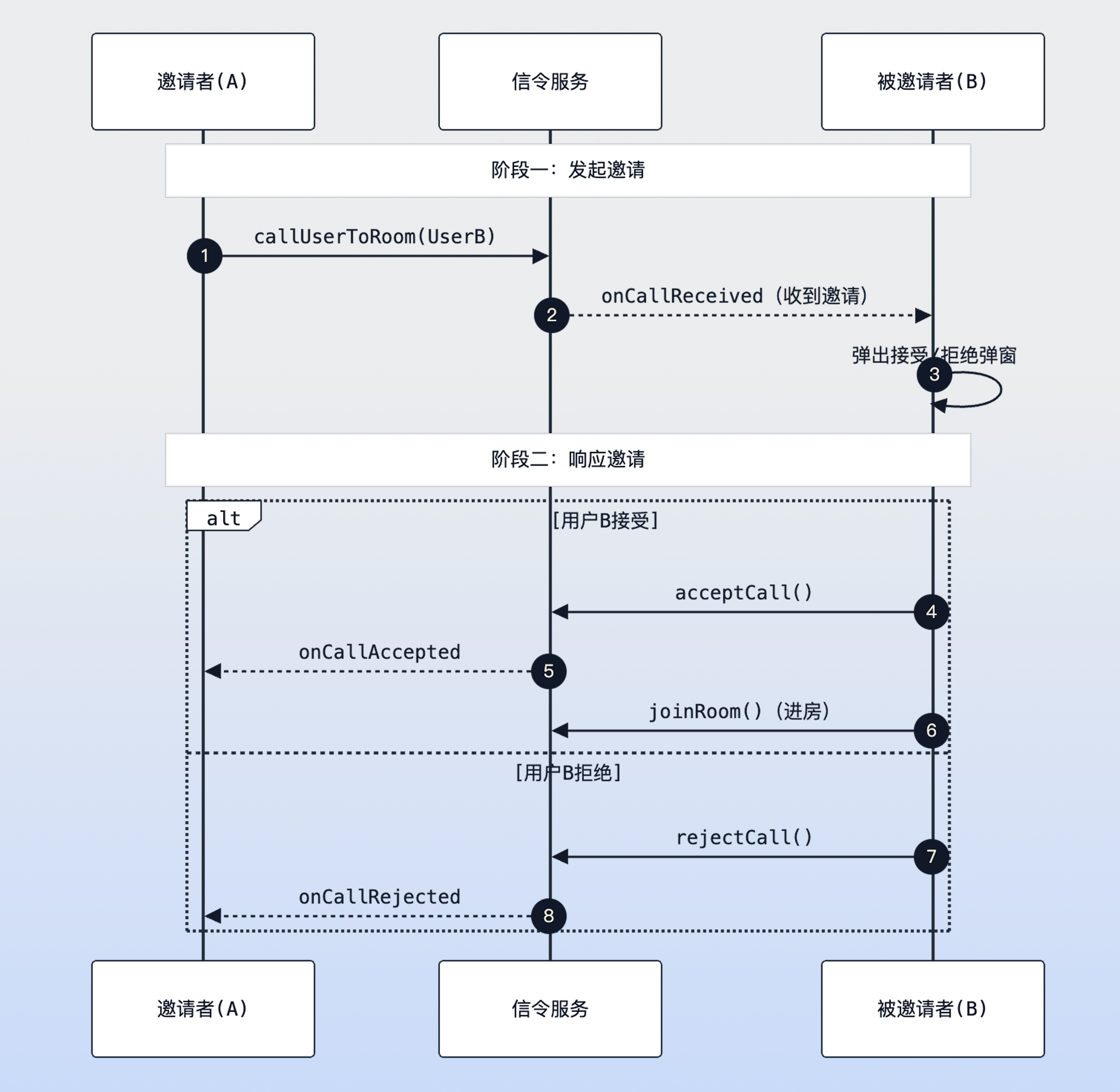
The core process for implementing in-room calls is as follows:
|
|
24
|
+
|
|
25
|
+
|
|
26
|
+
|
|
27
|
+
In-room call sequence diagram
|
|
28
|
+
|
|
29
|
+
|
|
30
|
+
### Step 1: Initiate Call (Inviter)
|
|
31
|
+
|
|
32
|
+
The inviter calls the [callUserToRoom](https://web.sdk.qcloud.com/trtc/live/web/doc/zh/index.html#callUserToRoom) interface to initiate an invitation. Please ensure the inviter is currently in the room (i.e., [currentRoom](https://web.sdk.qcloud.com/trtc/live/web/doc/zh/index.html#currentRoom) is not empty), otherwise the call cannot be initiated.
|
|
33
|
+
``` typescript
|
|
34
|
+
import { useRoomState } from 'tuikit-atomicx-vue3/room';
|
|
35
|
+
|
|
36
|
+
const { currentRoom, callUserToRoom } = useRoomState();
|
|
37
|
+
|
|
38
|
+
const inviteUser = async () => {
|
|
39
|
+
// In-room calls must be associated with an existing roomId, so check the current user's room status first
|
|
40
|
+
if (!currentRoom.value) {
|
|
41
|
+
console.warn('Please enter a room first before initiating an invitation');
|
|
42
|
+
return;
|
|
43
|
+
}
|
|
44
|
+
|
|
45
|
+
try {
|
|
46
|
+
const resultMap = await callUserToRoom({
|
|
47
|
+
roomId: currentRoom.value.roomId, // Room ID the invitee will join
|
|
48
|
+
userIdList: ['user1', 'user2'], // Target user ID array, supports single or multiple users
|
|
49
|
+
timeout: 60, // Invitation validity period (seconds), both parties will trigger onCallTimeout after timeout
|
|
50
|
+
// extensionInfo can be used to pass business custom data, such as invitation type, additional messages, etc.
|
|
51
|
+
extensionInfo: JSON.stringify({ type: 'emergency', priority: 'high' })
|
|
52
|
+
});
|
|
53
|
+
|
|
54
|
+
// resultMap returns the status corresponding to each userId, such as Success, AlreadyInRoom (already in room) or AlreadyInCalling (in call)
|
|
55
|
+
console.log('Invitation sent successfully, detailed status map:', resultMap);
|
|
56
|
+
} catch (error) {
|
|
57
|
+
console.error('Failed to send call request, please check network or login status:', error);
|
|
58
|
+
}
|
|
59
|
+
};
|
|
60
|
+
```
|
|
61
|
+
|
|
62
|
+
### Step 2: Listen for Call Events (Invitee)
|
|
63
|
+
|
|
64
|
+
The invitee needs to listen for the `onCallReceived` event. It is recommended to implement this in long-lived components such as `App.vue` to ensure the user can respond regardless of which page they are on.
|
|
65
|
+
``` typescript
|
|
66
|
+
import { ref, onMounted, onUnmounted } from 'vue';
|
|
67
|
+
import { useRoomState, RoomEvent } from 'tuikit-atomicx-vue3/room';
|
|
68
|
+
|
|
69
|
+
const {
|
|
70
|
+
subscribeEvent,
|
|
71
|
+
unsubscribeEvent,
|
|
72
|
+
acceptCall,
|
|
73
|
+
rejectCall,
|
|
74
|
+
joinRoom,
|
|
75
|
+
currentRoom
|
|
76
|
+
} = useRoomState();
|
|
77
|
+
|
|
78
|
+
const showInviteDialog = ref(false); // Control UI dialog visibility
|
|
79
|
+
const currentCallInfo = ref(null); // Cache the received invitation context
|
|
80
|
+
|
|
81
|
+
const handleCallReceived = async ({ roomInfo, call, extensionInfo }) => {
|
|
82
|
+
// Conflict handling: If the user is currently in a meeting, according to business policy, usually should directly reject new invitations to prevent interference
|
|
83
|
+
if (currentRoom.value?.roomId) {
|
|
84
|
+
await rejectCall({ roomId: roomInfo.roomId });
|
|
85
|
+
return;
|
|
86
|
+
}
|
|
87
|
+
|
|
88
|
+
// Record invitation details for displaying inviter name or business transparent data in UI
|
|
89
|
+
currentCallInfo.value = { roomInfo, call };
|
|
90
|
+
showInviteDialog.value = true;
|
|
91
|
+
};
|
|
92
|
+
|
|
93
|
+
// Accept invitation logic
|
|
94
|
+
const onUserAccept = async () => {
|
|
95
|
+
if (!currentCallInfo.value) return;
|
|
96
|
+
const { roomId } = currentCallInfo.value.roomInfo;
|
|
97
|
+
|
|
98
|
+
try {
|
|
99
|
+
// Key process A: Respond to signaling. Inform the inviter that it has been accepted so they can update UI (e.g., display "Other party answered")
|
|
100
|
+
await acceptCall({ roomId });
|
|
101
|
+
|
|
102
|
+
// Key process B: Execute room entry. Only by calling joinRoom will the audio and video push-pull stream link be truly opened
|
|
103
|
+
await joinRoom({ roomId });
|
|
104
|
+
} catch (error) {
|
|
105
|
+
console.error('Room entry operation failed after accepting call:', error);
|
|
106
|
+
} finally {
|
|
107
|
+
closeDialog();
|
|
108
|
+
}
|
|
109
|
+
};
|
|
110
|
+
|
|
111
|
+
// Reject invitation logic
|
|
112
|
+
const onUserReject = async () => {
|
|
113
|
+
if (currentCallInfo.value) {
|
|
114
|
+
// Inform the inviter that it has been rejected, the inviter will receive onCallRejected event
|
|
115
|
+
await rejectCall({ roomId: currentCallInfo.value.roomInfo.roomId });
|
|
116
|
+
}
|
|
117
|
+
closeDialog();
|
|
118
|
+
};
|
|
119
|
+
|
|
120
|
+
const closeDialog = () => {
|
|
121
|
+
showInviteDialog.value = false;
|
|
122
|
+
currentCallInfo.value = null;
|
|
123
|
+
};
|
|
124
|
+
|
|
125
|
+
// Event full lifecycle management: Ensure listening on component mount and removal on destroy to prevent event overflow
|
|
126
|
+
onMounted(() => {
|
|
127
|
+
subscribeEvent(RoomEvent.onCallReceived, handleCallReceived);
|
|
128
|
+
|
|
129
|
+
// Listen for various exceptions/sync events that cause invitation to end, ensuring UI dialog can close in time
|
|
130
|
+
subscribeEvent(RoomEvent.onCallCancelled, closeDialog); // Inviter cancelled the call
|
|
131
|
+
subscribeEvent(RoomEvent.onCallTimeout, closeDialog); // Call timed out without response
|
|
132
|
+
subscribeEvent(RoomEvent.onCallHandledByOtherDevice, closeDialog); // User already handled the call on another device
|
|
133
|
+
});
|
|
134
|
+
|
|
135
|
+
onUnmounted(() => {
|
|
136
|
+
// Remove all listeners to avoid continuing to execute handleCallReceived after component destruction, causing memory leaks or errors
|
|
137
|
+
unsubscribeEvent(RoomEvent.onCallReceived, handleCallReceived);
|
|
138
|
+
unsubscribeEvent(RoomEvent.onCallCancelled, closeDialog);
|
|
139
|
+
unsubscribeEvent(RoomEvent.onCallTimeout, closeDialog);
|
|
140
|
+
unsubscribeEvent(RoomEvent.onCallHandledByOtherDevice, closeDialog);
|
|
141
|
+
});
|
|
142
|
+
```
|
|
143
|
+
|
|
144
|
+
## Practical Tutorial: Improving Call Connection Rate
|
|
145
|
+
|
|
146
|
+
To achieve higher call connection rates in business scenarios, in addition to implementing basic functions, it is recommended to refer to the following strategies to optimize user experience:
|
|
147
|
+
|
|
148
|
+
### 1. Enhanced Call Awareness (Avoid Users Missing Calls)
|
|
149
|
+
|
|
150
|
+
Due to Web characteristics, browser mute or page running in background state may cause users to miss calls.
|
|
151
|
+
- **Visual Reminder**: Use [Page Visibility API](https://developer.mozilla.org/en-US/docs/Web/API/Page_Visibility_API) to detect page visibility status. If the page is in the background, you can implement title bar flashing prompts by cyclically modifying `document.title` (e.g.: "【New Invitation】UserA invites you to the meeting...") to attract user attention.
|
|
152
|
+
|
|
153
|
+
- **Audio Reminder**: Play high-priority alert ringtone when the `onCallReceived` event is triggered. Note: Must comply with browser's [Autoplay Policy](https://developer.mozilla.org/zh-CN/docs/Web/Media/Guides/Autoplay), most browsers will restrict audio autoplay in the absence of user interaction (such as clicks, touches, or key presses).
|
|
154
|
+
|
|
155
|
+
|
|
156
|
+
### 2. Enrich Invitation Context (Improve Answering Willingness)
|
|
157
|
+
|
|
158
|
+
Invitations lacking clear intent are easily rejected by users. It is recommended to fully utilize the `extensionInfo` field to pass key business information to improve users' willingness to answer.
|
|
159
|
+
- **Pass Business Context**: Use `extensionInfo` to transparently pass business fields such as `reason` (e.g.: "Project emergency review"), `level` (e.g.: "P0 troubleshooting"), etc., to inform users of the urgency and importance of the call.
|
|
160
|
+
|
|
161
|
+
|
|
162
|
+
### 3. Multi-Channel Reach Backup (Ensure Message Delivery)
|
|
163
|
+
|
|
164
|
+
Limited by Web mechanisms, when the browser process ends, real-time signaling cannot be received. It is recommended to adopt the following alternative solutions to ensure reach:
|
|
165
|
+
- **Browser System Notifications**: Guide users to authorize [Web Notification API](https://developer.mozilla.org/en-US/docs/Web/API/Notification). As long as the browser process is not closed (including minimized or in background tabs), OS-level pop-up notifications can be triggered to effectively remind users.
|
|
166
|
+
|
|
167
|
+
- **Multi-Channel Reach**: It is recommended to combine backend business logic to send meeting links through **SMS**, **Email**, or **Enterprise WeChat** and other external channels when detecting that users are offline or timeout without response, achieving all-around reach.
|
|
168
|
+
|
|
169
|
+
|
|
170
|
+
### 4. Intelligent Retry Mechanism (Solve "Room Entry Failed After Accepting Invitation")
|
|
171
|
+
|
|
172
|
+
In weak network or other unstable environments, calling `joinRoom` after users click accept invitation may experience occasional failures.
|
|
173
|
+
- **Automatic Retry**: It is recommended to introduce 2-3 automatic retry mechanisms (recommended combined with exponential backoff strategy) in the exception handling logic (`catch`) of `onUserAccept` to maximize ensuring users can successfully join the meeting after clicking "accept".
|
|
174
|
+
|
|
175
|
+
|
|
176
|
+
## Development Notes
|
|
177
|
+
1. **Accepting Invitation Does Not Equal Entering Room**
|
|
178
|
+
|
|
179
|
+
|
|
180
|
+
`acceptCall` is only a signaling layer reply (informing the other party that the call has been answered). Users must manually call `await joinRoom({ roomId })` immediately after calling `acceptCall` to truly enter the audio and video room.
|
|
181
|
+
|
|
182
|
+
2. **Lifecycle Management**
|
|
183
|
+
|
|
184
|
+
|
|
185
|
+
Please be sure to call `unsubscribeEvent` in the component destruction cycle (`onUnmounted`). If listeners are not cleaned up, when users switch pages, listeners from old pages will remain in memory, causing one invitation to pop up multiple windows or logic to execute repeatedly.
|
|
186
|
+
|
|
187
|
+
3. **Timeout Settings**
|
|
188
|
+
|
|
189
|
+
|
|
190
|
+
If the `timeout` parameter is not set, in some network exceptions or program crash situations, invitations may remain in a suspended state for a long time, making it impossible to initiate another call to that user. It is recommended to set it to 30-60 seconds.
|
|
191
|
+
|
|
192
|
+
|
|
193
|
+
## Common Questions
|
|
194
|
+
1. **How to pass custom parameters when calling (e.g., "Emergency meeting from XX")?**
|
|
195
|
+
|
|
196
|
+
|
|
197
|
+
Use the `extensionInfo` parameter of `callUserToRoom` to pass a JSON string. The invitee can parse the string to obtain business information in the `extensionInfo` field of the `onCallReceived` event.
|
|
198
|
+
|
|
199
|
+
2. **If the invitee is not online, can they receive the invitation after coming online?**
|
|
200
|
+
|
|
201
|
+
|
|
202
|
+
No. The invitation event is an instantaneous signaling action, and the SDK currently does not resend call notifications received while offline.
|
|
203
|
+
|
|
204
|
+
3. **Can issued invitations be cancelled?**
|
|
205
|
+
|
|
206
|
+
|
|
207
|
+
Yes. Call `cancelCall({ roomId, userIdList })` to cancel. At this time, the invitee will receive the `onCallCancelled` event, and you need to listen to this event to close the UI dialog on the invitee side.
|
|
208
|
+
|
|
209
|
+
4. **What to do if room entry fails after accepting?**
|
|
210
|
+
|
|
211
|
+
|
|
212
|
+
Check if you have logged in to `TUIRoomEngine`, retry `joinRoom({ roomId })` and capture error prompts to the user; if necessary, provide a "retry" button on the UI.
|
|
213
|
+
|
|
214
|
+
5. **How to prompt when the other party is busy or already in another room?**
|
|
215
|
+
|
|
216
|
+
|
|
217
|
+
If `AlreadyInRoom` / `AlreadyInCalling` appears in the return value `resultMap` of `callUserToRoom`, you should prompt on the inviter UI "The other party is busy/already in a meeting" and decide whether to retry later.
|
|
218
|
+
|
|
219
|
+
6. **Dialog not closing after timeout/cancellation?**
|
|
220
|
+
|
|
221
|
+
|
|
222
|
+
Make sure to listen to `onCallTimeout`, `onCallCancelled`, `onCallHandledByOtherDevice`, and uniformly close the dialog and clear current invitation data in the callback.
|
|
223
|
+
|
|
224
|
+
7. **How to handle simultaneous ringing on multiple devices?**
|
|
225
|
+
|
|
226
|
+
|
|
227
|
+
After accepting/rejecting on any device, other devices will receive `onCallHandledByOtherDevice`, and you need to close dialogs on other ends to avoid repeated processing.
|
|
228
|
+
|
|
229
|
+
8. **How should extensionInfo be agreed upon?**
|
|
230
|
+
|
|
231
|
+
|
|
232
|
+
It is recommended to use a JSON string and agree on fields (e.g., `type`, `priority`, `from`), parse and display friendly text (e.g., "Emergency meeting from XX") in `handleCallReceived`.
|
|
233
|
+
|
|
234
|
+
|
|
235
|
+
## **Sample Project**
|
|
236
|
+
|
|
237
|
+
Tencent Cloud provides a sample project [atomicx-vite-vue3-ts](https://github.com/Tencent-RTC/TUIRoomKit/tree/main/Web/example/atomicx-vite-vue3-ts) on GitHub, which you can refer to for implementing complete RoomKit functionality.
|
|
238
|
+
|
|
239
|
+
## API Documentation
|
|
240
|
+
<table>
|
|
241
|
+
<tr>
|
|
242
|
+
<td rowspan="1" colSpan="1" >**State/Component**</td>
|
|
243
|
+
|
|
244
|
+
<td rowspan="1" colSpan="1" >**Feature Description**</td>
|
|
245
|
+
|
|
246
|
+
<td rowspan="1" colSpan="1" >**API Documentation**</td>
|
|
247
|
+
</tr>
|
|
248
|
+
|
|
249
|
+
<tr>
|
|
250
|
+
<td rowspan="1" colSpan="1" >**useRoomState**</td>
|
|
251
|
+
|
|
252
|
+
<td rowspan="1" colSpan="1" >Room state management (create, join, schedule, etc.)</td>
|
|
253
|
+
|
|
254
|
+
<td rowspan="1" colSpan="1" >[API Documentation](https://web.sdk.qcloud.com/trtc/live/web/doc/zh/index.html#module-RoomState)</td>
|
|
255
|
+
</tr>
|
|
256
|
+
</table>
|
|
@@ -0,0 +1,388 @@
|
|
|
1
|
+
This document will guide you on how to provide device preview and testing functionality before users join a room. Through the pre-room testing interfaces provided by Atomicx, you can guide users to check and adjust their audio/video device status, ensuring they enter the multi-party audio/video room in the best condition.
|
|
2
|
+
|
|
3
|
+
## Feature Introduction
|
|
4
|
+
|
|
5
|
+
Device preview is an important part of ensuring the smooth operation of audio/video rooms. Atomicx provides a dedicated set of testing interfaces specifically for pre-room scenarios, with core capabilities including:
|
|
6
|
+
- **Video Preview**: Start the camera without streaming to verify picture clarity and lighting.
|
|
7
|
+
|
|
8
|
+
- **Microphone Detection**: Confirm microphone capture is working properly through real-time volume feedback.
|
|
9
|
+
|
|
10
|
+
- **Speaker Calibration**: Confirm output device and volume settings by playing test audio.
|
|
11
|
+
|
|
12
|
+
|
|
13
|
+
## Prerequisites
|
|
14
|
+
- User has completed login authentication through [useLoginState](https://web.sdk.qcloud.com/trtc/live/web/doc/zh/index.html#module-LoginState), please refer to [Integration Overview](https://write.woa.com/document/197379797539790848).
|
|
15
|
+
|
|
16
|
+
|
|
17
|
+
## Implementing Device Detection Features
|
|
18
|
+
|
|
19
|
+
### Step 1: Camera Test
|
|
20
|
+
|
|
21
|
+
Use the [startCameraTest](https://web.sdk.qcloud.com/trtc/live/web/doc/zh/index.html#startCameraTest) method to start camera testing. This method is only used for local preview and does not generate network traffic.
|
|
22
|
+
|
|
23
|
+
**Code Example:**
|
|
24
|
+
``` typescript
|
|
25
|
+
<template>
|
|
26
|
+
<div class="preview-container">
|
|
27
|
+
<!-- Camera preview area -->
|
|
28
|
+
<div id="camera-preview" class="camera-preview">
|
|
29
|
+
<!-- Loading status -->
|
|
30
|
+
<div v-if="isCameraTestLoading" class="loading-overlay">
|
|
31
|
+
<div class="loading-spinner" />
|
|
32
|
+
<span>Starting camera...</span>
|
|
33
|
+
</div>
|
|
34
|
+
</div>
|
|
35
|
+
|
|
36
|
+
<!-- Camera selection -->
|
|
37
|
+
<div class="camera-selector">
|
|
38
|
+
<label>Select Camera</label>
|
|
39
|
+
<select
|
|
40
|
+
:value="currentCamera?.deviceId"
|
|
41
|
+
@change="handleCameraChange"
|
|
42
|
+
:disabled="isCameraTestLoading"
|
|
43
|
+
>
|
|
44
|
+
<option
|
|
45
|
+
v-for="camera in cameraList"
|
|
46
|
+
:key="camera.deviceId"
|
|
47
|
+
:value="camera.deviceId"
|
|
48
|
+
>
|
|
49
|
+
{{ camera.deviceName }}
|
|
50
|
+
</option>
|
|
51
|
+
</select>
|
|
52
|
+
</div>
|
|
53
|
+
|
|
54
|
+
<!-- Control buttons -->
|
|
55
|
+
<div class="control-buttons">
|
|
56
|
+
<button @click="getCameraList">Get Camera List</button>
|
|
57
|
+
<button
|
|
58
|
+
@click="toggleCameraTest"
|
|
59
|
+
:disabled="isCameraTestLoading"
|
|
60
|
+
>
|
|
61
|
+
{{ isCameraTesting ? 'Stop Preview' : 'Start Preview' }}
|
|
62
|
+
</button>
|
|
63
|
+
</div>
|
|
64
|
+
</div>
|
|
65
|
+
</template>
|
|
66
|
+
|
|
67
|
+
<script setup lang="ts">
|
|
68
|
+
import { ref, computed, watch, onMounted, onUnmounted } from 'vue';
|
|
69
|
+
import { IconWarning } from '@tencentcloud/uikit-base-component-vue3';
|
|
70
|
+
import {
|
|
71
|
+
useLoginState,
|
|
72
|
+
useDeviceState,
|
|
73
|
+
DeviceStatus,
|
|
74
|
+
DeviceError,
|
|
75
|
+
} from 'tuikit-atomicx-vue3/room';
|
|
76
|
+
|
|
77
|
+
const {
|
|
78
|
+
isCameraTesting,
|
|
79
|
+
isCameraTestLoading,
|
|
80
|
+
cameraList,
|
|
81
|
+
currentCamera,
|
|
82
|
+
startCameraTest,
|
|
83
|
+
stopCameraTest,
|
|
84
|
+
getCameraList,
|
|
85
|
+
setCurrentCamera
|
|
86
|
+
} = useDeviceState();
|
|
87
|
+
|
|
88
|
+
onUnmounted(() => {
|
|
89
|
+
if (isCameraTesting.value) {
|
|
90
|
+
stopCameraTest();
|
|
91
|
+
}
|
|
92
|
+
});
|
|
93
|
+
|
|
94
|
+
const toggleCameraTest = async () => {
|
|
95
|
+
if (isCameraTesting.value) {
|
|
96
|
+
await stopCameraTest();
|
|
97
|
+
} else {
|
|
98
|
+
const previewElement = document.getElementById('camera-preview');
|
|
99
|
+
if (previewElement) {
|
|
100
|
+
await startCameraTest({ view: previewElement });
|
|
101
|
+
}
|
|
102
|
+
}
|
|
103
|
+
};
|
|
104
|
+
|
|
105
|
+
const handleCameraChange = async (event: Event) => {
|
|
106
|
+
const deviceId = (event.target as HTMLSelectElement).value;
|
|
107
|
+
try {
|
|
108
|
+
await setCurrentCamera({ deviceId });
|
|
109
|
+
} catch (error) {
|
|
110
|
+
console.error('Failed to switch camera:', error);
|
|
111
|
+
}
|
|
112
|
+
};
|
|
113
|
+
</script>
|
|
114
|
+
|
|
115
|
+
<style scoped>
|
|
116
|
+
.preview-container { position: relative; width: 100%; max-width: 640px; margin: 0 auto;}.camera-preview { width: 100%; position: relative; aspect-ratio: 16 / 9; background-color: #000; border-radius: 8px; overflow: hidden;}.loading-overlay { position: absolute; inset: 0; display: flex; flex-direction: column; align-items: center; justify-content: center; gap: 12px; background-color: rgba(0, 0, 0, 0.7); color: white; border-radius: 8px;}.loading-spinner { width: 40px; height: 40px; border: 4px solid rgba(255, 255, 255, 0.3); border-top-color: white; border-radius: 50%; animation: spin 0.8s linear infinite;}@keyframes spin { to { transform: rotate(360deg); }}.error-message { display: flex; align-items: center; gap: 8px; padding: 12px; margin-top: 12px; background-color: #ffebee; color: #c62828; border-radius: 4px; font-size: 14px;}.camera-selector { margin-top: 16px; display: flex; align-items: center; gap: 12px;}.camera-selector label { font-weight: 500; min-width: 80px;}.camera-selector select { flex: 1; padding: 8px 12px; border: 1px solid #e0e0e0; border-radius: 4px; font-size: 14px;}.control-buttons { margin-top: 16px; display: flex; gap: 12px;}.control-buttons button { flex: 1; padding: 12px 24px; background-color: #1976d2; color: white; border: none; border-radius: 4px; font-size: 14px; font-weight: 500; cursor: pointer; transition: background-color 0.3s;}.control-buttons button:hover:not(:disabled) { background-color: #1565c0;}.control-buttons button:disabled { background-color: #bdbdbd; cursor: not-allowed;}
|
|
117
|
+
</style>
|
|
118
|
+
```
|
|
119
|
+
|
|
120
|
+
### Step 2: Microphone Test
|
|
121
|
+
|
|
122
|
+
Start microphone testing through [startMicrophoneTest](https://web.sdk.qcloud.com/trtc/live/web/doc/zh/index.html#startMicrophoneTest), and use [testingMicVolume](https://web.sdk.qcloud.com/trtc/live/web/doc/zh/index.html#testingMicVolume) to implement real-time volume bar fluctuation in the UI.
|
|
123
|
+
|
|
124
|
+
**Code Example:**
|
|
125
|
+
``` typescript
|
|
126
|
+
<template>
|
|
127
|
+
<div class="microphone-test">
|
|
128
|
+
<!-- Volume display -->
|
|
129
|
+
<div class="volume-display">
|
|
130
|
+
<div class="volume-label">Microphone Volume</div>
|
|
131
|
+
<div class="volume-bar-container">
|
|
132
|
+
<div
|
|
133
|
+
class="volume-bar"
|
|
134
|
+
:style="{ width: `${testingMicVolume}%` }"
|
|
135
|
+
:class="volumeClass"
|
|
136
|
+
/>
|
|
137
|
+
</div>
|
|
138
|
+
<div class="volume-value">{{ testingMicVolume }}</div>
|
|
139
|
+
</div>
|
|
140
|
+
|
|
141
|
+
<!-- Microphone selection -->
|
|
142
|
+
<div class="microphone-selector">
|
|
143
|
+
<label>Select Microphone</label>
|
|
144
|
+
<select
|
|
145
|
+
:value="currentMicrophone?.deviceId"
|
|
146
|
+
@change="handleMicrophoneChange"
|
|
147
|
+
:disabled="isMicrophoneTesting"
|
|
148
|
+
>
|
|
149
|
+
<option
|
|
150
|
+
v-for="mic in microphoneList"
|
|
151
|
+
:key="mic.deviceId"
|
|
152
|
+
:value="mic.deviceId"
|
|
153
|
+
>
|
|
154
|
+
{{ mic.deviceName }}
|
|
155
|
+
</option>
|
|
156
|
+
</select>
|
|
157
|
+
</div>
|
|
158
|
+
|
|
159
|
+
<!-- Control buttons -->
|
|
160
|
+
<div class="control-buttons">
|
|
161
|
+
<button
|
|
162
|
+
@click="getMicrophoneList"
|
|
163
|
+
>
|
|
164
|
+
Get Devices
|
|
165
|
+
</button>
|
|
166
|
+
<button
|
|
167
|
+
@click="toggleMicrophoneTest"
|
|
168
|
+
>
|
|
169
|
+
{{ isMicrophoneTesting ? 'Stop Test' : 'Start Test' }}
|
|
170
|
+
</button>
|
|
171
|
+
</div>
|
|
172
|
+
|
|
173
|
+
<!-- Test tip -->
|
|
174
|
+
<div v-if="isMicrophoneTesting" class="test-tip">
|
|
175
|
+
<span>Please speak into the microphone to see volume changes</span>
|
|
176
|
+
</div>
|
|
177
|
+
</div>
|
|
178
|
+
</template>
|
|
179
|
+
|
|
180
|
+
<script setup lang="ts">
|
|
181
|
+
import { ref, computed, watch, onMounted, onUnmounted } from 'vue';
|
|
182
|
+
import {
|
|
183
|
+
useDeviceState,
|
|
184
|
+
DeviceError,
|
|
185
|
+
} from 'tuikit-atomicx-vue3/room';
|
|
186
|
+
|
|
187
|
+
const {
|
|
188
|
+
isMicrophoneTesting,
|
|
189
|
+
testingMicVolume,
|
|
190
|
+
microphoneList,
|
|
191
|
+
currentMicrophone,
|
|
192
|
+
startMicrophoneTest,
|
|
193
|
+
stopMicrophoneTest,
|
|
194
|
+
getMicrophoneList,
|
|
195
|
+
setCurrentMicrophone
|
|
196
|
+
} = useDeviceState();
|
|
197
|
+
|
|
198
|
+
// Volume bar style class
|
|
199
|
+
const volumeClass = computed(() => {
|
|
200
|
+
const volume = testingMicVolume.value;
|
|
201
|
+
if (volume === 0) return 'volume-zero';
|
|
202
|
+
if (volume < 30) return 'volume-low';
|
|
203
|
+
if (volume < 70) return 'volume-medium';
|
|
204
|
+
return 'volume-high';
|
|
205
|
+
});
|
|
206
|
+
|
|
207
|
+
// Cleanup: stop testing
|
|
208
|
+
onUnmounted(() => {
|
|
209
|
+
if (isMicrophoneTesting.value) {
|
|
210
|
+
stopMicrophoneTest();
|
|
211
|
+
}
|
|
212
|
+
});
|
|
213
|
+
|
|
214
|
+
// Toggle microphone test
|
|
215
|
+
const toggleMicrophoneTest = async () => {
|
|
216
|
+
if (isMicrophoneTesting.value) {
|
|
217
|
+
await stopMicrophoneTest();
|
|
218
|
+
} else {
|
|
219
|
+
try {
|
|
220
|
+
await startMicrophoneTest({ interval: 200 });
|
|
221
|
+
} catch (error) {
|
|
222
|
+
console.error('Failed to start microphone test:', error);
|
|
223
|
+
}
|
|
224
|
+
}
|
|
225
|
+
};
|
|
226
|
+
|
|
227
|
+
// Switch microphone device
|
|
228
|
+
const handleMicrophoneChange = async (event: Event) => {
|
|
229
|
+
const deviceId = (event.target as HTMLSelectElement).value;
|
|
230
|
+
try {
|
|
231
|
+
await setCurrentMicrophone({ deviceId });
|
|
232
|
+
} catch (error) {
|
|
233
|
+
console.error('Failed to switch microphone:', error);
|
|
234
|
+
}
|
|
235
|
+
};
|
|
236
|
+
</script>
|
|
237
|
+
|
|
238
|
+
<style scoped>
|
|
239
|
+
.microphone-test { width: 100%; max-width: 640px; margin: 0 auto;}.volume-display { padding: 24px; background-color: #f5f5f5; border-radius: 8px; margin-bottom: 16px;}.volume-label { font-size: 14px; font-weight: 500; color: #666; margin-bottom: 12px;}.volume-bar-container { width: 100%; height: 24px; background-color: #e0e0e0; border-radius: 12px; overflow: hidden; margin-bottom: 8px;}.volume-bar { height: 100%; transition: width 0.1s ease; border-radius: 12px;}.volume-bar.volume-zero { background-color: #9e9e9e;}.volume-bar.volume-low { background-color: #ff9800;}.volume-bar.volume-medium { background-color: #4caf50;}.volume-bar.volume-high { background-color: #2196f3;}.volume-value { text-align: center; font-size: 18px; font-weight: 600; color: #333;}.microphone-selector { display: flex; align-items: center; gap: 12px; margin-bottom: 16px;}.microphone-selector label { font-weight: 500; min-width: 80px;}.microphone-selector select { flex: 1; padding: 8px 12px; border: 1px solid #e0e0e0; border-radius: 4px; font-size: 14px;}.error-message { display: flex; align-items: center; gap: 8px; padding: 12px; margin-bottom: 16px; background-color: #ffebee; color: #c62828; border-radius: 4px; font-size: 14px;}.control-buttons { margin-bottom: 12px; display: flex; gap: 8px; }.control-buttons button { flex: 1; width: 100%; padding: 12px 24px; background-color: #1976d2; color: white; border: none; border-radius: 4px; font-size: 14px; font-weight: 500; cursor: pointer; transition: background-color 0.3s;}.control-buttons button:hover:not(:disabled) { background-color: #1565c0;}.control-buttons button:disabled { background-color: #bdbdbd; cursor: not-allowed;}.test-tip { display: flex; align-items: center; gap: 8px; padding: 12px; background-color: #e3f2fd; color: #1565c0; border-radius: 4px; font-size: 13px;}
|
|
240
|
+
</style>
|
|
241
|
+
```
|
|
242
|
+
|
|
243
|
+
### Step 3: Speaker Test
|
|
244
|
+
|
|
245
|
+
Use the [startSpeakerTest](https://web.sdk.qcloud.com/trtc/live/web/doc/zh/index.html#startSpeakerTest) method to play a specified audio file to confirm whether the speaker is working properly.
|
|
246
|
+
|
|
247
|
+
**Code Example:**
|
|
248
|
+
``` typescript
|
|
249
|
+
<template>
|
|
250
|
+
<div class="speaker-test">
|
|
251
|
+
<!-- Speaker selection -->
|
|
252
|
+
<div class="speaker-selector">
|
|
253
|
+
<label>Select Speaker</label>
|
|
254
|
+
<select
|
|
255
|
+
:value="currentSpeaker?.deviceId"
|
|
256
|
+
@change="handleSpeakerChange"
|
|
257
|
+
:disabled="isSpeakerTesting"
|
|
258
|
+
>
|
|
259
|
+
<option
|
|
260
|
+
v-for="speaker in speakerList"
|
|
261
|
+
:key="speaker.deviceId"
|
|
262
|
+
:value="speaker.deviceId"
|
|
263
|
+
>
|
|
264
|
+
{{ speaker.deviceName }}
|
|
265
|
+
</option>
|
|
266
|
+
</select>
|
|
267
|
+
</div>
|
|
268
|
+
|
|
269
|
+
<!-- Control buttons -->
|
|
270
|
+
<div class="control-buttons">
|
|
271
|
+
<button @click="getSpeakerList">Get Speaker List</button>
|
|
272
|
+
<button
|
|
273
|
+
@click="toggleSpeakerTest"
|
|
274
|
+
:disabled="isSpeakerTesting"
|
|
275
|
+
>
|
|
276
|
+
{{ isSpeakerTesting ? 'Playing...' : 'Play Test Audio' }}
|
|
277
|
+
</button>
|
|
278
|
+
<button
|
|
279
|
+
v-if="isSpeakerTesting"
|
|
280
|
+
@click="stopSpeakerTest"
|
|
281
|
+
>
|
|
282
|
+
Stop Playback
|
|
283
|
+
</button>
|
|
284
|
+
</div>
|
|
285
|
+
|
|
286
|
+
<!-- Test tip -->
|
|
287
|
+
<div v-if="isSpeakerTesting" class="test-tip">
|
|
288
|
+
<span>Playing test audio, please confirm if you can hear the sound</span>
|
|
289
|
+
</div>
|
|
290
|
+
</div>
|
|
291
|
+
</template>
|
|
292
|
+
|
|
293
|
+
<script setup lang="ts">
|
|
294
|
+
import { ref, onMounted, onUnmounted } from 'vue';
|
|
295
|
+
import { useDeviceState } from 'tuikit-atomicx-vue3/room';
|
|
296
|
+
|
|
297
|
+
const {
|
|
298
|
+
isSpeakerTesting,
|
|
299
|
+
speakerList,
|
|
300
|
+
currentSpeaker,
|
|
301
|
+
startSpeakerTest,
|
|
302
|
+
stopSpeakerTest,
|
|
303
|
+
getSpeakerList,
|
|
304
|
+
setCurrentSpeaker,
|
|
305
|
+
} = useDeviceState();
|
|
306
|
+
|
|
307
|
+
// Test audio file path
|
|
308
|
+
// Note: This URL is for development testing only. For production environments, please use your own audio file. It is recommended to use a 3-5 second MP3 format audio file
|
|
309
|
+
const testAudioPath = 'https://web.sdk.qcloud.com/trtc/electron/download/resources/media/TestSpeaker.mp3';
|
|
310
|
+
|
|
311
|
+
// Cleanup: stop testing
|
|
312
|
+
onUnmounted(() => {
|
|
313
|
+
if (isSpeakerTesting.value) {
|
|
314
|
+
stopSpeakerTest();
|
|
315
|
+
}
|
|
316
|
+
});
|
|
317
|
+
|
|
318
|
+
// Toggle speaker test
|
|
319
|
+
const toggleSpeakerTest = async () => {
|
|
320
|
+
if (isSpeakerTesting.value) {
|
|
321
|
+
await stopSpeakerTest();
|
|
322
|
+
} else {
|
|
323
|
+
try {
|
|
324
|
+
await startSpeakerTest({ filePath: testAudioPath });
|
|
325
|
+
} catch (error) {
|
|
326
|
+
console.error('Failed to start speaker test:', error);
|
|
327
|
+
}
|
|
328
|
+
}
|
|
329
|
+
};
|
|
330
|
+
|
|
331
|
+
// Switch speaker device
|
|
332
|
+
const handleSpeakerChange = async (event: Event) => {
|
|
333
|
+
const deviceId = (event.target as HTMLSelectElement).value;
|
|
334
|
+
try {
|
|
335
|
+
await setCurrentSpeaker({ deviceId });
|
|
336
|
+
} catch (error) {
|
|
337
|
+
console.error('Failed to switch speaker:', error);
|
|
338
|
+
}
|
|
339
|
+
};
|
|
340
|
+
</script>
|
|
341
|
+
|
|
342
|
+
<style scoped>
|
|
343
|
+
.speaker-test { width: 100%; max-width: 640px; margin: 0 auto;}.speaker-selector { display: flex; align-items: center; gap: 12px; margin-bottom: 24px;}.speaker-selector label { font-weight: 500; min-width: 80px;}.speaker-selector select { flex: 1; padding: 8px 12px; border: 1px solid #e0e0e0; border-radius: 4px; font-size: 14px;}.volume-slider-container { display: flex; align-items: center; gap: 12px;}.volume-slider { flex: 1; height: 6px; border-radius: 3px; background: #e0e0e0; outline: none; -webkit-appearance: none;}.volume-slider::-webkit-slider-thumb { -webkit-appearance: none; width: 18px; height: 18px; border-radius: 50%; background: #1976d2; cursor: pointer;}.volume-slider::-moz-range-thumb { width: 18px; height: 18px; border-radius: 50%; background: #1976d2; cursor: pointer; border: none;}.volume-value { min-width: 50px; text-align: right; font-weight: 500; color: #333;}.control-buttons { display: flex; gap: 12px; margin-bottom: 12px;}button { flex: 1; padding: 12px 24px; background-color: #1976d2; color: white; border: none; border-radius: 4px; font-size: 14px; font-weight: 500; cursor: pointer; transition: background-color 0.3s;}.control-buttons button:hover:not(:disabled) { background-color: #1565c0;}.control-buttons button:disabled { background-color: #bdbdbd; cursor: not-allowed;}.test-tip { display: flex; align-items: center; gap: 8px; padding: 12px; background-color: #e3f2fd; color: #1565c0; border-radius: 4px; font-size: 13px;}
|
|
344
|
+
</style>
|
|
345
|
+
```
|
|
346
|
+
|
|
347
|
+
## API Documentation
|
|
348
|
+
<table>
|
|
349
|
+
<tr>
|
|
350
|
+
<td rowspan="1" colSpan="1" >**State/Component**</td>
|
|
351
|
+
|
|
352
|
+
<td rowspan="1" colSpan="1" >**Feature Description**</td>
|
|
353
|
+
|
|
354
|
+
<td rowspan="1" colSpan="1" >**API Documentation**</td>
|
|
355
|
+
</tr>
|
|
356
|
+
|
|
357
|
+
<tr>
|
|
358
|
+
<td rowspan="1" colSpan="1" >**useDeviceState**</td>
|
|
359
|
+
|
|
360
|
+
<td rowspan="1" colSpan="1" >Contains audio/video device status, audio/video device list and operation interfaces.</td>
|
|
361
|
+
|
|
362
|
+
<td rowspan="1" colSpan="1" >[API Documentation](https://web.sdk.qcloud.com/trtc/live/web/doc/zh/index.html#module-DeviceState)</td>
|
|
363
|
+
</tr>
|
|
364
|
+
</table>
|
|
365
|
+
|
|
366
|
+
|
|
367
|
+
## FAQ
|
|
368
|
+
|
|
369
|
+
### Why is there no image in the camera preview?
|
|
370
|
+
|
|
371
|
+
Possible reasons include:
|
|
372
|
+
- **Permission denied:** Check if the browser allows camera permissions.
|
|
373
|
+
|
|
374
|
+
- **Device occupied:** Close other applications using the camera.
|
|
375
|
+
|
|
376
|
+
- **Device not connected:** Check if the camera is properly connected.
|
|
377
|
+
|
|
378
|
+
- **Browser not supported:** Use modern browsers such as Chrome, Edge, etc.
|
|
379
|
+
|
|
380
|
+
|
|
381
|
+
### Microphone test volume is always 0?
|
|
382
|
+
|
|
383
|
+
Possible reasons include:
|
|
384
|
+
- **Microphone permission not granted:** Check browser permission settings.
|
|
385
|
+
|
|
386
|
+
- **Microphone is muted:** Check system microphone settings.
|
|
387
|
+
|
|
388
|
+
- **Wrong device selected:** Switch to the correct microphone device.
|