node-red-contrib-huemagic 2.8.2 → 4.0.0
This diff represents the content of publicly available package versions that have been released to one of the supported registries. The information contained in this diff is provided for informational purposes only and reflects changes between package versions as they appear in their respective public registries.
- package/CHANGELOG.md +229 -0
- package/README.md +806 -729
- package/examples/Hue Bridge.json +189 -35
- package/examples/Hue Brightness.json +124 -14
- package/examples/Hue Buttons.json +88 -0
- package/examples/Hue Group.json +575 -63
- package/examples/Hue Light.json +805 -58
- package/examples/Hue Magic.json +69 -24
- package/examples/Hue Motion.json +110 -42
- package/examples/Hue Rules.json +105 -37
- package/examples/Hue Scene.json +145 -28
- package/examples/Hue Temperature.json +124 -14
- package/huemagic/animations/001-sunny.json +22 -22
- package/huemagic/animations/002-cloudy.json +46 -46
- package/huemagic/animations/003-nightsky.json +20 -20
- package/huemagic/animations/004-sunrise.json +54 -54
- package/huemagic/animations/005-sunset.json +46 -46
- package/huemagic/animations/006-fireplace.json +74 -74
- package/huemagic/animations/007-spring.json +31 -31
- package/huemagic/animations/008-autmn.json +23 -23
- package/huemagic/animations/009-winter.json +23 -23
- package/huemagic/animations/010-dirtyfog.json +23 -23
- package/huemagic/animations/011-lgbt.json +49 -50
- package/huemagic/animations/012-rasta.json +28 -29
- package/huemagic/animations/013-strobo.json +30 -31
- package/huemagic/animations/014-randomrainbow.json +30 -31
- package/huemagic/animations/015-sos.json +158 -159
- package/huemagic/animations/016-milkyway.json +83 -0
- package/huemagic/animations/017-beach.json +40 -0
- package/huemagic/animations/018-forest.json +43 -0
- package/huemagic/animations/019-christmas.json +30 -0
- package/huemagic/animations/020-superhero.json +56 -0
- package/huemagic/animations/021-neoncity.json +52 -0
- package/huemagic/animations/previews/001-sunny.gif +0 -0
- package/huemagic/animations/previews/002-cloudy.gif +0 -0
- package/huemagic/animations/previews/003-nightsky.gif +0 -0
- package/huemagic/animations/previews/004-sunrise.gif +0 -0
- package/huemagic/animations/previews/005-sunset.gif +0 -0
- package/huemagic/animations/previews/006-fireplace.gif +0 -0
- package/huemagic/animations/previews/007-spring.gif +0 -0
- package/huemagic/animations/previews/008-autmn.gif +0 -0
- package/huemagic/animations/previews/009-winter.gif +0 -0
- package/huemagic/animations/previews/010-dirtyfog.gif +0 -0
- package/huemagic/animations/previews/011-lgbt.gif +0 -0
- package/huemagic/animations/previews/012-rasta.gif +0 -0
- package/huemagic/animations/previews/013-strobo.gif +0 -0
- package/huemagic/animations/previews/014-randomrainbow.gif +0 -0
- package/huemagic/animations/previews/015-sos.gif +0 -0
- package/huemagic/animations/previews/016-milkyway.gif +0 -0
- package/huemagic/animations/previews/017-beach.gif +0 -0
- package/huemagic/animations/previews/018-forest.gif +0 -0
- package/huemagic/animations/previews/019-christmas.gif +0 -0
- package/huemagic/animations/previews/020-superhero.gif +0 -0
- package/huemagic/animations/previews/021-neoncity.gif +0 -0
- package/huemagic/hue-bridge-config.html +105 -61
- package/huemagic/hue-bridge-config.js +629 -319
- package/huemagic/hue-bridge.html +41 -21
- package/huemagic/hue-bridge.js +191 -398
- package/huemagic/hue-brightness.html +130 -49
- package/huemagic/hue-brightness.js +131 -35
- package/huemagic/hue-buttons.html +197 -0
- package/huemagic/hue-buttons.js +152 -0
- package/huemagic/hue-group.html +137 -60
- package/huemagic/hue-group.js +394 -367
- package/huemagic/hue-light.html +133 -59
- package/huemagic/hue-light.js +551 -336
- package/huemagic/hue-magic.html +91 -237
- package/huemagic/hue-magic.js +57 -27
- package/huemagic/hue-motion.html +128 -50
- package/huemagic/hue-motion.js +116 -87
- package/huemagic/hue-rules.html +121 -50
- package/huemagic/hue-rules.js +84 -64
- package/huemagic/hue-scene.html +96 -115
- package/huemagic/hue-scene.js +65 -96
- package/huemagic/hue-temperature.html +130 -49
- package/huemagic/hue-temperature.js +136 -32
- package/huemagic/icons/hue-bridge.png +0 -0
- package/huemagic/icons/hue-bridge.svg +3 -0
- package/huemagic/icons/hue-brightness.png +0 -0
- package/huemagic/icons/hue-brightness.svg +11 -0
- package/huemagic/icons/hue-buttons.png +0 -0
- package/huemagic/icons/hue-buttons.svg +4 -0
- package/huemagic/icons/hue-group.png +0 -0
- package/huemagic/icons/hue-group.svg +12 -0
- package/huemagic/icons/hue-light.png +0 -0
- package/huemagic/icons/hue-light.svg +3 -0
- package/huemagic/icons/hue-magic.png +0 -0
- package/huemagic/icons/hue-magic.svg +3 -0
- package/huemagic/icons/hue-motion.png +0 -0
- package/huemagic/icons/hue-motion.svg +9 -0
- package/huemagic/icons/hue-rules.png +0 -0
- package/huemagic/icons/hue-rules.svg +4 -0
- package/huemagic/icons/hue-scene.png +0 -0
- package/huemagic/icons/hue-scene.svg +5 -0
- package/huemagic/icons/hue-temperature.png +0 -0
- package/huemagic/icons/hue-temperature.svg +7 -0
- package/huemagic/locales/de/hue-bridge-config.html +17 -12
- package/huemagic/locales/de/hue-bridge-config.json +7 -5
- package/huemagic/locales/de/hue-bridge.html +64 -145
- package/huemagic/locales/de/hue-bridge.json +6 -17
- package/huemagic/locales/de/hue-brightness.html +52 -38
- package/huemagic/locales/de/hue-brightness.json +7 -2
- package/huemagic/locales/de/hue-buttons.html +58 -0
- package/huemagic/locales/de/hue-buttons.json +28 -0
- package/huemagic/locales/de/hue-group.html +46 -122
- package/huemagic/locales/de/hue-group.json +4 -2
- package/huemagic/locales/de/hue-light.html +68 -116
- package/huemagic/locales/de/hue-light.json +5 -2
- package/huemagic/locales/de/hue-magic.html +65 -57
- package/huemagic/locales/de/hue-magic.json +2 -1
- package/huemagic/locales/de/hue-motion.html +48 -44
- package/huemagic/locales/de/hue-motion.json +6 -3
- package/huemagic/locales/de/hue-rules.html +68 -73
- package/huemagic/locales/de/hue-rules.json +5 -2
- package/huemagic/locales/de/hue-scene.html +23 -32
- package/huemagic/locales/de/hue-scene.json +5 -2
- package/huemagic/locales/de/hue-temperature.html +53 -36
- package/huemagic/locales/de/hue-temperature.json +7 -2
- package/huemagic/locales/en-US/hue-bridge-config.html +17 -12
- package/huemagic/locales/en-US/hue-bridge-config.json +5 -3
- package/huemagic/locales/en-US/hue-bridge.html +64 -145
- package/huemagic/locales/en-US/hue-bridge.json +5 -16
- package/huemagic/locales/en-US/hue-brightness.html +52 -38
- package/huemagic/locales/en-US/hue-brightness.json +10 -3
- package/huemagic/locales/en-US/hue-buttons.html +58 -0
- package/huemagic/locales/en-US/hue-buttons.json +34 -0
- package/huemagic/locales/en-US/hue-group.html +46 -122
- package/huemagic/locales/en-US/hue-group.json +7 -3
- package/huemagic/locales/en-US/hue-light.html +68 -116
- package/huemagic/locales/en-US/hue-light.json +8 -3
- package/huemagic/locales/en-US/hue-magic.html +65 -57
- package/huemagic/locales/en-US/hue-magic.json +3 -1
- package/huemagic/locales/en-US/hue-motion.html +48 -44
- package/huemagic/locales/en-US/hue-motion.json +9 -4
- package/huemagic/locales/en-US/hue-rules.html +68 -73
- package/huemagic/locales/en-US/hue-rules.json +5 -2
- package/huemagic/locales/en-US/hue-scene.html +23 -32
- package/huemagic/locales/en-US/hue-scene.json +5 -2
- package/huemagic/locales/en-US/hue-temperature.html +53 -36
- package/huemagic/locales/en-US/hue-temperature.json +10 -3
- package/huemagic/utils/api.js +290 -0
- package/huemagic/utils/color.js +382 -0
- package/{utils → huemagic/utils}/merge.js +9 -6
- package/huemagic/utils/messages.js +447 -0
- package/package.json +12 -12
- package/examples/Hue Switch.json +0 -40
- package/examples/Hue Tap.json +0 -40
- package/huemagic/assets/anime.js +0 -8
- package/huemagic/hue-switch.html +0 -119
- package/huemagic/hue-switch.js +0 -113
- package/huemagic/hue-tap.html +0 -119
- package/huemagic/hue-tap.js +0 -74
- package/huemagic/icons/hue-button.png +0 -0
- package/huemagic/icons/hue-switch.png +0 -0
- package/huemagic/icons/hue-tap.png +0 -0
- package/huemagic/locales/de/hue-switch.html +0 -50
- package/huemagic/locales/de/hue-switch.json +0 -31
- package/huemagic/locales/de/hue-tap.html +0 -41
- package/huemagic/locales/de/hue-tap.json +0 -23
- package/huemagic/locales/en-US/hue-switch.html +0 -50
- package/huemagic/locales/en-US/hue-switch.json +0 -31
- package/huemagic/locales/en-US/hue-tap.html +0 -41
- package/huemagic/locales/en-US/hue-tap.json +0 -23
- package/utils/messages.js +0 -571
- package/utils/rgb.js +0 -188
|
@@ -1,60 +1,68 @@
|
|
|
1
|
-
<script type="text/
|
|
2
|
-
|
|
3
|
-
|
|
4
|
-
|
|
5
|
-
|
|
6
|
-
|
|
7
|
-
|
|
8
|
-
|
|
9
|
-
|
|
10
|
-
|
|
11
|
-
|
|
12
|
-
|
|
13
|
-
|
|
14
|
-
|
|
15
|
-
|
|
16
|
-
|
|
17
|
-
|
|
18
|
-
|
|
19
|
-
|
|
20
|
-
|
|
21
|
-
|
|
22
|
-
|
|
23
|
-
|
|
24
|
-
|
|
25
|
-
|
|
26
|
-
|
|
27
|
-
|
|
28
|
-
|
|
29
|
-
|
|
30
|
-
|
|
31
|
-
|
|
32
|
-
|
|
33
|
-
|
|
34
|
-
|
|
35
|
-
|
|
36
|
-
|
|
37
|
-
|
|
38
|
-
|
|
39
|
-
|
|
40
|
-
|
|
41
|
-
|
|
42
|
-
|
|
43
|
-
|
|
44
|
-
"
|
|
45
|
-
|
|
46
|
-
|
|
47
|
-
|
|
48
|
-
|
|
49
|
-
"animation": {
|
|
50
|
-
"hex": "#0000FF",
|
|
51
|
-
"transitionTime": 1
|
|
1
|
+
<script type="text/markdown" data-help-name="hue-magic">
|
|
2
|
+
The "Hue Magic" node can apply complex and custom animations to lights and groups.
|
|
3
|
+
|
|
4
|
+
### Setup
|
|
5
|
+
|
|
6
|
+
First give the node a name in order to clearly classify your animation in the Node-RED interface. You then have the choice between the options "Loop" and "Restore". Select the loop option if you want your animation to run endlessly on a light or group until you manually stop it. If you want to restore the previous state of the target resource (light / group) after the animation has ended, check the "Restore" option. Otherwise the last frame of the animation remains on the respective resource.
|
|
7
|
+
|
|
8
|
+
Below you can choose from pre-made animations from HueMagic. Click on your desired animation to set it.
|
|
9
|
+
|
|
10
|
+
### Start / stop animation
|
|
11
|
+
|
|
12
|
+
To play or stop an animation, pass an object with the following content to the node:
|
|
13
|
+
|
|
14
|
+
: payload (boolean): `true`, starts the animation, `false`, stops the animation
|
|
15
|
+
|
|
16
|
+
### Own animations
|
|
17
|
+
|
|
18
|
+
If you pass your own animation to the node, the preselected, pre-defined animation (if set) will be temporarily replaced by yours. Own HueMagic animations are a sequence of commands that have been combined in an array. Each array element forms a step - whereby a step can also consist of several frames (transition effects).
|
|
19
|
+
|
|
20
|
+
Create an `array` with the respective animation steps in the form of an object and transfer it to the HueMagic node under `msg.payload.steps`.
|
|
21
|
+
|
|
22
|
+
: delay (int): Number of milliseconds to wait until this step is carried out
|
|
23
|
+
: animation (object): The object contains the action(s) to be carried out in this step. Identical parameters as for the "Hue Light" & "Hue Group" nodes
|
|
24
|
+
|
|
25
|
+
### Example of your own animation
|
|
26
|
+
|
|
27
|
+
This example shows what a simple animation could look like. In the first step, the delay of 500 milliseconds is waited for. The color of the light is then slowly changed to red over a period of one second. As soon as the light has completely changed to red, the second step is carried out, which also has a delay of 500 milliseconds. Finally the color changes to blue.
|
|
28
|
+
|
|
29
|
+
If you have set the animation to play indefinitely, this process is repeated indefinitely until you manually stop the animation or redeploy the node.
|
|
30
|
+
|
|
31
|
+
Pass the following object in `msg.payload` to play the example animation.
|
|
32
|
+
|
|
33
|
+
{
|
|
34
|
+
"animate": true,
|
|
35
|
+
"steps": [
|
|
36
|
+
{
|
|
37
|
+
"delay": 500,
|
|
38
|
+
"animation": {
|
|
39
|
+
"hex": "#FF0000",
|
|
40
|
+
"transitionTime": 1
|
|
41
|
+
}
|
|
42
|
+
},
|
|
43
|
+
{
|
|
44
|
+
"delay": 500,
|
|
45
|
+
"animation": {
|
|
46
|
+
"hex": "#0000FF",
|
|
47
|
+
"transitionTime": 1
|
|
48
|
+
}
|
|
52
49
|
}
|
|
53
|
-
|
|
54
|
-
|
|
55
|
-
|
|
56
|
-
|
|
50
|
+
]
|
|
51
|
+
}
|
|
52
|
+
|
|
53
|
+
### Special commands
|
|
54
|
+
|
|
55
|
+
Sometimes it makes sense to play an animation in a disorderly manner - e.g. if fire should be imitated more realistically. To play the individual steps randomly, you can pass the following command to `msg.payload.specials`:
|
|
56
|
+
|
|
57
|
+
: randomOrder (boolean | any): `true`, activates the random playback of the individual animation steps
|
|
58
|
+
|
|
59
|
+
### Tips and hints
|
|
60
|
+
|
|
61
|
+
This node does not output any status messages. Please connect the output of the node with a group instead of individual lights if you want to animate several lights at the same time with the same animation. The previews of the pre-made animations are simulations and may differ slightly (timing, colors) from the actual animation on a resource.
|
|
62
|
+
|
|
63
|
+
### Examples from HueMagic
|
|
64
|
+
|
|
65
|
+
HueMagic provides some sample configurations for this node. To import a full featured example into your Node-RED interface, click on the Node-RED menu icon, then select "Import" and navigate to "Examples" in the sidebar of the popup. Then select the HueMagic folder and your desired node to import a sample flow.
|
|
57
66
|
|
|
58
|
-
|
|
59
|
-
<p>Connect the Hue Magic node to only one light or a whole group node to save API requests on the Hue Bridge. The animation previews can differ slightly from the real result on a lamp / group.</p>
|
|
67
|
+
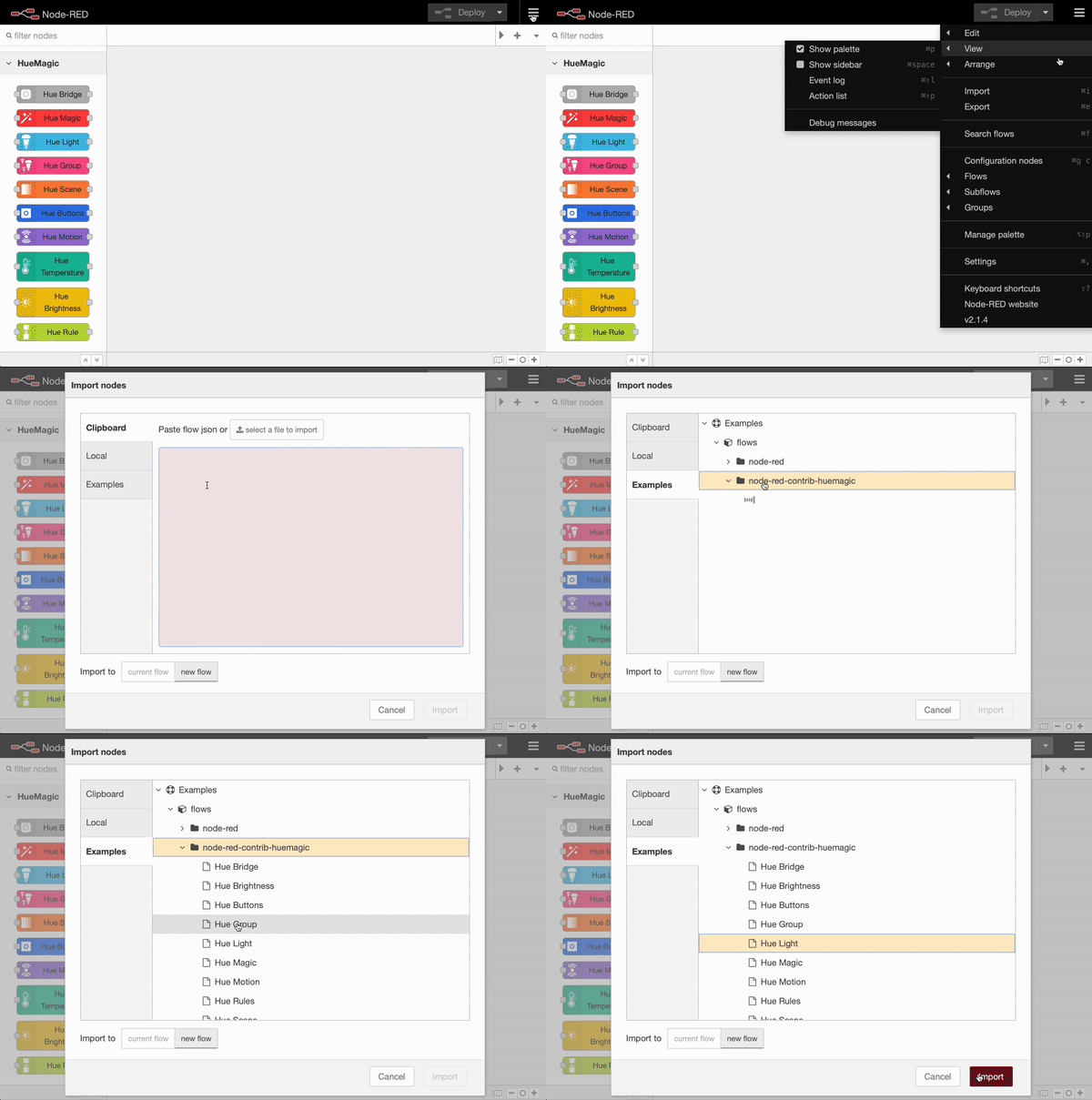
|
|
60
68
|
</script>
|
|
@@ -1,60 +1,64 @@
|
|
|
1
|
-
<script type="text/
|
|
2
|
-
|
|
1
|
+
<script type="text/markdown" data-help-name="hue-motion">
|
|
2
|
+
The "Hue motion" node can register and report movements from a suitable sensor on the bridge.
|
|
3
3
|
|
|
4
|
-
|
|
5
|
-
<p>Select the preconfigured Hue Bridge and hit the search button to find all available motion sensors. Type in the name of the sensor manually or keep the default device name. Note that events will only be sent if a motion is detected, if a motion stops or if the motion sensor receives the "Activate / Deactivate" command. If necessary, all status updates of this node can be ignored by activating the "Skip events" option.</p>
|
|
4
|
+
### Setup
|
|
6
5
|
|
|
7
|
-
|
|
8
|
-
<p>Activates or deactivates the motion sensor based on the passed in <b>msg</b> values of:</p>
|
|
9
|
-
<dl class="message-properties">
|
|
10
|
-
<dt>true<span class="property-type">boolean</span></dt>
|
|
11
|
-
<dd>Activates the motion sensor</dd>
|
|
6
|
+
Select the pre-configured Hue Bridge and click the search button to find all the available sensors. If you already know the ID of the sensor, you can also enter it here manually. You can either assign a new name for the sensor internally or choose the predefined name of the sensor. Optionally, you can also deactivate all automatic status messages for this node by clicking the setting "Skip events from node". The node will then no longer issue device updates. Alternatively, you can also choose whether the node's initialization message should not be suppressed when Node-RED is started. If you activate this setting, you will receive a status message for the currently selected sensor after each deployment.
|
|
12
7
|
|
|
13
|
-
|
|
14
|
-
<dd>Deactivates the motion sensor</dd>
|
|
8
|
+
If you do not select a sensor and use the node configuration in this way, the node works in the so-called "universal mode". In this mode, the node receives and outputs all status messages of the same type. You can also apply settings in universal mode to a specific sensor by transferring the corresponding sensor ID as a string in `msg.topic` together with your settings.
|
|
15
9
|
|
|
16
|
-
|
|
17
|
-
<dd>Returns the current status message of the node without taking any action</dd>
|
|
18
|
-
</dl>
|
|
10
|
+
### Get status
|
|
19
11
|
|
|
20
|
-
|
|
21
|
-
<p>The event message that the motion sensor sends contains the following data in the <b>msg.payload</b> object:</p>
|
|
22
|
-
<dl class="message-properties">
|
|
23
|
-
<dt>active<span class="property-type">boolean</span></dt>
|
|
24
|
-
<dd>Current sensor state</dd>
|
|
12
|
+
Outputs the current status of the sensor as soon as a `msg.payload` object with the following content has been transferred to the node. Alternatively, you can also press the button in the Node-RED interface without having to pass a message to the node beforehand.
|
|
25
13
|
|
|
26
|
-
|
|
27
|
-
<dd>Indicates if a motion is detected or not</dd>
|
|
14
|
+
: status (boolean): Returns the current status of the sensor
|
|
28
15
|
|
|
29
|
-
|
|
30
|
-
<dd>ISO 8601 date string of the last detected motion</dd>
|
|
31
|
-
</dl>
|
|
16
|
+
### Turn the sensor on / off
|
|
32
17
|
|
|
33
|
-
|
|
34
|
-
<p>Additional information about the sensor is going to be sent to the <b>msg.info</b> object:</p>
|
|
35
|
-
<dl class="message-properties">
|
|
36
|
-
<dt>id<span class="property-type">int</span></dt>
|
|
37
|
-
<dd>Numerical id of the sensor as registered on the bridge</dd>
|
|
18
|
+
If necessary, the sensor can be turned on and off remotely. If the sensor has been turned off, it no longer registers any movements and accordingly no longer outputs them. To do this, pass an object with the following content:
|
|
38
19
|
|
|
39
|
-
|
|
40
|
-
<dd>Unique Id of the sensor (typically hardware id)</dd>
|
|
20
|
+
: payload (boolean): `true` turns the sensor on,` false` turns it off
|
|
41
21
|
|
|
42
|
-
|
|
43
|
-
<dd>Name for the sensor</dd>
|
|
22
|
+
### Status messages from the node
|
|
44
23
|
|
|
45
|
-
|
|
46
|
-
<dd>Sensor type (e.g. Daylight, CLIPTemperature, ZGPSwitch)</dd>
|
|
24
|
+
As soon as the sensor has registered a movement, the following status message is returned by the node:
|
|
47
25
|
|
|
48
|
-
|
|
49
|
-
<dd>Software version of the sensor</dd>
|
|
26
|
+
#### Status object under `msg.payload`
|
|
50
27
|
|
|
51
|
-
|
|
52
|
-
|
|
28
|
+
: active (boolean): Indicates whether the sensor is switched on or off
|
|
29
|
+
: reachable (boolean | string): `true` if the sensor is connected to the bridge, `unknown` if the connection status deviates
|
|
30
|
+
: connectionStatus (string): The current connection status with the bridge in the form of a string. Can contain `connected`, `disconnected`, `connectivity_issue` or `unidirectional_incoming` as a value
|
|
31
|
+
: motion (boolean): Indicates whether a motion has been registered
|
|
32
|
+
: updated (string): Time of the last update of the resource by HueMagic (ISO 8601)
|
|
53
33
|
|
|
54
|
-
|
|
55
|
-
<dd>The model object of the sensor includes model specific information like the model.id, model.manufacturer, model.name and model.type</dd>
|
|
56
|
-
</dl>
|
|
34
|
+
#### Information about the sensor under `msg.info`
|
|
57
35
|
|
|
58
|
-
|
|
59
|
-
|
|
36
|
+
: id (string): Indicates the new ID of the sensor
|
|
37
|
+
: idV1 (string | boolean): Indicates the old ID of the sensor
|
|
38
|
+
: uniqueId (string): The unique ID of the sensor
|
|
39
|
+
: deviceId (string): The unique ID of the device
|
|
40
|
+
: name (string): The currently set name of the sensor
|
|
41
|
+
: type (string): The type of the sensor (always `motion`)
|
|
42
|
+
: softwareVersion (string): The current firmware of the sensor
|
|
43
|
+
: battery (float): The current battery level of the sensor
|
|
44
|
+
: batteryState (string): The current status of the battery level. Can contain `normal`, `low` or `critical` as a value
|
|
45
|
+
: model (object): Contains the model information of the sensor under `id`, `manufacturer`, `name`, `type` and `certified`
|
|
46
|
+
|
|
47
|
+
#### Status changes under `msg.updated`
|
|
48
|
+
|
|
49
|
+
Lists individual parameters in the form of an object that have changed compared to the last state of the sensor. If no changes have been registered, this object is empty.
|
|
50
|
+
|
|
51
|
+
#### Last status of the sensor under `msg.lastState`
|
|
52
|
+
|
|
53
|
+
Contains the complete status object (see output values above) of the last status before the last registered change. If the last state of HueMagic has not yet been registered, it will output `false`.
|
|
54
|
+
|
|
55
|
+
#### Last command under `msg.command` (optional)
|
|
56
|
+
|
|
57
|
+
If the status of the node has changed via a certain command, the entire command that was executed is also output. Otherwise this object will not be output by the node.
|
|
58
|
+
|
|
59
|
+
### Examples from HueMagic
|
|
60
|
+
|
|
61
|
+
HueMagic provides some sample configurations for this node. To import a full featured example into your Node-RED interface, click on the Node-RED menu icon, then select "Import" and navigate to "Examples" in the sidebar of the popup. Then select the HueMagic folder and your desired node to import a sample flow.
|
|
62
|
+
|
|
63
|
+

|
|
60
64
|
</script>
|
|
@@ -5,12 +5,14 @@
|
|
|
5
5
|
{
|
|
6
6
|
"name": "Name",
|
|
7
7
|
"input-name": "Sensor name",
|
|
8
|
-
"skipevents": "Skip events",
|
|
9
8
|
"skipevents-node": "Skip events from node",
|
|
9
|
+
"sendinitevents-node": "Do not suppress initialization event",
|
|
10
10
|
"searching": "Searching motion sensors…",
|
|
11
11
|
"none-found": "No motion sensors found!",
|
|
12
12
|
"unknown-error": "Something went wrong. Please retry.",
|
|
13
|
-
"sensor": "Sensor"
|
|
13
|
+
"sensor": "Sensor",
|
|
14
|
+
"universalevents": "Universal Events",
|
|
15
|
+
"universalevents-node": "Receives all messages from other nodes of the same type (only in universal mode)"
|
|
14
16
|
},
|
|
15
17
|
"node":
|
|
16
18
|
{
|
|
@@ -21,8 +23,11 @@
|
|
|
21
23
|
"no-motion": "no motion",
|
|
22
24
|
"activated": "activated",
|
|
23
25
|
"deactivated": "deactivated",
|
|
24
|
-
"input": "activate / deactivate",
|
|
25
|
-
"output": "motion detected"
|
|
26
|
+
"input": "activate / deactivate / status",
|
|
27
|
+
"output": "motion detected",
|
|
28
|
+
"universal": "universal mode",
|
|
29
|
+
"command": "executing command…",
|
|
30
|
+
"statusmsg": "Status queried successfully…"
|
|
26
31
|
}
|
|
27
32
|
}
|
|
28
33
|
}
|
|
@@ -1,74 +1,69 @@
|
|
|
1
|
-
<script type="text/
|
|
2
|
-
|
|
3
|
-
|
|
4
|
-
|
|
5
|
-
|
|
6
|
-
|
|
7
|
-
|
|
8
|
-
|
|
9
|
-
|
|
10
|
-
|
|
11
|
-
|
|
12
|
-
|
|
13
|
-
|
|
14
|
-
|
|
15
|
-
|
|
16
|
-
|
|
17
|
-
|
|
18
|
-
|
|
19
|
-
|
|
20
|
-
|
|
21
|
-
|
|
22
|
-
|
|
23
|
-
|
|
24
|
-
|
|
25
|
-
|
|
26
|
-
|
|
27
|
-
|
|
28
|
-
|
|
29
|
-
|
|
30
|
-
|
|
31
|
-
|
|
32
|
-
|
|
33
|
-
|
|
34
|
-
|
|
35
|
-
|
|
36
|
-
|
|
37
|
-
|
|
38
|
-
|
|
39
|
-
|
|
40
|
-
|
|
41
|
-
|
|
42
|
-
|
|
43
|
-
|
|
44
|
-
|
|
45
|
-
|
|
46
|
-
|
|
47
|
-
|
|
48
|
-
|
|
49
|
-
|
|
50
|
-
|
|
51
|
-
|
|
52
|
-
|
|
53
|
-
|
|
54
|
-
|
|
55
|
-
|
|
56
|
-
|
|
57
|
-
|
|
58
|
-
|
|
59
|
-
|
|
60
|
-
|
|
61
|
-
|
|
62
|
-
|
|
63
|
-
|
|
64
|
-
|
|
65
|
-
|
|
66
|
-
|
|
67
|
-
|
|
68
|
-
|
|
69
|
-
<dd>The body of the action</dd>
|
|
70
|
-
</dl>
|
|
71
|
-
|
|
72
|
-
<h3>Last State Information</h3>
|
|
73
|
-
<p>This node also sends the entire last state data (before the update) in the <b>msg.lastState</b> object. It can either contain false (boolean) or the objects payload (msg.lastState.payload) and info (msg.lastState.info). The return value "false" is only sent if there was no last state, e.g. when the node was newly created or restarted.</p>
|
|
1
|
+
<script type="text/markdown" data-help-name="hue-rules">
|
|
2
|
+
The "Hue Rule" node can activate or deactivate rules saved in the bridge and call up their settings.
|
|
3
|
+
|
|
4
|
+
### Setup
|
|
5
|
+
|
|
6
|
+
Select the pre-configured Hue Bridge and hit the search button to find all the available rules. If you already know the ID of the rule, you can also enter it here manually. Alternatively, you can also assign a new name or choose the predefined name of the rule.
|
|
7
|
+
|
|
8
|
+
If you do not select a rule and use the node configuration in this way, the node works in the so-called "universal mode". In this mode, the node receives and outputs all status messages of the same type. You can also apply settings in universal mode to a specific rule by transferring the corresponding rule ID as a string in `msg.topic` together with your settings.
|
|
9
|
+
|
|
10
|
+
### Get properties / settings
|
|
11
|
+
|
|
12
|
+
Outputs the current properties of the rule as soon as a `msg.payload` object with the following content has been passed to the node. Alternatively, you can also press the button in the Node-RED interface without having to pass a message to the node beforehand.
|
|
13
|
+
|
|
14
|
+
: status (boolean): Returns the current status of the rule
|
|
15
|
+
|
|
16
|
+
### Activate / deactivate rule
|
|
17
|
+
|
|
18
|
+
The rule can be activated and deactivated if necessary. If the rule has been deactivated, it will no longer run in the bridge until you reactivate it. To do this, pass an object with the following content:
|
|
19
|
+
|
|
20
|
+
: payload (boolean): `true` activates the rule, `false` deactivates it
|
|
21
|
+
|
|
22
|
+
### Status messages from the node
|
|
23
|
+
|
|
24
|
+
As soon as the status (activated / deactivated) of a rule changes, the following status message is returned by the node:
|
|
25
|
+
|
|
26
|
+
#### Status object under `msg.payload`
|
|
27
|
+
|
|
28
|
+
: enabled (boolean): Indicates whether the rule is activated or deactivated
|
|
29
|
+
: triggered (string): Time of the last execution (ISO 8601)
|
|
30
|
+
|
|
31
|
+
#### Information about the rule under `msg.info`
|
|
32
|
+
|
|
33
|
+
: id (string): The unique ID of the rule
|
|
34
|
+
: created (string): Date of creation of the rule (ISO 8601)
|
|
35
|
+
: name (string): Name of the rule on the bridge
|
|
36
|
+
: timesTriggered (int): Number of times the rule was executed on the bridge
|
|
37
|
+
: owner (string): ID of the owner of this rule
|
|
38
|
+
: status (string): Status of the rule in the form of a string
|
|
39
|
+
|
|
40
|
+
#### Rule conditions under `msg.conditions` (array)
|
|
41
|
+
|
|
42
|
+
: address (string): Path to an attribute of a sensor
|
|
43
|
+
: operator (string): operator
|
|
44
|
+
: value (string): The value to be checked
|
|
45
|
+
|
|
46
|
+
#### Rule actions under `msg.actions` (array)
|
|
47
|
+
|
|
48
|
+
: address (string): The destination address of the resource
|
|
49
|
+
: method (string): The query method
|
|
50
|
+
: body (object): The action to be taken
|
|
51
|
+
|
|
52
|
+
#### Status changes under `msg.updated`
|
|
53
|
+
|
|
54
|
+
Lists individual parameters in the form of an object that have changed compared to the last state of the rule. If no changes have been registered, this object is empty.
|
|
55
|
+
|
|
56
|
+
#### Last status of the rule under `msg.lastState`
|
|
57
|
+
|
|
58
|
+
Contains the complete object (see output values above) of the last status before the last registered change of the rule. If the last state of HueMagic has not yet been registered, it will output `false`.
|
|
59
|
+
|
|
60
|
+
#### Last command under `msg.command` (optional)
|
|
61
|
+
|
|
62
|
+
If the status of the node has changed via a certain command, the entire command that was executed is also output. Otherwise this object will not be output by the node.
|
|
63
|
+
|
|
64
|
+
### Examples from HueMagic
|
|
65
|
+
|
|
66
|
+
HueMagic provides some sample configurations for this node. To import a full featured example into your Node-RED interface, click on the Node-RED menu icon, then select "Import" and navigate to "Examples" in the sidebar of the popup. Then select the HueMagic folder and your desired node to import a sample flow.
|
|
67
|
+
|
|
68
|
+

|
|
74
69
|
</script>
|
|
@@ -5,8 +5,8 @@
|
|
|
5
5
|
{
|
|
6
6
|
"name": "Name",
|
|
7
7
|
"input-name": "Rule name",
|
|
8
|
-
"skipevents": "Skip events",
|
|
9
8
|
"skipevents-node": "Skip events from node",
|
|
9
|
+
"sendinitevents-node": "Do not suppress initialization event",
|
|
10
10
|
"searching": "Searching rules…",
|
|
11
11
|
"none-found": "No rules found!",
|
|
12
12
|
"unknown-error": "Something went wrong. Please retry.",
|
|
@@ -20,7 +20,10 @@
|
|
|
20
20
|
"enabled": "enabled",
|
|
21
21
|
"disabled": "disabled",
|
|
22
22
|
"output": "rule (triggered)",
|
|
23
|
-
"input": "enable / disable"
|
|
23
|
+
"input": "enable / disable",
|
|
24
|
+
"universal": "universal mode",
|
|
25
|
+
"command": "executing command…",
|
|
26
|
+
"statusmsg": "Status queried successfully…"
|
|
24
27
|
}
|
|
25
28
|
}
|
|
26
29
|
}
|
|
@@ -1,44 +1,35 @@
|
|
|
1
|
-
<script type="text/
|
|
2
|
-
|
|
1
|
+
<script type="text/markdown" data-help-name="hue-scene">
|
|
2
|
+
The "Hue Scene" node can resume scenes saved in the bridge and apply them to certain groups.
|
|
3
3
|
|
|
4
|
-
|
|
5
|
-
<p>Select the preconfigured Hue Bridge and hit the search button to find all available scenes. Type in the name of the scene manually or keep the default scene name. Note that events will only be sent if the scene node receives any command. If necessary, all status updates of this node can be ignored by activating the "Skip events" option.</p>
|
|
4
|
+
### Setup
|
|
6
5
|
|
|
7
|
-
|
|
8
|
-
<p>When a scene is configured any passed in value on the scene node activates the preconfigured scene.</p>
|
|
6
|
+
Select the pre-configured Hue Bridge and hit the search button to find all the available scenes. If you already know the ID of the scene, you can also enter it here manually. Alternatively, you can also assign an internal name for the scene or choose the predefined name of the scene.
|
|
9
7
|
|
|
10
|
-
|
|
11
|
-
<p>When no scene is configured a scene name or scene id must be passed in to activate that scene. It is also possible to pass a group ID dynamically to recall a scene on a specific group only. The following parameters can be passed manually in <b>msg.payload</b>.</p>
|
|
12
|
-
<dl class="message-properties">
|
|
13
|
-
<dt>scene<span class="property-type">string</span></dt>
|
|
14
|
-
<dd>Will activate the scene given by its name or id.</dd>
|
|
8
|
+
### Activate scene
|
|
15
9
|
|
|
16
|
-
|
|
17
|
-
<dd>Will recall a scene on a specific group by its id.</dd>
|
|
18
|
-
</dl>
|
|
10
|
+
You can activate a predefined scene by transferring an object with the following content:
|
|
19
11
|
|
|
20
|
-
|
|
21
|
-
<p>The event message that the scene node sends contains the following data in the <b>msg.payload</b> object:</p>
|
|
22
|
-
<dl class="message-properties">
|
|
23
|
-
<dt>id<span class="property-type">string</span></dt>
|
|
24
|
-
<dd>The unique scene id</dd>
|
|
12
|
+
: payload (boolean): Activates a preconfigured scene
|
|
25
13
|
|
|
26
|
-
|
|
27
|
-
<dd>The scene name</dd>
|
|
14
|
+
### Activate scene in universal mode
|
|
28
15
|
|
|
29
|
-
|
|
30
|
-
<dd>Array of associated light ids in the scene</dd>
|
|
16
|
+
If you operate this node in the so-called "universal mode" and have not set a scene in the node configuration, you can also transfer your desired scene to the node as a command. To do this, pass a `msg.payload` object with the following content:
|
|
31
17
|
|
|
32
|
-
|
|
33
|
-
<dd>User who created the scene</dd>
|
|
18
|
+
: scene (string): ID of the scene to be activated on the bridge
|
|
34
19
|
|
|
35
|
-
|
|
36
|
-
<dd>Object consisting of version and data properties</dd>
|
|
20
|
+
### Activate scene on certain groups
|
|
37
21
|
|
|
38
|
-
|
|
39
|
-
<dd>ISO 8601 date string when scene was last updated</dd>
|
|
22
|
+
Connect the output of this node to one or more groups to apply a scene to specific groups. Alternatively, you have the option of doing this "dynamically" by passing an `msg.payload` object with the following content to the node:
|
|
40
23
|
|
|
41
|
-
|
|
42
|
-
|
|
43
|
-
|
|
24
|
+
: group (string | array [string,…]): ID of the group or an array with the IDs of several groups in order to limit the scene to these groups
|
|
25
|
+
|
|
26
|
+
### More information about the Node
|
|
27
|
+
|
|
28
|
+
This node does not issue any status messages. Please also note that you can only apply scenes to groups if these are already linked to the respective scene on the bridge. Otherwise nothing will be applied.
|
|
29
|
+
|
|
30
|
+
### Examples from HueMagic
|
|
31
|
+
|
|
32
|
+
HueMagic provides some sample configurations for this node. To import a full featured example into your Node-RED interface, click on the Node-RED menu icon, then select "Import" and navigate to "Examples" in the sidebar of the popup. Then select the HueMagic folder and your desired node to import a sample flow.
|
|
33
|
+
|
|
34
|
+

|
|
44
35
|
</script>
|
|
@@ -5,11 +5,12 @@
|
|
|
5
5
|
{
|
|
6
6
|
"name": "Name",
|
|
7
7
|
"input-name": "Scene name",
|
|
8
|
-
"skipevents": "Skip events",
|
|
9
8
|
"skipevents-node": "Skip events from node",
|
|
9
|
+
"sendinitevents-node": "Do not suppress initialization event",
|
|
10
10
|
"searching": "Searching scenes…",
|
|
11
11
|
"none-found": "No scenes found!",
|
|
12
12
|
"unknown-error": "Something went wrong. Please retry.",
|
|
13
|
+
"scene": "Scene",
|
|
13
14
|
"group": "Group",
|
|
14
15
|
"group-none-found": "No groups found!",
|
|
15
16
|
"group-searching": "Searching groups…",
|
|
@@ -23,7 +24,9 @@
|
|
|
23
24
|
"recalled-on-group": "scene recalled on group",
|
|
24
25
|
"no-id": "No scene Id.",
|
|
25
26
|
"input": "activate scene",
|
|
26
|
-
"output": "
|
|
27
|
+
"output": "Target group(s)",
|
|
28
|
+
"command": "executing command…",
|
|
29
|
+
"statusmsg": "Recalling scene…"
|
|
27
30
|
}
|
|
28
31
|
}
|
|
29
32
|
}
|