@alan-ai-hq/agent-manager-linux-arm64 0.1.199 → 0.1.201
This diff represents the content of publicly available package versions that have been released to one of the supported registries. The information contained in this diff is provided for informational purposes only and reflects changes between package versions as they appear in their respective public registries.
- package/alan-agent.cjs +8928 -5241
- package/alan-holder.cjs +5364 -3401
- package/alan-lease.cjs +808 -200
- package/builtin-skills/agent-desktop/SKILL.md +94 -0
- package/builtin-skills/alan-artifact/SKILL.md +128 -0
- package/builtin-skills/alan-artifact/examples/interactive-diagram.md +50 -0
- package/builtin-skills/alan-artifact/examples/prototype.md +53 -0
- package/builtin-skills/alan-artifact/examples/test-report.md +55 -0
- package/builtin-skills/alan-artifact/references/design.md +39 -0
- package/builtin-skills/alan-artifact/references/diagrams.md +20 -0
- package/builtin-skills/alan-deck/SKILL.md +189 -0
- package/builtin-skills/alan-diagrams/SKILL.md +105 -0
- package/builtin-skills/alan-diagrams/references/diagram-catalogue.md +847 -0
- package/builtin-skills/alan-docs/SKILL.md +143 -0
- package/builtin-skills/alan-docs/references/administration/members-and-teams.md +48 -0
- package/builtin-skills/alan-docs/references/administration/org-dashboard.md +19 -0
- package/builtin-skills/alan-docs/references/administration/organisation-settings.md +41 -0
- package/builtin-skills/alan-docs/references/agents-and-sessions/code-context.md +60 -0
- package/builtin-skills/alan-docs/references/agents-and-sessions/coding-agents-and-models.md +78 -0
- package/builtin-skills/alan-docs/references/agents-and-sessions/session-lifecycle.md +62 -0
- package/builtin-skills/alan-docs/references/agents-and-sessions/start-a-session.md +110 -0
- package/builtin-skills/alan-docs/references/automations/automation-runs.md +69 -0
- package/builtin-skills/alan-docs/references/automations/create-an-automation.md +143 -0
- package/builtin-skills/alan-docs/references/automations/overview.md +77 -0
- package/builtin-skills/alan-docs/references/cloud-and-local/cloud-images.md +64 -0
- package/builtin-skills/alan-docs/references/cloud-and-local/cloud-sessions-and-execution.md +89 -0
- package/builtin-skills/alan-docs/references/cloud-and-local/cloud-setup.md +128 -0
- package/builtin-skills/alan-docs/references/cloud-and-local/codex-cli-connector.md +92 -0
- package/builtin-skills/alan-docs/references/cloud-and-local/local-execution.md +213 -0
- package/builtin-skills/alan-docs/references/cloud-and-local/runtime-recovery.md +60 -0
- package/builtin-skills/alan-docs/references/cloud-and-local/sandboxes.md +74 -0
- package/builtin-skills/alan-docs/references/cloud-and-local/troubleshooting-and-faq.md +102 -0
- package/builtin-skills/alan-docs/references/get-started/connect-azure-devops.md +89 -0
- package/builtin-skills/alan-docs/references/get-started/connect-bitbucket.md +86 -0
- package/builtin-skills/alan-docs/references/get-started/connect-github.md +114 -0
- package/builtin-skills/alan-docs/references/get-started/join-a-team.md +114 -0
- package/builtin-skills/alan-docs/references/get-started/product-map.md +96 -0
- package/builtin-skills/alan-docs/references/get-started/quickstart.md +158 -0
- package/builtin-skills/alan-docs/references/get-started/set-up-your-team.md +200 -0
- package/builtin-skills/alan-docs/references/get-started/sign-in.md +104 -0
- package/builtin-skills/alan-docs/references/get-started/welcome.md +39 -0
- package/builtin-skills/alan-docs/references/integrations/connect-microsoft-teams.md +116 -0
- package/builtin-skills/alan-docs/references/integrations/connect-slack.md +164 -0
- package/builtin-skills/alan-docs/references/integrations/import-from-linear.md +172 -0
- package/builtin-skills/alan-docs/references/plans-and-billing/plans-and-limits.md +115 -0
- package/builtin-skills/alan-docs/references/plans-and-billing/usage-and-credits.md +47 -0
- package/builtin-skills/alan-docs/references/reference/documents-and-artifacts.md +52 -0
- package/builtin-skills/alan-docs/references/reference/faq.md +89 -0
- package/builtin-skills/alan-docs/references/reference/feature-catalog.md +89 -0
- package/builtin-skills/alan-docs/references/reference/glossary.md +96 -0
- package/builtin-skills/alan-docs/references/reference/links-and-ids.md +80 -0
- package/builtin-skills/alan-docs/references/reference/roles-and-permissions.md +64 -0
- package/builtin-skills/alan-docs/references/reference/statuses.md +86 -0
- package/builtin-skills/alan-docs/references/reviews-testing-deploys/deployments.md +28 -0
- package/builtin-skills/alan-docs/references/reviews-testing-deploys/pull-requests.md +85 -0
- package/builtin-skills/alan-docs/references/reviews-testing-deploys/review-work.md +55 -0
- package/builtin-skills/alan-docs/references/reviews-testing-deploys/testing-evidence.md +52 -0
- package/builtin-skills/alan-docs/references/skills/plugins-and-mcp.md +24 -0
- package/builtin-skills/alan-docs/references/skills/skills.md +103 -0
- package/builtin-skills/alan-docs/references/tasks/complete-a-task.md +79 -0
- package/builtin-skills/alan-docs/references/tasks/create-a-task.md +67 -0
- package/builtin-skills/alan-docs/references/tasks/subtasks-and-status.md +55 -0
- package/builtin-skills/alan-docs/references/tasks/task-artifacts.md +56 -0
- package/builtin-skills/alan-docs/references/tasks/task-detail.md +65 -0
- package/builtin-skills/alan-docs/references/teams-and-planning/cycles.md +93 -0
- package/builtin-skills/alan-docs/references/teams-and-planning/documents.md +66 -0
- package/builtin-skills/alan-docs/references/teams-and-planning/epics.md +95 -0
- package/builtin-skills/alan-docs/references/teams-and-planning/whiteboard.md +52 -0
- package/builtin-skills/alan-docs/references/troubleshooting/agent-blocked.md +38 -0
- package/builtin-skills/alan-docs/references/troubleshooting/common-problems.md +118 -0
- package/builtin-skills/alan-docs/references/troubleshooting/github-access.md +41 -0
- package/builtin-skills/alan-docs/references/troubleshooting/missing-artifact.md +47 -0
- package/builtin-skills/alan-docs/references/troubleshooting/report-an-issue.md +74 -0
- package/builtin-skills/alan-docs/references/troubleshooting/runtime-unavailable.md +49 -0
- package/builtin-skills/alan-docs/scripts/generate-references.mjs +363 -0
- package/builtin-skills/alan-environment-setup/SKILL.md +368 -0
- package/builtin-skills/alan-environment-setup/references/android.md +118 -0
- package/builtin-skills/alan-environment-setup/references/troubleshooting.md +38 -0
- package/builtin-skills/alan-skill-authoring/SKILL.md +83 -0
- package/builtin-skills/alan-tasks/SKILL.md +195 -0
- package/builtin-skills/alan-test-android/SKILL.md +224 -0
- package/builtin-skills/alan-test-android/scripts/android-up.sh +227 -0
- package/builtin-skills/alan-test-android/scripts/install-launch.sh +38 -0
- package/builtin-skills/alan-test-android/scripts/record.sh +64 -0
- package/builtin-skills/alan-test-android/scripts/ui.py +367 -0
- package/builtin-skills/alan-test-desktop/SKILL.md +107 -0
- package/builtin-skills/alan-test-desktop/references/linux-recording.md +31 -0
- package/builtin-skills/alan-test-feature/SKILL.md +243 -0
- package/builtin-skills/alan-test-mobile/SKILL.md +65 -0
- package/builtin-skills/alan-test-web/SKILL.md +113 -0
- package/builtin-skills/alan-walkthrough/SKILL.md +152 -0
- package/builtin-skills/alan-walkthrough/scripts/mark-changes.js +419 -0
- package/builtin-skills/alan-walkthrough/scripts/publish-capture.mjs +288 -0
- package/builtin-skills/alan-workflows/SKILL.md +235 -0
- package/builtin-skills/manifest.json +19 -0
- package/package.json +3 -2
|
@@ -0,0 +1,69 @@
|
|
|
1
|
+
> Source: [https://docs.tryalan.ai/docs/automations/automation-runs](https://docs.tryalan.ai/docs/automations/automation-runs)
|
|
2
|
+
|
|
3
|
+
# Automation runs
|
|
4
|
+
|
|
5
|
+
Open an automation's run history to see when it ran, whether it finished, and what it produced. Each run has its own session conversation.
|
|
6
|
+
|
|
7
|
+
## Find runs
|
|
8
|
+
|
|
9
|
+
| Where | What you see |
|
|
10
|
+
| --- | --- |
|
|
11
|
+
| The automation's row in **Automations** | When it last ran ("Never run" until the first run) and when it runs next |
|
|
12
|
+
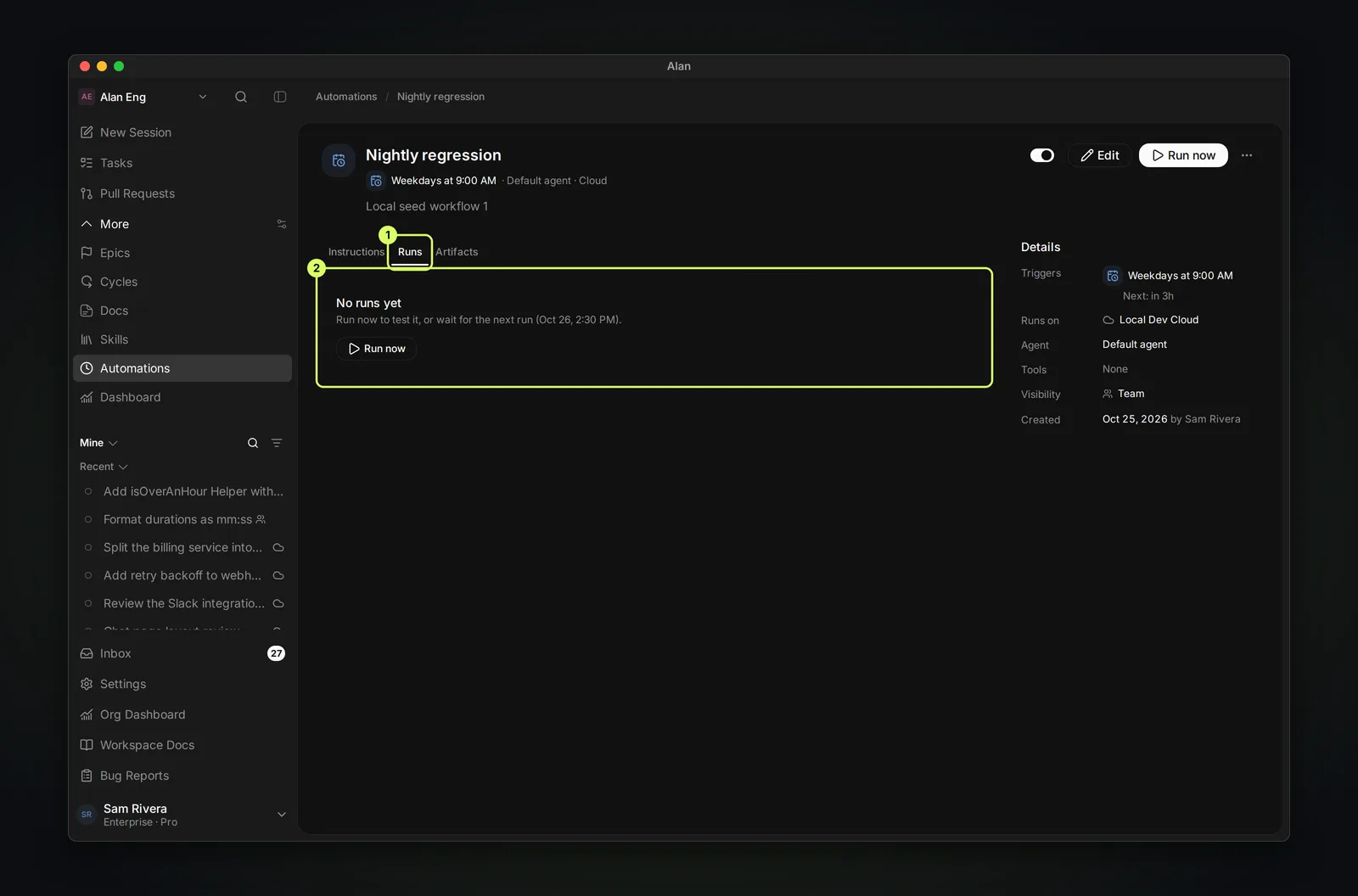
| The side panel (select a row) | **Last run**, success rate, and **Recent runs** as status marks you can open |
|
|
13
|
+
| The automation's page, **Runs** tab | Every run, newest first, with a count on the tab |
|
|
14
|
+
| The automation's page, **Artifacts** tab | Plans, reports, and other artifacts its runs created |
|
|
15
|
+
|
|
16
|
+
|
|
17
|
+
|
|
18
|
+
Once there are runs, the page also shows **Last run**, **Success**, **Avg duration**, and a strip of **Recent runs** above the tabs. The **Runs** table lists each run's **Started**, **Status**, **Visibility**, **Agent**, **Trigger**, **Duration**, and **Target**. Each row's menu has **Copy link** and **Copy session ID**. When the latest run came from an event, a **Payload** tab shows the data the trigger sent.
|
|
19
|
+
|
|
20
|
+
## Run statuses
|
|
21
|
+
|
|
22
|
+
| Status | Meaning |
|
|
23
|
+
| --- | --- |
|
|
24
|
+
| **Pending** | Queued and about to start |
|
|
25
|
+
| **Running** | The agent is working |
|
|
26
|
+
| **Awaiting local** | An older local automation is waiting for its computer to come online |
|
|
27
|
+
| **Completed** | Finished |
|
|
28
|
+
| **Failed** | Ended with an error |
|
|
29
|
+
| **Interrupted** | Stopped before finishing, for example because someone stopped it |
|
|
30
|
+
| **Cancelled** | Cancelled before finishing |
|
|
31
|
+
| **Timed out** | Ran past its time limit |
|
|
32
|
+
| **Skipped** | The trigger fired but Alan didn't start a run |
|
|
33
|
+
|
|
34
|
+
A run is usually **Skipped** because the previous run was still going, the team had reached its limit on cloud runs, the organisation couldn't start cloud work, or one of the trigger's conditions didn't match the event. If a plan change or an invalid schedule stops an automation altogether, Alan turns it off and records why.
|
|
35
|
+
|
|
36
|
+
> **Note:** The automation itself shows **Failed** in the list when its latest run failed, was interrupted, or timed out. Open the run to see why.
|
|
37
|
+
|
|
38
|
+
## Read a run
|
|
39
|
+
|
|
40
|
+
Open a run from the **Runs** tab or the side panel. It opens as a session with the conversation on the left and the **Desktop**, **Git**, **Terminal**, **Files**, and **Artifacts** panels for the run's sandbox. Read the conversation to see *how* the agent worked; read its artifacts and pull requests to judge *what* it produced.
|
|
41
|
+
|
|
42
|
+
If you stop a run, the session says **This run was stopped** and keeps the transcript; choose **Restart run** to run it again with the same setup.
|
|
43
|
+
|
|
44
|
+
## When a run fails
|
|
45
|
+
|
|
46
|
+
A failed run shows what went wrong and, when it makes sense, a button to try again:
|
|
47
|
+
|
|
48
|
+
| Message | What to do |
|
|
49
|
+
| --- | --- |
|
|
50
|
+
| **You stopped this run** | **Resume** it if you stopped it by mistake. |
|
|
51
|
+
| **Cloud session ended** | The sandbox went away. **Retry** starts a fresh one. |
|
|
52
|
+
| **Execution timed out** | **Retry**, or narrow the instructions so the work fits. |
|
|
53
|
+
| **Agent disconnected** or **Agent process failed** | Usually temporary. **Retry**. |
|
|
54
|
+
| **No cloud environment configured** or **Cloud environment not found** | Edit the automation so it runs on your team's cloud environment. Retrying won't help. |
|
|
55
|
+
|
|
56
|
+
Repositories are optional for automation runs. If an older run failed with **No repositories configured**, start a new run after your Alan deployment has been updated to support environments without repositories.
|
|
57
|
+
|
|
58
|
+
> **Warning:** If the agent finished but did the wrong thing, retrying won't fix it. Read the conversation, then edit the instructions before you run it again.
|
|
59
|
+
|
|
60
|
+
## Evidence
|
|
61
|
+
|
|
62
|
+
For an automation that reviews pull requests, changes code, or checks behaviour, ask for a written result in the instructions, such as a review, a test report, or a summary artifact. A green status only says the run ended; the artifact is what teammates read to trust it.
|
|
63
|
+
|
|
64
|
+
## Next steps
|
|
65
|
+
|
|
66
|
+
- [Create an automation](create-an-automation.md) — Fix instructions or triggers before you retry.
|
|
67
|
+
- [Runtime recovery](../cloud-and-local/runtime-recovery.md) — Recover from sandbox and connection problems.
|
|
68
|
+
- [Automations overview](overview.md) — Triggers, statuses, and when to automate.
|
|
69
|
+
- [Task artifacts](../tasks/task-artifacts.md) — The evidence a run should leave behind.
|
|
@@ -0,0 +1,143 @@
|
|
|
1
|
+
> Source: [https://docs.tryalan.ai/docs/automations/create-an-automation](https://docs.tryalan.ai/docs/automations/create-an-automation)
|
|
2
|
+
|
|
3
|
+
# Create an automation
|
|
4
|
+
|
|
5
|
+
Create an automation to repeat a clear task without starting a session each time. Write the goal, required context, and expected result in the instructions, then test a run before turning it on.
|
|
6
|
+
|
|
7
|
+
You need a team cloud environment and a [plan that includes automations](../plans-and-billing/plans-and-limits.md). Free does not include automations.
|
|
8
|
+
|
|
9
|
+
Repositories are optional. An automation that researches AI news or works with connected services can run in a cloud environment with no repositories. Add repositories when the automation needs source code.
|
|
10
|
+
|
|
11
|
+
_Video: https://docs.tryalan.ai/images/screenshots/automations-create.mp4_
|
|
12
|
+
|
|
13
|
+
## Build it
|
|
14
|
+
|
|
15
|
+
**1. Open New automation**
|
|
16
|
+
|
|
17
|
+
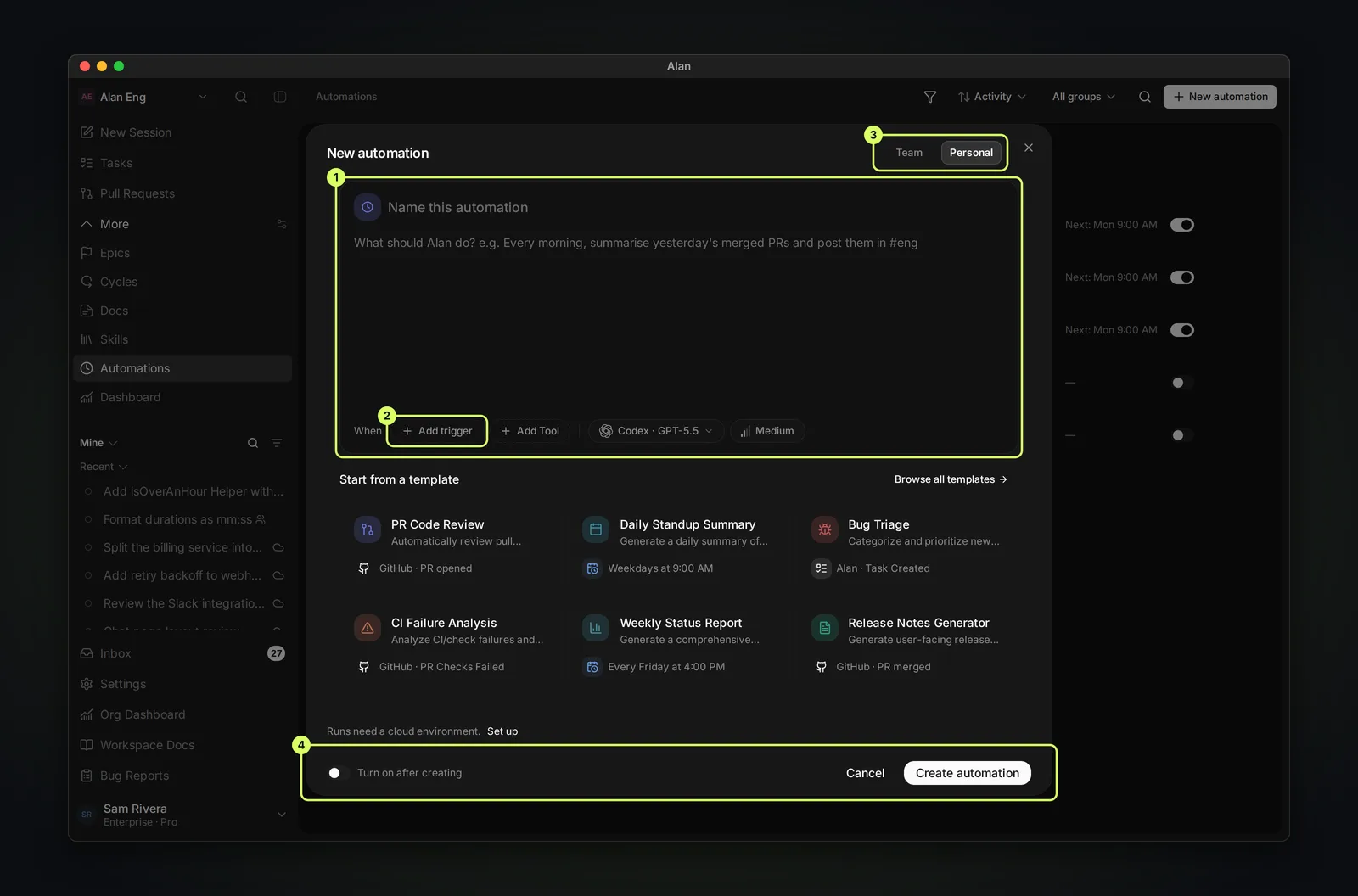
In **Automations**, choose **New automation**. If the team has no automations yet, the page instead offers a box labelled **Describe what Alan should do…** and a set of templates; describing it there opens the same editor with your text filled in.
|
|
18
|
+
|
|
19
|
+
**2. Start from a template, or from scratch**
|
|
20
|
+
|
|
21
|
+
Pick one of the templates under **Start from a template** (for example **PR Code Review**, **Daily Standup Summary**, or **Bug Triage**), or **Browse all templates**. From the full list you can also choose **Start blank**, or **Create with Alan** to describe what you want in a chat.
|
|
22
|
+
|
|
23
|
+
**3. Name it and write the instructions**
|
|
24
|
+
|
|
25
|
+
Give it a name (**Name this automation**) that says what it produces, such as "Review newly opened PRs" rather than "PR helper". Then write what Alan should do on every run in the **What should Alan do?** box.
|
|
26
|
+
|
|
27
|
+
**4. Add triggers**
|
|
28
|
+
|
|
29
|
+
Next to **When**, choose **Add trigger** and pick what starts a run. Select a trigger chip to set its details under **When this happens**. See [Choose triggers](#choose-triggers).
|
|
30
|
+
|
|
31
|
+
**5. Add tools and pick the agent**
|
|
32
|
+
|
|
33
|
+
**Add tool** lets Alan take extra actions on each run, such as posting a Slack or Microsoft Teams message or reading a pull request. The agent menu sets the coding agent and model; the effort menu controls how much reasoning it uses.
|
|
34
|
+
|
|
35
|
+
Two tools cover notifying people. **Send Notification** delivers one in-app notification to one teammate, chosen by name in the instructions or resolved with **List Team Members**; it never broadcasts to the whole team. A notification raised from an automation is typed **Automation** and shows with a bolt in the inbox. **Send Channel Message** posts to the Slack or Microsoft Teams channel you pick when you add the tool, and can @mention exact Alan users or their account emails.
|
|
36
|
+
|
|
37
|
+
**6. Choose who can see it**
|
|
38
|
+
|
|
39
|
+
At the top right, choose **Team** (all teammates can see and run it) or **Personal** (only you). If your plan doesn't include shared automations, new automations are personal.
|
|
40
|
+
|
|
41
|
+
**7. Create it**
|
|
42
|
+
|
|
43
|
+
Leave **Turn on after creating** off for now and choose **Create automation**. Then test it (below) before turning it on.
|
|
44
|
+
|
|
45
|
+
|
|
46
|
+
|
|
47
|
+
If any part is missing when you save, the editor says what to fix: **Give the automation a name.**, **Add at least one trigger.**, **Tell Alan what to do.**, or **Finish setting up the trigger before saving.**
|
|
48
|
+
|
|
49
|
+
> **Note:** Every run needs your team's cloud environment. If the team doesn't have one, the editor shows **Runs need a cloud environment.** with a **Set up** link. See [Cloud sessions and execution](../cloud-and-local/cloud-sessions-and-execution.md).
|
|
50
|
+
|
|
51
|
+
## Choose triggers
|
|
52
|
+
|
|
53
|
+
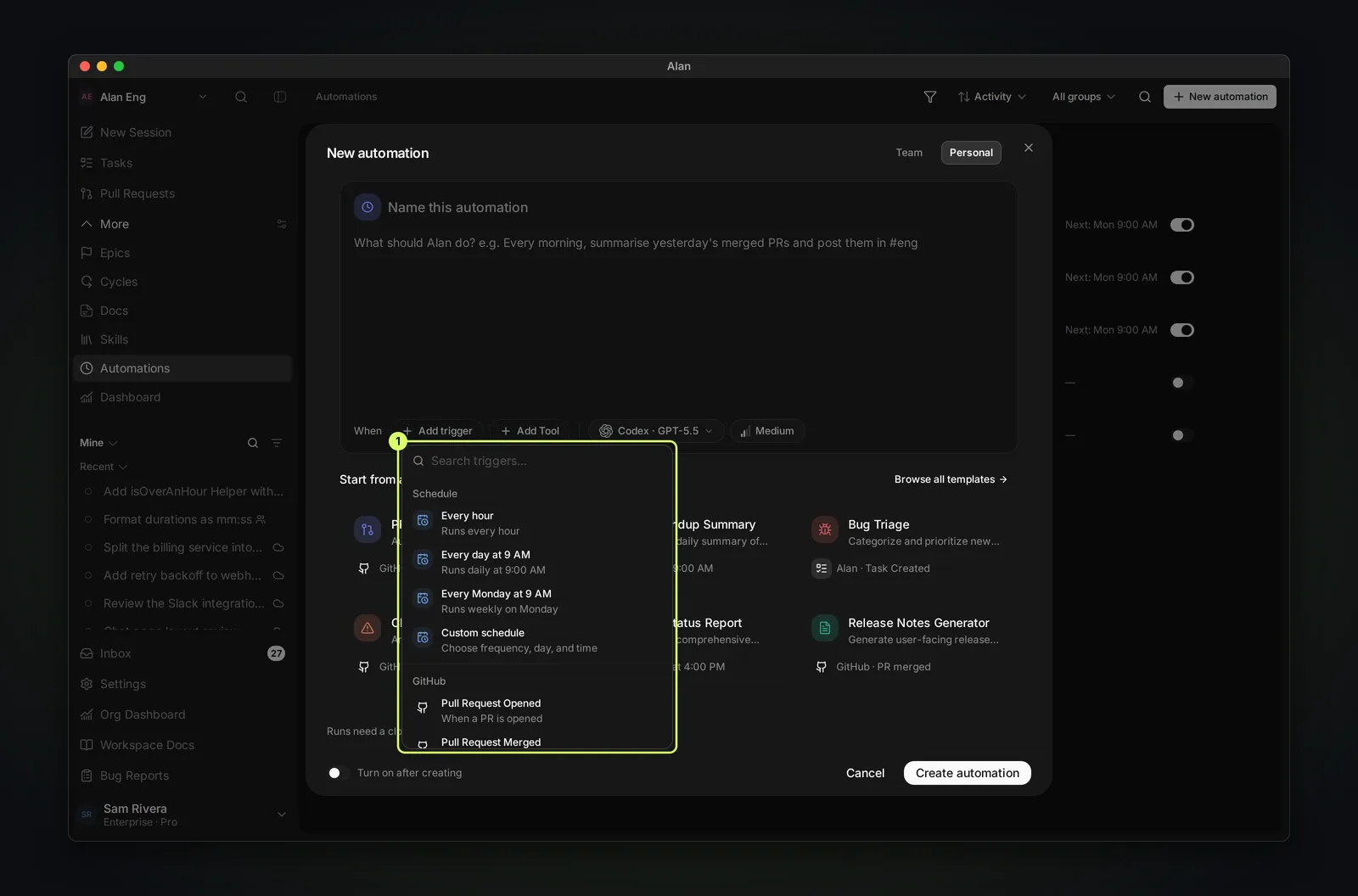
An automation needs at least one trigger, and can have several; any of them starts a run.
|
|
54
|
+
|
|
55
|
+
|
|
56
|
+
|
|
57
|
+
### Schedules
|
|
58
|
+
|
|
59
|
+
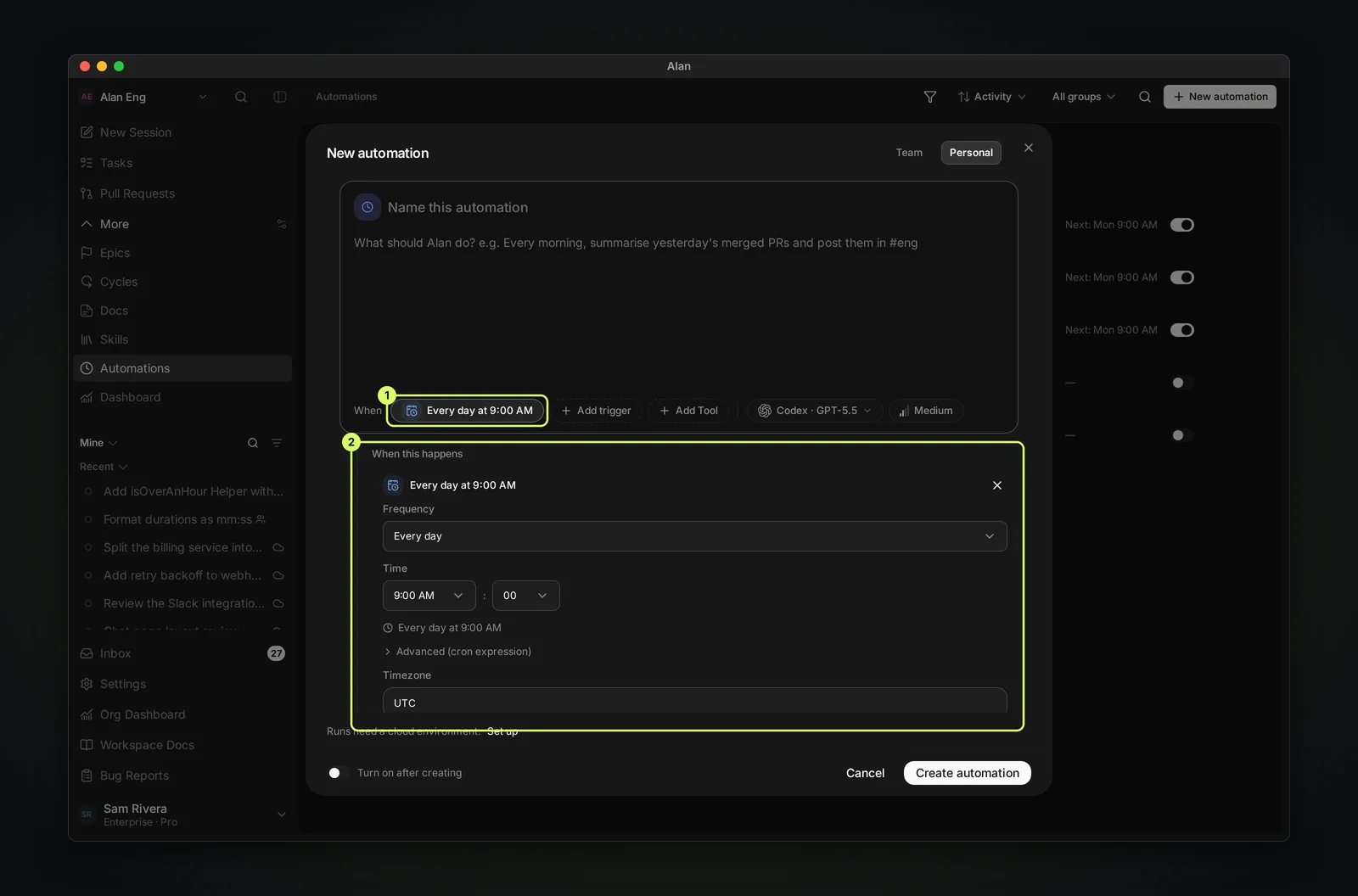
Pick a ready-made schedule, or **Custom schedule** to choose the **Frequency** (**Every hour**, **Every day**, **Every week**, or **Every month**), the days, and the **Time**. The line under the form reads the schedule back in words, such as "Weekdays at 9:00 AM".
|
|
60
|
+
|
|
61
|
+
|
|
62
|
+
|
|
63
|
+
- **Timezone** starts as your browser's timezone. Use a timezone name such as `UTC` or `America/New_York`.
|
|
64
|
+
- **Advanced (cron expression)** takes a standard 5-field cron expression: minute, hour, day of month, month, day of week. Seconds and year fields are not supported.
|
|
65
|
+
- A cloud automation can run **at most once every 5 minutes**. Alan rejects a schedule that fires more often.
|
|
66
|
+
- If Alan can't register a schedule, it still saves the automation but turns it off and tells you why.
|
|
67
|
+
|
|
68
|
+
### GitHub and Bitbucket events
|
|
69
|
+
|
|
70
|
+
Pick an event, such as **Pull Request Opened** or **Push to Branch**, then optionally narrow it to one **Repository** and **Branch**. Leave them empty to match all repositories and all branches. The repository must be connected to Alan; see [Connect GitHub](../get-started/connect-github.md).
|
|
71
|
+
|
|
72
|
+
### Alan activity
|
|
73
|
+
|
|
74
|
+
Pick an event such as **Task Created**, **Task Status Changed**, **Document Created**, or **Mentioned @alan**. Each event starts a run whenever it happens; add conditions to narrow it.
|
|
75
|
+
|
|
76
|
+
### Conditions
|
|
77
|
+
|
|
78
|
+
Every event trigger takes conditions. Under **When this happens** choose **Add**, then pick a field, an operator, and a value.
|
|
79
|
+
|
|
80
|
+
- **Fields follow the event.** Task events offer status, previous status, priority, label, assignee, epic, project, creator, and which field changed. Document events offer the title and whether the item is a folder. Pull request events offer repository, base and head branch, author, draft, merged, label, requested reviewer, files changed, and lines added. Push events offer repository, branch, pusher, commit count, changed path, and whether the push was forced.
|
|
81
|
+
- **Every condition must match.** To accept either of two cases, add a second trigger with its own conditions; there is no "or" between conditions in one trigger.
|
|
82
|
+
- **Text ignores case,** and `*` and `?` work as wildcards where a text value is compared, such as `release/*`, `Damcogrp/*`, or `*.md`.
|
|
83
|
+
- **A condition on something the event does not carry never matches,** so the automation stays silent instead of firing on a guess. The event shows up as a skipped run rather than a run.
|
|
84
|
+
|
|
85
|
+
### Limits on event triggers
|
|
86
|
+
|
|
87
|
+
So that automations can't set each other off forever, Alan skips an event when:
|
|
88
|
+
|
|
89
|
+
- the automation's own run caused it,
|
|
90
|
+
- it comes from a long chain of automations triggering each other (Alan allows only a few hops), or
|
|
91
|
+
- the same automation has already been triggered 10 times in the last minute.
|
|
92
|
+
|
|
93
|
+
### Use trigger details in the instructions
|
|
94
|
+
|
|
95
|
+
When a trigger carries data (for example the pull request that was opened), **Insert variable** adds a placeholder such as `{{trigger.}}` to the instructions. Typing `{{` also suggests the available fields. Each run fills in the real value.
|
|
96
|
+
|
|
97
|
+
## Write instructions that run unattended
|
|
98
|
+
|
|
99
|
+
Make the instructions narrow and checkable, and say what Alan must not do:
|
|
100
|
+
|
|
101
|
+
```text
|
|
102
|
+
Review the newly opened pull request for regressions, missing tests, and
|
|
103
|
+
risky data changes. Post a review summarising what you found. Do not merge
|
|
104
|
+
or push.
|
|
105
|
+
```
|
|
106
|
+
|
|
107
|
+
Avoid instructions that rely on someone filling in the gaps:
|
|
108
|
+
|
|
109
|
+
```text
|
|
110
|
+
Handle PRs.
|
|
111
|
+
```
|
|
112
|
+
|
|
113
|
+
> **Tip:** State limits such as "do not merge", "do not push", or "report only" in the instructions. Check the test run before turning the automation on.
|
|
114
|
+
|
|
115
|
+
## Test it, then turn it on
|
|
116
|
+
|
|
117
|
+
**1. Run it once**
|
|
118
|
+
|
|
119
|
+
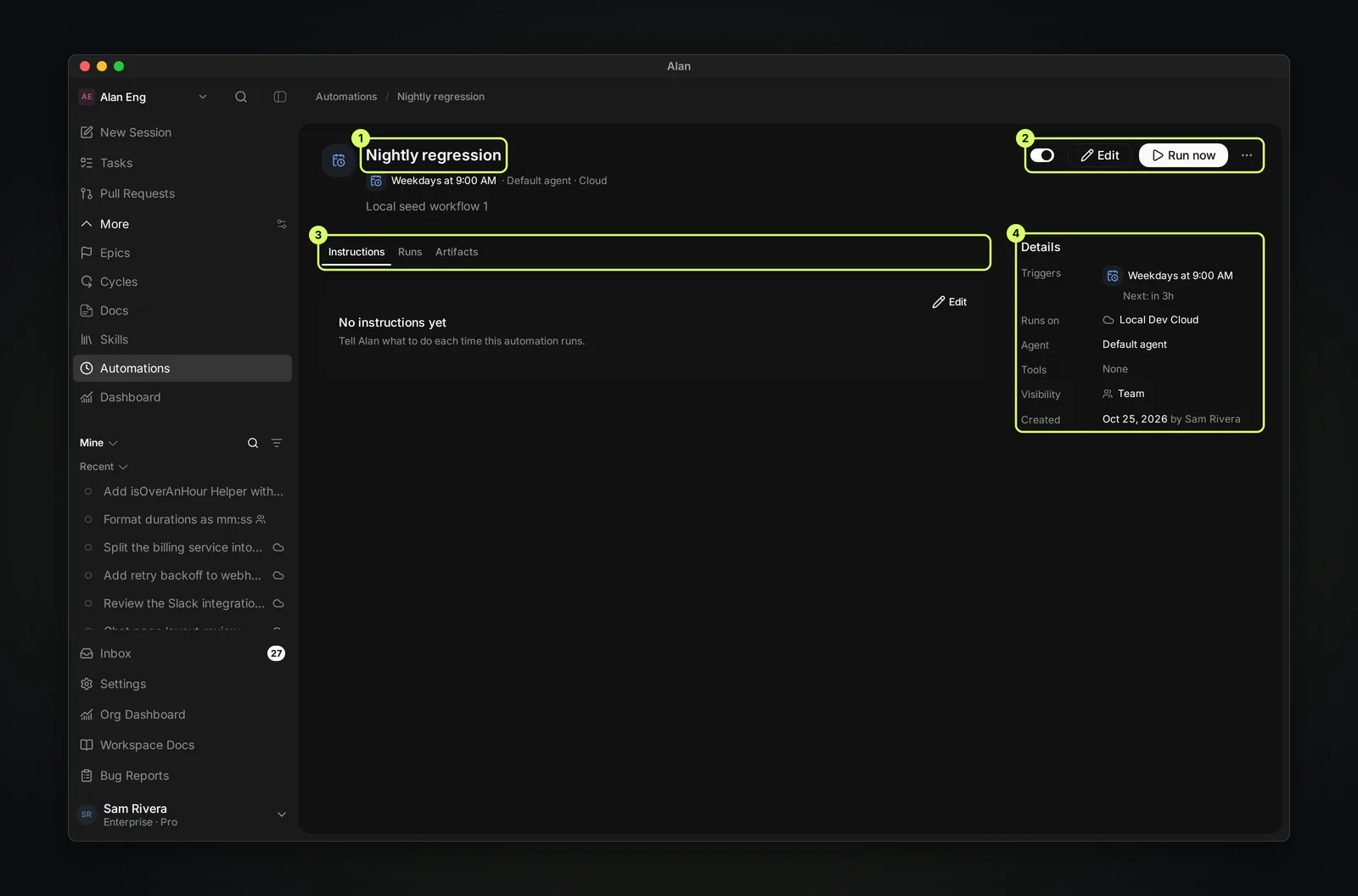
Open the automation and choose **Run now**. For a schedule, the run starts straight away. For a pull request event, Alan first asks you to **Choose a pull request** to run against; for other events it may ask you to **Fill missing trigger fields**. Running it this way doesn't turn the automation on.
|
|
120
|
+
|
|
121
|
+
**2. Read the run**
|
|
122
|
+
|
|
123
|
+
The run opens as a session. Check that the result is what you expected and that Alan stayed within the limits you set. See [Automation runs](automation-runs.md).
|
|
124
|
+
|
|
125
|
+
**3. Turn it on**
|
|
126
|
+
|
|
127
|
+
Use the switch on the automation's row, side panel, or page. From then on its triggers start runs by themselves.
|
|
128
|
+
|
|
129
|
+
|
|
130
|
+
|
|
131
|
+
## Change or remove an automation
|
|
132
|
+
|
|
133
|
+
- **Edit** (on the row's **⋯** menu, the side panel, or the page) reopens the editor; choose **Save changes**.
|
|
134
|
+
- Only the person who created a team automation can make it personal again.
|
|
135
|
+
- The page's **⋯** menu has **Copy link**, **Copy latest payload** (after an event-triggered run), and **Delete**. Delete asks you to choose **Confirm delete**.
|
|
136
|
+
- Older automations that run on a local computer or a non-default cloud environment show **Advanced** in the editor, with **Where it runs** and **Move to Team Cloud**. Moving pauses the automation so you can test it again. Local automations also have a catch-up setting for runs missed while the computer was offline: **Latest only**, **All missed**, or **Skip**.
|
|
137
|
+
|
|
138
|
+
## Next steps
|
|
139
|
+
|
|
140
|
+
- [Automation runs](automation-runs.md) — Check your first test run.
|
|
141
|
+
- [Automations overview](overview.md) — Triggers, statuses, and when to automate.
|
|
142
|
+
- [Connect Slack](../integrations/connect-slack.md) — Let automations post to Slack channels.
|
|
143
|
+
- [Review work](../reviews-testing-deploys/review-work.md) — A common automation: reviewing every new PR.
|
|
@@ -0,0 +1,77 @@
|
|
|
1
|
+
> Source: [https://docs.tryalan.ai/docs/automations/overview](https://docs.tryalan.ai/docs/automations/overview)
|
|
2
|
+
|
|
3
|
+
# Automations overview
|
|
4
|
+
|
|
5
|
+
An automation is a saved set of instructions that Alan runs for you, again and again, in your team's cloud environment. Write it once ("every weekday at 9:00, summarise yesterday's merged PRs"), choose what starts it, and each run becomes an agent session you can open and read.
|
|
6
|
+
|
|
7
|
+
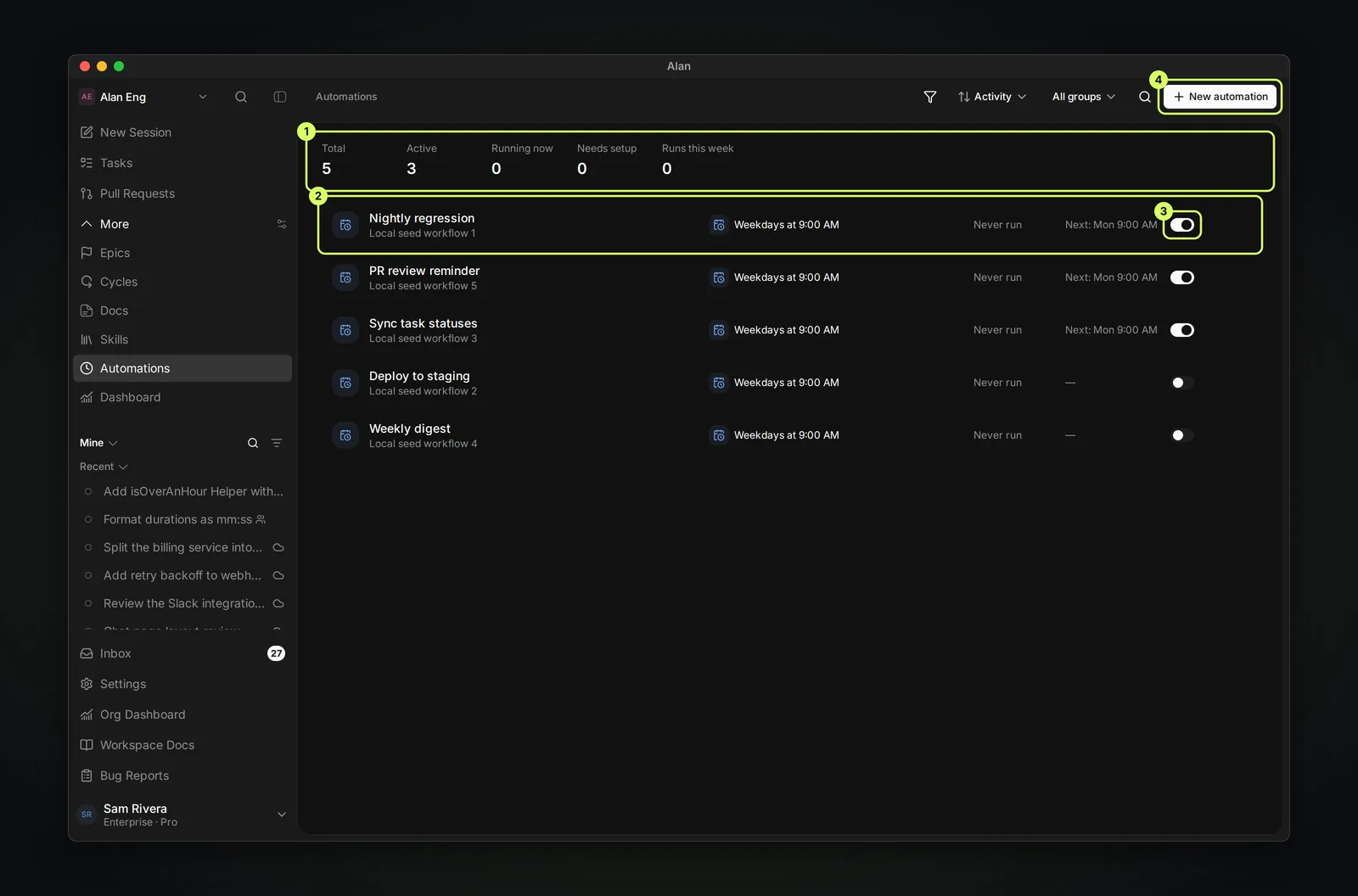
Open **Automations** in the team sidebar (it may sit under **More** if you haven't pinned it).
|
|
8
|
+
|
|
9
|
+
|
|
10
|
+
|
|
11
|
+
## What a run is
|
|
12
|
+
|
|
13
|
+
Each run starts an agent session in a new conversation, using the automation's instructions and allowed tools. It runs on a temporary cloud computer and can create plans, reports, or other artifacts.
|
|
14
|
+
|
|
15
|
+
> **Note:** Because a run is an ordinary session, you read it the same way you read any session. See [Automation runs](automation-runs.md).
|
|
16
|
+
|
|
17
|
+
## What an automation holds
|
|
18
|
+
|
|
19
|
+
| Part | What it does |
|
|
20
|
+
| --- | --- |
|
|
21
|
+
| **Name** and icon | How the automation appears in the list |
|
|
22
|
+
| **Instructions** | What Alan does on every run ("What should Alan do?") |
|
|
23
|
+
| **Triggers** | What starts a run (at least one is required) |
|
|
24
|
+
| **Tools** | Extra actions Alan may take, picked with **Add tool** |
|
|
25
|
+
| **Agent** | The coding agent, model, and effort level for each run |
|
|
26
|
+
| **Visibility** | **Team** (every teammate can see and run it) or **Personal** (only you) |
|
|
27
|
+
| **Runs on** | Your team's cloud environment |
|
|
28
|
+
|
|
29
|
+
## What can start a run
|
|
30
|
+
|
|
31
|
+
Choose triggers with **Add trigger** in the editor. The picker groups them like this:
|
|
32
|
+
|
|
33
|
+
| Group | Examples | Fires when |
|
|
34
|
+
| --- | --- | --- |
|
|
35
|
+
| **Schedule** | **Every hour**, **Every day at 9 AM**, **Every Monday at 9 AM**, **Custom schedule** | The time comes round, in the timezone you choose |
|
|
36
|
+
| **GitHub** | **Pull Request Opened**, **Pull Request Merged**, **PR Checks Failed**, **Issue Opened**, **Release Published** | That event happens in a connected GitHub repository, optionally filtered to one repository and branch |
|
|
37
|
+
| **Bitbucket** | **Pull Request Opened**, **Pull Request Merged**, **Review Submitted**, **Pull Request Commented**, **Push to Branch** | That event happens in a connected Bitbucket repository |
|
|
38
|
+
| **Alan activity** | **Task Created**, **Task Status Changed**, **Task Assigned**, **Document Created**, **Task Commented**, **Mentioned @alan** | Something happens in Alan |
|
|
39
|
+
|
|
40
|
+
You can also start any automation yourself with **Run now**, whatever its triggers are. That's how you test one before you rely on it.
|
|
41
|
+
|
|
42
|
+
Some entries in the picker are marked **Coming soon** and can't be selected yet, including **Custom Webhook** and several task events such as **Task Unassigned**. Slack messages can't start an automation yet. See [Create an automation](create-an-automation.md#choose-triggers) for the limits on schedules and events.
|
|
43
|
+
|
|
44
|
+
## Find and organise automations
|
|
45
|
+
|
|
46
|
+
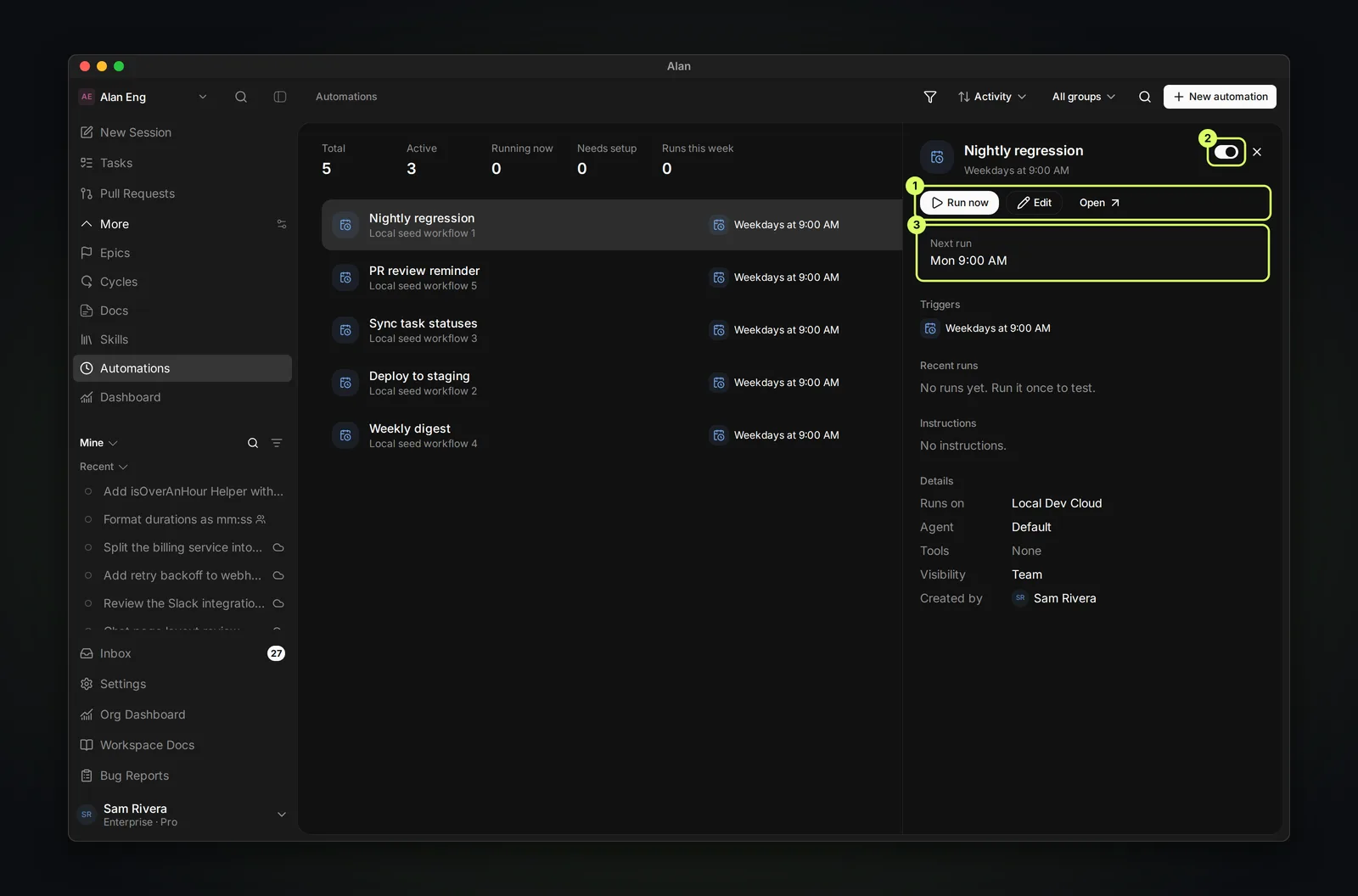
- The totals across the top show **Total**, **Active**, **Running now**, **Needs setup**, and **Runs this week**. Select **Active** to show only automations that are on.
|
|
47
|
+
- The filter button narrows the list by status (**Active**, **Paused**), target (**Cloud**, **Local**), trigger, and visibility (**Team**, **Personal**).
|
|
48
|
+
- The sort menu orders by **Activity**, **Name A–Z**, **Name Z–A**, **Last run**, **Next run**, **Most runs**, or **Recently created**.
|
|
49
|
+
- **All groups** filters by group. Choose **New group** to create one; a group is a named folder for related automations.
|
|
50
|
+
- Select an automation to open a side panel with **Run now**, **Edit**, and **Open** (the full page).
|
|
51
|
+
|
|
52
|
+
|
|
53
|
+
|
|
54
|
+
## On, paused, and needs setup
|
|
55
|
+
|
|
56
|
+
An automation is either on or paused; use the switch on its row, side panel, or page. A paused automation never fires by itself, but you can still press **Run now**.
|
|
57
|
+
|
|
58
|
+
The list also flags automations that need you:
|
|
59
|
+
|
|
60
|
+
| Label | Meaning |
|
|
61
|
+
| --- | --- |
|
|
62
|
+
| **Needs setup** | The automation has nowhere to run: its cloud environment is missing, deleted, or archived. A banner above the list says how many can't run, with **Set up**. You can't turn it on until this is fixed. |
|
|
63
|
+
| **Running** | Its latest run is still pending or running. |
|
|
64
|
+
| **Failed** | Its latest run failed, was interrupted, or timed out. |
|
|
65
|
+
|
|
66
|
+
## When to use an automation
|
|
67
|
+
|
|
68
|
+
Use one when the same instructions will run more than once, the trigger is predictable, and you can check the result: a review on every new PR, a weekly report, a scheduled cleanup.
|
|
69
|
+
|
|
70
|
+
> **Warning:** Don't put work that still needs steering turn by turn into an automation. Run it as a task session first, then save the repeatable part as an automation once it works.
|
|
71
|
+
|
|
72
|
+
## Next steps
|
|
73
|
+
|
|
74
|
+
- [Create an automation](create-an-automation.md) — Write instructions, pick triggers, and test it.
|
|
75
|
+
- [Automation runs](automation-runs.md) — Read run history and fix failures.
|
|
76
|
+
- [Cloud sessions and execution](../cloud-and-local/cloud-sessions-and-execution.md) — The environment every run uses.
|
|
77
|
+
- [Product map](../get-started/product-map.md) — How automations fit with tasks and sessions.
|
|
@@ -0,0 +1,64 @@
|
|
|
1
|
+
> Source: [https://docs.tryalan.ai/docs/cloud-and-local/cloud-images](https://docs.tryalan.ai/docs/cloud-and-local/cloud-images)
|
|
2
|
+
|
|
3
|
+
# Images and builds
|
|
4
|
+
|
|
5
|
+
An **image** is the prepared starting point for new cloud sessions. It contains the repositories and completed install steps from your team's [cloud setup](cloud-setup.md).
|
|
6
|
+
|
|
7
|
+
A build starts from Alan's base image in a clean builder and runs the saved build setup: the environment's `initialize` and `maintenance` first, then each repository copied in at the head of its configured branch (or its `clone.ref`) followed by its own `initialize` and `maintenance`, then `post-build` checks. Alan reads no setup file from the repository; only the saved steps run. It is not a copy of any running session. Uncommitted work, files you created by hand in a session, and session-only variables never reach it.
|
|
8
|
+
|
|
9
|
+
## What starts a build
|
|
10
|
+
|
|
11
|
+
The **Type** column of the **Builds** tab shows what started each build:
|
|
12
|
+
|
|
13
|
+
| Type | Started by |
|
|
14
|
+
| --- | --- |
|
|
15
|
+
| **Manual** | **More actions → Trigger build** on the Cloud Environment page |
|
|
16
|
+
| **Agent** | An agent, for example during [setup with an agent](cloud-setup.md#set-up-with-an-agent) |
|
|
17
|
+
| **Preview** | An agent testing a branch. Preview builds never become the current image. |
|
|
18
|
+
| **Base update** | Alan updating its base image |
|
|
19
|
+
|
|
20
|
+
Saving a build setup revision or startup, or changing repositories, doesn't start a build, and neither do pushes or merges. Trigger a build when you want new sessions to get the change. If nothing changed since the last build, Alan reuses the existing image.
|
|
21
|
+
|
|
22
|
+
## Read the Builds tab
|
|
23
|
+
|
|
24
|
+
Open the team's **Settings → Cloud Environment → Builds**. Builds are listed newest first, ten per page.
|
|
25
|
+
|
|
26
|
+
| Column | Shows |
|
|
27
|
+
| --- | --- |
|
|
28
|
+
| **Build** | A short build ID; **Current** marks the build whose image new sessions use |
|
|
29
|
+
| **Type** | Manual, Agent, Preview, or Base update |
|
|
30
|
+
| **Status** | **Queued**, **Building**, **Succeeded**, **Failed**, **Cancelled**, or **Superseded**. A built image still being copied to a sandbox provider shows **Importing to** the provider, and a failed copy shows **Import failed** with the provider's error; until the import finishes, new sessions there keep booting the previous image |
|
|
31
|
+
| **Commit** | The first repository and commit built, for example `api@4f9c2a1 +1` |
|
|
32
|
+
| **Started**, **Duration** | When it started and how long it took |
|
|
33
|
+
|
|
34
|
+
Select a build ID to expand it: **Type**, **Started**, **Duration**, each repository at the commit it was built from, and **View build logs** when logs are available. A failed build shows **Failed at** with the step name and its output.
|
|
35
|
+
|
|
36
|
+
If the environment has never been built, the tab reads **No builds yet** — "A build clones your repositories and runs the build setup, so new sessions start ready."
|
|
37
|
+
|
|
38
|
+
## Roll back with Use this image
|
|
39
|
+
|
|
40
|
+
To roll back, hover over an earlier successful build and choose **Use this image**. The action is available only while its image is still usable; preview builds and retired images cannot be selected. Alan confirms with **New sessions now start from this image**, or **New sessions will start from this image once it is ready** while the image is being prepared.
|
|
41
|
+
|
|
42
|
+
Switching images only affects new sessions. It doesn't move an open session, a running computer, or its files.
|
|
43
|
+
|
|
44
|
+
## When a build fails
|
|
45
|
+
|
|
46
|
+
A failed build leaves the current image in place, so sessions keep working on the previous one. The environment's status badge shows **Build failed**.
|
|
47
|
+
|
|
48
|
+
1. Expand the failed build and read **Failed at** and the output.
|
|
49
|
+
2. Fix the cause shown in the log. Check for missing dependencies, secrets, repository access, or commands that rely on files created by hand in a previous session. Run Docker services in startup; Docker is not available during the image build.
|
|
50
|
+
3. Edit the build setup in the **Build setup** tab, or ask the setup session to fix it with a draft test, then choose **Trigger build** again.
|
|
51
|
+
|
|
52
|
+
## Before you build
|
|
53
|
+
|
|
54
|
+
- The repositories and branches in **Setup** are the ones new sessions should start with.
|
|
55
|
+
- Code and dependency files are committed and pushed to those branches. The build setup is saved in Alan; it needs no commit. Keep secrets in the environment's variables or files.
|
|
56
|
+
- Each build setup step runs in a fresh bash shell without your session's state. Append `KEY='value'` lines to `"$ENVRC"` to pass variables to later steps and to sessions.
|
|
57
|
+
- Secrets live in **Setup → Environment Variables**, not in the build setup. Every variable is available to every build step.
|
|
58
|
+
|
|
59
|
+
## Next steps
|
|
60
|
+
|
|
61
|
+
- [Cloud setup](cloud-setup.md) — Repositories, variables and the build setup the image is built from.
|
|
62
|
+
- [Sandboxes](sandboxes.md) — The cloud computer each session starts from the image.
|
|
63
|
+
- [Cloud sessions and execution](cloud-sessions-and-execution.md) — Start a session on the environment.
|
|
64
|
+
- [Troubleshooting and FAQ](troubleshooting-and-faq.md) — Fixes for common cloud and local problems.
|
|
@@ -0,0 +1,89 @@
|
|
|
1
|
+
> Source: [https://docs.tryalan.ai/docs/cloud-and-local/cloud-sessions-and-execution](https://docs.tryalan.ai/docs/cloud-and-local/cloud-sessions-and-execution)
|
|
2
|
+
|
|
3
|
+
# Cloud sessions and execution
|
|
4
|
+
|
|
5
|
+
Every session runs on one **execution target**: a cloud computer Alan hosts, or a machine you connected. You choose it in the composer before the first message, and it stays fixed for that session.
|
|
6
|
+
|
|
7
|
+
## The three targets
|
|
8
|
+
|
|
9
|
+
Open **Execution target** in the composer. The menu is headed **Work in**:
|
|
10
|
+
|
|
11
|
+
| Target | Runs on | Then choose |
|
|
12
|
+
| --- | --- | --- |
|
|
13
|
+
| **Cloud** | A cloud computer started from your team's [cloud environment](cloud-setup.md) | Repositories and branches for the session |
|
|
14
|
+
| **This computer** | The machine running the Alan desktop app (desktop app only) | A folder |
|
|
15
|
+
| **Remote** | A computer or team VM connected to Alan | The machine, then a folder |
|
|
16
|
+
|
|
17
|
+
The same picker appears in **New Session**, a task's **Start work** panel, and when creating a task. See [Start a session](../agents-and-sessions/start-a-session.md) for the rest of the composer, and [Local execution](local-execution.md) for This computer and Remote.
|
|
18
|
+
|
|
19
|
+
If the team has no cloud environment yet, choosing **Cloud** creates one, named **Cloud**. A team has exactly one. If your plan doesn't include cloud sessions, the Cloud row is disabled and shows why.
|
|
20
|
+
|
|
21
|
+
> **Note:** Starting a cloud session needs some cloud budget left. See [Usage and credits](../plans-and-billing/usage-and-credits.md) for how cloud time is counted and what happens when the budget runs out.
|
|
22
|
+
|
|
23
|
+
## How the default target is picked
|
|
24
|
+
|
|
25
|
+
A new session preselects the first of these that applies:
|
|
26
|
+
|
|
27
|
+
1. The target you pinned in your preferences, if it's still available.
|
|
28
|
+
2. The target you last used in this team (remembered in this browser).
|
|
29
|
+
3. The computer you're on, in the desktop app.
|
|
30
|
+
4. An online computer you registered yourself. A teammate's computer is never picked for you.
|
|
31
|
+
5. The team's cloud environment, if your plan includes cloud.
|
|
32
|
+
|
|
33
|
+
If none applies, nothing is preselected and sending shows **Choose an execution target before sending.**
|
|
34
|
+
|
|
35
|
+
## Cloud or local
|
|
36
|
+
|
|
37
|
+
| Choose **Cloud** when… | Choose **This computer** or **Remote** when… |
|
|
38
|
+
| --- | --- |
|
|
39
|
+
| The work should be isolated from anyone's working tree | The code is already checked out on that machine |
|
|
40
|
+
| The repository can be cloned and set up from scratch | The work needs local credentials, simulators, or desktop-only tools |
|
|
41
|
+
| Teammates should be able to follow the same environment | Services the work depends on already run there |
|
|
42
|
+
| Nobody's machine needs to stay on | You want to watch or keep the files as the agent works |
|
|
43
|
+
|
|
44
|
+
## Start a cloud session
|
|
45
|
+
|
|
46
|
+
**1. Choose Cloud**
|
|
47
|
+
|
|
48
|
+
Open **Execution target** and choose **Cloud**.
|
|
49
|
+
|
|
50
|
+
**2. Choose repositories**
|
|
51
|
+
|
|
52
|
+
Next to the target, pick the repositories (and branches) the session should start with. The list shows the repositories linked to the team in **Settings → Integrations**.
|
|
53
|
+
|
|
54
|
+
**3. Set up the environment first, if asked**
|
|
55
|
+
|
|
56
|
+
If the environment has no image yet, a **Set up cloud environment** button appears under the composer. If you picked a repository that isn't in the current image, it reads **Set up selected repositories**. Either starts a setup session; see [Cloud setup](cloud-setup.md#set-up-with-an-agent).
|
|
57
|
+
|
|
58
|
+
**4. Send**
|
|
59
|
+
|
|
60
|
+
Pick the agent and model, describe the work (scope, checks to run, whether to commit or open a pull request), and press **Enter**.
|
|
61
|
+
|
|
62
|
+
While the cloud computer starts, the transcript shows a short checklist, such as **Setting up workspace** or **Waking up**, then **Starting** and the agent name, ending in **Workspace ready**.
|
|
63
|
+
|
|
64
|
+
## Use a sandbox from tasks and chats
|
|
65
|
+
|
|
66
|
+
A cloud session gets its own cloud computer (a sandbox), started from the environment's current image. It belongs to the session, whether you started it from a task or from **New Session**.
|
|
67
|
+
|
|
68
|
+
- **See its state**: the session's execution details show **Cloud** with the computer's status, such as **Ready**, **Working**, or **Asleep**. On a task, the execution chip in the header shows it, for example **Running** or **Asleep**.
|
|
69
|
+
- **It sleeps on its own**: when the agent is done and nobody is using it, the computer goes to sleep. Send a message to wake it. See [Sandboxes](sandboxes.md).
|
|
70
|
+
- **Files stay with the computer**: sleeping and shutting down keep files. Nothing a session changes reaches the environment's [image](cloud-images.md) unless it's committed, pushed, and built.
|
|
71
|
+
|
|
72
|
+
With a local target, the agent works directly in the selected folder on that machine.
|
|
73
|
+
|
|
74
|
+
## Switch a task between cloud and local
|
|
75
|
+
|
|
76
|
+
A session's target can't change. A task's can: open the task's **Execution target** (or **Change task target…** from the session's target chip) to open **Switch environment**.
|
|
77
|
+
|
|
78
|
+
The change applies to the task's next session. Existing sessions become read-only. Prepare the branch on the destination, then start a new session.
|
|
79
|
+
|
|
80
|
+
The dialog shows the current checkout (**Branch**, **Working tree**, **Upstream**) and guidance such as **Make your branch available to cloud** or **Prepare your local checkout**. Choose the new target and its repositories or folder, then **Switch environment**.
|
|
81
|
+
|
|
82
|
+
> **Warning:** Cloud computers and local machines are separate filesystems. Push the branch before moving work to cloud, and pull it before moving work to a local folder.
|
|
83
|
+
|
|
84
|
+
## Next steps
|
|
85
|
+
|
|
86
|
+
- [Cloud setup](cloud-setup.md) — Prepare the team's cloud environment.
|
|
87
|
+
- [Sandboxes](sandboxes.md) — How a cloud computer sleeps, wakes, and recovers.
|
|
88
|
+
- [Local execution](local-execution.md) — Connect a computer or team VM.
|
|
89
|
+
- [Start a session](../agents-and-sessions/start-a-session.md) — The rest of the composer.
|
|
@@ -0,0 +1,128 @@
|
|
|
1
|
+
> Source: [https://docs.tryalan.ai/docs/cloud-and-local/cloud-setup](https://docs.tryalan.ai/docs/cloud-and-local/cloud-setup)
|
|
2
|
+
|
|
3
|
+
# Cloud setup
|
|
4
|
+
|
|
5
|
+
A **cloud environment** defines how Alan prepares your team's cloud computers: repositories, variables, a setup **build setup** and session **startup**. Alan builds an [image](cloud-images.md) from this setup. New cloud sessions start from that image with repositories cloned and install steps complete.
|
|
6
|
+
|
|
7
|
+
Each team has one cloud environment. Configure it in the team's **Settings → Cloud Environment**, under **Runtime**.
|
|
8
|
+
|
|
9
|
+
_Video: https://docs.tryalan.ai/images/screenshots/cloud-local-walkthrough.mp4_
|
|
10
|
+
|
|
11
|
+
## Create the environment
|
|
12
|
+
|
|
13
|
+
|
|
14
|
+
|
|
15
|
+
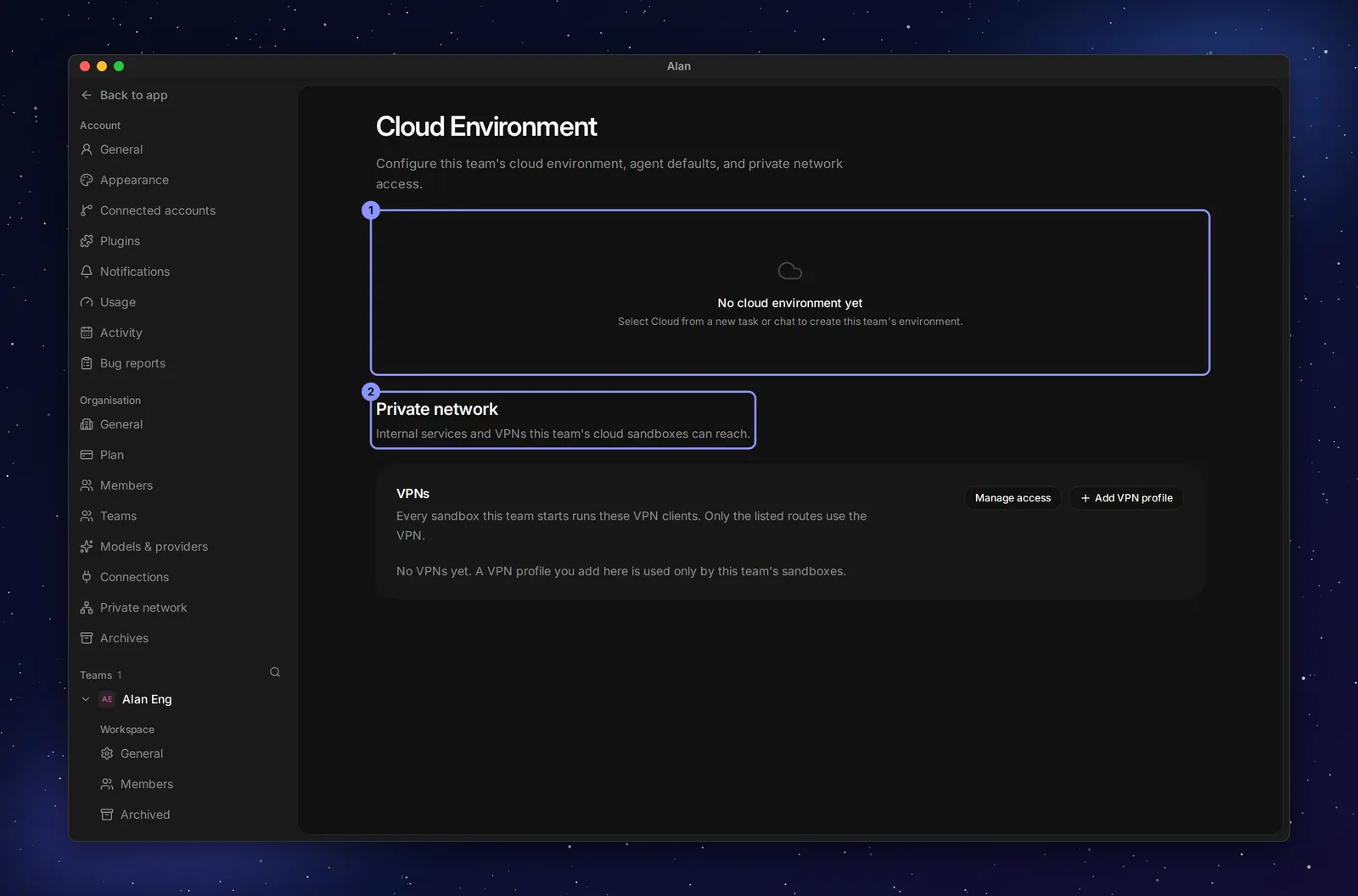
To create the environment, choose **Cloud** in a new task or chat. Settings shows **No cloud environment yet** until you do this.
|
|
16
|
+
|
|
17
|
+
Alan names the environment **Cloud**. The composer then shows **Set up cloud environment** because it has no image yet.
|
|
18
|
+
|
|
19
|
+
> **Note:** Cloud Environment, Alan Agent and VMs only appear in Settings when your plan includes cloud sessions. Without it, the page sends you to your organization's plan. See [Plans and limits](../plans-and-billing/plans-and-limits.md).
|
|
20
|
+
|
|
21
|
+
## The Cloud Environment page
|
|
22
|
+
|
|
23
|
+
Once the environment exists, the page header shows its name, a status badge, and a summary such as "Medium machine · Daytona · 2 repositories" (the size and provider are set by Alan).
|
|
24
|
+
|
|
25
|
+
| Status badge | Meaning |
|
|
26
|
+
| --- | --- |
|
|
27
|
+
| **Ready** | A built image exists; new sessions start from it |
|
|
28
|
+
| **Building** | A build is queued or running |
|
|
29
|
+
| **Build failed** | The latest build failed; the previous image, if any, is still used |
|
|
30
|
+
| **Not built** | No image yet |
|
|
31
|
+
|
|
32
|
+
**New session** opens a new session. The **More actions** menu has **Verify with agent** (starts a session that checks the environment builds and starts) and **Trigger build** (shows **Building…** while a build runs).
|
|
33
|
+
|
|
34
|
+
| Tab | What it holds |
|
|
35
|
+
| --- | --- |
|
|
36
|
+
| **Overview** | Machine details, repositories, build history summary, and cloud usage |
|
|
37
|
+
| **Builds** | Every image build. See [Images and builds](cloud-images.md). |
|
|
38
|
+
| **Setup** | Repositories and environment variables |
|
|
39
|
+
| **Build setup** | The versioned setup YAML and session startup |
|
|
40
|
+
| **Agents** | **Agent defaults**: which coding agents and models this environment offers |
|
|
41
|
+
| **Private network** | VPN profiles the team's cloud computers join. See [Private network](#private-network). |
|
|
42
|
+
|
|
43
|
+
## Configure Setup
|
|
44
|
+
|
|
45
|
+
The **Setup** tab has two numbered sections.
|
|
46
|
+
|
|
47
|
+
**1. Repositories**
|
|
48
|
+
|
|
49
|
+
Add a repository already linked to the team and choose its branch. If it is missing, first link it in **Settings → Integrations**. Each repository can have its own build setup.
|
|
50
|
+
|
|
51
|
+
**2. Environment Variables**
|
|
52
|
+
|
|
53
|
+
Use **Files** for `.env`-style files and **Variables** for single values. Put secrets here, never in the build setup. Every variable is available to every build step and every session.
|
|
54
|
+
|
|
55
|
+
## Build setup
|
|
56
|
+
|
|
57
|
+
Setup lives only in Alan. Alan reads no setup file from your repository (`.alan/environment.json` is not used), and no commit, push or merge is needed to change it. The **Build setup** tab holds versioned YAML revisions; each save creates a new revision. Write each command in the build setup itself: a step that calls a repository script such as `bash .alan/setup.sh` still runs whatever that file holds at the built commit. An older environment's first revision is imported from its last built image or its saved install and start commands; commands that called repository scripts are left out, and the tab asks you to review the import. Until a reviewed revision is saved, automatic image refreshes are paused for an environment whose import left commands out.
|
|
58
|
+
|
|
59
|
+
There is one **environment build setup** and one **repository build setup** per repository. Each can set:
|
|
60
|
+
|
|
61
|
+
| Key | Meaning |
|
|
62
|
+
| --- | --- |
|
|
63
|
+
| `initialize` | Tools and system packages; runs on full builds |
|
|
64
|
+
| `maintenance` | Dependencies that follow the lockfiles; runs every build, and the agent can rerun it |
|
|
65
|
+
| `knowledge` | Notes (`name`, `contents`) shown to the agent, never run |
|
|
66
|
+
| `runs-on`, `shell`, `post-build` | Environment only: `default` or `linux`, `default` or `bash`, and checks that run after every repository (nonzero fails the build) |
|
|
67
|
+
| `clone` | Repository only: `ref` and `submodules`. `path`, `depth`, `tags` and `lfs` are not supported yet |
|
|
68
|
+
|
|
69
|
+
`includes` and `uses` steps are not supported yet; write commands with `run`.
|
|
70
|
+
|
|
71
|
+
```yaml
|
|
72
|
+
initialize:
|
|
73
|
+
- name: System packages
|
|
74
|
+
run: sudo apt-get update && sudo apt-get install -y libpq-dev
|
|
75
|
+
maintenance:
|
|
76
|
+
- name: Dependencies
|
|
77
|
+
run: pnpm install --frozen-lockfile
|
|
78
|
+
knowledge:
|
|
79
|
+
- name: test
|
|
80
|
+
contents: pnpm test
|
|
81
|
+
```
|
|
82
|
+
|
|
83
|
+
The build runs the environment's `initialize` and `maintenance` from the home folder before any repository, then copies in each repository and runs its `initialize` and `maintenance` in its folder, then runs `post-build`. Each step is a fresh bash shell: append `KEY='value'` lines to `"$ENVRC"` to pass variables to later steps and to sessions. Literal credentials in a build setup are refused.
|
|
84
|
+
|
|
85
|
+
## Startup
|
|
86
|
+
|
|
87
|
+
**Startup** is saved beside the build setup and runs when a session's computer boots:
|
|
88
|
+
|
|
89
|
+
- **Tasks** run to exit 0. Set `detach: true` to launch one in the background, like the old start command.
|
|
90
|
+
- **Services** are long-running and must pass a `ready` probe: `http`, `tcp` or `exec`.
|
|
91
|
+
|
|
92
|
+
> **Note:** Saving a revision or startup doesn't build anything. Choose **More actions → Trigger build** when you want new sessions to get the change. **Set up** means a build setup revision exists; it does not prove the app starts successfully. Use **Verify with agent** to check that.
|
|
93
|
+
|
|
94
|
+
## Set up with an agent
|
|
95
|
+
|
|
96
|
+
An agent can configure and test the setup for you. Choose **Set up cloud environment** under the composer (or **Set up selected repositories** when you've picked a repository the image doesn't have yet). Alan starts a cloud session with the built-in **alan-environment-setup** [skill](../skills/skills.md). Hover over the button for a preview.
|
|
97
|
+
|
|
98
|
+
The agent works through the skill's checklist:
|
|
99
|
+
|
|
100
|
+
1. **Understand the codebase**: reads the README, manifests, lockfiles, tool versions, Compose files and CI workflows.
|
|
101
|
+
2. **Get it running and exercise a product journey**: installs what's needed, starts the app, and checks it actually works.
|
|
102
|
+
3. **Read the build setup and draft the smallest change**: tools in `initialize`, lockfile dependencies in `maintenance`, notes in `knowledge`, and services in startup with a probe.
|
|
103
|
+
4. **Test the draft**: runs `test_environment_build` with the draft, fixes failures and retests.
|
|
104
|
+
5. **Save and build**: saves a new revision with `update_build_setup`, then builds the image with `build_environment_image`. A successful build becomes the environment's image. Nothing is committed to your repository.
|
|
105
|
+
6. **Report**: says per repository whether it's **set up now**, **already set up**, or **blocked**.
|
|
106
|
+
|
|
107
|
+
A few things to know:
|
|
108
|
+
|
|
109
|
+
- **Secrets**: the agent never asks you to paste a secret into chat. It names the variables it needs; add them in **Setup → Environment Variables**, then continue the session.
|
|
110
|
+
- **Failed builds**: the agent fixes the build setup and builds again, and stops to ask you after 5 failed builds, or 3 in a row failing at the same step.
|
|
111
|
+
- **Saved, not built**: saving a revision doesn't build the image. Choose **Trigger build** (or let the agent build) so new sessions get it.
|
|
112
|
+
|
|
113
|
+
To check an existing environment later, use **More actions → Verify with agent**, which runs the same skill with `/alan-environment-setup verify this environment builds and starts`.
|
|
114
|
+
|
|
115
|
+
## Agent defaults
|
|
116
|
+
|
|
117
|
+
The **Agents** tab controls which coding agents and models are available for this team's cloud sessions ("Control which agents and models are available for this team's Cloud environment."). Some agents also need team credentials or accounts in **Settings → Integrations → Coding agents**; see [Connect Codex CLI](codex-cli-connector.md) and [Coding agents and models](../agents-and-sessions/coding-agents-and-models.md).
|
|
118
|
+
|
|
119
|
+
## Private network
|
|
120
|
+
|
|
121
|
+
The **Private network** tab ("Internal services and VPNs this team's cloud sandboxes can reach.") lists **VPNs**: "Every sandbox this team starts runs these VPN clients. Only the listed routes use the VPN." Use **Add VPN profile** to add one for this team. Profiles shared by your organization are listed too; **Manage access** opens the organization's Private network settings. It's available even before the team has an environment.
|
|
122
|
+
|
|
123
|
+
## Next steps
|
|
124
|
+
|
|
125
|
+
- [Images and builds](cloud-images.md) — How images are built and how to roll back.
|
|
126
|
+
- [Cloud sessions and execution](cloud-sessions-and-execution.md) — Start a session on the environment.
|
|
127
|
+
- [Sandboxes](sandboxes.md) — How each session's cloud computer sleeps and wakes.
|
|
128
|
+
- [Connect GitHub](../get-started/connect-github.md) — Link the repositories the environment clones.
|