@tencentcloud/sdk-mcp 1.3.1 → 1.3.2
This diff represents the content of publicly available package versions that have been released to one of the supported registries. The information contained in this diff is provided for informational purposes only and reflects changes between package versions as they appear in their respective public registries.
- package/index.js +5 -1
- package/index.js.map +1 -1
- package/package.json +1 -1
- package/resource/doc/chatuikit/faq/web_sdk/faq.md +117 -0
- package/resource/doc/chatuikit/flutter/client_api_Flutter.md +100 -179
- package/resource/doc/chatuikit/flutter/faq.md +17 -112
- package/resource/doc/chatuikit/flutter/integrate_tuikit_Flutter.md +272 -1281
- package/resource/doc/roomkit/vue/features/call-user-to-room.md +256 -0
- package/resource/doc/roomkit/vue/features/device-detection.md +388 -0
- package/resource/doc/roomkit/vue/features/device-state.md +480 -0
- package/resource/doc/roomkit/vue/features/free-beauty-panel.md +238 -0
- package/resource/doc/roomkit/vue/features/room-chat.md +427 -0
- package/resource/doc/roomkit/vue/features/room-participant-state.md +407 -0
- package/resource/doc/roomkit/vue/features/room-state.md +291 -0
- package/resource/doc/roomkit/vue/features/room-view.md +338 -0
- package/resource/doc/roomkit/vue/features/schedule-room.md +349 -0
- package/resource/doc/roomkit/vue/features/screen-share.md +333 -0
- package/resource/doc/roomkit/vue/features/virtual-background.md +281 -0
- package/resource/doc/roomkit/vue/features/workflow.md +553 -0
- package/resource/doc/roomkit/vue/integration.md +479 -0
- package/resource/doc/roomkit/vue/workflow.md +487 -0
- package/resource/doc/tuicallkit/react/api.md +16 -0
- package/resource/doc/tuicallkit/vue/api.md +16 -0
- package/tools/definitions/get_web_live_uikit_integration_def.js +1 -1
- package/tools/definitions/get_web_room_feature_detail_def.js +95 -0
- package/tools/definitions/get_web_room_feature_detail_def.js.map +1 -0
- package/tools/definitions/get_web_room_uikit_integration_def.js +44 -0
- package/tools/definitions/get_web_room_uikit_integration_def.js.map +1 -0
- package/tools/index.js +4 -2
- package/tools/index.js.map +1 -1
- package/tools/room/get-web-room-feature-detail.js +68 -0
- package/tools/room/get-web-room-feature-detail.js.map +1 -0
- package/tools/room/get-web-room-integration.js +43 -0
- package/tools/room/get-web-room-integration.js.map +1 -0
- package/utils/report-cls-client.js +1 -1
- package/utils/report-es-client.js +1 -1
- package/resource/doc/roomkit/vue/states/device-state.md +0 -316
- package/resource/doc/roomkit/vue/states/login-state.md +0 -51
- package/resource/doc/roomkit/vue/states/room-list-state.md +0 -287
- package/resource/doc/roomkit/vue/states/room-participant-state.md +0 -307
- package/tools/definitions/get_web_room_state_detail_def.js +0 -19
- package/tools/definitions/get_web_room_state_detail_def.js.map +0 -1
- package/tools/room/get-web-room-state-detail.js +0 -31
- package/tools/room/get-web-room-state-detail.js.map +0 -1
|
@@ -0,0 +1,256 @@
|
|
|
1
|
+
会中呼叫功能允许会议内的用户(邀请者)向房间外的其他用户(被邀请者)发送实时入会邀请。该功能基于 `Atomicx State Hooks` 实现,能够帮助开发者快速构建具有主动邀约能力的互动场景。
|
|
2
|
+
|
|
3
|
+
## 适用场景
|
|
4
|
+
- **协同办公:**在进行远程会议时,若涉及跨部门决策,可一键呼叫外部专家快速入会,缩短沟通链路。
|
|
5
|
+
|
|
6
|
+
- **直播教学:**老师在授课过程中,若发现部分学生缺席,可直接邀请其加入课堂。
|
|
7
|
+
|
|
8
|
+
- **互联网医疗会诊:**首诊医生在病历分析过程中,通过呼叫功能邀请上级医生进入虚拟诊室进行多方会诊,或者医生呼叫在等候室的患者进行问诊。
|
|
9
|
+
|
|
10
|
+
|
|
11
|
+
## 前提条件
|
|
12
|
+
|
|
13
|
+
在接入功能前,请确保满足以下条件:
|
|
14
|
+
- **邀请者 (User A):**用户已经通过 `useLoginState` 完成登录鉴权,参考 [接入概览](https://write.woa.com/document/197379797539790848),并已作为一个房间的房主或成员在房间内,参考 [房间周期](https://write.woa.com/document/197379861957083136)。
|
|
15
|
+
|
|
16
|
+
- **被邀请者 (User B):**用户已经通过 `useLoginState` 完成登录鉴权,参考 [接入概览](https://write.woa.com/document/197379797539790848),以便接收信令事件。
|
|
17
|
+
|
|
18
|
+
- **环境依赖:**项目已正确安装并引入 `tuikit-atomicx-vue3`。
|
|
19
|
+
|
|
20
|
+
|
|
21
|
+
## 实现会中呼叫功能
|
|
22
|
+
|
|
23
|
+
实现会中呼叫的核心流程如下:
|
|
24
|
+
|
|
25
|
+
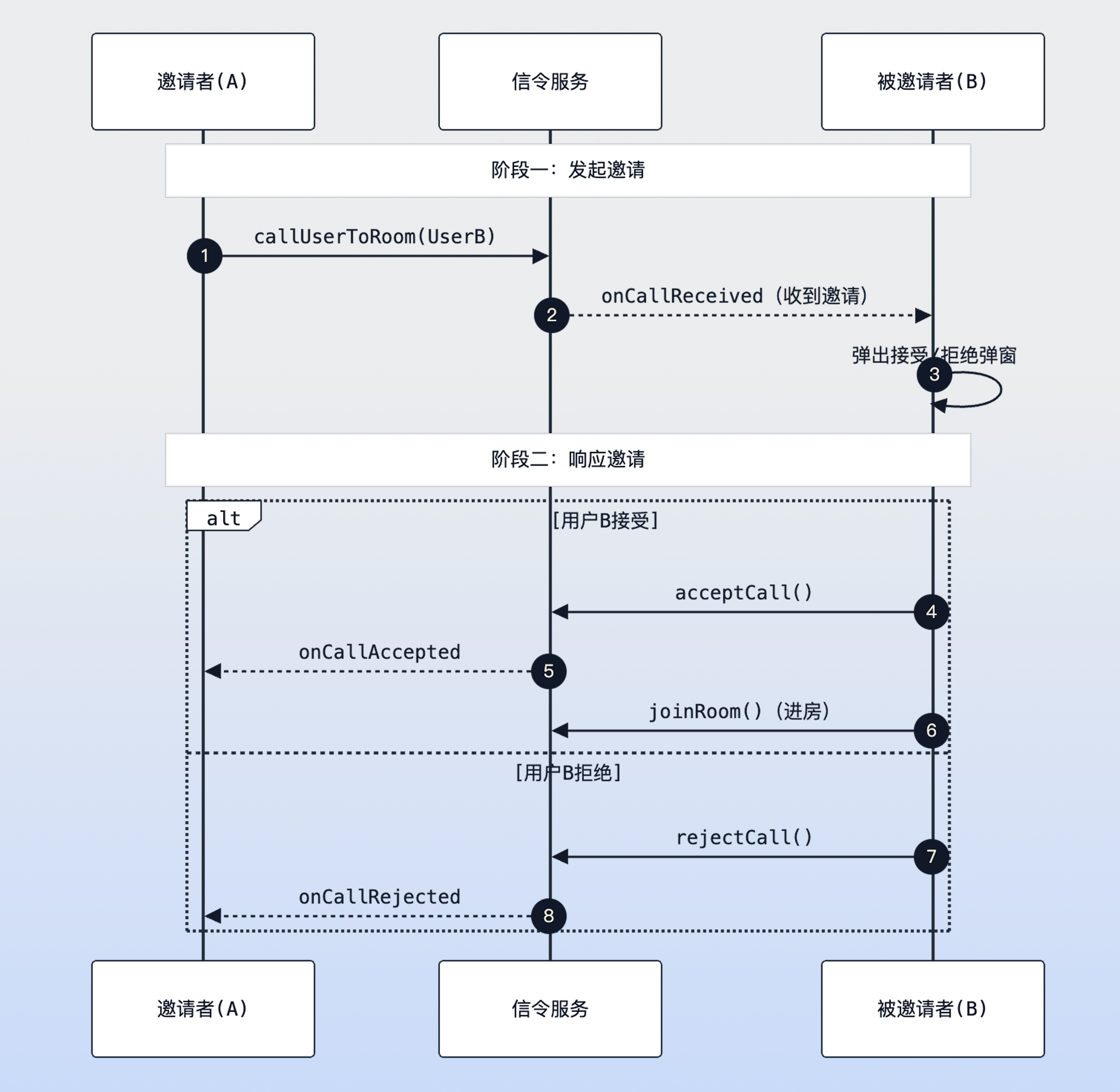
|
|
26
|
+
|
|
27
|
+
会中呼叫时序图
|
|
28
|
+
|
|
29
|
+
|
|
30
|
+
### 步骤1:发起呼叫(邀请者)
|
|
31
|
+
|
|
32
|
+
邀请者调用 [callUserToRoom](https://web.sdk.qcloud.com/trtc/live/web/doc/zh/index.html#callUserToRoom) 接口发起邀请。请确保邀请者当前已在房间内(即 [currentRoom](https://web.sdk.qcloud.com/trtc/live/web/doc/zh/index.html#currentRoom) 不为空),否则无法发起呼叫。
|
|
33
|
+
``` typescript
|
|
34
|
+
import { useRoomState } from 'tuikit-atomicx-vue3/room';
|
|
35
|
+
|
|
36
|
+
const { currentRoom, callUserToRoom } = useRoomState();
|
|
37
|
+
|
|
38
|
+
const inviteUser = async () => {
|
|
39
|
+
// 会中呼叫必须关联一个已存在的 roomId,因此需先校验当前用户的进房状态
|
|
40
|
+
if (!currentRoom.value) {
|
|
41
|
+
console.warn('请先进入房间再发起邀请');
|
|
42
|
+
return;
|
|
43
|
+
}
|
|
44
|
+
|
|
45
|
+
try {
|
|
46
|
+
const resultMap = await callUserToRoom({
|
|
47
|
+
roomId: currentRoom.value.roomId, // 被邀请者将要加入的房间 ID
|
|
48
|
+
userIdList: ['user1', 'user2'], // 目标用户 ID 数组,支持单人或多人
|
|
49
|
+
timeout: 60, // 邀请有效时长(秒),超时后双方会触发 onCallTimeout
|
|
50
|
+
// extensionInfo 可用于传递业务自定义数据,例如邀请类型、附加消息等
|
|
51
|
+
extensionInfo: JSON.stringify({ type: 'emergency', priority: 'high' })
|
|
52
|
+
});
|
|
53
|
+
|
|
54
|
+
// resultMap 返回每个 userId 对应的状态,例如 Success、AlreadyInRoom (已在房) 或 AlreadyInCalling (通话中)
|
|
55
|
+
console.log('邀请发送完成,详情状态映射:', resultMap);
|
|
56
|
+
} catch (error) {
|
|
57
|
+
console.error('呼叫请求发送失败,请检查网络或登录状态:', error);
|
|
58
|
+
}
|
|
59
|
+
};
|
|
60
|
+
```
|
|
61
|
+
|
|
62
|
+
### 步骤2:监听呼叫事件(被邀请者)
|
|
63
|
+
|
|
64
|
+
被邀请者需要监听 `onCallReceived` 事件。建议在例如 `App.vue`等长驻组件中实现,以确保无论用户在哪个页面都能响应。
|
|
65
|
+
``` typescript
|
|
66
|
+
import { ref, onMounted, onUnmounted } from 'vue';
|
|
67
|
+
import { useRoomState, RoomEvent } from 'tuikit-atomicx-vue3/room';
|
|
68
|
+
|
|
69
|
+
const {
|
|
70
|
+
subscribeEvent,
|
|
71
|
+
unsubscribeEvent,
|
|
72
|
+
acceptCall,
|
|
73
|
+
rejectCall,
|
|
74
|
+
joinRoom,
|
|
75
|
+
currentRoom
|
|
76
|
+
} = useRoomState();
|
|
77
|
+
|
|
78
|
+
const showInviteDialog = ref(false); // 控制 UI 弹窗显隐
|
|
79
|
+
const currentCallInfo = ref(null); // 缓存收到的邀请上下文
|
|
80
|
+
|
|
81
|
+
const handleCallReceived = async ({ roomInfo, call, extensionInfo }) => {
|
|
82
|
+
// 冲突处理:如果用户当前已经在会议中,根据业务策略通常应直接拒绝新邀请,防止干扰
|
|
83
|
+
if (currentRoom.value?.roomId) {
|
|
84
|
+
await rejectCall({ roomId: roomInfo.roomId });
|
|
85
|
+
return;
|
|
86
|
+
}
|
|
87
|
+
|
|
88
|
+
// 记录邀请详情,用于在 UI 上展示邀请者名称或业务透传数据
|
|
89
|
+
currentCallInfo.value = { roomInfo, call };
|
|
90
|
+
showInviteDialog.value = true;
|
|
91
|
+
};
|
|
92
|
+
|
|
93
|
+
// 接受邀请逻辑
|
|
94
|
+
const onUserAccept = async () => {
|
|
95
|
+
if (!currentCallInfo.value) return;
|
|
96
|
+
const { roomId } = currentCallInfo.value.roomInfo;
|
|
97
|
+
|
|
98
|
+
try {
|
|
99
|
+
// 关键流程 A:响应信令。告知邀请者已接受,使其能更新 UI(例如显示“对方已接听”)
|
|
100
|
+
await acceptCall({ roomId });
|
|
101
|
+
|
|
102
|
+
// 关键流程 B:执行进房。只有调用 joinRoom 才会真正开启音视频推拉流链路
|
|
103
|
+
await joinRoom({ roomId });
|
|
104
|
+
} catch (error) {
|
|
105
|
+
console.error('接受呼叫后的进房操作失败:', error);
|
|
106
|
+
} finally {
|
|
107
|
+
closeDialog();
|
|
108
|
+
}
|
|
109
|
+
};
|
|
110
|
+
|
|
111
|
+
// 拒绝邀请逻辑
|
|
112
|
+
const onUserReject = async () => {
|
|
113
|
+
if (currentCallInfo.value) {
|
|
114
|
+
// 告知邀请者已拒绝,邀请者会收到 onCallRejected 事件
|
|
115
|
+
await rejectCall({ roomId: currentCallInfo.value.roomInfo.roomId });
|
|
116
|
+
}
|
|
117
|
+
closeDialog();
|
|
118
|
+
};
|
|
119
|
+
|
|
120
|
+
const closeDialog = () => {
|
|
121
|
+
showInviteDialog.value = false;
|
|
122
|
+
currentCallInfo.value = null;
|
|
123
|
+
};
|
|
124
|
+
|
|
125
|
+
// 事件全生命周期管理:确保在组件挂载时监听,销毁时移除,防止事件溢出
|
|
126
|
+
onMounted(() => {
|
|
127
|
+
subscribeEvent(RoomEvent.onCallReceived, handleCallReceived);
|
|
128
|
+
|
|
129
|
+
// 监听导致邀请结束的各种异常/同步事件,确保 UI 弹窗能及时闭合
|
|
130
|
+
subscribeEvent(RoomEvent.onCallCancelled, closeDialog); // 邀请者取消了呼叫
|
|
131
|
+
subscribeEvent(RoomEvent.onCallTimeout, closeDialog); // 呼叫超时未响应
|
|
132
|
+
subscribeEvent(RoomEvent.onCallHandledByOtherDevice, closeDialog); // 用户在其他设备已处理该呼叫
|
|
133
|
+
});
|
|
134
|
+
|
|
135
|
+
onUnmounted(() => {
|
|
136
|
+
// 移除所有监听器,避免在组件销毁后继续执行 handleCallReceived 导致内存泄漏或报错
|
|
137
|
+
unsubscribeEvent(RoomEvent.onCallReceived, handleCallReceived);
|
|
138
|
+
unsubscribeEvent(RoomEvent.onCallCancelled, closeDialog);
|
|
139
|
+
unsubscribeEvent(RoomEvent.onCallTimeout, closeDialog);
|
|
140
|
+
unsubscribeEvent(RoomEvent.onCallHandledByOtherDevice, closeDialog);
|
|
141
|
+
});
|
|
142
|
+
```
|
|
143
|
+
|
|
144
|
+
## 实践教程:提升呼叫接通率
|
|
145
|
+
|
|
146
|
+
为了在业务中获得更高的呼叫接通率,除了基础功能的实现外,建议参考以下策略优化用户体验:
|
|
147
|
+
|
|
148
|
+
### 1. 增强呼叫感知(避免用户遗漏)
|
|
149
|
+
|
|
150
|
+
由于 Web 端特性,浏览器静音或页面处于后台运行状态可能导致用户遗漏呼叫。
|
|
151
|
+
- **视觉提醒**:利用 [Page Visibility API](https://developer.mozilla.org/en-US/docs/Web/API/Page_Visibility_API) 检测页面可见性状态。若页面处于后台,可通过循环修改 `document.title` 实现标题栏闪烁提示(例如:“【新邀请】UserA 邀请您入会...”),以吸引用户注意。
|
|
152
|
+
|
|
153
|
+
- **听觉提醒**:在 `onCallReceived` 事件触发时播放高优先级的提示铃声。注意:需遵循浏览器的 [自动播放策略](https://developer.mozilla.org/zh-CN/docs/Web/Media/Guides/Autoplay),大部分浏览器在缺乏用户交互(例如点击、触摸或按键)的情况下会限制音频自动播放。
|
|
154
|
+
|
|
155
|
+
|
|
156
|
+
### 2. 丰富邀请上下文(提升接听意愿)
|
|
157
|
+
|
|
158
|
+
缺乏明确意图的邀请容易被用户拒绝。建议充分利用 `extensionInfo` 字段传递关键业务信息,以提升用户的接听意愿。
|
|
159
|
+
- **传递业务上下文**:利用 `extensionInfo` 透传如 `reason`(例如:“项目紧急评审”)、`level`(例如:“P0故障排查”)等业务字段,告知用户呼叫的紧迫性和重要性。
|
|
160
|
+
|
|
161
|
+
|
|
162
|
+
### 3. 多通道触达兜底(确保消息可达)
|
|
163
|
+
|
|
164
|
+
受限于 Web 端机制,浏览器进程结束将无法接收实时信令。建议采取以下替代方案以确保触达:
|
|
165
|
+
- **浏览器系统通知**:引导用户授权 [Web Notification API](https://developer.mozilla.org/en-US/docs/Web/API/Notification)。只要浏览器进程未关闭(包括最小化或在后台标签页),即可触发操作系统级别的弹窗通知,有效提醒用户。
|
|
166
|
+
|
|
167
|
+
- **多通道触达**:建议结合业务后端逻辑,在检测到用户不在线或超时未响应时,通过**短信**、**邮件**或**企业微信**等外部渠道发送入会链接,实现全方位触达。
|
|
168
|
+
|
|
169
|
+
|
|
170
|
+
### 4. 智能重试机制(解决“接受邀请后进房失败”)
|
|
171
|
+
|
|
172
|
+
在弱网或其他不稳定环境下,用户点击接受邀请后调用 `joinRoom` 可能会出现偶发性失败。
|
|
173
|
+
- **自动重试**:建议在 `onUserAccept` 的异常处理逻辑(`catch`)中引入 2-3 次自动重试机制(推荐结合指数退避策略),以最大程度确保用户点击“接受”后能成功加入会议。
|
|
174
|
+
|
|
175
|
+
|
|
176
|
+
## 开发注意事项
|
|
177
|
+
1. **接受邀请不等于进房**
|
|
178
|
+
|
|
179
|
+
|
|
180
|
+
`acceptCall` 仅仅是信令层面的回复(告知对方已接听)。用户必须在调用 `acceptCall` 后紧接着手动调用 `await joinRoom({ roomId })` 才能真正进入音视频房间。
|
|
181
|
+
|
|
182
|
+
2. **生命周期管理**
|
|
183
|
+
|
|
184
|
+
|
|
185
|
+
请务必在组件销毁周期(`onUnmounted`)调用 `unsubscribeEvent`。如果不清理监听器,当用户切换页面时,旧页面的监听器会残留在内存中,导致一次邀请弹出多个窗口或逻辑重复执行。
|
|
186
|
+
|
|
187
|
+
3. **超时设置**
|
|
188
|
+
|
|
189
|
+
|
|
190
|
+
如果不设置 `timeout` 参数,在某些网络异常或程序崩溃情况下,邀请可能长期处于挂起状态,导致无法再次对该用户发起呼叫。建议设置为 30-60 秒。
|
|
191
|
+
|
|
192
|
+
|
|
193
|
+
## 常见问题
|
|
194
|
+
1. **如何在呼叫时带上自定义参数(如“来自XX的紧急会议”)?**
|
|
195
|
+
|
|
196
|
+
|
|
197
|
+
使用 `callUserToRoom` 的 `extensionInfo` 参数传递 JSON 字符串。被邀请者可以在 `onCallReceived` 事件的 `extensionInfo` 字段中解析该字符串获取业务信息。
|
|
198
|
+
|
|
199
|
+
2. **被邀请者如果不在线,上线后能收到邀请吗?**
|
|
200
|
+
|
|
201
|
+
|
|
202
|
+
不可以。邀请事件是一个瞬时信令动作,SDK 目前不会补发离线期间收到的呼叫通知。
|
|
203
|
+
|
|
204
|
+
3. **可以取消已发出的邀请吗?**
|
|
205
|
+
|
|
206
|
+
|
|
207
|
+
可以。调用 `cancelCall({ roomId, userIdList })` 即可撤销。此时被邀请者会收到 `onCallCancelled` 事件,您需要监听此事件来关闭被邀请端的 UI 弹窗。
|
|
208
|
+
|
|
209
|
+
4. **接受后进房失败怎么办?**
|
|
210
|
+
|
|
211
|
+
|
|
212
|
+
检查是否已登录 `TUIRoomEngine`,重试 `joinRoom({ roomId })` 并捕获错误提示用户;必要时在 UI 上提供“重试”按钮。
|
|
213
|
+
|
|
214
|
+
5. **对方忙线或已在其他房间如何提示?**
|
|
215
|
+
|
|
216
|
+
|
|
217
|
+
`callUserToRoom` 的返回值 `resultMap` 中若出现 `AlreadyInRoom` / `AlreadyInCalling`,应在邀请者 UI 提示“对方忙线/已在会中”,并决定是否稍后重试。
|
|
218
|
+
|
|
219
|
+
6. **超时/取消后弹窗不关闭?**
|
|
220
|
+
|
|
221
|
+
|
|
222
|
+
确保监听 `onCallTimeout`、`onCallCancelled`、`onCallHandledByOtherDevice`,统一在回调里关闭弹窗、清理当前邀请数据。
|
|
223
|
+
|
|
224
|
+
7. **多设备同时响铃如何处理?**
|
|
225
|
+
|
|
226
|
+
|
|
227
|
+
在任意设备接受/拒绝后,其余设备会收到 `onCallHandledByOtherDevice`,需关闭其他端弹窗避免重复处理。
|
|
228
|
+
|
|
229
|
+
8. **extensionInfo 该怎么约定?**
|
|
230
|
+
|
|
231
|
+
|
|
232
|
+
建议使用 JSON 字符串并约定字段(例如 `type`、`priority`、`from`),在 `handleCallReceived` 时解析后展示友好文案(例如“来自XX的紧急会议”)。
|
|
233
|
+
|
|
234
|
+
|
|
235
|
+
## **示例项目**
|
|
236
|
+
|
|
237
|
+
腾讯云在 GitHub 上提供了示例项目 [atomicx-vite-vue3-ts](https://github.com/Tencent-RTC/TUIRoomKit/tree/main/Web/example/atomicx-vite-vue3-ts) ,您可以参考以实现完整的 RoomKit 功能。
|
|
238
|
+
|
|
239
|
+
## API 文档
|
|
240
|
+
<table>
|
|
241
|
+
<tr>
|
|
242
|
+
<td rowspan="1" colSpan="1" >**State/Component**</td>
|
|
243
|
+
|
|
244
|
+
<td rowspan="1" colSpan="1" >**功能描述**</td>
|
|
245
|
+
|
|
246
|
+
<td rowspan="1" colSpan="1" >**API 文档**</td>
|
|
247
|
+
</tr>
|
|
248
|
+
|
|
249
|
+
<tr>
|
|
250
|
+
<td rowspan="1" colSpan="1" >**useRoomState**</td>
|
|
251
|
+
|
|
252
|
+
<td rowspan="1" colSpan="1" >房间状态管理(创建、加入、预约等)</td>
|
|
253
|
+
|
|
254
|
+
<td rowspan="1" colSpan="1" >[API 文档](https://web.sdk.qcloud.com/trtc/live/web/doc/zh/index.html#module-RoomState)</td>
|
|
255
|
+
</tr>
|
|
256
|
+
</table>
|
|
@@ -0,0 +1,388 @@
|
|
|
1
|
+
本篇文档将指导您如何在用户加入房间前提供设备预览与测试功能。通过 Atomicx 提供的进房前测试接口,您可以引导用户检查并调整音视频设备状态,确保以最佳状态进入多人音视频房间。
|
|
2
|
+
|
|
3
|
+
## 功能介绍
|
|
4
|
+
|
|
5
|
+
设备预览是保障音视频房间顺利运行的重要环节。Atomicx 专为进房前场景提供了一套独立的测试接口,其核心能力包括:
|
|
6
|
+
- **视频画面预览**:在不推流的情况下启动摄像头,验证画面清晰度与光线。
|
|
7
|
+
|
|
8
|
+
- **麦克风检测**:通过实时音量反馈,确认麦克风采集是否正常。
|
|
9
|
+
|
|
10
|
+
- **扬声器校准**:通过播放测试音,确认输出设备及其音量设置。
|
|
11
|
+
|
|
12
|
+
|
|
13
|
+
## 前提条件
|
|
14
|
+
- 用户已经通过 [useLoginState](https://web.sdk.qcloud.com/trtc/live/web/doc/zh/index.html#module-LoginState) 完成登录鉴权,请参考 [接入概览](https://write.woa.com/document/197379797539790848)。
|
|
15
|
+
|
|
16
|
+
|
|
17
|
+
## 实现设备检测功能
|
|
18
|
+
|
|
19
|
+
### 步骤1:摄像头测试
|
|
20
|
+
|
|
21
|
+
使用 [startCameraTest](https://web.sdk.qcloud.com/trtc/live/web/doc/zh/index.html#startCameraTest) 方法启动摄像头测试。该方法仅用于本地预览,不会产生网络流量。
|
|
22
|
+
|
|
23
|
+
**代码示例:**
|
|
24
|
+
``` typescript
|
|
25
|
+
<template>
|
|
26
|
+
<div class="preview-container">
|
|
27
|
+
<!-- 摄像头预览区域 -->
|
|
28
|
+
<div id="camera-preview" class="camera-preview">
|
|
29
|
+
<!-- 加载状态 -->
|
|
30
|
+
<div v-if="isCameraTestLoading" class="loading-overlay">
|
|
31
|
+
<div class="loading-spinner" />
|
|
32
|
+
<span>正在启动摄像头...</span>
|
|
33
|
+
</div>
|
|
34
|
+
</div>
|
|
35
|
+
|
|
36
|
+
<!-- 摄像头选择 -->
|
|
37
|
+
<div class="camera-selector">
|
|
38
|
+
<label>选择摄像头</label>
|
|
39
|
+
<select
|
|
40
|
+
:value="currentCamera?.deviceId"
|
|
41
|
+
@change="handleCameraChange"
|
|
42
|
+
:disabled="isCameraTestLoading"
|
|
43
|
+
>
|
|
44
|
+
<option
|
|
45
|
+
v-for="camera in cameraList"
|
|
46
|
+
:key="camera.deviceId"
|
|
47
|
+
:value="camera.deviceId"
|
|
48
|
+
>
|
|
49
|
+
{{ camera.deviceName }}
|
|
50
|
+
</option>
|
|
51
|
+
</select>
|
|
52
|
+
</div>
|
|
53
|
+
|
|
54
|
+
<!-- 控制按钮 -->
|
|
55
|
+
<div class="control-buttons">
|
|
56
|
+
<button @click="getCameraList">获取摄像头列表</button>
|
|
57
|
+
<button
|
|
58
|
+
@click="toggleCameraTest"
|
|
59
|
+
:disabled="isCameraTestLoading"
|
|
60
|
+
>
|
|
61
|
+
{{ isCameraTesting ? '停止预览' : '开始预览' }}
|
|
62
|
+
</button>
|
|
63
|
+
</div>
|
|
64
|
+
</div>
|
|
65
|
+
</template>
|
|
66
|
+
|
|
67
|
+
<script setup lang="ts">
|
|
68
|
+
import { ref, computed, watch, onMounted, onUnmounted } from 'vue';
|
|
69
|
+
import { IconWarning } from '@tencentcloud/uikit-base-component-vue3';
|
|
70
|
+
import {
|
|
71
|
+
useLoginState,
|
|
72
|
+
useDeviceState,
|
|
73
|
+
DeviceStatus,
|
|
74
|
+
DeviceError,
|
|
75
|
+
} from 'tuikit-atomicx-vue3/room';
|
|
76
|
+
|
|
77
|
+
const {
|
|
78
|
+
isCameraTesting,
|
|
79
|
+
isCameraTestLoading,
|
|
80
|
+
cameraList,
|
|
81
|
+
currentCamera,
|
|
82
|
+
startCameraTest,
|
|
83
|
+
stopCameraTest,
|
|
84
|
+
getCameraList,
|
|
85
|
+
setCurrentCamera
|
|
86
|
+
} = useDeviceState();
|
|
87
|
+
|
|
88
|
+
onUnmounted(() => {
|
|
89
|
+
if (isCameraTesting.value) {
|
|
90
|
+
stopCameraTest();
|
|
91
|
+
}
|
|
92
|
+
});
|
|
93
|
+
|
|
94
|
+
const toggleCameraTest = async () => {
|
|
95
|
+
if (isCameraTesting.value) {
|
|
96
|
+
await stopCameraTest();
|
|
97
|
+
} else {
|
|
98
|
+
const previewElement = document.getElementById('camera-preview');
|
|
99
|
+
if (previewElement) {
|
|
100
|
+
await startCameraTest({ view: previewElement });
|
|
101
|
+
}
|
|
102
|
+
}
|
|
103
|
+
};
|
|
104
|
+
|
|
105
|
+
const handleCameraChange = async (event: Event) => {
|
|
106
|
+
const deviceId = (event.target as HTMLSelectElement).value;
|
|
107
|
+
try {
|
|
108
|
+
await setCurrentCamera({ deviceId });
|
|
109
|
+
} catch (error) {
|
|
110
|
+
console.error('切换摄像头失败:', error);
|
|
111
|
+
}
|
|
112
|
+
};
|
|
113
|
+
</script>
|
|
114
|
+
|
|
115
|
+
<style scoped>
|
|
116
|
+
.preview-container { position: relative; width: 100%; max-width: 640px; margin: 0 auto;}.camera-preview { width: 100%; position: relative; aspect-ratio: 16 / 9; background-color: #000; border-radius: 8px; overflow: hidden;}.loading-overlay { position: absolute; inset: 0; display: flex; flex-direction: column; align-items: center; justify-content: center; gap: 12px; background-color: rgba(0, 0, 0, 0.7); color: white; border-radius: 8px;}.loading-spinner { width: 40px; height: 40px; border: 4px solid rgba(255, 255, 255, 0.3); border-top-color: white; border-radius: 50%; animation: spin 0.8s linear infinite;}@keyframes spin { to { transform: rotate(360deg); }}.error-message { display: flex; align-items: center; gap: 8px; padding: 12px; margin-top: 12px; background-color: #ffebee; color: #c62828; border-radius: 4px; font-size: 14px;}.camera-selector { margin-top: 16px; display: flex; align-items: center; gap: 12px;}.camera-selector label { font-weight: 500; min-width: 80px;}.camera-selector select { flex: 1; padding: 8px 12px; border: 1px solid #e0e0e0; border-radius: 4px; font-size: 14px;}.control-buttons { margin-top: 16px; display: flex; gap: 12px;}.control-buttons button { flex: 1; padding: 12px 24px; background-color: #1976d2; color: white; border: none; border-radius: 4px; font-size: 14px; font-weight: 500; cursor: pointer; transition: background-color 0.3s;}.control-buttons button:hover:not(:disabled) { background-color: #1565c0;}.control-buttons button:disabled { background-color: #bdbdbd; cursor: not-allowed;}
|
|
117
|
+
</style>
|
|
118
|
+
```
|
|
119
|
+
|
|
120
|
+
### 步骤2:麦克风测试
|
|
121
|
+
|
|
122
|
+
通过 [startMicrophoneTest](https://web.sdk.qcloud.com/trtc/live/web/doc/zh/index.html#startMicrophoneTest) 启动麦克风测试,并利用 [testingMicVolume](https://web.sdk.qcloud.com/trtc/live/web/doc/zh/index.html#testingMicVolume) 实现 UI 音量条的实时波动。
|
|
123
|
+
|
|
124
|
+
**代码示例:**
|
|
125
|
+
``` typescript
|
|
126
|
+
<template>
|
|
127
|
+
<div class="microphone-test">
|
|
128
|
+
<!-- 音量显示 -->
|
|
129
|
+
<div class="volume-display">
|
|
130
|
+
<div class="volume-label">麦克风音量</div>
|
|
131
|
+
<div class="volume-bar-container">
|
|
132
|
+
<div
|
|
133
|
+
class="volume-bar"
|
|
134
|
+
:style="{ width: `${testingMicVolume}%` }"
|
|
135
|
+
:class="volumeClass"
|
|
136
|
+
/>
|
|
137
|
+
</div>
|
|
138
|
+
<div class="volume-value">{{ testingMicVolume }}</div>
|
|
139
|
+
</div>
|
|
140
|
+
|
|
141
|
+
<!-- 麦克风选择 -->
|
|
142
|
+
<div class="microphone-selector">
|
|
143
|
+
<label>选择麦克风</label>
|
|
144
|
+
<select
|
|
145
|
+
:value="currentMicrophone?.deviceId"
|
|
146
|
+
@change="handleMicrophoneChange"
|
|
147
|
+
:disabled="isMicrophoneTesting"
|
|
148
|
+
>
|
|
149
|
+
<option
|
|
150
|
+
v-for="mic in microphoneList"
|
|
151
|
+
:key="mic.deviceId"
|
|
152
|
+
:value="mic.deviceId"
|
|
153
|
+
>
|
|
154
|
+
{{ mic.deviceName }}
|
|
155
|
+
</option>
|
|
156
|
+
</select>
|
|
157
|
+
</div>
|
|
158
|
+
|
|
159
|
+
<!-- 控制按钮 -->
|
|
160
|
+
<div class="control-buttons">
|
|
161
|
+
<button
|
|
162
|
+
@click="getMicrophoneList"
|
|
163
|
+
>
|
|
164
|
+
获取设备
|
|
165
|
+
</button>
|
|
166
|
+
<button
|
|
167
|
+
@click="toggleMicrophoneTest"
|
|
168
|
+
>
|
|
169
|
+
{{ isMicrophoneTesting ? '停止测试' : '开始测试' }}
|
|
170
|
+
</button>
|
|
171
|
+
</div>
|
|
172
|
+
|
|
173
|
+
<!-- 测试提示 -->
|
|
174
|
+
<div v-if="isMicrophoneTesting" class="test-tip">
|
|
175
|
+
<span>请对着麦克风说话,查看音量变化</span>
|
|
176
|
+
</div>
|
|
177
|
+
</div>
|
|
178
|
+
</template>
|
|
179
|
+
|
|
180
|
+
<script setup lang="ts">
|
|
181
|
+
import { ref, computed, watch, onMounted, onUnmounted } from 'vue';
|
|
182
|
+
import {
|
|
183
|
+
useDeviceState,
|
|
184
|
+
DeviceError,
|
|
185
|
+
} from 'tuikit-atomicx-vue3/room';
|
|
186
|
+
|
|
187
|
+
const {
|
|
188
|
+
isMicrophoneTesting,
|
|
189
|
+
testingMicVolume,
|
|
190
|
+
microphoneList,
|
|
191
|
+
currentMicrophone,
|
|
192
|
+
startMicrophoneTest,
|
|
193
|
+
stopMicrophoneTest,
|
|
194
|
+
getMicrophoneList,
|
|
195
|
+
setCurrentMicrophone
|
|
196
|
+
} = useDeviceState();
|
|
197
|
+
|
|
198
|
+
// 音量条样式类
|
|
199
|
+
const volumeClass = computed(() => {
|
|
200
|
+
const volume = testingMicVolume.value;
|
|
201
|
+
if (volume === 0) return 'volume-zero';
|
|
202
|
+
if (volume < 30) return 'volume-low';
|
|
203
|
+
if (volume < 70) return 'volume-medium';
|
|
204
|
+
return 'volume-high';
|
|
205
|
+
});
|
|
206
|
+
|
|
207
|
+
// 清理:停止测试
|
|
208
|
+
onUnmounted(() => {
|
|
209
|
+
if (isMicrophoneTesting.value) {
|
|
210
|
+
stopMicrophoneTest();
|
|
211
|
+
}
|
|
212
|
+
});
|
|
213
|
+
|
|
214
|
+
// 切换麦克风测试
|
|
215
|
+
const toggleMicrophoneTest = async () => {
|
|
216
|
+
if (isMicrophoneTesting.value) {
|
|
217
|
+
await stopMicrophoneTest();
|
|
218
|
+
} else {
|
|
219
|
+
try {
|
|
220
|
+
await startMicrophoneTest({ interval: 200 });
|
|
221
|
+
} catch (error) {
|
|
222
|
+
console.error('启动麦克风测试失败:', error);
|
|
223
|
+
}
|
|
224
|
+
}
|
|
225
|
+
};
|
|
226
|
+
|
|
227
|
+
// 切换麦克风设备
|
|
228
|
+
const handleMicrophoneChange = async (event: Event) => {
|
|
229
|
+
const deviceId = (event.target as HTMLSelectElement).value;
|
|
230
|
+
try {
|
|
231
|
+
await setCurrentMicrophone({ deviceId });
|
|
232
|
+
} catch (error) {
|
|
233
|
+
console.error('切换麦克风失败:', error);
|
|
234
|
+
}
|
|
235
|
+
};
|
|
236
|
+
</script>
|
|
237
|
+
|
|
238
|
+
<style scoped>
|
|
239
|
+
.microphone-test { width: 100%; max-width: 640px; margin: 0 auto;}.volume-display { padding: 24px; background-color: #f5f5f5; border-radius: 8px; margin-bottom: 16px;}.volume-label { font-size: 14px; font-weight: 500; color: #666; margin-bottom: 12px;}.volume-bar-container { width: 100%; height: 24px; background-color: #e0e0e0; border-radius: 12px; overflow: hidden; margin-bottom: 8px;}.volume-bar { height: 100%; transition: width 0.1s ease; border-radius: 12px;}.volume-bar.volume-zero { background-color: #9e9e9e;}.volume-bar.volume-low { background-color: #ff9800;}.volume-bar.volume-medium { background-color: #4caf50;}.volume-bar.volume-high { background-color: #2196f3;}.volume-value { text-align: center; font-size: 18px; font-weight: 600; color: #333;}.microphone-selector { display: flex; align-items: center; gap: 12px; margin-bottom: 16px;}.microphone-selector label { font-weight: 500; min-width: 80px;}.microphone-selector select { flex: 1; padding: 8px 12px; border: 1px solid #e0e0e0; border-radius: 4px; font-size: 14px;}.error-message { display: flex; align-items: center; gap: 8px; padding: 12px; margin-bottom: 16px; background-color: #ffebee; color: #c62828; border-radius: 4px; font-size: 14px;}.control-buttons { margin-bottom: 12px; display: flex; gap: 8px; }.control-buttons button { flex: 1; width: 100%; padding: 12px 24px; background-color: #1976d2; color: white; border: none; border-radius: 4px; font-size: 14px; font-weight: 500; cursor: pointer; transition: background-color 0.3s;}.control-buttons button:hover:not(:disabled) { background-color: #1565c0;}.control-buttons button:disabled { background-color: #bdbdbd; cursor: not-allowed;}.test-tip { display: flex; align-items: center; gap: 8px; padding: 12px; background-color: #e3f2fd; color: #1565c0; border-radius: 4px; font-size: 13px;}
|
|
240
|
+
</style>
|
|
241
|
+
```
|
|
242
|
+
|
|
243
|
+
### 步骤3:扬声器测试
|
|
244
|
+
|
|
245
|
+
使用 [startSpeakerTest](https://web.sdk.qcloud.com/trtc/live/web/doc/zh/index.html#startSpeakerTest) 方法播放一段指定的音频文件来确认扬声器是否工作正常。
|
|
246
|
+
|
|
247
|
+
**代码示例:**
|
|
248
|
+
``` typescript
|
|
249
|
+
<template>
|
|
250
|
+
<div class="speaker-test">
|
|
251
|
+
<!-- 扬声器选择 -->
|
|
252
|
+
<div class="speaker-selector">
|
|
253
|
+
<label>选择扬声器</label>
|
|
254
|
+
<select
|
|
255
|
+
:value="currentSpeaker?.deviceId"
|
|
256
|
+
@change="handleSpeakerChange"
|
|
257
|
+
:disabled="isSpeakerTesting"
|
|
258
|
+
>
|
|
259
|
+
<option
|
|
260
|
+
v-for="speaker in speakerList"
|
|
261
|
+
:key="speaker.deviceId"
|
|
262
|
+
:value="speaker.deviceId"
|
|
263
|
+
>
|
|
264
|
+
{{ speaker.deviceName }}
|
|
265
|
+
</option>
|
|
266
|
+
</select>
|
|
267
|
+
</div>
|
|
268
|
+
|
|
269
|
+
<!-- 控制按钮 -->
|
|
270
|
+
<div class="control-buttons">
|
|
271
|
+
<button @click="getSpeakerList">获取扬声器列表</button>
|
|
272
|
+
<button
|
|
273
|
+
@click="toggleSpeakerTest"
|
|
274
|
+
:disabled="isSpeakerTesting"
|
|
275
|
+
>
|
|
276
|
+
{{ isSpeakerTesting ? '正在播放...' : '播放测试音频' }}
|
|
277
|
+
</button>
|
|
278
|
+
<button
|
|
279
|
+
v-if="isSpeakerTesting"
|
|
280
|
+
@click="stopSpeakerTest"
|
|
281
|
+
>
|
|
282
|
+
停止播放
|
|
283
|
+
</button>
|
|
284
|
+
</div>
|
|
285
|
+
|
|
286
|
+
<!-- 测试提示 -->
|
|
287
|
+
<div v-if="isSpeakerTesting" class="test-tip">
|
|
288
|
+
<span>正在播放测试音频,请确认是否能听到声音</span>
|
|
289
|
+
</div>
|
|
290
|
+
</div>
|
|
291
|
+
</template>
|
|
292
|
+
|
|
293
|
+
<script setup lang="ts">
|
|
294
|
+
import { ref, onMounted, onUnmounted } from 'vue';
|
|
295
|
+
import { useDeviceState } from 'tuikit-atomicx-vue3/room';
|
|
296
|
+
|
|
297
|
+
const {
|
|
298
|
+
isSpeakerTesting,
|
|
299
|
+
speakerList,
|
|
300
|
+
currentSpeaker,
|
|
301
|
+
startSpeakerTest,
|
|
302
|
+
stopSpeakerTest,
|
|
303
|
+
getSpeakerList,
|
|
304
|
+
setCurrentSpeaker,
|
|
305
|
+
} = useDeviceState();
|
|
306
|
+
|
|
307
|
+
// 测试音频文件路径
|
|
308
|
+
// 注意:此 URL 仅供开发测试使用,生产环境请使用您自己的音频文件,建议使用 3-5 秒的 MP3 格式音频文件
|
|
309
|
+
const testAudioPath = 'https://web.sdk.qcloud.com/trtc/electron/download/resources/media/TestSpeaker.mp3';
|
|
310
|
+
|
|
311
|
+
// 清理:停止测试
|
|
312
|
+
onUnmounted(() => {
|
|
313
|
+
if (isSpeakerTesting.value) {
|
|
314
|
+
stopSpeakerTest();
|
|
315
|
+
}
|
|
316
|
+
});
|
|
317
|
+
|
|
318
|
+
// 切换扬声器测试
|
|
319
|
+
const toggleSpeakerTest = async () => {
|
|
320
|
+
if (isSpeakerTesting.value) {
|
|
321
|
+
await stopSpeakerTest();
|
|
322
|
+
} else {
|
|
323
|
+
try {
|
|
324
|
+
await startSpeakerTest({ filePath: testAudioPath });
|
|
325
|
+
} catch (error) {
|
|
326
|
+
console.error('启动扬声器测试失败:', error);
|
|
327
|
+
}
|
|
328
|
+
}
|
|
329
|
+
};
|
|
330
|
+
|
|
331
|
+
// 切换扬声器设备
|
|
332
|
+
const handleSpeakerChange = async (event: Event) => {
|
|
333
|
+
const deviceId = (event.target as HTMLSelectElement).value;
|
|
334
|
+
try {
|
|
335
|
+
await setCurrentSpeaker({ deviceId });
|
|
336
|
+
} catch (error) {
|
|
337
|
+
console.error('切换扬声器失败:', error);
|
|
338
|
+
}
|
|
339
|
+
};
|
|
340
|
+
</script>
|
|
341
|
+
|
|
342
|
+
<style scoped>
|
|
343
|
+
.speaker-test { width: 100%; max-width: 640px; margin: 0 auto;}.speaker-selector { display: flex; align-items: center; gap: 12px; margin-bottom: 24px;}.speaker-selector label { font-weight: 500; min-width: 80px;}.speaker-selector select { flex: 1; padding: 8px 12px; border: 1px solid #e0e0e0; border-radius: 4px; font-size: 14px;}.volume-slider-container { display: flex; align-items: center; gap: 12px;}.volume-slider { flex: 1; height: 6px; border-radius: 3px; background: #e0e0e0; outline: none; -webkit-appearance: none;}.volume-slider::-webkit-slider-thumb { -webkit-appearance: none; width: 18px; height: 18px; border-radius: 50%; background: #1976d2; cursor: pointer;}.volume-slider::-moz-range-thumb { width: 18px; height: 18px; border-radius: 50%; background: #1976d2; cursor: pointer; border: none;}.volume-value { min-width: 50px; text-align: right; font-weight: 500; color: #333;}.control-buttons { display: flex; gap: 12px; margin-bottom: 12px;}button { flex: 1; padding: 12px 24px; background-color: #1976d2; color: white; border: none; border-radius: 4px; font-size: 14px; font-weight: 500; cursor: pointer; transition: background-color 0.3s;}.control-buttons button:hover:not(:disabled) { background-color: #1565c0;}.control-buttons button:disabled { background-color: #bdbdbd; cursor: not-allowed;}.test-tip { display: flex; align-items: center; gap: 8px; padding: 12px; background-color: #e3f2fd; color: #1565c0; border-radius: 4px; font-size: 13px;}
|
|
344
|
+
</style>
|
|
345
|
+
```
|
|
346
|
+
|
|
347
|
+
## API 文档
|
|
348
|
+
<table>
|
|
349
|
+
<tr>
|
|
350
|
+
<td rowspan="1" colSpan="1" >**State/Component**</td>
|
|
351
|
+
|
|
352
|
+
<td rowspan="1" colSpan="1" >**功能描述**</td>
|
|
353
|
+
|
|
354
|
+
<td rowspan="1" colSpan="1" >**API 文档**</td>
|
|
355
|
+
</tr>
|
|
356
|
+
|
|
357
|
+
<tr>
|
|
358
|
+
<td rowspan="1" colSpan="1" >**useDeviceState**</td>
|
|
359
|
+
|
|
360
|
+
<td rowspan="1" colSpan="1" >包含音视频设备状态,音视频设备列表及操作接口。</td>
|
|
361
|
+
|
|
362
|
+
<td rowspan="1" colSpan="1" >[API 文档](https://web.sdk.qcloud.com/trtc/live/web/doc/zh/index.html#module-DeviceState)</td>
|
|
363
|
+
</tr>
|
|
364
|
+
</table>
|
|
365
|
+
|
|
366
|
+
|
|
367
|
+
## 常见问题
|
|
368
|
+
|
|
369
|
+
### 为什么摄像头预览没有画面?
|
|
370
|
+
|
|
371
|
+
可能的原因包括:
|
|
372
|
+
- **权限被拒绝:**检查浏览器是否允许摄像头权限。
|
|
373
|
+
|
|
374
|
+
- **设备被占用:**关闭其他使用摄像头的应用。
|
|
375
|
+
|
|
376
|
+
- **设备未连接:**检查摄像头是否正确连接。
|
|
377
|
+
|
|
378
|
+
- **浏览器不支持:**使用 Chrome、Edge 等现代浏览器。
|
|
379
|
+
|
|
380
|
+
|
|
381
|
+
### 麦克风测试时音量一直为 0?
|
|
382
|
+
|
|
383
|
+
可能的原因包括:
|
|
384
|
+
- **麦克风权限未授予:**检查浏览器权限设置。
|
|
385
|
+
|
|
386
|
+
- **麦克风被静音:**检查系统麦克风设置。
|
|
387
|
+
|
|
388
|
+
- **设备选择错误:**切换到正确的麦克风设备。
|