@cloudbase/weda-ui 2.0.12 → 2.0.26
This diff represents the content of publicly available package versions that have been released to one of the supported registries. The information contained in this diff is provided for informational purposes only and reflects changes between package versions as they appear in their respective public registries.
- package/package.json +36 -33
- package/src/configs/components/form/textarea.json +8 -0
- package/src/configs/components/graphicCard.json +1 -1
- package/src/configs/components/navLayout.json +2 -1
- package/src/configs/components/wedaVideo.json +12 -9
- package/src/mp/components/calendar/index.js +4 -1
- package/src/mp/components/calendar/index.json +2 -1
- package/src/mp/components/calendar/index.wxml +1 -1
- package/src/mp/components/calendar/index.wxss +17 -16
- package/src/mp/components/chart/statisticsCard/index.wxss +7 -10
- package/src/mp/components/form/checkbox/index.js +5 -1
- package/src/mp/components/form/input/index.js +1 -1
- package/src/mp/components/form/radio/index.js +5 -1
- package/src/mp/components/form/select/index.js +2 -2
- package/src/mp/components/form/textarea/index.js +6 -0
- package/src/mp/components/form/textarea/index.wxml +1 -1
- package/src/mp/components/graphicCard/index.wxss +6 -6
- package/src/mp/components/listView/index.wxss +2 -2
- package/src/mp/components/navLayout/index.wxss +10 -10
- package/src/mp/components/navigationBar/index.wxss +10 -10
- package/src/mp/components/richText/index.wxml +1 -1
- package/src/mp/components/richText/index.wxss +7 -5
- package/src/mp/components/tabs/index.wxss +1 -2
- package/src/mp/style/weda-ui.wxss +4 -2
- package/src/web/components/calendar/index.css +27 -40
- package/src/web/components/chart/statisticsCard/index.css +9 -8
- package/src/web/components/form/formcell/index.css +1 -14
- package/src/web/components/form/input/index.css +4 -0
- package/src/web/components/form/location/common/mapChoose.css +13 -11
- package/src/web/components/form/location/components/LocationH5/index.css +19 -19
- package/src/web/components/form/select/h5.tsx +1 -1
- package/src/web/components/form/select/index.tsx +1 -1
- package/src/web/components/form/textarea/index.tsx +12 -0
- package/src/web/components/form/uploader/index.css +10 -0
- package/src/web/components/form/uploader/uploader.h5.tsx +3 -6
- package/src/web/components/form/uploader/uploader.pc.tsx +3 -6
- package/src/web/components/form/uploaderFile/index.css +24 -23
- package/src/web/components/form/uploaderFile/uploadFile.h5.tsx +9 -4
- package/src/web/components/form/uploaderFile/uploadFile.pc.tsx +7 -4
- package/src/web/components/graphicCard/index.css +6 -6
- package/src/web/components/listView/index.css +8 -8
- package/src/web/components/lottery/index.tsx +1 -1
- package/src/web/components/navLayout/index.css +25 -25
- package/src/web/components/navigationBar/index.css +26 -26
- package/src/web/components/richTextView/index.css +7 -3
- package/src/web/components/tabs/index.css +1 -2
- package/src/web/components/wedaVideo/index.tsx +14 -4
- package/src/web/utils/platform.js +13 -0
- package/src/web/weda-ui.css +7 -9
- package/src/docs/common/format.tsx +0 -115
- package/src/docs/common/tableView.css +0 -164
- package/src/docs/common/tableView.tsx +0 -283
- package/src/docs/compsdocs/chart/Bar.mdx +0 -159
- package/src/docs/compsdocs/chart/Line.mdx +0 -100
- package/src/docs/compsdocs/chart/Pie.mdx +0 -83
- package/src/docs/compsdocs/chart/_category_.json +0 -1
- package/src/docs/compsdocs/chart/statisticsCard.mdx +0 -51
- package/src/docs/compsdocs/database/DataView.mdx +0 -33
- package/src/docs/compsdocs/database/ListView.mdx +0 -33
- package/src/docs/compsdocs/database/_category_.json +0 -1
- package/src/docs/compsdocs/form/Form.mdx +0 -35
- package/src/docs/compsdocs/form/FormCheckbox.mdx +0 -35
- package/src/docs/compsdocs/form/FormDate.mdx +0 -30
- package/src/docs/compsdocs/form/FormEmail.mdx +0 -30
- package/src/docs/compsdocs/form/FormImageUploader.mdx +0 -31
- package/src/docs/compsdocs/form/FormInput.mdx +0 -30
- package/src/docs/compsdocs/form/FormLocation.mdx +0 -64
- package/src/docs/compsdocs/form/FormPhone.mdx +0 -30
- package/src/docs/compsdocs/form/FormRadio.mdx +0 -35
- package/src/docs/compsdocs/form/FormRegion.mdx +0 -30
- package/src/docs/compsdocs/form/FormSelect.mdx +0 -35
- package/src/docs/compsdocs/form/FormSwitch.mdx +0 -30
- package/src/docs/compsdocs/form/FormTextarea.mdx +0 -30
- package/src/docs/compsdocs/form/FormTime.mdx +0 -30
- package/src/docs/compsdocs/form/FormUploadFile.mdx +0 -30
- package/src/docs/compsdocs/form/FormUrl.mdx +0 -30
- package/src/docs/compsdocs/form/_category_.json +0 -1
- package/src/docs/compsdocs/grid/Card.mdx +0 -31
- package/src/docs/compsdocs/grid/Container.mdx +0 -41
- package/src/docs/compsdocs/grid/Footer.mdx +0 -31
- package/src/docs/compsdocs/grid/GridLayout.mdx +0 -31
- package/src/docs/compsdocs/grid/Header.mdx +0 -31
- package/src/docs/compsdocs/grid/Layout.mdx +0 -25
- package/src/docs/compsdocs/grid/List.mdx +0 -31
- package/src/docs/compsdocs/grid/ScrollView.mdx +0 -37
- package/src/docs/compsdocs/grid/Swiper.mdx +0 -57
- package/src/docs/compsdocs/grid/_category_.json +0 -1
- package/src/docs/compsdocs/media/Icon.mdx +0 -31
- package/src/docs/compsdocs/media/Image.mdx +0 -55
- package/src/docs/compsdocs/media/_category_.json +0 -1
- package/src/docs/compsdocs/model/ModelCreate.mdx +0 -44
- package/src/docs/compsdocs/model/ModelDetail.mdx +0 -44
- package/src/docs/compsdocs/model/ModelTable.mdx +0 -156
- package/src/docs/compsdocs/model/ModelUpdate.mdx +0 -44
- package/src/docs/compsdocs/model/PageLayout.mdx +0 -21
- package/src/docs/compsdocs/model/_category_.json +0 -1
- package/src/docs/compsdocs/navmenu/Classification.mdx +0 -37
- package/src/docs/compsdocs/navmenu/NavBar.mdx +0 -52
- package/src/docs/compsdocs/navmenu/NavLayout.mdx +0 -29
- package/src/docs/compsdocs/navmenu/TabBar.mdx +0 -43
- package/src/docs/compsdocs/navmenu/TabBarItem.mdx +0 -29
- package/src/docs/compsdocs/navmenu/_category_.json +0 -1
- package/src/docs/compsdocs/senior/Lottery.mdx +0 -45
- package/src/docs/compsdocs/senior/Modal.mdx +0 -57
- package/src/docs/compsdocs/senior/SlotMachine.mdx +0 -49
- package/src/docs/compsdocs/senior/_category_.json +0 -1
- package/src/docs/compsdocs/show/Calendar.mdx +0 -29
- package/src/docs/compsdocs/show/Divider.mdx +0 -31
- package/src/docs/compsdocs/show/GraphicCard.mdx +0 -29
- package/src/docs/compsdocs/show/Item.mdx +0 -31
- package/src/docs/compsdocs/show/ItemList.mdx +0 -48
- package/src/docs/compsdocs/show/Media.mdx +0 -25
- package/src/docs/compsdocs/show/StatusTip.mdx +0 -25
- package/src/docs/compsdocs/show/Swiper.mdx +0 -33
- package/src/docs/compsdocs/show/Tabs.mdx +0 -37
- package/src/docs/compsdocs/show/_category_.json +0 -1
- package/src/docs/compsdocs/show/button.mdx +0 -25
- package/src/docs/compsdocs/text/Link.mdx +0 -43
- package/src/docs/compsdocs/text/RichTextView.mdx +0 -35
- package/src/docs/compsdocs/text/Text.mdx +0 -31
- package/src/docs/compsdocs/text/Title.mdx +0 -31
- package/src/docs/compsdocs/text/_category_.json +0 -1
- package/src/docs/compsdocs/wxOpen/Phone.mdx +0 -59
- package/src/docs/compsdocs/wxOpen/Share.mdx +0 -45
- package/src/docs/compsdocs/wxOpen/UserInfo.mdx +0 -59
- package/src/docs/compsdocs/wxOpen/_category_.json +0 -4
|
@@ -1 +0,0 @@
|
|
|
1
|
-
{ "label": "布局容器", "position": 40 }
|
|
@@ -1,31 +0,0 @@
|
|
|
1
|
-
# 图标
|
|
2
|
-
|
|
3
|
-
<TableLayoutView
|
|
4
|
-
componentKey="Icon"
|
|
5
|
-
type="description"
|
|
6
|
-
origin="lowCode"
|
|
7
|
-
></TableLayoutView>
|
|
8
|
-
|
|
9
|
-
## 使用说明
|
|
10
|
-
|
|
11
|
-
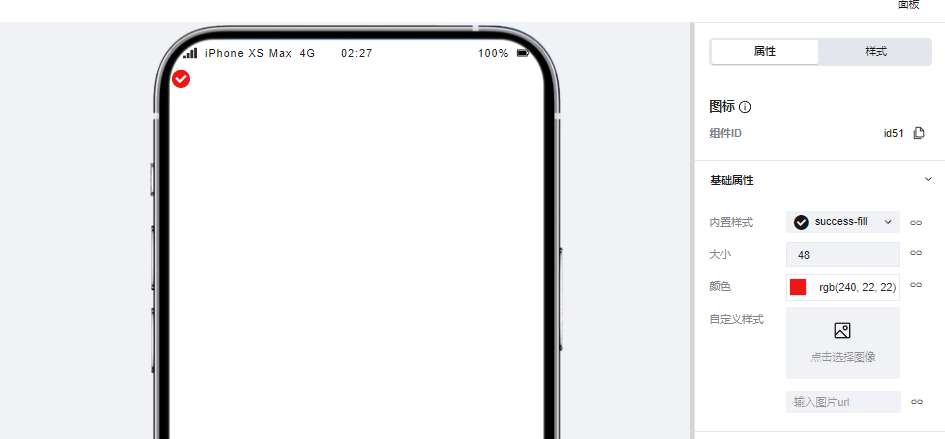
可以通过在图标组件的配置区中选择微搭提供的内置 icon 实现图标的展示效果并调整图标颜色等参数,同时图标组件也支持用户对图标进行自定义的上传。
|
|
12
|
-
|
|
13
|
-
|
|
14
|
-
|
|
15
|
-
## 属性介绍
|
|
16
|
-
|
|
17
|
-
import TableLayoutView from '../../common/tableView';
|
|
18
|
-
|
|
19
|
-
<TableLayoutView
|
|
20
|
-
componentKey="Icon"
|
|
21
|
-
type="attribute"
|
|
22
|
-
origin="lowCode"
|
|
23
|
-
></TableLayoutView>
|
|
24
|
-
|
|
25
|
-
## 事件介绍
|
|
26
|
-
|
|
27
|
-
<TableLayoutView
|
|
28
|
-
componentKey="Icon"
|
|
29
|
-
type="event"
|
|
30
|
-
origin="lowCode"
|
|
31
|
-
></TableLayoutView>
|
|
@@ -1,55 +0,0 @@
|
|
|
1
|
-
# 图片
|
|
2
|
-
|
|
3
|
-
<TableLayoutView
|
|
4
|
-
componentKey="Image"
|
|
5
|
-
type="description"
|
|
6
|
-
origin="sourceCode"
|
|
7
|
-
></TableLayoutView>
|
|
8
|
-
|
|
9
|
-
## 使用说明
|
|
10
|
-
|
|
11
|
-
### 展示微搭素材中心图片
|
|
12
|
-
|
|
13
|
-
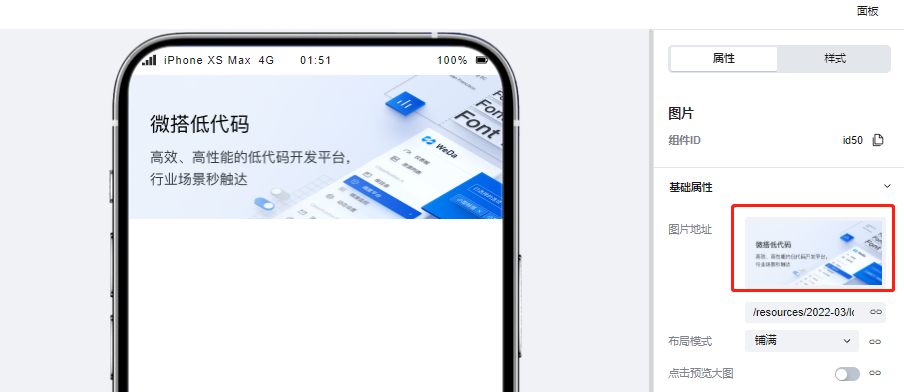
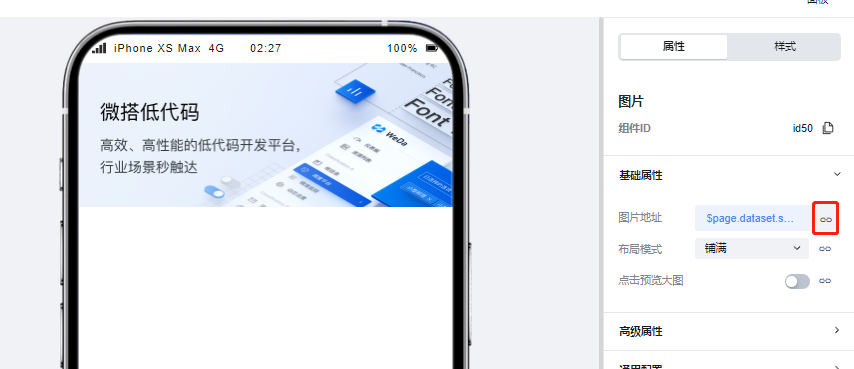
在图片组件的配置区中点击 icon,即可调起微搭的素材中心,在素材中心上传或选择对应的图片素材后便可以在页面中进行图片的展示。
|
|
14
|
-
|
|
15
|
-
|
|
16
|
-
|
|
17
|
-
### 展示 url 图片
|
|
18
|
-
|
|
19
|
-
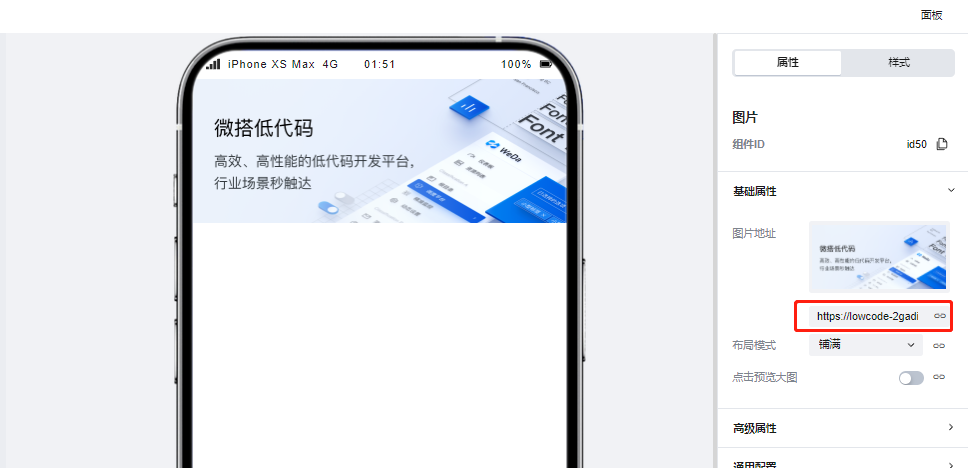
图片组件同样支持对图片 url 进行渲染展示,仅需在配置区中输入对应的图片 url 便可以完成图片的渲染。
|
|
20
|
-
|
|
21
|
-
|
|
22
|
-
|
|
23
|
-
### 绑定变量实现图片展示
|
|
24
|
-
|
|
25
|
-
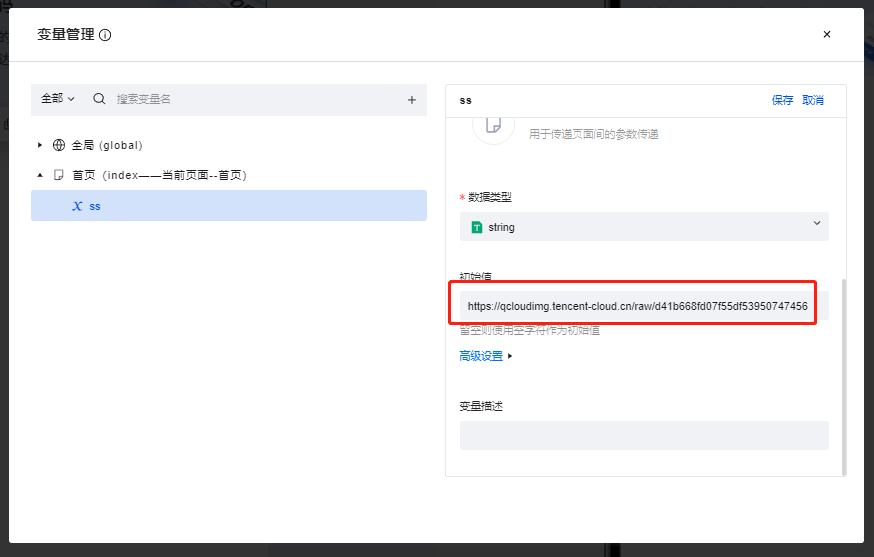
当变量内容为图片 url 的时候,图片组件支持绑定变量并对其进行渲染,示例如下:
|
|
26
|
-
|
|
27
|
-
1. 创建一个普通变量,并将其初始值填写为图片的 url
|
|
28
|
-
|
|
29
|
-
|
|
30
|
-
|
|
31
|
-
2. 点击图片组件配置区的绑定按钮,并绑定该变量,可以看到图片已经被正常渲染
|
|
32
|
-
|
|
33
|
-
|
|
34
|
-
|
|
35
|
-
## 属性介绍
|
|
36
|
-
|
|
37
|
-
import TableLayoutView from '../../common/tableView';
|
|
38
|
-
|
|
39
|
-
<TableLayoutView
|
|
40
|
-
componentKey="Image"
|
|
41
|
-
type="attribute"
|
|
42
|
-
origin="sourceCode"
|
|
43
|
-
></TableLayoutView>
|
|
44
|
-
|
|
45
|
-
## 事件介绍
|
|
46
|
-
|
|
47
|
-
<TableLayoutView
|
|
48
|
-
componentKey="Image"
|
|
49
|
-
type="event"
|
|
50
|
-
origin="sourceCode"
|
|
51
|
-
></TableLayoutView>
|
|
52
|
-
|
|
53
|
-
## 组件使用限制
|
|
54
|
-
|
|
55
|
-
需注意,由于小程序端样式限制问题,图片组件的高度不得设置为 auto,否则将无法渲染。
|
|
@@ -1 +0,0 @@
|
|
|
1
|
-
{ "label": "多媒体", "position": 50 }
|
|
@@ -1,44 +0,0 @@
|
|
|
1
|
-
# 新增组件
|
|
2
|
-
|
|
3
|
-
## 适用场景
|
|
4
|
-
|
|
5
|
-
用于新增单条数据
|
|
6
|
-
|
|
7
|
-
## 使用说明
|
|
8
|
-
|
|
9
|
-
在创建模型应用、模型页面时,会自动在数据的新增页面生成该组件,并与数据的更新/查看/管理表格页面构建关联关系,实现对应的页面跳转逻辑
|
|
10
|
-
|
|
11
|
-
## 属性介绍
|
|
12
|
-
|
|
13
|
-
| 属性名 | 类型 | 属性分组 | 默认值 | 说明 |
|
|
14
|
-
| ---------- | -------- | -------- | ------ | ------------------ |
|
|
15
|
-
| 绑定数据源 | `object` | 基础属性 | - | 展示数据的数据来源 |
|
|
16
|
-
| 按钮 | `array` | 按钮配置 | - | 设置组件中的按钮 |
|
|
17
|
-
|
|
18
|
-
## 事件介绍
|
|
19
|
-
|
|
20
|
-
无
|
|
21
|
-
|
|
22
|
-
## 自定义按钮介绍
|
|
23
|
-
|
|
24
|
-
新增组件对应的按钮支持自定义能力,可根据场景灵活配置按钮的属性及对应调用的事件。具体使用方法可参考模型表格组件。
|
|
25
|
-
|
|
26
|
-
#### 按钮动作
|
|
27
|
-
|
|
28
|
-
| 按钮动作 | 类型 | 说明 |
|
|
29
|
-
| -------- | ------ | -------------------------- |
|
|
30
|
-
| 提交 | 内置 | 提交表单 |
|
|
31
|
-
| 取消 | 内置 | 取消并返回 |
|
|
32
|
-
| 自定义 | 自定义 | 此时该按钮的自定义事件生效 |
|
|
33
|
-
|
|
34
|
-
#### 新增组件按钮触发返回的 event 对象如下:
|
|
35
|
-
|
|
36
|
-
> 新增组件
|
|
37
|
-
>
|
|
38
|
-
> ```javascript
|
|
39
|
-
> export default function ({ event, data }) {
|
|
40
|
-
> const {
|
|
41
|
-
> data: formValues, // 当前表单的values
|
|
42
|
-
> } = event.detail.value;
|
|
43
|
-
> }
|
|
44
|
-
> ```
|
|
@@ -1,44 +0,0 @@
|
|
|
1
|
-
# 详情组件
|
|
2
|
-
|
|
3
|
-
## 适用场景
|
|
4
|
-
|
|
5
|
-
用于查看数据详情
|
|
6
|
-
|
|
7
|
-
## 使用说明
|
|
8
|
-
|
|
9
|
-
在创建模型应用、模型页面时,会自动在数据的查看页面生成该组件,并与数据的新增/更新/管理表格页面构建关联关系,实现对应的页面跳转逻辑
|
|
10
|
-
|
|
11
|
-
## 属性介绍
|
|
12
|
-
|
|
13
|
-
| 属性名 | 类型 | 属性分组 | 默认值 | 说明 |
|
|
14
|
-
| ---------- | -------- | -------- | ------ | ------------------ |
|
|
15
|
-
| 绑定数据源 | `object` | 基础属性 | - | 展示数据的数据来源 |
|
|
16
|
-
| 按钮 | `array` | 按钮配置 | - | 设置组件中的按钮 |
|
|
17
|
-
|
|
18
|
-
## 事件介绍
|
|
19
|
-
|
|
20
|
-
无
|
|
21
|
-
|
|
22
|
-
## 自定义按钮介绍
|
|
23
|
-
|
|
24
|
-
详情组件对应的按钮支持自定义能力,可根据场景灵活配置按钮的属性及对应调用的事件。具体使用方法可参考模型表格组件。
|
|
25
|
-
|
|
26
|
-
#### 按钮动作
|
|
27
|
-
|
|
28
|
-
| 按钮动作 | 类型 | 说明 |
|
|
29
|
-
| -------- | ------ | -------------------------- |
|
|
30
|
-
| 编辑 | 内置 | 编辑该条记录 |
|
|
31
|
-
| 删除 | 内置 | 删除该条记录并返回 |
|
|
32
|
-
| 自定义 | 自定义 | 此时该按钮的自定义事件生效 |
|
|
33
|
-
|
|
34
|
-
#### 详情组件按钮触发返回的 event 对象如下:
|
|
35
|
-
|
|
36
|
-
> 详情组件
|
|
37
|
-
>
|
|
38
|
-
> ```javascript
|
|
39
|
-
> export default function ({ event, data }) {
|
|
40
|
-
> const {
|
|
41
|
-
> record, // 当前页面的记录
|
|
42
|
-
> } = event.detail.value;
|
|
43
|
-
> }
|
|
44
|
-
> ```
|
|
@@ -1,156 +0,0 @@
|
|
|
1
|
-
# 表格组件
|
|
2
|
-
|
|
3
|
-
## 适用场景
|
|
4
|
-
|
|
5
|
-
用于以表格形式展示列表数据
|
|
6
|
-
|
|
7
|
-
## 使用说明
|
|
8
|
-
|
|
9
|
-
在创建模型应用、模型页面时,会自动在数据的管理表格页面生成该组件,并与数据的新增/更新/查看页面构建关联关系,实现对应的页面跳转逻辑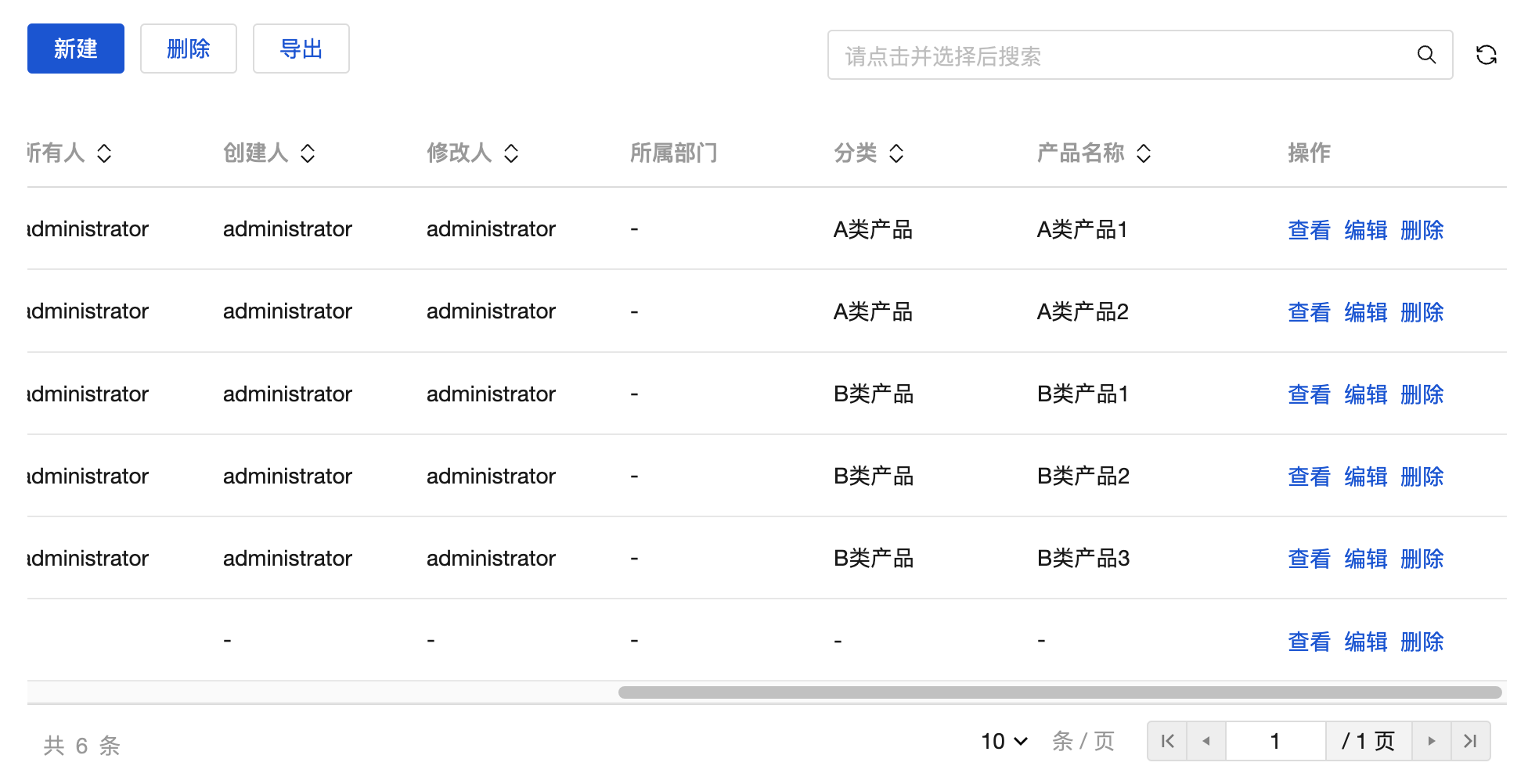
|
|
10
|
-
|
|
11
|
-
## 属性介绍
|
|
12
|
-
|
|
13
|
-
| 属性名 | 类型 | 属性分组 | 默认值 | 说明 |
|
|
14
|
-
| ---------- | -------- | -------------- | ----------- | ------------------ |
|
|
15
|
-
| 绑定数据源 | `object` | 基础属性 | - | 展示数据的数据来源 |
|
|
16
|
-
| 搜索方式 | - | 基础属性 | "searchbox" | |
|
|
17
|
-
| 筛选字段 | - | 基础属性 | - | |
|
|
18
|
-
| 按钮 | `array` | 顶部按钮配置 | - | 设置组件中的按钮 |
|
|
19
|
-
| 按钮 | `array` | 操作列按钮配置 | - | 设置组件中的按钮 |
|
|
20
|
-
|
|
21
|
-
## 事件介绍
|
|
22
|
-
|
|
23
|
-
无
|
|
24
|
-
|
|
25
|
-
## 组件自定义按钮介绍
|
|
26
|
-
|
|
27
|
-
表格组件对应的按钮支持自定义能力,可根据场景灵活配置按钮的属性及对应调用的事件。具有这种自定义能力的按钮定义为按钮选区。
|
|
28
|
-
|
|
29
|
-
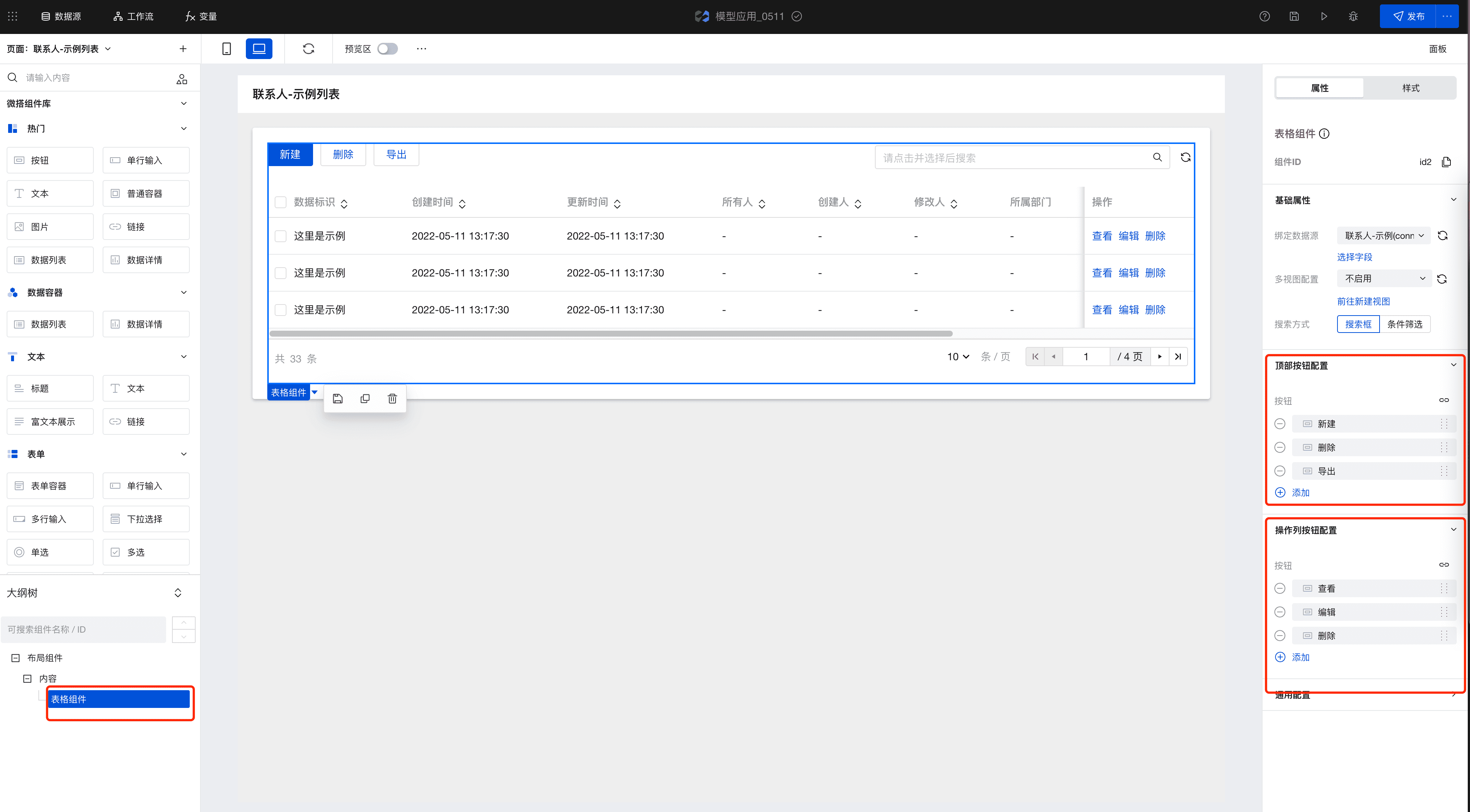
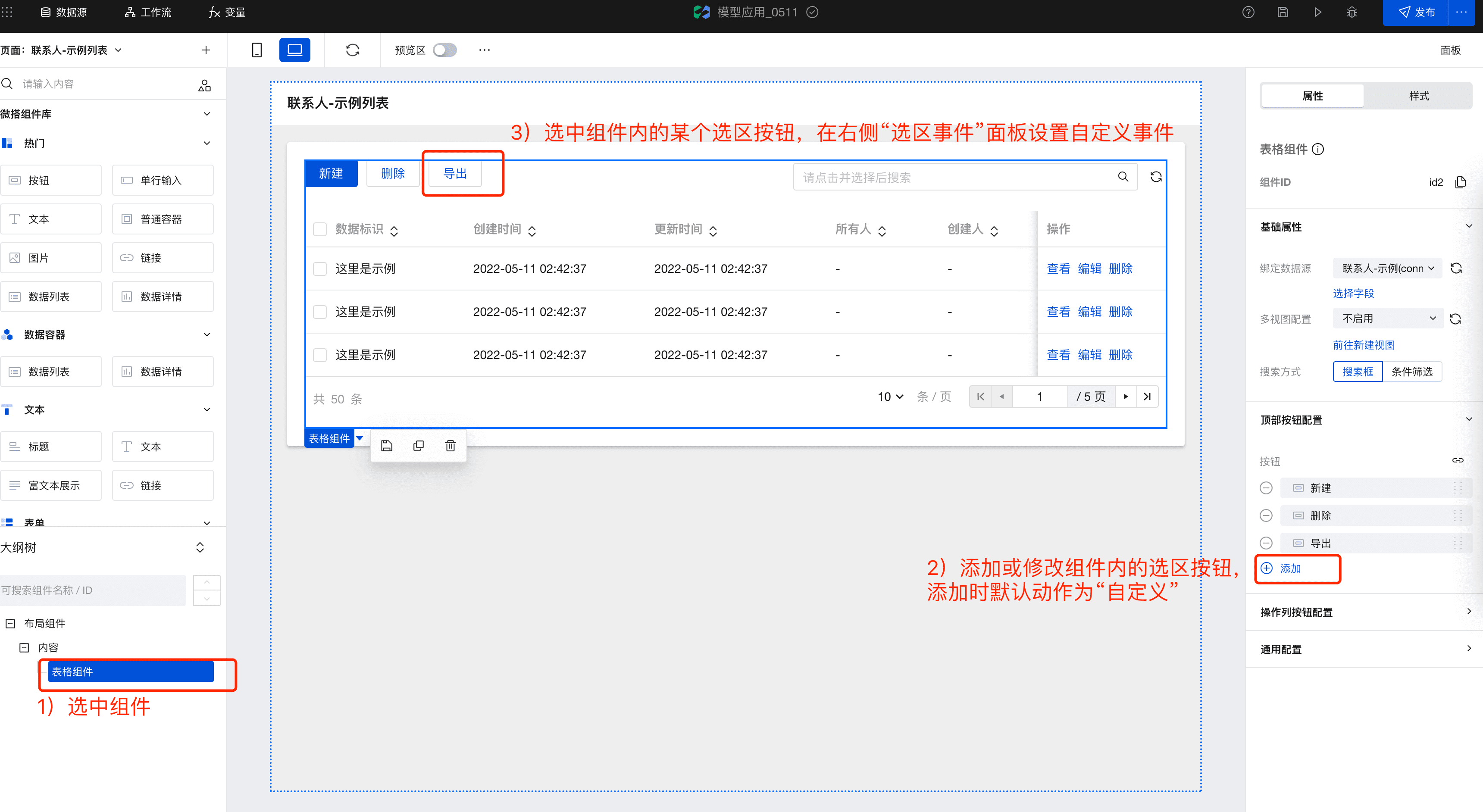
- 选中**表格组件**以后,右侧属性**按钮配置**里可以支持添加、删除表格顶部以及操作列的按钮,并且自定义按钮的属性。
|
|
30
|
-
|
|
31
|
-
|
|
32
|
-
|
|
33
|
-
|
|
34
|
-
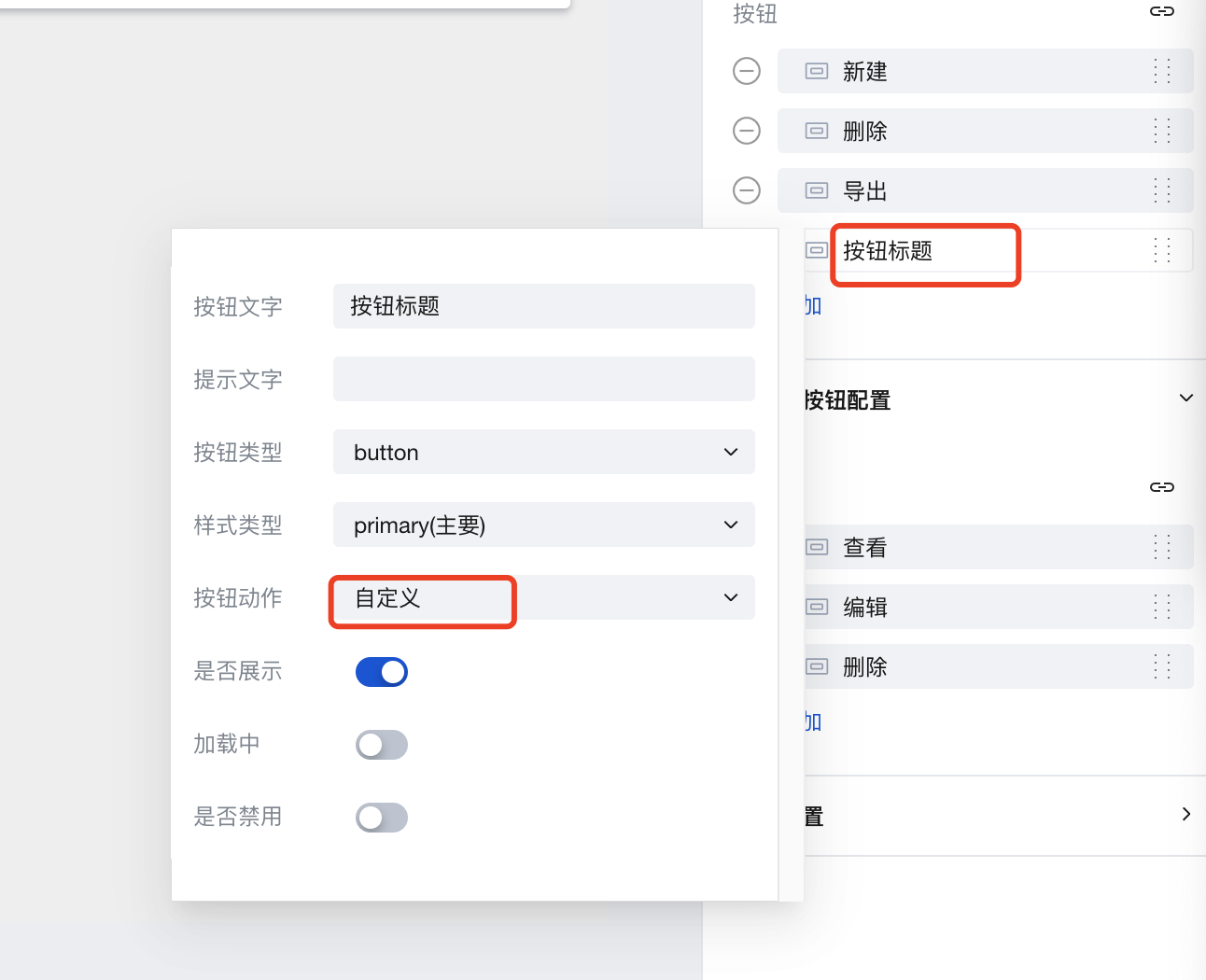
- 其中按钮动作包含内置和自定义两种,新建按钮时默认为“自定义”,详情见下表:
|
|
35
|
-
|
|
36
|
-
#### 顶部按钮动作
|
|
37
|
-
|
|
38
|
-
| 按钮动作 | 类型 | 说明 |
|
|
39
|
-
| -------- | ------ | -------------------------- |
|
|
40
|
-
| 新建 | 内置 | 新建数据 |
|
|
41
|
-
| 删除 | 内置 | 删除所选数据 |
|
|
42
|
-
| 导出 | 内置 | 导出所选数据 |
|
|
43
|
-
| 自定义 | 自定义 | 此时该按钮的自定义事件生效 |
|
|
44
|
-
|
|
45
|
-
#### 操作列按钮动作
|
|
46
|
-
|
|
47
|
-
| 按钮动作 | 类型 | 说明 |
|
|
48
|
-
| -------- | ------ | -------------------------- |
|
|
49
|
-
| 查看 | 内置 | 查看当前行 |
|
|
50
|
-
| 编辑 | 内置 | 编辑当前行 |
|
|
51
|
-
| 删除 | 内置 | 删除当前行 |
|
|
52
|
-
| 自定义 | 自定义 | 此时该按钮的自定义事件生效 |
|
|
53
|
-
|
|
54
|
-
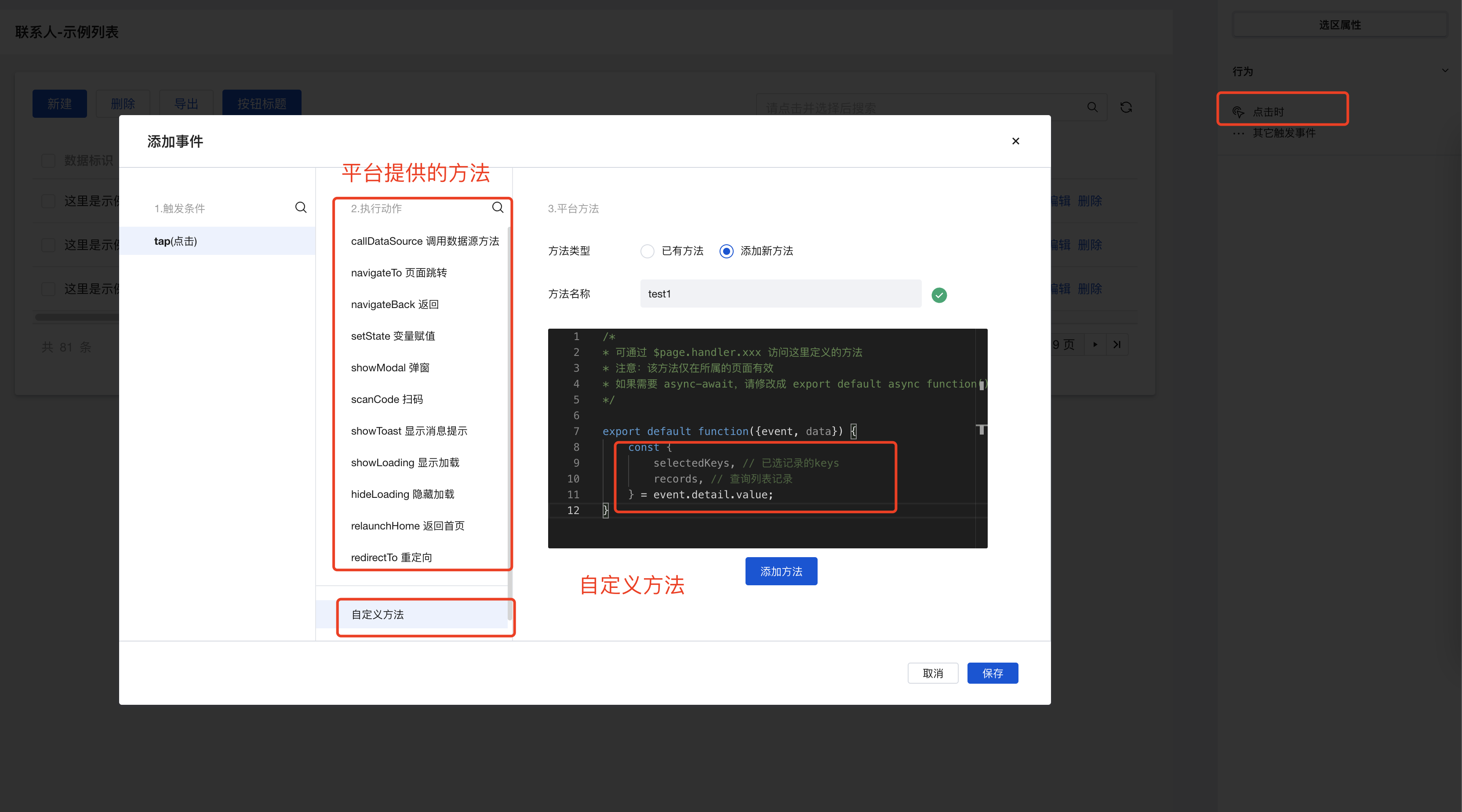
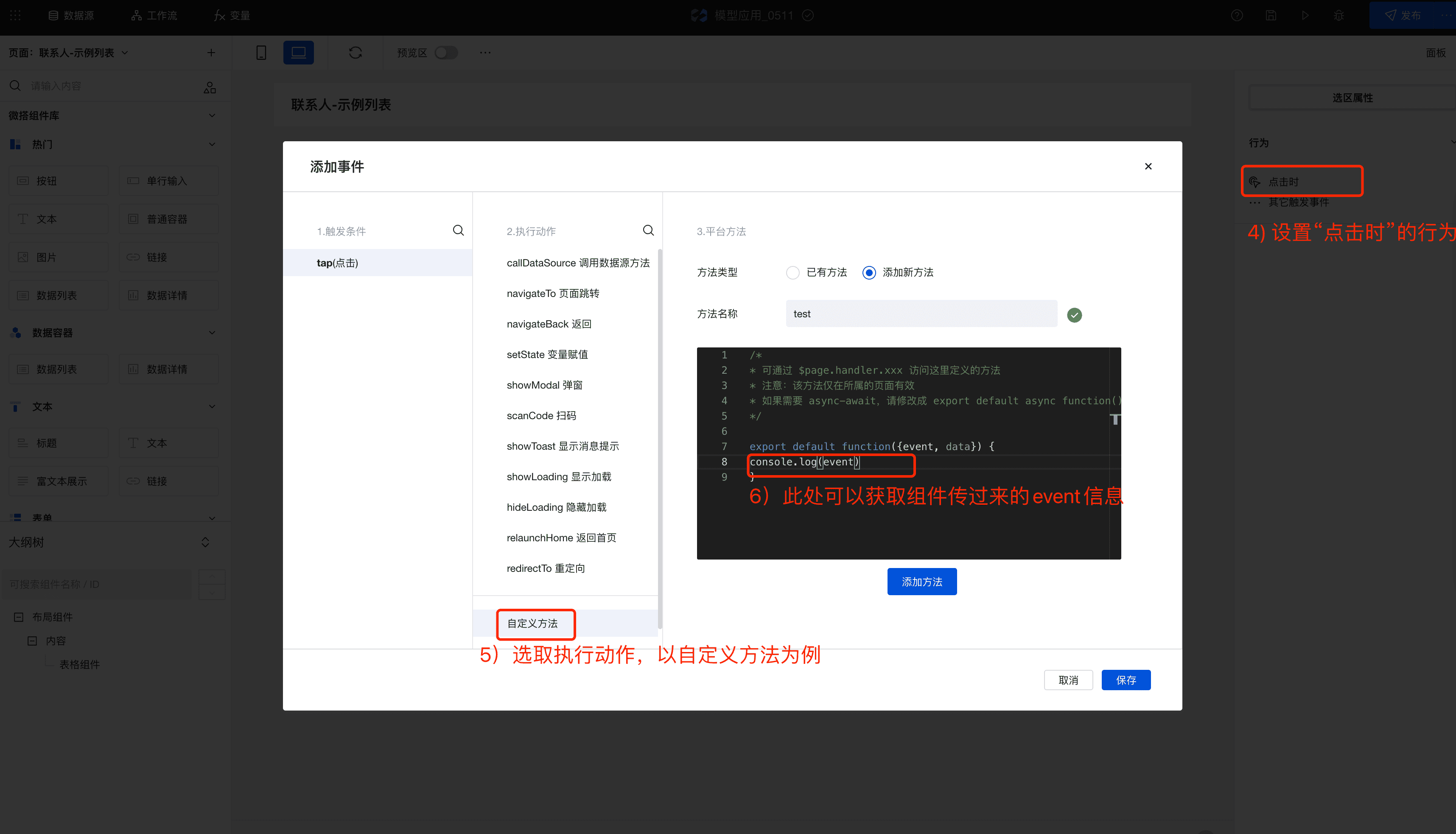
- 若按钮的动作设置为“自定义”,则需要设置该按钮的自定义事件。方法是鼠标选中该按钮,在右侧的“选区属性”面板中设置 tap(点击时)事件。在执行动作中可以使用平台提供的方法,也可以自定义方法。
|
|
55
|
-
|
|
56
|
-
|
|
57
|
-
|
|
58
|
-
- 按钮选区触发条件被触发时会返回该触发条件的 **event** 对象
|
|
59
|
-
|
|
60
|
-
```javascript
|
|
61
|
-
export default function ({ event, data }) {
|
|
62
|
-
// event为条件被触发时返回的event对象
|
|
63
|
-
console.log(event);
|
|
64
|
-
}
|
|
65
|
-
```
|
|
66
|
-
|
|
67
|
-
其中,表格组件按钮选区触发返回的 event 对象如下:
|
|
68
|
-
|
|
69
|
-
> 顶部按钮的自定义方法
|
|
70
|
-
>
|
|
71
|
-
> ```javascript
|
|
72
|
-
> export default function ({ event, data }) {
|
|
73
|
-
> const {
|
|
74
|
-
> selectedKeys, // 已选记录的keys
|
|
75
|
-
> records, // 查询列表记录
|
|
76
|
-
> } = event.detail.value;
|
|
77
|
-
> }
|
|
78
|
-
> ```
|
|
79
|
-
>
|
|
80
|
-
> 表格操作列的自定义方法
|
|
81
|
-
>
|
|
82
|
-
> ```javascript
|
|
83
|
-
> export default function ({ event, data }) {
|
|
84
|
-
> const {
|
|
85
|
-
> record, // 当前行的数据
|
|
86
|
-
> recordKey, // 当前行的key
|
|
87
|
-
> } = event.detail.value;
|
|
88
|
-
> }
|
|
89
|
-
> ```
|
|
90
|
-
|
|
91
|
-
---
|
|
92
|
-
|
|
93
|
-
## 选区案例参考
|
|
94
|
-
|
|
95
|
-
|
|
96
|
-
|
|
97
|
-
|
|
98
|
-
## 选区其他事项
|
|
99
|
-
|
|
100
|
-
- 选区按钮如需绑定变量,变量值可以参考如下:
|
|
101
|
-
|
|
102
|
-
```javascript
|
|
103
|
-
[
|
|
104
|
-
{
|
|
105
|
-
text: '新建',
|
|
106
|
-
tooltip: '',
|
|
107
|
-
type: 'primary',
|
|
108
|
-
htmlType: 'button',
|
|
109
|
-
action: 'create',
|
|
110
|
-
show: true,
|
|
111
|
-
loading: false,
|
|
112
|
-
disabled: false,
|
|
113
|
-
},
|
|
114
|
-
{
|
|
115
|
-
text: '删除',
|
|
116
|
-
tooltip: '',
|
|
117
|
-
type: 'weak',
|
|
118
|
-
htmlType: 'button',
|
|
119
|
-
action: 'del',
|
|
120
|
-
show: true,
|
|
121
|
-
loading: false,
|
|
122
|
-
disabled: false,
|
|
123
|
-
},
|
|
124
|
-
{
|
|
125
|
-
text: '导出',
|
|
126
|
-
tooltip: '',
|
|
127
|
-
type: 'weak',
|
|
128
|
-
htmlType: 'button',
|
|
129
|
-
action: 'export',
|
|
130
|
-
show: true,
|
|
131
|
-
loading: false,
|
|
132
|
-
disabled: false,
|
|
133
|
-
},
|
|
134
|
-
{
|
|
135
|
-
text: '自定义按钮',
|
|
136
|
-
tooltip: '',
|
|
137
|
-
type: 'weak',
|
|
138
|
-
htmlType: 'button',
|
|
139
|
-
action: 'custom', // 使用自定义动作时,设置为“custom”
|
|
140
|
-
show: true,
|
|
141
|
-
loading: false,
|
|
142
|
-
disabled: false,
|
|
143
|
-
selectableBlock: {
|
|
144
|
-
listenerInstances: [
|
|
145
|
-
{
|
|
146
|
-
key: '',
|
|
147
|
-
trigger: 'tap',
|
|
148
|
-
instanceFunction: function ({ event, data }) {
|
|
149
|
-
return app.showModal(); // 选区按钮对应的方法代码,可以使用平台的方法,或者自定义方法 $page.handler.xxx({ event, data })
|
|
150
|
-
},
|
|
151
|
-
},
|
|
152
|
-
],
|
|
153
|
-
},
|
|
154
|
-
},
|
|
155
|
-
];
|
|
156
|
-
```
|
|
@@ -1,44 +0,0 @@
|
|
|
1
|
-
# 更新组件
|
|
2
|
-
|
|
3
|
-
## 适用场景
|
|
4
|
-
|
|
5
|
-
用于更新现有单条数据
|
|
6
|
-
|
|
7
|
-
## 使用说明
|
|
8
|
-
|
|
9
|
-
在创建模型应用、模型页面时,会自动在数据的更新页面生成该组件,并与数据的新增/查看/管理表格页面构建关联关系,实现对应的页面跳转逻辑
|
|
10
|
-
|
|
11
|
-
## 属性介绍
|
|
12
|
-
|
|
13
|
-
| 属性名 | 类型 | 属性分组 | 默认值 | 说明 |
|
|
14
|
-
| ---------- | -------- | -------- | ------ | ------------------ |
|
|
15
|
-
| 绑定数据源 | `object` | 基础属性 | - | 展示数据的数据来源 |
|
|
16
|
-
| 按钮 | `array` | 按钮配置 | - | 设置组件中的按钮 |
|
|
17
|
-
|
|
18
|
-
## 事件介绍
|
|
19
|
-
|
|
20
|
-
无
|
|
21
|
-
|
|
22
|
-
## 自定义按钮介绍
|
|
23
|
-
|
|
24
|
-
更新组件对应的按钮支持自定义能力,可根据场景灵活配置按钮的属性及对应调用的事件。具体使用方法可参考模型表格组件。
|
|
25
|
-
|
|
26
|
-
#### 按钮动作
|
|
27
|
-
|
|
28
|
-
| 按钮动作 | 类型 | 说明 |
|
|
29
|
-
| -------- | ------ | -------------------------- |
|
|
30
|
-
| 提交 | 内置 | 提交表单 |
|
|
31
|
-
| 取消 | 内置 | 取消并返回 |
|
|
32
|
-
| 自定义 | 自定义 | 此时该按钮的自定义事件生效 |
|
|
33
|
-
|
|
34
|
-
#### 更新组件按钮触发返回的 event 对象如下:
|
|
35
|
-
|
|
36
|
-
> 更新组件
|
|
37
|
-
>
|
|
38
|
-
> ```javascript
|
|
39
|
-
> export default function ({ event, data }) {
|
|
40
|
-
> const {
|
|
41
|
-
> data: formValues, // 当前表单的values
|
|
42
|
-
> } = event.detail.value;
|
|
43
|
-
> }
|
|
44
|
-
> ```
|
|
@@ -1,21 +0,0 @@
|
|
|
1
|
-
# 布局组件
|
|
2
|
-
|
|
3
|
-
## 适用场景
|
|
4
|
-
|
|
5
|
-
用于构建带有顶部导航的页面布局
|
|
6
|
-
|
|
7
|
-
## 使用说明
|
|
8
|
-
|
|
9
|
-
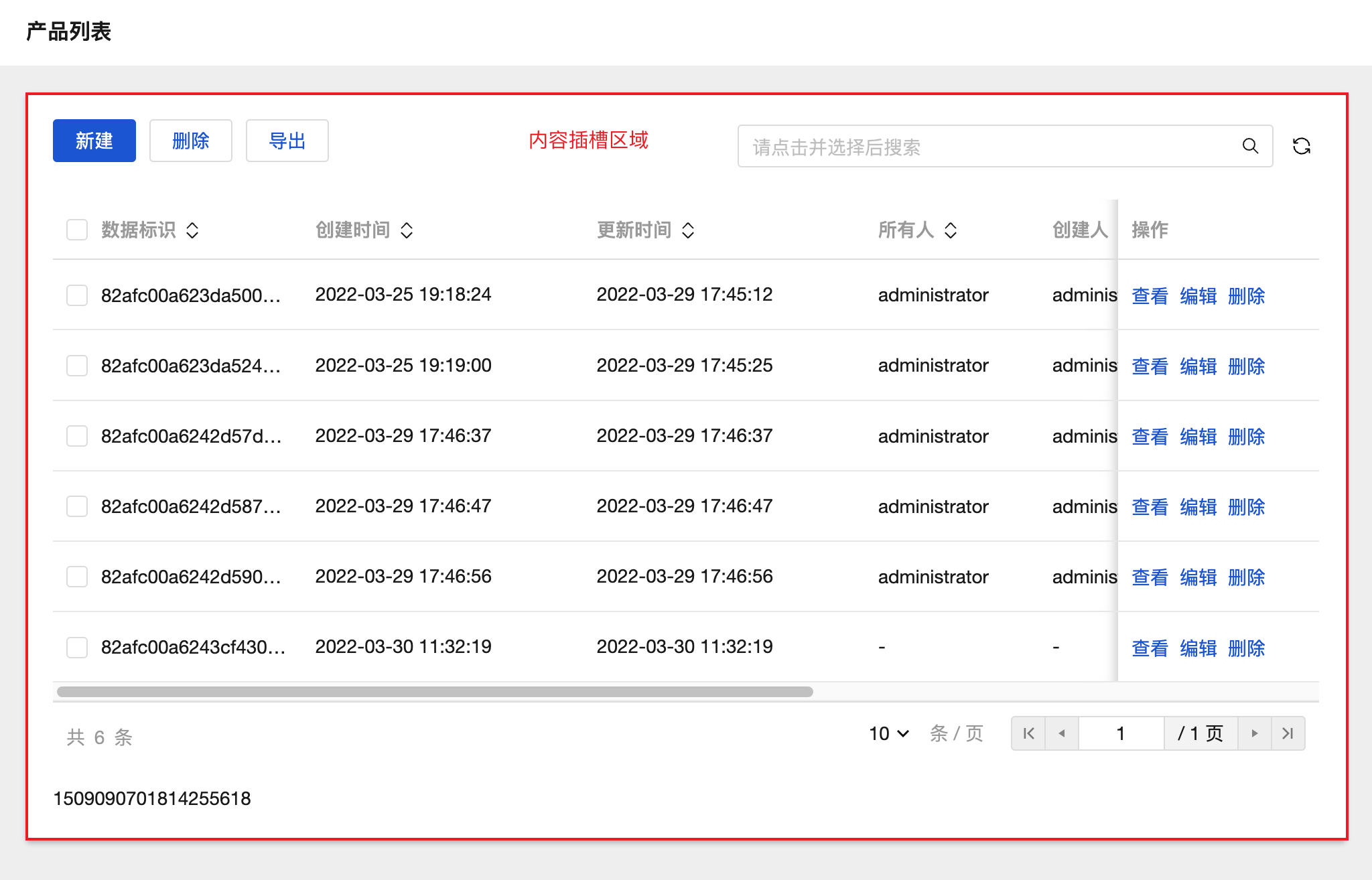
组件顶部区域标题可自定义,中间内容插槽区域中可放入其他组件用于构建页面内容
|
|
10
|
-
|
|
11
|
-
|
|
12
|
-
|
|
13
|
-
## 属性介绍
|
|
14
|
-
|
|
15
|
-
| 属性名 | 类型 | 属性分组 | 默认值 | 说明 |
|
|
16
|
-
| -------- | -------- | -------- | -------- | ---------------------- |
|
|
17
|
-
| 页面标题 | `string` | 基础属性 | 页面标题 | 组件顶部显示的标题内容 |
|
|
18
|
-
|
|
19
|
-
## 事件介绍
|
|
20
|
-
|
|
21
|
-
无
|
|
@@ -1 +0,0 @@
|
|
|
1
|
-
{ "label": "模型组件", "position": 75 }
|
|
@@ -1,37 +0,0 @@
|
|
|
1
|
-
# 侧边导航面板
|
|
2
|
-
|
|
3
|
-
<TableLayoutView
|
|
4
|
-
componentKey="Classification"
|
|
5
|
-
type="description"
|
|
6
|
-
origin="lowCode"
|
|
7
|
-
></TableLayoutView>
|
|
8
|
-
|
|
9
|
-
## 使用说明
|
|
10
|
-
|
|
11
|
-
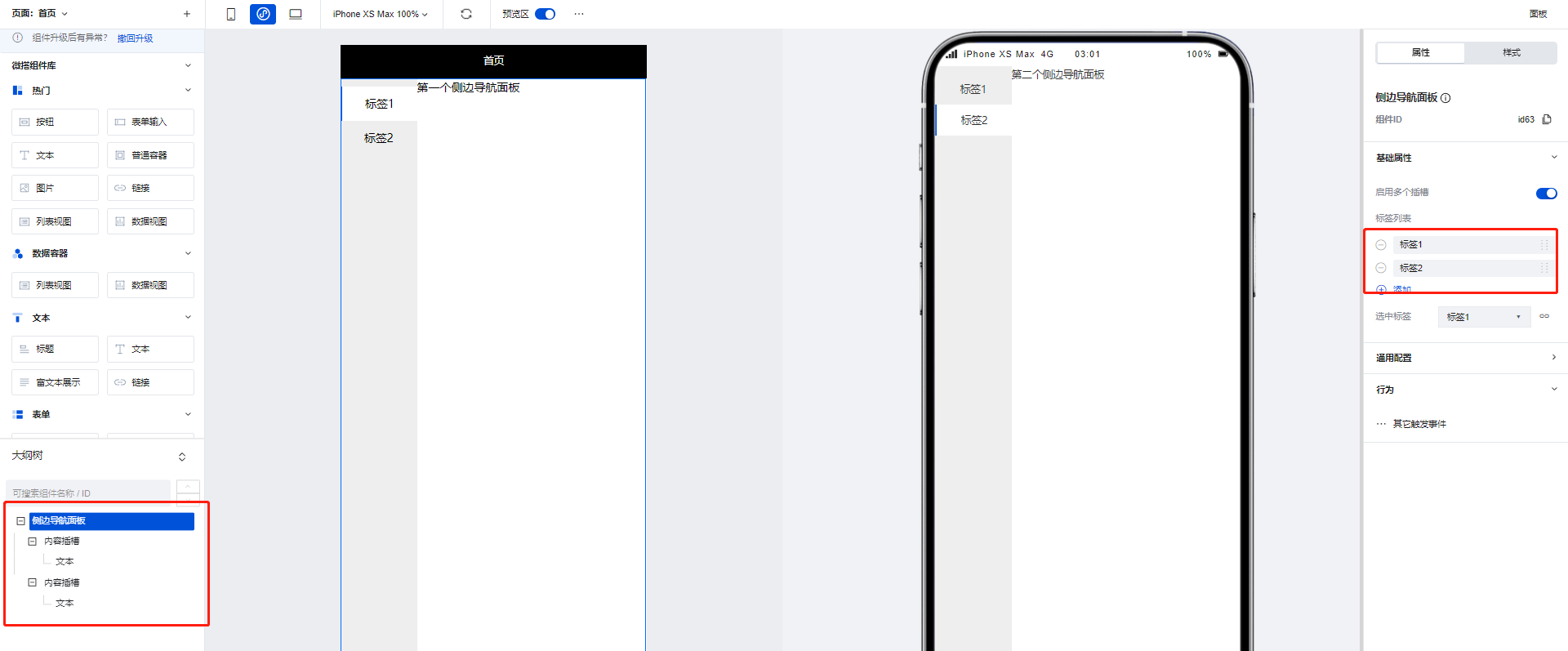
使用侧边导航面板组件可以实现页面的左侧 Tab 切换效果,当在组件配置区点击新增标签时,在大纲树中会生成对应的**内容插槽**,我们可以通过在内容插槽中放置对应组件实现不同 Tab 的的内容构建,以下文为例:
|
|
12
|
-
|
|
13
|
-
1. 在侧边导航面板组件的两个内容插槽中分别添加两个文本组件,并为两个文本组件设置不同的内容
|
|
14
|
-
|
|
15
|
-
|
|
16
|
-
|
|
17
|
-
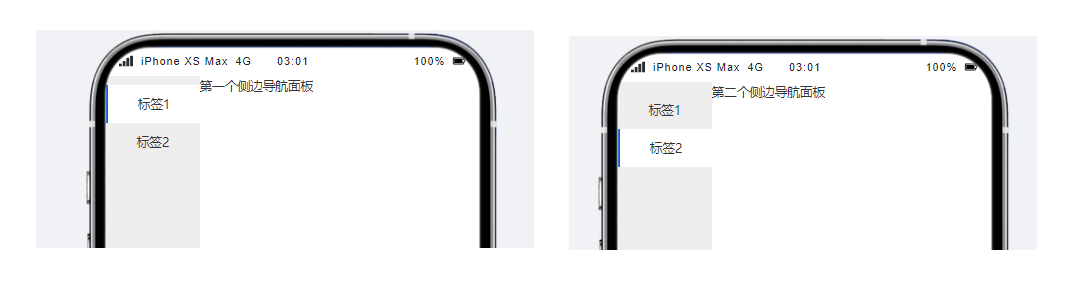
2. 可以看到,当进行 Tab 切换时,不同的 Tab 便呈现出了不同的文本组件内容
|
|
18
|
-
|
|
19
|
-
|
|
20
|
-
|
|
21
|
-
## 属性介绍
|
|
22
|
-
|
|
23
|
-
import TableLayoutView from '../../common/tableView';
|
|
24
|
-
|
|
25
|
-
<TableLayoutView
|
|
26
|
-
componentKey="Classification"
|
|
27
|
-
type="attribute"
|
|
28
|
-
origin="lowCode"
|
|
29
|
-
></TableLayoutView>
|
|
30
|
-
|
|
31
|
-
## 事件介绍
|
|
32
|
-
|
|
33
|
-
<TableLayoutView
|
|
34
|
-
componentKey="Classification"
|
|
35
|
-
type="event"
|
|
36
|
-
origin="lowCode"
|
|
37
|
-
></TableLayoutView>
|
|
@@ -1,52 +0,0 @@
|
|
|
1
|
-
# 顶部导航
|
|
2
|
-
|
|
3
|
-
<TableLayoutView
|
|
4
|
-
componentKey="NavBar"
|
|
5
|
-
type="description"
|
|
6
|
-
origin="lowCode"
|
|
7
|
-
></TableLayoutView>
|
|
8
|
-
|
|
9
|
-
## 使用说明
|
|
10
|
-
|
|
11
|
-
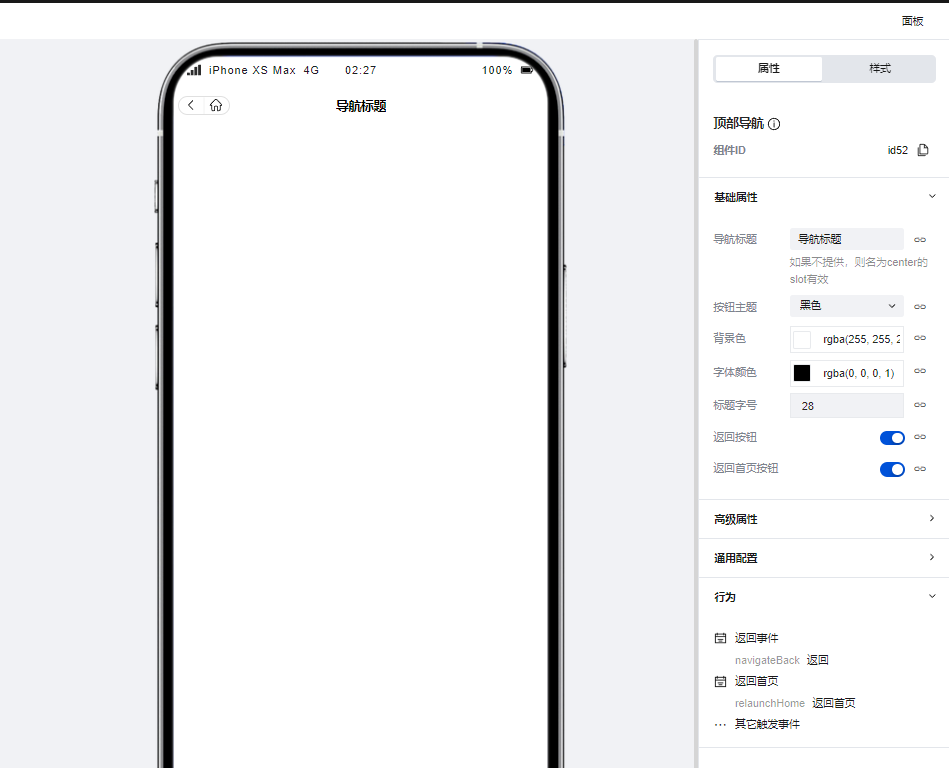
通过配置区进行简单的配置即可快速实现页面的顶部导航效果,同时该组件提供了返回上级页面与返回主页的功能,当在组件区开启对应配置时该组件便会渲染出对应的按钮,点击后即可实现对应的页面跳转。
|
|
12
|
-
|
|
13
|
-
|
|
14
|
-
|
|
15
|
-
## 属性介绍
|
|
16
|
-
|
|
17
|
-
import TableLayoutView from '../../common/tableView';
|
|
18
|
-
|
|
19
|
-
<TableLayoutView
|
|
20
|
-
componentKey="NavBar"
|
|
21
|
-
type="attribute"
|
|
22
|
-
origin="lowCode"
|
|
23
|
-
></TableLayoutView>
|
|
24
|
-
|
|
25
|
-
## 事件介绍
|
|
26
|
-
|
|
27
|
-
<TableLayoutView
|
|
28
|
-
componentKey="NavBar"
|
|
29
|
-
type="event"
|
|
30
|
-
origin="lowCode"
|
|
31
|
-
></TableLayoutView>
|
|
32
|
-
|
|
33
|
-
## 限制说明
|
|
34
|
-
|
|
35
|
-
1. 小程序使用时,需在页面设置-页面样式-小程序导航中奖导航栏样式切换为「自定义样式」,否则小程序页面上方会显示出 2 个导航栏,同时导航栏中间会留有不可消除的空白间距
|
|
36
|
-
|
|
37
|
-
<img
|
|
38
|
-
src="https://qcloudimg.tencent-cloud.cn/raw/4a22f88657f801a794fdbba6f9e515bc.png"
|
|
39
|
-
width="50%"
|
|
40
|
-
/>
|
|
41
|
-
|
|
42
|
-
<img
|
|
43
|
-
src="https://qcloudimg.tencent-cloud.cn/raw/2d6075e2a9941a9cb8964c925253422d.png"
|
|
44
|
-
width="35%"
|
|
45
|
-
/>
|
|
46
|
-
|
|
47
|
-
2. 如需在小程序顶部额外附加一个样式合理的导航栏,或者小程序/H5 想实现更灵活的导航样式,推荐使用「页头容器」组件来进行导航栏的自定义
|
|
48
|
-
|
|
49
|
-
<img
|
|
50
|
-
src="https://qcloudimg.tencent-cloud.cn/raw/fac09e42ed3a833d5ee364c78d01fc44.png"
|
|
51
|
-
width="50%"
|
|
52
|
-
/>
|
|
@@ -1,29 +0,0 @@
|
|
|
1
|
-
# 宫格导航
|
|
2
|
-
|
|
3
|
-
<TableLayoutView
|
|
4
|
-
componentKey="NavLayout"
|
|
5
|
-
type="description"
|
|
6
|
-
origin="sourceCode"
|
|
7
|
-
></TableLayoutView>
|
|
8
|
-
|
|
9
|
-
## 使用说明
|
|
10
|
-
|
|
11
|
-
支持灵活定义各个导航项目的图标文字内容、跳转交互、PC/移动多端列数和各项细致完备的样式属性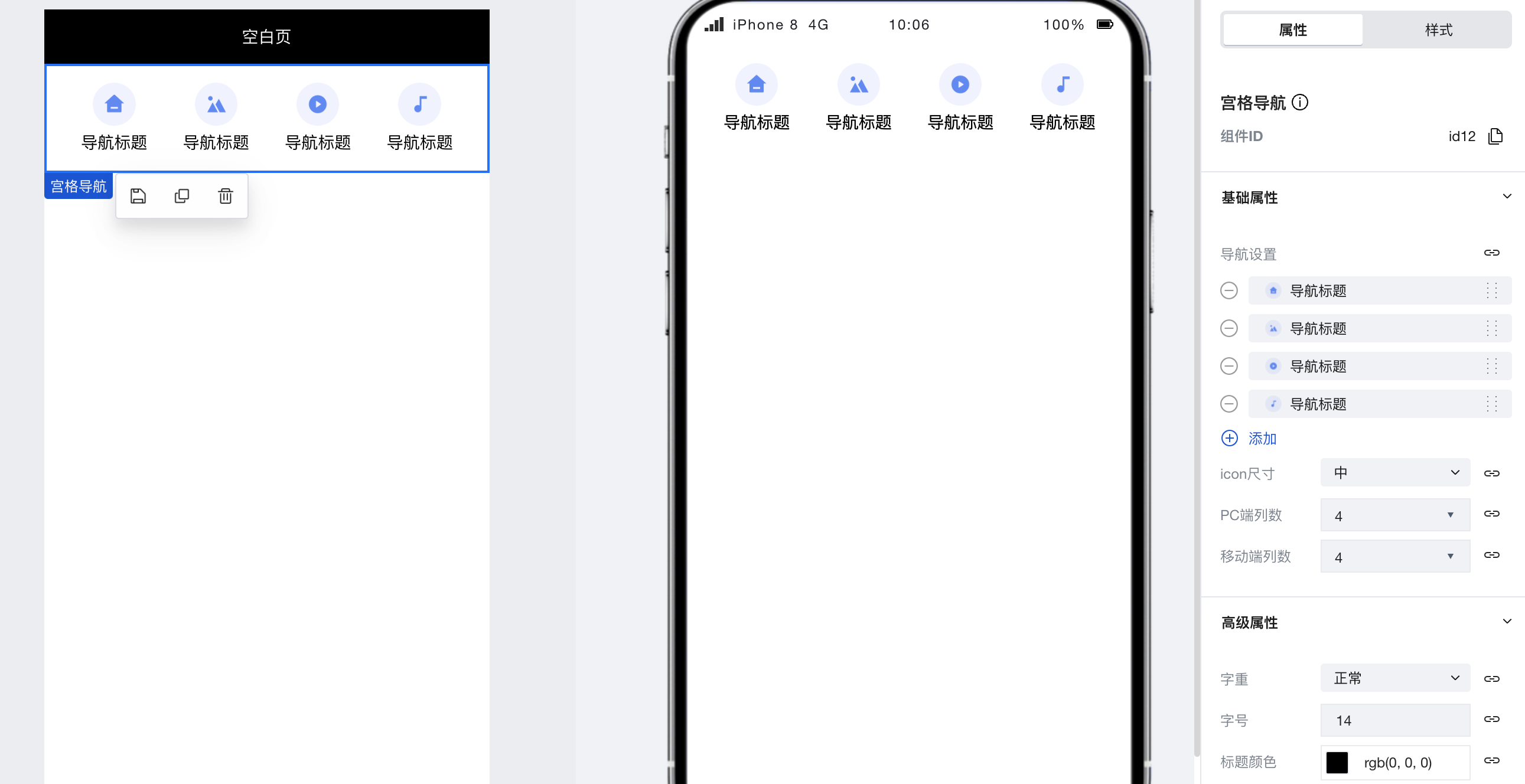
|
|
12
|
-
|
|
13
|
-
## 属性介绍
|
|
14
|
-
|
|
15
|
-
import TableLayoutView from '../../common/tableView';
|
|
16
|
-
|
|
17
|
-
<TableLayoutView
|
|
18
|
-
componentKey="NavLayout"
|
|
19
|
-
type="attribute"
|
|
20
|
-
origin="sourceCode"
|
|
21
|
-
></TableLayoutView>
|
|
22
|
-
|
|
23
|
-
## 事件介绍
|
|
24
|
-
|
|
25
|
-
<TableLayoutView
|
|
26
|
-
componentKey="NavLayout"
|
|
27
|
-
type="event"
|
|
28
|
-
origin="sourceCode"
|
|
29
|
-
></TableLayoutView>
|
|
@@ -1,43 +0,0 @@
|
|
|
1
|
-
# Tab 栏
|
|
2
|
-
|
|
3
|
-
<TableLayoutView
|
|
4
|
-
componentKey="TabBar"
|
|
5
|
-
type="description"
|
|
6
|
-
origin="lowCode"
|
|
7
|
-
></TableLayoutView>
|
|
8
|
-
|
|
9
|
-
## 使用说明
|
|
10
|
-
|
|
11
|
-
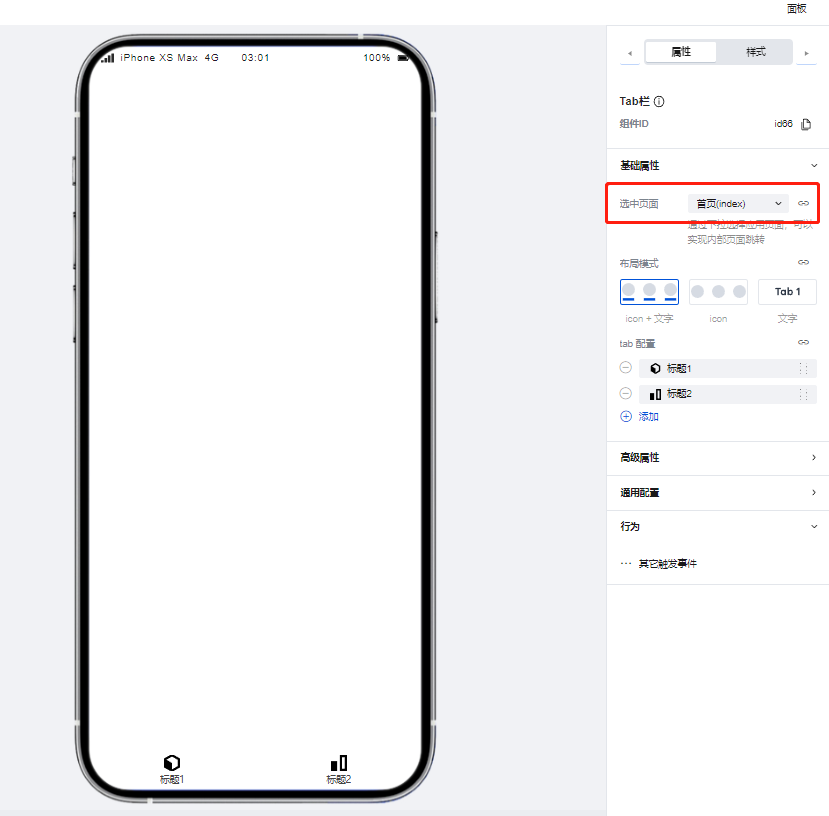
通过组件配置区即可快速实现 Tab 栏的实现,Tab 栏除了基础的标题、图标配置外也可以通过配置区快速的实现页面跳转逻辑。
|
|
12
|
-
|
|
13
|
-
### 设置选中页面
|
|
14
|
-
|
|
15
|
-
1. 首先在配置区中进行选中页面的设置,以首页为例
|
|
16
|
-
|
|
17
|
-
|
|
18
|
-
|
|
19
|
-
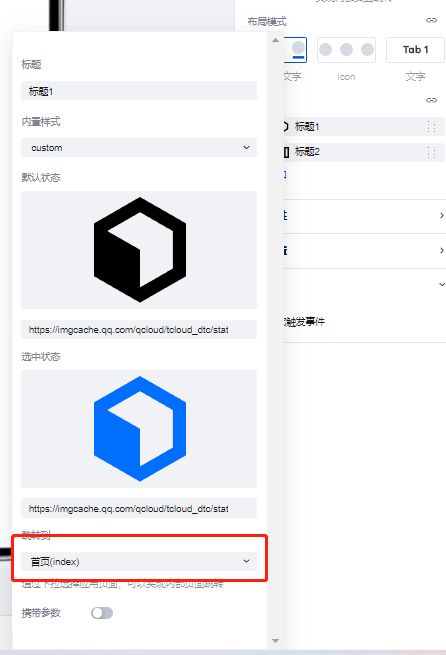
2. 随后为第一个 Tab 进行跳转页面-首页的相关配置
|
|
20
|
-
|
|
21
|
-
|
|
22
|
-
|
|
23
|
-
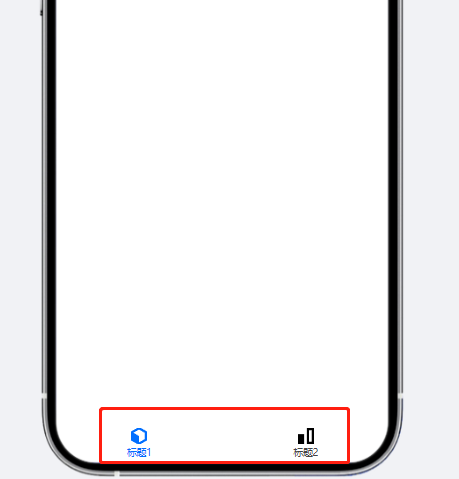
3. 可以看到,因为 Tab 的跳转页面与步骤 1 中设置的选中页面相同,该 Tab 的标题与图标便会变为激活状态。
|
|
24
|
-
|
|
25
|
-
|
|
26
|
-
|
|
27
|
-
## 属性介绍
|
|
28
|
-
|
|
29
|
-
import TableLayoutView from '../../common/tableView';
|
|
30
|
-
|
|
31
|
-
<TableLayoutView
|
|
32
|
-
componentKey="TabBar"
|
|
33
|
-
type="attribute"
|
|
34
|
-
origin="lowCode"
|
|
35
|
-
></TableLayoutView>
|
|
36
|
-
|
|
37
|
-
## 事件介绍
|
|
38
|
-
|
|
39
|
-
<TableLayoutView
|
|
40
|
-
componentKey="TabBar"
|
|
41
|
-
type="event"
|
|
42
|
-
origin="lowCode"
|
|
43
|
-
></TableLayoutView>
|
|
@@ -1,29 +0,0 @@
|
|
|
1
|
-
# Tab 元素
|
|
2
|
-
|
|
3
|
-
<TableLayoutView
|
|
4
|
-
componentKey="TabBarItem"
|
|
5
|
-
type="description"
|
|
6
|
-
origin="lowCode"
|
|
7
|
-
></TableLayoutView>
|
|
8
|
-
|
|
9
|
-
## 使用说明
|
|
10
|
-
|
|
11
|
-
用于放置于 Tab 栏组件的插槽中使用
|
|
12
|
-
|
|
13
|
-
## 属性介绍
|
|
14
|
-
|
|
15
|
-
import TableLayoutView from '../../common/tableView';
|
|
16
|
-
|
|
17
|
-
<TableLayoutView
|
|
18
|
-
componentKey="TabBarItem"
|
|
19
|
-
type="attribute"
|
|
20
|
-
origin="lowCode"
|
|
21
|
-
></TableLayoutView>
|
|
22
|
-
|
|
23
|
-
## 事件介绍
|
|
24
|
-
|
|
25
|
-
<TableLayoutView
|
|
26
|
-
componentKey="TabBarItem"
|
|
27
|
-
type="event"
|
|
28
|
-
origin="lowCode"
|
|
29
|
-
></TableLayoutView>
|
|
@@ -1 +0,0 @@
|
|
|
1
|
-
{ "label": "导航菜单", "position": 60 }
|
|
@@ -1,45 +0,0 @@
|
|
|
1
|
-
# 九宫格抽奖
|
|
2
|
-
|
|
3
|
-
<TableLayoutView
|
|
4
|
-
componentKey="Lottery"
|
|
5
|
-
type="description"
|
|
6
|
-
origin="sourceCode"
|
|
7
|
-
></TableLayoutView>
|
|
8
|
-
|
|
9
|
-
## 使用说明
|
|
10
|
-
|
|
11
|
-
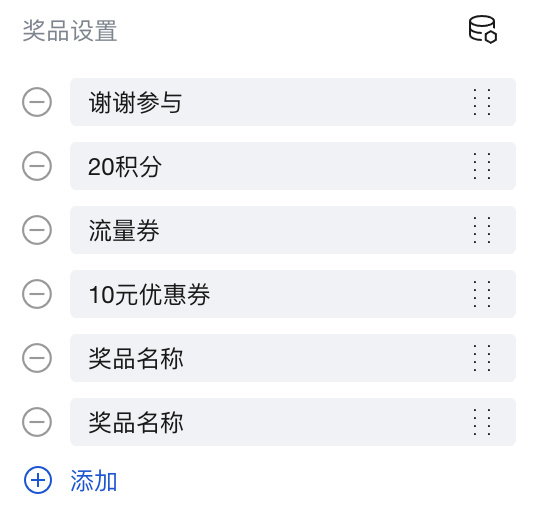
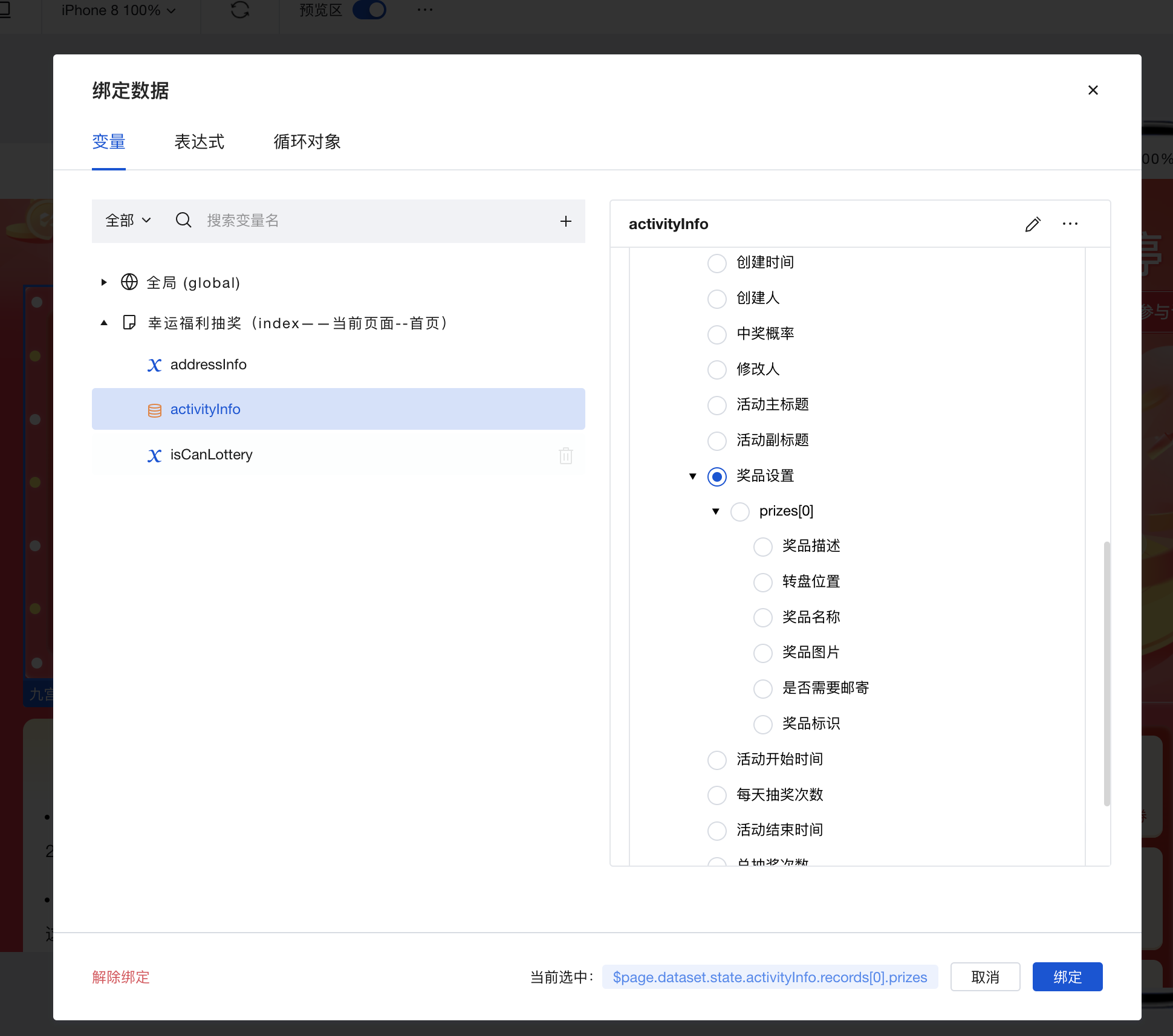
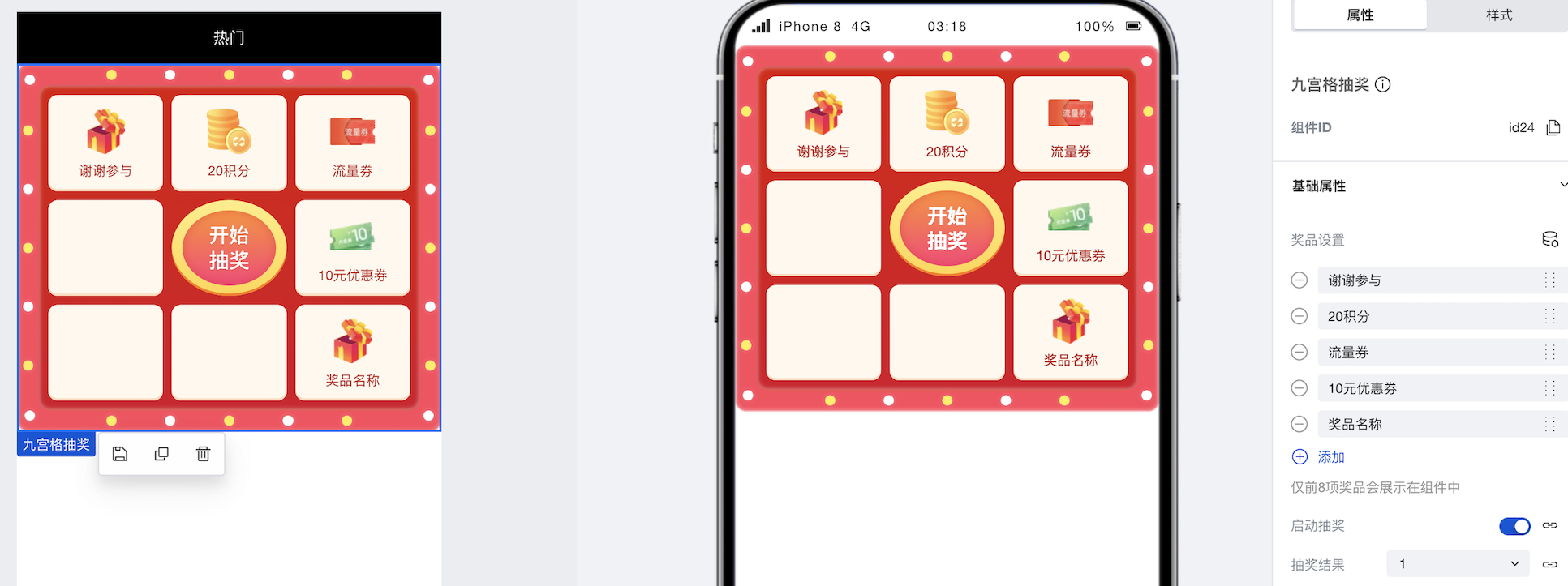
1. 奖品配置,支持手动配置和数据源配置,最多支持 8 个奖品,不足 8 个奖品会有占位图显示,超过 8 个的无效。
|
|
12
|
-
|
|
13
|
-
手动配置:
|
|
14
|
-
|
|
15
|
-
|
|
16
|
-
|
|
17
|
-
绑定数据源配置:
|
|
18
|
-
|
|
19
|
-
|
|
20
|
-
|
|
21
|
-
2. 设置启动抽奖为开始开关,如果设置为关闭则不会触发抽奖动作,抽奖过程成如果绑定数据源返回 false,立马停止。
|
|
22
|
-
|
|
23
|
-
3. 设置抽奖希望的结果,支持 1-8,从左上角第一个奖品位置开始为 1,2,3……的奖品顺序,
|
|
24
|
-
|
|
25
|
-
4. 点击开始抽奖页面,触发抽奖动画,开始后收到绑定数据抽奖的结果后动画逐渐停止,并且显示中奖的位置,如果收不到则超时后自动停止动画。
|
|
26
|
-
|
|
27
|
-
|
|
28
|
-
|
|
29
|
-
## 属性介绍
|
|
30
|
-
|
|
31
|
-
import TableLayoutView from '../../common/tableView';
|
|
32
|
-
|
|
33
|
-
<TableLayoutView
|
|
34
|
-
componentKey="Lottery"
|
|
35
|
-
type="attribute"
|
|
36
|
-
origin="sourceCode"
|
|
37
|
-
></TableLayoutView>
|
|
38
|
-
|
|
39
|
-
## 事件
|
|
40
|
-
|
|
41
|
-
<TableLayoutView
|
|
42
|
-
componentKey="Lottery"
|
|
43
|
-
type="event"
|
|
44
|
-
origin="sourceCode"
|
|
45
|
-
></TableLayoutView>
|