@cloudbase/weda-ui 2.0.12 → 2.0.26
This diff represents the content of publicly available package versions that have been released to one of the supported registries. The information contained in this diff is provided for informational purposes only and reflects changes between package versions as they appear in their respective public registries.
- package/package.json +36 -33
- package/src/configs/components/form/textarea.json +8 -0
- package/src/configs/components/graphicCard.json +1 -1
- package/src/configs/components/navLayout.json +2 -1
- package/src/configs/components/wedaVideo.json +12 -9
- package/src/mp/components/calendar/index.js +4 -1
- package/src/mp/components/calendar/index.json +2 -1
- package/src/mp/components/calendar/index.wxml +1 -1
- package/src/mp/components/calendar/index.wxss +17 -16
- package/src/mp/components/chart/statisticsCard/index.wxss +7 -10
- package/src/mp/components/form/checkbox/index.js +5 -1
- package/src/mp/components/form/input/index.js +1 -1
- package/src/mp/components/form/radio/index.js +5 -1
- package/src/mp/components/form/select/index.js +2 -2
- package/src/mp/components/form/textarea/index.js +6 -0
- package/src/mp/components/form/textarea/index.wxml +1 -1
- package/src/mp/components/graphicCard/index.wxss +6 -6
- package/src/mp/components/listView/index.wxss +2 -2
- package/src/mp/components/navLayout/index.wxss +10 -10
- package/src/mp/components/navigationBar/index.wxss +10 -10
- package/src/mp/components/richText/index.wxml +1 -1
- package/src/mp/components/richText/index.wxss +7 -5
- package/src/mp/components/tabs/index.wxss +1 -2
- package/src/mp/style/weda-ui.wxss +4 -2
- package/src/web/components/calendar/index.css +27 -40
- package/src/web/components/chart/statisticsCard/index.css +9 -8
- package/src/web/components/form/formcell/index.css +1 -14
- package/src/web/components/form/input/index.css +4 -0
- package/src/web/components/form/location/common/mapChoose.css +13 -11
- package/src/web/components/form/location/components/LocationH5/index.css +19 -19
- package/src/web/components/form/select/h5.tsx +1 -1
- package/src/web/components/form/select/index.tsx +1 -1
- package/src/web/components/form/textarea/index.tsx +12 -0
- package/src/web/components/form/uploader/index.css +10 -0
- package/src/web/components/form/uploader/uploader.h5.tsx +3 -6
- package/src/web/components/form/uploader/uploader.pc.tsx +3 -6
- package/src/web/components/form/uploaderFile/index.css +24 -23
- package/src/web/components/form/uploaderFile/uploadFile.h5.tsx +9 -4
- package/src/web/components/form/uploaderFile/uploadFile.pc.tsx +7 -4
- package/src/web/components/graphicCard/index.css +6 -6
- package/src/web/components/listView/index.css +8 -8
- package/src/web/components/lottery/index.tsx +1 -1
- package/src/web/components/navLayout/index.css +25 -25
- package/src/web/components/navigationBar/index.css +26 -26
- package/src/web/components/richTextView/index.css +7 -3
- package/src/web/components/tabs/index.css +1 -2
- package/src/web/components/wedaVideo/index.tsx +14 -4
- package/src/web/utils/platform.js +13 -0
- package/src/web/weda-ui.css +7 -9
- package/src/docs/common/format.tsx +0 -115
- package/src/docs/common/tableView.css +0 -164
- package/src/docs/common/tableView.tsx +0 -283
- package/src/docs/compsdocs/chart/Bar.mdx +0 -159
- package/src/docs/compsdocs/chart/Line.mdx +0 -100
- package/src/docs/compsdocs/chart/Pie.mdx +0 -83
- package/src/docs/compsdocs/chart/_category_.json +0 -1
- package/src/docs/compsdocs/chart/statisticsCard.mdx +0 -51
- package/src/docs/compsdocs/database/DataView.mdx +0 -33
- package/src/docs/compsdocs/database/ListView.mdx +0 -33
- package/src/docs/compsdocs/database/_category_.json +0 -1
- package/src/docs/compsdocs/form/Form.mdx +0 -35
- package/src/docs/compsdocs/form/FormCheckbox.mdx +0 -35
- package/src/docs/compsdocs/form/FormDate.mdx +0 -30
- package/src/docs/compsdocs/form/FormEmail.mdx +0 -30
- package/src/docs/compsdocs/form/FormImageUploader.mdx +0 -31
- package/src/docs/compsdocs/form/FormInput.mdx +0 -30
- package/src/docs/compsdocs/form/FormLocation.mdx +0 -64
- package/src/docs/compsdocs/form/FormPhone.mdx +0 -30
- package/src/docs/compsdocs/form/FormRadio.mdx +0 -35
- package/src/docs/compsdocs/form/FormRegion.mdx +0 -30
- package/src/docs/compsdocs/form/FormSelect.mdx +0 -35
- package/src/docs/compsdocs/form/FormSwitch.mdx +0 -30
- package/src/docs/compsdocs/form/FormTextarea.mdx +0 -30
- package/src/docs/compsdocs/form/FormTime.mdx +0 -30
- package/src/docs/compsdocs/form/FormUploadFile.mdx +0 -30
- package/src/docs/compsdocs/form/FormUrl.mdx +0 -30
- package/src/docs/compsdocs/form/_category_.json +0 -1
- package/src/docs/compsdocs/grid/Card.mdx +0 -31
- package/src/docs/compsdocs/grid/Container.mdx +0 -41
- package/src/docs/compsdocs/grid/Footer.mdx +0 -31
- package/src/docs/compsdocs/grid/GridLayout.mdx +0 -31
- package/src/docs/compsdocs/grid/Header.mdx +0 -31
- package/src/docs/compsdocs/grid/Layout.mdx +0 -25
- package/src/docs/compsdocs/grid/List.mdx +0 -31
- package/src/docs/compsdocs/grid/ScrollView.mdx +0 -37
- package/src/docs/compsdocs/grid/Swiper.mdx +0 -57
- package/src/docs/compsdocs/grid/_category_.json +0 -1
- package/src/docs/compsdocs/media/Icon.mdx +0 -31
- package/src/docs/compsdocs/media/Image.mdx +0 -55
- package/src/docs/compsdocs/media/_category_.json +0 -1
- package/src/docs/compsdocs/model/ModelCreate.mdx +0 -44
- package/src/docs/compsdocs/model/ModelDetail.mdx +0 -44
- package/src/docs/compsdocs/model/ModelTable.mdx +0 -156
- package/src/docs/compsdocs/model/ModelUpdate.mdx +0 -44
- package/src/docs/compsdocs/model/PageLayout.mdx +0 -21
- package/src/docs/compsdocs/model/_category_.json +0 -1
- package/src/docs/compsdocs/navmenu/Classification.mdx +0 -37
- package/src/docs/compsdocs/navmenu/NavBar.mdx +0 -52
- package/src/docs/compsdocs/navmenu/NavLayout.mdx +0 -29
- package/src/docs/compsdocs/navmenu/TabBar.mdx +0 -43
- package/src/docs/compsdocs/navmenu/TabBarItem.mdx +0 -29
- package/src/docs/compsdocs/navmenu/_category_.json +0 -1
- package/src/docs/compsdocs/senior/Lottery.mdx +0 -45
- package/src/docs/compsdocs/senior/Modal.mdx +0 -57
- package/src/docs/compsdocs/senior/SlotMachine.mdx +0 -49
- package/src/docs/compsdocs/senior/_category_.json +0 -1
- package/src/docs/compsdocs/show/Calendar.mdx +0 -29
- package/src/docs/compsdocs/show/Divider.mdx +0 -31
- package/src/docs/compsdocs/show/GraphicCard.mdx +0 -29
- package/src/docs/compsdocs/show/Item.mdx +0 -31
- package/src/docs/compsdocs/show/ItemList.mdx +0 -48
- package/src/docs/compsdocs/show/Media.mdx +0 -25
- package/src/docs/compsdocs/show/StatusTip.mdx +0 -25
- package/src/docs/compsdocs/show/Swiper.mdx +0 -33
- package/src/docs/compsdocs/show/Tabs.mdx +0 -37
- package/src/docs/compsdocs/show/_category_.json +0 -1
- package/src/docs/compsdocs/show/button.mdx +0 -25
- package/src/docs/compsdocs/text/Link.mdx +0 -43
- package/src/docs/compsdocs/text/RichTextView.mdx +0 -35
- package/src/docs/compsdocs/text/Text.mdx +0 -31
- package/src/docs/compsdocs/text/Title.mdx +0 -31
- package/src/docs/compsdocs/text/_category_.json +0 -1
- package/src/docs/compsdocs/wxOpen/Phone.mdx +0 -59
- package/src/docs/compsdocs/wxOpen/Share.mdx +0 -45
- package/src/docs/compsdocs/wxOpen/UserInfo.mdx +0 -59
- package/src/docs/compsdocs/wxOpen/_category_.json +0 -4
|
@@ -1,159 +0,0 @@
|
|
|
1
|
-
# 柱状图
|
|
2
|
-
|
|
3
|
-
<TableLayoutView
|
|
4
|
-
componentKey="Bar"
|
|
5
|
-
type="description"
|
|
6
|
-
origin="sourceCode"
|
|
7
|
-
></TableLayoutView>
|
|
8
|
-
|
|
9
|
-
<img
|
|
10
|
-
src="https://qcloudimg.tencent-cloud.cn/raw/bb95e133b8b4aa28acc22917116e76c2.png"
|
|
11
|
-
width="40%"
|
|
12
|
-
></img>
|
|
13
|
-
|
|
14
|
-
## 使用说明
|
|
15
|
-
|
|
16
|
-
进入**应用编辑器**页面,将**图表组件** > **柱状图**组件拖进相应容器即可。
|
|
17
|
-
|
|
18
|
-
## 属性
|
|
19
|
-
|
|
20
|
-
import TableLayoutView from '../../common/tableView';
|
|
21
|
-
|
|
22
|
-
<TableLayoutView
|
|
23
|
-
componentKey="Bar"
|
|
24
|
-
type="attribute"
|
|
25
|
-
origin="sourceCode"
|
|
26
|
-
></TableLayoutView>
|
|
27
|
-
|
|
28
|
-
## 事件
|
|
29
|
-
|
|
30
|
-
<TableLayoutView
|
|
31
|
-
componentKey="Bar"
|
|
32
|
-
type="event"
|
|
33
|
-
origin="sourceCode"
|
|
34
|
-
></TableLayoutView>
|
|
35
|
-
|
|
36
|
-
### 进阶属性
|
|
37
|
-
|
|
38
|
-
支持配置坐标轴样式、数据标签和显示单位等属性。
|
|
39
|
-
|
|
40
|
-
- 显示单位:数值量级支持 `个/十/百/千/万/十万/百万/千万/亿`。
|
|
41
|
-
- 小数位数:支持设置 `0-10` 位小数。
|
|
42
|
-
- 后缀:支持自定义。默认根据数量级生成 `-/十/百/千/万/十万/百万/千万/亿`。
|
|
43
|
-
|
|
44
|
-
### 自定义连接器使用场景
|
|
45
|
-
|
|
46
|
-
当数据源配置时选择 [自定义连接器](https://cloud.tencent.com/document/product/1301/68457),需用户自行在自定义连接器内按照参数结构定义数据,才可正常在统计卡片组件内渲染,详情请参见 [图表组件参数定义](https://cloud.tencent.com/document/product/1301/71197)。
|
|
47
|
-
|
|
48
|
-
> ?当使用自定义连接器时,数据筛选、字段选择、统计方式、统计空值属性均需用户在所建自定义连接器内自行定义,其他属性与数据模型使用场景配置保持一致。
|
|
49
|
-
|
|
50
|
-
## 使用示例
|
|
51
|
-
|
|
52
|
-
下列示例数据源为销售业绩表。示例数据配置如下表所示。更多数据配置操作请参见 [数据模型](https://cloud.tencent.com/document/product/1301/68452)。
|
|
53
|
-
|
|
54
|
-
| 销售姓名 | 客户地区 | 销售总额 | 销售单数 | 性别 |
|
|
55
|
-
| -------- | -------- | -------- | -------- | ---- |
|
|
56
|
-
| 张三 | 北京 | 1000000 | 3 | 男 |
|
|
57
|
-
| 赵四 | 北京 | 2000000 | 2 | 男 |
|
|
58
|
-
| 赵四 | 上海 | 100000 | 1 | 男 |
|
|
59
|
-
| 王五 | 上海 | 200000 | 1 | 男 |
|
|
60
|
-
| 王五 | 深圳 | 500000 | 1 | 男 |
|
|
61
|
-
| 李六 | 北京 | 5000000 | 6 | 女 |
|
|
62
|
-
| 李六 | 深圳 | 200000 | 1 | 女 |
|
|
63
|
-
|
|
64
|
-
### 示例 1:各销售人员的销售总业绩对比(纵向)
|
|
65
|
-
|
|
66
|
-
1. 新建**柱状图**组件,进入右侧**属性** > **基础属性**页面,单击**数据源**下拉菜单,选择**销售业绩表**并选择**统计**方法。
|
|
67
|
-
<img
|
|
68
|
-
src="https://qcloudimg.tencent-cloud.cn/raw/246dfdeed6b8173d2ec4d5124e4e7412.png"
|
|
69
|
-
width="50%"
|
|
70
|
-
></img>
|
|
71
|
-
2. 在**维度(X 轴)**单击**字段选择**下拉菜单,选择**销售姓名**。
|
|
72
|
-
<img
|
|
73
|
-
src="https://qcloudimg.tencent-cloud.cn/raw/3286b7330f0d13703c347a4def16cea0.png"
|
|
74
|
-
width="50%"
|
|
75
|
-
></img>
|
|
76
|
-
3. 在**数值(Y 轴)**下,单击**添加 Y 轴字段**。**字段**类型选择**销售总额**,**关系**类型选择**求和**。
|
|
77
|
-
<img
|
|
78
|
-
src="https://qcloudimg.tencent-cloud.cn/raw/34429ad0bb7df362b77b8d9f25df2534.png"
|
|
79
|
-
width="50%"
|
|
80
|
-
></img>
|
|
81
|
-
4. 下拉右侧属性,进入**进阶属性**内单击开启**显示单位**。单击**数量值级**下拉菜单设置为**万**,**后缀**项设置为万。
|
|
82
|
-
<img
|
|
83
|
-
src="https://qcloudimg.tencent-cloud.cn/raw/1ee81e2f0863fb12754d9d3a1b671bcf.png"
|
|
84
|
-
width="50%"
|
|
85
|
-
></img>
|
|
86
|
-
5. 根据需要修改标题、坐标轴样式、图例样式等属性,最终效果如下图展示:
|
|
87
|
-
|
|
88
|
-
<img
|
|
89
|
-
src="https://qcloudimg.tencent-cloud.cn/raw/59e7f5e7d7dd1ab170b5a983c08643bf.png"
|
|
90
|
-
width="50%"
|
|
91
|
-
></img>
|
|
92
|
-
|
|
93
|
-
### 示例 2:各销售人员的销售总业绩对比(纵向)- 按照地区对比
|
|
94
|
-
|
|
95
|
-
在 [示例 1]的配置基础上,增加分组字段,单击**分组**下拉菜单,选择**客户地区**。
|
|
96
|
-
|
|
97
|
-
<img
|
|
98
|
-
src="https://qcloudimg.tencent-cloud.cn/raw/f06d382dbbbe971dd8ddc2aba8e6630f.png"
|
|
99
|
-
width="50%"
|
|
100
|
-
></img>
|
|
101
|
-
|
|
102
|
-
最终效果展示:
|
|
103
|
-
|
|
104
|
-
<img
|
|
105
|
-
src="https://qcloudimg.tencent-cloud.cn/raw/2228adb1cbbc6df66787b41496e516ac.png"
|
|
106
|
-
width="50%"
|
|
107
|
-
></img>
|
|
108
|
-
|
|
109
|
-
单击开启**是否堆叠**功能,可查看堆叠效果:
|
|
110
|
-
|
|
111
|
-
<img
|
|
112
|
-
src="https://qcloudimg.tencent-cloud.cn/raw/3cc42d66be3fc18adaee450f9f85d691.png"
|
|
113
|
-
width="50%"
|
|
114
|
-
></img>
|
|
115
|
-
|
|
116
|
-
### 示例 3:各销售人员的销售总业绩对比(纵向)- 仅查看性别为男的数据
|
|
117
|
-
|
|
118
|
-
1. 在 [示例 1]的配置基础上,单击**数据筛选**。
|
|
119
|
-
<img
|
|
120
|
-
src="https://qcloudimg.tencent-cloud.cn/raw/a5f691429af099b6598f864b8b069a7d.png"
|
|
121
|
-
width="50%"
|
|
122
|
-
></img>
|
|
123
|
-
2. 设置相应数据筛选参数,单击**确定**增加筛选条件。
|
|
124
|
-
|
|
125
|
-
<img
|
|
126
|
-
src="https://qcloudimg.tencent-cloud.cn/raw/2e8899bf24ce2f249cfad4b25c8cb2f2.png"
|
|
127
|
-
width="50%"
|
|
128
|
-
></img>
|
|
129
|
-
|
|
130
|
-
### 示例 4:各销售人员的"客户覆盖地区数"对比和"总销售单数"对比(横向)
|
|
131
|
-
|
|
132
|
-
1. **柱形图方向**单击选择**横向**。
|
|
133
|
-
|
|
134
|
-
<img
|
|
135
|
-
src="https://qcloudimg.tencent-cloud.cn/raw/1b5eaad5033960447387d0dead4148af.png"
|
|
136
|
-
width="50%"
|
|
137
|
-
></img>
|
|
138
|
-
|
|
139
|
-
2. 在**维度(Y 轴)**单击**字段选择**下拉菜单,选择**销售姓名**。
|
|
140
|
-
3. 在**数值(X 轴)**下,单击**添加字段**。添加以下两个字段:
|
|
141
|
-
|
|
142
|
-
- 字段 1:客户地区;统计方式:计数
|
|
143
|
-
- 字段 2:销售单数;统计方式:求和
|
|
144
|
-
|
|
145
|
-
<img
|
|
146
|
-
src="https://qcloudimg.tencent-cloud.cn/raw/fee0ff35a0a8181fc1687ac8eaeabd63.png"
|
|
147
|
-
width="50%"
|
|
148
|
-
></img>
|
|
149
|
-
|
|
150
|
-
3. 最终效果展示:
|
|
151
|
-
|
|
152
|
-
<img
|
|
153
|
-
src="https://qcloudimg.tencent-cloud.cn/raw/6b3f96ce483e40da66e4866caa2c6f29.png"
|
|
154
|
-
width="50%"
|
|
155
|
-
></img>
|
|
156
|
-
|
|
157
|
-
## 限制说明
|
|
158
|
-
|
|
159
|
-
维度轴不支持设置时间类型,可设置日期类型和日期时间类型。
|
|
@@ -1,100 +0,0 @@
|
|
|
1
|
-
# 折线图
|
|
2
|
-
|
|
3
|
-
<TableLayoutView
|
|
4
|
-
componentKey="Line"
|
|
5
|
-
type="description"
|
|
6
|
-
origin="sourceCode"
|
|
7
|
-
></TableLayoutView>
|
|
8
|
-
|
|
9
|
-
<img
|
|
10
|
-
src="https://qcloudimg.tencent-cloud.cn/raw/8a53bc16ae84ef05d6dac6fa037718cb.png"
|
|
11
|
-
width="50%"
|
|
12
|
-
></img>
|
|
13
|
-
|
|
14
|
-
## 使用说明
|
|
15
|
-
|
|
16
|
-
进入**应用编辑器**页面,将**图表组件** > **折线图**组件拖进相应容器即可。
|
|
17
|
-
|
|
18
|
-
## 属性
|
|
19
|
-
|
|
20
|
-
import TableLayoutView from '../../common/tableView';
|
|
21
|
-
|
|
22
|
-
<TableLayoutView
|
|
23
|
-
componentKey="Line"
|
|
24
|
-
type="attribute"
|
|
25
|
-
origin="sourceCode"
|
|
26
|
-
></TableLayoutView>
|
|
27
|
-
|
|
28
|
-
## 事件
|
|
29
|
-
|
|
30
|
-
<TableLayoutView
|
|
31
|
-
componentKey="Line"
|
|
32
|
-
type="event"
|
|
33
|
-
origin="sourceCode"
|
|
34
|
-
></TableLayoutView>
|
|
35
|
-
|
|
36
|
-
### 高级属性
|
|
37
|
-
|
|
38
|
-
支持配置坐标轴样式、数据标签和显示单位等属性。
|
|
39
|
-
|
|
40
|
-
- 显示单位:数值量级支持 `个/十/百/千/万/十万/百万/千万/亿`。
|
|
41
|
-
- 小数位数:支持设置 `0-10` 位小数。
|
|
42
|
-
- 后缀:支持自定义。默认根据数量级生成 `-/十/百/千/万/十万/百万/千万/亿`。
|
|
43
|
-
|
|
44
|
-
### 自定义连接器使用场景
|
|
45
|
-
|
|
46
|
-
当数据源配置时选择 [自定义连接器](https://cloud.tencent.com/document/product/1301/68457),需用户自行在自定义连接器内按照参数结构定义数据,才可正常在统计卡片组件内渲染,详情请参见 [图表组件参数定义](https://cloud.tencent.com/document/product/1301/71197)。
|
|
47
|
-
|
|
48
|
-
> ?当使用自定义连接器时,数据筛选、字段选择、统计方式、统计空值属性均需用户在所建自定义连接器内自行定义,其他属性与数据模型使用场景配置保持一致。
|
|
49
|
-
|
|
50
|
-
## 使用示例
|
|
51
|
-
|
|
52
|
-
下列示例数据源为销售业绩表。示例数据配置如下表所示。更多数据配置操作请参见 [数据模型](https://cloud.tencent.com/document/product/1301/68452)。
|
|
53
|
-
|
|
54
|
-
| 销售姓名 | 客户地区 | 销售总额 | 销售单数 | 性别 | 成单日期 |
|
|
55
|
-
| -------- | -------- | -------- | -------- | ---- | ---------- |
|
|
56
|
-
| 张三 | 北京 | 1000000 | 3 | 男 | 2022-01-01 |
|
|
57
|
-
| 赵四 | 北京 | 2000000 | 2 | 男 | 2022-02-02 |
|
|
58
|
-
| 赵四 | 上海 | 100000 | 1 | 男 | 2022-03-03 |
|
|
59
|
-
| 王五 | 上海 | 200000 | 1 | 男 | 2021-04-04 |
|
|
60
|
-
| 王五 | 深圳 | 500000 | 1 | 男 | 2021-05-05 |
|
|
61
|
-
| 李六 | 北京 | 5000000 | 6 | 女 | 2021-06-06 |
|
|
62
|
-
| 李六 | 深圳 | 200000 | 1 | 女 | 2021-07-07 |
|
|
63
|
-
|
|
64
|
-
#### 示例:月度销售总额变化趋势
|
|
65
|
-
|
|
66
|
-
1. 新建**折线图**组件,进入右侧**属性** > **基础属性**页面,单击**数据源**下拉菜单,选择**销售业绩表**并选择**统计**方法。
|
|
67
|
-
|
|
68
|
-
<img
|
|
69
|
-
src="https://qcloudimg.tencent-cloud.cn/raw/246dfdeed6b8173d2ec4d5124e4e7412.png"
|
|
70
|
-
width="50%"
|
|
71
|
-
></img>
|
|
72
|
-
|
|
73
|
-
2. 在**维度(X 轴)**单击**字段选择**下拉菜单,选择**成单日期**。
|
|
74
|
-
|
|
75
|
-
<img
|
|
76
|
-
src="https://qcloudimg.tencent-cloud.cn/raw/32e0dd58a2e63e26128c1c109648d468.png"
|
|
77
|
-
width="50%"
|
|
78
|
-
></img>
|
|
79
|
-
|
|
80
|
-
3. 在**数值(Y 轴)**下,单击**添加 Y 轴字段**。**字段**类型选择**销售总额**,**关系**类型选择**求和**。
|
|
81
|
-
|
|
82
|
-
<img
|
|
83
|
-
src="https://qcloudimg.tencent-cloud.cn/raw/34429ad0bb7df362b77b8d9f25df2534.png"
|
|
84
|
-
width="50%"
|
|
85
|
-
></img>
|
|
86
|
-
|
|
87
|
-
4. 下拉右侧属性,进入**进阶属性**内单击开启**显示单位**。单击**数量值级**下拉菜单设置为**万**,**后缀**项设置为万。
|
|
88
|
-
|
|
89
|
-
<img
|
|
90
|
-
src="https://qcloudimg.tencent-cloud.cn/raw/1ee81e2f0863fb12754d9d3a1b671bcf.png"
|
|
91
|
-
width="50%"
|
|
92
|
-
></img>
|
|
93
|
-
|
|
94
|
-
5. 根据需要修改标题、坐标轴样式或图例样式等属性。
|
|
95
|
-
|
|
96
|
-
> ?更多示例配置可参见 [柱状图](https://cloud.tencent.com/document/product/1301/71404)。
|
|
97
|
-
|
|
98
|
-
## 限制说明
|
|
99
|
-
|
|
100
|
-
维度轴不支持设置时间类型,可设置日期类型和日期时间类型。
|
|
@@ -1,83 +0,0 @@
|
|
|
1
|
-
# 饼状图
|
|
2
|
-
|
|
3
|
-
<TableLayoutView
|
|
4
|
-
componentKey="Pie"
|
|
5
|
-
type="description"
|
|
6
|
-
origin="sourceCode"
|
|
7
|
-
></TableLayoutView>
|
|
8
|
-
|
|
9
|
-
<img
|
|
10
|
-
src="https://qcloudimg.tencent-cloud.cn/raw/d75f51e450035e3e889c7b951ffee7f9.png"
|
|
11
|
-
width="40%"
|
|
12
|
-
></img>
|
|
13
|
-
|
|
14
|
-
## 使用说明
|
|
15
|
-
|
|
16
|
-
进入**应用编辑器**页面,将**图表组件** > **饼图**组件拖进相应容器即可。
|
|
17
|
-
|
|
18
|
-
## 属性
|
|
19
|
-
|
|
20
|
-
import TableLayoutView from '../../common/tableView';
|
|
21
|
-
|
|
22
|
-
<TableLayoutView
|
|
23
|
-
componentKey="Pie"
|
|
24
|
-
type="attribute"
|
|
25
|
-
origin="sourceCode"
|
|
26
|
-
></TableLayoutView>
|
|
27
|
-
|
|
28
|
-
## 事件
|
|
29
|
-
|
|
30
|
-
<TableLayoutView
|
|
31
|
-
componentKey="Pie"
|
|
32
|
-
type="event"
|
|
33
|
-
origin="sourceCode"
|
|
34
|
-
></TableLayoutView>
|
|
35
|
-
|
|
36
|
-
### 高级属性
|
|
37
|
-
|
|
38
|
-
支持配置数据标签和显示单位等属性。
|
|
39
|
-
|
|
40
|
-
- 显示单位:数值量级支持 `个/十/百/千/万/十万/百万/千万/亿`。
|
|
41
|
-
- 小数位数:支持设置 `0-10` 位小数。
|
|
42
|
-
- 后缀:支持自定义。默认根据数量级生成 `-/十/百/千/万/十万/百万/千万/亿`。
|
|
43
|
-
|
|
44
|
-
### 自定义连接器使用场景
|
|
45
|
-
|
|
46
|
-
当数据源配置时选择 [自定义连接器](https://cloud.tencent.com/document/product/1301/68457),需用户自行在自定义连接器内按照参数结构定义数据,才可正常在统计卡片组件内渲染,详情请参见 [图表组件参数定义](https://cloud.tencent.com/document/product/1301/71197)。
|
|
47
|
-
|
|
48
|
-
> ?当使用自定义连接器时,数据筛选、字段选择、统计方式、统计空值属性均需用户在所建自定义连接器内自行定义,其他属性与数据模型使用场景配置保持一致。
|
|
49
|
-
|
|
50
|
-
## 使用示例
|
|
51
|
-
|
|
52
|
-
下列示例数据源为销售业绩表。示例数据配置如下表所示。更多数据配置操作请参见 [数据模型](https://cloud.tencent.com/document/product/1301/68452)。
|
|
53
|
-
|
|
54
|
-
| 销售姓名 | 客户地区 | 销售总额 | 销售单数 | 性别 |
|
|
55
|
-
| -------- | -------- | -------- | -------- | ---- |
|
|
56
|
-
| 张三 | 北京 | 1000000 | 3 | 男 |
|
|
57
|
-
| 赵四 | 北京 | 2000000 | 2 | 男 |
|
|
58
|
-
| 赵四 | 上海 | 100000 | 1 | 男 |
|
|
59
|
-
| 王五 | 上海 | 200000 | 1 | 男 |
|
|
60
|
-
| 王五 | 深圳 | 500000 | 1 | 男 |
|
|
61
|
-
| 李六 | 北京 | 5000000 | 6 | 女 |
|
|
62
|
-
| 李六 | 深圳 | 200000 | 1 | 女 |
|
|
63
|
-
|
|
64
|
-
#### 示例:各客户地区的销售业绩占比
|
|
65
|
-
|
|
66
|
-
1. 新建**饼图**组件,进入右侧**属性** > **基础属性**页面,单击**数据源**下拉菜单,选择**销售业绩表**并选择**统计**方法。
|
|
67
|
-
<img
|
|
68
|
-
src="https://qcloudimg.tencent-cloud.cn/raw/246dfdeed6b8173d2ec4d5124e4e7412.png"
|
|
69
|
-
width="50%"
|
|
70
|
-
></img>
|
|
71
|
-
2. 在**维度**单击**字段选择**下拉菜单,选择**客户地区**。
|
|
72
|
-
3. 在**数值**下,单击**添加字段**。**字段**类型选择**销售总额**,**关系**类型选择**求和**。
|
|
73
|
-
4. 下拉右侧属性,进入**进阶属性**内单击开启**显示百分比**。单击**数量值级**下拉菜单设置为**万**,**后缀**项设置为万。
|
|
74
|
-
5. 根据需要修改标题、坐标轴样式、图例样式等属性,最终效果如下图展示:
|
|
75
|
-
|
|
76
|
-
<img
|
|
77
|
-
src="https://qcloudimg.tencent-cloud.cn/raw/aba2546bbf1baa6c72bbff6434968b3e.png"
|
|
78
|
-
width="50%"
|
|
79
|
-
></img>
|
|
80
|
-
|
|
81
|
-
## 限制说明
|
|
82
|
-
|
|
83
|
-
维度轴不支持设置时间类型,可设置日期类型和日期时间类型。
|
|
@@ -1 +0,0 @@
|
|
|
1
|
-
{ "label": "图表组件", "position": 90 }
|
|
@@ -1,51 +0,0 @@
|
|
|
1
|
-
# 统计卡片
|
|
2
|
-
|
|
3
|
-
<TableLayoutView
|
|
4
|
-
componentKey="StatisticsCard"
|
|
5
|
-
type="description"
|
|
6
|
-
origin="sourceCode"
|
|
7
|
-
></TableLayoutView>
|
|
8
|
-
|
|
9
|
-
<img
|
|
10
|
-
src="https://qcloudimg.tencent-cloud.cn/raw/6ac75a333be3162b6b0dc7850ccbcf3d.png"
|
|
11
|
-
width="60%"
|
|
12
|
-
></img>
|
|
13
|
-
|
|
14
|
-
## 使用说明
|
|
15
|
-
|
|
16
|
-
### 数据模型使用场景
|
|
17
|
-
|
|
18
|
-
1. 为统计卡片设置数据源,选择已经建好的 [数据模型](https://cloud.tencent.com/document/product/1301/68452),选择数据源方法-统计。
|
|
19
|
-
1. 通过数据筛选配置数据取值范围,详情请参见 [数据筛选配置文档](https://cloud.tencent.com/document/product/1301/71198)。
|
|
20
|
-
1. 选择需要进行统计的字段。
|
|
21
|
-
1. 根据所选择字段,进行针对该字段的统计方式设置。
|
|
22
|
-
目前“数字”类型字段的支持计数、求和、最大值、最小值、平均值;其他类型字段仅支持计数。
|
|
23
|
-
1. 选择是否统计空值,默认不统计空值。
|
|
24
|
-
|
|
25
|
-
- 支持显示单位设置。 数值量级:个/十/百/千/万/十万/百万/千万/亿。
|
|
26
|
-
- 小数位数:支持设置 `0-10` 位小数。
|
|
27
|
-
- 后缀:支持自定义。默认根据数量级生成 `-/十/百/千/万/十万/百万/千万/亿`。
|
|
28
|
-
|
|
29
|
-
## 属性
|
|
30
|
-
|
|
31
|
-
import TableLayoutView from '../../common/tableView';
|
|
32
|
-
|
|
33
|
-
<TableLayoutView
|
|
34
|
-
componentKey="StatisticsCard"
|
|
35
|
-
type="attribute"
|
|
36
|
-
origin="sourceCode"
|
|
37
|
-
></TableLayoutView>
|
|
38
|
-
|
|
39
|
-
## 事件
|
|
40
|
-
|
|
41
|
-
<TableLayoutView
|
|
42
|
-
componentKey="StatisticsCard"
|
|
43
|
-
type="event"
|
|
44
|
-
origin="sourceCode"
|
|
45
|
-
></TableLayoutView>
|
|
46
|
-
|
|
47
|
-
### 自定义连接器使用场景
|
|
48
|
-
|
|
49
|
-
当数据源配置时选择 [自定义连接器](https://cloud.tencent.com/document/product/1301/68457),需用户自行在自定义连接器内按照参数结构定义数据,才可正常在统计卡片组件内渲染,详情请参见 [图表组件参数定义](https://cloud.tencent.com/document/product/1301/71197)。
|
|
50
|
-
|
|
51
|
-
> ? 当使用自定义连接器时,数据筛选、字段选择、统计方式、统计空值属性均需用户在所建自定义连接器内自行定义,其他属性与数据模型使用场景配置保持一致。
|
|
@@ -1,33 +0,0 @@
|
|
|
1
|
-
# 数据详情
|
|
2
|
-
|
|
3
|
-
<TableLayoutView
|
|
4
|
-
componentKey="DataView"
|
|
5
|
-
type="description"
|
|
6
|
-
origin="sourceCode"
|
|
7
|
-
></TableLayoutView>
|
|
8
|
-
|
|
9
|
-
## 使用说明
|
|
10
|
-
|
|
11
|
-
1. 将组件拖入到编辑器中后,可配置绑定的数据模型
|
|
12
|
-
2. 当满足「数据筛选」配置的数据存在多条时,仅排序上第一条符合条件的数据,可被显示在组件上
|
|
13
|
-
3. 「数据详情」组件内部的各个子组件,点击各项属性右侧的「数据绑定」按钮,可直接绑定数据模型中的字段,实现内容显示或逻辑控制
|
|
14
|
-
|
|
15
|
-
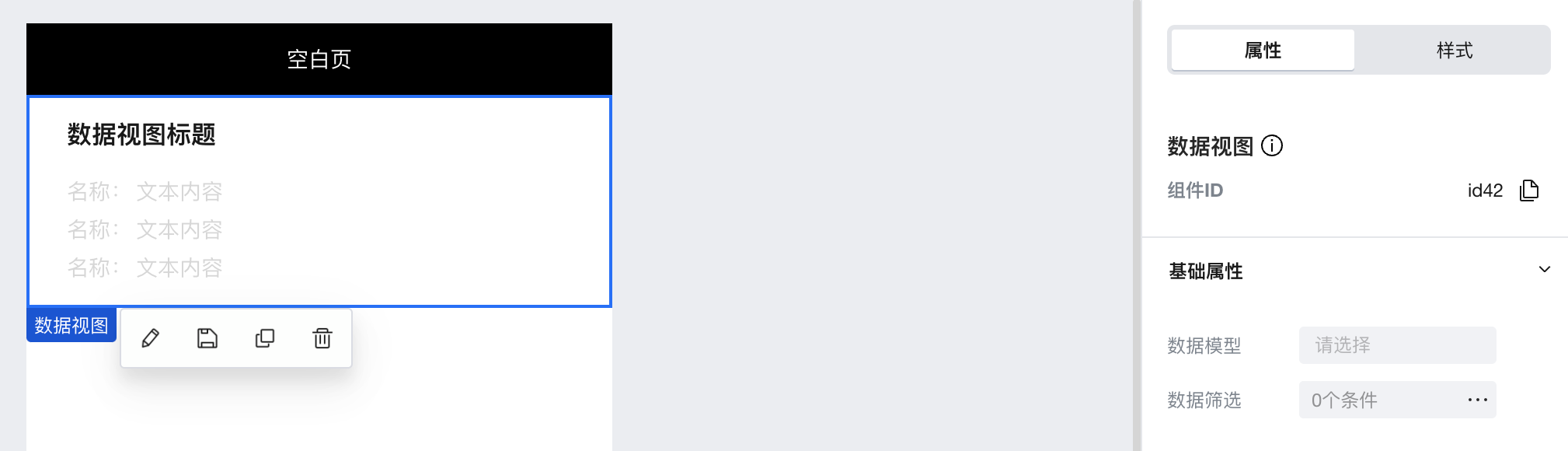
|
|
16
|
-
|
|
17
|
-
## 属性介绍
|
|
18
|
-
|
|
19
|
-
import TableLayoutView from '../../common/tableView';
|
|
20
|
-
|
|
21
|
-
<TableLayoutView
|
|
22
|
-
componentKey="DataView"
|
|
23
|
-
type="attribute"
|
|
24
|
-
origin="sourceCode"
|
|
25
|
-
></TableLayoutView>
|
|
26
|
-
|
|
27
|
-
## 事件介绍
|
|
28
|
-
|
|
29
|
-
<TableLayoutView
|
|
30
|
-
componentKey="DataView"
|
|
31
|
-
type="event"
|
|
32
|
-
origin="sourceCode"
|
|
33
|
-
></TableLayoutView>
|
|
@@ -1,33 +0,0 @@
|
|
|
1
|
-
# 数据列表
|
|
2
|
-
|
|
3
|
-
<TableLayoutView
|
|
4
|
-
componentKey="ListView"
|
|
5
|
-
type="description"
|
|
6
|
-
origin="sourceCode"
|
|
7
|
-
></TableLayoutView>
|
|
8
|
-
|
|
9
|
-
## 使用说明
|
|
10
|
-
|
|
11
|
-
1. 将组件拖入到编辑器中后,可配置绑定的数据模型,并控制数据排序顺序与数据筛选条件
|
|
12
|
-
2. 可通过「模板属性」切换不同的列表模板,满足不同的前端内部布局需求,如模板内容不满足业务需求,用户可自行在数据列表中放入其他组件,并进行布局调整
|
|
13
|
-
3. 「数据列表」组件内部的各个子组件,点击各项属性右侧的「数据绑定」按钮,可直接绑定数据模型中的字段,实现内容显示或逻辑控制
|
|
14
|
-
|
|
15
|
-
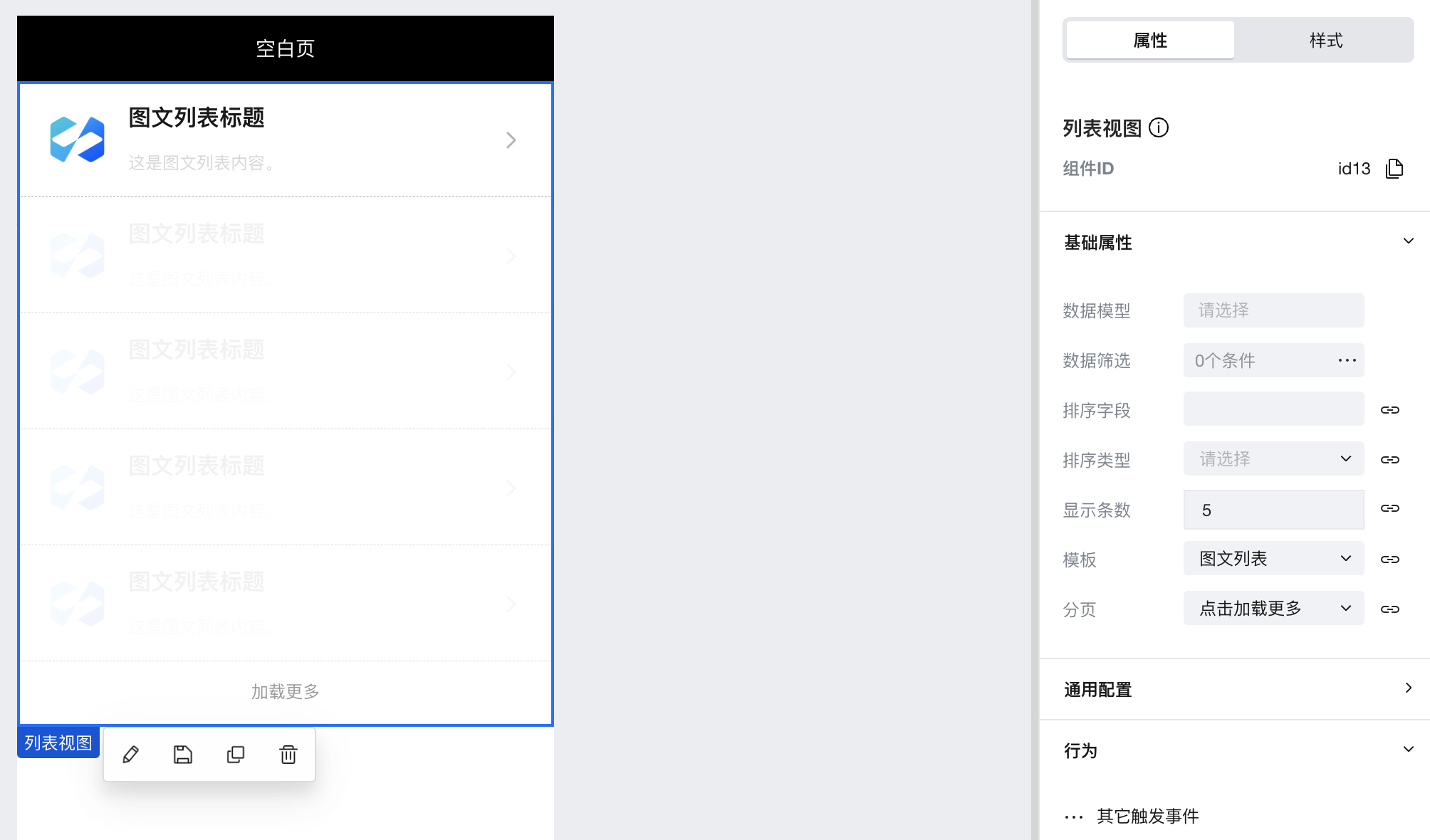
|
|
16
|
-
|
|
17
|
-
## 属性介绍
|
|
18
|
-
|
|
19
|
-
import TableLayoutView from '../../common/tableView';
|
|
20
|
-
|
|
21
|
-
<TableLayoutView
|
|
22
|
-
componentKey="ListView"
|
|
23
|
-
type="attribute"
|
|
24
|
-
origin="sourceCode"
|
|
25
|
-
></TableLayoutView>
|
|
26
|
-
|
|
27
|
-
## 事件介绍
|
|
28
|
-
|
|
29
|
-
<TableLayoutView
|
|
30
|
-
componentKey="ListView"
|
|
31
|
-
type="event"
|
|
32
|
-
origin="sourceCode"
|
|
33
|
-
></TableLayoutView>
|
|
@@ -1 +0,0 @@
|
|
|
1
|
-
{ "label": "数据容器", "position": 80 }
|
|
@@ -1,35 +0,0 @@
|
|
|
1
|
-
# 表单容器
|
|
2
|
-
|
|
3
|
-
<TableLayoutView
|
|
4
|
-
componentKey="Form"
|
|
5
|
-
type="description"
|
|
6
|
-
origin="lowCode"
|
|
7
|
-
></TableLayoutView>
|
|
8
|
-
|
|
9
|
-
## 使用说明
|
|
10
|
-
|
|
11
|
-
1. 配置「表单场景」,选择所需数据源后,表单容器会根据数据源字段类型自动生成对应的表单组件和提交按钮
|
|
12
|
-
|
|
13
|
-
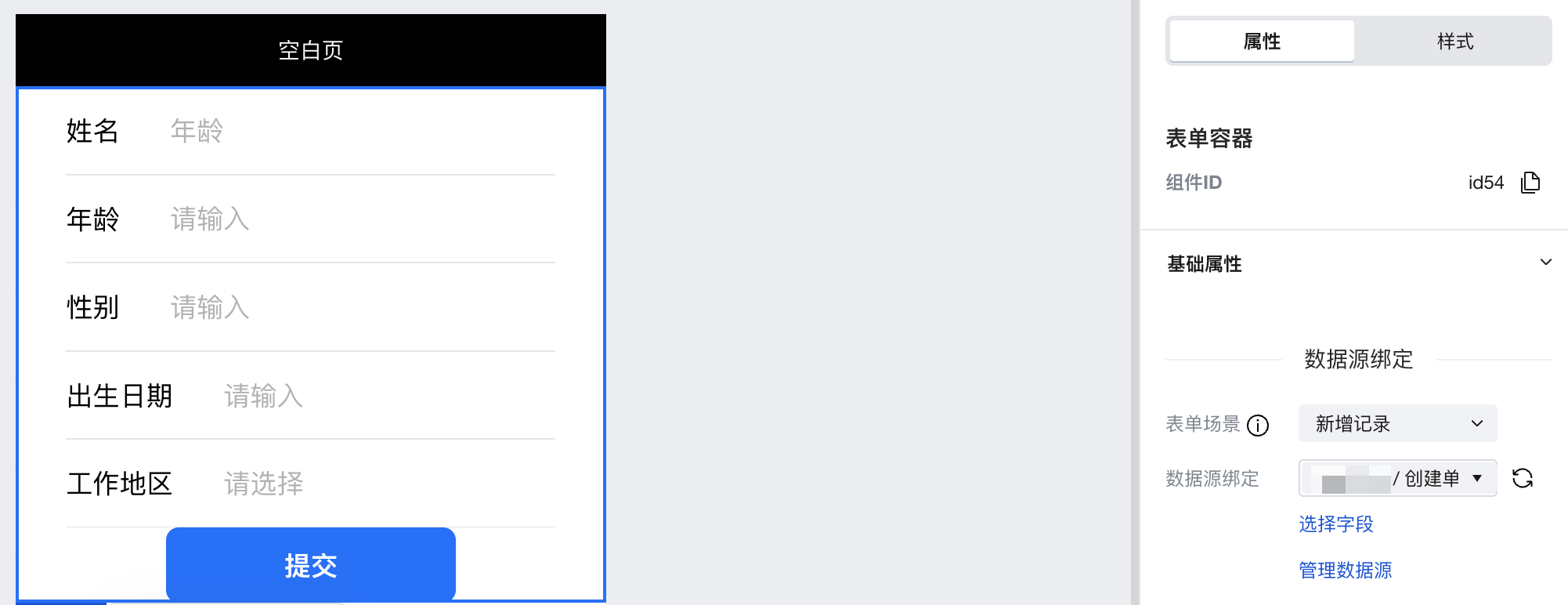
|
|
14
|
-
|
|
15
|
-
2. 如需更新数据,则需在编辑器中创建初始化方法为「单条更新」的模型变量,并在组件「表单场景」中选择新增记录场景,并绑定该变量
|
|
16
|
-
|
|
17
|
-
3. 「表单初始值」属性用于渲染表单内容的初始值,仅页面加载时有效,后续调整该值将不再生效
|
|
18
|
-
|
|
19
|
-
## 属性介绍
|
|
20
|
-
|
|
21
|
-
import TableLayoutView from '../../common/tableView';
|
|
22
|
-
|
|
23
|
-
<TableLayoutView
|
|
24
|
-
componentKey="Form"
|
|
25
|
-
type="attribute"
|
|
26
|
-
origin="lowCode"
|
|
27
|
-
></TableLayoutView>
|
|
28
|
-
|
|
29
|
-
## 事件介绍
|
|
30
|
-
|
|
31
|
-
<TableLayoutView
|
|
32
|
-
componentKey="Form"
|
|
33
|
-
type="event"
|
|
34
|
-
origin="lowCode"
|
|
35
|
-
></TableLayoutView>
|
|
@@ -1,35 +0,0 @@
|
|
|
1
|
-
# 多选
|
|
2
|
-
|
|
3
|
-
<TableLayoutView
|
|
4
|
-
componentKey="FormCheckbox"
|
|
5
|
-
type="description"
|
|
6
|
-
origin="lowCode"
|
|
7
|
-
></TableLayoutView>
|
|
8
|
-
|
|
9
|
-
## 使用说明
|
|
10
|
-
|
|
11
|
-
1. 放入「表单容器」组件后,可实现数据源数据的提交与显示
|
|
12
|
-
|
|
13
|
-
2. 当父级表单容器组件已经绑定数据源后,利用「字段绑定」属性可绑定该数据源中的字段,实现新增/查看/更新对应字段的数据
|
|
14
|
-
|
|
15
|
-
3. 点击选项列表的「绑定数据源」按钮,启用数据源绑定模式,可绑定数组格式的变量,实现选项数据的动态渲染
|
|
16
|
-
|
|
17
|
-

|
|
18
|
-
|
|
19
|
-
## 属性介绍
|
|
20
|
-
|
|
21
|
-
import TableLayoutView from '../../common/tableView';
|
|
22
|
-
|
|
23
|
-
<TableLayoutView
|
|
24
|
-
componentKey="FormCheckbox"
|
|
25
|
-
type="attribute"
|
|
26
|
-
origin="lowCode"
|
|
27
|
-
></TableLayoutView>
|
|
28
|
-
|
|
29
|
-
## 事件介绍
|
|
30
|
-
|
|
31
|
-
<TableLayoutView
|
|
32
|
-
componentKey="FormCheckbox"
|
|
33
|
-
type="event"
|
|
34
|
-
origin="lowCode"
|
|
35
|
-
></TableLayoutView>
|
|
@@ -1,30 +0,0 @@
|
|
|
1
|
-
# 日期选择
|
|
2
|
-
|
|
3
|
-
<TableLayoutView
|
|
4
|
-
componentKey="FormDate"
|
|
5
|
-
type="description"
|
|
6
|
-
origin="lowCode"
|
|
7
|
-
></TableLayoutView>
|
|
8
|
-
|
|
9
|
-
## 使用说明
|
|
10
|
-
|
|
11
|
-
1. 放入「表单容器」组件后,可实现数据源数据的提交与显示
|
|
12
|
-
2. 当父级表单容器组件已经绑定数据源后,利用「字段绑定」属性可绑定该数据源中的字段,实现新增/查看/更新对应字段的数据
|
|
13
|
-
|
|
14
|
-
## 属性介绍
|
|
15
|
-
|
|
16
|
-
import TableLayoutView from '../../common/tableView';
|
|
17
|
-
|
|
18
|
-
<TableLayoutView
|
|
19
|
-
componentKey="FormDate"
|
|
20
|
-
type="attribute"
|
|
21
|
-
origin="lowCode"
|
|
22
|
-
></TableLayoutView>
|
|
23
|
-
|
|
24
|
-
## 事件介绍
|
|
25
|
-
|
|
26
|
-
<TableLayoutView
|
|
27
|
-
componentKey="FormDate"
|
|
28
|
-
type="event"
|
|
29
|
-
origin="lowCode"
|
|
30
|
-
></TableLayoutView>
|
|
@@ -1,30 +0,0 @@
|
|
|
1
|
-
# 表单邮箱
|
|
2
|
-
|
|
3
|
-
<TableLayoutView
|
|
4
|
-
componentKey="FormEmail"
|
|
5
|
-
type="description"
|
|
6
|
-
origin="lowCode"
|
|
7
|
-
></TableLayoutView>
|
|
8
|
-
|
|
9
|
-
## 使用说明
|
|
10
|
-
|
|
11
|
-
1. 放入「表单容器」组件后,可实现数据源数据的提交与显示
|
|
12
|
-
2. 当父级表单容器组件已经绑定数据源后,利用「字段绑定」属性可绑定该数据源中的字段,实现新增/查看/更新对应字段的数据
|
|
13
|
-
|
|
14
|
-
## 属性介绍
|
|
15
|
-
|
|
16
|
-
import TableLayoutView from '../../common/tableView';
|
|
17
|
-
|
|
18
|
-
<TableLayoutView
|
|
19
|
-
componentKey="FormEmail"
|
|
20
|
-
type="attribute"
|
|
21
|
-
origin="lowCode"
|
|
22
|
-
></TableLayoutView>
|
|
23
|
-
|
|
24
|
-
## 事件介绍
|
|
25
|
-
|
|
26
|
-
<TableLayoutView
|
|
27
|
-
componentKey="FormEmail"
|
|
28
|
-
type="event"
|
|
29
|
-
origin="lowCode"
|
|
30
|
-
></TableLayoutView>
|
|
@@ -1,31 +0,0 @@
|
|
|
1
|
-
# 图片上传
|
|
2
|
-
|
|
3
|
-
<TableLayoutView
|
|
4
|
-
componentKey="FormImageUploader"
|
|
5
|
-
type="description"
|
|
6
|
-
origin="lowCode"
|
|
7
|
-
></TableLayoutView>
|
|
8
|
-
|
|
9
|
-
## 使用说明
|
|
10
|
-
|
|
11
|
-
1. 放入「表单容器」组件后,可实现数据源数据的提交与显示
|
|
12
|
-
2. 当父级表单容器组件已经绑定数据源后,利用「字段绑定」属性可绑定该数据源中的字段,实现新增/查看/更新对应字段的数据
|
|
13
|
-
3. 字段绑定属性选择的字段为「图片」类型时,仅允许上传单张图片;选择的字段为数组类型,并且该数组的元素类型为图片时,允许上传多张图片
|
|
14
|
-
|
|
15
|
-
## 属性介绍
|
|
16
|
-
|
|
17
|
-
import TableLayoutView from '../../common/tableView';
|
|
18
|
-
|
|
19
|
-
<TableLayoutView
|
|
20
|
-
componentKey="FormImageUploader"
|
|
21
|
-
type="attribute"
|
|
22
|
-
origin="lowCode"
|
|
23
|
-
></TableLayoutView>
|
|
24
|
-
|
|
25
|
-
## 事件介绍
|
|
26
|
-
|
|
27
|
-
<TableLayoutView
|
|
28
|
-
componentKey="FormImageUploader"
|
|
29
|
-
type="event"
|
|
30
|
-
origin="lowCode"
|
|
31
|
-
></TableLayoutView>
|
|
@@ -1,30 +0,0 @@
|
|
|
1
|
-
# 单行输入
|
|
2
|
-
|
|
3
|
-
<TableLayoutView
|
|
4
|
-
componentKey="FormInput"
|
|
5
|
-
type="description"
|
|
6
|
-
origin="lowCode"
|
|
7
|
-
></TableLayoutView>
|
|
8
|
-
|
|
9
|
-
## 使用说明
|
|
10
|
-
|
|
11
|
-
1. 放入「表单容器」组件后,可实现数据源数据的提交与显示
|
|
12
|
-
2. 当父级表单容器组件已经绑定数据源后,利用「字段绑定」属性可绑定该数据源中的字段,实现新增/查看/更新对应字段的数据
|
|
13
|
-
|
|
14
|
-
## 属性介绍
|
|
15
|
-
|
|
16
|
-
import TableLayoutView from '../../common/tableView';
|
|
17
|
-
|
|
18
|
-
<TableLayoutView
|
|
19
|
-
componentKey="FormInput"
|
|
20
|
-
type="attribute"
|
|
21
|
-
origin="lowCode"
|
|
22
|
-
></TableLayoutView>
|
|
23
|
-
|
|
24
|
-
## 事件介绍
|
|
25
|
-
|
|
26
|
-
<TableLayoutView
|
|
27
|
-
componentKey="FormInput"
|
|
28
|
-
type="event"
|
|
29
|
-
origin="lowCode"
|
|
30
|
-
></TableLayoutView>
|