@alan-ai-hq/agent-manager-linux-x64 0.1.199 → 0.1.201
This diff represents the content of publicly available package versions that have been released to one of the supported registries. The information contained in this diff is provided for informational purposes only and reflects changes between package versions as they appear in their respective public registries.
- package/alan-agent.cjs +8928 -5241
- package/alan-holder.cjs +5364 -3401
- package/alan-lease.cjs +808 -200
- package/builtin-skills/agent-desktop/SKILL.md +94 -0
- package/builtin-skills/alan-artifact/SKILL.md +128 -0
- package/builtin-skills/alan-artifact/examples/interactive-diagram.md +50 -0
- package/builtin-skills/alan-artifact/examples/prototype.md +53 -0
- package/builtin-skills/alan-artifact/examples/test-report.md +55 -0
- package/builtin-skills/alan-artifact/references/design.md +39 -0
- package/builtin-skills/alan-artifact/references/diagrams.md +20 -0
- package/builtin-skills/alan-deck/SKILL.md +189 -0
- package/builtin-skills/alan-diagrams/SKILL.md +105 -0
- package/builtin-skills/alan-diagrams/references/diagram-catalogue.md +847 -0
- package/builtin-skills/alan-docs/SKILL.md +143 -0
- package/builtin-skills/alan-docs/references/administration/members-and-teams.md +48 -0
- package/builtin-skills/alan-docs/references/administration/org-dashboard.md +19 -0
- package/builtin-skills/alan-docs/references/administration/organisation-settings.md +41 -0
- package/builtin-skills/alan-docs/references/agents-and-sessions/code-context.md +60 -0
- package/builtin-skills/alan-docs/references/agents-and-sessions/coding-agents-and-models.md +78 -0
- package/builtin-skills/alan-docs/references/agents-and-sessions/session-lifecycle.md +62 -0
- package/builtin-skills/alan-docs/references/agents-and-sessions/start-a-session.md +110 -0
- package/builtin-skills/alan-docs/references/automations/automation-runs.md +69 -0
- package/builtin-skills/alan-docs/references/automations/create-an-automation.md +143 -0
- package/builtin-skills/alan-docs/references/automations/overview.md +77 -0
- package/builtin-skills/alan-docs/references/cloud-and-local/cloud-images.md +64 -0
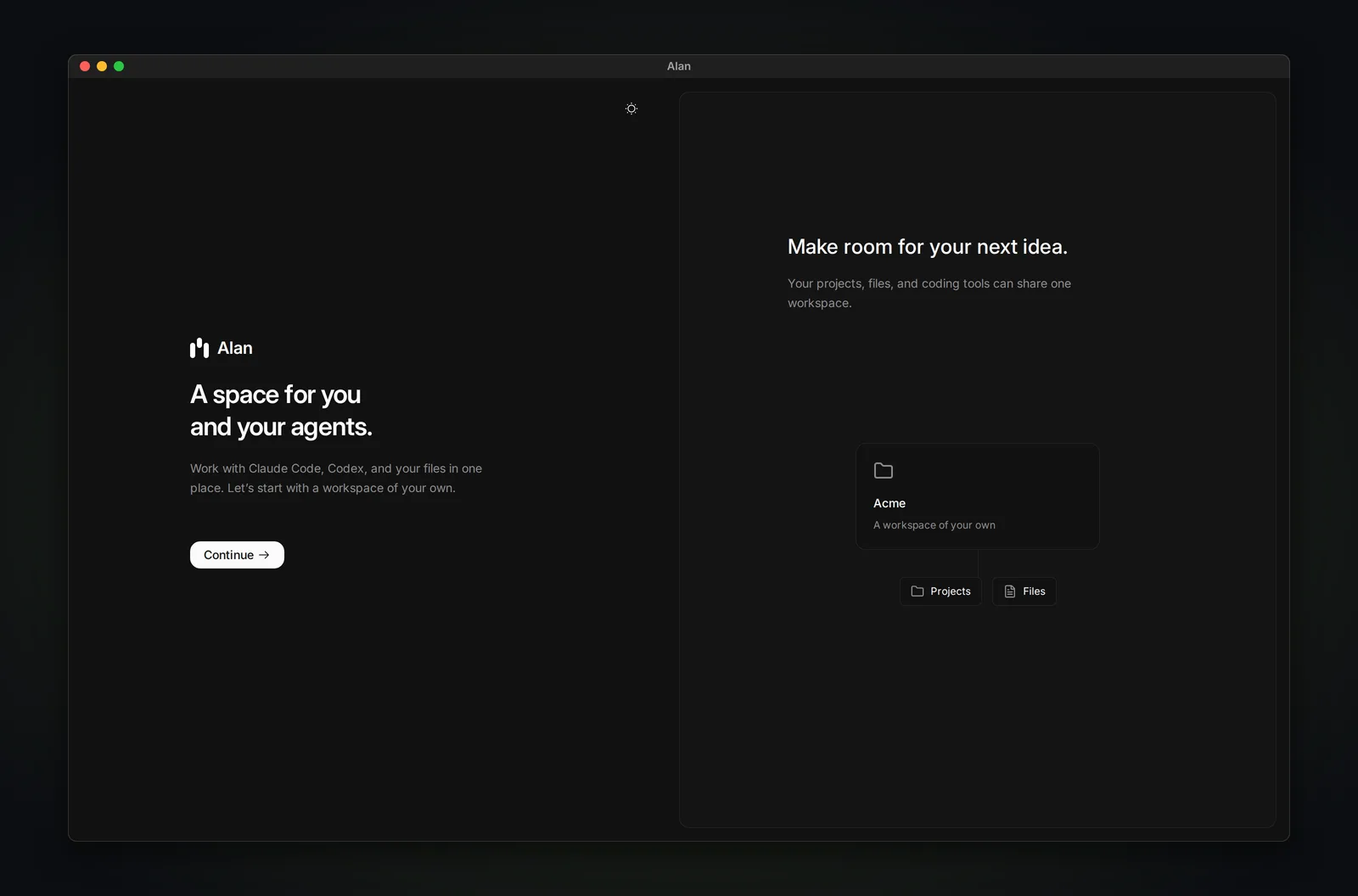
- package/builtin-skills/alan-docs/references/cloud-and-local/cloud-sessions-and-execution.md +89 -0
- package/builtin-skills/alan-docs/references/cloud-and-local/cloud-setup.md +128 -0
- package/builtin-skills/alan-docs/references/cloud-and-local/codex-cli-connector.md +92 -0
- package/builtin-skills/alan-docs/references/cloud-and-local/local-execution.md +213 -0
- package/builtin-skills/alan-docs/references/cloud-and-local/runtime-recovery.md +60 -0
- package/builtin-skills/alan-docs/references/cloud-and-local/sandboxes.md +74 -0
- package/builtin-skills/alan-docs/references/cloud-and-local/troubleshooting-and-faq.md +102 -0
- package/builtin-skills/alan-docs/references/get-started/connect-azure-devops.md +89 -0
- package/builtin-skills/alan-docs/references/get-started/connect-bitbucket.md +86 -0
- package/builtin-skills/alan-docs/references/get-started/connect-github.md +114 -0
- package/builtin-skills/alan-docs/references/get-started/join-a-team.md +114 -0
- package/builtin-skills/alan-docs/references/get-started/product-map.md +96 -0
- package/builtin-skills/alan-docs/references/get-started/quickstart.md +158 -0
- package/builtin-skills/alan-docs/references/get-started/set-up-your-team.md +200 -0
- package/builtin-skills/alan-docs/references/get-started/sign-in.md +104 -0
- package/builtin-skills/alan-docs/references/get-started/welcome.md +39 -0
- package/builtin-skills/alan-docs/references/integrations/connect-microsoft-teams.md +116 -0
- package/builtin-skills/alan-docs/references/integrations/connect-slack.md +164 -0
- package/builtin-skills/alan-docs/references/integrations/import-from-linear.md +172 -0
- package/builtin-skills/alan-docs/references/plans-and-billing/plans-and-limits.md +115 -0
- package/builtin-skills/alan-docs/references/plans-and-billing/usage-and-credits.md +47 -0
- package/builtin-skills/alan-docs/references/reference/documents-and-artifacts.md +52 -0
- package/builtin-skills/alan-docs/references/reference/faq.md +89 -0
- package/builtin-skills/alan-docs/references/reference/feature-catalog.md +89 -0
- package/builtin-skills/alan-docs/references/reference/glossary.md +96 -0
- package/builtin-skills/alan-docs/references/reference/links-and-ids.md +80 -0
- package/builtin-skills/alan-docs/references/reference/roles-and-permissions.md +64 -0
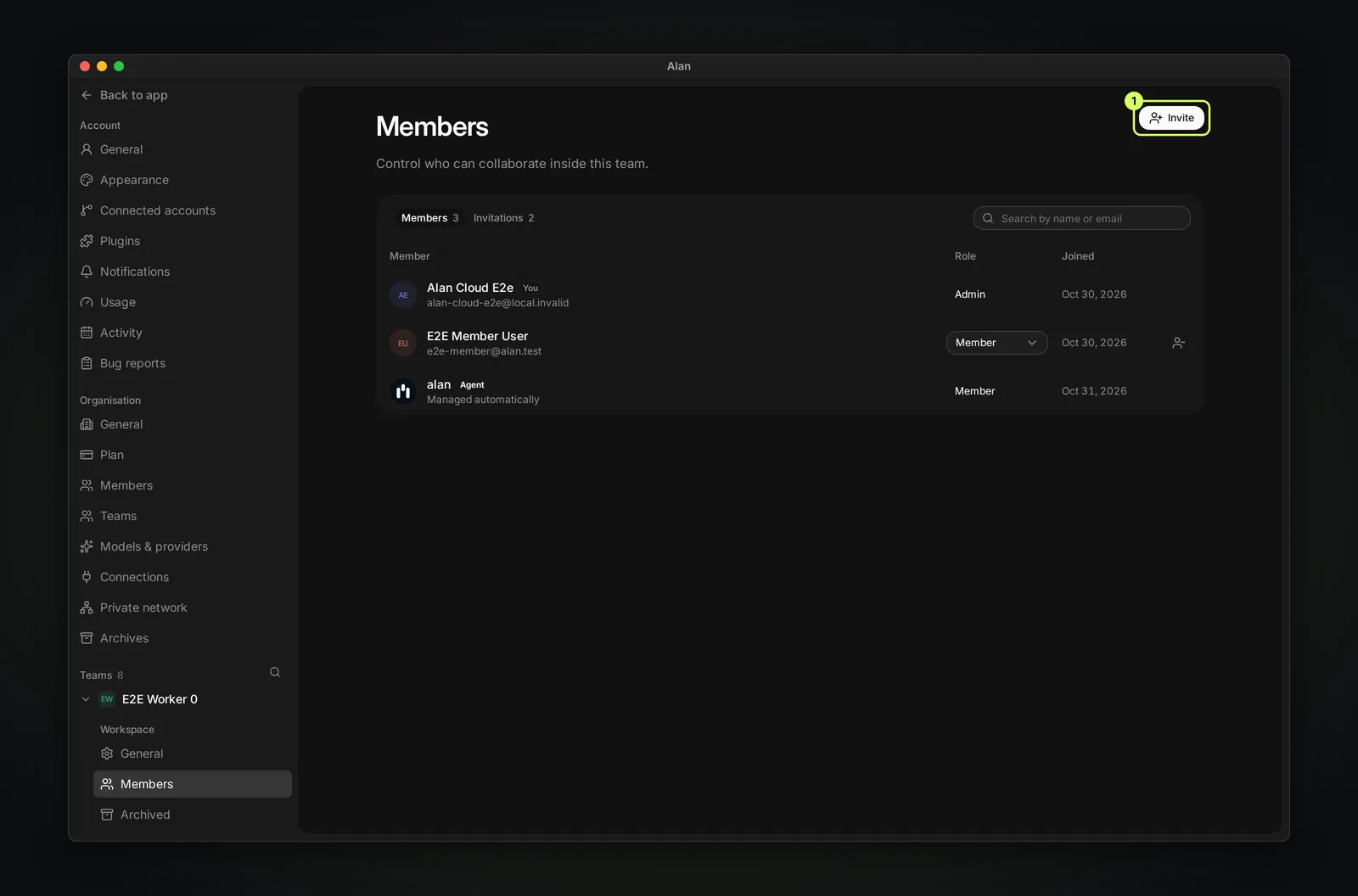
- package/builtin-skills/alan-docs/references/reference/statuses.md +86 -0
- package/builtin-skills/alan-docs/references/reviews-testing-deploys/deployments.md +28 -0
- package/builtin-skills/alan-docs/references/reviews-testing-deploys/pull-requests.md +85 -0
- package/builtin-skills/alan-docs/references/reviews-testing-deploys/review-work.md +55 -0
- package/builtin-skills/alan-docs/references/reviews-testing-deploys/testing-evidence.md +52 -0
- package/builtin-skills/alan-docs/references/skills/plugins-and-mcp.md +24 -0
- package/builtin-skills/alan-docs/references/skills/skills.md +103 -0
- package/builtin-skills/alan-docs/references/tasks/complete-a-task.md +79 -0
- package/builtin-skills/alan-docs/references/tasks/create-a-task.md +67 -0
- package/builtin-skills/alan-docs/references/tasks/subtasks-and-status.md +55 -0
- package/builtin-skills/alan-docs/references/tasks/task-artifacts.md +56 -0
- package/builtin-skills/alan-docs/references/tasks/task-detail.md +65 -0
- package/builtin-skills/alan-docs/references/teams-and-planning/cycles.md +93 -0
- package/builtin-skills/alan-docs/references/teams-and-planning/documents.md +66 -0
- package/builtin-skills/alan-docs/references/teams-and-planning/epics.md +95 -0
- package/builtin-skills/alan-docs/references/teams-and-planning/whiteboard.md +52 -0
- package/builtin-skills/alan-docs/references/troubleshooting/agent-blocked.md +38 -0
- package/builtin-skills/alan-docs/references/troubleshooting/common-problems.md +118 -0
- package/builtin-skills/alan-docs/references/troubleshooting/github-access.md +41 -0
- package/builtin-skills/alan-docs/references/troubleshooting/missing-artifact.md +47 -0
- package/builtin-skills/alan-docs/references/troubleshooting/report-an-issue.md +74 -0
- package/builtin-skills/alan-docs/references/troubleshooting/runtime-unavailable.md +49 -0
- package/builtin-skills/alan-docs/scripts/generate-references.mjs +363 -0
- package/builtin-skills/alan-environment-setup/SKILL.md +368 -0
- package/builtin-skills/alan-environment-setup/references/android.md +118 -0
- package/builtin-skills/alan-environment-setup/references/troubleshooting.md +38 -0
- package/builtin-skills/alan-skill-authoring/SKILL.md +83 -0
- package/builtin-skills/alan-tasks/SKILL.md +195 -0
- package/builtin-skills/alan-test-android/SKILL.md +224 -0
- package/builtin-skills/alan-test-android/scripts/android-up.sh +227 -0
- package/builtin-skills/alan-test-android/scripts/install-launch.sh +38 -0
- package/builtin-skills/alan-test-android/scripts/record.sh +64 -0
- package/builtin-skills/alan-test-android/scripts/ui.py +367 -0
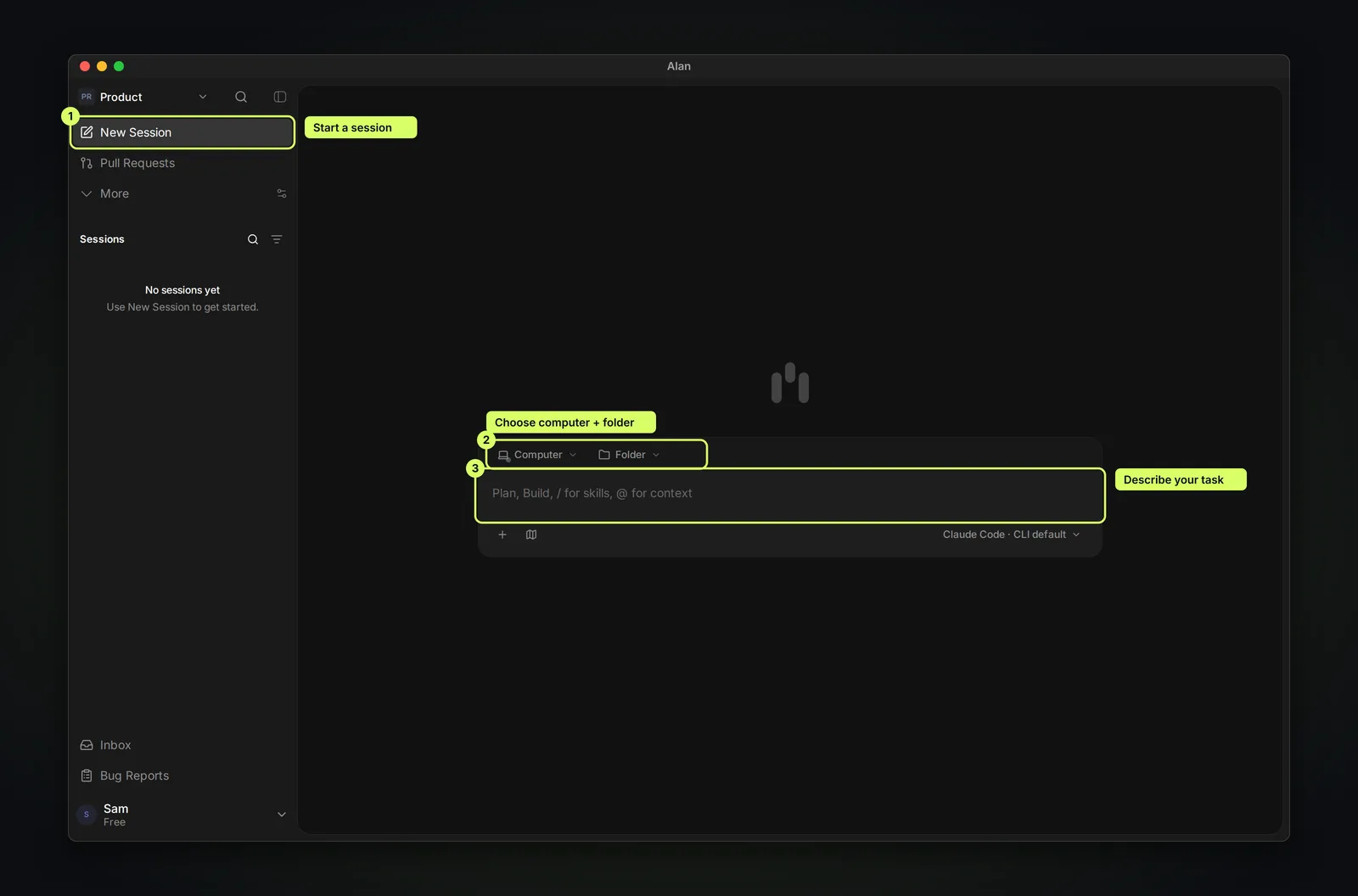
- package/builtin-skills/alan-test-desktop/SKILL.md +107 -0
- package/builtin-skills/alan-test-desktop/references/linux-recording.md +31 -0
- package/builtin-skills/alan-test-feature/SKILL.md +243 -0
- package/builtin-skills/alan-test-mobile/SKILL.md +65 -0
- package/builtin-skills/alan-test-web/SKILL.md +113 -0
- package/builtin-skills/alan-walkthrough/SKILL.md +152 -0
- package/builtin-skills/alan-walkthrough/scripts/mark-changes.js +419 -0
- package/builtin-skills/alan-walkthrough/scripts/publish-capture.mjs +288 -0
- package/builtin-skills/alan-workflows/SKILL.md +235 -0
- package/builtin-skills/manifest.json +19 -0
- package/package.json +3 -2
|
@@ -0,0 +1,200 @@
|
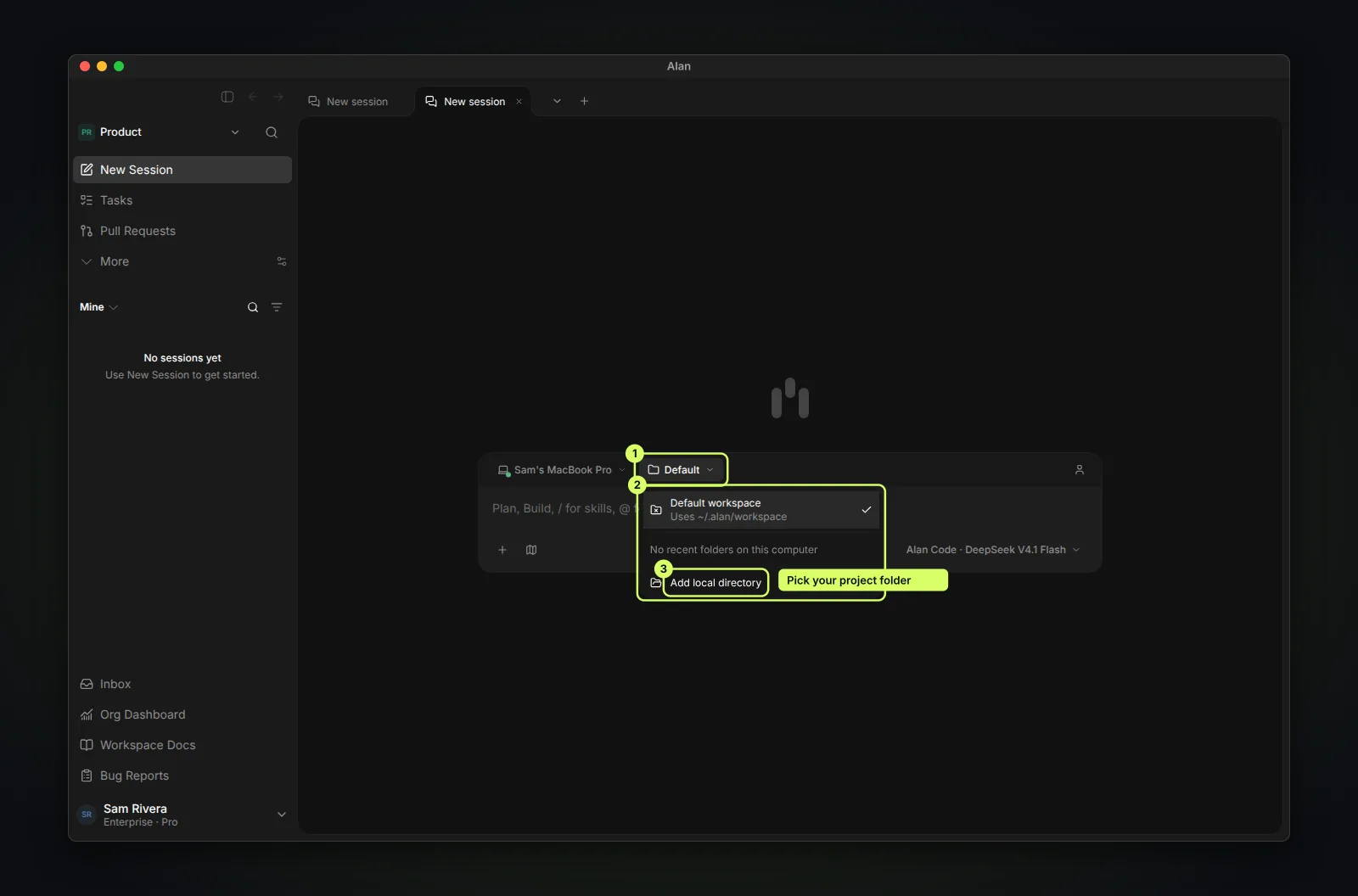
|
|
1
|
+
> Source: [https://docs.tryalan.ai/docs/get-started/set-up-your-team](https://docs.tryalan.ai/docs/get-started/set-up-your-team)
|
|
2
|
+
|
|
3
|
+
# Set up your team
|
|
4
|
+
|
|
5
|
+
This page helps an admin set up a team. It starts with a new organisation and ends with the first task assigned to a teammate.
|
|
6
|
+
|
|
7
|
+
An organisation is your company's account in Alan. It holds your plan and your GitHub connection. A team is a group of people in the organisation. A task is a piece of work that you can assign to a teammate. Do the steps in order. Each step links to a page with more detail.
|
|
8
|
+
|
|
9
|
+
## Before you start
|
|
10
|
+
|
|
11
|
+
- You have finished onboarding. See [Sign in and finish onboarding](sign-in.md).
|
|
12
|
+
- You are an **organisation admin**. Only organisation admins can change the plan and connect GitHub. Steps 1 and 3 need this role.
|
|
13
|
+
- You know the email addresses of the people you want to invite.
|
|
14
|
+
|
|
15
|
+
## How to open settings
|
|
16
|
+
|
|
17
|
+
You use settings in most steps below.
|
|
18
|
+
|
|
19
|
+
1. In the sidebar, open your account menu.
|
|
20
|
+
2. Choose **Settings**.
|
|
21
|
+
|
|
22
|
+
The settings menu has an **Account** group. If you are an organisation admin, it also has an **Organisation** group. Under **Teams**, it lists each of your teams. Choose a team to open its settings.
|
|
23
|
+
|
|
24
|
+
## 1. Choose a plan that allows a team
|
|
25
|
+
|
|
26
|
+
If your organisation already has the **Team** or **Enterprise** tier, skip to step 2. The Plan page then shows your current tier and seats.
|
|
27
|
+
|
|
28
|
+
To invite other people, your plan must include **Add members**. The **Team** and **Enterprise** tiers include it. The **Free** and **Individual** tiers are for one person.
|
|
29
|
+
|
|
30
|
+
**1. Open the Plan page**
|
|
31
|
+
|
|
32
|
+
In settings, choose **Organisation → Plan**. You see **Feature tiers**.
|
|
33
|
+
|
|
34
|
+
**2. Set the number of seats**
|
|
35
|
+
|
|
36
|
+
Under **Feature tiers**, find the **Team** tier. Set **Seats** to the number of members. Each member needs one seat.
|
|
37
|
+
|
|
38
|
+
**3. Choose a usage plan**
|
|
39
|
+
|
|
40
|
+
Below the seats, you see usage plan cards. A usage plan sets the price per seat and how much AI model use each seat includes. Choose **Subscribe** on the card that you want. The payment page opens.
|
|
41
|
+
|
|
42
|
+
**4. Pay**
|
|
43
|
+
|
|
44
|
+
Complete the payment. You return to the Plan page.
|
|
45
|
+
|
|
46
|
+
For the **Enterprise** tier, choose **Talk to sales** if it is shown. The Plan page shows the current prices and what each tier includes. To compare tiers, see [Plans and limits](../plans-and-billing/plans-and-limits.md).
|
|
47
|
+
|
|
48
|
+
## 2. Invite people to the team
|
|
49
|
+
|
|
50
|
+
|
|
51
|
+
|
|
52
|
+
**1. Open the team's settings**
|
|
53
|
+
|
|
54
|
+
In settings, under **Teams**, choose your team. You see the team's settings groups.
|
|
55
|
+
|
|
56
|
+
**2. Open Members**
|
|
57
|
+
|
|
58
|
+
Choose **Members**. You see the team's member list.
|
|
59
|
+
|
|
60
|
+
**3. Choose Invite**
|
|
61
|
+
|
|
62
|
+
Choose **Invite** (1). The **Invite team members** window opens.
|
|
63
|
+
|
|
64
|
+
**4. Add email addresses**
|
|
65
|
+
|
|
66
|
+
Type an email address under **Email addresses**. Press **Enter**. Repeat for each person that you want to invite.
|
|
67
|
+
|
|
68
|
+
**5. Choose a role**
|
|
69
|
+
|
|
70
|
+
Choose **Member** or **Admin**. A team admin can manage the team's members and invitations.
|
|
71
|
+
|
|
72
|
+
**6. Send the invitations**
|
|
73
|
+
|
|
74
|
+
Choose **Send invitations**. Alan shows a message such as **Sent 2 invitations.**
|
|
75
|
+
|
|
76
|
+
You do not need to buy seats before you invite people. When you subscribe, you need one seat for each member. If someone joins after all your seats are used, they still join. Their seat starts with no usage plan.
|
|
77
|
+
|
|
78
|
+
People who are new to Alan get an email with a link. The link works for 7 days. Until they accept, they appear on the **Invitations** tab. People who are already in your organisation join the team at once.
|
|
79
|
+
|
|
80
|
+
You can also invite people during onboarding, on the **Invite your team** screen.
|
|
81
|
+
|
|
82
|
+
Organisation admins can also invite people from **Organisation → Members**. That invitation adds the person to the organisation, but not to a team. To give someone a team, invite them from the team's **Members** page as shown above.
|
|
83
|
+
|
|
84
|
+
To learn what invited people see, see [Join a team](join-a-team.md). To learn about roles, see [Members and teams](../administration/members-and-teams.md).
|
|
85
|
+
|
|
86
|
+
## 3. Connect your code
|
|
87
|
+
|
|
88
|
+
Agents are AI tools that work on your code. They need access to your repositories. A repository (repo) is the place where your project's code is stored, for example on GitHub.
|
|
89
|
+
|
|
90
|
+
**1. Open Connections**
|
|
91
|
+
|
|
92
|
+
In settings, choose **Organisation → Connections**. You see a list of services.
|
|
93
|
+
|
|
94
|
+
**2. Choose GitHub**
|
|
95
|
+
|
|
96
|
+
Choose GitHub. You see the GitHub connection page.
|
|
97
|
+
|
|
98
|
+
**3. Connect GitHub**
|
|
99
|
+
|
|
100
|
+
Choose **Connect**. GitHub opens. Finish the steps there. See [Connect GitHub](connect-github.md) for each step.
|
|
101
|
+
|
|
102
|
+
**4. Open the team's integrations**
|
|
103
|
+
|
|
104
|
+
In the team's settings, choose **Integrations**. You see a GitHub card.
|
|
105
|
+
|
|
106
|
+
**5. Add a repository**
|
|
107
|
+
|
|
108
|
+
On the GitHub card, choose **Add repo**. Then choose the repository. Alan shows **Repository added**.
|
|
109
|
+
|
|
110
|
+
Any team member can add a repository after GitHub is connected. You can also connect [Bitbucket](connect-bitbucket.md) or [Azure DevOps](connect-azure-devops.md).
|
|
111
|
+
|
|
112
|
+
## 4. Set up the cloud environment
|
|
113
|
+
|
|
114
|
+
A cloud environment is a computer that Alan runs in the cloud for your team. Agents use it to work on your repositories when your own computer is off.
|
|
115
|
+
|
|
116
|
+
1. In the team's settings, choose **Cloud Environment**.
|
|
117
|
+
2. If you see **No cloud environment yet**, choose **New Session** in the sidebar.
|
|
118
|
+
3. At the top of the message box, open the target menu. The target is the place where the agent runs.
|
|
119
|
+
4. Choose **Cloud**, even if the target button already shows **Cloud**. Alan creates the team's environment.
|
|
120
|
+
|
|
121
|
+
To set up the environment so that your project builds and runs, see [Cloud setup](../cloud-and-local/cloud-setup.md).
|
|
122
|
+
|
|
123
|
+
Your team can skip this step if everyone runs agents on their own computers. See [Local execution](../cloud-and-local/local-execution.md).
|
|
124
|
+
|
|
125
|
+
## 5. Turn on Tasks
|
|
126
|
+
|
|
127
|
+
Tasks are off for a new team. While they are off, nobody in the team sees **Tasks** in the sidebar.
|
|
128
|
+
|
|
129
|
+
1. In the team's settings, choose **Tasks**.
|
|
130
|
+
2. Turn on **Enable tasks**. Alan shows **Tasks enabled**.
|
|
131
|
+
|
|
132
|
+
Any team member can turn Tasks on or off.
|
|
133
|
+
|
|
134
|
+
## 6. Create the first task and assign it
|
|
135
|
+
|
|
136
|
+
You can assign a task only to people who are already on the team. Wait until your teammate accepts the invitation.
|
|
137
|
+
|
|
138
|
+
**1. Open the task list**
|
|
139
|
+
|
|
140
|
+
In the sidebar, choose **Tasks**. You see the team's task list.
|
|
141
|
+
|
|
142
|
+
**2. Open the Create task window**
|
|
143
|
+
|
|
144
|
+
Choose **New task**, the **+** button at the top right of the task list. The **Create task** window opens.
|
|
145
|
+
|
|
146
|
+
**3. Switch to manual mode**
|
|
147
|
+
|
|
148
|
+
Choose **Switch to manual**. You see the task fields and a row of buttons below them.
|
|
149
|
+
|
|
150
|
+
**4. Describe the work**
|
|
151
|
+
|
|
152
|
+
Type a **Task title** and a description of the work. See [Create a task](../tasks/create-a-task.md).
|
|
153
|
+
|
|
154
|
+
**5. Open the assignee list**
|
|
155
|
+
|
|
156
|
+
Choose **Add assignee**. A list of team members opens.
|
|
157
|
+
|
|
158
|
+
**6. Choose the assignee**
|
|
159
|
+
|
|
160
|
+
Choose your teammate's name. The name appears on the task.
|
|
161
|
+
|
|
162
|
+
**7. Save the task**
|
|
163
|
+
|
|
164
|
+
Choose **Create task**. The task appears in the list, assigned to your teammate.
|
|
165
|
+
|
|
166
|
+
Your team is ready. Your teammate can now open the task and start work on it.
|
|
167
|
+
|
|
168
|
+
## If something goes wrong
|
|
169
|
+
|
|
170
|
+
**I don't see the Organisation group in settings**
|
|
171
|
+
|
|
172
|
+
You are not an organisation admin. Ask an organisation admin to do steps 1 and 3, or to make you an admin.
|
|
173
|
+
|
|
174
|
+
**There is no Invite button, or no Members item**
|
|
175
|
+
|
|
176
|
+
There are two possible reasons:
|
|
177
|
+
|
|
178
|
+
- The team's settings have no **Members** item. Your plan does not include **Add members**. Ask an organisation admin to change the plan.
|
|
179
|
+
- The **Members** page has no **Invite** button. Your team role is **Member**. Ask a team admin or an organisation admin to make you a team admin.
|
|
180
|
+
|
|
181
|
+
**'Assign work to others is not included in the organization's plan'**
|
|
182
|
+
|
|
183
|
+
Your plan does not allow you to assign tasks to other people. The **Team** and **Enterprise** tiers allow it. Ask an organisation admin to change the plan.
|
|
184
|
+
|
|
185
|
+
**'Ask an organization admin to connect GitHub'**
|
|
186
|
+
|
|
187
|
+
On the Team and Enterprise tiers, only organisation admins can connect GitHub. Ask one of them to do step 3.
|
|
188
|
+
|
|
189
|
+
**My teammate is not in the assignee list**
|
|
190
|
+
|
|
191
|
+
Your teammate has not accepted the invitation yet. Check the **Invitations** tab on the team's **Members** page. Ask them to accept it.
|
|
192
|
+
|
|
193
|
+
**'Cloud access is not included in this organisation's plan.'**
|
|
194
|
+
|
|
195
|
+
Your plan does not include cloud execution. Ask an organisation admin to change the plan, or run agents on your own computers.
|
|
196
|
+
|
|
197
|
+
## Next
|
|
198
|
+
|
|
199
|
+
- [Join a team](join-a-team.md) — See what your invited teammates do next.
|
|
200
|
+
- [Complete a task](../tasks/complete-a-task.md) — Take a task from start to done with an agent.
|
|
@@ -0,0 +1,104 @@
|
|
|
1
|
+
> Source: [https://docs.tryalan.ai/docs/get-started/sign-in](https://docs.tryalan.ai/docs/get-started/sign-in)
|
|
2
|
+
|
|
3
|
+
# Sign in and first run
|
|
4
|
+
|
|
5
|
+
This page covers the first time you open Alan: how sign-in works, what the onboarding wizard asks, and where it leaves you.
|
|
6
|
+
|
|
7
|
+
## Sign in
|
|
8
|
+
|
|
9
|
+
Alan uses a hosted sign-in page. Enter your email address, choose **Continue with email**, then enter the one-time code sent to your inbox. You return to Alan once you are signed in.
|
|
10
|
+
|
|
11
|
+
> **Note:** Use any other sign-in method shown on the hosted page. Available methods depend on your organization's sign-in settings.
|
|
12
|
+
|
|
13
|
+
If a teammate invited you, open the invite link from your email. Sign in with the **same email address** the invite was sent to; Alan shows a mismatch warning if you use a different one.
|
|
14
|
+
|
|
15
|
+
### On the desktop app
|
|
16
|
+
|
|
17
|
+
The desktop app opens sign-in in your system browser and shows **Finish signing in in your browser** while it waits. Complete sign-in in the browser; the app continues automatically. If you closed the tab, choose **Open browser again**.
|
|
18
|
+
|
|
19
|
+
## The onboarding wizard
|
|
20
|
+
|
|
21
|
+
On your first sign-in Alan opens a short wizard, one decision per screen. The theme toggle in the corner switches light and dark mode at any point.
|
|
22
|
+
|
|
23
|
+
|
|
24
|
+
|
|
25
|
+
**Starting a new workspace**
|
|
26
|
+
|
|
27
|
+
**1. A space for you and your agents**
|
|
28
|
+
|
|
29
|
+
The welcome screen. Choose **Continue**.
|
|
30
|
+
|
|
31
|
+
**2. What should we call your workspace?**
|
|
32
|
+
|
|
33
|
+
Your workspace is the organization that holds your teams, members, plan, and billing.
|
|
34
|
+
|
|
35
|
+
**3. What should we call your team? (team setup only)**
|
|
36
|
+
|
|
37
|
+
The team that will own your sessions, tasks, docs, and settings.
|
|
38
|
+
|
|
39
|
+
**4. Invite your team (team setup only)**
|
|
40
|
+
|
|
41
|
+
Add teammates by email and choose **Send invitations**, or choose **Do this later**.
|
|
42
|
+
|
|
43
|
+
**5. Connect your GitHub account (paid plans only)**
|
|
44
|
+
|
|
45
|
+
Link your personal GitHub account so pull requests and reviews carry your name. You can choose **Do this later**. After linking your account, the optional **Give Cloud access to your repositories** section lets you connect the GitHub App and **Add repositories** for the team. You can do this later; see [Connect GitHub](connect-github.md).
|
|
46
|
+
|
|
47
|
+
**6. Make this computer yours (desktop app only)**
|
|
48
|
+
|
|
49
|
+
Name this computer and choose **Connect this computer**. Alan lists the coding agents it finds installed, such as Claude Code and Codex. See [Local execution](../cloud-and-local/local-execution.md).
|
|
50
|
+
|
|
51
|
+
**7. Your workspace is ready**
|
|
52
|
+
|
|
53
|
+
Choose **Start a session** to open the New Session screen.
|
|
54
|
+
|
|
55
|
+
Alan suggests **team setup** when you sign in with a company email address and **personal setup** for addresses such as Gmail or Outlook. Personal setup skips the team-name and invite screens. If your plan does not include adding members, Alan always uses personal setup.
|
|
56
|
+
|
|
57
|
+
**Joining a team**
|
|
58
|
+
|
|
59
|
+
**1. Make yourself at home**
|
|
60
|
+
|
|
61
|
+
The welcome screen for invited members.
|
|
62
|
+
|
|
63
|
+
**2. You're joining your team**
|
|
64
|
+
|
|
65
|
+
Your workspace and team already exist, so there is nothing to name.
|
|
66
|
+
|
|
67
|
+
**3. Connect your tools, then finish**
|
|
68
|
+
|
|
69
|
+
On paid plans, connect your GitHub account. On the desktop app, connect your computer and choose from its detected agents. On the ready screen, choose **Start a session**.
|
|
70
|
+
|
|
71
|
+
### Starting solo
|
|
72
|
+
|
|
73
|
+
Personal onboarding is **Welcome → Workspace name → Computer setup (desktop only) → Ready**. Paid plans also show the GitHub step; free onboarding skips it. Computer setup includes choosing your detected coding agents on the same screen.
|
|
74
|
+
|
|
75
|
+
For solo setup, use the desktop app and run on **This computer**. Cloud availability depends on your [feature tier](../plans-and-billing/plans-and-limits.md); you do not need it for local work. After onboarding, follow [Local execution](../cloud-and-local/local-execution.md) to check your computer, agent, and project folder, then [Start a session](../agents-and-sessions/start-a-session.md).
|
|
76
|
+
|
|
77
|
+
A separate paid-setup flow can show GitHub, **Set up Alan Code**, computer setup on desktop, and the ready screen. Alan Code availability follows your usage allowance; it is not required for using an installed coding agent locally.
|
|
78
|
+
|
|
79
|
+
### What the wizard creates
|
|
80
|
+
|
|
81
|
+
Finishing onboarding adds a **How Alan works** document to your team's Docs. If Tasks is already turned on for the team, it also adds a **Welcome to Alan 👋** task that links to that document.
|
|
82
|
+
|
|
83
|
+
> **Warning:** New teams start with **Tasks, Cycles, and Epics turned off**. Under your team in **Settings**, open **Tasks**, **Cycles**, or **Epics** in the **Planning** group and turn on its enable switch. The [Quickstart](quickstart.md) shows how.
|
|
84
|
+
|
|
85
|
+
## Where the wizard leaves you
|
|
86
|
+
|
|
87
|
+
You land on **New Session**. From here you can describe work straight away, or set up Tasks first.
|
|
88
|
+
|
|
89
|
+
|
|
90
|
+
|
|
91
|
+
Before you send, check these three things:
|
|
92
|
+
|
|
93
|
+
- **Execution target**: where the agent runs. **Cloud** uses a managed sandbox; **This computer** (desktop app) or **Remote** runs on a computer you connected. A warning such as **Cloud environment** means the target still needs setup. See [Cloud setup](../cloud-and-local/cloud-setup.md).
|
|
94
|
+
- **Agent and model**: the coding agent and model, for example **Alan Code · DeepSeek V4.1 Flash**. See [Coding agents and models](../agents-and-sessions/coding-agents-and-models.md).
|
|
95
|
+
- **Your message**: type `/` to use a skill and `@` to add context.
|
|
96
|
+
|
|
97
|
+
### Do you need a local project folder?
|
|
98
|
+
|
|
99
|
+
|
|
100
|
+
|
|
101
|
+
- **Cloud only?** Skip this. Cloud sessions clone the repository into an isolated sandbox.
|
|
102
|
+
- **Running on your computer?** Choose **Add local directory** and select your project's checkout, or pick it under **Recent folders** once you've used it. Use **Default workspace** (`~/.alan/workspace`) only for scratch work. Full setup: [Local execution](../cloud-and-local/local-execution.md).
|
|
103
|
+
|
|
104
|
+
> **Warning:** "Workspace" can mean two things. Your **Alan workspace** is the organization that holds your teams. A **local workspace** is a folder on a computer where an agent checks out code.
|
|
@@ -0,0 +1,39 @@
|
|
|
1
|
+
> Source: [https://docs.tryalan.ai/docs/get-started/welcome](https://docs.tryalan.ai/docs/get-started/welcome)
|
|
2
|
+
|
|
3
|
+
# Welcome to Alan
|
|
4
|
+
|
|
5
|
+
Alan helps you plan, build, test, and review software. Describe what you need in a **session**, where an agent works on a cloud sandbox or a connected computer. Ask it to save plans and test reports as **artifacts** so you can find and review them later.
|
|
6
|
+
|
|
7
|
+
Small questions can stay in a session. Work that needs follow-through, evidence, or a second pair of eyes belongs in a **task**, so its plan, changes, and test results stay together.
|
|
8
|
+
|
|
9
|
+

|
|
10
|
+
|
|
11
|
+
## Starting solo
|
|
12
|
+
|
|
13
|
+
Start with the Alan desktop app, a coding agent you can use, and a project folder on your computer. You do not need GitHub or Tasks to begin. This guide starts with local execution. Cloud is also available on eligible plans; you do not need it to begin.
|
|
14
|
+
|
|
15
|
+
Follow the **Starting solo** quickstart on the [docs home page](https://docs.tryalan.ai/#starting-solo): sign in, connect your computer and agent, then start your first session. Continue to GitHub and pull requests when you need them.
|
|
16
|
+
|
|
17
|
+
## How work moves
|
|
18
|
+
|
|
19
|
+
**1. Describe the work**
|
|
20
|
+
|
|
21
|
+
Start from **New Session** for a quick request, or create a task when the result should be reviewable later. Give it a concrete outcome.
|
|
22
|
+
|
|
23
|
+
**2. Choose where it runs**
|
|
24
|
+
|
|
25
|
+
Every session runs on an execution target: a managed cloud sandbox, or a computer you connected. See [Cloud sessions and execution](../cloud-and-local/cloud-sessions-and-execution.md).
|
|
26
|
+
|
|
27
|
+
**3. Let the agent plan and build**
|
|
28
|
+
|
|
29
|
+
The agent reads your repository and context, then plans, edits, and runs commands. Ask for a plan artifact first when the work is non-trivial.
|
|
30
|
+
|
|
31
|
+
**4. Review the evidence**
|
|
32
|
+
|
|
33
|
+
Check the changes, test reports, screenshots, and CI before you merge.
|
|
34
|
+
|
|
35
|
+
**5. Move the task forward**
|
|
36
|
+
|
|
37
|
+
Set the task to **In Review** while the pull request is reviewed, and **Done** once it ships. Creating the first session moves a task from a **Not started** status to the team's first **Active** status, usually **In Progress**. Opening or merging a pull request does not change task status.
|
|
38
|
+
|
|
39
|
+
To run this whole loop on one task, see [Complete a task with an agent](../tasks/complete-a-task.md).
|
|
@@ -0,0 +1,116 @@
|
|
|
1
|
+
> Source: [https://docs.tryalan.ai/docs/integrations/connect-microsoft-teams](https://docs.tryalan.ai/docs/integrations/connect-microsoft-teams)
|
|
2
|
+
|
|
3
|
+
# Connect Microsoft Teams
|
|
4
|
+
|
|
5
|
+
Connecting Microsoft Teams lets your team mention **@Alan** in mapped Teams channels. Alan starts a cloud session in the Alan team that owns the channel, replies in the Teams thread, and links the result back to Alan, much like the [Slack integration](connect-slack.md).
|
|
6
|
+
|
|
7
|
+
The connection is **organisation-wide**. Once your Microsoft 365 tenant is connected, each channel chooses an Alan team in Teams or in settings. Alan recognizes eligible members automatically when their Microsoft email matches their Alan account.
|
|
8
|
+
|
|
9
|
+
## Prerequisites
|
|
10
|
+
|
|
11
|
+
- A plan that includes shared integrations. On other plans the Microsoft Teams card says **Needs a Team plan**, with **See plans**.
|
|
12
|
+
- Permission to consent to the Alan app in your Microsoft 365 tenant. Your tenant may require a Microsoft 365 admin to approve it first.
|
|
13
|
+
- The Alan app added to the Teams team whose channels you want to use, so people can @mention it there.
|
|
14
|
+
- A **cloud environment** on each Alan team that will take work from Teams.
|
|
15
|
+
|
|
16
|
+
## Connect the tenant
|
|
17
|
+
|
|
18
|
+
**1. Open Settings, then Connections**
|
|
19
|
+
|
|
20
|
+
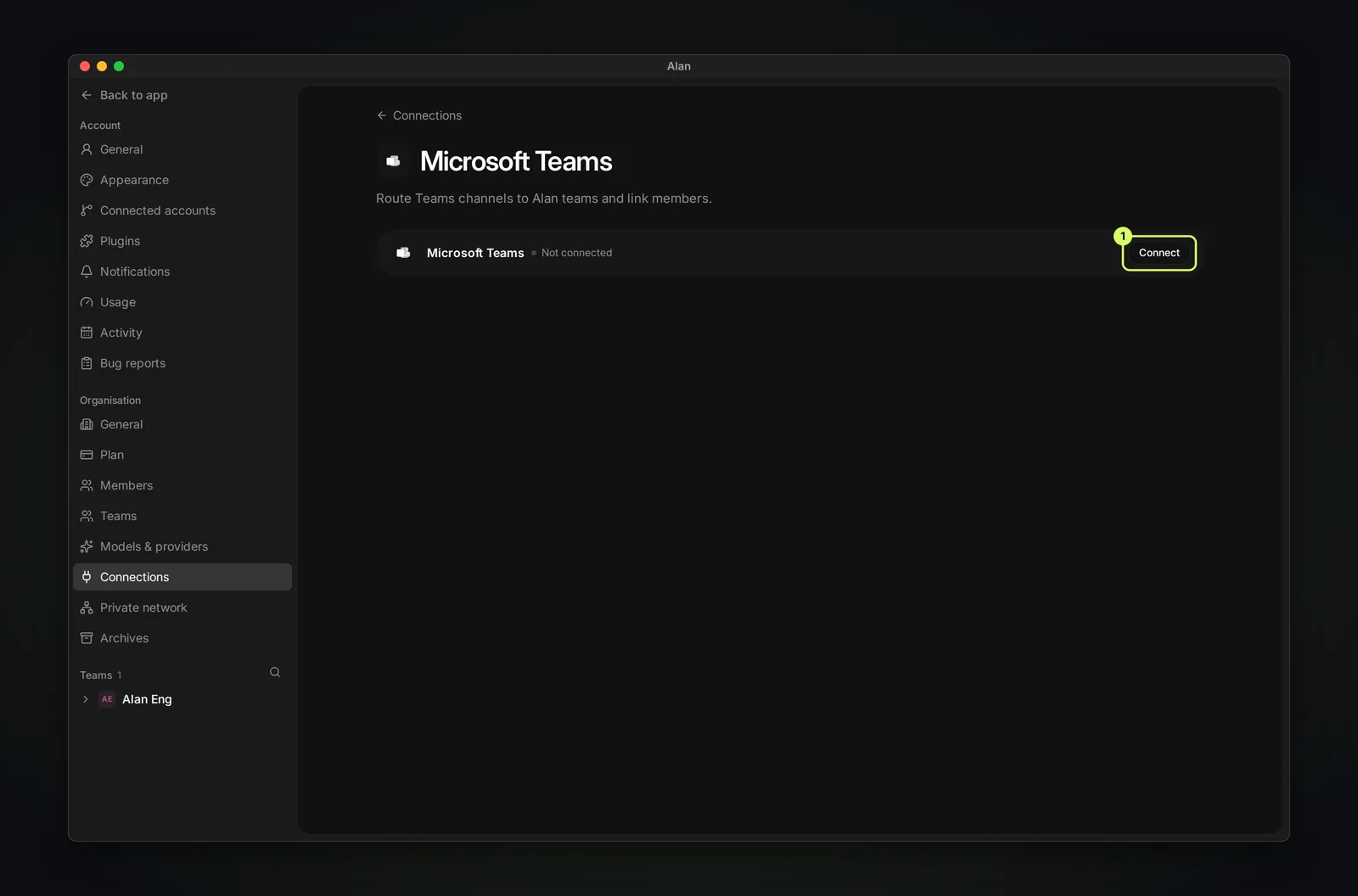
In Alan, open **Settings** and, under **Organisation**, choose **Connections**. Select **Microsoft Teams**.
|
|
21
|
+
|
|
22
|
+
**2. Choose Connect**
|
|
23
|
+
|
|
24
|
+
Sign in with Microsoft and approve the requested permissions. You return to Alan with the tenant connected.
|
|
25
|
+
|
|
26
|
+
**3. Check the status**
|
|
27
|
+
|
|
28
|
+
The page shows **Connected** with your tenant's name and the number of mapped channels. **Disconnect** removes the connection.
|
|
29
|
+
|
|
30
|
+
|
|
31
|
+
|
|
32
|
+
Alan asks Microsoft for read access to your directory, teams, channels, and the messages it is mentioned in. If the channel picker is empty, check your organization's Microsoft permissions. Members with different emails can use **Link my Alan account**; there is no administrator member picker or verification-note form.
|
|
33
|
+
|
|
34
|
+
## Choose or disconnect an Alan organization
|
|
35
|
+
|
|
36
|
+
The Microsoft Teams settings page names the Alan organization affected by Connect and Disconnect. If you belong to more than one Alan organization, use **Alan organization for Microsoft Teams** to switch without leaving the connection settings.
|
|
37
|
+
|
|
38
|
+
To remove an unwanted connection, select that Alan organization, check its tenant details, then choose **Disconnect**. Switch back to the intended organization before choosing **Connect**. Disconnect affects the selected Alan organization only; it does not uninstall the Microsoft app or remove another organization's connection. Your Microsoft display name does not decide which Alan organization receives work.
|
|
39
|
+
|
|
40
|
+
For a new unmapped conversation, Alan can identify the organization when the sender has an explicit Microsoft account link to exactly one current Alan organization. If existing routes conflict or the sender matches multiple organizations, Alan explains the ambiguity; it never guesses or replaces an existing organization route.
|
|
41
|
+
|
|
42
|
+
## Map a channel
|
|
43
|
+
|
|
44
|
+
Each mapping ties one Teams channel or chat to one Alan team. Work from there is created in that team.
|
|
45
|
+
|
|
46
|
+
You don't have to map a channel before using it. The first time someone mentions **@Alan** in an unmapped channel or chat, Alan asks in the thread which Alan team should work there, listing only the teams that person is on. Whoever picks a team must be on it. Alan saves the choice and starts on the original request, so nobody has to ask again. If your organization has a single team, or you message Alan one-to-one and are on exactly one team, Alan uses that team without asking.
|
|
47
|
+
|
|
48
|
+
To map a channel ahead of time:
|
|
49
|
+
|
|
50
|
+
**1. Open Channel mapping**
|
|
51
|
+
|
|
52
|
+
On the connected Microsoft Teams page, open **Channel mapping** and choose **Add mapping**.
|
|
53
|
+
|
|
54
|
+
**2. Pick the channel**
|
|
55
|
+
|
|
56
|
+
Choose it from **Select a channel**, or use **Or enter a channel ID** (it looks like `19:…@thread.tacv2`). If the channel isn't in the list, also enter the ID of the Teams team it belongs to.
|
|
57
|
+
|
|
58
|
+
**3. Choose the Alan team**
|
|
59
|
+
|
|
60
|
+
Pick the **Alan team** whose work this channel should create, then choose **Create mapping**.
|
|
61
|
+
|
|
62
|
+
Each mapping has an edit button (to change the Alan team) and a remove button. To point Alan at a different channel, remove the mapping and add a new one. Only an org admin or a member of the mapping's Alan team can change or remove it.
|
|
63
|
+
|
|
64
|
+
## Automatic member recognition
|
|
65
|
+
|
|
66
|
+
Members with matching email addresses do not need to link their accounts in Alan settings. When someone sends a request in Teams, Alan uses their Microsoft account information to find one matching member of the connected Alan organization. Automatic matching uses the complete email address, including the domain.
|
|
67
|
+
|
|
68
|
+
If your Microsoft email differs from your Alan email, or your own account has an incorrect link, choose **Link my Alan account** on the connected Microsoft Teams page. For an older conflicting Teams link, start from the **Link my Alan account** button in Alan’s Teams reply so Alan can identify the exact sender. Sign in with that Microsoft account. Alan shows the selected accounts and any existing links that will be replaced. Choose **Link my Alan account** or **Replace and link my account** to confirm, or **Cancel** to leave the links unchanged. No administrator mapping or verification note is required.
|
|
69
|
+
|
|
70
|
+
Matching names or similar email addresses are insufficient. Guests, people outside the organization and conflicting identities are not matched automatically. Existing verified identities are preserved, and the person must still have access to the Alan team receiving the request.
|
|
71
|
+
|
|
72
|
+
> **Warning:** If Alan cannot recognize you, check your Alan organization membership. If your emails differ, use **Link my Alan account** and review the accounts before confirming. Connecting the organization does not grant access to every team or file.
|
|
73
|
+
|
|
74
|
+
## Ask Alan for work
|
|
75
|
+
|
|
76
|
+
In a channel or a chat with Alan:
|
|
77
|
+
|
|
78
|
+
1. Mention **@Alan** with a clear instruction in a conversation. In a one-to-one chat, just send the message.
|
|
79
|
+
2. If the channel or chat has no Alan team yet, pick one on the card Alan posts.
|
|
80
|
+
3. Once the request is eligible to run, Alan adds a **👀 reaction to your message** and posts **I've started working on your request** before preparing context, copying files, or starting the cloud session. The working card updates as activity or a plan arrives, including tasks without a multi-step checklist. An accepted addition to a running task gets a **👍 reaction** and a queued acknowledgement.
|
|
81
|
+
4. When the turn ends, Alan posts the answer, settles the working card to **Done** or **Stopped**, and replaces the working reaction with **✅** for a completed task. A feedback API failure does not prevent the task or its final answer from being delivered.
|
|
82
|
+
5. Reply in the same thread to continue the request. Untagged follow-ups require the installed Teams app's channel or chat message-read permission to be approved. Use **@Alan stop** to request a stop.
|
|
83
|
+
|
|
84
|
+
Alan uses the same follow-up filter as Slack: it stays quiet for acknowledgement-only replies, messages mentioning someone else, and threads that are muted or dormant. Mention **@Alan** again to reactivate a thread. A one-to-one chat remains addressed to Alan.
|
|
85
|
+
|
|
86
|
+
A chat has its own team choice; it no longer borrows a channel's mapping.
|
|
87
|
+
|
|
88
|
+
If Alan turns a request down, its reply says why, using the same reasons as Slack (for example, the team you're not on, a missing cloud environment, or a session limit). An exhausted organisation cloud budget asks an admin to add usage credits; a reached team limit asks an admin to review that limit. These are separate from a plan that excludes cloud sessions or purchased seats that do not fund cloud. See [If Alan doesn't respond](connect-slack.md#if-alan-doesnt-respond).
|
|
89
|
+
|
|
90
|
+
## Compare with Slack
|
|
91
|
+
|
|
92
|
+
| | Slack | Microsoft Teams |
|
|
93
|
+
| --- | --- | --- |
|
|
94
|
+
| Where to connect | **Settings → Connections → Slack** | **Settings → Connections → Microsoft Teams** |
|
|
95
|
+
| Plan | Integrations | Shared integrations (Team plan) |
|
|
96
|
+
| Choosing a channel's team | Pick it in Slack the first time someone mentions Alan | Pick it in Teams the first time someone mentions Alan, or map it in Alan's settings |
|
|
97
|
+
| Matching people | By email, with self-service **Link my Alan account** | Automatically by full email; self-service linking for different emails |
|
|
98
|
+
| What a mention starts | A cloud session | A cloud session |
|
|
99
|
+
| Starting automations | Not yet | Not yet |
|
|
100
|
+
| Posting from automations | **Send Channel Message**, **Reply in Thread** | **Send Channel Message**, **Reply in Thread** |
|
|
101
|
+
|
|
102
|
+
## Common issues
|
|
103
|
+
|
|
104
|
+
> **Warning:** Your Microsoft 365 tenant may need an admin to approve the Alan app before anyone can connect. If connecting fails straight away, ask your Microsoft 365 admin.
|
|
105
|
+
|
|
106
|
+
- **@Alan doesn't respond in a channel.** The app isn't added to that Teams team, or the channel's mapping has mentions turned off.
|
|
107
|
+
- **Follow-ups work only when you mention Alan.** Update the Teams app package and approve its message-read permissions for that team or chat. A backend update alone does not grant these permissions. Mention Alan again if the thread has gone dormant.
|
|
108
|
+
- **Alan says you can only choose a team you're a member of.** Ask someone on that Alan team to pick it, or have an org admin map the channel in settings.
|
|
109
|
+
- **Alan says it can't match you.** Check your Alan organization membership. If your emails differ or an old link is wrong, use **Link my Alan account** and review the affected accounts before confirming.
|
|
110
|
+
- **The channel list is empty.** Check Microsoft permissions, or enter the channel ID and Teams team ID by hand.
|
|
111
|
+
|
|
112
|
+
## Next steps
|
|
113
|
+
|
|
114
|
+
- [Connect Slack](connect-slack.md) — Mention @Alan in Slack threads.
|
|
115
|
+
- [Connect Azure DevOps](../get-started/connect-azure-devops.md) — Link Azure Repos for implementation work.
|
|
116
|
+
- [Quickstart](../get-started/quickstart.md) — Create a task and run an agent session.
|
|
@@ -0,0 +1,164 @@
|
|
|
1
|
+
> Source: [https://docs.tryalan.ai/docs/integrations/connect-slack](https://docs.tryalan.ai/docs/integrations/connect-slack)
|
|
2
|
+
|
|
3
|
+
# Connect Slack
|
|
4
|
+
|
|
5
|
+
Connecting Slack lets your team ask Alan for work without leaving Slack. Mention **@Alan** in a thread, message Alan directly, or run `/alan ` in a channel. Alan reads the conversation, works in your team's cloud environment, posts progress in the thread, and links the result, often a pull request, back to Alan.
|
|
6
|
+
|
|
7
|
+
Alan answers in **channels it has been invited to** and in **direct messages**. The connection is **organisation-wide**: one member installs the app, and each channel then picks the Alan team its work runs in.
|
|
8
|
+
|
|
9
|
+
> **Note:** Alan uses large language models, which can produce inaccurate output. Review its answers and pull requests before you rely on them.
|
|
10
|
+
|
|
11
|
+
## Get access
|
|
12
|
+
|
|
13
|
+
You need an Alan account and a plan that supports the work you want to run from Slack. See [pricing](https://tryalan.ai/pricing/) for available plans.
|
|
14
|
+
|
|
15
|
+
- Any member of the Alan organisation can install the app, if your plan includes integrations.
|
|
16
|
+
- Every session Alan starts from Slack is a cloud session. If your plan doesn't include cloud sessions, the Slack page says so, and Alan replies in Slack with an upgrade link instead of starting work.
|
|
17
|
+
- Slack's agent view, where people chat with Alan in its own pane, needs a paid Slack plan.
|
|
18
|
+
|
|
19
|
+
## Prerequisites
|
|
20
|
+
|
|
21
|
+
- Permission to **install Slack apps** in the workspace, or a Slack admin who can approve the request
|
|
22
|
+
- A **cloud environment** on each Alan team that will take work from Slack
|
|
23
|
+
- Slack members who will ask Alan for work should use a **work email that matches their Alan profile**, so Alan can recognise them
|
|
24
|
+
|
|
25
|
+
## Connect the workspace
|
|
26
|
+
|
|
27
|
+
**1. Open Settings, then Connections**
|
|
28
|
+
|
|
29
|
+
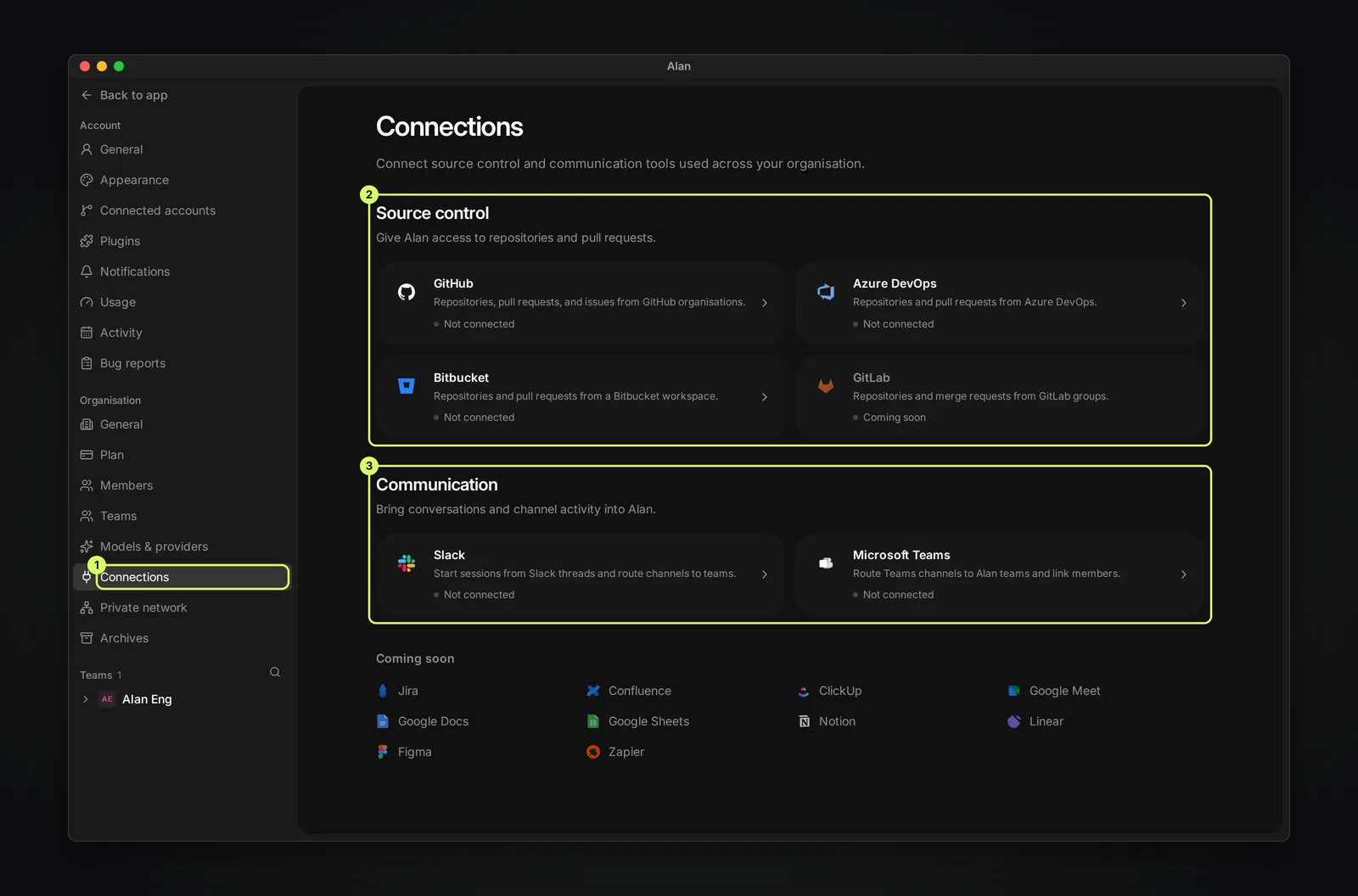
In Alan, open **Settings** and, under **Organisation**, choose **Connections**. Select **Slack**.
|
|
30
|
+
|
|
31
|
+
**2. Add Alan to Slack**
|
|
32
|
+
|
|
33
|
+
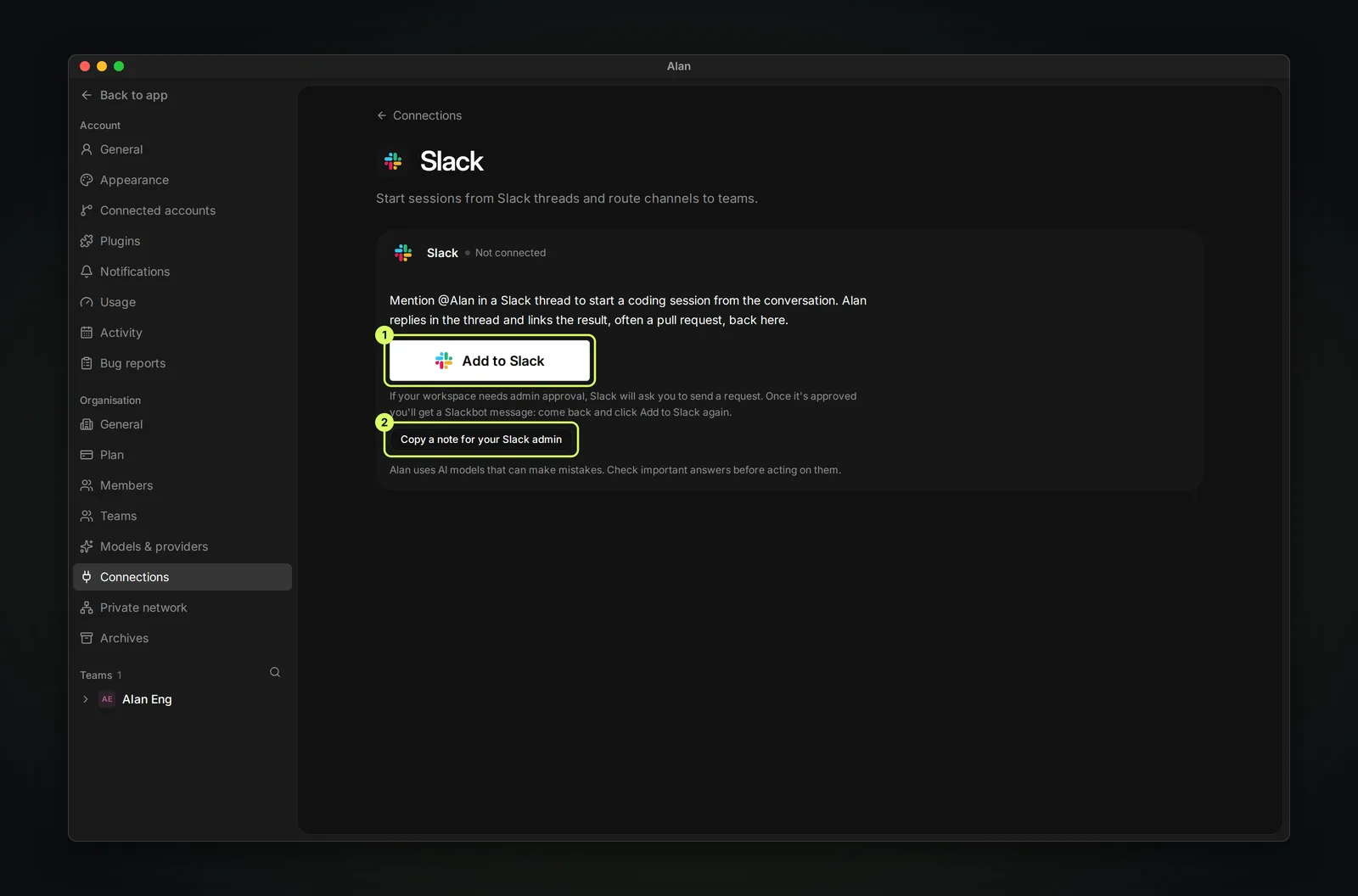
Choose **Add to Slack**. Slack asks you to install the Alan app and approve its permissions. When you return to Alan, the workspace appears on the page.
|
|
34
|
+
|
|
35
|
+
**3. If your workspace needs admin approval**
|
|
36
|
+
|
|
37
|
+
Slack asks you to send a request instead. **Copy a note for your Slack admin** copies a short explanation you can send them. Once it's approved you'll get a Slackbot message: come back and choose **Add to Slack** again.
|
|
38
|
+
|
|
39
|
+
|
|
40
|
+
|
|
41
|
+
|
|
42
|
+
|
|
43
|
+
Once connected, each workspace appears as a card with **Open in Slack** and, in its **⋯** menu, **Disconnect**. **Add workspace** installs Alan in another Slack workspace; an Enterprise Grid organisation shows **Add to workspaces** instead.
|
|
44
|
+
|
|
45
|
+
If the card says **Alan's Slack permissions are out of date**, choose **Update permissions**. Older installs can be missing permissions Alan needs, such as reading work emails to recognise people.
|
|
46
|
+
|
|
47
|
+
Each card has three tabs:
|
|
48
|
+
|
|
49
|
+
| Tab | What it shows |
|
|
50
|
+
| --- | --- |
|
|
51
|
+
| **Channel routes** | Which Alan team each channel runs in. Remove a route here; the next mention asks again. |
|
|
52
|
+
| **User mapping** | Which Alan members are linked to a Slack account, and how many of them. |
|
|
53
|
+
| **Help** | Setup steps, common questions, and **Report a bug**. |
|
|
54
|
+
|
|
55
|
+
## Choose a team for each channel
|
|
56
|
+
|
|
57
|
+
You choose a channel's team in Slack, not in Alan's settings.
|
|
58
|
+
|
|
59
|
+
**1. Mention Alan in the channel**
|
|
60
|
+
|
|
61
|
+
The first time someone mentions @Alan in a channel, Alan checks which team it belongs to. If you're on only one Alan team, the channel uses that team straight away.
|
|
62
|
+
|
|
63
|
+
**2. Choose a team**
|
|
64
|
+
|
|
65
|
+
If you're on several teams, Alan asks which one the channel should run in. Pick one with **Choose a team**. Your request is saved and starts as soon as you pick, and everyone's new threads in the channel use the same team.
|
|
66
|
+
|
|
67
|
+
**3. Change it later**
|
|
68
|
+
|
|
69
|
+
Choose **Change** on Alan's message to move the channel to another team. Threads already running stay where they are. Only members of the channel's current team, or an org admin, can move it.
|
|
70
|
+
|
|
71
|
+
Direct messages work the same way: the first time you message Alan, it asks which team your direct messages should run in, and remembers your choice.
|
|
72
|
+
|
|
73
|
+
> **Tip:** Invite Alan into the channel before testing. In Slack, run `/invite @Alan` (or your workspace's app name) in the channel so Alan can read messages and reply.
|
|
74
|
+
|
|
75
|
+
## Ask Alan for work
|
|
76
|
+
|
|
77
|
+
In a **direct message**, just write what you need. In a **channel Alan is in**:
|
|
78
|
+
|
|
79
|
+
1. Start or continue a **thread**.
|
|
80
|
+
2. Mention **@Alan** with a clear instruction, for example `@Alan fix the login timeout`. You can also pick **Ask Alan** from a message's **⋯** menu, or react to a message with 🛠️.
|
|
81
|
+
3. Alan replies in the thread. Each thread is one session: reply in it to steer Alan. Press **Stop**, or say `stop`, to end a turn. Say `mute` (or use 👎 on Alan's reply) and Alan stays out of the thread until someone mentions it again.
|
|
82
|
+
|
|
83
|
+
You can also run `/alan ` in a channel Alan can post in. Alan starts a thread for the task and replies there.
|
|
84
|
+
|
|
85
|
+
### What Alan can do from Slack
|
|
86
|
+
|
|
87
|
+
- Answer questions using the thread's context
|
|
88
|
+
- Work on code in the team's cloud environment and open a pull request
|
|
89
|
+
- Post back into Slack: send a message, reply in a thread, add a reaction, or upload a file
|
|
90
|
+
|
|
91
|
+
### Let Alan watch a channel
|
|
92
|
+
|
|
93
|
+
You can ask Alan to watch a channel for certain posts, so it can help without being tagged. Mention it in the channel with what to watch for, for example `@Alan suggest fixes on Sentry alerts here`. Alan confirms the rule in the thread.
|
|
94
|
+
|
|
95
|
+
- In **suggest** mode, Alan adds 🛠️ to a matching post; anyone on the team can tap it to start Alan on that post.
|
|
96
|
+
- In **act** mode, Alan starts on matching alert-bot posts straight away and replies in their thread.
|
|
97
|
+
- If people keep muting its suggestions, Alan steps the rule down to a quieter mode and says so.
|
|
98
|
+
- Your rules appear in **Alan → Home** in Slack, where you can pause and resume them. Ask `@Alan what are you watching here?` to list a channel's rules.
|
|
99
|
+
|
|
100
|
+
Describe the rule in a message to Alan and check its confirmation before relying on it.
|
|
101
|
+
|
|
102
|
+
## User identity
|
|
103
|
+
|
|
104
|
+
Alan matches Slack users to organisation members by **email**.
|
|
105
|
+
|
|
106
|
+
- Installing the app, or updating its permissions, doesn't link personal accounts or replace existing links. The Slack account that approved the install may be a shared workspace admin.
|
|
107
|
+
- The email on the member's **Alan profile** should match the **work email** on their Slack account.
|
|
108
|
+
- If the emails differ, open **Alan → Home** in Slack and press **Link my Alan account**. Alan shows the Slack account and the Alan account it will link, and warns if either already has a different link. If the Alan account isn't yours, choose **Use a different Alan account**. Otherwise choose **Continue to Slack** and authorize the same Slack account you used to press the button.
|
|
109
|
+
- If your browser authorizes a different Slack account, Alan rejects the link without changing the existing one. Switch the browser to the intended Slack account, then reopen Alan Home and try again. Link buttons expire after 24 hours; reopening Home gives you a fresh one.
|
|
110
|
+
- The **User mapping** tab in Alan shows who is linked. Links are made from Slack, not from that tab.
|
|
111
|
+
|
|
112
|
+
## Your data
|
|
113
|
+
|
|
114
|
+
Alan reads the Slack messages, files and member details it needs to answer you: the thread or direct message it was asked in, files people share there, and the names and work emails used to match members to Alan accounts.
|
|
115
|
+
|
|
116
|
+
- Messages from a thread become part of that Alan session, which your organisation can view and delete in Alan.
|
|
117
|
+
- Shared files are fetched only when Alan needs them, through a link that expires after 15 minutes. Text Alan reads from a file becomes part of the session, and a file it downloads is kept in the session's cloud workspace.
|
|
118
|
+
- Cached Slack member and channel details expire after a day.
|
|
119
|
+
- Uninstalling the Slack app clears Alan's Slack tokens and deletes its channel routes, user links, and Slack notification settings.
|
|
120
|
+
|
|
121
|
+
Read the [privacy policy](https://tryalan.ai/privacy/) for the full details. To ask for your data or for it to be deleted, email [support@tryalan.ai](mailto:support@tryalan.ai).
|
|
122
|
+
|
|
123
|
+
## Automations and Slack
|
|
124
|
+
|
|
125
|
+
Automations can post to Slack with the **Send Channel Message** and **Reply in Thread** tools, and can add reactions or upload files. A Slack message can't start an automation yet. See [Create an automation](../automations/create-an-automation.md).
|
|
126
|
+
|
|
127
|
+
## If Alan doesn't respond
|
|
128
|
+
|
|
129
|
+
When Alan turns down a request, it replies privately to the person who asked, and says what to fix. Look for that reply first.
|
|
130
|
+
|
|
131
|
+
| Alan's reply says | What to do |
|
|
132
|
+
| --- | --- |
|
|
133
|
+
| It couldn't match your email to anyone in the organisation | Ask an Alan admin to invite that email, or use **Link my Alan account** in Alan Home. |
|
|
134
|
+
| The conversation runs in a team you're not on | Ask an Alan admin to add you to that team. |
|
|
135
|
+
| This channel isn't connected to an Alan team yet | Mention Alan again and choose a team, or ask an admin to check **Connections → Slack**. |
|
|
136
|
+
| The team's cloud environment can't be used right now | Fix the team's cloud environment in team settings (it was archived, or none is the default). |
|
|
137
|
+
| The plan doesn't include cloud sessions | An admin can upgrade the plan. |
|
|
138
|
+
| No purchased seats include cloud yet | Ask an organisation admin to check the plan and purchased seats. |
|
|
139
|
+
| The organisation's cloud budget is used up | Ask an organisation admin to add usage credits, or wait for the next billing period. |
|
|
140
|
+
| Your team has reached its cloud limit | Ask an organisation admin to review the team's cloud limit. |
|
|
141
|
+
| It's already running as many sessions as it can | Wait for one to finish, then mention Alan again. |
|
|
142
|
+
| You already have as many sessions running as one person can | Say `stop` in one of them, or wait. |
|
|
143
|
+
| Your model credit for the month is used up | Wait for the reset shown in the reply. |
|
|
144
|
+
|
|
145
|
+
If there's **no reply at all**, check that Alan is in the channel. Run `/invite @Alan`, then mention it again. Slack guest accounts can't use AI apps, so Alan can't take requests from guests.
|
|
146
|
+
|
|
147
|
+
## Common issues
|
|
148
|
+
|
|
149
|
+
> **Warning:** If your Slack workspace requires admin approval for apps, installation stays pending until a Slack admin approves the Alan app.
|
|
150
|
+
|
|
151
|
+
- **The Slack card says Alan's permissions are out of date.** Choose **Update permissions** and approve the new permissions in Slack.
|
|
152
|
+
- **Alan doesn't know who I am.** Your Alan profile email doesn't match your Slack work email. Fix the email, or use **Link my Alan account** in Alan Home.
|
|
153
|
+
- **Member or channel names are missing.** Choose **Update permissions** and try again. Confirm Alan is in the channel.
|
|
154
|
+
|
|
155
|
+
## Get help
|
|
156
|
+
|
|
157
|
+
Email [support@tryalan.ai](mailto:support@tryalan.ai) with the channel, the time of your request, and any error message.
|
|
158
|
+
|
|
159
|
+
## Next steps
|
|
160
|
+
|
|
161
|
+
- [Connect Microsoft Teams](connect-microsoft-teams.md) — Mention Alan in Teams channels.
|
|
162
|
+
- [Create an automation](../automations/create-an-automation.md) — Run recurring work on a schedule, GitHub, Bitbucket, or Alan event.
|
|
163
|
+
- [Quickstart](../get-started/quickstart.md) — Create a task and run an agent session.
|
|
164
|
+
- [Roles and permissions](../reference/roles-and-permissions.md) — Who can connect integrations and manage teams.
|