@nocobase/plugin-ai 2.2.0-alpha.7 → 2.2.0-alpha.9
This diff represents the content of publicly available package versions that have been released to one of the supported registries. The information contained in this diff is provided for informational purposes only and reflects changes between package versions as they appear in their respective public registries.
- package/dist/ai/docs/nocobase/ai-employees/scenarios/company-background-research.md +125 -0
- package/dist/ai/docs/nocobase/building-tips/operations-dashboard.md +513 -0
- package/dist/ai/docs/nocobase/file-manager/stable-url.md +87 -0
- package/dist/ai/docs/nocobase/get-started/deployment/production.md +24 -2
- package/dist/ai/docs/nocobase/get-started/installation/docker-caddy.mdx +3 -0
- package/dist/ai/docs/nocobase/get-started/installation/docker-nginx.mdx +3 -0
- package/dist/ai/docs/nocobase/get-started/installation/docker.mdx +27 -3
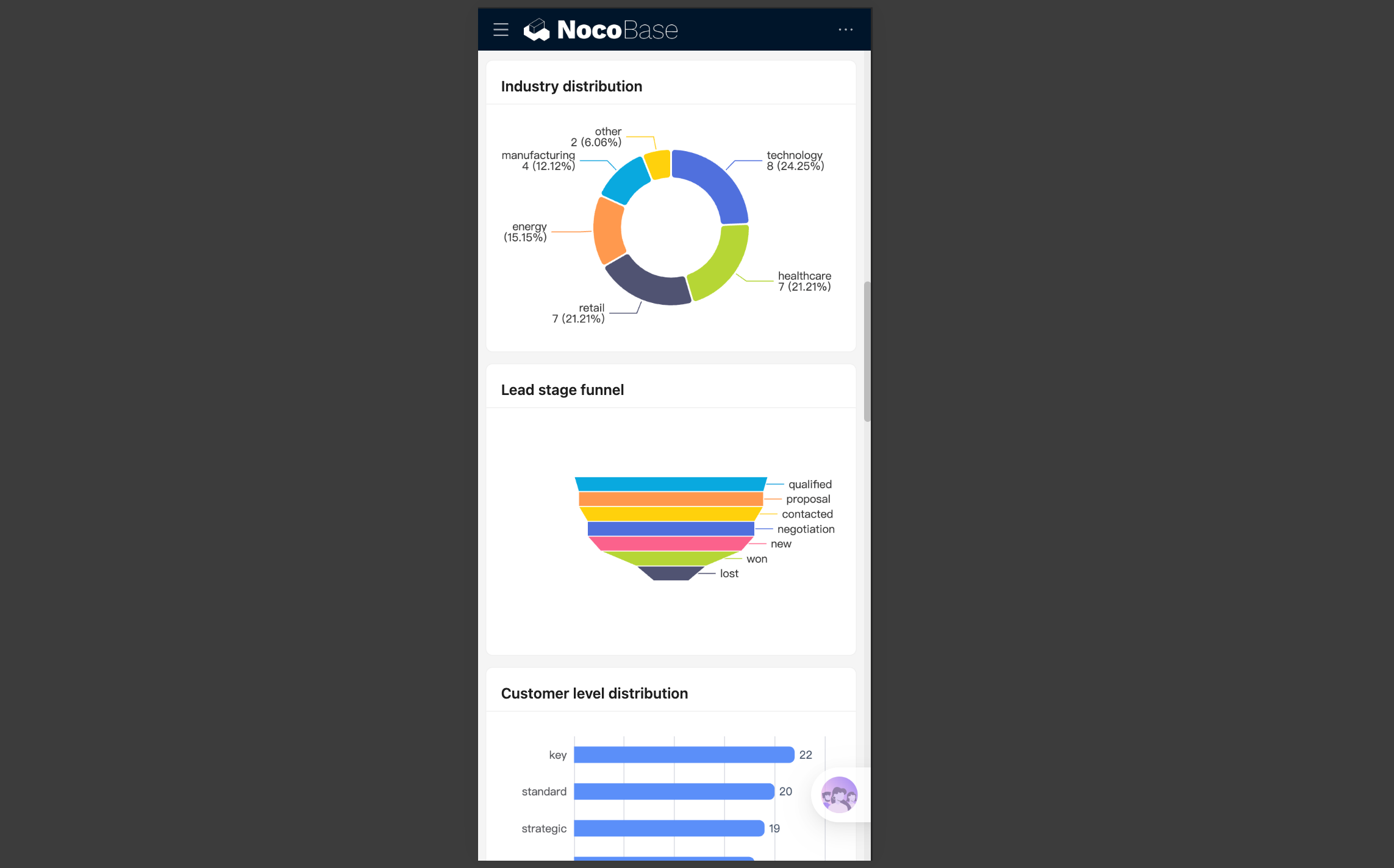
- package/dist/ai/docs/nocobase/get-started/installation/env.md +33 -0
- package/dist/ai/docs/nocobase/index.md +1 -1
- package/dist/ai/docs/nocobase/interface-builder/index.md +7 -6
- package/dist/ai/docs/nocobase/interface-builder/ui-layout/desktop.md +97 -0
- package/dist/ai/docs/nocobase/interface-builder/ui-layout/index.md +50 -0
- package/dist/ai/docs/nocobase/interface-builder/ui-layout/mobile.md +133 -0
- package/dist/ai/docs/nocobase/multi-app/multi-app-vs-multi-portal-vs-multi-space.md +159 -0
- package/dist/ai/docs/nocobase/multi-app/multi-portal/index.md +195 -0
- package/dist/ai/docs/nocobase/nocobase-cli/production/index.md +10 -0
- package/dist/ai/docs/nocobase/nocobase-cli/production/reverse-proxy/caddy.md +15 -2
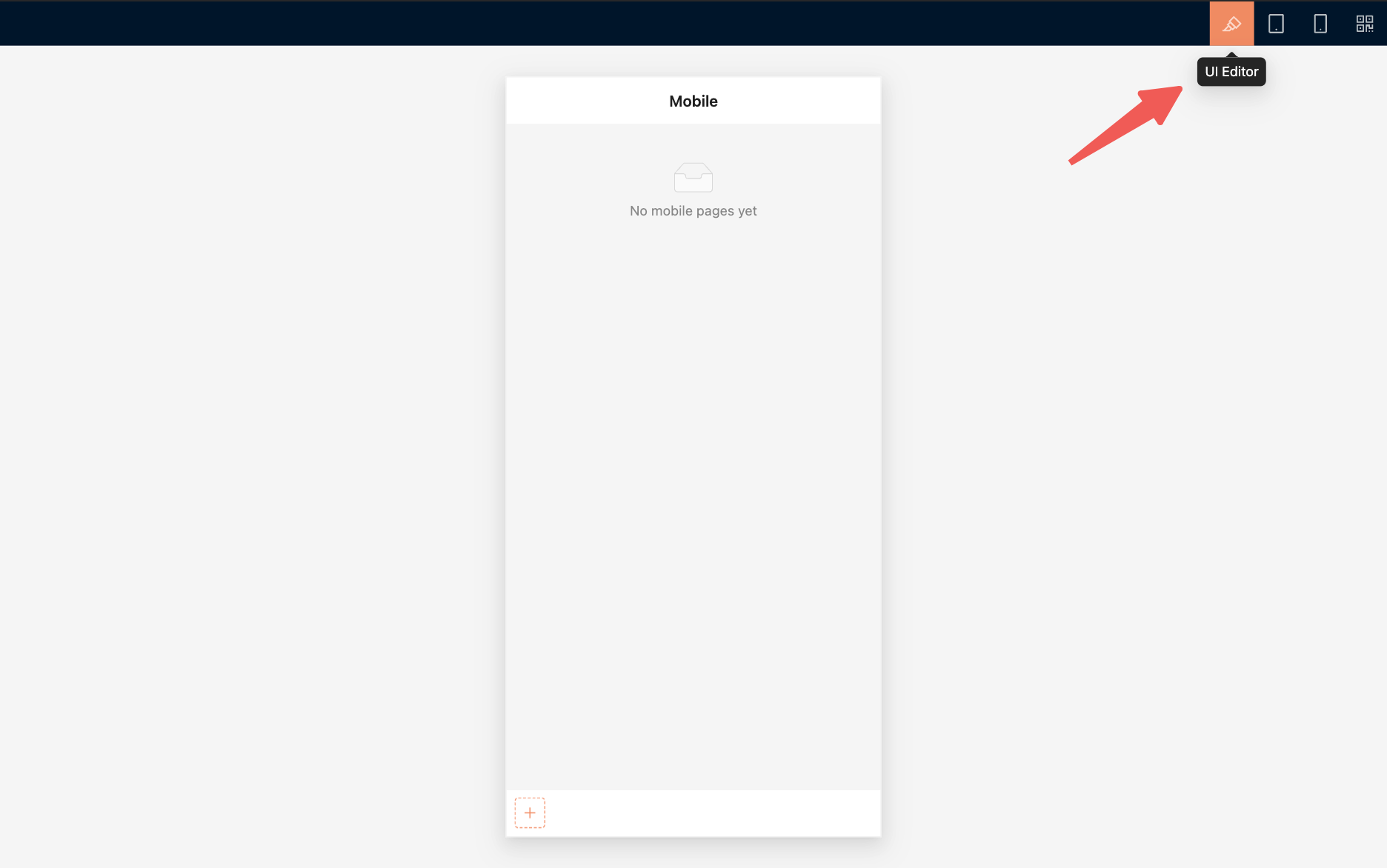
- package/dist/ai/docs/nocobase/nocobase-cli/production/reverse-proxy/index.md +1 -1
- package/dist/ai/docs/nocobase/nocobase-cli/production/reverse-proxy/nginx.md +16 -2
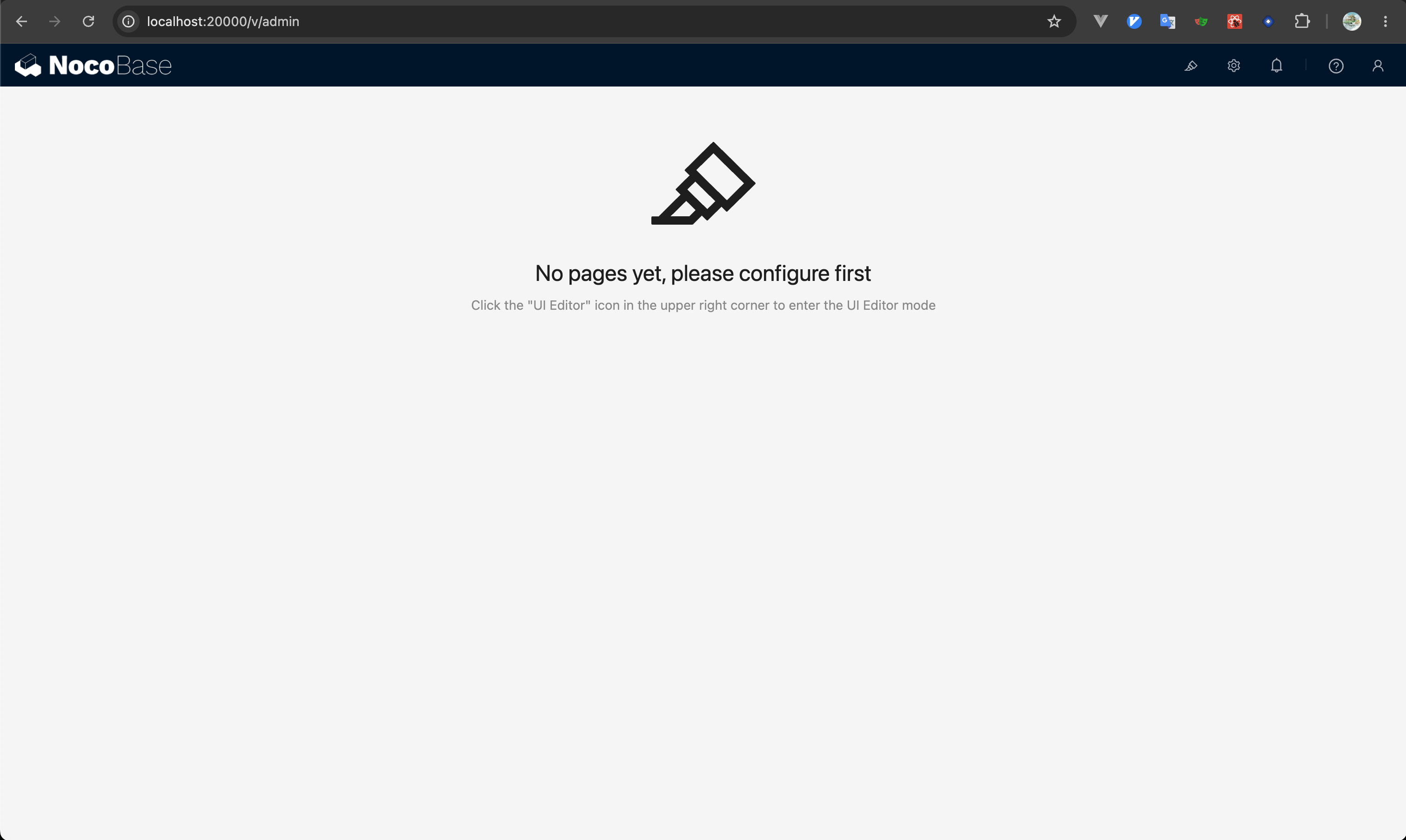
- package/dist/ai/docs/nocobase/runjs/context/ai.md +206 -0
- package/dist/ai/docs/nocobase/tutorials/index.md +20 -1
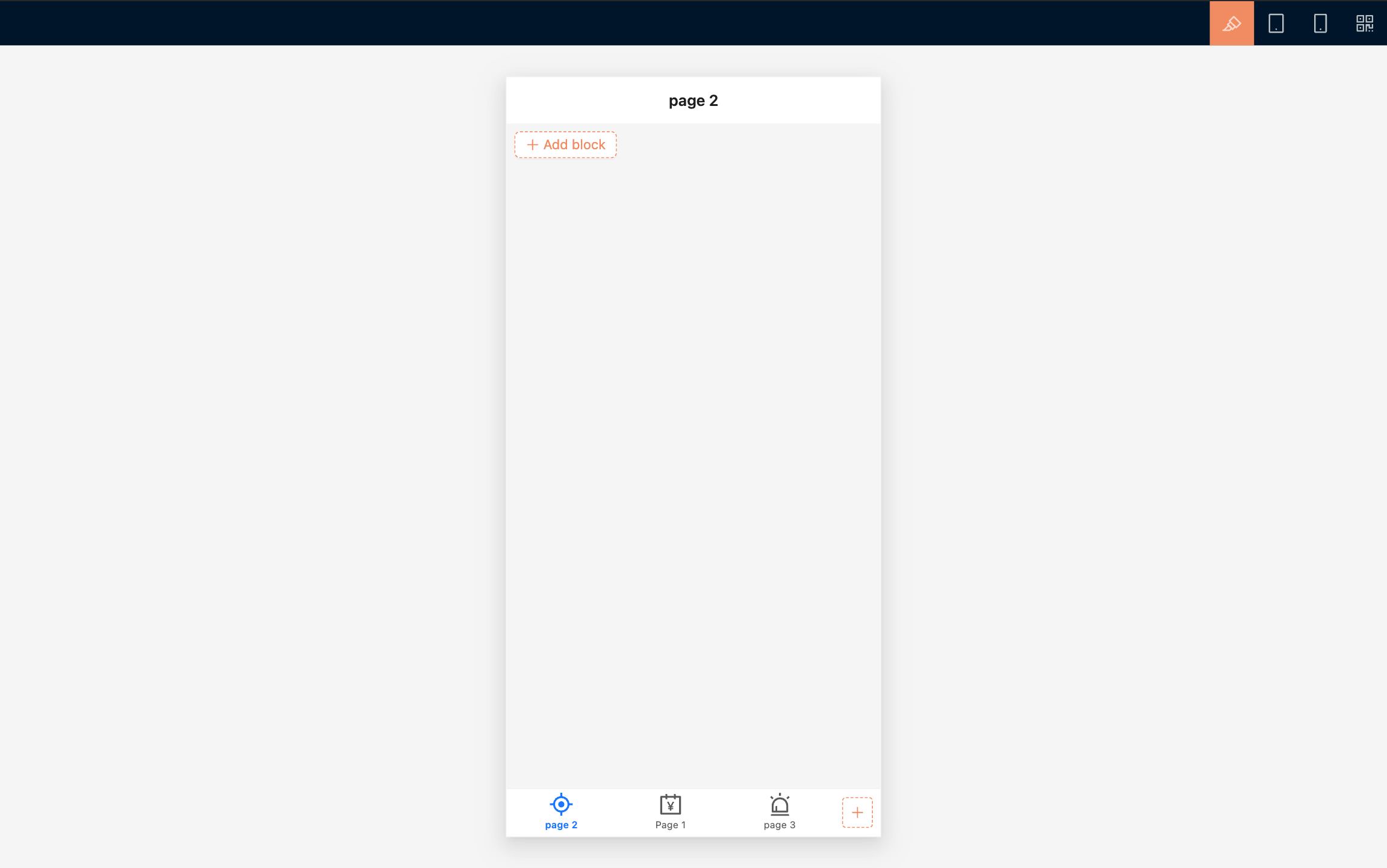
- package/dist/ai/tools/formFiller.js +4 -3
- package/dist/client/372.40eb52905e3f3049.js +10 -0
- package/dist/client/index.js +7 -7
- package/dist/client-v2/372.8cc3fde09c9bec77.js +10 -0
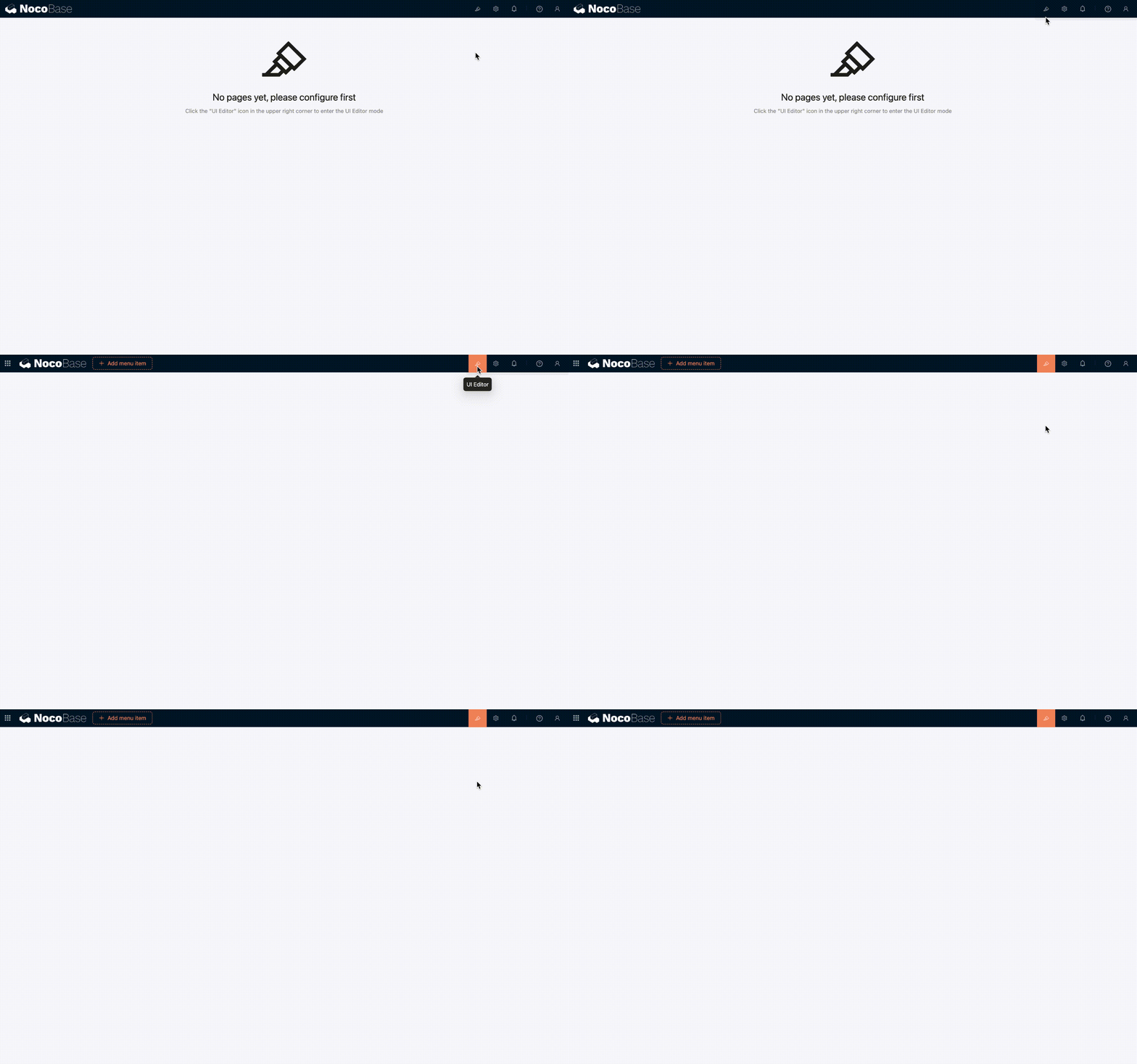
- package/dist/client-v2/ai-employees/chatbox/utils/normalizeTriggerTaskOptions.d.ts +19 -0
- package/dist/client-v2/ai-employees/chatbox/utils.d.ts +5 -0
- package/dist/client-v2/index.js +3 -3
- package/dist/client-v2/manager/ai-manager.d.ts +21 -0
- package/dist/client-v2/pages/EmployeesPage.d.ts +9 -0
- package/dist/client-v2/plugin.d.ts +1 -0
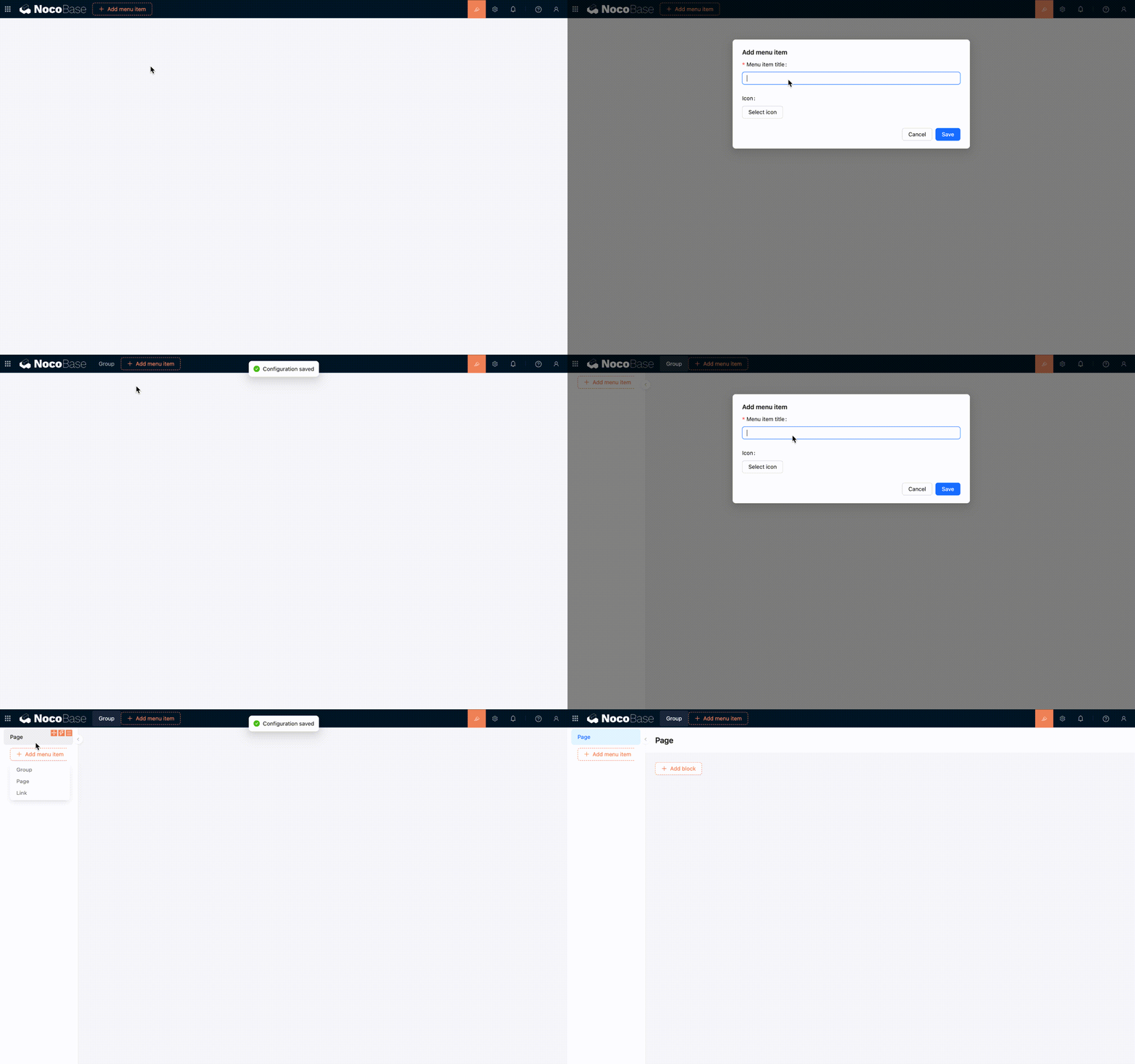
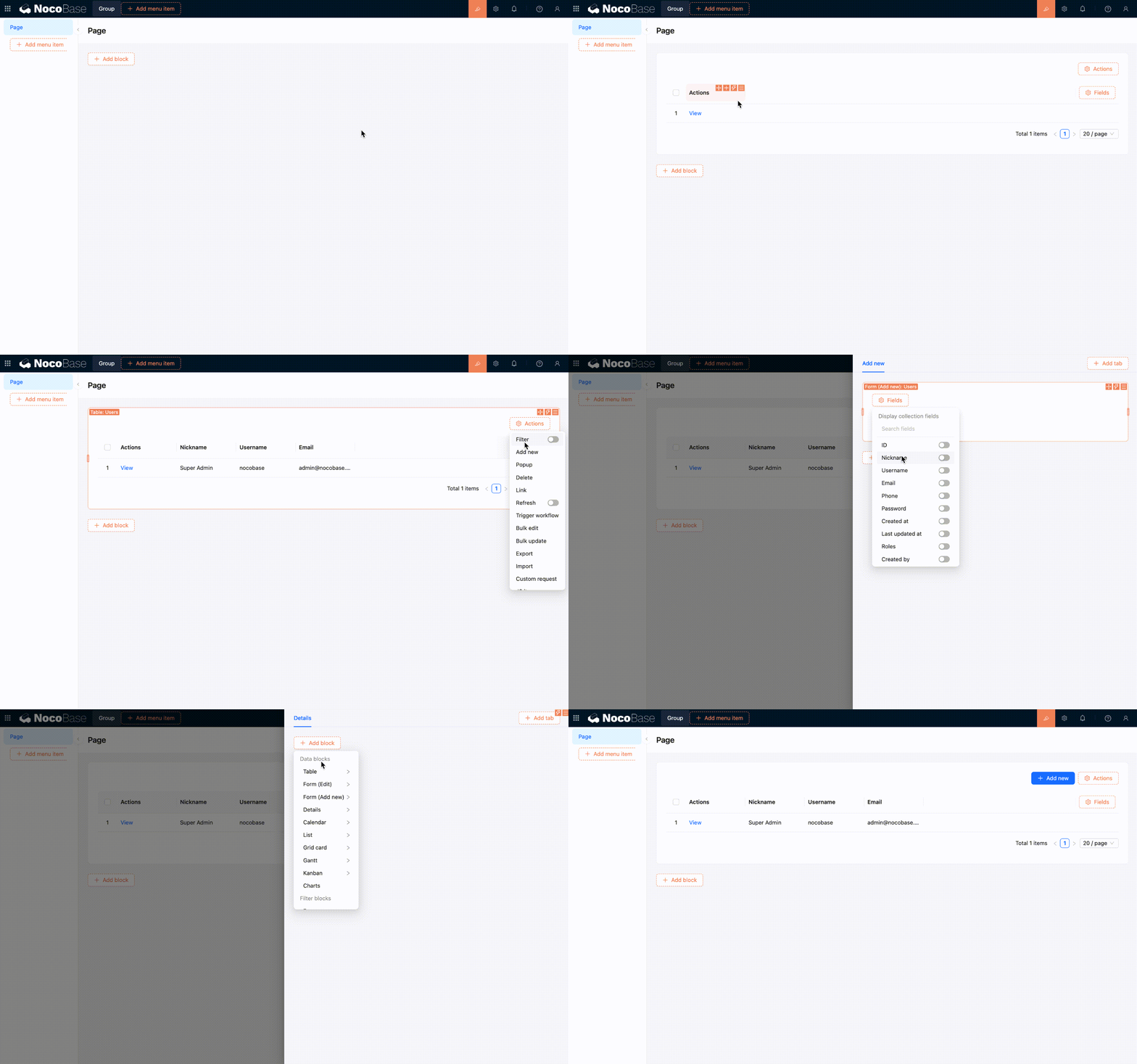
- package/dist/client-v2/runjs/registerAIEmployeeRunJSFacade.d.ts +20 -0
- package/dist/externalVersion.js +15 -15
- package/dist/locale/en-US.json +3 -0
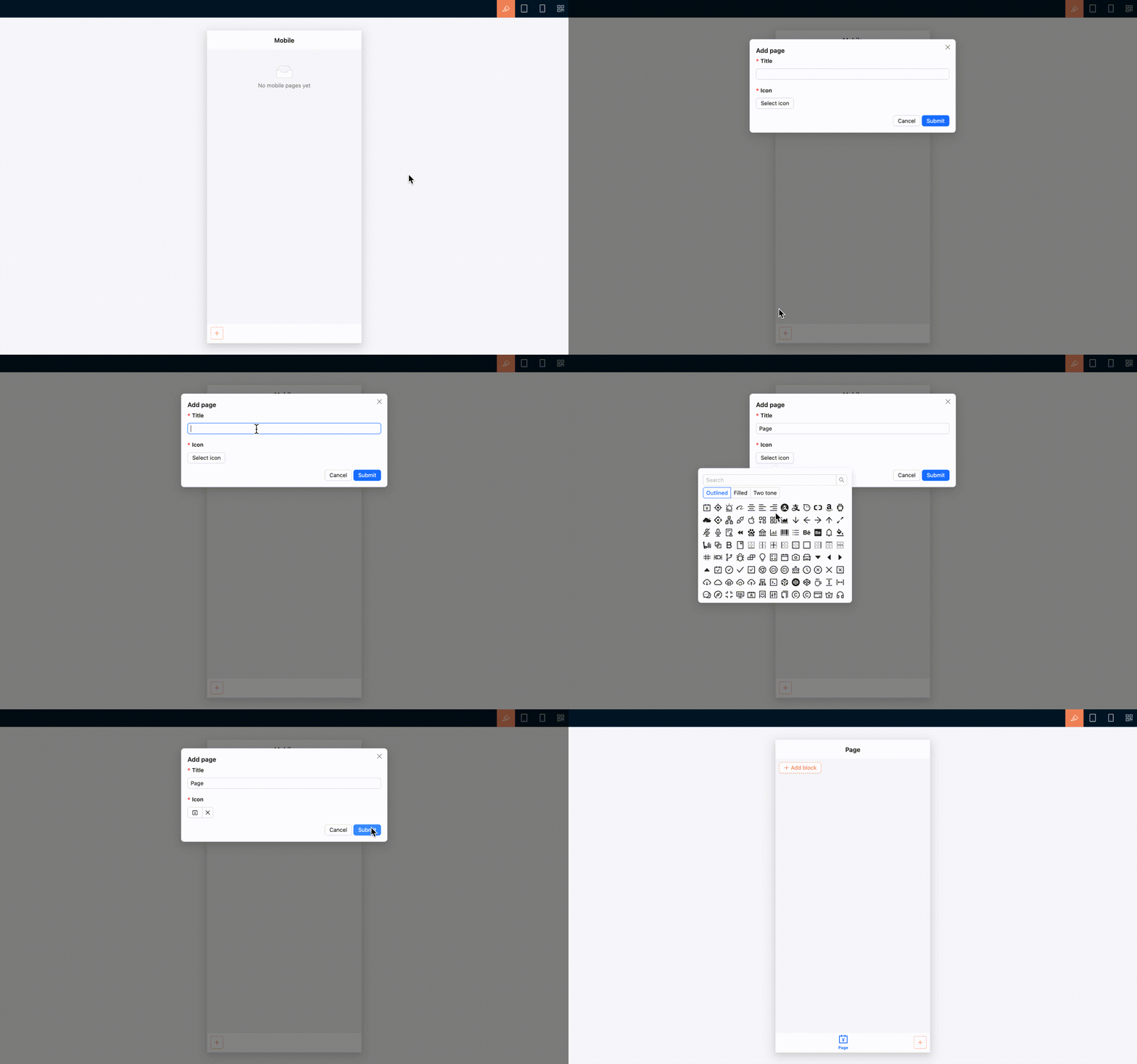
- package/dist/locale/zh-CN.json +3 -0
- package/dist/node_modules/@langchain/mistralai/package.json +1 -1
- package/dist/node_modules/@langchain/xai/package.json +1 -1
- package/dist/node_modules/fs-extra/package.json +1 -1
- package/dist/node_modules/jsonrepair/package.json +1 -1
- package/dist/node_modules/just-bash/package.json +1 -1
- package/dist/node_modules/nodejs-snowflake/package.json +1 -1
- package/dist/node_modules/openai/package.json +1 -1
- package/dist/node_modules/zod/package.json +1 -1
- package/dist/server/ai-employees/ai-employee.d.ts +1 -0
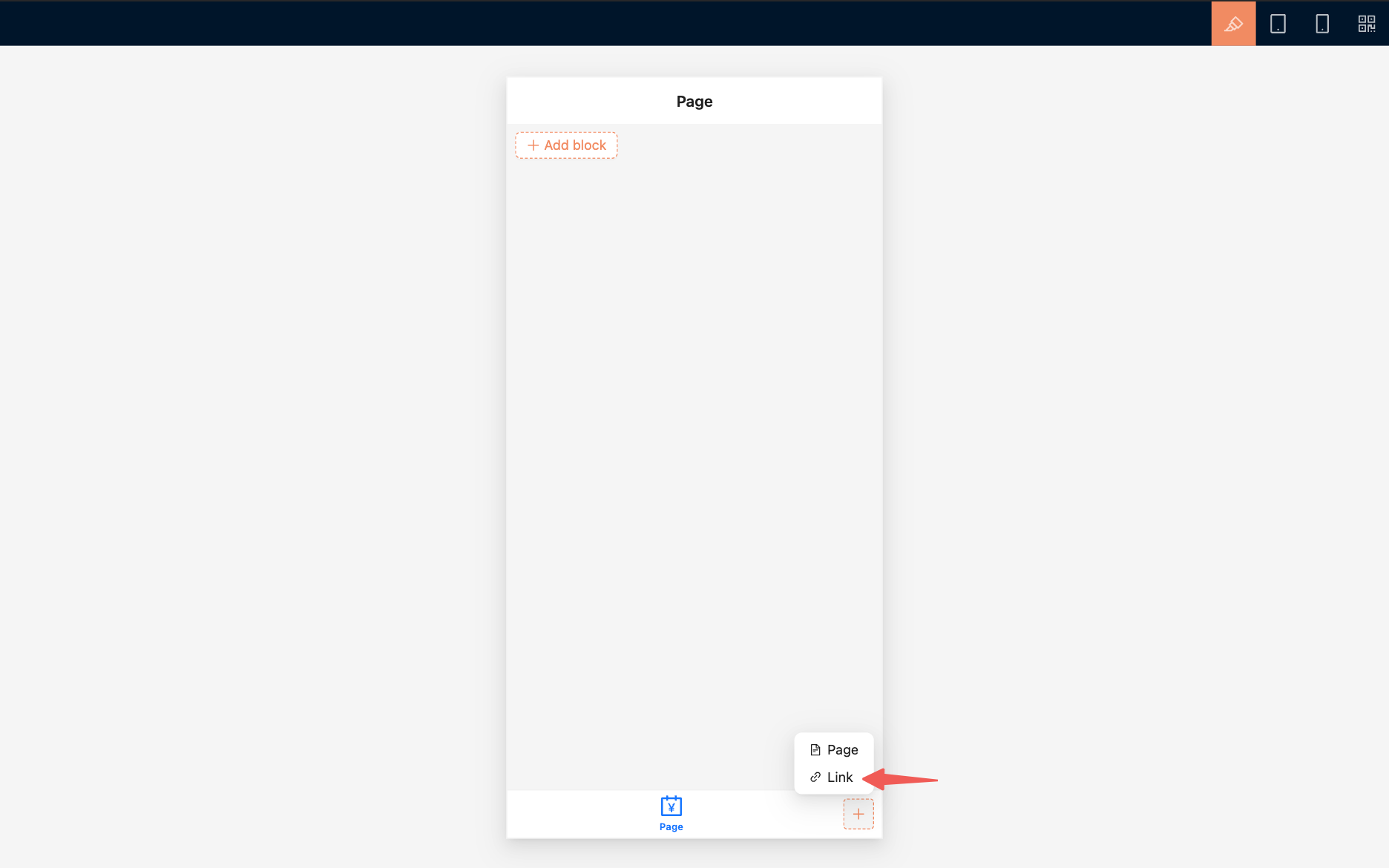
- package/dist/server/ai-employees/ai-employee.js +30 -1
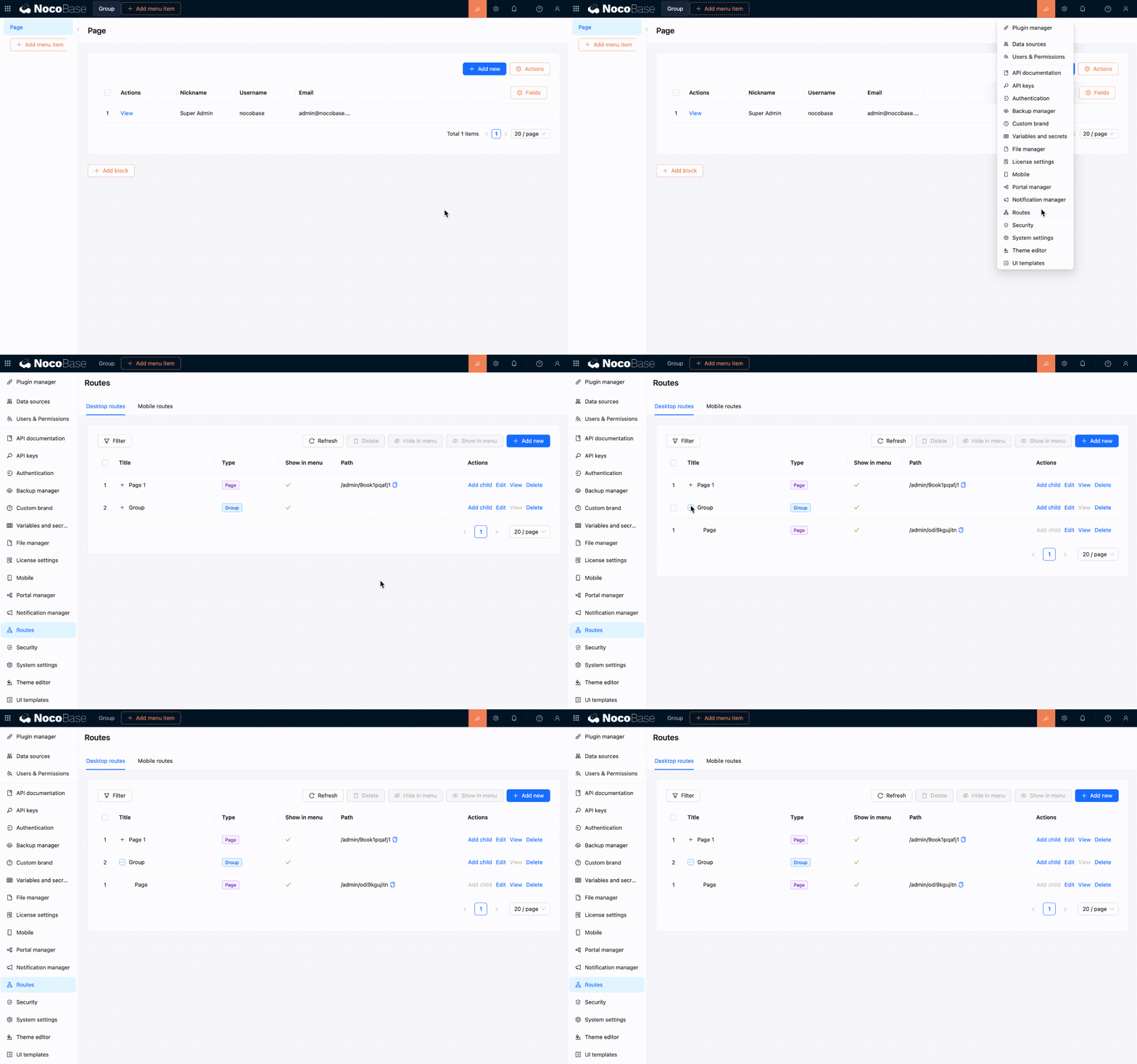
- package/dist/server/ai-employees/tool-call-sanitizer.d.ts +1 -0
- package/dist/server/ai-employees/tool-call-sanitizer.js +2 -1
- package/dist/server/ai-employees/utils.js +11 -5
- package/dist/server/attachments.d.ts +24 -0
- package/dist/server/attachments.js +204 -0
- package/dist/server/document-loader/cached.d.ts +1 -0
- package/dist/server/document-loader/cached.js +18 -9
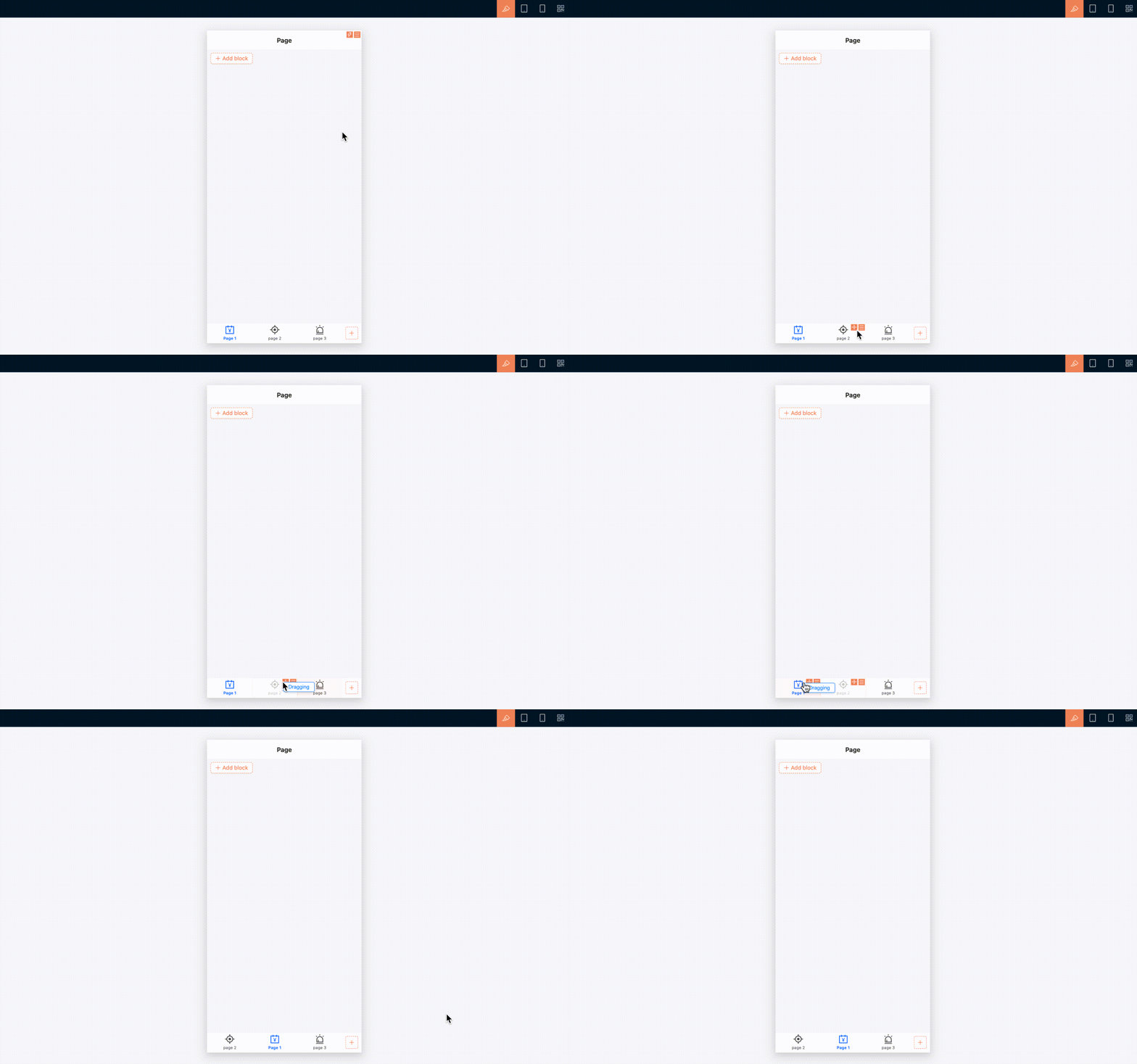
- package/dist/server/document-loader/loader.d.ts +0 -1
- package/dist/server/document-loader/loader.js +25 -8
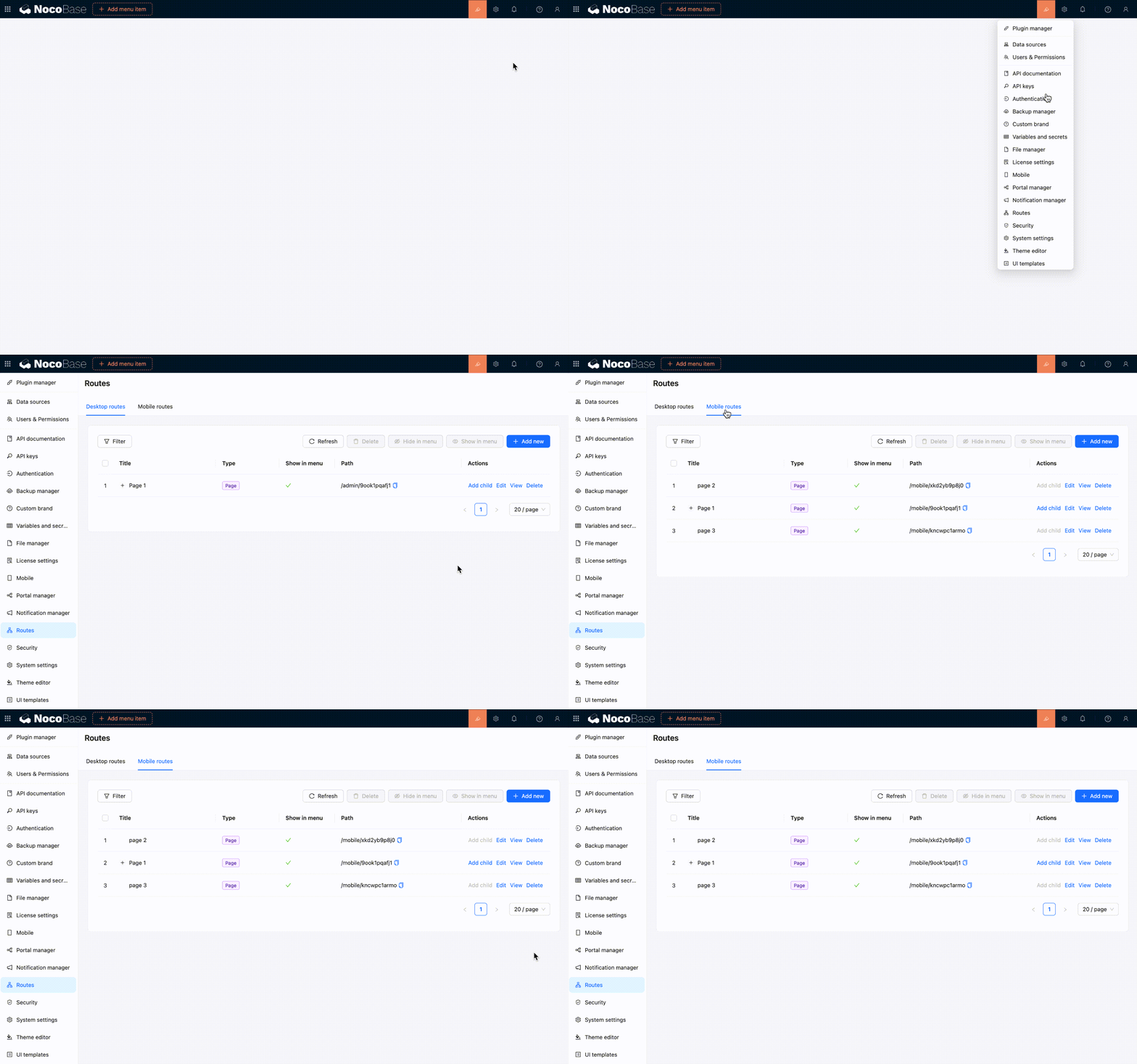
- package/dist/server/document-loader/types.d.ts +7 -0
- package/dist/server/llm-providers/anthropic.d.ts +2 -1
- package/dist/server/llm-providers/anthropic.js +1 -3
- package/dist/server/llm-providers/google-genai.d.ts +1 -1
- package/dist/server/llm-providers/google-genai.js +1 -5
- package/dist/server/llm-providers/provider.d.ts +3 -2
- package/dist/server/llm-providers/provider.js +26 -3
- package/dist/server/manager/ai-context-datasource-manager.js +34 -7
- package/dist/server/plugin.js +14 -0
- package/dist/server/resource/aiConversations.js +44 -1
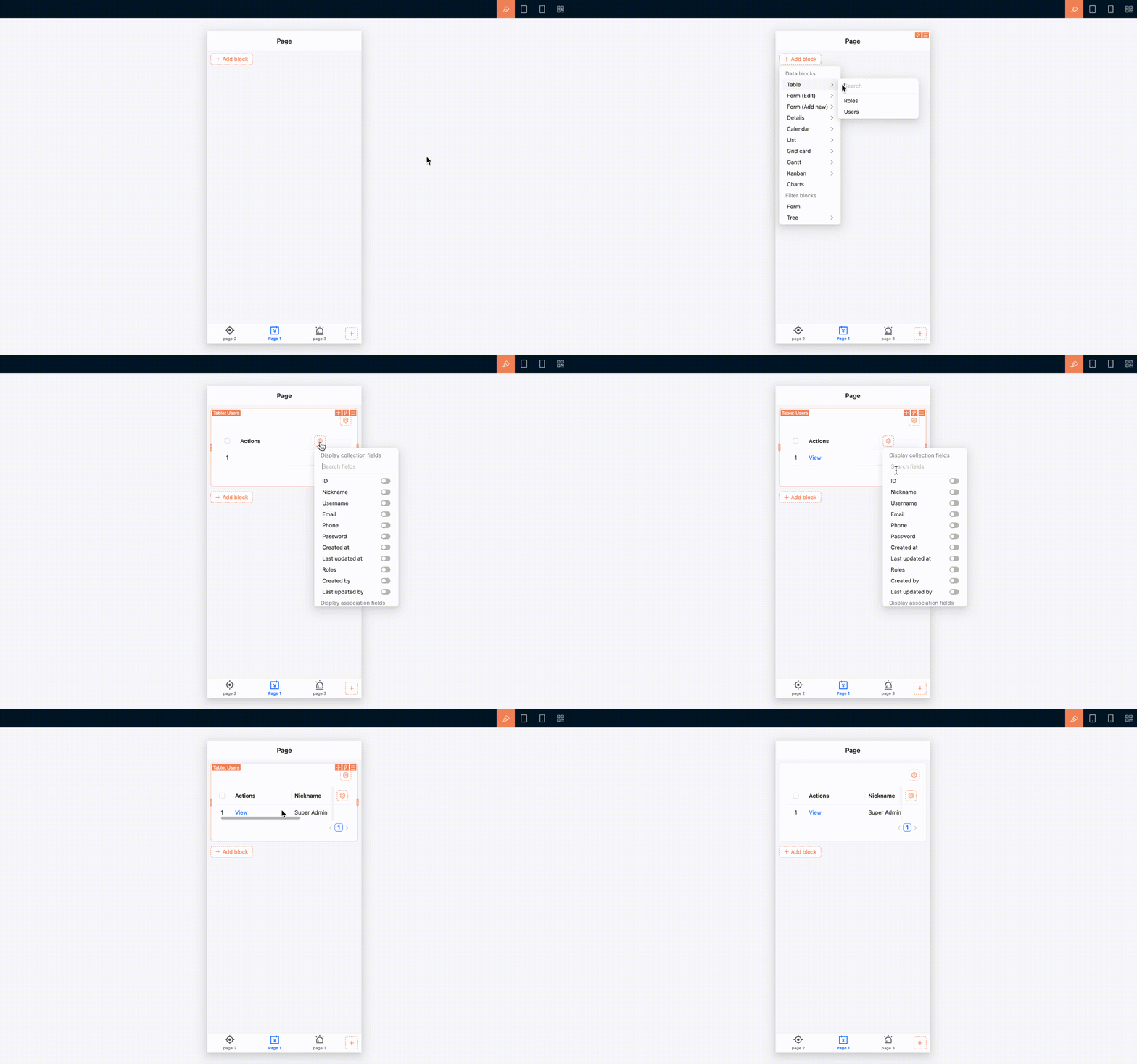
- package/dist/server/utils.d.ts +5 -2
- package/dist/server/utils.js +11 -19
- package/dist/server/workflow/nodes/employee/files.d.ts +3 -1
- package/dist/server/workflow/nodes/employee/files.js +31 -5
- package/package.json +2 -2
- package/dist/client/372.da38fe350bf841f4.js +0 -10
- package/dist/client-v2/372.d76ea1ceed2be2a4.js +0 -10
|
@@ -0,0 +1,87 @@
|
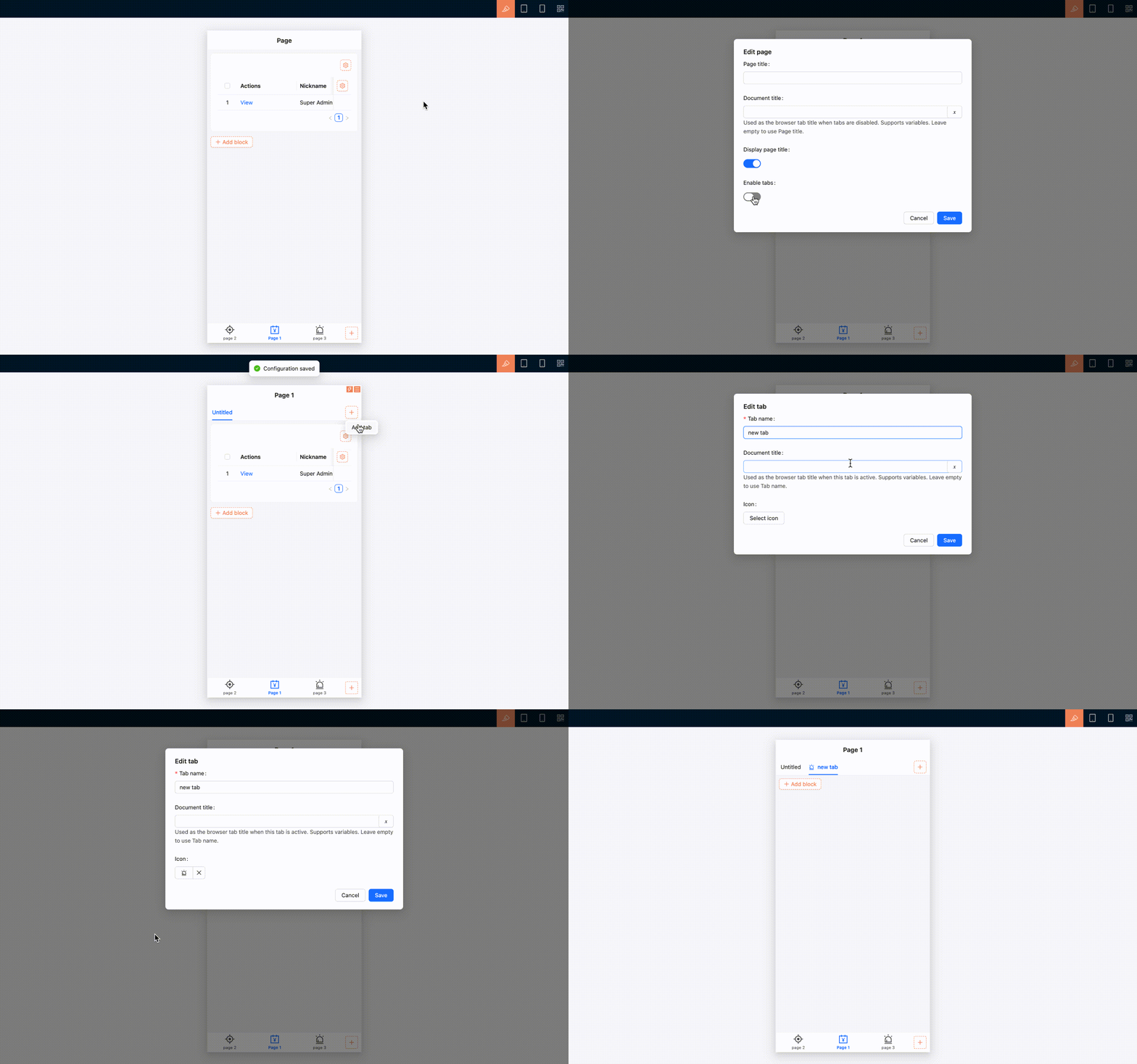
|
|
1
|
+
---
|
|
2
|
+
pkg: '@nocobase/plugin-file-manager'
|
|
3
|
+
title: "Stable URL (proxy URL)"
|
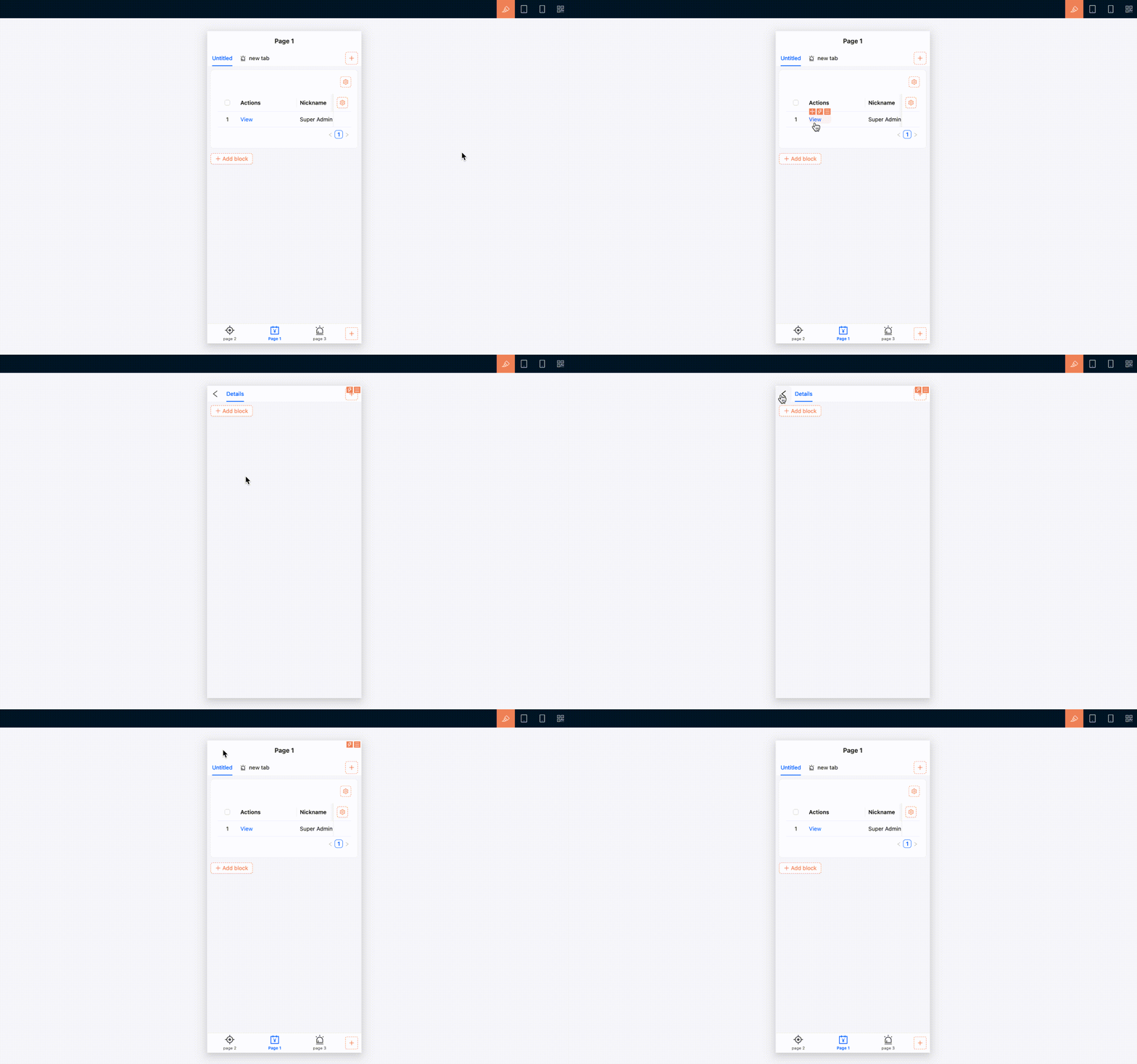
|
4
|
+
description: "Explains NocoBase stable file URLs, access permissions, redirects, temporary Office preview URLs, and behavior across file-related features."
|
|
5
|
+
keywords: "stable URL,proxy URL,permanent URL,file access,file permissions,Office preview,NocoBase"
|
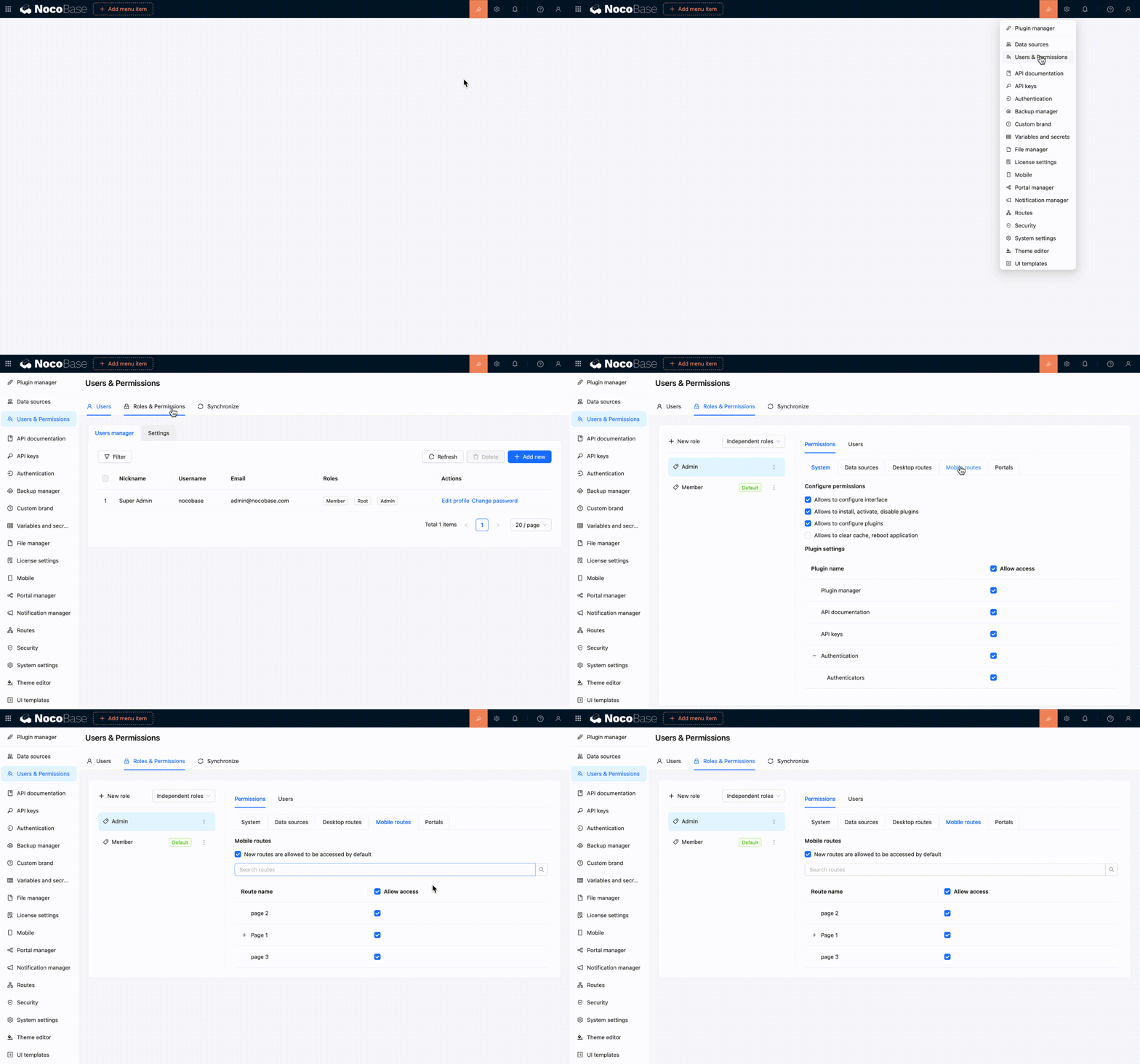
|
6
|
+
---
|
|
7
|
+
|
|
8
|
+
# Stable URL
|
|
9
|
+
|
|
10
|
+
Files managed by a NocoBase storage engine are accessed through a **stable URL**. The URL first reaches NocoBase, where the file record and access permissions are checked, and then redirects to the actual URL generated by the storage engine.
|
|
11
|
+
|
|
12
|
+
## URL format
|
|
13
|
+
|
|
14
|
+
```text
|
|
15
|
+
/files/<app>/<dataSource>/<collection>/<id><extname>
|
|
16
|
+
```
|
|
17
|
+
|
|
18
|
+
For example:
|
|
19
|
+
|
|
20
|
+
```text
|
|
21
|
+
/files/main/main/attachments/42.pdf
|
|
22
|
+
```
|
|
23
|
+
|
|
24
|
+
When `APP_PUBLIC_PATH=/nocobase` is configured, the URL starts with `/nocobase/files/`. The path identifies the app, data source, file collection, record ID, and extension. The ID and extension cannot be changed after creation, which keeps the URL stable for the lifetime of the record.
|
|
25
|
+
|
|
26
|
+
## URL variants
|
|
27
|
+
|
|
28
|
+
| Purpose | URL | Behavior |
|
|
29
|
+
|---|---|---|
|
|
30
|
+
| Open or embed | `/files/.../42.pdf` | Checks permission and redirects to the actual file URL |
|
|
31
|
+
| Preview | `/files/.../42.png?preview=1` | Redirects to the preview or thumbnail URL |
|
|
32
|
+
| Download | `/files/.../42.pdf?download=1` | Redirects with download semantics |
|
|
33
|
+
| Office preview | `/files/.../42.xlsx?temporaryAccessToken=...` | Allows Microsoft Office Online Viewer to fetch one file for a short time |
|
|
34
|
+
|
|
35
|
+
:::tip
|
|
36
|
+
|
|
37
|
+
Use the `url` and `preview` values returned by NocoBase. Application code normally should not construct `/files` URLs or their query parameters.
|
|
38
|
+
|
|
39
|
+
:::
|
|
40
|
+
|
|
41
|
+
## Behavior across NocoBase
|
|
42
|
+
|
|
43
|
+
- Attachment fields and file collections return stable URLs after upload and when records are queried
|
|
44
|
+
- [HTTP API](./http-api.md) responses no longer expose local paths, storage domains, or presigned download URLs
|
|
45
|
+
- Markdown uploads store the stable URL, including files in private S3, OSS, COS, or S3 Pro storage
|
|
46
|
+
- Attachment URL fields store a stable URL for managed uploads, while manually entered external URLs remain unchanged
|
|
47
|
+
- Image, PDF, audio, video, and text previews use the stable URL and the current NocoBase login session
|
|
48
|
+
- Public forms grant limited access to files uploaded in the current public-form browser session; this does not create a generally public link
|
|
49
|
+
|
|
50
|
+
## Office preview
|
|
51
|
+
|
|
52
|
+
Microsoft Office Online Viewer fetches the file from Microsoft servers and cannot use the user's NocoBase cookie. When the user opens an Office preview, NocoBase first checks the user's file permission and then issues a temporary URL for that file.
|
|
53
|
+
|
|
54
|
+
The URL is valid for 10 minutes by default. `TEMPORARY_FILE_ACCESS_EXPIRES_IN` may be set from 5 to 10 minutes. It is requested again when the preview is reopened and must never be saved in an attachment field, Markdown content, or a business record.
|
|
55
|
+
|
|
56
|
+
## Permissions and redirects
|
|
57
|
+
|
|
58
|
+
Logged-in requests use the current app credentials and role. After permission is granted, NocoBase responds with `302` and redirects to the local or object-storage URL.
|
|
59
|
+
|
|
60
|
+
Stable URLs support `GET` and `HEAD`. Other methods return `405`. A command-line client must follow redirects, for example:
|
|
61
|
+
|
|
62
|
+
```bash
|
|
63
|
+
curl -L \
|
|
64
|
+
-H "Authorization: Bearer <JWT>" \
|
|
65
|
+
"https://example.com/files/main/main/attachments/42.pdf"
|
|
66
|
+
```
|
|
67
|
+
|
|
68
|
+
## Important notes
|
|
69
|
+
|
|
70
|
+
- Stable does not mean public; recipients still need permission to view the file
|
|
71
|
+
- Deleting the record or changing its app, data source, or collection context invalidates the old URL
|
|
72
|
+
- Do not persist `temporaryAccessToken` or use it as a sharing link
|
|
73
|
+
- Do not cache the `302 Location` as a permanent URL because storage signatures can expire
|
|
74
|
+
- Do not rewrite the app, data source, collection, ID, or extension in the path
|
|
75
|
+
- Reverse proxies must forward the `/files/` route under `APP_PUBLIC_PATH` to NocoBase. For subpath deployments, keep a compatible root-level `/files/` route as well. Configurations generated by the NocoBase CLI include both routes automatically
|
|
76
|
+
- Deployments where the pages access the API cross-origin (with `API_BASE_URL` pointing to another origin) must add the page origin to `CORS_ORIGIN_WHITELIST`; otherwise the login cookie is never stored and stable URLs return `403` for lack of credentials. See [Environment Variables](../get-started/installation/env.md#api_base_url)
|
|
77
|
+
- Use a different `hostname` for each independent NocoBase service instead of separating services only by port. Browser cookies are not isolated by port; see [Production Environment Deployment](../get-started/deployment/production.md)
|
|
78
|
+
- Sub-apps in the same NocoBase deployment are distinguished by app name and do not need separate hostnames. However, an independent service on another port still needs hostname isolation if it contains a main app or sub-app with the same name
|
|
79
|
+
- Custom `fetch()` code may also need object-storage CORS after following the redirect
|
|
80
|
+
- Use a dedicated sharing or public-access feature when a long-lived public link is required
|
|
81
|
+
|
|
82
|
+
## Related links
|
|
83
|
+
|
|
84
|
+
- [HTTP API](./http-api.md) — Upload and query files through the API
|
|
85
|
+
- [File preview](./file-preview/index.md) — Preview behavior for supported file types
|
|
86
|
+
- [Office file preview](./file-preview/ms-office.md) — Configure Microsoft Office Online Viewer
|
|
87
|
+
- [Storage engines](./storage/index.md) — Configure local and object storage
|
|
@@ -2,12 +2,34 @@
|
|
|
2
2
|
|
|
3
3
|
When deploying NocoBase in a production environment, installing dependencies can be cumbersome due to differences in build methods across various systems and environments. For a complete functional experience, we recommend deploying with **Docker**. If your system environment cannot use Docker, you can also deploy using **create-nocobase-app**.
|
|
4
4
|
|
|
5
|
-
:::warning
|
|
5
|
+
:::warning Note
|
|
6
6
|
|
|
7
7
|
It is not recommended to deploy directly from source code in a production environment. The source code has many dependencies, is large in size, and a full compilation has high CPU and memory requirements. If you must deploy from source code, it is recommended to first build a custom Docker image and then deploy it.
|
|
8
8
|
|
|
9
9
|
:::
|
|
10
10
|
|
|
11
|
+
:::warning Note
|
|
12
|
+
|
|
13
|
+
If you deploy multiple independent NocoBase services, use a different `hostname` for each service, such as separate subdomains. Do not distinguish services only by port, for example `https://example.com:13000` and `https://example.com:14000`.
|
|
14
|
+
|
|
15
|
+
NocoBase uses cookies to maintain login state and [file access permissions](../../file-manager/stable-url.md). Browsers do not isolate cookies by port, so services on different ports under the same `hostname` may share cookies with the same name. This can overwrite login state or cause file preview and download authorization failures.
|
|
16
|
+
|
|
17
|
+
Sub-apps within the same NocoBase deployment are outside this restriction. Login cookies are distinguished by app name, so the main app and differently named sub-apps can share one `hostname`.
|
|
18
|
+
|
|
19
|
+
However, independent services still need isolation. If another NocoBase service runs on a different port under the same `hostname` and contains a main app or sub-app with the same name, its cookies may still conflict.
|
|
20
|
+
|
|
21
|
+
Use addresses such as `app1.example.com` and `app2.example.com`, then route them to different NocoBase services through Nginx or Caddy.
|
|
22
|
+
|
|
23
|
+
:::
|
|
24
|
+
|
|
25
|
+
## Separated Frontend / Cross-Origin API Access
|
|
26
|
+
|
|
27
|
+
Prefer keeping the pages and the API on the same origin: use a reverse proxy under one domain to forward `${APP_PUBLIC_PATH}api/` and `${APP_PUBLIC_PATH}files/` to the NocoBase service, and leave `API_BASE_URL` empty.
|
|
28
|
+
|
|
29
|
+
If the pages must access the API cross-origin (with `API_BASE_URL` pointing to another origin), add the page origin to `CORS_ORIGIN_WHITELIST`. Otherwise the browser ignores `Set-Cookie` in API responses, the login cookie is never stored, and preview and download through stable file URLs fail authorization.
|
|
30
|
+
|
|
31
|
+
Also note that cookies are stored per `hostname`: when the pages and the API use entirely different domains, requests to `/files/` from the page domain will not carry the login cookie stored under the API domain. Such deployments should switch to a same-origin reverse proxy. See [Environment Variables](../installation/env.md#api_base_url).
|
|
32
|
+
|
|
11
33
|
## Deployment Process
|
|
12
34
|
|
|
13
35
|
For production environment deployment, you can refer to the existing installation and upgrade steps.
|
|
@@ -39,4 +61,4 @@ In a production environment, it is recommended to manage static assets with a pr
|
|
|
39
61
|
Depending on the installation method, you can use the following commands to manage the NocoBase process:
|
|
40
62
|
|
|
41
63
|
- [docker compose](./common-commands/docker-compose.md)
|
|
42
|
-
- [pm2](./common-commands/pm2.md)
|
|
64
|
+
- [pm2](./common-commands/pm2.md)
|
|
@@ -94,6 +94,7 @@ services:
|
|
|
94
94
|
- `NOCOBASE_PROXY_UPSTREAM_HOST=app` lets the Caddy container reach the `app` service through the Compose network
|
|
95
95
|
- `./storage` must be mounted into both the `app` and `caddy` containers so they can share proxy config, static assets, and uploaded files
|
|
96
96
|
- The `caddy` container should wait until `nocobase.caddy` is generated, then link it to `/etc/caddy/Caddyfile` with `ln -sf`
|
|
97
|
+
- The generated config forwards both the `/files/` route under `APP_PUBLIC_PATH` and the root-level `/files/` route to NocoBase for authenticated file previews and downloads
|
|
97
98
|
- Expose only the Caddy container port to the host. For testing, you can start with `13000:80`; in production, you usually expose the host `80` and `443` ports directly, while the `app` service does not need to expose its port to the host
|
|
98
99
|
|
|
99
100
|
## If you use a local host Caddy
|
|
@@ -169,6 +170,8 @@ sudo systemctl reload caddy
|
|
|
169
170
|
|
|
170
171
|
If your host Caddy does not use `/etc/caddy/Caddyfile`, replace the link target with your own config path. Usually it is safer to keep `nocobase.caddy` as the main entry file instead of copying its content manually.
|
|
171
172
|
|
|
173
|
+
If you maintain Caddy yourself instead of using the generated config, make sure `/files/*` and the corresponding route under `APP_PUBLIC_PATH` are forwarded to NocoBase before the SPA fallback rules. See [Caddy Reverse Proxy](../../nocobase-cli/production/reverse-proxy/caddy.md) for a complete example.
|
|
174
|
+
|
|
172
175
|
## Related links
|
|
173
176
|
|
|
174
177
|
- [Docker Installation (Built-in Nginx)](./docker.mdx) — Start with the single-container setup
|
|
@@ -95,6 +95,7 @@ services:
|
|
|
95
95
|
- `NOCOBASE_PROXY_UPSTREAM_HOST=app` lets the Nginx container reach the `app` service through the Compose network
|
|
96
96
|
- `./storage` must be mounted into both the `app` and `nginx` containers so they can share proxy config, static assets, and uploaded files
|
|
97
97
|
- The `nginx` container should wait until `nocobase.conf` is generated, then link it to `/etc/nginx/conf.d/default.conf` with `ln -sf`
|
|
98
|
+
- The generated config forwards both the `/files/` route under `APP_PUBLIC_PATH` and the root-level `/files/` route to NocoBase for authenticated file previews and downloads
|
|
98
99
|
- If you use an external Nginx container, let the `nginx` container handle the host port mapping. For testing, you can start with `13000:80`; in production, you usually expose the host `80` and `443` ports directly, while the `app` service does not need to expose its port to the host
|
|
99
100
|
|
|
100
101
|
## If you use a local host Nginx
|
|
@@ -170,6 +171,8 @@ sudo systemctl reload nginx
|
|
|
170
171
|
|
|
171
172
|
If your host Nginx does not use the `conf.d` directory, replace the link target with your own config path. Usually it is safer to keep `nocobase.conf` as a file included from the `http {}` context instead of copying its content manually.
|
|
172
173
|
|
|
174
|
+
If you maintain Nginx yourself instead of using the generated config, make sure `/files/` and the corresponding route under `APP_PUBLIC_PATH` are forwarded to NocoBase before the SPA fallback rules. See [Nginx Reverse Proxy](../../nocobase-cli/production/reverse-proxy/nginx.md) for a complete example.
|
|
175
|
+
|
|
173
176
|
## Related links
|
|
174
177
|
|
|
175
178
|
- [Docker Installation (Built-in Nginx)](./docker.mdx) — Start with the single-container setup
|
|
@@ -627,7 +627,7 @@ If you use the built-in Nginx image, it is usually better not to expose `13000`
|
|
|
627
627
|
|
|
628
628
|
The following config proxies domain requests to `http://127.0.0.1:13000/`:
|
|
629
629
|
|
|
630
|
-
```
|
|
630
|
+
```nginx
|
|
631
631
|
server {
|
|
632
632
|
listen 80;
|
|
633
633
|
server_name your_domain.com; # Replace your_domain.com with your domain
|
|
@@ -658,6 +658,8 @@ server {
|
|
|
658
658
|
|
|
659
659
|
If you also want to enable HTTPS, configure `443` and the certificate on the host Nginx. The NocoBase container does not need to handle certificates separately.
|
|
660
660
|
|
|
661
|
+
The `location /` block in this root-path configuration also proxies `/api/`, `/ws`, and `/files/`. If you split static assets from application routes, make sure `/files/` is still forwarded to NocoBase and is not handled as a static directory.
|
|
662
|
+
|
|
661
663
|
### Subpath deployment
|
|
662
664
|
|
|
663
665
|
If you want to deploy the app under a subpath, such as `https://your_domain.com/nocobase/`, configure the `APP_PUBLIC_PATH` environment variable first:
|
|
@@ -674,7 +676,7 @@ Keep the leading and trailing `/` in the path. After this is configured, the app
|
|
|
674
676
|
|
|
675
677
|
Then configure the host Nginx with the same subpath proxy:
|
|
676
678
|
|
|
677
|
-
```
|
|
679
|
+
```nginx
|
|
678
680
|
server {
|
|
679
681
|
listen 80;
|
|
680
682
|
server_name your_domain.com; # Replace your_domain.com with your domain
|
|
@@ -700,10 +702,32 @@ server {
|
|
|
700
702
|
send_timeout 600;
|
|
701
703
|
proxy_buffering off;
|
|
702
704
|
}
|
|
705
|
+
|
|
706
|
+
# Keep compatibility with root-level file access URLs.
|
|
707
|
+
location ^~ /files/ {
|
|
708
|
+
proxy_pass http://127.0.0.1:13000;
|
|
709
|
+
proxy_http_version 1.1;
|
|
710
|
+
|
|
711
|
+
proxy_set_header X-Forwarded-For $proxy_add_x_forwarded_for;
|
|
712
|
+
proxy_set_header X-Forwarded-Proto $upstream_x_forwarded_proto;
|
|
713
|
+
proxy_set_header Host $final_host;
|
|
714
|
+
proxy_set_header Referer $http_referer;
|
|
715
|
+
proxy_set_header User-Agent $http_user_agent;
|
|
716
|
+
|
|
717
|
+
add_header Cache-Control "no-cache, no-store" always;
|
|
718
|
+
|
|
719
|
+
proxy_connect_timeout 600;
|
|
720
|
+
proxy_send_timeout 600;
|
|
721
|
+
proxy_read_timeout 600;
|
|
722
|
+
send_timeout 600;
|
|
723
|
+
}
|
|
703
724
|
}
|
|
704
725
|
```
|
|
705
726
|
|
|
706
|
-
|
|
727
|
+
Keep these points in mind:
|
|
728
|
+
|
|
729
|
+
- `APP_PUBLIC_PATH` and the path in `proxy_pass` must stay consistent. If either side misses `/nocobase/`, static assets and routing will usually not work correctly
|
|
730
|
+
- `/nocobase/files/` is forwarded by `location /nocobase/`; the compatible root-level `/files/` route must be forwarded to NocoBase separately
|
|
707
731
|
|
|
708
732
|
### Other options
|
|
709
733
|
|
|
@@ -86,6 +86,39 @@ API_BASE_PATH=/api/
|
|
|
86
86
|
|
|
87
87
|
### API_BASE_URL
|
|
88
88
|
|
|
89
|
+
Base URL the frontend uses to access the NocoBase API. Empty by default, which means the same-origin `${APP_PUBLIC_PATH}api/` is used.
|
|
90
|
+
|
|
91
|
+
```bash
|
|
92
|
+
API_BASE_URL=
|
|
93
|
+
```
|
|
94
|
+
|
|
95
|
+
Only set it to the full API address when the pages and the API service are on different origins (different protocol, domain, or port):
|
|
96
|
+
|
|
97
|
+
```bash
|
|
98
|
+
API_BASE_URL=https://api.example.com/api/
|
|
99
|
+
```
|
|
100
|
+
|
|
101
|
+
:::warning{title="Cross-origin deployments"}
|
|
102
|
+
NocoBase uses cookies to maintain login state and to authorize [stable file URLs](../../file-manager/stable-url.md). When `API_BASE_URL` points to a different origin than the pages:
|
|
103
|
+
|
|
104
|
+
- The page origin must be added to [`CORS_ORIGIN_WHITELIST`](#cors_origin_whitelist). Otherwise the browser ignores `Set-Cookie` in API responses, the login cookie is never stored, and cookie-dependent features such as file preview and download fail with `403`.
|
|
105
|
+
- Cookies are stored per `hostname`. If the pages and the API use entirely different domains, requests to `/files/` stable URLs from the page domain will not carry the login cookie stored under the API domain, so file access still fails.
|
|
106
|
+
|
|
107
|
+
Prefer serving the pages and the API from the same origin through a reverse proxy and leaving `API_BASE_URL` empty.
|
|
108
|
+
:::
|
|
109
|
+
|
|
110
|
+
### CORS_ORIGIN_WHITELIST
|
|
111
|
+
|
|
112
|
+
Whitelist of origins allowed to access the API cross-origin with credentials (cookies). Multiple origins are separated by commas. Empty by default.
|
|
113
|
+
|
|
114
|
+
```bash
|
|
115
|
+
CORS_ORIGIN_WHITELIST=https://www.example.com,https://admin.example.com
|
|
116
|
+
```
|
|
117
|
+
|
|
118
|
+
- When not configured, only same-origin requests are treated as trusted; cross-origin requests can still call the API anonymously, but the browser is not allowed to read or write cookies for them.
|
|
119
|
+
- When configured, whitelisted origins receive an exact `Access-Control-Allow-Origin` echo and `Access-Control-Allow-Credentials: true`, which lets the browser send and store login cookies on cross-origin requests.
|
|
120
|
+
- The sign-in API validates the request `Origin` / `Referer`; cross-origin sign-in requests from origins outside the whitelist are rejected with `403`.
|
|
121
|
+
|
|
89
122
|
### CLUSTER_MODE
|
|
90
123
|
|
|
91
124
|
> `v1.6.0+`
|
|
@@ -28,7 +28,7 @@ features:
|
|
|
28
28
|
link: /ai/install-nocobase-app
|
|
29
29
|
- title: Tutorials
|
|
30
30
|
details: Step-by-step tutorials to build real projects with NocoBase from scratch.
|
|
31
|
-
link: /tutorials/
|
|
31
|
+
link: /tutorials/
|
|
32
32
|
|
|
33
33
|
- title: AI
|
|
34
34
|
details: An AI-powered new way to get started - use natural language to build, use, and develop.
|
|
@@ -16,12 +16,9 @@ Edit mode:
|
|
|
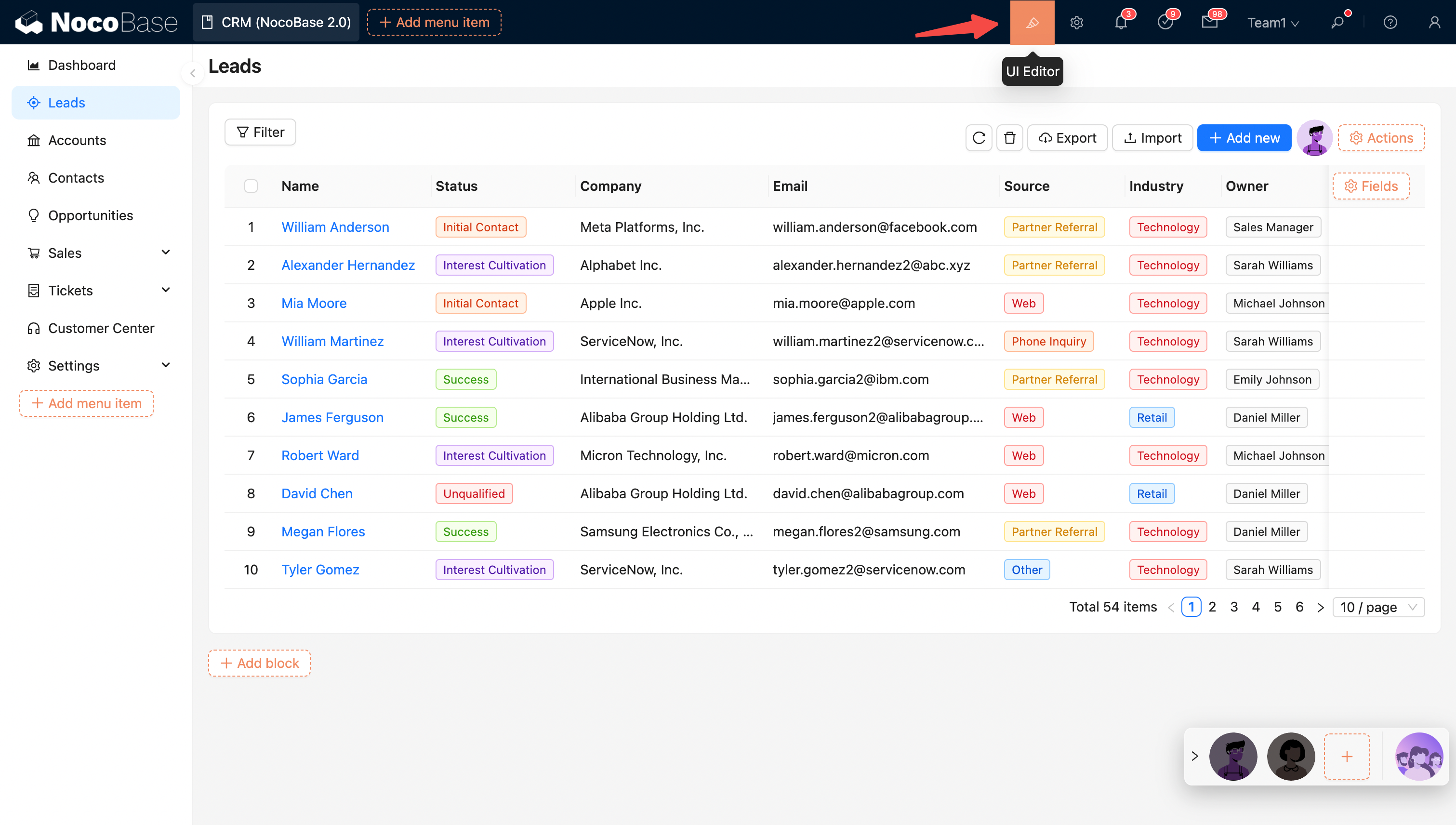
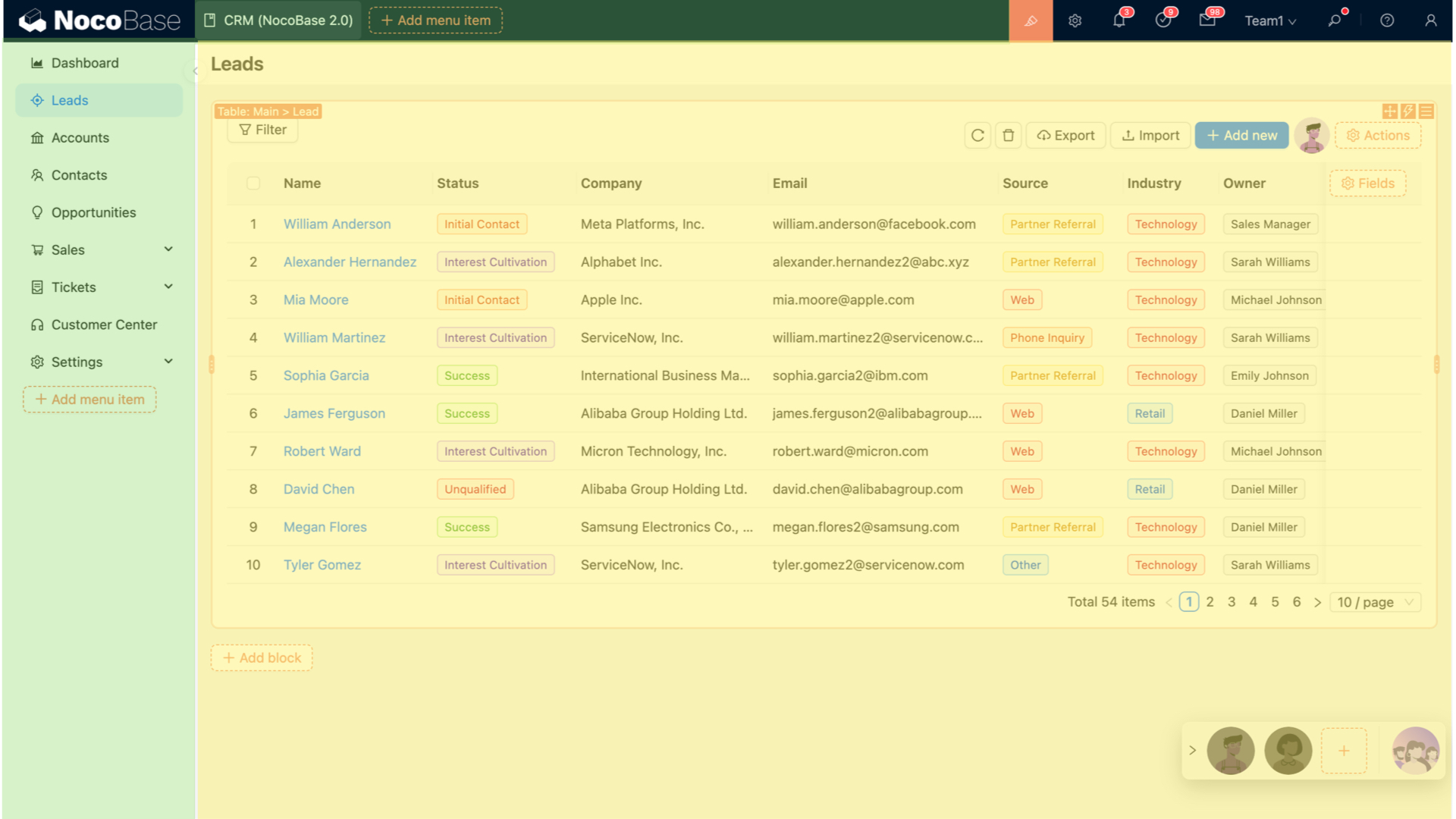
16
16
|
|
|
17
17
|
|
|
18
18
|
|
|
19
|
-
## Layout
|
|
19
|
+
## UI Layout
|
|
20
20
|
|
|
21
|
-
NocoBase
|
|
22
|
-
|
|
23
|
-
|
|
24
|
-
|
|
21
|
+
NocoBase provides desktop and mobile layouts. The desktop layout works well for standard administration and adapts its navigation and page content on phones. The mobile layout provides separate mobile navigation and page configuration. See [UI Layout](./ui-layout/index.md) for details.
|
|
25
22
|
|
|
26
23
|
|
|
27
24
|
## Configuration Options
|
|
@@ -55,4 +52,8 @@ Action configuration options:
|
|
|
55
52
|
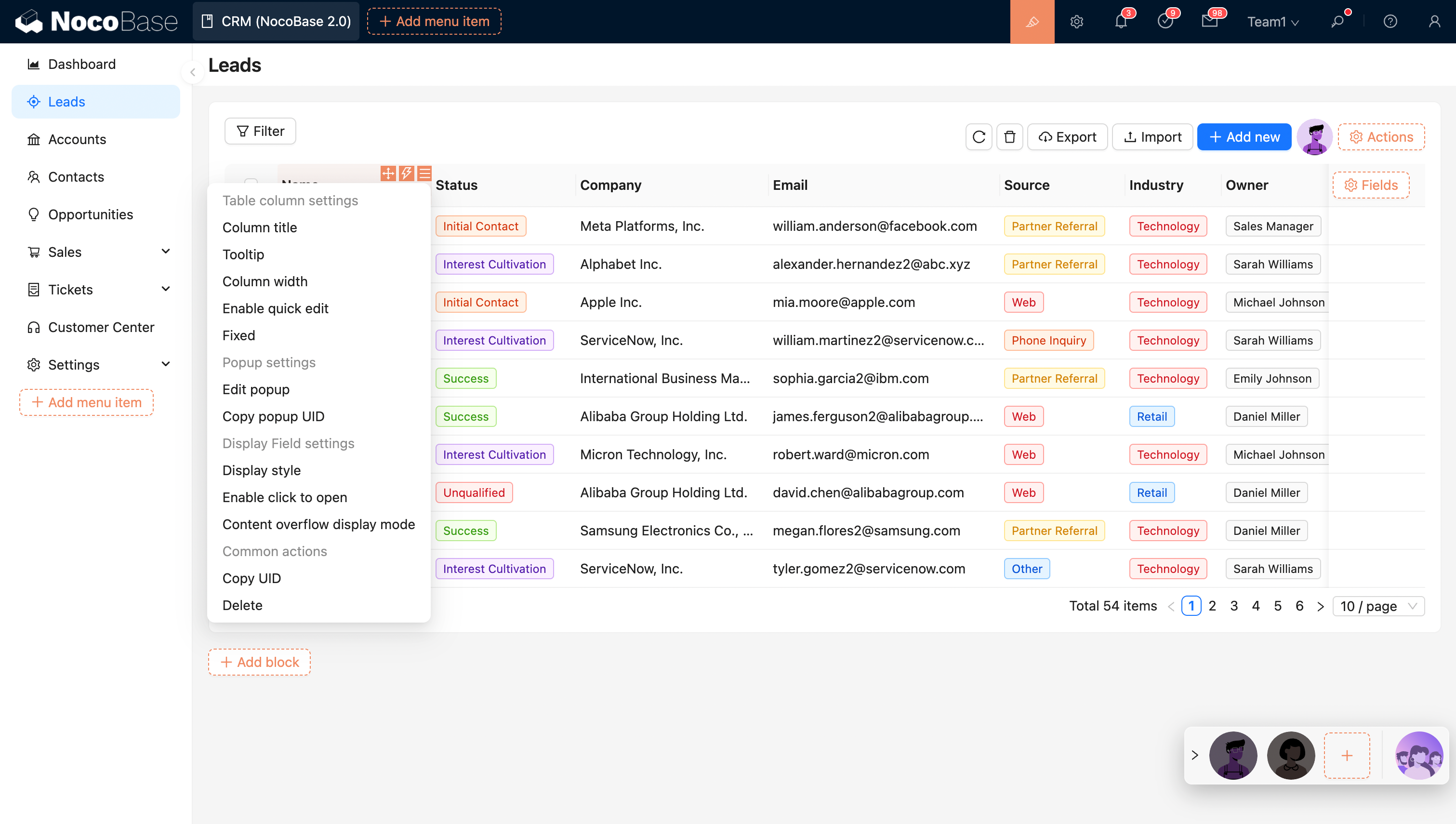
Table column configuration options:
|
|
56
53
|
|
|
57
54
|
|
|
58
|
-
|
|
55
|
+

|
|
56
|
+
|
|
57
|
+
## Related links
|
|
58
|
+
|
|
59
|
+
- [UI Layout](./ui-layout/index.md) — Learn about desktop and mobile layouts
|
|
@@ -0,0 +1,97 @@
|
|
|
1
|
+
---
|
|
2
|
+
title: "Desktop Layout"
|
|
3
|
+
description: "Learn about the navigation structure, page building, route management, and narrow-screen responsive behavior of the NocoBase desktop layout."
|
|
4
|
+
keywords: "desktop layout,UI layout,narrow-screen responsive,page building,route management,UI Editor,NocoBase"
|
|
5
|
+
---
|
|
6
|
+
|
|
7
|
+
# Desktop Layout
|
|
8
|
+
|
|
9
|
+
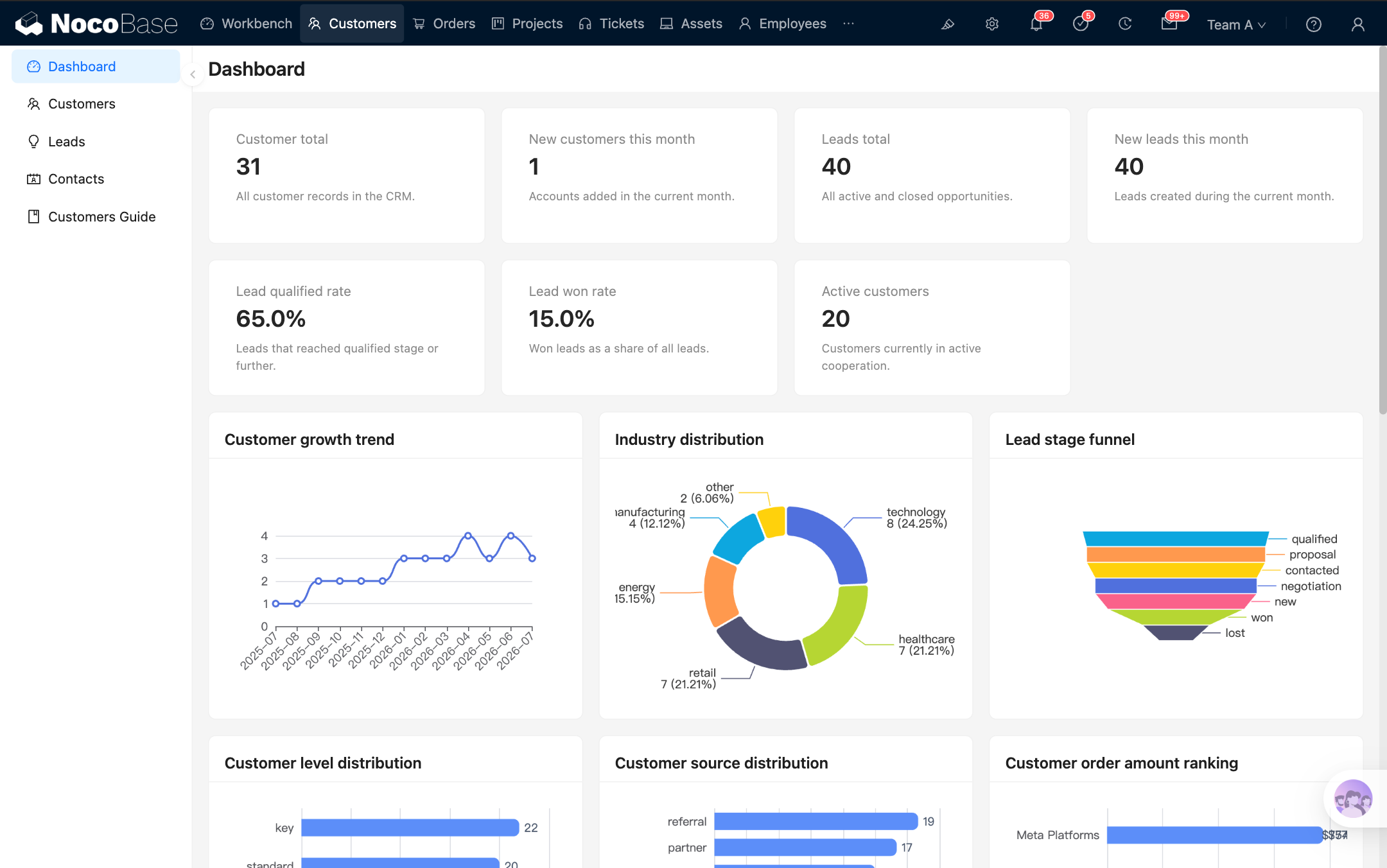
In NocoBase, the **desktop layout** is the default application interface. It is designed for data management, form entry, business configuration, and everyday work on a computer, and can also be used on mobile devices.
|
|
10
|
+
|
|
11
|
+
The desktop layout is available at `/admin` by default. If the application has its own access prefix, the actual URL automatically includes that prefix.
|
|
12
|
+
|
|
13
|
+
|
|
14
|
+
|
|
15
|
+
|
|
16
|
+
|
|
17
|
+
## Build a page
|
|
18
|
+
|
|
19
|
+
### Step 1: Open the desktop layout
|
|
20
|
+
|
|
21
|
+
Visit `/admin` to open the desktop layout. After signing in, the application usually opens this layout directly.
|
|
22
|
+
|
|
23
|
+
|
|
24
|
+
|
|
25
|
+
### Step 2: Open UI Editor
|
|
26
|
+
|
|
27
|
+
Click 「UI Editor」 in the upper-right corner of the page to enter UI building mode. Configuration entries then appear around menus, pages, blocks, fields, and actions.
|
|
28
|
+
|
|
29
|
+
|
|
30
|
+
|
|
31
|
+
### Step 3: Create menus and pages
|
|
32
|
+
|
|
33
|
+
You can add groups, pages, or links in the navigation area, and enable tabs for a page. After creating a page, open it and add the blocks you need.
|
|
34
|
+
|
|
35
|
+
Page content is built in the same way as other interfaces: add [blocks](../blocks/index.md) first, then configure [fields](../fields/index.md) and [actions](../actions/index.md) for your business needs.
|
|
36
|
+
|
|
37
|
+
|
|
38
|
+
|
|
39
|
+
### Step 4: Configure page content
|
|
40
|
+
|
|
41
|
+
Add table, form, details, filter, or other blocks to the page, then adjust the fields, actions, and arrangement of the blocks. Each change is reflected directly on the current page.
|
|
42
|
+
|
|
43
|
+
|
|
44
|
+
|
|
45
|
+
## Manage routes and menus
|
|
46
|
+
|
|
47
|
+
When you add a page or link in the navigation area, it also appears in the [Route Manager](../../routes/index.md). Changes made in the Route Manager also update the menu.
|
|
48
|
+
|
|
49
|
+
The desktop layout supports these common route types:
|
|
50
|
+
|
|
51
|
+
- **Group** — Organizes multiple pages and links under the same navigation group.
|
|
52
|
+
- **Page** — Opens a page where you can continue adding blocks.
|
|
53
|
+
- **Link** — Opens an internal or external URL.
|
|
54
|
+
- **Tab** — Organizes multiple content tabs within a page.
|
|
55
|
+
|
|
56
|
+
In the Route Manager, you can add, edit, delete, show, or hide routes. It is often the more convenient place to reorganize the entire menu structure.
|
|
57
|
+
|
|
58
|
+
|
|
59
|
+
|
|
60
|
+
## Responsive behavior on narrow screens
|
|
61
|
+
|
|
62
|
+
The desktop layout can be used directly on a phone or in a narrow browser window. In narrow-screen mode, it still uses the same desktop routes and pages. It does not automatically switch to the mobile layout.
|
|
63
|
+
|
|
64
|
+
### Layout changes
|
|
65
|
+
|
|
66
|
+
The navigation menu collapses, and top actions move into a more compact entry. Page margins and spacing between blocks also shrink, while the content area adapts to the visible height of the mobile browser.
|
|
67
|
+
|
|
68
|
+
UI Editor is not available on narrow screens. To change menus or pages, you need to return to a desktop browser and make the changes there.
|
|
69
|
+
|
|
70
|
+

|
|
71
|
+
|
|
72
|
+
### How page content adapts
|
|
73
|
+
|
|
74
|
+
Common components also adjust their interactions for narrow screens, making them easier to use on a phone. For instance, multi-column blocks switch to a single column, tables allow horizontal scrolling for columns that extend beyond the screen, and pagination and action entries become more compact. Selection, date and time, filter, and subpage interactions also use forms that are easier to operate on a phone.
|
|
75
|
+
|
|
76
|
+
:::tip Desktop responsiveness and the mobile layout
|
|
77
|
+
|
|
78
|
+
If you only access the application from a phone occasionally, the responsive desktop layout is usually enough. If you need separate bottom navigation, mobile pages, and mobile workflows, build a [mobile layout](./mobile.md) as well.
|
|
79
|
+
|
|
80
|
+
:::
|
|
81
|
+
|
|
82
|
+
## Recommendations
|
|
83
|
+
|
|
84
|
+
- Use the desktop layout by default for work performed mainly on a computer.
|
|
85
|
+
- Finish building the page on a wide screen, then narrow the window to check its responsive behavior.
|
|
86
|
+
- If a page contains many table columns or horizontal actions, keep only the necessary content to reduce the workload on smaller screens.
|
|
87
|
+
- If the desktop and mobile workflows differ significantly, separate pages are usually clearer.
|
|
88
|
+
|
|
89
|
+
## Related links
|
|
90
|
+
|
|
91
|
+
- [UI layout overview](./index.md) — Compare desktop and mobile layout use cases
|
|
92
|
+
- [Mobile layout](./mobile.md) — Build separate mobile navigation and pages
|
|
93
|
+
- [Blocks](../blocks/index.md) — Add and configure blocks on a page
|
|
94
|
+
- [Fields](../fields/index.md) — Configure fields in tables, forms, and details blocks
|
|
95
|
+
- [Actions](../actions/index.md) — Configure actions on pages and blocks
|
|
96
|
+
- [Route Manager](../../routes/index.md) — Manage desktop menus and routes in one place
|
|
97
|
+
- [Permission configuration](../../users-permissions/acl/permissions.md) — Control which desktop routes each role can access
|
|
@@ -0,0 +1,50 @@
|
|
|
1
|
+
---
|
|
2
|
+
title: "UI Layout"
|
|
3
|
+
description: "An overview of NocoBase UI layouts, including desktop and mobile layout features, use cases, and how their configurations relate."
|
|
4
|
+
keywords: "UI layout,desktop layout,mobile layout,responsive layout,mobile pages,NocoBase"
|
|
5
|
+
---
|
|
6
|
+
|
|
7
|
+
# UI Layout
|
|
8
|
+
|
|
9
|
+
NocoBase provides desktop and mobile layouts. Both layouts support UI building, so you can create pages and configure blocks, fields, and actions within them.
|
|
10
|
+
|
|
11
|
+
The desktop layout is the default choice and works well for everyday administration and data processing on a computer. If you need dedicated navigation and pages for mobile devices, you can build a mobile layout as well.
|
|
12
|
+
|
|
13
|
+
## Desktop layout
|
|
14
|
+
|
|
15
|
+
The [desktop layout](./desktop.md) is available at `/admin` by default. It consists of top navigation, side navigation, and a page content area, making it suitable for common business scenarios such as managing tables, entering form data, and viewing records.
|
|
16
|
+
|
|
17
|
+
The desktop layout also supports responsive behavior on narrow screens. When a page is displayed on a smaller screen, the navigation, spacing, and common components adjust to fit while continuing to use the existing desktop menus and pages.
|
|
18
|
+
|
|
19
|
+

|
|
20
|
+
|
|
21
|
+
## Mobile layout
|
|
22
|
+
|
|
23
|
+
The [mobile layout](./mobile.md) is available at `/mobile` by default. It uses a bottom tab bar for primary navigation and provides separate mobile pages, links, and page tabs.
|
|
24
|
+
|
|
25
|
+
The mobile layout works well for frequent phone-based tasks such as on-site data entry, mobile approvals, task processing, and data lookup. You can build and preview pages in a desktop browser, then use a QR code to check the result on a physical device.
|
|
26
|
+
|
|
27
|
+
|
|
28
|
+
|
|
29
|
+
## Which layout should I use?
|
|
30
|
+
|
|
31
|
+
Use the desktop layout by default.
|
|
32
|
+
|
|
33
|
+
| I want to... | Recommended layout |
|
|
34
|
+
| --- | --- |
|
|
35
|
+
| Work mainly on a computer and occasionally access pages from a phone | [Desktop layout](./desktop.md) |
|
|
36
|
+
| Design separate navigation, pages, and workflows for phones | [Mobile layout](./mobile.md) |
|
|
37
|
+
| Provide a complete experience for both computers and mobile devices | Build the desktop and mobile layouts separately |
|
|
38
|
+
|
|
39
|
+
## How the configurations relate
|
|
40
|
+
|
|
41
|
+
The desktop and mobile layouts use the same data sources and business data. You can use the same data table to build separate pages for different devices.
|
|
42
|
+
|
|
43
|
+
Menus, routes, and page configurations are maintained separately. Changes to a desktop page do not automatically update its mobile counterpart, and changes to mobile navigation do not affect desktop navigation. [Route access permissions](../../users-permissions/acl/permissions.md) also need to be configured separately for each layout.
|
|
44
|
+
|
|
45
|
+
## Related links
|
|
46
|
+
|
|
47
|
+
- [Desktop layout](./desktop.md) — Build desktop pages and learn how they behave on narrow screens
|
|
48
|
+
- [Mobile layout](./mobile.md) — Build separate mobile navigation and pages
|
|
49
|
+
- [Route Manager](../../routes/index.md) — Manage desktop and mobile pages, links, and menus
|
|
50
|
+
- [Permission configuration](../../users-permissions/acl/permissions.md) — Control which menus and pages each role can access
|
|
@@ -0,0 +1,133 @@
|
|
|
1
|
+
---
|
|
2
|
+
title: "Mobile Layout"
|
|
3
|
+
description: "Learn about NocoBase mobile navigation, page building, desktop preview, subpage interactions, routes, and permissions."
|
|
4
|
+
keywords: "mobile layout,mobile pages,bottom navigation,mobile preview,mobile routes,UI Editor,NocoBase"
|
|
5
|
+
---
|
|
6
|
+
|
|
7
|
+
# Mobile Layout
|
|
8
|
+
|
|
9
|
+
In NocoBase, the **mobile layout** is used to build dedicated navigation and pages for mobile devices. It is available at `/mobile` by default and uses a bottom tab bar as its primary navigation, making it more suitable for data entry, lookup, approval, and task processing on a phone.
|
|
10
|
+
|
|
11
|
+
The mobile and desktop layouts use the same data sources and business data, but their menus, routes, and page content are configured separately. This lets you reorganize pages around mobile workflows without being constrained by the desktop page structure.
|
|
12
|
+
|
|
13
|
+
<!-- Add a full-page screenshot of the mobile layout on a physical device -->
|
|
14
|
+
|
|
15
|
+
## Open and preview the mobile layout
|
|
16
|
+
|
|
17
|
+
By default, you can click 「Mobile」 in Settings to open the layout, or visit `/mobile` directly.
|
|
18
|
+
|
|
19
|
+
It is best to build pages in a desktop browser. The desktop view provides a mobile preview area and a toolbar at the top:
|
|
20
|
+
|
|
21
|
+
- 「UI Editor」 turns UI building mode on or off.
|
|
22
|
+
- 「Tablet preview」 checks the display on wider mobile devices.
|
|
23
|
+
- 「Mobile preview」 restores the phone-sized preview area.
|
|
24
|
+
- 「QR code」 opens the current mobile URL on a phone.
|
|
25
|
+
|
|
26
|
+
|
|
27
|
+
|
|
28
|
+
After building the pages on a computer, scan the QR code and check them on a physical device. Pay particular attention to navigation, scrolling, form input, pop-up pages, and safe areas.
|
|
29
|
+
|
|
30
|
+
## Build mobile navigation
|
|
31
|
+
|
|
32
|
+
The mobile layout uses a bottom tab bar as its primary navigation. Primary navigation currently supports mainly pages and links.
|
|
33
|
+
|
|
34
|
+
### Add a page
|
|
35
|
+
|
|
36
|
+
1. Open 「UI Editor」.
|
|
37
|
+
2. Click the add button on the right side of the bottom tab bar.
|
|
38
|
+
3. Select 「Page」.
|
|
39
|
+
4. Enter a page title and select an icon.
|
|
40
|
+
5. Submit the form to open the new page, then continue adding page content.
|
|
41
|
+
|
|
42
|
+
|
|
43
|
+
|
|
44
|
+
### Add a link
|
|
45
|
+
|
|
46
|
+
To open an internal or external URL, select 「Link」 and configure its title, icon, and URL.
|
|
47
|
+
|
|
48
|
+
A link can open in the current window or a new window, depending on its configuration.
|
|
49
|
+
|
|
50
|
+
|
|
51
|
+
|
|
52
|
+
### Arrange navigation
|
|
53
|
+
|
|
54
|
+
In UI building mode, drag bottom tabs to reorder them. You can also edit a tab's title and icon, configure linkage rules, copy its UID, or delete it.
|
|
55
|
+
|
|
56
|
+
To view, show, hide, or delete mobile routes in one place, open 「Settings / Routes / Mobile routes」.
|
|
57
|
+
|
|
58
|
+
|
|
59
|
+
|
|
60
|
+
## Build a mobile page
|
|
61
|
+
|
|
62
|
+
Create and open a mobile page before adding blocks to it. The approach to building page content is essentially the same as on desktop: use [blocks](../blocks/index.md), [fields](../fields/index.md), and [actions](../actions/index.md) to organize business content. However, mobile navigation and some component interactions are adjusted for smaller screens.
|
|
63
|
+
|
|
64
|
+
### Add page content
|
|
65
|
+
|
|
66
|
+
1. Open the mobile page you want to build.
|
|
67
|
+
2. Make sure 「UI Editor」 is enabled.
|
|
68
|
+
3. Click 「Add block」 on the page.
|
|
69
|
+
4. Select a table, form, details, filter, or another block.
|
|
70
|
+
5. Continue configuring fields, actions, and block settings.
|
|
71
|
+
|
|
72
|
+
|
|
73
|
+
|
|
74
|
+
### Use page tabs
|
|
75
|
+
|
|
76
|
+
A mobile page can also use tabs. If multiple pieces of content belong under the same navigation entry but remain relatively independent, place them in separate tabs.
|
|
77
|
+
|
|
78
|
+
1. Open the page settings and enable 「Enable page tabs」. You can also edit the page under 「Settings / Routes / Mobile routes」 and select 「Enable page tabs」.
|
|
79
|
+
2. Turn on 「UI Editor」.
|
|
80
|
+
3. Click 「Add tab」 on the right side of the page tab bar.
|
|
81
|
+
4. Add the tab, then configure its name and page content.
|
|
82
|
+
|
|
83
|
+
If a mobile page contains only a small amount of content, use a single page. You do not need to enable tabs.
|
|
84
|
+
|
|
85
|
+
|
|
86
|
+
|
|
87
|
+
### Mobile interactions for common components
|
|
88
|
+
|
|
89
|
+
Common components adjust their arrangement and interactions for the mobile layout. For instance, multi-column content automatically switches to a single column that is easier to browse vertically; selection and date-time fields use mobile-friendly pickers; and filters, associated record selection, and subpages use interfaces designed for touch interaction.
|
|
90
|
+
|
|
91
|
+
Tables remain tables on mobile, with horizontal scrolling for columns that extend beyond the screen. Any additional mobile behavior depends on the support provided by each block.
|
|
92
|
+
|
|
93
|
+
## Pages and subpages
|
|
94
|
+
|
|
95
|
+
Content opened from view, edit, associated record selection, and similar actions appears as a mobile subpage. The subpage provides a back button that returns you to the previous page.
|
|
96
|
+
|
|
97
|
+
When you open a deeper subpage, the bottom tab bar is hidden to leave more room for the current content. It reappears when you close the subpage or return to the previous level.
|
|
98
|
+
|
|
99
|
+
When switching between bottom tabs, the state of open pages is preserved, making it easier to move between mobile tasks.
|
|
100
|
+
|
|
101
|
+
|
|
102
|
+
|
|
103
|
+
## Manage routes and permissions
|
|
104
|
+
|
|
105
|
+
Mobile routes can be maintained in the [Route Manager](../../routes/index.md). Open 「Settings / Routes / Mobile routes」 to add, edit, delete, show, or hide pages and links, or to configure tabs for a page.
|
|
106
|
+
|
|
107
|
+
Mobile route access permissions are configured separately from desktop permissions. Under role permissions, open 「Mobile routes」 and select the pages the current role can access. See [Permission configuration](../../users-permissions/acl/permissions.md) for details.
|
|
108
|
+
|
|
109
|
+
|
|
110
|
+
|
|
111
|
+
|
|
112
|
+
|
|
113
|
+
## Relationship with the desktop layout
|
|
114
|
+
|
|
115
|
+
You can build separate desktop and mobile pages from the same data table. For instance, a desktop page may use a table with many fields for data processing, while a mobile page may use a simpler list or form for on-site data entry.
|
|
116
|
+
|
|
117
|
+
The two layouts do not synchronize pages automatically. Changes to desktop pages, menus, or routes do not update the mobile configuration, and mobile changes do not affect desktop pages.
|
|
118
|
+
|
|
119
|
+
:::tip Recommendation
|
|
120
|
+
|
|
121
|
+
If mobile users only need occasional access to desktop pages, try the responsive [desktop layout](./desktop.md) first. Build a separate mobile layout only when you need dedicated navigation and page workflows for mobile devices.
|
|
122
|
+
|
|
123
|
+
:::
|
|
124
|
+
|
|
125
|
+
## Related links
|
|
126
|
+
|
|
127
|
+
- [UI layout overview](./index.md) — Compare desktop and mobile layout use cases
|
|
128
|
+
- [Desktop layout](./desktop.md) — Use the default desktop layout and its narrow-screen responsiveness
|
|
129
|
+
- [Blocks](../blocks/index.md) — Add business content to mobile pages
|
|
130
|
+
- [Fields](../fields/index.md) — Configure mobile forms and data display fields
|
|
131
|
+
- [Actions](../actions/index.md) — Configure actions on mobile pages
|
|
132
|
+
- [Route Manager](../../routes/index.md) — Manage mobile pages, links, and tabs
|
|
133
|
+
- [Permission configuration](../../users-permissions/acl/permissions.md) — Control which mobile routes each role can access
|