@alan-ai-hq/agent-manager-linux-arm64 0.1.199 → 0.1.200
This diff represents the content of publicly available package versions that have been released to one of the supported registries. The information contained in this diff is provided for informational purposes only and reflects changes between package versions as they appear in their respective public registries.
- package/alan-agent.cjs +8885 -5214
- package/alan-holder.cjs +5364 -3401
- package/alan-lease.cjs +808 -200
- package/builtin-skills/agent-desktop/SKILL.md +94 -0
- package/builtin-skills/alan-artifact/SKILL.md +128 -0
- package/builtin-skills/alan-artifact/examples/interactive-diagram.md +50 -0
- package/builtin-skills/alan-artifact/examples/prototype.md +53 -0
- package/builtin-skills/alan-artifact/examples/test-report.md +55 -0
- package/builtin-skills/alan-artifact/references/design.md +39 -0
- package/builtin-skills/alan-artifact/references/diagrams.md +20 -0
- package/builtin-skills/alan-deck/SKILL.md +189 -0
- package/builtin-skills/alan-diagrams/SKILL.md +105 -0
- package/builtin-skills/alan-diagrams/references/diagram-catalogue.md +847 -0
- package/builtin-skills/alan-docs/SKILL.md +143 -0
- package/builtin-skills/alan-docs/references/administration/members-and-teams.md +48 -0
- package/builtin-skills/alan-docs/references/administration/org-dashboard.md +19 -0
- package/builtin-skills/alan-docs/references/administration/organisation-settings.md +41 -0
- package/builtin-skills/alan-docs/references/agents-and-sessions/code-context.md +60 -0
- package/builtin-skills/alan-docs/references/agents-and-sessions/coding-agents-and-models.md +78 -0
- package/builtin-skills/alan-docs/references/agents-and-sessions/session-lifecycle.md +62 -0
- package/builtin-skills/alan-docs/references/agents-and-sessions/start-a-session.md +110 -0
- package/builtin-skills/alan-docs/references/automations/automation-runs.md +69 -0
- package/builtin-skills/alan-docs/references/automations/create-an-automation.md +143 -0
- package/builtin-skills/alan-docs/references/automations/overview.md +77 -0
- package/builtin-skills/alan-docs/references/cloud-and-local/cloud-images.md +64 -0
- package/builtin-skills/alan-docs/references/cloud-and-local/cloud-sessions-and-execution.md +89 -0
- package/builtin-skills/alan-docs/references/cloud-and-local/cloud-setup.md +128 -0
- package/builtin-skills/alan-docs/references/cloud-and-local/codex-cli-connector.md +92 -0
- package/builtin-skills/alan-docs/references/cloud-and-local/local-execution.md +213 -0
- package/builtin-skills/alan-docs/references/cloud-and-local/runtime-recovery.md +60 -0
- package/builtin-skills/alan-docs/references/cloud-and-local/sandboxes.md +74 -0
- package/builtin-skills/alan-docs/references/cloud-and-local/troubleshooting-and-faq.md +102 -0
- package/builtin-skills/alan-docs/references/get-started/connect-azure-devops.md +89 -0
- package/builtin-skills/alan-docs/references/get-started/connect-bitbucket.md +86 -0
- package/builtin-skills/alan-docs/references/get-started/connect-github.md +114 -0
- package/builtin-skills/alan-docs/references/get-started/join-a-team.md +114 -0
- package/builtin-skills/alan-docs/references/get-started/product-map.md +96 -0
- package/builtin-skills/alan-docs/references/get-started/quickstart.md +158 -0
- package/builtin-skills/alan-docs/references/get-started/set-up-your-team.md +200 -0
- package/builtin-skills/alan-docs/references/get-started/sign-in.md +104 -0
- package/builtin-skills/alan-docs/references/get-started/welcome.md +39 -0
- package/builtin-skills/alan-docs/references/integrations/connect-microsoft-teams.md +116 -0
- package/builtin-skills/alan-docs/references/integrations/connect-slack.md +164 -0
- package/builtin-skills/alan-docs/references/integrations/import-from-linear.md +172 -0
- package/builtin-skills/alan-docs/references/plans-and-billing/plans-and-limits.md +115 -0
- package/builtin-skills/alan-docs/references/plans-and-billing/usage-and-credits.md +47 -0
- package/builtin-skills/alan-docs/references/reference/documents-and-artifacts.md +52 -0
- package/builtin-skills/alan-docs/references/reference/faq.md +89 -0
- package/builtin-skills/alan-docs/references/reference/feature-catalog.md +89 -0
- package/builtin-skills/alan-docs/references/reference/glossary.md +96 -0
- package/builtin-skills/alan-docs/references/reference/links-and-ids.md +80 -0
- package/builtin-skills/alan-docs/references/reference/roles-and-permissions.md +64 -0
- package/builtin-skills/alan-docs/references/reference/statuses.md +86 -0
- package/builtin-skills/alan-docs/references/reviews-testing-deploys/deployments.md +28 -0
- package/builtin-skills/alan-docs/references/reviews-testing-deploys/pull-requests.md +85 -0
- package/builtin-skills/alan-docs/references/reviews-testing-deploys/review-work.md +55 -0
- package/builtin-skills/alan-docs/references/reviews-testing-deploys/testing-evidence.md +52 -0
- package/builtin-skills/alan-docs/references/skills/plugins-and-mcp.md +24 -0
- package/builtin-skills/alan-docs/references/skills/skills.md +103 -0
- package/builtin-skills/alan-docs/references/tasks/complete-a-task.md +79 -0
- package/builtin-skills/alan-docs/references/tasks/create-a-task.md +67 -0
- package/builtin-skills/alan-docs/references/tasks/subtasks-and-status.md +55 -0
- package/builtin-skills/alan-docs/references/tasks/task-artifacts.md +56 -0
- package/builtin-skills/alan-docs/references/tasks/task-detail.md +65 -0
- package/builtin-skills/alan-docs/references/teams-and-planning/cycles.md +93 -0
- package/builtin-skills/alan-docs/references/teams-and-planning/documents.md +66 -0
- package/builtin-skills/alan-docs/references/teams-and-planning/epics.md +95 -0
- package/builtin-skills/alan-docs/references/teams-and-planning/whiteboard.md +52 -0
- package/builtin-skills/alan-docs/references/troubleshooting/agent-blocked.md +38 -0
- package/builtin-skills/alan-docs/references/troubleshooting/common-problems.md +118 -0
- package/builtin-skills/alan-docs/references/troubleshooting/github-access.md +41 -0
- package/builtin-skills/alan-docs/references/troubleshooting/missing-artifact.md +47 -0
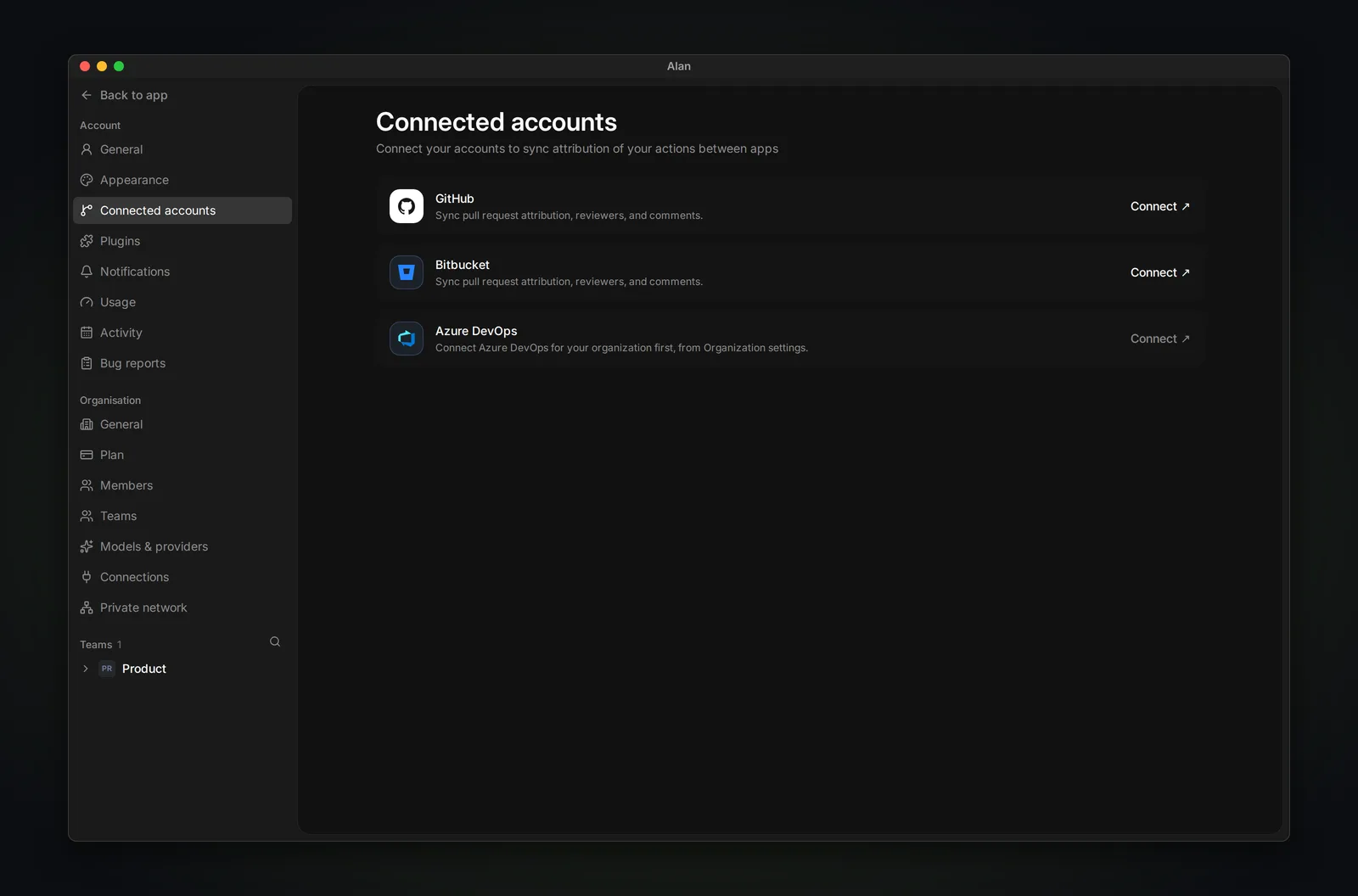
- package/builtin-skills/alan-docs/references/troubleshooting/report-an-issue.md +74 -0
- package/builtin-skills/alan-docs/references/troubleshooting/runtime-unavailable.md +49 -0
- package/builtin-skills/alan-docs/scripts/generate-references.mjs +363 -0
- package/builtin-skills/alan-environment-setup/SKILL.md +320 -0
- package/builtin-skills/alan-environment-setup/references/android.md +118 -0
- package/builtin-skills/alan-environment-setup/references/troubleshooting.md +33 -0
- package/builtin-skills/alan-skill-authoring/SKILL.md +83 -0
- package/builtin-skills/alan-tasks/SKILL.md +195 -0
- package/builtin-skills/alan-test-android/SKILL.md +224 -0
- package/builtin-skills/alan-test-android/scripts/android-up.sh +227 -0
- package/builtin-skills/alan-test-android/scripts/install-launch.sh +38 -0
- package/builtin-skills/alan-test-android/scripts/record.sh +64 -0
- package/builtin-skills/alan-test-android/scripts/ui.py +367 -0
- package/builtin-skills/alan-test-desktop/SKILL.md +107 -0
- package/builtin-skills/alan-test-desktop/references/linux-recording.md +31 -0
- package/builtin-skills/alan-test-feature/SKILL.md +243 -0
- package/builtin-skills/alan-test-mobile/SKILL.md +65 -0
- package/builtin-skills/alan-test-web/SKILL.md +113 -0
- package/builtin-skills/alan-walkthrough/SKILL.md +152 -0
- package/builtin-skills/alan-walkthrough/scripts/mark-changes.js +419 -0
- package/builtin-skills/alan-walkthrough/scripts/publish-capture.mjs +288 -0
- package/builtin-skills/alan-workflows/SKILL.md +235 -0
- package/builtin-skills/manifest.json +19 -0
- package/package.json +3 -2
|
@@ -0,0 +1,92 @@
|
|
|
1
|
+
> Source: [https://docs.tryalan.ai/docs/cloud-and-local/codex-cli-connector](https://docs.tryalan.ai/docs/cloud-and-local/codex-cli-connector)
|
|
2
|
+
|
|
3
|
+
# Connect Codex CLI
|
|
4
|
+
|
|
5
|
+
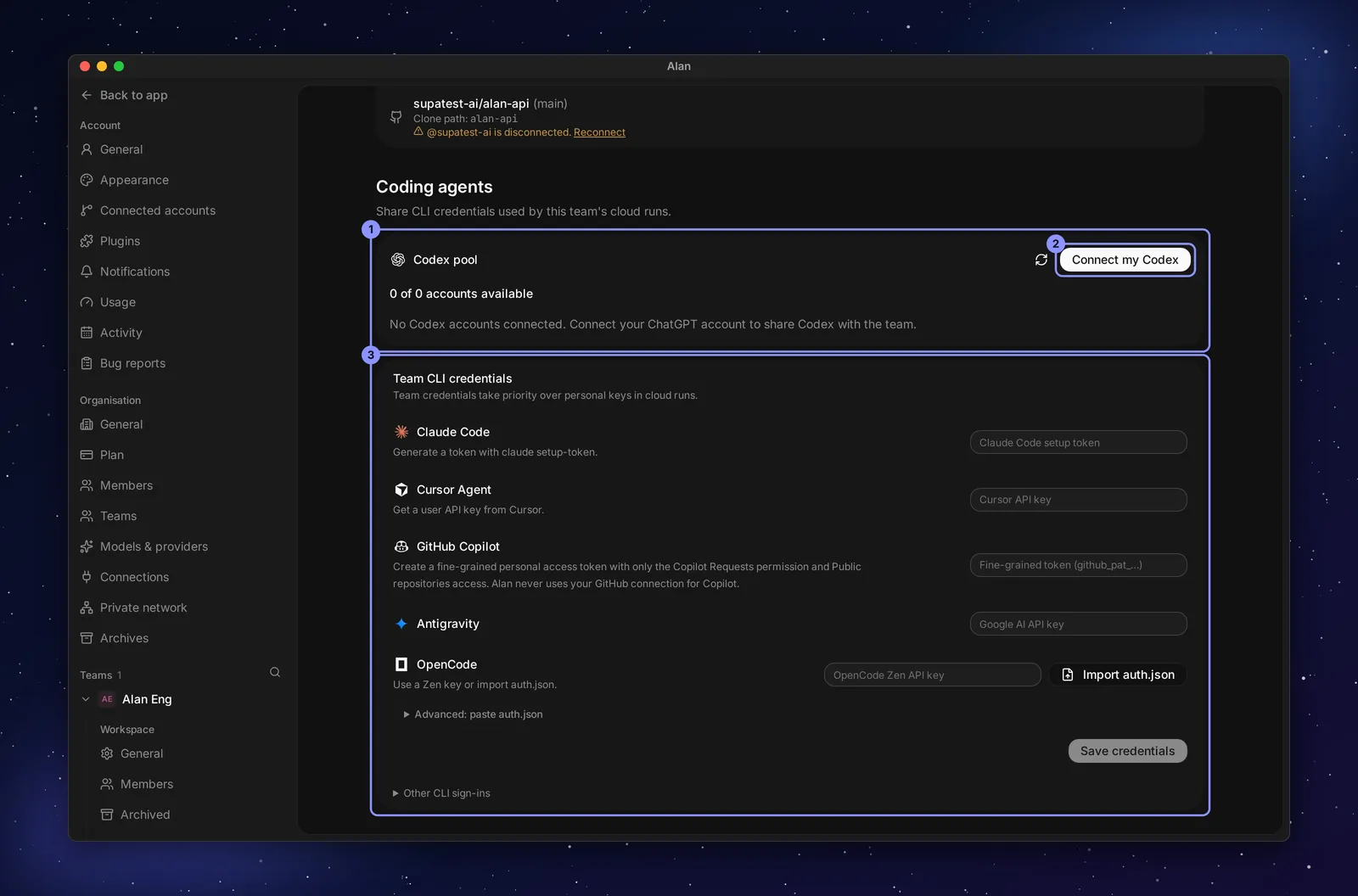
Cloud sessions run Codex with ChatGPT accounts that team members connect to the team's **Codex pool**. Each new cloud computer gets one available account from the pool and keeps it for its lifetime.
|
|
6
|
+
|
|
7
|
+
Find it in the team's **Settings → Integrations → Coding agents**.
|
|
8
|
+
|
|
9
|
+
|
|
10
|
+
|
|
11
|
+
> **Note:** This is only for cloud sessions. Codex on your own computer uses the CLI installed and signed in there; see [Local execution](local-execution.md#2-turn-on-a-coding-agent). Other supported coding agents use **Team account pools** below the Codex pool. Connect one or more accounts; Alan assigns an available account automatically. You can optionally rename an account after connecting it. Existing team credentials remain usable.
|
|
12
|
+
|
|
13
|
+
## Before you begin
|
|
14
|
+
|
|
15
|
+
- You must be a member of the team, and member connections must be enabled for it. Otherwise the pool reads "Member connections are not enabled for this team yet." or "Only team members can connect a Codex account."
|
|
16
|
+
- The ChatGPT account must allow device-code sign-in for Codex:
|
|
17
|
+
- **Personal account**: in ChatGPT, open **Settings → Security and login** and turn on device code authorization for Codex.
|
|
18
|
+
- **Workspace account**: a ChatGPT workspace admin enables it under workspace permissions.
|
|
19
|
+
- The account is shared with the team's cloud runs. The same ChatGPT account can't be connected twice in one team.
|
|
20
|
+
|
|
21
|
+
## Connect an account
|
|
22
|
+
|
|
23
|
+
|
|
24
|
+
|
|
25
|
+
**1. Open the dialog**
|
|
26
|
+
|
|
27
|
+
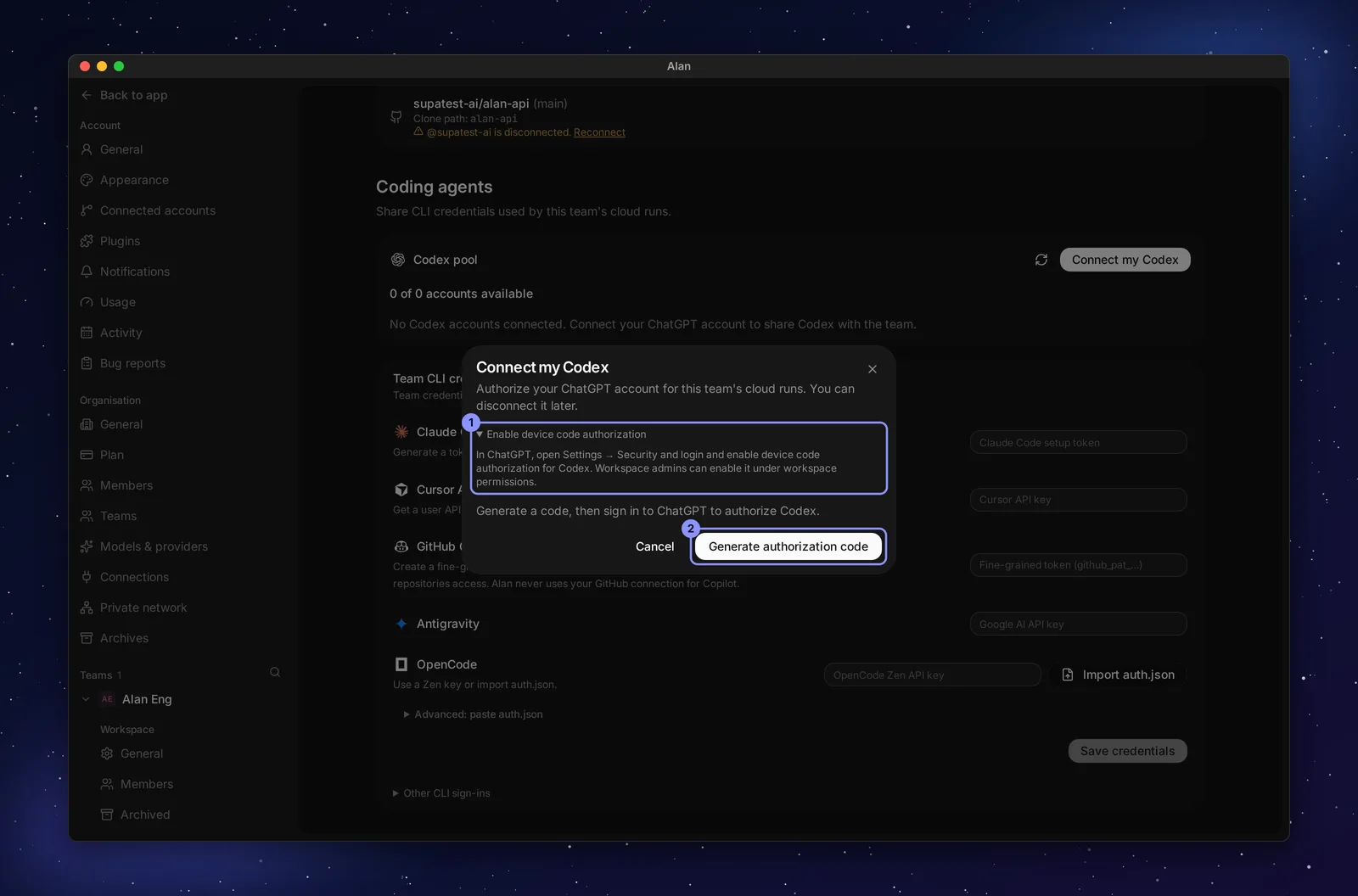
Choose **Connect my Codex**. "Authorize your ChatGPT account for this team's cloud runs. You can disconnect it later." Expand **Enable device code authorization** if you still need to turn it on in ChatGPT.
|
|
28
|
+
|
|
29
|
+
**2. Generate a code**
|
|
30
|
+
|
|
31
|
+
Choose **Generate authorization code**. Alan shows **Open verification page**, the one-time code (select it to **Copy code**), and when it expires.
|
|
32
|
+
|
|
33
|
+
**3. Approve in ChatGPT**
|
|
34
|
+
|
|
35
|
+
Open the verification page, sign in to the account you want to share, enter the code, and approve. Alan checks automatically ("Waiting for authorization. Alan checks automatically."); you can also choose **Verify**.
|
|
36
|
+
|
|
37
|
+
**4. Done**
|
|
38
|
+
|
|
39
|
+
"Codex account connected." Choose **Done**. The account appears in the pool.
|
|
40
|
+
|
|
41
|
+
If the code expires or the request is denied, the dialog says so ("Authorization code expired.", "Authorization was denied.") — choose **Generate authorization code** or **New code** and use the new code. You can connect more than one distinct ChatGPT account; each gets its own row.
|
|
42
|
+
|
|
43
|
+
> **Warning:** A device code is a short-lived sign-in credential. Only approve a code you generated in Alan, and don't share it.
|
|
44
|
+
|
|
45
|
+
## Read the pool
|
|
46
|
+
|
|
47
|
+
The pool header shows how many accounts can take new work, for example **2 of 3 accounts available**. **Team pool usage** averages the usage reported for accounts on the same plan and window; select **Refresh** to fetch current usage. Each account row shows its name, email, plan, status, and usage windows (**Primary**, **Secondary**, and a spend limit or credits when the plan has them).
|
|
48
|
+
|
|
49
|
+
| Status | Meaning |
|
|
50
|
+
| --- | --- |
|
|
51
|
+
| **Available** | Can be given to a new cloud computer |
|
|
52
|
+
| **Limited** | At or near a usage limit; unavailable for new computers until usage allows it |
|
|
53
|
+
| **Needs reconnect** | Authorization stopped working; its owner chooses **Reconnect** |
|
|
54
|
+
| **Disconnected** | Revoked by its owner or an admin |
|
|
55
|
+
| **Pending authorization** | The device-code sign-in hasn't finished |
|
|
56
|
+
|
|
57
|
+
Usage comes from OpenAI and can be incomplete ("Usage reported for 1 of 2 accounts", "Awaiting current usage"). Codex use outside Alan also counts against an account's limits.
|
|
58
|
+
|
|
59
|
+
## How cloud sessions use the pool
|
|
60
|
+
|
|
61
|
+
Connecting an account doesn't select Codex for every session. Make sure Codex is enabled in the environment's **Agents** tab ([Cloud setup](cloud-setup.md#agent-defaults)), then pick a Codex model in the composer.
|
|
62
|
+
|
|
63
|
+
A cloud computer is assigned an available account for Codex and keeps that assignment: the session shows **Codex account**, the owner and plan, and "Fixed for this sandbox". If that account hits a limit, the computer waits for the reset rather than switching accounts. A new session can get another account.
|
|
64
|
+
|
|
65
|
+
## Accounts in workflows
|
|
66
|
+
|
|
67
|
+
Cloud workflows use **Team pool · Automatic** by default. Open the agent menu and expand **Account** to choose a specific connected account when needed. The composer shows one agent control; an explicit account name appears in its label. Names are optional; unnamed token accounts receive a display label, and Codex accounts show their provider-reported details.
|
|
68
|
+
|
|
69
|
+
An explicit account choice is saved for each workflow execution. If that account is unavailable, the run reports an error rather than using another account. Returning the account choice to **Team pool · Automatic** restores automatic allocation for new runs. Local workflows use the CLI signed in on their computer.
|
|
70
|
+
|
|
71
|
+
You can rename a Codex account from its **… → Rename** menu. Clear the name to restore its provider-reported details. Other CLI accounts have **Rename** beside the account; adding another account never requires a name.
|
|
72
|
+
|
|
73
|
+
## Reconnect, disconnect, or remove
|
|
74
|
+
|
|
75
|
+
Open an account's **…** menu:
|
|
76
|
+
|
|
77
|
+
- **Reconnect**: sign in again with the same ChatGPT account. Existing computers keep using it.
|
|
78
|
+
- **Disconnect** (your own account) or **Remove** (an admin removing someone else's): "Existing sandboxes remain assigned to this account and will need the same account reconnected. They do not switch to another member's account."
|
|
79
|
+
|
|
80
|
+
Removing a member from the team or organization disconnects their accounts.
|
|
81
|
+
|
|
82
|
+
## Common problems
|
|
83
|
+
|
|
84
|
+
- **The Connect button is missing.** You're not a team member, or member connections aren't enabled for the team. Ask a team admin.
|
|
85
|
+
- **Verify says it isn't authorized yet.** Finish the approval in ChatGPT, then choose **Verify** again.
|
|
86
|
+
- **ChatGPT doesn't accept the code.** Device code authorization is off for that account (or workspace), or the code expired. Turn it on and generate a new code.
|
|
87
|
+
- **A session stopped using Codex after a disconnect.** Its computer is tied to that account. Reconnect the same account, or start a new session.
|
|
88
|
+
|
|
89
|
+
## Next steps
|
|
90
|
+
|
|
91
|
+
- [Coding agents and models](../agents-and-sessions/coding-agents-and-models.md) — Pick the agent and model for a session.
|
|
92
|
+
- [Cloud setup](cloud-setup.md) — Choose which agents the cloud environment offers.
|
|
@@ -0,0 +1,213 @@
|
|
|
1
|
+
> Source: [https://docs.tryalan.ai/docs/cloud-and-local/local-execution](https://docs.tryalan.ai/docs/cloud-and-local/local-execution)
|
|
2
|
+
|
|
3
|
+
# Local execution
|
|
4
|
+
|
|
5
|
+
This page helps you run an Alan agent on your own computer. The agent works in a project folder that you choose.
|
|
6
|
+
|
|
7
|
+
The agent can read and change files in that folder. It can also run commands there. It uses the tools and logins that are already on your computer.
|
|
8
|
+
|
|
9
|
+
A session is one conversation with an agent. Local sessions are included in every plan, including **Free**. You do not need GitHub or a cloud environment.
|
|
10
|
+
|
|
11
|
+
## Before you start
|
|
12
|
+
|
|
13
|
+
- **The Alan desktop app.** Install it and sign in. See [Sign in and finish onboarding](../get-started/sign-in.md). A web browser cannot run agents on your computer.
|
|
14
|
+
- **A coding agent.** A coding agent is an AI tool that writes code, such as Claude Code or Codex. Most coding agents are command-line tools (CLIs): programs that you start in a terminal. You need at least one installed on your computer.
|
|
15
|
+
- **A project folder** on your computer.
|
|
16
|
+
|
|
17
|
+
> **Note:** **Alan Code** is Alan's own coding agent. You do not install it. It is available only on plans that include cloud execution and a model allowance. On the **Free** plan you do not see Alan Code, so use your own coding agent instead. See [Plans and limits](../plans-and-billing/plans-and-limits.md).
|
|
18
|
+
|
|
19
|
+
## 1. Connect your computer
|
|
20
|
+
|
|
21
|
+
When you first sign in to the desktop app, onboarding shows **Make this computer yours.** Choose **Connect this computer** there. If you skipped that step, follow these steps.
|
|
22
|
+
|
|
23
|
+
**1. Open your account settings**
|
|
24
|
+
|
|
25
|
+
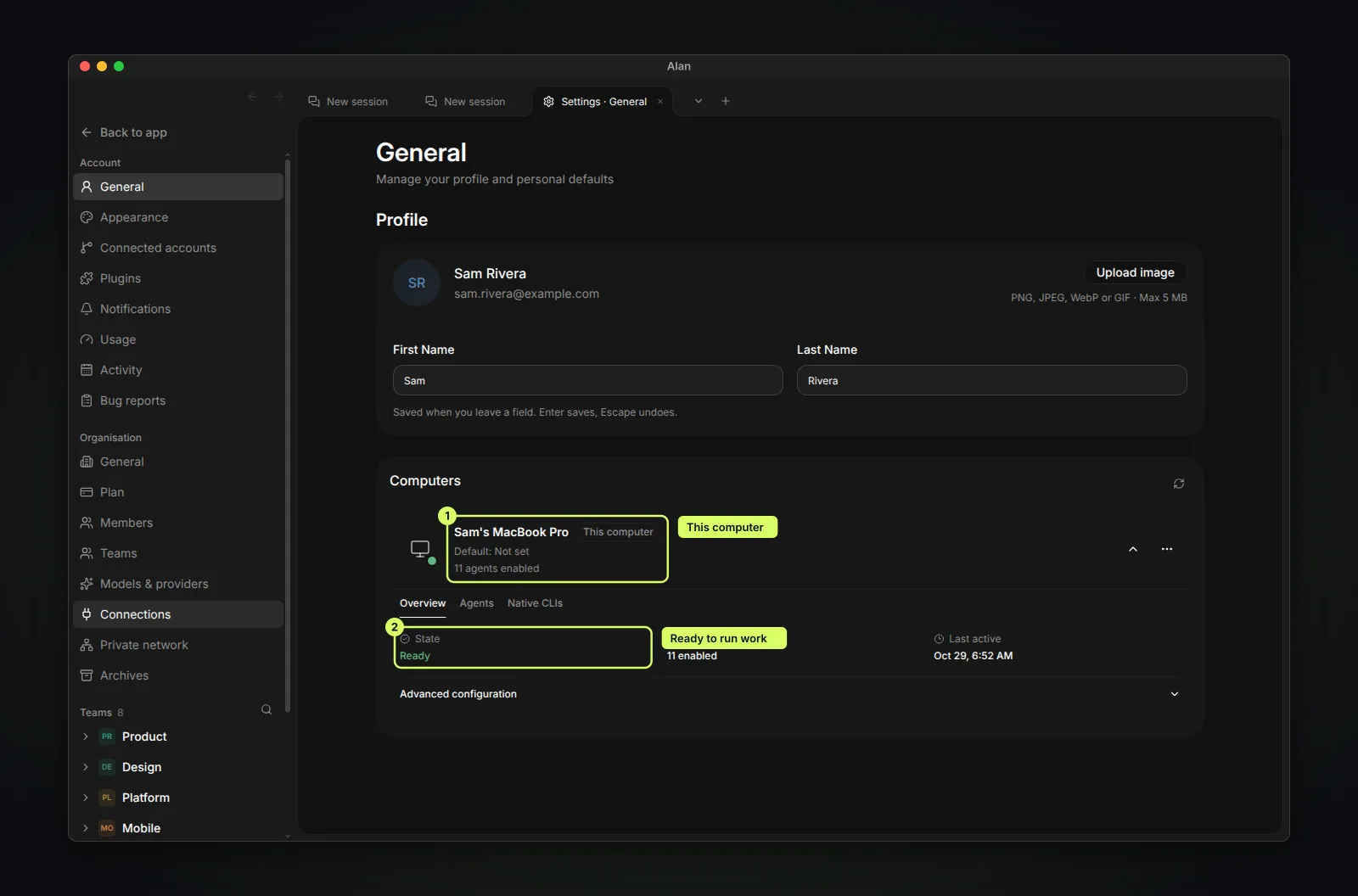
In the desktop app, open **Settings → Account → General**. Scroll to **Computers**.
|
|
26
|
+
|
|
27
|
+
**2. Connect the computer if needed**
|
|
28
|
+
|
|
29
|
+
If you see **This computer is not connected**, choose **Connect this computer**. Your computer appears in the list with the **This computer** tag (1).
|
|
30
|
+
|
|
31
|
+
**3. Check that the computer is ready**
|
|
32
|
+
|
|
33
|
+
Choose your computer to open its details. On the **Overview** tab, **State** reads **Ready** (2).
|
|
34
|
+
|
|
35
|
+
|
|
36
|
+
|
|
37
|
+
You can close the Alan window while an agent works. Alan keeps running in the Dock on macOS, or in the system tray on Windows and Linux. If you quit Alan, every running agent stops.
|
|
38
|
+
|
|
39
|
+
## 2. Turn on a coding agent
|
|
40
|
+
|
|
41
|
+
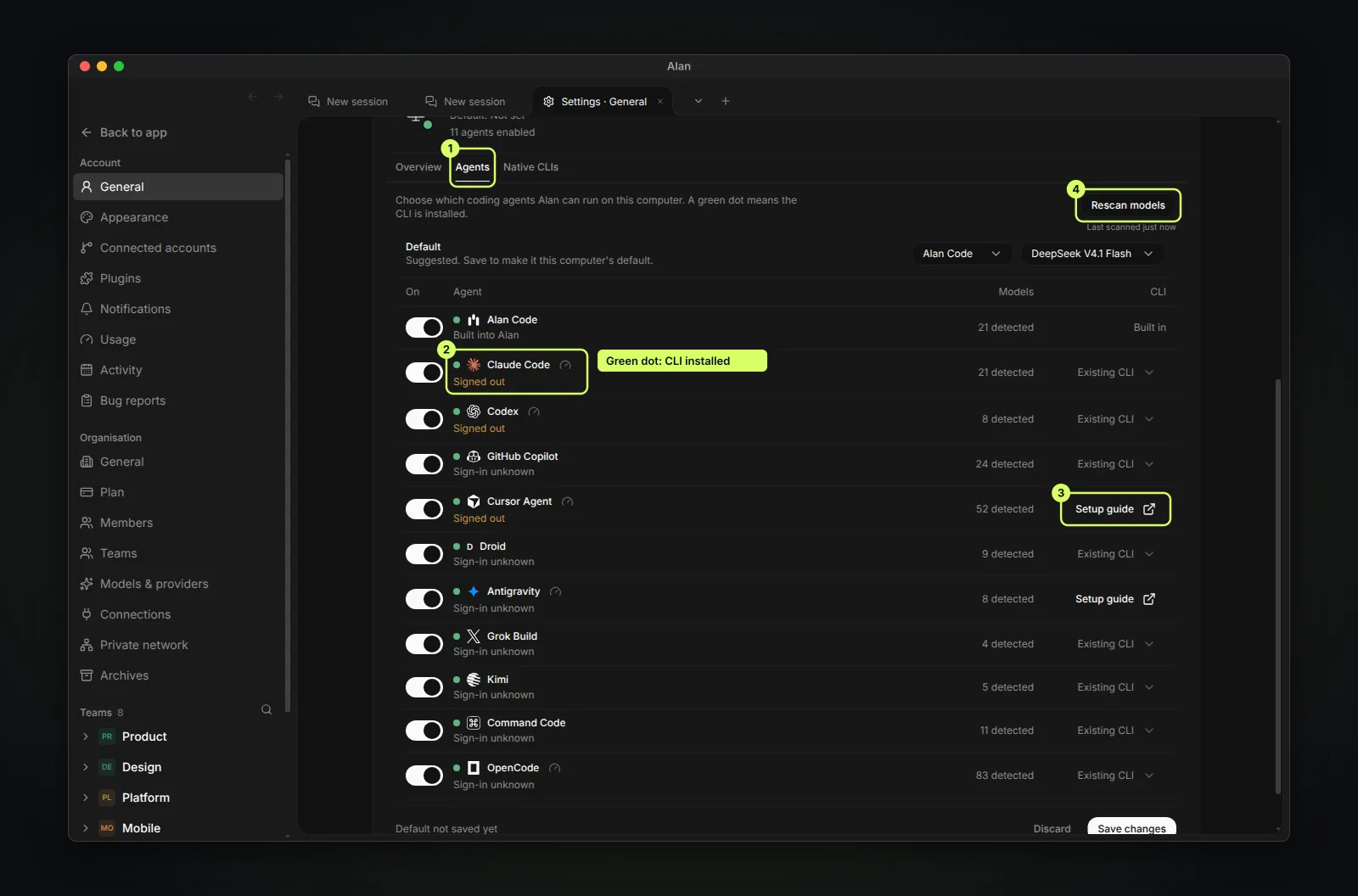
The **Agents** tab shows the coding agents that Alan found on your computer. A green dot means the agent is installed.
|
|
42
|
+
|
|
43
|
+
|
|
44
|
+
|
|
45
|
+
**1. Open the Agents tab**
|
|
46
|
+
|
|
47
|
+
In your computer's details, choose **Agents** (1). You see a list of coding agents.
|
|
48
|
+
|
|
49
|
+
**2. Find an agent with a green dot**
|
|
50
|
+
|
|
51
|
+
Look for a green dot next to the agent's name (2). If no agent has a green dot, install one first. The table below shows how.
|
|
52
|
+
|
|
53
|
+
**3. Turn the agent on**
|
|
54
|
+
|
|
55
|
+
Turn on the switch next to the agent. You cannot turn on an agent that is not installed.
|
|
56
|
+
|
|
57
|
+
**4. Save your changes**
|
|
58
|
+
|
|
59
|
+
Choose **Save changes**. Alan shows **Agent settings saved**.
|
|
60
|
+
|
|
61
|
+
Each agent shows a status. Use this table to see what to do.
|
|
62
|
+
|
|
63
|
+
| Status | What it means | What to do |
|
|
64
|
+
| --- | --- | --- |
|
|
65
|
+
| **Signed in** | The agent is ready. | Nothing. |
|
|
66
|
+
| **Built into Alan** | This is Alan Code. It is ready. | Nothing. |
|
|
67
|
+
| **Signed out** | The agent is installed, but you are not logged in to it. | Open a terminal. Start the agent's CLI and log in. Then choose **Rescan models**. |
|
|
68
|
+
| **Not installed** | The agent is not on this computer. | In the **CLI** column, choose **Install** or **Setup guide** (3), if it is shown. Otherwise, install the agent from its maker's website. Then choose **Rescan models**. |
|
|
69
|
+
| **Cannot start** | The agent is installed but does not start. | Reinstall or update the agent. Then choose **Rescan models**. |
|
|
70
|
+
| **Sign-in unknown** | Alan cannot check if you are logged in. | Send a test message. If the agent asks you to log in, log in to its CLI. |
|
|
71
|
+
| **Offline** | Your computer is not connected to Alan. | Open the Alan desktop app. |
|
|
72
|
+
|
|
73
|
+
**Rescan models** (4) makes Alan look again for installed agents and their models. Use it after you install an agent or log in to one. It does not work while your computer is offline.
|
|
74
|
+
|
|
75
|
+
To choose which agent new sessions use on this computer, pick it under **Default**. Then choose **Save changes**. To learn about agents and models, see [Coding agents and models](../agents-and-sessions/coding-agents-and-models.md).
|
|
76
|
+
|
|
77
|
+
## 3. Start a session on your computer
|
|
78
|
+
|
|
79
|
+
A session is one conversation with an agent. You start it from **New Session** in the sidebar.
|
|
80
|
+
|
|
81
|
+
**1. Open New Session**
|
|
82
|
+
|
|
83
|
+
In the sidebar, choose **New Session**. You see the message box, called the composer.
|
|
84
|
+
|
|
85
|
+
**2. Open the target menu**
|
|
86
|
+
|
|
87
|
+
At the top of the message box, choose the target button (1). It shows **Cloud** or a computer's name. A menu called **Work in** opens.
|
|
88
|
+
|
|
89
|
+
**3. Choose This computer**
|
|
90
|
+
|
|
91
|
+
Choose **This computer** (2). The button now shows your computer's name with a green dot.
|
|
92
|
+
|
|
93
|
+
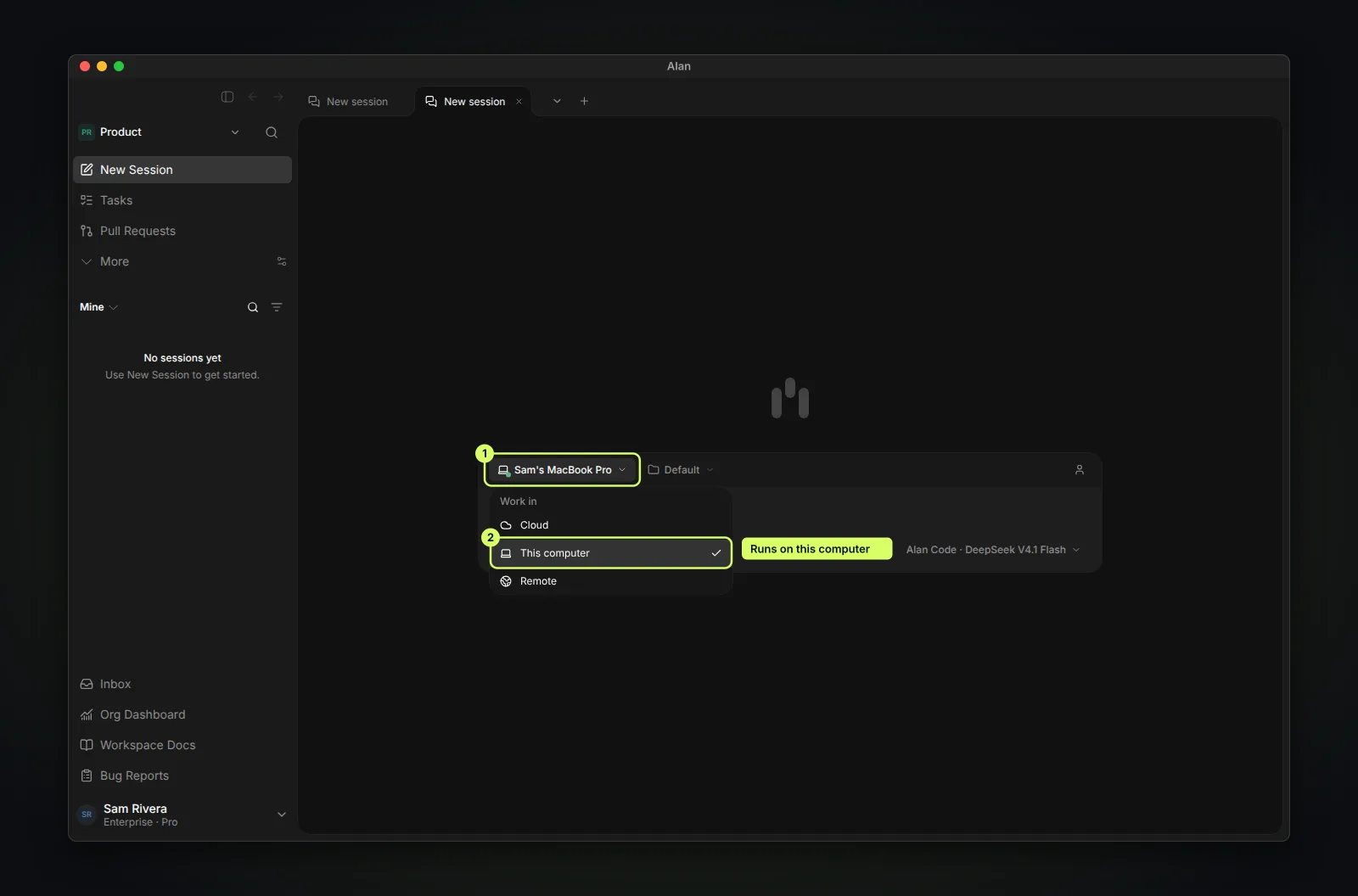
|
|
94
|
+
|
|
95
|
+
**1. Open the folder picker**
|
|
96
|
+
|
|
97
|
+
Next to your computer's name, choose the folder button (1). It shows **Default** or a folder name. A list of folders opens.
|
|
98
|
+
|
|
99
|
+
**2. Add your project folder**
|
|
100
|
+
|
|
101
|
+
Choose **Add local directory** (3). A window opens where you choose a folder.
|
|
102
|
+
|
|
103
|
+
**3. Select the folder**
|
|
104
|
+
|
|
105
|
+
Select your project's folder. The folder button now shows the folder's name. Next time, you find this folder under **Recent folders**.
|
|
106
|
+
|
|
107
|
+
**Default workspace** (2) uses the folder `~/.alan/workspace`. Use it only for tests and short experiments, not for your real project.
|
|
108
|
+
|
|
109
|
+
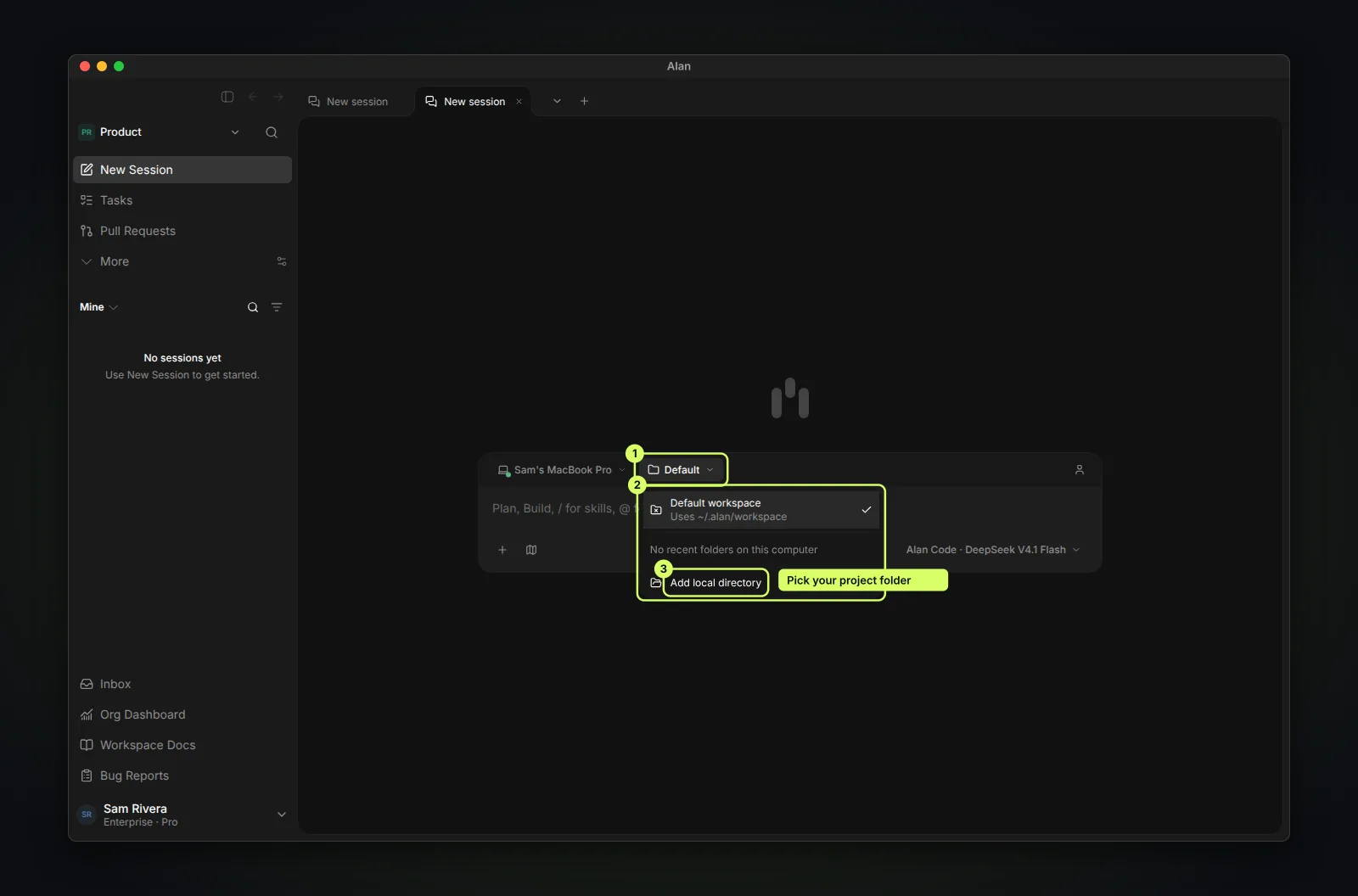
|
|
110
|
+
|
|
111
|
+
**1. Open the agent list**
|
|
112
|
+
|
|
113
|
+
At the bottom of the message box, choose the agent and model button (3). A list of agents opens.
|
|
114
|
+
|
|
115
|
+
**2. Choose the agent**
|
|
116
|
+
|
|
117
|
+
Pick an agent and a model. The button now shows the agent's name.
|
|
118
|
+
|
|
119
|
+
**3. Write your request**
|
|
120
|
+
|
|
121
|
+
Type what you want the agent to do. For a first test, ask a question that changes no files. For example: "Explain how to run this project. Don't change files."
|
|
122
|
+
|
|
123
|
+
**4. Send the message**
|
|
124
|
+
|
|
125
|
+
Press **Enter**. The agent starts to work, and its replies appear below your message.
|
|
126
|
+
|
|
127
|
+
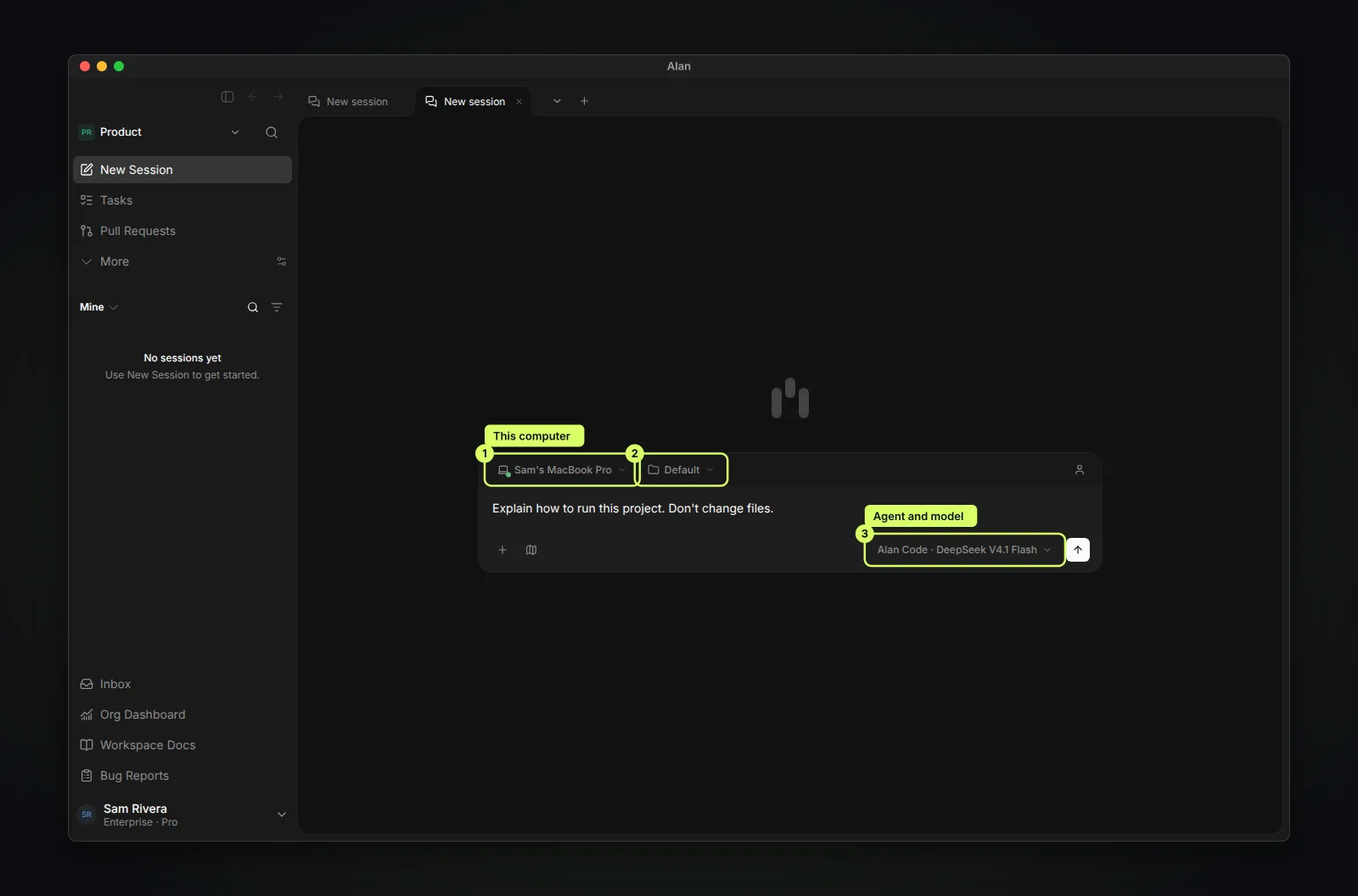
|
|
128
|
+
|
|
129
|
+
> **Warning:** The agent changes files directly in the folder you choose. If your project uses Git, switch to the branch that you want the agent to change. Do this before you send. When the agent is done, check its changes. The [Quickstart](../get-started/quickstart.md#4-check-the-result) shows how to check and undo changes.
|
|
130
|
+
|
|
131
|
+
For help with your first message, see [Start a session](../agents-and-sessions/start-a-session.md#write-a-good-first-message).
|
|
132
|
+
|
|
133
|
+
## While the agent works
|
|
134
|
+
|
|
135
|
+
- Keep the Alan desktop app running. Do not quit it.
|
|
136
|
+
- You cannot move a session to another computer or to the cloud. To use a different target, start a new session.
|
|
137
|
+
- If your computer goes offline, Alan can keep your message for later. The message box then shows **Runs when** and your computer's name. The message runs when the computer is back online. To fix a computer that stays offline, see [Runtime recovery](runtime-recovery.md#local-computers-and-vms).
|
|
138
|
+
|
|
139
|
+
## If something goes wrong
|
|
140
|
+
|
|
141
|
+
**This computer is greyed out in the target menu**
|
|
142
|
+
|
|
143
|
+
**This computer** works only in the desktop app. In a browser it shows **Open the Alan desktop app to run on this computer**. Open the desktop app and try again.
|
|
144
|
+
|
|
145
|
+
In the desktop app, your computer must be **Ready**. If it is not, the menu shows a button to fix it, such as **Reconnect** or **Sign in**. Choose that button.
|
|
146
|
+
|
|
147
|
+
**The computer shows Offline**
|
|
148
|
+
|
|
149
|
+
The Alan desktop app is not running on that computer. Open the app.
|
|
150
|
+
|
|
151
|
+
**The computer shows Needs attention**
|
|
152
|
+
|
|
153
|
+
Alan shows a button for the fix: **Reconnect**, **Sign in**, **Enable**, **Update Alan** or **Update**. Choose that button.
|
|
154
|
+
|
|
155
|
+
**The computer shows Update required**
|
|
156
|
+
|
|
157
|
+
The Alan software on that computer is too old. Alan shows a command. Run the command in a terminal on that computer. Then reconnect.
|
|
158
|
+
|
|
159
|
+
**My agent is not in the agent list**
|
|
160
|
+
|
|
161
|
+
Open the **Agents** tab. Check that the agent has a green dot and its switch is on. Check that it is **Signed in**. Then choose **Rescan models**.
|
|
162
|
+
|
|
163
|
+
**I'm on the Free plan and I don't see Alan Code**
|
|
164
|
+
|
|
165
|
+
The Free plan does not include Alan Code. Install another coding agent, such as Claude Code or Codex. Then turn it on in the **Agents** tab.
|
|
166
|
+
|
|
167
|
+
**'Choose a folder or the Default workspace for this computer before sending.'**
|
|
168
|
+
|
|
169
|
+
You have not chosen a folder. Open the folder picker and choose a folder. Then send again.
|
|
170
|
+
|
|
171
|
+
**A recent folder shows 'Folder moved or deleted'**
|
|
172
|
+
|
|
173
|
+
The folder is no longer at its old place. In the folder picker, choose the **Locate folder** icon next to it. Then select the folder in its new place.
|
|
174
|
+
|
|
175
|
+
## Other ways to run on a computer you control
|
|
176
|
+
|
|
177
|
+
You do not need these to work on your own computer.
|
|
178
|
+
|
|
179
|
+
**Run on another of your computers (Remote)**
|
|
180
|
+
|
|
181
|
+
1. Install the desktop app on the other computer.
|
|
182
|
+
2. Sign in to the app on that computer.
|
|
183
|
+
3. On any computer, open the target menu.
|
|
184
|
+
4. Choose **Remote**. It appears in the target menu only after at least one other computer or team VM is connected. A list of your other computers opens. If you see **No remote VMs connected**, the other computer is not connected yet.
|
|
185
|
+
5. Choose the other computer. You can choose only computers that are **Ready**.
|
|
186
|
+
6. Choose **Default workspace**, or a folder that you already used on that computer. To add a new folder, add it once in the desktop app on that computer.
|
|
187
|
+
|
|
188
|
+
**Share a computer with your team (team VM)**
|
|
189
|
+
|
|
190
|
+
A team VM is a computer that everyone in the team can run sessions on. VM means virtual machine. Team VMs need a plan that includes cloud execution. On the **Free** plan you do not see **VMs**.
|
|
191
|
+
|
|
192
|
+
1. Open the team's **Settings → VMs**.
|
|
193
|
+
2. Under **Add VM**, choose the type of terminal that the computer uses.
|
|
194
|
+
3. Choose **Generate command**. Alan shows a command.
|
|
195
|
+
4. Run the command in a terminal on that computer.
|
|
196
|
+
5. Wait until the computer shows **Ready** under **Team VMs**. Teammates can now choose it under **Remote**.
|
|
197
|
+
|
|
198
|
+
The command works for a short time only. If it stops working, generate a new one.
|
|
199
|
+
|
|
200
|
+
> **Warning:** Anyone in the team can run agent commands on a team VM. Do not use your personal laptop. Use a computer that exists only for this work.
|
|
201
|
+
|
|
202
|
+
**Use Alan's tools from CLIs you start yourself (Native CLIs)**
|
|
203
|
+
|
|
204
|
+
This is only for coding agents that you start yourself in a terminal. Sessions that you start in Alan do not need it.
|
|
205
|
+
|
|
206
|
+
1. In your computer's details, choose the **Native CLIs** tab.
|
|
207
|
+
2. Under **Alan MCP**, choose **Enable**. Alan adds its tools to the coding agents on this computer, such as Claude Code, Codex and Cursor.
|
|
208
|
+
3. Optional: under **Session ingestion**, turn on the switch for Claude Code or Codex. Alan then copies those terminal sessions into Alan after each reply.
|
|
209
|
+
|
|
210
|
+
## Next
|
|
211
|
+
|
|
212
|
+
- [Start a session](../agents-and-sessions/start-a-session.md) — Write a good first message and follow the agent's work.
|
|
213
|
+
- [Coding agents and models](../agents-and-sessions/coding-agents-and-models.md) — Choose the right agent and model for the job.
|
|
@@ -0,0 +1,60 @@
|
|
|
1
|
+
> Source: [https://docs.tryalan.ai/docs/cloud-and-local/runtime-recovery](https://docs.tryalan.ai/docs/cloud-and-local/runtime-recovery)
|
|
2
|
+
|
|
3
|
+
# Runtime recovery
|
|
4
|
+
|
|
5
|
+
When a session can't continue, Alan shows a banner above the composer with what's wrong and one or two actions. Use the banner to identify what needs attention:
|
|
6
|
+
|
|
7
|
+
| Layer | What failed | Typical banner | Fix |
|
|
8
|
+
| --- | --- | --- | --- |
|
|
9
|
+
| **Machine** | Your computer or VM is offline, or the cloud computer is asleep, shut down, or gone | "This session uses *name*, but the computer is offline." / **Computer asleep** | **Reconnect**, send a message to wake it, or **Repair session** |
|
|
10
|
+
| **Agent** | The machine is fine but the coding agent crashed, timed out, or disconnected | **Agent disconnected**, **Computer is unresponsive** | **Repair session**, then **Restart computer** |
|
|
11
|
+
| **Run** | The task or setup itself failed | **Agent could not start**, "Couldn't set up the workspace." | **Retry task**, **Start new attempt**, or fix the cause |
|
|
12
|
+
|
|
13
|
+
> **Note:** Recovery never moves a session between cloud and local. If you decide to switch, do it deliberately; see [Switch a task between cloud and local](cloud-sessions-and-execution.md#switch-a-task-between-cloud-and-local).
|
|
14
|
+
|
|
15
|
+
## Cloud sessions
|
|
16
|
+
|
|
17
|
+
**The computer is resting.** An asleep or shut-down computer is normal; send a message and Alan brings it back. See [Sandboxes](sandboxes.md).
|
|
18
|
+
|
|
19
|
+
**The agent stopped responding.** Messages such as "Agent didn't respond within 30 seconds.", "Agent has been disconnected." or "Agent connection failed." indicate a problem communicating with the coding agent. The banner reads, for example, "The computer is still running. Repair the session before sending another message."
|
|
20
|
+
|
|
21
|
+
1. Choose **Repair session**. It reconnects the session without replacing the computer.
|
|
22
|
+
2. If it stays stuck, choose **Restart computer**. Running processes end; files are kept.
|
|
23
|
+
3. Only if Alan says **Session repair needed** and offers **Rebuild computer**, rebuild. It replaces the workspace, so uncommitted or unpushed files may be lost.
|
|
24
|
+
|
|
25
|
+
**The run failed.** Choose **Retry task** or **Start new attempt** to run the work again. If a failure message names a missing variable or a broken script, fix it in the environment's **Setup** first; see [Cloud setup](cloud-setup.md).
|
|
26
|
+
|
|
27
|
+
**"Message not sent."** If sending failed because the computer isn't responding, the error offers **Restart computer**.
|
|
28
|
+
|
|
29
|
+
## Local computers and VMs
|
|
30
|
+
|
|
31
|
+
When the session's machine isn't usable, the banner names it and offers one action:
|
|
32
|
+
|
|
33
|
+
| Banner | Action |
|
|
34
|
+
| --- | --- |
|
|
35
|
+
| "This session uses *name*, but the computer is offline." | **Reconnect** (on that computer); otherwise open the Alan desktop app on it |
|
|
36
|
+
| "*name* is reconnecting." | Wait; the session is available when the computer is ready |
|
|
37
|
+
| "Sign in to continue this session on *name*." | **Sign in** |
|
|
38
|
+
| "This session uses *name*, but the computer is disabled." | **Enable** |
|
|
39
|
+
| "Update Alan to continue this session on *name*." | **Update Alan** |
|
|
40
|
+
| **Update required** | Run the update command shown on that machine, then reconnect |
|
|
41
|
+
| "This session uses *name*, but the computer was removed." | **Reconnect** on that computer, or **Start new session** |
|
|
42
|
+
|
|
43
|
+
Runtimes that support queued messages let you send while a machine is briefly offline: the composer reads **Runs when *name* is online**, and the message runs once the machine is back.
|
|
44
|
+
|
|
45
|
+
If the machine is online but the work fails, check the folder and branch: the folder may have moved (**Folder moved or deleted** → **Locate folder**), or the checkout may be on the wrong branch. In **Settings → Account → General**, check that the coding agent shows as installed and signed in on the machine's **Agents** tab. See [Local execution](local-execution.md).
|
|
46
|
+
|
|
47
|
+
## Checklist before you retry
|
|
48
|
+
|
|
49
|
+
1. Is the session cloud or local, and is it the target you meant?
|
|
50
|
+
2. Is the machine **Ready**, or the cloud computer awake?
|
|
51
|
+
3. Does the repository, folder and branch still exist?
|
|
52
|
+
4. Is the coding agent installed and signed in (local), or enabled for the environment (cloud)?
|
|
53
|
+
5. Retry in the same session if the target is right; start a new session if the old target is gone.
|
|
54
|
+
|
|
55
|
+
## Next steps
|
|
56
|
+
|
|
57
|
+
- [Sandboxes](sandboxes.md) — Cloud computer states and recovery actions.
|
|
58
|
+
- [Local execution](local-execution.md) — Machine states, folders, and agents.
|
|
59
|
+
- [Troubleshooting and FAQ](troubleshooting-and-faq.md) — Symptom-first fixes.
|
|
60
|
+
- [Session lifecycle](../agents-and-sessions/session-lifecycle.md) — What happens while a session runs, waits, and stops.
|
|
@@ -0,0 +1,74 @@
|
|
|
1
|
+
> Source: [https://docs.tryalan.ai/docs/cloud-and-local/sandboxes](https://docs.tryalan.ai/docs/cloud-and-local/sandboxes)
|
|
2
|
+
|
|
3
|
+
# Sandboxes
|
|
4
|
+
|
|
5
|
+
Every cloud session gets its own **sandbox**: an isolated cloud computer started from your environment's [current image](cloud-images.md). The computer can sleep, shut down, or be deleted without deleting the conversation.
|
|
6
|
+
|
|
7
|
+
## Lifecycle at a glance
|
|
8
|
+
|
|
9
|
+
| State | Files | Running processes | How it gets back |
|
|
10
|
+
| --- | --- | --- | --- |
|
|
11
|
+
| **Ready** / **Working** | Kept | Running | — |
|
|
12
|
+
| **Asleep** | Kept | Kept for a quick wake | Send a message (or **Wake up**) |
|
|
13
|
+
| **Shut down** | Kept | Ended | Send a message (or **Start**) |
|
|
14
|
+
| **Deleted** | Gone | — | Choose **Repair session** and follow the recovery prompt; chat history is kept |
|
|
15
|
+
| **Failed** | Depends on the failure | — | **Repair session** |
|
|
16
|
+
|
|
17
|
+
## Sleep and wake are automatic
|
|
18
|
+
|
|
19
|
+
You don't need to manage the computer to save cost. When the agent has finished and nobody is using the session's workspace, the computer goes to sleep after a short idle period. A computer left asleep for a long time is shut down; files are kept.
|
|
20
|
+
|
|
21
|
+
To bring it back, **send a message** (or open a workspace tab such as **Desktop**, **Terminal** or **Files**). Alan wakes or starts the computer before the agent continues. While it comes back, the transcript shows a short checklist ("Alan is waking up…", **Waking up**, **Starting** and the agent name, **Workspace ready**).
|
|
22
|
+
|
|
23
|
+
If the workspace panel is open while the computer rests, it shows:
|
|
24
|
+
|
|
25
|
+
| Placeholder | Text |
|
|
26
|
+
| --- | --- |
|
|
27
|
+
| Asleep | **Computer asleep** — "Send a message or open a workspace tab to wake the computer." |
|
|
28
|
+
| Shut down | **Computer shut down** — "Send a message or open a workspace tab to start the computer." |
|
|
29
|
+
| Deleted | **Computer deleted** — "This session's workspace was deleted. Chat history is preserved." with **Repair session** |
|
|
30
|
+
| Failed | **Workspace unavailable**, the error, and **Repair session** |
|
|
31
|
+
|
|
32
|
+
A **Wake up** or **Start** button appears when the computer doesn't wake automatically or a wake attempt failed.
|
|
33
|
+
|
|
34
|
+
## Status labels
|
|
35
|
+
|
|
36
|
+
The session's execution details show the computer's status next to **Cloud**; a task's header chip shows it too.
|
|
37
|
+
|
|
38
|
+
| Status | Meaning |
|
|
39
|
+
| --- | --- |
|
|
40
|
+
| **Setting up workspace** | A new computer is being created from the image |
|
|
41
|
+
| **Starting workspace** / **Waking up** | Coming back from shut down or asleep |
|
|
42
|
+
| **Connecting** / **Connecting agent** | The computer is up; the agent is connecting |
|
|
43
|
+
| **Ready** | Running and idle |
|
|
44
|
+
| **Working** | The agent is working |
|
|
45
|
+
| **Going to sleep** / **Asleep** | Sleeping; files and processes are kept |
|
|
46
|
+
| **Shutting down** / **Shut down** | Stopped; files are kept |
|
|
47
|
+
| **Saving snapshot** / **Preparing workspace** | A maintenance step; tools reconnect when it's done |
|
|
48
|
+
| **Repairing session** | Alan is restoring the session's connection |
|
|
49
|
+
| **Unresponsive** / **Disconnected** | The computer or agent stopped responding; see [Runtime recovery](runtime-recovery.md) |
|
|
50
|
+
| **Failed** | Setup or start failed |
|
|
51
|
+
| **Deleted** / **Ended** | The workspace is gone; chat history is kept |
|
|
52
|
+
|
|
53
|
+
## Recovery actions
|
|
54
|
+
|
|
55
|
+
When something goes wrong, a banner above the composer offers the right action. They differ in what they keep:
|
|
56
|
+
|
|
57
|
+
| Action | What it does | Files |
|
|
58
|
+
| --- | --- | --- |
|
|
59
|
+
| **Wake up** | Resumes an asleep computer | Kept, with running apps |
|
|
60
|
+
| **Start** | Starts a shut-down computer | Kept |
|
|
61
|
+
| **Repair session** | Restores the session's connection without replacing an existing computer | Kept |
|
|
62
|
+
| **Restart computer** | Restarts the existing computer; running processes end | Kept |
|
|
63
|
+
| **Rebuild computer** | Replaces the workspace, offered only when repair isn't enough | **May be lost** |
|
|
64
|
+
|
|
65
|
+
**Rebuild computer** asks first: "Rebuild computer? Replaces the workspace. Uncommitted or unpushed files may be lost." Commit and push anything you need before confirming.
|
|
66
|
+
|
|
67
|
+
> **Warning:** Session changes do not update the environment's image automatically. Commit and push code you want to keep. Build a new image when you want those changes included in the starting environment for future sessions.
|
|
68
|
+
|
|
69
|
+
## Next steps
|
|
70
|
+
|
|
71
|
+
- [Runtime recovery](runtime-recovery.md) — Which banner means what, for cloud and local sessions.
|
|
72
|
+
- [Images and builds](cloud-images.md) — The image every new sandbox starts from.
|
|
73
|
+
- [Cloud sessions and execution](cloud-sessions-and-execution.md) — Start a cloud session.
|
|
74
|
+
- [Usage and credits](../plans-and-billing/usage-and-credits.md) — How cloud running time is counted.
|
|
@@ -0,0 +1,102 @@
|
|
|
1
|
+
> Source: [https://docs.tryalan.ai/docs/cloud-and-local/troubleshooting-and-faq](https://docs.tryalan.ai/docs/cloud-and-local/troubleshooting-and-faq)
|
|
2
|
+
|
|
3
|
+
# Troubleshooting and FAQ
|
|
4
|
+
|
|
5
|
+
This page covers where sessions run: cloud computers, connected computers and VMs, and execution targets. Find the symptom that matches what you see.
|
|
6
|
+
|
|
7
|
+
> **Note:** For problems outside execution, such as GitHub access or missing artifacts, see [Common problems](../troubleshooting/common-problems.md). For product-wide questions, see the [FAQ](../reference/faq.md).
|
|
8
|
+
|
|
9
|
+
## Fix it yourself
|
|
10
|
+
|
|
11
|
+
**The composer says 'Choose an execution target before sending.'**
|
|
12
|
+
|
|
13
|
+
No target is selected, or the selected one isn't usable. Open **Execution target** and pick **Cloud**, **This computer**, or **Remote** and a machine. For a local target, also pick a folder. See [Cloud sessions and execution](cloud-sessions-and-execution.md).
|
|
14
|
+
|
|
15
|
+
**'This computer' is greyed out**
|
|
16
|
+
|
|
17
|
+
The option needs the computer you're on to be connected and **Ready**. In a browser, use **Remote** and pick the machine instead. In the desktop app, check **Settings → Account → General → Computers** and use the action shown there, such as **Reconnect** or **Sign in**.
|
|
18
|
+
|
|
19
|
+
**Remote is missing from the target menu**
|
|
20
|
+
|
|
21
|
+
**Remote** appears only when at least one other computer or team VM is connected to the team. Sign in to the desktop app on the other computer, or add a team VM in **Settings → VMs**. See [Local execution](local-execution.md).
|
|
22
|
+
|
|
23
|
+
**Settings shows 'No computers connected' in the browser**
|
|
24
|
+
|
|
25
|
+
The Computers section only identifies the computer running the desktop app. In a browser it always shows this. Your computers can still be picked under **Remote** in the composer.
|
|
26
|
+
|
|
27
|
+
**A local session says the computer is offline**
|
|
28
|
+
|
|
29
|
+
Open the Alan desktop app on that machine and wait for **Ready**, or use the banner's action (**Reconnect**, **Sign in**, **Enable**, **Update Alan**). If the composer reads **Runs when *name* is online**, your message is queued and runs when the machine is back. See [Runtime recovery](runtime-recovery.md#local-computers-and-vms).
|
|
30
|
+
|
|
31
|
+
**The folder says 'Folder moved or deleted'**
|
|
32
|
+
|
|
33
|
+
Choose **Locate folder** and point Alan at the new path, or remove it from **Recent folders** and add it again.
|
|
34
|
+
|
|
35
|
+
**The composer shows 'Set up cloud environment'**
|
|
36
|
+
|
|
37
|
+
The team's cloud environment has no image yet. Choose the button to start a setup session, or configure **Setup** and choose **Trigger build**. If it reads **Set up selected repositories**, you picked a repository the current image doesn't include. See [Cloud setup](cloud-setup.md).
|
|
38
|
+
|
|
39
|
+
**The environment shows 'Build failed'**
|
|
40
|
+
|
|
41
|
+
Open **Settings → Cloud Environment → Builds**, expand the failed build, and read **Failed at** and the output. Sessions keep using the previous image meanwhile. See [Images and builds](cloud-images.md#when-a-build-fails).
|
|
42
|
+
|
|
43
|
+
**A change to Setup doesn't show up in new sessions**
|
|
44
|
+
|
|
45
|
+
Saving scripts or repositories doesn't build a new image. Choose **More actions → Trigger build** and wait for the build to show **Current**.
|
|
46
|
+
|
|
47
|
+
**The cloud computer is asleep or shut down**
|
|
48
|
+
|
|
49
|
+
That's expected after the agent finishes. Send a message, and Alan wakes or starts it with your files intact. See [Sandboxes](sandboxes.md).
|
|
50
|
+
|
|
51
|
+
**The banner says 'Agent disconnected' or 'Computer is unresponsive'**
|
|
52
|
+
|
|
53
|
+
Choose **Repair session**. If it stays stuck, choose **Restart computer** (files are kept). Use **Rebuild computer** only when Alan offers it, after pushing anything you need. See [Runtime recovery](runtime-recovery.md#cloud-sessions).
|
|
54
|
+
|
|
55
|
+
**Files are missing after the computer came back**
|
|
56
|
+
|
|
57
|
+
Check whether the workspace was deleted or rebuilt, and confirm the repository and branch. Deleting or replacing a workspace can lose uncommitted files, even though chat history is kept. Commit and push work you need, and save repeatable setup steps in the environment's scripts.
|
|
58
|
+
|
|
59
|
+
**A cloud session can't use Codex**
|
|
60
|
+
|
|
61
|
+
Codex in the cloud needs a ChatGPT account in the team's Codex pool, and Codex enabled for the environment. If the session's account shows **Needs reconnect** or **Limited**, its owner reconnects it or you wait for the reset. See [Connect Codex CLI](codex-cli-connector.md).
|
|
62
|
+
|
|
63
|
+
## Frequently asked
|
|
64
|
+
|
|
65
|
+
**Cloud or local: how do I choose?**
|
|
66
|
+
|
|
67
|
+
Cloud for isolated work that starts from a clean, shared setup and doesn't need anyone's machine on. Local for work that needs an existing checkout, running services, native tools, or credentials that should stay on the machine. See [Cloud sessions and execution](cloud-sessions-and-execution.md#cloud-or-local).
|
|
68
|
+
|
|
69
|
+
**Can a team have more than one cloud environment?**
|
|
70
|
+
|
|
71
|
+
No. Each team has one, created the first time someone chooses **Cloud**.
|
|
72
|
+
|
|
73
|
+
**Can I choose the cloud computer's size?**
|
|
74
|
+
|
|
75
|
+
No. Alan sets the size and provider; the Cloud Environment page shows them under **Overview**.
|
|
76
|
+
|
|
77
|
+
**Do I need to pause or stop cloud computers to save cost?**
|
|
78
|
+
|
|
79
|
+
No. They go to sleep on their own shortly after the agent finishes and nobody is using them. Running time counts toward your cloud usage; see [Usage and credits](../plans-and-billing/usage-and-credits.md).
|
|
80
|
+
|
|
81
|
+
**Where do secrets for cloud sessions go?**
|
|
82
|
+
|
|
83
|
+
In the environment's **Setup → Environment Variables**, as files or variables. Never in scripts or chat.
|
|
84
|
+
|
|
85
|
+
**Will Alan move my session between cloud and local on its own?**
|
|
86
|
+
|
|
87
|
+
No. A session's target is fixed. You can change a task's target with **Switch environment**; existing sessions become read-only and the next session uses the new target.
|
|
88
|
+
|
|
89
|
+
**What's the difference between my computer and a team VM?**
|
|
90
|
+
|
|
91
|
+
Your computer connects through the desktop app and only you can run sessions on it. A team VM is registered with a command from **Settings → VMs**, and everyone in the team can use it.
|
|
92
|
+
|
|
93
|
+
## Before you report a bug
|
|
94
|
+
|
|
95
|
+
Note the execution target (cloud, or which machine), the status shown, the coding agent and model, the exact banner or error text, and the steps that lead to it. On a connected computer, **Download diagnostics** from its **…** menu in **Settings → Account → General** and attach the file. Report it from **Bug reports** in Settings.
|
|
96
|
+
|
|
97
|
+
## Next steps
|
|
98
|
+
|
|
99
|
+
- [Runtime recovery](runtime-recovery.md) — Recovery banners and actions.
|
|
100
|
+
- [Cloud setup](cloud-setup.md) — Configure the team's cloud environment.
|
|
101
|
+
- [Local execution](local-execution.md) — Computers, team VMs, folders, and agents.
|
|
102
|
+
- [Common problems](../troubleshooting/common-problems.md) — Issues across the whole product.
|
|
@@ -0,0 +1,89 @@
|
|
|
1
|
+
> Source: [https://docs.tryalan.ai/docs/get-started/connect-azure-devops](https://docs.tryalan.ai/docs/get-started/connect-azure-devops)
|
|
2
|
+
|
|
3
|
+
# Connect Azure DevOps
|
|
4
|
+
|
|
5
|
+
Connect **Azure Repos** so Alan can read code, push branches, and work on pull requests. Start with your Alan team, even if you work alone.
|
|
6
|
+
|
|
7
|
+
Your **Alan organization** holds teams and settings. Your **Azure DevOps organization** holds projects and repositories at `dev.azure.com/`. They are separate.
|
|
8
|
+
|
|
9
|
+
## Before you start
|
|
10
|
+
|
|
11
|
+
- Your plan must include source-control connections. If **Source control** is missing, ask an organization admin to check the [plan](../plans-and-billing/plans-and-limits.md).
|
|
12
|
+
- Have access to the Azure DevOps projects and repositories you want to use, including permission to push if Alan will change code.
|
|
13
|
+
- Use a **work or school Microsoft account** for **Connect with Microsoft**. If you only have a personal Microsoft account, use the [token option](#use-a-personal-access-token-instead). [Microsoft explains the account requirements](https://learn.microsoft.com/en-us/azure/devops/integrate/get-started/authentication/entra-oauth?view=azure-devops).
|
|
14
|
+
- You can connect for your Alan organization without being an Alan admin. Connecting for one team requires access to that team and permission under your organization's connection policy.
|
|
15
|
+
|
|
16
|
+
> **Warning:** This connects Azure DevOps **Services**, using `dev.azure.com`. Azure DevOps Server and custom server addresses are not supported, even though the token form mentions Server. This guide does not set up Azure Boards or Azure Pipelines.
|
|
17
|
+
|
|
18
|
+
## 1. Open your team's Integrations
|
|
19
|
+
|
|
20
|
+
Choose **Settings**, then under your team choose **Integrations**. Under **Source control**, choose **Add connection**.
|
|
21
|
+
|
|
22
|
+
Select any screenshot to open it full size in a new tab. The instructions also work without the images.
|
|
23
|
+
|
|
24
|
+
[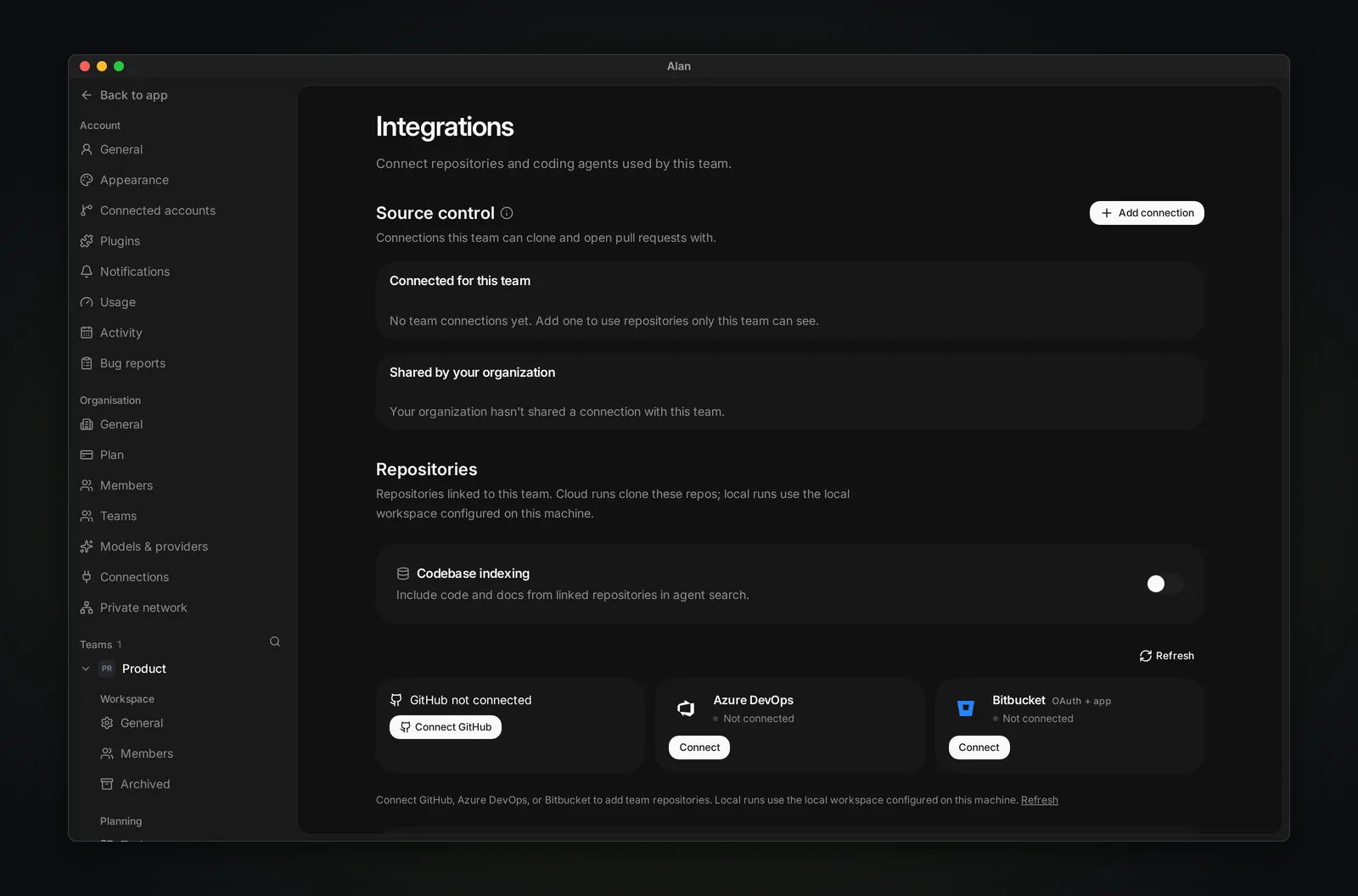](https://docs.tryalan.ai/images/screenshots/connections-team-settings.webp)
|
|
25
|
+
|
|
26
|
+
## 2. Choose who can use the connection
|
|
27
|
+
|
|
28
|
+
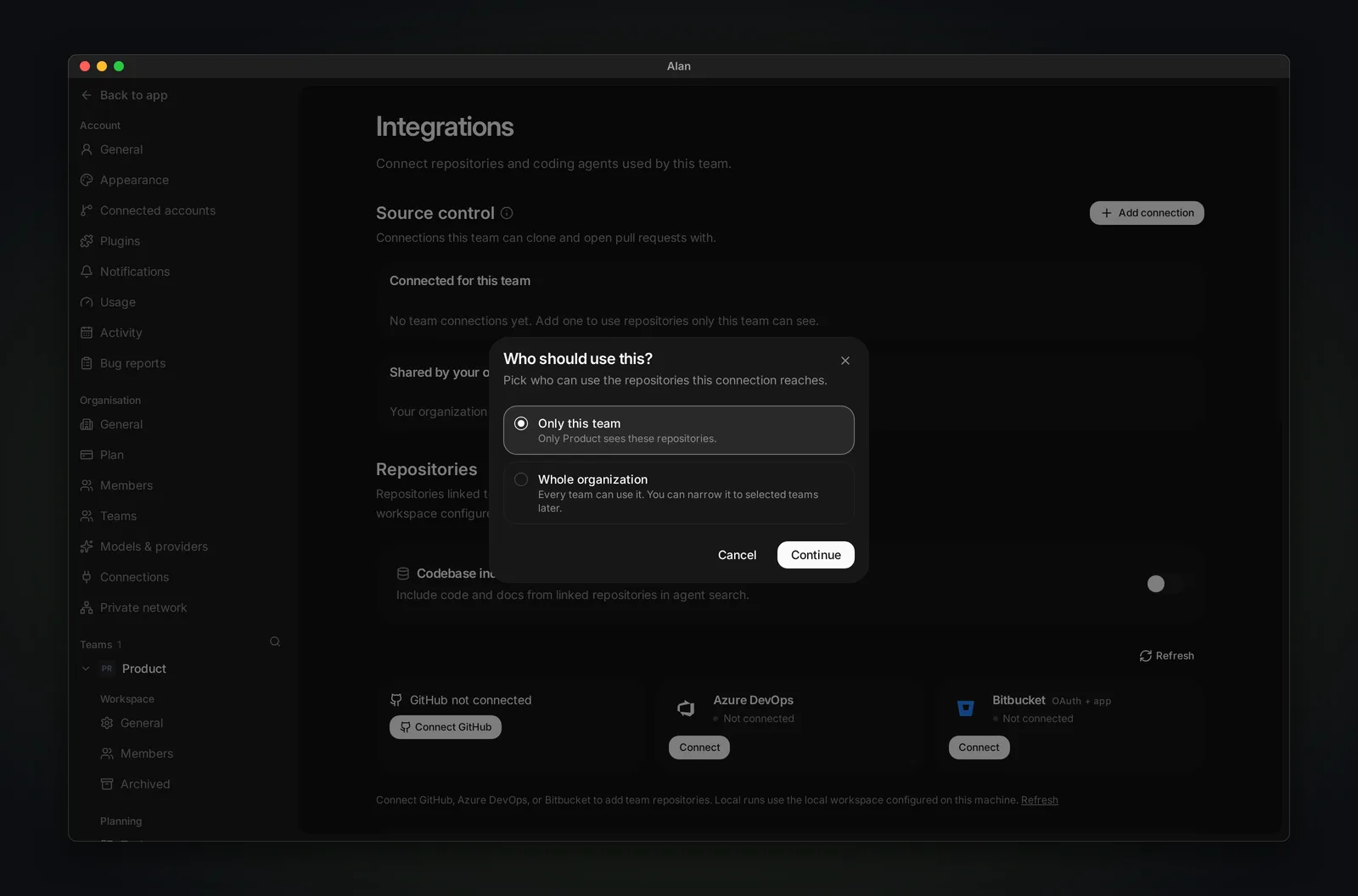
Choose **Only this team** to keep the connection within your team, or **Whole organization** so every team can use it. Choose **Continue**.
|
|
29
|
+
|
|
30
|
+
If **Only this team** is unavailable, your organization has turned off team-owned connections. Use **Whole organization**, or ask for an existing connection to be shared with your team.
|
|
31
|
+
|
|
32
|
+
[](https://docs.tryalan.ai/images/screenshots/connections-scope.webp)
|
|
33
|
+
|
|
34
|
+
## 3. Choose Azure DevOps
|
|
35
|
+
|
|
36
|
+
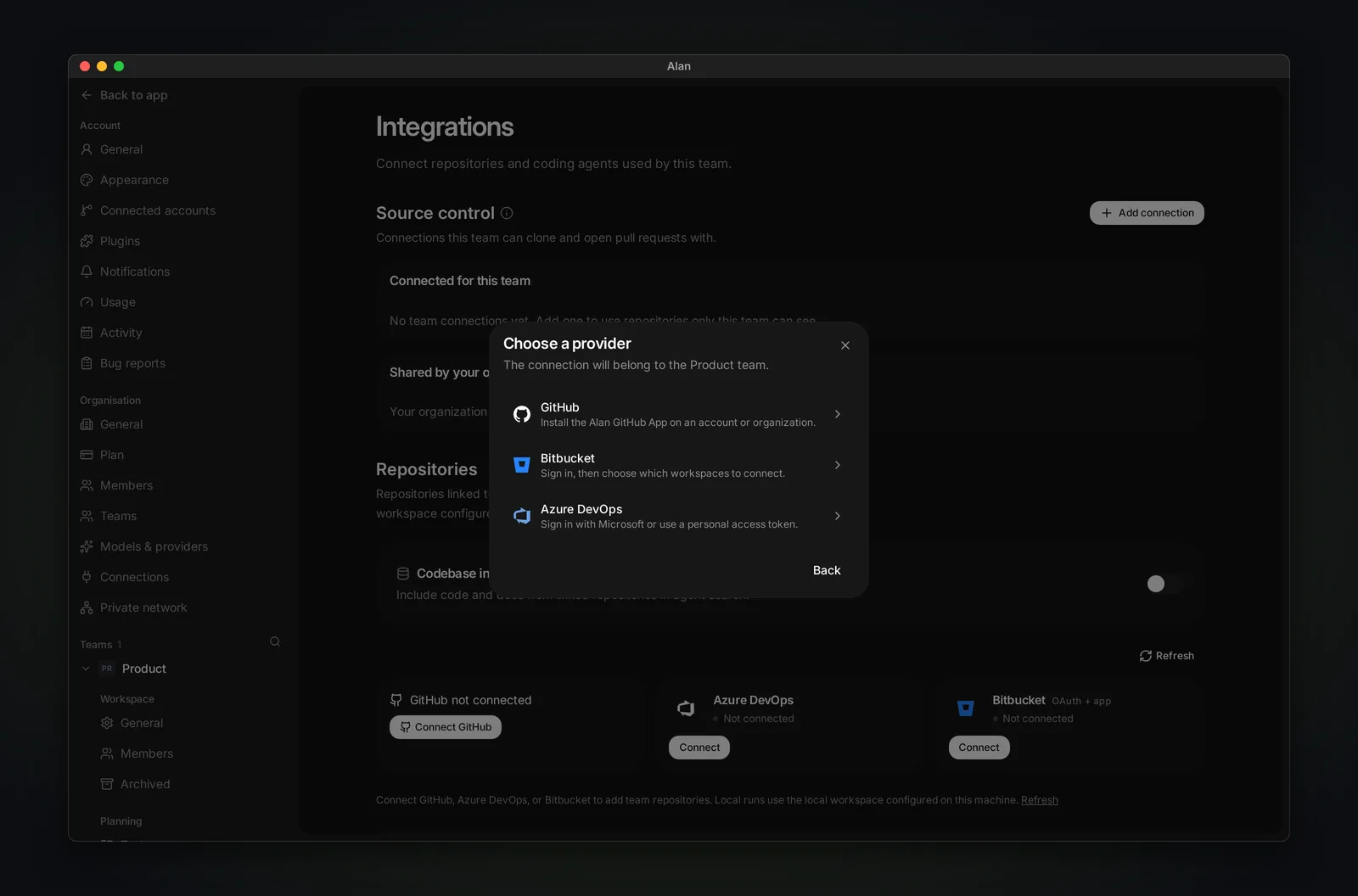
Select **Azure DevOps** from **Choose a provider**.
|
|
37
|
+
|
|
38
|
+
[](https://docs.tryalan.ai/images/screenshots/connections-providers.webp)
|
|
39
|
+
|
|
40
|
+
## 4. Sign in with Microsoft
|
|
41
|
+
|
|
42
|
+
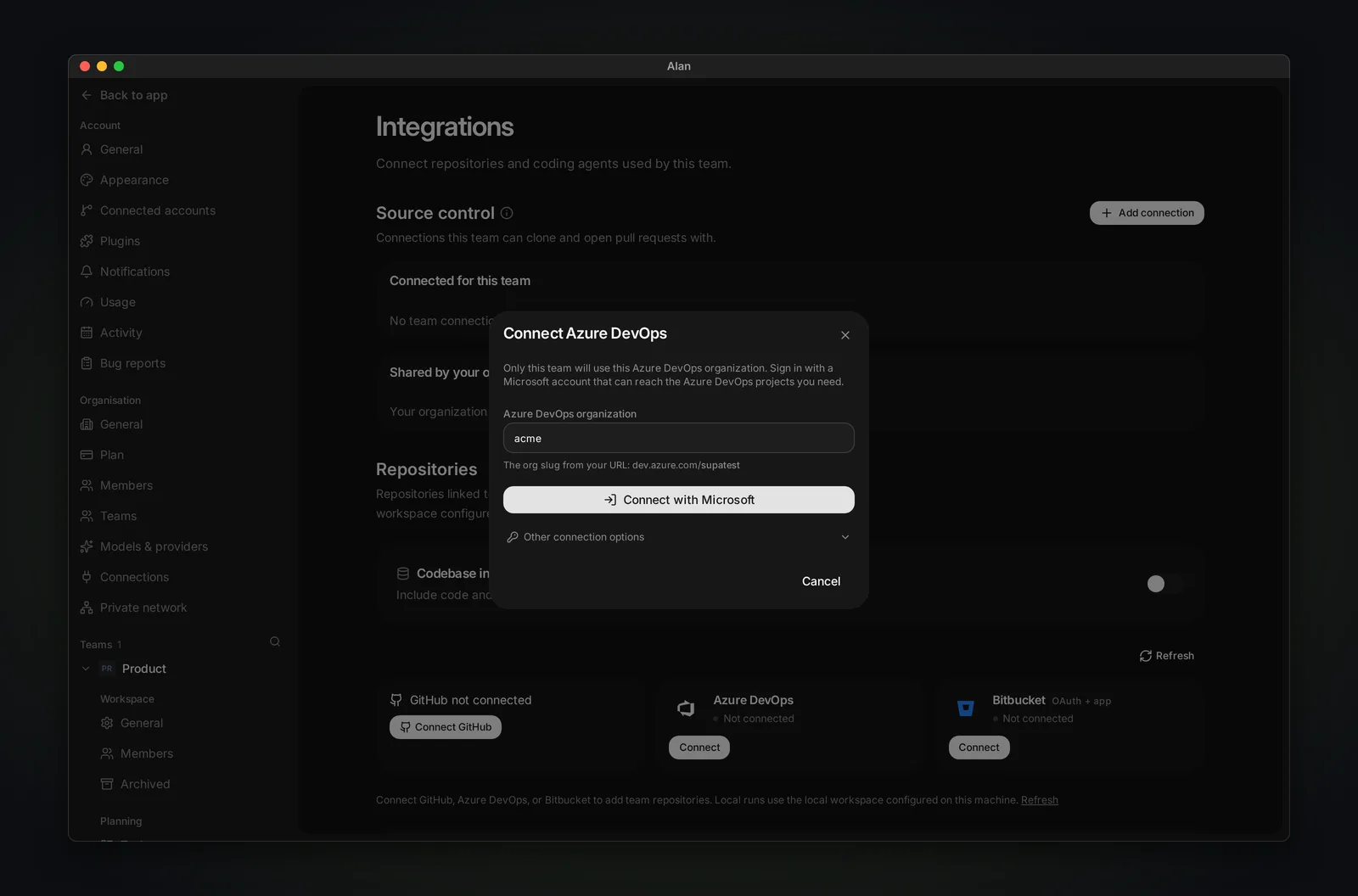
1. Enter **Azure DevOps organization**: the name after `dev.azure.com/` in your URL. For `https://dev.azure.com/acme`, enter `acme`. A full `dev.azure.com` or `visualstudio.com` organization URL also works.
|
|
43
|
+
2. Choose **Connect with Microsoft**.
|
|
44
|
+
3. In your browser, select the account that can access those projects and complete authorization. Return to Alan when finished.
|
|
45
|
+
|
|
46
|
+
If Microsoft asks for admin approval, ask your Microsoft 365 administrator to review the request. [Microsoft's consent guide](https://learn.microsoft.com/en-us/troubleshoot/entra/entra-id/app-integration/troubleshoot-consent-issues) explains these errors.
|
|
47
|
+
|
|
48
|
+
The connection appears under **Connected for this team** or **Shared by your organization**, depending on your choice.
|
|
49
|
+
|
|
50
|
+
[](https://docs.tryalan.ai/images/screenshots/connections-azure-sign-in.webp)
|
|
51
|
+
|
|
52
|
+
### Use a personal access token instead
|
|
53
|
+
|
|
54
|
+
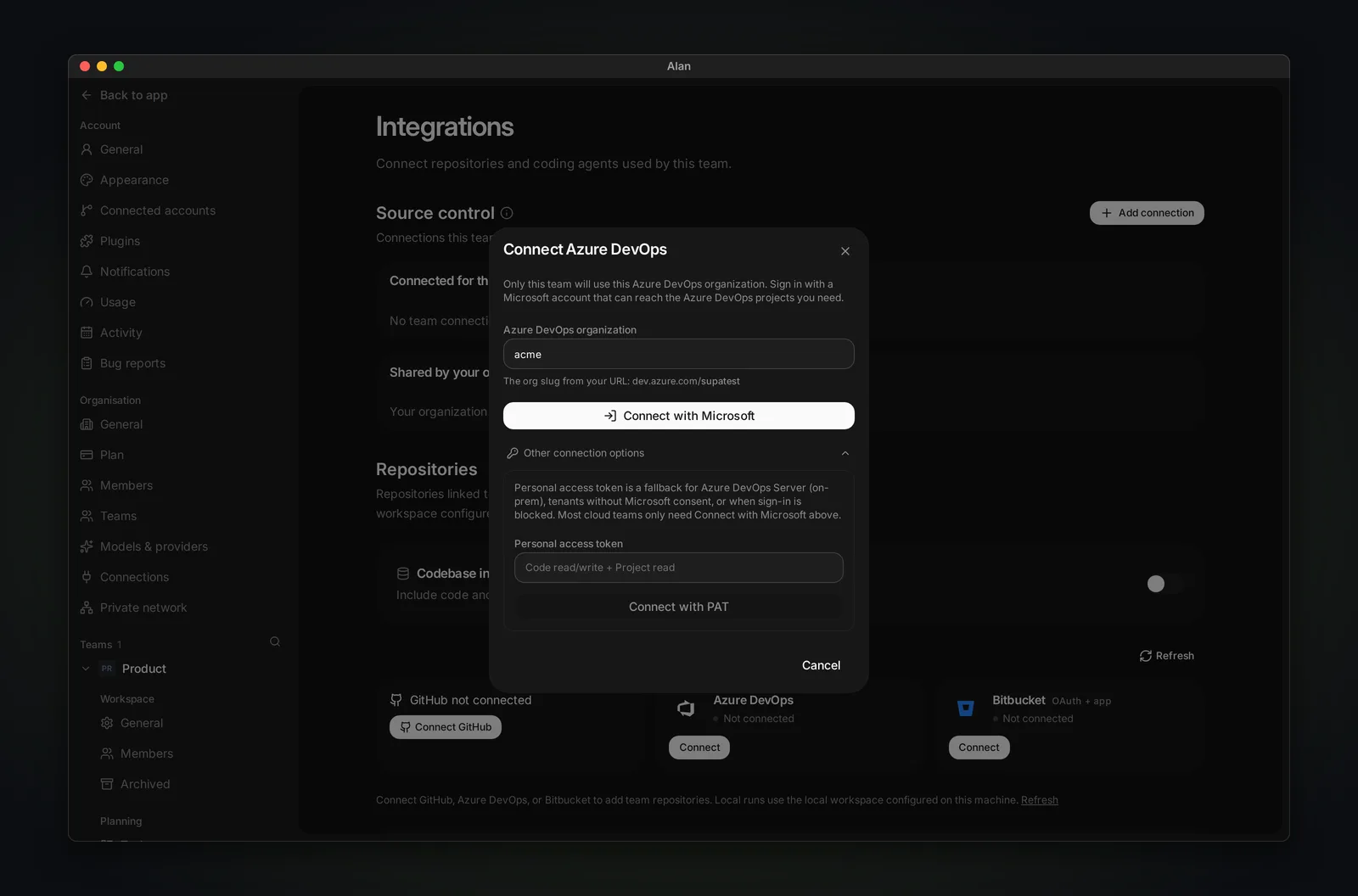
Use this fallback when Microsoft sign-in is unavailable or blocked:
|
|
55
|
+
|
|
56
|
+
1. In Azure DevOps, open **User settings → Personal access tokens → New Token**. Choose your organization, a name, and an expiration date. See [Microsoft's PAT instructions](https://learn.microsoft.com/en-us/azure/devops/organizations/accounts/use-personal-access-tokens-to-authenticate?view=azure-devops).
|
|
57
|
+
2. Select **Code (read & write)** and **Project and Team (read)** for repository work. Create and copy the token; Microsoft shows it only once. The token cannot grant access its owner doesn't have.
|
|
58
|
+
3. In Alan's connection dialog, enter the organization, expand **Other connection options**, paste the **Personal access token**, and choose **Connect with PAT**.
|
|
59
|
+
|
|
60
|
+
[](https://docs.tryalan.ai/images/screenshots/connections-azure-pat.webp)
|
|
61
|
+
|
|
62
|
+
## 5. Add repositories to the team
|
|
63
|
+
|
|
64
|
+
Back in **Integrations → Repositories**:
|
|
65
|
+
|
|
66
|
+
1. On **Azure DevOps**, choose **Add repo**.
|
|
67
|
+
2. Choose the connection if more than one is available, then a project.
|
|
68
|
+
3. Select the repositories and each repository's branch, then confirm adding them.
|
|
69
|
+
|
|
70
|
+
Check that they appear in the team's repository list. Cloud sessions can clone linked repositories; local sessions use the project folder on your computer. A connection does not select that folder for you.
|
|
71
|
+
|
|
72
|
+
## 6. Link your own Microsoft account when available
|
|
73
|
+
|
|
74
|
+
Open **Settings → Account → Connected accounts**. On **Azure DevOps**, choose **Connect**, sign in, and check for **Microsoft account linked**.
|
|
75
|
+
|
|
76
|
+
This personal link is separate from team repository access. Git operations prefer your linked account for the same Azure DevOps organization, and otherwise use the shared connection.
|
|
77
|
+
|
|
78
|
+
If **Connect** is disabled, Alan currently needs an organization-wide Azure DevOps connection for personal linking. A team-only connection may still work for repository access. Ask the connection owner about sharing it rather than creating a duplicate.
|
|
79
|
+
|
|
80
|
+
[](https://docs.tryalan.ai/images/screenshots/connections-azure-personal.webp)
|
|
81
|
+
|
|
82
|
+
## If something doesn't work
|
|
83
|
+
|
|
84
|
+
- **Projects or repositories are missing:** check the organization name, your Azure DevOps access, and which connection you selected. If the connection already belongs to another Alan team, ask its owner to share it.
|
|
85
|
+
- **A token stops working:** check its expiry and permissions. Use the connection's **Check connection** action before replacing credentials.
|
|
86
|
+
- **Push fails:** confirm write access for the account being used; linking a personal account doesn't add Azure DevOps permissions.
|
|
87
|
+
- **Pull request updates arrive late:** Alan tries to create **service hooks**, which send repository events to Alan. This can fail without breaking the connection. Ask your Azure DevOps project admin to check the hooks and their delivery history. Microsoft requires [View subscriptions and Edit subscriptions permissions](https://learn.microsoft.com/en-us/azure/devops/service-hooks/overview?view=azure-devops#faqs) to manage them. Don't disconnect a working connection just to investigate delayed updates.
|
|
88
|
+
|
|
89
|
+
Next, [start a session](../agents-and-sessions/start-a-session.md), or use [Pull requests](../reviews-testing-deploys/pull-requests.md) to review linked work.
|