@alan-ai-hq/agent-manager-linux-arm64 0.1.199 → 0.1.200
This diff represents the content of publicly available package versions that have been released to one of the supported registries. The information contained in this diff is provided for informational purposes only and reflects changes between package versions as they appear in their respective public registries.
- package/alan-agent.cjs +8885 -5214
- package/alan-holder.cjs +5364 -3401
- package/alan-lease.cjs +808 -200
- package/builtin-skills/agent-desktop/SKILL.md +94 -0
- package/builtin-skills/alan-artifact/SKILL.md +128 -0
- package/builtin-skills/alan-artifact/examples/interactive-diagram.md +50 -0
- package/builtin-skills/alan-artifact/examples/prototype.md +53 -0
- package/builtin-skills/alan-artifact/examples/test-report.md +55 -0
- package/builtin-skills/alan-artifact/references/design.md +39 -0
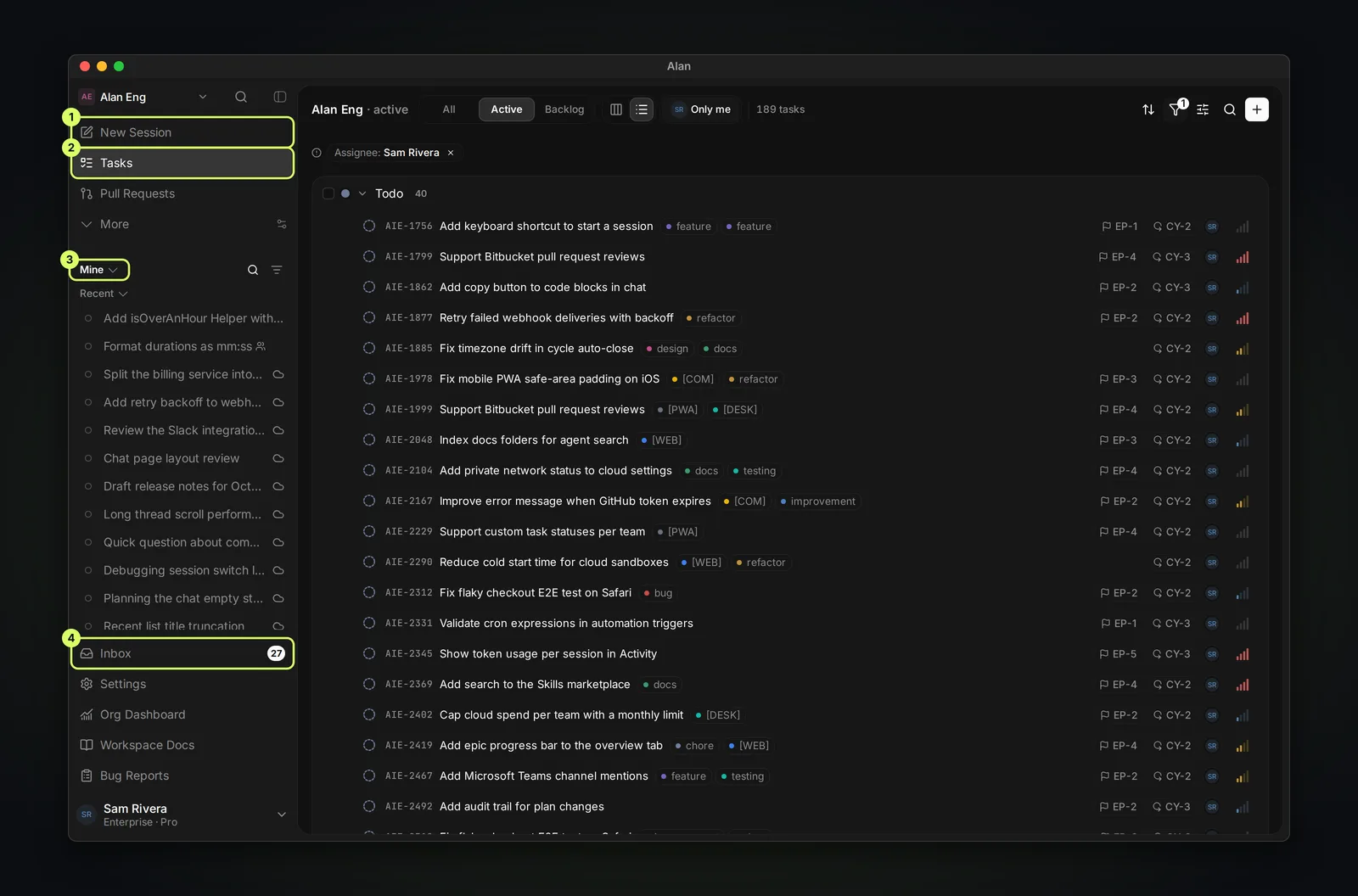
- package/builtin-skills/alan-artifact/references/diagrams.md +20 -0
- package/builtin-skills/alan-deck/SKILL.md +189 -0
- package/builtin-skills/alan-diagrams/SKILL.md +105 -0
- package/builtin-skills/alan-diagrams/references/diagram-catalogue.md +847 -0
- package/builtin-skills/alan-docs/SKILL.md +143 -0
- package/builtin-skills/alan-docs/references/administration/members-and-teams.md +48 -0
- package/builtin-skills/alan-docs/references/administration/org-dashboard.md +19 -0
- package/builtin-skills/alan-docs/references/administration/organisation-settings.md +41 -0
- package/builtin-skills/alan-docs/references/agents-and-sessions/code-context.md +60 -0
- package/builtin-skills/alan-docs/references/agents-and-sessions/coding-agents-and-models.md +78 -0
- package/builtin-skills/alan-docs/references/agents-and-sessions/session-lifecycle.md +62 -0
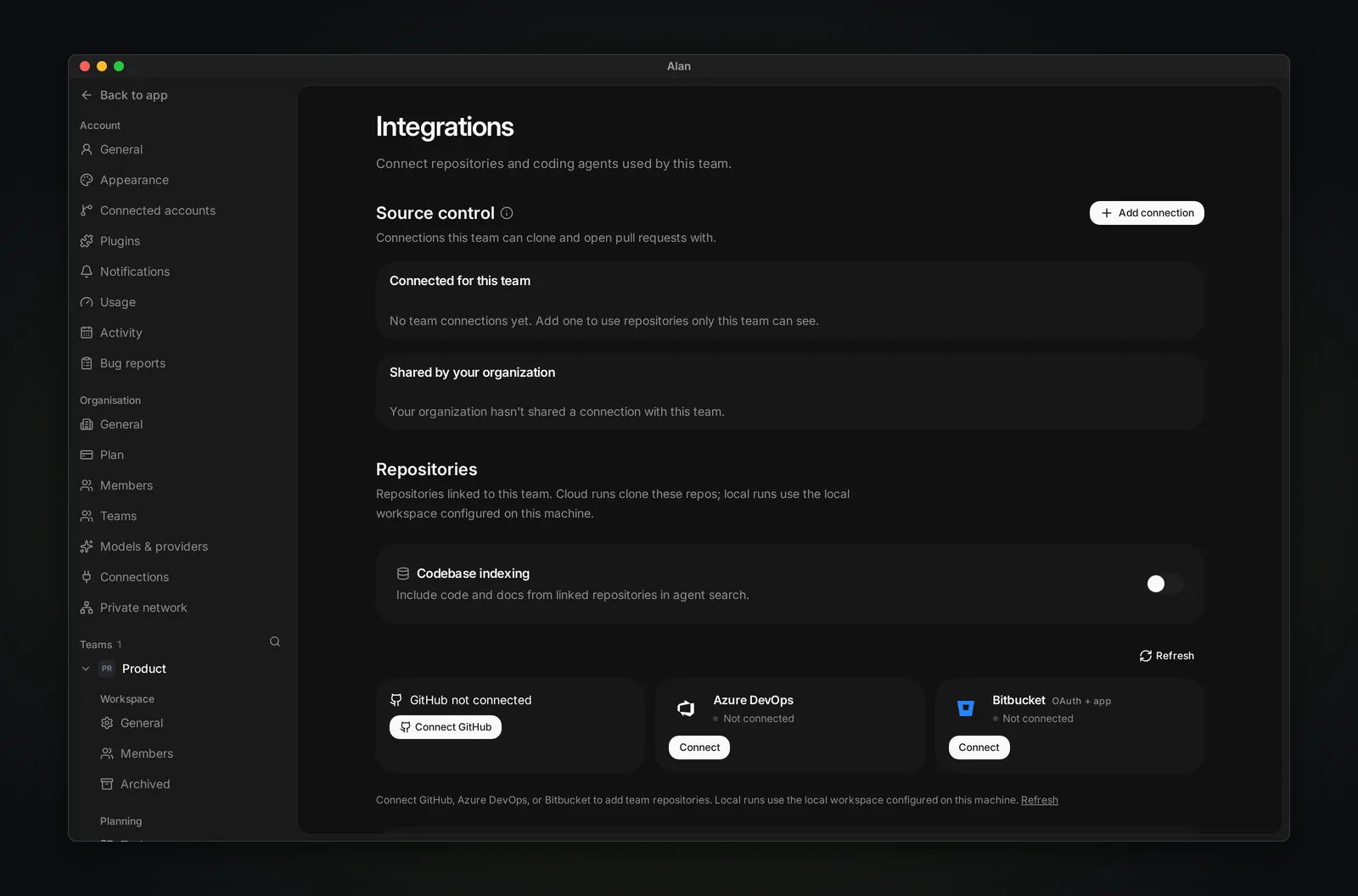
- package/builtin-skills/alan-docs/references/agents-and-sessions/start-a-session.md +110 -0
- package/builtin-skills/alan-docs/references/automations/automation-runs.md +69 -0
- package/builtin-skills/alan-docs/references/automations/create-an-automation.md +143 -0
- package/builtin-skills/alan-docs/references/automations/overview.md +77 -0
- package/builtin-skills/alan-docs/references/cloud-and-local/cloud-images.md +64 -0
- package/builtin-skills/alan-docs/references/cloud-and-local/cloud-sessions-and-execution.md +89 -0
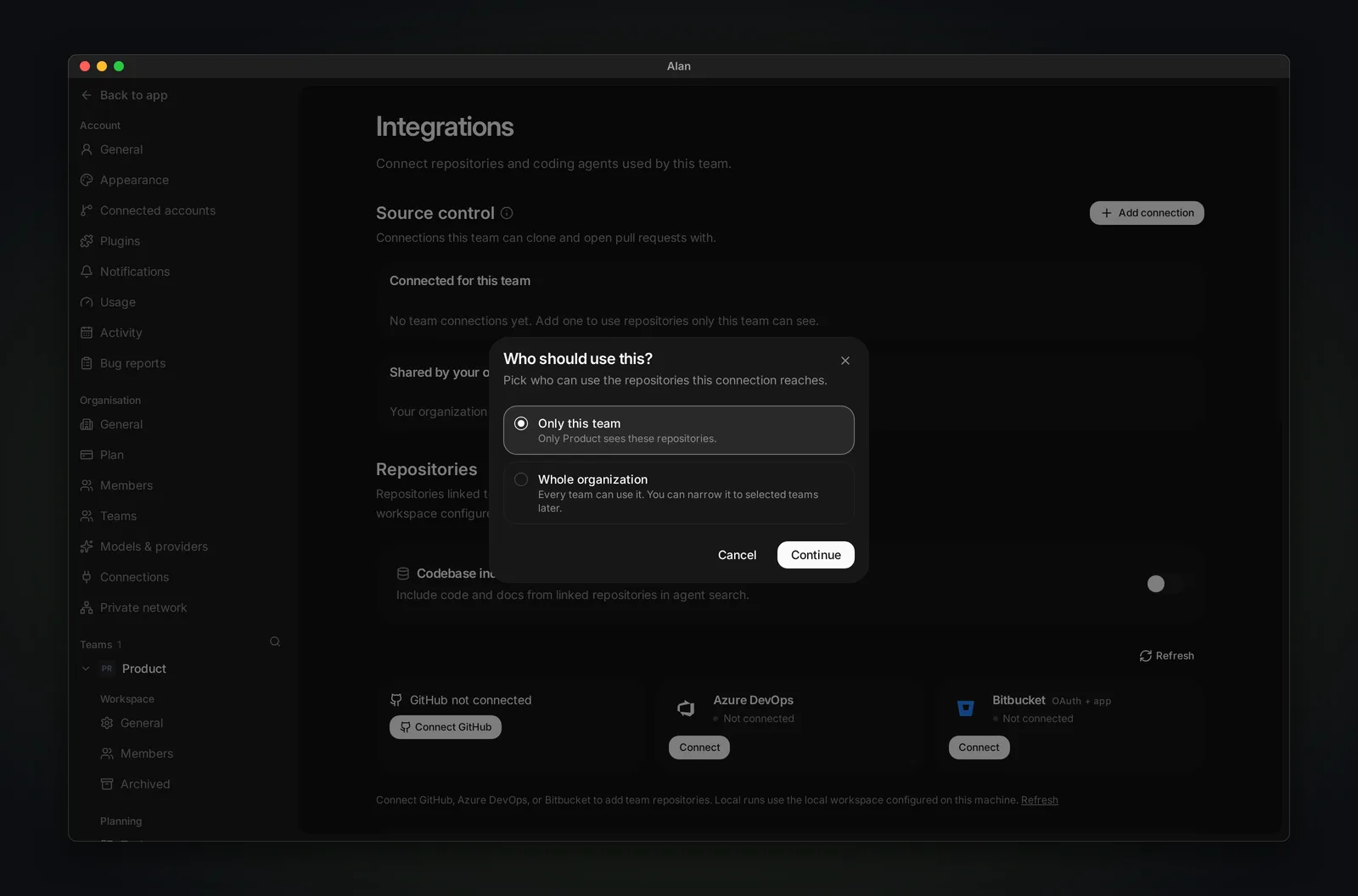
- package/builtin-skills/alan-docs/references/cloud-and-local/cloud-setup.md +128 -0
- package/builtin-skills/alan-docs/references/cloud-and-local/codex-cli-connector.md +92 -0
- package/builtin-skills/alan-docs/references/cloud-and-local/local-execution.md +213 -0
- package/builtin-skills/alan-docs/references/cloud-and-local/runtime-recovery.md +60 -0
- package/builtin-skills/alan-docs/references/cloud-and-local/sandboxes.md +74 -0
- package/builtin-skills/alan-docs/references/cloud-and-local/troubleshooting-and-faq.md +102 -0
- package/builtin-skills/alan-docs/references/get-started/connect-azure-devops.md +89 -0
- package/builtin-skills/alan-docs/references/get-started/connect-bitbucket.md +86 -0
- package/builtin-skills/alan-docs/references/get-started/connect-github.md +114 -0
- package/builtin-skills/alan-docs/references/get-started/join-a-team.md +114 -0
- package/builtin-skills/alan-docs/references/get-started/product-map.md +96 -0
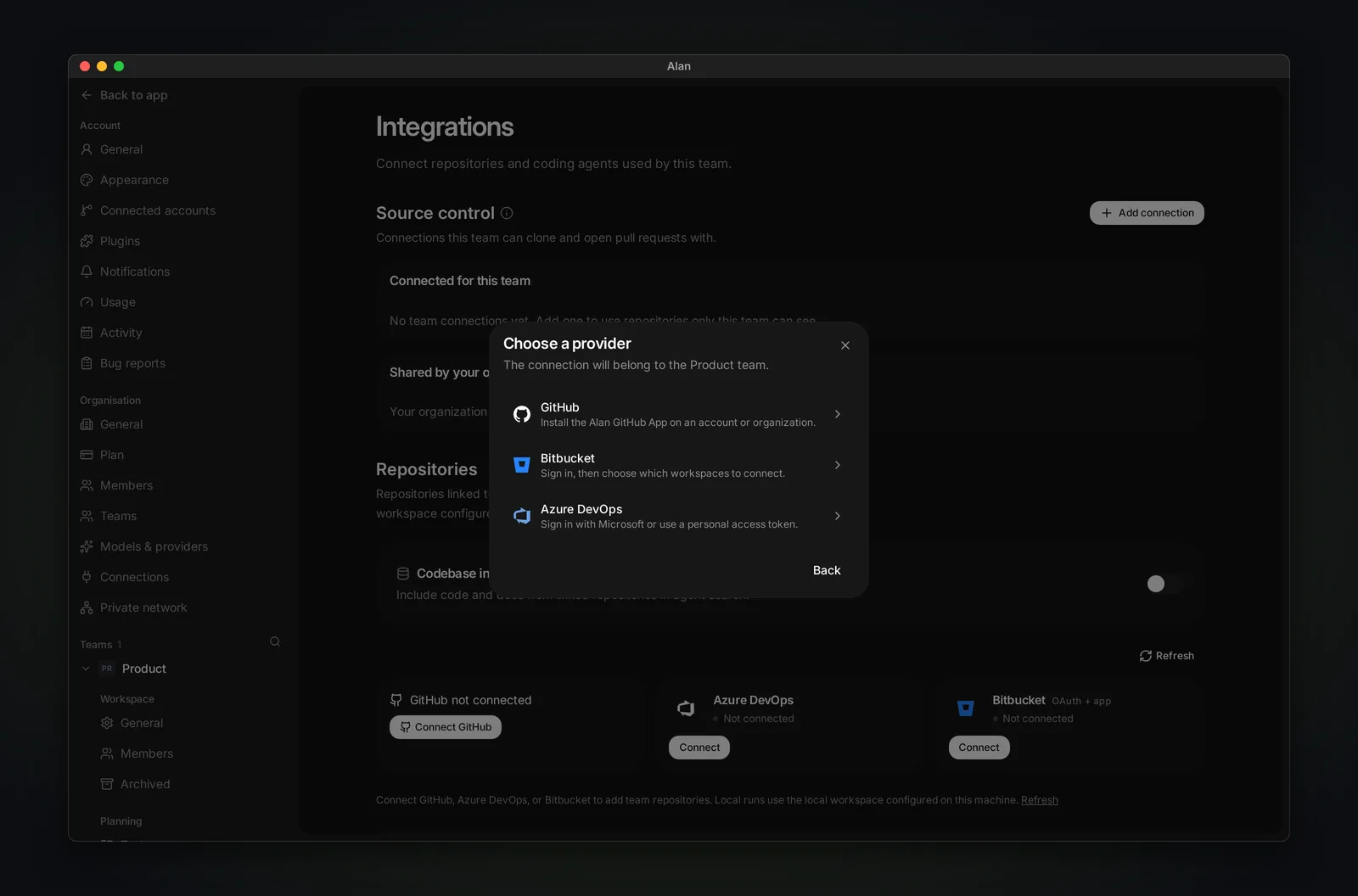
- package/builtin-skills/alan-docs/references/get-started/quickstart.md +158 -0
- package/builtin-skills/alan-docs/references/get-started/set-up-your-team.md +200 -0
- package/builtin-skills/alan-docs/references/get-started/sign-in.md +104 -0
- package/builtin-skills/alan-docs/references/get-started/welcome.md +39 -0
- package/builtin-skills/alan-docs/references/integrations/connect-microsoft-teams.md +116 -0
- package/builtin-skills/alan-docs/references/integrations/connect-slack.md +164 -0
- package/builtin-skills/alan-docs/references/integrations/import-from-linear.md +172 -0
- package/builtin-skills/alan-docs/references/plans-and-billing/plans-and-limits.md +115 -0
- package/builtin-skills/alan-docs/references/plans-and-billing/usage-and-credits.md +47 -0
- package/builtin-skills/alan-docs/references/reference/documents-and-artifacts.md +52 -0
- package/builtin-skills/alan-docs/references/reference/faq.md +89 -0
- package/builtin-skills/alan-docs/references/reference/feature-catalog.md +89 -0
- package/builtin-skills/alan-docs/references/reference/glossary.md +96 -0
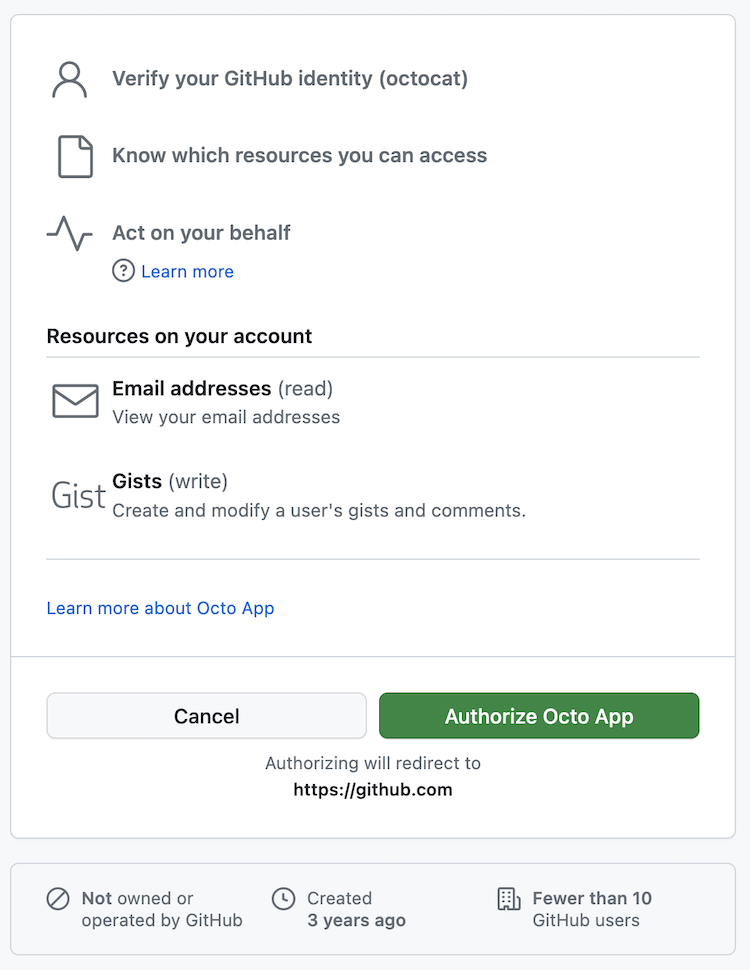
- package/builtin-skills/alan-docs/references/reference/links-and-ids.md +80 -0
- package/builtin-skills/alan-docs/references/reference/roles-and-permissions.md +64 -0
- package/builtin-skills/alan-docs/references/reference/statuses.md +86 -0
- package/builtin-skills/alan-docs/references/reviews-testing-deploys/deployments.md +28 -0
- package/builtin-skills/alan-docs/references/reviews-testing-deploys/pull-requests.md +85 -0
- package/builtin-skills/alan-docs/references/reviews-testing-deploys/review-work.md +55 -0
- package/builtin-skills/alan-docs/references/reviews-testing-deploys/testing-evidence.md +52 -0
- package/builtin-skills/alan-docs/references/skills/plugins-and-mcp.md +24 -0
- package/builtin-skills/alan-docs/references/skills/skills.md +103 -0
- package/builtin-skills/alan-docs/references/tasks/complete-a-task.md +79 -0
- package/builtin-skills/alan-docs/references/tasks/create-a-task.md +67 -0
- package/builtin-skills/alan-docs/references/tasks/subtasks-and-status.md +55 -0
- package/builtin-skills/alan-docs/references/tasks/task-artifacts.md +56 -0
- package/builtin-skills/alan-docs/references/tasks/task-detail.md +65 -0
- package/builtin-skills/alan-docs/references/teams-and-planning/cycles.md +93 -0
- package/builtin-skills/alan-docs/references/teams-and-planning/documents.md +66 -0
- package/builtin-skills/alan-docs/references/teams-and-planning/epics.md +95 -0
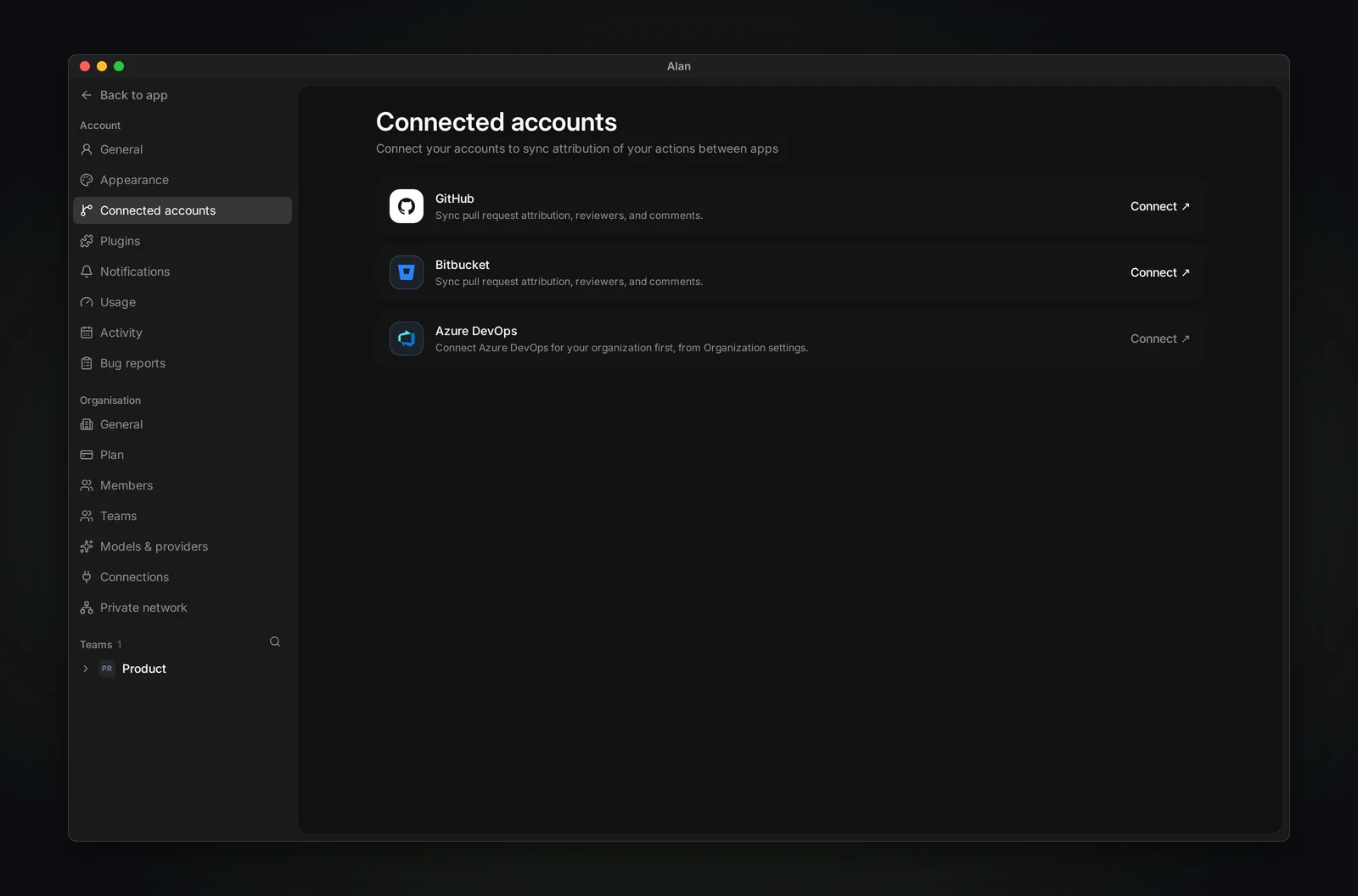
- package/builtin-skills/alan-docs/references/teams-and-planning/whiteboard.md +52 -0
- package/builtin-skills/alan-docs/references/troubleshooting/agent-blocked.md +38 -0
- package/builtin-skills/alan-docs/references/troubleshooting/common-problems.md +118 -0
- package/builtin-skills/alan-docs/references/troubleshooting/github-access.md +41 -0
- package/builtin-skills/alan-docs/references/troubleshooting/missing-artifact.md +47 -0
- package/builtin-skills/alan-docs/references/troubleshooting/report-an-issue.md +74 -0
- package/builtin-skills/alan-docs/references/troubleshooting/runtime-unavailable.md +49 -0
- package/builtin-skills/alan-docs/scripts/generate-references.mjs +363 -0
- package/builtin-skills/alan-environment-setup/SKILL.md +320 -0
- package/builtin-skills/alan-environment-setup/references/android.md +118 -0
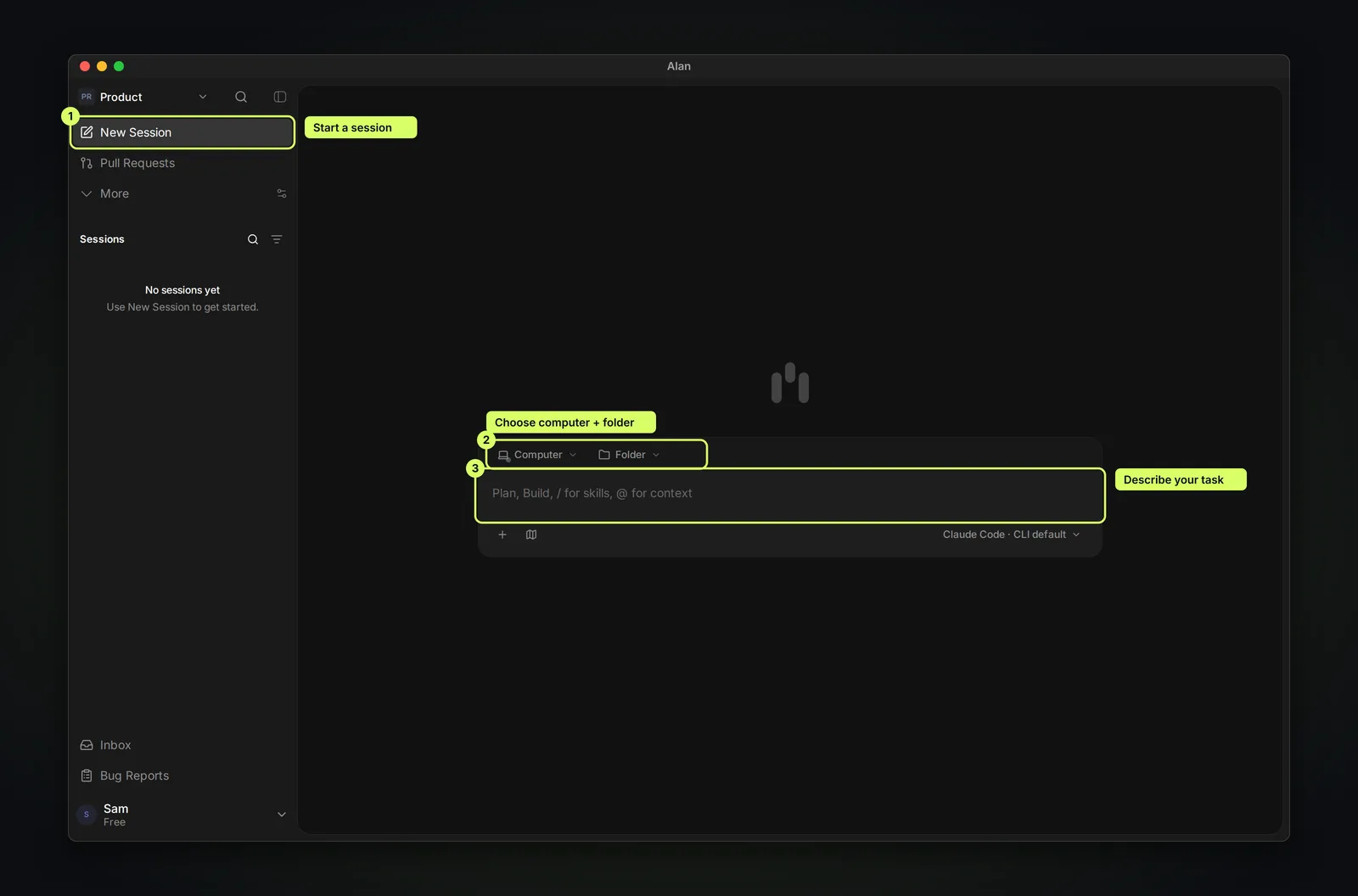
- package/builtin-skills/alan-environment-setup/references/troubleshooting.md +33 -0
- package/builtin-skills/alan-skill-authoring/SKILL.md +83 -0
- package/builtin-skills/alan-tasks/SKILL.md +195 -0
- package/builtin-skills/alan-test-android/SKILL.md +224 -0
- package/builtin-skills/alan-test-android/scripts/android-up.sh +227 -0
- package/builtin-skills/alan-test-android/scripts/install-launch.sh +38 -0
- package/builtin-skills/alan-test-android/scripts/record.sh +64 -0
- package/builtin-skills/alan-test-android/scripts/ui.py +367 -0
- package/builtin-skills/alan-test-desktop/SKILL.md +107 -0
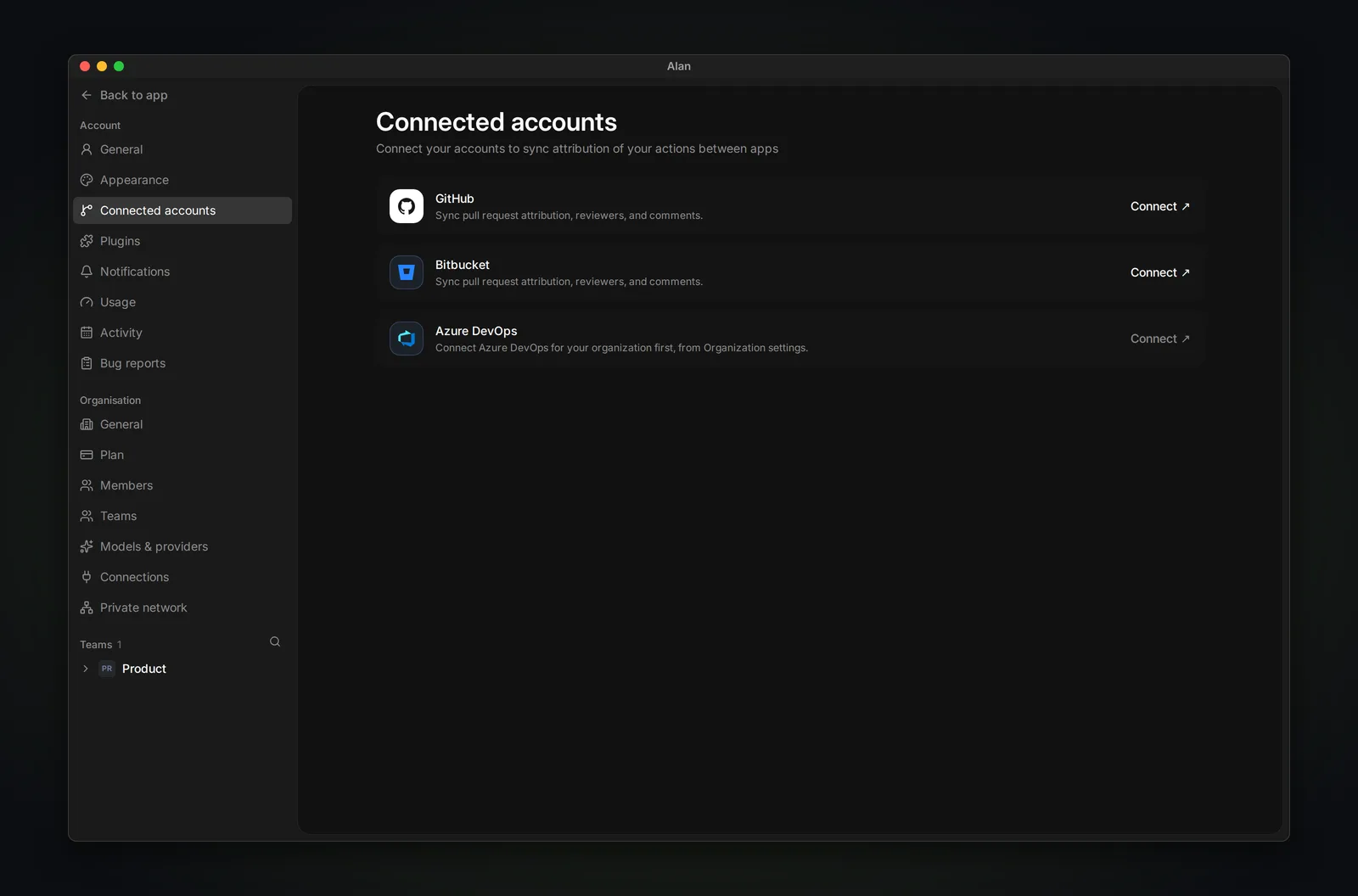
- package/builtin-skills/alan-test-desktop/references/linux-recording.md +31 -0
- package/builtin-skills/alan-test-feature/SKILL.md +243 -0
- package/builtin-skills/alan-test-mobile/SKILL.md +65 -0
- package/builtin-skills/alan-test-web/SKILL.md +113 -0
- package/builtin-skills/alan-walkthrough/SKILL.md +152 -0
- package/builtin-skills/alan-walkthrough/scripts/mark-changes.js +419 -0
- package/builtin-skills/alan-walkthrough/scripts/publish-capture.mjs +288 -0
- package/builtin-skills/alan-workflows/SKILL.md +235 -0
- package/builtin-skills/manifest.json +19 -0
- package/package.json +3 -2
|
@@ -0,0 +1,86 @@
|
|
|
1
|
+
> Source: [https://docs.tryalan.ai/docs/get-started/connect-bitbucket](https://docs.tryalan.ai/docs/get-started/connect-bitbucket)
|
|
2
|
+
|
|
3
|
+
# Connect Bitbucket
|
|
4
|
+
|
|
5
|
+
Connect **Bitbucket Cloud** so Alan can work on your team's projects and pull requests. A **repository** holds a project's files and history. A **Bitbucket workspace** groups repositories and their members; it is separate from your organization or team in Alan.
|
|
6
|
+
|
|
7
|
+
Team setup has two parts: sign in to give Alan repository access, then add the repositories your team will use. Alan may also ask you to install its workspace app for repository events. Each teammate can link their own account for actions in their name.
|
|
8
|
+
|
|
9
|
+
## Before you start
|
|
10
|
+
|
|
11
|
+
- Have access to the Alan team you are setting up.
|
|
12
|
+
- Your plan must include source-control connections. If **Source control** is missing, ask an organization admin to check the [plan](../plans-and-billing/plans-and-limits.md).
|
|
13
|
+
- Use a Bitbucket account that can access the workspaces and repositories you need.
|
|
14
|
+
- To complete workspace app setup, ask a **Bitbucket workspace administrator** to connect and approve the app. Alan checks that the connecting account administers the workspace before linking its app installation.
|
|
15
|
+
|
|
16
|
+
This guide covers Bitbucket Cloud at `bitbucket.org`.
|
|
17
|
+
|
|
18
|
+
Screenshots open at full size in a new tab when selected.
|
|
19
|
+
|
|
20
|
+
## 1. Open the team's connection settings
|
|
21
|
+
|
|
22
|
+
Choose **Settings** in Alan. Under your team, choose **Integrations**. In **Source control**, choose **Add connection**.
|
|
23
|
+
|
|
24
|
+
[](https://docs.tryalan.ai/images/screenshots/connections-team-settings.webp)
|
|
25
|
+
|
|
26
|
+
## 2. Choose who can use it
|
|
27
|
+
|
|
28
|
+
In **Who should use this?**, choose **Only this team** or **Whole organization**, then **Continue**.
|
|
29
|
+
|
|
30
|
+
- **Only this team** makes the connection available to this Alan team.
|
|
31
|
+
- **Whole organization** makes it available to every Alan team. You can narrow access later.
|
|
32
|
+
|
|
33
|
+
If **Only this team** is disabled, your organization requires shared connections. Choose **Whole organization**, or ask for an existing connection to be shared with your team.
|
|
34
|
+
|
|
35
|
+
[](https://docs.tryalan.ai/images/screenshots/connections-scope.webp)
|
|
36
|
+
|
|
37
|
+
## 3. Sign in to Bitbucket and choose workspaces
|
|
38
|
+
|
|
39
|
+
On **Choose a provider**, choose **Bitbucket**. Sign in on Bitbucket and review the access Alan requests. This permission-granting sign-in is called **OAuth**; you do not need to create a token or paste credentials into Alan.
|
|
40
|
+
|
|
41
|
+
[](https://docs.tryalan.ai/images/screenshots/connections-providers.webp)
|
|
42
|
+
|
|
43
|
+
Bitbucket returns you to Alan's **Choose workspaces** page. Select the workspaces your team needs, then choose **Connect 1 workspace** or **Connect N workspaces**. Alan shows **Bitbucket connected** and returns to the page you started from.
|
|
44
|
+
|
|
45
|
+
On desktop, authorization opens in your system browser. Finish the workspace selection there, return to the desktop app, and choose **Refresh** in Integrations if needed. If the browser asks you to sign in to Alan, use the same Alan account that started setup.
|
|
46
|
+
|
|
47
|
+
A workspace marked **Already connected here**, **Connected by the organization**, or **Connected by another team** cannot be selected again. Use the existing connection or ask for it to be shared, rather than creating a duplicate.
|
|
48
|
+
|
|
49
|
+
## 4. Finish workspace app setup if requested
|
|
50
|
+
|
|
51
|
+
In **Repositories**, check the **Bitbucket** card. If it says **Account connected · workspace app setup required**, choose **Install app** and complete the approval in Bitbucket for the intended workspace.
|
|
52
|
+
|
|
53
|
+
This is a separate app installation, built on Atlassian's **Forge** platform. Personal sign-in alone does not install it. Alan checks for the installation after you open the approval page. If it shows **Installation not detected yet**, finish approval and choose **Check installation**.
|
|
54
|
+
|
|
55
|
+
> **Warning:** Forge apps require a shared Bitbucket workspace; Atlassian does not support them on personal workspaces. This also applies if you work alone. See [Atlassian's Bitbucket app installation guidance](https://developer.atlassian.com/platform/forge/build-a-hello-world-app-in-bitbucket/#install-your-app).
|
|
56
|
+
|
|
57
|
+
If the card already offers **Add repo**, continue below. You do not need to repeat setup for a working team connection.
|
|
58
|
+
|
|
59
|
+
## 5. Add repositories to the team
|
|
60
|
+
|
|
61
|
+
On the **Bitbucket** card, choose **Add repo**. Choose a workspace, or select the available connection if Alan has already chosen its workspace. Select the repositories, check their branches, then choose **Add 1 repository** or **Add N repositories**.
|
|
62
|
+
|
|
63
|
+
Check that the repositories appear in the team's list. Adding one in Alan does not download it to your computer.
|
|
64
|
+
|
|
65
|
+
An Alan organization admin can share an organization-owned connection with selected teams. Open **Settings → Organisation → Connections → Bitbucket**, open the connection's menu, and choose **Choose teams**. Select the teams and save access. A team-owned connection's menu also offers **Request to share with organization**.
|
|
66
|
+
|
|
67
|
+
## 6. Link teammates' own accounts
|
|
68
|
+
|
|
69
|
+
Each teammate opens **Settings → Account → Connected accounts** and connects **Bitbucket** with their own account. This lets Alan use your account for supported changes and reviews. It does not choose or share the team's workspaces. Team setup may already have linked the account used to authorize it.
|
|
70
|
+
|
|
71
|
+
[](https://docs.tryalan.ai/images/screenshots/connections-bitbucket-personal.webp)
|
|
72
|
+
|
|
73
|
+
## If something is missing
|
|
74
|
+
|
|
75
|
+
- **No workspaces or repositories:** check that the connected Bitbucket account can access them. For an existing connection, check its team-sharing settings and any repository restrictions.
|
|
76
|
+
- **Workspace app approval never completes:** ask the Bitbucket workspace administrator to finish approval, then choose **Check installation**. **Workspace app setup is temporarily unavailable** means the installation flow is unavailable; report it to your Alan administrator.
|
|
77
|
+
- **An expired or invalid token:** start Bitbucket sign-in again from Alan, finish in the browser, then refresh. Use **Check connection** in the connection's menu to check access.
|
|
78
|
+
- **A push or pull request action fails:** check your personal Bitbucket connection and write access to that repository. A connected team does not give your account additional Bitbucket permissions.
|
|
79
|
+
|
|
80
|
+
## Start work
|
|
81
|
+
|
|
82
|
+
For cloud sessions, continue with [Cloud setup](../cloud-and-local/cloud-setup.md), then [Complete a task with an agent](../tasks/complete-a-task.md).
|
|
83
|
+
|
|
84
|
+
Working alone on your computer? You can use local execution without workspace app setup. Select your existing project folder in a **New Session**; see [Local execution](../cloud-and-local/local-execution.md). Your local Git tools still need access to Bitbucket.
|
|
85
|
+
|
|
86
|
+
Continue with [Pull requests](../reviews-testing-deploys/pull-requests.md) to review changes, checks, and task links.
|
|
@@ -0,0 +1,114 @@
|
|
|
1
|
+
> Source: [https://docs.tryalan.ai/docs/get-started/connect-github](https://docs.tryalan.ai/docs/get-started/connect-github)
|
|
2
|
+
|
|
3
|
+
# Connect GitHub
|
|
4
|
+
|
|
5
|
+
Connect GitHub so Alan can work on your team's projects and open pull requests. A **repository** holds a project's files and change history. Your team connects the repositories once; teammates can then use them in Alan.
|
|
6
|
+
|
|
7
|
+
There are two parts:
|
|
8
|
+
|
|
9
|
+
- **Repository access:** connect the **Alan GitHub App**, which gives Alan permission to use selected repositories, then add those repositories to your Alan team. You can reuse an existing installation.
|
|
10
|
+
- **Your GitHub account:** each person links their own account for actions in their name and their personal review queue. This alone does not connect the team's repositories.
|
|
11
|
+
|
|
12
|
+
## Before you start
|
|
13
|
+
|
|
14
|
+
Use your own GitHub account. If your company provides one, use that account. Otherwise, [create a GitHub account and verify your email](https://docs.github.com/en/account-and-profile/how-tos/account-management/creating-an-account-on-github) first.
|
|
15
|
+
|
|
16
|
+
For company projects, use the **GitHub organization** that owns the repositories: your company's shared account on GitHub. This is separate from your organization in Alan.
|
|
17
|
+
|
|
18
|
+
Ask a GitHub organization **owner** to make its first connection to Alan. For an organization-wide connection, that person also needs to be an **organization admin in Alan**. A team member can set up a connection for **Only this team** when the organization allows it, but still needs the required GitHub access. For repositories on a personal GitHub account, the account owner must connect it.
|
|
19
|
+
|
|
20
|
+
If your team already has a working GitHub connection, skip to [Add repositories to the team](#4-add-repositories-to-the-team).
|
|
21
|
+
|
|
22
|
+
## 1. Open the team's settings
|
|
23
|
+
|
|
24
|
+
Choose **Settings** in the sidebar. Under the team you want to connect, choose **Integrations**, then **Add connection** under **Source control**.
|
|
25
|
+
|
|
26
|
+
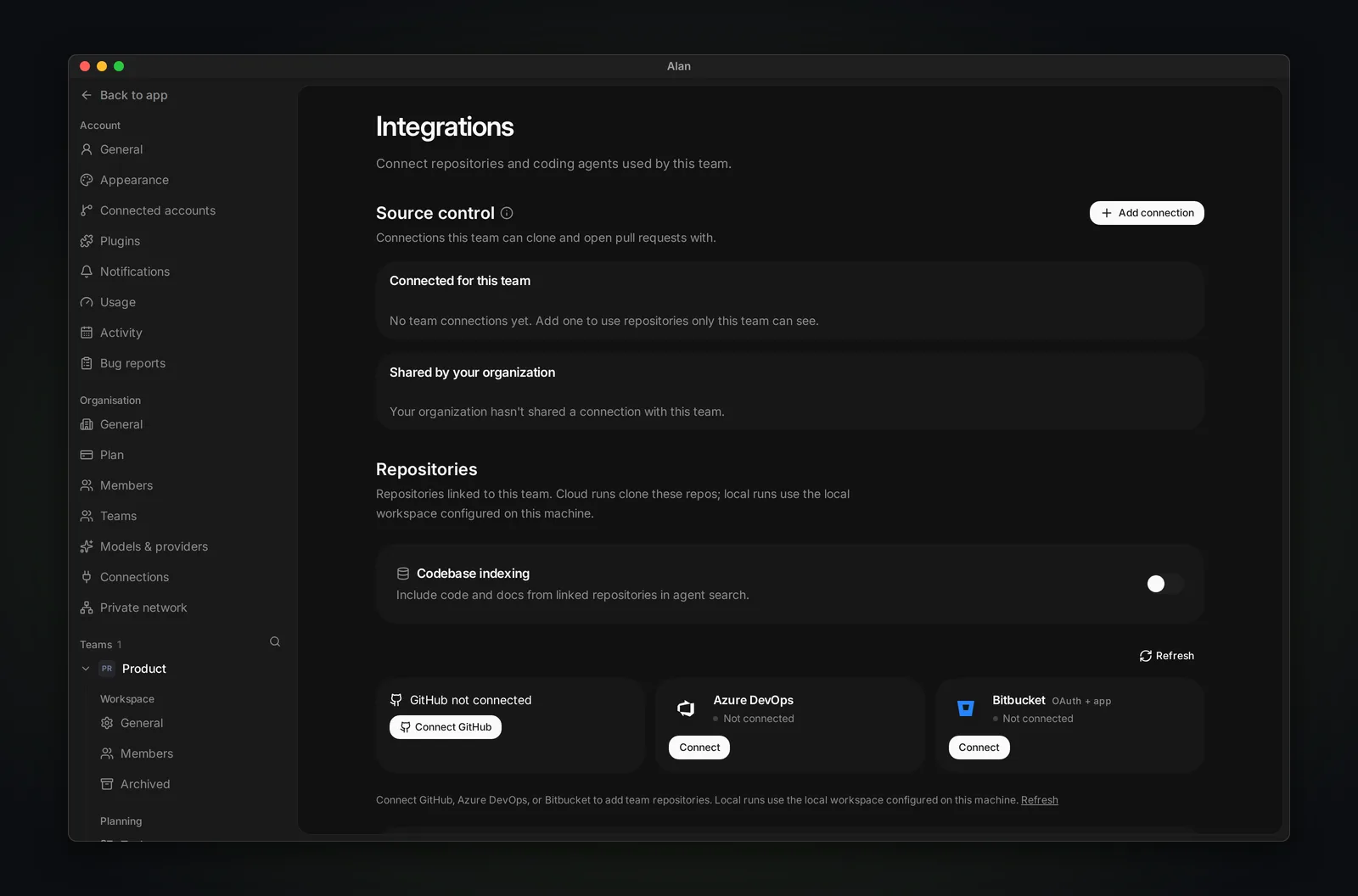
|
|
27
|
+
|
|
28
|
+
## 2. Choose who can use the connection
|
|
29
|
+
|
|
30
|
+
In **Who should use this?**, choose:
|
|
31
|
+
|
|
32
|
+
- **Only this team** to make the connection available to this Alan team. This option is disabled if your organization requires shared connections.
|
|
33
|
+
- **Whole organization** to make it available to every Alan team. You can narrow access to selected teams later.
|
|
34
|
+
|
|
35
|
+
Choose **Continue**.
|
|
36
|
+
|
|
37
|
+
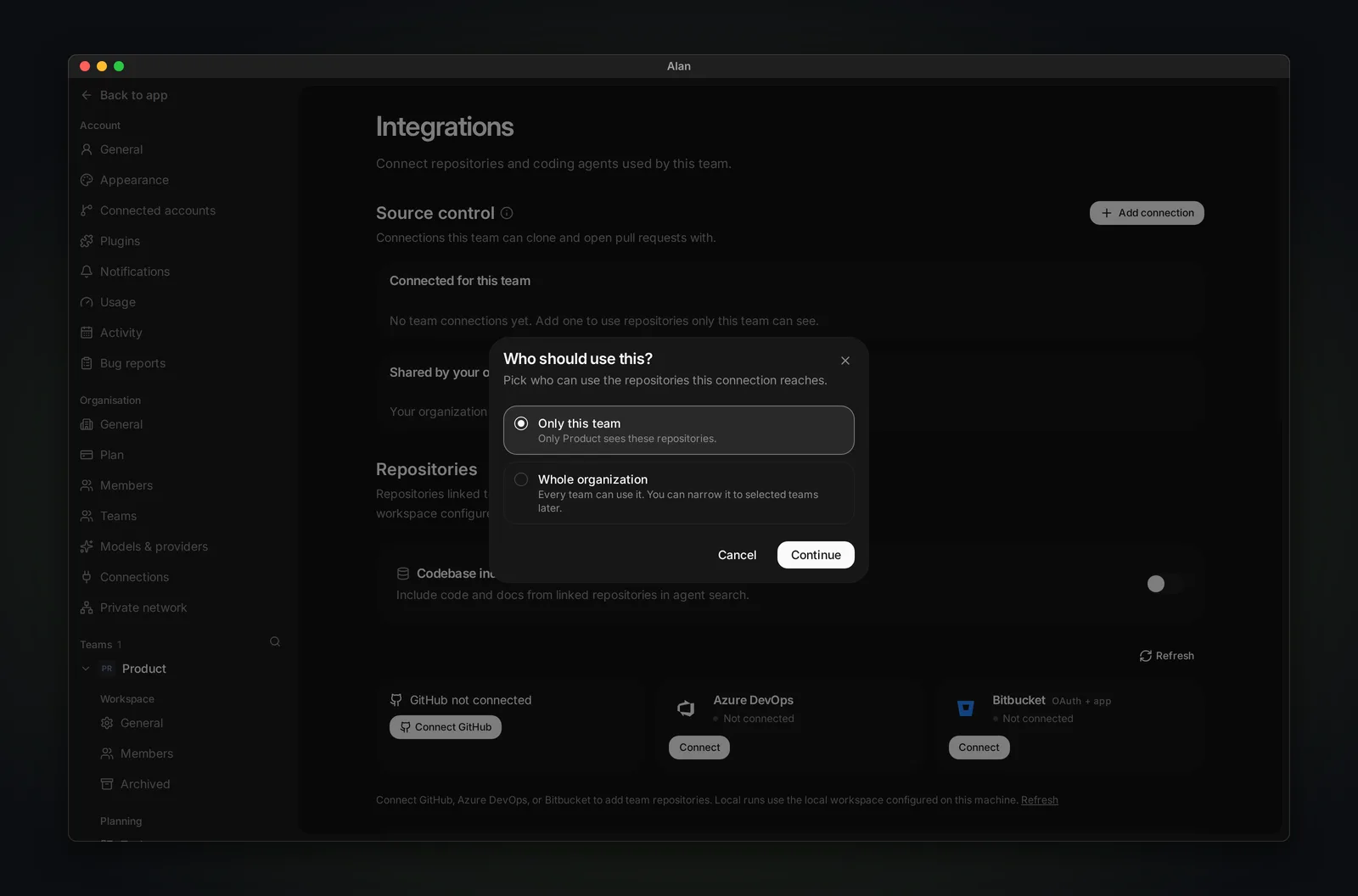
|
|
38
|
+
|
|
39
|
+
## 3. Choose GitHub and grant access
|
|
40
|
+
|
|
41
|
+
Choose **GitHub** on **Choose a provider**. Alan opens GitHub. On the desktop app, it opens in your browser.
|
|
42
|
+
|
|
43
|
+
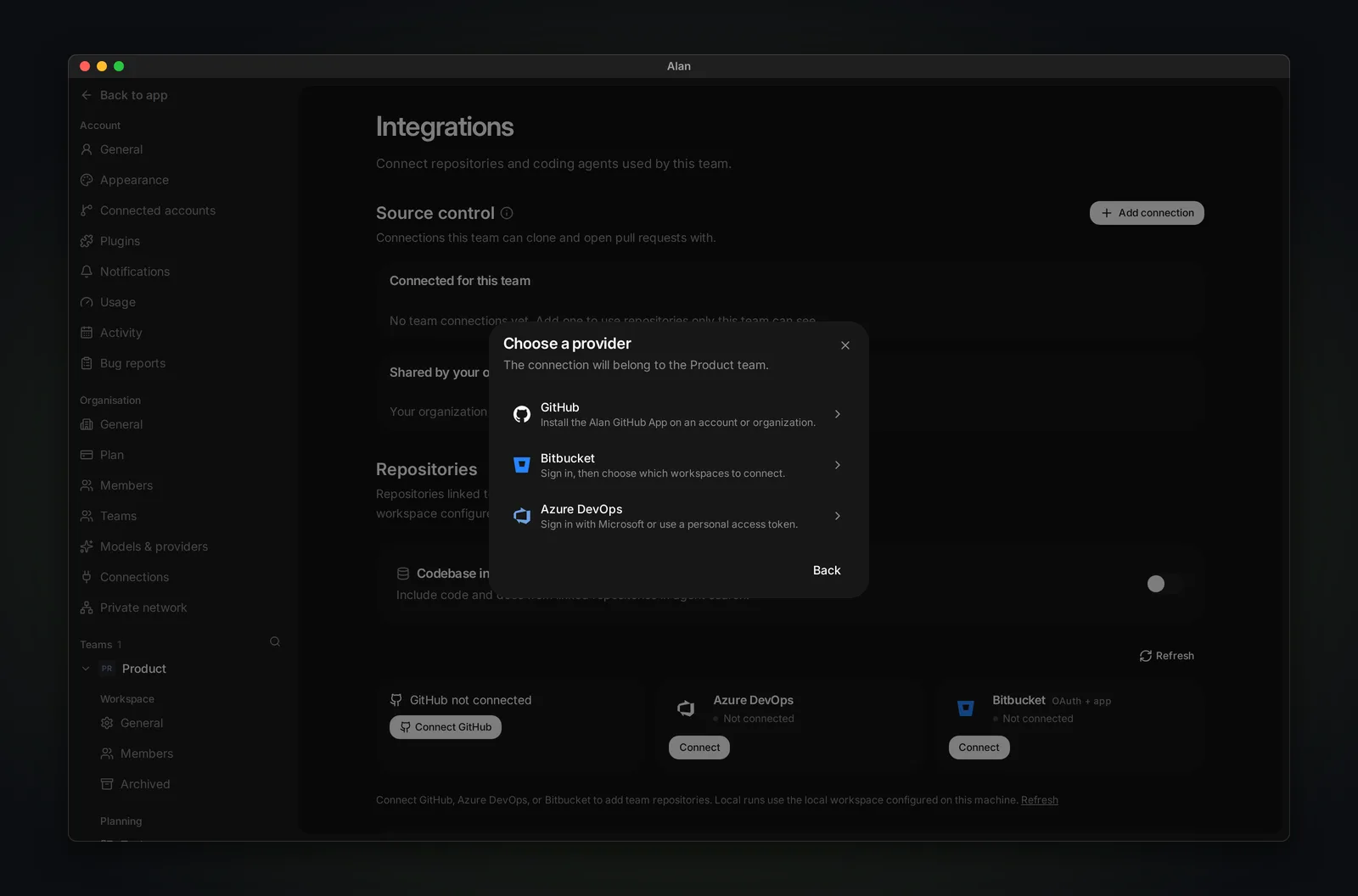
|
|
44
|
+
|
|
45
|
+
On GitHub:
|
|
46
|
+
|
|
47
|
+
1. Sign in as the person authorized to connect the repositories.
|
|
48
|
+
2. Choose the account that **owns the repositories**: your GitHub organization for team projects, or your personal account for solo projects.
|
|
49
|
+
3. Choose **Only select repositories**, then use **Select repositories** to pick the projects Alan should access. Choose **All repositories** if you want to include every repository in that account.
|
|
50
|
+
4. Review the app name and requested permissions, then choose **Install**. GitHub may show **Install and request** or **Request** when an owner must approve access.
|
|
51
|
+
|
|
52
|
+
The example below uses GitHub's sample app, **Octo App**. Your page should name **Alan** and show its actual permissions.
|
|
53
|
+
|
|
54
|
+
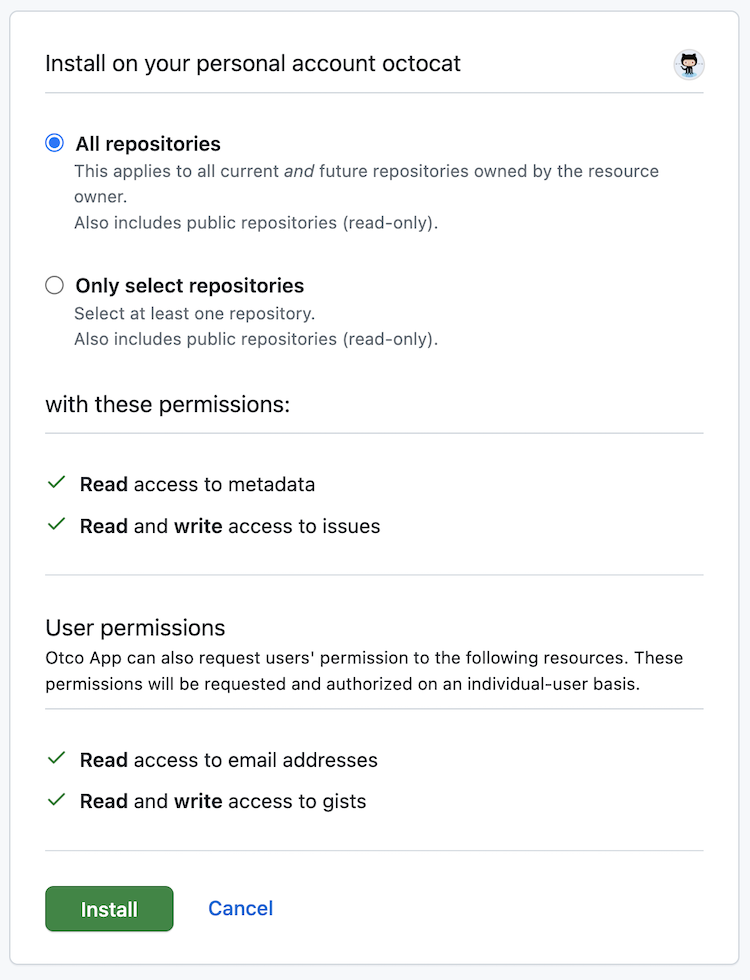
|
|
55
|
+
|
|
56
|
+
*GitHub example: repository access and the Install button. For team projects, your organization should appear instead of the personal account shown here.*
|
|
57
|
+
|
|
58
|
+
GitHub may also ask you to [authorize your own account](#5-let-teammates-connect-their-own-accounts) before or after installation.
|
|
59
|
+
|
|
60
|
+
> **Warning:** If GitHub sends an approval request to an organization owner, setup is not finished. After the owner approves it, start the connection again from Alan.
|
|
61
|
+
|
|
62
|
+
GitHub returns you to Alan. On desktop, use **Open Alan Desktop** if the app does not reopen automatically. If Alan asks, choose **Authorize GitHub and connect** to verify your account, or **Connect installation** to confirm the app connection you just configured.
|
|
63
|
+
|
|
64
|
+
## 4. Add repositories to the team
|
|
65
|
+
|
|
66
|
+
Back in **Integrations**, check that the connection appears under **Connected for this team** or **Shared by your organization**.
|
|
67
|
+
|
|
68
|
+
In **Repositories**, find GitHub and choose **Add repo**. In **Add repository**, select the projects your team will work on, check their default branches, then choose **Add 1 repository** or **Add N repositories**.
|
|
69
|
+
|
|
70
|
+
- **Repository missing?** Choose **Manage access**, include it in the GitHub App's access, return to Alan, and choose **Refresh**.
|
|
71
|
+
- **Add repo disabled?** All available repositories may already be linked. Check the team's repository list first.
|
|
72
|
+
- **Access stopped working?** Choose **Check connection** from the connection's menu and follow the result.
|
|
73
|
+
|
|
74
|
+
**Codebase indexing** is optional. Turning it on lets agents search code and docs from linked repositories; availability depends on your plan.
|
|
75
|
+
|
|
76
|
+
### Another place to start
|
|
77
|
+
|
|
78
|
+
You may also see **Connect GitHub** on the GitHub card or in a cloud repository picker. It starts the same setup: Alan may first ask you to authorize your account, link an existing app connection, or install the app. If **Choose a GitHub account** appears, select the account that owns your projects. If Alan says **Ask an organization admin to connect GitHub**, ask an Alan organization admin to finish setup.
|
|
79
|
+
|
|
80
|
+
### Manage access across teams
|
|
81
|
+
|
|
82
|
+
In **Settings**, an Alan organization admin can open their organization's **Connections** page, then **GitHub**, to manage shared connections. Open a connection's menu and choose **Choose teams**. Choose **All teams**, or **Selected teams** and the teams that should have access, then **Save access**. For selected teams, you can also list which repositories each team may use.
|
|
83
|
+
|
|
84
|
+
Removing a team's access can disconnect its linked repositories. Review Alan's confirmation before saving that change.
|
|
85
|
+
|
|
86
|
+
## 5. Let teammates connect their own accounts
|
|
87
|
+
|
|
88
|
+
Each teammate opens **Settings → Account → Connected accounts** and connects GitHub, or does this during onboarding. Use your own GitHub login, not a shared company login.
|
|
89
|
+
|
|
90
|
+
This lets Alan act in your name where supported and fill **My PRs** and **For me** (requests for your review). Teammates do not each need to install the app again for the same team repositories.
|
|
91
|
+
|
|
92
|
+
|
|
93
|
+
|
|
94
|
+
On GitHub's authorization page, check that you are signed in to **your own account**, review the requested access, then choose **Authorize** for the Alan app. GitHub sends you back to Alan. This identifies you; repository access is still set up separately in steps 1–4.
|
|
95
|
+
|
|
96
|
+
|
|
97
|
+
|
|
98
|
+
*GitHub example: authorizing your personal account. Your page should name Alan; the sample app and permissions shown here will differ.*
|
|
99
|
+
|
|
100
|
+
GitHub screenshots © GitHub, Inc., from [GitHub Docs](https://docs.github.com/en/apps/using-github-apps/installing-a-github-app-from-a-third-party), licensed under [CC BY 4.0](https://creativecommons.org/licenses/by/4.0/). Converted to WebP; screen content unchanged.
|
|
101
|
+
|
|
102
|
+
## Alan setup tour
|
|
103
|
+
|
|
104
|
+
This tour shows the steps inside Alan up to the GitHub handoff. Complete the GitHub authorization and repository selection using the instructions above.
|
|
105
|
+
|
|
106
|
+
_Video: https://docs.tryalan.ai/images/screenshots/connect-github-tour.mp4_
|
|
107
|
+
|
|
108
|
+
## Start work
|
|
109
|
+
|
|
110
|
+
For team cloud sessions, continue with [Cloud setup](../cloud-and-local/cloud-setup.md), then [Complete a task with an agent](../tasks/complete-a-task.md). Connecting GitHub does not create a cloud environment or start a session.
|
|
111
|
+
|
|
112
|
+
For solo local work, open **New Session**, choose **This computer**, and select your local project folder. Clone the repository first if you do not have a local copy. Local agents use that folder; adding a repository in Alan does not download it to your computer. See [Local execution](../cloud-and-local/local-execution.md).
|
|
113
|
+
|
|
114
|
+
When an agent opens a pull request from a task session, Alan links it to the task. Pull requests with a task ID, such as `ENG-42`, in their title or branch name can also link to that task. Continue with [Pull requests](../reviews-testing-deploys/pull-requests.md) to review changes and checks.
|
|
@@ -0,0 +1,114 @@
|
|
|
1
|
+
> Source: [https://docs.tryalan.ai/docs/get-started/join-a-team](https://docs.tryalan.ai/docs/get-started/join-a-team)
|
|
2
|
+
|
|
3
|
+
# Join a team
|
|
4
|
+
|
|
5
|
+
This page helps you join an Alan team after someone invites you. It also shows you where to find the tasks assigned to you.
|
|
6
|
+
|
|
7
|
+
In Alan, an organisation is your company's account. It holds one or more teams. A task is a piece of work. A session is one conversation with an AI agent.
|
|
8
|
+
|
|
9
|
+
## Before you start
|
|
10
|
+
|
|
11
|
+
- You have an invitation email from Alan.
|
|
12
|
+
- You can sign in with the email address that the invitation was sent to.
|
|
13
|
+
|
|
14
|
+
## Accept the invitation
|
|
15
|
+
|
|
16
|
+
The email has the subject "*Name* invited you to *Team* on Alan". It contains an **Accept invitation** button.
|
|
17
|
+
|
|
18
|
+
**1. Open the invitation**
|
|
19
|
+
|
|
20
|
+
In the email, choose **Accept invitation**. A page opens with the title **Join** and the team's name.
|
|
21
|
+
|
|
22
|
+
**2. Choose the button on the page**
|
|
23
|
+
|
|
24
|
+
If you are not signed in, choose **Sign in to accept**. If you are already signed in with the invited email, choose **Accept invitation** instead. Alan then opens onboarding.
|
|
25
|
+
|
|
26
|
+
**3. Sign in with the invited email**
|
|
27
|
+
|
|
28
|
+
If Alan asks you to sign in, use the email address that received the invitation. Alan accepts the invitation after you sign in.
|
|
29
|
+
|
|
30
|
+
**4. Finish onboarding**
|
|
31
|
+
|
|
32
|
+
Alan opens a short onboarding for your new team. The next section explains each screen.
|
|
33
|
+
|
|
34
|
+
> **Note:** An invitation link works for 7 days. After that, ask the person who invited you to send a new one.
|
|
35
|
+
|
|
36
|
+
If you are already a member of the organisation, Alan adds you to the team at once. You get an email that says "*Name* added you to *Team* on Alan", with an **Open Alan** button. You do not need to accept anything.
|
|
37
|
+
|
|
38
|
+
If you are new to Alan, Alan can accept the invitation when you sign in. This works even if you did not open the link. If you do not join the team, open the link in the email.
|
|
39
|
+
|
|
40
|
+
## Finish onboarding
|
|
41
|
+
|
|
42
|
+
The team and its organisation already exist. You do not create them.
|
|
43
|
+
|
|
44
|
+
1. **Make yourself at home.** Choose **Continue**.
|
|
45
|
+
2. **You're joining** and the team's name. This screen tells you that you can already see the team's tasks, documents and sessions. Choose **Continue**.
|
|
46
|
+
3. **Connect your GitHub account**. This screen appears only on paid plans. Choose **Continue with GitHub** to connect your account now. Or choose **Do this later**.
|
|
47
|
+
4. **Make this computer yours.** This screen appears only in the desktop app. To let agents work on this computer, choose **Connect this computer**. See [Local execution](../cloud-and-local/local-execution.md).
|
|
48
|
+
5. **Your workspace is ready.** Choose **Start a session**. A new session opens in your team.
|
|
49
|
+
|
|
50
|
+
## Find the tasks assigned to you
|
|
51
|
+
|
|
52
|
+
The task list shows every task assigned to you. Use it to find your work.
|
|
53
|
+
|
|
54
|
+
**1. Open your team's tasks**
|
|
55
|
+
|
|
56
|
+
In the sidebar, choose **Tasks**. You see the team's task list.
|
|
57
|
+
|
|
58
|
+
If you do not see **Tasks**, your team has not turned on tasks. Any team member can turn them on. Open the team's settings, choose **Tasks**, and turn on **Enable tasks**.
|
|
59
|
+
|
|
60
|
+
**2. Show only your tasks**
|
|
61
|
+
|
|
62
|
+
In the toolbar, turn on **Only me**. The list now shows only the tasks assigned to you. The keyboard shortcut is **Cmd+Shift+M** on macOS, or **Ctrl+Shift+M** on Windows and Linux.
|
|
63
|
+
|
|
64
|
+
**3. Open a task**
|
|
65
|
+
|
|
66
|
+
Choose a task to open it. To start work on it, see [Complete a task](../tasks/complete-a-task.md).
|
|
67
|
+
|
|
68
|
+
Your **Inbox** in the sidebar can also show a notification. This happens when someone adds you to a task that already exists. The notification is on the **Important** tab. It says "*Name* assigned you to" and the task's name. Alan does not send this notification when you are assigned while the task is created. Use **Only me** to see all your tasks.
|
|
69
|
+
|
|
70
|
+
## Switch between teams
|
|
71
|
+
|
|
72
|
+
If you belong to more than one team, use the team switcher at the top of the sidebar. A check mark shows the team you have open. Choose another team to open it.
|
|
73
|
+
|
|
74
|
+
## What you can do as a team member
|
|
75
|
+
|
|
76
|
+
Most people join a team as a **Member**. A team **Admin** has a few extra rights.
|
|
77
|
+
|
|
78
|
+
| Action | Member | Team admin |
|
|
79
|
+
| --- | :---: | :---: |
|
|
80
|
+
| Create, edit and delete the team's tasks | Yes | Yes |
|
|
81
|
+
| Change the team's name, identifier and description | Yes | Yes |
|
|
82
|
+
| See the team's member list | Yes | Yes |
|
|
83
|
+
| Invite people, or cancel an invitation | No | Yes |
|
|
84
|
+
| Change roles or remove people from the team | No | Yes |
|
|
85
|
+
| Delete the team | No | Yes |
|
|
86
|
+
|
|
87
|
+
Only organisation admins can see billing or change the plan. You cannot leave a team by yourself. To leave a team, ask a team admin to remove you. See [Roles and permissions](../reference/roles-and-permissions.md) for the full list.
|
|
88
|
+
|
|
89
|
+
## If something goes wrong
|
|
90
|
+
|
|
91
|
+
**'You're signed in as … This invitation was sent to …'**
|
|
92
|
+
|
|
93
|
+
You are signed in with a different email address. Choose **Sign in with a different account**. Then sign in with the email that received the invitation.
|
|
94
|
+
|
|
95
|
+
**'Invitation expired'**
|
|
96
|
+
|
|
97
|
+
The link is older than 7 days. Ask the person who invited you to send a new invitation.
|
|
98
|
+
|
|
99
|
+
**'Invitation revoked'**
|
|
100
|
+
|
|
101
|
+
The person who invited you cancelled the invitation. Contact them if you think this is a mistake.
|
|
102
|
+
|
|
103
|
+
**'Invitation unavailable'**
|
|
104
|
+
|
|
105
|
+
The link is wrong, or the team no longer exists. Ask for a new invitation.
|
|
106
|
+
|
|
107
|
+
**'Add members is not included in the organization's plan'**
|
|
108
|
+
|
|
109
|
+
The organisation's plan does not allow new members. Ask an organisation admin to change the plan.
|
|
110
|
+
|
|
111
|
+
## Next
|
|
112
|
+
|
|
113
|
+
- [Complete a task](../tasks/complete-a-task.md) — Start work on a task and take it to done.
|
|
114
|
+
- [Local execution](../cloud-and-local/local-execution.md) — Run agents on your own computer.
|
|
@@ -0,0 +1,96 @@
|
|
|
1
|
+
> Source: [https://docs.tryalan.ai/docs/get-started/product-map](https://docs.tryalan.ai/docs/get-started/product-map)
|
|
2
|
+
|
|
3
|
+
# Product map
|
|
4
|
+
|
|
5
|
+
Use this page to decide where to start work, where to find its results, and how to organize related tasks.
|
|
6
|
+
|
|
7
|
+
## Find your way around
|
|
8
|
+
|
|
9
|
+
|
|
10
|
+
|
|
11
|
+
- **Team pages**: Tasks, Epics, Cycles, Pull Requests, Docs, Skills, Automations, and Dashboard. Tasks and Pull Requests are pinned by default; the rest sit under **More**. Use **Customize sidebar** to pin the ones you use. Tasks, Epics, and Cycles only appear once they are turned on for the team.
|
|
12
|
+
- **Sessions**: your recent sessions, with a scope selector for **Mine** or **Team**.
|
|
13
|
+
- **Workspace pages**: **Inbox** (notifications), **Settings**, and **Org Dashboard** (for organization admins). **Workspace Docs** appears when it is enabled for the organization.
|
|
14
|
+
|
|
15
|
+
## The core loop
|
|
16
|
+
|
|
17
|
+
A **session** is where an agent works. Put a session inside a **task** when the work should be tracked and reviewed, and ask for **artifacts** so the outputs outlive the session.
|
|
18
|
+
|
|
19
|
+
```mermaid
|
|
20
|
+
flowchart LR
|
|
21
|
+
T("Task<br/><small>the unit of work</small>") --> S("Session<br/><small>an agent run</small>")
|
|
22
|
+
S --> A("Artifacts<br/><small>plan · test report · document · whiteboard</small>")
|
|
23
|
+
A -.->|resume later| T
|
|
24
|
+
class T blue
|
|
25
|
+
```
|
|
26
|
+
|
|
27
|
+
> **Tip:** If you remember one thing: **put work in a task, and ask for artifacts.** A message scrolls away; an artifact stays on the task.
|
|
28
|
+
|
|
29
|
+
## How everything connects
|
|
30
|
+
|
|
31
|
+
Everything hangs off a **team**, and teams belong to your **workspace** (organization). Planning objects group tasks; sessions and artifacts come out of them; documents are standalone knowledge.
|
|
32
|
+
|
|
33
|
+
```mermaid
|
|
34
|
+
flowchart TD
|
|
35
|
+
Org(["Workspace"]) --> Team(["Team"])
|
|
36
|
+
|
|
37
|
+
Team --> Sessions("Sessions")
|
|
38
|
+
Team --> Tasks("Tasks")
|
|
39
|
+
Team --> Epics("Epics")
|
|
40
|
+
Team --> Cycles("Cycles")
|
|
41
|
+
Team --> Docs("Documents")
|
|
42
|
+
Team --> Automations("Automations")
|
|
43
|
+
Team --> Skills("Skills")
|
|
44
|
+
|
|
45
|
+
Epics --> Tasks
|
|
46
|
+
Cycles --> Tasks
|
|
47
|
+
Tasks --> Subtasks("Subtasks")
|
|
48
|
+
Tasks --> Sessions
|
|
49
|
+
Sessions --> Artifacts("Artifacts")
|
|
50
|
+
Tasks --> Artifacts
|
|
51
|
+
Automations --> Sessions
|
|
52
|
+
|
|
53
|
+
class Org,Team blue
|
|
54
|
+
class Epics,Cycles,Automations purple
|
|
55
|
+
class Artifacts green
|
|
56
|
+
class Docs,Skills yellow
|
|
57
|
+
```
|
|
58
|
+
|
|
59
|
+
## The building blocks
|
|
60
|
+
|
|
61
|
+
**1. Workspace**
|
|
62
|
+
|
|
63
|
+
Your organization in Alan. It holds teams, members, the plan and billing, model providers, and shared connections. It is managed from **Settings → Organisation**; membership, billing, and the organization's name are limited to organization admins.
|
|
64
|
+
|
|
65
|
+
**2. Team**
|
|
66
|
+
|
|
67
|
+
The container for day-to-day work. A team owns its members, repositories, integrations, computers, cloud environment, sessions, tasks, docs, skills, and automations. Switch teams to see the work and settings for that team.
|
|
68
|
+
|
|
69
|
+
**3. Session**
|
|
70
|
+
|
|
71
|
+
A conversation where an agent works on a cloud sandbox or a connected computer. You can return to it and send more messages. Start one from **New Session**, from a task, from Slack or Microsoft Teams, or from an automation.
|
|
72
|
+
|
|
73
|
+
**4. Task**
|
|
74
|
+
|
|
75
|
+
The unit of tracked work, with a title, status, priority, assignee, labels, subtasks, sessions, and artifacts. A task can hold several sessions when work branches into planning, building, and testing.
|
|
76
|
+
|
|
77
|
+
**5. Artifact**
|
|
78
|
+
|
|
79
|
+
A durable output: a **plan**, a **test report**, a **document**, or a **whiteboard**. Artifacts can carry comments and can be shared with a public link.
|
|
80
|
+
|
|
81
|
+
### Organizing and automating
|
|
82
|
+
|
|
83
|
+
- [Epics](../teams-and-planning/epics.md) — Group related tasks into a larger initiative with its own overview and activity.
|
|
84
|
+
- [Cycles](../teams-and-planning/cycles.md) — Time-boxed planning windows, 14 days by default.
|
|
85
|
+
- [Documents](../teams-and-planning/documents.md) — Standalone team knowledge such as PRDs, specs, and wikis, plus whiteboards.
|
|
86
|
+
- [Automations](../automations/overview.md) — Agent runs that start on a schedule, on demand, or from an integration event.
|
|
87
|
+
|
|
88
|
+
## Task or document?
|
|
89
|
+
|
|
90
|
+
> **Warning:** A **task** is work with a start and an end that someone reviews. A **document** is knowledge with no single owning task. A spec everyone will reference for months is a document. Use a task when you need to track an agent's work; quick requests can stay in a standalone session.
|
|
91
|
+
|
|
92
|
+
## Next steps
|
|
93
|
+
|
|
94
|
+
- [Glossary](../reference/glossary.md) — Plain definitions for every term here.
|
|
95
|
+
- [Quickstart](quickstart.md) — Put the structure into practice.
|
|
96
|
+
- [Task artifacts](../tasks/task-artifacts.md) — How outputs attach to tasks.
|
|
@@ -0,0 +1,158 @@
|
|
|
1
|
+
> Source: [https://docs.tryalan.ai/docs/get-started/quickstart](https://docs.tryalan.ai/docs/get-started/quickstart)
|
|
2
|
+
|
|
3
|
+
# Quickstart
|
|
4
|
+
|
|
5
|
+
This page helps you run your first agent task on your own computer. An agent is an AI tool that reads and changes code for you. It takes about 10 minutes. It works on every plan, including **Free**.
|
|
6
|
+
|
|
7
|
+
You do not need GitHub, a cloud environment or a team for this guide.
|
|
8
|
+
|
|
9
|
+
## Before you start
|
|
10
|
+
|
|
11
|
+
- **A computer with macOS, Windows or Linux.**
|
|
12
|
+
- **A project folder** on that computer. If your project uses Git (a tool that tracks changes to code), commit your work first. A commit saves the current state of your files. This lets you undo the agent's changes later.
|
|
13
|
+
- **A coding agent.** A coding agent is an AI tool that writes code, such as Claude Code or Codex. Install one and log in to it before you start. Follow the install steps on the agent's website.
|
|
14
|
+
|
|
15
|
+
> **Note:** Plans that include cloud execution and a model allowance can also use **Alan Code**, Alan's own coding agent. You do not install it. The **Free** plan does not include Alan Code, so Free users need their own coding agent. See [Plans and limits](../plans-and-billing/plans-and-limits.md).
|
|
16
|
+
|
|
17
|
+
## 1. Install the desktop app and sign in
|
|
18
|
+
|
|
19
|
+
Agents can run on your computer only through the desktop app. A web browser cannot do this.
|
|
20
|
+
|
|
21
|
+
**1. Open the download page**
|
|
22
|
+
|
|
23
|
+
Go to [tryalan.ai/download](https://tryalan.ai/download). You see downloads for macOS, Windows and Linux.
|
|
24
|
+
|
|
25
|
+
**2. Download the app**
|
|
26
|
+
|
|
27
|
+
Choose the download for your computer: macOS, Windows or Linux.
|
|
28
|
+
|
|
29
|
+
**3. Install the app**
|
|
30
|
+
|
|
31
|
+
Install the app as you install other apps on your computer.
|
|
32
|
+
|
|
33
|
+
**4. Open the app**
|
|
34
|
+
|
|
35
|
+
Open the Alan app. It opens your web browser so that you can sign in.
|
|
36
|
+
|
|
37
|
+
**5. Sign in**
|
|
38
|
+
|
|
39
|
+
Complete the sign-in in your browser. Then go back to the app. The app shows **A space for you and your agents.**
|
|
40
|
+
|
|
41
|
+
**6. Start onboarding**
|
|
42
|
+
|
|
43
|
+
Choose **Continue**. The app asks for a name for your workspace. Your workspace holds all your work in Alan.
|
|
44
|
+
|
|
45
|
+
**7. Name your workspace**
|
|
46
|
+
|
|
47
|
+
Type a name. Choose **Continue**. The app shows **Make this computer yours.**
|
|
48
|
+
|
|
49
|
+
**8. Connect your computer**
|
|
50
|
+
|
|
51
|
+
The app looks for coding agents on your computer. If you see **Connect this computer**, choose it.
|
|
52
|
+
|
|
53
|
+
**9. Check and continue**
|
|
54
|
+
|
|
55
|
+
Check the computer name and the agents that the app found. Choose **Continue**. The app shows **Your workspace is ready.**
|
|
56
|
+
|
|
57
|
+
**10. Finish onboarding**
|
|
58
|
+
|
|
59
|
+
Choose **Start a session**. A session is one conversation with an agent. The **New Session** page opens.
|
|
60
|
+
|
|
61
|
+
If you need help with sign-in, see [Sign in and finish onboarding](sign-in.md).
|
|
62
|
+
|
|
63
|
+
## 2. Check your coding agent
|
|
64
|
+
|
|
65
|
+
1. Open your account menu at the bottom of the sidebar.
|
|
66
|
+
2. Choose **Settings**. The settings page opens.
|
|
67
|
+
3. Under **Account**, choose **General**.
|
|
68
|
+
4. Scroll to **Computers**. Choose your computer. Its details open.
|
|
69
|
+
5. Choose the **Agents** tab. Your coding agent has a green dot and the status **Signed in**.
|
|
70
|
+
|
|
71
|
+
If your agent shows **Signed out** or is missing, see [Local execution](../cloud-and-local/local-execution.md#2-turn-on-a-coding-agent). Then go back to **New Session** in the sidebar.
|
|
72
|
+
|
|
73
|
+
## 3. Send your first request
|
|
74
|
+
|
|
75
|
+
|
|
76
|
+
|
|
77
|
+
**1. Open the target menu**
|
|
78
|
+
|
|
79
|
+
At the top of the message box, choose the target button (2). The target is the place where the agent runs. A menu opens.
|
|
80
|
+
|
|
81
|
+
**2. Choose your computer**
|
|
82
|
+
|
|
83
|
+
Choose **This computer**. The target button shows your computer's name with a green dot.
|
|
84
|
+
|
|
85
|
+
**3. Open the folder list**
|
|
86
|
+
|
|
87
|
+
Next to the target button, choose the folder button. A list of folders opens.
|
|
88
|
+
|
|
89
|
+
**4. Add your project folder**
|
|
90
|
+
|
|
91
|
+
Choose **Add local directory**. A window opens where you choose a folder.
|
|
92
|
+
|
|
93
|
+
**5. Select the folder**
|
|
94
|
+
|
|
95
|
+
Select your project folder. The folder button shows your folder's name.
|
|
96
|
+
|
|
97
|
+
**6. Check the agent**
|
|
98
|
+
|
|
99
|
+
At the bottom of the message box, check the agent and model button. It shows your coding agent's name and model, for example **Claude Code**. To change it, choose the button and pick another agent.
|
|
100
|
+
|
|
101
|
+
**7. Write a small request**
|
|
102
|
+
|
|
103
|
+
In the message box (3), describe one small change. For example: "Add a short comment at the top of README.md that says how to run the tests."
|
|
104
|
+
|
|
105
|
+
**8. Send it**
|
|
106
|
+
|
|
107
|
+
Press **Enter**. The agent starts to work. Its replies appear on the page.
|
|
108
|
+
|
|
109
|
+
## 4. Check the result
|
|
110
|
+
|
|
111
|
+
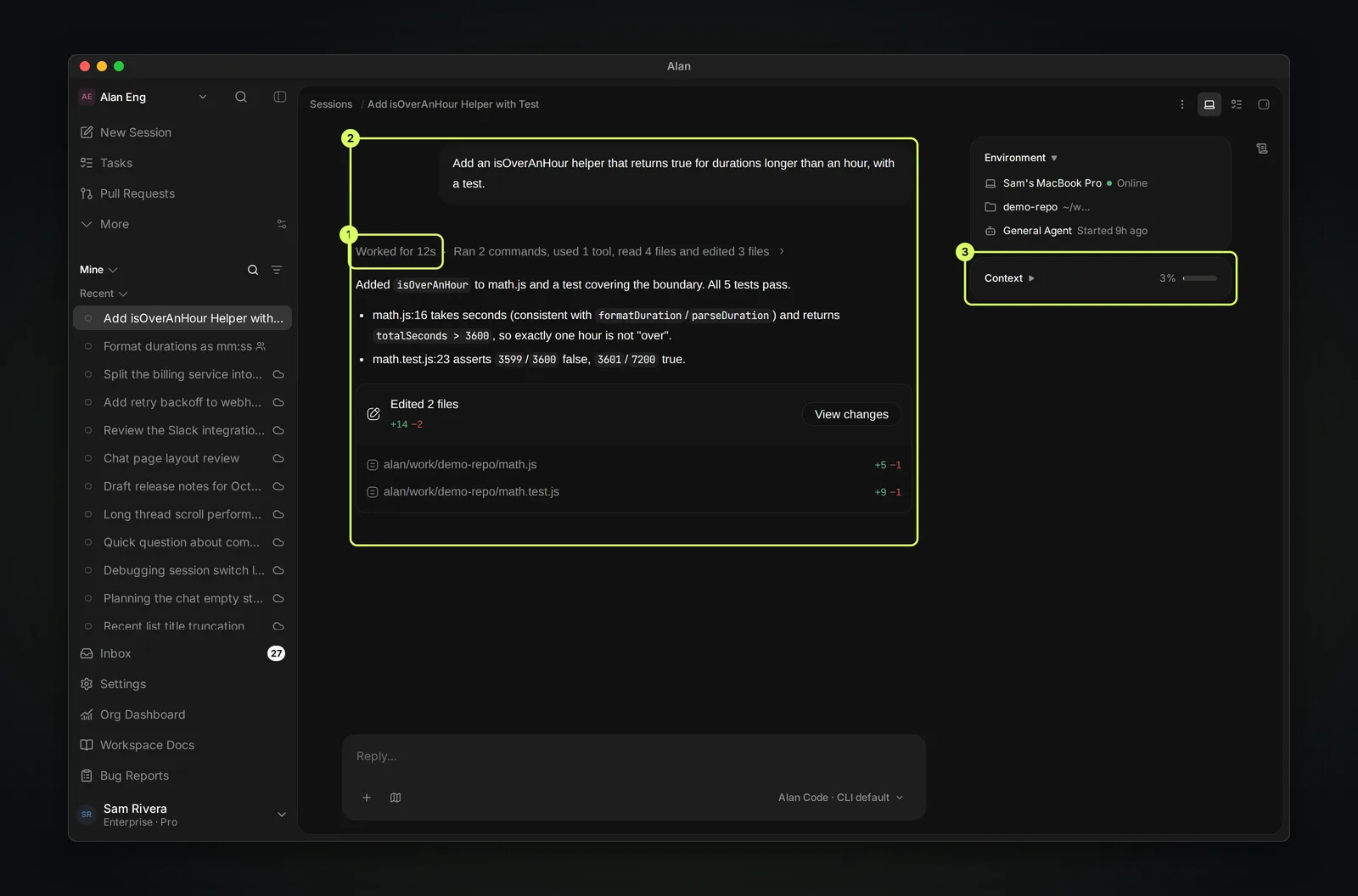
When the agent finishes, the page shows **Worked for** (1) and how long it took. Below that, the agent explains what it did.
|
|
112
|
+
|
|
113
|
+
|
|
114
|
+
|
|
115
|
+
**1. Read the agent's reply**
|
|
116
|
+
|
|
117
|
+
Read what the agent says it changed and how it checked the work (2).
|
|
118
|
+
|
|
119
|
+
**2. Look at the changed files**
|
|
120
|
+
|
|
121
|
+
If the agent changed files, you see **Edited** and the number of files. Choose **View changes**. You see each changed line. Added lines and removed lines have different colours.
|
|
122
|
+
|
|
123
|
+
**3. Ask for more, if needed**
|
|
124
|
+
|
|
125
|
+
To ask for a fix, type a reply in the box at the bottom. Then press **Enter**.
|
|
126
|
+
|
|
127
|
+
The agent changed the files in your folder directly. If your folder uses Git, you can undo a change:
|
|
128
|
+
|
|
129
|
+
1. Choose the **Changes** icon on the right edge of the session. The **Changes** panel opens.
|
|
130
|
+
2. To undo one file, right-click the file and choose **Discard changes**. Confirm when Alan asks.
|
|
131
|
+
3. To undo every file, open the **⋮** menu at the top of the panel and choose **Discard all**. Confirm when Alan asks.
|
|
132
|
+
|
|
133
|
+
You cannot get discarded changes back. If your folder does not use Git, you cannot undo changes here.
|
|
134
|
+
|
|
135
|
+
You ran your first agent task.
|
|
136
|
+
|
|
137
|
+
## If something goes wrong
|
|
138
|
+
|
|
139
|
+
**I don't see 'Make this computer yours.' during onboarding**
|
|
140
|
+
|
|
141
|
+
This screen appears only in the desktop app. If you signed in with a web browser, install the desktop app and sign in there. Then connect your computer. See [Local execution](../cloud-and-local/local-execution.md).
|
|
142
|
+
|
|
143
|
+
**This computer is greyed out**
|
|
144
|
+
|
|
145
|
+
Use the desktop app, not a web browser. Check that your computer shows **Ready** in **Settings → Account → General → Computers**.
|
|
146
|
+
|
|
147
|
+
**No agent appears in the agent list**
|
|
148
|
+
|
|
149
|
+
No coding agent is installed and turned on. Install one, such as Claude Code or Codex. Then open the **Agents** tab and choose **Rescan models**.
|
|
150
|
+
|
|
151
|
+
**'Choose a folder or the Default workspace for this computer before sending.'**
|
|
152
|
+
|
|
153
|
+
You have not chosen a folder. Choose the folder button and select your project folder.
|
|
154
|
+
|
|
155
|
+
## Next
|
|
156
|
+
|
|
157
|
+
- [Start a session](../agents-and-sessions/start-a-session.md) — Write better requests and use Plan mode.
|
|
158
|
+
- [Complete a task](../tasks/complete-a-task.md) — Track work as a task and open a pull request.
|