npcsh 0.3.30__py3-none-any.whl → 0.3.32__py3-none-any.whl
This diff represents the content of publicly available package versions that have been released to one of the supported registries. The information contained in this diff is provided for informational purposes only and reflects changes between package versions as they appear in their respective public registries.
- npcsh/audio.py +540 -181
- npcsh/audio_gen.py +1 -0
- npcsh/cli.py +37 -19
- npcsh/conversation.py +14 -251
- npcsh/dataframes.py +13 -5
- npcsh/helpers.py +5 -0
- npcsh/image.py +2 -4
- npcsh/image_gen.py +38 -38
- npcsh/knowledge_graph.py +4 -4
- npcsh/llm_funcs.py +517 -349
- npcsh/npc_compiler.py +44 -23
- npcsh/npc_sysenv.py +5 -0
- npcsh/npc_team/npcsh.ctx +8 -2
- npcsh/npc_team/tools/generic_search.tool +9 -1
- npcsh/plonk.py +2 -2
- npcsh/response.py +131 -482
- npcsh/search.py +20 -9
- npcsh/serve.py +210 -203
- npcsh/shell.py +78 -80
- npcsh/shell_helpers.py +513 -102
- npcsh/stream.py +87 -554
- npcsh/video.py +5 -2
- npcsh/video_gen.py +69 -0
- {npcsh-0.3.30.data → npcsh-0.3.32.data}/data/npcsh/npc_team/generic_search.tool +9 -1
- {npcsh-0.3.30.data → npcsh-0.3.32.data}/data/npcsh/npc_team/npcsh.ctx +8 -2
- npcsh-0.3.32.dist-info/METADATA +779 -0
- npcsh-0.3.32.dist-info/RECORD +78 -0
- npcsh-0.3.30.dist-info/METADATA +0 -1862
- npcsh-0.3.30.dist-info/RECORD +0 -76
- {npcsh-0.3.30.data → npcsh-0.3.32.data}/data/npcsh/npc_team/bash_executer.tool +0 -0
- {npcsh-0.3.30.data → npcsh-0.3.32.data}/data/npcsh/npc_team/calculator.tool +0 -0
- {npcsh-0.3.30.data → npcsh-0.3.32.data}/data/npcsh/npc_team/celona.npc +0 -0
- {npcsh-0.3.30.data → npcsh-0.3.32.data}/data/npcsh/npc_team/code_executor.tool +0 -0
- {npcsh-0.3.30.data → npcsh-0.3.32.data}/data/npcsh/npc_team/corca.npc +0 -0
- {npcsh-0.3.30.data → npcsh-0.3.32.data}/data/npcsh/npc_team/eriane.npc +0 -0
- {npcsh-0.3.30.data → npcsh-0.3.32.data}/data/npcsh/npc_team/foreman.npc +0 -0
- {npcsh-0.3.30.data → npcsh-0.3.32.data}/data/npcsh/npc_team/image_generation.tool +0 -0
- {npcsh-0.3.30.data → npcsh-0.3.32.data}/data/npcsh/npc_team/lineru.npc +0 -0
- {npcsh-0.3.30.data → npcsh-0.3.32.data}/data/npcsh/npc_team/local_search.tool +0 -0
- {npcsh-0.3.30.data → npcsh-0.3.32.data}/data/npcsh/npc_team/maurawa.npc +0 -0
- {npcsh-0.3.30.data → npcsh-0.3.32.data}/data/npcsh/npc_team/npcsh_executor.tool +0 -0
- {npcsh-0.3.30.data → npcsh-0.3.32.data}/data/npcsh/npc_team/raone.npc +0 -0
- {npcsh-0.3.30.data → npcsh-0.3.32.data}/data/npcsh/npc_team/screen_cap.tool +0 -0
- {npcsh-0.3.30.data → npcsh-0.3.32.data}/data/npcsh/npc_team/sibiji.npc +0 -0
- {npcsh-0.3.30.data → npcsh-0.3.32.data}/data/npcsh/npc_team/slean.npc +0 -0
- {npcsh-0.3.30.data → npcsh-0.3.32.data}/data/npcsh/npc_team/sql_executor.tool +0 -0
- {npcsh-0.3.30.data → npcsh-0.3.32.data}/data/npcsh/npc_team/test_pipeline.py +0 -0
- {npcsh-0.3.30.data → npcsh-0.3.32.data}/data/npcsh/npc_team/turnic.npc +0 -0
- {npcsh-0.3.30.data → npcsh-0.3.32.data}/data/npcsh/npc_team/welxor.npc +0 -0
- {npcsh-0.3.30.dist-info → npcsh-0.3.32.dist-info}/WHEEL +0 -0
- {npcsh-0.3.30.dist-info → npcsh-0.3.32.dist-info}/entry_points.txt +0 -0
- {npcsh-0.3.30.dist-info → npcsh-0.3.32.dist-info}/licenses/LICENSE +0 -0
- {npcsh-0.3.30.dist-info → npcsh-0.3.32.dist-info}/top_level.txt +0 -0
npcsh-0.3.30.dist-info/METADATA
DELETED
|
@@ -1,1862 +0,0 @@
|
|
|
1
|
-
Metadata-Version: 2.4
|
|
2
|
-
Name: npcsh
|
|
3
|
-
Version: 0.3.30
|
|
4
|
-
Summary: npcsh is a command line tool for integrating LLMs into everyday workflows and for orchestrating teams of NPCs.
|
|
5
|
-
Home-page: https://github.com/cagostino/npcsh
|
|
6
|
-
Author: Christopher Agostino
|
|
7
|
-
Author-email: info@npcworldwi.de
|
|
8
|
-
Classifier: Programming Language :: Python :: 3
|
|
9
|
-
Classifier: License :: OSI Approved :: MIT License
|
|
10
|
-
Requires-Python: >=3.10
|
|
11
|
-
Description-Content-Type: text/markdown
|
|
12
|
-
License-File: LICENSE
|
|
13
|
-
Requires-Dist: jinja2
|
|
14
|
-
Requires-Dist: scipy
|
|
15
|
-
Requires-Dist: numpy
|
|
16
|
-
Requires-Dist: requests
|
|
17
|
-
Requires-Dist: matplotlib
|
|
18
|
-
Requires-Dist: markdown
|
|
19
|
-
Requires-Dist: PyYAML
|
|
20
|
-
Requires-Dist: PyMuPDF
|
|
21
|
-
Requires-Dist: pyautogui
|
|
22
|
-
Requires-Dist: pygments
|
|
23
|
-
Requires-Dist: sqlalchemy
|
|
24
|
-
Requires-Dist: termcolor
|
|
25
|
-
Requires-Dist: rich
|
|
26
|
-
Requires-Dist: colorama
|
|
27
|
-
Requires-Dist: Pillow
|
|
28
|
-
Requires-Dist: python-dotenv
|
|
29
|
-
Requires-Dist: pandas
|
|
30
|
-
Requires-Dist: beautifulsoup4
|
|
31
|
-
Requires-Dist: duckduckgo-search
|
|
32
|
-
Requires-Dist: flask
|
|
33
|
-
Requires-Dist: flask_cors
|
|
34
|
-
Requires-Dist: redis
|
|
35
|
-
Requires-Dist: psycopg2-binary
|
|
36
|
-
Requires-Dist: flask_sse
|
|
37
|
-
Provides-Extra: lite
|
|
38
|
-
Requires-Dist: anthropic; extra == "lite"
|
|
39
|
-
Requires-Dist: openai; extra == "lite"
|
|
40
|
-
Requires-Dist: google-generativeai; extra == "lite"
|
|
41
|
-
Requires-Dist: google-genai; extra == "lite"
|
|
42
|
-
Provides-Extra: local
|
|
43
|
-
Requires-Dist: sentence_transformers; extra == "local"
|
|
44
|
-
Requires-Dist: opencv-python; extra == "local"
|
|
45
|
-
Requires-Dist: ollama; extra == "local"
|
|
46
|
-
Requires-Dist: kuzu; extra == "local"
|
|
47
|
-
Requires-Dist: chromadb; extra == "local"
|
|
48
|
-
Requires-Dist: diffusers; extra == "local"
|
|
49
|
-
Requires-Dist: nltk; extra == "local"
|
|
50
|
-
Provides-Extra: whisper
|
|
51
|
-
Requires-Dist: openai-whisper; extra == "whisper"
|
|
52
|
-
Requires-Dist: pyaudio; extra == "whisper"
|
|
53
|
-
Requires-Dist: gtts; extra == "whisper"
|
|
54
|
-
Requires-Dist: playsound==1.2.2; extra == "whisper"
|
|
55
|
-
Requires-Dist: pyttsx3; extra == "whisper"
|
|
56
|
-
Provides-Extra: all
|
|
57
|
-
Requires-Dist: anthropic; extra == "all"
|
|
58
|
-
Requires-Dist: openai; extra == "all"
|
|
59
|
-
Requires-Dist: google-generativeai; extra == "all"
|
|
60
|
-
Requires-Dist: google-genai; extra == "all"
|
|
61
|
-
Requires-Dist: sentence_transformers; extra == "all"
|
|
62
|
-
Requires-Dist: opencv-python; extra == "all"
|
|
63
|
-
Requires-Dist: ollama; extra == "all"
|
|
64
|
-
Requires-Dist: kuzu; extra == "all"
|
|
65
|
-
Requires-Dist: chromadb; extra == "all"
|
|
66
|
-
Requires-Dist: diffusers; extra == "all"
|
|
67
|
-
Requires-Dist: nltk; extra == "all"
|
|
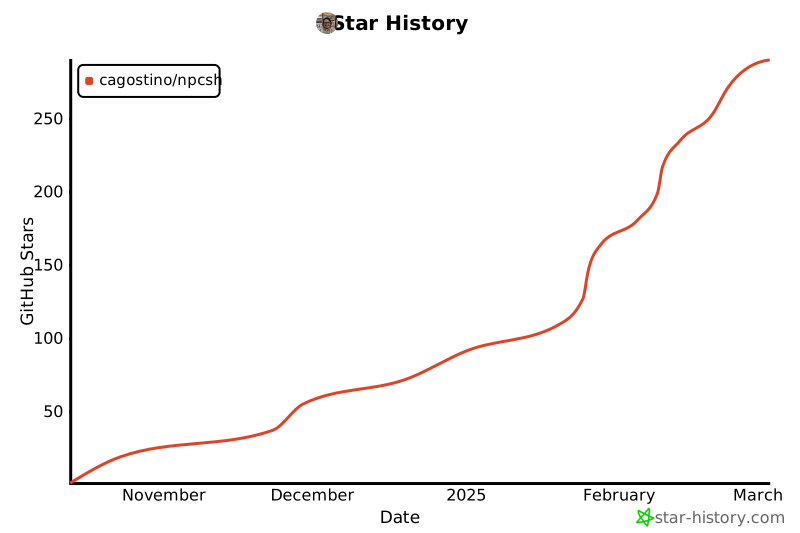
68
|
-
Requires-Dist: openai-whisper; extra == "all"
|
|
69
|
-
Requires-Dist: pyaudio; extra == "all"
|
|
70
|
-
Requires-Dist: gtts; extra == "all"
|
|
71
|
-
Requires-Dist: playsound==1.2.2; extra == "all"
|
|
72
|
-
Requires-Dist: pyttsx3; extra == "all"
|
|
73
|
-
Dynamic: author
|
|
74
|
-
Dynamic: author-email
|
|
75
|
-
Dynamic: classifier
|
|
76
|
-
Dynamic: description
|
|
77
|
-
Dynamic: description-content-type
|
|
78
|
-
Dynamic: home-page
|
|
79
|
-
Dynamic: license-file
|
|
80
|
-
Dynamic: provides-extra
|
|
81
|
-
Dynamic: requires-dist
|
|
82
|
-
Dynamic: requires-python
|
|
83
|
-
Dynamic: summary
|
|
84
|
-
|
|
85
|
-
<p align="center">
|
|
86
|
-
<img src="https://raw.githubusercontent.com/cagostino/npcsh/main/npcsh/npcsh.png" alt="npcsh logo with sibiji the spider">
|
|
87
|
-
</p>
|
|
88
|
-
|
|
89
|
-
|
|
90
|
-
# npcsh
|
|
91
|
-
|
|
92
|
-
|
|
93
|
-
- `npcsh` is a python-based AI Agent framework designed to integrate Large Language Models (LLMs) and Agents into one's daily workflow by making them available and easily configurable through a command line shell as well as an extensible python library.
|
|
94
|
-
|
|
95
|
-
- **Smart Interpreter**: `npcsh` leverages the power of LLMs to understand your natural language commands and questions, executing tasks, answering queries, and providing relevant information from local files and the web.
|
|
96
|
-
|
|
97
|
-
- **Macros**: `npcsh` provides macros to accomplish common tasks with LLMs like voice control (`/whisper`), image generation (`/vixynt`), screenshot capture and analysis (`/ots`), one-shot questions (`/sample`), computer use (`/plonk`), retrieval augmented generation (`/rag`), search (`/search`) and more. Users can also build their own tools and call them like macros from the shell.
|
|
98
|
-
|
|
99
|
-
|
|
100
|
-
- **NPC-Driven Interactions**: `npcsh` allows users to take advantage of agents (i.e. NPCs) through a managed system. Users build a directory of NPCs and associated tools that can be used to accomplish complex tasks and workflows. NPCs can be tailored to specific tasks and have unique personalities, directives, and tools. Users can combine NPCs and tools in assembly line like workflows or use them in SQL-style models.
|
|
101
|
-
|
|
102
|
-
* **Extensible with Python:** `npcsh`'s python package provides useful functions for interacting with LLMs, including explicit coverage for popular providers like ollama, anthropic, openai, gemini, deepseek, and openai-like providers. Each macro has a corresponding function and these can be used in python scripts. `npcsh`'s functions are purpose-built to simplify NPC interactions but NPCs are not required for them to work if you don't see the need.
|
|
103
|
-
|
|
104
|
-
* **Simple, Powerful CLI:** Use the `npc` CLI commands to run `npcsh` macros or commands from one's regular shell. Set up a flask server so you can expose your NPC team for use as a backend service. You can also use the `npc` CLI to run SQL models defined in your project, execute assembly lines, and verify the integrity of your NPC team's interrelations. `npcsh`'s NPCs take advantage of jinja templating to reference other NPCs and tools in their properties, and the `npc` CLI can be used to verify these references.
|
|
105
|
-
|
|
106
|
-
* **Powerful Tool integrations:** `npcsh` has built-in tools for users to have agents execute code, analyze data, generate images, search the web, and more. Tools can be defined in YAML files as part of project-specific `npc_team`s or in the global `~/.npcsh/npc_team` directory or simply in python scripts. Once compiled, the tools can be used as macros in the `npc` cli as well as `/{tool_name}` commands in the `npcsh` shell.
|
|
107
|
-
|
|
108
|
-
|
|
109
|
-
Interested to stay in the loop and to hear the latest and greatest about `npcsh` ? Be sure to sign up for the [npcsh newsletter](https://forms.gle/n1NzQmwjsV4xv1B2A)!
|
|
110
|
-
|
|
111
|
-
|
|
112
|
-
## TLDR Cheat Sheet
|
|
113
|
-
Users can take advantage of `npcsh` through its custom shell or through a command-line interface (CLI) tool. Below is a cheat sheet that shows how to use `npcsh` commands in both the shell and the CLI. For the npcsh commands to work, one must activate `npcsh` by typing it in a shell.
|
|
114
|
-
|
|
115
|
-
| Task | npc CLI | npcsh |
|
|
116
|
-
|----------|----------|----------|
|
|
117
|
-
| Ask a generic question | npc 'prompt' | 'prompt' |
|
|
118
|
-
| Compile an NPC | npc compile /path/to/npc.npc | /compile /path/to/npc.npc |
|
|
119
|
-
| Computer use | npc plonk -n 'npc_name' -sp 'task for plonk to carry out '| /plonk -n 'npc_name' -sp 'task for plonk to carry out ' |
|
|
120
|
-
| Conjure an NPC team from context and templates | npc init -t 'template1, template2' -ctx 'context' | /conjure -t 'template1, 'template2' -ctx 'context' |
|
|
121
|
-
| Enter a chat with an NPC (NPC needs to be compiled first) | npc npc_name | /npc_name |
|
|
122
|
-
| Generate image | npc vixynt 'prompt' | /vixynt prompt |
|
|
123
|
-
| Get a sample LLM response | npc sample 'prompt' | /sample prompt for llm |
|
|
124
|
-
| Invoke a tool | npc tool {tool_name} -args --flags | /tool_name -args --flags |
|
|
125
|
-
| Search locally | npc tool local_search -args --flags | /local_search -args --flags |
|
|
126
|
-
| Search for a term in the npcsh_db only in conversations with a specific npc | npc rag -n 'npc_name' -f 'filename' -q 'query' | /rag -n 'npc_name' -f 'filename' -q 'query' |
|
|
127
|
-
| Search the web | npc search -p provider 'query' | /search -p provider 'query' |
|
|
128
|
-
| Serve an NPC team | npc serve --port 5337 --cors='http://localhost:5137/' | /serve --port 5337 --cors='http://localhost:5137/' |
|
|
129
|
-
| Screenshot analysis | npc ots | /ots |
|
|
130
|
-
| Voice Chat | npc whisper 'npc_name' | /whisper |
|
|
131
|
-
|
|
132
|
-
|
|
133
|
-
## Python Examples
|
|
134
|
-
Integrate npcsh into your Python projects for additional flexibility. Below are a few examples of how to use the library programmatically.
|
|
135
|
-
|
|
136
|
-
|
|
137
|
-
|
|
138
|
-
### Example 1: Creating and Using an NPC
|
|
139
|
-
This example shows how to create and initialize an NPC and use it to answer a question.
|
|
140
|
-
```bash
|
|
141
|
-
import sqlite3
|
|
142
|
-
from npcsh.npc_compiler import NPC
|
|
143
|
-
|
|
144
|
-
# Set up database connection
|
|
145
|
-
db_path = '~/npcsh_history.db'
|
|
146
|
-
conn = sqlite3.connect(db_path)
|
|
147
|
-
|
|
148
|
-
# Load NPC from a file
|
|
149
|
-
npc = NPC(
|
|
150
|
-
name='Simon Bolivar',
|
|
151
|
-
db_conn=conn,
|
|
152
|
-
primary_directive='Liberate South America from the Spanish Royalists.',
|
|
153
|
-
model='gpt-4o-mini',
|
|
154
|
-
provider='openai',
|
|
155
|
-
)
|
|
156
|
-
|
|
157
|
-
response = npc.get_llm_response("What is the most important territory to retain in the Andes mountains?")
|
|
158
|
-
print(response['response'])
|
|
159
|
-
```
|
|
160
|
-
```bash
|
|
161
|
-
'The most important territory to retain in the Andes mountains for the cause of liberation in South America would be the region of Quito in present-day Ecuador. This area is strategically significant due to its location and access to key trade routes. It also acts as a vital link between the northern and southern parts of the continent, influencing both military movements and the morale of the independence struggle. Retaining control over Quito would bolster efforts to unite various factions in the fight against Spanish colonial rule across the Andean states.'
|
|
162
|
-
```
|
|
163
|
-
### Example 2: Using an NPC to Analyze Data
|
|
164
|
-
This example shows how to use an NPC to perform data analysis on a DataFrame using LLM commands.
|
|
165
|
-
```bash
|
|
166
|
-
from npcsh.npc_compiler import NPC
|
|
167
|
-
import sqlite3
|
|
168
|
-
import os
|
|
169
|
-
# Set up database connection
|
|
170
|
-
db_path = '~/npcsh_history.db'
|
|
171
|
-
conn = sqlite3.connect(os.path.expanduser(db_path))
|
|
172
|
-
|
|
173
|
-
# make a table to put into npcsh_history.db or change this example to use an existing table in a database you have
|
|
174
|
-
import pandas as pd
|
|
175
|
-
data = {
|
|
176
|
-
'customer_feedback': ['The product is great!', 'The service was terrible.', 'I love the new feature.'],
|
|
177
|
-
'customer_id': [1, 2, 3],
|
|
178
|
-
'customer_rating': [5, 1, 3],
|
|
179
|
-
'timestamp': ['2022-01-01', '2022-01-02', '2022-01-03']
|
|
180
|
-
}
|
|
181
|
-
|
|
182
|
-
|
|
183
|
-
df = pd.DataFrame(data)
|
|
184
|
-
df.to_sql('customer_feedback', conn, if_exists='replace', index=False)
|
|
185
|
-
|
|
186
|
-
|
|
187
|
-
npc = NPC(
|
|
188
|
-
name='Felix',
|
|
189
|
-
db_conn=conn,
|
|
190
|
-
primary_directive='Analyze customer feedback for sentiment.',
|
|
191
|
-
model='gpt-4o-mini',
|
|
192
|
-
provider='openai',
|
|
193
|
-
)
|
|
194
|
-
response = npc.analyze_db_data('Provide a detailed report on the data contained in the `customer_feedback` table?')
|
|
195
|
-
|
|
196
|
-
|
|
197
|
-
```
|
|
198
|
-
|
|
199
|
-
|
|
200
|
-
### Example 3: Creating and Using a Tool
|
|
201
|
-
You can define a tool and execute it from within your Python script.
|
|
202
|
-
Here we'll create a tool that will take in a pdf file, extract the text, and then answer a user request about the text.
|
|
203
|
-
|
|
204
|
-
```bash
|
|
205
|
-
from npcsh.npc_compiler import Tool, NPC
|
|
206
|
-
import sqlite3
|
|
207
|
-
import os
|
|
208
|
-
|
|
209
|
-
from jinja2 import Environment, FileSystemLoader
|
|
210
|
-
|
|
211
|
-
# Create a proper Jinja environment
|
|
212
|
-
jinja_env = Environment(loader=FileSystemLoader('.'))
|
|
213
|
-
|
|
214
|
-
|
|
215
|
-
tool_data = {
|
|
216
|
-
"tool_name": "pdf_analyzer",
|
|
217
|
-
"inputs": ["request", "file"],
|
|
218
|
-
"steps": [{ # Make this a list with one dict inside
|
|
219
|
-
"engine": "python",
|
|
220
|
-
"code": """
|
|
221
|
-
try:
|
|
222
|
-
import fitz # PyMuPDF
|
|
223
|
-
|
|
224
|
-
shared_context = {}
|
|
225
|
-
shared_context['inputs'] = '{{request}}'
|
|
226
|
-
|
|
227
|
-
pdf_path = '{{file}}'
|
|
228
|
-
|
|
229
|
-
|
|
230
|
-
|
|
231
|
-
# Open the PDF
|
|
232
|
-
doc = fitz.open(pdf_path)
|
|
233
|
-
text = ""
|
|
234
|
-
|
|
235
|
-
# Extract text from each page
|
|
236
|
-
for page_num in range(len(doc)):
|
|
237
|
-
page = doc[page_num]
|
|
238
|
-
text += page.get_text()
|
|
239
|
-
|
|
240
|
-
# Close the document
|
|
241
|
-
doc.close()
|
|
242
|
-
|
|
243
|
-
print(f"Extracted text length: {len(text)}")
|
|
244
|
-
if len(text) > 100:
|
|
245
|
-
print(f"First 100 characters: {text[:100]}...")
|
|
246
|
-
|
|
247
|
-
shared_context['extracted_text'] = text
|
|
248
|
-
print("Text extraction completed successfully")
|
|
249
|
-
|
|
250
|
-
except Exception as e:
|
|
251
|
-
error_msg = f"Error processing PDF: {str(e)}"
|
|
252
|
-
print(error_msg)
|
|
253
|
-
shared_context['extracted_text'] = f"Error: {error_msg}"
|
|
254
|
-
"""
|
|
255
|
-
},
|
|
256
|
-
{
|
|
257
|
-
"engine": "natural",
|
|
258
|
-
"code": """
|
|
259
|
-
{% if shared_context and shared_context.extracted_text %}
|
|
260
|
-
{% if shared_context.extracted_text.startswith('Error:') %}
|
|
261
|
-
{{ shared_context.extracted_text }}
|
|
262
|
-
{% else %}
|
|
263
|
-
Here is the text extracted from the PDF:
|
|
264
|
-
|
|
265
|
-
{{ shared_context.extracted_text }}
|
|
266
|
-
|
|
267
|
-
Please provide a response to user request: {{ request }} using the information extracted above.
|
|
268
|
-
{% endif %}
|
|
269
|
-
{% else %}
|
|
270
|
-
Error: No text was extracted from the PDF.
|
|
271
|
-
{% endif %}
|
|
272
|
-
"""
|
|
273
|
-
},]
|
|
274
|
-
}
|
|
275
|
-
|
|
276
|
-
# Instantiate the tool
|
|
277
|
-
tool = Tool(tool_data)
|
|
278
|
-
|
|
279
|
-
# Create an NPC instance
|
|
280
|
-
npc = NPC(
|
|
281
|
-
name='starlana',
|
|
282
|
-
primary_directive='Analyze text from Astrophysics papers with a keen attention to theoretical machinations and mechanisms.',
|
|
283
|
-
model = 'llama3.2',
|
|
284
|
-
provider='ollama',
|
|
285
|
-
db_conn=sqlite3.connect(os.path.expanduser('~/npcsh_database.db'))
|
|
286
|
-
)
|
|
287
|
-
|
|
288
|
-
# Define input values dictionary
|
|
289
|
-
input_values = {
|
|
290
|
-
"request": "what is the point of the yuan and narayanan work?",
|
|
291
|
-
"file": os.path.abspath("test_data/yuan2004.pdf")
|
|
292
|
-
}
|
|
293
|
-
|
|
294
|
-
print(f"Attempting to read file: {input_values['file']}")
|
|
295
|
-
print(f"File exists: {os.path.exists(input_values['file'])}")
|
|
296
|
-
|
|
297
|
-
# Execute the tool
|
|
298
|
-
output = tool.execute(input_values, npc.tools_dict, jinja_env, 'Sample Command',model=npc.model, provider=npc.provider, npc=npc)
|
|
299
|
-
|
|
300
|
-
print('Tool Output:', output)
|
|
301
|
-
```
|
|
302
|
-
|
|
303
|
-
### Example 4: Orchestrating a team
|
|
304
|
-
|
|
305
|
-
|
|
306
|
-
|
|
307
|
-
```python
|
|
308
|
-
import pandas as pd
|
|
309
|
-
import numpy as np
|
|
310
|
-
import os
|
|
311
|
-
from npcsh.npc_compiler import NPC, NPCTeam, Tool
|
|
312
|
-
|
|
313
|
-
|
|
314
|
-
# Create test data and save to CSV
|
|
315
|
-
def create_test_data(filepath="sales_data.csv"):
|
|
316
|
-
sales_data = pd.DataFrame(
|
|
317
|
-
{
|
|
318
|
-
"date": pd.date_range(start="2024-01-01", periods=90),
|
|
319
|
-
"revenue": np.random.normal(10000, 2000, 90),
|
|
320
|
-
"customer_count": np.random.poisson(100, 90),
|
|
321
|
-
"avg_ticket": np.random.normal(100, 20, 90),
|
|
322
|
-
"region": np.random.choice(["North", "South", "East", "West"], 90),
|
|
323
|
-
"channel": np.random.choice(["Online", "Store", "Mobile"], 90),
|
|
324
|
-
}
|
|
325
|
-
)
|
|
326
|
-
|
|
327
|
-
# Add patterns to make data more realistic
|
|
328
|
-
sales_data["revenue"] *= 1 + 0.3 * np.sin(
|
|
329
|
-
np.pi * np.arange(90) / 30
|
|
330
|
-
) # Seasonal pattern
|
|
331
|
-
sales_data.loc[sales_data["channel"] == "Mobile", "revenue"] *= 1.1 # Mobile growth
|
|
332
|
-
sales_data.loc[
|
|
333
|
-
sales_data["channel"] == "Online", "customer_count"
|
|
334
|
-
] *= 1.2 # Online customer growth
|
|
335
|
-
|
|
336
|
-
sales_data.to_csv(filepath, index=False)
|
|
337
|
-
return filepath, sales_data
|
|
338
|
-
|
|
339
|
-
|
|
340
|
-
code_execution_tool = Tool(
|
|
341
|
-
{
|
|
342
|
-
"tool_name": "execute_code",
|
|
343
|
-
"description": """Executes a Python code block with access to pandas,
|
|
344
|
-
numpy, and matplotlib.
|
|
345
|
-
Results should be stored in the 'results' dict to be returned.
|
|
346
|
-
The only input should be a single code block with \n characters included.
|
|
347
|
-
The code block must use only the libraries or methods contained withen the
|
|
348
|
-
pandas, numpy, and matplotlib libraries or using builtin methods.
|
|
349
|
-
do not include any json formatting or markdown formatting.
|
|
350
|
-
|
|
351
|
-
When generating your script, the final output must be encoded in a variable
|
|
352
|
-
named "output". e.g.
|
|
353
|
-
|
|
354
|
-
output = some_analysis_function(inputs, derived_data_from_inputs)
|
|
355
|
-
Adapt accordingly based on the scope of the analysis
|
|
356
|
-
|
|
357
|
-
""",
|
|
358
|
-
"inputs": ["script"],
|
|
359
|
-
"steps": [
|
|
360
|
-
{
|
|
361
|
-
"engine": "python",
|
|
362
|
-
"code": """{{script}}""",
|
|
363
|
-
}
|
|
364
|
-
],
|
|
365
|
-
}
|
|
366
|
-
)
|
|
367
|
-
|
|
368
|
-
# Analytics team definition
|
|
369
|
-
analytics_team = [
|
|
370
|
-
{
|
|
371
|
-
"name": "analyst",
|
|
372
|
-
"primary_directive": "You analyze sales performance data, focusing on revenue trends, customer behavior metrics, and market indicators. Your expertise is in extracting actionable insights from complex datasets.",
|
|
373
|
-
"model": "gpt-4o-mini",
|
|
374
|
-
"provider": "openai",
|
|
375
|
-
"tools": [code_execution_tool], # Only the code execution tool
|
|
376
|
-
},
|
|
377
|
-
{
|
|
378
|
-
"name": "researcher",
|
|
379
|
-
"primary_directive": "You specialize in causal analysis and experimental design. Given data insights, you determine what factors drive observed patterns and design tests to validate hypotheses.",
|
|
380
|
-
"model": "gpt-4o-mini",
|
|
381
|
-
"provider": "openai",
|
|
382
|
-
"tools": [code_execution_tool], # Only the code execution tool
|
|
383
|
-
},
|
|
384
|
-
{
|
|
385
|
-
"name": "engineer",
|
|
386
|
-
"primary_directive": "You implement data pipelines and optimize data processing. When given analysis requirements, you create efficient workflows to automate insights generation.",
|
|
387
|
-
"model": "gpt-4o-mini",
|
|
388
|
-
"provider": "openai",
|
|
389
|
-
"tools": [code_execution_tool], # Only the code execution tool
|
|
390
|
-
},
|
|
391
|
-
]
|
|
392
|
-
|
|
393
|
-
|
|
394
|
-
def create_analytics_team():
|
|
395
|
-
# Initialize NPCs with just the code execution tool
|
|
396
|
-
npcs = []
|
|
397
|
-
for npc_data in analytics_team:
|
|
398
|
-
npc = NPC(
|
|
399
|
-
name=npc_data["name"],
|
|
400
|
-
primary_directive=npc_data["primary_directive"],
|
|
401
|
-
model=npc_data["model"],
|
|
402
|
-
provider=npc_data["provider"],
|
|
403
|
-
tools=[code_execution_tool], # Only code execution tool
|
|
404
|
-
)
|
|
405
|
-
npcs.append(npc)
|
|
406
|
-
|
|
407
|
-
# Create coordinator with just code execution tool
|
|
408
|
-
coordinator = NPC(
|
|
409
|
-
name="coordinator",
|
|
410
|
-
primary_directive="You coordinate the analytics team, ensuring each specialist contributes their expertise effectively. You synthesize insights and manage the workflow.",
|
|
411
|
-
model="gpt-4o-mini",
|
|
412
|
-
provider="openai",
|
|
413
|
-
tools=[code_execution_tool], # Only code execution tool
|
|
414
|
-
)
|
|
415
|
-
|
|
416
|
-
# Create team
|
|
417
|
-
team = NPCTeam(npcs=npcs, foreman=coordinator)
|
|
418
|
-
return team
|
|
419
|
-
|
|
420
|
-
|
|
421
|
-
def main():
|
|
422
|
-
# Create and save test data
|
|
423
|
-
data_path, sales_data = create_test_data()
|
|
424
|
-
|
|
425
|
-
# Initialize team
|
|
426
|
-
team = create_analytics_team()
|
|
427
|
-
|
|
428
|
-
# Run analysis - updated prompt to reflect code execution approach
|
|
429
|
-
results = team.orchestrate(
|
|
430
|
-
f"""
|
|
431
|
-
Analyze the sales data at {data_path} to:
|
|
432
|
-
1. Identify key performance drivers
|
|
433
|
-
2. Determine if mobile channel growth is significant
|
|
434
|
-
3. Recommend tests to validate growth hypotheses
|
|
435
|
-
|
|
436
|
-
Here is a header for the data file at {data_path}:
|
|
437
|
-
{sales_data.head()}
|
|
438
|
-
|
|
439
|
-
When working with dates, ensure that date columns are converted from raw strings. e.g. use the pd.to_datetime function.
|
|
440
|
-
|
|
441
|
-
|
|
442
|
-
When working with potentially messy data, handle null values by using nan versions of numpy functions or
|
|
443
|
-
by filtering them with a mask .
|
|
444
|
-
|
|
445
|
-
Use Python code execution to perform the analysis - load the data and perform statistical analysis directly.
|
|
446
|
-
"""
|
|
447
|
-
)
|
|
448
|
-
|
|
449
|
-
print(results)
|
|
450
|
-
|
|
451
|
-
# Cleanup
|
|
452
|
-
os.remove(data_path)
|
|
453
|
-
|
|
454
|
-
|
|
455
|
-
if __name__ == "__main__":
|
|
456
|
-
main()
|
|
457
|
-
|
|
458
|
-
```
|
|
459
|
-
|
|
460
|
-
|
|
461
|
-
|
|
462
|
-
## Star History
|
|
463
|
-
|
|
464
|
-
[](https://star-history.com/#cagostino/npcsh&Date)
|
|
465
|
-
|
|
466
|
-
## Installation
|
|
467
|
-
`npcsh` is available on PyPI and can be installed using pip. Before installing, make sure you have the necessary dependencies installed on your system. Below are the instructions for installing such dependencies on Linux, Mac, and Windows. If you find any other dependencies that are needed, please let us know so we can update the installation instructions to be more accommodating.
|
|
468
|
-
|
|
469
|
-
### Linux install
|
|
470
|
-
```bash
|
|
471
|
-
|
|
472
|
-
# for audio primarily
|
|
473
|
-
sudo apt-get install espeak
|
|
474
|
-
sudo apt-get install portaudio19-dev python3-pyaudio
|
|
475
|
-
sudo apt-get install alsa-base alsa-utils
|
|
476
|
-
sudo apt-get install libcairo2-dev
|
|
477
|
-
sudo apt-get install libgirepository1.0-dev
|
|
478
|
-
sudo apt-get install ffmpeg
|
|
479
|
-
|
|
480
|
-
# for triggers
|
|
481
|
-
sudo apt install inotify-tools
|
|
482
|
-
|
|
483
|
-
|
|
484
|
-
#And if you don't have ollama installed, use this:
|
|
485
|
-
curl -fsSL https://ollama.com/install.sh | sh
|
|
486
|
-
|
|
487
|
-
ollama pull llama3.2
|
|
488
|
-
ollama pull llava:7b
|
|
489
|
-
ollama pull nomic-embed-text
|
|
490
|
-
pip install npcsh
|
|
491
|
-
# if you want to install with the API libraries
|
|
492
|
-
pip install npcsh[lite]
|
|
493
|
-
# if you want the full local package set up (ollama, diffusers, transformers, cuda etc.)
|
|
494
|
-
pip install npcsh[local]
|
|
495
|
-
# if you want to use tts/stt
|
|
496
|
-
pip install npcsh[whisper]
|
|
497
|
-
|
|
498
|
-
# if you want everything:
|
|
499
|
-
pip install npcsh[all]
|
|
500
|
-
|
|
501
|
-
|
|
502
|
-
|
|
503
|
-
|
|
504
|
-
### Mac install
|
|
505
|
-
```bash
|
|
506
|
-
#mainly for audio
|
|
507
|
-
brew install portaudio
|
|
508
|
-
brew install ffmpeg
|
|
509
|
-
brew install pygobject3
|
|
510
|
-
|
|
511
|
-
# for triggers
|
|
512
|
-
brew install ...
|
|
513
|
-
|
|
514
|
-
|
|
515
|
-
brew install ollama
|
|
516
|
-
brew services start ollama
|
|
517
|
-
ollama pull llama3.2
|
|
518
|
-
ollama pull llava:7b
|
|
519
|
-
ollama pull nomic-embed-text
|
|
520
|
-
pip install npcsh
|
|
521
|
-
# if you want to install with the API libraries
|
|
522
|
-
pip install npcsh[lite]
|
|
523
|
-
# if you want the full local package set up (ollama, diffusers, transformers, cuda etc.)
|
|
524
|
-
pip install npcsh[local]
|
|
525
|
-
# if you want to use tts/stt
|
|
526
|
-
pip install npcsh[whisper]
|
|
527
|
-
|
|
528
|
-
# if you want everything:
|
|
529
|
-
pip install npcsh[all]
|
|
530
|
-
|
|
531
|
-
```
|
|
532
|
-
### Windows Install
|
|
533
|
-
|
|
534
|
-
Download and install ollama exe.
|
|
535
|
-
|
|
536
|
-
Then, in a powershell. Download and install ffmpeg.
|
|
537
|
-
|
|
538
|
-
```
|
|
539
|
-
ollama pull llama3.2
|
|
540
|
-
ollama pull llava:7b
|
|
541
|
-
ollama pull nomic-embed-text
|
|
542
|
-
pip install npcsh
|
|
543
|
-
# if you want to install with the API libraries
|
|
544
|
-
pip install npcsh[lite]
|
|
545
|
-
# if you want the full local package set up (ollama, diffusers, transformers, cuda etc.)
|
|
546
|
-
pip install npcsh[local]
|
|
547
|
-
# if you want to use tts/stt
|
|
548
|
-
pip install npcsh[whisper]
|
|
549
|
-
|
|
550
|
-
# if you want everything:
|
|
551
|
-
pip install npcsh[all]
|
|
552
|
-
|
|
553
|
-
```
|
|
554
|
-
As of now, npcsh appears to work well with some of the core functionalities like /ots and /whisper.
|
|
555
|
-
|
|
556
|
-
|
|
557
|
-
### Fedora Install (under construction)
|
|
558
|
-
|
|
559
|
-
python3-dev (fixes hnswlib issues with chroma db)
|
|
560
|
-
xhost + (pyautogui)
|
|
561
|
-
python-tkinter (pyautogui)
|
|
562
|
-
|
|
563
|
-
## Startup Configuration and Project Structure
|
|
564
|
-
After it has been pip installed, `npcsh` can be used as a command line tool. Start it by typing:
|
|
565
|
-
```bash
|
|
566
|
-
npcsh
|
|
567
|
-
```
|
|
568
|
-
When initialized, `npcsh` will generate a .npcshrc file in your home directory that stores your npcsh settings.
|
|
569
|
-
Here is an example of what the .npcshrc file might look like after this has been run.
|
|
570
|
-
```bash
|
|
571
|
-
# NPCSH Configuration File
|
|
572
|
-
export NPCSH_INITIALIZED=1
|
|
573
|
-
export NPCSH_CHAT_PROVIDER='ollama'
|
|
574
|
-
export NPCSH_CHAT_MODEL='llama3.2'
|
|
575
|
-
export NPCSH_DB_PATH='~/npcsh_history.db'
|
|
576
|
-
```
|
|
577
|
-
`npcsh` also comes with a set of tools and NPCs that are used in processing. It will generate a folder at ~/.npcsh/ that contains the tools and NPCs that are used in the shell and these will be used in the absence of other project-specific ones. Additionally, `npcsh` records interactions and compiled information about npcs within a local SQLite database at the path specified in the .npcshrc file. This will default to ~/npcsh_history.db if not specified. When the data mode is used to load or analyze data in CSVs or PDFs, these data will be stored in the same database for future reference.
|
|
578
|
-
|
|
579
|
-
The installer will automatically add this file to your shell config, but if it does not do so successfully for whatever reason you can add the following to your .bashrc or .zshrc:
|
|
580
|
-
|
|
581
|
-
```bash
|
|
582
|
-
# Source NPCSH configuration
|
|
583
|
-
if [ -f ~/.npcshrc ]; then
|
|
584
|
-
. ~/.npcshrc
|
|
585
|
-
fi
|
|
586
|
-
```
|
|
587
|
-
|
|
588
|
-
We support inference via `openai`, `anthropic`, `ollama`,`gemini`, `deepseek`, and `openai-like` APIs. The default provider must be one of `['openai','anthropic','ollama', 'gemini', 'deepseek', 'openai-like']` and the model must be one available from those providers.
|
|
589
|
-
|
|
590
|
-
To use tools that require API keys, create an `.env` file up in the folder where you are working or place relevant API keys as env variables in your ~/.npcshrc. If you already have these API keys set in a ~/.bashrc or a ~/.zshrc or similar files, you need not additionally add them to ~/.npcshrc or to an `.env` file. Here is an example of what an `.env` file might look like:
|
|
591
|
-
|
|
592
|
-
```bash
|
|
593
|
-
export OPENAI_API_KEY="your_openai_key"
|
|
594
|
-
export ANTHROPIC_API_KEY="your_anthropic_key"
|
|
595
|
-
export DEEPSEEK_API_KEY='your_deepseek_key'
|
|
596
|
-
export GEMINI_API_KEY='your_gemini_key'
|
|
597
|
-
export PERPLEXITY_API_KEY='your_perplexity_key'
|
|
598
|
-
```
|
|
599
|
-
|
|
600
|
-
|
|
601
|
-
Individual npcs can also be set to use different models and providers by setting the `model` and `provider` keys in the npc files.
|
|
602
|
-
Once initialized and set up, you will find the following in your ~/.npcsh directory:
|
|
603
|
-
```bash
|
|
604
|
-
~/.npcsh/
|
|
605
|
-
├── npc_team/ # Global NPCs
|
|
606
|
-
│ ├── tools/ # Global tools
|
|
607
|
-
│ └── assembly_lines/ # Workflow pipelines
|
|
608
|
-
|
|
609
|
-
```
|
|
610
|
-
For cases where you wish to set up a project specific set of NPCs, tools, and assembly lines, add a `npc_team` directory to your project and `npcsh` should be able to pick up on its presence, like so:
|
|
611
|
-
```bash
|
|
612
|
-
./npc_team/ # Project-specific NPCs
|
|
613
|
-
├── tools/ # Project tools #example tool next
|
|
614
|
-
│ └── example.tool
|
|
615
|
-
└── assembly_lines/ # Project workflows
|
|
616
|
-
└── example.pipe
|
|
617
|
-
└── models/ # Project workflows
|
|
618
|
-
└── example.model
|
|
619
|
-
└── example1.npc # Example NPC
|
|
620
|
-
└── example2.npc # Example NPC
|
|
621
|
-
└── example1.ctx # Example NPC
|
|
622
|
-
└── example2.ctx # Example NPC
|
|
623
|
-
|
|
624
|
-
```
|
|
625
|
-
|
|
626
|
-
## IMPORTANT: migrations and deprecations
|
|
627
|
-
|
|
628
|
-
### v0.3.4
|
|
629
|
-
-In v0.3.4, the structure for tools was adjusted. If you have made custom tools please refer to the structure within npc_compiler to ensure that they are in the correct format. Otherwise, do the following
|
|
630
|
-
```bash
|
|
631
|
-
rm ~/.npcsh/npc_team/tools/*.tool
|
|
632
|
-
```
|
|
633
|
-
and then
|
|
634
|
-
```bash
|
|
635
|
-
npcsh
|
|
636
|
-
```
|
|
637
|
-
and the updated tools will be copied over into the correct location.
|
|
638
|
-
|
|
639
|
-
### v0.3.5
|
|
640
|
-
-Version 0.3.5 included a complete overhaul and refactoring of the llm_funcs module. This was done to make it not as horribly long and to make it easier to add new models and providers
|
|
641
|
-
|
|
642
|
-
|
|
643
|
-
-in version 0.3.5, a change was introduced to the database schema for messages to add npcs, models, providers, and associated attachments to data. If you have used `npcsh` before this version, you will need to run this migration script to update your database schema: [migrate_conversation_history_v0.3.5.py](https://github.com/cagostino/npcsh/blob/cfb9dc226e227b3e888f3abab53585693e77f43d/npcsh/migrations/migrate_conversation_history_%3Cv0.3.4-%3Ev0.3.5.py)
|
|
644
|
-
|
|
645
|
-
-additionally, NPCSH_MODEL and NPCSH_PROVIDER have been renamed to NPCSH_CHAT_MODEL and NPCSH_CHAT_PROVIDER
|
|
646
|
-
to provide a more consistent naming scheme now that we have additionally introduced `NPCSH_VISION_MODEL` and `NPCSH_VISION_PROVIDER`, `NPCSH_EMBEDDING_MODEL`, `NPCSH_EMBEDDING_PROVIDER`, `NPCSH_REASONING_MODEL`, `NPCSH_REASONING_PROVIDER`, `NPCSH_IMAGE_GEN_MODEL`, and `NPCSH_IMAGE_GEN_PROVIDER`.
|
|
647
|
-
- In addition, we have added NPCSH_API_URL to better accommodate openai-like apis that require a specific url to be set as well as `NPCSH_STREAM_OUTPUT` to indicate whether or not to use streaming in one's responses. It will be set to 0 (false) by default as it has only been tested and verified for a small subset of the models and providers we have available (openai, anthropic, and ollama). If you try it and run into issues, please post them here so we can correct them as soon as possible !
|
|
648
|
-
|
|
649
|
-
|
|
650
|
-
## npcsh usage
|
|
651
|
-
In the `npcsh` shell, users can ask LLMs questions, have LLMLs execute commands or use tools, or utilize macros that provide additional functionality. When a user does not invoke a specific macro, the shell will automatically decide which tool to use based on the user's input. Here are some examples of things one might ask the npcsh shell.
|
|
652
|
-
|
|
653
|
-
Here are some examples of how you can use npcsh
|
|
654
|
-
```npcsh
|
|
655
|
-
npcsh>Who was Simon Bolivar?
|
|
656
|
-
|
|
657
|
-
Simón Bolívar, often referred to as "El Libertador," was a Venezuelan military and political leader who played a key role in the Latin American wars of independence against Spanish
|
|
658
|
-
colonial rule in the early 19th century. He was born on July 24, 1783, in Caracas, Venezuela, into a wealthy Creole family.
|
|
659
|
-
Bolívar's vision extended beyond merely liberating territories; he aspired to unify the newly independent nations of South America into a single federation, which he called "Gran
|
|
660
|
-
Colombia," consisting of present-day Colombia, Venezuela, Ecuador, and Panama. He was known for his exceptional military strategies and leadership, which led to successful campaigns in
|
|
661
|
-
various regions, including the battles of Boyacá, Carabobo, and Ayacucho.
|
|
662
|
-
He faced numerous challenges, including political fragmentation, regional rivalries, and personal betrayals. Despite his initial successes, the unity he sought for Latin America proved
|
|
663
|
-
difficult to achieve, and Gran Colombia eventually disintegrated in the early 1830s.
|
|
664
|
-
Bolívar's influence and legacy extend far beyond his lifetime. He is celebrated in various countries across Latin America as a national hero and symbol of independence. His thoughts on
|
|
665
|
-
liberty, governance, and social issues continue to inspire movements for democracy and social justice in the region. Simón Bolívar died on December 17, 1830, but remains a pivotal figure
|
|
666
|
-
in the history of Latin America.
|
|
667
|
-
```
|
|
668
|
-
|
|
669
|
-
|
|
670
|
-
```npcsh
|
|
671
|
-
npcsh> What is the capital of France?
|
|
672
|
-
The capital of France is Paris. It is the largest city in the country and is known for its rich history, art, culture, and architecture, including famous landmarks such as the Eiffel Tower, Notre-Dame Cathedral, and the Louvre Museum.
|
|
673
|
-
```
|
|
674
|
-
|
|
675
|
-
```npcsh
|
|
676
|
-
npcsh> can you tell me a joke about my favorite city?
|
|
677
|
-
|
|
678
|
-
Additional input needed: The user did not specify their favorite city, which is necessary to generate a relevant joke.
|
|
679
|
-
Please tell me your favorite city so I can share a joke about it!: boston
|
|
680
|
-
|
|
681
|
-
Sure! Here's a joke about Boston:
|
|
682
|
-
Why do Bostonians like to play hide and seek?
|
|
683
|
-
Because good luck hiding when everyone yells, "Wicked awesome, ya gotta be here!"
|
|
684
|
-
```
|
|
685
|
-
|
|
686
|
-
```npcsh
|
|
687
|
-
npcsh> What's the weather in Tokyo?
|
|
688
|
-
|
|
689
|
-
handle_tool_call invoked with tool_name: generic_search_tool
|
|
690
|
-
|
|
691
|
-
The weather in Tokyo, Japan, is expected to be mixed with sun and clouds. Here are some details from the recent forecasts:
|
|
692
|
-
|
|
693
|
-
• Highs: Around 53°F to 58°F with a few variations depending on the day.
|
|
694
|
-
|
|
695
|
-
• Lows: Approximately 35°F to 40°F.
|
|
696
|
-
|
|
697
|
-
• Winds: Generally from the northwest at 5 to 10 mph.
|
|
698
|
-
|
|
699
|
-
• Condition: Mainly sunny, but there may be periods of clouds and some overcast conditions throughout the week.
|
|
700
|
-
For more detailed information, you can refer to sources like The Weather Channel or AccuWeather.
|
|
701
|
-
/home/caug/npcww/npcsh:npcsh>
|
|
702
|
-
|
|
703
|
-
```
|
|
704
|
-
In the below example, the code that was open was the screen capture analysis tool itself.
|
|
705
|
-
```npcsh
|
|
706
|
-
npcsh> Can you explain what the code does in the currently open VS code window?
|
|
707
|
-
|
|
708
|
-
handle_tool_call invoked with tool_name: screen_capture_analysis_tool
|
|
709
|
-
|
|
710
|
-
Screenshot saved as screenshot_20241223_225815.png
|
|
711
|
-
|
|
712
|
-
The code in the visible section of your VS Code window appears to be a script for capturing and analyzing screenshots. Here's a breakdown of what the code does:
|
|
713
|
-
|
|
714
|
-
1 Import Necessary Libraries: It imports required libraries like system, datetime, and pyautogui, which are essential for capturing screenshots and handling date-time operations.
|
|
715
|
-
|
|
716
|
-
2 Capture the Screen: The code captures the current screen using pyautogui.screenshot(), taking a screenshot of the entire screen.
|
|
717
|
-
|
|
718
|
-
3 File Management: It generates a unique filename for the screenshot using the current date and time. This ensures that each screenshot file is distinct.
|
|
719
|
-
|
|
720
|
-
4 Save the Screenshot: The captured screenshot is saved to a file with the generated filename.
|
|
721
|
-
|
|
722
|
-
5 Image Analysis: It likely imports a functionality (analyze_image_base) to analyze the screenshot for specific content or information.
|
|
723
|
-
|
|
724
|
-
6 Run the Analysis: While not explicitly shown, it appears to call this analysis function to process the saved screenshot.
|
|
725
|
-
In summary, this code automates the process of capturing a screenshot, saving it with a unique filename, and analyzing that image for specific content or patterns.
|
|
726
|
-
|
|
727
|
-
|
|
728
|
-
```
|
|
729
|
-
|
|
730
|
-
```npcsh
|
|
731
|
-
npcsh> What is the biggest file in my current folder?
|
|
732
|
-
|
|
733
|
-
LLM suggests the following bash command: ls -S | head -n 1
|
|
734
|
-
|
|
735
|
-
Running command: ls -S | head -n 1
|
|
736
|
-
|
|
737
|
-
Command executed with output: image_20241111_000033.png
|
|
738
|
-
|
|
739
|
-
I ran the command ls -S | head -n 1 in your current folder. This command sorts all files by size in descending order and then selects the first entry, which represents the largest file. The result of this operation shows that the biggest file in your current folder is image_20241111_000033.png.
|
|
740
|
-
|
|
741
|
-
```
|
|
742
|
-
|
|
743
|
-
```npcsh
|
|
744
|
-
npcsh>What is the best way to implement a linked list in Python?
|
|
745
|
-
|
|
746
|
-
The best way to implement a linked list in Python is to define a Node class for the individual elements and a LinkedList class to manage the nodes. Here's a basic implementation:
|
|
747
|
-
class Node:
|
|
748
|
-
def __init__(self, data):
|
|
749
|
-
self.data = data # Store the data
|
|
750
|
-
self.next = None # Initialize the next node as None
|
|
751
|
-
|
|
752
|
-
class LinkedList:
|
|
753
|
-
def __init__(self):
|
|
754
|
-
self.head = None # Initialize the head of the list
|
|
755
|
-
|
|
756
|
-
def insert(self, data):
|
|
757
|
-
"""Inserts a new node at the end of the linked list."""
|
|
758
|
-
new_node = Node(data)
|
|
759
|
-
if not self.head: # If list is empty, set new node as head
|
|
760
|
-
self.head = new_node
|
|
761
|
-
return
|
|
762
|
-
last_node = self.head
|
|
763
|
-
while last_node.next: # Traverse to the last node
|
|
764
|
-
last_node = last_node.next
|
|
765
|
-
last_node.next = new_node # Link the new node
|
|
766
|
-
|
|
767
|
-
def display(self):
|
|
768
|
-
"""Prints the linked list."""
|
|
769
|
-
current = self.head
|
|
770
|
-
while current:
|
|
771
|
-
print(current.data, end=" -> ")
|
|
772
|
-
current = current.next
|
|
773
|
-
print("None")
|
|
774
|
-
|
|
775
|
-
# Example usage:
|
|
776
|
-
llist = LinkedList()
|
|
777
|
-
llist.insert(1)
|
|
778
|
-
llist.insert(2)
|
|
779
|
-
llist.insert(3)
|
|
780
|
-
llist.display() # Output: 1 -> 2 -> 3 -> None
|
|
781
|
-
Explanation:
|
|
782
|
-
|
|
783
|
-
1 Node Class: Represents each node in the linked list. It has two attributes: data (to store the value) and next (to point to the next node).
|
|
784
|
-
|
|
785
|
-
2 LinkedList Class: Manages the linked list. It has a head attribute pointing to the first node.
|
|
786
|
-
|
|
787
|
-
3 Insert Method: Adds a new node to the end of the list.
|
|
788
|
-
|
|
789
|
-
4 Display Method: Prints the elements of the list in order.
|
|
790
|
-
This implementation is simple and can be extended with more methods (e.g., deletion, searching, etc.) as needed.
|
|
791
|
-
|
|
792
|
-
```
|
|
793
|
-
|
|
794
|
-
```npcsh
|
|
795
|
-
npcsh> In which of the files in the current directory is "Simon Bolivar" mentioned?
|
|
796
|
-
|
|
797
|
-
The user's query was about "Simon Bolivar." Based on the relevant context from the codebase, I found specific mentions and relevant information regarding Simon Bolívar in the documentation provided
|
|
798
|
-
in the README.md file.
|
|
799
|
-
From the relevant context, specifically in the section of README.md, it shared a code example that demonstrates how to load an NPC (Non-Player Character) named "Simon Bolivar" using SQLite and
|
|
800
|
-
answer a question about project updates. This code snippet indicates that "Simon Bolivar" is represented in the NPC system, allowing for interaction through questions to retrieve information.
|
|
801
|
-
Additionally, there is another passage that directly answers the query. It reads:
|
|
802
|
-
|
|
803
|
-
▌ "Simón Bolívar, often referred to as 'El Libertador,' was a Venezuelan military and political leader who played a key role in the Latin American wars of independence against Spanish colonial
|
|
804
|
-
▌ rule in the early 19th century."
|
|
805
|
-
This information highlights Bolívar's significant historical role and achievements, answering the query regarding who Simon Bolivar was, thus making it clear that he was a prominent leader in Latin
|
|
806
|
-
America's fight for independence.
|
|
807
|
-
To summarize, I arrived at this answer by examining the provided context in the README.md file that includes both the coding example that initializes an NPC named "Simon Bolivar" and a historical
|
|
808
|
-
overview of his contributions, which directly addresses the user's inquiry.
|
|
809
|
-
|
|
810
|
-
|
|
811
|
-
```
|
|
812
|
-
|
|
813
|
-
|
|
814
|
-
```npcsh
|
|
815
|
-
npcsh>what process is using the most ram on my computer right now?
|
|
816
|
-
|
|
817
|
-
LLM suggests the following bash command: ps aux --sort=-%mem | head -n 10
|
|
818
|
-
Running command: ps aux --sort=-%mem | head -n 10
|
|
819
|
-
Command executed with output: USER PID %CPU %MEM VSZ RSS TTY STAT START TIME COMMAND
|
|
820
|
-
caug 1040046 1.1 2.7 1226193464 1598980 ? SNl Dec22 23:30 /opt/vivaldi/vivaldi-bin --type=renderer --crashpad-handler-pid=4529 --enable-crash-reporter=,stable --change-stack-guard-on-fork=
|
|
821
|
-
caug 683148 0.0 1.9 2047464 1137232 ? SNl Dec13 10:11 io.elementary.appcenter
|
|
822
|
-
ollama 1884 0.0 1.8 3683920 1051020 ? SNsl Dec02 0:30 /usr/local/bin/ollama serve
|
|
823
|
-
caug 1191836 5.3 1.6 7346052 964988 pts/17 Sl+ 22:57 0:22 /home/caug/.pyenv/versions/npcsh/bin/python /home/caug/.pyenv/versions/3.11.0/envs/npcsh/bin/npcsh
|
|
824
|
-
caug 1145749 0.0 1.5 7068128 892500 pts/13 Sl+ Dec22 0:15 /home/caug/.pyenv/versions/3.11.0/bin/python3.11 /home/caug/.pyenv/versions/3.11.0/bin/npcsh
|
|
825
|
-
caug 493912 0.0 1.5 7050968 890012 pts/11 Sl+ Dec10 0:14 /home/caug/.pyenv/versions/npcsh/bin/python /home/caug/.pyenv/versions/npcsh/bin/npcsh
|
|
826
|
-
caug 4522 0.9 1.5 34391236 874756 ? SNLl Dec02 295:06 /opt/vivaldi/vivaldi-bin
|
|
827
|
-
caug 3995 0.7 1.1 6051812 683916 ? R<sl Dec02 221:19 /usr/bin/gnome-shell
|
|
828
|
-
caug 501721 0.3 1.0 1212584660 626248 ? SNl Dec10 60:22 /opt/vivaldi/vivaldi-bin --type=renderer --crashpad-handler-pid=4529 --enable-crash-reporter=,stable --change-stack-guard-on-fork=
|
|
829
|
-
|
|
830
|
-
To determine which processes are using the most RAM on your computer, I executed the command ps aux --sort=-%mem | head -n 10.
|
|
831
|
-
This command lists all running processes (ps aux), sorts them by memory usage in descending order (--sort=-%mem), and then retrieves the top 10 entries (head -n 10).
|
|
832
|
-
The output shows the processes currently consuming the most memory. In the results, the process using the most RAM is Vivaldi's renderer, followed by other applications such as the Elementary App Center, Ollama server, and several instances of Python related to your NPC shell.
|
|
833
|
-
```
|
|
834
|
-
|
|
835
|
-
```npcsh
|
|
836
|
-
npcsh> can you generate an image of a calico cat and an orange tabby cat in the style of a japanese woodblock print where the two cats are engaged in a samurai battle but instead of samurai swords they are holding cat toys that are like wands with felt birds on the ends of them on strings
|
|
837
|
-
|
|
838
|
-
handle_tool_call invoked with tool_name: image_generation_tool
|
|
839
|
-
```
|
|
840
|
-

|
|
841
|
-
|
|
842
|
-
|
|
843
|
-
In addition to its ability to execute one-off tasks or tool calls, npcsh also has
|
|
844
|
-
the ability to generate tool call sequences when asked:
|
|
845
|
-
```npcsh
|
|
846
|
-
|
|
847
|
-
npcsh> can you use a tool sequence to find the gdp of russia in 2024 and then to use that information to generate an image?
|
|
848
|
-
|
|
849
|
-
handle_tool_call invoked with tool_name: generic_search_tool
|
|
850
|
-
Tool found: generic_search_tool
|
|
851
|
-
handle_tool_call invoked with tool_name: image_generation_tool
|
|
852
|
-
Tool found: image_generation_tool
|
|
853
|
-
|
|
854
|
-
The Gross Domestic Product (GDP) of Russia is estimated to be $8.311 trillion by the end of 2024, according to World Economics.
|
|
855
|
-
This figure is significantly larger than the official estimate of $5.804 trillion published by the World Bank for the end of 2023.
|
|
856
|
-
|
|
857
|
-
It seems that you've generated an image. If you have any questions or need assistance related to this image, please let me know how I can help!
|
|
858
|
-
```
|
|
859
|
-
and then the associated image :
|
|
860
|
-

|
|
861
|
-
|
|
862
|
-
|
|
863
|
-
|
|
864
|
-
|
|
865
|
-
|
|
866
|
-
|
|
867
|
-
|
|
868
|
-
### Piping outputs
|
|
869
|
-
An important facet that makes `npcsh` so powerful is the ability to pipe outputs from one tool call to another. This allows for the chaining of commands and the creation of complex workflows. For example, you can use the output of a search to generate an image, or you can use the output of an image analysis to generate a report. Here is an example of how this might look in practice:
|
|
870
|
-
```npcsh
|
|
871
|
-
npcsh> what is the gdp of russia in 2024? | /vixynt 'generate an image that contains {0}'
|
|
872
|
-
|
|
873
|
-
### Executing Bash Commands
|
|
874
|
-
You can execute bash commands directly within npcsh. The LLM can also generate and execute bash commands based on your natural language requests.
|
|
875
|
-
For example:
|
|
876
|
-
```npcsh
|
|
877
|
-
npcsh> ls -l
|
|
878
|
-
|
|
879
|
-
npcsh> cp file1.txt file2.txt
|
|
880
|
-
npcsh> mv file1.txt file2.txt
|
|
881
|
-
npcsh> mkdir new_directory
|
|
882
|
-
npcsh> git status
|
|
883
|
-
npcsh> vim file.txt
|
|
884
|
-
|
|
885
|
-
```
|
|
886
|
-
|
|
887
|
-
### NPC CLI
|
|
888
|
-
When npcsh is installed, it comes with the `npc` cli as well. The `npc` cli has various command to make initializing and serving NPC projects easier.
|
|
889
|
-
|
|
890
|
-
Users can make queries like so:
|
|
891
|
-
```bash
|
|
892
|
-
$ npc 'whats the biggest filei n my computer'
|
|
893
|
-
Loaded .env file from /home/caug/npcww/npcsh
|
|
894
|
-
action chosen: request_input
|
|
895
|
-
explanation given: The user needs to provide more context about their operating system or specify which directory to search for the biggest file.
|
|
896
|
-
|
|
897
|
-
Additional input needed: The user did not specify their operating system or the directory to search for the biggest file, making it unclear how to execute the command.
|
|
898
|
-
Please specify your operating system (e.g., Windows, macOS, Linux) and the directory you want to search in.: linux and root
|
|
899
|
-
action chosen: execute_command
|
|
900
|
-
explanation given: The user is asking for the biggest file on their computer, which can be accomplished with a simple bash command that searches for the largest files.
|
|
901
|
-
sibiji generating command
|
|
902
|
-
LLM suggests the following bash command: sudo find / -type f -exec du -h {} + | sort -rh | head -n 1
|
|
903
|
-
Running command: sudo find / -type f -exec du -h {} + | sort -rh | head -n 1
|
|
904
|
-
Command executed with output: 11G /home/caug/.cache/huggingface/hub/models--state-spaces--mamba-2.8b/blobs/39911a8470a2b256016b57cc71c68e0f96751cba5b229216ab1f4f9d82096a46
|
|
905
|
-
|
|
906
|
-
I ran a command on your Linux system that searches for the largest files on your computer. The command `sudo find / -type f -exec du -h {} + | sort -rh | head -n 1` performs the following steps:
|
|
907
|
-
|
|
908
|
-
1. **Find Command**: It searches for all files (`-type f`) starting from the root directory (`/`).
|
|
909
|
-
2. **Disk Usage**: For each file found, it calculates its disk usage in a human-readable format (`du -h`).
|
|
910
|
-
3. **Sort**: It sorts the results in reverse order based on size (`sort -rh`), so the largest files appear first.
|
|
911
|
-
4. **Head**: Finally, it retrieves just the largest file using `head -n 1`.
|
|
912
|
-
|
|
913
|
-
The output indicates that the biggest file on your system is located at `/home/caug/.cache/huggingface/hub/models--state-spaces--mamba-2.8b/blobs/39911a8470a2b256016b57cc71c68e0f96751cba5b229216ab1f4f9d82096a46` and is 11GB in size.
|
|
914
|
-
|
|
915
|
-
```
|
|
916
|
-
|
|
917
|
-
```bash
|
|
918
|
-
$ npc 'whats the weather in tokyo'
|
|
919
|
-
Loaded .env file from /home/caug/npcww/npcsh
|
|
920
|
-
action chosen: invoke_tool
|
|
921
|
-
explanation given: The user's request for the current weather in Tokyo requires up-to-date information, which can be best obtained through an internet search.
|
|
922
|
-
Tool found: internet_search
|
|
923
|
-
Executing tool with input values: {'query': 'whats the weather in tokyo'}
|
|
924
|
-
QUERY in tool whats the weather in tokyo
|
|
925
|
-
[{'title': 'Tokyo, Tokyo, Japan Weather Forecast | AccuWeather', 'href': 'https://www.accuweather.com/en/jp/tokyo/226396/weather-forecast/226396', 'body': 'Tokyo, Tokyo, Japan Weather Forecast, with current conditions, wind, air quality, and what to expect for the next 3 days.'}, {'title': 'Tokyo, Japan 14 day weather forecast - timeanddate.com', 'href': 'https://www.timeanddate.com/weather/japan/tokyo/ext', 'body': 'Tokyo Extended Forecast with high and low temperatures. °F. Last 2 weeks of weather'}, {'title': 'Tokyo, Tokyo, Japan Current Weather | AccuWeather', 'href': 'https://www.accuweather.com/en/jp/tokyo/226396/current-weather/226396', 'body': 'Current weather in Tokyo, Tokyo, Japan. Check current conditions in Tokyo, Tokyo, Japan with radar, hourly, and more.'}, {'title': 'Weather in Tokyo, Japan - timeanddate.com', 'href': 'https://www.timeanddate.com/weather/japan/tokyo', 'body': 'Current weather in Tokyo and forecast for today, tomorrow, and next 14 days'}, {'title': 'Tokyo Weather Forecast Today', 'href': 'https://japanweather.org/tokyo', 'body': "For today's mild weather in Tokyo, with temperatures between 13ºC to 16ºC (55.4ºF to 60.8ºF), consider wearing: - Comfortable jeans or slacks - Sun hat (if spending time outdoors) - Lightweight sweater or cardigan - Long-sleeve shirt or blouse. Temperature. Day. 14°C. Night. 10°C. Morning. 10°C. Afternoon."}] <class 'list'>
|
|
926
|
-
RESULTS in tool ["Tokyo, Tokyo, Japan Weather Forecast, with current conditions, wind, air quality, and what to expect for the next 3 days.\n Citation: https://www.accuweather.com/en/jp/tokyo/226396/weather-forecast/226396\n\n\n\nTokyo Extended Forecast with high and low temperatures. °F. Last 2 weeks of weather\n Citation: https://www.timeanddate.com/weather/japan/tokyo/ext\n\n\n\nCurrent weather in Tokyo, Tokyo, Japan. Check current conditions in Tokyo, Tokyo, Japan with radar, hourly, and more.\n Citation: https://www.accuweather.com/en/jp/tokyo/226396/current-weather/226396\n\n\n\nCurrent weather in Tokyo and forecast for today, tomorrow, and next 14 days\n Citation: https://www.timeanddate.com/weather/japan/tokyo\n\n\n\nFor today's mild weather in Tokyo, with temperatures between 13ºC to 16ºC (55.4ºF to 60.8ºF), consider wearing: - Comfortable jeans or slacks - Sun hat (if spending time outdoors) - Lightweight sweater or cardigan - Long-sleeve shirt or blouse. Temperature. Day. 14°C. Night. 10°C. Morning. 10°C. Afternoon.\n Citation: https://japanweather.org/tokyo\n\n\n", 'https://www.accuweather.com/en/jp/tokyo/226396/weather-forecast/226396\n\nhttps://www.timeanddate.com/weather/japan/tokyo/ext\n\nhttps://www.accuweather.com/en/jp/tokyo/226396/current-weather/226396\n\nhttps://www.timeanddate.com/weather/japan/tokyo\n\nhttps://japanweather.org/tokyo\n']
|
|
927
|
-
The current weather in Tokyo, Japan is mild, with temperatures ranging from 13°C to 16°C (approximately 55.4°F to 60.8°F). For today's conditions, it is suggested to wear comfortable jeans or slacks, a lightweight sweater or cardigan, and a long-sleeve shirt or blouse, especially if spending time outdoors. The temperature today is expected to reach a high of 14°C (57.2°F) during the day and a low of 10°C (50°F) at night.
|
|
928
|
-
|
|
929
|
-
For more detailed weather information, you can check out the following sources:
|
|
930
|
-
- [AccuWeather Forecast](https://www.accuweather.com/en/jp/tokyo/226396/weather-forecast/226396)
|
|
931
|
-
- [Time and Date Extended Forecast](https://www.timeanddate.com/weather/japan/tokyo/ext)
|
|
932
|
-
- [Current Weather on AccuWeather](https://www.accuweather.com/en/jp/tokyo/226396/current-weather/226396)
|
|
933
|
-
- [More on Time and Date](https://www.timeanddate.com/weather/japan/tokyo)
|
|
934
|
-
- [Japan Weather](https://japanweather.org/tokyo)
|
|
935
|
-
```
|
|
936
|
-
|
|
937
|
-
|
|
938
|
-
### Serving
|
|
939
|
-
To serve an NPC project, first install redis-server and start it
|
|
940
|
-
|
|
941
|
-
on Ubuntu:
|
|
942
|
-
```bash
|
|
943
|
-
sudo apt update && sudo apt install redis-server
|
|
944
|
-
redis-server
|
|
945
|
-
```
|
|
946
|
-
|
|
947
|
-
on macOS:
|
|
948
|
-
```bash
|
|
949
|
-
brew install redis
|
|
950
|
-
redis-server
|
|
951
|
-
```
|
|
952
|
-
Then navigate to the project directory and run:
|
|
953
|
-
|
|
954
|
-
```bash
|
|
955
|
-
npc serve
|
|
956
|
-
```
|
|
957
|
-
If you want to specify a certain port, you can do so with the `-p` flag:
|
|
958
|
-
```bash
|
|
959
|
-
npc serve -p 5337
|
|
960
|
-
```
|
|
961
|
-
or with the `--port` flag:
|
|
962
|
-
```bash
|
|
963
|
-
npc serve --port 5337
|
|
964
|
-
|
|
965
|
-
```
|
|
966
|
-
If you want to initialize a project based on templates and then make it available for serving, you can do so like this
|
|
967
|
-
```bash
|
|
968
|
-
npc serve -t 'sales, marketing' -ctx 'im developing a team that will focus on sales and marketing within the logging industry. I need a team that can help me with the following: - generate leads - create marketing campaigns - build a sales funnel - close deals - manage customer relationships - manage sales pipeline - manage marketing campaigns - manage marketing budget' -m llama3.2 -pr ollama
|
|
969
|
-
```
|
|
970
|
-
This will use the specified model and provider to generate a team of npcs to fit the templates and context provided.
|
|
971
|
-
|
|
972
|
-
|
|
973
|
-
Once the server is up and running, you can access the API endpoints at `http://localhost:5337/api/`. Here are some example curl commands to test the endpoints:
|
|
974
|
-
|
|
975
|
-
```bash
|
|
976
|
-
echo "Testing health endpoint..."
|
|
977
|
-
curl -s http://localhost:5337/api/health | jq '.'
|
|
978
|
-
|
|
979
|
-
echo -e "\nTesting execute endpoint..."
|
|
980
|
-
curl -s -X POST http://localhost:5337/api/execute \
|
|
981
|
-
-H "Content-Type: application/json" \
|
|
982
|
-
-d '{"commandstr": "hello world", "currentPath": "~/", "conversationId": "test124"}' | jq '.'
|
|
983
|
-
|
|
984
|
-
echo -e "\nTesting conversations endpoint..."
|
|
985
|
-
curl -s "http://localhost:5337/api/conversations?path=/tmp" | jq '.'
|
|
986
|
-
|
|
987
|
-
echo -e "\nTesting conversation messages endpoint..."
|
|
988
|
-
curl -s http://localhost:5337/api/conversation/test123/messages | jq '.'
|
|
989
|
-
```
|
|
990
|
-
|
|
991
|
-
###
|
|
992
|
-
|
|
993
|
-
|
|
994
|
-
* **Planned:** -npc scripts
|
|
995
|
-
-npc run select +sql_model <run up>
|
|
996
|
-
-npc run select +sql_model+ <run up and down>
|
|
997
|
-
-npc run select sql_model+ <run down>
|
|
998
|
-
-npc run line <assembly_line>
|
|
999
|
-
-npc conjure fabrication_plan.fab
|
|
1000
|
-
|
|
1001
|
-
|
|
1002
|
-
|
|
1003
|
-
## Macros
|
|
1004
|
-
|
|
1005
|
-
While npcsh can decide the best option to use based on the user's input, the user can also execute certain actions with a macro. Macros are commands within the NPC shell that start with a forward slash (/) and are followed (in some cases) by the relevant arguments for those macros. Each macro is also available as a sub-program within the NPC CLI. In the following examples we demonstrate how to carry out the same operations from within npcsh and from a regular shell.
|
|
1006
|
-
|
|
1007
|
-
|
|
1008
|
-
To learn about the available macros from within the shell, type:
|
|
1009
|
-
```npcsh
|
|
1010
|
-
npcsh> /help
|
|
1011
|
-
```
|
|
1012
|
-
|
|
1013
|
-
or from bash
|
|
1014
|
-
```bash
|
|
1015
|
-
npc --help
|
|
1016
|
-
#alternatively
|
|
1017
|
-
npc -h
|
|
1018
|
-
```
|
|
1019
|
-
|
|
1020
|
-
To exit the shell:
|
|
1021
|
-
```npcsh
|
|
1022
|
-
npcsh> /exit
|
|
1023
|
-
```
|
|
1024
|
-
|
|
1025
|
-
Otherwise, here are some more detailed examples of macros that can be used in npcsh:
|
|
1026
|
-
### Conjure (under construction)
|
|
1027
|
-
Use the `/conjure` macro to generate an NPC, a NPC tool, an assembly line, a job, or an SQL model
|
|
1028
|
-
|
|
1029
|
-
```bash
|
|
1030
|
-
npc conjure -n name -t 'templates'
|
|
1031
|
-
```
|
|
1032
|
-
|
|
1033
|
-
|
|
1034
|
-
### Data Interaction and analysis (under construction)
|
|
1035
|
-
|
|
1036
|
-
|
|
1037
|
-
### Debate (under construction)
|
|
1038
|
-
Use the `/debate` macro to have two or more NPCs debate a topic, problem, or question.
|
|
1039
|
-
|
|
1040
|
-
For example:
|
|
1041
|
-
```npcsh
|
|
1042
|
-
npcsh> /debate Should humans colonize Mars? npcs = ['sibiji', 'mark', 'ted']
|
|
1043
|
-
```
|
|
1044
|
-
|
|
1045
|
-
|
|
1046
|
-
|
|
1047
|
-
### Notes
|
|
1048
|
-
Jot down notes and store them within the npcsh database and in the current directory as a text file.
|
|
1049
|
-
```npcsh
|
|
1050
|
-
npcsh> /notes
|
|
1051
|
-
```
|
|
1052
|
-
|
|
1053
|
-
|
|
1054
|
-
### Over-the-shoulder: Screenshots and image analysis
|
|
1055
|
-
|
|
1056
|
-
Use the /ots macro to take a screenshot and write a prompt for an LLM to answer about the screenshot.
|
|
1057
|
-
```npcsh
|
|
1058
|
-
npcsh> /ots
|
|
1059
|
-
|
|
1060
|
-
Screenshot saved to: /home/caug/.npcsh/screenshots/screenshot_1735015011.png
|
|
1061
|
-
|
|
1062
|
-
Enter a prompt for the LLM about this image (or press Enter to skip): describe whats in this image
|
|
1063
|
-
|
|
1064
|
-
The image displays a source control graph, likely from a version control system like Git. It features a series of commits represented by colored dots connected by lines, illustrating the project's development history. Each commit message provides a brief description of the changes made, including tasks like fixing issues, merging pull requests, updating README files, and adjusting code or documentation. Notably, several commits mention specific users, particularly "Chris Agostino," indicating collaboration and contributions to the project. The graph visually represents the branching and merging of code changes.
|
|
1065
|
-
```
|
|
1066
|
-
|
|
1067
|
-
In bash:
|
|
1068
|
-
```bash
|
|
1069
|
-
npc ots
|
|
1070
|
-
```
|
|
1071
|
-
|
|
1072
|
-
|
|
1073
|
-
|
|
1074
|
-
Alternatively, pass an existing image in like :
|
|
1075
|
-
```npcsh
|
|
1076
|
-
npcsh> /ots test_data/catfight.PNG
|
|
1077
|
-
Enter a prompt for the LLM about this image (or press Enter to skip): whats in this ?
|
|
1078
|
-
|
|
1079
|
-
The image features two cats, one calico and one orange tabby, playing with traditional Japanese-style toys. They are each holding sticks attached to colorful pom-pom balls, which resemble birds. The background includes stylized waves and a red sun, accentuating a vibrant, artistic style reminiscent of classic Japanese art. The playful interaction between the cats evokes a lively, whimsical scene.
|
|
1080
|
-
```
|
|
1081
|
-
|
|
1082
|
-
```bash
|
|
1083
|
-
npc ots -f test_data/catfight.PNG
|
|
1084
|
-
```
|
|
1085
|
-
|
|
1086
|
-
|
|
1087
|
-
### Plan : Schedule tasks to be run at regular intervals (under construction)
|
|
1088
|
-
Use the /plan macro to schedule tasks to be run at regular intervals.
|
|
1089
|
-
```npcsh
|
|
1090
|
-
npcsh> /plan run a rag search for 'moonbeam' on the files in the current directory every 5 minutes
|
|
1091
|
-
```
|
|
1092
|
-
|
|
1093
|
-
```npcsh
|
|
1094
|
-
npcsh> /plan record the cpu usage every 5 minutes
|
|
1095
|
-
```
|
|
1096
|
-
|
|
1097
|
-
```npcsh
|
|
1098
|
-
npcsh> /plan record the apps that are using the most ram every 5 minutes
|
|
1099
|
-
```
|
|
1100
|
-
|
|
1101
|
-
|
|
1102
|
-
|
|
1103
|
-
|
|
1104
|
-
```bash
|
|
1105
|
-
npc plan -f 30m -t 'task'
|
|
1106
|
-
```
|
|
1107
|
-
|
|
1108
|
-
Plan will use platform-specific scheduling tools. In particular, it uses crontab on Linux and launchd on macOS and Schedule Tasks on Windows.
|
|
1109
|
-
|
|
1110
|
-
Implementations have been provided for Mac and Windows but only has been tested as of 3/23/2025 on Linux.
|
|
1111
|
-
|
|
1112
|
-
|
|
1113
|
-
|
|
1114
|
-
### Plonk : Computer Control
|
|
1115
|
-
Use the /plonk macro to allow the LLM to control your computer.
|
|
1116
|
-
```npcsh
|
|
1117
|
-
npcsh> /plonk go to a web browser and go to wikipedia and find out information about simon bolivar
|
|
1118
|
-
```
|
|
1119
|
-
|
|
1120
|
-
```bash
|
|
1121
|
-
npc plonk 'use a web browser to find out information about simon boliver'
|
|
1122
|
-
```
|
|
1123
|
-
|
|
1124
|
-
### RAG
|
|
1125
|
-
|
|
1126
|
-
Use the /rag macro to perform a local rag search.
|
|
1127
|
-
If you pass a `-f` flag with a filename or list of filenames (e.g. *.py) then it will embed the documents and perform the cosine similarity scoring.
|
|
1128
|
-
|
|
1129
|
-
```npcsh
|
|
1130
|
-
npcsh> /rag -f *.py what is the best way to implement a linked list in Python?
|
|
1131
|
-
```
|
|
1132
|
-
|
|
1133
|
-
Alternatively , if you want to perform rag on your past conversations, you can do so like this:
|
|
1134
|
-
```npcsh
|
|
1135
|
-
npcsh> /rag what is the best way to implement a linked list in Python?
|
|
1136
|
-
```
|
|
1137
|
-
and it will automatically look through the recorded conversations in the ~/npcsh_history.db
|
|
1138
|
-
|
|
1139
|
-
|
|
1140
|
-
In bash:
|
|
1141
|
-
```bash
|
|
1142
|
-
npc rag -f *.py
|
|
1143
|
-
```
|
|
1144
|
-
|
|
1145
|
-
### Rehash
|
|
1146
|
-
|
|
1147
|
-
Use the /rehash macro to re-send the last message to the LLM.
|
|
1148
|
-
```npcsh
|
|
1149
|
-
npcsh> /rehash
|
|
1150
|
-
```
|
|
1151
|
-
|
|
1152
|
-
### Sample
|
|
1153
|
-
Send a one-shot question to the LLM.
|
|
1154
|
-
```npcsh
|
|
1155
|
-
npcsh> /sample What is the capital of France?
|
|
1156
|
-
```
|
|
1157
|
-
|
|
1158
|
-
Bash:
|
|
1159
|
-
```bash
|
|
1160
|
-
npc sample 'thing' -m model -p provider
|
|
1161
|
-
|
|
1162
|
-
```
|
|
1163
|
-
|
|
1164
|
-
|
|
1165
|
-
### Search
|
|
1166
|
-
Search can be accomplished through the `/search` macro. You can specify the provider as being "perplexity" or "duckduckgo". For the former,
|
|
1167
|
-
you must set a perplexity api key as an environment variable as described above. The default provider is duckduckgo.
|
|
1168
|
-
|
|
1169
|
-
NOTE: while google is an available search engine, they recently implemented changes (early 2025) that make the python google search package no longer as reliable.
|
|
1170
|
-
For now, we will use duckduckgo and revisit this issue when other more critical aspects are handled.
|
|
1171
|
-
|
|
1172
|
-
|
|
1173
|
-
```npcsh
|
|
1174
|
-
npcsh!> /search -p duckduckgo who is the current us president
|
|
1175
|
-
|
|
1176
|
-
|
|
1177
|
-
President Donald J. Trump entered office on January 20, 2025. News, issues, and photos of the President Footer Disclaimer This is the official website of the U.S. Mission to the United Nations. External links to other Internet sites should not be construed as an endorsement of the views or privacy policies contained therein.
|
|
1178
|
-
|
|
1179
|
-
Citation: https://usun.usmission.gov/our-leaders/the-president-of-the-united-states/
|
|
1180
|
-
45th & 47th President of the United States After a landslide election victory in 2024, President Donald J. Trump is returning to the White House to build upon his previous successes and use his mandate to reject the extremist policies of the radical left while providing tangible quality of life improvements for the American people. Vice President of the United States In 2024, President Donald J. Trump extended JD the incredible honor of asking him to serve as the Vice-Presidential Nominee for th...
|
|
1181
|
-
Citation: https://www.whitehouse.gov/administration/
|
|
1182
|
-
Citation: https://www.instagram.com/potus/?hl=en
|
|
1183
|
-
The president of the United States (POTUS)[B] is the head of state and head of government of the United States. The president directs the executive branch of the federal government and is the commander-in-chief of the United States Armed Forces. The power of the presidency has grown substantially[12] since the first president, George Washington, took office in 1789.[6] While presidential power has ebbed and flowed over time, the presidency has played an increasingly significant role in American ...
|
|
1184
|
-
Citation: https://en.wikipedia.org/wiki/President_of_the_United_States
|
|
1185
|
-
Citation Links: https://usun.usmission.gov/our-leaders/the-president-of-the-united-states/
|
|
1186
|
-
https://www.whitehouse.gov/administration/
|
|
1187
|
-
https://www.instagram.com/potus/?hl=en
|
|
1188
|
-
https://en.wikipedia.org/wiki/President_of_the_United_States
|
|
1189
|
-
```
|
|
1190
|
-
|
|
1191
|
-
|
|
1192
|
-
```npcsh
|
|
1193
|
-
npcsh> /search -p perplexity who is the current us president
|
|
1194
|
-
The current President of the United States is Donald Trump, who assumed office on January 20, 2025, for his second non-consecutive term as the 47th president[1].
|
|
1195
|
-
|
|
1196
|
-
Citation Links: ['https://en.wikipedia.org/wiki/List_of_presidents_of_the_United_States',
|
|
1197
|
-
'https://en.wikipedia.org/wiki/Joe_Biden',
|
|
1198
|
-
'https://www.britannica.com/topic/Presidents-of-the-United-States-1846696',
|
|
1199
|
-
'https://news.gallup.com/poll/329384/presidential-approval-ratings-joe-biden.aspx',
|
|
1200
|
-
'https://www.usa.gov/presidents']
|
|
1201
|
-
```
|
|
1202
|
-
|
|
1203
|
-
Bash:
|
|
1204
|
-
|
|
1205
|
-
```bash
|
|
1206
|
-
(npcsh) caug@pop-os:~/npcww/npcsh$ npc search 'simon bolivar' -sp perplexity
|
|
1207
|
-
Loaded .env file from /home/caug/npcww/npcsh
|
|
1208
|
-
urls ['https://en.wikipedia.org/wiki/Sim%C3%B3n_Bol%C3%ADvar', 'https://www.britannica.com/biography/Simon-Bolivar', 'https://en.wikipedia.org/wiki/File:Sim%C3%B3n_Bol%C3%ADvar_2.jpg', 'https://www.historytoday.com/archive/simon-bolivar-and-spanish-revolutions', 'https://kids.britannica.com/kids/article/Sim%C3%B3n-Bol%C3%ADvar/352872']
|
|
1209
|
-
openai
|
|
1210
|
-
- Simón José Antonio de la Santísima Trinidad Bolívar Palacios Ponte y Blanco[c] (24 July 1783 – 17 December 1830) was a Venezuelan statesman and military officer who led what are currently the countries of Colombia, Venezuela, Ecuador, Peru, Panama, and Bolivia to independence from the Spanish Empire. He is known colloquially as El Libertador, or the Liberator of America. Simón Bolívar was born in Caracas in the Captaincy General of Venezuela into a wealthy family of American-born Spaniards (crio...
|
|
1211
|
-
Citation: https://en.wikipedia.org/wiki/Sim%C3%B3n_Bol%C3%ADvar
|
|
1212
|
-
|
|
1213
|
-
|
|
1214
|
-
|
|
1215
|
-
Our editors will review what you’ve submitted and determine whether to revise the article. Simón Bolívar was a Venezuelan soldier and statesman who played a central role in the South American independence movement. Bolívar served as president of Gran Colombia (1819–30) and as dictator of Peru (1823–26). The country of Bolivia is named for him. Simón Bolívar was born on July 24, 1783, in Caracas, Venezuela. Neither Bolívar’s aristocrat father nor his mother lived to see his 10th birthday. Bolívar...
|
|
1216
|
-
Citation: https://www.britannica.com/biography/Simon-Bolivar
|
|
1217
|
-
|
|
1218
|
-
|
|
1219
|
-
|
|
1220
|
-
Original file (1,525 × 1,990 pixels, file size: 3.02 MB, MIME type: image/jpeg) Derivative works of this file: Simón Bolívar 5.jpg This work is in the public domain in its country of origin and other countries and areas where the copyright term is the author's life plus 100 years or fewer. This work is in the public domain in the United States because it was published (or registered with the U.S. Copyright Office) before January 1, 1930. https://creativecommons.org/publicdomain/mark/1.0/PDMCreat...
|
|
1221
|
-
Citation: https://en.wikipedia.org/wiki/File:Sim%C3%B3n_Bol%C3%ADvar_2.jpg
|
|
1222
|
-
|
|
1223
|
-
|
|
1224
|
-
|
|
1225
|
-
SubscriptionOffers Give a Gift Subscribe A map of Gran Colombia showing the 12 departments created in 1824 and territories disputed with neighboring countries. What role did Simon Bolivar play in the history of Latin America's independence from Spain? Simon Bolivar lived a short but comprehensive life. History records his extraordinary versatility. He was a revolutionary who freed six countries, an intellectual who argued the problems of national liberation, a general who fought a war of unremit...
|
|
1226
|
-
Citation: https://www.historytoday.com/archive/simon-bolivar-and-spanish-revolutions
|
|
1227
|
-
|
|
1228
|
-
|
|
1229
|
-
|
|
1230
|
-
Known as the Liberator, Simón Bolívar led revolutions against Spanish rule in South America. The countries of Venezuela, Colombia, Ecuador, Panama, Peru, and Bolivia all owe their independence largely to him. Bolívar was born on July 24, 1783, in Caracas, New Granada (now in Venezuela). After studying in Europe, he returned to South America and began to fight Spanish rule. Between 1810 and 1814 Venezuela made two failed tries to break free from Spain. After the second defeat, Bolívar fled to Jam...
|
|
1231
|
-
Citation: https://kids.britannica.com/kids/article/Sim%C3%B3n-Bol%C3%ADvar/352872
|
|
1232
|
-
|
|
1233
|
-
|
|
1234
|
-
|
|
1235
|
-
- https://en.wikipedia.org/wiki/Sim%C3%B3n_Bol%C3%ADvar
|
|
1236
|
-
|
|
1237
|
-
https://www.britannica.com/biography/Simon-Bolivar
|
|
1238
|
-
|
|
1239
|
-
https://en.wikipedia.org/wiki/File:Sim%C3%B3n_Bol%C3%ADvar_2.jpg
|
|
1240
|
-
|
|
1241
|
-
https://www.historytoday.com/archive/simon-bolivar-and-spanish-revolutions
|
|
1242
|
-
|
|
1243
|
-
https://kids.britannica.com/kids/article/Sim%C3%B3n-Bol%C3%ADvar/352872
|
|
1244
|
-
```
|
|
1245
|
-
|
|
1246
|
-
```bash
|
|
1247
|
-
npc search 'snipers on the roof indiana university' -sp duckduckgo
|
|
1248
|
-
```
|
|
1249
|
-
|
|
1250
|
-
|
|
1251
|
-
### Set: Changing defaults from within npcsh
|
|
1252
|
-
Users can change the default model and provider from within npcsh by using the following commands:
|
|
1253
|
-
```npcsh
|
|
1254
|
-
npcsh> /set model ollama
|
|
1255
|
-
npcsh> /set provider llama3.2
|
|
1256
|
-
```
|
|
1257
|
-
|
|
1258
|
-
|
|
1259
|
-
### Sleep : a method for creating and updating a knowledge graph (under construction)
|
|
1260
|
-
|
|
1261
|
-
Use the `/sleep` macro to create or update a knowledge graph. A knowledge graph is a structured representation of facts about you as a user that the NPCs can determine based on the conversations you have had with it.
|
|
1262
|
-
```npcsh
|
|
1263
|
-
npcsh> /sleep
|
|
1264
|
-
```
|
|
1265
|
-
|
|
1266
|
-
### breathe: a method for condensing context on a regular cadence (# messages, len(context), etc) (under construction)
|
|
1267
|
-
-every 10 messages/7500 characters, condense the conversation into lessons learned. write the lessons learned down by the np
|
|
1268
|
-
for the day, then the npc will see the lessons they have learned that day in that folder as part of the context.
|
|
1269
|
-
|
|
1270
|
-
|
|
1271
|
-
|
|
1272
|
-
### Spool
|
|
1273
|
-
Spool mode allows one to enter into a conversation with a specific LLM or a specific NPC.
|
|
1274
|
-
This is used for having distinct interactions from those in the base shell and these will be separately contained.
|
|
1275
|
-
|
|
1276
|
-
|
|
1277
|
-
Start the spool mode:
|
|
1278
|
-
```npcsh
|
|
1279
|
-
npcsh> /spool
|
|
1280
|
-
```
|
|
1281
|
-
Start the spool mode with a specific npc
|
|
1282
|
-
|
|
1283
|
-
```npcsh
|
|
1284
|
-
npcsh> /spool npc=foreman
|
|
1285
|
-
```
|
|
1286
|
-
|
|
1287
|
-
Start the spool mode with specific files in context that will be referenced through RAG searches when relevant.
|
|
1288
|
-
|
|
1289
|
-
```npcsh
|
|
1290
|
-
npcsh> /spool files=[*.py,*.md] # Load specific files for context
|
|
1291
|
-
```
|
|
1292
|
-
|
|
1293
|
-
Have a conversation and switch between text and voice mode by invoking `/whisper` mode from within spool mode.
|
|
1294
|
-
```npcsh
|
|
1295
|
-
spool> what can you tell me about green bull from one piece?
|
|
1296
|
-
|
|
1297
|
-
Green Bull, also known as Ryokugyu, is a character from the popular anime and manga series One Piece. He is one of the Marine Admirals and was introduced during the Wano Country arc. Here are some key points about Green
|
|
1298
|
-
Bull:
|
|
1299
|
-
1 Real Name: His real name is Aramaki, but he is primarily known by his title, Green Bull (Ryokugyu in Japanese).
|
|
1300
|
-
2 Appearance: Green Bull has a distinct look characterized by a green military uniform, a long cape, and a
|
|
1301
|
-
noticeable plant-based theme, which aligns with his powers.
|
|
1302
|
-
3 Devil Fruit: Green Bull is a user of the Mori Mori no Mi (Forest Forest Fruit), a Logia-type Devil Fruit that
|
|
1303
|
-
allows him to generate and manipulate plant matter. This ability can be seen in his combat style, which utilizes
|
|
1304
|
-
plants to entrap and attack opponents.
|
|
1305
|
-
4 Role as an Admiral: As an Admiral, Green Bull holds a high-ranking position in the Marines and is
|
|
1306
|
-
known for his strength and authority. He is fiercely loyal to the Marine organization and its goals.
|
|
1307
|
-
5 Personality: Green Bull displays a laid-back attitude and often appears more relaxed compared to other Admirals.
|
|
1308
|
-
His personality can be somewhat ambiguous, which adds depth to his character.
|
|
1309
|
-
6 Involvement in the Story: Green Bull's introduction brings anticipation regarding his potential confrontations with
|
|
1310
|
-
key characters in the series. His role in major arcs like Wano and his interactions with the Straw Hat Pirates and
|
|
1311
|
-
other significant figures are crucial for the unfolding storyline.
|
|
1312
|
-
Overall, Green Bull is an intriguing character with unique abilities and a significant role within the One Piece universe.
|
|
1313
|
-
|
|
1314
|
-
spool> /whisper
|
|
1315
|
-
|
|
1316
|
-
Calibrating silence level. Please remain quiet...
|
|
1317
|
-
Silence threshold set to: 5679.193548387097
|
|
1318
|
-
Listening... (speak now)
|
|
1319
|
-
...............
|
|
1320
|
-
Max duration reached.
|
|
1321
|
-
|
|
1322
|
-
Processing...
|
|
1323
|
-
You said: What do you think his greatest weakness is?
|
|
1324
|
-
|
|
1325
|
-
|
|
1326
|
-
Based on what we know about Green Bull from the One Piece series, I can identify a few potential weaknesses:
|
|
1327
|
-
|
|
1328
|
-
1. **Extreme Laziness**:
|
|
1329
|
-
- Green Bull is known for being incredibly lazy, often refusing to move or exert himself unnecessarily.
|
|
1330
|
-
- This laziness could be exploited by opponents who understand how to manipulate or provoke him into action.
|
|
1331
|
-
|
|
1332
|
-
2. **Dependency on External Nutrition**:
|
|
1333
|
-
- His Devil Fruit power allows him to absorb nutrients from the environment, which suggests he might become weakened in environments with limited plant life or nutrients.
|
|
1334
|
-
- In extremely barren or non-vegetative settings, his regenerative and plant-based abilities might be significantly reduced.
|
|
1335
|
-
|
|
1336
|
-
3. **Pride and Marine Ideology**:
|
|
1337
|
-
- Like many Marines, he likely has a rigid sense of justice that could be used against him strategically.
|
|
1338
|
-
- His commitment to Marine principles might make him predictable in certain confrontational scenarios.
|
|
1339
|
-
|
|
1340
|
-
4. **Potential Overconfidence**:
|
|
1341
|
-
- As an Admiral, he might underestimate opponents, especially pirates, due to his high-ranking status.
|
|
1342
|
-
- His laid-back nature might lead him to not take threats seriously until it's too late.
|
|
1343
|
-
|
|
1344
|
-
The most pronounced weakness seems to be his extreme laziness, which could potentially be exploited tactically by skilled opponents who understand how to force him into action or create scenarios that challenge his passive nature.
|
|
1345
|
-
|
|
1346
|
-
Here are some additional details about Green Bull (Aramaki) in "One Piece":
|
|
1347
|
-
|
|
1348
|
-
1 Devil Fruit Name:
|
|
1349
|
-
|
|
1350
|
-
• Green Bull's Devil Fruit has been confirmed to be the Mori Mori no Mi, which is a mythical Zoan-type fruit. This allows him to utilize various forms of plant life in combat and has regenerative
|
|
1351
|
-
capabilities.
|
|
1352
|
-
|
|
1353
|
-
2 Combat Abilities:
|
|
1354
|
-
|
|
1355
|
-
• His ability to control vegetation gives him significant advantages in battle. He can generate plants to attack or defend and possibly use them for tactical advantages, such as creating barriers
|
|
1356
|
-
or entangling enemies.
|
|
1357
|
-
|
|
1358
|
-
3 Reputation:
|
|
1359
|
-
|
|
1360
|
-
• As an Admiral, Green Bull holds a position of great power and authority within the Marines. His reputation is likely formidable among pirates and other opponents.
|
|
1361
|
-
|
|
1362
|
-
4 Interactions with Other Characters:
|
|
1363
|
-
|
|
1364
|
-
• Green Bull's character dynamics with others in the series, particularly with fellow Marines and pirates, can provide insight into his personality and values. His interactions during missions or
|
|
1365
|
-
discussions about justice will reveal more about his character.
|
|
1366
|
-
|
|
1367
|
-
5 Appearance and Style:
|
|
1368
|
-
|
|
1369
|
-
• He has a rather unique aesthetic, characterized by his green clothing that symbolizes his connection to nature. His overall appearance contributes to his identity as a plant-based fighter.
|
|
1370
|
-
|
|
1371
|
-
6 Backstory:
|
|
1372
|
-
|
|
1373
|
-
• As of now, specific details about his backstory and how he rose to the rank of Admiral are not extensively explored in the series. This leaves room for further character development and
|
|
1374
|
-
background to be unveiled in future chapters.
|
|
1375
|
-
|
|
1376
|
-
7 Ambiguous Personality:
|
|
1377
|
-
|
|
1378
|
-
• While his laziness and laid-back demeanor are evident, it is possible that there are deeper layers to his character that might be revealed through his actions and motivations within the
|
|
1379
|
-
overarching narrative of "One Piece."
|
|
1380
|
-
|
|
1381
|
-
8 Role in the Marine Organization:
|
|
1382
|
-
|
|
1383
|
-
• His position as Admiral places him in direct opposition to the main pirate characters, particularly the Straw Hat crew, making him a significant figure in the ongoing conflict between pirates
|
|
1384
|
-
and the Marines.
|
|
1385
|
-
As the story continues to develop, Green Bull's character may evolve and reveal more complexities, weaknesses, and relationships within the world of "One Piece."
|
|
1386
|
-
```
|
|
1387
|
-
|
|
1388
|
-
|
|
1389
|
-
Start the spool with a specific llm model:
|
|
1390
|
-
```npcsh
|
|
1391
|
-
#note this is not yet implemented
|
|
1392
|
-
npcsh> /spool model=llama3.3
|
|
1393
|
-
```
|
|
1394
|
-
|
|
1395
|
-
```bash
|
|
1396
|
-
npc spool -n npc.npc
|
|
1397
|
-
```
|
|
1398
|
-
|
|
1399
|
-
### Trigger
|
|
1400
|
-
Use the /trigger macro to execute specific actionss based on certain conditions.
|
|
1401
|
-
|
|
1402
|
-
```npcsh
|
|
1403
|
-
npcsh> /trigger watch for new PDF downloads in the ~/Downloads directory and move them
|
|
1404
|
-
to the ~/Documents/PDFs directory . Ensure that the directory exists or create it if it does not.
|
|
1405
|
-
```
|
|
1406
|
-
|
|
1407
|
-
On Linux, trigger makes use of inotify-tools to watch for file system events. On macOS, it uses fswatch, and on Windows, it uses Watch-Command.
|
|
1408
|
-
|
|
1409
|
-
|
|
1410
|
-
|
|
1411
|
-
|
|
1412
|
-
|
|
1413
|
-
### Vixynt: Image Generation
|
|
1414
|
-
Image generation can be done with the /vixynt macro.
|
|
1415
|
-
|
|
1416
|
-
Use /vixynt like so where you can also specify the model to use with an @ reference. This @ reference will override the default model in ~/.npcshrc.
|
|
1417
|
-
|
|
1418
|
-
```npcsh
|
|
1419
|
-
npcsh> /vixynt A futuristic cityscape @dall-e-3
|
|
1420
|
-
```
|
|
1421
|
-

|
|
1422
|
-
|
|
1423
|
-
```npcsh
|
|
1424
|
-
npcsh> /vixynt A peaceful landscape @runwayml/stable-diffusion-v1-5
|
|
1425
|
-
```
|
|
1426
|
-

|
|
1427
|
-
|
|
1428
|
-
|
|
1429
|
-
Similarly, use vixynt with the NPC CLI from a regular shell:
|
|
1430
|
-
```bash
|
|
1431
|
-
$ npc --model 'dall-e-2' --provider 'openai' vixynt 'whats a french man to do in the southern bayeaux'
|
|
1432
|
-
```
|
|
1433
|
-
|
|
1434
|
-
|
|
1435
|
-
|
|
1436
|
-
|
|
1437
|
-
### Whisper: Voice Control
|
|
1438
|
-
Enter into a voice-controlled mode to interact with the LLM. This mode can executet commands and use tools just like the basic npcsh shell.
|
|
1439
|
-
```npcsh
|
|
1440
|
-
npcsh> /whisper
|
|
1441
|
-
```
|
|
1442
|
-
|
|
1443
|
-
|
|
1444
|
-
|
|
1445
|
-
|
|
1446
|
-
### Compilation and NPC Interaction
|
|
1447
|
-
Compile a specified NPC profile. This will make it available for use in npcsh interactions.
|
|
1448
|
-
```npcsh
|
|
1449
|
-
npcsh> /compile <npc_file>
|
|
1450
|
-
```
|
|
1451
|
-
You can also use `/com` as an alias for `/compile`. If no NPC file is specified, all NPCs in the npc_team directory will be compiled.
|
|
1452
|
-
|
|
1453
|
-
Begin a conversations with a specified NPC by referencing their name
|
|
1454
|
-
```npcsh
|
|
1455
|
-
npcsh> /<npc_name>:
|
|
1456
|
-
```
|
|
1457
|
-
|
|
1458
|
-
|
|
1459
|
-
|
|
1460
|
-
## NPC Data Layer
|
|
1461
|
-
|
|
1462
|
-
What principally powers the capabilities of npcsh is the NPC Data Layer. In the `~/.npcsh/` directory after installation, you will find
|
|
1463
|
-
the npc teaam with its tools, models, contexts, assembly lines, and NPCs. By making tools, NPCs, contexts, and assembly lines simple data structures with
|
|
1464
|
-
a fixed set of parameters, we can let users define them in easy-to-read YAML files, allowing for a modular and extensible system that can be easily modified and expanded upon. Furthermore, this data layer relies heavily on jinja templating to allow for dynamic content generation and the ability to reference other NPCs, tools, and assembly lines in the system.
|
|
1465
|
-
|
|
1466
|
-
### Creating NPCs
|
|
1467
|
-
NPCs are defined in YAML files within the npc_team directory. Each NPC must have a name and a primary directive. Optionally, one can specify an LLM model/provider for the NPC as well as provide an explicit list of tools and whether or not to use the globally available tools. See the data models contained in `npcsh/data_models.py` for more explicit type details on the NPC data structure.
|
|
1468
|
-
|
|
1469
|
-
|
|
1470
|
-
|
|
1471
|
-
Here is a typical NPC file:
|
|
1472
|
-
```yaml
|
|
1473
|
-
name: sibiji
|
|
1474
|
-
primary_directive: You are a foundational AI assistant. Your role is to provide basic support and information. Respond to queries concisely and accurately.
|
|
1475
|
-
tools:
|
|
1476
|
-
- simple data retrieval
|
|
1477
|
-
model: llama3.2
|
|
1478
|
-
provider: ollama
|
|
1479
|
-
```
|
|
1480
|
-
|
|
1481
|
-
|
|
1482
|
-
## Creating Tools
|
|
1483
|
-
Tools are defined as YAMLs with `.tool` extension within the npc_team/tools directory. Each tool has a name, inputs, and consists of three distinct steps: preprocess, prompt, and postprocess. The idea here is that a tool consists of a stage where information is preprocessed and then passed to a prompt for some kind of analysis and then can be passed to another stage for postprocessing. In each of these three cases, the engine must be specified. The engine can be either "natural" for natural language processing or "python" for Python code. The code is the actual code that will be executed.
|
|
1484
|
-
|
|
1485
|
-
Here is an example of a tool file:
|
|
1486
|
-
```yaml
|
|
1487
|
-
tool_name: "screen_capture_analysis_tool"
|
|
1488
|
-
description: Captures the whole screen and sends the image for analysis
|
|
1489
|
-
inputs:
|
|
1490
|
-
- "prompt"
|
|
1491
|
-
steps:
|
|
1492
|
-
- engine: "python"
|
|
1493
|
-
code: |
|
|
1494
|
-
# Capture the screen
|
|
1495
|
-
import pyautogui
|
|
1496
|
-
import datetime
|
|
1497
|
-
import os
|
|
1498
|
-
from PIL import Image
|
|
1499
|
-
import time
|
|
1500
|
-
from npcsh.image import analyze_image_base, capture_screenshot
|
|
1501
|
-
|
|
1502
|
-
out = capture_screenshot(npc = npc, full = True)
|
|
1503
|
-
|
|
1504
|
-
llm_response = analyze_image_base( '{{prompt}}' + "\n\nAttached is a screenshot of my screen currently. Please use this to evaluate the situation. If the user asked for you to explain what's on their screen or something similar, they are referring to the details contained within the attached image. You do not need to actually view their screen. You do not need to mention that you cannot view or interpret images directly. You only need to answer the user's request based on the attached screenshot!",
|
|
1505
|
-
out['file_path'],
|
|
1506
|
-
out['filename'],
|
|
1507
|
-
npc=npc,
|
|
1508
|
-
**out['model_kwargs'])
|
|
1509
|
-
# To this:
|
|
1510
|
-
if isinstance(llm_response, dict):
|
|
1511
|
-
llm_response = llm_response.get('response', 'No response from image analysis')
|
|
1512
|
-
else:
|
|
1513
|
-
llm_response = 'No response from image analysis'
|
|
1514
|
-
|
|
1515
|
-
```
|
|
1516
|
-
|
|
1517
|
-
|
|
1518
|
-
When you have created a tool, it will be surfaced as a potential option to be used when you ask a question in the base npcsh shell. The LLM will decide if it is the best tool to use based on the user's input. Alternatively, if you'd like, you can call the tools directly, without needing to let the AI decide if it's the right one to use.
|
|
1519
|
-
|
|
1520
|
-
```npcsh
|
|
1521
|
-
npcsh> /screen_cap_tool <prompt>
|
|
1522
|
-
```
|
|
1523
|
-
or
|
|
1524
|
-
```npcsh
|
|
1525
|
-
npcsh> /sql_executor select * from conversation_history limit 1
|
|
1526
|
-
|
|
1527
|
-
```
|
|
1528
|
-
or
|
|
1529
|
-
```npcsh
|
|
1530
|
-
npcsh> /calculator 5+6
|
|
1531
|
-
```
|
|
1532
|
-
|
|
1533
|
-
|
|
1534
|
-
## NPC Pipelines
|
|
1535
|
-
|
|
1536
|
-
|
|
1537
|
-
|
|
1538
|
-
Let's say you want to create a pipeline of steps where NPCs are used along the way. Let's initialize with a pipeline file we'll call `morning_routine.pipe`:
|
|
1539
|
-
```yaml
|
|
1540
|
-
steps:
|
|
1541
|
-
- step_name: "review_email"
|
|
1542
|
-
npc: "{{ ref('email_assistant') }}"
|
|
1543
|
-
task: "Get me up to speed on my recent emails: {{source('emails')}}."
|
|
1544
|
-
|
|
1545
|
-
|
|
1546
|
-
- step_name: "market_update"
|
|
1547
|
-
npc: "{{ ref('market_analyst') }}"
|
|
1548
|
-
task: "Give me an update on the latest events in the market: {{source('market_events')}}."
|
|
1549
|
-
|
|
1550
|
-
- step_name: "summarize"
|
|
1551
|
-
npc: "{{ ref('sibiji') }}"
|
|
1552
|
-
model: llama3.2
|
|
1553
|
-
provider: ollama
|
|
1554
|
-
task: "Review the outputs from the {{review_email}} and {{market_update}} and provide me with a summary."
|
|
1555
|
-
|
|
1556
|
-
```
|
|
1557
|
-
Now youll see that we reference NPCs in the pipeline file. We'll need to make sure we have each of those NPCs available.
|
|
1558
|
-
Here is an example for the email assistant:
|
|
1559
|
-
```yaml
|
|
1560
|
-
name: email_assistant
|
|
1561
|
-
primary_directive: You are an AI assistant specialized in managing and summarizing emails. You should present the information in a clear and concise manner.
|
|
1562
|
-
model: gpt-4o-mini
|
|
1563
|
-
provider: openai
|
|
1564
|
-
```
|
|
1565
|
-
Now for the marketing analyst:
|
|
1566
|
-
```yaml
|
|
1567
|
-
name: market_analyst
|
|
1568
|
-
primary_directive: You are an AI assistant focused on monitoring and analyzing market trends. Provide de
|
|
1569
|
-
model: llama3.2
|
|
1570
|
-
provider: ollama
|
|
1571
|
-
```
|
|
1572
|
-
and then here is our trusty friend sibiji:
|
|
1573
|
-
```yaml
|
|
1574
|
-
name: sibiji
|
|
1575
|
-
primary_directive: You are a foundational AI assistant. Your role is to provide basic support and information. Respond to queries concisely and accurately.
|
|
1576
|
-
suggested_tools_to_use:
|
|
1577
|
-
- simple data retrieval
|
|
1578
|
-
model: claude-3-5-sonnet-latest
|
|
1579
|
-
provider: anthropic
|
|
1580
|
-
```
|
|
1581
|
-
Now that we have our pipeline and NPCs defined, we also need to ensure that the source data we are referencing will be there. When we use source('market_events') and source('emails') we are asking npcsh to pull those data directly from tables in our npcsh database. For simplicity we will just make these in python to insert them for this demo:
|
|
1582
|
-
```python
|
|
1583
|
-
import pandas as pd
|
|
1584
|
-
from sqlalchemy import create_engine
|
|
1585
|
-
import os
|
|
1586
|
-
|
|
1587
|
-
# Sample market events data
|
|
1588
|
-
market_events_data = {
|
|
1589
|
-
"datetime": [
|
|
1590
|
-
"2023-10-15 09:00:00",
|
|
1591
|
-
"2023-10-16 10:30:00",
|
|
1592
|
-
"2023-10-17 11:45:00",
|
|
1593
|
-
"2023-10-18 13:15:00",
|
|
1594
|
-
"2023-10-19 14:30:00",
|
|
1595
|
-
],
|
|
1596
|
-
"headline": [
|
|
1597
|
-
"Stock Market Rallies Amid Positive Economic Data",
|
|
1598
|
-
"Tech Giant Announces New Product Line",
|
|
1599
|
-
"Federal Reserve Hints at Interest Rate Pause",
|
|
1600
|
-
"Oil Prices Surge Following Supply Concerns",
|
|
1601
|
-
"Retail Sector Reports Record Q3 Earnings",
|
|
1602
|
-
],
|
|
1603
|
-
}
|
|
1604
|
-
|
|
1605
|
-
# Create a DataFrame
|
|
1606
|
-
market_events_df = pd.DataFrame(market_events_data)
|
|
1607
|
-
|
|
1608
|
-
# Define database path relative to user's home directory
|
|
1609
|
-
db_path = os.path.expanduser("~/npcsh_history.db")
|
|
1610
|
-
|
|
1611
|
-
# Create a connection to the SQLite database
|
|
1612
|
-
engine = create_engine(f"sqlite:///{db_path}")
|
|
1613
|
-
with engine.connect() as connection:
|
|
1614
|
-
# Write the data to a new table 'market_events', replacing existing data
|
|
1615
|
-
market_events_df.to_sql(
|
|
1616
|
-
"market_events", con=connection, if_exists="replace", index=False
|
|
1617
|
-
)
|
|
1618
|
-
|
|
1619
|
-
print("Market events have been added to the database.")
|
|
1620
|
-
|
|
1621
|
-
email_data = {
|
|
1622
|
-
"datetime": [
|
|
1623
|
-
"2023-10-10 10:00:00",
|
|
1624
|
-
"2023-10-11 11:00:00",
|
|
1625
|
-
"2023-10-12 12:00:00",
|
|
1626
|
-
"2023-10-13 13:00:00",
|
|
1627
|
-
"2023-10-14 14:00:00",
|
|
1628
|
-
],
|
|
1629
|
-
"subject": [
|
|
1630
|
-
"Meeting Reminder",
|
|
1631
|
-
"Project Update",
|
|
1632
|
-
"Invoice Attached",
|
|
1633
|
-
"Weekly Report",
|
|
1634
|
-
"Holiday Notice",
|
|
1635
|
-
],
|
|
1636
|
-
"sender": [
|
|
1637
|
-
"alice@example.com",
|
|
1638
|
-
"bob@example.com",
|
|
1639
|
-
"carol@example.com",
|
|
1640
|
-
"dave@example.com",
|
|
1641
|
-
"eve@example.com",
|
|
1642
|
-
],
|
|
1643
|
-
"recipient": [
|
|
1644
|
-
"bob@example.com",
|
|
1645
|
-
"carol@example.com",
|
|
1646
|
-
"dave@example.com",
|
|
1647
|
-
"eve@example.com",
|
|
1648
|
-
"alice@example.com",
|
|
1649
|
-
],
|
|
1650
|
-
"body": [
|
|
1651
|
-
"Don't forget the meeting tomorrow at 10 AM.",
|
|
1652
|
-
"The project is progressing well, see attached update.",
|
|
1653
|
-
"Please find your invoice attached.",
|
|
1654
|
-
"Here is the weekly report.",
|
|
1655
|
-
"The office will be closed on holidays, have a great time!",
|
|
1656
|
-
],
|
|
1657
|
-
}
|
|
1658
|
-
|
|
1659
|
-
# Create a DataFrame
|
|
1660
|
-
emails_df = pd.DataFrame(email_data)
|
|
1661
|
-
|
|
1662
|
-
# Define database path relative to user's home directory
|
|
1663
|
-
db_path = os.path.expanduser("~/npcsh_history.db")
|
|
1664
|
-
|
|
1665
|
-
# Create a connection to the SQLite database
|
|
1666
|
-
engine = create_engine(f"sqlite:///{db_path}")
|
|
1667
|
-
with engine.connect() as connection:
|
|
1668
|
-
# Write the data to a new table 'emails', replacing existing data
|
|
1669
|
-
emails_df.to_sql("emails", con=connection, if_exists="replace", index=False)
|
|
1670
|
-
|
|
1671
|
-
print("Sample emails have been added to the database.")
|
|
1672
|
-
|
|
1673
|
-
```
|
|
1674
|
-
|
|
1675
|
-
|
|
1676
|
-
With these data now in place, we can proceed with running the pipeline. We can do this in npcsh by using the /compile command.
|
|
1677
|
-
|
|
1678
|
-
|
|
1679
|
-
|
|
1680
|
-
|
|
1681
|
-
```npcsh
|
|
1682
|
-
npcsh> /compile morning_routine.pipe
|
|
1683
|
-
```
|
|
1684
|
-
|
|
1685
|
-
|
|
1686
|
-
|
|
1687
|
-
Alternatively we can run a pipeline like so in Python:
|
|
1688
|
-
|
|
1689
|
-
```bash
|
|
1690
|
-
from npcsh.npc_compiler import PipelineRunner
|
|
1691
|
-
import os
|
|
1692
|
-
|
|
1693
|
-
pipeline_runner = PipelineRunner(
|
|
1694
|
-
pipeline_file="morning_routine.pipe",
|
|
1695
|
-
npc_root_dir=os.path.abspath("./"),
|
|
1696
|
-
db_path="~/npcsh_history.db",
|
|
1697
|
-
)
|
|
1698
|
-
pipeline_runner.execute_pipeline(inputs)
|
|
1699
|
-
```
|
|
1700
|
-
|
|
1701
|
-
What if you wanted to run operations on each row and some operations on all the data at once? We can do this with the pipelines as well. Here we will build a pipeline for news article analysis.
|
|
1702
|
-
First we make the data for the pipeline that well use:
|
|
1703
|
-
```python
|
|
1704
|
-
import pandas as pd
|
|
1705
|
-
from sqlalchemy import create_engine
|
|
1706
|
-
import os
|
|
1707
|
-
|
|
1708
|
-
# Sample data generation for news articles
|
|
1709
|
-
news_articles_data = {
|
|
1710
|
-
"news_article_id": list(range(1, 21)),
|
|
1711
|
-
"headline": [
|
|
1712
|
-
"Economy sees unexpected growth in Q4",
|
|
1713
|
-
"New tech gadget takes the world by storm",
|
|
1714
|
-
"Political debate heats up over new policy",
|
|
1715
|
-
"Health concerns rise amid new disease outbreak",
|
|
1716
|
-
"Sports team secures victory in last minute",
|
|
1717
|
-
"New economic policy introduced by government",
|
|
1718
|
-
"Breakthrough in AI technology announced",
|
|
1719
|
-
"Political leader delivers speech on reforms",
|
|
1720
|
-
"Healthcare systems pushed to limits",
|
|
1721
|
-
"Celebrated athlete breaks world record",
|
|
1722
|
-
"Controversial economic measures spark debate",
|
|
1723
|
-
"Innovative tech startup gains traction",
|
|
1724
|
-
"Political scandal shakes administration",
|
|
1725
|
-
"Healthcare workers protest for better pay",
|
|
1726
|
-
"Major sports event postponed due to weather",
|
|
1727
|
-
"Trade tensions impact global economy",
|
|
1728
|
-
"Tech company accused of data breach",
|
|
1729
|
-
"Election results lead to political upheaval",
|
|
1730
|
-
"Vaccine developments offer hope amid pandemic",
|
|
1731
|
-
"Sports league announces return to action",
|
|
1732
|
-
],
|
|
1733
|
-
"content": ["Article content here..." for _ in range(20)],
|
|
1734
|
-
"publication_date": pd.date_range(start="1/1/2023", periods=20, freq="D"),
|
|
1735
|
-
}
|
|
1736
|
-
```
|
|
1737
|
-
|
|
1738
|
-
Then we will create the pipeline file:
|
|
1739
|
-
```yaml
|
|
1740
|
-
# news_analysis.pipe
|
|
1741
|
-
steps:
|
|
1742
|
-
- step_name: "classify_news"
|
|
1743
|
-
npc: "{{ ref('news_assistant') }}"
|
|
1744
|
-
task: |
|
|
1745
|
-
Classify the following news articles into one of the categories:
|
|
1746
|
-
["Politics", "Economy", "Technology", "Sports", "Health"].
|
|
1747
|
-
{{ source('news_articles') }}
|
|
1748
|
-
|
|
1749
|
-
- step_name: "analyze_news"
|
|
1750
|
-
npc: "{{ ref('news_assistant') }}"
|
|
1751
|
-
batch_mode: true # Process articles with knowledge of their tags
|
|
1752
|
-
task: |
|
|
1753
|
-
Based on the category assigned in {{classify_news}}, provide an in-depth
|
|
1754
|
-
analysis and perspectives on the article. Consider these aspects:
|
|
1755
|
-
["Impacts", "Market Reaction", "Cultural Significance", "Predictions"].
|
|
1756
|
-
{{ source('news_articles') }}
|
|
1757
|
-
```
|
|
1758
|
-
|
|
1759
|
-
Then we can run the pipeline like so:
|
|
1760
|
-
```bash
|
|
1761
|
-
/compile ./npc_team/news_analysis.pipe
|
|
1762
|
-
```
|
|
1763
|
-
or in python like:
|
|
1764
|
-
|
|
1765
|
-
```bash
|
|
1766
|
-
|
|
1767
|
-
from npcsh.npc_compiler import PipelineRunner
|
|
1768
|
-
import os
|
|
1769
|
-
runner = PipelineRunner(
|
|
1770
|
-
"./news_analysis.pipe",
|
|
1771
|
-
db_path=os.path.expanduser("~/npcsh_history.db"),
|
|
1772
|
-
npc_root_dir=os.path.abspath("."),
|
|
1773
|
-
)
|
|
1774
|
-
results = runner.execute_pipeline()
|
|
1775
|
-
```
|
|
1776
|
-
|
|
1777
|
-
Alternatively, if youd like to use a mixture of agents in your pipeline, set one up like this:
|
|
1778
|
-
```yaml
|
|
1779
|
-
steps:
|
|
1780
|
-
- step_name: "classify_news"
|
|
1781
|
-
npc: "news_assistant"
|
|
1782
|
-
mixa: true
|
|
1783
|
-
mixa_agents:
|
|
1784
|
-
- "{{ ref('news_assistant') }}"
|
|
1785
|
-
- "{{ ref('journalist_npc') }}"
|
|
1786
|
-
- "{{ ref('data_scientist_npc') }}"
|
|
1787
|
-
mixa_voters:
|
|
1788
|
-
- "{{ ref('critic_npc') }}"
|
|
1789
|
-
- "{{ ref('editor_npc') }}"
|
|
1790
|
-
- "{{ ref('researcher_npc') }}"
|
|
1791
|
-
mixa_voter_count: 5
|
|
1792
|
-
mixa_turns: 3
|
|
1793
|
-
mixa_strategy: "vote"
|
|
1794
|
-
task: |
|
|
1795
|
-
Classify the following news articles...
|
|
1796
|
-
{{ source('news_articles') }}
|
|
1797
|
-
```
|
|
1798
|
-
You'll have to make npcs for these references to work, here are versions that should work with the above:
|
|
1799
|
-
```yaml
|
|
1800
|
-
name: news_assistant
|
|
1801
|
-
```
|
|
1802
|
-
Then, we can run the mixture of agents method like:
|
|
1803
|
-
|
|
1804
|
-
```bash
|
|
1805
|
-
/compile ./npc_team/news_analysis_mixa.pipe
|
|
1806
|
-
```
|
|
1807
|
-
or in python like:
|
|
1808
|
-
|
|
1809
|
-
```bash
|
|
1810
|
-
|
|
1811
|
-
from npcsh.npc_compiler import PipelineRunner
|
|
1812
|
-
import os
|
|
1813
|
-
|
|
1814
|
-
runner = PipelineRunner(
|
|
1815
|
-
"./news_analysis_mixa.pipe",
|
|
1816
|
-
db_path=os.path.expanduser("~/npcsh_history.db"),
|
|
1817
|
-
npc_root_dir=os.path.abspath("."),
|
|
1818
|
-
)
|
|
1819
|
-
results = runner.execute_pipeline()
|
|
1820
|
-
```
|
|
1821
|
-
|
|
1822
|
-
|
|
1823
|
-
|
|
1824
|
-
Note, in the future we will aim to separate compilation and running so that we will have a compilation step that is more like a jinja rendering of the relevant information so that it can be more easily audited.
|
|
1825
|
-
|
|
1826
|
-
|
|
1827
|
-
## npcsql: SQL Integration and pipelines (UNDER CONSTRUCTION)
|
|
1828
|
-
|
|
1829
|
-
|
|
1830
|
-
In addition to NPCs being used in `npcsh` and through the python package, users may wish to take advantage of agentic interactions in SQL-like pipelines.
|
|
1831
|
-
`npcsh` contains a pseudo-SQL interpreter that processes SQL models which lets users write queries containing LLM-function calls that reference specific NPCs. `npcsh` interprets these queries, renders any jinja template references through its python implementation, and then executes them accordingly.
|
|
1832
|
-
|
|
1833
|
-
Here is an example of a SQL-like query that uses NPCs to analyze data:
|
|
1834
|
-
```sql
|
|
1835
|
-
SELECT debate(['logician','magician'], 'Analyze the sentiment of the customer feedback.') AS sentiment_analysis
|
|
1836
|
-
```
|
|
1837
|
-
|
|
1838
|
-
### squish
|
|
1839
|
-
squish is an aggregate NPC LLM function that compresses information contained in whole columns or grouped chunks of data based on the SQL aggregation.
|
|
1840
|
-
|
|
1841
|
-
### splat
|
|
1842
|
-
Splat is a row-wise NPC LLM function that allows for the application of an LLM function on each row of a dataset or a re-sampling
|
|
1843
|
-
|
|
1844
|
-
|
|
1845
|
-
|
|
1846
|
-
|
|
1847
|
-
|
|
1848
|
-
|
|
1849
|
-
|
|
1850
|
-
## Contributing
|
|
1851
|
-
Contributions are welcome! Please submit issues and pull requests on the GitHub repository.
|
|
1852
|
-
|
|
1853
|
-
## Support
|
|
1854
|
-
If you appreciate the work here, [consider supporting NPC Worldwide](https://buymeacoffee.com/npcworldwide). If you'd like to explore how to use `npcsh` to help your business, please reach out to info@npcworldwi.de .
|
|
1855
|
-
|
|
1856
|
-
|
|
1857
|
-
## NPC Studio
|
|
1858
|
-
Coming soon! NPC Studio will be a desktop application for managing chats and agents on your own machine.
|
|
1859
|
-
Be sure to sign up for the [npcsh newsletter](https://forms.gle/n1NzQmwjsV4xv1B2A) to hear updates!
|
|
1860
|
-
|
|
1861
|
-
## License
|
|
1862
|
-
This project is licensed under the MIT License.
|