zen-gitsync 2.18.1 → 2.18.2
This diff represents the content of publicly available package versions that have been released to one of the supported registries. The information contained in this diff is provided for informational purposes only and reflects changes between package versions as they appear in their respective public registries.
- package/README.md +1409 -1405
- package/package.json +2 -1
- package/src/cli/ai/agent.js +3 -0
- package/src/cli/ai/runtime.test.js +91 -2
- package/src/cli/ai/telemetry.js +3 -1
- package/src/cli/ai/termui.js +5 -1
- package/src/cli/ai/transport.js +215 -76
- package/src/cli/ai/turn.js +16 -2
- package/src/config.js +67 -0
- package/src/ui/public/assets/AgentView-2wrBHHhj.js +11 -0
- package/src/ui/public/assets/{AgentView-D04HxmFC.css → AgentView-BAd5T84b.css} +1 -1
- package/src/ui/public/assets/{AppVersionBadge-lW8vNngV.js → AppVersionBadge-CHDxEjbF.js} +2 -2
- package/src/ui/public/assets/{BranchSelector-BgbW1JiG.js → BranchSelector-D1g-2NKG.js} +1 -1
- package/src/ui/public/assets/{CommitForm-BNZ3C3Vq.js → CommitForm-FhN_BoYS.js} +1 -1
- package/src/ui/public/assets/{CommonDialog-CyBkT3AE.js → CommonDialog-BjcPO7gz.js} +1 -1
- package/src/ui/public/assets/{CopySessionButton-CwWaki0s.js → CopySessionButton-CPtwbVLu.js} +1 -1
- package/src/ui/public/assets/EditorView-BUKUax94.css +1 -0
- package/src/ui/public/assets/EditorView-DxmvG7N8.js +37 -0
- package/src/ui/public/assets/{FlowExecutionViewer-mdvuwP5d.js → FlowExecutionViewer-BcBdCL0t.js} +1 -1
- package/src/ui/public/assets/{FlowOrchestrationWorkspace-fqy0N4Xc.js → FlowOrchestrationWorkspace-CkSA1gaf.js} +1 -1
- package/src/ui/public/assets/{LogList-DvxNsohr.js → LogList-BojHLJ5Q.js} +4 -4
- package/src/ui/public/assets/{MindmapView-CDyg616o.js → MindmapView-BA7u4vhh.js} +1 -1
- package/src/ui/public/assets/{MonitorView-DzcTq-y3.js → MonitorView-DE6ePMZT.js} +1 -1
- package/src/ui/public/assets/{ProjectStartupButton-htka4EwQ.js → ProjectStartupButton-Dkx6YnGs.js} +1 -1
- package/src/ui/public/assets/{RecentDirectoriesChat-CarXD1-V.css → RecentDirectoriesChat-DBGoUlkn.css} +1 -1
- package/src/ui/public/assets/RecentDirectoriesChat-_yzf6Nu5.js +3 -0
- package/src/ui/public/assets/{RemoteManagerDialog-BFR7Jm5R.js → RemoteManagerDialog-Be3-3xKl.js} +1 -1
- package/src/ui/public/assets/{RemoteRepoCard-BEWOqwy-.js → RemoteRepoCard-DrL1qR0e.js} +1 -1
- package/src/ui/public/assets/{SourceMapView-BCLPm_9Z.js → SourceMapView-DmY7xaHI.js} +1 -1
- package/src/ui/public/assets/{SvgIcon-BBImoDdy.js → SvgIcon-DPkwl68W.js} +1 -1
- package/src/ui/public/assets/{UserInputNode-Cx5Ux_Zk.js → UserInputNode-uoTNgf0M.js} +1 -1
- package/src/ui/public/assets/{WorkbenchView-DEJHVCL1.css → WorkbenchView-3IW0OcIy.css} +1 -1
- package/src/ui/public/assets/{WorkbenchView-Dh-BXSrZ.js → WorkbenchView-B63oMMUD.js} +73 -73
- package/src/ui/public/assets/{_plugin-vue_export-helper-T5G-Ork1.js → _plugin-vue_export-helper-7_ovdUNe.js} +4 -4
- package/src/ui/public/assets/agentConversations-BWMhXq51.js +8 -0
- package/src/ui/public/assets/configStore-2tn284Z4.js +1 -0
- package/src/ui/public/assets/{index-DTe2ec7L.js → index-DlIQOSyv.js} +84 -84
- package/src/ui/public/assets/index-e9FElcZF.css +1 -0
- package/src/ui/public/index.html +6 -6
- package/src/ui/server/routes/config.js +14 -0
- package/src/ui/server/routes/workbench/agentChat.js +50 -15
- package/src/ui/server/routes/workbench/agentChatShared.test.js +105 -1
- package/src/ui/server/routes/workbench/agentRoutes.js +27 -4
- package/src/ui/public/assets/AgentView-lS8yZ1IO.js +0 -11
- package/src/ui/public/assets/EditorView-DLH-iHX0.css +0 -1
- package/src/ui/public/assets/EditorView-qhqZbWUW.js +0 -37
- package/src/ui/public/assets/RecentDirectoriesChat-BqKZOUER.js +0 -3
- package/src/ui/public/assets/agentConversations-S0q49dQw.js +0 -8
- package/src/ui/public/assets/configStore-BLuyXnKF.js +0 -1
- package/src/ui/public/assets/index-Ja0NzLzp.css +0 -1
package/README.md
CHANGED
|
@@ -1,1405 +1,1409 @@
|
|
|
1
|
-
# zen-gitsync
|
|
2
|
-
|
|
3
|
-
[English](#zen-gitsync) | [中文](#zh)
|
|
4
|
-
|
|
5
|
-
A Git automation platform with interactive commits, scheduled sync, custom command orchestration, file locking, and a visual GUI.
|
|
6
|
-
|
|
7
|
-
## Table of Contents
|
|
8
|
-
|
|
9
|
-
- [Installation](#installation)
|
|
10
|
-
- [What's New](#v2xx--whats-new)
|
|
11
|
-
- [GUI](#gui)
|
|
12
|
-
- [Core Git Panel](#core-git-panel)
|
|
13
|
-
- [GitHub / Gitee Repositories](#github--gitee-repositories)
|
|
14
|
-
- [Quick Directory Switch](#quick-directory-switch)
|
|
15
|
-
- [Branch Management](#branch-management)
|
|
16
|
-
- [Remote Management](#remote-management)
|
|
17
|
-
- [Stash Management](#stash-management)
|
|
18
|
-
- [Tag Management](#tag-management)
|
|
19
|
-
- [Commit Message Templates](#commit-message-templates)
|
|
20
|
-
- [Custom Commands](#custom-commands)
|
|
21
|
-
- [Flow Orchestration](#flow-orchestration-visual-workflow-designer)
|
|
22
|
-
- [NPM Scripts Panel](#npm-scripts-panel)
|
|
23
|
-
- [AI Startup Suggestions](#ai-startup-suggestions)
|
|
24
|
-
- [Console Panel](#console-panel)
|
|
25
|
-
- [Project Startup](#project-startup)
|
|
26
|
-
- [Views at a glance](#views-at-a-glance)
|
|
27
|
-
- [Built-in Code Editor](#built-in-code-editor)
|
|
28
|
-
- [Workbench](#workbench-task-driven-agent-execution)
|
|
29
|
-
- [AI Agent](#ai-agent-web)
|
|
30
|
-
- [Settings](#settings)
|
|
31
|
-
- [Self-Upgrade](#self-upgrade)
|
|
32
|
-
- [Development Notes](#development-notes)
|
|
33
|
-
- [CLI Commands](#cli-commands)
|
|
34
|
-
|
|
35
|
-
---
|
|
36
|
-
|
|
37
|
-
## Installation
|
|
38
|
-
|
|
39
|
-
Install globally via npm:
|
|
40
|
-
|
|
41
|
-
```bash
|
|
42
|
-
npm install -g zen-gitsync
|
|
43
|
-
```
|
|
44
|
-
|
|
45
|
-
---
|
|
46
|
-
|
|
47
|
-
## v2.x.x — What's New
|
|
48
|
-
|
|
49
|
-
- **Visual GUI** — Full graphical interface for Git operations
|
|
50
|
-
- **Branch management** — Create, switch, and track local/remote branches
|
|
51
|
-
- **Remote management** — Manage multiple remotes (add / rename / retarget / delete) from one dialog, configure multi push URLs, and push to a chosen remote or to all remotes at once
|
|
52
|
-
- **Repository browser** — GitHub / Gitee tabs listing every repository your CLI account can see (private ones included), with search, sorting (recently pushed / recently created / most starred / name), grouping by workspace, and cards that carry last-push date, fork count, default branch and license
|
|
53
|
-
- **Stash management** — Save and restore stashes with locked-file filtering
|
|
54
|
-
- **Tag management** — Create lightweight and annotated tags
|
|
55
|
-
- **Merge support** — Detect and complete in-progress merges
|
|
56
|
-
- **Flow orchestration** — Drag-and-drop visual workflow designer
|
|
57
|
-
- **NPM scripts panel** — Discover and run npm scripts from `package.json`
|
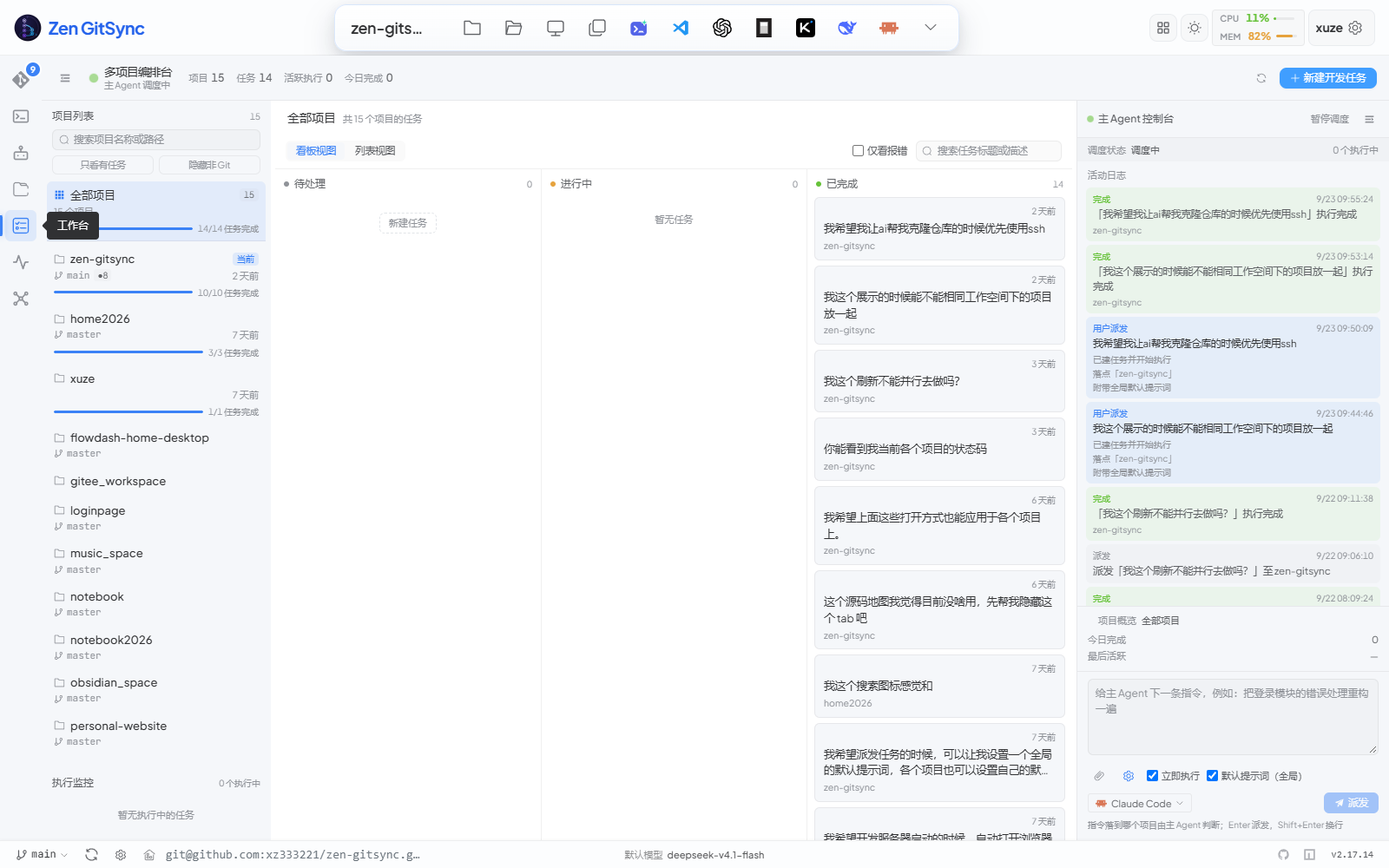
|
58
|
-
- **AI startup suggestions** — A collapsible panel (expanded by default) above the NPM scripts panel: your configured model reads the scanned scripts, marker files and README, then lists the ways this project can be started, in startup order — one click runs any of them in a new terminal
|
|
59
|
-
- **Built-in terminal** — Run commands with real-time streaming output
|
|
60
|
-
- **Custom commands** — Save, parameterize, and reuse shell commands
|
|
61
|
-
- **Project startup** — Auto-run commands or workflows when a project opens
|
|
62
|
-
- **Built-in code editor** — Monaco-based file editor with Markdown preview
|
|
63
|
-
- **Workbench** — a multi-project board with a kanban view and a master-agent dispatch console; task-driven agent execution (Claude Code or OpenCode) with prompt presets, isolated per-task processes, live streaming output, AI-generated presets and task-level attachments
|
|
64
|
-
- **Repository cloning** — clone any GitHub / Gitee repository into a folder straight from the repo browser, with an *Already cloned* badge (and its local path) backed by a whole-disk local-repository scan
|
|
65
|
-
- **Skill / MCP marketplace** — install skills and MCP servers from the Agent view into the current project or the `g ai` agent
|
|
66
|
-
- **Reset to remote** — One-click `git reset --hard origin/<branch>` from the Git panel (auto-refreshes branch info first to avoid wrong-target resets)
|
|
67
|
-
- **AI commit message** — Generate commit message from staged diff automatically
|
|
68
|
-
- **AI commit & push** — One click does the whole loop: AI writes the commit message from the diff, then stages → commits → pushes (no need to type a message first)
|
|
69
|
-
- **Selection-scoped diff** — AI commit message and quick commit/push use only the diff of currently selected files when the Git view is the active tab
|
|
70
|
-
- **Commit templates** — Save type/scope/description/message templates
|
|
71
|
-
- **Theme & language** — Light/dark theme and Chinese/English UI; one-click theme toggle in the header (no need to dig into settings)
|
|
72
|
-
- **Network error banner** — Global banner appears when the backend is unreachable, with one-click retry and relative-time status
|
|
73
|
-
- **Accessibility (WCAG 2.1 AA)** — Dialog focus trap & restore, role-based separators, keyboard-only panel resize (`← →`), screen-reader friendly commit context menu, ARIA-pressed toggle buttons, commit button `aria-busy` during in-flight commits, Git SHA hashes meet ≥ 4.5:1 contrast in both light and dark themes
|
|
74
|
-
- **Faster cold start** — `monaco-editor` / `@vue-flow` / `flow-mindmap` / `dagre` are split into independent chunks and lazy-loaded so the Git panel boots without waiting on the code editor or visual workflow designer
|
|
75
|
-
|
|
76
|
-
> Detailed per-release changes can be found via `git log` or the [GitHub Releases](https://github.com/xz333221/zen-gitsync/releases) page.
|
|
77
|
-
|
|
78
|
-
---
|
|
79
|
-
|
|
80
|
-
## GUI
|
|
81
|
-
|
|
82
|
-
### Launch the GUI:
|
|
83
|
-
```shell
|
|
84
|
-
$ g ui
|
|
85
|
-
```
|
|
86
|
-
|
|
87
|
-
The GUI runs as a local web server and opens in your default browser on the first free port it finds in `4000–6000` (set `PORT` to pin a fixed one). It attaches to the current Git repository automatically. The activity bar on the left switches between **Git**, **Console**, **Agent**, **Editor**, **Workbench**, **System Monitor** and **Mindmap**, top to bottom. See the [Core Git Panel](#core-git-panel) screenshot below for what the main view looks like.
|
|
88
|
-
|
|
89
|
-
### Architecture at a glance
|
|
90
|
-
|
|
91
|
-
```
|
|
92
|
-
┌─────────────────────────────────────────────┐
|
|
93
|
-
│ Header: current dir · theme · instances │
|
|
94
|
-
├─────────────────────────────────────────────┤
|
|
95
|
-
│ Activity Bar (left rail) │
|
|
96
|
-
│ ┌───┐ │
|
|
97
|
-
│ │Git│────► Git panel (files + commit) │
|
|
98
|
-
│ └───┘ │
|
|
99
|
-
│ ┌──────┐ │
|
|
100
|
-
│ │Consol│─► Saved commands + terminal │
|
|
101
|
-
│ └──────┘ │
|
|
102
|
-
│ ┌──────┐ │
|
|
103
|
-
│ │Agent │─► Web agent + Skill/MCP plaza │
|
|
104
|
-
│ └──────┘ │
|
|
105
|
-
│ ┌──────┐ │
|
|
106
|
-
│ │Edit │─► Monaco editor + file tree │
|
|
107
|
-
│ └──────┘ │
|
|
108
|
-
│ ┌──────┐ │
|
|
109
|
-
│ │Bench │─► Board: projects·kanban·agent│
|
|
110
|
-
│ └──────┘ │
|
|
111
|
-
│ ┌──────┐ │
|
|
112
|
-
│ │Monit │─► System monitor │
|
|
113
|
-
│ └──────┘ │
|
|
114
|
-
│ ┌──────┐ │
|
|
115
|
-
│ │ Mind │─► Mindmap │
|
|
116
|
-
│ └──────┘ │
|
|
117
|
-
└─────────────────────────────────────────────┘
|
|
118
|
-
▲ ▲ ▲
|
|
119
|
-
│ │ │
|
|
120
|
-
Pinia stores ──── EventBus ──── Socket.IO
|
|
121
|
-
▲
|
|
122
|
-
│
|
|
123
|
-
Backend Express server (free port 4000–6000) → git / npm / shell
|
|
124
|
-
```
|
|
125
|
-
|
|
126
|
-
### A typical day in the GUI
|
|
127
|
-
|
|
128
|
-
```
|
|
129
|
-
1. g ui → browser opens on the first free port in 4000–6000
|
|
130
|
-
2. Glance header → current dir, branch, instance count, theme toggle
|
|
131
|
-
3. Edit files → Activity Bar → Editor, save with Ctrl+S
|
|
132
|
-
4. Stage & commit → Activity Bar → Git, pick files, fill commit form, push
|
|
133
|
-
5. AI commit msg → click ✨ AI 生成 in commit form, diff → Conventional Commits
|
|
134
|
-
6. Background job → Activity Bar → Workbench, run task, watch live logs
|
|
135
|
-
7. Quick command → Activity Bar → Console → pick saved command → run
|
|
136
|
-
```
|
|
137
|
-
|
|
138
|
-
---
|
|
139
|
-
|
|
140
|
-
### Core Git Panel
|
|
141
|
-
|
|
142
|
-
|
|
143
|
-
|
|
144
|
-
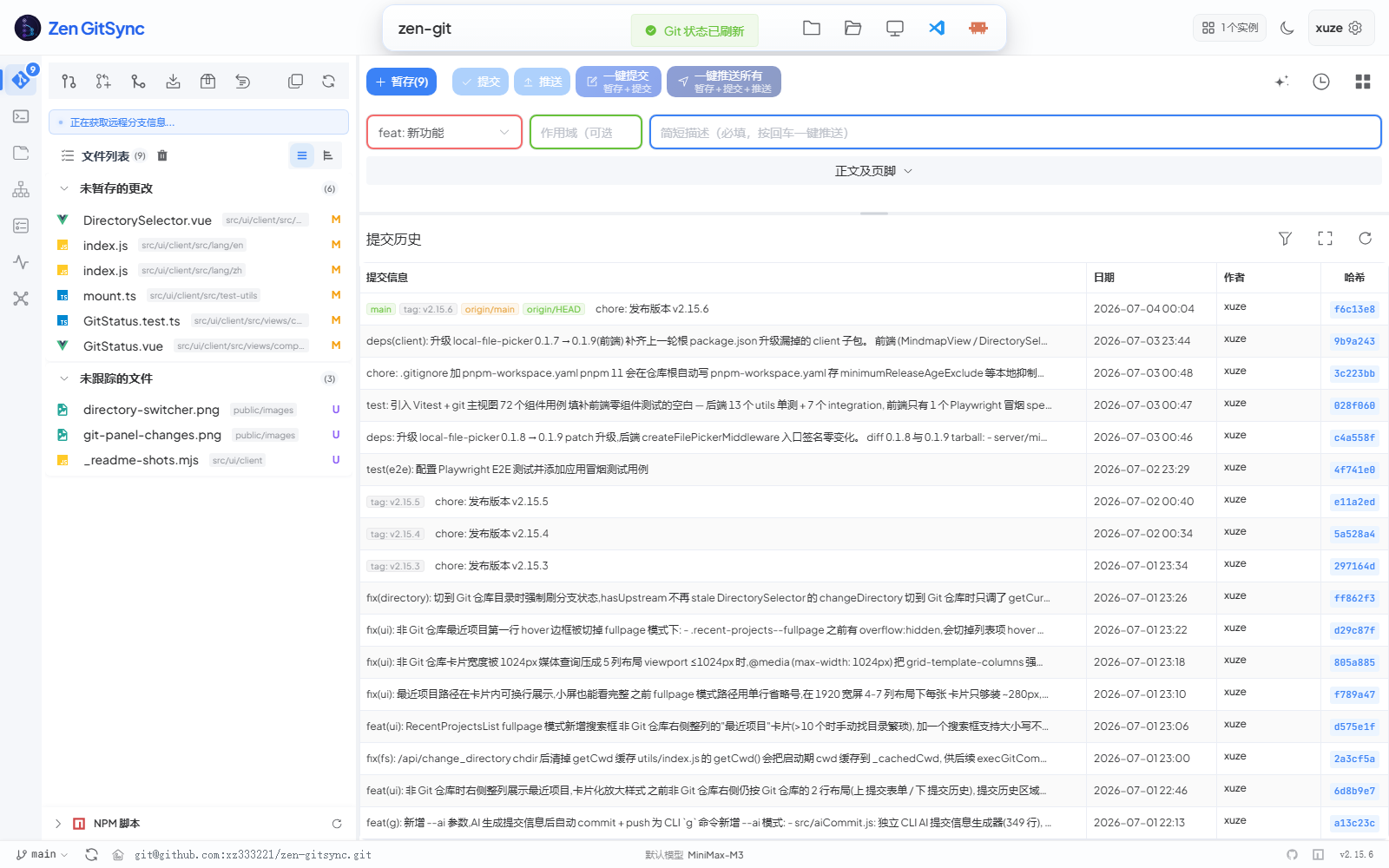
> Single-screen view of "what changed → what to commit → what was committed". The left column lists changed files grouped by staged / unstaged / untracked / conflicted; the right side stacks the structured commit form on top of a chronological commit history. No tab switching required for the 80% case.
|
|
145
|
-
|
|
146
|
-
| Feature | Description |
|
|
147
|
-
|---|---|
|
|
148
|
-
| File list | Shows all changed files grouped by staged / unstaged / untracked / conflicted — plus intent-to-add files as their own "to be staged" group |
|
|
149
|
-
| View toggle | Switch between flat list and directory tree view (persisted) |
|
|
150
|
-
| Selection mode | Multi-select files to stage or stash only chosen files. When the Git view is the active tab, **Quick Commit / Quick Push** and **AI commit message** automatically scope their action to the current selection (button label switches to *Commit Selected* / *Push Selected*). |
|
|
151
|
-
| Per-file actions | Stage, unstage, or revert individual files |
|
|
152
|
-
| Stage | Stage all or selected files (respects locked files) |
|
|
153
|
-
| Commit | Structured form (type / scope / description / body / footer) or free-text |
|
|
154
|
-
| AI commit message | Generate commit message from staged diff using an AI model |
|
|
155
|
-
| Push | Push to remote with live progress modal |
|
|
156
|
-
| Quick commit+push | One-click stage → commit → push |
|
|
157
|
-
| AI commit & push | One-click **AI writes the message → stage → commit → push** (form is filled in first, so you can see what was committed). When the branch is already committed and only needs pushing, AI is skipped and it pushes directly |
|
|
158
|
-
| Pull / Fetch | Pull from or fetch the upstream branch |
|
|
159
|
-
| Reset to remote | One-click `git reset --hard origin/<branch>`; auto-refreshes branch info first to avoid stale-branch targets; hidden when working tree is clean and no unpushed commits |
|
|
160
|
-
| Merge | Merge another branch; detects and surfaces in-progress merge state |
|
|
161
|
-
| Diff viewer | Monaco-based side-by-side diff for any changed file |
|
|
162
|
-
| In-diff preview | Toggle a preview pane below the diff for `.html` / `.htm` / `.svg` (sandboxed iframe with JavaScript enabled — interactive reports work, isolated from the app via an opaque origin), `.md` / `.markdown` (rendered Markdown) and Office documents (`.doc` / `.docx` / `.xls` / `.xlsx` / `.ppt` / `.pptx` / `.odt` / `.ods` / `.odp`, converted server-side) — same preview experience as the built-in editor, with a draggable vertical resizer; split ratio is persisted per project |
|
|
163
|
-
| Commit log | Browse commit history with author, date, branch tags, and changed files |
|
|
164
|
-
| Remote URL | Display and one-click copy the remote repository URL; the gear icon beside it opens **Remote Management** (multi-remote setups, multi push URLs) |
|
|
165
|
-
| Auto-refresh | Silently refreshes status and branch info when the window gains focus, the tab becomes visible, or you switch back to the **Git** view in the Activity Bar |
|
|
166
|
-
| Rail badge | The **Git** icon in the left rail carries the counts you would otherwise have to open the panel for: uncommitted files at the top-right, and the current branch's ahead / behind counts at the bottom (`↑2 ↓3`). Behind is amber (something to pull), ahead-only is green (something to push), diverged is red; the tooltip spells both out |
|
|
167
|
-
|
|
168
|
-
#### Structured Commit Form
|
|
169
|
-
|
|
170
|
-
The commit form supports two modes toggled by a switch:
|
|
171
|
-
|
|
172
|
-
- **Standard mode** — separate fields for type (`feat` / `fix` / `docs` / `style` / `refactor` / `test` / `chore`), scope, short description, body, and footer — produces a Conventional Commits message automatically
|
|
173
|
-
- **Free-text mode** — single text area for any commit message
|
|
174
|
-
|
|
175
|
-
In either mode, click **AI Generate** to fill in the fields automatically based on the staged diff.
|
|
176
|
-
|
|
177
|
-
---
|
|
178
|
-
|
|
179
|
-
### GitHub / Gitee Repositories
|
|
180
|
-
|
|
181
|
-
> The Git view has three tabs: **当前项目** (current project), **GitHub 仓库**, and **Gitee 仓库**. The latter two list every repository your `gh` / `gitee` account can see — private ones included. ZenGitSync never touches your token: both panels shell out to the official CLI (`gh`, `@gitee/gitee-cli`), which keeps its own credentials.
|
|
182
|
-
|
|
183
|
-
- **Zero-config guidance** — a missing CLI shows the install command for your platform (winget / Homebrew / `npm install -g @gitee/gitee-cli`) with one-click install and auto-refresh; an installed but signed-out CLI shows the sign-in command plus one-click sign-in, then polls until you finish the interactive flow in the terminal
|
|
184
|
-
- **Search** — filters by name, full path and description; the header switches to `匹配 M / 共 N 个仓库` so you can tell how much got filtered out
|
|
185
|
-
- **Sort** — recently pushed (default) / recently created / most starred / name. Sorting happens in the frontend, so both tabs behave identically — their CLIs do not (`gh` returns most-recently-pushed first, `gitee` returns `owner/name` alphabetical)
|
|
186
|
-
- **Group by workspace** — repositories are grouped by their `owner` by default, so everything under one account or organisation sits together instead of being scattered across the grid by push date; group order follows the current sort rule (the workspace pushed most recently comes first) and so does the order inside each group, with the header showing how many repositories that workspace holds. Switch to **No grouping** for a flat, cross-workspace timeline
|
|
187
|
-
- **No refetch on tab switch** — the list is cached per account, so coming back to the tab paints instantly instead of shelling out to `gh repo list` again; once the cache is a minute old it paints from cache first and refreshes quietly in the background, while **刷新** always pulls for real
|
|
188
|
-
- **Informative cards** — repository name, description and privacy / fork / language / star badges, plus a third line with last-push date, fork count, non-`main` default branch and license (each omitted when there is nothing to say)
|
|
189
|
-
- **Clone straight to a folder** — a repository that is not on your disk yet offers **Clone to folder…**: pick a directory and the clone runs over SSH (`git@github.com:owner/repo.git`), with an `https://` URL normalised first so it never stalls on a Git Credential Manager prompt
|
|
190
|
-
- **"Already cloned" badge** — the server keeps a whole-disk index of local Git repositories (built in the background and refreshable on demand), so a card for a repo you already have shows its local path instead of offering another clone
|
|
191
|
-
- **One click to open or copy** — clicking a card opens the repository page in your browser; the actions that appear on hover copy the URL or open it
|
|
192
|
-
|
|
193
|
-
---
|
|
194
|
-
|
|
195
|
-
### Quick directory switch
|
|
196
|
-
|
|
197
|
-
|
|
198
|
-
|
|
199
|
-
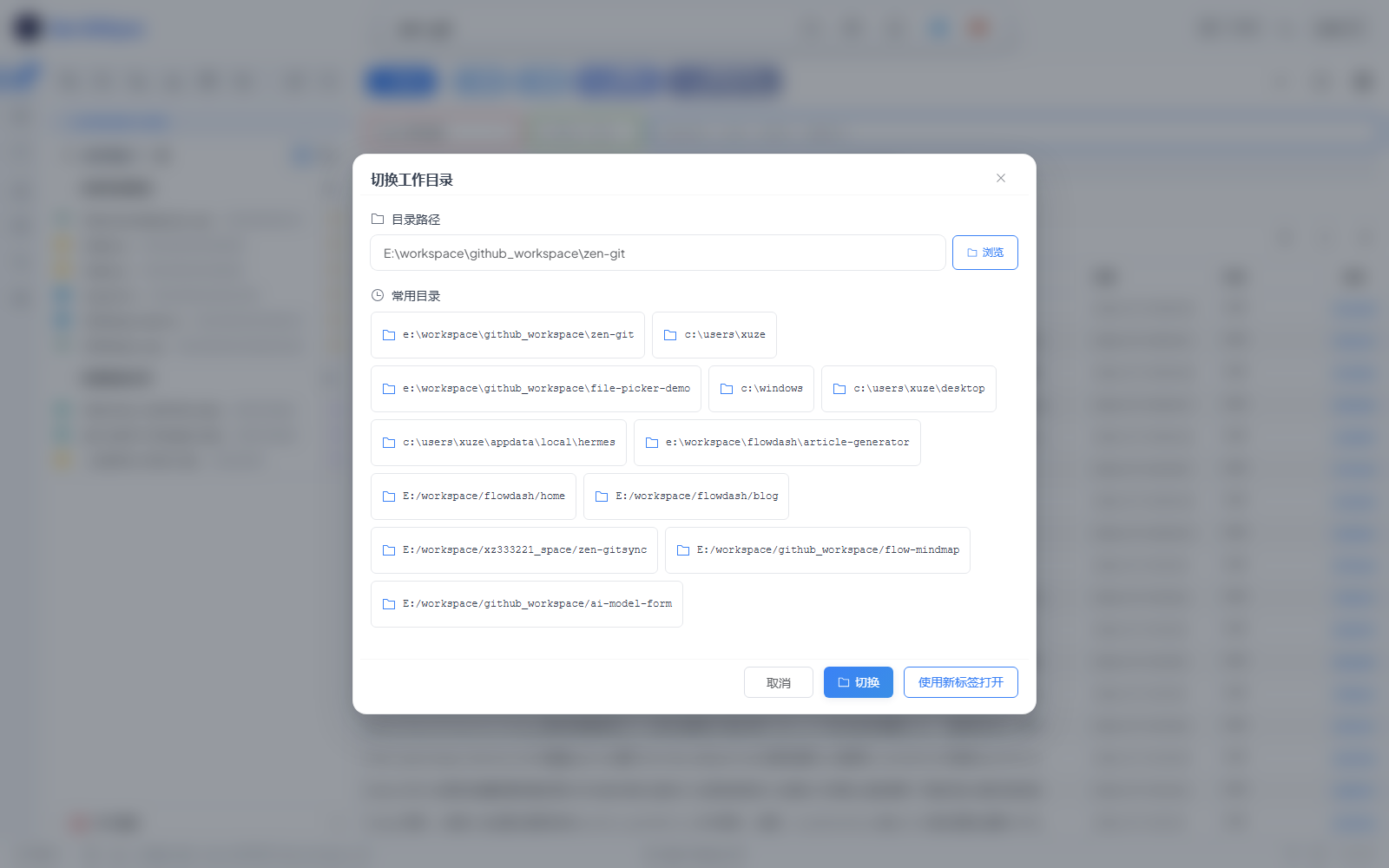
> Click the directory name in the header (or the folder icon) to open this dialog. Type a path, hit **浏览** to use the OS file picker, or pick from **常用目录** for one-click switching. **使用新标签打开** spawns a new GUI tab on that path so you can keep the current project open.
|
|
200
|
-
|
|
201
|
-
The header row beside the directory name carries its own quick actions: open in the file manager, open in a terminal, copy the folder name (last path segment only), open with `g ai`, and one button per detected editor / AI tool — VS Code, Codex, OpenCode, Kimi Code, ZCode, DeepSeek Harness and Claude Code (right-click the Claude button for the default / fully-approved menu, or right-click any tool button to update it to the latest version). Tools that are not installed are collected into a **more** menu, where clicking one opens the install guide.
|
|
202
|
-
|
|
203
|
-
When the GUI is opened on a directory that is not a Git repository, the right pane shows the **Recent projects** list instead — every recent directory with its Git badges (behind / ahead / uncommitted) and one-click "open in a new tab". Each page load runs a `git fetch` pass over all of them automatically, so the ahead/behind badges show the real state rather than the snapshot from the last fetch; the **刷新全部** button does the same thing on demand. The switcher dialog shows the same list as **常用目录** and carries the very same **刷新全部** button at the right end of its heading — the automatic pass stays panel-only (opening a dialog should not fetch a dozen repositories behind your back), but the manual one is identical in both places, right down to the progress readout. Both places also have a search box above the cards: type any fragment of a path to filter the list (the AI status summary below keeps describing the whole set, not the filtered view).
|
|
204
|
-
|
|
205
|
-
The same list carries a short note underneath the cards — in the **full-screen** directory switcher dialog the path field and the **常用目录** cards take the left side, and that note lives in a right-hand column beside them. With an AI model configured it is an **AI status summary** — one paragraph written by the model from the freshly fetched states, naming the projects that need a pull, have unpushed commits or uncommitted changes, and saying so when everything is in sync. It is generated once per distinct state right after the **刷新全部** pass finishes (never mid-refresh), cached for the page, and there is a regenerate button on the right; the summary is shared between the panel and the dialog, so opening the switcher never triggers a second call. Without a model configured it falls back to a static note explaining what the badges mean.
|
|
206
|
-
|
|
207
|
-
In the switcher dialog, that right column continues with a **g ai** follow-up box: ask which project to handle first, or how far one of them is behind, and it answers from the very same status the cards show — every turn carries the current directory states (plus the summary text) as request-scoped context, so there is no need to restate the background. Four one-click question cards sit in the empty state (what to handle first / who is behind / pull everything behind / what is uncommitted) — clicking one sends it straight away, for the same reason the box exists: you should not have to retype the background. It always runs on the built-in **g ai**, and each time the dialog opens it starts a fresh session, so the context is never a stale snapshot. The always-on recent-projects panel is not rebuilt on close, so its box would otherwise accumulate one session all day long — that is why a **New chat** button appears above it once there are messages: it starts a fresh session and stops whatever was still generating. The previous session is kept rather than deleted (it is already saved, and still listed in the Agent view).
|
|
208
|
-
|
|
209
|
-
---
|
|
210
|
-
|
|
211
|
-
### Branch Management
|
|
212
|
-
|
|
213
|
-
- View all local and remote branches
|
|
214
|
-
- Create a new branch from any base branch
|
|
215
|
-
- Switch branches
|
|
216
|
-
- Track upstream status (commits ahead / behind)
|
|
217
|
-
|
|
218
|
-
---
|
|
219
|
-
|
|
220
|
-
### Remote Management
|
|
221
|
-
|
|
222
|
-
- Keep any number of remotes (`origin`, `upstream`, `backup`, …) in one dialog: add, rename, retarget the URL, or delete
|
|
223
|
-
- Each remote shows its fetch URL plus any explicit push URLs, with **Upstream** / **Push default** badges so you can tell at a glance which one the current branch tracks
|
|
224
|
-
- Give one remote several **push URLs** (e.g. GitHub + Gitee) so a single push reaches several hosts, or clear them all to fall back to the fetch URL
|
|
225
|
-
- The **Push** dropdown appears once more than one remote is configured: push to a specific remote, push to every remote at once (with per-remote success / failure results), or jump into remote management. With a single remote the button looks and behaves exactly as before
|
|
226
|
-
- Deleting the remote that the current branch tracks automatically unsets the upstream, so later pulls don't trip over a dangling config
|
|
227
|
-
|
|
228
|
-
> Open it from the gear icon next to the remote URL in the status bar, or via **Manage remotes…** in the Push dropdown.
|
|
229
|
-
|
|
230
|
-
---
|
|
231
|
-
|
|
232
|
-
### Stash Management
|
|
233
|
-
|
|
234
|
-
- Save stash with an optional message
|
|
235
|
-
- Optionally include untracked files
|
|
236
|
-
- Optionally exclude locked files from stash
|
|
237
|
-
- Apply, pop, or drop individual stash entries
|
|
238
|
-
|
|
239
|
-
---
|
|
240
|
-
|
|
241
|
-
### Tag Management
|
|
242
|
-
|
|
243
|
-
- Create **lightweight** or **annotated** tags
|
|
244
|
-
- Target a specific commit
|
|
245
|
-
- List, push, or delete tags
|
|
246
|
-
|
|
247
|
-
---
|
|
248
|
-
|
|
249
|
-
### Commit Message Templates
|
|
250
|
-
|
|
251
|
-
Save reusable templates for:
|
|
252
|
-
- **Type** — `feat`, `fix`, `chore`, …
|
|
253
|
-
- **Scope** — component or module name
|
|
254
|
-
- **Description** — short summary
|
|
255
|
-
- **Full message** — complete commit message
|
|
256
|
-
|
|
257
|
-
---
|
|
258
|
-
|
|
259
|
-
### Custom Commands
|
|
260
|
-
|
|
261
|
-

|
|
262
|
-
|
|
263
|
-
Create, manage, and run shell commands from the sidebar (Console view):
|
|
264
|
-
|
|
265
|
-
- Define commands with a name, shell command, and working directory
|
|
266
|
-
- Add **parameters** with names, descriptions, and default values (referenced via `{{paramName}}`)
|
|
267
|
-
- Run a command instantly in a new terminal session
|
|
268
|
-
- Save command **templates** for quick reuse
|
|
269
|
-
- Each command has its own **enable / disable** toggle so you can stage a suite of commands without running them
|
|
270
|
-
|
|
271
|
-
**Scheduled commit** (pinned to the bottom of the same sidebar): auto `git add -A` + `git commit` on an interval.
|
|
272
|
-
|
|
273
|
-
- Interval in minutes / hours / days, with an optional commit right on start
|
|
274
|
-
- Commit message: the configured default message, a per-schedule message, or AI-generated
|
|
275
|
-
- Push to the remote after every successful commit (can be turned off)
|
|
276
|
-
- The panel echoes the **equivalent `g` CLI command** — e.g. `g -y --interval=1800 --path="<dir>"` (`--interval` is in **seconds**) — with a one-click copy button, so the same schedule can be reproduced from a terminal without the GUI
|
|
277
|
-
|
|
278
|
-
---
|
|
279
|
-
|
|
280
|
-
### Flow Orchestration (Visual Workflow Designer)
|
|
281
|
-
|
|
282
|
-
Build automated pipelines with a drag-and-drop canvas:
|
|
283
|
-
|
|
284
|
-
| Node type | Purpose |
|
|
285
|
-
|---|---|
|
|
286
|
-
| **Start** | Entry point of the flow (one per flow, not deletable) |
|
|
287
|
-
| **Command** | Execute a saved custom command |
|
|
288
|
-
| **Wait** | Pause execution for 1–3600 seconds |
|
|
289
|
-
| **Version** | Bump `package.json` version (patch / minor / major) or modify a dependency |
|
|
290
|
-
| **Confirm** | Pause the flow and wait for the user to confirm before continuing |
|
|
291
|
-
| **User input** | Pause the flow and collect parameter values from the user |
|
|
292
|
-
| **Code** | Run an inline code snippet and pass its output to downstream nodes |
|
|
293
|
-
| **Condition** | Branch the flow according to a condition |
|
|
294
|
-
|
|
295
|
-
- Nodes are executed in topological order
|
|
296
|
-
- Flows are saved and editable
|
|
297
|
-
- Each node can be individually enabled or disabled
|
|
298
|
-
|
|
299
|
-
---
|
|
300
|
-
|
|
301
|
-
### NPM Scripts Panel
|
|
302
|
-
|
|
303
|
-
> The panel lives inside the Git view (left column). It scans every `package.json` in the repo on demand, groups scripts by package, and lets you click any script name to run it directly. The panel's own settings dialog configures the scan root and exclusion patterns.
|
|
304
|
-
|
|
305
|
-
- Automatically discovers all `package.json` files in the project tree
|
|
306
|
-
- Lists their `scripts` entries
|
|
307
|
-
- Run any script with one click
|
|
308
|
-
- Configure the scan root and exclusion patterns per package
|
|
309
|
-
|
|
310
|
-
---
|
|
311
|
-
|
|
312
|
-
### AI Startup Suggestions
|
|
313
|
-
|
|
314
|
-
|
|
315
|
-
|
|
316
|
-
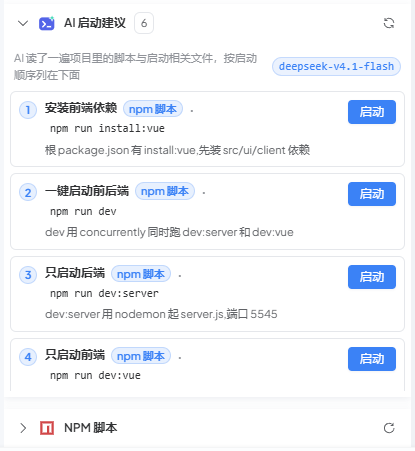
> A collapsible panel right **above** the NPM scripts panel, expanded by default. Once an AI model is configured (Settings → AI Models), it scans the project the same way the NPM panel does — every `package.json` script, plus marker files (`Dockerfile`, `docker-compose.yml`, `Makefile`, `go.mod`, `requirements.txt`, …) and the README — and asks your default model to pick the ways this project can actually be started, in startup order. Each suggestion has a **Start** button that runs it in a new terminal.
|
|
317
|
-
|
|
318
|
-
- One list answers "how do I start this project?" — no digging through dozens of scripts in a monorepo
|
|
319
|
-
- Suggestions are validated server-side before they reach you: a script name that does not exist in `package.json`, or a working directory that was not scanned, is dropped (the model cannot invent a button that fails)
|
|
320
|
-
- `npm` suggestions run straight away; raw shell suggestions (e.g. `docker compose up -d`) show a confirmation with the exact command first
|
|
321
|
-
- Results are cached per project + language + model, so reopening the view does not call the model again; the refresh button in the panel header forces a fresh analysis
|
|
322
|
-
- No model configured → the panel just tells you to add one, and sends no request at all
|
|
323
|
-
- Nothing to show → the panel is not rendered at all: a directory with no `package.json` / startup files (and nothing for the model to pick) hides this panel **and** the NPM scripts panel, instead of leaving two empty shells in the sidebar
|
|
324
|
-
|
|
325
|
-
---
|
|
326
|
-
|
|
327
|
-
### Console Panel
|
|
328
|
-
|
|
329
|
-
|
|
330
|
-
|
|
331
|
-
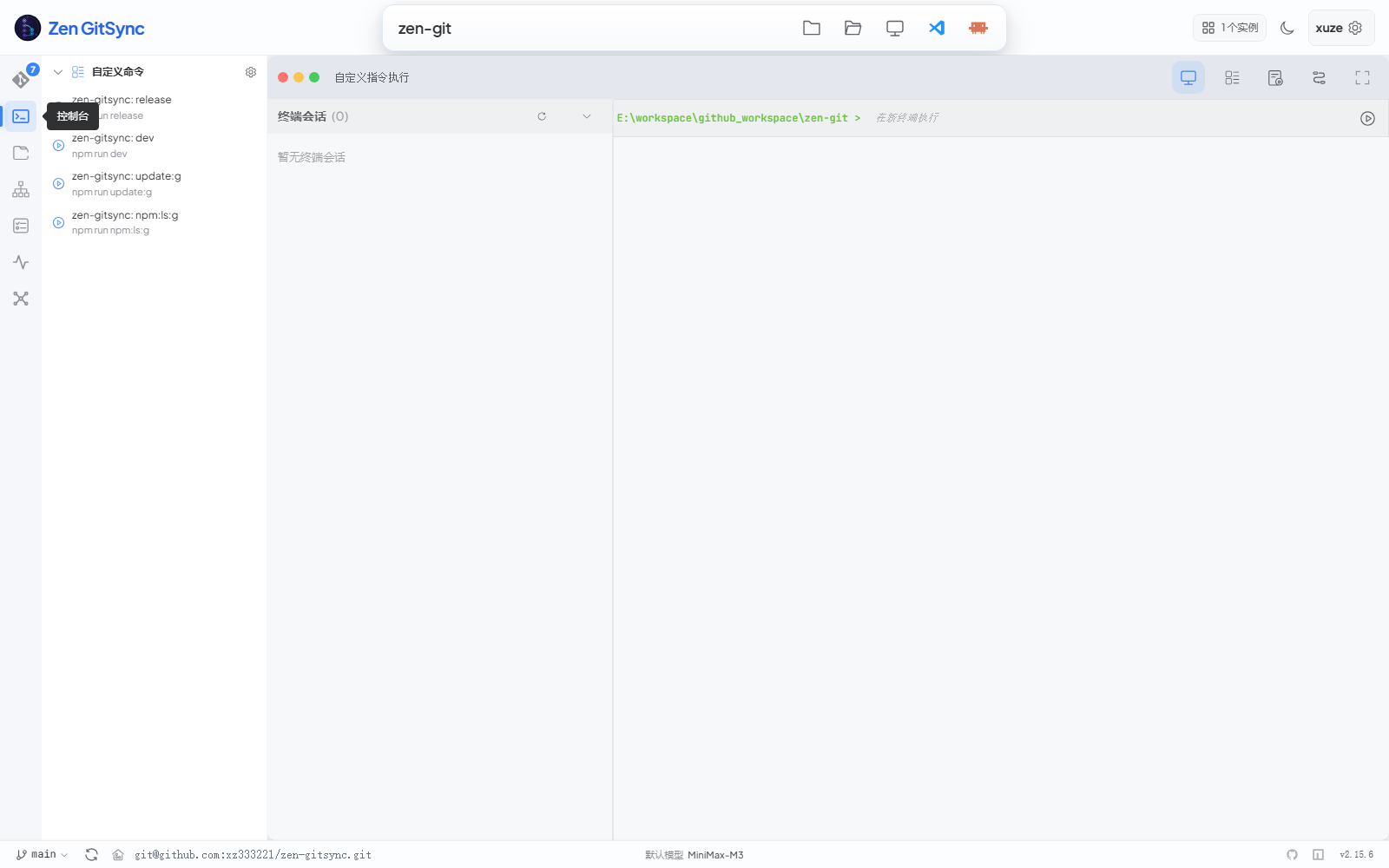
> Three-pane layout: saved custom commands on the left, **自定义指令执行** (saved custom commands + terminal sessions) tab on top, and a live terminal on the right. Click any saved command in the sidebar to launch it in a new terminal session; the terminal streams output in real time over SSE and supports running multiple sessions side by side. The `cmd.exe` shell is used on Windows, `sh` on Unix.
|
|
332
|
-
|
|
333
|
-
- Open new terminal sessions from within the GUI (one per command)
|
|
334
|
-
- Commands stream output in real time (Server-Sent Events)
|
|
335
|
-
- Running processes are tracked and can be stopped individually
|
|
336
|
-
- Cross-platform: uses `cmd.exe` on Windows, `sh` on Unix
|
|
337
|
-
|
|
338
|
-
---
|
|
339
|
-
|
|
340
|
-
### Project Startup
|
|
341
|
-
|
|
342
|
-
Configure commands or workflows to run automatically when a project is opened:
|
|
343
|
-
|
|
344
|
-
- Toggle auto-run on / off
|
|
345
|
-
- Drag to reorder startup items
|
|
346
|
-
- Mix custom commands and flow workflows in any order
|
|
347
|
-
|
|
348
|
-
---
|
|
349
|
-
|
|
350
|
-
### Views at a glance
|
|
351
|
-
|
|
352
|
-
| View | Purpose | Persistent state | Highlights |
|
|
353
|
-
|---|---|---|---|
|
|
354
|
-
| **Git** | Day-to-day staging, committing, pushing, history review | Per-project UI prefs (view mode, layout ratios) | Structured commit form, AI commit message, selection-scoped quick push |
|
|
355
|
-
| **Editor** | Browse & edit project files without leaving the GUI | Open tabs, unsaved markers, recent files | Monaco editor with syntax highlighting, Markdown preview, file search |
|
|
356
|
-
| **Workbench** | Multi-project board for dispatching and running agent tasks | Tasks, prompts, board layout, log retention | Kanban board, master-agent console, executor choice, live chat-style logs |
|
|
357
|
-
| **Agent** | Chat with the built-in AI agent (web + CLI sessions) | Sessions, pending questions | Streaming answers, tool-call cards, Skill / MCP plaza, rail badge counting the conversations still generating |
|
|
358
|
-
|
|
359
|
-
**Console**, **System Monitor** and **Mindmap** are utility views on the same rail.
|
|
360
|
-
|
|
361
|
-
---
|
|
362
|
-
|
|
363
|
-
### Built-in Code Editor
|
|
364
|
-
|
|
365
|
-
A full IDE-like editor (fourth icon in the activity bar) for browsing and editing project files without leaving the tool:
|
|
366
|
-
|
|
367
|
-
| Feature | Description |
|
|
368
|
-
|---|---|
|
|
369
|
-
| File tree | Collapsible directory tree with file-type icons; **auto-refreshes every 60s** to pick up changes made outside the GUI (skipped when the tab is hidden or the search box is non-empty) |
|
|
370
|
-
| File search | Type in the sidebar search box to filter the tree (180 ms debounce); matched substrings are highlighted in node names; `Ctrl+F` / `Cmd+F` focuses the box; `Esc` clears the query or blurs the input |
|
|
371
|
-
| Multi-tab editing | Open multiple files simultaneously; tabs show unsaved (●) indicator |
|
|
372
|
-
| Sync with disk | The current tab re-checks the file on disk when the window regains focus, when you switch to that tab, or when you come back to the Editor view; a 30s fallback poll covers the case where something in the same window (the `g ai` panel) rewrote the file with no focus change. If it changed and you have no unsaved edits, it reloads silently (cursor position and undo history preserved); if you do have unsaved edits it asks first and never overwrites on its own |
|
|
373
|
-
| Workspace restore | The tree's expanded folders and the open tabs (their order plus which one is active) are remembered **per project** and put back on reload, and when you switch back to that project. The snapshot lives in `~/.zen-gitsync/config.json` under `ui.editorWorkspaceByProject`; only paths are stored — files are re-read from disk, so unsaved edits do not survive a reload, and files that no longer exist are skipped silently |
|
|
374
|
-
| Sidebar width | Drag the divider to resize the file tree pane; unlike the workspace snapshot the width is **global** (one value for every project) and is stored in `~/.zen-gitsync/config.json` under `ui.editorSidebarWidth`, restored on reload. Clamped to 140–400px |
|
|
375
|
-
| Monaco editor | Syntax highlighting for JS, TS, Vue, Python, Go, JSON, CSS, and more |
|
|
376
|
-
| Markdown preview | Toggle between source and rendered preview for `.md` files |
|
|
377
|
-
| HTML preview / browser | `.html` / `.htm` render in a sandboxed in-app iframe; right-click one in the file tree → **Open in Browser** to hand it to the system default browser instead |
|
|
378
|
-
| Save | `Ctrl+S` to save; auto-save on focus loss is on by default (can be turned off in settings) |
|
|
379
|
-
| Create | New file or folder inline in the file tree |
|
|
380
|
-
| Rename / Delete | Rename or delete any file or folder directly from the tree |
|
|
381
|
-
| Resizable sidebar | Drag the divider to adjust file tree width |
|
|
382
|
-
| g ai chat panel | A `g ai` chat panel on the right (toggle it from the editor toolbar) that keeps the currently open file as context. It carries the same **engine selector** as the Agent view — pick the built-in **g ai** or an external CLI (**Claude Code** / **OpenCode** / **Codex**); uninstalled engines are greyed out and click to open the install guide |
|
|
383
|
-
| Theme sync | Editor theme follows the global light / dark setting |
|
|
384
|
-
|
|
385
|
-
---
|
|
386
|
-
|
|
387
|
-
### Workbench (Task-Driven Agent Execution)
|
|
388
|
-
|
|
389
|
-
|
|
390
|
-
|
|
391
|
-
> Three panes on one board: the project list with its run monitor on the left, a kanban board in the middle, and the **master-agent console** on the right. Type an instruction into the console — the master agent decides which project it lands in, or you can target the project you selected yourself. Clicking a card opens the task editor as an overlay over the board, which stays mounted underneath.
|
|
392
|
-
|
|
393
|
-
A dedicated view for running coding agents across one or many projects. Every task carries its own prompt preset, attachments and executor, and runs as its own detached process, so context never piles up.
|
|
394
|
-
|
|
395
|
-
| Feature | Description |
|
|
396
|
-
|---|---|
|
|
397
|
-
| Task list | Create, edit, delete tasks. Rows are grouped by project (current project first), each a single line — the title, or the first characters of the description (ellipsised) when the title is empty. Tasks with neither a title nor a description count as drafts that are never saved (switching away drops them) |
|
|
398
|
-
| Multi-project board | Three resizable / collapsible panes: the project list with its run monitor, the kanban board, and the master-agent console. Drag a divider to resize (project list 180–420 px, console 260–560 px), double-click it to reset the responsive default, or fold a side away — the top-bar button folds the project list, the console folds into a 32 px rail that expands on click. The run monitor has its own divider (120 px up to half the viewport height) for when several jobs run at once. All widths / heights are remembered across sessions. Below 860 px the panes stack vertically with the console **above** the board — a stacked board runs to five figures of pixels, so a console placed after it would be out of reach — and the progress report is shown in full instead of clamped to six lines |
|
|
399
|
-
| Kanban board | **Todo / Doing / Done** columns with the done column sorted newest-first; a filter checkbox narrows the board to tasks whose last run failed, and a table view is one click away for a denser listing. A **New task** entry sits at the end of the Todo column whether or not that column already holds cards (it doubles as the empty state, and opens the same create dialog as the top-right button). Task attachments of the image kind get a **cover** across the top of the card — the first one, with a `+N` badge when there are more — and clicking it opens the full-size viewer with arrow-key paging through the whole set (clicking it does *not* open the task: the card is one big click target, so the cover opts out). An attachment whose file has gone missing drops the cover instead of leaving a broken-image icon on the board; the table view marks the same fact with an `N image(s)` chip next to the title so the two views never disagree |
|
|
400
|
-
| Card status while running | A running task is more than a blinking dot: the card itself carries its executor's brand icon (hover for the product name), the elapsed time, how many tool calls it has made (hover for the mix of types), its most recent tool call, what it is thinking right now, and its newest reply — plus a silence figure once the job has gone quiet for a while. A row with nothing in it is left out instead of being filled with "none yet", and a card that is not running has no such block at all. The facts come from the execution log, the same source the progress report reads, so they refresh with the board's 5-second poll and a task running in another `g ui` instance shows up here too; in table view the same summary sits under the task name. Hovering the card also reveals a **Stop** button in the very slot an idle card puts **Run** in (a running card does not show both — there is no second run to start), so killing a stuck run no longer means opening the editor and scrolling down to it; it goes through the same endpoint and the very same confirmation text as the editor's stop, and a job running inside another `g ui` instance cannot be stopped from this window — the server says exactly that instead of a flat "stop failed" |
|
|
401
|
-
| Master-agent console | Give the master agent an instruction and it dispatches a new task, deciding the target project itself (or honouring the project you selected). Enter dispatches, Shift+Enter starts a new line. Dispatching can be paused and resumed — while paused, a dispatch creates the task without running it |
|
|
402
|
-
| Card after a run | A card in Done no longer stops at its title and timestamp: it keeps a short excerpt of the last thing the agent said — the tail of the newest run's reply, flattened to one line and capped at 100 characters. This is the case it was built for: a run often ends by asking you something ("shall I push?"), so a task sitting in Done may still be waiting on your answer, and the only way to find out used to be opening the editor and reading the log. The executor's brand icon sits at the head of that excerpt — the line is what **it** said, so the icon that says which CLI said it belongs there rather than somewhere else on the card. A task that is still running keeps showing the live block instead (the two are mutually exclusive), a run that wrote no body text leaves this line out entirely rather than borrowing an earlier run's words, and the full excerpt is in the hover tooltip; the table view carries the same line under the task name. Executor icons are drawn only when the executor is actually known — a run recorded before the `agent` field existed, or one whose value this build does not recognise, gets no icon rather than a guessed brand (in the table view, icons appear on the status line for a running task and on the last-reply line for a finished one) |
|
|
403
|
-
| Progress report | The console's **Instruction** pane reports where your running tasks actually stand instead of listing what was dispatched and what finished (the board already shows that). The master agent reads each running job — elapsed time, **its latest thinking**, **what mix of tools it has been calling**, **how long it has been silent**, and the latest output — and writes a short paragraph per report: what each task is doing, how far it has got, and whether it looks stuck. Each report also carries a **progress bar**: the model is asked for its own estimate of overall progress plus one figure per task, and those numbers are drawn as bars labelled **AI estimate** (hover says what the guess is based on). It is an estimate, not a measurement — and when the model declines to give a number, the bar is simply not drawn instead of defaulting to 0%. The thinking line is what makes this work for tasks that never write a line of prose (they are the common case — their output stays empty from start to finish); "looks stuck" now has to come with evidence — a silence figure, or a tool mix going in circles — instead of being inferred from a high call count. Reports appear on an interval you pick (5 / 10 / 15 / 30 / 60 minutes, or off) or whenever you hit **Report now**, and the newest one is shown with the facts behind it (project, elapsed, tool mix, latest thinking, last tool call, silence) while earlier ones stay browsable from the history list. **A report only stays in the main slot while the tasks it covers are still running** — a report is a snapshot of the moment it was generated, so once those tasks finish the card's "{n} running" line becomes a lie, while the counter right above it already reads 0 running. When they do, the slot stops showing it and states what is actually true instead: "No task is running right now" once everything has finished, or "No progress report for the running tasks yet" when a new batch has started but nothing covers it yet; to read an older one, open it from the history list — it comes back tagged **Finished** Automatic reports are generated **server-side**, so the history keeps filling up while the tab is closed and is waiting for you when you come back. Nothing running means nothing filed: automatic reports are skipped outright, and **Report now** answers with a plain "no task is running right now" rather than filing an empty entry (no empty entries, no wasted model call), while two identical reports arriving seconds apart are collapsed into one so a double click leaves no duplicate. The paragraph is written in the UI language and, when a task's output is inconclusive, it says so rather than inventing progress. **History and Project overview fold down to a single line by default** — the report count, and branch plus working-tree state, stay on that line — and open again on click, with your choice remembered. Both are fixed-height blocks, so on a short screen they squeeze the report card into a slit (about a dozen pixels at 1366×768); folded away, the report's window roughly doubles |
|
|
404
|
-
| Silent wrap-up | When a run has been silent for more than **10 minutes** (no prose, no thinking, no tool call) the console asks the master agent to read the facts it has — latest thinking, the last thing it said, the tool mix — and decide whether it **has finished** or is still working / stuck. A "finished" verdict settles that run: the card moves from In progress to Done, with an **AI marked done** chip under the elapsed time whose tooltip carries the model's reasoning. When the evidence is thin it does nothing at all (it only books the check, waits another 10 minutes, and asks at most 3 times per run) — not acting beats marking a running task as done. It changes the record, never the process: killing a hung process stays the job of the **Stop** button on the card. Only runs owned by **this instance** are judged — a task started in another `g ui` window is settled by that window |
|
|
405
|
-
| Marking a task done by hand | The columns are derived from execution facts, which cannot express the two things only you know: a task sitting in **Todo** that was really finished somewhere else, and an **In progress** task whose model has gone quiet while you can see the work is done. Both cards now hover out a **Done** button next to **Run** / **Stop**, and a card that got into Done *by hand* trades it for **Undo**. A card that finished on its own keeps showing neither — undoing a mark it never had would do nothing at all. Marking a still-running task done asks first and stops that run as part of the same action (a card cannot be Done and running at once), which holds across windows too: if the job lives in another `g ui` instance the server refuses with that very reason instead of pretending. The mark is stored on the task rather than faked as a run record, and a later run of that task supersedes it, so the card goes back to following the facts. Undo is one click with no confirmation — it is the "I clicked the wrong one" path — and hands the card back to the execution facts, which is why it is offered only where the mark is what keeps the card in Done |
|
|
406
|
-
| Dispatch default prompts | Give every dispatch a standing prompt: one **global** entry that applies to all projects, plus one **per project** that is appended after it whenever you dispatch to that project (it supplements the global one rather than replacing it). Both are edited from the gear button in the console's composer; the combined text is prepended to the instruction, a "Default prompt (global + this project)" checkbox appears next to **Run now** so a single dispatch can opt out, and the instruction log records which level was attached. The prompt is copied onto the task at dispatch time, so editing the setting later never rewrites tasks that already exist; it lands in the task's own prompt field, where you can still edit it per task |
|
|
407
|
-
| Open-with menu per project | Hovering a project row in the board's project list reveals two buttons: **Open folder** (straight to your file manager) and **Open with**, a menu holding file manager / terminal / `g ui` in a new tab plus every editor and AI tool (VS Code, Codex, OpenCode, Kimi Code, ZCode, DeepSeek Harness, and Claude Code in default or fully-approved mode). Tools that are not installed are dimmed and labelled "Not installed" — clicking one opens the very same install guide the top bar uses. Every action applies to that row's project only; the board's selection is never touched |
|
|
408
|
-
| Remove a dead project | A row whose folder no longer exists still shows up — the list is the union of recent directories and the paths your tasks remember — so that row gets a single red **Remove from list** button instead of the open actions (opening a missing folder can only fail). The confirm dialog spells it out: **no tasks are deleted**, and the toast repeats how many were kept. The entry disappears from the list while every task, job and history record stays put; if you ever clone the folder back, the row returns on its own |
|
|
409
|
-
| Task editor overlay | Clicking a board card opens the editor as an overlay: a flat sidebar holding the task list and prompt presets, then the task header, preset selector, executor split-button, the copy-execution / execution-log / clear-execution actions, and a chat-style execution body. The description collapses into a one-line "Task description (optional)" summary until clicked, showing a "Filled" badge and the attachment count once there is content. Opening the overlay lands the conversation on its **newest** turn rather than its first: the flow keeps re-pinning to the bottom while markdown highlighting and tool-call folding are still growing it after mount, and lets go as soon as you scroll yourself. The thin bar on top carries the back-to-board button and the current project, and — just left of the "Task execution" label at its right end — the task's **relative time and how long it took** (a "took x" line once it has run, a live "running for x" while it is, and only the time — no placeholder — if it never ran), word for word the same two values the board card shows. When the window narrows, this block yields first: the back button, project and execution-path chips never give up a single pixel |
|
|
410
|
-
| Copy execution content | **Copy execution content** in the task header puts the whole task — every turn, not just whatever is on screen — on the clipboard as plain Markdown: a header line for the task and its project, then one section per turn (`## Round N`, with the executor, status and start time on the line under it) holding the user's prompt, the agent's thinking, its tool calls (arguments and results in fenced blocks) and the model's output. It is assembled from the run records rather than scraped from the DOM, so what you get never depends on what happens to be selected. The user side goes through the same trimming the chat bubbles use, so what you copy is what you typed — the injected environment / memory blocks and the attachment list stay behind in `job.prompt`. Turns with nothing in them are skipped without renumbering the ones after them, and a task that has never run answers with a "nothing to copy" toast instead of putting an empty string on the clipboard |
|
|
411
|
-
| Executor choice | Run each task with **Claude Code**, **OpenCode** or **Codex**. The global default is set in **Settings → General → Task executor** (`config.taskExecutor`); the split-button next to the run button switches it for the next run and remembers that pick in the browser. A continued conversation always stays on the executor that started it — Claude's `--resume`, OpenCode's `--session` and Codex's thread id are not interchangeable |
|
|
412
|
-
| Attachments | Any number of files per task (image / PDF / text / Markdown / CSV / JSON / log, ≤ 20 MB each); images over 3.5 MB are re-encoded / downscaled in the browser before upload so 4K screenshots still fit what the model and the reader can take. Their absolute paths are appended to the prompt so the agent reads them directly. Right-click an image attachment to copy it to the system clipboard (`image/png` / `jpeg` / `webp` / `gif`). The board's create-task dialog takes them too, before the task exists: files are staged server-side (`workbench-images/_dispatch/`) and claimed into the task's own folder the moment you hit Create, the create button stays disabled while an upload is in flight, and closing the dialog without creating deletes them instead of leaving screenshots behind. File names travel percent-encoded, so a name written in Chinese uploads like any other |
|
|
413
|
-
| Prompt presets | Reusable prompt templates with `{{task.title}}` / `{{task.desc}}` / `{{repo.path}}` / `{{branch}}` variable interpolation |
|
|
414
|
-
| AI prompt generation | The "New / Edit preset" dialog carries an **AI Generate project architecture** button plus an **Edit instruction** button: the server recursively finds every sub-project (a directory holding `.git` or one of 9 manifests), reads each one's key files on its own (manifest 20 KB / README 8 KB / a 2-level tree), calls the LLM concurrently to produce a per-sub-project architecture description, and merges them into one when there are several. **Edit instruction** customises the prompt used for generation (persisted to `~/.zen-gitsync/ai-instruction.json`) |
|
|
415
|
-
| Pipe-mode launcher | Spawns the selected executor as a detached process with stdout/stderr piped to the server — no external terminal window is opened, so output streams directly into the UI. Claude Code runs as `claude -p - --output-format stream-json --verbose --permission-mode bypassPermissions --dangerously-skip-permissions` (the prompt goes in over stdin to dodge Windows' 32 K command-line limit); OpenCode runs as `opencode run --format json --auto --thinking`; Codex runs as `codex exec --json --skip-git-repo-check --dangerously-bypass-approvals-and-sandbox -`, both following whatever default model their own CLI is configured with |
|
|
416
|
-
| Isolated processes | Every run is its own detached process with fresh context, so memory and conversation state never accumulate across tasks |
|
|
417
|
-
| **Cross-run memory** | Every dispatched task is told about a local memory library at `~/.zen-gitsync/memory/` — the lessons earlier agents in that same repository left behind. The library is deliberately **two-tier**: only `INDEX.md` (one ≤100-character line per lesson) ever enters the prompt, while the lesson bodies live in `lessons/*.md` and are read **on demand, only when an index line actually matches the task**. Nothing is preloaded and `archive/` is never read — which is the whole point, since pasting the index into every prompt would make each dispatch pay for every unrelated historical lesson. When the workbench starts, the library is seeded if it does not exist yet (existing files are never overwritten). Before finishing, each agent self-checks four questions — stuck ≥3 min or a repeated wrong path, a wrong tool / wrong file / a grep drowned in build output, a correction from you, or a verified non-obvious shortcut — and writes **one** lesson if any of them is yes, always appending the matching `INDEX.md` line (a lesson without an index line is a lesson nobody will ever find). Set `memoryContext: false` on a task to opt out of the whole thing |
|
|
418
|
-
| Memory library panel | **Settings → Memory** browses the same library: a scope picker (the two global files plus every repository the agents have worked in, labelled by its real path), the lesson list for the selected scope, and click-to-expand for the raw text. Deleting a lesson **also removes its line from the index** — leaving a line behind would point agents at a file that no longer exists. Lessons that were written without an index line are badged as **Not indexed**, since the agent can never find those. `GLOBAL.md` and `INDEX.md` themselves cannot be deleted (they are the accounting). Nothing here is saved through the dialog's Save button: every action takes effect immediately |
|
|
419
|
-
| Live log | The "执行日志 / Execution log" panel **opens by default** and auto-scrolls, showing accumulated `stdout` + `stderr` (last 64 KB rendered client-side; the server keeps up to 100 MB per job) |
|
|
420
|
-
| Live status | Task status (pending / running / done / error / cancelled) and PID stream in real time over SSE |
|
|
421
|
-
| Tool-call stream | The model's tool calls are rendered inline in the conversation flow, so you can follow what the agent actually did |
|
|
422
|
-
| Inline images in a reply | The agent can put a picture in its reply body: write it as a Markdown image pointing at a local file — `` — and it is rendered right in the conversation flow. That path is rewritten to a server endpoint that only serves images from **the task's own repository** (path traversal, absolute paths outside the repo and symlinks pointing out of it are all rejected, and the response carries `nosniff` plus a sandbox CSP), and the executor is told the syntax through the injected environment block — pasting a bare path is what it does otherwise, and a bare path or one wrapped in a code fence stays plain text. Follow-up turns carry a one-line version of the same hint. A file the run cannot read renders as a broken image rather than silently disappearing; png / jpg / jpeg / gif / webp / bmp / svg up to 20 MB |
|
|
423
|
-
| Finish notice | When a run finishes or fails you can be told three ways, each with its **own switch**: an **in-app toast** (on by default), a **browser notification** (off by default), and a **chime** (on by default; a distinct tone for done vs. error, silent when you stop a run yourself). The three are independent — keep any combination. With the toast and the notification both on, the toast shows while the page is focused and the system notification takes over once it is not; with the toast off, the notification fires even in the foreground, since it is then the only channel you asked for. The browser notification switch asks for notification permission **only at the moment you turn it on** — it is off by default and nothing ever prompts you on its own. Sounds are CC0 assets under `public/sounds/`; see `CREDITS.txt` there to swap in another tone |
|
|
424
|
-
| Cross-view indicator | While any Workbench task is running, a pulsing dot appears on the Workbench icon in the Activity Bar so you can see job state from the Git or Editor view |
|
|
425
|
-
| Execution log manager (dialog) | The "Execution logs" button in the workbench top bar opens a dialog with the list / filter / batch delete / clear / retention-policy UI (defaults: 500 records, 256 MB); the task execution view stays mounted so no work-in-progress state is dropped |
|
|
426
|
-
| Continue chat | After a task reaches a done / error / cancelled state, a follow-up composer appears; sending a message resumes the previous session (`claude --resume <session_id>` for Claude Code, `--session` for OpenCode, `codex exec resume <thread_id>` for Codex), and each new turn stacks into the same chat-style flow. Since the resumed session already carries the previous turn's context, follow-up turns inject only a **slim refresh** of the run-environment block (current project + board totals + truth-file paths) instead of the full project list. The bubbles show only what the user actually typed: the injected environment / memory blocks and the attachment list stay in the raw `job.prompt` (readable and copyable in the run log), so copying a conversation out and pasting it back no longer drags a whole round of background along |
|
|
427
|
-
| Local tool detection | On startup + every 10 min the server probes 7 CLIs (`code`, `claude`, `codex`, `opencode`, `kimi`, `zcode`, `dsh`). Tools that are missing are dimmed and labelled "Not installed" — clicking one opens the install guide, and right-clicking a tool button offers an update to the latest published version |
|
|
428
|
-
|
|
429
|
-
Prompt presets and tasks are persisted to `~/.zen-gitsync/prompts.json` and `~/.zen-gitsync/tasks.json` (cross-project, shared across repos); run history and the retention policy live in `jobs.json` / `jobs-config.json`, the master-agent console state in `orchestrator.json` (with its report history in `orchestrator-reports.json` — kept apart so the polled state file stays small), and task attachments under `~/.zen-gitsync/workbench-images/_task-<taskId>/`.
|
|
430
|
-
|
|
431
|
-
---
|
|
432
|
-
|
|
433
|
-
### AI Agent (Web)
|
|
434
|
-
|
|
435
|
-
A dedicated view (robot icon in the activity bar) for chatting with the built-in AI agent directly from the browser. The left sidebar lists all saved sessions (both Web and CLI origins); the right pane is a full chat interface with streaming responses, thinking process display, and tool-call visualization.
|
|
436
|
-
|
|
437
|
-
| Feature | Description |
|
|
438
|
-
|---|---|
|
|
439
|
-
| Session list | Browse, search, rename, and delete past conversations; sessions created via `g ai` in the terminal also appear here with a **CLI** badge |
|
|
440
|
-
| Engine choice | Run new sessions on the built-in **g ai** or hand them to an external CLI — **Claude Code**, **OpenCode** or **Codex**. The selector sits at the right of the chat tabs; engines whose CLI is not installed are greyed out and clicking one opens the install guide. The same selector lives in the file-space **g ai** chat panel. The engine is locked once a session is persisted, so switching means starting a new session |
|
|
441
|
-
| Live session entry | Sending the first message of a new session makes it show up in the list **immediately** with a "Generating..." badge, instead of waiting for the whole turn to finish; once the reply ends and the server persists the session, the entry is replaced by the real timestamp and message count |
|
|
442
|
-
| Streaming chat | SSE-based real-time streaming with thinking process, content, tool calls, and tool results rendered inline |
|
|
443
|
-
| Turn duration | Every reply carries that turn's **total time** at the right end of its header row, level with the `g ai` label (`12ms` / `3.2s` / `8m 9s`), always visible rather than on hover: while the turn is streaming the number climbs in real time — on a turn whose tool loop runs for minutes this line is the only "how much longer" signal there is — and when it ends the server's frozen value takes over (a turn you stopped counts too, which is exactly when you want the number). The figure is measured on the server and written into the session file, so reloading and reopening the session reads back **the same** number instead of the client computing it a second time. The CLI `g ai` records its turns the same way, so CLI sessions show per-turn times in the Web UI as well |
|
|
444
|
-
|
|
|
445
|
-
|
|
|
446
|
-
|
|
|
447
|
-
|
|
|
448
|
-
|
|
|
449
|
-
|
|
|
450
|
-
|
|
|
451
|
-
|
|
|
452
|
-
|
|
|
453
|
-
|
|
|
454
|
-
|
|
|
455
|
-
|
|
456
|
-
|
|
457
|
-
|
|
458
|
-
|
|
459
|
-
|
|
460
|
-
|
|
461
|
-
|
|
462
|
-
|
|
463
|
-
|
|
464
|
-
|
|
465
|
-
|
|
466
|
-
|
|
|
467
|
-
|
|
468
|
-
|
|
|
469
|
-
|
|
|
470
|
-
|
|
|
471
|
-
|
|
|
472
|
-
|
|
473
|
-
|
|
474
|
-
|
|
475
|
-
|
|
476
|
-
|
|
477
|
-
|
|
478
|
-
|
|
479
|
-
|
|
480
|
-
|
|
481
|
-
|
|
482
|
-
|
|
483
|
-
|
|
484
|
-
|
|
485
|
-
|
|
486
|
-
|
|
487
|
-
|
|
488
|
-
|
|
489
|
-
|
|
490
|
-
|
|
491
|
-
|
|
492
|
-
|
|
493
|
-
```
|
|
494
|
-
|
|
495
|
-
|
|
496
|
-
|
|
497
|
-
|
|
498
|
-
|
|
499
|
-
|
|
500
|
-
|
|
501
|
-
|
|
502
|
-
|
|
503
|
-
|
|
504
|
-
|
|
505
|
-
|
|
506
|
-
|
|
507
|
-
-
|
|
508
|
-
|
|
509
|
-
- **release
|
|
510
|
-
|
|
511
|
-
|
|
512
|
-
|
|
513
|
-
|
|
514
|
-
|
|
515
|
-
|
|
516
|
-
|
|
517
|
-
|
|
518
|
-
|
|
519
|
-
|
|
520
|
-
|
|
521
|
-
model
|
|
522
|
-
|
|
523
|
-
|
|
524
|
-
|
|
525
|
-
|
|
526
|
-
$ g ai
|
|
527
|
-
|
|
528
|
-
|
|
529
|
-
|
|
530
|
-
|
|
531
|
-
|
|
532
|
-
to
|
|
533
|
-
|
|
534
|
-
|
|
535
|
-
|
|
536
|
-
|
|
537
|
-
|
|
538
|
-
|
|
539
|
-
line
|
|
540
|
-
|
|
541
|
-
|
|
542
|
-
|
|
543
|
-
|
|
544
|
-
from
|
|
545
|
-
|
|
546
|
-
|
|
547
|
-
|
|
548
|
-
|
|
549
|
-
|
|
550
|
-
|
|
551
|
-
`
|
|
552
|
-
|
|
553
|
-
|
|
554
|
-
|
|
555
|
-
|
|
556
|
-
|
|
557
|
-
|
|
558
|
-
|
|
559
|
-
`/
|
|
560
|
-
|
|
561
|
-
|
|
562
|
-
|
|
563
|
-
|
|
564
|
-
|
|
565
|
-
|
|
566
|
-
|
|
567
|
-
|
|
568
|
-
|
|
569
|
-
|
|
570
|
-
|
|
571
|
-
|
|
572
|
-
|
|
573
|
-
|
|
574
|
-
|
|
575
|
-
|
|
576
|
-
`/image
|
|
577
|
-
|
|
578
|
-
|
|
579
|
-
|
|
580
|
-
|
|
581
|
-
(
|
|
582
|
-
|
|
583
|
-
|
|
584
|
-
|
|
585
|
-
|
|
586
|
-
|
|
587
|
-
|
|
588
|
-
|
|
589
|
-
|
|
590
|
-
|
|
591
|
-
|
|
592
|
-
|
|
593
|
-
|
|
594
|
-
|
|
595
|
-
|
|
596
|
-
|
|
597
|
-
|
|
598
|
-
|
|
599
|
-
|
|
600
|
-
|
|
601
|
-
|
|
602
|
-
|
|
603
|
-
|
|
604
|
-
```
|
|
605
|
-
|
|
606
|
-
|
|
607
|
-
|
|
608
|
-
|
|
609
|
-
|
|
610
|
-
$ g --ai
|
|
611
|
-
|
|
612
|
-
|
|
613
|
-
|
|
614
|
-
|
|
615
|
-
|
|
616
|
-
|
|
617
|
-
|
|
618
|
-
|
|
619
|
-
|
|
620
|
-
|
|
621
|
-
|
|
622
|
-
```
|
|
623
|
-
|
|
624
|
-
|
|
625
|
-
|
|
626
|
-
|
|
627
|
-
```
|
|
628
|
-
|
|
629
|
-
|
|
630
|
-
|
|
631
|
-
|
|
632
|
-
|
|
633
|
-
|
|
634
|
-
|
|
635
|
-
|
|
636
|
-
|
|
637
|
-
|
|
638
|
-
|
|
639
|
-
|
|
640
|
-
|
|
641
|
-
|
|
642
|
-
|
|
643
|
-
|
|
644
|
-
|
|
645
|
-
|
|
646
|
-
|
|
647
|
-
|
|
648
|
-
|
|
649
|
-
|
|
650
|
-
|
|
651
|
-
|
|
652
|
-
|
|
653
|
-
|
|
654
|
-
|
|
655
|
-
|
|
656
|
-
```
|
|
657
|
-
|
|
658
|
-
|
|
659
|
-
|
|
660
|
-
|
|
661
|
-
|
|
662
|
-
start /min cmd /k "g --cmd=\"echo
|
|
663
|
-
|
|
664
|
-
|
|
665
|
-
|
|
666
|
-
|
|
667
|
-
`
|
|
668
|
-
|
|
669
|
-
|
|
670
|
-
|
|
671
|
-
|
|
672
|
-
|
|
673
|
-
```
|
|
674
|
-
|
|
675
|
-
|
|
676
|
-
|
|
677
|
-
|
|
678
|
-
|
|
679
|
-
|
|
680
|
-
|
|
681
|
-
|
|
682
|
-
|
|
683
|
-
|
|
684
|
-
|
|
685
|
-
|
|
686
|
-
|
|
687
|
-
|
|
688
|
-
|
|
689
|
-
|
|
690
|
-
|
|
691
|
-
|
|
692
|
-
|
|
693
|
-
|
|
694
|
-
|
|
695
|
-
|
|
696
|
-
|
|
697
|
-
|
|
698
|
-
|
|
699
|
-
|
|
700
|
-
|
|
701
|
-
|
|
702
|
-
|
|
703
|
-
|
|
704
|
-
|
|
705
|
-
|
|
706
|
-
|
|
707
|
-
|
|
708
|
-
|
|
709
|
-
|
|
710
|
-
- [
|
|
711
|
-
|
|
712
|
-
|
|
713
|
-
- [
|
|
714
|
-
- [
|
|
715
|
-
- [
|
|
716
|
-
- [
|
|
717
|
-
- [
|
|
718
|
-
- [
|
|
719
|
-
- [
|
|
720
|
-
- [
|
|
721
|
-
- [
|
|
722
|
-
- [
|
|
723
|
-
- [
|
|
724
|
-
- [
|
|
725
|
-
- [
|
|
726
|
-
- [
|
|
727
|
-
- [
|
|
728
|
-
- [
|
|
729
|
-
- [
|
|
730
|
-
- [
|
|
731
|
-
- [
|
|
732
|
-
- [
|
|
733
|
-
|
|
734
|
-
|
|
735
|
-
|
|
736
|
-
|
|
737
|
-
|
|
738
|
-
|
|
739
|
-
|
|
740
|
-
|
|
741
|
-
|
|
742
|
-
```
|
|
743
|
-
|
|
744
|
-
|
|
745
|
-
|
|
746
|
-
|
|
747
|
-
|
|
748
|
-
|
|
749
|
-
|
|
750
|
-
-
|
|
751
|
-
-
|
|
752
|
-
-
|
|
753
|
-
-
|
|
754
|
-
-
|
|
755
|
-
-
|
|
756
|
-
-
|
|
757
|
-
-
|
|
758
|
-
-
|
|
759
|
-
-
|
|
760
|
-
-
|
|
761
|
-
-
|
|
762
|
-
-
|
|
763
|
-
-
|
|
764
|
-
-
|
|
765
|
-
-
|
|
766
|
-
- **
|
|
767
|
-
-
|
|
768
|
-
-
|
|
769
|
-
-
|
|
770
|
-
-
|
|
771
|
-
-
|
|
772
|
-
-
|
|
773
|
-
-
|
|
774
|
-
|
|
775
|
-
|
|
776
|
-
|
|
777
|
-
|
|
778
|
-
|
|
779
|
-
|
|
780
|
-
|
|
781
|
-
|
|
782
|
-
|
|
783
|
-
|
|
784
|
-
```
|
|
785
|
-
|
|
786
|
-
|
|
787
|
-
|
|
788
|
-
|
|
789
|
-
|
|
790
|
-
|
|
791
|
-
|
|
792
|
-
|
|
793
|
-
|
|
794
|
-
|
|
795
|
-
|
|
796
|
-
|
|
797
|
-
$
|
|
798
|
-
|
|
799
|
-
|
|
800
|
-
|
|
801
|
-
|
|
802
|
-
|
|
803
|
-
|
|
804
|
-
|
|
805
|
-
|
|
806
|
-
|
|
807
|
-
|
|
808
|
-
|
|
|
809
|
-
|
|
810
|
-
| `
|
|
811
|
-
|
|
|
812
|
-
|
|
813
|
-
|
|
814
|
-
|
|
815
|
-
|
|
816
|
-
|
|
817
|
-
```
|
|
818
|
-
|
|
819
|
-
|
|
820
|
-
|
|
821
|
-
|
|
822
|
-
|
|
823
|
-
|
|
824
|
-
|
|
825
|
-
│
|
|
826
|
-
|
|
827
|
-
│
|
|
828
|
-
│
|
|
829
|
-
│
|
|
830
|
-
│
|
|
831
|
-
│
|
|
832
|
-
│
|
|
833
|
-
│
|
|
834
|
-
│
|
|
835
|
-
│
|
|
836
|
-
│
|
|
837
|
-
│
|
|
838
|
-
│
|
|
839
|
-
│
|
|
840
|
-
│
|
|
841
|
-
│
|
|
842
|
-
│
|
|
843
|
-
│
|
|
844
|
-
│
|
|
845
|
-
│
|
|
846
|
-
│
|
|
847
|
-
|
|
848
|
-
|
|
849
|
-
|
|
850
|
-
|
|
851
|
-
|
|
852
|
-
|
|
853
|
-
|
|
854
|
-
|
|
855
|
-
|
|
856
|
-
|
|
857
|
-
|
|
858
|
-
|
|
859
|
-
|
|
860
|
-
|
|
861
|
-
|
|
862
|
-
|
|
863
|
-
|
|
864
|
-
|
|
865
|
-
|
|
866
|
-
|
|
867
|
-
|
|
868
|
-
|
|
869
|
-
|
|
870
|
-
|
|
871
|
-
|
|
872
|
-
|
|
873
|
-
|
|
874
|
-
|
|
875
|
-
|
|
876
|
-
|
|
877
|
-
|
|
878
|
-
|
|
|
879
|
-
|
|
880
|
-
|
|
|
881
|
-
|
|
|
882
|
-
|
|
|
883
|
-
|
|
|
884
|
-
|
|
|
885
|
-
|
|
|
886
|
-
|
|
|
887
|
-
|
|
|
888
|
-
|
|
|
889
|
-
|
|
|
890
|
-
|
|
|
891
|
-
|
|
|
892
|
-
|
|
|
893
|
-
|
|
|
894
|
-
|
|
|
895
|
-
|
|
|
896
|
-
|
|
|
897
|
-
|
|
898
|
-
|
|
899
|
-
|
|
900
|
-
|
|
901
|
-
|
|
902
|
-
|
|
903
|
-
|
|
904
|
-
|
|
905
|
-
|
|
906
|
-
|
|
907
|
-
|
|
908
|
-
|
|
909
|
-
|
|
910
|
-
|
|
911
|
-
|
|
912
|
-
|
|
913
|
-
|
|
914
|
-
|
|
915
|
-
-
|
|
916
|
-
-
|
|
917
|
-
-
|
|
918
|
-
-
|
|
919
|
-
-
|
|
920
|
-
-
|
|
921
|
-
-
|
|
922
|
-
|
|
923
|
-
|
|
924
|
-
|
|
925
|
-
|
|
926
|
-
|
|
927
|
-
|
|
928
|
-
|
|
929
|
-
|
|
930
|
-
|
|
931
|
-
|
|
932
|
-
|
|
933
|
-
|
|
934
|
-
|
|
935
|
-
|
|
936
|
-
|
|
937
|
-
|
|
938
|
-
|
|
939
|
-
|
|
940
|
-
|
|
941
|
-
|
|
942
|
-
|
|
943
|
-
|
|
944
|
-
|
|
945
|
-
-
|
|
946
|
-
-
|
|
947
|
-
|
|
948
|
-
|
|
949
|
-
|
|
950
|
-
|
|
951
|
-
|
|
952
|
-
|
|
953
|
-
|
|
954
|
-
-
|
|
955
|
-
-
|
|
956
|
-
-
|
|
957
|
-
|
|
958
|
-
|
|
959
|
-
|
|
960
|
-
|
|
961
|
-
|
|
962
|
-
|
|
963
|
-
|
|
964
|
-
|
|
965
|
-
|
|
966
|
-
-
|
|
967
|
-
-
|
|
968
|
-
|
|
969
|
-
|
|
970
|
-
|
|
971
|
-
|
|
972
|
-
|
|
973
|
-
|
|
974
|
-
|
|
975
|
-
-
|
|
976
|
-
|
|
977
|
-
|
|
978
|
-
|
|
979
|
-
|
|
980
|
-
|
|
981
|
-
|
|
982
|
-
|
|
983
|
-
|
|
984
|
-
-
|
|
985
|
-
-
|
|
986
|
-
|
|
987
|
-
|
|
988
|
-
|
|
989
|
-
|
|
990
|
-
|
|
991
|
-
|
|
992
|
-
|
|
993
|
-
|
|
994
|
-
|
|
995
|
-
|
|
996
|
-
|
|
997
|
-
-
|
|
998
|
-
-
|
|
999
|
-
-
|
|
1000
|
-
|
|
1001
|
-
|
|
1002
|
-
|
|
1003
|
-
|
|
1004
|
-
|
|
1005
|
-
-
|
|
1006
|
-
-
|
|
1007
|
-
|
|
1008
|
-
|
|
1009
|
-
|
|
1010
|
-
|
|
1011
|
-
|
|
1012
|
-
|
|
1013
|
-
|
|
1014
|
-
|
|
1015
|
-
|
|
1016
|
-
|
|
|
1017
|
-
|
|
1018
|
-
|
|
|
1019
|
-
|
|
|
1020
|
-
|
|
|
1021
|
-
|
|
|
1022
|
-
|
|
|
1023
|
-
|
|
|
1024
|
-
|
|
1025
|
-
|
|
1026
|
-
|
|
1027
|
-
-
|
|
1028
|
-
|
|
1029
|
-
|
|
1030
|
-
|
|
1031
|
-
|
|
1032
|
-
|
|
1033
|
-
|
|
1034
|
-
|
|
1035
|
-
|
|
1036
|
-
|
|
1037
|
-
-
|
|
1038
|
-
-
|
|
1039
|
-
|
|
1040
|
-
|
|
1041
|
-
|
|
1042
|
-
|
|
1043
|
-
|
|
1044
|
-
|
|
1045
|
-
|
|
1046
|
-
|
|
1047
|
-
|
|
1048
|
-
-
|
|
1049
|
-
|
|
1050
|
-
-
|
|
1051
|
-
-
|
|
1052
|
-
-
|
|
1053
|
-
-
|
|
1054
|
-
|
|
1055
|
-
|
|
1056
|
-
|
|
1057
|
-
|
|
1058
|
-
|
|
1059
|
-
|
|
1060
|
-
|
|
1061
|
-
|
|
1062
|
-
|
|
1063
|
-
|
|
1064
|
-
|
|
1065
|
-
-
|
|
1066
|
-
-
|
|
1067
|
-
|
|
1068
|
-
|
|
1069
|
-
|
|
1070
|
-
|
|
1071
|
-
|
|
1072
|
-
|
|
1073
|
-
|
|
1074
|
-
|
|
1075
|
-
|
|
1076
|
-
-
|
|
1077
|
-
|
|
1078
|
-
|
|
1079
|
-
|
|
1080
|
-
|
|
1081
|
-
|
|
1082
|
-
|
|
1083
|
-
|
|
1084
|
-
|
|
|
1085
|
-
|
|
1086
|
-
|
|
|
1087
|
-
|
|
|
1088
|
-
|
|
1089
|
-
|
|
1090
|
-
|
|
1091
|
-
|
|
1092
|
-
|
|
1093
|
-
|
|
1094
|
-
|
|
1095
|
-
|
|
1096
|
-
|
|
1097
|
-
|
|
1098
|
-
|
|
1099
|
-
|
|
|
1100
|
-
|
|
1101
|
-
|
|
|
1102
|
-
|
|
|
1103
|
-
|
|
|
1104
|
-
|
|
|
1105
|
-
|
|
|
1106
|
-
|
|
|
1107
|
-
|
|
|
1108
|
-
|
|
|
1109
|
-
|
|
|
1110
|
-
|
|
|
1111
|
-
|
|
|
1112
|
-
|
|
|
1113
|
-
|
|
|
1114
|
-
|
|
1115
|
-
|
|
1116
|
-
|
|
1117
|
-
|
|
1118
|
-
|
|
1119
|
-
|
|
1120
|
-
|
|
1121
|
-
|
|
1122
|
-
|
|
1123
|
-
|
|
1124
|
-
|
|
1125
|
-
|
|
1126
|
-
|
|
1127
|
-
|
|
|
1128
|
-
|
|
1129
|
-
|
|
|
1130
|
-
|
|
|
1131
|
-
|
|
|
1132
|
-
|
|
|
1133
|
-
|
|
|
1134
|
-
|
|
|
1135
|
-
|
|
|
1136
|
-
|
|
|
1137
|
-
|
|
|
1138
|
-
|
|
|
1139
|
-
|
|
|
1140
|
-
|
|
|
1141
|
-
|
|
|
1142
|
-
|
|
|
1143
|
-
|
|
|
1144
|
-
|
|
|
1145
|
-
|
|
|
1146
|
-
|
|
|
1147
|
-
|
|
|
1148
|
-
|
|
|
1149
|
-
|
|
|
1150
|
-
|
|
|
1151
|
-
|
|
|
1152
|
-
|
|
|
1153
|
-
|
|
|
1154
|
-
|
|
|
1155
|
-
|
|
|
1156
|
-
|
|
|
1157
|
-
|
|
|
1158
|
-
|
|
|
1159
|
-
|
|
1160
|
-
|
|
1161
|
-
|
|
1162
|
-
|
|
1163
|
-
|
|
1164
|
-
|
|
1165
|
-
|
|
1166
|
-
|
|
1167
|
-
|
|
1168
|
-
|
|
1169
|
-
|
|
1170
|
-
|
|
|
1171
|
-
|
|
1172
|
-
|
|
|
1173
|
-
|
|
|
1174
|
-
|
|
|
1175
|
-
|
|
|
1176
|
-
|
|
|
1177
|
-
|
|
|
1178
|
-
|
|
|
1179
|
-
|
|
|
1180
|
-
|
|
|
1181
|
-
|
|
|
1182
|
-
|
|
|
1183
|
-
|
|
|
1184
|
-
|
|
|
1185
|
-
|
|
|
1186
|
-
|
|
1187
|
-
|
|
1188
|
-
|
|
1189
|
-
|
|
1190
|
-
|
|
1191
|
-
|
|
1192
|
-
|
|
1193
|
-
|
|
1194
|
-
|
|
1195
|
-
|
|
1196
|
-
|
|
1197
|
-
|
|
1198
|
-
|
|
1199
|
-
|
|
|
1200
|
-
|
|
1201
|
-
|
|
|
1202
|
-
|
|
|
1203
|
-
|
|
1204
|
-
|
|
1205
|
-
|
|
1206
|
-
|
|
1207
|
-
|
|
1208
|
-
|
|
1209
|
-
|
|
1210
|
-
|
|
1211
|
-
|
|
1212
|
-
|
|
1213
|
-
|
|
1214
|
-
|
|
1215
|
-
|
|
1216
|
-
|
|
1217
|
-
|
|
1218
|
-
|
|
1219
|
-
|
|
1220
|
-
|
|
1221
|
-
|
|
1222
|
-
|
|
1223
|
-
|
|
1224
|
-
|
|
1225
|
-
|
|
1226
|
-
|
|
1227
|
-
|
|
1228
|
-
|
|
1229
|
-
|
|
1230
|
-
|
|
1231
|
-
|
|
1232
|
-
|
|
1233
|
-
|
|
1234
|
-
|
|
1235
|
-
|
|
1236
|
-
|
|
1237
|
-
|
|
1238
|
-
|
|
1239
|
-
|
|
1240
|
-
|
|
1241
|
-
|
|
1242
|
-
|
|
1243
|
-
|
|
1244
|
-
|
|
1245
|
-
|
|
1246
|
-
|
|
1247
|
-
|
|
1248
|
-
|
|
1249
|
-
|
|
1250
|
-
|
|
1251
|
-
|
|
1252
|
-
|
|
1253
|
-
```
|
|
1254
|
-
|
|
1255
|
-
|
|
1256
|
-
|
|
1257
|
-
|
|
1258
|
-
|
|
1259
|
-
|
|
1260
|
-
|
|
1261
|
-
|
|
1262
|
-
|
|
1263
|
-
|
|
1264
|
-
|
|
1265
|
-
|
|
1266
|
-
|
|
1267
|
-
|
|
1268
|
-
|
|
1269
|
-
|
|
1270
|
-
|
|
1271
|
-
|
|
1272
|
-
|
|
1273
|
-
|
|
1274
|
-
|
|
1275
|
-
|
|
1276
|
-
|
|
1277
|
-
|
|
1278
|
-
|
|
1279
|
-
|
|
1280
|
-
|
|
1281
|
-
|
|
1282
|
-
|
|
1283
|
-
|
|
1284
|
-
|
|
1285
|
-
|
|
1286
|
-
|
|
1287
|
-
|
|
1288
|
-
|
|
1289
|
-
|
|
1290
|
-
|
|
1291
|
-
|
|
1292
|
-
|
|
1293
|
-
|
|
1294
|
-
|
|
1295
|
-
|
|
1296
|
-
|
|
1297
|
-
|
|
1298
|
-
|
|
1299
|
-
|
|
1300
|
-
|
|
1301
|
-
|
|
1302
|
-
|
|
1303
|
-
|
|
1304
|
-
|
|
1305
|
-
|
|
1306
|
-
|
|
1307
|
-
|
|
1308
|
-
|
|
1309
|
-
|
|
1310
|
-
|
|
1311
|
-
|
|
1312
|
-
|
|
1313
|
-
|
|
1314
|
-
|
|
1315
|
-
|
|
1316
|
-
|
|
1317
|
-
|
|
1318
|
-
|
|
1319
|
-
|
|
1320
|
-
|
|
1321
|
-
|
|
1322
|
-
|
|
1323
|
-
```
|
|
1324
|
-
|
|
1325
|
-
|
|
1326
|
-
|
|
1327
|
-
|
|
1328
|
-
|
|
1329
|
-
|
|
1330
|
-
|
|
1331
|
-
|
|
1332
|
-
|
|
1333
|
-
|
|
1334
|
-
|
|
1335
|
-
|
|
1336
|
-
|
|
1337
|
-
|
|
1338
|
-
|
|
1339
|
-
|
|
1340
|
-
|
|
1341
|
-
|
|
1342
|
-
|
|
1343
|
-
|
|
1344
|
-
|
|
1345
|
-
|
|
1346
|
-
|
|
1347
|
-
|
|
1348
|
-
|
|
1349
|
-
|
|
1350
|
-
|
|
1351
|
-
|
|
1352
|
-
|
|
1353
|
-
|
|
1354
|
-
|
|
1355
|
-
|
|
1356
|
-
|
|
1357
|
-
|
|
1358
|
-
|
|
1359
|
-
|
|
1360
|
-
|
|
1361
|
-
|
|
1362
|
-
|
|
1363
|
-
|
|
1364
|
-
|
|
1365
|
-
|
|
1366
|
-
|
|
1367
|
-
|
|
1368
|
-
|
|
1369
|
-
|
|
1370
|
-
|
|
1371
|
-
|
|
1372
|
-
|
|
1373
|
-
|
|
1374
|
-
|
|
1375
|
-
```
|
|
1376
|
-
|
|
1377
|
-
|
|
1378
|
-
|
|
1379
|
-
|
|
1380
|
-
|
|
1381
|
-
|
|
1382
|
-
|
|
1383
|
-
|
|
1384
|
-
|
|
1385
|
-
|
|
1386
|
-
|
|
1387
|
-
|
|
1388
|
-
|
|
1389
|
-
|
|
1390
|
-
|
|
1391
|
-
|
|
1392
|
-
|
|
1393
|
-
|
|
1394
|
-
|
|
1395
|
-
|
|
1396
|
-
|
|
1397
|
-
|
|
1398
|
-
|
|
1399
|
-
|
|
1400
|
-
|
|
1401
|
-
|
|
1402
|
-
|
|
1403
|
-
|
|
1404
|
-
|
|
1405
|
-
|
|
1
|
+
# zen-gitsync
|
|
2
|
+
|
|
3
|
+
[English](#zen-gitsync) | [中文](#zh)
|
|
4
|
+
|
|
5
|
+
A Git automation platform with interactive commits, scheduled sync, custom command orchestration, file locking, and a visual GUI.
|
|
6
|
+
|
|
7
|
+
## Table of Contents
|
|
8
|
+
|
|
9
|
+
- [Installation](#installation)
|
|
10
|
+
- [What's New](#v2xx--whats-new)
|
|
11
|
+
- [GUI](#gui)
|
|
12
|
+
- [Core Git Panel](#core-git-panel)
|
|
13
|
+
- [GitHub / Gitee Repositories](#github--gitee-repositories)
|
|
14
|
+
- [Quick Directory Switch](#quick-directory-switch)
|
|
15
|
+
- [Branch Management](#branch-management)
|
|
16
|
+
- [Remote Management](#remote-management)
|
|
17
|
+
- [Stash Management](#stash-management)
|
|
18
|
+
- [Tag Management](#tag-management)
|
|
19
|
+
- [Commit Message Templates](#commit-message-templates)
|
|
20
|
+
- [Custom Commands](#custom-commands)
|
|
21
|
+
- [Flow Orchestration](#flow-orchestration-visual-workflow-designer)
|
|
22
|
+
- [NPM Scripts Panel](#npm-scripts-panel)
|
|
23
|
+
- [AI Startup Suggestions](#ai-startup-suggestions)
|
|
24
|
+
- [Console Panel](#console-panel)
|
|
25
|
+
- [Project Startup](#project-startup)
|
|
26
|
+
- [Views at a glance](#views-at-a-glance)
|
|
27
|
+
- [Built-in Code Editor](#built-in-code-editor)
|
|
28
|
+
- [Workbench](#workbench-task-driven-agent-execution)
|
|
29
|
+
- [AI Agent](#ai-agent-web)
|
|
30
|
+
- [Settings](#settings)
|
|
31
|
+
- [Self-Upgrade](#self-upgrade)
|
|
32
|
+
- [Development Notes](#development-notes)
|
|
33
|
+
- [CLI Commands](#cli-commands)
|
|
34
|
+
|
|
35
|
+
---
|
|
36
|
+
|
|
37
|
+
## Installation
|
|
38
|
+
|
|
39
|
+
Install globally via npm:
|
|
40
|
+
|
|
41
|
+
```bash
|
|
42
|
+
npm install -g zen-gitsync
|
|
43
|
+
```
|
|
44
|
+
|
|
45
|
+
---
|
|
46
|
+
|
|
47
|
+
## v2.x.x — What's New
|
|
48
|
+
|
|
49
|
+
- **Visual GUI** — Full graphical interface for Git operations
|
|
50
|
+
- **Branch management** — Create, switch, and track local/remote branches
|
|
51
|
+
- **Remote management** — Manage multiple remotes (add / rename / retarget / delete) from one dialog, configure multi push URLs, and push to a chosen remote or to all remotes at once
|
|
52
|
+
- **Repository browser** — GitHub / Gitee tabs listing every repository your CLI account can see (private ones included), with search, sorting (recently pushed / recently created / most starred / name), grouping by workspace, and cards that carry last-push date, fork count, default branch and license
|
|
53
|
+
- **Stash management** — Save and restore stashes with locked-file filtering
|
|
54
|
+
- **Tag management** — Create lightweight and annotated tags
|
|
55
|
+
- **Merge support** — Detect and complete in-progress merges
|
|
56
|
+
- **Flow orchestration** — Drag-and-drop visual workflow designer
|
|
57
|
+
- **NPM scripts panel** — Discover and run npm scripts from `package.json`
|
|
58
|
+
- **AI startup suggestions** — A collapsible panel (expanded by default) above the NPM scripts panel: your configured model reads the scanned scripts, marker files and README, then lists the ways this project can be started, in startup order — one click runs any of them in a new terminal
|
|
59
|
+
- **Built-in terminal** — Run commands with real-time streaming output
|
|
60
|
+
- **Custom commands** — Save, parameterize, and reuse shell commands
|
|
61
|
+
- **Project startup** — Auto-run commands or workflows when a project opens
|
|
62
|
+
- **Built-in code editor** — Monaco-based file editor with Markdown preview
|
|
63
|
+
- **Workbench** — a multi-project board with a kanban view and a master-agent dispatch console; task-driven agent execution (Claude Code or OpenCode) with prompt presets, isolated per-task processes, live streaming output, AI-generated presets and task-level attachments
|
|
64
|
+
- **Repository cloning** — clone any GitHub / Gitee repository into a folder straight from the repo browser, with an *Already cloned* badge (and its local path) backed by a whole-disk local-repository scan
|
|
65
|
+
- **Skill / MCP marketplace** — install skills and MCP servers from the Agent view into the current project or the `g ai` agent
|
|
66
|
+
- **Reset to remote** — One-click `git reset --hard origin/<branch>` from the Git panel (auto-refreshes branch info first to avoid wrong-target resets)
|
|
67
|
+
- **AI commit message** — Generate commit message from staged diff automatically
|
|
68
|
+
- **AI commit & push** — One click does the whole loop: AI writes the commit message from the diff, then stages → commits → pushes (no need to type a message first)
|
|
69
|
+
- **Selection-scoped diff** — AI commit message and quick commit/push use only the diff of currently selected files when the Git view is the active tab
|
|
70
|
+
- **Commit templates** — Save type/scope/description/message templates
|
|
71
|
+
- **Theme & language** — Light/dark theme and Chinese/English UI; one-click theme toggle in the header (no need to dig into settings)
|
|
72
|
+
- **Network error banner** — Global banner appears when the backend is unreachable, with one-click retry and relative-time status
|
|
73
|
+
- **Accessibility (WCAG 2.1 AA)** — Dialog focus trap & restore, role-based separators, keyboard-only panel resize (`← →`), screen-reader friendly commit context menu, ARIA-pressed toggle buttons, commit button `aria-busy` during in-flight commits, Git SHA hashes meet ≥ 4.5:1 contrast in both light and dark themes
|
|
74
|
+
- **Faster cold start** — `monaco-editor` / `@vue-flow` / `flow-mindmap` / `dagre` are split into independent chunks and lazy-loaded so the Git panel boots without waiting on the code editor or visual workflow designer
|
|
75
|
+
|
|
76
|
+
> Detailed per-release changes can be found via `git log` or the [GitHub Releases](https://github.com/xz333221/zen-gitsync/releases) page.
|
|
77
|
+
|
|
78
|
+
---
|
|
79
|
+
|
|
80
|
+
## GUI
|
|
81
|
+
|
|
82
|
+
### Launch the GUI:
|
|
83
|
+
```shell
|
|
84
|
+
$ g ui
|
|
85
|
+
```
|
|
86
|
+
|
|
87
|
+
The GUI runs as a local web server and opens in your default browser on the first free port it finds in `4000–6000` (set `PORT` to pin a fixed one). It attaches to the current Git repository automatically. The activity bar on the left switches between **Git**, **Console**, **Agent**, **Editor**, **Workbench**, **System Monitor** and **Mindmap**, top to bottom. See the [Core Git Panel](#core-git-panel) screenshot below for what the main view looks like.
|
|
88
|
+
|
|
89
|
+
### Architecture at a glance
|
|
90
|
+
|
|
91
|
+
```
|
|
92
|
+
┌─────────────────────────────────────────────┐
|
|
93
|
+
│ Header: current dir · theme · instances │
|
|
94
|
+
├─────────────────────────────────────────────┤
|
|
95
|
+
│ Activity Bar (left rail) │
|
|
96
|
+
│ ┌───┐ │
|
|
97
|
+
│ │Git│────► Git panel (files + commit) │
|
|
98
|
+
│ └───┘ │
|
|
99
|
+
│ ┌──────┐ │
|
|
100
|
+
│ │Consol│─► Saved commands + terminal │
|
|
101
|
+
│ └──────┘ │
|
|
102
|
+
│ ┌──────┐ │
|
|
103
|
+
│ │Agent │─► Web agent + Skill/MCP plaza │
|
|
104
|
+
│ └──────┘ │
|
|
105
|
+
│ ┌──────┐ │
|
|
106
|
+
│ │Edit │─► Monaco editor + file tree │
|
|
107
|
+
│ └──────┘ │
|
|
108
|
+
│ ┌──────┐ │
|
|
109
|
+
│ │Bench │─► Board: projects·kanban·agent│
|
|
110
|
+
│ └──────┘ │
|
|
111
|
+
│ ┌──────┐ │
|
|
112
|
+
│ │Monit │─► System monitor │
|
|
113
|
+
│ └──────┘ │
|
|
114
|
+
│ ┌──────┐ │
|
|
115
|
+
│ │ Mind │─► Mindmap │
|
|
116
|
+
│ └──────┘ │
|
|
117
|
+
└─────────────────────────────────────────────┘
|
|
118
|
+
▲ ▲ ▲
|
|
119
|
+
│ │ │
|
|
120
|
+
Pinia stores ──── EventBus ──── Socket.IO
|
|
121
|
+
▲
|
|
122
|
+
│
|
|
123
|
+
Backend Express server (free port 4000–6000) → git / npm / shell
|
|
124
|
+
```
|
|
125
|
+
|
|
126
|
+
### A typical day in the GUI
|
|
127
|
+
|
|
128
|
+
```
|
|
129
|
+
1. g ui → browser opens on the first free port in 4000–6000
|
|
130
|
+
2. Glance header → current dir, branch, instance count, theme toggle
|
|
131
|
+
3. Edit files → Activity Bar → Editor, save with Ctrl+S
|
|
132
|
+
4. Stage & commit → Activity Bar → Git, pick files, fill commit form, push
|
|
133
|
+
5. AI commit msg → click ✨ AI 生成 in commit form, diff → Conventional Commits
|
|
134
|
+
6. Background job → Activity Bar → Workbench, run task, watch live logs
|
|
135
|
+
7. Quick command → Activity Bar → Console → pick saved command → run
|
|
136
|
+
```
|
|
137
|
+
|
|
138
|
+
---
|
|
139
|
+
|
|
140
|
+
### Core Git Panel
|
|
141
|
+
|
|
142
|
+

|
|
143
|
+
|
|
144
|
+
> Single-screen view of "what changed → what to commit → what was committed". The left column lists changed files grouped by staged / unstaged / untracked / conflicted; the right side stacks the structured commit form on top of a chronological commit history. No tab switching required for the 80% case.
|
|
145
|
+
|
|
146
|
+
| Feature | Description |
|
|
147
|
+
|---|---|
|
|
148
|
+
| File list | Shows all changed files grouped by staged / unstaged / untracked / conflicted — plus intent-to-add files as their own "to be staged" group |
|
|
149
|
+
| View toggle | Switch between flat list and directory tree view (persisted) |
|
|
150
|
+
| Selection mode | Multi-select files to stage or stash only chosen files. When the Git view is the active tab, **Quick Commit / Quick Push** and **AI commit message** automatically scope their action to the current selection (button label switches to *Commit Selected* / *Push Selected*). |
|
|
151
|
+
| Per-file actions | Stage, unstage, or revert individual files |
|
|
152
|
+
| Stage | Stage all or selected files (respects locked files) |
|
|
153
|
+
| Commit | Structured form (type / scope / description / body / footer) or free-text |
|
|
154
|
+
| AI commit message | Generate commit message from staged diff using an AI model |
|
|
155
|
+
| Push | Push to remote with live progress modal |
|
|
156
|
+
| Quick commit+push | One-click stage → commit → push |
|
|
157
|
+
| AI commit & push | One-click **AI writes the message → stage → commit → push** (form is filled in first, so you can see what was committed). When the branch is already committed and only needs pushing, AI is skipped and it pushes directly |
|
|
158
|
+
| Pull / Fetch | Pull from or fetch the upstream branch |
|
|
159
|
+
| Reset to remote | One-click `git reset --hard origin/<branch>`; auto-refreshes branch info first to avoid stale-branch targets; hidden when working tree is clean and no unpushed commits |
|
|
160
|
+
| Merge | Merge another branch; detects and surfaces in-progress merge state |
|
|
161
|
+
| Diff viewer | Monaco-based side-by-side diff for any changed file |
|
|
162
|
+
| In-diff preview | Toggle a preview pane below the diff for `.html` / `.htm` / `.svg` (sandboxed iframe with JavaScript enabled — interactive reports work, isolated from the app via an opaque origin), `.md` / `.markdown` (rendered Markdown) and Office documents (`.doc` / `.docx` / `.xls` / `.xlsx` / `.ppt` / `.pptx` / `.odt` / `.ods` / `.odp`, converted server-side) — same preview experience as the built-in editor, with a draggable vertical resizer; split ratio is persisted per project |
|
|
163
|
+
| Commit log | Browse commit history with author, date, branch tags, and changed files |
|
|
164
|
+
| Remote URL | Display and one-click copy the remote repository URL; the gear icon beside it opens **Remote Management** (multi-remote setups, multi push URLs) |
|
|
165
|
+
| Auto-refresh | Silently refreshes status and branch info when the window gains focus, the tab becomes visible, or you switch back to the **Git** view in the Activity Bar |
|
|
166
|
+
| Rail badge | The **Git** icon in the left rail carries the counts you would otherwise have to open the panel for: uncommitted files at the top-right, and the current branch's ahead / behind counts at the bottom (`↑2 ↓3`). Behind is amber (something to pull), ahead-only is green (something to push), diverged is red; the tooltip spells both out |
|
|
167
|
+
|
|
168
|
+
#### Structured Commit Form
|
|
169
|
+
|
|
170
|
+
The commit form supports two modes toggled by a switch:
|
|
171
|
+
|
|
172
|
+
- **Standard mode** — separate fields for type (`feat` / `fix` / `docs` / `style` / `refactor` / `test` / `chore`), scope, short description, body, and footer — produces a Conventional Commits message automatically
|
|
173
|
+
- **Free-text mode** — single text area for any commit message
|
|
174
|
+
|
|
175
|
+
In either mode, click **AI Generate** to fill in the fields automatically based on the staged diff.
|
|
176
|
+
|
|
177
|
+
---
|
|
178
|
+
|
|
179
|
+
### GitHub / Gitee Repositories
|
|
180
|
+
|
|
181
|
+
> The Git view has three tabs: **当前项目** (current project), **GitHub 仓库**, and **Gitee 仓库**. The latter two list every repository your `gh` / `gitee` account can see — private ones included. ZenGitSync never touches your token: both panels shell out to the official CLI (`gh`, `@gitee/gitee-cli`), which keeps its own credentials.
|
|
182
|
+
|
|
183
|
+
- **Zero-config guidance** — a missing CLI shows the install command for your platform (winget / Homebrew / `npm install -g @gitee/gitee-cli`) with one-click install and auto-refresh; an installed but signed-out CLI shows the sign-in command plus one-click sign-in, then polls until you finish the interactive flow in the terminal
|
|
184
|
+
- **Search** — filters by name, full path and description; the header switches to `匹配 M / 共 N 个仓库` so you can tell how much got filtered out
|
|
185
|
+
- **Sort** — recently pushed (default) / recently created / most starred / name. Sorting happens in the frontend, so both tabs behave identically — their CLIs do not (`gh` returns most-recently-pushed first, `gitee` returns `owner/name` alphabetical)
|
|
186
|
+
- **Group by workspace** — repositories are grouped by their `owner` by default, so everything under one account or organisation sits together instead of being scattered across the grid by push date; group order follows the current sort rule (the workspace pushed most recently comes first) and so does the order inside each group, with the header showing how many repositories that workspace holds. Switch to **No grouping** for a flat, cross-workspace timeline
|
|
187
|
+
- **No refetch on tab switch** — the list is cached per account, so coming back to the tab paints instantly instead of shelling out to `gh repo list` again; once the cache is a minute old it paints from cache first and refreshes quietly in the background, while **刷新** always pulls for real
|
|
188
|
+
- **Informative cards** — repository name, description and privacy / fork / language / star badges, plus a third line with last-push date, fork count, non-`main` default branch and license (each omitted when there is nothing to say)
|
|
189
|
+
- **Clone straight to a folder** — a repository that is not on your disk yet offers **Clone to folder…**: pick a directory and the clone runs over SSH (`git@github.com:owner/repo.git`), with an `https://` URL normalised first so it never stalls on a Git Credential Manager prompt
|
|
190
|
+
- **"Already cloned" badge** — the server keeps a whole-disk index of local Git repositories (built in the background and refreshable on demand), so a card for a repo you already have shows its local path instead of offering another clone
|
|
191
|
+
- **One click to open or copy** — clicking a card opens the repository page in your browser; the actions that appear on hover copy the URL or open it
|
|
192
|
+
|
|
193
|
+
---
|
|
194
|
+
|
|
195
|
+
### Quick directory switch
|
|
196
|
+
|
|
197
|
+

|
|
198
|
+
|
|
199
|
+
> Click the directory name in the header (or the folder icon) to open this dialog. Type a path, hit **浏览** to use the OS file picker, or pick from **常用目录** for one-click switching. **使用新标签打开** spawns a new GUI tab on that path so you can keep the current project open.
|
|
200
|
+
|
|
201
|
+
The header row beside the directory name carries its own quick actions: open in the file manager, open in a terminal, copy the folder name (last path segment only), open with `g ai`, and one button per detected editor / AI tool — VS Code, Codex, OpenCode, Kimi Code, ZCode, DeepSeek Harness and Claude Code (right-click the Claude button for the default / fully-approved menu, or right-click any tool button to update it to the latest version). Tools that are not installed are collected into a **more** menu, where clicking one opens the install guide.
|
|
202
|
+
|
|
203
|
+
When the GUI is opened on a directory that is not a Git repository, the right pane shows the **Recent projects** list instead — every recent directory with its Git badges (behind / ahead / uncommitted) and one-click "open in a new tab". Each page load runs a `git fetch` pass over all of them automatically, so the ahead/behind badges show the real state rather than the snapshot from the last fetch; the **刷新全部** button does the same thing on demand. The switcher dialog shows the same list as **常用目录** and carries the very same **刷新全部** button at the right end of its heading — the automatic pass stays panel-only (opening a dialog should not fetch a dozen repositories behind your back), but the manual one is identical in both places, right down to the progress readout. Both places also have a search box above the cards: type any fragment of a path to filter the list (the AI status summary below keeps describing the whole set, not the filtered view).
|
|
204
|
+
|
|
205
|
+
The same list carries a short note underneath the cards — in the **full-screen** directory switcher dialog the path field and the **常用目录** cards take the left side, and that note lives in a right-hand column beside them. With an AI model configured it is an **AI status summary** — one paragraph written by the model from the freshly fetched states, naming the projects that need a pull, have unpushed commits or uncommitted changes, and saying so when everything is in sync. It is generated once per distinct state right after the **刷新全部** pass finishes (never mid-refresh), cached for the page, and there is a regenerate button on the right; the summary is shared between the panel and the dialog, so opening the switcher never triggers a second call. Without a model configured it falls back to a static note explaining what the badges mean.
|
|
206
|
+
|
|
207
|
+
In the switcher dialog, that right column continues with a **g ai** follow-up box: ask which project to handle first, or how far one of them is behind, and it answers from the very same status the cards show — every turn carries the current directory states (plus the summary text) as request-scoped context, so there is no need to restate the background. Four one-click question cards sit in the empty state (what to handle first / who is behind / pull everything behind / what is uncommitted) — clicking one sends it straight away, for the same reason the box exists: you should not have to retype the background. It always runs on the built-in **g ai**, and each time the dialog opens it starts a fresh session, so the context is never a stale snapshot. The always-on recent-projects panel is not rebuilt on close, so its box would otherwise accumulate one session all day long — that is why a **New chat** button appears above it once there are messages: it starts a fresh session and stops whatever was still generating. The previous session is kept rather than deleted (it is already saved, and still listed in the Agent view).
|
|
208
|
+
|
|
209
|
+
---
|
|
210
|
+
|
|
211
|
+
### Branch Management
|
|
212
|
+
|
|
213
|
+
- View all local and remote branches
|
|
214
|
+
- Create a new branch from any base branch
|
|
215
|
+
- Switch branches
|
|
216
|
+
- Track upstream status (commits ahead / behind)
|
|
217
|
+
|
|
218
|
+
---
|
|
219
|
+
|
|
220
|
+
### Remote Management
|
|
221
|
+
|
|
222
|
+
- Keep any number of remotes (`origin`, `upstream`, `backup`, …) in one dialog: add, rename, retarget the URL, or delete
|
|
223
|
+
- Each remote shows its fetch URL plus any explicit push URLs, with **Upstream** / **Push default** badges so you can tell at a glance which one the current branch tracks
|
|
224
|
+
- Give one remote several **push URLs** (e.g. GitHub + Gitee) so a single push reaches several hosts, or clear them all to fall back to the fetch URL
|
|
225
|
+
- The **Push** dropdown appears once more than one remote is configured: push to a specific remote, push to every remote at once (with per-remote success / failure results), or jump into remote management. With a single remote the button looks and behaves exactly as before
|
|
226
|
+
- Deleting the remote that the current branch tracks automatically unsets the upstream, so later pulls don't trip over a dangling config
|
|
227
|
+
|
|
228
|
+
> Open it from the gear icon next to the remote URL in the status bar, or via **Manage remotes…** in the Push dropdown.
|
|
229
|
+
|
|
230
|
+
---
|
|
231
|
+
|
|
232
|
+
### Stash Management
|
|
233
|
+
|
|
234
|
+
- Save stash with an optional message
|
|
235
|
+
- Optionally include untracked files
|
|
236
|
+
- Optionally exclude locked files from stash
|
|
237
|
+
- Apply, pop, or drop individual stash entries
|
|
238
|
+
|
|
239
|
+
---
|
|
240
|
+
|
|
241
|
+
### Tag Management
|
|
242
|
+
|
|
243
|
+
- Create **lightweight** or **annotated** tags
|
|
244
|
+
- Target a specific commit
|
|
245
|
+
- List, push, or delete tags
|
|
246
|
+
|
|
247
|
+
---
|
|
248
|
+
|
|
249
|
+
### Commit Message Templates
|
|
250
|
+
|
|
251
|
+
Save reusable templates for:
|
|
252
|
+
- **Type** — `feat`, `fix`, `chore`, …
|
|
253
|
+
- **Scope** — component or module name
|
|
254
|
+
- **Description** — short summary
|
|
255
|
+
- **Full message** — complete commit message
|
|
256
|
+
|
|
257
|
+
---
|
|
258
|
+
|
|
259
|
+
### Custom Commands
|
|
260
|
+
|
|
261
|
+

|
|
262
|
+
|
|
263
|
+
Create, manage, and run shell commands from the sidebar (Console view):
|
|
264
|
+
|
|
265
|
+
- Define commands with a name, shell command, and working directory
|
|
266
|
+
- Add **parameters** with names, descriptions, and default values (referenced via `{{paramName}}`)
|
|
267
|
+
- Run a command instantly in a new terminal session
|
|
268
|
+
- Save command **templates** for quick reuse
|
|
269
|
+
- Each command has its own **enable / disable** toggle so you can stage a suite of commands without running them
|
|
270
|
+
|
|
271
|
+
**Scheduled commit** (pinned to the bottom of the same sidebar): auto `git add -A` + `git commit` on an interval.
|
|
272
|
+
|
|
273
|
+
- Interval in minutes / hours / days, with an optional commit right on start
|
|
274
|
+
- Commit message: the configured default message, a per-schedule message, or AI-generated
|
|
275
|
+
- Push to the remote after every successful commit (can be turned off)
|
|
276
|
+
- The panel echoes the **equivalent `g` CLI command** — e.g. `g -y --interval=1800 --path="<dir>"` (`--interval` is in **seconds**) — with a one-click copy button, so the same schedule can be reproduced from a terminal without the GUI
|
|
277
|
+
|
|
278
|
+
---
|
|
279
|
+
|
|
280
|
+
### Flow Orchestration (Visual Workflow Designer)
|
|
281
|
+
|
|
282
|
+
Build automated pipelines with a drag-and-drop canvas:
|
|
283
|
+
|
|
284
|
+
| Node type | Purpose |
|
|
285
|
+
|---|---|
|
|
286
|
+
| **Start** | Entry point of the flow (one per flow, not deletable) |
|
|
287
|
+
| **Command** | Execute a saved custom command |
|
|
288
|
+
| **Wait** | Pause execution for 1–3600 seconds |
|
|
289
|
+
| **Version** | Bump `package.json` version (patch / minor / major) or modify a dependency |
|
|
290
|
+
| **Confirm** | Pause the flow and wait for the user to confirm before continuing |
|
|
291
|
+
| **User input** | Pause the flow and collect parameter values from the user |
|
|
292
|
+
| **Code** | Run an inline code snippet and pass its output to downstream nodes |
|
|
293
|
+
| **Condition** | Branch the flow according to a condition |
|
|
294
|
+
|
|
295
|
+
- Nodes are executed in topological order
|
|
296
|
+
- Flows are saved and editable
|
|
297
|
+
- Each node can be individually enabled or disabled
|
|
298
|
+
|
|
299
|
+
---
|
|
300
|
+
|
|
301
|
+
### NPM Scripts Panel
|
|
302
|
+
|
|
303
|
+
> The panel lives inside the Git view (left column). It scans every `package.json` in the repo on demand, groups scripts by package, and lets you click any script name to run it directly. The panel's own settings dialog configures the scan root and exclusion patterns.
|
|
304
|
+
|
|
305
|
+
- Automatically discovers all `package.json` files in the project tree
|
|
306
|
+
- Lists their `scripts` entries
|
|
307
|
+
- Run any script with one click
|
|
308
|
+
- Configure the scan root and exclusion patterns per package
|
|
309
|
+
|
|
310
|
+
---
|
|
311
|
+
|
|
312
|
+
### AI Startup Suggestions
|
|
313
|
+
|
|
314
|
+

|
|
315
|
+
|
|
316
|
+
> A collapsible panel right **above** the NPM scripts panel, expanded by default. Once an AI model is configured (Settings → AI Models), it scans the project the same way the NPM panel does — every `package.json` script, plus marker files (`Dockerfile`, `docker-compose.yml`, `Makefile`, `go.mod`, `requirements.txt`, …) and the README — and asks your default model to pick the ways this project can actually be started, in startup order. Each suggestion has a **Start** button that runs it in a new terminal.
|
|
317
|
+
|
|
318
|
+
- One list answers "how do I start this project?" — no digging through dozens of scripts in a monorepo
|
|
319
|
+
- Suggestions are validated server-side before they reach you: a script name that does not exist in `package.json`, or a working directory that was not scanned, is dropped (the model cannot invent a button that fails)
|
|
320
|
+
- `npm` suggestions run straight away; raw shell suggestions (e.g. `docker compose up -d`) show a confirmation with the exact command first
|
|
321
|
+
- Results are cached per project + language + model, so reopening the view does not call the model again; the refresh button in the panel header forces a fresh analysis
|
|
322
|
+
- No model configured → the panel just tells you to add one, and sends no request at all
|
|
323
|
+
- Nothing to show → the panel is not rendered at all: a directory with no `package.json` / startup files (and nothing for the model to pick) hides this panel **and** the NPM scripts panel, instead of leaving two empty shells in the sidebar
|
|
324
|
+
|
|
325
|
+
---
|
|
326
|
+
|
|
327
|
+
### Console Panel
|
|
328
|
+
|
|
329
|
+

|
|
330
|
+
|
|
331
|
+
> Three-pane layout: saved custom commands on the left, **自定义指令执行** (saved custom commands + terminal sessions) tab on top, and a live terminal on the right. Click any saved command in the sidebar to launch it in a new terminal session; the terminal streams output in real time over SSE and supports running multiple sessions side by side. The `cmd.exe` shell is used on Windows, `sh` on Unix.
|
|
332
|
+
|
|
333
|
+
- Open new terminal sessions from within the GUI (one per command)
|
|
334
|
+
- Commands stream output in real time (Server-Sent Events)
|
|
335
|
+
- Running processes are tracked and can be stopped individually
|
|
336
|
+
- Cross-platform: uses `cmd.exe` on Windows, `sh` on Unix
|
|
337
|
+
|
|
338
|
+
---
|
|
339
|
+
|
|
340
|
+
### Project Startup
|
|
341
|
+
|
|
342
|
+
Configure commands or workflows to run automatically when a project is opened:
|
|
343
|
+
|
|
344
|
+
- Toggle auto-run on / off
|
|
345
|
+
- Drag to reorder startup items
|
|
346
|
+
- Mix custom commands and flow workflows in any order
|
|
347
|
+
|
|
348
|
+
---
|
|
349
|
+
|
|
350
|
+
### Views at a glance
|
|
351
|
+
|
|
352
|
+
| View | Purpose | Persistent state | Highlights |
|
|
353
|
+
|---|---|---|---|
|
|
354
|
+
| **Git** | Day-to-day staging, committing, pushing, history review | Per-project UI prefs (view mode, layout ratios) | Structured commit form, AI commit message, selection-scoped quick push |
|
|
355
|
+
| **Editor** | Browse & edit project files without leaving the GUI | Open tabs, unsaved markers, recent files | Monaco editor with syntax highlighting, Markdown preview, file search |
|
|
356
|
+
| **Workbench** | Multi-project board for dispatching and running agent tasks | Tasks, prompts, board layout, log retention | Kanban board, master-agent console, executor choice, live chat-style logs |
|
|
357
|
+
| **Agent** | Chat with the built-in AI agent (web + CLI sessions) | Sessions, pending questions | Streaming answers, tool-call cards, Skill / MCP plaza, rail badge counting the conversations still generating |
|
|
358
|
+
|
|
359
|
+
**Console**, **System Monitor** and **Mindmap** are utility views on the same rail.
|
|
360
|
+
|
|
361
|
+
---
|
|
362
|
+
|
|
363
|
+
### Built-in Code Editor
|
|
364
|
+
|
|
365
|
+
A full IDE-like editor (fourth icon in the activity bar) for browsing and editing project files without leaving the tool:
|
|
366
|
+
|
|
367
|
+
| Feature | Description |
|
|
368
|
+
|---|---|
|
|
369
|
+
| File tree | Collapsible directory tree with file-type icons; **auto-refreshes every 60s** to pick up changes made outside the GUI (skipped when the tab is hidden or the search box is non-empty) |
|
|
370
|
+
| File search | Type in the sidebar search box to filter the tree (180 ms debounce); matched substrings are highlighted in node names; `Ctrl+F` / `Cmd+F` focuses the box; `Esc` clears the query or blurs the input |
|
|
371
|
+
| Multi-tab editing | Open multiple files simultaneously; tabs show unsaved (●) indicator |
|
|
372
|
+
| Sync with disk | The current tab re-checks the file on disk when the window regains focus, when you switch to that tab, or when you come back to the Editor view; a 30s fallback poll covers the case where something in the same window (the `g ai` panel) rewrote the file with no focus change. If it changed and you have no unsaved edits, it reloads silently (cursor position and undo history preserved); if you do have unsaved edits it asks first and never overwrites on its own |
|
|
373
|
+
| Workspace restore | The tree's expanded folders and the open tabs (their order plus which one is active) are remembered **per project** and put back on reload, and when you switch back to that project. The snapshot lives in `~/.zen-gitsync/config.json` under `ui.editorWorkspaceByProject`; only paths are stored — files are re-read from disk, so unsaved edits do not survive a reload, and files that no longer exist are skipped silently |
|
|
374
|
+
| Sidebar width | Drag the divider to resize the file tree pane; unlike the workspace snapshot the width is **global** (one value for every project) and is stored in `~/.zen-gitsync/config.json` under `ui.editorSidebarWidth`, restored on reload. Clamped to 140–400px |
|
|
375
|
+
| Monaco editor | Syntax highlighting for JS, TS, Vue, Python, Go, JSON, CSS, and more |
|
|
376
|
+
| Markdown preview | Toggle between source and rendered preview for `.md` files |
|
|
377
|
+
| HTML preview / browser | `.html` / `.htm` render in a sandboxed in-app iframe; right-click one in the file tree → **Open in Browser** to hand it to the system default browser instead |
|
|
378
|
+
| Save | `Ctrl+S` to save; auto-save on focus loss is on by default (can be turned off in settings) |
|
|
379
|
+
| Create | New file or folder inline in the file tree |
|
|
380
|
+
| Rename / Delete | Rename or delete any file or folder directly from the tree |
|
|
381
|
+
| Resizable sidebar | Drag the divider to adjust file tree width |
|
|
382
|
+
| g ai chat panel | A `g ai` chat panel on the right (toggle it from the editor toolbar) that keeps the currently open file as context. It carries the same **engine selector** as the Agent view — pick the built-in **g ai** or an external CLI (**Claude Code** / **OpenCode** / **Codex**); uninstalled engines are greyed out and click to open the install guide |
|
|
383
|
+
| Theme sync | Editor theme follows the global light / dark setting |
|
|
384
|
+
|
|
385
|
+
---
|
|
386
|
+
|
|
387
|
+
### Workbench (Task-Driven Agent Execution)
|
|
388
|
+
|
|
389
|
+

|
|
390
|
+
|
|
391
|
+
> Three panes on one board: the project list with its run monitor on the left, a kanban board in the middle, and the **master-agent console** on the right. Type an instruction into the console — the master agent decides which project it lands in, or you can target the project you selected yourself. Clicking a card opens the task editor as an overlay over the board, which stays mounted underneath.
|
|
392
|
+
|
|
393
|
+
A dedicated view for running coding agents across one or many projects. Every task carries its own prompt preset, attachments and executor, and runs as its own detached process, so context never piles up.
|
|
394
|
+
|
|
395
|
+
| Feature | Description |
|
|
396
|
+
|---|---|
|
|
397
|
+
| Task list | Create, edit, delete tasks. Rows are grouped by project (current project first), each a single line — the title, or the first characters of the description (ellipsised) when the title is empty. Tasks with neither a title nor a description count as drafts that are never saved (switching away drops them) |
|
|
398
|
+
| Multi-project board | Three resizable / collapsible panes: the project list with its run monitor, the kanban board, and the master-agent console. Drag a divider to resize (project list 180–420 px, console 260–560 px), double-click it to reset the responsive default, or fold a side away — the top-bar button folds the project list, the console folds into a 32 px rail that expands on click. The run monitor has its own divider (120 px up to half the viewport height) for when several jobs run at once. All widths / heights are remembered across sessions. Below 860 px the panes stack vertically with the console **above** the board — a stacked board runs to five figures of pixels, so a console placed after it would be out of reach — and the progress report is shown in full instead of clamped to six lines |
|
|
399
|
+
| Kanban board | **Todo / Doing / Done** columns with the done column sorted newest-first; a filter checkbox narrows the board to tasks whose last run failed, and a table view is one click away for a denser listing. A **New task** entry sits at the end of the Todo column whether or not that column already holds cards (it doubles as the empty state, and opens the same create dialog as the top-right button). Task attachments of the image kind get a **cover** across the top of the card — the first one, with a `+N` badge when there are more — and clicking it opens the full-size viewer with arrow-key paging through the whole set (clicking it does *not* open the task: the card is one big click target, so the cover opts out). An attachment whose file has gone missing drops the cover instead of leaving a broken-image icon on the board; the table view marks the same fact with an `N image(s)` chip next to the title so the two views never disagree |
|
|
400
|
+
| Card status while running | A running task is more than a blinking dot: the card itself carries its executor's brand icon (hover for the product name), the elapsed time, how many tool calls it has made (hover for the mix of types), its most recent tool call, what it is thinking right now, and its newest reply — plus a silence figure once the job has gone quiet for a while. A row with nothing in it is left out instead of being filled with "none yet", and a card that is not running has no such block at all. The facts come from the execution log, the same source the progress report reads, so they refresh with the board's 5-second poll and a task running in another `g ui` instance shows up here too; in table view the same summary sits under the task name. Hovering the card also reveals a **Stop** button in the very slot an idle card puts **Run** in (a running card does not show both — there is no second run to start), so killing a stuck run no longer means opening the editor and scrolling down to it; it goes through the same endpoint and the very same confirmation text as the editor's stop, and a job running inside another `g ui` instance cannot be stopped from this window — the server says exactly that instead of a flat "stop failed" |
|
|
401
|
+
| Master-agent console | Give the master agent an instruction and it dispatches a new task, deciding the target project itself (or honouring the project you selected). Enter dispatches, Shift+Enter starts a new line. Dispatching can be paused and resumed — while paused, a dispatch creates the task without running it |
|
|
402
|
+
| Card after a run | A card in Done no longer stops at its title and timestamp: it keeps a short excerpt of the last thing the agent said — the tail of the newest run's reply, flattened to one line and capped at 100 characters. This is the case it was built for: a run often ends by asking you something ("shall I push?"), so a task sitting in Done may still be waiting on your answer, and the only way to find out used to be opening the editor and reading the log. The executor's brand icon sits at the head of that excerpt — the line is what **it** said, so the icon that says which CLI said it belongs there rather than somewhere else on the card. A task that is still running keeps showing the live block instead (the two are mutually exclusive), a run that wrote no body text leaves this line out entirely rather than borrowing an earlier run's words, and the full excerpt is in the hover tooltip; the table view carries the same line under the task name. Executor icons are drawn only when the executor is actually known — a run recorded before the `agent` field existed, or one whose value this build does not recognise, gets no icon rather than a guessed brand (in the table view, icons appear on the status line for a running task and on the last-reply line for a finished one) |
|
|
403
|
+
| Progress report | The console's **Instruction** pane reports where your running tasks actually stand instead of listing what was dispatched and what finished (the board already shows that). The master agent reads each running job — elapsed time, **its latest thinking**, **what mix of tools it has been calling**, **how long it has been silent**, and the latest output — and writes a short paragraph per report: what each task is doing, how far it has got, and whether it looks stuck. Each report also carries a **progress bar**: the model is asked for its own estimate of overall progress plus one figure per task, and those numbers are drawn as bars labelled **AI estimate** (hover says what the guess is based on). It is an estimate, not a measurement — and when the model declines to give a number, the bar is simply not drawn instead of defaulting to 0%. The thinking line is what makes this work for tasks that never write a line of prose (they are the common case — their output stays empty from start to finish); "looks stuck" now has to come with evidence — a silence figure, or a tool mix going in circles — instead of being inferred from a high call count. Reports appear on an interval you pick (5 / 10 / 15 / 30 / 60 minutes, or off) or whenever you hit **Report now**, and the newest one is shown with the facts behind it (project, elapsed, tool mix, latest thinking, last tool call, silence) while earlier ones stay browsable from the history list. **A report only stays in the main slot while the tasks it covers are still running** — a report is a snapshot of the moment it was generated, so once those tasks finish the card's "{n} running" line becomes a lie, while the counter right above it already reads 0 running. When they do, the slot stops showing it and states what is actually true instead: "No task is running right now" once everything has finished, or "No progress report for the running tasks yet" when a new batch has started but nothing covers it yet; to read an older one, open it from the history list — it comes back tagged **Finished** Automatic reports are generated **server-side**, so the history keeps filling up while the tab is closed and is waiting for you when you come back. Nothing running means nothing filed: automatic reports are skipped outright, and **Report now** answers with a plain "no task is running right now" rather than filing an empty entry (no empty entries, no wasted model call), while two identical reports arriving seconds apart are collapsed into one so a double click leaves no duplicate. The paragraph is written in the UI language and, when a task's output is inconclusive, it says so rather than inventing progress. **History and Project overview fold down to a single line by default** — the report count, and branch plus working-tree state, stay on that line — and open again on click, with your choice remembered. Both are fixed-height blocks, so on a short screen they squeeze the report card into a slit (about a dozen pixels at 1366×768); folded away, the report's window roughly doubles |
|
|
404
|
+
| Silent wrap-up | When a run has been silent for more than **10 minutes** (no prose, no thinking, no tool call) the console asks the master agent to read the facts it has — latest thinking, the last thing it said, the tool mix — and decide whether it **has finished** or is still working / stuck. A "finished" verdict settles that run: the card moves from In progress to Done, with an **AI marked done** chip under the elapsed time whose tooltip carries the model's reasoning. When the evidence is thin it does nothing at all (it only books the check, waits another 10 minutes, and asks at most 3 times per run) — not acting beats marking a running task as done. It changes the record, never the process: killing a hung process stays the job of the **Stop** button on the card. Only runs owned by **this instance** are judged — a task started in another `g ui` window is settled by that window |
|
|
405
|
+
| Marking a task done by hand | The columns are derived from execution facts, which cannot express the two things only you know: a task sitting in **Todo** that was really finished somewhere else, and an **In progress** task whose model has gone quiet while you can see the work is done. Both cards now hover out a **Done** button next to **Run** / **Stop**, and a card that got into Done *by hand* trades it for **Undo**. A card that finished on its own keeps showing neither — undoing a mark it never had would do nothing at all. Marking a still-running task done asks first and stops that run as part of the same action (a card cannot be Done and running at once), which holds across windows too: if the job lives in another `g ui` instance the server refuses with that very reason instead of pretending. The mark is stored on the task rather than faked as a run record, and a later run of that task supersedes it, so the card goes back to following the facts. Undo is one click with no confirmation — it is the "I clicked the wrong one" path — and hands the card back to the execution facts, which is why it is offered only where the mark is what keeps the card in Done |
|
|
406
|
+
| Dispatch default prompts | Give every dispatch a standing prompt: one **global** entry that applies to all projects, plus one **per project** that is appended after it whenever you dispatch to that project (it supplements the global one rather than replacing it). Both are edited from the gear button in the console's composer; the combined text is prepended to the instruction, a "Default prompt (global + this project)" checkbox appears next to **Run now** so a single dispatch can opt out, and the instruction log records which level was attached. The prompt is copied onto the task at dispatch time, so editing the setting later never rewrites tasks that already exist; it lands in the task's own prompt field, where you can still edit it per task |
|
|
407
|
+
| Open-with menu per project | Hovering a project row in the board's project list reveals two buttons: **Open folder** (straight to your file manager) and **Open with**, a menu holding file manager / terminal / `g ui` in a new tab plus every editor and AI tool (VS Code, Codex, OpenCode, Kimi Code, ZCode, DeepSeek Harness, and Claude Code in default or fully-approved mode). Tools that are not installed are dimmed and labelled "Not installed" — clicking one opens the very same install guide the top bar uses. Every action applies to that row's project only; the board's selection is never touched |
|
|
408
|
+
| Remove a dead project | A row whose folder no longer exists still shows up — the list is the union of recent directories and the paths your tasks remember — so that row gets a single red **Remove from list** button instead of the open actions (opening a missing folder can only fail). The confirm dialog spells it out: **no tasks are deleted**, and the toast repeats how many were kept. The entry disappears from the list while every task, job and history record stays put; if you ever clone the folder back, the row returns on its own |
|
|
409
|
+
| Task editor overlay | Clicking a board card opens the editor as an overlay: a flat sidebar holding the task list and prompt presets, then the task header, preset selector, executor split-button, the copy-execution / execution-log / clear-execution actions, and a chat-style execution body. The description collapses into a one-line "Task description (optional)" summary until clicked, showing a "Filled" badge and the attachment count once there is content. Opening the overlay lands the conversation on its **newest** turn rather than its first: the flow keeps re-pinning to the bottom while markdown highlighting and tool-call folding are still growing it after mount, and lets go as soon as you scroll yourself. The thin bar on top carries the back-to-board button and the current project, and — just left of the "Task execution" label at its right end — the task's **relative time and how long it took** (a "took x" line once it has run, a live "running for x" while it is, and only the time — no placeholder — if it never ran), word for word the same two values the board card shows. When the window narrows, this block yields first: the back button, project and execution-path chips never give up a single pixel |
|
|
410
|
+
| Copy execution content | **Copy execution content** in the task header puts the whole task — every turn, not just whatever is on screen — on the clipboard as plain Markdown: a header line for the task and its project, then one section per turn (`## Round N`, with the executor, status and start time on the line under it) holding the user's prompt, the agent's thinking, its tool calls (arguments and results in fenced blocks) and the model's output. It is assembled from the run records rather than scraped from the DOM, so what you get never depends on what happens to be selected. The user side goes through the same trimming the chat bubbles use, so what you copy is what you typed — the injected environment / memory blocks and the attachment list stay behind in `job.prompt`. Turns with nothing in them are skipped without renumbering the ones after them, and a task that has never run answers with a "nothing to copy" toast instead of putting an empty string on the clipboard |
|
|
411
|
+
| Executor choice | Run each task with **Claude Code**, **OpenCode** or **Codex**. The global default is set in **Settings → General → Task executor** (`config.taskExecutor`); the split-button next to the run button switches it for the next run and remembers that pick in the browser. A continued conversation always stays on the executor that started it — Claude's `--resume`, OpenCode's `--session` and Codex's thread id are not interchangeable |
|
|
412
|
+
| Attachments | Any number of files per task (image / PDF / text / Markdown / CSV / JSON / log, ≤ 20 MB each); images over 3.5 MB are re-encoded / downscaled in the browser before upload so 4K screenshots still fit what the model and the reader can take. Their absolute paths are appended to the prompt so the agent reads them directly. Right-click an image attachment to copy it to the system clipboard (`image/png` / `jpeg` / `webp` / `gif`). The board's create-task dialog takes them too, before the task exists: files are staged server-side (`workbench-images/_dispatch/`) and claimed into the task's own folder the moment you hit Create, the create button stays disabled while an upload is in flight, and closing the dialog without creating deletes them instead of leaving screenshots behind. File names travel percent-encoded, so a name written in Chinese uploads like any other |
|
|
413
|
+
| Prompt presets | Reusable prompt templates with `{{task.title}}` / `{{task.desc}}` / `{{repo.path}}` / `{{branch}}` variable interpolation |
|
|
414
|
+
| AI prompt generation | The "New / Edit preset" dialog carries an **AI Generate project architecture** button plus an **Edit instruction** button: the server recursively finds every sub-project (a directory holding `.git` or one of 9 manifests), reads each one's key files on its own (manifest 20 KB / README 8 KB / a 2-level tree), calls the LLM concurrently to produce a per-sub-project architecture description, and merges them into one when there are several. **Edit instruction** customises the prompt used for generation (persisted to `~/.zen-gitsync/ai-instruction.json`) |
|
|
415
|
+
| Pipe-mode launcher | Spawns the selected executor as a detached process with stdout/stderr piped to the server — no external terminal window is opened, so output streams directly into the UI. Claude Code runs as `claude -p - --output-format stream-json --verbose --permission-mode bypassPermissions --dangerously-skip-permissions` (the prompt goes in over stdin to dodge Windows' 32 K command-line limit); OpenCode runs as `opencode run --format json --auto --thinking`; Codex runs as `codex exec --json --skip-git-repo-check --dangerously-bypass-approvals-and-sandbox -`, both following whatever default model their own CLI is configured with |
|
|
416
|
+
| Isolated processes | Every run is its own detached process with fresh context, so memory and conversation state never accumulate across tasks |
|
|
417
|
+
| **Cross-run memory** | Every dispatched task is told about a local memory library at `~/.zen-gitsync/memory/` — the lessons earlier agents in that same repository left behind. The library is deliberately **two-tier**: only `INDEX.md` (one ≤100-character line per lesson) ever enters the prompt, while the lesson bodies live in `lessons/*.md` and are read **on demand, only when an index line actually matches the task**. Nothing is preloaded and `archive/` is never read — which is the whole point, since pasting the index into every prompt would make each dispatch pay for every unrelated historical lesson. When the workbench starts, the library is seeded if it does not exist yet (existing files are never overwritten). Before finishing, each agent self-checks four questions — stuck ≥3 min or a repeated wrong path, a wrong tool / wrong file / a grep drowned in build output, a correction from you, or a verified non-obvious shortcut — and writes **one** lesson if any of them is yes, always appending the matching `INDEX.md` line (a lesson without an index line is a lesson nobody will ever find). Set `memoryContext: false` on a task to opt out of the whole thing |
|
|
418
|
+
| Memory library panel | **Settings → Memory** browses the same library: a scope picker (the two global files plus every repository the agents have worked in, labelled by its real path), the lesson list for the selected scope, and click-to-expand for the raw text. Deleting a lesson **also removes its line from the index** — leaving a line behind would point agents at a file that no longer exists. Lessons that were written without an index line are badged as **Not indexed**, since the agent can never find those. `GLOBAL.md` and `INDEX.md` themselves cannot be deleted (they are the accounting). Nothing here is saved through the dialog's Save button: every action takes effect immediately |
|
|
419
|
+
| Live log | The "执行日志 / Execution log" panel **opens by default** and auto-scrolls, showing accumulated `stdout` + `stderr` (last 64 KB rendered client-side; the server keeps up to 100 MB per job) |
|
|
420
|
+
| Live status | Task status (pending / running / done / error / cancelled) and PID stream in real time over SSE |
|
|
421
|
+
| Tool-call stream | The model's tool calls are rendered inline in the conversation flow, so you can follow what the agent actually did |
|
|
422
|
+
| Inline images in a reply | The agent can put a picture in its reply body: write it as a Markdown image pointing at a local file — `` — and it is rendered right in the conversation flow. That path is rewritten to a server endpoint that only serves images from **the task's own repository** (path traversal, absolute paths outside the repo and symlinks pointing out of it are all rejected, and the response carries `nosniff` plus a sandbox CSP), and the executor is told the syntax through the injected environment block — pasting a bare path is what it does otherwise, and a bare path or one wrapped in a code fence stays plain text. Follow-up turns carry a one-line version of the same hint. A file the run cannot read renders as a broken image rather than silently disappearing; png / jpg / jpeg / gif / webp / bmp / svg up to 20 MB |
|
|
423
|
+
| Finish notice | When a run finishes or fails you can be told three ways, each with its **own switch**: an **in-app toast** (on by default), a **browser notification** (off by default), and a **chime** (on by default; a distinct tone for done vs. error, silent when you stop a run yourself). The three are independent — keep any combination. With the toast and the notification both on, the toast shows while the page is focused and the system notification takes over once it is not; with the toast off, the notification fires even in the foreground, since it is then the only channel you asked for. The browser notification switch asks for notification permission **only at the moment you turn it on** — it is off by default and nothing ever prompts you on its own. Sounds are CC0 assets under `public/sounds/`; see `CREDITS.txt` there to swap in another tone |
|
|
424
|
+
| Cross-view indicator | While any Workbench task is running, a pulsing dot appears on the Workbench icon in the Activity Bar so you can see job state from the Git or Editor view |
|
|
425
|
+
| Execution log manager (dialog) | The "Execution logs" button in the workbench top bar opens a dialog with the list / filter / batch delete / clear / retention-policy UI (defaults: 500 records, 256 MB); the task execution view stays mounted so no work-in-progress state is dropped |
|
|
426
|
+
| Continue chat | After a task reaches a done / error / cancelled state, a follow-up composer appears; sending a message resumes the previous session (`claude --resume <session_id>` for Claude Code, `--session` for OpenCode, `codex exec resume <thread_id>` for Codex), and each new turn stacks into the same chat-style flow. Since the resumed session already carries the previous turn's context, follow-up turns inject only a **slim refresh** of the run-environment block (current project + board totals + truth-file paths) instead of the full project list. The bubbles show only what the user actually typed: the injected environment / memory blocks and the attachment list stay in the raw `job.prompt` (readable and copyable in the run log), so copying a conversation out and pasting it back no longer drags a whole round of background along |
|
|
427
|
+
| Local tool detection | On startup + every 10 min the server probes 7 CLIs (`code`, `claude`, `codex`, `opencode`, `kimi`, `zcode`, `dsh`). Tools that are missing are dimmed and labelled "Not installed" — clicking one opens the install guide, and right-clicking a tool button offers an update to the latest published version |
|
|
428
|
+
|
|
429
|
+
Prompt presets and tasks are persisted to `~/.zen-gitsync/prompts.json` and `~/.zen-gitsync/tasks.json` (cross-project, shared across repos); run history and the retention policy live in `jobs.json` / `jobs-config.json`, the master-agent console state in `orchestrator.json` (with its report history in `orchestrator-reports.json` — kept apart so the polled state file stays small), and task attachments under `~/.zen-gitsync/workbench-images/_task-<taskId>/`.
|
|
430
|
+
|
|
431
|
+
---
|
|
432
|
+
|
|
433
|
+
### AI Agent (Web)
|
|
434
|
+
|
|
435
|
+
A dedicated view (robot icon in the activity bar) for chatting with the built-in AI agent directly from the browser. The left sidebar lists all saved sessions (both Web and CLI origins); the right pane is a full chat interface with streaming responses, thinking process display, and tool-call visualization.
|
|
436
|
+
|
|
437
|
+
| Feature | Description |
|
|
438
|
+
|---|---|
|
|
439
|
+
| Session list | Browse, search, rename, and delete past conversations; sessions created via `g ai` in the terminal also appear here with a **CLI** badge |
|
|
440
|
+
| Engine choice | Run new sessions on the built-in **g ai** or hand them to an external CLI — **Claude Code**, **OpenCode** or **Codex**. The selector sits at the right of the chat tabs; engines whose CLI is not installed are greyed out and clicking one opens the install guide. The same selector lives in the file-space **g ai** chat panel. The engine is locked once a session is persisted, so switching means starting a new session |
|
|
441
|
+
| Live session entry | Sending the first message of a new session makes it show up in the list **immediately** with a "Generating..." badge, instead of waiting for the whole turn to finish; once the reply ends and the server persists the session, the entry is replaced by the real timestamp and message count |
|
|
442
|
+
| Streaming chat | SSE-based real-time streaming with thinking process, content, tool calls, and tool results rendered inline |
|
|
443
|
+
| Turn duration | Every reply carries that turn's **total time** at the right end of its header row, level with the `g ai` label (`12ms` / `3.2s` / `8m 9s`), always visible rather than on hover: while the turn is streaming the number climbs in real time — on a turn whose tool loop runs for minutes this line is the only "how much longer" signal there is — and when it ends the server's frozen value takes over (a turn you stopped counts too, which is exactly when you want the number). The figure is measured on the server and written into the session file, so reloading and reopening the session reads back **the same** number instead of the client computing it a second time. The CLI `g ai` records its turns the same way, so CLI sessions show per-turn times in the Web UI as well |
|
|
444
|
+
| Automatic retry | A request that dies mid-stream, stalls, or comes back 5xx / 429 is **retried automatically** — up to **10** retries with exponential backoff (honouring the gateway's `Retry-After` when it sends one), while errors retrying cannot fix (a 400/401/403/404 — bad key, model without tool support) fail immediately instead of burning ten calls. The timeout is an **idle** timeout rather than a cap on the whole stream: the clock resets on every byte received, so a slow-but-alive answer (long thinking, a long tool loop, a big context's first-token latency) is no longer killed at the 5-minute mark — only a connection that has sent nothing at all for 5 minutes is declared dead. Every retry raises a toast with the attempt count, and the bubble rewinds to where that attempt started, so a half-written answer never ends up glued to the new one. The CLI `g ai` shares the same policy and prints one line per attempt |
|
|
445
|
+
| Retry / regenerate a turn | When a turn does fail, the **Retry** button in the error bubble runs it again: the server picks the session up where it stopped, keeping the user message and every tool result that already ran, so the model does not redo work it has finished. The action bar's **Regenerate** on a finished answer works the same way — the old answer is dropped and the same question asked again. This works on the **last turn only**, and on the built-in **g ai** engine only: an external CLI starts a fresh process per turn, so there is no half-finished state to pick up (the button says so instead of silently redoing the whole prompt) |
|
|
446
|
+
| Tool call display | Each tool invocation (run_command, read_file, read_image, edit_file, list_files, search_text, write_file) is shown as a collapsible card. The collapsed line carries a short truncated summary; expanding reveals the **full arguments** (no longer cut to a 200-character preview) together with the execution result |
|
|
447
|
+
| Task plan | Multi-step work gets a visible plan: the agent calls the built-in `update_plan` tool to split the task into 3-8 verifiable steps before touching anything, then updates each step's status as it goes. Steps render as a checklist with completed / in-progress / pending states and a `2/5` progress header — in the terminal as a `✓ / ▶ / ○` list, in the Web panel as a card that **stays visible even when the tool group is collapsed** (collapsing hides other tool calls, never the current plan) |
|
|
448
|
+
| Recent-projects awareness | Ask "which of my projects need a pull?" and the agent calls its built-in `list_projects` tool instead of scanning the disk: it returns exactly the list behind the GUI's **Recent projects** panel (recent directories plus any directory a task was created in, with branch / ahead / behind / uncommitted counts and task progress), so the agent's answer and the UI agree. Ahead/behind reads local refs, so the agent can pass `refresh=true` to run a `git fetch` pass first when the question is about pulling |
|
|
449
|
+
| Session persistence | All conversations are saved to `~/.zen-gitsync/agent-sessions/` as JSON files; the CLI agent (`g ai`) writes to the same directory so Web and CLI sessions are unified |
|
|
450
|
+
| Skill / MCP plaza | The **Skill plaza** and **MCP plaza** tabs list skills and MCP servers from several sources, each with its description, weekly downloads / usage count and install state. Install one into the **current project** (`<project>/.zen-gitsync/ai/skills/<id>/SKILL.md` and `<project>/.zen-gitsync/ai/mcp.json`) or into the **`g ai` agent** (`~/.zen-gitsync/ai/`, applying to every project) — zen-gitsync's own directories, not another tool's. Entries already installed can be opened in the system file manager or uninstalled from the same row, and ones that still need environment variables are flagged. The installed list shows both the skill's own `name` and the on-disk id, since a repository often ships a skill whose `SKILL.md` calls itself something else. From a terminal, `g ai` lists what is installed with `/skills` (`/mcp` is an alias). Entries land in one of two shapes: an npm package (`command: npx …`, i.e. stdio) or a remote endpoint (`type: http` + `url` + optional `headers`, which the agent's Streamable HTTP client talks to directly — no `mcp-remote` bridge in between) |
|
|
451
|
+
| SSH-first cloning | When you ask it to clone a repo (or add a remote) it uses the SSH form — `git@github.com:owner/repo.git` / `git@gitee.com:owner/repo.git` — converting an `https://` URL first, so the clone never stalls on a Git Credential Manager username/password prompt; it falls back to https only when SSH genuinely fails (`Permission denied (publickey)` / host-key verification) and says which one it used. The same preference is injected into every workbench task, whose executor is an external CLI with a system prompt this app does not own |
|
|
452
|
+
| Per-turn tool limit | A single message may trigger up to N tool calls in a row (default **200**, range 1–2000). Configurable in **Settings → AI models → Agent Runtime**; hitting the limit ends the turn and asks you to send another message. The same setting drives the CLI agent |
|
|
453
|
+
| Preset questions | Quick-start buttons on the welcome screen for common tasks (view project structure, analyze code quality, write tests, check git status, start the project) |
|
|
454
|
+
| Stop generation | A floating stop button appears during streaming; aborts the LLM request and any running child processes |
|
|
455
|
+
| Copy conversation | A copy button at the right of the chat tabs puts **the whole session** — both sides, every turn, not just whatever is on screen — on the clipboard as Markdown: a `# <session title>` header carrying export time / engine / message count, then one `## Me` / `## g ai` section per message. Clicking the button itself copies the **brief** scope (message text only); the caret beside it offers **full**, which adds each turn's thinking and tool calls (tool results go into fenced blocks whose fence grows to survive backticks inside them). It is assembled from the message data rather than scraped from the DOM, so what you get never depends on what happens to be selected, and system messages — the system prompt plus the context blocks injected per turn — stay behind, so what you copy is what the bubbles show. A session with nothing in it answers with a "nothing to copy" toast instead of putting an empty string on the clipboard. The same button sits in the file-space **g ai** panel and in the workbench's main Agent console |
|
|
456
|
+
| Theme sync | The chat area follows the GUI's current theme (light / dark / auto) |
|
|
457
|
+
|
|
458
|
+
---
|
|
459
|
+
|
|
460
|
+
### Settings
|
|
461
|
+
|
|
462
|
+
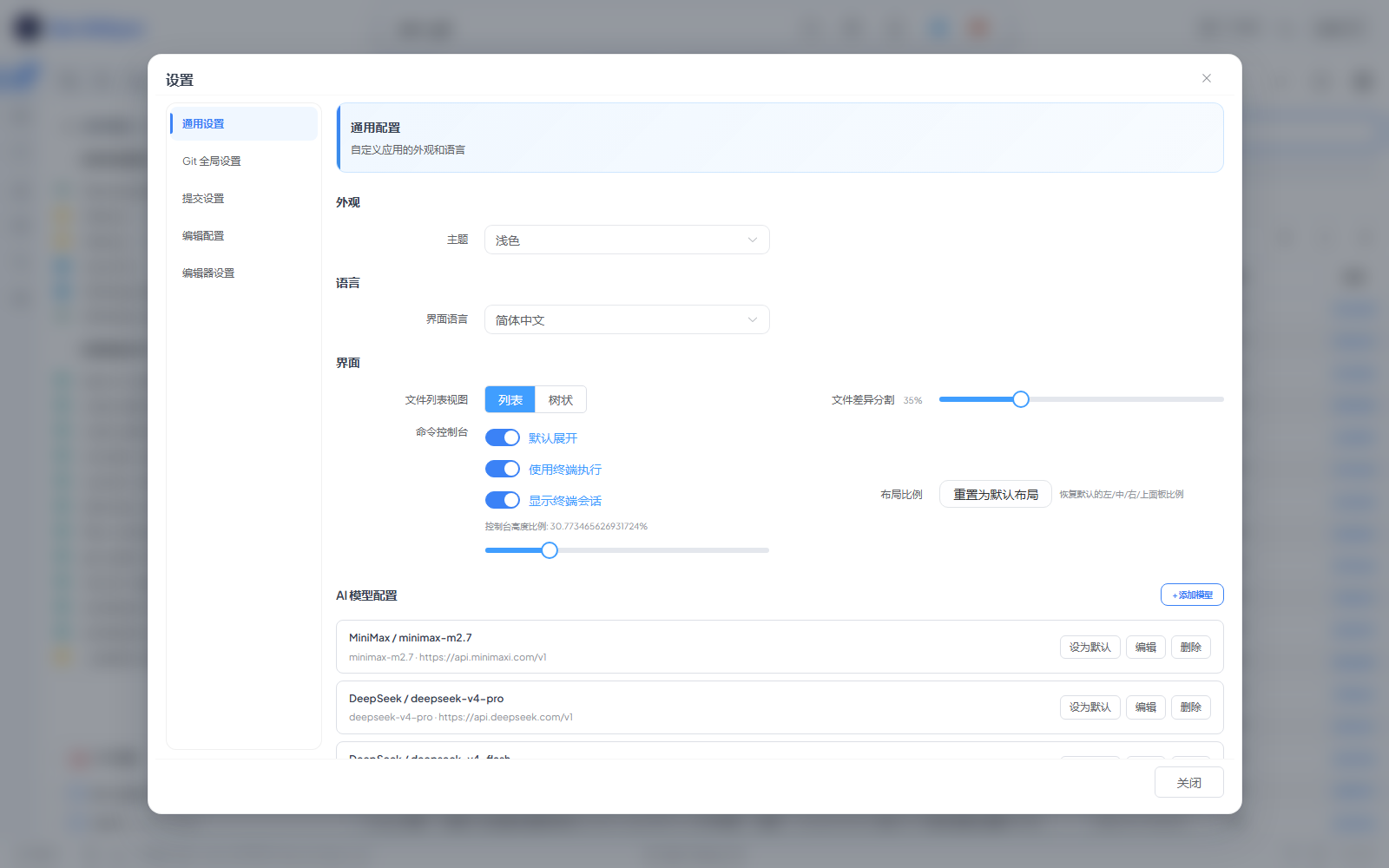
|
|
463
|
+
|
|
464
|
+
> Click the gear icon in the top-right header. The dialog has six tabs — **General settings / AI models / Git global settings / Commit settings / Edit config / Editor settings** — and most toggles take effect immediately without restarting the GUI. Clicking the default-model name in the footer jumps straight to the **AI models** tab. Two things that used to live here have their own dialogs now: locked files are managed from the **Locked files** dialog in the Git view, and the npm scan root from the NPM scripts panel's settings.
|
|
465
|
+
|
|
466
|
+
| Tab | What's inside |
|
|
467
|
+
|---|---|
|
|
468
|
+
| General settings | Appearance (theme — light / dark / follow the system — and language), task execution (task executor, and the three task/chat finish notice channels — in-app toast / browser notification / sound cue), and UI options (file-list view, diff split ratio, AI diff explanation, command console, layout ratios) |
|
|
469
|
+
| AI models | OpenAI-compatible endpoints — API key, base URL, model name — with several entries side by side, a default model, plus the **Agent runtime** section holding the per-turn tool-call budget |
|
|
470
|
+
| Git global settings | `user.name` / `user.email`, auto-set upstream, pull strategy, auto-prune remote branches, line-ending handling, the default branch for `git init` |
|
|
471
|
+
| Commit settings | Standardised commit form, skip hooks (`--no-verify`), Enter-to-commit, auto-close the push modal, pull before push, auto-fill the default commit message |
|
|
472
|
+
| Edit config | Raw JSON editor for the config, plus a button to open the file on disk |
|
|
473
|
+
| Editor settings | Editor behaviour such as auto-save on focus loss (on by default) |
|
|
474
|
+
|
|
475
|
+
---
|
|
476
|
+
|
|
477
|
+
### Self-Upgrade
|
|
478
|
+
|
|
479
|
+
The footer version chip in the GUI checks npm for newer releases once per session. When an update is available, a **Upgrade** button appears next to the version; clicking it streams `npm install -g zen-gitsync` output into a modal dialog. On success, the dialog switches to a "Restart and reload now" CTA. Clicking it calls `POST /api/app-restart`, which **self-respawns a new Node process** (no external launcher / desktop shell is required), waits for the new process to bind its port, streams that port back to the browser over NDJSON, and gracefully exits the old process. The browser then **redirects** to the new port (preserving the current path, query, and hash) so the upgraded backend serves the next request. The footer version also updates instantly to the new number so you can see the bump even before restarting. If the child process fails to come up within 15s, the old process is preserved and an error toast is shown — your session stays connected.
|
|
480
|
+
|
|
481
|
+
On macOS / Linux, the global install is run under `sudo -n` (non-interactive); if sudo can't authenticate non-interactively, re-launch the GUI with admin rights and try again.
|
|
482
|
+
|
|
483
|
+
---
|
|
484
|
+
|
|
485
|
+
## Development Notes
|
|
486
|
+
|
|
487
|
+
### Line endings
|
|
488
|
+
|
|
489
|
+
The repo ships a `.gitattributes` that locks source files to **LF** and Windows scripts (`.bat` / `.cmd` / `.ps1`) to **CRLF**. This takes precedence over `core.autocrlf`, so the working tree is identical on Windows, macOS, and Linux — generated files like `auto-imports.d.ts` and `components.d.ts` will not show up as "modified" just because the dev server rewrote them with different line endings.
|
|
490
|
+
|
|
491
|
+
If you change `.gitattributes` rules, renormalize the index in one shot:
|
|
492
|
+
|
|
493
|
+
```bash
|
|
494
|
+
git add --renormalize .
|
|
495
|
+
```
|
|
496
|
+
|
|
497
|
+
### Package manager
|
|
498
|
+
|
|
499
|
+
All `package.json` scripts use **npm** (`npm install`, `npm run dev`, `npm run release`, etc.). The `package-lock.json` is git-ignored, so each developer generates it locally. The CLI's own `bin` entry and most devDeps are pinned to caret ranges.
|
|
500
|
+
|
|
501
|
+
### Release
|
|
502
|
+
|
|
503
|
+
`npm run release` (`scripts/release.js`) runs the whole publish in one shot: bump the patch version → `vue-tsc` type check → build the frontend → verify the package contents (`files` whitelist vs relative imports, plus a real `npm pack` manifest) → commit + tag + push → `npm publish` → `npm install -g zen-gitsync@<version>`.
|
|
504
|
+
|
|
505
|
+
The last step is the slow one: the registry can take anywhere from seconds to over 30 minutes to make a freshly published version installable, so the script polls on two readiness signals (packument has the version / tarball is fetchable) and force-installs every 4 rounds — the probes only save a doomed call, **`npm` itself is the judge**. Each failed attempt prints an `[E404]` / `[EPERM]` short code, and giving up prints the breakdown of what it kept hitting.
|
|
506
|
+
|
|
507
|
+
**You don't have to watch it.** When the run ends you get a desktop notification, a click-to-dismiss always-on-top popup (green / amber / red depending on the outcome) and a sound, and the terminal / taskbar title switches to the result. The popup is the channel that matters: a Windows banner disappears after ~5 seconds and the notification-center entry gets buried under everything else, so an always-on-top window is the only one you can't sleep through. All of it is best-effort and can never fail the release itself; pass `--no-notify` (or set `ZEN_NO_NOTIFY=1`) to turn it off, and run `npm run release -- --notify-test` at any time to check whether notifications actually reach your desktop (no real release needed). The three outcomes are reported separately, because "published but the global install failed" is neither success nor failure:
|
|
508
|
+
|
|
509
|
+
- **release complete** — published to npm and the global version was verified.
|
|
510
|
+
- **published, global not updated** — the version is on npm but the global install didn't land. Re-running the release won't help (the version number is taken); just run `npm install -g zen-gitsync@<version>`.
|
|
511
|
+
- **release failed** — an earlier step (type check / package self-check / git / `npm publish`) aborted the run.
|
|
512
|
+
|
|
513
|
+
Other switches: `--dry-run` (print the plan only), `--skip-push`, `--skip-self-update`, `--keep-instances`, `--poll-timeout=<seconds>`, `--no-notify`, `--notify-test`.
|
|
514
|
+
|
|
515
|
+
---
|
|
516
|
+
|
|
517
|
+
## CLI Commands
|
|
518
|
+
|
|
519
|
+
### AI coding agent (terminal):
|
|
520
|
+
Launch an interactive AI agent that writes code, runs commands, and commits for you.
|
|
521
|
+
It uses the default model configured in `g ui` (Settings → AI models). If no model is
|
|
522
|
+
configured yet, `g ai` launches an interactive setup wizard — pick a provider, choose a
|
|
523
|
+
model, enter your API key, test the connection, and you're ready to go.
|
|
524
|
+
|
|
525
|
+
```bash
|
|
526
|
+
$ g ai # interactive REPL
|
|
527
|
+
$ g ai "fix the failing test" # one-shot task, then exit
|
|
528
|
+
$ g ai --model=2 # pick the 2nd configured model (index or name)
|
|
529
|
+
```
|
|
530
|
+
|
|
531
|
+
The first-run setup wizard and `/addmodel` provider/model lists support **↑↓ keys to switch
|
|
532
|
+
selection + Enter to confirm** (typing a number also jumps directly; `0` selects the trailing
|
|
533
|
+
"custom / manual input" entry). Non-TTY environments (CI, piped input) automatically fall back
|
|
534
|
+
to numeric input. `Esc` or `Ctrl+C` cancels the wizard cleanly.
|
|
535
|
+
|
|
536
|
+
Paste a whole block of text and it goes out as **one** message with its line breaks intact — the
|
|
537
|
+
input line shows a short placeholder (`[paste #1 · 4 lines]`) instead of stretching to dozens of
|
|
538
|
+
rows, and the content actually sent is echoed above the prompt as soon as you hit Enter. Recalling
|
|
539
|
+
that line with ↑ re-expands the same text. Terminals without bracketed-paste support (e.g. the
|
|
540
|
+
legacy Windows console host) fall back to readline's native behaviour: the paste submits line by
|
|
541
|
+
line, and only the first line starts a turn.
|
|
542
|
+
|
|
543
|
+
`/skills` (alias `/mcp`) lists the skills and MCP servers already installed for the agent and
|
|
544
|
+
where they came from. Installation itself happens in the GUI's **Skill / MCP plaza** (Agent
|
|
545
|
+
view): pick the current project or the `g ai` agent as the target, and the entry becomes usable
|
|
546
|
+
from that side.
|
|
547
|
+
|
|
548
|
+
`g ai` speaks both MCP transports: an entry with a `command` runs over **stdio** (a child
|
|
549
|
+
process), one with only a `url` over **Streamable HTTP** (`"type": "http"`, plus `headers` for
|
|
550
|
+
things like `Authorization`; `Mcp-Session-Id` is echoed back and the session is closed with
|
|
551
|
+
`DELETE` on exit). HTTPS endpoints are verified against Node's bundled root CAs rather than the
|
|
552
|
+
OS store, so a server that ships only its leaf certificate fails with
|
|
553
|
+
`UNABLE_TO_VERIFY_LEAF_SIGNATURE` while browsers are perfectly happy — start the agent with
|
|
554
|
+
`NODE_EXTRA_CA_CERTS=<ca file>`, or on Node ≥ 22.15 with `NODE_OPTIONS=--use-system-ca`.
|
|
555
|
+
|
|
556
|
+
In-session commands: `/help`, `/model`, `/addmodel`, `/cd <path>`, `/image [path]`, `/think`, `/tools`, `/stats`, `/new`, `/resume`, `/skills` (`/mcp` is an alias), `/clear`, `/exit` (or `/quit`).
|
|
557
|
+
|
|
558
|
+
Reasoning, tool calls and answers have separate visual sections. Reasoning returned by the model is shown in full by default;
|
|
559
|
+
`/think full` restores full display, `/think off` hides it, and `/think compact` previews the first 12 nonblank lines. All three modes appear in the `/` menu and support completion after `/think `.
|
|
560
|
+
Tool output defaults to a few head/tail lines; `/tools full` shows subsequent tool results in full and
|
|
561
|
+
`/tools compact` restores compact output. These display settings do not reduce model token usage.
|
|
562
|
+
|
|
563
|
+
Each turn ends with completion time, total duration, first-token latency (including reasoning), first-answer
|
|
564
|
+
latency, model/tool durations and provider-reported input/output token usage across all model calls.
|
|
565
|
+
Cache and reasoning tokens are shown as subsets when reported. Missing or partial usage is labelled explicitly;
|
|
566
|
+
`/stats` also shows session totals. `Ctrl+C` stops an active task while keeping the conversation open.
|
|
567
|
+
Progress is saved after each tool result; `/resume` restores the working directory and reported usage.
|
|
568
|
+
|
|
569
|
+
Tool-call budget: one message may trigger up to N tool calls in a row before the turn is
|
|
570
|
+
force-ended with a "max tool iterations reached" notice (send another message to continue).
|
|
571
|
+
N defaults to **1000** and is configurable in **Settings → AI models → Agent Runtime**
|
|
572
|
+
(`aiMaxToolIterations` in `~/.zen-gitsync/config.json`, range 1–10000) — the Web agent shares
|
|
573
|
+
the same value.
|
|
574
|
+
|
|
575
|
+
Images: press `Alt+V` in the REPL to paste a clipboard image (screenshot), or attach a
|
|
576
|
+
local file with `/image <path>`; images are sent as multimodal `image_url` parts with your
|
|
577
|
+
next message (requires a vision-capable model). `/image` alone lists pending images,
|
|
578
|
+
`/image clear` drops them.
|
|
579
|
+
|
|
580
|
+
Alternatively just **give the agent a path** — paste a file path into an ordinary message
|
|
581
|
+
("look at `d:\shots\err.png`"), or let it run into an image while exploring the repo, and it
|
|
582
|
+
reads the file itself with the `read_image` tool. That tool result is a multimodal message
|
|
583
|
+
(text + image part), so the model genuinely sees the picture. `read_file` refuses image
|
|
584
|
+
extensions and points the model at `read_image` instead of handing back mojibake. One image
|
|
585
|
+
at a time is kept in history — read a second one and the earlier one degrades to
|
|
586
|
+
`[image omitted from history]`, since base64 images are re-sent every turn. Single-image
|
|
587
|
+
cap: 4 MB (larger files: have the agent shrink them first).
|
|
588
|
+
|
|
589
|
+
The terminal UI follows the Codex / Claude Code style: boxed input composer, animated
|
|
590
|
+
waiting spinner, dim-italic streaming thinking, `⏺` tool blocks with smart argument
|
|
591
|
+
summaries, and lightweight Markdown rendering (bold, inline code, headers, code fences).
|
|
592
|
+
|
|
593
|
+
Permission model: everything inside the launch directory runs directly; other
|
|
594
|
+
directories are readable/writable too; only system-destroying commands
|
|
595
|
+
(disk format, `rm -rf /`, shutdown, ...) are hard-blocked by a built-in safety guard.
|
|
596
|
+
|
|
597
|
+
### Interactive commit:
|
|
598
|
+
```bash
|
|
599
|
+
$ g
|
|
600
|
+
Enter your commit message: fix login page style
|
|
601
|
+
```
|
|
602
|
+
|
|
603
|
+
### Commit directly (skip prompt):
|
|
604
|
+
```bash
|
|
605
|
+
$ g -y
|
|
606
|
+
```
|
|
607
|
+
|
|
608
|
+
### AI-generated commit (skip prompt):
|
|
609
|
+
```bash
|
|
610
|
+
$ g --ai # the model writes the message, then commit + push
|
|
611
|
+
$ g --ai --no-diff # same, without printing the diff
|
|
612
|
+
$ g --ai --interval=600 # AI commit every 10 minutes
|
|
613
|
+
```
|
|
614
|
+
|
|
615
|
+
### Commit with inline message:
|
|
616
|
+
```bash
|
|
617
|
+
$ g -m <message>
|
|
618
|
+
$ g -m=<message>
|
|
619
|
+
```
|
|
620
|
+
|
|
621
|
+
### Set default commit message:
|
|
622
|
+
```bash
|
|
623
|
+
$ g --set-default-message="update"
|
|
624
|
+
```
|
|
625
|
+
|
|
626
|
+
### Get current config:
|
|
627
|
+
```bash
|
|
628
|
+
$ g get-config
|
|
629
|
+
```
|
|
630
|
+
|
|
631
|
+
### Show help:
|
|
632
|
+
```shell
|
|
633
|
+
$ g -h
|
|
634
|
+
$ g --help
|
|
635
|
+
```
|
|
636
|
+
|
|
637
|
+
### Add helper scripts to `package.json`:
|
|
638
|
+
```bash
|
|
639
|
+
$ g addScript # adds "g:y": "g -y"
|
|
640
|
+
$ g addResetScript # adds "g:reset": "git reset --hard origin/<current-branch>"
|
|
641
|
+
```
|
|
642
|
+
|
|
643
|
+
### Scheduled auto-commit (default interval: 1 hour):
|
|
644
|
+
```bash
|
|
645
|
+
$ g -y --interval
|
|
646
|
+
$ g -y --interval=<seconds>
|
|
647
|
+
```
|
|
648
|
+
|
|
649
|
+
### Specify working directory:
|
|
650
|
+
```bash
|
|
651
|
+
$ g --path=<path>
|
|
652
|
+
$ g --cwd=<path>
|
|
653
|
+
```
|
|
654
|
+
|
|
655
|
+
### Sync a folder in background (Windows):
|
|
656
|
+
```shell
|
|
657
|
+
start /min cmd /k "g -y --path=<your-folder> --interval"
|
|
658
|
+
```
|
|
659
|
+
|
|
660
|
+
### Scheduled command execution (Windows):
|
|
661
|
+
```shell
|
|
662
|
+
start /min cmd /k "g --cmd=\"echo hello\" --cmd-interval=5" # every 5 seconds
|
|
663
|
+
start /min cmd /k "g --cmd=\"echo at-time\" --at=23:59" # once at 23:59
|
|
664
|
+
start /min cmd /k "g --cmd=\"echo daily\" --at=23:59 --daily" # daily at 23:59
|
|
665
|
+
```
|
|
666
|
+
|
|
667
|
+
`--repeat=daily` and `--at-repeat=daily` are aliases of `--daily`. Custom commands run in a
|
|
668
|
+
shell by default; add `--cmd-strict` to split the command into argv and run it through
|
|
669
|
+
`execFile` instead — pipes, redirection and globs then stop working, which is exactly the
|
|
670
|
+
point when you do not want shell interpretation.
|
|
671
|
+
|
|
672
|
+
### Suppress git diff output:
|
|
673
|
+
```shell
|
|
674
|
+
$ g --no-diff
|
|
675
|
+
```
|
|
676
|
+
|
|
677
|
+
### Print formatted git log:
|
|
678
|
+
```shell
|
|
679
|
+
$ g log
|
|
680
|
+
$ g log --n=5
|
|
681
|
+
```
|
|
682
|
+
|
|
683
|
+
### File locking (only effective within the tool):
|
|
684
|
+
```shell
|
|
685
|
+
# Lock a file (locked files are excluded from commits and stashes)
|
|
686
|
+
$ g --lock-file=config.json
|
|
687
|
+
|
|
688
|
+
# Unlock a file
|
|
689
|
+
$ g --unlock-file=config.json
|
|
690
|
+
|
|
691
|
+
# List all locked files
|
|
692
|
+
$ g --list-locked
|
|
693
|
+
|
|
694
|
+
# Check if a file is locked
|
|
695
|
+
$ g --check-lock=config.json
|
|
696
|
+
```
|
|
697
|
+
|
|
698
|
+
---
|
|
699
|
+
|
|
700
|
+
<a name="zh"></a>
|
|
701
|
+
|
|
702
|
+
# zen-gitsync
|
|
703
|
+
|
|
704
|
+
[English](#zen-gitsync) | [中文](#zh)
|
|
705
|
+
|
|
706
|
+
`zen-gitsync` 是一个 Git 自动化工作平台,支持交互式提交、定时同步、自定义命令编排、文件锁定与可视化 GUI 界面。
|
|
707
|
+
|
|
708
|
+
## 目录
|
|
709
|
+
|
|
710
|
+
- [安装](#安装)
|
|
711
|
+
- [新特性](#v2xx--新特性)
|
|
712
|
+
- [GUI 界面](#gui-界面)
|
|
713
|
+
- [核心 Git 面板](#核心-git-面板)
|
|
714
|
+
- [GitHub / Gitee 仓库](#github--gitee-仓库)
|
|
715
|
+
- [快速切换目录](#快速切换目录)
|
|
716
|
+
- [分支管理](#分支管理)
|
|
717
|
+
- [远程仓库管理](#远程仓库管理)
|
|
718
|
+
- [Stash 管理](#stash-管理)
|
|
719
|
+
- [Tag 管理](#tag-管理)
|
|
720
|
+
- [提交信息模板](#提交信息模板)
|
|
721
|
+
- [自定义命令](#自定义命令)
|
|
722
|
+
- [可视化流程编排](#可视化流程编排)
|
|
723
|
+
- [NPM 脚本面板](#npm-脚本面板)
|
|
724
|
+
- [AI 启动建议](#ai-启动建议)
|
|
725
|
+
- [控制台面板](#控制台面板)
|
|
726
|
+
- [项目启动](#项目启动)
|
|
727
|
+
- [视图一览](#视图一览)
|
|
728
|
+
- [内置代码编辑器](#内置代码编辑器)
|
|
729
|
+
- [工作台](#工作台任务驱动的智能体执行)
|
|
730
|
+
- [智能体](#智能体web-端)
|
|
731
|
+
- [设置](#设置)
|
|
732
|
+
- [自升级](#自升级)
|
|
733
|
+
- [开发约定](#开发约定)
|
|
734
|
+
- [命令行](#命令行)
|
|
735
|
+
|
|
736
|
+
---
|
|
737
|
+
|
|
738
|
+
## 安装
|
|
739
|
+
|
|
740
|
+
通过 npm 全局安装:
|
|
741
|
+
|
|
742
|
+
```bash
|
|
743
|
+
npm install -g zen-gitsync
|
|
744
|
+
```
|
|
745
|
+
|
|
746
|
+
---
|
|
747
|
+
|
|
748
|
+
## v2.x.x — 新特性
|
|
749
|
+
|
|
750
|
+
- **可视化 GUI** — 完整的 Git 图形操作界面
|
|
751
|
+
- **分支管理** — 创建、切换、追踪本地/远程分支
|
|
752
|
+
- **远程仓库管理** — 在一个弹窗里管理多个远程仓库(添加/重命名/改地址/删除)、配置多推送地址,并支持推送到指定远程或一键推送全部
|
|
753
|
+
- **仓库浏览器** — GitHub / Gitee 两个 Tab 列出 CLI 账号下的全部仓库(含私有),支持搜索、排序(最近推送 / 最近创建 / 星标最多 / 仓库名)与按工作空间分组,卡片带最近推送日期、Fork 数、默认分支与许可证
|
|
754
|
+
- **Stash 管理** — 储藏与恢复变更,支持排除锁定文件
|
|
755
|
+
- **Tag 管理** — 创建轻量/附注标签
|
|
756
|
+
- **合并支持** — 自动检测并引导完成进行中的合并
|
|
757
|
+
- **可视化流程编排** — 拖拽式工作流设计器
|
|
758
|
+
- **NPM 脚本面板** — 发现并运行 `package.json` 中的脚本
|
|
759
|
+
- **AI 启动建议** — NPM 脚本面板**上方**一块默认展开的折叠面板:配好模型后,让它读一遍扫描到的脚本、标志文件与 README,按启动顺序列出这个项目可以怎么起,点一下就在新终端里跑起来
|
|
760
|
+
- **内置终端** — 实时流式输出的命令执行终端
|
|
761
|
+
- **自定义命令** — 保存、参数化并复用 Shell 命令
|
|
762
|
+
- **项目启动** — 打开项目时自动运行命令或工作流
|
|
763
|
+
- **内置代码编辑器** — 基于 Monaco 的文件编辑器,支持 Markdown 预览
|
|
764
|
+
- **工作台** — 多项目看板 + 主 Agent 派发控制台;任务驱动的智能体执行(Claude Code 或 OpenCode),支持提示词预置、任务级附件、独立进程、实时流式回传与 AI 生成预置提示词
|
|
765
|
+
- **仓库克隆** — 在仓库浏览器里把任意 GitHub / Gitee 仓库直接克隆到指定文件夹,卡片带「已克隆」徽标与本地路径(由全盘本地仓库扫描得出)
|
|
766
|
+
- **Skill / MCP 广场** — 在智能体页把 Skill 与 MCP 服务安装到当前项目或 `g ai` 智能体
|
|
767
|
+
- **重置到远程** — 在 Git 面板一键执行 `git reset --hard origin/<branch>`(点击前会先自动刷新分支信息,避免重置到陈旧分支)
|
|
768
|
+
- **AI 生成提交信息** — 基于 staged diff 自动生成提交消息
|
|
769
|
+
- **AI 提交并推送** — 一键跑完整条链路:AI 从 diff 写好提交信息 → 暂存 → 提交 → 推送(不必先自己敲一条提交信息)
|
|
770
|
+
- **选择模式差异** — 当 Git 视图为当前激活标签时,AI 生成提交信息与一键提交/推送仅作用于当前勾选文件的 diff
|
|
771
|
+
- **提交模板** — 保存类型/范围/描述/完整提交信息模板
|
|
772
|
+
- **主题与语言** — 支持明/暗主题,中英文界面切换;header 一键切换主题(无需进入设置)
|
|
773
|
+
- **网络错误横幅** — 后端不可达时全局弹出横幅,支持一键重试与相对时间状态
|
|
774
|
+
- **可访问性(WCAG 2.1 AA)** — 弹窗焦点陷阱与归还、`role="separator"` 键盘可达的分隔条、纯键盘(`← →`)调整面板宽度、屏幕阅读器友好的提交右键菜单、ARIA-pressed 切换按钮、提交按钮在提交过程中挂 `aria-busy`、Git 提交哈希在明/暗主题下对比度均 ≥ 4.5:1
|
|
775
|
+
- **更快的冷启动** — `monaco-editor` / `@vue-flow` / `flow-mindmap` / `dagre` 拆分为独立 chunk 并按需懒加载,Git 面板首屏不再等待代码编辑器或可视化流程编排模块
|
|
776
|
+
|
|
777
|
+
> 每个版本的详细变更可通过 `git log` 或 [GitHub Releases](https://github.com/xz333221/zen-gitsync/releases) 页面查看。
|
|
778
|
+
|
|
779
|
+
---
|
|
780
|
+
|
|
781
|
+
## GUI 界面
|
|
782
|
+
|
|
783
|
+
### 启动图形界面:
|
|
784
|
+
```shell
|
|
785
|
+
$ g ui
|
|
786
|
+
```
|
|
787
|
+
|
|
788
|
+
GUI 以本地 Web 服务器形式运行,自动在浏览器中打开,并附加到当前 Git 仓库。端口默认在 `4000–6000` 里挑第一个可用的(可用 `PORT` 固定)。左侧 Activity Bar 自上而下为 **Git** / **控制台** / **智能体** / **编辑器** / **工作台** / **系统监控** / **思维导图**。主界面长什么样可参考下方[核心 Git 面板](#核心-git-面板)的截图。
|
|
789
|
+
|
|
790
|
+
### 监听地址
|
|
791
|
+
|
|
792
|
+
GUI 服务默认只监听 `127.0.0.1`(回环地址)。服务当前没有认证层,一旦绑到 `0.0.0.0`,命令执行、写 `package.json`、用系统关联程序打开文件这类接口对同网段任何主机都是可调用的。
|
|
793
|
+
|
|
794
|
+
需要跨机访问(比如在另一台设备或 WSL 里打开)时,显式放开:
|
|
795
|
+
|
|
796
|
+
```shell
|
|
797
|
+
$ ZEN_HOST=0.0.0.0 g ui # macOS / Linux
|
|
798
|
+
$ set ZEN_HOST=0.0.0.0 && g ui # Windows cmd
|
|
799
|
+
$ $env:ZEN_HOST="0.0.0.0"; g ui # PowerShell
|
|
800
|
+
```
|
|
801
|
+
|
|
802
|
+
放开后启动横幅会多一行黄色提示,提醒确认网络环境可信。用 `ZEN_HOST` 放开时,该地址会自动加入 Origin 白名单(`0.0.0.0` 表示所有网卡,此时本机各网卡地址的来源都会放行),否则从另一台设备访问会被下面的跨站守卫拦掉。
|
|
803
|
+
|
|
804
|
+
### 跨站请求守卫
|
|
805
|
+
|
|
806
|
+
监听收敛到回环地址之后,剩下的主要入口是本机浏览器里的恶意页面——跨站 `fetch` 或 DNS rebinding 都能打到这些接口上。服务没有认证层,所以对所有 `/api` 请求做 Origin 校验:
|
|
807
|
+
|
|
808
|
+
| 请求来源 | 结果 |
|
|
809
|
+
|---|---|
|
|
810
|
+
| 无 `Origin` 头(curl / CLI / 同源 GET) | 放行 |
|
|
811
|
+
| `localhost` / `127.0.0.1` / `[::1]` 的任意端口 | 放行(开发期前后端端口不同) |
|
|
812
|
+
| `file://` 页面(`Origin: null`) | 放行 |
|
|
813
|
+
| 其他任何来源 | 403 |
|
|
814
|
+
|
|
815
|
+
需要放开额外来源时用 `ZEN_ALLOWED_ORIGINS`(逗号分隔的完整 origin,含协议与端口):
|
|
816
|
+
|
|
817
|
+
```shell
|
|
818
|
+
$ ZEN_ALLOWED_ORIGINS="https://zen.example.com,http://10.0.0.5:8080" g ui
|
|
819
|
+
```
|
|
820
|
+
|
|
821
|
+
### 一眼看懂架构
|
|
822
|
+
|
|
823
|
+
```
|
|
824
|
+
┌─────────────────────────────────────────────┐
|
|
825
|
+
│ 顶部条: 当前目录 · 主题 · 实例数 │
|
|
826
|
+
├─────────────────────────────────────────────┤
|
|
827
|
+
│ Activity Bar(左侧导航) │
|
|
828
|
+
│ ┌───┐ │
|
|
829
|
+
│ │Git│────► Git 面板 (文件列表 + 提交) │
|
|
830
|
+
│ └───┘ │
|
|
831
|
+
│ ┌──────┐ │
|
|
832
|
+
│ │控制 │──► 保存的命令 + 终端 │
|
|
833
|
+
│ └──────┘ │
|
|
834
|
+
│ ┌──────┐ │
|
|
835
|
+
│ │智能 │──► Web 智能体 + Skill/MCP 广场 │
|
|
836
|
+
│ └──────┘ │
|
|
837
|
+
│ ┌──────┐ │
|
|
838
|
+
│ │编辑 │──► Monaco 编辑器 + 文件树 │
|
|
839
|
+
│ └──────┘ │
|
|
840
|
+
│ ┌──────┐ │
|
|
841
|
+
│ │工作 │──► 看板: 项目 · 看板 · 主 Agent │
|
|
842
|
+
│ └──────┘ │
|
|
843
|
+
│ ┌──────┐ │
|
|
844
|
+
│ │监控 │──► 系统监控 │
|
|
845
|
+
│ └──────┘ │
|
|
846
|
+
│ ┌──────┐ │
|
|
847
|
+
│ │导图 │──► 思维导图 │
|
|
848
|
+
│ └──────┘ │
|
|
849
|
+
└─────────────────────────────────────────────┘
|
|
850
|
+
▲ ▲ ▲
|
|
851
|
+
│ │ │
|
|
852
|
+
Pinia stores ──── EventBus ──── Socket.IO
|
|
853
|
+
▲
|
|
854
|
+
│
|
|
855
|
+
后端 Express(4000–6000 中挑可用端口) → git / npm / shell
|
|
856
|
+
```
|
|
857
|
+
|
|
858
|
+
### GUI 典型一天
|
|
859
|
+
|
|
860
|
+
```
|
|
861
|
+
1. g ui → 浏览器自动打开(4000–6000 中第一个可用端口)
|
|
862
|
+
2. 看顶部条 → 当前目录 / 当前分支 / 实例数 / 主题切换
|
|
863
|
+
3. 编辑文件 → Activity Bar → 编辑器,Ctrl+S 保存
|
|
864
|
+
4. 暂存并提交 → Activity Bar → Git,勾选文件,填提交表单,推送
|
|
865
|
+
5. AI 生成提交信息 → 点击提交表单里的 ✨ AI 生成,基于 diff 生成
|
|
866
|
+
6. 后台任务 → Activity Bar → 工作台,执行任务,实时日志
|
|
867
|
+
7. 快速命令 → Activity Bar → 控制台 → 选保存的命令 → 执行
|
|
868
|
+
```
|
|
869
|
+
|
|
870
|
+
---
|
|
871
|
+
|
|
872
|
+
### 核心 Git 面板
|
|
873
|
+
|
|
874
|
+

|
|
875
|
+
|
|
876
|
+
> 单屏覆盖"改了什么 → 要提交什么 → 已经提交了什么"。左侧按 已暂存 / 未暂存 / 未追踪 / 冲突 分组列出变更文件;右侧上半部分是结构化提交表单,下半部分是时间倒序的提交历史。80% 的日常操作不需要切换 tab。
|
|
877
|
+
|
|
878
|
+
| 功能 | 说明 |
|
|
879
|
+
|---|---|
|
|
880
|
+
| 文件列表 | 按已暂存/未暂存/未追踪/冲突分组显示所有变更文件;`git add -N` 的意向添加文件单独成一组「已声明添加(待暂存)」 |
|
|
881
|
+
| 视图切换 | 平铺列表与目录树形视图切换(持久化保存) |
|
|
882
|
+
| 选择模式 | 多选文件,仅对选中文件执行暂存或储藏。在 Git 视图下,**一键提交 / 一键推送** 与 **AI 生成提交信息** 会自动仅作用于当前勾选的文件(按钮文案切换为「一键提交所选」/「一键推送所选」) |
|
|
883
|
+
| 单文件操作 | 对每个文件独立执行暂存、取消暂存或还原 |
|
|
884
|
+
| 暂存 | 暂存全部或选中文件(自动排除锁定文件) |
|
|
885
|
+
| 提交 | 结构化表单(类型/范围/描述/正文/页脚)或自由文本 |
|
|
886
|
+
| AI 生成提交信息 | 基于 staged diff 自动生成提交消息 |
|
|
887
|
+
| 推送 | 推送到远程,实时显示进度弹窗 |
|
|
888
|
+
| 快速提交+推送 | 一键完成暂存 → 提交 → 推送 |
|
|
889
|
+
| AI 提交并推送 | 一键完成 **AI 写提交信息 → 暂存 → 提交 → 推送**(信息会先填进表单,能看见到底提了什么)。本地已提交、只差推送时跳过 AI 直接推 |
|
|
890
|
+
| 拉取 / Fetch | 从上游拉取或仅获取远程信息 |
|
|
891
|
+
| 重置到远程 | 一键执行 `git reset --hard origin/<branch>`;点击前会先刷新分支信息,避免重置到陈旧分支;当工作区干净且无未推送提交时按钮自动隐藏 |
|
|
892
|
+
| 合并 | 合并其他分支,自动检测并引导处理合并中间状态 |
|
|
893
|
+
| Diff 查看器 | 基于 Monaco 编辑器的并排文件差异视图 |
|
|
894
|
+
| 差异内预览 | 在差异下方一键展开预览面板:`.html` / `.htm` / `.svg` 走沙箱化 iframe(允许 JS 执行,报告类页面的按钮/交互可用,同时以不透明 origin 与宿主应用隔离),`.md` / `.markdown` 走 Markdown 渲染,Office 文档(`.doc` / `.docx` / `.xls` / `.xlsx` / `.ppt` / `.pptx` / `.odt` / `.ods` / `.odp`)走服务端转换预览,与内置编辑器一致的预览体验;上下比例可拖拽,按项目持久化 |
|
|
895
|
+
| 提交日志 | 浏览历史提交(作者、时间、分支标签、变更文件) |
|
|
896
|
+
| 远程地址 | 显示并一键复制远程仓库 URL;旁边的齿轮图标打开 **远程仓库管理**(多远程、多推送地址) |
|
|
897
|
+
| 自动刷新 | 窗口获得焦点、标签页重新可见,或从 Activity Bar 切回 **Git** 视图时,自动静默刷新文件状态与分支信息 |
|
|
898
|
+
| 导航栏徽标 | 左侧 Activity Bar 的 **Git** 图标上直接带数字,不必先切回面板才看得到:右上角是未提交文件数,底部是当前分支的领先 / 落后数(`↑2 ↓3`)。落后为橙色(有东西要拉)、只领先为绿色(有东西要推)、两边都有(分叉)为红色;悬停的 tooltip 会把两项都写全 |
|
|
899
|
+
|
|
900
|
+
#### 结构化提交表单
|
|
901
|
+
|
|
902
|
+
提交表单支持通过开关切换两种模式:
|
|
903
|
+
|
|
904
|
+
- **标准模式** — 分别填写类型(`feat` / `fix` / `docs` / `style` / `refactor` / `test` / `chore`)、范围、简短描述、正文和页脚,自动组合成符合 Conventional Commits 规范的提交信息
|
|
905
|
+
- **自由模式** — 单一文本框,输入任意提交信息
|
|
906
|
+
|
|
907
|
+
两种模式下均可点击 **AI 生成** 按钮,根据当前 staged diff 自动填充提交信息。
|
|
908
|
+
|
|
909
|
+
---
|
|
910
|
+
|
|
911
|
+
### GitHub / Gitee 仓库
|
|
912
|
+
|
|
913
|
+
> Git 视图有三个 Tab:**当前项目**、**GitHub 仓库**、**Gitee 仓库**。后两个列出你的 `gh` / `gitee` 账号下能看到的全部仓库(含私有)。ZenGitSync 全程不接触你的令牌:面板调用的是官方 CLI(`gh`、`@gitee/gitee-cli`),凭据由 CLI 自己保管。
|
|
914
|
+
|
|
915
|
+
- **零配置引导** — 没装 CLI 时按平台给出安装命令(winget / Homebrew / `npm install -g @gitee/gitee-cli`),支持一键安装并自动刷新;装了但没登录时给出登录命令 + 一键登录,然后轮询等你走完终端里的交互流程
|
|
916
|
+
- **搜索** — 按仓库名、完整路径、描述过滤;顶部提示同时显示 `匹配 M / 共 N 个仓库`,一眼看出筛掉了多少
|
|
917
|
+
- **排序** — 最近推送(默认)/ 最近创建 / 星标最多 / 仓库名。排序在前端做,两个 Tab 口径一致 —— 它们的 CLI 并不一致(`gh` 按推送时间倒序,`gitee` 按 `owner/name` 字母序)
|
|
918
|
+
- **按工作空间分组** — 默认按 `owner` 分组,同一账号/组织下的仓库收拢在一起,不再被推送时间打散在整屏里;组间顺序跟随当前排序规则(最近有推送的空间排前面),组内同样排序,组头写明该空间下的仓库数(只有一个空间时不显示组头)。切到「不分组」即回到跨空间的平铺视图
|
|
919
|
+
- **切 Tab 不重拉** — 列表按账号各缓存一份,切回来直接渲染,不再重跑一遍 `gh repo list`;缓存超过一分钟后先用它画出来、再在后台静默刷新,点「刷新」则永远真的去拉
|
|
920
|
+
- **信息更全的卡片** — 仓库名、描述,以及私有 / Fork / 语言 / 星标徽标,第三行再给最近推送日期、Fork 数、非 `main` 的默认分支与许可证(没有的项直接省略,不留占位)
|
|
921
|
+
- **直接克隆到文件夹** — 本地还没有的仓库提供「克隆到文件夹」:选好目录即可开始克隆,走 SSH 形式(`git@github.com:owner/repo.git`),遇到 `https://` 地址会先归一化,不会再卡在 Git Credential Manager 的账密弹窗上
|
|
922
|
+
- **「已克隆」徽标** — 服务端维护一份全盘本地 Git 仓库索引(后台构建、也可随时手动重扫),因此本地已有的仓库卡片会直接标出本地路径,而不是再让你克隆一遍
|
|
923
|
+
- **一键打开 / 复制** — 点击卡片在浏览器打开仓库主页,悬浮时出现的按钮可复制地址或直接打开
|
|
924
|
+
|
|
925
|
+
---
|
|
926
|
+
|
|
927
|
+
### 快速切换目录
|
|
928
|
+
|
|
929
|
+

|
|
930
|
+
|
|
931
|
+
> 点击顶部条里的目录名(或文件夹图标)即可弹出该对话框。直接输入路径、点击 **浏览** 唤起系统文件选择器,或从 **常用目录** 一键切换。**使用新标签打开** 会在新 GUI 标签里加载目标路径,原项目保持不动。
|
|
932
|
+
|
|
933
|
+
目录名旁边的顶部条自带一排快捷操作:在资源管理器中打开、在终端中打开、复制文件夹名称(只复制最后一级目录名)、用 `g ai` 打开,以及每个已检测到的编辑器 / AI 工具各一个按钮 —— VS Code、Codex、OpenCode、Kimi Code、ZCode、DeepSeek Harness 与 Claude Code(右键 Claude 按钮可选默认 / 完全批准,右键任意工具按钮可升级到最新版本)。没安装的工具会收进 **更多** 菜单,点一下弹出安装引导。
|
|
934
|
+
|
|
935
|
+
当 GUI 打开在一个**不是 Git 仓库**的目录上时,右侧会改为显示「最近项目」列表 —— 每个最近目录一张卡片,带 Git 徽标(落后 / 领先 / 未提交)与「在新标签页打开」。每次打开界面时会自动对所有项目跑一遍 `git fetch`,让「领先/落后」显示真实状态而不是上次 fetch 时的快照;**刷新全部** 按钮可以随时手动再刷一遍。切换目录弹窗里是同一份列表(叫 **常用目录**),标题行右端摆着同一个 **刷新全部** 按钮 —— 自动刷新仍然只发生在常驻面板上(打开一个选目录的弹窗不该顺手联网刷十几个仓库),但手动刷新两处完全一致,连进度读数都是同一个。两处的卡片上方还各有一个搜索框:敲路径里的任意一段就能筛出对应的卡片(底下的 AI 状态解读始终按全量那批目录来讲,不跟着筛选变)。
|
|
936
|
+
|
|
937
|
+
这份列表(以及切换目录弹窗里的 **常用目录**)在卡片下方还有一段说明;切换目录弹窗是**全屏**的,左栏放路径输入框与 **常用目录** 卡片,这段说明则落在右侧一列。配置了 AI 模型时,它是模型根据刚刷新的状态写成的 **AI 项目状态解读**:一段话说清哪些项目该 pull、哪些有未推送的提交、哪些只是工作区脏了,全都同步干净时也会明确说明。它在「刷新全部」跑完的那一刻按状态生成一次(刷新途中不会生成),整页缓存复用,右侧带重新生成按钮;面板与弹窗共用同一份解读,打开弹窗不会多问一次模型。没配模型时退回一段静态说明,讲清徽标里的数字各是什么意思。
|
|
938
|
+
|
|
939
|
+
切换目录弹窗里,这一列的解读底下还接着一个 **g ai** 追问框:可以直接问「先处理哪个」「某个项目落后了多少」,它答的就是卡片上这份状态 —— 每一轮都会把当前的目录状态(连同这段解读原文)作为请求级上下文带给模型,不用重新复述背景。空态下还摆着四张一键问题卡(先处理哪个 / 谁落后 / 落后的都拉一下 / 未提交的改了什么),点一下直接发出去 —— 和这个框存在的理由是同一个:不该让人把背景再敲一遍。这块固定跑内置 **g ai**,每次打开弹窗都是一次新会话,上下文因此永远是界面上这一刻的状态。常驻的**最近项目面板**不在「关掉重建」之列,同一块追问区会从开盘一路攒到收盘 —— 所以有消息之后框的上方会出现一个 **新建对话**:点一下开一条新会话,顺手把还在跑的那一轮停掉;旧会话不删(它已经落盘,在智能体视图的会话列表里照旧能找到)。
|
|
940
|
+
|
|
941
|
+
---
|
|
942
|
+
|
|
943
|
+
### 分支管理
|
|
944
|
+
|
|
945
|
+
- 查看所有本地和远程分支
|
|
946
|
+
- 从任意基础分支创建新分支
|
|
947
|
+
- 切换分支
|
|
948
|
+
- 追踪上游状态(领先/落后提交数)
|
|
949
|
+
|
|
950
|
+
---
|
|
951
|
+
|
|
952
|
+
### 远程仓库管理
|
|
953
|
+
|
|
954
|
+
- 在同一个弹窗里管理任意数量的远程仓库(`origin` / `upstream` / `backup` 等):添加、重命名、修改地址、删除
|
|
955
|
+
- 逐个展示拉取地址与显式配置的推送地址,并用 **上游** / **默认推送** 标签标出当前分支跟踪的目标
|
|
956
|
+
- 单个远程可配置多个 **推送地址**(如 GitHub + Gitee 双备份),一次推送同时到达多个主机;全部清空则回落到拉取地址
|
|
957
|
+
- 配置了多个远程后,**推送** 按钮右侧会出现下拉:推送到指定远程、一键推送全部远程(逐条展示成功/失败结果),或直接进入远程管理。单远程时按钮外观与行为完全不变
|
|
958
|
+
- 删除当前分支上游所指向的远程时会自动解除上游跟踪,避免后续拉取因残留配置报错
|
|
959
|
+
|
|
960
|
+
> 从底部状态栏远程地址旁的齿轮图标进入,或使用推送下拉里的 **管理远程…**。
|
|
961
|
+
|
|
962
|
+
---
|
|
963
|
+
|
|
964
|
+
### Stash 管理
|
|
965
|
+
|
|
966
|
+
- 创建 stash,支持自定义备注
|
|
967
|
+
- 可选是否包含未追踪文件
|
|
968
|
+
- 可选排除已锁定的文件
|
|
969
|
+
- 应用(apply)、弹出(pop)或删除(drop)单条 stash
|
|
970
|
+
|
|
971
|
+
---
|
|
972
|
+
|
|
973
|
+
### Tag 管理
|
|
974
|
+
|
|
975
|
+
- 创建**轻量标签**或**附注标签**
|
|
976
|
+
- 可指定特定 commit
|
|
977
|
+
- 列出、推送或删除标签
|
|
978
|
+
|
|
979
|
+
---
|
|
980
|
+
|
|
981
|
+
### 提交信息模板
|
|
982
|
+
|
|
983
|
+
为以下内容保存可复用模板:
|
|
984
|
+
- **类型** — `feat`、`fix`、`chore` 等
|
|
985
|
+
- **范围** — 组件或模块名
|
|
986
|
+
- **描述** — 简短说明
|
|
987
|
+
- **完整信息** — 完整提交消息
|
|
988
|
+
|
|
989
|
+
---
|
|
990
|
+
|
|
991
|
+
### 自定义命令
|
|
992
|
+
|
|
993
|
+

|
|
994
|
+
|
|
995
|
+
在侧边栏(控制台视图)创建、管理并运行 Shell 命令:
|
|
996
|
+
|
|
997
|
+
- 定义命令(名称、Shell 命令、工作目录)
|
|
998
|
+
- 添加**参数**(名称、描述、默认值,通过 `{{paramName}}` 引用)
|
|
999
|
+
- 一键在新终端会话中执行命令
|
|
1000
|
+
- 保存**命令模板**快速复用
|
|
1001
|
+
- 每条命令都有 **启用 / 禁用** 开关,可以在不立即运行的情况下预排一组命令
|
|
1002
|
+
|
|
1003
|
+
**定时提交**(固定在同一侧边栏底部):按间隔自动 `git add -A` + `git commit`。
|
|
1004
|
+
|
|
1005
|
+
- 间隔可选分钟 / 小时 / 天,可设置启动时立即提交一次
|
|
1006
|
+
- 提交信息:全局默认信息、本次自定义信息,或 AI 生成
|
|
1007
|
+
- 每次提交成功后自动推送到远程(可关闭)
|
|
1008
|
+
- 面板底部同步显示**等效的 `g` 命令行**(如 `g -y --interval=1800 --path="<目录>"`,`--interval` 单位为**秒**),带一键复制按钮,方便在终端里复现同一套定时任务
|
|
1009
|
+
|
|
1010
|
+
---
|
|
1011
|
+
|
|
1012
|
+
### 可视化流程编排
|
|
1013
|
+
|
|
1014
|
+
通过拖拽画布构建自动化流程:
|
|
1015
|
+
|
|
1016
|
+
| 节点类型 | 用途 |
|
|
1017
|
+
|---|---|
|
|
1018
|
+
| **开始节点** | 流程入口(每个流程唯一,不可删除) |
|
|
1019
|
+
| **命令节点** | 执行一个已保存的自定义命令 |
|
|
1020
|
+
| **等待节点** | 暂停执行 1–3600 秒 |
|
|
1021
|
+
| **版本节点** | 修改 `package.json` 版本号(patch/minor/major)或依赖版本 |
|
|
1022
|
+
| **用户确认** | 暂停流程,等用户确认后继续 |
|
|
1023
|
+
| **用户输入** | 暂停流程并收集参数值 |
|
|
1024
|
+
| **代码节点** | 执行一段内联代码,并把输出传给后续节点 |
|
|
1025
|
+
| **条件** | 按条件分支 |
|
|
1026
|
+
|
|
1027
|
+
- 节点按拓扑顺序执行
|
|
1028
|
+
- 流程可保存并二次编辑
|
|
1029
|
+
- 每个节点可单独启用/禁用
|
|
1030
|
+
|
|
1031
|
+
---
|
|
1032
|
+
|
|
1033
|
+
### NPM 脚本面板
|
|
1034
|
+
|
|
1035
|
+
> 面板嵌在 Git 视图左下角。按需扫描仓库里的所有 `package.json`,按包分组列出 scripts,点击脚本名即可直接运行。扫描根路径与排除规则在面板自己的设置弹窗里配置。
|
|
1036
|
+
|
|
1037
|
+
- 自动扫描项目中所有 `package.json` 文件
|
|
1038
|
+
- 列出其中的 `scripts` 条目
|
|
1039
|
+
- 一键运行任意脚本
|
|
1040
|
+
- 可配置扫描根路径和排除规则
|
|
1041
|
+
|
|
1042
|
+
---
|
|
1043
|
+
|
|
1044
|
+
### AI 启动建议
|
|
1045
|
+
|
|
1046
|
+

|
|
1047
|
+
|
|
1048
|
+
> 一块挂在 NPM 脚本面板**上方**的折叠面板,**默认展开**。配好模型(设置 → AI 模型配置)后,它按和 NPM 面板同一套规则扫项目 —— 所有 `package.json` 脚本、加上标志文件(`Dockerfile`、`docker-compose.yml`、`Makefile`、`go.mod`、`requirements.txt` …)与 README —— 再让默认模型挑出这个项目**真能怎么起**,按启动顺序列出来。每条右边一个「启动」按钮,点了就在新终端里跑。
|
|
1049
|
+
|
|
1050
|
+
- 一个列表回答"这项目到底怎么启动"—— monorepo 里几十条脚本不用再自己认
|
|
1051
|
+
- 建议在服务端过一道校验才送到界面:脚本名在 `package.json` 里不存在、或执行目录不在扫描结果里的,一律丢掉(模型编不出一个点了就报错的按钮)
|
|
1052
|
+
- `npm` 类建议直接跑;模型给的原始命令(如 `docker compose up -d`)会先弹确认框,把完整命令摆给你看过再执行
|
|
1053
|
+
- 结果按 项目 + 语言 + 模型 缓存,重开视图不会重复问模型;面板头部的刷新按钮才是强制重新分析的入口
|
|
1054
|
+
- 没配模型时只提示去添加模型,一个请求都不发
|
|
1055
|
+
- 没东西可显示时**整块面板不渲染**:目录里既没有 `package.json`/启动相关文件、模型也排不出任何一条时,这个面板和 NPM 脚本面板**一起不出现**,左栏里不留两个点开还是空的壳
|
|
1056
|
+
|
|
1057
|
+
---
|
|
1058
|
+
|
|
1059
|
+
### 控制台面板
|
|
1060
|
+
|
|
1061
|
+

|
|
1062
|
+
|
|
1063
|
+
> 三栏布局:左侧是已保存的自定义命令,顶部是 **自定义指令执行**(已保存命令 + 终端会话)两个 tab,右侧是实时终端。点击侧边栏任意命令即可在新终端会话里执行;终端通过 SSE 实时回传输出,支持多个会话并行。Windows 用 `cmd.exe`,Unix 用 `sh`。
|
|
1064
|
+
|
|
1065
|
+
- 在 GUI 内直接打开新的终端会话(每条命令独立会话)
|
|
1066
|
+
- 命令输出实时流式显示(Server-Sent Events)
|
|
1067
|
+
- 追踪运行中的进程,随时可以停止
|
|
1068
|
+
- 跨平台:Windows 使用 `cmd.exe`,Unix 使用 `sh`
|
|
1069
|
+
|
|
1070
|
+
---
|
|
1071
|
+
|
|
1072
|
+
### 项目启动
|
|
1073
|
+
|
|
1074
|
+
配置在项目打开时自动执行的命令或工作流:
|
|
1075
|
+
|
|
1076
|
+
- 一键开启/关闭自动运行
|
|
1077
|
+
- 拖拽调整启动项顺序
|
|
1078
|
+
- 可混合使用自定义命令与流程工作流
|
|
1079
|
+
|
|
1080
|
+
---
|
|
1081
|
+
|
|
1082
|
+
### 视图一览
|
|
1083
|
+
|
|
1084
|
+
| 视图 | 用途 | 持久化状态 | 高亮特性 |
|
|
1085
|
+
|---|---|---|---|
|
|
1086
|
+
| **Git** | 日常暂存、提交、推送、历史回看 | 每个项目的 UI 偏好(视图模式、布局比例) | 结构化提交表单、AI 生成提交信息、选择范围一键推送 |
|
|
1087
|
+
| **编辑器** | 不离开 GUI 浏览并编辑项目文件 | 打开的 tab、未保存标记、最近访问 | Monaco 编辑器带语法高亮、Markdown 预览、文件搜索 |
|
|
1088
|
+
| **工作台** | 多项目看板:派发并执行智能体任务 | 任务、提示词、看板布局、日志保留策略 | 看板视图、主 Agent 控制台、执行器选择、对话式实时日志 |
|
|
1089
|
+
| **智能体** | 与内置 AI 智能体对话(Web + CLI 会话) | 会话、待回答问题 | 流式回答、工具调用卡片、Skill / MCP 广场、导航栏徽标显示仍在生成的对话数 |
|
|
1090
|
+
|
|
1091
|
+
**控制台**、**系统监控**、**思维导图** 是同一导航栏上的辅助视图。
|
|
1092
|
+
|
|
1093
|
+
---
|
|
1094
|
+
|
|
1095
|
+
### 内置代码编辑器
|
|
1096
|
+
|
|
1097
|
+
Activity Bar 第四个视图,在 GUI 内直接浏览并编辑项目文件:
|
|
1098
|
+
|
|
1099
|
+
| 功能 | 说明 |
|
|
1100
|
+
|---|---|
|
|
1101
|
+
| 文件树 | 可折叠的目录树,附带文件类型图标;**每 60 秒自动刷新一次**,捕获 GUI 外部对文件的改动(标签页隐藏或搜索框非空时跳过) |
|
|
1102
|
+
| 文件搜索 | 在侧边栏搜索框中输入关键字过滤文件树(180ms 防抖),命中片段会在节点名中高亮;`Ctrl+F` / `Cmd+F` 聚焦搜索框,`Esc` 清空内容或失焦 |
|
|
1103
|
+
| 多标签页 | 同时打开多个文件,未保存文件显示 ● 标记 |
|
|
1104
|
+
| 跟盘同步 | 窗口重新聚焦、切到某个标签、或切回文件空间时,当前标签会跟盘上对一次账;另有 30 秒兜底轮询,盖住"同窗口里 AI 面板写了文件、用户全程没切焦点"的情况。变了且没有未保存改动就静默换成最新正文(光标位置与撤销栈都保留);有未保存改动则先问一次,绝不自动覆盖 |
|
|
1105
|
+
| 工作区恢复 | **按项目**记住文件树展开了哪些目录、开了哪些标签(顺序 + 当前激活的那个),刷新页面或切回该项目时自动恢复;快照存在 `~/.zen-gitsync/config.json` 的 `ui.editorWorkspaceByProject`。只记路径 —— 文件按盘上最新内容重开,未保存的改动不跨会话保留,已被删除的文件静默跳过 |
|
|
1106
|
+
| 侧边栏宽度 | 拖拽分隔条调整文件树栏宽度;与工作区快照不同,宽度是**全局**一份(所有项目共用),存在 `~/.zen-gitsync/config.json` 的 `ui.editorSidebarWidth`,刷新后自动恢复,取值夹在 140–400px |
|
|
1107
|
+
| Monaco 编辑器 | 支持 JS、TS、Vue、Python、Go、JSON、CSS 等语法高亮 |
|
|
1108
|
+
| Markdown 预览 | `.md` 文件可切换源码与渲染预览模式 |
|
|
1109
|
+
| HTML 预览 / 浏览器打开 | `.html` / `.htm` 在应用内沙箱 iframe 里渲染;在文件树里右键 → **在浏览器中打开**,改交系统默认浏览器渲染 |
|
|
1110
|
+
| 保存 | `Ctrl+S` 手动保存;失去焦点时自动保存默认开启(可在设置里关闭) |
|
|
1111
|
+
| 新建 | 在文件树中内联创建文件或文件夹 |
|
|
1112
|
+
| 重命名 / 删除 | 在树中直接对文件或文件夹重命名、删除 |
|
|
1113
|
+
| 侧边栏调整 | 拖拽分隔条自由调整文件树宽度 |
|
|
1114
|
+
| g ai 对话面板 | 编辑器右侧的 `g ai` 对话面板(从编辑器工具栏切换),会把当前打开的文件作为上下文。它带与智能体视图**同款引擎选择器** —— 可选内置 **g ai** 或外部 CLI(**Claude Code** / **OpenCode** / **Codex**);未安装的引擎置灰,点击即开安装引导 |
|
|
1115
|
+
| 主题同步 | 编辑器主题跟随全局明/暗设置 |
|
|
1116
|
+
|
|
1117
|
+
---
|
|
1118
|
+
|
|
1119
|
+
### 工作台(任务驱动的智能体执行)
|
|
1120
|
+
|
|
1121
|
+

|
|
1122
|
+
|
|
1123
|
+
> 一块看板三栏:左侧项目列表(下方是执行监控),中间看板,右侧是 **主 Agent 控制台**。控制台分「对话 / 指令」两种工作方式:对话是直接跟内置 g ai 聊、由它把活派出去,指令是你自己写一句话。落点由主 Agent 判断,也可以先选中项目再指派。点击卡片时任务编辑器以浮层打开,看板保持挂载不丢状态。
|
|
1124
|
+
|
|
1125
|
+
面向单个或多个项目运行编码智能体:每个任务自带提示词预置、附件与执行器,各自跑在独立进程里,上下文不会跨任务累积。
|
|
1126
|
+
|
|
1127
|
+
| 功能 | 说明 |
|
|
1128
|
+
|---|---|
|
|
1129
|
+
| 任务列表 | 新建、编辑、删除任务;按项目分组(当前项目排在最前),每条任务只占一行 —— 有标题显示标题,没标题则显示描述前若干字符(超出省略);标题和描述都没填的任务视为草稿,切走时直接丢弃、不落盘 |
|
|
1130
|
+
| 多项目看板 | 三栏均可拖动 / 可折叠:项目列表(含执行监控)、看板、主 Agent 控制台。拖动分隔条调整宽度(项目列表 180–420 px、控制台 260 px ~ `min(900, 视口 46%)`),双击恢复响应式默认值;两侧也都能收起 —— 顶栏按钮收项目列表,控制台自己的按钮把它收成 32px 收纳条、点一下展开。项目列表下方的执行监控有独立分隔条(120 px ~ 视口高度一半),并行跑多个任务时上下拖动即可加高。所有宽高跨会话记住。窄屏(≤860px)三栏改成上下排列,主 Agent 控制台排在**看板前面**(看板三列摞起来有一万多像素,控制台落在它后面就够不着了),报告正文也不再按 6 行截断 |
|
|
1131
|
+
| 看板视图 | **待处理 / 进行中 / 已完成** 三列,已完成列按完成时间倒序;顶部勾选可只看「最近一次执行报错」的任务;一键切换成表格视图,信息密度更高。待处理列末尾常驻一个「新建任务」入口 —— 列里已有卡片时它照样在(列空时它还兼任空状态),点开的是和右上角按钮同一个新建弹窗。任务附件里的**图片会在卡片顶部画一张封面** —— 只画第一张,多张时角上压一枚 `+N`;点封面直接看大图,且能左右翻完整组(**不会**顺手把任务也打开:卡片整块是"打开任务"的可点区域,封面把自己摘出来了)。附件文件已经丢了的那种卡**不画封面**,而不是在板上留一枚裂图;表格视图用任务名前的「N 张图」标同一件事 —— 两种画法不会一个有一个没有 |
|
|
1132
|
+
| 进行中卡片 | 正在跑的任务不只是右上角一个圆点:卡片上直接带着**执行器的品牌图标**(悬停看是哪个产品)、已运行时长、调用了多少次工具(悬停看类型分布)、最近一次工具调用、最近在思考什么、最新的回复 —— 一段时间没有产出时再补一句静默多久。某一项没有内容就**整行不渲染**(不写"暂无"),没在跑的任务则完全没有这块。这些事实与右栏进度报告同源(都来自执行记录),所以跟随看板 5 秒轮询刷新,别的 `g ui` 实例里跑的任务在这里同样看得到;切到表格视图时同一行摘要压在任务名下方。悬停时卡片右下角还会浮出 **停止** —— 位置正是空闲卡片摆「执行」的那一格(在跑时两者不并排:没有第二轮可跑),所以停掉一条卡住的任务不必再点进编辑器往下翻;它走的是与编辑器里那个「停止」**同一个接口、同一段确认文案**,而在**别的 g ui 实例**里跑的任务在这个窗口停不了 —— 服务端会直说这一句,而不是笼统回一句「停止失败」 |
|
|
1133
|
+
| 跑完卡片 | 「已完成」列的卡片不再只有标题和时间:它留下一小段**智能体最后说的话** —— 最近一轮执行的正文尾部,压平成一句话、最多 100 字。这条最有用的时候正是它被做出来的理由:一次执行常常以反问收尾(「要 push 吗?」),标着"已完成"的任务其实在等你回一句话,而以前只有点进编辑器翻日志才知道。**执行器的品牌图标就挂在这段摘录的开头** —— 这句话是"它"说的,图标说的是哪个 CLI 说的,放在这里比放在卡片别处更直接。正在跑的任务仍然走上面那块活动区(两者互斥);那次执行没写正文时这段整块不渲染,不拿上一轮的旧话顶;完整摘录在悬停提示里。表格视图的任务名下方同样有这一行。图标只在**执行器认得出来**时才画:加 `agent` 字段之前跑的记录、或值不在已知执行器里的,一律不画,而不是猜一个品牌显示(表格视图里,正在跑的任务图标在状态摘要行、跑完的在最后回复行) |
|
|
1134
|
+
| 主 Agent 控制台 | 两种工作方式,拨片切换、选择记在浏览器里:**对话** —— 直接跟内置 g ai 聊,由它按需把活派给某个项目(可多轮、可先问清再派);**指令** —— 你自己写一句话,落点由主 Agent 判断(或遵从此前选中的项目),Enter 派发、Shift+Enter 换行。两种方式落到**同一条派发链路与同一条指令流水**,差别只在"谁决定派什么"。调度可暂停 / 恢复,暂停期间派发只建任务不执行 |
|
|
1135
|
+
| 进度报告 | 「指令」模式下这块报的是**正在跑的任务现在到哪一步了**,而不是"谁派发了、谁完成了"(那些看板本身就能看出来)。主 Agent 会读一遍每个在跑的 job —— 已运行多久、**最近在想什么**、**最近 20 次都在调哪类工具**、**已经多久没动静**、最近一行输出 —— 写一段汇报:每个任务在做什么、走到哪一步、有没有卡住的迹象。每次汇报还带一条**进度条**:模型在正文之前先交它自己估的整体进度与每个任务各自的百分比,界面把它们画成条并标上「AI 估计」(悬停说明这个数字是怎么估出来的)。它是估计不是实测 —— 模型不肯给数字时不画那条,不会拿一个 0% 糊弄过去。**思考那一行是关键**:一句正文都不写的任务才是常态(它们的输出从头到尾是空的),只看输出就只能写"看不出来";而"是不是卡住了"现在必须给依据(静默时长、或工具分布是不是在原地打转),不许因为调用次数多就暗示卡住。报告按你设的间隔自动生成(5 / 10 / 15 / 30 / 60 分钟,也可以关掉),也能随时点「立即报告」;面板上展示最新那份及其依据(项目、已运行时长、工具分布、最近思考、最近一次工具调用、静默时长),更早的从下方历史列表里点开回看。**报告只在它讲的任务还在跑的时候才挂在主位** —— 报告是"生成那一刻"的快照,任务收工之后卡片头上那句「N 个任务进行中」就成了假话(而顶栏同一处正写着「0 个执行中」,两个数自己打起来了);跑完之后主位不再挂它,改说当前的情况:全部跑完说「当前没有正在执行的任务」,换了新任务在跑但还没有覆盖到它们的那份报告时说「这批任务还没有进度报告」。要回看就从历史列表点开,点开的那张标一个「已结束」**卡片分两层摆**:上面那段是主 Agent 自己的**判断**,下面「任务事实」那区是它**凭什么这么说** —— 每个任务一张卡(标题加粗、自己的进度条、三行证据前面各带一个「工具 / 思考 / 回复」的标签好一列扫下来),静默过久的那张卡整条描一遍告警色。这样正文与事实对不上时,你一眼能看出是模型在编,而不是两片同样灰度的小字糊在一起。右栏只有这么宽,正文默认只露 6 行(底下渐隐 + 「展开全文」,想看整段再点开),不然一段汇报会把下面几组任务事实整个顶出视口。自动报告由**服务端**定时产生,所以标签页关着也照样攒历史,回来就能看到;**没有任务在跑就不记条目** —— 自动报告直接跳过,「立即报告」改成回你一句"当前没有正在执行的任务"(都不白调一次模型);间隔内内容一样的两份也不重复落盘,连点两下只留一条。汇报按界面语言生成,输出看不出进度时会直说,而不是编一段像模像样的进展。**「历史报告」「项目概览」默认折成一行** —— 标题行上分别留着报告份数与分支·工作区状态 —— 点标题行即展开,选择跨会话记住。这两块是固定高度,矮屏上会把报告卡挤成一条缝(1366×768 实测只剩十来像素),折起来之后报告拿到的窗口差不多翻倍 |
|
|
1136
|
+
| 静默收尾 | 一条任务静默超过 **10 分钟**(没有正文、没有思考、也没有工具调用)时,编排台会让主 Agent 读一遍它手上的事实 —— 最近在想什么、最后说了什么、工具分布长什么样 —— 判断它是**已经做完了**,还是还在干活 / 卡住了。判成做完就把这一轮落成终态:卡片从「进行中」挪到「已完成」,并在用时下面标一枚 **AI 判定完成**,悬停看模型给的依据。判据不足时**什么都不做**(只记一笔,等下一个 10 分钟再问,同一条最多问 3 次)—— 不动手,好过把还在跑的任务标成完成。它只改记录、**不动进程**:真要把挂住的进程收掉,仍然是卡片上那个「停止」。只判**本实例**跑的任务 —— 别的 `g ui` 窗口里派出去的那条,由那个窗口自己收尾 |
|
|
1137
|
+
| 手动标记完成 | 列是执行事实推出来的,推不出两件只有你自己知道的事:一条躺在**待处理**里的任务其实早在别处干完了;一条**进行中**的任务模型已经不说话了,而你一眼能看出它做完了。这两种卡片现在 hover 会浮出一颗 **完成**(就在「执行 / 停止」旁边那一格),而**手动**收进已完成的卡片把那颗换成 **撤销**;自己跑完的卡片两颗都没有 —— 撤销一个它从来没有过的标记,点下去什么都不会发生。给正在跑的任务标完成会先问一句,并在同一次动作里把那一轮停掉(一张卡片不能既是「已完成」又在跑);跨窗口也一样:那个 job 活在别的 `g ui` 实例里时服务端直说原因,不假装标成功。标记记在任务身上,不补假的执行记录;这条任务之后再跑一轮,标记就作废,列重新跟着执行事实走。撤销是一键、不弹确认(它走的就是"点错了退回来"那条路),撤完回哪一列仍然由执行事实说了算 —— 所以那颗按钮只出现在"正是它把卡片留在已完成列"的卡上 |
|
|
1138
|
+
| 派发执行器 | 派出去的任务由哪个 CLI 跑:**对话模式**在输入框下方选,**指令模式**在派发栏选 —— 两处是同一个组件、同一份选择,与执行按钮的临时切换也共用。注意「引擎」和「执行器」不是一回事:只有**内置 g ai** 能在服务端跑工具循环、才有派发能力,所以对话模式下把引擎切成外部 CLI 时,执行器选择会换成一句「当前引擎只能对话,不能派发任务 —— 切到内置 g ai 才能派活」的说明,而不是让你点了个不会生效的下拉 |
|
|
1139
|
+
| 派发默认提示词 | 给每次派发配一段常驻提示词:一条**全局**的(所有项目都附加)+ 每个项目一条(派发到该项目时追加在全局之后,是补充而不是覆盖)。两者都在控制台输入区的齿轮按钮里设置;拼好的正文放在指令**之前**,「立即执行」旁边会多出一个「默认提示词(全局 + 本项目)」勾选,单次派发可以取消勾选,指令流水里也记下这条指令附带的是哪一级。提示词在派发那一刻就抄进任务自己的提示词字段,之后改设置不会回头改写已建任务,单条任务仍可再改 |
|
|
1140
|
+
| 项目行打开方式 | 编排台项目列表里 hover 任意一行会出现两个按钮:「打开文件夹」一键进资源管理器,以及「打开方式」菜单 —— 文件管理器 / 终端 / 新标签页跑 `g ui`,以及各编辑器与 AI 工具(VS Code、Codex、OpenCode、Kimi Code、ZCode、DeepSeek Harness,加上默认权限或完全批准的 Claude Code)。没安装的工具会置灰并标「未安装」,点它弹的是顶栏那套安装引导;菜单里的动作只作用于该行项目,不会改变看板选中态 |
|
|
1141
|
+
| 移除死项目 | 目录已经不存在的项目行仍会留在清单里(清单是常用目录与任务路径两份来源的并集),这一行 hover 时不再给任何打开动作(点了只会报「无法打开目录」),只留一颗红色的**「从清单移除」**。确认框会写明**任务不会被删除**,成功提示还会带上保留的条数。移除后这一行从清单消失,而任务、执行记录、历史一条不动;目录哪天被克隆回来,它会自己现身 |
|
|
1142
|
+
| 任务编辑器浮层 | 点击看板卡片时以浮层打开:左侧是扁平化的任务列表与提示词预置,右侧依次是任务头部、预置下拉、执行器 split 按钮、「复制执行内容 / 执行日志 / 清空执行」动作,以及对话式执行主体。描述默认折叠成一行「任务描述(可选)」摘要,点击展开;已填写描述或挂有附件时摘要右侧显示「已填写」徽标与附件数量。打开浮层时对话流直接落在**最新一轮**而不是第一轮:正文异步高亮与工具调用折叠会在挂载后继续长高,这段时间里持续贴底,用户自己一滚就立刻撒手。顶部细栏在「返回看板」与当前项目之后、右端靠着一枚「任务执行」,还给出这条任务的**相对时间与用时**(跑过给「用时 x」,正在跑给实时的「已运行 x」,从没跑过只给时间、不写占位),与看板卡片上那两个值逐字一致;窗口收窄时先让位的是这一块,左边的返回 / 项目 / 执行于一个字节都不动 |
|
|
1143
|
+
| 复制执行内容 | 任务头部的「复制执行内容」把**整条任务**(所有轮次,不只是屏幕上那一段)以纯 Markdown 放进剪贴板:先是任务与项目的标题行,然后一轮一节(`## 第 N 轮`,下面一行是本轮执行器、状态与开始时间),每节依次是用户提示词、智能体思考、工具调用(参数与结果都放在围栏代码块里)与模型返回。内容是从执行记录现拼的、不是从 DOM 里抠的,所以复制到什么跟你当前选中了哪段文字无关。用户侧走的是与对话气泡同一套裁剪,复制出来的就是你真正说过的话 —— 注入的环境块 / 记忆块 / 附件清单留在 `job.prompt` 里不跟着出去。一个字都没有的轮次会被跳过,且不让后面的轮次跟着往前重编号;从没跑过的任务回答「暂无执行内容可复制」,而不是把空串写进剪贴板 |
|
|
1144
|
+
| 执行器选择 | 每个任务可用 **Claude Code** / **OpenCode** / **Codex** 执行。全局默认在 **设置 → 通用设置 → 任务执行器**(`config.taskExecutor`);执行按钮旁的 split 按钮可临时切换下一次执行用的执行器,选择记在浏览器里。续聊固定沿用最初那个执行器 —— Claude 的 `--resume`、OpenCode 的 `--session`、Codex 的 thread id 互不通用 |
|
|
1145
|
+
| 附件 | 附件**数量不设上限**(图片 / PDF / 文本 / Markdown / CSV / JSON / log,单个 ≤ 20 MB);超过 3.5 MB 的图片会先在浏览器里压缩(先按原分辨率转 WebP,压不下去再逐级降采样),4K 屏截图不用再手动裁剪;执行时绝对路径会自动追加到 prompt 末尾,智能体直接按路径读取。**右键图片附件可一键复制到系统剪贴板**(支持 png / jpeg / webp / gif)。看板的**新建任务弹窗**也能挂附件 —— 那一刻任务还不存在,所以文件先落在服务端暂存区(`workbench-images/_dispatch/`),点「创建」的瞬间被认领进任务自己的目录;还有附件正在上传时创建按钮是禁用的(否则那张图既进不了任务也不会被清掉),而关掉弹窗等于放弃这次新建,暂存的文件会一并删掉、不在磁盘上留一堆截图。文件名按百分号编码传输,所以中文名文件(「登录模块-改造前.png」)也能正常上传 |
|
|
1146
|
+
| 提示词预置 | 可复用提示词模板,支持 `{{task.title}}` / `{{task.desc}}` / `{{repo.path}}` / `{{branch}}` 变量插值 |
|
|
1147
|
+
| AI 生成预置 | 「新建 / 编辑预置」对话框内置 **AI 生成项目架构说明** 按钮 + **编辑指令** 按钮:服务端递归识别当前项目里的所有子项目(含 `.git` 或 9 种 manifest 之一的目录),为每个子项目独立读取关键文件(manifest 20 KB / README 8 KB / 2 层目录树),并发调 LLM 产出各子项目架构说明,多子项目场景再合并成一份整体说明;用户可点「编辑指令」自定义生成策略(持久化到 `~/.zen-gitsync/ai-instruction.json`);`max_tokens=4000`,单次请求最多 20 分钟 |
|
|
1148
|
+
| 管道模式启动 | 选定执行器以 detached 进程拉起,stdout / stderr 通过管道回传服务端,不再弹外部终端窗口。Claude Code 走 `claude -p - --output-format stream-json --verbose --permission-mode bypassPermissions --dangerously-skip-permissions`(prompt 从 stdin 喂入,避开 Windows 32K 命令行上限);OpenCode 走 `opencode run --format json --auto --thinking`;Codex 走 `codex exec --json --skip-git-repo-check --dangerously-bypass-approvals-and-sandbox -`,后两者的模型都跟随各自 CLI 配置的默认值 |
|
|
1149
|
+
| 独立进程 | 每次执行都是独立的 detached 进程,上下文与状态不会跨任务累积 |
|
|
1150
|
+
| **跨轮记忆** | 每次派发都会告诉智能体本机有一份记忆库 `~/.zen-gitsync/memory/` —— 同一仓库里之前的智能体踩过的坑。记忆库刻意做成**两级**:只有 `INDEX.md`(每条经验 ≤100 字)会进 prompt,经验正文放在 `lessons/*.md` 里,**命中关键词才按需读取**。不预加载、`archive/` 永不读 —— 这正是重点:把索引整份塞进每次派发,等于每跑一次任务都要为所有不相关的历史经验付 token。工作台启动时若目录不存在会铺一份种子(**已存在的文件永不覆盖**)。收尾时智能体自检四问:卡住 ≥3 分钟或走了反复路径 / 用错工具写错文件或 grep 被构建产物淹没 / 你纠正过它的方向 / 发现"看似绕路但更快"或"反直觉但正确"且被验证的做法 —— 任一为是就记**一条**,并且必须在对应 `INDEX.md` 补一行索引(**没索引的经验等于不存在**)。单条任务可设 `memoryContext: false` 整块关掉 |
|
|
1151
|
+
| 记忆库面板 | **设置 → 记忆库** 浏览同一份库:范围选择器(全局两篇 + 智能体干过活的所有仓库,按真实路径标注)→ 该范围的条目列表 → 点标题展开看**原始文本**。删除一条会**连带删掉它在索引里的那一行** —— 留着就是一条指向已删文件的死链。没有索引行的经验标为**「未索引」**,因为智能体永远查不到它们。`GLOBAL.md` 与 `INDEX.md` 本身不可删(它们是记账口径)。面板里的操作全部即时生效,不走弹窗的「保存设置」 |
|
|
1152
|
+
| 实时日志 | 「执行日志」面板**默认展开**,方便随时回看上次执行结果;面板内自动滚到底,展示累积的 stdout / stderr(客户端渲染最近 64 KB,服务端单个 job 最多保留 100 MB 输出) |
|
|
1153
|
+
| 实时状态 | 任务状态(pending / running / done / error / cancelled)和 PID 通过 SSE 实时推送 |
|
|
1154
|
+
| 工具调用流 | 模型的工具调用直接渲染在对话流里,能看清智能体具体做了什么 |
|
|
1155
|
+
| 正文配图 | 智能体可以在回答正文里直接给你看图:按 Markdown 图片语法写 ``,界面就在对话流里渲染出来。该路径会被重写成只服务**本任务仓库内**图片的后端端点(`..` 穿越、仓库外的绝对路径、指向仓库外的符号链接一律拒掉,响应带 `nosniff` 与 sandbox CSP);同时通过注入的环境上下文块把这条写法告诉执行器 —— 不告诉它,它默认只会贴一行路径(裸路径、或放进代码块的路径,仍是纯文本)。续聊轮发的是这条提示的一句话版本。读不到的图会显示成裂图而不是悄悄消失;限 png / jpg / jpeg / gif / webp / bmp / svg,单张 20 MB |
|
|
1156
|
+
| 结束提示 | 任务结束或报错时有三种提示方式,**各有一个独立开关**:**页面提示**(应用内提示条,默认开)、**浏览器通知**(系统通知,默认关)、**提示音**(完成 / 出错各一种音色,主动停止不响,默认开)。三者互不从属,任意组合都行。页面提示与浏览器通知都开着时,页面在前台弹提示条、切到后台/别的窗口才发系统通知;只开浏览器通知时前台也发(它是你唯一要的通道)。浏览器通知**只在你拨开那个开关的那一刻**申请权限 —— 它默认关,也不会有任何自动弹窗。音源是 CC0 资源(`public/sounds/`),换音色见同目录 `CREDITS.txt` |
|
|
1157
|
+
| 跨视图指示 | 任意任务运行中时,Activity Bar 上的工作台图标会显示脉动小圆点;切换到 Git 或编辑器视图也能看到运行状态 |
|
|
1158
|
+
| 执行日志管理(弹窗) | 顶部「执行日志」按钮唤起弹窗:列表 / 过滤 / 批量删除 / 清空 / 保留策略全部可在此一次性管理(默认保留 500 条、256 MB);弹窗关闭后任务执行视图常驻,避免切换时不必要的卸载 |
|
|
1159
|
+
| 继续对话 | 任务进入终态(done / error / cancelled)后出现续聊输入框;发送续聊消息会用 `claude --resume <session_id>`(Claude Code)、`--session`(OpenCode)或 `codex exec resume <thread_id>`(Codex)续接上一轮会话,**新一轮 = 新 job**,多轮纵向堆叠成对话流。续接的会话本身就带着上一轮的上下文,所以续聊轮注入的是**精简刷新版**运行环境块(当前项目 + 看板合计 + 真相源路径),不再重发整份项目清单。对话气泡只显示用户真正说过的那句话 —— 注入的环境块 / 记忆块 / 附件清单仍留在 `job.prompt` 原文里(执行日志详情可看可复制),所以把对话复制出来再粘回续聊框时不会连带一整套背景一起回去 |
|
|
1160
|
+
| 本地工具检测 | 启动时 + 每 10 分钟探测 7 个 CLI(`code` / `claude` / `codex` / `opencode` / `kimi` / `zcode` / `dsh`)。未安装的工具置灰并标「未安装」,点击弹出安装引导;右键工具按钮可升级到最新已发布版本 |
|
|
1161
|
+
|
|
1162
|
+
提示词预置与任务数据持久化到 `~/.zen-gitsync/prompts.json` 和 `~/.zen-gitsync/tasks.json`(跨项目共享);执行历史与保留策略在 `jobs.json` / `jobs-config.json`,主 Agent 控制台状态在 `orchestrator.json`(进度报告历史另存 `orchestrator-reports.json` —— 与"配置和历史分两个文件"同一个理由:被 5s 轮询的那份要小),任务附件落盘在 `~/.zen-gitsync/workbench-images/_task-<taskId>/`。
|
|
1163
|
+
|
|
1164
|
+
---
|
|
1165
|
+
|
|
1166
|
+
### 智能体(Web 端)
|
|
1167
|
+
|
|
1168
|
+
Activity Bar 中的机器人图标视图,可直接在浏览器中与内置 AI 智能体对话。左侧边栏列出所有已保存的会话(含 Web 端和 CLI 端来源);右侧为完整的对话界面,支持流式输出、思考过程展示和工具调用可视化。
|
|
1169
|
+
|
|
1170
|
+
| 功能 | 说明 |
|
|
1171
|
+
|---|---|
|
|
1172
|
+
| 会话列表 | 浏览、搜索、重命名、删除历史对话;通过 `g ai` 在终端创建的会话也会出现在这里,带 **CLI** 标记 |
|
|
1173
|
+
| 引擎选择 | 新建会话可跑内置 **g ai**,也可交给外部 CLI —— **Claude Code** / **OpenCode** / **Codex**。选择器在对话 Tab 行右端;未安装的引擎会置灰,点一下直接开安装引导。文件空间的 **g ai** 对话面板头部有同一个选择器。会话一旦落盘引擎就锁定,要换请新建会话 |
|
|
1174
|
+
| 会话实时入列 | 新会话发出第一条消息后,左侧列表**立刻**出现这一条(带「正在生成中…」标记),不用等整轮回答跑完;回答结束、服务端落盘后自动替换成真实的时间与条数 |
|
|
1175
|
+
| 流式对话 | 基于 SSE 的实时流式输出,包含思考过程、正文内容、工具调用和工具结果的内联渲染 |
|
|
1176
|
+
| 本轮用时 | 每条回答的**头部右端**(与「g ai」那一行平齐)常显这一轮的**总用时**(`12ms` / `3.2s` / `8m 9s`),不是悬停才出现:流式期间数字实时往上跳 —— 一轮工具循环要跑几分钟时,这一行就是"还要等多久"的唯一依据;跑完由服务端定格的数字接管(你点「停止」中止的那一轮同样有 —— 那正是最想知道跑了多久的时刻)。这个数是**服务端量的墙钟耗时、写进会话文件**的,刷新后重新打开这条会话读到的是**同一个数**,不是前端自己再算一遍。CLI 侧 `g ai` 的每一轮也写同一份记录,所以在 Web 界面里看 CLI 会话同样有每轮用时 |
|
|
1177
|
+
| 自动重试 | 请求中途断流 / 长时间收不到任何数据 / 网关 5xx、429 时会**自动重试**:最多重试 **10** 次、指数退避(网关给了 `Retry-After` 就听它的);重试也救不了的那类错误(400/401/403/404 这种 4xx —— 密钥不对、模型不支持工具调用)直接失败,不白烧十次请求。超时口径同时从"整条流 5 分钟上限"改成**空闲超时**:每收到一段数据就重置计时,所以慢但活着的回答(长思考、长工具循环、大上下文的首字延迟)不会再在跑满 5 分钟时被掐断 —— 只有连续 5 分钟**一个字节都没有**才算连接已死。每次重试都弹一条带次数的提示,气泡同时回退到这次尝试开始前的状态,半截答案不会和新答案拼在一起。CLI 侧 `g ai` 共用同一套口径,每次重试打一行 |
|
|
1178
|
+
| 重试 / 重新生成 | 真失败时,错误气泡里那颗「重试」会把这一轮**接着跑完**:服务端从它停下的地方续,那条 user 消息与已经跑完的工具结果都原样留着,模型不会把活重干一遍。跑完的那一轮上、操作栏里那颗「重新生成」同理 —— 丢掉旧答案,拿同一个问题再问一次。这只支持**最后一轮**、也只在内置 **g ai** 上支持:外部 CLI 每轮都是新起一个进程,没有中途状态可续(按钮会直说,而不是悄悄把整段提示词再喂一遍) |
|
|
1179
|
+
| 工具调用展示 | 每次工具调用(run_command、read_file、read_image、edit_file、list_files、search_text、write_file)以可折叠卡片形式展示:收起时那一行是**截断过的摘要**(一眼看出它在干嘛),展开后是**完整参数**与执行结果 —— 参数不再被砍成 200 字,「正在跑」和刷新后重放看到的是同一份原文 |
|
|
1180
|
+
| 任务计划 | 多步任务有一份看得见的计划:智能体在动手之前先调内置的 `update_plan` 工具,把任务拆成 3-8 个可核对的步骤,随后逐步更新状态。步骤以清单渲染,区分完成 / 进行中 / 待办三态,标题右侧带 `2/5` 进度 —— 终端里是 `✓ / ▶ / ○` 列表,Web 面板里是一张卡片,且**工具组折叠时仍然常驻**(折叠只藏别的工具调用,绝不藏当前计划) |
|
|
1181
|
+
| 最近项目感知 | 问「我哪些项目需要 pull」时,智能体调用内置的 `list_projects` 工具,而不是自己去扫盘:返回的就是 GUI「最近项目」面板那份清单(最近目录 + 建过任务的目录,带分支 / 领先 / 落后 / 未提交数与任务进度),回答与界面对得上。领先/落后读的是本地引用,因此问到"要不要拉"时它可以带 `refresh=true` 先联网 fetch 一轮再答 |
|
|
1182
|
+
| 会话持久化 | 所有对话保存为 JSON 文件到 `~/.zen-gitsync/agent-sessions/`;CLI 智能体(`g ai`)写入同一目录,Web 端与 CLI 端会话统一管理 |
|
|
1183
|
+
| Skill / MCP 广场 | **Skill 广场** 与 **MCP 广场** 两个 tab 列出多个来源的 Skill 与 MCP 服务,每项带说明、周下载 / 使用次数与安装状态。可安装到**当前项目**(`<项目>/.zen-gitsync/ai/skills/<id>/SKILL.md` 与 `<项目>/.zen-gitsync/ai/mcp.json`)或 **`g ai` 智能体**(`~/.zen-gitsync/ai/`,对所有项目生效)—— 两处都是 zen-gitsync 自己的目录,不借别家工具的。已安装的可在同一行「打开文件夹」定位到落盘位置,或直接卸载,还缺环境变量的会标出「还缺环境变量」。已安装清单同时显示 skill 自报的 `name` 和实际落盘的目录 id —— 仓库名和 `SKILL.md` 里自称的名字经常不是一个。终端侧 `g ai` 用 `/skills`(`/mcp` 为别名)查看已装清单。装下来的条目就两类形状:npm 包(落成 `command: npx …`,走 stdio)与远程端点(落成 `type: http` + `url` + 可选 `headers`,由 g ai 的 Streamable HTTP 客户端直连,中间不再经 `mcp-remote` 桥接) |
|
|
1184
|
+
| 克隆优先 SSH | 让它克隆仓库(或加远端)时走 SSH 形式 —— `git@github.com:owner/repo.git` / `git@gitee.com:owner/repo.git`;拿到 `https://` 地址先换算,克隆不会停在 Git Credential Manager 的账号密码弹窗上。只有 SSH 真的不可用(`Permission denied (publickey)` / 主机密钥校验失败)才退回 https,并说明这次走的是哪条。同一条偏好也会注入到每个工作台任务的 prompt —— 那里执行器是外部 CLI,系统提示词不归本应用管,环境上下文块是唯一的注入口 |
|
|
1185
|
+
| 单轮工具调用上限 | 一条消息内智能体最多连续调用多少次工具(默认 **200**,可调范围 1–2000)。在 **设置 → AI 模型配置 → 智能体运行时** 中修改;达到上限本轮会被强制结束并提示再发一条消息继续。CLI 智能体共用同一项设置 |
|
|
1186
|
+
| 预设问题 | 开场界面提供快捷按钮(查看项目结构、分析代码质量、写测试、Git 状态检查、帮我启动项目)|
|
|
1187
|
+
| 停止生成 | 流式输出期间出现浮动停止按钮;中止 LLM 请求及正在运行的子进程 |
|
|
1188
|
+
| 复制会话 | 对话 Tab 行右端有一枚复制按钮,把**整条会话**(双方每一轮,不只是屏幕上那一段)以 Markdown 放进剪贴板:抬头是 `# <会话标题>` 加一行导出时间 / 引擎 / 条数,正文按 `## 我` / `## g ai` 一条一节。直接点主按钮复制的是**精简**范围(只有对话正文);右边的小箭头展开菜单可选**全量**,多出每一轮的思考与工具调用(工具结果放在围栏代码块里,围栏长度按内容里的反引号自动加长,粘出去不会被截断)。内容是从消息数据现拼的、不是从 DOM 里抠的,复制到什么与当前选中了哪段文字无关;system 消息(系统提示词与按轮注入的上下文块)整条不参与,复制出来的就是你看到的那段对话。一条内容都没有的会话回答「暂无会话内容可复制」,而不是把空串写进剪贴板。同一枚按钮也在文件空间的 **g ai** 面板与工作台主 Agent 控制台头部 |
|
|
1189
|
+
| 主题同步 | 对话区域跟随 GUI 当前主题(浅色 / 深色 / 自动)|
|
|
1190
|
+
|
|
1191
|
+
---
|
|
1192
|
+
|
|
1193
|
+
### 设置
|
|
1194
|
+
|
|
1195
|
+

|
|
1196
|
+
|
|
1197
|
+
> 点击顶部条右上角齿轮图标。弹窗共 6 个 tab —— **通用设置 / AI 模型配置 / Git 全局设置 / 提交设置 / 编辑配置 / 编辑器设置**,大部分开关即时生效,无需重启 GUI。点击底栏的 **默认模型** 名称可一键定位到「AI 模型配置」tab。原先放在这里的两项现在各有自己的入口:锁定文件在 Git 视图的 **锁定文件管理** 弹窗里管理,npm 扫描根路径在 NPM 脚本面板自己的设置弹窗里配置。
|
|
1198
|
+
|
|
1199
|
+
| tab | 内容 |
|
|
1200
|
+
|---|---|
|
|
1201
|
+
| 通用设置 | 外观(主题 —— 浅色 / 深色 / 跟随系统,以及界面语言)、任务执行(任务执行器,以及任务/对话完成提示的三个通道:页面提示 / 浏览器通知 / 提示音),以及界面选项(文件列表视图、文件差异分割、AI 差异说明、命令控制台、布局比例) |
|
|
1202
|
+
| AI 模型配置 | 兼容 OpenAI 协议的模型端点 —— API Key、baseURL、模型名,可多套并存并设置默认模型;另有 **智能体运行时** 存放单轮工具调用上限 |
|
|
1203
|
+
| Git 全局设置 | `user.name` / `user.email`、自动设置上游、拉取策略、自动清理远程分支、换行符处理、`git init` 默认分支 |
|
|
1204
|
+
| 提交设置 | 标准化提交、跳过钩子检查(`--no-verify`)、回车自动提交、Push 完成自动关闭、推送前拉取更新、自动填充默认提交信息 |
|
|
1205
|
+
| 编辑配置 | 直接编辑配置 JSON,并可打开系统配置文件 |
|
|
1206
|
+
| 编辑器设置 | 编辑器行为,例如失去焦点时自动保存(默认开启) |
|
|
1207
|
+
|
|
1208
|
+
---
|
|
1209
|
+
|
|
1210
|
+
### 自升级
|
|
1211
|
+
|
|
1212
|
+
GUI 底栏版本号每个会话会向 npm 查询一次最新版本。检测到更新时版本旁会出现 **升级** 按钮,点击后在弹窗里实时回传 `npm install -g zen-gitsync` 的输出;升级成功后弹窗会切换为「**立即重启并刷新**」主 CTA。点击后调用 `POST /api/app-restart`,后端**自行 spawn 新 Node 进程**(不依赖任何外层 launcher / 桌面壳),通过 NDJSON 流把新进程端口推回前端,旧进程再优雅退出;浏览器**重定向**到新端口(保留当前 path、query、hash)由新后端服务后续请求。同时底栏版本号会立刻刷新到新版本号,重启前就能看到。若子进程 15 秒内未就绪,旧进程不退出并弹错误提示,您的会话保持连接。
|
|
1213
|
+
|
|
1214
|
+
> macOS / Linux 上全局安装需要 sudo,前端会用 `sudo -n` 非交互式尝试;如非免密 sudo,请以管理员权限重启 GUI 后再试。
|
|
1215
|
+
|
|
1216
|
+
---
|
|
1217
|
+
|
|
1218
|
+
## 开发约定
|
|
1219
|
+
|
|
1220
|
+
### 行尾规范
|
|
1221
|
+
|
|
1222
|
+
仓库根的 `.gitattributes` 把**所有源代码锁定为 LF**(`.ts` `.js` `.vue` `.json` `.md` 等),**Windows 脚本锁定为 CRLF**(`.bat` / `.cmd` / `.ps1`)。`.gitattributes` 的优先级高于 `core.autocrlf`,所以无论本地 git 怎么配,签出与提交的行尾都一致;dev server 重新生成的 `auto-imports.d.ts`、`components.d.ts` 不会再因为行尾不一致而显示为"内容相同的 modified"。
|
|
1223
|
+
|
|
1224
|
+
如果你修改了 `.gitattributes` 的规则,需要一次性重新归一索引:
|
|
1225
|
+
|
|
1226
|
+
```bash
|
|
1227
|
+
git add --renormalize .
|
|
1228
|
+
```
|
|
1229
|
+
|
|
1230
|
+
### 发布到 npm
|
|
1231
|
+
|
|
1232
|
+
`npm run release`(`scripts/release.js`)一条命令跑完整个发版流程:patch 版本号 +1 → `vue-tsc` 类型检查 → 构建前端 → 发布物自检(`files` 白名单 vs 相对 import,外加一次真实 `npm pack` 清单)→ 提交 + 打标签 + 推送 → `npm publish` → `npm install -g zen-gitsync@<版本>`。
|
|
1233
|
+
|
|
1234
|
+
最后一步最慢:registry 让刚发布的版本变得可安装,实测从几秒到 30 分钟以上都有,所以脚本用两个就绪信号(packument 里有没有该版本 / tarball 能否取到)轮询,并每 4 轮强制真装一次 —— 探针只负责省下一次注定失败的调用,**判据只有 npm 自己**。每次失败打 `[E404]` / `[EPERM]` 短码,放弃时汇总失败构成。
|
|
1235
|
+
|
|
1236
|
+
**不用盯着它。** 流程结束时你会收到一条系统通知、一个置顶弹窗(点一下即关,成功 / 部分成功 / 失败分别是绿 / 琥珀 / 红)和一声提示音,终端 / 任务栏标题也会变成结果。真正管用的是那个弹窗:Windows 的通知横幅挂 5 秒就没了、通知中心里那一条又会被别的东西淹掉,只有置顶窗口是"睡一觉回来也躲不掉"的信道。这些都是尽力而为,**绝不会**影响发布本身的成败;加 `--no-notify`(或设 `ZEN_NO_NOTIFY=1`)可关掉,想随时确认提醒能不能送到你的桌面就跑 `npm run release -- --notify-test`(不用真发一次版)。三种结局分开报,因为"包发出去了但全局没装上"既不是成功也不是失败:
|
|
1237
|
+
|
|
1238
|
+
- **发布完成** —— 已发布到 npm,且全局版本已校验通过。
|
|
1239
|
+
- **已发布但全局没更新** —— 版本已经在 npm 上,只是没装到全局。重发没有意义(版本号已被占用),按提示手动装一次即可。
|
|
1240
|
+
- **发布失败** —— 更早的一步(类型检查 / 发布物自检 / git / `npm publish`)把流程中断了。
|
|
1241
|
+
|
|
1242
|
+
其它开关:`--dry-run`(只打印计划)、`--skip-push`、`--skip-self-update`、`--keep-instances`、`--poll-timeout=<秒>`、`--no-notify`、`--notify-test`。
|
|
1243
|
+
|
|
1244
|
+
---
|
|
1245
|
+
|
|
1246
|
+
## 命令行
|
|
1247
|
+
|
|
1248
|
+
### AI 编码智能体(终端):
|
|
1249
|
+
启动交互式 AI 智能体,自动写代码、跑命令、提交代码。
|
|
1250
|
+
默认使用 `g ui` 中配置的模型(设置 → AI 模型)。如果尚未配置任何模型,`g ai` 会启动
|
|
1251
|
+
交互式配置向导 —— 选择服务商、选择模型、输入 API Key、测试连接,完成后即可直接使用。
|
|
1252
|
+
|
|
1253
|
+
```bash
|
|
1254
|
+
$ g ai # 交互式 REPL
|
|
1255
|
+
$ g ai "修复失败的测试" # 单发模式:执行一轮后退出
|
|
1256
|
+
$ g ai --model=2 # 使用第 2 个已配置的模型(序号或名称)
|
|
1257
|
+
```
|
|
1258
|
+
|
|
1259
|
+
启动配置向导与 `/addmodel` 的"服务商 / 模型"列表支持 **↑↓ 键切换 + Enter 确认**(也可
|
|
1260
|
+
直接输入数字跳转,`0` = 列表底部的"自定义 / 手动输入");非 TTY 环境下自动回退为数字输入。
|
|
1261
|
+
`Esc` 或 `Ctrl+C` 一键取消整个向导。
|
|
1262
|
+
|
|
1263
|
+
**多行粘贴**:直接粘一整段文本即可 —— 整段作为**一条**消息发出,换行原样保留。输入行里只显示
|
|
1264
|
+
一个短占位符(`[粘贴 #1 · 4 行]`),不会被撑成几十行;回车那一刻会把真正发出去的内容回显在提示
|
|
1265
|
+
符上方。用 ↑ 召回该行再回车,占位符会再次展开成同一段原文。终端不支持 bracketed paste 时
|
|
1266
|
+
(例如旧版 Windows 控制台宿主)回退为 readline 原生行为:粘贴逐行提交,且只有第一行会真正执行。
|
|
1267
|
+
|
|
1268
|
+
`/skills`(`/mcp` 为别名)列出智能体当前已安装的 Skill 与 MCP 服务及来源。安装本身在 GUI 的
|
|
1269
|
+
**Skill / MCP 广场**(智能体视图)里完成:选择安装到当前项目或 `g ai` 智能体,装好后对应一侧即可使用。
|
|
1270
|
+
|
|
1271
|
+
`g ai` 两种 MCP 传输都支持:有 `command` 的走 **stdio**(起子进程),只有 `url` 的走
|
|
1272
|
+
**Streamable HTTP**(配置写 `"type": "http"`,鉴权放 `headers`,例如 `Authorization`;
|
|
1273
|
+
响应里的 `Mcp-Session-Id` 会回传,退出时 `DELETE` 结束会话)。HTTPS 端点按 **Node 内置根证书**
|
|
1274
|
+
校验、不读系统证书库 —— 站点只发叶证书时会报 `UNABLE_TO_VERIFY_LEAF_SIGNATURE`(浏览器却一切正常),
|
|
1275
|
+
启动前设 `NODE_EXTRA_CA_CERTS=<CA 文件>`,或 Node ≥ 22.15 时用 `NODE_OPTIONS=--use-system-ca` 即可。
|
|
1276
|
+
|
|
1277
|
+
会话内命令:`/help`、`/model`、`/addmodel`、`/cd <路径>`、`/image [路径]`、`/think`、`/tools`、`/stats`、`/new`、`/resume`、`/skills`(`/mcp` 为别名)、`/clear`、`/exit`(或 `/quit`)。
|
|
1278
|
+
|
|
1279
|
+
思考、工具调用和回答分区展示。默认完整显示模型返回的思考,`/think full` 恢复完整显示,
|
|
1280
|
+
`/think off` 隐藏思考,`/think compact` 切换为前 12 行非空预览。三种模式均直接列在 `/` 菜单中,输入 `/think ` 后也可补全。
|
|
1281
|
+
工具结果默认保留头尾几行,
|
|
1282
|
+
`/tools full` 显示后续完整工具结果,`/tools compact` 恢复精简。这些显示设置不会减少模型的 Token 消耗。
|
|
1283
|
+
|
|
1284
|
+
每轮结束显示完成时间、总耗时、首响应(含思考首字)、正文等待、模型与工具耗时,以及本轮所有模型调用的
|
|
1285
|
+
输入 / 输出 Token 总量;服务端提供时还显示其中的缓存与推理 Token。用量来自服务端真实返回,
|
|
1286
|
+
缺失或不完整时明确标注;`/stats` 还可查看会话累计用量。执行中按 `Ctrl+C` 停止当前任务并保留会话。
|
|
1287
|
+
每个工具结果后保存进度,`/resume` 同时恢复工作目录和用量统计。
|
|
1288
|
+
|
|
1289
|
+
工具调用预算:一条消息内智能体最多连续调用 N 次工具,触顶后本轮被强制结束并提示
|
|
1290
|
+
"已达单轮最大工具调用次数",再发一条消息即可继续。N 默认 **1000**,可在
|
|
1291
|
+
**设置 → AI 模型配置 → 智能体运行时** 修改(即 `~/.zen-gitsync/config.json` 的
|
|
1292
|
+
`aiMaxToolIterations`,范围 1–10000),Web 端智能体共用同一项设置。
|
|
1293
|
+
|
|
1294
|
+
图片:在 REPL 中按 `Alt+V` 粘贴剪贴板图片(截图),或用 `/image <路径>` 附加本地图片;
|
|
1295
|
+
图片以多模态 `image_url` 部件随下一条消息发送(需视觉模型)。单独 `/image` 查看待发送图片,
|
|
1296
|
+
`/image clear` 清除。
|
|
1297
|
+
|
|
1298
|
+
也可以**直接给它一个路径** —— 把图片路径写进普通消息(「看下 `d:\shots\err.png`」),
|
|
1299
|
+
或者它在翻仓库时自己遇到图,它会用 `read_image` 工具去读。这条工具结果是多模态消息
|
|
1300
|
+
(文本 + 图片部件),模型是真的看得见那张图。`read_file` 遇到图片扩展名会直接拒掉并把模型
|
|
1301
|
+
推给 `read_image`,而不是回一堆乱码。历史里一次只留一张图 —— 再读第二张,早的那张会降级成
|
|
1302
|
+
`[图片已从历史中省略]`(base64 图片每轮都要重发,不控制会把上下文顶穿)。单张上限 4 MB,
|
|
1303
|
+
更大的让它先压缩。
|
|
1304
|
+
|
|
1305
|
+
终端 UI 对标 Codex / Claude Code 风格:盒式输入框、等待 spinner、灰斜体流式思考、
|
|
1306
|
+
`⏺` 工具块 + 智能参数摘要、轻量 Markdown 渲染(加粗、行内代码、标题、代码块)。
|
|
1307
|
+
|
|
1308
|
+
权限模型:启动目录内所有操作直接执行;其他目录同样可读写;仅系统级破坏命令
|
|
1309
|
+
(格式化磁盘、`rm -rf /`、关机等)由内置安全守卫硬拦截。
|
|
1310
|
+
|
|
1311
|
+
#### 交互式提交:
|
|
1312
|
+
```bash
|
|
1313
|
+
$ g
|
|
1314
|
+
请输入你的提交信息: 修复了登录页样式问题
|
|
1315
|
+
```
|
|
1316
|
+
|
|
1317
|
+
#### 直接提交(跳过输入):
|
|
1318
|
+
```bash
|
|
1319
|
+
$ g -y
|
|
1320
|
+
```
|
|
1321
|
+
|
|
1322
|
+
#### AI 生成提交信息并提交(跳过输入):
|
|
1323
|
+
```bash
|
|
1324
|
+
$ g --ai # 模型写好提交信息,然后提交 + 推送
|
|
1325
|
+
$ g --ai --no-diff # 同上,但不打印 diff
|
|
1326
|
+
$ g --ai --interval=600 # 每 10 分钟用 AI 提交一次
|
|
1327
|
+
```
|
|
1328
|
+
|
|
1329
|
+
#### 传入 message 直接提交:
|
|
1330
|
+
```bash
|
|
1331
|
+
$ g -m <message>
|
|
1332
|
+
$ g -m=<message>
|
|
1333
|
+
```
|
|
1334
|
+
|
|
1335
|
+
#### 设置默认提交信息:
|
|
1336
|
+
```bash
|
|
1337
|
+
$ g --set-default-message="提交"
|
|
1338
|
+
```
|
|
1339
|
+
|
|
1340
|
+
#### 获取当前配置:
|
|
1341
|
+
```bash
|
|
1342
|
+
$ g get-config
|
|
1343
|
+
```
|
|
1344
|
+
|
|
1345
|
+
#### 查看帮助:
|
|
1346
|
+
```shell
|
|
1347
|
+
$ g -h
|
|
1348
|
+
$ g --help
|
|
1349
|
+
```
|
|
1350
|
+
|
|
1351
|
+
#### 向 `package.json` 写入快捷脚本:
|
|
1352
|
+
```bash
|
|
1353
|
+
$ g addScript # 写入 "g:y": "g -y"
|
|
1354
|
+
$ g addResetScript # 写入 "g:reset": "git reset --hard origin/<当前分支>"
|
|
1355
|
+
```
|
|
1356
|
+
|
|
1357
|
+
#### 定时执行自动提交(默认间隔 1 小时):
|
|
1358
|
+
```bash
|
|
1359
|
+
$ g -y --interval
|
|
1360
|
+
$ g -y --interval=<seconds>
|
|
1361
|
+
```
|
|
1362
|
+
|
|
1363
|
+
#### 指定目录提交:
|
|
1364
|
+
```bash
|
|
1365
|
+
$ g --path=<path>
|
|
1366
|
+
$ g --cwd=<path>
|
|
1367
|
+
```
|
|
1368
|
+
|
|
1369
|
+
#### 后台同步文件夹(Windows):
|
|
1370
|
+
```shell
|
|
1371
|
+
start /min cmd /k "g -y --path=你要同步的文件夹 --interval"
|
|
1372
|
+
```
|
|
1373
|
+
|
|
1374
|
+
#### 定时执行命令(Windows):
|
|
1375
|
+
```shell
|
|
1376
|
+
start /min cmd /k "g --cmd=\"echo hello\" --cmd-interval=5" # 每5秒执行一次
|
|
1377
|
+
start /min cmd /k "g --cmd=\"echo at-time\" --at=23:59" # 在23:59执行一次
|
|
1378
|
+
start /min cmd /k "g --cmd=\"echo daily\" --at=23:59 --daily" # 每天23:59执行一次
|
|
1379
|
+
```
|
|
1380
|
+
|
|
1381
|
+
`--repeat=daily` 与 `--at-repeat=daily` 是 `--daily` 的别名。自定义命令默认在 shell 里执行;
|
|
1382
|
+
加 `--cmd-strict` 后会拆成 argv 走 `execFile`,管道 / 重定向 / 通配符随之失效 —— 当你不希望
|
|
1383
|
+
命令被 shell 解释时,这正是想要的效果。
|
|
1384
|
+
|
|
1385
|
+
#### 不显示 git diff 内容:
|
|
1386
|
+
```shell
|
|
1387
|
+
$ g --no-diff
|
|
1388
|
+
```
|
|
1389
|
+
|
|
1390
|
+
#### 格式化打印 git log:
|
|
1391
|
+
```shell
|
|
1392
|
+
$ g log
|
|
1393
|
+
$ g log --n=5
|
|
1394
|
+
```
|
|
1395
|
+
|
|
1396
|
+
#### 文件锁定功能(仅在工具中有效):
|
|
1397
|
+
```shell
|
|
1398
|
+
# 锁定文件(锁定后的文件不会被暂存或储藏)
|
|
1399
|
+
$ g --lock-file=config.json
|
|
1400
|
+
|
|
1401
|
+
# 解锁文件
|
|
1402
|
+
$ g --unlock-file=config.json
|
|
1403
|
+
|
|
1404
|
+
# 查看所有锁定的文件
|
|
1405
|
+
$ g --list-locked
|
|
1406
|
+
|
|
1407
|
+
# 检查文件是否被锁定
|
|
1408
|
+
$ g --check-lock=config.json
|
|
1409
|
+
```
|