vscode-apollo 2.3.3 → 2.3.4
This diff represents the content of publicly available package versions that have been released to one of the supported registries. The information contained in this diff is provided for informational purposes only and reflects changes between package versions as they appear in their respective public registries.
- package/CHANGELOG.md +6 -0
- package/README.md +87 -36
- package/package.json +1 -1
- package/src/language-server/config/loadTsConfig.ts +2 -1
package/CHANGELOG.md
CHANGED
|
@@ -1,5 +1,11 @@
|
|
|
1
1
|
# CHANGELOG
|
|
2
2
|
|
|
3
|
+
## 2.3.4
|
|
4
|
+
|
|
5
|
+
### Patch Changes
|
|
6
|
+
|
|
7
|
+
- [#224](https://github.com/apollographql/vscode-graphql/pull/224) [`b7d300f7`](https://github.com/apollographql/vscode-graphql/commit/b7d300f7d44138ef656bf5e5359dc284d41b78e2) Thanks [@phryneas](https://github.com/phryneas)! - Fix a situation where config files using `require` would not be imported as CommonJS.
|
|
8
|
+
|
|
3
9
|
## 2.3.3
|
|
4
10
|
|
|
5
11
|
### Patch Changes
|
package/README.md
CHANGED
|
@@ -9,7 +9,7 @@
|
|
|
9
9
|
|
|
10
10
|
</div>
|
|
11
11
|
|
|
12
|
-
|
|
12
|
+
Thanks to its strongly typed schema and query language, GraphQL has the potential to create incredible developer experiences. The Apollo platform brings these possibilities to life by enhancing your editor with rich metadata from your graph API.
|
|
13
13
|
|
|
14
14
|
|
|
15
15
|
|
|
@@ -17,8 +17,9 @@ The Apollo GraphQL extension for VS Code brings an all-in-one tooling experience
|
|
|
17
17
|
|
|
18
18
|
- Add [syntax highlighting](#syntax-highlighting) for GraphQL files and gql templates inside JavaScript files
|
|
19
19
|
- Get instant feedback and [intelligent autocomplete](#intelligent-autocomplete) for fields, arguments, types, and variables as you write queries
|
|
20
|
-
- Manage client
|
|
20
|
+
- Manage client-side schema alongside remote schema
|
|
21
21
|
- See [performance information](#performance-insights) inline with your query definitions
|
|
22
|
+
- Extra features to help you with [supergraph editing](#supergraph-editing)
|
|
22
23
|
- Validate field and argument usage in operations
|
|
23
24
|
- [Navigate projects more easily](#navigating-projects) with jump-to and peek-at definitions
|
|
24
25
|
- Manage [client-only](#client-only-schemas) schemas
|
|
@@ -26,24 +27,22 @@ The Apollo GraphQL extension for VS Code brings an all-in-one tooling experience
|
|
|
26
27
|
|
|
27
28
|
<h2 id="getting-started">Getting started</h2>
|
|
28
29
|
|
|
29
|
-
|
|
30
|
-
|
|
31
|
-
First, create an `apollo.config.json` file at the root of the project.
|
|
30
|
+
The VS Code plugin must be linked to a published or local schema. To do so, create an `apollo.config.json` file at the root of the project.
|
|
32
31
|
Alternatively, you can create a `yaml`, `cjs`, `mjs`, or `ts` file with the same configuration.
|
|
33
32
|
|
|
34
33
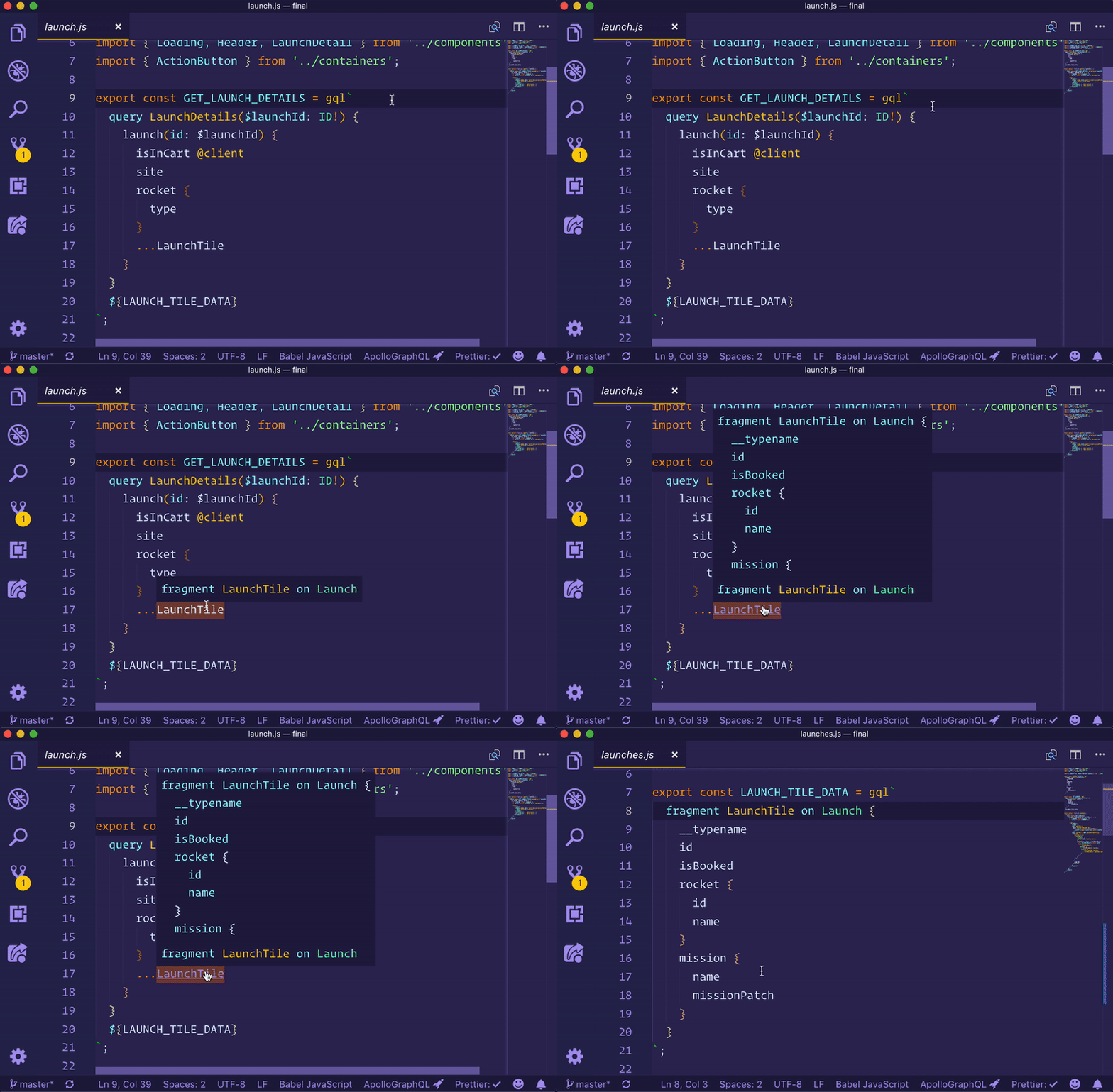
|
For the contents of this configuration file, select one of these options:
|
|
35
34
|
|
|
36
|
-
<h3>Configure extension for schemas published to Apollo GraphOS</h3>
|
|
35
|
+
<h3>Configure extension for client development with schemas published to Apollo GraphOS</h3>
|
|
37
36
|
<details>
|
|
38
37
|
<summary>
|
|
39
38
|
<i>Expand for instructions.</i>
|
|
40
39
|
</summary>
|
|
41
40
|
|
|
42
|
-
To get all the benefits of the VS Code experience, it's best to link the schema
|
|
41
|
+
To get all the benefits of the VS Code experience, it's best to link the schema being developed before installing the extension. The best way to do that is by [publishing a schema](https://www.apollographql.com/docs/graphos/delivery/publishing-schemas/) to the [GraphOS schema registry](https://www.apollographql.com/docs/graphos#core-features).
|
|
43
42
|
|
|
44
43
|
After that's done, edit the `apollo.config.json` file to look like this:
|
|
45
44
|
|
|
46
|
-
```
|
|
45
|
+
```jsonc
|
|
47
46
|
{
|
|
48
47
|
"client": {
|
|
49
48
|
"service": "graphos-graph-name"
|
|
@@ -55,31 +54,68 @@ The `service` name is the name of the graph you've created in [GraphOS Studio](h
|
|
|
55
54
|
|
|
56
55
|
See [additional configuration options](#additional-apollo-config-options).
|
|
57
56
|
|
|
58
|
-
To authenticate with GraphOS Studio to pull down your schema, create
|
|
57
|
+
To authenticate with GraphOS Studio to pull down your schema, create an `.env` file in the same directory as the `apollo.config.json` file. The `.env` file should be untracked—that is, don't commit it to Git.
|
|
59
58
|
|
|
60
|
-
Then go to your [User Settings page](https://studio.apollographql.com/user-settings/api-keys?referrer=docs-content) in GraphOS Studio to create a new
|
|
59
|
+
Then, go to your [User Settings page](https://studio.apollographql.com/user-settings/api-keys?referrer=docs-content) in GraphOS Studio to create a new personal API key.
|
|
61
60
|
|
|
62
|
-
> It
|
|
61
|
+
> It's best practice to create a new API key for each team member. API keys should also be named so they're easy to find and revoke if needed.
|
|
63
62
|
|
|
64
|
-
After
|
|
63
|
+
After you've created your API key, add the following line to the `.env` file:
|
|
65
64
|
|
|
66
65
|
```bash showLineNumbers=false
|
|
67
66
|
APOLLO_KEY=<enter copied key here>
|
|
68
67
|
```
|
|
69
68
|
|
|
70
|
-
|
|
69
|
+
Afterward, reload VS Code. The Apollo integration will connect to GraphOS Studio to provide autocomplete, validation, and more.
|
|
71
70
|
|
|
72
71
|
</details>
|
|
73
72
|
|
|
74
|
-
<h3
|
|
73
|
+
<h3>Configure extension for supergraph schema development</h3>
|
|
75
74
|
<details>
|
|
76
75
|
<summary>
|
|
77
76
|
<i>Expand for instructions.</i>
|
|
78
77
|
</summary>
|
|
79
78
|
|
|
80
|
-
|
|
79
|
+
The extension can integrate with the [Rover CLI](https://www.apollographql.com/docs/rover/) to help you design supergraph schemas with additional support for Apollo Federation.
|
|
80
|
+
|
|
81
|
+
Ensure you've [installed](https://www.apollographql.com/docs/rover/getting-started) and [configured](https://www.apollographql.com/docs/rover/configuring) the [latest Rover release](https://github.com/apollographql/rover/releases).
|
|
82
|
+
|
|
83
|
+
Next edit your `apollo.config.json` to look like this:
|
|
84
|
+
|
|
85
|
+
```jsonc
|
|
86
|
+
{
|
|
87
|
+
"rover": {
|
|
88
|
+
// optional, if your rover binary is in PATH it will automatically be detected
|
|
89
|
+
"bin": "/path/to/rover",
|
|
90
|
+
// optional, defaults to `supergraph.yaml` in the folder of the configuration file
|
|
91
|
+
"supergraphConfig": "/path/to/supergraph.yaml",
|
|
92
|
+
// optional, defaults to the Rover default profile
|
|
93
|
+
"profile": ""
|
|
94
|
+
}
|
|
95
|
+
}
|
|
96
|
+
```
|
|
97
|
+
|
|
98
|
+
Since all these options are optional, you can specify only the `rover` key to indicate you're using Rover for schema development rather than client development:
|
|
81
99
|
|
|
82
|
-
```
|
|
100
|
+
```jsonc
|
|
101
|
+
{
|
|
102
|
+
"rover": {}
|
|
103
|
+
}
|
|
104
|
+
```
|
|
105
|
+
|
|
106
|
+
Afterward, reload VS Code. The Apollo extension will start using Rover to help you build your supergraph.
|
|
107
|
+
|
|
108
|
+
</details>
|
|
109
|
+
|
|
110
|
+
<h3 id="local-schemas">Configure extension for client development with introspection from a locally running service</h3>
|
|
111
|
+
<details>
|
|
112
|
+
<summary>
|
|
113
|
+
<i>Expand for instructions.</i>
|
|
114
|
+
</summary>
|
|
115
|
+
|
|
116
|
+
To experiment with designs under active development, you can link the editor to a locally running version of a schema. Link the `apollo.config.json` file to a local service definition like so:
|
|
117
|
+
|
|
118
|
+
```jsonc
|
|
83
119
|
{
|
|
84
120
|
"client": {
|
|
85
121
|
"service": {
|
|
@@ -90,11 +126,11 @@ Sometimes it may make sense to link the editor to a locally running version of a
|
|
|
90
126
|
}
|
|
91
127
|
```
|
|
92
128
|
|
|
93
|
-
Linking to
|
|
129
|
+
Linking to local schemas won't provide all extension features, such as switching graph variants and performance metrics.
|
|
94
130
|
|
|
95
131
|
</details>
|
|
96
132
|
|
|
97
|
-
<h3 id="local-schema-files">Configure extension for local schema files</h3>
|
|
133
|
+
<h3 id="local-schema-files">Configure extension for client development with local schema files</h3>
|
|
98
134
|
<details>
|
|
99
135
|
<summary>
|
|
100
136
|
<i>Expand for instructions.</i>
|
|
@@ -104,7 +140,7 @@ You might not always have a running server to link to, so the extension also sup
|
|
|
104
140
|
This is useful for working on a schema in isolation or for testing out new features.
|
|
105
141
|
To link to a local schema file, add the following to the `apollo.config.json` file:
|
|
106
142
|
|
|
107
|
-
```
|
|
143
|
+
```jsonc
|
|
108
144
|
{
|
|
109
145
|
"client": {
|
|
110
146
|
"service": {
|
|
@@ -117,13 +153,17 @@ To link to a local schema file, add the following to the `apollo.config.json` fi
|
|
|
117
153
|
|
|
118
154
|
</details>
|
|
119
155
|
|
|
120
|
-
<h3 id="client-only-schemas">Adding
|
|
156
|
+
<h3 id="client-only-schemas">Bonus: Adding client-only schemas</h3>
|
|
157
|
+
<details>
|
|
158
|
+
<summary>
|
|
159
|
+
<i>Expand for instructions.</i>
|
|
160
|
+
</summary>
|
|
121
161
|
|
|
122
|
-
One of the best features of the VS Code extension is the automatic merging of remote
|
|
162
|
+
One of the best features of the VS Code extension is the automatic merging of remote and local schemas when using integrated state management with Apollo Client. This happens automatically whenever schema definitions are found within a client project. By default, the VS Code extension will look for all JavaScript, TypeScript, and GraphQL files under `./src` to find both the operations and schema definitions for building a complete schema for the application.
|
|
123
163
|
|
|
124
|
-
Client
|
|
164
|
+
Client-side schema definitions can be spread throughout the client app project and will be merged to create one single schema. You can set the default behavior by adding specifications to the `apollo.config.json`:
|
|
125
165
|
|
|
126
|
-
```
|
|
166
|
+
```jsonc
|
|
127
167
|
{
|
|
128
168
|
"client": {
|
|
129
169
|
// "service": <your service configuration>,
|
|
@@ -135,17 +175,19 @@ Client side schema definitions can be spread throughout the client app project a
|
|
|
135
175
|
}
|
|
136
176
|
```
|
|
137
177
|
|
|
178
|
+
</details>
|
|
179
|
+
|
|
138
180
|
<h3 id="get-the-extension">Get the extension</h3>
|
|
139
181
|
|
|
140
182
|
Once you have a config set up and a schema published, [install the Apollo GraphQL extension](https://marketplace.visualstudio.com/items?itemName=apollographql.vscode-apollo), then try opening a file containing a GraphQL operation.
|
|
141
183
|
|
|
142
|
-
|
|
184
|
+
After opening a file, click the status bar icon to open the output window and see stats about the project associated with that file. This is helpful for confirming that the project is set up properly.
|
|
143
185
|
|
|
144
186
|
<img src="https://raw.githubusercontent.com/apollographql/vscode-graphql/main/images/marketplace/stats.gif" alt="Clicking the status bar icon to open the output pane">
|
|
145
187
|
|
|
146
188
|
<h2 id="features">Features</h2>
|
|
147
189
|
|
|
148
|
-
Apollo for VS Code
|
|
190
|
+
Apollo for VS Code offers a range of useful features for working on GraphQL projects.
|
|
149
191
|
|
|
150
192
|
<h3 id="intelligent-autocomplete">Intelligent autocomplete</h3>
|
|
151
193
|
|
|
@@ -155,24 +197,24 @@ Once configured, VS Code has full knowledge of the schema clients are running op
|
|
|
155
197
|
|
|
156
198
|
<h3 id="errors-and-warnings">Inline errors and warnings</h3>
|
|
157
199
|
|
|
158
|
-
VS Code can use local or published schemas to validate operations before running them. **Syntax errors**, **invalid fields or arguments**, and even **deprecated fields** instantly appear as errors or warnings
|
|
200
|
+
VS Code can use local or published schemas to validate operations before running them. **Syntax errors**, **invalid fields or arguments**, and even **deprecated fields** instantly appear as errors or warnings in your editor, ensuring your entire team is working with the most up-to-date production schemas.
|
|
159
201
|
|
|
160
202
|
<img src="https://raw.githubusercontent.com/apollographql/vscode-graphql/main/images/marketplace/warnings-and-errors.gif" alt="tooltip showing a field deprecation warning and error">
|
|
161
203
|
|
|
162
204
|
<h3 id="field-type-info">Inline field type information</h3>
|
|
163
205
|
|
|
164
|
-
Because of GraphQL's strongly
|
|
206
|
+
Because of GraphQL's strongly typed schema, VS Code knows not only which fields and arguments are valid, but also what types are expected. Hover over any type in a valid GraphQL operation to see what type that field returns and whether or not it can be null.
|
|
165
207
|
|
|
166
208
|
<img src="https://raw.githubusercontent.com/apollographql/vscode-graphql/main/images/marketplace/type-info.png" style="max-width:800px;" alt="a tooltip showing a Boolean type for a field">
|
|
167
209
|
|
|
168
210
|
<h3 id="performance-insights">Performance insights</h3>
|
|
169
211
|
|
|
170
|
-
GraphQL's flexibility can make it difficult to predict the cost of an operation. Without insight into how expensive an operation is, developers can accidentally write queries that place strain on their graph API's underlying backends. Thanks to the Apollo platform's integration with VS Code and our trace warehouse, teams can avoid these performance issues
|
|
212
|
+
GraphQL's flexibility can make it difficult to predict the cost of an operation. Without insight into how expensive an operation is, developers can accidentally write queries that place strain on their graph API's underlying backends. Thanks to the Apollo platform's integration with VS Code and our trace warehouse, teams can avoid these performance issues by instantly seeing the cost of a query in their editor.
|
|
171
213
|
|
|
172
|
-
The VS Code extension will show inline performance diagnostics when connected to a service with reported metrics in GraphOS Studio. As operations are typed, any fields that take longer than 1 ms to respond will be annotated to the right of the field inline
|
|
214
|
+
The VS Code extension will show inline performance diagnostics when connected to a service with reported metrics in GraphOS Studio. As operations are typed, any fields that take longer than 1 ms to respond will be annotated to the right of the field inline. This shows team members how long the operation will take as more and more fields are added to operations or fragments.
|
|
173
215
|
|
|
174
216
|
<img
|
|
175
|
-
src="https://raw.githubusercontent.com/apollographql/vscode-graphql/
|
|
217
|
+
src="https://raw.githubusercontent.com/apollographql/vscode-graphql/main/images/marketplace/perf-annotation.png"
|
|
176
218
|
width="80%"
|
|
177
219
|
style="margin: 5%"
|
|
178
220
|
alt="Performance annotation next to a field"
|
|
@@ -180,11 +222,20 @@ The VS Code extension will show inline performance diagnostics when connected to
|
|
|
180
222
|
|
|
181
223
|
<h3 id="syntax-highlighting">Syntax highlighting</h3>
|
|
182
224
|
|
|
183
|
-
Apollo's editor extension provides syntax highlighting for all things GraphQL, including schema definitions in `.graphql` files, complex queries in TypeScript, and even client-only schema extensions. Syntax highlighting for GraphQL works out-of-the-box
|
|
225
|
+
Apollo's editor extension provides syntax highlighting for all things GraphQL, including schema definitions in `.graphql` files, complex queries in TypeScript, and even client-only schema extensions. Syntax highlighting for GraphQL works out-of-the-box in GraphQL, JavaScript, TypeScript, Python, Lua, Ruby, Dart, Elixir, and ReasonML files.
|
|
226
|
+
|
|
227
|
+
<h3 id="supergraph-editing">supergraph editing</h3>
|
|
228
|
+
|
|
229
|
+
The extension provides features for supergraph editing, such as support for Federation directives, subgraph-spanning go-to-definition, and reporting composition errors directly to the **Problems** panel.
|
|
230
|
+
|
|
231
|
+
<img
|
|
232
|
+
src="https://raw.githubusercontent.com/apollographql/vscode-graphql/main/images/marketplace/federation-directive-hover.png"
|
|
233
|
+
alt="Hover on Federation directive"
|
|
234
|
+
/>
|
|
184
235
|
|
|
185
236
|
<h3 id="navigating-projects">Navigating projects</h3>
|
|
186
237
|
|
|
187
|
-
Navigating large codebases can be difficult, but the Apollo GraphQL extension makes this easier. Right-clicking on any field in operations or schemas
|
|
238
|
+
Navigating large codebases can be difficult, but the Apollo GraphQL extension makes this easier. Right-clicking on any field in operations or schemas allows you to jump to (or peek at) definitions and find any other references to that field in your project.
|
|
188
239
|
|
|
189
240
|
<img src="https://raw.githubusercontent.com/apollographql/vscode-graphql/main/images/marketplace/jump-to-def.gif" alt="Using jump to definition on a fragment">
|
|
190
241
|
|
|
@@ -194,11 +245,11 @@ Apollo supports publishing multiple versions ([variants](https://www.apollograph
|
|
|
194
245
|
|
|
195
246
|
<h2 id="troubleshooting">Troubleshooting</h2>
|
|
196
247
|
|
|
197
|
-
The most common errors are configuration errors, like a missing `.env` file or incorrect service information in the `apollo.config.
|
|
248
|
+
The most common errors are configuration errors, like a missing `.env` file or incorrect service information in the `apollo.config.json` file. Please see [the Apollo config docs](https://www.apollographql.com/docs/devtools/apollo-config/) for more configuration guidance.
|
|
198
249
|
|
|
199
|
-
|
|
250
|
+
An old version of a published schema may cause other errors. To reload a schema, open the **Command Palette** (`cmd + shift + p` on Mac), search for "Apollo." Choose the **Apollo: Reload Schema** option.
|
|
200
251
|
|
|
201
|
-
Sometimes errors will
|
|
252
|
+
Sometimes, errors will appear as a notification at the bottom of your editor. Other, less critical, messages may be shown in the output pane of the editor. To open the output pane and get diagnostic information about the extension and the current service loaded (if working with a client project), click the Apollo GraphQL icon in the status bar at the bottom.
|
|
202
253
|
|
|
203
254
|
<img src="https://raw.githubusercontent.com/apollographql/vscode-graphql/main/images/marketplace/stats.gif" alt="Clicking the status bar icon to open the output pane">
|
|
204
255
|
|
|
@@ -214,7 +265,7 @@ _Optional_ - custom tagged template literal.
|
|
|
214
265
|
|
|
215
266
|
When using GraphQL with JavaScript or TypeScript projects, it is common to use the `gql` tagged template literal to write out operations. Apollo tools look through your files for the `gql` tag to extract your queries, so if you use a different template literal, you can configure it like so:
|
|
216
267
|
|
|
217
|
-
```
|
|
268
|
+
```jsonc
|
|
218
269
|
{
|
|
219
270
|
"client": {
|
|
220
271
|
"tagName": "graphql",
|
package/package.json
CHANGED
|
@@ -2,7 +2,7 @@
|
|
|
2
2
|
"name": "vscode-apollo",
|
|
3
3
|
"displayName": "Apollo GraphQL",
|
|
4
4
|
"description": "Rich editor support for GraphQL client and server development that seamlessly integrates with the Apollo platform",
|
|
5
|
-
"version": "2.3.
|
|
5
|
+
"version": "2.3.4",
|
|
6
6
|
"referenceID": "87197759-7617-40d0-b32e-46d378e907c7",
|
|
7
7
|
"author": "Apollo GraphQL <opensource@apollographql.com>",
|
|
8
8
|
"license": "MIT",
|
|
@@ -93,7 +93,8 @@ export const loadJs: Loader = async function loadJs(filepath, contents) {
|
|
|
93
93
|
if (
|
|
94
94
|
error instanceof Error &&
|
|
95
95
|
// [ERROR] ReferenceError: module is not defined in ES module scope
|
|
96
|
-
|
|
96
|
+
// [ERROR] ReferenceError: require is not defined in ES module scope
|
|
97
|
+
error.message.includes("is not defined in ES module scope")
|
|
97
98
|
) {
|
|
98
99
|
return loadCachebustedJs(filepath, contents, "commonjs");
|
|
99
100
|
} else {
|