testdriverai 6.2.0 → 6.2.1
This diff represents the content of publicly available package versions that have been released to one of the supported registries. The information contained in this diff is provided for informational purposes only and reflects changes between package versions as they appear in their respective public registries.
- package/.github/workflows/acceptance-tests.yml +2 -0
- package/.github/workflows/acceptance-v6.yml +2 -0
- package/.github/workflows/lint.yml +4 -1
- package/.github/workflows/publish-canary.yml +2 -0
- package/.github/workflows/publish-latest.yml +1 -0
- package/.github/workflows/self-hosted.yml +102 -0
- package/.prettierignore +1 -0
- package/.vscode/settings.json +4 -1
- package/agent/events.js +1 -10
- package/agent/index.js +98 -55
- package/agent/interface.js +43 -6
- package/agent/lib/censorship.js +15 -10
- package/agent/lib/commander.js +31 -18
- package/agent/lib/commands.js +62 -17
- package/agent/lib/debugger-server.js +0 -5
- package/agent/lib/generator.js +2 -2
- package/agent/lib/sdk.js +2 -1
- package/agent/lib/source-mapper.js +1 -1
- package/debugger/index.html +1 -1
- package/docs/account/enterprise.mdx +8 -12
- package/docs/account/pricing.mdx +2 -2
- package/docs/account/projects.mdx +5 -0
- package/docs/apps/tauri-apps.mdx +361 -0
- package/docs/cli/overview.mdx +6 -6
- package/docs/commands/assert.mdx +1 -0
- package/docs/commands/hover-text.mdx +3 -1
- package/docs/commands/match-image.mdx +5 -4
- package/docs/commands/press-keys.mdx +6 -8
- package/docs/commands/scroll-until-image.mdx +8 -7
- package/docs/commands/scroll-until-text.mdx +7 -6
- package/docs/commands/wait-for-image.mdx +5 -4
- package/docs/commands/wait-for-text.mdx +6 -5
- package/docs/docs.json +42 -40
- package/docs/getting-started/playwright.mdx +342 -0
- package/docs/getting-started/self-hosting.mdx +370 -0
- package/docs/getting-started/vscode.mdx +67 -56
- package/docs/guide/dashcam.mdx +118 -0
- package/docs/guide/environment-variables.mdx +5 -5
- package/docs/images/content/self-hosted/launchtemplateid.png +0 -0
- package/docs/images/content/vscode/ide-full.png +0 -0
- package/docs/images/content/vscode/running.png +0 -0
- package/docs/overview/comparison.mdx +22 -39
- package/docs/overview/quickstart.mdx +84 -32
- package/docs/styles.css +10 -1
- package/interfaces/cli/commands/generate.js +3 -0
- package/interfaces/cli/lib/base.js +27 -5
- package/interfaces/cli/utils/factory.js +17 -4
- package/interfaces/logger.js +4 -4
- package/interfaces/readline.js +1 -1
- package/package.json +3 -3
- package/schema.json +21 -0
- package/setup/aws/cloudformation.yaml +463 -0
- package/setup/aws/spawn-runner.sh +190 -0
- package/testdriver/acceptance/hover-text.yaml +2 -1
- package/testdriver/acceptance/prompt.yaml +4 -1
- package/testdriver/acceptance/scroll-until-image.yaml +5 -0
- package/testdriver/edge-cases/js-exception.yaml +8 -0
- package/testdriver/edge-cases/js-promise.yaml +19 -0
- package/testdriver/edge-cases/lifecycle/postrun.yaml +10 -0
- package/testdriver/edge-cases/success-test.yaml +9 -0
- package/testdriver/examples/web/lifecycle/postrun.yaml +7 -0
- package/testdriver/examples/web/lifecycle/{provision.yaml → prerun.yaml} +6 -0
- package/testdriver/lifecycle/postrun.yaml +7 -0
- package/testdriver/lifecycle/prerun.yaml +17 -0
|
@@ -0,0 +1,361 @@
|
|
|
1
|
+
---
|
|
2
|
+
title: "Tauri Apps"
|
|
3
|
+
sidebarTitle: "Tauri Apps"
|
|
4
|
+
description: "Testing Tauri Apps with TestDriver"
|
|
5
|
+
icon: "https://tauri.app/favicon.svg"
|
|
6
|
+
---
|
|
7
|
+
|
|
8
|
+
> [Tauri](https://tauri.app/) is a framework for building tiny, fast binaries for all major desktop and mobile platforms. Developers can integrate any frontend framework that compiles to HTML, JavaScript, and CSS for building their user experience while leveraging languages such as Rust, Swift, and Kotlin for backend logic when needed.
|
|
9
|
+
>
|
|
10
|
+
> \
|
|
11
|
+
> – [https://tauri.app/start](https://tauri.app/start/)
|
|
12
|
+
|
|
13
|
+
## Testing Tauri apps with TestDriver
|
|
14
|
+
|
|
15
|
+
In this guide, we'll leverage [Playwright](https://playwright.dev/) and the [TestDriver Playwright SDK](/getting-started/playwright) to convert the [Tauri Quick Start](https://tauri.app/start/create-project/) to TestDriver's selectorless, Vision AI.
|
|
16
|
+
|
|
17
|
+
<Info>View Source: https://github.com/testdriverai/demo-tauri-app</Info>
|
|
18
|
+
|
|
19
|
+
### Requirements
|
|
20
|
+
|
|
21
|
+
To start testing your Tauri app with TestDriver, you need the following:
|
|
22
|
+
|
|
23
|
+
<AccordionGroup>
|
|
24
|
+
<Accordion title="Create a TestDriver account">
|
|
25
|
+
<Steps>
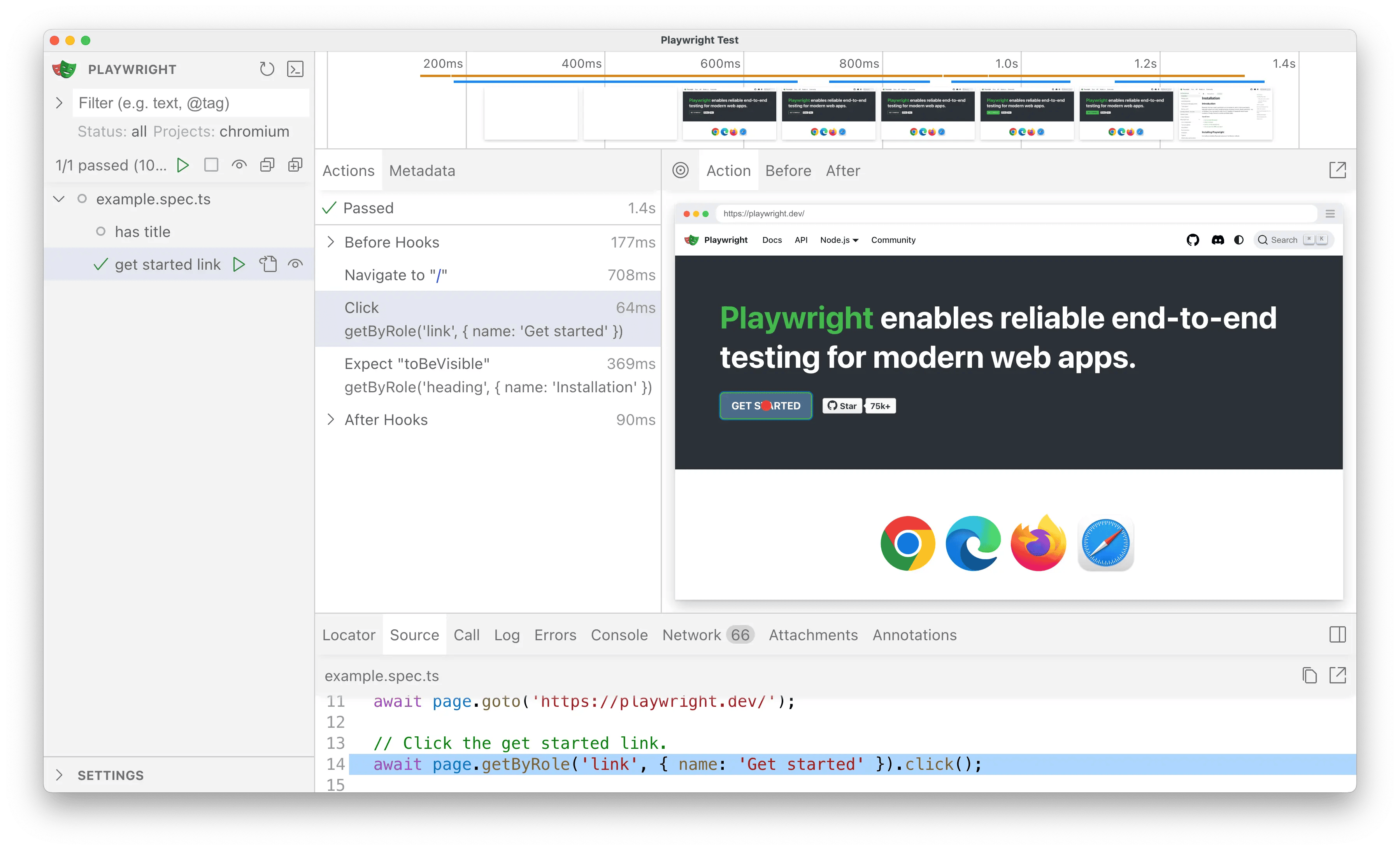
|
|
26
|
+
<Step title="Create a TestDriver Account">
|
|
27
|
+
You will need a [Free TestDriver Account](https://app.testdriver.ai/team) to get an API key.
|
|
28
|
+
|
|
29
|
+
<Card title="Sign Up for TestDriver" icon="user-plus" horizontal href="https://app.testdriver.ai/team">
|
|
30
|
+
|
|
31
|
+
</Card>
|
|
32
|
+
</Step>
|
|
33
|
+
<Step title="Set up your environment">
|
|
34
|
+
Copy your API key from [your TestDriver dashboard](https://app.testdriver.ai/team), and set it as an environment variable.
|
|
35
|
+
|
|
36
|
+
<Tabs>
|
|
37
|
+
<Tab title="macOS / Linux">
|
|
38
|
+
Export an environment variable on macOS or Linux systems:
|
|
39
|
+
|
|
40
|
+
```bash
|
|
41
|
+
export TD_API_KEY="your_api_key_here"
|
|
42
|
+
```
|
|
43
|
+
</Tab>
|
|
44
|
+
<Tab title="Windows">
|
|
45
|
+
Export an environment variable in PowerShell:
|
|
46
|
+
|
|
47
|
+
```powershell
|
|
48
|
+
setx TD_API_KEY "your_api_key_here"
|
|
49
|
+
```
|
|
50
|
+
</Tab>
|
|
51
|
+
</Tabs>
|
|
52
|
+
</Step>
|
|
53
|
+
</Steps>
|
|
54
|
+
|
|
55
|
+
</Accordion>
|
|
56
|
+
<Accordion title="Create a Tauri project">
|
|
57
|
+
<Note>
|
|
58
|
+
Follow Tauri's [Create a Project](https://tauri.app/start/create-project/)
|
|
59
|
+
guide.
|
|
60
|
+
</Note>
|
|
61
|
+
</Accordion>
|
|
62
|
+
<Accordion title="Create a Playwright project">
|
|
63
|
+
<Info>
|
|
64
|
+
This is a condensed version of [Playwright's Installation Instructions](https://playwright.dev/docs/intro).
|
|
65
|
+
|
|
66
|
+
**If you're new to Playwright, you should follow their guide first.**
|
|
67
|
+
</Info>
|
|
68
|
+
In your Tauri project, run:
|
|
69
|
+
|
|
70
|
+
<Tabs>
|
|
71
|
+
<Tab title="npm">
|
|
72
|
+
```bash
|
|
73
|
+
npm init playwright@latest
|
|
74
|
+
```
|
|
75
|
+
</Tab>
|
|
76
|
+
<Tab title="yarn">
|
|
77
|
+
```bash
|
|
78
|
+
yarn create playwright
|
|
79
|
+
```
|
|
80
|
+
</Tab>
|
|
81
|
+
<Tab title="pnpm">
|
|
82
|
+
```bash
|
|
83
|
+
pnpm create playwright
|
|
84
|
+
```
|
|
85
|
+
</Tab>
|
|
86
|
+
</Tabs>
|
|
87
|
+
Select the following options when prompted:
|
|
88
|
+
|
|
89
|
+
```console
|
|
90
|
+
✔ Do you want to use TypeScript or JavaScript?
|
|
91
|
+
> TypeScript
|
|
92
|
+
✔ Where to put your end-to-end tests?
|
|
93
|
+
> tests
|
|
94
|
+
✔ Add a GitHub Actions workflow? (y/N)
|
|
95
|
+
> N
|
|
96
|
+
✔ Install Playwright browsers (can be done manually via 'npx playwright install')? (Y/n)
|
|
97
|
+
> Y
|
|
98
|
+
```
|
|
99
|
+
|
|
100
|
+
</Accordion>
|
|
101
|
+
<Accordion title="Install the TestDriver Playwright SDK">
|
|
102
|
+
`@testdriver.ai/playwright` is an AI-powered extension of `@playwright/test`.
|
|
103
|
+
|
|
104
|
+
<Tabs>
|
|
105
|
+
<Tab title="npm">
|
|
106
|
+
```bash
|
|
107
|
+
npm install @testdriver.ai/playwright
|
|
108
|
+
```
|
|
109
|
+
</Tab>
|
|
110
|
+
<Tab title="yarn">
|
|
111
|
+
```bash
|
|
112
|
+
yarn add @testdriver.ai/playwright
|
|
113
|
+
```
|
|
114
|
+
</Tab>
|
|
115
|
+
<Tab title="pnpm">
|
|
116
|
+
```bash
|
|
117
|
+
pnpm add @testdriver.ai/playwright
|
|
118
|
+
```
|
|
119
|
+
</Tab>
|
|
120
|
+
</Tabs>
|
|
121
|
+
|
|
122
|
+
</Accordion>
|
|
123
|
+
</AccordionGroup>
|
|
124
|
+
|
|
125
|
+
## Testing the Tauri Web App
|
|
126
|
+
|
|
127
|
+
### Setup
|
|
128
|
+
|
|
129
|
+
First, we need to modify the default Playwright configuration and our Tauri project to work together:
|
|
130
|
+
|
|
131
|
+
<Steps>
|
|
132
|
+
<Step title="Configure Playwright to start the Tauri frontend">
|
|
133
|
+
In the `playwright.config.ts` file, we'll configure the [`webServer`](https://playwright.dev/docs/test-webserver)
|
|
134
|
+
to start the Tauri frontend for Playwright to test against:
|
|
135
|
+
|
|
136
|
+
```typescript playwright.config.ts
|
|
137
|
+
/* Run your local dev server before starting the tests */
|
|
138
|
+
// [!code ++:8]
|
|
139
|
+
webServer: {
|
|
140
|
+
command: "npm run dev",
|
|
141
|
+
url: "http://localhost:1420",
|
|
142
|
+
reuseExistingServer: !process.env.CI,
|
|
143
|
+
env: {
|
|
144
|
+
VITE_PLAYWRIGHT: "true",
|
|
145
|
+
},
|
|
146
|
+
},
|
|
147
|
+
});
|
|
148
|
+
```
|
|
149
|
+
|
|
150
|
+
</Step>
|
|
151
|
+
<Step title="Mock Tauri APIs">
|
|
152
|
+
Since we're testing the Tauri frontend, we need to [mock IPC Requests](https://tauri.app/develop/tests/mocking/)
|
|
153
|
+
to simulate `invoke` calls to the Rust backend:
|
|
154
|
+
|
|
155
|
+
```html src/index.html
|
|
156
|
+
<body>
|
|
157
|
+
<div id="root"></div>
|
|
158
|
+
<!-- [!code ++:7] -->
|
|
159
|
+
<script type="module">
|
|
160
|
+
// This is set in playwright.config.ts to allow our tests to mock Tauri IPC `invoke` calls
|
|
161
|
+
if (import.meta.env.VITE_PLAYWRIGHT) {
|
|
162
|
+
const { mockIPC } = await import("@tauri-apps/api/mocks");
|
|
163
|
+
window.mockIPC = mockIPC;
|
|
164
|
+
}
|
|
165
|
+
</script>
|
|
166
|
+
<script type="module" src="/src/main.tsx"></script>
|
|
167
|
+
</body>
|
|
168
|
+
```
|
|
169
|
+
|
|
170
|
+
We only need to do this once, as we'll be accessing `window.mockIPC` in our tests.
|
|
171
|
+
|
|
172
|
+
</Step>
|
|
173
|
+
<Step title="Create a new test file">
|
|
174
|
+
Create a new file (e.g. `tests/testdriver.spec.ts`) with:
|
|
175
|
+
|
|
176
|
+
```typescript tests/testdriver.spec.ts
|
|
177
|
+
import type { mockIPC } from "@tauri-apps/api/mocks";
|
|
178
|
+
import { expect, test } from "@playwright/test";
|
|
179
|
+
|
|
180
|
+
test.beforeEach(async ({ page }) => {
|
|
181
|
+
await page.goto("http://localhost:1420");
|
|
182
|
+
});
|
|
183
|
+
|
|
184
|
+
test("should have title", async ({ page }) => {
|
|
185
|
+
await expect(page).toHaveTitle("Tauri + React + TypeScript");
|
|
186
|
+
});
|
|
187
|
+
```
|
|
188
|
+
|
|
189
|
+
</Step>
|
|
190
|
+
<Step title="Run Playwright in UI Mode">
|
|
191
|
+
Now we're ready to run Playwright and start working on our tests:
|
|
192
|
+
|
|
193
|
+
<Tabs>
|
|
194
|
+
<Tab title="npm">
|
|
195
|
+
```bash
|
|
196
|
+
npx playwright test --ui
|
|
197
|
+
```
|
|
198
|
+
</Tab>
|
|
199
|
+
<Tab title="yarn">
|
|
200
|
+
```bash
|
|
201
|
+
yarn playwright test --ui
|
|
202
|
+
```
|
|
203
|
+
</Tab>
|
|
204
|
+
<Tab title="pnpm">
|
|
205
|
+
```bash
|
|
206
|
+
pnpm exec playwright test --ui
|
|
207
|
+
```
|
|
208
|
+
</Tab>
|
|
209
|
+
</Tabs>
|
|
210
|
+
|
|
211
|
+
|
|
212
|
+
Click the <Icon icon="play" /> button to successfully run the tests in the UI.
|
|
213
|
+
|
|
214
|
+
<Tip>
|
|
215
|
+
Click the <Icon icon="eye" /> button to automatically re-run tests on save.
|
|
216
|
+
</Tip>
|
|
217
|
+
|
|
218
|
+
</Step>
|
|
219
|
+
</Steps>
|
|
220
|
+
|
|
221
|
+
### Usage
|
|
222
|
+
|
|
223
|
+
#### Import the TestDriver Playwright SDK
|
|
224
|
+
|
|
225
|
+
By changing **1 line**, we can add TestDriver's AI capabilities to Playwright:
|
|
226
|
+
|
|
227
|
+
```typescript tests/testdriver.spec.ts
|
|
228
|
+
import type { mockIPC } from "@tauri-apps/api/mocks";
|
|
229
|
+
// [!code --]
|
|
230
|
+
import { expect, test } from "@playwright/test";
|
|
231
|
+
// [!code ++]
|
|
232
|
+
import { expect, test } from "@testdriver.ai/playwright";
|
|
233
|
+
|
|
234
|
+
// For type-safety of the mockIPC function
|
|
235
|
+
declare global {
|
|
236
|
+
interface Window {
|
|
237
|
+
mockIPC: typeof mockIPC;
|
|
238
|
+
}
|
|
239
|
+
}
|
|
240
|
+
|
|
241
|
+
test.beforeEach(async ({ page }) => {
|
|
242
|
+
await page.goto("http://localhost:1420");
|
|
243
|
+
});
|
|
244
|
+
|
|
245
|
+
test("should have title", async ({ page }) => {
|
|
246
|
+
await expect(page).toHaveTitle("Tauri + React + TypeScript");
|
|
247
|
+
});
|
|
248
|
+
```
|
|
249
|
+
|
|
250
|
+
Notice how we're able to continue using Playwright's API (`toHaveTitle`)
|
|
251
|
+
with `@testdriver.ai/playwright`.
|
|
252
|
+
|
|
253
|
+
The test continues to pass as before, so now we can update our test to use natural language instead of selectors.
|
|
254
|
+
|
|
255
|
+
#### Assertions with `expect.toMatchPrompt`
|
|
256
|
+
|
|
257
|
+
With Playwright, we would normally use a `getByRole` selector to assert the heading text:
|
|
258
|
+
|
|
259
|
+
```typescript tests/example.spec.ts
|
|
260
|
+
test("should have heading", async ({ page }) => {
|
|
261
|
+
await expect(
|
|
262
|
+
page.getByRole("heading", { name: "Installation" }),
|
|
263
|
+
).toBeVisible();
|
|
264
|
+
});
|
|
265
|
+
```
|
|
266
|
+
|
|
267
|
+
With TestDriver, we can use natural language with `toMatchPrompt` instead:
|
|
268
|
+
|
|
269
|
+
```typescript tests/testdriver.spec.ts
|
|
270
|
+
test("should have heading", async ({ page }) => {
|
|
271
|
+
// [!code --:3]
|
|
272
|
+
await expect(
|
|
273
|
+
page.getByRole("heading", { name: "Installation" }),
|
|
274
|
+
).toBeVisible();
|
|
275
|
+
// [!code ++:1]
|
|
276
|
+
await expect(page).toMatchPrompt("Heading says 'Welcome to Tauri + React'");
|
|
277
|
+
});
|
|
278
|
+
```
|
|
279
|
+
|
|
280
|
+
#### Agentic tests with `test.agent`
|
|
281
|
+
|
|
282
|
+
With TestDriver, we can skip the test implementation **entirely** and let AI perform the test for us:
|
|
283
|
+
|
|
284
|
+
<Steps>
|
|
285
|
+
<Step title="Mock the `greet` call">
|
|
286
|
+
First, we need to [`mock our invoke calls`](https://tauri.app/develop/tests/mocking/#ipc-requests),
|
|
287
|
+
since we're testing the frontend behavior and not our Tauri backend:
|
|
288
|
+
|
|
289
|
+
```typescript tests/testdriver.spec.ts
|
|
290
|
+
test.beforeEach(async ({ page }) => {
|
|
291
|
+
await page.goto("http://localhost:1420");
|
|
292
|
+
// [!code ++:12]
|
|
293
|
+
await page.evaluate(() => {
|
|
294
|
+
// https://tauri.app/develop/tests/mocking/#mocking-commands-for-invoke
|
|
295
|
+
window.mockIPC((cmd, args) => {
|
|
296
|
+
switch (cmd) {
|
|
297
|
+
case "greet":
|
|
298
|
+
args = args as { name: string };
|
|
299
|
+
return `Hello, ${args.name}! You've been greeted from Rust!`;
|
|
300
|
+
default:
|
|
301
|
+
throw new Error(`Unsupported command: ${cmd}`);
|
|
302
|
+
}
|
|
303
|
+
});
|
|
304
|
+
});
|
|
305
|
+
});
|
|
306
|
+
```
|
|
307
|
+
|
|
308
|
+
</Step>
|
|
309
|
+
<Step title="Add an Agentic Test">
|
|
310
|
+
Next, wrap a _prompt_ in `test.agent` to perform the test:
|
|
311
|
+
|
|
312
|
+
```typescript tests/testdriver.spec.ts
|
|
313
|
+
test.describe("should greet with name", () => {
|
|
314
|
+
test.agent(`
|
|
315
|
+
- Enter the name "Tauri"
|
|
316
|
+
- Click the "Greet" button
|
|
317
|
+
- You should see the text "Hello, Tauri! You've been greeted from Rust!"
|
|
318
|
+
`);
|
|
319
|
+
});
|
|
320
|
+
```
|
|
321
|
+
|
|
322
|
+
</Step>
|
|
323
|
+
</Steps>
|
|
324
|
+
|
|
325
|
+
#### Continued Reading
|
|
326
|
+
|
|
327
|
+
[Learn more about TestDriver's Playwright SDK](/getting-started/playwright)
|
|
328
|
+
|
|
329
|
+
## Testing the Tauri Desktop App
|
|
330
|
+
|
|
331
|
+
We can use TestDriver and natural language to test our Tauri desktop app:
|
|
332
|
+
|
|
333
|
+
<Steps>
|
|
334
|
+
<Step title="Run the Desktop App">
|
|
335
|
+
<Tabs>
|
|
336
|
+
<Tab title="npm">```bash npm run tauri dev ```</Tab>
|
|
337
|
+
<Tab title="yarn">```bash yarn tauri dev ```</Tab>
|
|
338
|
+
<Tab title="pnpm">```bash pnpm tauri dev ```</Tab>
|
|
339
|
+
</Tabs>
|
|
340
|
+
</Step>
|
|
341
|
+
<Step title="Continued Reading">
|
|
342
|
+
<Note>See [Desktop Apps](/apps/desktop-apps) for more information.</Note>
|
|
343
|
+
</Step>
|
|
344
|
+
</Steps>
|
|
345
|
+
|
|
346
|
+
## Testing the Tauri Mobile App
|
|
347
|
+
|
|
348
|
+
We can use TestDriver and natural language to test our Tauri iOS app:
|
|
349
|
+
|
|
350
|
+
<Steps>
|
|
351
|
+
<Step title="Run the Mobile App">
|
|
352
|
+
<Tabs>
|
|
353
|
+
<Tab title="npm">```bash npm run tauri ios dev ```</Tab>
|
|
354
|
+
<Tab title="yarn">```bash yarn tauri ios dev ```</Tab>
|
|
355
|
+
<Tab title="pnpm">```bash pnpm tauri ios dev ```</Tab>
|
|
356
|
+
</Tabs>
|
|
357
|
+
</Step>
|
|
358
|
+
<Step title="Continued Reading">
|
|
359
|
+
<Note>See [Mobile Apps](/apps/mobile-apps) for more information.</Note>
|
|
360
|
+
</Step>
|
|
361
|
+
</Steps>
|
package/docs/cli/overview.mdx
CHANGED
|
@@ -15,11 +15,11 @@ npx testdriverai@latest <command> [options]
|
|
|
15
15
|
|
|
16
16
|
## Available commands
|
|
17
17
|
|
|
18
|
-
|
|
|
19
|
-
|
|
|
20
|
-
|
|
|
21
|
-
| [`edit`](/commands/edit)
|
|
22
|
-
| [`help`](/commands/help)
|
|
18
|
+
| Command | Description |
|
|
19
|
+
| :----------------------: | :----------------------------------------------------------- |
|
|
20
|
+
| [`run`](/commands/run) | Executes a TestDriver test. |
|
|
21
|
+
| [`edit`](/commands/edit) | Launch interactive mode. |
|
|
22
|
+
| [`help`](/commands/help) | Displays help information for the CLI or a specific command. |
|
|
23
23
|
|
|
24
24
|
## Available Flags
|
|
25
25
|
|
|
@@ -27,9 +27,9 @@ npx testdriverai@latest <command> [options]
|
|
|
27
27
|
| :------------------ | :----------------------------------------------------------------------------------------- |
|
|
28
28
|
| `--heal` | Launch exploratory mode and attemp to recover if an error or failing state is encountered. |
|
|
29
29
|
| `--write` | Ovewrite test file with new commands resulting from agentic testing |
|
|
30
|
-
| `--headless` | Run test without opening a browser window (useful for CI/CD environments) |
|
|
31
30
|
| `--new` | Create a new sandbox environment for the test run. |
|
|
32
31
|
| `--summary=<value>` | Output file where AI summary should be saved. |
|
|
32
|
+
| `--junit=<value>` | Output file where junit report should be saved. |
|
|
33
33
|
|
|
34
34
|
## Example usage
|
|
35
35
|
|
package/docs/commands/assert.mdx
CHANGED
|
@@ -22,6 +22,7 @@ The `assert` command validates that a specific condition is true. It ensures tha
|
|
|
22
22
|
| -------- | --------- | ------------------------------------------------------------------------------------------------------------------ |
|
|
23
23
|
| `expect` | `string` | The condition to check. This should describe what you expect to see on the screen. |
|
|
24
24
|
| `async` | `boolean` | (Optional) If set to `true`, the test will continue without waiting for the assertion to pass. Default is `false`. |
|
|
25
|
+
| `invert` | `boolean` | (Optional) If set to `true`, will fail if the assertion passes. |
|
|
25
26
|
|
|
26
27
|
## Example usage
|
|
27
28
|
|
|
@@ -24,6 +24,7 @@ The `hover-text` command is used to locate text on the screen based on a descrip
|
|
|
24
24
|
| `description` | `string` | A description of the text and what it represents. The actual text itself shouldn't be included here. |
|
|
25
25
|
| `action` | `string` | The action to take when the text is found. Available actions are: `click`, `right-click`, `double-click`, `hover`. Also supports `drag-start` and `drag-end` for [dragging text](/commands/hover-image#drag-functionality). |
|
|
26
26
|
| `method` | `enum` | The matching algorithm to use. Possible values are `turbo` (default) and `ai`. |
|
|
27
|
+
| `timeout` | `number` | **(Optional)** The duration in milliseconds to wait for the text to appear. Default is `5000` (5 seconds). |
|
|
27
28
|
|
|
28
29
|
## Example usage
|
|
29
30
|
|
|
@@ -32,11 +33,12 @@ command: hover-text
|
|
|
32
33
|
text: Sign Up
|
|
33
34
|
description: link in the header
|
|
34
35
|
action: click
|
|
36
|
+
timeout: 10000 # 10 seconds
|
|
35
37
|
```
|
|
36
38
|
|
|
37
39
|
## Gotchas
|
|
38
40
|
|
|
39
|
-
- If the text can't be located, the command
|
|
41
|
+
- If the text can't be located, it will internally call the [wait-for-text](/commands/wait-for-text) command and wait for the text to appear. The wait `timeout` is 5 seconds by default, and the command fails if the text is not found.
|
|
40
42
|
- Variations in font size, style, or screen resolution may affect detection accuracy.
|
|
41
43
|
|
|
42
44
|
## Notes
|
|
@@ -18,10 +18,11 @@ The `match-image` command is used to locate an image on the screen by matching i
|
|
|
18
18
|
|
|
19
19
|
## Arguments
|
|
20
20
|
|
|
21
|
-
| Argument | Type
|
|
22
|
-
| -------- |
|
|
23
|
-
| `path` | `string`
|
|
24
|
-
| `action` | `string`
|
|
21
|
+
| Argument | Type | Description |
|
|
22
|
+
| -------- | --------- | :---------------------------------------------------------------------------------------------------------------------------------------------------------------------------------------------------------------------------- |
|
|
23
|
+
| `path` | `string` | The path to the image that needs to be matched. The path needs to be relative to the current test file |
|
|
24
|
+
| `action` | `string` | The action to take when the image is found. Available actions are: `click`, `right-click`, `double-click`, `hover`. Also supports `drag-start` and `drag-end` for [dragging images](/commands/hover-image#drag-functionality) |
|
|
25
|
+
| `invert` | `boolean` | (Optional) If set to `true`, the command will pass when the specified image is NOT detected. Default is `false`. |
|
|
25
26
|
|
|
26
27
|
## Example usage
|
|
27
28
|
|
|
@@ -28,8 +28,7 @@ The keys supported are the standard [Windows keys](https://learn.microsoft.com/e
|
|
|
28
28
|
|
|
29
29
|
<Tabs>
|
|
30
30
|
<Tab title="Modifiers">
|
|
31
|
-
- `ctrl`, `shift`, `alt`, `command`, `option`, `win`
|
|
32
|
-
- Left/right variants:
|
|
31
|
+
- `ctrl`, `shift`, `alt`, `command`, `option`, `win` - Left/right variants:
|
|
33
32
|
`ctrlleft`, `ctrlright`, `shiftleft`, `shiftright`, `altleft`, `altright`,
|
|
34
33
|
`optionleft`, `optionright`, `winleft`, `winright`
|
|
35
34
|
</Tab>
|
|
@@ -37,9 +36,7 @@ The keys supported are the standard [Windows keys](https://learn.microsoft.com/e
|
|
|
37
36
|
- All ASCII printable characters: letters `a`–`z`, digits `0`–`9`, common
|
|
38
37
|
punctuation, and `space`.
|
|
39
38
|
</Tab>
|
|
40
|
-
<Tab title="Function keys">
|
|
41
|
-
- `f1`–`f24`
|
|
42
|
-
</Tab>
|
|
39
|
+
<Tab title="Function keys">- `f1`–`f24`</Tab>
|
|
43
40
|
<Tab title="Navigation">
|
|
44
41
|
- `up`, `down`, `left`, `right`, `home`, `end`, `pageup`, `pagedown`,
|
|
45
42
|
`pgup`, `pgdn`
|
|
@@ -57,9 +54,10 @@ The keys supported are the standard [Windows keys](https://learn.microsoft.com/e
|
|
|
57
54
|
`separator`
|
|
58
55
|
</Tab>
|
|
59
56
|
<Tab title="Media & Browser">
|
|
60
|
-
- `playpause`, `stop`, `nexttrack`, `prevtrack`, `volumedown`, `volumeup`,
|
|
61
|
-
- `browserback`, `browserforward`, `browserrefresh`,
|
|
62
|
-
|
|
57
|
+
- `playpause`, `stop`, `nexttrack`, `prevtrack`, `volumedown`, `volumeup`,
|
|
58
|
+
`volumemute` - `browserback`, `browserforward`, `browserrefresh`,
|
|
59
|
+
`browsersearch`, `browserstop`, `browserfavorites`, `browserhome` -
|
|
60
|
+
`launchapp1`, `launchapp2`, `launchmail`, `launchmediaselect`
|
|
63
61
|
</Tab>
|
|
64
62
|
<Tab title="IME / International">
|
|
65
63
|
- `hangul`, `hanguel`, `hanja`, `junja`, `kana`, `kanji`, `modechange`,
|
|
@@ -18,13 +18,14 @@ The `scroll-until-image` command is used to scroll the screen in a specified dir
|
|
|
18
18
|
|
|
19
19
|
## Arguments
|
|
20
20
|
|
|
21
|
-
| Argument | Type
|
|
22
|
-
| :-----------: |
|
|
23
|
-
| `description` | `string`
|
|
24
|
-
| `direction` | `string`
|
|
25
|
-
| `distance` | `number`
|
|
26
|
-
| `method` | `string`
|
|
27
|
-
| `path` | `string`
|
|
21
|
+
| Argument | Type | Description |
|
|
22
|
+
| :-----------: | :-------: | :---------------------------------------------------------------------------------------------------------------------- |
|
|
23
|
+
| `description` | `string` | A description of the image and what it represents. |
|
|
24
|
+
| `direction` | `string` | (Optional) The direction to scroll. Available directions are: `up`, `down`, `left`, `right`. Defaults to `down`. |
|
|
25
|
+
| `distance` | `number` | (Optional) The maximum number of pixels to scroll before giving up. Default is `10000`. |
|
|
26
|
+
| `method` | `string` | (Optional) The method to use to scroll the page. Available methods are: `mouse` and `keyboard`. Defaults to `keyboard`. |
|
|
27
|
+
| `path` | `string` | (Optional) The relative path to the image file that needs to be matched on the screen. |
|
|
28
|
+
| `invert` | `boolean` | (Optional) If set to `true`, the command will scroll until the specified image is NOT detected. Default is `false`. |
|
|
28
29
|
|
|
29
30
|
<Note>
|
|
30
31
|
Use either the `description` or `path` argument to match an image on the
|
|
@@ -18,12 +18,13 @@ The `scroll-until-text` command is used to scroll the screen in a specified dire
|
|
|
18
18
|
|
|
19
19
|
## Arguments
|
|
20
20
|
|
|
21
|
-
| Argument | Type
|
|
22
|
-
| :---------: |
|
|
23
|
-
| `text` | `string`
|
|
24
|
-
| `direction` | `string`
|
|
25
|
-
| `method` | `string`
|
|
26
|
-
| `distance` | `number`
|
|
21
|
+
| Argument | Type | Description |
|
|
22
|
+
| :---------: | :-------: | :---------------------------------------------------------------------------------------------------------------------- |
|
|
23
|
+
| `text` | `string` | The text to find on the screen. Longer and unique are better. Note this is **case sensitive** |
|
|
24
|
+
| `direction` | `string` | (Optional) The direction to scroll. Available directions are: `up`, `down`, `left`, `right`. Defaults to `down`. |
|
|
25
|
+
| `method` | `string` | (Optional) The method to use to scroll the page. Available methods are: `mouse` and `keyboard`. Defaults to `keyboard`. |
|
|
26
|
+
| `distance` | `number` | (Optional) The maximum number of pixels to scroll before giving up. Default is `10000`. |
|
|
27
|
+
| `invert` | `boolean` | (Optional) If set to `true`, the command will scroll until the specified text is NOT detected. Default is `false`. |
|
|
27
28
|
|
|
28
29
|
<Note>
|
|
29
30
|
If the method is `keyboard` it just searches for the string by doing `ctrl + f`.
|
|
@@ -18,10 +18,11 @@ The `wait-for-image` command waits until the specified image is detected on the
|
|
|
18
18
|
|
|
19
19
|
## Arguments
|
|
20
20
|
|
|
21
|
-
| Argument | Type
|
|
22
|
-
| :-----------: |
|
|
23
|
-
| `description` | `string`
|
|
24
|
-
| `timeout` | `number`
|
|
21
|
+
| Argument | Type | Description |
|
|
22
|
+
| :-----------: | :-------: | :---------------------------------------------------------------------------------------------------------------- |
|
|
23
|
+
| `description` | `string` | A description of the image. |
|
|
24
|
+
| `timeout` | `number` | (Optional) The duration in milliseconds to wait for the image to appear. Default is `10000` (10 seconds). |
|
|
25
|
+
| `invert` | `boolean` | (Optional) If set to `true`, the command will wait until the specified image is NOT detected. Default is `false`. |
|
|
25
26
|
|
|
26
27
|
## Example usage
|
|
27
28
|
|
|
@@ -18,11 +18,12 @@ The `wait-for-text` command waits until the specified text is detected on the sc
|
|
|
18
18
|
|
|
19
19
|
## Arguments
|
|
20
20
|
|
|
21
|
-
| Argument | Type
|
|
22
|
-
| :-------: |
|
|
23
|
-
| `text` | `string`
|
|
24
|
-
| `timeout` | `number`
|
|
25
|
-
| `method` | `enum`
|
|
21
|
+
| Argument | Type | Description |
|
|
22
|
+
| :-------: | :-------: | :--------------------------------------------------------------------------------------------------------------- |
|
|
23
|
+
| `text` | `string` | The text to find on the screen. |
|
|
24
|
+
| `timeout` | `number` | (Optional) The duration in milliseconds to wait for the text to appear. Default is `5000` (5 seconds). |
|
|
25
|
+
| `method` | `enum` | (Optional) The matching algorithm to use. Possible values are `ai` and `turbo`. Default is `turbo` |
|
|
26
|
+
| `invert` | `boolean` | (Optional) If set to `true`, the command will wait until the specified text is NOT detected. Default is `false`. |
|
|
26
27
|
|
|
27
28
|
## Example usage
|
|
28
29
|
|