testdriverai 6.0.28 → 6.0.29
This diff represents the content of publicly available package versions that have been released to one of the supported registries. The information contained in this diff is provided for informational purposes only and reflects changes between package versions as they appear in their respective public registries.
- package/docs/docs.json +31 -27
- package/docs/getting-started/playwright.mdx +329 -0
- package/docs/getting-started/vscode.mdx +8 -3
- package/package.json +3 -3
package/docs/docs.json
CHANGED
|
@@ -50,6 +50,7 @@
|
|
|
50
50
|
}
|
|
51
51
|
]
|
|
52
52
|
},
|
|
53
|
+
"/getting-started/playwright",
|
|
53
54
|
"/getting-started/vscode"
|
|
54
55
|
]
|
|
55
56
|
},
|
|
@@ -153,31 +154,33 @@
|
|
|
153
154
|
{
|
|
154
155
|
"group": "Reference",
|
|
155
156
|
"pages": [
|
|
156
|
-
|
|
157
|
-
|
|
158
|
-
|
|
159
|
-
|
|
160
|
-
|
|
161
|
-
|
|
162
|
-
|
|
163
|
-
|
|
164
|
-
|
|
165
|
-
|
|
166
|
-
|
|
167
|
-
|
|
168
|
-
|
|
169
|
-
|
|
170
|
-
|
|
171
|
-
|
|
172
|
-
|
|
157
|
+
{
|
|
158
|
+
"group": "YAML",
|
|
159
|
+
"icon": "file-code",
|
|
160
|
+
"pages": [
|
|
161
|
+
"/commands/assert",
|
|
162
|
+
"/commands/exec",
|
|
163
|
+
"/commands/focus-application",
|
|
164
|
+
"/commands/hover-image",
|
|
165
|
+
"/commands/hover-text",
|
|
166
|
+
"/commands/if",
|
|
167
|
+
"/commands/match-image",
|
|
168
|
+
"/commands/press-keys",
|
|
169
|
+
"/commands/remember",
|
|
170
|
+
"/commands/run",
|
|
171
|
+
"/commands/scroll",
|
|
172
|
+
"/commands/scroll-until-image",
|
|
173
|
+
"/commands/scroll-until-text",
|
|
174
|
+
"/commands/type",
|
|
175
|
+
"/commands/wait",
|
|
176
|
+
"/commands/wait-for-image",
|
|
177
|
+
"/commands/wait-for-text"
|
|
178
|
+
]
|
|
179
|
+
}
|
|
173
180
|
]
|
|
174
181
|
}
|
|
175
182
|
]
|
|
176
183
|
},
|
|
177
|
-
"modeToggle": {
|
|
178
|
-
"enabled": false,
|
|
179
|
-
"default": "dark"
|
|
180
|
-
},
|
|
181
184
|
"logo": {
|
|
182
185
|
"light": "/images/template/light.png",
|
|
183
186
|
"dark": "/images/template/dark.png",
|
|
@@ -189,16 +192,17 @@
|
|
|
189
192
|
"label": "Discord",
|
|
190
193
|
"icon": "discord",
|
|
191
194
|
"href": "https://discord.com/invite/cWDFW8DzPm"
|
|
192
|
-
},
|
|
195
|
+
},
|
|
193
196
|
{
|
|
194
197
|
"label": "Book a Demo",
|
|
195
198
|
"href": "https://form.typeform.com/to/UECf9rDx?typeform-source=docs.testdriver.ai",
|
|
196
199
|
"icon": "calendar"
|
|
197
|
-
},
|
|
198
|
-
|
|
199
|
-
|
|
200
|
-
|
|
201
|
-
|
|
200
|
+
},
|
|
201
|
+
{
|
|
202
|
+
"icon": "gauge-high",
|
|
203
|
+
"label": "Dashboard",
|
|
204
|
+
"href": "https://app.testdriver.ai"
|
|
205
|
+
}
|
|
202
206
|
]
|
|
203
207
|
},
|
|
204
208
|
"footer": {
|
|
@@ -0,0 +1,329 @@
|
|
|
1
|
+
---
|
|
2
|
+
title: Get Started with TestDriver & Playwright
|
|
3
|
+
sidebarTitle: Playwright
|
|
4
|
+
tag: NEW
|
|
5
|
+
description: In this guide, you'll setup your TestDriver account, create a new Playwright project, and leverage TestDriver's AI to convert tests to natural language.
|
|
6
|
+
icon: "masks-theater"
|
|
7
|
+
---
|
|
8
|
+
|
|
9
|
+
`@testdriver.ai/playwright` is a backwards-compatible wrapper around `@playwright/test` that uses TestDriver's Vision AI to:
|
|
10
|
+
|
|
11
|
+
- Make [natural language assertions](#assertions-with-expect-tomatchprompt)
|
|
12
|
+
- [Replace brittle selectors](#locating-elements-with-testdriver-locate) with natural language
|
|
13
|
+
- [Perform actions](#performing-actions-with-testdriver-act) with a prompt
|
|
14
|
+
- Test with an [automated agent](#agentic-tests-with-test-agent)
|
|
15
|
+
|
|
16
|
+
## Prerequisites
|
|
17
|
+
|
|
18
|
+
<Steps>
|
|
19
|
+
<Step title="Create a TestDriver Account">
|
|
20
|
+
You will need a [TestDriver Pro](https://app.testdriver.ai/team) account ($20/month) to get an API key.
|
|
21
|
+
|
|
22
|
+
<Card
|
|
23
|
+
title="Sign Up for TestDriver"
|
|
24
|
+
icon="user-plus"
|
|
25
|
+
href="https://app.testdriver.ai/team"
|
|
26
|
+
arrow
|
|
27
|
+
horizontal
|
|
28
|
+
/>
|
|
29
|
+
|
|
30
|
+
</Step>
|
|
31
|
+
<Step title="Set up your environment">
|
|
32
|
+
|
|
33
|
+
Copy your API key from [the TestDriver dashboard](https://app.testdriver.ai/team), and set it as an environment variable.
|
|
34
|
+
|
|
35
|
+
<Tabs>
|
|
36
|
+
<Tab title="macOS / Linux">
|
|
37
|
+
```bash Export an environment variable on macOS or Linux systems
|
|
38
|
+
export TD_API_KEY="your_api_key_here"
|
|
39
|
+
```
|
|
40
|
+
</Tab>
|
|
41
|
+
<Tab title="Windows">
|
|
42
|
+
```powershell Export an environment variable in PowerShell
|
|
43
|
+
setx TD_API_KEY "your_api_key_here"
|
|
44
|
+
```
|
|
45
|
+
</Tab>
|
|
46
|
+
</Tabs>
|
|
47
|
+
</Step>
|
|
48
|
+
</Steps>
|
|
49
|
+
|
|
50
|
+
## Setup Playwright
|
|
51
|
+
|
|
52
|
+
<Steps>
|
|
53
|
+
<Step title="Initialize Playwright">
|
|
54
|
+
|
|
55
|
+
<Info>
|
|
56
|
+
This is a condensed version of [Playwright's Installation Instructions](https://playwright.dev/docs/intro).
|
|
57
|
+
|
|
58
|
+
**If you're new to Playwright, you should follow their guide first.**
|
|
59
|
+
</Info>
|
|
60
|
+
|
|
61
|
+
In an new folder or existing run:
|
|
62
|
+
|
|
63
|
+
<Tabs>
|
|
64
|
+
<Tab title="npm">
|
|
65
|
+
```bash
|
|
66
|
+
npm init playwright@latest
|
|
67
|
+
```
|
|
68
|
+
</Tab>
|
|
69
|
+
<Tab title="yarn">
|
|
70
|
+
```bash
|
|
71
|
+
yarn create playwright
|
|
72
|
+
```
|
|
73
|
+
</Tab>
|
|
74
|
+
<Tab title="pnpm">
|
|
75
|
+
```bash
|
|
76
|
+
pnpm create playwright
|
|
77
|
+
```
|
|
78
|
+
</Tab>
|
|
79
|
+
</Tabs>
|
|
80
|
+
|
|
81
|
+
Select the following options when prompted:
|
|
82
|
+
|
|
83
|
+
```console
|
|
84
|
+
✔ Do you want to use TypeScript or JavaScript?
|
|
85
|
+
> TypeScript
|
|
86
|
+
✔ Where to put your end-to-end tests?
|
|
87
|
+
> tests
|
|
88
|
+
✔ Add a GitHub Actions workflow? (y/N)
|
|
89
|
+
> N
|
|
90
|
+
✔ Install Playwright browsers (can be done manually via 'npx playwright install')? (Y/n)
|
|
91
|
+
> Y
|
|
92
|
+
```
|
|
93
|
+
|
|
94
|
+
Then, confirm Playwright works by running:
|
|
95
|
+
|
|
96
|
+
<Tabs>
|
|
97
|
+
<Tab title="npm">
|
|
98
|
+
```bash
|
|
99
|
+
npx playwright test
|
|
100
|
+
```
|
|
101
|
+
</Tab>
|
|
102
|
+
<Tab title="yarn">
|
|
103
|
+
```bash
|
|
104
|
+
yarn playwright test
|
|
105
|
+
```
|
|
106
|
+
</Tab>
|
|
107
|
+
<Tab title="pnpm">
|
|
108
|
+
```bash
|
|
109
|
+
pnpm exec playwright test
|
|
110
|
+
```
|
|
111
|
+
</Tab>
|
|
112
|
+
</Tabs>
|
|
113
|
+
|
|
114
|
+
</Step>
|
|
115
|
+
</Steps>
|
|
116
|
+
|
|
117
|
+
## Setup `@testdriver.ai/playwright`
|
|
118
|
+
|
|
119
|
+
<Steps>
|
|
120
|
+
|
|
121
|
+
<Step title="Install TestDriver">
|
|
122
|
+
|
|
123
|
+
`@testdriver.ai/playwright` as a backwards-compatible wrapper around `@playwright/test`:
|
|
124
|
+
|
|
125
|
+
<Tabs>
|
|
126
|
+
<Tab title="npm">
|
|
127
|
+
```bash
|
|
128
|
+
npm install @testdriver.ai/playwright
|
|
129
|
+
```
|
|
130
|
+
</Tab>
|
|
131
|
+
<Tab title="yarn">
|
|
132
|
+
```bash
|
|
133
|
+
yarn add @testdriver.ai/playwright
|
|
134
|
+
```
|
|
135
|
+
</Tab>
|
|
136
|
+
<Tab title="pnpm">
|
|
137
|
+
```bash
|
|
138
|
+
pnpm add @testdriver.ai/playwright
|
|
139
|
+
```
|
|
140
|
+
</Tab>
|
|
141
|
+
</Tabs>
|
|
142
|
+
|
|
143
|
+
</Step>
|
|
144
|
+
|
|
145
|
+
<Step title="Run Playwright">
|
|
146
|
+
|
|
147
|
+
Before we start using TestDriver in our tests, run Playwright in [UI Mode](https://playwright.dev/docs/test-ui-mode):
|
|
148
|
+
|
|
149
|
+
<Tabs>
|
|
150
|
+
<Tab title="npm">
|
|
151
|
+
```bash
|
|
152
|
+
npx playwright test --ui
|
|
153
|
+
```
|
|
154
|
+
</Tab>
|
|
155
|
+
<Tab title="yarn">
|
|
156
|
+
```bash
|
|
157
|
+
yarn playwright test --ui
|
|
158
|
+
```
|
|
159
|
+
</Tab>
|
|
160
|
+
<Tab title="pnpm">
|
|
161
|
+
```bash
|
|
162
|
+
pnpm exec playwright test --ui
|
|
163
|
+
```
|
|
164
|
+
</Tab>
|
|
165
|
+
</Tabs>
|
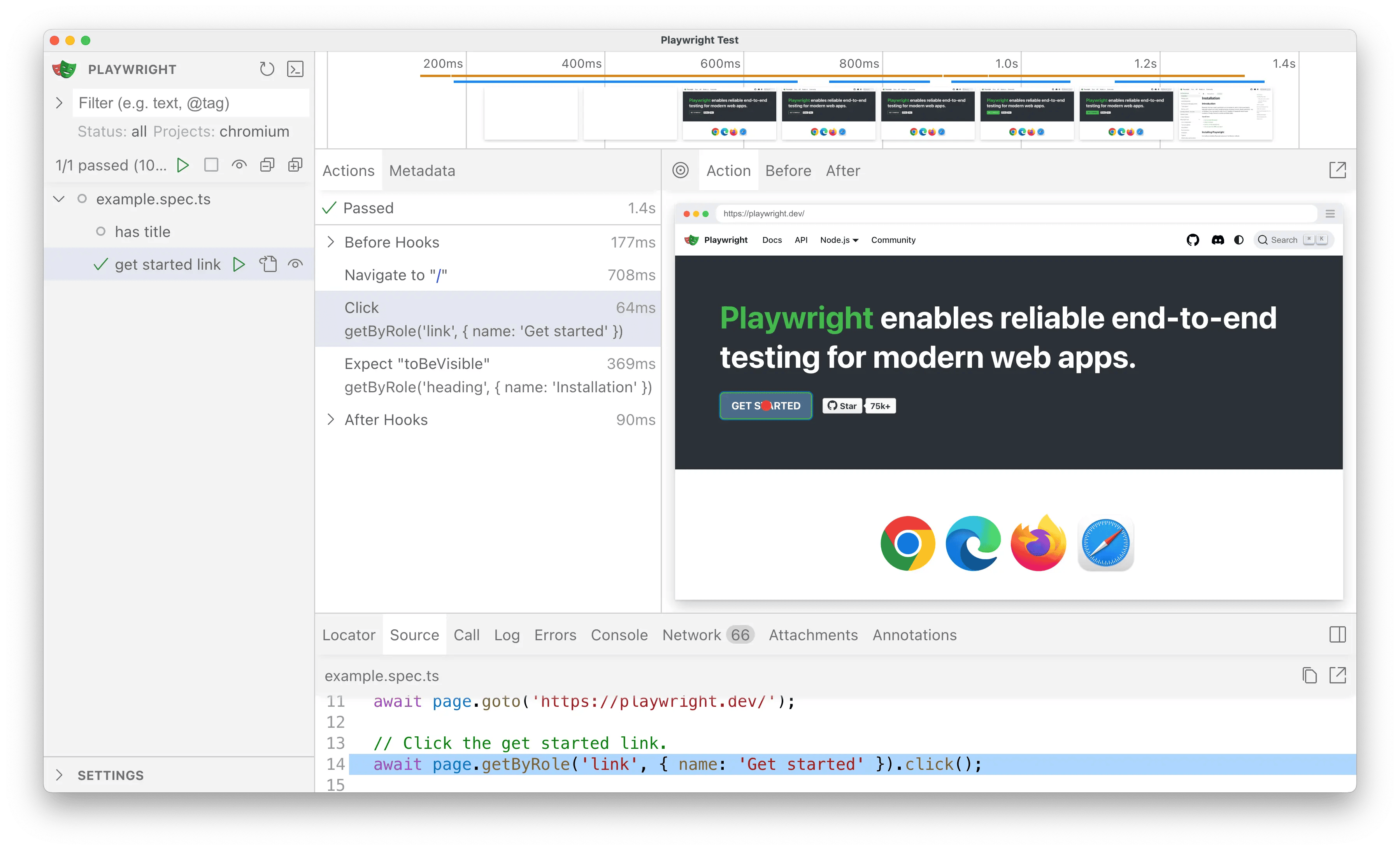
|
166
|
+
|
|
167
|
+
|
|
168
|
+
|
|
169
|
+
Clicking the ▶️ button should successfully run the tests in the UI,
|
|
170
|
+
just as they did before with `playwright test` in the CLI.
|
|
171
|
+
|
|
172
|
+
</Step>
|
|
173
|
+
|
|
174
|
+
<Step title="Import TestDriver">
|
|
175
|
+
|
|
176
|
+
For the sake of simplicity, we'll be working with one test file for now.
|
|
177
|
+
|
|
178
|
+
Open `tests/example.spec.ts` in your editor & rename the `@playwright/test`
|
|
179
|
+
import to `@testdriver.ai/playwright`:
|
|
180
|
+
|
|
181
|
+
```typescript icon="square-js" title="tests/example.spec.ts"
|
|
182
|
+
import { test, expect } from '@playwright/test'; // [!code --]
|
|
183
|
+
import { test, expect } from '@testdriver.ai/playwright'; // [!code ++]
|
|
184
|
+
```
|
|
185
|
+
|
|
186
|
+
Click the <Icon icon="play" /> button to run the test and verify everything still works.
|
|
187
|
+
|
|
188
|
+
<Tip>
|
|
189
|
+
Click the <Icon icon="eye" /> button to automatically re-run tests on save.
|
|
190
|
+
</Tip>
|
|
191
|
+
|
|
192
|
+
</Step>
|
|
193
|
+
|
|
194
|
+
</Steps>
|
|
195
|
+
|
|
196
|
+
## Usage
|
|
197
|
+
|
|
198
|
+
Because TestDriver uses AI vision instead of selectors, we can use natural language for
|
|
199
|
+
[assertions](#assertions-with-expect-tomatchprompt),
|
|
200
|
+
[locating](#locating-elements-with-testdriver-locate),
|
|
201
|
+
performing [actions](#performing-actions-with-testdriver-act),
|
|
202
|
+
or even having an [agent](#agentic-tests-with-test-agent) test for you!
|
|
203
|
+
|
|
204
|
+
### Assertions with `expect.toMatchPrompt`
|
|
205
|
+
|
|
206
|
+
Replace `toBeVisible` with `toMatchPrompt` to assert that the element is visible on the screen:
|
|
207
|
+
|
|
208
|
+
```typescript icon="square-js" title="tests/example.spec.ts"
|
|
209
|
+
// [!code --:2]
|
|
210
|
+
// Expects page to have a heading with the name of Installation.
|
|
211
|
+
await expect(page.getByRole("heading", { name: "Installation" })).toBeVisible();
|
|
212
|
+
// [!code ++:2]
|
|
213
|
+
await expect(page).toMatchPrompt("'Installation' heading is visible");
|
|
214
|
+
```
|
|
215
|
+
|
|
216
|
+
Before, the test needed code comments to describe what the assertion is _actually checking_.
|
|
217
|
+
|
|
218
|
+
With `toMatchPrompt`, natural language acts as a description, selector, and assertion in one
|
|
219
|
+
|
|
220
|
+
<Tip>
|
|
221
|
+
TestDriver can reduce the amount of complexity in your tests, but you can
|
|
222
|
+
still "opt-in" to Playwright assertions and selectors if you need to (e.g.
|
|
223
|
+
validating accessibility with `page.getByRole`).
|
|
224
|
+
</Tip>
|
|
225
|
+
|
|
226
|
+
### Locating elements with `testdriver.locate`
|
|
227
|
+
|
|
228
|
+
TestDriver can replace `data-testid`s, `getByRole`, and CSS selectors with natural language.
|
|
229
|
+
|
|
230
|
+
First, update your test to get access to the `testdriver` fixture:
|
|
231
|
+
|
|
232
|
+
```typescript icon="square-js" title="tests/example.spec.ts"
|
|
233
|
+
// [!code --]
|
|
234
|
+
test('get started link', async ({ page, }) => {
|
|
235
|
+
// [!code ++]
|
|
236
|
+
test('get started link', async ({ page, testdriver }) => {
|
|
237
|
+
```
|
|
238
|
+
|
|
239
|
+
Then, replace `getByRole` with `testdriver.locate`:
|
|
240
|
+
|
|
241
|
+
```typescript icon="square-js" title="tests/example.spec.ts"
|
|
242
|
+
test('get started link', async ({ page, testdriver }) => {
|
|
243
|
+
await page.goto('https://playwright.dev/');
|
|
244
|
+
|
|
245
|
+
// [!code --:2]
|
|
246
|
+
// Click the get started link.
|
|
247
|
+
await page.getByRole("link", { name: "Get started" }).click();
|
|
248
|
+
// [!code ++:2]
|
|
249
|
+
const link = await testdriver(page).locate("Get started link");
|
|
250
|
+
await link.click();
|
|
251
|
+
|
|
252
|
+
await expect(page).toMatchPrompt("'Installation' heading is visible");
|
|
253
|
+
```
|
|
254
|
+
|
|
255
|
+
Now, our test uses natural language to both describe & locate the element.
|
|
256
|
+
|
|
257
|
+
<Tip>
|
|
258
|
+
In the example above, you can still use Playwright to assert that the element is indeed a link for accessibility:
|
|
259
|
+
|
|
260
|
+
```typescript icon="square-js" title="tests/example.spec.ts"
|
|
261
|
+
const link = await testdriver(page).locate("Get started link");
|
|
262
|
+
// [!code ++]
|
|
263
|
+
expect(link).toHaveRole("link");
|
|
264
|
+
await link.click();
|
|
265
|
+
```
|
|
266
|
+
|
|
267
|
+
This way you can write user-centric tests _and_ validate the implementation.
|
|
268
|
+
|
|
269
|
+
</Tip>
|
|
270
|
+
|
|
271
|
+
### Performing actions with `testdriver.act`
|
|
272
|
+
|
|
273
|
+
We can combine `locate` and `click` from the previous example into one line with `testdriver.act`:
|
|
274
|
+
|
|
275
|
+
```typescript icon="square-js" title="tests/example.spec.ts"
|
|
276
|
+
test("get started link", async ({ page, testdriver }) => {
|
|
277
|
+
await page.goto("https://playwright.dev/");
|
|
278
|
+
|
|
279
|
+
// [!code --:2]
|
|
280
|
+
const link = await testdriver(page).locate("Get started link");
|
|
281
|
+
await link.click();
|
|
282
|
+
// [!code ++]
|
|
283
|
+
await testdriver(page).act("Click the 'Get started' link");
|
|
284
|
+
|
|
285
|
+
await expect(page).toMatchPrompt("'Installation' heading is visible");
|
|
286
|
+
});
|
|
287
|
+
```
|
|
288
|
+
|
|
289
|
+
Now the test uses the page the way a user would!
|
|
290
|
+
|
|
291
|
+
### Agentic tests with `test.agent`
|
|
292
|
+
|
|
293
|
+
TestDriver can automatically perform the entire test for you with an AI agent:
|
|
294
|
+
|
|
295
|
+
```typescript icon="square-js" title="tests/example.spec.ts"
|
|
296
|
+
// [!code --:6]
|
|
297
|
+
test("get started link", async ({ page, testdriver }) => {
|
|
298
|
+
await page.goto("https://playwright.dev/");
|
|
299
|
+
await testdriver(page).act("Click the 'Get started' link");
|
|
300
|
+
await expect(page).toMatchPrompt("'Installation' heading is visible");
|
|
301
|
+
});
|
|
302
|
+
|
|
303
|
+
// [!code ++:7]
|
|
304
|
+
test.describe("get started link", () => {
|
|
305
|
+
test.beforeEach(async ({ page }) => page.goto("https://playwright.dev/"));
|
|
306
|
+
test.agent(`
|
|
307
|
+
- Click the 'Get started' link
|
|
308
|
+
- Verify the 'Installation' heading is visible
|
|
309
|
+
`);
|
|
310
|
+
});
|
|
311
|
+
```
|
|
312
|
+
|
|
313
|
+
Instead of writing the test implementation, we've used [`test.describe`](https://playwright.dev/docs/api/class-test#test-describe) to describe the test still,
|
|
314
|
+
but replaced the `test` itself with `test.agent`.
|
|
315
|
+
|
|
316
|
+
<Tip>
|
|
317
|
+
Use
|
|
318
|
+
[`test.beforEach`](https://playwright.dev/docs/api/class-test#test-after-each)
|
|
319
|
+
to prepare the page for the agent (e.g.
|
|
320
|
+
[`page.goto`](https://playwright.dev/docs/api/class-page#page-goto), calling
|
|
321
|
+
an API to create a user). Use
|
|
322
|
+
[`test.afterEach`](https://playwright.dev/docs/api/class-test#test-after-each)
|
|
323
|
+
to clean up after the agent (e.g. `page.close`) or perform additional logic
|
|
324
|
+
(e.g. clearing the session).
|
|
325
|
+
</Tip>
|
|
326
|
+
|
|
327
|
+
## Conclusion
|
|
328
|
+
|
|
329
|
+
With `@testdriver.ai/playwright`, you can use as much or as little of Playwright's _or_ TestDriver's API as you need to validate correctness. It's up to you!
|
|
@@ -1,8 +1,9 @@
|
|
|
1
1
|
---
|
|
2
2
|
title: "Install the TestDriver VS Code Extension"
|
|
3
|
-
sidebarTitle: "VS Code
|
|
3
|
+
sidebarTitle: "VS Code"
|
|
4
4
|
description: "Comprehensive guide to installing and setting up TestDriver for VS Code"
|
|
5
5
|
icon: "file-code"
|
|
6
|
+
tag: BETA
|
|
6
7
|
---
|
|
7
8
|
|
|
8
9
|
<iframe
|
|
@@ -23,7 +24,11 @@ The TestDriver VS Code extension is a powerful tool that integrates TestDriver's
|
|
|
23
24
|
- Run and debug tests directly from the IDE
|
|
24
25
|
- View test results and logs within the IDE
|
|
25
26
|
|
|
26
|
-
<Tip>
|
|
27
|
+
<Tip>
|
|
28
|
+
The TestDriver VS Code Extension is currently in beta. If you encounter any
|
|
29
|
+
issues or have feedback, please let us know [in
|
|
30
|
+
Discord](https://discord.com/invite/cWDFW8DzPm)
|
|
31
|
+
</Tip>
|
|
27
32
|
|
|
28
33
|
<Steps>
|
|
29
34
|
<Step title="Install the VS Code Extension">
|
|
@@ -66,7 +71,7 @@ The TestDriver VS Code extension is a powerful tool that integrates TestDriver's
|
|
|
66
71
|
4. Find the "TestDriver: Set API Key" field and enter your API key from [the TestDriver dashboard](https://app.testdriver.ai/team).
|
|
67
72
|
|
|
68
73
|
<Tip>You can also set the `TD_API_KEY` environment variable in your system if you prefer not to enter it directly in the extension settings.</Tip>
|
|
69
|
-
|
|
74
|
+
|
|
70
75
|
</Step>
|
|
71
76
|
<Step title="Choose a Platform">
|
|
72
77
|
Click on the TestDriver icon in the sidebar to open the extension panel and choose a platform to get started (Web, Desktop, or Mobile).
|
package/package.json
CHANGED
|
@@ -1,6 +1,6 @@
|
|
|
1
1
|
{
|
|
2
2
|
"name": "testdriverai",
|
|
3
|
-
"version": "6.0.
|
|
3
|
+
"version": "6.0.29",
|
|
4
4
|
"description": "Next generation autonomous AI agent for end-to-end testing of web & desktop",
|
|
5
5
|
"main": "index.js",
|
|
6
6
|
"bin": {
|
|
@@ -10,9 +10,9 @@
|
|
|
10
10
|
"start": "node bin/testdriverai.js",
|
|
11
11
|
"dev": "DEV=true node bin/testdriverai.js",
|
|
12
12
|
"debug": "DEV=true VERBOSE=true node bin/testdriverai.js",
|
|
13
|
-
"docs": "node docs/_scripts/link-replacer.js && cd docs && npx mint dev",
|
|
13
|
+
"docs": "node docs/_scripts/link-replacer.js && cd docs && npx mint@latest dev",
|
|
14
14
|
"docs:dev": "cd docs && npx mint dev",
|
|
15
|
-
"docs:build": "node docs/_scripts/link-replacer.js && cd docs && npx mint build",
|
|
15
|
+
"docs:build": "node docs/_scripts/link-replacer.js && cd docs && npx mint@latest build",
|
|
16
16
|
"docs:links": "node docs/_scripts/link-replacer.js",
|
|
17
17
|
"bundle": "node build.mjs",
|
|
18
18
|
"test": "mocha test/*",
|