pi-web-ui 0.16.0 → 0.16.2
This diff represents the content of publicly available package versions that have been released to one of the supported registries. The information contained in this diff is provided for informational purposes only and reflects changes between package versions as they appear in their respective public registries.
- package/README.md +40 -407
- package/README.zh-CN.md +71 -367
- package/package.json +1 -1
package/README.md
CHANGED
|
@@ -1,440 +1,73 @@
|
|
|
1
1
|
# pi-web-ui
|
|
2
2
|
|
|
3
|
-
**English** | [简体中文](README.zh-CN.md)
|
|
3
|
+
**English** | [简体中文](https://github.com/xing-shuyin/pi-web-ui/blob/main/README.zh-CN.md)
|
|
4
4
|
|
|
5
|
-
A web chat interface for the [pi coding agent](https://pi.dev)
|
|
6
|
-
the
|
|
7
|
-
|
|
8
|
-
|
|
5
|
+
A web chat interface for the [pi coding agent](https://pi.dev) — the agent runs
|
|
6
|
+
in-process via the pi SDK and streams events to the browser over WebSocket. Chat
|
|
7
|
+
with thinking blocks and tool calls, attach files, ask about images, use a
|
|
8
|
+
built-in terminal, manage models, and more. Requires Node.js ≥ 22.19 and a
|
|
9
|
+
configured pi install.
|
|
9
10
|
|
|
10
|
-
|
|
11
|
-
the same thing inside VS Code by spawning `pi --mode rpc`. This project instead
|
|
12
|
-
uses the SDK's `createAgentSessionRuntime` API in-process (the SDK docs recommend
|
|
13
|
-
this over RPC for Node.js apps), so you get type safety, direct state access, and
|
|
14
|
-
your existing pi auth/config/extensions — nothing extra to install or configure.
|
|
11
|
+
## Screenshots
|
|
15
12
|
|
|
16
|
-
|
|
13
|
+
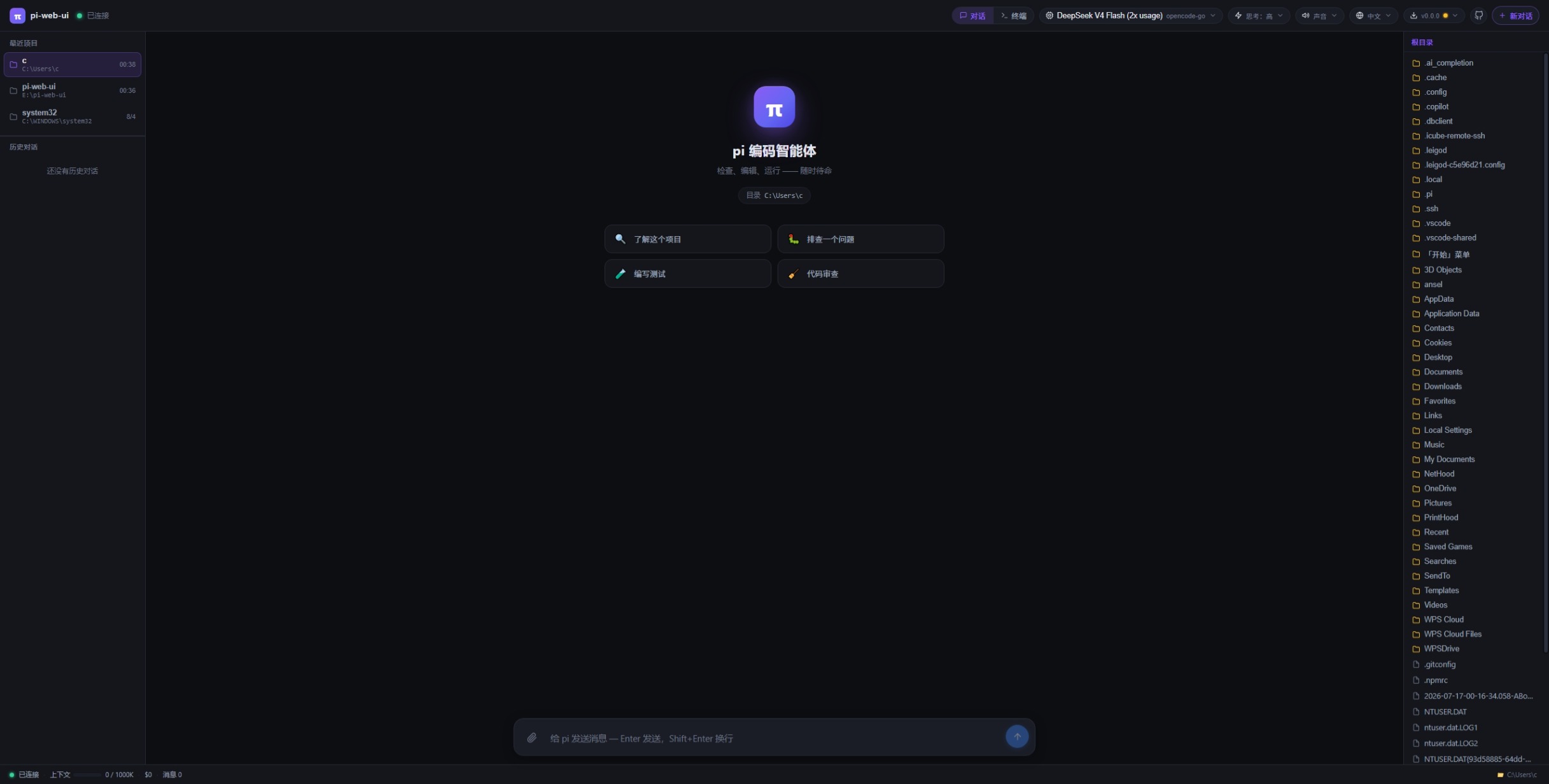
|
|
17
14
|
|
|
18
|
-
|
|
19
|
-
- 🛠 Tool execution cards with **live output streaming**, status (queued → running → done/error), and copyable arguments
|
|
20
|
-
- 💬 Session **history persisted per browser** (localStorage clientId + per-client session dirs) — refresh or restart and your chats come back. The conversation panel also lists the pi CLI/TUI sessions for the current folder (tagged `TUI`), so you can resume a terminal conversation from the web UI
|
|
21
|
-
- 📂 **Project memory**: the last workspace of each browser is remembered and restored on restart; a "Recent projects" list in the left panel switches workspaces in one click, and each project keeps its own sessions so you can always pick up an old conversation
|
|
22
|
-
- ✏️ **Edit & re-ask**: every past question has an edit button — change it and re-ask from that point. The server forks a new branch session (keeping the full history before that question) while the original conversation stays untouched in the session list
|
|
23
|
-
- ⚡ **Long chats stay fast**: past 30 messages, older messages collapse into summary rows (role + first-line preview + block counts — no Markdown/thinking/tool output rendered); click to expand the full content. The latest 15 messages always render in full
|
|
24
|
-
- ⬇️ **Self-update**: the top-right corner shows the running version; the update panel checks npm for the latest release and can run `npm i -g` in one click (a restart is required to take effect)
|
|
25
|
-
- 🔄 Model & thinking-level cycling (same as pi's TUI), new chat, abort/stop
|
|
26
|
-
- 📎 Markdown rendering with GFM tables, syntax-highlighted code blocks and copy buttons
|
|
27
|
-
- 📁 Workspace-aware: the agent reads/edits/runs code in a configurable directory using **your** `~/.pi/agent` auth, models, skills and extensions
|
|
28
|
-
- 🌐 Multiple browser clients each get an isolated session (private session dir per clientId)
|
|
29
|
-
- 🖥 Built-in **terminal** (xterm.js + node-pty, no VS Code needed): three panes — a
|
|
30
|
-
**command list** on the left (user-defined commands with `${pwd}` support, persisted in
|
|
31
|
-
the project's `.pi/commands.json`), the **terminal** in the middle, and a VSCode-style
|
|
32
|
-
**tab strip** on the right for multiple concurrent shells. Switch between chat and
|
|
33
|
-
terminal views with the toggle in the top bar.
|
|
34
|
-
|
|
35
|
-
## Quick start
|
|
36
|
-
|
|
37
|
-
Requires Node.js ≥ 22.19 (the pi SDK requires it; older Node fails with
|
|
38
|
-
`Unexpected token 'with'` when loading the SDK) and a configured pi install
|
|
39
|
-
(run `pi` once to log in).
|
|
15
|
+
## Install
|
|
40
16
|
|
|
41
17
|
```bash
|
|
42
|
-
npm install
|
|
43
|
-
|
|
44
|
-
#
|
|
18
|
+
npm i -g pi-web-ui # global install (recommended)
|
|
19
|
+
npx pi-web-ui # or run without installing (latest, starts on :8787)
|
|
20
|
+
npm i -g . # or install the local checkout
|
|
45
21
|
```
|
|
46
22
|
|
|
47
|
-
|
|
23
|
+
## Start
|
|
48
24
|
|
|
49
25
|
```bash
|
|
50
|
-
|
|
51
|
-
|
|
26
|
+
pi-web-ui # foreground, http://localhost:8787
|
|
27
|
+
PORT=9000 PI_WEB_CWD=/path/to/project pi-web-ui # custom port / workspace
|
|
52
28
|
```
|
|
53
29
|
|
|
54
|
-
##
|
|
55
|
-
|
|
56
|
-
The package is published on npm as [`pi-web-ui`](https://www.npmjs.com/package/pi-web-ui).
|
|
57
|
-
|
|
58
|
-
### Install
|
|
59
|
-
|
|
60
|
-
```bash
|
|
61
|
-
# install globally (recommended)
|
|
62
|
-
npm i -g pi-web-ui
|
|
63
|
-
|
|
64
|
-
# or run without installing (pulls the latest, starts on :8787)
|
|
65
|
-
npx pi-web-ui
|
|
66
|
-
|
|
67
|
-
# or install the local checkout (for testing changes before publishing)
|
|
68
|
-
npm i -g .
|
|
69
|
-
```
|
|
70
|
-
|
|
71
|
-
> **pi-managed npm?** If your `npm` is the pi wrapper that blocks dependency
|
|
72
|
-
> install scripts, approve node-pty's native build once after installing:
|
|
73
|
-
> `npm approve-scripts node-pty@1.1.0` (standard npm does this automatically).
|
|
74
|
-
|
|
75
|
-
### As a pi package (web UI inside pi)
|
|
76
|
-
|
|
77
|
-
`pi-web-ui` is also published as a **pi package** (`pi-package` on npm) so it
|
|
78
|
-
can be installed and used from within a pi session:
|
|
79
|
-
|
|
80
|
-
```bash
|
|
81
|
-
pi install npm:pi-web-ui
|
|
82
|
-
```
|
|
83
|
-
|
|
84
|
-
Once installed, a `/webui` command becomes available inside pi, launching the
|
|
85
|
-
local web UI against your current working directory:
|
|
86
|
-
|
|
87
|
-
```
|
|
88
|
-
/webui # start + open browser (current dir)
|
|
89
|
-
/webui --port 9000 # start on a specific port
|
|
90
|
-
/webui --no-browser # start without opening the browser
|
|
91
|
-
/webui stop # stop the running instance
|
|
92
|
-
/webui status # show URL / status
|
|
93
|
-
```
|
|
94
|
-
|
|
95
|
-
> **Note — `pi install` is NOT a global CLI install.**
|
|
96
|
-
>
|
|
97
|
-
> `pi install npm:pi-web-ui` only loads the package into pi's extension tree
|
|
98
|
-
> (`~/.pi/agent/npm/node_modules/`) and registers its extension for pi sessions.
|
|
99
|
-
> It does **not** put a `pi-web-ui` executable on your shell `PATH`, so you
|
|
100
|
-
> cannot run the `pi-web-ui` terminal command from that install. For the CLI you
|
|
101
|
-
> still need the global npm install above (`npm i -g pi-web-ui`), which is what
|
|
102
|
-
> `which pi-web-ui` resolves to. `pi install` ≠ `npm i -g`: one is for pi
|
|
103
|
-
> extensions, the other for a system-wide command. Both can coexist (the global
|
|
104
|
-
> 0.x CLI for terminal use, the pi package for the `/webui` in-pi entry).
|
|
105
|
-
|
|
106
|
-
### Start
|
|
107
|
-
|
|
108
|
-
```bash
|
|
109
|
-
pi-web-ui # foreground, http://localhost:8787
|
|
110
|
-
PORT=9000 PI_WEB_CWD=/path/to/project pi-web-ui # custom port / workspace
|
|
111
|
-
```
|
|
112
|
-
|
|
113
|
-
To run it in the background or auto-start on boot, use a system service —
|
|
114
|
-
see [Deploy & auto-start on boot](#deploy--auto-start-on-boot) (systemd /
|
|
115
|
-
launchd / Docker).
|
|
116
|
-
|
|
117
|
-
The `pi-web-ui` command serves the built frontend and the WebSocket API from
|
|
118
|
-
wherever the package is installed — no repo checkout needed. It uses **your**
|
|
119
|
-
`~/.pi/agent` config (auth/models/skills) and stores per-client sessions under
|
|
120
|
-
`<PI_WEB_CWD>/.pi-web`.
|
|
121
|
-
|
|
122
|
-
### Stop
|
|
30
|
+
## Stop
|
|
123
31
|
|
|
124
32
|
- **Foreground**: press `Ctrl+C` in the terminal running it.
|
|
125
|
-
- **
|
|
126
|
-
- **launchd**: `launchctl bootout gui/$(id -u)/com.xingshuyin.pi-web-ui`
|
|
127
|
-
- **Windows (scheduled task)**: `pi-web-ui server stop` (or
|
|
128
|
-
`schtasks /End /TN pi-web-ui`; stops the running instance, auto-start stays
|
|
129
|
-
until `server uninstall`)
|
|
130
|
-
- **Docker**: `docker compose stop` (stop + remove the container: `docker compose down`)
|
|
131
|
-
|
|
132
|
-
(Background processes should be managed by a system service, not `nohup` —
|
|
133
|
-
service stop commands above also stop and disable auto-start.)
|
|
134
|
-
|
|
135
|
-
### Verify / version
|
|
136
|
-
|
|
137
|
-
```bash
|
|
138
|
-
pi-web-ui --version # CLI version
|
|
139
|
-
npm ls -g pi-web-ui # installed? which version?
|
|
140
|
-
which pi-web-ui # executable location
|
|
141
|
-
```
|
|
33
|
+
- **As a service**: `pi-web-ui server stop` (stops the instance; auto-start stays until `server uninstall`).
|
|
142
34
|
|
|
143
|
-
|
|
35
|
+
## Update
|
|
144
36
|
|
|
145
37
|
```bash
|
|
146
|
-
npm i -g pi-web-ui@latest
|
|
147
|
-
# restart the
|
|
38
|
+
npm i -g pi-web-ui@latest # upgrade to the latest published version
|
|
39
|
+
pi-web-ui server restart # restart the service to apply it (foreground: restart manually)
|
|
148
40
|
```
|
|
149
41
|
|
|
150
|
-
|
|
42
|
+
## Uninstall
|
|
151
43
|
|
|
152
44
|
```bash
|
|
153
45
|
npm uninstall -g pi-web-ui
|
|
154
46
|
```
|
|
155
47
|
|
|
156
|
-
Uninstalling does **not** delete your chats
|
|
157
|
-
`<
|
|
158
|
-
|
|
159
|
-
### Manage as a system service (auto-start)
|
|
48
|
+
Uninstalling does **not** delete your chats — session data lives in
|
|
49
|
+
`<cwd>/.pi-web` (or `PI_WEB_DATA_DIR`) and survives uninstall/upgrade.
|
|
160
50
|
|
|
161
|
-
|
|
162
|
-
port and workspace:
|
|
51
|
+
## Run as a system service (auto-start on boot)
|
|
163
52
|
|
|
164
53
|
```bash
|
|
165
54
|
pi-web-ui server install --port 9000 --cwd /path/to/project # install + start
|
|
166
|
-
pi-web-ui server status
|
|
167
|
-
pi-web-ui server restart
|
|
168
|
-
pi-web-ui server stop
|
|
169
|
-
pi-web-ui server start
|
|
170
|
-
pi-web-ui server uninstall
|
|
171
|
-
|
|
172
|
-
|
|
173
|
-
|
|
174
|
-
|
|
175
|
-
|
|
176
|
-
- **
|
|
177
|
-
|
|
178
|
-
|
|
179
|
-
|
|
180
|
-
|
|
181
|
-
|
|
182
|
-
with `ERROR: Access is denied`, rerun it from an admin shell). It runs a
|
|
183
|
-
PowerShell launcher generated at
|
|
184
|
-
`%APPDATA%\pi-web-ui\pi-web-ui.ps1` via `powershell.exe -WindowStyle Hidden` — no black console window stays open, so there's nothing to
|
|
185
|
-
accidentally close/kill. The launcher sets env, cd's to the workspace,
|
|
186
|
-
launches node, appends logs to `%USERPROFILE%\pi-web-ui.log`. The task XML
|
|
187
|
-
is saved next to it; restarts on failure. **Always pass `--cwd`
|
|
188
|
-
explicitly** — the task inherits the installing shell's directory, and an
|
|
189
|
-
admin shell defaults to `C:\WINDOWS\system32`, which the non-elevated
|
|
190
|
-
task cannot write to (EPERM at startup). See
|
|
191
|
-
[Windows — Task Scheduler](#windows--task-scheduler) for details.
|
|
192
|
-
- Options: `--port` (default 8787 or `$PORT`), `--cwd` (default `$PI_WEB_CWD`
|
|
193
|
-
or the current directory), `--data-dir` (sessions), `--name` (custom service
|
|
194
|
-
name; on macOS the label is `com.xingshuyin.pi-web-ui`, custom names become
|
|
195
|
-
`com.<name>.server`). `--print` previews the generated unit/plist/task files
|
|
196
|
-
without applying it.
|
|
197
|
-
- Rerunning `install` with new options regenerates the config and restarts the
|
|
198
|
-
service — that's how you change the port/cwd of an installed service.
|
|
199
|
-
|
|
200
|
-
## Configuration
|
|
201
|
-
|
|
202
|
-
| Env var | Default | Description |
|
|
203
|
-
| -------------------------- | ----------------- | --------------------------------------------------------------------------------------------------------------------------------------------------------------------------------------- |
|
|
204
|
-
| `PORT` | `8787` | HTTP/WebSocket port |
|
|
205
|
-
| `PI_WEB_CWD` | server's cwd | The workspace directory the agent operates in (read/edit/bash/write) |
|
|
206
|
-
| `PI_WEB_DATA_DIR` | `<cwd>/.pi-web` | Where per-client session dirs are stored |
|
|
207
|
-
| `PI_WEB_INLINE_FILE_MAX` | `12288` (12KB) | Text attachments at or below this size are inlined into the model context; larger files are passed as path references and the model reads them on demand (saves tokens for small edits) |
|
|
208
|
-
| `PI_CODING_AGENT_DIR` | `~/.pi/agent` | pi config dir (auth.json, models.json, skills, extensions) |
|
|
209
|
-
|
|
210
|
-
Example — point the agent at a project:
|
|
211
|
-
|
|
212
|
-
```bash
|
|
213
|
-
PI_WEB_CWD=/path/to/your/project npm run dev
|
|
214
|
-
```
|
|
215
|
-
|
|
216
|
-
## Architecture
|
|
217
|
-
|
|
218
|
-
```text
|
|
219
|
-
Browser (React + Vite)
|
|
220
|
-
│ WebSocket JSON — snapshot-driven protocol (server/protocol.ts)
|
|
221
|
-
▼
|
|
222
|
-
server/index.ts express static + ws endpoint
|
|
223
|
-
│
|
|
224
|
-
server/agent-service.ts per-client ClientSession:
|
|
225
|
-
│ createAgentSessionRuntime({ sessionManager: SessionManager.continueRecent(cwd, sessionDir) })
|
|
226
|
-
│ session.subscribe(events) → throttled full-state snapshots + live tool deltas
|
|
227
|
-
▼
|
|
228
|
-
@earendil-works/pi-coding-agent (SDK, in-process)
|
|
229
|
-
│ ModelRuntime (auth from ~/.pi/agent) · tools · extensions · skills
|
|
230
|
-
▼
|
|
231
|
-
your LLM provider
|
|
232
|
-
```
|
|
233
|
-
|
|
234
|
-
Key design points:
|
|
235
|
-
|
|
236
|
-
- **Snapshot-driven UI.** The server is the source of truth: after every SDK
|
|
237
|
-
event it schedules a throttled (60 ms) full-state snapshot, and the browser
|
|
238
|
-
renders purely from snapshots. Reconnects just re-request `get_state`. Large
|
|
239
|
-
payloads (tool output, text) are capped during serialization (`server/serialize.ts`).
|
|
240
|
-
- **Live assistant streaming.** The in-progress message (SDK
|
|
241
|
-
`agent.state.streamingMessage`) is serialized into every snapshot, so thinking
|
|
242
|
-
blocks and answer text appear in the browser as they are generated — with a
|
|
243
|
-
blinking cursor — instead of only after the turn finishes. The partial message
|
|
244
|
-
gets a stable `stream-<ts>` id so it stays mounted (open thinking/tool blocks
|
|
245
|
-
keep their state) across snapshots.
|
|
246
|
-
- **Size-aware attachments.** Clicking + on a file queues it as an attachment
|
|
247
|
-
(shown as chips above the input). On send, the server attaches each file as an
|
|
248
|
-
independent custom message (SDK `sendCustomMessage` + `nextTurn` asides) — the
|
|
249
|
-
user message stays clean, and each file renders as its own collapsible card:
|
|
250
|
-
small text files (≤ `PI_WEB_INLINE_FILE_MAX`, default 12KB) are inlined so the
|
|
251
|
-
model sees them immediately; larger files are passed as a `<file path=...>`
|
|
252
|
-
reference and the model reads them on demand with its `read` tool, so attaching
|
|
253
|
-
a 5 MB file costs only a few tokens until the model actually looks at it.
|
|
254
|
-
Images are always attached as image content.
|
|
255
|
-
- **Image Q&A.** Besides attaching workspace images from the right panel, you
|
|
256
|
-
can **paste a screenshot (Ctrl+V), drag an image onto the input bar, or use
|
|
257
|
-
the 🖼 upload button** — the browser downscales it to ≤1568px and encodes it,
|
|
258
|
-
and it travels with the message (`prompt.attachments[].imageData`, base64),
|
|
259
|
-
no workspace path needed. Attaching an image to a non-vision model shows a
|
|
260
|
-
warning (the image would be ignored).
|
|
261
|
-
- **File chat.** Any local file (text or binary) can be dropped onto the input
|
|
262
|
-
bar or picked via the 📎 button — the browser sends the bytes as base64
|
|
263
|
-
(`prompt.attachments[].fileData`), the server persists them under
|
|
264
|
-
`~/.pi-web/uploads/<clientId>/` and attaches: small text files are inlined so
|
|
265
|
-
the model sees them immediately; large/binary files become absolute-path
|
|
266
|
-
references the model reads on demand (its read tool accepts absolute paths).
|
|
267
|
-
Cap: 20MB.
|
|
268
|
-
- **File preview with line selection.** Click a file name (or its 👁 button) in
|
|
269
|
-
the right panel to open a preview modal with line numbers. Click / drag /
|
|
270
|
-
Shift+click to select a line range, then “添加到对话” to queue it as a `lines`
|
|
271
|
-
attachment — the server inlines only the selected range
|
|
272
|
-
(`<file path=... lines="2-3">`), so you can point the agent at exactly the
|
|
273
|
-
code you mean without dumping the whole file. Preview reads are capped at
|
|
274
|
-
512 KB and binary files are detected and refused.
|
|
275
|
-
- **Live tool output.** `bash_execution_update` / `tool_execution_update` events
|
|
276
|
-
are forwarded as lightweight `tool_delta` messages so terminal output streams
|
|
277
|
-
in real time; the final output arrives in the toolResult message on the next
|
|
278
|
-
snapshot, which supersedes the delta buffer.
|
|
279
|
-
- **Isolated sessions.** Each browser client gets `sessions/<clientId>/` under
|
|
280
|
-
the data dir, resumed on reconnect via `SessionManager.continueRecent`.
|
|
281
|
-
- **Everything you already have.** No separate auth step — the SDK reads
|
|
282
|
-
`~/.pi/agent/auth.json` and loads your global extensions/skills automatically.
|
|
283
|
-
|
|
284
|
-
## Terminal
|
|
285
|
-
|
|
286
|
-
Toggle the terminal view from the top bar (对话/终端). It replaces the chat layout
|
|
287
|
-
with three panes:
|
|
288
|
-
|
|
289
|
-
- **Left — 命令 (commands)**: click a command to open a terminal tab in its directory and
|
|
290
|
-
run it. Add/edit/delete commands in the panel; they are saved to
|
|
291
|
-
`<project>/.pi/commands.json` (committed to the repo, shared with teammates):
|
|
292
|
-
|
|
293
|
-
```json
|
|
294
|
-
{
|
|
295
|
-
"commands": [
|
|
296
|
-
{ "name": "dev", "command": "npm run dev", "cwd": "${pwd}" },
|
|
297
|
-
{ "name": "test", "command": "npm test", "cwd": "${pwd}/server" },
|
|
298
|
-
{ "name": "build", "command": "npm run build", "cwd": "~/other-project" }
|
|
299
|
-
]
|
|
300
|
-
}
|
|
301
|
-
```
|
|
302
|
-
|
|
303
|
-
`${pwd}` resolves to the agent's current working directory (the one shown in the chat
|
|
304
|
-
view's file panel, changeable via set_cwd); `~` and relative paths also work. The `+`
|
|
305
|
-
button at the top of the command panel creates a new entry.
|
|
306
|
-
- **Middle — the terminal**: each tab is a real PTY (your `$SHELL` on
|
|
307
|
-
macOS/Linux; PowerShell or cmd.exe — `$COMSPEC` — on Windows); output
|
|
308
|
-
streams live and you can type, Ctrl+C, resize, etc. exactly like a desktop
|
|
309
|
-
terminal. Git Bash users on Windows get their `$SHELL` automatically.
|
|
310
|
-
- **Right — 终端 (tabs)**: VSCode-style vertical tab strip. `+` opens a plain shell in the
|
|
311
|
-
current directory. Closing a tab kills its process.
|
|
312
|
-
|
|
313
|
-
Notes:
|
|
314
|
-
|
|
315
|
-
- Running commands keep running while you switch back to the chat view.
|
|
316
|
-
- Terminals are killed when the last browser tab for a client disconnects (no orphaned
|
|
317
|
-
dev servers), so a dropped connection resets the terminal view.
|
|
318
|
-
|
|
319
|
-
## Protocol
|
|
320
|
-
|
|
321
|
-
See `server/protocol.ts` for the full wire format. Client → server: `hello`,
|
|
322
|
-
`prompt`, `abort`, `new_chat`, `cycle_model`, `cycle_thinking`, `get_state`,
|
|
323
|
-
`list_sessions`, `switch_session`, `list_files`, `list_models`, `set_model`,
|
|
324
|
-
`set_thinking`, `set_cwd`, `complete_path`, `dialog_response`,
|
|
325
|
-
`terminal_create`, `terminal_input`, `terminal_resize`, `terminal_kill`,
|
|
326
|
-
`run_command`, `list_commands`, `save_commands`.
|
|
327
|
-
Server → client: `ready`, `snapshot` (full `UiState`), `tool_delta`, `notice`,
|
|
328
|
-
`terminal_output`, `terminal_exit`, `commands`.
|
|
329
|
-
|
|
330
|
-
## Scripts
|
|
331
|
-
|
|
332
|
-
| Script | What it does |
|
|
333
|
-
| ---------------------------------- | ------------------------------------------------------- |
|
|
334
|
-
| `npm run dev` | server (tsx watch) + Vite dev server with WS proxy |
|
|
335
|
-
| `npm run build` | type-check + build frontend and server |
|
|
336
|
-
| `npm start` | run the production server (serves`web/dist`) |
|
|
337
|
-
| `npm run typecheck` | `tsc --noEmit` for both server and web |
|
|
338
|
-
| `node terminal-smoke-test.mjs` | WS-level terminal/commands protocol test (build first) |
|
|
339
|
-
| `node terminal-browser-test.mjs` | headless-browser E2E of the terminal view (build first) |
|
|
340
|
-
|
|
341
|
-
## Deploy & auto-start on boot
|
|
342
|
-
|
|
343
|
-
Quickest path: `pi-web-ui server install --port 8787 --cwd /path` — installs
|
|
344
|
-
and starts the service on boot (see [Manage as a system service](#manage-as-a-system-service-auto-start)).
|
|
345
|
-
The manual alternatives below are kept for reference / non-standard setups.
|
|
346
|
-
|
|
347
|
-
### Docker (one command)
|
|
348
|
-
|
|
349
|
-
```bash
|
|
350
|
-
docker compose up -d # builds, starts on :8787, auto-restarts on boot
|
|
351
|
-
docker compose stop # stop (keeps the container)
|
|
352
|
-
docker compose down # stop and remove the container
|
|
353
|
-
```
|
|
354
|
-
|
|
355
|
-
`restart: unless-stopped` in `docker-compose.yml` brings the server back up
|
|
356
|
-
whenever the Docker daemon starts (boot, crashes, reboots). Mount a volume for
|
|
357
|
-
`/app/.pi-web` (sessions persist) and, optionally, your `~/.pi/agent` config
|
|
358
|
-
and a workspace — see the comments in `docker-compose.yml`.
|
|
359
|
-
|
|
360
|
-
### Linux — systemd
|
|
361
|
-
|
|
362
|
-
```bash
|
|
363
|
-
sudo npm i -g pi-web-ui
|
|
364
|
-
sudo cp deploy/pi-web-ui.service /etc/systemd/system/
|
|
365
|
-
# edit User/WorkingDirectory/Environment in the unit first
|
|
366
|
-
sudo systemctl daemon-reload
|
|
367
|
-
sudo systemctl enable --now pi-web-ui # starts now + on every boot
|
|
368
|
-
sudo systemctl stop pi-web-ui # stop
|
|
369
|
-
sudo systemctl disable pi-web-ui # stop auto-start on boot
|
|
370
|
-
journalctl -u pi-web-ui -f # logs
|
|
371
|
-
```
|
|
372
|
-
|
|
373
|
-
### macOS — launchd
|
|
374
|
-
|
|
375
|
-
```bash
|
|
376
|
-
npm i -g pi-web-ui
|
|
377
|
-
cp deploy/com.xingshuyin.pi-web-ui.plist ~/Library/LaunchAgents/
|
|
378
|
-
# edit ProgramArguments / WorkingDirectory / PI_WEB_CWD (which pi-web-ui)
|
|
379
|
-
launchctl bootstrap gui/$(id -u) ~/Library/LaunchAgents/com.xingshuyin.pi-web-ui.plist
|
|
380
|
-
launchctl bootout gui/$(id -u)/com.xingshuyin.pi-web-ui # stop + remove auto-start
|
|
381
|
-
# logs: /tmp/pi-web-ui.log, /tmp/pi-web-ui.err
|
|
382
|
-
```
|
|
383
|
-
|
|
384
|
-
### Windows — Task Scheduler
|
|
385
|
-
|
|
386
|
-
Easiest path (generates everything, no manual XML editing):
|
|
387
|
-
|
|
388
|
-
```bat
|
|
389
|
-
npm i -g pi-web-ui
|
|
390
|
-
pi-web-ui server install --port 8787 --cwd C:\path\to\project
|
|
391
|
-
pi-web-ui server status
|
|
392
|
-
pi-web-ui server restart
|
|
393
|
-
pi-web-ui server stop :: stop the running instance (auto-start stays)
|
|
394
|
-
pi-web-ui server uninstall :: remove the task entirely
|
|
395
|
-
```
|
|
396
|
-
|
|
397
|
-
What it does: writes `%APPDATA%\pi-web-ui\pi-web-ui.ps1` (a PowerShell launcher
|
|
398
|
-
that sets `PORT`/`PI_WEB_CWD`, cd's to the workspace, launches node and
|
|
399
|
-
appends output to `%USERPROFILE%\pi-web-ui.log`) plus the Task Scheduler XML,
|
|
400
|
-
then registers a **logon** task (`schtasks /Create /XML` — the task runs when
|
|
401
|
-
you log in, same as a launchd agent; usually no admin needed, but see the
|
|
402
|
-
troubleshooting note below if you get access denied). The task invokes
|
|
403
|
-
`powershell.exe -WindowStyle Hidden`, so the server runs with **no black
|
|
404
|
-
console window** — there is nothing to accidentally close or kill. Preview
|
|
405
|
-
both generated files without installing: `pi-web-ui server install --print`.
|
|
406
|
-
|
|
407
|
-
Manual alternative with `deploy/pi-web-ui-task.xml`: edit the paths, save the
|
|
408
|
-
file as **UTF-16 LE** (schtasks requires it), then
|
|
409
|
-
`schtasks /Create /TN "pi-web-ui" /XML pi-web-ui-task.xml /F` and
|
|
410
|
-
`schtasks /Run /TN "pi-web-ui"`.
|
|
411
|
-
|
|
412
|
-
> **Windows troubleshooting**
|
|
413
|
-
>
|
|
414
|
-
> - **`install` fails with `ERROR: Access is denied` (错误: 拒绝访问)** — on
|
|
415
|
-
> some machines Task Scheduler refuses to let a non-elevated token create
|
|
416
|
-
> tasks (deleting your own task with `schtasks /Delete` still works, which
|
|
417
|
-
> is why `server uninstall` succeeds). Fix: run
|
|
418
|
-
> `pi-web-ui server install` from an **elevated (admin) PowerShell**.
|
|
419
|
-
> - **Always pass `--cwd` explicitly, and point it at a user-writable
|
|
420
|
-
> directory.** The task inherits the installing shell's current directory
|
|
421
|
-
> as its working directory. Installing from an elevated shell without
|
|
422
|
-
> `--cwd` registers the task with `C:\WINDOWS\system32`, and the server
|
|
423
|
-
> then fails at startup with
|
|
424
|
-
> `EPERM: operation not permitted, mkdir 'C:\WINDOWS\system32\.pi-web\sessions\...'`
|
|
425
|
-
> because the logon task runs with a least-privilege token that cannot
|
|
426
|
-
> write under `system32`. Use e.g. `--cwd C:\Users\<you>` (sessions then
|
|
427
|
-
> go to `C:\Users\<you>\.pi-web`).
|
|
428
|
-
> - **Fix an already-broken task** (task created with the wrong directory):
|
|
429
|
-
> `pi-web-ui server uninstall`, then
|
|
430
|
-
> `pi-web-ui server install --cwd C:\Users\<you>` from an elevated shell.
|
|
431
|
-
> Rerunning `install` with new options also regenerates the task in place.
|
|
432
|
-
|
|
433
|
-
> **Boot-start without login?** A logon task needs an interactive session, just
|
|
434
|
-
> like a launchd agent. For headless/always-on Windows use Docker (see above).
|
|
435
|
-
|
|
436
|
-
The three templates use `KeepAlive` / `Restart=on-failure` / `RestartOnFailure`
|
|
437
|
-
so the server survives crashes, and start at login/boot automatically.
|
|
55
|
+
pi-web-ui server status # running? auto-start?
|
|
56
|
+
pi-web-ui server restart # restart (applies config/version changes)
|
|
57
|
+
pi-web-ui server stop # stop (auto-start stays)
|
|
58
|
+
pi-web-ui server start # start again
|
|
59
|
+
pi-web-ui server uninstall # remove the service entirely
|
|
60
|
+
pi-web-ui server shortcut # desktop one-click launch icon
|
|
61
|
+
```
|
|
62
|
+
|
|
63
|
+
- **macOS** → launchd agent (no sudo), logs to `/tmp/pi-web-ui.log` / `.err`
|
|
64
|
+
- **Linux** → systemd unit (`systemctl enable --now`), logs via `journalctl -u pi-web-ui -f`
|
|
65
|
+
- **Windows** → Task Scheduler logon task (hidden PowerShell window, no black console)
|
|
66
|
+
|
|
67
|
+
Options: `--port` (default 8787), `--cwd` (workspace), `--data-dir` (sessions),
|
|
68
|
+
`--name` (custom service name). Rerunning `server install` with new options
|
|
69
|
+
regenerates the config and restarts the service — that's how you change its
|
|
70
|
+
port/cwd.
|
|
438
71
|
|
|
439
72
|
## License
|
|
440
73
|
|
package/README.zh-CN.md
CHANGED
|
@@ -1,367 +1,71 @@
|
|
|
1
|
-
# pi-web-ui
|
|
2
|
-
|
|
3
|
-
[English](README.md) | **简体中文**
|
|
4
|
-
|
|
5
|
-
|
|
6
|
-
|
|
7
|
-
|
|
8
|
-
|
|
9
|
-
|
|
10
|
-
|
|
11
|
-
|
|
12
|
-
|
|
13
|
-
|
|
14
|
-
|
|
15
|
-
|
|
16
|
-
-
|
|
17
|
-
-
|
|
18
|
-
|
|
19
|
-
|
|
20
|
-
|
|
21
|
-
|
|
22
|
-
|
|
23
|
-
|
|
24
|
-
-
|
|
25
|
-
|
|
26
|
-
|
|
27
|
-
|
|
28
|
-
|
|
29
|
-
|
|
30
|
-
-
|
|
31
|
-
-
|
|
32
|
-
|
|
33
|
-
|
|
34
|
-
|
|
35
|
-
|
|
36
|
-
|
|
37
|
-
|
|
38
|
-
|
|
39
|
-
|
|
40
|
-
|
|
41
|
-
|
|
42
|
-
|
|
43
|
-
npm
|
|
44
|
-
|
|
45
|
-
|
|
46
|
-
|
|
47
|
-
|
|
48
|
-
|
|
49
|
-
|
|
50
|
-
|
|
51
|
-
|
|
52
|
-
|
|
53
|
-
|
|
54
|
-
|
|
55
|
-
|
|
56
|
-
|
|
57
|
-
|
|
58
|
-
|
|
59
|
-
|
|
60
|
-
|
|
61
|
-
|
|
62
|
-
|
|
63
|
-
|
|
64
|
-
|
|
65
|
-
|
|
66
|
-
|
|
67
|
-
|
|
68
|
-
|
|
69
|
-
|
|
70
|
-
|
|
71
|
-
|
|
72
|
-
> node-pty 的原生构建:`npm approve-scripts node-pty@1.1.0`(标准 npm 会自动完成)。
|
|
73
|
-
|
|
74
|
-
### 启动
|
|
75
|
-
|
|
76
|
-
```bash
|
|
77
|
-
pi-web-ui # 前台,http://localhost:8787
|
|
78
|
-
PORT=9000 PI_WEB_CWD=/path/to/project pi-web-ui # 自定义端口 / 工作目录
|
|
79
|
-
```
|
|
80
|
-
|
|
81
|
-
想后台运行或开机自启,请使用系统服务——见
|
|
82
|
-
[部署与开机自启](#部署与开机自启)(systemd / launchd / Docker)。
|
|
83
|
-
|
|
84
|
-
`pi-web-ui` 命令从包安装位置提供编译好的前端和 WebSocket API——不需要仓库 checkout。
|
|
85
|
-
它使用**你的** `~/.pi/agent` 配置(认证/模型/技能),并把每客户端会话存在
|
|
86
|
-
`<PI_WEB_CWD>/.pi-web` 下。
|
|
87
|
-
|
|
88
|
-
### 停止
|
|
89
|
-
|
|
90
|
-
- **前台**:在运行它的终端按 `Ctrl+C`。
|
|
91
|
-
- **systemd**:`sudo systemctl stop pi-web-ui`
|
|
92
|
-
- **launchd**:`launchctl bootout gui/$(id -u)/com.xingshuyin.pi-web-ui`
|
|
93
|
-
- **Windows(计划任务)**:`pi-web-ui server stop`(或 `schtasks /End /TN pi-web-ui`;
|
|
94
|
-
停止运行中的实例,自启保留到 `server uninstall` 为止)
|
|
95
|
-
- **Docker**:`docker compose stop`(停止并删除容器:`docker compose down`)
|
|
96
|
-
|
|
97
|
-
(后台进程应该用系统服务管理,而不是 `nohup`——上面的服务停止命令同时会停掉并禁用自启。)
|
|
98
|
-
|
|
99
|
-
### 验证 / 版本
|
|
100
|
-
|
|
101
|
-
```bash
|
|
102
|
-
pi-web-ui --version # CLI 版本
|
|
103
|
-
npm ls -g pi-web-ui # 是否已安装?哪个版本?
|
|
104
|
-
which pi-web-ui # 可执行文件位置
|
|
105
|
-
```
|
|
106
|
-
|
|
107
|
-
### 更新
|
|
108
|
-
|
|
109
|
-
```bash
|
|
110
|
-
npm i -g pi-web-ui@latest # 升级到最新发布版
|
|
111
|
-
# 之后重启服务,新版本才会生效
|
|
112
|
-
```
|
|
113
|
-
|
|
114
|
-
### 卸载
|
|
115
|
-
|
|
116
|
-
```bash
|
|
117
|
-
npm uninstall -g pi-web-ui
|
|
118
|
-
```
|
|
119
|
-
|
|
120
|
-
卸载**不会**删除你的聊天记录:会话数据存放在 `<PI_WEB_CWD>/.pi-web`
|
|
121
|
-
(或 `PI_WEB_DATA_DIR`),卸载/升级后依然保留。
|
|
122
|
-
|
|
123
|
-
### 作为系统服务管理(开机自启)
|
|
124
|
-
|
|
125
|
-
把服务端安装为开机自启的系统服务,可自定义端口和工作目录:
|
|
126
|
-
|
|
127
|
-
```bash
|
|
128
|
-
pi-web-ui server install --port 9000 --cwd /path/to/project # 安装并启动
|
|
129
|
-
pi-web-ui server status # 运行中?自启?
|
|
130
|
-
pi-web-ui server restart # 重启(配置变更后同样用它)
|
|
131
|
-
pi-web-ui server stop # 停止 + 禁用自启
|
|
132
|
-
pi-web-ui server start # 重新启动
|
|
133
|
-
pi-web-ui server uninstall # 彻底移除服务
|
|
134
|
-
```
|
|
135
|
-
|
|
136
|
-
- **macOS** → launchd 代理(无需 sudo):写入并加载
|
|
137
|
-
`~/Library/LaunchAgents/com.xingshuyin.pi-web-ui.plist`,崩溃自动重启
|
|
138
|
-
(`KeepAlive`),日志在 `/tmp/pi-web-ui.log` / `/tmp/pi-web-ui.err`。
|
|
139
|
-
- **Linux** → systemd 单元(自动 sudo):写入
|
|
140
|
-
`/etc/systemd/system/pi-web-ui.service` 并执行 `systemctl enable --now`,
|
|
141
|
-
日志用 `journalctl -u pi-web-ui -f` 查看。
|
|
142
|
-
- **Windows** → 任务计划程序:创建登录时启动的用户任务(与 launchd 代理一致;
|
|
143
|
-
通常不需要管理员,但部分机器上 `schtasks /Create` 需要提权的 PowerShell——
|
|
144
|
-
如果 `install` 报 `ERROR: Access is denied`,请用管理员 shell 重跑)。任务通过
|
|
145
|
-
`powershell.exe -WindowStyle Hidden` 运行生成在 `%APPDATA%\pi-web-ui\pi-web-ui.ps1`
|
|
146
|
-
的 PowerShell 启动器——**不会有黑色控制台窗口**常驻,没有可被误关/误杀的东西。
|
|
147
|
-
启动器设置环境变量、cd 到工作目录、启动 node,并把日志追加到
|
|
148
|
-
`%USERPROFILE%\pi-web-ui.log`。任务 XML 保存在旁边;失败会自动重启。
|
|
149
|
-
**务必显式传 `--cwd`**——任务会继承安装时 shell 的目录,而管理员 shell 默认是
|
|
150
|
-
`C:\WINDOWS\system32`,非提权任务写不进去(启动即 EPERM)。详见
|
|
151
|
-
[Windows — 任务计划程序](#windows--任务计划程序)。
|
|
152
|
-
- 选项:`--port`(默认 8787 或 `$PORT`)、`--cwd`(默认 `$PI_WEB_CWD` 或当前目录)、
|
|
153
|
-
`--data-dir`(会话目录)、`--name`(自定义服务名;macOS 标签为
|
|
154
|
-
`com.xingshuyin.pi-web-ui`,自定义名变成 `com.<name>.server`)。`--print` 预览
|
|
155
|
-
生成的 unit/plist/任务文件而不实际应用。
|
|
156
|
-
- 用新参数重跑 `install` 会重新生成配置并重启服务——这就是修改已装服务端口/cwd 的方式。
|
|
157
|
-
|
|
158
|
-
## 配置
|
|
159
|
-
|
|
160
|
-
| 环境变量 | 默认值 | 说明 |
|
|
161
|
-
| -------------------------- | ----------------- | ---------------------------------------------------------------------------------------------------------------------- |
|
|
162
|
-
| `PORT` | `8787` | HTTP/WebSocket 端口 |
|
|
163
|
-
| `PI_WEB_CWD` | 服务端 cwd | 智能体操作的工作区目录(读/编辑/bash/写) |
|
|
164
|
-
| `PI_WEB_DATA_DIR` | `<cwd>/.pi-web` | 每客户端会话目录的存放位置 |
|
|
165
|
-
| `PI_WEB_INLINE_FILE_MAX` | `12288` (12KB) | 小于等于该大小的文本附件直接内联进模型上下文;更大的文件以路径引用方式传入,模型按需用 read 工具读取(小改动省 token) |
|
|
166
|
-
| `PI_CODING_AGENT_DIR` | `~/.pi/agent` | pi 配置目录(auth.json、models.json、skills、extensions) |
|
|
167
|
-
|
|
168
|
-
示例——让智能体面向某个项目:
|
|
169
|
-
|
|
170
|
-
```bash
|
|
171
|
-
PI_WEB_CWD=/path/to/your/project npm run dev
|
|
172
|
-
```
|
|
173
|
-
|
|
174
|
-
## 架构
|
|
175
|
-
|
|
176
|
-
```text
|
|
177
|
-
Browser (React + Vite)
|
|
178
|
-
│ WebSocket JSON — 快照驱动协议 (server/protocol.ts)
|
|
179
|
-
▼
|
|
180
|
-
server/index.ts express 静态 + ws 端点
|
|
181
|
-
│
|
|
182
|
-
server/agent-service.ts 每客户端 ClientSession:
|
|
183
|
-
│ createAgentSessionRuntime({ sessionManager: SessionManager.continueRecent(cwd, sessionDir) })
|
|
184
|
-
│ session.subscribe(events) → 节流全量快照 + 实时工具增量
|
|
185
|
-
▼
|
|
186
|
-
@earendil-works/pi-coding-agent (SDK, 进程内)
|
|
187
|
-
│ ModelRuntime (auth 来自 ~/.pi/agent) · tools · extensions · skills
|
|
188
|
-
▼
|
|
189
|
-
你的 LLM 提供商
|
|
190
|
-
```
|
|
191
|
-
|
|
192
|
-
关键设计点:
|
|
193
|
-
|
|
194
|
-
- **快照驱动 UI。** 服务端是唯一事实源:每次 SDK 事件后调度一个节流(60 ms)的全量快照,
|
|
195
|
-
浏览器纯粹按快照渲染。重连只需重新请求 `get_state`。大载荷(工具输出、文本)在序列化时
|
|
196
|
-
做了截断(`server/serialize.ts`)。
|
|
197
|
-
- **助手实时流式输出。** 进行中的消息(SDK `agent.state.streamingMessage`)被序列化进每个快照,
|
|
198
|
-
所以思考块和回答文本是**边生成边**出现在浏览器里(带闪烁光标),而不是等整轮结束才显示。
|
|
199
|
-
部分消息拿到稳定的 `stream-<ts>` id,跨快照保持挂载(展开的思考/工具块状态不丢)。
|
|
200
|
-
- **按大小感知的附件。** 点击 + 把文件加入附件队列(显示在输入框上方的 chips)。发送时服务端
|
|
201
|
-
把每个文件作为独立的 custom message 附加(SDK `sendCustomMessage` + `nextTurn` asides)——
|
|
202
|
-
用户消息保持干净,每个文件渲染成自己可折叠的卡片:小文本文件(≤ `PI_WEB_INLINE_FILE_MAX`,
|
|
203
|
-
默认 12KB)直接内联,模型立即看到;更大的文件以 `<file path=...>` 引用传入,模型按需用
|
|
204
|
-
`read` 工具读取——所以附加一个 5 MB 的文件在模型真正查看前只花几个 token。图片始终以
|
|
205
|
-
image content 附加。
|
|
206
|
-
- **图片问答。** 除了从右侧文件树附加工作区图片,还可以**直接粘贴截图(Ctrl+V)、把图片拖到
|
|
207
|
-
输入框、或点输入框的 🖼 按钮上传**——浏览器先把图片等比缩到 ≤1568px 再编码,图片随消息
|
|
208
|
-
发送(`prompt.attachments[].imageData` base64),无需存在于工作区。当前模型不支持识图时
|
|
209
|
-
会提示;非识图模型看不到图片。
|
|
210
|
-
- **文件对话。** 任意本地文件(文本/二进制)也可以直接**拖入输入框或用 📎 按钮上传**——浏览器
|
|
211
|
-
把内容以 base64 发送(`prompt.attachments[].fileData`),服务端存到 `~/.pi-web/uploads/<clientId>/`
|
|
212
|
-
并作为附件附加:小文本文件直接内联给模型看,大文件/二进制以绝对路径引用(模型的 read 工具
|
|
213
|
-
支持绝对路径,可按需读取);上限 20MB。
|
|
214
|
-
- **带行号选区的文件预览。** 在右侧面板点击文件名(或其 👁 按钮)打开带行号的预览弹窗。
|
|
215
|
-
点击 / 拖拽 / Shift+点击选择行区间,然后点"添加到对话"把它作为 `lines` 附件入队——
|
|
216
|
-
服务端只内联选中的区间(`<file path=... lines="2-3">`),可以精确指向想说的代码而不必
|
|
217
|
-
倾倒整个文件。预览读取上限 512 KB,二进制文件会被检测并拒绝。
|
|
218
|
-
- **实时工具输出。** `bash_execution_update` / `tool_execution_update` 事件被转发为轻量
|
|
219
|
-
`tool_delta` 消息,终端输出实时流动;最终输出在下一个快照的 toolResult 消息里到达,取代
|
|
220
|
-
delta 缓冲。
|
|
221
|
-
- **隔离会话。** 每个浏览器客户端在数据目录下拥有 `sessions/<clientId>/`,重连时通过
|
|
222
|
-
`SessionManager.continueRecent` 续接。
|
|
223
|
-
- **你已经拥有的一切。** 无需单独认证步骤——SDK 读取 `~/.pi/agent/auth.json` 并自动加载
|
|
224
|
-
你的全局扩展/技能。
|
|
225
|
-
|
|
226
|
-
## 终端
|
|
227
|
-
|
|
228
|
-
从顶栏切换终端视图(对话/终端)。它以三栏布局替代聊天界面:
|
|
229
|
-
|
|
230
|
-
- **左 — 命令**:点击命令在对应目录打开终端标签页并运行。可在面板里增/改/删命令;它们保存到
|
|
231
|
-
`<project>/.pi/commands.json`(提交进仓库,与队友共享):
|
|
232
|
-
|
|
233
|
-
```json
|
|
234
|
-
{
|
|
235
|
-
"commands": [
|
|
236
|
-
{ "name": "dev", "command": "npm run dev", "cwd": "${pwd}" },
|
|
237
|
-
{ "name": "test", "command": "npm test", "cwd": "${pwd}/server" },
|
|
238
|
-
{ "name": "build", "command": "npm run build", "cwd": "~/other-project" }
|
|
239
|
-
]
|
|
240
|
-
}
|
|
241
|
-
```
|
|
242
|
-
|
|
243
|
-
`${pwd}` 解析为智能体当前工作目录(聊天视图文件面板里显示的那个,可用 set_cwd 修改);
|
|
244
|
-
`~` 和相对路径同样有效。命令面板顶部的 `+` 按钮新建条目。
|
|
245
|
-
- **中 — 终端**:每个标签页是一个真实 PTY(macOS/Linux 是你的 `$SHELL`;Windows 是
|
|
246
|
-
PowerShell 或 cmd.exe——`$COMSPEC`);输出实时流动,可以输入、Ctrl+C、调整大小等,和桌面
|
|
247
|
-
终端一模一样。Windows 上的 Git Bash 用户会自动拿到 `$SHELL`。
|
|
248
|
-
- **右 — 终端(标签)**:VSCode 风格纵向标签条。`+` 在当前目录打开一个普通 shell。
|
|
249
|
-
关闭标签页会杀掉它的进程。
|
|
250
|
-
|
|
251
|
-
说明:
|
|
252
|
-
|
|
253
|
-
- 切回聊天视图时,运行中的命令继续运行。
|
|
254
|
-
- 客户端的最后一个浏览器标签断开时终端会被杀掉(不留孤儿 dev server),所以断线会重置终端视图。
|
|
255
|
-
|
|
256
|
-
## 协议
|
|
257
|
-
|
|
258
|
-
完整 wire 格式见 `server/protocol.ts`。客户端 → 服务端:`hello`、`prompt`、`abort`、
|
|
259
|
-
`new_chat`、`cycle_model`、`cycle_thinking`、`get_state`、`list_sessions`、
|
|
260
|
-
`switch_session`、`list_files`、`list_models`、`set_model`、`set_thinking`、`set_cwd`、
|
|
261
|
-
`complete_path`、`dialog_response`、`terminal_create`、`terminal_input`、
|
|
262
|
-
`terminal_resize`、`terminal_kill`、`run_command`、`list_commands`、`save_commands`。
|
|
263
|
-
服务端 → 客户端:`ready`、`snapshot`(完整 `UiState`)、`tool_delta`、`notice`、
|
|
264
|
-
`terminal_output`、`terminal_exit`、`commands`。
|
|
265
|
-
|
|
266
|
-
## 脚本
|
|
267
|
-
|
|
268
|
-
| 脚本 | 作用 |
|
|
269
|
-
| ---------------------------------- | ---------------------------------------------- |
|
|
270
|
-
| `npm run dev` | 服务端(tsx watch)+ Vite dev server + WS 代理 |
|
|
271
|
-
| `npm run build` | 类型检查 + 构建前端和服务端 |
|
|
272
|
-
| `npm start` | 运行生产服务端(提供`web/dist`) |
|
|
273
|
-
| `npm run typecheck` | 双端`tsc --noEmit` |
|
|
274
|
-
| `node terminal-smoke-test.mjs` | WS 层终端/命令协议测试(先 build) |
|
|
275
|
-
| `node terminal-browser-test.mjs` | 终端视图的无头浏览器 E2E(先 build) |
|
|
276
|
-
|
|
277
|
-
## 部署与开机自启
|
|
278
|
-
|
|
279
|
-
最快的路径:`pi-web-ui server install --port 8787 --cwd /path`——安装并让服务开机自启
|
|
280
|
-
(见[作为系统服务管理(开机自启)](#作为系统服务管理开机自启))。
|
|
281
|
-
下面的手动方案保留给参考 / 非标准场景。
|
|
282
|
-
|
|
283
|
-
### Docker(一条命令)
|
|
284
|
-
|
|
285
|
-
```bash
|
|
286
|
-
docker compose up -d # 构建,启动在 :8787,开机自动重启
|
|
287
|
-
docker compose stop # 停止(保留容器)
|
|
288
|
-
docker compose down # 停止并删除容器
|
|
289
|
-
```
|
|
290
|
-
|
|
291
|
-
`docker-compose.yml` 里的 `restart: unless-stopped` 让 Docker 守护进程启动时(开机、崩溃、
|
|
292
|
-
重启)把服务拉起来。挂载一个卷给 `/app/.pi-web`(会话持久化),可选地挂载你的 `~/.pi/agent`
|
|
293
|
-
配置和工作区——见 `docker-compose.yml` 里的注释。
|
|
294
|
-
|
|
295
|
-
### Linux — systemd
|
|
296
|
-
|
|
297
|
-
```bash
|
|
298
|
-
sudo npm i -g pi-web-ui
|
|
299
|
-
sudo cp deploy/pi-web-ui.service /etc/systemd/system/
|
|
300
|
-
# 先编辑 unit 里的 User/WorkingDirectory/Environment
|
|
301
|
-
sudo systemctl daemon-reload
|
|
302
|
-
sudo systemctl enable --now pi-web-ui # 立即启动 + 每次开机启动
|
|
303
|
-
sudo systemctl stop pi-web-ui # 停止
|
|
304
|
-
sudo systemctl disable pi-web-ui # 取消开机自启
|
|
305
|
-
journalctl -u pi-web-ui -f # 日志
|
|
306
|
-
```
|
|
307
|
-
|
|
308
|
-
### macOS — launchd
|
|
309
|
-
|
|
310
|
-
```bash
|
|
311
|
-
npm i -g pi-web-ui
|
|
312
|
-
cp deploy/com.xingshuyin.pi-web-ui.plist ~/Library/LaunchAgents/
|
|
313
|
-
# 编辑 ProgramArguments / WorkingDirectory / PI_WEB_CWD(which pi-web-ui)
|
|
314
|
-
launchctl bootstrap gui/$(id -u) ~/Library/LaunchAgents/com.xingshuyin.pi-web-ui.plist
|
|
315
|
-
launchctl bootout gui/$(id -u)/com.xingshuyin.pi-web-ui # 停止 + 移除自启
|
|
316
|
-
# 日志:/tmp/pi-web-ui.log、/tmp/pi-web-ui.err
|
|
317
|
-
```
|
|
318
|
-
|
|
319
|
-
### Windows — 任务计划程序
|
|
320
|
-
|
|
321
|
-
最简路径(自动生成一切,无需手改 XML):
|
|
322
|
-
|
|
323
|
-
```bat
|
|
324
|
-
npm i -g pi-web-ui
|
|
325
|
-
pi-web-ui server install --port 8787 --cwd C:\path\to\project
|
|
326
|
-
pi-web-ui server status
|
|
327
|
-
pi-web-ui server restart
|
|
328
|
-
pi-web-ui server stop :: 停止运行中的实例(自启保留)
|
|
329
|
-
pi-web-ui server uninstall :: 彻底移除任务
|
|
330
|
-
```
|
|
331
|
-
|
|
332
|
-
它的做法:写入 `%APPDATA%\pi-web-ui\pi-web-ui.ps1`(一个 PowerShell 启动器:设置
|
|
333
|
-
`PORT`/`PI_WEB_CWD`、cd 到工作目录、启动 node 并把输出追加到 `%USERPROFILE%\pi-web-ui.log`)
|
|
334
|
-
和任务计划程序 XML,然后注册一个**登录时**任务(`schtasks /Create /XML`——你登录时运行,
|
|
335
|
-
与 launchd 代理一致;通常不需要管理员,但如果遇到拒绝访问,请看下面的排障说明)。任务调用
|
|
336
|
-
`powershell.exe -WindowStyle Hidden`,所以服务运行**没有黑色控制台窗口**——没有可被误关/误杀
|
|
337
|
-
的东西。不实际安装即可预览两个生成文件:`pi-web-ui server install --print`。
|
|
338
|
-
|
|
339
|
-
手工方案用 `deploy/pi-web-ui-task.xml`:改好路径,把文件存成 **UTF-16 LE**(schtasks 要求),
|
|
340
|
-
然后 `schtasks /Create /TN "pi-web-ui" /XML pi-web-ui-task.xml /F` 和
|
|
341
|
-
`schtasks /Run /TN "pi-web-ui"`。
|
|
342
|
-
|
|
343
|
-
> **Windows 排障**
|
|
344
|
-
>
|
|
345
|
-
> - **`install` 报 `ERROR: Access is denied`(错误: 拒绝访问)**——部分机器上任务计划程序
|
|
346
|
-
> 不允许非提权令牌创建任务(删除自己拥有的任务 `schtasks /Delete` 却可以,所以
|
|
347
|
-
> `server uninstall` 正常)。解决:在**管理员(提权)PowerShell** 里执行
|
|
348
|
-
> `pi-web-ui server install`。
|
|
349
|
-
> - **务必显式传 `--cwd`,且指向用户可写目录。** 任务会继承安装时 shell 的当前目录作为
|
|
350
|
-
> 工作目录。从提权 shell 安装且不带 `--cwd` 时,任务会注册成 `C:\WINDOWS\system32`,
|
|
351
|
-
> 服务端启动时随即报
|
|
352
|
-
> `EPERM: operation not permitted, mkdir 'C:\WINDOWS\system32\.pi-web\sessions\...'`
|
|
353
|
-
> ——因为登录任务以最小权限令牌运行,无法在 `system32` 下写入。请用例如
|
|
354
|
-
> `--cwd C:\Users\<you>`(会话随之存到 `C:\Users\<you>\.pi-web`)。
|
|
355
|
-
> - **修复已装坏的任务**(目录注册错的任务):`pi-web-ui server uninstall`,然后
|
|
356
|
-
> 在提权 shell 里 `pi-web-ui server install --cwd C:\Users\<you>`。
|
|
357
|
-
> 用新选项重跑 `install` 也会就地重新生成任务。
|
|
358
|
-
>
|
|
359
|
-
> **不登录也要开机启动?** 登录任务需要交互式会话,与 launchd 代理一样。
|
|
360
|
-
> 无头/常开 Windows 请用 Docker(见上)。
|
|
361
|
-
|
|
362
|
-
三套模板分别使用 `KeepAlive` / `Restart=on-failure` / `RestartOnFailure`,服务崩溃后
|
|
363
|
-
自动重启,并在登录/开机时自动启动。
|
|
364
|
-
|
|
365
|
-
## License
|
|
366
|
-
|
|
367
|
-
MIT
|
|
1
|
+
# pi-web-ui
|
|
2
|
+
|
|
3
|
+
[English](https://github.com/xing-shuyin/pi-web-ui/blob/main/README.md) | **简体中文**
|
|
4
|
+
|
|
5
|
+
[pi 编码智能体](https://pi.dev) 的 Web 聊天界面 —— 智能体通过 pi SDK 在服务端进程内运行,
|
|
6
|
+
事件经 WebSocket 流式推送到浏览器。支持思考块与工具调用、附件与图片问答、内置终端、
|
|
7
|
+
模型管理等功能。需要 Node.js ≥ 22.19 及配置好的 pi 环境。
|
|
8
|
+
|
|
9
|
+
## 界面截图
|
|
10
|
+
|
|
11
|
+

|
|
12
|
+
|
|
13
|
+
## 安装
|
|
14
|
+
|
|
15
|
+
```bash
|
|
16
|
+
npm i -g pi-web-ui # 全局安装(推荐)
|
|
17
|
+
npx pi-web-ui # 或免安装直接跑(拉取最新版,启动在 :8787)
|
|
18
|
+
npm i -g . # 或安装本地 checkout
|
|
19
|
+
```
|
|
20
|
+
|
|
21
|
+
## 启动
|
|
22
|
+
|
|
23
|
+
```bash
|
|
24
|
+
pi-web-ui # 前台,http://localhost:8787
|
|
25
|
+
PORT=9000 PI_WEB_CWD=/path/to/project pi-web-ui # 自定义端口 / 工作目录
|
|
26
|
+
```
|
|
27
|
+
|
|
28
|
+
## 停止
|
|
29
|
+
|
|
30
|
+
- **前台**:在运行它的终端里按 `Ctrl+C`。
|
|
31
|
+
- **作为服务**:`pi-web-ui server stop`(停止实例;开机自启保留,直到 `server uninstall`)。
|
|
32
|
+
|
|
33
|
+
## 更新
|
|
34
|
+
|
|
35
|
+
```bash
|
|
36
|
+
npm i -g pi-web-ui@latest # 升级到最新发布版本
|
|
37
|
+
pi-web-ui server restart # 重启服务使新版本生效(前台运行则手动重启)
|
|
38
|
+
```
|
|
39
|
+
|
|
40
|
+
## 卸载
|
|
41
|
+
|
|
42
|
+
```bash
|
|
43
|
+
npm uninstall -g pi-web-ui
|
|
44
|
+
```
|
|
45
|
+
|
|
46
|
+
卸载**不会**删除你的聊天记录 —— 会话数据存放在 `<cwd>/.pi-web`(或 `PI_WEB_DATA_DIR`),
|
|
47
|
+
卸载/升级后依然保留。
|
|
48
|
+
|
|
49
|
+
## 作为系统服务(开机自启)
|
|
50
|
+
|
|
51
|
+
```bash
|
|
52
|
+
pi-web-ui server install --port 9000 --cwd /path/to/project # 安装 + 启动
|
|
53
|
+
pi-web-ui server status # 运行中?开机自启?
|
|
54
|
+
pi-web-ui server restart # 重启(应用配置/版本变更)
|
|
55
|
+
pi-web-ui server stop # 停止(开机自启保留)
|
|
56
|
+
pi-web-ui server start # 再次启动
|
|
57
|
+
pi-web-ui server uninstall # 彻底移除服务
|
|
58
|
+
pi-web-ui server shortcut # 桌面一键启动图标
|
|
59
|
+
```
|
|
60
|
+
|
|
61
|
+
- **macOS** → launchd 代理(无需 sudo),日志 `/tmp/pi-web-ui.log` / `.err`
|
|
62
|
+
- **Linux** → systemd unit(`systemctl enable --now`),日志 `journalctl -u pi-web-ui -f`
|
|
63
|
+
- **Windows** → 计划任务(登录自启,隐藏 PowerShell 窗口,无黑窗)
|
|
64
|
+
|
|
65
|
+
选项:`--port`(默认 8787)、`--cwd`(工作目录)、`--data-dir`(会话目录)、
|
|
66
|
+
`--name`(自定义服务名)。重复执行 `server install` 并传入新选项即可重新生成配置
|
|
67
|
+
并重启服务 —— 这就是修改已装服务端口/工作目录的方式。
|
|
68
|
+
|
|
69
|
+
## License
|
|
70
|
+
|
|
71
|
+
MIT
|
package/package.json
CHANGED
|
@@ -1,6 +1,6 @@
|
|
|
1
1
|
{
|
|
2
2
|
"name": "pi-web-ui",
|
|
3
|
-
"version": "0.16.
|
|
3
|
+
"version": "0.16.2",
|
|
4
4
|
"description": "Web chat interface for the pi coding agent, powered by the pi SDK (@earendil-works/pi-coding-agent) — one-command run, Docker/systemd/launchd deployable",
|
|
5
5
|
"license": "MIT",
|
|
6
6
|
"type": "module",
|