node-red-contrib-power-saver 2.1.0 → 3.0.3
This diff represents the content of publicly available package versions that have been released to one of the supported registries. The information contained in this diff is provided for informational purposes only and reflects changes between package versions as they appear in their respective public registries.
- package/.github/FUNDING.yml +12 -0
- package/CHANGELOG.md +1 -43
- package/README.md +3 -231
- package/docs/.vuepress/config.js +67 -0
- package/docs/.vuepress/dist/404.html +15 -0
- package/docs/.vuepress/dist/assets/css/styles.e835bef6.css +8 -0
- package/docs/.vuepress/dist/assets/img/back-to-top.8b37f773.svg +1 -0
- package/docs/.vuepress/dist/assets/img/elvia-config-no-config.b4bb972c.png +0 -0
- package/docs/.vuepress/dist/assets/img/elvia-config-no-tariff.3f89aba8.png +0 -0
- package/docs/.vuepress/dist/assets/img/elvia-config-select-tariff.0f73fd56.png +0 -0
- package/docs/.vuepress/dist/assets/img/elvia-config-subscription-key.8be8ab8a.png +0 -0
- package/docs/.vuepress/dist/assets/img/elvia-flow.bae2a4d5.png +0 -0
- package/docs/.vuepress/dist/assets/img/example-flow-1.3ff3e23f.png +0 -0
- package/docs/.vuepress/dist/assets/img/example-flow-2.b653b58d.png +0 -0
- package/docs/.vuepress/dist/assets/img/migrate-best-save.f73420f6.png +0 -0
- package/docs/.vuepress/dist/assets/img/migrate-power-saver.aae13f9d.png +0 -0
- package/docs/.vuepress/dist/assets/img/node-power-saver.51ff2e5d.png +0 -0
- package/docs/.vuepress/dist/assets/img/node-ps-elvia-add-tariff.94ea2b09.png +0 -0
- package/docs/.vuepress/dist/assets/img/node-ps-receive-price.76eaa418.png +0 -0
- package/docs/.vuepress/dist/assets/img/node-ps-strategy-best-save.392292d5.png +0 -0
- package/docs/.vuepress/dist/assets/img/node-ps-strategy-lowest-price.3a4ad347.png +0 -0
- package/docs/.vuepress/dist/assets/img/power-saver-nordpool-current-state.bf14afde.png +0 -0
- package/docs/.vuepress/dist/assets/img/power-saver-nordpool-events-state.8c392507.png +0 -0
- package/docs/.vuepress/dist/assets/img/power-saver-tibber-mqtt.16891dd2.png +0 -0
- package/docs/.vuepress/dist/assets/js/293.5e967839.js +1 -0
- package/docs/.vuepress/dist/assets/js/491.c183eba3.js +1 -0
- package/docs/.vuepress/dist/assets/js/812.79dad458.js +2 -0
- package/docs/.vuepress/dist/assets/js/812.79dad458.js.LICENSE.txt +8 -0
- package/docs/.vuepress/dist/assets/js/app.4ee3384b.js +1 -0
- package/docs/.vuepress/dist/assets/js/runtime~app.cafd6537.js +1 -0
- package/docs/.vuepress/dist/assets/js/v-08683c60.07fe8291.js +1 -0
- package/docs/.vuepress/dist/assets/js/v-0aca7ba6.aec5ba75.js +1 -0
- package/docs/.vuepress/dist/assets/js/v-0b5e3c8c.d008d8bc.js +1 -0
- package/docs/.vuepress/dist/assets/js/v-1ad821fa.85407071.js +1 -0
- package/docs/.vuepress/dist/assets/js/v-30acb564.73b8e29f.js +1 -0
- package/docs/.vuepress/dist/assets/js/v-3706649a.d7f73384.js +1 -0
- package/docs/.vuepress/dist/assets/js/v-4637f9e4.22ab9413.js +1 -0
- package/docs/.vuepress/dist/assets/js/v-510ed0d4.204a09ec.js +1 -0
- package/docs/.vuepress/dist/assets/js/v-5954bcb2.be07962c.js +1 -0
- package/docs/.vuepress/dist/assets/js/v-5db8da3a.ac192f35.js +1 -0
- package/docs/.vuepress/dist/assets/js/v-61f728ca.802ab15e.js +1 -0
- package/docs/.vuepress/dist/assets/js/v-677dfaed.9bbbd037.js +1 -0
- package/docs/.vuepress/dist/assets/js/v-7c87f26e.457a1a60.js +1 -0
- package/docs/.vuepress/dist/assets/js/v-8daa1a0e.db8b59c6.js +1 -0
- package/docs/.vuepress/dist/assets/js/v-b4a42144.6e0c5aa0.js +1 -0
- package/docs/.vuepress/dist/assets/js/v-e8c55052.5f85b6cd.js +1 -0
- package/docs/.vuepress/dist/assets/js/v-fffb8e28.e815e852.js +1 -0
- package/docs/.vuepress/dist/changelog/index.html +15 -0
- package/docs/.vuepress/dist/contribute/index.html +15 -0
- package/docs/.vuepress/dist/euro.png +0 -0
- package/docs/.vuepress/dist/examples/example-nordpool-current-state.html +169 -0
- package/docs/.vuepress/dist/examples/example-nordpool-events-state.html +173 -0
- package/docs/.vuepress/dist/examples/example-tibber-mqtt.html +182 -0
- package/docs/.vuepress/dist/examples/index.html +15 -0
- package/docs/.vuepress/dist/guide/index.html +52 -0
- package/docs/.vuepress/dist/index.html +15 -0
- package/docs/.vuepress/dist/logo.png +0 -0
- package/docs/.vuepress/dist/nodes/index.html +15 -0
- package/docs/.vuepress/dist/nodes/old-power-saver-doc.html +97 -0
- package/docs/.vuepress/dist/nodes/power-saver.html +15 -0
- package/docs/.vuepress/dist/nodes/ps-elvia-add-tariff.html +15 -0
- package/docs/.vuepress/dist/nodes/ps-receive-price.html +80 -0
- package/docs/.vuepress/dist/nodes/ps-strategy-best-save.html +65 -0
- package/docs/.vuepress/dist/nodes/ps-strategy-lowest-price.html +89 -0
- package/docs/.vuepress/dist/nodes/strategy-input.html +40 -0
- package/docs/.vuepress/public/euro.png +0 -0
- package/docs/.vuepress/public/logo.png +0 -0
- package/docs/README.md +32 -0
- package/docs/changelog/README.md +71 -0
- package/docs/contribute/README.md +39 -0
- package/docs/examples/README.md +5 -0
- package/docs/examples/example-nordpool-current-state.md +166 -0
- package/docs/examples/example-nordpool-events-state.md +170 -0
- package/docs/examples/example-tibber-mqtt.md +179 -0
- package/docs/guide/README.md +202 -0
- package/docs/images/all-nodes.png +0 -0
- package/docs/images/best-save-config.png +0 -0
- package/docs/images/elvia-add-tariff-node-used.png +0 -0
- package/docs/images/elvia-config-no-config.png +0 -0
- package/docs/images/elvia-config-no-tariff.png +0 -0
- package/docs/images/elvia-config-select-tariff.png +0 -0
- package/docs/images/elvia-config-subscription-key.png +0 -0
- package/docs/images/elvia-flow.png +0 -0
- package/docs/images/elvia-tariff-config.png +0 -0
- package/docs/images/euro.png +0 -0
- package/docs/images/example-flow-1.png +0 -0
- package/docs/images/example-flow-2.png +0 -0
- package/docs/images/logo.png +0 -0
- package/docs/images/lowest-price-config.png +0 -0
- package/docs/images/migrate-best-save.png +0 -0
- package/docs/images/migrate-power-saver.png +0 -0
- package/docs/images/node-power-saver.png +0 -0
- package/docs/images/node-ps-elvia-add-tariff.png +0 -0
- package/docs/images/node-ps-elvia-tariff-types.png +0 -0
- package/docs/images/node-ps-elvia-tariff.png +0 -0
- package/docs/images/node-ps-receive-price.png +0 -0
- package/docs/images/node-ps-strategy-best-save.png +0 -0
- package/docs/images/node-ps-strategy-lowest-price.png +0 -0
- package/{doc → docs/images}/node-red-contrib-power-saver-flow.png +0 -0
- package/docs/images/power-saver-nordpool-current-state.png +0 -0
- package/docs/images/power-saver-nordpool-events-state.png +0 -0
- package/docs/images/power-saver-tibber-mqtt.png +0 -0
- package/docs/nodes/README.md +53 -0
- package/docs/nodes/old-power-saver-doc.md +231 -0
- package/docs/nodes/power-saver.md +23 -0
- package/docs/nodes/ps-elvia-add-tariff.md +52 -0
- package/docs/nodes/ps-receive-price.md +153 -0
- package/docs/nodes/ps-strategy-best-save.md +142 -0
- package/docs/nodes/ps-strategy-lowest-price.md +165 -0
- package/docs/nodes/strategy-input.md +39 -0
- package/package.json +16 -4
- package/src/elvia/elvia-add-tariff.html +70 -0
- package/src/elvia/elvia-add-tariff.js +47 -0
- package/src/elvia/elvia-api.js +61 -0
- package/src/elvia/elvia-config.html +46 -0
- package/src/elvia/elvia-config.js +19 -0
- package/src/elvia/elvia-tariff-types.html +34 -0
- package/src/elvia/elvia-tariff-types.js +25 -0
- package/src/elvia/elvia-tariff.html +89 -0
- package/src/elvia/elvia-tariff.js +22 -0
- package/src/elvia/icons/elvia_hvite.svg +4 -0
- package/src/elvia/icons/elvia_positive_4 copy.svg +4 -0
- package/src/handle-input.js +162 -0
- package/src/power-saver.html +116 -0
- package/{power-saver.js → src/power-saver.js} +9 -32
- package/src/receive-price-functions.js +99 -0
- package/src/receive-price.html +30 -0
- package/src/receive-price.js +21 -0
- package/src/strategy-best-save-functions.js +110 -0
- package/src/strategy-best-save.html +116 -0
- package/src/strategy-best-save.js +95 -0
- package/src/strategy-lowest-price-functions.js +35 -0
- package/src/strategy-lowest-price.html +168 -0
- package/src/strategy-lowest-price.js +125 -0
- package/{utils.js → src/utils.js} +44 -100
- package/test/data/adjustedResult.js +219 -71
- package/test/data/adjustedResult_old.js +154 -0
- package/test/data/best-save-result.json +357 -0
- package/test/data/converted-prices.json +197 -0
- package/test/data/elvia-input-grid-tariff.json +760 -0
- package/test/data/elvia-input-power-prices.json +194 -0
- package/test/data/elvia-output-add-tariff.json +290 -0
- package/test/data/lowest-price-result-cont.json +18 -0
- package/test/data/lowest-price-result-split-allday.json +21 -0
- package/test/data/lowest-price-result-split-allday10.json +20 -0
- package/test/data/lowest-price-result-split.json +20 -0
- package/test/data/nordpool-current-state-prices.json +283 -0
- package/test/data/nordpool-event-prices.json +574 -0
- package/test/data/reconfigResult.js +220 -67
- package/test/data/reconfigResult_old.js +141 -0
- package/test/data/tibber-data-end-0-24h.json +197 -0
- package/test/data/tibber-data-end-0.json +101 -0
- package/test/data/tibber-prices-single-home.json +64 -0
- package/test/data/tibber-prices.json +124 -0
- package/test/data/tibber-result-end-0-24h.json +320 -0
- package/test/data/tibber-result-end-0.json +168 -0
- package/test/data/{tibber_result.json → tibber-result.json} +0 -0
- package/test/elvia.test.js +26 -0
- package/test/mostSavedStrategy.test.js +22 -55
- package/test/power-saver.test.js +21 -5
- package/test/receive-price-functions.test.js +153 -0
- package/test/receive-price.test.js +122 -0
- package/test/send-config-input.test.js +8 -10
- package/test/strategy-best-save-test-utils.js +32 -0
- package/test/strategy-best-save.test.js +103 -0
- package/test/strategy-lowest-price-functions.test.js +40 -0
- package/test/strategy-lowest-price.test.js +538 -0
- package/test/test-utils.js +0 -18
- package/test/utils.test.js +22 -180
- package/doc/example-nordpool-current-state.md +0 -166
- package/doc/example-nordpool-events-state.md +0 -153
- package/doc/example-tibber-mqtt.md +0 -189
- package/doc/power-saver-nordpool-current-state.png +0 -0
- package/doc/power-saver-nordpool-events-state.png +0 -0
- package/doc/power-saver-tibber-mqtt.png +0 -0
- package/mostSavedStrategy.js +0 -84
- package/power-saver.html +0 -308
- package/test/data/tibber_data.json +0 -412
- package/test/data/tibber_prices.json +0 -412
|
@@ -0,0 +1,202 @@
|
|
|
1
|
+
---
|
|
2
|
+
sidebar: "auto"
|
|
3
|
+
---
|
|
4
|
+
|
|
5
|
+
# Guide
|
|
6
|
+
|
|
7
|
+
## Introduction
|
|
8
|
+
|
|
9
|
+
This is a collection of nodes you can use to save money on variable power prices. The solution can be used to control switches or other entities in a smart home system, and for example turn on when the price is low, and turn off when the price is high.
|
|
10
|
+
There are different ways to calculate what hours to turn on and off, and these are impemented as **strategies nodes**. Each stragety node can be configured to fit different purposes.
|
|
11
|
+
|
|
12
|
+
The strategies need price data to work. These can be received from different sources, for example Tibber, Nord Pool or custom sources.
|
|
13
|
+
|
|
14
|
+
::: warning Price sources
|
|
15
|
+
Tibber and Nord Pool are only available in the nordics, so if you live outside the nordics, you must find another source of price data, and make your own input.
|
|
16
|
+
:::
|
|
17
|
+
|
|
18
|
+
Grid tariff is normally not part of the electricity price, so if this varies by the hour, it must be added before sent to the strategy nodes for calculation. This can be done by putting a `ps-xxx-add-tariff` node between the price receiver and the strategy.
|
|
19
|
+
|
|
20
|
+
The strategy nodes have 3 outputs. Output 1 is used to "turn on", output 2 is used to "turn off", and on output 3, the calculated schedule and some other information is sent. You can use this to make graphs, or just send it to a debug node to view it.
|
|
21
|
+
|
|
22
|
+
Example:
|
|
23
|
+
|
|
24
|
+

|
|
25
|
+
|
|
26
|
+
Here prices are received from Tibber, converted in the `ps-receive-price` node, then gridd tariff for Elvia is added before sent to the `ps-strategy-best-save` node. Output is sent to Home Assistant via two `call-service` nodes, and the schedule is sent to a debug node.
|
|
27
|
+
|
|
28
|
+
::: tip Home Assistant
|
|
29
|
+
The node collection fits very well with Home Assistant (HA), as Node-RED is frequently used for automations, and there also is an integration with Nord Pool, but there is no direct dependency to HA, so all nodes can be used also without HA.
|
|
30
|
+
:::
|
|
31
|
+
|
|
32
|
+
## Getting started
|
|
33
|
+
|
|
34
|
+
### Installation
|
|
35
|
+
|
|
36
|
+
Install in Node-RED via the Manage Palette menu.
|
|
37
|
+
|
|
38
|
+
May also be installed via npm:
|
|
39
|
+
|
|
40
|
+
`npm install node-red-contrib-power-saver`
|
|
41
|
+
|
|
42
|
+
Make sure that you upgrade now and then to get the latest version. See [changelog](CHANGELOG) for changes.
|
|
43
|
+
|
|
44
|
+
### Get price data
|
|
45
|
+
|
|
46
|
+
This solution is useless without price data. In the nordics, there are at least two very common places to get price data from:
|
|
47
|
+
|
|
48
|
+
- Tibber
|
|
49
|
+
- Nord Pool
|
|
50
|
+
|
|
51
|
+
The `ps-receive-price` node is designed to handle price input frome both these, and convert it to the format required by the strategy nodes.
|
|
52
|
+
|
|
53
|
+
If you are a Tibber customer, use the `tibber-query` node from the [Tibber API](https://flows.nodered.org/node/node-red-contrib-tibber-api) to receive price, with one of the following queries:
|
|
54
|
+
|
|
55
|
+
<CodeGroup>
|
|
56
|
+
<CodeGroupItem title="All homes">
|
|
57
|
+
|
|
58
|
+
```gql
|
|
59
|
+
{
|
|
60
|
+
viewer {
|
|
61
|
+
homes {
|
|
62
|
+
id
|
|
63
|
+
address {
|
|
64
|
+
address1
|
|
65
|
+
address2
|
|
66
|
+
address3
|
|
67
|
+
postalCode
|
|
68
|
+
city
|
|
69
|
+
country
|
|
70
|
+
}
|
|
71
|
+
}
|
|
72
|
+
}
|
|
73
|
+
}
|
|
74
|
+
```
|
|
75
|
+
|
|
76
|
+
</CodeGroupItem>
|
|
77
|
+
|
|
78
|
+
<CodeGroupItem title="Singel home" active>
|
|
79
|
+
|
|
80
|
+
```gql{3}
|
|
81
|
+
{
|
|
82
|
+
viewer {
|
|
83
|
+
home(id: "142c1670-ab43-2ab3-ba6d-723703a551e2") {
|
|
84
|
+
currentSubscription{
|
|
85
|
+
priceInfo{
|
|
86
|
+
today {
|
|
87
|
+
total
|
|
88
|
+
energy
|
|
89
|
+
tax
|
|
90
|
+
startsAt
|
|
91
|
+
}
|
|
92
|
+
tomorrow {
|
|
93
|
+
total
|
|
94
|
+
energy
|
|
95
|
+
tax
|
|
96
|
+
startsAt
|
|
97
|
+
}
|
|
98
|
+
}
|
|
99
|
+
}
|
|
100
|
+
}
|
|
101
|
+
}
|
|
102
|
+
}
|
|
103
|
+
```
|
|
104
|
+
|
|
105
|
+
</CodeGroupItem>
|
|
106
|
+
</CodeGroup>
|
|
107
|
+
|
|
108
|
+
See more details in the [documentation](../nodes/ps-receive-price#tibber-input) for the `ps-receive-price` node.
|
|
109
|
+
|
|
110
|
+
Se documentation for [node-red-contrib-tibber-api](https://flows.nodered.org/node/node-red-contrib-tibber-api) for details about the Tibber query.
|
|
111
|
+
|
|
112
|
+
::: tip Tibber query
|
|
113
|
+
You can use an `inject` node (standard Node-RED) to send the Tibber query as a text string int to the `tibber-query` node. This can be set to repeat the query for example every hour.
|
|
114
|
+
:::
|
|
115
|
+
|
|
116
|
+
[See example of Tibber flow and mqtt](../examples/example-tibber-mqtt.md)
|
|
117
|
+
|
|
118
|
+
If you use Home Assistant (HA), you can install the
|
|
119
|
+
[Nord Pool custom component](https://github.com/custom-components/nordpool),
|
|
120
|
+
that provides a _sensor_ that gives price per hour for today and tomorrow.
|
|
121
|
+
Data can be sent from both the `current state` node or the `events: state` node.
|
|
122
|
+
|
|
123
|
+
[See example with Nordpool and `current state` node](../images/example-nordpool-current-state.md)
|
|
124
|
+
|
|
125
|
+
[See example with Nordpool and `events: state` node](../images/example-nordpool-events-state.md)
|
|
126
|
+
|
|
127
|
+
### Add grid tariff
|
|
128
|
+
|
|
129
|
+
When also the grid tariff changes per hour, it must be added to the electricity price in order to get the calculations right.
|
|
130
|
+
|
|
131
|
+
After the the `ps-receive-price` node, add a `ps-xxx-add-tariff` node to add grid tariff. What node to choose depends on what grid you get electricity through. The followinggrids are supported:
|
|
132
|
+
|
|
133
|
+
| Grid supplier | Node |
|
|
134
|
+
| ------------- | --------------------- |
|
|
135
|
+
| Elvia | `ps-elvia-add-tariff` |
|
|
136
|
+
|
|
137
|
+
Oops. Only one grid is currently supported.
|
|
138
|
+
|
|
139
|
+
If your grid is not supported, you may code this yourself.
|
|
140
|
+
|
|
141
|
+
::: tip Skip this step
|
|
142
|
+
If the grid tariff is the same the whole day, you can skip this step i the flow.
|
|
143
|
+
:::
|
|
144
|
+
|
|
145
|
+
### Calculate and run schedule
|
|
146
|
+
|
|
147
|
+
This is the step where the value is produced. Based on the prices received, the optimal schedule for you is calculated automatically, based on your configuration. You can choose between the following strategies:
|
|
148
|
+
|
|
149
|
+
| Strategy | Node | Description |
|
|
150
|
+
| ------------ | --------------------------- | --------------------------------------------------------------- |
|
|
151
|
+
| Best save | `ps-strategy-best-save` | Postpone power consumption when there is most to save. |
|
|
152
|
+
| Lowest price | `ps--strategy-lowest-price` | Turn on power when the prices are the lowest in a given period. |
|
|
153
|
+
|
|
154
|
+
These nodes must be configured for your purpose. See configuration description and other details in the documentation for each node.
|
|
155
|
+
|
|
156
|
+
Send the result from the `ps-xxx-add-tariff` node (or the `ps-receive-price` node) as input to the
|
|
157
|
+
strategy node you choose.
|
|
158
|
+
|
|
159
|
+
::: tip Choose strategy
|
|
160
|
+
Choose the best save strategy if you can postpone power consumption, and expect the consumption to occur during the first hour after power is turned on again.
|
|
161
|
+
|
|
162
|
+
Choose the lowest price strategy if you need the power to be on for x hours, but it is not important when that is. Note that you can select to have all hours on in one consecutive period, or spread around on the cheapest hours.
|
|
163
|
+
:::
|
|
164
|
+
|
|
165
|
+
### Use schedule signals
|
|
166
|
+
|
|
167
|
+
Use the outputs to control switches, thermostats or other entities to control your power consumers.
|
|
168
|
+
|
|
169
|
+
**Output 1** is used to turn on. A payload with value `true` is sent every time turning on is scheduled.
|
|
170
|
+
|
|
171
|
+
**Output 2** is used to turn off. A payload with value `false` is sent every time turning off is scheduled.
|
|
172
|
+
|
|
173
|
+
Example using Home Assistant:
|
|
174
|
+
|
|
175
|
+

|
|
176
|
+
|
|
177
|
+
::: tip Use output
|
|
178
|
+
There are many ways you can use the output:
|
|
179
|
+
|
|
180
|
+
- Turn on/off a switch
|
|
181
|
+
- Set a termostat up, down or to specific values
|
|
182
|
+
- Change setting of a dimmer
|
|
183
|
+
- Send a notification
|
|
184
|
+
:::
|
|
185
|
+
|
|
186
|
+
### Display schedule
|
|
187
|
+
|
|
188
|
+
**Output 3** can be used to print or dispay the calculated schedule. If you just want to see it, send it to a debug node. You can also use it to display the result as graphs in HA.
|
|
189
|
+
|
|
190
|
+
For users of Magic Mirror and Tibber, the `ps-best-save` node can send its schedule to the MMM-Tibber module. See more details in the `ps-best-save` node documentation.
|
|
191
|
+
|
|
192
|
+
### More information
|
|
193
|
+
|
|
194
|
+
There are more details and more information in the documentation for each [node](/nodes/) and in the [examples](/examples/).
|
|
195
|
+
|
|
196
|
+
## Migration from v2
|
|
197
|
+
|
|
198
|
+
The `Power Saver` node from v2 is still here, and it is working exactly as before. However, it will not be further maintained, so you should replace it. You may directly replace the `Power Saver` node by two of the new nodes:
|
|
199
|
+
|
|
200
|
+

|
|
201
|
+
|
|
202
|
+
See more details in the [documentation for the `ps-strategy-best-save`](../nodes/ps-strategy-best-save.md) node.
|
|
Binary file
|
|
Binary file
|
|
Binary file
|
|
Binary file
|
|
Binary file
|
|
Binary file
|
|
Binary file
|
|
Binary file
|
|
Binary file
|
|
Binary file
|
|
Binary file
|
|
Binary file
|
|
Binary file
|
|
Binary file
|
|
Binary file
|
|
Binary file
|
|
Binary file
|
|
Binary file
|
|
Binary file
|
|
Binary file
|
|
Binary file
|
|
Binary file
|
|
Binary file
|
|
File without changes
|
|
Binary file
|
|
Binary file
|
|
Binary file
|
|
@@ -0,0 +1,53 @@
|
|
|
1
|
+
# Nodes
|
|
2
|
+
|
|
3
|
+
Here is an overview of the nodes, and links to detailed descriptions for eah of them.
|
|
4
|
+
|
|
5
|
+
## [Power Saver](./power-saver) <Badge type="warning" text="deprecated" vertical="middle" />
|
|
6
|
+
|
|
7
|
+

|
|
8
|
+
|
|
9
|
+
The old node from version 2 is still working, but should be replaced.
|
|
10
|
+
|
|
11
|
+
## Strategy nodes
|
|
12
|
+
|
|
13
|
+
These are the nodes used to calculate and control saving.
|
|
14
|
+
|
|
15
|
+
### [ps-strategy-best-save](./ps-strategy-best-save)
|
|
16
|
+
|
|
17
|
+

|
|
18
|
+
|
|
19
|
+
Strategy to find the best hours to turn off for most saving.
|
|
20
|
+
|
|
21
|
+
### [ps-strategy-lowest-price](./ps-strategy-lowest-price)
|
|
22
|
+
|
|
23
|
+

|
|
24
|
+
|
|
25
|
+
Strategy to find the x hours with lowest price in a given period each day.
|
|
26
|
+
|
|
27
|
+
## Utility nodes
|
|
28
|
+
|
|
29
|
+
### [ps-receive-price](./ps-receive-price)
|
|
30
|
+
|
|
31
|
+

|
|
32
|
+
|
|
33
|
+
Node to convert different types of input data to the format used by the strategy nodes.
|
|
34
|
+
|
|
35
|
+
## Grid tariff nodes
|
|
36
|
+
|
|
37
|
+
### [ps-elvia-add-tariff](./ps-elvia-add-tariff)
|
|
38
|
+
|
|
39
|
+

|
|
40
|
+
|
|
41
|
+
Node to add Elvia grid tariff to the prices before sending them to the strategy nodes.
|
|
42
|
+
|
|
43
|
+
## Other nodes
|
|
44
|
+
|
|
45
|
+
These are a couple of other nodes for using the Elvia API, but these are not important to the Power Saver, so they are not given any further documentation here.
|
|
46
|
+
|
|
47
|
+
### ps-elvia-tariff-types
|
|
48
|
+
|
|
49
|
+
Use this to get a list of the tariff types available in the Elvia API.
|
|
50
|
+
|
|
51
|
+
### ps-elvia-tariff
|
|
52
|
+
|
|
53
|
+
Use this to get the Elvia grid tariff for a selected tariff type.
|
|
@@ -0,0 +1,231 @@
|
|
|
1
|
+
# node-red-contrib-power-saver v2 (deprecated)
|
|
2
|
+
|
|
3
|
+
A Node-RED node to save money when power prices are changing. Saving is done by postponing power consumption until the price is lower.
|
|
4
|
+
|
|
5
|
+
You can configure maximum number of hours to save in a sequence, and minimum time to recover after a maximum saving period.
|
|
6
|
+
|
|
7
|
+

|
|
8
|
+
|
|
9
|
+
You can use it to control for example a heater, a water heater or any other power consumer that is acceptable to turn off now and then.
|
|
10
|
+
|
|
11
|
+
The node takes power prices per hour as input, and sends output to turn a switch on or off based on the power price. It also outputs the schedule that is planned, as well as how much you save per kWh for each of the hours that are turned off, assuming that the same power is used as soon as the power is turned on.
|
|
12
|
+
|
|
13
|
+
Power prices may be received from Tibber, Nordpool or any other source that gives price per hour for today and optionally tomorrow. It is primarily made to be used together with Home Assistant (HA), but there is no dependency to HA, so it can just as well be used by itself.
|
|
14
|
+
|
|
15
|
+
The node can also be used in combination with MagicMirror with the MMM-MQTT and MMM-Tibber modules, in order to get the savings displayed on the MM screen in the MMM-Tibber module.
|
|
16
|
+
|
|
17
|
+
**NB! WIP**
|
|
18
|
+
|
|
19
|
+
This node is currently rather new, and has been tried for a few weeks, enough to come in a version two with improved savings plan.
|
|
20
|
+
|
|
21
|
+
Feel free to try it, and report back problems or ideas as [Github issues](https://github.com/ottopaulsen/node-red-contrib-power-saver/issues).
|
|
22
|
+
|
|
23
|
+
## Installation
|
|
24
|
+
|
|
25
|
+
Install in Node-RED via the Manage Palette menu.
|
|
26
|
+
|
|
27
|
+
May also be installed via npm:
|
|
28
|
+
|
|
29
|
+
`npm install node-red-contrib-power-saver`
|
|
30
|
+
|
|
31
|
+
Make sure that you upgrade now and then to get the latest version. See [changelog](CHANGELOG) for changes.
|
|
32
|
+
|
|
33
|
+
## Input
|
|
34
|
+
|
|
35
|
+
3 different types of input are accepted:
|
|
36
|
+
|
|
37
|
+
- Tibber
|
|
38
|
+
- Nordpool
|
|
39
|
+
- Other sources in a specific JSON format
|
|
40
|
+
|
|
41
|
+
Choose the one that fits you best. Of course, all inputs are JSON, but the Tibber and Nordpool alternatives are designed to connect directly to those sources with a minimum effort.
|
|
42
|
+
|
|
43
|
+
From version 2.1.0, you can also send a config object as input for dynamically changing the node config.
|
|
44
|
+
|
|
45
|
+
### Tibber input
|
|
46
|
+
|
|
47
|
+
If you are a Tibber customer, you can use the `tibber-query` node from the [`node-red-contrib-tibber-api` node](https://flows.nodered.org/node/node-red-contrib-tibber-api). Set it up with the following query:
|
|
48
|
+
|
|
49
|
+
```gql
|
|
50
|
+
{
|
|
51
|
+
viewer {
|
|
52
|
+
homes {
|
|
53
|
+
currentSubscription {
|
|
54
|
+
priceInfo {
|
|
55
|
+
today {
|
|
56
|
+
total
|
|
57
|
+
startsAt
|
|
58
|
+
}
|
|
59
|
+
tomorrow {
|
|
60
|
+
total
|
|
61
|
+
startsAt
|
|
62
|
+
}
|
|
63
|
+
}
|
|
64
|
+
}
|
|
65
|
+
}
|
|
66
|
+
}
|
|
67
|
+
}
|
|
68
|
+
```
|
|
69
|
+
|
|
70
|
+
Send the result from the `tibber-query` node with the query above directly to the `power-saver` node. Make sure it is refreshed when new prices are ready. Prices for the next day are normally ready at 13:00, but refreshing every hour can be a good idea.
|
|
71
|
+
|
|
72
|
+
[See example with Tibber, a switch and MQTT](doc/example-tibber-mqtt.md)
|
|
73
|
+
|
|
74
|
+
### Nordpool input
|
|
75
|
+
|
|
76
|
+
This is especially designed to work for Home Assistant (HA), and the [Nordpool custom component](https://github.com/custom-components/nordpool). The Nordpool component provides a _sensor_ that gives price per hour for today and tomorrow (after 13:00). Send the output from this sensor directly to the `power-saver` node. Make sure this is done whenever the node is updated, as well as when the system starts up.
|
|
77
|
+
|
|
78
|
+
Data can be sent from both the `current state` node or the `events: state` node.
|
|
79
|
+
|
|
80
|
+
[See example with Nordpool and `current state` node](doc/example-nordpool-current-state.md)
|
|
81
|
+
|
|
82
|
+
[See example with Nordpool and `events: state` node](doc/example-nordpool-events-state.md)
|
|
83
|
+
|
|
84
|
+
### Other input
|
|
85
|
+
|
|
86
|
+
If you cannot use any of the two above (Tibber or Nordpool), create the input to the node with the payload containing JSON like this:
|
|
87
|
+
|
|
88
|
+
```json
|
|
89
|
+
{
|
|
90
|
+
"today": [
|
|
91
|
+
{ "value": 1, "start": "2021-06-21T00:00:00+02:00" },
|
|
92
|
+
{ "value": 2, "start": "2021-06-21T01:00:00+02:00" }
|
|
93
|
+
//...
|
|
94
|
+
],
|
|
95
|
+
"tomorrow": [
|
|
96
|
+
{ "value": 3, "start": "2021-06-22T00:00:00+02:00" },
|
|
97
|
+
{ "value": 4, "start": "2021-06-22T01:00:00+02:00" }
|
|
98
|
+
//...
|
|
99
|
+
]
|
|
100
|
+
}
|
|
101
|
+
```
|
|
102
|
+
|
|
103
|
+
## Output
|
|
104
|
+
|
|
105
|
+
### Output 1
|
|
106
|
+
|
|
107
|
+
A payload with the word `true` is sent to output 1 whenever the power / switch shall be turned on.
|
|
108
|
+
|
|
109
|
+
### Output 2
|
|
110
|
+
|
|
111
|
+
A payload with the word `false` is sent to output 2 whenever the power / switch shall be turned off.
|
|
112
|
+
|
|
113
|
+
### Output 3
|
|
114
|
+
|
|
115
|
+
When a valid input is received, and the schedule is recalculated, the resulting schedule, as well as some other information, is sent to output 3. You can use this to see the plan and verify that it meets your expectations. You can also use it to display the schedule in any way you like.
|
|
116
|
+
|
|
117
|
+
Example of output:
|
|
118
|
+
|
|
119
|
+
```json
|
|
120
|
+
{
|
|
121
|
+
"schedule": [
|
|
122
|
+
{
|
|
123
|
+
"time": "2021-09-30T00:00:00.000+02:00",
|
|
124
|
+
"value": false
|
|
125
|
+
},
|
|
126
|
+
{
|
|
127
|
+
"time": "2021-09-30T01:00:00.000+02:00",
|
|
128
|
+
"value": true
|
|
129
|
+
}
|
|
130
|
+
//...
|
|
131
|
+
],
|
|
132
|
+
"hours": [
|
|
133
|
+
{
|
|
134
|
+
"price": 1.2584,
|
|
135
|
+
"onOff": false,
|
|
136
|
+
"start": "2021-09-30T00:00:00.000+02:00",
|
|
137
|
+
"saving": 0.2034
|
|
138
|
+
},
|
|
139
|
+
{
|
|
140
|
+
"price": 1.055,
|
|
141
|
+
"onOff": true,
|
|
142
|
+
"start": "2021-09-30T01:00:00.000+02:00",
|
|
143
|
+
"saving": null
|
|
144
|
+
},
|
|
145
|
+
{
|
|
146
|
+
"price": 1.2054,
|
|
147
|
+
"onOff": true,
|
|
148
|
+
"start": "2021-09-30T02:00:00.000+02:00",
|
|
149
|
+
"saving": null
|
|
150
|
+
}
|
|
151
|
+
//...
|
|
152
|
+
],
|
|
153
|
+
"source": "Nordpool",
|
|
154
|
+
"config": {
|
|
155
|
+
"maxHoursToSaveInSequence": 3,
|
|
156
|
+
"minHoursOnAfterMaxSequenceSaved": "1",
|
|
157
|
+
"minSaving": 0.001,
|
|
158
|
+
"sendCurrentValueWhenRescheduling": true,
|
|
159
|
+
"outputIfNoSchedule": false
|
|
160
|
+
}
|
|
161
|
+
}
|
|
162
|
+
```
|
|
163
|
+
|
|
164
|
+
The `schedule` array shows every time the switch is turned on or off. The `hours` array shows values per hour containing the price (received as input), whether that hour is on or off, the start time of the hour and the amount per kWh that is saved on hours that are turned off, compared to the next hour that is on.
|
|
165
|
+
|
|
166
|
+
## Configuration
|
|
167
|
+
|
|
168
|
+
Currently there is only one strategy for saving. This is the _mostSaved_ strategy. This strategy turns off the hours where the price difference is largest compared to the next hour that is on. The idea is that the power you are not using when the switch is turned off, will be used immediately when the switch is turned on. This would fit well for turning of a water heater or another thermostat controlled heater.
|
|
169
|
+
|
|
170
|
+
You can configure the following:
|
|
171
|
+
|
|
172
|
+
- Maximum number of hours to turn off in a sequence.
|
|
173
|
+
- Minimum hours to turn on immediately after a period when turned off the maximum number of hours that is allowed to be turned off.
|
|
174
|
+
- Minimum amount to save per kWh in order to bother turning it off. It is recommended to have some amount here, e.g. 2 cents / 2 øre. No point in saving 0.001, is it?
|
|
175
|
+
- Wether to send on/off just after a reschedule is done without waiting until the next scheduled switch.
|
|
176
|
+
- What to do if there is no valid schedule any more (turn on or off).
|
|
177
|
+
|
|
178
|
+
### Dynamic config
|
|
179
|
+
|
|
180
|
+
It is possible to change config dynamically by sending a config message to the node. The config messages has a payload with a config object like this example:
|
|
181
|
+
|
|
182
|
+
```json
|
|
183
|
+
"payload": {
|
|
184
|
+
"config": {
|
|
185
|
+
"maxHoursToSaveInSequence": 4,
|
|
186
|
+
"minHoursOnAfterMaxSequenceSaved": 2,
|
|
187
|
+
"minSaving": 0.02,
|
|
188
|
+
"sendCurrentValueWhenRescheduling": true,
|
|
189
|
+
"outputIfNoSchedule": true,
|
|
190
|
+
"scheduleOnlyFromCurrentTime": false
|
|
191
|
+
}
|
|
192
|
+
}
|
|
193
|
+
```
|
|
194
|
+
|
|
195
|
+
All the variables in the config object are optional. You can send only those you want to change.
|
|
196
|
+
|
|
197
|
+
The config sent like this will be valid until a new config is sent the same way, or until the flow is restarted. On a restart, the original config set up in the node will be used.
|
|
198
|
+
|
|
199
|
+
When a config is sent like this, the schedule will be replanned based on the last previously received price data. If no price data has been received, no scheduling is done.
|
|
200
|
+
|
|
201
|
+
## Algorithm
|
|
202
|
+
|
|
203
|
+
The calculation that decides what hours to turn off works as follows:
|
|
204
|
+
|
|
205
|
+
1. A matrix (x \* y) is created where x is the number of hours we have price information for, and y is the configured maximum number of hours to turn off in a sequence.
|
|
206
|
+
2. The matrix is filled with how much you save by turning off hour x for y hours.
|
|
207
|
+
3. The matrix is processed calculating all possibilities for turning off a number of hours in a sequence and by that saving money. In this process all non-saving sequences are discarded. Also, if the average saving per hour is less than what you have configured as minimum amount to save per kWh, the sequence is discarded.
|
|
208
|
+
4. The remaining sequences are sorted by how much that is saved, in descending order.
|
|
209
|
+
5. Next, a table with one value per hour is created, with all hours in state "on".
|
|
210
|
+
6. Then the saving sequences is applied one by one, turning off the hours in each sequence, discarding sequences that lead to any violation of the rules set by the config.
|
|
211
|
+
7. When all sequences are processed, the resulting table shows a pretty good savings plan, that in most cases would be the optimal plan.
|
|
212
|
+
|
|
213
|
+
I say "in most cases", because there is a chance that a group of two or more sequences combined can give a better plan than a single sequence preceeding those two, but where the selection of the one sequence causes the group to be discarded. If anyone encounters this situation, I would be happy to receive the price data set, and try to improve the algorithm even further.
|
|
214
|
+
|
|
215
|
+
## Integration with MagicMirror
|
|
216
|
+
|
|
217
|
+
Are you using [MagicMirror](https://magicmirror.builders/)? Are you also using [Tibber](https://tibber.com/)? If so, there is a module for MM called [MMM-Tibber](https://github.com/ottopaulsen/MMM-Tibber), that easily can be used to show savings from this node.
|
|
218
|
+
|
|
219
|
+
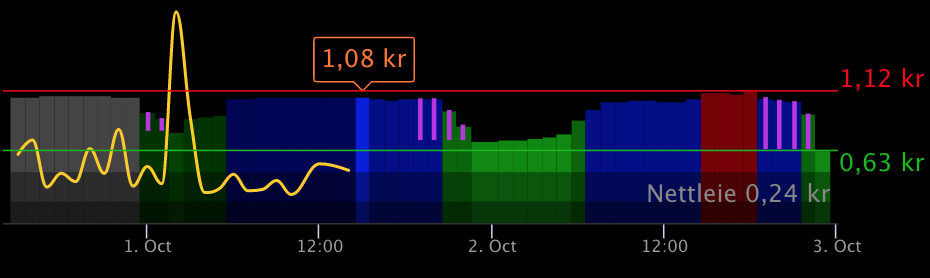
|
|
220
|
+
|
|
221
|
+
The purple lines show savings per kWh.
|
|
222
|
+
|
|
223
|
+
Read more about this in the [MMM-Tibber documentation](https://github.com/ottopaulsen/MMM-Tibber#show-savings).
|
|
224
|
+
|
|
225
|
+
## Change Log
|
|
226
|
+
|
|
227
|
+
See [CHANGELOG.md](CHANGELOG.md)
|
|
228
|
+
|
|
229
|
+
## Contribute
|
|
230
|
+
|
|
231
|
+
Contributions are welcome. Please start by creating a Github Issue with suggested changes, and state what you would like to do.
|
|
@@ -0,0 +1,23 @@
|
|
|
1
|
+
---
|
|
2
|
+
next: ./ps-strategy-best-save.md
|
|
3
|
+
---
|
|
4
|
+
|
|
5
|
+
# power-saver <Badge type="warning" text="deprecated" vertical="middle" />
|
|
6
|
+
|
|
7
|
+

|
|
8
|
+
|
|
9
|
+
This is the node from version 2. It is still working, but should be replaced.
|
|
10
|
+
|
|
11
|
+
To migrate, just replace the Power Saver node by a combination of the ps-receive-price and the ps-best-save nodes:
|
|
12
|
+
|
|
13
|
+
Replace the `Power Saver` node from version 2:
|
|
14
|
+
|
|
15
|
+

|
|
16
|
+
|
|
17
|
+
with this combination of `ps-receive-price` and `ps-strategy-best-save` from version 3:
|
|
18
|
+
|
|
19
|
+

|
|
20
|
+
|
|
21
|
+
The configuration is done in the `ps-strategy-best-save` node, and is the same as in the old `Power Saver` node.
|
|
22
|
+
|
|
23
|
+
Should you need it, here is the [old documentation](./old-power-saver-doc) for the PowerSaver node from version 2.
|
|
@@ -0,0 +1,52 @@
|
|
|
1
|
+
# ps-elvia-add-tariff
|
|
2
|
+
|
|
3
|
+

|
|
4
|
+
|
|
5
|
+
Node to add grid tariff from Elvia.
|
|
6
|
+
|
|
7
|
+
::: warning Elvia API
|
|
8
|
+
You need an Elvia API subscription key to use this node. See [configuration](#elvia-configuration).
|
|
9
|
+
:::
|
|
10
|
+
|
|
11
|
+
## Description
|
|
12
|
+
|
|
13
|
+
When grid tariff changes from hour to hour, this should normally also be considered when finding the most favorable hours to use power. This node retrieves prices from Elvia, so if you are an elvia customer, you can put this node between the `ps-receive-price` node and the strategy nodes. When configured, it will add Elvia tariff to the power prices before doing the calculation:
|
|
14
|
+
|
|
15
|
+

|
|
16
|
+
|
|
17
|
+
## Configuration
|
|
18
|
+
|
|
19
|
+
::: warning Elvia API subscription key
|
|
20
|
+
This node uses the Elvia API, and you must get your own Elvia API subscription key in order to use it.
|
|
21
|
+
Go to the [Elvia Developer Portal](https://elvia.portal.azure-api.net/) to sign up,
|
|
22
|
+
and then request for a subscription to the GridTariffAPI.
|
|
23
|
+
When your subscription is approved, you will find your subscription key in the
|
|
24
|
+
[developer portal](https://elvia.portal.azure-api.net/developer) under Your subscriptions.
|
|
25
|
+
:::
|
|
26
|
+
|
|
27
|
+
The first time you use this node, you must create a `ps-elvia-config` entry. Click on the edit button to the right of Elvia Config:
|
|
28
|
+
|
|
29
|
+

|
|
30
|
+
|
|
31
|
+
Then enter the Elvia API subscription key:
|
|
32
|
+
|
|
33
|
+

|
|
34
|
+
|
|
35
|
+
After entering the Elvia API subscription key the first time, it is not possible to select tariff.
|
|
36
|
+
|
|
37
|
+

|
|
38
|
+
|
|
39
|
+
To fix that, save the config, deploy, and then open the node again.
|
|
40
|
+
Now you should be able to select the right tariff:
|
|
41
|
+
|
|
42
|
+

|
|
43
|
+
|
|
44
|
+
The next time you use this node, you can select the same config as you created the first time, and then you can also select tariff immediately.
|
|
45
|
+
|
|
46
|
+
## Input
|
|
47
|
+
|
|
48
|
+
The input is the [common strategy input format](./strategy-input.md)
|
|
49
|
+
|
|
50
|
+
## Output
|
|
51
|
+
|
|
52
|
+
The input is the [common strategy input format](./strategy-input.md)
|