node-red-contrib-omron-eip 0.2.0
This diff represents the content of publicly available package versions that have been released to one of the supported registries. The information contained in this diff is provided for informational purposes only and reflects changes between package versions as they appear in their respective public registries.
- package/LICENSE +339 -0
- package/MANUAL.md +457 -0
- package/README.md +472 -0
- package/nodes/common.js +237 -0
- package/nodes/omron-plc.html +152 -0
- package/nodes/omron-plc.js +131 -0
- package/nodes/omron-read.html +299 -0
- package/nodes/omron-read.js +135 -0
- package/nodes/omron-write.html +416 -0
- package/nodes/omron-write.js +163 -0
- package/package.json +52 -0
package/README.md
ADDED
|
@@ -0,0 +1,472 @@
|
|
|
1
|
+
# node-red-contrib-omron-eip
|
|
2
|
+
|
|
3
|
+
Node-RED nodes for reading and writing **Omron NX / NJ Sysmac** controller tags over
|
|
4
|
+
EtherNet/IP, by symbolic tag name — no memory maps, offsets, or PLC-side gateway blocks. Built
|
|
5
|
+
on the [`omron-eip`](https://www.npmjs.com/package/omron-eip) library (installed automatically).
|
|
6
|
+
|
|
7
|
+
The package adds two working nodes plus one connection node:
|
|
8
|
+
|
|
9
|
+
- **omron-plc** — a *configuration node* that holds one controller connection (its IP address
|
|
10
|
+
and messaging mode). You create it once and every read/write node shares it, so they all use
|
|
11
|
+
a single, auto-reconnecting connection to the controller.
|
|
12
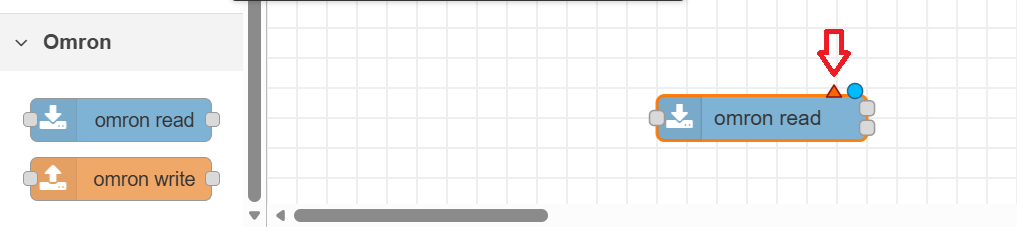
|
+
- **omron read** — reads one or more tags. Can run when a message arrives, on a repeating
|
|
13
|
+
timer, and/or once shortly after deploy.
|
|
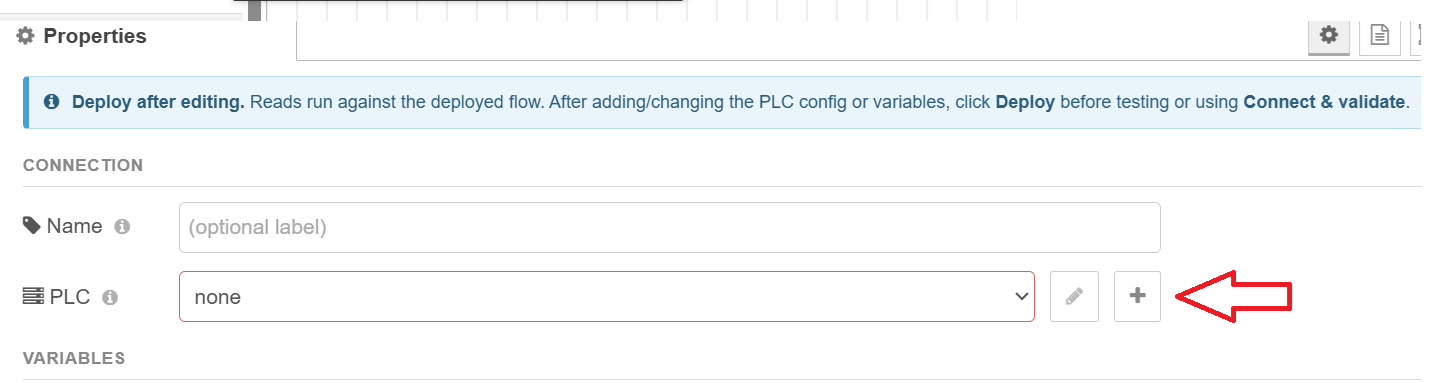
14
|
+
- **omron write** — writes one or more tags. The value(s) can come from the incoming message or
|
|
15
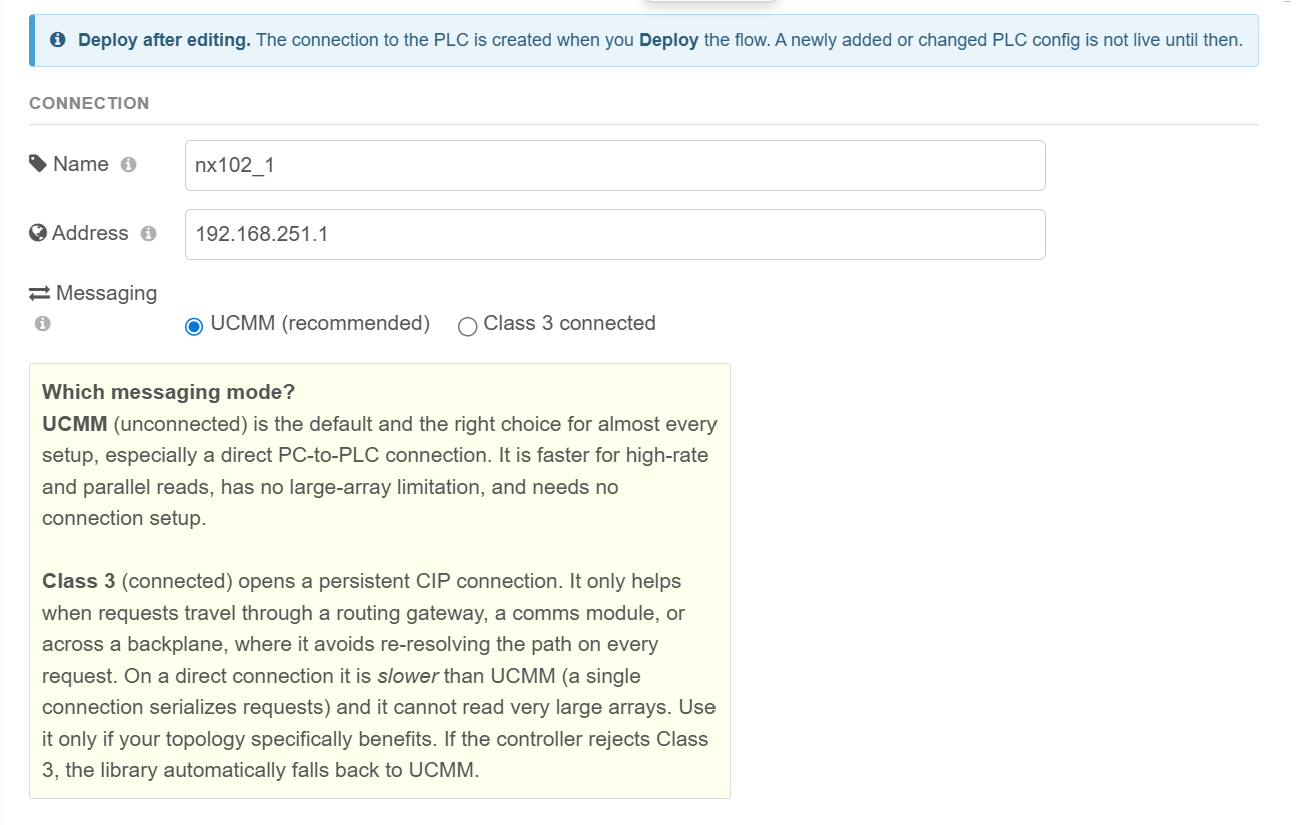
|
+
be fixed in the node.
|
|
16
|
+
|
|
17
|
+
Tags are addressed exactly as they are named in Sysmac Studio, including nested ones —
|
|
18
|
+
`Counter`, `MyArray[3]`, `MyStruct.Speed`, `Machine.Axes[2].Position`, and so on.
|
|
19
|
+
|
|
20
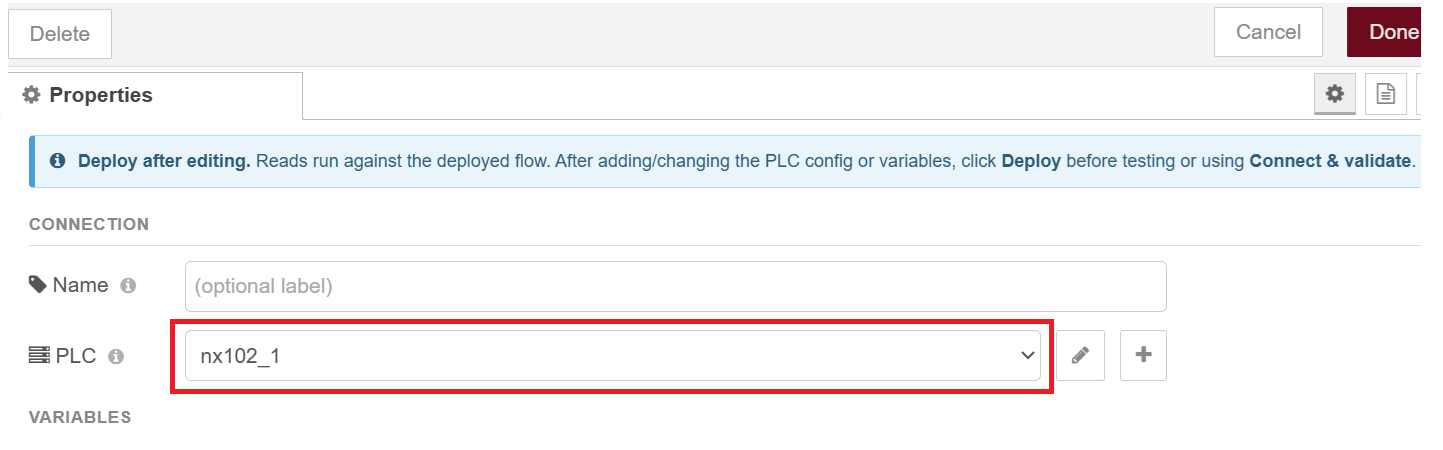
|
+
---
|
|
21
|
+
|
|
22
|
+
## Requirements
|
|
23
|
+
|
|
24
|
+
- **Node-RED 3.0 or newer**, on **Node.js 16 or newer**.
|
|
25
|
+
- An Omron **NX/NJ** controller reachable on the network from the machine running Node-RED.
|
|
26
|
+
- In **Sysmac Studio**, each tag you want to reach must be a **global variable** with
|
|
27
|
+
**Network Publish = "Publish Only"** (or "Input/Output"), and the project must be
|
|
28
|
+
**transferred to the controller**. A variable that isn't published cannot be read or written
|
|
29
|
+
by any EtherNet/IP client — this is the single most common reason a tag "isn't found."
|
|
30
|
+
|
|
31
|
+
---
|
|
32
|
+
|
|
33
|
+
## Install
|
|
34
|
+
|
|
35
|
+
From the Node-RED editor: **Menu → Manage palette → Install**, search
|
|
36
|
+
`node-red-contrib-omron-eip`, and click **Install**.
|
|
37
|
+
|
|
38
|
+
Or from the command line, in your Node-RED user directory (e.g. `~/.node-red`):
|
|
39
|
+
|
|
40
|
+
```bash
|
|
41
|
+
npm install node-red-contrib-omron-eip
|
|
42
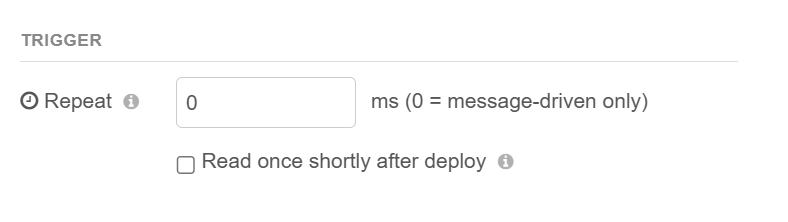
|
+
```
|
|
43
|
+
|
|
44
|
+
The `omron-eip` library is pulled in automatically as a dependency. Restart Node-RED; the nodes
|
|
45
|
+
appear under the **Omron** category in the palette. (Running in Docker? See
|
|
46
|
+
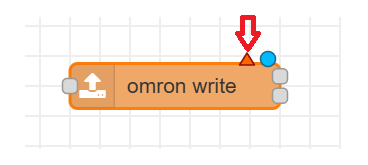
**[DOCKER_INSTALL_AND_TEST.md](./DOCKER_INSTALL_AND_TEST.md)**.)
|
|
47
|
+
|
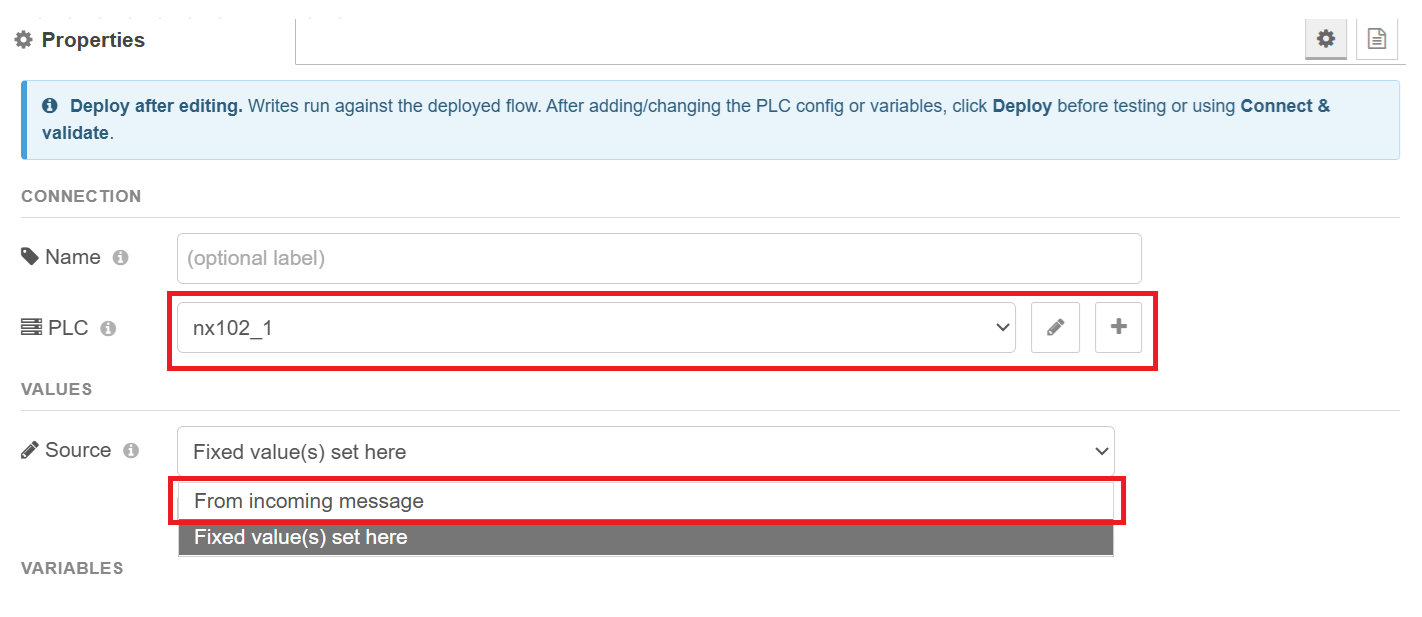
|
48
|
+
---
|
|
49
|
+
|
|
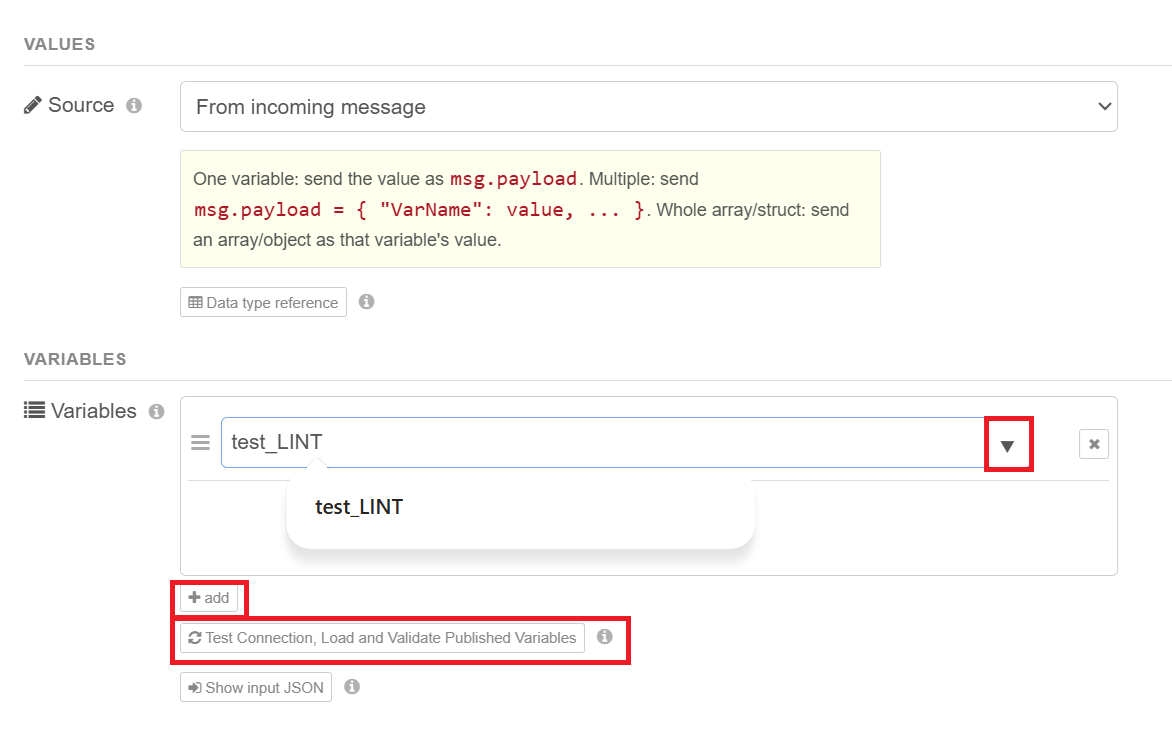
50
|
+
## UCMM vs Class 3 — which connection to choose
|
|
51
|
+
|
|
52
|
+
EtherNet/IP explicit messaging can run two ways, and you pick one when you set up the PLC
|
|
53
|
+
connection:
|
|
54
|
+
|
|
55
|
+
- **UCMM (Unconnected Messaging)** — the **default and recommended** choice for almost
|
|
56
|
+
everyone, especially when the PC/Node-RED machine talks directly to the controller. Requests
|
|
57
|
+
are sent without setting up a persistent session, they can run in parallel, and there is no
|
|
58
|
+
limit on large array reads.
|
|
59
|
+
- **Class 3 (Connected Messaging)** — opens one persistent connection and sends requests over
|
|
60
|
+
it. This only helps in specific topologies where traffic is **routed through a gateway, a
|
|
61
|
+
communications module, or across a backplane**, where keeping a connection open avoids
|
|
62
|
+
re-resolving the route on every request. On a direct connection it is **slower** (a single
|
|
63
|
+
connection serializes requests) and it **cannot read very large arrays**. If a controller
|
|
64
|
+
declines Class 3, the library automatically falls back to UCMM, so enabling it can never break
|
|
65
|
+
a connection — at worst it simply doesn't help.
|
|
66
|
+
|
|
67
|
+
**Rule of thumb: leave it on UCMM** unless you specifically know your network path benefits from
|
|
68
|
+
Class 3.
|
|
69
|
+
|
|
70
|
+
These nodes have been tested against **NX1P2**, **NX102**, and **NX502** controllers, in both
|
|
71
|
+
UCMM and Class 3 modes, reading and writing scalars, strings, structures, arrays, and Omron
|
|
72
|
+
date/time types.
|
|
73
|
+
|
|
74
|
+
---
|
|
75
|
+
|
|
76
|
+
## Walkthrough
|
|
77
|
+
|
|
78
|
+
A complete first-time setup, from connecting to a controller through reading and writing tags.
|
|
79
|
+
|
|
80
|
+
### 1. The two nodes, and the "not configured" marker
|
|
81
|
+
|
|
82
|
+
|
|
83
|
+
|
|
84
|
+
Dragging the package onto your canvas gives you the two nodes you'll use: a **read** node and a
|
|
85
|
+
**write** node. Before either can do anything, it needs to know *which controller* to talk to —
|
|
86
|
+
that's the job of the PLC connection. A node that has no controller attached shows a small **red
|
|
87
|
+
triangle** in the corner (Node-RED's "this node isn't fully configured" marker). We'll clear it
|
|
88
|
+
by creating a PLC connection. You can do this from inside either node; here we'll start in a
|
|
89
|
+
**read** node.
|
|
90
|
+
|
|
91
|
+
### 2. Add a PLC connection
|
|
92
|
+
|
|
93
|
+
|
|
94
|
+
|
|
95
|
+
Open the read node (double-click it). Next to the **PLC** field, click the pencil/add button to
|
|
96
|
+
create a new controller connection. This opens the PLC configuration panel.
|
|
97
|
+
|
|
98
|
+
### 3. Name it, set the address, and choose the messaging mode
|
|
99
|
+
|
|
100
|
+
|
|
101
|
+
|
|
102
|
+
Give the connection a **Name** you'll recognize (for example `Line 3 NX102`), and enter the
|
|
103
|
+
controller's **IP address** (for example `192.168.250.1`).
|
|
104
|
+
|
|
105
|
+
Two things to get right here:
|
|
106
|
+
|
|
107
|
+
- **Networking.** The machine running Node-RED must be able to reach that IP. The PLC and the
|
|
108
|
+
PC/server need to be on the **same network and subnet** (or have a route between them). A good
|
|
109
|
+
sanity check is to `ping` the controller's IP from the machine running Node-RED before going
|
|
110
|
+
further — if you can't ping it, the node won't connect either.
|
|
111
|
+
- **Messaging mode (UCMM or Class 3).** Choose **UCMM** unless you have a specific reason not
|
|
112
|
+
to — it's faster on a direct connection, runs requests in parallel, and has no large-array
|
|
113
|
+
limit. Pick **Class 3** only when you're reaching the controller *through* a routing
|
|
114
|
+
gateway/comms module or across a backplane, where a held-open connection saves re-resolving
|
|
115
|
+
the route each time. (See the "UCMM vs Class 3" section above. If in doubt, UCMM.)
|
|
116
|
+
|
|
117
|
+
### 4. Save, then **Deploy** before testing
|
|
118
|
+
|
|
119
|
+

|
|
120
|
+
|
|
121
|
+
Close the configuration panel (Done/Add), then click **Deploy** in the top-right of Node-RED.
|
|
122
|
+
This is important: the PLC connection only actually connects to the controller **after you
|
|
123
|
+
deploy**. Several features below — loading the tag list, validating names, test reads/writes —
|
|
124
|
+
talk to the *live, running* connection, so they won't work until you've deployed at least once.
|
|
125
|
+
|
|
126
|
+
### 5. Point a read (or write) node at the connection
|
|
127
|
+
|
|
128
|
+
|
|
129
|
+
|
|
130
|
+
Open your read node again. In the **PLC** dropdown, select the connection you just created. The
|
|
131
|
+
red triangle clears — the node now knows which controller it belongs to. Any other read or write
|
|
132
|
+
node can select the same connection; they'll all share that one connection to the controller.
|
|
133
|
+
|
|
134
|
+
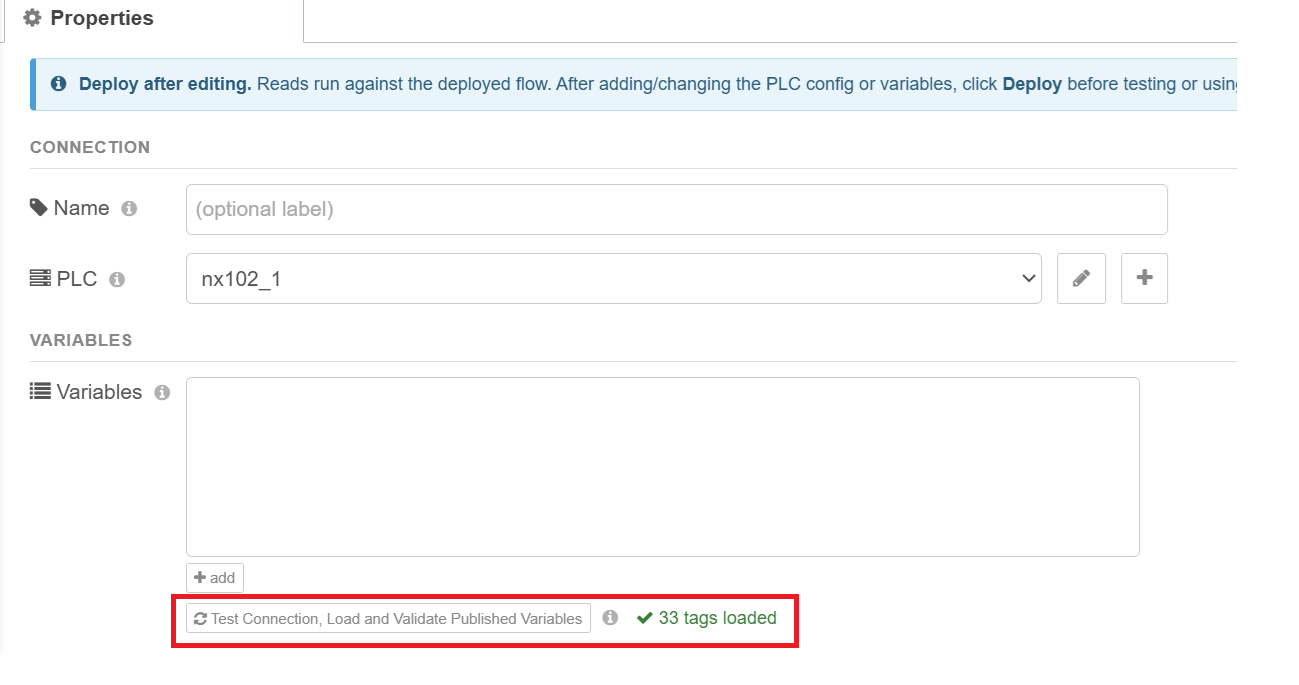
### 6. Test Connection, Load and Validate Published Variables
|
|
135
|
+
|
|
136
|
+
|
|
137
|
+
|
|
138
|
+
Click **Test Connection, Load and Validate Published Variables**. This one button does three
|
|
139
|
+
useful things at once:
|
|
140
|
+
|
|
141
|
+
1. **Tests the connection** to the controller (confirming the IP, network, and that it's
|
|
142
|
+
reachable).
|
|
143
|
+
2. **Loads the controller's published tag list** — every variable you marked *Network Publish =
|
|
144
|
+
Publish Only* in Sysmac Studio. These names then become **auto-complete suggestions** as you
|
|
145
|
+
type tag names.
|
|
146
|
+
3. **Validates the tags you've already entered** — each gets a green check (✓) if it exists on
|
|
147
|
+
the controller, or a red X (✗) if the name wasn't found (a typo, or a tag that isn't
|
|
148
|
+
published).
|
|
149
|
+
|
|
150
|
+
Remember it talks to the live controller, so you must have **deployed first** (step 4).
|
|
151
|
+
|
|
152
|
+
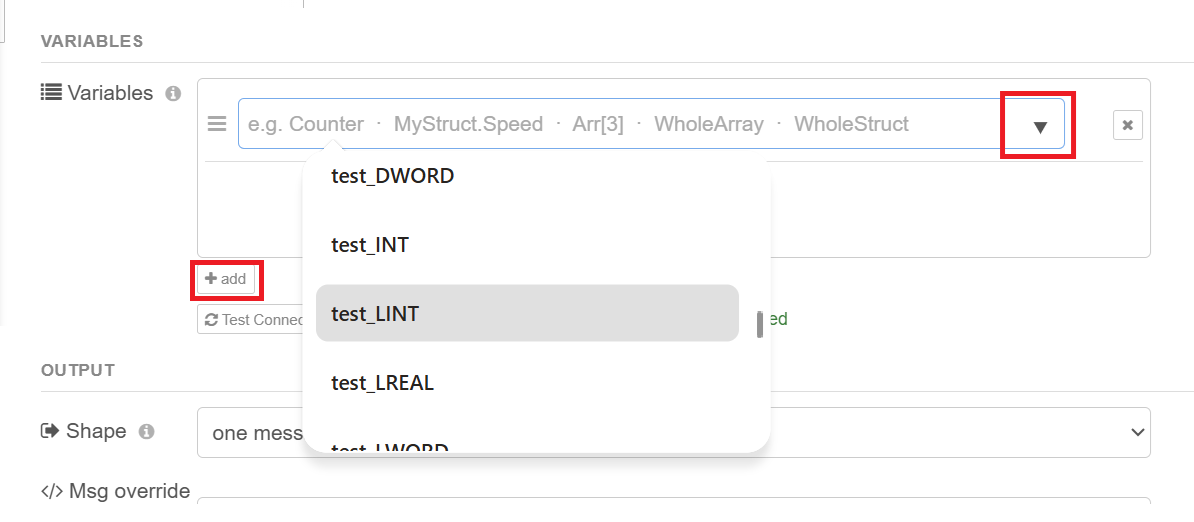
### 7. Add the tags you want to read
|
|
153
|
+
|
|
154
|
+
|
|
155
|
+
|
|
156
|
+
Add one row per tag you want to read. After loading the tag list (step 6) you can pick names
|
|
157
|
+
from the **dropdown** instead of typing them, which avoids spelling mistakes. You can read:
|
|
158
|
+
|
|
159
|
+
| You want | Type this |
|
|
160
|
+
|---|---|
|
|
161
|
+
| a single value | `Counter` |
|
|
162
|
+
| one element of an array | `MyArray[3]` |
|
|
163
|
+
| a whole array at once | `MyArray` |
|
|
164
|
+
| one field of a structure | `MyStruct.Speed` |
|
|
165
|
+
| a whole structure at once | `MyStruct` |
|
|
166
|
+
| something deeply nested | `Machine.Axes[2].Position` |
|
|
167
|
+
|
|
168
|
+
Reading a **whole** array or structure in one row (just its name, no `[index]` or `.field`) is
|
|
169
|
+
the fastest way to pull a lot of data — it's a single request rather than many.
|
|
170
|
+
|
|
171
|
+
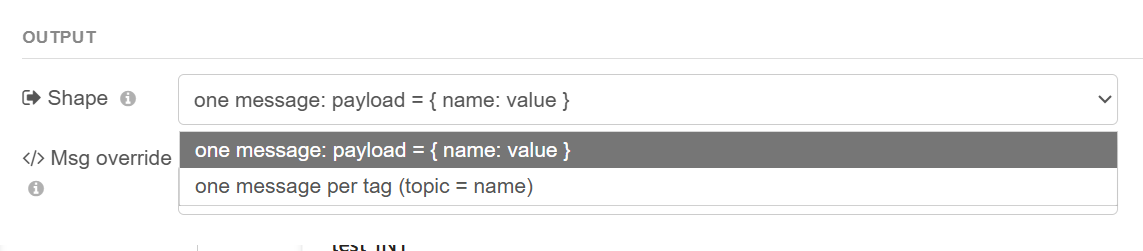
### 8. Read output — one message, or one message per tag
|
|
172
|
+
|
|
173
|
+
|
|
174
|
+
|
|
175
|
+
The **Output** setting controls how the readings are packaged into the message(s) the node
|
|
176
|
+
sends out. (A "message" is the data packet that travels along the wires to the next node.) Say
|
|
177
|
+
you read three tags — `Counter = 42`, `Speed = 1500`, `Temp = 21.5`:
|
|
178
|
+
|
|
179
|
+
**One message, `payload = { name: value }`** (the default)
|
|
180
|
+
All tags come out together in a **single message**, as an object keyed by tag name:
|
|
181
|
+
|
|
182
|
+
```json
|
|
183
|
+
{ "Counter": 42, "Speed": 1500, "Temp": 21.5 }
|
|
184
|
+
```
|
|
185
|
+
|
|
186
|
+
Use this when you want all the readings together — to show on a dashboard, build a record, write
|
|
187
|
+
a log row, or hand a complete snapshot to a function node. It's the most common choice.
|
|
188
|
+
|
|
189
|
+
**One message per tag (`topic` = tag name)**
|
|
190
|
+
Each tag comes out as its **own separate message**. Reading three tags emits three messages:
|
|
191
|
+
|
|
192
|
+
```
|
|
193
|
+
message 1 → msg.topic = "Counter" msg.payload = 42
|
|
194
|
+
message 2 → msg.topic = "Speed" msg.payload = 1500
|
|
195
|
+
message 3 → msg.topic = "Temp" msg.payload = 21.5
|
|
196
|
+
```
|
|
197
|
+
|
|
198
|
+
Use this when the next node expects **one value at a time**, with the name in `msg.topic` — the
|
|
199
|
+
classic example is the Node-RED **chart** node (it uses `topic` as the series name and `payload`
|
|
200
|
+
as the point), or when you want to route each tag to a different place with a switch node.
|
|
201
|
+
|
|
202
|
+
**If you're not sure, leave it on "one message."**
|
|
203
|
+
|
|
204
|
+
### 9. Msg override — let an incoming message choose what to read
|
|
205
|
+
|
|
206
|
+

|
|
207
|
+
|
|
208
|
+
This is the one people find confusing, so here it is plainly.
|
|
209
|
+
|
|
210
|
+
**Normally**, the node reads the fixed list of tags you typed in step 7. **Msg override** lets a
|
|
211
|
+
*different* part of your flow decide what to read, on the fly, by putting the tag name(s) inside
|
|
212
|
+
the message that triggers the node. The box just names **which property of the incoming message
|
|
213
|
+
to look at** — the default is `variables`, meaning the node checks `msg.variables`.
|
|
214
|
+
|
|
215
|
+
How it behaves: when a message arrives, if that property is present, the node reads **those**
|
|
216
|
+
tags instead of its own list; if the property is absent, it reads its configured list as normal.
|
|
217
|
+
|
|
218
|
+
What you can put in `msg.variables` (from a function node, a change node, a dashboard control,
|
|
219
|
+
etc.):
|
|
220
|
+
|
|
221
|
+
```js
|
|
222
|
+
// read several tags, named in an array:
|
|
223
|
+
msg.variables = ["Pressure", "FlowRate", "MotorMode"];
|
|
224
|
+
|
|
225
|
+
// read just one tag, as a string:
|
|
226
|
+
msg.variables = "Pressure";
|
|
227
|
+
|
|
228
|
+
// it accepts nested names too:
|
|
229
|
+
msg.variables = ["Machine.Axes[0].Position", "Recipe.Speed"];
|
|
230
|
+
```
|
|
231
|
+
|
|
232
|
+
**Why use it:** so one read node can serve many situations instead of building a separate node
|
|
233
|
+
for each set of tags. For example, an operator picks a machine from a dashboard dropdown; a
|
|
234
|
+
function node sets `msg.variables` to that machine's tag names; the single read node reads
|
|
235
|
+
whatever was chosen.
|
|
236
|
+
|
|
237
|
+
**If you don't need any of that, leave this field alone** — with no `msg.variables` on the
|
|
238
|
+
incoming message, the node simply reads the list you configured.
|
|
239
|
+
|
|
240
|
+
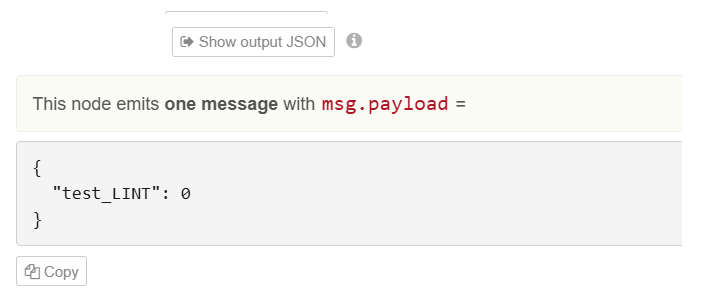
### 10. Show output JSON — preview the exact output
|
|
241
|
+
|
|
242
|
+
|
|
243
|
+
|
|
244
|
+
Clicking **Show output JSON** previews exactly what this node will send, in the shape you chose
|
|
245
|
+
in step 8. If you ran **Test Connection / Load / Validate** first, the preview fills in the real
|
|
246
|
+
*kinds* of values your tags hold (whole numbers, true/false, text, lists, structures); if you
|
|
247
|
+
haven't connected yet, it shows generic placeholders. This is just a preview to help you set up
|
|
248
|
+
the nodes that come *after* this one — it doesn't read the controller or change anything. There's
|
|
249
|
+
a **Copy** button to paste the example elsewhere.
|
|
250
|
+
|
|
251
|
+
### 11. Read triggers — Repeat, and Read once after deploy
|
|
252
|
+
|
|
253
|
+
|
|
254
|
+
|
|
255
|
+
By default a read node reads whenever a message arrives at its input. Two optional triggers let
|
|
256
|
+
it read on its own:
|
|
257
|
+
|
|
258
|
+
- **Repeat (ms)** — makes the node read **by itself, repeatedly, on a timer**, with no input
|
|
259
|
+
wired in. The number is the interval in milliseconds: `1000` = once per second, `500` = twice
|
|
260
|
+
per second, `250` = four times per second. (It will *also* still read when a message arrives.)
|
|
261
|
+
Leave it at **0** to read **only** when triggered by an incoming message. *Tip:* don't poll
|
|
262
|
+
faster than you actually need — very small intervals flood the controller. Reading a modest
|
|
263
|
+
batch every 250 ms is comfortable on most controllers; tighter loops should read only a few
|
|
264
|
+
tags.
|
|
265
|
+
- **Read once shortly after deploy** — when ticked, the node performs **one** read
|
|
266
|
+
automatically about 1.5 seconds after you Deploy (or after Node-RED restarts). This is handy
|
|
267
|
+
for grabbing an initial value at startup instead of waiting for the first trigger or timer.
|
|
268
|
+
|
|
269
|
+
(`Deploy` is the Node-RED button that saves and starts your flow running.)
|
|
270
|
+
|
|
271
|
+
---
|
|
272
|
+
|
|
273
|
+
Now the **write** node. It shares the same PLC connection, tag-name syntax, validate button, and
|
|
274
|
+
trigger options as the read node, so this section focuses on what's different about writing.
|
|
275
|
+
|
|
276
|
+
### 12. The write node
|
|
277
|
+
|
|
278
|
+
|
|
279
|
+
|
|
280
|
+
Drag a **write** node onto the canvas. Like the read node, it starts with the red "not
|
|
281
|
+
configured" triangle until you attach a PLC connection.
|
|
282
|
+
|
|
283
|
+
### 13. Select the PLC, then choose where values come from
|
|
284
|
+
|
|
285
|
+
|
|
286
|
+
|
|
287
|
+
Select the **PLC** connection you already made (same one the read node uses — they share it).
|
|
288
|
+
The key write-only setting is **Source**, which controls where the value to write comes from:
|
|
289
|
+
|
|
290
|
+
- **From incoming message** — the value is supplied by the message that triggers the node.
|
|
291
|
+
- **Fixed value(s) set here** — you type the value into the node itself.
|
|
292
|
+
|
|
293
|
+
We'll cover **From incoming message** first (highlighted), then **Fixed** in step 16.
|
|
294
|
+
|
|
295
|
+
### 14. From incoming message — add the tag names
|
|
296
|
+
|
|
297
|
+
|
|
298
|
+
|
|
299
|
+
In **From incoming message** mode, you list **only the tag names** to write (no value boxes) —
|
|
300
|
+
the values will arrive on the message. Just like the read node, use **Test Connection, Load and
|
|
301
|
+
Validate Published Variables** to load the tag list and get dropdown suggestions and ✓/✗
|
|
302
|
+
checking, then add the tag(s) you want to write.
|
|
303
|
+
|
|
304
|
+
### 15. Show input JSON — the exact message this node expects
|
|
305
|
+
|
|
306
|
+
|
|
307
|
+
|
|
308
|
+
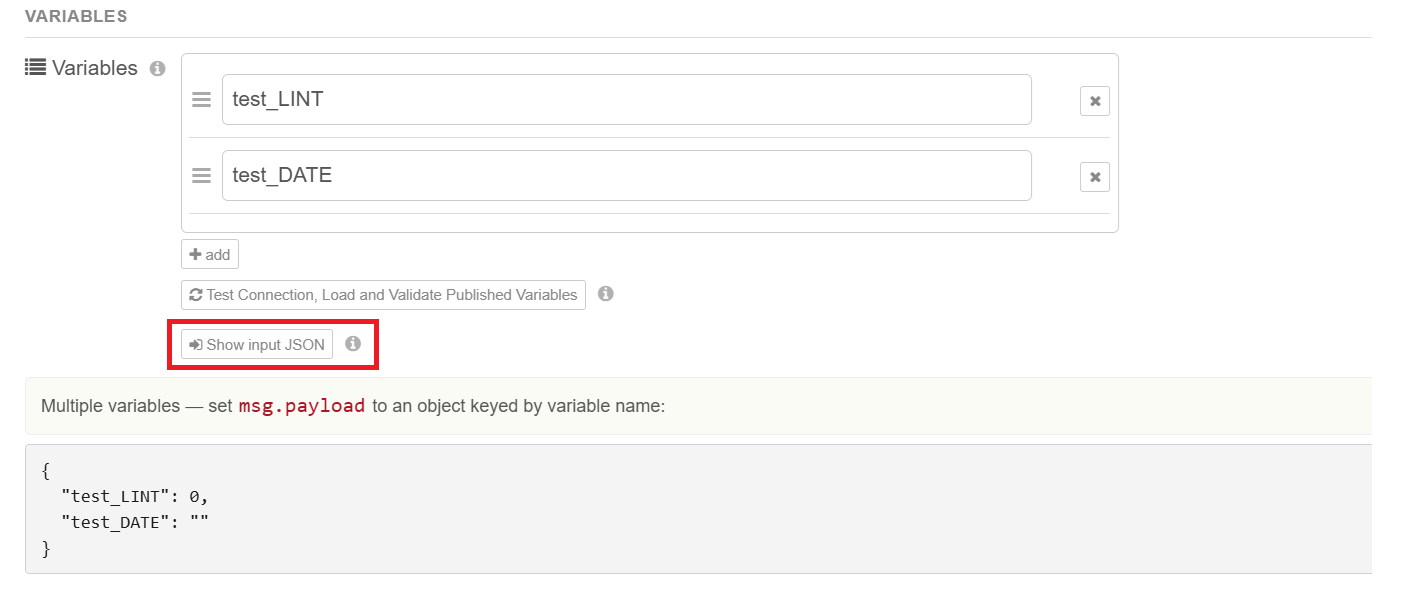
Click **Show input JSON** to see exactly what message to send this node. This is a **reference**
|
|
309
|
+
for whatever feeds the write node (an inject node, a dashboard control, a function node) — it
|
|
310
|
+
shows the `msg.payload` format for the tags you've added. The format depends on how many tags
|
|
311
|
+
you're writing:
|
|
312
|
+
|
|
313
|
+
```js
|
|
314
|
+
// ONE variable — send the value directly as the payload:
|
|
315
|
+
msg.payload = 1500;
|
|
316
|
+
|
|
317
|
+
// MULTIPLE variables — send an object keyed by tag name:
|
|
318
|
+
msg.payload = { "Setpoint": 1500, "Mode": 3, "Enable": true };
|
|
319
|
+
|
|
320
|
+
// a whole structure or array — send an object/array as that tag's value:
|
|
321
|
+
msg.payload = { "Recipe": { "Speed": 100, "Steps": [1, 2, 3] } };
|
|
322
|
+
```
|
|
323
|
+
|
|
324
|
+
So whatever sends a message into this node must put the value(s) in `msg.payload` in this shape.
|
|
325
|
+
As with the read node, if you've validated first, the preview shows the real value types for
|
|
326
|
+
your specific tags.
|
|
327
|
+
|
|
328
|
+
### 16. Fixed value(s) — set the value right in the node
|
|
329
|
+
|
|
330
|
+
|
|
331
|
+
|
|
332
|
+
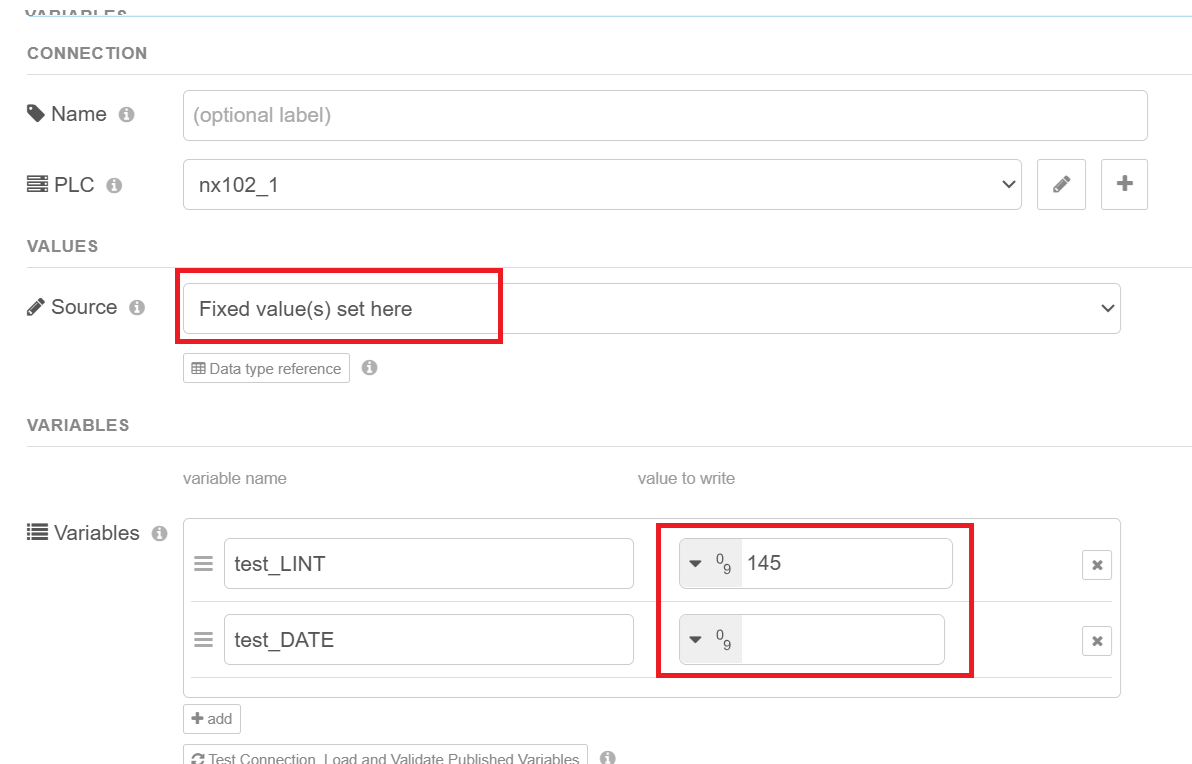
Switch **Source** to **Fixed value(s) set here** and each tag row gains a **value to write**
|
|
333
|
+
field. Now the node writes those exact values every time it's triggered — the triggering message
|
|
334
|
+
is just a "go" signal and its contents are ignored.
|
|
335
|
+
|
|
336
|
+
The value field is a standard Node-RED typed input, so you can enter either:
|
|
337
|
+
|
|
338
|
+
- **a static value** — type a constant: a number like `1500`, text, true/false, etc. (choose the
|
|
339
|
+
matching type in the small dropdown — see step 17), **or**
|
|
340
|
+
- **a value pulled from elsewhere** — switch the field's type to `msg.`, `flow.`, or `global.`
|
|
341
|
+
to write whatever is in a message property or a context variable at the moment the node fires
|
|
342
|
+
(for example `flow.targetSpeed`).
|
|
343
|
+
|
|
344
|
+
Use **Fixed** when the value is constant (forcing a mode, a test value, a startup state), or
|
|
345
|
+
when you want to pull from flow/global context rather than the triggering message's payload.
|
|
346
|
+
|
|
347
|
+
### 17. Data type reference
|
|
348
|
+
|
|
349
|
+
|
|
350
|
+
|
|
351
|
+
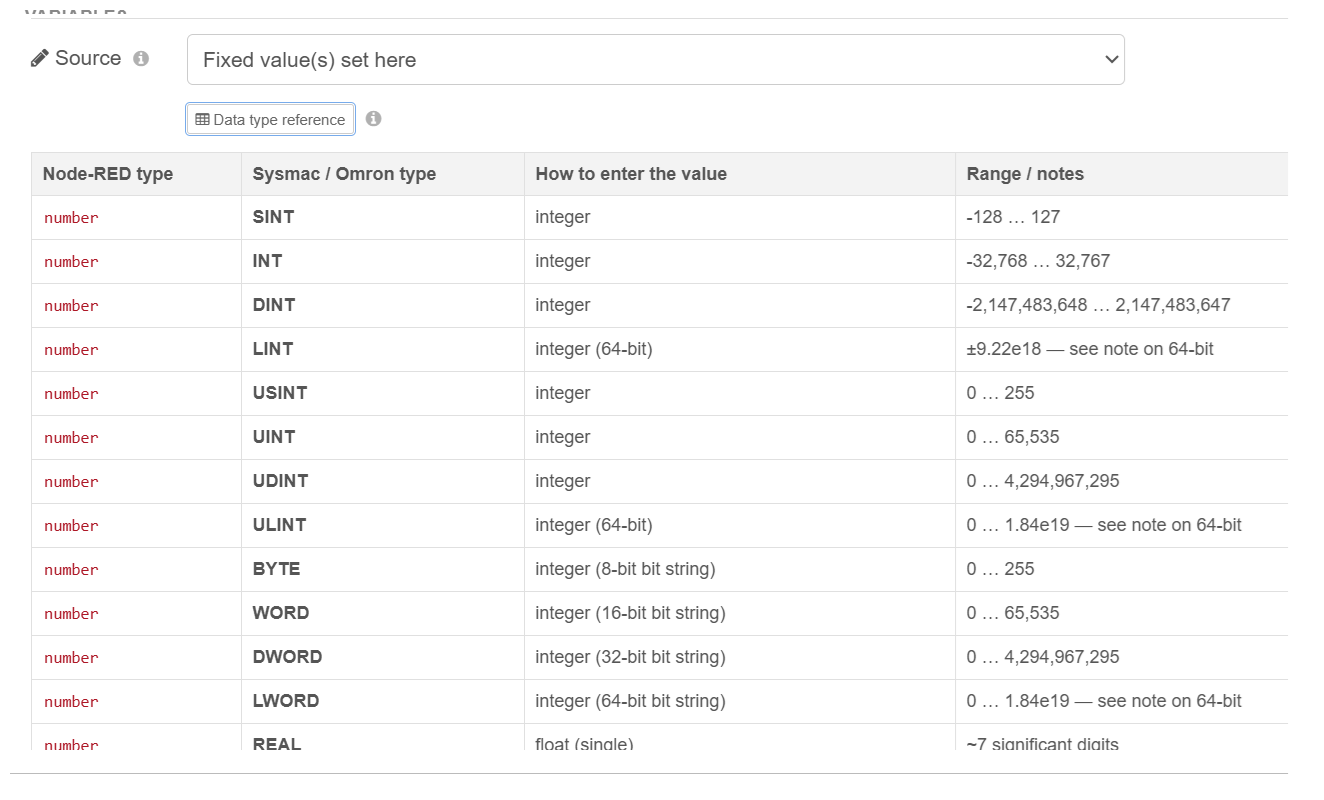
The **Data type reference** button opens a table mapping every Omron/Sysmac tag type to what you
|
|
352
|
+
should enter. The important idea: the small **type dropdown** beside a fixed value
|
|
353
|
+
(number / true-false / text / JSON) describes the kind of value **you are entering** — it is
|
|
354
|
+
**not** the controller's tag type. You don't have to match the exact Omron type; the node
|
|
355
|
+
converts your value to whatever the real tag is. As a guide:
|
|
356
|
+
|
|
357
|
+
- numeric tags (SINT, INT, DINT, REAL, LREAL, etc.) → enter a **number**
|
|
358
|
+
- BOOL → **true/false**
|
|
359
|
+
- STRING → **text**
|
|
360
|
+
- a whole structure or array → **JSON** (an object or array)
|
|
361
|
+
- **64-bit integers** (LINT, ULINT) → numbers within JavaScript's safe range work directly; for
|
|
362
|
+
very large values, be aware precision can be lost (these are large 64-bit values).
|
|
363
|
+
- **Date / time types** (DATE, DATE_AND_TIME, TIME, TIME_OF_DAY) → enter a **number of
|
|
364
|
+
nanoseconds**. DATE / DATE_AND_TIME use nanoseconds since 1970 (epoch ms × 1,000,000)
|
|
365
|
+
and read back as a date; TIME / TIME_OF_DAY are a nanosecond duration (e.g. `5000000000` =
|
|
366
|
+
5 seconds). These are reliable to **millisecond** precision.
|
|
367
|
+
|
|
368
|
+
### 18. Verified write
|
|
369
|
+
|
|
370
|
+

|
|
371
|
+
|
|
372
|
+
When **Verified write** is ticked, right after writing, the node **reads the value back and
|
|
373
|
+
checks it matches** what you sent — and reports an error if it doesn't.
|
|
374
|
+
|
|
375
|
+
Why bother, when a normal write already gets an "accepted/error" reply from the controller (which
|
|
376
|
+
is enough almost every time)? Verified write catches the rarer case where the controller says
|
|
377
|
+
*accepted* but the stored value still isn't what you intended — for example:
|
|
378
|
+
|
|
379
|
+
- the controller's **own program limits/clamps** the value (you send `5000`, but program logic
|
|
380
|
+
caps it at `4000`), or
|
|
381
|
+
- **another device or the program overwrites** that tag a split second later.
|
|
382
|
+
|
|
383
|
+
Turn it on for **important values** — setpoints, recipe parameters, mode changes — where you want
|
|
384
|
+
positive proof the value landed. The trade-off is one extra read per tag, so it's slightly
|
|
385
|
+
slower; leave it **off** for ordinary or high-rate writes. (One limit: it checks only the instant
|
|
386
|
+
right after writing — a change made later can't be detected.)
|
|
387
|
+
|
|
388
|
+
### 19. Write triggers — Repeat, and Write once after deploy
|
|
389
|
+
|
|
390
|
+
|
|
391
|
+
|
|
392
|
+
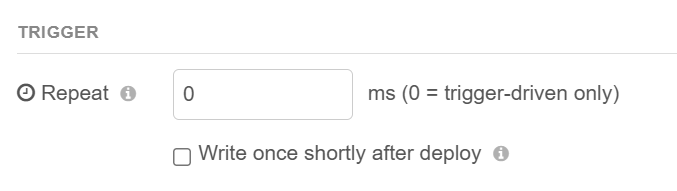
Same two optional triggers as the read node:
|
|
393
|
+
|
|
394
|
+
- **Repeat (ms)** — writes **by itself on a timer**, with nothing wired in; the number is the
|
|
395
|
+
interval (`1000` = once per second). Combined with a **Fixed** value, this can continuously
|
|
396
|
+
hold a tag at a set value — a "heartbeat" signal, or keeping an enable bit on. Leave at **0**
|
|
397
|
+
to write **only** when triggered. Use this deliberately: most writes should happen in response
|
|
398
|
+
to an event, not constantly on a timer.
|
|
399
|
+
- **Write once shortly after deploy** — writes **one** time about 1.5 seconds after Deploy (or a
|
|
400
|
+
restart). With a **Fixed** value, it's a simple way to put a tag into a known starting state at
|
|
401
|
+
startup, with nothing wired into the input.
|
|
402
|
+
|
|
403
|
+
---
|
|
404
|
+
|
|
405
|
+
## Outputs and error handling
|
|
406
|
+
|
|
407
|
+
Both nodes have **two output ports**:
|
|
408
|
+
|
|
409
|
+
1. **Result** — the successful read result (read node) or a pass-through with `payload` set to
|
|
410
|
+
what was written (write node).
|
|
411
|
+
2. **Error** — anything that failed comes out here, so you can wire error handling without it
|
|
412
|
+
interrupting the success path.
|
|
413
|
+
|
|
414
|
+
Each node also calls `node.error()` (so flow-wide **Catch** nodes work) and shows the last
|
|
415
|
+
status on the node's **status badge** under its icon. Common controller errors are decoded into
|
|
416
|
+
plain language — for example *"variable not found on the controller — check the name and that it
|
|
417
|
+
is published to the network"* for CIP status `0x05`.
|
|
418
|
+
|
|
419
|
+
---
|
|
420
|
+
|
|
421
|
+
## Reading & writing arrays, structures, and nested data
|
|
422
|
+
|
|
423
|
+
Addressing is symbolic, so you just type the path — there are no special modes:
|
|
424
|
+
|
|
425
|
+
| You want | Tag name |
|
|
426
|
+
|---|---|
|
|
427
|
+
| whole array | `MyArray` |
|
|
428
|
+
| one array element | `MyArray[3]` |
|
|
429
|
+
| whole structure | `MyStruct` |
|
|
430
|
+
| a structure member | `MyStruct.Speed` |
|
|
431
|
+
| array element inside a structure | `MyStruct.History[2]` |
|
|
432
|
+
| member of a structure inside an array | `Machine.Axes[2].Position` |
|
|
433
|
+
|
|
434
|
+
For writes, a whole structure/array takes an object/array value; a member/element takes a single
|
|
435
|
+
value. Writing a single member (`MyStruct.Speed`) is safer than rewriting the whole structure,
|
|
436
|
+
because writing the whole structure replaces **every** field in it — including ones another
|
|
437
|
+
writer may have changed.
|
|
438
|
+
|
|
439
|
+
---
|
|
440
|
+
|
|
441
|
+
## Troubleshooting
|
|
442
|
+
|
|
443
|
+
- **Red triangle on a node** → it has no PLC connection selected. Open it and pick (or create)
|
|
444
|
+
one in the **PLC** field.
|
|
445
|
+
- **Validate / read / write does nothing or errors right after editing** → you haven't
|
|
446
|
+
**Deployed** since the change. These features talk to the live connection, which only exists
|
|
447
|
+
after a deploy.
|
|
448
|
+
- **"variable not found" (CIP 0x05)** → the tag name is wrong, **or** the tag isn't published.
|
|
449
|
+
In Sysmac Studio set it to a global variable with **Network Publish = Publish Only** and
|
|
450
|
+
**transfer the project** to the controller.
|
|
451
|
+
- **Can't connect at all** → check the network. From the machine running Node-RED, confirm you
|
|
452
|
+
can `ping` the controller's IP, and that both are on the same subnet/route. In Docker, the
|
|
453
|
+
*container* must be able to reach the PLC (see the Docker guide).
|
|
454
|
+
- **Large array fails under Class 3** → switch the connection to **UCMM**; Class 3 can't carry
|
|
455
|
+
very large array replies. (UCMM is the recommended default anyway.)
|
|
456
|
+
|
|
457
|
+
---
|
|
458
|
+
|
|
459
|
+
## More documentation
|
|
460
|
+
|
|
461
|
+
- **[MANUAL.md](./MANUAL.md)** — a complete, plain-language reference: every field on every node,
|
|
462
|
+
message formats, flow recipes, and troubleshooting.
|
|
463
|
+
- **[DOCKER_INSTALL_AND_TEST.md](./DOCKER_INSTALL_AND_TEST.md)** — installing into a Docker-based
|
|
464
|
+
Node-RED, plus a full feature-test sequence against a real controller.
|
|
465
|
+
- **[omron-eip](https://www.npmjs.com/package/omron-eip)** — the underlying library, if you want
|
|
466
|
+
to use it directly from Node.js.
|
|
467
|
+
|
|
468
|
+
---
|
|
469
|
+
|
|
470
|
+
## License
|
|
471
|
+
|
|
472
|
+
GPL-2.0, matching the `omron-eip` library it is built on.
|