node-red-contrib-huemagic 3.0.0 → 4.0.3
This diff represents the content of publicly available package versions that have been released to one of the supported registries. The information contained in this diff is provided for informational purposes only and reflects changes between package versions as they appear in their respective public registries.
- package/README.md +764 -603
- package/examples/Hue Bridge.json +189 -35
- package/examples/Hue Brightness.json +124 -14
- package/examples/Hue Buttons.json +88 -0
- package/examples/Hue Group.json +575 -63
- package/examples/Hue Light.json +805 -58
- package/examples/Hue Magic.json +69 -24
- package/examples/Hue Motion.json +110 -42
- package/examples/Hue Rules.json +105 -37
- package/examples/Hue Scene.json +145 -28
- package/examples/Hue Temperature.json +124 -14
- package/huemagic/animations/019-christmas.json +30 -0
- package/huemagic/animations/020-superhero.json +56 -0
- package/huemagic/animations/021-neoncity.json +52 -0
- package/huemagic/animations/previews/006-fireplace.gif +0 -0
- package/huemagic/animations/previews/013-strobo.gif +0 -0
- package/huemagic/animations/previews/014-randomrainbow.gif +0 -0
- package/huemagic/animations/previews/016-milkyway.gif +0 -0
- package/huemagic/animations/previews/018-forest.gif +0 -0
- package/huemagic/animations/previews/019-christmas.gif +0 -0
- package/huemagic/animations/previews/020-superhero.gif +0 -0
- package/huemagic/animations/previews/021-neoncity.gif +0 -0
- package/huemagic/hue-bridge-config.html +105 -61
- package/huemagic/hue-bridge-config.js +631 -319
- package/huemagic/hue-bridge.html +41 -21
- package/huemagic/hue-bridge.js +190 -396
- package/huemagic/hue-brightness.html +127 -59
- package/huemagic/hue-brightness.js +111 -55
- package/huemagic/hue-buttons.html +197 -0
- package/huemagic/hue-buttons.js +158 -0
- package/huemagic/hue-group.html +137 -66
- package/huemagic/hue-group.js +387 -403
- package/huemagic/hue-light.html +132 -64
- package/huemagic/hue-light.js +544 -378
- package/huemagic/hue-magic.html +36 -20
- package/huemagic/hue-magic.js +49 -27
- package/huemagic/hue-motion.html +127 -59
- package/huemagic/hue-motion.js +105 -101
- package/huemagic/hue-rules.html +121 -50
- package/huemagic/hue-rules.js +89 -63
- package/huemagic/hue-scene.html +95 -114
- package/huemagic/hue-scene.js +64 -95
- package/huemagic/hue-temperature.html +127 -59
- package/huemagic/hue-temperature.js +120 -56
- package/huemagic/icons/hue-bridge.png +0 -0
- package/huemagic/icons/hue-bridge.svg +3 -0
- package/huemagic/icons/hue-brightness.png +0 -0
- package/huemagic/icons/hue-brightness.svg +11 -0
- package/huemagic/icons/hue-buttons.png +0 -0
- package/huemagic/icons/hue-buttons.svg +4 -0
- package/huemagic/icons/hue-group.png +0 -0
- package/huemagic/icons/hue-group.svg +12 -0
- package/huemagic/icons/hue-light.png +0 -0
- package/huemagic/icons/hue-light.svg +3 -0
- package/huemagic/icons/hue-magic.png +0 -0
- package/huemagic/icons/hue-magic.svg +3 -0
- package/huemagic/icons/hue-motion.png +0 -0
- package/huemagic/icons/hue-motion.svg +9 -0
- package/huemagic/icons/hue-rules.png +0 -0
- package/huemagic/icons/hue-rules.svg +4 -0
- package/huemagic/icons/hue-scene.png +0 -0
- package/huemagic/icons/hue-scene.svg +5 -0
- package/huemagic/icons/hue-temperature.png +0 -0
- package/huemagic/icons/hue-temperature.svg +7 -0
- package/huemagic/locales/de/hue-bridge-config.html +17 -12
- package/huemagic/locales/de/hue-bridge-config.json +7 -5
- package/huemagic/locales/de/hue-bridge.html +64 -145
- package/huemagic/locales/de/hue-bridge.json +6 -17
- package/huemagic/locales/de/hue-brightness.html +50 -50
- package/huemagic/locales/de/hue-brightness.json +6 -5
- package/huemagic/locales/de/hue-buttons.html +58 -0
- package/huemagic/locales/de/{hue-button.json → hue-buttons.json} +7 -11
- package/huemagic/locales/de/hue-group.html +46 -122
- package/huemagic/locales/de/hue-group.json +5 -5
- package/huemagic/locales/de/hue-light.html +68 -116
- package/huemagic/locales/de/hue-light.json +5 -5
- package/huemagic/locales/de/hue-magic.html +65 -57
- package/huemagic/locales/de/hue-magic.json +2 -1
- package/huemagic/locales/de/hue-motion.html +47 -50
- package/huemagic/locales/de/hue-motion.json +5 -5
- package/huemagic/locales/de/hue-rules.html +68 -73
- package/huemagic/locales/de/hue-rules.json +5 -2
- package/huemagic/locales/de/hue-scene.html +23 -32
- package/huemagic/locales/de/hue-scene.json +5 -2
- package/huemagic/locales/de/hue-temperature.html +51 -48
- package/huemagic/locales/de/hue-temperature.json +6 -5
- package/huemagic/locales/en-US/hue-bridge-config.html +17 -12
- package/huemagic/locales/en-US/hue-bridge-config.json +5 -3
- package/huemagic/locales/en-US/hue-bridge.html +64 -145
- package/huemagic/locales/en-US/hue-bridge.json +5 -16
- package/huemagic/locales/en-US/hue-brightness.html +50 -50
- package/huemagic/locales/en-US/hue-brightness.json +5 -2
- package/huemagic/locales/en-US/hue-buttons.html +58 -0
- package/huemagic/locales/en-US/{hue-button.json → hue-buttons.json} +6 -4
- package/huemagic/locales/en-US/hue-group.html +46 -122
- package/huemagic/locales/en-US/hue-group.json +4 -2
- package/huemagic/locales/en-US/hue-light.html +68 -116
- package/huemagic/locales/en-US/hue-light.json +4 -2
- package/huemagic/locales/en-US/hue-magic.html +65 -57
- package/huemagic/locales/en-US/hue-magic.json +3 -1
- package/huemagic/locales/en-US/hue-motion.html +47 -50
- package/huemagic/locales/en-US/hue-motion.json +4 -2
- package/huemagic/locales/en-US/hue-rules.html +68 -73
- package/huemagic/locales/en-US/hue-rules.json +5 -2
- package/huemagic/locales/en-US/hue-scene.html +23 -32
- package/huemagic/locales/en-US/hue-scene.json +5 -2
- package/huemagic/locales/en-US/hue-temperature.html +51 -48
- package/huemagic/locales/en-US/hue-temperature.json +5 -2
- package/huemagic/utils/api.js +290 -0
- package/huemagic/utils/color.js +382 -0
- package/{utils → huemagic/utils}/merge.js +4 -6
- package/huemagic/utils/messages.js +447 -0
- package/package.json +9 -15
- package/examples/Hue Button.json +0 -40
- package/examples/Hue Switch.json +0 -40
- package/examples/Hue Tap.json +0 -40
- package/huemagic/hue-button.html +0 -132
- package/huemagic/hue-button.js +0 -143
- package/huemagic/hue-switch.html +0 -132
- package/huemagic/hue-switch.js +0 -163
- package/huemagic/hue-tap.html +0 -132
- package/huemagic/hue-tap.js +0 -123
- package/huemagic/icons/hue-button.png +0 -0
- package/huemagic/icons/hue-switch.png +0 -0
- package/huemagic/icons/hue-tap.png +0 -0
- package/huemagic/locales/de/hue-button.html +0 -64
- package/huemagic/locales/de/hue-switch.html +0 -64
- package/huemagic/locales/de/hue-switch.json +0 -35
- package/huemagic/locales/de/hue-tap.html +0 -55
- package/huemagic/locales/de/hue-tap.json +0 -27
- package/huemagic/locales/en-US/hue-button.html +0 -64
- package/huemagic/locales/en-US/hue-switch.html +0 -64
- package/huemagic/locales/en-US/hue-switch.json +0 -35
- package/huemagic/locales/en-US/hue-tap.html +0 -55
- package/huemagic/locales/en-US/hue-tap.json +0 -27
- package/utils/color.js +0 -9
- package/utils/messages.js +0 -658
- package/utils/rgb.js +0 -188
|
@@ -1,64 +1,67 @@
|
|
|
1
|
-
<script type="text/
|
|
2
|
-
|
|
1
|
+
<script type="text/markdown" data-help-name="hue-temperature">
|
|
2
|
+
Der „Hue Temperatur“-Node kann die aktuelle Umgebungstemperatur von einem geeigneten Sensor auf der Bridge abrufen und mitteilen.
|
|
3
3
|
|
|
4
|
-
|
|
5
|
-
<p>Wählen Sie die vorkonfigurierte Hue Bridge aus und klicken Sie auf die Suchschaltfläche, um alle verfügbaren Temperatursensoren zu finden. Geben Sie den Namen des Sensors manuell ein oder behalten Sie den Standardgerätenamen bei. Beachten Sie, dass Ereignisse nur bei der Bereitstellung (einmalig) und bei Temperaturänderungen gesendet werden. Bei Bedarf können alle Statusaktualisierungen dieses Nodes durch Aktivieren der Option "Mitteilungen" ignoriert werden. Wenn Sie diesen Node im Universalmodus betreiben, können Sie optional auch auswählen, ob dieser Node alle Mitteilungen von anderen Nodes desselben Typs empfangen und ausgeben soll.</p>
|
|
4
|
+
### Einrichtung
|
|
6
5
|
|
|
7
|
-
|
|
8
|
-
<p>Die vom Temperatursensor gesendete Ereignismeldung enthält die folgenden Daten im Objekt <b>msg.payload</b>:</p>
|
|
9
|
-
<dl class="message-properties">
|
|
10
|
-
<dt>celsius<span class="property-type">float</span></dt>
|
|
11
|
-
<dd>Temperatur in Celsius</dd>
|
|
6
|
+
Wählen Sie die vorkonfigurierte Hue Bridge und klicken Sie auf die Suchschaltfläche, um alle verfügbaren Sensoren zu finden. Wenn Sie die ID des Sensors bereits kennen, können Sie sie auch manuell an dieser Stelle eintragen. Sie können intern entweder einen neuen Namen für den Sensor vergeben oder den vordefinierten Namen des Sensors wählen. Optional können Sie auch alle automatischen Statusmeldungen dieses Nodes deaktivieren, indem Sie die Einstellung „Ignoriere die Mitteilungen des Nodes“ anklicken. Der Node wird anschließend keine Geräteupdates mehr ausgeben. Alternativ können Sie auch auswählen, ob die Initialisierungsnachricht des Nodes beim Start von Node-RED nicht unterdrückt werden soll. Wenn Sie diese Einstellung aktivieren, erhalten Sie nach jedem Deploy eine Statusmeldung des aktuell ausgewählten Sensors.
|
|
12
7
|
|
|
13
|
-
|
|
14
|
-
<dd>Temperatur in Fahrenheit</dd>
|
|
8
|
+
Wenn Sie keinen Sensor auswählen und die Node-Konfiguration so anwenden, arbeitet der Node im sogenannten „Universalmodus“. In diesem Modus empfängt der Node alle Statusmitteilungen desselben Typs und gibt diese aus. Sie können aber auch Einstellungen im Universalmodus auf einen bestimmten Sensor anwenden, indem Sie die entsprechende Sensor-ID als String in `msg.topic` zusammen mit Ihren Einstellungen übergeben.
|
|
15
9
|
|
|
16
|
-
|
|
17
|
-
<dd>Temperaturwert des Sensors (Originalwert)</dd>
|
|
10
|
+
### Status abrufen
|
|
18
11
|
|
|
19
|
-
|
|
20
|
-
<dd>ISO 8601 Datum der letzten Temperaturänderung</dd>
|
|
21
|
-
</dl>
|
|
12
|
+
Gibt den aktuellen Status des Sensors aus, sobald ein `msg.payload`-Objekt mit folgendem Inhalt an den Node übergeben wurde. Sie können alternativ auch den Button in der Node-RED-Oberfläche betätigen, ohne vorher eine Nachricht an den Node übergeben zu müssen.
|
|
22
13
|
|
|
23
|
-
|
|
24
|
-
<p>Zusätzliche Informationen zum Gerät werden an das Objekt <b>msg.info</b> gesendet:</p>
|
|
25
|
-
<dl class="message-properties">
|
|
26
|
-
<dt>id<span class="property-type">int</span></dt>
|
|
27
|
-
<dd>Numerische ID des Sensors, wie auf der Bridge registriert</dd>
|
|
14
|
+
: status (boolean) : Gibt den aktuellen Status des Sensors zurück
|
|
28
15
|
|
|
29
|
-
|
|
30
|
-
<dd>Eindeutige ID des Sensors (normalerweise Hardware-ID)</dd>
|
|
16
|
+
### Sensor ein- / ausschalten
|
|
31
17
|
|
|
32
|
-
|
|
33
|
-
<dd>Name des Sensors</dd>
|
|
18
|
+
Der Sensor kann im Bedarfsfall ferngesteuert ein- und ausgeschalten werden. Wenn der Sensor ausgeschaltet wurde, registriert er keine Temperaturänderungen mehr und gibt diese entsprechend auch nicht mehr aus. Übergeben Sie dafür ein Objekt mit folgendem Inhalt:
|
|
34
19
|
|
|
35
|
-
|
|
36
|
-
<dd>Sensor-Typ (z.B. Daylight, CLIPTemperature, ZGPSwitch)</dd>
|
|
20
|
+
: payload (boolean) : `true` schaltet den Sensor ein, `false` schaltet ihn aus
|
|
37
21
|
|
|
38
|
-
|
|
39
|
-
<dd>Softwareversion des Sensors</dd>
|
|
22
|
+
### Statusnachrichten des Nodes
|
|
40
23
|
|
|
41
|
-
|
|
42
|
-
<dd>Aktueller Batteriestand des Sensors in Prozent</dd>
|
|
24
|
+
Sobald der Sensor eine Temperaturänderung registriert hat, wird folgende Statusnachricht vom Node zurückgegeben:
|
|
43
25
|
|
|
44
|
-
|
|
45
|
-
<dd>Das Modellobjekt des Sensors enthält modellspezifische Informationen wie model.id, model.manufacturer, model.name und model.type</dd>
|
|
46
|
-
</dl>
|
|
26
|
+
#### Statusobjekt unter `msg.payload`
|
|
47
27
|
|
|
48
|
-
|
|
49
|
-
|
|
50
|
-
|
|
51
|
-
|
|
52
|
-
|
|
53
|
-
|
|
28
|
+
: active (boolean) : Gibt an, ob der Sensor ein- oder ausgeschaltet ist
|
|
29
|
+
: reachable (boolean | string) : `true` wenn der Sensor mit der Bridge verbunden ist, `unknown` wenn der Verbindungsstatus abweicht
|
|
30
|
+
: connectionStatus (string) : Der aktuelle Verbindugsstatus mit der Bridge in Form eines Strings. Kann `connected`, `disconnected`, `connectivity_issue` oder `unidirectional_incoming` als Wert beinhalten
|
|
31
|
+
: celsius (float) : Gibt die aktuelle Umgebungstemperatur in °C (Grad Celsius) an
|
|
32
|
+
: fahrenheit (float) : Gibt die aktuelle Umgebungstemperatur in °F (Grad Fahrenheit) an
|
|
33
|
+
: temperatureIs (string) : Beschreibt die aktuelle Temperatur mit den Werten ´very cold´, ´cold´, ´slightly cold´, ´comfortable´, ´slightly warm´, ´warm´, ´hot´ oder ´very hot´
|
|
34
|
+
: deviceValue (float) : Der Originalwert der Temperatur vom Sensor
|
|
35
|
+
: updated (string) : Zeitpunkt der letzten Aktualisierung der Ressource von HueMagic (ISO 8601)
|
|
54
36
|
|
|
55
|
-
|
|
56
|
-
<p>Definiert die Sensor-ID auf der Hue Bridge manuell, wenn sie nicht in den Node-Eigenschaften konfiguriert ist:</p>
|
|
57
|
-
<dl class="message-properties">
|
|
58
|
-
<dt>msg.topic<span class="property-type">int</span></dt>
|
|
59
|
-
<dd>Manuelle Definition der Sensor-ID</dd>
|
|
60
|
-
</dl>
|
|
37
|
+
#### Informationen zum Sensor unter `msg.info`
|
|
61
38
|
|
|
62
|
-
|
|
63
|
-
|
|
39
|
+
: id (string) : Gibt die neue ID des Sensors an
|
|
40
|
+
: idV1 (string | boolean) : Gibt die alte ID des Sensors an
|
|
41
|
+
: uniqueId (string) : Die eindeutige ID des Sensors
|
|
42
|
+
: deviceId (string) : Die eindeutige ID des Geräts
|
|
43
|
+
: name (string) : Der aktuell eingestellte Name des Sensors
|
|
44
|
+
: type (string) : Der Typ des Sensors (immer `temperature`)
|
|
45
|
+
: softwareVersion (string) : Die aktuelle Firmware des Sensors
|
|
46
|
+
: battery (float) : Der aktuelle Batteriestand des Sensors
|
|
47
|
+
: batteryState (string) : Der aktuelle Status des Batteriestands. Kann `normal`, `low` oder `critical` als Wert beinhalten
|
|
48
|
+
: model (object) : Beinhaltet die Modellinformationen des Sensors unter `id`, `manufacturer`, `name`, `type` und `certified`
|
|
49
|
+
|
|
50
|
+
#### Zustandsänderungen unter `msg.updated`
|
|
51
|
+
|
|
52
|
+
Listet einzelne Parameter in Form eines Objekts auf, die sich im Vergleich zum letzten Zustand des Sensors geändert haben. Wenn keine Änderungen registriert wurden, ist dieses Objekt leer.
|
|
53
|
+
|
|
54
|
+
#### Letzter Stand des Sensors unter `msg.lastState`
|
|
55
|
+
|
|
56
|
+
Beinhaltet das komplette Statusobjekt (siehe Ausgabewerte oben) des letzten Zustands vor der zuletzt registrierten Änderung. Wenn der letzte Zustand von HueMagic noch nicht registriert wurde, wird `false` ausgegeben.
|
|
57
|
+
|
|
58
|
+
#### Letzter Befehl unter `msg.command` (optional)
|
|
59
|
+
|
|
60
|
+
Sofern der Status des Nodes sich über einen bestimmten Befehl geändert hat, wird der gesamte Befehl der ausgeführt wurde mit ausgegeben. Andernfalls wird dieses Objekt vom Node nicht ausgegeben.
|
|
61
|
+
|
|
62
|
+
### Beispiele von HueMagic
|
|
63
|
+
|
|
64
|
+
HueMagic stellt einige Beispielkonfigurationen zu diesem Node zur Verfügung. Um ein fertiges Beispiel in Ihrer Node-RED-Oberfläche zu importieren, klicken Sie auf das Menü-Icon von Node-RED, wählen Sie dann „Import“ und navigieren Sie in der Sidebar des Popups auf „Beispiele“. Wählen Sie anschließend den HueMagic-Ordner aus und Ihren gewünschten Node, um einen Beispielflow zu importieren.
|
|
65
|
+
|
|
66
|
+
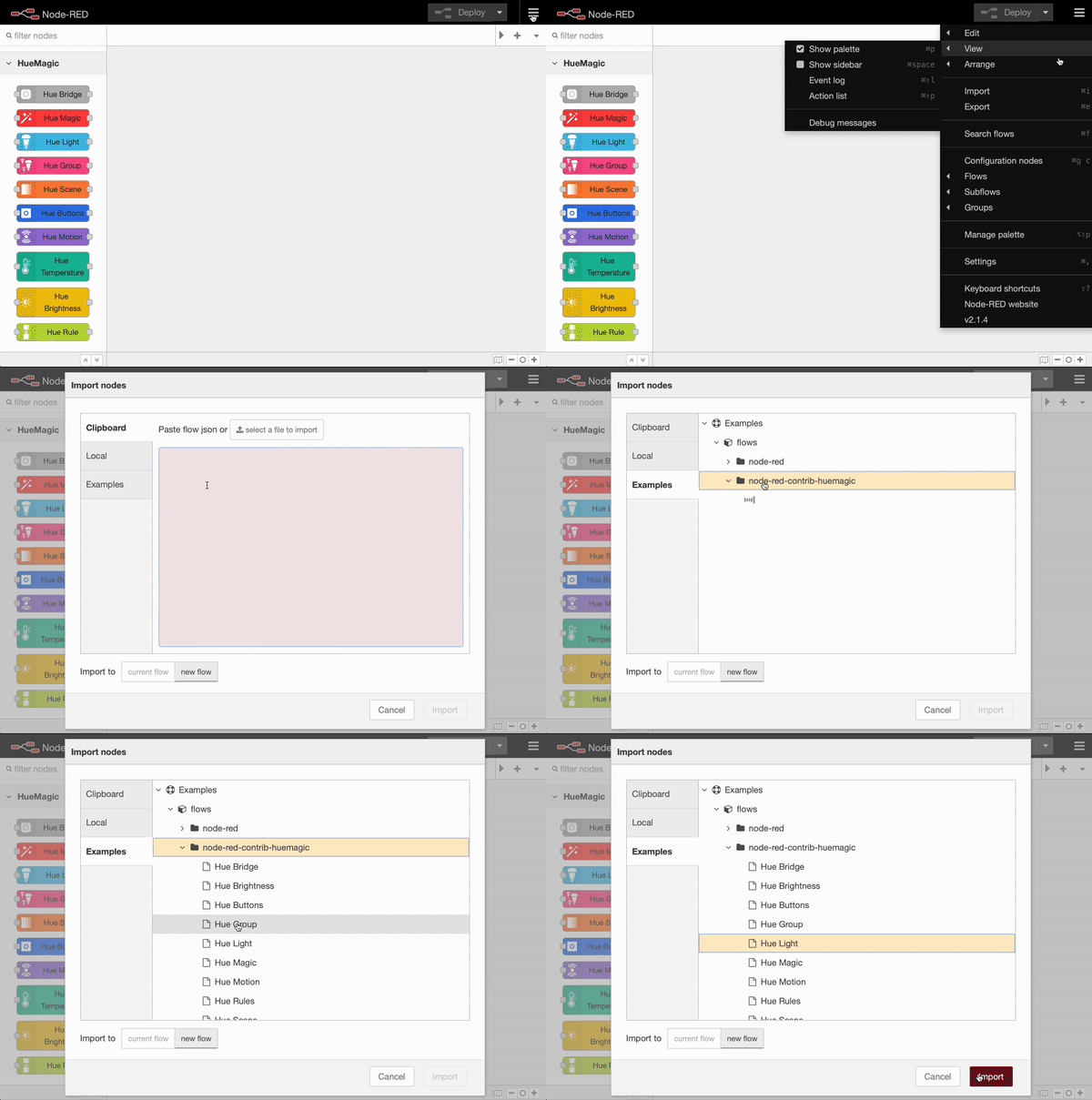
|
|
64
67
|
</script>
|
|
@@ -5,14 +5,12 @@
|
|
|
5
5
|
{
|
|
6
6
|
"name": "Name",
|
|
7
7
|
"sensor": "Sensor",
|
|
8
|
-
"skipevents": "Mitteilungen ignorieren",
|
|
9
8
|
"skipevents-node": "Ignoriere die Mitteilungen des Nodes",
|
|
9
|
+
"sendinitevents-node": "Initialisierungsnachricht nicht unterdrücken",
|
|
10
10
|
"input-name": "Name des Temperatursensors",
|
|
11
11
|
"searching": "Suche nach Temperatursensoren…",
|
|
12
12
|
"none-found": "keine Temperatursensoren gefunden!",
|
|
13
|
-
"unknown-error": "Etwas ist schief gelaufen. Bitte versuchen Sie es erneut."
|
|
14
|
-
"universalevents": "Universelle Mitteilungen",
|
|
15
|
-
"universalevents-node": "Empfängt alle Mitteilungen anderer Nodes desselben Typs (nur im Universalmodus)"
|
|
13
|
+
"unknown-error": "Etwas ist schief gelaufen. Bitte versuchen Sie es erneut."
|
|
16
14
|
},
|
|
17
15
|
"node":
|
|
18
16
|
{
|
|
@@ -22,7 +20,10 @@
|
|
|
22
20
|
"not-reachable": "nicht erreichbar",
|
|
23
21
|
"input": "Statusabfrage",
|
|
24
22
|
"output": "Temperatur (aktualisiert)",
|
|
25
|
-
"universal": "Universalmodus"
|
|
23
|
+
"universal": "Universalmodus",
|
|
24
|
+
"deactivated": "deaktiviert",
|
|
25
|
+
"command": "führt Befehl aus…",
|
|
26
|
+
"statusmsg": "Status erfolgreich abgefragt…"
|
|
26
27
|
}
|
|
27
28
|
}
|
|
28
29
|
}
|
|
@@ -1,18 +1,23 @@
|
|
|
1
|
-
<script type="text/
|
|
2
|
-
|
|
1
|
+
<script type="text/markdown" data-help-name="hue-bridge">
|
|
2
|
+
Connects to a Philips Hue bridge.
|
|
3
3
|
|
|
4
|
-
|
|
5
|
-
<p>Type in the name of the Hue Bridge manually or keep the default device name</p>
|
|
4
|
+
### Name
|
|
6
5
|
|
|
7
|
-
|
|
8
|
-
<p>Type in the Hue Bridge IP address manually or press the button to retrieve all locally available bridges (static IP configuration on the Hue Bridge recommended). Optionally, you can define an alternate port to the bridge instead of the default port (80) by appending it with a colon</p>
|
|
6
|
+
You can either assign an alternative, internal name for the bridge or keep the default name.
|
|
9
7
|
|
|
10
|
-
|
|
11
|
-
<p>Type in the Hue Bridge authorization key manually or press the button to retrieve key from bridge</p>
|
|
8
|
+
### Bridge IP & Port
|
|
12
9
|
|
|
13
|
-
|
|
14
|
-
<p>Interval that is used to poll active nodes for changes (min 500ms / recommended between 1000ms and 5000ms)</p>
|
|
10
|
+
Enter the Hue Bridge IP address manually or press the button to call up all locally available bridges (static IP configuration on the Hue Bridge recommended). You can also optionally define an alternative port for the bridge by adding a colon to the IP address.
|
|
15
11
|
|
|
16
|
-
|
|
17
|
-
|
|
12
|
+
### API key
|
|
13
|
+
|
|
14
|
+
Enter the Hue Bridge API key manually or press the button to create a new key. If you want to create a new key, you have to press the physical button of the bridge within the time window of 20 seconds to complete the process.
|
|
15
|
+
|
|
16
|
+
### Automatic firmware updates
|
|
17
|
+
|
|
18
|
+
HueMagic periodically checks for available Philips Hue firmware updates and automatically installs them when they are available. You can deactivate this behavior by clicking the corresponding checkbox.
|
|
19
|
+
|
|
20
|
+
### Deactivate notifications
|
|
21
|
+
|
|
22
|
+
If you activate this setting, all nodes behind this bridge will no longer receive automatic status messages.
|
|
18
23
|
</script>
|
|
@@ -6,7 +6,6 @@
|
|
|
6
6
|
"name": "Name",
|
|
7
7
|
"apikey": "API Key",
|
|
8
8
|
"missing-ip": "Missing Hue Bridge IP…",
|
|
9
|
-
"poll": "Poll Interval",
|
|
10
9
|
"disable-events": "Disable events",
|
|
11
10
|
"disable-events-info": "Disable events on all nodes",
|
|
12
11
|
"searching": "Searching for Hue Bridges…",
|
|
@@ -17,11 +16,14 @@
|
|
|
17
16
|
"waiting": "waiting 20 seconds…",
|
|
18
17
|
"new-user-press": "Please press your Hue Bridge button within the next 20 seconds to create a new user!",
|
|
19
18
|
"retry": "Please retry within 20 seconds…",
|
|
20
|
-
"success": "User created successfully!"
|
|
19
|
+
"success": "User created successfully!",
|
|
20
|
+
"connecting": "Connecting with the bridge…",
|
|
21
|
+
"autoupdates": "Activate automatic firmware updates"
|
|
21
22
|
},
|
|
22
23
|
"node":
|
|
23
24
|
{
|
|
24
|
-
"title": "Hue Bridge"
|
|
25
|
+
"title": "Hue Bridge",
|
|
26
|
+
"statusmsg": "Status queried successfully…"
|
|
25
27
|
}
|
|
26
28
|
}
|
|
27
29
|
}
|
|
@@ -1,174 +1,93 @@
|
|
|
1
|
-
<script type="text/
|
|
2
|
-
|
|
1
|
+
<script type="text/markdown" data-help-name="hue-bridge-node">
|
|
2
|
+
The "Hue Bridge" node is a universal node that can output all settings of the bridge and status messages from other nodes.
|
|
3
3
|
|
|
4
|
-
|
|
5
|
-
<p>Select the preconfigured Hue Bridge and choose if the selected bridge should automatically find and install firmware and other device updates. If you activate the "Skip global events" option, this node will not send messages from updated and active devices and other ressources.</p>
|
|
4
|
+
### Setup
|
|
6
5
|
|
|
7
|
-
|
|
8
|
-
<p>Retrieves the current status / settings of the bridge by injecting any input value</p>
|
|
9
|
-
<dl class="message-properties">
|
|
10
|
-
<dt>true<span class="property-type">boolean (example)</span></dt>
|
|
11
|
-
<dd>Triggers an output of the current status / settings</dd>
|
|
12
|
-
</dl>
|
|
6
|
+
First select the desired Hue Bridge. You can optionally deactivate all automatic status messages for this node by clicking the setting “Skip global device updates / messages on this node”. The node will then no longer issue device updates.
|
|
13
7
|
|
|
14
|
-
|
|
15
|
-
<p>Use TouchLink to pair new devices or old devices after a bridge reset. This is commonly known in the community as "Lamp stealer". Pass the <b>touchLink</b> property to <b>msg.payload</b>.</p>
|
|
16
|
-
<dl class="message-properties">
|
|
17
|
-
<dt>touchLink<span class="property-type">boolean (example)</span></dt>
|
|
18
|
-
<dd>Pairs lights / devices</dd>
|
|
19
|
-
</dl>
|
|
8
|
+
Alternatively, you can also choose whether the initialization messages of all nodes should not be suppressed when Node-RED is started. If you activate this setting, you will receive a status message from all resources connected to the bridge after each deployment.
|
|
20
9
|
|
|
21
|
-
|
|
22
|
-
<p>Use the Fetch command to retrieve various information from the Hue Bridge when needed. Pass the <b>fetch</b> property to <b>msg.payload</b>.</p>
|
|
23
|
-
<dl class="message-properties">
|
|
24
|
-
<dt>users<span class="property-type">string</span></dt>
|
|
25
|
-
<dd>Returns an array of User objects in msg.users & bridge information in msg.info</dd>
|
|
10
|
+
### Get settings / status
|
|
26
11
|
|
|
27
|
-
|
|
28
|
-
<dd>Returns an array of Light objects in msg.lights & bridge information in msg.info</dd>
|
|
12
|
+
Outputs the current status / settings of the bridge as soon as the following message has been sent to the node. Alternatively, you can also press the button in the Node-RED interface without having to pass a message to the node beforehand.
|
|
29
13
|
|
|
30
|
-
|
|
31
|
-
<dd>Returns an array of Group objects in msg.groups & bridge information in msg.info</dd>
|
|
14
|
+
: payload (boolean): Returns the current status of the bridge
|
|
32
15
|
|
|
33
|
-
|
|
34
|
-
<dd>Returns an array of Sensor objects in msg.sensors & bridge information in msg.info</dd>
|
|
16
|
+
### Trigger TouchLink scan
|
|
35
17
|
|
|
36
|
-
|
|
37
|
-
<dd>Returns an array of Scene objects in msg.scenes & bridge information in msg.info</dd>
|
|
18
|
+
You can couple new or old devices to the bridge using a "TouchLink scan" (e.g. after a reset). To do this, transfer the object `msg.payload` with the following content:
|
|
38
19
|
|
|
39
|
-
|
|
40
|
-
<dd>Returns an array of Rule objects in msg.rules & bridge information in msg.info</dd>
|
|
20
|
+
: touchLink (boolean): Couples old or new devices with the bridge
|
|
41
21
|
|
|
42
|
-
|
|
43
|
-
<dd>Returns an array of Schedule objects in msg.schedules & bridge information in msg.info</dd>
|
|
22
|
+
### Get all devices and resources
|
|
44
23
|
|
|
45
|
-
|
|
46
|
-
<dd>Returns an array of ResourceLink objects in msg.resourceLinks & bridge information in msg.info</dd>
|
|
24
|
+
With the "fetch" command you can output a list of specific devices that are currently connected to the bridge. To do this, transfer the object `msg.payload` with the following content:
|
|
47
25
|
|
|
48
|
-
|
|
49
|
-
<dd>Returns an array of all available time zones in msg.timeZones & bridge information in msg.info</dd>
|
|
26
|
+
: fetch (string | array [string, ...]): Can accept `light`, `group`, `button`, `motion`, `temperature`, `light_level` or `rule` as value(s)
|
|
50
27
|
|
|
51
|
-
|
|
52
|
-
<dd>Returns an object of all available internet services information in msg.internetServices & bridge information in msg.info</dd>
|
|
28
|
+
### Change Hue Bridge settings
|
|
53
29
|
|
|
54
|
-
|
|
55
|
-
<dd>Returns an object of all available portal information in msg.portal & bridge information in msg.info</dd>
|
|
56
|
-
</dl>
|
|
30
|
+
You can use the following command to change specific settings on the bridge. Please note that changing the network settings requires reconfiguring the bridge on HueMagic. Transfer the object `msg.payload.settings` with the following setting options to the node:
|
|
57
31
|
|
|
58
|
-
|
|
59
|
-
|
|
60
|
-
|
|
61
|
-
|
|
62
|
-
|
|
32
|
+
: name (string): Changes the name of the bridge and must contain at least 4 to a maximum of 16 characters
|
|
33
|
+
: zigbeeChannel (int): Changes the current ZigBee channel (either `11`, `15`, `20`, `25` or `0`)
|
|
34
|
+
: ipAddress (string): Changes the IP address in the network settings
|
|
35
|
+
: dhcpEnabled (boolean): `true`, activates DHCP in the network settings, `false`, deactivates the setting
|
|
36
|
+
: netmask (string): Changes the network mask in the network settings
|
|
37
|
+
: gateway (string): Specifies the gateway in the network settings
|
|
38
|
+
: proxyAddress (string): Sets a proxy address in the network settings
|
|
39
|
+
: proxyPort (string | int): Specifies the port of the proxy in the network settings
|
|
40
|
+
: timeZone (string): Changes the currently set time zone on the bridge
|
|
63
41
|
|
|
64
|
-
|
|
65
|
-
<dd>ZigBee channel (for communicating with lights)</dd>
|
|
42
|
+
### Status messages from the node
|
|
66
43
|
|
|
67
|
-
|
|
68
|
-
<dd>IP address (risky)</dd>
|
|
44
|
+
The status reports of the "Hue Bridge" node are dynamic. Although they follow a certain pattern, their output can vary depending on what action has just been carried out on the node.
|
|
69
45
|
|
|
70
|
-
|
|
71
|
-
<dd>Whether or not DHCP is enabled</dd>
|
|
46
|
+
#### Status object under `msg.payload`
|
|
72
47
|
|
|
73
|
-
|
|
74
|
-
|
|
48
|
+
: id (string): Unique ID of the Hue Bridge
|
|
49
|
+
: name (string): Currently set name
|
|
50
|
+
: factoryNew (boolean): Indicator whether the bridge is brand new
|
|
51
|
+
: replacesBridgeId (string | boolean): Outputs the old bridge ID (if a migration was carried out) or outputs `false`
|
|
52
|
+
: dataStoreVersion (string): Version of the data store
|
|
53
|
+
: starterKitId (string | boolean): Name of the starter kit created in the factory or `false`
|
|
54
|
+
: softwareVersion (string): Software version of the bridge
|
|
55
|
+
: apiVersion (string): API version of the bridge
|
|
56
|
+
: zigbeeChannel (int): Currently used ZigBee channel
|
|
57
|
+
: macAddress (string): MAC address of the bridge
|
|
58
|
+
: ipAddress (string): IP address of the bridge
|
|
59
|
+
: dhcpEnabled (boolean): Indicates whether DHCP is enabled
|
|
60
|
+
: netmask (string): Netmask of the bridge
|
|
61
|
+
: gateway (string): Gateway of the bridge
|
|
62
|
+
: proxyAddress (string | boolean): Currently used proxy address or `false`
|
|
63
|
+
: proxyPort (string): Currently used proxy port
|
|
64
|
+
: utcTime (string): UTC time on the bridge
|
|
65
|
+
: timeZone (string): Currently set time zone on the bridge
|
|
66
|
+
: localTime (string): Local time zone
|
|
67
|
+
: portalServicesEnabled (boolean): Indicates whether portal services are enabled
|
|
68
|
+
: portalConnected (boolean): Indicates whether the bridge is connected to the portal
|
|
69
|
+
: linkButtonEnabled (boolean): Indicates whether the link button is enabled
|
|
70
|
+
: touchlinkEnabled (boolean): Indicates whether TouchLink is enabled
|
|
71
|
+
: autoUpdatesEnabled (boolean): Indicates whether the HueMagic will automatically check for updates
|
|
72
|
+
: users (array [object, ...]): List of all users on the bridge (array with objects)
|
|
73
|
+
: updated (string): Time of the last update of the resource by HueMagic (ISO 8601)
|
|
74
|
+
: model (object): Contains the model information of the bridge under `id`, `manufacturer` and `name`
|
|
75
75
|
|
|
76
|
-
|
|
77
|
-
<dd>Gateway (risky)</dd>
|
|
76
|
+
#### Fetch results under `msg.results` (optional)
|
|
78
77
|
|
|
79
|
-
|
|
80
|
-
<dd>Proxy address</dd>
|
|
78
|
+
If the "fetch" command has been used on the node, the bridge outputs the corresponding results under the `msg.results` object. The object contains the queried resource groups, which in turn contain all the corresponding resources in the form of an array.
|
|
81
79
|
|
|
82
|
-
|
|
83
|
-
<dd>Proxy port</dd>
|
|
80
|
+
#### Global status messages under `msg.updated` (optional)
|
|
84
81
|
|
|
85
|
-
|
|
86
|
-
<dd>Time zone</dd>
|
|
87
|
-
</dl>
|
|
82
|
+
Unless deactivated, the node outputs an updated status message for each resource on the bridge. The status message under * msg.updated * follows the pattern of the respective resource and varies depending on the type of device that was last updated.
|
|
88
83
|
|
|
89
|
-
|
|
90
|
-
<p>The event message that the bridge sends contains the following data in the <b>msg.payload</b> object:</p>
|
|
91
|
-
<dl class="message-properties">
|
|
92
|
-
<dt>id<span class="property-type">string</span></dt>
|
|
93
|
-
<dd>Unique ID of the Hue Bridge</dd>
|
|
84
|
+
#### Last command under `msg.command` (optional)
|
|
94
85
|
|
|
95
|
-
|
|
96
|
-
<dd>Name of the bridge</dd>
|
|
86
|
+
If the status of the node has changed via a certain command, the entire command that was executed is also output. Otherwise this object will not be output by the node.
|
|
97
87
|
|
|
98
|
-
|
|
99
|
-
<dd>Whether or not the bridge is factory new</dd>
|
|
88
|
+
### Examples from HueMagic
|
|
100
89
|
|
|
101
|
-
|
|
102
|
-
<dd>Replaces bridge id (for migrating from old bridges)</dd>
|
|
90
|
+
HueMagic provides some sample configurations for this node. To import a full featured example into your Node-RED interface, click on the Node-RED menu icon, then select "Import" and navigate to "Examples" in the sidebar of the popup. Then select the HueMagic folder and your desired node to import a sample flow.
|
|
103
91
|
|
|
104
|
-
|
|
105
|
-
<dd>Data store version</dd>
|
|
106
|
-
|
|
107
|
-
<dt>starterKitId<span class="property-type">string</span></dt>
|
|
108
|
-
<dd>Name of the starterkit created in the factory</dd>
|
|
109
|
-
|
|
110
|
-
<dt>softwareVersion<span class="property-type">string</span></dt>
|
|
111
|
-
<dd>Software version of the bridge</dd>
|
|
112
|
-
|
|
113
|
-
<dt>apiVersion<span class="property-type">string</span></dt>
|
|
114
|
-
<dd>API version of the bridge</dd>
|
|
115
|
-
|
|
116
|
-
<dt>zigbeeChannel<span class="property-type">int</span></dt>
|
|
117
|
-
<dd>ZigBee channel (for communicating with lights)</dd>
|
|
118
|
-
|
|
119
|
-
<dt>macAddress<span class="property-type">string</span></dt>
|
|
120
|
-
<dd>MAC address</dd>
|
|
121
|
-
|
|
122
|
-
<dt>ipAddress<span class="property-type">string</span></dt>
|
|
123
|
-
<dd>IP address</dd>
|
|
124
|
-
|
|
125
|
-
<dt>dhcpEnabled<span class="property-type">boolean</span></dt>
|
|
126
|
-
<dd>Whether or not DHCP is enabled</dd>
|
|
127
|
-
|
|
128
|
-
<dt>netmask<span class="property-type">string</span></dt>
|
|
129
|
-
<dd>Netmask</dd>
|
|
130
|
-
|
|
131
|
-
<dt>gateway<span class="property-type">string</span></dt>
|
|
132
|
-
<dd>Gateway</dd>
|
|
133
|
-
|
|
134
|
-
<dt>proxyAddress<span class="property-type">string</span></dt>
|
|
135
|
-
<dd>Proxy address</dd>
|
|
136
|
-
|
|
137
|
-
<dt>proxyPort<span class="property-type">string</span></dt>
|
|
138
|
-
<dd>Proxy port</dd>
|
|
139
|
-
|
|
140
|
-
<dt>utcTime<span class="property-type">string</span></dt>
|
|
141
|
-
<dd>UTC time of the bridge</dd>
|
|
142
|
-
|
|
143
|
-
<dt>timeZone<span class="property-type">string</span></dt>
|
|
144
|
-
<dd>Time zone</dd>
|
|
145
|
-
|
|
146
|
-
<dt>localTime<span class="property-type">string</span></dt>
|
|
147
|
-
<dd>Local time of the bridge</dd>
|
|
148
|
-
|
|
149
|
-
<dt>portalServicesEnabled<span class="property-type">boolean</span></dt>
|
|
150
|
-
<dd>Whether or not portal services are enabled</dd>
|
|
151
|
-
|
|
152
|
-
<dt>portalConnected<span class="property-type">boolean</span></dt>
|
|
153
|
-
<dd>Whether or not portal is connected</dd>
|
|
154
|
-
|
|
155
|
-
<dt>linkButtonEnabled<span class="property-type">boolean</span></dt>
|
|
156
|
-
<dd>Whether or not link button is enabled</dd>
|
|
157
|
-
|
|
158
|
-
<dt>touchlinkEnabled<span class="property-type">boolean</span></dt>
|
|
159
|
-
<dd>Whether or not TouchLink is enabled</dd>
|
|
160
|
-
|
|
161
|
-
<dt>model<span class="property-type">object</span></dt>
|
|
162
|
-
<dd>The model object of the bridge includes model specific information like the model.id, model.manufacturer and model.name</dd>
|
|
163
|
-
</dl>
|
|
164
|
-
|
|
165
|
-
<h3>Global update events</h3>
|
|
166
|
-
<p>The bridge also sends events when a certain active resource (lights, groups, sensors, etc.) changes its status.</p>
|
|
167
|
-
<dl class="message-properties">
|
|
168
|
-
<dt>msg.updated<span class="property-type">object</span></dt>
|
|
169
|
-
<dd>The whole object of the device (check docs)</dd>
|
|
170
|
-
|
|
171
|
-
<dt>msg.type<span class="property-type">string</span></dt>
|
|
172
|
-
<dd>Can be one of the following: light, group, rule, motion, brightness, temperature, switch, tap</dd>
|
|
173
|
-
</dl>
|
|
92
|
+

|
|
174
93
|
</script>
|
|
@@ -5,10 +5,8 @@
|
|
|
5
5
|
{
|
|
6
6
|
"name": "Name",
|
|
7
7
|
"input-name": "Hue Bridge name",
|
|
8
|
-
"
|
|
9
|
-
"
|
|
10
|
-
"skipglobalevents": "Skip global events",
|
|
11
|
-
"skipglobalevents-info": "Skip global device updates / messages on this node"
|
|
8
|
+
"skipglobalevents-info": "Skip global device updates / messages on this node",
|
|
9
|
+
"sendinitevents-node": "Do not suppress initialization event"
|
|
12
10
|
},
|
|
13
11
|
"node":
|
|
14
12
|
{
|
|
@@ -18,21 +16,12 @@
|
|
|
18
16
|
"connected": "connected",
|
|
19
17
|
"starting-tl": "starting TouchLink…",
|
|
20
18
|
"started-tl": "TouchLink started…",
|
|
21
|
-
"f-
|
|
22
|
-
"f-lights": "fetching lights…",
|
|
23
|
-
"f-groups": "fetching groups…",
|
|
24
|
-
"f-sensors": "fetching sensors…",
|
|
25
|
-
"f-scenes": "fetching scenes…",
|
|
26
|
-
"f-rules": "fetching rules…",
|
|
27
|
-
"f-schedules": "fetching schedules…",
|
|
28
|
-
"f-rlinks": "fetching resource links…",
|
|
29
|
-
"f-timezones": "fetching timezones…",
|
|
30
|
-
"f-internet": "fetching Internet Services…",
|
|
31
|
-
"f-portal": "fetching Portal…",
|
|
19
|
+
"f-resources": "fetching resources…",
|
|
32
20
|
"updating-settings": "updating settings…",
|
|
33
21
|
"settings-updated": "settings updated",
|
|
34
22
|
"input": "settings / fetch",
|
|
35
|
-
"output": "bridge information"
|
|
23
|
+
"output": "bridge information",
|
|
24
|
+
"statusmsg": "Status queried successfully…"
|
|
36
25
|
}
|
|
37
26
|
}
|
|
38
27
|
}
|
|
@@ -1,67 +1,67 @@
|
|
|
1
|
-
<script type="text/
|
|
2
|
-
|
|
1
|
+
<script type="text/markdown" data-help-name="hue-brightness">
|
|
2
|
+
The "Hue Brightness" node can read the current light level from a suitable sensor on the bridge.
|
|
3
3
|
|
|
4
|
-
|
|
5
|
-
<p>Select the preconfigured Hue Bridge and hit the search button to find all available Lux sensors. Type in the name of the sensor manually or keep the default device name. Note that events will only be sent on deploy (once) and if the light level changes. If necessary, all status updates of this node can be ignored by activating the "Skip events" option. If you operate this node in universal mode, you can optionally also choose whether this node should receive and output all events from other nodes of the same type.</p>
|
|
4
|
+
### Setup
|
|
6
5
|
|
|
7
|
-
|
|
8
|
-
<p>The event message that the light sensor sends contains the following data in the <b>msg.payload</b> object:</p>
|
|
9
|
-
<dl class="message-properties">
|
|
10
|
-
<dt>lux<span class="property-type">int</span></dt>
|
|
11
|
-
<dd>Real lux value</dd>
|
|
6
|
+
Select the pre-configured Hue Bridge and click the search button to find all the available sensors. If you already know the ID of the sensor, you can also enter it here manually. You can either assign a new name for the sensor internally or choose the predefined name of the sensor. Optionally, you can also deactivate all automatic status messages for this node by clicking the setting "Skip events from node". The node will then no longer issue device updates. Alternatively, you can also choose whether the node's initialization message should not be suppressed when Node-RED is started. If you activate this setting, you will receive a status message for the currently selected sensor after each deployment.
|
|
12
7
|
|
|
13
|
-
|
|
14
|
-
<dd>Light level</dd>
|
|
8
|
+
If you do not select a sensor and use the node configuration in this way, the node works in the so-called "universal mode". In this mode, the node receives and outputs all status messages of the same type. You can also apply settings in universal mode to a specific sensor by transferring the corresponding sensor ID as a string in `msg.topic` together with your settings.
|
|
15
9
|
|
|
16
|
-
|
|
17
|
-
<dd>True if it's dark</dd>
|
|
10
|
+
### Get status
|
|
18
11
|
|
|
19
|
-
|
|
20
|
-
<dd>True if daylight recognized</dd>
|
|
12
|
+
Outputs the current status of the sensor as soon as a `msg.payload` object with the following content has been transferred to the node. Alternatively, you can also press the button in the Node-RED interface without having to pass a message to the node beforehand.
|
|
21
13
|
|
|
22
|
-
|
|
23
|
-
<dd>ISO 8601 date string of the last light level update</dd>
|
|
24
|
-
</dl>
|
|
14
|
+
: status (boolean): Returns the current status of the sensor
|
|
25
15
|
|
|
26
|
-
|
|
27
|
-
<p>Additional information about the sensor is going to be sent to the <b>msg.info</b> object:</p>
|
|
28
|
-
<dl class="message-properties">
|
|
29
|
-
<dt>id<span class="property-type">int</span></dt>
|
|
30
|
-
<dd>Numerical id of the sensor as registered on the bridge</dd>
|
|
16
|
+
### Turn the sensor on / off
|
|
31
17
|
|
|
32
|
-
|
|
33
|
-
<dd>Unique Id of the sensor (typically hardware id)</dd>
|
|
18
|
+
If necessary, the sensor can be turned on and off remotely. If the sensor has been turned off, it no longer registers any changes in light level and accordingly no longer outputs them. To do this, pass an object with the following content:
|
|
34
19
|
|
|
35
|
-
|
|
36
|
-
<dd>Name for the sensor</dd>
|
|
20
|
+
: payload (boolean): `true` switches the sensor on, `false` switches it off
|
|
37
21
|
|
|
38
|
-
|
|
39
|
-
<dd>Sensor type (e.g. Daylight, CLIPTemperature, ZGPSwitch)</dd>
|
|
22
|
+
### Status messages from the node
|
|
40
23
|
|
|
41
|
-
|
|
42
|
-
<dd>Software version of the sensor</dd>
|
|
24
|
+
As soon as the sensor has detected a change in the light level, the following status message is returned:
|
|
43
25
|
|
|
44
|
-
|
|
45
|
-
<dd>Current battery level of the sensor in percent</dd>
|
|
26
|
+
#### Status object under `msg.payload`
|
|
46
27
|
|
|
47
|
-
|
|
48
|
-
|
|
49
|
-
|
|
28
|
+
: active (boolean): Indicates whether the sensor is turned on or off
|
|
29
|
+
: reachable (boolean | string): `true` if the sensor is connected to the bridge, `unknown` if the connection status deviates
|
|
30
|
+
: connectionStatus (string): The current connection status with the bridge in the form of a string. Can contain `connected`,` disconnected`, `connectivity_issue` or `unidirectional_incoming` as a value
|
|
31
|
+
: lux (int): Indicates the real LUX value of the light level
|
|
32
|
+
: lightLevel (int): Indicates the light intensity of the sensor
|
|
33
|
+
: dark (boolean): `true`, if darkness was registered
|
|
34
|
+
: daylight (boolean): `true`, if daylight was registered
|
|
35
|
+
: updated (string): Time of the last update of the resource by HueMagic (ISO 8601)
|
|
50
36
|
|
|
51
|
-
|
|
52
|
-
<p>Retrieves the status of the sensor by passing the following parameters to the <b>msg.payload</b>:</p>
|
|
53
|
-
<dl class="message-properties">
|
|
54
|
-
<dt class="optional">status<span class="property-type">any</span></dt>
|
|
55
|
-
<dd>Returns the current status of the node without taking any action</dd>
|
|
56
|
-
</dl>
|
|
37
|
+
#### Information about the sensor under `msg.info`
|
|
57
38
|
|
|
58
|
-
|
|
59
|
-
|
|
60
|
-
|
|
61
|
-
|
|
62
|
-
|
|
63
|
-
|
|
39
|
+
: id (string): Indicates the new ID of the sensor
|
|
40
|
+
: idV1 (string | boolean): Indicates the old ID of the sensor
|
|
41
|
+
: uniqueId (string): The unique ID of the sensor
|
|
42
|
+
: deviceId (string): The unique ID of the device
|
|
43
|
+
: name (string): The currently set name of the sensor
|
|
44
|
+
: type (string): The type of the sensor (always `light_level`)
|
|
45
|
+
: softwareVersion (string): The current firmware of the sensor
|
|
46
|
+
: battery (float): The current battery level of the sensor
|
|
47
|
+
: batteryState (string): The current status of the battery level. Can contain `normal`, `low` or `critical` as a value
|
|
48
|
+
: model (object): Contains the model information of the sensor under `id`, `manufacturer`, `name`, `type` and `certified`
|
|
64
49
|
|
|
65
|
-
|
|
66
|
-
|
|
50
|
+
#### Status changes under `msg.updated`
|
|
51
|
+
|
|
52
|
+
Lists individual parameters in the form of an object that have changed compared to the last state of the sensor. If no changes have been registered, this object is empty.
|
|
53
|
+
|
|
54
|
+
#### Last status of the sensor under `msg.lastState`
|
|
55
|
+
|
|
56
|
+
Contains the complete status object (see output values above) of the last status before the last registered change. If the last state of HueMagic has not yet been registered, it will output `false`.
|
|
57
|
+
|
|
58
|
+
#### Last command under `msg.command` (optional)
|
|
59
|
+
|
|
60
|
+
If the status of the node has changed via a certain command, the entire command that was executed is also output. Otherwise this object will not be output by the node.
|
|
61
|
+
|
|
62
|
+
### Examples from HueMagic
|
|
63
|
+
|
|
64
|
+
HueMagic provides some sample configurations for this node. To import a full featured example into your Node-RED interface, click on the Node-RED menu icon, then select "Import" and navigate to "Examples" in the sidebar of the popup. Then select the HueMagic folder and your desired node to import a sample flow.
|
|
65
|
+
|
|
66
|
+

|
|
67
67
|
</script>
|