markdown-design-doc-viewer 1.2.0 → 1.4.0
This diff represents the content of publicly available package versions that have been released to one of the supported registries. The information contained in this diff is provided for informational purposes only and reflects changes between package versions as they appear in their respective public registries.
- package/README.ja.md +56 -2
- package/README.md +56 -2
- package/dist/cli.js +112 -59
- package/dist/export.css +1 -1
- package/dist/export.js +2 -1
- package/dist/webview.css +1 -1
- package/dist/webview.js +458 -457
- package/l10n/bundle.l10n.ja.json +47 -2
- package/package.json +1 -1
package/README.ja.md
CHANGED
|
@@ -10,7 +10,7 @@
|
|
|
10
10
|
|
|
11
11
|
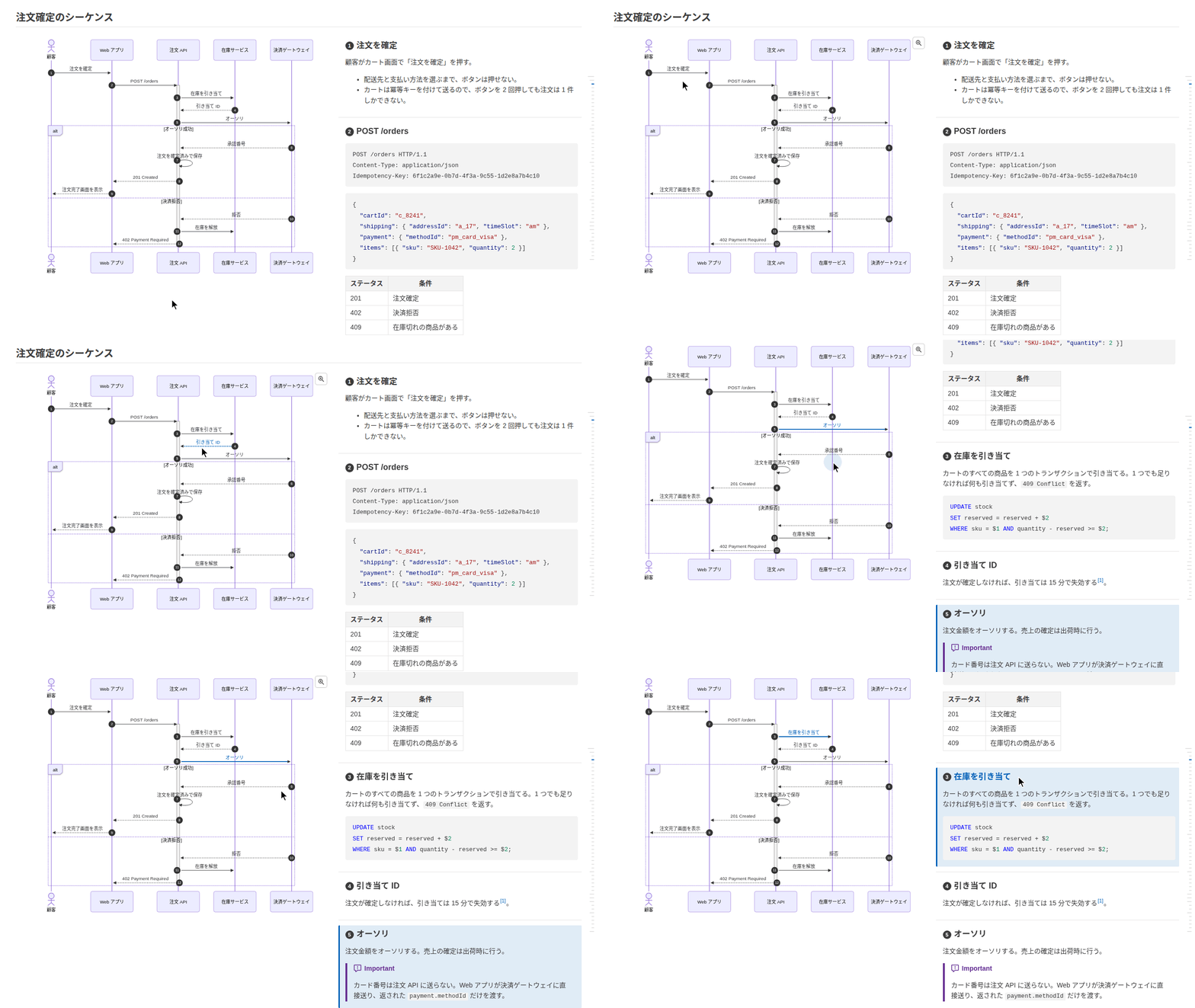
書き出す HTML は VS Code 拡張の `設計書を HTML にエクスポート` コマンドと同じです。**mermaid のシーケンス図やフローチャートと処理概要を横並びにして**表示し、図の矢印(フローチャートではノード)と見出しが紐付いて、マウスを載せたりクリックしたりするとハイライトします。図はヘッドレス Chrome で描画し、ローカルの画像は埋め込むので、どのブラウザでも開けて、印刷から PDF にもできます。
|
|
12
12
|
|
|
13
|
-
|
|
14
14
|
|
|
15
15
|
**[サンプル](https://playree.github.io/markdown-design-doc-viewer/ja/sample/)**: このコマンドで [examples/screenshot.ja.md](https://github.com/playree/markdown-design-doc-viewer/blob/main/examples/screenshot.ja.md) から書き出した HTML です。
|
|
16
16
|
|
|
@@ -21,6 +21,7 @@ npx markdown-design-doc-viewer export docs -o site # docs/ 以下の Markdow
|
|
|
21
21
|
npx markdown-design-doc-viewer export docs -o site --index # 加えて文書の一覧を site/index.html に
|
|
22
22
|
npx markdown-design-doc-viewer export docs -o site --diff-base v1.0 # タグ v1.0 からの差分付きで
|
|
23
23
|
npx markdown-design-doc-viewer export README.md # 隣に README.html を
|
|
24
|
+
npx markdown-design-doc-viewer capture http://localhost:5173/signin -o docs/screens/signin.html --width 375 # 画面をワイヤーフレームに
|
|
24
25
|
```
|
|
25
26
|
|
|
26
27
|
プロジェクトにインストールした場合(`npm install --save-dev markdown-design-doc-viewer`)、コマンド名は `md-design-doc` です。
|
|
@@ -49,8 +50,9 @@ md-design-doc export docs -o site
|
|
|
49
50
|
| `--no-front-matter` | YAML front matter(メタ情報の表、`type: design_doc` ではヘッダ)を表示しない |
|
|
50
51
|
| `--no-sticky-table-header` | 長い表のヘッダ行をスクロール中に上端に固定しない |
|
|
51
52
|
| `--no-table-tree-highlight` | ツリーとして表示する表(表のオプションの `level=`)で、マウスを乗せた行の親と子をハイライトしない |
|
|
53
|
+
| `--no-toc` | ページの右端にマウスを乗せると開く目次(見出し h1〜h3)を表示しない |
|
|
52
54
|
| `--chrome <path>` | 図の描画に使う Chrome か Chromium |
|
|
53
|
-
| `--strict` | 警告(壊れた `@ref`
|
|
55
|
+
| `--strict` | 警告(壊れた `@ref` や置き場所の誤ったマーカーなどの紐付けの警告、適用できない表のオプション、何にも一致しないワイヤーフレームのパーツのセレクタ(`item.<番号>=`))があれば失敗にする。紐付いていないだけの矢印・見出しでは失敗しない |
|
|
54
56
|
| `--diff-base <rev>` | 各文書の、git のリビジョン `<rev>`(タグ・コミット・ブランチ)からの差分を表示する。VS Code 拡張の履歴との比較と同じく、追加・変更・削除したブロックに緑・青・赤の帯を付け、変わった語を強調し、変更した図には変更前の図を折りたたんで添える。ページ下部のバーで前後の変更へ移動したり、差分を隠したり表示したりできる。そのリビジョンの同じパスにない文書(その後に追加・名前を変更したもの)は全体を追加として表示する。git と、クローンにそのリビジョンまでの履歴が必要([GitHub Actions](#github-actions) を参照)。`--index` と使うと、一覧に各文書の差分の列が付く |
|
|
55
57
|
| `--index` | 書き出した文書の一覧を `--out-dir`(必須)の `index.html` にも書き出す。フォルダごとの表に、タイトル(リンク)・ファイル名と、front matter の `version`・`product`・`status`・`updated` を載せる。ページの検索欄で文書を絞り込め、列見出しで並べ替えられる |
|
|
56
58
|
| `--index-title <title>` | `index.html` のタイトル。既定は `Design Docs`(`--lang ja` では `設計書一覧`) |
|
|
@@ -62,6 +64,58 @@ md-design-doc export docs -o site
|
|
|
62
64
|
|
|
63
65
|
文書を書き出せなかったとき(`--diff-base` で、不明なリビジョンなどで git が失敗したときも)、mermaid が描画できない図があったとき(HTML は書き出します)、`--strict` で警告があったときは終了コード 1、コマンドラインの誤りは 2 で終わります。
|
|
64
66
|
|
|
67
|
+
## 画面を撮る
|
|
68
|
+
|
|
69
|
+
`capture` は、動いている Web アプリ(開発サーバなど。`file:` の URL も使えます)の画面を[ワイヤーフレーム](https://github.com/playree/markdown-design-doc-viewer/blob/main/README.ja.md#ワイヤーフレーム)の HTML ファイルに書き出します。ヘッドレス Chrome で表示したとおりのページを(スクリプトで描画するシングルページアプリも)、スクリプトを除き、効いているスタイルとともに書き出すので、プレビューでブラウザと同じように表示できます。画像と使っているフォントも埋め込むので、ファイル 1 つで表示できます(`file:` のページでは、ローカルのファイルはそのフォルダかカレントフォルダのものだけを埋め込みます)。
|
|
70
|
+
|
|
71
|
+
```sh
|
|
72
|
+
md-design-doc capture http://localhost:5173/signin -o docs/screens/signin.html --width 375
|
|
73
|
+
```
|
|
74
|
+
|
|
75
|
+
- スタイルシートは、スクリプトが追加したルール(CSS-in-JS)も含めて取り込み、撮ったときのウィンドウと同じようにレイアウトされるようにします。`@media` のルールはその幅と高さで残すかを決め、ウィンドウに対する長さ(`100vh`)はピクセルにします。`--width` の値をワイヤーフレームの `width=` に書いてください。
|
|
76
|
+
- フォームの部品の状態(入力した文字、チェック、選んだ選択肢)も残します。パスワードの文字は伏せ、隠しフィールドと `<meta>` 要素(セッションのトークンなどを含むことがあるため)は除きます。最前面(top layer)に開いたダイアログ・ポップオーバーは、表示された位置に残します。
|
|
77
|
+
- エラーメッセージ、ダイアログ、別のタブなど、初期表示にないものは、ページを操作してから撮ります。`--fill`・`--click`・`--hover`・`--press` を書いた順に実行します。操作で表示されるものは `--wait-for` で待ちます。
|
|
78
|
+
|
|
79
|
+
```sh
|
|
80
|
+
md-design-doc capture http://localhost:5173/signin -o docs/screens/signin-error.html --width 375 \
|
|
81
|
+
--fill '#email=a@example.com' --fill 'input[name=password]=wrong' --click 'button[type=submit]' --wait-for '[role=alert]'
|
|
82
|
+
```
|
|
83
|
+
|
|
84
|
+
- 込み入った準備は、`--script` で渡す Playwright のスクリプトで行います。既定のエクスポートの関数はページを開いた後に、`setup` は開く前に、[ページ](https://playwright.dev/docs/api/class-page)を引数に呼ばれます。たとえば画面が要る API の応答を差し替えられます。
|
|
85
|
+
|
|
86
|
+
```js
|
|
87
|
+
// error.mjs
|
|
88
|
+
export async function setup(page) {
|
|
89
|
+
await page.route('**/api/signin', (route) => route.fulfill({ status: 401, json: { message: 'パスワードが違います。' } }));
|
|
90
|
+
}
|
|
91
|
+
export default async function (page) {
|
|
92
|
+
await page.getByLabel('メールアドレス').fill('a@example.com');
|
|
93
|
+
await page.getByRole('button', { name: 'ログイン' }).click();
|
|
94
|
+
await page.getByRole('alert').waitFor();
|
|
95
|
+
}
|
|
96
|
+
```
|
|
97
|
+
|
|
98
|
+
- 画面のパーツには、ワイヤーフレームのオプションで番号を振ります(撮り直しても消えません): `<!-- wireframe: link-headings width=375 item.1="#email" item.2="button[type=submit]" -->`。
|
|
99
|
+
- 撮れないもの: `:hover`・`:focus` の見た目(ホバーで表示される要素は撮れます)、モーダルの `<dialog>` の背景(`::backdrop`)、フレームの中身、Web コンポーネントの Shadow root の中身、動画。
|
|
100
|
+
|
|
101
|
+
| オプション | 説明 |
|
|
102
|
+
|---|---|
|
|
103
|
+
| `-o`, `--out <file.html>` | HTML ファイルをここに書き出します(必須)。フォルダがなければ作ります。 |
|
|
104
|
+
| `--width <px>` | ウィンドウの幅。既定値: `1280`。 |
|
|
105
|
+
| `--height <px>` | ウィンドウの高さ(`100vh` の長さ)。既定値: `800`。ページは長さにかかわらず全体を撮ります。 |
|
|
106
|
+
| `--color-scheme <scheme>` | `light`(既定値)か `dark`。システムの配色に従うページ向けです。 |
|
|
107
|
+
| `--storage-state <file>` | ページを開くときの Cookie とローカルストレージ。Playwright の [storage state](https://playwright.dev/docs/auth) で、ログインしたユーザーのものなどを渡します。 |
|
|
108
|
+
| `--script <file.mjs>` | ページを準備する Playwright のスクリプト(上記)。自分のコードとして、コマンドと同じ権限で動きます。 |
|
|
109
|
+
| `--fill <selector>=<text>` | 入力欄に文字を入力します。セレクタは、角かっこ・引用符の外の最初の `=` までです(`input[name=email]=a@example.com`)。 |
|
|
110
|
+
| `--click <selector>` | 要素をクリックします。 |
|
|
111
|
+
| `--hover <selector>` | 要素の上にポインタを移します。 |
|
|
112
|
+
| `--press <key>` | キーを押します(`Enter`、`Escape` など)。 |
|
|
113
|
+
| `--wait-for <selector>` | 要素が表示されるまで待ってから撮ります。 |
|
|
114
|
+
| `--wait <ms>` | 撮る前にこの時間待ちます(アニメーションなど)。 |
|
|
115
|
+
| `--chrome <path>` | ページを開く Chrome か Chromium。 |
|
|
116
|
+
|
|
117
|
+
セレクタは Playwright のもので、CSS セレクタのほか `text=ログイン` なども使えます。ページはネットワークが落ち着いてから開いたものとし、操作は要素を最大 30 秒待ちます。ページを開けない、操作に失敗したときは終了コード 1 で、ファイルは書きません。コマンドラインの誤りは 2 です。取得できなかった画像・フォントはリンクのまま、スタイルシートは除き、警告を出します。
|
|
118
|
+
|
|
65
119
|
## GitHub Actions
|
|
66
120
|
|
|
67
121
|
たとえば、リポジトリの設計書をビルドごとに成果物として公開するには:
|
package/README.md
CHANGED
|
@@ -10,7 +10,7 @@ The command line of [Markdown Design Doc Viewer](https://github.com/playree/mark
|
|
|
10
10
|
|
|
11
11
|
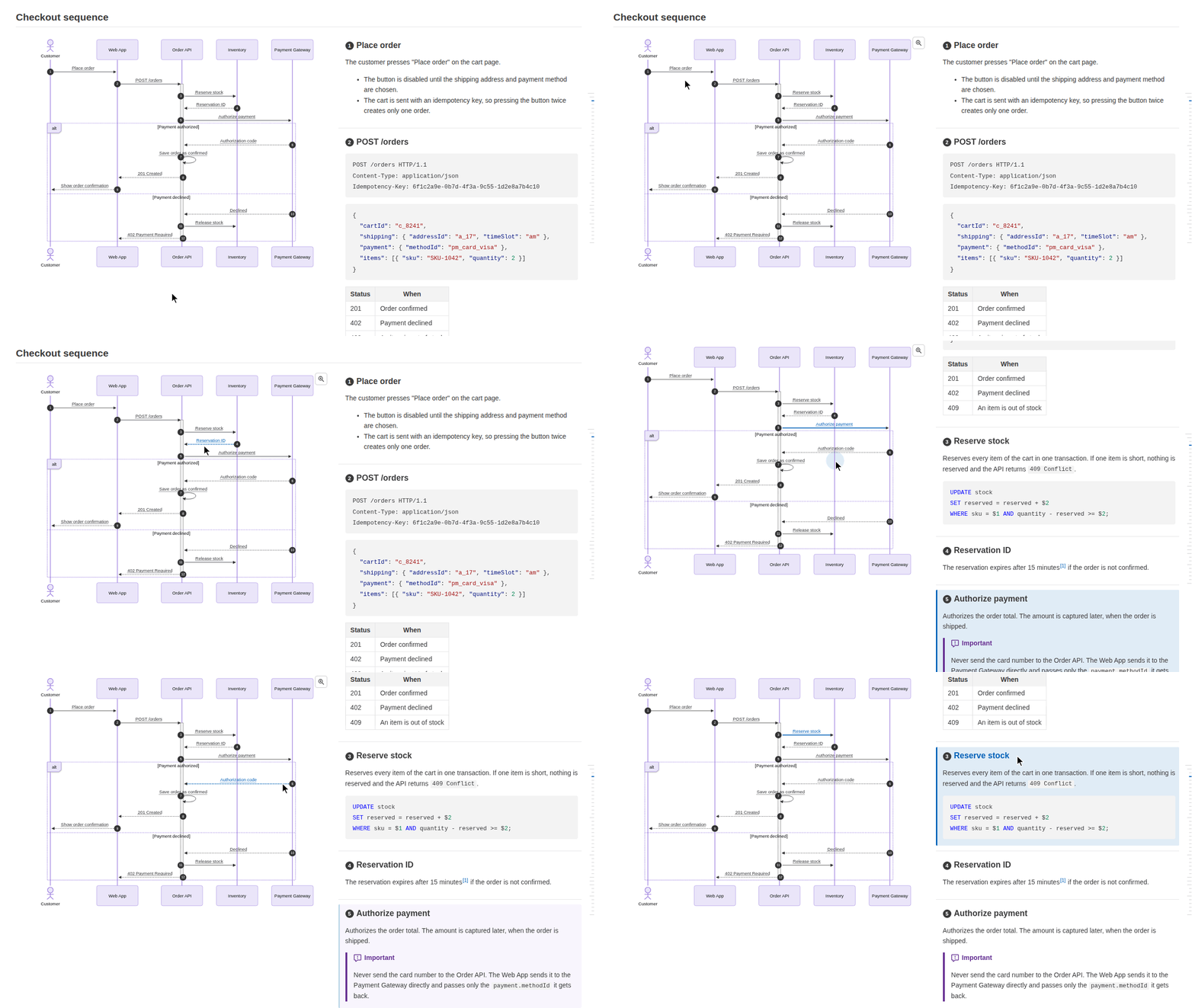
The HTML is the same as the VS Code extension's `Export Design Doc as HTML` command writes: **mermaid sequence diagrams and flowcharts are shown side by side with their step descriptions**, and each arrow (or flowchart node) is linked to its heading, highlighted when hovered or clicked. The diagrams are rendered with headless Chrome and local images are embedded, so the file can be opened in any browser or printed to PDF.
|
|
12
12
|
|
|
13
|
-
|
|
14
14
|
|
|
15
15
|
**[Live sample](https://playree.github.io/markdown-design-doc-viewer/sample/)**: an HTML file written by this command from [examples/screenshot.md](https://github.com/playree/markdown-design-doc-viewer/blob/main/examples/screenshot.md).
|
|
16
16
|
|
|
@@ -21,6 +21,7 @@ npx markdown-design-doc-viewer export docs -o site # all the Markdown files
|
|
|
21
21
|
npx markdown-design-doc-viewer export docs -o site --index # plus site/index.html, a list of the documents
|
|
22
22
|
npx markdown-design-doc-viewer export docs -o site --diff-base v1.0 # with their changes since the tag v1.0
|
|
23
23
|
npx markdown-design-doc-viewer export README.md # README.html next to it
|
|
24
|
+
npx markdown-design-doc-viewer capture http://localhost:5173/signin -o docs/screens/signin.html --width 375 # a screen as a wireframe
|
|
24
25
|
```
|
|
25
26
|
|
|
26
27
|
Installed in a project (`npm install --save-dev markdown-design-doc-viewer`), the command is `md-design-doc`:
|
|
@@ -49,8 +50,9 @@ md-design-doc export docs -o site
|
|
|
49
50
|
| `--no-front-matter` | Hide the YAML front matter (shown as a table of metadata, or as a header with `type: design_doc`). |
|
|
50
51
|
| `--no-sticky-table-header` | Do not keep the header row of a long table at the top while scrolling. |
|
|
51
52
|
| `--no-table-tree-highlight` | Do not highlight the parents and children of the row under the pointer in the tables shown as trees (`level=` of the table options). |
|
|
53
|
+
| `--no-toc` | Do not show the table of contents (headings h1-h3) that opens when hovering the right edge of the page. |
|
|
52
54
|
| `--chrome <path>` | Chrome or Chromium to render the diagrams with. |
|
|
53
|
-
| `--strict` | Fail when a document has a warning: a link warning (a broken `@ref` or a misplaced marker),
|
|
55
|
+
| `--strict` | Fail when a document has a warning: a link warning (a broken `@ref` or a misplaced marker), table options that cannot be applied, or a selector of the parts of a wireframe (`item.<number>=`) that matches nothing. Arrows and headings that are only not linked do not fail. |
|
|
54
56
|
| `--diff-base <rev>` | Show the changes of each document since the git revision `<rev>` (a tag, a commit or a branch), as the VS Code extension shows its differences from a revision: the blocks added, changed and deleted are marked with green, blue and red bands, the words changed are highlighted, and the old version of a changed diagram is shown folded below it. A bar at the bottom of the page goes from one change to the next, and hides or shows them. A document the revision does not have at its path (added or renamed since) is shown as all added. Requires git, and the history of the revision in the clone (see [GitHub Actions](#github-actions)). With `--index`, the list has a column of the changes of each document. |
|
|
55
57
|
| `--index` | Also write `index.html` in `--out-dir` (required), a list of the exported documents: a table for each folder, with their title (linked), file name, and the `version`, `product`, `status` and `updated` of their front matter. The page has a search box that filters the documents, and its column headers sort them. |
|
|
56
58
|
| `--index-title <title>` | Title of `index.html`. Default: `Design Docs` (`設計書一覧` with `--lang ja`). |
|
|
@@ -62,6 +64,58 @@ Folders are searched for `*.md` and `*.markdown` files, including their subfolde
|
|
|
62
64
|
|
|
63
65
|
The exit status is 1 when a document could not be exported (also when git fails with `--diff-base`, e.g. for an unknown revision) or has a diagram mermaid cannot render (its HTML is written anyway), or with `--strict` a warning, and 2 for a wrong command line.
|
|
64
66
|
|
|
67
|
+
## Capturing screens
|
|
68
|
+
|
|
69
|
+
`capture` writes a screen of a running web app (on its development server, for example; a `file:` URL works too) as the HTML file of a [wireframe](https://github.com/playree/markdown-design-doc-viewer#wireframes): the page as it is shown in headless Chrome, also when its scripts draw it (a single-page app), without its scripts and with the styles that apply to it, so that the preview shows it as in a browser. Its images and the fonts it uses are embedded, so the file stands alone (for a `file:` page, only local files in its folder or the current folder).
|
|
70
|
+
|
|
71
|
+
```sh
|
|
72
|
+
md-design-doc capture http://localhost:5173/signin -o docs/screens/signin.html --width 375
|
|
73
|
+
```
|
|
74
|
+
|
|
75
|
+
- The style sheets are taken in with the rules that scripts added (CSS-in-JS), and the page is laid out as in the window it was captured in: the `@media` rules are kept or left out for its width and height, and the lengths relative to the window (`100vh`) are in pixels. Write the `--width` as the `width=` of the wireframe.
|
|
76
|
+
- The state of the form controls (the text typed, the boxes checked, the options selected) is kept. The text of a password is masked, and the hidden fields and the `<meta>` elements (which may have tokens of the session) are left out. Dialogs and popovers open in the top layer are kept where they are shown.
|
|
77
|
+
- What the first view does not show, such as an error message, a dialog or another tab, is captured after actions on the page: `--fill`, `--click`, `--hover` and `--press`, done in their order. Wait with `--wait-for` for what they show:
|
|
78
|
+
|
|
79
|
+
```sh
|
|
80
|
+
md-design-doc capture http://localhost:5173/signin -o docs/screens/signin-error.html --width 375 \
|
|
81
|
+
--fill '#email=a@example.com' --fill 'input[name=password]=wrong' --click 'button[type=submit]' --wait-for '[role=alert]'
|
|
82
|
+
```
|
|
83
|
+
|
|
84
|
+
- For more, a Playwright script given with `--script` prepares the page: its default export is called with the [page](https://playwright.dev/docs/api/class-page) once it is open, and its export `setup` before it is opened, for example to give the answers of the API that the screen needs:
|
|
85
|
+
|
|
86
|
+
```js
|
|
87
|
+
// error.mjs
|
|
88
|
+
export async function setup(page) {
|
|
89
|
+
await page.route('**/api/signin', (route) => route.fulfill({ status: 401, json: { message: 'Wrong password.' } }));
|
|
90
|
+
}
|
|
91
|
+
export default async function (page) {
|
|
92
|
+
await page.getByLabel('Email').fill('a@example.com');
|
|
93
|
+
await page.getByRole('button', { name: 'Sign in' }).click();
|
|
94
|
+
await page.getByRole('alert').waitFor();
|
|
95
|
+
}
|
|
96
|
+
```
|
|
97
|
+
|
|
98
|
+
- The parts of the screen are numbered in the options of the wireframe, which stay when it is captured again: `<!-- wireframe: link-headings width=375 item.1="#email" item.2="button[type=submit]" -->`.
|
|
99
|
+
- Not captured: the looks of `:hover` and `:focus` (the elements that hovering shows are), the backdrop of a modal `<dialog>` (`::backdrop`), the content of frames and of the shadow roots of web components, and videos.
|
|
100
|
+
|
|
101
|
+
| Option | Description |
|
|
102
|
+
|---|---|
|
|
103
|
+
| `-o`, `--out <file.html>` | Write the HTML file here (required). Its folder is created if needed. |
|
|
104
|
+
| `--width <px>` | Width of the window. Default: `1280`. |
|
|
105
|
+
| `--height <px>` | Height of the window, which `100vh` is. Default: `800`. The whole page is captured, however long. |
|
|
106
|
+
| `--color-scheme <scheme>` | `light` (default) or `dark`, for the pages that follow the color scheme of the system. |
|
|
107
|
+
| `--storage-state <file>` | Cookies and local storage to open the page with: a [storage state](https://playwright.dev/docs/auth) of Playwright, for example of a signed-in user. |
|
|
108
|
+
| `--script <file.mjs>` | Playwright script that prepares the page (see above). It runs as your code, with the access of the command. |
|
|
109
|
+
| `--fill <selector>=<text>` | Types the text into the field. The selector ends at the first `=` outside brackets and quotes (`input[name=email]=a@example.com`). |
|
|
110
|
+
| `--click <selector>` | Clicks the element. |
|
|
111
|
+
| `--hover <selector>` | Moves the pointer over the element. |
|
|
112
|
+
| `--press <key>` | Presses the key, for example `Enter` or `Escape`. |
|
|
113
|
+
| `--wait-for <selector>` | Waits for the element to be shown before capturing the page. |
|
|
114
|
+
| `--wait <ms>` | Waits this long before capturing the page, for example for an animation. |
|
|
115
|
+
| `--chrome <path>` | Chrome or Chromium to open the page with. |
|
|
116
|
+
|
|
117
|
+
The selectors are those of Playwright: CSS selectors, and its own ones such as `text=Sign in`. The page is opened when the network is idle, and an action waits up to 30 seconds for its element. The exit status is 1 when the page could not be opened or an action failed (no file is written), and 2 for a wrong command line. The images and fonts that could not be fetched are left as links, and the style sheets left out, with a warning.
|
|
118
|
+
|
|
65
119
|
## GitHub Actions
|
|
66
120
|
|
|
67
121
|
For example, to publish the documents of a repository as an artifact of each build:
|