markdown-design-doc-viewer 0.4.0 → 0.5.0
This diff represents the content of publicly available package versions that have been released to one of the supported registries. The information contained in this diff is provided for informational purposes only and reflects changes between package versions as they appear in their respective public registries.
- package/README.ja.md +41 -176
- package/README.md +42 -179
- package/package.json +7 -231
package/README.ja.md
CHANGED
|
@@ -1,189 +1,59 @@
|
|
|
1
|
-
#
|
|
1
|
+
# markdown-design-doc-viewer
|
|
2
2
|
|
|
3
|
+
[](https://www.npmjs.com/package/markdown-design-doc-viewer)
|
|
3
4
|
[](https://github.com/playree/markdown-design-doc-viewer/actions/workflows/ci.yml)
|
|
4
|
-
[![
|
|
5
|
-
[](https://marketplace.visualstudio.com/items?itemName=playree.markdown-design-doc-viewer)
|
|
6
|
-
[](LICENSE)
|
|
5
|
+
[](https://github.com/playree/markdown-design-doc-viewer/blob/main/LICENSE)
|
|
7
6
|
|
|
8
|
-
[English](
|
|
7
|
+
[English](https://github.com/playree/markdown-design-doc-viewer/blob/main/docs/cli.md) | 日本語
|
|
9
8
|
|
|
10
|
-
|
|
11
|
-
図の矢印(フローチャートではノード)と処理概要の見出しが紐付き、相互にハイライト・スクロールできます。
|
|
9
|
+
[Markdown 設計書ビューア](https://github.com/playree/markdown-design-doc-viewer/blob/main/README.ja.md)のコマンドライン版です。Markdown で書いた設計書を、CI やバッチ処理で VS Code なしに 1 つの HTML ファイルへ書き出します。
|
|
12
10
|
|
|
13
|
-
|
|
11
|
+
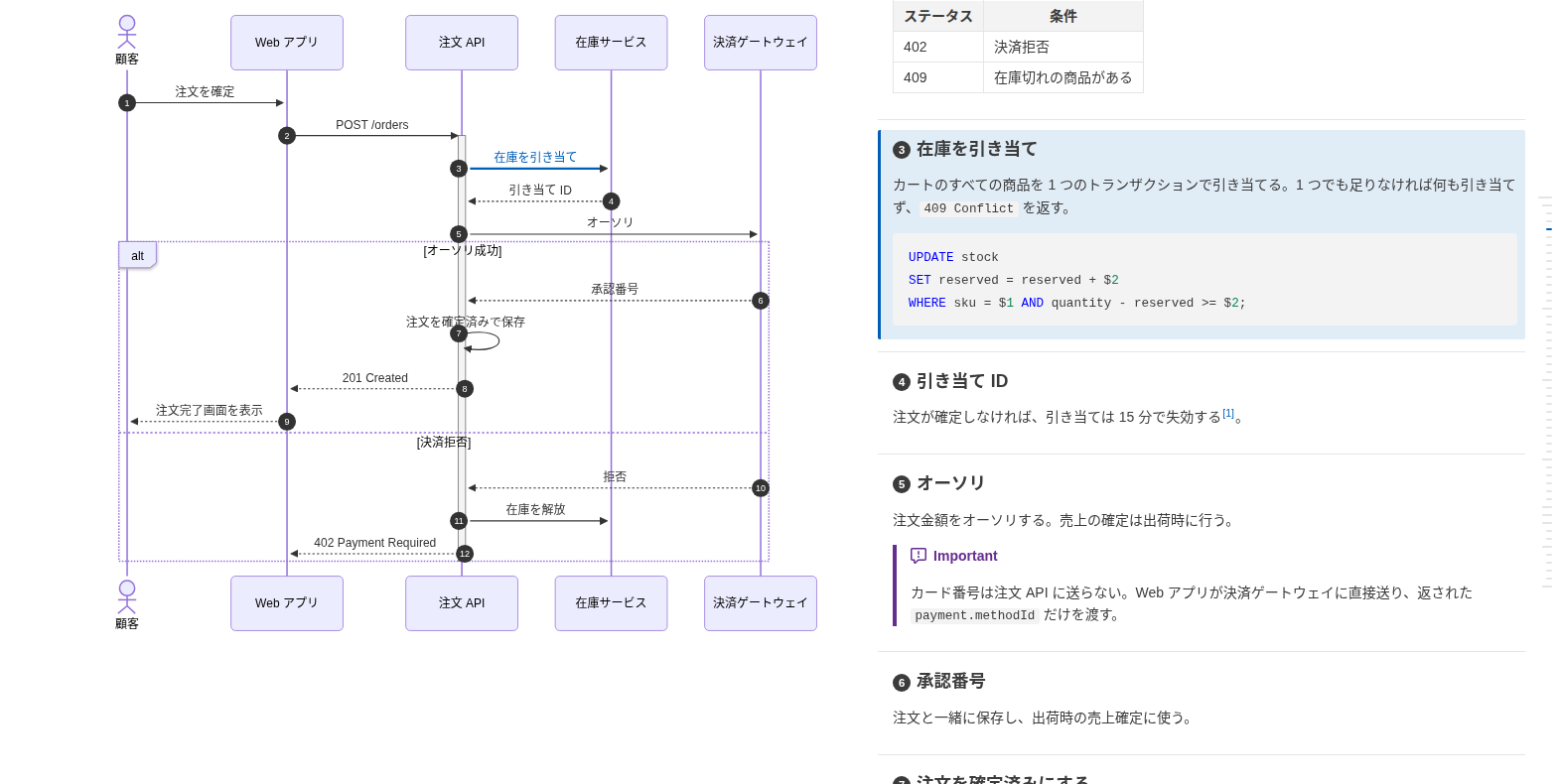
書き出す HTML は VS Code 拡張の `設計書を HTML にエクスポート` コマンドと同じです。**mermaid のシーケンス図やフローチャートと処理概要を横並びにして**表示し、図の矢印(フローチャートではノード)と見出しが紐付いて、マウスを載せたりクリックしたりするとハイライトします。図はヘッドレス Chrome で描画し、ローカルの画像は埋め込むので、どのブラウザでも開けて、印刷から PDF にもできます。
|
|
14
12
|
|
|
15
|
-
|
|
16
|
-
|
|
17
|
-
- **横並び表示**: プレビューの幅が十分にあるとき、左に図(スクロールしても固定)、右に処理概要を表示します(紐付いた項目の間には区切り線が入ります)。幅が狭いときは通常の縦並びになります。
|
|
18
|
-
- **矢印・ノードと見出しの紐付け**: 矢印(フローチャートではノード)にマウスを乗せる・クリックすると対応する処理概要がハイライトされ、見出しをクリックすると図の該当箇所へスクロールします。
|
|
19
|
-
- **エディタとの同期**: エディタのスクロールとカーソルにプレビューが追従します(カーソルが矢印やノードの行にあればそれをハイライト)。プレビューをダブルクリックするとエディタの該当行へ移動します。
|
|
20
|
-
- **標準Markdownのまま**: 紐付けの記法はmermaidのコメントとHTMLコメントだけなので、GitHubや標準のMarkdownプレビューでもそのまま正しく表示されます。
|
|
21
|
-
- **設計書でよく使う記法**: 先頭の YAML front matter はメタ情報(タイトル・版数・ステータスなど)の表として表示し(`type: design_doc` を書くとヘッダとして表示。後述)、コードブロックはシンタックスハイライトします。長い表はスクロールしてもヘッダ行を上端に固定して表示します。GitHub のアラート(`> [!NOTE]`)、タスクリスト(`- [ ]`)、脚注(`[^1]`。参照にマウスを載せると内容をポップアップ表示)も表示します。
|
|
22
|
-
- **幅の調整**: 左右の境界をドラッグして幅を変えられます(ダブルクリックで元に戻ります)。プレビューの幅が広いときは本文を最大 1280px の中央のカラムに収めます。プレビューのタイトルバーのボタンで全幅表示と切り替えられます。
|
|
23
|
-
- **ライト・ダークの切り替え**: プレビューは既定で VS Code の配色テーマに従います。プレビューのタイトルバーのボタンで、ライトとダークのうち今と反対の配色に切り替えられます(エディタはダークのまま設計書だけライトで読む、など)。もう一度押すと VS Code の配色に従う状態に戻ります。選んだ配色は `mdDesignDoc.theme` に保存されます。
|
|
24
|
-
- **目次**: プレビュー右端の短い線にマウスを乗せると目次(h1〜h3)が開き、クリックでその見出しへ移動します。現在位置の線は強調表示されます。
|
|
25
|
-
- **図・画像の拡大**: mermaid の図にマウスを乗せると右上に出るボタンで、図を全画面で表示します。ホイールで拡大縮小、ドラッグで移動、ダブルクリックで全体表示に戻り、Esc で閉じます。紐付いた矢印をクリックすると、図を閉じて処理概要へ移動します。画像もクリックすると同じように全画面で表示します(リンクの中の画像はクリックでリンクを開きます)。
|
|
26
|
-
- **検索**: プレビューにフォーカスがあるときに `Ctrl+F`(macOS では `Cmd+F`)でプレビュー内を検索できます。
|
|
27
|
-
- **HTML エクスポート**: コマンド `Markdown 設計書ビューア: 設計書を HTML にエクスポート`(プレビューの右クリックメニューにもあります)で、設計書を 1 つの HTML ファイルに書き出します。図はライトテーマで描画済みの状態で、ローカルの画像は埋め込まれます(プレビューと同じく、文書のフォルダとワークスペース内の画像だけを埋め込み、それ以外はリンクのままにします)。ブラウザでも横並び表示と矢印・見出しのハイライトが動き、印刷すると縦並びになるので、ブラウザの印刷から PDF にできます。警告と紐付け漏れの印は書き出しません。CI やバッチ処理向けにコマンドラインからも実行できます([コマンドライン(CI)](#コマンドラインci) を参照)。
|
|
28
|
-
|
|
29
|
-

|
|
13
|
+
|
|
30
14
|
|
|
31
15
|
## 使い方
|
|
32
16
|
|
|
33
|
-
|
|
34
|
-
|
|
35
|
-
-
|
|
36
|
-
- `Markdown 設計書ビューア: 設計書プレビューを開く`
|
|
37
|
-
|
|
38
|
-
テキストエディタの代わりに開くこともできます。コマンド **エディターを再度開くアプリケーションの選択...**(タブ右上の「テキスト エディター」と表示されている部分)から **設計書プレビュー** を選んでください。Markdownファイルを常にこのプレビューで開くには、同じリストの「'*.md' の既定値を設定する」を選ぶか、設定に次を追加します。
|
|
39
|
-
|
|
40
|
-
```json
|
|
41
|
-
"workbench.editorAssociations": { "*.md": "mdDesignDoc.editor", "*.markdown": "mdDesignDoc.editor" }
|
|
42
|
-
```
|
|
43
|
-
|
|
44
|
-
## 書き方
|
|
45
|
-
|
|
46
|
-
````markdown
|
|
47
|
-
---
|
|
48
|
-
type: design_doc
|
|
49
|
-
title: ログイン機能 設計書
|
|
50
|
-
version: 1.0
|
|
51
|
-
product: Example
|
|
52
|
-
status: 作成中
|
|
53
|
-
updated: 2026-10-11
|
|
54
|
-
---
|
|
55
|
-
|
|
56
|
-
# ログイン機能 設計書
|
|
57
|
-
|
|
58
|
-
## シーケンス
|
|
59
|
-
|
|
60
|
-
```mermaid
|
|
61
|
-
%% @link-headings
|
|
62
|
-
sequenceDiagram
|
|
63
|
-
Auth->>DB: ユーザー情報を取得
|
|
64
|
-
%% @ref トークン発行
|
|
65
|
-
Auth-->>API: アクセストークンを返却
|
|
66
|
-
```
|
|
67
|
-
|
|
68
|
-
## 処理概要
|
|
69
|
-
|
|
70
|
-
### ユーザー情報を取得
|
|
71
|
-
|
|
72
|
-
ID をキーにユーザーを 1 件取得する。
|
|
73
|
-
|
|
74
|
-
### トークン発行
|
|
75
|
-
|
|
76
|
-
有効期限 1 時間の JWT を発行する。
|
|
77
|
-
|
|
78
|
-
<!-- link-headings:end -->
|
|
79
|
-
````
|
|
80
|
-
|
|
81
|
-
| 記法 | 意味 |
|
|
82
|
-
|---|---|
|
|
83
|
-
| `%% @link-headings` | 必須。その図(シーケンス図またはフローチャート)を処理概要と紐付け、横並びで表示することを示します。mermaidブロック内のどこに書いても構いません。 |
|
|
84
|
-
| 矢印の文言と見出しが同じ | `Auth->>DB: ユーザー情報を取得` は見出し「ユーザー情報を取得」に自動で紐付きます。 |
|
|
85
|
-
| 番号付きの見出し | `### 3. ユーザー情報を取得` も「ユーザー情報を取得」に紐付きます(完全に一致する見出しがない場合、先頭の `3.`、`3)`、`(3)`、`③`、`1.2.3` などの番号を除いて比較します)。 |
|
|
86
|
-
| `%% @ref 見出し` | **直後の**矢印を指定した見出しに紐付けます(文言が見出しと違う場合に使用)。 |
|
|
87
|
-
| `<!-- link-headings:end -->` | 任意。右カラム(処理概要)の終わりを明示します。省略時は次の `%% @link-headings` 付きの図または文書末尾までが右カラムになります。 |
|
|
88
|
-
| front matter | 任意。`---` の行で囲んだメタ情報を先頭に表で表示します。`type: design_doc` を書くと文書のヘッダとして表示します([設計書のヘッダ](#設計書のヘッダ)を参照)。 |
|
|
89
|
-
|
|
90
|
-
- 紐付けの対象になるのは、図より**後ろ**にあり、右カラムの範囲内にある見出しだけです。
|
|
91
|
-
- 前後の空白・連続する空白は無視して比較し、矢印の文言中の `<br/>` は空白として扱います。
|
|
92
|
-
- 横並びにするのは `%% @link-headings` のある図だけです(紐付けが1件もなくても横並びにします)。それ以外の図は通常どおり表示し、その中の `@ref` は警告を表示します。
|
|
93
|
-
- リストや引用の中にある図では `%% @link-headings` は効かず、警告を表示します。
|
|
94
|
-
- `@ref` で指定した見出しが見つからない場合は、プレビュー上部に警告を表示します。警告は × ボタンで一時的に隠せます(警告の内容が変わると再び表示します)。
|
|
95
|
-
- `autonumber` を使うと、紐付いた見出しに矢印の番号を表示します(`### 3. ユーザー情報を取得` のように見出しが同じ番号で始まる場合は表示しません)。`mdDesignDoc.headingNumbers` をオフにすると表示しません。
|
|
96
|
-
- 記述漏れに気付けるよう、見出しに紐付いていない矢印は文言を薄く表示します。また、紐付いた見出しと同じレベルなのに矢印がない見出しには「矢印なし」の印を付けます。紐付けが1件もない図では印を付けません。
|
|
97
|
-
- 同じ警告と紐付け漏れは、開いている Markdown ファイルについて「問題」パネルにも表示します(プレビューを開いていなくても表示します)。`%% @link-headings` があるのに紐付けが1件もない図も、こちらには表示します。
|
|
98
|
-
- エディタでは、`%% @ref ` の後ろで処理概要の見出しを補完します(まだ紐付いていない見出しが先に出ます)。紐付け漏れの診断には、電球(`Ctrl+.`)から次のクイックフィックスを使えます: `@ref` を書いて紐付いていない見出しへ紐付ける、矢印と同じ文言の見出しを処理概要に追加する、見つからない `@ref` を既存の見出しに直す。
|
|
99
|
-
- 警告・印・ツールチップは VS Code の表示言語に合わせて日本語または英語で表示します。
|
|
100
|
-
|
|
101
|
-

|
|
102
|
-
|
|
103
|
-
### フローチャート
|
|
104
|
-
|
|
105
|
-
フローチャート(`graph` / `flowchart`)も同じように紐付けられます。矢印の代わりに**ノード**が見出しと紐付きます。
|
|
106
|
-
|
|
107
|
-
````markdown
|
|
108
|
-
```mermaid
|
|
109
|
-
%% @link-headings
|
|
110
|
-
flowchart TD
|
|
111
|
-
A[注文を検証] --> B{在庫あり?}
|
|
112
|
-
%% @ref 在庫を確保
|
|
113
|
-
B -->|はい| C[商品を引き当てる]
|
|
17
|
+
```sh
|
|
18
|
+
npx markdown-design-doc-viewer export docs -o site # docs/ 以下の Markdown をすべて site/docs/*.html に
|
|
19
|
+
npx markdown-design-doc-viewer export README.md # 隣に README.html を
|
|
114
20
|
```
|
|
115
21
|
|
|
116
|
-
|
|
117
|
-
|
|
118
|
-
## 在庫あり?
|
|
119
|
-
|
|
120
|
-
## 在庫を確保
|
|
121
|
-
````
|
|
22
|
+
プロジェクトにインストールした場合(`npm install --save-dev markdown-design-doc-viewer`)、コマンド名は `md-design-doc` です。
|
|
122
23
|
|
|
123
|
-
|
|
124
|
-
|
|
125
|
-
- ノードはラベルと同じ文言の見出しに紐付きます(`A[注文を検証]` → 「注文を検証」)。ラベルのないノード(`A`)は ID を文言として扱い、見出しがなくても紐付け漏れとして扱いません。エッジのラベルは紐付けの対象外です。
|
|
126
|
-
- `%% @ref 見出し` は、直後の行で定義したノードを紐付けます。その行でラベルを書いた最初のノード、なければその行で初めて登場した最初のノード、それもなければその行の最初のノードです。
|
|
127
|
-
- 横向き(`LR` / `RL`)のフローチャートは幅が広く処理概要と横に並べられないため、常に処理概要を図の下に表示します。紐付けは同じように動きます。
|
|
128
|
-
- 見出しに紐付いていないノードは文言を薄く表示し、ノードのない処理の見出しには「ノードなし」の印を付けます。
|
|
129
|
-
- フローチャートには `autonumber` がないため、見出しに番号は表示しません。
|
|
130
|
-
|
|
131
|
-
## 設計書のヘッダ
|
|
132
|
-
|
|
133
|
-
設計書では、YAML front matter に `type: design_doc` を書くことをおすすめします。主なメタ情報を表ではなく文書のヘッダとして表示します。
|
|
134
|
-
|
|
135
|
-
```markdown
|
|
136
|
-
---
|
|
137
|
-
type: design_doc
|
|
138
|
-
title: 注文確定 設計書
|
|
139
|
-
version: 2.1
|
|
140
|
-
product: Example
|
|
141
|
-
status: レビュー中
|
|
142
|
-
updated: 2026-10-01
|
|
143
|
-
owner: commerce-team
|
|
144
|
-
reviewers:
|
|
145
|
-
- payments-team
|
|
146
|
-
- inventory-team
|
|
147
|
-
---
|
|
148
|
-
|
|
149
|
-
# 注文確定 設計書
|
|
24
|
+
```sh
|
|
25
|
+
md-design-doc export docs -o site
|
|
150
26
|
```
|
|
151
27
|
|
|
152
|
-
|
|
28
|
+
## 必要なもの
|
|
153
29
|
|
|
154
|
-
-
|
|
155
|
-
-
|
|
30
|
+
- Node.js 22 以降。
|
|
31
|
+
- Chrome か Chromium。`--chrome <パス>` か `$CHROME_PATH`、なければ `npx playwright-core install chromium` で入れた Chromium、それもなければシステムにインストールされた Google Chrome(GitHub Actions の Ubuntu ランナーには入っています)を使います。
|
|
32
|
+
- 日本語などの CJK の文書には、そのフォント(Debian / Ubuntu では `fonts-noto-cjk`)。ないと図の文字が四角で描かれます。
|
|
156
33
|
|
|
157
|
-
##
|
|
158
|
-
|
|
159
|
-
AI アシスタント(Claude Code、GitHub Copilot、Cursor など)にこの形式で設計書を書かせるには、[AI 向けの記法ガイド](docs/ai-authoring-guide.ja.md)([English](docs/ai-authoring-guide.md))を渡してください。プロジェクトの指示ファイル(`CLAUDE.md`、`AGENTS.md`、`.github/copilot-instructions.md` など)にコピーするか、AI に読ませます。
|
|
160
|
-
|
|
161
|
-
ガイドでは、ファイルの診断を確認するよう AI に指示しています。VS Code の診断を読めるエージェント(Copilot のエージェントモードや、VS Code に接続した Claude Code など)は、紐付いていない矢印や見出しを自分で見つけて直せます。
|
|
162
|
-
|
|
163
|
-
## コマンドライン(CI)
|
|
164
|
-
|
|
165
|
-
HTML エクスポートはコマンドラインからも実行でき、CI やバッチ処理で VS Code なしに設計書を変換できます。`Export Design Doc as HTML` コマンドと同じ HTML ファイルを書き出します(図はプレビューをヘッドレス Chrome で動かして描画します)。
|
|
166
|
-
|
|
167
|
-
```sh
|
|
168
|
-
npx markdown-design-doc-viewer export docs -o site # docs/ 以下の Markdown をすべて site/docs/*.html に
|
|
169
|
-
npx markdown-design-doc-viewer export README.md # 隣に README.html を
|
|
170
|
-
```
|
|
171
|
-
|
|
172
|
-
Node.js 22 以降と、Chrome か Chromium が必要です。`--chrome <パス>` か `$CHROME_PATH`、なければ `npx playwright-core install chromium` で入れた Chromium、それもなければシステムにインストールされた Google Chrome(GitHub Actions の Ubuntu ランナーには入っています)を使います。日本語などの CJK の文書には、そのフォント(Debian / Ubuntu では `fonts-noto-cjk`)が必要です。ないと図の文字が四角で描かれます。
|
|
34
|
+
## オプション
|
|
173
35
|
|
|
174
36
|
| オプション | 説明 |
|
|
175
37
|
|---|---|
|
|
176
38
|
| `-o`, `--out-dir <dir>` | HTML をこのフォルダに、`--root` 以下での文書と同じサブフォルダ構成で書き出す。省略時は各文書の隣に書き出す |
|
|
177
39
|
| `--root <dir>` | `/` で始まる画像パスの基準のフォルダ(VS Code のワークスペースに相当)。この中と文書のフォルダの画像は埋め込み、それ以外はリンクのまま。既定はカレントフォルダ |
|
|
178
40
|
| `--lang <lang>` | 文書に加える文言と紐付けの警告の言語。`en`(既定)か `ja` |
|
|
179
|
-
| `--diagram-look <look>` |
|
|
180
|
-
| `--split-min-width <px>` |
|
|
181
|
-
| `--full-width` |
|
|
182
|
-
| `--no-heading-numbers
|
|
41
|
+
| `--diagram-look <look>` | 図の見た目。`neo`(既定。mermaid の標準で、フローチャートのノードに影が付く)か `classic`(影のない平坦な見た目) |
|
|
42
|
+
| `--split-min-width <px>` | 図と処理概要を横並びにする最小のウィンドウ幅 (px)。既定は `1000` |
|
|
43
|
+
| `--full-width` | 本文を最大 1280px の中央の列に収めない |
|
|
44
|
+
| `--no-heading-numbers` | 紐付いた見出しの先頭に矢印の番号(`autonumber`)を表示しない |
|
|
45
|
+
| `--no-front-matter` | YAML front matter(メタ情報の表、`type: design_doc` ではヘッダ)を表示しない |
|
|
46
|
+
| `--no-sticky-table-header` | 長い表のヘッダ行をスクロール中に上端に固定しない |
|
|
183
47
|
| `--chrome <path>` | 図の描画に使う Chrome か Chromium |
|
|
184
|
-
| `--strict` | 紐付けの警告(壊れた `@ref`
|
|
48
|
+
| `--strict` | 紐付けの警告(壊れた `@ref` や置き場所の誤ったマーカーなど)があれば失敗にする。紐付いていないだけの矢印・見出しでは失敗しない |
|
|
49
|
+
| `-h`, `--help` | ヘルプを表示する |
|
|
50
|
+
| `-v`, `--version` | バージョンを表示する |
|
|
51
|
+
|
|
52
|
+
フォルダは `*.md` と `*.markdown` を探します(`node_modules` とドットで始まるフォルダは除く)。紐付けの警告は標準エラーに出します(GitHub Actions では注釈になります)。
|
|
53
|
+
|
|
54
|
+
文書を書き出せなかったとき、mermaid が描画できない図があったとき(HTML は書き出します)、`--strict` で紐付けの警告があったときは終了コード 1、コマンドラインの誤りは 2 で終わります。
|
|
185
55
|
|
|
186
|
-
|
|
56
|
+
## GitHub Actions
|
|
187
57
|
|
|
188
58
|
たとえば、リポジトリの設計書をビルドごとに成果物として公開するには:
|
|
189
59
|
|
|
@@ -198,17 +68,12 @@ Node.js 22 以降と、Chrome か Chromium が必要です。`--chrome <パス>`
|
|
|
198
68
|
path: site
|
|
199
69
|
```
|
|
200
70
|
|
|
201
|
-
##
|
|
202
|
-
|
|
203
|
-
|
|
204
|
-
|
|
205
|
-
|
|
206
|
-
|
|
207
|
-
|
|
208
|
-
|
|
209
|
-
|
|
210
|
-
| `mdDesignDoc.headingNumbers` | `true` | `autonumber` を使ったとき、紐付いた見出しの先頭に矢印の番号を表示する(プレビューと HTML エクスポート) |
|
|
211
|
-
| `mdDesignDoc.diagramLook` | `neo` | mermaid の図の見た目。`neo`(mermaid の標準。フローチャートのノードに影が付く)または `classic`(影のない平坦な見た目)。図の front matter に `config: look:` を書いた図はその指定に従う |
|
|
212
|
-
| `mdDesignDoc.theme` | `auto` | プレビューの配色。`auto`(VS Code に従う)、`light`、`dark` のいずれか。プレビューのタイトルバーのボタンでも切り替えられる。HTML エクスポートは常にライト |
|
|
213
|
-
| `mdDesignDoc.frontMatter` | `true` | 先頭の YAML front matter をメタ情報の表(`type: design_doc` ではヘッダ)として表示する(オフにすると表示しない) |
|
|
214
|
-
| `mdDesignDoc.diagnostics` | `true` | 開いている Markdown ファイルの紐付けの警告と漏れを「問題」パネルに表示する |
|
|
71
|
+
## 書き方
|
|
72
|
+
|
|
73
|
+
図の中に `%% @link-headings` を書くと、その図が後ろの見出しと紐付きます。矢印・ノードと見出しは文言で、または `%% @ref` で対応付けます。記法は [書き方](https://github.com/playree/markdown-design-doc-viewer/blob/main/README.ja.md#書き方) を、AI アシスタントにこの形式で書かせるには [AI 向けの記法ガイド](https://github.com/playree/markdown-design-doc-viewer/blob/main/docs/ai-authoring-guide.ja.md) を参照してください。
|
|
74
|
+
|
|
75
|
+
エディタとプレビューを同期させながら書くには、[VS Code 拡張](https://marketplace.visualstudio.com/items?itemName=playree.markdown-design-doc-viewer)を使ってください。
|
|
76
|
+
|
|
77
|
+
## ライセンス
|
|
78
|
+
|
|
79
|
+
[MIT](https://github.com/playree/markdown-design-doc-viewer/blob/main/LICENSE)
|
package/README.md
CHANGED
|
@@ -1,191 +1,59 @@
|
|
|
1
|
-
#
|
|
1
|
+
# markdown-design-doc-viewer
|
|
2
2
|
|
|
3
|
+
[](https://www.npmjs.com/package/markdown-design-doc-viewer)
|
|
3
4
|
[](https://github.com/playree/markdown-design-doc-viewer/actions/workflows/ci.yml)
|
|
4
|
-
[![
|
|
5
|
-
[](https://marketplace.visualstudio.com/items?itemName=playree.markdown-design-doc-viewer)
|
|
6
|
-
[](LICENSE)
|
|
5
|
+
[](https://github.com/playree/markdown-design-doc-viewer/blob/main/LICENSE)
|
|
7
6
|
|
|
8
|
-
English | [日本語](
|
|
7
|
+
English | [日本語](https://github.com/playree/markdown-design-doc-viewer/blob/main/docs/cli.ja.md)
|
|
9
8
|
|
|
10
|
-
|
|
11
|
-
Each arrow (or flowchart node) in the diagram is linked to a heading in the description, so you can jump back and forth between them.
|
|
9
|
+
The command line of [Markdown Design Doc Viewer](https://github.com/playree/markdown-design-doc-viewer), to export design documents written in Markdown to single HTML files, in CI or in a batch, without VS Code.
|
|
12
10
|
|
|
13
|
-
|
|
11
|
+
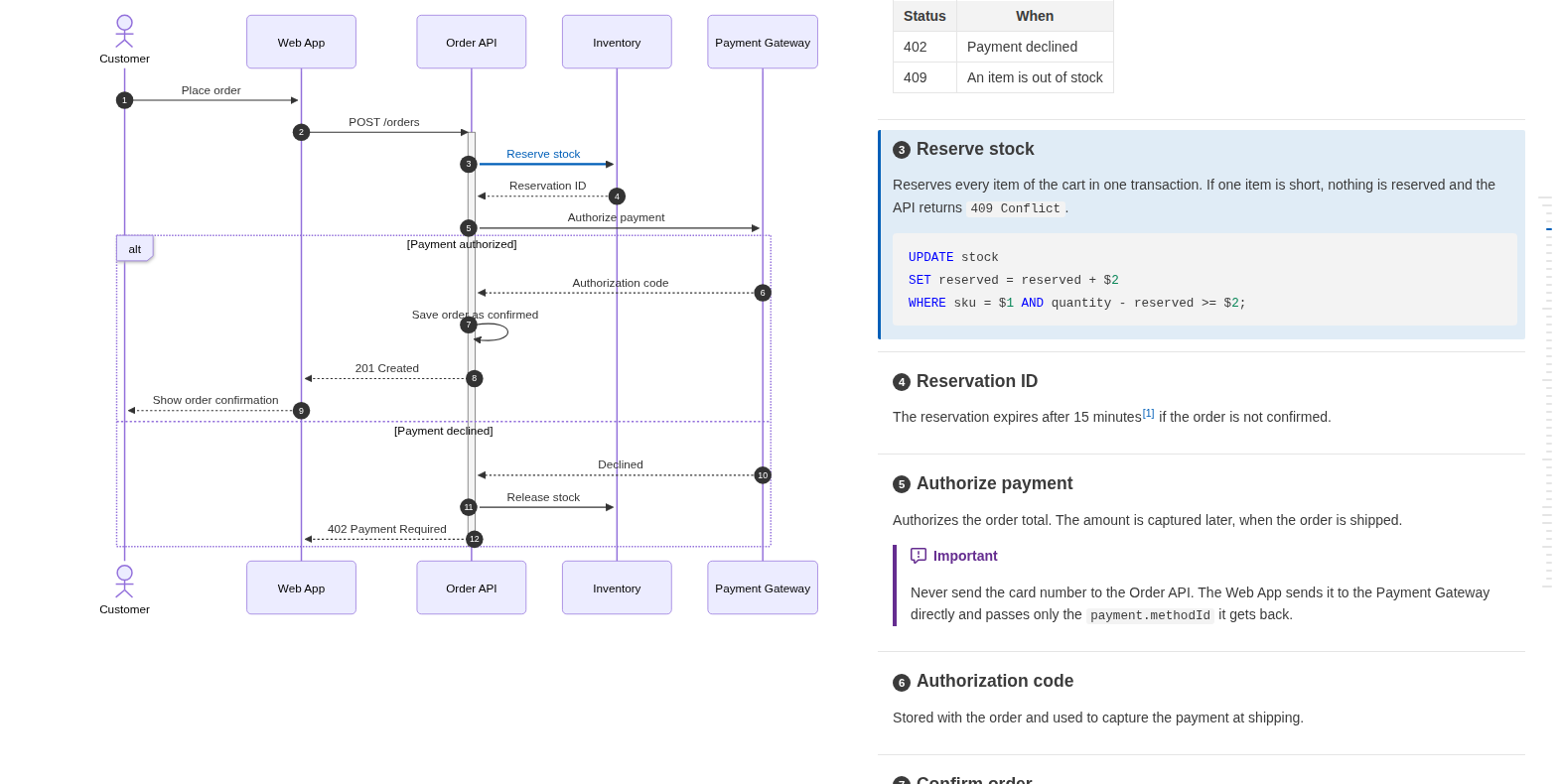
The HTML is the same as the VS Code extension's `Export Design Doc as HTML` command writes: **mermaid sequence diagrams and flowcharts are shown side by side with their step descriptions**, and each arrow (or flowchart node) is linked to its heading, highlighted when hovered or clicked. The diagrams are rendered with headless Chrome and local images are embedded, so the file can be opened in any browser or printed to PDF.
|
|
14
12
|
|
|
15
|
-
|
|
16
|
-
|
|
17
|
-
- **Side-by-side layout** — when the preview is wide enough, the diagram stays on the left (sticky) while the descriptions scroll on the right, with a line between linked steps. On narrow panes it falls back to the normal vertical layout.
|
|
18
|
-
- **Arrow / node ⇔ heading links** — hover or click an arrow (or a flowchart node) to highlight its description, or click a heading to find it in the diagram.
|
|
19
|
-
- **Editor sync** — the preview follows the editor's scroll position and cursor (an arrow or node is highlighted when the cursor is on its line). Double-click in the preview to jump to the source line.
|
|
20
|
-
- **Plain Markdown** — the link syntax is made of mermaid comments and HTML comments, so the same file still renders correctly on GitHub and in the built-in Markdown preview.
|
|
21
|
-
- **Design document friendly** — YAML front matter is shown as a table of the document's metadata (title, version, status...), or as a header with `type: design_doc` (see below), code blocks are syntax highlighted, the header row of a long table stays at the top while scrolling, and GitHub alerts (`> [!NOTE]`), task lists (`- [ ]`) and footnotes (`[^1]`, whose note pops up when hovering the reference) are rendered.
|
|
22
|
-
- **Resizable** — drag the boundary between the columns to resize them; double-click it to reset. In a wide preview, the text is kept in a centered column up to 1280px wide; the button in the preview's title bar switches it to the full width and back.
|
|
23
|
-
- **Light / dark theme** — the preview follows VS Code's color theme by default. The button in the preview's title bar switches it to the other of light and dark (for example, to read a document in light while the editor stays dark), and pressing it again makes it follow VS Code again. The choice is saved in `mdDesignDoc.theme`.
|
|
24
|
-
- **Table of contents** — hover the short lines at the right edge of the preview to open a table of contents (h1–h3) and jump to a heading. The highlighted line shows where you are.
|
|
25
|
-
- **Diagram and image zoom** — hover a mermaid diagram and click the button at its top right to show it full screen. Scroll the wheel to zoom, drag to pan, double-click to fit it again and press Esc to close. Clicking a linked arrow closes it and shows the step. Images open the same way when clicked (except images in a link, which open the link).
|
|
26
|
-
- **Find** — press `Ctrl+F` (`Cmd+F` on macOS) in the preview to search it.
|
|
27
|
-
- **HTML export** — `Markdown Design Doc Viewer: Export Design Doc as HTML` (also in the preview's context menu) writes the document to a single HTML file, with the diagrams rendered in the light theme and local images embedded (like the preview, only images in the document's folder and the workspace; others stay links). The side-by-side layout and the arrow ⇔ heading highlighting work in the browser too, and printing lays it out vertically, so you can print it to PDF from the browser. Warnings and missing-link marks are left out. It also runs from the command line for CI and batch conversions (see [Command line (CI)](#command-line-ci)).
|
|
28
|
-
|
|
29
|
-

|
|
13
|
+
|
|
30
14
|
|
|
31
15
|
## Usage
|
|
32
16
|
|
|
33
|
-
|
|
34
|
-
|
|
35
|
-
-
|
|
36
|
-
- `Markdown Design Doc Viewer: Open Design Doc Preview`
|
|
37
|
-
|
|
38
|
-
It can also be opened in place of the text editor: choose **Design Doc Preview** from **Reopen Editor With...** (the editor picker at the top right of the tab bar). To always open Markdown files with it, pick "Configure default editor for '*.md'" in that list, or add this to your settings:
|
|
39
|
-
|
|
40
|
-
```json
|
|
41
|
-
"workbench.editorAssociations": { "*.md": "mdDesignDoc.editor", "*.markdown": "mdDesignDoc.editor" }
|
|
42
|
-
```
|
|
43
|
-
|
|
44
|
-
## Writing linked documents
|
|
45
|
-
|
|
46
|
-
````markdown
|
|
47
|
-
---
|
|
48
|
-
type: design_doc
|
|
49
|
-
title: Login Feature Design
|
|
50
|
-
version: 1.0
|
|
51
|
-
product: Example
|
|
52
|
-
status: Draft
|
|
53
|
-
updated: 2026-10-11
|
|
54
|
-
---
|
|
55
|
-
|
|
56
|
-
# Login Feature Design
|
|
57
|
-
|
|
58
|
-
## Sequence
|
|
59
|
-
|
|
60
|
-
```mermaid
|
|
61
|
-
%% @link-headings
|
|
62
|
-
sequenceDiagram
|
|
63
|
-
Auth->>DB: Fetch user
|
|
64
|
-
%% @ref Issue token
|
|
65
|
-
Auth-->>API: Return access token
|
|
66
|
-
```
|
|
67
|
-
|
|
68
|
-
## Steps
|
|
69
|
-
|
|
70
|
-
### Fetch user
|
|
71
|
-
|
|
72
|
-
Look up the user by id.
|
|
73
|
-
|
|
74
|
-
### Issue token
|
|
75
|
-
|
|
76
|
-
Issue a JWT valid for one hour.
|
|
77
|
-
|
|
78
|
-
<!-- link-headings:end -->
|
|
79
|
-
````
|
|
80
|
-
|
|
81
|
-
| Syntax | Meaning |
|
|
82
|
-
|---|---|
|
|
83
|
-
| `%% @link-headings` | Required. Marks the diagram (a sequence diagram or a flowchart) to be linked to and shown side by side with its descriptions. Write it anywhere inside the mermaid block. |
|
|
84
|
-
| Arrow label equals a heading | `Auth->>DB: Fetch user` links to the heading `Fetch user` automatically. |
|
|
85
|
-
| Numbered heading | `### 3. Fetch user` also links to `Fetch user` (`3.`, `3)`, `(3)`, `③`, `1.2.3` and similar prefixes are ignored when no heading matches exactly). |
|
|
86
|
-
| `%% @ref <heading>` | Links the **next** arrow to `<heading>` when its label differs from the heading. |
|
|
87
|
-
| `<!-- link-headings:end -->` | Optional. Ends the description column. Without it, the column extends to the next diagram with `%% @link-headings` or the end of the document. |
|
|
88
|
-
| Front matter | Optional. The metadata between the `---` lines is shown at the top as a table, or as the document's header with `type: design_doc` (see [Design document header](#design-document-header)). |
|
|
89
|
-
|
|
90
|
-
Rules:
|
|
91
|
-
|
|
92
|
-
- Only headings **after** the diagram (up to the end of the description column) are linked.
|
|
93
|
-
- Labels and headings are compared after trimming and collapsing whitespace; `<br/>` in a label counts as a space.
|
|
94
|
-
- Only diagrams with `%% @link-headings` are shown side by side (even if no arrow is linked). Other diagrams are rendered normally, and an `@ref` in them is reported as a warning.
|
|
95
|
-
- `%% @link-headings` has no effect on a diagram inside a list or blockquote; this is reported as a warning.
|
|
96
|
-
- An `@ref` whose heading cannot be found is reported as a warning at the top of the preview. The × button hides the warnings temporarily; they are shown again when they change.
|
|
97
|
-
- With `autonumber`, linked headings show the arrow's number, unless the heading already starts with it (`### 3. Fetch user`). Turn `mdDesignDoc.headingNumbers` off to hide them.
|
|
98
|
-
- To help spot missing descriptions, arrows without a linked heading are shown faded, and headings at the same level as the linked ones but without an arrow get a "no arrow" mark. Diagrams with no links at all get no marks.
|
|
99
|
-
- The same warnings and missing links are also reported in the Problems panel for open Markdown files, even when no preview is open. A diagram with `%% @link-headings` but no links at all is reported there too.
|
|
100
|
-
- In the editor, the headings of the overview are completed after `%% @ref ` (those without an arrow first). The missing-link diagnostics come with quick fixes (light bulb, `Ctrl+.`): link the arrow to a heading without an arrow by writing a `@ref`, add a heading with the arrow's text to the overview, or point a broken `@ref` to an existing heading.
|
|
101
|
-
- Warnings, marks and tooltips are shown in English or Japanese, following the VS Code display language.
|
|
102
|
-
|
|
103
|
-

|
|
104
|
-
|
|
105
|
-
### Flowcharts
|
|
106
|
-
|
|
107
|
-
Flowcharts (`graph` / `flowchart`) are linked the same way, with their **nodes** in place of arrows:
|
|
108
|
-
|
|
109
|
-
````markdown
|
|
110
|
-
```mermaid
|
|
111
|
-
%% @link-headings
|
|
112
|
-
flowchart TD
|
|
113
|
-
A[Validate order] --> B{In stock?}
|
|
114
|
-
%% @ref Reserve stock
|
|
115
|
-
B -->|Yes| C[Allocate items]
|
|
17
|
+
```sh
|
|
18
|
+
npx markdown-design-doc-viewer export docs -o site # all the Markdown files under docs/ to site/docs/*.html
|
|
19
|
+
npx markdown-design-doc-viewer export README.md # README.html next to it
|
|
116
20
|
```
|
|
117
21
|
|
|
118
|
-
|
|
119
|
-
|
|
120
|
-
## In stock?
|
|
121
|
-
|
|
122
|
-
## Reserve stock
|
|
123
|
-
````
|
|
22
|
+
Installed in a project (`npm install --save-dev markdown-design-doc-viewer`), the command is `md-design-doc`:
|
|
124
23
|
|
|
125
|
-
|
|
126
|
-
|
|
127
|
-
- A node is linked to the heading with the text of its label (`A[Validate order]` → `Validate order`). A node without a label (`A`) uses its id and is not reported as missing a heading. Edge labels are not linked.
|
|
128
|
-
- `%% @ref <heading>` links the node defined on the next line: the first node labeled on it, else the first node appearing there for the first time, else its first node.
|
|
129
|
-
- Horizontal flowcharts (`LR` / `RL`) are too wide to put beside their steps, so the steps are always shown below them. The links work the same.
|
|
130
|
-
- Nodes without a linked heading are shown faded, and step headings without a node get a "no node" mark.
|
|
131
|
-
- Flowcharts have no `autonumber`, so no numbers are shown on the headings.
|
|
132
|
-
|
|
133
|
-
## Design document header
|
|
134
|
-
|
|
135
|
-
Writing `type: design_doc` in the YAML front matter of design documents is recommended. The main metadata is then shown as the document's header instead of a table:
|
|
136
|
-
|
|
137
|
-
```markdown
|
|
138
|
-
---
|
|
139
|
-
type: design_doc
|
|
140
|
-
title: Checkout Design
|
|
141
|
-
version: 2.1
|
|
142
|
-
product: Example
|
|
143
|
-
status: In review
|
|
144
|
-
updated: 2026-10-01
|
|
145
|
-
owner: commerce-team
|
|
146
|
-
reviewers:
|
|
147
|
-
- payments-team
|
|
148
|
-
- inventory-team
|
|
149
|
-
---
|
|
150
|
-
|
|
151
|
-
# Checkout Design
|
|
24
|
+
```sh
|
|
25
|
+
md-design-doc export docs -o site
|
|
152
26
|
```
|
|
153
27
|
|
|
154
|
-
|
|
28
|
+
## Requirements
|
|
155
29
|
|
|
156
|
-
-
|
|
157
|
-
-
|
|
30
|
+
- Node.js 22 or later.
|
|
31
|
+
- Chrome or Chromium: `--chrome <path>` or `$CHROME_PATH`, else a Chromium installed with `npx playwright-core install chromium`, else the Google Chrome installed on the system (GitHub Actions' Ubuntu runners have one).
|
|
32
|
+
- For documents in Japanese or other CJK languages, a font for them (`fonts-noto-cjk` on Debian / Ubuntu), or their diagrams are drawn with boxes.
|
|
158
33
|
|
|
159
|
-
##
|
|
160
|
-
|
|
161
|
-
To have an AI assistant (Claude Code, GitHub Copilot, Cursor and so on) write documents in this format, give it the [authoring guide for AI](docs/ai-authoring-guide.md) ([日本語](docs/ai-authoring-guide.ja.md)). Copy it into your project's instructions file (`CLAUDE.md`, `AGENTS.md`, `.github/copilot-instructions.md` and so on), or tell the assistant to read it.
|
|
162
|
-
|
|
163
|
-
The guide also tells the assistant to read the diagnostics of the file. Agents that can read VS Code diagnostics (for example Copilot agent mode, or Claude Code connected to VS Code) can then find and fix arrows and headings that are not linked.
|
|
164
|
-
|
|
165
|
-
## Command line (CI)
|
|
166
|
-
|
|
167
|
-
The HTML export also runs from the command line, to convert documents in CI or in a batch, without VS Code. It writes the same HTML file as the `Export Design Doc as HTML` command, with the diagrams rendered by the preview in headless Chrome.
|
|
168
|
-
|
|
169
|
-
```sh
|
|
170
|
-
npx markdown-design-doc-viewer export docs -o site # all the Markdown files under docs/ to site/docs/*.html
|
|
171
|
-
npx markdown-design-doc-viewer export README.md # README.html next to it
|
|
172
|
-
```
|
|
173
|
-
|
|
174
|
-
It needs Node.js 22 or later, and Chrome or Chromium: `--chrome <path>` or `$CHROME_PATH`, else a Chromium installed with `npx playwright-core install chromium`, else the Google Chrome installed on the system (GitHub Actions' Ubuntu runners have one). Documents in Japanese or other CJK languages need a font for them (`fonts-noto-cjk` on Debian / Ubuntu), or their diagrams are drawn with boxes.
|
|
34
|
+
## Options
|
|
175
35
|
|
|
176
36
|
| Option | Description |
|
|
177
37
|
|---|---|
|
|
178
38
|
| `-o`, `--out-dir <dir>` | Write the HTML files to this folder, in the same subfolders as the documents under `--root`. By default, each one is written next to its document. |
|
|
179
|
-
| `--root <dir>` | Folder that image paths starting with `/` are relative to
|
|
39
|
+
| `--root <dir>` | Folder that image paths starting with `/` are relative to (the workspace in VS Code). Images in it or in the document's folder are embedded; others stay links. Default: the current folder. |
|
|
180
40
|
| `--lang <lang>` | Language of the texts added to the document and of the link warnings: `en` (default) or `ja`. |
|
|
181
|
-
| `--diagram-look <look>` | `neo` (default) or `classic
|
|
182
|
-
| `--split-min-width <px>` |
|
|
183
|
-
| `--full-width` | Do not keep the text in a centered column
|
|
184
|
-
| `--no-heading-numbers
|
|
41
|
+
| `--diagram-look <look>` | Look of the diagrams: `neo` (default, mermaid's, with shadows on flowchart nodes) or `classic` (flat). |
|
|
42
|
+
| `--split-min-width <px>` | Minimum window width (px) for the diagrams beside their steps. Default: `1000`. |
|
|
43
|
+
| `--full-width` | Do not keep the text in a centered column up to 1280px wide. |
|
|
44
|
+
| `--no-heading-numbers` | Do not show the arrow numbers (`autonumber`) at the start of the linked headings. |
|
|
45
|
+
| `--no-front-matter` | Hide the YAML front matter (shown as a table of metadata, or as a header with `type: design_doc`). |
|
|
46
|
+
| `--no-sticky-table-header` | Do not keep the header row of a long table at the top while scrolling. |
|
|
185
47
|
| `--chrome <path>` | Chrome or Chromium to render the diagrams with. |
|
|
186
|
-
| `--strict` | Fail when a document has a link warning (a broken `@ref` or a misplaced marker
|
|
48
|
+
| `--strict` | Fail when a document has a link warning (a broken `@ref` or a misplaced marker). Arrows and headings that are only not linked do not fail. |
|
|
49
|
+
| `-h`, `--help` | Show the help. |
|
|
50
|
+
| `-v`, `--version` | Show the version. |
|
|
51
|
+
|
|
52
|
+
Folders are searched for `*.md` and `*.markdown` files, except in `node_modules` and folders starting with a dot. Link warnings are written to the standard error (as annotations in GitHub Actions).
|
|
53
|
+
|
|
54
|
+
The exit status is 1 when a document could not be exported or has a diagram mermaid cannot render (its HTML is written anyway), or with `--strict` a link warning, and 2 for a wrong command line.
|
|
187
55
|
|
|
188
|
-
|
|
56
|
+
## GitHub Actions
|
|
189
57
|
|
|
190
58
|
For example, to publish the documents of a repository as an artifact of each build:
|
|
191
59
|
|
|
@@ -200,17 +68,12 @@ For example, to publish the documents of a repository as an artifact of each bui
|
|
|
200
68
|
path: site
|
|
201
69
|
```
|
|
202
70
|
|
|
203
|
-
##
|
|
204
|
-
|
|
205
|
-
|
|
206
|
-
|
|
207
|
-
|
|
208
|
-
|
|
209
|
-
|
|
210
|
-
|
|
211
|
-
|
|
212
|
-
| `mdDesignDoc.headingNumbers` | `true` | With `autonumber`, show the arrow's number at the start of its linked heading (preview and exported HTML). |
|
|
213
|
-
| `mdDesignDoc.diagramLook` | `neo` | Look of the mermaid diagrams: `neo` (mermaid's default, with shadows on flowchart nodes) or `classic` (flat, without shadows). A diagram with `config: look:` in its front matter keeps its own. |
|
|
214
|
-
| `mdDesignDoc.theme` | `auto` | Color theme of the preview: `auto` (VS Code's), `light` or `dark`. Also switched with the button in the preview's title bar. Exported HTML is always light. |
|
|
215
|
-
| `mdDesignDoc.frontMatter` | `true` | Show the YAML front matter at the top as a table of metadata, or as a header with `type: design_doc`. When off, it is hidden. |
|
|
216
|
-
| `mdDesignDoc.diagnostics` | `true` | Report link warnings and missing links of open Markdown files in the Problems panel. |
|
|
71
|
+
## Writing linked documents
|
|
72
|
+
|
|
73
|
+
A diagram is linked to the headings after it with `%% @link-headings` in the diagram; arrows and nodes are matched with the headings by their text, or with `%% @ref`. See [Writing linked documents](https://github.com/playree/markdown-design-doc-viewer#writing-linked-documents) for the syntax, and the [authoring guide for AI](https://github.com/playree/markdown-design-doc-viewer/blob/main/docs/ai-authoring-guide.md) to have an AI assistant write documents in this format.
|
|
74
|
+
|
|
75
|
+
To preview the documents while writing them, with the editor and the preview in sync, use the [VS Code extension](https://marketplace.visualstudio.com/items?itemName=playree.markdown-design-doc-viewer).
|
|
76
|
+
|
|
77
|
+
## License
|
|
78
|
+
|
|
79
|
+
[MIT](https://github.com/playree/markdown-design-doc-viewer/blob/main/LICENSE)
|
package/package.json
CHANGED
|
@@ -1,28 +1,16 @@
|
|
|
1
1
|
{
|
|
2
2
|
"name": "markdown-design-doc-viewer",
|
|
3
|
-
"
|
|
4
|
-
"description": "
|
|
5
|
-
"version": "0.4.0",
|
|
6
|
-
"publisher": "playree",
|
|
3
|
+
"version": "0.5.0",
|
|
4
|
+
"description": "Preview design documents written in Markdown: mermaid sequence diagrams and flowcharts side by side with their linked step descriptions, a document header from the front matter, a table of contents, GitHub alerts and task lists.",
|
|
7
5
|
"license": "MIT",
|
|
8
6
|
"repository": {
|
|
9
7
|
"type": "git",
|
|
10
|
-
"url": "https://github.com/playree/markdown-design-doc-viewer.git"
|
|
8
|
+
"url": "git+https://github.com/playree/markdown-design-doc-viewer.git"
|
|
11
9
|
},
|
|
12
10
|
"bugs": {
|
|
13
11
|
"url": "https://github.com/playree/markdown-design-doc-viewer/issues"
|
|
14
12
|
},
|
|
15
|
-
"homepage": "https://github.com/playree/markdown-design-doc-viewer
|
|
16
|
-
"icon": "images/icon.png",
|
|
17
|
-
"l10n": "./l10n",
|
|
18
|
-
"engines": {
|
|
19
|
-
"vscode": "^1.100.0",
|
|
20
|
-
"node": ">=22"
|
|
21
|
-
},
|
|
22
|
-
"categories": [
|
|
23
|
-
"Visualization",
|
|
24
|
-
"Other"
|
|
25
|
-
],
|
|
13
|
+
"homepage": "https://github.com/playree/markdown-design-doc-viewer/blob/main/docs/cli.md",
|
|
26
14
|
"keywords": [
|
|
27
15
|
"markdown",
|
|
28
16
|
"mermaid",
|
|
@@ -31,225 +19,13 @@
|
|
|
31
19
|
"design document",
|
|
32
20
|
"preview"
|
|
33
21
|
],
|
|
34
|
-
"main": "./dist/extension.js",
|
|
35
22
|
"bin": {
|
|
36
23
|
"md-design-doc": "dist/cli.js"
|
|
37
24
|
},
|
|
38
|
-
"
|
|
39
|
-
"
|
|
40
|
-
"onWebviewPanel:mdDesignDoc.preview"
|
|
41
|
-
],
|
|
42
|
-
"contributes": {
|
|
43
|
-
"commands": [
|
|
44
|
-
{
|
|
45
|
-
"command": "mdDesignDoc.openPreview",
|
|
46
|
-
"title": "%mdDesignDoc.openPreview.title%",
|
|
47
|
-
"category": "%category%",
|
|
48
|
-
"icon": "$(open-preview)"
|
|
49
|
-
},
|
|
50
|
-
{
|
|
51
|
-
"command": "mdDesignDoc.openPreviewToSide",
|
|
52
|
-
"title": "%mdDesignDoc.openPreviewToSide.title%",
|
|
53
|
-
"category": "%category%",
|
|
54
|
-
"icon": "$(open-preview)"
|
|
55
|
-
},
|
|
56
|
-
{
|
|
57
|
-
"command": "mdDesignDoc.exportHtml",
|
|
58
|
-
"title": "%mdDesignDoc.exportHtml.title%",
|
|
59
|
-
"category": "%category%"
|
|
60
|
-
},
|
|
61
|
-
{
|
|
62
|
-
"command": "mdDesignDoc.useFullContentWidth",
|
|
63
|
-
"title": "%mdDesignDoc.useFullContentWidth.title%",
|
|
64
|
-
"category": "%category%",
|
|
65
|
-
"icon": "$(screen-full)"
|
|
66
|
-
},
|
|
67
|
-
{
|
|
68
|
-
"command": "mdDesignDoc.limitContentWidth",
|
|
69
|
-
"title": "%mdDesignDoc.limitContentWidth.title%",
|
|
70
|
-
"category": "%category%",
|
|
71
|
-
"icon": "$(screen-normal)"
|
|
72
|
-
},
|
|
73
|
-
{
|
|
74
|
-
"command": "mdDesignDoc.toggleTheme",
|
|
75
|
-
"title": "%mdDesignDoc.toggleTheme.title%",
|
|
76
|
-
"category": "%category%",
|
|
77
|
-
"icon": "$(color-mode)"
|
|
78
|
-
}
|
|
79
|
-
],
|
|
80
|
-
"customEditors": [
|
|
81
|
-
{
|
|
82
|
-
"viewType": "mdDesignDoc.editor",
|
|
83
|
-
"displayName": "%mdDesignDoc.editor.displayName%",
|
|
84
|
-
"selector": [
|
|
85
|
-
{
|
|
86
|
-
"filenamePattern": "*.md"
|
|
87
|
-
},
|
|
88
|
-
{
|
|
89
|
-
"filenamePattern": "*.markdown"
|
|
90
|
-
}
|
|
91
|
-
],
|
|
92
|
-
"priority": "option"
|
|
93
|
-
}
|
|
94
|
-
],
|
|
95
|
-
"menus": {
|
|
96
|
-
"editor/title": [
|
|
97
|
-
{
|
|
98
|
-
"command": "mdDesignDoc.openPreviewToSide",
|
|
99
|
-
"when": "editorLangId == markdown",
|
|
100
|
-
"group": "navigation"
|
|
101
|
-
},
|
|
102
|
-
{
|
|
103
|
-
"command": "mdDesignDoc.useFullContentWidth",
|
|
104
|
-
"when": "(activeWebviewPanelId == 'mdDesignDoc.preview' || activeCustomEditorId == 'mdDesignDoc.editor') && config.mdDesignDoc.limitContentWidth",
|
|
105
|
-
"group": "navigation"
|
|
106
|
-
},
|
|
107
|
-
{
|
|
108
|
-
"command": "mdDesignDoc.limitContentWidth",
|
|
109
|
-
"when": "(activeWebviewPanelId == 'mdDesignDoc.preview' || activeCustomEditorId == 'mdDesignDoc.editor') && !config.mdDesignDoc.limitContentWidth",
|
|
110
|
-
"group": "navigation"
|
|
111
|
-
},
|
|
112
|
-
{
|
|
113
|
-
"command": "mdDesignDoc.toggleTheme",
|
|
114
|
-
"when": "activeWebviewPanelId == 'mdDesignDoc.preview' || activeCustomEditorId == 'mdDesignDoc.editor'",
|
|
115
|
-
"group": "navigation"
|
|
116
|
-
}
|
|
117
|
-
],
|
|
118
|
-
"commandPalette": [
|
|
119
|
-
{
|
|
120
|
-
"command": "mdDesignDoc.openPreview",
|
|
121
|
-
"when": "editorLangId == markdown"
|
|
122
|
-
},
|
|
123
|
-
{
|
|
124
|
-
"command": "mdDesignDoc.openPreviewToSide",
|
|
125
|
-
"when": "editorLangId == markdown"
|
|
126
|
-
},
|
|
127
|
-
{
|
|
128
|
-
"command": "mdDesignDoc.exportHtml",
|
|
129
|
-
"when": "editorLangId == markdown || activeWebviewPanelId == 'mdDesignDoc.preview' || activeCustomEditorId == 'mdDesignDoc.editor'"
|
|
130
|
-
},
|
|
131
|
-
{
|
|
132
|
-
"command": "mdDesignDoc.useFullContentWidth",
|
|
133
|
-
"when": "(activeWebviewPanelId == 'mdDesignDoc.preview' || activeCustomEditorId == 'mdDesignDoc.editor') && config.mdDesignDoc.limitContentWidth"
|
|
134
|
-
},
|
|
135
|
-
{
|
|
136
|
-
"command": "mdDesignDoc.limitContentWidth",
|
|
137
|
-
"when": "(activeWebviewPanelId == 'mdDesignDoc.preview' || activeCustomEditorId == 'mdDesignDoc.editor') && !config.mdDesignDoc.limitContentWidth"
|
|
138
|
-
},
|
|
139
|
-
{
|
|
140
|
-
"command": "mdDesignDoc.toggleTheme",
|
|
141
|
-
"when": "activeWebviewPanelId == 'mdDesignDoc.preview' || activeCustomEditorId == 'mdDesignDoc.editor'"
|
|
142
|
-
}
|
|
143
|
-
],
|
|
144
|
-
"webview/context": [
|
|
145
|
-
{
|
|
146
|
-
"command": "mdDesignDoc.exportHtml",
|
|
147
|
-
"when": "webviewId == 'mdDesignDoc.preview' || webviewId == 'mdDesignDoc.editor'"
|
|
148
|
-
}
|
|
149
|
-
]
|
|
150
|
-
},
|
|
151
|
-
"configuration": {
|
|
152
|
-
"title": "%displayName%",
|
|
153
|
-
"properties": {
|
|
154
|
-
"mdDesignDoc.splitMinWidth": {
|
|
155
|
-
"type": "number",
|
|
156
|
-
"default": 1000,
|
|
157
|
-
"minimum": 0,
|
|
158
|
-
"description": "%mdDesignDoc.splitMinWidth.description%"
|
|
159
|
-
},
|
|
160
|
-
"mdDesignDoc.limitContentWidth": {
|
|
161
|
-
"type": "boolean",
|
|
162
|
-
"default": true,
|
|
163
|
-
"description": "%mdDesignDoc.limitContentWidth.description%"
|
|
164
|
-
},
|
|
165
|
-
"mdDesignDoc.stickyTableHeader": {
|
|
166
|
-
"type": "boolean",
|
|
167
|
-
"default": true,
|
|
168
|
-
"description": "%mdDesignDoc.stickyTableHeader.description%"
|
|
169
|
-
},
|
|
170
|
-
"mdDesignDoc.syncEditor": {
|
|
171
|
-
"type": "boolean",
|
|
172
|
-
"default": true,
|
|
173
|
-
"description": "%mdDesignDoc.syncEditor.description%"
|
|
174
|
-
},
|
|
175
|
-
"mdDesignDoc.toc": {
|
|
176
|
-
"type": "boolean",
|
|
177
|
-
"default": true,
|
|
178
|
-
"description": "%mdDesignDoc.toc.description%"
|
|
179
|
-
},
|
|
180
|
-
"mdDesignDoc.headingNumbers": {
|
|
181
|
-
"type": "boolean",
|
|
182
|
-
"default": true,
|
|
183
|
-
"description": "%mdDesignDoc.headingNumbers.description%"
|
|
184
|
-
},
|
|
185
|
-
"mdDesignDoc.frontMatter": {
|
|
186
|
-
"type": "boolean",
|
|
187
|
-
"default": true,
|
|
188
|
-
"description": "%mdDesignDoc.frontMatter.description%"
|
|
189
|
-
},
|
|
190
|
-
"mdDesignDoc.diagramLook": {
|
|
191
|
-
"type": "string",
|
|
192
|
-
"enum": [
|
|
193
|
-
"neo",
|
|
194
|
-
"classic"
|
|
195
|
-
],
|
|
196
|
-
"enumDescriptions": [
|
|
197
|
-
"%mdDesignDoc.diagramLook.neo%",
|
|
198
|
-
"%mdDesignDoc.diagramLook.classic%"
|
|
199
|
-
],
|
|
200
|
-
"default": "neo",
|
|
201
|
-
"description": "%mdDesignDoc.diagramLook.description%"
|
|
202
|
-
},
|
|
203
|
-
"mdDesignDoc.theme": {
|
|
204
|
-
"type": "string",
|
|
205
|
-
"enum": [
|
|
206
|
-
"auto",
|
|
207
|
-
"light",
|
|
208
|
-
"dark"
|
|
209
|
-
],
|
|
210
|
-
"enumDescriptions": [
|
|
211
|
-
"%mdDesignDoc.theme.auto%",
|
|
212
|
-
"%mdDesignDoc.theme.light%",
|
|
213
|
-
"%mdDesignDoc.theme.dark%"
|
|
214
|
-
],
|
|
215
|
-
"default": "auto",
|
|
216
|
-
"description": "%mdDesignDoc.theme.description%"
|
|
217
|
-
},
|
|
218
|
-
"mdDesignDoc.diagnostics": {
|
|
219
|
-
"type": "boolean",
|
|
220
|
-
"default": true,
|
|
221
|
-
"scope": "resource",
|
|
222
|
-
"description": "%mdDesignDoc.diagnostics.description%"
|
|
223
|
-
}
|
|
224
|
-
}
|
|
225
|
-
}
|
|
226
|
-
},
|
|
227
|
-
"scripts": {
|
|
228
|
-
"build": "node esbuild.mjs",
|
|
229
|
-
"watch": "node esbuild.mjs --watch",
|
|
230
|
-
"typecheck": "tsc --noEmit",
|
|
231
|
-
"test": "vitest run",
|
|
232
|
-
"screenshots": "node esbuild.mjs && esbuild scripts/screenshots.ts --bundle --platform=node --format=cjs --external:playwright-core --log-level=warning --outfile=dist/screenshots.cjs && node dist/screenshots.cjs",
|
|
233
|
-
"vscode:prepublish": "node esbuild.mjs --production",
|
|
234
|
-
"package": "vsce package --no-dependencies",
|
|
235
|
-
"vsce:publish": "vsce publish --no-dependencies",
|
|
236
|
-
"prepack": "node esbuild.mjs --production"
|
|
25
|
+
"engines": {
|
|
26
|
+
"node": ">=22"
|
|
237
27
|
},
|
|
238
28
|
"dependencies": {
|
|
239
29
|
"playwright-core": "^1.64.0"
|
|
240
|
-
}
|
|
241
|
-
"devDependencies": {
|
|
242
|
-
"@types/node": "^22.20.5",
|
|
243
|
-
"@types/vscode": "~1.100.0",
|
|
244
|
-
"@vscode/vsce": "^4.0.0",
|
|
245
|
-
"dompurify": "^3.4.16",
|
|
246
|
-
"esbuild": "^0.28.2",
|
|
247
|
-
"highlight.js": "^11.12.0",
|
|
248
|
-
"markdown-it": "^15.0.2",
|
|
249
|
-
"markdown-it-footnote": "^4.0.0",
|
|
250
|
-
"mermaid": "^12.1.0",
|
|
251
|
-
"typescript": "^7.0.2",
|
|
252
|
-
"vitest": "^5.0.3"
|
|
253
|
-
},
|
|
254
|
-
"packageManager": "pnpm@12.3.4"
|
|
30
|
+
}
|
|
255
31
|
}
|