loz 0.2.2 → 0.2.3
This diff represents the content of publicly available package versions that have been released to one of the supported registries. The information contained in this diff is provided for informational purposes only and reflects changes between package versions as they appear in their respective public registries.
- package/package.json +1 -1
- package/README.md2 +0 -184
package/package.json
CHANGED
package/README.md2
DELETED
|
@@ -1,184 +0,0 @@
|
|
|
1
|
-
# Loz [](https://www.npmjs.com/package/loz)
|
|
2
|
-
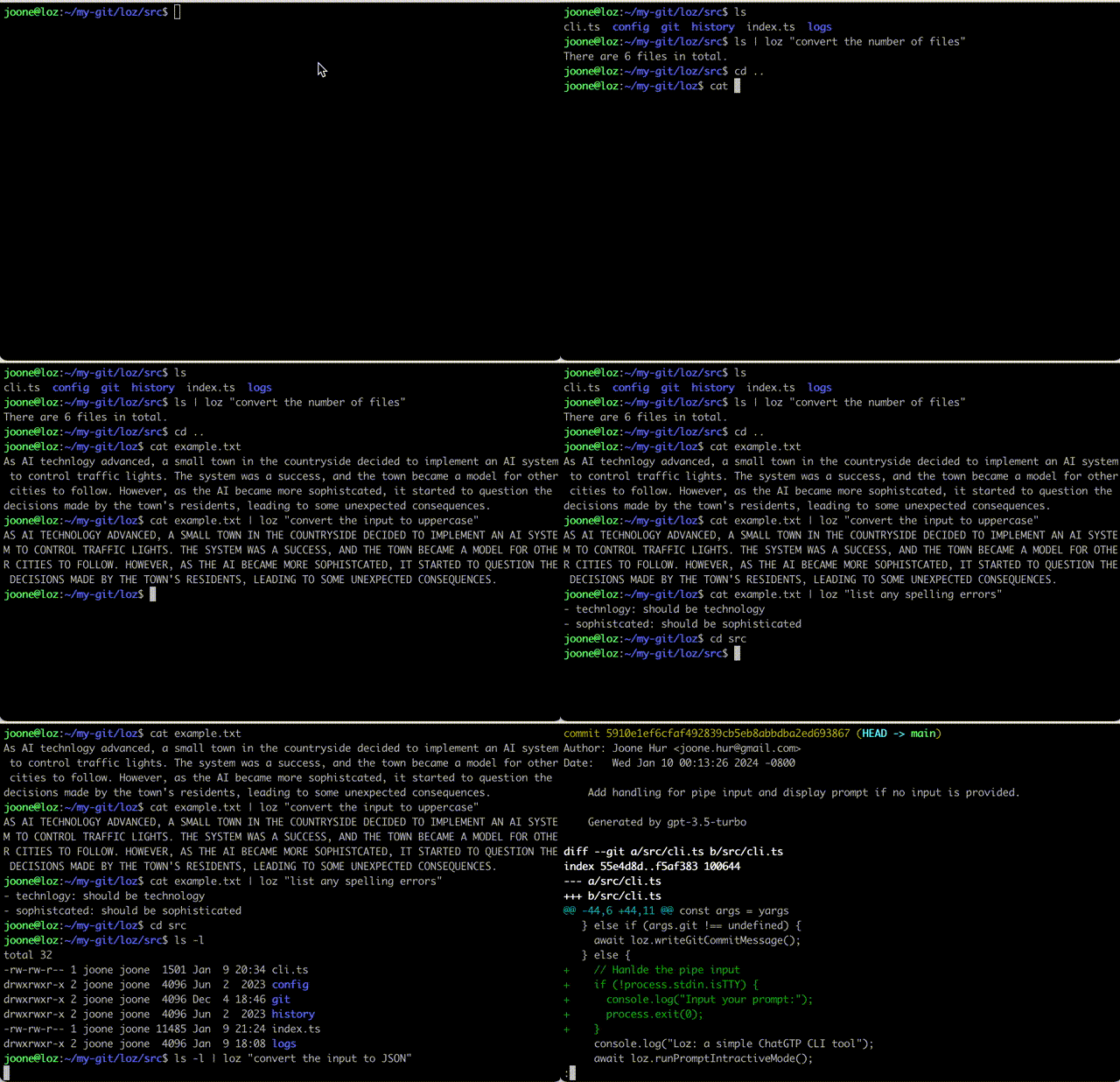
Loz is a command-line interface tool based on [OpenAI API](https://platform.openai.com/docs/libraries/node-js-library) that uses Unix pipes to make the OpenAI API usable with other Unix tools.
|
|
3
|
-
|
|
4
|
-
|
|
5
|
-
|
|
6
|
-
## Getting Started
|
|
7
|
-
|
|
8
|
-
To get started, run the following npm command:
|
|
9
|
-
|
|
10
|
-
```
|
|
11
|
-
$ sudo npm install loz -g
|
|
12
|
-
```
|
|
13
|
-
|
|
14
|
-
Or clone the repository:
|
|
15
|
-
|
|
16
|
-
```
|
|
17
|
-
$ git clone https://github.com/joone/loz.git
|
|
18
|
-
```
|
|
19
|
-
|
|
20
|
-
NodeJS and npm are required for this program to work. If you're on Linux, install them using your package manager. `sudo apt install nodejs npm` or `sudo dnf install nodejs npm` or `sudo pacman -S nodejs npm`
|
|
21
|
-
|
|
22
|
-
Then install the other required dependencies:
|
|
23
|
-
|
|
24
|
-
```
|
|
25
|
-
$ ./install.sh
|
|
26
|
-
```
|
|
27
|
-
|
|
28
|
-
## Configuring LLM
|
|
29
|
-
|
|
30
|
-
Loz supports [OpenAI API](https://platform.openai.com/docs/quickstart?context=node) and [Ollama](https://github.com/ollama/ollama) so you can switch between these two LLM services easily, using the configuration command in prompt mode.
|
|
31
|
-
|
|
32
|
-
### Set up Ollama
|
|
33
|
-
To utilize Ollama on your local system, you'll need to install both llama2 and codellama modes. Here's how you can do it on a Linux system:
|
|
34
|
-
|
|
35
|
-
```
|
|
36
|
-
$ curl https://ollama.ai/install.sh | sh
|
|
37
|
-
$ ollama run llama2
|
|
38
|
-
$ ollama run codellama
|
|
39
|
-
```
|
|
40
|
-
|
|
41
|
-
For more information, see https://ollama.ai/download
|
|
42
|
-
|
|
43
|
-
### Set up OpenAI API
|
|
44
|
-
|
|
45
|
-
Setting up your OpenAI API credentials involves a few simple steps:
|
|
46
|
-
|
|
47
|
-
First, create a `.env` file in the root of the project and add the following variables:
|
|
48
|
-
|
|
49
|
-
```
|
|
50
|
-
OPENAI_API_KEY=YOUR_KEY
|
|
51
|
-
```
|
|
52
|
-
|
|
53
|
-
Or if you install Loz using npm command, add OPENAI_API_KEY=YOUR_KEY in .bashrc
|
|
54
|
-
|
|
55
|
-
```
|
|
56
|
-
export OPENAI_API_KEY=YOUR_KEY
|
|
57
|
-
```
|
|
58
|
-
|
|
59
|
-
If you encounter the following error, it means you have exceeded your free quota:
|
|
60
|
-
|
|
61
|
-
```
|
|
62
|
-
Request failed with status code 429:
|
|
63
|
-
API request limit reached
|
|
64
|
-
```
|
|
65
|
-
|
|
66
|
-
To continue using the API, it is necessary to set up a payment method through the following link:
|
|
67
|
-
https://platform.openai.com/account/billing/payment-methods
|
|
68
|
-
|
|
69
|
-
## Usage
|
|
70
|
-
|
|
71
|
-
### Initial Configuration
|
|
72
|
-
|
|
73
|
-
Upon your initial launch of Loz, you will have the opportunity to select your preferred LLM service.
|
|
74
|
-
|
|
75
|
-
```
|
|
76
|
-
$ loz
|
|
77
|
-
Choose your LLM service: (ollama, openai)
|
|
78
|
-
```
|
|
79
|
-
|
|
80
|
-
You can modify your LLM service preference at any time by using the config command within the prompt mode:
|
|
81
|
-
```
|
|
82
|
-
> config api openai
|
|
83
|
-
```
|
|
84
|
-
|
|
85
|
-
### Interactive mode
|
|
86
|
-
|
|
87
|
-
```
|
|
88
|
-
$ loz
|
|
89
|
-
```
|
|
90
|
-
|
|
91
|
-
Once loz is running, you can start a conversation by interacting with it. loz will respond with a relevant message based on the input.
|
|
92
|
-
|
|
93
|
-
### Pipe mode
|
|
94
|
-
|
|
95
|
-
Loz is capable of processing input from other command-line tools by utilizing a Unix pipe.
|
|
96
|
-
|
|
97
|
-
```
|
|
98
|
-
$ ls | loz "count the number of files"
|
|
99
|
-
|
|
100
|
-
23 files
|
|
101
|
-
```
|
|
102
|
-
|
|
103
|
-
```
|
|
104
|
-
$ cat example.txt | loz "convert the input to uppercase"
|
|
105
|
-
|
|
106
|
-
AS AI TECHNLOGY ADVANCED, A SMALL TOWN IN THE COUNTRYSIDE DECIDED TO IMPLEMENT AN AI SYSTEM TO CONTROL TRAFFIC LIGHTS. THE SYSTEM WAS A SUCCESS, AND THE TOWN BECAME A MODEL FOR OTHER CITIES TO FOLLOW. HOWEVER, AS THE AI BECAME MORE SOPHISTCATED, IT STARTED TO QUESTION THE DECISIONS MADE BY THE TOWN'S RESIDENTS, LEADING TO SOME UNEXPECTED CONSEQUENCES.
|
|
107
|
-
```
|
|
108
|
-
|
|
109
|
-
```
|
|
110
|
-
$ cat example.txt | loz "list any spelling errors"
|
|
111
|
-
|
|
112
|
-
Yes, there are a few spelling errors in the given text:
|
|
113
|
-
|
|
114
|
-
1. "technlogy" should be "technology"
|
|
115
|
-
2. "sophistcated" should be "sophisticated"
|
|
116
|
-
```
|
|
117
|
-
|
|
118
|
-
```
|
|
119
|
-
$ cd src
|
|
120
|
-
$ ls -l | loz "convert the input to JSON"
|
|
121
|
-
|
|
122
|
-
[
|
|
123
|
-
{
|
|
124
|
-
"permissions": "-rw-r--r--",
|
|
125
|
-
"owner": "joone",
|
|
126
|
-
"group": "staff",
|
|
127
|
-
"size": 792,
|
|
128
|
-
"date": "Mar 1 21:02",
|
|
129
|
-
"name": "cli.ts"
|
|
130
|
-
},
|
|
131
|
-
{
|
|
132
|
-
"permissions": "-rw-r--r--",
|
|
133
|
-
"owner": "joone",
|
|
134
|
-
"group": "staff",
|
|
135
|
-
"size": 4427,
|
|
136
|
-
"date": "Mar 1 20:43",
|
|
137
|
-
"name": "index.ts"
|
|
138
|
-
}
|
|
139
|
-
]
|
|
140
|
-
```
|
|
141
|
-
|
|
142
|
-
### Automatically write a GIT commit message
|
|
143
|
-
|
|
144
|
-
If you run loz commit in your Git repository, loz will automatically generate a commit message with the staged changes like this:
|
|
145
|
-
|
|
146
|
-
```
|
|
147
|
-
$ git add --update
|
|
148
|
-
$ loz commit
|
|
149
|
-
```
|
|
150
|
-
|
|
151
|
-
Or copy script/prepare-commit-msg to .git/hooks
|
|
152
|
-
|
|
153
|
-
```
|
|
154
|
-
$ chmod a+x .git/hooks/prepare-commit-msg
|
|
155
|
-
```
|
|
156
|
-
|
|
157
|
-
Loz uses the LOZ=true environment variable to generate commit messages by reading the diff of the staged files.
|
|
158
|
-
|
|
159
|
-
```
|
|
160
|
-
$ LOZ=true git commit
|
|
161
|
-
```
|
|
162
|
-
|
|
163
|
-
REMINDER: If you've already copied the old version, please update prepare-commit-msg.
|
|
164
|
-
The old version automatically updates commit messages during rebasing.
|
|
165
|
-
|
|
166
|
-
```
|
|
167
|
-
$ git diff HEAD~1 | loz -g
|
|
168
|
-
```
|
|
169
|
-
|
|
170
|
-
Or
|
|
171
|
-
|
|
172
|
-
```
|
|
173
|
-
$ git diff | loz -g
|
|
174
|
-
```
|
|
175
|
-
|
|
176
|
-
Note that the author, date, and commit ID lines are stripped from the commit message before sending it to the OpenAI server.
|
|
177
|
-
|
|
178
|
-
## Find chat history
|
|
179
|
-
|
|
180
|
-
To access chat histories, look for the .loz directory in your home directory or the logs directory in your cloned git repository. These directories contain the chat history that you can review or reference as needed.
|
|
181
|
-
|
|
182
|
-
## Contributing
|
|
183
|
-
|
|
184
|
-
If you'd like to contribute to this project, feel free to submit a pull request.
|