inkmap-mcp 0.3.7 → 0.3.10
This diff represents the content of publicly available package versions that have been released to one of the supported registries. The information contained in this diff is provided for informational purposes only and reflects changes between package versions as they appear in their respective public registries.
- package/README.md +40 -89
- package/dist/bundles/antigravity/assets/logo.svg +60 -18
- package/dist/bundles/antigravity/rules/AGENTS.md +8 -0
- package/dist/bundles/antigravity/sidecars/inkmap/bridge.js +12 -5
- package/dist/bundles/antigravity/sidecars/inkmap/main.mjs +655 -52
- package/dist/bundles/codex/inkmap-codex/.codex-plugin/plugin.json +1 -1
- package/dist/bundles/codex/inkmap-codex/assets/icon.png +0 -0
- package/dist/bundles/codex/inkmap-codex/plugin.json +1 -1
- package/dist/bundles/harness/README.md +15 -15
- package/dist/bundles/harness/README.zh.md +29 -15
- package/dist/bundles/harness/host.js +128 -47
- package/dist/bundles/harness/icon.svg +60 -18
- package/dist/bundles/harness/package.json +1 -1
- package/dist/bundles/vscode/dist/extension.js +144 -50
- package/dist/bundles/vscode/images/icon.png +0 -0
- package/dist/bundles/vscode/package.json +1 -1
- package/dist/bundles/vscode/package.nls.json +2 -2
- package/dist/bundles/vscode/package.nls.zh-cn.json +2 -2
- package/dist/cli.cjs +475 -102
- package/dist/codex.html +470 -465
- package/dist/web/app.js +29793 -29742
- package/dist/web/index.html +5 -0
- package/package.json +1 -1
- package/server.json +4 -4
package/README.md
CHANGED
|
@@ -1,47 +1,30 @@
|
|
|
1
|
-
# Inkmap
|
|
1
|
+
# Inkmap(墨图)— Editable Markdown Mindmap & Mermaid Flowchart MCP App
|
|
2
2
|
|
|
3
|
-
|
|
3
|
+
[**⚡ Live Browser Playground (Zero Install)**](https://www.zhiyuanv.com/inkmap.html) · [**🌐 Official Website & Docs**](https://www.zhiyuanv.com/software.html) · [**📦 GitHub Repository**](https://github.com/zhiyuanvision-lang/InkMap)
|
|
4
4
|
|
|
5
|
-
|
|
6
|
-
|
|
7
|
-
-
|
|
5
|
+
**Inkmap** turns plain local `.md` / `.markmap.md` files into an interactive, two-way synced mind map (**Markmap** alternative) and **Mermaid** flowchart workspace — directly inside **Cursor**, **VS Code**, **DeepSeek Harness (`dsh-inkmap`)**, **Claude Desktop**, **Claude Code**, **OpenAI Codex**, **Google Antigravity**, **Qoder**, **Trae**, or your **local browser**.
|
|
6
|
+
|
|
7
|
+
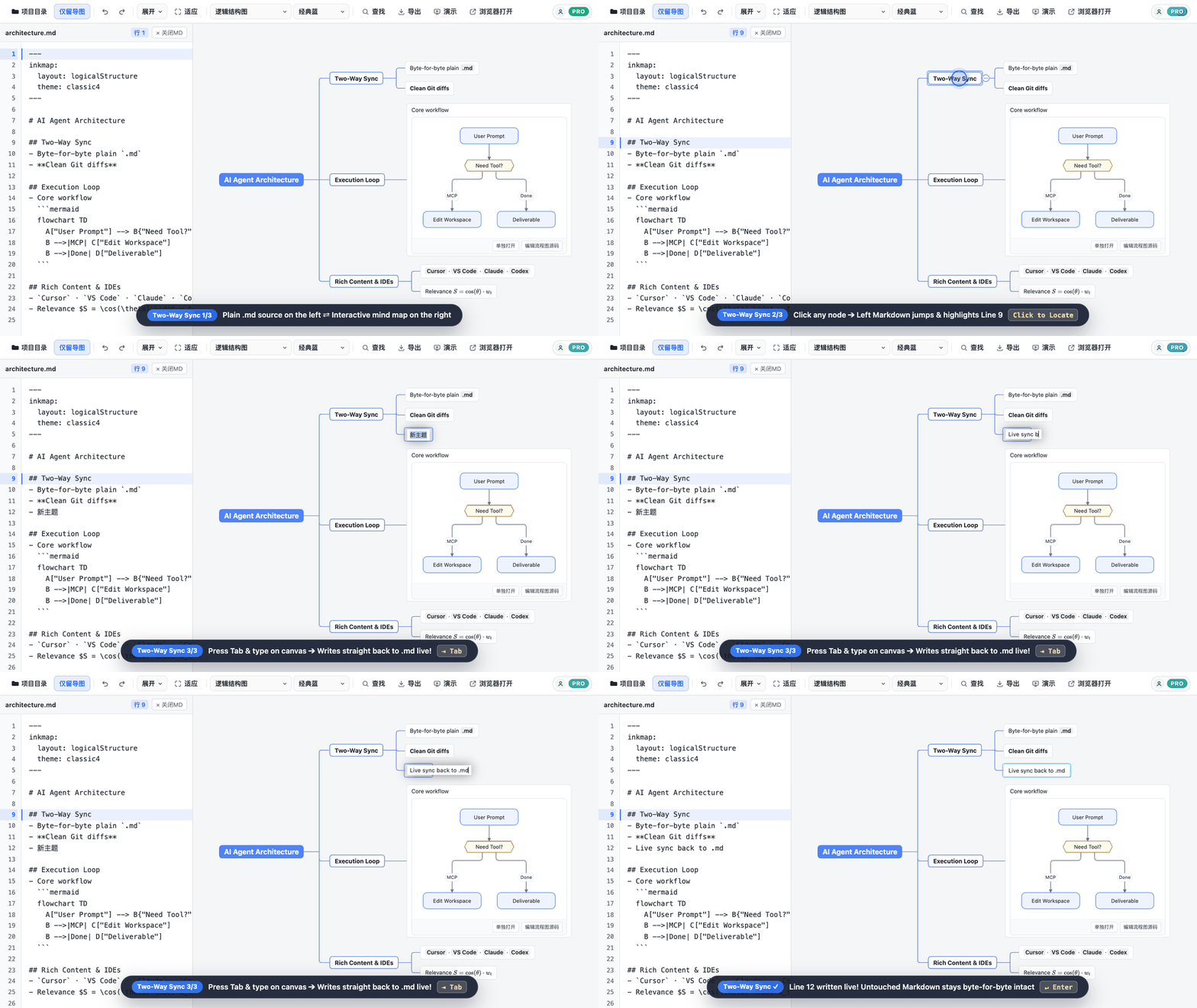
|
|
8
8
|
|
|
9
9
|
---
|
|
10
10
|
|
|
11
|
-
## Quick Install (
|
|
11
|
+
## ⚡ Quick Install (1 Command — macOS / Windows / Linux)
|
|
12
12
|
|
|
13
|
-
Automatically detect and configure all AI clients installed on your machine
|
|
13
|
+
Automatically detect and configure all AI clients & IDEs installed on your machine:
|
|
14
14
|
|
|
15
15
|
```bash
|
|
16
16
|
npx -y inkmap-mcp@latest install
|
|
17
17
|
```
|
|
18
18
|
|
|
19
|
-
|
|
20
|
-
|
|
21
|
-
|
|
22
|
-
npx -y inkmap-mcp@latest install
|
|
23
|
-
npx -y inkmap-mcp@latest install claude
|
|
24
|
-
npx -y inkmap-mcp@latest install
|
|
25
|
-
npx -y inkmap-mcp@latest
|
|
26
|
-
npx -y inkmap-mcp@latest install cursor # Cursor
|
|
27
|
-
npx -y inkmap-mcp@latest install deepseek # DeepSeek Harness (dsh-inkmap)
|
|
28
|
-
```
|
|
29
|
-
|
|
30
|
-
Optionally pre-authorize workspace directories:
|
|
31
|
-
|
|
32
|
-
```bash
|
|
33
|
-
npx -y inkmap-mcp@latest install claude --workspace ~/projects
|
|
34
|
-
```
|
|
35
|
-
|
|
36
|
-
---
|
|
37
|
-
|
|
38
|
-
## Standard MCP Server Configuration
|
|
19
|
+
| Platform / Client | CLI Target Command | How to Open Inkmap |
|
|
20
|
+
| :--- | :--- | :--- |
|
|
21
|
+
| **Cursor / VS Code / Trae / Windsurf** | `npx -y inkmap-mcp@latest install cursor` | Click the top-right **Mindmap icon** on any `.md` file, or right-click -> **Open as Inkmap** |
|
|
22
|
+
| **DeepSeek Harness** | `npx -y inkmap-mcp@latest install deepseek` | Preview any `.md` file and click **Inkmap** in the top-right preview toolbar |
|
|
23
|
+
| **Claude Desktop / Claude Code** | `npx -y inkmap-mcp@latest install claude` | Ask Claude: *"Open `README.md` with Inkmap"* |
|
|
24
|
+
| **OpenAI Codex / Antigravity** | `npx -y inkmap-mcp@latest install codex` | Ask the agent to open any `.md` outline in Inkmap (or select **Inkmap Mind Map**) |
|
|
25
|
+
| **Standalone 3-Column Browser IDE** | `npx -y inkmap-mcp@latest path/to/notes.md` | Opens full-screen Project File Tree + live Markdown editor + mind map in browser |
|
|
39
26
|
|
|
40
|
-
|
|
41
|
-
|
|
42
|
-
```bash
|
|
43
|
-
claude mcp add --scope user inkmap -- npx -y inkmap-mcp@latest mcp
|
|
44
|
-
```
|
|
27
|
+
### Standard Manual MCP Configuration (`mcp.json`)
|
|
45
28
|
|
|
46
29
|
```json
|
|
47
30
|
{
|
|
@@ -54,77 +37,45 @@ claude mcp add --scope user inkmap -- npx -y inkmap-mcp@latest mcp
|
|
|
54
37
|
}
|
|
55
38
|
```
|
|
56
39
|
|
|
57
|
-
Then ask your AI assistant:
|
|
58
|
-
> *"Open `docs/architecture.markmap.md` with Inkmap"*
|
|
59
|
-
|
|
60
40
|
---
|
|
61
41
|
|
|
62
|
-
##
|
|
42
|
+
## ✨ Visual Feature Highlights
|
|
63
43
|
|
|
64
|
-
|
|
65
|
-
|
|
66
|
-
```bash
|
|
67
|
-
npx -y inkmap-mcp@latest notes.markmap.md
|
|
68
|
-
```
|
|
69
|
-
|
|
70
|
-
---
|
|
44
|
+
### 1. Inline Mermaid Diagrams, KaTeX Math & Markdown Tables
|
|
45
|
+
Render and edit `mermaid` flowcharts, sequence diagrams, state machines, KaTeX formulas, and Markdown tables right inside mind map branches (`⌘E` / `Ctrl+E`):
|
|
71
46
|
|
|
72
|
-
|
|
47
|
+
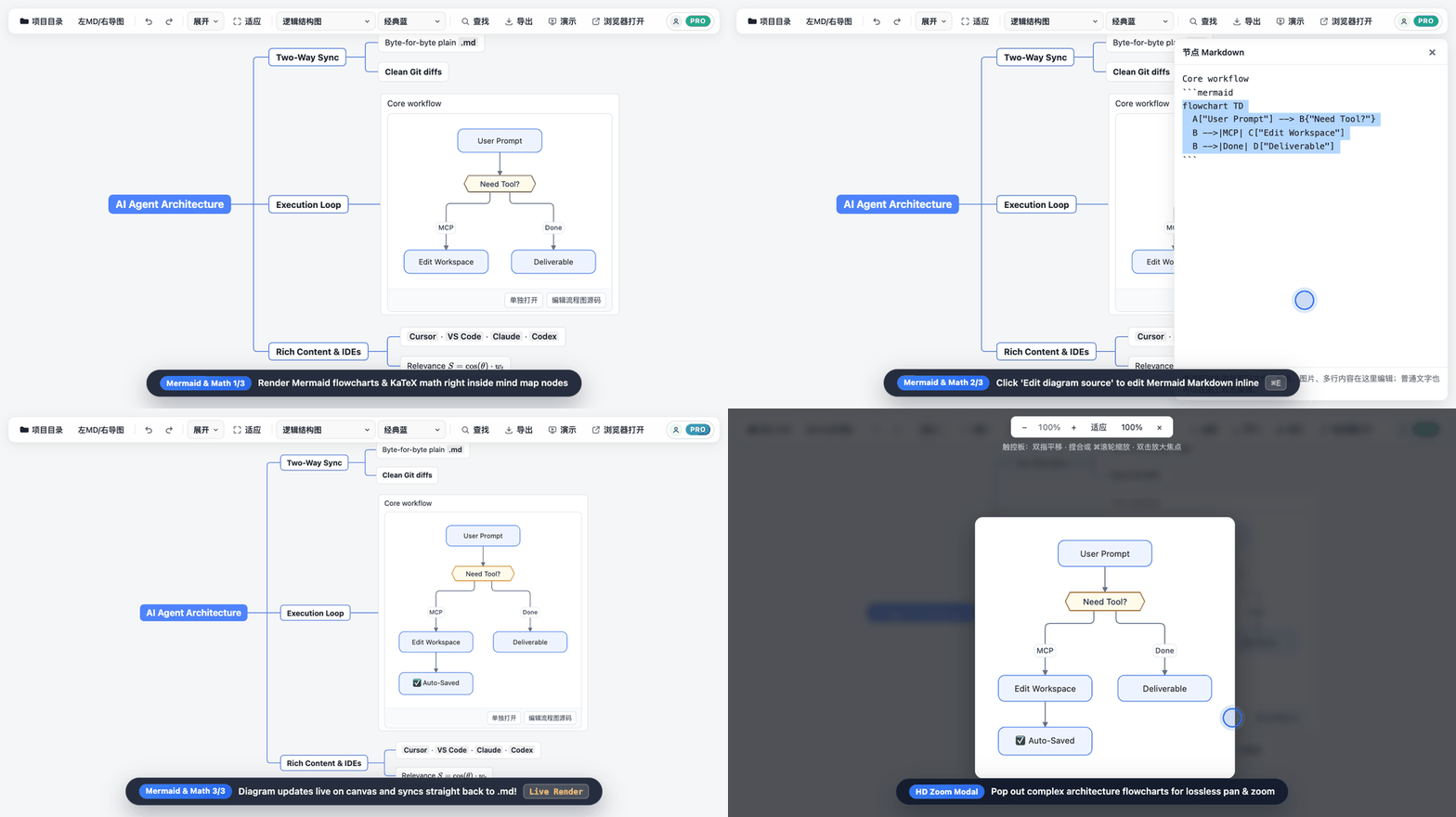
|
|
73
48
|
|
|
74
|
-
###
|
|
49
|
+
### 2. 9 Professional Layouts, Dusk Dark Theme & Presentation Mode
|
|
50
|
+
Switch between **Logic Chart, Mind Map, Org Chart, Catalog, Timelines, and Fishbone**, toggle **Dusk dark mode**, present node-by-node in **Presentation Mode**, and export crisp **PNG, vector SVG, or standalone interactive HTML**:
|
|
75
51
|
|
|
76
|
-
|
|
52
|
+
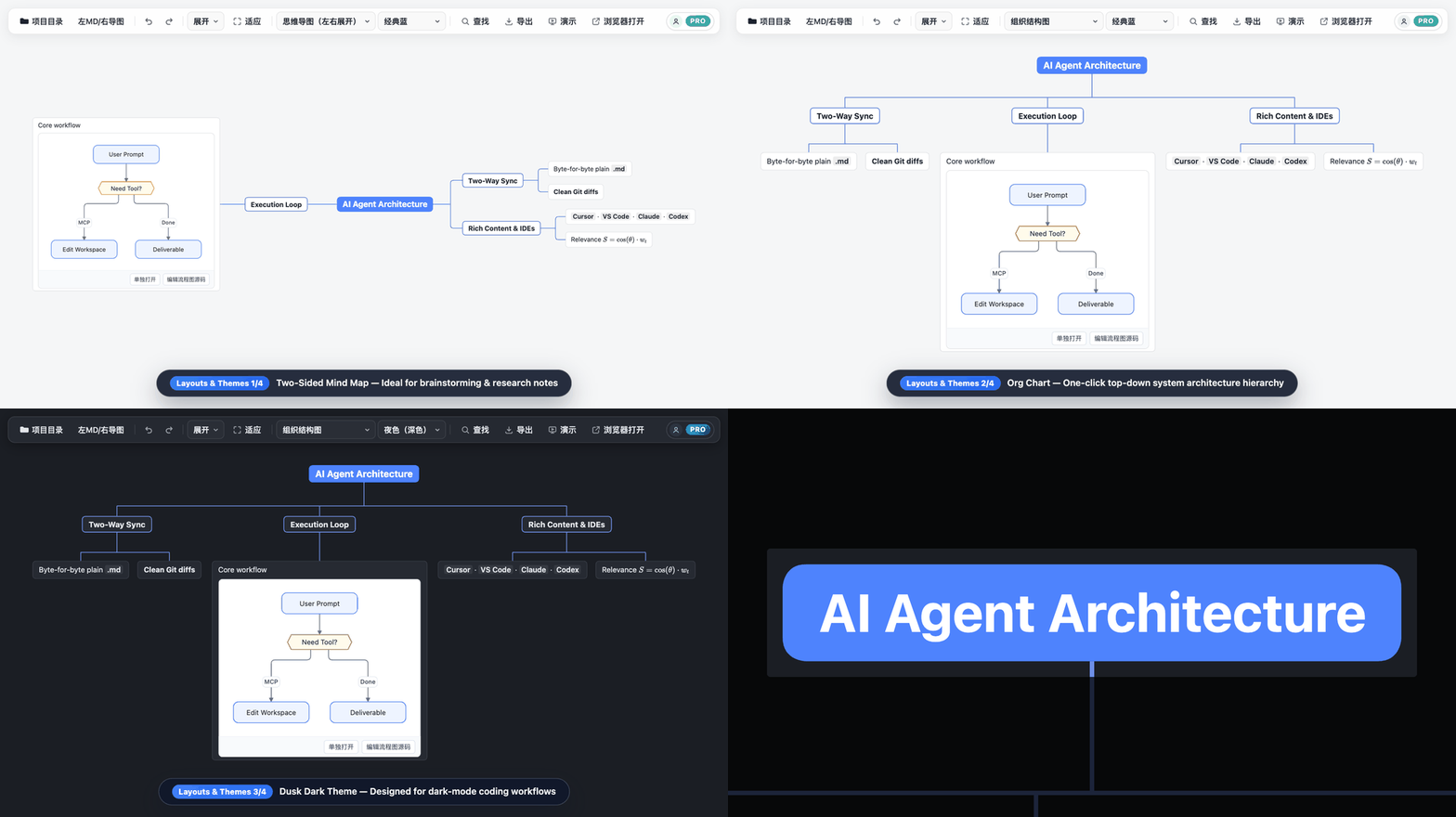
|
|
77
53
|
|
|
78
|
-
|
|
79
|
-
npx -y inkmap-mcp@latest install
|
|
80
|
-
```
|
|
81
|
-
|
|
82
|
-
在 **DeepSeek Harness** 中,你也可以直接在左侧 **「插件」** 页面:
|
|
83
|
-
- 点击右上角 **「+ 添加插件」** 输入 **`dsh-inkmap`** 一键安装;
|
|
84
|
-
- 或开启「实验性插件 -> 自定义插件索引」,添加索引源 **`https://zhiyuanv.com/dsh-index.json`**,在「发现」标签页搜索 **「思维导图」** 即可找到并安装 **Inkmap 思维导图**。
|
|
85
|
-
|
|
86
|
-
也可以指定单个客户端或预设工作区目录:
|
|
87
|
-
|
|
88
|
-
```bash
|
|
89
|
-
npx -y inkmap-mcp@latest install claude --workspace ~/projects
|
|
90
|
-
```
|
|
91
|
-
|
|
92
|
-
安装完成后重启对应客户端,在对话中直接说:
|
|
93
|
-
> *“用 Inkmap 打开 `xxx.markmap.md`”*
|
|
94
|
-
|
|
95
|
-
### 2. 本地浏览器独立打开 Markdown 导图
|
|
96
|
-
|
|
97
|
-
```bash
|
|
98
|
-
npx -y inkmap-mcp@latest 你的文档.markmap.md
|
|
99
|
-
```
|
|
54
|
+
---
|
|
100
55
|
|
|
101
|
-
|
|
56
|
+
## 🇨🇳 中文快速上手指南
|
|
102
57
|
|
|
103
|
-
-
|
|
104
|
-
- **如何购买与激活 Inkmap Pro 终身版(国内版 ¥29.9 一次买断 · 永久使用)**:
|
|
105
|
-
1. **插件内直接扫码开通(第一类客户端)**:在 **VS Code / Cursor / DeepSeek Harness / Qoder / 本地浏览器版** 导图右上角点击账号按钮选择 **「立即开通 Pro(¥29.9)」**,输入邮箱验证后直接在面板内微信扫码开通;也可访问官网 [https://zhiyuanv.com/software.html?lang=zh#inkmap-pricing](https://zhiyuanv.com/software.html?lang=zh#inkmap-pricing)。
|
|
106
|
-
2. **验证码邮件一键开通与全端同步(第二类客户端)**:在 **OpenAI Codex / Claude Desktop / Claude Code / Google Antigravity** 对话内嵌导图右上角点击 **「邮箱验证登录」**,收到的验证码邮件内附专属一键开通入口,验证同一邮箱即可在 **Cursor、VS Code、DeepSeek Harness、Qoder、WorkBuddy、Claude、Codex、Antigravity、Trae** 全平台自动同步 Pro 终身权益!
|
|
58
|
+
|
|
107
59
|
|
|
108
|
-
###
|
|
60
|
+
### 1. 一行命令自动接入全平台客户端
|
|
109
61
|
|
|
110
62
|
```bash
|
|
111
|
-
npx -y inkmap-mcp@latest
|
|
63
|
+
npx -y inkmap-mcp@latest install
|
|
112
64
|
```
|
|
113
65
|
|
|
114
|
-
|
|
115
|
-
|
|
116
|
-
|
|
66
|
+
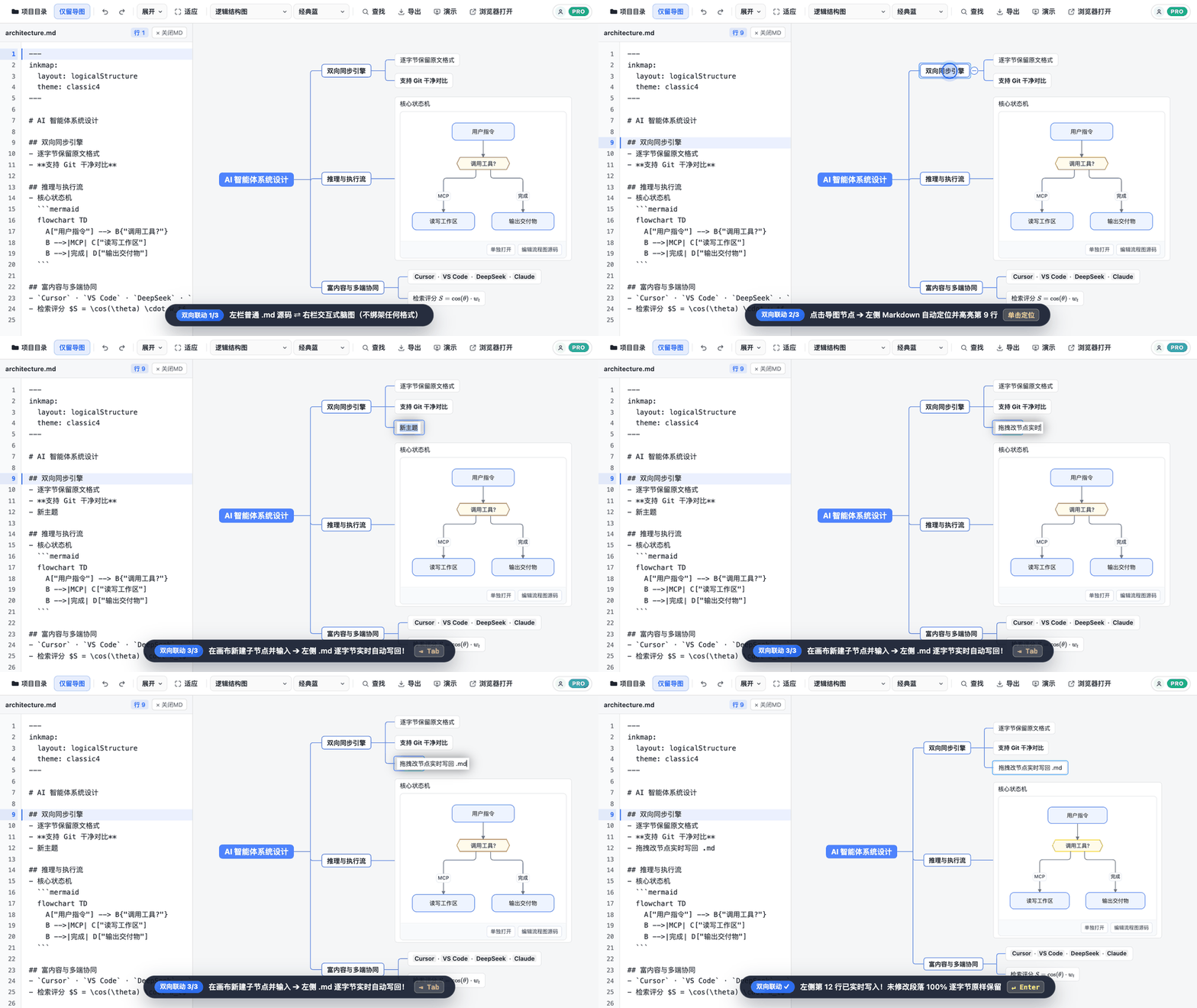
- **Cursor / VS Code / Trae / Windsurf**:打开任意 `.md` 文件,点击右上角导图分栏图标(或右键选 `Open as Inkmap`),左改源码、右拖脑图毫秒级逐字节双向同步。
|
|
67
|
+
- **DeepSeek Harness**:在左侧「插件」页右上角点 `+ 添加插件` 输入 **`dsh-inkmap`** 安装;预览任意 `.md` 时点击右上角 **「Inkmap」** 即可在右侧并排编辑导图与流程图。
|
|
68
|
+
- **Claude / Codex / Antigravity**:直接在对话中说 *“用 Inkmap 打开 `xxx.md`”* 即可自动弹出交互导图面板。
|
|
69
|
+
- **在线免安装直接试玩**:访问 **[zhiyuanv.com/inkmap.html](https://www.zhiyuanv.com/inkmap.html)**。
|
|
117
70
|
|
|
118
|
-
|
|
119
|
-
- **How to Upgrade & Sync Pro Across All Clients (\$15 Lifetime)**:
|
|
120
|
-
1. **In-Plugin Direct Checkout**: Inside **VS Code, Cursor, DeepSeek Harness, Qoder, or the standalone browser editor**, click the top-right account badge and choose **Buy Pro (\$15)** (or visit [https://zhiyuanv.com/software.html?lang=en#inkmap-pricing](https://zhiyuanv.com/software.html?lang=en#inkmap-pricing)).
|
|
121
|
-
2. **Email Sign-In & Cross-Client Sync**: Inside embedded MCP App panels (**OpenAI Codex, Claude Desktop, Claude Code, Google Antigravity**), click **Sign in with Email** in the top-right corner — your verification email includes a direct 1-click checkout link, and signing in with the same email syncs Lifetime Pro across **Cursor, VS Code, DeepSeek Harness, Qoder, WorkBuddy, Claude, Codex, Antigravity, and Trae**.
|
|
122
|
-
|
|
123
|
-
---
|
|
71
|
+
### 2. 常用快捷键速查
|
|
124
72
|
|
|
125
|
-
|
|
73
|
+
| 操作 | 快捷键 | 操作 | 快捷键 |
|
|
74
|
+
| :--- | :--- | :--- | :--- |
|
|
75
|
+
| 新增子节点 / 同级节点 | `Tab` / `Enter` | 编辑节点内 Mermaid / 公式 / 表格 | 双击节点 或 `⌘E` (`Ctrl+E`) |
|
|
76
|
+
| 新增父级节点 | `Shift + Tab` | 上下移动同级节点顺序 | `⌘↑` / `⌘↓` (`Alt+↑` / `Alt+↓`) |
|
|
77
|
+
| 删除节点 / 自由重组 | `Backspace` / 鼠标拖拽 | 全图搜索与批量替换 | `⌘F` (`Ctrl+F`) |
|
|
126
78
|
|
|
127
|
-
|
|
128
|
-
- **
|
|
129
|
-
- **
|
|
130
|
-
- **License**: Proprietary EULA (`SEE LICENSE IN LICENSE.md`); bundled open-source notices in `THIRD_PARTY_NOTICES.md`.
|
|
79
|
+
### 3. 7 天免登录免费试用 & Pro 终身买断(10 端通用)
|
|
80
|
+
- 首次使用自动享 **7 天全功能免费试用**(免注册登录,文档 100% 保存在本地磁盘)。
|
|
81
|
+
- 在插件右上角账号菜单即可一键开通 **Inkmap Pro 终身版**(一次买断永久使用,无自动续费),登录同一邮箱即可在 **Cursor、VS Code、DeepSeek Harness、Qoder、WorkBuddy、Claude、Codex、Antigravity、Trae** 全端同步激活。详见 [官网说明](https://www.zhiyuanv.com/software.html#inkmap-pricing)。
|
|
@@ -1,24 +1,66 @@
|
|
|
1
1
|
<svg xmlns="http://www.w3.org/2000/svg" viewBox="0 0 256 256" width="256" height="256">
|
|
2
2
|
<defs>
|
|
3
|
-
<linearGradient id="bg" x1="
|
|
4
|
-
<stop offset="0" stop-color="#
|
|
5
|
-
<stop offset="
|
|
3
|
+
<linearGradient id="bg" x1="24" y1="16" x2="232" y2="240" gradientUnits="userSpaceOnUse">
|
|
4
|
+
<stop offset="0%" stop-color="#2563eb"/>
|
|
5
|
+
<stop offset="48%" stop-color="#1e3a8a"/>
|
|
6
|
+
<stop offset="100%" stop-color="#1e1b4b"/>
|
|
6
7
|
</linearGradient>
|
|
8
|
+
<radialGradient id="auroraTop" cx="68" cy="52" r="170" gradientUnits="userSpaceOnUse">
|
|
9
|
+
<stop offset="0%" stop-color="#38bdf8" stop-opacity="0.52"/>
|
|
10
|
+
<stop offset="55%" stop-color="#6366f1" stop-opacity="0.20"/>
|
|
11
|
+
<stop offset="100%" stop-color="#0f172a" stop-opacity="0"/>
|
|
12
|
+
</radialGradient>
|
|
13
|
+
<radialGradient id="auroraBot" cx="208" cy="212" r="140" gradientUnits="userSpaceOnUse">
|
|
14
|
+
<stop offset="0%" stop-color="#a855f7" stop-opacity="0.35"/>
|
|
15
|
+
<stop offset="100%" stop-color="#1e1b4b" stop-opacity="0"/>
|
|
16
|
+
</radialGradient>
|
|
17
|
+
<linearGradient id="rim" x1="16" y1="12" x2="240" y2="244" gradientUnits="userSpaceOnUse">
|
|
18
|
+
<stop offset="0%" stop-color="#ffffff" stop-opacity="0.45"/>
|
|
19
|
+
<stop offset="50%" stop-color="#ffffff" stop-opacity="0.12"/>
|
|
20
|
+
<stop offset="100%" stop-color="#c084fc" stop-opacity="0.28"/>
|
|
21
|
+
</linearGradient>
|
|
22
|
+
<linearGradient id="branchTop" x1="92" y1="128" x2="162" y2="70" gradientUnits="userSpaceOnUse">
|
|
23
|
+
<stop offset="0%" stop-color="#e0f2fe"/>
|
|
24
|
+
<stop offset="100%" stop-color="#38bdf8"/>
|
|
25
|
+
</linearGradient>
|
|
26
|
+
<linearGradient id="branchMid" x1="92" y1="128" x2="156" y2="128" gradientUnits="userSpaceOnUse">
|
|
27
|
+
<stop offset="0%" stop-color="#ffffff" stop-opacity="0.92"/>
|
|
28
|
+
<stop offset="100%" stop-color="#ffffff"/>
|
|
29
|
+
</linearGradient>
|
|
30
|
+
<linearGradient id="branchBot" x1="92" y1="128" x2="162" y2="186" gradientUnits="userSpaceOnUse">
|
|
31
|
+
<stop offset="0%" stop-color="#e0e7ff"/>
|
|
32
|
+
<stop offset="100%" stop-color="#c084fc"/>
|
|
33
|
+
</linearGradient>
|
|
34
|
+
<linearGradient id="nodeTop" x1="150" y1="54" x2="216" y2="86" gradientUnits="userSpaceOnUse">
|
|
35
|
+
<stop offset="0%" stop-color="#7dd3fc"/>
|
|
36
|
+
<stop offset="100%" stop-color="#38bdf8"/>
|
|
37
|
+
</linearGradient>
|
|
38
|
+
<linearGradient id="nodeBot" x1="150" y1="170" x2="210" y2="202" gradientUnits="userSpaceOnUse">
|
|
39
|
+
<stop offset="0%" stop-color="#c4b5fd"/>
|
|
40
|
+
<stop offset="100%" stop-color="#a855f7"/>
|
|
41
|
+
</linearGradient>
|
|
42
|
+
<linearGradient id="hubCore" x1="54" y1="112" x2="86" y2="144" gradientUnits="userSpaceOnUse">
|
|
43
|
+
<stop offset="0%" stop-color="#3b82f6"/>
|
|
44
|
+
<stop offset="100%" stop-color="#4f46e5"/>
|
|
45
|
+
</linearGradient>
|
|
46
|
+
<filter id="softShadow" x="-12%" y="-12%" width="124%" height="128%">
|
|
47
|
+
<feDropShadow dx="0" dy="6" stdDeviation="7" flood-color="#090d1f" flood-opacity="0.36"/>
|
|
48
|
+
</filter>
|
|
7
49
|
</defs>
|
|
8
|
-
<rect x="8" y="8" width="240" height="240" rx="
|
|
9
|
-
<
|
|
10
|
-
|
|
11
|
-
|
|
12
|
-
|
|
13
|
-
<
|
|
14
|
-
|
|
15
|
-
|
|
16
|
-
|
|
17
|
-
|
|
18
|
-
<rect x="
|
|
19
|
-
<rect x="
|
|
20
|
-
<rect x="
|
|
21
|
-
<rect x="
|
|
50
|
+
<rect x="8" y="8" width="240" height="240" rx="56" fill="url(#bg)"/>
|
|
51
|
+
<rect x="8" y="8" width="240" height="240" rx="56" fill="url(#auroraTop)"/>
|
|
52
|
+
<rect x="8" y="8" width="240" height="240" rx="56" fill="url(#auroraBot)"/>
|
|
53
|
+
<rect x="9.5" y="9.5" width="237" height="237" rx="54.5" fill="none" stroke="url(#rim)" stroke-width="3"/>
|
|
54
|
+
<g filter="url(#softShadow)">
|
|
55
|
+
<g fill="none" stroke-width="13" stroke-linecap="round">
|
|
56
|
+
<path d="M 92 128 C 126 128, 122 70, 158 70" stroke="url(#branchTop)"/>
|
|
57
|
+
<path d="M 92 128 L 154 128" stroke="url(#branchMid)"/>
|
|
58
|
+
<path d="M 92 128 C 126 128, 122 186, 158 186" stroke="url(#branchBot)"/>
|
|
59
|
+
</g>
|
|
60
|
+
<rect x="40" y="96" width="64" height="64" rx="20" fill="#ffffff"/>
|
|
61
|
+
<rect x="57" y="113" width="30" height="30" rx="9.5" fill="url(#hubCore)"/>
|
|
62
|
+
<rect x="150" y="54" width="64" height="32" rx="16" fill="url(#nodeTop)"/>
|
|
63
|
+
<rect x="146" y="112" width="72" height="32" rx="16" fill="#ffffff"/>
|
|
64
|
+
<rect x="150" y="170" width="58" height="32" rx="16" fill="url(#nodeBot)"/>
|
|
22
65
|
</g>
|
|
23
|
-
<path d="M128 92 C 128 92, 102 122, 102 140 A 26 26 0 0 0 154 140 C 154 122, 128 92, 128 92 Z" fill="#ffd166" stroke="#fff" stroke-width="6" stroke-linejoin="round"/>
|
|
24
66
|
</svg>
|
|
@@ -0,0 +1,8 @@
|
|
|
1
|
+
# Inkmap Mind Map Auto-Entrypoint Rule
|
|
2
|
+
|
|
3
|
+
Whenever you create, update, or link to a local Markdown deliverable, outline, plan, specification, or draft (`.md` or `.markmap.md` — excluding internal config files like `AGENTS.md`, `GEMINI.md`, `SKILL.md`, `LICENSE.md`, or `CHANGELOG.md`):
|
|
4
|
+
|
|
5
|
+
1. **Sync Active Document**: Call `inkmap_open` on MCP server `inkmap_inkmap` (`call_mcp_tool` with `ServerName: "inkmap_inkmap"`, `ToolName: "inkmap_open"`, `Arguments: {"path": "/absolute/path/to/file.md"}`) so any open Inkmap panel switches to that document automatically.
|
|
6
|
+
2. **Append a One-Click Mind Map Pill**: Immediately after the `[filename.md](file:///absolute/path/to/file.md)` link in your response, append a clickable Inkmap sidecar pill on the same line with the URL-encoded absolute file path:
|
|
7
|
+
`[filename.md](file:///absolute/path/to/file.md) · [Inkmap](sidecar://inkmap/inkmap/?file=%2Fabsolute%2Fpath%2Fto%2Ffile.md)`
|
|
8
|
+
(Emit at most one `[Inkmap](sidecar://inkmap/inkmap/...)` pill per message, pointing to the primary `.md` deliverable so clicking `Inkmap` opens the interactive mind map directly in the right-hand auxiliary pane.)
|
|
@@ -1086,15 +1086,15 @@
|
|
|
1086
1086
|
const lineHeight = 20.8;
|
|
1087
1087
|
const padTop = 12;
|
|
1088
1088
|
const target = Math.max(0, padTop + sLine * lineHeight - mdTextareaEl.clientHeight * 0.35);
|
|
1089
|
-
|
|
1089
|
+
if (document.activeElement === mdTextareaEl) {
|
|
1090
|
+
try { mdTextareaEl.setSelectionRange(startOffset, Math.max(startOffset, endOffset)); } catch {}
|
|
1091
|
+
}
|
|
1090
1092
|
mdTextareaEl.scrollTop = target;
|
|
1093
|
+
mdTextareaEl.scrollLeft = 0;
|
|
1091
1094
|
requestAnimationFrame(() => {
|
|
1092
1095
|
if (!mdTextareaEl?.isConnected) return;
|
|
1093
|
-
try {
|
|
1094
|
-
mdTextareaEl.focus({ preventScroll: true });
|
|
1095
|
-
mdTextareaEl.setSelectionRange(startOffset, Math.max(startOffset, endOffset));
|
|
1096
|
-
} catch {}
|
|
1097
1096
|
mdTextareaEl.scrollTop = target;
|
|
1097
|
+
mdTextareaEl.scrollLeft = 0;
|
|
1098
1098
|
});
|
|
1099
1099
|
renderMdGutterAndBand();
|
|
1100
1100
|
}
|
|
@@ -1108,6 +1108,13 @@
|
|
|
1108
1108
|
window.inkmap?.mindMap?.execCommand("FORWARD");
|
|
1109
1109
|
return;
|
|
1110
1110
|
}
|
|
1111
|
+
case "openInBrowser": {
|
|
1112
|
+
await apiFetch("/api/open-browser", {
|
|
1113
|
+
method: "POST",
|
|
1114
|
+
body: JSON.stringify({ file: currentFile, workspaceUris }),
|
|
1115
|
+
});
|
|
1116
|
+
return;
|
|
1117
|
+
}
|
|
1111
1118
|
case "addToChat": {
|
|
1112
1119
|
if (!currentFile) return;
|
|
1113
1120
|
const snippet = sliceLines(currentMd, msg.startLine, msg.endLine, msg.text);
|