goldsync 0.1.16 → 0.1.34
This diff represents the content of publicly available package versions that have been released to one of the supported registries. The information contained in this diff is provided for informational purposes only and reflects changes between package versions as they appear in their respective public registries.
- package/README.md +69 -78
- package/assets/GoldSync.rbxmx +1206 -204
- package/bin/install-companion.mjs +38 -6
- package/media/configuration-assets.png +0 -0
- package/media/file-boundaries.png +0 -0
- package/package.json +2 -2
- package/src/broker.mjs +17 -1
- package/src/companion.mjs +16 -1
- package/src/config.mjs +39 -6
- package/src/git-conflicts.mjs +1 -1
- package/src/restore.mjs +34 -0
- package/src/server.mjs +191 -13
- package/src/store.mjs +246 -5
package/README.md
CHANGED
|
@@ -1,85 +1,52 @@
|
|
|
1
1
|
# GoldSync
|
|
2
2
|
|
|
3
|
-
<p align="center"><img src="https://unpkg.com/goldsync@
|
|
3
|
+
<p align="center"><img src="https://unpkg.com/goldsync@0.1.31/media/icon.png" alt="GoldSync" width="128"></p>
|
|
4
4
|
|
|
5
|
-
GoldSync synchronizes
|
|
6
|
-
|
|
7
|
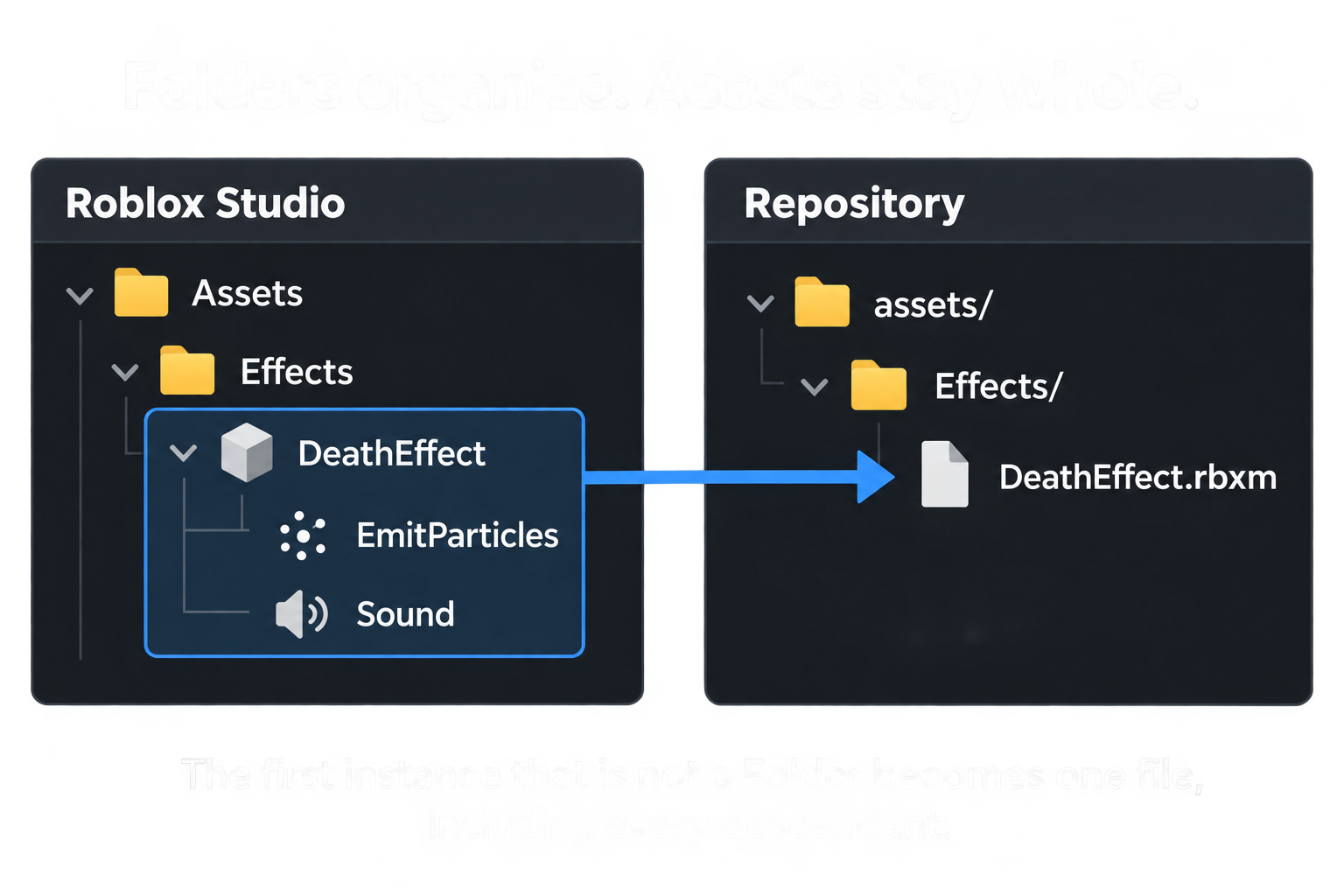
-
This is the standalone GoldSync source and build folder. It stays separate from game projects. Each game project contains its own `goldsync.project.json`, one Rojo session-marker mapping, and its synced RBXM files.
|
|
5
|
+
GoldSync synchronizes Roblox Studio assets with native `.rbxm` files. It saves complete models, UI, effects, and embedded scripts so your team can track them in Git. Rojo handles the separate source directories mapped in your project.
|
|
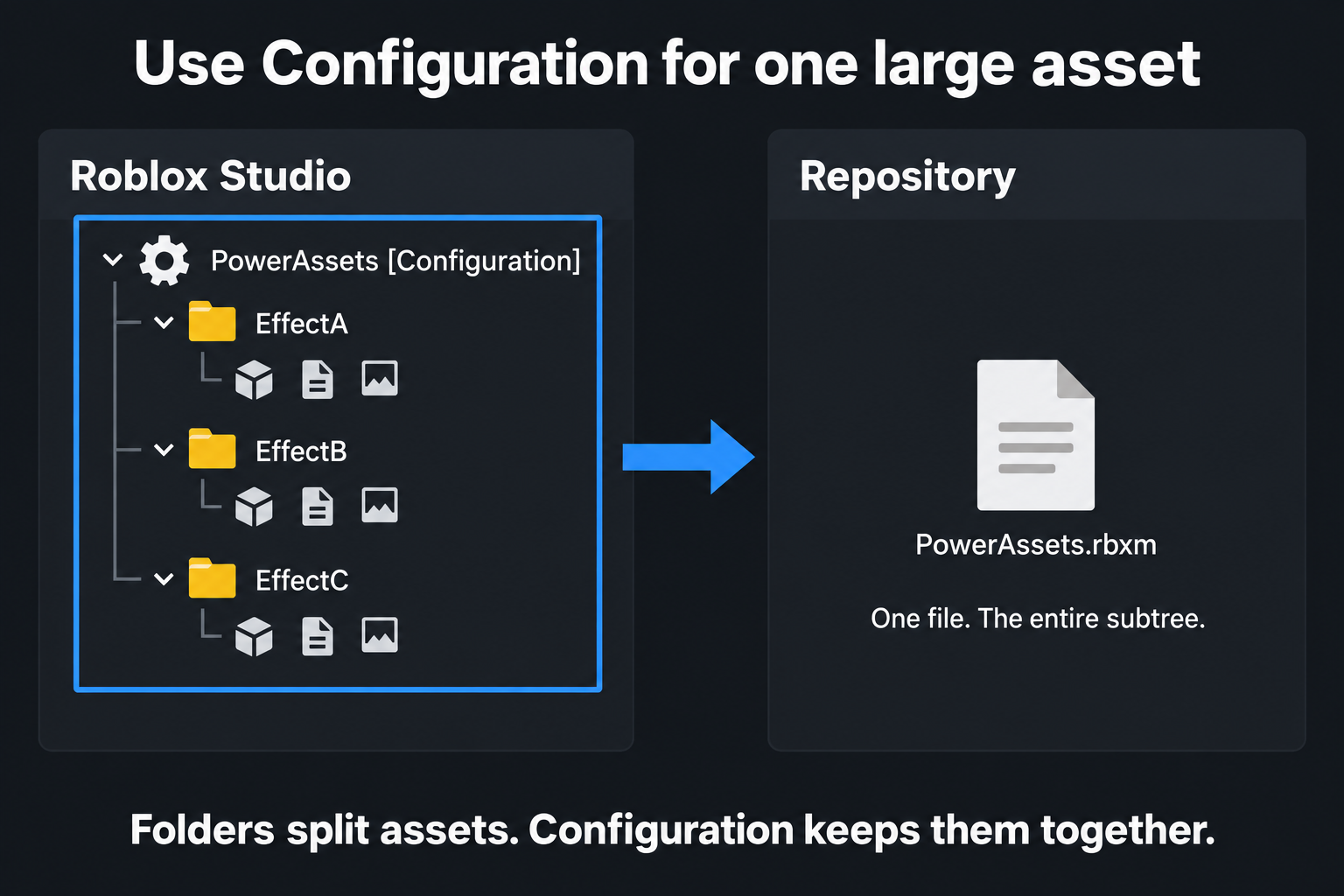
8
6
|
|
|
9
7
|
## Install
|
|
10
8
|
|
|
11
|
-
|
|
12
|
-
|
|
13
|
-
```powershell
|
|
14
|
-
npx goldsync install
|
|
15
|
-
```
|
|
16
|
-
|
|
17
|
-
It installs the background service, Roblox Studio plugin, project registration, and Windows startup entry. Cursor and Zed use the same editor-independent service; neither needs an editor extension.
|
|
18
|
-
|
|
19
|
-
If `npx` is unavailable, install Node.js and GoldSync together with:
|
|
20
|
-
|
|
21
|
-
```powershell
|
|
22
|
-
winget install --id OpenJS.NodeJS.LTS --exact --accept-package-agreements --accept-source-agreements; $env:Path="$env:ProgramFiles\nodejs;$env:Path"; npx --yes goldsync install
|
|
23
|
-
```
|
|
24
|
-
|
|
25
|
-
Restart Studio once after the first installation. Studio may ask for permission to access `127.0.0.1`.
|
|
26
|
-
|
|
27
|
-
For offline distribution, build the companion package from this folder:
|
|
9
|
+
GoldSync runs on Windows with Node.js 20 or newer. From your game repository, run:
|
|
28
10
|
|
|
29
11
|
```powershell
|
|
30
|
-
|
|
12
|
+
npx --yes goldsync@latest install
|
|
31
13
|
```
|
|
32
14
|
|
|
33
|
-
|
|
15
|
+
The installer sets up the background service, Studio plugin, project registration, and Windows startup entry. Save and restart Studio after installation or an update. Allow localhost access if Studio asks.
|
|
34
16
|
|
|
35
|
-
|
|
36
|
-
& "C:\path\to\GoldSync-Companion\install.cmd"
|
|
37
|
-
```
|
|
38
|
-
|
|
39
|
-
Running the installer from another game registers that game too. Registering another clone with the same `projectId` replaces the old clone, preventing two copies of one project from claiming the same Rojo session. Cursor's extension and the companion can run together; they share one broker automatically.
|
|
17
|
+
Open the repository, run `rojo serve`, and connect Studio through Rojo. GoldSync selects the matching project automatically. Cursor, VS Code, and Zed use the same service; an editor extension is not required.
|
|
40
18
|
|
|
41
|
-
|
|
42
|
-
|
|
43
|
-
```powershell
|
|
44
|
-
.\install.ps1
|
|
45
|
-
```
|
|
19
|
+
## Configure your roots
|
|
46
20
|
|
|
47
|
-
|
|
48
|
-
|
|
49
|
-
## Configure a game
|
|
50
|
-
|
|
51
|
-
Place `goldsync.project.json` at the game repository root:
|
|
21
|
+
Create `goldsync.project.json` in the game repository:
|
|
52
22
|
|
|
53
23
|
```json
|
|
54
24
|
{
|
|
55
|
-
"version":
|
|
25
|
+
"version": 2,
|
|
56
26
|
"name": "My Game",
|
|
57
27
|
"projectId": "my-game",
|
|
58
28
|
"roots": [
|
|
59
29
|
{
|
|
60
|
-
"id": "
|
|
61
|
-
"
|
|
62
|
-
"
|
|
30
|
+
"id": "assets",
|
|
31
|
+
"mode": "tree",
|
|
32
|
+
"studioPath": ["ReplicatedStorage", "Assets"],
|
|
33
|
+
"directory": "assets/ReplicatedStorage/Assets"
|
|
63
34
|
},
|
|
64
35
|
{
|
|
65
|
-
"id": "main
|
|
66
|
-
"
|
|
67
|
-
"
|
|
68
|
-
"
|
|
36
|
+
"id": "main",
|
|
37
|
+
"mode": "tree",
|
|
38
|
+
"studioPath": ["StarterGui", "Main"],
|
|
39
|
+
"directory": "assets/StarterGui/Main"
|
|
69
40
|
}
|
|
70
41
|
]
|
|
71
42
|
}
|
|
72
43
|
```
|
|
73
44
|
|
|
74
|
-
|
|
75
|
-
|
|
76
|
-
Directory roots can contain more specific roots. Discovery skips branches owned by those roots, including existing files on disk. For example, split `ReplicatedStorage.Assets` at depth 1 and add another depth-1 directory root for `ReplicatedStorage.Assets.Effects`. New asset categories and individual effects are discovered automatically, without creating an overlapping `Effects.rbxm`. Existing explicit file roots can stay in place to preserve their sync history. File roots cannot contain other roots because their snapshots include the entire subtree.
|
|
45
|
+
List only the top roots. Do not map the same hierarchy through both Rojo and GoldSync.
|
|
77
46
|
|
|
78
|
-
|
|
47
|
+
GoldSync reads the Rojo project name and port from `default.project.json` and detects active port overrides. Set `rojo.projectFile` if you use a different project filename.
|
|
79
48
|
|
|
80
|
-
|
|
81
|
-
|
|
82
|
-
Map GoldSync's generated live-session marker in the Rojo project tree:
|
|
49
|
+
Include the generated session marker in your Rojo project tree:
|
|
83
50
|
|
|
84
51
|
```json
|
|
85
52
|
"ServerStorage": {
|
|
@@ -89,45 +56,69 @@ Map GoldSync's generated live-session marker in the Rojo project tree:
|
|
|
89
56
|
}
|
|
90
57
|
```
|
|
91
58
|
|
|
92
|
-
The
|
|
59
|
+
The service generates the marker. Keep `.goldsync/` ignored by Git. The marker binds the Studio window to its active Rojo session and repository.
|
|
93
60
|
|
|
94
|
-
##
|
|
61
|
+
## How files are grouped
|
|
95
62
|
|
|
96
|
-
|
|
97
|
-
2. Run `rojo serve`.
|
|
98
|
-
3. Open a configured place in Roblox Studio.
|
|
99
|
-
4. Confirm the GoldSync status bar and Studio widget are connected.
|
|
63
|
+
Below a configured root, each **Folder** becomes a directory. The **first descendant that is not a Folder becomes one file with its entire subtree**. Folders inside that asset remain inside its file.
|
|
100
64
|
|
|
101
|
-
|
|
65
|
+
|
|
102
66
|
|
|
103
|
-
|
|
67
|
+
For example, if `Effects` is a Folder and `DeathEffect` is a Model, edits anywhere inside DeathEffect change `Effects/DeathEffect.rbxm`. If DeathEffect is a Folder instead, GoldSync keeps walking until it reaches each child asset.
|
|
104
68
|
|
|
105
|
-
|
|
69
|
+
Configured top roots always act as containers, even for a ScreenGui such as Main. Plain, nonempty Folders need only a directory. Container properties, attributes, tags, empty Folders, and non-archivable Folders are preserved with `_root.rbxm` where needed.
|
|
106
70
|
|
|
107
|
-
##
|
|
71
|
+
## Configuration for larger assets
|
|
108
72
|
|
|
109
|
-
|
|
73
|
+
Use a Roblox **Configuration** instance in place of a Folder when a collection should stay in one file. Configuration has a gear icon in Studio.
|
|
110
74
|
|
|
111
|
-
|
|
75
|
+
|
|
112
76
|
|
|
113
|
-
|
|
77
|
+
A Configuration named `PowerAssets` becomes `PowerAssets.rbxm`, including all effects, folders, and scripts below it. Pull replaces that complete subtree. Camera keyframes and effects whose children reference each other are useful candidates for this grouping.
|
|
114
78
|
|
|
115
|
-
|
|
79
|
+
Folders let teammates edit separate files independently. Configuration groups the collection into one Git change and one conflict unit. Keep referenced instances together when they belong to the same asset.
|
|
116
80
|
|
|
117
|
-
|
|
118
|
-
npm test
|
|
119
|
-
```
|
|
81
|
+
When changing a Folder to another class, Push the changed parent. GoldSync verifies the exported subtree and backs up the previous files before replacing their layout.
|
|
120
82
|
|
|
121
|
-
|
|
83
|
+
## Daily use
|
|
84
|
+
|
|
85
|
+
To make local files authoritative and replace the configured Studio roots completely, run:
|
|
122
86
|
|
|
123
87
|
```powershell
|
|
124
|
-
|
|
125
|
-
npm install
|
|
126
|
-
npm run package
|
|
88
|
+
npx --yes goldsync@latest restore-studio --yes
|
|
127
89
|
```
|
|
128
90
|
|
|
129
|
-
|
|
91
|
+
Update GoldSync, restart Studio, and connect Rojo first. This command discards unsaved Studio changes inside the configured roots, removes extra instances, and resets their sync state. Other Studio roots and local files are unchanged. It validates every snapshot before replacing the roots and reports completion in the terminal. It requires version 2 tree roots.
|
|
130
92
|
|
|
131
|
-
|
|
132
|
-
|
|
133
|
-
|
|
93
|
+
The command uses the files currently on disk. It does not fetch Git or remove old local `.rbxm` files. Restore the local assets from your intended Git revision first if that is the copy you want in Studio.
|
|
94
|
+
|
|
95
|
+
Matching assets synchronize automatically. When an entry needs attention, choose the copy you want to keep:
|
|
96
|
+
|
|
97
|
+
| Control | Direction |
|
|
98
|
+
| --- | --- |
|
|
99
|
+
| **Push →** | Studio to repository file |
|
|
100
|
+
| **← Pull** | Repository file to Studio |
|
|
101
|
+
|
|
102
|
+
Attention entries appear under collapsible parent paths with short child names. Use an individual arrow for one asset, or the attention section's Push All / Pull All controls for all unresolved entries.
|
|
103
|
+
|
|
104
|
+
Missing Studio assets require an explicit Pull to restore them. Push an intentionally removed Folder to remove its saved subtree with a backup and file-version checks. Configured roots cannot be deleted this way. Completed deletions do not need another Push.
|
|
105
|
+
|
|
106
|
+
GoldSync pauses normal syncing while Rojo is disconnected.
|
|
107
|
+
|
|
108
|
+
## Duplicate names and embedded scripts
|
|
109
|
+
|
|
110
|
+
Same-named siblings keep their Studio names. Their files use suffixes such as `Crack1.rbxm`, `Crack1 (1).rbxm`, and `Crack1 (2).rbxm`. A saved `GoldSyncId` attribute maintains each duplicate's identity. Do not edit it manually. Assigned suffixes remain stable when siblings are removed.
|
|
111
|
+
|
|
112
|
+
Scripts, LocalScripts, and ModuleScripts inside assets are saved with their source. Keep separately managed game code in Rojo's source directories.
|
|
113
|
+
|
|
114
|
+
## Git conflicts
|
|
115
|
+
|
|
116
|
+
GoldSync pauses conflicted files while other assets continue syncing. Expand an affected item and select **Open Merge Workspace**.
|
|
117
|
+
|
|
118
|
+
The workspace under `ServerStorage.GoldSync Conflicts` contains Base, Yours, Theirs, and an editable Result. Use **Property Diff**, copy selected properties with **Use Yours** or **Use Theirs**, or edit Result directly in Studio.
|
|
119
|
+
|
|
120
|
+
Check Result, then select **Resolve Result**. GoldSync writes the resulting RBXM, stages it in Git, and clears the conflict.
|
|
121
|
+
|
|
122
|
+
## Development
|
|
123
|
+
|
|
124
|
+
Run the automated tests with `npm test`. The source includes the companion service, Studio plugin, installer, and optional editor extension.
|