flashduty-knowledge-base 1.3.2 → 1.3.4
This diff represents the content of publicly available package versions that have been released to one of the supported registries. The information contained in this diff is provided for informational purposes only and reflects changes between package versions as they appear in their respective public registries.
- package/README.md +21 -1
- package/dist/en.d.ts +1 -0
- package/dist/esm/en.js +597 -377
- package/dist/esm/zh.js +578 -338
- package/dist/iife/en.js +573 -353
- package/dist/iife/zh.js +552 -312
- package/dist/zh.d.ts +1 -0
- package/package.json +1 -1
package/dist/esm/en.js
CHANGED
|
@@ -309,8 +309,7 @@ attachment_stripped = true
|
|
|
309
309
|
## Severity Mapping
|
|
310
310
|
---
|
|
311
311
|
|
|
312
|
-
Currently, all alerts pushed to Flashduty through email integration are set to Warning severity.
|
|
313
|
-
|
|
312
|
+
Currently, all alerts pushed to Flashduty through the email integration are set to Warning severity. However, you can customize the severity using the [alert pipeline](https://docs.flashcat.cloud/en/flashduty/alert-pipelines).
|
|
314
313
|
`,a=`---
|
|
315
314
|
title: "Nightingale/Flashcat Integration"
|
|
316
315
|
description: "Push alert events from Nightingale (n9e) or Flashcat to Flashduty via webhook. When an alert is triggered, send a trigger event to Flashduty; when an alert recovers, send a recovery event to Flashduty"
|
|
@@ -507,7 +506,7 @@ Nightingale/Flashcat to Flashduty alert severity mapping:
|
|
|
507
506
|
|
|
508
507
|
</details>
|
|
509
508
|
|
|
510
|
-
`,
|
|
509
|
+
`,o=`---
|
|
511
510
|
title: "Prometheus Integration Guide"
|
|
512
511
|
description: "Push Prometheus alert events to Flashduty through AlertManager using webhooks. When an alert is triggered, it sends a trigger event to Flashduty, and when the alert recovers, it sends a recovery event."
|
|
513
512
|
date: "2025-05-19T10:00:00+08:00"
|
|
@@ -689,7 +688,7 @@ Prometheus to Flashduty severity mapping:
|
|
|
689
688
|
|
|
690
689
|
|
|
691
690
|
|
|
692
|
-
`,
|
|
691
|
+
`,i=`---
|
|
693
692
|
title: "Grafana Integration"
|
|
694
693
|
description: "Sync Grafana alert events to Flashduty via webhook to achieve automated alert noise reduction."
|
|
695
694
|
date: "2025-05-19T10:00:00+08:00"
|
|
@@ -1595,7 +1594,7 @@ Alibaba Cloud SLS monitoring to Flashduty alert severity mapping:
|
|
|
1595
1594
|
| 2 | Info | Info |
|
|
1596
1595
|
|
|
1597
1596
|
</div>
|
|
1598
|
-
`,
|
|
1597
|
+
`,h=`---
|
|
1599
1598
|
title: "AWS CloudWatch Integration"
|
|
1600
1599
|
description: "Sync AWS CloudWatch alert events to Flashduty via webhook to achieve automated alert noise reduction"
|
|
1601
1600
|
date: "2025-05-19T10:00:00+08:00"
|
|
@@ -1674,7 +1673,7 @@ Choose this method when you need to route alerts to different channels based on
|
|
|
1674
1673
|
All CloudWatch metric alarms correspond to Flashduty "warning" severity level alerts.
|
|
1675
1674
|
|
|
1676
1675
|
</div>
|
|
1677
|
-
`,
|
|
1676
|
+
`,u=`---
|
|
1678
1677
|
title: "Baidu Cloud BCM Integration"
|
|
1679
1678
|
description: "Sync Baidu Cloud BCM alerts to Flashduty via webhook for automated alert noise reduction"
|
|
1680
1679
|
date: "2025-05-19T10:00:00+08:00"
|
|
@@ -3165,7 +3164,7 @@ Choose this option when you need to route alerts to different channels based on
|
|
|
3165
3164
|
|2|Info|Info|
|
|
3166
3165
|
|
|
3167
3166
|
</div>
|
|
3168
|
-
`,
|
|
3167
|
+
`,F=`---
|
|
3169
3168
|
title: "AWS EventBridge Alert Events"
|
|
3170
3169
|
description: "Sync AWS EventBridge alert events to Flashduty via webhook for automated alert noise reduction"
|
|
3171
3170
|
date: "2024-08-20T10:00:00+08:00"
|
|
@@ -3267,7 +3266,7 @@ Choose this option when you need to route alerts to different channels based on
|
|
|
3267
3266
|
|
|
3268
3267
|
</div>
|
|
3269
3268
|
|
|
3270
|
-
`,
|
|
3269
|
+
`,x=`---
|
|
3271
3270
|
title: "Dynatrace Alert Events"
|
|
3272
3271
|
description: "Sync Dynatrace alert events to Flashduty via webhook to achieve automated alert noise reduction."
|
|
3273
3272
|
date: "2024-08-20T10:00:00+08:00"
|
|
@@ -3374,7 +3373,7 @@ Choose this option when you need to route alerts to different channels based on
|
|
|
3374
3373
|
|CUSTOM_ALERT|Info|info|
|
|
3375
3374
|
|
|
3376
3375
|
</div>
|
|
3377
|
-
`,
|
|
3376
|
+
`,_=`---
|
|
3378
3377
|
title: "Huawei Cloud LTS Alert Events"
|
|
3379
3378
|
description: "Sync Huawei Cloud Log Tank Service (LTS) alert events to Flashduty via webhook for automated alert noise reduction."
|
|
3380
3379
|
date: "2024-08-20T10:00:00+08:00"
|
|
@@ -3487,7 +3486,7 @@ Choose this option when you need to route alerts to different channels based on
|
|
|
3487
3486
|
|Info|Info|Info|
|
|
3488
3487
|
|
|
3489
3488
|
</div>
|
|
3490
|
-
`,
|
|
3489
|
+
`,L=`---
|
|
3491
3490
|
title: "Google Cloud Monitoring Alert Events"
|
|
3492
3491
|
description: "Sync Google Cloud Monitoring alert events to Flashduty via webhook for automated alert noise reduction"
|
|
3493
3492
|
date: "2024-07-05T10:00:00+08:00"
|
|
@@ -4229,7 +4228,7 @@ Choose this method when you need to route alerts to different channels based on
|
|
|
4229
4228
|
</div>
|
|
4230
4229
|
|
|
4231
4230
|
</div>
|
|
4232
|
-
`,
|
|
4231
|
+
`,P=`---
|
|
4233
4232
|
title: "OpManager Alert Events"
|
|
4234
4233
|
description: "Sync OpManager alert events to Flashduty via webhook for automated alert noise reduction"
|
|
4235
4234
|
date: "2024-07-05T10:00:00+08:00"
|
|
@@ -4363,7 +4362,7 @@ Choose this method when you need to route alerts to different channels based on
|
|
|
4363
4362
|
| Attention | Info | Info |
|
|
4364
4363
|
|
|
4365
4364
|
</div>
|
|
4366
|
-
`,
|
|
4365
|
+
`,M=`---
|
|
4367
4366
|
title: "Meraki Alert Events"
|
|
4368
4367
|
description: "Sync Meraki alert events to Flashduty via webhook for automated alert noise reduction"
|
|
4369
4368
|
date: "2024-07-05T10:00:00+08:00"
|
|
@@ -4522,7 +4521,7 @@ Choose this option when you need to route alerts to different channels based on
|
|
|
4522
4521
|
| North | Beijing2/Changchun/Harbin/North China/Inner Mongolia3/Qingdao/Shenyang3/Shijiazhuang/Taiyuan/Tianjin/Zhengzhou |
|
|
4523
4522
|
|
|
4524
4523
|
</div>
|
|
4525
|
-
`,
|
|
4524
|
+
`,G=`---
|
|
4526
4525
|
title: "Guance Alert Events"
|
|
4527
4526
|
description: "Sync Guance alert events to Flashduty via webhook for automated alert noise reduction"
|
|
4528
4527
|
date: "2024-07-05T10:00:00+08:00"
|
|
@@ -4607,7 +4606,7 @@ Choose this option when you need to route alerts to different channels based on
|
|
|
4607
4606
|
| Data Missing | Info | Info |
|
|
4608
4607
|
|
|
4609
4608
|
</div>
|
|
4610
|
-
`,
|
|
4609
|
+
`,q=`---
|
|
4611
4610
|
title: "Zilliz Alert Events"
|
|
4612
4611
|
description: "Sync Zilliz alert events to Flashduty via webhook for automated alert noise reduction"
|
|
4613
4612
|
date: "2024-07-05T10:00:00+08:00"
|
|
@@ -4786,7 +4785,7 @@ When you need to route alerts to different channels based on alert payload infor
|
|
|
4786
4785
|
|
|
4787
4786
|
</div>
|
|
4788
4787
|
|
|
4789
|
-
|
|
4788
|
+
`,$=`---
|
|
4790
4789
|
title: "zstack integration"
|
|
4791
4790
|
description: "Push ZStack alerts to Flashduty via webhook, to achieve automatic alert noise reduction."
|
|
4792
4791
|
date: "2024-07-05T10:00:00+08:00"
|
|
@@ -4874,7 +4873,7 @@ Choose this method when you need to route alerts to different channels based on
|
|
|
4874
4873
|
|
|
4875
4874
|
</div>
|
|
4876
4875
|
|
|
4877
|
-
`,
|
|
4876
|
+
`,j=`---
|
|
4878
4877
|
title: "Keep Alert Integration Guide"
|
|
4879
4878
|
description: "Push alert events to Flashduty through Keep's Provider to achieve automated alert noise reduction."
|
|
4880
4879
|
date: "2025-05-19T10:00:00+08:00"
|
|
@@ -4955,7 +4954,7 @@ Field|Required|Type|Definition
|
|
|
4955
4954
|
|
|
4956
4955
|
<img alt="drawing" width="600" src="https://download.flashcat.cloud/flashduty/doc/en/fd/keep-2.png" />
|
|
4957
4956
|
|
|
4958
|
-
`,
|
|
4957
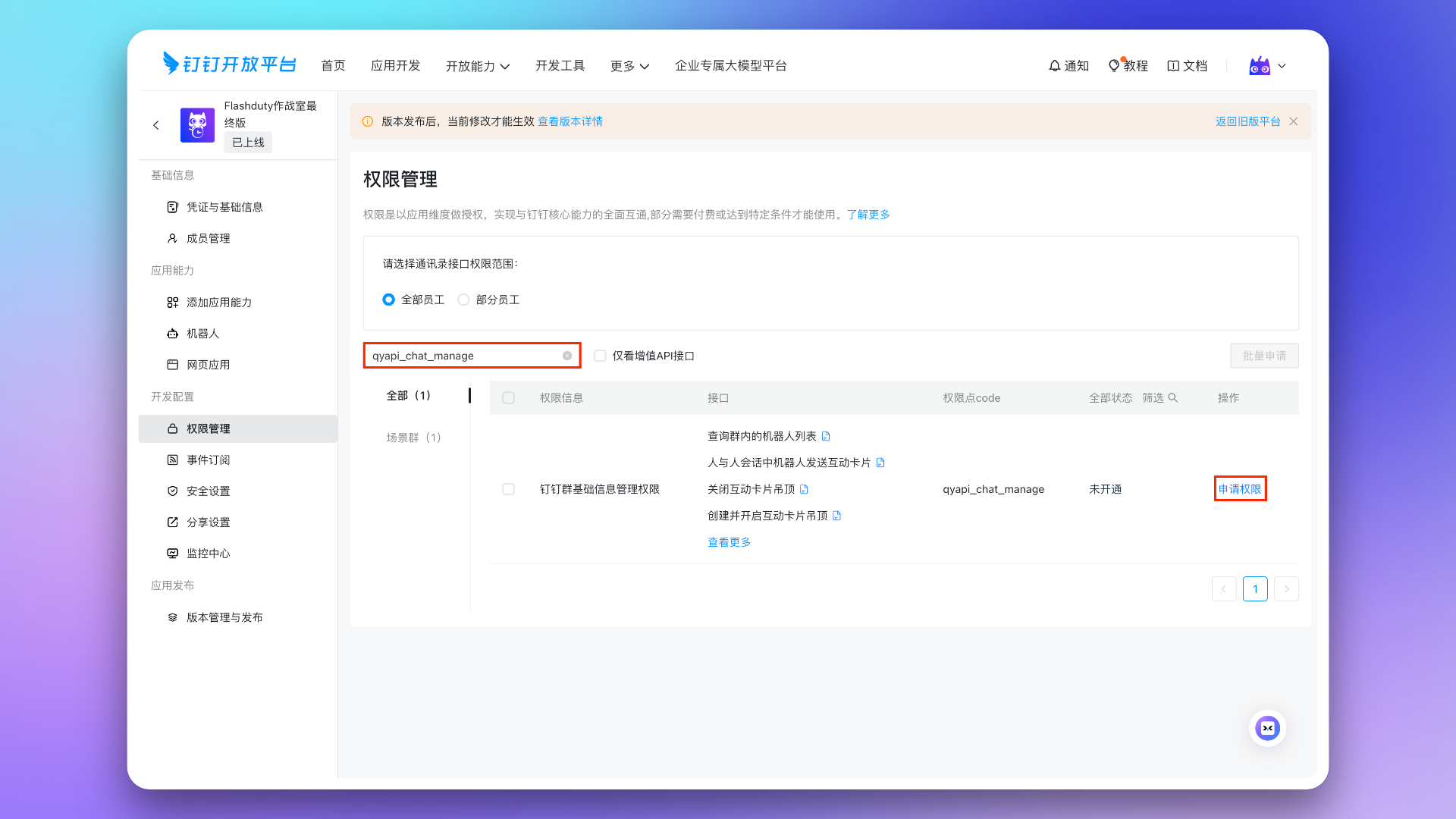
|
+
`,H=`---
|
|
4959
4958
|
title: "ElastAlert2 Alert Integration Guide"
|
|
4960
4959
|
description: "Push alert events to Flashduty through ElastAlert2's Provider to achieve automated alert noise reduction."
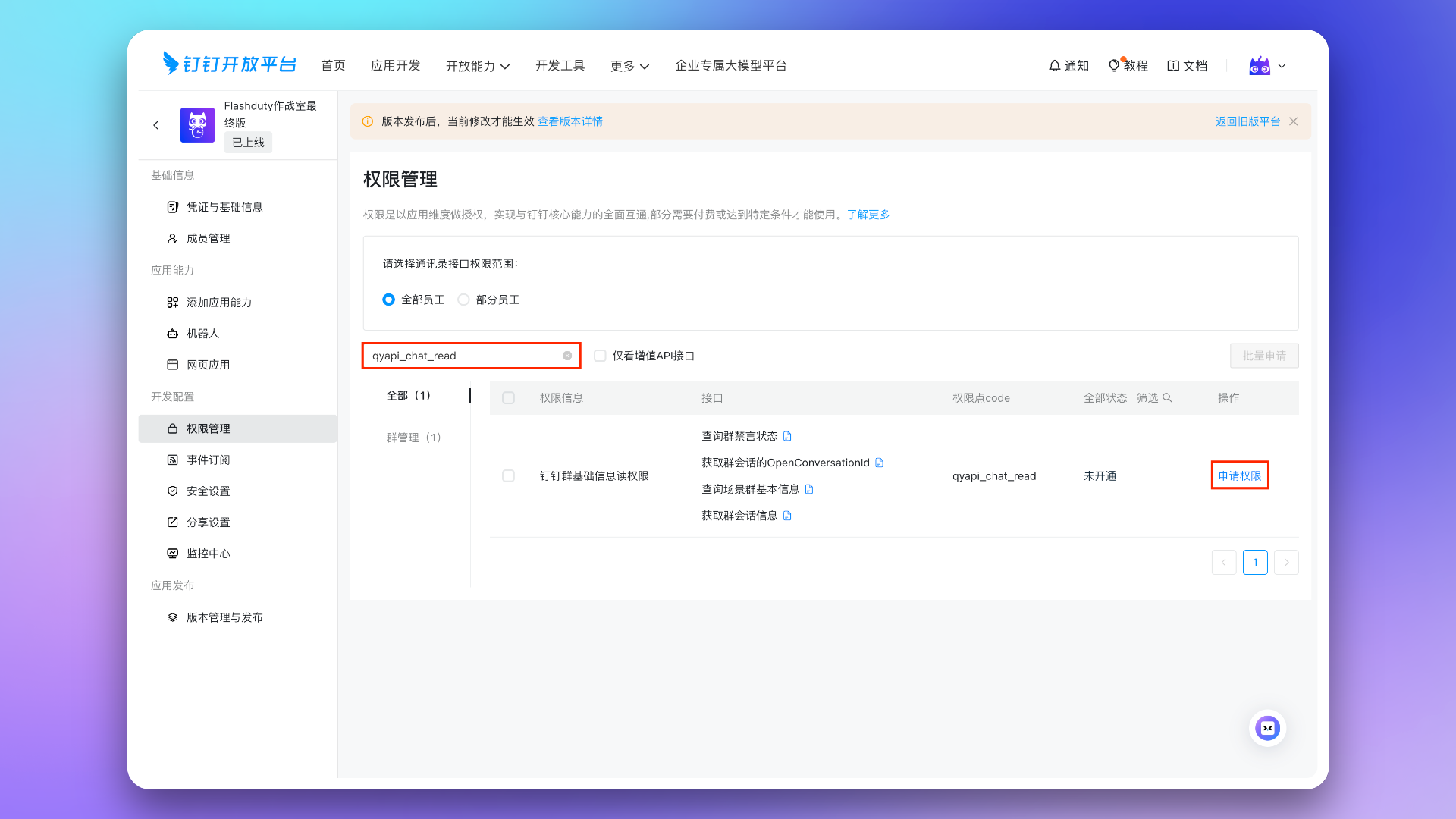
|
|
4961
4960
|
date: "2025-05-19T10:00:00+08:00"
|
|
@@ -5076,7 +5075,7 @@ flashduty_env: "dev"
|
|
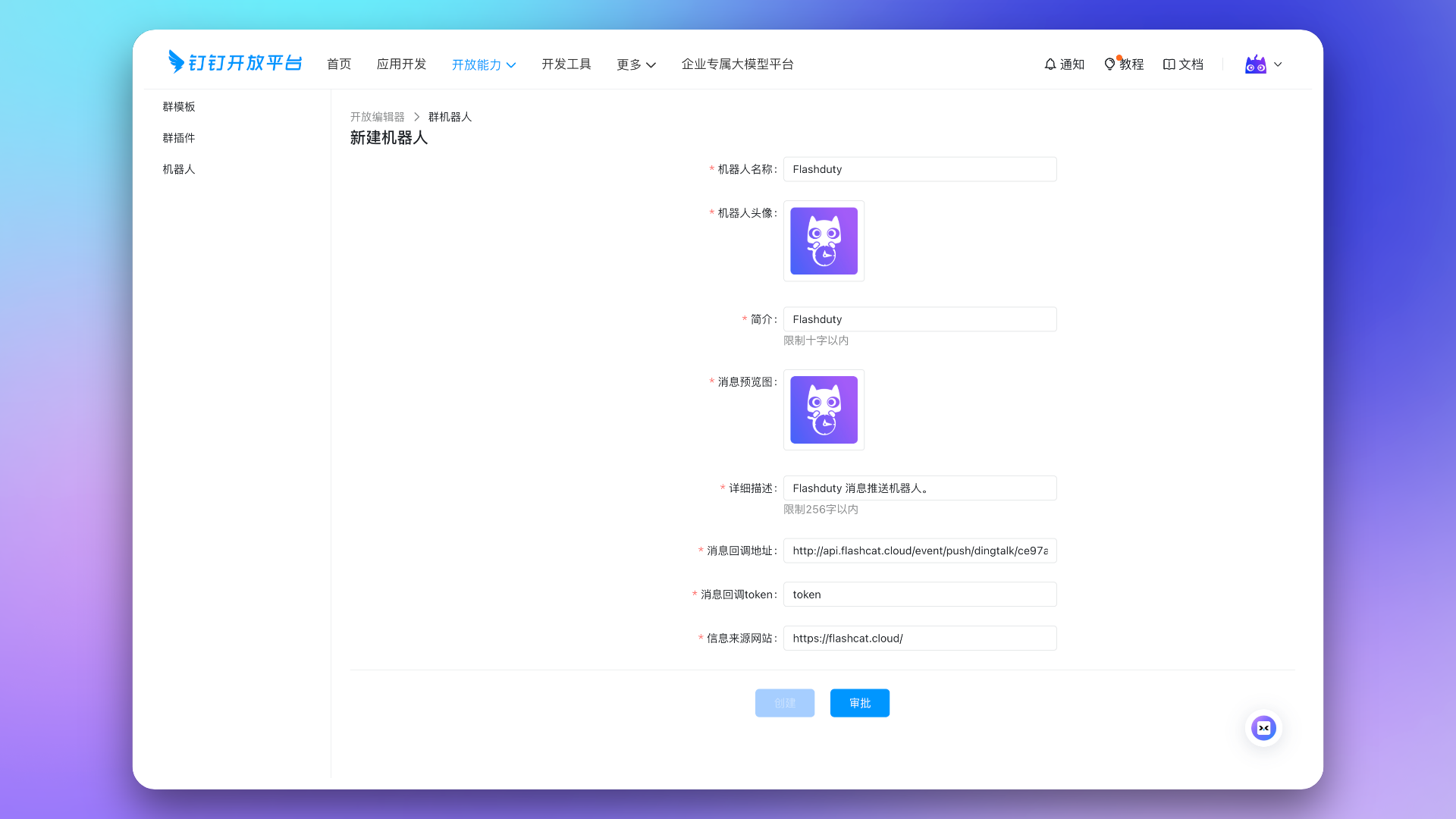
|
5076
5075
|
# ------- FlashDuty ----------------
|
|
5077
5076
|
\`\`\`
|
|
5078
5077
|
|
|
5079
|
-
5. Restart ElastAlert and wait for the alert to trigger
|
|
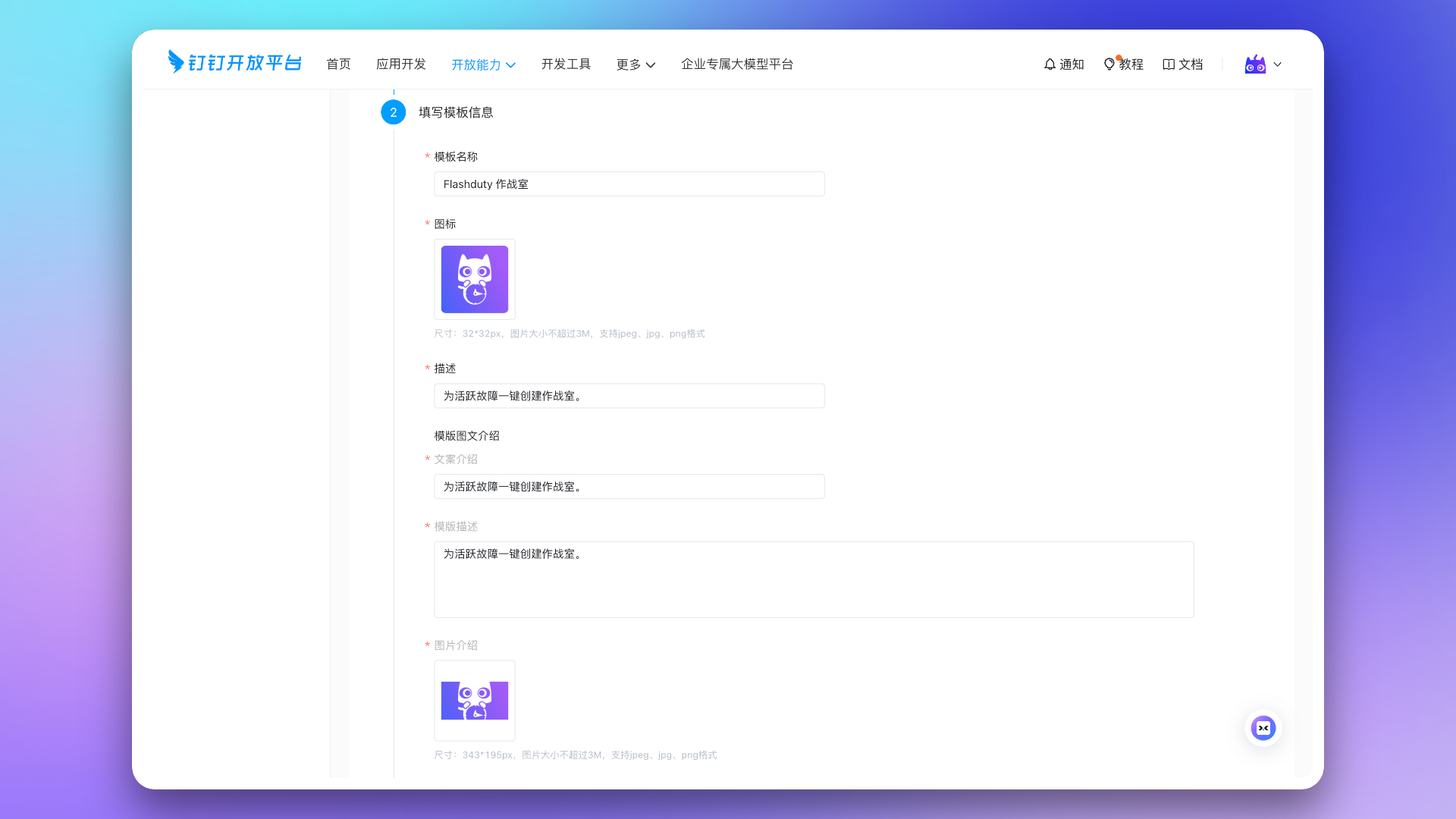
5078
|
+
5. Restart ElastAlert and wait for the alert to trigger.`,Y=`---
|
|
5080
5079
|
title: "Dingtalk Alert Integration"
|
|
5081
5080
|
description: "Generate a unique Dingtalk robot address in Flashduty, and synchronize the occurrence and recovery of alerts through Dingtalk"
|
|
5082
5081
|
date: "2025-05-19T10:00:00+08:00"
|
|
@@ -5157,9 +5156,8 @@ By default, the system always creates new alerts for each message, but you can s
|
|
|
5157
5156
|
## Severity Mapping
|
|
5158
5157
|
---
|
|
5159
5158
|
|
|
5160
|
-
Currently, all alerts pushed to Flashduty through
|
|
5161
|
-
|
|
5162
|
-
`,V=`---
|
|
5159
|
+
Currently, all alerts pushed to Flashduty through the Dingtalk integration are set to Warning severity. However, you can customize the severity using the [alert pipeline](https://docs.flashcat.cloud/en/flashduty/alert-pipelines).
|
|
5160
|
+
`,B=`---
|
|
5163
5161
|
title: "Feishu Alert Integration"
|
|
5164
5162
|
description: "Generate a unique Feishu robot address in Flashduty, and synchronize the occurrence and recovery of alerts through Feishu"
|
|
5165
5163
|
date: "2025-05-19T10:00:00+08:00"
|
|
@@ -5240,9 +5238,8 @@ By default, the system always creates new alerts for each message, but you can s
|
|
|
5240
5238
|
## Severity Mapping
|
|
5241
5239
|
---
|
|
5242
5240
|
|
|
5243
|
-
Currently, all alerts pushed to Flashduty through Feishu
|
|
5244
|
-
|
|
5245
|
-
`,B=`---
|
|
5241
|
+
Currently, all alerts pushed to Flashduty through the Feishu(lark) integration are set to Warning severity. However, you can customize the severity using the [alert pipeline](https://docs.flashcat.cloud/en/flashduty/alert-pipelines).
|
|
5242
|
+
`,z=`---
|
|
5246
5243
|
title: "Volcengine Cloud-Detect Alert Events"
|
|
5247
5244
|
description: "Sync Volcengine Cloud-Detect alert events to Flashduty via webhook for automated alert noise reduction"
|
|
5248
5245
|
date: "2024-07-05T10:00:00+08:00"
|
|
@@ -5298,7 +5295,7 @@ Choose this method when you need to route alerts to different channels based on
|
|
|
5298
5295
|
### Step 1: Create Notification Object
|
|
5299
5296
|
1. Login to your \`Volcengine\` console, find \`Alert Manager\` in the \`Notify Object\` menu
|
|
5300
5297
|
2. Click \`System Integration\`, click \`Create System Integration\` or edit the existing endpoint
|
|
5301
|
-
3.
|
|
5298
|
+
3. In the edit page, enter Flashduty as the name and fill in the <span class='integration_url'>push URL</span> for the alert integration in the URL field.
|
|
5302
5299
|
5. Click \`OK\` to complete the configuration
|
|
5303
5300
|
|
|
5304
5301
|
<img alt="drawing" width="600" src="https://download.flashcat.cloud/flashduty/doc/zh/fd/volcengine-1.png" />
|
|
@@ -5324,7 +5321,7 @@ Choose this method when you need to route alerts to different channels based on
|
|
|
5324
5321
|
|
|
5325
5322
|
</div>
|
|
5326
5323
|
|
|
5327
|
-
`,
|
|
5324
|
+
`,V=`---
|
|
5328
5325
|
title: "Monit Alert Integration"
|
|
5329
5326
|
description: "Flashduty Monit alert integration, Monit service reports alerts through this integration"
|
|
5330
5327
|
date: "2025-05-19T10:00:00+08:00"
|
|
@@ -5344,7 +5341,7 @@ Go to the \`Monit\` - \`Alert Rules\` - \`Rule Details\` page to configure monit
|
|
|
5344
5341
|
|
|
5345
5342
|
|
|
5346
5343
|
In some cases, you may want to route alerts generated by the same alert rule to different channels based on conditions. In this case, you can choose to deliver alerts directly to the integration rather than to the channels, and set routing rules under the current integration.
|
|
5347
|
-
`,
|
|
5344
|
+
`,J=`---
|
|
5348
5345
|
title: "RUM Alert Integration"
|
|
5349
5346
|
description: "Flashduty RUM alert integration, RUM service reports alerts through this integration"
|
|
5350
5347
|
date: "2025-05-19T10:00:00+08:00"
|
|
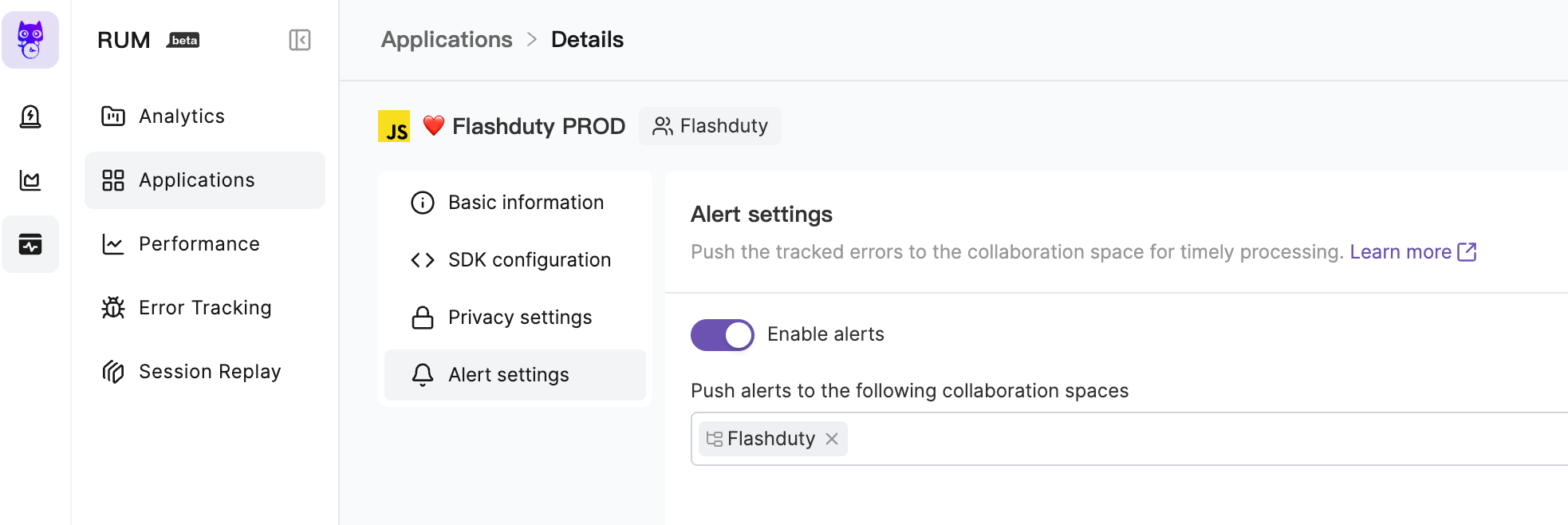
@@ -5364,7 +5361,78 @@ Go to the \`RUM\` - \`Application Details\` - \`Alert Settings\` page to enable
|
|
|
5364
5361
|
|
|
5365
5362
|
|
|
5366
5363
|
For more information, please refer to [RUM Issue Alerting](https://docs.flashcat.cloud/en/flashduty/rum/issue-alerting?nav=01JCQ7A4N4WRWNXW8EWEHXCMF5).
|
|
5367
|
-
`,
|
|
5364
|
+
`,K=`---
|
|
5365
|
+
title: "Cloudflare Alert Events"
|
|
5366
|
+
description: "Sync Cloudflaret alert events to Flashduty via webhook for automated alert noise reduction"
|
|
5367
|
+
date: "2024-07-05T10:00:00+08:00"
|
|
5368
|
+
url: "https://docs.flashcat.cloud/en/flashduty/Cloudflare-integration-guide"
|
|
5369
|
+
---
|
|
5370
|
+
|
|
5371
|
+
Sync Cloudflare alert events to Flashduty via webhook for automated alert noise reduction.
|
|
5372
|
+
|
|
5373
|
+
<div class="hide">
|
|
5374
|
+
|
|
5375
|
+
## In Flashduty
|
|
5376
|
+
---
|
|
5377
|
+
You can obtain an integration push URL through either of these two methods:
|
|
5378
|
+
|
|
5379
|
+
### Using Private Integration
|
|
5380
|
+
|
|
5381
|
+
Choose this method when you don't need to route alert events to different channels - it's simpler.
|
|
5382
|
+
|
|
5383
|
+
<details>
|
|
5384
|
+
<summary>Expand</summary>
|
|
5385
|
+
|
|
5386
|
+
1. Go to the Flashduty console, select **Channel**, and enter a channel's details page
|
|
5387
|
+
2. Select the **Integrations** tab, click **Add Integration** to enter the integration page
|
|
5388
|
+
3. Choose **Cloudflare** integration and click **Save** to generate a card
|
|
5389
|
+
4. Click the generated card to view the **Push URL**, copy it for later use, and you're done
|
|
5390
|
+
|
|
5391
|
+
</details>
|
|
5392
|
+
|
|
5393
|
+
### Using Shared Integration
|
|
5394
|
+
|
|
5395
|
+
Choose this method when you need to route alerts to different channels based on the alert event payload.
|
|
5396
|
+
|
|
5397
|
+
<details>
|
|
5398
|
+
<summary>Expand</summary>
|
|
5399
|
+
|
|
5400
|
+
1. Go to the Flashduty console, select **Integration Center=>Alert Events** to enter the integration selection page
|
|
5401
|
+
2. Select **Cloudflare** integration:
|
|
5402
|
+
- **Integration Name**: Define a name for this integration
|
|
5403
|
+
3. Configure the default route and select the corresponding channel (after the integration is created, you can go to \`Route\` to configure more routing rules)
|
|
5404
|
+
4. Click **Save** and copy the newly generated **push URL** for later use
|
|
5405
|
+
5. Done
|
|
5406
|
+
|
|
5407
|
+
</details>
|
|
5408
|
+
</div>
|
|
5409
|
+
|
|
5410
|
+
|
|
5411
|
+
## In Cloudflare
|
|
5412
|
+
---
|
|
5413
|
+
|
|
5414
|
+
<div class="md-block">
|
|
5415
|
+
|
|
5416
|
+
## 一、Create Notification Object
|
|
5417
|
+
1. Log in to the \`Cloudflare dashboard\` and select your account.
|
|
5418
|
+
2. Go to \`Notifications\` > \`Destinations\`.
|
|
5419
|
+
3. In the \`Webhooks\` card, select Create.
|
|
5420
|
+
4. In the edit page, enter Flashduty as the name and fill in the <span class='integration_url'>push URL</span> for the alert integration in the URL field.
|
|
5421
|
+
5. Select \`Save and Test\` to finish setting up your webhook.
|
|
5422
|
+
|
|
5423
|
+
After configuring the Webhook channel, you can use it in notification policies.
|
|
5424
|
+
|
|
5425
|
+
</dev>
|
|
5426
|
+
|
|
5427
|
+
## 二、Status Mapping
|
|
5428
|
+
|
|
5429
|
+
<div class="md-block">
|
|
5430
|
+
|
|
5431
|
+
Currently, all alerts pushed to Flashduty through the Cloudflare integration are set to Warning severity. However, you can customize the severity using the [alert pipeline](https://docs.flashcat.cloud/en/flashduty/alert-pipelines).
|
|
5432
|
+
|
|
5433
|
+
</div>
|
|
5434
|
+
|
|
5435
|
+
`,Z=`---
|
|
5368
5436
|
title: "Custom Change Event Integration Guide"
|
|
5369
5437
|
description: "Push change events from your own systems to Flashduty using standard protocols. Most incidents are caused by changes, and the correlation between changes and alerts helps quickly identify incident causes."
|
|
5370
5438
|
date: "2025-05-19T10:00:00+08:00"
|
|
@@ -5392,7 +5460,7 @@ Flashduty has already adapted webhook protocols for several commonly used ticket
|
|
|
5392
5460
|
## Implementation Protocol
|
|
5393
5461
|
---
|
|
5394
5462
|
|
|
5395
|
-
Please refer to the [Developer Documentation](https://developer.flashcat.cloud/en/flashduty/event-api/change-event) to complete the protocol development.
|
|
5463
|
+
Please refer to the [Developer Documentation](https://developer-en.flashcat.cloud/en/flashduty/event-api/change-event) to complete the protocol development.
|
|
5396
5464
|
|
|
5397
5465
|
## Best Practices
|
|
5398
5466
|
---
|
|
@@ -5421,7 +5489,7 @@ Labels are descriptions of events. You should enrich label content as much as po
|
|
|
5421
5489
|
|
|
5422
5490
|
</details>
|
|
5423
5491
|
|
|
5424
|
-
`,
|
|
5492
|
+
`,Q=`---
|
|
5425
5493
|
title: "Jira Issue Events"
|
|
5426
5494
|
description: "Sync Jira Issue events to Flashduty via webhooks to collect change events."
|
|
5427
5495
|
date: "2025-05-19T10:00:00+08:00"
|
|
@@ -5495,559 +5563,663 @@ Flashduty extracts the status.name information from the webhook payload by defau
|
|
|
5495
5563
|
Please contact Flashduty if you wish to modify this mapping.
|
|
5496
5564
|
|
|
5497
5565
|
</div>
|
|
5498
|
-
`,
|
|
5499
|
-
title:
|
|
5500
|
-
description:
|
|
5501
|
-
|
|
5502
|
-
|
|
5503
|
-
|
|
5504
|
-
Integrate with Feishu(Lark) custom application to receive and respond to alerts within Feishu/Lark.
|
|
5505
|
-
|
|
5506
|
-
<!--
|
|
5507
|
-
## Video Tutorial
|
|
5566
|
+
`,X=`---
|
|
5567
|
+
title: "Feishu/Lark Integration"
|
|
5568
|
+
description: "By integrating a custom Feishu/Lark application, you can receive and respond to alerts within Feishu/Lark."
|
|
5569
|
+
date: "2025-05-19T10:00:00+08:00"
|
|
5570
|
+
url: "https://docs.flashcat.cloud/en/flashduty/lark-integration-guide?nav=01JCQ7A4N4WRWNXW8EWEHXCMF5"
|
|
5508
5571
|
---
|
|
5509
|
-
|
|
5510
|
-
-->
|
|
5572
|
+
By integrating a custom Feishu/Lark application, you can receive and respond to alerts within Feishu/Lark.
|
|
5511
5573
|
|
|
5512
|
-
##
|
|
5574
|
+
## 1. Create Feishu/Lark application
|
|
5513
5575
|
---
|
|
5514
5576
|
|
|
5515
|
-
### 1. Create
|
|
5577
|
+
### 1. Create a custom application
|
|
5516
5578
|
|
|
5517
|
-
Visit [Feishu/Lark Developer Console](https://open.feishu.cn/app)
|
|
5579
|
+
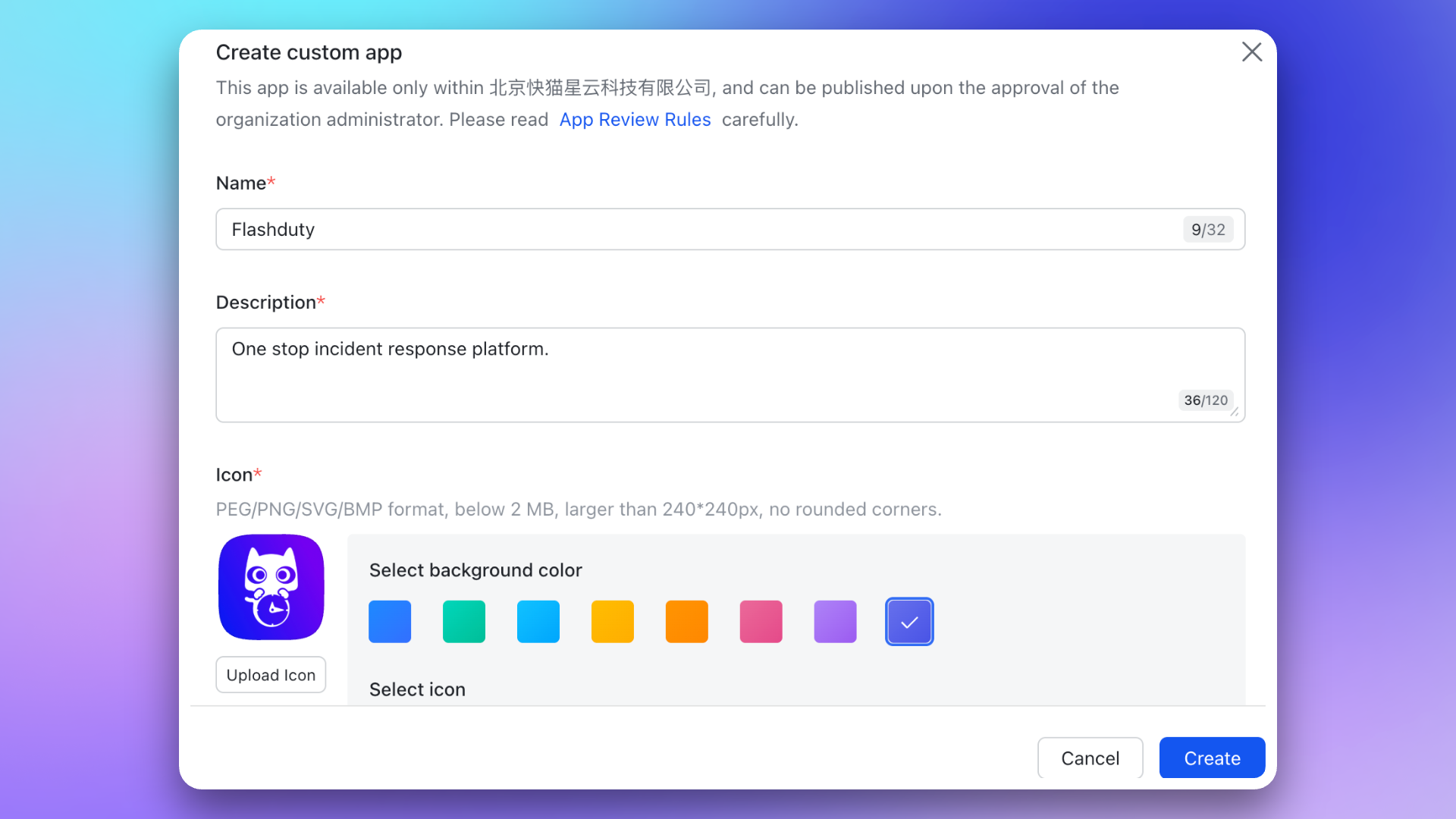
Visit [Feishu/Lark Developer Console](https://open.feishu.cn/app) and create an internal custom application. You can use the [official Flashduty icon](https://download.flashcat.cloud/flashcat_logo_circular.png) for the application icon.
|
|
5518
5580
|
|
|
5519
|
-
|
|
5581
|
+
For details, see the Feishu/Lark development documentation [Create an internal custom application](https://open.feishu.cn/document/uYjL24iN/uMTMuMTMuMTM/development-guide/step1#132c1aac).
|
|
5520
5582
|
|
|
5521
|
-
|
|
5583
|
+
|
|
5584
|
+
### 2. Copy credential information
|
|
5522
5585
|
|
|
5523
|
-
|
|
5586
|
+
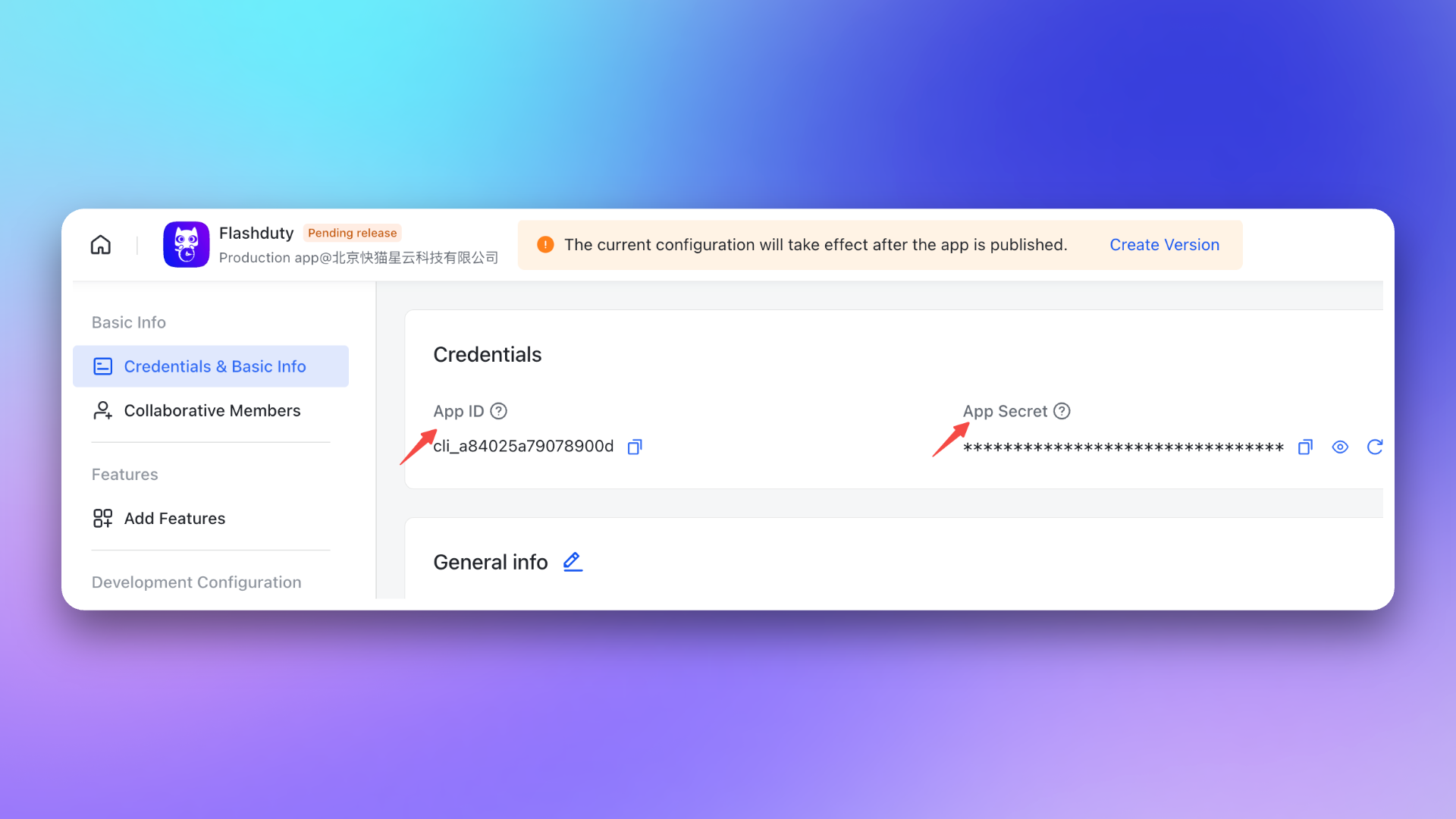
Go to the **Credentials and Basic Information** page and copy the \`App ID\` and \`App Secret\` for later use.
|
|
5524
5587
|
|
|
5525
|
-
Go to the **Credentials & Basic Info** page, copy the \`App ID\` and \`App Secret\` for later use.
|
|
5526
5588
|
|
|
5527
|
-
|
|
5589
|
+
|
|
5528
5590
|
|
|
5529
|
-
### 3. Copy
|
|
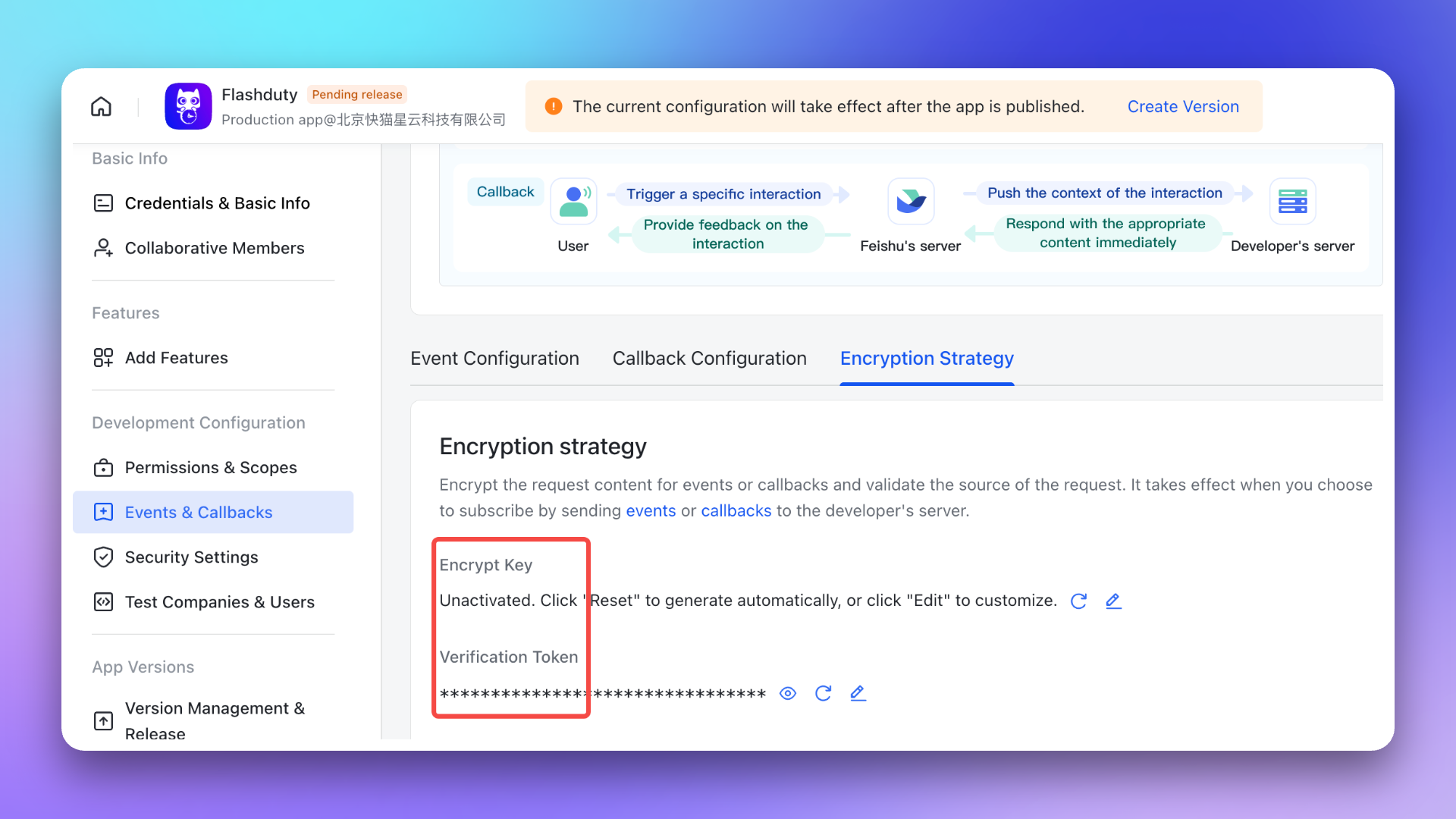
5591
|
+
### 3. Copy the event callback Token information
|
|
5530
5592
|
|
|
5531
|
-
Go to
|
|
5593
|
+
Go to Development Configuration → Events & Callbacks → **Encryption Strategy** page, generate and copy the \`Encrypt Key\` (recommended for better security) and \`Verification Token\` for later use.
|
|
5532
5594
|
|
|
5533
|
-
|
|
5595
|
+
|
|
5534
5596
|
|
|
5535
|
-
##
|
|
5597
|
+
## 2. Add Feishu/Lark integration
|
|
5536
5598
|
---
|
|
5537
5599
|
|
|
5538
|
-
Return to Flashduty **Integration Center** page, select
|
|
5539
|
-
|
|
5540
|
-
<img src="https://download.flashcat.cloud/flashduty/doc/en/feishu/feishu-4.png" alt="drawing" width="800"/>
|
|
5600
|
+
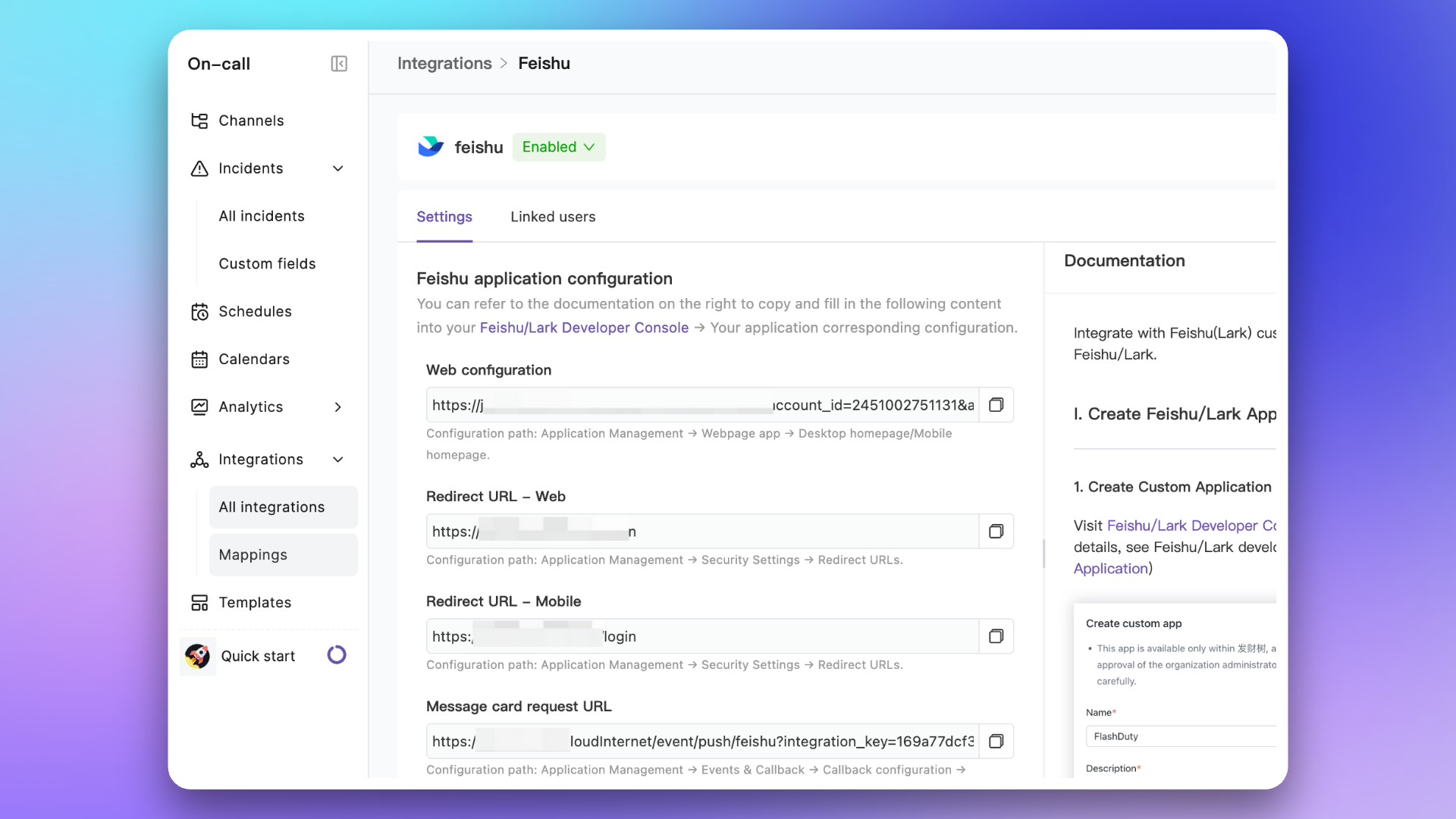
Return to the Flashduty **Integration Center** page, select IM → **Feishu/Lark**, fill in the \`Name\` and the \`App ID\`, \`App Secret\`, \`Verification Token\`, and \`Encrypt Key\` copied in the previous step, then click **Save** to complete the creation.
|
|
5541
5601
|
|
|
5542
|
-
After creation, you
|
|
5602
|
+
After successful creation, you will see the added Feishu/Lark integration in the list. Click its name to enter the details page, where you can view the **Web Configuration** address, **Redirect URL**, and **Message Card Request URL**, which will be used in subsequent steps.
|
|
5543
5603
|
|
|
5544
|
-
|
|
5604
|
+
|
|
5545
5605
|
|
|
5546
|
-
##
|
|
5606
|
+
## 3. Configure Feishu/Lark application
|
|
5547
5607
|
---
|
|
5548
5608
|
|
|
5549
|
-
### 1. Enable and
|
|
5609
|
+
### 1. Enable and configure application capabilities
|
|
5550
5610
|
|
|
5551
|
-
1
|
|
5611
|
+
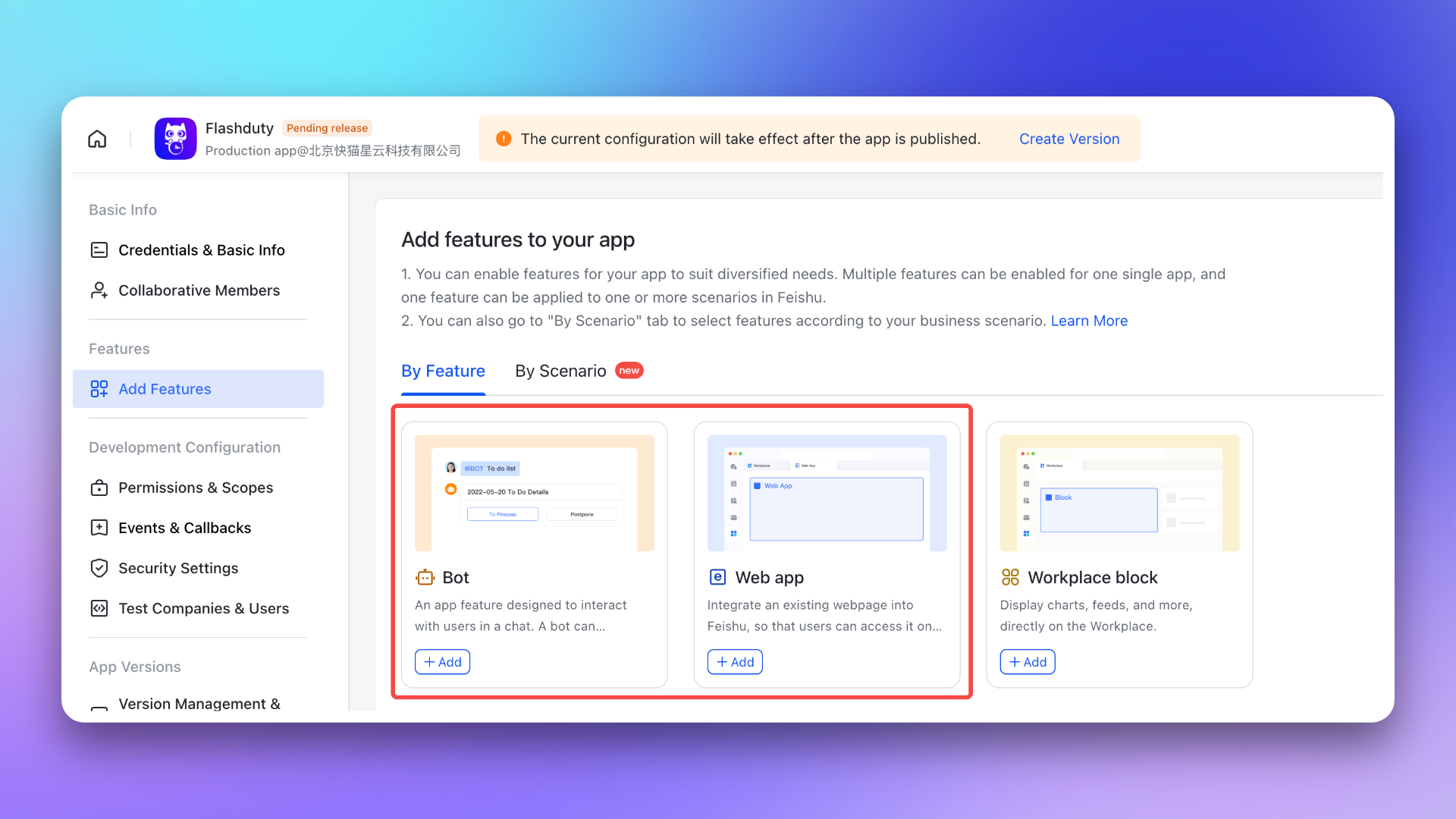
1. Return to the Feishu/Lark Developer Console, enter the created Feishu/Lark application, go to Add Application Capabilities → **Add by Capability** page, and enable both **Web Application** and **Bot** capabilities.
|
|
5552
5612
|
|
|
5553
|
-
|
|
5613
|
+
|
|
5554
5614
|
|
|
5555
|
-
2
|
|
5615
|
+
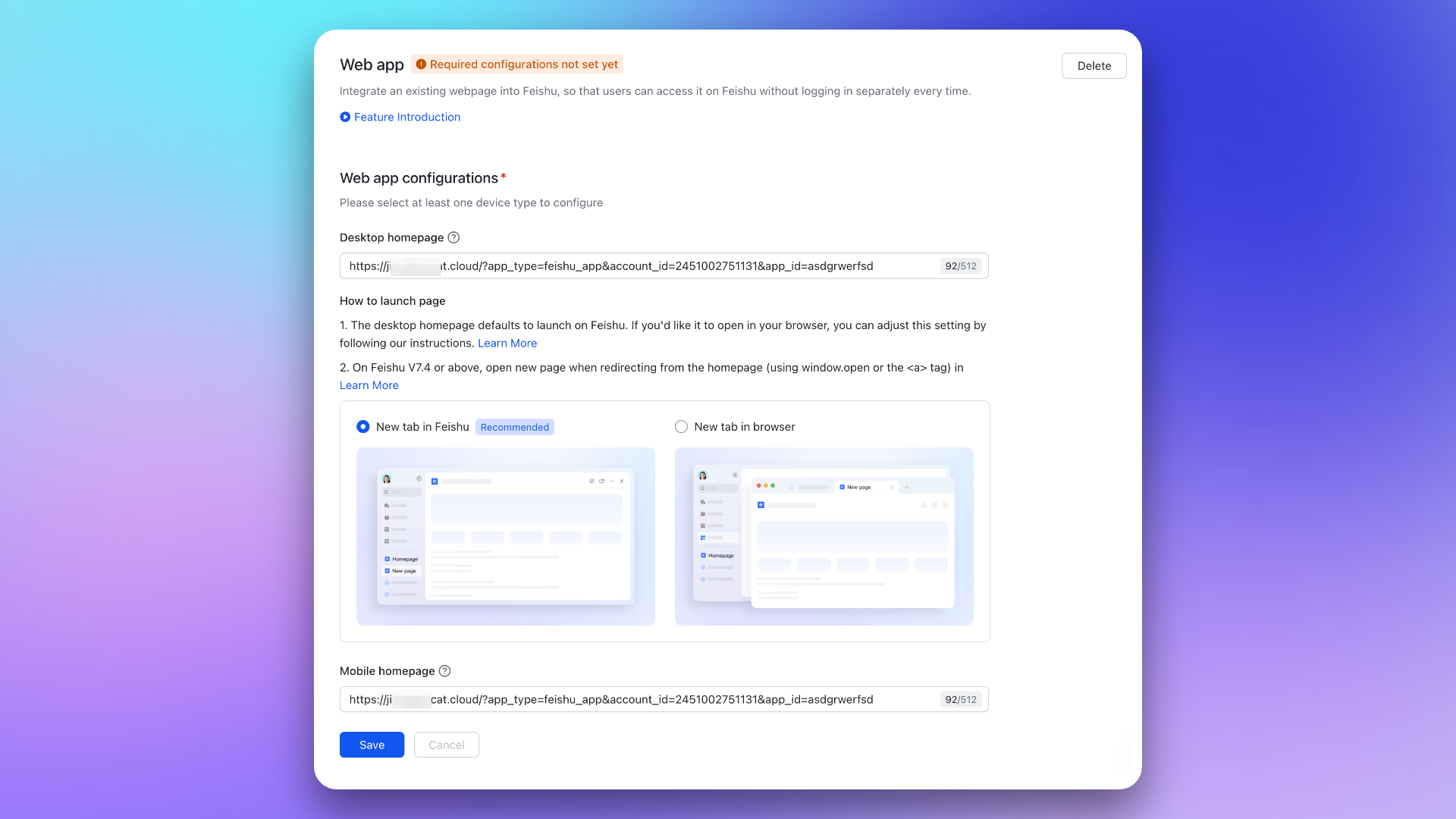
2. Go to the **Web app** page and configure the \`Desktop Homepage\` and \`Mobile Homepage\`, both using the **Web configuration** address from the integration details.
|
|
5556
5616
|
|
|
5557
|
-
|
|
5617
|
+
For details, see the Feishu/Lark development documentation [Configure application homepage address](https://open.feishu.cn/document/uYjL24iN/uMTMuMTMuMTM/development-guide/step1#8366b844).
|
|
5558
5618
|
|
|
5559
|
-
|
|
5619
|
+
|
|
5560
5620
|
|
|
5561
|
-
3
|
|
5621
|
+
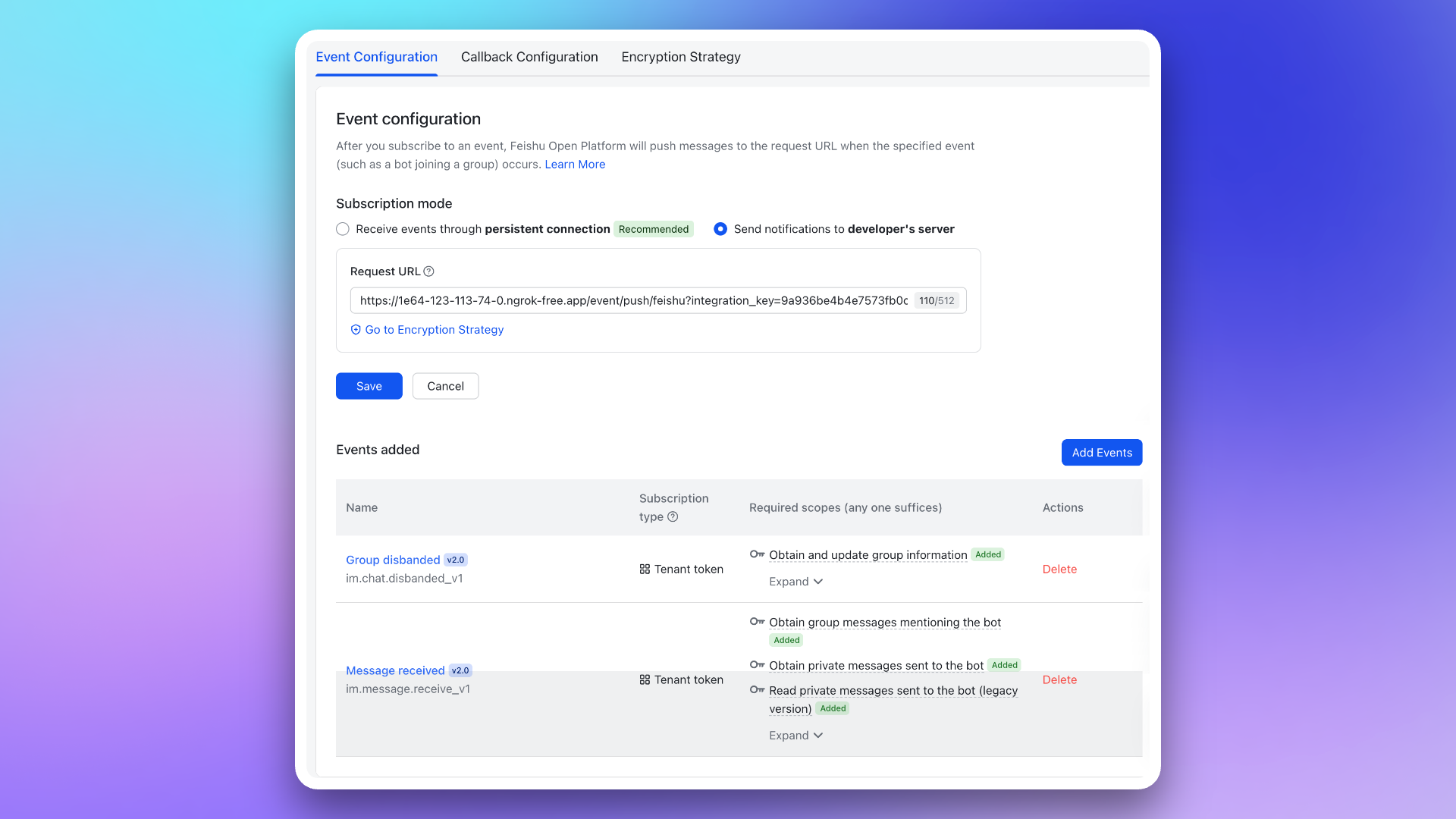
3. Go to Event Callbacks → **Callback Configuration** page, configure the \`Subscription Method\` (using the **Message Card Request URL** from the integration details). Then, subscribe to the following two callback events:
|
|
5562
5622
|
|
|
5563
|
-
|
|
5564
|
-
|
|
5623
|
+
- \`im.message.receive_v1\`
|
|
5624
|
+
- \`im.chat.disbanded_v1\`
|
|
5565
5625
|
|
|
5566
|
-
|
|
5626
|
+
|
|
5567
5627
|
|
|
5568
|
-
|
|
5628
|
+
### 2. Add redirect URL to Feishu/Lark application
|
|
5569
5629
|
|
|
5570
|
-
|
|
5630
|
+
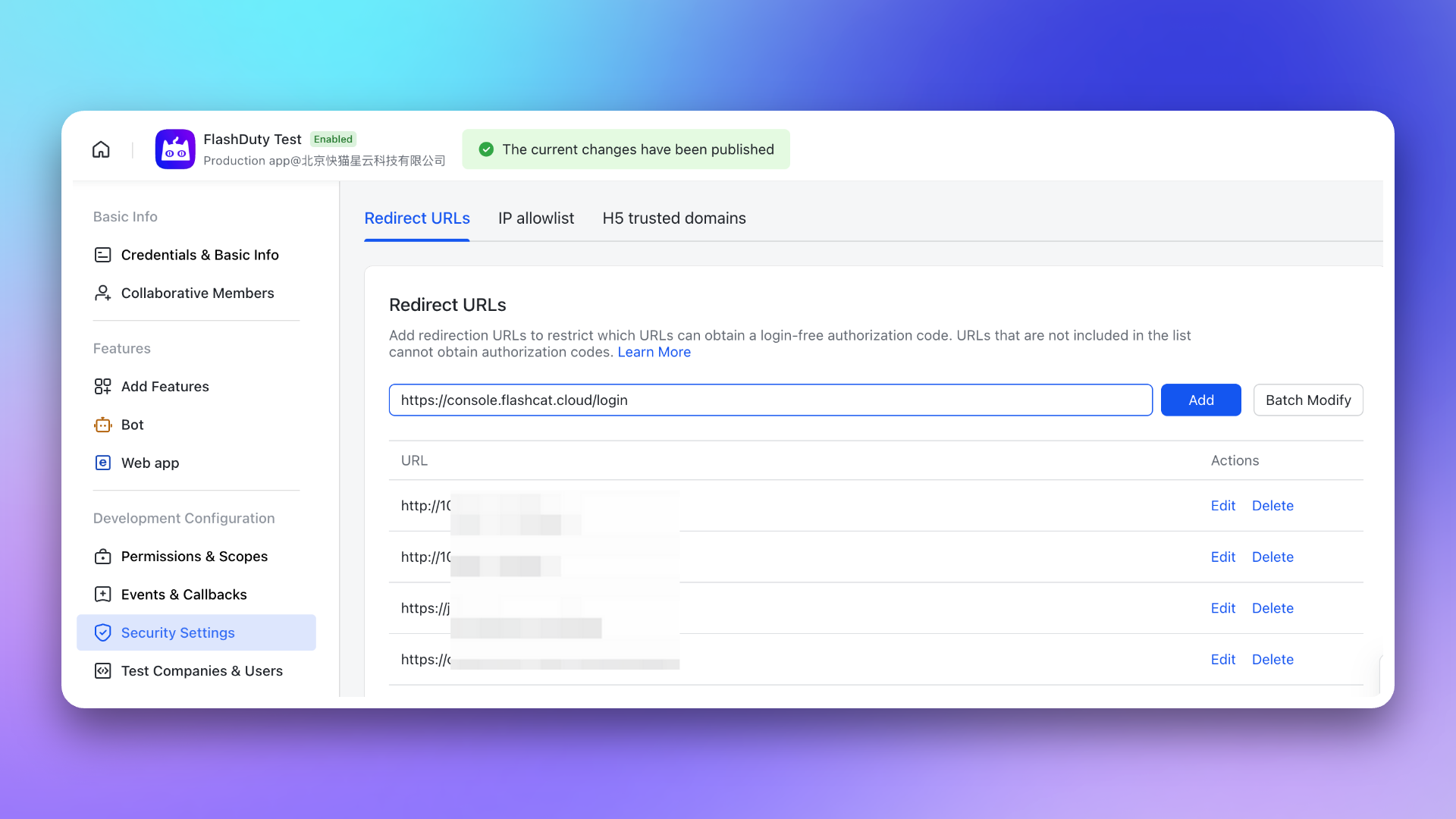
Go to the **Security Settings** page and configure the \`Redirect URL\` using the **Redirect URL** from the integration details.
|
|
5571
5631
|
|
|
5572
|
-
|
|
5632
|
+
For details, see the Feishu/Lark development documentation [Configure redirect URL](https://open.feishu.cn/document/uYjL24iN/uYjN3QjL2YzN04iN2cDN?lang=zh-CN#c863e533).
|
|
5573
5633
|
|
|
5574
|
-
|
|
5634
|
+
|
|
5575
5635
|
|
|
5576
|
-
|
|
5636
|
+
### 3. Apply for application permissions
|
|
5577
5637
|
|
|
5578
|
-
|
|
5638
|
+
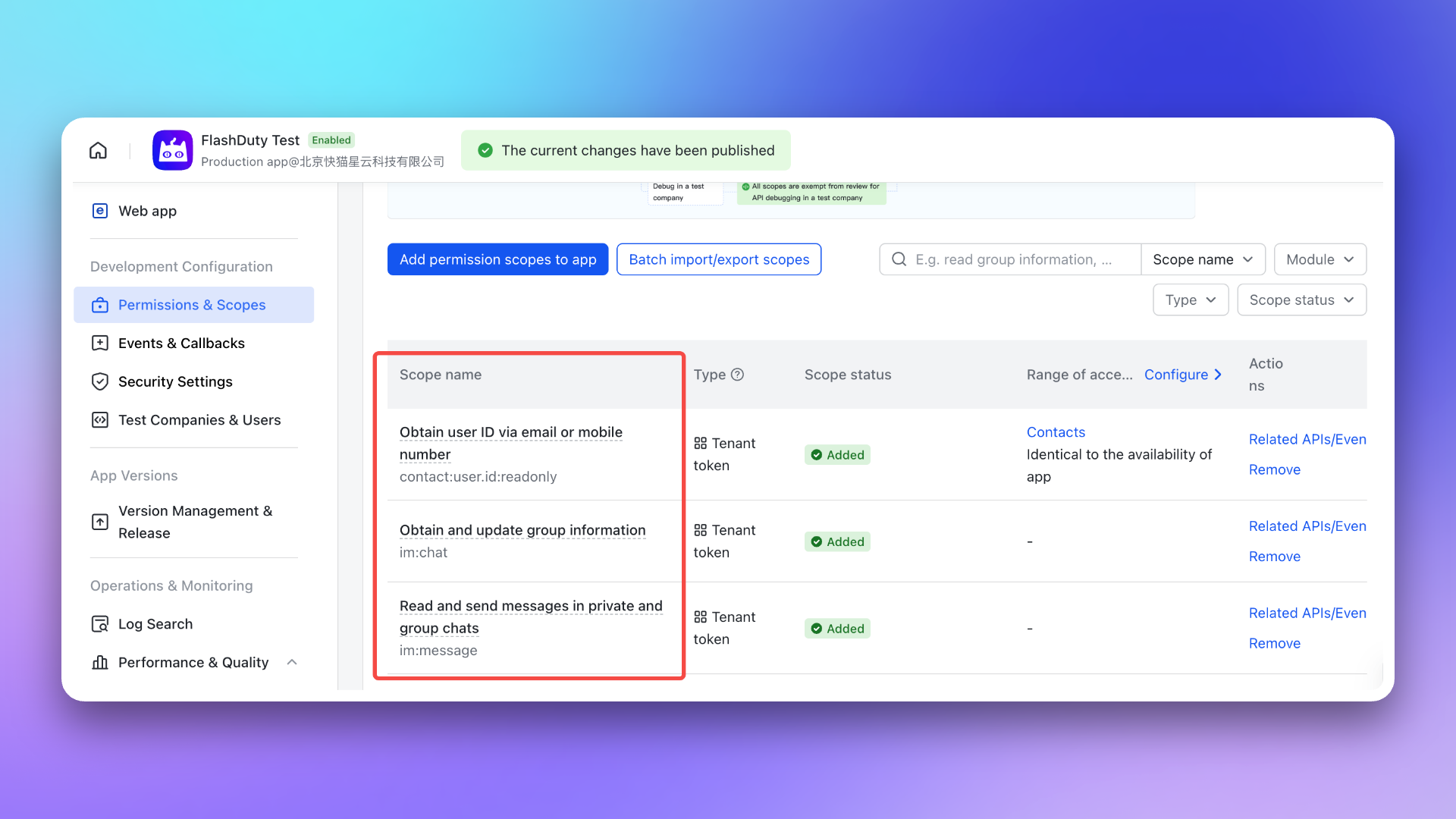
Go to the **Permission Management** page and apply for the following permissions for the group application created in the previous steps:
|
|
5579
5639
|
|
|
5580
|
-
|
|
5581
|
-
|
|
5640
|
+
- \`im:chat\`: Get and update group information
|
|
5641
|
+
- \`im:message\`: Get and send single chat and group messages
|
|
5642
|
+
- \`contact:user.id:readonly\`: Get user ID by phone number or email (for configuring war rooms)<span id="war-room-scope"></span>
|
|
5582
5643
|
|
|
5583
|
-
|
|
5584
|
-
Note: **Available Range** needs special configuration, recommended for **All Employees**.
|
|
5644
|
+
|
|
5585
5645
|
|
|
5586
|
-
|
|
5646
|
+
## 4. Application release
|
|
5647
|
+
---
|
|
5587
5648
|
|
|
5588
|
-
|
|
5649
|
+
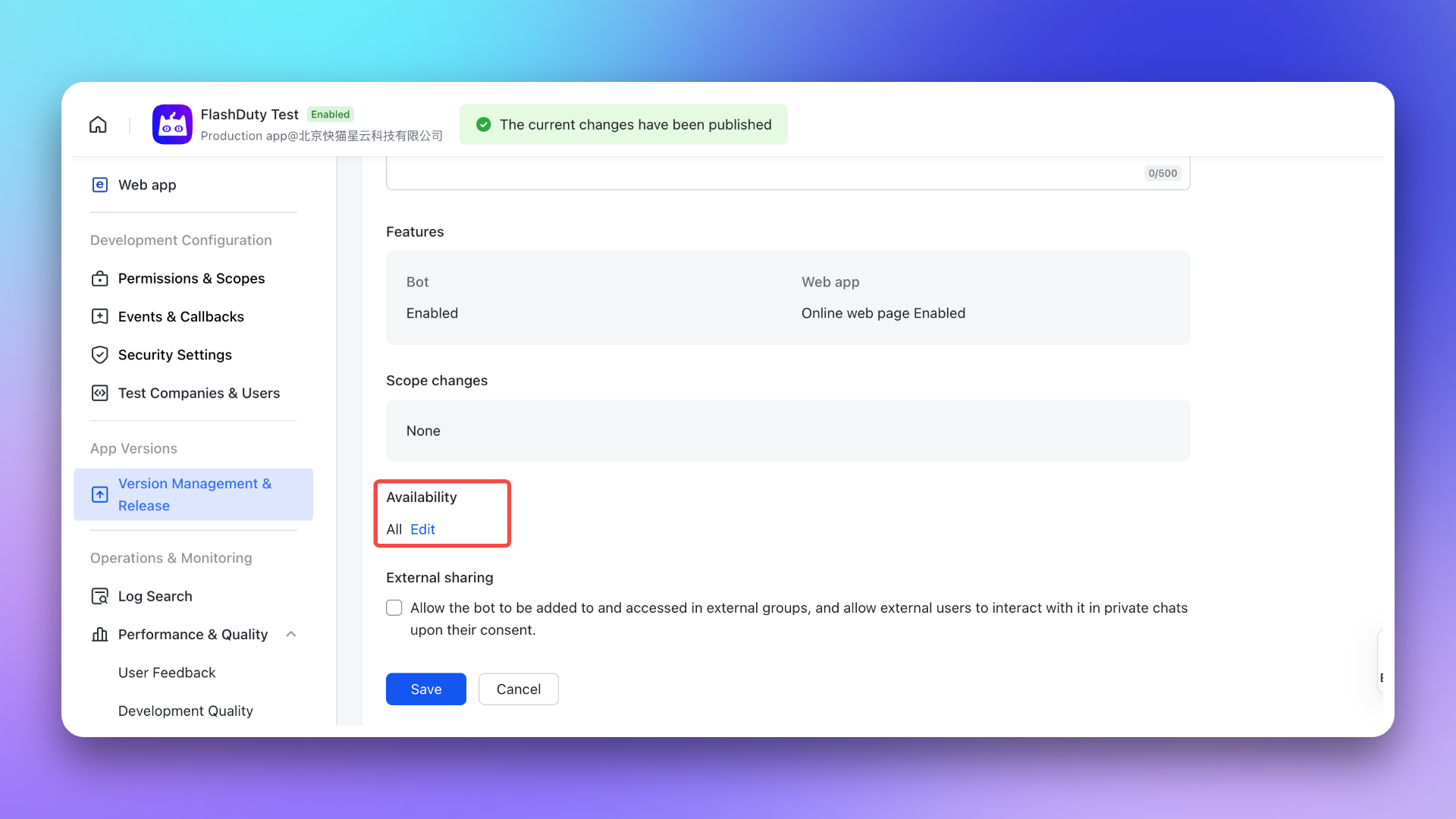
After completing all the above configurations, please release the application. It can be used after administrator approval.
|
|
5589
5650
|
|
|
5590
|
-
|
|
5651
|
+
For details, see the Feishu/Lark development documentation [Application release and usage](https://open.feishu.cn/document/uYjL24iN/uMTMuMTMuMTM/development-guide/step-4).
|
|
5591
5652
|
|
|
5592
|
-
|
|
5593
|
-
|
|
5653
|
+
> To ensure that everyone can use the application, adjust the application **visibility** to all employees before releasing the application.
|
|
5654
|
+
|
|
5655
|
+
|
|
5594
5656
|
|
|
5595
|
-
## V. Common Issues
|
|
5596
|
-
---
|
|
5597
5657
|
|
|
5598
|
-
|
|
5658
|
+
After the application is released, you can access it via **mobile** or **PC**. The first access requires login to link your Feishu/Lark and Flashduty accounts. Subsequent access will be login-free.
|
|
5599
5659
|
|
|
5600
|
-
|
|
5660
|
+
- **Mobile**: Access via Feishu/Lark → Workplace → Search for application name → **Open Application** to use the web application.
|
|
5661
|
+
- **PC**: Access via Feishu/Lark → Workplace → Search for application name → **Open Application** to use the web application.
|
|
5601
5662
|
|
|
5602
|
-
|
|
5663
|
+
|
|
5603
5664
|
|
|
5604
|
-
|
|
5605
|
-
- Ensure sufficient licenses are purchased. You can check license usage in Console > Billing Center
|
|
5665
|
+
## 5. Configure war room
|
|
5606
5666
|
|
|
5607
|
-
|
|
5667
|
+
> Ensure the application has been authorized with the [additional permissions](#war-room-scope) required for the war room feature.
|
|
5608
5668
|
|
|
5609
|
-
|
|
5610
|
-
- Return to the escalation rule configuration page, refresh and reselect the group chat list
|
|
5669
|
+
After completing the previous steps, in the **Enhanced Features** module of the Flashduty integration configuration page, check **Enable War Room** to enable this feature without additional configuration.
|
|
5611
5670
|
|
|
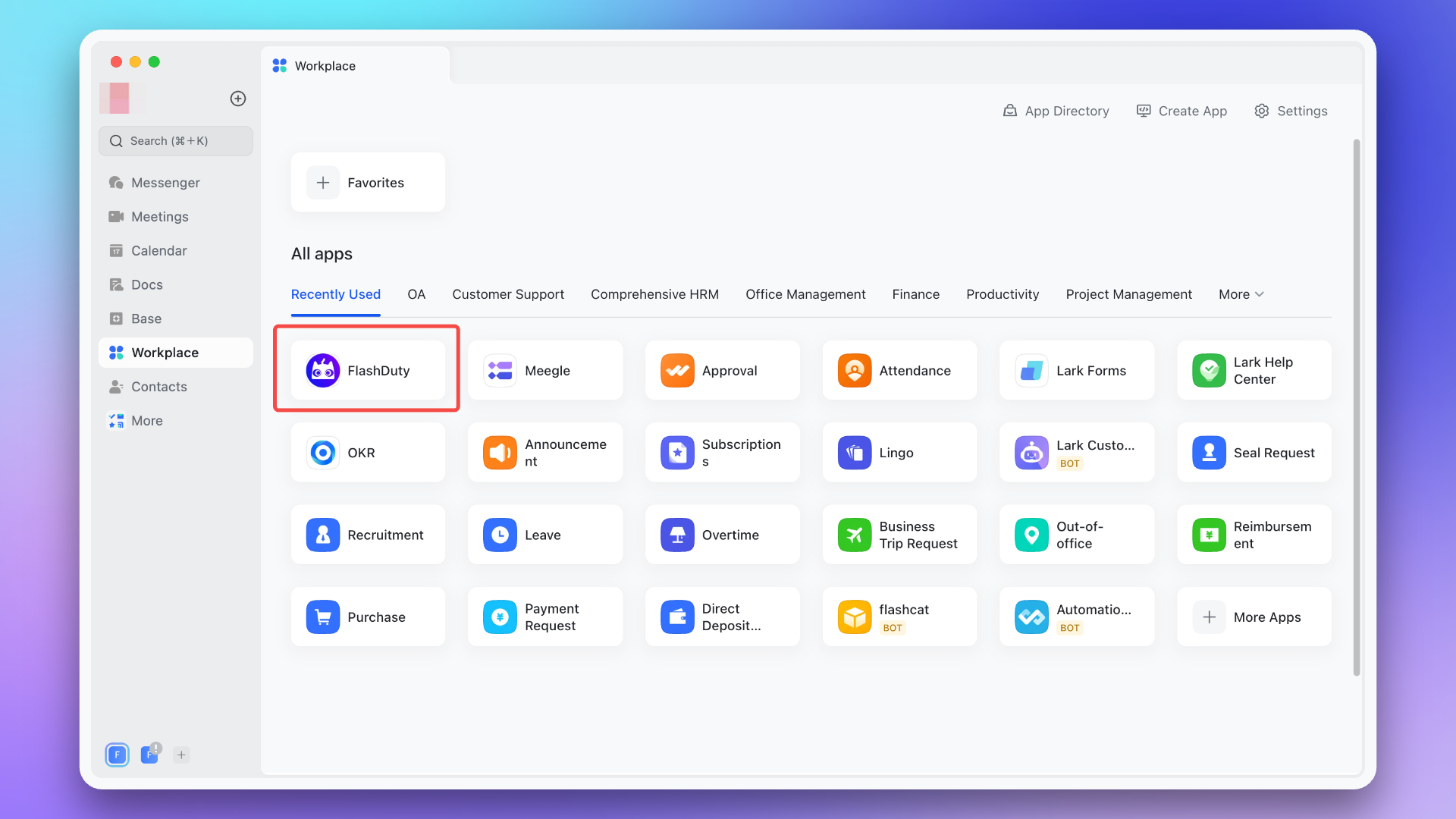
5612
|
-
|
|
5613
|
-
|
|
5671
|
+
## 6. FAQ
|
|
5672
|
+
---
|
|
5614
5673
|
|
|
5615
|
-
|
|
5674
|
+
1. **Messages cannot be delivered to individuals, and the operation log shows \`app not linked\`?**
|
|
5675
|
+
- Go to Feishu/Lark → Workplace → Search for application name → **Open Application**, complete login once to link your Feishu/Lark and Flashduty accounts, so the system can obtain user identity for message push.
|
|
5676
|
+
2. **Message card buttons are unresponsive or show errors?**
|
|
5677
|
+
- Ensure the account has been linked. You can go to Feishu/Lark → Workplace → Search for application name → **Open Application** to complete login once. If you have already logged in, try clicking the menu in the upper right corner, switch accounts, and log in again to bind the account.
|
|
5678
|
+
- Ensure you have purchased sufficient licenses. You can check the license usage in Console → **Billing Center**.
|
|
5679
|
+
3. **The Feishu/Lark group chat list in escalation rules is empty?**
|
|
5680
|
+
- Go to Feishu/Lark and add the created Flashduty bot to the specified group chat.
|
|
5681
|
+
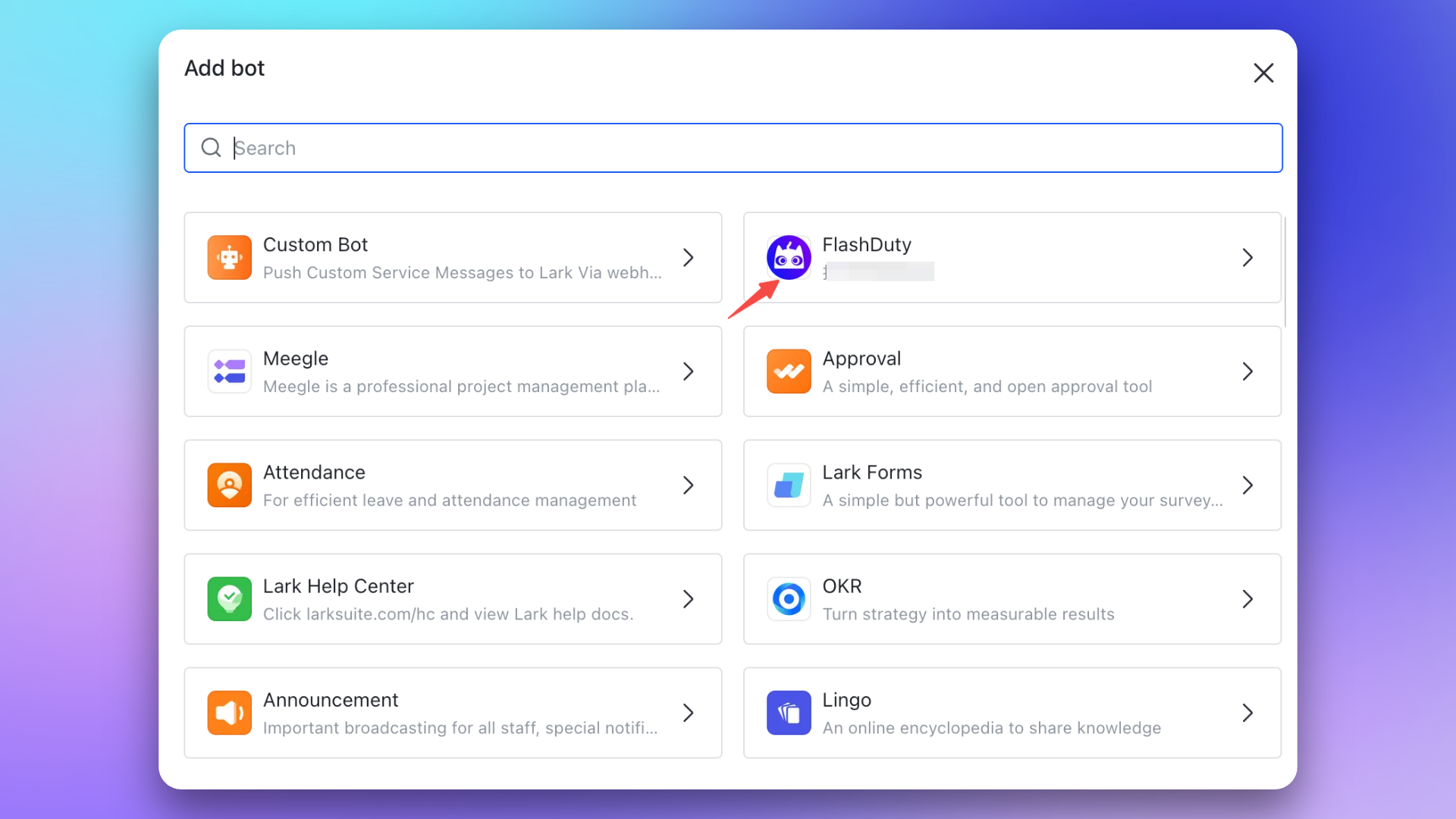
- Return to the escalation rule configuration page, refresh and reselect the group chat list.
|
|
5616
5682
|
|
|
5617
|
-
|
|
5683
|
+
|
|
5618
5684
|
|
|
5619
|
-
|
|
5620
|
-
|
|
5621
|
-
|Basic Free Version|10,000 calls|1st of each month|
|
|
5622
|
-
|Other Versions|Unlimited|-|
|
|
5685
|
+
4. **Feishu/Lark custom application API limits?**
|
|
5686
|
+
- **Call volume limits:**
|
|
5623
5687
|
|
|
5624
|
-
|
|
5688
|
+
| **Feishu/Lark Version** | **Total Calls/Month** | **Refresh Time** |
|
|
5689
|
+
| :---: | :---: | :---: |
|
|
5690
|
+
| Basic Free | 10,000 | 1st of each month |
|
|
5691
|
+
| Other Versions | Unlimited | - |
|
|
5625
5692
|
|
|
5626
|
-
|
|
5627
|
-
| :----------: | :--: |
|
|
5628
|
-
|All APIs|Maximum 50 calls/second per application|
|
|
5629
|
-
|Message Sending API|Maximum 1000 calls/minute per application|
|
|
5630
|
-
|Group Bot Webhook|Maximum 100 calls/minute|
|
|
5631
|
-
|Sending messages to the same user or group|Maximum 5 calls/second|
|
|
5693
|
+
- **Rate limits:**
|
|
5632
5694
|
|
|
5633
|
-
|
|
5695
|
+
| **Scenario** | **Limit** |
|
|
5696
|
+
| :---: | :--- |
|
|
5697
|
+
| All APIs | Max 50 calls/second per app |
|
|
5698
|
+
| Send message APIs | Max 1000 calls/minute per app |
|
|
5699
|
+
| Group bot webhook | Max 100 calls/minute |
|
|
5700
|
+
| Send to same user or group | Max 5 calls/second |
|
|
5701
|
+
|
|
5702
|
+
> After exceeding API call limits, the Feishu/Lark application will not be able to push messages normally. It is recommended to use notification channels reasonably. See [Feishu/Lark official documentation](https://open.feishu.cn/document/uAjLw4CM/ugTN1YjL4UTN24CO1UjN/platform-updates-/custom-app-api-call-limit) for details.
|
|
5703
|
+
5. **Why is the war room feature not working as expected?**
|
|
5704
|
+
- Please check again whether you have configured the [required permissions](#war-room-scope) for the war room feature.
|
|
5705
|
+
- Please refer to the **FAQ** section of the Flashduty [War Room Introduction](https://docs.flashcat.cloud/en/flashduty/war-room?nav=01JCQ7A4N4WRWNXW8EWEHXCMF5).`,ee=`---
|
|
5634
5706
|
title: "Dingtalk Integration"
|
|
5635
|
-
description: "
|
|
5707
|
+
description: "By integrating a custom Dingtalk application, you can receive and respond to alerts within Dingtalk."
|
|
5636
5708
|
date: "2025-05-19T10:00:00+08:00"
|
|
5637
|
-
url: "https://docs.flashcat.cloud/en/flashduty/dingtalk-integration-guide"
|
|
5709
|
+
url: "https://docs.flashcat.cloud/en/flashduty/dingtalk-integration-guide?nav=01JCQ7A4N4WRWNXW8EWEHXCMF5"
|
|
5638
5710
|
---
|
|
5639
5711
|
|
|
5640
|
-
|
|
5712
|
+
By integrating a custom Dingtalk application, you can receive and respond to alerts within Dingtalk.
|
|
5713
|
+
|
|
5714
|
+
> This document uses the new version of the Dingtalk Open Platform as an example.
|
|
5715
|
+
|
|
5716
|
+
|
|
5717
|
+
## I. Create Dingtalk Application and Add Dingtalk Integration
|
|
5641
5718
|
|
|
5642
|
-
**(This guide uses the new version of Dingtalk Open Platform as an example)**
|
|
5643
|
-
<!--
|
|
5644
|
-
## Video Tutorial
|
|
5645
|
-
---
|
|
5646
|
-
<Video src="https://download.flashcat.cloud/flashduty/video/dingding.mp4"></Video>
|
|
5647
|
-
-->
|
|
5648
|
-
## I. Create Dingtalk Application
|
|
5649
5719
|
---
|
|
5650
5720
|
|
|
5651
|
-
### 1. Create Custom Application
|
|
5721
|
+
### 1. Create a Custom Application
|
|
5652
5722
|
|
|
5653
|
-
Visit [Dingtalk Developer Console](https://open-dev.dingtalk.com/fe/app)
|
|
5723
|
+
Visit the [Dingtalk Developer Console](https://open-dev.dingtalk.com/fe/app) → Application Development → **Internal Enterprise Development** to create an application.
|
|
5654
5724
|
|
|
5655
|
-
|
|
5725
|
+
For details, please refer to the Dingtalk development documentation [Create an in-house application-H5 micro-application](https://open.dingtalk.com/document/orgapp/microapplication-creation-and-release-process#title-ovn-666-1ty).
|
|
5656
5726
|
|
|
5657
|
-
|
|
5727
|
+
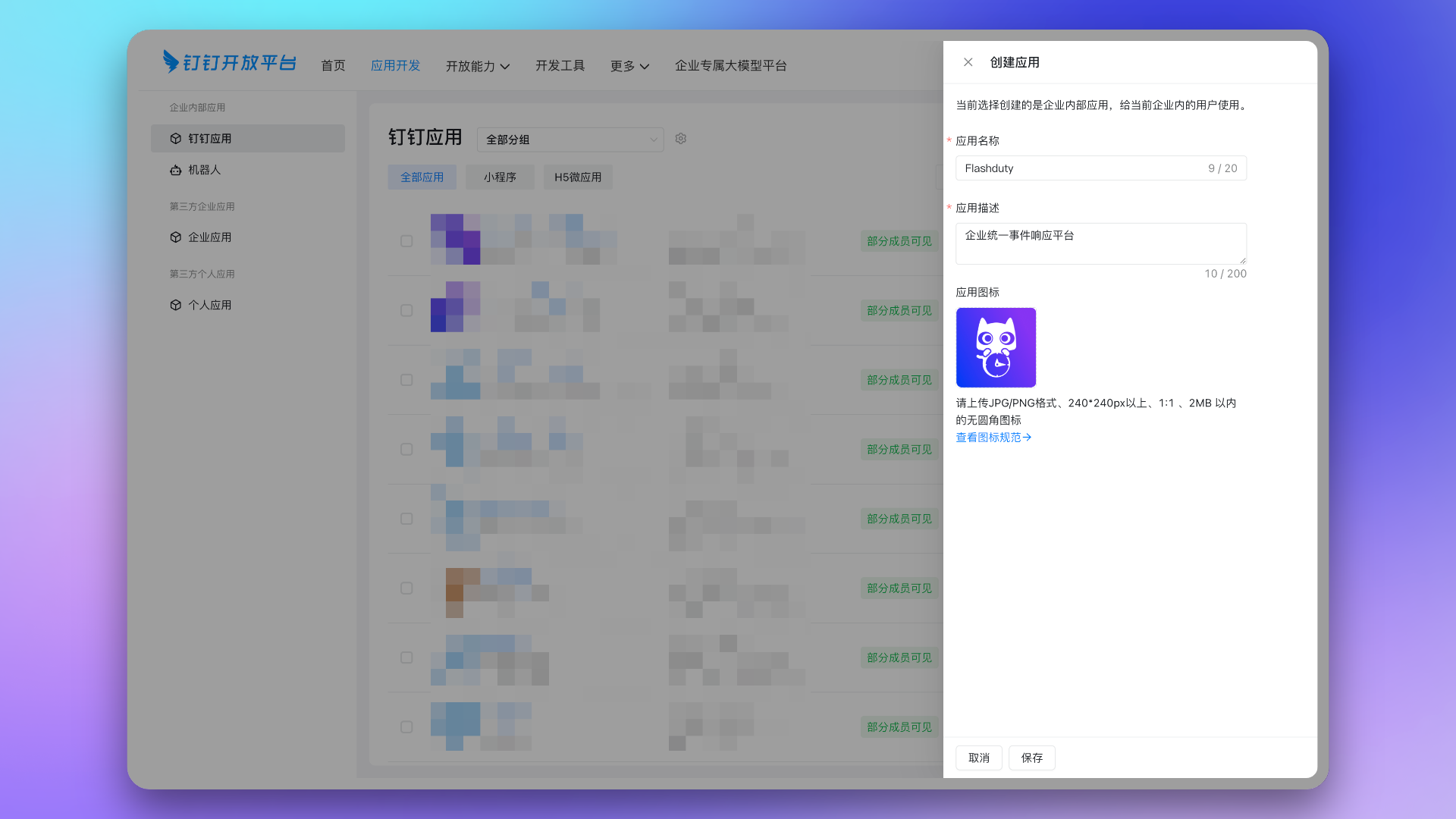
|
|
5658
5728
|
|
|
5659
|
-
|
|
5729
|
+
You can use the [Flashduty official icon](https://download.flashcat.cloud/flashcat_logo_circular.png) for the application icon.
|
|
5660
5730
|
|
|
5661
|
-
|
|
5731
|
+
### 2. Copy the Enterprise \`CorpId\`
|
|
5662
5732
|
|
|
5663
|
-
|
|
5733
|
+
Click on the enterprise avatar in the top right corner of the page and copy the \`CorpId\` from the dropdown menu.
|
|
5664
5734
|
|
|
5665
|
-
|
|
5735
|
+
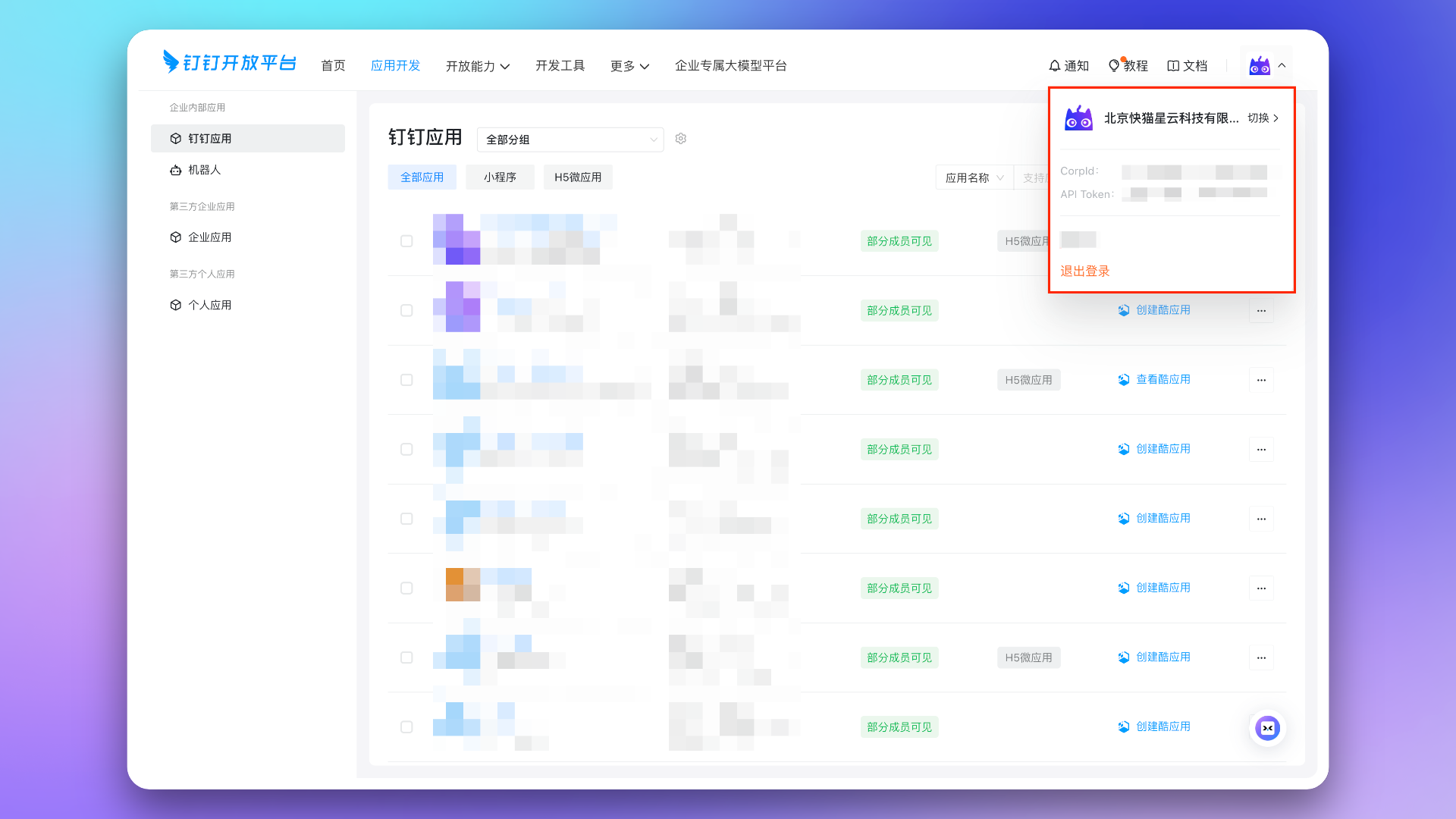
|
|
5666
5736
|
|
|
5667
|
-
|
|
5737
|
+
Return to the Flashduty integration configuration page and fill in the corresponding \`CorpId\` in the form.
|
|
5668
5738
|
|
|
5669
|
-
|
|
5739
|
+
### 3. Copy Application Credential Information
|
|
5740
|
+
|
|
5741
|
+
Enter the application details interface you created, go to the Application Capability → **Credentials and Basic Information** page via the left menu bar, and copy the \`AgentId\`, \`Client ID\`, and \`Client Secret\`.
|
|
5742
|
+
|
|
5743
|
+
|
|
5744
|
+
|
|
5745
|
+
Return to the Flashduty integration configuration page and fill in the corresponding \`AgentId\`, \`Client ID\`, and \`Client Secret\` in the form.
|
|
5670
5746
|
|
|
5671
5747
|
### 4. Copy Event Subscription Information
|
|
5672
5748
|
|
|
5673
|
-
Go to
|
|
5749
|
+
Go to Development Configuration → **Events and Callbacks** page. Set the push method to \`HTTP Push\`, then click the button to generate an \`Encryption aes_key\` and a \`Signature Token\`, and copy them.
|
|
5674
5750
|
|
|
5675
|
-
|
|
5751
|
+
|
|
5676
5752
|
|
|
5677
|
-
|
|
5753
|
+
Return to the Flashduty integration configuration page, fill in the corresponding \`Encryption aes_key\` and \`Signature Token\` in the form, and click the **Save** button.
|
|
5678
5754
|
|
|
5679
|
-
|
|
5755
|
+
### 5. Configure Event Subscription
|
|
5680
5756
|
|
|
5681
|
-
|
|
5682
|
-
---
|
|
5757
|
+
Go to the Development Configuration → **Event Subscription** page.
|
|
5683
5758
|
|
|
5684
|
-
|
|
5759
|
+
Configure the **Event Subscription Request URL** using the \`Event Subscription Request URL\` from the Flashduty integration details. **Save** after configuration.
|
|
5685
5760
|
|
|
5686
|
-
|
|
5761
|
+
|
|
5687
5762
|
|
|
5688
|
-
|
|
5763
|
+
Below the **Save** button, select the three group session events: \`Group chat name is changed\`, \`Install the cool application in the group\`, and \`Uninstall the cool application in the group\`. Click **Save** after configuration.
|
|
5689
5764
|
|
|
5690
|
-
|
|
5765
|
+
|
|
5691
5766
|
|
|
5692
|
-
|
|
5693
|
-
---
|
|
5767
|
+
### 6. Add Application Capabilities
|
|
5694
5768
|
|
|
5695
|
-
|
|
5696
|
-
<img src="https://download.flashcat.cloud/flashduty/doc/en/ding/ding-7.png" alt="drawing" width="500"/>
|
|
5769
|
+
Create a Cool App. Go to Development Configuration → Add Application Capability → Cool App → **Cool App List** page, click the **Create Cool App** button, and select **Extend to group sessions**.
|
|
5697
5770
|
|
|
5698
|
-
|
|
5771
|
+
Enter the **Edit Cool App** page and complete the following steps:
|
|
5699
5772
|
|
|
5700
|
-
|
|
5773
|
+
1. Fill in the basic information. You can use the [Flashduty official icon](https://download.flashcat.cloud/flashcat_logo_circular.png) for the icon.
|
|
5701
5774
|
|
|
5702
|
-
|
|
5775
|
+
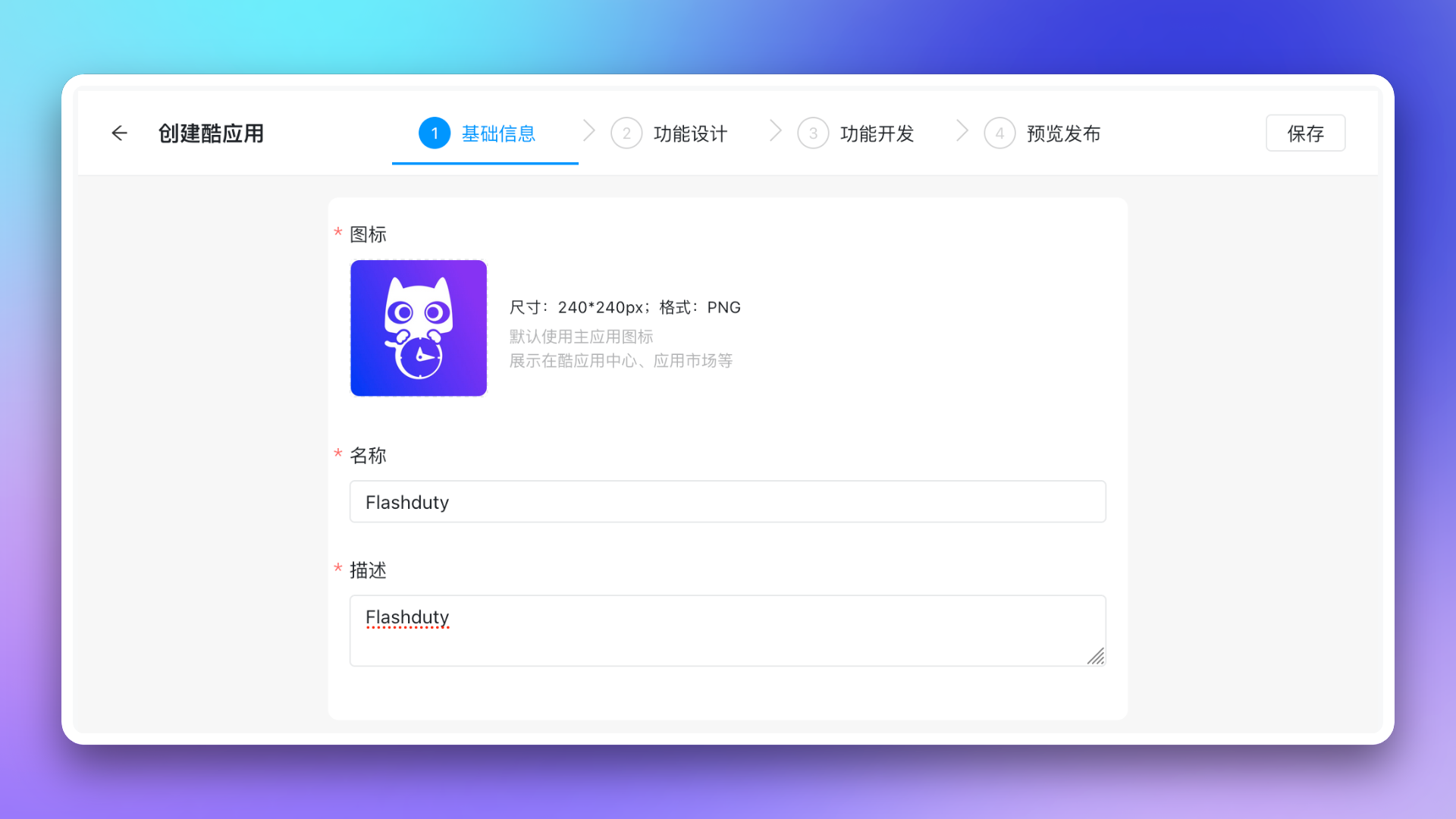
|
|
5703
5776
|
|
|
5704
|
-
2.
|
|
5777
|
+
2. Configure the functional design. Select **Group Quick Access** and **Message Card** on the left. You can use the [Flashduty official icon](https://download.flashcat.cloud/flashcat_logo_circular.png) for the group quick access icon. For the desktop and mobile access addresses, please copy the **Cool App Web URL** from the integration details.
|
|
5705
5778
|
|
|
5706
|
-
|
|
5779
|
+
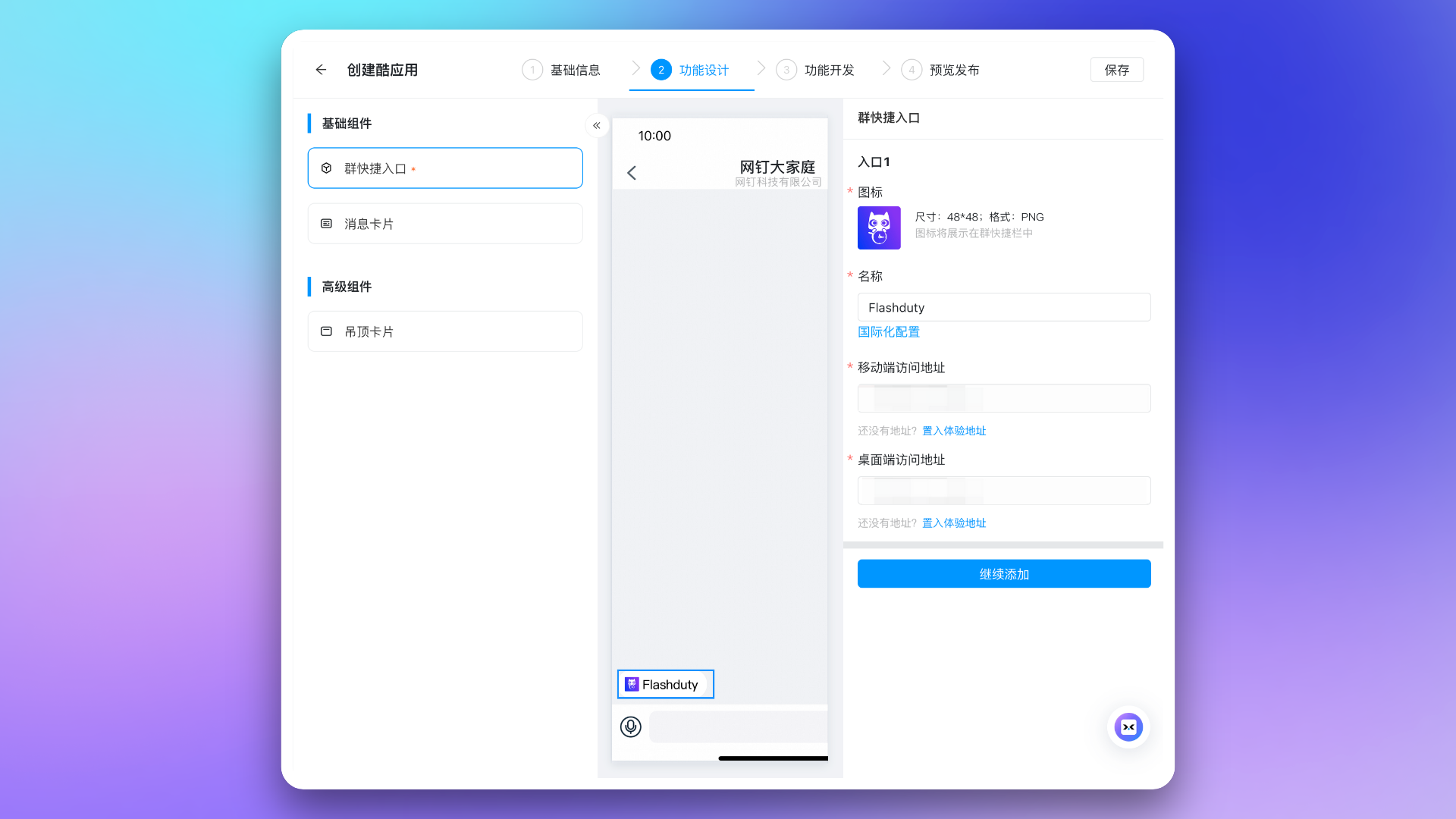
|
|
5707
5780
|
|
|
5708
|
-
|
|
5781
|
+
3. Skip the third step of functional development, proceed to the fourth step **Preview & Release**, click the **Release** button and confirm.
|
|
5709
5782
|
|
|
5710
|
-
|
|
5783
|
+
### 7. Configure Bot and Message Push
|
|
5711
5784
|
|
|
5712
|
-
|
|
5785
|
+
Go to the Application Capability → **Bot** page, enable the bot configuration, fill in the name and upload an icon, then click **Save**. You can use the [Flashduty official icon](https://download.flashcat.cloud/flashcat_logo_circular.png) for the icon.
|
|
5713
5786
|
|
|
5714
|
-
|
|
5787
|
+
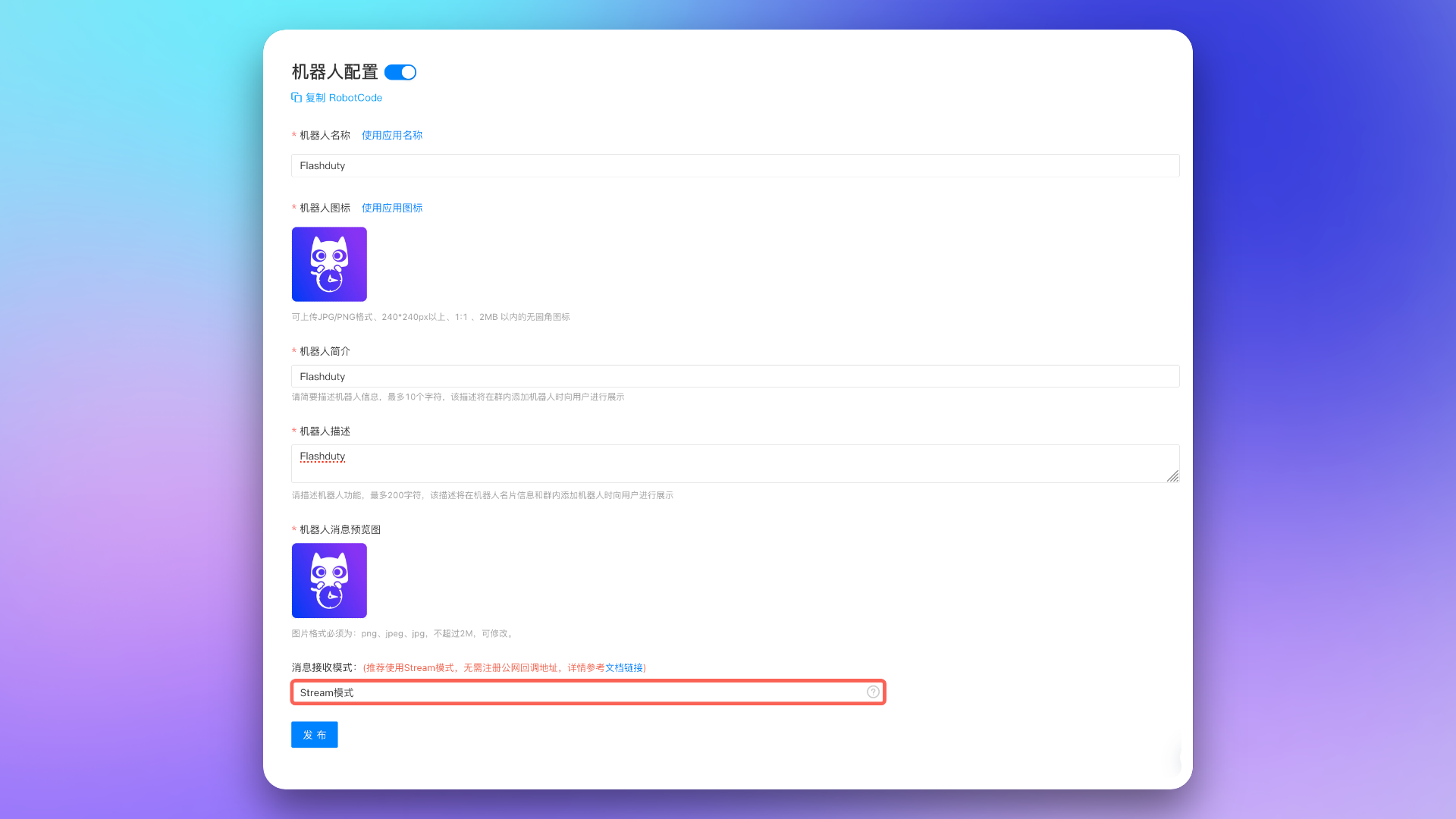
|
|
5715
5788
|
|
|
5716
|
-
|
|
5789
|
+
### 8. Configure Application URLs
|
|
5717
5790
|
|
|
5718
|
-
|
|
5791
|
+
Go to the Application Capability → **Web Application** page.
|
|
5719
5792
|
|
|
5720
|
-
|
|
5793
|
+
Configure the **Application Homepage URL** and **PC Homepage URL** with the \`Application Homepage URL\` and \`PC Homepage URL\` from the Flashduty integration details. Click **Save** when done.
|
|
5721
5794
|
|
|
5722
|
-
|
|
5795
|
+
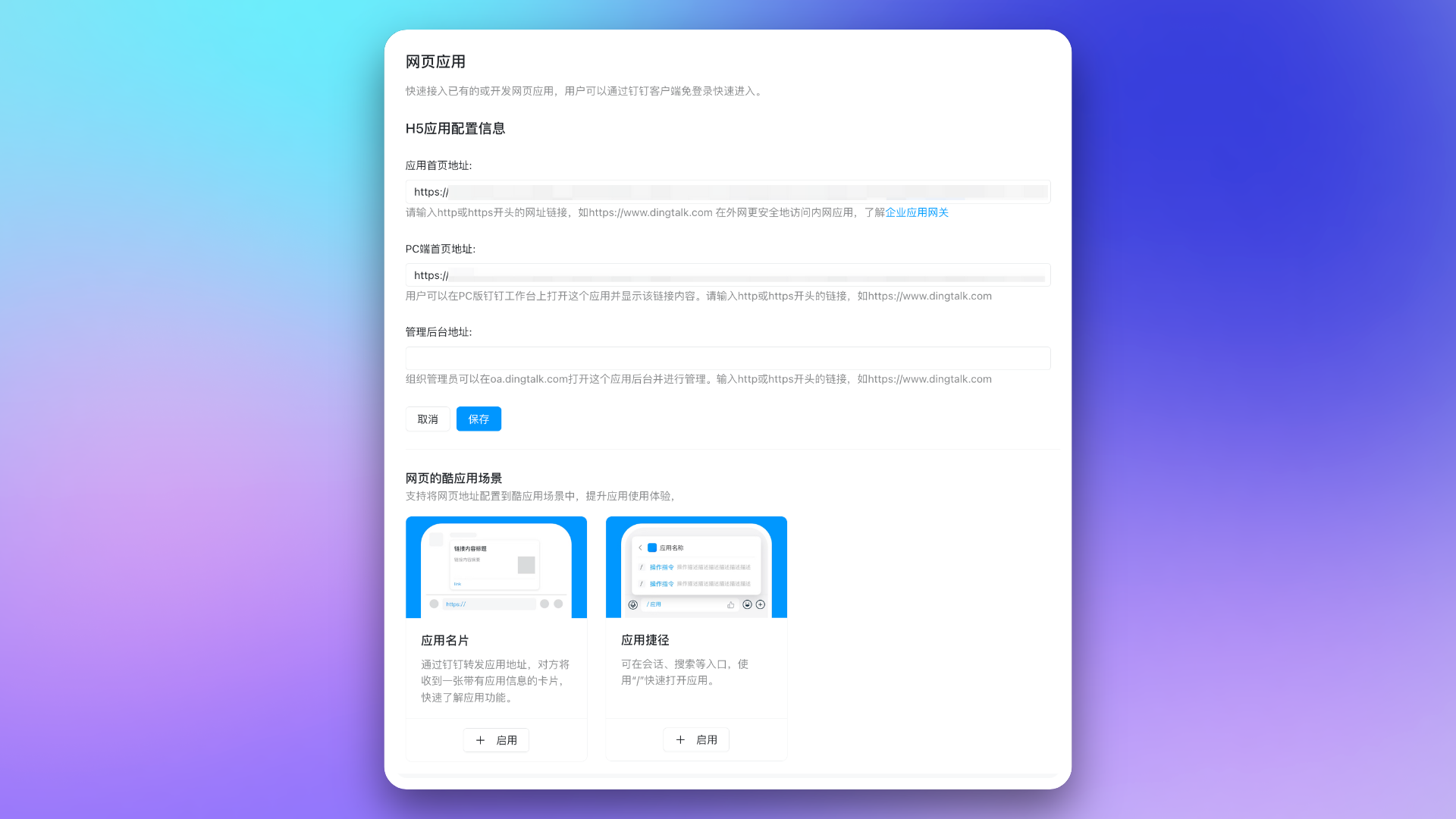
|
|
5723
5796
|
|
|
5724
|
-
|
|
5797
|
+
### 9. Apply for Application Permissions
|
|
5725
5798
|
|
|
5726
|
-
|
|
5799
|
+
Go to the Development Configuration → **Permissions** page and apply for the following permissions for the group application created in the previous steps:
|
|
5727
5800
|
|
|
5728
|
-
|
|
5801
|
+
- \`qyapi_chat_manage\`: Get group chat information
|
|
5802
|
+
- \`qyapi_robot_sendmsg\`: Send messages to group chats or individuals
|
|
5729
5803
|
|
|
5730
|
-
|
|
5804
|
+
|
|
5731
5805
|
|
|
5732
|
-
|
|
5806
|
+
## II. Configure War Room
|
|
5733
5807
|
|
|
5734
|
-
|
|
5808
|
+
> If you do not need to configure the War Room feature, you can skip this step and proceed directly to [**Application Release and Usage**](#publish).
|
|
5735
5809
|
|
|
5736
|
-
|
|
5810
|
+
<span id="war-room-scope"></span>
|
|
5737
5811
|
|
|
5738
|
-
|
|
5812
|
+
### 1. Apply for Application Permissions
|
|
5739
5813
|
|
|
5740
|
-
|
|
5814
|
+
Go to the Development Configuration → **Permissions** page and apply for the following permissions for the group application created in the previous steps:
|
|
5741
5815
|
|
|
5742
|
-
|
|
5816
|
+
- \`qyapi_chat_read\`: Get group chat information
|
|
5817
|
+
- \`qyapi_chat_base_read\`: Get group chat information
|
|
5818
|
+
- \`qyapi_get_member_by_mobile\`: Allows the current application to get Dingtalk user information based on mobile numbers to invite users to join group chats
|
|
5743
5819
|
|
|
5744
|
-
|
|
5820
|
+
|
|
5745
5821
|
|
|
5746
|
-
|
|
5747
|
-
|
|
5822
|
+
### 2. Configure Group Template
|
|
5823
|
+
|
|
5824
|
+
Go to Open Capability → **Scene Group** from the top menu bar of the Dingtalk Open Platform.
|
|
5825
|
+
|
|
5826
|
+
1. Configure **Group Bot**. Select **Bot** from the left menu bar, then click **Create group bot**.
|
|
5827
|
+
|
|
5828
|
+
> The **Group Bot** configured in this step and the **Application Bot** are two different concepts. The group bot is used to automatically create a group bot when a group chat is generated. The group bot and the application bot have different **Bot IDs**. To enable the War Room feature for Dingtalk, you must configure an additional **Group Bot**.
|
|
5829
|
+
|
|
5830
|
+
Fill in the group bot configuration. The **Message Callback URL**, **Message Callback Token**, and **Information Source Website** configurations have no practical effect in Flashduty's application scenario; you can configure them with any values that meet the requirements.
|
|
5831
|
+
|
|
5832
|
+
**Example Configuration**:
|
|
5833
|
+
|
|
5834
|
+
| **Configuration Item** | **Value** |
|
|
5835
|
+
| -------------- | --------------------------------------------------------------------------------- |
|
|
5836
|
+
| Bot Name | Flashduty |
|
|
5837
|
+
| Bot Avatar | [Flashduty official icon](https://download.flashcat.cloud/flashcat_logo_circular.png) |
|
|
5838
|
+
| Introduction | Flashduty |
|
|
5839
|
+
| Message Preview Image | [Flashduty official icon](https://download.flashcat.cloud/flashcat_logo_circular.png) |
|
|
5840
|
+
| Detailed Description | Flashduty message push bot. |
|
|
5841
|
+
| Message Callback URL | \`https://flashcat.cloud/\` |
|
|
5842
|
+
| Message Callback Token | \`token\` |
|
|
5843
|
+
| Information Source Website | \`https://flashcat.cloud/\` |
|
|
5844
|
+
|
|
5845
|
+
After completing the configuration, click **Create**, then click **Approve**. After the "Submission successful" pop-up appears in the top right corner, Dingtalk has automatically completed the approval of the group bot.
|
|
5748
5846
|
|
|
5749
|
-
|
|
5847
|
+
|
|
5750
5848
|
|
|
5751
|
-
|
|
5752
|
-
<img src="https://download.flashcat.cloud/flashduty/doc/en/ding/ding-17.png" alt="drawing" width="500"/>
|
|
5849
|
+
2. Configure **Group Template**. Select **Group Template** from the left menu bar, and click **Create group template**.
|
|
5753
5850
|
|
|
5754
|
-
|
|
5851
|
+
Set the **Enterprise Type** to \`Internal Enterprise\` and the **Optional Application** to the custom application created in the previous steps. Then, fill in the template information in the next step.
|
|
5755
5852
|
|
|
5756
|
-
|
|
5757
|
-
|
|
5853
|
+
Introductory information such as **Template Name**, **Icon**, **Description**, **Copywriting Introduction**, **Template Description**, and **Image Introduction** will not affect the use of the group template feature; you can configure them with any values that meet the requirements.
|
|
5854
|
+
|
|
5855
|
+
**Example Configuration**:
|
|
5856
|
+
|
|
5857
|
+
| **Configuration Item** | **Value** |
|
|
5858
|
+
| ---------- | --------------------------------------------------------------------------------- |
|
|
5859
|
+
| Template Name | Flashduty War Room |
|
|
5860
|
+
| Icon | [Flashduty official icon](https://download.flashcat.cloud/flashcat_logo_circular.png) |
|
|
5861
|
+
| Description | Create a war room for active incidents with one click. |
|
|
5862
|
+
| Copywriting Introduction | Create a war room for active incidents with one click. |
|
|
5863
|
+
| Template Description | Create a war room for active incidents with one click. |
|
|
5864
|
+
| Image Introduction | [Flashduty official icon](https://download.flashcat.cloud/flashcat_logo_circular.png) |
|
|
5865
|
+
|
|
5866
|
+
In the **Select Bot** configuration item, click **Select created bot** and choose the group bot created in the previous step. Keep other configuration items at their default settings. Finally, click **Save Edit**.
|
|
5867
|
+
|
|
5868
|
+
|
|
5869
|
+
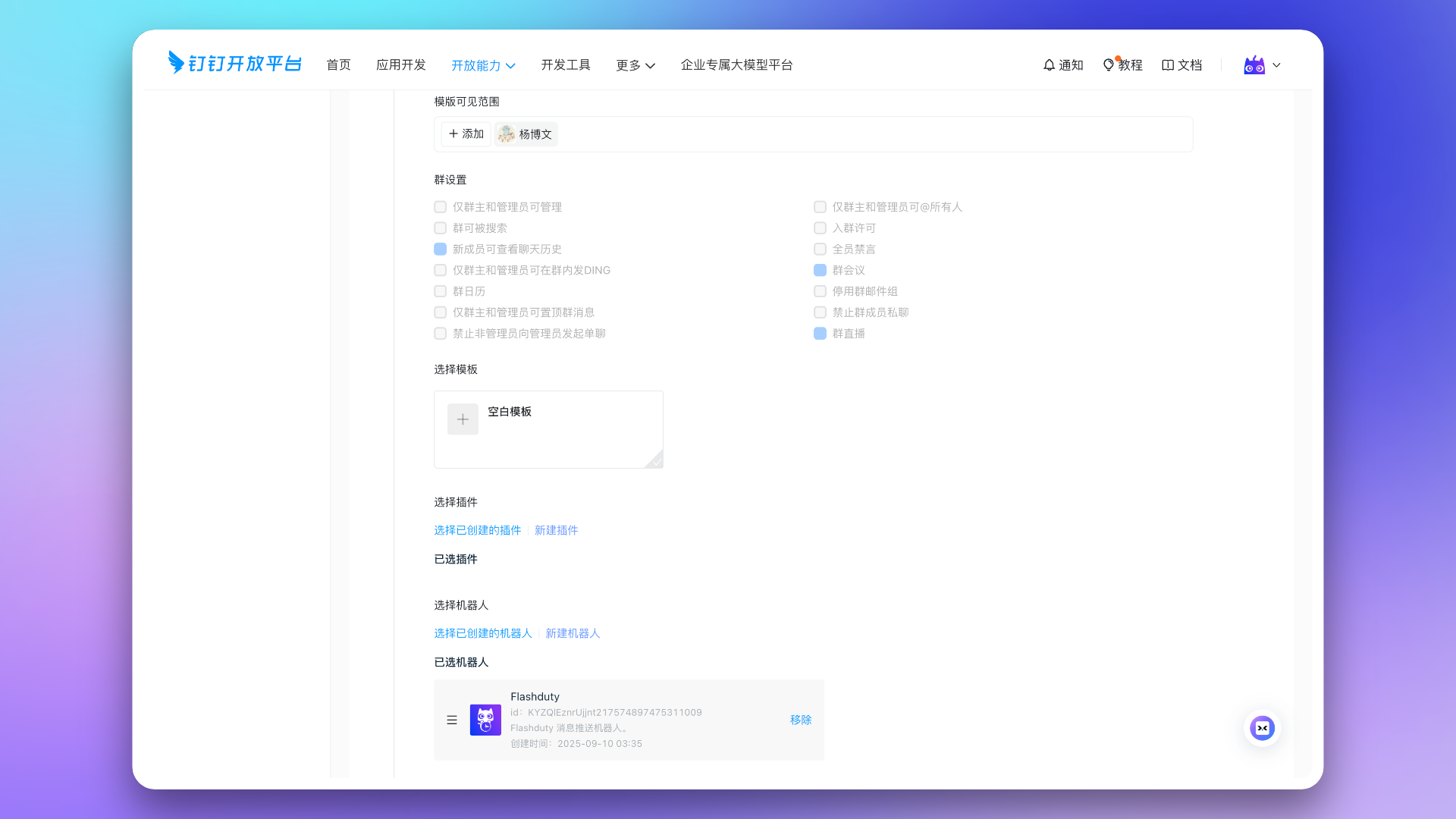
|
|
5870
|
+
|
|
5871
|
+
In the **Fill in grayscale group** step, click **Create grayscale group**, then click **Publish grayscale**.
|
|
5872
|
+
|
|
5873
|
+
Finally, click **Group Template** in the left menu bar again, then click to enter the group template you just created. Click **Submit for Review**, and after Dingtalk automatically approves it, finally click **Publish**.
|
|
5874
|
+
|
|
5875
|
+
3. In the published group template details page, copy the **Template ID** and **Bot ID**.
|
|
5876
|
+
|
|
5877
|
+
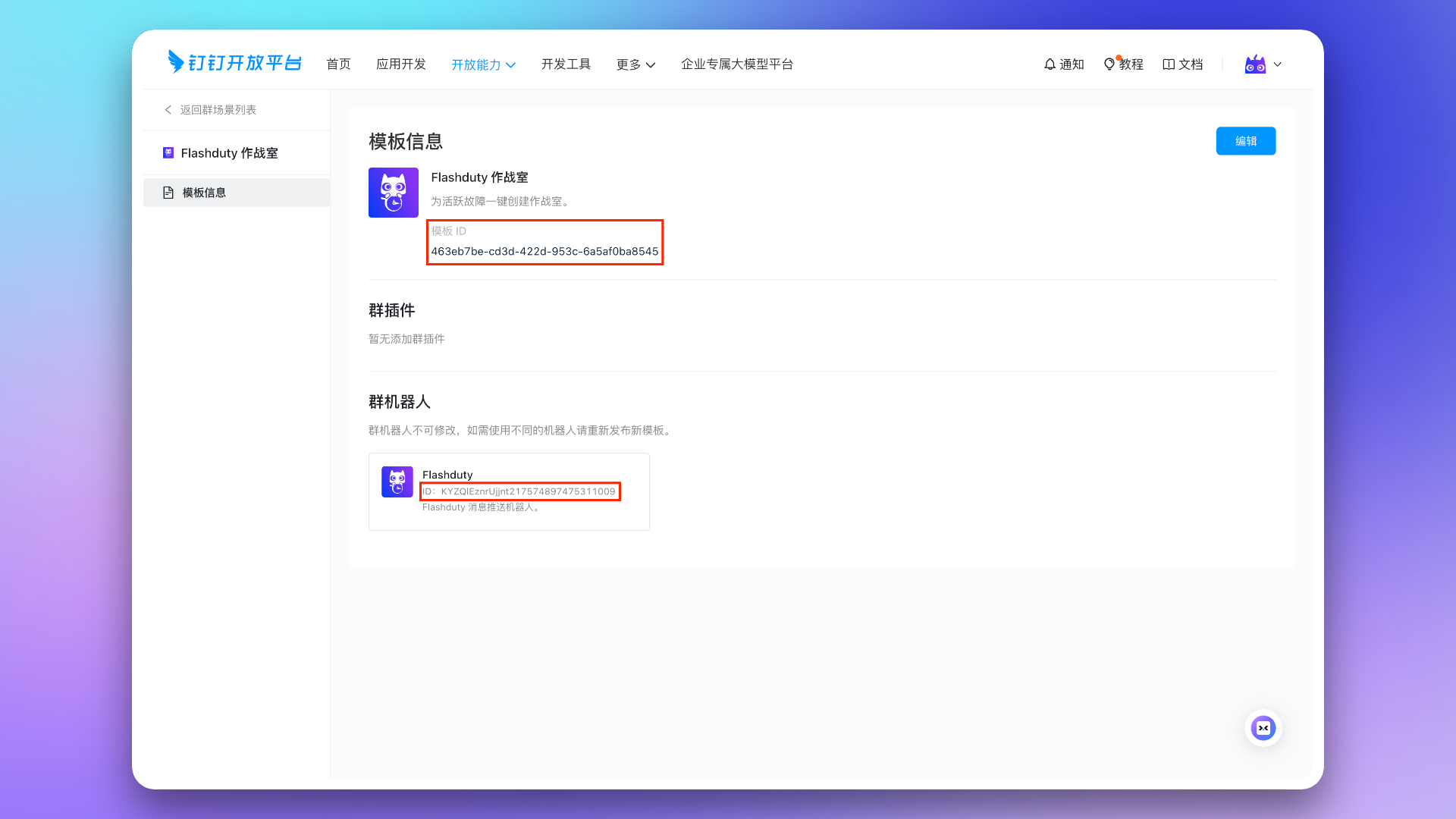
|
|
5878
|
+
|
|
5879
|
+
Return to the Flashduty integration configuration page, fill in the corresponding \`Template ID\` and \`Bot ID\` in the form, and click the **Save** button.
|
|
5880
|
+
|
|
5881
|
+
<span id="publish"></span>
|
|
5882
|
+
|
|
5883
|
+
## III. Application Release and Usage
|
|
5758
5884
|
|
|
5759
|
-
## V. Common Issues
|
|
5760
5885
|
---
|
|
5761
|
-
1. **Cannot deliver messages to individuals**, operation record shows \`Application Not Associated\`?
|
|
5762
5886
|
|
|
5763
|
-
|
|
5887
|
+
After completing the above steps, go to Application Release → **Version Management and Release**, create a new version, and publish it.
|
|
5888
|
+
|
|
5889
|
+
> To ensure that everyone can use the application, you need to adjust the **Visible Scope** of the application to all employees before publishing.
|
|
5890
|
+
|
|
5891
|
+
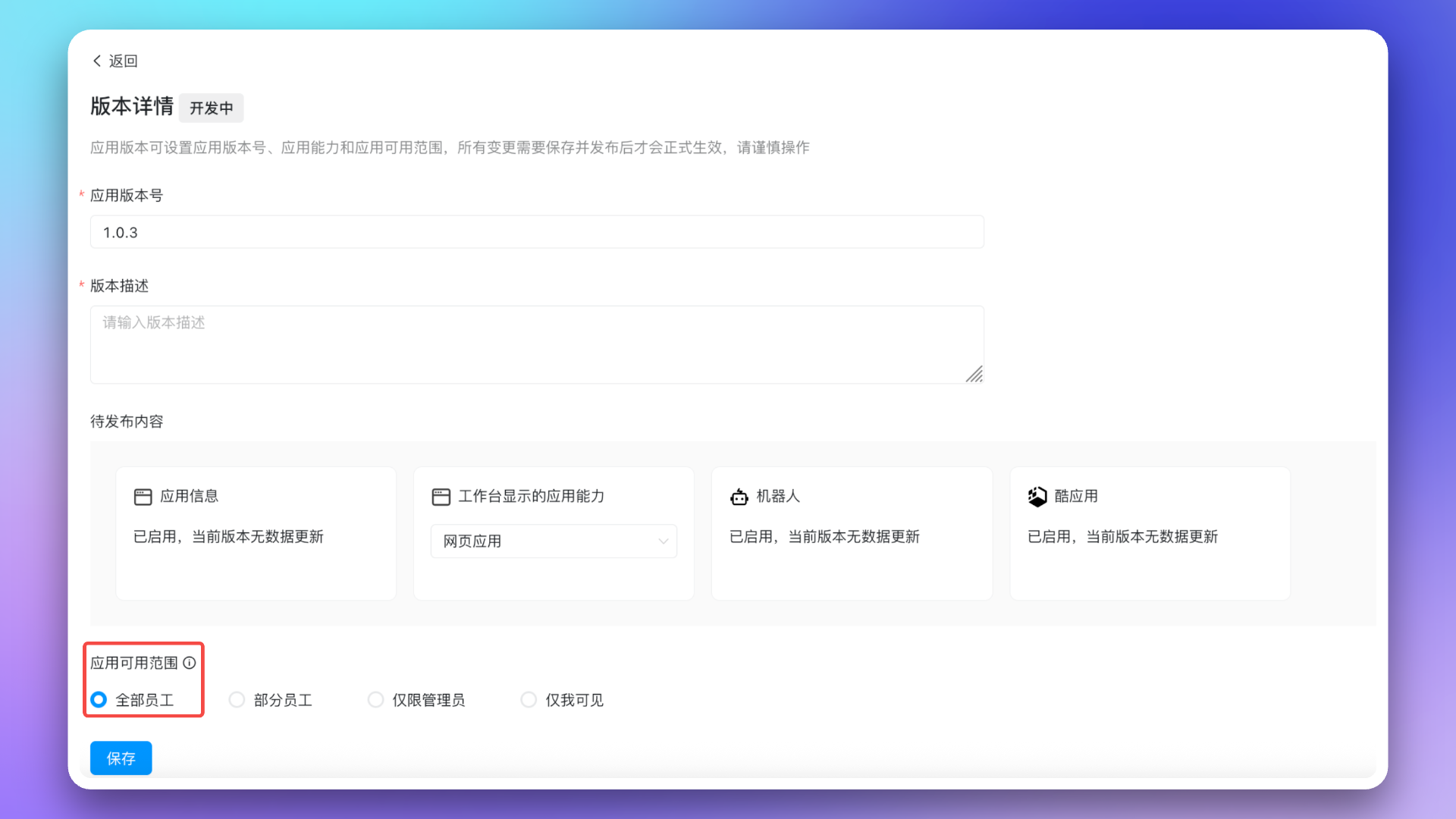
|
|
5764
5892
|
|
|
5765
|
-
|
|
5893
|
+
After the application is published, you can access it via the **mobile client** or **PC client**. The first time you access it, you need to log in and associate your Dingtalk and Flashduty accounts. Subsequent uses will be login-free.
|
|
5766
5894
|
|
|
5767
|
-
|
|
5768
|
-
|
|
5895
|
+
- **Mobile Client**: Access the web application through Dingtalk → Workbench → Search for application name → **Open Application**.
|
|
5896
|
+
- **PC Client**: Access the web application through Dingtalk → Workbench → Search for application name → **Open Application**.
|
|
5769
5897
|
|
|
5770
|
-
|
|
5898
|
+
## IV. FAQ
|
|
5899
|
+
|
|
5900
|
+
---
|
|
5901
|
+
|
|
5902
|
+
1. **Why can't messages be delivered to individuals, and the operation record shows \`app not linked\`?**
|
|
5903
|
+
- Go to Dingtalk → Workbench → Search for application name → **Open Application**, and complete a login to associate your Dingtalk and Flashduty accounts. The system needs to obtain your user identity to push messages.
|
|
5904
|
+
2. **Why are the message card buttons not working or showing an error?**
|
|
5905
|
+
- Go to Dingtalk → Workbench → Search for application name → **Open Application**, and complete a login to associate your Dingtalk and Flashduty accounts. If you have already logged in, try clicking the menu in the upper right corner, switching accounts, and logging in again to bind your account.
|
|
5906
|
+
- Ensure you have purchased enough licenses. You can check your used license status in Console → [**Billing Center**](https://console.flashcat.cloud/wallet).
|
|
5907
|
+
3. **Why is the Dingtalk group chat list in the escalation rule empty?**
|
|
5908
|
+
- Go to Dingtalk, select a group chat session, and install the Cool App. Otherwise, the group chat list cannot be obtained.
|
|
5771
5909
|
|
|
5772
|
-
|
|
5773
|
-
|
|
5774
|
-
- If still unable to get the group chat list, try uninstalling the Cool App from the group and repeat the above steps. If it still doesn't work, please contact customer or dedicated technical support
|
|
5910
|
+
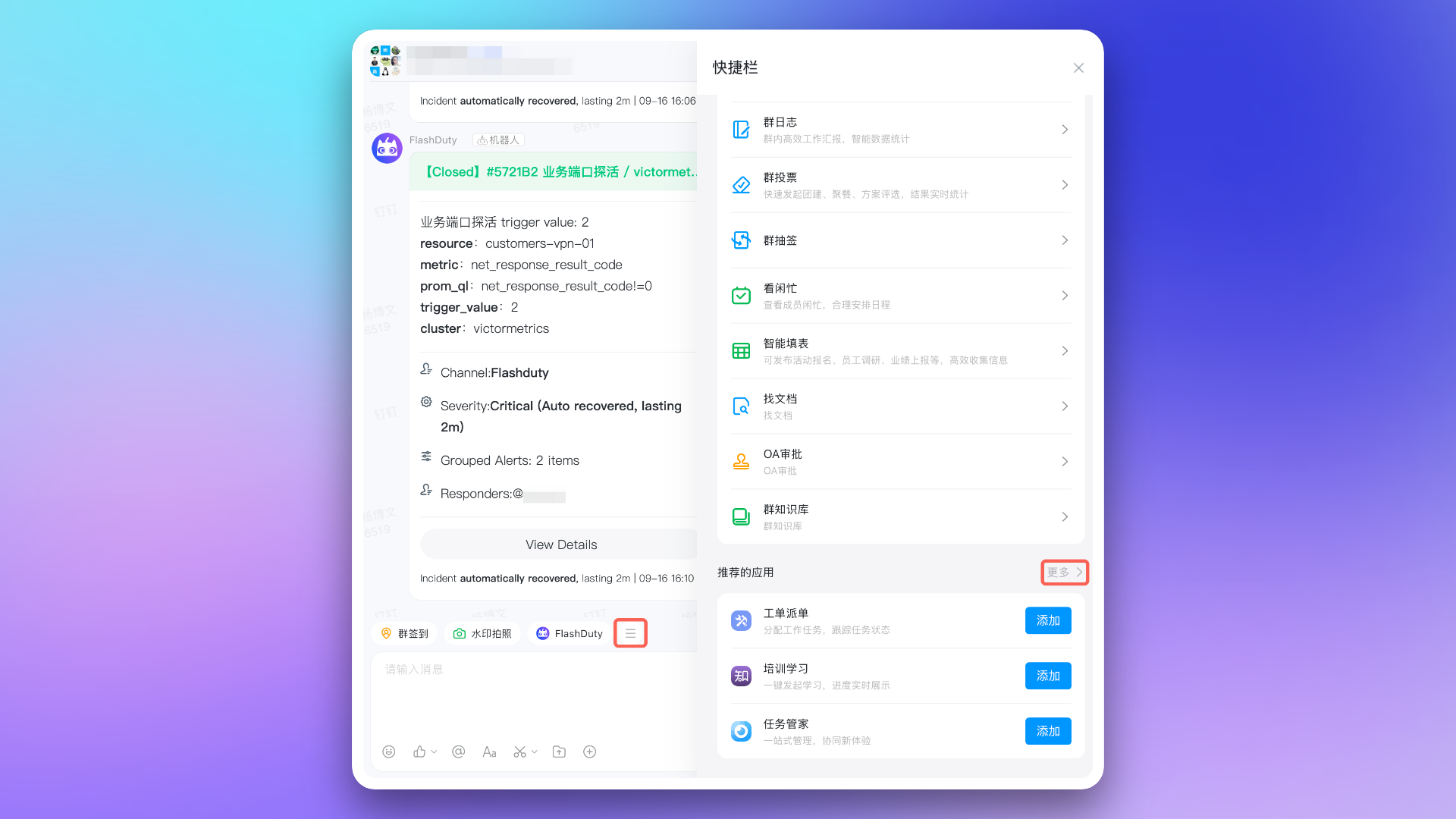
|
|
5911
|
+
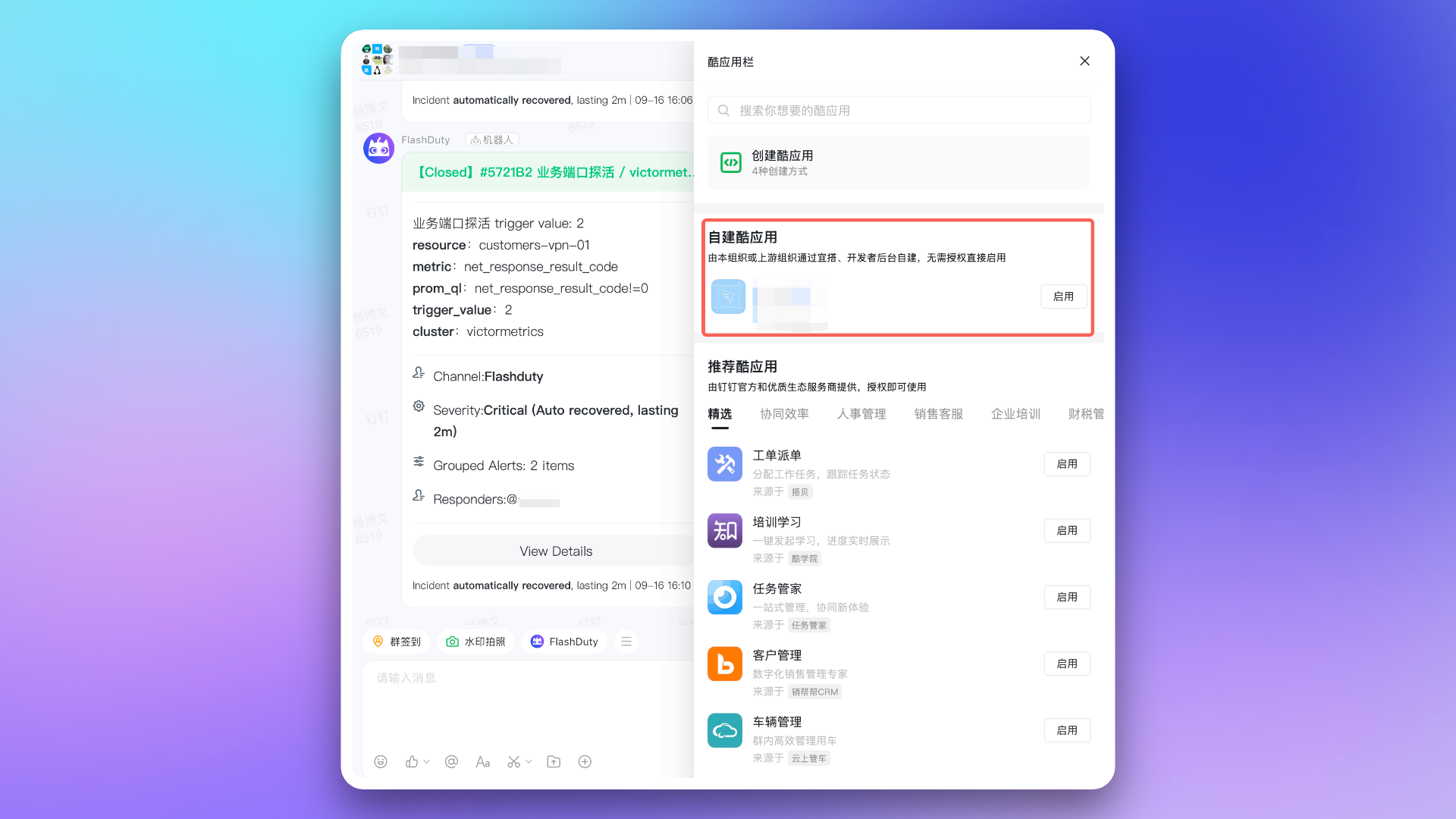
|
|
5775
5912
|
|
|
5776
|
-
|
|
5913
|
+
- Return to the escalation rule configuration page, refresh, and reselect the group chat list.
|
|
5914
|
+
- If you still cannot get the group chat list, try uninstalling the Cool App in the group and then repeating the above steps. If the problem persists, please contact customer or dedicated technical support.
|
|
5777
5915
|
|
|
5778
|
-
|
|
5916
|
+
4. **Why is the War Room feature not working as expected?**
|
|
5917
|
+
- Please double-check if you have configured the [required permissions](#war-room-scope) for the application's War Room feature.
|
|
5918
|
+
- Please refer to the **FAQ** section of the Flashduty [War Room Introduction](https://docs.flashcat.cloud/en/flashduty/war-room?nav=01JCQ7A4N4WRWNXW8EWEHXCMF5) document.
|
|
5779
5919
|
|
|
5780
|
-
|
|
5920
|
+
5. **Dingtalk Custom Application API Call Limits**
|
|
5781
5921
|
|
|
5782
|
-
|
|
|
5783
|
-
| :----------: |
|
|
5784
|
-
|Standard|10,000|20|1st of each month|
|
|
5785
|
-
|Professional|500,000|40|1st of each month|
|
|
5786
|
-
|
|
|
5922
|
+
| **Dingtalk Version** | **Total Calls/Month** | **QPS** | **Refresh Time** |
|
|
5923
|
+
| :----------: | :-------------: | :-----: | :----------: |
|
|
5924
|
+
| Standard | 10,000 | 20 | 1st of each month |
|
|
5925
|
+
| Professional | 500,000 | 40 | 1st of each month |
|
|
5926
|
+
| Exclusive | 5,500,000 | 60 | 1st of each month |
|
|
5787
5927
|
|
|
5788
|
-
|
|
5789
|
-
`,ee=`---
|
|
5928
|
+
> After exceeding the API call limit, the Dingtalk application will not be able to push messages normally. It is recommended to use notification channels reasonably. For details, see the [official Dingtalk documentation](https://open.dingtalk.com/document/orgapp/descriptions-about-adjusting-limit-and-frequency-of-api-calls?spm=ding_open_doc.document.0.0.6f6b21d9WtkxJI).`,ne=`---
|
|
5790
5929
|
title: "WeCom Integration"
|
|
5791
|
-
description: "
|
|
5930
|
+
description: "By integrating a WeCom application, you can receive and respond to alerts within WeCom."
|
|
5792
5931
|
date: "2025-05-19T10:00:00+08:00"
|
|
5793
|
-
url: "https://docs.flashcat.cloud/en/flashduty/wecom-integration-guide"
|
|
5932
|
+
url: "https://docs.flashcat.cloud/en/flashduty/wecom-integration-guide?nav=01JCQ7A4N4WRWNXW8EWEHXCMF5"
|
|
5794
5933
|
---
|
|
5795
5934
|
|
|
5796
|
-
|
|
5935
|
+
By integrating a WeCom application, you can receive and respond to alerts within WeCom.
|
|
5797
5936
|
|
|
5798
|
-
|
|
5799
|
-
## Video Guide
|
|
5800
|
-
---
|
|
5801
|
-
<Video src="https://download.flashcat.cloud/flashduty/video/wechat.mp4"></Video>
|
|
5802
|
-
-->
|
|
5937
|
+
This document supports both [integrating third-party applications](#third-party) and [integrating custom enterprise applications](#self).
|
|
5803
5938
|
|
|
5804
|
-
## I. Install the Application
|
|
5805
|
-
---
|
|
5806
5939
|
|
|
5807
|
-
|
|
5940
|
+
> You only need to configure one of the two methods: **Integrate third-party application** or **Integrate custom application**.
|
|
5808
5941
|
|
|
5809
|
-
<
|
|
5942
|
+
<span id="third-party"></span>
|
|
5810
5943
|
|
|
5811
|
-
|
|
5944
|
+
## 1. Integrate third-party application
|
|
5812
5945
|
|
|
5813
|
-
|
|
5946
|
+
---
|
|
5814
5947
|
|
|
5815
|
-
|
|
5948
|
+
> As a WeCom service provider, Flashduty offers a long-term free version of the Flashduty application. This application requires WeCom API permissions to function (passwordless login + message sending).
|
|
5949
|
+
>
|
|
5950
|
+
> This license currently supports **up to 60 days** free of charge. After exceeding this usage period, Flashduty needs to purchase a WeCom license for you to continue using it.
|
|
5816
5951
|
|
|
5817
|
-
|
|
5952
|
+
1. Visit [WeCom Admin Console](https://work.weixin.qq.com/wework_admin/frame#apps), go to Application Management → **Applications** page, and click **Add Third-party Application**.
|
|
5818
5953
|
|
|
5819
|
-
|
|
5954
|
+
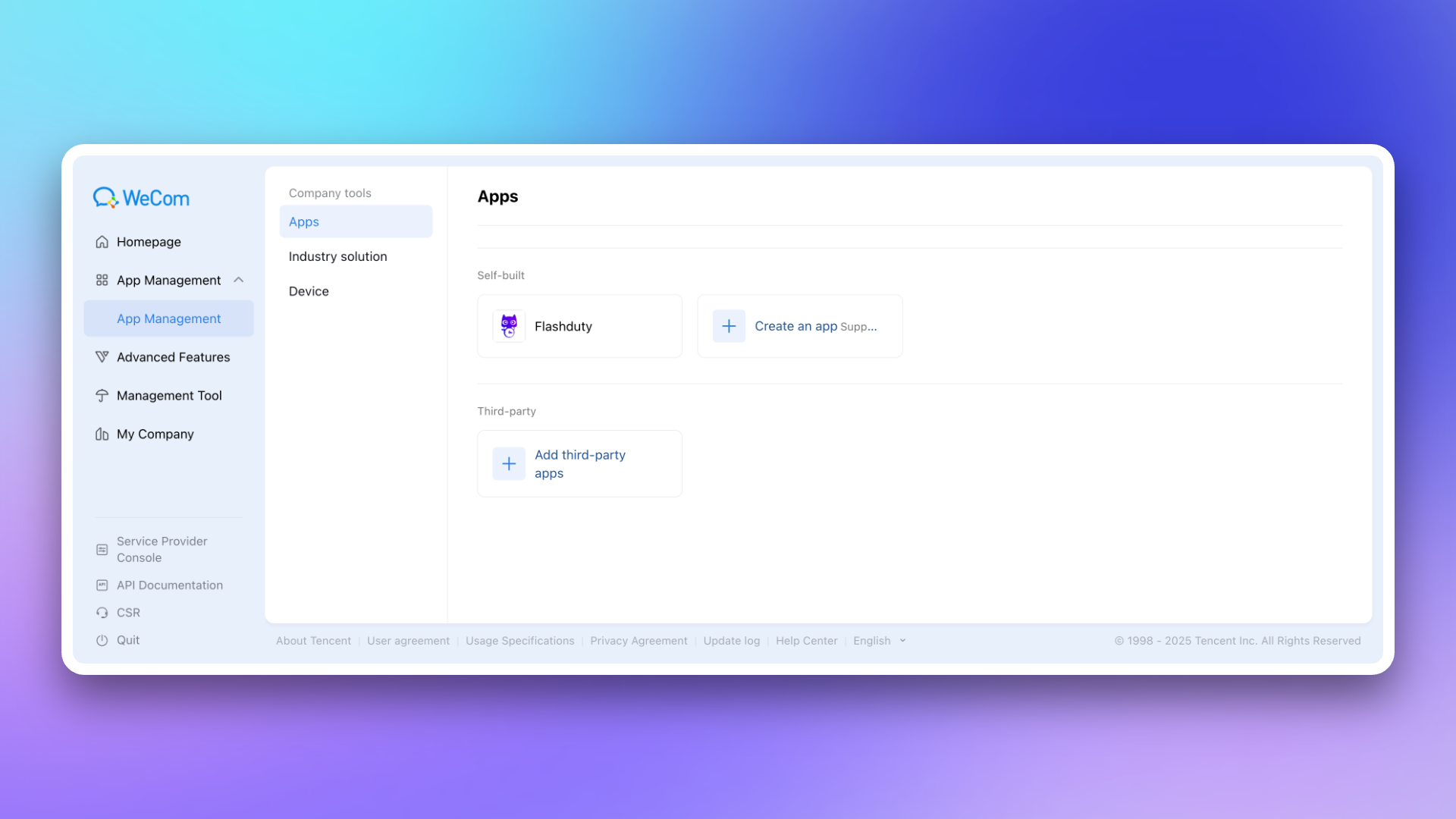
|
|
5820
5955
|
|
|
5821
|
-
|
|
5956
|
+
2. Enter \`Flashduty\` in the search bar, and click the **Add** button after finding the application.
|
|
5822
5957
|
|
|
5823
|
-
|
|
5958
|
+
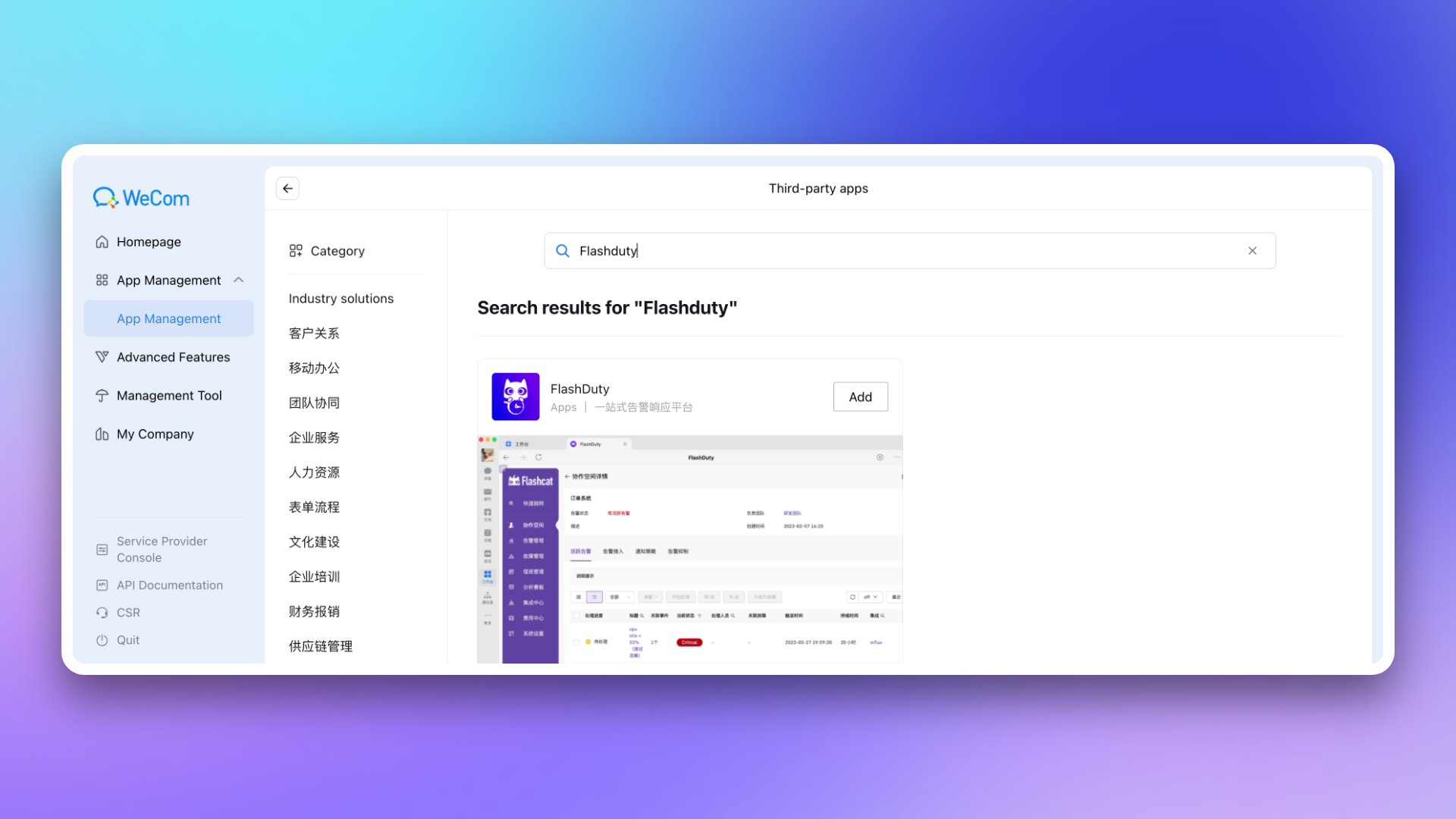
|
|
5824
5959
|
|
|
5825
|
-
|
|
5826
|
-
---
|
|
5960
|
+
3. Modify the application **visibility range**. It is recommended to select all employees or specific department nodes to avoid needing to modify when new enterprise members are added. Then click **Agree to the above authorization and add** to complete the installation.
|
|
5827
5961
|
|
|
5828
|
-
|
|
5962
|
+
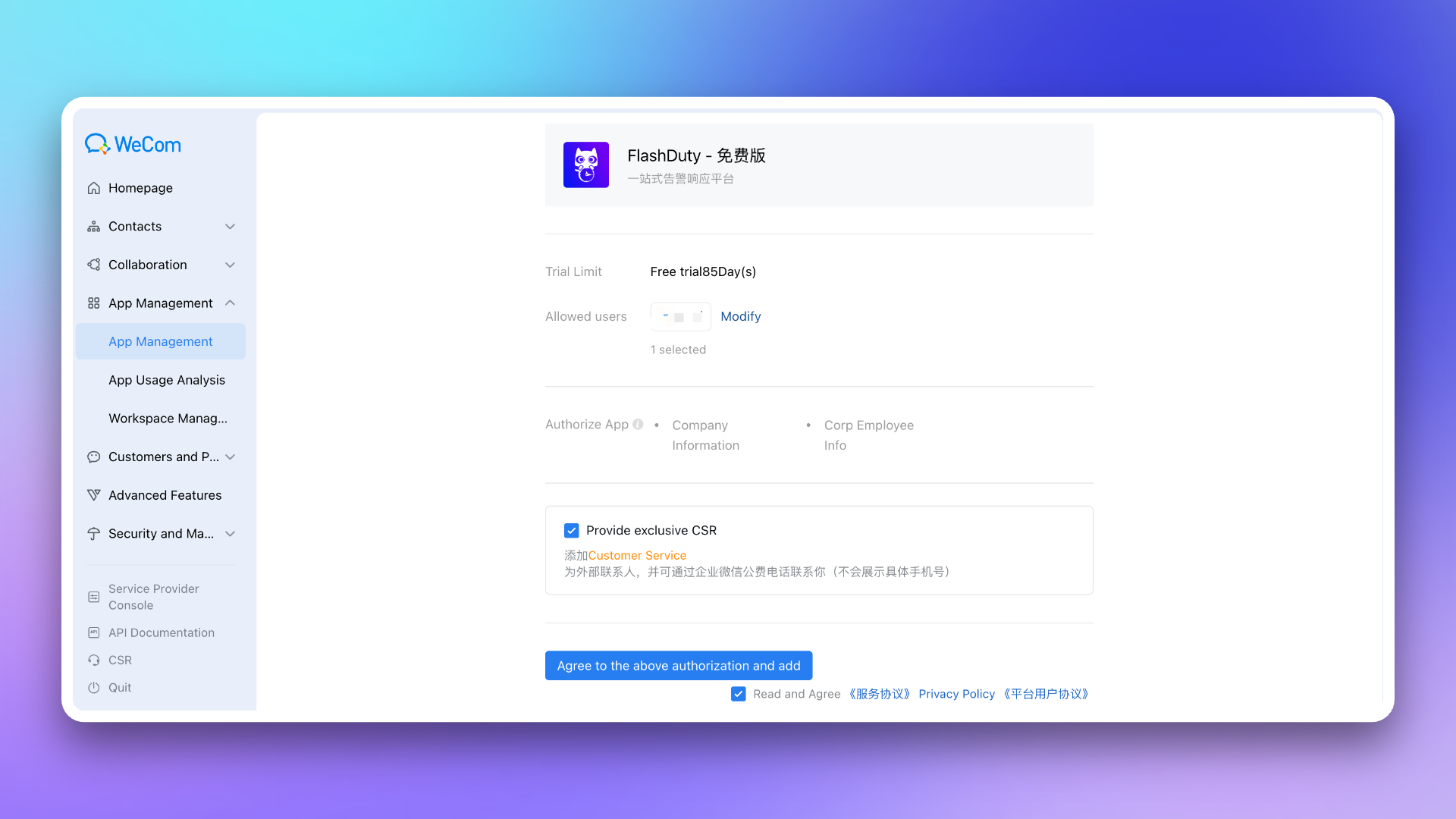
|
|
5829
5963
|
|
|
5830
|
-
|
|
5831
|
-
- Verify if you've correctly configured the \`Corp ID\`
|
|
5964
|
+
4. Visit [WeCom Admin Console](https://work.weixin.qq.com/wework_admin/frame#apps), go to **My Enterprise** page, and obtain the \`Enterprise ID\`.
|
|
5832
5965
|
|
|
5833
|
-
|
|
5966
|
+
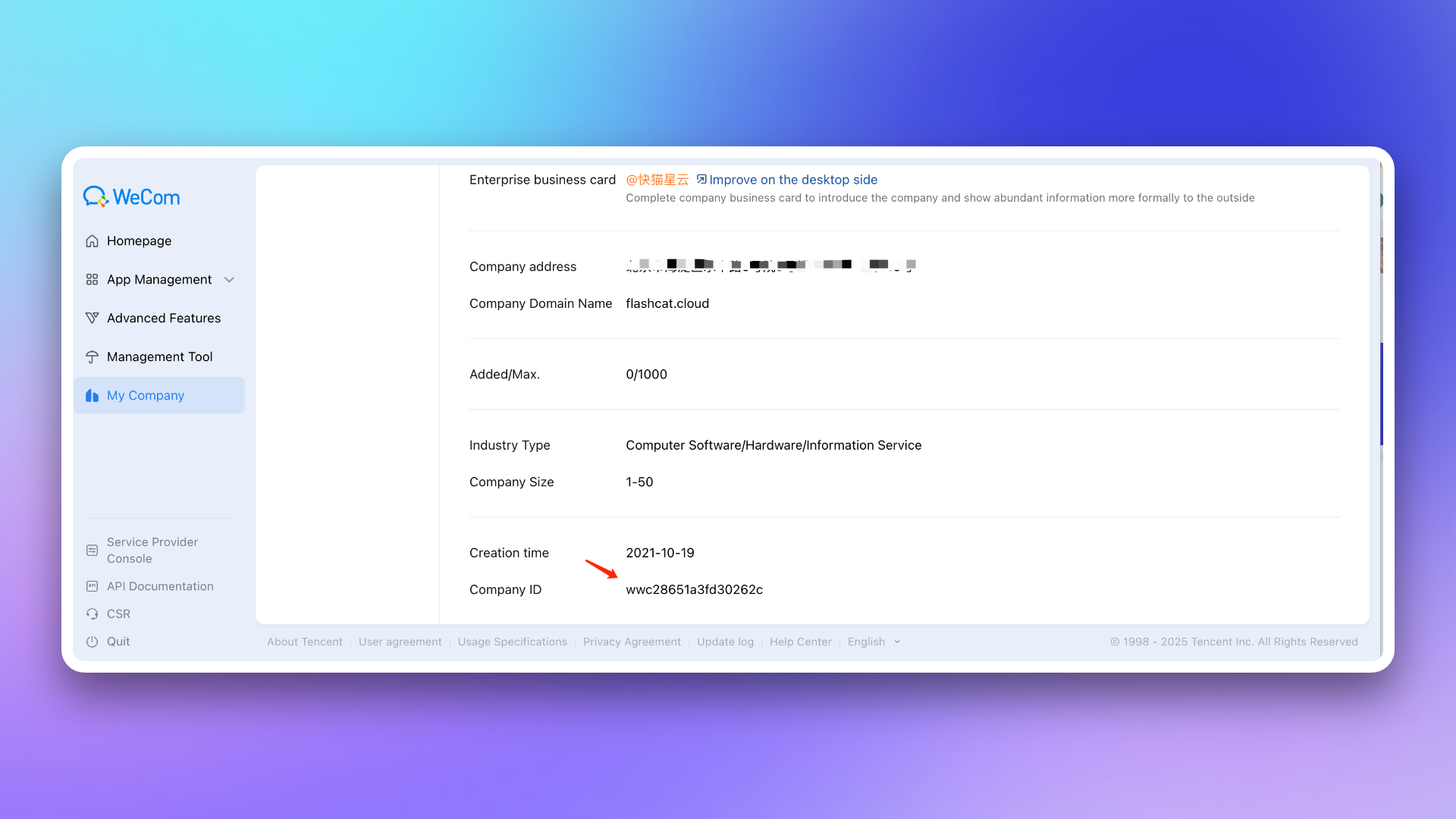
|
|
5834
5967
|
|
|
5835
|
-
|
|
5836
|
-
- First-time access requires login, choose member account - password or SSO, successful login completes account linking between \`Flashduty\` and \`WeCom\`
|
|
5837
|
-
- Subsequent access will be passwordless
|
|
5968
|
+
5. Return to the Flashduty integration configuration page, fill in the \`Enterprise ID\` obtained in the previous step, and click **Save** to complete the integration.
|
|
5838
5969
|
|
|
5839
|
-
|
|
5970
|
+
<span id="self"></span>
|
|
5840
5971
|
|
|
5841
|
-
|
|
5842
|
-
- Go to channel details page - escalation rule, select WeCom integration in personal channels to complete notification setup
|
|
5843
|
-
- Supports customizing WeCom notification content through template management page. Note: **Custom area supports maximum 8 lines**, excess content will be truncated by WeCom
|
|
5972
|
+
## 2. Integrate custom enterprise application
|
|
5844
5973
|
|
|
5845
|
-
|
|
5974
|
+
---
|
|
5846
5975
|
|
|
5847
|
-
|
|
5976
|
+
1. Visit [WeCom Admin Console](https://work.weixin.qq.com/wework_admin/frame#apps), go to Application Management → **Applications** page, and click **Create Application**.
|
|
5848
5977
|
|
|
5849
|
-
-
|
|
5850
|
-
- Click \`Start Processing\` to set alert status to \`In Progress\`
|
|
5851
|
-
- Click \`Close Directly\` to set alert status to \`Closed\`
|
|
5852
|
-
- Click \`Snooze 2h\` to snooze the alert for 2 hours, click \`...\` in top-right corner for more snooze options
|
|
5978
|
+
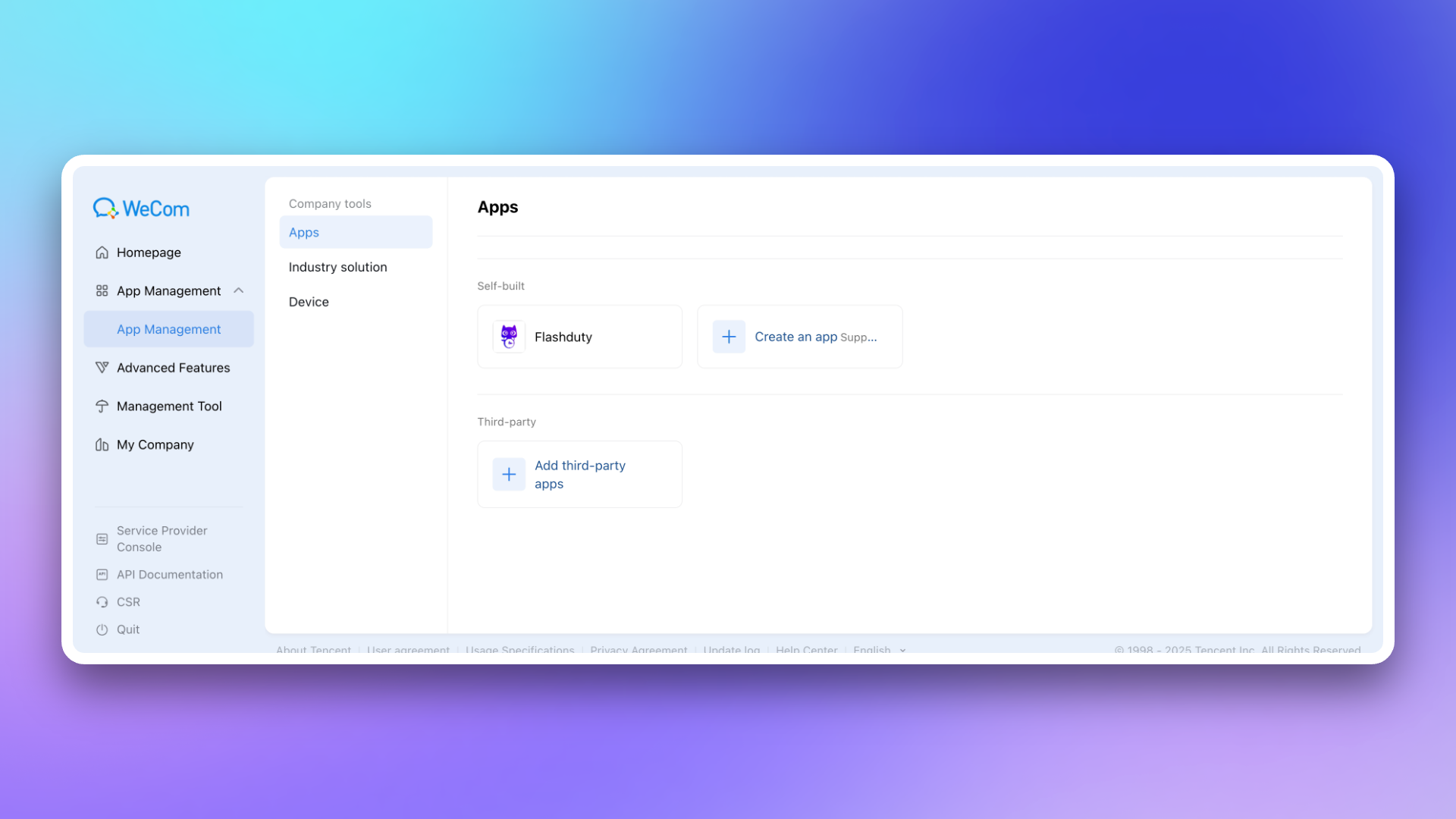
|
|
5853
5979
|
|
|
5854
|
-
|
|
5980
|
+
2. Configure **Application Logo**, **Application Name**, and **Application Visibility Range**.
|
|
5855
5981
|
|
|
5856
|
-
-
|
|
5857
|
-
- Flashduty requests card content updates when alert status changes
|
|
5858
|
-
- When alert status changes frequently, updates might fail due to update limit, use refresh button for one additional update opportunity
|
|
5982
|
+
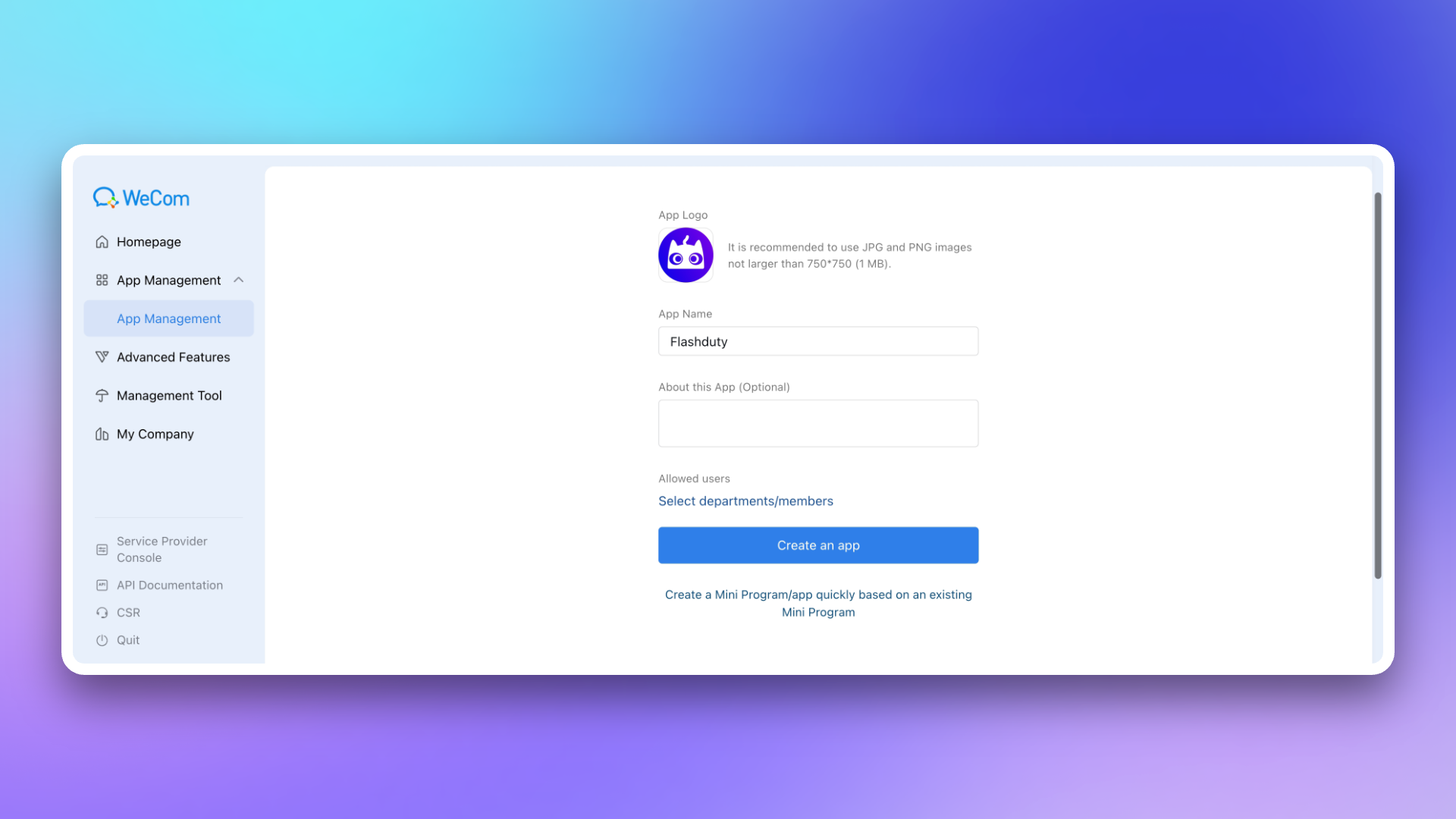
|
|
5859
5983
|
|
|
5860
|
-
|
|
5984
|
+
3. Return to the Flashduty integration configuration page and select whether WeCom is a \`non-private deployment version\` based on your actual situation.
|
|
5861
5985
|
|
|
5862
|
-
|
|
5863
|
-
- Try keyboard shortcut \`ctrl\` + \`command\` + \`shift\` + \`d\` to enable debug mode, then select \`Debug - Browser & WebView Related - Open in System Browser\` to change link opening behavior. Use the same shortcut to exit debug mode and retain settings
|
|
5986
|
+
If your WeCom is a private deployment version, you need to fill in the \`Endpoint\` in the configuration page. This address needs to be accessible by the Flashduty service. You may consider setting up **whitelist authorization** for it.
|
|
5864
5987
|
|
|
5865
|
-
|
|
5988
|
+
4. Visit [WeCom Admin Console](https://work.weixin.qq.com/wework_admin/frame#apps), go to **My Enterprise** page, obtain the \`Enterprise ID\`, and fill it in the Flashduty integration configuration page.
|
|
5866
5989
|
|
|
5867
|
-
|
|
5868
|
-
`,ne=`---
|
|
5869
|
-
title: "Slack Integration"
|
|
5870
|
-
description: "Integrate with Slack to receive and respond to alerts within Slack"
|
|
5871
|
-
date: "2025-05-19T10:00:00+08:00"
|
|
5872
|
-
url: "https://docs.flashcat.cloud/en/flashduty/slack-integration-guide"
|
|
5873
|
-
---
|
|
5990
|
+
5. Return to [WeCom Admin Console](https://work.weixin.qq.com/wework_admin/frame#apps), go to **Application Management** page, click on the application you created to enter the details page. Obtain the \`AgentId\` from the page and fill it in the Flashduty integration configuration page.
|
|
5874
5991
|
|
|
5875
|
-
|
|
5992
|
+
6. On the application details page, obtain the \`Secret\` and fill it in the Flashduty integration configuration page.
|
|
5876
5993
|
|
|
5877
|
-
|
|
5878
|
-
---
|
|
5994
|
+
7. On the application details page, go to **Web Authorization and JS-SDK** page, click **Set Trusted Domain**, and configure **Callback domain for application OAuth 2.0 web authorization** as required.
|
|
5879
5995
|
|
|
5880
|
-
|
|
5996
|
+
> The trusted domain needs to point to Flashduty's backend address \`{api_host}\` (can be achieved through CNAME or proxy forwarding).
|
|
5997
|
+
>
|
|
5998
|
+
> For trusted domain requirements, see the official WeCom documentation [《Internal Development Domain Configuration Guide》](https://open.work.weixin.qq.com/wwopen/common/readDocument/40754).
|
|
5881
5999
|
|
|
5882
|
-
|
|
6000
|
+
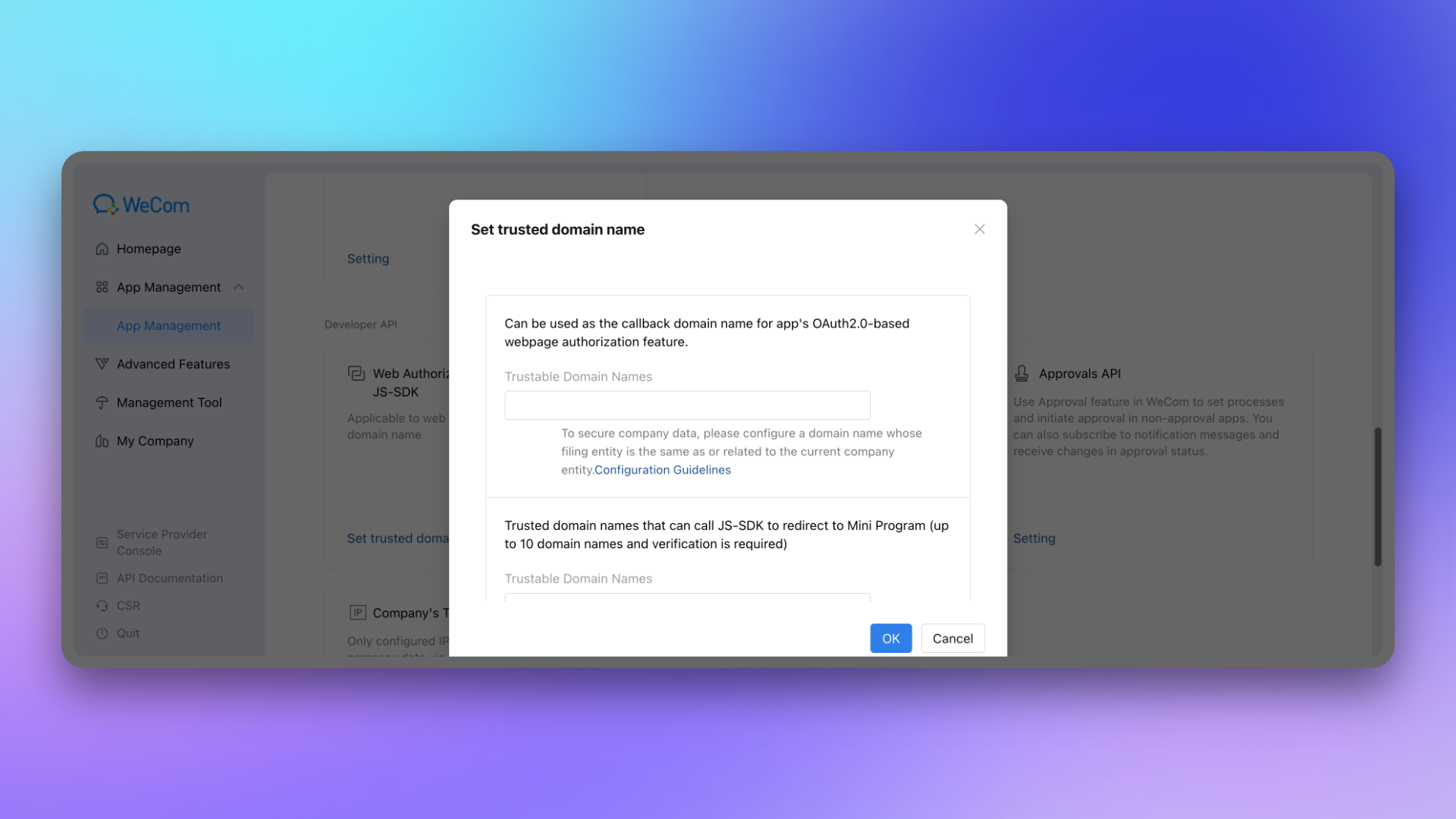
|
|
5883
6001
|
|
|
5884
|
-
|
|
6002
|
+
Return to the Flashduty integration configuration page, fill in this domain, and complete the verification.
|
|
5885
6003
|
|
|
5886
|
-
|
|
6004
|
+
8. On the application details page, go to **Receive Messages** page and **Set API Reception**. Click **Random Generation** for both \`Token\` and \`EncodingAESKey\`, then copy and save the generated values.
|
|
5887
6005
|
|
|
6006
|
+
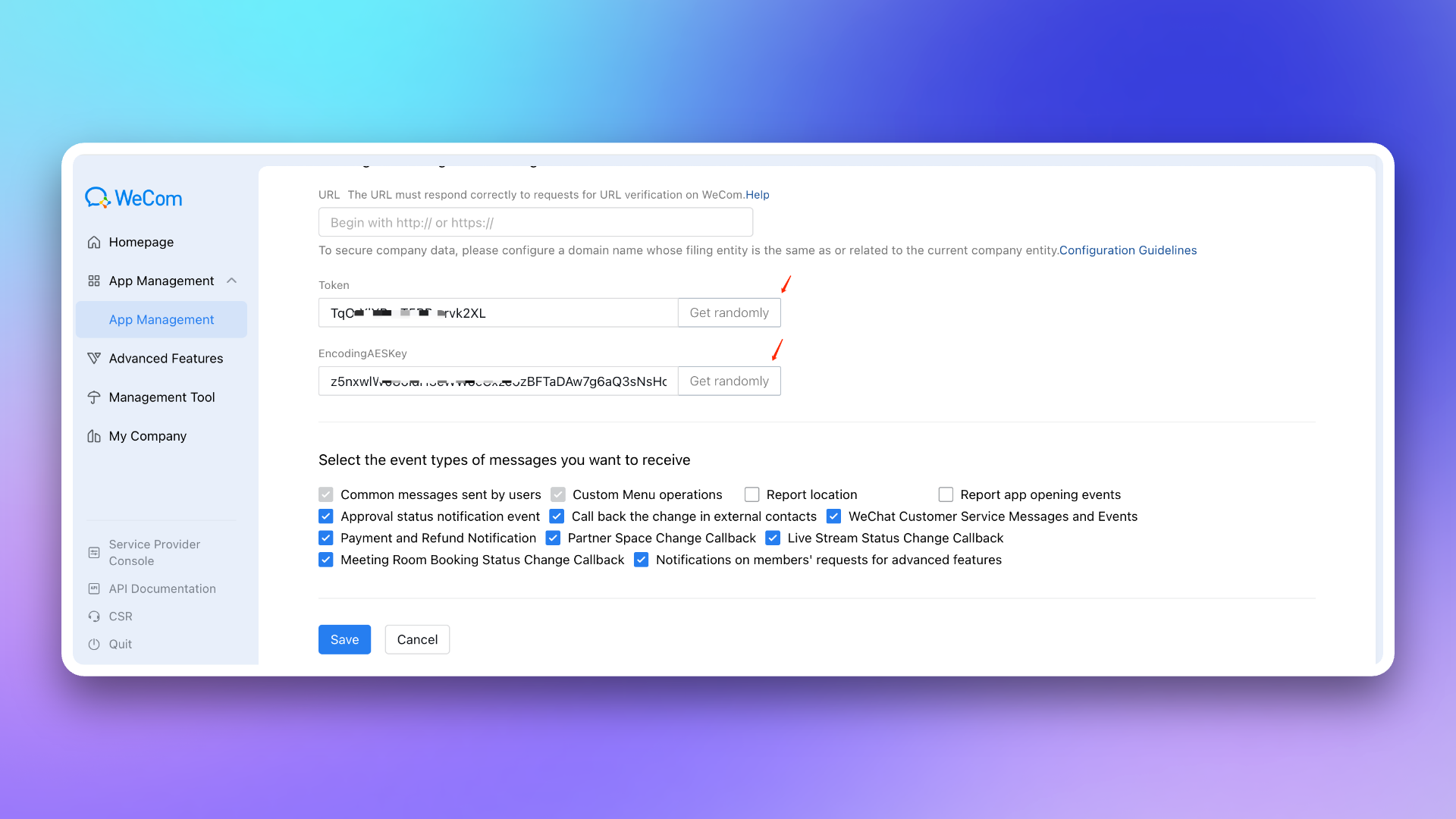
|
|
5888
6007
|
|
|
5889
|
-
|
|
5890
|
-
---
|
|
6008
|
+
Return to the Flashduty integration configuration page, fill in the saved \`Token\` and \`EncodingAESKey\`, and click **Save** to complete the integration.
|
|
5891
6009
|
|
|
5892
|
-
|
|
5893
|
-
- Adding the app to a channel requires Step 1 \`Install App\` to complete without errors
|
|
5894
|
-
- In the Slack channel, run \`/invite @FlashDuty\`. A message saying \`has joined\` or \`has been added by xx to xxx\` indicates successful addition
|
|
6010
|
+
9. Copy the \`Callback Address\` from the Flashduty integration details page, return to the **Receive Messages** page in WeCom. In the **API Reception** settings, fill in the \`Callback Address\` and the \`Token\` and \`EncodingAESKey\` saved in the previous step, then click **Save**.
|
|
5895
6011
|
|
|
5896
|
-
|
|
5897
|
-
- Add the app authorizer to the public channel
|
|
5898
|
-
- Or follow \`Common Issue 1\` to add the app to the channel
|
|
6012
|
+
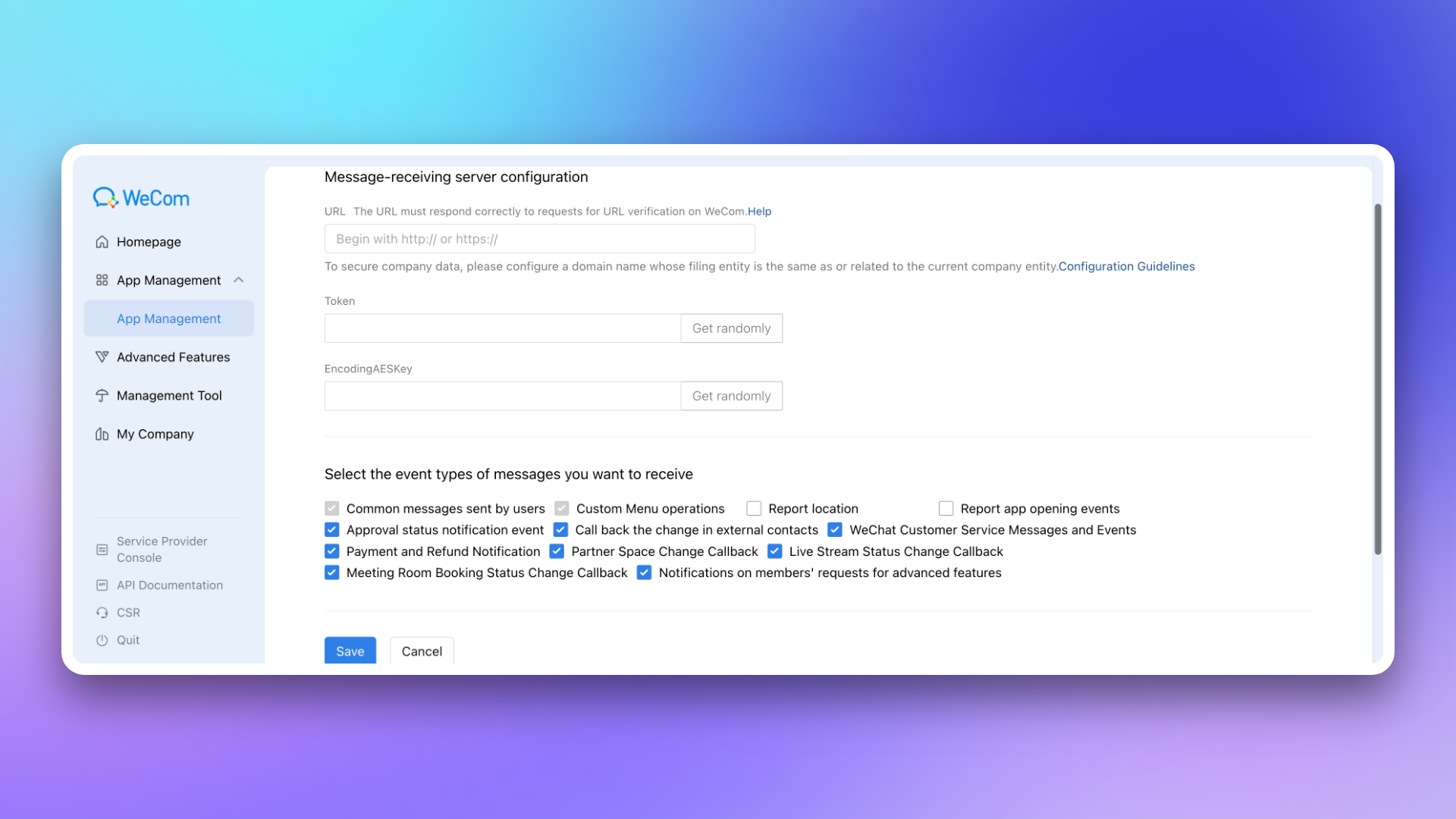
|
|
5899
6013
|
|
|
5900
|
-
3.
|
|
5901
|
-
- Try again, as there might be communication issues between the server and Slack causing authorization problems. Return to the add integration page and retry
|
|
5902
|
-
- If the error persists, contact customer support
|
|
6014
|
+
## 3. Configure war room
|
|
5903
6015
|
|
|
5904
|
-
|
|
5905
|
-
- Try again, as there might be communication issues when FlashDuty attempts to obtain the permanent authorization code. Return to the add integration page and retry
|
|
5906
|
-
- If the error persists, contact customer support
|
|
6016
|
+
---
|
|
5907
6017
|
|
|
5908
|
-
|
|
5909
|
-
- Try again, as there might be issues with Slack service
|
|
5910
|
-
- If the error persists, contact customer support
|
|
6018
|
+
> The war room feature is only supported when **custom enterprise application** mode is enabled.
|
|
5911
6019
|
|
|
5912
|
-
|
|
5913
|
-
- Try again, as there might be communication timeout issues between the server and Slack
|
|
5914
|
-
- If the error persists, contact customer support
|
|
6020
|
+
After completing the previous steps, in the **Enhanced Features** module of the Flashduty integration configuration page, check **Enable War Room** to enable this feature without additional configuration.
|
|
5915
6021
|
|
|
5916
|
-
|
|
5917
|
-
- Try again, as there might be server errors, such as the integration being disabled
|
|
5918
|
-
- If the error persists, contact customer support
|
|
6022
|
+
## 4. FAQ
|
|
5919
6023
|
|
|
5920
|
-
|
|
5921
|
-
|
|
5922
|
-
|
|
5923
|
-
|
|
5924
|
-
|
|
6024
|
+
---
|
|
6025
|
+
|
|
6026
|
+
1. **After clicking the integration save button, the system reports \`authorize app first\`?**
|
|
6027
|
+
- Please check if you have completed the application installation steps. For example, can you see the Flashduty application in the WeCom workplace?
|
|
6028
|
+
- Please check if you have correctly configured the \`Corp ID\`.
|
|
6029
|
+
2. **How to complete account linking or message sending prompts \`app not linked\`?**
|
|
6030
|
+
- Log in to the WeCom client (both desktop and mobile are acceptable), go to **Workplace**, find and open the Flashduty application.
|
|
6031
|
+
- The first time you enter the application, you need to log in. Select your member account and log in successfully through password or single sign-on to complete the linking of your Flashduty account and WeCom account.
|
|
6032
|
+
- Subsequent entries to the application will automatically log in without a password.
|
|
6033
|
+
3. **How to send incident notifications?**
|
|
6034
|
+
- Before sending notifications, you must complete account linking as described in the previous question.
|
|
6035
|
+
- Enter the specified channel, navigate to \`Escalation Rules\` → **Personal Channels**, and select \`WeCom\` as the notification method.
|
|
6036
|
+
- Flashduty supports customizing WeCom notification content. You can go to the **Template Management** page to set custom templates. **The custom area can display up to 8 lines**, and excess content will be truncated by WeCom.
|
|
6037
|
+
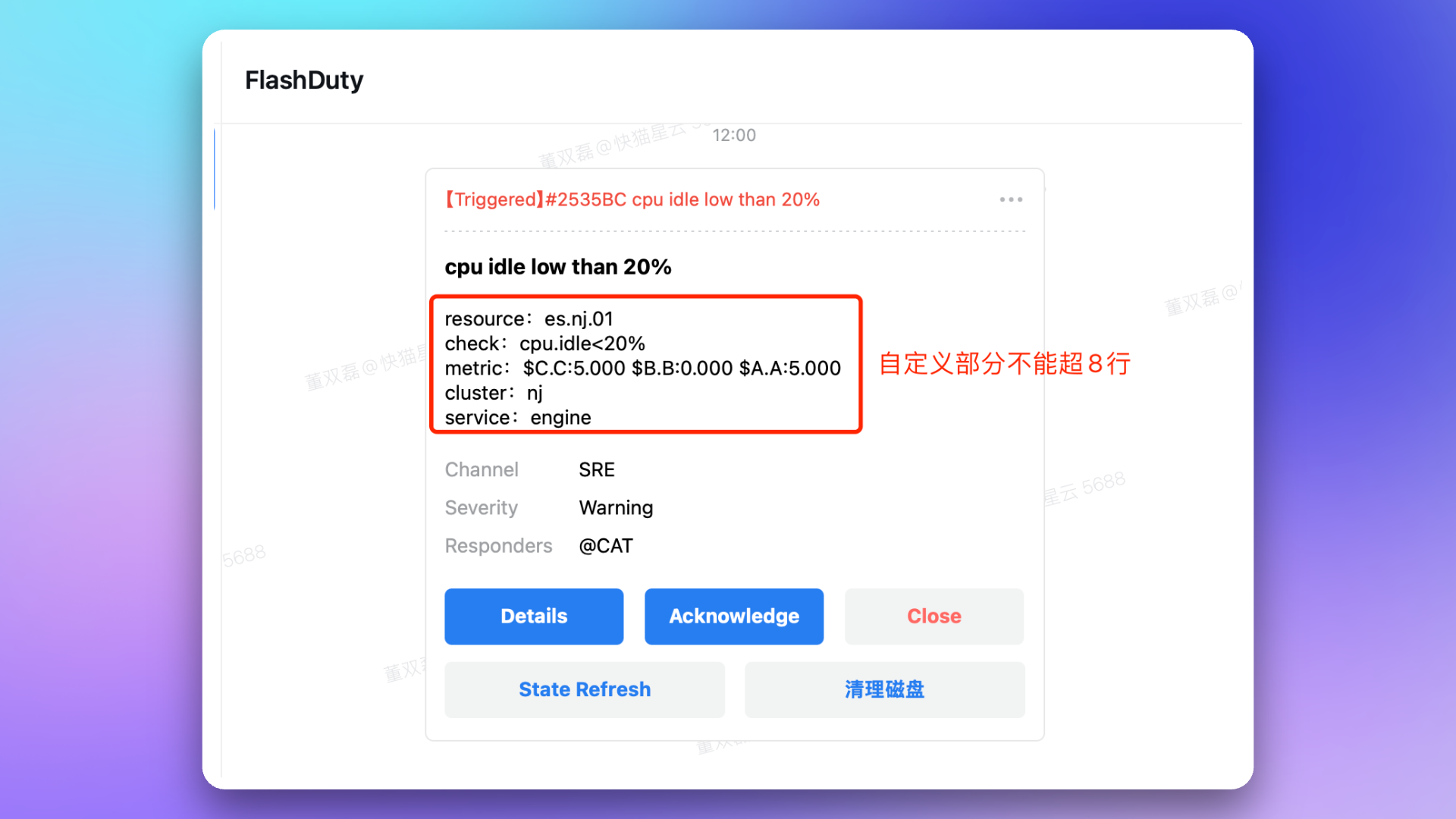
|
|
6038
|
+
4. **How to handle alerts within WeCom?**
|
|
6039
|
+
- Click on the card message to directly enter the alert details page.
|
|
6040
|
+
- Click **Start Processing** to directly set the alert to \`Processing\` status.
|
|
6041
|
+
- Click **Close Directly** to directly set the alert to \`Closed\` status.
|
|
6042
|
+
- Click **Snooze for 2 hours** to directly snooze the alert for 2 hours. If you want to snooze for longer, click the \`...\` in the upper right corner of the card to see more snooze options.
|
|
6043
|
+
5. **Why does the card message provide a \`Status Refresh\` button?**
|
|
6044
|
+
- According to WeCom's restrictions, after one card interaction, it can only be updated once within 72 hours. Each button operation is considered an interaction.
|
|
6045
|
+
- When the alert status changes, Flashduty will request to update the card content.
|
|
6046
|
+
- When the alert status changes frequently, the card may not be updated in real-time due to exceeding the update limit. At this time, you can click the **Refresh** button to manually get a chance to update the card status.
|
|
6047
|
+
6. **On Mac desktop, how to set clicking card messages to open with the \`system default browser\`?**
|
|
6048
|
+
- Mac desktop uses WeCom's built-in browser to open links by default.
|
|
6049
|
+
- You can try using the shortcut \`ctrl\` + \`command\` + \`shift\` + \`d\` to enable debug mode, then select **Debug** → **Browser, WebView Related** → **Open Web Page with System Browser** to change how links are opened. Use the same shortcut to close debug mode, and the settings will be retained.
|
|
6050
|
+
7. **Incident notification failed with prompt \`WeCom license not activated\`?**
|
|
6051
|
+
- Please contact Flashduty customer service or your dedicated technical support to purchase and activate the license for you.
|
|
6052
|
+
8. **Why is the war room feature not working as expected?**
|
|
6053
|
+
- Please refer to the **FAQ** section of the Flashduty [War Room Introduction](https://docs.flashcat.cloud/en/flashduty/war-room?nav=01JCQ7A4N4WRWNXW8EWEHXCMF5).`,te=`---
|
|
6054
|
+
title: "Slack Integration"
|
|
6055
|
+
description: "By integrating the Slack third-party application, you can receive and respond to alerts within Slack."
|
|
5925
6056
|
date: "2025-05-19T10:00:00+08:00"
|
|
5926
|
-
url: "https://docs.flashcat.cloud/en/flashduty/
|
|
6057
|
+
url: "https://docs.flashcat.cloud/en/flashduty/slack-integration-guide?nav=01JCQ7A4N4WRWNXW8EWEHXCMF5"
|
|
5927
6058
|
---
|
|
5928
6059
|
|
|
5929
|
-
|
|
6060
|
+
By integrating the Slack third-party application, you can receive and respond to alerts within Slack.
|
|
5930
6061
|
|
|
5931
|
-
|
|
5932
|
-
---
|
|
6062
|
+
<span id="install-app"></span>
|
|
5933
6063
|
|
|
5934
|
-
|
|
6064
|
+
## 1. Install application
|
|
5935
6065
|
|
|
5936
|
-
|
|
5937
|
-
These steps must be completed by a Microsoft Teams administrator
|
|
5938
|
-
:::
|
|
6066
|
+
---
|
|
5939
6067
|
|
|
5940
|
-
|
|
5941
|
-
|
|
6068
|
+
1. Visit Flashduty Integration Center → IM → **Slack**, and click **Add**.
|
|
6069
|
+
2. On the redirected Slack page, select **Workspace** in the upper right corner, then click **Allow**.
|
|
6070
|
+
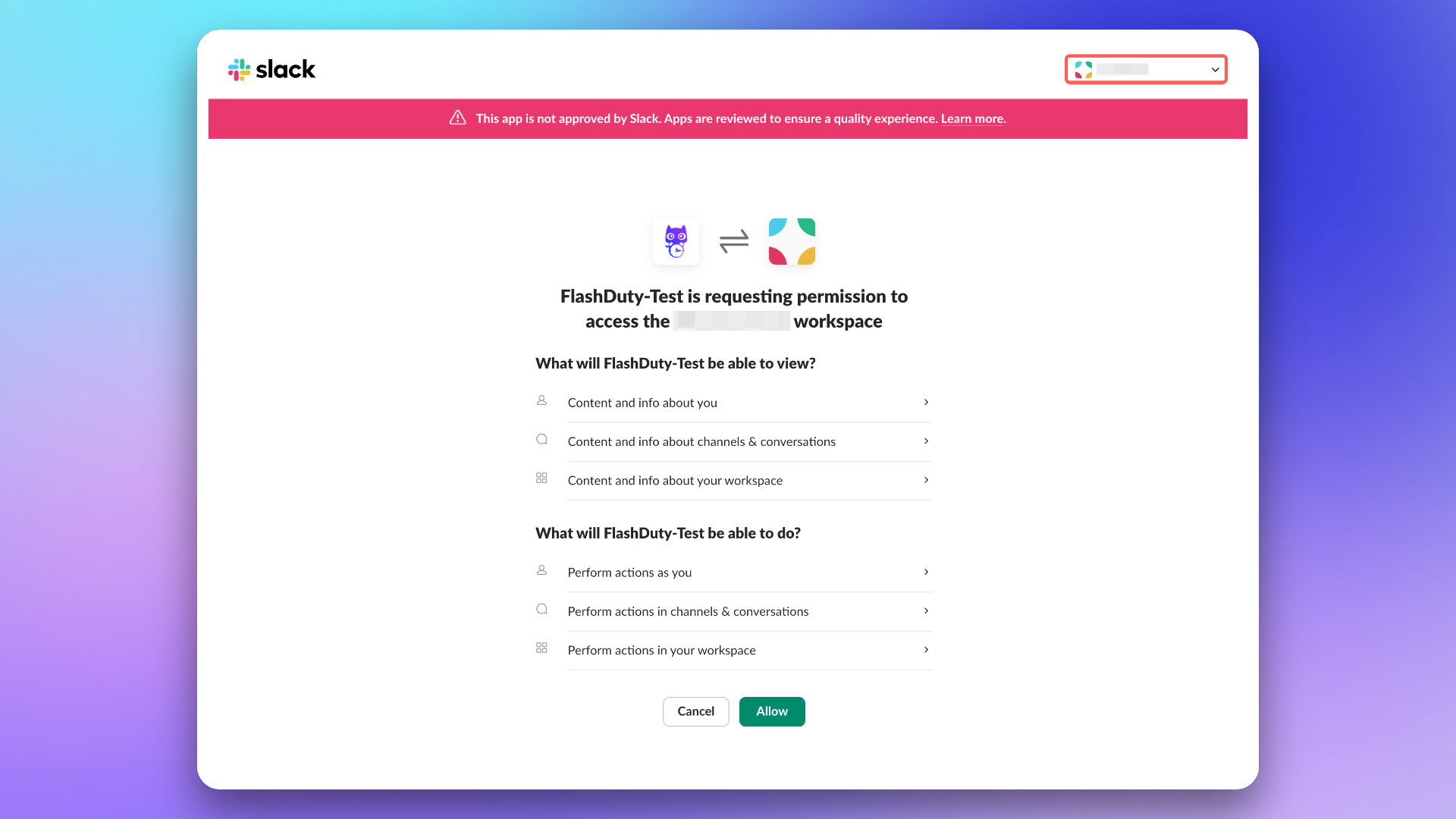
|
|
6071
|
+
3. Enter the data source name and click **Save**.
|
|
5942
6072
|
|
|
5943
|
-
|
|
5944
|
-
Go to **Microsoft Teams, navigate to [+Apps] - [Manage your apps] - [Upload an app] - [Upload an app to your org's app catalog]** and upload the FlashDutyBot.zip package
|
|
6073
|
+
## 2. Configure war room
|
|
5945
6074
|
|
|
5946
|
-
|
|
6075
|
+
After completing the previous steps, in the **Enhanced Features** module of the Flashduty integration configuration page, check **Enable War Room** to enable this feature without additional configuration.
|
|
5947
6076
|
|
|
5948
|
-
|
|
5949
|
-
Go to [Microsoft Teams Admin Center](https://admin.teams.microsoft.com/policies/manage-apps), find the FlashDuty application, and adjust the application visibility to everyone (or your custom scope)
|
|
6077
|
+
## 3. FAQ
|
|
5950
6078
|
|
|
5951
|
-
|
|
5952
|
-
If the application status shows [Blocked], please wait a moment and refresh the page or modify it manually
|
|
5953
|
-
:::
|
|
5954
|
-
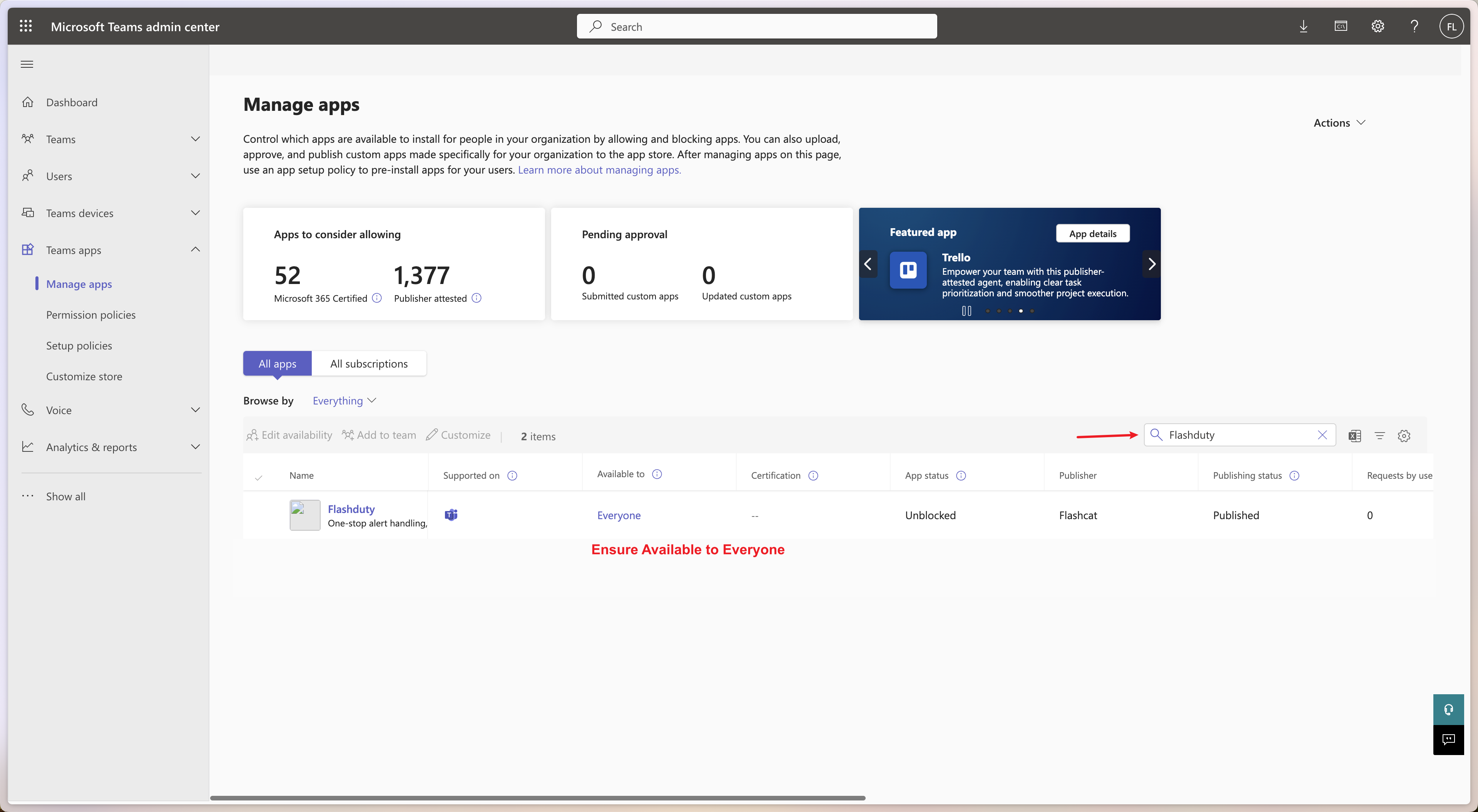
|
|
6079
|
+
---
|
|
5955
6080
|
|
|
5956
|
-
|
|
5957
|
-
|
|
6081
|
+
1. **The private channel I want is not in the group chat list of escalation rules?**
|
|
6082
|
+
- Ensure the [**Install Application**](#install-app) step has been completed successfully without errors.
|
|
6083
|
+
- Enter the relevant Slack channel and execute the \`/invite @Flashduty\` command. When you see the prompt \`has joined\` or \`has been added by xxx to xxx\`, it means the addition was successful.
|
|
6084
|
+
2. **The public channel I want is not in the group chat list of escalation rules?**
|
|
6085
|
+
- Add the application authorizer to the public channel.
|
|
6086
|
+
- Refer to the method in **Question 1** to add the application to the channel.
|
|
6087
|
+
3. **Error after clicking the \`Allow\` button in installation step 2?**
|
|
6088
|
+
- Please retry. This may be due to abnormal communication between the server and Slack causing authorization failure. Please return to the add data source page and try again.
|
|
6089
|
+
- If the error persists after retrying, please contact customer service.
|
|
6090
|
+
4. **Error after clicking the \`Save\` button in installation step 3?**
|
|
6091
|
+
- Please retry. This may be due to abnormal communication between the Flashduty server and Slack when obtaining the permanent authorization code. Please return to the add data source page and try again.
|
|
6092
|
+
- If the error persists after retrying, please contact customer service.
|
|
6093
|
+
5. **Slack App prompts \`not_authed\` error?**
|
|
6094
|
+
- Please retry, this may be a temporary issue with Slack service.
|
|
6095
|
+
- If the error persists after retrying, please contact customer service.
|
|
6096
|
+
6. **Slack App prompts \`Operation timed out\` error?**
|
|
6097
|
+
- Please retry. This may be due to communication timeout between the server and Slack.
|
|
6098
|
+
- If the error persists after retrying, please contact customer service.
|
|
6099
|
+
7. **Slack App prompts \`This app responded with Status Code 500\` error?**
|
|
6100
|
+
- Please retry. This may be an error on the Flashduty server side (for example, the data source is closed).
|
|
6101
|
+
- If the error persists after retrying, please contact customer service.
|
|
6102
|
+
8. **Slack App prompts other unknown errors?**
|
|
6103
|
+
- Please retry.
|
|
6104
|
+
- If the error persists after retrying, please contact customer service to record and resolve new issues.
|
|
6105
|
+
9. **Why is the war room feature not working as expected?**
|
|
6106
|
+
- For previously authorized Slack IM integrations, you need to manually reauthorize Slack in the Flashduty integration configuration page to grant the application the additional permissions required for the war room feature.
|
|
6107
|
+
- Please refer to the **FAQ** section of the Flashduty [War Room Introduction](https://docs.flashcat.cloud/en/flashduty/war-room?nav=01JCQ7A4N4WRWNXW8EWEHXCMF5).`,ae=`---
|
|
6108
|
+
title: "Microsoft Teams Integration"
|
|
6109
|
+
description: "By integrating the Microsoft Teams third-party application, you can receive and respond to alerts within Microsoft Teams."
|
|
6110
|
+
date: "2025-05-19T10:00:00+08:00"
|
|
6111
|
+
url: "https://docs.flashcat.cloud/en/flashduty/microsoft-teams-integration-guide?nav=01JCQ7A4N4WRWNXW8EWEHXCMF5"
|
|
6112
|
+
---
|
|
6113
|
+
By integrating the Microsoft Teams third-party application, you can receive and respond to alerts within Microsoft Teams.
|
|
5958
6114
|
|
|
5959
|
-
|
|
6115
|
+
## 1. Install and update application
|
|
6116
|
+
---
|
|
6117
|
+
|
|
6118
|
+
The Microsoft Teams integration is currently in Beta. You need to complete the following operations before linking.
|
|
5960
6119
|
|
|
5961
|
-
### 3. Update Application
|
|
5962
6120
|
::: caution
|
|
5963
|
-
|
|
6121
|
+
This step needs to be completed by a Microsoft Teams administrator.
|
|
5964
6122
|
:::
|
|
5965
6123
|
|
|
5966
|
-
|
|
5967
|
-
|
|
5968
|
-
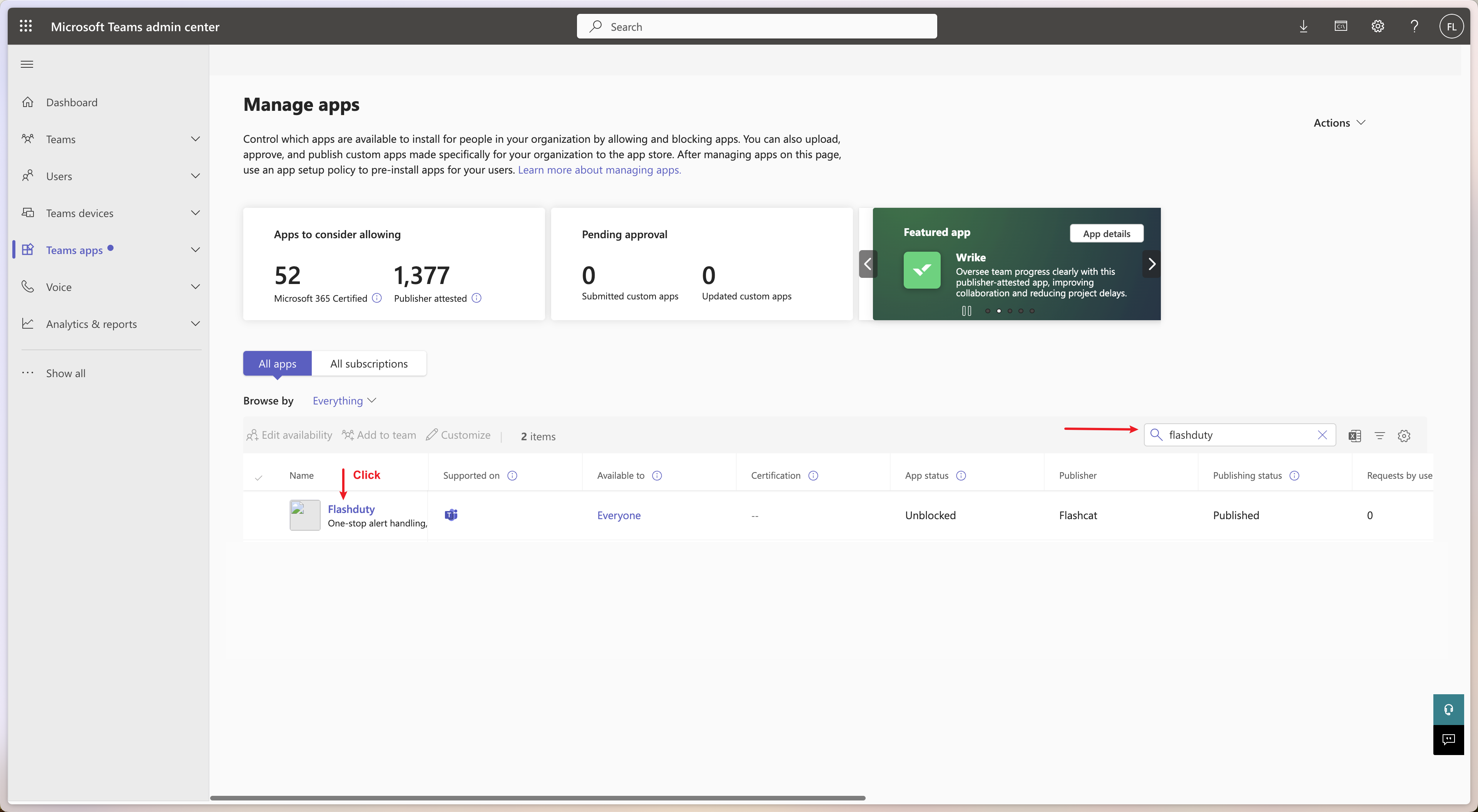
|
|
5969
|
-
|
|
5970
|
-
Upload the new version FlashdutyBot.zip
|
|
6124
|
+
### 1. Download application
|
|
6125
|
+
Download [FlashDutyBot-v1.0.3.zip](https://flashduty-docs.oss-cn-beijing.aliyuncs.com/docs/FlashdutyBot-v1.0.3.zip) to your local device.
|
|
5971
6126
|
|
|
5972
|
-
|
|
6127
|
+
### 2. Install application
|
|
6128
|
+
In Microsoft Teams, navigate to +Apps → Manage your apps → Upload an app → **Upload an app to your org's app catalog**, then upload the application package \`FlashDutyBot.zip\`.
|
|
5973
6129
|
|
|
5974
|
-
|
|
6130
|
+
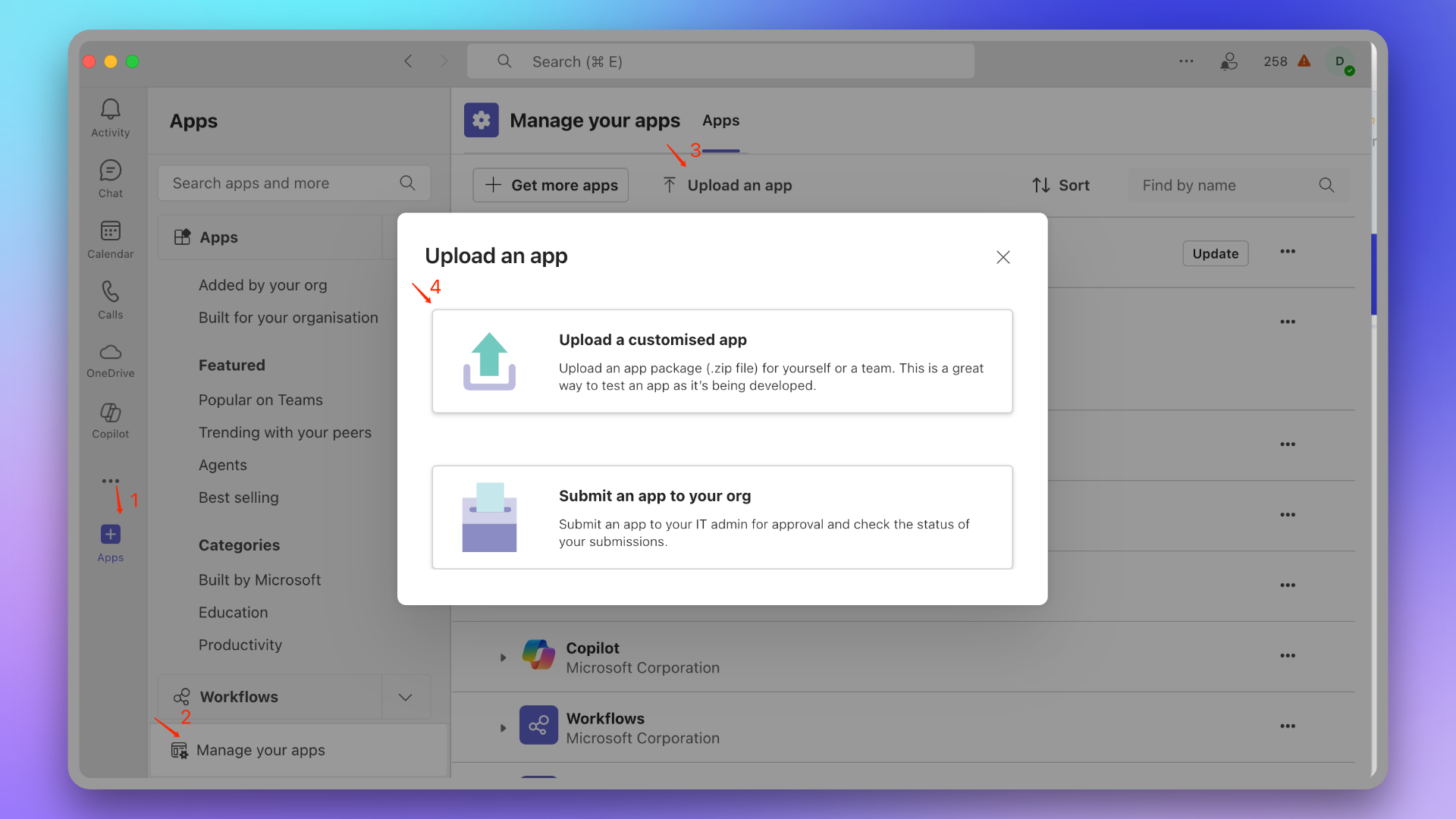
|
|
5975
6131
|
|
|
5976
|
-
|
|
6132
|
+
#### Configure application visibility
|
|
6133
|
+
Go to [Microsoft Teams Admin Center](https://admin.teams.microsoft.com/policies/manage-apps), find the Flashduty application, and adjust the application visibility to everyone or your specified scope.
|
|
5977
6134
|
|
|
5978
|
-
|
|
6135
|
+
::: tip
|
|
6136
|
+
If the application status is "Blocked", please wait a moment and refresh the page or manually modify it.
|
|
6137
|
+
:::
|
|
6138
|
+
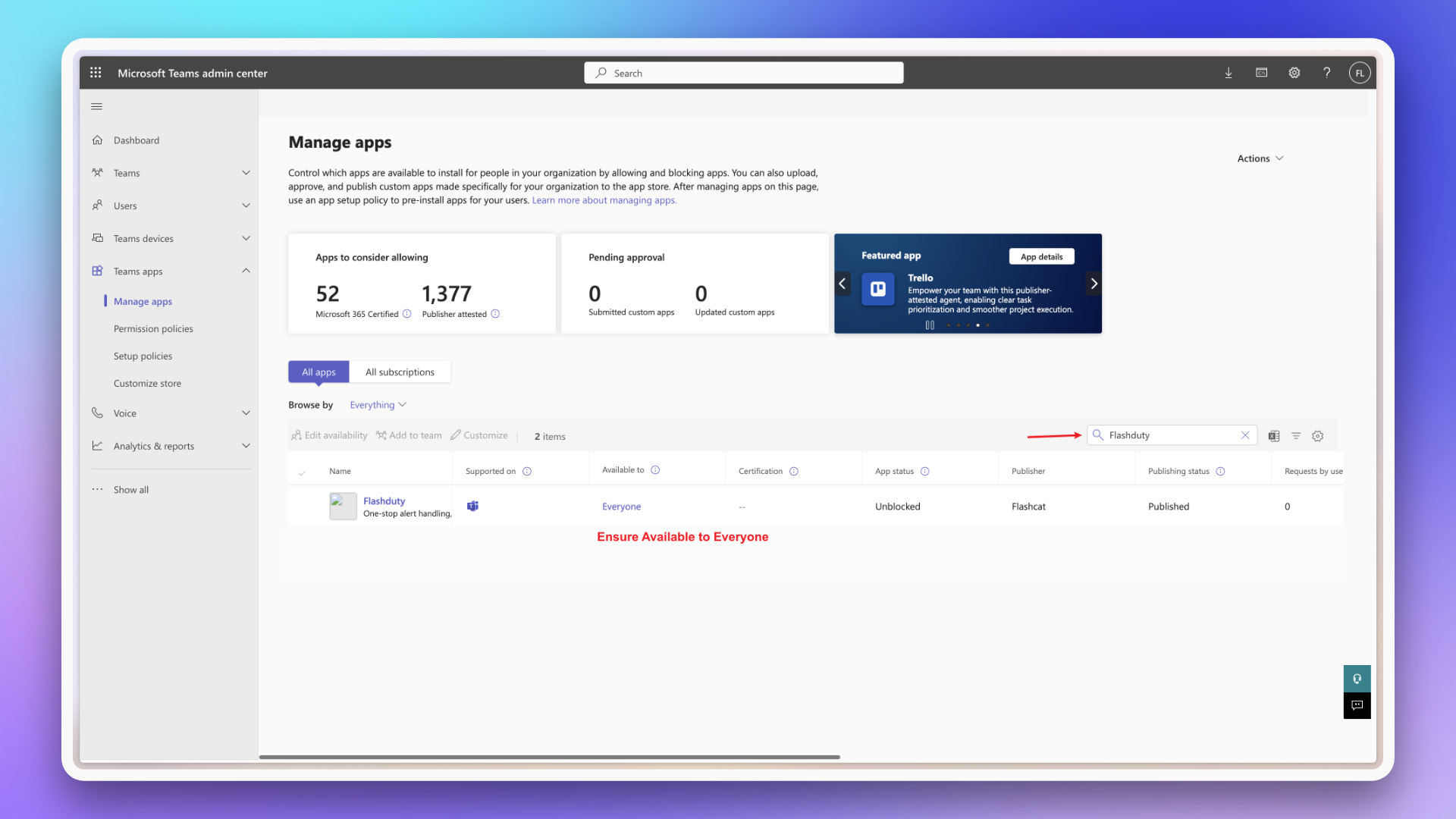
|
|
5979
6139
|
|
|
5980
|
-
### 1. Add FlashDuty Application to Target Team
|
|
5981
6140
|
|
|
5982
|
-
####
|
|
5983
|
-
|
|
6141
|
+
#### Check if successfully added
|
|
6142
|
+
After waiting a few minutes, organization members can find this application in +Apps → **Built for your org**.
|
|
5984
6143
|
|
|
5985
|
-
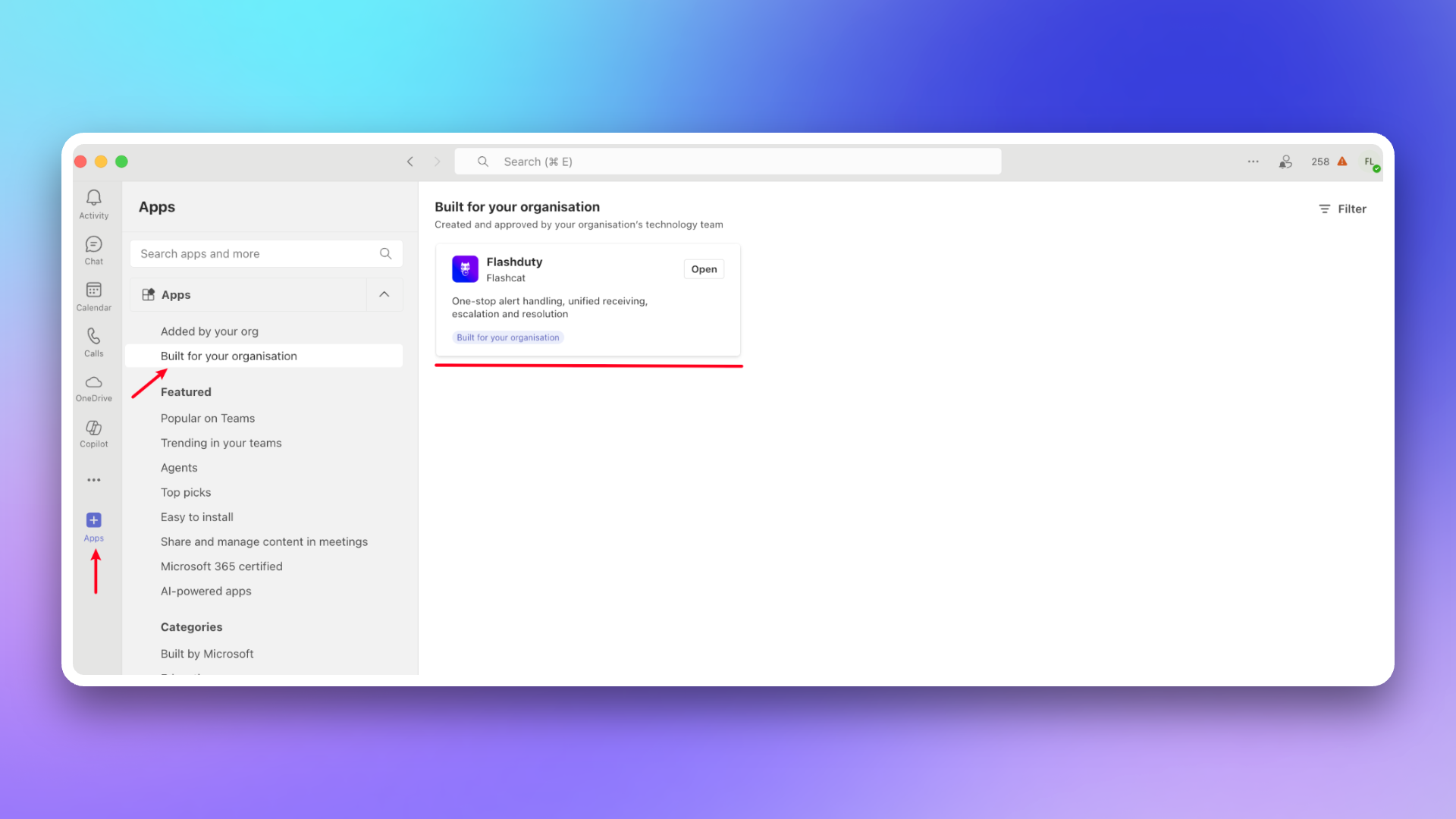
|
|
5986
6145
|
|
|
5987
|
-
|
|
6146
|
+
### 3. Update application
|
|
5988
6147
|
::: caution
|
|
5989
|
-
|
|
6148
|
+
If your installed application version is lower than 1.0.3, please follow this process to update.
|
|
5990
6149
|
:::
|
|
5991
6150
|
|
|
5992
|
-
|
|
6151
|
+
1. Go to [Microsoft Teams Admin Center](https://admin.teams.microsoft.com/policies/manage-apps), find and enter the Flashduty application details page.
|
|
6152
|
+
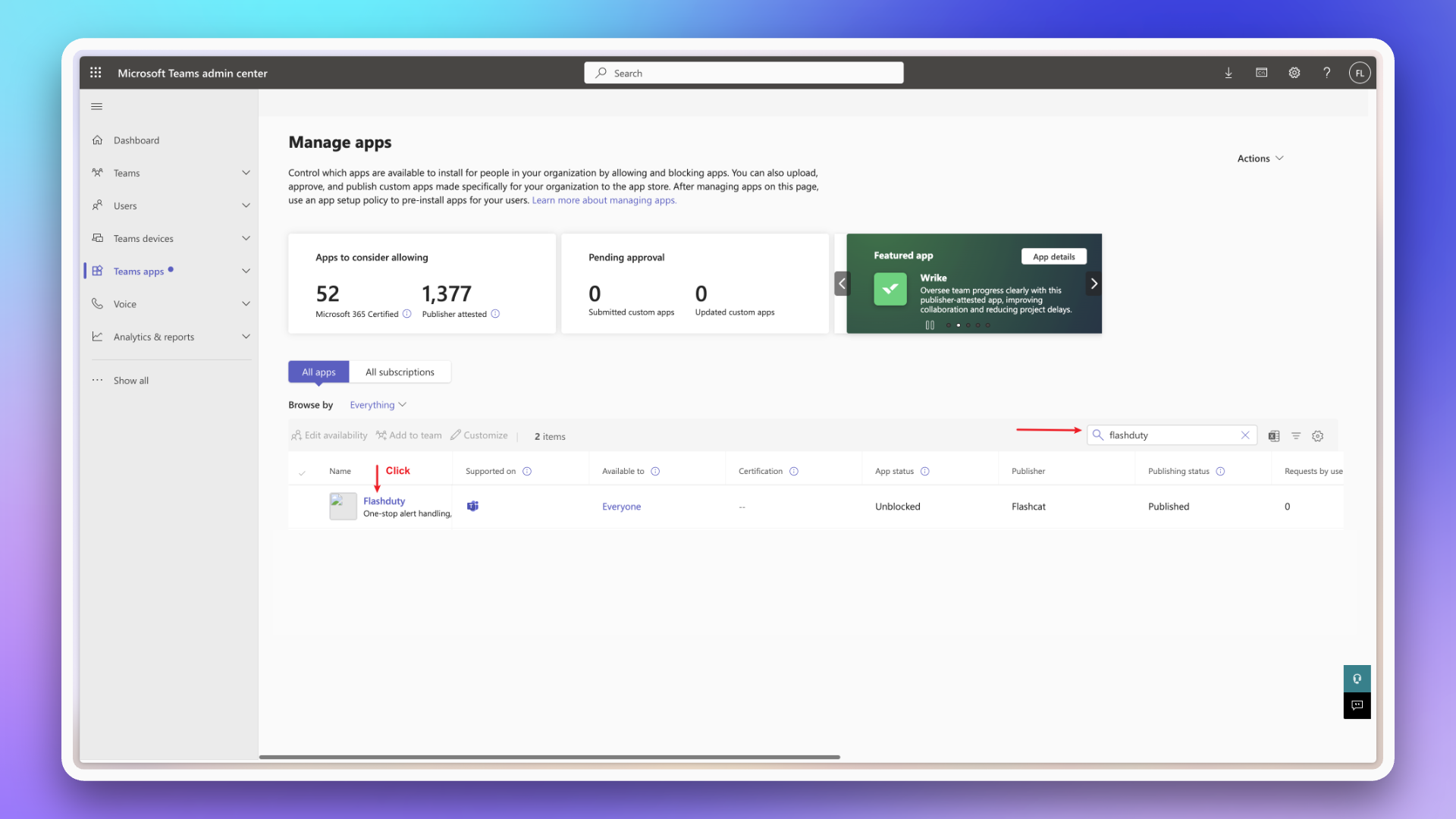
|
|
5993
6153
|
|
|
5994
|
-
|
|
5995
|
-
|
|
6154
|
+
2. Upload the new version \`FlashdutyBot.zip\`.
|
|
6155
|
+
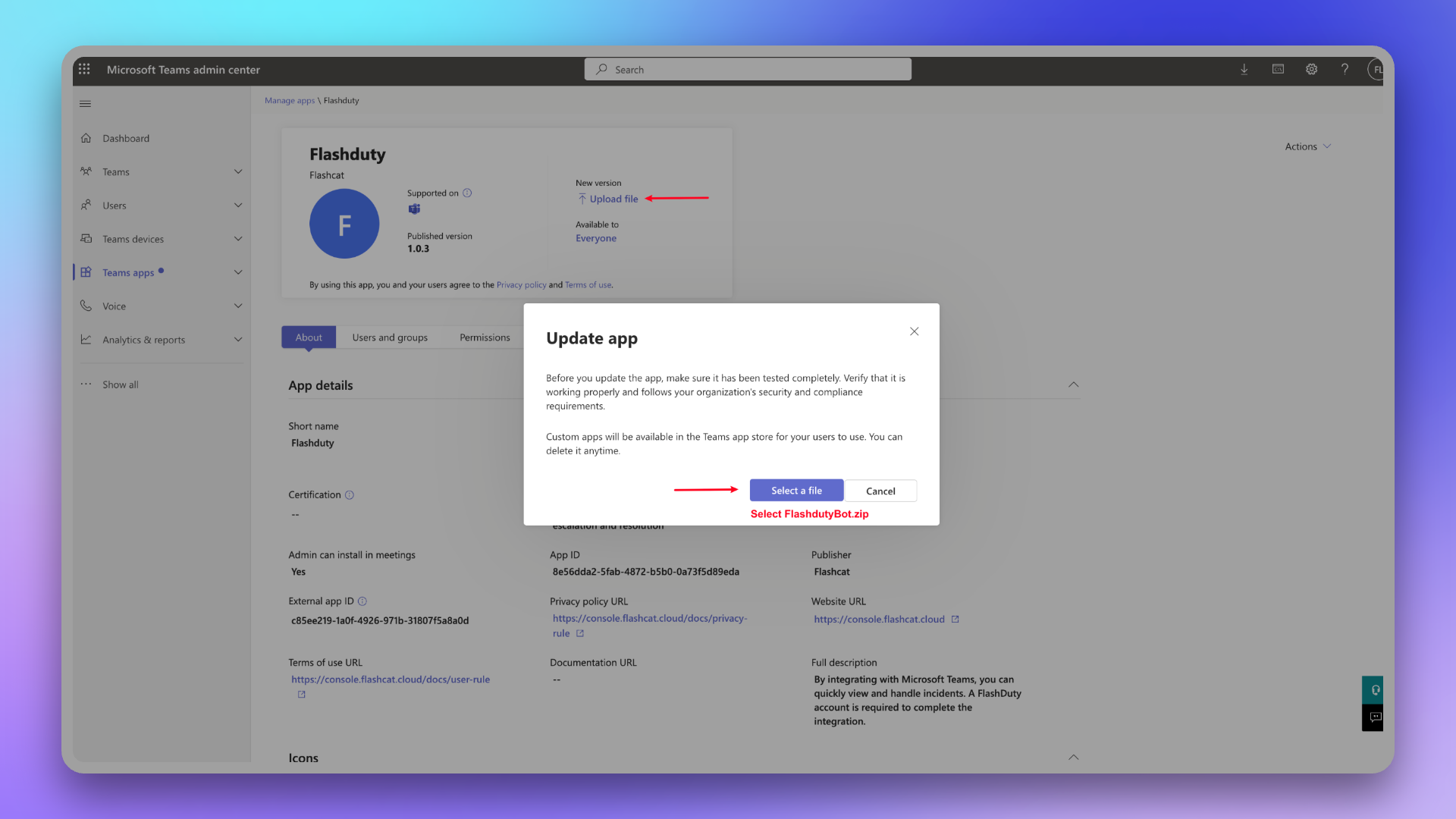
|
|
5996
6156
|
|
|
5997
|
-
|
|
6157
|
+
3. Wait for the application version to update in the client (may take tens of minutes).
|
|
6158
|
+
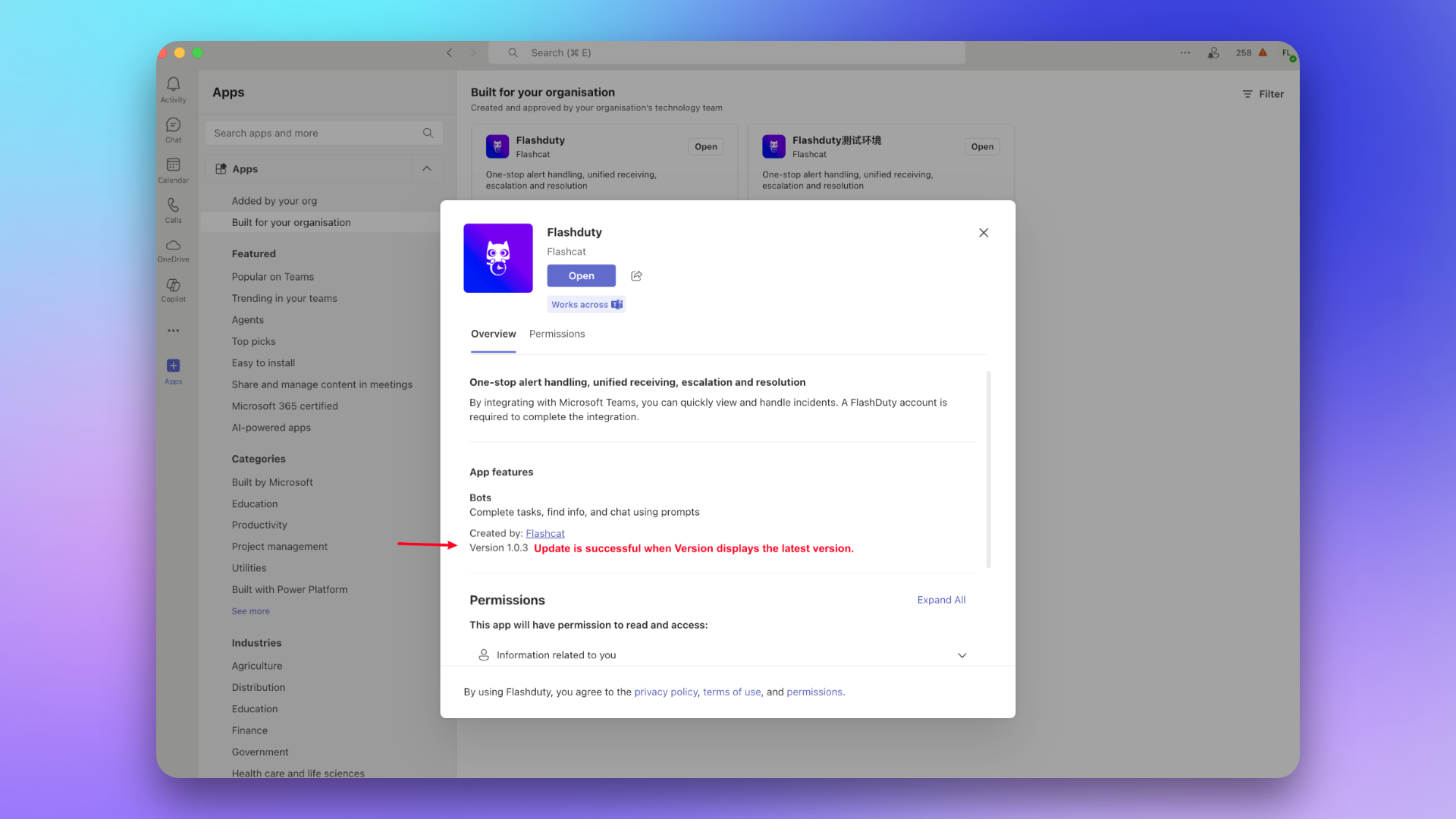
|
|
5998
6159
|
|
|
5999
|
-
##
|
|
6160
|
+
## 2. Link Team
|
|
6161
|
+
---
|
|
6162
|
+
### 1. Add Flashduty application
|
|
6163
|
+
1. Find the Flashduty application in the app marketplace.
|
|
6164
|
+
> If there is no application, please contact your Microsoft Teams organization administrator.
|
|
6000
6165
|
|
|
6001
|
-
|
|
6166
|
+
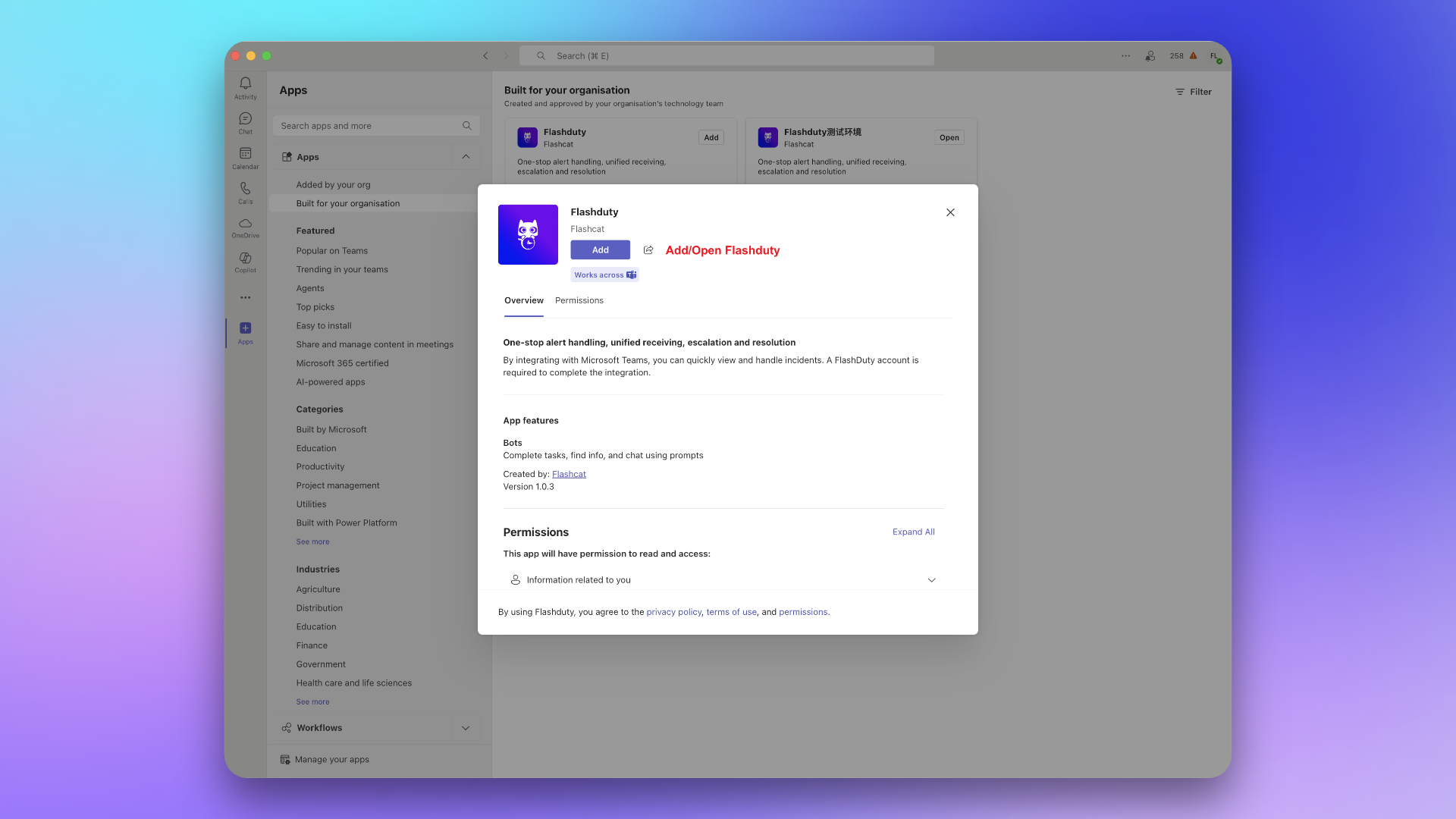
|
|
6002
6167
|
|
|
6003
|
-
|
|
6004
|
-
|
|
6168
|
+
2. Add the application to the target Team.
|
|
6169
|
+
::: caution
|
|
6170
|
+
This step must select the General Channel of the target Team, otherwise incidents cannot be sent to the Team.
|
|
6171
|
+
:::
|
|
6005
6172
|
|
|
6006
|
-
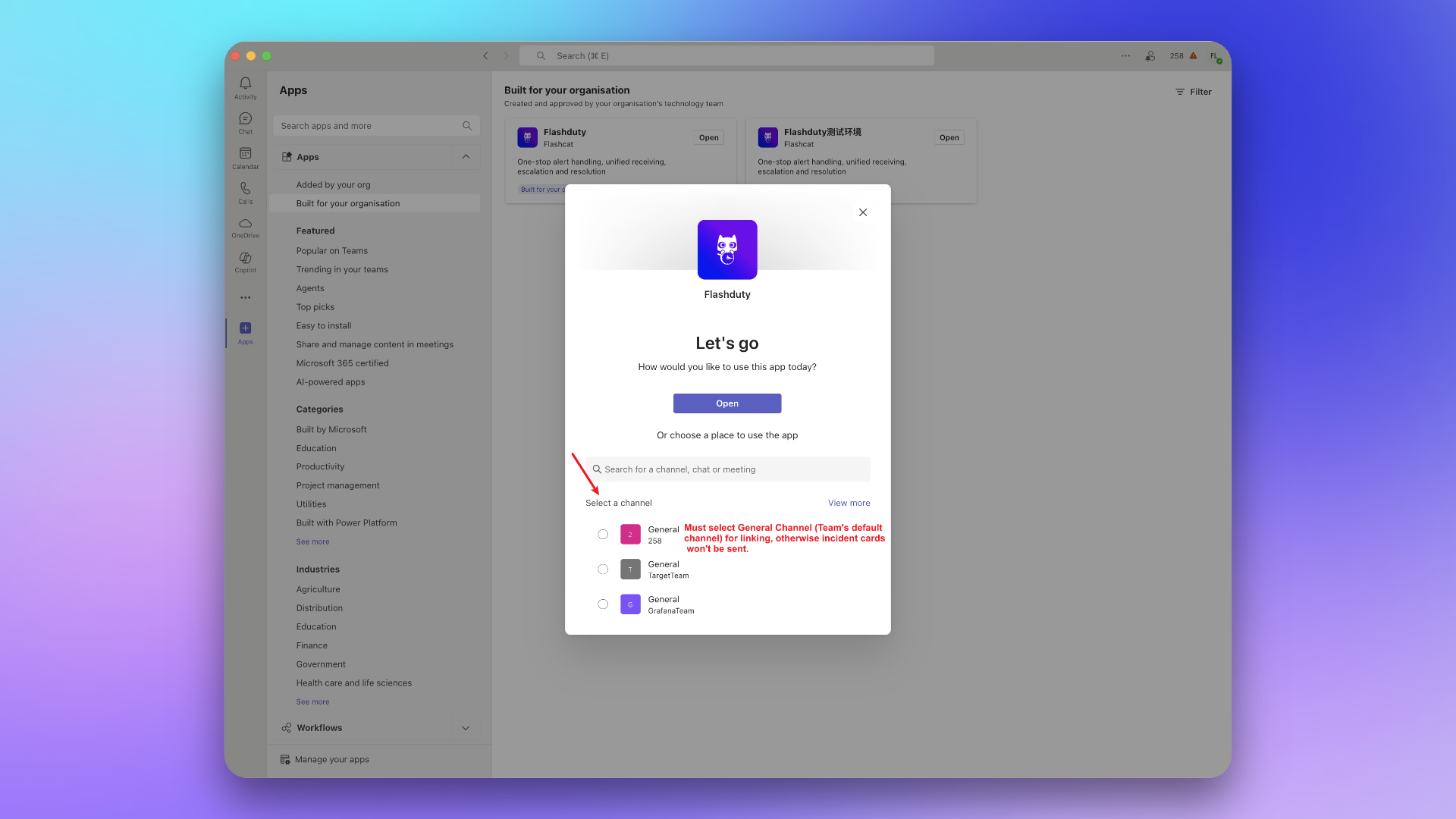
|
|
6007
6174
|
|
|
6008
|
-
|
|
6175
|
+
### 2. Send link command
|
|
6176
|
+
In the Team, @Flashduty and send the command \`linkTeam {ID}\`, then click **Link Now**.
|
|
6009
6177
|
|
|
6010
|
-
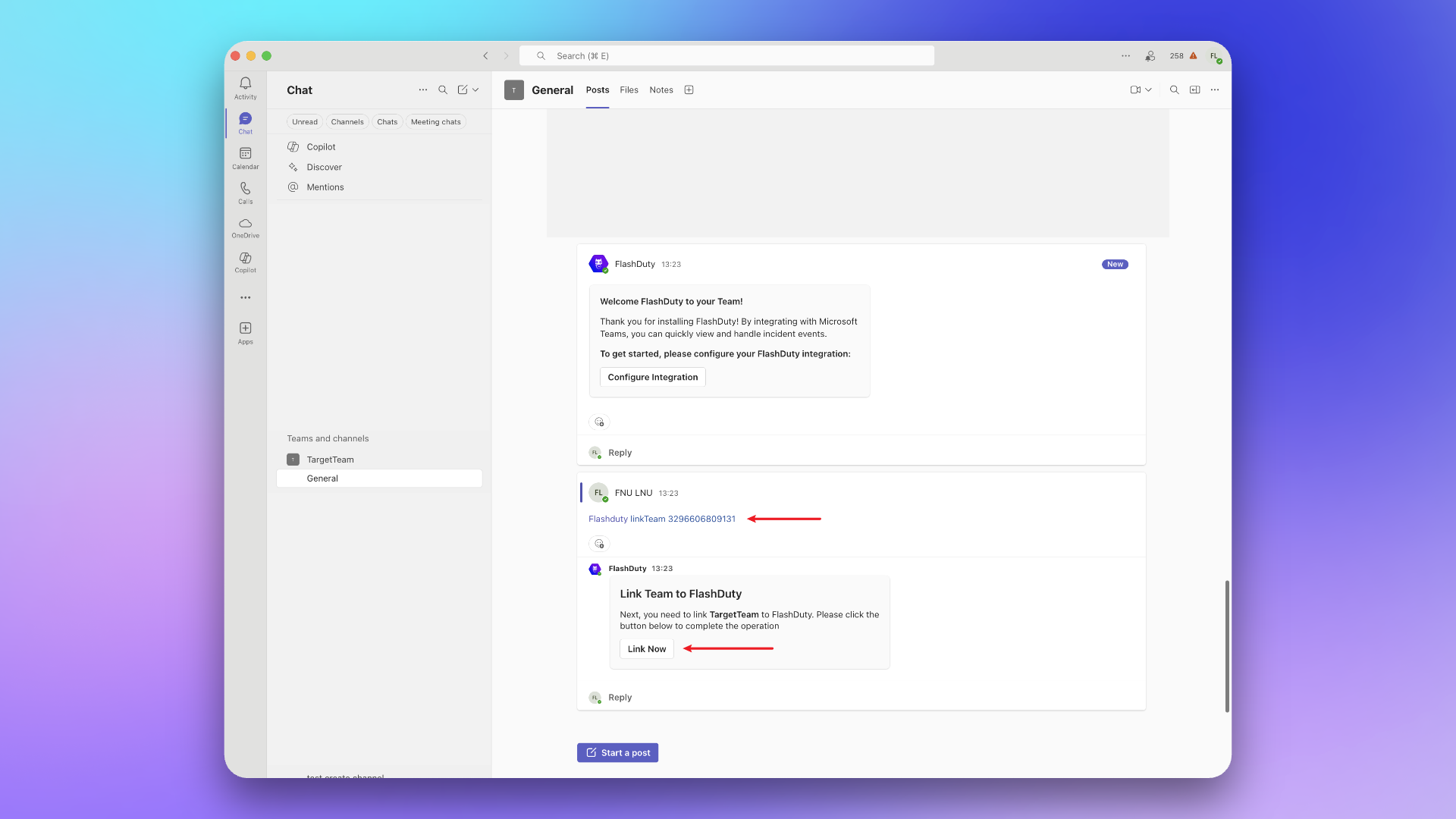
|
|
6011
6179
|
|
|
6012
|
-
|
|
6013
|
-
|
|
6180
|
+
## 3. Link Chat
|
|
6181
|
+
---
|
|
6182
|
+
### 1. Add Flashduty application
|
|
6183
|
+
1. Find the Flashduty application in the app marketplace.
|
|
6184
|
+
> If there is no application, please contact your Microsoft Teams organization administrator.
|
|
6014
6185
|
|
|
6015
|
-

|
|
6016
6187
|
|
|
6017
|
-
|
|
6188
|
+
2. Add the application to the target Chat.
|
|
6018
6189
|
|
|
6019
|
-
|
|
6190
|
+
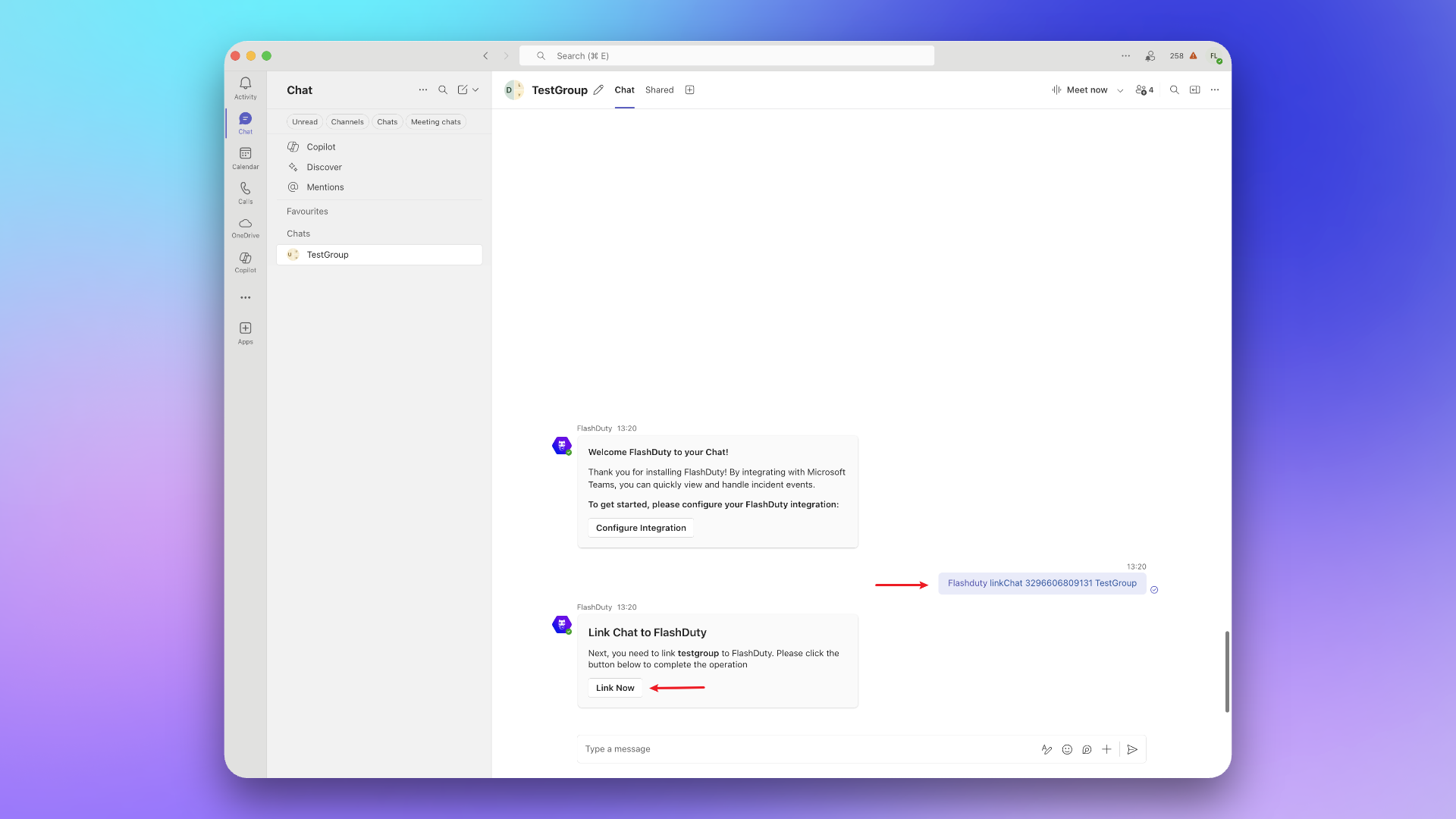
|
|
6020
6191
|
|
|
6021
|
-
|
|
6022
|
-
|
|
6192
|
+
### 2. Send link command
|
|
6193
|
+
In the Chat, @Flashduty and send the command \`linkChat {ID} {ChatName}\`, then click **Link Now**.
|
|
6023
6194
|
|
|
6024
|
-

|
|
6025
6196
|
|
|
6026
|
-
|
|
6027
|
-
|
|
6197
|
+
## 4. Link user
|
|
6198
|
+
---
|
|
6199
|
+
### 1. Add Flashduty application
|
|
6200
|
+
1. Find the Flashduty application in the app marketplace.
|
|
6201
|
+
> If there is no application, please contact your Microsoft Teams organization administrator.
|
|
6028
6202
|
|
|
6029
|
-
|
|
6030
|
-
Copy the command: linkUser {} and send it to the chat, then click Associate Now
|
|
6203
|
+

|
|
6031
6204
|
|
|
6032
|
-
|
|
6205
|
+
2. Click **Open Application**.
|
|
6033
6206
|
|
|
6034
|
-
|
|
6035
|
-
<details>
|
|
6036
|
-
<summary>Team or individual not receiving messages</summary>
|
|
6037
|
-
Please check if the teams and users are successfully associated in Integration Center => Instant Messaging => Microsoft Teams
|
|
6038
|
-
</details>
|
|
6207
|
+
|
|
6039
6208
|
|
|
6040
|
-
|
|
6041
|
-
|
|
6042
|
-
Please check in Integration Center => Instant Messaging => Microsoft Teams under Associated Teams and Associated Users
|
|
6043
|
-
</details>
|
|
6209
|
+
### 2. Send link command
|
|
6210
|
+
Copy and send the command \`linkUser {}\` to the chat, then click **Link Now**.
|
|
6044
6211
|
|
|
6045
|
-
|
|
6046
|
-
<summary>How to cancel associated teams and users</summary>
|
|
6047
|
-
Currently not supported
|
|
6048
|
-
</details>
|
|
6212
|
+
|
|
6049
6213
|
|
|
6050
|
-
|
|
6214
|
+
## 5. FAQ
|
|
6215
|
+
---
|
|
6216
|
+
|
|
6217
|
+
1. **Team or individual cannot receive messages?**
|
|
6218
|
+
- Please go to Integration Center → IM → **Microsoft Teams** to check if teams and users have been successfully linked.
|
|
6219
|
+
2. **How to view linked teams and users?**
|
|
6220
|
+
- Please go to Integration Center → IM → **Microsoft Teams** to view in **Linked Teams** and **Linked Users**.
|
|
6221
|
+
3. **How to cancel linked teams and users?**
|
|
6222
|
+
- This feature is not currently supported.`,oe=`Configure alert webhooks to receive HTTP callbacks at your specified URL when alerts have specific actions (such as triggering or closing). The callback content includes the latest key information about the alert, allowing integration with your custom tools.
|
|
6051
6223
|
|
|
6052
6224
|
<span id="EventTypes"></span>
|
|
6053
6225
|
|
|
@@ -6422,7 +6594,7 @@ curl -X POST 'https://example.com/incident/webhook?a=a' \\
|
|
|
6422
6594
|
|
|
6423
6595
|
4. **Trusted IP whitelist for push sources?**
|
|
6424
6596
|
- {ip_whitelist}
|
|
6425
|
-
- May be updated in the future, please check periodically`,
|
|
6597
|
+
- May be updated in the future, please check periodically`,se=`Custom incident actions allow you to quickly invoke external interfaces during incident troubleshooting for incident self-healing, information enrichment, and other custom operations.
|
|
6426
6598
|
|
|
6427
6599
|
## I. Creating Actions
|
|
6428
6600
|
|
|
@@ -6669,7 +6841,7 @@ When an incident occurs and is confirmed to be caused by a change, directly trig
|
|
|
6669
6841
|
|
|
6670
6842
|
### Update Status Page
|
|
6671
6843
|
|
|
6672
|
-
When an incident is confirmed to affect online services, trigger external status page updates to prompt`,
|
|
6844
|
+
When an incident is confirmed to affect online services, trigger external status page updates to prompt`,re=`---
|
|
6673
6845
|
title: "Jira Sync"
|
|
6674
6846
|
description: "Sync incidents with Jira issues through Jira Sync Webhook."
|
|
6675
6847
|
date: "2025-05-19T10:00:00+08:00"
|
|
@@ -6751,7 +6923,7 @@ In the Integration Center, select **Webhook**, choose **Jira Sync** integration,
|
|
|
6751
6923
|
|
|
6752
6924
|
- Flashduty syncs information according to default field mappings and your custom field configurations. If your Jira issue type has required fields without mapping relationships, Jira issue creation may fail.
|
|
6753
6925
|
- Jira issue details are accessed using project KEY + number format. If you modify the project KEY, saved issue URLs in Flashduty may become inaccessible, so please modify project KEYs with caution.
|
|
6754
|
-
`,
|
|
6926
|
+
`,le=`---
|
|
6755
6927
|
title: "ServiceNow Sync"
|
|
6756
6928
|
description: "Sync incidents with ServiceNow Incidents through ServiceNow sync webhook."
|
|
6757
6929
|
date: "2025-05-19T10:00:00+08:00"
|
|
@@ -6778,7 +6950,7 @@ The user used to access ServiceNow needs to have administrator roles.
|
|
|
6778
6950
|
|
|
6779
6951
|
1. On the user list page, find the newly created \`flashduty\` user and go to the configuration page.
|
|
6780
6952
|
2. In the edit page, click \`Set Password\` to set a password.
|
|
6781
|
-
3. Click \`Roles\` to add **
|
|
6953
|
+
3. Click \`Roles\` to add **personalize_dictionary and itil** roles (If custom field mapping configuration is not required, the personalize_dictionary permission does not need to be retained).
|
|
6782
6954
|
4. Click \`Update\` to update the configuration.
|
|
6783
6955
|
|
|
6784
6956
|
<img alt="drawing" width="600" src="https://download.flashcat.cloud/flashduty/doc/snow/snow-2.png" />
|
|
@@ -7035,7 +7207,7 @@ Only when ServiceNow's Urgency value changes will it affect Flashduty's Severity
|
|
|
7035
7207
|
| Low | Info | |
|
|
7036
7208
|
| Medium | Warning | |
|
|
7037
7209
|
| High | Critical | |
|
|
7038
|
-
`,
|
|
7210
|
+
`,de=`---
|
|
7039
7211
|
title: "Configure Notification Templates"
|
|
7040
7212
|
description: "Customize notification content through template configuration"
|
|
7041
7213
|
date: "2024-05-10T10:00:00+08:00"
|
|
@@ -7284,7 +7456,36 @@ CloseTime | int64 | No | Close time, EndTime is alert recovery time, CloseTime i
|
|
|
7284
7456
|
{{jsonGet .Labels.rule_note "#(userId==7777)#.instanceId" }}
|
|
7285
7457
|
|
|
7286
7458
|
\`\`\`
|
|
7287
|
-
|
|
7459
|
+
|
|
7460
|
+
10. **How to Retrieve the Image URL via the Src Attribute of [Image](#Image)**
|
|
7461
|
+
- The imageSrcToURL function can be implemented, accepting parameters: $root and Src
|
|
7462
|
+
- If Src is an image_key from the Image Upload API, it should be converted into a short-term accessible URL
|
|
7463
|
+
- If Src is an accessible http/https address, the address should be returned directly
|
|
7464
|
+
- Dingtalk/Slack Apps employ this method to render images
|
|
7465
|
+
\`\`\`go
|
|
7466
|
+
{{ $root := . }}
|
|
7467
|
+
{{ range $i, $v := .Images }}
|
|
7468
|
+
{{ $imageURL := imageSrcToURL $root $v.Src }}
|
|
7469
|
+
{{ if $imageURL }}{{ end }}{{end}}
|
|
7470
|
+
\`\`\`
|
|
7471
|
+
|
|
7472
|
+
11. **How to Convert and Upload Images to a Third-Party Notification Platform**
|
|
7473
|
+
- The transferImage function can be implemented, accepting parameters: $root and Src
|
|
7474
|
+
- Src can be an image_key from the Image Upload API or an accessible http/https image URL
|
|
7475
|
+
- Image size must not exceed 10 MB
|
|
7476
|
+
- Supported image formats include JPG, JPEG, PNG, WEBP, GIF, BMP, ICO, TIFF, HEIC
|
|
7477
|
+
- Requires enabling the application permission to access and upload image or file resources
|
|
7478
|
+
- Lark/Feishu Apps employ this method to render images
|
|
7479
|
+
|
|
7480
|
+
\`\`\`go
|
|
7481
|
+
{{ $root := . }}
|
|
7482
|
+
{{ range $i, $v := .Images }}
|
|
7483
|
+
{{ $transferURL := transferImage $root $v.Src }}
|
|
7484
|
+
{{ if $transferURL }}{{ end }}
|
|
7485
|
+
{{ end }}
|
|
7486
|
+
\`\`\`
|
|
7487
|
+
|
|
7488
|
+
12. **How to use logical AND, OR, and other conditions for conditional rendering/content display judgment?**
|
|
7288
7489
|
|
|
7289
7490
|
\`\`\`
|
|
7290
7491
|
# Supported functions
|
|
@@ -7317,7 +7518,7 @@ CloseTime | int64 | No | Close time, EndTime is alert recovery time, CloseTime i
|
|
|
7317
7518
|
|
|
7318
7519
|
\`\`\`
|
|
7319
7520
|
|
|
7320
|
-
|
|
7521
|
+
13. **How do I find more functions and their usage examples?**
|
|
7321
7522
|
- Function list: https://github.com/flashcatcloud/sprig/blob/master/functions.go#L97
|
|
7322
7523
|
- Usage examples: Check corresponding _test.go files, e.g., date function test cases at https://github.com/flashcatcloud/sprig/blob/master/date_test.go
|
|
7323
7524
|
|
|
@@ -7330,10 +7531,15 @@ Below are specific instructions for each notification channel.
|
|
|
7330
7531
|
You need to configure \`Integration Center-Instant Message-Feishu\` integration first to send message cards. If custom content is not set, the system default template will be used, rendering all label information:
|
|
7331
7532
|
|
|
7332
7533
|
\`\`\`go
|
|
7333
|
-
{{if .
|
|
7334
|
-
{{if .Labels.resource}}**resource** : {{
|
|
7534
|
+
{{if .Labels.body_text}}{{.Labels.body_text}}{{else if .Description}}{{.Description}}{{end}}
|
|
7535
|
+
{{if .Labels.resource}}**resource** : {{(joinAlertLabels . "resource" ", ")}}{{end}}
|
|
7335
7536
|
{{range $k, $v := .Labels}}
|
|
7336
|
-
{{if not (in $k "resource" "body_text")}}**{{$k}}** : {{
|
|
7537
|
+
{{if not (in $k "resource" "body_text" "body_text_with_table")}}**{{$k}}** : {{$v}}{{end}}{{end}}
|
|
7538
|
+
{{ $root := . }}
|
|
7539
|
+
{{ range $i, $v := .Images }}
|
|
7540
|
+
{{ $transferURL := transferImage $root $v.Src }}
|
|
7541
|
+
{{ if $transferURL }}{{ end }}
|
|
7542
|
+
{{ end }}
|
|
7337
7543
|
\`\`\`
|
|
7338
7544
|
|
|
7339
7545
|
As shown below:
|
|
@@ -7380,6 +7586,10 @@ You need to configure \`Integration Center-Instant Message-Dingtalk\` integratio
|
|
|
7380
7586
|
{{if .Labels.resource}}**resource** : {{toHtml (joinAlertLabels . "resource" ", ")}}{{end}}
|
|
7381
7587
|
{{range $k, $v := .Labels}}
|
|
7382
7588
|
{{if not (in $k "resource" "body_text")}}**{{$k}}** : {{toHtml $v}}{{end}}{{end}}
|
|
7589
|
+
{{ $root := . }}
|
|
7590
|
+
{{ range $i, $v := .Images }}
|
|
7591
|
+
{{ $imageURL := imageSrcToURL $root $v.Src }}
|
|
7592
|
+
{{ if $imageURL }}{{ end }}{{ end }}
|
|
7383
7593
|
\`\`\`
|
|
7384
7594
|
|
|
7385
7595
|
As shown below:
|
|
@@ -7458,13 +7668,22 @@ As shown below:
|
|
|
7458
7668
|
|
|
7459
7669
|
## Slack App
|
|
7460
7670
|
---
|
|
7671
|
+
|
|
7461
7672
|
You need to configure \`Integration Center-Instant Message-Slack\` integration first to send message cards. If custom content is not set, the system default template will be used, rendering only common label information:
|
|
7462
7673
|
|
|
7463
7674
|
\`\`\`go
|
|
7464
|
-
{{if .
|
|
7465
|
-
{{if .Labels.resource}}*resource* : {{
|
|
7675
|
+
{{if .Labels.body_text}}{{.Labels.body_text}}{{else if .Description}}{{.Description}}{{end}}
|
|
7676
|
+
{{if .Labels.resource}}*resource* : {{(joinAlertLabels . "resource" ", ")}}{{end}}
|
|
7466
7677
|
{{range $k, $v := .Labels}}
|
|
7467
|
-
{{if not (in $k "resource" "body_text")}}*{{$k}}* : {{
|
|
7678
|
+
{{if not (in $k "resource" "body_text" "body_text_with_table")}}*{{$k}}* : {{$v}}{{end}}{{end}}
|
|
7679
|
+
{{ $root := . }}
|
|
7680
|
+
{{ range $i, $v := .Images }}
|
|
7681
|
+
{{ $imageURL := imageSrcToURL $root $v.Src }}
|
|
7682
|
+
{{ if $imageURL }}
|
|
7683
|
+
---
|
|
7684
|
+

|
|
7685
|
+
{{ end }}
|
|
7686
|
+
{{ end }}
|
|
7468
7687
|
\`\`\`
|
|
7469
7688
|
|
|
7470
7689
|
As shown below:
|
|
@@ -7476,6 +7695,7 @@ If you want to display only key label information, you can refer to the code seg
|
|
|
7476
7695
|
- We've listed some common labels, you can add or remove as needed
|
|
7477
7696
|
- Messages can be around 15000 characters long, content beyond this will be truncated
|
|
7478
7697
|
- In Slack app, the system will automatically remove empty rendered lines (due to non-existent labels), so you can configure freely
|
|
7698
|
+
- To display images, use three consecutive hyphens \`---\` to separate it from other content. The image syntax must begin with \`![\` format, as demonstrated in the FAQ section
|
|
7479
7699
|
|
|
7480
7700
|
\`\`\`go
|
|
7481
7701
|
{{if (index .Labels "resource")}}*resource*:{{toHtml (joinAlertLabels . "resource" ", ")}}{{end}}
|
|
@@ -8155,7 +8375,7 @@ As shown in the image below:
|
|
|
8155
8375
|
|
|
8156
8376
|
<img src="https://download.flashcat.cloud/flashduty/changelog/20230720/email_render.png" alt="drawing" style="display: block; margin: 0 auto;" width="500"/>
|
|
8157
8377
|
|
|
8158
|
-
</div>`,
|
|
8378
|
+
</div>`,ce=`---
|
|
8159
8379
|
title: "Link Integration"
|
|
8160
8380
|
description: "Through Link integration, you can quickly access external links by obtaining key parameters from incident attributes, labels, and other information"
|
|
8161
8381
|
date: "2025-05-19T10:00:00+08:00"
|
|
@@ -8212,4 +8432,4 @@ https://cmdb.com/vm?sn=VM123456
|
|
|
8212
8432
|
1. When referenced content does not exist, Link integration will still generate the corresponding link but will not be able to retrieve the value
|
|
8213
8433
|
2. Each channel can bind up to three Link integrations
|
|
8214
8434
|
3. Pay attention to reference syntax; improper variable reference formatting will result in failure to retrieve corresponding values
|
|
8215
|
-
`,
|
|
8435
|
+
`,he={CustomAlert:n,Email:t,N9e:a,Prometheus:o,Grafana:i,Zabbix:s,UptimeKuma:r,AliyunARMS:l,AliyunCmEvent:d,AliyunCm:c,AliyunSLS:e,AWSCW:e,AzureMonitor:h,BaiDuBCM:u,HuaWeiCES:g,InfluxDB:p,OpenFalcon:m,PagerDuty:f,TencentBK:y,TencentCLS:v,TencentCm:b,TencentEb:w,OceanBase:C,Graylog:k,Skywalking:I,Sentry:S,Jiankongbao:A,AWSEventBridge:F,Dynatrace:x,HuaweiyunLTS:_,GoogleCM:L,Zilliz:q,Splunk:R,AppDynamics:T,SolarWinds:U,VolcEngineMetric:D,VolcEngineEvent:E,VolcEngineTLS:N,OpManager:P,Meraki:M,StateCloud:W,Guance:G,CustomChange:Z,Jira:Q,Lark:X,Dingtalk:ee,Wecom:ne,Slack:te,MicrosoftTeams:ae,AlertWebhook:oe,IncidentWebhook:ie,CustomAction:se,Templates:de,HuaweiyunAPM:O,JiraSync:re,ZStack:$,Keep:j,ElastAlert2:H,DingtalkAlert:Y,FeishuAlert:B,VolcEngineDetect:z,Link:ce,ServiceNowSync:le,Monit:V,Rum:J,Cloudflare:K};module.exports=he;
|