draw2agent 2.0.2 → 2.0.4
This diff represents the content of publicly available package versions that have been released to one of the supported registries. The information contained in this diff is provided for informational purposes only and reflects changes between package versions as they appear in their respective public registries.
- package/README.md +78 -79
- package/dist/index.js +12 -34
- package/dist/index.js.map +1 -1
- package/package.json +1 -1
package/README.md
CHANGED
|
@@ -1,79 +1,78 @@
|
|
|
1
|
-
# draw2agent ✏️
|
|
2
|
-
|
|
3
|
-
[](https://www.npmjs.com/package/draw2agent)
|
|
4
|
-
[](https://registry.modelcontextprotocol.io/?q=draw2agent)
|
|
5
|
-
|
|
6
|
-
Draw on your website. Your AI agent sees it.
|
|
7
|
-
|
|
8
|
-
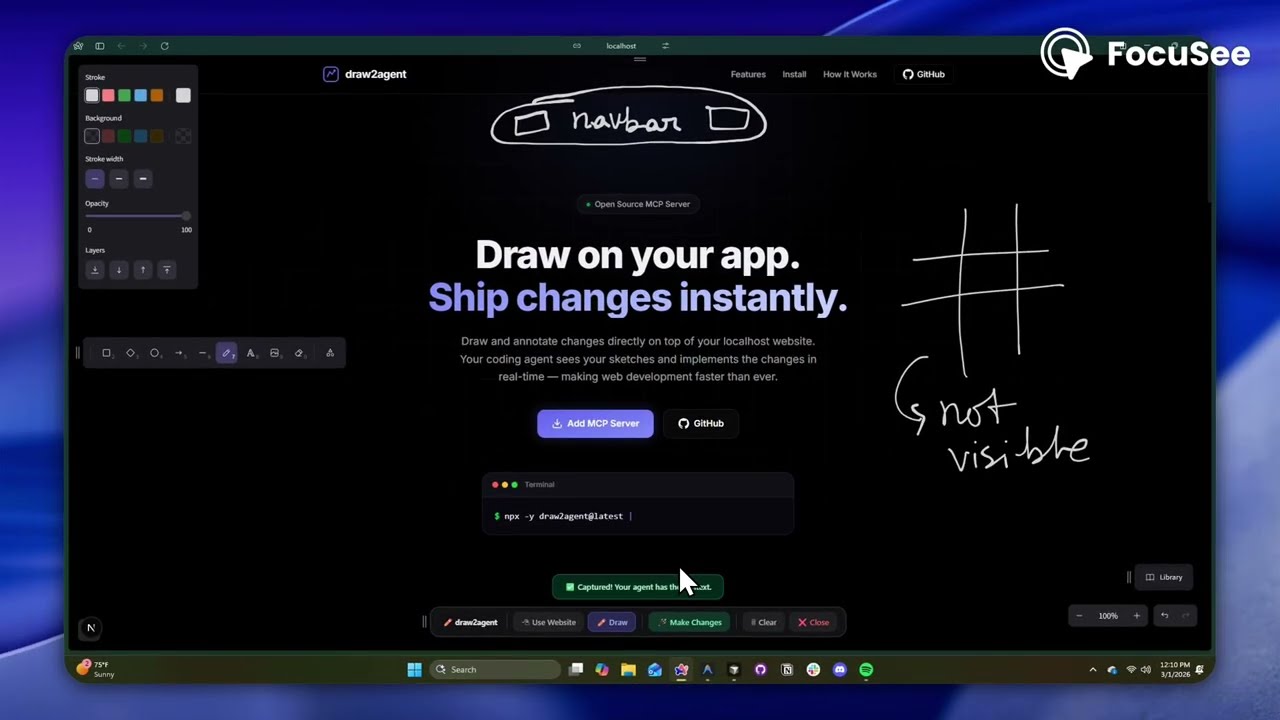
**draw2agent** is an MCP server that lets you draw annotations directly on top of your local dev page. When you submit, your IDE agent receives a screenshot, structured DOM data, and annotation context to make precise code edits.
|
|
9
|
-
|
|
10
|
-
👉 **Try it out at:** [draw2agent.vercel.app](https://draw2agent.vercel.app)
|
|
11
|
-
|
|
12
|
-
## Demo
|
|
13
|
-
|
|
14
|
-
[](https://youtu.be/siv1ioOnOXk)
|
|
15
|
-
|
|
16
|
-
## Quick Start
|
|
17
|
-
|
|
18
|
-
### 1. Add to your IDE (one-time)
|
|
19
|
-
|
|
20
|
-
**Cursor** (`~/.cursor/mcp.json`):
|
|
21
|
-
```json
|
|
22
|
-
{
|
|
23
|
-
"mcpServers": {
|
|
24
|
-
"draw2agent": {
|
|
25
|
-
"command": "npx",
|
|
26
|
-
"args": ["-y", "draw2agent@latest"]
|
|
27
|
-
}
|
|
28
|
-
}
|
|
29
|
-
}
|
|
30
|
-
```
|
|
31
|
-
|
|
32
|
-
### 2. Use it
|
|
33
|
-
|
|
34
|
-
Tell your agent:
|
|
35
|
-
> "Use draw2agent to fix the navbar"
|
|
36
|
-
|
|
37
|
-
1. 🌐 Agent opens your browser with drawing tools on your page
|
|
38
|
-
2. ✏️ Draw circles, arrows, text directly on your website
|
|
39
|
-
3. 📸 Click **Submit**
|
|
40
|
-
4. 🤖 Agent reads the visual context and applies code changes
|
|
41
|
-
|
|
42
|
-
## How It Works
|
|
43
|
-
|
|
44
|
-
```
|
|
45
|
-
Your Dev Page (proxied)
|
|
46
|
-
├── Your original page content
|
|
47
|
-
└── Excalidraw overlay (transparent, on top)
|
|
48
|
-
├── Draw mode: annotate directly on the page
|
|
49
|
-
├── Select mode: interact with the page normally (Esc)
|
|
50
|
-
└── Submit: screenshot + DOM + annotations → agent
|
|
51
|
-
```
|
|
52
|
-
|
|
53
|
-
## Tools
|
|
54
|
-
|
|
55
|
-
The MCP server exposes the following tools:
|
|
56
|
-
|
|
57
|
-
| Tool | Description |
|
|
58
|
-
|---|---|
|
|
59
|
-
| `launch_canvas` | Opens your dev page with the drawing overlay |
|
|
60
|
-
| `launch_ipad_canvas` | Creates a tunnel and returns a QR code for remote drawing from iPad/mobile
|
|
61
|
-
| `
|
|
62
|
-
| `
|
|
63
|
-
|
|
64
|
-
|
|
65
|
-
|
|
66
|
-
|
|
67
|
-
|
|
68
|
-
|
|
69
|
-
|
|
70
|
-
|
|
71
|
-
|
|
72
|
-
|
|
73
|
-
|
|
74
|
-
|
|
75
|
-
|
|
76
|
-
|
|
77
|
-
|
|
78
|
-
|
|
79
|
-
MIT
|
|
1
|
+
# draw2agent ✏️
|
|
2
|
+
|
|
3
|
+
[](https://www.npmjs.com/package/draw2agent)
|
|
4
|
+
[](https://registry.modelcontextprotocol.io/?q=draw2agent)
|
|
5
|
+
|
|
6
|
+
Draw on your website. Your AI agent sees it.
|
|
7
|
+
|
|
8
|
+
**draw2agent** is an MCP server that lets you draw annotations directly on top of your local dev page. When you submit, your IDE agent receives a screenshot, structured DOM data, and annotation context to make precise code edits.
|
|
9
|
+
|
|
10
|
+
👉 **Try it out at:** [draw2agent.vercel.app](https://draw2agent.vercel.app)
|
|
11
|
+
|
|
12
|
+
## Demo
|
|
13
|
+
|
|
14
|
+
[](https://youtu.be/siv1ioOnOXk)
|
|
15
|
+
|
|
16
|
+
## Quick Start
|
|
17
|
+
|
|
18
|
+
### 1. Add to your IDE (one-time)
|
|
19
|
+
|
|
20
|
+
**Cursor** (`~/.cursor/mcp.json`):
|
|
21
|
+
```json
|
|
22
|
+
{
|
|
23
|
+
"mcpServers": {
|
|
24
|
+
"draw2agent": {
|
|
25
|
+
"command": "npx",
|
|
26
|
+
"args": ["-y", "draw2agent@latest"]
|
|
27
|
+
}
|
|
28
|
+
}
|
|
29
|
+
}
|
|
30
|
+
```
|
|
31
|
+
|
|
32
|
+
### 2. Use it
|
|
33
|
+
|
|
34
|
+
Tell your agent:
|
|
35
|
+
> "Use draw2agent to fix the navbar"
|
|
36
|
+
|
|
37
|
+
1. 🌐 Agent opens your browser with drawing tools on your page
|
|
38
|
+
2. ✏️ Draw circles, arrows, text directly on your website
|
|
39
|
+
3. 📸 Click **Submit**
|
|
40
|
+
4. 🤖 Agent reads the visual context and applies code changes
|
|
41
|
+
|
|
42
|
+
## How It Works
|
|
43
|
+
|
|
44
|
+
```
|
|
45
|
+
Your Dev Page (proxied)
|
|
46
|
+
├── Your original page content
|
|
47
|
+
└── Excalidraw overlay (transparent, on top)
|
|
48
|
+
├── Draw mode: annotate directly on the page
|
|
49
|
+
├── Select mode: interact with the page normally (Esc)
|
|
50
|
+
└── Submit: screenshot + DOM + annotations → agent
|
|
51
|
+
```
|
|
52
|
+
|
|
53
|
+
## Tools
|
|
54
|
+
|
|
55
|
+
The MCP server exposes the following tools:
|
|
56
|
+
|
|
57
|
+
| Tool | Description |
|
|
58
|
+
|---|---|
|
|
59
|
+
| `launch_canvas` | Opens your dev page with the drawing overlay |
|
|
60
|
+
| `launch_ipad_canvas` | Creates a tunnel and returns a QR code for remote drawing from iPad/mobile |
|
|
61
|
+
| `launch_scratch` | Opens a standalone Excalidraw whiteboard for freehand sketching |
|
|
62
|
+
| `get_drawing_state` | Returns screenshot, DOM nodes, and annotations for the current state |
|
|
63
|
+
|
|
64
|
+
### `launch_canvas`
|
|
65
|
+
The core tool — proxies your localhost dev server and injects an Excalidraw overlay. Draw annotations directly on your running app, then submit to send visual context to your agent. The tool blocks until you submit.
|
|
66
|
+
|
|
67
|
+
### `launch_ipad_canvas`
|
|
68
|
+
Same as `launch_canvas`, but exposes the proxy over the internet via a secure tunnel. Automatically opens a new browser tab on your computer with a QR code. Scan it from your iPad or phone to draw annotations with touch. Perfect for whiteboard-style feedback sessions.
|
|
69
|
+
|
|
70
|
+
### `launch_scratch`
|
|
71
|
+
Opens a blank Excalidraw whiteboard — no target URL needed. Sketch UI mockups, wireframes, or diagrams from scratch. Your agent receives the drawing and implements the design.
|
|
72
|
+
|
|
73
|
+
### `get_drawing_state`
|
|
74
|
+
Returns the last captured drawing state (screenshot, DOM nodes, annotations) without launching a new session. Useful for re-fetching context.
|
|
75
|
+
|
|
76
|
+
## License
|
|
77
|
+
|
|
78
|
+
MIT
|
package/dist/index.js
CHANGED
|
@@ -13978,8 +13978,8 @@ function startHttpServer(targetUrl, port) {
|
|
|
13978
13978
|
server.on("upgrade", (req, socket, head) => {
|
|
13979
13979
|
proxy.ws(req, socket, head);
|
|
13980
13980
|
});
|
|
13981
|
-
server.listen(port, () => {
|
|
13982
|
-
const proxyUrl = `http://
|
|
13981
|
+
server.listen(port, "127.0.0.1", () => {
|
|
13982
|
+
const proxyUrl = `http://127.0.0.1:${port}`;
|
|
13983
13983
|
console.error(`[draw2agent] \u{1F680} Proxy running at ${proxyUrl} \u2192 ${targetUrl}`);
|
|
13984
13984
|
resolve(proxyUrl);
|
|
13985
13985
|
});
|
|
@@ -14136,8 +14136,8 @@ function startScratchServer(port) {
|
|
|
14136
14136
|
res.writeHead(404, { "Content-Type": "text/plain" });
|
|
14137
14137
|
res.end("Not found");
|
|
14138
14138
|
});
|
|
14139
|
-
scratchServer.listen(port, () => {
|
|
14140
|
-
const url2 = `http://
|
|
14139
|
+
scratchServer.listen(port, "127.0.0.1", () => {
|
|
14140
|
+
const url2 = `http://127.0.0.1:${port}`;
|
|
14141
14141
|
console.error(`[draw2agent] \u{1F3A8} Scratch whiteboard at ${url2}`);
|
|
14142
14142
|
resolve(url2);
|
|
14143
14143
|
});
|
|
@@ -14158,7 +14158,7 @@ import localtunnel from "localtunnel";
|
|
|
14158
14158
|
var activeTunnel = null;
|
|
14159
14159
|
async function startTunnel(localPort) {
|
|
14160
14160
|
await stopTunnel();
|
|
14161
|
-
const tunnel = await localtunnel({ port: localPort });
|
|
14161
|
+
const tunnel = await localtunnel({ port: localPort, local_host: "127.0.0.1" });
|
|
14162
14162
|
tunnel.on("close", () => {
|
|
14163
14163
|
console.error("[draw2agent] \u{1F50C} Tunnel closed");
|
|
14164
14164
|
activeTunnel = null;
|
|
@@ -14306,7 +14306,7 @@ function createMcpServer() {
|
|
|
14306
14306
|
);
|
|
14307
14307
|
server2.tool(
|
|
14308
14308
|
"launch_ipad_canvas",
|
|
14309
|
-
"Launch a remote drawing canvas accessible from an iPad or mobile device. Creates a tunnel and returns a QR code
|
|
14309
|
+
"Launch a remote drawing canvas accessible from an iPad or mobile device. Creates a tunnel to expose the local dev page over the internet and returns a QR code that the user can scan from their iPad. The user draws annotations on their device, and this tool blocks until they submit, returning the visual context. Ideal for touch-based annotation workflows.",
|
|
14310
14310
|
{
|
|
14311
14311
|
targetUrl: external_exports.string().describe("The URL of the local dev server to overlay (e.g. http://localhost:3000)"),
|
|
14312
14312
|
port: external_exports.number().optional().describe("Port for the draw2agent proxy server (default: 9742)")
|
|
@@ -14337,34 +14337,12 @@ function createMcpServer() {
|
|
|
14337
14337
|
}
|
|
14338
14338
|
const tunnelUrl = await startTunnel(proxyPort);
|
|
14339
14339
|
const qr = await generateQR(tunnelUrl);
|
|
14340
|
+
const os = await import("os");
|
|
14341
|
+
const tempFile = path3.join(os.tmpdir(), `draw2agent-qr-${Date.now()}.html`);
|
|
14342
|
+
const html = `<!DOCTYPE html><html><body style="display:flex;flex-direction:column;align-items:center;justify-content:center;height:100px;min-height:100vh;margin:0;background:#1e1e2e;color:white;font-family:system-ui,sans-serif;"><h1>\u{1F4F1} Scan to Draw</h1><p style="margin-bottom:30px;opacity:0.8;">Scan this QR code from your iPad to start annotating remotely.</p><img src="${qr.dataUrl}" style="border-radius:12px;width:300px;height:300px;"/><p style="margin-top:30px;font-size:1.2rem;background:#ffffff10;padding:8px 16px;border-radius:8px;">${tunnelUrl}</p></body></html>`;
|
|
14343
|
+
fs3.writeFileSync(tempFile, html);
|
|
14344
|
+
await openBrowser(`file://${tempFile}`);
|
|
14340
14345
|
clearState();
|
|
14341
|
-
return {
|
|
14342
|
-
content: [
|
|
14343
|
-
{
|
|
14344
|
-
type: "text",
|
|
14345
|
-
text: `iPad Canvas Ready! The QR code is attached. The user needs to scan it with their iPad.
|
|
14346
|
-
|
|
14347
|
-
IMPORTANT: You must NOW immediately call the \`wait_for_ipad_submission\` tool without asking the user. That tool will wait for them to finish drawing and return the result.`
|
|
14348
|
-
},
|
|
14349
|
-
{
|
|
14350
|
-
type: "image",
|
|
14351
|
-
data: qr.dataUrl.replace(/^data:image\/\w+;base64,/, ""),
|
|
14352
|
-
mimeType: "image/png"
|
|
14353
|
-
}
|
|
14354
|
-
]
|
|
14355
|
-
};
|
|
14356
|
-
} catch (err) {
|
|
14357
|
-
await stopTunnel();
|
|
14358
|
-
return handleToolError(err, "launch_ipad_canvas");
|
|
14359
|
-
}
|
|
14360
|
-
}
|
|
14361
|
-
);
|
|
14362
|
-
server2.tool(
|
|
14363
|
-
"wait_for_ipad_submission",
|
|
14364
|
-
"Wait for the user to submit their drawing from the iPad. Must be called immediately after `launch_ipad_canvas`.",
|
|
14365
|
-
{},
|
|
14366
|
-
async () => {
|
|
14367
|
-
try {
|
|
14368
14346
|
const state = await waitForState();
|
|
14369
14347
|
await stopTunnel();
|
|
14370
14348
|
const customInstructions = readPromptFile(
|
|
@@ -14386,7 +14364,7 @@ IMPORTANT: You must NOW immediately call the \`wait_for_ipad_submission\` tool w
|
|
|
14386
14364
|
};
|
|
14387
14365
|
} catch (err) {
|
|
14388
14366
|
await stopTunnel();
|
|
14389
|
-
return handleToolError(err, "
|
|
14367
|
+
return handleToolError(err, "launch_ipad_canvas");
|
|
14390
14368
|
}
|
|
14391
14369
|
}
|
|
14392
14370
|
);
|