directus-extension-storage-manager 1.4.5 → 1.6.0
This diff represents the content of publicly available package versions that have been released to one of the supported registries. The information contained in this diff is provided for informational purposes only and reflects changes between package versions as they appear in their respective public registries.
- package/README.md +50 -7
- package/dist/api.js +1 -1
- package/dist/app.js +2 -2
- package/package.json +27 -3
package/README.md
CHANGED
|
@@ -8,7 +8,7 @@ Move files between your Directus storages — local disk, S3, Google Cloud, Azur
|
|
|
8
8
|
|
|
9
9
|
|
|
10
10
|
|
|
11
|
-
Directus can use several storages at once, but it will not move existing files for you. Storage Manager does: browse each storage, upload, find files that are on disk but not in Directus, move files or whole folders,
|
|
11
|
+
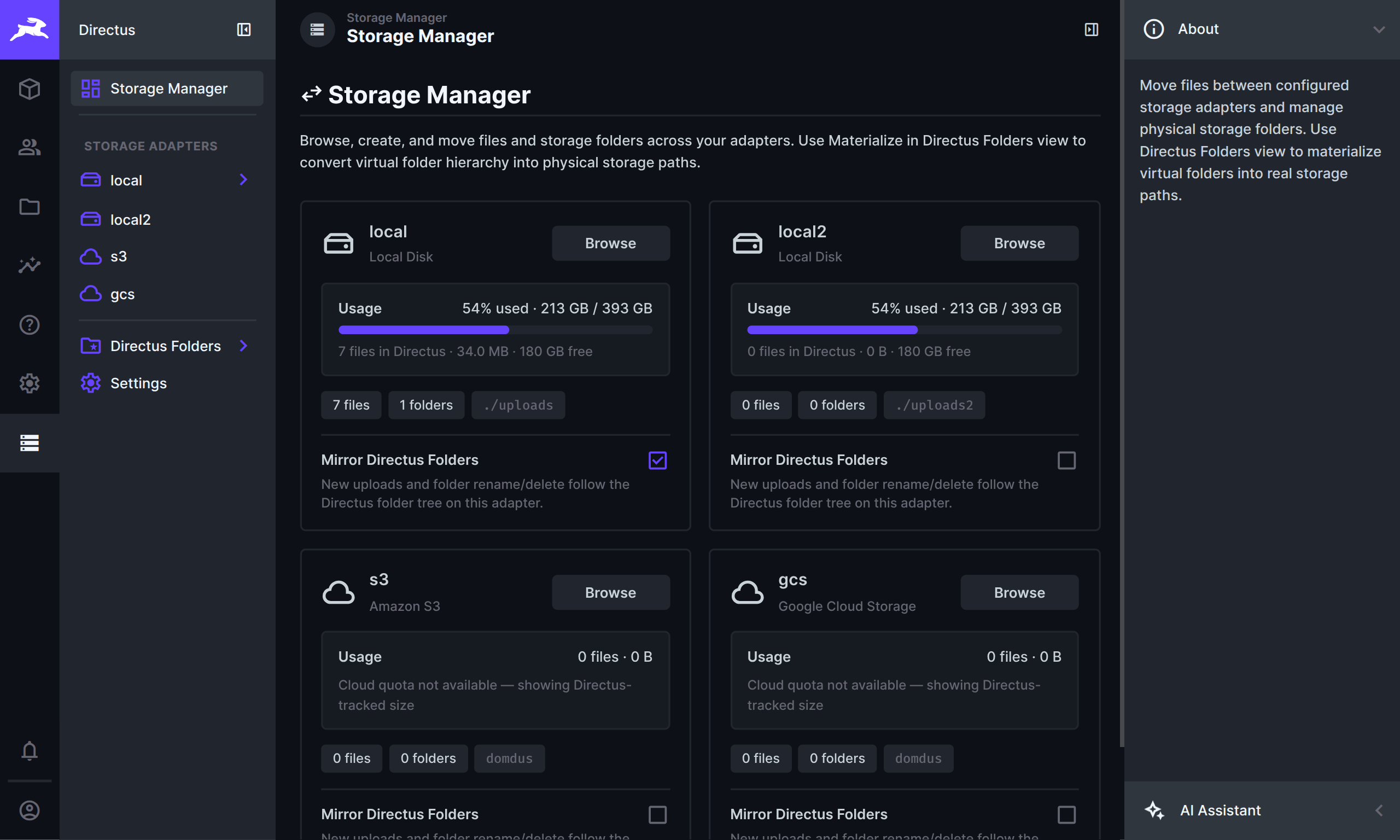
Directus can use several storages at once, but it will not move existing files for you. Storage Manager does: browse each storage, upload, find files that are on disk but not in Directus, move files or whole folders, find File Library entries that nothing uses anymore, and optionally quarantine deletes in a Recycle Bin before permanent removal.
|
|
12
12
|
|
|
13
13
|
When you open a storage from the overview, the left sidebar shows that storage’s folder tree. Folders load as you expand them, so large storages stay quick to navigate.
|
|
14
14
|
|
|
@@ -47,6 +47,8 @@ Storage Manager adds three interfaces for file fields. Each one works like the b
|
|
|
47
47
|
|
|
48
48
|
When you configure the field, set **Folder** and **Storage Location** (for example `local` or `s3`). Every upload from that field uses those settings. If **Mirror Directus Folders** is on for that storage, new files follow your Directus folder tree on disk.
|
|
49
49
|
|
|
50
|
+
You can also set **On Deselect** and **On Item Delete** on each field, or leave them on **Use File Interfaces default** so they follow the **File Interfaces** page (see below).
|
|
51
|
+
|
|
50
52
|
### Thumbnails
|
|
51
53
|
|
|
52
54
|
At the **top level** of a storage (not inside a subfolder), a **Thumbnails** panel appears in the right sidebar.
|
|
@@ -106,19 +108,58 @@ Set your scan options, then click **Scan**:
|
|
|
106
108
|
|
|
107
109
|
After a scan you get a short summary and a list of matches (same cards/table layouts as elsewhere in Storage Manager). Select files and choose what to do:
|
|
108
110
|
|
|
111
|
+
- **Move to Recycle** — when Recycle Bin is on, quarantine selected files instead of deleting immediately (primary action)
|
|
109
112
|
- **Move to Directus Folder** — organize them in the File Library (virtual folders only)
|
|
110
113
|
- **Move to Storage Folder** — relocate them on disk / cloud storage
|
|
111
|
-
- **Delete** — remove them if they are still unused (each file is checked again before delete)
|
|
114
|
+
- **Delete Permanently** — remove them if they are still unused (each file is checked again before delete)
|
|
115
|
+
|
|
116
|
+
### Recycle Bin
|
|
117
|
+
|
|
118
|
+
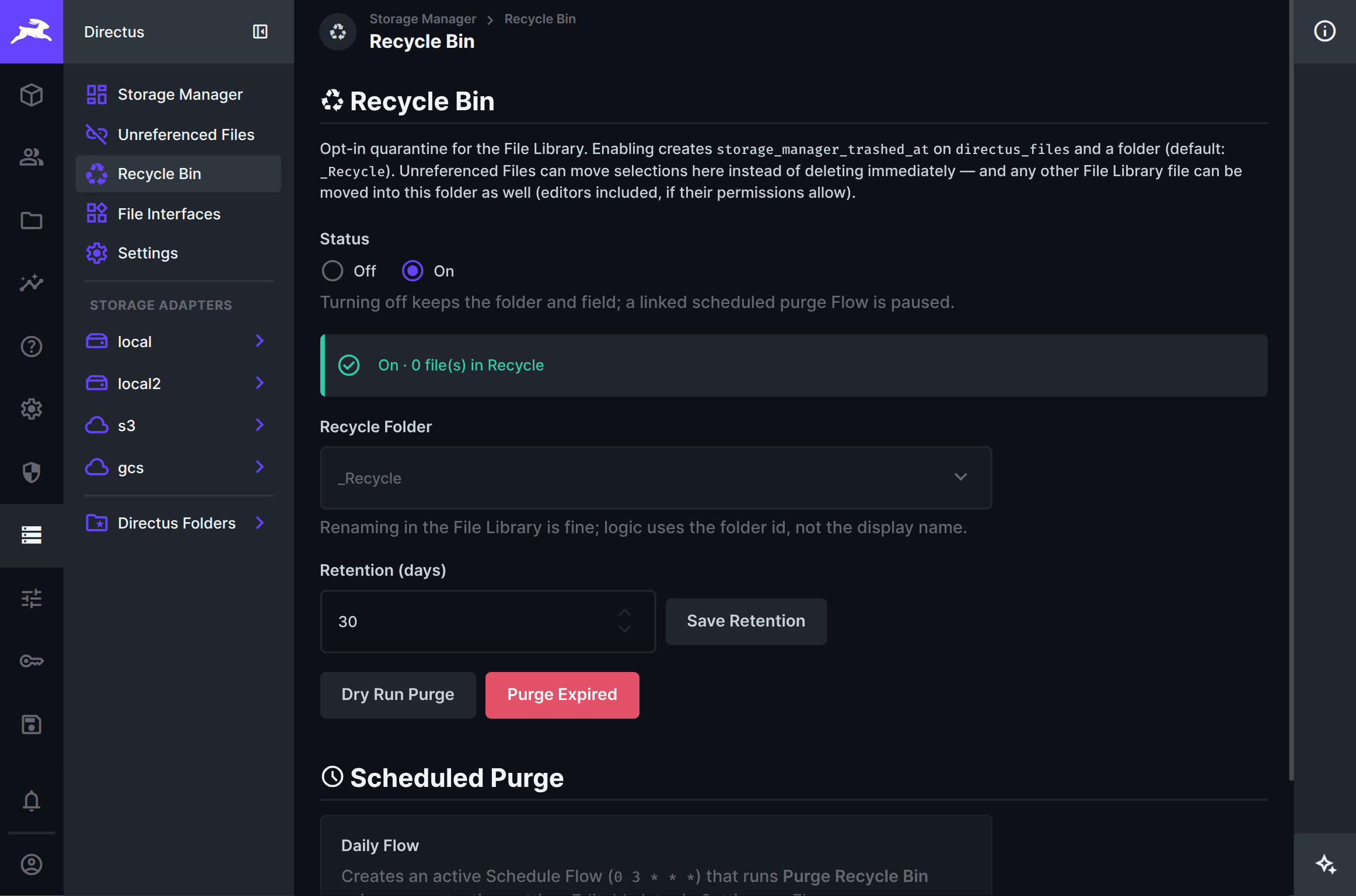
Open **Recycle Bin** from the left sidebar for an opt-in File Library quarantine. Files stay registered in Directus, but assets in the recycle folder are blocked from `/assets` for everyone, and the folder is hidden from normal File Library browse/search/picker (unless you open that folder on purpose).
|
|
119
|
+
|
|
120
|
+
|
|
121
|
+
|
|
122
|
+
Turn **On** to create `storage_manager_trashed_at` on `directus_files` and a recycle folder (default **`_Recycle`** — you can pick another File Library folder while Off). Unreferenced Files can move selections here; any other File Library file can be moved into this folder as well when permissions allow.
|
|
123
|
+
|
|
124
|
+
While On you can:
|
|
125
|
+
|
|
126
|
+
- Set **Retention (days)** — how long files stay before they are purge candidates
|
|
127
|
+
- **Dry Run Purge** / **Purge Expired** — permanently delete files older than retention after re-checking that they are still unreferenced
|
|
128
|
+
- **Scheduled Purge** — optionally create a daily Schedule Flow (`0 3 * * *`) that runs **Purge Recycle Bin**. Turning Recycle Bin off pauses a linked Flow; you can open or remove the Flow from this page
|
|
129
|
+
|
|
130
|
+
Source of truth is the folder id. Renaming the folder in the File Library is fine.
|
|
131
|
+
|
|
132
|
+
### File Interfaces
|
|
112
133
|
|
|
113
|
-
|
|
134
|
+
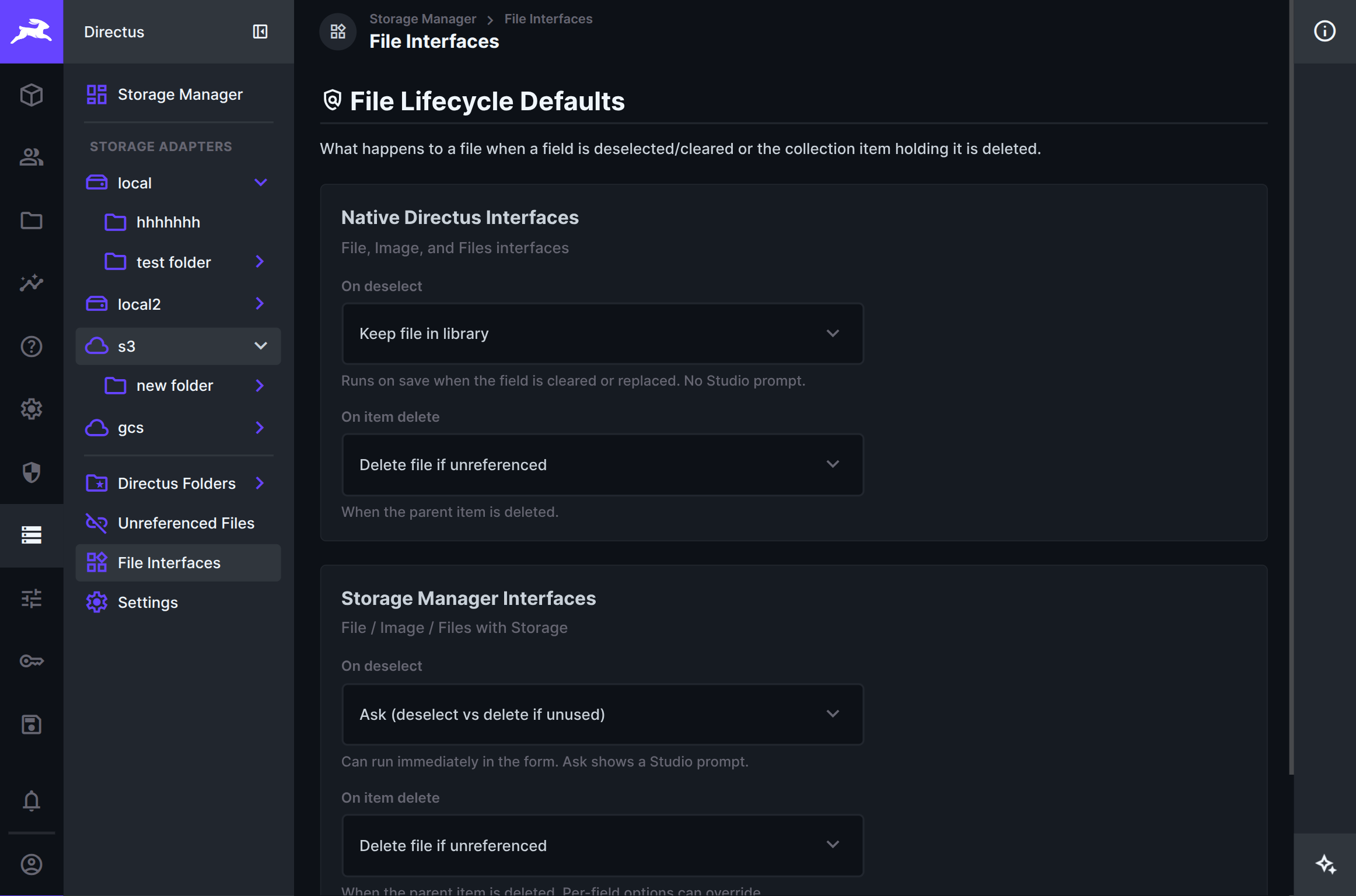
Open **File Interfaces** from the left sidebar to set what happens when a file field is cleared, or when the collection item that holds the file is deleted.
|
|
135
|
+
|
|
136
|
+
|
|
137
|
+
|
|
138
|
+
Defaults are split into two groups:
|
|
139
|
+
|
|
140
|
+
- **Native Directus Interfaces** — File / Image / Files. Cleanup runs on save (or when the item is deleted) via hooks. There is no Ask prompt in Studio for native fields.
|
|
141
|
+
- **Storage Manager Interfaces** — File / Image / Files with Storage. Deselect can run immediately in the form. **Ask** shows a Studio dialog so editors can choose deselect only, or delete the file if nothing else still uses it.
|
|
142
|
+
|
|
143
|
+
For each group you can choose:
|
|
144
|
+
|
|
145
|
+
| Setting | Options |
|
|
146
|
+
| ------- | ------- |
|
|
147
|
+
| **On deselect** | Keep file in library · Ask (Storage Manager only) · Delete file if unreferenced |
|
|
148
|
+
| **On item delete** | Keep file in library · Delete file if unreferenced |
|
|
149
|
+
|
|
150
|
+
Storage Manager fields can override these defaults per field in Data Model (including **Use File Interfaces default**). Delete only runs when nothing else still references the file.
|
|
114
151
|
|
|
115
152
|
### Settings
|
|
116
153
|
|
|
117
|
-
Check for updates, export or import your Mirror settings, or
|
|
154
|
+
Check for updates, export or import your Mirror settings, or **Remove Extension Data** before uninstall. Cleanup clears `directus_settings.storage_manager`, deletes the scheduled purge Flow (if any), and removes the **Unreferenced File Scans** snapshot folder. Recycle Bin files are left alone unless you opt in to empty them.
|
|
118
155
|
|
|
119
156
|
### Flows
|
|
120
157
|
|
|
121
|
-
The **Storage Manager** Flow operation can move (or copy)
|
|
158
|
+
The **Storage Manager** Flow operation can move (or copy) **selected file IDs** in automations. Pick the target storage from a dropdown of configured locations, optionally assign files to a Directus File Library folder after a successful migrate, and pass an explicit `file_ids` array (for example from a trigger or previous step). It does not migrate an entire storage or folder at once. Copy leaves a leftover on the old storage — it will show up under Detect.
|
|
159
|
+
|
|
160
|
+
**Scan Unreferenced Files** is a separate Flow operation that runs the same dry-run scan as the module (optional storage filter, min age, text-field scan). It returns `file_ids` (capped list), `unreferenced_count`, `unreferenced_bytes`, and full `meta` so you can chain into migrate or your own follow-up steps. It does not delete anything.
|
|
161
|
+
|
|
162
|
+
**Purge Recycle Bin** permanently deletes expired Recycle Bin files (still-unreferenced only). Retention comes from Recycle Bin settings unless you override **Older Than (Days)**. Use **Dry Run** to count candidates. The Recycle Bin page can install a daily Schedule Flow that runs this operation.
|
|
122
163
|
|
|
123
164
|
## Getting started
|
|
124
165
|
|
|
@@ -129,8 +170,10 @@ The **Storage Manager** Flow operation can move (or copy) files in automations.
|
|
|
129
170
|
5. Browse a storage (or **Directus Folders**) and move or materialize as needed.
|
|
130
171
|
6. At a storage root, open **Thumbnails** in the sidebar if you need to inspect or clear generated image copies.
|
|
131
172
|
7. For collection fields that must land on a specific storage, use **File with Storage**, **Files with Storage**, or **Image with Storage** instead of the native file interfaces.
|
|
132
|
-
8. Use **
|
|
133
|
-
9. Use **
|
|
173
|
+
8. Use **File Interfaces** to set default cleanup behaviour when editors clear a file field or delete an item (works for native file fields too).
|
|
174
|
+
9. Use **Unreferenced Files** when you want to find leftover File Library entries, then move them to Recycle, relocate, or delete permanently.
|
|
175
|
+
10. Turn on **Recycle Bin** if you want a quarantine step before permanent delete, and optionally create **Scheduled Purge**.
|
|
176
|
+
11. Use **Dry Run**, then **Move**.
|
|
134
177
|
|
|
135
178
|
## Installation
|
|
136
179
|
|