directus-extension-storage-manager 1.2.8 → 1.3.1
This diff represents the content of publicly available package versions that have been released to one of the supported registries. The information contained in this diff is provided for informational purposes only and reflects changes between package versions as they appear in their respective public registries.
- package/README.md +37 -6
- package/dist/api.js +1 -1
- package/dist/app.js +8 -1
- package/package.json +25 -2
package/README.md
CHANGED
|
@@ -6,10 +6,12 @@ Move files between your Directus storages — local disk, S3, Google Cloud, Azur
|
|
|
6
6
|
|
|
7
7
|
## Overview
|
|
8
8
|
|
|
9
|
-
|
|
9
|
+
|
|
10
10
|
|
|
11
11
|
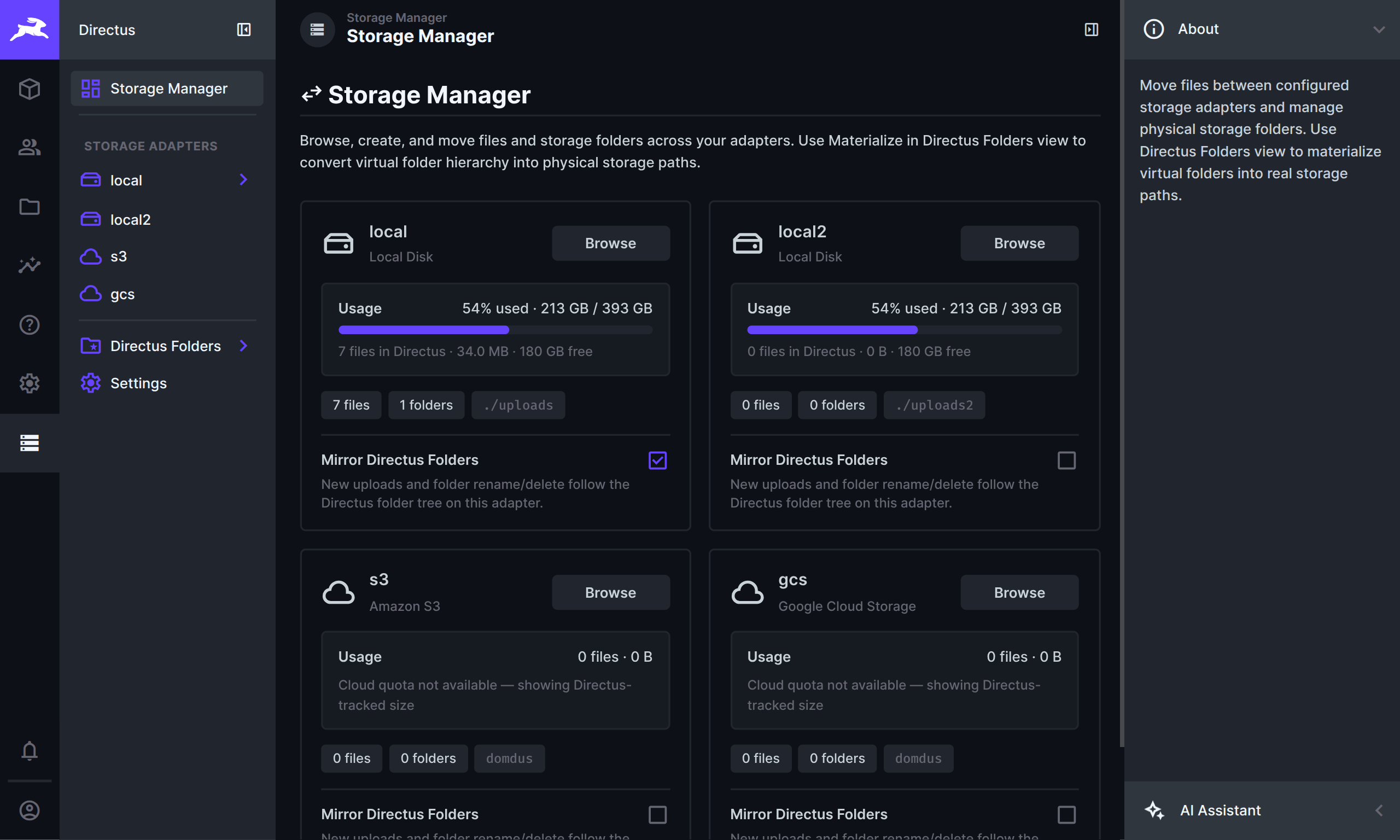
Directus can use several storages at once, but it will not move existing files for you. Storage Manager does: browse each storage, upload, find files that are on disk but not in Directus, and move files or whole folders.
|
|
12
12
|
|
|
13
|
+
When you open a storage from the overview, the left sidebar shows that storage’s folder tree. Folders load as you expand them, so large storages stay quick to navigate.
|
|
14
|
+
|
|
13
15
|
### Your storages
|
|
14
16
|
|
|
15
17
|
The overview shows every storage with file counts, folder counts, and usage. **Browse** opens that storage’s files and folders.
|
|
@@ -29,6 +31,33 @@ Mirror does not rearrange files that are already stored. Use **Move to Storage F
|
|
|
29
31
|
|
|
30
32
|
If two Directus folders share the same name, the second one gets a unique folder name on disk so they do not collide.
|
|
31
33
|
|
|
34
|
+
When you upload through Storage Manager while browsing a specific storage, files go to that storage. Mirror then keeps new uploads in step with your Directus folders on that same storage.
|
|
35
|
+
|
|
36
|
+
### File field interfaces
|
|
37
|
+
|
|
38
|
+
Storage Manager adds three interfaces for file fields. Each one works like the built-in File, Files, or Image interface, but uploads go to the **storage adapter and folder you set on the field**.
|
|
39
|
+
|
|
40
|
+
|
|
41
|
+
| Interface | Use for |
|
|
42
|
+
| ---------------------- | ----------------------------------------------- |
|
|
43
|
+
| **File with Storage** | Single file (M2O) |
|
|
44
|
+
| **Files with Storage** | Multiple files (M2M) |
|
|
45
|
+
| **Image with Storage** | Single image (M2O), image MIME types by default |
|
|
46
|
+
|
|
47
|
+
|
|
48
|
+
When you configure the field, set **Folder** and **Storage Location** (for example `local` or `s3`). Every upload from that field uses those settings. If **Mirror Directus Folders** is on for that storage, new files follow your Directus folder tree on disk.
|
|
49
|
+
|
|
50
|
+
### Thumbnails
|
|
51
|
+
|
|
52
|
+
At the **top level** of a storage (not inside a subfolder), a **Thumbnails** panel appears in the right sidebar.
|
|
53
|
+
|
|
54
|
+
Directus often creates extra image files when it resizes or converts pictures for the website. Those files usually live at the storage root and do not show up as normal entries in the File Library. Storage Manager lets you work with them separately:
|
|
55
|
+
|
|
56
|
+
- **Show Files** — your usual file list (the way you browse today)
|
|
57
|
+
- **Show Thumbnails** — only those generated resize/preview files, using the same cards/table layouts and pagination as the File Library
|
|
58
|
+
|
|
59
|
+
You can search by filename in the thumbnails view. To free up space, use **Delete All Transforms**. That removes the generated copies only — your original uploads stay safe. Directus will recreate those copies the next time an image is requested. A confirmation step tells you how many files would be removed before anything is deleted.
|
|
60
|
+
|
|
32
61
|
### Move to Storage Folder
|
|
33
62
|
|
|
34
63
|
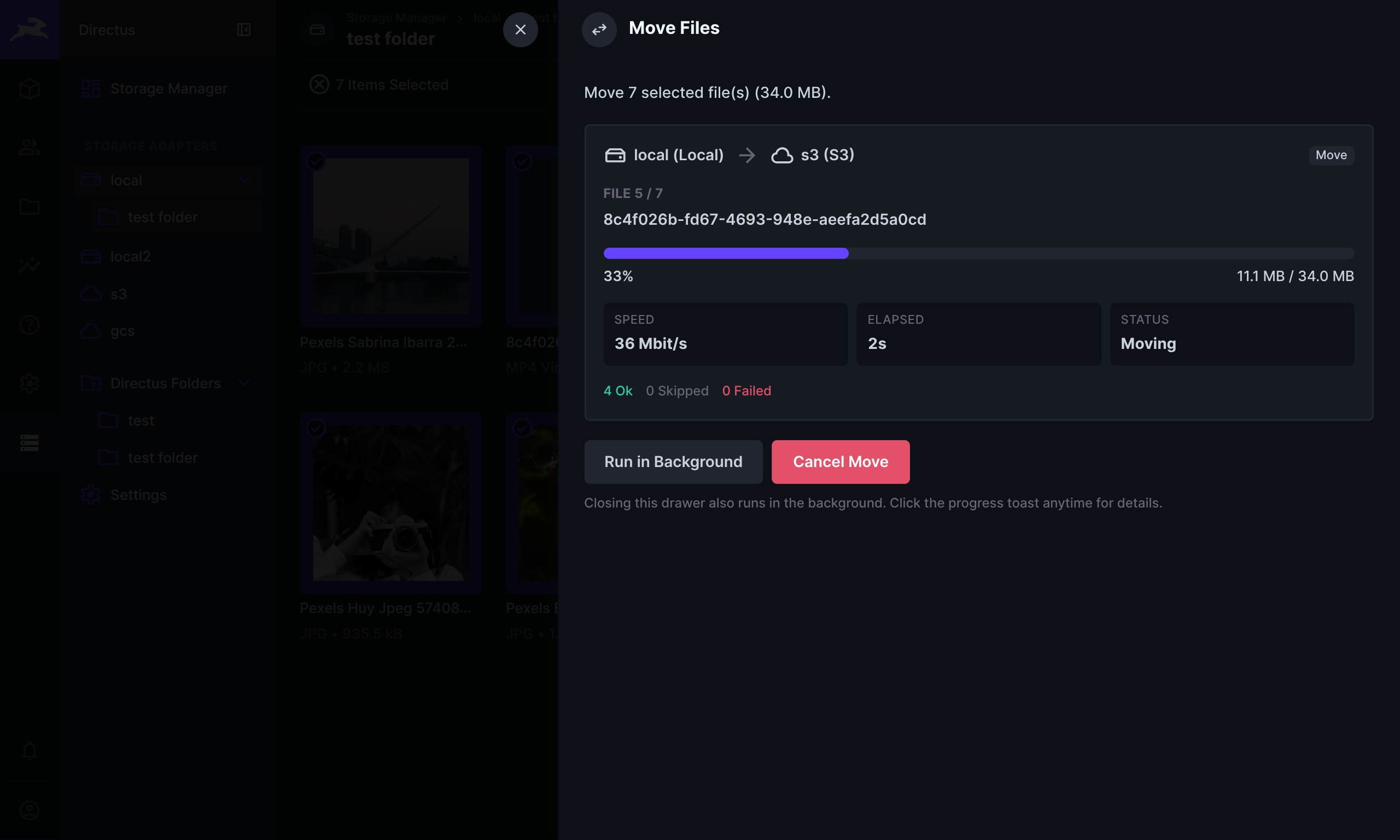
Pick files, folders, or everything on a storage, then choose where they should go.
|
|
@@ -39,7 +68,7 @@ Pick files, folders, or everything on a storage, then choose where they should g
|
|
|
39
68
|
- Moving a whole storage keeps the folder structure
|
|
40
69
|
- Empty folders can be included when you move a storage or selected folders
|
|
41
70
|
|
|
42
|
-
|
|
71
|
+
|
|
43
72
|
|
|
44
73
|
If the destination already has a **folder** with that name, files are merged into it. If another Directus file already uses that exact path, the incoming file is skipped and stays where it is. Image thumbnails move with the file when possible.
|
|
45
74
|
|
|
@@ -52,7 +81,7 @@ In **Directus Folders**, turn your Directus folder tree into real folders on sto
|
|
|
52
81
|
|
|
53
82
|
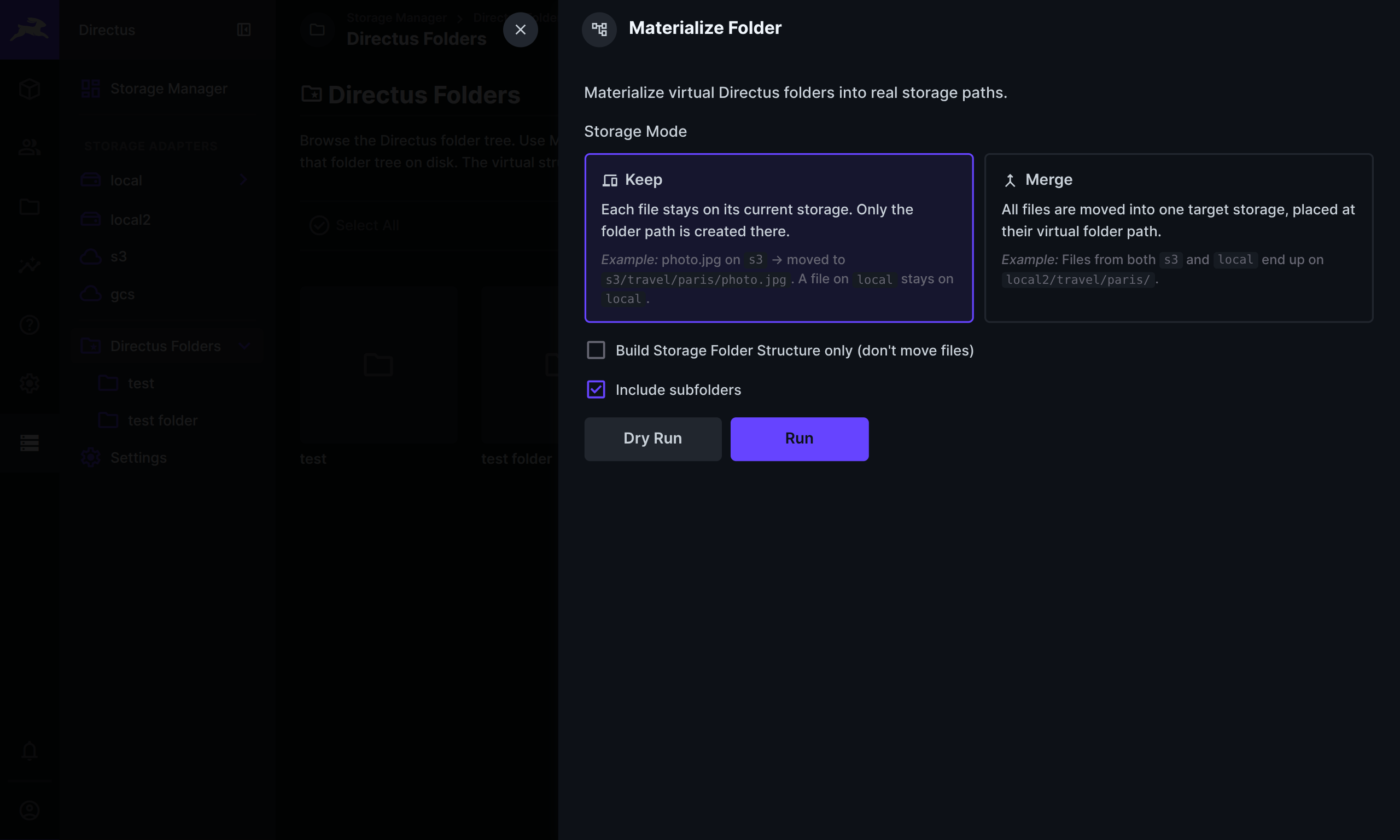
Include subfolders if you want the whole tree. Dry Run shows counts before you run it. Directus Folders themselves are not changed.
|
|
54
83
|
|
|
55
|
-
|
|
84
|
+
|
|
56
85
|
|
|
57
86
|
### Detect files
|
|
58
87
|
|
|
@@ -61,7 +90,7 @@ Find files that are on a storage but not yet in Directus.
|
|
|
61
90
|
- At the storage root: **Detect Files on {storage}**
|
|
62
91
|
- Inside a folder: **Detect Files in this Folder**
|
|
63
92
|
|
|
64
|
-
Import adds them to Directus without moving the files. You can also delete leftover files that Directus does not know about
|
|
93
|
+
Import adds them to Directus without moving the files. You can also delete leftover files that Directus does not know about. Generated resize/preview files are left alone (use **Thumbnails → Delete All Transforms** at the storage root if you want to clear those).
|
|
65
94
|
|
|
66
95
|
### Settings
|
|
67
96
|
|
|
@@ -78,7 +107,9 @@ The **Storage Manager** Flow operation can move (or copy) files in automations.
|
|
|
78
107
|
3. Open **Storage Manager** from the left bar.
|
|
79
108
|
4. On the overview, turn on **Mirror Directus Folders** for any storage that should follow your Directus folders.
|
|
80
109
|
5. Browse a storage (or **Directus Folders**) and move or materialize as needed.
|
|
81
|
-
6.
|
|
110
|
+
6. At a storage root, open **Thumbnails** in the sidebar if you need to inspect or clear generated image copies.
|
|
111
|
+
7. For collection fields that must land on a specific storage, use **File with Storage**, **Files with Storage**, or **Image with Storage** instead of the native file interfaces.
|
|
112
|
+
8. Use **Dry Run**, then **Move**.
|
|
82
113
|
|
|
83
114
|
## Installation
|
|
84
115
|
|
|
@@ -108,4 +139,4 @@ Copy the built package into your Directus `extensions` folder (`package.json` an
|
|
|
108
139
|
|
|
109
140
|
## License
|
|
110
141
|
|
|
111
|
-
MIT
|
|
142
|
+
MIT
|