apple-maps-server-sdk 1.0.7 → 1.0.9
This diff represents the content of publicly available package versions that have been released to one of the supported registries. The information contained in this diff is provided for informational purposes only and reflects changes between package versions as they appear in their respective public registries.
- package/README.md +209 -0
- package/lib/globals.d.ts +2 -2
- package/package.json +1 -1
- package/src/globals.ts +2 -2
package/README.md
ADDED
|
@@ -0,0 +1,209 @@
|
|
|
1
|
+
|
|
2
|
+
# Apple Maps Server SDK
|
|
3
|
+
|
|
4
|
+
The Apple Maps Server SDK for Node.js is a tool that helps developers access the Apple Maps API using the Node.js language. It makes it easy to search for locations, get map data, and generate directions in your Node.js apps. Additionally, it also simplifies the process of managing access tokens, making it easier for you to use the API without having to worry about managing tokens.
|
|
5
|
+
|
|
6
|
+
## Installation
|
|
7
|
+
|
|
8
|
+
Install apple-maps-server-sdk using **npm**
|
|
9
|
+
|
|
10
|
+
```bash
|
|
11
|
+
npm install apple-maps-server-sdk
|
|
12
|
+
```
|
|
13
|
+
|
|
14
|
+
Install apple-maps-server-sdk using **yarn**
|
|
15
|
+
|
|
16
|
+
```bash
|
|
17
|
+
yarn add apple-maps-server-sdk
|
|
18
|
+
```
|
|
19
|
+
|
|
20
|
+
### See Sections [Demo](#demo-code) or [Getting Started](#getting-started)
|
|
21
|
+
## Demo Code
|
|
22
|
+
|
|
23
|
+
```javascript
|
|
24
|
+
import AppleMaps from 'apple-maps-server-sdk'
|
|
25
|
+
|
|
26
|
+
const appleMaps = new AppleMaps({
|
|
27
|
+
authorizationToken: "AUTHORIZATION TOKEN"
|
|
28
|
+
})
|
|
29
|
+
|
|
30
|
+
// Call the geocode function
|
|
31
|
+
appleMaps.geocode({
|
|
32
|
+
q: '1600 Pennsylvania Avenue NW NW, Washington, D.C., 20500,'
|
|
33
|
+
})
|
|
34
|
+
.then((response) => {
|
|
35
|
+
console.log(response)
|
|
36
|
+
})
|
|
37
|
+
.catch((err) => {
|
|
38
|
+
console.log(err)
|
|
39
|
+
})
|
|
40
|
+
```
|
|
41
|
+
|
|
42
|
+
|
|
43
|
+
|
|
44
|
+
|
|
45
|
+
## Demo Response
|
|
46
|
+
|
|
47
|
+
```javascript
|
|
48
|
+
{
|
|
49
|
+
"results": [
|
|
50
|
+
{
|
|
51
|
+
"coordinate": {
|
|
52
|
+
"latitude": 38.8976635,
|
|
53
|
+
"longitude": -77.036574
|
|
54
|
+
},
|
|
55
|
+
"displayMapRegion": {
|
|
56
|
+
"southLatitude": 38.8931719235794,
|
|
57
|
+
"westLongitude": -77.04234524082925,
|
|
58
|
+
"northLatitude": 38.9021550764206,
|
|
59
|
+
"eastLongitude": -77.03080275917075
|
|
60
|
+
},
|
|
61
|
+
"name": "1600 Pennsylvania Ave NW",
|
|
62
|
+
"formattedAddressLines": [
|
|
63
|
+
"1600 Pennsylvania Ave NW",
|
|
64
|
+
"Washington, DC 20500",
|
|
65
|
+
"United States"
|
|
66
|
+
],
|
|
67
|
+
"structuredAddress": {
|
|
68
|
+
"administrativeArea": "District of Columbia",
|
|
69
|
+
"administrativeAreaCode": "DC",
|
|
70
|
+
"locality": "Washington",
|
|
71
|
+
"postCode": "20500",
|
|
72
|
+
"subLocality": "Washington Mall",
|
|
73
|
+
"thoroughfare": "Pennsylvania Ave NW",
|
|
74
|
+
"subThoroughfare": "1600",
|
|
75
|
+
"fullThoroughfare": "1600 Pennsylvania Ave NW",
|
|
76
|
+
"areasOfInterest": [
|
|
77
|
+
"The White House",
|
|
78
|
+
"President's Park"
|
|
79
|
+
],
|
|
80
|
+
"dependentLocalities": [
|
|
81
|
+
"Washington Mall"
|
|
82
|
+
]
|
|
83
|
+
},
|
|
84
|
+
"country": "United States",
|
|
85
|
+
"countryCode": "US"
|
|
86
|
+
}
|
|
87
|
+
]
|
|
88
|
+
}
|
|
89
|
+
```
|
|
90
|
+
|
|
91
|
+
|
|
92
|
+
|
|
93
|
+
|
|
94
|
+
## Demo (Using Require)
|
|
95
|
+
|
|
96
|
+
```javascript
|
|
97
|
+
const AppleMaps = require("apple-maps-server-sdk").default
|
|
98
|
+
|
|
99
|
+
const appleMaps = new AppleMaps({
|
|
100
|
+
authorizationToken: "AUTHORIZATION TOKEN"
|
|
101
|
+
})
|
|
102
|
+
|
|
103
|
+
// Call the geocode function
|
|
104
|
+
appleMaps.geocode({
|
|
105
|
+
q: '1600 Pennsylvania Avenue NW NW, Washington, D.C., 20500,'
|
|
106
|
+
})
|
|
107
|
+
.then((response) => {
|
|
108
|
+
console.log(response)
|
|
109
|
+
})
|
|
110
|
+
.catch((err) => {
|
|
111
|
+
console.log(err)
|
|
112
|
+
})
|
|
113
|
+
```
|
|
114
|
+
|
|
115
|
+
|
|
116
|
+
|
|
117
|
+
|
|
118
|
+
## Demo Response
|
|
119
|
+
|
|
120
|
+
```javascript
|
|
121
|
+
{
|
|
122
|
+
"results": [
|
|
123
|
+
{
|
|
124
|
+
"coordinate": {
|
|
125
|
+
"latitude": 38.8976635,
|
|
126
|
+
"longitude": -77.036574
|
|
127
|
+
},
|
|
128
|
+
"displayMapRegion": {
|
|
129
|
+
"southLatitude": 38.8931719235794,
|
|
130
|
+
"westLongitude": -77.04234524082925,
|
|
131
|
+
"northLatitude": 38.9021550764206,
|
|
132
|
+
"eastLongitude": -77.03080275917075
|
|
133
|
+
},
|
|
134
|
+
"name": "1600 Pennsylvania Ave NW",
|
|
135
|
+
"formattedAddressLines": [
|
|
136
|
+
"1600 Pennsylvania Ave NW",
|
|
137
|
+
"Washington, DC 20500",
|
|
138
|
+
"United States"
|
|
139
|
+
],
|
|
140
|
+
"structuredAddress": {
|
|
141
|
+
"administrativeArea": "District of Columbia",
|
|
142
|
+
"administrativeAreaCode": "DC",
|
|
143
|
+
"locality": "Washington",
|
|
144
|
+
"postCode": "20500",
|
|
145
|
+
"subLocality": "Washington Mall",
|
|
146
|
+
"thoroughfare": "Pennsylvania Ave NW",
|
|
147
|
+
"subThoroughfare": "1600",
|
|
148
|
+
"fullThoroughfare": "1600 Pennsylvania Ave NW",
|
|
149
|
+
"areasOfInterest": [
|
|
150
|
+
"The White House",
|
|
151
|
+
"President's Park"
|
|
152
|
+
],
|
|
153
|
+
"dependentLocalities": [
|
|
154
|
+
"Washington Mall"
|
|
155
|
+
]
|
|
156
|
+
},
|
|
157
|
+
"country": "United States",
|
|
158
|
+
"countryCode": "US"
|
|
159
|
+
}
|
|
160
|
+
]
|
|
161
|
+
}
|
|
162
|
+
```
|
|
163
|
+
|
|
164
|
+
|
|
165
|
+
|
|
166
|
+
|
|
167
|
+
## Getting Started
|
|
168
|
+
Before using this API, you must have an [Apple Developer account](https://developer.apple.com/). Once you have a developer account, follow the steps below to enable the Apple Mapbox API, and generate your Authorization Token.
|
|
169
|
+
|
|
170
|
+
### 1. Navigate to [https://developer.apple.com/account](https://developer.apple.com/account)
|
|
171
|
+
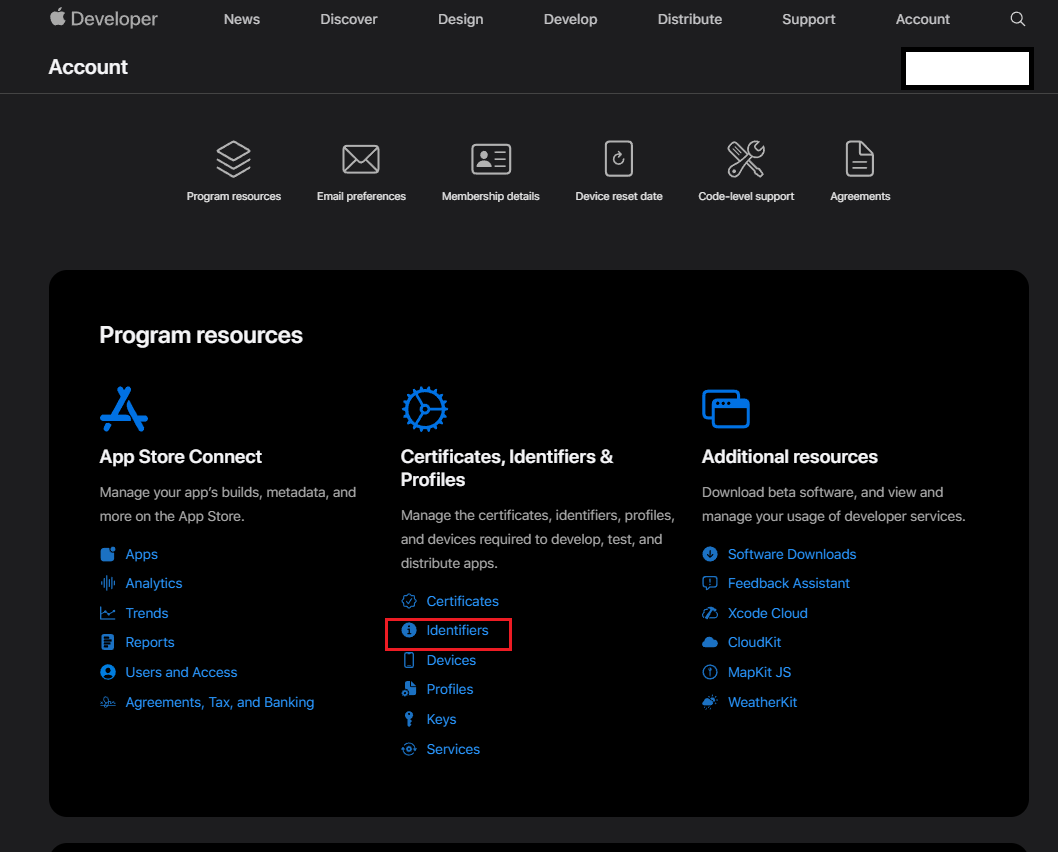
### 2. Click **Identifiers**
|
|
172
|
+
|
|
173
|
+
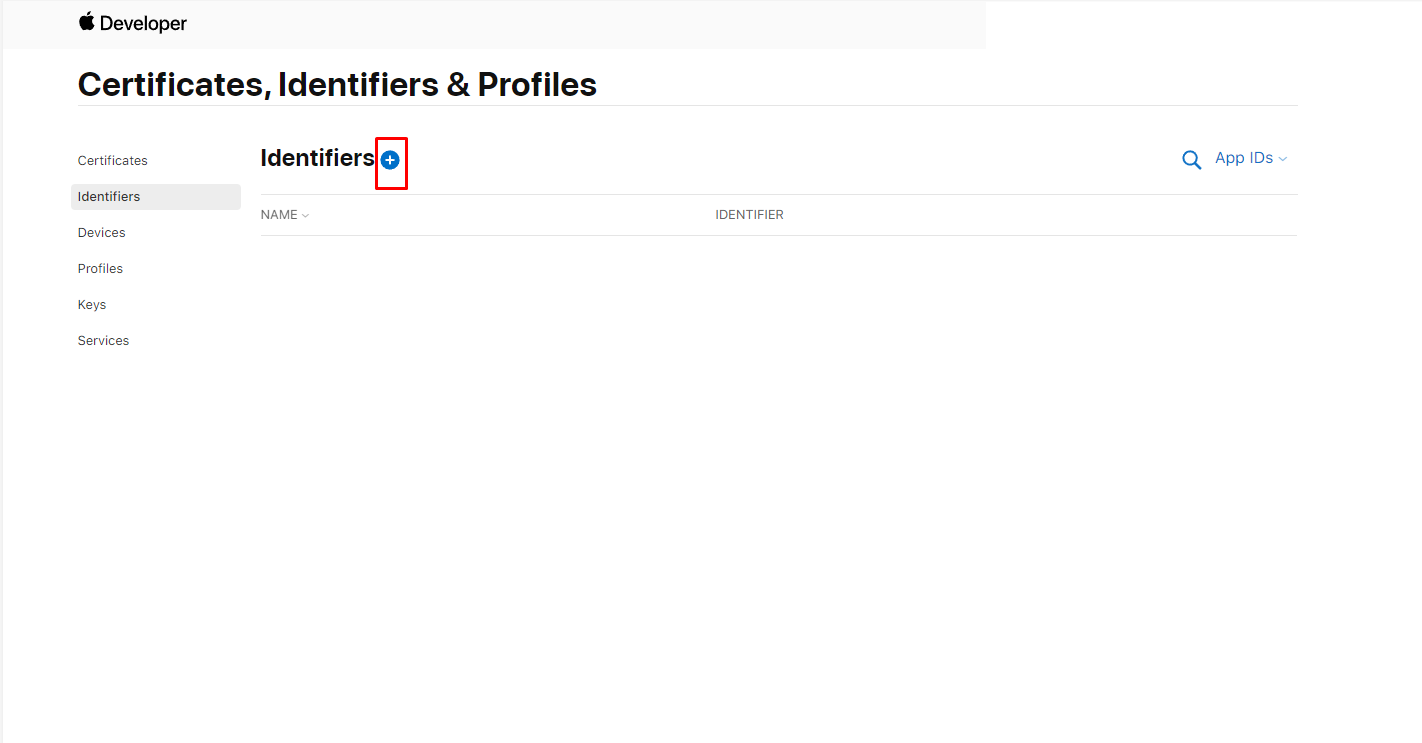
### 3. At the top of the identifiers list, click the Add Identifiers button (+).
|
|
174
|
+
### 
|
|
175
|
+
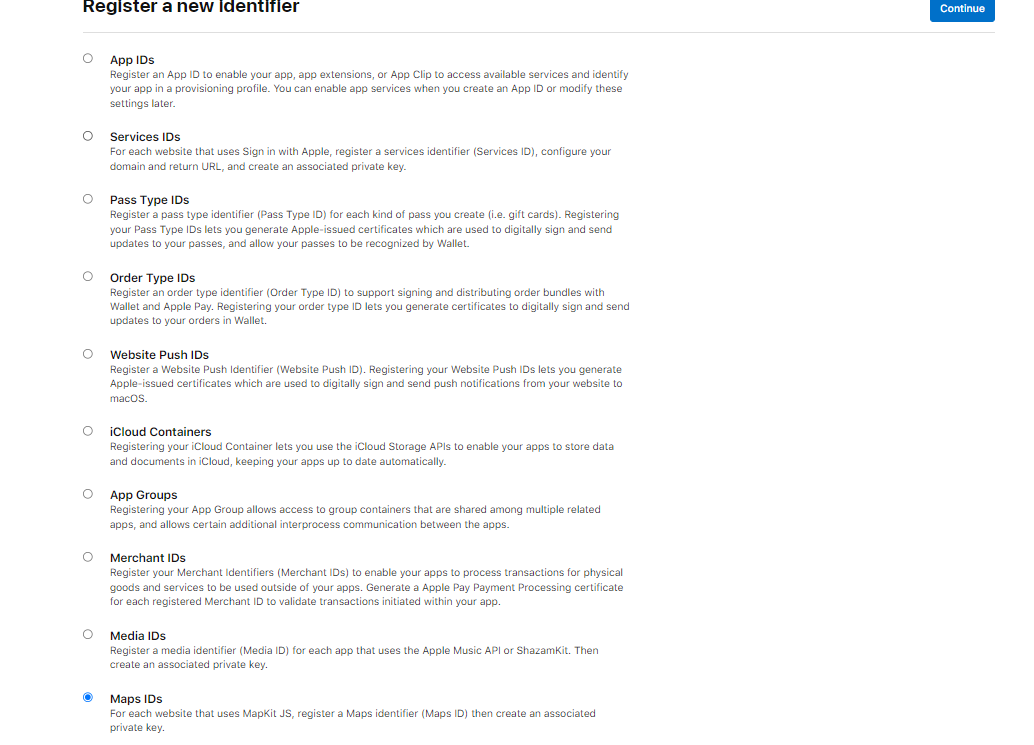
### 4. On the following page, select the Maps IDs checkbox, and then click the Continue button at the top of the page.
|
|
176
|
+
|
|
177
|
+
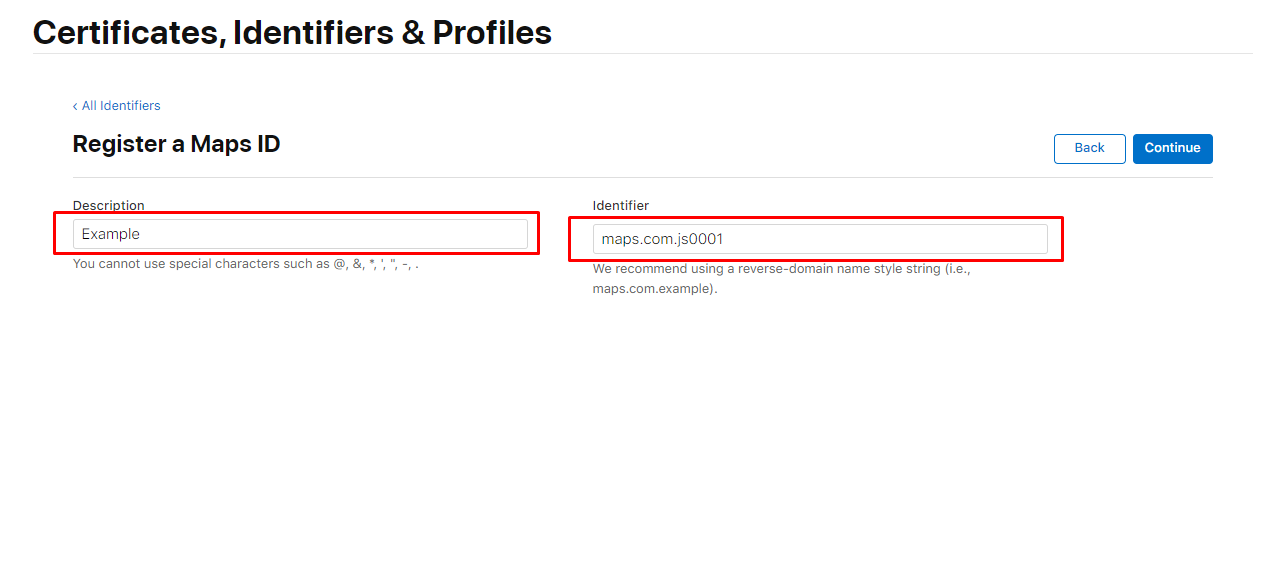
### 5. Enter a string for the description. This can be your app name, team name, project name, or anything that conveys context and is meaningful to you.
|
|
178
|
+
|
|
179
|
+
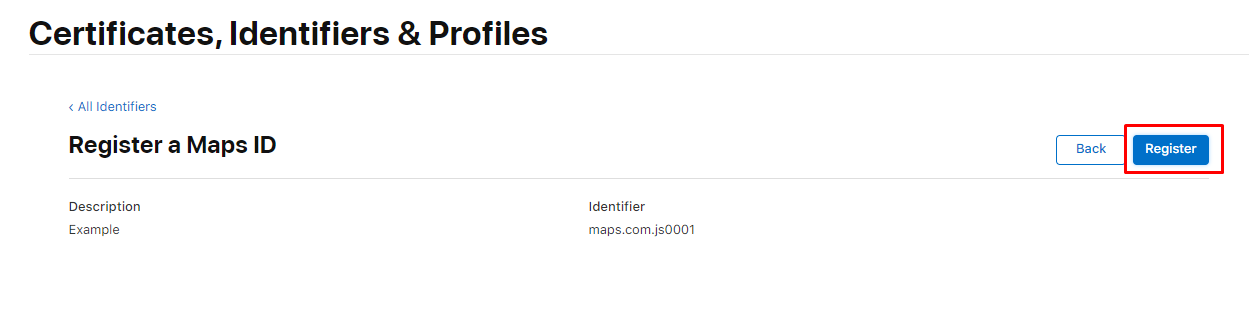
### 6. Review the information, then click Register.
|
|
180
|
+
|
|
181
|
+
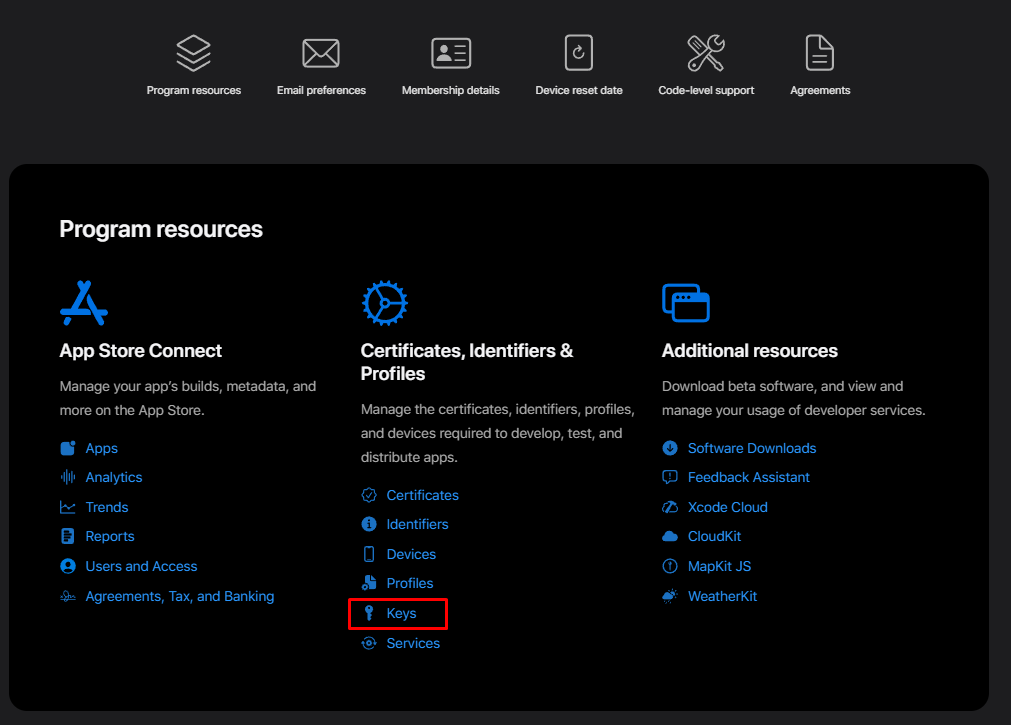
### 7. Return to [https://developer.apple.com/account](https://developer.apple.com/account) and click **Keys**
|
|
182
|
+
|
|
183
|
+
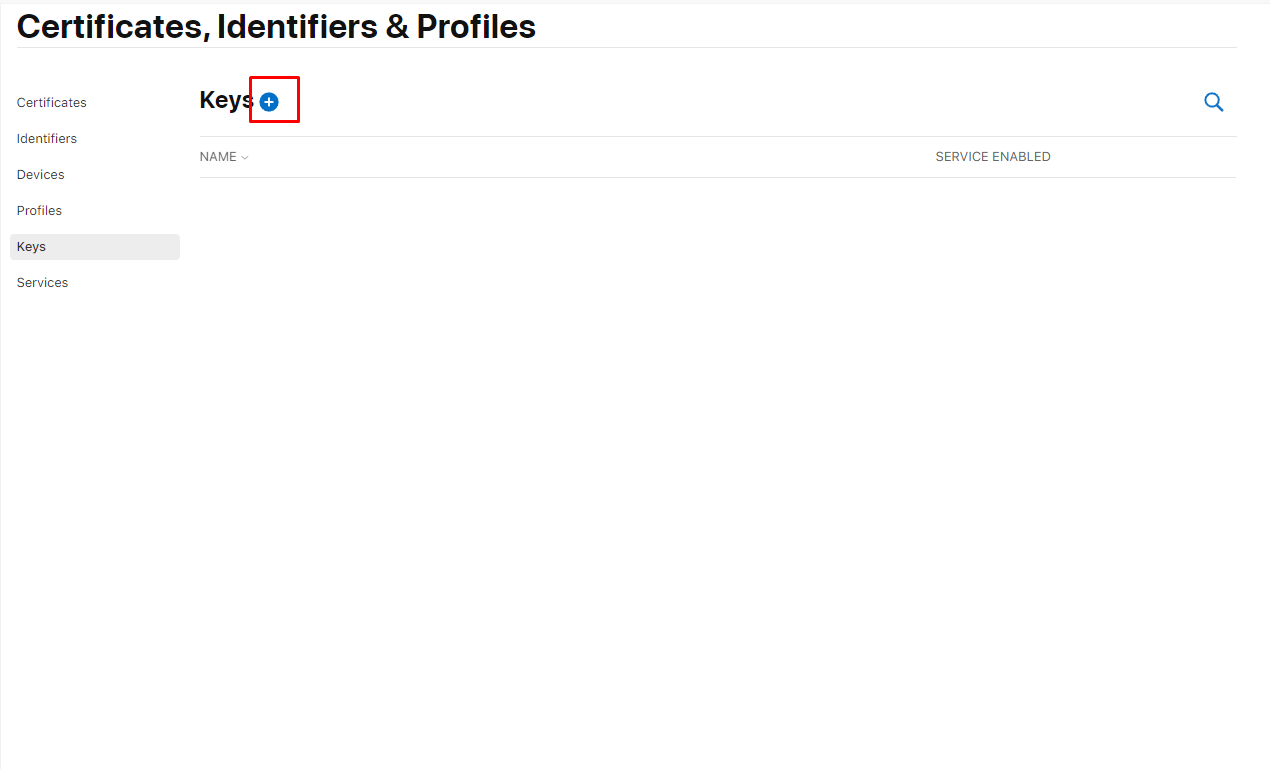
### 8. Click the add new key button
|
|
184
|
+
|
|
185
|
+
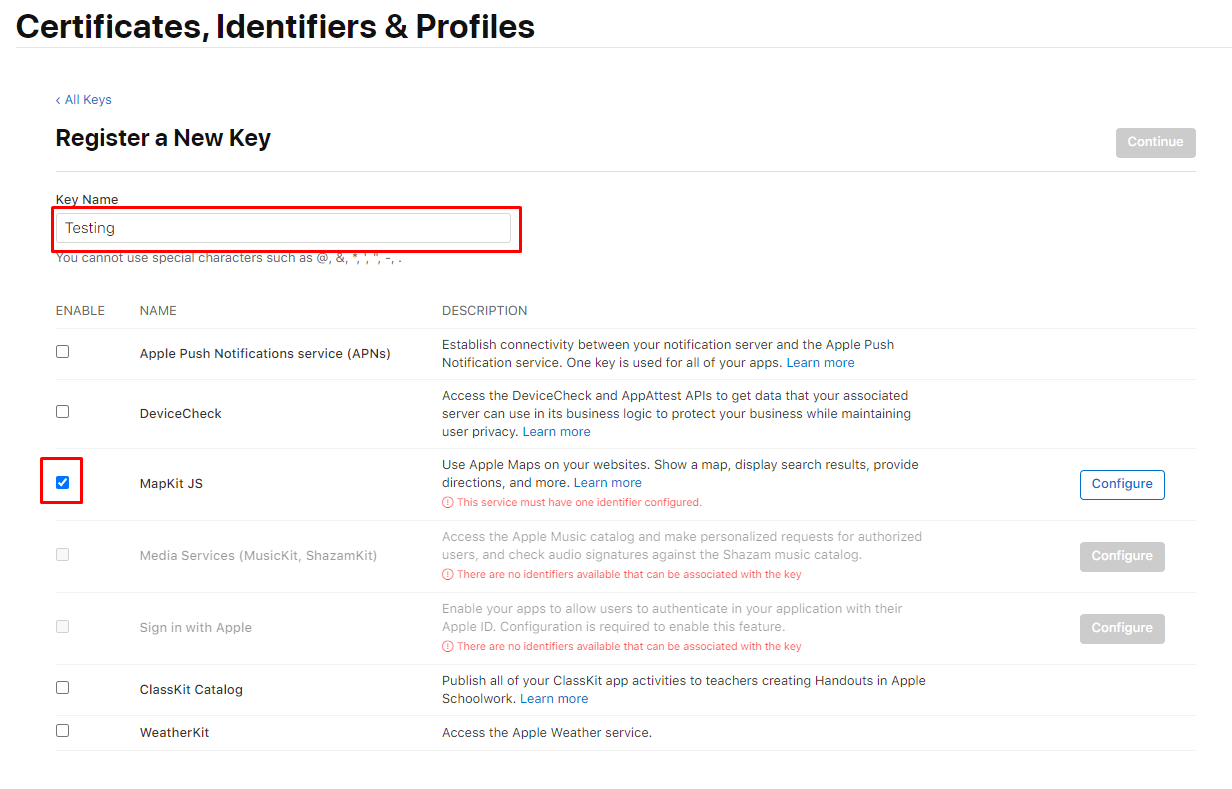
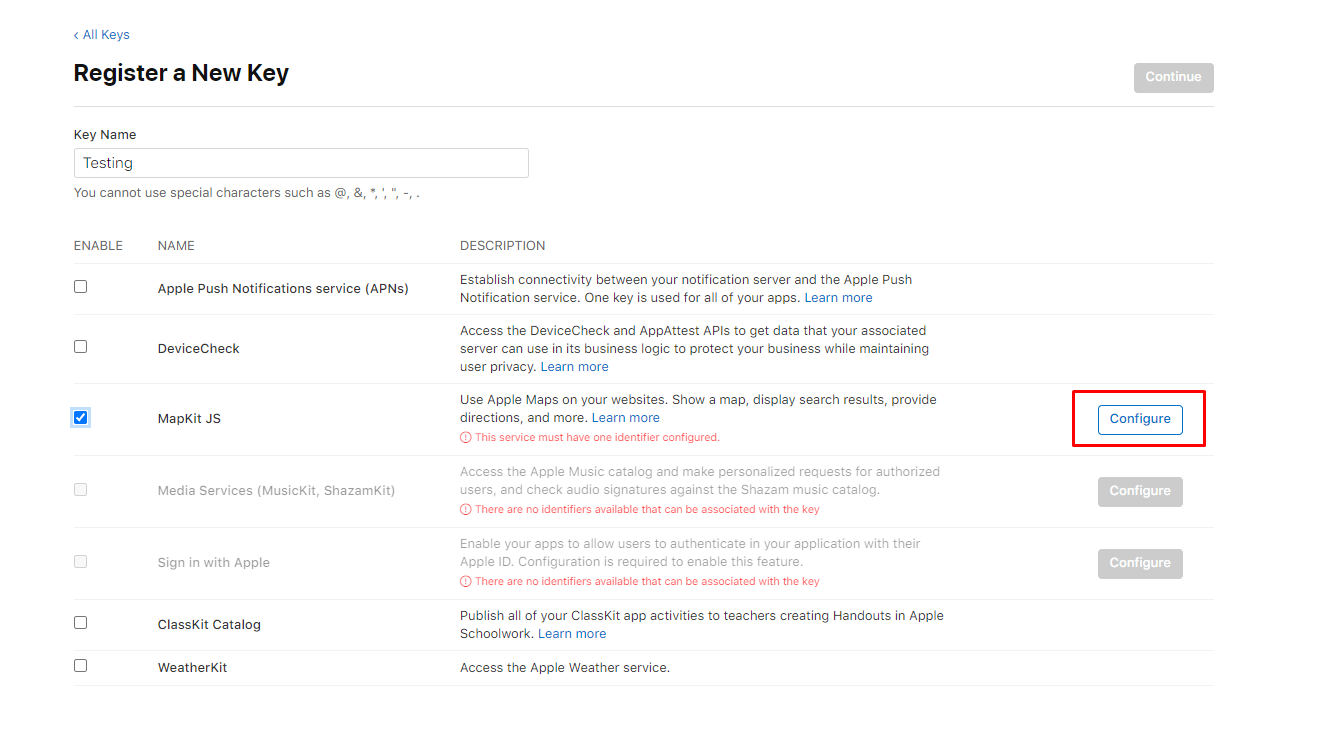
### 9. Under Key Name, enter a unique name for the key. Below that, select the checkbox next to MapKit JS.
|
|
186
|
+
|
|
187
|
+
### 10. Next to the checkbox, click Configure.
|
|
188
|
+
|
|
189
|
+
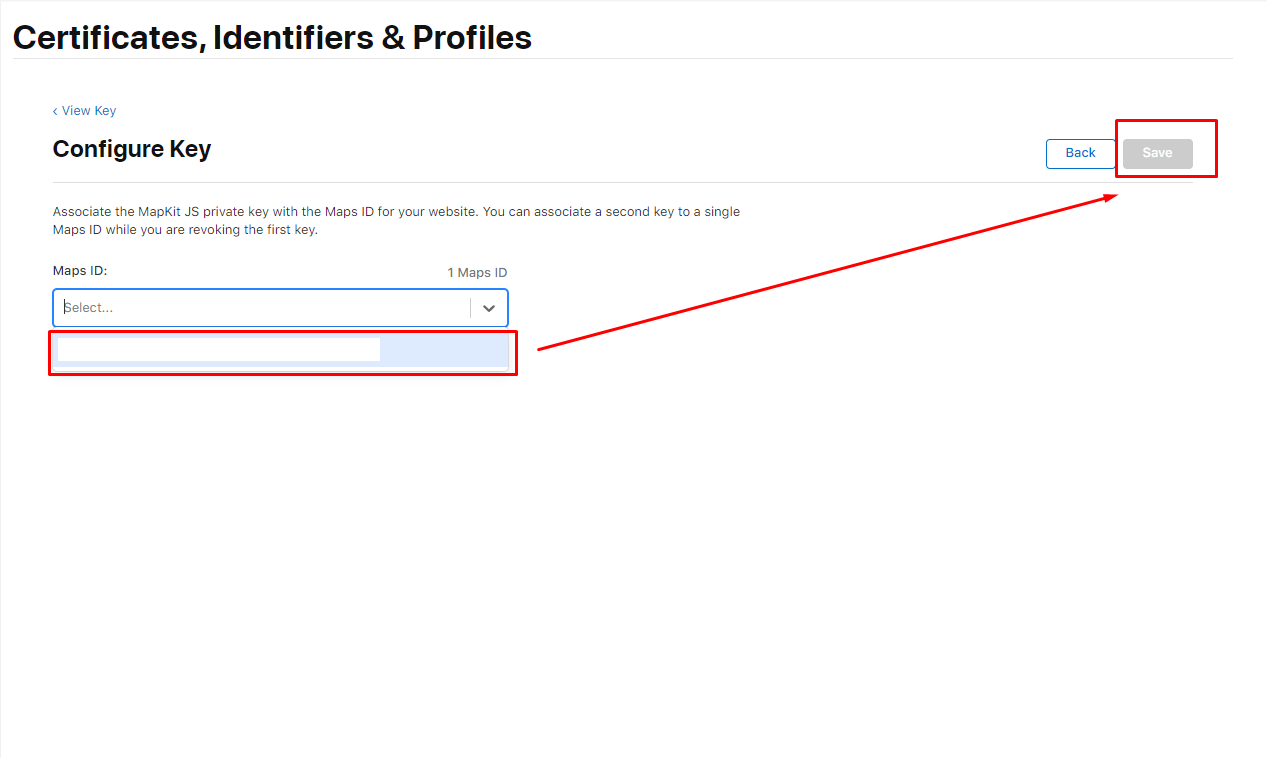
### 11. Select the maps ID that you just created to associate to this key. Then click save.
|
|
190
|
+
|
|
191
|
+
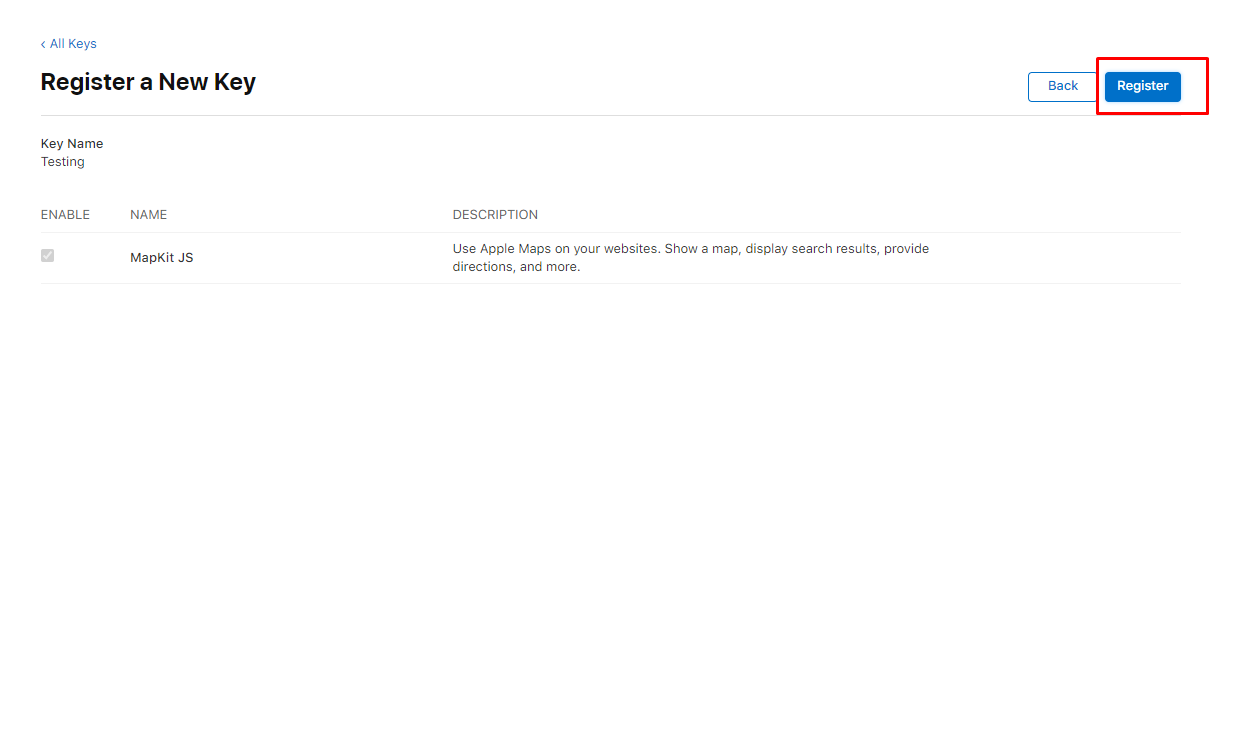
### 12. Click Continue, review the key configuration, then click Register.
|
|
192
|
+
|
|
193
|
+
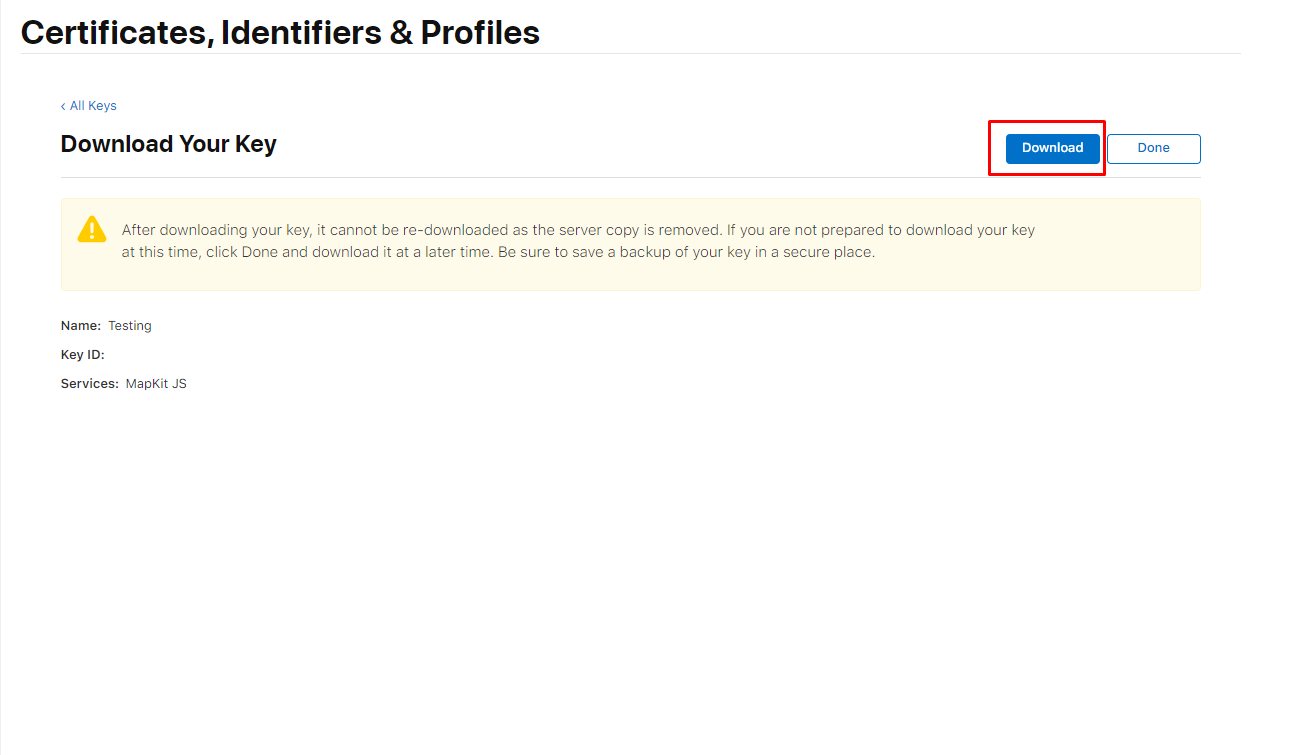
### 13. Click Download to download the private key. The private key is available to download a single time. If the Download button isn’t in an enabled state, you previously downloaded the key associated with this identifier.
|
|
194
|
+
|
|
195
|
+
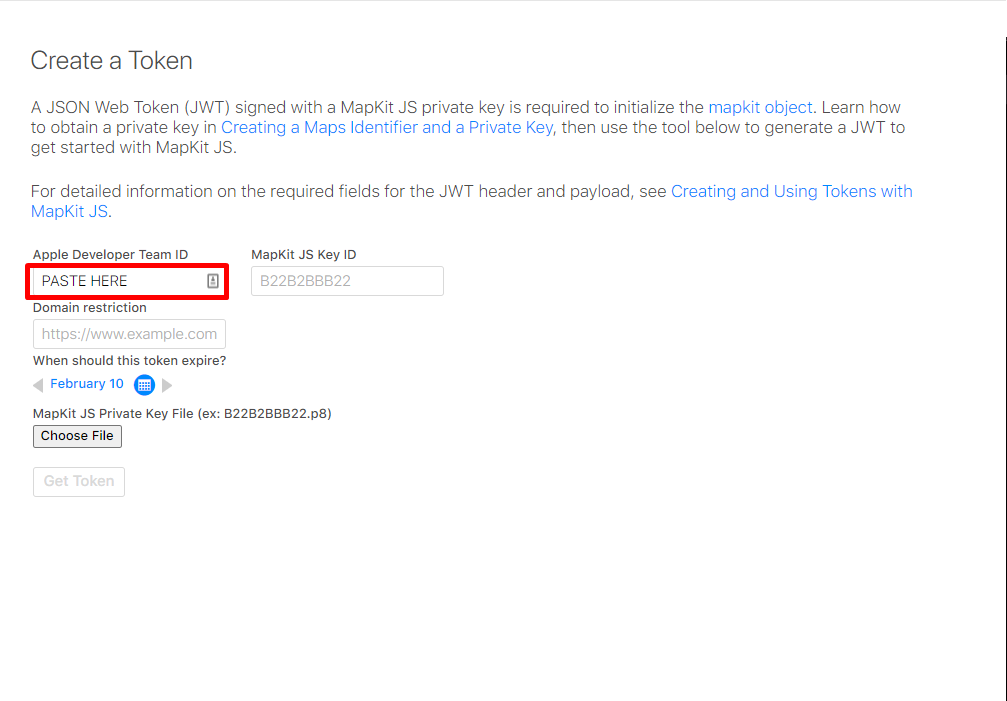
### 14. Navigate to [https://maps.developer.apple.com/token-maker](https://maps.developer.apple.com/token-maker), we will now get your Developer Id, and Mapkit JS Key ID. Begin by uploading the private key you just downloaded to `MapKit JS Private Key File`
|
|
196
|
+
### 15. Navigate in new tap to [https://developer.apple.com/account](https://developer.apple.com/account). Scroll down to `Membership Details` and copy your `Team ID` into the `Apple Developer Team ID` Field.
|
|
197
|
+

|
|
198
|
+
|
|
199
|
+
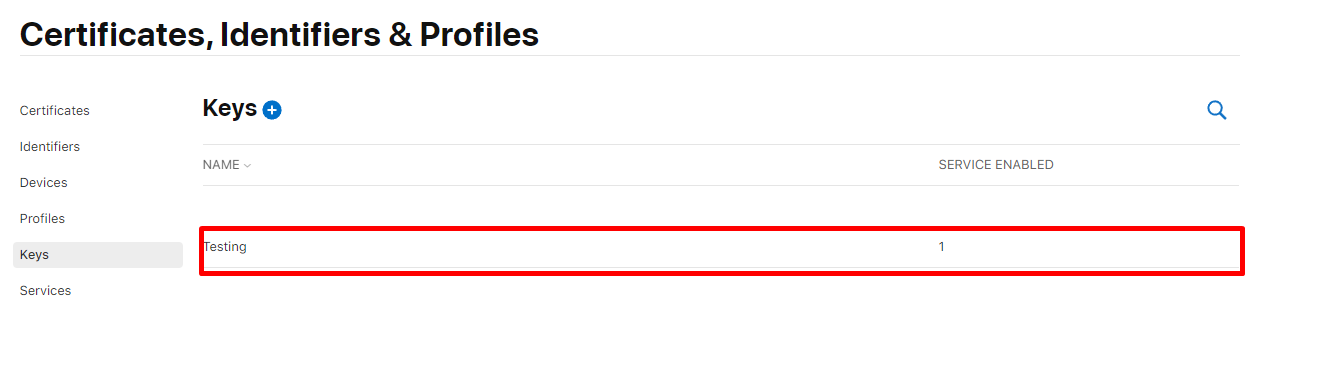
### 16. Return to [https://developer.apple.com/account](https://developer.apple.com/account) and click **Keys** then select they key you just created.
|
|
200
|
+

|
|
201
|
+
|
|
202
|
+
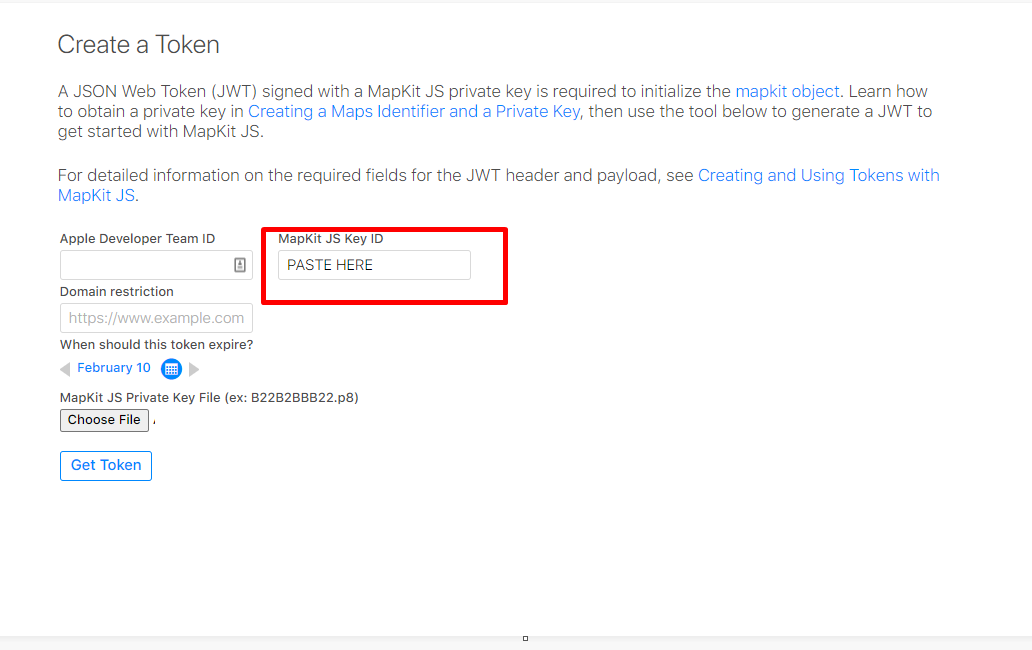
### 17. Copy the key Id and paste it into the Mapkit JS Key ID Field
|
|
203
|
+

|
|
204
|
+
|
|
205
|
+
### 18. Optionally select an expiration date, then click generate. Copy the token and store it somewhere safe such as a .env file. This is the `authorizationToken` that you will pass when creating an instance of the class. Congratulations, you're ready to go!
|
|
206
|
+
|
|
207
|
+
|
|
208
|
+
|
|
209
|
+
|
package/lib/globals.d.ts
CHANGED
|
@@ -72,10 +72,10 @@ export interface SearchInput {
|
|
|
72
72
|
userLocation?: string;
|
|
73
73
|
}
|
|
74
74
|
export interface GeocodeResponse {
|
|
75
|
-
|
|
75
|
+
results: Place[];
|
|
76
76
|
}
|
|
77
77
|
export interface ReverseGeocodeResponse {
|
|
78
|
-
|
|
78
|
+
results: Place[];
|
|
79
79
|
}
|
|
80
80
|
export interface ETAResponse {
|
|
81
81
|
etas: ETA[];
|
package/package.json
CHANGED
package/src/globals.ts
CHANGED
|
@@ -129,11 +129,11 @@ export interface SearchInput {
|
|
|
129
129
|
}
|
|
130
130
|
|
|
131
131
|
export interface GeocodeResponse {
|
|
132
|
-
|
|
132
|
+
results: Place[];
|
|
133
133
|
}
|
|
134
134
|
|
|
135
135
|
export interface ReverseGeocodeResponse {
|
|
136
|
-
|
|
136
|
+
results: Place[];
|
|
137
137
|
}
|
|
138
138
|
|
|
139
139
|
export interface ETAResponse {
|