@weppy/roblox-mcp 1.3.1 → 1.4.1
This diff represents the content of publicly available package versions that have been released to one of the supported registries. The information contained in this diff is provided for informational purposes only and reflects changes between package versions as they appear in their respective public registries.
- package/.claude-plugin/marketplace.json +2 -2
- package/.gitattributes +1 -0
- package/CHANGELOG.md +18 -0
- package/README.md +55 -6
- package/SUPPORT.md +1 -0
- package/docs/assets/screenshots/roblox-explorer/install-from-vsix.png +3 -0
- package/docs/assets/screenshots/roblox-explorer/roblox-explorer-screen.png +3 -0
- package/docs/assets/screenshots/sync.png +2 -2
- package/docs/en/installation/README.md +8 -0
- package/docs/en/installation/roblox-explorer.md +68 -0
- package/docs/en/sync/overview.md +10 -0
- package/docs/es/README.md +11 -0
- package/docs/es/installation/README.md +8 -0
- package/docs/es/sync/overview.md +10 -0
- package/docs/id/README.md +11 -0
- package/docs/id/installation/README.md +8 -0
- package/docs/id/sync/overview.md +10 -0
- package/docs/ja/README.md +11 -0
- package/docs/ja/installation/README.md +8 -0
- package/docs/ja/sync/overview.md +10 -0
- package/docs/ko/README.md +11 -0
- package/docs/ko/installation/README.md +8 -0
- package/docs/ko/installation/roblox-explorer.md +68 -0
- package/docs/ko/sync/overview.md +10 -0
- package/docs/pt-br/README.md +11 -0
- package/docs/pt-br/installation/README.md +8 -0
- package/docs/pt-br/sync/overview.md +10 -0
- package/llms-full.txt +599 -0
- package/llms.txt +21 -11
- package/package.json +1 -1
- package/plugins/weppy-roblox-mcp/.claude-plugin/plugin.json +1 -1
- package/plugins/weppy-roblox-mcp/dist/index.js +57 -57
- package/smithery.yaml +13 -0
|
@@ -6,14 +6,14 @@
|
|
|
6
6
|
},
|
|
7
7
|
"metadata": {
|
|
8
8
|
"description": "Roblox MCP server and tools for AI-powered game development",
|
|
9
|
-
"version": "1.
|
|
9
|
+
"version": "1.4.1"
|
|
10
10
|
},
|
|
11
11
|
"plugins": [
|
|
12
12
|
{
|
|
13
13
|
"name": "weppy-roblox-mcp",
|
|
14
14
|
"source": "./plugins/weppy-roblox-mcp",
|
|
15
15
|
"description": "MCP server for Roblox Studio integration - AI-powered game development with specialized agents and skills",
|
|
16
|
-
"version": "1.
|
|
16
|
+
"version": "1.4.1",
|
|
17
17
|
"author": {
|
|
18
18
|
"name": "hope1026"
|
|
19
19
|
},
|
package/.gitattributes
ADDED
|
@@ -0,0 +1 @@
|
|
|
1
|
+
plugins/weppy-roblox-mcp/dist/index.js -linguist-generated -linguist-vendored
|
package/CHANGELOG.md
CHANGED
|
@@ -5,6 +5,24 @@ All notable changes to this project will be documented in this file.
|
|
|
5
5
|
|
|
6
6
|
|
|
7
7
|
|
|
8
|
+
|
|
9
|
+
## [1.4.0] - 2026-03-08
|
|
10
|
+
|
|
11
|
+
### New Features
|
|
12
|
+
|
|
13
|
+
- Add Roblox Explorer VSCode extension — browse Studio instance tree directly in VSCode sidebar
|
|
14
|
+
- TreeDataProvider for real-time instance hierarchy visualization
|
|
15
|
+
- Auto-refresh via FileWatcher on sync data changes
|
|
16
|
+
- Icon mapping for Roblox class names (dark/light theme support)
|
|
17
|
+
- Copy instance path, open backing file, reveal in explorer commands
|
|
18
|
+
|
|
19
|
+
### Improvements
|
|
20
|
+
|
|
21
|
+
- Refactor MCP server deployment pipeline and build configuration
|
|
22
|
+
- Improve camera and terrain sync stability and accuracy
|
|
23
|
+
- Enhance plugin UI icons and visual consistency
|
|
24
|
+
|
|
25
|
+
|
|
8
26
|
## [1.3.1] - 2026-03-07
|
|
9
27
|
|
|
10
28
|
### Improvements
|
package/README.md
CHANGED
|
@@ -1,11 +1,21 @@
|
|
|
1
1
|
# Roblox MCP
|
|
2
2
|
|
|
3
|
-
> MCP server
|
|
3
|
+
> The MCP server that connects AI coding agents to Roblox Studio — control scripts, terrain, assets, lighting, audio, and animations via natural language.
|
|
4
4
|
|
|
5
5
|
**English** | [한국어](docs/ko/README.md) | [日本語](docs/ja/README.md) | [Español](docs/es/README.md) | [Português](docs/pt-br/README.md) | [Bahasa Indonesia](docs/id/README.md)
|
|
6
6
|
|
|
7
7
|
[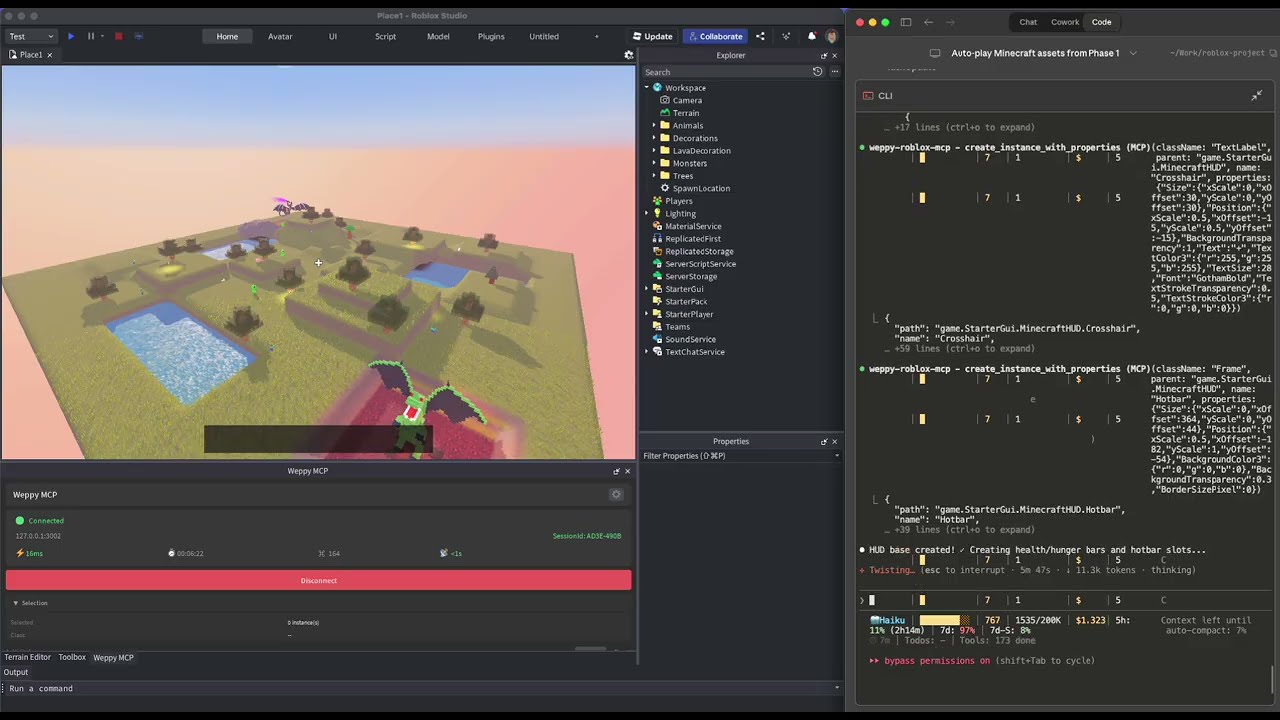](https://youtu.be/3jrUpBbZPaw)
|
|
8
8
|
|
|
9
|
+
## The Problem
|
|
10
|
+
|
|
11
|
+
AI coding agents like Claude, Codex, and Gemini are powerful — but they cannot see or modify anything inside Roblox Studio. The DataModel, scripts, terrain, and lighting are all invisible to external tools. Without a bridge, AI can only generate code snippets that you must paste manually.
|
|
12
|
+
|
|
13
|
+
## The Solution
|
|
14
|
+
|
|
15
|
+
Roblox MCP provides a real-time bridge between AI agents and the Roblox Studio DataModel. It exposes the full Roblox API surface as executable MCP tools, so AI can **directly create, read, modify, and delete** instances, scripts, properties, terrain, and more — inside a live Studio session.
|
|
16
|
+
|
|
17
|
+
This is not just code generation. It is **executable, production-oriented actions** running directly in Studio.
|
|
18
|
+
|
|
9
19
|
## Quick Install (5 minutes)
|
|
10
20
|
|
|
11
21
|
**Step 1** — Install the Roblox Studio plugin (bridge between Studio and AI):
|
|
@@ -24,14 +34,15 @@ npx -y @weppy/roblox-mcp
|
|
|
24
34
|
| Codex CLI | [Setup](docs/en/installation/ai-apps/codex-cli.md) |
|
|
25
35
|
| Codex Desktop | [Setup](docs/en/installation/ai-apps/codex-app.md) |
|
|
26
36
|
| Gemini CLI | [Setup](docs/en/installation/ai-apps/gemini-cli.md) |
|
|
37
|
+
| Antigravity | [Setup](docs/en/installation/ai-apps/antigravity.md) |
|
|
27
38
|
|
|
28
39
|
> Any MCP-compatible AI client works. The server command is `npx -y @weppy/roblox-mcp`.
|
|
29
40
|
|
|
30
41
|
## Compatibility
|
|
31
42
|
|
|
32
|
-
| Claude Code | Claude Desktop | Cursor | Codex CLI | Gemini CLI |
|
|
33
|
-
|
|
34
|
-
| ✅ | ✅ | ✅ | ✅ | ✅ |
|
|
43
|
+
| Claude Code | Claude Desktop | Cursor | Codex CLI | Gemini CLI | Antigravity |
|
|
44
|
+
|:-----------:|:--------------:|:------:|:---------:|:----------:|:-----------:|
|
|
45
|
+
| ✅ | ✅ | ✅ | ✅ | ✅ | ✅ |
|
|
35
46
|
|
|
36
47
|
**Requirements:** Node.js 18+, Roblox Studio, Windows 10+ or macOS 12+
|
|
37
48
|
|
|
@@ -44,8 +55,8 @@ AI can directly handle scripts, instances, properties, terrain, lighting, assets
|
|
|
44
55
|
- "Add particles + sound + cooldown when the player jumps."
|
|
45
56
|
- "Build a boss arena at map center and place collision-safe spawn points."
|
|
46
57
|
- "Change this module interface and update every dependent script."
|
|
47
|
-
|
|
48
|
-
|
|
58
|
+
- "Generate terrain with mountains and rivers, then place spawn points on flat areas."
|
|
59
|
+
- "Search the Creator Store for a sword model and insert it into StarterPack."
|
|
49
60
|
|
|
50
61
|
### 2) Sync: Keep full project context stable for AI
|
|
51
62
|
|
|
@@ -56,6 +67,24 @@ AI works from a synchronized local mirror, so multi-file updates stay consistent
|
|
|
56
67
|
- Basic: one-way sync (Studio -> Local)
|
|
57
68
|
- Pro: bidirectional sync + per-type Direction/Apply Mode + history + multi-place
|
|
58
69
|
|
|
70
|
+
### 3) Roblox Explorer: Browse Studio hierarchy in VSCode
|
|
71
|
+
|
|
72
|
+
View the full instance tree of your Roblox Studio place directly inside VSCode. Navigate services, open synced scripts and property files, and track sync status — all without switching to Studio.
|
|
73
|
+
|
|
74
|
+

|
|
75
|
+
|
|
76
|
+
- Class icons matching Studio for instant recognition
|
|
77
|
+
- Click to open synced scripts and property files
|
|
78
|
+
- Multi-place support with sync status indicators
|
|
79
|
+
|
|
80
|
+
## Use Cases
|
|
81
|
+
|
|
82
|
+
- **Rapid prototyping**: Describe a game mechanic in natural language and watch AI build it in Studio
|
|
83
|
+
- **Bulk refactoring**: Rename a module interface and update every dependent script in one request
|
|
84
|
+
- **Terrain & environment**: Generate procedural terrain, set lighting/atmosphere, place assets — all from a single prompt
|
|
85
|
+
- **Multi-file consistency**: AI reads the full project via Sync and applies changes across related scripts together
|
|
86
|
+
- **Asset integration**: Search the Creator Store, insert models, and configure properties without leaving your editor
|
|
87
|
+
|
|
59
88
|
## Why It Matters
|
|
60
89
|
|
|
61
90
|
- Compress repetitive work: turn many manual edits into one request
|
|
@@ -68,9 +97,27 @@ AI works from a synchronized local mirror, so multi-file updates stay consistent
|
|
|
68
97
|
- [Installation Guide](docs/en/installation/README.md)
|
|
69
98
|
- [Tools Reference](docs/en/tools/overview.md)
|
|
70
99
|
- [Sync Deep Dive](docs/en/sync/overview.md)
|
|
100
|
+
- [Roblox Explorer (VSCode Extension)](docs/en/installation/roblox-explorer.md)
|
|
71
101
|
- [Compatibility](docs/compatibility.md)
|
|
72
102
|
- [Troubleshooting](docs/troubleshooting.md)
|
|
73
103
|
|
|
104
|
+
## FAQ
|
|
105
|
+
|
|
106
|
+
**How do I let Claude edit my Roblox scripts?**
|
|
107
|
+
Install the Roblox Studio plugin, then register the MCP server (`npx -y @weppy/roblox-mcp`) in Claude Code or Claude Desktop. Claude can then directly read and write scripts inside Studio.
|
|
108
|
+
|
|
109
|
+
**Can AI build Roblox games with this?**
|
|
110
|
+
Yes. AI can create instances, write scripts, generate terrain, set up lighting, insert assets, configure physics, and more — all inside a live Roblox Studio session. It goes beyond code generation to executable actions.
|
|
111
|
+
|
|
112
|
+
**Does it work with Cursor / Codex / Gemini?**
|
|
113
|
+
Yes. Any MCP-compatible AI client works. Setup guides are provided for Claude Code, Claude Desktop, Cursor, Codex CLI, Codex Desktop, Gemini CLI, and Antigravity.
|
|
114
|
+
|
|
115
|
+
**What is the difference between Basic and Pro?**
|
|
116
|
+
Basic includes MCP tool execution and one-way sync (Studio -> Local). Pro adds bidirectional sync, bulk operations, terrain generation, spatial analysis, audio/animation control, and multi-place support. See the [Pro Upgrade Guide](docs/en/pro-upgrade.md).
|
|
117
|
+
|
|
118
|
+
**Is it safe? Can AI break my game?**
|
|
119
|
+
The server runs on localhost only (127.0.0.1:3002). Forbidden paths (CoreGui, CorePackages) are blocked. Rate limiting (450 req/min) and 30-second timeouts prevent runaway operations. All changes are trackable via sync history.
|
|
120
|
+
|
|
74
121
|
## Pro Upgrade
|
|
75
122
|
|
|
76
123
|
Bidirectional Sync, advanced build capabilities, and AI token efficiency — all in one upgrade.
|
|
@@ -79,4 +126,6 @@ Bidirectional Sync, advanced build capabilities, and AI token efficiency — all
|
|
|
79
126
|
|
|
80
127
|
---
|
|
81
128
|
|
|
129
|
+
[](https://www.npmjs.com/package/@weppy/roblox-mcp) [](https://nodejs.org/) [](https://smithery.ai/server/@hope1026/roblox-mcp)
|
|
130
|
+
|
|
82
131
|
[GitHub Issues](https://github.com/hope1026/roblox-mcp/issues) · [Discussions](https://github.com/hope1026/roblox-mcp/discussions) · [npm](https://www.npmjs.com/package/@weppy/roblox-mcp)
|
package/SUPPORT.md
CHANGED
|
@@ -5,6 +5,7 @@
|
|
|
5
5
|
- [Installation Guide](docs/en/installation/README.md)
|
|
6
6
|
- [Tools Reference](docs/en/tools/overview.md)
|
|
7
7
|
- [Sync Deep Dive](docs/en/sync/overview.md)
|
|
8
|
+
- [Roblox Explorer (VSCode Extension)](docs/en/installation/roblox-explorer.md)
|
|
8
9
|
- [Compatibility](docs/en/compatibility.md)
|
|
9
10
|
- [Troubleshooting](docs/en/troubleshooting.md)
|
|
10
11
|
|
|
@@ -1,3 +1,3 @@
|
|
|
1
1
|
version https://git-lfs.github.com/spec/v1
|
|
2
|
-
oid sha256:
|
|
3
|
-
size
|
|
2
|
+
oid sha256:29980b419b1f0cd11500ebcdb3dfe21b9b02b2aba5910e98f20d39a3ec33b484
|
|
3
|
+
size 825060
|
|
@@ -39,6 +39,14 @@ Register the MCP server with your AI app. You can use it with any AI app that su
|
|
|
39
39
|
|
|
40
40
|
---
|
|
41
41
|
|
|
42
|
+
## Optional: Install Roblox Explorer (VSCode Extension)
|
|
43
|
+
|
|
44
|
+
Browse synced instance trees inside VSCode with Roblox class icons.
|
|
45
|
+
|
|
46
|
+
👉 [Roblox Explorer Installation Guide](roblox-explorer.md)
|
|
47
|
+
|
|
48
|
+
---
|
|
49
|
+
|
|
42
50
|
## After Installation
|
|
43
51
|
|
|
44
52
|
1. Open **Roblox Studio**, go to Plugins tab and click **W-MCP** → **Connect**
|
|
@@ -0,0 +1,68 @@
|
|
|
1
|
+
# Weepy Roblox Explorer (VSCode Extension)
|
|
2
|
+
|
|
3
|
+
Roblox Studio Explorer-like tree view for VSCode. Browse synced instance trees, open scripts directly, and track sync status — all inside your editor.
|
|
4
|
+
|
|
5
|
+

|
|
6
|
+
|
|
7
|
+
## Requirements
|
|
8
|
+
|
|
9
|
+
- VSCode 1.85+
|
|
10
|
+
- [Roblox MCP](../../../README.md) Sync enabled (Basic or Pro)
|
|
11
|
+
|
|
12
|
+
## Installation
|
|
13
|
+
|
|
14
|
+
### 1. Download VSIX
|
|
15
|
+
|
|
16
|
+
Go to the [Releases](https://github.com/hope1026/roblox-mcp/releases) page and download the latest `weppy-roblox-explorer-*.vsix` file.
|
|
17
|
+
|
|
18
|
+
> The VSIX file is attached as a release asset alongside the plugin ZIP.
|
|
19
|
+
|
|
20
|
+
### 2. Install in VSCode
|
|
21
|
+
|
|
22
|
+
1. Open VSCode
|
|
23
|
+
2. Open the Extensions sidebar (`Ctrl+Shift+X` / `Cmd+Shift+X`)
|
|
24
|
+
3. Click the `...` menu at the top → **Install from VSIX...**
|
|
25
|
+
|
|
26
|
+

|
|
27
|
+
|
|
28
|
+
4. Select the downloaded `.vsix` file
|
|
29
|
+
5. Reload VSCode when prompted
|
|
30
|
+
|
|
31
|
+
## Features
|
|
32
|
+
|
|
33
|
+
- **Instance tree**: Service/instance hierarchy matching Roblox Studio
|
|
34
|
+
- **Roblox class icons**: Dark/light theme support with 200+ class icons
|
|
35
|
+
- **Multi-place**: Separate tree roots per synced place
|
|
36
|
+
- **Click-to-open**: Open backing files (`.server.luau`, `.client.luau`, `.module.luau`, `.props.json`)
|
|
37
|
+
- **Instance search**: QuickPick search across all services
|
|
38
|
+
- **Sync status badges**: See `modified`, `studio`, `conflict` states at a glance
|
|
39
|
+
- **Auto-refresh**: Tree updates automatically when sync files change (500ms debounce)
|
|
40
|
+
- **Copy instance path**: Right-click to copy `game.Workspace.Part` style paths
|
|
41
|
+
|
|
42
|
+
## Settings
|
|
43
|
+
|
|
44
|
+
| Setting | Default | Description |
|
|
45
|
+
|---------|---------|-------------|
|
|
46
|
+
| `robloxExplorer.syncRoot` | `""` | Absolute path to `roblox-project-sync` root. Auto-discovered if empty. |
|
|
47
|
+
| `robloxExplorer.hidePropsFiles` | `false` | Hide sync artifact files (`.props.json`, `_tree.json`, `.value.json`) in the default VSCode explorer. |
|
|
48
|
+
| `robloxExplorer.autoRefresh` | `true` | Auto-refresh tree when sync files change. |
|
|
49
|
+
| `robloxExplorer.showSyncStatus` | `true` | Show sync status decorations on tree items. |
|
|
50
|
+
|
|
51
|
+
## Commands
|
|
52
|
+
|
|
53
|
+
| Command | Description |
|
|
54
|
+
|---------|-------------|
|
|
55
|
+
| `Weepy Roblox Explorer: Refresh` | Manually refresh the instance tree |
|
|
56
|
+
| `Weepy Roblox Explorer: Search Instances` | Search instances across all services |
|
|
57
|
+
| `Weepy Roblox Explorer: Open Backing File` | Open the file backing a selected instance |
|
|
58
|
+
| `Weepy Roblox Explorer: Copy Instance Path` | Copy the full instance path (e.g. `game.Workspace.Part`) |
|
|
59
|
+
| `Weepy Roblox Explorer: Reveal in Explorer` | Show the backing file in the default VSCode explorer |
|
|
60
|
+
|
|
61
|
+
## Updating
|
|
62
|
+
|
|
63
|
+
Download the latest `.vsix` from [Releases](https://github.com/hope1026/roblox-mcp/releases) and repeat the installation steps. VSCode will replace the existing version.
|
|
64
|
+
|
|
65
|
+
## Related
|
|
66
|
+
|
|
67
|
+
- [Sync Deep Dive](../sync/overview.md)
|
|
68
|
+
- [Installation Guide](README.md)
|
package/docs/en/sync/overview.md
CHANGED
|
@@ -20,6 +20,16 @@ Without Sync, AI only sees snippets pasted into chat. With Sync enabled, AI work
|
|
|
20
20
|
|
|
21
21
|
Default local path is `roblox-project-sync/place_{placeId}/explorer`.
|
|
22
22
|
|
|
23
|
+
### Browse sync data in VSCode
|
|
24
|
+
|
|
25
|
+
Install the [Weepy Roblox Explorer](../installation/roblox-explorer.md) extension to browse the synced instance tree in VSCode, just like in Roblox Studio.
|
|
26
|
+
|
|
27
|
+

|
|
28
|
+
|
|
29
|
+
- Service/instance tree with Roblox class icons
|
|
30
|
+
- Click a script to open it for editing
|
|
31
|
+
- Sync status badges show modified/conflict state
|
|
32
|
+
|
|
23
33
|
## Basic vs Pro
|
|
24
34
|
|
|
25
35
|
| Item | Basic | Pro |
|
package/docs/es/README.md
CHANGED
|
@@ -56,6 +56,16 @@ La IA trabaja sobre un espejo local sincronizado, asi que los cambios en multipl
|
|
|
56
56
|
- Basic: sincronizacion unidireccional (Studio -> Local)
|
|
57
57
|
- Pro: sincronizacion bidireccional + Direction/Apply Mode por tipo + historial + multiplace
|
|
58
58
|
|
|
59
|
+
### 3) Roblox Explorer: explora la jerarquia de Studio en VSCode
|
|
60
|
+
|
|
61
|
+
Visualiza el arbol completo de instancias de tu lugar en Roblox Studio directamente dentro de VSCode. Navega los servicios, abre scripts y archivos de propiedades sincronizados, y rastrea el estado de sincronizacion — todo sin cambiar a Studio.
|
|
62
|
+
|
|
63
|
+

|
|
64
|
+
|
|
65
|
+
- Iconos de clase iguales a Studio para reconocimiento inmediato
|
|
66
|
+
- Clic para abrir scripts y archivos de propiedades sincronizados
|
|
67
|
+
- Soporte multiplace con indicadores de estado de sincronizacion
|
|
68
|
+
|
|
59
69
|
## Valor inmediato para el usuario
|
|
60
70
|
|
|
61
71
|
- Comprime trabajo repetitivo: convierte muchas ediciones manuales en una sola instruccion
|
|
@@ -68,6 +78,7 @@ La IA trabaja sobre un espejo local sincronizado, asi que los cambios en multipl
|
|
|
68
78
|
- [Guia de instalacion](../en/installation/README.md)
|
|
69
79
|
- [Cobertura de herramientas](../en/tools/overview.md)
|
|
70
80
|
- [Guia detallada de Sync](../en/sync/overview.md)
|
|
81
|
+
- [Roblox Explorer (Extension VSCode)](../en/installation/roblox-explorer.md)
|
|
71
82
|
- [Compatibilidad](../compatibility.md)
|
|
72
83
|
- [Solucion de problemas](../troubleshooting.md)
|
|
73
84
|
|
|
@@ -34,6 +34,14 @@ Configura el servidor MCP en tu app de IA para que pueda comunicarse con Roblox
|
|
|
34
34
|
> npx -y @weppy/roblox-mcp
|
|
35
35
|
> ```
|
|
36
36
|
|
|
37
|
+
## Opcional: Instalar Roblox Explorer (Extensión VSCode)
|
|
38
|
+
|
|
39
|
+
Explora los árboles de instancias sincronizados dentro de VSCode con iconos de clases Roblox.
|
|
40
|
+
|
|
41
|
+
👉 [Guía de instalación de Roblox Explorer](roblox-explorer.md)
|
|
42
|
+
|
|
43
|
+
---
|
|
44
|
+
|
|
37
45
|
## Después de la Instalación
|
|
38
46
|
|
|
39
47
|
Prueba con un comando simple:
|
package/docs/es/sync/overview.md
CHANGED
|
@@ -20,6 +20,16 @@ Sin Sync, la IA solo ve fragmentos pegados en el chat. Con Sync activo, trabaja
|
|
|
20
20
|
|
|
21
21
|
La ruta local por defecto es `roblox-project-sync/place_{placeId}/explorer`.
|
|
22
22
|
|
|
23
|
+
### Explorar datos sincronizados en VSCode
|
|
24
|
+
|
|
25
|
+
Instala la extension [Weepy Roblox Explorer](../installation/roblox-explorer.md) para explorar el arbol de instancias sincronizado en VSCode, igual que en Roblox Studio.
|
|
26
|
+
|
|
27
|
+

|
|
28
|
+
|
|
29
|
+
- Arbol de servicios/instancias con iconos de clases Roblox
|
|
30
|
+
- Haz clic en un script para abrirlo y editarlo
|
|
31
|
+
- Badges de estado de sync muestran el estado modificado/conflicto
|
|
32
|
+
|
|
23
33
|
## Basic vs Pro
|
|
24
34
|
|
|
25
35
|
| Item | Basic | Pro |
|
package/docs/id/README.md
CHANGED
|
@@ -56,6 +56,16 @@ AI bekerja dari mirror lokal yang tersinkron, jadi perubahan lintas banyak file
|
|
|
56
56
|
- Basic: sinkronisasi satu arah (Studio -> Local)
|
|
57
57
|
- Pro: sinkronisasi dua arah + Direction/Apply Mode per tipe + riwayat + multiplace
|
|
58
58
|
|
|
59
|
+
### 3) Roblox Explorer: jelajahi hierarki Studio di VSCode
|
|
60
|
+
|
|
61
|
+
Lihat seluruh pohon instance dari place Roblox Studio langsung di dalam VSCode. Navigasi service, buka script dan file properti yang tersinkron, dan pantau status sinkronisasi — semua tanpa beralih ke Studio.
|
|
62
|
+
|
|
63
|
+

|
|
64
|
+
|
|
65
|
+
- Ikon class yang sama dengan Studio untuk pengenalan instan
|
|
66
|
+
- Klik untuk membuka script dan file properti yang tersinkron
|
|
67
|
+
- Dukungan multiplace dengan indikator status sinkronisasi
|
|
68
|
+
|
|
59
69
|
## Nilai yang langsung terasa
|
|
60
70
|
|
|
61
71
|
- Ringkas pekerjaan berulang: banyak edit manual jadi satu perintah
|
|
@@ -68,6 +78,7 @@ AI bekerja dari mirror lokal yang tersinkron, jadi perubahan lintas banyak file
|
|
|
68
78
|
- [Panduan instalasi](../en/installation/README.md)
|
|
69
79
|
- [Cakupan tool](../en/tools/overview.md)
|
|
70
80
|
- [Panduan detail Sync](../en/sync/overview.md)
|
|
81
|
+
- [Roblox Explorer (Ekstensi VSCode)](../en/installation/roblox-explorer.md)
|
|
71
82
|
- [Kompatibilitas](../compatibility.md)
|
|
72
83
|
- [Panduan pemecahan masalah](../troubleshooting.md)
|
|
73
84
|
|
|
@@ -39,6 +39,14 @@ Daftarkan MCP server ke aplikasi AI yang kamu pakai. Bisa digunakan di semua apl
|
|
|
39
39
|
|
|
40
40
|
---
|
|
41
41
|
|
|
42
|
+
## Opsional: Install Roblox Explorer (Ekstensi VSCode)
|
|
43
|
+
|
|
44
|
+
Jelajahi tree instance yang sudah disinkronkan di dalam VSCode dengan ikon kelas Roblox.
|
|
45
|
+
|
|
46
|
+
👉 [Panduan Instalasi Roblox Explorer](roblox-explorer.md)
|
|
47
|
+
|
|
48
|
+
---
|
|
49
|
+
|
|
42
50
|
## Setelah Instalasi Selesai
|
|
43
51
|
|
|
44
52
|
1. Buka **Roblox Studio**, di tab Plugins klik **W-MCP** → **Connect**
|
package/docs/id/sync/overview.md
CHANGED
|
@@ -20,6 +20,16 @@ Tanpa Sync, AI hanya melihat potongan kode yang ditempel di chat. Dengan Sync ak
|
|
|
20
20
|
|
|
21
21
|
Path lokal default adalah `roblox-project-sync/place_{placeId}/explorer`.
|
|
22
22
|
|
|
23
|
+
### Jelajahi data sync di VSCode
|
|
24
|
+
|
|
25
|
+
Instal ekstensi [Weepy Roblox Explorer](../installation/roblox-explorer.md) untuk menjelajahi tree instance yang sudah tersinkron di VSCode, seperti di Roblox Studio.
|
|
26
|
+
|
|
27
|
+

|
|
28
|
+
|
|
29
|
+
- Tree service/instance dengan ikon kelas Roblox
|
|
30
|
+
- Klik script untuk membukanya dan mengedit
|
|
31
|
+
- Badge status sync menampilkan status modified/conflict
|
|
32
|
+
|
|
23
33
|
## Basic vs Pro
|
|
24
34
|
|
|
25
35
|
| Item | Basic | Pro |
|
package/docs/ja/README.md
CHANGED
|
@@ -56,6 +56,16 @@ AIがStudio内で、スクリプト、インスタンス、プロパティ、地
|
|
|
56
56
|
- Basic: 片方向同期(Studio -> Local)
|
|
57
57
|
- Pro: 双方向同期 + タイプ別Direction/Apply Mode + 変更履歴 + マルチPlace
|
|
58
58
|
|
|
59
|
+
### 3) Roblox Explorer: VSCodeでStudioの階層構造を閲覧
|
|
60
|
+
|
|
61
|
+
Roblox Studioのインスタンスツリー全体をVSCode内で直接確認できます。サービスを探索し、同期されたスクリプトやプロパティファイルを開き、同期状態を追跡 — Studioに切り替える必要はありません。
|
|
62
|
+
|
|
63
|
+

|
|
64
|
+
|
|
65
|
+
- Studio同様のクラスアイコンで直感的に識別
|
|
66
|
+
- クリックで同期済みスクリプトとプロパティファイルを開く
|
|
67
|
+
- 同期状態表示付きのマルチPlaceサポート
|
|
68
|
+
|
|
59
69
|
## すぐに実感できる価値
|
|
60
70
|
|
|
61
71
|
- 反復作業を圧縮: 多数の手作業を1つの指示に集約
|
|
@@ -68,6 +78,7 @@ AIがStudio内で、スクリプト、インスタンス、プロパティ、地
|
|
|
68
78
|
- [インストールガイド](../en/installation/README.md)
|
|
69
79
|
- [Tool対応範囲](../en/tools/overview.md)
|
|
70
80
|
- [Sync機能詳細ガイド](../en/sync/overview.md)
|
|
81
|
+
- [Roblox Explorer (VSCode拡張)](../en/installation/roblox-explorer.md)
|
|
71
82
|
- [互換性](../compatibility.md)
|
|
72
83
|
- [トラブルシューティング](../troubleshooting.md)
|
|
73
84
|
|
|
@@ -39,6 +39,14 @@ GitHubからプラグインファイルをダウンロードして、Roblox Stud
|
|
|
39
39
|
|
|
40
40
|
---
|
|
41
41
|
|
|
42
|
+
## オプション: Roblox Explorer (VSCode拡張) のインストール
|
|
43
|
+
|
|
44
|
+
同期されたインスタンスツリーをRobloxクラスアイコン付きでVSCode内で閲覧できます。
|
|
45
|
+
|
|
46
|
+
👉 [Roblox Explorerインストールガイド](roblox-explorer.md)
|
|
47
|
+
|
|
48
|
+
---
|
|
49
|
+
|
|
42
50
|
## インストール後
|
|
43
51
|
|
|
44
52
|
1. **Roblox Studio**を開き、Pluginsタブから **W-MCP** → **Connect** をクリック
|
package/docs/ja/sync/overview.md
CHANGED
|
@@ -20,6 +20,16 @@ Syncがない場合、AIはチャットに貼られた断片だけを見て判
|
|
|
20
20
|
|
|
21
21
|
ローカルの既定パスは `roblox-project-sync/place_{placeId}/explorer` です。
|
|
22
22
|
|
|
23
|
+
### VSCodeで同期データを閲覧する
|
|
24
|
+
|
|
25
|
+
[Weepy Roblox Explorer](../installation/roblox-explorer.md) 拡張機能をインストールすると、Roblox Studioと同じようにVSCode上で同期済みインスタンスツリーを閲覧できます。
|
|
26
|
+
|
|
27
|
+

|
|
28
|
+
|
|
29
|
+
- Robloxクラスアイコン付きのサービス/インスタンスツリー
|
|
30
|
+
- スクリプトをクリックして編集用に開く
|
|
31
|
+
- 同期ステータスバッジで変更/コンフリクト状態を表示
|
|
32
|
+
|
|
23
33
|
## Basic vs Pro
|
|
24
34
|
|
|
25
35
|
| 項目 | Basic | Pro |
|
package/docs/ko/README.md
CHANGED
|
@@ -56,6 +56,16 @@ AI가 로컬 동기화된 프로젝트를 기준으로 전체 구조를 이해
|
|
|
56
56
|
- Basic: Studio -> Local 단방향 동기화
|
|
57
57
|
- Pro: 양방향 동기화 + 타입별 Direction/Apply Mode + 변경 기록 + 멀티 Place
|
|
58
58
|
|
|
59
|
+
### 3) Roblox Explorer: VSCode에서 Studio 계층 구조 탐색
|
|
60
|
+
|
|
61
|
+
Roblox Studio의 전체 인스턴스 트리를 VSCode 안에서 바로 확인할 수 있습니다. 서비스를 탐색하고, 동기화된 스크립트와 속성 파일을 열고, 동기화 상태를 추적하세요 — Studio로 전환할 필요 없이.
|
|
62
|
+
|
|
63
|
+

|
|
64
|
+
|
|
65
|
+
- Studio와 동일한 클래스 아이콘으로 직관적 구분
|
|
66
|
+
- 클릭으로 동기화된 스크립트와 속성 파일 열기
|
|
67
|
+
- 동기화 상태 표시를 포함한 멀티 Place 지원
|
|
68
|
+
|
|
59
69
|
## 유저가 바로 체감하는 장점
|
|
60
70
|
|
|
61
71
|
- 반복 작업 압축: 수십 번 클릭/수정을 자연어 한 번으로 처리
|
|
@@ -68,6 +78,7 @@ AI가 로컬 동기화된 프로젝트를 기준으로 전체 구조를 이해
|
|
|
68
78
|
- [설치 가이드](../en/installation/README.md)
|
|
69
79
|
- [Tool 지원 범위](../en/tools/overview.md)
|
|
70
80
|
- [Sync 기능 상세 가이드](../en/sync/overview.md)
|
|
81
|
+
- [Roblox Explorer (VSCode 확장)](installation/roblox-explorer.md)
|
|
71
82
|
- [호환성](../compatibility.md)
|
|
72
83
|
- [문제 해결 가이드](../troubleshooting.md)
|
|
73
84
|
|
|
@@ -39,6 +39,14 @@ GitHub에서 플러그인 파일을 다운로드한 뒤, Roblox Studio의 Plugin
|
|
|
39
39
|
|
|
40
40
|
---
|
|
41
41
|
|
|
42
|
+
## 선택 사항: Roblox Explorer (VSCode 확장) 설치
|
|
43
|
+
|
|
44
|
+
동기화된 인스턴스 트리를 Roblox 클래스 아이콘과 함께 VSCode에서 탐색할 수 있습니다.
|
|
45
|
+
|
|
46
|
+
👉 [Roblox Explorer 설치 가이드](roblox-explorer.md)
|
|
47
|
+
|
|
48
|
+
---
|
|
49
|
+
|
|
42
50
|
## 설치 완료 후
|
|
43
51
|
|
|
44
52
|
1. **Roblox Studio**를 열고, Plugins 탭에서 **W-MCP** → **Connect** 클릭
|
|
@@ -0,0 +1,68 @@
|
|
|
1
|
+
# Weepy Roblox Explorer (VSCode 확장)
|
|
2
|
+
|
|
3
|
+
Roblox Studio의 Explorer와 동일한 인스턴스 트리를 VSCode에서 볼 수 있는 확장입니다. 동기화된 인스턴스를 탐색하고, 스크립트를 바로 열고, Sync 상태를 에디터 안에서 확인할 수 있습니다.
|
|
4
|
+
|
|
5
|
+

|
|
6
|
+
|
|
7
|
+
## 요구 사항
|
|
8
|
+
|
|
9
|
+
- VSCode 1.85+
|
|
10
|
+
- [Roblox MCP](../../../README.md) Sync 활성화 (Basic 또는 Pro)
|
|
11
|
+
|
|
12
|
+
## 설치 방법
|
|
13
|
+
|
|
14
|
+
### 1. VSIX 다운로드
|
|
15
|
+
|
|
16
|
+
[Releases](https://github.com/hope1026/roblox-mcp/releases) 페이지에서 최신 `weppy-roblox-explorer-*.vsix` 파일을 다운로드합니다.
|
|
17
|
+
|
|
18
|
+
> VSIX 파일은 플러그인 ZIP과 함께 릴리스 asset으로 첨부되어 있습니다.
|
|
19
|
+
|
|
20
|
+
### 2. VSCode에서 설치
|
|
21
|
+
|
|
22
|
+
1. VSCode를 엽니다
|
|
23
|
+
2. Extensions 사이드바를 엽니다 (`Ctrl+Shift+X` / `Cmd+Shift+X`)
|
|
24
|
+
3. 상단 `...` 메뉴 → **Install from VSIX...** 클릭
|
|
25
|
+
|
|
26
|
+

|
|
27
|
+
|
|
28
|
+
4. 다운로드한 `.vsix` 파일을 선택합니다
|
|
29
|
+
5. 안내에 따라 VSCode를 리로드합니다
|
|
30
|
+
|
|
31
|
+
## 기능
|
|
32
|
+
|
|
33
|
+
- **인스턴스 트리**: Roblox Studio와 동일한 서비스/인스턴스 계층 구조
|
|
34
|
+
- **Roblox 클래스 아이콘**: 200개 이상의 클래스 아이콘 (다크/라이트 테마 지원)
|
|
35
|
+
- **멀티 Place**: 동기화된 Place별로 트리 루트 분리
|
|
36
|
+
- **클릭으로 파일 열기**: `.server.luau`, `.client.luau`, `.module.luau`, `.props.json` 등 바로 열기
|
|
37
|
+
- **인스턴스 검색**: 모든 서비스에 걸쳐 QuickPick 검색
|
|
38
|
+
- **Sync 상태 배지**: `modified`, `studio`, `conflict` 상태를 한눈에 확인
|
|
39
|
+
- **자동 새로고침**: Sync 파일 변경 시 트리 자동 갱신 (500ms 디바운스)
|
|
40
|
+
- **인스턴스 경로 복사**: 우클릭으로 `game.Workspace.Part` 형식의 경로 복사
|
|
41
|
+
|
|
42
|
+
## 설정
|
|
43
|
+
|
|
44
|
+
| 설정 | 기본값 | 설명 |
|
|
45
|
+
|------|--------|------|
|
|
46
|
+
| `robloxExplorer.syncRoot` | `""` | `roblox-project-sync` 루트 절대 경로. 비워두면 자동 탐색. |
|
|
47
|
+
| `robloxExplorer.hidePropsFiles` | `false` | 기본 VSCode 탐색기에서 동기화 파일(`.props.json`, `_tree.json`, `.value.json`)을 숨깁니다. |
|
|
48
|
+
| `robloxExplorer.autoRefresh` | `true` | Sync 파일 변경 시 트리를 자동으로 새로고침합니다. |
|
|
49
|
+
| `robloxExplorer.showSyncStatus` | `true` | 트리 항목에 Sync 상태 장식을 표시합니다. |
|
|
50
|
+
|
|
51
|
+
## 명령어
|
|
52
|
+
|
|
53
|
+
| 명령어 | 설명 |
|
|
54
|
+
|--------|------|
|
|
55
|
+
| `Weepy Roblox Explorer: Refresh` | 인스턴스 트리 수동 새로고침 |
|
|
56
|
+
| `Weepy Roblox Explorer: Search Instances` | 모든 서비스에서 인스턴스 검색 |
|
|
57
|
+
| `Weepy Roblox Explorer: Open Backing File` | 선택한 인스턴스의 파일 열기 |
|
|
58
|
+
| `Weepy Roblox Explorer: Copy Instance Path` | 전체 인스턴스 경로 복사 (예: `game.Workspace.Part`) |
|
|
59
|
+
| `Weepy Roblox Explorer: Reveal in Explorer` | 기본 VSCode 탐색기에서 파일 표시 |
|
|
60
|
+
|
|
61
|
+
## 업데이트
|
|
62
|
+
|
|
63
|
+
[Releases](https://github.com/hope1026/roblox-mcp/releases)에서 최신 `.vsix`를 다운로드하고 동일한 설치 과정을 반복하면 됩니다. 기존 버전이 자동으로 교체됩니다.
|
|
64
|
+
|
|
65
|
+
## 관련 문서
|
|
66
|
+
|
|
67
|
+
- [Sync 기능 상세 가이드](../sync/overview.md)
|
|
68
|
+
- [설치 가이드](README.md)
|
package/docs/ko/sync/overview.md
CHANGED
|
@@ -20,6 +20,16 @@ Sync가 없으면 AI는 대화에 붙여 넣은 코드 일부만 보고 판단
|
|
|
20
20
|
|
|
21
21
|
로컬 기본 경로는 `roblox-project-sync/place_{placeId}/explorer` 형태로 생성됩니다.
|
|
22
22
|
|
|
23
|
+
### VSCode에서 Sync 데이터 탐색
|
|
24
|
+
|
|
25
|
+
[Weepy Roblox Explorer](../installation/roblox-explorer.md) 확장을 설치하면, 동기화된 인스턴스 트리를 Roblox Studio와 동일한 형태로 VSCode에서 탐색할 수 있습니다.
|
|
26
|
+
|
|
27
|
+

|
|
28
|
+
|
|
29
|
+
- 서비스/인스턴스 트리를 Roblox 클래스 아이콘과 함께 표시
|
|
30
|
+
- 스크립트 파일을 클릭하면 바로 편집 가능
|
|
31
|
+
- Sync 상태 배지로 변경/충돌 확인
|
|
32
|
+
|
|
23
33
|
## Basic vs Pro
|
|
24
34
|
|
|
25
35
|
| 항목 | Basic | Pro |
|
package/docs/pt-br/README.md
CHANGED
|
@@ -56,6 +56,16 @@ A IA trabalha com um espelho local sincronizado, entao alteracoes em varios arqu
|
|
|
56
56
|
- Basic: sincronizacao unidirecional (Studio -> Local)
|
|
57
57
|
- Pro: sincronizacao bidirecional + Direction/Apply Mode por tipo + historico + multiplace
|
|
58
58
|
|
|
59
|
+
### 3) Roblox Explorer: navegue a hierarquia do Studio no VSCode
|
|
60
|
+
|
|
61
|
+
Visualize a arvore completa de instancias do seu lugar no Roblox Studio diretamente dentro do VSCode. Navegue pelos servicos, abra scripts e arquivos de propriedades sincronizados, e acompanhe o status de sincronizacao — tudo sem trocar para o Studio.
|
|
62
|
+
|
|
63
|
+

|
|
64
|
+
|
|
65
|
+
- Icones de classe iguais ao Studio para reconhecimento imediato
|
|
66
|
+
- Clique para abrir scripts e arquivos de propriedades sincronizados
|
|
67
|
+
- Suporte multiplace com indicadores de status de sincronizacao
|
|
68
|
+
|
|
59
69
|
## Valor imediato para o usuario
|
|
60
70
|
|
|
61
71
|
- Comprimir trabalho repetitivo: transformar muitas edicoes manuais em um pedido
|
|
@@ -68,6 +78,7 @@ A IA trabalha com um espelho local sincronizado, entao alteracoes em varios arqu
|
|
|
68
78
|
- [Guia de instalacao](../en/installation/README.md)
|
|
69
79
|
- [Cobertura de ferramentas](../en/tools/overview.md)
|
|
70
80
|
- [Guia detalhado de Sync](../en/sync/overview.md)
|
|
81
|
+
- [Roblox Explorer (Extensao VSCode)](../en/installation/roblox-explorer.md)
|
|
71
82
|
- [Compatibilidade](../compatibility.md)
|
|
72
83
|
- [Solucao de problemas](../troubleshooting.md)
|
|
73
84
|
|
|
@@ -39,6 +39,14 @@ Registre o servidor MCP no seu app de IA. Funciona com qualquer app que suporte
|
|
|
39
39
|
|
|
40
40
|
---
|
|
41
41
|
|
|
42
|
+
## Opcional: Instalar Roblox Explorer (Extensão VSCode)
|
|
43
|
+
|
|
44
|
+
Navegue pelas árvores de instâncias sincronizadas dentro do VSCode com ícones de classes Roblox.
|
|
45
|
+
|
|
46
|
+
👉 [Guia de instalação do Roblox Explorer](roblox-explorer.md)
|
|
47
|
+
|
|
48
|
+
---
|
|
49
|
+
|
|
42
50
|
## Depois da instalação
|
|
43
51
|
|
|
44
52
|
1. Abra o **Roblox Studio** e na aba Plugins clique em **W-MCP** → **Connect**
|