@tencent-rtc/mcp 1.2.9 → 1.3.0
This diff represents the content of publicly available package versions that have been released to one of the supported registries. The information contained in this diff is provided for informational purposes only and reflects changes between package versions as they appear in their respective public registries.
- package/package.json +1 -1
- package/resource/doc/chatuikit/faq/common/server.md +44 -0
- package/resource/doc/chatuikit/faq/web_sdk/faq.md +57 -0
- package/resource/doc/livekit/vue/components/co-guest-panel.md +3 -3
- package/resource/doc/livekit/vue/components/live-view.md +4 -4
- package/resource/doc/livekit/vue/{components/live-list.md → live-list-integration.md} +7 -7
- package/resource/doc/livekit/vue/{components/live-player.md → live-player-desk-integration.md} +8 -8
- package/resource/doc/livekit/vue/live-player-h5-integration.md +269 -0
- package/resource/doc/livekit/vue/workflow.md +218 -0
- package/resource/doc/trtc/C++/ITRTCCloud.md +4119 -0
- package/resource/doc/trtc/C++/ITRTCStatistics.md +325 -0
- package/resource/doc/trtc/C++/ITXAudioEffectManager.md +1289 -0
- package/resource/doc/trtc/C++/ITXDeviceManager.md +1028 -0
- package/resource/doc/trtc/C++/TRTCCloudCallback.md +2650 -0
- package/resource/doc/trtc/C++/TRTCTypeDef.md +3600 -0
- package/resource/doc/trtc/C++/TXLiteAVCode.md +921 -0
- package/resource/doc/trtc/android/TRTCCloud.md +3782 -0
- package/resource/doc/trtc/android/TRTCCloudDef.md +3880 -0
- package/resource/doc/trtc/android/TRTCCloudListener.md +2431 -0
- package/resource/doc/trtc/android/TRTCStatistics.md +295 -0
- package/resource/doc/trtc/android/TXAudioEffectManager.md +1289 -0
- package/resource/doc/trtc/android/TXBeautyManager.md +979 -0
- package/resource/doc/trtc/android/TXDeviceManager.md +440 -0
- package/resource/doc/trtc/android/TXLiteAVCode.md +905 -0
- package/resource/doc/trtc/iOS/TRTCCloud.md +4238 -0
- package/resource/doc/trtc/iOS/TRTCCloudDef.md +3730 -0
- package/resource/doc/trtc/iOS/TRTCCloudDelegate.md +2531 -0
- package/resource/doc/trtc/iOS/TRTCStatistics.md +295 -0
- package/resource/doc/trtc/iOS/TXAudioEffectManager.md +1100 -0
- package/resource/doc/trtc/iOS/TXBeautyManager.md +985 -0
- package/resource/doc/trtc/iOS/TXDeviceManager.md +1024 -0
- package/resource/doc/trtc/iOS/TXLiteAVCode.md +928 -0
- package/tools/definitions/get_faq_def.js +4 -0
- package/tools/definitions/get_faq_def.js.map +1 -1
- package/tools/definitions/get_native_live_api_def.js +1 -1
- package/tools/definitions/get_trtc_native_api_def.js +16 -0
- package/tools/definitions/get_trtc_native_api_def.js.map +1 -0
- package/tools/definitions/get_web_live_uikit_component_detail_def.js +13 -8
- package/tools/definitions/get_web_live_uikit_component_detail_def.js.map +1 -1
- package/tools/definitions/get_web_live_uikit_integration_def.js +32 -0
- package/tools/definitions/get_web_live_uikit_integration_def.js.map +1 -0
- package/tools/index.js +6 -2
- package/tools/index.js.map +1 -1
- package/tools/live/get-web-live-uikit-integration.js +52 -0
- package/tools/live/get-web-live-uikit-integration.js.map +1 -0
- package/tools/trtc/get-trtc-native-api.js +31 -0
- package/tools/trtc/get-trtc-native-api.js.map +1 -0
- package/utils/generate-structured-result.js +34 -0
- package/utils/generate-structured-result.js.map +1 -0
- package/utils/handle-component-name.js +0 -8
- package/utils/handle-component-name.js.map +1 -1
- package/utils/report-cls-client.js +1 -1
- package/utils/report-es-client.js +1 -1
- /package/resource/doc/livekit/vue/{components/broadcast.md → live-pusher-integration.md} +0 -0
|
@@ -0,0 +1,4119 @@
|
|
|
1
|
+
# TRTC Real-Time Communication (TRTC SDK) Documentation
|
|
2
|
+
## Overview
|
|
3
|
+
`ITRTCCloud.h` is the API reference for TRTC Real-Time Communication (TRTC SDK) on C++. It provides detailed documentation for features including stream publishing, stream playback, stream mixing, and recording.
|
|
4
|
+
|
|
5
|
+
|
|
6
|
+
## ITRTCCloud
|
|
7
|
+
<table>
|
|
8
|
+
<tr>
|
|
9
|
+
<td rowspan="1" colSpan="1" >Function List</td>
|
|
10
|
+
|
|
11
|
+
<td rowspan="1" colSpan="1" >Description</td>
|
|
12
|
+
</tr>
|
|
13
|
+
|
|
14
|
+
<tr>
|
|
15
|
+
<td rowspan="1" colSpan="1" >[getTRTCShareInstance](https://write.woa.com/document/87030026264555520)</td>
|
|
16
|
+
|
|
17
|
+
<td rowspan="1" colSpan="1" >Create a `TRTCCloud` Instance (Singleton Pattern)</td>
|
|
18
|
+
</tr>
|
|
19
|
+
|
|
20
|
+
<tr>
|
|
21
|
+
<td rowspan="1" colSpan="1" >[destroyTRTCShareInstance](https://write.woa.com/document/87030026264555520)</td>
|
|
22
|
+
|
|
23
|
+
<td rowspan="1" colSpan="1" >Terminate `TRTCCloud` Instance (Singleton Pattern)</td>
|
|
24
|
+
</tr>
|
|
25
|
+
|
|
26
|
+
<tr>
|
|
27
|
+
<td rowspan="1" colSpan="1" >[addCallback](https://write.woa.com/document/87030026264555520)</td>
|
|
28
|
+
|
|
29
|
+
<td rowspan="1" colSpan="1" >Add TRTC Event Callback</td>
|
|
30
|
+
</tr>
|
|
31
|
+
|
|
32
|
+
<tr>
|
|
33
|
+
<td rowspan="1" colSpan="1" >[removeCallback](https://write.woa.com/document/87030026264555520)</td>
|
|
34
|
+
|
|
35
|
+
<td rowspan="1" colSpan="1" >Remove TRTC Event Callback</td>
|
|
36
|
+
</tr>
|
|
37
|
+
|
|
38
|
+
<tr>
|
|
39
|
+
<td rowspan="1" colSpan="1" >[enterRoom](https://write.woa.com/document/87030026264555520)</td>
|
|
40
|
+
|
|
41
|
+
<td rowspan="1" colSpan="1" >Enter Room</td>
|
|
42
|
+
</tr>
|
|
43
|
+
|
|
44
|
+
<tr>
|
|
45
|
+
<td rowspan="1" colSpan="1" >[exitRoom](https://write.woa.com/document/87030026264555520)</td>
|
|
46
|
+
|
|
47
|
+
<td rowspan="1" colSpan="1" >Leave Room</td>
|
|
48
|
+
</tr>
|
|
49
|
+
|
|
50
|
+
<tr>
|
|
51
|
+
<td rowspan="1" colSpan="1" >[switchRole](https://write.woa.com/document/87030026264555520)</td>
|
|
52
|
+
|
|
53
|
+
<td rowspan="1" colSpan="1" >Switch Role</td>
|
|
54
|
+
</tr>
|
|
55
|
+
|
|
56
|
+
<tr>
|
|
57
|
+
<td rowspan="1" colSpan="1" >[switchRole](https://write.woa.com/document/87030026264555520)</td>
|
|
58
|
+
|
|
59
|
+
<td rowspan="1" colSpan="1" >Switch Role (Supports Setting Permission Bit)</td>
|
|
60
|
+
</tr>
|
|
61
|
+
|
|
62
|
+
<tr>
|
|
63
|
+
<td rowspan="1" colSpan="1" >[switchRoom](https://write.woa.com/document/87030026264555520)</td>
|
|
64
|
+
|
|
65
|
+
<td rowspan="1" colSpan="1" >Switch Room</td>
|
|
66
|
+
</tr>
|
|
67
|
+
|
|
68
|
+
<tr>
|
|
69
|
+
<td rowspan="1" colSpan="1" >[connectOtherRoom](https://write.woa.com/document/87030026264555520)</td>
|
|
70
|
+
|
|
71
|
+
<td rowspan="1" colSpan="1" >Request Cross-room Communication</td>
|
|
72
|
+
</tr>
|
|
73
|
+
|
|
74
|
+
<tr>
|
|
75
|
+
<td rowspan="1" colSpan="1" >[disconnectOtherRoom](https://write.woa.com/document/87030026264555520)</td>
|
|
76
|
+
|
|
77
|
+
<td rowspan="1" colSpan="1" >Exit Cross-room Communication</td>
|
|
78
|
+
</tr>
|
|
79
|
+
|
|
80
|
+
<tr>
|
|
81
|
+
<td rowspan="1" colSpan="1" >[setDefaultStreamRecvMode](https://write.woa.com/document/87030026264555520)</td>
|
|
82
|
+
|
|
83
|
+
<td rowspan="1" colSpan="1" >Set Subscription Mode (Needs to be set before entering the room to take effect)</td>
|
|
84
|
+
</tr>
|
|
85
|
+
|
|
86
|
+
<tr>
|
|
87
|
+
<td rowspan="1" colSpan="1" >[createSubCloud](https://write.woa.com/document/87030026264555520)</td>
|
|
88
|
+
|
|
89
|
+
<td rowspan="1" colSpan="1" >Create Sub-room Instances (For Multi-room Concurrent Viewing)</td>
|
|
90
|
+
</tr>
|
|
91
|
+
|
|
92
|
+
<tr>
|
|
93
|
+
<td rowspan="1" colSpan="1" >[destroySubCloud](https://write.woa.com/document/87030026264555520)</td>
|
|
94
|
+
|
|
95
|
+
<td rowspan="1" colSpan="1" >Terminate Sub-room Instances</td>
|
|
96
|
+
</tr>
|
|
97
|
+
|
|
98
|
+
<tr>
|
|
99
|
+
<td rowspan="1" colSpan="1" >[updateOtherRoomForwardMode](https://write.woa.com/document/87030026264555520)</td>
|
|
100
|
+
|
|
101
|
+
<td rowspan="1" colSpan="1" >Modify the uplink capability of cross-room broadcasters in this room</td>
|
|
102
|
+
</tr>
|
|
103
|
+
|
|
104
|
+
<tr>
|
|
105
|
+
<td rowspan="1" colSpan="1" >[startPublishMediaStream](https://write.woa.com/document/87030026264555520)</td>
|
|
106
|
+
|
|
107
|
+
<td rowspan="1" colSpan="1" >Start publishing media stream</td>
|
|
108
|
+
</tr>
|
|
109
|
+
|
|
110
|
+
<tr>
|
|
111
|
+
<td rowspan="1" colSpan="1" >[updatePublishMediaStream](https://write.woa.com/document/87030026264555520)</td>
|
|
112
|
+
|
|
113
|
+
<td rowspan="1" colSpan="1" >Update the published media stream.</td>
|
|
114
|
+
</tr>
|
|
115
|
+
|
|
116
|
+
<tr>
|
|
117
|
+
<td rowspan="1" colSpan="1" >[stopPublishMediaStream](https://write.woa.com/document/87030026264555520)</td>
|
|
118
|
+
|
|
119
|
+
<td rowspan="1" colSpan="1" >Stop publishing media stream.</td>
|
|
120
|
+
</tr>
|
|
121
|
+
|
|
122
|
+
<tr>
|
|
123
|
+
<td rowspan="1" colSpan="1" >[startLocalPreview](https://write.woa.com/document/87030026264555520)</td>
|
|
124
|
+
|
|
125
|
+
<td rowspan="1" colSpan="1" >Enable the preview screen of the local camera (Mobile Terminal)</td>
|
|
126
|
+
</tr>
|
|
127
|
+
|
|
128
|
+
<tr>
|
|
129
|
+
<td rowspan="1" colSpan="1" >[startLocalPreview](https://write.woa.com/document/87030026264555520)</td>
|
|
130
|
+
|
|
131
|
+
<td rowspan="1" colSpan="1" >Enable the preview screen of the local camera (Desktop Terminal)</td>
|
|
132
|
+
</tr>
|
|
133
|
+
|
|
134
|
+
<tr>
|
|
135
|
+
<td rowspan="1" colSpan="1" >[updateLocalView](https://write.woa.com/document/87030026264555520)</td>
|
|
136
|
+
|
|
137
|
+
<td rowspan="1" colSpan="1" >Update the preview screen of the local camera</td>
|
|
138
|
+
</tr>
|
|
139
|
+
|
|
140
|
+
<tr>
|
|
141
|
+
<td rowspan="1" colSpan="1" >[stopLocalPreview](https://write.woa.com/document/87030026264555520)</td>
|
|
142
|
+
|
|
143
|
+
<td rowspan="1" colSpan="1" >Stop camera preview</td>
|
|
144
|
+
</tr>
|
|
145
|
+
|
|
146
|
+
<tr>
|
|
147
|
+
<td rowspan="1" colSpan="1" >[muteLocalVideo](https://write.woa.com/document/87030026264555520)</td>
|
|
148
|
+
|
|
149
|
+
<td rowspan="1" colSpan="1" >Suspend/Resume publishing local video stream</td>
|
|
150
|
+
</tr>
|
|
151
|
+
|
|
152
|
+
<tr>
|
|
153
|
+
<td rowspan="1" colSpan="1" >[setVideoMuteImage](https://write.woa.com/document/87030026264555520)</td>
|
|
154
|
+
|
|
155
|
+
<td rowspan="1" colSpan="1" >Set the alternative image during the suspension of the local screen</td>
|
|
156
|
+
</tr>
|
|
157
|
+
|
|
158
|
+
<tr>
|
|
159
|
+
<td rowspan="1" colSpan="1" >[startRemoteView](https://write.woa.com/document/87030026264555520)</td>
|
|
160
|
+
|
|
161
|
+
<td rowspan="1" colSpan="1" >Subscribe to the video stream of a remote user and bind the video rendering control</td>
|
|
162
|
+
</tr>
|
|
163
|
+
|
|
164
|
+
<tr>
|
|
165
|
+
<td rowspan="1" colSpan="1" >[updateRemoteView](https://write.woa.com/document/87030026264555520)</td>
|
|
166
|
+
|
|
167
|
+
<td rowspan="1" colSpan="1" >Update the video rendering control of a remote user</td>
|
|
168
|
+
</tr>
|
|
169
|
+
|
|
170
|
+
<tr>
|
|
171
|
+
<td rowspan="1" colSpan="1" >[stopRemoteView](https://write.woa.com/document/87030026264555520)</td>
|
|
172
|
+
|
|
173
|
+
<td rowspan="1" colSpan="1" >Unsubscribe from the remote user's video stream and release the rendering control</td>
|
|
174
|
+
</tr>
|
|
175
|
+
|
|
176
|
+
<tr>
|
|
177
|
+
<td rowspan="1" colSpan="1" >[stopAllRemoteView](https://write.woa.com/document/87030026264555520)</td>
|
|
178
|
+
|
|
179
|
+
<td rowspan="1" colSpan="1" >Unsubscribe from all remote users' video streams and release all rendering resources</td>
|
|
180
|
+
</tr>
|
|
181
|
+
|
|
182
|
+
<tr>
|
|
183
|
+
<td rowspan="1" colSpan="1" >[muteRemoteVideoStream](https://write.woa.com/document/87030026264555520)</td>
|
|
184
|
+
|
|
185
|
+
<td rowspan="1" colSpan="1" >Suspend/Resume subscription of the remote user's video stream</td>
|
|
186
|
+
</tr>
|
|
187
|
+
|
|
188
|
+
<tr>
|
|
189
|
+
<td rowspan="1" colSpan="1" >[muteAllRemoteVideoStreams](https://write.woa.com/document/87030026264555520)</td>
|
|
190
|
+
|
|
191
|
+
<td rowspan="1" colSpan="1" >Suspend/Resume subscription of all remote users' video streams</td>
|
|
192
|
+
</tr>
|
|
193
|
+
|
|
194
|
+
<tr>
|
|
195
|
+
<td rowspan="1" colSpan="1" >[setVideoEncoderParam](https://write.woa.com/document/87030026264555520)</td>
|
|
196
|
+
|
|
197
|
+
<td rowspan="1" colSpan="1" >Set encoding parameters for the video encoder</td>
|
|
198
|
+
</tr>
|
|
199
|
+
|
|
200
|
+
<tr>
|
|
201
|
+
<td rowspan="1" colSpan="1" >[setNetworkQosParam](https://write.woa.com/document/87030026264555520)</td>
|
|
202
|
+
|
|
203
|
+
<td rowspan="1" colSpan="1" >Set network quality control parameters</td>
|
|
204
|
+
</tr>
|
|
205
|
+
|
|
206
|
+
<tr>
|
|
207
|
+
<td rowspan="1" colSpan="1" >[setLocalRenderParams](https://write.woa.com/document/87030026264555520)</td>
|
|
208
|
+
|
|
209
|
+
<td rowspan="1" colSpan="1" >Set rendering parameters for the local screen</td>
|
|
210
|
+
</tr>
|
|
211
|
+
|
|
212
|
+
<tr>
|
|
213
|
+
<td rowspan="1" colSpan="1" >[setRemoteRenderParams](https://write.woa.com/document/87030026264555520)</td>
|
|
214
|
+
|
|
215
|
+
<td rowspan="1" colSpan="1" >Set rendering mode for the remote screen</td>
|
|
216
|
+
</tr>
|
|
217
|
+
|
|
218
|
+
<tr>
|
|
219
|
+
<td rowspan="1" colSpan="1" >[enableSmallVideoStream](https://write.woa.com/document/87030026264555520)</td>
|
|
220
|
+
|
|
221
|
+
<td rowspan="1" colSpan="1" >Enable picture-in-picture dual-stream encoding mode</td>
|
|
222
|
+
</tr>
|
|
223
|
+
|
|
224
|
+
<tr>
|
|
225
|
+
<td rowspan="1" colSpan="1" >[setRemoteVideoStreamType](https://write.woa.com/document/87030026264555520)</td>
|
|
226
|
+
|
|
227
|
+
<td rowspan="1" colSpan="1" >Switch picture-in-picture for the specified remote user</td>
|
|
228
|
+
</tr>
|
|
229
|
+
|
|
230
|
+
<tr>
|
|
231
|
+
<td rowspan="1" colSpan="1" >[snapshotVideo](https://write.woa.com/document/87030026264555520)</td>
|
|
232
|
+
|
|
233
|
+
<td rowspan="1" colSpan="1" >Take a video screenshot</td>
|
|
234
|
+
</tr>
|
|
235
|
+
|
|
236
|
+
<tr>
|
|
237
|
+
<td rowspan="1" colSpan="1" >[setGravitySensorAdaptiveMode](https://write.woa.com/document/87030026264555520)</td>
|
|
238
|
+
|
|
239
|
+
<td rowspan="1" colSpan="1" >Set gravity sensing adaptive mode (11.7 and above)</td>
|
|
240
|
+
</tr>
|
|
241
|
+
|
|
242
|
+
<tr>
|
|
243
|
+
<td rowspan="1" colSpan="1" >[startLocalAudio](https://write.woa.com/document/87030026264555520)</td>
|
|
244
|
+
|
|
245
|
+
<td rowspan="1" colSpan="1" >Enable collection and publishing of local audio</td>
|
|
246
|
+
</tr>
|
|
247
|
+
|
|
248
|
+
<tr>
|
|
249
|
+
<td rowspan="1" colSpan="1" >[stopLocalAudio](https://write.woa.com/document/87030026264555520)</td>
|
|
250
|
+
|
|
251
|
+
<td rowspan="1" colSpan="1" >Stop collection and publishing of local audio</td>
|
|
252
|
+
</tr>
|
|
253
|
+
|
|
254
|
+
<tr>
|
|
255
|
+
<td rowspan="1" colSpan="1" >[muteLocalAudio](https://write.woa.com/document/87030026264555520)</td>
|
|
256
|
+
|
|
257
|
+
<td rowspan="1" colSpan="1" >Pause/Resume publishing of the local audio stream</td>
|
|
258
|
+
</tr>
|
|
259
|
+
|
|
260
|
+
<tr>
|
|
261
|
+
<td rowspan="1" colSpan="1" >[muteRemoteAudio](https://write.woa.com/document/87030026264555520)</td>
|
|
262
|
+
|
|
263
|
+
<td rowspan="1" colSpan="1" >Pause/Resume playing of the remote audio stream</td>
|
|
264
|
+
</tr>
|
|
265
|
+
|
|
266
|
+
<tr>
|
|
267
|
+
<td rowspan="1" colSpan="1" >[muteAllRemoteAudio](https://write.woa.com/document/87030026264555520)</td>
|
|
268
|
+
|
|
269
|
+
<td rowspan="1" colSpan="1" >Pause/Resume playing of all remote users' audio streams</td>
|
|
270
|
+
</tr>
|
|
271
|
+
|
|
272
|
+
<tr>
|
|
273
|
+
<td rowspan="1" colSpan="1" >[setRemoteAudioVolume](https://write.woa.com/document/87030026264555520)</td>
|
|
274
|
+
|
|
275
|
+
<td rowspan="1" colSpan="1" >Set the playback volume for a specific remote user</td>
|
|
276
|
+
</tr>
|
|
277
|
+
|
|
278
|
+
<tr>
|
|
279
|
+
<td rowspan="1" colSpan="1" >[setAudioCaptureVolume](https://write.woa.com/document/87030026264555520)</td>
|
|
280
|
+
|
|
281
|
+
<td rowspan="1" colSpan="1" >Sets the local audio capture volume.</td>
|
|
282
|
+
</tr>
|
|
283
|
+
|
|
284
|
+
<tr>
|
|
285
|
+
<td rowspan="1" colSpan="1" >[getAudioCaptureVolume](https://write.woa.com/document/87030026264555520)</td>
|
|
286
|
+
|
|
287
|
+
<td rowspan="1" colSpan="1" >Obtains the local audio capture volume.</td>
|
|
288
|
+
</tr>
|
|
289
|
+
|
|
290
|
+
<tr>
|
|
291
|
+
<td rowspan="1" colSpan="1" >[setAudioPlayoutVolume](https://write.woa.com/document/87030026264555520)</td>
|
|
292
|
+
|
|
293
|
+
<td rowspan="1" colSpan="1" >Sets the remote audio playback volume.</td>
|
|
294
|
+
</tr>
|
|
295
|
+
|
|
296
|
+
<tr>
|
|
297
|
+
<td rowspan="1" colSpan="1" >[getAudioPlayoutVolume](https://write.woa.com/document/87030026264555520)</td>
|
|
298
|
+
|
|
299
|
+
<td rowspan="1" colSpan="1" >Obtains the remote audio playback volume.</td>
|
|
300
|
+
</tr>
|
|
301
|
+
|
|
302
|
+
<tr>
|
|
303
|
+
<td rowspan="1" colSpan="1" >[enableAudioVolumeEvaluation](https://write.woa.com/document/87030026264555520)</td>
|
|
304
|
+
|
|
305
|
+
<td rowspan="1" colSpan="1" >Enable volume reminder</td>
|
|
306
|
+
</tr>
|
|
307
|
+
|
|
308
|
+
<tr>
|
|
309
|
+
<td rowspan="1" colSpan="1" >[startAudioRecording](https://write.woa.com/document/87030026264555520)</td>
|
|
310
|
+
|
|
311
|
+
<td rowspan="1" colSpan="1" >Start recording</td>
|
|
312
|
+
</tr>
|
|
313
|
+
|
|
314
|
+
<tr>
|
|
315
|
+
<td rowspan="1" colSpan="1" >[stopAudioRecording](https://write.woa.com/document/87030026264555520)</td>
|
|
316
|
+
|
|
317
|
+
<td rowspan="1" colSpan="1" >Stop recording</td>
|
|
318
|
+
</tr>
|
|
319
|
+
|
|
320
|
+
<tr>
|
|
321
|
+
<td rowspan="1" colSpan="1" >[startLocalRecording](https://write.woa.com/document/87030026264555520)</td>
|
|
322
|
+
|
|
323
|
+
<td rowspan="1" colSpan="1" >Enable local media recording</td>
|
|
324
|
+
</tr>
|
|
325
|
+
|
|
326
|
+
<tr>
|
|
327
|
+
<td rowspan="1" colSpan="1" >[stopLocalRecording](https://write.woa.com/document/87030026264555520)</td>
|
|
328
|
+
|
|
329
|
+
<td rowspan="1" colSpan="1" >Stop local media recording</td>
|
|
330
|
+
</tr>
|
|
331
|
+
|
|
332
|
+
<tr>
|
|
333
|
+
<td rowspan="1" colSpan="1" >[setRemoteAudioParallelParams](https://write.woa.com/document/87030026264555520)</td>
|
|
334
|
+
|
|
335
|
+
<td rowspan="1" colSpan="1" >Set intelligent concurrent playback strategy for remote audio streams</td>
|
|
336
|
+
</tr>
|
|
337
|
+
|
|
338
|
+
<tr>
|
|
339
|
+
<td rowspan="1" colSpan="1" >[enable3DSpatialAudioEffect](https://write.woa.com/document/87030026264555520)</td>
|
|
340
|
+
|
|
341
|
+
<td rowspan="1" colSpan="1" >Enable 3D audio</td>
|
|
342
|
+
</tr>
|
|
343
|
+
|
|
344
|
+
<tr>
|
|
345
|
+
<td rowspan="1" colSpan="1" >[updateSelf3DSpatialPosition](https://write.woa.com/document/87030026264555520)</td>
|
|
346
|
+
|
|
347
|
+
<td rowspan="1" colSpan="1" >Set self coordinates and orientation information in 3D audio</td>
|
|
348
|
+
</tr>
|
|
349
|
+
|
|
350
|
+
<tr>
|
|
351
|
+
<td rowspan="1" colSpan="1" >[updateRemote3DSpatialPosition](https://write.woa.com/document/87030026264555520)</td>
|
|
352
|
+
|
|
353
|
+
<td rowspan="1" colSpan="1" >Set remote user coordinate information in 3D audio</td>
|
|
354
|
+
</tr>
|
|
355
|
+
|
|
356
|
+
<tr>
|
|
357
|
+
<td rowspan="1" colSpan="1" >[set3DSpatialReceivingRange](https://write.woa.com/document/87030026264555520)</td>
|
|
358
|
+
|
|
359
|
+
<td rowspan="1" colSpan="1" >Set the receivable range of sounds emitted by a specified user</td>
|
|
360
|
+
</tr>
|
|
361
|
+
|
|
362
|
+
<tr>
|
|
363
|
+
<td rowspan="1" colSpan="1" >[getDeviceManager](https://write.woa.com/document/87030026264555520)</td>
|
|
364
|
+
|
|
365
|
+
<td rowspan="1" colSpan="1" >Get Device Management Class (TXDeviceManager)</td>
|
|
366
|
+
</tr>
|
|
367
|
+
|
|
368
|
+
<tr>
|
|
369
|
+
<td rowspan="1" colSpan="1" >[setBeautyStyle](https://write.woa.com/document/87030026264555520)</td>
|
|
370
|
+
|
|
371
|
+
<td rowspan="1" colSpan="1" >Set special effects like beauty filter, whitening, and rosy skin</td>
|
|
372
|
+
</tr>
|
|
373
|
+
|
|
374
|
+
<tr>
|
|
375
|
+
<td rowspan="1" colSpan="1" >[setWaterMark](https://write.woa.com/document/87030026264555520)</td>
|
|
376
|
+
|
|
377
|
+
<td rowspan="1" colSpan="1" >Watermarking</td>
|
|
378
|
+
</tr>
|
|
379
|
+
|
|
380
|
+
<tr>
|
|
381
|
+
<td rowspan="1" colSpan="1" >[getAudioEffectManager](https://write.woa.com/document/87030026264555520)</td>
|
|
382
|
+
|
|
383
|
+
<td rowspan="1" colSpan="1" >Get Audio Effect Management Class (TXAudioEffectManager)</td>
|
|
384
|
+
</tr>
|
|
385
|
+
|
|
386
|
+
<tr>
|
|
387
|
+
<td rowspan="1" colSpan="1" >[startSystemAudioLoopback](https://write.woa.com/document/87030026264555520)</td>
|
|
388
|
+
|
|
389
|
+
<td rowspan="1" colSpan="1" >Enable System Sound Capture (iOS not yet supported)</td>
|
|
390
|
+
</tr>
|
|
391
|
+
|
|
392
|
+
<tr>
|
|
393
|
+
<td rowspan="1" colSpan="1" >[stopSystemAudioLoopback](https://write.woa.com/document/87030026264555520)</td>
|
|
394
|
+
|
|
395
|
+
<td rowspan="1" colSpan="1" >Stop System Sound Capture (iOS not yet supported)</td>
|
|
396
|
+
</tr>
|
|
397
|
+
|
|
398
|
+
<tr>
|
|
399
|
+
<td rowspan="1" colSpan="1" >[setSystemAudioLoopbackVolume](https://write.woa.com/document/87030026264555520)</td>
|
|
400
|
+
|
|
401
|
+
<td rowspan="1" colSpan="1" >Sets the Volume of System Sound Capture</td>
|
|
402
|
+
</tr>
|
|
403
|
+
|
|
404
|
+
<tr>
|
|
405
|
+
<td rowspan="1" colSpan="1" >[startScreenCapture](https://write.woa.com/document/87030026264555520)</td>
|
|
406
|
+
|
|
407
|
+
<td rowspan="1" colSpan="1" >Start Screen Sharing</td>
|
|
408
|
+
</tr>
|
|
409
|
+
|
|
410
|
+
<tr>
|
|
411
|
+
<td rowspan="1" colSpan="1" >[stopScreenCapture](https://write.woa.com/document/87030026264555520)</td>
|
|
412
|
+
|
|
413
|
+
<td rowspan="1" colSpan="1" >Stopping Screen Sharing</td>
|
|
414
|
+
</tr>
|
|
415
|
+
|
|
416
|
+
<tr>
|
|
417
|
+
<td rowspan="1" colSpan="1" >[pauseScreenCapture](https://write.woa.com/document/87030026264555520)</td>
|
|
418
|
+
|
|
419
|
+
<td rowspan="1" colSpan="1" >Pause Screen Sharing</td>
|
|
420
|
+
</tr>
|
|
421
|
+
|
|
422
|
+
<tr>
|
|
423
|
+
<td rowspan="1" colSpan="1" >[resumeScreenCapture](https://write.woa.com/document/87030026264555520)</td>
|
|
424
|
+
|
|
425
|
+
<td rowspan="1" colSpan="1" >Resume Screen Sharing</td>
|
|
426
|
+
</tr>
|
|
427
|
+
|
|
428
|
+
<tr>
|
|
429
|
+
<td rowspan="1" colSpan="1" >[getScreenCaptureSources](https://write.woa.com/document/87030026264555520)</td>
|
|
430
|
+
|
|
431
|
+
<td rowspan="1" colSpan="1" >Enumerate shareable screens and windows (this interface supports only desktop systems)</td>
|
|
432
|
+
</tr>
|
|
433
|
+
|
|
434
|
+
<tr>
|
|
435
|
+
<td rowspan="1" colSpan="1" >[selectScreenCaptureTarget](https://write.woa.com/document/87030026264555520)</td>
|
|
436
|
+
|
|
437
|
+
<td rowspan="1" colSpan="1" >Select the screen or window to share (this interface supports only desktop systems)</td>
|
|
438
|
+
</tr>
|
|
439
|
+
|
|
440
|
+
<tr>
|
|
441
|
+
<td rowspan="1" colSpan="1" >[setSubStreamEncoderParam](https://write.woa.com/document/87030026264555520)</td>
|
|
442
|
+
|
|
443
|
+
<td rowspan="1" colSpan="1" >Set Video Encoding Parameters for Screen Sharing (Sub-Stream) (Supported on Both Desktop and Mobile Systems)</td>
|
|
444
|
+
</tr>
|
|
445
|
+
|
|
446
|
+
<tr>
|
|
447
|
+
<td rowspan="1" colSpan="1" >[setSubStreamMixVolume](https://write.woa.com/document/87030026264555520)</td>
|
|
448
|
+
|
|
449
|
+
<td rowspan="1" colSpan="1" >Set the Mixing Volume for Screen Sharing (This Interface Supports Only Desktop Systems)</td>
|
|
450
|
+
</tr>
|
|
451
|
+
|
|
452
|
+
<tr>
|
|
453
|
+
<td rowspan="1" colSpan="1" >[addExcludedShareWindow](https://write.woa.com/document/87030026264555520)</td>
|
|
454
|
+
|
|
455
|
+
<td rowspan="1" colSpan="1" >Add the Specified Window to the Exclusion List of Screen Sharing (This Interface Supports Only Desktop Systems)</td>
|
|
456
|
+
</tr>
|
|
457
|
+
|
|
458
|
+
<tr>
|
|
459
|
+
<td rowspan="1" colSpan="1" >[removeExcludedShareWindow](https://write.woa.com/document/87030026264555520)</td>
|
|
460
|
+
|
|
461
|
+
<td rowspan="1" colSpan="1" >Remove the Specified Window from the Exclusion List of Screen Sharing (This Interface Supports Only Desktop Systems)</td>
|
|
462
|
+
</tr>
|
|
463
|
+
|
|
464
|
+
<tr>
|
|
465
|
+
<td rowspan="1" colSpan="1" >[removeAllExcludedShareWindow](https://write.woa.com/document/87030026264555520)</td>
|
|
466
|
+
|
|
467
|
+
<td rowspan="1" colSpan="1" >Remove All Windows from the Exclusion List of Screen Sharing (This Interface Supports Only Desktop Systems)</td>
|
|
468
|
+
</tr>
|
|
469
|
+
|
|
470
|
+
<tr>
|
|
471
|
+
<td rowspan="1" colSpan="1" >[addIncludedShareWindow](https://write.woa.com/document/87030026264555520)</td>
|
|
472
|
+
|
|
473
|
+
<td rowspan="1" colSpan="1" >Add the Specified Window to the Contains List of Screen Sharing (This Interface Supports Only Desktop Systems)</td>
|
|
474
|
+
</tr>
|
|
475
|
+
|
|
476
|
+
<tr>
|
|
477
|
+
<td rowspan="1" colSpan="1" >[removeIncludedShareWindow](https://write.woa.com/document/87030026264555520)</td>
|
|
478
|
+
|
|
479
|
+
<td rowspan="1" colSpan="1" >Remove the Specified Window from the Contains List of Screen Sharing (This Interface Supports Only Desktop Systems)</td>
|
|
480
|
+
</tr>
|
|
481
|
+
|
|
482
|
+
<tr>
|
|
483
|
+
<td rowspan="1" colSpan="1" >[removeAllIncludedShareWindow](https://write.woa.com/document/87030026264555520)</td>
|
|
484
|
+
|
|
485
|
+
<td rowspan="1" colSpan="1" >Remove All Windows from the Contains List of Screen Sharing (This Interface Supports Only Desktop Systems)</td>
|
|
486
|
+
</tr>
|
|
487
|
+
|
|
488
|
+
<tr>
|
|
489
|
+
<td rowspan="1" colSpan="1" >[enableCustomVideoCapture](https://write.woa.com/document/87030026264555520)</td>
|
|
490
|
+
|
|
491
|
+
<td rowspan="1" colSpan="1" >Enable/Disable Custom Video Capturing Mode</td>
|
|
492
|
+
</tr>
|
|
493
|
+
|
|
494
|
+
<tr>
|
|
495
|
+
<td rowspan="1" colSpan="1" >[sendCustomVideoData](https://write.woa.com/document/87030026264555520)</td>
|
|
496
|
+
|
|
497
|
+
<td rowspan="1" colSpan="1" >Submit Self-collected Video Frames to the SDK</td>
|
|
498
|
+
</tr>
|
|
499
|
+
|
|
500
|
+
<tr>
|
|
501
|
+
<td rowspan="1" colSpan="1" >[enableCustomAudioCapture](https://write.woa.com/document/87030026264555520)</td>
|
|
502
|
+
|
|
503
|
+
<td rowspan="1" colSpan="1" >Enable Custom Audio Capturing Mode</td>
|
|
504
|
+
</tr>
|
|
505
|
+
|
|
506
|
+
<tr>
|
|
507
|
+
<td rowspan="1" colSpan="1" >[sendCustomAudioData](https://write.woa.com/document/87030026264555520)</td>
|
|
508
|
+
|
|
509
|
+
<td rowspan="1" colSpan="1" >Submit Self-collected Audio Data to the SDK</td>
|
|
510
|
+
</tr>
|
|
511
|
+
|
|
512
|
+
<tr>
|
|
513
|
+
<td rowspan="1" colSpan="1" >[enableMixExternalAudioFrame](https://write.woa.com/document/87030026264555520)</td>
|
|
514
|
+
|
|
515
|
+
<td rowspan="1" colSpan="1" >Enable/Disable Custom Audio Track</td>
|
|
516
|
+
</tr>
|
|
517
|
+
|
|
518
|
+
<tr>
|
|
519
|
+
<td rowspan="1" colSpan="1" >[mixExternalAudioFrame](https://write.woa.com/document/87030026264555520)</td>
|
|
520
|
+
|
|
521
|
+
<td rowspan="1" colSpan="1" >Mix Custom Audio Track into the SDK</td>
|
|
522
|
+
</tr>
|
|
523
|
+
|
|
524
|
+
<tr>
|
|
525
|
+
<td rowspan="1" colSpan="1" >[setMixExternalAudioVolume](https://write.woa.com/document/87030026264555520)</td>
|
|
526
|
+
|
|
527
|
+
<td rowspan="1" colSpan="1" >Set the Streaming Volume and Playback Volume for External Audio Mixed During Streaming</td>
|
|
528
|
+
</tr>
|
|
529
|
+
|
|
530
|
+
<tr>
|
|
531
|
+
<td rowspan="1" colSpan="1" >[generateCustomPTS](https://write.woa.com/document/87030026264555520)</td>
|
|
532
|
+
|
|
533
|
+
<td rowspan="1" colSpan="1" >Generate Timestamp for Custom Capturing</td>
|
|
534
|
+
</tr>
|
|
535
|
+
|
|
536
|
+
<tr>
|
|
537
|
+
<td rowspan="1" colSpan="1" >[enableLocalVideoCustomProcess](https://write.woa.com/document/87030026264555520)</td>
|
|
538
|
+
|
|
539
|
+
<td rowspan="1" colSpan="1" >.1 Enable third-party beauty filter for video</td>
|
|
540
|
+
</tr>
|
|
541
|
+
|
|
542
|
+
<tr>
|
|
543
|
+
<td rowspan="1" colSpan="1" >[setLocalVideoCustomProcessCallback](https://write.woa.com/document/87030026264555520)</td>
|
|
544
|
+
|
|
545
|
+
<td rowspan="1" colSpan="1" >.2 Set video data callback for third-party beauty filter</td>
|
|
546
|
+
</tr>
|
|
547
|
+
|
|
548
|
+
<tr>
|
|
549
|
+
<td rowspan="1" colSpan="1" >[setLocalVideoRenderCallback](https://write.woa.com/document/87030026264555520)</td>
|
|
550
|
+
|
|
551
|
+
<td rowspan="1" colSpan="1" >Set Local Video Custom Rendering Callback</td>
|
|
552
|
+
</tr>
|
|
553
|
+
|
|
554
|
+
<tr>
|
|
555
|
+
<td rowspan="1" colSpan="1" >[setRemoteVideoRenderCallback](https://write.woa.com/document/87030026264555520)</td>
|
|
556
|
+
|
|
557
|
+
<td rowspan="1" colSpan="1" >Sets the rendering callback for remote video self-definition</td>
|
|
558
|
+
</tr>
|
|
559
|
+
|
|
560
|
+
<tr>
|
|
561
|
+
<td rowspan="1" colSpan="1" >[setAudioFrameCallback](https://write.woa.com/document/87030026264555520)</td>
|
|
562
|
+
|
|
563
|
+
<td rowspan="1" colSpan="1" >Sets the audio data self-definition callback</td>
|
|
564
|
+
</tr>
|
|
565
|
+
|
|
566
|
+
<tr>
|
|
567
|
+
<td rowspan="1" colSpan="1" >[setCapturedAudioFrameCallbackFormat](https://write.woa.com/document/87030026264555520)</td>
|
|
568
|
+
|
|
569
|
+
<td rowspan="1" colSpan="1" >Sets the callback format for audio frames captured by the local microphone</td>
|
|
570
|
+
</tr>
|
|
571
|
+
|
|
572
|
+
<tr>
|
|
573
|
+
<td rowspan="1" colSpan="1" >[setLocalProcessedAudioFrameCallbackFormat](https://write.woa.com/document/87030026264555520)</td>
|
|
574
|
+
|
|
575
|
+
<td rowspan="1" colSpan="1" >Sets the callback format for local audio frames after preprocessing</td>
|
|
576
|
+
</tr>
|
|
577
|
+
|
|
578
|
+
<tr>
|
|
579
|
+
<td rowspan="1" colSpan="1" >[setMixedPlayAudioFrameCallbackFormat](https://write.woa.com/document/87030026264555520)</td>
|
|
580
|
+
|
|
581
|
+
<td rowspan="1" colSpan="1" >Sets the callback format for audio frames that will eventually be played by the system</td>
|
|
582
|
+
</tr>
|
|
583
|
+
|
|
584
|
+
<tr>
|
|
585
|
+
<td rowspan="1" colSpan="1" >[enableCustomAudioRendering](https://write.woa.com/document/87030026264555520)</td>
|
|
586
|
+
|
|
587
|
+
<td rowspan="1" colSpan="1" >Enable self-definition audio playback</td>
|
|
588
|
+
</tr>
|
|
589
|
+
|
|
590
|
+
<tr>
|
|
591
|
+
<td rowspan="1" colSpan="1" >[getCustomAudioRenderingFrame](https://write.woa.com/document/87030026264555520)</td>
|
|
592
|
+
|
|
593
|
+
<td rowspan="1" colSpan="1" >Get playable audio data</td>
|
|
594
|
+
</tr>
|
|
595
|
+
|
|
596
|
+
<tr>
|
|
597
|
+
<td rowspan="1" colSpan="1" >[sendCustomCmdMsg](https://write.woa.com/document/87030026264555520)</td>
|
|
598
|
+
|
|
599
|
+
<td rowspan="1" colSpan="1" >Sends a custom message using UDP channel to all users in a room</td>
|
|
600
|
+
</tr>
|
|
601
|
+
|
|
602
|
+
<tr>
|
|
603
|
+
<td rowspan="1" colSpan="1" >[sendSEIMsg](https://write.woa.com/document/87030026264555520)</td>
|
|
604
|
+
|
|
605
|
+
<td rowspan="1" colSpan="1" >Sends a custom message using SEI channel to all users in a room</td>
|
|
606
|
+
</tr>
|
|
607
|
+
|
|
608
|
+
<tr>
|
|
609
|
+
<td rowspan="1" colSpan="1" >[startSpeedTest](https://write.woa.com/document/87030026264555520)</td>
|
|
610
|
+
|
|
611
|
+
<td rowspan="1" colSpan="1" >Start internet speed test (use before entering the room)</td>
|
|
612
|
+
</tr>
|
|
613
|
+
|
|
614
|
+
<tr>
|
|
615
|
+
<td rowspan="1" colSpan="1" >[stopSpeedTest](https://write.woa.com/document/87030026264555520)</td>
|
|
616
|
+
|
|
617
|
+
<td rowspan="1" colSpan="1" >Stops network speed testing</td>
|
|
618
|
+
</tr>
|
|
619
|
+
|
|
620
|
+
<tr>
|
|
621
|
+
<td rowspan="1" colSpan="1" >[getSDKVersion](https://write.woa.com/document/87030026264555520)</td>
|
|
622
|
+
|
|
623
|
+
<td rowspan="1" colSpan="1" >Obtains the SDK version.</td>
|
|
624
|
+
</tr>
|
|
625
|
+
|
|
626
|
+
<tr>
|
|
627
|
+
<td rowspan="1" colSpan="1" >[setLogLevel](https://write.woa.com/document/87030026264555520)</td>
|
|
628
|
+
|
|
629
|
+
<td rowspan="1" colSpan="1" >Sets the log output level.</td>
|
|
630
|
+
</tr>
|
|
631
|
+
|
|
632
|
+
<tr>
|
|
633
|
+
<td rowspan="1" colSpan="1" >[setConsoleEnabled](https://write.woa.com/document/87030026264555520)</td>
|
|
634
|
+
|
|
635
|
+
<td rowspan="1" colSpan="1" >Enables/Disables console log print.</td>
|
|
636
|
+
</tr>
|
|
637
|
+
|
|
638
|
+
<tr>
|
|
639
|
+
<td rowspan="1" colSpan="1" >[setLogCompressEnabled](https://write.woa.com/document/87030026264555520)</td>
|
|
640
|
+
|
|
641
|
+
<td rowspan="1" colSpan="1" >Enables/Disables local log compression</td>
|
|
642
|
+
</tr>
|
|
643
|
+
|
|
644
|
+
<tr>
|
|
645
|
+
<td rowspan="1" colSpan="1" >[setLogDirPath](https://write.woa.com/document/87030026264555520)</td>
|
|
646
|
+
|
|
647
|
+
<td rowspan="1" colSpan="1" >Sets the save path for local logs</td>
|
|
648
|
+
</tr>
|
|
649
|
+
|
|
650
|
+
<tr>
|
|
651
|
+
<td rowspan="1" colSpan="1" >[setLogCallback](https://write.woa.com/document/87030026264555520)</td>
|
|
652
|
+
|
|
653
|
+
<td rowspan="1" colSpan="1" >Log callback</td>
|
|
654
|
+
</tr>
|
|
655
|
+
|
|
656
|
+
<tr>
|
|
657
|
+
<td rowspan="1" colSpan="1" >[showDebugView](https://write.woa.com/document/87030026264555520)</td>
|
|
658
|
+
|
|
659
|
+
<td rowspan="1" colSpan="1" >Show Dashboard</td>
|
|
660
|
+
</tr>
|
|
661
|
+
|
|
662
|
+
<tr>
|
|
663
|
+
<td rowspan="1" colSpan="1" >[callExperimentalAPI](https://write.woa.com/document/87030026264555520)</td>
|
|
664
|
+
|
|
665
|
+
<td rowspan="1" colSpan="1" >Calls an experimental API.</td>
|
|
666
|
+
</tr>
|
|
667
|
+
|
|
668
|
+
<tr>
|
|
669
|
+
<td rowspan="1" colSpan="1" >[enablePayloadPrivateEncryption](https://write.woa.com/document/87030026264555520)</td>
|
|
670
|
+
|
|
671
|
+
<td rowspan="1" colSpan="1" >Enable or disable media stream private encryption</td>
|
|
672
|
+
</tr>
|
|
673
|
+
</table>
|
|
674
|
+
|
|
675
|
+
|
|
676
|
+
## getTRTCShareInstance
|
|
677
|
+
|
|
678
|
+
|
|
679
|
+
|
|
680
|
+
#### Create a `TRTCCloud` Instance (Singleton Pattern)
|
|
681
|
+
<table>
|
|
682
|
+
<tr>
|
|
683
|
+
<td rowspan="1" colSpan="1" >Parameters</td>
|
|
684
|
+
|
|
685
|
+
<td rowspan="1" colSpan="1" >Description</td>
|
|
686
|
+
</tr>
|
|
687
|
+
|
|
688
|
+
<tr>
|
|
689
|
+
<td rowspan="1" colSpan="1" >context</td>
|
|
690
|
+
|
|
691
|
+
<td rowspan="1" colSpan="1" >Only applies to the Android platform. The SDK internally converts it to the Android platform's ApplicationContext to call Android System API.<br>If the passed context parameter is NULL, the SDK will automatically obtain the current process's ApplicationContext.</td>
|
|
692
|
+
</tr>
|
|
693
|
+
</table>
|
|
694
|
+
|
|
695
|
+
|
|
696
|
+
> **Note**
|
|
697
|
+
>
|
|
698
|
+
|
|
699
|
+
> 1. Using delete ITRTCCloud* will cause compilation errors. Please use destroyTRTCCloud to release the object pointer.
|
|
700
|
+
>
|
|
701
|
+
|
|
702
|
+
> 2. On Windows, Mac, and iOS platforms, please call the getTRTCShareInstance() interface.
|
|
703
|
+
>
|
|
704
|
+
|
|
705
|
+
> 3. On the Android platform, please call the getTRTCShareInstance(void *context) interface.
|
|
706
|
+
>
|
|
707
|
+
|
|
708
|
+
|
|
709
|
+
## destroyTRTCShareInstance
|
|
710
|
+
|
|
711
|
+
|
|
712
|
+
|
|
713
|
+
#### Terminate `TRTCCloud` Instance (Singleton Pattern)
|
|
714
|
+
|
|
715
|
+
## addCallback
|
|
716
|
+
|
|
717
|
+
|
|
718
|
+
|
|
719
|
+
#### Add TRTC Event Callback
|
|
720
|
+
|
|
721
|
+
You can obtain various event notifications from the SDK through [ITRTCCloudCallback](https://write.woa.com/document/87030021158866944) (e.g., Error Code, Warning Code, Audio and Video Status Parameters, etc.).
|
|
722
|
+
|
|
723
|
+
## removeCallback
|
|
724
|
+
|
|
725
|
+
|
|
726
|
+
|
|
727
|
+
#### Remove TRTC Event Callback
|
|
728
|
+
|
|
729
|
+
## enterRoom
|
|
730
|
+
|
|
731
|
+
|
|
732
|
+
|
|
733
|
+
#### Enter Room
|
|
734
|
+
|
|
735
|
+
All TRTC users must enter a room to "publish" or "subscribe" to audio and video streams. "Publish" means pushing your audio and video to the cloud, and "subscribe" means pulling audio and video streams from other users in the room from the cloud.
|
|
736
|
+
|
|
737
|
+
To call this interface, you need to specify your application scenario [TRTCAppScene](https://write.woa.com/document/87030132707430400) for the best audio and video transmission experience. These scenarios can be divided into two major categories:
|
|
738
|
+
|
|
739
|
+
|
|
740
|
+
|
|
741
|
+
**Real-time Call:**
|
|
742
|
+
|
|
743
|
+
Includes [TRTCAppSceneVideoCall](https://write.woa.com/document/87030132707430400) and [TRTCAppSceneAudioCall](https://write.woa.com/document/87030132707430400) as two options: video call and audio call. This mode is suitable for 1-on-1 audio and video calls or online meetings with up to 300 participants.
|
|
744
|
+
|
|
745
|
+
|
|
746
|
+
|
|
747
|
+
**Online Live Streaming:**
|
|
748
|
+
|
|
749
|
+
Includes [TRTCAppSceneLIVE](https://write.woa.com/document/87030132707430400) and [TRTCAppSceneVoiceChatRoom](https://write.woa.com/document/87030132707430400) as two options: video live streaming and voice live streaming. This mode is suitable for online live streaming scenarios with up to 100,000 participants. However, you need to specify the **role** field in the TRTCParams parameter introduced later, distinguishing users in the room into two different roles: **Anchor** ([TRTCRoleAnchor](https://write.woa.com/document/87030132707430400)) and **Audience** ([TRTCRoleAudience](https://write.woa.com/document/87030132707430400)).
|
|
750
|
+
|
|
751
|
+
|
|
752
|
+
|
|
753
|
+
After calling this interface, you will receive the onEnterRoom(result) callback from [ITRTCCloudCallback](https://write.woa.com/document/87030021158866944):
|
|
754
|
+
- If entering the room is successful, the result parameter will be a positive number (result > 0), indicating the time taken from the function call to entering the room, in milliseconds (ms).
|
|
755
|
+
|
|
756
|
+
- If entering the room fails, the result parameter will be a negative number (result < 0), indicating the failure [Error Code](https://cloud.tencent.com/document/product/647/32257).
|
|
757
|
+
|
|
758
|
+
<table>
|
|
759
|
+
<tr>
|
|
760
|
+
<td rowspan="1" colSpan="1" >Parameters</td>
|
|
761
|
+
|
|
762
|
+
<td rowspan="1" colSpan="1" >Description</td>
|
|
763
|
+
</tr>
|
|
764
|
+
|
|
765
|
+
<tr>
|
|
766
|
+
<td rowspan="1" colSpan="1" >param</td>
|
|
767
|
+
|
|
768
|
+
<td rowspan="1" colSpan="1" >Room entry parameters are used to specify the user's identity, role, and security token information. For details, please refer to [TRTCParams](https://write.woa.com/document/87030132707430400).</td>
|
|
769
|
+
</tr>
|
|
770
|
+
|
|
771
|
+
<tr>
|
|
772
|
+
<td rowspan="1" colSpan="1" >scene</td>
|
|
773
|
+
|
|
774
|
+
<td rowspan="1" colSpan="1" >Application scenario parameters are used to specify your business scenario. All users in the same room need to set the same [TRTCAppScene](https://write.woa.com/document/87030132707430400).</td>
|
|
775
|
+
</tr>
|
|
776
|
+
</table>
|
|
777
|
+
|
|
778
|
+
|
|
779
|
+
> **Note**
|
|
780
|
+
>
|
|
781
|
+
|
|
782
|
+
> 1. All users in the same room need to set the same scene. Different scenes can occasionally lead to anomalies.
|
|
783
|
+
>
|
|
784
|
+
|
|
785
|
+
> 2. When you set the parameter scene to [TRTCAppSceneLIVE](https://write.woa.com/document/87030132707430400) or [TRTCAppSceneVoiceChatRoom](https://write.woa.com/document/87030132707430400), you must use the "role" field in [TRTCParams](https://write.woa.com/document/87030132707430400) to set the role of the current user in the room.
|
|
786
|
+
>
|
|
787
|
+
|
|
788
|
+
> 3. Please ensure that [enterRoom](https://write.woa.com/document/87030026264555520) and [exitRoom](https://write.woa.com/document/87030026264555520) are paired before and after use, i.e., ensure "exit the previous room before entering the next room," otherwise, many anomalies may occur.
|
|
789
|
+
>
|
|
790
|
+
|
|
791
|
+
|
|
792
|
+
## exitRoom
|
|
793
|
+
|
|
794
|
+
|
|
795
|
+
|
|
796
|
+
#### Leave Room
|
|
797
|
+
|
|
798
|
+
Calling this interface will make the user leave the audio and video room they are in and release resources such as the camera, microphone, and speaker.
|
|
799
|
+
|
|
800
|
+
After the resources are fully released, the SDK will notify you via the [ITRTCCloudCallback](https://write.woa.com/document/87030021158866944) in the [onExitRoom](https://write.woa.com/document/87030021158866944) callback.
|
|
801
|
+
|
|
802
|
+
|
|
803
|
+
|
|
804
|
+
If you want to call [enterRoom](https://write.woa.com/document/87030026264555520) again or switch to another provider's SDK, it is recommended to wait for the [onExitRoom](https://write.woa.com/document/87030021158866944) callback before performing subsequent operations to avoid camera or microphone occupation issues.
|
|
805
|
+
|
|
806
|
+
## switchRole
|
|
807
|
+
|
|
808
|
+
|
|
809
|
+
|
|
810
|
+
#### Switch Role
|
|
811
|
+
|
|
812
|
+
This interface allows users to switch between the roles of `Anchor` and `Audience`.
|
|
813
|
+
|
|
814
|
+
|
|
815
|
+
|
|
816
|
+
Since video streaming and voice chat rooms need to support up to 100,000 viewers simultaneously, the rule is set that **only anchors can publish their audio and video**. Therefore, if some audience members wish to publish their audio and video streams (to interact with the anchors), they need to switch their role to **Anchor** first.
|
|
817
|
+
|
|
818
|
+
|
|
819
|
+
|
|
820
|
+
When entering a room, you can predefine the user's role using the role field in [TRTCParams](https://write.woa.com/document/87030132707430400), or dynamically switch roles after entering the room using the switchRole interface.
|
|
821
|
+
<table>
|
|
822
|
+
<tr>
|
|
823
|
+
<td rowspan="1" colSpan="1" >Parameters</td>
|
|
824
|
+
|
|
825
|
+
<td rowspan="1" colSpan="1" >Description</td>
|
|
826
|
+
</tr>
|
|
827
|
+
|
|
828
|
+
<tr>
|
|
829
|
+
<td rowspan="1" colSpan="1" >role</td>
|
|
830
|
+
|
|
831
|
+
<td rowspan="1" colSpan="1" >Role, defaults to **Anchor**.<br>- [TRTCRoleAnchor](https://write.woa.com/document/87030132707430400): Anchor, can publish their own audio and video. A maximum of 50 anchors can simultaneously publish audio and video in the same room.<br>- [TRTCRoleAudience](https://write.woa.com/document/87030132707430400): Audience, cannot publish their own audio and video streams, can only view audio and video of other anchors in the room. To publish their own audio and video, they need to switch to **Anchor** via the [switchRole](https://write.woa.com/document/87030026264555520) interface. A maximum of 100,000 audience members can be accommodated in the same room.</td>
|
|
832
|
+
</tr>
|
|
833
|
+
</table>
|
|
834
|
+
|
|
835
|
+
|
|
836
|
+
> **Note**
|
|
837
|
+
>
|
|
838
|
+
|
|
839
|
+
> 1. This interface is only applicable to video live streaming ([TRTCAppSceneLIVE](https://write.woa.com/document/87030132707430400)) and voice chat room ([TRTCAppSceneVoiceChatRoom](https://write.woa.com/document/87030132707430400)) scenarios.
|
|
840
|
+
>
|
|
841
|
+
|
|
842
|
+
> 2. If the scene specified in [enterRoom](https://write.woa.com/document/87030026264555520) is [TRTCAppSceneVideoCall](https://write.woa.com/document/87030132707430400) or [TRTCAppSceneAudioCall](https://write.woa.com/document/87030132707430400), do not call this interface.
|
|
843
|
+
>
|
|
844
|
+
|
|
845
|
+
|
|
846
|
+
## switchRole
|
|
847
|
+
|
|
848
|
+
|
|
849
|
+
|
|
850
|
+
#### Switch Role (Supports Setting Permission Bit)
|
|
851
|
+
|
|
852
|
+
This interface allows users to switch between the roles of `Anchor` and `Audience`.
|
|
853
|
+
|
|
854
|
+
|
|
855
|
+
|
|
856
|
+
Due to video live streaming and voice chat rooms needing to support up to 100,000 viewers simultaneously, a rule has been established that "only the host can publish their own audio and video".
|
|
857
|
+
|
|
858
|
+
Therefore, when some viewers wish to publish their own audio and video streams (in order to interact with the host), they need to first switch their role to "host".
|
|
859
|
+
|
|
860
|
+
When entering a room, you can predefine the user's role using the role field in [TRTCParams](https://write.woa.com/document/87030132707430400), or dynamically switch roles after entering the room using the switchRole interface.
|
|
861
|
+
<table>
|
|
862
|
+
<tr>
|
|
863
|
+
<td rowspan="1" colSpan="1" >Parameters</td>
|
|
864
|
+
|
|
865
|
+
<td rowspan="1" colSpan="1" >Description</td>
|
|
866
|
+
</tr>
|
|
867
|
+
|
|
868
|
+
<tr>
|
|
869
|
+
<td rowspan="1" colSpan="1" >privateMapKey</td>
|
|
870
|
+
|
|
871
|
+
<td rowspan="1" colSpan="1" >Permission tickets are used for permission control. When you want to restrict a specific room to allow only specific userIds to enter or upload videos, you need to use privateMapKey for permission protection.<br>- It is recommended only for customers with high-level security requirements. For more details, please refer to [Enabling Advanced Permission Control](https://cloud.tencent.com/document/product/647/32240).</td>
|
|
872
|
+
</tr>
|
|
873
|
+
|
|
874
|
+
<tr>
|
|
875
|
+
<td rowspan="1" colSpan="1" >role</td>
|
|
876
|
+
|
|
877
|
+
<td rowspan="1" colSpan="1" >Role, defaults to "Anchor":<br>- [TRTCRoleAnchor](https://write.woa.com/document/87030132707430400): Anchor, can publish their own audio and video. A maximum of 50 anchors can simultaneously publish audio and video in the same room.<br>- [TRTCRoleAudience](https://write.woa.com/document/87030132707430400): Audience cannot publish their own audio and video streams and can only watch other anchors' audio and video in the room. If you want to publish your own audio and video, you need to switch to "Anchor" through [switchRole](https://write.woa.com/document/87030026264555520). A maximum of 100,000 audience members can be accommodated in the same room.</td>
|
|
878
|
+
</tr>
|
|
879
|
+
</table>
|
|
880
|
+
|
|
881
|
+
|
|
882
|
+
> **Note**
|
|
883
|
+
>
|
|
884
|
+
|
|
885
|
+
> 1. This interface is only applicable to video live streaming ([TRTCAppSceneLIVE](https://write.woa.com/document/87030132707430400)) and voice chat room ([TRTCAppSceneVoiceChatRoom](https://write.woa.com/document/87030132707430400)) scenarios.
|
|
886
|
+
>
|
|
887
|
+
|
|
888
|
+
> 2. If the scene specified in [enterRoom](https://write.woa.com/document/87030026264555520) is [TRTCAppSceneVideoCall](https://write.woa.com/document/87030132707430400) or [TRTCAppSceneAudioCall](https://write.woa.com/document/87030132707430400), do not call this interface.
|
|
889
|
+
>
|
|
890
|
+
|
|
891
|
+
|
|
892
|
+
## switchRoom
|
|
893
|
+
|
|
894
|
+
|
|
895
|
+
|
|
896
|
+
#### Switch Room
|
|
897
|
+
|
|
898
|
+
This interface allows users to quickly switch from one room to another.
|
|
899
|
+
- If the user's role is "Audience", the effect of calling this interface is equivalent to exitRoom (current room) + enterRoom (new room).
|
|
900
|
+
|
|
901
|
+
- If the user's role is "Anchor", this interface will maintain the user's audio and video publishing status while switching rooms. As a result, the preview of the camera and the collection of sound will not be interrupted during the room switching process.
|
|
902
|
+
|
|
903
|
+
|
|
904
|
+
|
|
905
|
+
|
|
906
|
+
This interface is suitable for scenarios in online education where supervising teachers need to switch quickly between multiple rooms. In this scenario, using switchRoom can achieve better smoothness and less code volume compared to using exitRoom + enterRoom.
|
|
907
|
+
|
|
908
|
+
The result of the interface call will be notified to you through the onSwitchRoom(errCode, errMsg) callback in [ITRTCCloudCallback](https://write.woa.com/document/87030021158866944).
|
|
909
|
+
<table>
|
|
910
|
+
<tr>
|
|
911
|
+
<td rowspan="1" colSpan="1" >Parameters</td>
|
|
912
|
+
|
|
913
|
+
<td rowspan="1" colSpan="1" >Description</td>
|
|
914
|
+
</tr>
|
|
915
|
+
|
|
916
|
+
<tr>
|
|
917
|
+
<td rowspan="1" colSpan="1" >config</td>
|
|
918
|
+
|
|
919
|
+
<td rowspan="1" colSpan="1" >For room parameters, please refer to [TRTCSwitchRoomConfig](https://write.woa.com/document/87030132707430400).</td>
|
|
920
|
+
</tr>
|
|
921
|
+
</table>
|
|
922
|
+
|
|
923
|
+
|
|
924
|
+
> **Note**
|
|
925
|
+
>
|
|
926
|
+
|
|
927
|
+
> Due to the need for compatibility with older SDK versions, the config parameters contain both roomId and strRoomId. The specifications for filling these parameters are particularly important, so please take note of the following:
|
|
928
|
+
>
|
|
929
|
+
|
|
930
|
+
> 1. If you choose strRoomId, then roomId needs to be set to 0. If both are filled, roomId will be selected by default.
|
|
931
|
+
>
|
|
932
|
+
|
|
933
|
+
> 2. All rooms must either use strRoomId or roomId consistently. Mixing both will result in unexpected bugs.
|
|
934
|
+
>
|
|
935
|
+
|
|
936
|
+
|
|
937
|
+
## connectOtherRoom
|
|
938
|
+
|
|
939
|
+
|
|
940
|
+
|
|
941
|
+
#### Request Cross-room Communication
|
|
942
|
+
|
|
943
|
+
By default, only users within the same room can make audio and video calls. Audio and video streams in different rooms are isolated.
|
|
944
|
+
|
|
945
|
+
However, you can use this interface to publish the audio and video streams of a host in another room to your own room. At the same time, this interface will also publish your own audio and video streams to the target host's room.
|
|
946
|
+
|
|
947
|
+
|
|
948
|
+
|
|
949
|
+
In other words, you can use this interface to enable cross-room audio and video stream sharing between hosts in two different rooms, allowing audiences in each room to watch the audio and video streams of both hosts. This feature can be used to implement a PK feature between hosts.
|
|
950
|
+
|
|
951
|
+
|
|
952
|
+
|
|
953
|
+
The result of the cross-room call request will be notified to you via the [ITRTCCloudCallback](https://write.woa.com/document/87030021158866944) in the [onConnectOtherRoom](https://write.woa.com/document/87030021158866944) callback.
|
|
954
|
+
|
|
955
|
+
|
|
956
|
+
|
|
957
|
+
For example, when Host A in room "101" establishes a cross-room call with Host B in room "102" using connectOtherRoom(),
|
|
958
|
+
- All users in room "101" will receive the two event callbacks onRemoteUserEnterRoom(B) and onUserVideoAvailable(B,true) for host B, meaning all users in room "101" can subscribe to host B's audio and video.
|
|
959
|
+
|
|
960
|
+
- Users in room "102" will receive the onRemoteUserEnterRoom(A) and onUserVideoAvailable(A,true) event callbacks for Anchor A. This means users in room "102" can subscribe to Anchor A's audio and video.
|
|
961
|
+
|
|
962
|
+
|
|
963
|
+
|
|
964
|
+
|
|
965
|
+
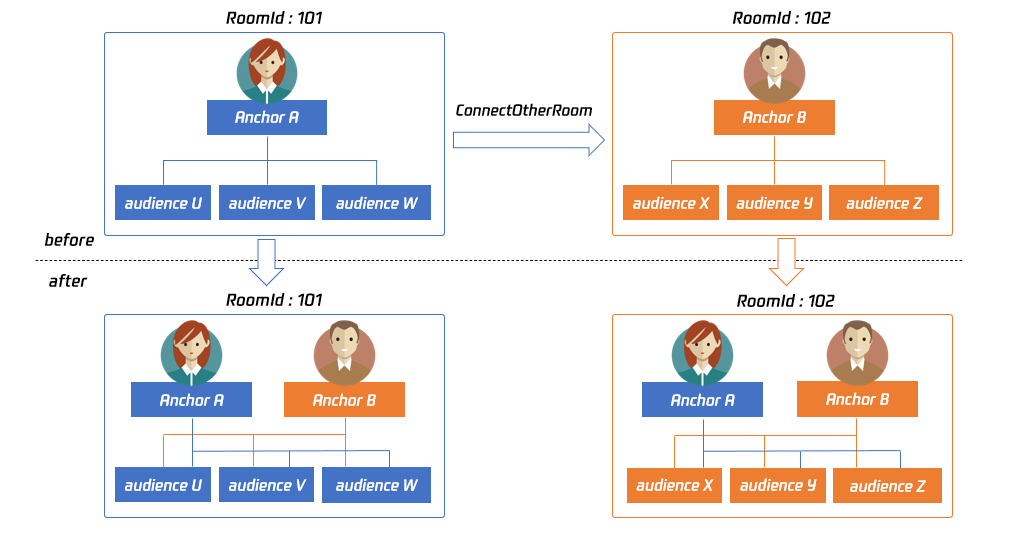
|
|
966
|
+
|
|
967
|
+
To consider compatibility issues with subsequent extension fields, the parameters for cross-room communication temporarily use JSON format:
|
|
968
|
+
|
|
969
|
+
|
|
970
|
+
|
|
971
|
+
**Case 1: Numeric Room Number**
|
|
972
|
+
|
|
973
|
+
If Host A in room '101' wants to connect with Host B in room '102', Host A needs to pass in the following when calling the interface: {"roomId": 102, "userId": "userB"}
|
|
974
|
+
|
|
975
|
+
Below is the sample code:
|
|
976
|
+
``` cpp
|
|
977
|
+
Json::Value jsonObj;
|
|
978
|
+
jsonObj["roomId"] = 102;
|
|
979
|
+
jsonObj["userId"] = "userB";
|
|
980
|
+
Json::FastWriter writer;
|
|
981
|
+
std::string params = writer.write(jsonObj);
|
|
982
|
+
trtc.ConnectOtherRoom(params.c_str());
|
|
983
|
+
```
|
|
984
|
+
|
|
985
|
+
|
|
986
|
+
|
|
987
|
+
**Case 2: String Room Number**
|
|
988
|
+
|
|
989
|
+
If you are using a string room number, be sure to replace "roomId" in the JSON with "strRoomId": {"strRoomId": "102", "userId": "userB"}
|
|
990
|
+
|
|
991
|
+
Below is the sample code:
|
|
992
|
+
``` cpp
|
|
993
|
+
Json::Value jsonObj;
|
|
994
|
+
jsonObj["strRoomId"] = "102";
|
|
995
|
+
jsonObj["userId"] = "userB";
|
|
996
|
+
Json::FastWriter writer;
|
|
997
|
+
std::string params = writer.write(jsonObj);
|
|
998
|
+
trtc.ConnectOtherRoom(params.c_str());
|
|
999
|
+
```
|
|
1000
|
+
<table>
|
|
1001
|
+
<tr>
|
|
1002
|
+
<td rowspan="1" colSpan="1" >Parameters</td>
|
|
1003
|
+
|
|
1004
|
+
<td rowspan="1" colSpan="1" >Description</td>
|
|
1005
|
+
</tr>
|
|
1006
|
+
|
|
1007
|
+
<tr>
|
|
1008
|
+
<td rowspan="1" colSpan="1" >param</td>
|
|
1009
|
+
|
|
1010
|
+
<td rowspan="1" colSpan="1" >You need to pass in a JSON-formatted string argument, where roomId represents the room number in numeric format, strRoomId represents the room number in string format, and userId represents the target broadcaster's user ID.</td>
|
|
1011
|
+
</tr>
|
|
1012
|
+
</table>
|
|
1013
|
+
|
|
1014
|
+
|
|
1015
|
+
## disconnectOtherRoom
|
|
1016
|
+
|
|
1017
|
+
|
|
1018
|
+
|
|
1019
|
+
#### Exit Cross-room Communication
|
|
1020
|
+
|
|
1021
|
+
The exit result will be notified to you via the [ITRTCCloudCallback](https://write.woa.com/document/87030021158866944) in the [onDisconnectOtherRoom](https://write.woa.com/document/87030021158866944) callback.
|
|
1022
|
+
|
|
1023
|
+
## setDefaultStreamRecvMode
|
|
1024
|
+
|
|
1025
|
+
|
|
1026
|
+
|
|
1027
|
+
#### Set Subscription Mode (Needs to be set before entering the room to take effect)
|
|
1028
|
+
|
|
1029
|
+
You can switch between "auto-subscribe" and "manual subscribe" modes via this interface:
|
|
1030
|
+
- Automatic Subscription: Default mode where users receive audio and video streams from the room immediately after entering. Audio plays automatically and video starts decoding automatically (you still need to bind the rendering control through the [startRemoteView](https://write.woa.com/document/87030026264555520) interface).
|
|
1031
|
+
|
|
1032
|
+
- Manual subscription: After the user enters the room, they need to manually call the [startRemoteView](https://write.woa.com/document/87030026264555520) interface to start the subscription and decoding of the video stream. They need to manually call the [muteRemoteAudio](https://write.woa.com/document/87030026264555520)(false) interface to start the playback of the sound.
|
|
1033
|
+
|
|
1034
|
+
|
|
1035
|
+
|
|
1036
|
+
|
|
1037
|
+
In most scenarios, users entering a room will subscribe to all the audio and video streams from the broadcasters within that room. Therefore, TRTC defaults to an automatic subscription mode to achieve the best "instant start experience".
|
|
1038
|
+
|
|
1039
|
+
If your application scenario involves many audio and video streams being published in each room and each user only wants to selectively subscribe to 1-2 of them, it is recommended to use the "manual subscription" mode to save on bandwidth costs.
|
|
1040
|
+
<table>
|
|
1041
|
+
<tr>
|
|
1042
|
+
<td rowspan="1" colSpan="1" >Parameters</td>
|
|
1043
|
+
|
|
1044
|
+
<td rowspan="1" colSpan="1" >Description</td>
|
|
1045
|
+
</tr>
|
|
1046
|
+
|
|
1047
|
+
<tr>
|
|
1048
|
+
<td rowspan="1" colSpan="1" >autoRecvAudio</td>
|
|
1049
|
+
|
|
1050
|
+
<td rowspan="1" colSpan="1" >true: Automatically subscribe to audio; false: You need to manually call muteRemoteAudio(false) to subscribe to audio. Default value: true.</td>
|
|
1051
|
+
</tr>
|
|
1052
|
+
|
|
1053
|
+
<tr>
|
|
1054
|
+
<td rowspan="1" colSpan="1" >autoRecvVideo</td>
|
|
1055
|
+
|
|
1056
|
+
<td rowspan="1" colSpan="1" >true: Automatically subscribe to video; false: You need to manually call startRemoteView to subscribe to video. Default value: true.</td>
|
|
1057
|
+
</tr>
|
|
1058
|
+
</table>
|
|
1059
|
+
|
|
1060
|
+
|
|
1061
|
+
> **Note**
|
|
1062
|
+
>
|
|
1063
|
+
|
|
1064
|
+
> 1. This setting needs to be called before entering the room to take effect.
|
|
1065
|
+
>
|
|
1066
|
+
|
|
1067
|
+
> 2. In automatic subscription mode, if the user does not call [startRemoteView](https://write.woa.com/document/87030026264555520) to subscribe to the video stream after entering the room, the SDK will automatically stop subscribing to the video stream to save traffic.
|
|
1068
|
+
>
|
|
1069
|
+
|
|
1070
|
+
|
|
1071
|
+
## createSubCloud
|
|
1072
|
+
|
|
1073
|
+
|
|
1074
|
+
|
|
1075
|
+
#### Create Sub-room Instances (For Multi-room Concurrent Viewing)
|
|
1076
|
+
|
|
1077
|
+
TRTCCloud was initially designed as a Singleton Pattern, limiting the ability to watch multiple rooms concurrently.
|
|
1078
|
+
|
|
1079
|
+
By calling this interface, you can create multiple TRTCCloud instances to watch audio and video streams from multiple rooms simultaneously.
|
|
1080
|
+
|
|
1081
|
+
|
|
1082
|
+
|
|
1083
|
+
However, please note that the ability to publish audio and video streams across multiple TRTCCloud instances is subject to certain restrictions.
|
|
1084
|
+
|
|
1085
|
+
|
|
1086
|
+
|
|
1087
|
+
This feature is primarily used in a business scenario called "super small class" in online education settings, aimed at addressing the limitation that "each TRTC room can only have up to 50 people broadcasting their audio and video streams simultaneously".
|
|
1088
|
+
|
|
1089
|
+
|
|
1090
|
+
|
|
1091
|
+
Below is the sample code:
|
|
1092
|
+
``` cpp
|
|
1093
|
+
//In the small room that needs interaction, enter the room as an anchor and push audio and video streams
|
|
1094
|
+
ITRTCCloud *mainCloud = getTRTCShareInstance();
|
|
1095
|
+
TRTCParams mainParams;
|
|
1096
|
+
//Fill your params
|
|
1097
|
+
mainParams.role = TRTCRoleAnchor;
|
|
1098
|
+
mainCloud->enterRoom(mainParams, TRTCAppSceneLIVE);
|
|
1099
|
+
//...
|
|
1100
|
+
mainCloud->startLocalAudio(TRTCAudioQualityDefault);
|
|
1101
|
+
mainCloud->startLocalPreview(renderView);
|
|
1102
|
+
|
|
1103
|
+
//In the large room that only needs to watch, enter the room as an audience and pull audio and video streams
|
|
1104
|
+
ITRTCCloud *subCloud = mainCloud->createSubCloud();
|
|
1105
|
+
TRTCParams subParams;
|
|
1106
|
+
//Fill your params
|
|
1107
|
+
subParams.role = TRTCRoleAudience;
|
|
1108
|
+
subCloud->enterRoom(subParams, TRTCAppSceneLIVE);
|
|
1109
|
+
//...
|
|
1110
|
+
subCloud->startRemoteView(userId, TRTCVideoStreamTypeBig, renderView);
|
|
1111
|
+
//...
|
|
1112
|
+
//Exit from new room and release it.
|
|
1113
|
+
subCloud->exitRoom();
|
|
1114
|
+
mainCloud->destroySubCloud(subCloud);
|
|
1115
|
+
```
|
|
1116
|
+
|
|
1117
|
+
> **Note**
|
|
1118
|
+
>
|
|
1119
|
+
> - The same user can enter multiple rooms with different roomIds using the same userId.
|
|
1120
|
+
> - Two different terminal devices cannot use the same userId to enter the same roomId simultaneously.
|
|
1121
|
+
> - You can set [ITRTCCloudCallback](https://write.woa.com/document/87030021158866944) for different instances to get their respective event notifications.
|
|
1122
|
+
> - The same user can stream on multiple TRTCCloud instances and call interfaces related to local audio and video in sub-instances. However, please note:
|
|
1123
|
+
> - The audio for multiple instances must be either microphone capture or custom data collection, and invoking interfaces related to audio devices will be based on the last call
|
|
1124
|
+
> - Calls related to the camera will take the last one as definitive: [startLocalPreview](https://write.woa.com/document/87030026264555520).
|
|
1125
|
+
|
|
1126
|
+
|
|
1127
|
+
#### Return value description:
|
|
1128
|
+
|
|
1129
|
+
Sub TRTCCloud instances
|
|
1130
|
+
|
|
1131
|
+
## destroySubCloud
|
|
1132
|
+
|
|
1133
|
+
|
|
1134
|
+
|
|
1135
|
+
#### Terminate Sub-room Instances
|
|
1136
|
+
<table>
|
|
1137
|
+
<tr>
|
|
1138
|
+
<td rowspan="1" colSpan="1" >Parameters</td>
|
|
1139
|
+
|
|
1140
|
+
<td rowspan="1" colSpan="1" >Description</td>
|
|
1141
|
+
</tr>
|
|
1142
|
+
|
|
1143
|
+
<tr>
|
|
1144
|
+
<td rowspan="1" colSpan="1" >subCloud</td>
|
|
1145
|
+
|
|
1146
|
+
<td rowspan="1" colSpan="1" >Sub-room instances</td>
|
|
1147
|
+
</tr>
|
|
1148
|
+
</table>
|
|
1149
|
+
|
|
1150
|
+
|
|
1151
|
+
## updateOtherRoomForwardMode
|
|
1152
|
+
|
|
1153
|
+
|
|
1154
|
+
|
|
1155
|
+
#### Modify the uplink capability of cross-room broadcasters in this room
|
|
1156
|
+
|
|
1157
|
+
Usually, after calling the connectOtherRoom interface to conduct cross-room communication with another room's broadcaster, all viewers in this room will receive the audio and video stream published by that broadcaster.
|
|
1158
|
+
|
|
1159
|
+
You can call this interface to restrict the uplink capability of a cross-room broadcaster in this room, either forbidding or allowing them to publish audio/main video/auxiliary video. This action will affect all users in the room.
|
|
1160
|
+
|
|
1161
|
+
After disabling certain uplink capabilities of the cross-room broadcaster, all users in this room will not be able to receive the corresponding audio and video streams, nor will they be able to subscribe to them.
|
|
1162
|
+
|
|
1163
|
+
|
|
1164
|
+
|
|
1165
|
+
It should be noted that this interface can only be called by the broadcaster conducting cross-room communication, and the restrictions set through this interface will reset if the cross-room communication is interrupted or the corresponding broadcaster exits the room.
|
|
1166
|
+
|
|
1167
|
+
|
|
1168
|
+
|
|
1169
|
+
The result of calling this interface will be notified to you via the [ITRTCCloudCallback](https://write.woa.com/document/87030021158866944) in the [onUpdateOtherRoomForwardMode](https://write.woa.com/document/87030021158866944) callback.
|
|
1170
|
+
|
|
1171
|
+
|
|
1172
|
+
|
|
1173
|
+
For example:
|
|
1174
|
+
|
|
1175
|
+
In room "101", there is Host A and Audience B, while in room "102", there is Host C, who is normally publishing audio and video streams. Host A establishes a cross-room call with Host C using connectOtherRoom().
|
|
1176
|
+
- At this time, both Anchor A and Viewer B will receive the onRemoteUserEnterRoom(C), onUserVideoAvailable(C,true), and onUserAudioAvailable(C,true) event callbacks for Anchor C and can subscribe to Anchor C's audio and video.
|
|
1177
|
+
|
|
1178
|
+
|
|
1179
|
+
|
|
1180
|
+
|
|
1181
|
+
Later, Host A calls this interface to disable Host C's ability to publish audio in the current room.
|
|
1182
|
+
- After that, Anchor C's audio stream cannot be published to room "101." Anchor A and Viewer B will receive the onUserAudioAvailable(C,false) event callback and can no longer subscribe to Anchor C's audio through muteRemoteAudio(C,false).
|
|
1183
|
+
|
|
1184
|
+
- Host C's video stream will not be affected. Other audience members in room "102" are also unaffected and can normally subscribe to Host C's audio.
|
|
1185
|
+
|
|
1186
|
+
|
|
1187
|
+
|
|
1188
|
+
|
|
1189
|
+
To consider compatibility issues with subsequent extension fields, the parameters for this interface temporarily use JSON format. The example is as follows:
|
|
1190
|
+
|
|
1191
|
+
**Case 1: Numeric Room Number**
|
|
1192
|
+
``` cpp
|
|
1193
|
+
{
|
|
1194
|
+
"roomId":102,
|
|
1195
|
+
"userId":"userC",
|
|
1196
|
+
"muteAudio":false,
|
|
1197
|
+
"muteVideo":true,
|
|
1198
|
+
"muteSubStream":false
|
|
1199
|
+
}
|
|
1200
|
+
```
|
|
1201
|
+
|
|
1202
|
+
|
|
1203
|
+
|
|
1204
|
+
**Case 2: String Room Number**
|
|
1205
|
+
``` cpp
|
|
1206
|
+
{
|
|
1207
|
+
"strRoomId":"102",
|
|
1208
|
+
"userId":"userC",
|
|
1209
|
+
"muteAudio":false,
|
|
1210
|
+
"muteVideo":true,
|
|
1211
|
+
"muteSubStream":false
|
|
1212
|
+
}
|
|
1213
|
+
```
|
|
1214
|
+
<table>
|
|
1215
|
+
<tr>
|
|
1216
|
+
<td rowspan="1" colSpan="1" >Parameters</td>
|
|
1217
|
+
|
|
1218
|
+
<td rowspan="1" colSpan="1" >Description</td>
|
|
1219
|
+
</tr>
|
|
1220
|
+
|
|
1221
|
+
<tr>
|
|
1222
|
+
<td rowspan="1" colSpan="1" >param</td>
|
|
1223
|
+
|
|
1224
|
+
<td rowspan="1" colSpan="1" >You need to pass in a JSON-formatted string argument where roomId represents the room number in numeric format, strRoomId represents the room number in string format, userId represents the target broadcaster's user ID. The options muteAudio, muteVideo, and muteSubStream denote whether to disable or allow the cross-room broadcaster to publish audio, main stream video, and sub-stream video respectively.</td>
|
|
1225
|
+
</tr>
|
|
1226
|
+
</table>
|
|
1227
|
+
|
|
1228
|
+
|
|
1229
|
+
## startPublishMediaStream
|
|
1230
|
+
|
|
1231
|
+
|
|
1232
|
+
|
|
1233
|
+
#### Start publishing media stream
|
|
1234
|
+
|
|
1235
|
+
This interface sends an instruction to the TRTC server to relay/transcode the current user's audio and video streams to the Live CDN or push them back into the TRTC room. You can specify the publishing mode through [TRTCPublishTarget](https://write.woa.com/document/87030132707430400) configuration and [TRTCPublishMode](https://write.woa.com/document/87030132707430400)
|
|
1236
|
+
<table>
|
|
1237
|
+
<tr>
|
|
1238
|
+
<td rowspan="1" colSpan="1" >Parameters</td>
|
|
1239
|
+
|
|
1240
|
+
<td rowspan="1" colSpan="1" >Description</td>
|
|
1241
|
+
</tr>
|
|
1242
|
+
|
|
1243
|
+
<tr>
|
|
1244
|
+
<td rowspan="1" colSpan="1" >config</td>
|
|
1245
|
+
|
|
1246
|
+
<td rowspan="1" colSpan="1" >Media stream transcoding configuration parameters. Refer to [TRTCStreamMixingConfig](https://write.woa.com/document/87030132707430400) for detailed configuration. This is required when transcoding and pushing back to the TRTC room. You need to specify your desired transcoding configuration parameters. It is invalid in relay mode.</td>
|
|
1247
|
+
</tr>
|
|
1248
|
+
|
|
1249
|
+
<tr>
|
|
1250
|
+
<td rowspan="1" colSpan="1" >params</td>
|
|
1251
|
+
|
|
1252
|
+
<td rowspan="1" colSpan="1" >Media stream encoding output parameters. Refer to [TRTCStreamEncoderParam](https://write.woa.com/document/87030132707430400) for detailed configuration. This is required when transcoding and pushing back to the TRTC room. You need to specify your desired transcoding output parameters. For better relay stability and CDN compatibility, it is also recommended to configure this during relay.</td>
|
|
1253
|
+
</tr>
|
|
1254
|
+
|
|
1255
|
+
<tr>
|
|
1256
|
+
<td rowspan="1" colSpan="1" >target</td>
|
|
1257
|
+
|
|
1258
|
+
<td rowspan="1" colSpan="1" >The target address for media stream publishing. Refer to [TRTCPublishTarget](https://write.woa.com/document/87030132707430400) for detailed configuration. Supports relay/transcoding to Tencent or third-party CDNs, and also supports transcoding pushback to the TRTC room.</td>
|
|
1259
|
+
</tr>
|
|
1260
|
+
</table>
|
|
1261
|
+
|
|
1262
|
+
|
|
1263
|
+
> **Note**
|
|
1264
|
+
>
|
|
1265
|
+
|
|
1266
|
+
> 1. The SDK will provide the task identifier (taskId) for the backend startup through the callback [onStartPublishMediaStream](https://write.woa.com/document/87030021158866944).
|
|
1267
|
+
>
|
|
1268
|
+
|
|
1269
|
+
> 2. The same task (both TRTCPublishMode and TRTCPublishCdnUrl are identical) can only be started once. If you need to update or stop this task later, you must record and use the returned taskId to operate through [updatePublishMediaStream](https://write.woa.com/document/87030026264555520) or [stopPublishMediaStream](https://write.woa.com/document/87030026264555520).
|
|
1270
|
+
>
|
|
1271
|
+
|
|
1272
|
+
> 3. The target supports configuring multiple CDN URLs simultaneously (up to 10). If the same relay/transcoding task needs to be published to multiple CDNs, you only need to configure multiple CDN URLs in the target. Even if there are multiple relay addresses for the same transcoding task, only one transcoding fee will be charged.
|
|
1273
|
+
>
|
|
1274
|
+
|
|
1275
|
+
> 4. When using, do not push multiple tasks to the same URL addresses simultaneously to avoid abnormal streaming status. A recommended scheme is to use "sdkappid_roomid_userid_main" in the URL as a distinguishing identifier. This naming convention is easy to recognize and will not cause conflicts in your multiple applications.
|
|
1276
|
+
>
|
|
1277
|
+
|
|
1278
|
+
|
|
1279
|
+
## updatePublishMediaStream
|
|
1280
|
+
|
|
1281
|
+
|
|
1282
|
+
|
|
1283
|
+
#### Update the published media stream.
|
|
1284
|
+
|
|
1285
|
+
This interface will send directives to the TRTC server to update the media stream started by [startPublishMediaStream](https://write.woa.com/document/87030026264555520)
|
|
1286
|
+
<table>
|
|
1287
|
+
<tr>
|
|
1288
|
+
<td rowspan="1" colSpan="1" >Parameters</td>
|
|
1289
|
+
|
|
1290
|
+
<td rowspan="1" colSpan="1" >Description</td>
|
|
1291
|
+
</tr>
|
|
1292
|
+
|
|
1293
|
+
<tr>
|
|
1294
|
+
<td rowspan="1" colSpan="1" >config</td>
|
|
1295
|
+
|
|
1296
|
+
<td rowspan="1" colSpan="1" >Media stream transcoding configuration parameters. Refer to [TRTCStreamMixingConfig](https://write.woa.com/document/87030132707430400) for detailed configuration. This is required when transcoding and pushing back to the TRTC room. You need to specify your desired transcoding configuration parameters. It is invalid in relay mode.</td>
|
|
1297
|
+
</tr>
|
|
1298
|
+
|
|
1299
|
+
<tr>
|
|
1300
|
+
<td rowspan="1" colSpan="1" >params</td>
|
|
1301
|
+
|
|
1302
|
+
<td rowspan="1" colSpan="1" >Media stream encoding output parameters. Refer to [TRTCStreamEncoderParam](https://write.woa.com/document/87030132707430400) for detailed configuration. This is required when transcoding and pushing back to the TRTC room. You need to specify your desired transcoding output parameters. For better relay stability and CDN compatibility, it is also recommended to configure this during relay.</td>
|
|
1303
|
+
</tr>
|
|
1304
|
+
|
|
1305
|
+
<tr>
|
|
1306
|
+
<td rowspan="1" colSpan="1" >target</td>
|
|
1307
|
+
|
|
1308
|
+
<td rowspan="1" colSpan="1" >The target address for media stream publishing. Refer to [TRTCPublishTarget](https://write.woa.com/document/87030132707430400) for detailed configuration. Supports relay/transcoding to Tencent or third-party CDNs, and also supports transcoding pushback to the TRTC room.</td>
|
|
1309
|
+
</tr>
|
|
1310
|
+
|
|
1311
|
+
<tr>
|
|
1312
|
+
<td rowspan="1" colSpan="1" >taskId</td>
|
|
1313
|
+
|
|
1314
|
+
<td rowspan="1" colSpan="1" >It will provide you with the task identifier (i.e., taskId) for the background start task through the [onStartPublishMediaStream](https://write.woa.com/document/87030021158866944) callback</td>
|
|
1315
|
+
</tr>
|
|
1316
|
+
</table>
|
|
1317
|
+
|
|
1318
|
+
|
|
1319
|
+
> **Note**
|
|
1320
|
+
>
|
|
1321
|
+
|
|
1322
|
+
> 1. You can use this interface to update the published CDN URL (supports add and delete, up to 10 at the same time), but ensure you do not push multiple tasks to the same URL addresses simultaneously to avoid abnormal streaming status.
|
|
1323
|
+
>
|
|
1324
|
+
|
|
1325
|
+
> 2. You can update or adjust relay/transcoding tasks using taskId. For example, in PK business, you can initiate relay through [startPublishMediaStream](https://write.woa.com/document/87030026264555520) first, then use taskId and this interface to update the relay to a transcoding task when the anchor initiates PK. At this time, CDN playback will be continuous and without stream disconnection (you need to keep the media stream encoding output parameters consistent).
|
|
1326
|
+
>
|
|
1327
|
+
|
|
1328
|
+
> 3. The same task does not support switching between Audio Only, Audio and Video, and Pure Video.
|
|
1329
|
+
>
|
|
1330
|
+
|
|
1331
|
+
|
|
1332
|
+
## stopPublishMediaStream
|
|
1333
|
+
|
|
1334
|
+
|
|
1335
|
+
|
|
1336
|
+
#### Stop publishing media stream.
|
|
1337
|
+
|
|
1338
|
+
This interface will send directives to the TRTC server to stop the media stream started by [startPublishMediaStream](https://write.woa.com/document/87030026264555520)
|
|
1339
|
+
<table>
|
|
1340
|
+
<tr>
|
|
1341
|
+
<td rowspan="1" colSpan="1" >Parameters</td>
|
|
1342
|
+
|
|
1343
|
+
<td rowspan="1" colSpan="1" >Description</td>
|
|
1344
|
+
</tr>
|
|
1345
|
+
|
|
1346
|
+
<tr>
|
|
1347
|
+
<td rowspan="1" colSpan="1" >taskId</td>
|
|
1348
|
+
|
|
1349
|
+
<td rowspan="1" colSpan="1" >It will provide you with the task identifier (i.e., taskId) for the background start task through the [onStartPublishMediaStream](https://write.woa.com/document/87030021158866944) callback</td>
|
|
1350
|
+
</tr>
|
|
1351
|
+
</table>
|
|
1352
|
+
|
|
1353
|
+
|
|
1354
|
+
> **Note**
|
|
1355
|
+
>
|
|
1356
|
+
|
|
1357
|
+
> 1. If your business backend has not saved the taskId, after your host re-enters the room following an abnormal exit, you can call [startPublishMediaStream](https://write.woa.com/document/87030026264555520) again to start the task. TRTC backend will return a task start failure and provide you with the taskId from the last attempt
|
|
1358
|
+
>
|
|
1359
|
+
|
|
1360
|
+
> 2. If the taskId is an empty string, all media streams started by [startPublishMediaStream](https://write.woa.com/document/87030026264555520) for that user will stop. If you have only started one media stream or want to stop all media streams you started, this method is recommended.
|
|
1361
|
+
>
|
|
1362
|
+
|
|
1363
|
+
|
|
1364
|
+
## startLocalPreview
|
|
1365
|
+
|
|
1366
|
+
|
|
1367
|
+
|
|
1368
|
+
#### Enable the preview screen of the local camera (Mobile Terminal)
|
|
1369
|
+
|
|
1370
|
+
Call this function before enterRoom. The SDK will only enable the camera and wait until you call enterRoom to start streaming.
|
|
1371
|
+
|
|
1372
|
+
After calling this function after enterRoom, the SDK will enable the Camera and automatically start Video Push Streaming. When the first frame of the camera image starts to render, you will receive the onCameraDidReady callback notification from [ITRTCCloudCallback](https://write.woa.com/document/87030021158866944).
|
|
1373
|
+
<table>
|
|
1374
|
+
<tr>
|
|
1375
|
+
<td rowspan="1" colSpan="1" >Parameters</td>
|
|
1376
|
+
|
|
1377
|
+
<td rowspan="1" colSpan="1" >Description</td>
|
|
1378
|
+
</tr>
|
|
1379
|
+
|
|
1380
|
+
<tr>
|
|
1381
|
+
<td rowspan="1" colSpan="1" >frontCamera</td>
|
|
1382
|
+
|
|
1383
|
+
<td rowspan="1" colSpan="1" >true: Front-facing camera; false: Rear-facing camera.</td>
|
|
1384
|
+
</tr>
|
|
1385
|
+
|
|
1386
|
+
<tr>
|
|
1387
|
+
<td rowspan="1" colSpan="1" >view</td>
|
|
1388
|
+
|
|
1389
|
+
<td rowspan="1" colSpan="1" >Control carrying the video screen.</td>
|
|
1390
|
+
</tr>
|
|
1391
|
+
</table>
|
|
1392
|
+
|
|
1393
|
+
|
|
1394
|
+
> **Note**
|
|
1395
|
+
>
|
|
1396
|
+
|
|
1397
|
+
> If you wish to preview the camera screen and use BeautyManager to adjust the beauty parameters before streaming, you can:
|
|
1398
|
+
>
|
|
1399
|
+
> - Option 1: Call startLocalPreview before enterRoom.
|
|
1400
|
+
> - Option 2: Call startLocalPreview + muteLocalVideo(true) after enterRoom.
|
|
1401
|
+
|
|
1402
|
+
|
|
1403
|
+
## startLocalPreview
|
|
1404
|
+
|
|
1405
|
+
|
|
1406
|
+
|
|
1407
|
+
#### Enable the preview screen of the local camera (Desktop Terminal)
|
|
1408
|
+
|
|
1409
|
+
Before calling this interface, you can call setCurrentCameraDevice to choose between the Mac's built-in camera or an external camera.
|
|
1410
|
+
|
|
1411
|
+
Call this function before enterRoom. The SDK will only enable the camera and wait until you call enterRoom to start streaming.
|
|
1412
|
+
|
|
1413
|
+
Call this function after enterRoom. The SDK will enable the camera and automatically begin video streaming.
|
|
1414
|
+
|
|
1415
|
+
When the first frame of the camera image starts to render, you will receive the onCameraDidReady callback notification from TRTCCloudDelegate.
|
|
1416
|
+
<table>
|
|
1417
|
+
<tr>
|
|
1418
|
+
<td rowspan="1" colSpan="1" >Parameters</td>
|
|
1419
|
+
|
|
1420
|
+
<td rowspan="1" colSpan="1" >Description</td>
|
|
1421
|
+
</tr>
|
|
1422
|
+
|
|
1423
|
+
<tr>
|
|
1424
|
+
<td rowspan="1" colSpan="1" >view</td>
|
|
1425
|
+
|
|
1426
|
+
<td rowspan="1" colSpan="1" >Control carrying the video screen.</td>
|
|
1427
|
+
</tr>
|
|
1428
|
+
</table>
|
|
1429
|
+
|
|
1430
|
+
|
|
1431
|
+
> **Note**
|
|
1432
|
+
>
|
|
1433
|
+
|
|
1434
|
+
> If you wish to preview the camera screen and use BeautyManager to adjust the beauty parameters before streaming, you can:
|
|
1435
|
+
>
|
|
1436
|
+
> - Option 1: Call startLocalPreview before enterRoom.
|
|
1437
|
+
> - Option 2: Call startLocalPreview + muteLocalVideo(true) after enterRoom.
|
|
1438
|
+
|
|
1439
|
+
|
|
1440
|
+
## updateLocalView
|
|
1441
|
+
|
|
1442
|
+
|
|
1443
|
+
|
|
1444
|
+
#### Update the preview screen of the local camera
|
|
1445
|
+
|
|
1446
|
+
## stopLocalPreview
|
|
1447
|
+
|
|
1448
|
+
|
|
1449
|
+
|
|
1450
|
+
#### Stop camera preview
|
|
1451
|
+
|
|
1452
|
+
## muteLocalVideo
|
|
1453
|
+
|
|
1454
|
+
|
|
1455
|
+
|
|
1456
|
+
#### Suspend/Resume publishing local video stream
|
|
1457
|
+
|
|
1458
|
+
This interface can suspend (or recover) the publishing of local video screens. After suspension, other users in the same room will not be able to see your screen.
|
|
1459
|
+
|
|
1460
|
+
This interface is equivalent to start/stopLocalPreview when specifying TRTCVideoStreamTypeBig, but has better response speed.
|
|
1461
|
+
|
|
1462
|
+
Because start/stopLocalPreview requires turning on and off the camera, and turning on and off the camera is a hardware-related operation, which is very time-consuming.
|
|
1463
|
+
|
|
1464
|
+
In comparison, muteLocalVideo only needs to suspend or pass the data stream at the software layer. Therefore, it is more efficient and more suitable for scenarios requiring frequent openings and closings.
|
|
1465
|
+
|
|
1466
|
+
|
|
1467
|
+
|
|
1468
|
+
When suspending/recovering the publishing of the specified TRTCVideoStreamTypeBig, other users in the same room will receive the onUserVideoAvailable callback notification.
|
|
1469
|
+
|
|
1470
|
+
When suspending/recovering the publishing of the specified TRTCVideoStreamTypeSub, other users in the same room will receive the onUserSubStreamAvailable callback notification.
|
|
1471
|
+
<table>
|
|
1472
|
+
<tr>
|
|
1473
|
+
<td rowspan="1" colSpan="1" >Parameters</td>
|
|
1474
|
+
|
|
1475
|
+
<td rowspan="1" colSpan="1" >Description</td>
|
|
1476
|
+
</tr>
|
|
1477
|
+
|
|
1478
|
+
<tr>
|
|
1479
|
+
<td rowspan="1" colSpan="1" >mute</td>
|
|
1480
|
+
|
|
1481
|
+
<td rowspan="1" colSpan="1" >true: pause; false: resume.</td>
|
|
1482
|
+
</tr>
|
|
1483
|
+
|
|
1484
|
+
<tr>
|
|
1485
|
+
<td rowspan="1" colSpan="1" >streamType</td>
|
|
1486
|
+
|
|
1487
|
+
<td rowspan="1" colSpan="1" >The video stream type to be suspended/recovered (only supports [TRTCVideoStreamTypeBig](https://write.woa.com/document/87030132707430400) and [TRTCVideoStreamTypeSub](https://write.woa.com/document/87030132707430400)).</td>
|
|
1488
|
+
</tr>
|
|
1489
|
+
</table>
|
|
1490
|
+
|
|
1491
|
+
|
|
1492
|
+
## setVideoMuteImage
|
|
1493
|
+
|
|
1494
|
+
|
|
1495
|
+
|
|
1496
|
+
#### Set the alternative image during the suspension of the local screen
|
|
1497
|
+
|
|
1498
|
+
When you call muteLocalVideo(true) to pause the local video, you can set a placeholder image through this interface. After setting, other users in the room will see this placeholder image instead of a black screen.
|
|
1499
|
+
<table>
|
|
1500
|
+
<tr>
|
|
1501
|
+
<td rowspan="1" colSpan="1" >Parameters</td>
|
|
1502
|
+
|
|
1503
|
+
<td rowspan="1" colSpan="1" >Description</td>
|
|
1504
|
+
</tr>
|
|
1505
|
+
|
|
1506
|
+
<tr>
|
|
1507
|
+
<td rowspan="1" colSpan="1" >fps</td>
|
|
1508
|
+
|
|
1509
|
+
<td rowspan="1" colSpan="1" >Set the frame rate for the alternative image, with a minimum value of 5 and a maximum value of 10. The default is 5.</td>
|
|
1510
|
+
</tr>
|
|
1511
|
+
|
|
1512
|
+
<tr>
|
|
1513
|
+
<td rowspan="1" colSpan="1" >image</td>
|
|
1514
|
+
|
|
1515
|
+
<td rowspan="1" colSpan="1" >Set the alternative image. A null value means no video stream data will be sent after muteLocalVideo. The default is null.</td>
|
|
1516
|
+
</tr>
|
|
1517
|
+
</table>
|
|
1518
|
+
|
|
1519
|
+
|
|
1520
|
+
## startRemoteView
|
|
1521
|
+
|
|
1522
|
+
|
|
1523
|
+
|
|
1524
|
+
#### Subscribe to the video stream of a remote user and bind the video rendering control
|
|
1525
|
+
|
|
1526
|
+
By calling this API, the SDK can pull the video stream of the specified user ID and render it on the rendering control specified by the parameter view. You can set the display mode of the screen through [setRemoteRenderParams](https://write.woa.com/document/87030026264555520).
|
|
1527
|
+
- If you already know the user ID of a user who has a video stream in the room, you can directly call startRemoteView to subscribe to that user's video feed.
|
|
1528
|
+
|
|
1529
|
+
- If you do not know which users in the room are publishing video, you can wait for a notification from [onUserVideoAvailable](https://write.woa.com/document/87030021158866944) after entering the room.
|
|
1530
|
+
|
|
1531
|
+
|
|
1532
|
+
|
|
1533
|
+
|
|
1534
|
+
Calling this API only starts pulling the video stream, at this point the screen still needs to load and buffer. When buffering is complete, you will receive a notification from [onFirstVideoFrame](https://write.woa.com/document/87030021158866944).
|
|
1535
|
+
<table>
|
|
1536
|
+
<tr>
|
|
1537
|
+
<td rowspan="1" colSpan="1" >Parameters</td>
|
|
1538
|
+
|
|
1539
|
+
<td rowspan="1" colSpan="1" >Description</td>
|
|
1540
|
+
</tr>
|
|
1541
|
+
|
|
1542
|
+
<tr>
|
|
1543
|
+
<td rowspan="1" colSpan="1" >streamType</td>
|
|
1544
|
+
|
|
1545
|
+
<td rowspan="1" colSpan="1" >Specify the type of video stream of the user you want to watch.<br>- High-definition main stream: [TRTCVideoStreamTypeBig](https://write.woa.com/document/87030132707430400).<br>- Low-quality small screen: [TRTCVideoStreamTypeSmall](https://write.woa.com/document/87030132707430400) (effective only after the remote user enables Dual-channel encoding through [enableSmallVideoStream](https://write.woa.com/document/87030026264555520)).<br>- Substream (commonly used for screen sharing): [TRTCVideoStreamTypeSub](https://write.woa.com/document/87030132707430400).</td>
|
|
1546
|
+
</tr>
|
|
1547
|
+
|
|
1548
|
+
<tr>
|
|
1549
|
+
<td rowspan="1" colSpan="1" >userId</td>
|
|
1550
|
+
|
|
1551
|
+
<td rowspan="1" colSpan="1" >Specify the remote user's ID.</td>
|
|
1552
|
+
</tr>
|
|
1553
|
+
|
|
1554
|
+
<tr>
|
|
1555
|
+
<td rowspan="1" colSpan="1" >view</td>
|
|
1556
|
+
|
|
1557
|
+
<td rowspan="1" colSpan="1" >Rendering control used to display the video screen.</td>
|
|
1558
|
+
</tr>
|
|
1559
|
+
</table>
|
|
1560
|
+
|
|
1561
|
+
|
|
1562
|
+
> **Note**
|
|
1563
|
+
>
|
|
1564
|
+
|
|
1565
|
+
> Note a few rules:
|
|
1566
|
+
>
|
|
1567
|
+
|
|
1568
|
+
> 1. The SDK supports watching the main stream and substream of a certain user ID simultaneously, or watching the substream and small stream of a certain user ID simultaneously, but does not support watching the main stream and small stream simultaneously.
|
|
1569
|
+
>
|
|
1570
|
+
|
|
1571
|
+
> 2. Only when the specified userid enables Dual-channel encoding through [enableSmallVideoStream](https://write.woa.com/document/87030026264555520) can you watch the user's small screen.
|
|
1572
|
+
>
|
|
1573
|
+
|
|
1574
|
+
> 3. When the small stream of the specified user ID does not exist, the SDK will default to the user's main stream.
|
|
1575
|
+
>
|
|
1576
|
+
|
|
1577
|
+
|
|
1578
|
+
## updateRemoteView
|
|
1579
|
+
|
|
1580
|
+
|
|
1581
|
+
|
|
1582
|
+
#### Update the video rendering control of a remote user
|
|
1583
|
+
|
|
1584
|
+
This interface can be used to update the rendering control of a remote video image and is commonly used in scenarios that involve switching display areas.
|
|
1585
|
+
<table>
|
|
1586
|
+
<tr>
|
|
1587
|
+
<td rowspan="1" colSpan="1" >Parameters</td>
|
|
1588
|
+
|
|
1589
|
+
<td rowspan="1" colSpan="1" >Description</td>
|
|
1590
|
+
</tr>
|
|
1591
|
+
|
|
1592
|
+
<tr>
|
|
1593
|
+
<td rowspan="1" colSpan="1" >streamType</td>
|
|
1594
|
+
|
|
1595
|
+
<td rowspan="1" colSpan="1" >To set the stream type of the preview window (only supports [TRTCVideoStreamTypeBig](https://write.woa.com/document/87030132707430400) and [TRTCVideoStreamTypeSub](https://write.woa.com/document/87030132707430400)).</td>
|
|
1596
|
+
</tr>
|
|
1597
|
+
|
|
1598
|
+
<tr>
|
|
1599
|
+
<td rowspan="1" colSpan="1" >userId</td>
|
|
1600
|
+
|
|
1601
|
+
<td rowspan="1" colSpan="1" >Specify the remote user's ID.</td>
|
|
1602
|
+
</tr>
|
|
1603
|
+
|
|
1604
|
+
<tr>
|
|
1605
|
+
<td rowspan="1" colSpan="1" >view</td>
|
|
1606
|
+
|
|
1607
|
+
<td rowspan="1" colSpan="1" >Control carrying the video screen.</td>
|
|
1608
|
+
</tr>
|
|
1609
|
+
</table>
|
|
1610
|
+
|
|
1611
|
+
|
|
1612
|
+
## stopRemoteView
|
|
1613
|
+
|
|
1614
|
+
|
|
1615
|
+
|
|
1616
|
+
#### Unsubscribe from the remote user's video stream and release the rendering control
|
|
1617
|
+
|
|
1618
|
+
Calling this interface will make the SDK stop receiving the video stream of the user and release the decoding and rendering resources of that video stream.
|
|
1619
|
+
<table>
|
|
1620
|
+
<tr>
|
|
1621
|
+
<td rowspan="1" colSpan="1" >Parameters</td>
|
|
1622
|
+
|
|
1623
|
+
<td rowspan="1" colSpan="1" >Description</td>
|
|
1624
|
+
</tr>
|
|
1625
|
+
|
|
1626
|
+
<tr>
|
|
1627
|
+
<td rowspan="1" colSpan="1" >streamType</td>
|
|
1628
|
+
|
|
1629
|
+
<td rowspan="1" colSpan="1" >Specify the type of video stream of the user you want to watch.<br>- High-definition main stream: [TRTCVideoStreamTypeBig](https://write.woa.com/document/87030132707430400).<br>- Low-definition small picture: [TRTCVideoStreamTypeSmall](https://write.woa.com/document/87030132707430400).<br>- Substream (commonly used for screen sharing): [TRTCVideoStreamTypeSub](https://write.woa.com/document/87030132707430400).</td>
|
|
1630
|
+
</tr>
|
|
1631
|
+
|
|
1632
|
+
<tr>
|
|
1633
|
+
<td rowspan="1" colSpan="1" >userId</td>
|
|
1634
|
+
|
|
1635
|
+
<td rowspan="1" colSpan="1" >Specify the remote user's ID.</td>
|
|
1636
|
+
</tr>
|
|
1637
|
+
</table>
|
|
1638
|
+
|
|
1639
|
+
|
|
1640
|
+
## stopAllRemoteView
|
|
1641
|
+
|
|
1642
|
+
|
|
1643
|
+
|
|
1644
|
+
#### Unsubscribe from all remote users' video streams and release all rendering resources
|
|
1645
|
+
|
|
1646
|
+
Calling this interface will make the SDK stop receiving all remote video streams and release all decoding and rendering resources.
|
|
1647
|
+
|
|
1648
|
+
> **Note**
|
|
1649
|
+
>
|
|
1650
|
+
|
|
1651
|
+
> If there is a currently displayed substream (screen sharing), it will also be stopped.
|
|
1652
|
+
>
|
|
1653
|
+
|
|
1654
|
+
|
|
1655
|
+
## muteRemoteVideoStream
|
|
1656
|
+
|
|
1657
|
+
|
|
1658
|
+
|
|
1659
|
+
#### Suspend/Resume subscription of the remote user's video stream
|
|
1660
|
+
|
|
1661
|
+
This interface only pauses/resumes receiving the video stream of a designated user but does not release the display resources. The video image will be frozen on the last frame at the time of the interface call.
|
|
1662
|
+
<table>
|
|
1663
|
+
<tr>
|
|
1664
|
+
<td rowspan="1" colSpan="1" >Parameters</td>
|
|
1665
|
+
|
|
1666
|
+
<td rowspan="1" colSpan="1" >Description</td>
|
|
1667
|
+
</tr>
|
|
1668
|
+
|
|
1669
|
+
<tr>
|
|
1670
|
+
<td rowspan="1" colSpan="1" >mute</td>
|
|
1671
|
+
|
|
1672
|
+
<td rowspan="1" colSpan="1" >Pause receiving or not.</td>
|
|
1673
|
+
</tr>
|
|
1674
|
+
|
|
1675
|
+
<tr>
|
|
1676
|
+
<td rowspan="1" colSpan="1" >streamType</td>
|
|
1677
|
+
|
|
1678
|
+
<td rowspan="1" colSpan="1" >The video stream type to be paused/resumed.<br>- High-definition main stream: [TRTCVideoStreamTypeBig](https://write.woa.com/document/87030132707430400).<br>- Low-definition small picture: [TRTCVideoStreamTypeSmall](https://write.woa.com/document/87030132707430400).<br>- Substream (commonly used for screen sharing): [TRTCVideoStreamTypeSub](https://write.woa.com/document/87030132707430400).</td>
|
|
1679
|
+
</tr>
|
|
1680
|
+
|
|
1681
|
+
<tr>
|
|
1682
|
+
<td rowspan="1" colSpan="1" >userId</td>
|
|
1683
|
+
|
|
1684
|
+
<td rowspan="1" colSpan="1" >Specify the remote user's ID.</td>
|
|
1685
|
+
</tr>
|
|
1686
|
+
</table>
|
|
1687
|
+
|
|
1688
|
+
|
|
1689
|
+
> **Note**
|
|
1690
|
+
>
|
|
1691
|
+
|
|
1692
|
+
> This interface supports calling before entering the room ([enterRoom](https://write.woa.com/document/87030026264555520)), and the paused state will be reset after leaving the room ([exitRoom](https://write.woa.com/document/87030026264555520)).
|
|
1693
|
+
>
|
|
1694
|
+
|
|
1695
|
+
> After calling this interface to pause receiving a specified user's video stream, calling only the [startRemoteView](https://write.woa.com/document/87030026264555520) interface will not play the specified user's video. You need to call [muteRemoteVideoStream](https://write.woa.com/document/87030026264555520)(false) or [muteAllRemoteVideoStreams](https://write.woa.com/document/87030026264555520)(false) to recover.
|
|
1696
|
+
>
|
|
1697
|
+
|
|
1698
|
+
|
|
1699
|
+
## muteAllRemoteVideoStreams
|
|
1700
|
+
|
|
1701
|
+
|
|
1702
|
+
|
|
1703
|
+
#### Suspend/Resume subscription of all remote users' video streams
|
|
1704
|
+
|
|
1705
|
+
This interface only pauses/resumes receiving all users' video streams but does not release the display resources. The video image will be frozen on the last frame at the time of the interface call.
|
|
1706
|
+
<table>
|
|
1707
|
+
<tr>
|
|
1708
|
+
<td rowspan="1" colSpan="1" >Parameters</td>
|
|
1709
|
+
|
|
1710
|
+
<td rowspan="1" colSpan="1" >Description</td>
|
|
1711
|
+
</tr>
|
|
1712
|
+
|
|
1713
|
+
<tr>
|
|
1714
|
+
<td rowspan="1" colSpan="1" >mute</td>
|
|
1715
|
+
|
|
1716
|
+
<td rowspan="1" colSpan="1" >Pause receiving or not.</td>
|
|
1717
|
+
</tr>
|
|
1718
|
+
</table>
|
|
1719
|
+
|
|
1720
|
+
|
|
1721
|
+
> **Note**
|
|
1722
|
+
>
|
|
1723
|
+
|
|
1724
|
+
> This interface supports calling before entering the room ([enterRoom](https://write.woa.com/document/87030026264555520)), and the paused state will be reset after leaving the room ([exitRoom](https://write.woa.com/document/87030026264555520)).
|
|
1725
|
+
>
|
|
1726
|
+
|
|
1727
|
+
> After calling this interface to pause receiving all users' video streams, calling only the [startRemoteView](https://write.woa.com/document/87030026264555520) interface will not play a specified user's video. You need to call [muteRemoteVideoStream](https://write.woa.com/document/87030026264555520)(false) or [muteAllRemoteVideoStreams](https://write.woa.com/document/87030026264555520)(false) to recover.
|
|
1728
|
+
>
|
|
1729
|
+
|
|
1730
|
+
|
|
1731
|
+
## setVideoEncoderParam
|
|
1732
|
+
|
|
1733
|
+
|
|
1734
|
+
|
|
1735
|
+
#### Set encoding parameters for the video encoder
|
|
1736
|
+
|
|
1737
|
+
This setting determines the screen quality seen by remote users, and also affects the screen quality of the recorded video file on the cloud.
|
|
1738
|
+
<table>
|
|
1739
|
+
<tr>
|
|
1740
|
+
<td rowspan="1" colSpan="1" >Parameters</td>
|
|
1741
|
+
|
|
1742
|
+
<td rowspan="1" colSpan="1" >Description</td>
|
|
1743
|
+
</tr>
|
|
1744
|
+
|
|
1745
|
+
<tr>
|
|
1746
|
+
<td rowspan="1" colSpan="1" >param</td>
|
|
1747
|
+
|
|
1748
|
+
<td rowspan="1" colSpan="1" >Used to set the video encoder parameters. For details, see [TRTCVideoEncParam](https://write.woa.com/document/87030132707430400).</td>
|
|
1749
|
+
</tr>
|
|
1750
|
+
</table>
|
|
1751
|
+
|
|
1752
|
+
|
|
1753
|
+
> **Note**
|
|
1754
|
+
>
|
|
1755
|
+
|
|
1756
|
+
> Starting from version v11.5, the encoding output resolution will align with width 8 height 2 bytes, and it will be adjusted downwards; eg: input resolution 540x960, actual encoding output resolution 536x960.
|
|
1757
|
+
>
|
|
1758
|
+
|
|
1759
|
+
|
|
1760
|
+
## setNetworkQosParam
|
|
1761
|
+
|
|
1762
|
+
|
|
1763
|
+
|
|
1764
|
+
#### Set network quality control parameters
|
|
1765
|
+
|
|
1766
|
+
This setting determines the quality control strategy under poor network conditions, such as "Quality Priority" or "Smoothness Priority" strategies.
|
|
1767
|
+
<table>
|
|
1768
|
+
<tr>
|
|
1769
|
+
<td rowspan="1" colSpan="1" >Parameters</td>
|
|
1770
|
+
|
|
1771
|
+
<td rowspan="1" colSpan="1" >Description</td>
|
|
1772
|
+
</tr>
|
|
1773
|
+
|
|
1774
|
+
<tr>
|
|
1775
|
+
<td rowspan="1" colSpan="1" >param</td>
|
|
1776
|
+
|
|
1777
|
+
<td rowspan="1" colSpan="1" >Used to set the network quality control parameters. For details, see [TRTCNetworkQosParam](https://write.woa.com/document/87030132707430400).</td>
|
|
1778
|
+
</tr>
|
|
1779
|
+
</table>
|
|
1780
|
+
|
|
1781
|
+
|
|
1782
|
+
## setLocalRenderParams
|
|
1783
|
+
|
|
1784
|
+
|
|
1785
|
+
|
|
1786
|
+
#### Set rendering parameters for the local screen
|
|
1787
|
+
|
|
1788
|
+
Configurable parameters include: rotation angle, fill mode, and left-right mirroring of the picture.
|
|
1789
|
+
<table>
|
|
1790
|
+
<tr>
|
|
1791
|
+
<td rowspan="1" colSpan="1" >Parameters</td>
|
|
1792
|
+
|
|
1793
|
+
<td rowspan="1" colSpan="1" >Description</td>
|
|
1794
|
+
</tr>
|
|
1795
|
+
|
|
1796
|
+
<tr>
|
|
1797
|
+
<td rowspan="1" colSpan="1" >params</td>
|
|
1798
|
+
|
|
1799
|
+
<td rowspan="1" colSpan="1" >Picture render parameters, see [TRTCRenderParams](https://write.woa.com/document/87030132707430400) for details.</td>
|
|
1800
|
+
</tr>
|
|
1801
|
+
</table>
|
|
1802
|
+
|
|
1803
|
+
|
|
1804
|
+
## setRemoteRenderParams
|
|
1805
|
+
|
|
1806
|
+
|
|
1807
|
+
|
|
1808
|
+
#### Set rendering mode for the remote screen
|
|
1809
|
+
|
|
1810
|
+
Configurable parameters include: rotation angle, fill mode, and left-right mirroring of the picture.
|
|
1811
|
+
<table>
|
|
1812
|
+
<tr>
|
|
1813
|
+
<td rowspan="1" colSpan="1" >Parameters</td>
|
|
1814
|
+
|
|
1815
|
+
<td rowspan="1" colSpan="1" >Description</td>
|
|
1816
|
+
</tr>
|
|
1817
|
+
|
|
1818
|
+
<tr>
|
|
1819
|
+
<td rowspan="1" colSpan="1" >params</td>
|
|
1820
|
+
|
|
1821
|
+
<td rowspan="1" colSpan="1" >Picture render parameters, see [TRTCRenderParams](https://write.woa.com/document/87030132707430400) for details.</td>
|
|
1822
|
+
</tr>
|
|
1823
|
+
|
|
1824
|
+
<tr>
|
|
1825
|
+
<td rowspan="1" colSpan="1" >streamType</td>
|
|
1826
|
+
|
|
1827
|
+
<td rowspan="1" colSpan="1" >It can be set as the main road picture ([TRTCVideoStreamTypeBig](https://write.woa.com/document/87030132707430400)) or auxiliary road picture ([TRTCVideoStreamTypeSub](https://write.woa.com/document/87030132707430400)).</td>
|
|
1828
|
+
</tr>
|
|
1829
|
+
|
|
1830
|
+
<tr>
|
|
1831
|
+
<td rowspan="1" colSpan="1" >userId</td>
|
|
1832
|
+
|
|
1833
|
+
<td rowspan="1" colSpan="1" >Specify the remote user's ID.</td>
|
|
1834
|
+
</tr>
|
|
1835
|
+
</table>
|
|
1836
|
+
|
|
1837
|
+
|
|
1838
|
+
## enableSmallVideoStream
|
|
1839
|
+
|
|
1840
|
+
|
|
1841
|
+
|
|
1842
|
+
#### Enable picture-in-picture dual-stream encoding mode
|
|
1843
|
+
|
|
1844
|
+
After enabling the dual-stream encoding mode, the current user's encoder will output both [HD large screen] and [low-definition small picture] video streams (but only one audio stream).
|
|
1845
|
+
|
|
1846
|
+
This way, other users in the room can choose to subscribe to [HD large screen] or [low-definition small screen] based on their network conditions or screen size.
|
|
1847
|
+
<table>
|
|
1848
|
+
<tr>
|
|
1849
|
+
<td rowspan="1" colSpan="1" >Parameters</td>
|
|
1850
|
+
|
|
1851
|
+
<td rowspan="1" colSpan="1" >Description</td>
|
|
1852
|
+
</tr>
|
|
1853
|
+
|
|
1854
|
+
<tr>
|
|
1855
|
+
<td rowspan="1" colSpan="1" >enable</td>
|
|
1856
|
+
|
|
1857
|
+
<td rowspan="1" colSpan="1" >Whether to enable small picture encoding, default value: false.</td>
|
|
1858
|
+
</tr>
|
|
1859
|
+
|
|
1860
|
+
<tr>
|
|
1861
|
+
<td rowspan="1" colSpan="1" >smallVideoEncParam</td>
|
|
1862
|
+
|
|
1863
|
+
<td rowspan="1" colSpan="1" >Video parameters for the substream.</td>
|
|
1864
|
+
</tr>
|
|
1865
|
+
</table>
|
|
1866
|
+
|
|
1867
|
+
|
|
1868
|
+
> **Note**
|
|
1869
|
+
>
|
|
1870
|
+
|
|
1871
|
+
> When the dual-stream encoding mode is enabled, it consumes more CPU and network bandwidth. Therefore, it may be considered for use on Mac, Windows, or high-performance Pads. It is not recommended for mobile devices.
|
|
1872
|
+
>
|
|
1873
|
+
|
|
1874
|
+
|
|
1875
|
+
#### Return value description:
|
|
1876
|
+
|
|
1877
|
+
0: Success; -1: The current main screen has been set to lower quality, making dual-channel encoding unnecessary.
|
|
1878
|
+
|
|
1879
|
+
## setRemoteVideoStreamType
|
|
1880
|
+
|
|
1881
|
+
|
|
1882
|
+
|
|
1883
|
+
#### Switch picture-in-picture for the specified remote user
|
|
1884
|
+
|
|
1885
|
+
After a host in the room has enabled dual-channel encoding, the default screen subscribed by other users in the room through [startRemoteView](https://write.woa.com/document/87030026264555520) will be [HD large screen].
|
|
1886
|
+
|
|
1887
|
+
You can use this interface to select whether you want to subscribe to the large screen or small screen. This interface is effective whether called before or after [startRemoteView](https://write.woa.com/document/87030026264555520).
|
|
1888
|
+
<table>
|
|
1889
|
+
<tr>
|
|
1890
|
+
<td rowspan="1" colSpan="1" >Parameters</td>
|
|
1891
|
+
|
|
1892
|
+
<td rowspan="1" colSpan="1" >Description</td>
|
|
1893
|
+
</tr>
|
|
1894
|
+
|
|
1895
|
+
<tr>
|
|
1896
|
+
<td rowspan="1" colSpan="1" >streamType</td>
|
|
1897
|
+
|
|
1898
|
+
<td rowspan="1" colSpan="1" >Video stream type, i.e., choose to watch the large screen or the small screen, default is large screen.</td>
|
|
1899
|
+
</tr>
|
|
1900
|
+
|
|
1901
|
+
<tr>
|
|
1902
|
+
<td rowspan="1" colSpan="1" >userId</td>
|
|
1903
|
+
|
|
1904
|
+
<td rowspan="1" colSpan="1" >Specify the remote user's ID.</td>
|
|
1905
|
+
</tr>
|
|
1906
|
+
</table>
|
|
1907
|
+
|
|
1908
|
+
|
|
1909
|
+
> **Note**
|
|
1910
|
+
>
|
|
1911
|
+
|
|
1912
|
+
> This feature requires the target user to have already enabled Dual-channel encoding mode in advance through [enableSmallVideoStream](https://write.woa.com/document/87030026264555520), otherwise, this call will have no actual effect.
|
|
1913
|
+
>
|
|
1914
|
+
|
|
1915
|
+
|
|
1916
|
+
## snapshotVideo
|
|
1917
|
+
|
|
1918
|
+
|
|
1919
|
+
|
|
1920
|
+
#### Take a video screenshot
|
|
1921
|
+
|
|
1922
|
+
You can use this interface to capture the local video footage, the main stream picture of a remote user, and the auxiliary stream (screen sharing) picture of a remote user.
|
|
1923
|
+
<table>
|
|
1924
|
+
<tr>
|
|
1925
|
+
<td rowspan="1" colSpan="1" >Parameters</td>
|
|
1926
|
+
|
|
1927
|
+
<td rowspan="1" colSpan="1" >Description</td>
|
|
1928
|
+
</tr>
|
|
1929
|
+
|
|
1930
|
+
<tr>
|
|
1931
|
+
<td rowspan="1" colSpan="1" >sourceType</td>
|
|
1932
|
+
|
|
1933
|
+
<td rowspan="1" colSpan="1" >Source of the picture can be chosen as captured video stream ([TRTCSnapshotSourceTypeStream](https://write.woa.com/document/87030132707430400)), video rendering picture ([TRTCSnapshotSourceTypeView](https://write.woa.com/document/87030132707430400)), or captured picture ([TRTCSnapshotSourceTypeCapture](https://write.woa.com/document/87030132707430400)). Captured picture screenshots are clearer.</td>
|
|
1934
|
+
</tr>
|
|
1935
|
+
|
|
1936
|
+
<tr>
|
|
1937
|
+
<td rowspan="1" colSpan="1" >streamType</td>
|
|
1938
|
+
|
|
1939
|
+
<td rowspan="1" colSpan="1" >Video stream type, you can choose to capture the main stream picture ([TRTCVideoStreamTypeBig](https://write.woa.com/document/87030132707430400), commonly used for cameras) or the auxiliary stream picture ([TRTCVideoStreamTypeSub](https://write.woa.com/document/87030132707430400), commonly used for screen sharing).</td>
|
|
1940
|
+
</tr>
|
|
1941
|
+
|
|
1942
|
+
<tr>
|
|
1943
|
+
<td rowspan="1" colSpan="1" >userId</td>
|
|
1944
|
+
|
|
1945
|
+
<td rowspan="1" colSpan="1" >User ID, if left blank, indicates capturing the local video footage.</td>
|
|
1946
|
+
</tr>
|
|
1947
|
+
</table>
|
|
1948
|
+
|
|
1949
|
+
|
|
1950
|
+
> **Note**
|
|
1951
|
+
>
|
|
1952
|
+
|
|
1953
|
+
> Windows platform currently only supports capturing [TRTCSnapshotSourceTypeStream](https://write.woa.com/document/87030132707430400) source video footage.
|
|
1954
|
+
>
|
|
1955
|
+
|
|
1956
|
+
|
|
1957
|
+
## setGravitySensorAdaptiveMode
|
|
1958
|
+
|
|
1959
|
+
|
|
1960
|
+
|
|
1961
|
+
#### Set gravity sensing adaptive mode (11.7 and above)
|
|
1962
|
+
|
|
1963
|
+
After gravity sensing is enabled, if the collection end device rotates, both the collection end and audience side will render the image accordingly to ensure the image in the view is always upright.
|
|
1964
|
+
|
|
1965
|
+
It only takes effect in the SDK internal camera capture scene and only works on the mobile terminal.
|
|
1966
|
+
|
|
1967
|
+
1. This interface only affects the collection end. If you are just watching the image in the room, enabling this interface is ineffective
|
|
1968
|
+
|
|
1969
|
+
2. When the collection end device rotates 90 degrees or 270 degrees, the image seen by the collection end or audience side may be cropped to maintain aspect ratio coordination
|
|
1970
|
+
<table>
|
|
1971
|
+
<tr>
|
|
1972
|
+
<td rowspan="1" colSpan="1" >Parameters</td>
|
|
1973
|
+
|
|
1974
|
+
<td rowspan="1" colSpan="1" >Description</td>
|
|
1975
|
+
</tr>
|
|
1976
|
+
|
|
1977
|
+
<tr>
|
|
1978
|
+
<td rowspan="1" colSpan="1" >mode</td>
|
|
1979
|
+
|
|
1980
|
+
<td rowspan="1" colSpan="1" >Gravity sensing mode. For details, see [TRTCGravitySensorAdaptiveMode_Disable](https://write.woa.com/document/87030132707430400), [TRTCGravitySensorAdaptiveMode_FillByCenterCrop](https://write.woa.com/document/87030132707430400), and [TRTCGravitySensorAdaptiveMode_FitWithBlackBorder](https://write.woa.com/document/87030132707430400). Default value: [TRTCGravitySensorAdaptiveMode_Disable](https://write.woa.com/document/87030132707430400).</td>
|
|
1981
|
+
</tr>
|
|
1982
|
+
</table>
|
|
1983
|
+
|
|
1984
|
+
|
|
1985
|
+
## startLocalAudio
|
|
1986
|
+
|
|
1987
|
+
|
|
1988
|
+
|
|
1989
|
+
#### Enable collection and publishing of local audio
|
|
1990
|
+
|
|
1991
|
+
The SDK does not enable the microphone by default. When users need to publish local audio, they need to call this interface to enable microphone collection and encoding and publish the audio to the current room.
|
|
1992
|
+
|
|
1993
|
+
After enabling the collection and publishing of local audio, other users in the room will receive [onUserAudioAvailable](https://write.woa.com/document/87030021158866944)(userId, true) notification.
|
|
1994
|
+
<table>
|
|
1995
|
+
<tr>
|
|
1996
|
+
<td rowspan="1" colSpan="1" >Parameters</td>
|
|
1997
|
+
|
|
1998
|
+
<td rowspan="1" colSpan="1" >Description</td>
|
|
1999
|
+
</tr>
|
|
2000
|
+
|
|
2001
|
+
<tr>
|
|
2002
|
+
<td rowspan="1" colSpan="1" >quality</td>
|
|
2003
|
+
|
|
2004
|
+
<td rowspan="1" colSpan="1" >Sound quality<br>- [TRTCAudioQualitySpeech](https://write.woa.com/document/87030132707430400), Fluent: Sample rate: 16k; Mono; Audio bitrate: 16kbps; Suitable for voice call-dominated scenarios, such as online meetings and voice calls.<br>- [TRTCAudioQualityDefault](https://write.woa.com/document/87030132707430400), Default: Sample rate: 48k; Mono; Audio bitrate: 50kbps; The default audio quality of the SDK, recommended unless there are special requirements.<br>- [TRTCAudioQualityMusic](https://write.woa.com/document/87030132707430400), High Quality: Sample rate: 48k; Stereo + full band; Audio bitrate: 128kbps; Suitable for high-fidelity music transmission scenarios, such as online KTV and music live streaming.</td>
|
|
2005
|
+
</tr>
|
|
2006
|
+
</table>
|
|
2007
|
+
|
|
2008
|
+
|
|
2009
|
+
> **Note**
|
|
2010
|
+
>
|
|
2011
|
+
|
|
2012
|
+
> This function checks the microphone permissions. If the current app does not have microphone permissions, the SDK will automatically request microphone permissions from the user.
|
|
2013
|
+
>
|
|
2014
|
+
|
|
2015
|
+
|
|
2016
|
+
## stopLocalAudio
|
|
2017
|
+
|
|
2018
|
+
|
|
2019
|
+
|
|
2020
|
+
#### Stop collection and publishing of local audio
|
|
2021
|
+
|
|
2022
|
+
After stopping the collection and publishing of local audio, other users in the room will receive [onUserAudioAvailable](https://write.woa.com/document/87030021158866944)(userId, false) notification.
|
|
2023
|
+
|
|
2024
|
+
## muteLocalAudio
|
|
2025
|
+
|
|
2026
|
+
|
|
2027
|
+
|
|
2028
|
+
#### Pause/Resume publishing of the local audio stream
|
|
2029
|
+
|
|
2030
|
+
When you pause the publishing of the local audio stream, other users in the room will receive [onUserAudioAvailable](https://write.woa.com/document/87030021158866944)(userId, false) notification.
|
|
2031
|
+
|
|
2032
|
+
When you resume the publishing of the local audio stream, other users in the room will receive [onUserAudioAvailable](https://write.woa.com/document/87030021158866944)(userId, true) notification.
|
|
2033
|
+
|
|
2034
|
+
|
|
2035
|
+
|
|
2036
|
+
The difference from [stopLocalAudio](https://write.woa.com/document/87030026264555520) is that muteLocalAudio(true) does not release the microphone permissions but continues to send a low-bit-rate silent packet.
|
|
2037
|
+
|
|
2038
|
+
This is very suitable for scenarios that require cloud recording because video files in formats like MP4 demand high continuity of audio data, and using [stopLocalAudio](https://write.woa.com/document/87030026264555520) will make the recorded MP4 files difficult to play.
|
|
2039
|
+
|
|
2040
|
+
Therefore, in scenarios where the quality of the recorded files is highly required, it is recommended to choose muteLocalAudio instead of stopLocalAudio.
|
|
2041
|
+
<table>
|
|
2042
|
+
<tr>
|
|
2043
|
+
<td rowspan="1" colSpan="1" >Parameters</td>
|
|
2044
|
+
|
|
2045
|
+
<td rowspan="1" colSpan="1" >Description</td>
|
|
2046
|
+
</tr>
|
|
2047
|
+
|
|
2048
|
+
<tr>
|
|
2049
|
+
<td rowspan="1" colSpan="1" >mute</td>
|
|
2050
|
+
|
|
2051
|
+
<td rowspan="1" colSpan="1" >true: Mute; false: Unmute.</td>
|
|
2052
|
+
</tr>
|
|
2053
|
+
</table>
|
|
2054
|
+
|
|
2055
|
+
|
|
2056
|
+
## muteRemoteAudio
|
|
2057
|
+
|
|
2058
|
+
|
|
2059
|
+
|
|
2060
|
+
#### Pause/Resume playing of the remote audio stream
|
|
2061
|
+
|
|
2062
|
+
When you mute a user's remote audio, the SDK will stop playing the specified user's sound and will also stop pulling that user's audio data.
|
|
2063
|
+
<table>
|
|
2064
|
+
<tr>
|
|
2065
|
+
<td rowspan="1" colSpan="1" >Parameters</td>
|
|
2066
|
+
|
|
2067
|
+
<td rowspan="1" colSpan="1" >Description</td>
|
|
2068
|
+
</tr>
|
|
2069
|
+
|
|
2070
|
+
<tr>
|
|
2071
|
+
<td rowspan="1" colSpan="1" >mute</td>
|
|
2072
|
+
|
|
2073
|
+
<td rowspan="1" colSpan="1" >true: Mute; false: Unmute.</td>
|
|
2074
|
+
</tr>
|
|
2075
|
+
|
|
2076
|
+
<tr>
|
|
2077
|
+
<td rowspan="1" colSpan="1" >userId</td>
|
|
2078
|
+
|
|
2079
|
+
<td rowspan="1" colSpan="1" >Used to specify the remote user's ID.</td>
|
|
2080
|
+
</tr>
|
|
2081
|
+
</table>
|
|
2082
|
+
|
|
2083
|
+
|
|
2084
|
+
> **Note**
|
|
2085
|
+
>
|
|
2086
|
+
|
|
2087
|
+
> This interface is effective whether called before or after entering the room (enterRoom). The mute status will be reset to false after exiting the room (exitRoom).
|
|
2088
|
+
>
|
|
2089
|
+
|
|
2090
|
+
|
|
2091
|
+
## muteAllRemoteAudio
|
|
2092
|
+
|
|
2093
|
+
|
|
2094
|
+
|
|
2095
|
+
#### Pause/Resume playing of all remote users' audio streams
|
|
2096
|
+
|
|
2097
|
+
When you mute all users' remote audio, the SDK will stop playing all remote audio streams and will also stop pulling all users' audio data.
|
|
2098
|
+
<table>
|
|
2099
|
+
<tr>
|
|
2100
|
+
<td rowspan="1" colSpan="1" >Parameters</td>
|
|
2101
|
+
|
|
2102
|
+
<td rowspan="1" colSpan="1" >Description</td>
|
|
2103
|
+
</tr>
|
|
2104
|
+
|
|
2105
|
+
<tr>
|
|
2106
|
+
<td rowspan="1" colSpan="1" >mute</td>
|
|
2107
|
+
|
|
2108
|
+
<td rowspan="1" colSpan="1" >true: Mute; false: Unmute.</td>
|
|
2109
|
+
</tr>
|
|
2110
|
+
</table>
|
|
2111
|
+
|
|
2112
|
+
|
|
2113
|
+
> **Note**
|
|
2114
|
+
>
|
|
2115
|
+
|
|
2116
|
+
> This interface is effective whether called before or after entering the room (enterRoom). The mute status will be reset to false after exiting the room (exitRoom).
|
|
2117
|
+
>
|
|
2118
|
+
|
|
2119
|
+
|
|
2120
|
+
## setRemoteAudioVolume
|
|
2121
|
+
|
|
2122
|
+
|
|
2123
|
+
|
|
2124
|
+
#### Set the playback volume for a specific remote user
|
|
2125
|
+
|
|
2126
|
+
You can mute a remote user's sound by using setRemoteAudioVolume(userId, 0).
|
|
2127
|
+
<table>
|
|
2128
|
+
<tr>
|
|
2129
|
+
<td rowspan="1" colSpan="1" >Parameters</td>
|
|
2130
|
+
|
|
2131
|
+
<td rowspan="1" colSpan="1" >Description</td>
|
|
2132
|
+
</tr>
|
|
2133
|
+
|
|
2134
|
+
<tr>
|
|
2135
|
+
<td rowspan="1" colSpan="1" >userId</td>
|
|
2136
|
+
|
|
2137
|
+
<td rowspan="1" colSpan="1" >Used to specify the remote user's ID.</td>
|
|
2138
|
+
</tr>
|
|
2139
|
+
|
|
2140
|
+
<tr>
|
|
2141
|
+
<td rowspan="1" colSpan="1" >volume</td>
|
|
2142
|
+
|
|
2143
|
+
<td rowspan="1" colSpan="1" >Volume. Value range: 0-100. Default value: 100.</td>
|
|
2144
|
+
</tr>
|
|
2145
|
+
</table>
|
|
2146
|
+
|
|
2147
|
+
|
|
2148
|
+
> **Note**
|
|
2149
|
+
>
|
|
2150
|
+
|
|
2151
|
+
> If you still feel the volume is too low after setting it to 100, you can set the maximum volume to 150. However, a volume above 100 carries a risk of pop noise, so proceed with caution.
|
|
2152
|
+
>
|
|
2153
|
+
|
|
2154
|
+
|
|
2155
|
+
## setAudioCaptureVolume
|
|
2156
|
+
|
|
2157
|
+
|
|
2158
|
+
|
|
2159
|
+
#### Sets the local audio capture volume.
|
|
2160
|
+
<table>
|
|
2161
|
+
<tr>
|
|
2162
|
+
<td rowspan="1" colSpan="1" >Parameters</td>
|
|
2163
|
+
|
|
2164
|
+
<td rowspan="1" colSpan="1" >Description</td>
|
|
2165
|
+
</tr>
|
|
2166
|
+
|
|
2167
|
+
<tr>
|
|
2168
|
+
<td rowspan="1" colSpan="1" >volume</td>
|
|
2169
|
+
|
|
2170
|
+
<td rowspan="1" colSpan="1" >Volume. Value range: 0-100. Default value: 100.</td>
|
|
2171
|
+
</tr>
|
|
2172
|
+
</table>
|
|
2173
|
+
|
|
2174
|
+
|
|
2175
|
+
> **Note**
|
|
2176
|
+
>
|
|
2177
|
+
|
|
2178
|
+
> If you still feel the volume is too low after setting it to 100, you can set the maximum volume to 150. However, a volume above 100 carries a risk of pop noise, so proceed with caution.
|
|
2179
|
+
>
|
|
2180
|
+
|
|
2181
|
+
|
|
2182
|
+
## getAudioCaptureVolume
|
|
2183
|
+
|
|
2184
|
+
|
|
2185
|
+
|
|
2186
|
+
#### Obtains the local audio capture volume.
|
|
2187
|
+
|
|
2188
|
+
## setAudioPlayoutVolume
|
|
2189
|
+
|
|
2190
|
+
|
|
2191
|
+
|
|
2192
|
+
#### Sets the remote audio playback volume.
|
|
2193
|
+
|
|
2194
|
+
This interface controls the volume that the SDK finally delivers to the system for playback. The adjustment will affect the volume of the local audio recording file, but it will not affect the volume of the ear return.
|
|
2195
|
+
<table>
|
|
2196
|
+
<tr>
|
|
2197
|
+
<td rowspan="1" colSpan="1" >Parameters</td>
|
|
2198
|
+
|
|
2199
|
+
<td rowspan="1" colSpan="1" >Description</td>
|
|
2200
|
+
</tr>
|
|
2201
|
+
|
|
2202
|
+
<tr>
|
|
2203
|
+
<td rowspan="1" colSpan="1" >volume</td>
|
|
2204
|
+
|
|
2205
|
+
<td rowspan="1" colSpan="1" >Volume. Value range: 0-100. Default value: 100.</td>
|
|
2206
|
+
</tr>
|
|
2207
|
+
</table>
|
|
2208
|
+
|
|
2209
|
+
|
|
2210
|
+
> **Note**
|
|
2211
|
+
>
|
|
2212
|
+
|
|
2213
|
+
> If you still feel the volume is too low after setting it to 100, you can set the maximum volume to 150. However, a volume above 100 carries a risk of pop noise, so proceed with caution.
|
|
2214
|
+
>
|
|
2215
|
+
|
|
2216
|
+
|
|
2217
|
+
## getAudioPlayoutVolume
|
|
2218
|
+
|
|
2219
|
+
|
|
2220
|
+
|
|
2221
|
+
#### Obtains the remote audio playback volume.
|
|
2222
|
+
|
|
2223
|
+
## enableAudioVolumeEvaluation
|
|
2224
|
+
|
|
2225
|
+
|
|
2226
|
+
|
|
2227
|
+
#### Enable volume reminder
|
|
2228
|
+
|
|
2229
|
+
After enabling this feature, the SDK will provide feedback on the local or remote user's audio volume assessment information, including volume level, voice detection, audio spectrum, etc., in the [ITRTCCloudCallback](https://write.woa.com/document/87030021158866944) callback [onUserVoiceVolume](https://write.woa.com/document/87030021158866944).
|
|
2230
|
+
<table>
|
|
2231
|
+
<tr>
|
|
2232
|
+
<td rowspan="1" colSpan="1" >Parameters</td>
|
|
2233
|
+
|
|
2234
|
+
<td rowspan="1" colSpan="1" >Description</td>
|
|
2235
|
+
</tr>
|
|
2236
|
+
|
|
2237
|
+
<tr>
|
|
2238
|
+
<td rowspan="1" colSpan="1" >enable</td>
|
|
2239
|
+
|
|
2240
|
+
<td rowspan="1" colSpan="1" >Whether to enable volume prompts, disabled by default.</td>
|
|
2241
|
+
</tr>
|
|
2242
|
+
|
|
2243
|
+
<tr>
|
|
2244
|
+
<td rowspan="1" colSpan="1" >params</td>
|
|
2245
|
+
|
|
2246
|
+
<td rowspan="1" colSpan="1" >For volume assessment and other related parameters, please refer to [TRTCAudioVolumeEvaluateParams](https://write.woa.com/document/87030132707430400).</td>
|
|
2247
|
+
</tr>
|
|
2248
|
+
</table>
|
|
2249
|
+
|
|
2250
|
+
|
|
2251
|
+
## startAudioRecording
|
|
2252
|
+
|
|
2253
|
+
|
|
2254
|
+
|
|
2255
|
+
#### Start recording
|
|
2256
|
+
|
|
2257
|
+
When you call this interface, the SDK will mix and record all local and remote audio (including local audio, remote audio, background music, and sound effects) into a local file.
|
|
2258
|
+
|
|
2259
|
+
This interface can be called both before and after entering the room. If the recording task is not stopped by stopAudioRecording before exiting the room, the task will automatically stop after exiting the room.
|
|
2260
|
+
|
|
2261
|
+
The start and completion status of this recording will be notified through local recording-related callbacks. See the TRTCCloud related callbacks.
|
|
2262
|
+
<table>
|
|
2263
|
+
<tr>
|
|
2264
|
+
<td rowspan="1" colSpan="1" >Parameters</td>
|
|
2265
|
+
|
|
2266
|
+
<td rowspan="1" colSpan="1" >Description</td>
|
|
2267
|
+
</tr>
|
|
2268
|
+
|
|
2269
|
+
<tr>
|
|
2270
|
+
<td rowspan="1" colSpan="1" >param</td>
|
|
2271
|
+
|
|
2272
|
+
<td rowspan="1" colSpan="1" >For recording parameters, please refer to [TRTCAudioRecordingParams](https://write.woa.com/document/87030132707430400).</td>
|
|
2273
|
+
</tr>
|
|
2274
|
+
</table>
|
|
2275
|
+
|
|
2276
|
+
|
|
2277
|
+
> **Note**
|
|
2278
|
+
>
|
|
2279
|
+
|
|
2280
|
+
> Starting from version 11.5, the status results of audio recording are uniformly adjusted to asynchronous callback notifications. See the TRTCCloud related callbacks.
|
|
2281
|
+
>
|
|
2282
|
+
|
|
2283
|
+
|
|
2284
|
+
#### Return value description:
|
|
2285
|
+
|
|
2286
|
+
0: Success; -1: Recording has already started; -2: File or directory creation failed; -3: The audio format specified by the extension is not supported.
|
|
2287
|
+
|
|
2288
|
+
## stopAudioRecording
|
|
2289
|
+
|
|
2290
|
+
|
|
2291
|
+
|
|
2292
|
+
#### Stop recording
|
|
2293
|
+
|
|
2294
|
+
If the recording task is not stopped by this interface before exiting the room, the recording task will automatically stop after exiting the room.
|
|
2295
|
+
|
|
2296
|
+
## startLocalRecording
|
|
2297
|
+
|
|
2298
|
+
|
|
2299
|
+
|
|
2300
|
+
#### Enable local media recording
|
|
2301
|
+
|
|
2302
|
+
After enabling, the audio and video content during the live stream will be recorded to a local file.
|
|
2303
|
+
<table>
|
|
2304
|
+
<tr>
|
|
2305
|
+
<td rowspan="1" colSpan="1" >Parameters</td>
|
|
2306
|
+
|
|
2307
|
+
<td rowspan="1" colSpan="1" >Description</td>
|
|
2308
|
+
</tr>
|
|
2309
|
+
|
|
2310
|
+
<tr>
|
|
2311
|
+
<td rowspan="1" colSpan="1" >params</td>
|
|
2312
|
+
|
|
2313
|
+
<td rowspan="1" colSpan="1" >For recording parameters, please refer to [TRTCLocalRecordingParams](https://write.woa.com/document/87030132707430400).</td>
|
|
2314
|
+
</tr>
|
|
2315
|
+
</table>
|
|
2316
|
+
|
|
2317
|
+
|
|
2318
|
+
## stopLocalRecording
|
|
2319
|
+
|
|
2320
|
+
|
|
2321
|
+
|
|
2322
|
+
#### Stop local media recording
|
|
2323
|
+
|
|
2324
|
+
If the recording task is not stopped by this interface before exiting the room, the recording task will automatically stop after exiting the room.
|
|
2325
|
+
|
|
2326
|
+
## setRemoteAudioParallelParams
|
|
2327
|
+
|
|
2328
|
+
|
|
2329
|
+
|
|
2330
|
+
#### Set intelligent concurrent playback strategy for remote audio streams
|
|
2331
|
+
|
|
2332
|
+
Set intelligent concurrent playback strategy for remote audio streams, suitable for scenarios with a large number of people on the microphone.
|
|
2333
|
+
<table>
|
|
2334
|
+
<tr>
|
|
2335
|
+
<td rowspan="1" colSpan="1" >Parameters</td>
|
|
2336
|
+
|
|
2337
|
+
<td rowspan="1" colSpan="1" >Description</td>
|
|
2338
|
+
</tr>
|
|
2339
|
+
|
|
2340
|
+
<tr>
|
|
2341
|
+
<td rowspan="1" colSpan="1" >params</td>
|
|
2342
|
+
|
|
2343
|
+
<td rowspan="1" colSpan="1" >For audio concurrency parameters, please refer to [TRTCAudioParallelParams](https://write.woa.com/document/87030132707430400).</td>
|
|
2344
|
+
</tr>
|
|
2345
|
+
</table>
|
|
2346
|
+
|
|
2347
|
+
|
|
2348
|
+
## enable3DSpatialAudioEffect
|
|
2349
|
+
|
|
2350
|
+
|
|
2351
|
+
|
|
2352
|
+
#### Enable 3D audio
|
|
2353
|
+
|
|
2354
|
+
Enable 3D audio effects. Note that smooth sound quality [TRTCAudioQualitySpeech](https://write.woa.com/document/87030132707430400) or default sound quality [TRTCAudioQualityDefault](https://write.woa.com/document/87030132707430400) should be used.
|
|
2355
|
+
<table>
|
|
2356
|
+
<tr>
|
|
2357
|
+
<td rowspan="1" colSpan="1" >Parameters</td>
|
|
2358
|
+
|
|
2359
|
+
<td rowspan="1" colSpan="1" >Description</td>
|
|
2360
|
+
</tr>
|
|
2361
|
+
|
|
2362
|
+
<tr>
|
|
2363
|
+
<td rowspan="1" colSpan="1" >enabled</td>
|
|
2364
|
+
|
|
2365
|
+
<td rowspan="1" colSpan="1" >Whether to enable 3D audio effects, disabled by default.</td>
|
|
2366
|
+
</tr>
|
|
2367
|
+
</table>
|
|
2368
|
+
|
|
2369
|
+
|
|
2370
|
+
## updateSelf3DSpatialPosition
|
|
2371
|
+
|
|
2372
|
+
|
|
2373
|
+
|
|
2374
|
+
#### Set self coordinates and orientation information in 3D audio
|
|
2375
|
+
|
|
2376
|
+
Update your position and orientation in the world coordinate system. The SDK will calculate the relative position between yourself and remote users based on the parameters of this method and render spatial audio effects accordingly. Note that each parameter should be passed in as an array of length 3.
|
|
2377
|
+
<table>
|
|
2378
|
+
<tr>
|
|
2379
|
+
<td rowspan="1" colSpan="1" >Parameters</td>
|
|
2380
|
+
|
|
2381
|
+
<td rowspan="1" colSpan="1" >Description</td>
|
|
2382
|
+
</tr>
|
|
2383
|
+
|
|
2384
|
+
<tr>
|
|
2385
|
+
<td rowspan="1" colSpan="1" >axisForward</td>
|
|
2386
|
+
|
|
2387
|
+
<td rowspan="1" colSpan="1" >The unit vector of the front axis of the local coordinate system in the world coordinate system, with three values representing the front, right, and up coordinate values, respectively.</td>
|
|
2388
|
+
</tr>
|
|
2389
|
+
|
|
2390
|
+
<tr>
|
|
2391
|
+
<td rowspan="1" colSpan="1" >axisRight</td>
|
|
2392
|
+
|
|
2393
|
+
<td rowspan="1" colSpan="1" >The unit vector of the right axis of the local coordinate system in the world coordinate system, with three values representing the front, right, and up coordinate values, respectively.</td>
|
|
2394
|
+
</tr>
|
|
2395
|
+
|
|
2396
|
+
<tr>
|
|
2397
|
+
<td rowspan="1" colSpan="1" >axisUp</td>
|
|
2398
|
+
|
|
2399
|
+
<td rowspan="1" colSpan="1" >The unit vector of the up axis of the local coordinate system in the world coordinate system, with three values representing the front, right, and up coordinate values, respectively.</td>
|
|
2400
|
+
</tr>
|
|
2401
|
+
|
|
2402
|
+
<tr>
|
|
2403
|
+
<td rowspan="1" colSpan="1" >position</td>
|
|
2404
|
+
|
|
2405
|
+
<td rowspan="1" colSpan="1" >Your coordinate in the world coordinate system, with three values representing the front, right, and up coordinate values, respectively.</td>
|
|
2406
|
+
</tr>
|
|
2407
|
+
</table>
|
|
2408
|
+
|
|
2409
|
+
|
|
2410
|
+
> **Note**
|
|
2411
|
+
>
|
|
2412
|
+
|
|
2413
|
+
> Please appropriately limit the invocation frequency. It is recommended to set coordinates at intervals of at least 100ms.
|
|
2414
|
+
>
|
|
2415
|
+
|
|
2416
|
+
|
|
2417
|
+
## updateRemote3DSpatialPosition
|
|
2418
|
+
|
|
2419
|
+
|
|
2420
|
+
|
|
2421
|
+
#### Set remote user coordinate information in 3D audio
|
|
2422
|
+
|
|
2423
|
+
Update the position of remote users in the world coordinate system. The SDK will render spatial audio effects based on the relative position between yourself and the remote users. Note that the parameter is an array of length 3.
|
|
2424
|
+
<table>
|
|
2425
|
+
<tr>
|
|
2426
|
+
<td rowspan="1" colSpan="1" >Parameters</td>
|
|
2427
|
+
|
|
2428
|
+
<td rowspan="1" colSpan="1" >Description</td>
|
|
2429
|
+
</tr>
|
|
2430
|
+
|
|
2431
|
+
<tr>
|
|
2432
|
+
<td rowspan="1" colSpan="1" >position</td>
|
|
2433
|
+
|
|
2434
|
+
<td rowspan="1" colSpan="1" >The coordinate of the remote user in the world coordinate system, with three values representing the front, right, and up coordinate values, respectively.</td>
|
|
2435
|
+
</tr>
|
|
2436
|
+
|
|
2437
|
+
<tr>
|
|
2438
|
+
<td rowspan="1" colSpan="1" >userId</td>
|
|
2439
|
+
|
|
2440
|
+
<td rowspan="1" colSpan="1" >Specify the remote user's ID.</td>
|
|
2441
|
+
</tr>
|
|
2442
|
+
</table>
|
|
2443
|
+
|
|
2444
|
+
|
|
2445
|
+
> **Note**
|
|
2446
|
+
>
|
|
2447
|
+
|
|
2448
|
+
> Please appropriately limit the invocation frequency. It is recommended to set coordinates for the same remote user at intervals of at least 100ms.
|
|
2449
|
+
>
|
|
2450
|
+
|
|
2451
|
+
|
|
2452
|
+
## set3DSpatialReceivingRange
|
|
2453
|
+
|
|
2454
|
+
|
|
2455
|
+
|
|
2456
|
+
#### Set the receivable range of sounds emitted by a specified user
|
|
2457
|
+
|
|
2458
|
+
After setting this range size, the specified user's voice will be audible within this range, and any sound beyond this range will be attenuated to 0.
|
|
2459
|
+
<table>
|
|
2460
|
+
<tr>
|
|
2461
|
+
<td rowspan="1" colSpan="1" >Parameters</td>
|
|
2462
|
+
|
|
2463
|
+
<td rowspan="1" colSpan="1" >Description</td>
|
|
2464
|
+
</tr>
|
|
2465
|
+
|
|
2466
|
+
<tr>
|
|
2467
|
+
<td rowspan="1" colSpan="1" >range</td>
|
|
2468
|
+
|
|
2469
|
+
<td rowspan="1" colSpan="1" >Maximum range at which the sound can be received.</td>
|
|
2470
|
+
</tr>
|
|
2471
|
+
|
|
2472
|
+
<tr>
|
|
2473
|
+
<td rowspan="1" colSpan="1" >userId</td>
|
|
2474
|
+
|
|
2475
|
+
<td rowspan="1" colSpan="1" >Specify the remote user's ID.</td>
|
|
2476
|
+
</tr>
|
|
2477
|
+
</table>
|
|
2478
|
+
|
|
2479
|
+
|
|
2480
|
+
## getDeviceManager
|
|
2481
|
+
|
|
2482
|
+
|
|
2483
|
+
|
|
2484
|
+
#### Get Device Management Class (TXDeviceManager)
|
|
2485
|
+
|
|
2486
|
+
## setBeautyStyle
|
|
2487
|
+
|
|
2488
|
+
|
|
2489
|
+
|
|
2490
|
+
#### Set special effects like beauty filter, whitening, and rosy skin
|
|
2491
|
+
|
|
2492
|
+
The SDK integrates two different skin smoothing algorithms:
|
|
2493
|
+
|
|
2494
|
+
-"Smooth": This algorithm is more aggressive, providing a more noticeable smoothing effect, suitable for show live streaming.
|
|
2495
|
+
|
|
2496
|
+
-"Natural": This algorithm retains more facial details, offering a more natural smoothing effect, suitable for most live streaming scenarios.
|
|
2497
|
+
<table>
|
|
2498
|
+
<tr>
|
|
2499
|
+
<td rowspan="1" colSpan="1" >Parameters</td>
|
|
2500
|
+
|
|
2501
|
+
<td rowspan="1" colSpan="1" >Description</td>
|
|
2502
|
+
</tr>
|
|
2503
|
+
|
|
2504
|
+
<tr>
|
|
2505
|
+
<td rowspan="1" colSpan="1" >beautyLevel</td>
|
|
2506
|
+
|
|
2507
|
+
<td rowspan="1" colSpan="1" >Beauty level, value range 0 - 9, 0 means disabled, the greater the value from 1 - 9, the more obvious the effect.</td>
|
|
2508
|
+
</tr>
|
|
2509
|
+
|
|
2510
|
+
<tr>
|
|
2511
|
+
<td rowspan="1" colSpan="1" >ruddinessLevel</td>
|
|
2512
|
+
|
|
2513
|
+
<td rowspan="1" colSpan="1" >Rosy level, value range 0 - 9, 0 means disabled, the greater the value from 1 - 9, the more obvious the effect.</td>
|
|
2514
|
+
</tr>
|
|
2515
|
+
|
|
2516
|
+
<tr>
|
|
2517
|
+
<td rowspan="1" colSpan="1" >style</td>
|
|
2518
|
+
|
|
2519
|
+
<td rowspan="1" colSpan="1" >Skin smoothing algorithm, available in two types: "Smooth" and "Natural".</td>
|
|
2520
|
+
</tr>
|
|
2521
|
+
|
|
2522
|
+
<tr>
|
|
2523
|
+
<td rowspan="1" colSpan="1" >whitenessLevel</td>
|
|
2524
|
+
|
|
2525
|
+
<td rowspan="1" colSpan="1" >Whitening level, value range 0 - 9, 0 means disabled, the greater the value from 1 - 9, the more obvious the effect.</td>
|
|
2526
|
+
</tr>
|
|
2527
|
+
</table>
|
|
2528
|
+
|
|
2529
|
+
|
|
2530
|
+
## setWaterMark
|
|
2531
|
+
|
|
2532
|
+
|
|
2533
|
+
|
|
2534
|
+
#### Watermarking
|
|
2535
|
+
|
|
2536
|
+
The watermark position is specified by xOffset, yOffset, and fWidthRatio.
|
|
2537
|
+
- xOffset: The watermark's coordinate in the range of 0 - 1 as a floating point number.
|
|
2538
|
+
|
|
2539
|
+
- yOffset: The watermark's coordinate in the range of 0 - 1 as a floating point number.
|
|
2540
|
+
|
|
2541
|
+
- fWidthRatio: The watermark's size ratio in the range of 0 - 1 as a floating point number.
|
|
2542
|
+
|
|
2543
|
+
<table>
|
|
2544
|
+
<tr>
|
|
2545
|
+
<td rowspan="1" colSpan="1" >Parameters</td>
|
|
2546
|
+
|
|
2547
|
+
<td rowspan="1" colSpan="1" >Description</td>
|
|
2548
|
+
</tr>
|
|
2549
|
+
|
|
2550
|
+
<tr>
|
|
2551
|
+
<td rowspan="1" colSpan="1" >fWidthRatio</td>
|
|
2552
|
+
|
|
2553
|
+
<td rowspan="1" colSpan="1" >The width of the watermark displayed as a proportion of the screen width (the watermark is proportionally scaled according to this parameter).</td>
|
|
2554
|
+
</tr>
|
|
2555
|
+
|
|
2556
|
+
<tr>
|
|
2557
|
+
<td rowspan="1" colSpan="1" >isVisibleOnLocalPreview</td>
|
|
2558
|
+
|
|
2559
|
+
<td rowspan="1" colSpan="1" >true: Watermark displayed in local preview; false: Watermark not displayed in local preview, effective only on win/mac.</td>
|
|
2560
|
+
</tr>
|
|
2561
|
+
|
|
2562
|
+
<tr>
|
|
2563
|
+
<td rowspan="1" colSpan="1" >nHeight</td>
|
|
2564
|
+
|
|
2565
|
+
<td rowspan="1" colSpan="1" >Watermark image pixel height (ignored if source data is file path).</td>
|
|
2566
|
+
</tr>
|
|
2567
|
+
|
|
2568
|
+
<tr>
|
|
2569
|
+
<td rowspan="1" colSpan="1" >nWidth</td>
|
|
2570
|
+
|
|
2571
|
+
<td rowspan="1" colSpan="1" >Watermark image pixel width (ignored if source data is file path).</td>
|
|
2572
|
+
</tr>
|
|
2573
|
+
|
|
2574
|
+
<tr>
|
|
2575
|
+
<td rowspan="1" colSpan="1" >srcData</td>
|
|
2576
|
+
|
|
2577
|
+
<td rowspan="1" colSpan="1" >Watermark image source data (set to nullptr to remove watermark).</td>
|
|
2578
|
+
</tr>
|
|
2579
|
+
|
|
2580
|
+
<tr>
|
|
2581
|
+
<td rowspan="1" colSpan="1" >srcType</td>
|
|
2582
|
+
|
|
2583
|
+
<td rowspan="1" colSpan="1" >Watermark image source data type.</td>
|
|
2584
|
+
</tr>
|
|
2585
|
+
|
|
2586
|
+
<tr>
|
|
2587
|
+
<td rowspan="1" colSpan="1" >streamType</td>
|
|
2588
|
+
|
|
2589
|
+
<td rowspan="1" colSpan="1" >Stream type to apply the watermark (TRTCVideoStreamTypeBig, TRTCVideoStreamTypeSub).</td>
|
|
2590
|
+
</tr>
|
|
2591
|
+
|
|
2592
|
+
<tr>
|
|
2593
|
+
<td rowspan="1" colSpan="1" >xOffset</td>
|
|
2594
|
+
|
|
2595
|
+
<td rowspan="1" colSpan="1" >X-axis offset for the top-left corner of watermark display.</td>
|
|
2596
|
+
</tr>
|
|
2597
|
+
|
|
2598
|
+
<tr>
|
|
2599
|
+
<td rowspan="1" colSpan="1" >yOffset</td>
|
|
2600
|
+
|
|
2601
|
+
<td rowspan="1" colSpan="1" >Y-axis offset for the top-left corner of watermark display.</td>
|
|
2602
|
+
</tr>
|
|
2603
|
+
</table>
|
|
2604
|
+
|
|
2605
|
+
|
|
2606
|
+
> **Note**
|
|
2607
|
+
>
|
|
2608
|
+
|
|
2609
|
+
> This interface only supports adding image watermarks to the main video stream.
|
|
2610
|
+
>
|
|
2611
|
+
|
|
2612
|
+
|
|
2613
|
+
## getAudioEffectManager
|
|
2614
|
+
|
|
2615
|
+
|
|
2616
|
+
|
|
2617
|
+
#### Get Audio Effect Management Class (TXAudioEffectManager)
|
|
2618
|
+
|
|
2619
|
+
TXAudioEffectManager is the audio effect management interface. Through this interface, you can implement the following features:
|
|
2620
|
+
- Background Music: Supports online and local music, variable speed, pitch shift, and other special effects. Supports native and accompaniment playback as well as loop playback.
|
|
2621
|
+
|
|
2622
|
+
- In-ear monitor feedback: The microphone captures the sound and plays it in real-time through the earphones, commonly used in music live streaming.
|
|
2623
|
+
|
|
2624
|
+
- Reverb Effect: KTV, small room, hall, deep, resonant....
|
|
2625
|
+
|
|
2626
|
+
- Voice changing effect: Lolita, uncle, heavy metal....
|
|
2627
|
+
|
|
2628
|
+
- Short sound effects: short sound effect files such as applause, laughter, etc. (for files less than 10 seconds, please set the isShortFile parameter to true).
|
|
2629
|
+
|
|
2630
|
+
|
|
2631
|
+
## startSystemAudioLoopback
|
|
2632
|
+
|
|
2633
|
+
|
|
2634
|
+
|
|
2635
|
+
#### Enable System Sound Capture (iOS not yet supported)
|
|
2636
|
+
|
|
2637
|
+
This interface captures audio data from the computer's sound card and mixes it into the current audio data stream of the SDK, so that other users in the room can also hear the sound played by the broadcaster's computer.
|
|
2638
|
+
|
|
2639
|
+
In online education scenarios, teachers can use this feature to allow the SDK to capture the audio from educational videos and broadcast it to students in the same room.
|
|
2640
|
+
|
|
2641
|
+
In music live streaming scenarios, the host can use this feature to allow the SDK to capture audio from the music player to add background music to their live stream.
|
|
2642
|
+
<table>
|
|
2643
|
+
<tr>
|
|
2644
|
+
<td rowspan="1" colSpan="1" >Parameters</td>
|
|
2645
|
+
|
|
2646
|
+
<td rowspan="1" colSpan="1" >Description</td>
|
|
2647
|
+
</tr>
|
|
2648
|
+
|
|
2649
|
+
<tr>
|
|
2650
|
+
<td rowspan="1" colSpan="1" >deviceName</td>
|
|
2651
|
+
|
|
2652
|
+
<td rowspan="1" colSpan="1" >You can set this parameter to nullptr, indicating the SDK captures the entire system sound.</td>
|
|
2653
|
+
</tr>
|
|
2654
|
+
</table>
|
|
2655
|
+
|
|
2656
|
+
|
|
2657
|
+
> **Note**
|
|
2658
|
+
>
|
|
2659
|
+
|
|
2660
|
+
> On the Windows platform, you can also set the parameter deviceName to the absolute path of an application executable (e.g., QQMusic.exe). In this case, the SDK will capture only the application's sound (supports 32-bit SDK, and 64-bit SDK requires Windows version 10.0.19042 or higher).
|
|
2661
|
+
>
|
|
2662
|
+
|
|
2663
|
+
> You can also set the parameter to a specific speaker device name to capture sound from that speaker (get the speaker devices of type [TXMediaDeviceTypeSpeaker](https://write.woa.com/document/87030115247763456) from the TXDeviceManager's getDevicesList interface).
|
|
2664
|
+
>
|
|
2665
|
+
|
|
2666
|
+
> On the Windows platform, you can also set this parameter to a process id (format as "process_xxx", where xxx is the process id). The SDK will capture the sound from that process (requires Windows version 10.0.19042 or higher).
|
|
2667
|
+
>
|
|
2668
|
+
|
|
2669
|
+
> On the Windows platform, you can also set this parameter as a process ID (format as "exclude_process_xxx", where xxx is the process ID). In this case, the SDK will capture all audio except for the specified process (requires Windows version 10.0.19042 or higher).
|
|
2670
|
+
>
|
|
2671
|
+
|
|
2672
|
+
|
|
2673
|
+
## stopSystemAudioLoopback
|
|
2674
|
+
|
|
2675
|
+
|
|
2676
|
+
|
|
2677
|
+
#### Stop System Sound Capture (iOS not yet supported)
|
|
2678
|
+
|
|
2679
|
+
## setSystemAudioLoopbackVolume
|
|
2680
|
+
|
|
2681
|
+
|
|
2682
|
+
|
|
2683
|
+
#### Sets the Volume of System Sound Capture
|
|
2684
|
+
<table>
|
|
2685
|
+
<tr>
|
|
2686
|
+
<td rowspan="1" colSpan="1" >Parameters</td>
|
|
2687
|
+
|
|
2688
|
+
<td rowspan="1" colSpan="1" >Description</td>
|
|
2689
|
+
</tr>
|
|
2690
|
+
|
|
2691
|
+
<tr>
|
|
2692
|
+
<td rowspan="1" colSpan="1" >volume</td>
|
|
2693
|
+
|
|
2694
|
+
<td rowspan="1" colSpan="1" >Set the volume level, range: [0 ~ 150], default value is 100.</td>
|
|
2695
|
+
</tr>
|
|
2696
|
+
</table>
|
|
2697
|
+
|
|
2698
|
+
|
|
2699
|
+
## startScreenCapture
|
|
2700
|
+
|
|
2701
|
+
|
|
2702
|
+
|
|
2703
|
+
#### Start Screen Sharing
|
|
2704
|
+
|
|
2705
|
+
This interface can capture the entire screen content or the content of a specific application window you designate, sharing it with other users in the same room.
|
|
2706
|
+
<table>
|
|
2707
|
+
<tr>
|
|
2708
|
+
<td rowspan="1" colSpan="1" >Parameters</td>
|
|
2709
|
+
|
|
2710
|
+
<td rowspan="1" colSpan="1" >Description</td>
|
|
2711
|
+
</tr>
|
|
2712
|
+
|
|
2713
|
+
<tr>
|
|
2714
|
+
<td rowspan="1" colSpan="1" >encParam</td>
|
|
2715
|
+
|
|
2716
|
+
<td rowspan="1" colSpan="1" >Screen Sharing Encoding Parameters: The SDK prioritizes the encoding parameters you set through this interface<br>- If you set encParam to null and have set substream video encoding parameters through setSubStreamEncoderParam, the SDK will use those parameters for screen sharing.<br>- If you set encParam to null and have not set substream video encoding parameters through setSubStreamEncoderParam, the SDK will automatically select the best encoding parameters for screen sharing.</td>
|
|
2717
|
+
</tr>
|
|
2718
|
+
|
|
2719
|
+
<tr>
|
|
2720
|
+
<td rowspan="1" colSpan="1" >streamType</td>
|
|
2721
|
+
|
|
2722
|
+
<td rowspan="1" colSpan="1" >The circuit used for screen sharing can be set to Main Road (TRTCVideoStreamTypeBig) or Auxiliary Road (TRTCVideoStreamTypeSub), with the auxiliary road being recommended.</td>
|
|
2723
|
+
</tr>
|
|
2724
|
+
|
|
2725
|
+
<tr>
|
|
2726
|
+
<td rowspan="1" colSpan="1" >view</td>
|
|
2727
|
+
|
|
2728
|
+
<td rowspan="1" colSpan="1" >The parent control of the rendering control can be set to null, indicating that the preview effect of screen sharing will not be displayed.</td>
|
|
2729
|
+
</tr>
|
|
2730
|
+
</table>
|
|
2731
|
+
|
|
2732
|
+
|
|
2733
|
+
> **Note**
|
|
2734
|
+
>
|
|
2735
|
+
|
|
2736
|
+
> 1. The same user can publish only one main road ([TRTCVideoStreamTypeBig](https://write.woa.com/document/87030132707430400)) screen and one auxiliary road ([TRTCVideoStreamTypeSub](https://write.woa.com/document/87030132707430400)) screen at the same time.
|
|
2737
|
+
>
|
|
2738
|
+
|
|
2739
|
+
> 2. By default, screen sharing uses the auxiliary road. If you use the main road for screen sharing, you need to stop local preview ([stopLocalPreview](https://write.woa.com/document/87030026264555520)) in advance to avoid conflicts.
|
|
2740
|
+
>
|
|
2741
|
+
|
|
2742
|
+
> 3. Only one user can use the auxiliary road for screen sharing in the same room at any given time. In other words, only one user can enable the auxiliary road in the same room simultaneously.
|
|
2743
|
+
>
|
|
2744
|
+
|
|
2745
|
+
> 4. If another user in the room is already sharing the screen using an auxiliary road, calling this interface will receive an onError(ERR_SERVER_CENTER_ANOTHER_USER_PUSH_SUB_VIDEO) callback from [ITRTCCloudCallback](https://write.woa.com/document/87030021158866944).
|
|
2746
|
+
>
|
|
2747
|
+
|
|
2748
|
+
|
|
2749
|
+
## stopScreenCapture
|
|
2750
|
+
|
|
2751
|
+
|
|
2752
|
+
|
|
2753
|
+
#### Stopping Screen Sharing
|
|
2754
|
+
|
|
2755
|
+
## pauseScreenCapture
|
|
2756
|
+
|
|
2757
|
+
|
|
2758
|
+
|
|
2759
|
+
#### Pause Screen Sharing
|
|
2760
|
+
|
|
2761
|
+
> **Note**
|
|
2762
|
+
>
|
|
2763
|
+
|
|
2764
|
+
> Starting from version 11.5, suspending screen capture will output the last frame at a frame rate of 1fps.
|
|
2765
|
+
>
|
|
2766
|
+
|
|
2767
|
+
|
|
2768
|
+
## resumeScreenCapture
|
|
2769
|
+
|
|
2770
|
+
|
|
2771
|
+
|
|
2772
|
+
#### Resume Screen Sharing
|
|
2773
|
+
|
|
2774
|
+
## getScreenCaptureSources
|
|
2775
|
+
|
|
2776
|
+
|
|
2777
|
+
|
|
2778
|
+
#### Enumerate shareable screens and windows (this interface supports only desktop systems)
|
|
2779
|
+
|
|
2780
|
+
When integrating the screen sharing feature on a desktop system, it is usually necessary to display an interface for selecting a sharing target. This allows users to choose whether to share the entire screen or a specific window.
|
|
2781
|
+
|
|
2782
|
+
Through this interface, you can query the current system for the ID, name, and thumbnail of available windows for sharing. We provide a default interface implementation in our Demo for your reference.
|
|
2783
|
+
<table>
|
|
2784
|
+
<tr>
|
|
2785
|
+
<td rowspan="1" colSpan="1" >Parameters</td>
|
|
2786
|
+
|
|
2787
|
+
<td rowspan="1" colSpan="1" >Description</td>
|
|
2788
|
+
</tr>
|
|
2789
|
+
|
|
2790
|
+
<tr>
|
|
2791
|
+
<td rowspan="1" colSpan="1" >iconSize</td>
|
|
2792
|
+
|
|
2793
|
+
<td rowspan="1" colSpan="1" >Specify the size of the window icon to be retrieved.</td>
|
|
2794
|
+
</tr>
|
|
2795
|
+
|
|
2796
|
+
<tr>
|
|
2797
|
+
<td rowspan="1" colSpan="1" >thumbnailSize</td>
|
|
2798
|
+
|
|
2799
|
+
<td rowspan="1" colSpan="1" >Specify the size of the window thumbnail to be retrieved. Thumbnails can be used to render on the window selection interface.</td>
|
|
2800
|
+
</tr>
|
|
2801
|
+
</table>
|
|
2802
|
+
|
|
2803
|
+
|
|
2804
|
+
> **Note**
|
|
2805
|
+
>
|
|
2806
|
+
|
|
2807
|
+
> 1. The returned list includes screens and application windows, with the screen being the first element in the list. If the user has multiple monitors, each monitor is a sharing target.
|
|
2808
|
+
>
|
|
2809
|
+
|
|
2810
|
+
> 2. Do not use delete ITRTCScreenCaptureSourceList* to remove SourceList as it is prone to cause crashes. Use the release method in ITRTCScreenCaptureSourceList to release the list.
|
|
2811
|
+
>
|
|
2812
|
+
|
|
2813
|
+
|
|
2814
|
+
#### Return value description:
|
|
2815
|
+
|
|
2816
|
+
The window list includes the screen.
|
|
2817
|
+
|
|
2818
|
+
## selectScreenCaptureTarget
|
|
2819
|
+
|
|
2820
|
+
|
|
2821
|
+
|
|
2822
|
+
#### Select the screen or window to share (this interface supports only desktop systems)
|
|
2823
|
+
|
|
2824
|
+
After you retrieve the shareable screens and windows using getScreenCaptureSources, you can call this interface to select the desired target screen or window for sharing.
|
|
2825
|
+
|
|
2826
|
+
During screen sharing, you can also call this interface at any time to switch the sharing target.
|
|
2827
|
+
|
|
2828
|
+
|
|
2829
|
+
|
|
2830
|
+
Supports the following four cases:
|
|
2831
|
+
- Share the entire screen: The type in sourceInfoList is Screen, and captureRect is set to { 0, 0, 0, 0 }
|
|
2832
|
+
|
|
2833
|
+
- Share a specified area: The type in sourceInfoList is Screen, and captureRect is set to a non-nullptr, for example, { 100, 100, 300, 300 }
|
|
2834
|
+
|
|
2835
|
+
- Share the entire window: The type in sourceInfoList is Window, and captureRect is set to { 0, 0, 0, 0 }
|
|
2836
|
+
|
|
2837
|
+
- Share a window area: The type in sourceInfoList is Window, and captureRect is set to a non-nullptr, for example, { 100, 100, 300, 300 }
|
|
2838
|
+
|
|
2839
|
+
<table>
|
|
2840
|
+
<tr>
|
|
2841
|
+
<td rowspan="1" colSpan="1" >Parameters</td>
|
|
2842
|
+
|
|
2843
|
+
<td rowspan="1" colSpan="1" >Description</td>
|
|
2844
|
+
</tr>
|
|
2845
|
+
|
|
2846
|
+
<tr>
|
|
2847
|
+
<td rowspan="1" colSpan="1" >captureRect</td>
|
|
2848
|
+
|
|
2849
|
+
<td rowspan="1" colSpan="1" >Specify the capture area</td>
|
|
2850
|
+
</tr>
|
|
2851
|
+
|
|
2852
|
+
<tr>
|
|
2853
|
+
<td rowspan="1" colSpan="1" >property</td>
|
|
2854
|
+
|
|
2855
|
+
<td rowspan="1" colSpan="1" >Specify the properties of the screen sharing target, including capturing the mouse, highlighting the capture window, etc. For details, refer to the TRTCScreenCaptureProperty Definition</td>
|
|
2856
|
+
</tr>
|
|
2857
|
+
|
|
2858
|
+
<tr>
|
|
2859
|
+
<td rowspan="1" colSpan="1" >source</td>
|
|
2860
|
+
|
|
2861
|
+
<td rowspan="1" colSpan="1" >Specifying sharing source</td>
|
|
2862
|
+
</tr>
|
|
2863
|
+
</table>
|
|
2864
|
+
|
|
2865
|
+
|
|
2866
|
+
> **Note**
|
|
2867
|
+
>
|
|
2868
|
+
|
|
2869
|
+
> Setting highlight border color and width parameter is not effective on Mac platform.
|
|
2870
|
+
>
|
|
2871
|
+
|
|
2872
|
+
|
|
2873
|
+
## setSubStreamEncoderParam
|
|
2874
|
+
|
|
2875
|
+
|
|
2876
|
+
|
|
2877
|
+
#### Set Video Encoding Parameters for Screen Sharing (Sub-Stream) (Supported on Both Desktop and Mobile Systems)
|
|
2878
|
+
|
|
2879
|
+
This interface can set the screen sharing (sub-stream) quality seen by remote users, and also determine the screen sharing quality in the cloud-recorded video file.
|
|
2880
|
+
|
|
2881
|
+
Please note the differences between the following two interfaces:
|
|
2882
|
+
- [setVideoEncoderParam](https://write.woa.com/document/87030026264555520) is used to set the video encoding parameters for the main stream ([TRTCVideoStreamTypeBig](https://write.woa.com/document/87030132707430400), usually for the camera).
|
|
2883
|
+
|
|
2884
|
+
- [setSubStreamEncoderParam](https://write.woa.com/document/87030026264555520) is used to set the video encoding parameters for the auxiliary stream ([TRTCVideoStreamTypeSub](https://write.woa.com/document/87030132707430400), usually for screen sharing).
|
|
2885
|
+
|
|
2886
|
+
<table>
|
|
2887
|
+
<tr>
|
|
2888
|
+
<td rowspan="1" colSpan="1" >Parameters</td>
|
|
2889
|
+
|
|
2890
|
+
<td rowspan="1" colSpan="1" >Description</td>
|
|
2891
|
+
</tr>
|
|
2892
|
+
|
|
2893
|
+
<tr>
|
|
2894
|
+
<td rowspan="1" colSpan="1" >param</td>
|
|
2895
|
+
|
|
2896
|
+
<td rowspan="1" colSpan="1" >For auxiliary stream encoding parameters, please refer to [TRTCVideoEncParam](https://write.woa.com/document/87030132707430400).</td>
|
|
2897
|
+
</tr>
|
|
2898
|
+
</table>
|
|
2899
|
+
|
|
2900
|
+
|
|
2901
|
+
## setSubStreamMixVolume
|
|
2902
|
+
|
|
2903
|
+
|
|
2904
|
+
|
|
2905
|
+
#### Set the Mixing Volume for Screen Sharing (This Interface Supports Only Desktop Systems)
|
|
2906
|
+
|
|
2907
|
+
The higher this value, the higher the proportion of screen sharing volume, and the lower the proportion of microphone volume. Therefore, it is not recommended to set it too high, as it will suppress the microphone sound.
|
|
2908
|
+
<table>
|
|
2909
|
+
<tr>
|
|
2910
|
+
<td rowspan="1" colSpan="1" >Parameters</td>
|
|
2911
|
+
|
|
2912
|
+
<td rowspan="1" colSpan="1" >Description</td>
|
|
2913
|
+
</tr>
|
|
2914
|
+
|
|
2915
|
+
<tr>
|
|
2916
|
+
<td rowspan="1" colSpan="1" >volume</td>
|
|
2917
|
+
|
|
2918
|
+
<td rowspan="1" colSpan="1" >Set the mix volume level, ranging from 0 to 100.</td>
|
|
2919
|
+
</tr>
|
|
2920
|
+
</table>
|
|
2921
|
+
|
|
2922
|
+
|
|
2923
|
+
## addExcludedShareWindow
|
|
2924
|
+
|
|
2925
|
+
|
|
2926
|
+
|
|
2927
|
+
#### Add the Specified Window to the Exclusion List of Screen Sharing (This Interface Supports Only Desktop Systems)
|
|
2928
|
+
|
|
2929
|
+
Windows added to the exclusion list will not be shared. A common use case is to add a window from an application to the exclusion list to avoid privacy issues.
|
|
2930
|
+
|
|
2931
|
+
Support setting filter windows before starting screen sharing, and also dynamically adding filter windows during screen sharing.
|
|
2932
|
+
<table>
|
|
2933
|
+
<tr>
|
|
2934
|
+
<td rowspan="1" colSpan="1" >Parameters</td>
|
|
2935
|
+
|
|
2936
|
+
<td rowspan="1" colSpan="1" >Description</td>
|
|
2937
|
+
</tr>
|
|
2938
|
+
|
|
2939
|
+
<tr>
|
|
2940
|
+
<td rowspan="1" colSpan="1" >windowID</td>
|
|
2941
|
+
|
|
2942
|
+
<td rowspan="1" colSpan="1" >Windows that you do not want to share</td>
|
|
2943
|
+
</tr>
|
|
2944
|
+
</table>
|
|
2945
|
+
|
|
2946
|
+
|
|
2947
|
+
> **Note**
|
|
2948
|
+
>
|
|
2949
|
+
|
|
2950
|
+
> 1. This interface only takes effect when the type in [TRTCScreenCaptureSourceInfo](https://write.woa.com/document/87030132707430400) is specified as [TRTCScreenCaptureSourceTypeScreen](https://write.woa.com/document/87030132707430400), meaning the exclusion feature only works when sharing the entire screen content.
|
|
2951
|
+
>
|
|
2952
|
+
|
|
2953
|
+
> 2. Windows added to the exclusion list using this interface will be automatically cleared by the SDK upon exiting the room.
|
|
2954
|
+
>
|
|
2955
|
+
|
|
2956
|
+
> 3. On Mac platform, please pass in the window ID (i.e., CGWindowID), which can be obtained from the sourceId member in [TRTCScreenCaptureSourceInfo](https://write.woa.com/document/87030132707430400).
|
|
2957
|
+
>
|
|
2958
|
+
|
|
2959
|
+
|
|
2960
|
+
## removeExcludedShareWindow
|
|
2961
|
+
|
|
2962
|
+
|
|
2963
|
+
|
|
2964
|
+
#### Remove the Specified Window from the Exclusion List of Screen Sharing (This Interface Supports Only Desktop Systems)
|
|
2965
|
+
<table>
|
|
2966
|
+
<tr>
|
|
2967
|
+
<td rowspan="1" colSpan="1" >Parameters</td>
|
|
2968
|
+
|
|
2969
|
+
<td rowspan="1" colSpan="1" >Description</td>
|
|
2970
|
+
</tr>
|
|
2971
|
+
|
|
2972
|
+
<tr>
|
|
2973
|
+
<td rowspan="1" colSpan="1" >windowID</td>
|
|
2974
|
+
|
|
2975
|
+
<td rowspan="1" colSpan="1" >The window ID to be excluded.</td>
|
|
2976
|
+
</tr>
|
|
2977
|
+
</table>
|
|
2978
|
+
|
|
2979
|
+
|
|
2980
|
+
## removeAllExcludedShareWindow
|
|
2981
|
+
|
|
2982
|
+
|
|
2983
|
+
|
|
2984
|
+
#### Remove All Windows from the Exclusion List of Screen Sharing (This Interface Supports Only Desktop Systems)
|
|
2985
|
+
|
|
2986
|
+
## addIncludedShareWindow
|
|
2987
|
+
|
|
2988
|
+
|
|
2989
|
+
|
|
2990
|
+
#### Add the Specified Window to the Contains List of Screen Sharing (This Interface Supports Only Desktop Systems)
|
|
2991
|
+
|
|
2992
|
+
This interface only takes effect when the type in [TRTCScreenCaptureSourceInfo](https://write.woa.com/document/87030132707430400) is specified as [TRTCScreenCaptureSourceTypeWindow](https://write.woa.com/document/87030132707430400). This means that the feature of including an additional specified window is only effective when sharing window content.
|
|
2993
|
+
|
|
2994
|
+
You can call it both before and after [startScreenCapture](https://write.woa.com/document/87030026264555520).
|
|
2995
|
+
<table>
|
|
2996
|
+
<tr>
|
|
2997
|
+
<td rowspan="1" colSpan="1" >Parameters</td>
|
|
2998
|
+
|
|
2999
|
+
<td rowspan="1" colSpan="1" >Description</td>
|
|
3000
|
+
</tr>
|
|
3001
|
+
|
|
3002
|
+
<tr>
|
|
3003
|
+
<td rowspan="1" colSpan="1" >windowID</td>
|
|
3004
|
+
|
|
3005
|
+
<td rowspan="1" colSpan="1" >Windows desired to be shared (Window Handle: HWND on Windows platform)</td>
|
|
3006
|
+
</tr>
|
|
3007
|
+
</table>
|
|
3008
|
+
|
|
3009
|
+
|
|
3010
|
+
> **Note**
|
|
3011
|
+
>
|
|
3012
|
+
|
|
3013
|
+
> Windows added to the inclusion list through this method will be automatically cleared by the SDK upon exiting the room.
|
|
3014
|
+
>
|
|
3015
|
+
|
|
3016
|
+
|
|
3017
|
+
## removeIncludedShareWindow
|
|
3018
|
+
|
|
3019
|
+
|
|
3020
|
+
|
|
3021
|
+
#### Remove the Specified Window from the Contains List of Screen Sharing (This Interface Supports Only Desktop Systems)
|
|
3022
|
+
|
|
3023
|
+
This interface only takes effect when the type in [TRTCScreenCaptureSourceInfo](https://write.woa.com/document/87030132707430400) is specified as [TRTCScreenCaptureSourceTypeWindow](https://write.woa.com/document/87030132707430400).
|
|
3024
|
+
|
|
3025
|
+
This means that the feature of including an additional specified window is only effective when sharing window content.
|
|
3026
|
+
<table>
|
|
3027
|
+
<tr>
|
|
3028
|
+
<td rowspan="1" colSpan="1" >Parameters</td>
|
|
3029
|
+
|
|
3030
|
+
<td rowspan="1" colSpan="1" >Description</td>
|
|
3031
|
+
</tr>
|
|
3032
|
+
|
|
3033
|
+
<tr>
|
|
3034
|
+
<td rowspan="1" colSpan="1" >windowID</td>
|
|
3035
|
+
|
|
3036
|
+
<td rowspan="1" colSpan="1" >Windows desired to be shared (Window ID on Mac platform; HWND on Windows platform)</td>
|
|
3037
|
+
</tr>
|
|
3038
|
+
</table>
|
|
3039
|
+
|
|
3040
|
+
|
|
3041
|
+
## removeAllIncludedShareWindow
|
|
3042
|
+
|
|
3043
|
+
|
|
3044
|
+
|
|
3045
|
+
#### Remove All Windows from the Contains List of Screen Sharing (This Interface Supports Only Desktop Systems)
|
|
3046
|
+
|
|
3047
|
+
This interface only takes effect when the type in [TRTCScreenCaptureSourceInfo](https://write.woa.com/document/87030132707430400) is specified as [TRTCScreenCaptureSourceTypeWindow](https://write.woa.com/document/87030132707430400).
|
|
3048
|
+
|
|
3049
|
+
This means that the feature of including an additional specified window is only effective when sharing window content.
|
|
3050
|
+
|
|
3051
|
+
## enableCustomVideoCapture
|
|
3052
|
+
|
|
3053
|
+
|
|
3054
|
+
|
|
3055
|
+
#### Enable/Disable Custom Video Capturing Mode
|
|
3056
|
+
|
|
3057
|
+
After enabling this mode, the SDK will stop running the original video capture process. It will no longer collect data from the camera and apply beauty filters, retaining only video encoding and sending capabilities.
|
|
3058
|
+
|
|
3059
|
+
You need to continuously send self-collected video frames to the SDK via [sendCustomVideoData](https://write.woa.com/document/87030026264555520).
|
|
3060
|
+
<table>
|
|
3061
|
+
<tr>
|
|
3062
|
+
<td rowspan="1" colSpan="1" >Parameters</td>
|
|
3063
|
+
|
|
3064
|
+
<td rowspan="1" colSpan="1" >Description</td>
|
|
3065
|
+
</tr>
|
|
3066
|
+
|
|
3067
|
+
<tr>
|
|
3068
|
+
<td rowspan="1" colSpan="1" >enable</td>
|
|
3069
|
+
|
|
3070
|
+
<td rowspan="1" colSpan="1" >Whether to enable, default value: false.</td>
|
|
3071
|
+
</tr>
|
|
3072
|
+
|
|
3073
|
+
<tr>
|
|
3074
|
+
<td rowspan="1" colSpan="1" >streamType</td>
|
|
3075
|
+
|
|
3076
|
+
<td rowspan="1" colSpan="1" >Used to specify the video stream type, [TRTCVideoStreamTypeBig](https://write.woa.com/document/87030132707430400): High-definition main stream; [TRTCVideoStreamTypeSub](https://write.woa.com/document/87030132707430400): Auxiliary stream.</td>
|
|
3077
|
+
</tr>
|
|
3078
|
+
</table>
|
|
3079
|
+
|
|
3080
|
+
|
|
3081
|
+
## sendCustomVideoData
|
|
3082
|
+
|
|
3083
|
+
|
|
3084
|
+
|
|
3085
|
+
#### Submit Self-collected Video Frames to the SDK
|
|
3086
|
+
|
|
3087
|
+
This interface allows you to submit self-collected video frames to the SDK. The SDK will encode the video frames and transmit them through its network module.
|
|
3088
|
+
|
|
3089
|
+
|
|
3090
|
+
|
|
3091
|
+
Parameter [TRTCVideoFrame](https://write.woa.com/document/87030132707430400) is recommended to be filled as follows (other fields do not need to be filled):
|
|
3092
|
+
- pixelFormat: Windows and Android platforms only support [TRTCVideoPixelFormat_I420](https://write.woa.com/document/87030132707430400); iOS and Mac platforms support [TRTCVideoPixelFormat_I420](https://write.woa.com/document/87030132707430400) and [TRTCVideoPixelFormat_BGRA32](https://write.woa.com/document/87030132707430400).
|
|
3093
|
+
|
|
3094
|
+
- bufferType: Recommended choice is [TRTCVideoBufferType_Buffer](https://write.woa.com/document/87030132707430400).
|
|
3095
|
+
|
|
3096
|
+
- data: Buffer used to carry video frame data.
|
|
3097
|
+
|
|
3098
|
+
- length: Video frame data length. If pixelFormat is set to I420 format, length can be calculated as follows: length = width × height × 3 / 2.
|
|
3099
|
+
|
|
3100
|
+
- width: Video image width, such as 640 px.
|
|
3101
|
+
|
|
3102
|
+
- height: Video image height, such as 480 px.
|
|
3103
|
+
|
|
3104
|
+
- timestamp: Timestamp, in milliseconds (ms). Please use the timestamp recorded when the video frame is captured (you can get the timestamp by calling [generateCustomPTS](https://write.woa.com/document/87030026264555520) after capturing a video frame).
|
|
3105
|
+
|
|
3106
|
+
|
|
3107
|
+
|
|
3108
|
+
|
|
3109
|
+
Refer to documentation: [Custom Collection and Rendering](https://cloud.tencent.com/document/product/647/34066).
|
|
3110
|
+
<table>
|
|
3111
|
+
<tr>
|
|
3112
|
+
<td rowspan="1" colSpan="1" >Parameters</td>
|
|
3113
|
+
|
|
3114
|
+
<td rowspan="1" colSpan="1" >Description</td>
|
|
3115
|
+
</tr>
|
|
3116
|
+
|
|
3117
|
+
<tr>
|
|
3118
|
+
<td rowspan="1" colSpan="1" >frame</td>
|
|
3119
|
+
|
|
3120
|
+
<td rowspan="1" colSpan="1" >Video data, supports I420 format data.</td>
|
|
3121
|
+
</tr>
|
|
3122
|
+
|
|
3123
|
+
<tr>
|
|
3124
|
+
<td rowspan="1" colSpan="1" >streamType</td>
|
|
3125
|
+
|
|
3126
|
+
<td rowspan="1" colSpan="1" >Used to specify the video stream type,[TRTCVideoStreamTypeBig](https://write.woa.com/document/87030132707430400): HD large screen;[TRTCVideoStreamTypeSub](https://write.woa.com/document/87030132707430400): Auxiliary stream.</td>
|
|
3127
|
+
</tr>
|
|
3128
|
+
</table>
|
|
3129
|
+
|
|
3130
|
+
|
|
3131
|
+
> **Note**
|
|
3132
|
+
>
|
|
3133
|
+
|
|
3134
|
+
> 1. It is recommended to call the [generateCustomPTS](https://write.woa.com/document/87030026264555520) interface to get the timestamp value of the frame after capturing a video frame, to achieve the best audio-video synchronization.
|
|
3135
|
+
>
|
|
3136
|
+
|
|
3137
|
+
> 2. The final frame rate of the encoded video by the SDK is determined by the FPS you set in [setVideoEncoderParam](https://write.woa.com/document/87030026264555520), not by the frequency at which you call this interface.
|
|
3138
|
+
>
|
|
3139
|
+
|
|
3140
|
+
> 3. Please try to keep the intervals between calls to this interface uniform. Otherwise, it may cause unstable encoder output frame rates or audio-video asynchrony.
|
|
3141
|
+
>
|
|
3142
|
+
|
|
3143
|
+
> 4. iOS and Mac platforms currently support video frames in [TRTCVideoPixelFormat_I420](https://write.woa.com/document/87030132707430400) or [TRTCVideoPixelFormat_BGRA32](https://write.woa.com/document/87030132707430400) format.
|
|
3144
|
+
>
|
|
3145
|
+
|
|
3146
|
+
> 5. Windows and Android platforms currently support video frames in [TRTCVideoPixelFormat_I420](https://write.woa.com/document/87030132707430400) format only.
|
|
3147
|
+
>
|
|
3148
|
+
|
|
3149
|
+
|
|
3150
|
+
## enableCustomAudioCapture
|
|
3151
|
+
|
|
3152
|
+
|
|
3153
|
+
|
|
3154
|
+
#### Enable Custom Audio Capturing Mode
|
|
3155
|
+
|
|
3156
|
+
After enabling this mode, the SDK will no longer run the original audio capture process, meaning it will stop capturing audio data from the microphone and only retain audio encoding and sending capabilities.
|
|
3157
|
+
|
|
3158
|
+
You need to continuously feed the SDK with your own collected audio data through [sendCustomAudioData](https://write.woa.com/document/87030026264555520).
|
|
3159
|
+
<table>
|
|
3160
|
+
<tr>
|
|
3161
|
+
<td rowspan="1" colSpan="1" >Parameters</td>
|
|
3162
|
+
|
|
3163
|
+
<td rowspan="1" colSpan="1" >Description</td>
|
|
3164
|
+
</tr>
|
|
3165
|
+
|
|
3166
|
+
<tr>
|
|
3167
|
+
<td rowspan="1" colSpan="1" >enable</td>
|
|
3168
|
+
|
|
3169
|
+
<td rowspan="1" colSpan="1" >Whether to enable, default value: false.</td>
|
|
3170
|
+
</tr>
|
|
3171
|
+
</table>
|
|
3172
|
+
|
|
3173
|
+
|
|
3174
|
+
> **Note**
|
|
3175
|
+
>
|
|
3176
|
+
|
|
3177
|
+
> As Echo Cancellation (AEC) requires strict control over the timing of audio capture and playback, enabling custom audio capture may result in AEC capabilities becoming ineffective.
|
|
3178
|
+
>
|
|
3179
|
+
|
|
3180
|
+
|
|
3181
|
+
## sendCustomAudioData
|
|
3182
|
+
|
|
3183
|
+
|
|
3184
|
+
|
|
3185
|
+
#### Submit Self-collected Audio Data to the SDK
|
|
3186
|
+
|
|
3187
|
+
Parameter [TRTCAudioFrame](https://write.woa.com/document/87030132707430400) is recommended to be filled as follows (other fields do not need to be filled):
|
|
3188
|
+
- audioFormat: Audio data format, only supports TRTCAudioFrameFormatPCM.
|
|
3189
|
+
|
|
3190
|
+
- data: Audio frame buffer. Audio frame data only supports PCM format, with frame lengths ranging from [5ms ~ 100ms]. A frame length of 20ms is recommended. Calculation method: [48000 sampling rate, mono channel frame length: 48000 × 0.02s × 1 × 16bit = 15360bit = 1920 bytes].
|
|
3191
|
+
|
|
3192
|
+
- sampleRate: Sampling rate, supported values are 16000, 24000, 32000, 44100, 48000.
|
|
3193
|
+
|
|
3194
|
+
- channel: Number of channels (if stereo, data is interleaved), mono: 1; stereo: 2.
|
|
3195
|
+
|
|
3196
|
+
- timestamp: Timestamp, in milliseconds (ms). Please use the timestamp recorded when the audio frame is captured (you can get the timestamp by calling [generateCustomPTS](https://write.woa.com/document/87030026264555520) after capturing an audio frame).
|
|
3197
|
+
|
|
3198
|
+
|
|
3199
|
+
|
|
3200
|
+
|
|
3201
|
+
Refer to documentation: [Custom Collection and Rendering](https://cloud.tencent.com/document/product/647/74692).
|
|
3202
|
+
<table>
|
|
3203
|
+
<tr>
|
|
3204
|
+
<td rowspan="1" colSpan="1" >Parameters</td>
|
|
3205
|
+
|
|
3206
|
+
<td rowspan="1" colSpan="1" >Description</td>
|
|
3207
|
+
</tr>
|
|
3208
|
+
|
|
3209
|
+
<tr>
|
|
3210
|
+
<td rowspan="1" colSpan="1" >frame</td>
|
|
3211
|
+
|
|
3212
|
+
<td rowspan="1" colSpan="1" >Audio Data</td>
|
|
3213
|
+
</tr>
|
|
3214
|
+
</table>
|
|
3215
|
+
|
|
3216
|
+
|
|
3217
|
+
> **Note**
|
|
3218
|
+
>
|
|
3219
|
+
|
|
3220
|
+
> Please call this interface accurately at intervals corresponding to the duration of each frame. Feeding data at uneven intervals is likely to cause audio stutter.
|
|
3221
|
+
>
|
|
3222
|
+
|
|
3223
|
+
|
|
3224
|
+
## enableMixExternalAudioFrame
|
|
3225
|
+
|
|
3226
|
+
|
|
3227
|
+
|
|
3228
|
+
#### Enable/Disable Custom Audio Track
|
|
3229
|
+
|
|
3230
|
+
Once enabled, you can use this interface to mix a Custom Audio Track into the SDK. With two boolean parameters, you can control whether the track should play remotely and locally.
|
|
3231
|
+
<table>
|
|
3232
|
+
<tr>
|
|
3233
|
+
<td rowspan="1" colSpan="1" >Parameters</td>
|
|
3234
|
+
|
|
3235
|
+
<td rowspan="1" colSpan="1" >Description</td>
|
|
3236
|
+
</tr>
|
|
3237
|
+
|
|
3238
|
+
<tr>
|
|
3239
|
+
<td rowspan="1" colSpan="1" >enablePlayout</td>
|
|
3240
|
+
|
|
3241
|
+
<td rowspan="1" colSpan="1" >Control whether the mixed audio track should be played locally. Default value: false.</td>
|
|
3242
|
+
</tr>
|
|
3243
|
+
|
|
3244
|
+
<tr>
|
|
3245
|
+
<td rowspan="1" colSpan="1" >enablePublish</td>
|
|
3246
|
+
|
|
3247
|
+
<td rowspan="1" colSpan="1" >Control whether the mixed audio track should be played remotely. Default value: false.</td>
|
|
3248
|
+
</tr>
|
|
3249
|
+
</table>
|
|
3250
|
+
|
|
3251
|
+
|
|
3252
|
+
> **Note**
|
|
3253
|
+
>
|
|
3254
|
+
|
|
3255
|
+
> If you set both enablePublish and enablePlayout parameters to false, it means you completely disable your custom audio track.
|
|
3256
|
+
>
|
|
3257
|
+
|
|
3258
|
+
|
|
3259
|
+
## mixExternalAudioFrame
|
|
3260
|
+
|
|
3261
|
+
|
|
3262
|
+
|
|
3263
|
+
#### Mix Custom Audio Track into the SDK
|
|
3264
|
+
|
|
3265
|
+
Before calling this interface, you need to enable the Custom Audio Track with [enableMixExternalAudioFrame](https://write.woa.com/document/87030026264555520) first. After that, you can use this interface to mix your own audio track into the SDK in PCM format.
|
|
3266
|
+
|
|
3267
|
+
Ideally, we expect your code to provide track data to the SDK at a very consistent rate. However, we understand that maintaining perfect call intervals is a significant challenge.
|
|
3268
|
+
|
|
3269
|
+
Therefore, the SDK will initiate a buffer for audio track data internally. This buffer acts like a "reservoir", capable of temporarily storing the audio track data you input, smoothing out the jitter caused by intervals between interface calls.
|
|
3270
|
+
|
|
3271
|
+
The return value of this interface represents the size of this track buffer zone, measured in milliseconds (ms). For example: if this interface returns 50, it means the current track buffer zone has 50ms worth of track data. Therefore, as long as you call this interface again within 50ms, the SDK can ensure the continuity of your mixed track data.
|
|
3272
|
+
|
|
3273
|
+
When you call this interface, if you find the return value > 100ms, you can wait for one frame of audio playback time before calling again; if the return value < 100ms, it means the buffer is relatively small, you can mix in some more audio track data to ensure the size of the audio track buffer remains above the "safe level".
|
|
3274
|
+
|
|
3275
|
+
|
|
3276
|
+
|
|
3277
|
+
Parameter [TRTCAudioFrame](https://write.woa.com/document/87030132707430400) is recommended to be filled as follows (other fields do not need to be filled):
|
|
3278
|
+
- data: Audio frame buffer. Audio frame data only supports PCM format, with frame lengths ranging from [5ms ~ 100ms]. A frame length of 20ms is recommended. Calculation method: [48000 sampling rate, mono channel frame length: 48000 × 0.02s × 1 × 16bit = 15360bit = 1920 bytes].
|
|
3279
|
+
|
|
3280
|
+
- sampleRate: Sampling rate, supported values are 16000, 24000, 32000, 44100, 48000.
|
|
3281
|
+
|
|
3282
|
+
- channel: Number of channels (if stereo, data is interleaved), mono: 1; stereo: 2.
|
|
3283
|
+
|
|
3284
|
+
- timestamp: Timestamp, in milliseconds (ms). Please use the timestamp recorded when the audio frame is captured (you can get the timestamp by calling [generateCustomPTS](https://write.woa.com/document/87030026264555520) after capturing an audio frame).
|
|
3285
|
+
|
|
3286
|
+
<table>
|
|
3287
|
+
<tr>
|
|
3288
|
+
<td rowspan="1" colSpan="1" >Parameters</td>
|
|
3289
|
+
|
|
3290
|
+
<td rowspan="1" colSpan="1" >Description</td>
|
|
3291
|
+
</tr>
|
|
3292
|
+
|
|
3293
|
+
<tr>
|
|
3294
|
+
<td rowspan="1" colSpan="1" >frame</td>
|
|
3295
|
+
|
|
3296
|
+
<td rowspan="1" colSpan="1" >Audio Data</td>
|
|
3297
|
+
</tr>
|
|
3298
|
+
</table>
|
|
3299
|
+
|
|
3300
|
+
|
|
3301
|
+
> **Note**
|
|
3302
|
+
>
|
|
3303
|
+
|
|
3304
|
+
> Please call this interface accurately at intervals corresponding to the duration of each frame. Feeding data at uneven intervals is likely to cause audio stutter.
|
|
3305
|
+
>
|
|
3306
|
+
|
|
3307
|
+
|
|
3308
|
+
#### Return value description:
|
|
3309
|
+
|
|
3310
|
+
>= 0 Buffered length, unit: ms. < 0 Error (-1 mixExternalAudioFrame not enabled)
|
|
3311
|
+
|
|
3312
|
+
## setMixExternalAudioVolume
|
|
3313
|
+
|
|
3314
|
+
|
|
3315
|
+
|
|
3316
|
+
#### Set the Streaming Volume and Playback Volume for External Audio Mixed During Streaming
|
|
3317
|
+
<table>
|
|
3318
|
+
<tr>
|
|
3319
|
+
<td rowspan="1" colSpan="1" >Parameters</td>
|
|
3320
|
+
|
|
3321
|
+
<td rowspan="1" colSpan="1" >Description</td>
|
|
3322
|
+
</tr>
|
|
3323
|
+
|
|
3324
|
+
<tr>
|
|
3325
|
+
<td rowspan="1" colSpan="1" >playoutVolume</td>
|
|
3326
|
+
|
|
3327
|
+
<td rowspan="1" colSpan="1" >Set the playback volume level, ranging from 0 to 100. -1 means no change.</td>
|
|
3328
|
+
</tr>
|
|
3329
|
+
|
|
3330
|
+
<tr>
|
|
3331
|
+
<td rowspan="1" colSpan="1" >publishVolume</td>
|
|
3332
|
+
|
|
3333
|
+
<td rowspan="1" colSpan="1" >Set the streaming volume level, ranging from 0 to 100. -1 means no change.</td>
|
|
3334
|
+
</tr>
|
|
3335
|
+
</table>
|
|
3336
|
+
|
|
3337
|
+
|
|
3338
|
+
## generateCustomPTS
|
|
3339
|
+
|
|
3340
|
+
|
|
3341
|
+
|
|
3342
|
+
#### Generate Timestamp for Custom Capturing
|
|
3343
|
+
|
|
3344
|
+
This interface is only applicable to custom capturing mode, used to solve the issue of audio and video out of sync caused by the discrepancy between capture time and delivery time.
|
|
3345
|
+
|
|
3346
|
+
|
|
3347
|
+
|
|
3348
|
+
When you use interfaces such as [sendCustomVideoData](https://write.woa.com/document/87030026264555520) or [sendCustomAudioData](https://write.woa.com/document/87030026264555520) for custom video or audio capturing, please follow these steps to use this interface:
|
|
3349
|
+
|
|
3350
|
+
1. First, when capturing a video or audio frame, call this interface to obtain the PTS timestamp of that moment.
|
|
3351
|
+
|
|
3352
|
+
2. Then, you can send the video or audio frame to the preprocessing module you use (such as third-party beauty components or third-party audio effect components).
|
|
3353
|
+
|
|
3354
|
+
3. When actually calling [sendCustomVideoData](https://write.woa.com/document/87030026264555520) or [sendCustomAudioData](https://write.woa.com/document/87030026264555520) for streaming, please assign the PTS timestamp recorded during capture to the timestamp field in [TRTCVideoFrame](https://write.woa.com/document/87030132707430400) or [TRTCAudioFrame](https://write.woa.com/document/87030132707430400).
|
|
3355
|
+
|
|
3356
|
+
#### Return value description:
|
|
3357
|
+
|
|
3358
|
+
Timestamp (unit: ms)
|
|
3359
|
+
|
|
3360
|
+
## enableLocalVideoCustomProcess
|
|
3361
|
+
|
|
3362
|
+
|
|
3363
|
+
|
|
3364
|
+
#### .1 Enable third-party beauty filter for video
|
|
3365
|
+
|
|
3366
|
+
Once enabled, you can use [ITRTCVideoFrameCallback](https://write.woa.com/document/87030021158866944) to obtain image frames of specified pixel format and video data structure type.
|
|
3367
|
+
<table>
|
|
3368
|
+
<tr>
|
|
3369
|
+
<td rowspan="1" colSpan="1" >Parameters</td>
|
|
3370
|
+
|
|
3371
|
+
<td rowspan="1" colSpan="1" >Description</td>
|
|
3372
|
+
</tr>
|
|
3373
|
+
|
|
3374
|
+
<tr>
|
|
3375
|
+
<td rowspan="1" colSpan="1" >bufferType</td>
|
|
3376
|
+
|
|
3377
|
+
<td rowspan="1" colSpan="1" >Specifying video data structure type.</td>
|
|
3378
|
+
</tr>
|
|
3379
|
+
|
|
3380
|
+
<tr>
|
|
3381
|
+
<td rowspan="1" colSpan="1" >enable</td>
|
|
3382
|
+
|
|
3383
|
+
<td rowspan="1" colSpan="1" >Enable third-party video beautification, disabled by default.</td>
|
|
3384
|
+
</tr>
|
|
3385
|
+
|
|
3386
|
+
<tr>
|
|
3387
|
+
<td rowspan="1" colSpan="1" >pixelFormat</td>
|
|
3388
|
+
|
|
3389
|
+
<td rowspan="1" colSpan="1" >Specify the pixel format for the callback.</td>
|
|
3390
|
+
</tr>
|
|
3391
|
+
</table>
|
|
3392
|
+
|
|
3393
|
+
|
|
3394
|
+
#### Return value description:
|
|
3395
|
+
|
|
3396
|
+
0: Success; <0: Error
|
|
3397
|
+
|
|
3398
|
+
## setLocalVideoCustomProcessCallback
|
|
3399
|
+
|
|
3400
|
+
|
|
3401
|
+
|
|
3402
|
+
#### .2 Set video data callback for third-party beauty filter
|
|
3403
|
+
|
|
3404
|
+
After setting this callback, the SDK will output the collected video frames through the callback you set for secondary processing by third-party beauty filter components. The SDK will then encode and send the processed video frames.
|
|
3405
|
+
<table>
|
|
3406
|
+
<tr>
|
|
3407
|
+
<td rowspan="1" colSpan="1" >Parameters</td>
|
|
3408
|
+
|
|
3409
|
+
<td rowspan="1" colSpan="1" >Description</td>
|
|
3410
|
+
</tr>
|
|
3411
|
+
|
|
3412
|
+
<tr>
|
|
3413
|
+
<td rowspan="1" colSpan="1" >callback</td>
|
|
3414
|
+
|
|
3415
|
+
<td rowspan="1" colSpan="1" >Custom beauty filter callback. See [ITRTCVideoFrameCallback](https://write.woa.com/document/87030021158866944).</td>
|
|
3416
|
+
</tr>
|
|
3417
|
+
</table>
|
|
3418
|
+
|
|
3419
|
+
|
|
3420
|
+
## setLocalVideoRenderCallback
|
|
3421
|
+
|
|
3422
|
+
|
|
3423
|
+
|
|
3424
|
+
#### Set Local Video Custom Rendering Callback
|
|
3425
|
+
|
|
3426
|
+
After setting this callback, the SDK will skip the original rendering process and return the captured data. You need to handle the rendering yourself.
|
|
3427
|
+
- You can stop the callback by calling setLocalVideoRenderCallback(TRTCVideoPixelFormat_Unknown, TRTCVideoBufferType_Unknown, nullptr).
|
|
3428
|
+
|
|
3429
|
+
- iOS, Mac, and Windows platforms currently support video frames in [TRTCVideoPixelFormat_I420](https://write.woa.com/document/87030132707430400) or [TRTCVideoPixelFormat_BGRA32](https://write.woa.com/document/87030132707430400) pixel formats.
|
|
3430
|
+
|
|
3431
|
+
- Android platform currently supports video frames in [TRTCVideoPixelFormat_I420](https://write.woa.com/document/87030132707430400), [TRTCVideoPixelFormat_RGBA32](https://write.woa.com/document/87030132707430400), or [TRTCVideoPixelFormat_Texture_2D](https://write.woa.com/document/87030132707430400) pixel formats.
|
|
3432
|
+
|
|
3433
|
+
<table>
|
|
3434
|
+
<tr>
|
|
3435
|
+
<td rowspan="1" colSpan="1" >Parameters</td>
|
|
3436
|
+
|
|
3437
|
+
<td rowspan="1" colSpan="1" >Description</td>
|
|
3438
|
+
</tr>
|
|
3439
|
+
|
|
3440
|
+
<tr>
|
|
3441
|
+
<td rowspan="1" colSpan="1" >bufferType</td>
|
|
3442
|
+
|
|
3443
|
+
<td rowspan="1" colSpan="1" >Specifying video data structure type</td>
|
|
3444
|
+
</tr>
|
|
3445
|
+
|
|
3446
|
+
<tr>
|
|
3447
|
+
<td rowspan="1" colSpan="1" >callback</td>
|
|
3448
|
+
|
|
3449
|
+
<td rowspan="1" colSpan="1" >Set Definition Rendering Callback</td>
|
|
3450
|
+
</tr>
|
|
3451
|
+
|
|
3452
|
+
<tr>
|
|
3453
|
+
<td rowspan="1" colSpan="1" >pixelFormat</td>
|
|
3454
|
+
|
|
3455
|
+
<td rowspan="1" colSpan="1" >Specify the pixel format for callback</td>
|
|
3456
|
+
</tr>
|
|
3457
|
+
</table>
|
|
3458
|
+
|
|
3459
|
+
|
|
3460
|
+
#### Return value description:
|
|
3461
|
+
|
|
3462
|
+
0: Success; <0: Error
|
|
3463
|
+
|
|
3464
|
+
## setRemoteVideoRenderCallback
|
|
3465
|
+
|
|
3466
|
+
|
|
3467
|
+
|
|
3468
|
+
#### Sets the rendering callback for remote video self-definition
|
|
3469
|
+
|
|
3470
|
+
After setting this callback, the SDK will skip the original rendering process and return the captured data. You need to handle the rendering yourself.
|
|
3471
|
+
- You can stop the callback by calling setRemoteVideoRenderCallback(TRTCVideoPixelFormat_Unknown, TRTCVideoBufferType_Unknown, nullptr).
|
|
3472
|
+
|
|
3473
|
+
- iOS, Mac, and Windows platforms currently support video frames in [TRTCVideoPixelFormat_I420](https://write.woa.com/document/87030132707430400) or [TRTCVideoPixelFormat_BGRA32](https://write.woa.com/document/87030132707430400) pixel formats.
|
|
3474
|
+
|
|
3475
|
+
- Android platform currently supports video frames in [TRTCVideoPixelFormat_I420](https://write.woa.com/document/87030132707430400), [TRTCVideoPixelFormat_RGBA32](https://write.woa.com/document/87030132707430400), or [TRTCVideoPixelFormat_Texture_2D](https://write.woa.com/document/87030132707430400) pixel formats.
|
|
3476
|
+
|
|
3477
|
+
<table>
|
|
3478
|
+
<tr>
|
|
3479
|
+
<td rowspan="1" colSpan="1" >Parameters</td>
|
|
3480
|
+
|
|
3481
|
+
<td rowspan="1" colSpan="1" >Description</td>
|
|
3482
|
+
</tr>
|
|
3483
|
+
|
|
3484
|
+
<tr>
|
|
3485
|
+
<td rowspan="1" colSpan="1" >bufferType</td>
|
|
3486
|
+
|
|
3487
|
+
<td rowspan="1" colSpan="1" >Specifying video data structure type, currently only supports [TRTCVideoBufferType_Buffer](https://write.woa.com/document/87030132707430400)</td>
|
|
3488
|
+
</tr>
|
|
3489
|
+
|
|
3490
|
+
<tr>
|
|
3491
|
+
<td rowspan="1" colSpan="1" >callback</td>
|
|
3492
|
+
|
|
3493
|
+
<td rowspan="1" colSpan="1" >Set Definition Rendering Callback</td>
|
|
3494
|
+
</tr>
|
|
3495
|
+
|
|
3496
|
+
<tr>
|
|
3497
|
+
<td rowspan="1" colSpan="1" >pixelFormat</td>
|
|
3498
|
+
|
|
3499
|
+
<td rowspan="1" colSpan="1" >Specify the pixel format for callback</td>
|
|
3500
|
+
</tr>
|
|
3501
|
+
|
|
3502
|
+
<tr>
|
|
3503
|
+
<td rowspan="1" colSpan="1" >userId</td>
|
|
3504
|
+
|
|
3505
|
+
<td rowspan="1" colSpan="1" >Remote user ID</td>
|
|
3506
|
+
</tr>
|
|
3507
|
+
</table>
|
|
3508
|
+
|
|
3509
|
+
|
|
3510
|
+
> **Note**
|
|
3511
|
+
>
|
|
3512
|
+
|
|
3513
|
+
> In actual use, you need to call startRemoteView(userid, nullptr) to get the remote user's video stream (set view to nullptr), otherwise, no data will be called back.
|
|
3514
|
+
>
|
|
3515
|
+
|
|
3516
|
+
|
|
3517
|
+
#### Return value description:
|
|
3518
|
+
|
|
3519
|
+
0: Success; <0: Error
|
|
3520
|
+
|
|
3521
|
+
## setAudioFrameCallback
|
|
3522
|
+
|
|
3523
|
+
|
|
3524
|
+
|
|
3525
|
+
#### Sets the audio data self-definition callback
|
|
3526
|
+
|
|
3527
|
+
After setting this callback, the SDK will internally callback the audio data (PCM format), including:
|
|
3528
|
+
- [onCapturedAudioFrame](https://write.woa.com/document/87030021158866944): Audio data callback captured by the local microphone
|
|
3529
|
+
|
|
3530
|
+
- [onLocalProcessedAudioFrame](https://write.woa.com/document/87030021158866944): Audio data callback captured locally and preprocessed by the audio module
|
|
3531
|
+
|
|
3532
|
+
- [onPlayAudioFrame](https://write.woa.com/document/87030021158866944): Audio data of each remote user before mixing
|
|
3533
|
+
|
|
3534
|
+
- [onMixedPlayAudioFrame](https://write.woa.com/document/87030021158866944): Audio data callback after mixing various audio streams and finally to be played by the system
|
|
3535
|
+
|
|
3536
|
+
|
|
3537
|
+
> **Note**
|
|
3538
|
+
>
|
|
3539
|
+
|
|
3540
|
+
> Setting the callback to null means stopping the Definition audio callback; vice versa, setting the callback to non-null means starting the Definition audio callback.
|
|
3541
|
+
>
|
|
3542
|
+
|
|
3543
|
+
|
|
3544
|
+
## setCapturedAudioFrameCallbackFormat
|
|
3545
|
+
|
|
3546
|
+
|
|
3547
|
+
|
|
3548
|
+
#### Sets the callback format for audio frames captured by the local microphone
|
|
3549
|
+
|
|
3550
|
+
This interface is used to set the format of the AudioFrame callback for [onCapturedAudioFrame](https://write.woa.com/document/87030021158866944):
|
|
3551
|
+
- sampleRate: Sampling rate, supported values are 16000, 32000, 44100, 48000.
|
|
3552
|
+
|
|
3553
|
+
- channel: Number of channels (if stereo, data is interleaved), mono: 1; stereo: 2.
|
|
3554
|
+
|
|
3555
|
+
- samplesPerCall: Number of sampling points, Definition callback data frame length. The frame length must be an integer multiple of 10ms.
|
|
3556
|
+
|
|
3557
|
+
|
|
3558
|
+
|
|
3559
|
+
|
|
3560
|
+
If you want to calculate the callback frame length in milliseconds, the formula to convert milliseconds to sampling points is: sampling points = milliseconds * sampling rate / 1000.
|
|
3561
|
+
|
|
3562
|
+
Example: For a 48000 sampling rate and a desired callback frame length of 20ms, the number of sampling points should be: 960 = 20 * 48000 / 1000.
|
|
3563
|
+
<table>
|
|
3564
|
+
<tr>
|
|
3565
|
+
<td rowspan="1" colSpan="1" >Parameters</td>
|
|
3566
|
+
|
|
3567
|
+
<td rowspan="1" colSpan="1" >Description</td>
|
|
3568
|
+
</tr>
|
|
3569
|
+
|
|
3570
|
+
<tr>
|
|
3571
|
+
<td rowspan="1" colSpan="1" >format</td>
|
|
3572
|
+
|
|
3573
|
+
<td rowspan="1" colSpan="1" >Audio Data Callback Format.</td>
|
|
3574
|
+
</tr>
|
|
3575
|
+
</table>
|
|
3576
|
+
|
|
3577
|
+
|
|
3578
|
+
> **Note**
|
|
3579
|
+
>
|
|
3580
|
+
|
|
3581
|
+
> The final callback frame length is in bytes. The formula to convert sampling points to bytes is: Byte Count = Sampling Points * Channels * 2 (Bit Width). Example: For a 48000 sampling rate, stereo, and 20ms frame length, the number of sampling points is 960, and the byte count is 3840 = 960 * 2 * 2
|
|
3582
|
+
>
|
|
3583
|
+
|
|
3584
|
+
|
|
3585
|
+
#### Return value description:
|
|
3586
|
+
|
|
3587
|
+
0: Success; <0: Error
|
|
3588
|
+
|
|
3589
|
+
## setLocalProcessedAudioFrameCallbackFormat
|
|
3590
|
+
|
|
3591
|
+
|
|
3592
|
+
|
|
3593
|
+
#### Sets the callback format for local audio frames after preprocessing
|
|
3594
|
+
|
|
3595
|
+
This interface is used to set the format of the AudioFrame callback for [onLocalProcessedAudioFrame](https://write.woa.com/document/87030021158866944):
|
|
3596
|
+
- sampleRate: Sampling rate, supported values are 16000, 32000, 44100, 48000.
|
|
3597
|
+
|
|
3598
|
+
- channel: Number of channels (if stereo, data is interleaved), mono: 1; stereo: 2.
|
|
3599
|
+
|
|
3600
|
+
- samplesPerCall: Number of sampling points, Definition callback data frame length. The frame length must be an integer multiple of 10ms.
|
|
3601
|
+
|
|
3602
|
+
|
|
3603
|
+
|
|
3604
|
+
|
|
3605
|
+
If you want to calculate the callback frame length in milliseconds, the formula to convert milliseconds to sampling points is: sampling points = milliseconds * sampling rate / 1000.
|
|
3606
|
+
|
|
3607
|
+
Example: For a 48000 sampling rate and a desired callback frame length of 20ms, the number of sampling points should be: 960 = 20 * 48000 / 1000.
|
|
3608
|
+
<table>
|
|
3609
|
+
<tr>
|
|
3610
|
+
<td rowspan="1" colSpan="1" >Parameters</td>
|
|
3611
|
+
|
|
3612
|
+
<td rowspan="1" colSpan="1" >Description</td>
|
|
3613
|
+
</tr>
|
|
3614
|
+
|
|
3615
|
+
<tr>
|
|
3616
|
+
<td rowspan="1" colSpan="1" >format</td>
|
|
3617
|
+
|
|
3618
|
+
<td rowspan="1" colSpan="1" >Audio Data Callback Format.</td>
|
|
3619
|
+
</tr>
|
|
3620
|
+
</table>
|
|
3621
|
+
|
|
3622
|
+
|
|
3623
|
+
> **Note**
|
|
3624
|
+
>
|
|
3625
|
+
|
|
3626
|
+
> The final callback frame length is in bytes. The formula to convert sampling points to bytes is: Byte Count = Sampling Points * Channels * 2 (Bit Width). Example: For a 48000 sampling rate, stereo, and 20ms frame length, the number of sampling points is 960, and the byte count is 3840 = 960 * 2 * 2
|
|
3627
|
+
>
|
|
3628
|
+
|
|
3629
|
+
|
|
3630
|
+
#### Return value description:
|
|
3631
|
+
|
|
3632
|
+
0: Success; <0: Error
|
|
3633
|
+
|
|
3634
|
+
## setMixedPlayAudioFrameCallbackFormat
|
|
3635
|
+
|
|
3636
|
+
|
|
3637
|
+
|
|
3638
|
+
#### Sets the callback format for audio frames that will eventually be played by the system
|
|
3639
|
+
|
|
3640
|
+
This interface is used to set the format of the AudioFrame callback for [onMixedPlayAudioFrame](https://write.woa.com/document/87030021158866944):
|
|
3641
|
+
- sampleRate: Sampling rate, supported values are 16000, 32000, 44100, 48000.
|
|
3642
|
+
|
|
3643
|
+
- channel: Number of channels (if stereo, data is interleaved), mono: 1; stereo: 2.
|
|
3644
|
+
|
|
3645
|
+
- samplesPerCall: Number of sampling points, Definition callback data frame length. The frame length must be an integer multiple of 10ms.
|
|
3646
|
+
|
|
3647
|
+
|
|
3648
|
+
|
|
3649
|
+
|
|
3650
|
+
If you want to calculate the callback frame length in milliseconds, the formula to convert milliseconds to sampling points is: sampling points = milliseconds * sampling rate / 1000.
|
|
3651
|
+
|
|
3652
|
+
Example: For a 48000 sampling rate and a desired callback frame length of 20ms, the number of sampling points should be: 960 = 20 * 48000 / 1000.
|
|
3653
|
+
<table>
|
|
3654
|
+
<tr>
|
|
3655
|
+
<td rowspan="1" colSpan="1" >Parameters</td>
|
|
3656
|
+
|
|
3657
|
+
<td rowspan="1" colSpan="1" >Description</td>
|
|
3658
|
+
</tr>
|
|
3659
|
+
|
|
3660
|
+
<tr>
|
|
3661
|
+
<td rowspan="1" colSpan="1" >format</td>
|
|
3662
|
+
|
|
3663
|
+
<td rowspan="1" colSpan="1" >Audio Data Callback Format.</td>
|
|
3664
|
+
</tr>
|
|
3665
|
+
</table>
|
|
3666
|
+
|
|
3667
|
+
|
|
3668
|
+
> **Note**
|
|
3669
|
+
>
|
|
3670
|
+
|
|
3671
|
+
> The final callback frame length is in bytes. The formula to convert sampling points to bytes is: Byte Count = Sampling Points * Channels * 2 (Bit Width). Example: For a 48000 sampling rate, stereo, and 20ms frame length, the number of sampling points is 960, and the byte count is 3840 = 960 * 2 * 2
|
|
3672
|
+
>
|
|
3673
|
+
|
|
3674
|
+
|
|
3675
|
+
#### Return value description:
|
|
3676
|
+
|
|
3677
|
+
0: Success; <0: Error
|
|
3678
|
+
|
|
3679
|
+
## enableCustomAudioRendering
|
|
3680
|
+
|
|
3681
|
+
|
|
3682
|
+
|
|
3683
|
+
#### Enable self-definition audio playback
|
|
3684
|
+
|
|
3685
|
+
If you need to connect specific audio devices or want to control the audio playback logic yourself, you can enable Custom Playback through this interface.
|
|
3686
|
+
|
|
3687
|
+
After enabling Custom Playback, the SDK will no longer use the system's audio interface to play data. You need to get the audio frame that the SDK wants to play through [getCustomAudioRenderingFrame](https://write.woa.com/document/87030026264555520) and play it yourself.
|
|
3688
|
+
<table>
|
|
3689
|
+
<tr>
|
|
3690
|
+
<td rowspan="1" colSpan="1" >Parameters</td>
|
|
3691
|
+
|
|
3692
|
+
<td rowspan="1" colSpan="1" >Description</td>
|
|
3693
|
+
</tr>
|
|
3694
|
+
|
|
3695
|
+
<tr>
|
|
3696
|
+
<td rowspan="1" colSpan="1" >enable</td>
|
|
3697
|
+
|
|
3698
|
+
<td rowspan="1" colSpan="1" >Whether to enable Custom Playback is off by default.</td>
|
|
3699
|
+
</tr>
|
|
3700
|
+
</table>
|
|
3701
|
+
|
|
3702
|
+
|
|
3703
|
+
> **Note**
|
|
3704
|
+
>
|
|
3705
|
+
|
|
3706
|
+
> You need to set it before entering the room for it to take effect. It is not supported to set it after entering the room.
|
|
3707
|
+
>
|
|
3708
|
+
|
|
3709
|
+
|
|
3710
|
+
## getCustomAudioRenderingFrame
|
|
3711
|
+
|
|
3712
|
+
|
|
3713
|
+
|
|
3714
|
+
#### Get playable audio data
|
|
3715
|
+
|
|
3716
|
+
Before calling this interface, you need to enable Custom Playback through [enableCustomAudioRendering](https://write.woa.com/document/87030026264555520) first.
|
|
3717
|
+
|
|
3718
|
+
|
|
3719
|
+
|
|
3720
|
+
Parameter [TRTCAudioFrame](https://write.woa.com/document/87030132707430400) is recommended to be filled as follows (other fields do not need to be filled):
|
|
3721
|
+
- sampleRate: Sampling rate, required, supported values are 16000, 24000, 32000, 44100, 48000.
|
|
3722
|
+
|
|
3723
|
+
- channel: Number of channels, required. Fill in 1 for mono, 2 for stereo. The data is interleaved for stereo.
|
|
3724
|
+
|
|
3725
|
+
- data: Buffer for obtaining audio data. You need to allocate the memory size of data according to the frame length of an audio frame. The obtained PCM data supports frame lengths of 10ms or 20ms. It is recommended to use a frame length of 20ms.
|
|
3726
|
+
|
|
3727
|
+
|
|
3728
|
+
|
|
3729
|
+
|
|
3730
|
+
Calculation formula: Sampling rate x Playback duration x Number of channels x 2 (bytes per sample). For example, for a frame of audio with a sampling rate of 48000, mono channel, and a playback duration of 20ms, the buffer size is 48000 × 0.02s × 1 × 16bit = 15360bit = 1920 bytes.
|
|
3731
|
+
<table>
|
|
3732
|
+
<tr>
|
|
3733
|
+
<td rowspan="1" colSpan="1" >Parameters</td>
|
|
3734
|
+
|
|
3735
|
+
<td rowspan="1" colSpan="1" >Description</td>
|
|
3736
|
+
</tr>
|
|
3737
|
+
|
|
3738
|
+
<tr>
|
|
3739
|
+
<td rowspan="1" colSpan="1" >audioFrame</td>
|
|
3740
|
+
|
|
3741
|
+
<td rowspan="1" colSpan="1" >Audio data frame.</td>
|
|
3742
|
+
</tr>
|
|
3743
|
+
</table>
|
|
3744
|
+
|
|
3745
|
+
|
|
3746
|
+
> **Note**
|
|
3747
|
+
>
|
|
3748
|
+
|
|
3749
|
+
> 1. Parameters sampleRate and channel in audioFrame should be set in advance, and the data space required for the frame length to be read should be allocated.
|
|
3750
|
+
>
|
|
3751
|
+
|
|
3752
|
+
> 2. The SDK will automatically fill the data according to sampleRate and channel.
|
|
3753
|
+
>
|
|
3754
|
+
|
|
3755
|
+
> 3. It is recommended to call this function driven by the system's audio playback thread. After playing one frame of audio, call this API to get the next playable frame of audio data.
|
|
3756
|
+
>
|
|
3757
|
+
|
|
3758
|
+
|
|
3759
|
+
## sendCustomCmdMsg
|
|
3760
|
+
|
|
3761
|
+
|
|
3762
|
+
|
|
3763
|
+
#### Sends a custom message using UDP channel to all users in a room
|
|
3764
|
+
|
|
3765
|
+
This interface allows you to use TRTC's UDP Channel to broadcast custom data to other users in the room, achieving the purpose of transmitting signaling.
|
|
3766
|
+
|
|
3767
|
+
Other users in the room can receive messages through the onRecvCustomCmdMsg callback in [ITRTCCloudCallback](https://write.woa.com/document/87030021158866944).
|
|
3768
|
+
<table>
|
|
3769
|
+
<tr>
|
|
3770
|
+
<td rowspan="1" colSpan="1" >Parameters</td>
|
|
3771
|
+
|
|
3772
|
+
<td rowspan="1" colSpan="1" >Description</td>
|
|
3773
|
+
</tr>
|
|
3774
|
+
|
|
3775
|
+
<tr>
|
|
3776
|
+
<td rowspan="1" colSpan="1" >cmdID</td>
|
|
3777
|
+
|
|
3778
|
+
<td rowspan="1" colSpan="1" >Message ID, the value range is 1 - 10.</td>
|
|
3779
|
+
</tr>
|
|
3780
|
+
|
|
3781
|
+
<tr>
|
|
3782
|
+
<td rowspan="1" colSpan="1" >data</td>
|
|
3783
|
+
|
|
3784
|
+
<td rowspan="1" colSpan="1" >Message to be sent, the maximum length of a single message is limited to 1KB.</td>
|
|
3785
|
+
</tr>
|
|
3786
|
+
|
|
3787
|
+
<tr>
|
|
3788
|
+
<td rowspan="1" colSpan="1" >ordered</td>
|
|
3789
|
+
|
|
3790
|
+
<td rowspan="1" colSpan="1" >Whether orderly sending is enabled, i.e., whether the order of data packets at the receiver matches the order at the sender (this will cause some reception delay).</td>
|
|
3791
|
+
</tr>
|
|
3792
|
+
|
|
3793
|
+
<tr>
|
|
3794
|
+
<td rowspan="1" colSpan="1" >reliable</td>
|
|
3795
|
+
|
|
3796
|
+
<td rowspan="1" colSpan="1" >Whether reliable transmission is enabled. Reliable transmission offers a higher success rate but will cause higher reception delays compared to unreliable transmission.</td>
|
|
3797
|
+
</tr>
|
|
3798
|
+
</table>
|
|
3799
|
+
|
|
3800
|
+
|
|
3801
|
+
> **Note**
|
|
3802
|
+
>
|
|
3803
|
+
|
|
3804
|
+
> 1. Sending messages to all users in the room (currently not supporting Web/Mini program end), up to 30 messages per second.
|
|
3805
|
+
>
|
|
3806
|
+
|
|
3807
|
+
> 2. Each data packet can be up to 1KB. If it exceeds this size, it is very likely to be discarded by intermediate routers or servers.
|
|
3808
|
+
>
|
|
3809
|
+
|
|
3810
|
+
> 3. Each client can send up to 8 KB of data per second.
|
|
3811
|
+
>
|
|
3812
|
+
|
|
3813
|
+
> Please set both reliable and ordered to true or both to false. Interleaved settings are not supported.
|
|
3814
|
+
>
|
|
3815
|
+
|
|
3816
|
+
> 5. It is strongly recommended to set different types of messages with different cmdIDs. This can reduce message latency when ordering is required.
|
|
3817
|
+
>
|
|
3818
|
+
|
|
3819
|
+
> 6. Currently, only anchor roles are supported.
|
|
3820
|
+
>
|
|
3821
|
+
|
|
3822
|
+
|
|
3823
|
+
#### Return value description:
|
|
3824
|
+
|
|
3825
|
+
true: Message has been sent; false: Message sending failed.
|
|
3826
|
+
|
|
3827
|
+
## sendSEIMsg
|
|
3828
|
+
|
|
3829
|
+
|
|
3830
|
+
|
|
3831
|
+
#### Sends a custom message using SEI channel to all users in a room
|
|
3832
|
+
|
|
3833
|
+
This interface allows you to broadcast self-defined data to other users in the current room using TRTC's SEI channel to achieve signaling transmission.
|
|
3834
|
+
|
|
3835
|
+
|
|
3836
|
+
|
|
3837
|
+
There is a header data block called SEI in the video frame header. The principle of this interface is to use this SEI header data block to embed the self-defined signaling you want to send, so it is sent out along with the video frame.
|
|
3838
|
+
|
|
3839
|
+
Therefore, compared to [sendCustomCmdMsg](https://write.woa.com/document/87030026264555520), signaling transmitted via the SEI channel has better compatibility: the signaling can be transmitted along with the video frame all the way to the live CDN.
|
|
3840
|
+
|
|
3841
|
+
However, because the data block in the video frame header cannot be too large, it is recommended to control the signaling size to just a few bytes when using this interface.
|
|
3842
|
+
|
|
3843
|
+
|
|
3844
|
+
|
|
3845
|
+
The most common usage is to embed a self-defined timestamp (timestamp) into the video frame using this interface to achieve perfect alignment of messages and screen (e.g., in educational scenarios for aligning courseware and video signals).
|
|
3846
|
+
|
|
3847
|
+
Other users in the room can receive messages through the onRecvSEIMsg callback in [ITRTCCloudCallback](https://write.woa.com/document/87030021158866944).
|
|
3848
|
+
<table>
|
|
3849
|
+
<tr>
|
|
3850
|
+
<td rowspan="1" colSpan="1" >Parameters</td>
|
|
3851
|
+
|
|
3852
|
+
<td rowspan="1" colSpan="1" >Description</td>
|
|
3853
|
+
</tr>
|
|
3854
|
+
|
|
3855
|
+
<tr>
|
|
3856
|
+
<td rowspan="1" colSpan="1" >data</td>
|
|
3857
|
+
|
|
3858
|
+
<td rowspan="1" colSpan="1" >Data to be sent, which can contain up to 1 KB (1,000 bytes) of data</td>
|
|
3859
|
+
</tr>
|
|
3860
|
+
|
|
3861
|
+
<tr>
|
|
3862
|
+
<td rowspan="1" colSpan="1" >repeatCount</td>
|
|
3863
|
+
|
|
3864
|
+
<td rowspan="1" colSpan="1" >Number of data sends</td>
|
|
3865
|
+
</tr>
|
|
3866
|
+
</table>
|
|
3867
|
+
|
|
3868
|
+
|
|
3869
|
+
> **Note**
|
|
3870
|
+
>
|
|
3871
|
+
|
|
3872
|
+
> This interface has the following limitations:
|
|
3873
|
+
>
|
|
3874
|
+
|
|
3875
|
+
> 1. Data will not be sent immediately after the API invocation, but will be sent along with the next video frame.
|
|
3876
|
+
>
|
|
3877
|
+
|
|
3878
|
+
> 2. Send messages to all users in the room, up to 30 messages per second (shared limit with sendCustomCmdMsg).
|
|
3879
|
+
>
|
|
3880
|
+
|
|
3881
|
+
> 3. Each package is a maximum of 1 KB. Sending large amounts of data will increase the video bitrate and possibly cause reduced image quality or lag (shared limit with sendCustomCmdMsg).
|
|
3882
|
+
>
|
|
3883
|
+
|
|
3884
|
+
> 4. Each client can send up to 8 KB of data per second (shared limit with sendCustomCmdMsg).
|
|
3885
|
+
>
|
|
3886
|
+
|
|
3887
|
+
> 5. If multiple sends are specified (repeatCount > 1), the data will be sent with the subsequent repeatCount number of video frames, which will also increase the video bitrate.
|
|
3888
|
+
>
|
|
3889
|
+
|
|
3890
|
+
> 6. If repeatCount > 1 and there are multiple sends, the onRecvSEIMsg callback may receive the same message multiple times, and deduplication is needed.
|
|
3891
|
+
>
|
|
3892
|
+
|
|
3893
|
+
|
|
3894
|
+
#### Return value description:
|
|
3895
|
+
|
|
3896
|
+
true: Message has passed the restriction, waiting for subsequent video frame to be sent; false: Message is restricted from being sent
|
|
3897
|
+
|
|
3898
|
+
## startSpeedTest
|
|
3899
|
+
|
|
3900
|
+
|
|
3901
|
+
|
|
3902
|
+
#### Start internet speed test (use before entering the room)
|
|
3903
|
+
<table>
|
|
3904
|
+
<tr>
|
|
3905
|
+
<td rowspan="1" colSpan="1" >Parameters</td>
|
|
3906
|
+
|
|
3907
|
+
<td rowspan="1" colSpan="1" >Description</td>
|
|
3908
|
+
</tr>
|
|
3909
|
+
|
|
3910
|
+
<tr>
|
|
3911
|
+
<td rowspan="1" colSpan="1" >params</td>
|
|
3912
|
+
|
|
3913
|
+
<td rowspan="1" colSpan="1" >Speed Test Options</td>
|
|
3914
|
+
</tr>
|
|
3915
|
+
</table>
|
|
3916
|
+
|
|
3917
|
+
|
|
3918
|
+
> **Note**
|
|
3919
|
+
>
|
|
3920
|
+
|
|
3921
|
+
> 1. The speed test process will incur a small basic service fee. For details, refer to [Billing Overview > Basic Service](https://cloud.tencent.com/document/product/647/17157#.E5.9F.BA.E7.A1.80.E6.9C.8D.E5.8A.A1) documentation.
|
|
3922
|
+
>
|
|
3923
|
+
|
|
3924
|
+
> 2. Please perform the internet speed test before entering the room. Conducting the test in the room will affect normal audio and video transmission and will also be inaccurate due to too much interference.
|
|
3925
|
+
>
|
|
3926
|
+
|
|
3927
|
+
> 3. Only one internet speed test task is allowed to run at the same time.
|
|
3928
|
+
>
|
|
3929
|
+
|
|
3930
|
+
|
|
3931
|
+
#### Return value description:
|
|
3932
|
+
|
|
3933
|
+
API Invocation Result, < 0: Failure
|
|
3934
|
+
|
|
3935
|
+
## stopSpeedTest
|
|
3936
|
+
|
|
3937
|
+
|
|
3938
|
+
|
|
3939
|
+
#### Stops network speed testing
|
|
3940
|
+
|
|
3941
|
+
## getSDKVersion
|
|
3942
|
+
|
|
3943
|
+
|
|
3944
|
+
|
|
3945
|
+
#### Obtains the SDK version.
|
|
3946
|
+
|
|
3947
|
+
## setLogLevel
|
|
3948
|
+
|
|
3949
|
+
|
|
3950
|
+
|
|
3951
|
+
#### Sets the log output level.
|
|
3952
|
+
<table>
|
|
3953
|
+
<tr>
|
|
3954
|
+
<td rowspan="1" colSpan="1" >Parameters</td>
|
|
3955
|
+
|
|
3956
|
+
<td rowspan="1" colSpan="1" >Description</td>
|
|
3957
|
+
</tr>
|
|
3958
|
+
|
|
3959
|
+
<tr>
|
|
3960
|
+
<td rowspan="1" colSpan="1" >level</td>
|
|
3961
|
+
|
|
3962
|
+
<td rowspan="1" colSpan="1" >Refer to [TRTCLogLevel](https://write.woa.com/document/87030132707430400), default value: [TRTCLogLevelNone](https://write.woa.com/document/87030132707430400)</td>
|
|
3963
|
+
</tr>
|
|
3964
|
+
</table>
|
|
3965
|
+
|
|
3966
|
+
|
|
3967
|
+
## setConsoleEnabled
|
|
3968
|
+
|
|
3969
|
+
|
|
3970
|
+
|
|
3971
|
+
#### Enables/Disables console log print.
|
|
3972
|
+
<table>
|
|
3973
|
+
<tr>
|
|
3974
|
+
<td rowspan="1" colSpan="1" >Parameters</td>
|
|
3975
|
+
|
|
3976
|
+
<td rowspan="1" colSpan="1" >Description</td>
|
|
3977
|
+
</tr>
|
|
3978
|
+
|
|
3979
|
+
<tr>
|
|
3980
|
+
<td rowspan="1" colSpan="1" >enabled</td>
|
|
3981
|
+
|
|
3982
|
+
<td rowspan="1" colSpan="1" >Specify whether to enable it. Default: Disabled.</td>
|
|
3983
|
+
</tr>
|
|
3984
|
+
</table>
|
|
3985
|
+
|
|
3986
|
+
|
|
3987
|
+
## setLogCompressEnabled
|
|
3988
|
+
|
|
3989
|
+
|
|
3990
|
+
|
|
3991
|
+
#### Enables/Disables local log compression
|
|
3992
|
+
|
|
3993
|
+
After enabling compression, the log storage volume is significantly reduced, but you need to use a Python script provided by Tencent Cloud to decompress and read it.
|
|
3994
|
+
|
|
3995
|
+
After disabling compression, logs are stored in plaintext, which can be opened and read directly with Notepad but occupy more space.
|
|
3996
|
+
<table>
|
|
3997
|
+
<tr>
|
|
3998
|
+
<td rowspan="1" colSpan="1" >Parameters</td>
|
|
3999
|
+
|
|
4000
|
+
<td rowspan="1" colSpan="1" >Description</td>
|
|
4001
|
+
</tr>
|
|
4002
|
+
|
|
4003
|
+
<tr>
|
|
4004
|
+
<td rowspan="1" colSpan="1" >enabled</td>
|
|
4005
|
+
|
|
4006
|
+
<td rowspan="1" colSpan="1" >Specify whether to enable it. Default: Enabled</td>
|
|
4007
|
+
</tr>
|
|
4008
|
+
</table>
|
|
4009
|
+
|
|
4010
|
+
|
|
4011
|
+
## setLogDirPath
|
|
4012
|
+
|
|
4013
|
+
|
|
4014
|
+
|
|
4015
|
+
#### Sets the save path for local logs
|
|
4016
|
+
|
|
4017
|
+
This interface allows you to change the default storage path of SDK local logs. The default local log storage locations are:
|
|
4018
|
+
- Windows platform: C:/Users/[system username]/AppData/Roaming/liteav/log, i.e., %appdata%/liteav/log.
|
|
4019
|
+
|
|
4020
|
+
- iOS or Mac platform: sandbox Documents/log.
|
|
4021
|
+
|
|
4022
|
+
- Android platform: /app private directory/files/log/liteav/.
|
|
4023
|
+
|
|
4024
|
+
<table>
|
|
4025
|
+
<tr>
|
|
4026
|
+
<td rowspan="1" colSpan="1" >Parameters</td>
|
|
4027
|
+
|
|
4028
|
+
<td rowspan="1" colSpan="1" >Description</td>
|
|
4029
|
+
</tr>
|
|
4030
|
+
|
|
4031
|
+
<tr>
|
|
4032
|
+
<td rowspan="1" colSpan="1" >path</td>
|
|
4033
|
+
|
|
4034
|
+
<td rowspan="1" colSpan="1" >Storage path for logs</td>
|
|
4035
|
+
</tr>
|
|
4036
|
+
</table>
|
|
4037
|
+
|
|
4038
|
+
|
|
4039
|
+
> **Note**
|
|
4040
|
+
>
|
|
4041
|
+
|
|
4042
|
+
> Make sure to call this before all other interfaces and ensure that the specified directory exists and that your application has read and write permissions for that directory.
|
|
4043
|
+
>
|
|
4044
|
+
|
|
4045
|
+
|
|
4046
|
+
## setLogCallback
|
|
4047
|
+
|
|
4048
|
+
|
|
4049
|
+
|
|
4050
|
+
#### Log callback
|
|
4051
|
+
|
|
4052
|
+
## showDebugView
|
|
4053
|
+
|
|
4054
|
+
|
|
4055
|
+
|
|
4056
|
+
#### Show Dashboard
|
|
4057
|
+
|
|
4058
|
+
The "Dashboard" is a semi-transparent debug information overlay located above the video rendering control, used to display audio and video information and event information, aiding in integration and debugging.
|
|
4059
|
+
<table>
|
|
4060
|
+
<tr>
|
|
4061
|
+
<td rowspan="1" colSpan="1" >Parameters</td>
|
|
4062
|
+
|
|
4063
|
+
<td rowspan="1" colSpan="1" >Description</td>
|
|
4064
|
+
</tr>
|
|
4065
|
+
|
|
4066
|
+
<tr>
|
|
4067
|
+
<td rowspan="1" colSpan="1" >showType</td>
|
|
4068
|
+
|
|
4069
|
+
<td rowspan="1" colSpan="1" >0: Do not display; 1: Display simplified edition (audio and video information only); 2: Display full version (including audio and video information and event information).</td>
|
|
4070
|
+
</tr>
|
|
4071
|
+
</table>
|
|
4072
|
+
|
|
4073
|
+
|
|
4074
|
+
## callExperimentalAPI
|
|
4075
|
+
|
|
4076
|
+
|
|
4077
|
+
|
|
4078
|
+
#### Calls an experimental API.
|
|
4079
|
+
|
|
4080
|
+
## enablePayloadPrivateEncryption
|
|
4081
|
+
|
|
4082
|
+
|
|
4083
|
+
|
|
4084
|
+
#### Enable or disable media stream private encryption
|
|
4085
|
+
|
|
4086
|
+
In scenarios with high security requirements, TRTC recommends calling the enablePayloadPrivateEncryption method to enable media stream private encryption before joining a room.
|
|
4087
|
+
|
|
4088
|
+
After the user leaves the room, the SDK will automatically disable private encryption. If you need to re-enable private encryption, you must call this method before the user rejoins the room.
|
|
4089
|
+
<table>
|
|
4090
|
+
<tr>
|
|
4091
|
+
<td rowspan="1" colSpan="1" >Parameters</td>
|
|
4092
|
+
|
|
4093
|
+
<td rowspan="1" colSpan="1" >Description</td>
|
|
4094
|
+
</tr>
|
|
4095
|
+
|
|
4096
|
+
<tr>
|
|
4097
|
+
<td rowspan="1" colSpan="1" >config</td>
|
|
4098
|
+
|
|
4099
|
+
<td rowspan="1" colSpan="1" >For configuring the media stream private encryption algorithm and key, refer to [TRTCPayloadPrivateEncryptionConfig](https://write.woa.com/document/87030132707430400).</td>
|
|
4100
|
+
</tr>
|
|
4101
|
+
|
|
4102
|
+
<tr>
|
|
4103
|
+
<td rowspan="1" colSpan="1" >enabled</td>
|
|
4104
|
+
|
|
4105
|
+
<td rowspan="1" colSpan="1" >Whether to enable media stream private encryption.</td>
|
|
4106
|
+
</tr>
|
|
4107
|
+
</table>
|
|
4108
|
+
|
|
4109
|
+
|
|
4110
|
+
> **Note**
|
|
4111
|
+
>
|
|
4112
|
+
|
|
4113
|
+
> TRTC already encrypts media streams before transmission. When media stream private encryption is enabled, it will use the key and initialization vector you provided for additional encryption.
|
|
4114
|
+
>
|
|
4115
|
+
|
|
4116
|
+
|
|
4117
|
+
#### Return value description:
|
|
4118
|
+
|
|
4119
|
+
API invocation results: 0: Method call successful, -1: Invalid input parameter, -2: Feature expired. To unlock: Please visit the Chinese mainland site to activate the [TRTC Enterprise Edition Package](https://buy.cloud.tencent.com/trtc?tab=month&trtcversion=ultimate), and submit an [application](https://cloud.tencent.com/apply/p/diifjcmffhw). You can use it upon approval.
|