@tencent-rtc/mcp 1.0.3 → 1.0.5
This diff represents the content of publicly available package versions that have been released to one of the supported registries. The information contained in this diff is provided for informational purposes only and reflects changes between package versions as they appear in their respective public registries.
- package/package.json +1 -1
- package/resource/doc/rtcengine/faq/web.md +309 -0
- package/resource/doc/rtcengine/web/.gitkeep +0 -0
- package/resource/doc/rtcengine/web/api_RTCEngine.md +2425 -0
- package/resource/doc/rtcengine/web/how_to_integrated_web_rtc_engine.md +492 -0
- package/resource/doc/rtcengine/web/how_to_run_web_rtc_engine_demo.md +63 -0
- package/server.js +30 -0
- package/server.js.map +1 -1
|
@@ -0,0 +1,492 @@
|
|
|
1
|
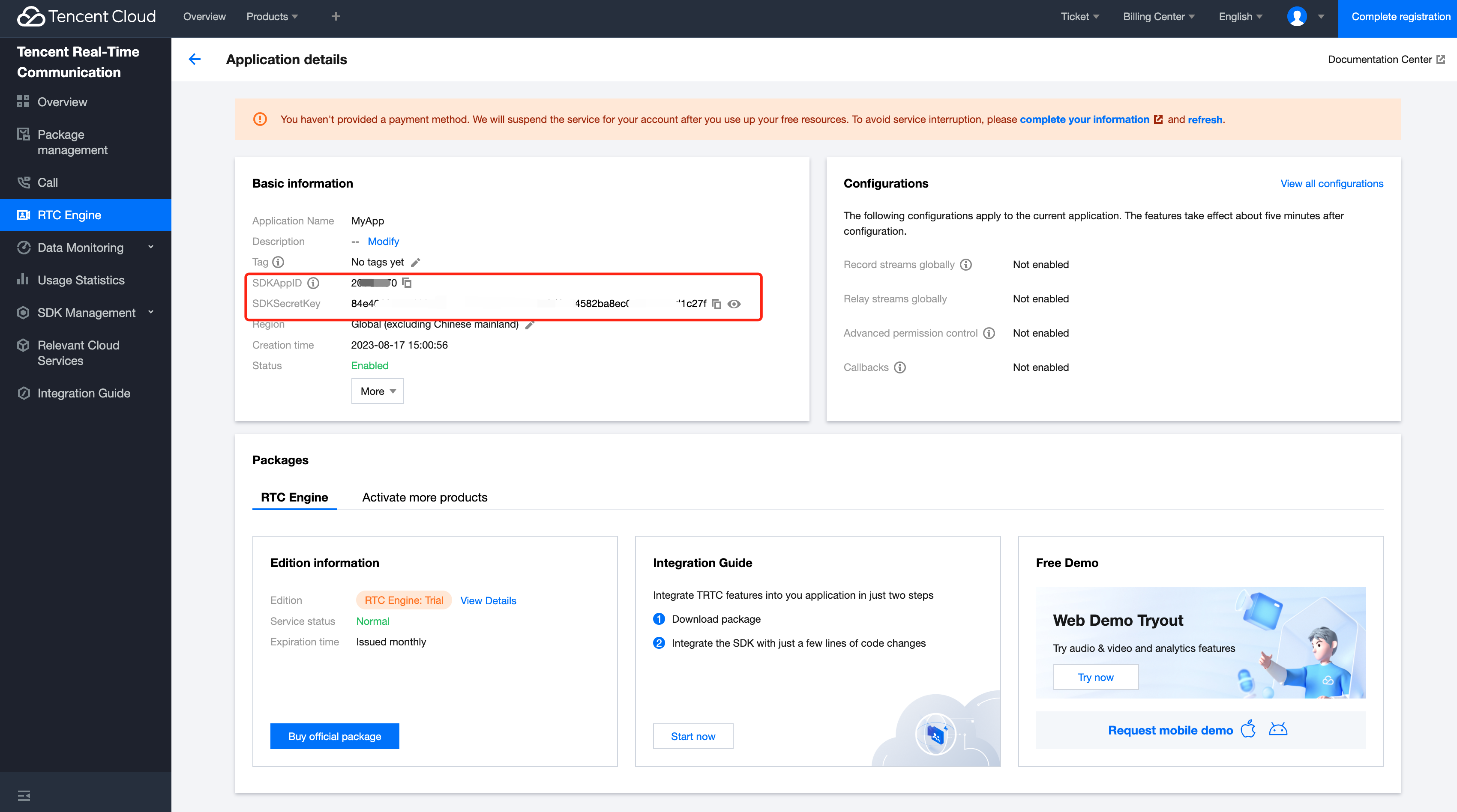
+
# Tutorial: Quick Start Call
|
|
2
|
+
|
|
3
|
+
## Prerequisites
|
|
4
|
+
|
|
5
|
+
1. [Register a Tencent Cloud account](https://trtc.io/) and [Create an application](https://console.trtc.io/).
|
|
6
|
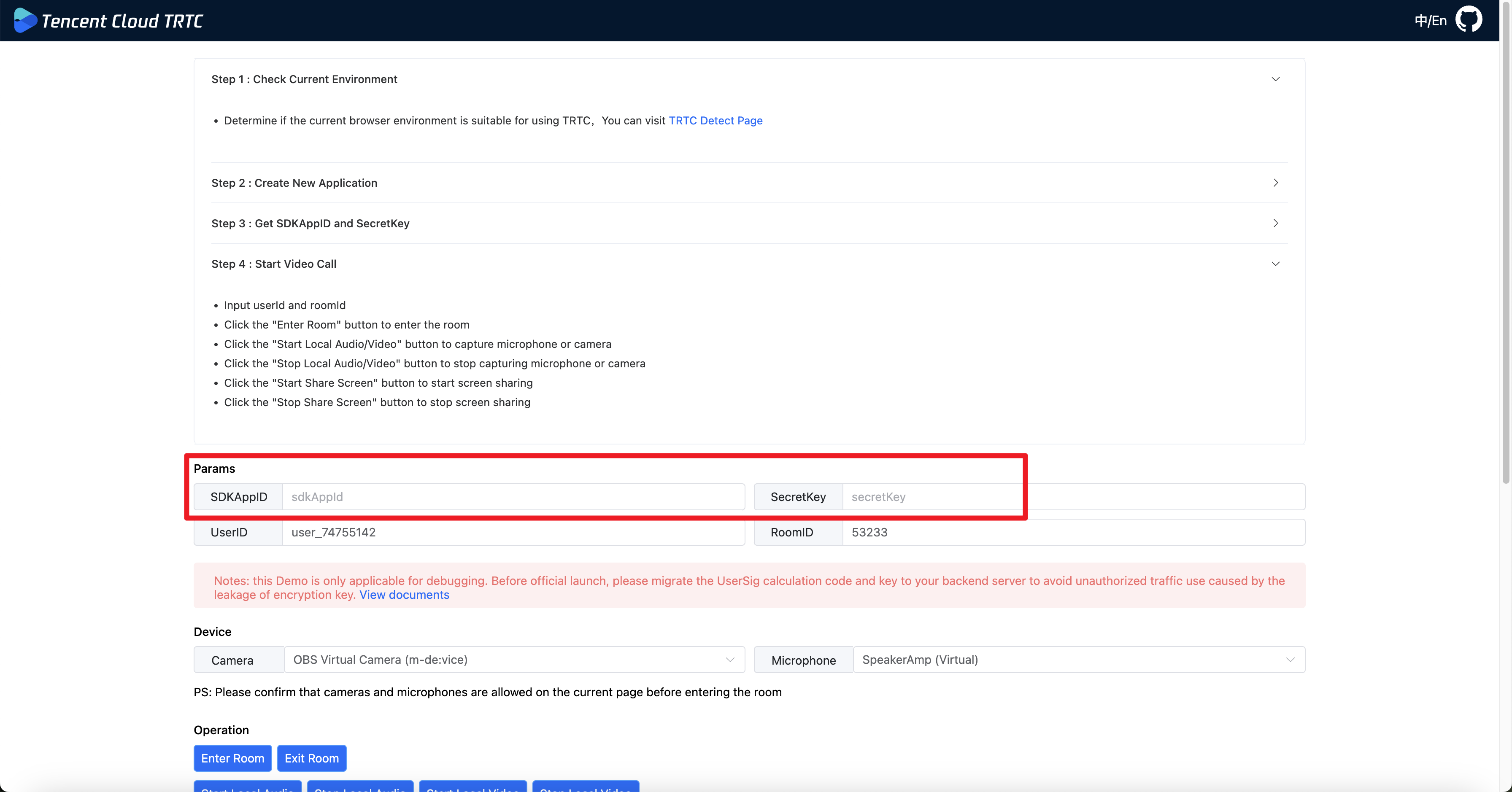
+
2. [Get a temporary userSig](https://trtc.io/document/35166?platform=web&product=rtcengine&menulabel=coresdk#console) or [Deploy an userSig issuance service](https://trtc.io/document/35166?platform=web&product=rtcengine&menulabel=coresdk#formal).
|
|
7
|
+
3. To experience the full capabilities of TRTC, it is recommended to use `http://localhost` during development and `https://[domain name]` to access the page in production. Refer to the document [Page Access Protocol Description](./tutorial-05-info-browser.html#h2-3).
|
|
8
|
+
4. To avoid firewall security policy restrictions on normal TRTC data transmission, refer to the document [Dealing with Firewall Policies](./tutorial-05-info-browser.html#h2-4) for settings.
|
|
9
|
+
5. To ensure the communication experience, it is recommended to perform device detection and browser compatibility testing before starting the audio and video communication. Refer to the document [Browser Compatibility Information](./tutorial-05-info-browser.html#h2-2), [Check Environment and Device Before Calls](tutorial-23-advanced-support-detection.html).
|
|
10
|
+
|
|
11
|
+
## SDK Integration
|
|
12
|
+
|
|
13
|
+
The SDK provides UMD, ES Module type modules, and TypeScript Type Definition files to meet integration in different types of projects.
|
|
14
|
+
|
|
15
|
+
### NPM Integration
|
|
16
|
+
|
|
17
|
+
1. You can use [npm](https://docs.npmjs.com/downloading-and-installing-node-js-and-npm) to install [trtc-sdk-v5](https://www.npmjs.com/package/trtc-sdk-v5) in your project.
|
|
18
|
+
|
|
19
|
+
```javascript
|
|
20
|
+
npm install trtc-sdk-v5 --save
|
|
21
|
+
```
|
|
22
|
+
|
|
23
|
+
2. Import the module in your project script.
|
|
24
|
+
|
|
25
|
+
```javascript
|
|
26
|
+
import TRTC from 'trtc-sdk-v5';
|
|
27
|
+
```
|
|
28
|
+
|
|
29
|
+
### Script Integration
|
|
30
|
+
|
|
31
|
+
1. Add the following code to your web page:
|
|
32
|
+
|
|
33
|
+
```html
|
|
34
|
+
<script src="trtc.js"></script>
|
|
35
|
+
```
|
|
36
|
+
|
|
37
|
+
**Resource Download**
|
|
38
|
+
|
|
39
|
+
- [trtc.js](https://www.unpkg.com/trtc-sdk-v5@latest/trtc.js)
|
|
40
|
+
- [GitHub Repository](https://github.com/LiteAVSDK/TRTC_Web)
|
|
41
|
+
|
|
42
|
+
## SDK Usage Overview
|
|
43
|
+
|
|
44
|
+
**Basic Concepts**
|
|
45
|
+
|
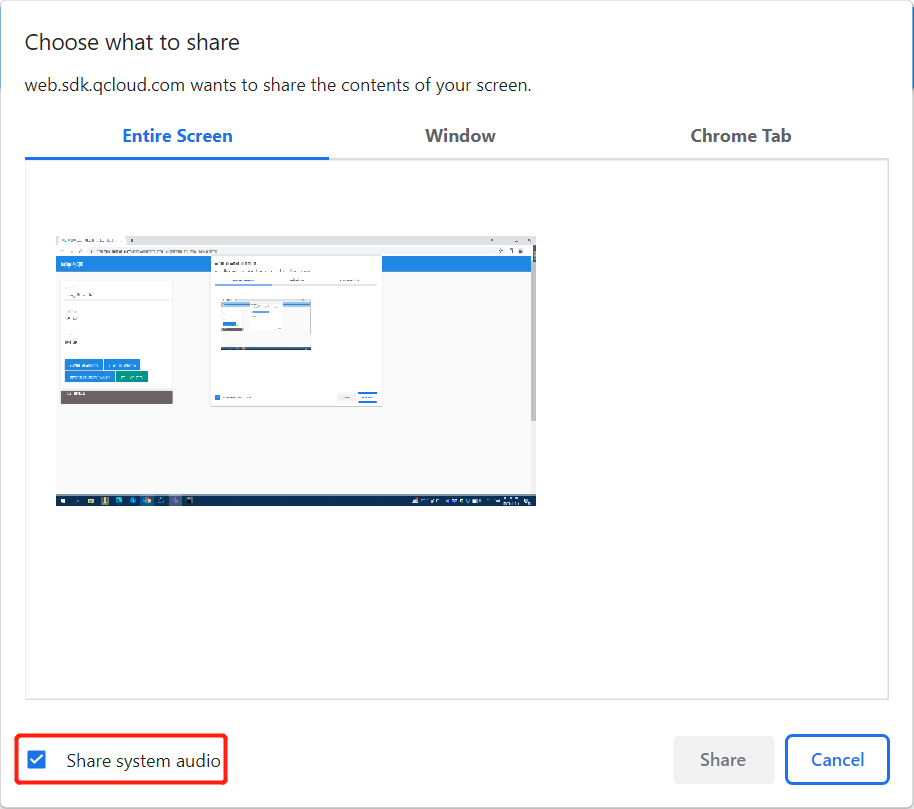
|
46
|
+
When you use the TRTC Web SDK, you will encounter the following concepts:
|
|
47
|
+
|
|
48
|
+
- [TRTC](TRTC.html) class, whose instance represents a local client. The object methods of TRTC provide functions such as joining a call room, previewing a local camera, publishing a local camera and microphone, and playing remote audio and video.
|
|
49
|
+
|
|
50
|
+
**Implementing the basic logic of audio and video communication**
|
|
51
|
+
|
|
52
|
+
1. Call the [TRTC.create()](TRTC.html#.create) method to create the [trtc](TRTC.html) object.
|
|
53
|
+
2. Call the [trtc.enterRoom()](TRTC.html#enterRoom) method to enter the room, then other users will receive the [TRTC.EVENT.REMOTE_USER_ENTER](module-EVENT.html#.REMOTE_USER_ENTER) event.
|
|
54
|
+
3. After entering the room, you can turn on the camera and microphone and publish them to the room.
|
|
55
|
+
- Call the [TRTC.startLocalVideo()](TRTC.html#startLocalVideo) method to turn on the camera and publish it to the room.
|
|
56
|
+
- Call the [TRTC.startLocalAudio()](TRTC.html#startLocalAudio) method to turn on the microphone and publish it to the room.
|
|
57
|
+
4. When a remote user publishes audio and video, the SDK will automatically play the remote audio by default. You need to play the remote video by:
|
|
58
|
+
- Listen for the [TRTC.EVENT.REMOTE_VIDEO_AVAILABLE](module-EVENT.html#.REMOTE_VIDEO_AVAILABLE) event before entering the room to receive all remote user video publishing events.
|
|
59
|
+
- In the event callback function, call the [trtc.startRemoteVideo()](TRTC.html#startRemoteVideo) method to play the remote video.
|
|
60
|
+
|
|
61
|
+
The following figure shows the basic API call process for implementing audio and video communication:
|
|
62
|
+

|
|
63
|
+
|
|
64
|
+
## Creating a TRTC object
|
|
65
|
+
|
|
66
|
+
Create a [TRTC](TRTC.html) object through the [TRTC.create()](TRTC.html#.create) method
|
|
67
|
+
|
|
68
|
+
```javascript
|
|
69
|
+
const trtc = TRTC.create();
|
|
70
|
+
```
|
|
71
|
+
|
|
72
|
+
## Entering the room
|
|
73
|
+
|
|
74
|
+
Call the [trtc.enterRoom()](TRTC.html#enterRoom) method to enter the room. Usually called in the click callback of the `Start Call` button.
|
|
75
|
+
Key parameters:
|
|
76
|
+
|
|
77
|
+
- `scene`: Real-time audio and video call mode, set to 'rtc'.
|
|
78
|
+
- `sdkAppId`: The sdkAppId of the audio and video application you created on Tencent Cloud.
|
|
79
|
+
- `userId`: User ID specified by you.
|
|
80
|
+
- `userSig`: User signature, [Get a temporary userSig](https://trtc.io/document/35166?platform=web&product=rtcengine&menulabel=coresdk#console) or [Deploy an userSig issuance service](https://trtc.io/document/35166?platform=web&product=rtcengine&menulabel=coresdk#formal).
|
|
81
|
+
- `roomId`: Room ID specified by you, usually a unique room ID.
|
|
82
|
+
For more detailed parameter descriptions, refer to the interface document [trtc.enterRoom()](TRTC.html#enterRoom).
|
|
83
|
+
|
|
84
|
+
```javascript
|
|
85
|
+
try {
|
|
86
|
+
await trtc.enterRoom({ roomId: 8888, scene:'rtc', sdkAppId, userId, userSig });
|
|
87
|
+
console.log('Entered the room successfully');
|
|
88
|
+
} catch (error) {
|
|
89
|
+
console.error('Failed to enter the room ' + error);
|
|
90
|
+
}
|
|
91
|
+
```
|
|
92
|
+
|
|
93
|
+
## Turn on the camera and microphone
|
|
94
|
+
|
|
95
|
+
### Turn on the camera
|
|
96
|
+
|
|
97
|
+
Use the [trtc.startLocalVideo()](TRTC.html#startLocalVideo) method to turn on the camera and publish it to the room.
|
|
98
|
+
|
|
99
|
+
```javascript
|
|
100
|
+
// To preview the camera image, you need to place an HTMLElement in the DOM, which can be a div tag, assuming its id is local-video.
|
|
101
|
+
const view = 'local-video';
|
|
102
|
+
await trtc.startLocalVideo({ view });
|
|
103
|
+
```
|
|
104
|
+
|
|
105
|
+
### Turn on the microphone
|
|
106
|
+
|
|
107
|
+
Use the [trtc.startLocalAudio()](TRTC.html#startLocalAudio) method to turn on the microphone and publish it to the room.
|
|
108
|
+
|
|
109
|
+
```javascript
|
|
110
|
+
await trtc.startLocalAudio();
|
|
111
|
+
```
|
|
112
|
+
|
|
113
|
+
## Play remote audio and video
|
|
114
|
+
|
|
115
|
+
### Play remote audio
|
|
116
|
+
|
|
117
|
+
By default, the SDK will automatically play remote audio, and you do not need to call an API to play remote audio.
|
|
118
|
+
|
|
119
|
+
- Note: If the user has not interacted with the page before entering the room, automatic audio playback may fail due to [browser autoplay policy restrictions](./tutorial-21-advanced-auto-play-policy.html). You need to refer to the [suggested handling of restricted autoplay](./tutorial-21-advanced-auto-play-policy.html) for processing.
|
|
120
|
+
- If you do not want the SDK to automatically play audio, you can set autoReceiveAudio = false to turn off automatic audio playback when calling [trtc.enterRoom()](TRTC.html#enterRoom).
|
|
121
|
+
- Listen for the [TRTC.EVENT.REMOTE_AUDIO_AVAILABLE](module-EVENT.html#.REMOTE_AUDIO_AVAILABLE) event, record the userId with remote audio, and call the [trtc.muteRemoteAudio(userId, false)](TRTC.html#muteRemoteAudio) method when you need to play audio.
|
|
122
|
+
|
|
123
|
+
### Play remote video
|
|
124
|
+
|
|
125
|
+
Listen for the [TRTC.EVENT.REMOTE_VIDEO_AVAILABLE](module-EVENT.html#.REMOTE_VIDEO_AVAILABLE) event before entering the room to receive all remote user video publishing events. Use the [trtc.startRemoteVideo()](TRTC.html#startRemoteVideo) method to play the remote video stream when you receive the event.
|
|
126
|
+
|
|
127
|
+
```javascript
|
|
128
|
+
trtc.on(TRTC.EVENT.REMOTE_VIDEO_AVAILABLE, ({ userId, streamType }) => {
|
|
129
|
+
// To play the video image, you need to place an HTMLElement in the DOM, which can be a div tag, assuming its id is `${userId}_${streamType}`
|
|
130
|
+
const view = `${userId}_${streamType}`;
|
|
131
|
+
trtc.startRemoteVideo({ userId, streamType, view });
|
|
132
|
+
});
|
|
133
|
+
```
|
|
134
|
+
|
|
135
|
+
## Exit the room
|
|
136
|
+
|
|
137
|
+
Call the [trtc.exitRoom()](TRTC.html#exitRoom) method to exit the room and end the audio and video call.
|
|
138
|
+
|
|
139
|
+
```javascript
|
|
140
|
+
await trtc.exitRoom();
|
|
141
|
+
// After the exit is successful, if you do not need to use the trtc instance later, you can call the trtc.destroy method to destroy the instance and release related resources in a timely manner. The destroyed trtc instance cannot be used again and a new instance needs to be created.
|
|
142
|
+
trtc.destroy();
|
|
143
|
+
```
|
|
144
|
+
|
|
145
|
+
**Handling being kicked out**
|
|
146
|
+
|
|
147
|
+
In addition to actively exiting the room, users may also be kicked out of the room for the following reasons. At this time, the SDK will throw the [KICKED_OUT](module-EVENT.html#.KICKED_OUT) event. There is no need to call `trtc.exitRoom()` to exit the room, and the SDK will automatically enter the exit room state.
|
|
148
|
+
|
|
149
|
+
1. `kick`: Two users with the same userId enter the same room, and the user who enters the room first will be kicked out. It is not allowed for users with the same name to enter the same room at the same time, which may cause abnormal audio and video calls between the two parties, so this situation should be avoided.
|
|
150
|
+
2. `banned`: A user is kicked out of a TRTC room through the server's [RemoveUser](https://trtc.io/document/34268) | [RemoveUserByStrRoomId](https://trtc.io/document/39630?product=rtcengine&menulabel=serverfeaturesapis) interface. The user will receive a kicked event, and the reason is `banned`.
|
|
151
|
+
3. `room_disband`: A TRTC room is dissolved through the server's [DismissRoom](https://trtc.io/document/34269?product=rtcengine&menulabel=serverfeaturesapis) | [DismissRoomByStrRoomId](https://trtc.io/document/39631?product=rtcengine&menulabel=serverfeaturesapis) interface. After the room is dissolved, all users in the room will receive a kicked event, and the reason is `room_disband`.
|
|
152
|
+
|
|
153
|
+
```javascript
|
|
154
|
+
trtc.on(TRTC.EVENT.KICKED_OUT, error => {
|
|
155
|
+
console.error(`kicked out, reason:${error.reason}, message:${error.message}`);
|
|
156
|
+
// error.reason has the following situations
|
|
157
|
+
// 'kick' The user with the same userId enters the same room, causing the user who enters the room first to be kicked out.
|
|
158
|
+
// 'banned' The administrator removed the user from the room
|
|
159
|
+
// 'room_disband' The administrator dissolved the room
|
|
160
|
+
});
|
|
161
|
+
```
|
|
162
|
+
|
|
163
|
+
## Contact us
|
|
164
|
+
|
|
165
|
+
If you encounter any problems during the implementation process, please feel free to create an issue on [GitHub issue](https://github.com/LiteAVSDK/TRTC_Web/issues), and we will deal with it as soon as possible.
|
|
166
|
+
|
|
167
|
+
# Tutorial: Switching Camera/Mic
|
|
168
|
+
|
|
169
|
+
This article mainly introduces how to switch cameras and microphones during audio and video calls.
|
|
170
|
+
|
|
171
|
+
## Switching Cameras
|
|
172
|
+
|
|
173
|
+
```javascript
|
|
174
|
+
// Open the camera, the default is the first camera in the camera list.
|
|
175
|
+
await trtc.startLocalVideo();
|
|
176
|
+
const cameraList = await TRTC.getCameraList();
|
|
177
|
+
// Switch to the second camera
|
|
178
|
+
if (cameraList[1]) {
|
|
179
|
+
await trtc.updateLocalVideo({ option: { cameraId: cameraList[1].deviceId }});
|
|
180
|
+
}
|
|
181
|
+
// On mobile device.
|
|
182
|
+
// switch to front camera.
|
|
183
|
+
await trtc.updateLocalVideo({ option: { useFrontCamera: true }});
|
|
184
|
+
// switch to rear camera.
|
|
185
|
+
await trtc.updateLocalVideo({ option: { useFrontCamera: false }});
|
|
186
|
+
```
|
|
187
|
+
|
|
188
|
+
## Switching Microphones
|
|
189
|
+
|
|
190
|
+
```javascript
|
|
191
|
+
// Open the microphone, the default is the first microphone in the microphone list.
|
|
192
|
+
await trtc.startLocalAudio();
|
|
193
|
+
const microphoneList = await TRTC.getMicrophoneList();
|
|
194
|
+
// Switch to the second microphone
|
|
195
|
+
if (microphoneList[1]) {
|
|
196
|
+
await trtc.updateLocalAudio({ option: { microphoneId: microphoneList[1].deviceId }});
|
|
197
|
+
}
|
|
198
|
+
```
|
|
199
|
+
|
|
200
|
+
# Tutorial: Screen Sharing
|
|
201
|
+
|
|
202
|
+
## Function Description
|
|
203
|
+
|
|
204
|
+
This article mainly introduces how to implement screen sharing function in TRTC Web SDK.
|
|
205
|
+
|
|
206
|
+
## Implementation Process
|
|
207
|
+
|
|
208
|
+
### 1. Start Local Screen Sharing
|
|
209
|
+
|
|
210
|
+
```javascript
|
|
211
|
+
const trtcA = TRTC.create();
|
|
212
|
+
await trtcA.enterRoom({
|
|
213
|
+
scene: 'rtc',
|
|
214
|
+
sdkAppId: 140000000, // Fill in your sdkAppId
|
|
215
|
+
userId: 'userA', // Fill in your userId
|
|
216
|
+
userSig: 'userA_sig', // Fill in userSig corresponding to userId
|
|
217
|
+
roomId: 6969
|
|
218
|
+
})
|
|
219
|
+
await trtcA.startScreenShare();
|
|
220
|
+
```
|
|
221
|
+
|
|
222
|
+
### 2. Play Remote Screen Sharing
|
|
223
|
+
|
|
224
|
+
```javascript
|
|
225
|
+
const trtcB = TRTC.create();
|
|
226
|
+
trtcB.on(TRTC.EVENT.REMOTE_VIDEO_AVAILABLE, ({ userId, streamType }) => {
|
|
227
|
+
// Main video stream, generally the stream pushed by the camera
|
|
228
|
+
if (streamType === TRTC.TYPE.STREAM_TYPE_MAIN) {
|
|
229
|
+
// 1. Place a div tag with an id of `${userId}_main` on the page to play the main stream in the div tag. The business side can customize the id of the div tag. This is just an example.
|
|
230
|
+
// 2. Play the main video stream
|
|
231
|
+
trtcB.startRemoteVideo({ userId, streamType, view: `${userId}_main` });
|
|
232
|
+
} else {
|
|
233
|
+
// Sub video stream, generally the stream pushed by screen sharing.
|
|
234
|
+
// 1. Place a div tag with an id of `${userId}_screen` on the page to play the screen sharing in the div tag. The business side can customize the id of the div tag. This is just an example.
|
|
235
|
+
// 2. Play screen sharing
|
|
236
|
+
trtcB.startRemoteVideo({ userId, streamType, view: `${userId}_screen` });
|
|
237
|
+
}
|
|
238
|
+
});
|
|
239
|
+
await trtcB.enterRoom({
|
|
240
|
+
scene: 'rtc',
|
|
241
|
+
sdkAppId: 140000000, // Fill in your sdkAppId
|
|
242
|
+
userId: 'userB', // Fill in your userId
|
|
243
|
+
userSig: 'userB_sig', // Fill in userSig corresponding to userId
|
|
244
|
+
roomId: 6969
|
|
245
|
+
})
|
|
246
|
+
```
|
|
247
|
+
|
|
248
|
+
### 3. Start Camera + Screen Sharing at the Same Time
|
|
249
|
+
|
|
250
|
+
```javascript
|
|
251
|
+
await trtcA.startLocalVideo();
|
|
252
|
+
await trtcA.startScreenShare();
|
|
253
|
+
```
|
|
254
|
+
|
|
255
|
+
### 4. Screen Sharing + System Audio
|
|
256
|
+
|
|
257
|
+
System audio collection is supported by Chrome M74+
|
|
258
|
+
|
|
259
|
+
- On Windows and Chrome OS, the audio of the entire system can be collected.
|
|
260
|
+
- On Linux and Mac, only the audio of a certain page can be collected.
|
|
261
|
+
- Other Chrome versions, other systems, and other browsers are not supported.
|
|
262
|
+
|
|
263
|
+
```javascript
|
|
264
|
+
await trtcA.startScreenShare({ option: { systemAudio: true }});
|
|
265
|
+
```
|
|
266
|
+
|
|
267
|
+
Check `Share audio` in the pop-up dialog box, and the system audio will be mixed with the local microphone and published. Other users in the room will receive the TRTC.EVENT.REMOTE_AUDIO_AVALIABLE event.
|
|
268
|
+
|
|
269
|
+
|
|
270
|
+
|
|
271
|
+
### 5. Stop Screen Sharing
|
|
272
|
+
|
|
273
|
+
```javascript
|
|
274
|
+
// Stop screen sharing collection and publishing
|
|
275
|
+
await trtcA.stopScreenShare();
|
|
276
|
+
// Other users in the room will receive the TRTC.EVENT.REMOTE_VIDEO_UNAVAILABLE event, and streamType is TRTC.TYPE.STREAM_TYPE_SUB.
|
|
277
|
+
trtcB.on(TRTC.EVENT.REMOTE_VIDEO_UNAVAILABLE, ({ userId, streamType }) => {
|
|
278
|
+
if (streamType === TRTC.TYPE.STREAM_TYPE_SUB) {
|
|
279
|
+
}
|
|
280
|
+
})
|
|
281
|
+
```
|
|
282
|
+
|
|
283
|
+
In addition, users may also stop screen sharing through the browser's own button, so the screen sharing stream needs to listen for the screen sharing stop event and respond accordingly.
|
|
284
|
+
|
|
285
|
+

|
|
286
|
+
|
|
287
|
+
```javascript
|
|
288
|
+
// Listen for screen sharing stop event
|
|
289
|
+
trtcA.on(TRTC.EVENT.SCREEN_SHARE_STOPPED, () => {
|
|
290
|
+
console.log('screen sharing was stopped');
|
|
291
|
+
});
|
|
292
|
+
```
|
|
293
|
+
|
|
294
|
+
## Screen sharing in Electron
|
|
295
|
+
|
|
296
|
+
> The preferred recommendation is to use the [TRTC Electron SDK](https://trtc.io/document/35078?platform=electron&product=rtcengine&menulabel=coresdk)
|
|
297
|
+
|
|
298
|
+
Because Electron does not implement the browser-supported WebRTC standard `getDisplayMedia` interface, if a web page contains WebRTC screen share-related logic, it will not be possible to use the [TRTC Web SDK](https://trtc.io/document/41664?platform=web&product=rtcengine&menulabel=coresdk) for screen share in Electron as a normal browser. If you only want to use the [TRTC Web SDK](https://trtc.io/document/41664?platform=web&product=rtcengine&menulabel=coresdk), please refer to the following solution.
|
|
299
|
+
|
|
300
|
+
To implement screen share, you need to use Electron's API:`desktopCapturer.getSources({ types: ['window', 'screen'] })`
|
|
301
|
+
|
|
302
|
+
1. The main process `main.js` listens for the page to finish loading, gets the list of screen share sources via `desktopCapturer.getSources`, and sends the list of screen share sources to the rendering process.
|
|
303
|
+
2. The rendering process listens to the main process events to get a list of screen share sources.
|
|
304
|
+
3. Create screen share streams and push them through the [TRTC Web SDK](https://trtc.io/document/41664?platform=web&product=rtcengine&menulabel=coresdk).
|
|
305
|
+
- Get the screen-sharing `MediaStream` from the system API via `navigator.mediaDevices.getUserMedia()`.
|
|
306
|
+
- Pass the custom captured videoTrack in the `option` parameter of `TRTC.startScreenShare()` to push the screen sharing stream.
|
|
307
|
+
|
|
308
|
+
```javascript
|
|
309
|
+
// 【1】main.js Master process gets list of screen share sources
|
|
310
|
+
const { app, BrowserWindow, desktopCapturer, systemPreferences } = require('electron');
|
|
311
|
+
function createWindow () {
|
|
312
|
+
const win = new BrowserWindow({
|
|
313
|
+
// ...
|
|
314
|
+
});
|
|
315
|
+
win.loadFile('./src/index.html');
|
|
316
|
+
win.webContents.on('did-finish-load', async () => {
|
|
317
|
+
if (win) {
|
|
318
|
+
const sources = await desktopCapturer.getSources({
|
|
319
|
+
types: ["window", "screen"],
|
|
320
|
+
});
|
|
321
|
+
win.webContents.send("SEND_SCREEN_SHARE_SOURCES", sources);
|
|
322
|
+
}
|
|
323
|
+
});
|
|
324
|
+
}
|
|
325
|
+
// 【2】Render process listens to main process events to get a list of screen share sources
|
|
326
|
+
const { ipcRenderer } = require('electron');
|
|
327
|
+
let shareSourceList = [];
|
|
328
|
+
ipcRenderer.on('SEND_SCREEN_SHARE_SOURCES', async (event, sources) => {
|
|
329
|
+
const selectContainer = window.document.getElementById('screen-share-select');
|
|
330
|
+
shareSourceList = sources;
|
|
331
|
+
sources.forEach(obj => {
|
|
332
|
+
const optionElement = document.createElement('option');
|
|
333
|
+
optionElement.innerText = `${obj.name}`;
|
|
334
|
+
selectContainer.appendChild(optionElement);
|
|
335
|
+
});
|
|
336
|
+
})
|
|
337
|
+
// 【3】Rendering process push screen share
|
|
338
|
+
async function startScreenShare() {
|
|
339
|
+
const selectContainer = document.getElementById('screen-share-select');
|
|
340
|
+
const selectValue = selectContainer.options[selectContainer.selectedIndex].value;
|
|
341
|
+
const [ source ] = shareSourceList.filter(obj => obj.name === `${selectValue}`);
|
|
342
|
+
try {
|
|
343
|
+
const stream = await navigator.mediaDevices.getUserMedia({
|
|
344
|
+
audio: false,
|
|
345
|
+
video: {
|
|
346
|
+
mandatory: {
|
|
347
|
+
chromeMediaSource: 'desktop',
|
|
348
|
+
chromeMediaSourceId: source.id, // screen share source id
|
|
349
|
+
minWidth: 1280,
|
|
350
|
+
maxWidth: 1280,
|
|
351
|
+
minHeight: 720,
|
|
352
|
+
maxHeight: 720
|
|
353
|
+
}
|
|
354
|
+
}
|
|
355
|
+
});
|
|
356
|
+
const trtc = TRTC.create();
|
|
357
|
+
await trtc.enterRoom({
|
|
358
|
+
// ...
|
|
359
|
+
});
|
|
360
|
+
await trtc.startScreenShare({
|
|
361
|
+
option: {
|
|
362
|
+
videoTrack: stream.getVideoTracks()[0],
|
|
363
|
+
}
|
|
364
|
+
})
|
|
365
|
+
} catch (error) {
|
|
366
|
+
console.error('start screen share error = ', error)
|
|
367
|
+
}
|
|
368
|
+
}
|
|
369
|
+
```
|
|
370
|
+
|
|
371
|
+
## Precautions
|
|
372
|
+
|
|
373
|
+
1. [What is the main/sub video stream?](module-TYPE.html#.STREAM_TYPE_MAIN)
|
|
374
|
+
2. The SDK uses the `1080p` parameter configuration by default to collect screen sharing. For details, refer to the interface: [startScreenShare](TRTC.html#startScreenShare)
|
|
375
|
+
|
|
376
|
+
## Common Issues
|
|
377
|
+
|
|
378
|
+
### 1. Safari screen sharing error `getDisplayMedia must be called from a user gesture handler`
|
|
379
|
+
|
|
380
|
+
This is because Safari restricts the `getDisplayMedia` screen capture interface, which must be called within 1 second of the callback function of the user click event.
|
|
381
|
+
|
|
382
|
+
Reference: [webkit issue](https://bugs.webkit.org/show_bug.cgi?id=198040).
|
|
383
|
+
|
|
384
|
+
```javascript
|
|
385
|
+
// good
|
|
386
|
+
async function onClick() {
|
|
387
|
+
// It is recommended to execute the collection logic first when onClick is executed
|
|
388
|
+
await trtcA.startScreenShare();
|
|
389
|
+
await trtcA.enterRoom({
|
|
390
|
+
roomId: 123123,
|
|
391
|
+
sdkAppId: 140000000, // Fill in your sdkAppId
|
|
392
|
+
userId: 'userA', // Fill in your userId
|
|
393
|
+
userSig: 'userA_sig', // Fill in userSig corresponding to userId
|
|
394
|
+
});
|
|
395
|
+
}
|
|
396
|
+
// bad
|
|
397
|
+
async function onClick() {
|
|
398
|
+
await trtcA.enterRoom({
|
|
399
|
+
roomId: 123123,
|
|
400
|
+
sdkAppId: 140000000, // Fill in your sdkAppId
|
|
401
|
+
userId: 'userA', // Fill in your userId
|
|
402
|
+
userSig: 'userA_sig', // Fill in userSig corresponding to userId
|
|
403
|
+
});
|
|
404
|
+
// Entering the room may take more than 1s, and the collection may fail
|
|
405
|
+
await trtcA.startScreenShare();
|
|
406
|
+
}
|
|
407
|
+
```
|
|
408
|
+
|
|
409
|
+
### 2. macOS Monterey(12.2.1), device permissions need to be requested in the master process
|
|
410
|
+
|
|
411
|
+
```javascript
|
|
412
|
+
async function checkAndApplyDeviceAccessPrivilege() {
|
|
413
|
+
const cameraPrivilege = systemPreferences.getMediaAccessStatus('camera');
|
|
414
|
+
console.log(
|
|
415
|
+
`checkAndApplyDeviceAccessPrivilege before apply cameraPrivilege: ${cameraPrivilege}`
|
|
416
|
+
);
|
|
417
|
+
if (cameraPrivilege !== 'granted') {
|
|
418
|
+
await systemPreferences.askForMediaAccess('camera');
|
|
419
|
+
}
|
|
420
|
+
const micPrivilege = systemPreferences.getMediaAccessStatus('microphone');
|
|
421
|
+
console.log(
|
|
422
|
+
`checkAndApplyDeviceAccessPrivilege before apply micPrivilege: ${micPrivilege}`
|
|
423
|
+
);
|
|
424
|
+
if (micPrivilege !== 'granted') {
|
|
425
|
+
await systemPreferences.askForMediaAccess('microphone');
|
|
426
|
+
}
|
|
427
|
+
const screenPrivilege = systemPreferences.getMediaAccessStatus('screen');
|
|
428
|
+
console.log(
|
|
429
|
+
`checkAndApplyDeviceAccessPrivilege before apply screenPrivilege: ${screenPrivilege}`
|
|
430
|
+
);
|
|
431
|
+
}
|
|
432
|
+
```
|
|
433
|
+
|
|
434
|
+
### 3. Mac Chrome screen sharing fails with the error message "NotAllowedError: Permission denied by system" or "NotReadableError: Could not start video source" when screen recording is already authorized. [Chrome bug](https://bugs.chromium.org/p/chromium/issues/detail?id=1306876). Solution: Open 【Settings】> Click 【Security & Privacy】> Click 【Privacy】> Click 【Screen Recording】> Turn off Chrome screen recording authorization > Reopen Chrome screen recording authorization > Close Chrome browser > Reopen Chrome browser.
|
|
435
|
+
|
|
436
|
+
### 4. [WebRTC screen sharing known issues and workarounds](./tutorial-02-info-webrtc-issues.html#h2-9)
|
|
437
|
+
|
|
438
|
+
# Tutorial: Setting Camera Profile
|
|
439
|
+
|
|
440
|
+
This article mainly introduces how to set video properties in video calls or interactive live broadcasts. Developers can adjust the clarity and fluency of the video according to specific business needs to obtain a better user experience. Video properties include resolution, frame rate, and bit rate.
|
|
441
|
+
|
|
442
|
+
## Implementation
|
|
443
|
+
|
|
444
|
+
Set the video properties through the [startLocalVideo()](TRTC.html#startLocalVideo) or [updateLocalVideo()](TRTC.html#updateLocalVideo) method of the trtc object:
|
|
445
|
+
|
|
446
|
+
- Specify a predefined Profile, each Profile corresponds to a set of recommended resolution, frame rate, and bit rate.
|
|
447
|
+
|
|
448
|
+
```javascript
|
|
449
|
+
// Specify video properties when starting
|
|
450
|
+
await trtc.startLocalVideo({
|
|
451
|
+
option: { profile: '480p' }
|
|
452
|
+
});
|
|
453
|
+
// Dynamically adjust video properties during the call
|
|
454
|
+
await trtc.updateLocalVideo({
|
|
455
|
+
option: { profile: '360p' }
|
|
456
|
+
});
|
|
457
|
+
```
|
|
458
|
+
|
|
459
|
+
- Specify custom resolution, frame rate, and bit rate
|
|
460
|
+
|
|
461
|
+
```javascript
|
|
462
|
+
// Specify video properties when starting
|
|
463
|
+
await trtc.startLocalVideo({
|
|
464
|
+
option: { profile: { width: 640, height: 480, frameRate: 15, bitrate: 900 /* kpbs */} }
|
|
465
|
+
});
|
|
466
|
+
// Dynamically adjust video properties during the call
|
|
467
|
+
await trtc.updateLocalVideo({
|
|
468
|
+
option: { profile: { width: 640, height: 360, frameRate: 15, bitrate: 800 /* kpbs */} }
|
|
469
|
+
});
|
|
470
|
+
```
|
|
471
|
+
|
|
472
|
+
## Video Property Profile List
|
|
473
|
+
|
|
474
|
+
| Video Profile | Resolution (Width x Height) | Frame Rate (fps) | Bitrate (kbps) | Note |
|
|
475
|
+
|---------------|-----------------------------|------------------|----------------|------|
|
|
476
|
+
| 120p_2 | 160 x 120 | 15 | 100 | v5.1.1+ |
|
|
477
|
+
| 180p | 320 x 180 | 15 | 350 | |
|
|
478
|
+
| 180p_2 | 320 x 180 | 15 | 150 | v5.1.1+ |
|
|
479
|
+
| 240p | 320 x 240 | 15 | 400 | |
|
|
480
|
+
| 240p_2 | 320 x 240 | 15 | 200 | v5.1.1+ |
|
|
481
|
+
| 360p | 640 x 360 | 15 | 800 | |
|
|
482
|
+
| 360p_2 | 640 x 360 | 15 | 400 | v5.1.1+ |
|
|
483
|
+
| 480p | 640 x 480 | 15 | 900 | |
|
|
484
|
+
| 480p_2 | 640 x 480 | 15 | 500 | Default value, v5.1.1+ |
|
|
485
|
+
| 720p | 1280 x 720 | 15 | 1500 | |
|
|
486
|
+
| 1080p | 1920 x 1080 | 15 | 2000 | |
|
|
487
|
+
| 1440p | 2560 x 1440 | 30 | 4860 | |
|
|
488
|
+
| 4K | 3840 x 2160 | 30 | 9000 | |
|
|
489
|
+
|
|
490
|
+
- Due to device and browser limitations, the video resolution may not match exactly. In this case, the browser will automatically adjust the resolution to be close to the resolution corresponding to the Profile.
|
|
491
|
+
|
|
492
|
+
|
|
@@ -0,0 +1,63 @@
|
|
|
1
|
+
# Tutorial: Demo Quick Run
|
|
2
|
+
|
|
3
|
+
This article mainly introduces how to quickly run Tencent Cloud TRTC Web demo.
|
|
4
|
+
|
|
5
|
+
## Prerequisites
|
|
6
|
+
|
|
7
|
+
You have registered a Tencent Cloud account and completed real-name authentication.
|
|
8
|
+
|
|
9
|
+
## Operation steps
|
|
10
|
+
|
|
11
|
+
### Step 1: Create a new application
|
|
12
|
+
|
|
13
|
+
Please visit the [TRTC console](https://console.trtc.io/) and create an RTC Engine application.
|
|
14
|
+
|
|
15
|
+
### Step 2. Get your SDKAppId and SDKSecretKey
|
|
16
|
+
|
|
17
|
+
After your application created, you can get your **SDKAppID** and **SDKSecretKey** in Basic information , which are used to run demo.
|
|
18
|
+
|
|
19
|
+
|
|
20
|
+
|
|
21
|
+
## Step 3: Run the Demo
|
|
22
|
+
|
|
23
|
+
1. **Run demo online**
|
|
24
|
+
|
|
25
|
+
We provides the following basic demos. You can choose the project framework you are familiar with to run and experience:
|
|
26
|
+
|
|
27
|
+
1.1 [quick-demo-js](https://web.sdk.qcloud.com/trtc/webrtc/v5/demo/quick-demo-js/index.html) is a demo coded by Javascript. Source code: [github](https://github.com/LiteAVSDK/TRTC_Web/tree/main/quick-demo-js).
|
|
28
|
+
|
|
29
|
+
1.2 [quick-demo-vue2-js](https://web.sdk.qcloud.com/trtc/webrtc/v5/demo/quick-demo-vue2-js/index.html) is a demo coded by Vue2 + Javascript. Source code: [github](https://github.com/LiteAVSDK/TRTC_Web/tree/main/quick-demo-vue2-js).
|
|
30
|
+
|
|
31
|
+
1.3 [quick-demo-vue3-ts](https://web.sdk.qcloud.com/trtc/webrtc/v5/demo/quick-demo-vue3-ts/index.html) is a demo coded by Vue3 + Typescript. Source code: [github](https://github.com/LiteAVSDK/TRTC_Web/tree/main/quick-demo-vue3-ts).
|
|
32
|
+
|
|
33
|
+
2. **Run Demo locally**
|
|
34
|
+
|
|
35
|
+
2.1 Download source code by [Github](https://github.com/LiteAVSDK/TRTC_Web/tree/main) or [Zip](https://web.sdk.qcloud.com/trtc/webrtc/download/webrtc_latest.zip).
|
|
36
|
+
|
|
37
|
+
2.2 Run demo locally by following steps.
|
|
38
|
+
|
|
39
|
+
(1) Open the demo file
|
|
40
|
+
|
|
41
|
+
- for `quick-demo-js`, open the `TRTC_Web/quick-demo-js/index.html` directly via a browser.
|
|
42
|
+
- for `quick-demo-vue2-js`, enter the `TRTC_Web/quick-demo-vue2-js/` directory, then run `npm start` in this directory, the default browser will automatically open the address [http://localhost:8080/](http://localhost:8080/)
|
|
43
|
+
- for `quick-demo-vue3-ts`, enter the `TRTC_Web/quick-demo-vue3-ts/` directory, then run `npm start` in this directory, the default browser will automatically open the address [http://localhost:3000/](http://localhost:3000/)
|
|
44
|
+
|
|
45
|
+
(2) Fill in the SDKAppId and SDKSecretKey obtained in [Step 2](#Step-2.-Get-your-SDKAppId-and-SDKSecretKey) on the page opened in the browser.
|
|
46
|
+
|
|
47
|
+
|
|
48
|
+
|
|
49
|
+
(3) Functional experience
|
|
50
|
+
|
|
51
|
+
- Click the [Enter Room] button to enter the room.
|
|
52
|
+
- Click the [Start Local Audio/Video] button to capture the microphone or camera.
|
|
53
|
+
- Click the [Stop Local Audio/Video] button to stop capturing the microphone or camera.
|
|
54
|
+
- Click the [Start Share Screen] button to start screen sharing.
|
|
55
|
+
- Click the [Stop Share Screen] button to cancel screen sharing.
|
|
56
|
+
|
|
57
|
+
(4) After joining the room, you can share the invitation link to experience the TRTC Web voice and video communication function with the invitee.
|
|
58
|
+
|
|
59
|
+
> **Important Notes:**
|
|
60
|
+
>
|
|
61
|
+
> - To deploy to the public network for experience, you need to access it through HTTPS protocol, that is, `https://domain/xxx`. For the reason, please refer to the document [Page Access Protocol Restriction Description](./tutorial-05-info-browser.html#h2-3).
|
|
62
|
+
> - Currently, the desktop Chrome browser supports TRTC Web SDK's related features more completely, so it is recommended to use Chrome browser for experience, please refer to the document [Browser Compatibility Information](./tutorial-05-info-browser.html#h2-2).
|
|
63
|
+
> - The correct way to generate UserSig is to integrate the UserSig calculation code into your server and provide an interface for the App. When you need UserSig, your App sends a request to the business server to obtain a dynamic UserSig. For more details, please refer to [Generating UserSig on the Server](https://trtc.io/document/35166?platform=web&product=rtcengine&menulabel=coresdk).
|
package/server.js
CHANGED
|
@@ -64,6 +64,28 @@ function createServer() {
|
|
|
64
64
|
// @ts-ignore
|
|
65
65
|
sdkAppId: zod_1.z.string().describe("Your application's SDKAppID."),
|
|
66
66
|
},
|
|
67
|
+
'read_rtcengine_integrate_docs': {
|
|
68
|
+
name: 'read_rtcengine_integrate_docs',
|
|
69
|
+
description: 'Refer to the RTCEngine integration documentation corresponding to the input development framework.',
|
|
70
|
+
parameters: {
|
|
71
|
+
// @ts-ignore
|
|
72
|
+
framework: zod_1.z.enum(framework).optional().default('web').describe('Development framework name (e.g., web, ios, android)'),
|
|
73
|
+
// @ts-ignore
|
|
74
|
+
sdkAppId: zod_1.z.string().describe("Your application's SDKAppID."),
|
|
75
|
+
// @ts-ignore
|
|
76
|
+
secretKey: zod_1.z.string().describe("The SecretKey corresponding to your application's SDKAppID."),
|
|
77
|
+
},
|
|
78
|
+
},
|
|
79
|
+
'read_rtcengine_faq_docs': {
|
|
80
|
+
name: 'read_rtcengine_faq_docs',
|
|
81
|
+
description: 'Please enter any issues you encountered while using RTCEngine.',
|
|
82
|
+
parameters: {
|
|
83
|
+
// @ts-ignore
|
|
84
|
+
question: zod_1.z.string().describe('Please describe your issue.'),
|
|
85
|
+
// @ts-ignore
|
|
86
|
+
sdkAppId: zod_1.z.string().describe("Your application's SDKAppID."),
|
|
87
|
+
},
|
|
88
|
+
}
|
|
67
89
|
},
|
|
68
90
|
};
|
|
69
91
|
const readDocsWithConfig = async (docType, reportName, path, sdkAppId, reportExt2) => {
|
|
@@ -99,12 +121,20 @@ function createServer() {
|
|
|
99
121
|
const readChatUIKitResoureFaqHandler = async ({ question, sdkAppId }) => {
|
|
100
122
|
return readDocsWithConfig("ChatUIKit", "ChatUIKitFAQTool", "chatuikit/FAQ", sdkAppId, question);
|
|
101
123
|
};
|
|
124
|
+
const readRtcEngineLocalIntegrateDocsHandler = async ({ framework, question, sdkAppId }) => {
|
|
125
|
+
return readDocsWithConfig("RtcEngine", "RtcEngineIntegrateTool", `rtcengine/${framework}`, sdkAppId, framework);
|
|
126
|
+
};
|
|
127
|
+
const readRtcEngineResourceFaqHandler = async ({ question, sdkAppId }) => {
|
|
128
|
+
return readDocsWithConfig("RtcEngine", "RtcEngineFAQTool", "rtcengine/FAQ", sdkAppId, question);
|
|
129
|
+
};
|
|
102
130
|
// Define the handler for read_tencent_callkit_docs
|
|
103
131
|
const toolHandlers = {
|
|
104
132
|
'read_tuicallkit_integrate_docs': readTUICallKitLocalIntegrateDocsHandler,
|
|
105
133
|
'read_tuicallkit_faq_docs': readTUICallKitResoureFaqHandler,
|
|
106
134
|
'read_chatuikit_integrate_docs': readChatUIKitLocalIntegrateDocsHandler,
|
|
107
135
|
'read_chatuikit_faq_docs': readChatUIKitResoureFaqHandler,
|
|
136
|
+
'read_rtcengine_integrate_docs': readRtcEngineLocalIntegrateDocsHandler,
|
|
137
|
+
'read_rtcengine_faq_docs': readRtcEngineResourceFaqHandler,
|
|
108
138
|
};
|
|
109
139
|
// Helper function to register all tools to a server instance
|
|
110
140
|
function registerAllTools(serverInstance) {
|
package/server.js.map
CHANGED
|
@@ -1 +1 @@
|
|
|
1
|
-
{"version":3,"file":"server.js","sourceRoot":"","sources":["../src/server.ts"],"names":[],"mappings":";;;;;AAYA,
|
|
1
|
+
{"version":3,"file":"server.js","sourceRoot":"","sources":["../src/server.ts"],"names":[],"mappings":";;;;;AAYA,oCA2JC;AAvKD,oEAAoE;AACpE,6BAAwB;AACxB,gDAAwB;AACxB,2BAAoC;AAEpC,aAAa;AACb,8FAA+D;AAC/D,MAAM,KAAK,GAAG,IAAI,sBAAK,CAAC;IACtB,EAAE,EAAE,oBAAoB;IACxB,GAAG,EAAE,OAAO;CACb,CAAC,CAAC;AAEH,SAAgB,YAAY;IAC1B,MAAM,MAAM,GAAG,IAAI,kBAAS,CAAC;QAC3B,IAAI,EAAE,wBAAwB;QAC9B,OAAO,EAAE,OAAO;KACjB,CAAC,CAAC;IAEH,MAAM,SAAS,GAAG,CAAE,KAAK,EAAE,OAAO,EAAE,SAAS,EAAE,SAAS,EAAE,KAAK,CAAE,CAAC;IAClE,MAAM,eAAe,GAAG;QACtB,gCAAgC,EAAE;YAChC,IAAI,EAAE,gCAAgC;YACtC,WAAW,EAAE,sGAAsG;YACnH,UAAU,EAAE;gBACV,aAAa;gBACb,SAAS,EAAE,OAAC,CAAC,IAAI,CAAC,SAAS,CAAC,CAAC,QAAQ,EAAE,CAAC,OAAO,CAAC,KAAK,CAAC,CAAC,QAAQ,CAAC,iEAAiE,CAAC;gBAClI,aAAa;gBACb,QAAQ,EAAE,OAAC,CAAC,MAAM,EAAE,CAAC,QAAQ,CAAC,8BAA8B,CAAC;gBAC7D,aAAa;gBACb,SAAS,EAAE,OAAC,CAAC,MAAM,EAAE,CAAC,QAAQ,CAAC,6DAA6D,CAAC;aAC9F;SACF;QACD,0BAA0B,EAAE;YAC1B,IAAI,EAAE,0BAA0B;YAChC,WAAW,EAAE,iEAAiE;YAC9E,UAAU,EAAE;gBACV,aAAa;gBACb,QAAQ,EAAE,OAAC,CAAC,MAAM,EAAE,CAAC,QAAQ,CAAC,6BAA6B,CAAC;gBAC5D,aAAa;gBACb,QAAQ,EAAE,OAAC,CAAC,MAAM,EAAE,CAAC,QAAQ,CAAC,8BAA8B,CAAC;aAC9D;SACF;QACD,+BAA+B,EAAE;YAC/B,IAAI,EAAE,+BAA+B;YACrC,WAAW,EAAE,oGAAoG;YACjH,UAAU,EAAE;gBACV,aAAa;gBACb,SAAS,EAAE,OAAC,CAAC,IAAI,CAAC,SAAS,CAAC,CAAC,QAAQ,EAAE,CAAC,OAAO,CAAC,KAAK,CAAC,CAAC,QAAQ,CAAC,iEAAiE,CAAC;gBAClI,aAAa;gBACb,QAAQ,EAAE,OAAC,CAAC,MAAM,EAAE,CAAC,QAAQ,CAAC,8BAA8B,CAAC;gBAC7D,aAAa;gBACb,SAAS,EAAE,OAAC,CAAC,MAAM,EAAE,CAAC,QAAQ,CAAC,6DAA6D,CAAC;aAC9F;SACF;QACD,yBAAyB,EAAE;YACzB,IAAI,EAAE,yBAAyB;YAC/B,WAAW,EAAE,gEAAgE;YAC7E,UAAU,EAAE;gBACV,aAAa;gBACb,QAAQ,EAAE,OAAC,CAAC,MAAM,EAAE,CAAC,QAAQ,CAAC,6BAA6B,CAAC;gBAC5D,aAAa;gBACb,QAAQ,EAAE,OAAC,CAAC,MAAM,EAAE,CAAC,QAAQ,CAAC,8BAA8B,CAAC;aAC9D;YACD,+BAA+B,EAAE;gBAC/B,IAAI,EAAE,+BAA+B;gBACrC,WAAW,EAAE,oGAAoG;gBACjH,UAAU,EAAE;oBACV,aAAa;oBACb,SAAS,EAAE,OAAC,CAAC,IAAI,CAAC,SAAS,CAAC,CAAC,QAAQ,EAAE,CAAC,OAAO,CAAC,KAAK,CAAC,CAAC,QAAQ,CAAC,sDAAsD,CAAC;oBACvH,aAAa;oBACb,QAAQ,EAAE,OAAC,CAAC,MAAM,EAAE,CAAC,QAAQ,CAAC,8BAA8B,CAAC;oBAC7D,aAAa;oBACb,SAAS,EAAE,OAAC,CAAC,MAAM,EAAE,CAAC,QAAQ,CAAC,6DAA6D,CAAC;iBAC9F;aACF;YACD,yBAAyB,EAAE;gBACzB,IAAI,EAAE,yBAAyB;gBAC/B,WAAW,EAAE,gEAAgE;gBAC7E,UAAU,EAAE;oBACV,aAAa;oBACb,QAAQ,EAAE,OAAC,CAAC,MAAM,EAAE,CAAC,QAAQ,CAAC,6BAA6B,CAAC;oBAC5D,aAAa;oBACb,QAAQ,EAAE,OAAC,CAAC,MAAM,EAAE,CAAC,QAAQ,CAAC,8BAA8B,CAAC;iBAC9D;aACF;SACF;KACF,CAAC;IAEF,MAAM,kBAAkB,GAAG,KAAK,EAC9B,OAAe,EACf,UAAkB,EAClB,IAAY,EACZ,QAAgB,EAChB,UAAkB,EAClB,EAAE;QACF,IAAI,CAAC;YACH,KAAK,CAAC,MAAM,CAAC,EAAC,IAAI,EAAE,UAAU,EAAE,IAAI,EAAE,QAAQ,EAAE,IAAI,EAAE,UAAU,EAAC,CAAC,CAAC;YACnE,MAAM,OAAO,GAAG,MAAM,kBAAkB,CAAC,IAAI,CAAC,CAAC;YAC/C,OAAO,OAAO,CAAC;QACjB,CAAC;QAAC,OAAO,KAAK,EAAE,CAAC;YACf,OAAO;gBACL,OAAO,EAAE,CAAC;wBACR,IAAI,EAAE,MAAM;wBACZ,IAAI,EAAE,kCAAkC,OAAO,cAAc,KAAK,YAAY,KAAK,CAAC,CAAC,CAAC,KAAK,CAAC,OAAO,CAAC,CAAC,CAAC,MAAM,CAAC,KAAK,CAAC,EAAE;qBACtH,CAAC;aACH,CAAA;QACH,CAAC;IACH,CAAC,CAAC;IAEF,MAAM,uCAAuC,GAAG,KAAK,EAAE,EAAE,SAAS,EAAE,QAAQ,EAAE,SAAS,EAAQ,EAAE,EAAE;QACjG,IAAI,CAAC,SAAS,EAAE,CAAC;YACf,MAAM,IAAI,KAAK,CAAC,iCAAiC,CAAC,CAAC;QACrD,CAAC;QACD,OAAO,kBAAkB,CAAC,YAAY,EAAE,yBAAyB,EAAE,cAAc,SAAS,EAAE,EAAE,QAAQ,EAAE,SAAS,CAAC,CAAC;IACrH,CAAC,CAAC;IAEF,MAAM,+BAA+B,GAAG,KAAK,EAAE,EAAE,QAAQ,EAAE,QAAQ,EAAO,EAAE,EAAE;QAC5E,OAAO,kBAAkB,CAAC,YAAY,EAAE,mBAAmB,EAAE,gBAAgB,EAAE,QAAQ,EAAE,QAAQ,CAAC,CAAC;IACrG,CAAC,CAAC;IAEF,MAAM,sCAAsC,GAAG,KAAK,EAAE,EAAE,SAAS,EAAE,QAAQ,EAAE,SAAS,EAAQ,EAAE,EAAE;QAChG,IAAI,CAAC,SAAS,EAAE,CAAC;YACf,MAAM,IAAI,KAAK,CAAC,iCAAiC,CAAC,CAAC;QACrD,CAAC;QACD,OAAO,kBAAkB,CAAC,WAAW,EAAE,wBAAwB,EAAE,aAAa,SAAS,EAAE,EAAE,QAAQ,EAAE,SAAS,CAAC,CAAC;IAClH,CAAC,CAAC;IAEF,MAAM,8BAA8B,GAAG,KAAK,EAAE,EAAE,QAAQ,EAAE,QAAQ,EAAO,EAAE,EAAE;QAC3E,OAAO,kBAAkB,CAAC,WAAW,EAAE,kBAAkB,EAAE,eAAe,EAAE,QAAQ,EAAE,QAAQ,CAAC,CAAC;IAClG,CAAC,CAAC;IAEF,MAAM,sCAAsC,GAAG,KAAK,EAAE,EAAE,SAAS,EAAE,QAAQ,EAAE,QAAQ,EAAO,EAAE,EAAE;QAC9F,OAAO,kBAAkB,CAAC,WAAW,EAAE,wBAAwB,EAAE,aAAa,SAAS,EAAE,EAAE,QAAQ,EAAE,SAAS,CAAC,CAAC;IAClH,CAAC,CAAC;IAEF,MAAM,+BAA+B,GAAG,KAAK,EAAE,EAAE,QAAQ,EAAE,QAAQ,EAAO,EAAE,EAAE;QAC5E,OAAO,kBAAkB,CAAC,WAAW,EAAE,kBAAkB,EAAE,eAAe,EAAE,QAAQ,EAAE,QAAQ,CAAC,CAAC;IAClG,CAAC,CAAC;IAEF,mDAAmD;IACnD,MAAM,YAAY,GAAG;QACnB,gCAAgC,EAAE,uCAAuC;QACzE,0BAA0B,EAAE,+BAA+B;QAC3D,+BAA+B,EAAE,sCAAsC;QACvE,yBAAyB,EAAE,8BAA8B;QACzD,+BAA+B,EAAE,sCAAsC;QACvE,yBAAyB,EAAE,+BAA+B;KAC3D,CAAC;IAEF,6DAA6D;IAC7D,SAAS,gBAAgB,CAAC,cAAmB;QAC3C,KAAK,MAAM,QAAQ,IAAI,eAAe,EAAE,CAAC;YACvC,IAAI,QAAQ,IAAI,YAAY,EAAE,CAAC;gBAC7B,MAAM,OAAO,GAAG,eAAe,CAAC,QAAwC,CAAC,CAAC;gBAC1E,cAAc,CAAC,IAAI,CACjB,OAAO,CAAC,IAAI,EACZ,OAAO,CAAC,WAAW,EACnB,OAAO,CAAC,UAAU,EAClB,YAAY,CAAC,QAAqC,CAAC,CACpD,CAAC;YACJ,CAAC;QACH,CAAC;IACH,CAAC;IACD,wCAAwC;IACxC,gBAAgB,CAAC,MAAM,CAAC,CAAC;IAEzB,OAAO,MAAM,CAAC;AAChB,CAAC;AAED,4CAA4C;AAC5C,KAAK,UAAU,kBAAkB,CAAC,SAAiB;IACjD,WAAW;IACX,MAAM,OAAO,GAAG,cAAI,CAAC,IAAI,CAAC,SAAS,EAAE,UAAU,EAAE,KAAK,EAAE,SAAS,CAAC,WAAW,EAAE,CAAC,CAAC;IACjF,WAAW;IACX,MAAM,KAAK,GAAG,MAAM,aAAE,CAAC,IAAI,CAAC,OAAO,CAAC,CAAC;IACrC,IAAI,CAAC,KAAK,CAAC,WAAW,EAAE,EAAE,CAAC;QACzB,MAAM,IAAI,KAAK,CAAC,MAAM,SAAS,WAAW,CAAC,CAAC;IAC9C,CAAC;IAED,aAAa;IACb,MAAM,KAAK,GAAG,MAAM,aAAE,CAAC,OAAO,CAAC,OAAO,EAAE,EAAE,aAAa,EAAE,IAAI,EAAE,CAAC,CAAC;IAEjE,IAAI,eAAe,GAAG,EAAE,CAAC;IACzB,KAAK,MAAM,IAAI,IAAI,KAAK,EAAE,CAAC;QACzB,IAAI,IAAI,CAAC,MAAM,EAAE,IAAI,IAAI,CAAC,IAAI,CAAC,QAAQ,CAAC,KAAK,CAAC,EAAE,CAAC;YAC/C,MAAM,QAAQ,GAAG,cAAI,CAAC,IAAI,CAAC,OAAO,EAAE,IAAI,CAAC,IAAI,CAAC,CAAC;YAC/C,MAAM,OAAO,GAAG,MAAM,aAAE,CAAC,QAAQ,CAAC,QAAQ,EAAE,OAAO,CAAC,CAAC;YACrD,eAAe,IAAI,UAAU,IAAI,CAAC,IAAI,OAAO,OAAO,EAAE,CAAC;QACzD,CAAC;IACH,CAAC;IAED,IAAI,CAAC,eAAe,CAAC,IAAI,EAAE,EAAE,CAAC;QAC5B,OAAO;YACL,OAAO,EAAE,CAAC;oBACR,IAAI,EAAE,MAAM;oBACZ,IAAI,EAAE,MAAM,SAAS,yBAAyB;iBAC/C,CAAC;SACH,CAAC;IACJ,CAAC;IAED,OAAO;QACL,OAAO,EAAE,CAAC;gBACR,IAAI,EAAE,MAAM;gBACZ,IAAI,EAAE,KAAK,SAAS,WAAW,eAAe,EAAE;aACjD,CAAC;KACH,CAAC;AACJ,CAAC"}
|