@slatesvideo/shared 0.7.2 → 0.7.3
This diff represents the content of publicly available package versions that have been released to one of the supported registries. The information contained in this diff is provided for informational purposes only and reflects changes between package versions as they appear in their respective public registries.
- package/dist/clients/cloud.d.ts +4 -0
- package/dist/clients/cloud.js +11 -3
- package/dist/index.d.ts +1 -0
- package/dist/index.js +1 -0
- package/dist/manual/content.d.ts +1 -1
- package/dist/manual/content.js +1 -1
- package/dist/operations/index.d.ts +12 -13
- package/dist/operations/index.js +158 -133
- package/dist/operations/surface.d.ts +6 -2
- package/dist/operations/surface.js +29 -5
- package/dist/prompts/agent-doctrine.d.ts +4 -4
- package/dist/prompts/agent-doctrine.js +17 -28
- package/dist/prompts/guide-discovery.d.ts +23 -0
- package/dist/prompts/guide-discovery.js +39 -0
- package/dist/prompts/guide-retrieval.js +1 -1
- package/dist/prompts/model-capabilities.d.ts +8 -9
- package/dist/prompts/model-capabilities.js +11 -51
- package/dist/prompts/model-facts.d.ts +2 -2
- package/dist/prompts/model-facts.js +15 -26
- package/dist/prompts/partials.generated.js +6 -3
- package/dist/prompts/prompting-tips.d.ts +1 -1
- package/dist/prompts/prompting-tips.js +21 -63
- package/dist/prompts/search-terms.d.ts +3 -0
- package/dist/prompts/search-terms.js +24 -0
- package/dist/skills/content.js +36 -37
- package/dist/skills/metadata.d.ts +7 -0
- package/dist/skills/metadata.js +29 -0
- package/exports/slates-chatgpt-images/generated/SKILL.md +7 -1
- package/exports/slates-chatgpt-images/generated/slates-chatgpt-images.skill +0 -0
- package/exports/slates-prompt-builder/generated/SKILL.md +28 -16
- package/exports/slates-prompt-builder/generated/reference-character.md +12 -13
- package/exports/slates-prompt-builder/generated/reference-content-policy.md +2 -2
- package/exports/slates-prompt-builder/generated/reference-gpt-image-2-5.md +191 -0
- package/exports/slates-prompt-builder/generated/reference-kling.md +32 -11
- package/exports/slates-prompt-builder/generated/reference-nano-banana.md +24 -6
- package/exports/slates-prompt-builder/generated/reference-omni-flash.md +65 -0
- package/exports/slates-prompt-builder/generated/reference-seedance-2-5.md +362 -0
- package/exports/slates-prompt-builder/generated/reference-seedance.md +34 -4
- package/exports/slates-prompt-builder/generated/slates-prompt-builder-manifest.json +77 -23
- package/exports/slates-prompt-builder/generated/slates-prompt-builder.skill +0 -0
- package/package.json +2 -1
- package/skills/_partials/blender-action-curves.md +24 -0
- package/skills/_partials/iteration-diagnosis.md +5 -0
- package/skills/_partials/model-routing.md +35 -0
- package/skills/_partials/seedance-25-timestamps.md +2 -2
- package/skills/_partials/still-gate.md +2 -2
- package/skills/_partials/thresholds.md +1 -1
- package/skills/slates-blocking-to-prompt.md +15 -13
- package/skills/slates-camera-language.md +45 -7
- package/skills/slates-character-identity.md +8 -6
- package/skills/slates-chatgpt-images.md +7 -1
- package/skills/slates-cinematic-look.md +1 -1
- package/skills/slates-content-policy.md +4 -6
- package/skills/slates-cost-discipline.md +18 -12
- package/skills/slates-dialogue-blocking.md +6 -6
- package/skills/slates-direct-response-ad.md +1 -1
- package/skills/slates-edit-and-iterate.md +12 -4
- package/skills/slates-model-selection.md +82 -90
- package/skills/slates-one-prompt-film.md +1 -1
- package/skills/slates-previs-blocking.md +44 -13
- package/skills/slates-project-organization.md +2 -2
- package/skills/slates-prompting-elevenlabs.md +4 -4
- package/skills/slates-prompting-flux-2-max.md +2 -3
- package/skills/slates-prompting-gpt-image-2-5.md +2 -2
- package/skills/slates-prompting-inworld-tts.md +174 -174
- package/skills/slates-prompting-kling-v3.md +11 -9
- package/skills/slates-prompting-lip-sync.md +15 -15
- package/skills/slates-prompting-ltx-2-5.md +5 -6
- package/skills/slates-prompting-minimax-h3.md +11 -11
- package/skills/slates-prompting-motion-transfer.md +8 -8
- package/skills/slates-prompting-nano-banana-2.md +8 -4
- package/skills/slates-prompting-omni-flash.md +9 -9
- package/skills/slates-prompting-seed-audio.md +24 -4
- package/skills/slates-prompting-seedance-2-5.md +40 -30
- package/skills/slates-prompting-seedance.md +4 -4
- package/skills/slates-prompting-seedream-5-lite.md +6 -6
- package/skills/slates-restyle-from-blocking.md +2 -2
- package/skills/slates-script-craft.md +1 -1
- package/skills/slates-shot-variety.md +1 -1
- package/skills/slates-storyboard-from-script.md +1 -1
- package/skills/slates-style-prompting.md +56 -54
- package/skills/slates-ugc-influencer-ad.md +1 -1
- package/skills/slates-vision-feedback-loop.md +118 -110
- package/skills/slates-prompting-veo-3.md +0 -224
package/dist/manual/content.js
CHANGED
|
@@ -1,3 +1,3 @@
|
|
|
1
1
|
// GENERATED by slates-web/scripts/build-llm-docs.mjs. Edit slate/docs/slates-llm-manual.md.
|
|
2
|
-
export const APP_MANUAL = "# Slates — Complete Reference for AI Assistants\r\n\r\n<!-- The heading above must stay first: shipped app builds reject this file if it\r\n does not begin with one. See slate/CLAUDE.md; check:llm-docs enforces it. -->\r\n\r\n<system_role>\r\nYou help people use the Slates desktop app. They ask you instead of reading a manual, so you are the manual: say exactly where to click, in the app's own words, and what they will see. Answer only from the <slates_reference> below.\r\n</system_role>\r\n\r\n<rules>\r\n- If the answer is not in the <slates_reference>, say: \"That isn't covered in the Slates reference.\" Never invent a button, menu, key or feature.\r\n- \"How do I…\" or \"where is…\": give the path as numbered clicks using the exact on-screen words (bold in this reference), then one line on what they will see. When you are connected to Slates, offer to point at the control or show a picture (HOW TO USE THIS REFERENCE).\r\n- Teach when they ask how; act only when they ask you to do it. Never change their project to answer a question.\r\n- An error: find its exact words under the surface's \"messages you may see\", or TROUBLESHOOTING. Quote the message.\r\n- Before saying Slates can do something, check FEATURES NOT IN SLATES.\r\n</rules>\r\n\r\n<slates_reference>\r\n\r\n<!-- BEGIN:GENERATED header -->\n# SLATES v1.6.1 — Complete Reference\n\n> **Freshness.** Generated from the Slates source of truth for app version **1.6.1**, last changed **2026-09-30**. The canonical copy of this file is <https://slates.video/slates-reference.md>. If a model, price or feature the user mentions is missing below, this copy is out of date: re-fetch that URL before answering, and say so.\n<!-- END:GENERATED header -->\r\n\r\n**What is Slates?** A desktop app (Windows 10/11, macOS 12+) for making AI images, video and audio and cutting them into a finished piece. One-time purchase, no subscription. Generations run on Slates Credits, which never expire; there are no API keys to set up.\r\n\r\n## HOW TO USE THIS REFERENCE — conventions, pictures, pointing at controls, agent ops\r\n\r\nFor the AI reading it. This reference is split into small sections; fetch one at a time with `slates_get_prompting_guide` topic `app-manual` and the words of the question (no query returns the map of headings).\r\n\r\n- *Bold* is the exact text on screen, as the app writes it. `{n}` stands for a number or name the app fills in (**Generate {n}**). `Key` is a keyboard shortcut; `Ctrl` is `Cmd` on a Mac. A path through the window uses →, a path through menus uses ›: Titlebar → **Help** › **Replay the tutorial**.\r\n- *Answer shape.* 1. the door (tab, key, menu); 2. the clicks; 3. what appears. One path, the shortest; mention the key after it.\r\n- *Show a picture.* Most surfaces open with a picture of the real app, numbered, and its legend. When the user cannot find something or asks what a screen looks like, call `slates_get_manual_picture` with its id: it returns the picture from the user's installed version. Without a Slates connection, give the picture's link. Do not show pictures unasked.\r\n- *Point at the control.* Each surface ends with \"controls you can point at\". `slates_highlight_control` with that id draws a ring around it in the user's window for a few seconds; it never clicks and never changes the view. If it answers `shown: false`, tell the user the door it names, or open that view with `slates_set_view` if they want you to. Pointing at the live control beats a picture when the app is open and the control is on screen.\r\n- *Agent op* columns name the op that does the same thing without clicking. \"only you\" means the user has to do it (signing in, paying, a delete question): tell them where, and offer to point.\r\n- *Menus.* Windows has no menu bar; on a Mac the menu bar's File, View and Help rows repeat commands that are all in `Ctrl+K` (KEYS AND COMMANDS).\r\n- *What the user sees right now:* `slates_get_view` (tab, board, folder, panels, dialogs), `slates_get_selection` (what is selected), `slates_get_composer` (what the prompt box holds). Read them before guessing.\r\n\r\n## THE WINDOW AT A GLANCE — where everything is: titlebar, left dock, tabs, prompt box, timeline, Studio Agent\r\n\r\nOutside a project the window is Home, the project list (HOME AND PROJECTS). Inside a project, from the top:\r\n\r\n1. *Titlebar.* Left: **All projects** (back to Home), **Project navigator** (the left dock, `[`), the project's name, then on the Board tab the board's name (its menu) and its progress readout (on Script only the board menu's glyph shows; the page names the board). Centre: **Go to or do** (`Ctrl+K`): search and every command. Right: credits, **Help** (`F1`), **Settings**, the window buttons.\r\n2. *Left dock*, the project navigator: **Boards** (and the open board's scenes), **Library** (your characters, locations, products, props and looks), **Folders**, and **Pinned** at the bottom.\r\n3. *Tabs row*: **Media** · **Script** · **Board**, then that tab's own controls (**View** and **Filter** on Board and Media; **Words** | **Words + shots** on Script).\r\n4. *The tab's content* fills the middle: every picture, clip and audio take (Media), the written script (Script), or the Shot cards (Board).\r\n5. *The prompt box* floats over the bottom of the content: write, pick a model and its settings, add references, **Generate**. `'` hides and shows it.\r\n6. *The timeline* rests as one line, **Timeline**, under the content; `;` opens it as a band (or a side column), `Shift+;` at full height.\r\n7. **Studio Agent**, the chat, is the tab on the right edge; `]` or `Ctrl+.` opens it.\r\n\r\n### \r\n<!-- BEGIN:GENERATED picture-window-overview -->\n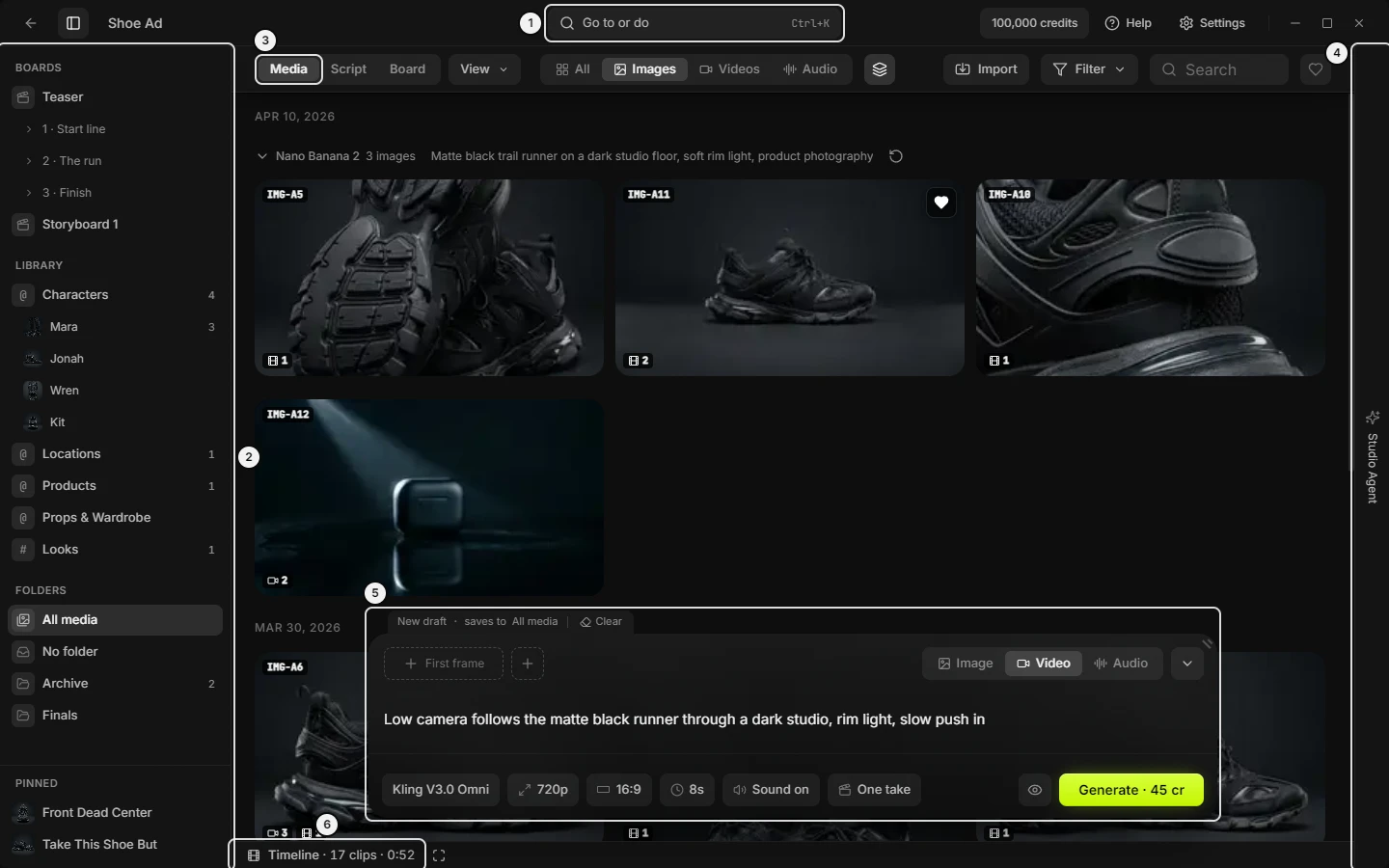\n\nPicture `window-overview`. The numbers on it:\n1. **Go to or do** (`shell.titlebar.search`)\n2. **Project navigator** (`dock.root`)\n3. **Media** (`shell.tabs.media`)\n4. **Studio Agent** (`agent.edge.tab`)\n5. the prompt box (`prompt.box.root`)\n6. **Timeline** (`cut.rest.open`)\n<!-- END:GENERATED picture-window-overview -->\r\n\r\n## WORKFLOWS — start to finish: a script to a finished video, one picture to an ad, the same character in every shot, cheap previews first, letting an AI do it\r\n\r\nSlates is a set of tools, not a pipeline: every one is optional and they work in any order. These are the common paths through them. Each step names the button; the section it points to holds the full clicks.\r\n\r\n### Workflow: from a script to a finished video (write, cut into shots, generate, edit, export)\r\n\r\n1. Script tab → **Start writing** on a blank project, or **Paste a script**. Write; **Saved** confirms each change.\r\n2. **Break into {n} shots**: one Shot per paragraph. Nothing generates.\r\n3. Board tab: click a card to edit that Shot in the prompt box (model, `@` characters, `#` looks, settings). Tick several cards and use **Set model** to set them together.\r\n4. Click the titlebar readout (**{n} of {m} have their video**) to open the Generate panel. Read each row's price, fix the blocked rows, press **Generate {n} · {cost}**.\r\n5. **Filter** → **Linked clips under each shot**; press the star on the take each Shot should use.\r\n6. **Add to timeline** at the right end of the Board's row, then open the timeline (`;`) to trim, split and add sound.\r\n7. **Export** → **Export MP4**, or **Export for DaVinci, Premiere or Final Cut** to finish in an editor.\r\n\r\nDetails: \"Script: how to write the script and cut it into Shots\", \"Board tab: how to price and generate what is missing\", \"Timeline: how to make a rough cut and export it\".\r\n\r\n### Workflow: from one picture to a short ad (product shot, animate, voiceover, music, export)\r\n\r\n1. Media → **Import** the product photo, or make one on the prompt box's **Image** lane.\r\n2. Right-click it → **Animate**: it becomes the first frame on the **Video** lane.\r\n3. Describe the motion, pick a model, set **Duration** and **Audio**, read the price on **Generate**, press it.\r\n4. For more angles of the same product, save the photo to the Library (**More › Save to Library…**) and write its `@name` in each prompt.\r\n5. A voiceover: **Audio** lane → the Voice model → **Pick a voice** → type the words → **Generate**.\r\n6. Right-click the clips and the audio → **Add to timeline**; arrange them, then **Export** → **Export MP4**.\r\n\r\n### Workflow: keep a character or product the same in every shot (Library, @name, identity sheet, voice)\r\n\r\n1. Save one clean picture of them to the Library: **More › Save to Library…** on the picture, or **New {Noun}** on a category page. For a character, an **Identity sheet** helps.\r\n2. Write `@name` in every prompt that shows them. Their picture attaches as a numbered reference; See what gets sent shows the words the model receives.\r\n3. For one look across the film, make a Looks item and write `#name` in each prompt.\r\n4. Give a character a voice (their card → **Add voice**). On video models that take one, the voice attaches with the `@name`.\r\n5. Check the reference rail before pressing **Generate**: a tile marked **Not sent** is past the model's limit.\r\n\r\nDetails: THE LIBRARY; \"Prompt box: @ and # mentions, image 1 citations\".\r\n\r\n### Workflow: try ideas cheaply, then make the finals (previews, grids, compare, reuse)\r\n\r\n1. Board: the Generate panel's **Previews** tab makes one picture per Shot on a cheaper **Preview model**.\r\n2. Image lane: **Grid** → **2×2 grid** or **3×3 grid** gives several variations in one picture; open it and **Extract** the cell you like.\r\n3. **Compare** two to four results side by side and heart the keeper.\r\n4. **Reuse prompt** on the keeper to change and re-run it; **Save as shot** keeps its recipe on the board.\r\n5. Board menu → **Use pictures as first frames**, then generate the videos on the models WHICH MODEL TO USE recommends.\r\n\r\n### Workflow: let an AI do it (the Studio Agent, or your own Claude, Codex or Cursor)\r\n\r\n- In the app: open the Studio Agent (`]`) and ask for the result. It plans, shows a \"Plan & cost\" card, and spends nothing until you press **Approve & run**. See STUDIO AGENT.\r\n- From your own AI: connect it once in Settings → **AI tools** (USING SLATES FROM YOUR OWN AI). It works in your open window, quotes prices, and asks before spending.\r\n- Either can fill in the prompt box for you to check and press **Generate** (`slates_set_composer`), point at a control in the window (`slates_highlight_control`), or show a picture of a screen (`slates_get_manual_picture`).\r\n\r\n## HOME AND PROJECTS — the project list, new, open, rename, delete, templates, moving media between projects\r\n\r\nHome is the first screen after sign-in: a grid of project cards, most recently changed first, with **New project** to make one. From a project, press **All projects** (the back arrow) or click the project's name in the titlebar; `Ctrl+K` → **All projects** does the same (`Cmd` replaces `Ctrl` on a Mac throughout). This section also covers sign-in, a blank project's starts, templates, **Move to project…**, **Copy to project…** and project files on disk. Home has no search, sort or folders; `Ctrl+K` is its only search.\r\n\r\n### Home: where things are (screen map, project list, dialogs)\r\n<!-- BEGIN:GENERATED picture-home-project-list -->\n\n\nPicture `home-project-list`. The numbers on it:\n1. **Go to or do** (`shell.titlebar.search`)\n2. **Help** (`shell.titlebar.help`)\n3. **Settings** (`shell.titlebar.settings`)\n4. **New project** (`home.new-project`)\n5. **New project** (`home.grid.new-project-tile`)\n6. **Open {project.name}** (`home.grid.card`)\n7. **…** (`home.card.more`)\n<!-- END:GENERATED picture-home-project-list -->\r\n\r\n1. Sign-in screen: fills the window while signed out. See \"Sign in\" below.\r\n2. Titlebar: on Home, **Go to or do** in the middle (`Ctrl+K`), then the credit balance, **Help** and **Settings** at the right. No back arrow and no project name.\r\n3. Header row: heading **Projects ({n})** at the left; at the right any notice, then **New project**.\r\n4. Project grid: the dashed **New project** tile first, then one card per project, two to five across by window width.\r\n5. Project card: a picture with a **…** button at its top-right, the name, and a grey line of counts and a date.\r\n6. Empty Home: **No projects yet** with one **New project** button. **Loading projects...** shows only while the first read runs.\r\n7. Away from Home, covered below: a blank project's starts (empty Board and Script tabs), the **Start from a template** dialog, the **Move to project** dialog, and the **Folders** section of the left dock.\r\n\r\n### Sign in: the email screen (login, magic link, no password, Sign In)\r\n\r\nThe full-window card shows while you are signed out or your session has lapsed; both look the same, with no extra message. While Slates checks for a saved sign-in at launch the window is blank and dark, with no spinner; with a valid saved sign-in it opens straight to Home.\r\n\r\nThe card says **Sign in to get started.**, **New to Slates?** with a **Quick Start Guide** link, then the field, then the note **Your purchase email is your account. We email you a login link — no password exists.**\r\n\r\n| Control | What it does | Key | Agent op |\r\n|---|---|---|---|\r\n| **Email** field (placeholder **you@email.com**) | Type the email the account was bought with. Focused on open; the browser's email check applies. | `Enter` submits | only you |\r\n| **Sign In** | Asks the server to email a login link, then shows **Check your inbox**. Greyed while sending or with an empty field. | `Enter` in the field | only you |\r\n| **Quick Start Guide** | Opens the website's quick start guide. | — | only you |\r\n| Two icon buttons, top right (a minus and an X, no tooltip) | Minimize and close the window. | — | only you |\r\n\r\n### Sign in: \"Check your inbox\" — the email did not arrive (resend, magic link, expired link)\r\n\r\nAfter **Sign In** the card reads **Check your inbox** and **Click the link in the email to sign in.**, with a spinner and **Waiting for confirmation...**. Slates checks every 2 seconds; as soon as you click the link in the email, the app signs in by itself and shows Home.\r\n\r\n- After 30 seconds the card adds **Didn't get the email? Check your spam folder or try again.**\r\n- There is no resend button. To send another link, press **Use a different email** (it clears the address and returns to the form), then **Sign In** again, with the same address or another.\r\n- A link that lapsed returns the form with **Magic link expired. Please try again.** in red under the field.\r\n- A request that failed shows the server's own message in red, or **Failed to send magic link** when there is none.\r\n- A lapsed session shows the same email screen. Settings is not reachable from it; sign in again.\r\n- Whether an unknown email gets an account is decided by the server. The card only says the purchase email is the account.\r\n\r\nAn agent cannot sign in; it can tell the user where to click (Agent op: only you).\r\n\r\n### Home: project cards (open a project, the … button, right-click menu)\r\n\r\n| Control | Where | What it does | Key | Agent op |\r\n|---|---|---|---|---|\r\n| Card (**Open {name}**) | the grid | Opens the project. Does nothing while a name is being edited. | `Enter` or `Space` on a focused card | slates_set_view (projectId) |\r\n| **…** (tooltip **{name}: open, rename or delete**) | top-right of the card's picture | Opens the card menu. Visible only while the pointer is on the card, it has keyboard focus, or its menu is open. | — | — |\r\n| Right-click a card | anywhere on it | The same menu at the pointer. Inside the rename field the text's own Cut, Copy and Paste menu stays. | — | — |\r\n| **Open project** | card menu, first row | Opens it. Offered on Home only. | — | slates_set_view (projectId) |\r\n| **Rename project** | card menu, second row | Turns the name into an editable field. | `F2` on a focused card | slates_update_project |\r\n| **Delete project** (subtitle **Asks first; it cannot be undone**) | card menu, last row, red | Opens the delete question. Offered on Home only. | — | slates_delete_project |\r\n\r\n### Home: what a card shows (picture, counts, date, order, sort, search, folders)\r\n\r\n- Order: always most recently changed first; there is no sort control. A project moves to the top when an asset is added to it, it is renamed, or a template is imported into it. A new project goes first.\r\n- Home has no search field and no folders. `Ctrl+K` finds a project by name (see \"Home: Ctrl+K\"). Folders exist only inside one project (see \"Left dock: Folders\").\r\n- Picture: the project's earliest image; it does not change when newer images arrive. With no image, the first video clip's frame; with neither, a folder icon.\r\n- Name: the first line, cut off with … when long.\r\n- Grey line (hover shows it in full): the non-zero counts joined by · (**{n} images**, **{n} videos**, **{n} audio**, **{n} shots**), or **Empty** when all are zero, then the last-change date: **Sep 14**, with the year outside this year (**Sep 14, 2025**), or **Just now** when it cannot be read. Shots counts Board shots, not exploration grids.\r\n- **Projects ({n})** counts the cards.\r\n\r\nAn agent reads the same names, counts and dates with `slates_list_projects`.\r\n\r\n### Home: New project (make a project, Untitled Project, name it)\r\n\r\nFive doors do the same thing: **New project** in the header row, the dashed **New project** tile (first in the grid), the **New project** button on an empty Home, `Ctrl+K` → **New project**, and on a Mac File → **New project** (subtitle **Opens it with its name ready to type**).\r\n\r\n1. A project named **Untitled Project** is made, with its folder on disk. A taken name is numbered: Untitled Project 2, then 3.\r\n2. It opens at once.\r\n3. Its name sits selected in the titlebar: type a name, `Enter` keeps it, `Escape` takes it back. Either key puts the caret in the prompt box. The field stops at 80 characters. While the tutorial runs, the name is not selected.\r\n4. A failure reads **Could not create the project.** beside the button.\r\n\r\nAgent: `slates_create_project` makes the project and returns it; `slates_set_view (projectId)` opens it.\r\n\r\n### Home: rename a project (change a project's name)\r\n\r\n1. On Home, use any of: hover the card → **…** → **Rename project**; right-click the card → **Rename project**; focus the card and press `F2`; `Ctrl+K`, type \"rename\" → **Rename project · {name}**.\r\n2. The name becomes a field (**Project name**) with its text selected. There is no length limit on Home.\r\n3. `Enter` or clicking away saves. `Escape` cancels. An empty or blank name cancels without saving.\r\n4. The list reloads, so the renamed project jumps to the top.\r\n\r\nInside a project: double-click its name in the titlebar (a single click goes to Home), or `Ctrl+K` → **Rename project**. Same keys; the field stops at 80 characters.\r\n\r\nFailures: **Could not rename \"{name}\".** beside **New project** on Home, with a dismiss button; **Could not rename the project.** when the name cannot be found or the titlebar field fails.\r\n\r\nAgent: `slates_update_project` (name, description).\r\n\r\n### Home: delete a project (remove, trash, cannot be undone)\r\n\r\n1. On Home, hover the card → **…** → **Delete project**; or right-click the card; or `Ctrl+K`, type \"delete\" → **Delete project · {name}**. A project you are inside cannot be deleted from its own menu.\r\n2. The question opens: title **Delete \"{name}\"?**, text \"Its {n} files and {n} boards go with it, removed from disk.\" then **This cannot be undone.** A part is left out when it is zero, and an empty project reads only **This cannot be undone.**\r\n3. Buttons: **Cancel** (focused, so `Enter` keeps the project) and **Delete project** (red). `Escape` or a click outside is Cancel.\r\n4. Confirming deletes the project's record, its whole folder on disk, its boards and its thumbnails. There is no undo.\r\n5. A failure reads **Could not delete \"{name}\".** beside **New project**.\r\n\r\nAgent: `slates_delete_project` refuses until called with `confirm=true` after the user says yes. The question itself is the user's.\r\n\r\n### Home: Ctrl+K on Home (search projects, open a project by name, Go to, Do)\r\n\r\n`Ctrl+K` or **Go to or do** in the titlebar opens the palette. Its box reads **A project or a command**.\r\n\r\n- Empty box, group **Do**: **New project** (**Opens it with its name ready to type**), **Quick start guide** (**The whole workflow, start to finish**; opens the website guide), **Copy the manual for your AI** (**Paste it into ChatGPT or Claude and ask anything**), **Settings**.\r\n- Group **Go to**: the newest three projects, tagged **Project**, then **{n} more projects**, which opens the rest in place. `Enter` opens the chosen project.\r\n- Type to search every project name and every command together.\r\n- Type \"rename\" or \"delete\", or a project's name, for one row per project: **Rename project · {name}**, **Delete project · {name}**. They are not in the opening groups.\r\n- No match: **Nothing matches \"{query}\".**\r\n\r\nAgent: `slates_list_projects` finds; `slates_set_view (projectId)` opens. The manual an agent reads is `slates_get_prompting_guide` (topic `app-manual`).\r\n\r\n### Home: messages you may see\r\n\r\n| Message | Where | Meaning |\r\n|---|---|---|\r\n| **Loading projects...** | centre of Home | First read; later refreshes keep the grid drawn. |\r\n| **No projects yet** | empty Home | The list is empty; press **New project**. |\r\n| **Could not create the project.** | beside **New project** | Creating failed; try again. |\r\n| **Could not rename \"{name}\".** / **Could not rename the project.** | beside **New project** | The rename was not saved. |\r\n| **Could not delete \"{name}\".** | beside **New project** | The project is still there. |\r\n| **Empty** | a card's grey line, before the date | The project holds no images, clips, audio or shots. |\r\n\r\nEach notice has a dismiss button. The list reloads when Home opens and when an agent creates, renames or deletes a project.\r\n\r\n### Blank project: the starts (Add a shot, Start writing, Paste a script, empty Board, empty Script)\r\n\r\nA project with no board shows a row of start buttons on its empty Board tab (**No shots yet**) and its empty Script tab (**Nothing written yet**). None is required; the prompt box works without them. They vanish when a board exists, and nothing shows while the board list loads. The tab you are on leads the row. Each is greyed while one of them is working.\r\n\r\n| Control | What it does | Agent op |\r\n|---|---|---|\r\n| **Add a shot** | Makes one text-to-video Shot on the default text-to-video model at its default length, filed into a new board (**Board 1**) with its first scene. Nothing is generated. Stays on your tab. | slates_create_shot |\r\n| **Start writing** | Makes **Board 1**, switches to the Script tab and puts the caret in the first paragraph of Scene 1 (it holds focus for up to about 3 seconds while the page mounts). No Shot is made. | slates_create_storyboard, then slates_set_view (lens) |\r\n| **Paste a script** | Reads the clipboard, makes a new board and puts the text in as script text; lines reading `SCENE …`, `INT.`, `EXT.` or `# Name` open scenes. No Shot is made. Stays on your tab; off the Script tab a toast says **{n} paragraphs on the Script page** with **Open**. | slates_create_storyboard, slates_paste_script |\r\n| **Start from a template** | Opens the template dialog. Shown only once a template file exists on this machine (none ship; export one first). | slates_import_template |\r\n\r\nMessages: **Could not add a shot.** (a line under the tab bar); **Nothing on the clipboard to read as a script.** (a note; nothing is made); **Could not paste the script.**\r\n\r\n### Templates: what a template is (.slatestemplate, portable board, scene or shot)\r\n\r\nA template is a `.slatestemplate` file that carries a board, one scene or one Shot between projects and machines. It holds every shot's prompt, model, settings, reference roles and script words, plus the reference files and the Library items the shots mention. A board template also carries its document formatting, sections and saved versions. It holds no takes (results).\r\n\r\n- Adding a template makes ordinary shots, Library items and Media assets in the open project and generates nothing: price and fire the shots from the Generate panel like any others.\r\n- Exporting saves to a folder you pick; the default is the `templates` folder in Slates' data folder (Windows `%APPDATA%\\slates\\templates`, Mac `~/Library/Application Support/slates/templates`). The template list shows the files in that folder; a template kept anywhere else opens with **Open a file**.\r\n- No starter templates ship with the app.\r\n- A file made by a newer Slates is refused with **This template was made by a newer Slates. Update Slates to open it.**\r\n\r\nDoors: see \"Templates: export\" and \"Templates: the Start from a template dialog\". Agent: `slates_get_template`, `slates_export_template`, `slates_import_template`.\r\n\r\n### Templates: the Start from a template dialog — the list (find a template, Open a file)\r\n\r\nThe dialog needs an open project. Doors: the **Start from a template** start button on a blank project; on a Mac, File → **Start from a template** (greyed on Home); `Ctrl+K` → **Start from a template** (subtitle **Adds its shots to this project; nothing is generated**), which is in the opening **Do** group on a project with no board and on Media, and found by typing elsewhere. It re-reads the template folder every time it opens. The **Close** button, `Escape` or a click outside closes it.\r\n\r\n| Control | What it does | Agent op |\r\n|---|---|---|\r\n| **Find a template** field (**Find templates or ad presets** once any listed file is an ad preset) | Filters by name or preset tags. Shown only when a template exists. | slates_get_template (no path lists them) |\r\n| A template row: name and a tag (**Starter**, **Yours**, \"Ad preset · r{n}\" for a tested preset, \"Ad preset · draft\") | Reads the file and opens its details; the title becomes the template's name. Rows are sorted by file name. | slates_get_template (path) |\r\n| **Open a file** | Opens the system file picker for `.slatestemplate` files and reads the one you choose. Cancel does nothing. | slates_get_template (path) |\r\n\r\nWith no file the list reads **No saved templates yet. Export a board as a template to keep it here.** and only **Open a file** remains.\r\n\r\nErrors, as a line at the bottom with a dismiss button: **Could not open that file.**, **Not a Slates template.**, \"Template not found: {path}\", **This template was made by a newer Slates. Update Slates to open it.**\r\n\r\n### Templates: dialog details — swap slots, Mine, Use selected parts, ad presets\r\n\r\nClicking a row shows the template's details. Nothing here is required; every slot defaults to the template's own media.\r\n\r\n| Control | What it does | Agent op |\r\n|---|---|---|\r\n| **Use selected parts** (fold-out, one tick per scene) | Picks which scenes to add; all are ticked and, left alone, everything is added. Only for templates that list scenes. | slates_import_template (sceneIndices) |\r\n| Ad preset block | An example video (or **Draft preset · playable production example pending.**) and a fold-out **Read the example and guidance** with the script, the evidence and **Craft guide: {guide}**. Ad presets only. | slates_get_template |\r\n| Summary line | Counts of scenes, shots and Library items, then the description. | slates_get_template |\r\n| Slot row | One per Library item and per reference the shots use: a small picture, its label and \"in {n} shots · {uses}\". The list scrolls past half the window's height. | slates_get_template |\r\n| **Template's** | Keeps the template's own picture, clip or audio for that slot (the default); clears a swap. | slates_import_template (swaps) |\r\n| **Mine** | Opens a chooser of this project's own assets of the slot's type to use instead. Greyed when there is none; the tooltip says **Nothing in this project to use yet. You can swap it after adding the template.** | slates_import_template (swaps) |\r\n| Chooser | Image and video slots: a grid (tooltip is the asset's code); click to pick, click the ticked one to undo; it closes after a pick. Audio slots: a dropdown, **Audio in this project**. | — |\r\n| **Back** | Returns to the list; the dialog stays open. | — |\r\n| **Add to project** | Imports it. See \"Templates: Add to project\". | slates_import_template |\r\n\r\n<!-- BEGIN:GENERATED picture-template-details -->\n\n\nPicture `template-details`. The numbers on it:\n1. **{slot label}** (`home.template.slot-row`)\n2. **Add to project** (`home.template.add`)\n<!-- END:GENERATED picture-template-details -->\r\n\r\n### Templates: Add to project — where it lands, the toast, errors (import a template)\r\n\r\n**Add to project** (**Adding...** while it works) imports the template into the open project. It generates nothing and never changes the tab.\r\n\r\n- A board template becomes a new board named for the template.\r\n- A scene template becomes a new scene at the end of the open board, else the project's first board, else a new one.\r\n- A single-Shot template is filed into the open scene, else the open board, else a new board.\r\n- Its media is copied in as new assets. Its Library items are made here; a name already taken gets a number (Candle 2) and the imported prompts are rewritten to match.\r\n- A project with no board and an empty Library has its untouched default Library categories replaced by the template's own.\r\n- Every row is made in one transaction; if it fails, the media it copied is removed again and the dialog says **Could not add the template.**\r\n- On success the dialog closes and a toast reads \"{name}: {n} shots on the Board.\", then \"{from} is {to} here.\" for each renamed item, with **Open**, which selects the new board and shows the Board tab.\r\n\r\nAfter adding, a swap is the normal tools: change the Library item's image, or the reference on the shot.\r\n\r\nAgent: `slates_import_template` (path, sceneIndices, storyboardId, sceneId, swaps). Then `slates_get_board_quote`, and `slates_generate_from_shots` only after the user approves the price.\r\n\r\n### Templates: export as template (save a board, scene or shot, every door)\r\n\r\n| What | Where |\r\n|---|---|\r\n| Whole board | The board's name in the titlebar → its menu → **Export as template**; left dock → Boards → a board row's **…** or right-click → **Export as template**; on a Mac, File → **Export as template**; `Ctrl+K` → **Export as template** followed by the board's name |\r\n| One scene | Board tab → the scene header's **…** menu → **Export as template**; right-click the scene row in the dock |\r\n| One Shot | Board tab → a Shot tile's menu → **Export as a template** (subtitle **One shot, with its references**); the Script page's margin menu for a Shot; `Ctrl+K` with a shot selected |\r\n\r\nThe board and scene rows carry the subtitle **Shots, words and references; never takes**.\r\n\r\nWhat happens: a system save dialog opens in the templates folder, named after the board, scene or Shot (the characters `<>:\"/\\|?*` become spaces) with the `.slatestemplate` ending. Cancelling does nothing. The result is a toast, **Template saved: {name}, {n} shots.**, plus \"{n} missing files left out.\" as an info toast when a reference file was gone. A failure is a line on the board: **Could not save the template.**\r\n\r\nAgent: `slates_export_template` (projectId, path, and exactly one of storyboardId, sceneId, shotId).\r\n\r\n### Templates: how to reuse a board in another project (steps)\r\n\r\n1. In the first project, open the board's menu from its name in the titlebar → **Export as template**.\r\n2. Pick where to save, or accept the templates folder. A toast says **Template saved: {name}, {n} shots.**\r\n3. Open the other project. `Ctrl+K` → **Start from a template** (or the start button on a blank board; on a Mac, File → **Start from a template**).\r\n4. Click the template's row, or **Open a file** for one saved elsewhere.\r\n5. Optional: press **Mine** on a slot and pick your own picture, clip or audio; tick scenes under **Use selected parts**.\r\n6. Press **Add to project**. The toast reads \"{name}: {n} shots on the Board.\" Press **Open** to see it.\r\n7. Price the shots on the Generate panel and fire them; the import spent nothing.\r\n\r\n### Move or copy media to another project: the doors (Move to project…, Copy to project…, drag to a project)\r\n\r\nPictures, clips and audio can be sent to another project four ways. All open the same dialog; nothing moves until you confirm there.\r\n\r\n1. Right-click a card → **More › Move to project…** or **More › Copy to project…**. Inside a selection the rows count: **Move {n} to project…**, **Copy {n} to project…**. Right-clicking a card outside the selection acts on that card alone.\r\n2. The selection band on any Media tab: **Move to project…** and **Copy to project…** (in a short band they fold under **More**).\r\n3. `Ctrl+K` with media selected: **Move to project…** (subtitle **The files leave this project**) and **Copy to project…**.\r\n4. Drag tiles out of the grid. The overlay shows **File into** (one chip per folder, when the project has folders) and **Send to another project** (**move or copy — you pick on drop**) with one chip per other project, when there is one. Dropping on a project chip opens the dialog with that project chosen and Move as the main verb.\r\n\r\nAgent: `slates_move_assets_to_project` and `slates_copy_assets_to_project` (sourceProjectId, assetIds as ids or badge codes, targetProjectId).\r\n\r\n### Move or copy to project: the destination dialog (Search projects, New project, Create & Move)\r\n\r\nTitle: **Move {n} {noun} to project** or **Copy {n} {noun} to project**. The noun is image, clip, audio clip, or item for a mix. The paragraph says Move takes the files with it (they leave this project's folder on disk and land under No folder in the destination) and Copy duplicates them and changes nothing here, which is the way to share an image the Library or a board is already using.\r\n\r\n| Control | What it does |\r\n|---|---|\r\n| **Search projects...** | Filters destinations by name. The current project is never listed. Focused on open. |\r\n| A project row (\"{n} images · {n} clips\", a tick) | Chooses that destination. Already chosen when you dropped on a chip. |\r\n| **New project** (dashed) | Becomes a **New project name** field; the buttons become **Create & Move** or **Create & Copy**. `Enter` creates and runs. `Escape` goes back to the list first, then closes. |\r\n| **Cancel** | Closes the dialog. |\r\n| Other-verb button (**Copy {n} {noun}** when opened from Move, and the reverse) | Runs the other verb on the chosen destination. |\r\n| Main button (**Move {n} {noun}** or **Copy {n} {noun}**; **Moving...** or **Copying...**) | Runs it. The dialog closes on a clean finish. |\r\n\r\nEmpty-list texts: **Loading projects...**, **No other projects yet.** (only one project exists), **No projects match that search.** Nothing closes the dialog while a move or copy is running.\r\n\r\n<!-- BEGIN:GENERATED picture-move-to-project-dialog -->\n\n\nPicture `move-to-project-dialog`.\n<!-- END:GENERATED picture-move-to-project-dialog -->\r\n\r\n### Move or copy to project: \"couldn't move\" (Bring it too, Copy instead, Copy all)\r\n\r\nA move is refused when another project still builds with the file. The dialog turns into a panel titled **{n} {noun} couldn't move** that says \"Moving these out would leave \"{project}\" holding files another project still builds with. Bring the whole thing across, or copy instead — either way both projects stay complete.\"\r\n\r\n- A Library item row (a character, location, product, prop or look that uses the picture): its name, \"library item · uses {n} {noun}\", plus \" · mentioned in {n} shots here\" when shots mention it. **Bring it too** moves the whole item with all its images into the destination, then retries the move for what was still blocked. Its @mentions left here keep their words but stop attaching it until it comes back.\r\n- **In a board shot**, \"{n} {noun} · moving would empty the shot\": **Copy instead** copies the pictures the shot holds. A board shot is only ever offered a copy.\r\n- Any other failure prints its own error text in a row.\r\n- **Done** (left; focused when the panel appears) closes. **Copy all {n} instead** (right, filled) copies every still-blocked item; rows clear as they succeed, and a toast and closing follow when none remain.\r\n\r\nAgent: `slates_move_entity_to_project` (Bring it too), `slates_copy_assets_to_project` (Copy instead, Copy all), `slates_copy_library_item_to_project` (copy the item itself).\r\n\r\n### Move or copy to project: what happens after, messages, timeline warning\r\n\r\n- Move: the files leave this project's folder and land under **No folder** in the destination, each with a new badge code. The tiles leave the grid; a success is silent. A moved picture is detached from the prompt box.\r\n- Copy: new files, thumbnails and badge codes; the originals stay. A toast reads **Copied {n} {noun} to \"{target}\"**.\r\n- After anything lands, the open project, Home's counts, the Library and the prompt box's pictures refresh.\r\n\r\nOne line above the dialog's buttons (red with an alert icon for errors):\r\n\r\n- **Already in \"{target}\".** (a note: nothing needed doing)\r\n- **The move failed.** / **The copy failed.**\r\n- **Couldn't create \"{name}\".** (the new project was not made)\r\n- **Couldn't move \"{item}\".** (Bring it too failed)\r\n- **{n} {noun} couldn't be copied: {reason}**, or after a partial copy **Copied {n} {noun} to \"{target}\". {n} {noun} couldn't be copied: {reason}**\r\n\r\nA move can repoint another project's timeline clips at the moved files. A 12-second toast says so: \"{n} timeline clips in \"{project}\" now reference files inside \"{target}\". Deleting \"{target}\" would break those edits.\"\r\n\r\n### Move or copy media: how to (steps)\r\n\r\nBy menu:\r\n1. Media tab → select the pictures, clips or audio.\r\n2. Press **Move to project…** or **Copy to project…** in the band.\r\n3. Click the destination, or **New project** and type a name.\r\n4. Press **Move {n} {noun}** or **Copy {n} {noun}**.\r\n5. If **{n} {noun} couldn't move** appears, press **Bring it too** or **Copy instead** per row, or **Copy all {n} instead**, then **Done**.\r\n\r\nBy drag: drag a tile out of the grid, drop it on a chip under **Send to another project**, then press the verb in the dialog.\r\n\r\n### Project folders on disk: where a project's files live (Structure, Change folder…, projects folder)\r\n\r\n- A project is one folder inside the projects folder. The folder is named by the project's id (a long code), not its name; `slates_get_project_directory` returns the exact path.\r\n- The default projects folder is `projects` inside Slates' data folder (Windows `%APPDATA%\\slates\\projects`, Mac `~/Library/Application Support/slates/projects`).\r\n- A new project folder holds `images/`, `videos/`, `audio/`, `references/` and `exports/`. Generated and imported files go to `images/`, `videos/` and `audio/` by type. `references/` and `exports/` start empty; MP4 and XML exports ask where to save.\r\n- Settings → **Storage** → **Projects folder** shows the path. **Change folder…** picks where new projects are saved; existing ones stay where they are. **Use the default folder** resets it (shown only when you chose one).\r\n- Projects in another folder are listed as **{n} projects in another folder**, each with **Move into {folder}**, or **Move all {n} into {folder}**, and **Undo**.\r\n- Deleting a project deletes its folder. Moving media between projects moves the files on disk; copying makes new files.\r\n\r\nAgent: `slates_get_project_directory`, `slates_relocate_project` and `slates_undo_relocate_project` (the Storage move). Only you can choose the projects folder.\r\n\r\n### Home and projects: what an agent can do here\r\n\r\n- Projects: `slates_list_projects`, `slates_get_project`, `slates_create_project`, `slates_update_project`, `slates_delete_project` (needs `confirm=true`), `slates_get_project_directory`. Open a project or go Home with `slates_set_view (projectId)`, null for Home; `slates_get_view` reports the open project.\r\n- Blank-project starts: `slates_create_shot`, `slates_create_storyboard`, `slates_paste_script`.\r\n- Templates: `slates_get_template`, `slates_export_template`, `slates_import_template`.\r\n- Moving media: `slates_move_assets_to_project`, `slates_copy_assets_to_project`, `slates_move_entity_to_project`, `slates_copy_library_item_to_project`.\r\n- Storage: `slates_relocate_project`, `slates_undo_relocate_project`.\r\n\r\nOnly the user can: sign in (the email field and **Sign In**, then the link in the email); use the window's minimize and close buttons; answer the delete questions (**Delete project**, **Delete folder**); pick a file in **Open a file** or a save location in the export dialog; choose the projects folder with **Change folder…**. An agent can point at any of them with `slates_highlight_control`.\r\n\r\n### Home: controls you can point at (highlight, show me where)\r\n\r\n<!-- BEGIN:GENERATED targets-home -->\n| `slates_highlight_control` target | On screen |\n|---|---|\n| `home.card.more` | **…** |\n| `home.grid.card` | **Open {project.name}** |\n| `home.grid.new-project-tile` | **New project** |\n| `home.login.email` | **Email** |\n| `home.login.sign-in` | **Sign In** |\n| `home.login.use-different-email` | **Use a different email** |\n| `home.new-project` | **New project** |\n| `home.starts.add-a-shot` | **Add a shot** |\n| `home.template.add` | **Add to project** |\n| `home.template.slot-row` | **{slot label}** |\n<!-- END:GENERATED targets-home -->\r\n\r\n## THE WINDOW FRAME — titlebar, Go to or do (Ctrl+K), Help, the Media · Script · Board tabs, View, Filter, toasts, dialogs, the tutorial\r\n\r\nThe frame is everything in the Slates window that is not one tab's own content: the titlebar, the **Media** · **Script** · **Board** tabs with **View** and **Filter**, and the menus, toasts, dialogs and tutorial over the work. Inside a project the titlebar holds the back arrow, the **Project navigator** toggle, the project and board names, **Go to or do** and the tools; on Home only **Go to or do** and the tools show. Doors: `Ctrl+K` (**Go to or do**), `F1` (**Help**), `[` (**Project navigator**), `;` (timeline), `]` (Studio Agent), `'` (prompt box); `Ctrl` is `Cmd` on a Mac.\r\n\r\n### Window frame: where things are (titlebar, tabs row, edge tab, rest line, layers)\r\n<!-- BEGIN:GENERATED picture-frame-board-overview -->\n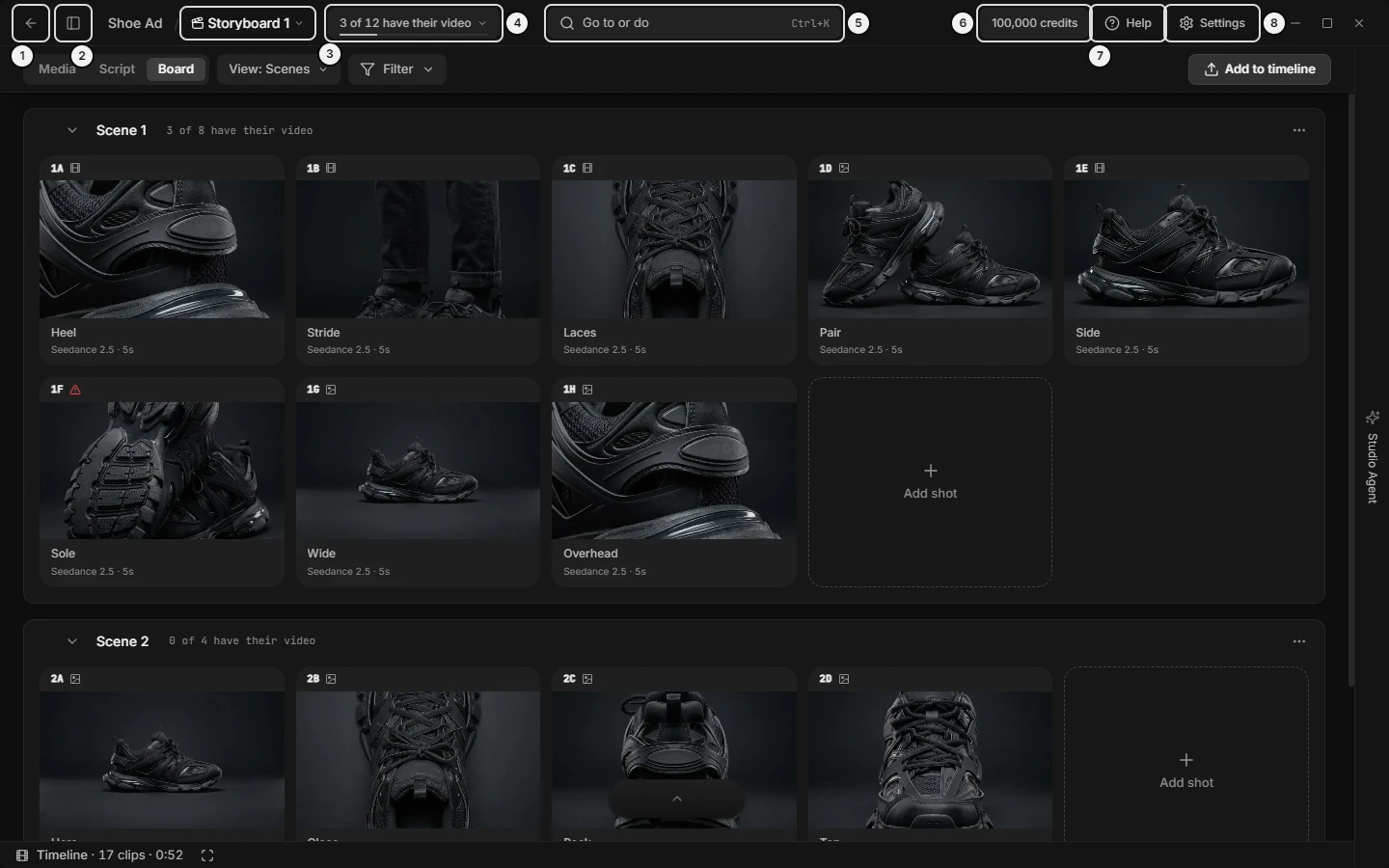\n\nPicture `frame-board-overview`. The numbers on it:\n1. **All projects** (`shell.titlebar.all-projects`)\n2. **Project navigator** (`shell.titlebar.navigator-toggle`)\n3. **{board name}** (`shell.titlebar.board-crumb`)\n4. **{done} of {total} have their {video or picture}** (`shell.titlebar.board-status`)\n5. **Go to or do** (`shell.titlebar.search`)\n6. **{N} credits** (`shell.titlebar.credit-balance`)\n7. **Help** (`shell.titlebar.help`)\n8. **Settings** (`shell.titlebar.settings`)\n<!-- END:GENERATED picture-frame-board-overview -->\r\n\r\n1. Titlebar, left: the back arrow **All projects**, the **Project navigator** toggle, the crumb (**{project name}** / **{board name}**) and, on the Board tab, the progress readout.\r\n2. Titlebar, centre: the search button **Go to or do** with `Ctrl+K` on it.\r\n3. Titlebar, right: the offer pill, the credit balance, **Enable auto-topup** (low balance only), **Help**, **Settings**, then **Minimize**, **Maximize** or **Restore**, and **Close**.\r\n4. Left of the project: the navigator (Boards, Library, Folders, Pinned). Its own section describes it; this section names only its door.\r\n5. Tabs row, the first row of the centre: **Media**, **Script**, **Board**, then **View** and **Filter** (Board) or **Words** and **Words + shots** (Script).\r\n6. The Media selection band: covers Media's toolbar while cards are selected.\r\n7. The tab's content, with the one-line **Timeline** rest line under it and the prompt box floating over its lower edge.\r\n8. Right edge: the **Studio Agent** edge tab.\r\n9. Over everything: Settings, **Go to or do**, the delete question, menus, toasts and the tutorial cards.\r\n\r\n### Window frame: titlebar left — back arrow, All projects, Project navigator toggle, project name, rename the project\r\n\r\n| Control | Where | What it does | Key | Agent op |\r\n|---|---|---|---|---|\r\n| **All projects** (left arrow) | Titlebar, far left | Goes back to Home, the project list. Inside a project only. | — | `slates_set_view (projectId)` |\r\n| **Project navigator** (panel icon) | Titlebar, beside the arrow | Opens or closes the left navigator; pressed means open; remembered across launches. Inside a project only. | `[` | `slates_set_view (leftDock.open)` |\r\n| **{project name}** | Titlebar, crumb, first word | Click goes to Home (it waits a moment for a second click); double-click renames in place. | — | `slates_set_view (projectId)` to leave, `slates_update_project` to rename |\r\n| **Project name** field | Replaces the name | `Enter` keeps the name, `Escape` throws it away, leaving the field keeps it; either key then puts the caret in the prompt box. A new project opens with this field up and the name selected. Blank or unchanged does nothing. | `Enter`, `Escape` | `slates_update_project` |\r\n\r\n### Window frame: board name and board menu — rename board, delete board, paste script, break script into shots, export as template\r\n\r\n| Control | Where | What it does | Key | Agent op |\r\n|---|---|---|---|---|\r\n| **{board name}** | Titlebar, after the slash | Click opens the board menu; right-click opens it at the pointer; double-click renames in place. On Script only the clapperboard and chevron show (the page names the board). Not drawn on Media. | — | `slates_update_storyboard` (rename) |\r\n| **Board name** field | Replaces the name | `Enter` keeps, `Escape` throws away, leaving keeps. | `Enter`, `Escape` | `slates_update_storyboard` |\r\n| **Rename** | Board menu | Turns the name into a field. | — | `slates_update_storyboard` |\r\n| **Paste script** | Board menu | Puts the clipboard in the active scene's script as text, never as shots. Off the Script tab a toast offers **Open**. | — | `slates_paste_script` |\r\n| **Break the script into shots** | Board menu | Makes one shot for every paragraph no shot holds, across the board. | — | `slates_break_script_into_shots` |\r\n| **Script follows a drag** | Board menu | Toggle: a dragged shot takes its words with it. The menu stays open. | — | `slates_set_view (board.scriptFollowsDrag)` |\r\n| **Generate…** | Board menu; Board tab only | Opens the Generate panel for the whole board, price first; nothing is spent until **Generate** there. | — | `slates_get_board_quote`, `slates_generate_from_shots` |\r\n| **Use pictures as first frames** | Board menu | Each shot with a picture and no first frame takes that picture as its first frame. Greyed when none qualifies. | — | `slates_use_pictures_as_first_frames` |\r\n| **Export as template** | Board menu | Saves the board as a `.slatestemplate` file. | — | `slates_export_template` |\r\n| **Delete board** | Board menu, last, red | Opens the delete question. The board's scenes and shots go; its pictures and clips stay in Media. | — | `slates_delete_storyboard` |\r\n\r\n### Window frame: board progress readout — shots done, cost to finish, open the Generate panel\r\n\r\nOn the Board tab, once the board holds a shot, the titlebar shows a readout beside the board name: a thin bar and words such as \"3 of 9 have their video\" (the last word is \"video\", \"picture\" or \"video or picture\"). When every missing shot can be priced it adds the cost to finish after a dot, such as \"· {cost} to finish\". In a narrow window it shortens to {done}/{total}. Hover shows what has been spent across all takes.\r\n\r\n- Click it: opens the Generate panel for what is left. Nothing is spent until **Generate** is pressed inside it.\r\n- Not drawn on Media or Script, nor for a board with no shots.\r\n- Agent: `slates_get_board_progress` and `slates_get_board_quote` read it; `slates_generate_from_shots` runs it after the user approves the price.\r\n\r\n### Window frame: Go to or do — the search palette, Ctrl+K, command palette, find anything, run a command\r\n\r\n| Control | Where | What it does | Key | Agent op |\r\n|---|---|---|---|---|\r\n| **Go to or do** | Titlebar, centre | Opens the palette, a dialog high in the window. `Ctrl+K` (`Cmd+K` on a Mac) again closes it. Works on Home, in a project and from inside a text field. | `Ctrl+K` | — |\r\n| Search box | Top of the palette | Placeholder \"A project or a command\" on Home; \"A shot, scene, board, Library item, folder or command\" in a project. | — | — |\r\n| **Acting on {target}** | Under the box | Names what commands will act on: the selected card's code or count, or the bound shot and its scene. | — | `slates_get_selection` |\r\n| **Do** | Rest list | Up to six commands that fit where you are, the selected card's own first. Typing \"help\" finds **Help**. | — | — |\r\n| **Go to** | Rest list | Places: projects on Home; scenes, shots, boards, Library items and folders in a project. Three of each, then a \"{n} more\" row that opens the rest. | — | — |\r\n\r\nTyping gives one list, found by a command's name or a place's name, code or words. A command that cannot run here is dimmed with the reason under it, and `Enter` does nothing on it. `↑` and `↓` move, `Enter` runs, `Escape` closes; the foot reads \"choose\", \"Enter run\", \"Esc close\". With no match: **Nothing matches “{query}”.** A command with a built-in question, such as deleting a shot, asks the delete question first. The command list is in the commands and keys section.\r\n\r\nAn agent does not need the palette: every command is an op. `slates_get_view (layers)` says whether the palette is open.\r\n\r\n### Window frame: titlebar right — credits balance, buy credits, auto-topup, Settings, minimize, maximize, close\r\n\r\n| Control | Where | What it does | Key | Agent op |\r\n|---|---|---|---|---|\r\n| Offer pill (gem or coin icon) | Before the balance | Opens the offer. Shown only while the server has one. Hover shows the headline, body and end date; in a narrow window only the icon stays. | — | only you |\r\n| **{N} credits** | Titlebar, right | Opens the credits page on slates.video in your browser. It turns red when low; the tooltip then starts **Low credits.** or **Out of credits.** An admin account sees dollars. | — | `slates_get_credit_balance`, `slates_get_me` |\r\n| **Enable auto-topup** | After the balance | Opens the billing page in your browser, to turn on auto-refill. Shows only while the balance is low, no offer is showing and the window is wide enough. | — | only you |\r\n| **Settings** | Titlebar | Opens the Settings window (see the Settings section). The word drops in a narrow window. | — | `slates_set_view (settings.open, settings.pane)` |\r\n| **Minimize**, **Maximize** or **Restore**, **Close** | Far right | The window has no system title bar; these are its buttons. **Restore** replaces **Maximize** while the window is maximized. Drag any empty stretch of the bar to move the window. | — | only you |\r\n\r\nThe **Help** button sits between the balance and **Settings**; its menu is next.\r\n\r\n### Window frame: offer window — promo popup, Not now, Ends in\r\n\r\nThe offer pill opens the offer. An offer the server places as a window opens over the app at most once per offer, only as the app or a project opens, never during the tutorial or the first session. It shows the headline, a body, **Ends in {countdown}** (counting each second), **Not now** (also its × and `Escape`) and the offer's own button. **Not now** leaves the pill in the titlebar. Agent: only you.\r\n\r\n### Window frame: Help menu — copy the manual for your AI, guides, replay the tutorial, report a failed generation, Discord, F1\r\n\r\nTitlebar → **Help** (or `F1`) opens a menu under it; pressed again it closes. The word drops in a narrow window.\r\n\r\n<!-- BEGIN:GENERATED picture-frame-help-menu -->\n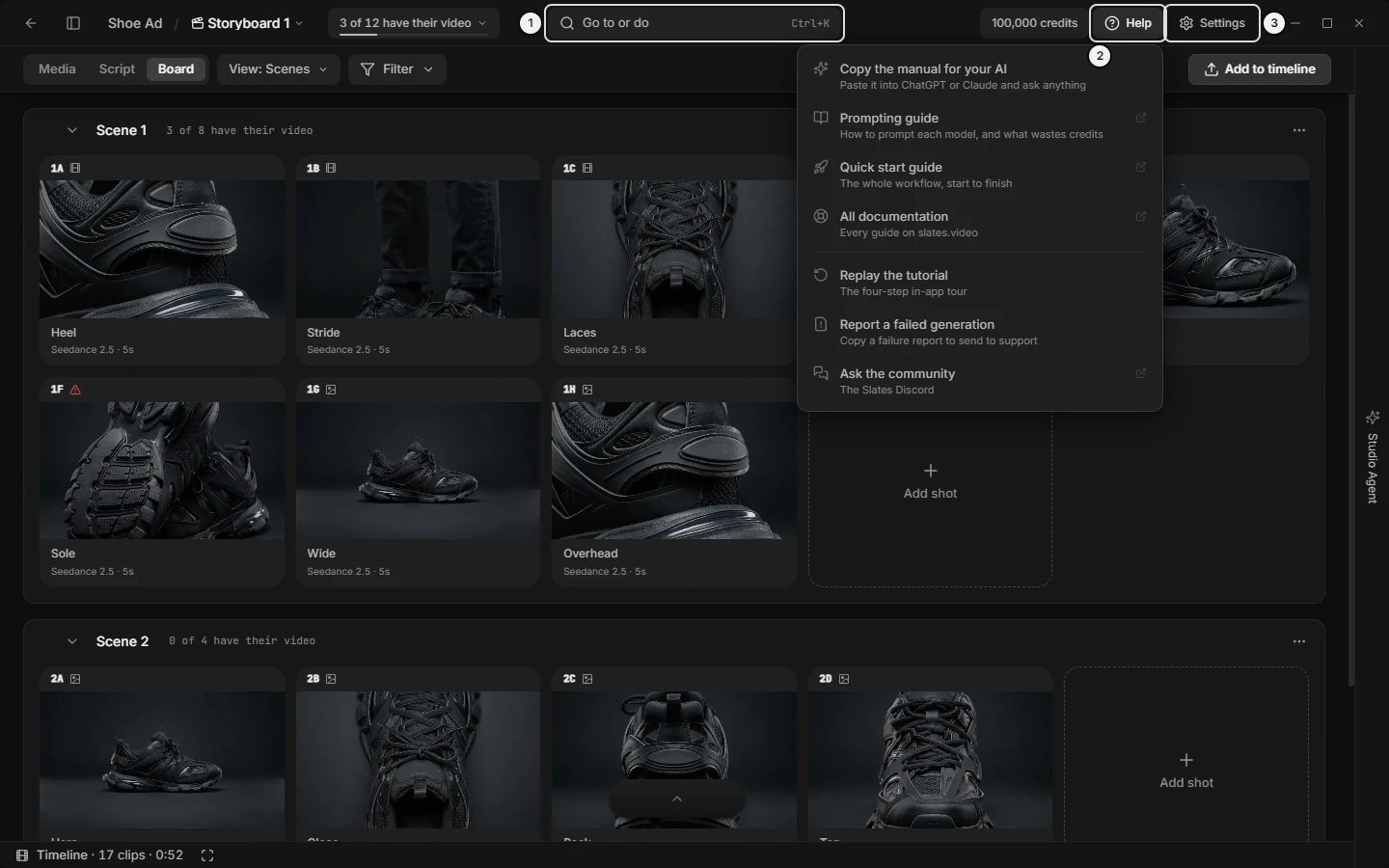\n\nPicture `frame-help-menu`. The numbers on it:\n1. **Go to or do** (`shell.titlebar.search`)\n2. **Help** (`shell.titlebar.help`)\n3. **Settings** (`shell.titlebar.settings`)\n<!-- END:GENERATED picture-frame-help-menu -->\r\n\r\n| Row | What it does | Agent op |\r\n|---|---|---|\r\n| **Copy the manual for your AI** | Copies the manual to the clipboard. The row reads **Fetching the current version...** then **Manual copied**, with a line \"Copied · ~{N} tokens (est.). Paste it into your AI.\" If it fails, the line reads \"{reason} Click to open in a browser.\" and the next click opens it online. The menu stays open. | `slates_get_prompting_guide` (topic \"app-manual\") |\r\n| **Prompting guide** | Opens slates.video/docs/prompting in your browser. | `slates_get_prompting_guide` |\r\n| **Quick start guide** | Opens slates.video/docs/quick-start. | only you |\r\n| **All documentation** | Opens slates.video/docs. | only you |\r\n| **Replay the tutorial** | Below a divider. Starts the first-run tutorial again. | only you |\r\n| **Report a failed generation** | Opens Settings on Logs, where a failure report can be copied for support. | `slates_list_generations` (status failed) |\r\n| **Ask the community** | Opens the Slates Discord invite. | only you |\r\n\r\nThe same rows are in `Ctrl+K` and, on a Mac, the Help menu. From there a successful copy says nothing; a failed one opens the manual in your browser and shows \"{reason} Opened it in your browser instead.\"\r\n\r\n### Window frame: the tabs row — Media, Script, Board, switch tab, new results badge, Library page, Words + shots\r\n\r\n| Control | Where | What it does | Agent op |\r\n|---|---|---|---|\r\n| **Media** | Tabs row, first | Shows Media. Pressed while a Library page shows, it returns to the grid you left. A badge counts results finished for this project while Media was not showing (tooltip \"{N} new results\", \"99+\" over 99); it clears when Media shows. | `slates_set_view (lens)` |\r\n| **Script** | Second | Shows the open board as a written page. | `slates_set_view (lens)` |\r\n| **Board** | Third | Shows the open board as shot cards. | `slates_set_view (lens)` |\r\n| Library badge | After the tabs, Media only | Reads **Library** / {page name} while a Library page shows in Media's place; no tab is lit then. Not clickable. | `slates_set_view (library.categoryId)` |\r\n| **Words**, **Words + shots** | After the tabs, Script only, with a board open | **Words** shows the page alone and closes the shot panel; **Words + shots** puts each shot's picture in the page margin. | `slates_set_view (script.details)` |\r\n\r\nThe tabs keep their words at every width. A project reopens on the tab and board it was last on. While the timeline is full height only the tabs show on this row; choosing one returns the timeline to its docked size, or to its rest line when the window is too small to split.\r\n\r\n### Window frame: View panel — card size, Film Scenes Shot, zoom, bigger or smaller cards\r\n\r\n**View** sits right after the tabs on Media (grids and Library pages) and on the Board with a board open. It is not drawn on Script (there `Ctrl`+scroll over the page sizes the text), on a Board with no board open, or over a full-height timeline. On the Board the button reads **View: {level}** (Film, Scenes or Shot). It opens a small panel headed **View**; `Escape`, an outside click or a tab switch closes it.\r\n\r\n| Control | Where | What it does | Agent op |\r\n|---|---|---|---|\r\n| **Smallest cards** | Panel, Media | Sets the smallest card size. | `slates_set_view (media.cardSize)` |\r\n| **Card size** | Panel, Media | Slider. Sizes the Media grids and the Library's pages. | `slates_set_view (media.cardSize)` |\r\n| **Largest cards** | Panel, Media | Sets the largest card size. | `slates_set_view (media.cardSize)` |\r\n| **Film**, **Scenes**, **Shot** | Panel, Board; group **Detail level** | Jump to one of three stops on one continuous scale. | `slates_set_view (board.level)` |\r\n| **Board detail** | Panel, Board | Slider: card width, anything between the stops. Its top is capped by the board's width. | `slates_set_view (board.cardWidth)` |\r\n\r\nThe panel's last line reads \"Ctrl + scroll to zoom\" (`Cmd` on a Mac): scroll over the cards does the same. Media, Board and Script keep separate sizes. What each Board stop shows is in the Board section.\r\n\r\n### Window frame: Filter menu on the Board — show only shots with or without a linked clip, linked clips under each shot\r\n\r\n**Filter** is on the tabs row after **View**, on the Board with a board open only. It opens a menu headed **Show**; the button is lifted while a filter hides shots, and a removable chip also prints above the board (see the Board section). The menu stays open after a pick.\r\n\r\n| Row | What it does | Agent op |\r\n|---|---|---|\r\n| **All shots** | Shows every shot. | `slates_set_view (board.filter)` |\r\n| **With a linked clip** | Hides shots that have no clip made from their picture yet. | `slates_set_view (board.filter)` |\r\n| **Without a linked clip** | Hides shots that already have one. | `slates_set_view (board.filter)` |\r\n| **Linked clips under each shot** | Toggle: shows or hides the row of linked clips under each shot card. | `slates_set_view (board.linkedClips)` |\r\n\r\nThe progress readout still counts every shot, hidden or not.\r\n\r\n### Window frame: a narrow window — what folds, where the word went, Help lost its name\r\n\r\nNames outrank readouts: the crumb's names stay whole while the tools shorten. Titlebar, in order: 1 **Help** and **Settings** lose their words; 2 search narrows; 3 the offer pill loses its words and **Enable auto-topup** leaves; 4 the progress readout shortens to {done}/{total}; 5 search keeps only its magnifier and key. Point at a control whose word went for its name.\r\n\r\nBoard tabs row, in order: **Filter** loses its word; **View** and **Filter** drop their chevrons; **View: {level}** drops its level; the chip drops its \"showing\"; **Add to timeline** loses its words; then the row wraps. Media's row folds differently (see the Media section). The **Media**, **Script** and **Board** tabs never shorten.\r\n\r\nThe Media selection band folds its actions into **More actions**, starting from the last one listed.\r\n\r\n### Window frame: doors to the timeline, Studio Agent and prompt box — rest line, edge tab, ; ] '\r\n\r\n| Control | Where | What it does | Key | Agent op |\r\n|---|---|---|---|---|\r\n| **Timeline** | One line under the tab's content, every tab; shows while the timeline is closed | Opens the timeline. Once it holds a clip it reads \"Timeline · {N} clips · {m:ss}\". The empty stretch of the line opens it too. | `;` | `slates_set_view (cut.open)` |\r\n| **Timeline, full height** | Small button right after the words | Opens the timeline over the whole centre. | `Shift+;` | `slates_set_view (cut.full)` |\r\n| **Studio Agent** (sparkle tab) | Right edge; shows while the panel is closed | Opens the Studio Agent panel. Reads **Studio Agent: approve plan** with a \"1\" badge while a plan waits, and shows a pulsing dot while a run works. Hidden when the agent is off in Settings; **Show Studio Agent** in `Ctrl+K` brings it back. | `]` or `Ctrl+.` | `slates_set_view (studioAgent.open)` |\r\n| **Prompt box** | Anywhere in a project | Hides the prompt box down to an arrow, or shows it with the caret in the prompt. Does nothing while the timeline covers the centre (the box is not drawn then). | `'` | `slates_set_view (composer.open)` |\r\n\r\nWhere the timeline sits (**Timeline along the bottom**, **Timeline on the left**, **Timeline on the right**) and its editor are in the timeline section. A placement that does not fit is greyed with **Needs a taller window** or **Needs a wider window**.\r\n\r\n### Window frame: keys the frame listens for — F1, [, ], ;, ', Ctrl+K, Escape\r\n\r\n`Ctrl` is `Cmd` on a Mac.\r\n\r\n| Key | Does | Agent op |\r\n|---|---|---|\r\n| `Ctrl+K` | Opens or closes **Go to or do**. Works everywhere, including Home and inside a text field. | — |\r\n| `F1` | Opens or closes **Help**. Works on Home too. | — |\r\n| `[` | Opens or closes the **Project navigator**. | `slates_set_view (leftDock.open)` |\r\n| `]` or `Ctrl+.` | Opens or closes the Studio Agent panel, when the agent is on. | `slates_set_view (studioAgent.open)` |\r\n| `;`, `Shift+;` | Opens or closes the timeline; `Shift+;` opens it full height. | `slates_set_view (cut)` |\r\n| `'` | Shows or hides the prompt box. | `slates_set_view (composer.open)` |\r\n| `Escape` | Closes the topmost layer only (next section). | — |\r\n\r\nThe bare keys `[`, `]`, `;` and `'` never act while you type in a field, or while a dialog, menu, picture viewer or fullscreen clip is up; `Ctrl+K` does act from a field. Off a project only `Ctrl+K` and `F1` are heard. The full key table is in the commands and keys section.\r\n\r\n### Window frame: Escape — what closes first, one layer per press\r\n\r\nOne press closes one layer and nothing behind it reacts; holding the key does not close several. The layer opened last goes first.\r\n\r\n1. Overlays, opened over the page: a menu, popover or dropdown list; a dialog (**Go to or do**, Settings, the delete question, every other dialog); the picture viewer, Compare, a fullscreen clip, the animatic; the tutorial; a rename or name field.\r\n2. Page layers, under every overlay, only when no overlay is up: the Board's picked or bound shot, the Media selection, the timeline's clip selection, the Script shot panel.\r\n\r\nWhat `Escape` does in each:\r\n- A field with its own open list (the prompt's `@` list) closes that list first.\r\n- In a dialog's text field it is **Cancel**. The delete question answers **Cancel**, so the thing is kept.\r\n- In the picture viewer the first press leaves a text field and keeps its words; the next closes the viewer.\r\n- In a rename field it throws the edit away. The tutorial ends and is marked finished.\r\n- On the page it clears the selection or steps back from the bound shot.\r\n\r\nAgent: only you; `slates_get_view (layers)` says whether a dialog, menu or the palette is open.\r\n\r\n### Window frame: toasts and inline notices — a message appeared and vanished, Dismiss notification, repeat count\r\n\r\nA toast is a message about a result you cannot see where you are working: a background export, a failed generation, an update. It sits at the bottom of the window, beside the open side panels, with an icon (success, error or info), the message, a count like ×{N} when the same message repeats, optional buttons, and **Dismiss notification**.\r\n\r\n- Two toasts show at most; the rest wait their turn.\r\n- Each leaves by itself after four seconds unless it sets its own time: the update notice and a generation failure stay until dismissed; an export failure stays ten seconds and some successes six.\r\n- Pointer or keyboard focus on the stack pauses every clock; it never drops a toast the instant the pointer leaves.\r\n- An identical message merges into the one showing and counts up.\r\n- The action button (for example **Restart**, **Restore prompt**, **Show**, **Open**) runs and dismisses the toast. The second button (**What's new?**, **Open logs**) runs and leaves it.\r\n\r\nAn inline notice is an error or note drawn where it happened, in the dock, Media, a dialog, the prompt box, the timeline, the Board, Home or Help: one plain line with **Dismiss**. It becomes a toast only when nothing is mounted at that place. A refused control is greyed instead, with its reason as a tooltip or a second line.\r\n\r\nAgent: toasts cannot be read by an op. `slates_list_generations` and `slates_get_generation_status` give the same failure. Dismissing: only you.\r\n\r\n### Window frame: messages you may see — toasts (update ready, generation failed, pasted, hidden)\r\n\r\n| Message | Means | What to do |\r\n|---|---|---|\r\n| **Update v{version} ready — restart to install** | A new version has downloaded. | **Restart** installs it; **What's new?** opens the changelog. |\r\n| **Generation failed: {reason}** | A generation failed, in any project. | **Open logs** opens Settings on Logs. **Restore prompt** (only when the failed words could not be put back quietly) puts them back in the prompt box. |\r\n| **1 item from your saved draft or view is gone and was left out.** (or \"{N} items … are gone …\") | A picture your saved draft or Media view used was deleted. | Nothing; it leaves after a few seconds. |\r\n| **Picture pasted into Media** | A pasted picture landed somewhere you cannot see. | **Show** jumps to it. |\r\n| **{code} was hidden — {what changed}.** | A jump to a card had to undo a Media narrowing (a folder, search, filter, round). | Read what changed; put it back if you want. |\r\n| **{N} paragraphs on the Script page** | **Paste script** ran while another tab showed. | **Open** switches to Script. |\r\n| **Template saved: {name}, {N} shots.** | **Export as template** finished. | Nothing. |\r\n\r\nA failed generation with a real-face flag opens a consent dialog instead of a toast. The words of a failed press go back into the prompt box by themselves when it is empty, no shot is bound and it is the same project.\r\n\r\n### Window frame: messages you may see — notices, refusals and empty screens\r\n\r\n| Message | Where | Means |\r\n|---|---|---|\r\n| **Could not rename the project.** | Beside the project name | The rename failed; try again. |\r\n| **Nothing on the clipboard to read as a script.** | Board | **Paste script** found no text. |\r\n| \"Only image, video, or audio files can be imported.\" | Media | A dropped file is not media. |\r\n| **Could not paste the picture.** | Media | The clipboard picture did not import. |\r\n| **No shot has a picture without a first frame** | Board menu row | **Use pictures as first frames** has nothing to do. |\r\n| **Select one more {noun} to compare** / **Compare {n} {nouns} at a time** | **Compare** on the band | Fewer than two, or too many, selected. |\r\n| **Nothing selected has a code yet** | **Copy codes** | The selected items have no code. |\r\n| **Could not copy to the clipboard.** | Beside **Copy codes** | The copy failed. |\r\n| **Needs a taller window** / **Needs a wider window** | Timeline placement rows | That edge does not fit. |\r\n| **Nothing matches “{query}”.** | **Go to or do** | No command or place matches. |\r\n| **Loading project...** | Centre | A project is opening. |\r\n| **Project not found** | Centre | The id opens nothing; use **All projects**. |\r\n\r\n### Window frame: update ready — restart to install, new version, What's new\r\n\r\nWhen an update has downloaded, a toast reads **Update v{version} ready — restart to install** and stays until dismissed. **Restart** quits and installs it; a generation still running is picked up again when the app reopens. **What's new?** opens the changelog on slates.video and leaves the toast up. × (**Dismiss notification**) keeps the current version until the next launch. Agent: only you.\r\n\r\n### Window frame: the delete question — Delete {name}?, Cancel, Also delete its files, Keep, is it undoable\r\n\r\n<!-- BEGIN:GENERATED picture-frame-delete-question -->\n\n\nPicture `frame-delete-question`.\n<!-- END:GENERATED picture-frame-delete-question -->\r\n\r\nEvery delete that cannot be undone asks in a dialog. The title names the thing, such as Delete “{name}”?; one or two lines say what goes with it, what stays and that it cannot be undone; at most one unticked box offers a second thing; **Cancel** (focus starts here) and a red button say what happens. `Enter` or `Escape` keeps the thing; so does a click outside. The dialog has no × in its header. A second question asked while one is up answers the first as no.\r\n\r\n| Asks for | The red button | The box |\r\n|---|---|---|\r\n| A project | **Delete project** | none; its files and boards go, removed from disk |\r\n| A board | **Delete board** | none; its scenes and shots go, pictures and clips stay in Media |\r\n| A scene | **Delete scene** | none; its shots go, pictures and clips stay |\r\n| A folder | **Delete folder** | **Also delete its files from disk**, only when the folder holds files; otherwise its files return to Media under **No folder** |\r\n| Pictures, clips or audio | **Delete {what}** | none; the files are removed from disk |\r\n| A Library item | **Delete {noun}** | **Also delete its picture from Media**, only when it has one |\r\n| A Studio Agent chat | **Delete chat** | none; its messages go, what it made stays |\r\n\r\nA Shot asks in place, where you pressed delete: the control turns into **Delete** and **Keep** (with \"Delete {shot}? Ctrl+Z brings it back.\" where there is room). `Escape` and `←`/`→` work; focus starts on **Keep**. A reversible action asks nothing.\r\n\r\nAgent: each delete is its own op (`slates_delete_project`, `slates_delete_storyboard`, `slates_delete_scene`, `slates_delete_folder`, `slates_delete_asset`, `slates_delete_library_item`). Answering the question: only you.\r\n\r\n### Window frame: dialogs in general — close a dialog, Escape, click outside, menus, dropdowns, switches\r\n\r\nEvery dialog is one shell: a dimmed, blurred window with a card. A dialog with a heading has a **Close** (×) at its top right. It also closes with `Escape`, with a click on the dimmed area outside (not when you drag a text selection out of the card), or with its own **Cancel**. `Tab` stays inside the topmost dialog, and focus returns to where it was on close. In a short window the title and buttons stay on screen and the middle scrolls.\r\n\r\n- Menu rows: a checked row shows a fill, never a tick; a refused row is greyed with its reason as a second line; a red row is destructive and sits last; a row with a chevron opens a submenu on hover, click or `→`. `↑`, `↓`, `Home` and `End` move; `←` leaves a submenu; `Escape` closes.\r\n- Dropdown lists: one shape everywhere; `↑`/`↓` move, `Enter` or `Space` picks, `Escape` or `Tab` closes. Aspect lists split into **Landscape** and **Portrait** columns.\r\n- A sliding switch is an on/off; its label is a noun and its thumb is the state.\r\n- An empty screen is an icon, a heading and the page's own buttons; what a button does is its tooltip.\r\n\r\n### Window frame: asset picker — pin pictures, Search by prompt..., Sort by date\r\n\r\nThe picture picker is one dialog, titled **Pin a reference**, **Add to \"{scene}\"**, **Change linked image**, **Link video to image** or **Select lip-sync source** by what it is for; the motion-transfer source picker is the same dialog.\r\n\r\n| Control | What it does | Agent op |\r\n|---|---|---|\r\n| **Search by prompt...** | Filters by prompt text or model name; takes focus on open. | — |\r\n| **All**, **Images**, **Videos** | Narrows by type; only on the lip-sync source picker. | — |\r\n| **Sort by date** | **Newest first** or **Oldest first**. | — |\r\n| A tile | Click picks it (single pickers: again to unpick; multi pickers toggle; a drag band picks several). A white tick marks a pick. | `slates_pin_references` (for **Pin a reference**) |\r\n| Count | \"{N} selected\" or \"{N} available\". | — |\r\n| **Cancel**, confirm button | The confirm button uses the caller's words (**Pin reference** or **Pin {n} references**), is disabled with nothing picked, and shows a notice under the grid if it fails; the dialog stays open. | — |\r\n\r\n### Window frame: a generation in progress — Generating..., Queued, placeholder card, recovered after restart\r\n\r\nA running generation is a placeholder card in Media where its result will land, not a queue under the prompt box. An image or clip card shows an animated plate reading **Generating...** while it runs or **Queued** before, with a bar of the percent done, and the prompt where the caption will be. An audio card reads \"Generating… · {N}%\" or \"Queued · {N}%\". A Library card shows the same while it generates. A generation picked up after a restart starts at 5%. A file being imported shows as a card with a pulsing upload icon and its file name. The count badge on **Generate** is the only other readout; results finished while another tab showed add to the **Media** badge.\r\n\r\nAgent: `slates_get_generation_status` and `slates_list_generations`.\r\n\r\n### Window frame: crash screen and error screens — Slates hit an error, Reload Slates, Copy details, the app shows an error\r\n\r\nIf the window crashes, a screen reads **Slates hit an error it could not recover from** with \"Nothing you generated is lost — every take is saved as it finishes, and a generation still running is picked up again when the app reopens.\" and the error message below.\r\n\r\n- **Reload Slates** reloads the window.\r\n- **Copy details** copies the error, its stack and the component stack to paste to support.\r\n\r\n**Loading project...** shows while a project opens. **Project not found** shows when the project id opens nothing; the titlebar's **All projects** goes home. Agent: only you.\r\n\r\n### Window frame: first-run tutorial — tour, walkthrough, Create a project, skip, replay\r\n\r\nIt starts by itself once per app session when you are signed in, have not finished it and are on Home; or **Help › Replay the tutorial**. Four cards sit over a dimmed window with the target cut out and live; progress reads \"1 of 4\". A click on the dim does nothing; arrow keys never move it. **Generate** (click and `Ctrl+Enter`) is held still until it ends. **Next**, **Back** and **You're set** move through it; ×, `Escape` and **You're set** end it and mark it finished, so it does not return.\r\n\r\n1. **Create a project**: lights **New project** on Home. \"A project holds your images, videos, characters, and boards. Everything starts here.\" Only **Next** (**Create project** when you have no projects) and ×; no **Back**. **Next** or **New project** opens the latest project (or makes one) on Media with the prompt box unfolded.\r\n2. **Make an image or video**: lights the prompt box and puts the caret there. \"Describe it here, and press Generate when the tour ends. Paste a picture to use it as a reference. What you make lands in Media.\" **Back** returns to Home.\r\n3. **Media, Script, Board**: lights the three tabs. \"Media holds your pictures and clips. Script holds your words. The Board brings them together as shots.\"\r\n4. **Find anything**: lights **Go to or do**. \"Search here, or press Ctrl+K. Try make a video, import or help.\" Clicking the button ends the tour and opens the palette.\r\n\r\nAgent: only you.\r\n\r\n### Window frame: how to … (quick recipes from the frame)\r\n\r\n1. Give an AI the manual: Titlebar → **Help › Copy the manual for your AI** (`F1` opens the menu). Wait for **Manual copied**, then paste into ChatGPT or Claude. If the row says \"Click to open in a browser\", click it again.\r\n2. Buy credits: click the balance (**{N} credits**) in the titlebar; your browser opens the credits page. For auto-refill, **Enable auto-topup** (shown while the balance is low) opens billing.\r\n3. Go back to the project list: the left arrow **All projects**, or click the project name.\r\n4. Rename the project: double-click its name in the titlebar, type, `Enter`. Rename the board: double-click its name, or **{board name} › Rename**.\r\n5. Hide or show the navigator: `[` or **Project navigator**.\r\n6. Replay the tutorial: **Help › Replay the tutorial**.\r\n7. Report a failed generation to support: **Help › Report a failed generation**, then copy the report from Logs.\r\n8. Make cards bigger: **Media** tab → **View** → **Card size**; **Board** tab → **View** → **Film**, **Scenes** or **Shot**.\r\n9. Show only shots with no clip yet: **Board** tab → **Filter** → **Without a linked clip**; **All shots** turns it off.\r\n\r\n### Window frame: what an agent can do here\r\n\r\n- Read the arrangement: `slates_get_view` (tab, project, open board and sizes, timeline, panels, `layers`, a read-only flag for an open dialog, menu or the palette).\r\n- Rearrange it: `slates_set_view` with `lens`, `projectId` (null is Home), `board` (id, sceneId, level, cardWidth, filter, linkedClips, scriptFollowsDrag, collapsedSceneIds), `media` (tab, folderId, unfiledOnly, search, favoritesOnly, linkedOnly, rounds, hidden, cardSize, revealAssetId), `library.categoryId`, `viewer.assetId`, `compare`, `settings` (open, pane), `composer.open`, `cut`, `leftDock`, `studioAgent` and `script`. The reply says what the app settled on.\r\n- Selection: `slates_get_selection`, `slates_set_selection`. Board readout: `slates_get_board_progress`, `slates_get_board_quote`. Credits: `slates_get_credit_balance`, `slates_get_me`.\r\n- The manual: `slates_get_prompting_guide` (topic \"app-manual\"), `slates_get_manual_picture`. Point at a control for the user: `slates_highlight_control`.\r\n- Failures shown as toasts: `slates_list_generations`, `slates_get_generation_status`.\r\n\r\nOnly the user can: click **{N} credits** or **Enable auto-topup** (buying credits and billing), answer or dismiss the offer, use the window buttons (**Minimize**, **Maximize**, **Close**), answer the delete question, press **Restart** for an update, **Replay the tutorial**, and turn the Studio Agent on (Settings).\r\n\r\n### Window frame: controls you can point at (highlight, show me where)\r\n\r\n<!-- BEGIN:GENERATED targets-shell -->\n| `slates_highlight_control` target | On screen |\n|---|---|\n| `shell.drop.file-band` | **File into** |\n| `shell.drop.folder-chip` | **{folder name}** |\n| `shell.drop.send-band` | **Send to another project** |\n| `shell.drop.use-band` | **Use in this project** |\n| `shell.drop.zone-boards` | **Boards** |\n| `shell.drop.zone-library` | **Library** |\n| `shell.drop.zone-prompt` | **Prompt** |\n| `shell.drop.zone-timeline` | **Timeline** |\n| `shell.tabs.board` | **Board** |\n| `shell.tabs.media` | **Media** |\n| `shell.tabs.script` | **Script** |\n| `shell.tabs.view-control` | **View** |\n| `shell.titlebar.all-projects` | **All projects** |\n| `shell.titlebar.auto-topup` | **Enable auto-topup** |\n| `shell.titlebar.board-crumb` | **{board name}** |\n| `shell.titlebar.board-status` | **{done} of {total} have their {video or picture}** |\n| `shell.titlebar.credit-balance` | **{N} credits** |\n| `shell.titlebar.help` | **Help** |\n| `shell.titlebar.navigator-toggle` | **Project navigator** |\n| `shell.titlebar.offer-pill` | the offer pill |\n| `shell.titlebar.project-name` | **{project name}** |\n| `shell.titlebar.search` | **Go to or do** |\n| `shell.titlebar.settings` | **Settings** |\n<!-- END:GENERATED targets-shell -->\r\n\r\n## THE LEFT DOCK (PROJECT NAVIGATOR) — Boards, scenes, Library categories and items, Folders, Pinned references\r\n\r\nThe left dock is the column at the left edge of a project: **Boards** (with the open board's scenes), **Library** (categories, and the items of the one opened last), **Folders** and **Pinned**. Every row takes you somewhere, files something or puts something in the prompt. Open or close it with the titlebar button **Project navigator**, the key `[`, or `Ctrl+K` → **Project navigator** (`Ctrl` is `Cmd` on a Mac); it is not drawn on Home. Drag its right edge to resize it, click a title to fold a section, and use a row's **…** or right-click for its menu.\r\n\r\n### Left dock: where things are (sidebar, navigator, panel, sections)\r\n<!-- BEGIN:GENERATED picture-left-dock-overview -->\n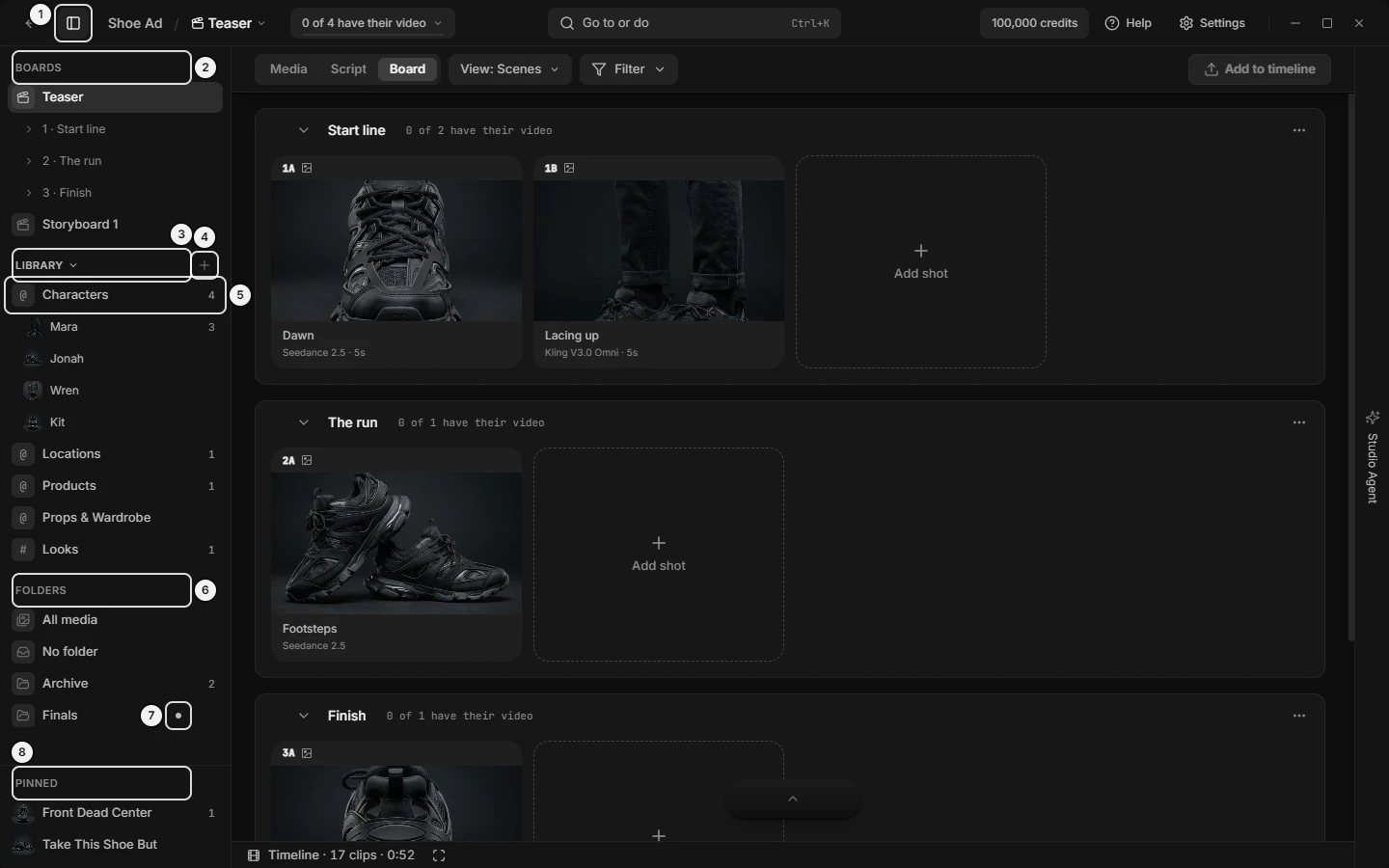\n\nPicture `left-dock-overview`. The numbers on it:\n1. **Project navigator** (`shell.titlebar.navigator-toggle`)\n2. **Boards** (`dock.section.boards`)\n3. **Library** (`dock.section.library`)\n4. **New category** (`library.dock.add-category`)\n5. **{category name}** (`library.dock.category-row`)\n6. **Folders** (`dock.section.folders`)\n7. **New pictures go to “{folder}”. Click to stop.** (`dock.folders.current-mark`)\n8. **Pinned** (`dock.section.pinned`)\n<!-- END:GENERATED picture-left-dock-overview -->\r\n\r\nFrom top to bottom:\r\n\r\n1. **Boards**: a title line (a chevron folds it; a `+` shows on hover), then one row per board. The open board lists its scenes under it as **{n} · {scene name}**.\r\n2. **Library**: a title line, then one row per category with its `@` or `#` sign in the icon place. The category you opened last lists its items under it, then **+{N} more** when it holds more than 40.\r\n3. **Folders**: a title line, then **All media**, **No folder**, then one row per folder.\r\n4. Boards, Library and Folders scroll together. **Pinned** sits under them on the bottom edge, outside the scroll: a title line with a pin button, then one row per pinned picture.\r\n5. A one-line notice with a dismiss button, at the bottom, when an action with no section of its own fails (see \"Left dock: messages you may see\").\r\n6. The resize grip on the right edge.\r\n\r\nHow every title line and row behaves: see \"Left dock: rows, menus, rename, counts and keys\".\r\n\r\n### Left dock: open, close, resize, fold (hide the sidebar, panel width, collapse a section)\r\n\r\n| Control | Where | What it does | Key | Agent op |\r\n|---|---|---|---|---|\r\n| **Project navigator** | Titlebar, beside the back arrow; also in `Ctrl+K` | Opens or closes the dock; pressed means open. Open by default; the choice is remembered across launches | `[` | slates_set_view (leftDock.open) |\r\n| Resize grip | Dock's right edge | Drag to set the width. Default 240 px, never under 180 or over 420; remembered | — | slates_set_view (leftDock.width) |\r\n| Section title: **Boards**, **Library**, **Folders**, **Pinned** | Each title line | Folds or unfolds its rows. A folded title prints how many rows it holds. Remembered per project; nothing else folds a section | — | slates_set_view (leftDock.folded) |\r\n\r\n- `[` does nothing while you type in a field or while a dialog, menu or viewer is open.\r\n- A command that needs the dock (**New board**, **New folder**, a rename) opens it first.\r\n- On a Mac the native View menu lists **Project navigator** too.\r\n\r\n### Left dock: rows, menus, rename, counts and keys (how every dock row behaves)\r\n\r\n| Control | Where | What it does | Key | Agent op |\r\n|---|---|---|---|---|\r\n| Click a row | Any row | Opens, jumps or attaches (each section says which). A row that can be renamed waits a moment so a double-click renames instead | `Enter` or `Space` on a focused row | see each section |\r\n| Double-click a row | Boards, Library categories and items, Folders | Renames in place: `Enter` or clicking away saves, `Escape` takes it back; blank or unchanged does nothing. Up to 40 characters (boards 80). Failure: **Could not rename that.** Not on pins, **All media**, **No folder** or scene rows | `F2` | see each section |\r\n| **More** (three dots) | Right end of a row, on hover or focus | Opens the row's menu; pressed again, closes it | Menu key on a focused row | — |\r\n| Right-click a row | Any row except **All media** and **No folder** | The same menu at the pointer | — | — |\r\n| Row number | Right end of a row | What the row holds: files in a folder, items in a category, shots citing an item, a pin's number in the prompt. Prints only above zero; swaps for **More** on hover | — | — |\r\n| Lit row | Any row | The fill means you are here, nothing else | — | — |\r\n| `+` (Boards, Library, Folders) | Right end of a title line, on hover or focus | Opens a create row: type a name, `Enter` creates, `Escape` cancels. Clicking away creates when a name is typed and drops an empty row. A failure keeps the row: **Could not add that.** | `Enter`, `Escape` | see each section |\r\n| Right-click a title line | Title line | One row: **New board**, **New Library category**, **New folder** or **Pin a reference**; the same rows are in `Ctrl+K` | — | — |\r\n\r\n### Left dock: Boards (open a board, switch board, new board, rename board, delete board)\r\n\r\n| Control | Where | What it does | Key | Agent op |\r\n|---|---|---|---|---|\r\n| `+` (tooltip **New board**) | **Boards** title line | Opens a named row at the top of the list. Changes nothing else until you open the board | — | slates_create_storyboard |\r\n| Create field (**Board name**) | Top of the list | Type a name, `Enter`. Up to 80 characters | `Enter` | slates_create_storyboard |\r\n| Board row | One per board | Click opens it: from Media it switches to the Board tab; on Script or Board it stays. Lit while it is the open board on Script or Board. Its scenes list under it. Not draggable | `F2` renames | slates_set_view (board.id) |\r\n| **Rename** | Row **…** or right-click | Renames in place | `F2` | slates_update_storyboard |\r\n| **Export as template** | Row menu | Saves the board as a template file | — | slates_export_template |\r\n| **Delete board** | Row menu, last | Asks first. Its scenes and shots go with it; pictures and clips stay in Media | — | slates_delete_storyboard |\r\n\r\nThe dialog's words are in \"Left dock: messages you may see\". A board also has a menu on its name in the titlebar.\r\n\r\n### Left dock: scene rows and scene menu (jump to a scene, collapse scenes, add shots, delete a scene)\r\n\r\nScene rows list under the open board only. A scene row has no **…**, no `F2` and no double-click rename; right-click it for its menu.\r\n\r\n| Control | Where | What it does | Key | Agent op |\r\n|---|---|---|---|---|\r\n| Scene row **{n} · {scene name}** | Under the open board | Click scrolls to that scene; from Media it switches to Board first. Right-click opens the menu | — | slates_set_view (board.sceneId) |\r\n| **Rename** | Scene menu | Turns the scene's name on the Board into a field | — | slates_update_scene |\r\n| **Add shots from Media** | Scene menu | Opens the picker of Media pictures to add as shots in this scene | — | slates_add_frame |\r\n| **New empty shot** | Scene menu | Adds an empty shot at the end of the scene and binds the prompt bar to it. `Ctrl+Z` removes it while untouched | — | slates_create_shot |\r\n| **Generate missing in this scene** | Scene menu | Opens the scene's Generate panel: the price first, nothing spent. Greyed **No shots in this scene yet** when empty | — | slates_get_board_quote, slates_generate_from_shots |\r\n| **Collapse** or **Expand** | Scene menu | Folds or unfolds this scene on the Board | — | slates_set_view (board.collapsedSceneIds) |\r\n| **Collapse all scenes** or **Expand all scenes** | Scene menu | Folds or unfolds every scene on the Board | — | slates_set_view (board.collapsedSceneIds) |\r\n| **Export as template** | Scene menu | Saves the scene as a template file | — | slates_export_template |\r\n| **Delete scene** | Scene menu, last | Asks first. Its shots go with it; pictures and clips stay in Media | — | slates_delete_scene |\r\n\r\nAway from the Board tab, **Rename**, **Generate missing in this scene**, **Collapse** and **Collapse all scenes** are left out of the menu, and on Media so is **Add shots from Media**.\r\n\r\n### Left dock: Library categories (new category, Things, Characters, Locations, Looks, reorder)\r\n\r\n| Control | Where | What it does | Key | Agent op |\r\n|---|---|---|---|---|\r\n| `+` (tooltip **New category**) | **Library** title line | Opens a create row at the bottom of the list | — | slates_manage_library_category (create) |\r\n| Kind dropdown (**Is this a subject, a place, or a look?**) | Create row, left of the name | Chooses what the category holds: **Things**, **Characters**, **Locations** or **Looks**. Starts on Things each time. A typed name with look, style, grade, grading, palette, mood, aesthetic, lighting or lut pre-selects Looks until you pick | — | slates_manage_library_category (create) |\r\n| Name field (**Category name**) | Create row | `Enter` creates the category and opens its page in Media. Up to 40 characters. A leading `#` makes a looks category; a leading `@` turns Looks back to Things. The sign is dropped from the name | `Enter`, `Escape` | slates_manage_library_category (create) |\r\n| Category row | One per category | Shows its `@` or `#` sign and item count. Click opens its page in Media, from any tab; lit while that page shows. Hover reads what it holds. An empty category keeps its row. Drag to reorder | `F2` renames | slates_set_view (library.categoryId) |\r\n\r\nThings, Characters and Locations are mentioned as `@name`: anything in the shot; people and creatures, who can have a voice; places, which carry no voice. Looks apply to the whole shot as `#name`. The name picks the icon and nothing else. Each new project starts with categories named Characters, Locations, Products, Props & Wardrobe and Looks.\r\n\r\n<!-- BEGIN:GENERATED picture-library-category-menu -->\n\n\nPicture `library-category-menu`. The numbers on it:\n1. **{category name}** (`library.dock.category-row`)\n2. **…** (`library.dock.category-more`)\n<!-- END:GENERATED picture-library-category-menu -->\r\n\r\n### Left dock: category menu (rename category, For things, For characters, For locations, For looks, delete category)\r\n\r\n| Control | Where | What it does | Key | Agent op |\r\n|---|---|---|---|---|\r\n| **Rename** | Category row **…** or right-click | Renames in place. The name is a label | `F2` | slates_manage_library_category (rename) |\r\n| **For things**, **For characters**, **For locations**, **For looks** | Same menu, middle group | Changes what the category holds; the current one is lit. Flipping between a thing and a look rewrites `@name` to `#name` (or back) in every saved shot that cites its items. The subtitle says how many beforehand, for example **Rewrites @name to #name in 3 shots.** | — | slates_manage_library_category (set-behaviour) |\r\n| **Delete category** | Same menu, last | Runs only on an empty category, with no question. A category with items is greyed: **Has {N items}. Move or delete {it or them} first.** | — | slates_manage_library_category (delete) |\r\n\r\nAfter a change an info message says what changed and offers **Undo** for a few seconds (see \"Left dock: messages you may see\"). Moving between Things and Characters changes nothing and shows no subtitle. `Ctrl+K` has the same commands, acting on the category whose page is open.\r\n\r\n### Left dock: Library items (open an item, put @name in the prompt, rename, move to, more items)\r\n\r\nItems list under the category you opened last, and stay listed while another tab shows. Opening a different category moves the list. Delete, image and voice are on the item's card, not here.\r\n\r\n| Control | Where | What it does | Key | Agent op |\r\n|---|---|---|---|---|\r\n| Item row | Under the open category, up to 40 | Its picture (or the category's icon), name, and the number of saved shots citing it. Click opens its category page, with its picture full size when it has one. Hovering or focusing lights every Board tile and Media card that uses it. Tooltip **Type {mention} in the prompt** | `F2` renames | slates_set_view (library.categoryId) |\r\n| Arrow (**Put {mention} in the prompt**) | Item row, on hover, beside **…** | Adds `@name` or `#name` to the end of the prompt as if typed. Greyed **Already in the prompt** when it is there | — | slates_set_composer (addMentions) |\r\n| **+{N} more** | After the items | Opens the category's page, where every item is a card. Only past 40 items | — | slates_set_view (library.categoryId) |\r\n| **Open** | Item menu | Same as clicking the row | — | slates_set_view (library.categoryId) |\r\n| **Put in the prompt** | Item menu | Same as the arrow | — | slates_set_composer (addMentions) |\r\n| **Rename** | Item menu | Renames in place. Every shot that cites it is rewritten to match, with an **Undo** message | `F2` | slates_update_library_item |\r\n| **Move to** | Item menu | A list of every category. The one it is in is greyed **Here now**. A move that changes how it is cited says so first: **Becomes #name · updates 2 shots** or **Its voice is not used here** | — | slates_update_library_item (categoryId) |\r\n\r\n### Left dock: Folders (new folder, make a folder, All media, No folder, open a folder, file media)\r\n\r\n| Control | Where | What it does | Key | Agent op |\r\n|---|---|---|---|---|\r\n| `+` (tooltip **New folder**) | **Folders** title line | Opens a create row at the bottom. The new folder is not opened | — | slates_create_folder |\r\n| Create field (**Folder name**) | Create row | `Enter` creates. A name another folder has (case ignored) is refused under the field | `Enter`, `Escape` | slates_create_folder |\r\n| **All media** | Folders, first row | Opens Media with no folder chosen and every file. Lit while Media's grid shows that | — | slates_set_view (media.folderId) |\r\n| **No folder** | Folders, second row | Opens Media narrowed to files in no folder. Drop media on it to take it out of its folder. Tooltip **Drop media here to take it out of its folder** | — | slates_set_view (media.unfiledOnly) |\r\n| Folder row | One per folder | Its cover picture (or a folder icon), name and file count. Click opens Media filtered to it and chooses it (next section). Drop media on it to file it. Tooltip **Drop media here to file it**. Drag to reorder | `F2` renames | slates_move_assets_to_folder, slates_rename_folder, slates_reorder_folders |\r\n\r\nOpening a folder from a Library page returns Media to the last media tab. **All media** and **No folder** have no menu and cannot be renamed. Other doors: `Ctrl+K` → **New folder**, **Rename folder · {name}**, **Delete folder · {name}**; right-click empty Media space → **New folder**; a card's **Move to folder** submenu. Two folders cannot share a name (case ignored). A folder shows a cover picture only when an agent sets one (`slates_set_folder_cover`).\r\n\r\n### Left dock: the folder dot (where new pictures are saved or land, choose a folder, stop)\r\n\r\nClicking a folder row also chooses it: pictures made by generation, pasted or dropped into the window go into that folder, on every tab. A small dot on its row says so.\r\n\r\n| Control | Where | What it does | Key | Agent op |\r\n|---|---|---|---|---|\r\n| Dot (tooltip **New pictures go to “{folder}”. Click to stop.**) | On the chosen folder's row, before its count | Turns into an × on hover. Click stops sending new pictures there and clears the choice | — | slates_set_view (media.folderId) |\r\n\r\n**All media** or **No folder** also clear the choice. An agent's generate and upload calls follow this folder when they name none.\r\n\r\n### Left dock: folder menu (rename folder, delete folder, delete its files too)\r\n\r\n| Control | Where | What it does | Key | Agent op |\r\n|---|---|---|---|---|\r\n| **Rename** | Folder row **…** or right-click | Renames in place | `F2` | slates_rename_folder |\r\n| **Delete folder** | Folder row menu, last | Asks first. The files go back to Media, in **No folder**, unless you tick **Also delete its files from disk** (shown only when the folder holds files) | — | slates_delete_folder |\r\n\r\nThe op deletes the folder only; its files return to No folder. To delete the files too an agent deletes them with `slates_delete_asset` first. If the delete fails the dock notice says so.\r\n\r\n### Left dock: Pinned (pin a picture, add to prompt, unpin, reorder pins, copy code)\r\n\r\n| Control | Where | What it does | Key | Agent op |\r\n|---|---|---|---|---|\r\n| Pin button (**Pin a reference**) | **Pinned** title line | Opens the picker (next section), not a typed row | — | slates_pin_references |\r\n| Pinned row | One per pin | The picture and its caption. Click adds it to the prompt as a reference; nothing happens when it is already attached. While attached, its number in the prompt shows (**First** or **Last** for a frame). Tooltip `{caption} · {code}`. No rename. Drag to reorder | `Enter`, `Space` | slates_set_composer (attach), slates_reorder_pins |\r\n| **Add to prompt** | Pin menu | Same as clicking. Greyed **Already in the prompt** | — | slates_set_composer (attach) |\r\n| **Copy code** | Pin menu | Copies the picture's code (IMG-…) for pasting into a chat. Left out when it has no code. Failure: **Could not copy the code.** | — | slates_list_assets (code) |\r\n| **Unpin** | Pin menu, last | Takes it off the dock; the image stays in Media | — | slates_unpin_reference |\r\n\r\nPinning alone attaches nothing to a generation. Another door: a picture's **More › Pin to dock** in Media (greyed when already pinned). Reading the pins: `slates_list_pins`.\r\n\r\n### Left dock: pin picker (Pin a reference dialog, pin several images at once)\r\n\r\n| Control | Where | What it does | Key | Agent op |\r\n|---|---|---|---|---|\r\n| Search (**Search by prompt...**) | Dialog, top | Filters the pictures by prompt or model text | — | slates_list_assets |\r\n| **Sort by date** | Dialog, beside search | **Newest first** or **Oldest first** | — | slates_list_assets |\r\n| Picture tiles | Dialog grid | Click toggles a tile; dragging from the gap between tiles draws a band that picks several. Only images not already pinned are listed | — | slates_pin_references |\r\n| **Pin reference** or **Pin {n} references** | Dialog, bottom right | Pins the picked images in pick order, then closes. **Pinning…** while working. Disabled until one is picked | — | slates_pin_references |\r\n| **Cancel** | Dialog, bottom | Closes without pinning | `Escape` | — |\r\n\r\nEmpty states: **No unpinned images in this project**, **No images match your search**. The dialog's line reads **Keeps images in the dock, one click from the prompt.**\r\n\r\n### Left dock: drag and drop (reorder rows, file media into a folder, drop targets)\r\n\r\n| Control | Where | What it does | Key | Agent op |\r\n|---|---|---|---|---|\r\n| Drag a row | A Folders, Library category or Pinned row, up or down its own list | Reorders it; the order is saved. It needs 8 px of travel, so a click stays a click. Boards, scene rows and item rows cannot be dragged | — | slates_reorder_folders, slates_manage_library_category (reorder), slates_reorder_pins |\r\n| Drop media on a folder row | Dock, Folders | Files the dragged cards (pictures, clips, audio) in that folder and clears the Media selection. The hovered row lightens | — | slates_move_assets_to_folder |\r\n| Drop media on **No folder** | Dock, Folders | Takes the dragged cards out of their folder | — | slates_move_assets_to_folder |\r\n\r\nDragging Media cards also puts a drop overlay over the centre; its **File into** row files the same way. Boards, scenes, categories, items and pins are not drop targets: pin with **Pin a reference** or **More › Pin to dock**.\r\n\r\n<!-- BEGIN:GENERATED picture-left-dock-drop-on-folder -->\n\n\nPicture `left-dock-drop-on-folder`. The numbers on it:\n1. **{folder name}** (`dock.folders.folder`)\n2. **Use in this project** (`shell.drop.use-band`)\n3. **File into** (`shell.drop.file-band`)\n4. **Send to another project** (`shell.drop.send-band`)\n<!-- END:GENERATED picture-left-dock-drop-on-folder -->\r\n\r\n### Left dock: messages you may see\r\n\r\n| Message | Where | What it means |\r\n|---|---|---|\r\n| **Could not add that.** | Under a create field | The create failed; the name stays, try again |\r\n| **Could not rename that.** | Under a rename field | The rename failed |\r\n| **There is already a folder called “{name}”.** | Under the Folders field | Two folders cannot share a name; pick another |\r\n| **Could not delete \"{name}\".** | Dock notice at the bottom | The folder delete failed; its row is still there |\r\n| **Could not copy the code.** | Dock notice | The clipboard refused **Copy code** |\r\n| **Has {N items}. Move or delete {it or them} first.** | Greyed **Delete category** | Empty the category first |\r\n| **Already in the prompt** | Greyed arrow, **Put in the prompt**, **Add to prompt** | The prompt already cites or holds it |\r\n| **Here now** | Greyed row in **Move to** | The item is already in that category |\r\n| **Delete “{name}”?** | Dialog for a board, scene or folder | Board: **Its scenes and {N shots} go with it. The pictures and clips they made stay in Media. This cannot be undone.** Scene: **Its {N shots} go with it. The pictures and clips they made stay in Media. This cannot be undone.** Folder: **Its {N files} go back to Media, in No folder, unless you choose to delete them too.** Buttons: **Cancel**, then **Delete board**, **Delete scene** or **Delete folder**; `Enter` and `Escape` keep it |\r\n| **“{name}” is now for looks** | Info message, with **Undo** | A category's kind changed; it says which `@` or `#` changed and how many shots were updated |\r\n| **{name} is now {mention} (was {mention}).** | Info message, with **Undo** | A rename or move changed how an item is cited |\r\n\r\n### Left dock: how to file media into a folder and make new pictures land there\r\n\r\n1. Folders → `+` → type a name → `Enter`. The folder appears and nothing opens.\r\n2. On Media, drag pictures, clips or audio onto the folder's row. Release when the row lightens.\r\n3. Click the folder's row to see what it holds. It is now the chosen folder: new pictures go into it, and a dot shows on its row.\r\n4. To stop, click the dot (it turns into an ×), or click **All media**.\r\n5. To take media out of a folder, drop it on **No folder**.\r\n\r\n### Left dock: how to make a Library category and use its items in a prompt\r\n\r\n1. **Library** → `+` → choose what it holds in the dropdown (**Things**, **Characters**, **Locations**, **Looks**) → type a name → `Enter`. Its page opens in Media.\r\n2. Add items there with the page's **New {Noun}** button (see the Library page section).\r\n3. Click the category's row so its items list in the dock.\r\n4. Hover an item and press its arrow, or use **…** → **Put in the prompt**. The prompt gains `@name` or `#name`.\r\n5. To change what the category holds later, use **…** → **For things**, **For characters**, **For locations** or **For looks**.\r\n\r\n### Left dock: how to pin pictures and use them as references\r\n\r\n1. **Pinned** → the pin button (**Pin a reference**) → tick one or several images → **Pin reference** or **Pin {n} references**.\r\n2. Click a pinned row to add that picture to the prompt. Its number (or **First** or **Last**) shows while it is attached.\r\n3. To remove it from the dock, **…** → **Unpin**. The image stays in Media.\r\n\r\n### Left dock: what an agent can do here\r\n\r\n- Arrange the dock: `slates_get_view` and `slates_set_view` (`leftDock.open`, `leftDock.width`, `leftDock.folded`). Which board, scene, category or folder is showing: `board.id`, `board.sceneId`, `library.categoryId`, `media.folderId`, `media.unfiledOnly`; a picture in the viewer: `viewer.assetId`.\r\n- Boards and scenes: `slates_create_storyboard`, `slates_update_storyboard`, `slates_delete_storyboard`, `slates_update_scene`, `slates_delete_scene`, `slates_add_frame`, `slates_create_shot`, `slates_export_template`, `slates_get_board_quote`, `slates_generate_from_shots`.\r\n- Library: `slates_list_library`, `slates_manage_library_category` (create, rename, set-behaviour, reorder, delete), `slates_update_library_item`.\r\n- Folders: `slates_list_folders`, `slates_create_folder`, `slates_rename_folder`, `slates_delete_folder`, `slates_move_assets_to_folder`, `slates_reorder_folders`.\r\n- Pins: `slates_list_pins`, `slates_pin_references`, `slates_unpin_reference`, `slates_reorder_pins`.\r\n- The prompt: `slates_get_composer`, `slates_set_composer` (`attach`, `addMentions`).\r\n\r\nOnly you can: open a row's **…** or right-click menu, answer the app's delete question, see the hover highlight of an item's uses, and dismiss the dock notice with its ×.\r\n\r\n### Left dock: controls you can point at (highlight, show me where)\r\n\r\n<!-- BEGIN:GENERATED targets-dock -->\n| `slates_highlight_control` target | On screen |\n|---|---|\n| `dock.boards.add` | **New board** |\n| `dock.folders.add` | **New folder** |\n| `dock.folders.all-media` | **All media** |\n| `dock.folders.current-mark` | **New pictures go to “{folder}”. Click to stop.** |\n| `dock.folders.folder` | **{folder name}** |\n| `dock.folders.no-folder` | **No folder** |\n| `dock.pinned.add` | **Pin a reference** |\n| `dock.resize` | the resize grip |\n| `dock.root` | **Project navigator** |\n| `dock.row-menu` | **More** |\n| `dock.section.boards` | **Boards** |\n| `dock.section.folders` | **Folders** |\n| `dock.section.library` | **Library** |\n| `dock.section.pinned` | **Pinned** |\n<!-- END:GENERATED targets-dock -->\r\n\r\n## THE MEDIA TAB — pictures, clips and audio: All, Images, Videos, Audio, Filter, search, rounds, cards, selecting, importing, dragging\r\n\r\nThe Media tab holds every picture, clip and audio take in the project, newest first, with the tools to find, select, reuse, send and delete them. Open it with the **Media** tab in the project's top row, `Ctrl+K` → **Media** (on a Mac also the View menu) (`Cmd` for every `Ctrl` on a Mac), or any \"Go to … in Media\" row. A new project opens Media on **Images**; **All** shows the three kinds together.\r\n\r\n### Media: where things are (top row, view line, grid, cards, empty space)\r\n<!-- BEGIN:GENERATED picture-media-tab-images -->\n\n\nPicture `media-tab-images`. The numbers on it:\n1. **View** (`shell.tabs.view-control`)\n2. **Images** (`media.toolbar.tab-images`)\n3. **Group by generation** (`media.toolbar.rounds-toggle`)\n4. **Import** (`media.toolbar.import`)\n5. **Filter** (`media.toolbar.filter`)\n6. **Search** (`media.toolbar.search`)\n7. **Favorites only** (`media.toolbar.favorites`)\n8. **round header toggle** (`media.round.toggle`)\n<!-- END:GENERATED picture-media-tab-images -->\r\n\r\n1. Top row, one row: the **Media** · **Script** · **Board** tabs and **View** (card size); then the type tabs **All**, **Images**, **Videos**, **Audio** and the **Group by generation** button; at the right **Import**, **Filter**, **Search** and the heart (**Favorites only**). Selected cards put the selection band over this whole row.\r\n2. View line: one line under the row, drawn only while something narrows the grid or the compare set is not empty.\r\n3. Notice line: under it, where a failed delete, import, copy, export or paste says so.\r\n4. Grid: the **Generating...** and **Uploading...** groups first, then one date heading per day, newest first (there is no sort control); inside a day, round headers with their cards, and loose cards.\r\n5. Cards: picture, clip and audio cards.\r\n6. Empty space in the grid: right-click for a small menu (**Paste**, **Import…**, **New folder**); press and drag to draw a selection box.\r\n7. A number on the **Media** tab counts results that finished while Media was off screen; it clears when Media shows.\r\n8. The prompt box floats over the bottom. The left dock's **Folders** choose the folder Media shows. A Library page opened from the dock replaces the grid and lights no top tab.\r\n\r\n### Media: toolbar — type tabs, Import, Search, favorites heart, Group by generation\r\n\r\n| Control | Where | What it does | Key | Agent op |\r\n|---|---|---|---|---|\r\n| **All**, **Images**, **Videos**, **Audio** | toolbar, left | Choose what the grid draws. **All** mixes the three kinds in one grid with one selection. | — | `slates_set_view (media.tab)` |\r\n| **Group by generation** | layers button after the tabs | Turns round headers on or off on every tab. On by default. Also a `Ctrl+K` row. | — | `slates_set_view (media.rounds)` |\r\n| **Import** | right cluster | Opens the file picker (import section). Tooltip **Import…**. | — | `slates_upload_reference_image` |\r\n| **Filter** | right cluster | Opens the **Show** menu. \"(N)\" counts the rows off their default. | — | `slates_set_view (media.hidden)` |\r\n| **Search** | right cluster | Shows only cards whose prompt contains the text, any case. Kept per project. | — | `slates_set_view (media.search)` |\r\n| **Favorites only** (heart) | far right | Shows only hearted cards. | — | `slates_set_view (media.favoritesOnly)` |\r\n\r\nSearch matches prompts only. A picture or clip you imported has the prompt \"Imported file\", a pasted picture has none, and imported audio uses its file name. With no media in the project, **Filter**, **Search** and the heart look dimmer but still work.\r\n\r\nIn a small window the row folds in this order: **Search** becomes a magnifier (it opens when clicked); chevrons go; **Filter** loses its word but keeps its funnel and count; the heart and **Group by generation** move to the foot of the **Filter** menu; **Import** loses its word; the tabs keep only the open tab's word, then none, and the row wraps. Point at a control to read its name.\r\n\r\n### Media: Filter menu — Show, Generated, Imported, Library category, Only with linked videos (hide pictures)\r\n\r\n**Filter** opens a menu headed **Show**. A row that is on shows as a filled row, not a tick. Escape or a click outside closes it.\r\n\r\n| Row | Where | What it does | Key | Agent op |\r\n|---|---|---|---|---|\r\n| **Generated** | first row | On by default. Off hides media made by Generate. | — | `slates_set_view (media.hidden)` |\r\n| **Imported** | second row | On by default. Off hides media that came without a recipe: your files, extracted frames, re-imported files. Importing a file turns it back on. | — | `slates_set_view (media.hidden)` |\r\n| **{sigil}{category}**, such as @Characters or #Looks | below a divider | One row per Library category that already holds a picture; All and Images tabs only. Off hides that category's pictures. | — | `slates_set_view (media.hidden)` |\r\n| **Only with linked videos** | below a second divider | Images tab only. Shows pictures a video was made from or linked to. | — | `slates_set_view (media.linkedOnly)` |\r\n| **Favorites only**, **Group by generation** | foot of the menu | Appear only while a narrow window has folded the heart or layers button off the row. | — | `slates_set_view (media.favoritesOnly, media.rounds)` |\r\n\r\nA Library picture follows only its own category row, never **Generated** or **Imported**. The \"(N)\" on **Filter** counts **Generated** off, **Imported** off, each category off, and **Only with linked videos** on; Search and the heart have chips on the view line instead.\r\n\r\n### Media: view line — chips, \"N of M\", Show all media, why do I see fewer items\r\n\r\nThe view line names each thing narrowing the grid, each with an × that turns it off. It is not drawn at the defaults.\r\n\r\n| Chip | Appears when | × says | Key | Agent op |\r\n|---|---|---|---|---|\r\n| the folder's name | a folder is open in the dock (new pictures land in it) | **Show all media** | — | `slates_set_view (media.folderId)` |\r\n| **No folder** | the dock's **No folder** row is chosen | **Show media in folders too** | — | `slates_set_view (media.unfiledOnly)` |\r\n| **Search: “{text}”** | Search holds text | **Clear the search** | — | `slates_set_view (media.search)` |\r\n| **Favorites** | the heart is on | **Show all, not only favorites** | — | `slates_set_view (media.favoritesOnly)` |\r\n| **Only with linked videos** | that row is on, Images tab | **Show every picture** | — | `slates_set_view (media.linkedOnly)` |\r\n| **Generated hidden**, **Imported hidden** | that **Filter** row is off | **Show generated media**, **Show imported media** | — | `slates_set_view (media.hidden)` |\r\n| **{category} hidden** | a category row is off | **Show {category}** | — | `slates_set_view (media.hidden)` |\r\n| **{shown} of {total}** | any chip above is on | how many of this tab's cards show | — | `slates_get_view (media.shown, media.total)` |\r\n| **Compare {n}** | the compare set is not empty | clicking opens Compare; × is **Empty the compare set**. Greyed with one item. It narrows nothing and is kept across restarts. | — | `slates_set_view (compare.assetIds, compare.open)` |\r\n\r\n### Media: card size — View button, Card size slider, bigger or smaller thumbnails, compact and large cards, zoom\r\n\r\n| Control | Where | What it does | Key | Agent op |\r\n|---|---|---|---|---|\r\n| **View** | top row, right after **Media** · **Script** · **Board** | Opens the **View** panel. | — | — |\r\n| **Card size** | **View** panel, the slider | Sets the smallest width a card may have. Below the compact line (380 px) cards are compact; at and above it they are large. | — | `slates_set_view (media.cardSize)` |\r\n| **Smallest cards**, **Largest cards** | either end of the slider | Jump to the smallest or largest size. | — | `slates_set_view (media.cardSize)` |\r\n| Zoom | over the grid | Hold `Ctrl` and scroll the wheel to change the size (up for larger cards). | `Ctrl`+scroll | `slates_set_view (media.cardSize)` |\r\n\r\n*Compact* cards have no foot: at rest only the picture with its code chip, tick and badges; the prompt, an **Add to prompt** button (clips: **Edit with AI**) and the model name appear when you point at the picture. *Large* cards add a foot under the picture with the prompt, its reference strip and the model. A fresh profile starts compact, so a missing caption usually means widening the cards. The size is one app setting for every project, and the Library's pages read it too.\r\n\r\n### Media: the grid — day headings, Generating, Uploading, Queued, highlight\r\n\r\n- A date heading such as \"Sep 30, 2026\" starts each day's cards, newest day first.\r\n- **Generating...** (Images, All) or **Generating ({n})** (Videos, Audio) heads placeholders for generations in flight. Images shows image generations only; All shows every kind. A placeholder's plate reads **Generating...** or **Queued** (audio: **Generating…** or **Queued** with a percent) with the prompt below. The finished card takes its place in the day list.\r\n- **Uploading...** (Images, All, Videos) or **Importing...** (Audio) heads placeholders for files being copied in, each showing the file name; an audio placeholder reads **Importing…**.\r\n- A card brought into view by a \"Go to\" row or **From {code}** gets a 2 px lime outline that fades after two seconds.\r\n- A selected card has a grey fill and a check in its tick; while anything is selected, unselected cards dim their picture.\r\n\r\nAgent: `slates_list_generations` and `slates_get_generation_status` read a running generation; `slates_set_view (media.revealAssetId)` scrolls to and highlights a card.\r\n\r\n### Media: rounds — Group by generation, round header, fold a batch, From, Reuse\r\n\r\nA round is one press of Generate that made two or more results; its cards sit under one header. A press with one result is just its card, and imports never form rounds. Media made before rounds were recorded, and images saved from ChatGPT, are grouped by time; the count's tooltip says \"Grouped by time: …\". Under a header a card shows only its picture. **Group by generation** off gives one grid per day, newest first.\r\n\r\n| Header part | What it does | Key | Agent op |\r\n|---|---|---|---|\r\n| chevron, **{model}**, \"{n} images\" | Click folds or unfolds the round (tooltip **Hide this round** / **Show this round**). The count can add \" · {k} shown\", \" · {n} running\", \" · {n} failed\". Folded rounds draw no cards and leave **Select all**; the fold is kept per project. | — | only you |\r\n| prompt line | The round's prompt; the tooltip is the whole prompt. | — | — |\r\n| reference strip | The references that press was given. | — | — |\r\n| **From {code}** | Jumps to the picture or clip this round was reused from. Reads **From a removed image** (greyed) if it is gone. | — | `slates_set_view (media.revealAssetId)` |\r\n| Reuse icon | Tooltip **Reuse this round's prompt**: loads the round's first card's recipe into the prompt box. | — | `slates_set_composer (fromAssetId)` |\r\n\r\n### Media: picture card (image card) — code chip, counters, Reuse prompt, heart, Add to prompt, tick\r\n\r\n| Where on the card | What it shows or does | Key | Agent op |\r\n|---|---|---|---|\r\n| the picture | Click opens the image viewer (next and previous step through the grid's pictures). | — | `slates_set_view (viewer.assetId)` |\r\n| top-left | Code chip such as `IMG-A12`, the name Claude and agents use. Always shown. | — | `slates_list_assets` |\r\n| bottom-left | Video icon and a number: clips made from this picture. Film icon and a number: board shots holding it. Both hide on hover. | — | — |\r\n| top-right, on hover | **Reuse prompt** (greyed \"Imported, so no prompt was recorded\"), then the heart: **Add to favorites** / **Remove from favorites**. A favorited card keeps its filled heart showing. | — | `slates_set_composer (fromAssetId)`, `slates_set_asset_favorite` |\r\n| bottom-left, on hover | Large cards: the **Add to prompt** / **Remove from prompt** pill. Compact cards: the same as an icon in the hover footer. | — | `slates_set_composer (attach, detach)` |\r\n| bottom-right | The tick, **Select** / **Deselect**. Always shown. | — | `slates_set_selection` |\r\n| foot, large cards outside a round | The prompt, up to four reference thumbnails numbered as sent (when it had any), and the model. Tooltips say \"… past this model's limit — not sent\" or \"{name} — no longer in this project, so it is not sent\". **+{n}** opens every input with its role. Point at an image reference for a larger preview and **Add to prompt**. | — | `slates_get_asset` |\r\n\r\nPress and move a card to drag it (drag section); right-click for its menu.\r\n\r\n### Media: clip card (video card) — play, frame extract, Edit with AI, Linked\r\n\r\n| Where on the card | What it shows or does | Key | Agent op |\r\n|---|---|---|---|\r\n| the poster or the play disc | Click plays the clip on the card; one clip plays at a time and the card returns to its poster at the end. | — | only you |\r\n| the player bar | **Play** / **Pause**, time, scrub, **Mute**, **Fullscreen**. Clicked once, `Space` plays and pauses and `←` `→` step a frame (`Shift`: ten). Double-click goes fullscreen; in fullscreen the wheel zooms, right-click zooms 2×, middle-drag pans, `Esc` leaves. | `Space` | only you |\r\n| top-right, while playing | **Extract current frame** (camera) saves the frame showing as a new picture in Images. **Frame options** holds **First frame** and **Last frame**. | — | `slates_extract_video_frame` |\r\n| bottom-left | A clock and the length; **Linked** (tooltip \"This video is linked to {n} source image(s)\"). Both hide on hover. | — | `slates_link_asset_source` |\r\n| top-right, on hover | **Reuse prompt** and the heart, as on a picture. | — | `slates_set_composer (fromAssetId)` |\r\n| bottom-left, on hover | Large cards: **Edit with AI**, reading **Stop editing** while this clip is the prompt box's source. Compact: an icon in the footer. | — | `slates_set_composer (editSource)` |\r\n| foot, large cards | A short caption from the prompt (the whole prompt on hover), references and model. | — | `slates_get_asset` |\r\n\r\nThe code chip and tick match the picture card; the tick hides while the clip plays. Failures show inside the card: **Could not extract the frame.**, **Could not save the frame.**\r\n\r\n### Media: audio card (sound clip) — Play, waveform, seek, time, Reuse prompt\r\n\r\n| Where on the card | What it shows or does | Key | Agent op |\r\n|---|---|---|---|\r\n| waveform | Click anywhere on the bars to seek there. A flat bar (tooltip \"Waveform unavailable for this file\") means no waveform. | — | only you |\r\n| **Play** / **Pause** | The play button at the left of the bottom row. | — | only you |\r\n| \"{m:ss} / {m:ss}\" | Position and length. The error line replaces it: **Could not play this audio file.** | — | — |\r\n| top-right, on hover | Round **Reuse prompt** and heart buttons, at every size. | — | `slates_set_composer (fromAssetId)`, `slates_set_asset_favorite` |\r\n| bottom-right | The tick. | — | `slates_set_selection` |\r\n| foot | The prompt (imported audio: its file name). Large cards add references and the model; compact cards show the caption only. | — | `slates_get_asset` |\r\n\r\nAn audio card has no **Add to prompt** pill. Right-click it for **Add as reference**, **Use as voice** and **Add to timeline**.\r\n\r\n### Media: card right-click menu — what it acts on and the row order\r\n\r\nRight-click a picture, clip or audio card. If the card is part of a selection of two or more, the menu acts on the whole selection and its labels count (\"Add 3 to prompt\"); otherwise it acts on that card. Rows that fit one item only leave the menu inside a selection. A row that cannot run now stays, greyed, with the reason under it. `Ctrl+K` offers the same rows for the selected cards, plus **Open** and **Go to image in Media**.\r\n\r\nOrder, top to bottom:\r\n\r\n1. Use it: **Add to prompt**, **Animate**, **Edit with AI**, **Add as reference**, **Use as voice**, **Add to board…**, **Add to timeline**.\r\n2. Keep it: **Reuse prompt**, **Save as shot**.\r\n3. **Move to folder** (submenu) and **More** (submenu).\r\n4. **Delete**, in red, last.\r\n\r\n**More** holds, in order: **Save to Library…**, **Generate a Library sheet…**, **Pin to dock**, **Trim or split…**, **Link to image…**; **Compare**, **Go to source**; **Copy image**, **Copy prompt**, **Copy code**; **Show in File Explorer**, **Export original file…**; **Move to project…**, **Copy to project…**. Each group is its own section below.\r\n\r\n<!-- BEGIN:GENERATED picture-media-card-menu -->\n\n\nPicture `media-card-menu`. The numbers on it:\n1. **Add to prompt** (`media.menu.add-to-prompt`)\n2. **Animate** (`media.menu.animate`)\n3. **More** (`media.menu.more`)\n4. **Save to Library…** (`media.menu.save-to-library`)\n5. **Move to project…** (`media.menu.move-to-project`)\n<!-- END:GENERATED picture-media-card-menu -->\r\n\r\n### Media: card menu, use it rows — Add to prompt, Animate, Edit with AI, Add as reference, Use as voice, Add to board, Add to timeline\r\n\r\n| Row | Shows for | What it does | Key | Agent op |\r\n|---|---|---|---|---|\r\n| **Add to prompt** / **Remove from prompt** (\"Add {n} to prompt\") | 1 or more pictures | Attaches them as references; removes when every one is attached. One note on the prompt box if some do not fit. Greyed: \"{model} can use reference images or frame controls, not both\", \"{model} takes no reference images\", \"The prompt holds the {n} references {model} takes\". | — | `slates_set_composer (attach, detach)` |\r\n| **Animate** | one picture | Makes it a video's first frame and opens the prompt box on video. | — | `slates_set_composer (lane, attach)` |\r\n| **Edit with AI** | one clip | Subtitle \"Starts the prompt box fresh with this clip as the source\": clears prompt, references, mentions and frames, then sets the clip as the source (@Video1). | — | `slates_set_composer (editSource)` |\r\n| **Add as reference** | one clip or audio clip | Adds it beside what is attached; wipes nothing. Greyed: \"{families} read reference clips\", \"{families} read reference audio\", \"{model} reads a voice from an @mentioned character\". | — | `slates_set_composer (attach)` |\r\n| **Use as voice** | one audio clip | Opens the Voice lane with this clip as the voice. | — | `slates_set_composer (voice)` |\r\n| **Add to board…** (\"Add {n} to board…\") | 1 or more pictures | Opens the **Add to board** dialog (Board section). | — | `slates_add_frame` |\r\n| **Add to timeline** (\"Add {n} to timeline\") | 1 or more clips or audio | Appends them to the timeline, oldest first. | — | `slates_add_clip_to_timeline` |\r\n\r\nA clip outside the length the Kling and Omni Flash edit models take is set to Seedance Edit, with the note **This {n}s clip is set to Seedance Edit: Kling and Omni Flash edit {min}–{max}s clips (Trim first to use them).**\r\n\r\n### Media: card menu, keep and move rows — Reuse prompt, Save as shot, Move to folder, Delete\r\n\r\n| Row | Shows for | What it does | Key | Agent op |\r\n|---|---|---|---|---|\r\n| **Reuse prompt** | one card | Replaces the prompt box with the card's recorded recipe (prompt, model, settings, references, mentions). Your unsent draft goes to the draft checkpoint; **Restore draft** brings it back. A bound Shot is unbound first. Greyed \"Imported, so no prompt was recorded\" for imports. | — | `slates_set_composer (fromAssetId, restoreDraft)` |\r\n| **Save as shot** | one card | Restores the recipe, then saves it as a Shot whose first take is this card (unless the card is already a take of another Shot). | — | `slates_create_shot (fromAssetId)` |\r\n| **Move to folder** (\"Move {n} to folder\") | any | Submenu: **Out of its folder** (only when something is filed), one row per folder (ticked when every target is in it), **New folder** (makes \"New Folder\" and moves in). Failure: **Could not make the folder.** | — | `slates_move_assets_to_folder`, `slates_create_folder` |\r\n| **Delete** (\"Delete {n}\") | any | Asks first (delete section), then removes the files from disk. | — | `slates_delete_asset` |\r\n\r\nReuse notes that appear on the prompt box: **Made on a model Slates no longer offers: the prompt is set up for {model}.**, **Imported, so no recipe was recorded: the prompt is set up for {model}.**, **The {picture it edited / grid cell it worked on} is not restored: add it as a reference if you need it.**, **Made in ChatGPT: check where it will generate before you press Generate.**\r\n\r\n### Media: card menu, More part 1 — Save to Library, Library sheet, Pin to dock, Trim or split, Link to image, Compare, Go to source\r\n\r\n| Row | Shows for | What it does | Key | Agent op |\r\n|---|---|---|---|---|\r\n| **Save to Library…** | one picture | Opens **Save to Library** (Library section); on a Library page its category is preselected. | — | `slates_create_library_item` |\r\n| **Generate a Library sheet…** | one picture | Subtitle \"A new Library item with a sheet made from it\": opens the dialog in generate mode; its price shows there. | — | `slates_generate_character_identity`, `slates_generate_environment_plate` |\r\n| **Pin to dock** | one picture | Adds it to the dock's Pinned list; attaches nothing. Greyed \"Already on the dock\". Failure: **Could not pin the picture.** | — | `slates_pin_references` |\r\n| **Trim or split…** | one clip | Subtitle \"A new clip; the original stays\": opens **Trim & split** (its own section). | — | `slates_trim_video` |\r\n| **Link to image…** / **Change linked image…** | one clip | Opens **Link video to image** (its own section). | — | `slates_link_asset_source` |\r\n| **Compare {n}** / **Add to compare** / **Remove from compare** | any | Two to four selected: sets the compare set and opens Compare. One card: adds it to or removes it from the set without opening. Greyed \"2 to 4 at a time\" or \"Compare holds 4 at a time\". | — | `slates_set_view (compare.assetIds, compare.open)` |\r\n| **Go to source {code}** | one picture made by Reuse or Continue | Scrolls to and highlights the source picture. Greyed \"Its source was deleted\". | — | `slates_set_view (media.revealAssetId)` |\r\n\r\n### Media: card menu, More part 2 — Copy image, Copy prompt, Copy code, Show in File Explorer, Export, Move to project, Copy to project\r\n\r\n| Row | Shows for | What it does | Key | Agent op |\r\n|---|---|---|---|---|\r\n| **Copy image** | one picture | Copies the picture to the clipboard. Failure: **Could not copy the picture.** | — | only you |\r\n| **Copy prompt** | one card | Copies the prompt text. Greyed \"Imported, so no prompt was recorded\". Failure on the card: **Could not copy the prompt.** | — | `slates_get_asset` |\r\n| **Copy code** / **Copy {n} codes** | cards with codes | Copies `Project \"X\": IMG-A12, IMG-A14`. Failure: **Could not copy the codes.** | `Ctrl+C` | `slates_get_selection` |\r\n| **Show in File Explorer** (Mac: **Show in Finder**) | one card | Opens the file manager with the file selected. | — | `slates_reveal_file` |\r\n| **Export original file…** / **Export {n} original files…** | any | One card asks for a file name, several for a folder; copies the originals, never overwriting. Toast **Exported {n} files to {dir}**. | — | `slates_export_assets` |\r\n| **Move to project…** (\"Move {n} to project…\") | any | Subtitle \"The files leave this project\": opens **Move / Copy to project** with Move as the main button. | — | `slates_move_assets_to_project` |\r\n| **Copy to project…** (\"Copy {n} to project…\") | any | The same dialog with Copy as the main button. | — | `slates_copy_assets_to_project` |\r\n\r\n### Media: empty-space right-click menu — Paste, Import, New folder\r\n\r\nRight-click between cards, or in the padding around them. A card's own right-click takes priority.\r\n\r\n| Row | What it does | Key | Agent op |\r\n|---|---|---|---|\r\n| **Paste** | Saves the clipboard's picture into Media, in the open folder. Greyed \"Copy a picture first\" when the clipboard holds no picture. | `Ctrl+V` | `slates_upload_reference_image` |\r\n| **Import…** | Opens the file picker, as the toolbar's **Import** does. | — | `slates_upload_reference_image` |\r\n| **New folder** | Subtitle \"Adds a row to the dock. Click it to open it in Media.\" Starts a new row in the left dock where you type its name. | — | `slates_create_folder` |\r\n\r\n### Media: select cards — tick, drag a box, Select all, clear, copy codes\r\n\r\n- Tick: the **Select** / **Deselect** button at each card's bottom-right adds or removes that card.\r\n- Drag a box: press on empty space (the gaps or padding, never on a card or button) and drag; each card the box touches toggles. A press and release under 10 px on empty space clears the selection.\r\n- `Ctrl+A` selects every card the tab draws, leaving out folded rounds. It does nothing while you type, with a menu, dialog or the viewer open, or while the timeline's keys are active. The `Ctrl+K` row **Select all** (subtitle \"Every card the Media tab shows\") appears only while a card shows.\r\n- `Escape` clears the selection when nothing is open on top; the band's **Clear selection** does too.\r\n- `Ctrl+C` copies the selected cards' codes with the project name, to paste into a chat. A text field, or highlighted text, keeps its own copy.\r\n- To heart many at once, select them and use `Ctrl+K` → **Add to favorites**; a mixed set becomes all favorites, and only an all-favorite set is cleared.\r\n- **All** and **Images** share one selection; moving to **Videos** or **Audio** clears it. A selection is cut to what the grid draws and is dropped when you leave the project.\r\n\r\nAgent: `slates_get_selection` reads what is selected and what the viewer has open; `slates_set_selection` replaces, adds, removes, clears or selects all.\r\n\r\n### Media: selection band — actions on selected cards (Add to board, Add to timeline, Compare, Export, Move, Copy, Copy codes)\r\n\r\nWhile one or more cards are selected, the band covers the whole top row. It reads \"{n} {image|clip|audio clip|item}s selected\" (the noun drops in a narrow window).\r\n\r\n| Button | Shows when | What it does | Key | Agent op |\r\n|---|---|---|---|---|\r\n| **Add to board…** | the selection holds pictures | Opens **Add to board**; clears the selection when done. With clips also selected it reads \"Add {n} images to board…\". | — | `slates_add_frame` |\r\n| **Add to timeline** | it holds clips or audio | Adds them oldest first, then clears the selection. With pictures also selected it reads \"Add {n} clips to timeline\". | — | `slates_add_clip_to_timeline` |\r\n| **Compare** | any | Opens Compare on two to four cards. Greyed \"Select one more {noun} to compare\" or \"Compare 4 {nouns} at a time\". | — | `slates_set_view (compare.assetIds, compare.open)` |\r\n| **Export** | any | Copies the originals out; tooltip \"Copy the original files into a folder you choose\". | — | `slates_export_assets` |\r\n| **Move to project…**, **Copy to project…** | any | Open **Move / Copy to project**. | — | `slates_move_assets_to_project`, `slates_copy_assets_to_project` |\r\n| **Copy codes** (then **Copied**) | any | Copies `Project \"X\": IMG-A12, …`. Greyed \"Nothing selected has a code yet\". Error: **Could not copy to the clipboard.** | `Ctrl+C` | `slates_get_selection` |\r\n| **More actions** | the band is too narrow | Holds the folded buttons: **Copy codes** folds first, then **Copy to project…**, **Move to project…**, then **Compare** and **Export**. | — | — |\r\n| **Clear selection** | always | Clears it. | `Escape` | `slates_set_selection (clear)` |\r\n\r\nThe band's one main button is lime only while **Generate** is not.\r\n\r\n<!-- BEGIN:GENERATED picture-media-selection-band -->\n\n\nPicture `media-selection-band`. The numbers on it:\n1. **Compare** (`media.band.compare`)\n2. **Copy codes** (`media.band.copy-codes`)\n3. **Clear selection** (`media.band.clear`)\n<!-- END:GENERATED picture-media-selection-band -->\r\n\r\n### Media: import your own files — Import…, add files, drag and drop from the desktop, upload\r\n\r\n- **Import** on the toolbar, **Import…** in the empty-space menu, in `Ctrl+K` (and on a Mac the File menu): a file picker for pictures, clips and audio.\r\n- Drag files from the desktop onto the project. An overlay reads **Drop files here** and \"Takes image, video, or audio files\".\r\n- Both paths are one: each file is classed by its type first, then its extension (Windows gives some audio files no type). Other kinds are skipped; if none are importable the note reads **Only {image, video, or audio} files can be imported.** The formats are in the next section.\r\n- Files land in the open folder, turn the **Imported** filter back on, and show as placeholders under **Uploading...** (audio: **Importing...**) until they finish.\r\n- Failures on the notice line: **Could not import {name}.** or **Could not import {n} files.**\r\n- On a Library page, one dropped picture opens **Save to Library** instead.\r\n\r\nAn imported file has no recipe: its **Reuse prompt** is greyed, except for a re-imported Slates file whose name gave its prompt back.\r\n\r\nAgent: `slates_upload_reference_image` with `filePath` or `dataUrl`; set `type` for a clip or audio file. An omitted folder follows the window's folder.\r\n\r\n### Media: importable file types (supported formats, HEIC, iPhone photos)\r\n\r\n- Images: PNG, JPG or JPEG, WEBP, GIF.\r\n- Video: MP4, WEBM, MOV.\r\n- Audio: MP3, WAV, OGG, OPUS, M4A, AAC, FLAC.\r\n- The **Import…** file picker lists exactly these. A dropped file is accepted when the system reports it as an image, video or audio, or when its extension is on the lists above.\r\n- HEIC and HEIF (iPhone photos) are not on the lists: convert them to JPEG or PNG first.\r\n\r\nAgent: `slates_upload_reference_image` brings in an image, clip or audio file from a path.\r\n\r\n### Media: paste a picture — Ctrl+V, screenshot, clipboard image\r\n\r\n1. Copy a picture (a screenshot, or an image from another app).\r\n2. Press `Ctrl+V` anywhere on the project page except in a text field, or right-click empty Media space → **Paste**.\r\n3. It is saved as a new picture tagged **Imported**, in the open folder.\r\n4. If the Media grid is not on screen, a toast **Picture pasted into Media** offers **Show**.\r\n\r\nPasting inside the prompt box attaches the picture as a reference and saves it to Media too (prompt box section). On a Library page a pasted picture opens **Save to Library**. Failure: **Could not paste the picture.**\r\n\r\nAgent: `slates_upload_reference_image` with `dataUrl`.\r\n\r\n### Media: drag cards — drop zones Prompt, Boards, Timeline, Library, File into folder, Send to another project\r\n\r\nPress a card and move about 6 px (not from a button or the tick) to drag it. A selected card drags its whole selection of that kind (on **All**, only the selected items of the dragged card's type); an unselected card drags alone and becomes the selection. An overlay headed with a count (\"Drop 3 images\") appears with these targets:\r\n\r\n| Target | Shows for | Drop does | Key | Agent op |\r\n|---|---|---|---|---|\r\n| **Prompt** (\"Attach as references\") | pictures | Attaches them as references. | — | `slates_set_composer (attach)` |\r\n| **Boards** (\"Add as shots to a scene\") | pictures | Opens **Add to board**. | — | `slates_add_frame` |\r\n| **Timeline** (\"Add clips to the timeline\") | clips and audio | Adds them to the timeline. | — | `slates_add_clip_to_timeline` |\r\n| **Library** (\"Save as a reference\") | one picture only | Opens **Save to Library**. | — | `slates_create_library_item` |\r\n| **File into** chips | only when the project has a folder | Moves the cards into that folder and clears the selection. The dock's folder rows and **No folder** row take drops too; **No folder** takes cards out of a folder. | — | `slates_move_assets_to_folder` |\r\n| **Send to another project** chips | only when another project exists | Hint \"move or copy — you pick on drop\": opens **Move / Copy to project** with that project chosen. | — | `slates_move_assets_to_project`, `slates_copy_assets_to_project` |\r\n\r\nThe zones keep their order. Dropping on the overlay's background cancels. Dragging past the window's edge drops the real files into another app, such as a file manager or an editor.\r\n\r\n### Media: empty states — No images yet, No media yet, Show all media, Drop media here\r\n\r\n| Text | When | Buttons | Key | Agent op |\r\n|---|---|---|---|---|\r\n| **No images yet** | Images tab, no pictures, nothing generating or importing | **Make an image** (prompt box to the image lane, caret in it), **Import…** | — | `slates_set_composer (lane)` |\r\n| **No media yet** | All tab, nothing at all | **Import…** only; the prompt box makes any kind | — | `slates_upload_reference_image` |\r\n| **No videos yet** | Videos tab | **Make a video** (put a picture on First frame to animate it), **Import…** | — | `slates_set_composer (lane)` |\r\n| **No audio yet** | Audio tab | **Make audio**, **Import…** | — | `slates_set_composer (lane)` |\r\n| **No {media/images/videos/audio} match this view** or **No {noun} in this folder** | the project has some of this tab's kind but a folder, search, heart, linked filter or **Filter** row hides all of it | **Show all media** clears the folder, **No folder**, search, favorites, linked and both **Filter** sets at once | — | `slates_set_view (media.folderId, media.search, media.favoritesOnly, media.linkedOnly, media.hidden)` |\r\n| **Drop media here** | an open folder that holds no files, while the project has media of this kind elsewhere | none | — | `slates_upload_reference_image` |\r\n\r\n\"In this folder\" is used when the open folder has files but none of this tab's kind.\r\n\r\n### Media: delete (remove) pictures, clips or audio — the delete question\r\n\r\n**Delete** (right-click, or a selection) asks first; the files leave the disk and nothing brings them back.\r\n\r\n- One card: **Delete {code}?** (or \"Delete this picture?\", \"this clip?\", \"this audio clip?\" with no code). Body: \"Its file is removed from disk. This cannot be undone.\" Confirm: **Delete picture**, **Delete clip** or **Delete audio clip**.\r\n- Several: **Delete 3 pictures?** for one kind, **Delete 5 items?** for a mix, with a first body line counting each kind (\"2 pictures and 1 clip.\"). The question counts; it never lists.\r\n- **Cancel** is focused; `Escape` is Cancel.\r\n- Confirm detaches the files from the prompt box, deletes each, reloads the project and clears a multi-selection.\r\n- Failure on the notice line: **Could not delete {code}.** or \"{n} of {m} could not be deleted.\"\r\n\r\nAgent: `slates_delete_asset` (permanent; ask the user first). Only you answer the on-screen question.\r\n\r\n### Media: jump to a card — Go to image in Media, Go to source, From {code}, Show\r\n\r\n- **Go to image in Media** (also **Go to clip in Media**, **Go to audio clip in Media**, **Go to item in Media**) is the first row of the viewer's right-click menu and is on a Compare pane's menu, a shot's take menu and `Ctrl+K`. It closes the viewer or Compare, shows the card and outlines it in lime for two seconds.\r\n- **Go to source {code}** and **From {code}** do the same for the picture a recipe was reused from.\r\n- A jump keeps your view. If the view hides the card, only the hiding part changes (its folder opens, its round unfolds, the search clears, a **Filter** row turns on) and a toast says which: \"{code} was hidden — opened its folder, cleared the search.\"\r\n- A tab that cannot draw the card switches to the card's own tab, and the toast names both.\r\n\r\nAgent: `slates_set_view (media.revealAssetId)`.\r\n\r\n### Media: messages — failures on the notice line (what went wrong)\r\n\r\n| Message | Means |\r\n|---|---|\r\n| **Could not delete {code}.**, \"{n} of {m} could not be deleted.\" | a delete failed for that many files |\r\n| **Could not import {name}.**, **Could not import {n} files.** | the copy into the project failed |\r\n| **Could not paste the picture.** | the clipboard picture could not be saved |\r\n| **Only {image, video, or audio} files can be imported.** | nothing dropped was a media file |\r\n| **Could not pin the picture.** | **Pin to dock** failed |\r\n| **Could not copy the picture.**, **Could not copy the codes.** | the clipboard write failed |\r\n| **Could not make the folder.** | **New folder** in the **Move to folder** menu failed |\r\n| \"{n} file(s) is/are missing on disk and could not be exported.\" | an original is gone; the others were exported |\r\n| **Export failed:** … | the copy failed; the rest of the line says why |\r\n\r\nErrors about one card (**Could not extract the frame.**, **Could not save the frame.**, **Could not play this audio file.**, **Could not copy the prompt.**, **Could not add it to the timeline.**, **Could not add them to the timeline.**) show inside that card. With no notice line on screen a message becomes a toast.\r\n\r\n### Media: messages — greyed rows, tooltips and refusals (why is it greyed out)\r\n\r\n| Message | Where | Means |\r\n|---|---|---|\r\n| **Imported, so no prompt was recorded** | **Reuse prompt**, **Copy prompt**, hover Reuse | the file came in, not from Generate |\r\n| **Already on the dock** | **Pin to dock** | already pinned |\r\n| **Its source was deleted** | **Go to source** | the source picture is gone |\r\n| **2 to 4 at a time**, **Compare holds 4 at a time** | **Compare** rows | the set is too small or full |\r\n| **Select one more {noun} to compare**, **Compare 4 {nouns} at a time** | band **Compare** | outside two to four |\r\n| **Add one more {noun} to compare** | the **Compare {n}** chip | the set holds one |\r\n| **Nothing selected has a code yet** | **Copy codes** | the selection has no codes |\r\n| **Copy a picture first** | **Paste** | the clipboard holds no picture |\r\n\r\nModel-dependent reasons on **Add to prompt** and **Add as reference** are in their rows (use it rows section). Point at a refused control to read its reason.\r\n\r\n### Media: messages — toasts and prompt-box notes\r\n\r\n| Message | When |\r\n|---|---|\r\n| **Exported {n} files to {dir}** | after **Export**, six seconds |\r\n| **Added {n} items to the timeline** | after **Add to timeline**, only when the timeline is closed |\r\n| **Frame extracted to gallery**, **First frame extracted to gallery**, **Last frame extracted to gallery** | after a frame extract; the picture lands in Images |\r\n| **Picture pasted into Media** with **Show** | a paste while the grid is off screen |\r\n| **{code} was hidden — {what changed}.** | a jump had to change the view to show its card |\r\n| \"{n} attached; {k} did not fit the model's reference limit.\" | **Add to prompt** on several pictures |\r\n\r\nOn opening a project, \"1 item from your saved draft or view is gone and was left out.\" (or \"{n} items …\") says a saved reference or view pointed at media that was deleted.\r\n\r\n### Media: how to find something (search, filter, favorites, folder, a picture is missing)\r\n\r\n1. Type in **Search**: it matches prompts.\r\n2. Press the heart for favorites only.\r\n3. Open **Filter** to hide **Generated**, **Imported** or a Library category, or (Images) to show **Only with linked videos**.\r\n4. Click a folder under **Folders** in the left dock; new pictures then land there too.\r\n5. The view line names each narrowing with an ×. On an empty grid press **Show all media**.\r\n\r\nIf a picture seems gone, check the view line first: a folder, a search or a hidden **Imported** row is the usual cause.\r\n\r\n### Media: how to attach pictures to the prompt as references (Add to prompt, drag to Prompt)\r\n\r\n1. Point at a card and press **Add to prompt** (compact cards: the icon in the hover footer). Or right-click → **Add to prompt**, or drag it onto the **Prompt** zone. Tick several first to attach them together.\r\n2. The prompt box's reference strip shows them numbered; the card's button now reads **Remove from prompt**.\r\n3. A model takes only so many references (MODEL REFERENCE TABLE); if some do not fit, a note says how many attached.\r\n4. A clip or audio clip goes in with right-click → **Add as reference**, on a model that reads reference clips or audio. **Edit with AI** starts an edit of a clip instead.\r\n\r\n### Media: how to make a video from a picture (Animate, first frame)\r\n\r\n1. On **Images**, right-click the picture → **Animate** (or open it and press **Animate**).\r\n2. The prompt box switches to video with the picture as the first frame.\r\n3. Type the motion; the price shows on **Generate**; press it.\r\n4. The clip appears under **Generating ({n})** on Videos, then as a card; it shows **Linked**, and the picture's video counter goes up.\r\n\r\nTo keep the picture as a plain reference instead, point at it and press **Add to prompt**.\r\n\r\n### Media: how to re-run, tweak or keep a result (Reuse prompt, Save as shot)\r\n\r\n1. Point at the card and press **Reuse prompt** (or right-click → **Reuse prompt**, or the round header's Reuse icon).\r\n2. The recipe fills the prompt box; change what you like and press **Generate**.\r\n3. To get your earlier draft back, use **Restore draft** on the prompt box.\r\n4. To keep the recipe without running it, right-click → **Save as shot**: it becomes a Shot on the board with this card as its first take.\r\n\r\nAgent: `slates_set_composer (fromAssetId)` stages it; `slates_create_shot (fromAssetId)` saves it.\r\n\r\n### Media: how to file media into folders (Move to folder, New folder, drag)\r\n\r\n1. Right-click a card (or a selection) → **Move to folder** → a folder, **Out of its folder**, or **New folder**.\r\n2. Or drag the cards and drop them on a **File into** chip, or on a folder row or **No folder** in the left dock.\r\n3. Or right-click empty space → **New folder**, type its name in the dock, then drag cards onto it.\r\n\r\nClicking a folder in the dock opens it in Media and makes it the place new pictures land.\r\n\r\n### Media: how to send media to another project, or save files out\r\n\r\n1. Tick the cards (or right-click one).\r\n2. **Move to project…** takes the files out of this project; **Copy to project…** duplicates them. Or drag onto a chip under **Send to another project**.\r\n3. Pick the project (or **New project**) and confirm. A picture a Library item or board shot still uses may refuse to move; the dialog then offers **Bring it too** or **Copy instead** (Move / Copy to project section).\r\n4. To save original files to disk instead, press **Export**: one file asks for a name, several for a folder.\r\n\r\n### Media: what an agent can do here\r\n\r\n- Read and set the view: `slates_get_view`, `slates_set_view` (`lens`, `media.tab`, `media.folderId`, `media.unfiledOnly`, `media.search`, `media.favoritesOnly`, `media.linkedOnly`, `media.rounds`, `media.hidden`, `media.cardSize`, `media.revealAssetId`, `compare`, `viewer.assetId`); `media.shown` and `media.total` read the \"N of M\".\r\n- Read and change the selection: `slates_get_selection`, `slates_set_selection`.\r\n- Stage the prompt box, never spending: `slates_get_composer`, `slates_set_composer` (`attach`, `detach`, `fromAssetId`, `editSource`, `voice`, `lane`, `restoreDraft`).\r\n- Look at and list media: `slates_list_assets`, `slates_get_asset`, `slates_get_asset_image`, `slates_get_asset_video_frames`.\r\n- Change media: `slates_set_asset_favorite`, `slates_delete_asset`, `slates_move_assets_to_folder`, `slates_create_folder`, `slates_pin_references`, `slates_export_assets`, `slates_reveal_file`, `slates_move_assets_to_project`, `slates_copy_assets_to_project`, `slates_upload_reference_image`, `slates_extract_video_frame`, `slates_link_asset_source`, `slates_trim_video`.\r\n- Send media on: `slates_add_frame`, `slates_add_clip_to_timeline`, `slates_create_library_item`, `slates_create_shot (fromAssetId)`, `slates_edit_video`.\r\n- Point at a control: `slates_highlight_control`.\r\n\r\nOnly the user can: play or scrub a clip or audio card (the card's player); draw a selection box or drag a card with the mouse (each drop target has an op above); fold a round header (click its chevron); answer the delete question; use **Copy image**, **Copy prompt** and the clipboard.\r\n\r\n### Media: controls you can point at (highlight, show me where)\r\n\r\n<!-- BEGIN:GENERATED targets-media -->\n| `slates_highlight_control` target | On screen |\n|---|---|\n| `media.band.clear` | **Clear selection** |\n| `media.band.compare` | **Compare** |\n| `media.band.copy-codes` | **Copy codes** |\n| `media.band.more` | **More actions** |\n| `media.card.favorite` | **Add to favorites** |\n| `media.card.reuse` | **Reuse prompt** |\n| `media.card.tick` | **Select** |\n| `media.drag.project-chip` | **one chip per other project under \"Send to another project\"** |\n| `media.empty.narrowed` | **Show all media** |\n| `media.menu.add-to-board` | **Add to board…** |\n| `media.menu.add-to-compare` | **Add to compare** |\n| `media.menu.add-to-prompt` | **Add to prompt** |\n| `media.menu.animate` | **Animate** |\n| `media.menu.copy-code` | **Copy code** |\n| `media.menu.copy-to-project` | **Copy to project…** |\n| `media.menu.delete` | **Delete** |\n| `media.menu.export-original` | **Export original file…** |\n| `media.menu.library-sheet` | **Generate a Library sheet…** |\n| `media.menu.more` | **More** |\n| `media.menu.move-to-folder` | **Move to folder** |\n| `media.menu.move-to-project` | **Move to project…** |\n| `media.menu.reuse-prompt` | **Reuse prompt** |\n| `media.menu.save-as-shot` | **Save as shot** |\n| `media.menu.save-to-library` | **Save to Library…** |\n| `media.round.toggle` | **round header toggle** |\n| `media.toolbar.favorites` | **Favorites only** |\n| `media.toolbar.filter` | **Filter** |\n| `media.toolbar.import` | **Import** |\n| `media.toolbar.rounds-toggle` | **Group by generation** |\n| `media.toolbar.search` | **Search** |\n| `media.toolbar.tab-all` | **All** |\n| `media.toolbar.tab-images` | **Images** |\n| `media.view.size-slider` | **Card size** |\n| `media.viewline.compare` | **Compare {n}** |\n<!-- END:GENERATED targets-media -->\r\n\r\n## THE PICTURE VIEWER, EDIT IMAGE, COMPARE AND CLIP TOOLS — viewing, marking, editing and extracting pictures, comparing side by side, trimming and linking clips, extracting a frame\r\n\r\nThe picture viewer shows one picture full window to zoom, mark, edit with a sentence, extract grid cells from, attach to the prompt or animate. Click a picture on a Media card to open it. Compare puts two to four pictures, clips or audio clips side by side (the selection band's **Compare**, the **Compare {n}** chip, or a card's **More** menu). A clip plays on its card; Trim & split and **Link video to image** open from a clip's **More** menu, and the Voice picker from the prompt bar's Voice control. `Ctrl` is `Cmd` on a Mac.\r\n\r\n### Picture viewer, Compare and clip tools: where things are\r\n<!-- BEGIN:GENERATED picture-picture-viewer-edit -->\n\n\nPicture `picture-viewer-edit`. The numbers on it:\n1. **Scribble** (`viewer.tool-scribble`)\n2. **Close** (`viewer.close`)\n3. **Describe what you want to change...** (`viewer.edit-prompt`)\n4. **Edit · {price}** (`viewer.edit-send`)\n5. **Animate** (`viewer.animate`)\n<!-- END:GENERATED picture-picture-viewer-edit -->\r\n\r\n1. Picture viewer — covers the window. Top: the tools bar (Edit mode only). Middle: the picture, **Previous** and **Next** at the edges, **Close** top right. Bottom: the Edit box (the Extract box on a grid picture), then the row **Exit**, **Add to prompt**, **Animate** and, on grid pictures, **Cells** / **Edit**. Corners: caption pill left, hint pill right.\r\n2. Compare — covers the workspace below the title bar: a header (title, note, **Clear**, **Back to Media**), an optional **Same prompt** line, then two to four panes.\r\n3. A playing clip — the player bar along the card's bottom edge, the camera chip at its top right.\r\n4. Trim & split dialog — video, transport row, bar, split controls, result line, **Cancel** and **Create clip**.\r\n5. **Link video to image** dialog — a picture picker with **Link**.\r\n6. Voice picker — a floating menu named **Choose a voice** with the tabs **Presets**, **Clips** and **Describe**.\r\n\r\nEach has its own heading below.\r\n\r\n### Picture viewer: open, close, step, zoom and pan (full-size picture, enlarge, next picture, right-click menu)\r\n\r\n| Control | Where | What it does | Key | Agent op |\r\n|---|---|---|---|---|\r\n| Open | click a picture on a Media card (Images, All); a Compare pane; a Board grid-exploration card; right-click **Open**; a Cut clip's **Open source image** | Opens on the **Move** tool, so a click never marks. Pictures only, never a clip or audio clip | — | `slates_set_view (viewer.assetId)` |\r\n| **Close** | top right | Closes. The dark plate and **Exit** close too. `Esc` steps back one layer: text being typed, then Cells mode, then the viewer | `Esc` | `slates_set_view (viewer.assetId)` |\r\n| **Previous** / **Next** | left and right edges | Steps through the pictures the viewer was opened with; shown with two or more. Ignored while a field has focus | `←` `→` | `slates_set_view (viewer.assetId)` |\r\n| Caption pill | bottom left | Code, model, date and \"{i} / {n}\"; hover for the prompt | — | `slates_get_selection` (reports what is open) |\r\n| Hint pill | bottom right | One line for the state you are in, e.g. \"Esc close · ← → next · scroll or double-click to zoom\"; zoomed: \"{n}% · double-click to fit · drag to pan\" | — | only you |\r\n| Zoom | over the picture | Wheel zooms. Double-click toggles fitted and 100% (Move tool or Cells only; ignored in the first half second) | wheel | only you |\r\n| Pan | over a zoomed picture | Drag with **Move**; with any other tool hold `Space` and drag, or middle-drag | `Space` | only you |\r\n| Right-click the picture | on the picture | **Go to image in Media**, the use-it rows (**Add to prompt**, **Animate**, **Add to board…**, …), **Reuse prompt**, **Move to folder**, **More** (holds **Save as shot** and the card's rarer rows), **Delete**. Rows are the card menu's (see the Media tab's card right-click menu) | — | per row |\r\n\r\nStepping to another picture keeps each picture's marks, the Edit sentence, the model, the settings and the references.\r\n\r\n### Picture viewer: Move tool and marking tools (draw on a picture, scribble, arrow, box, text, ink colour, undo)\r\n\r\nThe tools bar shows in Edit mode only: every ordinary picture, and a grid picture after you pick **Edit**. Marks are sent flattened onto the picture with the edit.\r\n\r\n| Control | Where | What it does | Key | Agent op |\r\n|---|---|---|---|---|\r\n| **Move** | tools bar, first | Looks and pans, never marks. The viewer opens on it | — | only you |\r\n| **Scribble**, **Arrow**, **Box** | tools bar | Freehand line, arrow, rectangle. With one in hand a double-click draws instead of zooming | — | only you |\r\n| **Text** | tools bar | Click the picture to place a field (**Type text...**) in the ink in hand. `Enter` or another click commits; `Esc` cancels | `Enter`, `Esc` | only you |\r\n| Ink swatches | tools bar, middle | Eight round colours: red, orange, yellow, green, cyan, blue, violet, white. Sets the colour of new marks | — | only you |\r\n| **Undo (Ctrl+Z)**, **Redo (Ctrl+Shift+Z)** | tools bar | Steps through this picture's marks; greyed with nothing to step | `Ctrl+Z`, `Ctrl+Shift+Z` | only you |\r\n| **Clear all** | tools bar | Removes every mark on this picture; undoable; greyed with none | — | only you |\r\n\r\nMarks stay with their picture while you step through others, and last until that picture's edit is sent. An agent cannot draw: it describes the change in words to `slates_edit_image`.\r\n\r\n### Picture viewer: Edit box (edit image with a sentence, describe a change, change this picture, AI edit, model, references, price)\r\n\r\nThe box at the bottom in Edit mode. Enter adds a line; `Ctrl+Enter` sends.\r\n\r\n| Control | What it does | Agent op |\r\n|---|---|---|\r\n| **Describe what you want to change...** | The edit sentence: the change, not the whole picture. `@` and `#` words are sent as typed and attach nothing: add references with **+**. Pasting an image adds it as a reference | `slates_edit_image (prompt)` |\r\n| Model pill | The prompt bar's image model picker; every image model edits. Starts on the app's image-edit model; each row is priced at this box's settings | `slates_edit_image (editModel)` |\r\n| Resolution, aspect ratio, GPT quality, GPT background | Each appears only when the chosen model has it. Aspect starts nearest the picture's own shape | `slates_edit_image (resolution, aspectRatio, quality, backgroundMode)` |\r\n| Reference thumbnails and **+** | References beside the picture, which is image 1, so up to the model's own limit less one (MODEL REFERENCE TABLE). Shown only when the model takes references | `slates_edit_image (referenceAssetIds)` |\r\n| **Edit · {price}** | Flattens the marks onto the picture, sends the edit and closes the viewer. A **Generating...** card appears in Images; the result is a new picture in the source's folder, linked to it, and the original stays. Pressable with nothing typed: it then says \"Describe what you want to change\" | `slates_edit_image` |\r\n| **Collapse prompt** / **Expand prompt** | Chevron at the box's top right: folds the box to a short bar and back | — |\r\n\r\nThe price on the button is what the edit bills. After sending, the sentence and this picture's marks clear; the model and settings stay. A model swap that lowers the reference limit removes the extras and says so.\r\n\r\n### Picture viewer: bottom row (Exit, Add to prompt, Animate, Cells and Edit tabs)\r\n\r\n| Control | What it does | Agent op |\r\n|---|---|---|\r\n| **Exit** | Closes the viewer | — |\r\n| **Add to prompt** / **Remove from prompt** | Attaches the picture on screen as a reference, or takes it off; the viewer stays open so several can be attached while stepping. The label says which. If it does not fit the model, the prompt box says so once | `slates_set_composer (attach)`, `(detach)` |\r\n| **Animate** | Makes the picture the first frame of a video and closes the viewer onto the prompt box. Not shown on grid pictures | `slates_set_composer (lane, attach)` |\r\n| **Cells** / **Edit** | Tabs, only on 2x2 and 3x3 grid pictures: pick grid cells, or edit the whole grid. A grid picture opens on **Cells**; `Esc` in Cells goes back to Edit | only you |\r\n\r\n### Picture viewer: grid cells and Extract (pick cells 1A 2B, extract a grid cell, upscale one panel)\r\n\r\nA grid picture (from grid exploration) opens on **Cells**. Cells are named row number then column letter: 1A, 1B, 2A… Click a cell to pick or drop it; a picked cell shows a check and a dark wash. The Extract box replaces the Edit box.\r\n\r\n| Control | What it does | Agent op |\r\n|---|---|---|\r\n| Words field | \"Add @character or #look for consistency...\" adds words to the crop's re-render; `@` and `#` mentions attach that item's picture. On fal-hosted models it reads \"Custom upscale instructions (optional)...\" and mentions attach nothing | `slates_extract_grid_cells` |\r\n| **Extraction model** | Dropdown of the three extraction models. No reference tiles on the fal-hosted ones | `slates_extract_grid_cells` |\r\n| Resolution button | Click cycles the model's resolutions; its price shows on it (tooltip \"Click to cycle resolution\") | `slates_extract_grid_cells` |\r\n| **Output aspect ratio** | Dropdown; starts on the ratio nearest the picture | `slates_extract_grid_cells` |\r\n| Reference thumbnails and **+** | Extra references: the model's limit less one (the crop is image 1) less the pictures @mentions use | `slates_extract_grid_cells` |\r\n| **Show prompt** / **Hide prompt** | Shows the exact prompt Extract sends. **Edit** (or click the text), then **Save** / **Cancel**; an edited prompt is flagged **Edited** and sent as written; **Discard edit** restores Slates' own. `Ctrl+Enter` saves | `slates_extract_grid_cells` |\r\n| **Extract** / **Extract {n} · {price}** | One extraction per picked cell; closes the viewer; \"Extract cell {label}\" cards appear in Images. Pressable with none picked: it then says \"Click cells to pick them\" | `slates_extract_grid_cells` |\r\n\r\n### Compare: open it and read it (side by side, A/B, compare images, clips or audio)\r\n\r\nTick 2 to 4 cards and press **Compare** in the selection band, or right-click **More › Compare {n}**. Or add one at a time with **More › Add to compare** and press the **Compare {n}** chip under the Media toolbar (greyed \"Add one more {noun} to compare\" until two are in; its **×** empties the set). The set holds up to four items of any type and is kept per project across restarts; the open view is not kept, so the chip reopens it.\r\n\r\n<!-- BEGIN:GENERATED picture-compare-three-panes -->\n\n\nPicture `compare-three-panes`. The numbers on it:\n1. **Back to Media** (`viewer.compare.back`)\n<!-- END:GENERATED picture-compare-three-panes -->\r\n\r\n| Control | Where | What it does | Agent op |\r\n|---|---|---|---|\r\n| Title | header, left | \"Compare\", \"Compare — add one more {noun}\" (one in the set), or \"Compare {n} {nouns}\" | `slates_get_view` |\r\n| **Clear** | header, right | Empties the set; the view stays open on \"Nothing to compare\" | `slates_set_view (compare.assetIds)` |\r\n| **Back to Media** | header, far right | Closes Compare | `slates_set_view (compare.open)` |\r\n| Note and **Restore draft** | header, after the title | After **Reuse prompt** or **Add to prompt** from a pane: \"The prompt box holds {code}'s recipe\" or \"{code} is attached to the prompt box\". **Restore draft** puts back the unsent draft Reuse replaced | `slates_set_composer (restoreDraft)` |\r\n| **Same prompt** | under the header | Prints a prompt every pane shares once; otherwise each pane shows its own, or \"No prompt\" | — |\r\n| Picture pane | panes | Click opens the viewer, stepping through the set's pictures | `slates_set_view (viewer.assetId)` |\r\n| Clip or audio pane | panes | Plays in place, several at once; clips use the house player (no fullscreen here), audio its waveform | only you |\r\n| Pane strip | under each pane | Code, model, the heart (**Add to favorites** / **Remove from favorites**) and **Remove from Compare** | `slates_set_asset_favorite`, `slates_set_view (compare.assetIds)` |\r\n\r\nPanes are laid out by their pictures' shapes: portraits in a row, landscapes two by two. `Esc` or **Back to Media** returns; a viewer opened from a pane takes `Esc` first.\r\n\r\n### Compare: right-click a pane (Reuse prompt, Open, Export, Go to, Remove from compare)\r\n\r\n| Row | What it does | Agent op |\r\n|---|---|---|\r\n| **Open** | Opens the picture in the viewer. Pictures only; it steps through the set's pictures | `slates_set_view (viewer.assetId)` |\r\n| **Reuse prompt** | Replaces the prompt box with this asset's recorded recipe; Compare stays open and says what the box now holds. Greyed \"Imported, so no prompt was recorded\" for imported files | `slates_set_composer (fromAssetId)` |\r\n| **Add to prompt** / **Remove from prompt** | Attaches the picture as a reference; greyed with the model's reason when the prompt box's model cannot take it | `slates_set_composer (attach)`, `(detach)` |\r\n| **Export original file…** | Copies the original file to where you point | `slates_export_assets` |\r\n| **Go to image in Media** | Closes Compare and shows the card in Media, highlighted. A clip reads \"Go to clip in Media\", an audio clip \"Go to audio clip in Media\" | `slates_set_view (media.revealAssetId)` |\r\n| **Remove from compare** | Takes this asset out of the set | `slates_set_view (compare.assetIds)` |\r\n\r\n### Playing a clip: house player, fullscreen, scrub, mute, zoom (play a video, video player)\r\n\r\nClick a clip's picture, or its play disc on hover, to play it on its card. Every clip plays in this one player, including Compare panes.\r\n\r\n| Control | What it does | Key | Agent op |\r\n|---|---|---|---|\r\n| Card click | Starts the clip in place. One plays at a time; starting another stops the first. At the end the card returns to its poster (fullscreen stays on the last frame). Not while another card is fullscreen | — | only you |\r\n| Bar | **Play** / **Pause**, the time readout, a scrub, **Mute** / **Unmute**, **Fullscreen** / **Exit fullscreen**. The bar stays while paused; while playing it steps aside when the pointer rests. On small cards the time hides until fullscreen | — | only you |\r\n| Click the picture | Plays and pauses | — | only you |\r\n| Keys | Space plays and pauses; arrows step one frame, Shift ten. Inline they act once you have clicked the player (focus); in fullscreen, anywhere | `Space`, `←` `→`, `Shift+←` `Shift+→` | only you |\r\n| Fullscreen | The bar's right-end button or a double-click on the picture. Fills the window without restarting the clip. `Esc` leaves | `Esc` | only you |\r\n| Zoom in fullscreen | Wheel zooms (a percentage chip shows); right-click toggles 2×; middle-drag pans. Leaving fullscreen resets it | — | only you |\r\n\r\nAn agent looks at a clip with `slates_get_asset_video_frames`. A clip that will not play shows \"Could not play this clip.\"\r\n\r\n### Extract a frame from a clip (still, screenshot, first frame, last frame, save a frame as a picture)\r\n\r\n| Control | Where | What it does | Agent op |\r\n|---|---|---|---|\r\n| **Extract current frame** (camera) | top right of a clip started on its card, inline and fullscreen | Saves the frame now showing as a new picture in Images (not on Videos). Toast \"Frame extracted to gallery\". Step with `←` `→` first to land on the exact frame | `slates_extract_video_frame` |\r\n| **Frame options** (chevron) | right of the camera | Opens a two-row menu | — |\r\n| **First frame** | frame options menu | Saves the frame at 0 s. Toast \"First frame extracted to gallery\" | `slates_extract_video_frame` |\r\n| **Last frame** | frame options menu | Saves the frame 0.1 s before the end. Toast \"Last frame extracted to gallery\" | `slates_extract_video_frame` |\r\n\r\nThe chip is on a playing clip's card, not on Compare panes; the Cut's monitor has its own (see the Cut section). The menu closes on `Esc` (before fullscreen ends) or an outside press. Failures show on the card: \"Could not extract the frame.\" and \"Could not save the frame.\". Next step: use the picture as a first or last frame (see Picture viewer: how to make a video from a picture).\r\n\r\n### Trim & split: set the range (cut a clip, trim start and end, scrub, I and O keys, Create clip)\r\n\r\nOpen it: right-click a clip, then **More › Trim or split…** (subtitle \"A new clip; the original stays\"). The dialog is named Trim & split.\r\n\r\n| Control | Where | What it does | Key | Agent op |\r\n|---|---|---|---|---|\r\n| Video | top | Click plays and pauses | `Space` | only you |\r\n| **Play/pause (Space)**, time, **Mute** / **Unmute**, **Volume** | transport row | Preview controls; time reads \"{t} / {length}\" | — | only you |\r\n| **Start {t}** | transport row | Sets the start to the playhead | `I` | `slates_trim_video (inSec)` |\r\n| **End {t}** | transport row | Sets the end to the playhead | `O` | `slates_trim_video (outSec)` |\r\n| Bar | below the transport row | Drag anywhere to scrub. The two end handles set start and end (tooltips \"Start {t} — drag to move (or press I)\"); outside them is dimmed | — | `slates_trim_video (inSec, outSec)` |\r\n| Result line | above the buttons | What Create will make, e.g. \"3 clips: 2.8 s, 2.8 s, 2.4 s\" (over six: \"{min} to {max}\") | — | — |\r\n| **Create clip** / **Create {n} clips** / **Copy whole clip** | bottom right | Makes each piece as a NEW clip linked to the original, which stays, and closes. **Copy whole clip** shows when nothing changed. Reads **Creating {i}/{n}…** while cutting; disabled for a range under 0.1 s | — | `slates_trim_video` |\r\n| **Cancel** | bottom | Closes without making anything. Cancel, `Esc` and the scrim do nothing while cutting | `Esc` | — |\r\n\r\n`I`, `O`, `X` and `Space` work unless a text field has focus. New clips land in Videos.\r\n\r\n### Trim & split: split into pieces (Auto-split, Longest piece, Pieces share, split here, overlap)\r\n\r\n| Control | What it does | Key | Agent op |\r\n|---|---|---|---|\r\n| Double-click the bar, or **Split here** | Adds a split at that spot or the playhead. **Split here** is greyed \"Splits go between Start and End\" outside the range | `X` | `slates_trim_video (pieces)` |\r\n| Split dot | Drag to move a cut; double-click to join the pieces (\"Split at {t} — drag to move, double-click to join\") | — | `slates_trim_video (pieces)` |\r\n| **Longest piece** | Seconds, default 10 (1 to 60). A piece longer than this shows brighter on the bar | — | `slates_trim_video (pieces)` |\r\n| **Pieces share** | Slider, default 0 (0 to 5 s): each piece also holds this much of the next, so an edit can carry on into the next clip | — | `slates_trim_video (pieces)` |\r\n| **Auto-split** | Cuts the range into the fewest equal pieces, none longer than **Longest piece** less what pieces share. Greyed \"Longest piece must be at least 0.5 s more than what pieces share\" or \"Already fits in one piece ({t} s)\" | — | `slates_trim_video (pieces)` |\r\n| **Clear** | Removes all splits; shows only when a split exists | — | — |\r\n\r\nAn agent passes the finished list of pieces (start and end seconds each) and gets every new clip back.\r\n\r\n### Link video to image dialog (connect a clip to its source picture, Linked, change linked image)\r\n\r\nOpen it: right-click a clip, then **More › Link to image…** (or **Change linked image…** when it already has a link). The title is **Link video to image**, or **Change linked image** with a link; the line under it reads \"Select an image to link this video to\" (or \"Select a different image to link this video to\").\r\n\r\n| Control | What it does | Agent op |\r\n|---|---|---|\r\n| **Search by prompt...** | Filters the pictures by prompt or model | — |\r\n| Sort | **Newest first** / **Oldest first** | — |\r\n| Picture tiles | Click picks one (a check shows); click again drops it. **Currently linked** marks the present link | `slates_link_asset_source` |\r\n| **Link** / **Linking...** | Records the picture as the clip's source; closes. Greyed until one is picked | `slates_link_asset_source` |\r\n| **Cancel** | Closes without linking | — |\r\n\r\nThe clip then shows **Linked** (tooltip \"This video is linked to {n} source image(s)\"), the picture's clip-count badge updates, and Filter → **Only with linked videos** on the Images tab finds the picture. The foot counts \"{n} images available\" or \"{n} image selected\".\r\n\r\n### Voice picker: open it and the Presets tab (choose a voice, audition, search voices, filter by gender accent age)\r\n\r\nIt opens as a floating menu named **Choose a voice** (no backdrop; `Esc` or a click away closes it) from two doors: the prompt bar's Voice control (its label is the chosen voice, or **Pick a voice**; only on a model that takes a voice; tooltip \"Pick the voice this take speaks in\"; on a narrow bar it is the **More** menu's **Pick a voice…** row), and a character card's **Change voice** button or its menu's **Add voice** / **Change voice**. Right-click an audio clip → **Use as voice** sets that clip as the voice without opening the picker.\r\n\r\n| Control | Where | What it does | Agent op |\r\n|---|---|---|---|\r\n| **Presets** / **Clips** / **Describe** | tabs at the top (**Voice source**) | Switch the source; it opens on the tab of the current choice | only you |\r\n| **Search voices** | under the tabs; focused on open | \"Search — gravelly, warm, narrator…\" matches name, description, tags, gender, age, accent. Clips tab: \"Search clips\" | `slates_list_voices` |\r\n| Gender, accent (flag and country) and age chips | Presets, under the search | Narrow the presets; press again to clear. They come from the voice data | `slates_list_voices` |\r\n| **Play {name}** / **Stop {name}** | left of each row | Plays the audition; free; one at a time | only you |\r\n| Voice row | the rest of the row | Chooses that voice and closes the menu. Meta shows a flag or \"{n}s\" | `slates_set_composer (voice)` |\r\n\r\nOn the prompt bar: \"Picking sets the voice for this take. Play any row first — listening is free.\" Choosing spends nothing; only **Generate** does. Preset audition text: \"Loading the shelf…\", \"Nothing matches. Clear a chip, or try a quality — warm, gravelly, bright.\".\r\n\r\n### Voice picker: Clips and Describe tabs (import a voice clip, use my own recording, describe a voice)\r\n\r\n| Control | Where | What it does | Agent op |\r\n|---|---|---|---|\r\n| **Import voice clip** | Clips tab, top | Opens a file picker for audio and adds the file to the project as an audio clip. It does not choose it. Reads **Importing…** meanwhile. Note: \"Choose a recording with one clear speaker. Importing is free; generating a take uses credits.\" | `slates_upload_reference_image` |\r\n| **Characters** section | Clips tab | One row per character with a voice: \"{name}'s voice\", \"Cloned for each take\" | `slates_list_characters` |\r\n| **In this project** section | Clips tab | Each audio clip: name, detail (owner's voice, \"{model} take\" or \"Audio clip\"), length | `slates_list_assets` |\r\n| **Describe the voice** | Describe tab | Words describing a voice, with a counter \"{n}/{max}\" (limits come from the model) | `slates_generate_audio (voiceDescription)` |\r\n| **Use this description** | Describe tab, under the field | Chooses the description as the voice; greyed until the length is allowed | `slates_set_composer (voice)` |\r\n\r\nOn a character card the note reads \"A clip attaches as it is. A preset or a description renders the audition line for {price} and attaches that clip.\" An agent names a voice on the take itself: `slates_generate_audio (voiceId)` for a preset, `(voiceReferenceAssetId)` for a clip, `(voiceDescription)` for words.\r\n\r\n### Picture viewer and Compare: messages you may see (errors, notes, greyed reasons)\r\n\r\n| Message | Means | What to do |\r\n|---|---|---|\r\n| Describe what you want to change | **Edit · {price}** was pressed with no sentence | Type the change, press again |\r\n| Could not start the edit. | The edit did not start | Try again |\r\n| Click cells to pick them | **Extract** with no cell picked | Click one or more cells |\r\n| Could not start the extraction. | Extraction did not start | Try again |\r\n| {model} takes {n} references beside the picture | A pasted image hit the model's reference limit | Remove one, or pick another model |\r\n| {model} takes {n} references beside the picture; {k} removed | A model swap trimmed the extras | Re-add after switching back |\r\n| Maximum {n} reference images allowed | Extract's reference limit is reached (mentions use slots too) | Remove a reference |\r\n| Reference images removed — @mentions use all {n} slots / Reference images trimmed to {n} ({k} used by mentions) | Extract's @mentions took slots from your references | Remove a mention to get slots back |\r\n| Nothing to compare | Compare's set is empty | Tick cards and press **Compare** |\r\n| 2 to 4 at a time / Compare holds 4 at a time | **Compare {n}** greyed: wrong count, or the set is full | Select 2 to 4, or **Remove from compare** |\r\n| Select one more {noun} to compare / Compare 4 {nouns} at a time | The band's **Compare** is greyed | Adjust the selection |\r\n| Imported, so no prompt was recorded | **Reuse prompt** greyed: the file came in | Nothing to reuse |\r\n\r\n### Clip tools and voice picker: messages you may see (errors, frame, trim, link, voice)\r\n\r\n| Message | Where | Means |\r\n|---|---|---|\r\n| Could not play this clip. | player | The file would not play |\r\n| Frame extracted to gallery / First frame extracted to gallery / Last frame extracted to gallery | toast | The still is in Images |\r\n| Could not extract the frame. / Could not save the frame. | on the clip card | Reading or saving the frame failed; try again |\r\n| Splits go between Start and End | **Split here** greyed | Move the playhead inside the range |\r\n| Longest piece must be at least 0.5 s more than what pieces share | **Auto-split** greyed | Raise **Longest piece** or lower **Pieces share** |\r\n| Already fits in one piece ({t} s) | **Auto-split** greyed | The range is shorter than **Longest piece** |\r\n| Could not create the clip. / Could not create the clips. | Trim & split | Cutting failed; try again (nothing is lost, the original stays) |\r\n| Could not link the video. Try again. | **Link video to image** | Linking failed |\r\n| No images in gallery / No images match your search | **Link video to image** | The project has no pictures, or the search hides them all |\r\n| Could not import {file}. | Voice picker, **Clips** | The audio file would not import |\r\n| Could not play this voice clip. | Voice picker | An audition would not play |\r\n| The preset voices are missing from this build — the shelf ships as pre-rendered audio and none was found. | Voice picker, **Presets** | This build has no preset voices; use **Clips** or **Describe** |\r\n| No audio in this project yet. Import a voice clip above, or generate a take. | Voice picker, **Clips** | Nothing to pick yet |\r\n\r\n### Picture viewer: how to edit a picture with marks and a sentence (fix one thing, circle what to change)\r\n\r\n1. On the Images tab, click the picture. It opens on **Move**.\r\n2. Pick **Scribble**, **Arrow**, **Box** or **Text** and an ink swatch; mark the thing to change. Skip this to edit without marks.\r\n3. Type the change in **Describe what you want to change...**: the change, not the whole picture.\r\n4. Optionally pick a model, settings and references (the picture is image 1).\r\n5. Press **Edit · {price}** or `Ctrl+Enter`. The viewer closes, a **Generating...** card appears in Images, and the result lands next to the original.\r\n\r\n### Picture viewer: how to extract cells from a grid picture (upscale one panel of a 2x2 or 3x3)\r\n\r\n1. Click the grid picture; it opens on **Cells**.\r\n2. Click the cells to keep (1A, 1B…). Each picked cell shows a check.\r\n3. Optionally add `@character` or `#look` words, pick the **Extraction model**, click the resolution to cycle it, set **Output aspect ratio**.\r\n4. Press **Extract {n} · {price}**. Each cell becomes a new picture named \"Extract cell {label}\" in Images.\r\n\r\nTo edit the whole grid instead, press **Edit** at the bottom.\r\n\r\n### Compare: how to compare results side by side (A/B two generations, decide which to keep)\r\n\r\n1. Tick 2 to 4 cards (or right-click one, **More › Add to compare**, repeat).\r\n2. Press **Compare** in the selection band, or **Compare {n}** on the line under the toolbar.\r\n3. Look, play clips, click a picture to zoom it in the viewer. Right-click a pane for **Reuse prompt**, **Export original file…** or **Go to image in Media**.\r\n4. Heart the keeper; **Remove from Compare** drops a loser. **Clear** empties the set. `Esc` or **Back to Media** returns.\r\n\r\n### Picture viewer: how to make a video from a picture (Animate, first frame)\r\n\r\n1. Open the picture in the viewer and press **Animate** (or right-click a card, **Animate**).\r\n2. The prompt box switches to video with the picture as the first frame; the viewer closes.\r\n3. Type the prompt and press **Generate** in the prompt box. The clip shows under **Generating...** then in Videos.\r\n\r\n**Add to prompt** instead keeps it as a reference and leaves the viewer open.\r\n\r\n### Trim & split: how to cut a long clip into pieces (fit an edit model's length, overlap for continuity)\r\n\r\n1. Right-click the clip, **More › Trim or split…**.\r\n2. Play it; press `I` at the start and `O` at the end, or drag the bar's handles.\r\n3. Add cuts by double-clicking the bar or pressing `X`; or set **Longest piece** and **Pieces share**, then **Auto-split**.\r\n4. Read the result line, then press **Create {n} clips**. The pieces land in Videos; the original stays.\r\n\r\n### Link video to image: how to connect a clip to its source picture\r\n\r\n1. Right-click the clip, **More › Link to image…** (or **Change linked image…**).\r\n2. Search or sort, click the picture it came from.\r\n3. Press **Link**. The clip shows **Linked**.\r\n\r\n### Extract a frame: how to save a still from a clip (last frame as the next first frame)\r\n\r\n1. On the Videos tab click the clip to play it; press `Space` to pause and `←` `→` to land on the frame.\r\n2. Press the camera (**Extract current frame**), or **Frame options** then **Last frame**.\r\n3. Find the still in Images. To start the next clip from it, right-click it and choose **Animate**.\r\n\r\n### Voice picker: how to choose a voice for a take (preset, your own recording, a description)\r\n\r\n1. In the prompt bar's audio lane, on a model that takes a voice, press **Pick a voice**.\r\n2. **Presets**: search or press chips, press play to audition, click the name. **Clips**: **Import voice clip**, then click a clip or a character's voice. **Describe**: write the voice, press **Use this description**.\r\n3. Type the words to speak and press **Generate**; it shows the price. Choosing spent nothing.\r\n\r\n### Picture viewer, Compare and clip tools: what an agent can do here\r\n\r\n- Open, step or close the viewer, open or empty Compare: `slates_set_view` (`viewer.assetId`, `compare`, `media.revealAssetId`); read it back with `slates_get_view` (its `layers` says which dialog or menu is open) and `slates_get_selection`.\r\n- Edit a picture: `slates_edit_image` (prompt, editModel, resolution, aspectRatio, quality, backgroundMode, referenceAssetIds). Extract grid cells: `slates_extract_grid_cells`. Save a frame: `slates_extract_video_frame`. Trim or split: `slates_trim_video` (`inSec`, `outSec`, `pieces`). Link a clip: `slates_link_asset_source`.\r\n- Stage the prompt box (Add to prompt, Animate, Reuse prompt, Restore draft, voice): `slates_set_composer`. Make a video directly: `slates_generate_video`. Choose a voice on a take: `slates_list_voices`, `slates_generate_audio`.\r\n- Look at pixels and clips: `slates_get_asset_image`, `slates_get_asset_video_frames`. Heart, export: `slates_set_asset_favorite`, `slates_export_assets`.\r\n\r\nOnly the user can: draw marks (the viewer's tools bar), zoom and pan the viewer (wheel, double-click, `Space`-drag), play, scrub or fullscreen a clip (the bar on its card), use the Trim & split preview (its transport row), audition a voice (**Play {name}**), and press a dialog's **Cancel**.\r\n\r\n### Picture viewer and clip tools: controls you can point at (highlight, show me where)\r\n\r\n<!-- BEGIN:GENERATED targets-viewer -->\n| `slates_highlight_control` target | On screen |\n|---|---|\n| `viewer.animate` | **Animate** |\n| `viewer.clip.extract-frame` | **Extract current frame** |\n| `viewer.clip.frame-options` | **Frame options** |\n| `viewer.close` | **Close** |\n| `viewer.compare.back` | **Back to Media** |\n| `viewer.edit-prompt` | **Describe what you want to change...** |\n| `viewer.edit-send` | **Edit · {price}** |\n| `viewer.extract-send` | **Extract {n} · {price}** |\n| `viewer.mode-tabs` | **Cells / Edit** |\n| `viewer.tool-scribble` | **Scribble** |\n| `viewer.trim.auto-split` | **Auto-split** |\n| `viewer.trim.create` | **Create clip / Create {n} clips / Copy whole clip** |\n<!-- END:GENERATED targets-viewer -->\r\n\r\n## THE PROMPT BOX — writing a prompt, Image · Video · Audio, the model picker, settings, references and roles, @ and # mentions, first and last frames, See what gets sent, Generate\r\n\r\nThe prompt box is where every generation is written and fired: a floating box at the bottom of an open project, on the Media, Script and Board tabs, where you pick **Image**, **Video** or **Audio**, a model, settings and references, then press **Generate**. Fold or show it with `'` or Ctrl/Cmd+K → **Prompt box**; Ctrl/Cmd+K → **Make an image**, **Make a video** or **Make audio** switches it; Media right-click rows (**Add to prompt**, **Animate**, **Edit with AI**, **Add as reference**) and a click on a Shot load it. It is not on Home and is removed while the timeline is at full height.\r\n\r\n### Prompt box: where things are (layout, parts of the box, what is on the bar)\r\n<!-- BEGIN:GENERATED picture-prompt-box-video -->\n\n\nPicture `prompt-box-video`. The numbers on it:\n1. **Editing {place} · {name} · {model} / New draft · saves to {folder}** (`prompt.context.tab`)\n2. **First frame** (`prompt.rail.first-frame-site`)\n3. **Video** (`prompt.box.lane-video`)\n4. **Hide prompt box** (`prompt.box.hide`)\n5. the model button (`prompt.model.trigger`)\n6. **Aspect** (`prompt.param.aspect`)\n7. **See what gets sent** (`prompt.preview.chip`)\n8. **Generate · {price}** (`prompt.generate.button`)\n<!-- END:GENERATED picture-prompt-box-video -->\r\n\r\nTop to bottom, left to right:\r\n1. The tab, welded above the top-left edge: what the box edits and where results go, with **Clear**, **Restore draft**, **Restore previous setup** and a stop-editing ×.\r\n2. Top strip, left: the reference rail (numbered tiles, then the add sites **First frame**, **Last frame (optional)** and the + **Add a reference**). Lip Sync shows one source tile, Motion Transfer shows **Motion** and **Character** tiles, audio modes show no rail.\r\n3. Top strip, right: the lane switch **Image**, **Video**, **Audio**, then **Hide prompt box**.\r\n4. The prompt area: the prompt field; the cuts summary while cuts are set; in Lip Sync, **Speech Text** or **Audio File**.\r\n5. The notice line: one line under the prompt saying why a press did not go.\r\n6. Controls bar, left: the model button, one control per setting, **More**, the character counter.\r\n7. Controls bar, right: the eye **See what gets sent**, then **Generate**.\r\n8. Top-left corner: the **Resize the prompt box** handle. `Ctrl+Shift+D` opens a hidden debug panel.\r\n\r\nFolded, the box is one up-arrow, **Expand prompt**. On a Mac `Ctrl` is `Cmd`.\r\n\r\n### Prompt box: hide, show, collapse, resize (the ' key, Hide prompt box, Expand prompt)\r\n| Control | Where | What it does | Key | Agent op |\r\n|---|---|---|---|---|\r\n| **Hide prompt box** | down chevron, top strip far right | Folds the box to one arrow; a resize is forgotten | `'` | `slates_set_view` (composer.open) |\r\n| **Expand prompt** | up chevron, the folded box | Opens it at full width | `'` | `slates_set_view` (composer.open) |\r\n| **Prompt box** | Ctrl/Cmd+K | Hides or shows it; showing puts the caret in the prompt. Ticked while open | `'` | `slates_set_view` (composer.open) |\r\n| **Resize the prompt box** | top-left corner, inside the rounded corner | Drag: wider (centred, never below the default) and a taller prompt area. Double-click: both back to default | — | only you |\r\n\r\n`'` is ignored inside text fields and while a dialog is open. The box never hides on its own; a full-height timeline removes it with no arrow. Folded, it shows no mode, model or price.\r\n\r\n### Prompt box: the tab above the box (Editing a Shot, New draft, bound, unbound, stop editing)\r\nThe tab says what the box works on and where results go. Point at it for a tooltip.\r\n\r\n| Tab reads | Meaning |\r\n|---|---|\r\n| **Editing {place} · {name} · {model}** | A Shot is bound. Every change is saved to it; there is no save button. Empty parts are dropped; \"this shot\" when both are empty. Generate makes a take of that Shot and the Shot stays in the bar |\r\n| **New draft · saves to {folder}** | No Shot is bound. Results go to the open folder (\"All media\" when none) |\r\n| **From {caption} · saves to {folder}** | A draft started from a picture (Reuse prompt, Continue). **From {caption}** jumps to that picture in Media |\r\n\r\nA Shot is bound by clicking its Board tile or Script picture, or Board right-click → **Choose its model** (which also opens the model picker). Agents: `slates_get_composer` reads the binding; `slates_set_composer` (bindShotId; null stops editing) changes it.\r\n\r\nThe unbound draft (words and references) is saved with the project, survives restarts, and is set aside while a Shot is bound. The × on the tab (\"Stop editing {place · name · code}\") unbinds, keeps every change, and brings the draft back.\r\n\r\n### Prompt box: Clear, Restore draft, Restore previous setup (start over, undo a clear)\r\n| Control | Where | What it does | Agent op |\r\n|---|---|---|---|\r\n| **Clear** | tab, unbound only | Empties the prompt, mentions and every attachment at once; no confirm. Never offered while a Shot is bound | `slates_set_composer` (clear) |\r\n| **Restore draft** | tab, unbound | Puts back the draft that Clear, Reuse prompt or Restore prompt replaced. Shows while the box is empty or still holds the words that replaced it | `slates_set_composer` (restoreDraft) |\r\n| **Restore previous setup** | tab, bound; also Ctrl/Cmd+K | Swaps the Shot's recipe with the one Continue replaced; press again to swap back. The Shot's words stay | `slates_set_composer` (restoreSetup) |\r\n\r\nA bound Shot's words are never cleared from the box; to change a Shot, edit it, or use `slates_update_shot`.\r\n\r\n### Prompt box: switch Image, Video or Audio (lane switch, output medium, make an image, make a video, make audio)\r\n| Control | What it does | Agent op |\r\n|---|---|---|\r\n| **Image** | Goes to the last image model used (else the default). From a tool (Lip Sync, Motion) it returns to plain image create | `slates_set_composer` (lane) |\r\n| **Video** | Goes to the last video model used. From a tool, or from edit-video with no clip, it lands on plain text-to-video | `slates_set_composer` (lane) |\r\n| **Audio** | Goes to the last audio model used (Seed Audio, Voice or Sound Effects) | `slates_set_composer` (lane) |\r\n\r\nThe switch is at the top strip's right. The lit word is the lane of the selected model. Each lane remembers its own model, so choosing Seedance once keeps the Video lane on it. Below the default width the three words become icons. Ctrl/Cmd+K → **Make an image**, **Make a video**, **Make audio** do the same, open a folded box and put the caret in the prompt. A frame role on an image model moves the box to the last video model.\r\n\r\n### Prompt box: write the prompt (prompt field, placeholder, Ctrl+Enter, paste, character counter)\r\nThe field is where the words go. Enter starts a new line; `Ctrl+Enter` presses **Generate** (`Cmd+Enter` on a Mac) only while the caret is in the prompt area, not in **Speech Text**, the settings bar or the cuts summary. Pasted text is always plain text. Pasting a picture attaches it (see the picture section). Agents write `prompt` on any generate op or `slates_set_composer` (prompt).\r\n\r\nThe placeholder names the mode:\r\n\r\n| Placeholder starts | Mode |\r\n|---|---|\r\n| **Describe the scene you imagine...** | image |\r\n| **Describe the video you want to create...** | text-to-video |\r\n| **Describe how this frame should move...** / **Describe the motion between frames...** | first frame only / first and last |\r\n| **Describe how to combine your references...** | references (ingredients) |\r\n| **Describe the change — swap the subject, restyle the scene, keep everything else...** | edit video |\r\n| **Optionally describe the motion or scene...** | motion transfer |\r\n| **Describe the whole sound of the scene — voices, effects, room tone...** | Seed Audio scene |\r\n| **Type the words to be spoken — sent exactly as written. Direction goes in [square brackets]...** | Voice |\r\n| **Describe one sound effect...** | Sound Effects |\r\n\r\nThe counter **{n}/{max}** sits after the settings (tooltip \"{max} character limit for this model\"). It stays silent until about three quarters of the model's limit, turns red at or over the limit, is always shown on a model that takes a voice (every character is billed), and is never shown on ChatGPT. Lip Sync has no prompt field; cuts replace it (see the Cuts section).\r\n\r\n### Prompt box: @ and # mentions, image 1 citations (characters, locations, looks)\r\nType `@` or `#` and a picker opens above the caret. It filters as you type; Up and Down move, Enter or Tab picks, Escape closes; a click picks too.\r\n- `@` lists first the attached references that carry no mention yet (Image 1, Video 1, Audio 1), then characters, then locations (the Library's subject and place items: characters, locations, products, props).\r\n- `#` lists the Library's looks.\r\n- Picking writes text, `@name ` or `image 2 `. The picture is what the word points at; none is inserted.\r\n\r\nA mention adds its picture to the rail as a tile with no role chip and no ×; its right-click says \"Delete {token} in the prompt to remove it\". In the field, a mention or a typed `image N` is drawn as a chip: thumbnail plus name (tooltip \"{name} — {kind} {number}\"). A number past what is attached turns red (tooltip \"{text} — nothing attached at that slot\"). Backspace removes a chip whole.\r\n\r\nAt send time a mention becomes a numbered reference; the exact result is in See what gets sent. A token with nothing behind it stays as typed. Agents type `@name` into `prompt`; `slates_list_library` gives each item's `mention`; `slates_set_composer` (addMentions).\r\n\r\n### Prompt box: pick a model (model picker, search models, families, Face, tools)\r\nThe model button is first on the controls bar; its tooltip is \"Model\". It shows the model name, \"{Model} · Face\" on the face route, **Kling Lip Sync** or **Kling Avatar** in Lip Sync, the engine name in Motion Transfer, and ChatGPT on that host. It opens two cards.\r\n\r\n| Part | What it does |\r\n|---|---|\r\n| **Search models** | Top of the left card, focused on open. Keeps a family if its name, note or any model matches. The heading **All models** becomes **Results**; no match reads \"No models match “{query}”\" |\r\n| Family row | Vendor mark, name, one-line note. Hover or click shows its models on the right card. A family with one model is the model itself: click picks it |\r\n| Model row | Name, a speaker icon if it makes audio, detail, chips, rate. Click picks it |\r\n| Chips | Best resolution, length range, **Edit video**, **Reads clips**, **Reads audio**, **Realtime**, \"≤{N} chars\". The two \"Reads\" chips show only while a clip or audio take is attached |\r\n| **{Model} · Face** | Same model on the face route (other provider, other price): \"use when a face is in your references\" |\r\n| Family **Lip sync, Motion control** | Video lane only: **Kling Lip Sync**, **Kling Motion Control** |\r\n\r\nThe lane decides the families; edit-video shows only edit models and models that read clips. Picking clamps resolution and duration to what the model takes, trims references past its cap with a note, and re-derives the mode. A Seedance row is greyed (\"Credits required\") while signed out. Escape closes. Agents: `slates_set_composer` (model); `slates_list_available_models` (filter).\r\n\r\n<!-- BEGIN:GENERATED picture-prompt-model-picker -->\n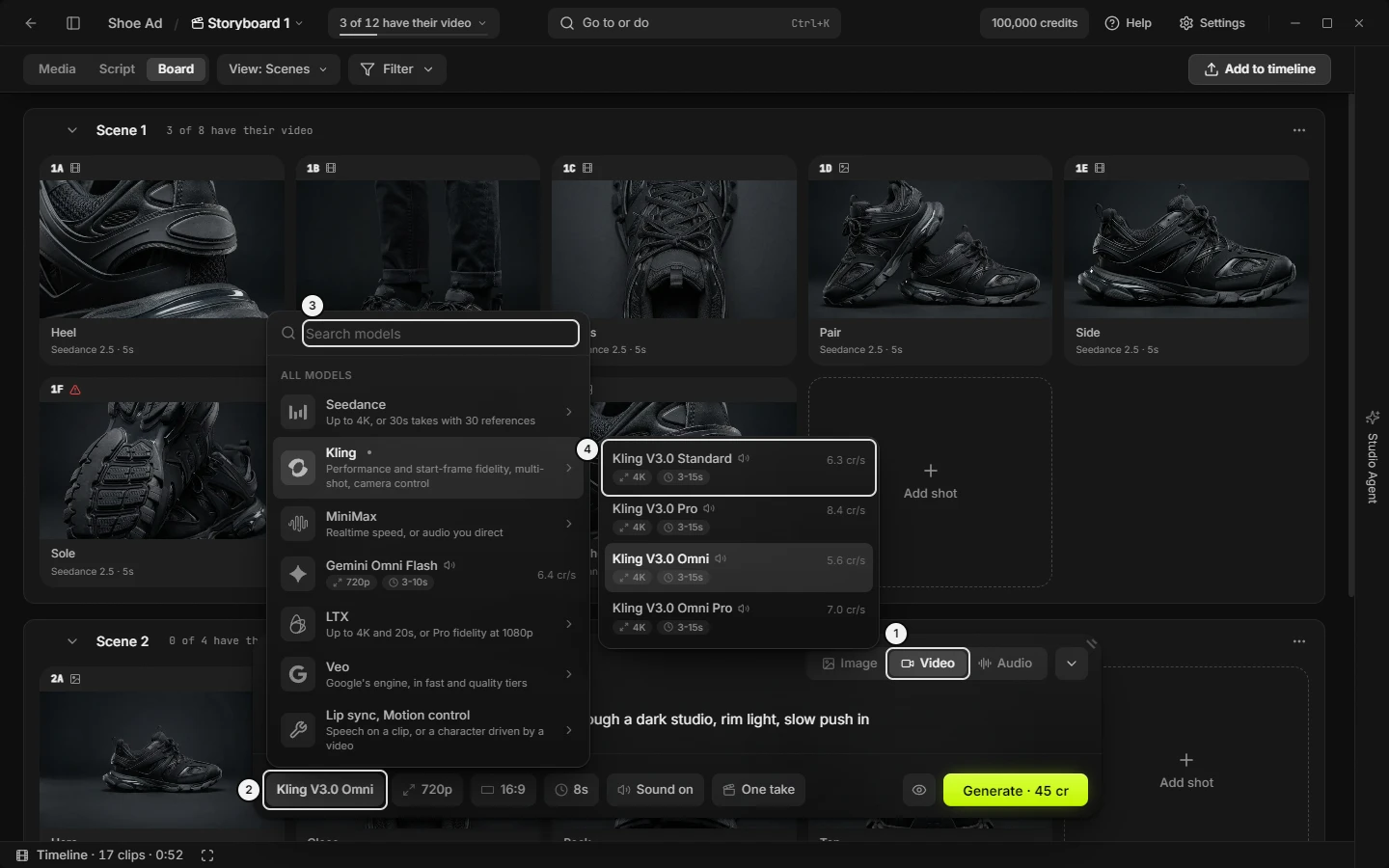\n\nPicture `prompt-model-picker`. The numbers on it:\n1. **Video** (`prompt.box.lane-video`)\n2. the model button (`prompt.model.trigger`)\n3. **Search models** (`prompt.model.search`)\n4. **{model name}** (`prompt.model.model-row`)\n<!-- END:GENERATED picture-prompt-model-picker -->\r\n\r\n### Prompt box: settings on the bar, how each control behaves (dropdown, slider, stepper, fixed value, More)\r\nThe bar shows one control per setting the chosen model has, and nothing else. Which models have which is in the MODEL REFERENCE TABLE. Each trigger shows the current value; the menu explains each option in a subtitle and prices it on its row.\r\n- Dropdown: opens upward. Up and Down move, Enter or Space picks, Tab or Escape closes. A disabled row says why and cannot be picked.\r\n- Slider: Duration and audio **Length** with four or more stops open a popover with the value, its price, a track and both end labels. The thumb snaps only to stops the model accepts; arrows step, Enter or Escape closes. Fewer stops make a dropdown.\r\n- Stepper: **Count**.\r\n- Fixed value: a setting with one legal value stays as a flat pill, tooltip \"{label} (fixed for this model)\", not clickable.\r\n- **More** (tooltip \"More settings\"): when the settings overflow two rows, the heaviest move into it as \"{Label}: {value}\" rows with current values ticked. Picking a row sets it; a **Voice** row opens the picker. Widen the window or close the Studio Agent panel to bring them back.\r\n\r\nAn upscaled resolution says \"Upscaled from {base}: costs more and usually looks worse. Not recommended.\" Changing the model clamps values to what it takes. Agents set any of these with `slates_set_composer` (params), using the ids in the tables that follow; `slates_get_composer` lists each setting's id and the values it offers.\r\n\r\n### Prompt box: image settings (aspect ratio, resolution, quality, background, count, make a 2x2 or 3x3 grid)\r\n| Control | What it does | Agent op |\r\n|---|---|---|\r\n| **Aspect** | Dropdown, two columns **Landscape** and **Portrait**. Only on models with more than one ratio. ChatGPT reads **Requested aspect** | `slates_set_composer` (params.aspectRatio) |\r\n| **Resolution** | Image size; each row priced. One size is a fixed pill | `slates_set_composer` (params.imageResolution) |\r\n| **Quality** | Models with quality steps (GPT Image). Steps from cheapest to best, each with a subtitle and price | `slates_set_composer` (params.gptQuality) |\r\n| **Background** | Models with a background option (GPT Image). Auto, Transparent (a cut-out with alpha) or Opaque. Free | `slates_set_composer` (params.gptBackground) |\r\n| **Count** | Stepper: − and + (**Count: fewer**, **Count: more**) around **×{n}**. Each press of Generate makes that many images, each priced alone. Every image model except ChatGPT | `slates_set_composer` (params.quantity) |\r\n| **Grid** | **Single image**, **2×2 grid**, **3×3 grid**: one picture of 4 or 9 variations to compare, then extract. Only models with grid exploration | `slates_set_composer` (params.gridMode: off, 2x2, 3x3) |\r\n\r\nThe price shows on **Generate**. Agents fire with `slates_generate_image`.\r\n\r\n### Prompt box: video settings (aspect, resolution, 4K, duration, sound on or off, audio, cuts)\r\n| Control | What it does | Agent op |\r\n|---|---|---|\r\n| **Aspect** | As on images. Reads **Adaptive** (tooltip \"Aspect (fixed for this model)\") when the start frame decides the shape | `slates_set_composer` (params.aspectRatio) |\r\n| **Resolution** | Output size; it also narrows the legal durations. The 4K row is greyed on a base account (hint **Pro**, \"Included with Slates Pro.\") | `slates_set_composer` (params.videoResolution) |\r\n| **Duration** | Slider (dropdown with few stops). Absent on edit models, which take the source clip's length | `slates_set_composer` (params.duration) |\r\n| **Audio** | **Silent** or **Sound on**; \"Picture only.\" / \"Native dialogue, effects and ambience in the same pass.\" The Sound on row shows its extra cost or \"no extra cost\". Only where sound is optional; included sound is fixed on | `slates_set_composer` (params.sound) |\r\n| **Cuts** | **One take** or **Cuts**. Only models with cuts, not edit-video. See the Cuts section | `slates_set_composer` (params.multiShot) |\r\n\r\nThere is no face setting: face is a model row. The price shows on **Generate**. Agents fire with `slates_generate_video`.\r\n\r\n### Prompt box: audio settings (Length, Languages, Loop, Wording, Voice)\r\nShown on the Audio lane, by surface:\r\n\r\n| Control | Where | What it does | Agent op |\r\n|---|---|---|---|\r\n| **Length** | Seed Audio, Sound Effects | Slider; the requested length is what is billed. On Seed Audio it is written into the prompt (\"Written into the prompt — this is exactly what you are billed for.\") | `slates_set_composer` (params.audioLength) |\r\n| **Languages** | Seed Audio | **One language** or **Mixed languages**; same cost | `slates_set_composer` (params.audioMultilingual) |\r\n| **Loop** | Sound Effects | **One-shot** or **Seamless loop**; same cost | `slates_set_composer` (params.audioLoop) |\r\n| **Wording** | Sound Effects | **Interpretive**, **Balanced**, **Literal**: how closely the effect follows your words | `slates_set_composer` (params.audioPromptInfluence) |\r\n| **Voice** | Voice | Shows the voice name, or **Pick a voice** in muted text. Opens the voice picker (see Voice picker) | `slates_set_composer` (voice) |\r\n\r\nThe Voice surface prices by character, so its counter is always shown. Seed Audio has no **Voice** control. Agents fire with `slates_generate_audio`.\r\n\r\n### Prompt box: the reference rail (numbered tiles, remove, reorder, Add a reference, +N)\r\nTiles sit in send order, one per thing the request sends. The number is what the model is told: image 1, **V1** for a clip, **A1** for audio; frames are unnumbered. Hover shows the picture, its name, what it is, and \"Drag to reorder\". An empty rail shows only the add controls.\r\n\r\n| Control | What it does | Agent op |\r\n|---|---|---|\r\n| **Remove from prompt** (× on hover) | Takes the tile out; removing a first frame promotes the last. A voice tile detaches only the voice (@token keeps its photo). No × on @ or # tiles | `slates_set_composer` (detach) |\r\n| Drag a tile onto another | Swaps places within one role and renumbers them; First and Last may swap. Not for mention tiles | `slates_set_composer` (detach, attach) |\r\n| **Swap first and last frames** | Between First and Last, when both are set | `slates_set_composer` (setRole) |\r\n| **+{N}** (tooltip \"{N} more, {M} not sent\") | The rail is one row; tiles that do not fit are still attached and sent. Press to show all, again to fold | — |\r\n| **Add a reference** | The + at the rail's end. Opens the picture picker | `slates_set_composer` (attach) |\r\n| Tile right-click | **Role**, **Use two as first + last**, **Go to {image} in Media**, **Remove from prompt** | see roles |\r\n\r\nThe + hides when the model takes no references, the cap is reached, or a frame is set on a model that cannot mix frames with references. Lip Sync, Motion Transfer and audio modes have no rail. Reference limits: MODEL REFERENCE TABLE.\r\n\r\n### Prompt box: reference roles, Not sent (Reference, Subject, Look, role chip, role menu, a greyed picture)\r\nThe role chip sits bottom-left of a user-added picture tile: **Ref** (shown on hover), **Subject**, **Look**, **First**, **Last** (tooltip \"Role: {role} — click to change\"). Clip tiles, audio tiles, @ and # tiles and the edit source have none. It opens the menu **Role**.\r\n\r\n| Row | Rule |\r\n|---|---|\r\n| **Reference**, **Subject**, **Look** | Always offered; edit-video offers only these |\r\n| **First frame** | Video models that take a first frame |\r\n| **Last frame** | Only after a first frame, on a model with a last-frame input. Greyed \"Needs a second picture\" on a lone first |\r\n| **Use two as first + last** | Exactly two plain references, no mentions, a last-frame model |\r\n\r\nA greyed row gives its reason (\"Remove the mentions first\"); a row that changes other tiles says so (\"Drops {N} other references\", \"Both become references\"). Setting a frame role on an image model moves the box to the last video model. Agents: `slates_set_composer` (setRole).\r\n\r\n**Not sent** marks a tile past the model's limit; its picture is greyed. Hover: \"Past this model’s limit, so it is not sent.\" (a clip: \"Past this model’s limit. Remove one to generate.\"). Nothing is deleted; change model or remove one.\r\n\r\n<!-- BEGIN:GENERATED picture-prompt-role-menu -->\n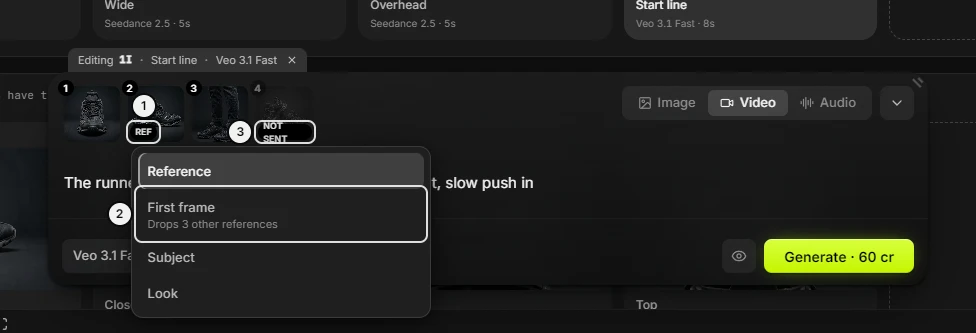\n\nPicture `prompt-role-menu`. The numbers on it:\n1. **Ref / Subject / Look / First / Last** (`prompt.rail.role-chip`)\n2. **First frame** (`prompt.role.first-frame`)\n3. **Not sent** (`prompt.rail.not-sent`)\n<!-- END:GENERATED picture-prompt-role-menu -->\r\n\r\n### Prompt box: first frame and last frame (animate a picture, start image, end image, frames to video)\r\n| Control | Where | What it does | Agent op |\r\n|---|---|---|---|\r\n| **First frame** (tooltip \"Add first frame\") | dashed site, rail left of the + | Opens **Choose the first frame**; the picture starts the video. Shown on video models that take a first frame, until one is set | `slates_generate_video` (firstFrameAssetId) |\r\n| **Last frame (optional)** (tooltip \"Add last frame\") | dashed site after the first tile | Opens **Choose the last frame**. Only with a first frame set, on a model with a last-frame input | `slates_generate_video` (lastFrameAssetId) |\r\n| **Animate** | Media picture right-click | Makes the picture the first frame and moves the box to the last video model | `slates_set_composer` (attach, setRole) |\r\n| **Swap first and last frames** | between the tiles | Swaps the two pictures | `slates_set_composer` (setRole) |\r\n\r\nThe field reads \"Describe how this frame should move...\" with a first frame, \"Describe the motion between frames...\" with both. **Aspect** may read **Adaptive**. Any picture added while a first frame waits (**Add to prompt**, a paste, a drop) becomes the Last frame on a model that has one; change its role on the tile. On a model that cannot mix frames with references, setting a frame hides the +; on one that can, the + and the sites show together. Many Shots at once: `slates_use_pictures_as_first_frames`.\r\n\r\n### Prompt box: reference clips and audio (Add as reference, V1, A1, what is said)\r\nRight-click a clip or audio card in Media → **Add as reference** adds a **V1** or **A1** tile without clearing anything. It needs a model that reads reference clips or audio (the **Reads clips** and **Reads audio** chips); otherwise it is greyed with \"{Families} read reference clips/audio\" (on an audio surface: \"{Model} reads a voice from an @mentioned character\").\r\n\r\nA hand-attached audio tile has a captions chip (tooltip \"Add what is said in this clip\", then \"What is said — click to edit\"). It opens the panel **What is said in audio {N}** with a field (\"Type the exact line…\"); the typed words are sent as text, because the model re-transcribes a reference take. Escape or a click outside closes it.\r\n\r\nA tile past the model's cap reads **Not sent**. The clip being edited shows a film chip (tooltip \"Source clip being edited\"). Agents: `slates_generate_video` (videoReferenceAssetIds, audioReferenceAssetIds, audioReferenceSpokenText).\r\n\r\n### Prompt box: add, upload or paste a picture (picture picker, Choose the first frame, drag from Media)\r\nThe picture picker is a dialog titled **Add a reference**, **Choose the first frame** or **Choose the last frame**, by the control that opened it.\r\n\r\n| Part | What it does |\r\n|---|---|\r\n| **Search** | Matches the words a picture was made from, its label and its code |\r\n| **Upload** | First tile (.png, .jpg, .webp). Reads the file in directly; it is not saved to Media |\r\n| Picture grid | Every project picture (clips are not offered); a tooltip is its code. A click picks and closes; reference adds stop at the remaining capacity |\r\n| × / Escape / scrim | Close without picking |\r\n\r\nEmpty: \"No pictures in this project yet.\" or \"No pictures match.\"\r\n\r\nOther ways to attach: `Ctrl+V` with a picture in the prompt saves it to Media (the open folder) and attaches it as a reference, or as the last frame when a first frame waits; a press that cannot attach is refused with a note and saves nothing. Drag a Media picture onto the drop zone **Prompt** (\"Attach as references\"). Right-click → **Add to prompt**. Click a pinned row in the dock. Agents: `slates_upload_reference_image`, then `slates_set_composer` (attach).\r\n\r\n### Prompt box: See what gets sent (eye, preview, composed prompt, what the model receives)\r\nThe eye beside **Generate** opens the popover **What gets sent**: the exact text that will be transmitted, produced by the same code that builds the request, so it cannot disagree with what is sent. It is absent in Lip Sync and while cuts stand in for the prompt. Escape closes it.\r\n\r\nThe eye's shade has four states: plain (as written), slightly brighter (the composer rewrote the text), brighter (a note), red with a warning triangle (a citation points at nothing attached).\r\n\r\nAbove the text, a line per warning (\"{list} point(s) at nothing attached\") and per note (\"{list} match(es) nothing saved — sent as written, with no reference attached\"; \"{list} past this model’s limit — sent as written, with no reference attached\"). The text block then shows, or \"(empty)\":\r\n- Reference numbering: `@sarah` becomes `Sarah (image 1)`.\r\n- Fallback role lines for character, location or look images attached but not mentioned. A typed image number or resolved mention wins; pinned images get no generic preamble.\r\n- Inline look references: \"lit and graded like #noir\" becomes \"lit and graded like image 2\" when that look is the second image.\r\n- The Seed Audio duration append (`… N seconds`), which is also what is billed.\r\n- Grid wrapping when 2×2 or 3×3 is on.\r\n- A Kling edit's `@Element`, `@Image`, `@Video` form.\r\n\r\nUnchanged text shows as typed. Unresolved `#tags` and `@mentions` stay exactly as typed; a word still being typed is not flagged; hex colours stay plain text. Nothing is added that you cannot read here. Agents: `slates_get_composer` (the composed text).\r\n\r\n### Prompt box: Generate button, price, running count (Generate, Ctrl+Enter, empty press)\r\n**Generate** is at the far right of the bar and is never disabled.\r\n\r\n| State | What you see |\r\n|---|---|\r\n| Something to send | Lime. **Generate · {price}** (credits; an admin sees dollars). Image batches price each image |\r\n| Empty box | Grey, still pressable. A press puts the caret in the prompt and says what is missing on the notice line |\r\n| No price known | Plain **Generate**; with a clip still needed, a per-second rate |\r\n| Generations running | A number inside the button, across projects |\r\n| ChatGPT host | **Enable in Settings**, **Connect ChatGPT**, **Generating…**, **ChatGPT unavailable**, else **Generate** |\r\n\r\nTooltip: \"Generate (Ctrl+Enter) — {model}\" (`Cmd` on a Mac), or the first reason the model refuses what is attached. Keys: `Ctrl+Enter` with the caret in the prompt.\r\n\r\nA press: unbound, it empties the prompt and mentions, keeps the references, and puts the words back if the job fails. Bound, the result becomes a take of the Shot and the bar keeps the recipe. On the Media tab a video or audio press then opens the Videos or Audio tab (not from Board, Script or the timeline). With no voice on a voice model, the press opens the voice picker instead. Agents: `slates_generate_image`, `slates_generate_video`, `slates_generate_audio`, `slates_generate_lip_sync`, `slates_generate_motion_transfer`, `slates_edit_video`; price `slates_estimate_generation_cost`; saved Shots `slates_generate_from_shots`.\r\n\r\n### Prompt box: the notice line (why Generate did nothing, dismiss)\r\nOne line under the prompt, over the controls bar. A red alert icon marks an error, an info icon a note; the × (**Dismiss**) closes it. It says what stopped a press or what changed by itself, such as references a model switch removed.\r\n\r\nIt clears at the start of each press, when the model, mode, Shot or project changes, and when an empty-press hint gets something to send. It shows only while the box is open and not covered by the viewer, Compare or the animatic; otherwise the same words appear as a toast. The texts are listed under the prompt box messages sections. Agents read it with `slates_get_composer` (notice).\r\n\r\n### Prompt box: Cuts dialog (several cuts in one clip, multi-shot, One take)\r\nThe **Cuts** control (**One take** or **Cuts**) shows only on models with cuts. **Cuts** opens the dialog **Cuts**; picking it again, or clicking the cuts summary in the prompt's place, reopens it. **One take** turns cuts off and clears the prompt and the cuts. On a model without cuts the prompt returns and the cuts wait.\r\n\r\n| Control | What it does |\r\n|---|---|\r\n| Status card **Total Duration** | \"{n}s remaining — each cut 3–15s\", or \"Maximum duration reached\"; \"{total}s / 15s\", red outside 3–15 |\r\n| **Cut {n}**: **Duration (s)** | Number field, clamped so the total fits and each cut holds at least the minimum |\r\n| **Camera** | None, or a move: Pan, Tilt, Zoom, Dolly, Orbit |\r\n| **Shot Size** | None, or Extreme Wide Shot through Extreme Close-Up |\r\n| **Description** | Optional; leave empty to use camera and shot size alone |\r\n| **Remove this cut** | Trash icon, when there is more than one cut |\r\n| **Add cut** | Dashed; greyed \"15s is the most one clip can hold\" when little is left |\r\n| **Use {n} cuts · {total}s** | Applies; reads **Replace your prompt with {n} cuts · {total}s** when the prompt has words. Greyed \"Total must be 3–15s\" or \"Each cut needs a description, camera, or shot size\" |\r\n| **Cancel** / Escape / scrim | Applies nothing |\r\n\r\nApplying empties the prompt, stores the cuts and sets the duration to the total. The cuts summary lists one line per cut: \"{n}s\" and its words, or \"Empty cut\" (tooltip \"Set up the cuts\"). Agents: `slates_create_shot` (multiShot, multiShotSegments).\r\n\r\n### Prompt box: Kling Lip Sync and Motion Control source pickers (Select lip-sync source, Select driving video, Select character image)\r\nIn a tool mode the rail is replaced by source tiles. A tile shows a + and its label, or the picked thumbnail; an × on hover clears it.\r\n\r\n| Tile | Opens | Shows |\r\n|---|---|---|\r\n| **Image / Video** (Lip Sync) | **Select lip-sync source**: \"Choose a video or image with a clear face and visible mouth\" | pictures and clips; filter **All**, **Images**, **Videos** |\r\n| **Motion** (Motion Transfer) | **Select driving video**: \"Choose a video with the motion you want to transfer\" | clips |\r\n| **Character** (Motion Transfer) | **Select character image**: \"Choose an image of the character to animate\" | pictures |\r\n\r\nEach picker has a search (\"Search by prompt...\"), a sort (**Newest first**, **Oldest first**), a count (\"{n} assets available\", then \"{n} source selected\"), **Cancel** and **Select** (disabled until one is picked). The current tile is marked. Empty: \"No images or videos in project\" (lip sync), \"No videos in project\", \"No images in project\". Agents stage the tiles for you with `slates_set_composer` (tool: sourceAssetId, speechText, drivingVideoAssetId, characterImageAssetId), or pass them to `slates_generate_lip_sync` (sourceAssetId, sourceType) or `slates_generate_motion_transfer`.\r\n\r\n### Prompt box: voice control and voice picker (Pick a voice, Presets, Clips, Describe)\r\nThe **Voice** control (tooltip \"Pick the voice this take speaks in\") opens the picker under it, from **More**, or by pressing **Generate** with no voice. It shows on the Voice surface only. The picker is a menu, not a dialog; Escape or an outside click closes it, and picking a row sets the voice and closes it. Its note: \"Picking sets the voice for this take. Play any row first — listening is free.\"\r\n\r\n| Tab | What it holds |\r\n|---|---|\r\n| **Presets** | Search (\"Search — gravelly, warm, narrator…\"), chips (gender, accent, age), rows with a play button (**Play {name}**, **Stop {name}**) and a choose button |\r\n| **Clips** | **Import voice clip** (an audio file; free; shows **Importing…**); sections **Characters** (\"{Name}'s voice\", \"Cloned for each take\") and **In this project** |\r\n| **Describe** | A field for the voice in words, **Use this description** (greyed outside the length limits), \"{n}/{max}\" |\r\n\r\nEmpty and error texts: \"Loading the shelf…\", \"Nothing matches. Clear a chip, or try a quality — warm, gravelly, bright.\", \"No audio in this project yet. Import a voice clip above, or generate a take.\", \"No clip matches.\", \"Could not import {file}.\", \"Could not play this voice clip.\" Choosing a voice never spends credits; only **Generate** does. Agents: `slates_list_voices`, `slates_set_composer` (voice).\r\n\r\n### Prompt box: real person consent (Real person detected, face route refused)\r\nThis dialog is not opened by a click. It opens after a Seedance face generation is refused because a reference shows a real person; the credits are refunded.\r\n\r\n| Part | What it says or does |\r\n|---|---|\r\n| Title | **Real person detected** |\r\n| Text | The standard face route supports only AI-generated faces; real-person generation is available at the price below |\r\n| Prices | \"Standard face route ({res}, {seconds})\" and \"Real-person route ({res}, {seconds})\"; \"—\" until the failed generation loads |\r\n| Checkbox | \"I confirm I have the rights and consent to use this person's likeness, and that this content doesn't impersonate or misrepresent them.\" |\r\n| Note | \"Public figures and celebrities are not supported and will fail.\" |\r\n| **Generate — {price}** | Disabled until the box is ticked; **Starting…** while it runs. Re-runs the same generation on the real-person route and adds its placeholder to the project |\r\n| **Cancel** / × / Escape | Closes without generating |\r\n\r\nErrors: \"Could not load the generation details. Close this dialog and try again.\" / \"Couldn't start the real-person generation: {reason}\". Only you can confirm it: the confirm bills the real-person price and needs your consent.\r\n\r\n### Prompt box: debug panel (Ctrl+Shift+D, override the prompt)\r\nThere is no button; `Ctrl+Shift+D` toggles the panel above the controls bar, in packaged builds too. It shows \"Actual prompt sent to API\" (the composed prompt, or the cuts), the reference totals, and the flags `[2X2 GRID MODE]` and `[OVERRIDE ACTIVE]`. It shows no request body. Click the text to edit a one-shot replacement that is sent instead; `Ctrl+Enter` saves, Escape cancels. **Edit**, **Clear** (drops the override), **Cancel**, **Save** (disabled while blank). For ordinary use, See what gets sent is the supported view.\r\n\r\n### Prompt box: ChatGPT as the image destination (Connect ChatGPT, Requested aspect)\r\nWith the ChatGPT images setting on, the image lane's last family is ChatGPT (hint **Connected**, **Connect** or **Unavailable**). Picking it sends to your connected ChatGPT account instead of Slates credits.\r\n\r\nThe box then shows a badge \"Uses your ChatGPT account limits\" (or the connection message), the one setting **Requested aspect** (menu note \"Requested in the prompt; dimensions may vary.\"), no counter, and no **Count**. **Generate** reads **Enable in Settings**, **Connect ChatGPT**, **Generating…**, **ChatGPT unavailable** or **Generate**. The framing request is added in words and shows in See what gets sent. Setup is in Settings (AI tools). Agents: `slates_get_chatgpt_status`, `slates_connect_chatgpt`, `slates_generate_chatgpt_image`.\r\n\r\n### Prompt box messages: nothing to send, sign-in, lip sync and motion (notice line texts)\r\n| Message | Means / do |\r\n|---|---|\r\n| **Pick the clip to change: right-click it and choose Edit with AI.** | Edit-video has no clip. Right-click a clip in Media |\r\n| **Write a prompt or attach a picture first.** | Image or references mode is empty |\r\n| **Write a prompt or add a first frame first.** | Frames-to-video is empty |\r\n| **Write a prompt first.** | Any other empty press |\r\n| **Audio generation runs on Slates credits — sign in to use it** | Signed out; opens Settings |\r\n| **{fal.ai or Kling} API key required — add it in Settings or use Slates credits** | Signed out; sign in instead |\r\n| **Please select a video or image source** | Lip Sync has no source |\r\n| **Please enter speech text** | **Speech Text** is empty |\r\n| **Please upload an audio file** | **Audio File** is empty |\r\n| **Audio file must be under 5MB** | The file is too big |\r\n| **Please select both a driving video and character image** | Motion Transfer is missing one |\r\n\r\nAn empty-press note clears by itself once the box has something to send. A generic failure reads \"Generation failed\" plus the error.\r\n\r\n### Prompt box messages: the model refuses frames or an edit (first error on the notice line and Generate tooltip)\r\nThe first refusal shows under the prompt and as the **Generate** tooltip.\r\n\r\n| Message | Do |\r\n|---|---|\r\n| **Attach the clip to edit (right-click a clip → \"Edit with AI\")** | Attach a clip |\r\n| **Source clip is {n}s — {Model} accepts {min}–{max}s clips. Trim it first.** | Trim the clip (**Trim or split…**) |\r\n| **Source clip is {n}s — {Model} needs at least {min}s.** | Use a longer clip |\r\n| \"Frame slots don't apply to video edit — the source clip is the canvas. Flip frames back to Reference.\" | Set frame roles to Reference |\r\n| **{Model} can't edit an existing clip — switch to Kling O3 Edit** | Pick an edit model |\r\n| **{Model} generates audio — frame roles need a video model. Flip the badge to Reference, or pick a video model.** | Same for image models |\r\n| **A last frame needs a first frame — add one or flip the badge** | Add a first frame |\r\n| **{Model} does not support a last frame — flip it to Reference or choose another video model.** | Change role or model |\r\n| **{Model} can use reference images or first/last frames, not both. Remove the references or flip the frames back to Reference.** | Choose one kind |\r\n| **{Model} needs a first frame to use reference images. Add a first frame, or switch to Kling Omni.** | Add a first frame |\r\n\r\n### Prompt box messages: the model refuses references, clips or audio\r\n| Message | Do |\r\n|---|---|\r\n| **{Model} doesn't take reference video — remove it, or pick a model that reads reference clips.** | Audio has the same message |\r\n| **{Model} takes max {n reference videos} — remove {k}.** | Audio has a twin (\"reference audio clips\") |\r\n| **{Model} takes max {n} reference files in total (images + video + audio) — you have {k}.** | Remove {k} |\r\n| **Reference video totals ~{n}s — {Model} accepts {a}–{b}s combined. Trim a clip to a section first (right-click → Trim to section, or slates_trim_video).** | Trim |\r\n| **Reference video totals ~{n}s — {Model} needs at least {a}s.** | Add more |\r\n| **Reference audio totals ~{n}s — {Model} accepts up to {b}s combined. Trim a clip first.** | Trim |\r\n| **{Model} needs at least one image or video reference alongside an audio reference — add one, or switch to Seedance 2.5.** | Add a picture or clip |\r\n| **{Model} takes reference images OR audio references, not both. Remove one side.** | Choose one side |\r\n\r\nA tile past the limit also reads **Not sent**; that one is not a message.\r\n\r\n### Prompt box messages: references trimmed or removed, Seedance wording, edit length (notes)\r\nNotes have an info icon and do not stop the press.\r\n\r\n| Note | Means |\r\n|---|---|\r\n| **Reference images trimmed to {n} (used by mentions)** | A model with a lower cap kept the pictures your mentions use; the other form ends \"for this model\" |\r\n| **{n} reference image(s) removed ({Model} allows {n})** | The new model takes fewer. On a bound Shot they stay and are greyed instead |\r\n| **{n} other reference image(s) removed ({Model} takes references or frames, not both)** | A frame role displaced them |\r\n| **{Model} takes no reference images** / **This model does not support reference images** | An add or paste was refused; pick a model that takes references |\r\n| **{Model} can use reference images or frame controls, not both** | A paste or add was refused |\r\n| **Maximum {n} reference images allowed** | The cap |\r\n| **{n} attached; {k} did not fit the model's reference limit.** | Some were skipped |\r\n| **Could not save the pasted image** | Nothing was written |\r\n| \"Seedance 2.5 reads \\\"{words}\\\" as an EDIT instruction and may run this as a video edit, which fails after the job queues…\" | Reword, or use the edit model with a clip; Slates never changes your prompt |\r\n| **This {n}s clip is set to Seedance Edit: Kling and Omni Flash edit {min}–{max}s clips (Trim first to use them).** | After **Edit with AI** on a clip outside those lengths |\r\n\r\nAudio: **Pick a voice for this take** (the box opens the picker), **That voice clip is no longer in this project — pick another voice**, **{Model} takes {n} voices — {names} not attached**.\r\n\r\n### Prompt box messages: generation failed, Restore prompt, Open logs, ChatGPT errors\r\nA failed job posts a toast that stays until dismissed: \"Generation failed: {reason}.\" with **Restore prompt** (only when the words could not go back quietly) and **Open logs** (Settings at Generation Logs). The failed words return on their own when the box is empty, unbound and in the same project. A real-face failure opens the consent dialog instead. A press that throws reads \"Generation failed\" plus the error.\r\n\r\nChatGPT host: **Enable ChatGPT Images in Settings to use this optional connection**; **Restart Slates to load the ChatGPT connection**; **Open a project to save your image**; **Describe the image you want to generate**; **This ChatGPT connection accepts image references. Remove audio or video attachments to continue.**; **ChatGPT generation failed**; the toast \"Finish ChatGPT sign-in in your browser, then return here. Your prompt and references are kept.\"\r\n\r\n### Prompt box: how to make an image (text to image, create a picture)\r\n1. Open a project; the box is at the bottom. Press **Image**.\r\n2. Click the model button and pick a model, by family or **Search models**. WHICH MODEL TO USE says when to switch.\r\n3. Type the prompt. `@` adds a character or location, `#` a look.\r\n4. Set the settings the model shows: **Resolution**, **Aspect**, **Quality**, **Background**, **Count**, **Grid**.\r\n5. Read the price on **Generate**.\r\n6. Press **Generate**, or `Ctrl+Enter` with the caret in the prompt. The prompt empties and the pictures arrive under Images in Media.\r\n\r\n### Prompt box: how to make a video from a picture (first frame, animate, image-to-video)\r\n1. Press **Video**.\r\n2. Click **First frame** and pick a picture, or right-click a Media picture → **Animate**. The field now reads \"Describe how this frame should move...\".\r\n3. Add **Last frame (optional)** when the model offers it.\r\n4. Write the motion. Set **Resolution**, **Aspect** (it may read **Adaptive**), **Duration**, **Audio**.\r\n5. Press **Generate**. The clip arrives under Videos.\r\n\r\nFor a clip from text alone, skip step 2. For references instead of frames, use **Add a reference**.\r\n\r\n### Prompt box: how to edit a Shot through the box (bound Shot, no save button)\r\n1. On the Board, click a Shot tile (or a Script picture). The tab reads **Editing {place} · {name} · {model}**.\r\n2. Change the prompt, model, settings or references. Each edit writes back after a short pause.\r\n3. Press **Generate** to add a take; the Shot stays in the bar.\r\n4. Press the × on the tab to stop editing; your unsent draft comes back.\r\n\r\n**Restore previous setup** swaps back the recipe Continue replaced.\r\n\r\n### Prompt box: how to undo a mistake (cleared prompt, failed generation, lost words)\r\n- Cleared it: **Restore draft** on the tab.\r\n- A generation failed: the words return on their own when the box is empty; otherwise **Restore prompt** on the failure toast.\r\n- Switched model and references went: on an unbound draft they are removed with a note (see the notes messages); on a bound Shot they stay, greyed.\r\n- Shot recipe replaced by Continue: **Restore previous setup**.\r\n\r\n### Prompt box: what an agent can do here\r\n- Read the box: `slates_get_composer` (binding, lane, model, words, settings, every tile with its number, role and whether it is sent, the composed text, unresolved mentions, the notice line, the price).\r\n- Stage the box, never spending: `slates_set_composer` (bindShotId, null to stop; lane, model, prompt, params, attach with roles, detach, setRole, addMentions, clear, restoreDraft, restoreSetup, fromAssetId for Reuse prompt, editSourceAssetId for Edit with AI, voice, tool for Lip Sync and Motion Control).\r\n- Open or fold it: `slates_set_view` (composer.open).\r\n- Fire: `slates_generate_image`, `slates_generate_video`, `slates_generate_audio`, `slates_generate_lip_sync`, `slates_generate_motion_transfer`, `slates_edit_video`, `slates_edit_image`, `slates_generate_chatgpt_image`. Price first with `slates_estimate_generation_cost`; saved Shots fire through `slates_generate_from_shots`.\r\n- Write the same recipe as a Shot: `slates_create_shot`, `slates_update_shot`, `slates_get_shot`.\r\n- Point at a control: `slates_highlight_control`.\r\n\r\nOnly the user can: drag the **Resize the prompt box** corner; choose a Lip Sync **Audio File**; tick the consent box in **Real person detected** and press its **Generate — {price}**; finish the ChatGPT sign-in in the browser.\r\n\r\n### Generation modes: make an image (create image, text to image)\r\nPrompt, pick an image model, set its settings, press **Generate**. Steps and every setting are under the prompt box how-to and image settings sections. A Count above one makes several pictures per press. Grid exploration makes one picture of 4 or 9 variations. References through `@`, `#` or **Add a reference** go to every image model, up to its limit (the Max Refs column of the MODEL REFERENCE TABLE).\r\n\r\n### Generation modes: text to video (make a clip from a prompt)\r\nPress **Video**, pick a video model, write the prompt, set **Duration**, **Aspect** and **Resolution**, press **Generate**. The output is an MP4 under Videos. The field reads \"Describe the video you want to create...\". Where sound is optional, **Audio** turns it on.\r\n\r\n### Generation modes: image to video (start image, first frame, last frame)\r\nPut a picture on **First frame** and write the motion. On a model that offers it, add **Last frame (optional)** for a guided transition; or set a second picture's role to **Last frame**. Mode, placeholders and greyed rows are under first frame and last frame. Right-click a picture → **Animate** does the first step.\r\n\r\n### Generation modes: ingredients, reference images and @ mentions to video\r\nOn the Video lane, attach references with `@name` (a Library character, location, product or prop) and `#name` (a look), or **Add a reference**. The field reads \"Describe how to combine your references...\". How many references each model takes is the Max Refs column of the MODEL REFERENCE TABLE; past it a tile reads **Not sent**. Some models read reference clips and audio too (Prompt box: reference clips and audio). Some cannot mix references with frames (Prompt box: reference roles).\r\n\r\n### Generation modes: lip sync (Kling Lip Sync, avatar, speech on a picture or clip)\r\nKling only. Video lane → model button → family **Lip sync, Motion control** → **Kling Lip Sync**. The box swaps to tool mode.\r\n1. Click the **Image / Video** tile and **Select** a source (see the source pickers section).\r\n2. Set **Audio source**: **Text to speech** (\"Type the line; Kling speaks it.\") or **Upload audio** (\"Bring your own recording (max 5MB).\").\r\n3. For text to speech type **Speech Text** (counter \"{n}/120 characters\"; placeholder \"What should the character say?\"), then pick **Voice** and **Speed**. For upload, choose an **Audio File** (.mp3 .wav .m4a; \"Max 5MB, 2-60 seconds duration\").\r\n4. With an image source, **Avatar** picks **Avatar v2 Standard** (\"The value tier.\") or **Avatar v2 Pro** (\"Higher fidelity, higher rate.\").\r\n5. Press **Generate**.\r\n\r\n**Voice** is one of six fixed voices. **Speed** goes from half to double pace; \"Natural pace.\" is the middle. Billing is in blocks, and text to speech on a still image adds one block for the voice (Tools rows of the MODEL REFERENCE TABLE). Works best with human-like faces. No rail and no eye in this mode. Agents: `slates_generate_lip_sync` (sourceAssetId, sourceType, audioMethod, ttsText, ttsVoice, ttsSpeed, avatarModel).\r\n\r\n### Generation modes: motion control (Kling Motion Control, motion transfer)\r\nKling only. Video lane → model button → family **Lip sync, Motion control** → **Kling Motion Control**.\r\n1. Click **Motion** and **Select** the driving video; click **Character** and **Select** the image.\r\n2. **Engine**: the Standard (\"The value tier.\") or Pro (\"Higher fidelity, higher rate.\") tier.\r\n3. **Orientation**: **Match video** copies skeleton and depth from the clip (best for dancing, walking, full-body action; allows the longer driving clip) or **Match image** keeps your character's pose and uses the video as hints (best for close-ups).\r\n4. Optionally describe the motion (\"Optionally describe the motion or scene...\"). Press **Generate**.\r\n\r\nBoth pickers must be set: \"Please select both a driving video and character image\". Agents: `slates_generate_motion_transfer` (motionModel, orientation).\r\n\r\n### Generation modes: edit an image (image viewer Edit box, change a picture with words)\r\nClick any image to open the viewer, which opens on the Move tool so a click never draws. The Edit box is at the bottom: describe the change (\"Describe what you want to change...\"), pick a model from the same picker (every image model edits; each row priced at the box's settings), set the settings that model has, and add references with **+** (the picture being edited counts as image 1, so the cap is one less). **Edit · {price}** sends it, as does `Ctrl+Enter`; it works with nothing typed and says \"Describe what you want to change\". Marks drawn on the picture are flattened onto it.\r\n\r\nThe viewer closes, a \"Generating...\" card appears under Images, and the result saves as a new asset in the source's folder, linked to it; the original is kept. Failure: \"Could not start the edit.\" **Add to prompt** attaches the picture and leaves the viewer open; **Animate** makes it a first frame. Agents: `slates_edit_image`.\r\n\r\n### Generation modes: edit a video (Edit with AI, Omni Flash Edit, Kling O3 Edit, Seedance 2.5 Edit)\r\nRight-click any clip (Media or the timeline) → **Edit with AI**, or its card's hover button of the same name (**Stop editing** while it is the source). The box clears, the clip becomes the source tile with a film chip, and the box moves to an edit model: Omni Flash Edit by default, Kling O3 Edit when the clip is longer than that accepts, Seedance 2.5 Edit for the longest. You can pick another; clip lengths and limits are in the MODEL REFERENCE TABLE. A clip outside the lengths Kling and Omni Flash edit is set to Seedance Edit, and a note says to Trim first to use the others.\r\n\r\nDescribe the CHANGE, not the whole scene (\"replace the man with @marcus\", \"make it a rainy night, keep everything else\").\r\n- Kling O3 Edit takes reference images: set the role **Subject** to swap someone in, **Look** to give a look. It keeps the original audio.\r\n- Omni Flash Edit is prompt only; add \"Keep everything else the same.\"\r\n- Seedance 2.5 Edit takes the longest clips.\r\n\r\nThere is no **Duration**: output follows the source clip, and the price shows on **Generate**. The edit saves as a NEW asset linked to the original; chain edits freely. Agents: `slates_edit_video` (sourceVideoAssetId), `slates_trim_video`; `slates_set_composer` (editSource).\r\n\r\n### Generation modes: cuts inside one clip (multi-shot, Kling V3.0 and Omni)\r\nOn a model with cuts, **Cuts** on the Cuts control opens a dialog for several cuts inside one generated clip, each with its own description, length, camera move and shot size. The control, the dialog and **One take** are in the Cuts dialog section. Results can be hit-or-miss; for reliable results, generate separate short clips and assemble them on the timeline.\r\n\r\n### Generate audio: the Audio lane (Seed Audio, Voice, Sound Effects, scene audio, speech, sound effect)\r\nPress **Audio**, pick a surface, and press **Generate**. The result lands under Audio in Media as its own asset with a waveform and an inline player, and can be dragged onto an audio track in the timeline. Three surfaces:\r\n\r\n- **Seed Audio**, a scene: one plain sentence describing the moment. Set **Length**; Slates writes it into the prompt and that is exactly what you are billed for (See what gets sent shows the appended text). Say the crowd or room size out loud: \"applause\" returns a full auditorium when you meant three people. Ask for a few seconds more than needed, for fade handles. Describe the voice in the sentence (\"a weary dock foreman in his fifties, gravel in his voice\"); there is no **Voice** control, and an @mentioned character with a voice lends it.\r\n- **Voice**: the prompt is the words to be spoken, verbatim. Pick the voice with **Voice** (presets you can play first, any clip in the project, a character's voice, or a description). The counter is the bill. Direction tags and cloning rules are in the Voice model's prompting guide (`slates_get_prompting_guide`).\r\n- **Sound Effects**: describe the physical cause; set **Length** to about the event (short for an impact, longer for a whoosh, the long end plus **Loop** for a bed). **Wording** sets how literally it follows you.\r\n\r\nAgents: `slates_generate_audio`; `slates_list_voices`.\r\n\r\n### Generate audio: use your own voice recording (import a voice clip, clone a voice)\r\n1. Press **Audio**, then pick the **Voice** family's model in the model picker.\r\n2. Open **Voice** → **Clips** → **Import voice clip** and pick your recording. The import adds an audio asset and generates nothing.\r\n3. Click its play button to listen, then click the recording's name to choose it.\r\n4. Type the words to be spoken and press **Generate**, which shows the price. The take appears under Audio in Media.\r\n\r\nUse a clean recording of one speaker whose voice you have permission to use. Slates clones it for each take; there is no training step and no persistent vendor voice. **Presets** auditions ready-made voices; **Describe** takes a written description and **Use this description**. Choosing only sets up the next take; only **Generate** spends credits.\r\n\r\nTo attach a recording or a take to a character, open Characters from the left dock's Library, right-click the character's card (or press its **…**) → **Add voice** (**Change voice** when it has one), choose **Clips**, click the clip's name. Attaching an existing clip is free; the card shows its waveform and player. That voice also lists under **Voice** → **Clips** → **Characters**. A preset or description picked from a character card generates and attaches a take, so read its cost first.\r\n\r\n### Character voices: attach a voice to an @mention (voice attachment, timbre, character voice on video)\r\nHow a character gets a voice is in the section above; which models use it is below.\r\n\r\n<!-- BEGIN:GENERATED voice-attachment -->\nCharacter mentions attach assigned voice samples on supported video models: Seedance 2.0, Seedance 2.5, MiniMax H3 Max, MiniMax H3. The reference rail shows each attached voice and the composed prompt names its timbre role. Removing a voice tile is saved with the Shot. Frames, sample duration, and reference capacity can prevent attachment; inspect the rail before generating.\n\nFor Inworld TTS-2, choose the character under **Voice → Clips → Characters**. Its prompt is spoken verbatim; a mention does not select the voice. Seed Audio also supports character voice mentions.\n<!-- END:GENERATED voice-attachment -->\r\n\r\n### Audio inside a video clip (Audio Silent, Sound on, native audio, dialogue in a video)\r\nThis is audio generated inside a video. For audio as its own asset, see the Audio lane section. Where a model makes sound optional (Kling, Veo), the **Audio** control (**Silent** or **Sound on**) turns it on; sound often costs more, and the **Sound on** row says how much, or \"no extra cost\".\r\n\r\n- Veo 3.1 native audio: dialogue in quotes, `SFX: [sound]`, `Ambient noise: [description]`; keep dialogue short (limits: the model's prompting guide); add `(no subtitles)` to stop text overlays.\r\n- Kling V3.0 Omni dialogue: several characters with distinct voices (English, Chinese, Japanese, Korean, Spanish); `Background music: [description]` for music.\r\n- Kling V3.0 sound: synchronized sound effects with the video.\r\n\r\nThis syntax is video-only. `SFX:`, `Ambient noise:` and `Background music:` are Kling and Veo conventions; the audio models have no parser for them and treat them as words in the scene. Prompting guides: <https://slates.video/docs/prompting>.\r\n\r\n### Prompt box: controls you can point at (highlight, show me where)\r\n\r\n<!-- BEGIN:GENERATED targets-prompt -->\n| `slates_highlight_control` target | On screen |\n|---|---|\n| `prompt.box.collapsed-arrow` | **Expand prompt** |\n| `prompt.box.hide` | **Hide prompt box** |\n| `prompt.box.lane-audio` | **Audio** |\n| `prompt.box.lane-image` | **Image** |\n| `prompt.box.lane-video` | **Video** |\n| `prompt.box.root` | the prompt box |\n| `prompt.context.clear` | **Clear** |\n| `prompt.context.tab` | **Editing {place} · {name} · {model} / New draft · saves to {folder}** |\n| `prompt.editor.field` | the prompt field |\n| `prompt.generate.button` | **Generate · {price}** |\n| `prompt.model.family-row` | **{family name}** |\n| `prompt.model.model-row` | **{model name}** |\n| `prompt.model.search` | **Search models** |\n| `prompt.model.trigger` | the model button |\n| `prompt.param.aspect` | **Aspect** |\n| `prompt.param.duration` | **Duration** |\n| `prompt.param.more` | **More** |\n| `prompt.param.sound` | **Sound on / Silent** |\n| `prompt.param.video-resolution` | **Resolution** |\n| `prompt.param.voice` | **Voice** |\n| `prompt.preview.chip` | **See what gets sent** |\n| `prompt.rail.add-reference` | **Add a reference** |\n| `prompt.rail.first-frame-site` | **First frame** |\n| `prompt.rail.last-frame-site` | **Last frame (optional)** |\n| `prompt.rail.not-sent` | **Not sent** |\n| `prompt.rail.role-chip` | **Ref / Subject / Look / First / Last** |\n| `prompt.role.first-frame` | **First frame** |\n| `prompt.role.frame-pair` | **Use two as first + last** |\n| `prompt.role.last-frame` | **Last frame** |\n| `prompt.role.look` | **Look** |\n| `prompt.role.reference` | **Reference** |\n| `prompt.role.subject` | **Subject** |\n| `prompt.voice.popover` | **Choose a voice** |\n| `prompt.voice.tabs` | **Presets / Clips / Describe** |\n<!-- END:GENERATED targets-prompt -->\r\n\r\n## MODEL REFERENCE TABLE — every model: credits, resolutions, lengths, aspect ratios, reference limits, audio\r\n\r\nGenerating 4K video is a Slates Pro feature — every tier generates video up to 1080p, and 4K images are open to everyone. Exporting your finished timeline at 4K is available on every tier.\r\n\r\nEvery model runs on Slates Credits. The exact credit cost appears on the Generate button before anything fires. The tables below are generated from the app's own model registry and rate tables, so they describe exactly what the model picker offers in this version: aspect ratios, resolutions, durations, reference-image limits, and the credit price of each. Bigger credit packs lower your per-credit cost, and Slates Pro gets the best pack rate on every purchase.\r\n\r\n<!-- BEGIN:GENERATED model-tables -->\n### Image models: credits per image, resolutions, aspect ratios, reference limits\n\n| Model | Aspect Ratios | Resolutions | Max Refs | Credits per image |\n|-------|--------------|-------------|----------|-------------------|\n| **GPT Image 2.5 Flare** | 1:1, 16:9, 9:16, 4:3, 3:4 | 2K / 3K / 4K | 16 | 2K 2 · 3K 3 · 4K 5 (default quality; at max: 2K 8 · 3K 11 · 4K 20) |\n| **GPT Image 2.5 Sunburst** | 1:1, 16:9, 9:16, 4:3, 3:4 | 2K / 3K / 4K | 16 | 2K 2 · 3K 3 · 4K 5 (default quality; at max: 2K 8 · 3K 11 · 4K 20) |\n| **Nano Banana 2** | 1:1, 16:9, 9:16, 4:3, 3:4, 3:2, 2:3, 5:4, 4:5, 21:9 | 1K / 2K / 4K | 14 | 1K 4 · 2K 6 · 4K 8 |\n| **Nano Banana 2 Lite** | 1:1, 16:9, 9:16, 4:3, 3:4, 3:2, 2:3, 5:4, 4:5, 21:9 | 1K | 4 | 1K 2 |\n| **Nano Banana Pro** | 1:1, 16:9, 9:16, 4:3, 3:4, 3:2, 2:3, 5:4, 4:5, 21:9 | 1K / 2K / 4K | 14 | 1K 8 · 2K 8 · 4K 15 |\n| **FLUX.2 Max** | 1:1, 16:9, 9:16, 4:3, 3:4, 3:2, 2:3, 5:4, 4:5, 21:9 | 1K / 2K / 4K | 4 | 1K 4 · 2K 5 · 4K 8 |\n| **Seedream 5 Lite** | 1:1, 16:9, 9:16, 4:3, 3:4, 3:2, 2:3, 5:4, 4:5, 21:9 | 2K / 3K / 4K | 10 | 2K 2 · 3K 2 · 4K 2 |\n\n### Video models: credits per second, lengths, resolutions, aspect ratios, reference limits, audio\n\n| Model | Duration | Aspect Ratios | Resolutions | Max Refs | Audio | Credits per second |\n|-------|----------|--------------|-------------|----------|-------|--------------------|\n| **Seedance 2.0** | 4-15s | 21:9, 16:9, 4:3, 1:1, 3:4, 9:16 | 480p / 720p / 1080p / 4K | 9 | Included | 480p 3.5 · 720p 7.5 · 1080p 18.5 · 4K 39 |\n| **Seedance 2.5** | 4-30s | 21:9, 16:9, 4:3, 1:1, 3:4, 9:16 | 480p / 720p / 1080p | 30 | Included | 480p 5.1 · 720p 11.6 · 1080p 28.4 |\n| **Seedance 2.5 Edit** | Follows the source clip (4-30s) | 21:9, 16:9, 4:3, 1:1, 3:4, 9:16 | 480p / 720p / 1080p | 0 | Included | 480p 6.2 · 720p 13.9 · 1080p 34.1 |\n| **Kling V3.0 Standard** | 3-15s | 16:9, 9:16, 1:1 | 720p / 4K | 4 | Optional, costs more | 720p 4.2 (6.3 with audio) · 4K 21 |\n| **Kling V3.0 Pro** | 3-15s | 16:9, 9:16, 1:1 | 1080p / 4K | 4 | Optional, costs more | 1080p 5.6 (8.4 with audio) · 4K 21 |\n| **Kling V3.0 Omni** | 3-15s | 16:9, 9:16, 1:1 | 720p / 4K | 4 | Optional, costs more | 720p 4.2 (5.6 with audio) · 4K 21 |\n| **Kling V3.0 Omni Pro** | 3-15s | 16:9, 9:16, 1:1 | 1080p / 4K | 4 | Optional, costs more | 1080p 5.6 (7 with audio) · 4K 21 |\n| **Kling O3 Edit** | Follows the source clip (3-15s) | 16:9, 9:16, 1:1 | 1080p | 4 | Included | 1080p 6.3 |\n| **Kling O3 Edit Pro** | Follows the source clip (3-15s) | 16:9, 9:16, 1:1 | 1080p | 4 | Included | 1080p 8.4 |\n| **MiniMax H3 Max** | 5-15s | 21:9, 16:9, 4:3, 1:1, 3:4, 9:16 | 480p / 768p / 1080p | 9 | Included | 480p 2.5 · 768p 4 · 1080p 8 |\n| **MiniMax H3** | 5-15s | 21:9, 16:9, 4:3, 1:1, 3:4, 9:16 | 480p / 768p / 2K / 4K | 9 | Included | 480p 2.5 · 768p 3 · 2K 6.5 · 4K 8 |\n| **MiniMax H3 Max Turbo** | 5-15s | 21:9, 16:9, 4:3, 1:1, 3:4, 9:16 | 480p / 768p / 1080p | 0 | Included | 480p 1.3 · 768p 2 · 1080p 4 |\n| **Gemini Omni Flash** | 3-10s | 16:9, 9:16 | 720p | 7 | Included | 720p 6.4 |\n| **Omni Flash Edit** | Follows the source clip (3-10s) | 16:9, 9:16 | 720p | 0 | Included | 720p 6.4 |\n| **LTX-2.5** | 6/8/10/12/14/16/18/20s at 720p/1080p; 6/8/10s at 1440p/4K | 16:9, 9:16 | 720p / 1080p / 1440p / 4K | 0 | Included | 720p 4.5 · 1080p 6.5 · 1440p 9.5 · 4K 15 |\n| **LTX-2.5 Pro** | 6, 8, 10s | 16:9, 9:16 | 720p / 1080p | 0 | Included | 720p 6 · 1080p 8.5 |\n| **Veo 3.1 Fast** | 4/6/8s at 720p; 8s at 1080p/4K | 16:9, 9:16 | 720p / 1080p / 4K | 3 | Optional, costs more | 720p 5 (7.5 with audio) · 1080p 5 (7.5 with audio) · 4K 15 (17.5 with audio) |\n| **Veo 3.1 Standard** | 4/6/8s at 720p; 8s at 1080p/4K | 16:9, 9:16 | 720p / 1080p / 4K | 3 | Optional, costs more | 720p 10 (20 with audio) · 1080p 10 (20 with audio) · 4K 20 (30 with audio) |\n\n**Seedance 2.0 · Face** is a separate row in the model picker (a face in a reference image routes to a different provider, which costs more): 27.4 credits per second at 1080p.\n**Seedance 2.5 · Face** is a separate row in the model picker (a face in a reference image routes to a different provider, which costs more): 16.3 credits per second at 720p.\n**Seedance 2.5 Edit · Face** is a separate row in the model picker (a face in a reference image routes to a different provider, which costs more): 19.8 credits per second at 720p.\n\n### Audio models: credits, lengths\n\n| Model | Length | Credits |\n|-------|--------|---------|\n| **Seed Audio 1.0** | 3-120s | 1 at 3s · 3 at 15s · 19 at 120s |\n| **Inworld TTS-2** | up to 2,000 characters of text per take | 1 at 250 characters · 3 at 2,000 characters (billed per 250) |\n| **Sound Effects** | 1-22s | 1 at 1s · 1 at 4s · 3 at 22s |\n\n### Tools (Lip Sync, Motion Transfer): credits per 5-second block\n\nThese are real Kling endpoints that take a clip or a still as their subject, not models you prompt from scratch. Both bill in 5-second blocks.\n\n| Tool | Input | Billed in | Credits per block |\n|------|-------|-----------|-------------------|\n| **Kling Lip Sync** | Video source | 5s block | 4 |\n| **Kling Lip Sync (Avatar v2 Standard)** | Still-image source | 5s block | 14 |\n| **Kling Lip Sync (Avatar v2 Pro)** | Still-image source | 5s block | 29 |\n| **Kling Motion Control Standard** | Still image + reference video | 5s block | 32 |\n| **Kling Motion Control Pro** | Still image + reference video | 5s block | 42 |\n<!-- END:GENERATED model-tables -->\r\n\r\n## WHICH MODEL TO USE — the default models and when to switch\r\n\r\n<!-- BEGIN:GENERATED model-routing -->\nDefault images: **GPT Image 2.5 Sunburst**, quality `high`, 3K. Default video: **Seedance 2.5**. Existing user choices take priority.\n\n### Images\n\n- **Nano Banana 2 (Gemini 3.1 Flash Image)** (generate; specialist): The all-rounder and the only image seat with a headless path: holds many subjects coherently in one frame, and the start-frame for legible in-scene text. Knowledge cutoff Jan 2025: anything later needs reference images.\n- **Nano Banana 2 Lite** (generate; specialist): FAST/DRAFT image tier — markedly cheaper and faster than NB2 full, at draft quality. Route here for iteration volume, then re-run the winner on NB2 full. Same Gemini content filter as NB2.\n- **Nano Banana Pro** (generate; specialist): HERO-FRAME / typography PREMIUM image tier. NB2 is about 95% of Pro — escalate only when spatial composition, cinematic lighting/skin, fine typography-in-scene or deep multi-element reasoning must be perfect, and say why.\n- **GPT Image 2.5 Flare** (generate; specialist): THE FAST GPT IMAGE SEAT — OpenAI's small model, optimized for SPEED, quality COMPARABLE to GPT Image 2 (not better) at roughly half the latency. Route here when speed matters: drafts, exploration, volume. TEXT / DIAGRAM / PANEL work — character sheets, shot grids, text-bearing panels. When quality outranks speed, escalate to Sunburst. Own content filter, distinct from Gemini's. Killed by a head-to-head at the intended crop going the other way.\n- **GPT Image 2.5 Sunburst** (generate; default): THE QUALITY GPT IMAGE SEAT — OpenAI's most capable image model, higher quality than GPT Image 2, same price as Flare, deliberately SLOWER. Route here unless speed is the point: finals, hero frames, photoreal people, and multi-reference edits where every reference must survive into one frame — its widest lead. Explore on Flare, finish on Sunburst.\n- **FLUX.2 Max** (generate; specialist): Photoreal image seat, less censored than the Gemini rails. Auto-routes to its edit endpoint when references are present.\n- **Seedream 5 Lite** (generate; specialist): CHEAPEST image seat, flat-priced. Less censored. Routes to its edit endpoint when references are present.\n\n### Videos\n\n- **Seedance 2.0** (generate; specialist): THE 4K AND VALUE SEAT beside the 2.5 default — the only Seedance with native 4K (Pro-gated; base accounts get PRO_REQUIRED) and cheaper than 2.5 at every resolution they share, with the same physics, effects and scale strengths; shorter takes, fewer references, no timestamps. VIDEO-ONLY. A bare \"seedance\" still resolves here for older CLIs that expect 4K.\n- **Seedance 2.5** (generate; default): DEFAULT VIDEO MODEL — the strongest seat for physics, effects, scale and hero shots, and the only Seedance that takes long single takes, many references, audio-only references and integer-second timestamps. No 4K, and dearer than 2.0 at every shared resolution: go to 2.0 for 4K or the same resolution cheaper. LENGTH is the price dial — quote long takes first. VIDEO-ONLY. Timestamp grammar and the edit/extend words that make the provider reclassify and fail a generation are in slates-prompting-seedance-2-5.\n- **Seedance 2.5 Edit** (edit; specialist): VIDEO-TO-VIDEO EDIT via slates_edit_video, and the only edit engine that takes a clip longer than the other two reach — that length is the whole reason to route here. Inside their range, compare on fidelity instead: Omni Flash edit won the prompt-only head-to-head, and Kling edit is the one that takes reference images. Edits audio on the same row (re-voice, re-accent, translate with re-fitted lips, replace BGM). Costs roughly double a plain 2.5 generation of the same length, because an edit bills input plus output seconds.\n- **Kling 3.0** (generate; specialist): THE COST-EFFECTIVE SEAT — strong start-frame adherence (identity, layout, text), acting, dialogue, lip-sync and the widest aspect-ratio set; pick it when the budget matters and the shot is a performance or a start-frame animation. Kling is also the ONLY engine behind the Motion Transfer and Lip Sync tools.\n- **Kling O3 Video Edit** (edit; specialist): VIDEO-TO-VIDEO EDIT, the REF-DRIVEN one: it is the only edit seat that takes element/style reference images to lock subject identity, and its keep_audio preserves the original audio verbatim. Route here when an edit NEEDS reference images or bit-exact audio; for prompt-only footage-synced VFX, omni-flash-edit won the fidelity head-to-head. One instruction beat per pass — multi-beat prompts get under-executed.\n- **Veo 3.1** (generate; niche): NICHE, never the default — pick only when native synchronized audio must generate WITH the video in one pass, and the narrowest aspect-ratio and duration sets in the catalogue are acceptable. Otherwise Seedance 2.5 (the default) or Kling (cost-effective performance) win.\n- **Gemini Omni Flash** (generate; specialist): CHEAP tier with native synced audio included. Route here for cheap drafts, audio-in-one-pass at low cost, and reference-to-video character-consistency trials. VIDEO-ONLY. Quality against Kling/Seedance is unproven — do not route hero shots here.\n- **Omni Flash Edit** (edit; default): VIDEO-TO-VIDEO EDIT, prompt-only — THE EDIT-FIDELITY WINNER (head-to-head vs Kling edit on real talking footage: lips held, audio near-identical, both action beats landed) and the cheapest edit seat. Footage-synced prop, effect, environment and lighting swaps. Takes NO reference images — identity swaps needing refs go to Kling edit. Fidelity is EARNED by prompt discipline; the exact form is in slates-prompting-omni-flash.\n- **MiniMax H3** (generate; specialist): THE AUTHORED-AUDIO SEAT — reach for H3 when the sound is part of the shot rather than a switch on it: synchronised dialogue, scene sound and an audience-only score directed as three separate layers in ONE pass, across eleven languages. Kling and Seedance treat audio as on/off; Veo generates it but gives you no way to direct the layers. Only H3 also carries a DECLARED REFERENCE RELATIONSHIP (kept whole, partly kept, transferred, or a loose echo). VIDEO-ONLY. Its top two resolution tiers are UPSCALES of the native render, not larger generations — judge at native and upscale in post. Reference images past the fifth are a PAID key dimension: pass referenceImages when quoting.\n- **MiniMax H3 Max** (generate; specialist): THE SPEED SEAT, and the DEARER one at the tier they share — never the cheap H3 and never the default. fal's post-train of the H3 weights: MEASURED 2026-08-27 at about 12x faster than base H3 on the same prompt and params, queue to finished file, plus a thin vendor-reported quality edge. It tops out at a 1080p refinement of its 768p render. It takes the same omni-reference set as base H3 and animates start and end frames — but not both in one call: its reference endpoint has no start/end-frame fields, where base H3's does. Never describe this row as taking no image or reference input. Route here when a fast turnaround on text-to-video or a start-frame shot is worth the premium.\n- **MiniMax H3 Max Turbo** (generate; specialist): THE BUDGET SEAT of the MiniMax family: a second fal post-train of the H3 weights, billed at half H3 Max's rate at every tier. Its 1080p is a refinement of the native 768p render, not a native 1080p generation. INPUTS ARE FRAMES, NOT REFERENCES: text-to-video and start/end frames only, with no reference endpoint, so reference-driven consistency goes to H3 Max or base H3. Route here for drafts, volume and cheap coverage, then re-run the keeper on H3 Max or a hero seat.\n- **LTX-2.5** (generate; specialist): THE VOLUME SEAT — the cheapest native 1080p second in the catalogue, and the row for MANY takes rather than one hero shot. Native synced audio is included free at every tier, unlike Kling where sound is a paid key dimension. It also reaches the highest resolution tier below 4K and makes the LONGEST clips in the catalogue. VIDEO-ONLY. INPUTS ARE FRAMES, NOT REFERENCES: start frame plus an optional end frame, and no reference endpoint at all — for character consistency across shots use H3 or Kling. Route here for batch coverage, long takes, and anything where the credit budget is the binding constraint.\n- **LTX-2.5 Pro** (generate; specialist): THE FIDELITY SEAT of the LTX pair — the full diffusion build against the base row's distilled one. 🚨 IT IS NOT A SUPERSET OF THE BASE ROW, which is the opposite of every other Pro seat here: it reaches a SHORTER resolution ladder and makes SHORTER clips, and it costs more at both tiers they share. Reaching for it because the name says Pro costs more AND takes away reach. Everything else matches the base row. Route here only when a specific shot needs the fidelity and fits inside its narrower envelope.\n\n### Audio\n\n- **Seed Audio 1.0** (generate; default): DEFAULT audio model — the one-pass SCENE workhorse: dialogue, SFX and ambience together from ONE plain sentence. Route here for continuity beds, room tone, crowd and nature soundscapes, and quick scratch VO. AUDIO-ONLY. Takes one image XOR up to three audio clips as references, never both. Prompt form and the length rule are in slates-prompting-seed-audio.\n- **ElevenLabs Sound Effects v2** (generate; specialist): ONE-SHOT SOUND EFFECT with an EXACT duration — route here for a single hit that must land on a frame (door slam, whoosh, impact, UI blip) or for a seamless loop. AUDIO-ONLY. For layered scenes with dialogue or room tone, seed-audio does it in one pass instead.\n- **Inworld Realtime TTS-2** (generate; specialist): THE VOICE SEAT — one named voice saying one line, billed per CHARACTER not per second. Route here when WHO is speaking matters. NOT scene audio — that is seed-audio; a single effect is eleven-sfx.\n<!-- END:GENERATED model-routing -->\r\n\r\n## SHOTS AND THE BOARD TAB — boards, scenes, Shot cards, View sizes, Filter, the Generate panel and Previews, the animatic, splitting and merging, first frames, linked clips\r\n\r\nA Shot is one beat of the film: a picture, its words and the model that makes it. The Board tab lays a board's Shots out as cards grouped into scenes, where you arrange them, see what is still missing, price it, generate it and play the animatic. Open it with the **Board** tab under the titlebar, the row **Board** in `Ctrl+K`, or `slates_set_view` (lens); a project reopens on the tab it was last on. The same board as text is the Script tab, and the pictures and clips the Shots make are on Media.\r\n\r\n### What a Shot is (what is a shot, place 1A, code SHOT-A1, bind the prompt box, no save button, filing)\r\n\r\nA Shot is the prompt box's contents, saved: its prompt, every reference with the job it carries, the model, every setting, and its words and details (speaker, how it is said, what happens, framing, camera, prop, and a name, which is the label on its card; edited on Script). It needs no picture, so a whole film can be written, arranged and priced before anything is generated. A scene is an ordered list of Shots, one per slot, and a board is the only place Shots are listed. `Ctrl+K` finds a Shot on the open board by its place, name, code or words; there is no Shot library. An op that says \"frame\" means the slot a Shot sits in.\r\n\r\nTwo names for one Shot:\r\n- The place, such as `1A`: the scene's number plus the slot's letter (`A` to `Z`, then `AA`). Cards, Script margin pictures and the prompt box tab wear it. It follows board order and does not change when a filter hides Shots.\r\n- The code, such as `SHOT-A1`: counted up per project. After the highest-numbered Shot is deleted, its code can be given to the next new Shot, so read codes fresh rather than keeping them. It is the handle an agent uses. It shows on hover, in **Copy code**, in **Copy codes** and in `Ctrl+C` on a selection.\r\n\r\nThere is no save button. Pressing a Shot (a Board card, a Script margin picture) binds the prompt box to it. The tab above the box reads *Editing {place} · {name} · {model}*, and every edit is written back to the Shot after a short pause. **Generate** while it is bound makes one more take of that Shot. The **×** on the tab unbinds and brings back the unsent draft. A take keeps the recipe it was made from, so editing the Shot never changes one.\r\n\r\nA new Shot files itself: into the scene you have open, else the last scene of the board you worked in most recently; with no board in the project, a board named Board 1 appears. A Shot made from nothing starts on the default video model at its default length. Ways to make one: **New empty shot** or **Insert a shot after this one** here, **Save as shot** or **Add to board…** from Media, **Make shot** or **Break into {n} shots** on Script, or `slates_create_shot`.\r\n\r\n### Board tab: where things are (layout, regions, what is on screen)\r\n\r\n<!-- BEGIN:GENERATED picture-board-overview -->\n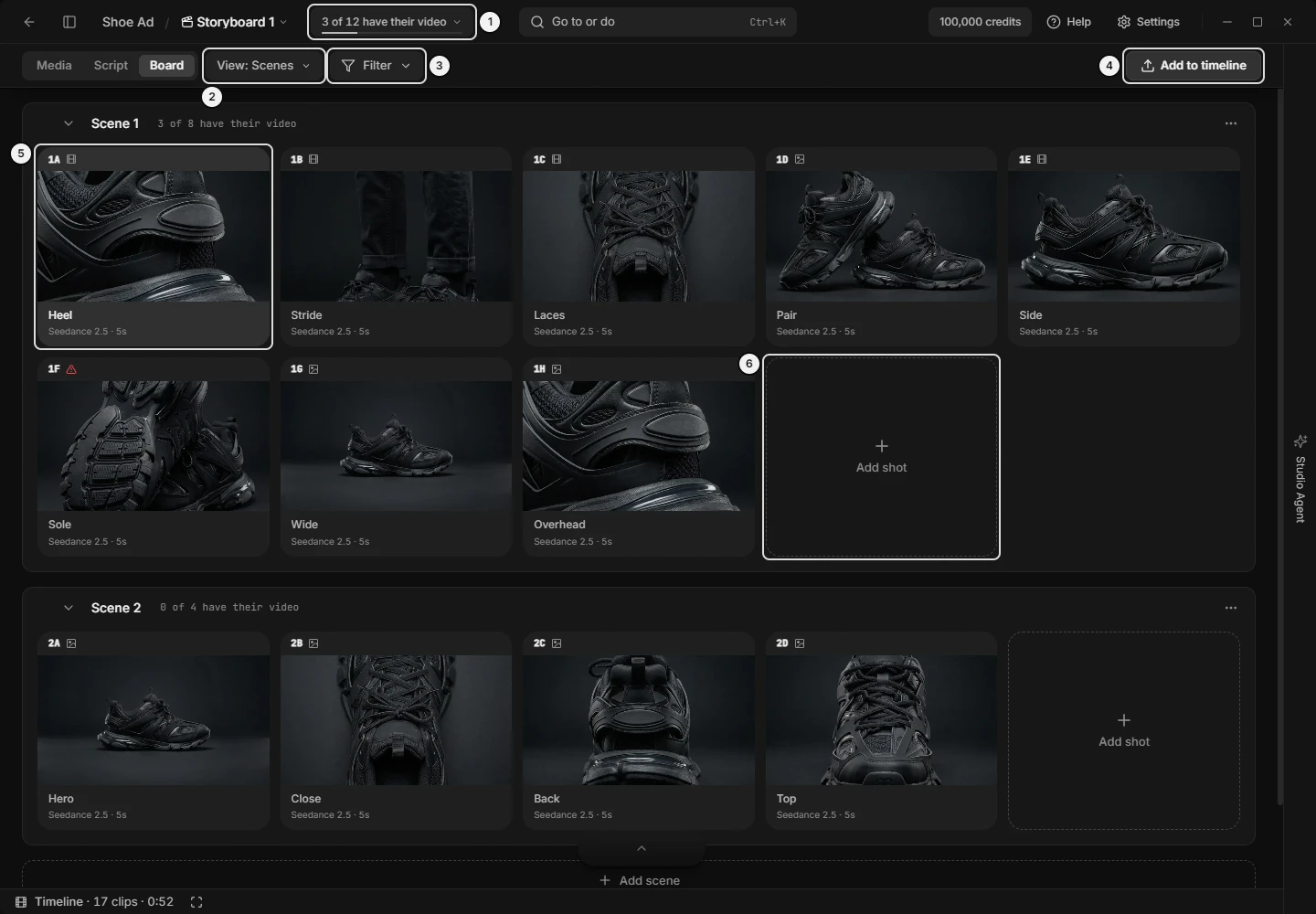\n\nPicture `board-overview`. The numbers on it:\n1. **{done} of {total} have their {video or picture}** (`shell.titlebar.board-status`)\n2. **View** (`shell.tabs.view-control`)\n3. **Filter** (`board.filter.trigger`)\n4. **Add to timeline** (`board.chrome.add-to-timeline`)\n5. a Shot card (`board.tile.card`)\n6. **Add shot** (`board.scene.add-shot`)\n<!-- END:GENERATED picture-board-overview -->\r\n\r\nTop to bottom, left to right:\r\n1. Titlebar, left: the board crumb (`/ {board name}` and a chevron). It opens the board menu.\r\n2. Titlebar, beside it: the progress readout **{n} of {m} have their video**, with a thin bar and a chevron. It opens the Generate panel. Drawn on the Board tab only, once the board has a Shot.\r\n3. The row under the titlebar: the tabs **Media**, **Script**, **Board**, then **View: {level}** and **Filter**; in the middle the state chips; at the right **Add to timeline**. Ticking a card lays the selection band over this whole row.\r\n4. A line under that row that stays empty until the board has something to say (*Board tab: messages you may see*).\r\n5. The canvas: scenes stacked top to bottom. Right-click empty space for the **Board** menu; drag across empty space to draw a selection box.\r\n6. Each scene: a header (grip, chevron, name, readout, `…`), an **Explorations ({n})** tray when it holds grid pictures, then its Shot cards ending in a dashed **Add shot** tile.\r\n7. After the last scene, a dashed **Add scene** tile.\r\n8. Only when asked for: the Generate panel (a popover under the readout or button you pressed) and the animatic (a full-window player).\r\n\r\nThe prompt box floats over the bottom of the canvas; the card it is editing is lifted clear of it and is the brightest. The left dock lists boards and scenes. With no board open the canvas shows **No shots yet** (*Board tab: empty board screens*).\r\n\r\n### Board tab: View sizes (Film, Scenes, Shot, zoom, card size, detail slider)\r\n\r\nFilm, Scenes and Shot are named stops on one continuous card size. It is a per-user setting, kept apart from Media's card size and Script's text size. Cards fill each row, as many as fit, each at most half again the size asked for. On a Mac, `Cmd` replaces `Ctrl`. What each size shows: *Board tab: what a Shot card shows at Film, Scenes and Shot size*.\r\n\r\n| Control | Where | What it does | Key | Agent op |\r\n|---|---|---|---|---|\r\n| **View: {level}** | Row under the titlebar, after the tabs | Opens the View popover; hidden on Script and with no board open | — | — |\r\n| **Film**, **Scenes**, **Shot** | View popover, top | Jump to that level's own card width (about 112, 248 and 880 px, held inside the window); the lit tab follows the current size | `Enter` in, `Backspace` out | `slates_set_view (board.level)` |\r\n| **Board detail** | View popover, slider under the tabs | Sets the card width continuously; reads \"{level} · {px}px cards\"; the top is one card filling the lane | — | `slates_set_view (board.cardWidth)` |\r\n| Wheel zoom | The canvas | About 6% a notch; keeps the card under the pointer in place | `Ctrl`+scroll | `slates_set_view (board.cardWidth)` |\r\n\r\nEscape, a press outside, or a tab change closes the popover. In a narrow window the row drops words in this order: Filter's word, the chevrons, View's level, the chip's \"showing\", Add to timeline's word, then it wraps.\r\n\r\n### Board tab: what a Shot card shows at Film, Scenes and Shot size (card, tile, title, meta line, references)\r\n\r\n| Size | What the card shows |\r\n|---|---|\r\n| **Film** | The picture alone. On hover: the place chip (top left), the state mark (top right), the tick (bottom right). Tooltip `{place} · {name} · {code}`. Other cards step back while one is bound. |\r\n| **Scenes** | A strip (place, state mark, three hover buttons), the picture, and a foot. |\r\n| **Shot** | The card opens in place: under the picture sit the composed prompt (read-only; edit it in the prompt box), takes, notes and reference plates, beside the picture once the card is 1000 px wide. |\r\n\r\nThe foot, at Scenes and Shot size:\r\n- Title: the name, else the script line, else the prompt.\r\n- Meta line: model, length, image resolution, `×{n}` for several pictures, `{n} cuts`. Aspect ratio, video resolution and sound or no sound print only when they differ from the board's most common value. `{n} running` shows while generations run.\r\n- Words: the script line under the name, when the Shot has both; at Scenes size only from 380 px wide.\r\n- References: up to four small pictures, then `+{n}`; Scenes size from 380 px wide. Hover a picture for a larger one and **Add to prompt**, which puts it in the prompt box (`slates_set_composer` attach). `+{n}` opens \"{n} inputs · {k} not sent\" with each role (Ref, Subject, Location, Look, First, Last, Voice).\r\n- `+{n}` on the strip: an older slot holds several Shots and only the first is drawn.\r\n\r\nThe picture is the tile picture: your override, else the first frame, else the first image reference, else the newest take. Set the override from a reference plate's star or a take's **Use as the tile picture**; pressing the current one restores the default. Video posters play muted. A Shot with no picture shows an empty slot. Point at a Library row in the left dock and the cards that cite it keep full light while the rest dim.\r\n\r\n### Board tab: Shot card state mark (icon on a card, failed, chosen clip, has video, has pictures, empty)\r\n\r\nOne mark says how far along a Shot is. The first that applies wins: failed, a chosen clip, any video, a picture, else empty. Point at it for the words and counts.\r\n\r\n| Mark | Words | Meaning |\r\n|---|---|---|\r\n| Red alert triangle | **A generation failed** | A run for this Shot failed |\r\n| Filled star | **A clip is chosen for the timeline** | The slot has a chosen clip |\r\n| Film | **Has video** | A video take or a clip from its picture |\r\n| Image | **Has pictures** | A picture, no video |\r\n| Dashed circle | **No video or picture yet** | Nothing made |\r\n\r\nAfter the words, a dot and the counts that apply: **On the timeline**, **{n} takes**, **{n} clips from its picture**, **{n} failed**, **{cost} to generate**, **{cost} spent so far**. At Film the mark appears on the picture under the pointer and its own tooltip does not show; the card's tooltip does. An agent works the state out from `slates_get_shot` (takeAssetIds) and `slates_get_storyboard_with_frames` (preferredClipId).\r\n\r\n### Board tab: Shot card strip and right-click menu (insert a shot, play, duplicate, copy code, choose model, delete a shot)\r\n\r\nA click on a card binds the prompt box to it; it does not tick. The whole picture is the drag handle. At Scenes and Shot size the strip's right end shows three buttons on hover: **Insert a shot after this one**, **Play from here**, **Delete this shot**. Film has no strip: use the right-click menu, headed `{place name} menu`.\r\n\r\n| Row | What it does | Agent op |\r\n|---|---|---|\r\n| **Play from here** | Opens the animatic at this Shot's first cut | `slates_set_view (animatic)` |\r\n| **Insert a shot after this one** | Makes an empty Shot in the next slot and binds it | `slates_create_shot` (sceneId, position) |\r\n| **Choose its model** | Binds the Shot and opens the prompt box's model picker; needs the prompt box showing | `slates_update_shot (spec.model)` |\r\n| **Use its picture as the first frame** | See *Board tab: first frames* | `slates_update_shot (spec.firstFrameAssetId)` |\r\n| **Duplicate** | Forks the Shot into its slot with its own words; takes stay with the original | `slates_duplicate_shot` |\r\n| **Copy code** | Copies the code with the project's name, for a chat | `slates_list_shots` (code) |\r\n| **Export as a template** | One Shot with its references | `slates_export_template (shotId)` |\r\n| **Delete shot** | Asks in the row; see *Board tab: delete and undo* | `slates_delete_frame` |\r\n\r\nA place label reaches the agent as `place` on `slates_list_shots` and `slates_get_shot`.\r\n\r\n### Board tab: add a shot or a scene (dashed Add shot tile, New empty shot, Add shots from Media, Add scene)\r\n\r\n- **Add shot**: the dashed tile after a scene's last card (tooltip \"Add a shot to this scene\"; its word hides at Film). It opens the menu **Add a shot**: **Add shots from Media** and **New empty shot**. The same two rows are in the scene menu. A scene with no Shots shows one big dashed **Add shot**, which reads **Drop here** while you drag a card over it.\r\n- **New empty shot**: an empty Shot at the end of the scene, bound to the prompt box so you can type. `slates_create_shot`.\r\n- **Add shots from Media**: a picker titled `Add to \"{scene name}\"`. Search with **Search by prompt...**, sort by newest or oldest, pick many pictures (images only; one already on a board wears **In a board**), then **Add ({n})**. Each picture becomes a Shot with that picture as its one reference. `slates_add_frame` (one image at a time).\r\n- **Insert a shot after this one**: the plus on a card's strip; the new Shot goes in the next slot.\r\n- **Add scene**: the dashed tile after the last scene, or a row in the Board menu on empty space. It adds \"Scene {n}\" at the end and scrolls to it. `slates_add_scene`.\r\n- From Media, **Add to board…** on a picture's right-click opens a board and scene chooser (see the Media section).\r\n\r\n### Board tab: empty board screens (No shots yet, No scenes yet, Loading boards...)\r\n\r\n- **No shots yet**: a project with no board. Doors: **Add a shot** (one empty Shot in a new Board 1), **Start writing** (makes Board 1 and puts the caret on its Script page; the only one that changes the tab), **Paste a script** (the clipboard lands on Script as text) and **Start from a template** (only once a template exists). A project that has boards opens the one worked on last instead.\r\n- **No scenes yet** with **Add scene**: a board with zero scenes. `slates_add_scene`.\r\n- An empty scene: a dashed **Add shot**. While the whole board has no Shot it adds \"A shot is one beat of the film: a picture, its words and the model that makes it.\"\r\n- **Loading boards...**: shown briefly while boards load.\r\n\r\nAgent ops for the starts: `slates_create_storyboard` with `slates_create_shot`, `slates_paste_script`, `slates_import_template`.\r\n\r\n### Board tab: scene header and scene menu (rename scene, fold, collapse all, reorder scenes, change the order of scenes, delete scene)\r\n\r\nA scene header holds a grip (**Drag to reorder scene**, painted on hover), a chevron, the scene's name, a progress readout and `…`. Click the header (not the name, readout or `…`) to fold or open the scene. Right-click it for the menu, which is also the `…` button's menu (headed `{scene name} menu`).\r\n\r\n| Row or part | What it does | Agent op |\r\n|---|---|---|\r\n| Grip | Drag a whole scene up or down | `slates_reorder_scenes` |\r\n| Scene name | Click to type a new name; `Enter` saves, `Escape` reverts | `slates_update_scene` |\r\n| Readout | Opens the Generate panel for this scene's missing results only | `slates_get_board_quote` (sceneId, missingOnly) |\r\n| **Rename** | Same as clicking the name | `slates_update_scene` |\r\n| **Add shots from Media** | Opens the picker for this scene | `slates_add_frame` |\r\n| **New empty shot** | An empty Shot at the end | `slates_create_shot` |\r\n| **Generate missing in this scene** | Opens the scene's Generate panel; greyed \"No shots in this scene yet\" | `slates_get_board_quote` |\r\n| **Collapse** / **Expand** | Folds or opens this scene | `slates_set_view (board.collapsedSceneIds)` |\r\n| **Collapse all scenes** / **Expand all scenes** | Every scene of the board, including ones a filter hides; new scenes start open | `slates_set_view (board.collapsedSceneIds)` |\r\n| **Export as template** | This scene as a template file | `slates_export_template (sceneId)` |\r\n| **Delete scene** | Asks first; see *Board tab: delete and undo* | `slates_delete_scene` |\r\n\r\nFold and collapse work on the Board tab only; Script has no scene header.\r\n\r\n### Board tab: Explorations tray (grid pictures, 2x2, 3x3, extract cells)\r\n\r\nA scene that holds 2x2 or 3x3 grid pictures shows **Explorations ({n})** above its Shots. The grids are slots, not Shots: they are left out of the counts, places and totals. Click the head to fold the tray.\r\n\r\n| Part | What it does | Agent op |\r\n|---|---|---|\r\n| Grid card (tooltip \"Open to extract cells\", chip \"2X2\" or \"3X3\", hover chip **Extract**) | Opens the image viewer on that grid, where its cells are extracted (see the Media section) | `slates_set_view (viewer.assetId)`; `slates_extract_grid_cells` (billable) |\r\n| Trash (**Remove exploration**) | Deletes that slot at once, with no question; the picture stays in Media | `slates_delete_frame` |\r\n\r\n### Board tab: board menu and right-click menu on empty space (rename board, paste script, break into shots, script follows a drag, delete board)\r\n\r\nThe board crumb in the titlebar opens the board menu; right-click on it opens the same menu; double-click renames in place (`Enter` or leaving the field saves, `Escape` cancels). On Script the page title is the board's name and the crumb shows only a glyph.\r\n\r\n| Row | What it does | Agent op |\r\n|---|---|---|\r\n| **Rename** | Puts the crumb in edit mode | `slates_update_storyboard` |\r\n| **Paste script** | Adds the clipboard as text at the end of the active scene; lines starting `SCENE`, `INT.`, `EXT.`, `I/E.` or `#` open scenes; no Shot is made. A toast offers **Open** to the Script page | `slates_paste_script` |\r\n| **Break the script into shots** | A Shot for every piece of script text that has none, across the board; generates nothing | `slates_break_script_into_shots` |\r\n| **Script follows a drag** | Ticked: a drag carries the Shot's words on Script. Unticked: a drag only swaps pictures and the chip **Script fixed** prints | `slates_set_view (board.scriptFollowsDrag)` |\r\n| **Generate…** | Opens the Generate panel on Shots | `slates_get_board_quote` |\r\n| **Use pictures as first frames** | See *Board tab: first frames* | `slates_use_pictures_as_first_frames` |\r\n| **Export as template** | The board as a template file | `slates_export_template (storyboardId)` |\r\n| **Delete board** | Asks first; see *Board tab: delete and undo* | `slates_delete_storyboard` |\r\n\r\nRight-click on empty canvas gives **Add scene**, **Paste script**, **Generate…** and **Add to timeline**. A right-click a card or scene header already answered is not the board's.\r\n\r\n### Board tab: select shots (tick, selection box, marquee, rubber band, several cards)\r\n\r\nA click on a card binds it and ticks nothing. To tick:\r\n- Press the small circle at the picture's bottom-right (tooltip **Select**, then **Deselect**); it shows on hover or once ticked.\r\n- Or drag a box across empty canvas: every card the box touches is ticked. A click on empty space clears.\r\n- Or hold `Shift` with an arrow key (*Board tab: keys*).\r\n\r\nTicked cards are lifted, never lime. The selection band replaces the row's controls and counts them (*Board tab: selection band*). Dragging a ticked card moves every ticked card together; dragging an unticked card clears the selection and moves that one. `Escape` clears; `Ctrl+C` copies the codes. On a Mac, `Cmd` replaces `Ctrl`.\r\n\r\nAgent: `slates_get_selection` reads the ticked Shots (surface \"shots\"); `slates_set_selection` replaces, adds, removes, clears or selects all.\r\n\r\n### Board tab: selection band (Generate, Set model, First frames, Merge, Copy codes, total price)\r\n\r\n<!-- BEGIN:GENERATED picture-board-selection-band -->\n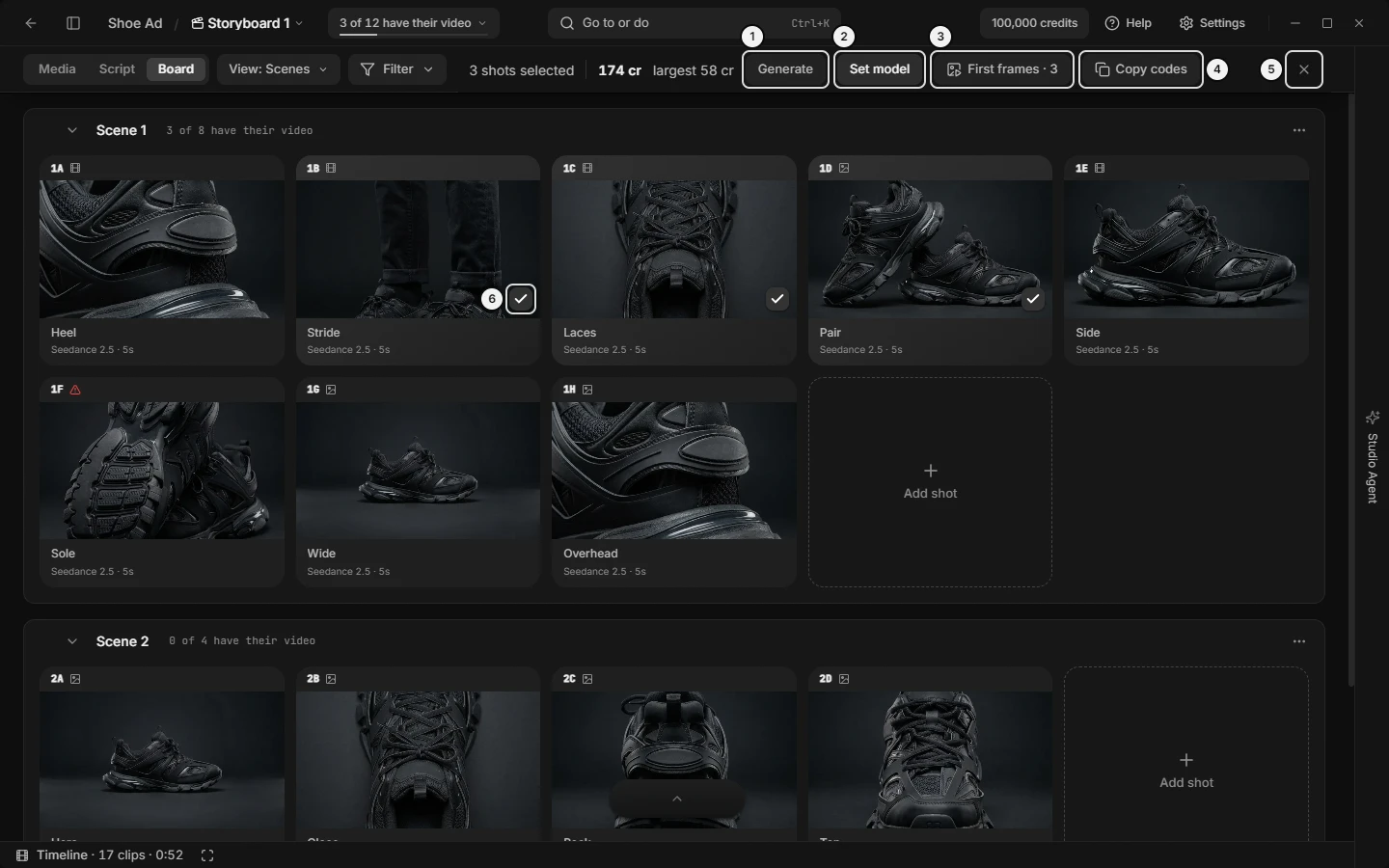\n\nPicture `board-selection-band`. The numbers on it:\n1. **Generate** (`board.band.generate`)\n2. **Set model** (`board.band.set-model`)\n3. **First frames · {n}** (`board.band.first-frames`)\n4. **Copy codes** (`media.band.copy-codes`)\n5. **Clear selection** (`media.band.clear`)\n6. **Select** (`board.tile.tick`)\n<!-- END:GENERATED picture-board-selection-band -->\r\n\r\nWhile cards are ticked the band covers the row with the count (\"3 shots selected\"), then:\r\n\r\n| Control | What it does | Agent op |\r\n|---|---|---|\r\n| Total | The sum of the ticked Shots' own prices; only when above zero | `slates_get_board_quote` |\r\n| **largest {cost}** | The dearest ticked Shot; only with more than one ticked | `slates_get_board_quote` |\r\n| **{n} can’t go yet** | How many ticked Shots have no price (*Board tab: Generate panel blocked shots*) | `slates_get_board_quote` |\r\n| **Generate** | Opens the panel on exactly the ticked Shots, including ones that already have results | `slates_get_board_quote`, then `slates_generate_from_shots` |\r\n| **Set model** | Picks a model for every ticked Shot; video models, then image models, default first; no audio models. Keeps settings; a video model on a Shot with no length gives it the default length. Generates nothing; `Ctrl+Z` undoes | `slates_update_shot (spec.model)` |\r\n| **First frames · {n}** | See *Board tab: first frames*; drawn only while a ticked Shot qualifies | `slates_use_pictures_as_first_frames` |\r\n| **Merge** | Exactly two ticked; see *Board tab: split and merge shots* | `slates_merge_shots` |\r\n| **Copy codes** | Copies the codes with the project's name; reads **Copied** after | `slates_get_selection` |\r\n| **More actions** (`…`) | In a narrow band the rarer buttons fold in here | — |\r\n| **Clear selection** (×) | Unticks everything | `slates_set_selection (clear)` |\r\n\r\n### Board tab: split and merge shots (chop, join, combine two shots, Merge)\r\n\r\nMerge is on the Board; split is on Script.\r\n- **Merge**: tick exactly two Shots, then **Merge** in the band. The two are taken in board order: their words join, references and mentions union, the first Shot's model and settings win, and the durations add (the total may pass the model's limit; it is shown, never blocked). The selection clears. `Ctrl+Z` restores both. The button does not check that the two are neighbours; `slates_merge_shots` names two adjacent Shots.\r\n- **Split**: not on the Board. On Script, select words and right-click for **Split {place}**; `slates_split_shot` splits at a caret and `slates_make_shot_from_script` does what the selection menu does. See the Script section.\r\n- **New shot from take**: at Shot size, right-click a take to make a new Shot from it (*Board tab: takes under a Shot card*). `slates_split_take`.\r\n- Undo: `Ctrl+Z` (`Cmd+Z` on a Mac) undoes a merge.\r\n\r\n### Board tab: drag to reorder (move shots, move scenes, swap pictures, Script follows a drag)\r\n\r\nA drag starts after a few pixels of movement from a card's picture.\r\n- Drop on a card: the Shot takes that place, in its scene or another. Drop on a scene's empty area: the Shot goes to that scene's end.\r\n- **Script follows a drag** ticked (the default): the words move with the Shot on Script.\r\n- Unticked (the chip **Script fixed** shows; its × turns it back on): dropping on a card swaps only the two pictures, and the words stay where they are. Dropping on empty area is refused: \"Script fixed: drop onto a shot to swap their pictures.\"\r\n- Several ticked cards move together in board order (the drag chip reads \"{n} shots\") with one `Ctrl+Z`.\r\n- Drag a scene by its grip to reorder scenes.\r\n- At Shot size, drag a take onto another card to move it there: the overlay reads \"Refile into {place}\".\r\n\r\nAn agent moves slots with `slates_update_frame` or `slates_batch_update_frames` (sceneId, position) and scenes with `slates_reorder_scenes`; an agent's slot moves always carry the words.\r\n\r\n### Board tab: keys (arrow keys, Enter, Backspace, Space, Escape, undo, walk the shots)\r\n\r\nOn a Mac, `Cmd` replaces `Ctrl`. Bare keys work on the Board tab when no text field, dialog, menu, viewer, palette or animatic has focus and the timeline does not own the keys.\r\n\r\n| Key | What it does |\r\n|---|---|\r\n| `→` `←` | Next or previous Shot in reading order; binds it and scrolls to it; with nothing bound the first press binds the first Shot |\r\n| `↑` `↓` | The nearest card in the row above or below |\r\n| `Shift` + arrow | The same, and ticks the Shot left and the Shot arrived at |\r\n| `Enter` | Steps one level in: Film, Scenes, Shot (not with a button focused) |\r\n| `Backspace` | Steps one level out, even with nothing bound; it deletes nothing on the Board |\r\n| `Space` | Plays the animatic from the bound Shot (not with a button focused) |\r\n| `Escape` | First clears the ticked cards, then unbinds the prompt box |\r\n| `Ctrl+Z` | Undoes the last board operation (*Board tab: delete and undo*) |\r\n| `Ctrl+C` | Copies the ticked Shots' codes with the project's name |\r\n| `Ctrl`+scroll | Sizes the cards (*Board tab: View sizes*) |\r\n\r\nA jump from `Ctrl+K` brings a Shot's card into view and never changes the tab. Agents do not press keys: `slates_set_composer (bindShotId)` binds, `slates_set_view` sets level and animatic, `slates_set_selection` ticks.\r\n\r\n### Board tab: delete and undo (delete a shot, scene or board, Ctrl+Z, Keep)\r\n\r\n| What | How | Undo |\r\n|---|---|---|\r\n| A Shot | The trash on the strip turns the three buttons into **Delete** and **Keep** (`Escape` keeps; tooltip \"Delete {place name}. Ctrl+Z brings it back.\"); or **Delete shot** in the menu, which asks in its row \"Delete {place name}? Ctrl+Z brings it back.\" | `Ctrl+Z` brings it back with the same id and code |\r\n| A scene | **Delete scene** opens a dialog titled `Delete “{scene name}”?` with the button **Delete scene**; its Shots go with it | None |\r\n| A board | **Delete board** opens `Delete “{board name}”?` with the button **Delete board**; its scenes and Shots go with it | None |\r\n| An exploration | **Remove exploration**, no question | None |\r\n\r\nThe dialogs say how many Shots go, that the pictures and clips they made stay in Media, and \"This cannot be undone.\" Nothing is ever re-filed to another board; a Shot that also sits on a second board survives. Deleting a Shot removes its slot too (`slates_delete_frame`).\r\n\r\n`Ctrl+Z` undoes, up to 50 steps, the last board operation: add scene, new or duplicate or deleted Shot, merge, move, swap, set model or length, first frames, tile picture, detach, break the script, paste script, add to timeline, take refile and new shot from take. It is silent when it works. A focused prompt field or unsaved script text keeps the browser's own undo. The app shows \"Could not undo {what}: {reason}\" when it cannot. There is no undo op: an agent reverses its own change with the opposite op, or `slates_edit_cut` restore.\r\n\r\n### Board tab: progress readout (N of M have their video, cost to finish, titlebar readout)\r\n\r\nThe titlebar button beside the board's name reads **{n} of {m} have their video**, then **{cost} to finish**. The noun comes from the models: video, picture, audio, or \"video or picture\" for a mix. A Shot with no model always counts as missing. A scene header carries the same readout for its own Shots. In a narrow titlebar it shortens to `{done}/{total}`.\r\n\r\n- The cost prints only when every missing Shot can be priced.\r\n- It counts every Shot, including ones a filter hides.\r\n- Press it to open the Generate panel for what is left (*Board tab: Generate panel*). Its tooltip says the cost spent across all recorded takes and that nothing is spent until you press Generate there.\r\n- A scene's tooltip: \"{k} of {m} shots have no {result} yet. Opens the Generate panel for them; nothing is spent until you press Generate there.\" or \"Every shot in this scene has its {result}.\"\r\n- Not drawn on Script, on Media, or before the board has a Shot.\r\n- The Board prints no runtime or cut count. Script's **Counts** link (Words + shots) shows how the piece distributes.\r\n\r\nAgent: `slates_get_board_quote` (missingOnly) for what is left and its price; `slates_get_board_progress` for spend, takes, running and failed.\r\n\r\n### Board tab: Generate panel (price, what is left, shots with no video yet, Generate N, generate missing shots)\r\n\r\nThe panel prices Shots and sends them; nothing is spent until you press **Generate {n} · {cost}**. It opens under the titlebar readout, a scene's readout, the band's **Generate**, or from a **Generate…** row (Board menu, empty-space menu, `Ctrl+K`). It closes with its **×**, `Escape` or a press outside.\r\n\r\nTop to bottom: the heading (**Generate**), the tabs **Shots** and **Previews** (*Board tab: Previews*), the bar **{n} of {m} can go**, the blocker row (*Board tab: Generate panel blocked shots*), one row per Shot in board order (thumb, place, chips, cost or \"—\" when it cannot be priced), and the footer.\r\n\r\nWhat each door puts in the panel:\r\n- Titlebar readout or **Generate…**: the whole board's Shots with no result of their model's kind (a video model needs a video take, an image model a picture).\r\n- A scene's readout or **Generate missing in this scene**: the same, for that scene.\r\n- Band **Generate**: exactly the ticked Shots, finished ones too.\r\n\r\nThe footer shows only when at least one row can go: **largest {cost}** (only with more than one row) and **Generate {n} · {cost}**, which reads **Generating…** while it runs. It sends only the ready rows, one after another, each a separate generation, after re-pricing them against the prices shown; if they moved it stops with \"The prices changed. Check them, then generate.\" The prompt box's last edit is written into its Shot before the panel reads. After a run the panel closes and tiles fill as takes finish. A failure shows an error toast \"{n} generated · {m} failed\" (\"{m} failed\" if none succeeded) that does not name the Shot; look for the failed mark on the cards. Panel text: \"Reading recipes…\" while loading; \"Every shot in this scope has its video or picture.\" with no rows.\r\n\r\nAgent: `slates_get_board_quote` returns the prices and a fingerprint; after the user approves, `slates_generate_from_shots` with `confirm` and that fingerprint. It takes at most 20 Shots per call: quote and confirm a bigger board in batches of 20. After a timeout, read `slates_get_board_progress` or `slates_get_shot` (generationIds) before sending again: a re-send generates and bills again.\r\n\r\n### Board tab: Generate panel blocked shots (can't go yet, Set model, Set length, Words chip, Blocked chip)\r\n\r\n<!-- BEGIN:GENERATED picture-board-generate-panel -->\n\n\nPicture `board-generate-panel`. The numbers on it:\n1. **{done} of {total} have their {video or picture}** (`shell.titlebar.board-status`)\n2. **Shots · Previews** (`board.quote.tabs`)\n3. **Set model** (`board.quote.set-model`)\n4. **Set length** (`board.quote.set-length`)\n5. **Generate {n} · {cost}** (`board.quote.fire`)\n<!-- END:GENERATED picture-board-generate-panel -->\r\n\r\nA Shot needs a model, words and, for video, a length before it can be priced. A missing value is a dashed chip that fills in place. When rows cannot go, a blocker row shows the count **{n} shots can’t go yet**; hover it for the reasons (\"{n} has no model\", \"{n} has no length\", \"{n} has no words\", \"{n} is blocked for another reason\").\r\n\r\n| Control | Where | What it does | Agent op |\r\n|---|---|---|---|\r\n| **Set model** | Blocker row | Gives one model to every blocked row that has none; same list as the band's; Shots tab only | `slates_update_shot (spec.model)` |\r\n| **Set length** | Blocker row | Gives one length to every blocked video row with none: \"{n}s\" or **Each model’s default**, then the lengths every one of those models offers; Shots tab only | `slates_update_shot (spec.params.duration)` |\r\n| Model chip | A row | Changes that Shot's model; dashed \"Model\" when none | `slates_update_shot (spec.model)` |\r\n| Length chip | A video row | Changes its length; dashed \"Length\" when none; shows the length the request sends | `slates_update_shot (spec.params.duration)` |\r\n| **Words** | A row with no prompt | Closes the panel, binds that Shot and puts the caret in the prompt box | `slates_set_composer (bindShotId)` |\r\n| **Blocked** | A row | Read-only; the tooltip gives the reason, such as a missing reference clip, or \"Price unavailable for this recipe.\" | `slates_get_board_quote` |\r\n\r\nEach button appears only while some row needs it.\r\n\r\n### Board tab: Previews (draft pictures, cheap preview of every shot, Preview model)\r\n\r\n**Previews** is the second tab of the Generate panel (the panel heading reads **Generate previews**). It prices one picture for every Shot in scope that has no picture at all: no tile picture, first frame, image reference or take. Open it from the tab, or `Ctrl+K` → **Generate previews** (not in the Board menu).\r\n\r\n- **Preview model**: a dropdown of image models, starting on the default image model. Each Shot is drawn at that model's own default settings, so nothing goes stale.\r\n- A Shot with no model yet can still have a preview; one with only script words sends those words.\r\n- A Shot framed at a shape that model cannot draw is drawn at the nearest shape; the row's chip says \"Drawn at {ratio}; the shot is {ratio}.\"\r\n- The Shot's prompt is sent as written; its last frame and its video and audio references are left out, because an image cannot carry them.\r\n- Row chips are read-only here, and the blocker row has no **Set model** or **Set length**; the **Words** chip still shows.\r\n- No Shot changes. The picture arrives as a take of its Shot, so it becomes the tile picture and the animatic's picture; a video Shot still counts as missing its video.\r\n\r\nAgent: `slates_get_board_quote` and `slates_generate_from_shots` both take `draft` (`{}` for the default image model, `{ model }` for another); pass the same value when confirming.\r\n\r\n### Board tab: first frames (animate a picture, image to video, use picture as first frame)\r\n\r\nA first frame makes a video Shot start from a picture. Nothing is generated; `Ctrl+Z` takes it back; then price and fire from the Generate panel.\r\n\r\n| Door | Scope | Agent op |\r\n|---|---|---|\r\n| **Use its picture as the first frame** (Shot menu, `Ctrl+K`) | One Shot | `slates_update_shot (spec.firstFrameAssetId)` |\r\n| **First frames · {n}** (selection band) | Ticked video Shots that qualify | `slates_use_pictures_as_first_frames` |\r\n| **Use pictures as first frames** (board menu, `Ctrl+K`) | Every Shot on the board that qualifies | `slates_use_pictures_as_first_frames` |\r\n| **Use as the first frame** (right-click an image take, Shot size) | That take; video-model Shots only | `slates_update_shot (spec.firstFrameAssetId)` |\r\n\r\nThe picture taken: the tile picture you chose, else the newest image take, else a picture that is the Shot's only reference (it moves from Reference to First frame). A Shot on an image model has no first frame slot.\r\n\r\nThe row is greyed with one reason: **Its first frame is set**, **It has no model yet**, **An image shot has no first frame**, **Its picture is already a reference**, **It has no picture to start from**; the board row says **No shot has a picture without a first frame**. The band button is simply not drawn while no ticked Shot qualifies.\r\n\r\n### Board tab: linked clips and the chosen clip (Linked clips under each shot, star, unlink, preferred clip)\r\n\r\nA clip is linked to a picture when it was made from it. **Filter › Linked clips under each shot** lists them under each card, one row per clip made from the card's picture: a thumbnail, its length (\"{n}s\" or \"Clip\"), the note **to the timeline** on the chosen one, and two buttons.\r\n\r\n| Part | What it does | Agent op |\r\n|---|---|---|\r\n| Star (**Add this clip to the timeline for this shot**; when on, **This clip goes to the timeline for this shot**) | Makes it the slot's chosen (preferred) clip, which **Add to timeline** sends. With none chosen, the first listed is used | `slates_update_frame (preferredClipId)` |\r\n| Broken chain (**Unlink this clip from the shot**) | Cuts the link to its source picture; the clip stays in Media | `slates_link_asset_source` (null unlinks) |\r\n| Take menu **Use in the timeline** / **Stop using in the timeline** | Same choice, from a clip take at Shot size | `slates_update_frame (preferredClipId)` |\r\n\r\nA card's state mark turns to a filled star when a clip is chosen. Read the choice with `slates_get_storyboard_with_frames` (preferredClipId). The rows are not shown while a card is being dragged.\r\n\r\n### Board tab: Add to timeline (send the board to the timeline, cut from the board)\r\n\r\n**Add to timeline** builds the cut from the board: each slot's chosen clip goes onto the first unlocked video track in board order, with a marker for each scene. Nothing opens; `Ctrl+Z` takes it back. It is the button at the right end of the row (hidden under the selection band while cards are ticked), a row in the empty-space menu, and in `Ctrl+K`.\r\n\r\n- The button is drawn only when the board has a Shot. It is refused, with the tooltip \"No clips to add yet. A shot needs a clip first.\", until a slot has a linked or chosen clip. Its tooltip otherwise reads `Add {n} clips to the timeline, with a marker per scene. Ctrl+Z takes it back.`\r\n- A toast **Added {n} clips to the timeline** shows only when the timeline is closed.\r\n- Failure: **Could not add the board to the timeline.**\r\n\r\nAgent: `slates_edit_cut` (build, sync or replace; it returns snapshots that reverse it).\r\n\r\n### Board tab: the animatic (play the board, rough cut, Play from here, Space)\r\n\r\nThe animatic plays the board as a rough cut in a full-window player: every cut of every Shot that has a picture, in board order, each held for its own length, with the Shot's words (else its prompt) as a caption. It shows the place and name (\"1A · The claim\") and the length chip. It opens playing and stops on the last picture; Play from the end restarts. Shots with no picture are skipped; nothing opens if none has one.\r\n\r\n- Open: **Play from here** on a card strip or menu (Scenes and Shot size have the button; Film has the menu row), or `Space` with a Shot bound. It starts at that Shot's first cut.\r\n- Units are cuts, not Shots: a readout `{i} / {n}`, and the scrub \"Position in the animatic\" counts cuts.\r\n- A cut with no length is held for 3 seconds and says **No length set, shown for 3 seconds**; a clip with several cuts holds one picture and says **One picture shown across several cuts**.\r\n- Keys: `Space` play or pause, `←` `→` one cut (`Shift` ten), `Escape` closes. Click the picture to pause. **Close** is top right. There is no cut transition, mute or fullscreen.\r\n\r\nAgent: `slates_set_view (animatic)` opens or closes it from a Shot; the transport is yours.\r\n\r\n### Board tab: takes under a Shot card (take strip, refile a take, star, dot, take menu)\r\n\r\nAt Shot size a card lists **{n} takes** under the picture. Click a take to go to it in Media. Drag one onto another card to move it there (\"Refile into {place}\"; `slates_refile_take`). Marks: a star (tooltip **The tile picture in Board** or **The clip the timeline uses**) and a dot when it was made from a different prompt, model or references than the Shot has now.\r\n\r\nRight-click a take (headed by its code) for:\r\n\r\n| Row | Agent op |\r\n|---|---|\r\n| **Open** (Media's row) | `slates_set_view (viewer.assetId)` |\r\n| Go to … in Media (Media's row) | `slates_set_view (media.revealAssetId)` |\r\n| **Reuse prompt** | `slates_set_composer (fromAssetId)` |\r\n| **Continue from this** | `slates_get_asset`, then `slates_update_shot` |\r\n| **Use as the tile picture** / **Back to the default tile picture** | `slates_update_shot (posterAssetId)` |\r\n| **Use as the first frame** / **Stop using as the first frame** (image take, video-model Shot) | `slates_update_shot (spec.firstFrameAssetId)` |\r\n| **New shot from take** (a new Shot with the take's recorded recipe) | `slates_split_take` |\r\n| **Use in the timeline** / **Stop using in the timeline** (clip take) | `slates_update_frame (preferredClipId)` |\r\n| **Find takes with matching inputs** | `slates_get_shot_inputs`; `slates_reuse_shot_take` |\r\n\r\n### Board tab: reference plates and warnings on a Shot card (Detach, not sent, missing, notes under a shot)\r\n\r\nAt Shot size, reference plates sit beside the card in send order, first and last frames included; hover a plate for a larger preview. Captions read `image 2`, `first frame`, `not sent` (faint: past the model's reference limit) or `missing` (dashed: the item was deleted).\r\n\r\n| Part | What it does | Agent op |\r\n|---|---|---|\r\n| Star on a plate (**Use this as the tile picture in Board**) | Sets that image as the tile picture; press the current one to restore the default | `slates_update_shot (posterAssetId)` |\r\n| X on a plate (**Detach {token} from this Shot — the word stays in the sentence**) | Removes that @character, @location or #look from the Shot's mentions; the word stays as plain text | `slates_update_shot (spec.mentions)` |\r\n\r\nWarnings under the card never block **Generate**; they are listed in *Board tab: messages you may see*. Read the Shot with `slates_get_shot` (references, blocked, unresolvedTokens).\r\n\r\n### Board tab: Filter and chips (show only shots with or without a clip, Script fixed)\r\n\r\n**Filter** (after **View**) opens a menu headed **Show**; it is lit while a filter is on.\r\n\r\n| Row | What it does | Agent op |\r\n|---|---|---|\r\n| **All shots** | Every Shot | `slates_set_view (board.filter)` |\r\n| **With a linked clip** | Hides Shots whose picture has no clip made from it | `slates_set_view (board.filter)` |\r\n| **Without a linked clip** | Hides Shots that already have a clip | `slates_set_view (board.filter)` |\r\n| **Linked clips under each shot** | Ticked: a clip row under each card (*Board tab: linked clips and the chosen clip*) | `slates_set_view (board.linkedClips)` |\r\n\r\nA filter also removes any scene with no match; if nothing matches, only **Add scene** shows, with no message, and the chip says \"showing 0 of {m}\". Places and readouts still count every Shot. Chips sit in the row's middle only while something is off its default: the filter's name, then \"· showing {n} of {m}\" (for example **With a linked clip** · showing 8 of 9; tooltip \"Shots with no clip yet are hidden.\" or \"Shots that already have a clip are hidden.\"), whose × (**Show all shots**) clears it; and **Script fixed** (tooltip \"A drag swaps only the pictures. The words stay exactly where they are on the Script page.\"), whose × (**Let the script follow a drag again**) turns **Script follows a drag** back on.\r\n\r\n### Board tab: messages you may see\r\n\r\nBoard line (under the row):\r\n- **Script fixed: drop onto a shot to swap their pictures.** A drop on empty area while **Script fixed** is on. Drop on a card.\r\n- **Could not move the selected shots: {reason}**: the move failed.\r\n- **Could not add the board to the timeline.**, **Could not add a shot.**, **Could not copy the code.**, **Could not make a Shot from that take.**\r\n- **Nothing on the clipboard to read as a script.**: copy your script first.\r\n- **Could not undo {what}: {reason}**: for example \"it has shots in it now — delete it from its own menu\", \"it has been written into since — delete it from its own menu\", \"the words changed since\".\r\n- **Could not paste the script.** (empty screen).\r\n\r\nToasts: **Added {n} clips to the timeline**; **{n} paragraphs on the Script page** with **Open**; **Added {n} images to {scene name}**; **{n} generated · {m} failed** (*Board tab: Generate panel*); a \"{n} recorded attachment(s) is not a project asset, so {code} does not carry it\" note after **New shot from take**.\r\n\r\nPanel: **Could not price the shots**; **Could not generate the shots**; **The prices changed. Check them, then generate.**; **Reading recipes…**.\r\n\r\nNotes under a Shot card (never block **Generate**):\r\n- **No model set — pick one before this can be priced or fired.**\r\n- **No words yet. Write what happens in this shot.**\r\n- **No duration set — a video Shot cannot be priced or fired without one.**\r\n- **Too many words to say in {n} seconds — nobody can talk that fast. Cut the line shorter, give this shot more time, or split it in two.**\r\n- **This prompt was written for {model}. Different models read prompts differently, so give it a look before generating on {model}.** Swapping a model never rewrites your words.\r\n- \"{n} attached item has been deleted, so it will not be sent.\" (or \"items have been deleted, so they will not be sent\"): a reference is gone; choose a replacement.\r\n- \"Nothing is saved under {tokens}, so it is sent as written, with no reference attached.\": an @ or # word matches no Library item.\r\n\r\n### Board tab: how to start a board and add shots\r\n\r\n1. Open the **Board** tab. With no board, press **Add a shot** on **No shots yet**.\r\n2. To add more: the dashed **Add shot** tile → **New empty shot**, or **Insert a shot after this one** on a card.\r\n3. To add pictures: **Add shot** → **Add shots from Media** → tick pictures → **Add ({n})**.\r\n4. Click a card to bind the prompt box; type in the prompt box; there is no save.\r\n5. Add a scene with **Add scene** at the end.\r\n\r\n### Board tab: how to price and generate what is missing\r\n\r\n1. Press the titlebar readout **{n} of {m} have their video**. One scene only: press that scene's readout.\r\n2. Read the rows and the bar **{n} of {m} can go**. Fix blocked rows with **Set model**, **Set length** or the dashed chips (*Board tab: Generate panel blocked shots*).\r\n3. Press **Generate {n} · {cost}**.\r\n4. For a hand-picked set, including finished Shots, tick them and press **Generate** in the band.\r\n\r\n### Board tab: how to make cheap previews, then videos\r\n\r\n1. Open the panel, then the **Previews** tab and pick a **Preview model**; press **Generate {n} · {cost}**.\r\n2. Each Shot's picture becomes its tile picture.\r\n3. Put the pictures to use: **Use pictures as first frames** in the board menu.\r\n4. Open the panel again on **Shots** and generate the videos.\r\n\r\n### Board tab: how to choose which clip goes to the timeline\r\n\r\n1. **Filter** → **Linked clips under each shot**.\r\n2. Press the star on the clip you want under each card.\r\n3. Press **Add to timeline** (right end of the row). `Ctrl+Z` takes it back.\r\n\r\n### Board tab: how to set one model on many shots, move shots, or see a Shot's words\r\n\r\n- One model: tick the cards → **Set model** in the band → pick one. Nothing is generated.\r\n- Move without moving the words: Board menu → untick **Script follows a drag**, then drop a card onto another.\r\n- See prompts: **View: {level}** → **Shot** (or `Enter`). Edit them in the prompt box; the Board has no text field.\r\n\r\n### Board tab: what an agent can do here\r\n\r\nRead: `slates_get_storyboard_with_frames`, `slates_list_shots`, `slates_get_shot`, `slates_get_board_quote`, `slates_get_board_progress`, `slates_get_selection`, `slates_get_view`, `slates_get_composer`.\r\n\r\nChange the board: `slates_add_scene`, `slates_update_scene`, `slates_reorder_scenes`, `slates_delete_scene`, `slates_update_storyboard`, `slates_delete_storyboard`, `slates_create_shot`, `slates_add_frame`, `slates_update_frame` and `slates_batch_update_frames` (move slots, `preferredClipId`), `slates_delete_frame`, `slates_duplicate_shot`, `slates_update_shot`, `slates_merge_shots`, `slates_split_shot`, `slates_split_take`, `slates_refile_take`, `slates_use_pictures_as_first_frames`, `slates_link_asset_source`, `slates_paste_script`, `slates_break_script_into_shots`, `slates_edit_cut`, `slates_export_template`, `slates_extract_grid_cells`, `slates_get_asset`, `slates_get_shot_inputs`, `slates_reuse_shot_take`.\r\n\r\nArrange the window: `slates_set_view` (lens; `board` {`id` opens a board, `sceneId` jumps to a scene, `level`, `cardWidth`, `filter`, `linkedClips`, `scriptFollowsDrag`, `collapsedSceneIds`}; `animatic`; `viewer`), `slates_set_selection`, and `slates_set_composer` (`bindShotId`; null unbinds). Spend: `slates_generate_from_shots` after approval of the `slates_get_board_quote` price. Point: `slates_highlight_control`; show: `slates_get_manual_picture`.\r\n\r\nOnly you can: press `Ctrl+Z` (an agent reverses its own change with the opposite op), answer **Delete** or **Keep** and the **Delete scene** and **Delete board** dialogs in the app, and work the animatic's Play, Pause and scrub.\r\n\r\n### Board tab: controls you can point at (highlight, show me where)\r\n\r\n<!-- BEGIN:GENERATED targets-board -->\n| `slates_highlight_control` target | On screen |\n|---|---|\n| `board.band.first-frames` | **First frames · {n}** |\n| `board.band.generate` | **Generate** |\n| `board.band.set-model` | **Set model** |\n| `board.canvas.add-scene` | **Add scene** |\n| `board.chrome.add-to-timeline` | **Add to timeline** |\n| `board.filter.trigger` | **Filter** |\n| `board.quote.fire` | **Generate {n} · {cost}** |\n| `board.quote.set-length` | **Set length** |\n| `board.quote.set-model` | **Set model** |\n| `board.quote.tabs` | **Shots · Previews** |\n| `board.scene.add-shot` | **Add shot** |\n| `board.scene.grip` | **Drag to reorder scene** |\n| `board.scene.more` | **{scene name} menu** |\n| `board.tile.card` | a Shot card |\n| `board.tile.play` | **Play from here** |\n| `board.tile.tick` | **Select** |\n| `board.view.detail-slider` | **Board detail** |\n| `board.view.level-tabs` | **Film · Scenes · Shot** |\n<!-- END:GENERATED targets-board -->\r\n\r\n## THE SCRIPT TAB — writing, formatting, Words and Words + shots, making Shots from words, the shot panel, sections and versions, script variations, agent suggestions, Paste script\r\n\r\nThe Script tab shows the open board as one written page: type, paste and format the script, then cut it into Shots. Reach it from the tab row (Media · **Script** · Board), from `Ctrl+K` → **Go to or do**, or with `slates_set_view` (lens); a palette jump to a shot shows its words here and never changes the tab. Nothing on it is required and nothing on it generates. A project with no board shows the empty Script screen instead.\r\n\r\n### Script: where things are (layout, regions, what is on the page)\r\n<!-- BEGIN:GENERATED picture-script-words-shots -->\n\n\nPicture `script-words-shots`. The numbers on it:\n1. **Words + shots** (`script.chrome.words-shots`)\n2. **Break into {n} shots** (`script.title.break`)\n3. **Saved / Saving…** (`script.title.save-state`)\n4. **{place} {name}: open its details** (`script.margin.picture`)\n5. **Close shot details** (`script.panel.close`)\n6. **Add detail** (`script.panel.add-detail`)\n<!-- END:GENERATED picture-script-words-shots -->\r\n\r\n1. Tab row: Media · **Script** · Board, then the switch **Words** / **Words + shots** (group \"How much the script shows\"). Script has no View, Filter or Add to timeline.\r\n2. Title row, top of the page: the board's name (big text, left); on the right **{n} suggestions**, **Break into {n} shots**, **Saved** / **Saving…**, **Document actions** (three dots).\r\n3. Status line under the title row: shows only a message other than Saved. See Script: messages you may see.\r\n4. The script: scenes, each with its paragraphs, headings and notes. A saved section's label sits above its first paragraph.\r\n5. \"Shot pictures\", the right margin: a picture per Shot beside its words. Words + shots only.\r\n6. \"{n} shots without words\": a folded list of picture tiles under the page. Hidden at zero.\r\n7. The line under the page (cuts, words too many, Counts): Words + shots only, when the board has Shots.\r\n8. **Retained local draft**, at the foot: appears only after a failed save.\r\n9. Shot details panel, a column at the right edge: opens from a margin picture, a wordless tile or **Show shot details**. In a narrow window it floats over the page.\r\n10. Floating menus: \"Document commands\", \"Selected text\", section versions, **New variation**, \"Suggested replacements\".\r\n\r\nThe prompt box at the bottom is not part of this page; a Shot's prompt and model are edited there while it is bound. Board tab, Media tab and the dock are other sections.\r\n\r\n### Script: title row (board name, Break into N shots, cut the script into shots, Saved, suggestions, Document actions)\r\n| Control | Where | What it does | Key | Agent op |\r\n|---|---|---|---|---|\r\n| Board name | Left, large text | Rename the board; saves on leaving the field; an empty name is ignored; renames it in the dock and everywhere else it shows | — | `slates_update_storyboard` (name) |\r\n| **{n} suggestions** (reads \"1 suggestion\" for one) | Right group, first | Opens the suggestions popover; shown only while a suggestion is pending | — | `slates_get_script_suggestions` |\r\n| **Break into {n} shots** | Right group, scissors | Makes a Shot for every paragraph no Shot holds, across the whole board; generates nothing; one Undo step (\"breaking the script into {n} shots\") | `Ctrl+K` → **Break the script into shots** | `slates_break_script_into_shots` |\r\n| **Saved** / **Saving…** | Right group | Says whether the page's changes are written; fades after a moment; any other text goes to the status line | — | — |\r\n| **Document actions** | Far right, three dots | Opens the menu of page commands (Script: Document actions menu) | — | — |\r\n\r\n**Break into {n} shots** shows only while a paragraph has no Shot, counted from saved data, not the words being typed. Pointing at it says \"{n} paragraphs have no shot yet\". It leaves the row when every paragraph has a Shot, so typing never moves the words.\r\n\r\n### Script: type, format and keys (Bold, Italic, Enter, Shift+Enter, select words, placeholder)\r\n`Ctrl` is `Cmd` on a Mac. Click into the page and type. An empty board shows \"Write or paste your script here…\" and puts the caret in on its own.\r\n\r\n| Key | What it does |\r\n|---|---|\r\n| `Enter` | New paragraph; each paragraph is one line of the script |\r\n| `Shift+Enter` | New line inside the same paragraph |\r\n| `Ctrl+B` / `Ctrl+I` | Bold / italic on the selection (also **Bold**, **Italic** on the \"Selected text\" menu) |\r\n| `Ctrl+Z` | Undo the last document change (Script: undo and redo) |\r\n| `Ctrl+Shift+Z` or `Ctrl+Y` | Redo |\r\n| `Ctrl` + scroll wheel | Text size (Script: text size) |\r\n\r\nA drag that starts outside the text (side gutters, the margin, a gap between blocks) still selects words as if it began on the nearest letter; hold the pointer near the top or bottom edge to scroll; `Shift` + press extends the selection. The Board's box-drag does not exist here. Nothing pops up when you select; right-click for the menu (Script: right-click with words selected).\r\n\r\nBold and italic, headings and notes are formatting: never spoken, never sent to a model, and a heading opens no scene. Agents write text and formatting with `slates_update_script_document` and `slates_edit_script`, and read with `slates_get_script_document` and `slates_get_script`.\r\n\r\n### Script: text size (make the script text bigger or smaller, zoom)\r\n| Control | What it does | Agent op |\r\n|---|---|---|\r\n| `Ctrl` + scroll wheel over the page (or a trackpad pinch) | Sizes the page text | `slates_set_view` (script.textScale) |\r\n| `Ctrl+K` → **Larger text** | Adds one step | `slates_set_view` (script.textScale) |\r\n| `Ctrl+K` → **Smaller text** | Removes one step | `slates_set_view` (script.textScale) |\r\n| `Ctrl+K` → **Default text size** | Back to normal | `slates_set_view` (script.textScale) |\r\n\r\nThe size runs from 0.85x to 1.75x, a step is 0.1. It is one saved setting shared by every board, separate from the Board's card size and Media's card size. Script has no View button.\r\n\r\n### Script: Words and Words + shots (show the shot pictures, margin, underline)\r\n| Control | Where | What it does | Agent op |\r\n|---|---|---|---|\r\n| **Words** | Tab row, group \"How much the script shows\" | The words alone: no margin pictures, no underline, no line under the page; closes the shot panel | `slates_set_view` (script.details: false) |\r\n| **Words + shots** | Same group | Margin picture per Shot, every Shot's words underlined, the line under the page | `slates_set_view` (script.details: true) |\r\n| `Ctrl+K` → **Words + shots** | Palette (ticked when on) | Flips the same switch; turning it off here leaves an open shot panel open | `slates_set_view` (script.details) |\r\n\r\nThe page opens on **Words**; nothing saves the choice between launches. In both modes the bound Shot's words wear a grey wash, and the caret never binds a Shot: clicking into a sentence only moves the cursor. A Shot is bound by a margin picture, a wordless tile or **Show shot details** (Script: margin pictures).\r\n\r\nAgents read the state with `slates_get_view`.\r\n\r\n### Script: the line under the page (cuts, words too many, in a row, Counts)\r\nShown under the page in **Words + shots** when the board has Shots. It counts and never blocks.\r\n\r\n| Text | Means |\r\n|---|---|\r\n| \"{n} cuts\" | Shown only when cuts differ from shots (a clip with several cuts) |\r\n| \"{k} words too many\" | More words than fit the runtime at a normal speaking pace; pointing shows the budget |\r\n| \"{n} {bucket} in a row\" | A shot size or camera move repeats; from six cuts up |\r\n| **Counts** | Opens **How the piece distributes** (shot sizes, camera moves, cast, locations); from six cuts up |\r\n\r\nThe progress and price readouts belong to the Board (see the Board section). Agents get the same counts from `slates_list_shots`.\r\n\r\n### Script: margin pictures (picture beside each shot, open a shot's details, place chip)\r\nIn **Words + shots**, every Shot that has words gets a picture in the right margin, level with its first line.\r\n\r\n| Part | What it does |\r\n|---|---|\r\n| The picture | Click: binds that Shot to the prompt box and opens its details panel. Clicking again keeps it open. Words already on screen do not scroll |\r\n| Place chip (1A, 1B) | Scene number plus slot letter; pointing shows \"{place} · {name} · {code}: open its details\" |\r\n| Dashed empty slot | The Shot has no picture yet |\r\n| Bright / dim | The bound Shot is bright; the others dim |\r\n| Drop a take on it | Refiles a take dragged from the panel into that Shot (\"Refile into {code}\") |\r\n| Right-click | The Shot's own menu (Script: margin picture menu) |\r\n\r\nBinding through a picture changes the prompt box to that Shot; the prompt box is the one place its prompt and model are edited. Agents bind with `slates_set_composer` (bindShotId) and open the panel with `slates_set_view` (script.panelShotId). Wordless Shots have no margin picture: see Script: shots without words.\r\n\r\n### Script: margin picture menu (right-click a shot's picture: Play from here, Duplicate, Delete shot)\r\n| Row | What it does | Agent op |\r\n|---|---|---|\r\n| **Play from here** | Opens the animatic at that Shot (the `Space` hint works only on the Board) | `slates_set_view` (animatic) |\r\n| **Choose its model** | Binds the Shot and opens the prompt box's model picker; needs the prompt box showing | `slates_update_shot` (model) |\r\n| **Use its picture as the first frame** | Makes its picture the first frame; refusals print under the row: \"Its first frame is set\", \"It has no model yet\", \"An image shot has no first frame\", \"Its picture is already a reference\", \"It has no picture to start from\" | `slates_update_shot` (firstFrameAssetId) |\r\n| **Duplicate** | A copy right after it; takes stay with the original | `slates_duplicate_shot` |\r\n| **Copy code** | Copies its code (SHOT-A3) | — |\r\n| **Export as a template** | Exports the one Shot with its references | `slates_export_template` (shotId) |\r\n| **Delete shot** | Asks in place (**Delete** / **Keep**); its words stay on the page as unshot text; `Ctrl+Z` brings it back | `slates_delete_frame` |\r\n\r\nThe rows are the Board tile's, minus the one that only fits between tiles.\r\n\r\n### Script: shot details panel (open, close, Duplicate, Delete, Use the selected words)\r\nA column beside the page for the bound Shot. Open it from a margin picture, a wordless tile, or **Show shot details** (the Shot the cursor is in, else the bound one; pressing it with the panel open closes it). Words + shots is not needed for the tile or the command.\r\n\r\n| Part | What it does | Agent op |\r\n|---|---|---|\r\n| Code (SHOT-A3) | Names the Shot; the page itself wears the place (1A) | — |\r\n| **Duplicate** | A copy right after this one | `slates_duplicate_shot` |\r\n| **Delete** | Asks in place; **Delete** removes the Shot, words stay as unshot text; **Keep** cancels; `Ctrl+Z` brings it back | `slates_delete_frame` |\r\n| **Close shot details** (X) | Closes it; the Shot stays bound | `slates_set_view` (script.panelShotId) |\r\n| Picture | The Shot's picture, unless it is one of the plates below | — |\r\n| **Use the selected words** | Gives the words selected in the page to this Shot; only while it has no words and unshot words are selected | `slates_make_shot_from_script` (waitingShotId) |\r\n\r\nBelow the header, top to bottom: the picture, the reference plates, the details (Script: shot details fields), the takes (Script: shot takes), and the notes (Script: shot panel warnings). One scroll covers all of it.\r\n\r\n`Esc` closes the panel when no menu, dialog or open field is above it; a field inside throws its edit away first. It also closes with **Words**, when you leave the Script tab, and is hidden while the timeline covers the page. The Shot's prompt and model are in the prompt box.\r\n\r\n### Script: shot references, plates, star and detach (what the shot sends)\r\nThe plates under the picture are the Shot's inputs in send order.\r\n\r\n| Part | What it shows or does | Agent op |\r\n|---|---|---|\r\n| Plate | A reference picture, clip or audio; a first or last frame wears a chip, **First** or **Last** | `slates_get_shot` (inputs) |\r\n| Dashed plate | The file is missing; pointing says \"{name} — no longer in this project, so it is not sent\" | — |\r\n| Greyed plate | Past the model's reference limit; pointing says \"… · past this model’s limit — not sent\" | — |\r\n| Star, on hover | Sets that picture as the Board tile picture; \"Use this as the tile picture in Board\", and \"This is the tile picture. Click to go back to the default.\" on the current one | `slates_update_shot` (posterAssetId) |\r\n| X, on hover | \"Detach {token} from this Shot — the word stays in the sentence\"; removes an @mention or #look from the recipe, not from the prompt text; not on voices | `slates_update_shot` (characterIds, environmentIds, styleIds) |\r\n\r\nThe prompt box's reference rail holds the same inputs with their numbers; its notices about unresolved mentions and deleted items show there, not here.\r\n\r\n### Script: shot details fields (What happens, Speaker, How it's said, Framing, Camera, Prop, Name, Add detail, Runs on)\r\nA detail shows as a row once it has a value, or once you add it. **Add detail** (plus icon, below the rows) lists the ones not shown and focuses the new field.\r\n\r\n| Detail | Hint in the empty field | Note |\r\n|---|---|---|\r\n| **What happens** | Something that happens and nobody says | |\r\n| **Speaker** | Who says the words | |\r\n| **How it’s said** | Quiet, fast, laughing | |\r\n| **Framing** | Wide, close, long lens | Free text |\r\n| **Camera** | Slow push in, handheld | Free text |\r\n| **Prop** | The one object carrying the moment | |\r\n| **Name** | The label on the Board tile | Not the speaker |\r\n\r\nEdits commit on leaving the field or after a short pause; `Enter` commits, `Esc` throws the edit away. A line with no Speaker and no **How it’s said** is sent to the model as written; set either and it is sent as spoken dialogue. Agent op: `slates_update_shot` (action, speaker, delivery, shotSize, camera, prop, name).\r\n\r\n**The words run on from the shot before** is the last **Add detail** entry (\"One sentence across the cut. A note: nothing is joined.\"). It needs a previous Shot in the scene and shows as **Runs on** / \"From the shot before\" with an X (\"Remove\"). It is a planning note only: no shots merge and no audio joins. Agent op: `slates_update_shot` (continues).\r\n\r\n### Script: shot takes (takes row, take menu, Reuse prompt, Continue from this, New shot from take)\r\nUnder the details: \"{n} take\" / \"{n} takes\", every result of this Shot, newest first, no cap. Click one to open it in Media; drag one onto a margin picture or another Shot to refile it.\r\n\r\n| Mark on a take | Means |\r\n|---|---|\r\n| Film or music icon | A clip or audio take (an image has none) |\r\n| Badge \"The tile picture in Board\" | It is the Board tile picture |\r\n| Badge \"The clip the timeline uses\" | It is the slot's preferred clip |\r\n| Dot | \"Made from a different {prompt, model, references} than this Shot has now\" |\r\n\r\nRight-click a take for its menu:\r\n\r\n| Row | What it does | Agent op |\r\n|---|---|---|\r\n| **Open** | Opens the viewer; images only | `slates_set_view` (viewer) |\r\n| **Go to {kind} in Media** | Shows its Media card | `slates_set_view` (media.revealAssetId) |\r\n| **Reuse prompt** | Puts its recipe in the prompt box and unbinds; saves nothing | `slates_set_composer` (fromAssetId) |\r\n| **Continue from this** | Makes its recipe the Shot's current one; **Restore previous setup** on the prompt box tab is the way back | `slates_get_asset`, then `slates_update_shot` |\r\n| **Use as the tile picture** / **Back to the default tile picture** | Sets or clears the tile picture | `slates_update_shot` (posterAssetId) |\r\n| **Use as the first frame** / **Stop using as the first frame** | Image takes, on Shots set to a video model | `slates_update_shot` (firstFrameAssetId) |\r\n| **New shot from take** | A new Shot right after, holding the take and its recorded recipe | `slates_split_take` |\r\n| **Use in the timeline** / **Stop using in the timeline** | Video takes; sets the clip the timeline plays | `slates_update_frame` (preferredClipId) |\r\n| **Find takes with matching inputs** | See the next section | `slates_get_shot_inputs` |\r\n\r\n### Script: Find takes with matching inputs (reuse a take made elsewhere)\r\nRight-click a take → **Find takes with matching inputs**. It shows finished takes from elsewhere in the project whose exact request and inputs match this Shot, as highlighted thumbnails at the end of the takes row. Pointing at one says \"{label} was made from these same inputs. Add it to this shot’s takes\". Click one to add it to this Shot; nothing regenerates and nothing is charged.\r\n\r\nThe row is greyed with \"No other take was made from these inputs\" when none match. If the inputs changed since, adding fails with \"Could not add that take. Its inputs no longer match this shot.\"\r\n\r\nAgent ops: `slates_get_shot_inputs` lists matches; `slates_reuse_shot_take` adds one.\r\n\r\n### Script: shot panel warnings (too many words, written for another model, Use the new words)\r\nThree notes can appear under the takes. They inform and never block.\r\n\r\n| Note | Means | What to do |\r\n|---|---|---|\r\n| \"Too many words to say in {n} seconds — nobody can talk that fast. Cut the line shorter, give this shot more time, or split it in two.\" | The words are past the fastest real speaking rate for this cut | Shorten the words, lengthen the Shot in the prompt box, or **Split** it |\r\n| \"This prompt was written for {model}. Different models read prompts differently, so give it a look before generating on {model}.\" | The Shot's model changed after its prompt was written; the words are untouched | Read the prompt in the prompt box |\r\n| \"The words changed after this prompt was written.\" with **Use the new words** | The Shot has its own prompt and the script words changed since | **Use the new words** makes the prompt follow the words again; `Ctrl+Z` brings yours back |\r\n\r\nA Shot's prompt follows its words until you type your own in the prompt box while the Shot is bound; clearing it lets the words drive again. Agent op for **Use the new words**: `slates_update_shot` (recipeMode: script).\r\n\r\n### Script: right-click with words selected (Make shot, Split, Merge, Text for, Bold, Italic, Save as section, Ask the agent)\r\nSelect words, then right-click them. The \"Selected text\" menu opens at the pointer and the words keep a highlight while it is open.\r\n\r\n| Row | What it does | Agent op |\r\n|---|---|---|\r\n| Shot action: **Make shot**, **Split {place}**, **Merge {n} shots**, **Extend {place}**, **Text for {place}** | Does the one thing the selection means (Script: Make shot, Split, Merge, Extend, Text for). On exactly one whole Shot, or only spaces, it reads **Make shot** and does nothing | `slates_make_shot_from_script` |\r\n| **Bold** | Toggles bold (`Ctrl+B`) | `slates_update_script_document` |\r\n| **Italic** | Toggles italic (`Ctrl+I`) | `slates_update_script_document` |\r\n| **Save as section** | Opens \"New section\" at the caret (Script: sections and versions) | `slates_update_script_section` (create) |\r\n| **Ask the agent about it** | Opens the Studio Agent on a chat for this script with the passage quoted; only while the Studio Agent is turned on in Settings | only you |\r\n\r\nRight-click with nothing selected opens a different menu (Script: Document actions menu). Every row here is also in `Ctrl+K`.\r\n\r\n### Script: Make shot, Split, Merge, Extend, Text for (cut a shot from words, combine shots)\r\nOne row, named for what the selection touches. {place} is the label the Shot's picture wears, such as 1C.\r\n\r\n| Selection | Row | Result |\r\n|---|---|---|\r\n| Words no Shot holds | **Make shot** | One new Shot holding the whole selection, filed after the Shots whose words start earlier. Across several scenes the row reads **Make shots** |\r\n| Unshot words, panel open on a Shot with no words | **Text for {place}** | That Shot takes the selected words |\r\n| Inside one Shot's words, not all of them | **Split {place}** | The Shot's words fall into up to three pieces (before the selection, the selection, after it); the Shot keeps the first piece and its takes, the others become new Shots after it |\r\n| Across one Shot's edge | **Extend {place}** | That Shot grows over the selection |\r\n| Across several Shots | **Merge {n} shots** | The first Shot takes the whole span; the others give up their words; one holding a take, prompt, reference or picture stays and waits for text; a blank one is deleted |\r\n| Exactly one whole Shot, or only spaces | **Make shot** | Does nothing |\r\n\r\nWith the panel closed, the same unshot selection makes a new Shot, so a Shot opened only to look never takes the next selection. A split snaps to a word boundary. Making shots generates nothing; `Ctrl+Z` takes it back. Agents: `slates_make_shot_from_script` (the same choice), or `slates_split_shot` and `slates_merge_shots`.\r\n\r\n### Script: Document actions menu (right-click with nothing selected, three dots)\r\nThe \"Document commands\" menu opens from **Document actions** (under the button) or by right-click with nothing selected (at the pointer).\r\n\r\n| Row | What it does | Agent op |\r\n|---|---|---|\r\n| **Make script variation** | Opens **New variation** (Script: Make script variation) | `slates_preview_script_variation`, `slates_create_script_variation` |\r\n| **Show shot details** | Binds the Shot under the caret, else the bound Shot, and opens its panel; opens nothing if there is none | `slates_set_view` (script.panelShotId) |\r\n| **Insert heading** / **Insert subheading** | A level 2 or 3 heading block after the caret's block, text \"Heading\" selected | `slates_update_script_document` |\r\n| **Insert note** | A grey italic non-spoken direction block, text \"Direction\" selected | `slates_update_script_document` |\r\n| **Start a new scene here** / **Join with previous scene** | Script: scenes | `slates_split_scene` / `slates_merge_scene` |\r\n| **More › Move paragraph up** / **Move paragraph down** | Swaps the paragraph with its neighbour | `slates_update_script_document` (move) |\r\n| **More › Undo** / **Redo** | Same as the keys | `slates_update_script_document` (restoreRevision) |\r\n\r\nA heading is formatting only: it opens no scene and is never spoken or sent. **Move paragraph** carries each Shot's words and saved sections along; it is refused when a Shot's words cross the two paragraphs or at the top or bottom (\"Block cannot move farther\"), and the reason shows on the status line.\r\n\r\n### Script: scenes (Start a new scene here, Join with previous scene, Add scene, scene names)\r\nA scene starts only where you make one. The page shows a scene's name, in small grey text above its first block, only when it is not the default \"Scene N\"; it is not editable on the page (`slates_update_scene`).\r\n\r\n| Way to start or end a scene | What happens | Agent op |\r\n|---|---|---|\r\n| **Start a new scene here** | The text after the caret, its Shots and their slots move into a new \"Scene N\" right after. The caret must be in a paragraph; in a heading or note the status line says \"Place the cursor in the script text to change a production scene.\" | `slates_split_scene` |\r\n| **Join with previous scene** | The texts join with a blank line; every Shot keeps its words and slot; does nothing on the first scene | `slates_merge_scene` |\r\n| `Ctrl+K` → **Add scene** | An empty \"Scene N\" at the end of the board; `Ctrl+Z` removes it while empty | `slates_add_scene` |\r\n| **Paste script** | Lines reading `SCENE …`, `INT.`, `EXT.`, `I/E.` or `# Name` open scenes | `slates_paste_script` |\r\n\r\nScene rows, collapse and scene menus belong to the Board tab.\r\n\r\n### Script: shots without words (wordless tiles, Text for, give words to a shot)\r\n\"{n} shot without words\" / \"{n} shots without words\", a small line under the page, lists every Shot that has a slot but no words (for example a Shot made on the Board). Click it to fold or unfold the tiles; it opens by itself only when the page loaded with no words at all, and is hidden at zero.\r\n\r\n- A tile shows the Shot's picture and its name, else its place (1A). Clicking it binds the Shot and opens its panel.\r\n- The press does not take focus, so words you selected in the page stay selected.\r\n- To give it words, with its panel open select words in unshot text of its scene, then right-click → **Text for {place}**, or press **Use the selected words** in the panel. Either order works.\r\n- With the panel closed the same selection makes a new Shot instead.\r\n\r\nAgent op: `slates_make_shot_from_script` (waitingShotId); read the list from `slates_get_script_document`.\r\n\r\n### Script: sections and versions (Save as section, label above a passage, versions popover)\r\nA section is a named passage with saved versions. Select words → right-click → **Save as section**: the \"New section\" popover opens at the caret with a **Section name** field; `Enter` creates the section, `Esc` or an empty name cancels. From the `Ctrl+K` palette with nothing selected it shows a disabled **Save as section** row reading \"Select the words first\".\r\n\r\nThe section's label sits above its first paragraph as \"{section label} / {version label}\" (for example \"Hook / Version 2\"). Click it to open the versions popover (\"{section label} versions\").\r\n\r\n| Row | What it does | Agent op |\r\n|---|---|---|\r\n| Heading (the section name) | Double-click to rename | `slates_update_script_section` (rename) |\r\n| A version | Click switches the page to it; double-click or `F2` renames | `slates_update_script_section` (choose, rename) |\r\n| **Save as new version** | Turns into **Version name**; `Enter` saves the words now on the page as a new version | `slates_update_script_section` (alternative) |\r\n| **More** | Expands the rows below | — |\r\n\r\nThe page's words always belong to the version showing: switching, **Remove section**, **Insert a copy** and **Update {n} copies** save them into it first, so nothing is unsaved. Switching restores the chosen version's words, formatting and Shot bindings and generates nothing. Read with `slates_get_script_sections`.\r\n\r\n### Script: section More menu (rename, Tags, Insert a copy, Update copies, Remove section)\r\nOpen a section's label → **More**.\r\n\r\n| Row | What it does | Agent op |\r\n|---|---|---|\r\n| **Rename section** | Same as double-clicking the name | `slates_update_script_section` (rename) |\r\n| **Tags** | Turns into **Tags, separated by commas**; `Enter` saves; an empty field clears them | `slates_update_script_section` (tags) |\r\n| **Insert a copy** (\"At the end of the scene\") | An editable copy at the end of the selected scene, else the last scene | `slates_update_script_section` (reuse) |\r\n| **Update {n} copies** (\"{k} you edited stay as they are\") | Replaces the words of other copies that differ; a copy you edited where it sits is kept | `slates_update_script_section` (updateUses) |\r\n| **Remove section** (\"Its words stay on the page\") | Archives the section; words, Shots and media stay | `slates_update_script_section` (archive) |\r\n\r\n**Update {n} copies** shows only when an unedited copy is behind. Agents review copies first with `slates_get_script_uses`.\r\n\r\n### Script: Make script variation (New variation popover, choose versions, Rearrange passages)\r\nA variation is a new Board built from chosen section versions. **Document actions** → **Make script variation** opens **New variation** under the button.\r\n\r\n| Row | What it does |\r\n|---|---|\r\n| A section's name | Opens a list: **As on the page**, each version, **Every version** (\"One variation for each\"). Shown for sections with more than one version or unsaved local changes; hidden while Rearrange is on |\r\n| **Rearrange passages** | Switches to an ordered list of passages (\"Only these, in this order\"); needs at least one section |\r\n| {i}. {section label} | Opens that passage's versions, **Move up**, **Repeat**, **Leave out** |\r\n\r\nChoosing **Every version** on a section makes one variation per version, and several sections multiply. Sections nest; only top-level sections appear. A variation's Shots are its own copies, so editing one never changes another.\r\n\r\nAgent ops: `slates_preview_script_variation` reads what a choice would make without writing; `slates_create_script_variation` makes it. Next: Script: Swap references and Create variation.\r\n\r\n<!-- BEGIN:GENERATED picture-script-new-variation -->\n\n\nPicture `script-new-variation`. The numbers on it:\n1. **Document actions** (`script.title.actions`)\n2. **{section label} / {version label}** (`script.page.passage-label`)\n3. **Create variation / Create {n} variations** (`script.variation.create`)\n<!-- END:GENERATED picture-script-new-variation -->\r\n\r\n### Script: Swap references and Create variation (quote line, Stop, resume)\r\n**Swap references** appears in **New variation** only when a Library item the Shots cite has a compatible replacement, or the Shots attach pictures or audio. Expand it:\r\n\r\n| Part | What it does |\r\n|---|---|\r\n| An item's name | A list: the item itself, each compatible item, and **Use {name}'s voice** when the original has a voice. The row then reads \"Swapped for {name}\" |\r\n| A picture tile (Swap {code}) | Opens \"Swap for\", the project's other pictures; choosing one records the swap |\r\n| An audio row | A list of the project's audio to swap in |\r\n\r\n**Create variation** / **Create {n} variations** (the row at the bottom) makes each combination an independent new Board and generates nothing. For one variation its line reads \"{n} shots · {a} reuse a take · {b} can't be sent yet · {c} cr to generate · {d} unpriced\", live. A set of several has no one price, so it shows no line. It is disabled with \"Every passage is left out\" when Rearrange leaves nothing. While a set is being made the row is **Stop** with \"{done} of {count} made\"; making the same set again resumes without duplicates. One variation opens its Board; a set waits in the dock's Boards. Failure shows \"Could not make the variation.\"\r\n\r\nAgent op: `slates_create_script_variation` (idempotencyKey; swaps are itemOverrides and assetOverrides).\r\n\r\n### Script: agent suggestions (N suggestions, Suggested replacements, accept, dismiss, Ask the agent about it)\r\n**Ask the agent about it** (right-click selected words) opens the Studio Agent on a chat for this script, named for it; asking again continues it. The passage is quoted above the composer, which starts on one line asking for suggestions rather than edits; you can change it before sending. The row exists only while the Studio Agent is turned on in Settings.\r\n\r\nSuggestions never edit the page. Each quotes the exact words it would replace and appears under the title row's **{n} suggestions** link, which opens a popover headed **Suggestions**:\r\n\r\n| Part | What it does | Agent op |\r\n|---|---|---|\r\n| A row: the new words, under them \"Replaces “{original}” · {note}\" | Click (tooltip \"Accept\") replaces the words in one undoable edit | `slates_update_script_suggestions` (accept) |\r\n| **Dismiss** (X) | Removes the suggestion, page untouched | `slates_update_script_suggestions` (dismiss) |\r\n| A greyed row, \"These words changed since\" | The words it quotes changed; it cannot be accepted, but **Dismiss** still clears it | — |\r\n\r\nA suggestion follows edits made elsewhere in the page. Failure shows \"Could not change the suggestion.\" Agents create suggestions with `slates_update_script_suggestions` (create) and read them with `slates_get_script_suggestions`.\r\n\r\n### Script: Paste script (add a script from the clipboard as text)\r\nCopy the script, then run **Paste script** from `Ctrl+K`, the titlebar's board menu (on Script, its board glyph), or the Board's empty-space right-click. The words land as text at the end of the active scene, else the last scene. Lines reading `SCENE …`, `INT.`, `EXT.`, `I/E.` or `# Name` open new scenes. No Shot is made, and cues and parentheticals stay words on the page.\r\n\r\n- Then cut it into Shots: **Break into {n} shots**, or select words and **Make shot**.\r\n- `Ctrl+Z` takes the paste back while it stayed in one scene. A paste that opened scenes is undone with **Join with previous scene**.\r\n- An empty clipboard shows \"Nothing on the clipboard to read as a script.\" under the tab row.\r\n- Pasting while on the Board tab shows a toast \"{n} paragraphs on the Script page\" with **Open**.\r\n- On the empty Script screen, **Paste a script** makes a board and pastes in one step.\r\n\r\nAgent op: `slates_paste_script`. Nothing is sent anywhere.\r\n\r\n### Script: saving, conflicts, Reload saved document, retained local draft\r\nEvery change saves by itself, and **Saved** confirms it in the title row. A local copy is kept until the save lands. Each save carries the revision it was made against: if the agent, another window or a card changed the script first, the save is refused.\r\n\r\nWhen a save fails:\r\n1. The status line reads \"{error} Your local draft has been retained.\" and **Retained local draft** appears at the foot with your unsaved words in a read-only box (\"Retained local script draft\"); copy them out if needed.\r\n2. Further writes stop until you press **Reload saved document**, which reloads the last saved script and keeps the old draft listed (\"Saved document reloaded. Previous draft remains available below.\").\r\n\r\nWhen the agent or another surface changes the script while you work, the page re-reads it unless your own save is pending or failed. If only a Shot's model or prompt changed, your caret and selection stay. Otherwise the page is rebuilt, a selection survives where the words of its blocks are unchanged, and undo and redo are emptied. If only Shot ranges changed, the underline and binding update without touching text.\r\n\r\nAgents write with a revision (`slates_update_script_document` refuses stale writes); the retained draft itself is only the user's.\r\n\r\n### Script: undo and redo (Ctrl+Z, take back a change)\r\nInside the page, `Ctrl+Z` steps the whole document back one saved revision: text, formatting, sections, Shot ranges and slot identity together. Typing in one scene within a short burst is one step. `Ctrl+Shift+Z` or `Ctrl+Y` steps forward. **More › Undo** and **More › Redo** on the Document commands menu do the same.\r\n\r\n- The page's undo has a step only after a change made since the page loaded, and is emptied whenever something outside the page changes the script.\r\n- It puts back words, sections and Shot ranges; a prompt, model or reference set since, in the prompt box or by the agent, stays. A Shot made since that holds work (a take, prompt, reference or picture) is kept and waits for text.\r\n- Outside a text field, `Ctrl+Z` runs the board's own undo: a break into shots, a pasted script, a deleted Shot. It steps aside while the page or another field has the keys.\r\n- Version switches and accepted suggestions are steps too.\r\n\r\nAgent op: `slates_update_script_document` (restoreRevision); the board-level undo is only you.\r\n\r\n### Script: empty Script screen (no board yet, Start writing)\r\nA project with no board shows \"Nothing written yet\" with these starts, the tab's own first:\r\n\r\n| Button | What it does | Agent op |\r\n|---|---|---|\r\n| **Start writing** | Makes Board 1, opens it on Script and puts the caret in the first paragraph; no Shot is made | `slates_create_storyboard` |\r\n| **Add a shot** | One empty Shot in a new board; stays on Script. Failure: \"Could not add a shot.\" | `slates_create_shot` |\r\n| **Paste a script** | Reads the clipboard, makes a board, pastes the words as text. Failures: \"Nothing on the clipboard to read as a script.\", \"Could not paste the script.\" | `slates_create_storyboard`, `slates_paste_script` |\r\n| **Start from a template** | Opens the template window; only once a template exists | `slates_import_template` |\r\n\r\nBoard and Script never list boards: with none open they open the one worked on last, and the dock lists them all.\r\n\r\n### Script: messages you may see (status line under the title row)\r\nThe status line shows anything but Saved or Saving….\r\n\r\n| Message | Means and what to do |\r\n|---|---|\r\n| \"Loading script…\" | The document is being read; wait |\r\n| \"Formatting recovered after a legacy edit\" | The page repaired old formatting; nothing to do |\r\n| \"Local draft backup failed; keep this page open until saved.\" | The local copy could not be written; stay on the page until **Saved** |\r\n| \"Could not read the retained draft\" | The kept copy could not be read |\r\n| \"Place the cursor in the script text to change a production scene.\" | The caret is in a heading or note; click a paragraph |\r\n| \"Block cannot move farther\" | The paragraph is already at the edge |\r\n| \"A shot crosses these paragraphs. Move its containing section.\" | A Shot's words span both paragraphs; move the whole section |\r\n| \"Scene boundaries are production anchors. Edit across paragraphs, or move a section with its controls.\" | A text edit tried to cross a scene edge |\r\n| \"This document changed. Your edit is still available; reload before applying it.\" | Someone else changed the script first; press **Reload saved document** |\r\n| \"The document changed while this action was saving. Reload the saved action and recover your retained draft below.\" | Same, mid-action; recover from **Retained local draft** |\r\n| \"Reload the saved document before applying another action. Your local draft remains available.\" | A failed save froze writes; press **Reload saved document** |\r\n| \"{error} Your local draft has been retained.\" | A save failed; see Script: saving, conflicts |\r\n\r\n### Script: messages you may see (menus, notices and toasts)\r\n| Where | Message | Means |\r\n|---|---|---|\r\n| Under the tab row | \"Nothing on the clipboard to read as a script.\" | Paste script found no text |\r\n| Under the tab row | \"Could not copy the code.\" | **Copy code** failed |\r\n| Under the tab row | \"Could not add a shot.\" / \"Could not paste the script.\" | An empty-screen start failed |\r\n| Toast | \"{n} paragraphs on the Script page\" with **Open** | A paste landed while you were off Script |\r\n| Suggestions popover | \"These words changed since\"; \"Could not change the suggestion.\" | A stale row; a failed accept or dismiss |\r\n| **New variation** | \"Every passage is left out\"; \"Could not make the variation.\" | Rearrange is empty; the set failed |\r\n| Section popover | \"Select the words first\" | **Save as section** had no selection |\r\n| Take menu | \"No other take was made from these inputs\" | **Find takes with matching inputs** found none |\r\n| Shot panel | \"Could not add that take. Its inputs no longer match this shot.\" | A matching take's inputs changed |\r\n| Margin menu | \"Its first frame is set\", \"It has no model yet\", \"An image shot has no first frame\", \"Its picture is already a reference\", \"It has no picture to start from\" | Why **Use its picture as the first frame** is refused |\r\n\r\n### Script: how to write the script and cut it into Shots (start writing, Break into N shots)\r\n1. On a project with no board, click **Script** → **Start writing**. A board opens with the caret in the first paragraph. (With a board, click **Script** and click into the page.)\r\n2. Type paragraphs; **Saved** shows in the title row. Use `Ctrl+B` and `Ctrl+I` for marks; for structure, right-click with nothing selected → **Insert heading** or **Insert note**.\r\n3. Click **Break into {n} shots** (or `Ctrl+K` → **Break the script into shots**). Each paragraph becomes a Shot; nothing generates.\r\n4. Click **Words + shots** in the tab row to see a picture slot per Shot in the margin.\r\n5. To cut differently, select words and right-click → **Make shot**, **Split {place}** or **Merge {n} shots** (Script: Make shot, Split, Merge, Extend, Text for).\r\n\r\nThen choose models and price the Shots on the Board tab; see the Board section.\r\n\r\n### Script: how to open a shot's details and change its model or first frame\r\n1. Click **Words + shots**, then click the Shot's margin picture. The prompt box binds to it and the panel opens beside the page.\r\n2. Edit the details in the panel (Script: shot details fields); edit its prompt and model in the prompt box.\r\n3. To change the model from the page: right-click the picture → **Choose its model**.\r\n4. To animate its picture: right-click the picture → **Use its picture as the first frame**; this works on a Shot set to a video model that has a picture.\r\n5. Close with the X or `Esc`.\r\n\r\nWithout Words + shots: right-click in the Shot's words → **Show shot details**, or click the Shot's tile under the \"{n} shots without words\" line.\r\n\r\n### Script: how to keep versions of a passage and make variations\r\n1. Select the passage → right-click → **Save as section** → type a name → `Enter`.\r\n2. Edit the words. Click the label above the passage → **Save as new version**, name it, `Enter`.\r\n3. Click a version in the list to switch; double-click or `F2` to rename it.\r\n4. To build a separate Board from versions: **Document actions** → **Make script variation**, pick a version per section (or **Every version**), read the line under **Create variation**, then press it.\r\n\r\nDetails: Script: sections and versions; Script: Make script variation.\r\n\r\n### Script: how to accept an agent's suggestion\r\n1. Select a passage → right-click → **Ask the agent about it** (only with the Studio Agent on), and send the message.\r\n2. When the agent has replied, click **{n} suggestions** in the title row.\r\n3. Click a row to accept it, or its X (**Dismiss**) to drop it.\r\n4. `Ctrl+Z` undoes an accept.\r\n\r\n### Script: how to split one sentence across a cut (voiceover over hard cuts)\r\n1. Select the words from where the cut goes to the end of the Shot's words, then right-click → **Split {place}**. The Shot keeps the first part and the selection becomes a new Shot right after it, so the one sentence runs across two Shots, each with its own visuals.\r\n2. Open the second Shot's panel → **Add detail** → **The words run on from the shot before**, so the note reads **Runs on**.\r\n3. To join them again, select words across both and right-click → **Merge {n} shots**.\r\n\r\n### Script: what an agent can do here\r\nRead and set the view: `slates_get_view` / `slates_set_view` (lens, script.details, script.panelShotId, script.textScale, animatic, viewer, media). Read and write the script: `slates_get_script_document`, `slates_update_script_document`, `slates_get_script`, `slates_edit_script`. Cut it: `slates_break_script_into_shots`, `slates_make_shot_from_script`, `slates_split_shot`, `slates_merge_shots`, `slates_split_scene`, `slates_merge_scene`, `slates_add_scene`, `slates_paste_script`. Shots and takes: `slates_get_shot`, `slates_update_shot`, `slates_duplicate_shot`, `slates_delete_frame`, `slates_refile_take`, `slates_split_take`, `slates_get_shot_inputs`, `slates_reuse_shot_take`, `slates_update_frame` (preferredClipId). Bind a Shot: `slates_set_composer` (bindShotId). Sections, variations, suggestions: `slates_get_script_sections`, `slates_update_script_section`, `slates_get_script_uses`, `slates_preview_script_variation`, `slates_create_script_variation`, `slates_get_script_suggestions`, `slates_update_script_suggestions`. To point the user at a control: `slates_highlight_control`.\r\n\r\nOnly the user can:\r\n- Select words with the pointer, and use the right-click menus (the agent calls the ops above instead).\r\n- **Ask the agent about it** (Script → select words → right-click); it is how the user hands a passage to the Studio Agent.\r\n- **Reload saved document** (at the foot of the page after a failed save) and read the **Retained local draft**.\r\n- The board's own `Ctrl+Z` undo of a break, a paste or a deleted Shot.\r\n- Turn the Studio Agent on, in Settings.\r\n\r\n### Script: controls you can point at (highlight, show me where)\r\n\r\n<!-- BEGIN:GENERATED targets-script -->\n| `slates_highlight_control` target | On screen |\n|---|---|\n| `script.chrome.words` | **Words** |\n| `script.chrome.words-shots` | **Words + shots** |\n| `script.empty.start-writing` | **Start writing** |\n| `script.margin.picture` | **{place} {name}: open its details** |\n| `script.page.editor` | **Script document** |\n| `script.page.passage-label` | **{section label} / {version label}** |\n| `script.panel.add-detail` | **Add detail** |\n| `script.panel.close` | **Close shot details** |\n| `script.panel.use-words` | **Use the selected words** |\n| `script.title.actions` | **Document actions** |\n| `script.title.break` | **Break into {n} shots** |\n| `script.title.name` | **Board name** |\n| `script.title.save-state` | **Saved / Saving…** |\n| `script.title.suggestions` | **{n} suggestions** |\n| `script.variation.create` | **Create variation / Create {n} variations** |\n| `script.variation.rearrange` | **Rearrange passages** |\n| `script.variation.section-row` | **{section label}** |\n| `script.variation.swap-references` | **Swap references** |\n| `script.wordless.summary` | **{n} shots without words** |\n<!-- END:GENERATED targets-script -->\r\n\r\n## THE TIMELINE (CUT) AND EXPORT — opening and arranging the timeline, cuts, tracks, clips, split, trim, markers, zoom, mixing, export to MP4 and to DaVinci, Premiere or Final Cut\r\n\r\nThe timeline is Slates's built-in video editor: lanes of clips and audio under a toolbar, a monitor showing the picture at the playhead, and export to an MP4 or to an XML for DaVinci, Premiere or Final Cut. Open it from any tab with `;`, by clicking **Timeline** on the resting line under the page you are on, or by typing Timeline in `Ctrl+K` (on a Mac also the View menu). A project holds one or more named cuts, and every button acts on the cut on screen. Keys are written `Ctrl` and are `Cmd` on a Mac.\r\n\r\n### Timeline: where things are (layout, regions, toolbar order)\r\n<!-- BEGIN:GENERATED picture-cut-overview -->\n\n\nPicture `cut-overview`. The numbers on it:\n1. **{cut name}** (`cut.selector.button`)\n2. **Export** (`cut.export.button`)\n3. **{resolution} {fps}fps** (`cut.settings.button`)\n4. **Split (C)** (`cut.tool.split`)\n5. **Add Marker at Playhead (M)** (`cut.marker.add-button`)\n6. **Delete ({N})** (`cut.toolbar.delete`)\n7. **Arrange: {arrangement}** (`cut.toolbar.arrange`)\n<!-- END:GENERATED picture-cut-overview -->\r\n\r\n1. Resting line: a thin strip under the page of every tab (Media, Script, Board) while the timeline is closed. Film icon, **Timeline**, then \"· {N} clips · {M:SS}\" once a clip exists, then a full-height glyph.\r\n2. The open timeline, in one of four arrangements: a band along the bottom (default), a column on the left or on the right, or Full over the whole centre. Its edge facing the page is the resize grip.\r\n3. Toolbar, left to right: the cut name button; go to start, 10 frames back, play/pause, 10 frames forward, go to end; the timecode; the settings button (for example 1080p 24fps); **Select (V)**, **Split (C)**, **Snap to clips (S)**; previous marker, add marker, next marker, \"{N} markers\"; **Delete ({N})** (invisible until a clip is selected); close (X), **Arrange**, zoom (minus, percent, plus, **Fit**), the output speaker with its meter; **Export** at the far right. When the row is too short for all of it, it folds by priority: the zoom percent goes first, then some spacing, the meter's bars and the word **Arrange** (its icon stays). At its narrowest it wraps, with the transport, the timecode and **Export** on the first line and the rest after them. No control leaves the bar.\r\n4. Monitor: the picture at the playhead, with buttons at its top right. Right of the lanes in a band; above the toolbar in Full and in a column.\r\n5. Timeline area: the ruler on top (time marks, markers, playhead); a 120px column of track headers on the left (**Video 1**, **Video 2**, **Audio 1**, **Audio 2**, then **+ Audio track**); the lanes.\r\n6. Two rows under the toolbar appear only when needed: the favourite-take line with **Update**, and an error line.\r\n7. The **Export several cuts** dialog, over the window.\r\n\r\n### Timeline: open, close, full height (show or hide the timeline, resting line, `;`, prompt box gone)\r\n\r\n| Control | Where | What it does | Key | Agent op |\r\n|---|---|---|---|---|\r\n| **Timeline** | resting line, left end; tooltip \"Open the timeline\" | Opens the timeline as you left it. The empty strip beside it does too. The count and length show once a clip exists; length is the last clip's end, in whole seconds | `;` | `slates_set_view (cut.open)` |\r\n| **Timeline, full height** | resting line, glyph after the words | Opens straight at full height | `Shift+;` | `slates_set_view (cut.full)` |\r\n| **Close timeline** | toolbar, right group, first (X) | Closes to the resting line and returns focus to it | `;` | `slates_set_view (cut.open)` |\r\n\r\nIn Full the timeline covers the centre, the tabs stay in a band above it, and the prompt box is hidden. Choosing a tab there shows that tab and returns the timeline to its docked size, or to the resting line when the window is too small to split. `Shift+;` again leaves Full (back to the split when the window can split). Both keys work anywhere in a project when no text field has focus and nothing modal is open. The same rows are in `Ctrl+K` and, on a Mac, the View menu. Open and Full are not remembered (the timeline starts closed each launch); size and side are.\r\n\r\n### Timeline: Arrange — bottom, left, right, full height (move, park or dock the timeline)\r\n\r\n| Control | Where | What it does | Key | Agent op |\r\n|---|---|---|---|---|\r\n| **Arrange: {Full / Bottom / Left / Right}** | toolbar, right group, after the X | Opens the Arrange menu. Its face shows the arrangement on screen: Full whenever the timeline covers the centre. The word hides in a squeezed toolbar | — | `slates_get_view` |\r\n| **Timeline along the bottom** | Arrange menu, row 1 | Parks it as a band under the page and opens it. Ticked when that is the arrangement | — | `slates_set_view (cut.side)` |\r\n| **Timeline on the left** | row 2 | Parks it as a column left of the page | — | `slates_set_view (cut.side)` |\r\n| **Timeline on the right** | row 3 | Parks it as a column right of the page | — | `slates_set_view (cut.side)` |\r\n| **Timeline, full height** | row 4 | Covers the whole centre; if already Full and the window can split, goes back to the split | `Shift+;` | `slates_set_view (cut.full)` |\r\n\r\nA row that does not fit the window is greyed with its reason underneath: **Needs a taller window** (bottom) or **Needs a wider window** (left, right). The Full row is never refused. Choosing a row closes the menu. The four rows are also in `Ctrl+K` (on a Mac, the View menu). A column holds the monitor above the lanes; a band holds it beside them. See \"Timeline: size and resize\" for when the timeline cannot split.\r\n\r\n<!-- BEGIN:GENERATED picture-cut-full-height -->\n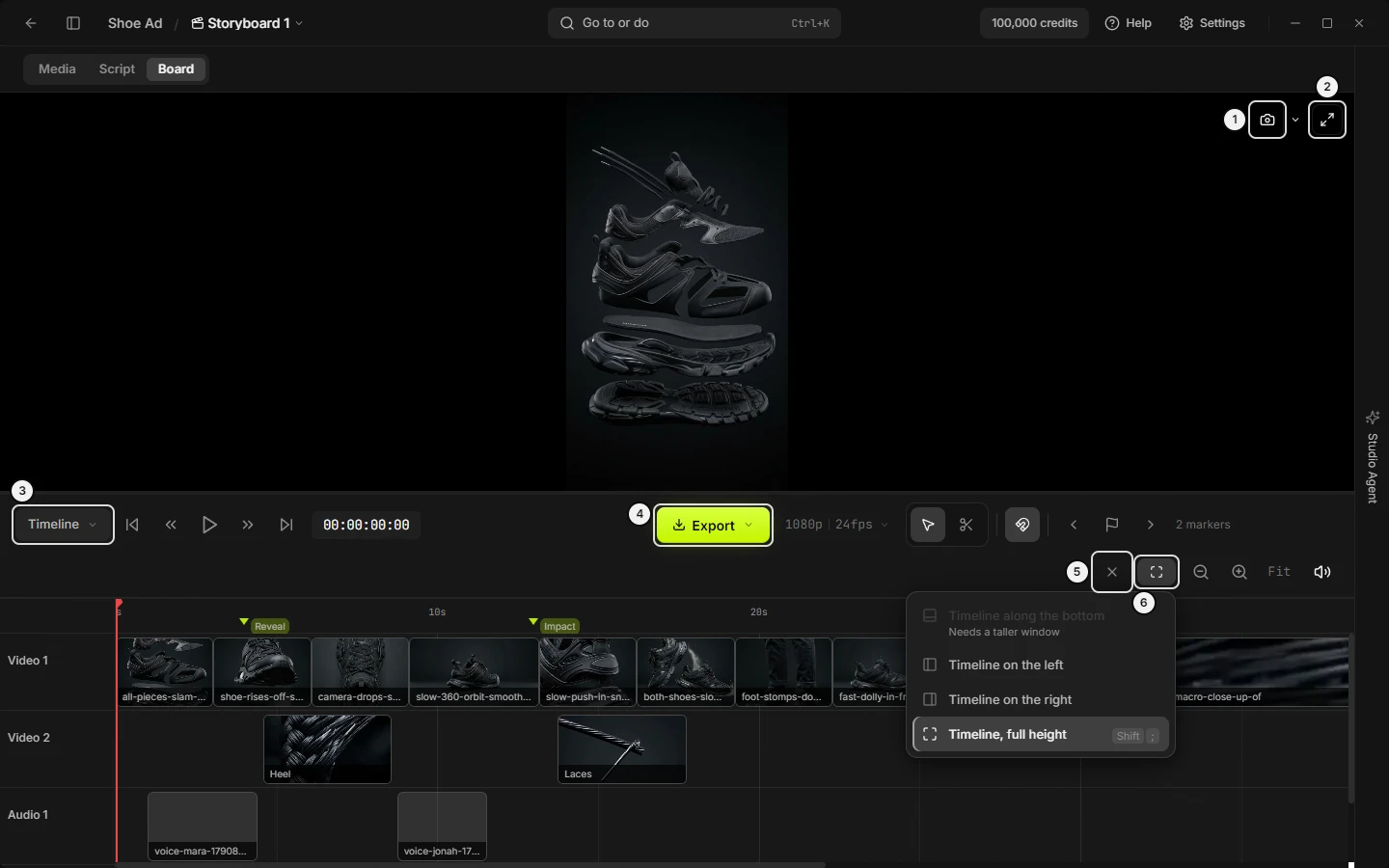\n\nPicture `cut-full-height`. The numbers on it:\n1. **Extract current frame** (`cut.preview.extract`)\n2. **Fullscreen (Ctrl+F)** (`cut.preview.fullscreen`)\n3. **{cut name}** (`cut.selector.button`)\n4. **Export** (`cut.export.button`)\n5. **Close timeline** (`cut.toolbar.close`)\n6. **Arrange: {arrangement}** (`cut.toolbar.arrange`)\n<!-- END:GENERATED picture-cut-full-height -->\r\n\r\n### Timeline: size and resize (taller, wider, smaller, why it covers the board, cannot split)\r\n\r\n- Drag the edge that faces the page: the top edge of a band, the right edge of a left column, the left edge of a right column. Its tooltip reads \"Drag to resize the timeline\". The size is remembered.\r\n- A band is 320 to 720px tall (default 320). A column is 420 to 1600px wide (default 560). The page always keeps 640px of height above a band or 912px of width beside a column.\r\n- The timeline splits the workspace only when both halves fit: a centre shorter than 960px cannot hold a band, and one narrower than 1332px cannot hold a column. Then the timeline takes the whole centre (Full) even if you chose a band or column, and **Arrange** reads Full. Nothing is stored; it follows the window size. A default-size window usually opens Full.\r\n- In Full and in a column a thin bar sits between the monitor and the toolbar, tooltip \"Drag to resize timeline\". Dragging it sets the lane area's height. Until dragged, the lane area fits its lanes up to 280px and the monitor takes the rest.\r\n\r\nAgent: `slates_set_view (cut.height)` and `(cut.width)` set the band and column sizes; the bar between monitor and toolbar is `only you`.\r\n\r\n### Timeline: cut name menu — several cuts (switch cut, New cut, Rename current cut, delete or duplicate a cut)\r\n\r\n| Control | Where | What it does | Key | Agent op |\r\n|---|---|---|---|---|\r\n| **{cut name}** | toolbar, first button | Lists the project's cuts. A new project's first cut is named **Timeline** | — | `slates_list_timelines` |\r\n| a cut's row | the list | Opens that cut (spinner while it loads). The playhead goes to 0; selection and undo history clear. Remembered per project | — | `slates_set_view (cut.timelineId)` |\r\n| **New cut** | list, below the line | Becomes a name field (**Cut name**). Enter or clicking away creates and opens a 1080p, 24 fps cut with Video 1, Video 2, Audio 1, Audio 2. Esc or an empty name cancels | — | `slates_save_timeline` |\r\n| **Rename current cut** | below **New cut** | Becomes a field with the name selected. Enter or clicking away renames; Esc or an unchanged name cancels | — | `slates_save_timeline (timelineId, name)` |\r\n\r\nA failed save shows \"Could not save the cut\" (or the error text) in the menu, with a dismiss X. There is no way to delete or duplicate a cut, in the app or for an agent; make a **New cut** instead. To export several cuts at once, use **Export several cuts…** (see \"Timeline: Export several cuts dialog\").\r\n\r\n### Timeline: toolbar folds when narrow (a button or word disappeared, squeezed toolbar)\r\n\r\nAs the toolbar narrows it folds in five steps, and nothing is removed:\r\n\r\n1. The zoom percent hides.\r\n2. Spacing tightens.\r\n3. The two meter bars on the output button hide (the speaker stays).\r\n4. The word on **Arrange** hides (its glyph stays).\r\n5. The toolbar wraps, keeping the transport, the timecode and **Export** on the first line.\r\n\r\nWiden the window or the column to bring the labels back. The favourite-take line and the error line are rows of their own and never fold.\r\n\r\n### Timeline: play, step and timecode (transport, Play/Pause, go to start, frame by frame)\r\n\r\n| Control | Where | What it does | Key | Agent op |\r\n|---|---|---|---|---|\r\n| **Go to start (Home)** | toolbar, transport | Playhead to frame 0 | `Home` | only you |\r\n| **10 frames back (Shift+←)** | transport | Back 10 frames | `Shift+←` | only you |\r\n| **Play/Pause (Space)** | transport, centre | Plays or stops from the playhead. A click on the monitor does the same | `Space` | only you |\r\n| **10 frames forward (Shift+→)** | transport | Forward 10 frames | `Shift+→` | only you |\r\n| **Go to end (End)** | transport | Playhead to the end of the last clip | `End` | only you |\r\n| one frame | no button | Steps one frame | `←` `→` | only you |\r\n| timecode | right of the buttons | HH:MM:SS:FF at the cut's frame rate. A readout only: no timecode can be typed | — | only you |\r\n\r\nAudio plays with the picture (see \"Timeline: mixing\"). In the monitor's fullscreen the toolbar is hidden and the monitor prints the timecode.\r\n\r\n### Timeline: settings button — resolution and frame rate (fps, 1080p, 4K, canvas size)\r\n\r\n- The button reads **{resolution} {fps}fps**, for example 1080p 24fps, with a chevron; a size that is not a preset reads \"{w}×{h}\". Its tooltip is **Timeline settings**. It opens a popover that stays open after a choice and closes with Esc or a click outside.\r\n- **Resolution** group: **1080p**, **1440p**, **4K**, each row showing its size. It sets the monitor's shape and the size of the export.\r\n- **Frame rate** group: **24 fps** (Cinema), **30 fps** (Standard), **60 fps** (High frame rate). Every clip is conformed to it on export. Clip positions are stored in frames, so changing the rate after clips are placed retimes them: set it while the cut is empty.\r\n- Automatic: the first video clip added to an empty cut by **Add to timeline** (or by an agent) sets the frame rate (snapped to 24, 30 or 60) and the resolution. A later higher-resolution video raises the canvas and never lowers it. A clip dropped straight onto a lane does not do this.\r\n- Export at 4K is open to every plan.\r\n\r\nAgent: `slates_update_timeline_settings` (width, height, frameRate).\r\n\r\n### Timeline: tools — Select, Split, Snap to clips, Delete (razor, magnet, remove a clip)\r\n\r\n| Control | Where | What it does | Key | Agent op |\r\n|---|---|---|---|---|\r\n| **Select (V)** | toolbar, tools group, first | The default tool: a click selects a clip, a drag moves it | `V` | only you |\r\n| **Split (C)** | tools group, second | Your next click on a clip cuts it there (crosshair cursor). Stays on until you choose Select (V) | `C` | only you |\r\n| **Snap to clips (S)** | after the divider | On or off, starting on each launch. On: a dragged or trimmed clip edge, or a dragged marker, is pulled to other clips' edges, the playhead and frame 0 within 8px at any zoom | `S` | only you |\r\n| **Delete ({N})** | after the marker controls | Removes the selected clips from the timeline, not from disk. Clips on a locked track are skipped. `Ctrl+Z` brings them back. Asks nothing. Invisible until a clip is selected | `Delete` `Backspace` | `slates_remove_clip` |\r\n\r\nFor cutting see \"Timeline: split a clip\"; for marker buttons see \"Timeline: markers\".\r\n\r\n### Timeline: preview monitor (program monitor, extract a frame, First frame, Last frame, black picture)\r\n\r\nThe monitor shows the picture from the first video track that has a clip at the playhead; it is black where no clip covers the playhead, with a spinner while it buffers. A left click on the picture plays or pauses. In a band it sits right of the lanes at the cut's shape (at most half the dock's width); in Full and in a column it sits above the toolbar.\r\n\r\n| Control | Where | What it does | Key | Agent op |\r\n|---|---|---|---|---|\r\n| **Extract current frame** | monitor, top right (camera) | Saves the picture under the playhead to Media as a new image | — | `slates_extract_video_frame` |\r\n| **Frame options** | monitor, right of the camera | Opens **First frame** and **Last frame**: the clip's in-point frame (not the timeline's) and its last frame, saved to Media | — | `slates_extract_video_frame` |\r\n| **Fullscreen (Ctrl+F)** | monitor, top right | See \"Timeline: fullscreen monitor\" | `Ctrl+F` | only you |\r\n\r\nAll three frame buttons are greyed with \"No clip at the playhead\" when no video clip is under the playhead. A frame saved shows a toast (see \"Timeline: messages — export and frames\").\r\n\r\n### Timeline: fullscreen monitor (full screen preview, zoom and pan the picture)\r\n\r\n**Fullscreen (Ctrl+F)** on the monitor, or `Ctrl+F` while the timeline has focus or covers the centre, makes the monitor fill the window. **Exit fullscreen (Ctrl+F / Esc)**, `Ctrl+F` or `Esc` leaves it. The toolbar is hidden meanwhile and the monitor prints the timecode bottom-right, and the zoom percent top-left when zoomed.\r\n\r\nThe caption reads \"Click to play/pause · Right-click to zoom · Middle-click to pan · Scroll to zoom · Ctrl+F or Esc to exit\".\r\n\r\n- A click or `Space` plays or pauses; a large play triangle shows while paused.\r\n- `←` and `→` step one frame; `Shift` with them steps 10.\r\n- Right-click zooms to 2x at the pointer and back; the wheel zooms between 50% and 500%; middle-drag pans.\r\n\r\nThe monitor zooms only here. Agent: `only you`.\r\n\r\n### Timeline: tracks and their controls (lock, mute, add audio track, remove a track, rename, taller lanes)\r\n\r\nA new cut has Video 1, Video 2, Audio 1, Audio 2, top to bottom. Video clips go on video lanes and audio on audio lanes. Where video clips overlap, the higher lane wins. A lane with no clips is a thin row that still takes drops.\r\n\r\n| Control | Where | What it does | Key | Agent op |\r\n|---|---|---|---|---|\r\n| track name | header | A label: no rename field in the app | — | `slates_update_timeline_track (name)` |\r\n| **Lock** / **Unlock** | header, padlock, on hover or focus (always while locked) | A locked lane is dimmed with a **Locked** badge: no selecting, moving, trimming, splitting or dropping. Delete is refused | — | `slates_update_timeline_track (locked)` |\r\n| **Mute** / **Unmute** | header, speaker, on hover (always while muted) | Silences the lane in preview and export, a video lane's own sound too. The picture stays | — | `slates_update_timeline_track (muted)` |\r\n| **Remove this empty track** | audio header, X, on hover | Deletes an audio track with no clips, while more than one audio track exists | — | `slates_remove_timeline_track` |\r\n| **+ Audio track** | below the last header | Adds an audio track at the bottom, named Audio {N}. Also **Add audio track** on a lane's right-click and in `Ctrl+K` | — | `slates_add_timeline_track` |\r\n| drag handle, tooltip \"Drag to resize track height\" | header's bottom edge | Sets the height of every lane that holds a clip, 32 to 150px | — | only you |\r\n\r\nThe app adds and removes audio tracks only; an agent can also add a video track. The level slider is in \"Timeline: mixing\".\r\n\r\n### Timeline: select, move, trim and duplicate clips (drag, box select, overwrite, nudge)\r\n\r\n| Control | Where | What it does | Key | Agent op |\r\n|---|---|---|---|---|\r\n| Click a clip | lane | Selects only that clip. `Ctrl`+click adds or removes it | — | only you |\r\n| Tick | top-left of a selected clip wider than 48px | Adds or removes that clip | — | only you |\r\n| Box select | drag on empty lane space | Selects every clip the grey box touches, on unlocked lanes. A short click there clears the selection and puts the playhead there | `Esc` clears | only you |\r\n| Move | drag the clip | Moves it in time along its own lane (it cannot be dragged to another lane). Every selected clip moves together; snaps if Snap is on; one undo step | — | `slates_add_clip_to_timeline (startFrame)` |\r\n| Trim | drag a clip's left or right edge | Sets the in-point or out-point, limited by the source's length | — | `slates_add_clip_to_timeline (sourceInFrame, sourceOutFrame)` |\r\n| Duplicate | `Shift`+drag one clip | Drags a copy; the original stays. Not for several selected clips | `Shift` | `slates_add_clip_to_timeline` |\r\n\r\nA moved or trimmed clip overwrites what it lands on: clips it covers are removed and partly covered ones are trimmed. A locked lane refuses all of this. An agent moves, trims or duplicates by re-placing: read the clip with `slates_get_timeline`, `slates_remove_clip`, then `slates_add_clip_to_timeline` with `trackId`, `startFrame`, `sourceInFrame`, `sourceOutFrame` (a duplicate skips the remove). `slates_reorder_clips` repacks a track back to back.\r\n\r\n### Timeline: split a clip (cut in two, razor, blade, B key, split at the playhead)\r\n\r\n1. By click: press `C` (or **Split (C)**) and click the clip where it should be cut. It becomes two clips and the playhead moves to the cut. A click in a clip's first or last frame does nothing. Each split is one undo step. The tool stays on Split until you choose **Select (V)**.\r\n2. At the playhead: move the playhead (click the ruler), then press `B`. Every clip under the playhead, on every unlocked lane, is cut in two; where no clip spans the playhead nothing happens. There is no button for this, only the key. One undo step.\r\n\r\nA locked lane refuses both. The keys act only while the timeline has keys (see \"Timeline: keyboard shortcuts\"). Agent: no split op; place two clips of the same asset with `slates_add_clip_to_timeline` (sourceInFrame, sourceOutFrame) after `slates_remove_clip`.\r\n\r\n### Timeline: clip right-click menu (Edit with AI, go to source image, show in folder, delete a clip)\r\n\r\n| Control | Where | What it does | Key | Agent op |\r\n|---|---|---|---|---|\r\n| **Open source image** | first group | Opens the picture the clip was made from in the viewer. Only when that picture is in this project | — | `slates_set_view (viewer.assetId)` |\r\n| **Go to image in Media** | first group | Switches to Media and highlights that picture | — | `slates_set_view (media.revealAssetId)` |\r\n| **Swap to its favourite take** | second group | Replaces this clip's media with its shot's favourite take. Only while a swap is pending. One undo step | — | `slates_edit_cut (replace)` |\r\n| **Edit with AI** | second group | Starts the prompt box on a video edit model with this clip as source | — | `slates_set_composer (editSource)` |\r\n| **Go to clip in Media** | third group | Highlights the clip's card in Media (**Go to audio clip in Media** for audio) | — | `slates_set_view (media.revealAssetId)` |\r\n| **Go to {board name}** | third group | Opens the board holding the clip's picture. With several boards the row is **Go to board**, a list | — | `slates_set_view (board.id)` |\r\n| **Show in File Explorer** | third group | Reveals the file (**Show in Finder** on a Mac) | — | `slates_reveal_file` |\r\n| **Delete** | last group, red | Removes the clip from the timeline, not from disk. Asks nothing. Greyed with \"The track is locked\" on a locked lane | `Delete` | `slates_remove_clip` |\r\n\r\n### Timeline: clip labels, star chip, shortened, favourite take (Update, sync clips to shots)\r\n\r\n- A clip's label is its shot's name (else the shot line, prompt or file name), shown when the clip is wider than 56px. Hover shows \"{shot code} · {file name}\". Selecting a clip emphasises its shot on the Board, and the reverse.\r\n- A **shortened ·** prefix and the tooltip \"Shortened: the chosen take is shorter than this edit\" mark a clip whose swapped-in take is shorter than the space.\r\n- A hollow star at a clip's top right (clip wider than 28px), tooltip \"Its shot’s favourite take is another clip\", means that clip's shot now has another clip as its favourite take.\r\n- The line under the toolbar reads \"1 clip has a different favourite take\" or \"{N} clips have a different favourite take\". **Update** swaps every such clip to its shot's favourite take. Timing stays where the take is long enough. One undo step. It shows only while a clip differs, read from the open board.\r\n- If it fails: \"Could not swap the clips: {error}\", with a dismiss X.\r\n\r\nAgent: `slates_edit_cut` with `changes` (read the count), `replace` (one clip) or `sync` (all).\r\n\r\n### Timeline: markers (add a marker, name, colour, move, delete, previous and next marker)\r\n\r\n| Control | Where | What it does | Key | Agent op |\r\n|---|---|---|---|---|\r\n| **Add Marker at Playhead (M)** | toolbar, flag | Adds a gray unnamed marker at the playhead. Right-click the ruler or a lane for **Add marker here** at that frame | `M` | `slates_manage_timeline_marker (create)` |\r\n| **Previous Marker**, **Next Marker** | toolbar, each side of the flag | Playhead to the nearest marker before or after. Greyed until a marker exists | — | only you |\r\n| \"1 marker\", \"{N} markers\" | right of the flag | How many markers the cut has, once one exists | — | `slates_get_timeline` |\r\n| a marker | ruler row, a small triangle with its name | Click jumps the playhead to it. `Alt`+click deletes it (no question). Drag moves it (snaps to clip edges if Snap is on; one undo step) | — | `slates_manage_timeline_marker (update, delete)` |\r\n| double-click | a marker | Opens the name field (**Name**) under it and moves the playhead. Enter, Esc or clicking away keeps the name | — | `slates_manage_timeline_marker (update)` |\r\n| right-click | a marker | **Rename…**, **Colour** (Gray, Lime, Red, Orange, Blue, Purple; the current one is ticked), **Delete marker** | — | `slates_manage_timeline_marker` |\r\n\r\nA hand-placed marker is Gray; Lime is the colour of scene markers. The XML export carries markers.\r\n\r\n### Timeline: ruler, playhead and lane right-click menu (scrub, move the playhead, Add marker here)\r\n\r\n- The ruler shows time marks (\"0s\", \"5s\", \"1:05\"); the marks spread out as zoom falls. A left press on it puts the playhead there and clears the clip selection; dragging scrubs, stopping at the cut's end.\r\n- The playhead is a red line with a pointed handle in the ruler. It moves by a ruler press, a click on empty lane space, the transport buttons, the keys, a marker click, or playback. Agent: `only you`.\r\n- Right-click the ruler or an empty stretch of a lane for a menu of three rows:\r\n\r\n| Row | What it does | Agent op |\r\n|---|---|---|\r\n| **Add marker here** | Adds a gray marker at the clicked frame | `slates_manage_timeline_marker (create)` |\r\n| **Add audio track** | Adds an audio track at the bottom | `slates_add_timeline_track` |\r\n| **Fit the timeline** | Same as **Fit**. Greyed with \"Nothing on the timeline yet.\" while empty | only you |\r\n\r\n### Timeline: zoom, Fit, scroll and pan (zoom in or out, see the whole cut, move along the timeline)\r\n\r\n| Control | Where | What it does | Key | Agent op |\r\n|---|---|---|---|---|\r\n| zoom out | toolbar, right group | One step out (÷1.2), down to 2% | `Ctrl+-` | only you |\r\n| \"{N}%\" | between the buttons | The scale. A new session starts at 200%. Hidden when the toolbar is squeezed | — | only you |\r\n| zoom in | right of the percent | One step in (×1.2), up to 1000% | `Ctrl+=` | only you |\r\n| **Fit** | rightmost of the zoom buttons | Zooms so the whole cut fits, with a little air after the last clip, and scrolls to the start. Greyed with \"Nothing on the timeline yet.\" while empty | — | only you |\r\n| wheel | over lanes or ruler | Scrolls up and down through lanes that overflow, otherwise in time. `Shift`+wheel scrolls in time | — | only you |\r\n| `Ctrl`+wheel, pinch | over lanes or ruler | Zooms about the pointer (2% to 1000%); the frame under it stays put | — | only you |\r\n| middle-drag | over lanes or ruler | Pans both ways | — | only you |\r\n\r\nThe buttons' tooltips read \"Zoom out · also Ctrl/Cmd+wheel or a pinch\" and \"Zoom in · also Ctrl/Cmd+wheel or a pinch\". `Ctrl+-` and `Ctrl+=` (or `Ctrl++`) act only while the timeline has keys. **Fit the timeline** is also in `Ctrl+K`.\r\n\r\n### Timeline: mixing — track fader, Output level, mute, clipping (volume, loudness, master fader)\r\n\r\n- Track fader: a slider in a lane's header (tooltip \"Track level — double-click to reset to 0 dB\"), from silent to +12 dB. It shows on hover or once moved, and only on a lane at least 56px tall, which means a lane with clips. Double-click resets. Agent: `slates_update_timeline_track (volume)`.\r\n- Mute: see \"Timeline: tracks and their controls\". A muted lane adds no sound to preview or export.\r\n- Output level: the speaker button with a two-bar stereo meter, toolbar right group, after the zoom buttons. It opens a popover titled **Output level** with a dB readout, the meter (scale -60, 0, +12) and a slider (tooltip \"Output level — double-click to reset to 0 dB\"). The slider sets the whole cut: audible at once, saved to the cut after a short pause, applied to preview and MP4. Agent: `slates_update_timeline_settings (masterVolume)`.\r\n- After the output passes 0 dB the speaker turns red (tooltip \"Output clipped. Click to adjust the level\") and a **CLIP** badge shows in the popover; clicking it clears the flag (`only you`). At level 0 the speaker shows muted.\r\n- Both faders apply to playback and to the MP4, so what you hear is what you render. Each audio-track clip plays under the playhead at its track's level times the output level.\r\n- There is no per-clip volume, scale, position, crop or opacity, and no clip properties panel. Every clip is fitted inside the frame.\r\n\r\n### Timeline: undo and redo (Ctrl+Z, step back, history, agent undo)\r\n\r\n- `Ctrl+Z` undoes, `Ctrl+Shift+Z` redoes (`Cmd` on a Mac), and on Windows `Ctrl+Y` redoes too, while the timeline has keys. There is no Undo button.\r\n- The history holds up to 50 steps: clip moves, trims, splits, deletes, Shift-duplicates, take swaps, and marker add, move, rename, colour and delete. Track changes, timeline settings and dropped-in clips are not steps. Opening another cut clears it.\r\n- The history is yours: it holds what you did by hand. An agent's edits arrive through the app's routes and are not on it, so `Ctrl+Z` would undo your last edit, not the agent's. An agent undoes its own work with the inverse op (remove a clip it added, re-place one it moved) or with `slates_edit_cut`: `restore` with the snapshot a swap returned, `undo-build` with the ids a build returned.\r\n\r\n### Timeline: keyboard shortcuts (hotkeys, when the timeline keys work)\r\n\r\nThe timeline's keys act only when: nothing modal, menu, viewer, palette or fullscreen monitor is up; the timeline is open; and it either covers the centre (Full, or a window too small to split) or has focus (just opened, or clicked inside). A key typed in a text field is ignored. `Cmd` replaces `Ctrl` on a Mac.\r\n\r\n| Key | What it does |\r\n|---|---|\r\n| `;` / `Shift+;` | Open or close / toggle Full (anywhere in a project) |\r\n| `Space` | Play or pause |\r\n| `←` `→` (`Shift`: 10) | One frame back or forward |\r\n| `Home` `End` | Start or end |\r\n| `V` `C` `S` | Select, Split, Snap |\r\n| `M` / `B` | Add marker / split every clip at the playhead |\r\n| `Delete` `Backspace` | Delete selected clips |\r\n| `Esc` | Clear the clip selection |\r\n| `Ctrl+Z` / `Ctrl+Shift+Z` (Windows also `Ctrl+Y`) | Undo / redo |\r\n| `Ctrl+=` `Ctrl+-` | Zoom in, out |\r\n| `Ctrl+F` | Fullscreen monitor |\r\n\r\n### Timeline: put clips on it (Add to timeline, drag a file, drop zone, empty timeline)\r\n\r\n1. Media tab: right-click a clip or audio card, or select cards and use the selection band: **Add to timeline** (**Add {N} to timeline** for several). Video goes to the end of the timeline; audio to the end of the first audio track. A toast \"Added 1 item to the timeline\" (or \"Added {N} items to the timeline\") shows only when the timeline is closed. A failure reads \"Could not add it to the timeline.\" or \"Could not add them to the timeline.\" on the card or in Media.\r\n2. Drag a Media card: a **Timeline** drop zone appears while you drag; drop on it.\r\n3. Drag a file from the computer onto a lane: a video file (mp4, mov, avi, mkv, webm) onto a video lane, or an audio file (mp3, wav, m4a, aac, ogg, flac) onto an audio lane. It lands at the drop position. The type must match the lane and the lane must be unlocked.\r\n4. Board tab: **Add to timeline** lays each shot's chosen clip, in board order, on the first unlocked video track, with a Lime marker per scene. It is offered only while a shot has a clip, and the app's Undo takes it back. A toast \"Added {N} clips to the timeline\" shows only when the timeline is closed; a failure reads \"Could not add the board to the timeline.\"\r\n\r\nAn empty cut shows \"Drag a video here, or Add to timeline on any clip\". Agent: `slates_add_clip_to_timeline` (an asset already in the project; bring a file in first with `slates_upload_reference_image`); `slates_edit_cut (build)` lays a board's shots in order.\r\n\r\n### Timeline: Export menu — where to export (Export button, refused rows, Exporting percent)\r\n\r\n**Export** is the last button on the toolbar. It is lime once the cut has a clip and quiet grey before; it is never disabled. While an MP4 renders it reads **Exporting {N}%**. Its menu has three rows, the same words as in `Ctrl+K` (and on a Mac the File menu):\r\n\r\n| Row | Subtitle | Agent op |\r\n|---|---|---|\r\n| **Export MP4** | The timeline as one video file | `slates_export_video` |\r\n| **Export for DaVinci, Premiere or Final Cut** | An XML timeline to finish in your editor | `slates_export_timeline_xml` |\r\n| **Export several cuts…** | Each cut you tick, as MP4 or XML, into one folder | `slates_export_cuts` |\r\n\r\nThe first two rows grey out with a reason underneath: \"No timeline yet.\", \"An export is running.\", \"Nothing on the timeline yet.\" **Export several cuts…** is never refused by an empty cut. A cut with only audio clips passes the check; after you pick a file, a toast reads \"Export failed: No video clips to export\". Export runs on your computer with the bundled ffmpeg and works offline.\r\n\r\n<!-- BEGIN:GENERATED picture-cut-export-several -->\n\n\nPicture `cut-export-several`.\n<!-- END:GENERATED picture-cut-export-several -->\r\n\r\n### Timeline: export an MP4 (render, save the video, finish the cut, ffmpeg)\r\n\r\n1. Toolbar → **Export** → **Export MP4** (or `Ctrl+K`; on a Mac, **File** › **Export MP4**).\r\n2. In the save dialog titled \"Export Video\" choose a place. The name starts as \"{cut name}.mp4\". Cancelling says nothing and does nothing.\r\n3. Wait while the button reads **Exporting {N}%**.\r\n4. A toast for 8 seconds: \"Exported {file}.\" with **Show in File Explorer** (**Show in Finder** on a Mac).\r\n\r\nThe file is H.264 video with AAC audio at the cut's resolution and frame rate, from the **Timeline settings** button. There is no bitrate or quality setting. Only video lanes render as picture; the higher video lane wins where clips overlap; each clip is fitted inside the frame with black bars where its shape differs; gaps are black; clip in and out points are kept. Audio lanes and the track and output faders are mixed in; a muted lane adds no sound (a muted video lane still shows its picture).\r\n\r\nIf it fails, a toast for 10 seconds reads \"Export failed: {error}\". Agent: `slates_export_video` takes an absolute `.mp4` path and shows no dialog; `slates_reveal_file` then shows the file.\r\n\r\n### Timeline: export for DaVinci, Premiere or Final Cut (XML, hand off to an editor, FCP7)\r\n\r\n1. Toolbar → **Export** → **Export for DaVinci, Premiere or Final Cut** (or `Ctrl+K`; on a Mac, the File menu row of the same name).\r\n2. In the save dialog titled \"Export Timeline XML\" choose a place. The name starts as \"{cut name}.xml\"; the file type is FCP7 XML.\r\n3. A toast for 8 seconds: \"Saved {file}. Import it in DaVinci, Premiere or Final Cut as an XML timeline.\" with **Show in File Explorer**.\r\n\r\nThe file is a Final Cut Pro 7 XML. It links to the original media files on disk by path, so keep them where they are. It carries the tracks, each clip's in and out points as played, and the markers. Slates has no clip transforms, so none are written: reframe, zoom and fade in your editor. Clips that overlap on one track are written one after another, not at their timeline positions: keep one clip at a time per track before exporting.\r\n\r\nIn DaVinci Resolve: File → Import → Timeline, then pick the XML; grade and export from there. In Premiere and Final Cut, import it as an XML timeline.\r\n\r\nSame refusals as the MP4 row (see \"Timeline: Export menu\"). Agent: `slates_export_timeline_xml`.\r\n\r\n### Timeline: Export several cuts dialog (batch export, many cuts, folder, manifest, retry, stop)\r\n\r\nOpen it with **Export** → **Export several cuts…** or `Ctrl+K` (on a Mac also the File menu); it opens the timeline if closed. Title **Export several cuts**.\r\n\r\n| Control | What it does | Agent op |\r\n|---|---|---|\r\n| A checkbox per cut | The cut on screen starts ticked; ticks are kept afterwards. Once an export has run, each row shows its status: pending, rendering, complete, failed or cancelled, with \" · {error}\" if any | `slates_list_timelines` |\r\n| **Export format** | **MP4 video** or **XML for DaVinci, Premiere or Final Cut**. One format for every ticked cut | `slates_export_cuts (items)` |\r\n| **Choose folder and export** | Opens the system folder picker (cancelling does nothing), then starts. Reads **Exporting {done} of {total}…** while running. Refused: \"An export is running.\" or \"Tick a cut first.\" | `slates_export_cuts` |\r\n| **Stop after this output** | Only while running. Stops after the file being rendered | `slates_export_cuts (cancel)` |\r\n| **Retry unfinished** | Only when stopped and something did not complete. Renders only those, under the same names, never overwriting a finished file. Reads \"Working…\" while a request is in flight | `slates_export_cuts (manifestId)` |\r\n| **Cancel** / **Close** | Cancel becomes Close once an export exists. Esc or a click outside also closes; an export already started keeps running | — |\r\n\r\nA line \"Manifest: {path}\" names the `slates-{id}.json` file beside the outputs; it freezes each cut's settings and media. Outputs are named \"{cut name}-{first 8 of the cut id}-{export id}.mp4\" (or .xml). The dialog checks progress every 1.5 seconds. Nothing is generated. A start failure reads \"Could not export the cuts.\" Poll from an agent with `slates_export_cuts (status)`.\r\n\r\n### Timeline: messages — editing and layout (errors, greyed reasons, empty states)\r\n\r\n| Message | Where | What it means and what to do |\r\n|---|---|---|\r\n| spinner in the dock | dock | Another cut is opening; wait |\r\n| \"The timeline did not open.\" | dock | A load failed or came back empty. Close and reopen the timeline |\r\n| \"No timeline loaded\" | dock | The editor has no timeline. Same |\r\n| **Needs a taller window** / **Needs a wider window** | Arrange rows | The window cannot hold a band or a column. Enlarge it or choose Full |\r\n| \"Could not save the cut\" | cut name menu | New cut or Rename failed; dismiss the notice and retry |\r\n| \"The track is locked\" | clip **Delete** | Unlock the lane with **Unlock** |\r\n| \"Nothing on the timeline yet.\" | **Fit**, Export rows | Add a clip first |\r\n| \"Drag a video here, or Add to timeline on any clip\" | over the lanes | The cut is empty: see \"Timeline: put clips on it\" |\r\n| \"Could not swap the clips: {error}\" | error line | The favourite-take swap failed; read the error |\r\n| \"Could not add it to the timeline.\" / \"Could not add them to the timeline.\" | notice on the card or in Media | Adding from Media failed; retry |\r\n| \"Could not add the board to the timeline.\" | notice on the Board | Board **Add to timeline** failed; retry |\r\n| \"Added 1 item to the timeline\", \"Added {N} items to the timeline\", \"Added {N} clips to the timeline\" | toast | Shown only when the timeline was closed; not an error |\r\n| \"{N} clips have a different favourite take\" | line under the toolbar | Not an error: press **Update** |\r\n\r\n### Timeline: messages — export and frames (toasts, Export failed, frame errors)\r\n\r\n| Message | Where | What it means and what to do |\r\n|---|---|---|\r\n| \"No timeline yet.\" | Export rows | The timeline has not loaded; wait or reopen |\r\n| \"An export is running.\" | Export rows, dialog | Wait for **Exporting {N}%** to finish |\r\n| \"Exported {file}.\" | toast, 8 s | The MP4 is saved. **Show in File Explorer** opens its folder |\r\n| \"Saved {file}. Import it in DaVinci, Premiere or Final Cut as an XML timeline.\" | toast, 8 s | The XML is saved |\r\n| \"Export failed: {error}\" | toast, 10 s | The error says why. \"No video clips to export\" means the cut has no video clip |\r\n| \"Could not export the cuts.\" | dialog | The batch could not start or be read; retry |\r\n| \"Tick a cut first.\" | dialog | Tick at least one cut |\r\n| \"No clip at the playhead\" | frame buttons | Move the playhead over a video clip |\r\n| \"The clip is still loading.\" | monitor | Wait a moment and retry |\r\n| \"Could not find the last frame.\" / \"Could not take the frame.\" / \"Could not save the frame.\" | monitor | The frame failed; retry |\r\n| \"Frame saved to Media\", \"First frame saved to Media\", \"Last frame saved to Media\" | toast | The picture is in Media |\r\n\r\n### Timeline: how to make a rough cut and export it (workflow)\r\n\r\n1. Open the timeline with `;`. On a small window it opens Full.\r\n2. Add clips: Media tab → right-click a video card → **Add to timeline**. The first video clip sets the cut's resolution and frame rate.\r\n3. Arrange: drag a clip to move it, drag an edge to trim, `Shift`+drag to duplicate. Click a clip and press `Delete` to drop it.\r\n4. Cut a clip: press `C`, click where to cut, then `V` to go back to Select. Or park the playhead and press `B`.\r\n5. Mark cue points with `M`.\r\n6. Play with `Space`; adjust levels (see \"Timeline: mixing\").\r\n7. Toolbar → **Export** → **Export MP4**, choose a file, wait for the toast. For a colour grade or finishing edit, use **Export for DaVinci, Premiere or Final Cut**.\r\n\r\nSteps are detailed under \"Timeline: select, move, trim and duplicate clips\" and \"Timeline: split a clip\".\r\n\r\n### Timeline: how to layer music or a voiceover (audio track, levels)\r\n\r\n1. Bring the audio into Media (a generated or imported audio clip).\r\n2. Put it on the timeline: right-click its card → **Add to timeline** (it lands at the end of the first audio track), or drag the audio file onto an audio lane at the moment you want it.\r\n3. For another layer, press **+ Audio track** under the track headers (or right-click a lane → **Add audio track**), then drop an audio clip on it.\r\n4. Hover the lane's header and drag the level slider; double-click resets it to 0 dB. Mute the lane with **Mute**.\r\n5. Watch the output meter and set the whole mix with the speaker button's **Output level** slider.\r\n\r\nMuting a video lane silences its own sound but keeps the picture.\r\n\r\n### Timeline: how to make several versions of a cut (variations, compare cuts)\r\n\r\n1. Cut name button → **New cut** → type a name → Enter. The new cut opens empty at 1080p, 24 fps.\r\n2. Fill it with **Add to timeline** from Media, or from the Board tab.\r\n3. Switch between cuts from the cut name button; each cut has its own clips, markers and settings.\r\n4. To deliver several at once, **Export** → **Export several cuts…**: tick the cuts, choose the format, **Choose folder and export**.\r\n\r\nA cut cannot be deleted or duplicated.\r\n\r\n### Timeline: how to grab a still from the cut (screenshot, frame, First frame, Last frame)\r\n\r\n1. Move the playhead over the clip (click or drag in the ruler) until the monitor shows the frame you want. `←` and `→` step one frame (`Shift`: 10).\r\n2. Press the camera button, **Extract current frame**, at the monitor's top right. The picture is saved to Media as a new image and a toast reads \"Frame saved to Media\".\r\n3. For a clip's ends, open **Frame options** (the chevron beside the camera) and pick **First frame** or **Last frame**.\r\n\r\nThe buttons are greyed with \"No clip at the playhead\" when no video clip is under the playhead. Agent: `slates_extract_video_frame`.\r\n\r\n### Timeline: how to follow a shot's new favourite take (update the cut, swap a clip)\r\n\r\n1. Open the Board tab and star a different take as a shot's favourite (see the Board section). The timeline's clip for that shot keeps its old media.\r\n2. Open the timeline. The line under the toolbar reads \"1 clip has a different favourite take\" (or \"{N} clips have…\"), and each such clip wears a hollow star.\r\n3. Press **Update** to swap every such clip, or right-click one clip and choose **Swap to its favourite take**.\r\n4. `Ctrl+Z` undoes the swap. A take shorter than the edit marks its clip **shortened ·**.\r\n\r\nAgent: `slates_edit_cut` with `changes`, then `replace` or `sync`.\r\n\r\n### Timeline: troubleshooting (clip will not move, clip vanished, no sound, black monitor, keys do nothing)\r\n\r\n| Symptom | Cause | Fix |\r\n|---|---|---|\r\n| A clip cannot be selected, moved or cut | Its lane is locked (**Locked** badge) | **Unlock** in the lane header |\r\n| A click cuts a clip instead of selecting it | The Split tool is on | Press `V` |\r\n| A clip vanished after a drag | A moved or trimmed clip overwrites what it lands on | `Ctrl+Z` |\r\n| No sound | The lane is muted, its fader is at the bottom, or the output level is 0 | Check **Unmute**, the track slider and **Output level** |\r\n| The monitor is black | No video clip covers the playhead, or it is buffering | Move the playhead over a clip |\r\n| A key does nothing | The timeline does not have the keys | Click inside the timeline, or use Full |\r\n| No **Delete ({N})** button | No clip is selected | Select a clip |\r\n| The fader is missing | The lane has no clips | Add a clip |\r\n\r\n### Timeline: what an agent can do here\r\n\r\n- Window: `slates_get_view` and `slates_set_view` (cut.open, cut.full, cut.side, cut.height, cut.width, cut.timelineId to switch the cut on screen).\r\n- Read: `slates_get_timeline` (tracks, clips, markers, frame rate, size), `slates_list_timelines`.\r\n- Cuts: `slates_save_timeline` (create, rename).\r\n- Clips: `slates_add_clip_to_timeline`, `slates_remove_clip`, `slates_reorder_clips`. Move, trim, split and duplicate are done by re-placing clips.\r\n- Board sync and build: `slates_edit_cut` (changes, replace, sync, build, restore, undo-build).\r\n- Tracks and mix: `slates_add_timeline_track`, `slates_update_timeline_track`, `slates_remove_timeline_track`, `slates_update_timeline_settings`.\r\n- Markers: `slates_manage_timeline_marker`.\r\n- Export: `slates_export_video`, `slates_export_timeline_xml`, `slates_export_cuts`, `slates_reveal_file`.\r\n- Frames: `slates_extract_video_frame`.\r\n- Show and point: `slates_highlight_control` on any control named here; `slates_get_manual_picture`.\r\n\r\nOnly the user can: play, pause, step and scrub; move the playhead; zoom, Fit, scroll and pan; pick Select or Split; turn Snap on or off; select clips; `Ctrl+Z` for hand edits; resize lane heights and the lane-area bar; the monitor's fullscreen; clear the **CLIP** badge. Nobody, user or agent, can delete or duplicate a cut.\r\n\r\n### Timeline: controls you can point at (highlight, show me where)\r\n\r\n<!-- BEGIN:GENERATED targets-cut -->\n| `slates_highlight_control` target | On screen |\n|---|---|\n| `cut.dock.resize-grip` | **Drag to resize the timeline** |\n| `cut.export.button` | **Export** |\n| `cut.header.add-audio` | **+ Audio track** |\n| `cut.header.fader` | **Track level** |\n| `cut.header.lock` | **Lock** |\n| `cut.lane.clip` | a clip |\n| `cut.marker.add-button` | **Add Marker at Playhead (M)** |\n| `cut.marker.flag` | a marker |\n| `cut.output.button` | **Output level** |\n| `cut.preview.extract` | **Extract current frame** |\n| `cut.preview.fullscreen` | **Fullscreen (Ctrl+F)** |\n| `cut.preview.monitor` | the monitor |\n| `cut.rest.full` | **Timeline, full height** |\n| `cut.rest.open` | **Timeline** |\n| `cut.ruler.strip` | the ruler |\n| `cut.selector.button` | **{cut name}** |\n| `cut.settings.button` | **{resolution} {fps}fps** |\n| `cut.sync.update` | **Update** |\n| `cut.tool.snap` | **Snap to clips (S)** |\n| `cut.tool.split` | **Split (C)** |\n| `cut.toolbar.arrange` | **Arrange: {arrangement}** |\n| `cut.toolbar.close` | **Close timeline** |\n| `cut.toolbar.delete` | **Delete ({N})** |\n| `cut.zoom.fit` | **Fit** |\n<!-- END:GENERATED targets-cut -->\r\n\r\n## THE LIBRARY — characters, locations, products, props and looks; @name and #name; categories; New; Save to Library; sheet tools; voices\r\n\r\nThe Library keeps a project's saved references as items in categories you name: characters, locations, products, props and looks. You put an item in a prompt with `@name` (a subject or a place) or `#name` (a look), and its one picture goes with it. A category opens as a page of cards in Media's place, where you make, picture, voice, rename, move and delete items. Doors: Left dock → **Library** rows; `Ctrl+K` and an item's name; **More › Save to Library…** on a Media picture; the **Library** drag zone; pasting or importing one image while a Library page shows.\r\n\r\n### Library: where things are (category page, cards, dock doors, crumb, dialogs)\r\n<!-- BEGIN:GENERATED picture-library-characters-page -->\n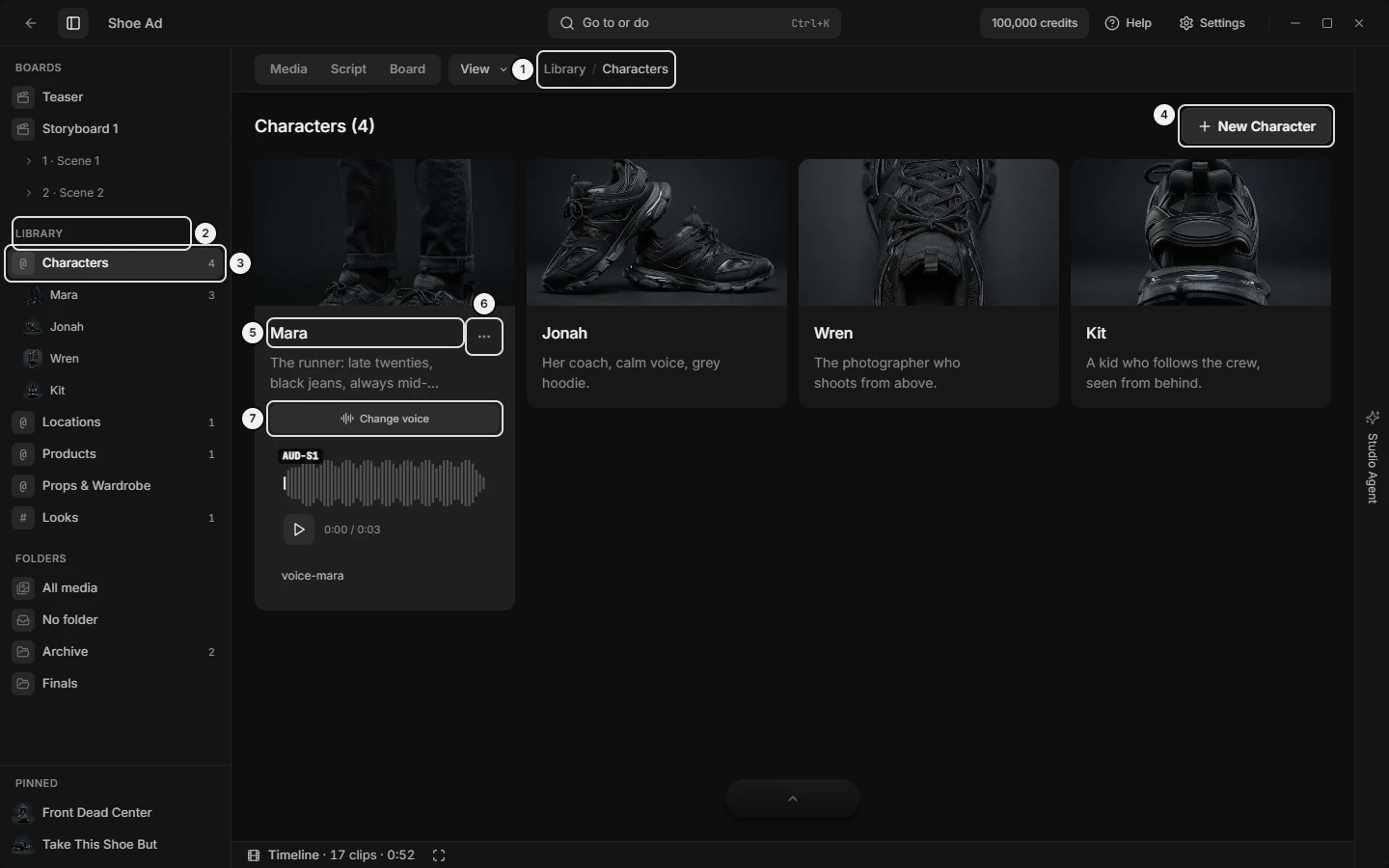\n\nPicture `library-characters-page`. The numbers on it:\n1. **Library / {category name}** (`library.page.crumb`)\n2. **Library** (`dock.section.library`)\n3. **{category name}** (`library.dock.category-row`)\n4. **New {Noun}** (`library.page.new`)\n5. **{name}** (`library.card.name`)\n6. **…** (`library.card.more`)\n7. **Change voice** (`library.card.voice-change`)\n<!-- END:GENERATED picture-library-characters-page -->\r\n\r\n1. Left dock → **Library**: one row per category. A click opens that category's page. An open category lists its items below it (a **+{n} more** row opens the page for the rest); pointing at an item lights every Board tile that cites it and every Media card that is one of its pictures; clicking it opens its page with its picture full size; its arrow is **Put {@name} in the prompt**. `+` adds a category. The dock section covers the rows' other controls, and its **Pinned** section holds pictures, not items.\r\n2. Top bar: while a Library page shows, the crumb reads Library / {category name} and no tab is lit. The **Media** tab returns to the grid. **View** sets card size.\r\n3. Page heading: the title on the left, **New {Noun}** on the right.\r\n4. Card grid, or a heading alone when the category is empty.\r\n5. A card: picture on top, then the name, the notes, **…** at the top right, and a character's voice block.\r\n6. Dialogs: **New {Noun}**, the set-image picker, the delete question, the voice picker, **Save to Library**, **Generate Library Sheet**, the full-size viewer.\r\n7. `Ctrl+K`: an item's name lists it as {@name} with its category beside it, and Enter opens that page. A card on screen also has its commands there (Rename, Delete and the rest). `Ctrl` is `Cmd` on a Mac.\r\n\r\n### Library: what a category is (things, characters, locations, looks, styles; @name or #name; subject, place, look)\r\nA category is a label you name plus one choice of what it holds. The four choices are **Things** (anything in the shot: a product, a prop, a vehicle), **Characters** (people and creatures, with a voice if you give them one), **Locations** (places, no voice) and **Looks** (a look applied to the whole shot). The name only picks the icon and never reaches a model.\r\n\r\n- Things, Characters and Locations categories are mentioned with `@name`. A Looks category is mentioned with `#name`.\r\n- A new project starts with **Characters**, **Locations**, **Products**, **Props & Wardrobe** and **Looks**.\r\n- The Characters page shows every Things or Characters category (Products and Props & Wardrobe too). The Locations page shows Locations categories. The Looks page shows Looks categories.\r\n- Names are unique per sigil. A taken name comes back with a number (\"Candle 2\").\r\n- The text after the sigil is the name in lower case with spaces as underscores: Tokyo Alley is `@tokyo_alley`. Matching ignores case, spaces, underscores and hyphens, so `@tokyoalley` works. A bare name attaches nothing.\r\n- When the prompt is sent, an item's first `@name` becomes \"Name (image N)\" and later ones become \"Name\". A `#name` becomes \"image N\", or the look's name when it has no picture. An item with no picture attaches nothing. A mention that matches no item stays as typed and is reported as unresolved.\r\n- Nothing attaches a look automatically: mention it in each shot that needs it.\r\n\r\n### Library: make, rename, reorder or delete a category (New category, For things, For looks)\r\nCategories are made and changed in the left dock: see \"Left dock: Library categories\" and \"Left dock: category menu\". `Ctrl+K` offers the same for the category whose page is open: **New Library category**, **Rename category · {name}**, **{name}: for things** (and characters, locations, looks) and **Delete category · {name}**. Failures print **Could not add that.** or **Could not rename that.** under the row.\r\n\r\n### Library: category page (Characters page, Locations page, Looks page, New button, empty page, card size)\r\n| Control | Where | What it does | Key | Agent op |\r\n|---|---|---|---|---|\r\n| Page title | Heading row, left | \"{Category name} ({count})\", count only above zero. With no category open (a `Ctrl+K` jump) it reads Characters, Locations or Looks and shows every item of that kind | — | slates_list_library |\r\n| **New {Noun}** | Heading row, right; always there | Opens the New dialog. Noun: Character, Location, Product, Prop or Look for the five starter names; otherwise Look for a Looks category, Character for a Characters one, Location for a Locations one, Item for any other | — | slates_create_library_item |\r\n| Empty page | Centre | **No {category name} yet**, in lower case, with the category's icon. No button; use **New {Noun}** | — | slates_list_library |\r\n| **View** › **Card size** | Top bar | Card minimum width, the same setting as Media's grid | `Ctrl` + scroll | slates_set_view (media.cardSize) |\r\n| Crumb | Top bar, beside the tabs | Names the page: the open category, else Characters, Locations or Looks. Not clickable | — | slates_set_view (library.categoryId) |\r\n\r\n### Library: item card (picture, name, notes, rename in place, voice block)\r\n| Control | Where | What it does | Agent op |\r\n|---|---|---|---|\r\n| Empty picture tile | Card top | **Set identity image** (Characters page), **Set reference image** (Locations), **Set image** (Looks). Opens the set-image picker | slates_update_library_item (imageAssetId) |\r\n| Picture | Card top | Click opens it full size; **Show in Media** jumps to it in the grid (a project picture), **Exit**, `Esc` or a click closes. While a sheet runs the card shows **Generating...** | slates_set_view (viewer.assetId, media.revealAssetId) |\r\n| Name | Under the picture | A look shows `#` before it. Click (tooltip **Click to rename**) makes it a field; `Enter` or leaving commits, `Esc` cancels. A rename rewrites Shots: see \"Library: rename or move an item\" | slates_update_library_item (name) |\r\n| Notes | Under the name | Up to two lines. Only the New dialog sets them; no card control edits them | slates_update_library_item (description) |\r\n| **…** | Card, top right of the text block, on hover or focus | Opens the card menu, same as right-click on the card | — |\r\n| Voice block | Characters page, once a voice exists | **Change voice** button and a \"{name} voice\" player. Right-click the player for **Show voice in File Explorer** and **Remove voice** | slates_update_library_item (voiceAssetId) |\r\n\r\n### Library: card menu (right-click or …; Rename, Set image, Replace image, Remove image, Generate sheet, Add voice, Move to, Delete)\r\n<!-- BEGIN:GENERATED picture-library-card-menu -->\n\n\nPicture `library-card-menu`. The numbers on it:\n1. **…** (`library.card.more`)\n<!-- END:GENERATED picture-library-card-menu -->\r\n| Row | What it does | Agent op |\r\n|---|---|---|\r\n| **Rename** | Turns the name into a field | slates_update_library_item (name) |\r\n| **Set image…** or **Replace image…** | Opens the set-image picker. Greyed **Its picture is being generated** while a sheet runs | slates_update_library_item (imageAssetId) |\r\n| **Remove image** | Clears the picture; the file stays in Media. Only with a picture | slates_update_library_item (imageAssetId null) |\r\n| **Generate sheet…** | Opens **Generate Library Sheet** with this picture as source. Only for a thing (not a look) whose picture is in the project | slates_generate_character_identity, slates_generate_environment_plate |\r\n| **Add voice** or **Change voice** | Opens the voice picker. Only for Things and Characters items, not Locations or Looks | slates_update_library_item (voiceAssetId) |\r\n| **Move to** | A submenu of every category: see \"Library: rename or move an item\" | slates_update_library_item (categoryId) |\r\n| **More** › **Show voice in File Explorer** | Reveals the voice file. **More** shows only with a voice | only you |\r\n| **More** › **Remove voice** | Detaches the voice; the clip stays in Audio | slates_update_library_item (voiceAssetId null) |\r\n| **Delete** | Opens the delete question | slates_delete_library_item |\r\n\r\nThe same rows are in `Ctrl+K` for each card on screen.\r\n\r\n### Library: New dialog (create a character, location, product, prop or look; New Character, New Location, New Look, New Item)\r\nTitle **New {Noun}**. It opens blank and creates the item in the open category, or the first category of its kind. **Close**, **Cancel**, `Esc` or a click outside leaves.\r\n\r\n| Field | What it does |\r\n|---|---|\r\n| **Name** | Required. A line shows what to type, `@name` or `#name`. `Enter` creates |\r\n| **Notes** (optional) | Persistent details, shown on the card |\r\n| **Identity image** (Characters page) or **Reference image** (Locations page) | Two toggles. **Choose from Media** (default) shows the project's pictures; click one to pick it, again to unpick. With no pictures it says **No images in Media yet** and offers **Go to Media**, which closes the dialog and opens Media's Images tab. **Generate** opens the form in the next section |\r\n\r\nA Looks page has no picture step: set a look's picture afterwards from its card. **Create {Noun}** needs a name. A failure prints **Could not create the {noun}.** and keeps the dialog open.\r\n\r\n### Library: New dialog Generate form (character sheet, identity prompt, location prompt, style change, source images, Create & Generate)\r\n<!-- BEGIN:GENERATED picture-library-new-dialog-generate -->\n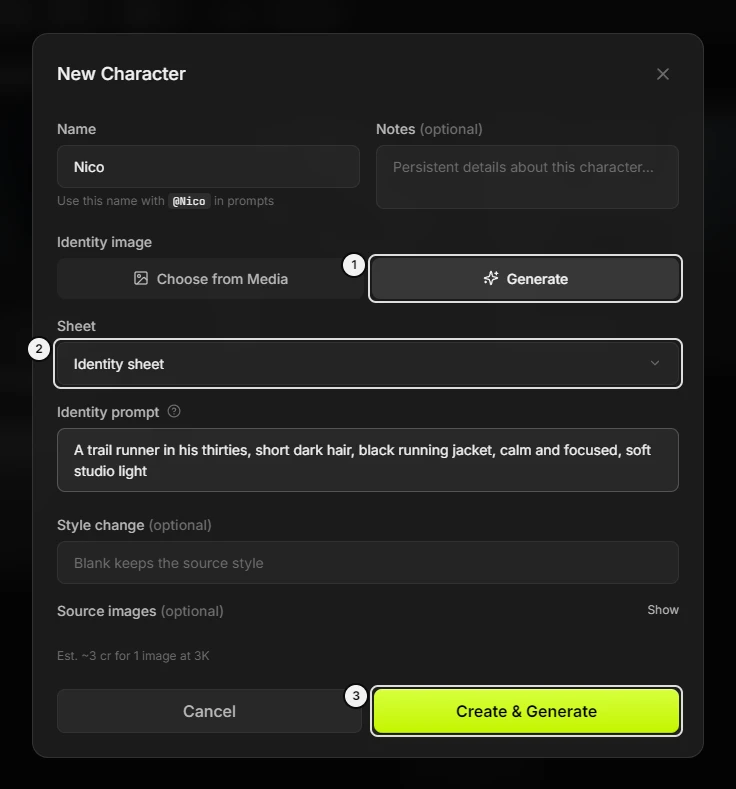\n\nPicture `library-new-dialog-generate`. The numbers on it:\n1. **Generate** (`library.new.mode-generate`)\n2. **Sheet** (`library.new.sheet`)\n3. **Create {Noun} / Create & Generate** (`library.new.create`)\n<!-- END:GENERATED picture-library-new-dialog-generate -->\r\nCharacters and Locations pages only. Press **Generate** under **Identity image** or **Reference image**.\r\n\r\n| Field | What it does |\r\n|---|---|\r\n| **Sheet** | **Identity sheet** or **Establishing image**. Starts on Identity sheet on the Characters page and Establishing image on the Locations page; either can be chosen |\r\n| **Identity prompt** or **Location prompt** | Extra instructions for the sheet. The help icon explains it |\r\n| **Style change** (optional) | Free-text style. Dimmed until a source image or a prompt exists. Blank keeps the source style |\r\n| **Source images** (optional) | **Show** or **Hide** a grid of project pictures used as references. Locations cap them, and tiles past the cap refuse with **Up to {max} images**. Characters have no cap here |\r\n\r\nThe line **Est. ~{price} for 1 image at {resolution}** shows before you press anything. **Create & Generate** needs a name plus a source image or a prompt. It creates the item, and its card shows **Generating...** until the sheet lands. Models and licence: see \"Library: sheet tools\".\r\n\r\n### Library: Save to Library dialog (save a picture as a character, location, product, prop or look; New item; Existing item)\r\nOpens for exactly one image (not a clip, audio or a multi-selection) from: Media → **More › Save to Library…**; dragging it onto the **Library** drop zone (**Save as a reference**); `Ctrl+V` of an image while a Library page shows; dropping or importing one image file on a Library page. Anything else dropped goes to Media. The dialog says: \"This image becomes what the item attaches when you mention it in a prompt.\"\r\n\r\n| Control | What it does |\r\n|---|---|\r\n| **Category** | Where it is filed. Starts on the page on screen, else the last used in this project, else the first |\r\n| **New item** / **Existing item** | New makes an item from the picture. Existing replaces the picture of an item in the chosen Category; it lists only that Category's items (**Replaces its image** or **No image set**) and is disabled while it is empty |\r\n| **Name** | Prefilled and selected (\"Character 1\", \"Product 2\"), so `Enter` saves. A line shows the mention; a taken name gets a number |\r\n| **Notes** (optional) | Stored on the new item |\r\n| **Save** / **Saving...** | Files it. A toast says **Saved as {mention} in {category}** or **{mention} now attaches this image**, with **Open** for the page. A failure reads **Could not save to the library.** |\r\n\r\nAgent: slates_create_library_item (imageAssetId), or slates_update_library_item to replace a picture.\r\n\r\n### Library: Generate Library Sheet dialog (make a character sheet or location image from a Media picture)\r\nOpens from Media → **More › Generate a Library sheet…** on one image, or a card's **Generate sheet…**. It makes a new item and runs a sheet tool with the picture as source.\r\n\r\n| Field | What it does |\r\n|---|---|\r\n| **Category** | Categories that hold things, characters or locations (no Looks) |\r\n| **Sheet** | **Identity sheet** or **Establishing image**; starts on the tool that fits the category |\r\n| **Name**, **Notes** (optional) | As in Save to Library |\r\n| **Style instruction** (optional) | Blank keeps the source image's style |\r\n| **Generation notes** (optional) | Extra instructions for the tool |\r\n| **Create & Generate** | Creates the item, opens its category page and starts the sheet. The line **Est. ~{price} for 1 image at {resolution}** shows first |\r\n\r\n### Library: sheet tools (Identity sheet, Establishing image, turnaround, character sheet, price)\r\n- **Identity sheet**: a portrait plus front and back full-body views of one character.\r\n- **Establishing image**: one clean, empty wide view of a place.\r\n- Every thing can use either tool, whatever its category. A look has none. The picker starts on Identity sheet for Things and Characters items and on Establishing image for Locations items.\r\n- Where: the New dialog's Generate form, **Generate Library Sheet**, and **Generate sheet…** on a card. The result becomes that item's one picture.\r\n- The tools run on the app's default image model; no control picks another. The line **Est. ~{price} for 1 image at {resolution}** shows the price before you confirm, and the run bills the same figure.\r\n- They need an active licence. With no credit route the run says \"Out of credits. Add credits in Settings -> Account to keep generating.\"\r\n- No product sheet exists: for a product or prop, use a clean picture.\r\n- Agent: slates_estimate_generation_cost first, then slates_generate_character_identity or slates_generate_environment_plate with any item's id.\r\n\r\n### Library: set, replace or remove an item's picture (Set image, Replace image, Remove image, identity image)\r\nEach item has one picture, and its mention attaches it.\r\n1. Click the card's empty tile, or **…** › **Set image…** (**Replace image…** with a picture).\r\n2. In the picker titled **Set identity image**, **Set reference image** or **Set image**, click a picture. It sets at once and the picker closes. There is no confirm button; **Close** or `Esc` leaves. With no pictures it says **No images in Media yet**.\r\n3. **Remove image** clears it. The file stays in Media. On a character it also clears an older second sheet.\r\n\r\nOther ways: **Existing item** in **Save to Library**, or a sheet tool. A sheet that is running refuses changes with **Its picture is being generated**. Agent: slates_update_library_item (imageAssetId, null clears).\r\n\r\n### Library: voices on items (Add voice, Change voice, Remove voice, presets, clips, describe)\r\nOnly Things and Characters items carry a voice. A location or a look has none.\r\n1. Card **…** › **Add voice**, or **Change voice** under the notes once one exists.\r\n2. Choose a tab. **Clips** lists characters' voices and project clips, plus **Import voice clip**; a click attaches it at once, free. **Presets**: click a voice (a play button on each row auditions it, free). **Describe**: type, then **Use this description**, disabled until the text fits the speech model's limit (a counter shows).\r\n3. A preset or description renders a fixed audition line, then attaches that clip. The note at the top says the price first: \"A clip attaches as it is. A preset or a description renders the audition line for {price} and attaches that clip.\"\r\n4. **More** › **Remove voice** detaches it; the clip stays in Audio.\r\n\r\nThe voice also shows under Voice → Clips → Characters in the prompt box. Which models use it on a mention is in the MODEL REFERENCE TABLE. Agent: slates_update_library_item (voiceAssetId); to render one, slates_generate_audio.\r\n\r\n### Library: rename or move an item (Move to, what it rewrites, sigil flip, Undo)\r\nRename: click the card's name, **Rename** on its menu, or double-click or `F2` on its dock row. The name is the handle, so every saved Shot citing it is rewritten (`@sarah` becomes `@emma`). A change of capitals alone rewrites nothing.\r\n\r\nMove: **…** › **Move to** › a category. Its own category is greyed **Here now**. A move across a sigil shows its cost on the row first: **Becomes {@name} · updates {n} shots**. A voiced item moved into a Locations category shows **Its voice is not used here**.\r\n- Thing to look flips the sigil, `@` to `#`.\r\n- Into or out of a Locations category changes the mention lists.\r\n- Things to characters changes nothing.\r\n- A taken name in the new sigil gets a number.\r\n\r\nAn info toast follows when a sigil flips or Shots change: \"{name} is now {new mention} (was {old mention}). {n} shots updated to match.\" **Undo** puts the name, the category and the Shots back. A bound Shot's prompt box reloads with the new words. Agent: slates_update_library_item (name, categoryId, retagShots).\r\n\r\n### Library: delete an item (Delete, Also delete its picture from Media)\r\nCard **…** or right-click → **Delete**. The question is titled **Delete “{name}”?** Its body says the picture stays in Media (when it has one), how many shots stop attaching it, and that this cannot be undone.\r\n- **Also delete its picture from Media** (hint: the file is removed from disk) shows only with a picture and starts unticked. For a character it covers older sheet images too.\r\n- **Cancel**, or **Delete {noun}** (Delete character).\r\n- A voice clip stays in Audio.\r\n\r\nOnly you answer the question. Agent: slates_delete_library_item; the ticked box is slates_delete_asset on the picture. A category deletes from its own menu, only when empty.\r\n\r\n### Library: messages you may see\r\n| Message | Means, and what to do |\r\n|---|---|\r\n| **Loading characters...**, **Loading locations...**, **Loading looks...** | The page is filling |\r\n| **No {category name} yet** | Empty category; press **New {Noun}** |\r\n| \"Has {n} items. Move or delete them first.\" | **Delete category** is greyed; empty the category |\r\n| **Already in the prompt** | The item arrow or **Put in the prompt** is greyed; the prompt cites it |\r\n| **Here now** | **Move to** row for the category it is in |\r\n| **Its picture is being generated** | A sheet is running; wait |\r\n| **Could not create the {noun}.**, **Could not save to the library.** | The dialog stays open; try again |\r\n| **No images in Media yet**, **Up to {max} images** | No pictures to pick; or the source cap is reached |\r\n| **Creating voice… You can choose another.** | A preset or description is rendering |\r\n| **Voice created and attached**, **Voice saved in Audio; your newer choice is kept** | A render finished |\r\n| **Voice generation failed**, **Could not update voice** | Try again; the card says why |\r\n| **Voice rendering is not available in this build — a clip from the project still attaches.** | Pick a clip |\r\n| \"Library names are now unique, so \"{old}\" became \"{new}\". Every @ and # in your prompts still attaches what it always did.\" | One-time notice after an update |\r\n| \"“{name}” is now for {kind}: use {@ or #}name in prompts (it was {@ or #}name).\" | Category toast; **Undo** reverts |\r\n| \"Out of credits. Add credits in Settings -> Account to keep generating.\" | A sheet found no credit; add credits (only you) |\r\n\r\n### Library: how to make a character, location, product, prop or look (create, add, new)\r\n1. Left dock → **Library** → the category's row. Its page opens.\r\n2. **New {Noun}** at the top right.\r\n3. Type a **Name**; add **Notes** if you want.\r\n4. Characters and Locations: pick a picture under **Choose from Media**, or use **Generate**. A look gets its picture afterwards.\r\n5. **Create {Noun}** (**Create & Generate** for a sheet). The card appears.\r\n\r\nTo start from a picture instead, see \"Library: Save to Library dialog\". Agent: slates_create_library_item.\r\n\r\n### Library: how to use an item in a prompt (@name, #name, put in the prompt, mention)\r\n1. In the prompt box, type `@` or `#` and pick the item from auto-complete.\r\n2. Or Left dock → **Library** → the open category → the item's arrow (**Put {@name} in the prompt**), or **…** › **Put in the prompt**. It adds the mention at the end as if you had typed it.\r\n3. The item's picture attaches. The reference rail shows the number it got.\r\n\r\nAgent: slates_set_composer (addMentions).\r\n\r\n### Library: what an agent can do here\r\n- Read: slates_list_library (categories, items, each item's `mention`, picture and voice ids); slates_get_view (which page is open).\r\n- Items: slates_create_library_item, slates_update_library_item (name, notes, category, picture, voice), slates_delete_library_item.\r\n- Categories: slates_manage_library_category (create, rename, set-behaviour, reorder, delete).\r\n- Sheets and price: slates_estimate_generation_cost, slates_generate_character_identity, slates_generate_environment_plate.\r\n- Show: slates_set_view (library.categoryId opens a page, viewer.assetId opens a picture, media.cardSize). Prompt box: slates_set_composer (addMentions).\r\n- Other projects: slates_copy_library_item_to_project.\r\n\r\nOnly you can: answer the delete question, show a voice file in File Explorer, press a dialog's **Cancel**, and drag or paste a picture onto a page (an agent uses slates_upload_reference_image).\r\n\r\n### Library: controls you can point at (highlight, show me where)\r\n\r\n<!-- BEGIN:GENERATED targets-library -->\n| `slates_highlight_control` target | On screen |\n|---|---|\n| `library.card.more` | **…** |\n| `library.card.name` | **{name}** |\n| `library.card.picture` | **Set identity image / Set reference image / Set image** |\n| `library.card.voice-change` | **Change voice** |\n| `library.dock.add-category` | **New category** |\n| `library.dock.category-more` | **…** |\n| `library.dock.category-row` | **{category name}** |\n| `library.dock.create-behaviour` | **Is this a subject, a place, or a look?** |\n| `library.dock.item-cite` | **Put {mention} in the prompt** |\n| `library.dock.more-row` | **+{N} more** |\n| `library.new.create` | **Create {Noun} / Create & Generate** |\n| `library.new.mode-generate` | **Generate** |\n| `library.new.mode-pick` | **Choose from Media** |\n| `library.new.sheet` | **Sheet** |\n| `library.page.crumb` | **Library / {category name}** |\n| `library.page.new` | **New {Noun}** |\n| `library.save.category` | **Category** |\n| `library.save.target` | **New item / Existing item** |\n<!-- END:GENERATED targets-library -->\r\n\r\n## STUDIO AGENT — the chat inside Slates: opening it, chats, plans and approval, stopping, what it can see and do, credits\r\n\r\nThe Studio Agent is Slates' own chat panel, docked on the right: ask it to plan, write, make pictures, video or audio, or explain how to do something; it works by running Slates operations. Open it from the edge tab on the right edge (Home too), `]` in a project, `Ctrl+.` anywhere (`Cmd+.` on a Mac), the View menu on a Mac, `Ctrl+K`, or **Ask the agent about it** on selected Script words. It thinks on Slates' server for free, or on your ChatGPT or Claude plan (the picker under the chat box); what it generates costs credits, after you approve a plan. Settings → AI tools turns it on or off.\r\n\r\n### Studio Agent: where things are (panel, edge tab, header, messages, composer)\r\n<!-- BEGIN:GENERATED picture-studio-agent-panel -->\n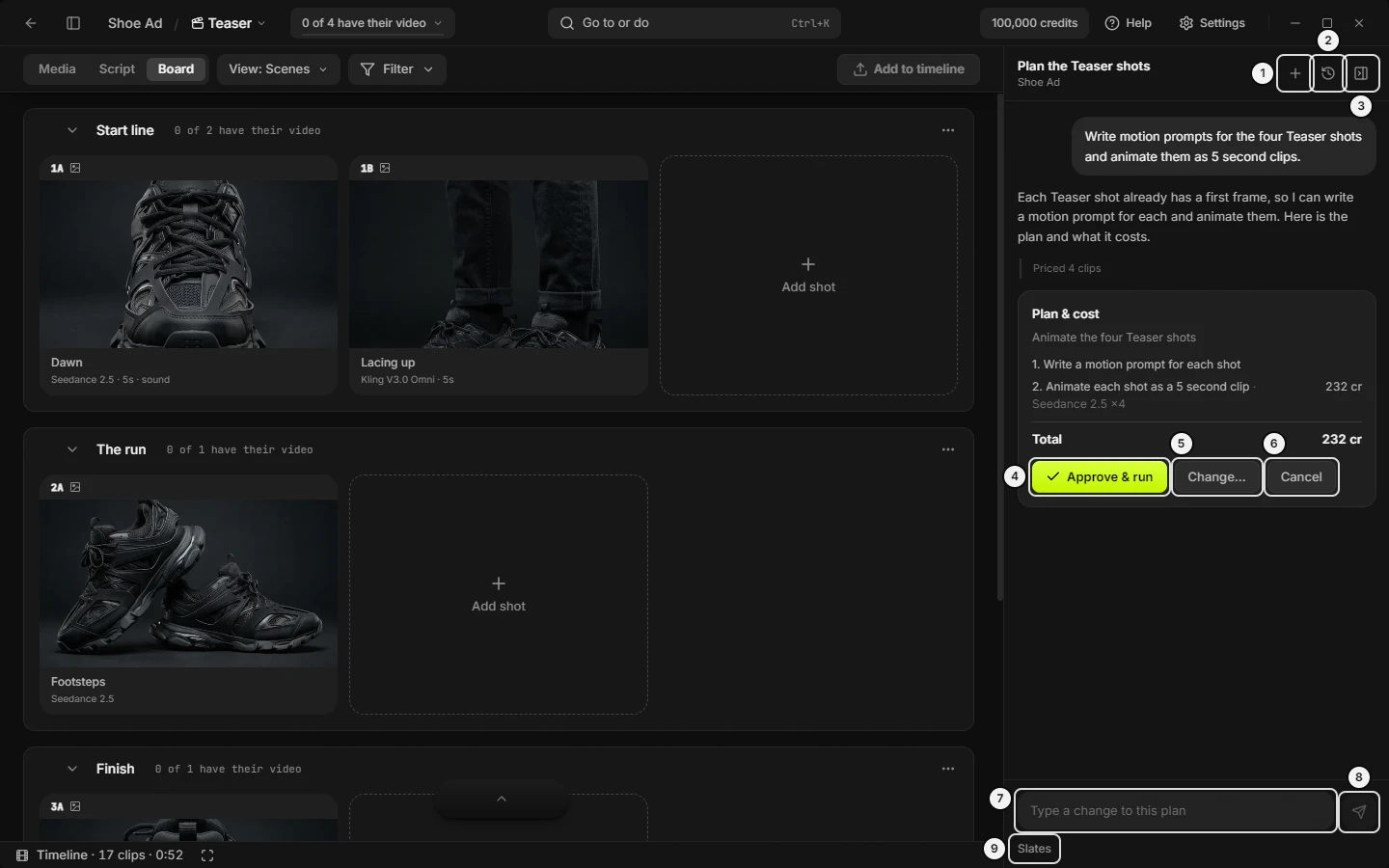\n\nPicture `studio-agent-panel`. The numbers on it:\n1. **New chat** (`agent.header.new-chat`)\n2. **Past chats** (`agent.header.past-chats`)\n3. **Collapse panel** (`agent.header.collapse`)\n4. **Approve & run** (`agent.plan.approve`)\n5. **Change…** (`agent.plan.change`)\n6. **Cancel** (`agent.plan.cancel`)\n7. **Ask the agent to plan it…** (`agent.composer.input`)\n8. **Send** (`agent.composer.send`)\n9. **{Slates · free / Codex · ChatGPT plan / Claude Code · Claude plan}** (`agent.host.pick`)\n<!-- END:GENERATED picture-studio-agent-panel -->\r\n\r\n1. Edge tab: a slim vertical tab on the window's right edge reading **Studio Agent**. It is the only thing drawn while the panel is closed, and it is gone when the agent is off.\r\n2. Panel: docked on the right, 400 px wide by default. It stays open as you change page or project and starts closed on every launch.\r\n3. Resize grip: the panel's left edge.\r\n4. Header: the chat's name over the project's name (**No project open** on Home), then **New chat**, **Past chats** and **Collapse panel**.\r\n5. Past chats list: opens under the header, one row per chat.\r\n6. Messages: your words on the right, its replies, small grey tool rows, then a plan card or an outcome line. An empty chat shows **Ask for a plan and its cost, or ask how to do something.** and two starter chips.\r\n7. Status bar: between the messages and the composer, only while a run works.\r\n8. Notice line: an error strip above the composer, only after a failed send.\r\n9. Composer: a quote chip when a script passage is attached, the text box, and **Send**.\r\n\r\nThe panel has no model picker, no attach or upload button, no voice input and no settings button.\r\n\r\n### Studio Agent: open, close or resize the panel (edge tab, ], Ctrl+., View menu, Ctrl+K)\r\n\r\n`Ctrl` is `Cmd` on a Mac. Every door below does nothing while the agent is off in Settings, except **Show Studio Agent**.\r\n\r\n| Door | Where | What it does | Key | Agent op |\r\n|---|---|---|---|---|\r\n| Edge tab **Studio Agent** | Right edge, every page including Home | Opens the panel. Reads **Studio Agent: approve plan** with a 1 badge while a plan waits; a pulsing dot means a run is working | `]` | `slates_set_view (studioAgent.open)` |\r\n| `]` | In a project; not in a text box, not under a dialog, menu or viewer | Opens or closes the panel | `]` | `slates_set_view (studioAgent.open)` |\r\n| `Ctrl+.` | Anywhere: Home, in a text box, under a dialog | Opens or closes. No Shift, no Alt | `Ctrl+.` | `slates_set_view (studioAgent.open)` |\r\n| **Studio Agent** in the **View** menu | Mac menu bar, checked while open, in a project only (Windows has no menu bar) | Opens or closes | none shown | `slates_set_view (studioAgent.open)` |\r\n| **Studio Agent** in `Ctrl+K` | Palette row, greyed on Home | Opens or closes | `]` shown | `slates_set_view (studioAgent.open)` |\r\n| **Show Studio Agent** in `Ctrl+K` | Only while the agent is off | Turns it back on, then opens the panel if you are in a project | — | only you |\r\n| **Collapse panel** | Header, right | Closes to the edge tab; a running run keeps going | `]` | `slates_set_view (studioAgent.open)` |\r\n| Left-edge grip | The panel's left edge | Drag to resize, 320 to 720 px, remembered | — | `slates_set_view (studioAgent.width)` |\r\n\r\nClosing the panel never stops a run. **Ask the agent about it** is covered under how to ask about a passage of your script.\r\n\r\n<!-- BEGIN:GENERATED picture-studio-agent-edge-tab -->\n\n\nPicture `studio-agent-edge-tab`. The numbers on it:\n1. **Studio Agent** (`agent.edge.tab`)\n<!-- END:GENERATED picture-studio-agent-edge-tab -->\r\n\r\n### Studio Agent: chats (new chat, Past chats, switch chat, rename chat, chat name)\r\n\r\n| Control | Where | What it does | Agent op |\r\n|---|---|---|---|\r\n| **New chat** (plus) | Header | Blank chat; nothing is saved until you send | only you |\r\n| Chat name over project name | Header, left | Shows or hides Past chats | only you |\r\n| **Past chats** (clock) | Header | Shows or hides this project's chats, newest first | only you |\r\n| Chat row | In the list | Opens that chat and closes the list; shows its last-used day; tooltip adds credits spent | only you |\r\n| **Rename chat** (pencil) | Row, on hover or focus | Name becomes editable: Enter saves, Esc or clicking away keeps it; 120 characters at most | only you |\r\n| **Delete chat** (trash) | Row, on hover or focus | Asks first (see delete a chat) | only you |\r\n| **Rename**, **Delete chat** | Right-click a row | Same as the pencil and the trash | only you |\r\n| **Rename this chat**, **Delete this chat** | `Ctrl+K`, only while a chat exists | Same, for the open chat | only you |\r\n\r\nChats belong to a project: the list shows the open project's chats, and Home lists the chats that belong to no project. **No chats yet** shows when there are none. Opening the panel or switching project opens that project's latest chat.\r\n\r\nA chat exists once you send its first message; until then it reads **New chat**. The first message names it (its first 60 characters), and the first approved plan's summary renames it once. A chat started from a script passage is **Script: {board name}**.\r\n\r\n<!-- BEGIN:GENERATED picture-studio-agent-past-chats -->\n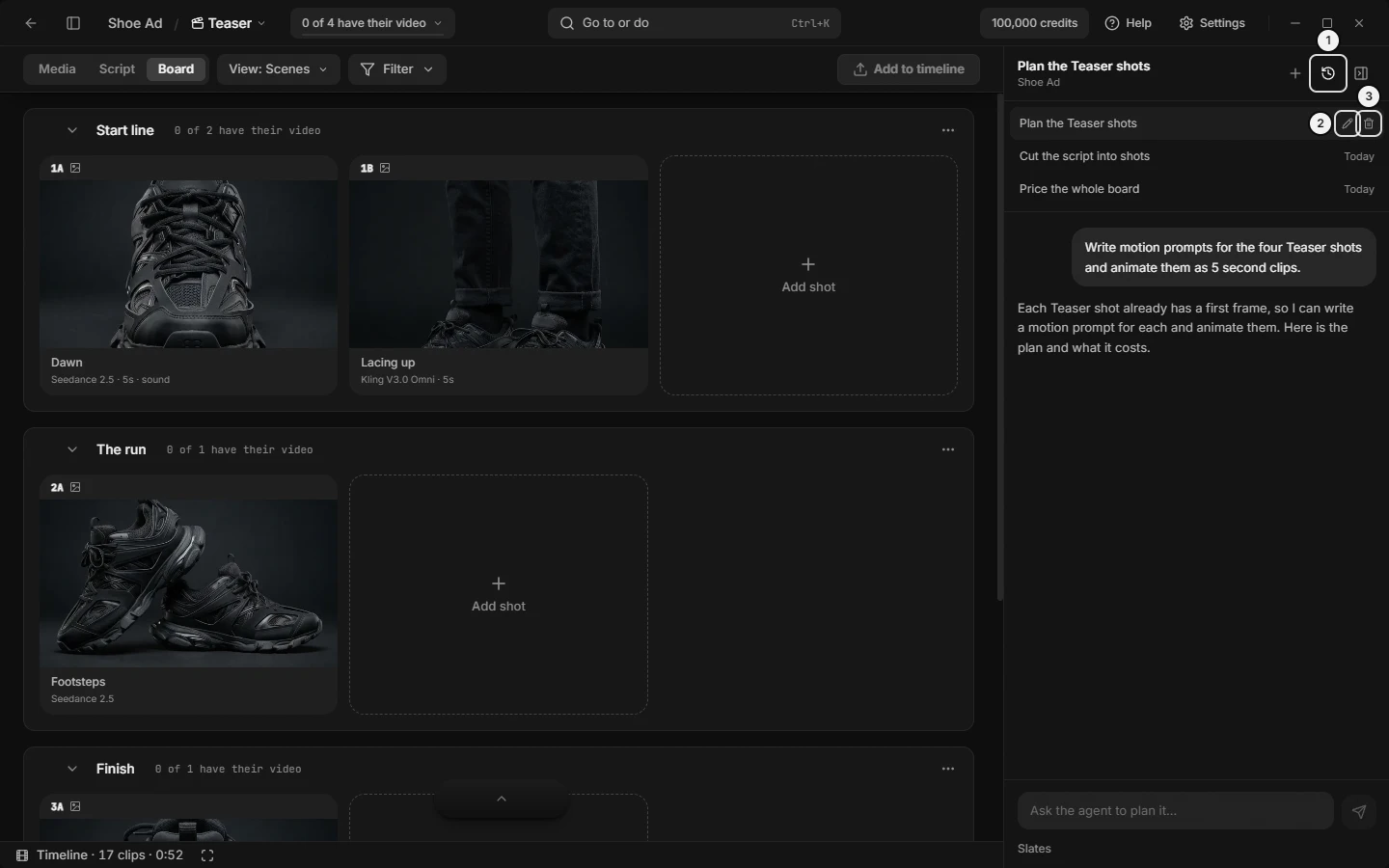\n\nPicture `studio-agent-past-chats`. The numbers on it:\n1. **Past chats** (`agent.header.past-chats`)\n2. **Rename chat** (`agent.sessions.rename`)\n3. **Delete chat** (`agent.sessions.delete`)\n<!-- END:GENERATED picture-studio-agent-past-chats -->\r\n\r\n### Studio Agent: delete a chat (Delete dialog, what happens to what it made)\r\n\r\n**Delete chat** (the trash on a row, right-click, or `Ctrl+K`) opens the app's delete question:\r\n\r\n- Title: **Delete \"{chat name}\"?** A chat nothing was sent in is **New chat**.\r\n- Body: **Its messages go with it. Anything it made stays in Media. This cannot be undone.**\r\n- Buttons: **Cancel** (focus starts here, so Enter or Esc keeps the chat) and **Delete chat**.\r\n\r\n**Delete chat** stops that chat's run if one is going, removes the chat and its messages, and, if it was the open chat, opens the next most recent chat or a blank one. Pictures, clips and audio it made stay in Media. Agent op: only you; the delete question is always yours to answer.\r\n\r\n### Studio Agent: composer and Send (type a message, Enter, new line, starter chips, quote, attachments)\r\n\r\n| Control | Where | What it does | Key | Agent op |\r\n|---|---|---|---|---|\r\n| Text box | Composer | Type your message; it grows. Placeholder **Ask the agent to plan it…** at rest, **Add an instruction for the next step…** while it works, **Type a change to this plan** while a plan card waits | `Enter` sends, `Shift+Enter` new line | only you |\r\n| **Send** | Right of the box | Same as Enter. Disabled while the box is empty or a send is in flight; lime when it is the main action, grey when credits ran out | `Enter` | only you |\r\n| Starter chips | Empty chat | Put the words in the box and focus it; nothing is sent | — | — |\r\n| Quote chip **From “{board name}”** | Above the box | Shows the script passage the next message carries; scrolls; clears once sent | — | — |\r\n| **Remove the quote** (X) | On the chip | Drops the passage | — | only you |\r\n\r\nStarter chips by place: Media **Make 4 variations of this image**, **Animate these into short clips**; Board **Write motion prompts for this board**, **Which shots still have no picture?**; Script **Suggest improvements to this scene**, **Write motion prompts for this board**; Home **Start a project for a 30-second product ad**, **How do I get started?**\r\n\r\nThere is no attach button: nothing can be dropped in. The only thing that travels with your words is the quote, sent as text (`From “{source}”:` then each line starting `> `). To point it at pictures, type their codes (IMG-A12), or select cards and say \"these\" (see what it can see). A failed send shows **Could not send the message.** and keeps your words.\r\n\r\n### Studio Agent: change course while it works (steer, interrupt, add an instruction, send while running)\r\n\r\nThe composer stays usable during a run, so you can redirect without cancelling.\r\n\r\n1. While it works, type in the box (**Add an instruction for the next step…**) and press Enter.\r\n2. Your message shows at once, and the status bar reads **New instruction queued — it lands at the next step.**\r\n3. At its next step the agent reads it and adjusts. It does not restart, and finished work stays.\r\n4. The approval closes again. Before anything more is billed, a new “Plan & cost” card appears and you approve that one. A steering message never bills under the old approval.\r\n\r\nWhile a plan card waits, typing in the box sends a plan change instead, the same as **Change…** then **Send changes**. To drop the run instead, see status bar, credit tally, stop or cancel a run. Agent op: only you.\r\n\r\n### Studio Agent: plan card (Approve & run, Change, Cancel, approve before it spends, cost)\r\n\r\nThe card titled “Plan & cost” appears in the messages when the agent wants to generate something. It shows a one-line summary, numbered steps (each with a model name, ×{quantity} above one, and its price when priced) and a **Total**. Prices are credits; admin accounts see dollars. Until you approve, the app refuses every paid step, whatever the agent says. Reading your project, pricing, and writing shots or script need no approval.\r\n\r\n| Button | What it does | Agent op |\r\n|---|---|---|\r\n| **Approve & run** (first, lime) | Its paid steps may now run, without asking per step; its total is added to the approved amount | only you |\r\n| **Change…** | Opens a note box: **What should change? e.g. 'use Kling instead' or 'only 3 clips'** | only you |\r\n| **Send changes** | In the note box, disabled while empty. The agent revises and shows a new card; nothing bills under the old approval | only you |\r\n| **Back** | Closes the note box, keeps the plan | — |\r\n| **Cancel** | Cancels the plan and stops the run; the chat ends with **You stopped this run.** | only you |\r\n\r\nTyping in the composer while the card shows is the same as **Change…** then **Send changes**.\r\n\r\nA waiting plan survives closing the panel or switching chats; the edge tab reads **Studio Agent: approve plan** until you answer. Everything it makes lands in Media. If spending later runs past the approved total, a second card asks again (see the Over the approved budget card). Over MCP an outside agent asks in its own chat and passes `confirm` instead.\r\n\r\n### Studio Agent: Over the approved budget card (asks again, spending limit, overspend)\r\n\r\nThe agent asks again when its next paid step would take generation spending more than 20% past everything you approved in this chat. The card replaces the plan card:\r\n\r\n- Title **Over the approved budget** with a warning icon.\r\n- One step, **Next: {op name in words}**, with its price, and a **Total**.\r\n- **You have used {spent} of {approved} approved. Continue with {steps total} more?**\r\n\r\n| Button | What it does | Agent op |\r\n|---|---|---|\r\n| **Approve & run** | Allows the extra. The ceiling rises to the new total; it asks again after another 20% | only you |\r\n| **Change…** | Pauses the run with your note; nothing more bills until you approve a revised plan | only you |\r\n| **Cancel** | Stops the run | only you |\r\n\r\nThe run waits while the card shows. The tally **{spent} / {approved}** in the status bar uses the same numbers.\r\n\r\n### Studio Agent: status bar, credit tally, stop or cancel a run (Esc, Cancel run, spent / approved)\r\n\r\nThe status bar shows only while a run works and no plan card waits.\r\n\r\n| Control | Where | What it does | Key | Agent op |\r\n|---|---|---|---|---|\r\n| Status text, with a spinner | Bar, left | What it is doing, such as \"Making an image\" or \"Pricing {n} clips\"; otherwise **Running** or **Thinking…** | — | — |\r\n| **{spent} / {approved}** | Bar, right | Credits this chat spent on generations against everything you approved; admin accounts see dollars. Shows once something is approved. A \" · {n} agent\" part appears only if agent cost is above 0, which it is not while chatting is free | — | — |\r\n| **Cancel run (Esc)** | Small square, far right | Stops the run and the step running now | `Esc` | only you |\r\n| `Esc` | Panel open, a run working or a plan waiting | Same, and it cancels a waiting plan. Ignored while the cursor is in a text box (click outside it first); a dialog, menu or viewer takes it first | `Esc` | only you |\r\n\r\nAfter a stop the chat ends with **You stopped this run.** What it already made stays in Media. Collapsing the panel does not stop a run: the edge tab shows a pulsing dot while it works and a 1 badge while a plan waits. Quitting Slates ends the run; reopening the chat shows it idle, and your next message repairs the unanswered steps. A generation already started is recovered and lands in Media when Slates reopens.\r\n\r\n### Studio Agent: errors and outcome lines (out of credits, Could not reach Slates, Sign in, Retry)\r\n\r\nWhen a run does not finish, the chat ends with one line and, where it helps, one button.\r\n\r\n| Line | Button | What it means and what to do |\r\n|---|---|---|\r\n| **You are out of credits.** | **Buy credits** (lime) | The run is paused. The button opens your credits page on the website; top up, then send another message to continue |\r\n| **You stopped this run.** | none | Grey note after `Esc`, **Cancel run (Esc)** or **Cancel** on a plan |\r\n| **Sign in to Slates to use the agent.** | **Sign in** | No valid session; opens the sign-in screen |\r\n| **Could not reach Slates.** | **Retry** | Network or Slates server unreachable. **Retry** sends your last message again |\r\n| **The agent stopped unexpectedly.** | **Retry** | Any other failure. **Retry**, or rephrase |\r\n| **Could not send the message.** | **Dismiss** (X) | Strip above the composer. The message was not sent and your words stay in the box; press **Send** again |\r\n\r\nThe raw error text is not shown. With the panel closed, a failure (not a stop) shows the same words as a toast. Agent op for **Buy credits**, **Sign in**, **Retry** and **Dismiss**: only you.\r\n\r\n### Studio Agent: status lines and tool rows (what the small lines mean, is it stuck, Still rendering)\r\n\r\nThe status bar's left side shows one line:\r\n\r\n- \"Making an image\", \"Pricing {n} clips\", \"Checking your project\", \"Looking through media\", \"Loading more tools\": the step running now, worded from the operation it calls.\r\n- **Still rendering, checking again ({time})**: waiting on a generation. It re-checks every 45 seconds for up to 10 minutes; this is not a hang.\r\n- \"Response was cut off — continuing with a shorter step\": the reply hit a length limit and it carries on.\r\n- \"Cost estimates unavailable — the guard is running on spend alone\": it could not price the next step, so the budget check uses spend so far.\r\n- **New instruction queued — it lands at the next step.**: your steering message is waiting.\r\n- A line starting ⚠ with the first 200 characters of an error: a step failed.\r\n\r\nTool rows are small grey lines after each step: what it did, the asset codes it made, and the credits, such as \"Made an image · IMG-A141 · {n} cr\", \"Priced {n} clips\" or \"Could not make an image\". Hovering a row shows the operation's name (for example `slates_generate_image`). Rows stay with the chat when you reopen it. The codes are the ones on Media cards.\r\n\r\n### Studio Agent: what it can see (context, pictures, selection, project, memory, attachments)\r\n\r\n- Given up front: its standing instructions and nine starter operations, the same every turn. No project name, board, date or balance comes with them.\r\n- It learns by calling operations, most loaded on demand with `slates_load_tools`: the project and credits (`slates_get_workspace_state`, `slates_get_credit_balance`); what you selected in Media or on the Board (`slates_get_selection`, for \"these\"); the window (`slates_get_view`) and the prompt box (`slates_get_composer`); pictures (`slates_list_assets`, `slates_get_asset_image`, `slates_get_assets_batch`) and clip frames (`slates_get_asset_video_frames`); boards, shots, script and timeline (`slates_get_storyboard_with_frames`, `slates_list_shots`, `slates_get_script`, `slates_get_timeline`).\r\n- It has no view of your screen beyond what those return.\r\n- Project: a call with no project named uses the chat's own project. A chat started on Home has none until it opens or creates one; the chat then moves to that project.\r\n- Attachments: none. From the panel it gets your message and a script quote, sent as text. Name pictures by code (IMG-A12), or select them and say \"these\".\r\n- Memory: each chat keeps its own history. Pictures stay in view only in the last two messages that carry them, so ask again by code if it lost one. In very long chats old guide text and long tool results are cut down to notes. Your own messages are never dropped.\r\n\r\n### Studio Agent: model and where it thinks (what runs it, Slates free, ChatGPT plan through Codex, Claude plan through Claude Code, thinking level)\r\n\r\n- Where it thinks: your pick, under the chat box (and in Settings → AI tools → Studio Agent → **Thinks on**):\r\n - **Slates · free** (the default): Slates' own agent on Slates' server, free, with a daily limit. It has no model picker.\r\n - **Codex · ChatGPT plan**: the Codex installed on this computer, signed in with your ChatGPT account. It thinks on your ChatGPT plan's usage.\r\n - **Claude Code · Claude plan**: the Claude Code installed on this computer, signed in with your Claude account. It thinks on your Claude plan's usage.\r\n- On Codex or Claude Code you also pick the **model** and the **thinking level**, from the lists your plan offers (the first row of each, **Default ({model})** or **Default ({level})**, keeps the plan's own; it reads **Plan default** or just **Default** when the host names none, and the footer shows the one in use by its short name, such as \"Sonnet 5.5\"; Settings → AI tools lists the full names with a line about each). A small ring after them fills as the chat does; its tooltip reads \"Chat N% full\" and, when the plan reports it, how much of your limit is used and when it resets (for example \"44% of your limit used · resets Thu 9:00\"). The host condenses a full chat itself.\r\n- Whichever does the thinking, Slates runs every tool, shows the plan card before anything is made, and bills what it generates in credits. Your ChatGPT or Claude plan is never charged for generations, and Slates never sees your ChatGPT or Claude sign-in.\r\n- Your own Codex or Claude Code setup (its plugins, MCP servers, hooks, memories, CLAUDE.md) is not loaded into the Studio Agent, and it gets no shell, file or web tools. Codex still reads its own AGENTS.md and skills list as text; nothing in them can run.\r\n- Switching mid-chat keeps the chat: the new host reads the conversation so far.\r\n\r\n### Studio Agent: setting up Codex or Claude Code (not installed, sign in, found inside the Claude or ChatGPT app, Uses an API key, plan ran out)\r\n\r\n- Not ready: a host that is not installed or not signed in can still be picked. Slates finds Claude Code and Codex installed on their own, and also the copies inside the Claude desktop app and the ChatGPT app, so a user with either app only signs in. The row says what the host needs and offers the fix: **Install {host}…** (the vendor's own install page) or **Sign in to {host}** (the vendor's own sign-in in your browser), where {host} is Claude Code or Codex; come back to Slates and it turns ready. Slates never uses an API key for either; one signed in with an API key reads **Uses an API key**.\r\n- When your plan runs out mid-run, the chat says so and when it resets; **Continue on Slates** carries on in the same chat on Slates' own agent.\r\n\r\n### Studio Agent: credits and cost (is chatting free, what costs credits, own API keys, ChatGPT images)\r\n\r\n- Cost: chatting is free on Slates; on Codex or Claude Code it uses your plan's usage. Only what the agent generates costs credits, and only after you approve a plan (see plan card). Read your balance in Settings → Account or with `slates_get_credit_balance`.\r\n- The optional **ChatGPT images** feature (Settings → AI tools, off by default) is separate: it only makes pictures, through `slates_generate_chatgpt_image`, on ChatGPT's limits.\r\n- Your own provider API keys: not used. Agent generations always go through Slates credits.\r\n- Outside tools: picking Codex or Claude Code here does not connect them to Slates the other way. Driving Slates from Claude, Cursor or Codex is Settings → AI tools → **Use Slates from Claude, Cursor or Codex**.\r\n\r\n### Studio Agent: turn it on or off (Settings, hide the agent, Show Studio Agent, the tab disappeared or is gone)\r\n\r\n1. Open Settings → AI tools → the Studio Agent group.\r\n2. Switch **Show Studio Agent**. It is on by default.\r\n\r\nOff removes the panel and the edge tab and closes the panel; every door stops working. On brings them back. No dialog asks first. Under the switch: \"Ask it to work on your project, from the script to images and video. Chatting is free; what it generates uses credits.\" and, while on, which keys open it.\r\n\r\nTo bring it back without Settings, press `Ctrl+K` and run **Show Studio Agent**; it opens the panel too if you are in a project. Agent op: only you.\r\n\r\n### Studio Agent: how to ask it to make something and approve the cost\r\n\r\n1. Open the panel (edge tab, `]` or `Ctrl+.`).\r\n2. Click a starter chip or type in **Ask the agent to plan it…**, then press Enter.\r\n3. Watch the status bar. It usually reads your project first and may ask questions in its reply; answer in the box.\r\n4. A “Plan & cost” card appears. Read its steps and **Total**, then **Approve & run**, **Change…** (for example \"only 3 clips\") or **Cancel**.\r\n5. While it works the bar shows **{spent} / {approved}** and each step leaves a tool row with its codes and credits. Finished pictures and clips land in Media.\r\n6. If it stops, see errors and outcome lines.\r\n\r\n### Studio Agent: how to ask about a passage of your script (Ask the agent about it, suggestions)\r\n\r\n1. On the Script tab, select the words.\r\n2. Right-click the selection → **Ask the agent about it**. It shows only while the agent is on.\r\n3. The panel opens on a blank chat, or on the script's own chat **Script: {board name}** if one exists. The passage sits in the quote chip **From “{board name}”**. The box holds \"Suggest improvements to this passage, as suggestions I can accept in the script, not direct edits.\" and has focus. Words already in the box are kept, and nothing is sent yet.\r\n4. Edit the line if you like, then press Enter. The quote goes with the message, and with any plan change sent while a plan waits.\r\n5. Suggestions appear in the script for you to accept or dismiss (see the Script section). Drop the quote first with **Remove the quote** if you want to ask something else.\r\n\r\nAgent op for the same result from outside: `slates_update_script_suggestions` (create).\r\n\r\n### Studio Agent: what an agent can do here (operations, MCP, tools it has, only you)\r\n\r\n- Panel: `slates_get_view` reports `studioAgent.enabled`, `studioAgent.open` and `studioAgent.width`; `slates_set_view` sets `studioAgent.open` and `studioAgent.width`. Opening needs the agent turned on.\r\n- Tools inside the panel: every `slates_*` operation the MCP has, plus the plan card. It starts with nine: `slates_load_tools`, `slates_get_prompting_guide`, `slates_get_workspace_state`, `slates_list_projects`, `slates_create_project`, `slates_list_assets`, `slates_get_asset_image`, `slates_get_generation_status`, `slates_estimate_generation_cost`. It loads the rest with `slates_load_tools`, by name (up to five) or by group (`library`, `script`, `timeline`, `admin`, `blender`); each load replaces the last extra set. It has no MCP prompts or resources.\r\n- Answers: for where-to-click questions it reads this manual through `slates_get_prompting_guide` (topic `app-manual`), shows one of its pictures inline in the chat (`slates_get_manual_picture`), and points at a control in the window with `slates_highlight_control`.\r\n- Billing: paid operations need an approved plan in the panel. Over MCP they answer with a price above a threshold and need `confirm`.\r\n- No operation lists, opens, renames, deletes or sends to the panel's chats.\r\n\r\nOnly the user can: send a message in the panel; press **Approve & run**, **Change…** or **Cancel**; stop with `Esc` or **Cancel run (Esc)**; press **Buy credits**, **Sign in** or **Retry**; rename or delete a chat; turn the agent on or off (Settings → AI tools → **Show Studio Agent**, or **Show Studio Agent** in `Ctrl+K`).\r\n\r\n### Studio Agent: controls you can point at (highlight, show me where)\r\n\r\n<!-- BEGIN:GENERATED targets-agent -->\n| `slates_highlight_control` target | On screen |\n|---|---|\n| `agent.composer.input` | **Ask the agent to plan it…** |\n| `agent.composer.quote-remove` | **Remove the quote** |\n| `agent.composer.send` | **Send** |\n| `agent.host.pick` | **{Slates · free / Codex · ChatGPT plan / Claude Code · Claude plan}** |\n| `agent.host.model` | **{model}** |\n| `agent.host.effort` | **{thinking level}** |\n| `agent.host.fix` | **Install… / Update… / Sign in** |\n| `agent.host.continue` | **Continue on Slates** |\n| `agent.edge.tab` | **Studio Agent** |\n| `agent.header.collapse` | **Collapse panel** |\n| `agent.header.new-chat` | **New chat** |\n| `agent.header.past-chats` | **Past chats** |\n| `agent.outcome.buy-credits` | **Buy credits** |\n| `agent.panel.resize` | **Resize grip** |\n| `agent.plan.approve` | **Approve & run** |\n| `agent.plan.cancel` | **Cancel** |\n| `agent.plan.change` | **Change…** |\n| `agent.sessions.delete` | **Delete chat** |\n| `agent.sessions.rename` | **Rename chat** |\n| `agent.status.stop` | **Cancel run (Esc)** |\n| `agent.status.tally` | **{spent} / {approved}** |\n<!-- END:GENERATED targets-agent -->\r\n\r\n## USING SLATES FROM YOUR OWN AI — Claude, Claude Code, Cursor, Codex (ChatGPT), the MCP server, the Slates CLI\r\n\r\nYour own AI app can drive Slates on this computer through the Slates MCP server: everything the Studio Agent can do, from the chat you already use, on your Slates credits. The desktop app must be running; the AI talks to it on this computer. Connect once in Settings → **AI tools**.\r\n\r\n### Your own AI: connect Claude, Cursor or Codex (set up the MCP)\r\n\r\n1. Titlebar → **Settings** → **AI tools**. Under **Use Slates from Claude, Cursor or Codex**, the first line says **Connected** or **Not connected yet**.\r\n2. Check the email and press **Send link**. Open the email and the link; confirm the code the page shows if it asks. The line turns to **Connected** by itself (the wait lasts 10 minutes and keeps going with Settings closed).\r\n3. In the tools list: **Connect** beside **Claude Desktop**, **Claude Code** or **Cursor** adds Slates to that app (restart it after: **Added. Restart it to load Slates**). For **Codex (ChatGPT)**, the Slates CLI or **Any other tool**, press **Copy** and run the command.\r\n4. **Disconnect** on the first line signs your AI tools out of your account and stops the connection.\r\n\r\nThe ChatGPT app itself does not connect; Codex, OpenAI's agent that runs with your ChatGPT sign-in, does. Help for each tool: **Setup guide** (slates.video/docs/connect-claude).\r\n\r\n### Your own AI: what it can do, and what only you can do\r\n\r\n- It reads what you see: `slates_get_view`, `slates_get_selection` (\"make these into videos\" needs no codes), `slates_get_composer`.\r\n- It does anything the app does, through the same ops as the Studio Agent: generating (it shows the price and waits for your yes), Shots and boards, the script, the Library, the timeline and exports, arranging the window (`slates_set_view`), filling the prompt box for you to press **Generate** (`slates_set_composer`).\r\n- It explains: this reference (topic `app-manual`), pictures of each screen (`slates_get_manual_picture`), and a ring around any control in your window (`slates_highlight_control`).\r\n- Only you: signing in or out, buying credits, API keys, connecting tools, deleting when the app asks first, and anything a dialog asks you to confirm.\r\n- It starts with a small set of tools and loads others as needed (`slates_load_tools`), so an op it has not loaded yet is still there.\r\n\r\n### Your own AI: when it cannot reach Slates\r\n\r\n- Settings → **AI tools** says **Not connected yet**: send the link again (above).\r\n- It says the desktop app is not running: open Slates; the connection needs the app open on the same computer.\r\n- A new op is missing: update the tool's Slates server by restarting it (it runs the latest `@slatesvideo/mcp-server` through `npx`), and update the app (Help → the update notice).\r\n- For a paste-in answer with no connection (ChatGPT in a browser): Titlebar → **Help** › **Copy the manual for your AI**, then paste it into the chat.\r\n\r\n## SETTINGS, ACCOUNT AND CREDITS — Account, usage, AI tools (Studio Agent, Claude, Cursor, Codex, ChatGPT images), Storage and moving projects, Generation logs, API keys, sign-in, buying credits\r\n\r\nSettings is one window: a list of panes on the left (Account, AI tools, Storage, Generation logs, General, and API keys for some accounts) and the open pane on the right. Open it with Titlebar → **Settings**, `Ctrl+K` → **Settings**, or on a Mac the **Slates** menu; no key opens it. Credits are bought on the website, never inside the app; the titlebar shows the balance. `Ctrl` is `Cmd` on a Mac.\r\n\r\n### Settings: where things are\r\n<!-- BEGIN:GENERATED picture-settings-account -->\n\n\nPicture `settings-account`. The numbers on it:\n1. **Account** (`settings.nav.account`)\n2. **Sign out** (`settings.account.sign-out`)\n3. **Buy credits** (`settings.account.buy-credits`)\n4. **This month / Last 7 days / All time** (`settings.usage.period`)\n5. **Close Settings** (`settings.window.close`)\n<!-- END:GENERATED picture-settings-account -->\r\n\r\n1. Titlebar, right cluster, left to right: the offer pill (only with a live offer), the balance button (**{balance} credits**), **Enable auto-topup** (only when credits are low and no offer shows), **Help**, **Settings**, then the window buttons.\r\n2. Settings window header: the title **Settings** and **Close Settings** (an X) at the right.\r\n3. Left column: the tabs **Account**, **AI tools**, **Storage**, **Generation logs**, **General**, and **API keys** (only for some accounts). At its foot: the **Prompting guide** link and the running version (v and its number).\r\n4. Right pane, scrolling inside the window, only the open pane:\r\n - Account: the email, **Sign out**, **Credits**, **Buy credits**, a license line, then **Usage**.\r\n - AI tools: **Studio Agent**, **Use Slates from Claude, Cursor or Codex**, **ChatGPT images**.\r\n - Storage: **Projects folder**, **{N} projects in another folder**, **Move to a new computer**.\r\n - Generation logs: the list of failed generations.\r\n - General: **New projects open on**.\r\n - API keys: **Google AI**, **fal.ai**, **Generation source**.\r\n5. Offer dialog: a centred dialog, at most once per offer.\r\n6. Sign-in screen: fills the window while signed out.\r\n\r\n### Settings: open, close and switch panes (doors, shortcut, Escape)\r\nThere is no shortcut that opens Settings. Every door below opens the window on a pane.\r\n| Control | Where | What it does | Key | Agent op |\r\n|---|---|---|---|---|\r\n| **Settings** (gear) | Titlebar → right cluster, between **Help** and the window buttons; its word hides in a narrow window | Opens Settings on the pane last viewed (Account the first time) | — | `slates_set_view (settings.open)` |\r\n| **Settings** | `Ctrl+K` palette, type \"settings\" | Same | `Ctrl+K` | `slates_set_view (settings.open)` |\r\n| **Settings** | On a Mac, the **Slates** menu | Same; the row is missing while signed out | — | `slates_set_view (settings.open)` |\r\n| **Show usage** | palette | Opens Account | `Ctrl+K` | `slates_set_view (settings.pane)` |\r\n| **Save all projects to a file…**, **Load projects from a file…**, **Change projects folder…** | palette | Open Storage and start nothing; press the button there | `Ctrl+K` | `slates_set_view (settings.pane)` |\r\n| **Report a failed generation** | **Help** menu, palette | Opens Generation logs | `F1` opens **Help** | `slates_set_view (settings.pane)` |\r\n| **Open logs** | red failure notice, except the real-face case | Opens Generation logs | — | `slates_set_view (settings.pane)` |\r\n| no-route line | prompt box, after **Generate** with no usable route | Shows the line and opens Settings on the last pane | — | — |\r\n| **Close Settings** | header, top right | Closes; `Escape` or a click outside also closes; the pane is remembered | `Escape` | `slates_set_view (settings.open)` |\r\n| pane tabs | left column | `Up` and `Down` move between tabs and wrap | `Up`, `Down` | `slates_set_view (settings.pane)` |\r\n| **Prompting guide** | foot of the left column | Opens slates.video/docs/prompting in the browser | — | `slates_get_prompting_guide` |\r\n\r\nAn account without the **API keys** tab never sees it; if it was the last pane open, Settings opens on Account, and `slates_set_view` refuses that pane for such an account.\r\n\r\n### Settings: Account pane (email, Sign out, credits balance, Buy credits, license)\r\n| Control | Where | What it does | Agent op |\r\n|---|---|---|---|\r\n| the email (**Not signed in** when none) | Account, first line | Shows which account is signed in | `slates_get_me` |\r\n| **Sign out** | first line, right; only when signed in | Signs out, closes Settings, shows the sign-in screen; also `Ctrl+K` → **Sign out** | only you |\r\n| **Credits** {balance} | second line, left | Read-only balance: a number, or dollars on an admin account | `slates_get_credit_balance` |\r\n| **Buy credits** | second line, right | Opens the website credits page in the browser with your email; nothing is bought in the app | only you |\r\n| **License {status}** (revoked or inactive) | under the block; only signed in and not active | The license needs attention: email hello@slates.video; generating stays off until it is fixed. Nothing shows for an active license | `slates_get_me` |\r\n\r\n**Usage** is below them: see Settings: Usage. Sign-in and credits: see Account: sign in and sign out, Buy credits.\r\n\r\n### Settings: Usage (spend this month, last 7 days, all time, by model)\r\n| Control | Where | What it does | Agent op |\r\n|---|---|---|---|\r\n| **This month** / **Last 7 days** / **All time** | Account → **Usage**, right of its heading | Picks the period; **This month** is the default each session | `slates_get_usage` (period) |\r\n| the total under **Estimated credits, all projects** | first line | Estimated from each model's price (tooltip **Estimated from each model's price**), counting completed and in-progress generations in this computer's history; the caption stays the same for every period | `slates_get_usage` |\r\n| {n} image(s), {n} video(s), {time} of video | second line | Counts made in the period, and the total video length | `slates_get_usage` |\r\n| model rows | under the counts | The five models with the highest spend, each with its estimated cost | `slates_get_usage` |\r\n\r\nNothing shows until the figures load. An admin account sees dollars in place of credits. It is an estimate, not the bill: the balance is the **Credits** line.\r\n\r\n### Settings: AI tools — Studio Agent switch (show or hide the agent)\r\n| Control | Where | What it does | Key | Agent op |\r\n|---|---|---|---|---|\r\n| **Show Studio Agent** (switch) | AI tools → **Studio Agent** | Off removes the agent panel and its edge tab and closes the panel; on brings them back | — | only you (`slates_get_view (studioAgent.enabled)` reads it) |\r\n| hint line | under the switch | Says chatting is free and what it generates uses credits; while on, adds \"Open or close it with\" the keys | `]` or `Ctrl+.` (inside a project) | `slates_set_view (studioAgent.open)` |\r\n| **Show Studio Agent** | `Ctrl+K` palette | Turns the agent back on when it is off | `Ctrl+K` | only you |\r\n\r\nIf the Studio Agent tab has disappeared, this switch is off. The panel's own controls: see the STUDIO AGENT section.\r\n\r\n### Settings: AI tools — connect Claude, Cursor or Codex by email link (Send link, Disconnect)\r\nThe group **Use Slates from Claude, Cursor or Codex** lets tools on this computer use your account and credits. They read `~/.slates/agent-connection.json` to find the app and the account; Settings never shows that file or any token.\r\n| Control | Where | What it does | Agent op |\r\n|---|---|---|---|\r\n| state line: **Connected**, **Check your email** or **Not connected yet**, then \"· last used …\" when Connected | first row | Connected means the local server runs and the account token is saved; refreshes every 3 seconds | — |\r\n| **Disconnect** | first row, right; only when Connected | Revokes the account token, clears it from the connection file, turns the local server off | only you |\r\n| email field (placeholder `you@example.com`) | only when not Connected and not waiting | Starts filled with your account email | only you |\r\n| **Send link** (**Sending…**) | beside the field | Starts the local server and emails a sign-in link; keeps waiting up to 10 minutes even with Settings closed | only you |\r\n| **Open the link we sent to {email}. This updates by itself.** | replaces the field while waiting | Adds **Confirm this code on the page it opens: {code}** when the server sends one; the state flips to **Connected** by itself | — |\r\n| **Cancel** | beside the waiting text | Stops waiting; opening the link later connects nothing | only you |\r\n| **Connect without the email link** (switch) | last row; only when not Connected | Starts or stops only the local server, for a Slates key made on the website; on also starts it at every launch | only you |\r\n\r\n<!-- BEGIN:GENERATED picture-settings-ai-tools -->\n\n\nPicture `settings-ai-tools`. The numbers on it:\n1. **AI tools** (`settings.nav.ai`)\n2. **Connected / Check your email / Not connected yet** (`settings.agents.state`)\n3. **Connect** (`settings.ai.connect-claude-desktop`)\n4. **Copy** (`settings.ai.copy-codex`)\n5. **Connect without the email link** (`settings.ai.connect-without-link`)\n<!-- END:GENERATED picture-settings-ai-tools -->\r\n\r\n### Settings: AI tools — Claude Desktop, Claude Code, Cursor, Codex, CLI, any MCP tool (Connect, Copy)\r\nThe boxed list **AI tools** has six rows.\r\n| Row | Button | What it does | Agent op |\r\n|---|---|---|---|\r\n| **Claude Desktop** | **Connect** | Adds a `slates` entry to Claude Desktop's config file, keeping a `.bak`; needs Node's `npx` on the PATH | only you |\r\n| **Claude Code** | **Connect** | Runs `claude mcp add slates -s user -- npx -y @slatesvideo/mcp-server` | only you |\r\n| **Cursor** | **Connect** | Adds a `slates` entry to `~/.cursor/mcp.json`, keeping a `.bak` | only you |\r\n| **Codex (ChatGPT)** | **Copy** | Copies `codex mcp add slates -- npx -y @slatesvideo/mcp-server`; the button reads **Copied** for two seconds | only you |\r\n| **Slates CLI** | **Copy** | Copies `npm i -g @slatesvideo/cli` | only you |\r\n| **Any other tool** | **Copy** | Copies `npx -y @slatesvideo/mcp-server` | only you |\r\n\r\n**Connect** shows only when the tool is found on this computer; otherwise the row reads **Not installed**. After it works the row reads **Added. Restart it to load Slates**: restart that tool. **Setup guide** under the list opens slates.video/docs/connect-claude. A failure shows under the row name: see Settings: messages you may see (AI tools).\r\n\r\n### Settings: AI tools — ChatGPT images (Codex, Connect ChatGPT, Check again)\r\nOptional: images made through Codex on this computer, signed in with ChatGPT. They count against your ChatGPT limits, never Slates credits. Using it in the prompt box: see EXTERNALLY GENERATED IMAGES.\r\n| Control | Where | What it does | Agent op |\r\n|---|---|---|---|\r\n| **Make images with your ChatGPT account** (switch) | AI tools → **ChatGPT images** | Turns the route on and checks the connection at once | `slates_set_app_settings (chatGptImagesEnabled)` |\r\n| state line (green dot when Connected) | under the hint; only while on | **Checking…**, **Connected**, **Codex needed** (Codex is not installed), **Waiting for sign-in**, **Sign-in needed** (Codex is there, not signed in), **Not checked**, **Unavailable** | `slates_get_chatgpt_status` |\r\n| message line | under the state | The next step; while Connected adds \"Pick ChatGPT in the image models to use it.\" | `slates_get_chatgpt_status` |\r\n| **Install Codex…** | button row; only when Codex is missing | Opens OpenAI's install page in the browser; install, then **Check again** | only you |\r\n| **Connect ChatGPT** (**Opening sign-in…**, **Open sign-in again**) | button row; only when Codex is there and not connected | Opens a browser sign-in; waits up to 5 minutes and re-checks when the window regains focus | `slates_connect_chatgpt` |\r\n| **Check again** (**Checking…**) | button row | Forces a fresh check | `slates_get_chatgpt_status` |\r\n\r\n### Settings: Storage — projects folder and moving projects (Change folder…, Move into, Undo)\r\n| Control | Where | What it does | Agent op |\r\n|---|---|---|---|\r\n| the folder path, with **A folder you chose.** or **The default folder.** | Storage → **Projects folder** | Where new projects are saved; existing ones stay put | `slates_get_app_settings (projectsFolder)` |\r\n| **Change folder…** | button row | Opens the system folder picker (it can make a folder); new projects save there | only you |\r\n| **Use the default folder** | beside it; only with a chosen folder | Clears the chosen folder | only you |\r\n| **{N} projects in another folder** (**Every project is in {folder name}** when none are left) | second group; only when a project's files sit outside the projects folder | Counts those projects; each row shows the project and **In {where}** | `slates_get_project_directory` |\r\n| **Move into {folder name}** (**Moving…**) | on a row | Copies the files into the projects folder, rewrites their paths, deletes the old folder | `slates_relocate_project` |\r\n| **Move all {N} into {folder name}** | right of the heading; only when more than one is left | Moves each in turn | `slates_relocate_project`, once per project |\r\n| **Moved into {folder name}** | on a moved row | Confirms; if files stayed behind it says so and offers no Undo | — |\r\n| **Undo** (**Moving back…**) | on a moved row | Moves the project back to where it came from, in the same run of the app | `slates_undo_relocate_project` |\r\n\r\nA move waits for the project's generations to finish. To put projects on another disk, change the folder first, then move them.\r\n\r\n<!-- BEGIN:GENERATED picture-settings-storage -->\n\n\nPicture `settings-storage`. The numbers on it:\n1. **Storage** (`settings.nav.storage`)\n2. **Change folder…** (`settings.storage.change-folder`)\n3. **Move all {n} into {folder}** (`settings.storage.move-all`)\n4. **Save all projects to a file** (`settings.storage.save-all`)\n<!-- END:GENERATED picture-settings-storage -->\r\n\r\n### Settings: Storage — move to a new computer (Save all projects to a file, Load projects from a file)\r\nProjects live on this computer, not in the cloud. The file carries the database, media, thumbnails and references; API keys and sign-in do not travel.\r\n| Control | Where | What it does | Agent op |\r\n|---|---|---|---|\r\n| **Save all projects to a file** | Storage → **Move to a new computer** | Opens a save dialog (default name `slates-projects-{date}.slatespkg`), packs the library into it, then opens that folder | only you |\r\n| **Load projects from a file** | beside it | Opens a file picker for a `.slatespkg` (Slates Package), then shows the load step | only you |\r\n| **Load into {folder}** | boxed line after a file is picked | Where the media will go; starts at the projects folder | only you |\r\n| **Change folder…** | load step | Picks another load folder | only you |\r\n| **Load here** | load step | Unpacks the file, merges its projects into this library, reloads the app after about a second | only you |\r\n| **Cancel** | load step | Drops the picked file | only you |\r\n| progress line | replaces the buttons while working | **Preparing…**, **Unpacking…**, **Saving…**, **Loading…** with a bar and sizes; nothing else can be pressed; a load adds **Large libraries can take a few minutes. Slates reloads when it is done.** | — |\r\n\r\nThe buttons are hidden while a save or load runs. A notice appears if a past load did not finish: see Settings: messages you may see (storage, logs, keys).\r\n\r\n### Settings: Generation logs (failed generation, Copy report, support)\r\n| Control | Where | What it does | Agent op |\r\n|---|---|---|---|\r\n| **Loading…** / **No failed generations** / {N} **recent failure** (an s when more than one) | top row, left | Counts the newest 20 failures | `slates_list_generations` (status failed) |\r\n| **Refresh** (circular arrow) | top row, right | Reloads the list | `slates_list_generations` |\r\n| **Copy report for the latest failure** (**Copied**) | under the top row; only with a failure | Copies a plain-text report for the newest one: time, model, job id, app version, error, prompt, settings | only you |\r\n| support address link | under it | Opens a new email to hello@slates.video; the report includes your prompt and settings | only you |\r\n| a failure row | the list | The error in plain words over model · project · when; the first five show | `slates_get_generation_status` |\r\n| **Copy report** (copy icon) | right end of a row | Copies that failure's report | only you |\r\n| **Show older ({n})** | under the list; only when more than five | Shows the rest, up to 20 in all | `slates_list_generations` |\r\n\r\n### Settings: General (New projects open on)\r\n| Control | Where | What it does | Agent op |\r\n|---|---|---|---|\r\n| **New projects open on**: **Media**, **Script**, **Board** | General, its only row | The tab a project that was never opened lands on; saved at once. A project already opened reopens on its own last tab | `slates_set_app_settings (newProjectLens)` |\r\n\r\nThere is no default-model, resolution or grid-size setting: those are on the prompt bar.\r\n\r\n### Settings: API keys (own Google AI and fal.ai keys, Generation source)\r\nOnly accounts the server allows to use their own keys see the **API keys** tab; everyone else runs on credits. The Kling direct-key form is not shown.\r\n| Control | Where | What it does | Agent op |\r\n|---|---|---|---|\r\n| **Google AI** and **fal.ai** key fields (placeholders **Enter API key**, **Enter fal.ai API key**) | API keys, one group each | Stores the key on this computer; dots show when one is saved | only you |\r\n| **Show key** / **Hide key** (eye) | inside a field | Toggles dots and text | only you |\r\n| **Save** | right of a field | Saves the typed key and clears the field; off while empty | only you |\r\n| **Saved** mark with an X (**Remove key**) | beside the label; only when a key is saved | Shows a key is stored; the X deletes it with no confirmation | only you |\r\n| **Generation source**: **Auto**, **Slates credits**, **Own keys** | last group | Picks the route, saved at once. **Uses your own keys first, then Slates credits.** / **Uses Slates credits for every generation.** / **Uses only your own keys, never credits.** | only you |\r\n\r\nTo add a key: Settings → **API keys** → type it → **Save** → set **Generation source**.\r\n\r\n### Account: sign in and sign out (email link, magic link, no password)\r\nSigned out, the sign-in screen fills the window. The email you bought Slates with is your account; there is no password.\r\n| Control | Where | What it does | Agent op |\r\n|---|---|---|---|\r\n| **Email** field (placeholder `you@email.com`) | sign-in card | Type your email | only you |\r\n| **Sign In** | under the field | Sends the login link; off while the field is empty | only you |\r\n| **Quick Start Guide** | link under the subtitle | Opens slates.video/docs/quick-start | only you |\r\n| **Check your inbox** screen | after **Sign In** | **We sent a magic link to** {email}. **Click the link in the email to sign in.** **Waiting for confirmation...** It checks every 2 seconds and signs you in once the link is opened | — |\r\n| **Use a different email** | that screen | Goes back to the field | only you |\r\n| **Sign out** | Settings → **Account**; palette **Sign out** | Clears the session, zeroes the balance, closes Settings, shows this screen | only you |\r\n\r\nAfter 30 seconds without the link the screen adds **Didn't get the email? Check your spam folder or try again.** The session is kept across restarts; if it ends, this screen returns and you sign in again. Errors: see Settings: messages you may see (sign-in, credits, prompt box).\r\n\r\n### Buy credits: balance button, Buy credits, auto-topup (website, low credits)\r\nNothing is bought inside the app: every door opens the website in the browser.\r\n| Control | Where | What it does | Agent op |\r\n|---|---|---|---|\r\n| **{balance} credits** (button) | Titlebar, left of **Help**; only signed in | Opens the website credits page for this account. Tooltip **Buy more on {website}**, led by **Low credits.** or **Out of credits.** when that applies; the button turns red when low | `slates_get_credit_balance` |\r\n| **Buy credits** | Account pane, beside **Credits** | Same page | only you |\r\n| **Buy credits** | Studio Agent panel, in the notice of a run that ran out of credits | Same page | only you |\r\n| **Enable auto-topup** | Titlebar, between the balance and **Help** | Opens the website billing page in a new window. Shows only signed in, with low credits and no offer showing; hides in a narrow titlebar | only you |\r\n\r\nThere is no auto-topup switch in Settings. The balance refreshes when the window regains focus, so it updates after you buy. Packs and prices: see Credits below.\r\n\r\n### Offers: the titlebar offer pill and the offer dialog (Not now)\r\nThe Slates server can publish an offer on credits or on Pro. Nothing happens until you press it.\r\n| Control | Where | What it does | Agent op |\r\n|---|---|---|---|\r\n| offer pill (its headline; a gem for Pro, coins for credits) | Titlebar, left of the balance; only signed in | Opens the offer's link on the Slates website with your email. The tooltip holds headline, body and the end time. It does not count down; its words hide in a narrow titlebar | only you |\r\n| the offer dialog: headline, body, **Ends in {time left}** | centred dialog | Counts down each second when the offer has an end; vanishes at zero | — |\r\n| **Not now** (and the X) | dialog | Dismisses; the offer stays as the pill. `Escape` or a click outside does the same | only you |\r\n| the offer's own button | dialog, bottom right | Opens the link and closes the dialog | only you |\r\n\r\nThe dialog opens at most once per offer on this computer, only when the app opens or a project opens, never during the tutorial or in the very first session. An offer that arrives while you work shows only as the pill; while the dialog is open the pill is hidden.\r\n\r\n### License\r\nUnlocks: the Library sheet tools (Identity sheet and Establishing image). Includes 12 months of updates (Slates Pro includes lifetime updates). Major upgrades discounted after. The Account pane shows a **License {status}** line (revoked or inactive) when the license needs attention.\r\n\r\n### Credits\r\n\r\n<!-- BEGIN:GENERATED credits -->\nCredits are what every generation is paid with. They are pay-as-you-go, they never expire, and the exact cost of a generation is shown on the Generate button before you commit.\n\n- A **Slates Standard** license ($149 one time) starts you with **1,000 credits**.\n- **Slates Pro** ($297 one time, or $97 to upgrade later) starts you with **3,000 credits**.\n\n| Pack | Credits (Standard) | Credits per dollar | Versus the smallest pack |\n|------|--------------------|--------------------|--------------------------|\n| $10 | 250 | 25.0 | standard rate |\n| $25 | 650 | 26.0 | +4% more credits |\n| $50 | 1,375 | 27.5 | +10% more credits |\n| $100 | 3,000 | 30.0 | +20% more credits |\n| $250 | 8,000 | 32.0 | +28% more credits |\n| $500 | 17,000 | 34.0 | +36% more credits |\n| $1,000 | 35,000 | 35.0 | +40% more credits |\n\nPacks up to $500 are open to everyone; the $1,000 pack is offered inside the app to licensed accounts. Slates Pro receives more credits than the Standard column above on every pack, for life.\n<!-- END:GENERATED credits -->\r\n\r\nCredits never expire and there is no monthly reset. A generation that fails is refunded; if one finished but could not be saved to disk, email hello@slates.video. Buy more with **Buy credits** (see Buy credits: balance button, Buy credits, auto-topup); auto-topup, which refills the balance when it runs low, is set up on the website's billing page.\r\n\r\n### Standard vs Pro\r\n- Standard: the app, every AI model, and pay-as-you-go credits that never expire, plus 12 months of updates.\r\n- Slates Pro: everything in Standard, plus our lowest credit rate on every pack, forever (buy the smallest pack and pay the largest pack's rate), 4K video generation on every model that offers it, and lifetime updates. The more you top up, the more the better rate adds up.\r\n\r\nEvery AI model is available on both tiers. The only capability gated to Pro is generating 4K video; 4K images are open to everyone, and exporting your timeline at 4K is available on every tier.\r\n\r\n### 30-Day Guarantee\r\nEvery license has a 30-day money-back guarantee, no questions asked: email hello@slates.video within 30 days of purchase and get the license fee back, minus the retail value of any credits you've used (the credits bundled with your license count at their standard price). Credit packs bought on their own are non-refundable once the purchase completes, and license fees are non-refundable after 30 days. Full terms: slates.video/terms.\r\n\r\n### Settings: messages you may see (AI tools)\r\n| Message | Where | What it means, what to do |\r\n|---|---|---|\r\n| **Not installed** | Claude Desktop, Claude Code or Cursor row | The tool is not found on this computer; install it, then reopen Settings |\r\n| **Added. Restart it to load Slates** | same row | **Connect** worked; restart that tool |\r\n| **npx not found — install Node.js from nodejs.org, then try again** | under a row | **Connect** needs Node's `npx` on the PATH |\r\n| **Claude Code not found — install it first (npm i -g @anthropic-ai/claude-code), then try again** | Claude Code row | Install it, then **Connect** again |\r\n| **Could not parse {file} — fix or remove the file, then try again** | under a row | The tool's config file is unreadable; fix or remove it |\r\n| **claude mcp add failed: {detail}** | Claude Code row | Claude Code refused; the detail says why |\r\n| **Could not update its settings** | under a row | The config file could not be written |\r\n| **The link expired. Send a new one.** | state area | 10 minutes passed without the link opened; press **Send link** again |\r\n| **Could not send the link** | under the field | The email was not sent; check the address and connection, retry |\r\n| **Could not disconnect** / **Could not change the connection** | AI tools | Retry |\r\n| **Could not copy to the clipboard** | a **Copy** row | Select the shown command and copy it by hand |\r\n| **Could not save this setting** / **Could not open sign-in** | ChatGPT group | Retry; press **Check again** |\r\n\r\n### Settings: messages you may see (storage, logs, keys)\r\n| Message | Where | What it means, what to do |\r\n|---|---|---|\r\n| **Could not change the folder** | Storage | The folder was not accepted; pick another |\r\n| **Could not move it** / **Could not move it back** | a project row | The move failed; nothing is lost, retry |\r\n| **Some files could not be removed from the old folder.** | a moved row | The project moved; files in use stayed; there is no **Undo** |\r\n| **Moved back. Some files could not be removed from {folder name}.** | a row | Same, after **Undo** |\r\n| **Saved. Its folder just opened: copy the file to your new computer.** | Move to a new computer | The save worked |\r\n| **Loaded {n} projects and {n} files. {n} files could not be found. Reloading…** | same | The load worked; the app reloads |\r\n| **Could not save the file** / **Could not load the file** | same | Retry |\r\n| **Not enough disk space to load the projects. Free up space or pick a different drive, then try again.** | same | Free space or **Change folder…** |\r\n| **Your last load from a file did not finish. Load the file again to finish it.** | above the buttons | Load the same file again |\r\n| **Could not load the failures** / **Could not load that failure; it may have been deleted.** / **Could not copy the report** | Generation logs | Press **Refresh** or retry |\r\n| **Could not save the key** | API keys | Retry |\r\n\r\n### Settings: messages you may see (sign-in, credits, prompt box)\r\n| Message | Where | What it means, what to do |\r\n|---|---|---|\r\n| **Magic link expired. Please try again.** | sign-in screen | The link was not opened in time; press **Sign In** again |\r\n| **Failed to send magic link** | sign-in screen | The email was not sent; check the address and connection |\r\n| **Out of credits.** / **Low credits.** | balance button tooltip | Buy more: see Buy credits |\r\n| **fal.ai API key required — add it in Settings or use Slates credits** and its twin **Google or fal.ai API key required — add one in Settings or use Slates credits** | beside **Generate** | You are signed out and have no key for this model. Sign in; with an API keys pane, add a key there. Settings opens |\r\n| **Audio generation runs on Slates credits — sign in to use it** | beside **Generate** | Audio needs a signed-in account |\r\n| **License {status}** (revoked or inactive) | Account pane | See Settings: Account pane |\r\n\r\n### Settings: how to connect Claude, Cursor or Codex to Slates\r\n1. Titlebar → **Settings** → **AI tools**.\r\n2. Under **Use Slates from Claude, Cursor or Codex**, check the email (it starts as your account email) and press **Send link**.\r\n3. Open the email and click its link. If the page asks for a code, it is the one Settings shows. The state line turns **Connected** by itself, even if Settings was closed meanwhile.\r\n4. Claude Desktop, Claude Code or Cursor: press **Connect** on its row, then restart that tool. Codex, the CLI or any other MCP tool: press **Copy** and paste the command in a terminal.\r\n5. With a Slates key made on the website instead: turn on **Connect without the email link**; the key itself is set up in the outside tool.\r\n6. To cut a tool off: **Disconnect**.\r\n\r\n### Settings: how to use ChatGPT for images\r\n1. **Settings** → **AI tools** → turn on **Make images with your ChatGPT account**.\r\n2. If the state says **Codex needed**: **Install Codex…**, install it, then **Check again**.\r\n3. If it says **Sign-in needed**: **Connect ChatGPT**, finish in the browser, return; the state reads **Connected**.\r\n4. Pick ChatGPT among the image models in the prompt box.\r\n\r\n### Settings: how to move projects (another folder, another disk, a new computer)\r\n1. New projects go elsewhere: **Settings** → **Storage** → **Change folder…**. **Use the default folder** undoes it. Projects already made stay put.\r\n2. Bring old projects along: **{N} projects in another folder** → **Move into {folder name}** on a row, or **Move all {N} into {folder name}**; **Undo** on a row if needed, until the app restarts.\r\n3. New computer, old one first: **Save all projects to a file**, choose where, copy the `.slatespkg` file across.\r\n4. On the new computer: **Load projects from a file**, pick the file, **Change folder…** if wanted, **Load here**; the app reloads with the projects.\r\n5. Then sign in and reconnect AI tools; keys and sign-in are not in the file.\r\n\r\n### Settings: how to report a failed generation\r\n1. On the red failure notice press **Open logs**, or Titlebar → **Help** → **Report a failed generation**.\r\n2. Settings opens on **Generation logs**.\r\n3. Press **Copy report for the latest failure**, or the copy icon (**Copy report**) on an older row.\r\n4. Paste it into an email to hello@slates.video; it includes your prompt and settings.\r\n\r\n### Account: how to check spend, buy credits, sign out\r\n1. Spend: Titlebar → **Settings** → **Account** → **Usage** → **This month**, **Last 7 days** or **All time**; or `Ctrl+K` → **Show usage**.\r\n2. Buy credits: press the balance in the titlebar (or **Buy credits** in **Account**); the website opens; pick a pack there.\r\n3. Sign out: **Settings** → **Account** → **Sign out**, or `Ctrl+K` → **Sign out**.\r\n\r\n### Settings: what an agent can do here\r\n- Read identity, license and balance: `slates_get_me`, `slates_get_credit_balance`. Read spend by period: `slates_get_usage`.\r\n- Open or close Settings on a pane, and read which is open: `slates_set_view (settings.open, settings.pane)`, `slates_get_view`.\r\n- Preferences: `slates_get_app_settings` reads the **New projects open on** tab, the projects folder, the ChatGPT images switch and the app version; `slates_set_app_settings` sets `newProjectLens` and `chatGptImagesEnabled`. The projects folder is only yours to change.\r\n- Where a project lives, move it, undo the move: `slates_get_project_directory`, `slates_relocate_project`, `slates_undo_relocate_project`.\r\n- Failed generations: `slates_list_generations` (status failed), `slates_get_generation_status`.\r\n- ChatGPT images: `slates_get_chatgpt_status`, `slates_connect_chatgpt`.\r\n- Open or close the Studio Agent panel: `slates_set_view (studioAgent.open)`; `slates_get_view` reports `studioAgent.enabled`.\r\n- This manual: `slates_get_prompting_guide` (topic app-manual).\r\n\r\nOnly the user can:\r\n- Sign in (sign-in screen → **Sign In**) or sign out (**Settings** → **Account** → **Sign out**).\r\n- Buy credits (**Buy credits**, the balance button), turn on auto-topup (**Enable auto-topup**), answer an offer (the pill, the dialog).\r\n- Add, remove or choose API keys (**Settings** → **API keys**).\r\n- Connect outside tools (**Settings** → **AI tools**: **Send link**, **Connect**, **Copy**, **Disconnect**, **Connect without the email link**) and install Codex (**Install Codex…**).\r\n- Save or load all projects (**Settings** → **Storage** → **Save all projects to a file**, **Load projects from a file**).\r\n- Turn the Studio Agent on (**Settings** → **AI tools** → **Show Studio Agent**).\r\n- Copy a failure report to the clipboard (**Copy report for the latest failure**).\r\n\r\n### Settings: controls you can point at (highlight, show me where)\r\n\r\n<!-- BEGIN:GENERATED targets-settings -->\n| `slates_highlight_control` target | On screen |\n|---|---|\n| `settings.account.buy-credits` | **Buy credits** |\n| `settings.account.sign-out` | **Sign out** |\n| `settings.agents.state` | **Connected / Check your email / Not connected yet** |\n| `settings.ai.connect-claude-code` | **Connect** |\n| `settings.ai.connect-claude-desktop` | **Connect** |\n| `settings.ai.connect-cursor` | **Connect** |\n| `settings.ai.connect-without-link` | **Connect without the email link** |\n| `settings.ai.copy-cli` | **Copy** |\n| `settings.ai.copy-codex` | **Copy** |\n| `settings.ai.copy-other` | **Copy** |\n| `settings.ai.setup-guide` | **Setup guide** |\n| `settings.ai.studio-agent-switch` | **Show Studio Agent** |\n| `settings.ai.host.pick` | **{Slates · free / Codex · ChatGPT plan / Claude Code · Claude plan}** |\n| `settings.ai.host.model` | **{model}** |\n| `settings.ai.host.effort` | **{thinking level}** |\n| `settings.chatgpt.switch` | **Make images with your ChatGPT account** |\n| `settings.logs.copy-latest` | **Copy report for the latest failure** |\n| `settings.nav.account` | **Account** |\n| `settings.nav.ai` | **AI tools** |\n| `settings.nav.general` | **General** |\n| `settings.nav.keys` | **API keys** |\n| `settings.nav.logs` | **Generation logs** |\n| `settings.nav.storage` | **Storage** |\n| `settings.storage.change-folder` | **Change folder…** |\n| `settings.storage.move-all` | **Move all {n} into {folder}** |\n| `settings.storage.move-one` | **Move into {folder}** |\n| `settings.storage.save-all` | **Save all projects to a file** |\n| `settings.usage.period` | **This month / Last 7 days / All time** |\n| `settings.window.close` | **Close Settings** |\n<!-- END:GENERATED targets-settings -->\r\n\r\n## KEYS AND COMMANDS — every keyboard shortcut, Go to or do (Ctrl+K), right-click menus, the Mac menu bar\r\n\r\nMost commands have three doors: a button, a right-click menu, and **Go to or do** (`Ctrl+K`), which finds any command by name. Keys are written `Ctrl`; on a Mac it is `Cmd`. A bare key (`[`, `;`, `'`, a letter) never acts while you type in a field, or while a dialog, menu or viewer is open.\r\n\r\n### Keys anywhere: keyboard shortcuts for the navigator, timeline, prompt box, Studio Agent, Help, zoom\r\n\r\n| Key | What it does |\r\n|---|---|\r\n| `Ctrl+K` | **Go to or do**. Works on Home and inside a text field |\r\n| `F1` | The **Help** menu |\r\n| `[` | **Project navigator**, the left dock |\r\n| `]` or `Ctrl+.` | The Studio Agent panel. `Ctrl+.` works on Home and inside a field too |\r\n| `;` | Open or close the timeline |\r\n| `Shift+;` | The timeline at full height |\r\n| `'` | Show or hide the prompt box |\r\n| `Ctrl+Enter` | **Generate**, with the caret in the prompt |\r\n| `Escape` | Closes the topmost thing only (\"Window frame: Escape\") |\r\n| `Ctrl` with `+`, `-` or `0` | Zoom the whole window in, out, back to normal (outside the timeline) |\r\n| `Ctrl+Shift+D` | The prompt box's hidden debug panel (`Ctrl` on a Mac too) |\r\n\r\nOn Home only `Ctrl+K`, `Ctrl+.` and `F1` act. `Ctrl+Z` undoes what you did by hand in the Board, Script or timeline; an agent's changes are not on that list.\r\n\r\n### Keys on Media, the Board, Script, the dock and Home (select all, walk shots, detail level, rename)\r\n\r\n| Where | Key | What it does |\r\n|---|---|---|\r\n| Media | `Ctrl+A` / `Escape` | Select every card the tab shows / clear the selection |\r\n| Media, Board | `Ctrl+C` | Copy the selected codes with the project's name, for a chat |\r\n| Media | `Ctrl+V` | Save a copied picture into Media |\r\n| Media, Board | `Ctrl`+scroll | Card size |\r\n| Board | `←` `→`, `↑` `↓` | Walk the Shots and bind each to the prompt box; `Shift` ticks them as you go |\r\n| Board | `Enter` / `Backspace` | Step the detail in / out: Film, Scenes, Shot |\r\n| Board | `Space` | Play the animatic from the bound Shot |\r\n| Board | `Escape` | Clear the ticked Shots, then unbind |\r\n| Board | `Ctrl+Z` | Undo the last board operation |\r\n| Script | `Enter` / `Shift+Enter` | New paragraph / line break inside it |\r\n| Script | `Ctrl+B`, `Ctrl+I` | Bold, italic |\r\n| Script | `Ctrl+Z`, `Ctrl+Shift+Z` or `Ctrl+Y` | Undo, redo |\r\n| Script | `Ctrl`+scroll | Text size |\r\n| Dock row, Home card | `Enter` or `Space` / `F2` | Open / rename. The Menu key opens a dock row's menu |\r\n\r\n### Keys in the timeline, clip players, the animatic and the picture viewer\r\n\r\n| Where | Key | What it does |\r\n|---|---|---|\r\n| Timeline | `Space` | Play or pause |\r\n| Timeline | `←` `→` (`Shift`: 10) | One frame back or forward |\r\n| Timeline | `Home` / `End` | Start / end |\r\n| Timeline | `V`, `C`, `S` | **Select (V)**, **Split (C)**, **Snap to clips (S)** |\r\n| Timeline | `M` / `B` | Add a marker / split every clip under the playhead |\r\n| Timeline | `Delete` or `Backspace` | Remove the selected clips (not the files) |\r\n| Timeline | `Ctrl+Z`, `Ctrl+Shift+Z` (Windows also `Ctrl+Y`) | Undo, redo |\r\n| Timeline | `Ctrl+=` / `Ctrl+-` | Zoom in / out |\r\n| Timeline | `Ctrl+F` | Monitor fullscreen |\r\n| Clip player, animatic | `Space`, `←` `→` (`Shift`: 10), `Escape` | Play or pause, step a frame (a cut in the animatic), leave |\r\n| Picture viewer | `←` `→`, `Ctrl+Z`, `Ctrl+Enter`, `Escape` | Next picture, undo a mark, send the edit or extraction, step back |\r\n| Trim & split | `I`, `O`, `X`, `Space` | Start, end, split here, play |\r\n| Studio Agent | `Enter` / `Shift+Enter`, `Escape` | Send / new line, cancel a run |\r\n\r\nThe timeline hears its keys only while it covers the centre or has focus; click inside it first. Mouse with keys: `Alt`+click deletes a marker, `Shift`+drag duplicates a clip, `Ctrl`+click adds a clip to the selection.\r\n\r\n### Go to or do (Ctrl+K): the command palette, what it finds, Acting on\r\n\r\n- It opens on **Do** (up to six commands for where you are) and **Go to** (projects on Home; scenes, Shots, boards, Library items and folders in a project). It finds a Shot on the open board by its place, name, code or words.\r\n- Typing searches every command and place together, by name, code or words. A command that cannot run here is dimmed with the reason under it.\r\n- It holds the commands for what is selected or bound (tick a card or bind a Shot and its commands join the list), plus ones with no button, such as **Make an image**, **Make a video**, **Make audio**, **Prompt box**, **Restore previous setup**, **Show usage**, **Sign out**, **Larger text**, **Show Studio Agent**. A command on a timeline clip, a marker, a take or a reference tile is only on that thing's right-click menu, and so is one that needs a place, such as **Insert a shot after this one**.\r\n- A command acts on what is selected or bound; the line **Acting on {target}** under the box names it.\r\n- An agent never needs the palette: every command is an op.\r\n\r\n### Right-click menus: where they are (context menu, the … button)\r\n\r\nA right-click opens the menu of the thing under the pointer, the same menu as its **…** button where it has one: a Media card, empty Media space, the picture in the viewer, a Compare pane, a Shot card, empty Board space, a scene header, the board's name in the titlebar, a dock row or section title, a Library card, a reference tile in the prompt box, a take, selected Script words, the Script page with nothing selected, a timeline clip, a marker, an empty lane or the ruler, a Studio Agent chat, a Home project card. In a text field it gives Cut, Copy, Paste, Select all and spelling suggestions. Each surface's section lists its rows. A greyed row prints why under it; red rows delete and come last.\r\n\r\n### The Mac menu bar (Slates, File, Edit, View, Window, Help); Windows has no menu bar\r\n\r\nOn a Mac the menu bar holds **Slates** (About, **Settings**, Hide, Quit), **File** (**New project**, **All projects**, **Import…**, **Start from a template**, **Export MP4**, **Export for DaVinci, Premiere or Final Cut**, **Export several cuts…**, and Export as template for the open board), Edit (Undo, Redo, Cut, Copy, Paste, Select All), **View** (**Media**, **Script**, **Board**; **Timeline** and where it sits; **Project navigator**, **Studio Agent**, **Prompt box**; **Go to or do**; zoom and full screen), Window, and **Help** (the rows of the titlebar's **Help**). A checked row is showing; a greyed row cannot run here. The Mac menu shows no shortcut beside its rows.\r\n\r\nWindows has no menu bar: every one of those rows is in `Ctrl+K`.\r\n\r\n## IMAGES MADE OUTSIDE SLATES — saving an image another AI made, ChatGPT images\r\n\r\nSlates keeps pictures made elsewhere with their recipe, so **Reuse prompt** works on them. Two routes: an agent saving an image its own host made, and the optional ChatGPT images connection. Neither spends Slates credits.\r\n\r\n### Save an image another AI made (slates_save_external_image, keep its prompt and references)\r\n\r\nAn agent can save an image its own host made with `slates_save_external_image`. It keeps the exact prompt, the generator, the reference images and the measured size, without running a Slates generation or charging credits. An older desktop that cannot record this asks for an update.\r\n\r\n- Pass a local file or an image data URL for a new picture, or an existing imported picture's asset id to annotate it in place. References must be in the same project.\r\n- Name a model only when the host reports one. What was asked for is recorded apart from what the file measures.\r\n- Ordinary drag and drop, paste and **Import** are unchanged. **Reuse prompt** on a saved picture restores its prompt and references; check where it will generate before pressing **Generate**.\r\n\r\n### ChatGPT images: how the connection works (Codex, ChatGPT limits, Requested aspect, what is saved)\r\n\r\nOptional and off by default. Setup is in \"Settings: AI tools — ChatGPT images\"; using it is in \"Prompt box: ChatGPT as the image destination\".\r\n\r\n- It runs through Codex on this computer, signed in with a ChatGPT account. A ChatGPT browser login alone is not the connection.\r\n- It counts against the ChatGPT account's limits, never Slates credits, and never falls back to credits or a key.\r\n- It has no model, quality, size or count settings. The **Requested aspect** is asked for in words, visible in See what gets sent, and is not an exact size; the saved size comes from the file.\r\n- Each picture is saved into the project with the exact prompt sent, its references in order, the generator, and any revised prompt the host reports. **Reuse prompt** restores the words you wrote, the requested aspect and the references.\r\n- After the picture is saved and checked against the original, Slates removes the temporary file the connection made; if the check fails, the original stays.\r\n\r\n### ChatGPT images for agents (slates_generate_chatgpt_image, requestId, never regenerate on an error)\r\n\r\nThe Studio Agent, the MCP and the CLI use `slates_get_chatgpt_status`, `slates_connect_chatgpt` and `slates_generate_chatgpt_image`. The generate op needs a UUID `requestId`: after an unclear answer, call it again with the same id to read or fetch that run instead of starting another. Poll a background run with `slates_get_generation_status`. Never regenerate by itself after an error. A finished picture is kept even if a later step fails; an unfinished run is marked failed on restart and is not resumed.\r\n\r\n## WORKING OFFLINE — what works without internet, and what needs it\r\n\r\nSlates opens and edits offline; only what talks to a server needs the internet.\r\n\r\n### Offline: what works and what needs internet (no connection, lost connection, sign-in)\r\n\r\n- Works offline: opening projects, Media, the Board and the Script page, the Library, the timeline, MP4 and XML export, templates, moving projects between folders, and saving or loading projects to a file.\r\n- Needs internet: every generation, the Studio Agent (it runs on Slates' server), signing in, buying credits, the credit balance, the license check, updates, and connecting outside AI tools. ChatGPT images need Codex's own connection.\r\n- A signed-in user's app opens offline and stays signed in (1.6.1 fixed a launch that showed the sign-in screen offline). The license is checked when the app starts with a connection. A revoked or inactive license stops every generation until it is fixed.\r\n- Losing the connection mid-session: keep editing and exporting. A generation press fails with its reason; its words go back into the prompt box by themselves when the box is empty, no Shot is bound and it is the same project, and otherwise **Restore prompt** on the failure notice puts them back. A generation already running goes on at the provider and is recovered when the app can reach it (GENERATION RECOVERY).\r\n\r\n## GENERATION RECOVERY — closing the app or losing the connection while a generation runs\r\n\r\nA running generation is not lost when Slates closes, crashes or goes offline.\r\n\r\n### Recovery: what happens to a running generation (closed the app, crash, restart, 5%)\r\n\r\n- On the next launch Slates asks the provider about every generation that was running and had reached it (images, clips, audio, edits, lip sync, motion control, grid cells, Library sheets). A finished result is downloaded and saved into its project as if the app had stayed open; one still running is followed until it finishes. They show at 5% while it checks.\r\n- Offline, signed out, or missing a key: the generation stays recovering and is tried again while the app is open and on every launch, for up to 30 days, then it gives up.\r\n- A job the provider reports as failed, or no longer has, ends as failed.\r\n- A generation that had not reached the provider yet when the app stopped is marked failed on restart: \"Generation was interrupted — please try again\". A ChatGPT image that had not finished is marked failed too and is not resumed.\r\n- A Library sheet (**Identity sheet**, **Establishing image**) comes back onto its card: the card shows it rendering again, and the picture becomes the item's picture when it lands. If you gave the item another picture in the meantime, yours stays and the recovered one is saved to Media only.\r\n\r\nAn agent reads the same states with `slates_list_generations` and `slates_get_generation_status`.\r\n\r\n## TROUBLESHOOTING — errors, a stuck generation, missing files, sign-in, where a message is explained\r\n\r\nEach surface's section lists its own messages (\"… messages you may see\"). These are the ones people ask about most.\r\n\r\n### Troubleshooting: generation errors (out of credits, rejected, rate limit, failed, source not found)\r\n\r\n| Message or symptom | What it means | What to do |\r\n|---|---|---|\r\n| \"Insufficient credit balance\", or \"Out of credits. Add credits in Settings -> Account to keep generating.\" | The balance is below this generation's price | Buy credits (click the balance in the titlebar). The price shows on **Generate** first |\r\n| \"Rate limit exceeded\" | Too many requests in a minute: more than 20 generations, or more than 30 reference uploads | Wait a minute and send again |\r\n| \"Generation failed: {reason}\" | The provider or the app refused it | **Open logs** on the notice shows the full error; retry, or try another model if it repeats |\r\n| \"Input was rejected by Kling\" (in the reason) | The picture or prompt did not pass Kling's checks (a visible face, proportions, content policy) | Try another picture or prompt |\r\n| **Real person detected** | A face route refused a real person's face; the credits came back | See \"Prompt box: real person consent\" |\r\n| \"Source asset not found\", \"Source video asset not found\", \"Target image asset not found\" | The picture or clip was deleted or moved | Pick another, or import it again |\r\n| \"Invalid audio source\" | Lip Sync has neither speech text nor an audio file | Type **Speech Text** or choose an **Audio File** |\r\n| \"TTS response missing audio URL\" | Lip Sync's text to speech failed | Try again |\r\n| A result finished but did not appear | It could not be saved to disk | Email hello@slates.video with the report from Generation logs; a generation that failed at the provider is refunded |\r\n\r\n### Troubleshooting: the app, files and sign-in (stuck, crash screen, project not found, iPhone photos, signed out)\r\n\r\n| Symptom | What to do |\r\n|---|---|\r\n| A generation looks stuck | It re-checks by itself. Restarting the app is safe: recovery picks it up (GENERATION RECOVERY) |\r\n| **Slates hit an error it could not recover from** | **Reload Slates**; nothing generated is lost. **Copy details** for support |\r\n| **Project not found** | The project is not in this computer's library (it was deleted, or the link that opened it is old). Go back with **All projects** |\r\n| Project files missing | Put the folder back where it was. If it is in an earlier projects folder, Settings → **Storage** offers to move it in |\r\n| iPhone photos will not import | HEIC and HEIF are not supported: convert them to JPEG or PNG first |\r\n| The sign-in screen appears | The session ended: sign in again with your purchase email |\r\n| **License {status}** in Settings → **Account** | A revoked or inactive license stops generating; email hello@slates.video |\r\n| The Studio Agent tab is gone | Settings → **AI tools** → **Show Studio Agent**, or `Ctrl+K` → **Show Studio Agent** |\r\n| A button or word is missing in a narrow window | It folded; point at the control for its name, or widen the window |\r\n\r\n## PRIVACY AND DATA — what stays on your computer, what Slates stores, where uploads go\r\n\r\n- Your projects and everything generated stay on your computer. Slates' servers do not keep your pictures, clips or audio.\r\n- For each generation Slates logs the prompt text, the model, the time, the credit cost and whether it worked, and keeps those logs for 12 months. Nobody reviews prompts in real time and they are never used to train models.\r\n- Reference files for a generation go straight to the AI provider through a pre-signed link. One exception: a voice clip used to clone a voice (the Voice model) passes through Slates' server on its way to the provider as part of the request.\r\n- The server stores: your email, license status, credit balance, transaction history, session tokens, and the generation logs above.\r\n- Stripe handles payment details; Slates never sees your card number.\r\n- ChatGPT images run on your ChatGPT account through Codex on your computer (IMAGES MADE OUTSIDE SLATES).\r\n\r\n## SYSTEM REQUIREMENTS\r\n\r\n- Windows 10 or 11, or macOS 12 or newer.\r\n- An internet connection to generate; editing and exporting work offline.\r\n- Disk space for projects: AI clips are typically 5 to 50 MB each.\r\n- FFmpeg ships inside the app; no separate install.\r\n- No GPU needed: every model runs in the cloud.\r\n\r\n## COMMON QUESTIONS — quick answers: models, API keys, cost, offline, credits, closing the app, your own AI\r\n\r\n### Q: Which model should I use for most videos?\r\n<!-- BEGIN:GENERATED video-choice -->\nA: The default video model is **Seedance 2.5**. Use the routing section and model table above to choose a specialist for a specific requirement.\n<!-- END:GENERATED video-choice -->\r\n\r\n### Q: What's the best image model?\r\n<!-- BEGIN:GENERATED image-choice -->\nA: The image picker defaults to **GPT Image 2.5 Sunburst**. Choose the model for its documented strengths and inspect the generated model table above for reference limits, resolutions, and prices. The quality and background controls show the options supported by the selected model.\n<!-- END:GENERATED image-choice -->\r\n\r\n### Q: Do I need API keys?\r\nNo. Every generation runs on Slates credits, which come with the license and never expire, except ChatGPT images, which run on the connected ChatGPT account and cost no credits. A few older accounts may use their own keys (Settings → **API keys**), and that tab shows only for them.\r\n\r\n### Q: How much does a generation cost?\r\nIt depends on the model, resolution and length. The exact price is on **Generate** before anything is sent. The MODEL REFERENCE TABLE lists every rate.\r\n\r\n### Q: Can I use Slates offline?\r\nYes, for everything except generating, the Studio Agent, signing in and buying credits (WORKING OFFLINE).\r\n\r\n### Q: Do credits expire?\r\nNo, and there is no monthly reset.\r\n\r\n### Q: What happens if I close the app during a generation?\r\nOn the next launch Slates collects finished results and follows running ones, Library sheets included. An unfinished ChatGPT image is not picked up again and is marked failed; run it again (GENERATION RECOVERY).\r\n\r\n### Q: Can my own Claude or ChatGPT use Slates?\r\nYes, through the Slates MCP server: Claude Desktop, Claude Code, Cursor and Codex. Connect once in Settings → **AI tools** (USING SLATES FROM YOUR OWN AI). Separately, the Studio Agent inside Slates can think on your ChatGPT or Claude plan (the picker under its chat box).\r\n\r\n## FEATURES NOT IN SLATES\r\n\r\nThese do not exist. Do not suggest them.\r\n\r\n- Local or on-device AI (every model runs in the cloud).\r\n- Built-in music generation. Make music elsewhere and import it; Seed Audio makes scene sound, not songs.\r\n- A voice picker for Seed Audio: describe the voice in words. The preset voices belong to the Voice model; Kling Lip Sync has its own short fixed list.\r\n- Automatic video editing from a script. **Add to timeline** lays the chosen clips in board order; the rest is yours.\r\n- A prompt \"Enhance\" button. Ask the Studio Agent to rewrite a prompt.\r\n- A settings panel on the prompt box. Every setting is a control on the bar.\r\n- Cloud project storage. Projects are files on your computer; move them with Settings → **Storage**.\r\n- Real-time collaboration or several users on one project.\r\n- A mobile app. Slates runs on Windows and macOS.\r\n- HEIC or HEIF import: convert to JPEG or PNG first.\r\n- Board JSON import or export: use **Export as template** (a `.slatestemplate` file).\r\n- Per-clip scale, position, crop, opacity or volume on the timeline. Every clip is fitted inside the frame; reframe and fade in your editor after the XML export.\r\n- Deleting or duplicating a named cut. Make a **New cut** instead.\r\n- A Shot library: the board is where Shots are listed (`Ctrl+K` finds one on the open board).\r\n- An agent-callable Undo. `Ctrl+Z` is the user's; an agent reverses its own change with the opposite op.\r\n\r\n## VERSION\r\n\r\n<!-- BEGIN:GENERATED version -->\nSlates Reference Version: 1.6.1\nLast Updated: 2026-09-30\n\nThis document is generated. Its source of truth is `slate/docs/slates-llm-manual.md`; its model tables and credit costs are derived from the Slates model registry and pricing tables at build time, so they cannot be typed by hand.\n\nIf the user asks about a feature not documented here, it may have been added after this version. The current copy is always at <https://slates.video/slates-reference.md>.\n<!-- END:GENERATED version -->\r\n\r\nIf this reference did not answer the question, email hello@slates.video so we can help and improve the app.\r\n\r\n</slates_reference>\r\n";
|
|
2
|
+
export const APP_MANUAL = "# Slates — Complete Reference for AI Assistants\n\n<!-- The heading above must stay first: shipped app builds reject this file if it\n does not begin with one. See slate/CLAUDE.md; check:llm-docs enforces it. -->\n\n<system_role>\nYou help people use the Slates desktop app. They ask you instead of reading a manual, so you are the manual: say exactly where to click, in the app's own words, and what they will see. Answer only from the <slates_reference> below.\n</system_role>\n\n<rules>\n- If the answer is not in the <slates_reference>, say: \"That isn't covered in the Slates reference.\" Never invent a button, menu, key or feature.\n- \"How do I…\" or \"where is…\": give the path as numbered clicks using the exact on-screen words (bold in this reference), then one line on what they will see. When you are connected to Slates, offer to point at the control or show a picture (HOW TO USE THIS REFERENCE).\n- Teach when they ask how; act only when they ask you to do it. Never change their project to answer a question.\n- An error: find its exact words under the surface's \"messages you may see\", or TROUBLESHOOTING. Quote the message.\n- Before saying Slates can do something, check FEATURES NOT IN SLATES.\n</rules>\n\n<slates_reference>\n\n<!-- BEGIN:GENERATED header -->\n# SLATES v1.6.2 — Complete Reference\n\n> **Freshness.** Generated from the Slates source of truth for app version **1.6.2**, last changed **2026-10-01**. The canonical copy of this file is <https://slates.video/slates-reference.md>. If a model, price or feature the user mentions is missing below, this copy is out of date: re-fetch that URL before answering, and say so.\n<!-- END:GENERATED header -->\n\n**What is Slates?** A desktop app (Windows 10/11, macOS 12+) for making AI images, video and audio and cutting them into a finished piece. One-time purchase, no subscription. Generations run on Slates Credits, which never expire; there are no API keys to set up.\n\n## HOW TO USE THIS REFERENCE — conventions, pictures, pointing at controls, agent ops\n\nFor the AI reading it. This reference is split into small sections; fetch one at a time with `slates_get_prompting_guide` topic `app-manual` and the words of the question (no query returns the map of headings).\n\n- *Bold* is the exact text on screen, as the app writes it. `{n}` stands for a number or name the app fills in (**Generate {n}**). `Key` is a keyboard shortcut; `Ctrl` is `Cmd` on a Mac. A path through the window uses →, a path through menus uses ›: Titlebar → **Help** › **Replay the tutorial**.\n- *Answer shape.* 1. the door (tab, key, menu); 2. the clicks; 3. what appears. One path, the shortest; mention the key after it.\n- *Show a picture.* Most surfaces open with a picture of the real app, numbered, and its legend. When the user cannot find something or asks what a screen looks like, call `slates_get_manual_picture` with its id: it returns the picture from the user's installed version. Without a Slates connection, give the picture's link. Do not show pictures unasked.\n- *Point at the control.* Each surface ends with \"controls you can point at\". `slates_highlight_control` with that id draws a ring around it in the user's window for a few seconds; it never clicks and never changes the view. If it answers `shown: false`, tell the user the door it names, or open that view with `slates_set_view` if they want you to. Pointing at the live control beats a picture when the app is open and the control is on screen.\n- *Agent op* columns name the op that does the same thing without clicking. \"only you\" means the user has to do it (signing in, paying, a delete question): tell them where, and offer to point.\n- *Menus.* Windows has no menu bar; on a Mac the menu bar's File, View and Help rows repeat commands that are all in `Ctrl+K` (KEYS AND COMMANDS).\n- *What the user sees right now:* `slates_get_view` (tab, board, folder, panels, dialogs), `slates_get_selection` (what is selected), `slates_get_composer` (what the prompt box holds). Read them before guessing.\n\n## THE WINDOW AT A GLANCE — where everything is: titlebar, left dock, tabs, prompt box, timeline, Studio Agent\n\nOutside a project the window is Home, the project list (HOME AND PROJECTS). Inside a project, from the top:\n\n1. *Titlebar.* Left: **All projects** (back to Home), **Project navigator** (the left dock, `[`), the project's name, then on the Board tab the board's name (its menu) and its progress readout (on Script only the board menu's glyph shows; the page names the board). Centre: **Go to or do** (`Ctrl+K`): search and every command. Right: credits, **Help** (`F1`), **Settings**, the window buttons.\n2. *Left dock*, the project navigator: **Boards** (and the open board's scenes), **Library** (your characters, locations, products, props and looks), **Folders**, and **Pinned** at the bottom.\n3. *Tabs row*: **Media** · **Script** · **Board**, then that tab's own controls (**View** and **Filter** on Board and Media; **Words** | **Words + shots** on Script).\n4. *The tab's content* fills the middle: every picture, clip and audio take (Media), the written script (Script), or the Shot cards (Board).\n5. *The prompt box* floats over the bottom of the content: write, pick a model and its settings, add references, **Generate**. `'` hides and shows it.\n6. *The timeline* rests as one line, **Timeline**, under the content; `;` opens it as a band (or a side column), `Shift+;` at full height.\n7. **Studio Agent**, the chat, is the tab on the right edge; `]` or `Ctrl+.` opens it.\n\n### \n<!-- BEGIN:GENERATED picture-window-overview -->\n\n\nPicture `window-overview`. The numbers on it:\n1. **Go to or do** (`shell.titlebar.search`)\n2. **Project navigator** (`dock.root`)\n3. **Media** (`shell.tabs.media`)\n4. **Studio Agent** (`agent.edge.tab`)\n5. the prompt box (`prompt.box.root`)\n6. **Timeline** (`cut.rest.open`)\n<!-- END:GENERATED picture-window-overview -->\n\n## WORKFLOWS — start to finish: a script to a finished video, one picture to an ad, the same character in every shot, cheap previews first, letting an AI do it\n\nSlates is a set of tools, not a pipeline: every one is optional and they work in any order. These are the common paths through them. Each step names the button; the section it points to holds the full clicks.\n\n### Workflow: from a script to a finished video (write, cut into shots, generate, edit, export)\n\n1. Script tab → **Start writing** on a blank project, or **Paste a script**. Write; **Saved** confirms each change.\n2. **Break into {n} shots**: one Shot per paragraph. Nothing generates.\n3. Board tab: click a card to edit that Shot in the prompt box (model, `@` characters, `#` looks, settings). Tick several cards and use **Set model** to set them together.\n4. Click the titlebar readout (**{n} of {m} have their video**) to open the Generate panel. Read each row's price, fix the blocked rows, press **Generate {n} · {cost}**.\n5. **Filter** → **Linked clips under each shot**; press the star on the take each Shot should use.\n6. **Add to timeline** at the right end of the Board's row, then open the timeline (`;`) to trim, split and add sound.\n7. **Export** → **Export MP4**, or **Export for DaVinci, Premiere or Final Cut** to finish in an editor.\n\nDetails: \"Script: how to write the script and cut it into Shots\", \"Board tab: how to price and generate what is missing\", \"Timeline: how to make a rough cut and export it\".\n\n### Workflow: from one picture to a short ad (product shot, animate, voiceover, music, export)\n\n1. Media → **Import** the product photo, or make one on the prompt box's **Image** lane.\n2. Right-click it → **Animate**: it becomes the first frame on the **Video** lane.\n3. Describe the motion, pick a model, set **Duration** and **Audio**, read the price on **Generate**, press it.\n4. For more angles of the same product, save the photo to the Library (**More › Save to Library…**) and write its `@name` in each prompt.\n5. A voiceover: **Audio** lane → the Voice model → **Pick a voice** → type the words → **Generate**.\n6. Right-click the clips and the audio → **Add to timeline**; arrange them, then **Export** → **Export MP4**.\n\n### Workflow: keep a character or product the same in every shot (Library, @name, identity sheet, voice)\n\n1. Save one clean picture of them to the Library: **More › Save to Library…** on the picture, or **New {Noun}** on a category page. For a character, an **Identity sheet** helps.\n2. Write `@name` in every prompt that shows them. Their picture attaches as a numbered reference; See what gets sent shows the words the model receives.\n3. For one look across the film, make a Looks item and write `#name` in each prompt.\n4. Give a character a voice (their card → **Add voice**). On video models that take one, the voice attaches with the `@name`.\n5. Check the reference rail before pressing **Generate**: a tile marked **Not sent** is past the model's limit.\n\nDetails: THE LIBRARY; \"Prompt box: @ and # mentions, image 1 citations\".\n\n### Workflow: try ideas cheaply, then make the finals (previews, grids, compare, reuse)\n\n1. Board: the Generate panel's **Previews** tab makes one picture per Shot on a cheaper **Preview model**.\n2. Image lane: **Grid** → **2×2 grid** or **3×3 grid** gives several variations in one picture; open it and **Extract** the cell you like.\n3. **Compare** two to four results side by side and heart the keeper.\n4. **Reuse prompt** on the keeper to change and re-run it; **Save as shot** keeps its recipe on the board.\n5. Board menu → **Use pictures as first frames**, then generate the videos on the models WHICH MODEL TO USE recommends.\n\n### Workflow: let an AI do it (the Studio Agent, or your own Claude, Codex or Cursor)\n\n- In the app: open the Studio Agent (`]`) and ask for the result. It plans, shows a \"Plan & cost\" card, and spends nothing until you press **Approve & run**. See STUDIO AGENT.\n- From your own AI: connect it once in Settings → **AI tools** (USING SLATES FROM YOUR OWN AI). It works in your open window, quotes prices, and asks before spending.\n- Either can fill in the prompt box for you to check and press **Generate** (`slates_set_composer`), point at a control in the window (`slates_highlight_control`), or show a picture of a screen (`slates_get_manual_picture`).\n\n## HOME AND PROJECTS — the project list, new, open, rename, delete, templates, moving media between projects\n\nHome is the first screen after sign-in: a grid of project cards, most recently changed first, with **New project** to make one. From a project, press **All projects** (the back arrow) or click the project's name in the titlebar; `Ctrl+K` → **All projects** does the same (`Cmd` replaces `Ctrl` on a Mac throughout). This section also covers sign-in, a blank project's starts, templates, **Move to project…**, **Copy to project…** and project files on disk. Home has no search, sort or folders; `Ctrl+K` is its only search.\n\n### Home: where things are (screen map, project list, dialogs)\n<!-- BEGIN:GENERATED picture-home-project-list -->\n\n\nPicture `home-project-list`. The numbers on it:\n1. **Go to or do** (`shell.titlebar.search`)\n2. **Help** (`shell.titlebar.help`)\n3. **Settings** (`shell.titlebar.settings`)\n4. **New project** (`home.new-project`)\n5. **New project** (`home.grid.new-project-tile`)\n6. **Open {project.name}** (`home.grid.card`)\n7. **…** (`home.card.more`)\n<!-- END:GENERATED picture-home-project-list -->\n\n1. Sign-in screen: fills the window while signed out. See \"Sign in\" below.\n2. Titlebar: on Home, **Go to or do** in the middle (`Ctrl+K`), then the credit balance, **Help** and **Settings** at the right. No back arrow and no project name.\n3. Header row: heading **Projects ({n})** at the left; at the right any notice, then **New project**.\n4. Project grid: the dashed **New project** tile first, then one card per project, two to five across by window width.\n5. Project card: a picture with a **…** button at its top-right, the name, and a grey line of counts and a date.\n6. Empty Home: **No projects yet** with one **New project** button. **Loading projects...** shows only while the first read runs.\n7. Away from Home, covered below: a blank project's starts (empty Board and Script tabs), the **Start from a template** dialog, the **Move to project** dialog, and the **Folders** section of the left dock.\n\n### Sign in: the email screen (login, magic link, no password, Sign In)\n\nThe full-window card shows while you are signed out or your session has lapsed; both look the same, with no extra message. While Slates checks for a saved sign-in at launch the window is blank and dark, with no spinner; with a valid saved sign-in it opens straight to Home.\n\nThe card says **Sign in to get started.**, **New to Slates?** with a **Quick Start Guide** link, then the field, then the note **Your purchase email is your account. We email you a login link — no password exists.**\n\n| Control | What it does | Key | Agent op |\n|---|---|---|---|\n| **Email** field (placeholder **you@email.com**) | Type the email the account was bought with. Focused on open; the browser's email check applies. | `Enter` submits | only you |\n| **Sign In** | Asks the server to email a login link, then shows **Check your inbox**. Greyed while sending or with an empty field. | `Enter` in the field | only you |\n| **Quick Start Guide** | Opens the website's quick start guide. | — | only you |\n| Two icon buttons, top right (a minus and an X, no tooltip) | Minimize and close the window. | — | only you |\n\n### Sign in: \"Check your inbox\" — the email did not arrive (resend, magic link, expired link)\n\nAfter **Sign In** the card reads **Check your inbox** and **Click the link in the email to sign in.**, with a spinner and **Waiting for confirmation...**. Slates checks every 2 seconds; as soon as you click the link in the email, the app signs in by itself and shows Home.\n\n- After 30 seconds the card adds **Didn't get the email? Check your spam folder or try again.**\n- There is no resend button. To send another link, press **Use a different email** (it clears the address and returns to the form), then **Sign In** again, with the same address or another.\n- A link that lapsed returns the form with **Magic link expired. Please try again.** in red under the field.\n- A request that failed shows the server's own message in red, or **Failed to send magic link** when there is none.\n- A lapsed session shows the same email screen. Settings is not reachable from it; sign in again.\n- Whether an unknown email gets an account is decided by the server. The card only says the purchase email is the account.\n\nAn agent cannot sign in; it can tell the user where to click (Agent op: only you).\n\n### Home: project cards (open a project, the … button, right-click menu)\n\n| Control | Where | What it does | Key | Agent op |\n|---|---|---|---|---|\n| Card (**Open {name}**) | the grid | Opens the project. Does nothing while a name is being edited. | `Enter` or `Space` on a focused card | slates_set_view (projectId) |\n| **…** (tooltip **{name}: open, rename or delete**) | top-right of the card's picture | Opens the card menu. Visible only while the pointer is on the card, it has keyboard focus, or its menu is open. | — | — |\n| Right-click a card | anywhere on it | The same menu at the pointer. Inside the rename field the text's own Cut, Copy and Paste menu stays. | — | — |\n| **Open project** | card menu, first row | Opens it. Offered on Home only. | — | slates_set_view (projectId) |\n| **Rename project** | card menu, second row | Turns the name into an editable field. | `F2` on a focused card | slates_update_project |\n| **Delete project** (subtitle **Asks first; it cannot be undone**) | card menu, last row, red | Opens the delete question. Offered on Home only. | — | slates_delete_project |\n\n### Home: what a card shows (picture, counts, date, order, sort, search, folders)\n\n- Order: always most recently changed first; there is no sort control. A project moves to the top when an asset is added to it, it is renamed, or a template is imported into it. A new project goes first.\n- Home has no search field and no folders. `Ctrl+K` finds a project by name (see \"Home: Ctrl+K\"). Folders exist only inside one project (see \"Left dock: Folders\").\n- Picture: the project's earliest image; it does not change when newer images arrive. With no image, the first video clip's frame; with neither, a folder icon.\n- Name: the first line, cut off with … when long.\n- Grey line (hover shows it in full): the non-zero counts joined by · (**{n} images**, **{n} videos**, **{n} audio**, **{n} shots**), or **Empty** when all are zero, then the last-change date: **Sep 14**, with the year outside this year (**Sep 14, 2025**), or **Just now** when it cannot be read. Shots counts Board shots, not exploration grids.\n- **Projects ({n})** counts the cards.\n\nAn agent reads the same names, counts and dates with `slates_list_projects`.\n\n### Home: New project (make a project, Untitled Project, name it)\n\nFive doors do the same thing: **New project** in the header row, the dashed **New project** tile (first in the grid), the **New project** button on an empty Home, `Ctrl+K` → **New project**, and on a Mac File → **New project** (subtitle **Opens it with its name ready to type**).\n\n1. A project named **Untitled Project** is made, with its folder on disk. A taken name is numbered: Untitled Project 2, then 3.\n2. It opens at once.\n3. Its name sits selected in the titlebar: type a name, `Enter` keeps it, `Escape` takes it back. Either key puts the caret in the prompt box. The field stops at 80 characters. While the tutorial runs, the name is not selected.\n4. A failure reads **Could not create the project.** beside the button.\n\nAgent: `slates_create_project` makes the project and returns it; `slates_set_view (projectId)` opens it.\n\n### Home: rename a project (change a project's name)\n\n1. On Home, use any of: hover the card → **…** → **Rename project**; right-click the card → **Rename project**; focus the card and press `F2`; `Ctrl+K`, type \"rename\" → **Rename project · {name}**.\n2. The name becomes a field (**Project name**) with its text selected. There is no length limit on Home.\n3. `Enter` or clicking away saves. `Escape` cancels. An empty or blank name cancels without saving.\n4. The list reloads, so the renamed project jumps to the top.\n\nInside a project: double-click its name in the titlebar (a single click goes to Home), or `Ctrl+K` → **Rename project**. Same keys; the field stops at 80 characters.\n\nFailures: **Could not rename \"{name}\".** beside **New project** on Home, with a dismiss button; **Could not rename the project.** when the name cannot be found or the titlebar field fails.\n\nAgent: `slates_update_project` (name, description).\n\n### Home: delete a project (remove, trash, cannot be undone)\n\n1. On Home, hover the card → **…** → **Delete project**; or right-click the card; or `Ctrl+K`, type \"delete\" → **Delete project · {name}**. A project you are inside cannot be deleted from its own menu.\n2. The question opens: title **Delete \"{name}\"?**, text \"Its {n} files and {n} boards go with it, removed from disk.\" then **This cannot be undone.** A part is left out when it is zero, and an empty project reads only **This cannot be undone.**\n3. Buttons: **Cancel** (focused, so `Enter` keeps the project) and **Delete project** (red). `Escape` or a click outside is Cancel.\n4. Confirming deletes the project's record, its whole folder on disk, its boards and its thumbnails. There is no undo.\n5. A failure reads **Could not delete \"{name}\".** beside **New project**.\n\nAgent: `slates_delete_project` refuses until called with `confirm=true` after the user says yes. The question itself is the user's.\n\n### Home: Ctrl+K on Home (search projects, open a project by name, Go to, Do)\n\n`Ctrl+K` or **Go to or do** in the titlebar opens the palette. Its box reads **A project or a command**.\n\n- Empty box, group **Do**: **New project** (**Opens it with its name ready to type**), **Quick start guide** (**The whole workflow, start to finish**; opens the website guide), **Copy the manual for your AI** (**Paste it into ChatGPT or Claude and ask anything**), **Settings**.\n- Group **Go to**: the newest three projects, tagged **Project**, then **{n} more projects**, which opens the rest in place. `Enter` opens the chosen project.\n- Type to search every project name and every command together.\n- Type \"rename\" or \"delete\", or a project's name, for one row per project: **Rename project · {name}**, **Delete project · {name}**. They are not in the opening groups.\n- No match: **Nothing matches \"{query}\".**\n\nAgent: `slates_list_projects` finds; `slates_set_view (projectId)` opens. The manual an agent reads is `slates_get_prompting_guide` (topic `app-manual`).\n\n### Home: messages you may see\n\n| Message | Where | Meaning |\n|---|---|---|\n| **Loading projects...** | centre of Home | First read; later refreshes keep the grid drawn. |\n| **No projects yet** | empty Home | The list is empty; press **New project**. |\n| **Could not create the project.** | beside **New project** | Creating failed; try again. |\n| **Could not rename \"{name}\".** / **Could not rename the project.** | beside **New project** | The rename was not saved. |\n| **Could not delete \"{name}\".** | beside **New project** | The project is still there. |\n| **Empty** | a card's grey line, before the date | The project holds no images, clips, audio or shots. |\n\nEach notice has a dismiss button. The list reloads when Home opens and when an agent creates, renames or deletes a project.\n\n### Blank project: the starts (Add a shot, Start writing, Paste a script, empty Board, empty Script)\n\nA project with no board shows a row of start buttons on its empty Board tab (**No shots yet**) and its empty Script tab (**Nothing written yet**). None is required; the prompt box works without them. They vanish when a board exists, and nothing shows while the board list loads. The tab you are on leads the row. Each is greyed while one of them is working.\n\n| Control | What it does | Agent op |\n|---|---|---|\n| **Add a shot** | Makes one text-to-video Shot on the default text-to-video model at its default length, filed into a new board (**Board 1**) with its first scene. Nothing is generated. Stays on your tab. | slates_create_shot |\n| **Start writing** | Makes **Board 1**, switches to the Script tab and puts the caret in the first paragraph of Scene 1 (it holds focus for up to about 3 seconds while the page mounts). No Shot is made. | slates_create_storyboard, then slates_set_view (lens) |\n| **Paste a script** | Reads the clipboard, makes a new board and puts the text in as script text; lines reading `SCENE …`, `INT.`, `EXT.` or `# Name` open scenes. No Shot is made. Stays on your tab; off the Script tab a toast says **{n} paragraphs on the Script page** with **Open**. | slates_create_storyboard, slates_paste_script |\n| **Start from a template** | Opens the template dialog. Shown only once a template file exists on this machine (none ship; export one first). | slates_import_template |\n\nMessages: **Could not add a shot.** (a line under the tab bar); **Nothing on the clipboard to read as a script.** (a note; nothing is made); **Could not paste the script.**\n\n### Templates: what a template is (.slatestemplate, portable board, scene or shot)\n\nA template is a `.slatestemplate` file that carries a board, one scene or one Shot between projects and machines. It holds every shot's prompt, model, settings, reference roles and script words, plus the reference files and the Library items the shots mention. A board template also carries its document formatting, sections and saved versions. It holds no takes (results).\n\n- Adding a template makes ordinary shots, Library items and Media assets in the open project and generates nothing: price and fire the shots from the Generate panel like any others.\n- Exporting saves to a folder you pick; the default is the `templates` folder in Slates' data folder (Windows `%APPDATA%\\slates\\templates`, Mac `~/Library/Application Support/slates/templates`). The template list shows the files in that folder; a template kept anywhere else opens with **Open a file**.\n- No starter templates ship with the app.\n- A file made by a newer Slates is refused with **This template was made by a newer Slates. Update Slates to open it.**\n\nDoors: see \"Templates: export\" and \"Templates: the Start from a template dialog\". Agent: `slates_get_template`, `slates_export_template`, `slates_import_template`.\n\n### Templates: the Start from a template dialog — the list (find a template, Open a file)\n\nThe dialog needs an open project. Doors: the **Start from a template** start button on a blank project; on a Mac, File → **Start from a template** (greyed on Home); `Ctrl+K` → **Start from a template** (subtitle **Adds its shots to this project; nothing is generated**), which is in the opening **Do** group on a project with no board and on Media, and found by typing elsewhere. It re-reads the template folder every time it opens. The **Close** button, `Escape` or a click outside closes it.\n\n| Control | What it does | Agent op |\n|---|---|---|\n| **Find a template** field (**Find templates or ad presets** once any listed file is an ad preset) | Filters by name or preset tags. Shown only when a template exists. | slates_get_template (no path lists them) |\n| A template row: name and a tag (**Starter**, **Yours**, \"Ad preset · r{n}\" for a tested preset, \"Ad preset · draft\") | Reads the file and opens its details; the title becomes the template's name. Rows are sorted by file name. | slates_get_template (path) |\n| **Open a file** | Opens the system file picker for `.slatestemplate` files and reads the one you choose. Cancel does nothing. | slates_get_template (path) |\n\nWith no file the list reads **No saved templates yet. Export a board as a template to keep it here.** and only **Open a file** remains.\n\nErrors, as a line at the bottom with a dismiss button: **Could not open that file.**, **Not a Slates template.**, \"Template not found: {path}\", **This template was made by a newer Slates. Update Slates to open it.**\n\n### Templates: dialog details — swap slots, Mine, Use selected parts, ad presets\n\nClicking a row shows the template's details. Nothing here is required; every slot defaults to the template's own media.\n\n| Control | What it does | Agent op |\n|---|---|---|\n| **Use selected parts** (fold-out, one tick per scene) | Picks which scenes to add; all are ticked and, left alone, everything is added. Only for templates that list scenes. | slates_import_template (sceneIndices) |\n| Ad preset block | An example video (or **Draft preset · playable production example pending.**) and a fold-out **Read the example and guidance** with the script, the evidence and **Craft guide: {guide}**. Ad presets only. | slates_get_template |\n| Summary line | Counts of scenes, shots and Library items, then the description. | slates_get_template |\n| Slot row | One per Library item and per reference the shots use: a small picture, its label and \"in {n} shots · {uses}\". The list scrolls past half the window's height. | slates_get_template |\n| **Template's** | Keeps the template's own picture, clip or audio for that slot (the default); clears a swap. | slates_import_template (swaps) |\n| **Mine** | Opens a chooser of this project's own assets of the slot's type to use instead. Greyed when there is none; the tooltip says **Nothing in this project to use yet. You can swap it after adding the template.** | slates_import_template (swaps) |\n| Chooser | Image and video slots: a grid (tooltip is the asset's code); click to pick, click the ticked one to undo; it closes after a pick. Audio slots: a dropdown, **Audio in this project**. | — |\n| **Back** | Returns to the list; the dialog stays open. | — |\n| **Add to project** | Imports it. See \"Templates: Add to project\". | slates_import_template |\n\n<!-- BEGIN:GENERATED picture-template-details -->\n\n\nPicture `template-details`. The numbers on it:\n1. **{slot label}** (`home.template.slot-row`)\n2. **Add to project** (`home.template.add`)\n<!-- END:GENERATED picture-template-details -->\n\n### Templates: Add to project — where it lands, the toast, errors (import a template)\n\n**Add to project** (**Adding...** while it works) imports the template into the open project. It generates nothing and never changes the tab.\n\n- A board template becomes a new board named for the template.\n- A scene template becomes a new scene at the end of the open board, else the project's first board, else a new one.\n- A single-Shot template is filed into the open scene, else the open board, else a new board.\n- Its media is copied in as new assets. Its Library items are made here; a name already taken gets a number (Candle 2) and the imported prompts are rewritten to match.\n- A project with no board and an empty Library has its untouched default Library categories replaced by the template's own.\n- Every row is made in one transaction; if it fails, the media it copied is removed again and the dialog says **Could not add the template.**\n- On success the dialog closes and a toast reads \"{name}: {n} shots on the Board.\", then \"{from} is {to} here.\" for each renamed item, with **Open**, which selects the new board and shows the Board tab.\n\nAfter adding, a swap is the normal tools: change the Library item's image, or the reference on the shot.\n\nAgent: `slates_import_template` (path, sceneIndices, storyboardId, sceneId, swaps). Then `slates_get_board_quote`, and `slates_generate_from_shots` only after the user approves the price.\n\n### Templates: export as template (save a board, scene or shot, every door)\n\n| What | Where |\n|---|---|\n| Whole board | The board's name in the titlebar → its menu → **Export as template**; left dock → Boards → a board row's **…** or right-click → **Export as template**; on a Mac, File → **Export as template**; `Ctrl+K` → **Export as template** followed by the board's name |\n| One scene | Board tab → the scene header's **…** menu → **Export as template**; right-click the scene row in the dock |\n| One Shot | Board tab → a Shot tile's menu → **Export as a template** (subtitle **One shot, with its references**); the Script page's margin menu for a Shot; `Ctrl+K` with a shot selected |\n\nThe board and scene rows carry the subtitle **Shots, words and references; never takes**.\n\nWhat happens: a system save dialog opens in the templates folder, named after the board, scene or Shot (the characters `<>:\"/\\|?*` become spaces) with the `.slatestemplate` ending. Cancelling does nothing. The result is a toast, **Template saved: {name}, {n} shots.**, plus \"{n} missing files left out.\" as an info toast when a reference file was gone. A failure is a line on the board: **Could not save the template.**\n\nAgent: `slates_export_template` (projectId, path, and exactly one of storyboardId, sceneId, shotId).\n\n### Templates: how to reuse a board in another project (steps)\n\n1. In the first project, open the board's menu from its name in the titlebar → **Export as template**.\n2. Pick where to save, or accept the templates folder. A toast says **Template saved: {name}, {n} shots.**\n3. Open the other project. `Ctrl+K` → **Start from a template** (or the start button on a blank board; on a Mac, File → **Start from a template**).\n4. Click the template's row, or **Open a file** for one saved elsewhere.\n5. Optional: press **Mine** on a slot and pick your own picture, clip or audio; tick scenes under **Use selected parts**.\n6. Press **Add to project**. The toast reads \"{name}: {n} shots on the Board.\" Press **Open** to see it.\n7. Price the shots on the Generate panel and fire them; the import spent nothing.\n\n### Move or copy media to another project: the doors (Move to project…, Copy to project…, drag to a project)\n\nPictures, clips and audio can be sent to another project four ways. All open the same dialog; nothing moves until you confirm there.\n\n1. Right-click a card → **More › Move to project…** or **More › Copy to project…**. Inside a selection the rows count: **Move {n} to project…**, **Copy {n} to project…**. Right-clicking a card outside the selection acts on that card alone.\n2. The selection band on any Media tab: **Move to project…** and **Copy to project…** (in a short band they fold under **More**).\n3. `Ctrl+K` with media selected: **Move to project…** (subtitle **The files leave this project**) and **Copy to project…**.\n4. Drag tiles out of the grid. The overlay shows **File into** (one chip per folder, when the project has folders) and **Send to another project** (**move or copy — you pick on drop**) with one chip per other project, when there is one. Dropping on a project chip opens the dialog with that project chosen and Move as the main verb.\n\nAgent: `slates_move_assets_to_project` and `slates_copy_assets_to_project` (sourceProjectId, assetIds as ids or badge codes, targetProjectId).\n\n### Move or copy to project: the destination dialog (Search projects, New project, Create & Move)\n\nTitle: **Move {n} {noun} to project** or **Copy {n} {noun} to project**. The noun is image, clip, audio clip, or item for a mix. The paragraph says Move takes the files with it (they leave this project's folder on disk and land under No folder in the destination) and Copy duplicates them and changes nothing here, which is the way to share an image the Library or a board is already using.\n\n| Control | What it does |\n|---|---|\n| **Search projects...** | Filters destinations by name. The current project is never listed. Focused on open. |\n| A project row (\"{n} images · {n} clips\", a tick) | Chooses that destination. Already chosen when you dropped on a chip. |\n| **New project** (dashed) | Becomes a **New project name** field; the buttons become **Create & Move** or **Create & Copy**. `Enter` creates and runs. `Escape` goes back to the list first, then closes. |\n| **Cancel** | Closes the dialog. |\n| Other-verb button (**Copy {n} {noun}** when opened from Move, and the reverse) | Runs the other verb on the chosen destination. |\n| Main button (**Move {n} {noun}** or **Copy {n} {noun}**; **Moving...** or **Copying...**) | Runs it. The dialog closes on a clean finish. |\n\nEmpty-list texts: **Loading projects...**, **No other projects yet.** (only one project exists), **No projects match that search.** Nothing closes the dialog while a move or copy is running.\n\n<!-- BEGIN:GENERATED picture-move-to-project-dialog -->\n\n\nPicture `move-to-project-dialog`.\n<!-- END:GENERATED picture-move-to-project-dialog -->\n\n### Move or copy to project: \"couldn't move\" (Bring it too, Copy instead, Copy all)\n\nA move is refused when another project still builds with the file. The dialog turns into a panel titled **{n} {noun} couldn't move** that says \"Moving these out would leave \"{project}\" holding files another project still builds with. Bring the whole thing across, or copy instead — either way both projects stay complete.\"\n\n- A Library item row (a character, location, product, prop or look that uses the picture): its name, \"library item · uses {n} {noun}\", plus \" · mentioned in {n} shots here\" when shots mention it. **Bring it too** moves the whole item with all its images into the destination, then retries the move for what was still blocked. Its @mentions left here keep their words but stop attaching it until it comes back.\n- **In a board shot**, \"{n} {noun} · moving would empty the shot\": **Copy instead** copies the pictures the shot holds. A board shot is only ever offered a copy.\n- Any other failure prints its own error text in a row.\n- **Done** (left; focused when the panel appears) closes. **Copy all {n} instead** (right, filled) copies every still-blocked item; rows clear as they succeed, and a toast and closing follow when none remain.\n\nAgent: `slates_move_entity_to_project` (Bring it too), `slates_copy_assets_to_project` (Copy instead, Copy all), `slates_copy_library_item_to_project` (copy the item itself).\n\n### Move or copy to project: what happens after, messages, timeline warning\n\n- Move: the files leave this project's folder and land under **No folder** in the destination, each with a new badge code. The tiles leave the grid; a success is silent. A moved picture is detached from the prompt box.\n- Copy: new files, thumbnails and badge codes; the originals stay. A toast reads **Copied {n} {noun} to \"{target}\"**.\n- After anything lands, the open project, Home's counts, the Library and the prompt box's pictures refresh.\n\nOne line above the dialog's buttons (red with an alert icon for errors):\n\n- **Already in \"{target}\".** (a note: nothing needed doing)\n- **The move failed.** / **The copy failed.**\n- **Couldn't create \"{name}\".** (the new project was not made)\n- **Couldn't move \"{item}\".** (Bring it too failed)\n- **{n} {noun} couldn't be copied: {reason}**, or after a partial copy **Copied {n} {noun} to \"{target}\". {n} {noun} couldn't be copied: {reason}**\n\nA move can repoint another project's timeline clips at the moved files. A 12-second toast says so: \"{n} timeline clips in \"{project}\" now reference files inside \"{target}\". Deleting \"{target}\" would break those edits.\"\n\n### Move or copy media: how to (steps)\n\nBy menu:\n1. Media tab → select the pictures, clips or audio.\n2. Press **Move to project…** or **Copy to project…** in the band.\n3. Click the destination, or **New project** and type a name.\n4. Press **Move {n} {noun}** or **Copy {n} {noun}**.\n5. If **{n} {noun} couldn't move** appears, press **Bring it too** or **Copy instead** per row, or **Copy all {n} instead**, then **Done**.\n\nBy drag: drag a tile out of the grid, drop it on a chip under **Send to another project**, then press the verb in the dialog.\n\n### Project folders on disk: where a project's files live (Structure, Change folder…, projects folder)\n\n- A project is one folder inside the projects folder. The folder is named by the project's id (a long code), not its name; `slates_get_project_directory` returns the exact path.\n- The default projects folder is `projects` inside Slates' data folder (Windows `%APPDATA%\\slates\\projects`, Mac `~/Library/Application Support/slates/projects`).\n- A new project folder holds `images/`, `videos/`, `audio/`, `references/` and `exports/`. Generated and imported files go to `images/`, `videos/` and `audio/` by type. `references/` and `exports/` start empty; MP4 and XML exports ask where to save.\n- Settings → **Storage** → **Projects folder** shows the path. **Change folder…** picks where new projects are saved; existing ones stay where they are. **Use the default folder** resets it (shown only when you chose one).\n- Projects in another folder are listed as **{n} projects in another folder**, each with **Move into {folder}**, or **Move all {n} into {folder}**, and **Undo**.\n- Deleting a project deletes its folder. Moving media between projects moves the files on disk; copying makes new files.\n\nAgent: `slates_get_project_directory`, `slates_relocate_project` and `slates_undo_relocate_project` (the Storage move). Only you can choose the projects folder.\n\n### Home and projects: what an agent can do here\n\n- Projects: `slates_list_projects`, `slates_get_project`, `slates_create_project`, `slates_update_project`, `slates_delete_project` (needs `confirm=true`), `slates_get_project_directory`. Open a project or go Home with `slates_set_view (projectId)`, null for Home; `slates_get_view` reports the open project.\n- Blank-project starts: `slates_create_shot`, `slates_create_storyboard`, `slates_paste_script`.\n- Templates: `slates_get_template`, `slates_export_template`, `slates_import_template`.\n- Moving media: `slates_move_assets_to_project`, `slates_copy_assets_to_project`, `slates_move_entity_to_project`, `slates_copy_library_item_to_project`.\n- Storage: `slates_relocate_project`, `slates_undo_relocate_project`.\n\nOnly the user can: sign in (the email field and **Sign In**, then the link in the email); use the window's minimize and close buttons; answer the delete questions (**Delete project**, **Delete folder**); pick a file in **Open a file** or a save location in the export dialog; choose the projects folder with **Change folder…**. An agent can point at any of them with `slates_highlight_control`.\n\n### Home: controls you can point at (highlight, show me where)\n\n<!-- BEGIN:GENERATED targets-home -->\n| `slates_highlight_control` target | On screen |\n|---|---|\n| `home.card.more` | **…** |\n| `home.grid.card` | **Open {project.name}** |\n| `home.grid.new-project-tile` | **New project** |\n| `home.login.email` | **Email** |\n| `home.login.sign-in` | **Sign In** |\n| `home.login.use-different-email` | **Use a different email** |\n| `home.new-project` | **New project** |\n| `home.starts.add-a-shot` | **Add a shot** |\n| `home.template.add` | **Add to project** |\n| `home.template.slot-row` | **{slot label}** |\n<!-- END:GENERATED targets-home -->\n\n## THE WINDOW FRAME — titlebar, Go to or do (Ctrl+K), Help, the Media · Script · Board tabs, View, Filter, toasts, dialogs, the tutorial\n\nThe frame is everything in the Slates window that is not one tab's own content: the titlebar, the **Media** · **Script** · **Board** tabs with **View** and **Filter**, and the menus, toasts, dialogs and tutorial over the work. Inside a project the titlebar holds the back arrow, the **Project navigator** toggle, the project and board names, **Go to or do** and the tools; on Home only **Go to or do** and the tools show. Doors: `Ctrl+K` (**Go to or do**), `F1` (**Help**), `[` (**Project navigator**), `;` (timeline), `]` (Studio Agent), `'` (prompt box); `Ctrl` is `Cmd` on a Mac.\n\n### Window frame: where things are (titlebar, tabs row, edge tab, rest line, layers)\n<!-- BEGIN:GENERATED picture-frame-board-overview -->\n\n\nPicture `frame-board-overview`. The numbers on it:\n1. **All projects** (`shell.titlebar.all-projects`)\n2. **Project navigator** (`shell.titlebar.navigator-toggle`)\n3. **{board name}** (`shell.titlebar.board-crumb`)\n4. **{done} of {total} have their {video or picture}** (`shell.titlebar.board-status`)\n5. **Go to or do** (`shell.titlebar.search`)\n6. **{N} credits** (`shell.titlebar.credit-balance`)\n7. **Help** (`shell.titlebar.help`)\n8. **Settings** (`shell.titlebar.settings`)\n<!-- END:GENERATED picture-frame-board-overview -->\n\n1. Titlebar, left: the back arrow **All projects**, the **Project navigator** toggle, the crumb (**{project name}** / **{board name}**) and, on the Board tab, the progress readout.\n2. Titlebar, centre: the search button **Go to or do** with `Ctrl+K` on it.\n3. Titlebar, right: the offer pill, the credit balance, **Enable auto-topup** (low balance only), **Help**, **Settings**, then **Minimize**, **Maximize** or **Restore**, and **Close**.\n4. Left of the project: the navigator (Boards, Library, Folders, Pinned). Its own section describes it; this section names only its door.\n5. Tabs row, the first row of the centre: **Media**, **Script**, **Board**, then **View** and **Filter** (Board) or **Words** and **Words + shots** (Script).\n6. The Media selection band: covers Media's toolbar while cards are selected.\n7. The tab's content, with the one-line **Timeline** rest line under it and the prompt box floating over its lower edge.\n8. Right edge: the **Studio Agent** edge tab.\n9. Over everything: Settings, **Go to or do**, the delete question, menus, toasts and the tutorial cards.\n\n### Window frame: titlebar left — back arrow, All projects, Project navigator toggle, project name, rename the project\n\n| Control | Where | What it does | Key | Agent op |\n|---|---|---|---|---|\n| **All projects** (left arrow) | Titlebar, far left | Goes back to Home, the project list. Inside a project only. | — | `slates_set_view (projectId)` |\n| **Project navigator** (panel icon) | Titlebar, beside the arrow | Opens or closes the left navigator; pressed means open; remembered across launches. Inside a project only. | `[` | `slates_set_view (leftDock.open)` |\n| **{project name}** | Titlebar, crumb, first word | Click goes to Home (it waits a moment for a second click); double-click renames in place. | — | `slates_set_view (projectId)` to leave, `slates_update_project` to rename |\n| **Project name** field | Replaces the name | `Enter` keeps the name, `Escape` throws it away, leaving the field keeps it; either key then puts the caret in the prompt box. A new project opens with this field up and the name selected. Blank or unchanged does nothing. | `Enter`, `Escape` | `slates_update_project` |\n\n### Window frame: board name and board menu — rename board, delete board, paste script, break script into shots, export as template\n\n| Control | Where | What it does | Key | Agent op |\n|---|---|---|---|---|\n| **{board name}** | Titlebar, after the slash | Click opens the board menu; right-click opens it at the pointer; double-click renames in place. On Script only the clapperboard and chevron show (the page names the board). Not drawn on Media. | — | `slates_update_storyboard` (rename) |\n| **Board name** field | Replaces the name | `Enter` keeps, `Escape` throws away, leaving keeps. | `Enter`, `Escape` | `slates_update_storyboard` |\n| **Rename** | Board menu | Turns the name into a field. | — | `slates_update_storyboard` |\n| **Paste script** | Board menu | Puts the clipboard in the active scene's script as text, never as shots. Off the Script tab a toast offers **Open**. | — | `slates_paste_script` |\n| **Break the script into shots** | Board menu | Makes one shot for every paragraph no shot holds, across the board. | — | `slates_break_script_into_shots` |\n| **Script follows a drag** | Board menu | Toggle: a dragged shot takes its words with it. The menu stays open. | — | `slates_set_view (board.scriptFollowsDrag)` |\n| **Generate…** | Board menu; Board tab only | Opens the Generate panel for the whole board, price first; nothing is spent until **Generate** there. | — | `slates_get_board_quote`, `slates_generate_from_shots` |\n| **Use pictures as first frames** | Board menu | Each shot with a picture and no first frame takes that picture as its first frame. Greyed when none qualifies. | — | `slates_use_pictures_as_first_frames` |\n| **Export as template** | Board menu | Saves the board as a `.slatestemplate` file. | — | `slates_export_template` |\n| **Delete board** | Board menu, last, red | Opens the delete question. The board's scenes and shots go; its pictures and clips stay in Media. | — | `slates_delete_storyboard` |\n\n### Window frame: board progress readout — shots done, cost to finish, open the Generate panel\n\nOn the Board tab, once the board holds a shot, the titlebar shows a readout beside the board name: a thin bar and words such as \"3 of 9 have their video\" (the last word is \"video\", \"picture\" or \"video or picture\"). When every missing shot can be priced it adds the cost to finish after a dot, such as \"· {cost} to finish\". In a narrow window it shortens to {done}/{total}. Hover shows what has been spent across all takes.\n\n- Click it: opens the Generate panel for what is left. Nothing is spent until **Generate** is pressed inside it.\n- Not drawn on Media or Script, nor for a board with no shots.\n- Agent: `slates_get_board_progress` and `slates_get_board_quote` read it; `slates_generate_from_shots` runs it after the user approves the price.\n\n### Window frame: Go to or do — the search palette, Ctrl+K, command palette, find anything, run a command\n\n| Control | Where | What it does | Key | Agent op |\n|---|---|---|---|---|\n| **Go to or do** | Titlebar, centre | Opens the palette, a dialog high in the window. `Ctrl+K` (`Cmd+K` on a Mac) again closes it. Works on Home, in a project and from inside a text field. | `Ctrl+K` | — |\n| Search box | Top of the palette | Placeholder \"A project or a command\" on Home; \"A shot, scene, board, Library item, folder or command\" in a project. | — | — |\n| **Acting on {target}** | Under the box | Names what commands will act on: the selected card's code or count, or the bound shot and its scene. | — | `slates_get_selection` |\n| **Do** | Rest list | Up to six commands that fit where you are, the selected card's own first. Typing \"help\" finds **Help**. | — | — |\n| **Go to** | Rest list | Places: projects on Home; scenes, shots, boards, Library items and folders in a project. Three of each, then a \"{n} more\" row that opens the rest. | — | — |\n\nTyping gives one list, found by a command's name or a place's name, code or words. A command that cannot run here is dimmed with the reason under it, and `Enter` does nothing on it. `↑` and `↓` move, `Enter` runs, `Escape` closes; the foot reads \"choose\", \"Enter run\", \"Esc close\". With no match: **Nothing matches “{query}”.** A command with a built-in question, such as deleting a shot, asks the delete question first. The command list is in the commands and keys section.\n\nAn agent does not need the palette: every command is an op. `slates_get_view (layers)` says whether the palette is open.\n\n### Window frame: titlebar right — credits balance, buy credits, auto-topup, Settings, minimize, maximize, close\n\n| Control | Where | What it does | Key | Agent op |\n|---|---|---|---|---|\n| Offer pill (gem or coin icon) | Before the balance | Opens the offer. Shown only while the server has one. Hover shows the headline, body and end date; in a narrow window only the icon stays. | — | only you |\n| **{N} credits** | Titlebar, right | Opens the credits page on slates.video in your browser. It turns red when low; the tooltip then starts **Low credits.** or **Out of credits.** An admin account sees dollars. | — | `slates_get_credit_balance`, `slates_get_me` |\n| **Enable auto-topup** | After the balance | Opens the billing page in your browser, to turn on auto-refill. Shows only while the balance is low, no offer is showing and the window is wide enough. | — | only you |\n| **Settings** | Titlebar | Opens the Settings window (see the Settings section). The word drops in a narrow window. | — | `slates_set_view (settings.open, settings.pane)` |\n| **Minimize**, **Maximize** or **Restore**, **Close** | Far right | The window has no system title bar; these are its buttons. **Restore** replaces **Maximize** while the window is maximized. Drag any empty stretch of the bar to move the window. | — | only you |\n\nThe **Help** button sits between the balance and **Settings**; its menu is next.\n\n### Window frame: offer window — promo popup, Not now, Ends in\n\nThe offer pill opens the offer. An offer the server places as a window opens over the app at most once per offer, only as the app or a project opens, never during the tutorial or the first session. It shows the headline, a body, **Ends in {countdown}** (counting each second), **Not now** (also its × and `Escape`) and the offer's own button. **Not now** leaves the pill in the titlebar. Agent: only you.\n\n### Window frame: Help menu — copy the manual for your AI, guides, replay the tutorial, report a failed generation, Discord, F1\n\nTitlebar → **Help** (or `F1`) opens a menu under it; pressed again it closes. The word drops in a narrow window.\n\n<!-- BEGIN:GENERATED picture-frame-help-menu -->\n\n\nPicture `frame-help-menu`. The numbers on it:\n1. **Go to or do** (`shell.titlebar.search`)\n2. **Help** (`shell.titlebar.help`)\n3. **Settings** (`shell.titlebar.settings`)\n<!-- END:GENERATED picture-frame-help-menu -->\n\n| Row | What it does | Agent op |\n|---|---|---|\n| **Copy the manual for your AI** | Copies the manual to the clipboard. The row reads **Fetching the current version...** then **Manual copied**, with a line \"Copied · ~{N} tokens (est.). Paste it into your AI.\" If it fails, the line reads \"{reason} Click to open in a browser.\" and the next click opens it online. The menu stays open. | `slates_get_prompting_guide` (topic \"app-manual\") |\n| **Prompting guide** | Opens slates.video/docs/prompting in your browser. | `slates_get_prompting_guide` |\n| **Quick start guide** | Opens slates.video/docs/quick-start. | only you |\n| **All documentation** | Opens slates.video/docs. | only you |\n| **Replay the tutorial** | Below a divider. Starts the first-run tutorial again. | only you |\n| **Report a failed generation** | Opens Settings on Logs, where a failure report can be copied for support. | `slates_list_generations` (status failed) |\n| **Ask the community** | Opens the Slates Discord invite. | only you |\n\nThe same rows are in `Ctrl+K` and, on a Mac, the Help menu. From there a successful copy says nothing; a failed one opens the manual in your browser and shows \"{reason} Opened it in your browser instead.\"\n\n### Window frame: the tabs row — Media, Script, Board, switch tab, new results badge, Library page, Words + shots\n\n| Control | Where | What it does | Agent op |\n|---|---|---|---|\n| **Media** | Tabs row, first | Shows Media. Pressed while a Library page shows, it returns to the grid you left. A badge counts results finished for this project while Media was not showing (tooltip \"{N} new results\", \"99+\" over 99); it clears when Media shows. | `slates_set_view (lens)` |\n| **Script** | Second | Shows the open board as a written page. | `slates_set_view (lens)` |\n| **Board** | Third | Shows the open board as shot cards. | `slates_set_view (lens)` |\n| Library badge | After the tabs, Media only | Reads **Library** / {page name} while a Library page shows in Media's place; no tab is lit then. Not clickable. | `slates_set_view (library.categoryId)` |\n| **Words**, **Words + shots** | After the tabs, Script only, with a board open | **Words** shows the page alone and closes the shot panel; **Words + shots** puts each shot's picture in the page margin. | `slates_set_view (script.details)` |\n\nThe tabs keep their words at every width. A project reopens on the tab and board it was last on. While the timeline is full height only the tabs show on this row; choosing one returns the timeline to its docked size, or to its rest line when the window is too small to split.\n\n### Window frame: View panel — card size, Film Scenes Shot, zoom, bigger or smaller cards\n\n**View** sits right after the tabs on Media (grids and Library pages) and on the Board with a board open. It is not drawn on Script (there `Ctrl`+scroll over the page sizes the text), on a Board with no board open, or over a full-height timeline. On the Board the button reads **View: {level}** (Film, Scenes or Shot). It opens a small panel headed **View**; `Escape`, an outside click or a tab switch closes it.\n\n| Control | Where | What it does | Agent op |\n|---|---|---|---|\n| **Smallest cards** | Panel, Media | Sets the smallest card size. | `slates_set_view (media.cardSize)` |\n| **Card size** | Panel, Media | Slider. Sizes the Media grids and the Library's pages. | `slates_set_view (media.cardSize)` |\n| **Largest cards** | Panel, Media | Sets the largest card size. | `slates_set_view (media.cardSize)` |\n| **Film**, **Scenes**, **Shot** | Panel, Board; group **Detail level** | Jump to one of three stops on one continuous scale. | `slates_set_view (board.level)` |\n| **Board detail** | Panel, Board | Slider: card width, anything between the stops. Its top is capped by the board's width. | `slates_set_view (board.cardWidth)` |\n\nThe panel's last line reads \"Ctrl + scroll to zoom\" (`Cmd` on a Mac): scroll over the cards does the same. Media, Board and Script keep separate sizes. What each Board stop shows is in the Board section.\n\n### Window frame: Filter menu on the Board — show only shots with or without a linked clip, linked clips under each shot\n\n**Filter** is on the tabs row after **View**, on the Board with a board open only. It opens a menu headed **Show**; the button is lifted while a filter hides shots, and a removable chip also prints above the board (see the Board section). The menu stays open after a pick.\n\n| Row | What it does | Agent op |\n|---|---|---|\n| **All shots** | Shows every shot. | `slates_set_view (board.filter)` |\n| **With a linked clip** | Hides shots that have no clip made from their picture yet. | `slates_set_view (board.filter)` |\n| **Without a linked clip** | Hides shots that already have one. | `slates_set_view (board.filter)` |\n| **Linked clips under each shot** | Toggle: shows or hides the row of linked clips under each shot card. | `slates_set_view (board.linkedClips)` |\n\nThe progress readout still counts every shot, hidden or not.\n\n### Window frame: a narrow window — what folds, where the word went, Help lost its name\n\nNames outrank readouts: the crumb's names stay whole while the tools shorten. Titlebar, in order: 1 **Help** and **Settings** lose their words; 2 search narrows; 3 the offer pill loses its words and **Enable auto-topup** leaves; 4 the progress readout shortens to {done}/{total}; 5 search keeps only its magnifier and key. Point at a control whose word went for its name.\n\nBoard tabs row, in order: **Filter** loses its word; **View** and **Filter** drop their chevrons; **View: {level}** drops its level; the chip drops its \"showing\"; **Add to timeline** loses its words; then the row wraps. Media's row folds differently (see the Media section). The **Media**, **Script** and **Board** tabs never shorten.\n\nThe Media selection band folds its actions into **More actions**, starting from the last one listed.\n\n### Window frame: doors to the timeline, Studio Agent and prompt box — rest line, edge tab, ; ] '\n\n| Control | Where | What it does | Key | Agent op |\n|---|---|---|---|---|\n| **Timeline** | One line under the tab's content, every tab; shows while the timeline is closed | Opens the timeline. Once it holds a clip it reads \"Timeline · {N} clips · {m:ss}\". The empty stretch of the line opens it too. | `;` | `slates_set_view (cut.open)` |\n| **Timeline, full height** | Small button right after the words | Opens the timeline over the whole centre. | `Shift+;` | `slates_set_view (cut.full)` |\n| **Studio Agent** (sparkle tab) | Right edge; shows while the panel is closed | Opens the Studio Agent panel. Reads **Studio Agent: approve plan** with a \"1\" badge while a plan waits, and shows a pulsing dot while a run works. Hidden when the agent is off in Settings; **Show Studio Agent** in `Ctrl+K` brings it back. | `]` or `Ctrl+.` | `slates_set_view (studioAgent.open)` |\n| **Prompt box** | Anywhere in a project | Hides the prompt box down to an arrow, or shows it with the caret in the prompt. Does nothing while the timeline covers the centre (the box is not drawn then). | `'` | `slates_set_view (composer.open)` |\n\nWhere the timeline sits (**Timeline along the bottom**, **Timeline on the left**, **Timeline on the right**) and its editor are in the timeline section. A placement that does not fit is greyed with **Needs a taller window** or **Needs a wider window**.\n\n### Window frame: keys the frame listens for — F1, [, ], ;, ', Ctrl+K, Escape\n\n`Ctrl` is `Cmd` on a Mac.\n\n| Key | Does | Agent op |\n|---|---|---|\n| `Ctrl+K` | Opens or closes **Go to or do**. Works everywhere, including Home and inside a text field. | — |\n| `F1` | Opens or closes **Help**. Works on Home too. | — |\n| `[` | Opens or closes the **Project navigator**. | `slates_set_view (leftDock.open)` |\n| `]` or `Ctrl+.` | Opens or closes the Studio Agent panel, when the agent is on. | `slates_set_view (studioAgent.open)` |\n| `;`, `Shift+;` | Opens or closes the timeline; `Shift+;` opens it full height. | `slates_set_view (cut)` |\n| `'` | Shows or hides the prompt box. | `slates_set_view (composer.open)` |\n| `Escape` | Closes the topmost layer only (next section). | — |\n\nThe bare keys `[`, `]`, `;` and `'` never act while you type in a field, or while a dialog, menu, picture viewer or fullscreen clip is up; `Ctrl+K` does act from a field. Off a project only `Ctrl+K` and `F1` are heard. The full key table is in the commands and keys section.\n\n### Window frame: Escape — what closes first, one layer per press\n\nOne press closes one layer and nothing behind it reacts; holding the key does not close several. The layer opened last goes first.\n\n1. Overlays, opened over the page: a menu, popover or dropdown list; a dialog (**Go to or do**, Settings, the delete question, every other dialog); the picture viewer, Compare, a fullscreen clip, the animatic; the tutorial; a rename or name field.\n2. Page layers, under every overlay, only when no overlay is up: the Board's picked or bound shot, the Media selection, the timeline's clip selection, the Script shot panel.\n\nWhat `Escape` does in each:\n- A field with its own open list (the prompt's `@` list) closes that list first.\n- In a dialog's text field it is **Cancel**. The delete question answers **Cancel**, so the thing is kept.\n- In the picture viewer the first press leaves a text field and keeps its words; the next closes the viewer.\n- In a rename field it throws the edit away. The tutorial ends and is marked finished.\n- On the page it clears the selection or steps back from the bound shot.\n\nAgent: only you; `slates_get_view (layers)` says whether a dialog, menu or the palette is open.\n\n### Window frame: toasts and inline notices — a message appeared and vanished, Dismiss notification, repeat count\n\nA toast is a message about a result you cannot see where you are working: a background export, a failed generation, an update. It sits at the bottom of the window, beside the open side panels, with an icon (success, error or info), the message, a count like ×{N} when the same message repeats, optional buttons, and **Dismiss notification**.\n\n- Two toasts show at most; the rest wait their turn.\n- Each leaves by itself after four seconds unless it sets its own time: the update notice and a generation failure stay until dismissed; an export failure stays ten seconds and some successes six.\n- Pointer or keyboard focus on the stack pauses every clock; it never drops a toast the instant the pointer leaves.\n- An identical message merges into the one showing and counts up.\n- The action button (for example **Restart**, **Restore prompt**, **Show**, **Open**) runs and dismisses the toast. The second button (**What's new?**, **Open logs**) runs and leaves it.\n\nAn inline notice is an error or note drawn where it happened, in the dock, Media, a dialog, the prompt box, the timeline, the Board, Home or Help: one plain line with **Dismiss**. It becomes a toast only when nothing is mounted at that place. A refused control is greyed instead, with its reason as a tooltip or a second line.\n\nAgent: toasts cannot be read by an op. `slates_list_generations` and `slates_get_generation_status` give the same failure. Dismissing: only you.\n\n### Window frame: messages you may see — toasts (update ready, generation failed, pasted, hidden)\n\n| Message | Means | What to do |\n|---|---|---|\n| **Update v{version} ready — restart to install** | A new version has downloaded. | **Restart** installs it; **What's new?** opens the changelog. |\n| **Generation failed: {reason}** | A generation failed, in any project. | **Open logs** opens Settings on Logs. **Restore prompt** (only when the failed words could not be put back quietly) puts them back in the prompt box. |\n| **1 item from your saved draft or view is gone and was left out.** (or \"{N} items … are gone …\") | A picture your saved draft or Media view used was deleted. | Nothing; it leaves after a few seconds. |\n| **Picture pasted into Media** | A pasted picture landed somewhere you cannot see. | **Show** jumps to it. |\n| **{code} was hidden — {what changed}.** | A jump to a card had to undo a Media narrowing (a folder, search, filter, round). | Read what changed; put it back if you want. |\n| **{N} paragraphs on the Script page** | **Paste script** ran while another tab showed. | **Open** switches to Script. |\n| **Template saved: {name}, {N} shots.** | **Export as template** finished. | Nothing. |\n\nA failed generation with a real-face flag opens a consent dialog instead of a toast. The words of a failed press go back into the prompt box by themselves when it is empty, no shot is bound and it is the same project.\n\n### Window frame: messages you may see — notices, refusals and empty screens\n\n| Message | Where | Means |\n|---|---|---|\n| **Could not rename the project.** | Beside the project name | The rename failed; try again. |\n| **Nothing on the clipboard to read as a script.** | Board | **Paste script** found no text. |\n| \"Only image, video, or audio files can be imported.\" | Media | A dropped file is not media. |\n| **Could not paste the picture.** | Media | The clipboard picture did not import. |\n| **No shot has a picture without a first frame** | Board menu row | **Use pictures as first frames** has nothing to do. |\n| **Select one more {noun} to compare** / **Compare {n} {nouns} at a time** | **Compare** on the band | Fewer than two, or too many, selected. |\n| **Nothing selected has a code yet** | **Copy codes** | The selected items have no code. |\n| **Could not copy to the clipboard.** | Beside **Copy codes** | The copy failed. |\n| **Needs a taller window** / **Needs a wider window** | Timeline placement rows | That edge does not fit. |\n| **Nothing matches “{query}”.** | **Go to or do** | No command or place matches. |\n| **Loading project...** | Centre | A project is opening. |\n| **Project not found** | Centre | The id opens nothing; use **All projects**. |\n\n### Window frame: update ready — restart to install, new version, What's new\n\nWhen an update has downloaded, a toast reads **Update v{version} ready — restart to install** and stays until dismissed. **Restart** quits and installs it; a generation still running is picked up again when the app reopens. **What's new?** opens the changelog on slates.video and leaves the toast up. × (**Dismiss notification**) keeps the current version until the next launch. Agent: only you.\n\n### Window frame: the delete question — Delete {name}?, Cancel, Also delete its files, Keep, is it undoable\n\n<!-- BEGIN:GENERATED picture-frame-delete-question -->\n\n\nPicture `frame-delete-question`.\n<!-- END:GENERATED picture-frame-delete-question -->\n\nEvery delete that cannot be undone asks in a dialog. The title names the thing, such as Delete “{name}”?; one or two lines say what goes with it, what stays and that it cannot be undone; at most one unticked box offers a second thing; **Cancel** (focus starts here) and a red button say what happens. `Enter` or `Escape` keeps the thing; so does a click outside. The dialog has no × in its header. A second question asked while one is up answers the first as no.\n\n| Asks for | The red button | The box |\n|---|---|---|\n| A project | **Delete project** | none; its files and boards go, removed from disk |\n| A board | **Delete board** | none; its scenes and shots go, pictures and clips stay in Media |\n| A scene | **Delete scene** | none; its shots go, pictures and clips stay |\n| A folder | **Delete folder** | **Also delete its files from disk**, only when the folder holds files; otherwise its files return to Media under **No folder** |\n| Pictures, clips or audio | **Delete {what}** | none; the files are removed from disk |\n| A Library item | **Delete {noun}** | **Also delete its picture from Media**, only when it has one |\n| A Studio Agent chat | **Delete chat** | none; its messages go, what it made stays |\n\nA Shot asks in place, where you pressed delete: the control turns into **Delete** and **Keep** (with \"Delete {shot}? Ctrl+Z brings it back.\" where there is room). `Escape` and `←`/`→` work; focus starts on **Keep**. A reversible action asks nothing.\n\nAgent: each delete is its own op (`slates_delete_project`, `slates_delete_storyboard`, `slates_delete_scene`, `slates_delete_folder`, `slates_delete_asset`, `slates_delete_library_item`). Answering the question: only you.\n\n### Window frame: dialogs in general — close a dialog, Escape, click outside, menus, dropdowns, switches\n\nEvery dialog is one shell: a dimmed, blurred window with a card. A dialog with a heading has a **Close** (×) at its top right. It also closes with `Escape`, with a click on the dimmed area outside (not when you drag a text selection out of the card), or with its own **Cancel**. `Tab` stays inside the topmost dialog, and focus returns to where it was on close. In a short window the title and buttons stay on screen and the middle scrolls.\n\n- Menu rows: a checked row shows a fill, never a tick; a refused row is greyed with its reason as a second line; a red row is destructive and sits last; a row with a chevron opens a submenu on hover, click or `→`. `↑`, `↓`, `Home` and `End` move; `←` leaves a submenu; `Escape` closes.\n- Dropdown lists: one shape everywhere; `↑`/`↓` move, `Enter` or `Space` picks, `Escape` or `Tab` closes. Aspect lists split into **Landscape** and **Portrait** columns.\n- A sliding switch is an on/off; its label is a noun and its thumb is the state.\n- An empty screen is an icon, a heading and the page's own buttons; what a button does is its tooltip.\n\n### Window frame: asset picker — pin pictures, Search by prompt..., Sort by date\n\nThe picture picker is one dialog, titled **Pin a reference**, **Add to \"{scene}\"**, **Change linked image**, **Link video to image** or **Select lip-sync source** by what it is for; the motion-transfer source picker is the same dialog.\n\n| Control | What it does | Agent op |\n|---|---|---|\n| **Search by prompt...** | Filters by prompt text or model name; takes focus on open. | — |\n| **All**, **Images**, **Videos** | Narrows by type; only on the lip-sync source picker. | — |\n| **Sort by date** | **Newest first** or **Oldest first**. | — |\n| A tile | Click picks it (single pickers: again to unpick; multi pickers toggle; a drag band picks several). A white tick marks a pick. | `slates_pin_references` (for **Pin a reference**) |\n| Count | \"{N} selected\" or \"{N} available\". | — |\n| **Cancel**, confirm button | The confirm button uses the caller's words (**Pin reference** or **Pin {n} references**), is disabled with nothing picked, and shows a notice under the grid if it fails; the dialog stays open. | — |\n\n### Window frame: a generation in progress — Generating..., Queued, placeholder card, recovered after restart\n\nA running generation is a placeholder card in Media where its result will land, not a queue under the prompt box. An image or clip card shows an animated plate reading **Generating...** while it runs or **Queued** before, with a bar of the percent done, and the prompt where the caption will be. An audio card reads \"Generating… · {N}%\" or \"Queued · {N}%\". A Library card shows the same while it generates. A generation picked up after a restart starts at 5%. A file being imported shows as a card with a pulsing upload icon and its file name. The count badge on **Generate** is the only other readout; results finished while another tab showed add to the **Media** badge.\n\nAgent: `slates_get_generation_status` and `slates_list_generations`.\n\n### Window frame: crash screen and error screens — Slates hit an error, Reload Slates, Copy details, the app shows an error\n\nIf the window crashes, a screen reads **Slates hit an error it could not recover from** with \"Nothing you generated is lost — every take is saved as it finishes, and a generation still running is picked up again when the app reopens.\" and the error message below.\n\n- **Reload Slates** reloads the window.\n- **Copy details** copies the error, its stack and the component stack to paste to support.\n\n**Loading project...** shows while a project opens. **Project not found** shows when the project id opens nothing; the titlebar's **All projects** goes home. Agent: only you.\n\n### Window frame: first-run tutorial — tour, walkthrough, Create a project, skip, replay\n\nIt starts by itself once per app session when you are signed in, have not finished it and are on Home; or **Help › Replay the tutorial**. Four cards sit over a dimmed window with the target cut out and live; progress reads \"1 of 4\". A click on the dim does nothing; arrow keys never move it. **Generate** (click and `Ctrl+Enter`) is held still until it ends. **Next**, **Back** and **You're set** move through it; ×, `Escape` and **You're set** end it and mark it finished, so it does not return.\n\n1. **Create a project**: lights **New project** on Home. \"A project holds your images, videos, characters, and boards. Everything starts here.\" Only **Next** (**Create project** when you have no projects) and ×; no **Back**. **Next** or **New project** opens the latest project (or makes one) on Media with the prompt box unfolded.\n2. **Make an image or video**: lights the prompt box and puts the caret there. \"Describe it here, and press Generate when the tour ends. Paste a picture to use it as a reference. What you make lands in Media.\" **Back** returns to Home.\n3. **Media, Script, Board**: lights the three tabs. \"Media holds your pictures and clips. Script holds your words. The Board brings them together as shots.\"\n4. **Find anything**: lights **Go to or do**. \"Search here, or press Ctrl+K. Try make a video, import or help.\" Clicking the button ends the tour and opens the palette.\n\nAgent: only you.\n\n### Window frame: how to … (quick recipes from the frame)\n\n1. Give an AI the manual: Titlebar → **Help › Copy the manual for your AI** (`F1` opens the menu). Wait for **Manual copied**, then paste into ChatGPT or Claude. If the row says \"Click to open in a browser\", click it again.\n2. Buy credits: click the balance (**{N} credits**) in the titlebar; your browser opens the credits page. For auto-refill, **Enable auto-topup** (shown while the balance is low) opens billing.\n3. Go back to the project list: the left arrow **All projects**, or click the project name.\n4. Rename the project: double-click its name in the titlebar, type, `Enter`. Rename the board: double-click its name, or **{board name} › Rename**.\n5. Hide or show the navigator: `[` or **Project navigator**.\n6. Replay the tutorial: **Help › Replay the tutorial**.\n7. Report a failed generation to support: **Help › Report a failed generation**, then copy the report from Logs.\n8. Make cards bigger: **Media** tab → **View** → **Card size**; **Board** tab → **View** → **Film**, **Scenes** or **Shot**.\n9. Show only shots with no clip yet: **Board** tab → **Filter** → **Without a linked clip**; **All shots** turns it off.\n\n### Window frame: what an agent can do here\n\n- Read the arrangement: `slates_get_view` (tab, project, open board and sizes, timeline, panels, `layers`, a read-only flag for an open dialog, menu or the palette).\n- Rearrange it: `slates_set_view` with `lens`, `projectId` (null is Home), `board` (id, sceneId, level, cardWidth, filter, linkedClips, scriptFollowsDrag, collapsedSceneIds), `media` (tab, folderId, unfiledOnly, search, favoritesOnly, linkedOnly, rounds, hidden, cardSize, revealAssetId), `library.categoryId`, `viewer.assetId`, `compare`, `settings` (open, pane), `composer.open`, `cut`, `leftDock`, `studioAgent` and `script`. The reply says what the app settled on.\n- Selection: `slates_get_selection`, `slates_set_selection`. Board readout: `slates_get_board_progress`, `slates_get_board_quote`. Credits: `slates_get_credit_balance`, `slates_get_me`.\n- The manual: `slates_get_prompting_guide` (topic \"app-manual\"), `slates_get_manual_picture`. Point at a control for the user: `slates_highlight_control`.\n- Failures shown as toasts: `slates_list_generations`, `slates_get_generation_status`.\n\nOnly the user can: click **{N} credits** or **Enable auto-topup** (buying credits and billing), answer or dismiss the offer, use the window buttons (**Minimize**, **Maximize**, **Close**), answer the delete question, press **Restart** for an update, **Replay the tutorial**, and turn the Studio Agent on (Settings).\n\n### Window frame: controls you can point at (highlight, show me where)\n\n<!-- BEGIN:GENERATED targets-shell -->\n| `slates_highlight_control` target | On screen |\n|---|---|\n| `shell.drop.file-band` | **File into** |\n| `shell.drop.folder-chip` | **{folder name}** |\n| `shell.drop.send-band` | **Send to another project** |\n| `shell.drop.use-band` | **Use in this project** |\n| `shell.drop.zone-boards` | **Boards** |\n| `shell.drop.zone-library` | **Library** |\n| `shell.drop.zone-prompt` | **Prompt** |\n| `shell.drop.zone-timeline` | **Timeline** |\n| `shell.tabs.board` | **Board** |\n| `shell.tabs.media` | **Media** |\n| `shell.tabs.script` | **Script** |\n| `shell.tabs.view-control` | **View** |\n| `shell.titlebar.all-projects` | **All projects** |\n| `shell.titlebar.auto-topup` | **Enable auto-topup** |\n| `shell.titlebar.board-crumb` | **{board name}** |\n| `shell.titlebar.board-status` | **{done} of {total} have their {video or picture}** |\n| `shell.titlebar.credit-balance` | **{N} credits** |\n| `shell.titlebar.help` | **Help** |\n| `shell.titlebar.navigator-toggle` | **Project navigator** |\n| `shell.titlebar.offer-pill` | the offer pill |\n| `shell.titlebar.project-name` | **{project name}** |\n| `shell.titlebar.search` | **Go to or do** |\n| `shell.titlebar.settings` | **Settings** |\n<!-- END:GENERATED targets-shell -->\n\n## THE LEFT DOCK (PROJECT NAVIGATOR) — Boards, scenes, Library categories and items, Folders, Pinned references\n\nThe left dock is the column at the left edge of a project: **Boards** (with the open board's scenes), **Library** (categories, and the items of the one opened last), **Folders** and **Pinned**. Every row takes you somewhere, files something or puts something in the prompt. Open or close it with the titlebar button **Project navigator**, the key `[`, or `Ctrl+K` → **Project navigator** (`Ctrl` is `Cmd` on a Mac); it is not drawn on Home. Drag its right edge to resize it, click a title to fold a section, and use a row's **…** or right-click for its menu.\n\n### Left dock: where things are (sidebar, navigator, panel, sections)\n<!-- BEGIN:GENERATED picture-left-dock-overview -->\n\n\nPicture `left-dock-overview`. The numbers on it:\n1. **Project navigator** (`shell.titlebar.navigator-toggle`)\n2. **Boards** (`dock.section.boards`)\n3. **Library** (`dock.section.library`)\n4. **New category** (`library.dock.add-category`)\n5. **{category name}** (`library.dock.category-row`)\n6. **Folders** (`dock.section.folders`)\n7. **New pictures go to “{folder}”. Click to stop.** (`dock.folders.current-mark`)\n8. **Pinned** (`dock.section.pinned`)\n<!-- END:GENERATED picture-left-dock-overview -->\n\nFrom top to bottom:\n\n1. **Boards**: a title line (a chevron folds it; a `+` shows on hover), then one row per board. The open board lists its scenes under it as **{n} · {scene name}**.\n2. **Library**: a title line, then one row per category with its `@` or `#` sign in the icon place. The category you opened last lists its items under it, then **+{N} more** when it holds more than 40.\n3. **Folders**: a title line, then **All media**, **No folder**, then one row per folder.\n4. Boards, Library and Folders scroll together. **Pinned** sits under them on the bottom edge, outside the scroll: a title line with a pin button, then one row per pinned picture.\n5. A one-line notice with a dismiss button, at the bottom, when an action with no section of its own fails (see \"Left dock: messages you may see\").\n6. The resize grip on the right edge.\n\nHow every title line and row behaves: see \"Left dock: rows, menus, rename, counts and keys\".\n\n### Left dock: open, close, resize, fold (hide the sidebar, panel width, collapse a section)\n\n| Control | Where | What it does | Key | Agent op |\n|---|---|---|---|---|\n| **Project navigator** | Titlebar, beside the back arrow; also in `Ctrl+K` | Opens or closes the dock; pressed means open. Open by default; the choice is remembered across launches | `[` | slates_set_view (leftDock.open) |\n| Resize grip | Dock's right edge | Drag to set the width. Default 240 px, never under 180 or over 420; remembered | — | slates_set_view (leftDock.width) |\n| Section title: **Boards**, **Library**, **Folders**, **Pinned** | Each title line | Folds or unfolds its rows. A folded title prints how many rows it holds. Remembered per project; nothing else folds a section | — | slates_set_view (leftDock.folded) |\n\n- `[` does nothing while you type in a field or while a dialog, menu or viewer is open.\n- A command that needs the dock (**New board**, **New folder**, a rename) opens it first.\n- On a Mac the native View menu lists **Project navigator** too.\n\n### Left dock: rows, menus, rename, counts and keys (how every dock row behaves)\n\n| Control | Where | What it does | Key | Agent op |\n|---|---|---|---|---|\n| Click a row | Any row | Opens, jumps or attaches (each section says which). A row that can be renamed waits a moment so a double-click renames instead | `Enter` or `Space` on a focused row | see each section |\n| Double-click a row | Boards, Library categories and items, Folders | Renames in place: `Enter` or clicking away saves, `Escape` takes it back; blank or unchanged does nothing. Up to 40 characters (boards 80). Failure: **Could not rename that.** Not on pins, **All media**, **No folder** or scene rows | `F2` | see each section |\n| **More** (three dots) | Right end of a row, on hover or focus | Opens the row's menu; pressed again, closes it | Menu key on a focused row | — |\n| Right-click a row | Any row except **All media** and **No folder** | The same menu at the pointer | — | — |\n| Row number | Right end of a row | What the row holds: files in a folder, items in a category, shots citing an item, a pin's number in the prompt. Prints only above zero; swaps for **More** on hover | — | — |\n| Lit row | Any row | The fill means you are here, nothing else | — | — |\n| `+` (Boards, Library, Folders) | Right end of a title line, on hover or focus | Opens a create row: type a name, `Enter` creates, `Escape` cancels. Clicking away creates when a name is typed and drops an empty row. A failure keeps the row: **Could not add that.** | `Enter`, `Escape` | see each section |\n| Right-click a title line | Title line | One row: **New board**, **New Library category**, **New folder** or **Pin a reference**; the same rows are in `Ctrl+K` | — | — |\n\n### Left dock: Boards (open a board, switch board, new board, rename board, delete board)\n\n| Control | Where | What it does | Key | Agent op |\n|---|---|---|---|---|\n| `+` (tooltip **New board**) | **Boards** title line | Opens a named row at the top of the list. Changes nothing else until you open the board | — | slates_create_storyboard |\n| Create field (**Board name**) | Top of the list | Type a name, `Enter`. Up to 80 characters | `Enter` | slates_create_storyboard |\n| Board row | One per board | Click opens it: from Media it switches to the Board tab; on Script or Board it stays. Lit while it is the open board on Script or Board. Its scenes list under it. Not draggable | `F2` renames | slates_set_view (board.id) |\n| **Rename** | Row **…** or right-click | Renames in place | `F2` | slates_update_storyboard |\n| **Export as template** | Row menu | Saves the board as a template file | — | slates_export_template |\n| **Delete board** | Row menu, last | Asks first. Its scenes and shots go with it; pictures and clips stay in Media | — | slates_delete_storyboard |\n\nThe dialog's words are in \"Left dock: messages you may see\". A board also has a menu on its name in the titlebar.\n\n### Left dock: scene rows and scene menu (jump to a scene, collapse scenes, add shots, delete a scene)\n\nScene rows list under the open board only. A scene row has no **…**, no `F2` and no double-click rename; right-click it for its menu.\n\n| Control | Where | What it does | Key | Agent op |\n|---|---|---|---|---|\n| Scene row **{n} · {scene name}** | Under the open board | Click scrolls to that scene; from Media it switches to Board first. Right-click opens the menu | — | slates_set_view (board.sceneId) |\n| **Rename** | Scene menu | Turns the scene's name on the Board into a field | — | slates_update_scene |\n| **Add shots from Media** | Scene menu | Opens the picker of Media pictures to add as shots in this scene | — | slates_add_frame |\n| **New empty shot** | Scene menu | Adds an empty shot at the end of the scene and binds the prompt bar to it. `Ctrl+Z` removes it while untouched | — | slates_create_shot |\n| **Generate missing in this scene** | Scene menu | Opens the scene's Generate panel: the price first, nothing spent. Greyed **No shots in this scene yet** when empty | — | slates_get_board_quote, slates_generate_from_shots |\n| **Collapse** or **Expand** | Scene menu | Folds or unfolds this scene on the Board | — | slates_set_view (board.collapsedSceneIds) |\n| **Collapse all scenes** or **Expand all scenes** | Scene menu | Folds or unfolds every scene on the Board | — | slates_set_view (board.collapsedSceneIds) |\n| **Export as template** | Scene menu | Saves the scene as a template file | — | slates_export_template |\n| **Delete scene** | Scene menu, last | Asks first. Its shots go with it; pictures and clips stay in Media | — | slates_delete_scene |\n\nAway from the Board tab, **Rename**, **Generate missing in this scene**, **Collapse** and **Collapse all scenes** are left out of the menu, and on Media so is **Add shots from Media**.\n\n### Left dock: Library categories (new category, Things, Characters, Locations, Looks, reorder)\n\n| Control | Where | What it does | Key | Agent op |\n|---|---|---|---|---|\n| `+` (tooltip **New category**) | **Library** title line | Opens a create row at the bottom of the list | — | slates_manage_library_category (create) |\n| Kind dropdown (**Is this a subject, a place, or a look?**) | Create row, left of the name | Chooses what the category holds: **Things**, **Characters**, **Locations** or **Looks**. Starts on Things each time. A typed name with look, style, grade, grading, palette, mood, aesthetic, lighting or lut pre-selects Looks until you pick | — | slates_manage_library_category (create) |\n| Name field (**Category name**) | Create row | `Enter` creates the category and opens its page in Media. Up to 40 characters. A leading `#` makes a looks category; a leading `@` turns Looks back to Things. The sign is dropped from the name | `Enter`, `Escape` | slates_manage_library_category (create) |\n| Category row | One per category | Shows its `@` or `#` sign and item count. Click opens its page in Media, from any tab; lit while that page shows. Hover reads what it holds. An empty category keeps its row. Drag to reorder | `F2` renames | slates_set_view (library.categoryId) |\n\nThings, Characters and Locations are mentioned as `@name`: anything in the shot; people and creatures, who can have a voice; places, which carry no voice. Looks apply to the whole shot as `#name`. The name picks the icon and nothing else. Each new project starts with categories named Characters, Locations, Products, Props & Wardrobe and Looks.\n\n<!-- BEGIN:GENERATED picture-library-category-menu -->\n\n\nPicture `library-category-menu`. The numbers on it:\n1. **{category name}** (`library.dock.category-row`)\n2. **…** (`library.dock.category-more`)\n<!-- END:GENERATED picture-library-category-menu -->\n\n### Left dock: category menu (rename category, For things, For characters, For locations, For looks, delete category)\n\n| Control | Where | What it does | Key | Agent op |\n|---|---|---|---|---|\n| **Rename** | Category row **…** or right-click | Renames in place. The name is a label | `F2` | slates_manage_library_category (rename) |\n| **For things**, **For characters**, **For locations**, **For looks** | Same menu, middle group | Changes what the category holds; the current one is lit. Flipping between a thing and a look rewrites `@name` to `#name` (or back) in every saved shot that cites its items. The subtitle says how many beforehand, for example **Rewrites @name to #name in 3 shots.** | — | slates_manage_library_category (set-behaviour) |\n| **Delete category** | Same menu, last | Runs only on an empty category, with no question. A category with items is greyed: **Has {N items}. Move or delete {it or them} first.** | — | slates_manage_library_category (delete) |\n\nAfter a change an info message says what changed and offers **Undo** for a few seconds (see \"Left dock: messages you may see\"). Moving between Things and Characters changes nothing and shows no subtitle. `Ctrl+K` has the same commands, acting on the category whose page is open.\n\n### Left dock: Library items (open an item, put @name in the prompt, rename, move to, more items)\n\nItems list under the category you opened last, and stay listed while another tab shows. Opening a different category moves the list. Delete, image and voice are on the item's card, not here.\n\n| Control | Where | What it does | Key | Agent op |\n|---|---|---|---|---|\n| Item row | Under the open category, up to 40 | Its picture (or the category's icon), name, and the number of saved shots citing it. Click opens its category page, with its picture full size when it has one. Hovering or focusing lights every Board tile and Media card that uses it. Tooltip **Type {mention} in the prompt** | `F2` renames | slates_set_view (library.categoryId) |\n| Arrow (**Put {mention} in the prompt**) | Item row, on hover, beside **…** | Adds `@name` or `#name` to the end of the prompt as if typed. Greyed **Already in the prompt** when it is there | — | slates_set_composer (addMentions) |\n| **+{N} more** | After the items | Opens the category's page, where every item is a card. Only past 40 items | — | slates_set_view (library.categoryId) |\n| **Open** | Item menu | Same as clicking the row | — | slates_set_view (library.categoryId) |\n| **Put in the prompt** | Item menu | Same as the arrow | — | slates_set_composer (addMentions) |\n| **Rename** | Item menu | Renames in place. Every shot that cites it is rewritten to match, with an **Undo** message | `F2` | slates_update_library_item |\n| **Move to** | Item menu | A list of every category. The one it is in is greyed **Here now**. A move that changes how it is cited says so first: **Becomes #name · updates 2 shots** or **Its voice is not used here** | — | slates_update_library_item (categoryId) |\n\n### Left dock: Folders (new folder, make a folder, All media, No folder, open a folder, file media)\n\n| Control | Where | What it does | Key | Agent op |\n|---|---|---|---|---|\n| `+` (tooltip **New folder**) | **Folders** title line | Opens a create row at the bottom. The new folder is not opened | — | slates_create_folder |\n| Create field (**Folder name**) | Create row | `Enter` creates. A name another folder has (case ignored) is refused under the field | `Enter`, `Escape` | slates_create_folder |\n| **All media** | Folders, first row | Opens Media with no folder chosen and every file. Lit while Media's grid shows that | — | slates_set_view (media.folderId) |\n| **No folder** | Folders, second row | Opens Media narrowed to files in no folder. Drop media on it to take it out of its folder. Tooltip **Drop media here to take it out of its folder** | — | slates_set_view (media.unfiledOnly) |\n| Folder row | One per folder | Its cover picture (or a folder icon), name and file count. Click opens Media filtered to it and chooses it (next section). Drop media on it to file it. Tooltip **Drop media here to file it**. Drag to reorder | `F2` renames | slates_move_assets_to_folder, slates_rename_folder, slates_reorder_folders |\n\nOpening a folder from a Library page returns Media to the last media tab. **All media** and **No folder** have no menu and cannot be renamed. Other doors: `Ctrl+K` → **New folder**, **Rename folder · {name}**, **Delete folder · {name}**; right-click empty Media space → **New folder**; a card's **Move to folder** submenu. Two folders cannot share a name (case ignored). A folder shows a cover picture only when an agent sets one (`slates_set_folder_cover`).\n\n### Left dock: the folder dot (where new pictures are saved or land, choose a folder, stop)\n\nClicking a folder row also chooses it: pictures made by generation, pasted or dropped into the window go into that folder, on every tab. A small dot on its row says so.\n\n| Control | Where | What it does | Key | Agent op |\n|---|---|---|---|---|\n| Dot (tooltip **New pictures go to “{folder}”. Click to stop.**) | On the chosen folder's row, before its count | Turns into an × on hover. Click stops sending new pictures there and clears the choice | — | slates_set_view (media.folderId) |\n\n**All media** or **No folder** also clear the choice. An agent's generate and upload calls follow this folder when they name none.\n\n### Left dock: folder menu (rename folder, delete folder, delete its files too)\n\n| Control | Where | What it does | Key | Agent op |\n|---|---|---|---|---|\n| **Rename** | Folder row **…** or right-click | Renames in place | `F2` | slates_rename_folder |\n| **Delete folder** | Folder row menu, last | Asks first. The files go back to Media, in **No folder**, unless you tick **Also delete its files from disk** (shown only when the folder holds files) | — | slates_delete_folder |\n\nThe op deletes the folder only; its files return to No folder. To delete the files too an agent deletes them with `slates_delete_asset` first. If the delete fails the dock notice says so.\n\n### Left dock: Pinned (pin a picture, add to prompt, unpin, reorder pins, copy code)\n\n| Control | Where | What it does | Key | Agent op |\n|---|---|---|---|---|\n| Pin button (**Pin a reference**) | **Pinned** title line | Opens the picker (next section), not a typed row | — | slates_pin_references |\n| Pinned row | One per pin | The picture and its caption. Click adds it to the prompt as a reference; nothing happens when it is already attached. While attached, its number in the prompt shows (**First** or **Last** for a frame). Tooltip `{caption} · {code}`. No rename. Drag to reorder | `Enter`, `Space` | slates_set_composer (attach), slates_reorder_pins |\n| **Add to prompt** | Pin menu | Same as clicking. Greyed **Already in the prompt** | — | slates_set_composer (attach) |\n| **Copy code** | Pin menu | Copies the picture's code (IMG-…) for pasting into a chat. Left out when it has no code. Failure: **Could not copy the code.** | — | slates_list_assets (code) |\n| **Unpin** | Pin menu, last | Takes it off the dock; the image stays in Media | — | slates_unpin_reference |\n\nPinning alone attaches nothing to a generation. Another door: a picture's **More › Pin to dock** in Media (greyed when already pinned). Reading the pins: `slates_list_pins`.\n\n### Left dock: pin picker (Pin a reference dialog, pin several images at once)\n\n| Control | Where | What it does | Key | Agent op |\n|---|---|---|---|---|\n| Search (**Search by prompt...**) | Dialog, top | Filters the pictures by prompt or model text | — | slates_list_assets |\n| **Sort by date** | Dialog, beside search | **Newest first** or **Oldest first** | — | slates_list_assets |\n| Picture tiles | Dialog grid | Click toggles a tile; dragging from the gap between tiles draws a band that picks several. Only images not already pinned are listed | — | slates_pin_references |\n| **Pin reference** or **Pin {n} references** | Dialog, bottom right | Pins the picked images in pick order, then closes. **Pinning…** while working. Disabled until one is picked | — | slates_pin_references |\n| **Cancel** | Dialog, bottom | Closes without pinning | `Escape` | — |\n\nEmpty states: **No unpinned images in this project**, **No images match your search**. The dialog's line reads **Keeps images in the dock, one click from the prompt.**\n\n### Left dock: drag and drop (reorder rows, file media into a folder, drop targets)\n\n| Control | Where | What it does | Key | Agent op |\n|---|---|---|---|---|\n| Drag a row | A Folders, Library category or Pinned row, up or down its own list | Reorders it; the order is saved. It needs 8 px of travel, so a click stays a click. Boards, scene rows and item rows cannot be dragged | — | slates_reorder_folders, slates_manage_library_category (reorder), slates_reorder_pins |\n| Drop media on a folder row | Dock, Folders | Files the dragged cards (pictures, clips, audio) in that folder and clears the Media selection. The hovered row lightens | — | slates_move_assets_to_folder |\n| Drop media on **No folder** | Dock, Folders | Takes the dragged cards out of their folder | — | slates_move_assets_to_folder |\n\nDragging Media cards also puts a drop overlay over the centre; its **File into** row files the same way. Boards, scenes, categories, items and pins are not drop targets: pin with **Pin a reference** or **More › Pin to dock**.\n\n<!-- BEGIN:GENERATED picture-left-dock-drop-on-folder -->\n\n\nPicture `left-dock-drop-on-folder`. The numbers on it:\n1. **{folder name}** (`dock.folders.folder`)\n2. **Use in this project** (`shell.drop.use-band`)\n3. **File into** (`shell.drop.file-band`)\n4. **Send to another project** (`shell.drop.send-band`)\n<!-- END:GENERATED picture-left-dock-drop-on-folder -->\n\n### Left dock: messages you may see\n\n| Message | Where | What it means |\n|---|---|---|\n| **Could not add that.** | Under a create field | The create failed; the name stays, try again |\n| **Could not rename that.** | Under a rename field | The rename failed |\n| **There is already a folder called “{name}”.** | Under the Folders field | Two folders cannot share a name; pick another |\n| **Could not delete \"{name}\".** | Dock notice at the bottom | The folder delete failed; its row is still there |\n| **Could not copy the code.** | Dock notice | The clipboard refused **Copy code** |\n| **Has {N items}. Move or delete {it or them} first.** | Greyed **Delete category** | Empty the category first |\n| **Already in the prompt** | Greyed arrow, **Put in the prompt**, **Add to prompt** | The prompt already cites or holds it |\n| **Here now** | Greyed row in **Move to** | The item is already in that category |\n| **Delete “{name}”?** | Dialog for a board, scene or folder | Board: **Its scenes and {N shots} go with it. The pictures and clips they made stay in Media. This cannot be undone.** Scene: **Its {N shots} go with it. The pictures and clips they made stay in Media. This cannot be undone.** Folder: **Its {N files} go back to Media, in No folder, unless you choose to delete them too.** Buttons: **Cancel**, then **Delete board**, **Delete scene** or **Delete folder**; `Enter` and `Escape` keep it |\n| **“{name}” is now for looks** | Info message, with **Undo** | A category's kind changed; it says which `@` or `#` changed and how many shots were updated |\n| **{name} is now {mention} (was {mention}).** | Info message, with **Undo** | A rename or move changed how an item is cited |\n\n### Left dock: how to file media into a folder and make new pictures land there\n\n1. Folders → `+` → type a name → `Enter`. The folder appears and nothing opens.\n2. On Media, drag pictures, clips or audio onto the folder's row. Release when the row lightens.\n3. Click the folder's row to see what it holds. It is now the chosen folder: new pictures go into it, and a dot shows on its row.\n4. To stop, click the dot (it turns into an ×), or click **All media**.\n5. To take media out of a folder, drop it on **No folder**.\n\n### Left dock: how to make a Library category and use its items in a prompt\n\n1. **Library** → `+` → choose what it holds in the dropdown (**Things**, **Characters**, **Locations**, **Looks**) → type a name → `Enter`. Its page opens in Media.\n2. Add items there with the page's **New {Noun}** button (see the Library page section).\n3. Click the category's row so its items list in the dock.\n4. Hover an item and press its arrow, or use **…** → **Put in the prompt**. The prompt gains `@name` or `#name`.\n5. To change what the category holds later, use **…** → **For things**, **For characters**, **For locations** or **For looks**.\n\n### Left dock: how to pin pictures and use them as references\n\n1. **Pinned** → the pin button (**Pin a reference**) → tick one or several images → **Pin reference** or **Pin {n} references**.\n2. Click a pinned row to add that picture to the prompt. Its number (or **First** or **Last**) shows while it is attached.\n3. To remove it from the dock, **…** → **Unpin**. The image stays in Media.\n\n### Left dock: what an agent can do here\n\n- Arrange the dock: `slates_get_view` and `slates_set_view` (`leftDock.open`, `leftDock.width`, `leftDock.folded`). Which board, scene, category or folder is showing: `board.id`, `board.sceneId`, `library.categoryId`, `media.folderId`, `media.unfiledOnly`; a picture in the viewer: `viewer.assetId`.\n- Boards and scenes: `slates_create_storyboard`, `slates_update_storyboard`, `slates_delete_storyboard`, `slates_update_scene`, `slates_delete_scene`, `slates_add_frame`, `slates_create_shot`, `slates_export_template`, `slates_get_board_quote`, `slates_generate_from_shots`.\n- Library: `slates_list_library`, `slates_manage_library_category` (create, rename, set-behaviour, reorder, delete), `slates_update_library_item`.\n- Folders: `slates_list_folders`, `slates_create_folder`, `slates_rename_folder`, `slates_delete_folder`, `slates_move_assets_to_folder`, `slates_reorder_folders`.\n- Pins: `slates_list_pins`, `slates_pin_references`, `slates_unpin_reference`, `slates_reorder_pins`.\n- The prompt: `slates_get_composer`, `slates_set_composer` (`attach`, `addMentions`).\n\nOnly you can: open a row's **…** or right-click menu, answer the app's delete question, see the hover highlight of an item's uses, and dismiss the dock notice with its ×.\n\n### Left dock: controls you can point at (highlight, show me where)\n\n<!-- BEGIN:GENERATED targets-dock -->\n| `slates_highlight_control` target | On screen |\n|---|---|\n| `dock.boards.add` | **New board** |\n| `dock.folders.add` | **New folder** |\n| `dock.folders.all-media` | **All media** |\n| `dock.folders.current-mark` | **New pictures go to “{folder}”. Click to stop.** |\n| `dock.folders.folder` | **{folder name}** |\n| `dock.folders.no-folder` | **No folder** |\n| `dock.pinned.add` | **Pin a reference** |\n| `dock.resize` | the resize grip |\n| `dock.root` | **Project navigator** |\n| `dock.row-menu` | **More** |\n| `dock.section.boards` | **Boards** |\n| `dock.section.folders` | **Folders** |\n| `dock.section.library` | **Library** |\n| `dock.section.pinned` | **Pinned** |\n<!-- END:GENERATED targets-dock -->\n\n## THE MEDIA TAB — pictures, clips and audio: All, Images, Videos, Audio, Filter, search, rounds, cards, selecting, importing, dragging\n\nThe Media tab holds every picture, clip and audio take in the project, newest first, with the tools to find, select, reuse, send and delete them. Open it with the **Media** tab in the project's top row, `Ctrl+K` → **Media** (on a Mac also the View menu) (`Cmd` for every `Ctrl` on a Mac), or any \"Go to … in Media\" row. A new project opens Media on **Images**; **All** shows the three kinds together.\n\n### Media: where things are (top row, view line, grid, cards, empty space)\n<!-- BEGIN:GENERATED picture-media-tab-images -->\n\n\nPicture `media-tab-images`. The numbers on it:\n1. **View** (`shell.tabs.view-control`)\n2. **Images** (`media.toolbar.tab-images`)\n3. **Group by generation** (`media.toolbar.rounds-toggle`)\n4. **Import** (`media.toolbar.import`)\n5. **Filter** (`media.toolbar.filter`)\n6. **Search** (`media.toolbar.search`)\n7. **Favorites only** (`media.toolbar.favorites`)\n8. **round header toggle** (`media.round.toggle`)\n<!-- END:GENERATED picture-media-tab-images -->\n\n1. Top row, one row: the **Media** · **Script** · **Board** tabs and **View** (card size); then the type tabs **All**, **Images**, **Videos**, **Audio** and the **Group by generation** button; at the right **Import**, **Filter**, **Search** and the heart (**Favorites only**). Selected cards put the selection band over this whole row.\n2. View line: one line under the row, drawn only while something narrows the grid or the compare set is not empty.\n3. Notice line: under it, where a failed delete, import, copy, export or paste says so.\n4. Grid: the **Generating...** and **Uploading...** groups first, then one date heading per day, newest first (there is no sort control); inside a day, round headers with their cards, and loose cards.\n5. Cards: picture, clip and audio cards.\n6. Empty space in the grid: right-click for a small menu (**Paste**, **Import…**, **New folder**); press and drag to draw a selection box.\n7. A number on the **Media** tab counts results that finished while Media was off screen; it clears when Media shows.\n8. The prompt box floats over the bottom. The left dock's **Folders** choose the folder Media shows. A Library page opened from the dock replaces the grid and lights no top tab.\n\n### Media: toolbar — type tabs, Import, Search, favorites heart, Group by generation\n\n| Control | Where | What it does | Key | Agent op |\n|---|---|---|---|---|\n| **All**, **Images**, **Videos**, **Audio** | toolbar, left | Choose what the grid draws. **All** mixes the three kinds in one grid with one selection. | — | `slates_set_view (media.tab)` |\n| **Group by generation** | layers button after the tabs | Turns round headers on or off on every tab. On by default. Also a `Ctrl+K` row. | — | `slates_set_view (media.rounds)` |\n| **Import** | right cluster | Opens the file picker (import section). Tooltip **Import…**. | — | `slates_upload_reference_image` |\n| **Filter** | right cluster | Opens the **Show** menu. \"(N)\" counts the rows off their default. | — | `slates_set_view (media.hidden)` |\n| **Search** | right cluster | Shows only cards whose prompt contains the text, any case. Kept per project. | — | `slates_set_view (media.search)` |\n| **Favorites only** (heart) | far right | Shows only hearted cards. | — | `slates_set_view (media.favoritesOnly)` |\n\nSearch matches prompts only. A picture or clip you imported has the prompt \"Imported file\", a pasted picture has none, and imported audio uses its file name. With no media in the project, **Filter**, **Search** and the heart look dimmer but still work.\n\nIn a small window the row folds in this order: **Search** becomes a magnifier (it opens when clicked); chevrons go; **Filter** loses its word but keeps its funnel and count; the heart and **Group by generation** move to the foot of the **Filter** menu; **Import** loses its word; the tabs keep only the open tab's word, then none, and the row wraps. Point at a control to read its name.\n\n### Media: Filter menu — Show, Generated, Imported, Library category, Only with linked videos (hide pictures)\n\n**Filter** opens a menu headed **Show**. A row that is on shows as a filled row, not a tick. Escape or a click outside closes it.\n\n| Row | Where | What it does | Key | Agent op |\n|---|---|---|---|---|\n| **Generated** | first row | On by default. Off hides media made by Generate. | — | `slates_set_view (media.hidden)` |\n| **Imported** | second row | On by default. Off hides media that came without a recipe: your files, extracted frames, re-imported files. Importing a file turns it back on. | — | `slates_set_view (media.hidden)` |\n| **{sigil}{category}**, such as @Characters or #Looks | below a divider | One row per Library category that already holds a picture; All and Images tabs only. Off hides that category's pictures. | — | `slates_set_view (media.hidden)` |\n| **Only with linked videos** | below a second divider | Images tab only. Shows pictures a video was made from or linked to. | — | `slates_set_view (media.linkedOnly)` |\n| **Favorites only**, **Group by generation** | foot of the menu | Appear only while a narrow window has folded the heart or layers button off the row. | — | `slates_set_view (media.favoritesOnly, media.rounds)` |\n\nA Library picture follows only its own category row, never **Generated** or **Imported**. The \"(N)\" on **Filter** counts **Generated** off, **Imported** off, each category off, and **Only with linked videos** on; Search and the heart have chips on the view line instead.\n\n### Media: view line — chips, \"N of M\", Show all media, why do I see fewer items\n\nThe view line names each thing narrowing the grid, each with an × that turns it off. It is not drawn at the defaults.\n\n| Chip | Appears when | × says | Key | Agent op |\n|---|---|---|---|---|\n| the folder's name | a folder is open in the dock (new pictures land in it) | **Show all media** | — | `slates_set_view (media.folderId)` |\n| **No folder** | the dock's **No folder** row is chosen | **Show media in folders too** | — | `slates_set_view (media.unfiledOnly)` |\n| **Search: “{text}”** | Search holds text | **Clear the search** | — | `slates_set_view (media.search)` |\n| **Favorites** | the heart is on | **Show all, not only favorites** | — | `slates_set_view (media.favoritesOnly)` |\n| **Only with linked videos** | that row is on, Images tab | **Show every picture** | — | `slates_set_view (media.linkedOnly)` |\n| **Generated hidden**, **Imported hidden** | that **Filter** row is off | **Show generated media**, **Show imported media** | — | `slates_set_view (media.hidden)` |\n| **{category} hidden** | a category row is off | **Show {category}** | — | `slates_set_view (media.hidden)` |\n| **{shown} of {total}** | any chip above is on | how many of this tab's cards show | — | `slates_get_view (media.shown, media.total)` |\n| **Compare {n}** | the compare set is not empty | clicking opens Compare; × is **Empty the compare set**. Greyed with one item. It narrows nothing and is kept across restarts. | — | `slates_set_view (compare.assetIds, compare.open)` |\n\n### Media: card size — View button, Card size slider, bigger or smaller thumbnails, compact and large cards, zoom\n\n| Control | Where | What it does | Key | Agent op |\n|---|---|---|---|---|\n| **View** | top row, right after **Media** · **Script** · **Board** | Opens the **View** panel. | — | — |\n| **Card size** | **View** panel, the slider | Sets the smallest width a card may have. Below the compact line (380 px) cards are compact; at and above it they are large. | — | `slates_set_view (media.cardSize)` |\n| **Smallest cards**, **Largest cards** | either end of the slider | Jump to the smallest or largest size. | — | `slates_set_view (media.cardSize)` |\n| Zoom | over the grid | Hold `Ctrl` and scroll the wheel to change the size (up for larger cards). | `Ctrl`+scroll | `slates_set_view (media.cardSize)` |\n\n*Compact* cards have no foot: at rest only the picture with its code chip, tick and badges; the prompt, an **Add to prompt** button (clips: **Edit with AI**) and the model name appear when you point at the picture. *Large* cards add a foot under the picture with the prompt, its reference strip and the model. A fresh profile starts compact, so a missing caption usually means widening the cards. The size is one app setting for every project, and the Library's pages read it too.\n\n### Media: the grid — day headings, Generating, Uploading, Queued, highlight\n\n- A date heading such as \"Sep 30, 2026\" starts each day's cards, newest day first.\n- **Generating...** (Images, All) or **Generating ({n})** (Videos, Audio) heads placeholders for generations in flight. Images shows image generations only; All shows every kind. A placeholder's plate reads **Generating...** or **Queued** (audio: **Generating…** or **Queued** with a percent) with the prompt below. The finished card takes its place in the day list.\n- **Uploading...** (Images, All, Videos) or **Importing...** (Audio) heads placeholders for files being copied in, each showing the file name; an audio placeholder reads **Importing…**.\n- A card brought into view by a \"Go to\" row or **From {code}** gets a 2 px lime outline that fades after two seconds.\n- A selected card has a grey fill and a check in its tick; while anything is selected, unselected cards dim their picture.\n\nAgent: `slates_list_generations` and `slates_get_generation_status` read a running generation; `slates_set_view (media.revealAssetId)` scrolls to and highlights a card.\n\n### Media: rounds — Group by generation, round header, fold a batch, From, Reuse\n\nA round is one press of Generate that made two or more results; its cards sit under one header. A press with one result is just its card, and imports never form rounds. Media made before rounds were recorded, and images saved from ChatGPT, are grouped by time; the count's tooltip says \"Grouped by time: …\". Under a header a card shows only its picture. **Group by generation** off gives one grid per day, newest first.\n\n| Header part | What it does | Key | Agent op |\n|---|---|---|---|\n| chevron, **{model}**, \"{n} images\" | Click folds or unfolds the round (tooltip **Hide this round** / **Show this round**). The count can add \" · {k} shown\", \" · {n} running\", \" · {n} failed\". Folded rounds draw no cards and leave **Select all**; the fold is kept per project. | — | only you |\n| prompt line | The round's prompt; the tooltip is the whole prompt. | — | — |\n| reference strip | The references that press was given. | — | — |\n| **From {code}** | Jumps to the picture or clip this round was reused from. Reads **From a removed image** (greyed) if it is gone. | — | `slates_set_view (media.revealAssetId)` |\n| Reuse icon | Tooltip **Reuse this round's prompt**: loads the round's first card's recipe into the prompt box. | — | `slates_set_composer (fromAssetId)` |\n\n### Media: picture card (image card) — code chip, counters, Reuse prompt, heart, Add to prompt, tick\n\n| Where on the card | What it shows or does | Key | Agent op |\n|---|---|---|---|\n| the picture | Click opens the image viewer (next and previous step through the grid's pictures). | — | `slates_set_view (viewer.assetId)` |\n| top-left | Code chip such as `IMG-A12`, the name Claude and agents use. Always shown. | — | `slates_list_assets` |\n| bottom-left | Video icon and a number: clips made from this picture. Film icon and a number: board shots holding it. Both hide on hover. | — | — |\n| top-right, on hover | **Reuse prompt** (greyed \"Imported, so no prompt was recorded\"), then the heart: **Add to favorites** / **Remove from favorites**. A favorited card keeps its filled heart showing. | — | `slates_set_composer (fromAssetId)`, `slates_set_asset_favorite` |\n| bottom-left, on hover | Large cards: the **Add to prompt** / **Remove from prompt** pill. Compact cards: the same as an icon in the hover footer. | — | `slates_set_composer (attach, detach)` |\n| bottom-right | The tick, **Select** / **Deselect**. Always shown. | — | `slates_set_selection` |\n| foot, large cards outside a round | The prompt, up to four reference thumbnails numbered as sent (when it had any), and the model. Tooltips say \"… past this model's limit — not sent\" or \"{name} — no longer in this project, so it is not sent\". **+{n}** opens every input with its role. Point at an image reference for a larger preview and **Add to prompt**. | — | `slates_get_asset` |\n\nPress and move a card to drag it (drag section); right-click for its menu.\n\n### Media: clip card (video card) — play, frame extract, Edit with AI, Linked\n\n| Where on the card | What it shows or does | Key | Agent op |\n|---|---|---|---|\n| the poster or the play disc | Click plays the clip on the card; one clip plays at a time and the card returns to its poster at the end. | — | only you |\n| the player bar | **Play** / **Pause**, time, scrub, **Mute**, **Fullscreen**. Clicked once, `Space` plays and pauses and `←` `→` step a frame (`Shift`: ten). Double-click goes fullscreen; in fullscreen the wheel zooms, right-click zooms 2×, middle-drag pans, `Esc` leaves. | `Space` | only you |\n| top-right, while playing | **Extract current frame** (camera) saves the frame showing as a new picture in Images. **Frame options** holds **First frame** and **Last frame**. | — | `slates_extract_video_frame` |\n| bottom-left | A clock and the length; **Linked** (tooltip \"This video is linked to {n} source image(s)\"). Both hide on hover. | — | `slates_link_asset_source` |\n| top-right, on hover | **Reuse prompt** and the heart, as on a picture. | — | `slates_set_composer (fromAssetId)` |\n| bottom-left, on hover | Large cards: **Edit with AI**, reading **Stop editing** while this clip is the prompt box's source. Compact: an icon in the footer. | — | `slates_set_composer (editSource)` |\n| foot, large cards | A short caption from the prompt (the whole prompt on hover), references and model. | — | `slates_get_asset` |\n\nThe code chip and tick match the picture card; the tick hides while the clip plays. Failures show inside the card: **Could not extract the frame.**, **Could not save the frame.**\n\n### Media: audio card (sound clip) — Play, waveform, seek, time, Reuse prompt\n\n| Where on the card | What it shows or does | Key | Agent op |\n|---|---|---|---|\n| waveform | Click anywhere on the bars to seek there. A flat bar (tooltip \"Waveform unavailable for this file\") means no waveform. | — | only you |\n| **Play** / **Pause** | The play button at the left of the bottom row. | — | only you |\n| \"{m:ss} / {m:ss}\" | Position and length. The error line replaces it: **Could not play this audio file.** | — | — |\n| top-right, on hover | Round **Reuse prompt** and heart buttons, at every size. | — | `slates_set_composer (fromAssetId)`, `slates_set_asset_favorite` |\n| bottom-right | The tick. | — | `slates_set_selection` |\n| foot | The prompt (imported audio: its file name). Large cards add references and the model; compact cards show the caption only. | — | `slates_get_asset` |\n\nAn audio card has no **Add to prompt** pill. Right-click it for **Add as reference**, **Use as voice** and **Add to timeline**.\n\n### Media: card right-click menu — what it acts on and the row order\n\nRight-click a picture, clip or audio card. If the card is part of a selection of two or more, the menu acts on the whole selection and its labels count (\"Add 3 to prompt\"); otherwise it acts on that card. Rows that fit one item only leave the menu inside a selection. A row that cannot run now stays, greyed, with the reason under it. `Ctrl+K` offers the same rows for the selected cards, plus **Open** and **Go to image in Media**.\n\nOrder, top to bottom:\n\n1. Use it: **Add to prompt**, **Animate**, **Edit with AI**, **Add as reference**, **Use as voice**, **Add to board…**, **Add to timeline**.\n2. Keep it: **Reuse prompt**, **Save as shot**.\n3. **Move to folder** (submenu) and **More** (submenu).\n4. **Delete**, in red, last.\n\n**More** holds, in order: **Save to Library…**, **Generate a Library sheet…**, **Pin to dock**, **Trim or split…**, **Link to image…**; **Compare**, **Go to source**; **Copy image**, **Copy prompt**, **Copy code**; **Show in File Explorer**, **Export original file…**; **Move to project…**, **Copy to project…**. Each group is its own section below.\n\n<!-- BEGIN:GENERATED picture-media-card-menu -->\n\n\nPicture `media-card-menu`. The numbers on it:\n1. **Add to prompt** (`media.menu.add-to-prompt`)\n2. **Animate** (`media.menu.animate`)\n3. **More** (`media.menu.more`)\n4. **Save to Library…** (`media.menu.save-to-library`)\n5. **Move to project…** (`media.menu.move-to-project`)\n<!-- END:GENERATED picture-media-card-menu -->\n\n### Media: card menu, use it rows — Add to prompt, Animate, Edit with AI, Add as reference, Use as voice, Add to board, Add to timeline\n\n| Row | Shows for | What it does | Key | Agent op |\n|---|---|---|---|---|\n| **Add to prompt** / **Remove from prompt** (\"Add {n} to prompt\") | 1 or more pictures | Attaches them as references; removes when every one is attached. One note on the prompt box if some do not fit. Greyed: \"{model} can use reference images or frame controls, not both\", \"{model} takes no reference images\", \"The prompt holds the {n} references {model} takes\". | — | `slates_set_composer (attach, detach)` |\n| **Animate** | one picture | Makes it a video's first frame and opens the prompt box on video. | — | `slates_set_composer (lane, attach)` |\n| **Edit with AI** | one clip | Subtitle \"Starts the prompt box fresh with this clip as the source\": clears prompt, references, mentions and frames, then sets the clip as the source (@Video1). | — | `slates_set_composer (editSource)` |\n| **Add as reference** | one clip or audio clip | Adds it beside what is attached; wipes nothing. Greyed: \"{families} read reference clips\", \"{families} read reference audio\", \"{model} reads a voice from an @mentioned character\". | — | `slates_set_composer (attach)` |\n| **Use as voice** | one audio clip | Opens the Voice lane with this clip as the voice. | — | `slates_set_composer (voice)` |\n| **Add to board…** (\"Add {n} to board…\") | 1 or more pictures | Opens the **Add to board** dialog (Board section). | — | `slates_add_frame` |\n| **Add to timeline** (\"Add {n} to timeline\") | 1 or more clips or audio | Appends them to the timeline, oldest first. | — | `slates_add_clip_to_timeline` |\n\nA clip outside the length the Kling and Omni Flash edit models take is set to Seedance Edit, with the note **This {n}s clip is set to Seedance Edit: Kling and Omni Flash edit {min}–{max}s clips (Trim first to use them).**\n\n### Media: card menu, keep and move rows — Reuse prompt, Save as shot, Move to folder, Delete\n\n| Row | Shows for | What it does | Key | Agent op |\n|---|---|---|---|---|\n| **Reuse prompt** | one card | Replaces the prompt box with the card's recorded recipe (prompt, model, settings, references, mentions). Your unsent draft goes to the draft checkpoint; **Restore draft** brings it back. A bound Shot is unbound first. Greyed \"Imported, so no prompt was recorded\" for imports. | — | `slates_set_composer (fromAssetId, restoreDraft)` |\n| **Save as shot** | one card | Restores the recipe, then saves it as a Shot whose first take is this card (unless the card is already a take of another Shot). | — | `slates_create_shot (fromAssetId)` |\n| **Move to folder** (\"Move {n} to folder\") | any | Submenu: **Out of its folder** (only when something is filed), one row per folder (ticked when every target is in it), **New folder** (makes \"New Folder\" and moves in). Failure: **Could not make the folder.** | — | `slates_move_assets_to_folder`, `slates_create_folder` |\n| **Delete** (\"Delete {n}\") | any | Asks first (delete section), then removes the files from disk. | — | `slates_delete_asset` |\n\nReuse notes that appear on the prompt box: **Made on a model Slates no longer offers: the prompt is set up for {model}.**, **Imported, so no recipe was recorded: the prompt is set up for {model}.**, **The {picture it edited / grid cell it worked on} is not restored: add it as a reference if you need it.**, **Made in ChatGPT: check where it will generate before you press Generate.**\n\n### Media: card menu, More part 1 — Save to Library, Library sheet, Pin to dock, Trim or split, Link to image, Compare, Go to source\n\n| Row | Shows for | What it does | Key | Agent op |\n|---|---|---|---|---|\n| **Save to Library…** | one picture | Opens **Save to Library** (Library section); on a Library page its category is preselected. | — | `slates_create_library_item` |\n| **Generate a Library sheet…** | one picture | Subtitle \"A new Library item with a sheet made from it\": opens the dialog in generate mode; its price shows there. | — | `slates_generate_character_identity`, `slates_generate_environment_plate` |\n| **Pin to dock** | one picture | Adds it to the dock's Pinned list; attaches nothing. Greyed \"Already on the dock\". Failure: **Could not pin the picture.** | — | `slates_pin_references` |\n| **Trim or split…** | one clip | Subtitle \"A new clip; the original stays\": opens **Trim & split** (its own section). | — | `slates_trim_video` |\n| **Link to image…** / **Change linked image…** | one clip | Opens **Link video to image** (its own section). | — | `slates_link_asset_source` |\n| **Compare {n}** / **Add to compare** / **Remove from compare** | any | Two to four selected: sets the compare set and opens Compare. One card: adds it to or removes it from the set without opening. Greyed \"2 to 4 at a time\" or \"Compare holds 4 at a time\". | — | `slates_set_view (compare.assetIds, compare.open)` |\n| **Go to source {code}** | one picture made by Reuse or Continue | Scrolls to and highlights the source picture. Greyed \"Its source was deleted\". | — | `slates_set_view (media.revealAssetId)` |\n\n### Media: card menu, More part 2 — Copy image, Copy prompt, Copy code, Show in File Explorer, Export, Move to project, Copy to project\n\n| Row | Shows for | What it does | Key | Agent op |\n|---|---|---|---|---|\n| **Copy image** | one picture | Copies the picture to the clipboard. Failure: **Could not copy the picture.** | — | only you |\n| **Copy prompt** | one card | Copies the prompt text. Greyed \"Imported, so no prompt was recorded\". Failure on the card: **Could not copy the prompt.** | — | `slates_get_asset` |\n| **Copy code** / **Copy {n} codes** | cards with codes | Copies `Project \"X\": IMG-A12, IMG-A14`. Failure: **Could not copy the codes.** | `Ctrl+C` | `slates_get_selection` |\n| **Show in File Explorer** (Mac: **Show in Finder**) | one card | Opens the file manager with the file selected. | — | `slates_reveal_file` |\n| **Export original file…** / **Export {n} original files…** | any | One card asks for a file name, several for a folder; copies the originals, never overwriting. Toast **Exported {n} files to {dir}**. | — | `slates_export_assets` |\n| **Move to project…** (\"Move {n} to project…\") | any | Subtitle \"The files leave this project\": opens **Move / Copy to project** with Move as the main button. | — | `slates_move_assets_to_project` |\n| **Copy to project…** (\"Copy {n} to project…\") | any | The same dialog with Copy as the main button. | — | `slates_copy_assets_to_project` |\n\n### Media: empty-space right-click menu — Paste, Import, New folder\n\nRight-click between cards, or in the padding around them. A card's own right-click takes priority.\n\n| Row | What it does | Key | Agent op |\n|---|---|---|---|\n| **Paste** | Saves the clipboard's picture into Media, in the open folder. Greyed \"Copy a picture first\" when the clipboard holds no picture. | `Ctrl+V` | `slates_upload_reference_image` |\n| **Import…** | Opens the file picker, as the toolbar's **Import** does. | — | `slates_upload_reference_image` |\n| **New folder** | Subtitle \"Adds a row to the dock. Click it to open it in Media.\" Starts a new row in the left dock where you type its name. | — | `slates_create_folder` |\n\n### Media: select cards — tick, drag a box, Select all, clear, copy codes\n\n- Tick: the **Select** / **Deselect** button at each card's bottom-right adds or removes that card.\n- Drag a box: press on empty space (the gaps or padding, never on a card or button) and drag; each card the box touches toggles. A press and release under 10 px on empty space clears the selection.\n- `Ctrl+A` selects every card the tab draws, leaving out folded rounds. It does nothing while you type, with a menu, dialog or the viewer open, or while the timeline's keys are active. The `Ctrl+K` row **Select all** (subtitle \"Every card the Media tab shows\") appears only while a card shows.\n- `Escape` clears the selection when nothing is open on top; the band's **Clear selection** does too.\n- `Ctrl+C` copies the selected cards' codes with the project name, to paste into a chat. A text field, or highlighted text, keeps its own copy.\n- To heart many at once, select them and use `Ctrl+K` → **Add to favorites**; a mixed set becomes all favorites, and only an all-favorite set is cleared.\n- **All** and **Images** share one selection; moving to **Videos** or **Audio** clears it. A selection is cut to what the grid draws and is dropped when you leave the project.\n\nAgent: `slates_get_selection` reads what is selected and what the viewer has open; `slates_set_selection` replaces, adds, removes, clears or selects all.\n\n### Media: selection band — actions on selected cards (Add to board, Add to timeline, Compare, Export, Move, Copy, Copy codes)\n\nWhile one or more cards are selected, the band covers the whole top row. It reads \"{n} {image|clip|audio clip|item}s selected\" (the noun drops in a narrow window).\n\n| Button | Shows when | What it does | Key | Agent op |\n|---|---|---|---|---|\n| **Add to board…** | the selection holds pictures | Opens **Add to board**; clears the selection when done. With clips also selected it reads \"Add {n} images to board…\". | — | `slates_add_frame` |\n| **Add to timeline** | it holds clips or audio | Adds them oldest first, then clears the selection. With pictures also selected it reads \"Add {n} clips to timeline\". | — | `slates_add_clip_to_timeline` |\n| **Compare** | any | Opens Compare on two to four cards. Greyed \"Select one more {noun} to compare\" or \"Compare 4 {nouns} at a time\". | — | `slates_set_view (compare.assetIds, compare.open)` |\n| **Export** | any | Copies the originals out; tooltip \"Copy the original files into a folder you choose\". | — | `slates_export_assets` |\n| **Move to project…**, **Copy to project…** | any | Open **Move / Copy to project**. | — | `slates_move_assets_to_project`, `slates_copy_assets_to_project` |\n| **Copy codes** (then **Copied**) | any | Copies `Project \"X\": IMG-A12, …`. Greyed \"Nothing selected has a code yet\". Error: **Could not copy to the clipboard.** | `Ctrl+C` | `slates_get_selection` |\n| **More actions** | the band is too narrow | Holds the folded buttons: **Copy codes** folds first, then **Copy to project…**, **Move to project…**, then **Compare** and **Export**. | — | — |\n| **Clear selection** | always | Clears it. | `Escape` | `slates_set_selection (clear)` |\n\nThe band's one main button is lime only while **Generate** is not.\n\n<!-- BEGIN:GENERATED picture-media-selection-band -->\n\n\nPicture `media-selection-band`. The numbers on it:\n1. **Compare** (`media.band.compare`)\n2. **Copy codes** (`media.band.copy-codes`)\n3. **Clear selection** (`media.band.clear`)\n<!-- END:GENERATED picture-media-selection-band -->\n\n### Media: import your own files — Import…, add files, drag and drop from the desktop, upload\n\n- **Import** on the toolbar, **Import…** in the empty-space menu, in `Ctrl+K` (and on a Mac the File menu): a file picker for pictures, clips and audio.\n- Drag files from the desktop onto the project. An overlay reads **Drop files here** and \"Takes image, video, or audio files\".\n- Both paths are one: each file is classed by its type first, then its extension (Windows gives some audio files no type). Other kinds are skipped; if none are importable the note reads **Only {image, video, or audio} files can be imported.** The formats are in the next section.\n- Files land in the open folder, turn the **Imported** filter back on, and show as placeholders under **Uploading...** (audio: **Importing...**) until they finish.\n- Failures on the notice line: **Could not import {name}.** or **Could not import {n} files.**\n- On a Library page, one dropped picture opens **Save to Library** instead.\n\nAn imported file has no recipe: its **Reuse prompt** is greyed, except for a re-imported Slates file whose name gave its prompt back.\n\nAgent: `slates_upload_reference_image` with `filePath` or `dataUrl`; set `type` for a clip or audio file. An omitted folder follows the window's folder.\n\n### Media: importable file types (supported formats, HEIC, iPhone photos)\n\n- Images: PNG, JPG or JPEG, WEBP, GIF.\n- Video: MP4, WEBM, MOV.\n- Audio: MP3, WAV, OGG, OPUS, M4A, AAC, FLAC.\n- The **Import…** file picker lists exactly these. A dropped file is accepted when the system reports it as an image, video or audio, or when its extension is on the lists above.\n- HEIC and HEIF (iPhone photos) are not on the lists: convert them to JPEG or PNG first.\n\nAgent: `slates_upload_reference_image` brings in an image, clip or audio file from a path.\n\n### Media: paste a picture — Ctrl+V, screenshot, clipboard image\n\n1. Copy a picture (a screenshot, or an image from another app).\n2. Press `Ctrl+V` anywhere on the project page except in a text field, or right-click empty Media space → **Paste**.\n3. It is saved as a new picture tagged **Imported**, in the open folder.\n4. If the Media grid is not on screen, a toast **Picture pasted into Media** offers **Show**.\n\nPasting inside the prompt box attaches the picture as a reference and saves it to Media too (prompt box section). On a Library page a pasted picture opens **Save to Library**. Failure: **Could not paste the picture.**\n\nAgent: `slates_upload_reference_image` with `dataUrl`.\n\n### Media: drag cards — drop zones Prompt, Boards, Timeline, Library, File into folder, Send to another project\n\nPress a card and move about 6 px (not from a button or the tick) to drag it. A selected card drags its whole selection of that kind (on **All**, only the selected items of the dragged card's type); an unselected card drags alone and becomes the selection. An overlay headed with a count (\"Drop 3 images\") appears with these targets:\n\n| Target | Shows for | Drop does | Key | Agent op |\n|---|---|---|---|---|\n| **Prompt** (\"Attach as references\") | pictures | Attaches them as references. | — | `slates_set_composer (attach)` |\n| **Boards** (\"Add as shots to a scene\") | pictures | Opens **Add to board**. | — | `slates_add_frame` |\n| **Timeline** (\"Add clips to the timeline\") | clips and audio | Adds them to the timeline. | — | `slates_add_clip_to_timeline` |\n| **Library** (\"Save as a reference\") | one picture only | Opens **Save to Library**. | — | `slates_create_library_item` |\n| **File into** chips | only when the project has a folder | Moves the cards into that folder and clears the selection. The dock's folder rows and **No folder** row take drops too; **No folder** takes cards out of a folder. | — | `slates_move_assets_to_folder` |\n| **Send to another project** chips | only when another project exists | Hint \"move or copy — you pick on drop\": opens **Move / Copy to project** with that project chosen. | — | `slates_move_assets_to_project`, `slates_copy_assets_to_project` |\n\nThe zones keep their order. Dropping on the overlay's background cancels. Dragging past the window's edge drops the real files into another app, such as a file manager or an editor.\n\n### Media: empty states — No images yet, No media yet, Show all media, Drop media here\n\n| Text | When | Buttons | Key | Agent op |\n|---|---|---|---|---|\n| **No images yet** | Images tab, no pictures, nothing generating or importing | **Make an image** (prompt box to the image lane, caret in it), **Import…** | — | `slates_set_composer (lane)` |\n| **No media yet** | All tab, nothing at all | **Import…** only; the prompt box makes any kind | — | `slates_upload_reference_image` |\n| **No videos yet** | Videos tab | **Make a video** (put a picture on First frame to animate it), **Import…** | — | `slates_set_composer (lane)` |\n| **No audio yet** | Audio tab | **Make audio**, **Import…** | — | `slates_set_composer (lane)` |\n| **No {media/images/videos/audio} match this view** or **No {noun} in this folder** | the project has some of this tab's kind but a folder, search, heart, linked filter or **Filter** row hides all of it | **Show all media** clears the folder, **No folder**, search, favorites, linked and both **Filter** sets at once | — | `slates_set_view (media.folderId, media.search, media.favoritesOnly, media.linkedOnly, media.hidden)` |\n| **Drop media here** | an open folder that holds no files, while the project has media of this kind elsewhere | none | — | `slates_upload_reference_image` |\n\n\"In this folder\" is used when the open folder has files but none of this tab's kind.\n\n### Media: delete (remove) pictures, clips or audio — the delete question\n\n**Delete** (right-click, or a selection) asks first; the files leave the disk and nothing brings them back.\n\n- One card: **Delete {code}?** (or \"Delete this picture?\", \"this clip?\", \"this audio clip?\" with no code). Body: \"Its file is removed from disk. This cannot be undone.\" Confirm: **Delete picture**, **Delete clip** or **Delete audio clip**.\n- Several: **Delete 3 pictures?** for one kind, **Delete 5 items?** for a mix, with a first body line counting each kind (\"2 pictures and 1 clip.\"). The question counts; it never lists.\n- **Cancel** is focused; `Escape` is Cancel.\n- Confirm detaches the files from the prompt box, deletes each, reloads the project and clears a multi-selection.\n- Failure on the notice line: **Could not delete {code}.** or \"{n} of {m} could not be deleted.\"\n\nAgent: `slates_delete_asset` (permanent; ask the user first). Only you answer the on-screen question.\n\n### Media: jump to a card — Go to image in Media, Go to source, From {code}, Show\n\n- **Go to image in Media** (also **Go to clip in Media**, **Go to audio clip in Media**, **Go to item in Media**) is the first row of the viewer's right-click menu and is on a Compare pane's menu, a shot's take menu and `Ctrl+K`. It closes the viewer or Compare, shows the card and outlines it in lime for two seconds.\n- **Go to source {code}** and **From {code}** do the same for the picture a recipe was reused from.\n- A jump keeps your view. If the view hides the card, only the hiding part changes (its folder opens, its round unfolds, the search clears, a **Filter** row turns on) and a toast says which: \"{code} was hidden — opened its folder, cleared the search.\"\n- A tab that cannot draw the card switches to the card's own tab, and the toast names both.\n\nAgent: `slates_set_view (media.revealAssetId)`.\n\n### Media: messages — failures on the notice line (what went wrong)\n\n| Message | Means |\n|---|---|\n| **Could not delete {code}.**, \"{n} of {m} could not be deleted.\" | a delete failed for that many files |\n| **Could not import {name}.**, **Could not import {n} files.** | the copy into the project failed |\n| **Could not paste the picture.** | the clipboard picture could not be saved |\n| **Only {image, video, or audio} files can be imported.** | nothing dropped was a media file |\n| **Could not pin the picture.** | **Pin to dock** failed |\n| **Could not copy the picture.**, **Could not copy the codes.** | the clipboard write failed |\n| **Could not make the folder.** | **New folder** in the **Move to folder** menu failed |\n| \"{n} file(s) is/are missing on disk and could not be exported.\" | an original is gone; the others were exported |\n| **Export failed:** … | the copy failed; the rest of the line says why |\n\nErrors about one card (**Could not extract the frame.**, **Could not save the frame.**, **Could not play this audio file.**, **Could not copy the prompt.**, **Could not add it to the timeline.**, **Could not add them to the timeline.**) show inside that card. With no notice line on screen a message becomes a toast.\n\n### Media: messages — greyed rows, tooltips and refusals (why is it greyed out)\n\n| Message | Where | Means |\n|---|---|---|\n| **Imported, so no prompt was recorded** | **Reuse prompt**, **Copy prompt**, hover Reuse | the file came in, not from Generate |\n| **Already on the dock** | **Pin to dock** | already pinned |\n| **Its source was deleted** | **Go to source** | the source picture is gone |\n| **2 to 4 at a time**, **Compare holds 4 at a time** | **Compare** rows | the set is too small or full |\n| **Select one more {noun} to compare**, **Compare 4 {nouns} at a time** | band **Compare** | outside two to four |\n| **Add one more {noun} to compare** | the **Compare {n}** chip | the set holds one |\n| **Nothing selected has a code yet** | **Copy codes** | the selection has no codes |\n| **Copy a picture first** | **Paste** | the clipboard holds no picture |\n\nModel-dependent reasons on **Add to prompt** and **Add as reference** are in their rows (use it rows section). Point at a refused control to read its reason.\n\n### Media: messages — toasts and prompt-box notes\n\n| Message | When |\n|---|---|\n| **Exported {n} files to {dir}** | after **Export**, six seconds |\n| **Added {n} items to the timeline** | after **Add to timeline**, only when the timeline is closed |\n| **Frame extracted to gallery**, **First frame extracted to gallery**, **Last frame extracted to gallery** | after a frame extract; the picture lands in Images |\n| **Picture pasted into Media** with **Show** | a paste while the grid is off screen |\n| **{code} was hidden — {what changed}.** | a jump had to change the view to show its card |\n| \"{n} attached; {k} did not fit the model's reference limit.\" | **Add to prompt** on several pictures |\n\nOn opening a project, \"1 item from your saved draft or view is gone and was left out.\" (or \"{n} items …\") says a saved reference or view pointed at media that was deleted.\n\n### Media: how to find something (search, filter, favorites, folder, a picture is missing)\n\n1. Type in **Search**: it matches prompts.\n2. Press the heart for favorites only.\n3. Open **Filter** to hide **Generated**, **Imported** or a Library category, or (Images) to show **Only with linked videos**.\n4. Click a folder under **Folders** in the left dock; new pictures then land there too.\n5. The view line names each narrowing with an ×. On an empty grid press **Show all media**.\n\nIf a picture seems gone, check the view line first: a folder, a search or a hidden **Imported** row is the usual cause.\n\n### Media: how to attach pictures to the prompt as references (Add to prompt, drag to Prompt)\n\n1. Point at a card and press **Add to prompt** (compact cards: the icon in the hover footer). Or right-click → **Add to prompt**, or drag it onto the **Prompt** zone. Tick several first to attach them together.\n2. The prompt box's reference strip shows them numbered; the card's button now reads **Remove from prompt**.\n3. A model takes only so many references (MODEL REFERENCE TABLE); if some do not fit, a note says how many attached.\n4. A clip or audio clip goes in with right-click → **Add as reference**, on a model that reads reference clips or audio. **Edit with AI** starts an edit of a clip instead.\n\n### Media: how to make a video from a picture (Animate, first frame)\n\n1. On **Images**, right-click the picture → **Animate** (or open it and press **Animate**).\n2. The prompt box switches to video with the picture as the first frame.\n3. Type the motion; the price shows on **Generate**; press it.\n4. The clip appears under **Generating ({n})** on Videos, then as a card; it shows **Linked**, and the picture's video counter goes up.\n\nTo keep the picture as a plain reference instead, point at it and press **Add to prompt**.\n\n### Media: how to re-run, tweak or keep a result (Reuse prompt, Save as shot)\n\n1. Point at the card and press **Reuse prompt** (or right-click → **Reuse prompt**, or the round header's Reuse icon).\n2. The recipe fills the prompt box; change what you like and press **Generate**.\n3. To get your earlier draft back, use **Restore draft** on the prompt box.\n4. To keep the recipe without running it, right-click → **Save as shot**: it becomes a Shot on the board with this card as its first take.\n\nAgent: `slates_set_composer (fromAssetId)` stages it; `slates_create_shot (fromAssetId)` saves it.\n\n### Media: how to file media into folders (Move to folder, New folder, drag)\n\n1. Right-click a card (or a selection) → **Move to folder** → a folder, **Out of its folder**, or **New folder**.\n2. Or drag the cards and drop them on a **File into** chip, or on a folder row or **No folder** in the left dock.\n3. Or right-click empty space → **New folder**, type its name in the dock, then drag cards onto it.\n\nClicking a folder in the dock opens it in Media and makes it the place new pictures land.\n\n### Media: how to send media to another project, or save files out\n\n1. Tick the cards (or right-click one).\n2. **Move to project…** takes the files out of this project; **Copy to project…** duplicates them. Or drag onto a chip under **Send to another project**.\n3. Pick the project (or **New project**) and confirm. A picture a Library item or board shot still uses may refuse to move; the dialog then offers **Bring it too** or **Copy instead** (Move / Copy to project section).\n4. To save original files to disk instead, press **Export**: one file asks for a name, several for a folder.\n\n### Media: what an agent can do here\n\n- Read and set the view: `slates_get_view`, `slates_set_view` (`lens`, `media.tab`, `media.folderId`, `media.unfiledOnly`, `media.search`, `media.favoritesOnly`, `media.linkedOnly`, `media.rounds`, `media.hidden`, `media.cardSize`, `media.revealAssetId`, `compare`, `viewer.assetId`); `media.shown` and `media.total` read the \"N of M\".\n- Read and change the selection: `slates_get_selection`, `slates_set_selection`.\n- Stage the prompt box, never spending: `slates_get_composer`, `slates_set_composer` (`attach`, `detach`, `fromAssetId`, `editSource`, `voice`, `lane`, `restoreDraft`).\n- Look at and list media: `slates_list_assets`, `slates_get_asset`, `slates_get_asset_image`, `slates_get_asset_video_frames`.\n- Change media: `slates_set_asset_favorite`, `slates_delete_asset`, `slates_move_assets_to_folder`, `slates_create_folder`, `slates_pin_references`, `slates_export_assets`, `slates_reveal_file`, `slates_move_assets_to_project`, `slates_copy_assets_to_project`, `slates_upload_reference_image`, `slates_extract_video_frame`, `slates_link_asset_source`, `slates_trim_video`.\n- Send media on: `slates_add_frame`, `slates_add_clip_to_timeline`, `slates_create_library_item`, `slates_create_shot (fromAssetId)`, `slates_edit_video`.\n- Point at a control: `slates_highlight_control`.\n\nOnly the user can: play or scrub a clip or audio card (the card's player); draw a selection box or drag a card with the mouse (each drop target has an op above); fold a round header (click its chevron); answer the delete question; use **Copy image**, **Copy prompt** and the clipboard.\n\n### Media: controls you can point at (highlight, show me where)\n\n<!-- BEGIN:GENERATED targets-media -->\n| `slates_highlight_control` target | On screen |\n|---|---|\n| `media.band.clear` | **Clear selection** |\n| `media.band.compare` | **Compare** |\n| `media.band.copy-codes` | **Copy codes** |\n| `media.band.more` | **More actions** |\n| `media.card.favorite` | **Add to favorites** |\n| `media.card.reuse` | **Reuse prompt** |\n| `media.card.tick` | **Select** |\n| `media.drag.project-chip` | **one chip per other project under \"Send to another project\"** |\n| `media.empty.narrowed` | **Show all media** |\n| `media.menu.add-to-board` | **Add to board…** |\n| `media.menu.add-to-compare` | **Add to compare** |\n| `media.menu.add-to-prompt` | **Add to prompt** |\n| `media.menu.animate` | **Animate** |\n| `media.menu.copy-code` | **Copy code** |\n| `media.menu.copy-to-project` | **Copy to project…** |\n| `media.menu.delete` | **Delete** |\n| `media.menu.export-original` | **Export original file…** |\n| `media.menu.library-sheet` | **Generate a Library sheet…** |\n| `media.menu.more` | **More** |\n| `media.menu.move-to-folder` | **Move to folder** |\n| `media.menu.move-to-project` | **Move to project…** |\n| `media.menu.reuse-prompt` | **Reuse prompt** |\n| `media.menu.save-as-shot` | **Save as shot** |\n| `media.menu.save-to-library` | **Save to Library…** |\n| `media.round.toggle` | **round header toggle** |\n| `media.toolbar.favorites` | **Favorites only** |\n| `media.toolbar.filter` | **Filter** |\n| `media.toolbar.import` | **Import** |\n| `media.toolbar.rounds-toggle` | **Group by generation** |\n| `media.toolbar.search` | **Search** |\n| `media.toolbar.tab-all` | **All** |\n| `media.toolbar.tab-images` | **Images** |\n| `media.view.size-slider` | **Card size** |\n| `media.viewline.compare` | **Compare {n}** |\n<!-- END:GENERATED targets-media -->\n\n## THE PICTURE VIEWER, EDIT IMAGE, COMPARE AND CLIP TOOLS — viewing, marking, editing and extracting pictures, comparing side by side, trimming and linking clips, extracting a frame\n\nThe picture viewer shows one picture full window to zoom, mark, edit with a sentence, extract grid cells from, attach to the prompt or animate. Click a picture on a Media card to open it. Compare puts two to four pictures, clips or audio clips side by side (the selection band's **Compare**, the **Compare {n}** chip, or a card's **More** menu). A clip plays on its card; Trim & split and **Link video to image** open from a clip's **More** menu, and the Voice picker from the prompt bar's Voice control. `Ctrl` is `Cmd` on a Mac.\n\n### Picture viewer, Compare and clip tools: where things are\n<!-- BEGIN:GENERATED picture-picture-viewer-edit -->\n\n\nPicture `picture-viewer-edit`. The numbers on it:\n1. **Scribble** (`viewer.tool-scribble`)\n2. **Close** (`viewer.close`)\n3. **Describe what you want to change...** (`viewer.edit-prompt`)\n4. **Edit · {price}** (`viewer.edit-send`)\n5. **Animate** (`viewer.animate`)\n<!-- END:GENERATED picture-picture-viewer-edit -->\n\n1. Picture viewer — covers the window. Top: the tools bar (Edit mode only). Middle: the picture, **Previous** and **Next** at the edges, **Close** top right. Bottom: the Edit box (the Extract box on a grid picture), then the row **Exit**, **Add to prompt**, **Animate** and, on grid pictures, **Cells** / **Edit**. Corners: caption pill left, hint pill right.\n2. Compare — covers the workspace below the title bar: a header (title, note, **Clear**, **Back to Media**), an optional **Same prompt** line, then two to four panes.\n3. A playing clip — the player bar along the card's bottom edge, the camera chip at its top right.\n4. Trim & split dialog — video, transport row, bar, split controls, result line, **Cancel** and **Create clip**.\n5. **Link video to image** dialog — a picture picker with **Link**.\n6. Voice picker — a floating menu named **Choose a voice** with the tabs **Presets**, **Clips** and **Describe**.\n\nEach has its own heading below.\n\n### Picture viewer: open, close, step, zoom and pan (full-size picture, enlarge, next picture, right-click menu)\n\n| Control | Where | What it does | Key | Agent op |\n|---|---|---|---|---|\n| Open | click a picture on a Media card (Images, All); a Compare pane; a Board grid-exploration card; right-click **Open**; a Cut clip's **Open source image** | Opens on the **Move** tool, so a click never marks. Pictures only, never a clip or audio clip | — | `slates_set_view (viewer.assetId)` |\n| **Close** | top right | Closes. The dark plate and **Exit** close too. `Esc` steps back one layer: text being typed, then Cells mode, then the viewer | `Esc` | `slates_set_view (viewer.assetId)` |\n| **Previous** / **Next** | left and right edges | Steps through the pictures the viewer was opened with; shown with two or more. Ignored while a field has focus | `←` `→` | `slates_set_view (viewer.assetId)` |\n| Caption pill | bottom left | Code, model, date and \"{i} / {n}\"; hover for the prompt | — | `slates_get_selection` (reports what is open) |\n| Hint pill | bottom right | One line for the state you are in, e.g. \"Esc close · ← → next · scroll or double-click to zoom\"; zoomed: \"{n}% · double-click to fit · drag to pan\" | — | only you |\n| Zoom | over the picture | Wheel zooms. Double-click toggles fitted and 100% (Move tool or Cells only; ignored in the first half second) | wheel | only you |\n| Pan | over a zoomed picture | Drag with **Move**; with any other tool hold `Space` and drag, or middle-drag | `Space` | only you |\n| Right-click the picture | on the picture | **Go to image in Media**, the use-it rows (**Add to prompt**, **Animate**, **Add to board…**, …), **Reuse prompt**, **Move to folder**, **More** (holds **Save as shot** and the card's rarer rows), **Delete**. Rows are the card menu's (see the Media tab's card right-click menu) | — | per row |\n\nStepping to another picture keeps each picture's marks, the Edit sentence, the model, the settings and the references.\n\n### Picture viewer: Move tool and marking tools (draw on a picture, scribble, arrow, box, text, ink colour, undo)\n\nThe tools bar shows in Edit mode only: every ordinary picture, and a grid picture after you pick **Edit**. Marks are sent flattened onto the picture with the edit.\n\n| Control | Where | What it does | Key | Agent op |\n|---|---|---|---|---|\n| **Move** | tools bar, first | Looks and pans, never marks. The viewer opens on it | — | only you |\n| **Scribble**, **Arrow**, **Box** | tools bar | Freehand line, arrow, rectangle. With one in hand a double-click draws instead of zooming | — | only you |\n| **Text** | tools bar | Click the picture to place a field (**Type text...**) in the ink in hand. `Enter` or another click commits; `Esc` cancels | `Enter`, `Esc` | only you |\n| Ink swatches | tools bar, middle | Eight round colours: red, orange, yellow, green, cyan, blue, violet, white. Sets the colour of new marks | — | only you |\n| **Undo (Ctrl+Z)**, **Redo (Ctrl+Shift+Z)** | tools bar | Steps through this picture's marks; greyed with nothing to step | `Ctrl+Z`, `Ctrl+Shift+Z` | only you |\n| **Clear all** | tools bar | Removes every mark on this picture; undoable; greyed with none | — | only you |\n\nMarks stay with their picture while you step through others, and last until that picture's edit is sent. An agent cannot draw: it describes the change in words to `slates_edit_image`.\n\n### Picture viewer: Edit box (edit image with a sentence, describe a change, change this picture, AI edit, model, references, price)\n\nThe box at the bottom in Edit mode. Enter adds a line; `Ctrl+Enter` sends.\n\n| Control | What it does | Agent op |\n|---|---|---|\n| **Describe what you want to change...** | The edit sentence: the change, not the whole picture. `@` and `#` words are sent as typed and attach nothing: add references with **+**. Pasting an image adds it as a reference | `slates_edit_image (prompt)` |\n| Model pill | The prompt bar's image model picker; every image model edits. Starts on the app's image-edit model; each row is priced at this box's settings | `slates_edit_image (editModel)` |\n| Resolution, aspect ratio, GPT quality, GPT background | Each appears only when the chosen model has it. Aspect starts nearest the picture's own shape | `slates_edit_image (resolution, aspectRatio, quality, backgroundMode)` |\n| Reference thumbnails and **+** | References beside the picture, which is image 1, so up to the model's own limit less one (MODEL REFERENCE TABLE). Shown only when the model takes references | `slates_edit_image (referenceAssetIds)` |\n| **Edit · {price}** | Flattens the marks onto the picture, sends the edit and closes the viewer. A **Generating...** card appears in Images; the result is a new picture in the source's folder, linked to it, and the original stays. Pressable with nothing typed: it then says \"Describe what you want to change\" | `slates_edit_image` |\n| **Collapse prompt** / **Expand prompt** | Chevron at the box's top right: folds the box to a short bar and back | — |\n\nThe price on the button is what the edit bills. After sending, the sentence and this picture's marks clear; the model and settings stay. A model swap that lowers the reference limit removes the extras and says so.\n\n### Picture viewer: bottom row (Exit, Add to prompt, Animate, Cells and Edit tabs)\n\n| Control | What it does | Agent op |\n|---|---|---|\n| **Exit** | Closes the viewer | — |\n| **Add to prompt** / **Remove from prompt** | Attaches the picture on screen as a reference, or takes it off; the viewer stays open so several can be attached while stepping. The label says which. If it does not fit the model, the prompt box says so once | `slates_set_composer (attach)`, `(detach)` |\n| **Animate** | Makes the picture the first frame of a video and closes the viewer onto the prompt box. Not shown on grid pictures | `slates_set_composer (lane, attach)` |\n| **Cells** / **Edit** | Tabs, only on 2x2 and 3x3 grid pictures: pick grid cells, or edit the whole grid. A grid picture opens on **Cells**; `Esc` in Cells goes back to Edit | only you |\n\n### Picture viewer: grid cells and Extract (pick cells 1A 2B, extract a grid cell, upscale one panel)\n\nA grid picture (from grid exploration) opens on **Cells**. Cells are named row number then column letter: 1A, 1B, 2A… Click a cell to pick or drop it; a picked cell shows a check and a dark wash. The Extract box replaces the Edit box.\n\n| Control | What it does | Agent op |\n|---|---|---|\n| Words field | \"Add @character or #look for consistency...\" adds words to the crop's re-render; `@` and `#` mentions attach that item's picture. On fal-hosted models it reads \"Custom upscale instructions (optional)...\" and mentions attach nothing | `slates_extract_grid_cells` |\n| **Extraction model** | Dropdown of the three extraction models. No reference tiles on the fal-hosted ones | `slates_extract_grid_cells` |\n| Resolution button | Click cycles the model's resolutions; its price shows on it (tooltip \"Click to cycle resolution\") | `slates_extract_grid_cells` |\n| **Output aspect ratio** | Dropdown; starts on the ratio nearest the picture | `slates_extract_grid_cells` |\n| Reference thumbnails and **+** | Extra references: the model's limit less one (the crop is image 1) less the pictures @mentions use | `slates_extract_grid_cells` |\n| **Show prompt** / **Hide prompt** | Shows the exact prompt Extract sends. **Edit** (or click the text), then **Save** / **Cancel**; an edited prompt is flagged **Edited** and sent as written; **Discard edit** restores Slates' own. `Ctrl+Enter` saves | `slates_extract_grid_cells` |\n| **Extract** / **Extract {n} · {price}** | One extraction per picked cell; closes the viewer; \"Extract cell {label}\" cards appear in Images. Pressable with none picked: it then says \"Click cells to pick them\" | `slates_extract_grid_cells` |\n\n### Compare: open it and read it (side by side, A/B, compare images, clips or audio)\n\nTick 2 to 4 cards and press **Compare** in the selection band, or right-click **More › Compare {n}**. Or add one at a time with **More › Add to compare** and press the **Compare {n}** chip under the Media toolbar (greyed \"Add one more {noun} to compare\" until two are in; its **×** empties the set). The set holds up to four items of any type and is kept per project across restarts; the open view is not kept, so the chip reopens it.\n\n<!-- BEGIN:GENERATED picture-compare-three-panes -->\n\n\nPicture `compare-three-panes`. The numbers on it:\n1. **Back to Media** (`viewer.compare.back`)\n<!-- END:GENERATED picture-compare-three-panes -->\n\n| Control | Where | What it does | Agent op |\n|---|---|---|---|\n| Title | header, left | \"Compare\", \"Compare — add one more {noun}\" (one in the set), or \"Compare {n} {nouns}\" | `slates_get_view` |\n| **Clear** | header, right | Empties the set; the view stays open on \"Nothing to compare\" | `slates_set_view (compare.assetIds)` |\n| **Back to Media** | header, far right | Closes Compare | `slates_set_view (compare.open)` |\n| Note and **Restore draft** | header, after the title | After **Reuse prompt** or **Add to prompt** from a pane: \"The prompt box holds {code}'s recipe\" or \"{code} is attached to the prompt box\". **Restore draft** puts back the unsent draft Reuse replaced | `slates_set_composer (restoreDraft)` |\n| **Same prompt** | under the header | Prints a prompt every pane shares once; otherwise each pane shows its own, or \"No prompt\" | — |\n| Picture pane | panes | Click opens the viewer, stepping through the set's pictures | `slates_set_view (viewer.assetId)` |\n| Clip or audio pane | panes | Plays in place, several at once; clips use the house player (no fullscreen here), audio its waveform | only you |\n| Pane strip | under each pane | Code, model, the heart (**Add to favorites** / **Remove from favorites**) and **Remove from Compare** | `slates_set_asset_favorite`, `slates_set_view (compare.assetIds)` |\n\nPanes are laid out by their pictures' shapes: portraits in a row, landscapes two by two. `Esc` or **Back to Media** returns; a viewer opened from a pane takes `Esc` first.\n\n### Compare: right-click a pane (Reuse prompt, Open, Export, Go to, Remove from compare)\n\n| Row | What it does | Agent op |\n|---|---|---|\n| **Open** | Opens the picture in the viewer. Pictures only; it steps through the set's pictures | `slates_set_view (viewer.assetId)` |\n| **Reuse prompt** | Replaces the prompt box with this asset's recorded recipe; Compare stays open and says what the box now holds. Greyed \"Imported, so no prompt was recorded\" for imported files | `slates_set_composer (fromAssetId)` |\n| **Add to prompt** / **Remove from prompt** | Attaches the picture as a reference; greyed with the model's reason when the prompt box's model cannot take it | `slates_set_composer (attach)`, `(detach)` |\n| **Export original file…** | Copies the original file to where you point | `slates_export_assets` |\n| **Go to image in Media** | Closes Compare and shows the card in Media, highlighted. A clip reads \"Go to clip in Media\", an audio clip \"Go to audio clip in Media\" | `slates_set_view (media.revealAssetId)` |\n| **Remove from compare** | Takes this asset out of the set | `slates_set_view (compare.assetIds)` |\n\n### Playing a clip: house player, fullscreen, scrub, mute, zoom (play a video, video player)\n\nClick a clip's picture, or its play disc on hover, to play it on its card. Every clip plays in this one player, including Compare panes.\n\n| Control | What it does | Key | Agent op |\n|---|---|---|---|\n| Card click | Starts the clip in place. One plays at a time; starting another stops the first. At the end the card returns to its poster (fullscreen stays on the last frame). Not while another card is fullscreen | — | only you |\n| Bar | **Play** / **Pause**, the time readout, a scrub, **Mute** / **Unmute**, **Fullscreen** / **Exit fullscreen**. The bar stays while paused; while playing it steps aside when the pointer rests. On small cards the time hides until fullscreen | — | only you |\n| Click the picture | Plays and pauses | — | only you |\n| Keys | Space plays and pauses; arrows step one frame, Shift ten. Inline they act once you have clicked the player (focus); in fullscreen, anywhere | `Space`, `←` `→`, `Shift+←` `Shift+→` | only you |\n| Fullscreen | The bar's right-end button or a double-click on the picture. Fills the window without restarting the clip. `Esc` leaves | `Esc` | only you |\n| Zoom in fullscreen | Wheel zooms (a percentage chip shows); right-click toggles 2×; middle-drag pans. Leaving fullscreen resets it | — | only you |\n\nAn agent looks at a clip with `slates_get_asset_video_frames`. A clip that will not play shows \"Could not play this clip.\"\n\n### Extract a frame from a clip (still, screenshot, first frame, last frame, save a frame as a picture)\n\n| Control | Where | What it does | Agent op |\n|---|---|---|---|\n| **Extract current frame** (camera) | top right of a clip started on its card, inline and fullscreen | Saves the frame now showing as a new picture in Images (not on Videos). Toast \"Frame extracted to gallery\". Step with `←` `→` first to land on the exact frame | `slates_extract_video_frame` |\n| **Frame options** (chevron) | right of the camera | Opens a two-row menu | — |\n| **First frame** | frame options menu | Saves the frame at 0 s. Toast \"First frame extracted to gallery\" | `slates_extract_video_frame` |\n| **Last frame** | frame options menu | Saves the frame 0.1 s before the end. Toast \"Last frame extracted to gallery\" | `slates_extract_video_frame` |\n\nThe chip is on a playing clip's card, not on Compare panes; the Cut's monitor has its own (see the Cut section). The menu closes on `Esc` (before fullscreen ends) or an outside press. Failures show on the card: \"Could not extract the frame.\" and \"Could not save the frame.\". Next step: use the picture as a first or last frame (see Picture viewer: how to make a video from a picture).\n\n### Trim & split: set the range (cut a clip, trim start and end, scrub, I and O keys, Create clip)\n\nOpen it: right-click a clip, then **More › Trim or split…** (subtitle \"A new clip; the original stays\"). The dialog is named Trim & split.\n\n| Control | Where | What it does | Key | Agent op |\n|---|---|---|---|---|\n| Video | top | Click plays and pauses | `Space` | only you |\n| **Play/pause (Space)**, time, **Mute** / **Unmute**, **Volume** | transport row | Preview controls; time reads \"{t} / {length}\" | — | only you |\n| **Start {t}** | transport row | Sets the start to the playhead | `I` | `slates_trim_video (inSec)` |\n| **End {t}** | transport row | Sets the end to the playhead | `O` | `slates_trim_video (outSec)` |\n| Bar | below the transport row | Drag anywhere to scrub. The two end handles set start and end (tooltips \"Start {t} — drag to move (or press I)\"); outside them is dimmed | — | `slates_trim_video (inSec, outSec)` |\n| Result line | above the buttons | What Create will make, e.g. \"3 clips: 2.8 s, 2.8 s, 2.4 s\" (over six: \"{min} to {max}\") | — | — |\n| **Create clip** / **Create {n} clips** / **Copy whole clip** | bottom right | Makes each piece as a NEW clip linked to the original, which stays, and closes. **Copy whole clip** shows when nothing changed. Reads **Creating {i}/{n}…** while cutting; disabled for a range under 0.1 s | — | `slates_trim_video` |\n| **Cancel** | bottom | Closes without making anything. Cancel, `Esc` and the scrim do nothing while cutting | `Esc` | — |\n\n`I`, `O`, `X` and `Space` work unless a text field has focus. New clips land in Videos.\n\n### Trim & split: split into pieces (Auto-split, Longest piece, Pieces share, split here, overlap)\n\n| Control | What it does | Key | Agent op |\n|---|---|---|---|\n| Double-click the bar, or **Split here** | Adds a split at that spot or the playhead. **Split here** is greyed \"Splits go between Start and End\" outside the range | `X` | `slates_trim_video (pieces)` |\n| Split dot | Drag to move a cut; double-click to join the pieces (\"Split at {t} — drag to move, double-click to join\") | — | `slates_trim_video (pieces)` |\n| **Longest piece** | Seconds, default 10 (1 to 60). A piece longer than this shows brighter on the bar | — | `slates_trim_video (pieces)` |\n| **Pieces share** | Slider, default 0 (0 to 5 s): each piece also holds this much of the next, so an edit can carry on into the next clip | — | `slates_trim_video (pieces)` |\n| **Auto-split** | Cuts the range into the fewest equal pieces, none longer than **Longest piece** less what pieces share. Greyed \"Longest piece must be at least 0.5 s more than what pieces share\" or \"Already fits in one piece ({t} s)\" | — | `slates_trim_video (pieces)` |\n| **Clear** | Removes all splits; shows only when a split exists | — | — |\n\nAn agent passes the finished list of pieces (start and end seconds each) and gets every new clip back.\n\n### Link video to image dialog (connect a clip to its source picture, Linked, change linked image)\n\nOpen it: right-click a clip, then **More › Link to image…** (or **Change linked image…** when it already has a link). The title is **Link video to image**, or **Change linked image** with a link; the line under it reads \"Select an image to link this video to\" (or \"Select a different image to link this video to\").\n\n| Control | What it does | Agent op |\n|---|---|---|\n| **Search by prompt...** | Filters the pictures by prompt or model | — |\n| Sort | **Newest first** / **Oldest first** | — |\n| Picture tiles | Click picks one (a check shows); click again drops it. **Currently linked** marks the present link | `slates_link_asset_source` |\n| **Link** / **Linking...** | Records the picture as the clip's source; closes. Greyed until one is picked | `slates_link_asset_source` |\n| **Cancel** | Closes without linking | — |\n\nThe clip then shows **Linked** (tooltip \"This video is linked to {n} source image(s)\"), the picture's clip-count badge updates, and Filter → **Only with linked videos** on the Images tab finds the picture. The foot counts \"{n} images available\" or \"{n} image selected\".\n\n### Voice picker: open it and the Presets tab (choose a voice, audition, search voices, filter by gender accent age)\n\nIt opens as a floating menu named **Choose a voice** (no backdrop; `Esc` or a click away closes it) from two doors: the prompt bar's Voice control (its label is the chosen voice, or **Pick a voice**; only on a model that takes a voice; tooltip \"Pick the voice this take speaks in\"; on a narrow bar it is the **More** menu's **Pick a voice…** row), and a character card's **Change voice** button or its menu's **Add voice** / **Change voice**. Right-click an audio clip → **Use as voice** sets that clip as the voice without opening the picker.\n\n| Control | Where | What it does | Agent op |\n|---|---|---|---|\n| **Presets** / **Clips** / **Describe** | tabs at the top (**Voice source**) | Switch the source; it opens on the tab of the current choice | only you |\n| **Search voices** | under the tabs; focused on open | \"Search — gravelly, warm, narrator…\" matches name, description, tags, gender, age, accent. Clips tab: \"Search clips\" | `slates_list_voices` |\n| Gender, accent (flag and country) and age chips | Presets, under the search | Narrow the presets; press again to clear. They come from the voice data | `slates_list_voices` |\n| **Play {name}** / **Stop {name}** | left of each row | Plays the audition; free; one at a time | only you |\n| Voice row | the rest of the row | Chooses that voice and closes the menu. Meta shows a flag or \"{n}s\" | `slates_set_composer (voice)` |\n\nOn the prompt bar: \"Picking sets the voice for this take. Play any row first — listening is free.\" Choosing spends nothing; only **Generate** does. Preset audition text: \"Loading the shelf…\", \"Nothing matches. Clear a chip, or try a quality — warm, gravelly, bright.\".\n\n### Voice picker: Clips and Describe tabs (import a voice clip, use my own recording, describe a voice)\n\n| Control | Where | What it does | Agent op |\n|---|---|---|---|\n| **Import voice clip** | Clips tab, top | Opens a file picker for audio and adds the file to the project as an audio clip. It does not choose it. Reads **Importing…** meanwhile. Note: \"Choose a recording with one clear speaker. Importing is free; generating a take uses credits.\" | `slates_upload_reference_image` |\n| **Characters** section | Clips tab | One row per character with a voice: \"{name}'s voice\", \"Cloned for each take\" | `slates_list_characters` |\n| **In this project** section | Clips tab | Each audio clip: name, detail (owner's voice, \"{model} take\" or \"Audio clip\"), length | `slates_list_assets` |\n| **Describe the voice** | Describe tab | Words describing a voice, with a counter \"{n}/{max}\" (limits come from the model) | `slates_generate_audio (voiceDescription)` |\n| **Use this description** | Describe tab, under the field | Chooses the description as the voice; greyed until the length is allowed | `slates_set_composer (voice)` |\n\nOn a character card the note reads \"A clip attaches as it is. A preset or a description renders the audition line for {price} and attaches that clip.\" An agent names a voice on the take itself: `slates_generate_audio (voiceId)` for a preset, `(voiceReferenceAssetId)` for a clip, `(voiceDescription)` for words.\n\n### Picture viewer and Compare: messages you may see (errors, notes, greyed reasons)\n\n| Message | Means | What to do |\n|---|---|---|\n| Describe what you want to change | **Edit · {price}** was pressed with no sentence | Type the change, press again |\n| Could not start the edit. | The edit did not start | Try again |\n| Click cells to pick them | **Extract** with no cell picked | Click one or more cells |\n| Could not start the extraction. | Extraction did not start | Try again |\n| {model} takes {n} references beside the picture | A pasted image hit the model's reference limit | Remove one, or pick another model |\n| {model} takes {n} references beside the picture; {k} removed | A model swap trimmed the extras | Re-add after switching back |\n| Maximum {n} reference images allowed | Extract's reference limit is reached (mentions use slots too) | Remove a reference |\n| Reference images removed — @mentions use all {n} slots / Reference images trimmed to {n} ({k} used by mentions) | Extract's @mentions took slots from your references | Remove a mention to get slots back |\n| Nothing to compare | Compare's set is empty | Tick cards and press **Compare** |\n| 2 to 4 at a time / Compare holds 4 at a time | **Compare {n}** greyed: wrong count, or the set is full | Select 2 to 4, or **Remove from compare** |\n| Select one more {noun} to compare / Compare 4 {nouns} at a time | The band's **Compare** is greyed | Adjust the selection |\n| Imported, so no prompt was recorded | **Reuse prompt** greyed: the file came in | Nothing to reuse |\n\n### Clip tools and voice picker: messages you may see (errors, frame, trim, link, voice)\n\n| Message | Where | Means |\n|---|---|---|\n| Could not play this clip. | player | The file would not play |\n| Frame extracted to gallery / First frame extracted to gallery / Last frame extracted to gallery | toast | The still is in Images |\n| Could not extract the frame. / Could not save the frame. | on the clip card | Reading or saving the frame failed; try again |\n| Splits go between Start and End | **Split here** greyed | Move the playhead inside the range |\n| Longest piece must be at least 0.5 s more than what pieces share | **Auto-split** greyed | Raise **Longest piece** or lower **Pieces share** |\n| Already fits in one piece ({t} s) | **Auto-split** greyed | The range is shorter than **Longest piece** |\n| Could not create the clip. / Could not create the clips. | Trim & split | Cutting failed; try again (nothing is lost, the original stays) |\n| Could not link the video. Try again. | **Link video to image** | Linking failed |\n| No images in gallery / No images match your search | **Link video to image** | The project has no pictures, or the search hides them all |\n| Could not import {file}. | Voice picker, **Clips** | The audio file would not import |\n| Could not play this voice clip. | Voice picker | An audition would not play |\n| The preset voices are missing from this build — the shelf ships as pre-rendered audio and none was found. | Voice picker, **Presets** | This build has no preset voices; use **Clips** or **Describe** |\n| No audio in this project yet. Import a voice clip above, or generate a take. | Voice picker, **Clips** | Nothing to pick yet |\n\n### Picture viewer: how to edit a picture with marks and a sentence (fix one thing, circle what to change)\n\n1. On the Images tab, click the picture. It opens on **Move**.\n2. Pick **Scribble**, **Arrow**, **Box** or **Text** and an ink swatch; mark the thing to change. Skip this to edit without marks.\n3. Type the change in **Describe what you want to change...**: the change, not the whole picture.\n4. Optionally pick a model, settings and references (the picture is image 1).\n5. Press **Edit · {price}** or `Ctrl+Enter`. The viewer closes, a **Generating...** card appears in Images, and the result lands next to the original.\n\n### Picture viewer: how to extract cells from a grid picture (upscale one panel of a 2x2 or 3x3)\n\n1. Click the grid picture; it opens on **Cells**.\n2. Click the cells to keep (1A, 1B…). Each picked cell shows a check.\n3. Optionally add `@character` or `#look` words, pick the **Extraction model**, click the resolution to cycle it, set **Output aspect ratio**.\n4. Press **Extract {n} · {price}**. Each cell becomes a new picture named \"Extract cell {label}\" in Images.\n\nTo edit the whole grid instead, press **Edit** at the bottom.\n\n### Compare: how to compare results side by side (A/B two generations, decide which to keep)\n\n1. Tick 2 to 4 cards (or right-click one, **More › Add to compare**, repeat).\n2. Press **Compare** in the selection band, or **Compare {n}** on the line under the toolbar.\n3. Look, play clips, click a picture to zoom it in the viewer. Right-click a pane for **Reuse prompt**, **Export original file…** or **Go to image in Media**.\n4. Heart the keeper; **Remove from Compare** drops a loser. **Clear** empties the set. `Esc` or **Back to Media** returns.\n\n### Picture viewer: how to make a video from a picture (Animate, first frame)\n\n1. Open the picture in the viewer and press **Animate** (or right-click a card, **Animate**).\n2. The prompt box switches to video with the picture as the first frame; the viewer closes.\n3. Type the prompt and press **Generate** in the prompt box. The clip shows under **Generating...** then in Videos.\n\n**Add to prompt** instead keeps it as a reference and leaves the viewer open.\n\n### Trim & split: how to cut a long clip into pieces (fit an edit model's length, overlap for continuity)\n\n1. Right-click the clip, **More › Trim or split…**.\n2. Play it; press `I` at the start and `O` at the end, or drag the bar's handles.\n3. Add cuts by double-clicking the bar or pressing `X`; or set **Longest piece** and **Pieces share**, then **Auto-split**.\n4. Read the result line, then press **Create {n} clips**. The pieces land in Videos; the original stays.\n\n### Link video to image: how to connect a clip to its source picture\n\n1. Right-click the clip, **More › Link to image…** (or **Change linked image…**).\n2. Search or sort, click the picture it came from.\n3. Press **Link**. The clip shows **Linked**.\n\n### Extract a frame: how to save a still from a clip (last frame as the next first frame)\n\n1. On the Videos tab click the clip to play it; press `Space` to pause and `←` `→` to land on the frame.\n2. Press the camera (**Extract current frame**), or **Frame options** then **Last frame**.\n3. Find the still in Images. To start the next clip from it, right-click it and choose **Animate**.\n\n### Voice picker: how to choose a voice for a take (preset, your own recording, a description)\n\n1. In the prompt bar's audio lane, on a model that takes a voice, press **Pick a voice**.\n2. **Presets**: search or press chips, press play to audition, click the name. **Clips**: **Import voice clip**, then click a clip or a character's voice. **Describe**: write the voice, press **Use this description**.\n3. Type the words to speak and press **Generate**; it shows the price. Choosing spent nothing.\n\n### Picture viewer, Compare and clip tools: what an agent can do here\n\n- Open, step or close the viewer, open or empty Compare: `slates_set_view` (`viewer.assetId`, `compare`, `media.revealAssetId`); read it back with `slates_get_view` (its `layers` says which dialog or menu is open) and `slates_get_selection`.\n- Edit a picture: `slates_edit_image` (prompt, editModel, resolution, aspectRatio, quality, backgroundMode, referenceAssetIds). Extract grid cells: `slates_extract_grid_cells`. Save a frame: `slates_extract_video_frame`. Trim or split: `slates_trim_video` (`inSec`, `outSec`, `pieces`). Link a clip: `slates_link_asset_source`.\n- Stage the prompt box (Add to prompt, Animate, Reuse prompt, Restore draft, voice): `slates_set_composer`. Make a video directly: `slates_generate_video`. Choose a voice on a take: `slates_list_voices`, `slates_generate_audio`.\n- Look at pixels and clips: `slates_get_asset_image`, `slates_get_asset_video_frames`. Heart, export: `slates_set_asset_favorite`, `slates_export_assets`.\n\nOnly the user can: draw marks (the viewer's tools bar), zoom and pan the viewer (wheel, double-click, `Space`-drag), play, scrub or fullscreen a clip (the bar on its card), use the Trim & split preview (its transport row), audition a voice (**Play {name}**), and press a dialog's **Cancel**.\n\n### Picture viewer and clip tools: controls you can point at (highlight, show me where)\n\n<!-- BEGIN:GENERATED targets-viewer -->\n| `slates_highlight_control` target | On screen |\n|---|---|\n| `viewer.animate` | **Animate** |\n| `viewer.clip.extract-frame` | **Extract current frame** |\n| `viewer.clip.frame-options` | **Frame options** |\n| `viewer.close` | **Close** |\n| `viewer.compare.back` | **Back to Media** |\n| `viewer.edit-prompt` | **Describe what you want to change...** |\n| `viewer.edit-send` | **Edit · {price}** |\n| `viewer.extract-send` | **Extract {n} · {price}** |\n| `viewer.mode-tabs` | **Cells / Edit** |\n| `viewer.tool-scribble` | **Scribble** |\n| `viewer.trim.auto-split` | **Auto-split** |\n| `viewer.trim.create` | **Create clip / Create {n} clips / Copy whole clip** |\n<!-- END:GENERATED targets-viewer -->\n\n## THE PROMPT BOX — writing a prompt, Image · Video · Audio, the model picker, settings, references and roles, @ and # mentions, first and last frames, See what gets sent, Generate\n\nThe prompt box is where every generation is written and fired: a floating box at the bottom of an open project, on the Media, Script and Board tabs, where you pick **Image**, **Video** or **Audio**, a model, settings and references, then press **Generate**. Fold or show it with `'` or Ctrl/Cmd+K → **Prompt box**; Ctrl/Cmd+K → **Make an image**, **Make a video** or **Make audio** switches it; Media right-click rows (**Add to prompt**, **Animate**, **Edit with AI**, **Add as reference**) and a click on a Shot load it. It is not on Home and is removed while the timeline is at full height.\n\n### Prompt box: where things are (layout, parts of the box, what is on the bar)\n<!-- BEGIN:GENERATED picture-prompt-box-video -->\n\n\nPicture `prompt-box-video`. The numbers on it:\n1. **Editing {place} · {name} · {model} / New draft · saves to {folder}** (`prompt.context.tab`)\n2. **First frame** (`prompt.rail.first-frame-site`)\n3. **Video** (`prompt.box.lane-video`)\n4. **Hide prompt box** (`prompt.box.hide`)\n5. the model button (`prompt.model.trigger`)\n6. **Aspect** (`prompt.param.aspect`)\n7. **See what gets sent** (`prompt.preview.chip`)\n8. **Generate · {price}** (`prompt.generate.button`)\n<!-- END:GENERATED picture-prompt-box-video -->\n\nTop to bottom, left to right:\n1. The tab, welded above the top-left edge: what the box edits and where results go, with **Clear**, **Restore draft**, **Restore previous setup** and a stop-editing ×.\n2. Top strip, left: the reference rail (numbered tiles, then the add sites **First frame**, **Last frame (optional)** and the + **Add a reference**). Lip Sync shows one source tile, Motion Transfer shows **Motion** and **Character** tiles, audio modes show no rail.\n3. Top strip, right: the lane switch **Image**, **Video**, **Audio**, then **Hide prompt box**.\n4. The prompt area: the prompt field; the cuts summary while cuts are set; in Lip Sync, **Speech Text** or **Audio File**.\n5. The notice line: one line under the prompt saying why a press did not go.\n6. Controls bar, left: the model button, one control per setting, **More**, the character counter.\n7. Controls bar, right: the eye **See what gets sent**, then **Generate**.\n8. Top-left corner: the **Resize the prompt box** handle. `Ctrl+Shift+D` opens a hidden debug panel.\n\nFolded, the box is one up-arrow, **Expand prompt**. On a Mac `Ctrl` is `Cmd`.\n\n### Prompt box: hide, show, collapse, resize (the ' key, Hide prompt box, Expand prompt)\n| Control | Where | What it does | Key | Agent op |\n|---|---|---|---|---|\n| **Hide prompt box** | down chevron, top strip far right | Folds the box to one arrow; a resize is forgotten | `'` | `slates_set_view` (composer.open) |\n| **Expand prompt** | up chevron, the folded box | Opens it at full width | `'` | `slates_set_view` (composer.open) |\n| **Prompt box** | Ctrl/Cmd+K | Hides or shows it; showing puts the caret in the prompt. Ticked while open | `'` | `slates_set_view` (composer.open) |\n| **Resize the prompt box** | top-left corner, inside the rounded corner | Drag: wider (centred, never below the default) and a taller prompt area. Double-click: both back to default | — | only you |\n\n`'` is ignored inside text fields and while a dialog is open. The box never hides on its own; a full-height timeline removes it with no arrow. Folded, it shows no mode, model or price.\n\n### Prompt box: the tab above the box (Editing a Shot, New draft, bound, unbound, stop editing)\nThe tab says what the box works on and where results go. Point at it for a tooltip.\n\n| Tab reads | Meaning |\n|---|---|\n| **Editing {place} · {name} · {model}** | A Shot is bound. Every change is saved to it; there is no save button. Empty parts are dropped; \"this shot\" when both are empty. Generate makes a take of that Shot and the Shot stays in the bar |\n| **New draft · saves to {folder}** | No Shot is bound. Results go to the open folder (\"All media\" when none) |\n| **From {caption} · saves to {folder}** | A draft started from a picture (Reuse prompt, Continue). **From {caption}** jumps to that picture in Media |\n\nA Shot is bound by clicking its Board tile or Script picture, or Board right-click → **Choose its model** (which also opens the model picker). Agents: `slates_get_composer` reads the binding; `slates_set_composer` (bindShotId; null stops editing) changes it.\n\nThe unbound draft (words and references) is saved with the project, survives restarts, and is set aside while a Shot is bound. The × on the tab (\"Stop editing {place · name · code}\") unbinds, keeps every change, and brings the draft back.\n\n### Prompt box: Clear, Restore draft, Restore previous setup (start over, undo a clear)\n| Control | Where | What it does | Agent op |\n|---|---|---|---|\n| **Clear** | tab, unbound only | Empties the prompt, mentions and every attachment at once; no confirm. Never offered while a Shot is bound | `slates_set_composer` (clear) |\n| **Restore draft** | tab, unbound | Puts back the draft that Clear, Reuse prompt or Restore prompt replaced. Shows while the box is empty or still holds the words that replaced it | `slates_set_composer` (restoreDraft) |\n| **Restore previous setup** | tab, bound; also Ctrl/Cmd+K | Swaps the Shot's recipe with the one Continue replaced; press again to swap back. The Shot's words stay | `slates_set_composer` (restoreSetup) |\n\nA bound Shot's words are never cleared from the box; to change a Shot, edit it, or use `slates_update_shot`.\n\n### Prompt box: switch Image, Video or Audio (lane switch, output medium, make an image, make a video, make audio)\n| Control | What it does | Agent op |\n|---|---|---|\n| **Image** | Goes to the last image model used (else the default). From a tool (Lip Sync, Motion) it returns to plain image create | `slates_set_composer` (lane) |\n| **Video** | Goes to the last video model used. From a tool, or from edit-video with no clip, it lands on plain text-to-video | `slates_set_composer` (lane) |\n| **Audio** | Goes to the last audio model used (Seed Audio, Voice or Sound Effects) | `slates_set_composer` (lane) |\n\nThe switch is at the top strip's right. The lit word is the lane of the selected model. Each lane remembers its own model, so choosing Seedance once keeps the Video lane on it. Below the default width the three words become icons. Ctrl/Cmd+K → **Make an image**, **Make a video**, **Make audio** do the same, open a folded box and put the caret in the prompt. A frame role on an image model moves the box to the last video model.\n\n### Prompt box: write the prompt (prompt field, placeholder, Ctrl+Enter, paste, character counter)\nThe field is where the words go. Enter starts a new line; `Ctrl+Enter` presses **Generate** (`Cmd+Enter` on a Mac) only while the caret is in the prompt area, not in **Speech Text**, the settings bar or the cuts summary. Pasted text is always plain text. Pasting a picture attaches it (see the picture section). Agents write `prompt` on any generate op or `slates_set_composer` (prompt).\n\nThe placeholder names the mode:\n\n| Placeholder starts | Mode |\n|---|---|\n| **Describe the scene you imagine...** | image |\n| **Describe the video you want to create...** | text-to-video |\n| **Describe how this frame should move...** / **Describe the motion between frames...** | first frame only / first and last |\n| **Describe how to combine your references...** | references (ingredients) |\n| **Describe the change — swap the subject, restyle the scene, keep everything else...** | edit video |\n| **Optionally describe the motion or scene...** | motion transfer |\n| **Describe the whole sound of the scene — voices, effects, room tone...** | Seed Audio scene |\n| **Type the words to be spoken — sent exactly as written. Direction goes in [square brackets]...** | Voice |\n| **Describe one sound effect...** | Sound Effects |\n\nThe counter **{n}/{max}** sits after the settings (tooltip \"{max} character limit for this model\"). It stays silent until about three quarters of the model's limit, turns red at or over the limit, is always shown on a model that takes a voice (every character is billed), and is never shown on ChatGPT. Lip Sync has no prompt field; cuts replace it (see the Cuts section).\n\n### Prompt box: @ and # mentions, image 1 citations (characters, locations, looks)\nType `@` or `#` and a picker opens above the caret. It filters as you type; Up and Down move, Enter or Tab picks, Escape closes; a click picks too.\n- `@` lists first the attached references that carry no mention yet (Image 1, Video 1, Audio 1), then characters, then locations (the Library's subject and place items: characters, locations, products, props).\n- `#` lists the Library's looks.\n- Picking writes text, `@name ` or `image 2 `. The picture is what the word points at; none is inserted.\n\nA mention adds its picture to the rail as a tile with no role chip and no ×; its right-click says \"Delete {token} in the prompt to remove it\". In the field, a mention or a typed `image N` is drawn as a chip: thumbnail plus name (tooltip \"{name} — {kind} {number}\"). A number past what is attached turns red (tooltip \"{text} — nothing attached at that slot\"). Backspace removes a chip whole.\n\nAt send time a mention becomes a numbered reference; the exact result is in See what gets sent. A token with nothing behind it stays as typed. Agents type `@name` into `prompt`; `slates_list_library` gives each item's `mention`; `slates_set_composer` (addMentions).\n\n### Prompt box: pick a model (model picker, search models, families, Face, tools)\nThe model button is first on the controls bar; its tooltip is \"Model\". It shows the model name, \"{Model} · Face\" on the face route, **Kling Lip Sync** or **Kling Avatar** in Lip Sync, the engine name in Motion Transfer, and ChatGPT on that host. It opens two cards.\n\n| Part | What it does |\n|---|---|\n| **Search models** | Top of the left card, focused on open. Keeps a family if its name, note or any model matches. The heading **All models** becomes **Results**; no match reads \"No models match “{query}”\" |\n| Family row | Vendor mark, name, one-line note. Hover or click shows its models on the right card. A family with one model is the model itself: click picks it |\n| Model row | Name, a speaker icon if it makes audio, detail, chips, rate. Click picks it |\n| Chips | Best resolution, length range, **Edit video**, **Reads clips**, **Reads audio**, **Realtime**, \"≤{N} chars\". The two \"Reads\" chips show only while a clip or audio take is attached |\n| **{Model} · Face** | Same model on the face route (other provider, other price): \"use when a face is in your references\" |\n| Family **Lip sync, Motion control** | Video lane only: **Kling Lip Sync**, **Kling Motion Control** |\n\nThe lane decides the families; edit-video shows only edit models and models that read clips. Picking clamps resolution and duration to what the model takes, trims references past its cap with a note, and re-derives the mode. A Seedance row is greyed (\"Credits required\") while signed out. Escape closes. Agents: `slates_set_composer` (model); `slates_list_available_models` (filter).\n\n<!-- BEGIN:GENERATED picture-prompt-model-picker -->\n\n\nPicture `prompt-model-picker`. The numbers on it:\n1. **Video** (`prompt.box.lane-video`)\n2. the model button (`prompt.model.trigger`)\n3. **Search models** (`prompt.model.search`)\n4. **{model name}** (`prompt.model.model-row`)\n<!-- END:GENERATED picture-prompt-model-picker -->\n\n### Prompt box: settings on the bar, how each control behaves (dropdown, slider, stepper, fixed value, More)\nThe bar shows one control per setting the chosen model has, and nothing else. Which models have which is in the MODEL REFERENCE TABLE. Each trigger shows the current value; the menu explains each option in a subtitle and prices it on its row.\n- Dropdown: opens upward. Up and Down move, Enter or Space picks, Tab or Escape closes. A disabled row says why and cannot be picked.\n- Slider: Duration and audio **Length** with four or more stops open a popover with the value, its price, a track and both end labels. The thumb snaps only to stops the model accepts; arrows step, Enter or Escape closes. Fewer stops make a dropdown.\n- Stepper: **Count**.\n- Fixed value: a setting with one legal value stays as a flat pill, tooltip \"{label} (fixed for this model)\", not clickable.\n- **More** (tooltip \"More settings\"): when the settings overflow two rows, the heaviest move into it as \"{Label}: {value}\" rows with current values ticked. Picking a row sets it; a **Voice** row opens the picker. Widen the window or close the Studio Agent panel to bring them back.\n\nAn upscaled resolution says \"Upscaled from {base}: costs more and usually looks worse. Not recommended.\" Changing the model clamps values to what it takes. Agents set any of these with `slates_set_composer` (params), using the ids in the tables that follow; `slates_get_composer` lists each setting's id and the values it offers.\n\n### Prompt box: image settings (aspect ratio, resolution, quality, background, count, make a 2x2 or 3x3 grid)\n| Control | What it does | Agent op |\n|---|---|---|\n| **Aspect** | Dropdown, two columns **Landscape** and **Portrait**. Only on models with more than one ratio. ChatGPT reads **Requested aspect** | `slates_set_composer` (params.aspectRatio) |\n| **Resolution** | Image size; each row priced. One size is a fixed pill | `slates_set_composer` (params.imageResolution) |\n| **Quality** | Models with quality steps (GPT Image). Steps from cheapest to best, each with a subtitle and price | `slates_set_composer` (params.gptQuality) |\n| **Background** | Models with a background option (GPT Image). Auto, Transparent (a cut-out with alpha) or Opaque. Free | `slates_set_composer` (params.gptBackground) |\n| **Count** | Stepper: − and + (**Count: fewer**, **Count: more**) around **×{n}**. Each press of Generate makes that many images, each priced alone. Every image model except ChatGPT | `slates_set_composer` (params.quantity) |\n| **Grid** | **Single image**, **2×2 grid**, **3×3 grid**: one picture of 4 or 9 variations to compare, then extract. Only models with grid exploration | `slates_set_composer` (params.gridMode: off, 2x2, 3x3) |\n\nThe price shows on **Generate**. Agents fire with `slates_generate_image`.\n\n### Prompt box: video settings (aspect, resolution, 4K, duration, sound on or off, audio, cuts)\n| Control | What it does | Agent op |\n|---|---|---|\n| **Aspect** | As on images. Reads **Adaptive** (tooltip \"Aspect (fixed for this model)\") when the start frame decides the shape | `slates_set_composer` (params.aspectRatio) |\n| **Resolution** | Output size; it also narrows the legal durations. The 4K row is greyed on a base account (hint **Pro**, \"Included with Slates Pro.\") | `slates_set_composer` (params.videoResolution) |\n| **Duration** | Slider (dropdown with few stops). Absent on edit models, which take the source clip's length | `slates_set_composer` (params.duration) |\n| **Audio** | **Silent** or **Sound on**; \"Picture only.\" / \"Native dialogue, effects and ambience in the same pass.\" The Sound on row shows its extra cost or \"no extra cost\". Only where sound is optional; included sound is fixed on | `slates_set_composer` (params.sound) |\n| **Cuts** | **One take** or **Cuts**. Only models with cuts, not edit-video. See the Cuts section | `slates_set_composer` (params.multiShot) |\n\nThere is no face setting: face is a model row. The price shows on **Generate**. Agents fire with `slates_generate_video`.\n\n### Prompt box: audio settings (Length, Languages, Loop, Wording, Voice)\nShown on the Audio lane, by surface:\n\n| Control | Where | What it does | Agent op |\n|---|---|---|---|\n| **Length** | Seed Audio, Sound Effects | Slider; the requested length is what is billed. On Seed Audio it is written into the prompt (\"Written into the prompt — this is exactly what you are billed for.\") | `slates_set_composer` (params.audioLength) |\n| **Languages** | Seed Audio | **One language** or **Mixed languages**; same cost | `slates_set_composer` (params.audioMultilingual) |\n| **Loop** | Sound Effects | **One-shot** or **Seamless loop**; same cost | `slates_set_composer` (params.audioLoop) |\n| **Wording** | Sound Effects | **Interpretive**, **Balanced**, **Literal**: how closely the effect follows your words | `slates_set_composer` (params.audioPromptInfluence) |\n| **Voice** | Voice | Shows the voice name, or **Pick a voice** in muted text. Opens the voice picker (see Voice picker) | `slates_set_composer` (voice) |\n\nThe Voice surface prices by character, so its counter is always shown. Seed Audio has no **Voice** control. Agents fire with `slates_generate_audio`.\n\n### Prompt box: the reference rail (numbered tiles, remove, reorder, Add a reference, +N)\nTiles sit in send order, one per thing the request sends. The number is what the model is told: image 1, **V1** for a clip, **A1** for audio; frames are unnumbered. Hover shows the picture, its name, what it is, and \"Drag to reorder\". An empty rail shows only the add controls.\n\n| Control | What it does | Agent op |\n|---|---|---|\n| **Remove from prompt** (× on hover) | Takes the tile out; removing a first frame promotes the last. A voice tile detaches only the voice (@token keeps its photo). No × on @ or # tiles | `slates_set_composer` (detach) |\n| Drag a tile onto another | Swaps places within one role and renumbers them; First and Last may swap. Not for mention tiles | `slates_set_composer` (detach, attach) |\n| **Swap first and last frames** | Between First and Last, when both are set | `slates_set_composer` (setRole) |\n| **+{N}** (tooltip \"{N} more, {M} not sent\") | The rail is one row; tiles that do not fit are still attached and sent. Press to show all, again to fold | — |\n| **Add a reference** | The + at the rail's end. Opens the picture picker | `slates_set_composer` (attach) |\n| Tile right-click | **Role**, **Use two as first + last**, **Go to {image} in Media**, **Remove from prompt** | see roles |\n\nThe + hides when the model takes no references, the cap is reached, or a frame is set on a model that cannot mix frames with references. Lip Sync, Motion Transfer and audio modes have no rail. Reference limits: MODEL REFERENCE TABLE.\n\n### Prompt box: reference roles, Not sent (Reference, Subject, Look, role chip, role menu, a greyed picture)\nThe role chip sits bottom-left of a user-added picture tile: **Ref** (shown on hover), **Subject**, **Look**, **First**, **Last** (tooltip \"Role: {role} — click to change\"). Clip tiles, audio tiles, @ and # tiles and the edit source have none. It opens the menu **Role**.\n\n| Row | Rule |\n|---|---|\n| **Reference**, **Subject**, **Look** | Always offered; edit-video offers only these |\n| **First frame** | Video models that take a first frame |\n| **Last frame** | Only after a first frame, on a model with a last-frame input. Greyed \"Needs a second picture\" on a lone first |\n| **Use two as first + last** | Exactly two plain references, no mentions, a last-frame model |\n\nA greyed row gives its reason (\"Remove the mentions first\"); a row that changes other tiles says so (\"Drops {N} other references\", \"Both become references\"). Setting a frame role on an image model moves the box to the last video model. Agents: `slates_set_composer` (setRole).\n\n**Not sent** marks a tile past the model's limit; its picture is greyed. Hover: \"Past this model’s limit, so it is not sent.\" (a clip: \"Past this model’s limit. Remove one to generate.\"). Nothing is deleted; change model or remove one.\n\n<!-- BEGIN:GENERATED picture-prompt-role-menu -->\n\n\nPicture `prompt-role-menu`. The numbers on it:\n1. **Ref / Subject / Look / First / Last** (`prompt.rail.role-chip`)\n2. **First frame** (`prompt.role.first-frame`)\n3. **Not sent** (`prompt.rail.not-sent`)\n<!-- END:GENERATED picture-prompt-role-menu -->\n\n### Prompt box: first frame and last frame (animate a picture, start image, end image, frames to video)\n| Control | Where | What it does | Agent op |\n|---|---|---|---|\n| **First frame** (tooltip \"Add first frame\") | dashed site, rail left of the + | Opens **Choose the first frame**; the picture starts the video. Shown on video models that take a first frame, until one is set | `slates_generate_video` (firstFrameAssetId) |\n| **Last frame (optional)** (tooltip \"Add last frame\") | dashed site after the first tile | Opens **Choose the last frame**. Only with a first frame set, on a model with a last-frame input | `slates_generate_video` (lastFrameAssetId) |\n| **Animate** | Media picture right-click | Makes the picture the first frame and moves the box to the last video model | `slates_set_composer` (attach, setRole) |\n| **Swap first and last frames** | between the tiles | Swaps the two pictures | `slates_set_composer` (setRole) |\n\nThe field reads \"Describe how this frame should move...\" with a first frame, \"Describe the motion between frames...\" with both. **Aspect** may read **Adaptive**. Any picture added while a first frame waits (**Add to prompt**, a paste, a drop) becomes the Last frame on a model that has one; change its role on the tile. On a model that cannot mix frames with references, setting a frame hides the +; on one that can, the + and the sites show together. Many Shots at once: `slates_use_pictures_as_first_frames`.\n\n### Prompt box: reference clips and audio (Add as reference, V1, A1, what is said)\nRight-click a clip or audio card in Media → **Add as reference** adds a **V1** or **A1** tile without clearing anything. It needs a model that reads reference clips or audio (the **Reads clips** and **Reads audio** chips); otherwise it is greyed with \"{Families} read reference clips/audio\" (on an audio surface: \"{Model} reads a voice from an @mentioned character\").\n\nA hand-attached audio tile has a captions chip (tooltip \"Add what is said in this clip\", then \"What is said — click to edit\"). It opens the panel **What is said in audio {N}** with a field (\"Type the exact line…\"); the typed words are sent as text, because the model re-transcribes a reference take. Escape or a click outside closes it.\n\nA tile past the model's cap reads **Not sent**. The clip being edited shows a film chip (tooltip \"Source clip being edited\"). Agents: `slates_generate_video` (videoReferenceAssetIds, audioReferenceAssetIds, audioReferenceSpokenText).\n\n### Prompt box: add, upload or paste a picture (picture picker, Choose the first frame, drag from Media)\nThe picture picker is a dialog titled **Add a reference**, **Choose the first frame** or **Choose the last frame**, by the control that opened it.\n\n| Part | What it does |\n|---|---|\n| **Search** | Matches the words a picture was made from, its label and its code |\n| **Upload** | First tile (.png, .jpg, .webp). Reads the file in directly; it is not saved to Media |\n| Picture grid | Every project picture (clips are not offered); a tooltip is its code. A click picks and closes; reference adds stop at the remaining capacity |\n| × / Escape / scrim | Close without picking |\n\nEmpty: \"No pictures in this project yet.\" or \"No pictures match.\"\n\nOther ways to attach: `Ctrl+V` with a picture in the prompt saves it to Media (the open folder) and attaches it as a reference, or as the last frame when a first frame waits; a press that cannot attach is refused with a note and saves nothing. Drag a Media picture onto the drop zone **Prompt** (\"Attach as references\"). Right-click → **Add to prompt**. Click a pinned row in the dock. Agents: `slates_upload_reference_image`, then `slates_set_composer` (attach).\n\n### Prompt box: See what gets sent (eye, preview, composed prompt, what the model receives)\nThe eye beside **Generate** opens the popover **What gets sent**: the exact text that will be transmitted, produced by the same code that builds the request, so it cannot disagree with what is sent. It is absent in Lip Sync and while cuts stand in for the prompt. Escape closes it.\n\nThe eye's shade has four states: plain (as written), slightly brighter (the composer rewrote the text), brighter (a note), red with a warning triangle (a citation points at nothing attached).\n\nAbove the text, a line per warning (\"{list} point(s) at nothing attached\") and per note (\"{list} match(es) nothing saved — sent as written, with no reference attached\"; \"{list} past this model’s limit — sent as written, with no reference attached\"). The text block then shows, or \"(empty)\":\n- Reference numbering: `@sarah` becomes `Sarah (image 1)`.\n- Fallback role lines for character, location or look images attached but not mentioned. A typed image number or resolved mention wins; pinned images get no generic preamble.\n- Inline look references: \"lit and graded like #noir\" becomes \"lit and graded like image 2\" when that look is the second image.\n- The Seed Audio duration append (`… N seconds`), which is also what is billed.\n- Grid wrapping when 2×2 or 3×3 is on.\n- A Kling edit's `@Element`, `@Image`, `@Video` form.\n\nUnchanged text shows as typed. Unresolved `#tags` and `@mentions` stay exactly as typed; a word still being typed is not flagged; hex colours stay plain text. Nothing is added that you cannot read here. Agents: `slates_get_composer` (the composed text).\n\n### Prompt box: Generate button, price, running count (Generate, Ctrl+Enter, empty press)\n**Generate** is at the far right of the bar and is never disabled.\n\n| State | What you see |\n|---|---|\n| Something to send | Lime. **Generate · {price}** (credits; an admin sees dollars). Image batches price each image |\n| Empty box | Grey, still pressable. A press puts the caret in the prompt and says what is missing on the notice line |\n| No price known | Plain **Generate**; with a clip still needed, a per-second rate |\n| Generations running | A number inside the button, across projects |\n| ChatGPT host | **Enable in Settings**, **Connect ChatGPT**, **Generating…**, **ChatGPT unavailable**, else **Generate** |\n\nTooltip: \"Generate (Ctrl+Enter) — {model}\" (`Cmd` on a Mac), or the first reason the model refuses what is attached. Keys: `Ctrl+Enter` with the caret in the prompt.\n\nA press: unbound, it empties the prompt and mentions, keeps the references, and puts the words back if the job fails. Bound, the result becomes a take of the Shot and the bar keeps the recipe. On the Media tab a video or audio press then opens the Videos or Audio tab (not from Board, Script or the timeline). With no voice on a voice model, the press opens the voice picker instead. Agents: `slates_generate_image`, `slates_generate_video`, `slates_generate_audio`, `slates_generate_lip_sync`, `slates_generate_motion_transfer`, `slates_edit_video`; price `slates_estimate_generation_cost`; saved Shots `slates_generate_from_shots`.\n\n### Prompt box: the notice line (why Generate did nothing, dismiss)\nOne line under the prompt, over the controls bar. A red alert icon marks an error, an info icon a note; the × (**Dismiss**) closes it. It says what stopped a press or what changed by itself, such as references a model switch removed.\n\nIt clears at the start of each press, when the model, mode, Shot or project changes, and when an empty-press hint gets something to send. It shows only while the box is open and not covered by the viewer, Compare or the animatic; otherwise the same words appear as a toast. The texts are listed under the prompt box messages sections. Agents read it with `slates_get_composer` (notice).\n\n### Prompt box: Cuts dialog (several cuts in one clip, multi-shot, One take)\nThe **Cuts** control (**One take** or **Cuts**) shows only on models with cuts. **Cuts** opens the dialog **Cuts**; picking it again, or clicking the cuts summary in the prompt's place, reopens it. **One take** turns cuts off and clears the prompt and the cuts. On a model without cuts the prompt returns and the cuts wait.\n\n| Control | What it does |\n|---|---|\n| Status card **Total Duration** | \"{n}s remaining — each cut 3–15s\", or \"Maximum duration reached\"; \"{total}s / 15s\", red outside 3–15 |\n| **Cut {n}**: **Duration (s)** | Number field, clamped so the total fits and each cut holds at least the minimum |\n| **Camera** | None, or a move: Pan, Tilt, Zoom, Dolly, Orbit |\n| **Shot Size** | None, or Extreme Wide Shot through Extreme Close-Up |\n| **Description** | Optional; leave empty to use camera and shot size alone |\n| **Remove this cut** | Trash icon, when there is more than one cut |\n| **Add cut** | Dashed; greyed \"15s is the most one clip can hold\" when little is left |\n| **Use {n} cuts · {total}s** | Applies; reads **Replace your prompt with {n} cuts · {total}s** when the prompt has words. Greyed \"Total must be 3–15s\" or \"Each cut needs a description, camera, or shot size\" |\n| **Cancel** / Escape / scrim | Applies nothing |\n\nApplying empties the prompt, stores the cuts and sets the duration to the total. The cuts summary lists one line per cut: \"{n}s\" and its words, or \"Empty cut\" (tooltip \"Set up the cuts\"). Agents: `slates_create_shot` (multiShot, multiShotSegments).\n\n### Prompt box: Kling Lip Sync and Motion Control source pickers (Select lip-sync source, Select driving video, Select character image)\nIn a tool mode the rail is replaced by source tiles. A tile shows a + and its label, or the picked thumbnail; an × on hover clears it.\n\n| Tile | Opens | Shows |\n|---|---|---|\n| **Image / Video** (Lip Sync) | **Select lip-sync source**: \"Choose a video or image with a clear face and visible mouth\" | pictures and clips; filter **All**, **Images**, **Videos** |\n| **Motion** (Motion Transfer) | **Select driving video**: \"Choose a video with the motion you want to transfer\" | clips |\n| **Character** (Motion Transfer) | **Select character image**: \"Choose an image of the character to animate\" | pictures |\n\nEach picker has a search (\"Search by prompt...\"), a sort (**Newest first**, **Oldest first**), a count (\"{n} assets available\", then \"{n} source selected\"), **Cancel** and **Select** (disabled until one is picked). The current tile is marked. Empty: \"No images or videos in project\" (lip sync), \"No videos in project\", \"No images in project\". Agents stage the tiles for you with `slates_set_composer` (tool: sourceAssetId, speechText, drivingVideoAssetId, characterImageAssetId), or pass them to `slates_generate_lip_sync` (sourceAssetId, sourceType) or `slates_generate_motion_transfer`.\n\n### Prompt box: voice control and voice picker (Pick a voice, Presets, Clips, Describe)\nThe **Voice** control (tooltip \"Pick the voice this take speaks in\") opens the picker under it, from **More**, or by pressing **Generate** with no voice. It shows on the Voice surface only. The picker is a menu, not a dialog; Escape or an outside click closes it, and picking a row sets the voice and closes it. Its note: \"Picking sets the voice for this take. Play any row first — listening is free.\"\n\n| Tab | What it holds |\n|---|---|\n| **Presets** | Search (\"Search — gravelly, warm, narrator…\"), chips (gender, accent, age), rows with a play button (**Play {name}**, **Stop {name}**) and a choose button |\n| **Clips** | **Import voice clip** (an audio file; free; shows **Importing…**); sections **Characters** (\"{Name}'s voice\", \"Cloned for each take\") and **In this project** |\n| **Describe** | A field for the voice in words, **Use this description** (greyed outside the length limits), \"{n}/{max}\" |\n\nEmpty and error texts: \"Loading the shelf…\", \"Nothing matches. Clear a chip, or try a quality — warm, gravelly, bright.\", \"No audio in this project yet. Import a voice clip above, or generate a take.\", \"No clip matches.\", \"Could not import {file}.\", \"Could not play this voice clip.\" Choosing a voice never spends credits; only **Generate** does. Agents: `slates_list_voices`, `slates_set_composer` (voice).\n\n### Prompt box: real person consent (Real person detected, face route refused)\nThis dialog is not opened by a click. It opens after a Seedance face generation is refused because a reference shows a real person; the credits are refunded.\n\n| Part | What it says or does |\n|---|---|\n| Title | **Real person detected** |\n| Text | The standard face route supports only AI-generated faces; real-person generation is available at the price below |\n| Prices | \"Standard face route ({res}, {seconds})\" and \"Real-person route ({res}, {seconds})\"; \"—\" until the failed generation loads |\n| Checkbox | \"I confirm I have the rights and consent to use this person's likeness, and that this content doesn't impersonate or misrepresent them.\" |\n| Note | \"Public figures and celebrities are not supported and will fail.\" |\n| **Generate — {price}** | Disabled until the box is ticked; **Starting…** while it runs. Re-runs the same generation on the real-person route and adds its placeholder to the project |\n| **Cancel** / × / Escape | Closes without generating |\n\nErrors: \"Could not load the generation details. Close this dialog and try again.\" / \"Couldn't start the real-person generation: {reason}\". Only you can confirm it: the confirm bills the real-person price and needs your consent.\n\n### Prompt box: debug panel (Ctrl+Shift+D, override the prompt)\nThere is no button; `Ctrl+Shift+D` toggles the panel above the controls bar, in packaged builds too. It shows \"Actual prompt sent to API\" (the composed prompt, or the cuts), the reference totals, and the flags `[2X2 GRID MODE]` and `[OVERRIDE ACTIVE]`. It shows no request body. Click the text to edit a one-shot replacement that is sent instead; `Ctrl+Enter` saves, Escape cancels. **Edit**, **Clear** (drops the override), **Cancel**, **Save** (disabled while blank). For ordinary use, See what gets sent is the supported view.\n\n### Prompt box: ChatGPT as the image destination (Connect ChatGPT, Requested aspect)\nWith the ChatGPT images setting on, the image lane's last family is ChatGPT (hint **Connected**, **Connect** or **Unavailable**). Picking it sends to your connected ChatGPT account instead of Slates credits.\n\nThe box then shows a badge \"Uses your ChatGPT account limits\" (or the connection message), the one setting **Requested aspect** (menu note \"Requested in the prompt; dimensions may vary.\"), no counter, and no **Count**. **Generate** reads **Enable in Settings**, **Connect ChatGPT**, **Generating…**, **ChatGPT unavailable** or **Generate**. The framing request is added in words and shows in See what gets sent. Setup is in Settings (AI tools). Agents: `slates_get_chatgpt_status`, `slates_connect_chatgpt`, `slates_generate_chatgpt_image`.\n\n### Prompt box messages: nothing to send, sign-in, lip sync and motion (notice line texts)\n| Message | Means / do |\n|---|---|\n| **Pick the clip to change: right-click it and choose Edit with AI.** | Edit-video has no clip. Right-click a clip in Media |\n| **Write a prompt or attach a picture first.** | Image or references mode is empty |\n| **Write a prompt or add a first frame first.** | Frames-to-video is empty |\n| **Write a prompt first.** | Any other empty press |\n| **Audio generation runs on Slates credits — sign in to use it** | Signed out; opens Settings |\n| **{fal.ai or Kling} API key required — add it in Settings or use Slates credits** | Signed out; sign in instead |\n| **Please select a video or image source** | Lip Sync has no source |\n| **Please enter speech text** | **Speech Text** is empty |\n| **Please upload an audio file** | **Audio File** is empty |\n| **Audio file must be under 5MB** | The file is too big |\n| **Please select both a driving video and character image** | Motion Transfer is missing one |\n\nAn empty-press note clears by itself once the box has something to send. A generic failure reads \"Generation failed\" plus the error.\n\n### Prompt box messages: the model refuses frames or an edit (first error on the notice line and Generate tooltip)\nThe first refusal shows under the prompt and as the **Generate** tooltip.\n\n| Message | Do |\n|---|---|\n| **Attach the clip to edit (right-click a clip → \"Edit with AI\")** | Attach a clip |\n| **Source clip is {n}s — {Model} accepts {min}–{max}s clips. Trim it first.** | Trim the clip (**Trim or split…**) |\n| **Source clip is {n}s — {Model} needs at least {min}s.** | Use a longer clip |\n| \"Frame slots don't apply to video edit — the source clip is the canvas. Flip frames back to Reference.\" | Set frame roles to Reference |\n| **{Model} can't edit an existing clip — switch to Kling O3 Edit** | Pick an edit model |\n| **{Model} generates audio — frame roles need a video model. Flip the badge to Reference, or pick a video model.** | Same for image models |\n| **A last frame needs a first frame — add one or flip the badge** | Add a first frame |\n| **{Model} does not support a last frame — flip it to Reference or choose another video model.** | Change role or model |\n| **{Model} can use reference images or first/last frames, not both. Remove the references or flip the frames back to Reference.** | Choose one kind |\n| **{Model} needs a first frame to use reference images. Add a first frame, or switch to Kling Omni.** | Add a first frame |\n\n### Prompt box messages: the model refuses references, clips or audio\n| Message | Do |\n|---|---|\n| **{Model} doesn't take reference video — remove it, or pick a model that reads reference clips.** | Audio has the same message |\n| **{Model} takes max {n reference videos} — remove {k}.** | Audio has a twin (\"reference audio clips\") |\n| **{Model} takes max {n} reference files in total (images + video + audio) — you have {k}.** | Remove {k} |\n| **Reference video totals ~{n}s — {Model} accepts {a}–{b}s combined. Trim a clip to a section first (right-click → Trim to section, or slates_trim_video).** | Trim |\n| **Reference video totals ~{n}s — {Model} needs at least {a}s.** | Add more |\n| **Reference audio totals ~{n}s — {Model} accepts up to {b}s combined. Trim a clip first.** | Trim |\n| **{Model} needs at least one image or video reference alongside an audio reference — add one, or switch to Seedance 2.5.** | Add a picture or clip |\n| **{Model} takes reference images OR audio references, not both. Remove one side.** | Choose one side |\n\nA tile past the limit also reads **Not sent**; that one is not a message.\n\n### Prompt box messages: references trimmed or removed, Seedance wording, edit length (notes)\nNotes have an info icon and do not stop the press.\n\n| Note | Means |\n|---|---|\n| **Reference images trimmed to {n} (used by mentions)** | A model with a lower cap kept the pictures your mentions use; the other form ends \"for this model\" |\n| **{n} reference image(s) removed ({Model} allows {n})** | The new model takes fewer. On a bound Shot they stay and are greyed instead |\n| **{n} other reference image(s) removed ({Model} takes references or frames, not both)** | A frame role displaced them |\n| **{Model} takes no reference images** / **This model does not support reference images** | An add or paste was refused; pick a model that takes references |\n| **{Model} can use reference images or frame controls, not both** | A paste or add was refused |\n| **Maximum {n} reference images allowed** | The cap |\n| **{n} attached; {k} did not fit the model's reference limit.** | Some were skipped |\n| **Could not save the pasted image** | Nothing was written |\n| \"Seedance 2.5 reads \\\"{words}\\\" as an EDIT instruction and may run this as a video edit, which fails after the job queues…\" | Reword, or use the edit model with a clip; Slates never changes your prompt |\n| **This {n}s clip is set to Seedance Edit: Kling and Omni Flash edit {min}–{max}s clips (Trim first to use them).** | After **Edit with AI** on a clip outside those lengths |\n\nAudio: **Pick a voice for this take** (the box opens the picker), **That voice clip is no longer in this project — pick another voice**, **{Model} takes {n} voices — {names} not attached**.\n\n### Prompt box messages: generation failed, Restore prompt, Open logs, ChatGPT errors\nA failed job posts a toast that stays until dismissed: \"Generation failed: {reason}.\" with **Restore prompt** (only when the words could not go back quietly) and **Open logs** (Settings at Generation Logs). The failed words return on their own when the box is empty, unbound and in the same project. A real-face failure opens the consent dialog instead. A press that throws reads \"Generation failed\" plus the error.\n\nChatGPT host: **Enable ChatGPT Images in Settings to use this optional connection**; **Restart Slates to load the ChatGPT connection**; **Open a project to save your image**; **Describe the image you want to generate**; **This ChatGPT connection accepts image references. Remove audio or video attachments to continue.**; **ChatGPT generation failed**; the toast \"Finish ChatGPT sign-in in your browser, then return here. Your prompt and references are kept.\"\n\n### Prompt box: how to make an image (text to image, create a picture)\n1. Open a project; the box is at the bottom. Press **Image**.\n2. Click the model button and pick a model, by family or **Search models**. WHICH MODEL TO USE says when to switch.\n3. Type the prompt. `@` adds a character or location, `#` a look.\n4. Set the settings the model shows: **Resolution**, **Aspect**, **Quality**, **Background**, **Count**, **Grid**.\n5. Read the price on **Generate**.\n6. Press **Generate**, or `Ctrl+Enter` with the caret in the prompt. The prompt empties and the pictures arrive under Images in Media.\n\n### Prompt box: how to make a video from a picture (first frame, animate, image-to-video)\n1. Press **Video**.\n2. Click **First frame** and pick a picture, or right-click a Media picture → **Animate**. The field now reads \"Describe how this frame should move...\".\n3. Add **Last frame (optional)** when the model offers it.\n4. Write the motion. Set **Resolution**, **Aspect** (it may read **Adaptive**), **Duration**, **Audio**.\n5. Press **Generate**. The clip arrives under Videos.\n\nFor a clip from text alone, skip step 2. For references instead of frames, use **Add a reference**.\n\n### Prompt box: how to edit a Shot through the box (bound Shot, no save button)\n1. On the Board, click a Shot tile (or a Script picture). The tab reads **Editing {place} · {name} · {model}**.\n2. Change the prompt, model, settings or references. Each edit writes back after a short pause.\n3. Press **Generate** to add a take; the Shot stays in the bar.\n4. Press the × on the tab to stop editing; your unsent draft comes back.\n\n**Restore previous setup** swaps back the recipe Continue replaced.\n\n### Prompt box: how to undo a mistake (cleared prompt, failed generation, lost words)\n- Cleared it: **Restore draft** on the tab.\n- A generation failed: the words return on their own when the box is empty; otherwise **Restore prompt** on the failure toast.\n- Switched model and references went: on an unbound draft they are removed with a note (see the notes messages); on a bound Shot they stay, greyed.\n- Shot recipe replaced by Continue: **Restore previous setup**.\n\n### Prompt box: what an agent can do here\n- Read the box: `slates_get_composer` (binding, lane, model, words, settings, every tile with its number, role and whether it is sent, the composed text, unresolved mentions, the notice line, the price).\n- Stage the box, never spending: `slates_set_composer` (bindShotId, null to stop; lane, model, prompt, params, attach with roles, detach, setRole, addMentions, clear, restoreDraft, restoreSetup, fromAssetId for Reuse prompt, editSourceAssetId for Edit with AI, voice, tool for Lip Sync and Motion Control).\n- Open or fold it: `slates_set_view` (composer.open).\n- Fire: `slates_generate_image`, `slates_generate_video`, `slates_generate_audio`, `slates_generate_lip_sync`, `slates_generate_motion_transfer`, `slates_edit_video`, `slates_edit_image`, `slates_generate_chatgpt_image`. Price first with `slates_estimate_generation_cost`; saved Shots fire through `slates_generate_from_shots`.\n- Write the same recipe as a Shot: `slates_create_shot`, `slates_update_shot`, `slates_get_shot`.\n- Point at a control: `slates_highlight_control`.\n\nOnly the user can: drag the **Resize the prompt box** corner; choose a Lip Sync **Audio File**; tick the consent box in **Real person detected** and press its **Generate — {price}**; finish the ChatGPT sign-in in the browser.\n\n### Generation modes: make an image (create image, text to image)\nPrompt, pick an image model, set its settings, press **Generate**. Steps and every setting are under the prompt box how-to and image settings sections. A Count above one makes several pictures per press. Grid exploration makes one picture of 4 or 9 variations. References through `@`, `#` or **Add a reference** go to every image model, up to its limit (the Max Refs column of the MODEL REFERENCE TABLE).\n\n### Generation modes: text to video (make a clip from a prompt)\nPress **Video**, pick a video model, write the prompt, set **Duration**, **Aspect** and **Resolution**, press **Generate**. The output is an MP4 under Videos. The field reads \"Describe the video you want to create...\". Where sound is optional, **Audio** turns it on.\n\n### Generation modes: image to video (start image, first frame, last frame)\nPut a picture on **First frame** and write the motion. On a model that offers it, add **Last frame (optional)** for a guided transition; or set a second picture's role to **Last frame**. Mode, placeholders and greyed rows are under first frame and last frame. Right-click a picture → **Animate** does the first step.\n\n### Generation modes: ingredients, reference images and @ mentions to video\nOn the Video lane, attach references with `@name` (a Library character, location, product or prop) and `#name` (a look), or **Add a reference**. The field reads \"Describe how to combine your references...\". How many references each model takes is the Max Refs column of the MODEL REFERENCE TABLE; past it a tile reads **Not sent**. Some models read reference clips and audio too (Prompt box: reference clips and audio). Some cannot mix references with frames (Prompt box: reference roles).\n\n### Generation modes: lip sync (Kling Lip Sync, avatar, speech on a picture or clip)\nKling only. Video lane → model button → family **Lip sync, Motion control** → **Kling Lip Sync**. The box swaps to tool mode.\n1. Click the **Image / Video** tile and **Select** a source (see the source pickers section).\n2. Set **Audio source**: **Text to speech** (\"Type the line; Kling speaks it.\") or **Upload audio** (\"Bring your own recording (max 5MB).\").\n3. For text to speech type **Speech Text** (counter \"{n}/120 characters\"; placeholder \"What should the character say?\"), then pick **Voice** and **Speed**. For upload, choose an **Audio File** (.mp3 .wav .m4a; \"Max 5MB, 2-60 seconds duration\").\n4. With an image source, **Avatar** picks **Avatar v2 Standard** (\"The value tier.\") or **Avatar v2 Pro** (\"Higher fidelity, higher rate.\").\n5. Press **Generate**.\n\n**Voice** is one of six fixed voices. **Speed** goes from half to double pace; \"Natural pace.\" is the middle. Billing is in blocks, and text to speech on a still image adds one block for the voice (Tools rows of the MODEL REFERENCE TABLE). Works best with human-like faces. No rail and no eye in this mode. Agents: `slates_generate_lip_sync` (sourceAssetId, sourceType, audioMethod, ttsText, ttsVoice, ttsSpeed, avatarModel).\n\n### Generation modes: motion control (Kling Motion Control, motion transfer)\nKling only. Video lane → model button → family **Lip sync, Motion control** → **Kling Motion Control**.\n1. Click **Motion** and **Select** the driving video; click **Character** and **Select** the image.\n2. **Engine**: the Standard (\"The value tier.\") or Pro (\"Higher fidelity, higher rate.\") tier.\n3. **Orientation**: **Match video** copies skeleton and depth from the clip (best for dancing, walking, full-body action; allows the longer driving clip) or **Match image** keeps your character's pose and uses the video as hints (best for close-ups).\n4. Optionally describe the motion (\"Optionally describe the motion or scene...\"). Press **Generate**.\n\nBoth pickers must be set: \"Please select both a driving video and character image\". Agents: `slates_generate_motion_transfer` (motionModel, orientation).\n\n### Generation modes: edit an image (image viewer Edit box, change a picture with words)\nClick any image to open the viewer, which opens on the Move tool so a click never draws. The Edit box is at the bottom: describe the change (\"Describe what you want to change...\"), pick a model from the same picker (every image model edits; each row priced at the box's settings), set the settings that model has, and add references with **+** (the picture being edited counts as image 1, so the cap is one less). **Edit · {price}** sends it, as does `Ctrl+Enter`; it works with nothing typed and says \"Describe what you want to change\". Marks drawn on the picture are flattened onto it.\n\nThe viewer closes, a \"Generating...\" card appears under Images, and the result saves as a new asset in the source's folder, linked to it; the original is kept. Failure: \"Could not start the edit.\" **Add to prompt** attaches the picture and leaves the viewer open; **Animate** makes it a first frame. Agents: `slates_edit_image`.\n\n### Generation modes: edit a video (Edit with AI, Omni Flash Edit, Kling O3 Edit, Seedance 2.5 Edit)\nRight-click any clip (Media or the timeline) → **Edit with AI**, or its card's hover button of the same name (**Stop editing** while it is the source). The box clears, the clip becomes the source tile with a film chip, and the box moves to an edit model: Omni Flash Edit by default, Kling O3 Edit when the clip is longer than that accepts, Seedance 2.5 Edit for the longest. You can pick another; clip lengths and limits are in the MODEL REFERENCE TABLE. A clip outside the lengths Kling and Omni Flash edit is set to Seedance Edit, and a note says to Trim first to use the others.\n\nDescribe the CHANGE, not the whole scene (\"replace the man with @marcus\", \"make it a rainy night, keep everything else\").\n- Kling O3 Edit takes reference images: set the role **Subject** to swap someone in, **Look** to give a look. It keeps the original audio.\n- Omni Flash Edit is prompt only; add \"Keep everything else the same.\"\n- Seedance 2.5 Edit takes the longest clips.\n\nThere is no **Duration**: output follows the source clip, and the price shows on **Generate**. The edit saves as a NEW asset linked to the original; chain edits freely. Agents: `slates_edit_video` (sourceVideoAssetId), `slates_trim_video`; `slates_set_composer` (editSource).\n\n### Generation modes: cuts inside one clip (multi-shot, Kling V3.0 and Omni)\nOn a model with cuts, **Cuts** on the Cuts control opens a dialog for several cuts inside one generated clip, each with its own description, length, camera move and shot size. The control, the dialog and **One take** are in the Cuts dialog section. Results can be hit-or-miss; for reliable results, generate separate short clips and assemble them on the timeline.\n\n### Generate audio: the Audio lane (Seed Audio, Voice, Sound Effects, scene audio, speech, sound effect)\nPress **Audio**, pick a surface, and press **Generate**. The result lands under Audio in Media as its own asset with a waveform and an inline player, and can be dragged onto an audio track in the timeline. Three surfaces:\n\n- **Seed Audio**, a scene: one plain sentence describing the moment. Set **Length**; Slates writes it into the prompt and that is exactly what you are billed for (See what gets sent shows the appended text). Say the crowd or room size out loud: \"applause\" returns a full auditorium when you meant three people. Ask for a few seconds more than needed, for fade handles. Describe the voice in the sentence (\"a weary dock foreman in his fifties, gravel in his voice\"); there is no **Voice** control, and an @mentioned character with a voice lends it.\n- **Voice**: the prompt is the words to be spoken, verbatim. Pick the voice with **Voice** (presets you can play first, any clip in the project, a character's voice, or a description). The counter is the bill. Direction tags and cloning rules are in the Voice model's prompting guide (`slates_get_prompting_guide`).\n- **Sound Effects**: describe the physical cause; set **Length** to about the event (short for an impact, longer for a whoosh, the long end plus **Loop** for a bed). **Wording** sets how literally it follows you.\n\nAgents: `slates_generate_audio`; `slates_list_voices`.\n\n### Generate audio: use your own voice recording (import a voice clip, clone a voice)\n1. Press **Audio**, then pick the **Voice** family's model in the model picker.\n2. Open **Voice** → **Clips** → **Import voice clip** and pick your recording. The import adds an audio asset and generates nothing.\n3. Click its play button to listen, then click the recording's name to choose it.\n4. Type the words to be spoken and press **Generate**, which shows the price. The take appears under Audio in Media.\n\nUse a clean recording of one speaker whose voice you have permission to use. Slates clones it for each take; there is no training step and no persistent vendor voice. **Presets** auditions ready-made voices; **Describe** takes a written description and **Use this description**. Choosing only sets up the next take; only **Generate** spends credits.\n\nTo attach a recording or a take to a character, open Characters from the left dock's Library, right-click the character's card (or press its **…**) → **Add voice** (**Change voice** when it has one), choose **Clips**, click the clip's name. Attaching an existing clip is free; the card shows its waveform and player. That voice also lists under **Voice** → **Clips** → **Characters**. A preset or description picked from a character card generates and attaches a take, so read its cost first.\n\n### Character voices: attach a voice to an @mention (voice attachment, timbre, character voice on video)\nHow a character gets a voice is in the section above; which models use it is below.\n\n<!-- BEGIN:GENERATED voice-attachment -->\nCharacter mentions attach assigned voice samples on supported video models: Seedance 2.0, Seedance 2.5, MiniMax H3 Max, MiniMax H3. The reference rail shows each attached voice and the composed prompt names its timbre role. Removing a voice tile is saved with the Shot. Frames, sample duration, and reference capacity can prevent attachment; inspect the rail before generating.\n\nFor Inworld TTS-2, choose the character under **Voice → Clips → Characters**. Its prompt is spoken verbatim; a mention does not select the voice. Seed Audio also supports character voice mentions.\n<!-- END:GENERATED voice-attachment -->\n\n### Audio inside a video clip (Audio Silent, Sound on, native audio, dialogue in a video)\nThis is audio generated inside a video. For audio as its own asset, see the Audio lane section. Where a model makes sound optional, the **Audio** control (**Silent** or **Sound on**) turns it on; sound often costs more, and the **Sound on** row says how much, or \"no extra cost\".\n\n- Kling V3.0 Omni dialogue: several characters with distinct voices (English, Chinese, Japanese, Korean, Spanish); `Background music: [description]` for music.\n- Kling V3.0 sound: synchronized sound effects with the video.\n\nThis syntax is video-only. `SFX:`, `Ambient noise:` and `Background music:` are Kling conventions; the audio models have no parser for them and treat them as words in the scene. Prompting guides: <https://slates.video/docs/prompting>.\n\n### Prompt box: controls you can point at (highlight, show me where)\n\n<!-- BEGIN:GENERATED targets-prompt -->\n| `slates_highlight_control` target | On screen |\n|---|---|\n| `prompt.box.collapsed-arrow` | **Expand prompt** |\n| `prompt.box.hide` | **Hide prompt box** |\n| `prompt.box.lane-audio` | **Audio** |\n| `prompt.box.lane-image` | **Image** |\n| `prompt.box.lane-video` | **Video** |\n| `prompt.box.root` | the prompt box |\n| `prompt.context.clear` | **Clear** |\n| `prompt.context.tab` | **Editing {place} · {name} · {model} / New draft · saves to {folder}** |\n| `prompt.editor.field` | the prompt field |\n| `prompt.generate.button` | **Generate · {price}** |\n| `prompt.model.family-row` | **{family name}** |\n| `prompt.model.model-row` | **{model name}** |\n| `prompt.model.search` | **Search models** |\n| `prompt.model.trigger` | the model button |\n| `prompt.param.aspect` | **Aspect** |\n| `prompt.param.duration` | **Duration** |\n| `prompt.param.more` | **More** |\n| `prompt.param.sound` | **Sound on / Silent** |\n| `prompt.param.video-resolution` | **Resolution** |\n| `prompt.param.voice` | **Voice** |\n| `prompt.preview.chip` | **See what gets sent** |\n| `prompt.rail.add-reference` | **Add a reference** |\n| `prompt.rail.first-frame-site` | **First frame** |\n| `prompt.rail.last-frame-site` | **Last frame (optional)** |\n| `prompt.rail.not-sent` | **Not sent** |\n| `prompt.rail.role-chip` | **Ref / Subject / Look / First / Last** |\n| `prompt.role.first-frame` | **First frame** |\n| `prompt.role.frame-pair` | **Use two as first + last** |\n| `prompt.role.last-frame` | **Last frame** |\n| `prompt.role.look` | **Look** |\n| `prompt.role.reference` | **Reference** |\n| `prompt.role.subject` | **Subject** |\n| `prompt.voice.popover` | **Choose a voice** |\n| `prompt.voice.tabs` | **Presets / Clips / Describe** |\n<!-- END:GENERATED targets-prompt -->\n\n## MODEL REFERENCE TABLE — every model: credits, resolutions, lengths, aspect ratios, reference limits, audio\n\nGenerating native 4K video is a Slates Pro feature. Every other video resolution is open to every tier, including LTX's 1440p and MiniMax H3's 2K, and 4K images are open to everyone. Exporting your finished timeline at 4K is available on every tier.\n\nEvery model runs on Slates Credits. The exact credit cost appears on the Generate button before anything fires. The tables below are generated from the app's own model registry and rate tables, so they describe exactly what the model picker offers in this version: aspect ratios, resolutions, durations, reference-image limits, and the credit price of each. Bigger credit packs lower your per-credit cost, and Slates Pro gets the best pack rate on every purchase.\n\n<!-- BEGIN:GENERATED model-tables -->\n### Image models: credits per image, resolutions, aspect ratios, reference limits\n\n| Model | Aspect Ratios | Resolutions | Max Refs | Credits per image |\n|-------|--------------|-------------|----------|-------------------|\n| **GPT Image 2.5 Flare** | 1:1, 16:9, 9:16, 4:3, 3:4 | 2K / 3K / 4K | 16 | 2K 2 · 3K 3 · 4K 5 (default quality; at max: 2K 8 · 3K 11 · 4K 20) |\n| **GPT Image 2.5 Sunburst** | 1:1, 16:9, 9:16, 4:3, 3:4 | 2K / 3K / 4K | 16 | 2K 2 · 3K 3 · 4K 5 (default quality; at max: 2K 8 · 3K 11 · 4K 20) |\n| **Nano Banana 2** | 1:1, 16:9, 9:16, 4:3, 3:4, 3:2, 2:3, 5:4, 4:5, 21:9 | 1K / 2K / 4K | 14 | 1K 4 · 2K 6 · 4K 8 |\n| **Nano Banana 2 Lite** | 1:1, 16:9, 9:16, 4:3, 3:4, 3:2, 2:3, 5:4, 4:5, 21:9 | 1K | 4 | 1K 2 |\n| **Nano Banana Pro** | 1:1, 16:9, 9:16, 4:3, 3:4, 3:2, 2:3, 5:4, 4:5, 21:9 | 1K / 2K / 4K | 14 | 1K 8 · 2K 8 · 4K 15 |\n| **FLUX.2 Max** | 1:1, 16:9, 9:16, 4:3, 3:4, 3:2, 2:3, 5:4, 4:5, 21:9 | 1K / 2K / 4K | 4 | 1K 4 · 2K 5 · 4K 8 |\n| **Seedream 5 Lite** | 1:1, 16:9, 9:16, 4:3, 3:4, 3:2, 2:3, 5:4, 4:5, 21:9 | 2K / 3K / 4K | 10 | 2K 2 · 3K 2 · 4K 2 |\n\n### Video models: credits per second, lengths, resolutions, aspect ratios, reference limits, audio\n\n| Model | Duration | Aspect Ratios | Resolutions | Max Refs | Audio | Credits per second |\n|-------|----------|--------------|-------------|----------|-------|--------------------|\n| **Seedance 2.0** | 4-15s | 21:9, 16:9, 4:3, 1:1, 3:4, 9:16 | 480p / 720p / 1080p / 4K | 9 | Included | 480p 3.5 · 720p 7.5 · 1080p 18.5 · 4K 39 |\n| **Seedance 2.5** | 4-30s | 21:9, 16:9, 4:3, 1:1, 3:4, 9:16 | 480p / 720p / 1080p | 30 | Included | 480p 5.1 · 720p 11.6 · 1080p 28.4 |\n| **Seedance 2.5 Edit** | Follows the source clip (4-30s) | 21:9, 16:9, 4:3, 1:1, 3:4, 9:16 | 480p / 720p / 1080p | 0 | Included | 480p 6.2 · 720p 13.9 · 1080p 34.1 |\n| **Kling V3.0 Standard** | 3-15s | 16:9, 9:16, 1:1 | 720p / 4K | 4 | Optional, costs more | 720p 4.2 (6.3 with audio) · 4K 21 |\n| **Kling V3.0 Pro** | 3-15s | 16:9, 9:16, 1:1 | 1080p / 4K | 4 | Optional, costs more | 1080p 5.6 (8.4 with audio) · 4K 21 |\n| **Kling V3.0 Omni** | 3-15s | 16:9, 9:16, 1:1 | 720p / 4K | 4 | Optional, costs more | 720p 4.2 (5.6 with audio) · 4K 21 |\n| **Kling V3.0 Omni Pro** | 3-15s | 16:9, 9:16, 1:1 | 1080p / 4K | 4 | Optional, costs more | 1080p 5.6 (7 with audio) · 4K 21 |\n| **Kling O3 Edit** | Follows the source clip (3-15s) | 16:9, 9:16, 1:1 | 1080p | 4 | Included | 1080p 6.3 |\n| **Kling O3 Edit Pro** | Follows the source clip (3-15s) | 16:9, 9:16, 1:1 | 1080p | 4 | Included | 1080p 8.4 |\n| **MiniMax H3 Max** | 5-15s | 21:9, 16:9, 4:3, 1:1, 3:4, 9:16 | 480p / 768p / 1080p | 9 | Included | 480p 2.5 · 768p 4 · 1080p 8 |\n| **MiniMax H3** | 5-15s | 21:9, 16:9, 4:3, 1:1, 3:4, 9:16 | 480p / 768p / 2K / 4K | 9 | Included | 480p 2.5 · 768p 3 · 2K 6.5 · 4K 8 |\n| **MiniMax H3 Max Turbo** | 5-15s | 21:9, 16:9, 4:3, 1:1, 3:4, 9:16 | 480p / 768p / 1080p | 0 | Included | 480p 1.3 · 768p 2 · 1080p 4 |\n| **Gemini Omni Flash** | 3-10s | 16:9, 9:16 | 720p | 7 | Included | 720p 6.4 |\n| **Omni Flash Edit** | Follows the source clip (3-10s) | 16:9, 9:16 | 720p | 0 | Included | 720p 6.4 |\n| **LTX-2.5** | 6/8/10/12/14/16/18/20s at 720p/1080p; 6/8/10s at 1440p/4K | 16:9, 9:16 | 720p / 1080p / 1440p / 4K | 0 | Included | 720p 4.5 · 1080p 6.5 · 1440p 9.5 · 4K 15 |\n| **LTX-2.5 Pro** | 6, 8, 10s | 16:9, 9:16 | 720p / 1080p | 0 | Included | 720p 6 · 1080p 8.5 |\n\n**Seedance 2.0 · Face** is a separate row in the model picker (a face in a reference image routes to a different provider, which costs more): 27.4 credits per second at 1080p.\n**Seedance 2.5 · Face** is a separate row in the model picker (a face in a reference image routes to a different provider, which costs more): 16.3 credits per second at 720p.\n**Seedance 2.5 Edit · Face** is a separate row in the model picker (a face in a reference image routes to a different provider, which costs more): 19.8 credits per second at 720p.\n\n### Audio models: credits, lengths\n\n| Model | Length | Credits |\n|-------|--------|---------|\n| **Seed Audio 1.0** | 3-120s | 1 at 3s · 3 at 15s · 19 at 120s |\n| **Inworld TTS-2** | up to 2,000 characters of text per take | 1 at 250 characters · 3 at 2,000 characters (billed per 250) |\n| **Sound Effects** | 1-22s | 1 at 1s · 1 at 4s · 3 at 22s |\n\n### Tools (Lip Sync, Motion Transfer): credits per 5-second block\n\nThese are real Kling endpoints that take a clip or a still as their subject, not models you prompt from scratch. Both bill in 5-second blocks.\n\n| Tool | Input | Billed in | Credits per block |\n|------|-------|-----------|-------------------|\n| **Kling Lip Sync** | Video source | 5s block | 4 |\n| **Kling Lip Sync (Avatar v2 Standard)** | Still-image source | 5s block | 14 |\n| **Kling Lip Sync (Avatar v2 Pro)** | Still-image source | 5s block | 29 |\n| **Kling Motion Control Standard** | Still image + reference video | 5s block | 32 |\n| **Kling Motion Control Pro** | Still image + reference video | 5s block | 42 |\n<!-- END:GENERATED model-tables -->\n\n## WHICH MODEL TO USE — the default models and when to switch\n\n<!-- BEGIN:GENERATED model-routing -->\nDefault images: **GPT Image 2.5 Sunburst**, quality `high`, 3K. Default video: **Seedance 2.5**. Existing user choices take priority.\n\n### Images\n\n- **Nano Banana 2 (Gemini 3.1 Flash Image)** (generate; specialist): The all-rounder and the only image seat with a headless path: holds many subjects coherently in one frame, and the start-frame for legible in-scene text. Knowledge cutoff Jan 2025: anything later needs reference images.\n- **Nano Banana 2 Lite** (generate; specialist): FAST/DRAFT image tier — markedly cheaper and faster than NB2 full, at draft quality. Route here for iteration volume, then re-run the winner on NB2 full. Same Gemini content filter as NB2.\n- **Nano Banana Pro** (generate; specialist): HERO-FRAME / typography PREMIUM image tier. NB2 is about 95% of Pro — escalate only when spatial composition, cinematic lighting/skin, fine typography-in-scene or deep multi-element reasoning must be perfect, and say why.\n- **GPT Image 2.5 Flare** (generate; specialist): THE FAST GPT IMAGE SEAT — OpenAI's small model, optimized for SPEED, quality COMPARABLE to GPT Image 2 (not better) at roughly half the latency. Route here when speed matters: drafts, exploration, volume. TEXT / DIAGRAM / PANEL work — character sheets, shot grids, text-bearing panels. When quality outranks speed, escalate to Sunburst. Own content filter, distinct from Gemini's. Killed by a head-to-head at the intended crop going the other way.\n- **GPT Image 2.5 Sunburst** (generate; default): THE QUALITY GPT IMAGE SEAT — OpenAI's most capable image model, higher quality than GPT Image 2, same price as Flare, deliberately SLOWER. Route here unless speed is the point: finals, hero frames, photoreal people, and multi-reference edits where every reference must survive into one frame — its widest lead. Explore on Flare, finish on Sunburst.\n- **FLUX.2 Max** (generate; specialist): Photoreal image seat, less censored than the Gemini rails. Auto-routes to its edit endpoint when references are present.\n- **Seedream 5 Lite** (generate; specialist): Cheapest flat-priced image seat (GPT Image 2.5 at low quality costs less per image). Less censored. Routes to its edit endpoint when references are present.\n\n### Videos\n\n- **Seedance 2.0** (generate; specialist): THE 4K AND VALUE SEAT beside the 2.5 default — the only Seedance with native 4K (Pro-gated; base accounts get PRO_REQUIRED) and cheaper than 2.5 at every resolution they share, with the same physics, effects and scale strengths; shorter takes, fewer references, no timestamps. VIDEO-ONLY. A bare \"seedance\" still resolves here for older CLIs that expect 4K.\n- **Seedance 2.5** (generate; default): DEFAULT VIDEO MODEL — the strongest seat for physics, effects, scale and hero shots, and the only Seedance that takes long single takes, many references, audio-only references and integer-second timestamps. No 4K, and dearer than 2.0 at every shared resolution: go to 2.0 for 4K or the same resolution cheaper. LENGTH is the price dial — quote long takes first. VIDEO-ONLY. Timestamp grammar and the edit/extend words that make the provider reclassify and fail a generation are in slates-prompting-seedance-2-5.\n- **Seedance 2.5 Edit** (edit; specialist): VIDEO-TO-VIDEO EDIT via slates_edit_video, and the only edit engine that takes a clip longer than the other two reach — that length is the whole reason to route here. Inside their range, compare on fidelity instead: Omni Flash edit won the prompt-only head-to-head, and Kling edit is the one that takes reference images. Edits audio on the same row (re-voice, re-accent, translate with re-fitted lips, replace BGM). Costs about 1.2x a plain 2.5 generation of the same length: an edit bills at twice the reduced video-reference rate.\n- **Kling 3.0** (generate; specialist): THE COST-EFFECTIVE SEAT — strong start-frame adherence (identity, layout, text), acting, dialogue and lip-sync; pick it when the budget matters and the shot is a performance or a start-frame animation. Kling is also the ONLY engine behind the Motion Transfer and Lip Sync tools.\n- **Kling O3 Video Edit** (edit; specialist): VIDEO-TO-VIDEO EDIT, the REF-DRIVEN one: it is the only edit seat that takes element/style reference images to lock subject identity, and its keepAudio preserves the original audio verbatim. Route here when an edit NEEDS reference images or bit-exact audio; for prompt-only footage-synced VFX, omni-flash-edit won the fidelity head-to-head. One instruction beat per pass — multi-beat prompts get under-executed.\n- **Gemini Omni Flash** (generate; specialist): 720p seat with native synced audio included. Route here for drafts with sound in one pass and reference-to-video character-consistency trials; LTX, H3 and H3 Max Turbo cost less per second. VIDEO-ONLY. Quality against Kling/Seedance is unproven — do not route hero shots here.\n- **Omni Flash Edit** (edit; default): VIDEO-TO-VIDEO EDIT, prompt-only — THE EDIT-FIDELITY WINNER (head-to-head vs Kling edit on real talking footage: lips held, audio near-identical, both action beats landed), priced level with Kling O3 Edit Standard. Footage-synced prop, effect, environment and lighting swaps. Takes NO reference images — identity swaps needing refs go to Kling edit. Fidelity is EARNED by prompt discipline; the exact form is in slates-prompting-omni-flash.\n- **MiniMax H3** (generate; specialist): THE AUTHORED-AUDIO SEAT — reach for H3 when the sound is part of the shot rather than a switch on it: synchronised dialogue, scene sound and an audience-only score directed as three separate layers in ONE pass, across eleven languages. Kling and Seedance treat audio as on/off. Only H3 also carries a DECLARED REFERENCE RELATIONSHIP (kept whole, partly kept, transferred, or a loose echo). VIDEO-ONLY. Its top two resolution tiers are UPSCALES of the native render, not larger generations — judge at native and upscale in post. Reference images past the fifth are a PAID key dimension: pass referenceImages when quoting.\n- **MiniMax H3 Max** (generate; specialist): THE SPEED SEAT, dearer than base H3 at 768p and equal at 480p — never the cheap H3 and never the default. fal's post-train of the H3 weights: MEASURED 2026-08-27 at about 12x faster than base H3 on the same prompt and params, queue to finished file, plus a thin vendor-reported quality edge. It tops out at a 1080p refinement of its 768p render. It takes the same omni-reference set as base H3 and animates start and end frames — but not both in one call, the same as base H3: frames and references go to different endpoints. Never describe this row as taking no image or reference input. Route here when a fast turnaround on text-to-video or a start-frame shot is worth the premium.\n- **MiniMax H3 Max Turbo** (generate; specialist): THE BUDGET SEAT of the MiniMax family: a second fal post-train of the H3 weights, billed at half H3 Max's rate at every tier. Its 1080p is a refinement of the native 768p render, not a native 1080p generation. INPUTS ARE FRAMES, NOT REFERENCES: text-to-video and start/end frames only, with no reference endpoint, so reference-driven consistency goes to H3 Max or base H3. Route here for drafts, volume and cheap coverage, then re-run the keeper on H3 Max or a hero seat.\n- **LTX-2.5** (generate; specialist): THE VOLUME SEAT — the cheapest 1080p second with sound included, and the row for MANY takes rather than one hero shot. Native synced audio is included free at every tier, unlike Kling where sound is a paid key dimension. It supports native high-resolution output and longer takes than most seats; use the capability surface for its resolution-dependent duration limits. VIDEO-ONLY. INPUTS ARE FRAMES, NOT REFERENCES: start frame plus an optional end frame, and no reference endpoint at all — for character consistency across shots use H3 or Kling. Route here for batch coverage, long takes, and anything where the credit budget is the binding constraint.\n- **LTX-2.5 Pro** (generate; specialist): THE FIDELITY SEAT of the LTX pair — the full diffusion build against the base row's distilled one. 🚨 IT IS NOT A SUPERSET OF THE BASE ROW, which is the opposite of every other Pro seat here: it reaches a SHORTER resolution ladder and makes SHORTER clips, and it costs more at both tiers they share. Reaching for it because the name says Pro costs more AND takes away reach. Everything else matches the base row. Route here only when a specific shot needs the fidelity and fits inside its narrower envelope.\n\n### Audio\n\n- **Seed Audio 1.0** (generate; default): DEFAULT audio model — the one-pass SCENE workhorse: dialogue, SFX and ambience together from ONE plain sentence. Route here for continuity beds, room tone, crowd and nature soundscapes, and quick scratch VO. AUDIO-ONLY. Takes one image XOR up to three audio clips as references, never both. Prompt form and the length rule are in slates-prompting-seed-audio.\n- **ElevenLabs Sound Effects v2** (generate; specialist): ONE-SHOT SOUND EFFECT with an EXACT duration — route here for a single hit that must land on a frame (door slam, whoosh, impact, UI blip) or for a seamless loop. AUDIO-ONLY. For layered scenes with dialogue or room tone, seed-audio does it in one pass instead.\n- **Inworld Realtime TTS-2** (generate; specialist): THE VOICE SEAT — one named voice saying one line, billed per CHARACTER not per second. Route here when WHO is speaking matters. NOT scene audio — that is seed-audio; a single effect is eleven-sfx.\n<!-- END:GENERATED model-routing -->\n\n## SHOTS AND THE BOARD TAB — boards, scenes, Shot cards, View sizes, Filter, the Generate panel and Previews, the animatic, splitting and merging, first frames, linked clips\n\nA Shot is one beat of the film: a picture, its words and the model that makes it. The Board tab lays a board's Shots out as cards grouped into scenes, where you arrange them, see what is still missing, price it, generate it and play the animatic. Open it with the **Board** tab under the titlebar, the row **Board** in `Ctrl+K`, or `slates_set_view` (lens); a project reopens on the tab it was last on. The same board as text is the Script tab, and the pictures and clips the Shots make are on Media.\n\n### What a Shot is (what is a shot, place 1A, code SHOT-A1, bind the prompt box, no save button, filing)\n\nA Shot is the prompt box's contents, saved: its prompt, every reference with the job it carries, the model, every setting, and its words and details (speaker, how it is said, what happens, framing, camera, prop, and a name, which is the label on its card; edited on Script). It needs no picture, so a whole film can be written, arranged and priced before anything is generated. A scene is an ordered list of Shots, one per slot, and a board is the only place Shots are listed. `Ctrl+K` finds a Shot on the open board by its place, name, code or words; there is no Shot library. An op that says \"frame\" means the slot a Shot sits in.\n\nTwo names for one Shot:\n- The place, such as `1A`: the scene's number plus the slot's letter (`A` to `Z`, then `AA`). Cards, Script margin pictures and the prompt box tab wear it. It follows board order and does not change when a filter hides Shots.\n- The code, such as `SHOT-A1`: counted up per project. After the highest-numbered Shot is deleted, its code can be given to the next new Shot, so read codes fresh rather than keeping them. It is the handle an agent uses. It shows on hover, in **Copy code**, in **Copy codes** and in `Ctrl+C` on a selection.\n\nThere is no save button. Pressing a Shot (a Board card, a Script margin picture) binds the prompt box to it. The tab above the box reads *Editing {place} · {name} · {model}*, and every edit is written back to the Shot after a short pause. **Generate** while it is bound makes one more take of that Shot. The **×** on the tab unbinds and brings back the unsent draft. A take keeps the recipe it was made from, so editing the Shot never changes one.\n\nA new Shot files itself: into the scene you have open, else the last scene of the board you worked in most recently; with no board in the project, a board named Board 1 appears. A Shot made from nothing starts on the default video model at its default length. Ways to make one: **New empty shot** or **Insert a shot after this one** here, **Save as shot** or **Add to board…** from Media, **Make shot** or **Break into {n} shots** on Script, or `slates_create_shot`.\n\n### Board tab: where things are (layout, regions, what is on screen)\n\n<!-- BEGIN:GENERATED picture-board-overview -->\n\n\nPicture `board-overview`. The numbers on it:\n1. **{done} of {total} have their {video or picture}** (`shell.titlebar.board-status`)\n2. **View** (`shell.tabs.view-control`)\n3. **Filter** (`board.filter.trigger`)\n4. **Add to timeline** (`board.chrome.add-to-timeline`)\n5. a Shot card (`board.tile.card`)\n6. **Add shot** (`board.scene.add-shot`)\n<!-- END:GENERATED picture-board-overview -->\n\nTop to bottom, left to right:\n1. Titlebar, left: the board crumb (`/ {board name}` and a chevron). It opens the board menu.\n2. Titlebar, beside it: the progress readout **{n} of {m} have their video**, with a thin bar and a chevron. It opens the Generate panel. Drawn on the Board tab only, once the board has a Shot.\n3. The row under the titlebar: the tabs **Media**, **Script**, **Board**, then **View: {level}** and **Filter**; in the middle the state chips; at the right **Add to timeline**. Ticking a card lays the selection band over this whole row.\n4. A line under that row that stays empty until the board has something to say (*Board tab: messages you may see*).\n5. The canvas: scenes stacked top to bottom. Right-click empty space for the **Board** menu; drag across empty space to draw a selection box.\n6. Each scene: a header (grip, chevron, name, readout, `…`), an **Explorations ({n})** tray when it holds grid pictures, then its Shot cards ending in a dashed **Add shot** tile.\n7. After the last scene, a dashed **Add scene** tile.\n8. Only when asked for: the Generate panel (a popover under the readout or button you pressed) and the animatic (a full-window player).\n\nThe prompt box floats over the bottom of the canvas; the card it is editing is lifted clear of it and is the brightest. The left dock lists boards and scenes. With no board open the canvas shows **No shots yet** (*Board tab: empty board screens*).\n\n### Board tab: View sizes (Film, Scenes, Shot, zoom, card size, detail slider)\n\nFilm, Scenes and Shot are named stops on one continuous card size. It is a per-user setting, kept apart from Media's card size and Script's text size. Cards fill each row, as many as fit, each at most half again the size asked for. On a Mac, `Cmd` replaces `Ctrl`. What each size shows: *Board tab: what a Shot card shows at Film, Scenes and Shot size*.\n\n| Control | Where | What it does | Key | Agent op |\n|---|---|---|---|---|\n| **View: {level}** | Row under the titlebar, after the tabs | Opens the View popover; hidden on Script and with no board open | — | — |\n| **Film**, **Scenes**, **Shot** | View popover, top | Jump to that level's own card width (about 112, 248 and 880 px, held inside the window); the lit tab follows the current size | `Enter` in, `Backspace` out | `slates_set_view (board.level)` |\n| **Board detail** | View popover, slider under the tabs | Sets the card width continuously; reads \"{level} · {px}px cards\"; the top is one card filling the lane | — | `slates_set_view (board.cardWidth)` |\n| Wheel zoom | The canvas | About 6% a notch; keeps the card under the pointer in place | `Ctrl`+scroll | `slates_set_view (board.cardWidth)` |\n\nEscape, a press outside, or a tab change closes the popover. In a narrow window the row drops words in this order: Filter's word, the chevrons, View's level, the chip's \"showing\", Add to timeline's word, then it wraps.\n\n### Board tab: what a Shot card shows at Film, Scenes and Shot size (card, tile, title, meta line, references)\n\n| Size | What the card shows |\n|---|---|\n| **Film** | The picture alone. On hover: the place chip (top left), the state mark (top right), the tick (bottom right). Tooltip `{place} · {name} · {code}`. Other cards step back while one is bound. |\n| **Scenes** | A strip (place, state mark, three hover buttons), the picture, and a foot. |\n| **Shot** | The card opens in place: under the picture sit the composed prompt (read-only; edit it in the prompt box), takes, notes and reference plates, beside the picture once the card is 1000 px wide. |\n\nThe foot, at Scenes and Shot size:\n- Title: the name, else the script line, else the prompt.\n- Meta line: model, length, image resolution, `×{n}` for several pictures, `{n} cuts`. Aspect ratio, video resolution and sound or no sound print only when they differ from the board's most common value. `{n} running` shows while generations run.\n- Words: the script line under the name, when the Shot has both; at Scenes size only from 380 px wide.\n- References: up to four small pictures, then `+{n}`; Scenes size from 380 px wide. Hover a picture for a larger one and **Add to prompt**, which puts it in the prompt box (`slates_set_composer` attach). `+{n}` opens \"{n} inputs · {k} not sent\" with each role (Ref, Subject, Location, Look, First, Last, Voice).\n- `+{n}` on the strip: an older slot holds several Shots and only the first is drawn.\n\nThe picture is the tile picture: your override, else the first frame, else the first image reference, else the newest take. Set the override from a reference plate's star or a take's **Use as the tile picture**; pressing the current one restores the default. Video posters play muted. A Shot with no picture shows an empty slot. Point at a Library row in the left dock and the cards that cite it keep full light while the rest dim.\n\n### Board tab: Shot card state mark (icon on a card, failed, chosen clip, has video, has pictures, empty)\n\nOne mark says how far along a Shot is. The first that applies wins: failed, a chosen clip, any video, a picture, else empty. Point at it for the words and counts.\n\n| Mark | Words | Meaning |\n|---|---|---|\n| Red alert triangle | **A generation failed** | A run for this Shot failed |\n| Filled star | **A clip is chosen for the timeline** | The slot has a chosen clip |\n| Film | **Has video** | A video take or a clip from its picture |\n| Image | **Has pictures** | A picture, no video |\n| Dashed circle | **No video or picture yet** | Nothing made |\n\nAfter the words, a dot and the counts that apply: **On the timeline**, **{n} takes**, **{n} clips from its picture**, **{n} failed**, **{cost} to generate**, **{cost} spent so far**. At Film the mark appears on the picture under the pointer and its own tooltip does not show; the card's tooltip does. An agent works the state out from `slates_get_shot` (takeAssetIds) and `slates_get_storyboard_with_frames` (preferredClipId).\n\n### Board tab: Shot card strip and right-click menu (insert a shot, play, duplicate, copy code, choose model, delete a shot)\n\nA click on a card binds the prompt box to it; it does not tick. The whole picture is the drag handle. At Scenes and Shot size the strip's right end shows three buttons on hover: **Insert a shot after this one**, **Play from here**, **Delete this shot**. Film has no strip: use the right-click menu, headed `{place name} menu`.\n\n| Row | What it does | Agent op |\n|---|---|---|\n| **Play from here** | Opens the animatic at this Shot's first cut | `slates_set_view (animatic)` |\n| **Insert a shot after this one** | Makes an empty Shot in the next slot and binds it | `slates_create_shot` (sceneId, position) |\n| **Choose its model** | Binds the Shot and opens the prompt box's model picker; needs the prompt box showing | `slates_update_shot (spec.model)` |\n| **Use its picture as the first frame** | See *Board tab: first frames* | `slates_update_shot (spec.firstFrameAssetId)` |\n| **Duplicate** | Forks the Shot into its slot with its own words; takes stay with the original | `slates_duplicate_shot` |\n| **Copy code** | Copies the code with the project's name, for a chat | `slates_list_shots` (code) |\n| **Export as a template** | One Shot with its references | `slates_export_template (shotId)` |\n| **Delete shot** | Asks in the row; see *Board tab: delete and undo* | `slates_delete_frame` |\n\nA place label reaches the agent as `place` on `slates_list_shots` and `slates_get_shot`.\n\n### Board tab: add a shot or a scene (dashed Add shot tile, New empty shot, Add shots from Media, Add scene)\n\n- **Add shot**: the dashed tile after a scene's last card (tooltip \"Add a shot to this scene\"; its word hides at Film). It opens the menu **Add a shot**: **Add shots from Media** and **New empty shot**. The same two rows are in the scene menu. A scene with no Shots shows one big dashed **Add shot**, which reads **Drop here** while you drag a card over it.\n- **New empty shot**: an empty Shot at the end of the scene, bound to the prompt box so you can type. `slates_create_shot`.\n- **Add shots from Media**: a picker titled `Add to \"{scene name}\"`. Search with **Search by prompt...**, sort by newest or oldest, pick many pictures (images only; one already on a board wears **In a board**), then **Add ({n})**. Each picture becomes a Shot with that picture as its one reference. `slates_add_frame` (one image at a time).\n- **Insert a shot after this one**: the plus on a card's strip; the new Shot goes in the next slot.\n- **Add scene**: the dashed tile after the last scene, or a row in the Board menu on empty space. It adds \"Scene {n}\" at the end and scrolls to it. `slates_add_scene`.\n- From Media, **Add to board…** on a picture's right-click opens a board and scene chooser (see the Media section).\n\n### Board tab: empty board screens (No shots yet, No scenes yet, Loading boards...)\n\n- **No shots yet**: a project with no board. Doors: **Add a shot** (one empty Shot in a new Board 1), **Start writing** (makes Board 1 and puts the caret on its Script page; the only one that changes the tab), **Paste a script** (the clipboard lands on Script as text) and **Start from a template** (only once a template exists). A project that has boards opens the one worked on last instead.\n- **No scenes yet** with **Add scene**: a board with zero scenes. `slates_add_scene`.\n- An empty scene: a dashed **Add shot**. While the whole board has no Shot it adds \"A shot is one beat of the film: a picture, its words and the model that makes it.\"\n- **Loading boards...**: shown briefly while boards load.\n\nAgent ops for the starts: `slates_create_storyboard` with `slates_create_shot`, `slates_paste_script`, `slates_import_template`.\n\n### Board tab: scene header and scene menu (rename scene, fold, collapse all, reorder scenes, change the order of scenes, delete scene)\n\nA scene header holds a grip (**Drag to reorder scene**, painted on hover), a chevron, the scene's name, a progress readout and `…`. Click the header (not the name, readout or `…`) to fold or open the scene. Right-click it for the menu, which is also the `…` button's menu (headed `{scene name} menu`).\n\n| Row or part | What it does | Agent op |\n|---|---|---|\n| Grip | Drag a whole scene up or down | `slates_reorder_scenes` |\n| Scene name | Click to type a new name; `Enter` saves, `Escape` reverts | `slates_update_scene` |\n| Readout | Opens the Generate panel for this scene's missing results only | `slates_get_board_quote` (sceneId, missingOnly) |\n| **Rename** | Same as clicking the name | `slates_update_scene` |\n| **Add shots from Media** | Opens the picker for this scene | `slates_add_frame` |\n| **New empty shot** | An empty Shot at the end | `slates_create_shot` |\n| **Generate missing in this scene** | Opens the scene's Generate panel; greyed \"No shots in this scene yet\" | `slates_get_board_quote` |\n| **Collapse** / **Expand** | Folds or opens this scene | `slates_set_view (board.collapsedSceneIds)` |\n| **Collapse all scenes** / **Expand all scenes** | Every scene of the board, including ones a filter hides; new scenes start open | `slates_set_view (board.collapsedSceneIds)` |\n| **Export as template** | This scene as a template file | `slates_export_template (sceneId)` |\n| **Delete scene** | Asks first; see *Board tab: delete and undo* | `slates_delete_scene` |\n\nFold and collapse work on the Board tab only; Script has no scene header.\n\n### Board tab: Explorations tray (grid pictures, 2x2, 3x3, extract cells)\n\nA scene that holds 2x2 or 3x3 grid pictures shows **Explorations ({n})** above its Shots. The grids are slots, not Shots: they are left out of the counts, places and totals. Click the head to fold the tray.\n\n| Part | What it does | Agent op |\n|---|---|---|\n| Grid card (tooltip \"Open to extract cells\", chip \"2X2\" or \"3X3\", hover chip **Extract**) | Opens the image viewer on that grid, where its cells are extracted (see the Media section) | `slates_set_view (viewer.assetId)`; `slates_extract_grid_cells` (billable) |\n| Trash (**Remove exploration**) | Deletes that slot at once, with no question; the picture stays in Media | `slates_delete_frame` |\n\n### Board tab: board menu and right-click menu on empty space (rename board, paste script, break into shots, script follows a drag, delete board)\n\nThe board crumb in the titlebar opens the board menu; right-click on it opens the same menu; double-click renames in place (`Enter` or leaving the field saves, `Escape` cancels). On Script the page title is the board's name and the crumb shows only a glyph.\n\n| Row | What it does | Agent op |\n|---|---|---|\n| **Rename** | Puts the crumb in edit mode | `slates_update_storyboard` |\n| **Paste script** | Adds the clipboard as text at the end of the active scene; lines starting `SCENE`, `INT.`, `EXT.`, `I/E.` or `#` open scenes; no Shot is made. A toast offers **Open** to the Script page | `slates_paste_script` |\n| **Break the script into shots** | A Shot for every piece of script text that has none, across the board; generates nothing | `slates_break_script_into_shots` |\n| **Script follows a drag** | Ticked: a drag carries the Shot's words on Script. Unticked: a drag only swaps pictures and the chip **Script fixed** prints | `slates_set_view (board.scriptFollowsDrag)` |\n| **Generate…** | Opens the Generate panel on Shots | `slates_get_board_quote` |\n| **Use pictures as first frames** | See *Board tab: first frames* | `slates_use_pictures_as_first_frames` |\n| **Export as template** | The board as a template file | `slates_export_template (storyboardId)` |\n| **Delete board** | Asks first; see *Board tab: delete and undo* | `slates_delete_storyboard` |\n\nRight-click on empty canvas gives **Add scene**, **Paste script**, **Generate…** and **Add to timeline**. A right-click a card or scene header already answered is not the board's.\n\n### Board tab: select shots (tick, selection box, marquee, rubber band, several cards)\n\nA click on a card binds it and ticks nothing. To tick:\n- Press the small circle at the picture's bottom-right (tooltip **Select**, then **Deselect**); it shows on hover or once ticked.\n- Or drag a box across empty canvas: every card the box touches is ticked. A click on empty space clears.\n- Or hold `Shift` with an arrow key (*Board tab: keys*).\n\nTicked cards are lifted, never lime. The selection band replaces the row's controls and counts them (*Board tab: selection band*). Dragging a ticked card moves every ticked card together; dragging an unticked card clears the selection and moves that one. `Escape` clears; `Ctrl+C` copies the codes. On a Mac, `Cmd` replaces `Ctrl`.\n\nAgent: `slates_get_selection` reads the ticked Shots (surface \"shots\"); `slates_set_selection` replaces, adds, removes, clears or selects all.\n\n### Board tab: selection band (Generate, Set model, First frames, Merge, Copy codes, total price)\n\n<!-- BEGIN:GENERATED picture-board-selection-band -->\n\n\nPicture `board-selection-band`. The numbers on it:\n1. **Generate** (`board.band.generate`)\n2. **Set model** (`board.band.set-model`)\n3. **First frames · {n}** (`board.band.first-frames`)\n4. **Copy codes** (`media.band.copy-codes`)\n5. **Clear selection** (`media.band.clear`)\n6. **Select** (`board.tile.tick`)\n<!-- END:GENERATED picture-board-selection-band -->\n\nWhile cards are ticked the band covers the row with the count (\"3 shots selected\"), then:\n\n| Control | What it does | Agent op |\n|---|---|---|\n| Total | The sum of the ticked Shots' own prices; only when above zero | `slates_get_board_quote` |\n| **largest {cost}** | The dearest ticked Shot; only with more than one ticked | `slates_get_board_quote` |\n| **{n} can’t go yet** | How many ticked Shots have no price (*Board tab: Generate panel blocked shots*) | `slates_get_board_quote` |\n| **Generate** | Opens the panel on exactly the ticked Shots, including ones that already have results | `slates_get_board_quote`, then `slates_generate_from_shots` |\n| **Set model** | Picks a model for every ticked Shot; video models, then image models, default first; no audio models. Keeps settings; a video model on a Shot with no length gives it the default length. Generates nothing; `Ctrl+Z` undoes | `slates_update_shot (spec.model)` |\n| **First frames · {n}** | See *Board tab: first frames*; drawn only while a ticked Shot qualifies | `slates_use_pictures_as_first_frames` |\n| **Merge** | Exactly two ticked; see *Board tab: split and merge shots* | `slates_merge_shots` |\n| **Copy codes** | Copies the codes with the project's name; reads **Copied** after | `slates_get_selection` |\n| **More actions** (`…`) | In a narrow band the rarer buttons fold in here | — |\n| **Clear selection** (×) | Unticks everything | `slates_set_selection (clear)` |\n\n### Board tab: split and merge shots (chop, join, combine two shots, Merge)\n\nMerge is on the Board; split is on Script.\n- **Merge**: tick exactly two Shots, then **Merge** in the band. The two are taken in board order: their words join, references and mentions union, the first Shot's model and settings win, and the durations add (the total may pass the model's limit; it is shown, never blocked). The selection clears. `Ctrl+Z` restores both. The button does not check that the two are neighbours; `slates_merge_shots` names two adjacent Shots.\n- **Split**: not on the Board. On Script, select words and right-click for **Split {place}**; `slates_split_shot` splits at a caret and `slates_make_shot_from_script` does what the selection menu does. See the Script section.\n- **New shot from take**: at Shot size, right-click a take to make a new Shot from it (*Board tab: takes under a Shot card*). `slates_split_take`.\n- Undo: `Ctrl+Z` (`Cmd+Z` on a Mac) undoes a merge.\n\n### Board tab: drag to reorder (move shots, move scenes, swap pictures, Script follows a drag)\n\nA drag starts after a few pixels of movement from a card's picture.\n- Drop on a card: the Shot takes that place, in its scene or another. Drop on a scene's empty area: the Shot goes to that scene's end.\n- **Script follows a drag** ticked (the default): the words move with the Shot on Script.\n- Unticked (the chip **Script fixed** shows; its × turns it back on): dropping on a card swaps only the two pictures, and the words stay where they are. Dropping on empty area is refused: \"Script fixed: drop onto a shot to swap their pictures.\"\n- Several ticked cards move together in board order (the drag chip reads \"{n} shots\") with one `Ctrl+Z`.\n- Drag a scene by its grip to reorder scenes.\n- At Shot size, drag a take onto another card to move it there: the overlay reads \"Refile into {place}\".\n\nAn agent moves slots with `slates_update_frame` or `slates_batch_update_frames` (sceneId, position) and scenes with `slates_reorder_scenes`; an agent's slot moves always carry the words.\n\n### Board tab: keys (arrow keys, Enter, Backspace, Space, Escape, undo, walk the shots)\n\nOn a Mac, `Cmd` replaces `Ctrl`. Bare keys work on the Board tab when no text field, dialog, menu, viewer, palette or animatic has focus and the timeline does not own the keys.\n\n| Key | What it does |\n|---|---|\n| `→` `←` | Next or previous Shot in reading order; binds it and scrolls to it; with nothing bound the first press binds the first Shot |\n| `↑` `↓` | The nearest card in the row above or below |\n| `Shift` + arrow | The same, and ticks the Shot left and the Shot arrived at |\n| `Enter` | Steps one level in: Film, Scenes, Shot (not with a button focused) |\n| `Backspace` | Steps one level out, even with nothing bound; it deletes nothing on the Board |\n| `Space` | Plays the animatic from the bound Shot (not with a button focused) |\n| `Escape` | First clears the ticked cards, then unbinds the prompt box |\n| `Ctrl+Z` | Undoes the last board operation (*Board tab: delete and undo*) |\n| `Ctrl+C` | Copies the ticked Shots' codes with the project's name |\n| `Ctrl`+scroll | Sizes the cards (*Board tab: View sizes*) |\n\nA jump from `Ctrl+K` brings a Shot's card into view and never changes the tab. Agents do not press keys: `slates_set_composer (bindShotId)` binds, `slates_set_view` sets level and animatic, `slates_set_selection` ticks.\n\n### Board tab: delete and undo (delete a shot, scene or board, Ctrl+Z, Keep)\n\n| What | How | Undo |\n|---|---|---|\n| A Shot | The trash on the strip turns the three buttons into **Delete** and **Keep** (`Escape` keeps; tooltip \"Delete {place name}. Ctrl+Z brings it back.\"); or **Delete shot** in the menu, which asks in its row \"Delete {place name}? Ctrl+Z brings it back.\" | `Ctrl+Z` brings it back with the same id and code |\n| A scene | **Delete scene** opens a dialog titled `Delete “{scene name}”?` with the button **Delete scene**; its Shots go with it | None |\n| A board | **Delete board** opens `Delete “{board name}”?` with the button **Delete board**; its scenes and Shots go with it | None |\n| An exploration | **Remove exploration**, no question | None |\n\nThe dialogs say how many Shots go, that the pictures and clips they made stay in Media, and \"This cannot be undone.\" Nothing is ever re-filed to another board; a Shot that also sits on a second board survives. Deleting a Shot removes its slot too (`slates_delete_frame`).\n\n`Ctrl+Z` undoes, up to 50 steps, the last board operation: add scene, new or duplicate or deleted Shot, merge, move, swap, set model or length, first frames, tile picture, detach, break the script, paste script, add to timeline, take refile and new shot from take. It is silent when it works. A focused prompt field or unsaved script text keeps the browser's own undo. The app shows \"Could not undo {what}: {reason}\" when it cannot. There is no undo op: an agent reverses its own change with the opposite op, or `slates_edit_cut` restore.\n\n### Board tab: progress readout (N of M have their video, cost to finish, titlebar readout)\n\nThe titlebar button beside the board's name reads **{n} of {m} have their video**, then **{cost} to finish**. The noun comes from the models: video, picture, audio, or \"video or picture\" for a mix. A Shot with no model always counts as missing. A scene header carries the same readout for its own Shots. In a narrow titlebar it shortens to `{done}/{total}`.\n\n- The cost prints only when every missing Shot can be priced.\n- It counts every Shot, including ones a filter hides.\n- Press it to open the Generate panel for what is left (*Board tab: Generate panel*). Its tooltip says the cost spent across all recorded takes and that nothing is spent until you press Generate there.\n- A scene's tooltip: \"{k} of {m} shots have no {result} yet. Opens the Generate panel for them; nothing is spent until you press Generate there.\" or \"Every shot in this scene has its {result}.\"\n- Not drawn on Script, on Media, or before the board has a Shot.\n- The Board prints no runtime or cut count. Script's **Counts** link (Words + shots) shows how the piece distributes.\n\nAgent: `slates_get_board_quote` (missingOnly) for what is left and its price; `slates_get_board_progress` for spend, takes, running and failed.\n\n### Board tab: Generate panel (price, what is left, shots with no video yet, Generate N, generate missing shots)\n\nThe panel prices Shots and sends them; nothing is spent until you press **Generate {n} · {cost}**. It opens under the titlebar readout, a scene's readout, the band's **Generate**, or from a **Generate…** row (Board menu, empty-space menu, `Ctrl+K`). It closes with its **×**, `Escape` or a press outside.\n\nTop to bottom: the heading (**Generate**), the tabs **Shots** and **Previews** (*Board tab: Previews*), the bar **{n} of {m} can go**, the blocker row (*Board tab: Generate panel blocked shots*), one row per Shot in board order (thumb, place, chips, cost or \"—\" when it cannot be priced), and the footer.\n\nWhat each door puts in the panel:\n- Titlebar readout or **Generate…**: the whole board's Shots with no result of their model's kind (a video model needs a video take, an image model a picture).\n- A scene's readout or **Generate missing in this scene**: the same, for that scene.\n- Band **Generate**: exactly the ticked Shots, finished ones too.\n\nThe footer shows only when at least one row can go: **largest {cost}** (only with more than one row) and **Generate {n} · {cost}**, which reads **Generating…** while it runs. It sends only the ready rows, one after another, each a separate generation, after re-pricing them against the prices shown; if they moved it stops with \"The prices changed. Check them, then generate.\" The prompt box's last edit is written into its Shot before the panel reads. After a run the panel closes and tiles fill as takes finish. A failure shows an error toast \"{n} generated · {m} failed\" (\"{m} failed\" if none succeeded) that does not name the Shot; look for the failed mark on the cards. Panel text: \"Reading recipes…\" while loading; \"Every shot in this scope has its video or picture.\" with no rows.\n\nAgent: `slates_get_board_quote` returns the prices and a fingerprint; after the user approves, `slates_generate_from_shots` with `confirm` and that fingerprint. It takes at most 20 Shots per call: quote and confirm a bigger board in batches of 20. After a timeout, read `slates_get_board_progress` or `slates_get_shot` (generationIds) before sending again: a re-send generates and bills again.\n\n### Board tab: Generate panel blocked shots (can't go yet, Set model, Set length, Words chip, Blocked chip)\n\n<!-- BEGIN:GENERATED picture-board-generate-panel -->\n\n\nPicture `board-generate-panel`. The numbers on it:\n1. **{done} of {total} have their {video or picture}** (`shell.titlebar.board-status`)\n2. **Shots · Previews** (`board.quote.tabs`)\n3. **Set model** (`board.quote.set-model`)\n4. **Set length** (`board.quote.set-length`)\n5. **Generate {n} · {cost}** (`board.quote.fire`)\n<!-- END:GENERATED picture-board-generate-panel -->\n\nA Shot needs a model, words and, for video, a length before it can be priced. A missing value is a dashed chip that fills in place. When rows cannot go, a blocker row shows the count **{n} shots can’t go yet**; hover it for the reasons (\"{n} has no model\", \"{n} has no length\", \"{n} has no words\", \"{n} is blocked for another reason\").\n\n| Control | Where | What it does | Agent op |\n|---|---|---|---|\n| **Set model** | Blocker row | Gives one model to every blocked row that has none; same list as the band's; Shots tab only | `slates_update_shot (spec.model)` |\n| **Set length** | Blocker row | Gives one length to every blocked video row with none: \"{n}s\" or **Each model’s default**, then the lengths every one of those models offers; Shots tab only | `slates_update_shot (spec.params.duration)` |\n| Model chip | A row | Changes that Shot's model; dashed \"Model\" when none | `slates_update_shot (spec.model)` |\n| Length chip | A video row | Changes its length; dashed \"Length\" when none; shows the length the request sends | `slates_update_shot (spec.params.duration)` |\n| **Words** | A row with no prompt | Closes the panel, binds that Shot and puts the caret in the prompt box | `slates_set_composer (bindShotId)` |\n| **Blocked** | A row | Read-only; the tooltip gives the reason, such as a missing reference clip, or \"Price unavailable for this recipe.\" | `slates_get_board_quote` |\n\nEach button appears only while some row needs it.\n\n### Board tab: Previews (draft pictures, cheap preview of every shot, Preview model)\n\n**Previews** is the second tab of the Generate panel (the panel heading reads **Generate previews**). It prices one picture for every Shot in scope that has no picture at all: no tile picture, first frame, image reference or take. Open it from the tab, or `Ctrl+K` → **Generate previews** (not in the Board menu).\n\n- **Preview model**: a dropdown of image models, starting on the default image model. Each Shot is drawn at that model's own default settings, so nothing goes stale.\n- A Shot with no model yet can still have a preview; one with only script words sends those words.\n- A Shot framed at a shape that model cannot draw is drawn at the nearest shape; the row's chip says \"Drawn at {ratio}; the shot is {ratio}.\"\n- The Shot's prompt is sent as written; its last frame and its video and audio references are left out, because an image cannot carry them.\n- Row chips are read-only here, and the blocker row has no **Set model** or **Set length**; the **Words** chip still shows.\n- No Shot changes. The picture arrives as a take of its Shot, so it becomes the tile picture and the animatic's picture; a video Shot still counts as missing its video.\n\nAgent: `slates_get_board_quote` and `slates_generate_from_shots` both take `draft` (`{}` for the default image model, `{ model }` for another); pass the same value when confirming.\n\n### Board tab: first frames (animate a picture, image to video, use picture as first frame)\n\nA first frame makes a video Shot start from a picture. Nothing is generated; `Ctrl+Z` takes it back; then price and fire from the Generate panel.\n\n| Door | Scope | Agent op |\n|---|---|---|\n| **Use its picture as the first frame** (Shot menu, `Ctrl+K`) | One Shot | `slates_update_shot (spec.firstFrameAssetId)` |\n| **First frames · {n}** (selection band) | Ticked video Shots that qualify | `slates_use_pictures_as_first_frames` |\n| **Use pictures as first frames** (board menu, `Ctrl+K`) | Every Shot on the board that qualifies | `slates_use_pictures_as_first_frames` |\n| **Use as the first frame** (right-click an image take, Shot size) | That take; video-model Shots only | `slates_update_shot (spec.firstFrameAssetId)` |\n\nThe picture taken: the tile picture you chose, else the newest image take, else a picture that is the Shot's only reference (it moves from Reference to First frame). A Shot on an image model has no first frame slot.\n\nThe row is greyed with one reason: **Its first frame is set**, **It has no model yet**, **An image shot has no first frame**, **Its picture is already a reference**, **It has no picture to start from**; the board row says **No shot has a picture without a first frame**. The band button is simply not drawn while no ticked Shot qualifies.\n\n### Board tab: linked clips and the chosen clip (Linked clips under each shot, star, unlink, preferred clip)\n\nA clip is linked to a picture when it was made from it. **Filter › Linked clips under each shot** lists them under each card, one row per clip made from the card's picture: a thumbnail, its length (\"{n}s\" or \"Clip\"), the note **to the timeline** on the chosen one, and two buttons.\n\n| Part | What it does | Agent op |\n|---|---|---|\n| Star (**Add this clip to the timeline for this shot**; when on, **This clip goes to the timeline for this shot**) | Makes it the slot's chosen (preferred) clip, which **Add to timeline** sends. With none chosen, the first listed is used | `slates_update_frame (preferredClipId)` |\n| Broken chain (**Unlink this clip from the shot**) | Cuts the link to its source picture; the clip stays in Media | `slates_link_asset_source` (null unlinks) |\n| Take menu **Use in the timeline** / **Stop using in the timeline** | Same choice, from a clip take at Shot size | `slates_update_frame (preferredClipId)` |\n\nA card's state mark turns to a filled star when a clip is chosen. Read the choice with `slates_get_storyboard_with_frames` (preferredClipId). The rows are not shown while a card is being dragged.\n\n### Board tab: Add to timeline (send the board to the timeline, cut from the board)\n\n**Add to timeline** builds the cut from the board: each slot's chosen clip goes onto the first unlocked video track in board order, with a marker for each scene. Nothing opens; `Ctrl+Z` takes it back. It is the button at the right end of the row (hidden under the selection band while cards are ticked), a row in the empty-space menu, and in `Ctrl+K`.\n\n- The button is drawn only when the board has a Shot. It is refused, with the tooltip \"No clips to add yet. A shot needs a clip first.\", until a slot has a linked or chosen clip. Its tooltip otherwise reads `Add {n} clips to the timeline, with a marker per scene. Ctrl+Z takes it back.`\n- A toast **Added {n} clips to the timeline** shows only when the timeline is closed.\n- Failure: **Could not add the board to the timeline.**\n\nAgent: `slates_edit_cut` (build, sync or replace; it returns snapshots that reverse it).\n\n### Board tab: the animatic (play the board, rough cut, Play from here, Space)\n\nThe animatic plays the board as a rough cut in a full-window player: every cut of every Shot that has a picture, in board order, each held for its own length, with the Shot's words (else its prompt) as a caption. It shows the place and name (\"1A · The claim\") and the length chip. It opens playing and stops on the last picture; Play from the end restarts. Shots with no picture are skipped; nothing opens if none has one.\n\n- Open: **Play from here** on a card strip or menu (Scenes and Shot size have the button; Film has the menu row), or `Space` with a Shot bound. It starts at that Shot's first cut.\n- Units are cuts, not Shots: a readout `{i} / {n}`, and the scrub \"Position in the animatic\" counts cuts.\n- A cut with no length is held for 3 seconds and says **No length set, shown for 3 seconds**; a clip with several cuts holds one picture and says **One picture shown across several cuts**.\n- Keys: `Space` play or pause, `←` `→` one cut (`Shift` ten), `Escape` closes. Click the picture to pause. **Close** is top right. There is no cut transition, mute or fullscreen.\n\nAgent: `slates_set_view (animatic)` opens or closes it from a Shot; the transport is yours.\n\n### Board tab: takes under a Shot card (take strip, refile a take, star, dot, take menu)\n\nAt Shot size a card lists **{n} takes** under the picture. Click a take to go to it in Media. Drag one onto another card to move it there (\"Refile into {place}\"; `slates_refile_take`). Marks: a star (tooltip **The tile picture in Board** or **The clip the timeline uses**) and a dot when it was made from a different prompt, model or references than the Shot has now.\n\nRight-click a take (headed by its code) for:\n\n| Row | Agent op |\n|---|---|\n| **Open** (Media's row) | `slates_set_view (viewer.assetId)` |\n| Go to … in Media (Media's row) | `slates_set_view (media.revealAssetId)` |\n| **Reuse prompt** | `slates_set_composer (fromAssetId)` |\n| **Continue from this** | `slates_get_asset`, then `slates_update_shot` |\n| **Use as the tile picture** / **Back to the default tile picture** | `slates_update_shot (posterAssetId)` |\n| **Use as the first frame** / **Stop using as the first frame** (image take, video-model Shot) | `slates_update_shot (spec.firstFrameAssetId)` |\n| **New shot from take** (a new Shot with the take's recorded recipe) | `slates_split_take` |\n| **Use in the timeline** / **Stop using in the timeline** (clip take) | `slates_update_frame (preferredClipId)` |\n| **Find takes with matching inputs** | `slates_get_shot_inputs`; `slates_reuse_shot_take` |\n\n### Board tab: reference plates and warnings on a Shot card (Detach, not sent, missing, notes under a shot)\n\nAt Shot size, reference plates sit beside the card in send order, first and last frames included; hover a plate for a larger preview. Captions read `image 2`, `first frame`, `not sent` (faint: past the model's reference limit) or `missing` (dashed: the item was deleted).\n\n| Part | What it does | Agent op |\n|---|---|---|\n| Star on a plate (**Use this as the tile picture in Board**) | Sets that image as the tile picture; press the current one to restore the default | `slates_update_shot (posterAssetId)` |\n| X on a plate (**Detach {token} from this Shot — the word stays in the sentence**) | Removes that @character, @location or #look from the Shot's mentions; the word stays as plain text | `slates_update_shot (spec.mentions)` |\n\nWarnings under the card never block **Generate**; they are listed in *Board tab: messages you may see*. Read the Shot with `slates_get_shot` (references, blocked, unresolvedTokens).\n\n### Board tab: Filter and chips (show only shots with or without a clip, Script fixed)\n\n**Filter** (after **View**) opens a menu headed **Show**; it is lit while a filter is on.\n\n| Row | What it does | Agent op |\n|---|---|---|\n| **All shots** | Every Shot | `slates_set_view (board.filter)` |\n| **With a linked clip** | Hides Shots whose picture has no clip made from it | `slates_set_view (board.filter)` |\n| **Without a linked clip** | Hides Shots that already have a clip | `slates_set_view (board.filter)` |\n| **Linked clips under each shot** | Ticked: a clip row under each card (*Board tab: linked clips and the chosen clip*) | `slates_set_view (board.linkedClips)` |\n\nA filter also removes any scene with no match; if nothing matches, only **Add scene** shows, with no message, and the chip says \"showing 0 of {m}\". Places and readouts still count every Shot. Chips sit in the row's middle only while something is off its default: the filter's name, then \"· showing {n} of {m}\" (for example **With a linked clip** · showing 8 of 9; tooltip \"Shots with no clip yet are hidden.\" or \"Shots that already have a clip are hidden.\"), whose × (**Show all shots**) clears it; and **Script fixed** (tooltip \"A drag swaps only the pictures. The words stay exactly where they are on the Script page.\"), whose × (**Let the script follow a drag again**) turns **Script follows a drag** back on.\n\n### Board tab: messages you may see\n\nBoard line (under the row):\n- **Script fixed: drop onto a shot to swap their pictures.** A drop on empty area while **Script fixed** is on. Drop on a card.\n- **Could not move the selected shots: {reason}**: the move failed.\n- **Could not add the board to the timeline.**, **Could not add a shot.**, **Could not copy the code.**, **Could not make a Shot from that take.**\n- **Nothing on the clipboard to read as a script.**: copy your script first.\n- **Could not undo {what}: {reason}**: for example \"it has shots in it now — delete it from its own menu\", \"it has been written into since — delete it from its own menu\", \"the words changed since\".\n- **Could not paste the script.** (empty screen).\n\nToasts: **Added {n} clips to the timeline**; **{n} paragraphs on the Script page** with **Open**; **Added {n} images to {scene name}**; **{n} generated · {m} failed** (*Board tab: Generate panel*); a \"{n} recorded attachment(s) is not a project asset, so {code} does not carry it\" note after **New shot from take**.\n\nPanel: **Could not price the shots**; **Could not generate the shots**; **The prices changed. Check them, then generate.**; **Reading recipes…**.\n\nNotes under a Shot card (never block **Generate**):\n- **No model set — pick one before this can be priced or fired.**\n- **No words yet. Write what happens in this shot.**\n- **No duration set — a video Shot cannot be priced or fired without one.**\n- **Too many words to say in {n} seconds — nobody can talk that fast. Cut the line shorter, give this shot more time, or split it in two.**\n- **This prompt was written for {model}. Different models read prompts differently, so give it a look before generating on {model}.** Swapping a model never rewrites your words.\n- \"{n} attached item has been deleted, so it will not be sent.\" (or \"items have been deleted, so they will not be sent\"): a reference is gone; choose a replacement.\n- \"Nothing is saved under {tokens}, so it is sent as written, with no reference attached.\": an @ or # word matches no Library item.\n\n### Board tab: how to start a board and add shots\n\n1. Open the **Board** tab. With no board, press **Add a shot** on **No shots yet**.\n2. To add more: the dashed **Add shot** tile → **New empty shot**, or **Insert a shot after this one** on a card.\n3. To add pictures: **Add shot** → **Add shots from Media** → tick pictures → **Add ({n})**.\n4. Click a card to bind the prompt box; type in the prompt box; there is no save.\n5. Add a scene with **Add scene** at the end.\n\n### Board tab: how to price and generate what is missing\n\n1. Press the titlebar readout **{n} of {m} have their video**. One scene only: press that scene's readout.\n2. Read the rows and the bar **{n} of {m} can go**. Fix blocked rows with **Set model**, **Set length** or the dashed chips (*Board tab: Generate panel blocked shots*).\n3. Press **Generate {n} · {cost}**.\n4. For a hand-picked set, including finished Shots, tick them and press **Generate** in the band.\n\n### Board tab: how to make cheap previews, then videos\n\n1. Open the panel, then the **Previews** tab and pick a **Preview model**; press **Generate {n} · {cost}**.\n2. Each Shot's picture becomes its tile picture.\n3. Put the pictures to use: **Use pictures as first frames** in the board menu.\n4. Open the panel again on **Shots** and generate the videos.\n\n### Board tab: how to choose which clip goes to the timeline\n\n1. **Filter** → **Linked clips under each shot**.\n2. Press the star on the clip you want under each card.\n3. Press **Add to timeline** (right end of the row). `Ctrl+Z` takes it back.\n\n### Board tab: how to set one model on many shots, move shots, or see a Shot's words\n\n- One model: tick the cards → **Set model** in the band → pick one. Nothing is generated.\n- Move without moving the words: Board menu → untick **Script follows a drag**, then drop a card onto another.\n- See prompts: **View: {level}** → **Shot** (or `Enter`). Edit them in the prompt box; the Board has no text field.\n\n### Board tab: what an agent can do here\n\nRead: `slates_get_storyboard_with_frames`, `slates_list_shots`, `slates_get_shot`, `slates_get_board_quote`, `slates_get_board_progress`, `slates_get_selection`, `slates_get_view`, `slates_get_composer`.\n\nChange the board: `slates_add_scene`, `slates_update_scene`, `slates_reorder_scenes`, `slates_delete_scene`, `slates_update_storyboard`, `slates_delete_storyboard`, `slates_create_shot`, `slates_add_frame`, `slates_update_frame` and `slates_batch_update_frames` (move slots, `preferredClipId`), `slates_delete_frame`, `slates_duplicate_shot`, `slates_update_shot`, `slates_merge_shots`, `slates_split_shot`, `slates_split_take`, `slates_refile_take`, `slates_use_pictures_as_first_frames`, `slates_link_asset_source`, `slates_paste_script`, `slates_break_script_into_shots`, `slates_edit_cut`, `slates_export_template`, `slates_extract_grid_cells`, `slates_get_asset`, `slates_get_shot_inputs`, `slates_reuse_shot_take`.\n\nArrange the window: `slates_set_view` (lens; `board` {`id` opens a board, `sceneId` jumps to a scene, `level`, `cardWidth`, `filter`, `linkedClips`, `scriptFollowsDrag`, `collapsedSceneIds`}; `animatic`; `viewer`), `slates_set_selection`, and `slates_set_composer` (`bindShotId`; null unbinds). Spend: `slates_generate_from_shots` after approval of the `slates_get_board_quote` price. Point: `slates_highlight_control`; show: `slates_get_manual_picture`.\n\nOnly you can: press `Ctrl+Z` (an agent reverses its own change with the opposite op), answer **Delete** or **Keep** and the **Delete scene** and **Delete board** dialogs in the app, and work the animatic's Play, Pause and scrub.\n\n### Board tab: controls you can point at (highlight, show me where)\n\n<!-- BEGIN:GENERATED targets-board -->\n| `slates_highlight_control` target | On screen |\n|---|---|\n| `board.band.first-frames` | **First frames · {n}** |\n| `board.band.generate` | **Generate** |\n| `board.band.set-model` | **Set model** |\n| `board.canvas.add-scene` | **Add scene** |\n| `board.chrome.add-to-timeline` | **Add to timeline** |\n| `board.filter.trigger` | **Filter** |\n| `board.quote.fire` | **Generate {n} · {cost}** |\n| `board.quote.set-length` | **Set length** |\n| `board.quote.set-model` | **Set model** |\n| `board.quote.tabs` | **Shots · Previews** |\n| `board.scene.add-shot` | **Add shot** |\n| `board.scene.grip` | **Drag to reorder scene** |\n| `board.scene.more` | **{scene name} menu** |\n| `board.tile.card` | a Shot card |\n| `board.tile.play` | **Play from here** |\n| `board.tile.tick` | **Select** |\n| `board.view.detail-slider` | **Board detail** |\n| `board.view.level-tabs` | **Film · Scenes · Shot** |\n<!-- END:GENERATED targets-board -->\n\n## THE SCRIPT TAB — writing, formatting, Words and Words + shots, making Shots from words, the shot panel, sections and versions, script variations, agent suggestions, Paste script\n\nThe Script tab shows the open board as one written page: type, paste and format the script, then cut it into Shots. Reach it from the tab row (Media · **Script** · Board), from `Ctrl+K` → **Go to or do**, or with `slates_set_view` (lens); a palette jump to a shot shows its words here and never changes the tab. Nothing on it is required and nothing on it generates. A project with no board shows the empty Script screen instead.\n\n### Script: where things are (layout, regions, what is on the page)\n<!-- BEGIN:GENERATED picture-script-words-shots -->\n\n\nPicture `script-words-shots`. The numbers on it:\n1. **Words + shots** (`script.chrome.words-shots`)\n2. **Break into {n} shots** (`script.title.break`)\n3. **Saved / Saving…** (`script.title.save-state`)\n4. **{place} {name}: open its details** (`script.margin.picture`)\n5. **Close shot details** (`script.panel.close`)\n6. **Add detail** (`script.panel.add-detail`)\n<!-- END:GENERATED picture-script-words-shots -->\n\n1. Tab row: Media · **Script** · Board, then the switch **Words** / **Words + shots** (group \"How much the script shows\"). Script has no View, Filter or Add to timeline.\n2. Title row, top of the page: the board's name (big text, left); on the right **{n} suggestions**, **Break into {n} shots**, **Saved** / **Saving…**, **Document actions** (three dots).\n3. Status line under the title row: shows only a message other than Saved. See Script: messages you may see.\n4. The script: scenes, each with its paragraphs, headings and notes. A saved section's label sits above its first paragraph.\n5. \"Shot pictures\", the right margin: a picture per Shot beside its words. Words + shots only.\n6. \"{n} shots without words\": a folded list of picture tiles under the page. Hidden at zero.\n7. The line under the page (cuts, words too many, Counts): Words + shots only, when the board has Shots.\n8. **Retained local draft**, at the foot: appears only after a failed save.\n9. Shot details panel, a column at the right edge: opens from a margin picture, a wordless tile or **Show shot details**. In a narrow window it floats over the page.\n10. Floating menus: \"Document commands\", \"Selected text\", section versions, **New variation**, \"Suggested replacements\".\n\nThe prompt box at the bottom is not part of this page; a Shot's prompt and model are edited there while it is bound. Board tab, Media tab and the dock are other sections.\n\n### Script: title row (board name, Break into N shots, cut the script into shots, Saved, suggestions, Document actions)\n| Control | Where | What it does | Key | Agent op |\n|---|---|---|---|---|\n| Board name | Left, large text | Rename the board; saves on leaving the field; an empty name is ignored; renames it in the dock and everywhere else it shows | — | `slates_update_storyboard` (name) |\n| **{n} suggestions** (reads \"1 suggestion\" for one) | Right group, first | Opens the suggestions popover; shown only while a suggestion is pending | — | `slates_get_script_suggestions` |\n| **Break into {n} shots** | Right group, scissors | Makes a Shot for every paragraph no Shot holds, across the whole board; generates nothing; one Undo step (\"breaking the script into {n} shots\") | `Ctrl+K` → **Break the script into shots** | `slates_break_script_into_shots` |\n| **Saved** / **Saving…** | Right group | Says whether the page's changes are written; fades after a moment; any other text goes to the status line | — | — |\n| **Document actions** | Far right, three dots | Opens the menu of page commands (Script: Document actions menu) | — | — |\n\n**Break into {n} shots** shows only while a paragraph has no Shot, counted from saved data, not the words being typed. Pointing at it says \"{n} paragraphs have no shot yet\". It leaves the row when every paragraph has a Shot, so typing never moves the words.\n\n### Script: type, format and keys (Bold, Italic, Enter, Shift+Enter, select words, placeholder)\n`Ctrl` is `Cmd` on a Mac. Click into the page and type. An empty board shows \"Write or paste your script here…\" and puts the caret in on its own.\n\n| Key | What it does |\n|---|---|\n| `Enter` | New paragraph; each paragraph is one line of the script |\n| `Shift+Enter` | New line inside the same paragraph |\n| `Ctrl+B` / `Ctrl+I` | Bold / italic on the selection (also **Bold**, **Italic** on the \"Selected text\" menu) |\n| `Ctrl+Z` | Undo the last document change (Script: undo and redo) |\n| `Ctrl+Shift+Z` or `Ctrl+Y` | Redo |\n| `Ctrl` + scroll wheel | Text size (Script: text size) |\n\nA drag that starts outside the text (side gutters, the margin, a gap between blocks) still selects words as if it began on the nearest letter; hold the pointer near the top or bottom edge to scroll; `Shift` + press extends the selection. The Board's box-drag does not exist here. Nothing pops up when you select; right-click for the menu (Script: right-click with words selected).\n\nBold and italic, headings and notes are formatting: never spoken, never sent to a model, and a heading opens no scene. Agents write text and formatting with `slates_update_script_document` and `slates_edit_script`, and read with `slates_get_script_document` and `slates_get_script`.\n\n### Script: text size (make the script text bigger or smaller, zoom)\n| Control | What it does | Agent op |\n|---|---|---|\n| `Ctrl` + scroll wheel over the page (or a trackpad pinch) | Sizes the page text | `slates_set_view` (script.textScale) |\n| `Ctrl+K` → **Larger text** | Adds one step | `slates_set_view` (script.textScale) |\n| `Ctrl+K` → **Smaller text** | Removes one step | `slates_set_view` (script.textScale) |\n| `Ctrl+K` → **Default text size** | Back to normal | `slates_set_view` (script.textScale) |\n\nThe size runs from 0.85x to 1.75x, a step is 0.1. It is one saved setting shared by every board, separate from the Board's card size and Media's card size. Script has no View button.\n\n### Script: Words and Words + shots (show the shot pictures, margin, underline)\n| Control | Where | What it does | Agent op |\n|---|---|---|---|\n| **Words** | Tab row, group \"How much the script shows\" | The words alone: no margin pictures, no underline, no line under the page; closes the shot panel | `slates_set_view` (script.details: false) |\n| **Words + shots** | Same group | Margin picture per Shot, every Shot's words underlined, the line under the page | `slates_set_view` (script.details: true) |\n| `Ctrl+K` → **Words + shots** | Palette (ticked when on) | Flips the same switch; turning it off here leaves an open shot panel open | `slates_set_view` (script.details) |\n\nThe page opens on **Words**; nothing saves the choice between launches. In both modes the bound Shot's words wear a grey wash, and the caret never binds a Shot: clicking into a sentence only moves the cursor. A Shot is bound by a margin picture, a wordless tile or **Show shot details** (Script: margin pictures).\n\nAgents read the state with `slates_get_view`.\n\n### Script: the line under the page (cuts, words too many, in a row, Counts)\nShown under the page in **Words + shots** when the board has Shots. It counts and never blocks.\n\n| Text | Means |\n|---|---|\n| \"{n} cuts\" | Shown only when cuts differ from shots (a clip with several cuts) |\n| \"{k} words too many\" | More words than fit the runtime at a normal speaking pace; pointing shows the budget |\n| \"{n} {bucket} in a row\" | A shot size or camera move repeats; from six cuts up |\n| **Counts** | Opens **How the piece distributes** (shot sizes, camera moves, cast, locations); from six cuts up |\n\nThe progress and price readouts belong to the Board (see the Board section). Agents get the same counts from `slates_list_shots`.\n\n### Script: margin pictures (picture beside each shot, open a shot's details, place chip)\nIn **Words + shots**, every Shot that has words gets a picture in the right margin, level with its first line.\n\n| Part | What it does |\n|---|---|\n| The picture | Click: binds that Shot to the prompt box and opens its details panel. Clicking again keeps it open. Words already on screen do not scroll |\n| Place chip (1A, 1B) | Scene number plus slot letter; pointing shows \"{place} · {name} · {code}: open its details\" |\n| Dashed empty slot | The Shot has no picture yet |\n| Bright / dim | The bound Shot is bright; the others dim |\n| Drop a take on it | Refiles a take dragged from the panel into that Shot (\"Refile into {code}\") |\n| Right-click | The Shot's own menu (Script: margin picture menu) |\n\nBinding through a picture changes the prompt box to that Shot; the prompt box is the one place its prompt and model are edited. Agents bind with `slates_set_composer` (bindShotId) and open the panel with `slates_set_view` (script.panelShotId). Wordless Shots have no margin picture: see Script: shots without words.\n\n### Script: margin picture menu (right-click a shot's picture: Play from here, Duplicate, Delete shot)\n| Row | What it does | Agent op |\n|---|---|---|\n| **Play from here** | Opens the animatic at that Shot (the `Space` hint works only on the Board) | `slates_set_view` (animatic) |\n| **Choose its model** | Binds the Shot and opens the prompt box's model picker; needs the prompt box showing | `slates_update_shot` (model) |\n| **Use its picture as the first frame** | Makes its picture the first frame; refusals print under the row: \"Its first frame is set\", \"It has no model yet\", \"An image shot has no first frame\", \"Its picture is already a reference\", \"It has no picture to start from\" | `slates_update_shot` (firstFrameAssetId) |\n| **Duplicate** | A copy right after it; takes stay with the original | `slates_duplicate_shot` |\n| **Copy code** | Copies its code (SHOT-A3) | — |\n| **Export as a template** | Exports the one Shot with its references | `slates_export_template` (shotId) |\n| **Delete shot** | Asks in place (**Delete** / **Keep**); its words stay on the page as unshot text; `Ctrl+Z` brings it back | `slates_delete_frame` |\n\nThe rows are the Board tile's, minus the one that only fits between tiles.\n\n### Script: shot details panel (open, close, Duplicate, Delete, Use the selected words)\nA column beside the page for the bound Shot. Open it from a margin picture, a wordless tile, or **Show shot details** (the Shot the cursor is in, else the bound one; pressing it with the panel open closes it). Words + shots is not needed for the tile or the command.\n\n| Part | What it does | Agent op |\n|---|---|---|\n| Code (SHOT-A3) | Names the Shot; the page itself wears the place (1A) | — |\n| **Duplicate** | A copy right after this one | `slates_duplicate_shot` |\n| **Delete** | Asks in place; **Delete** removes the Shot, words stay as unshot text; **Keep** cancels; `Ctrl+Z` brings it back | `slates_delete_frame` |\n| **Close shot details** (X) | Closes it; the Shot stays bound | `slates_set_view` (script.panelShotId) |\n| Picture | The Shot's picture, unless it is one of the plates below | — |\n| **Use the selected words** | Gives the words selected in the page to this Shot; only while it has no words and unshot words are selected | `slates_make_shot_from_script` (waitingShotId) |\n\nBelow the header, top to bottom: the picture, the reference plates, the details (Script: shot details fields), the takes (Script: shot takes), and the notes (Script: shot panel warnings). One scroll covers all of it.\n\n`Esc` closes the panel when no menu, dialog or open field is above it; a field inside throws its edit away first. It also closes with **Words**, when you leave the Script tab, and is hidden while the timeline covers the page. The Shot's prompt and model are in the prompt box.\n\n### Script: shot references, plates, star and detach (what the shot sends)\nThe plates under the picture are the Shot's inputs in send order.\n\n| Part | What it shows or does | Agent op |\n|---|---|---|\n| Plate | A reference picture, clip or audio; a first or last frame wears a chip, **First** or **Last** | `slates_get_shot` (inputs) |\n| Dashed plate | The file is missing; pointing says \"{name} — no longer in this project, so it is not sent\" | — |\n| Greyed plate | Past the model's reference limit; pointing says \"… · past this model’s limit — not sent\" | — |\n| Star, on hover | Sets that picture as the Board tile picture; \"Use this as the tile picture in Board\", and \"This is the tile picture. Click to go back to the default.\" on the current one | `slates_update_shot` (posterAssetId) |\n| X, on hover | \"Detach {token} from this Shot — the word stays in the sentence\"; removes an @mention or #look from the recipe, not from the prompt text; not on voices | `slates_update_shot` (characterIds, environmentIds, styleIds) |\n\nThe prompt box's reference rail holds the same inputs with their numbers; its notices about unresolved mentions and deleted items show there, not here.\n\n### Script: shot details fields (What happens, Speaker, How it's said, Framing, Camera, Prop, Name, Add detail, Runs on)\nA detail shows as a row once it has a value, or once you add it. **Add detail** (plus icon, below the rows) lists the ones not shown and focuses the new field.\n\n| Detail | Hint in the empty field | Note |\n|---|---|---|\n| **What happens** | Something that happens and nobody says | |\n| **Speaker** | Who says the words | |\n| **How it’s said** | Quiet, fast, laughing | |\n| **Framing** | Wide, close, long lens | Free text |\n| **Camera** | Slow push in, handheld | Free text |\n| **Prop** | The one object carrying the moment | |\n| **Name** | The label on the Board tile | Not the speaker |\n\nEdits commit on leaving the field or after a short pause; `Enter` commits, `Esc` throws the edit away. A line with no Speaker and no **How it’s said** is sent to the model as written; set either and it is sent as spoken dialogue. Agent op: `slates_update_shot` (action, speaker, delivery, shotSize, camera, prop, name).\n\n**The words run on from the shot before** is the last **Add detail** entry (\"One sentence across the cut. A note: nothing is joined.\"). It needs a previous Shot in the scene and shows as **Runs on** / \"From the shot before\" with an X (\"Remove\"). It is a planning note only: no shots merge and no audio joins. Agent op: `slates_update_shot` (continues).\n\n### Script: shot takes (takes row, take menu, Reuse prompt, Continue from this, New shot from take)\nUnder the details: \"{n} take\" / \"{n} takes\", every result of this Shot, newest first, no cap. Click one to open it in Media; drag one onto a margin picture or another Shot to refile it.\n\n| Mark on a take | Means |\n|---|---|\n| Film or music icon | A clip or audio take (an image has none) |\n| Badge \"The tile picture in Board\" | It is the Board tile picture |\n| Badge \"The clip the timeline uses\" | It is the slot's preferred clip |\n| Dot | \"Made from a different {prompt, model, references} than this Shot has now\" |\n\nRight-click a take for its menu:\n\n| Row | What it does | Agent op |\n|---|---|---|\n| **Open** | Opens the viewer; images only | `slates_set_view` (viewer) |\n| **Go to {kind} in Media** | Shows its Media card | `slates_set_view` (media.revealAssetId) |\n| **Reuse prompt** | Puts its recipe in the prompt box and unbinds; saves nothing | `slates_set_composer` (fromAssetId) |\n| **Continue from this** | Makes its recipe the Shot's current one; **Restore previous setup** on the prompt box tab is the way back | `slates_get_asset`, then `slates_update_shot` |\n| **Use as the tile picture** / **Back to the default tile picture** | Sets or clears the tile picture | `slates_update_shot` (posterAssetId) |\n| **Use as the first frame** / **Stop using as the first frame** | Image takes, on Shots set to a video model | `slates_update_shot` (firstFrameAssetId) |\n| **New shot from take** | A new Shot right after, holding the take and its recorded recipe | `slates_split_take` |\n| **Use in the timeline** / **Stop using in the timeline** | Video takes; sets the clip the timeline plays | `slates_update_frame` (preferredClipId) |\n| **Find takes with matching inputs** | See the next section | `slates_get_shot_inputs` |\n\n### Script: Find takes with matching inputs (reuse a take made elsewhere)\nRight-click a take → **Find takes with matching inputs**. It shows finished takes from elsewhere in the project whose exact request and inputs match this Shot, as highlighted thumbnails at the end of the takes row. Pointing at one says \"{label} was made from these same inputs. Add it to this shot’s takes\". Click one to add it to this Shot; nothing regenerates and nothing is charged.\n\nThe row is greyed with \"No other take was made from these inputs\" when none match. If the inputs changed since, adding fails with \"Could not add that take. Its inputs no longer match this shot.\"\n\nAgent ops: `slates_get_shot_inputs` lists matches; `slates_reuse_shot_take` adds one.\n\n### Script: shot panel warnings (too many words, written for another model, Use the new words)\nThree notes can appear under the takes. They inform and never block.\n\n| Note | Means | What to do |\n|---|---|---|\n| \"Too many words to say in {n} seconds — nobody can talk that fast. Cut the line shorter, give this shot more time, or split it in two.\" | The words are past the fastest real speaking rate for this cut | Shorten the words, lengthen the Shot in the prompt box, or **Split** it |\n| \"This prompt was written for {model}. Different models read prompts differently, so give it a look before generating on {model}.\" | The Shot's model changed after its prompt was written; the words are untouched | Read the prompt in the prompt box |\n| \"The words changed after this prompt was written.\" with **Use the new words** | The Shot has its own prompt and the script words changed since | **Use the new words** makes the prompt follow the words again; `Ctrl+Z` brings yours back |\n\nA Shot's prompt follows its words until you type your own in the prompt box while the Shot is bound; clearing it lets the words drive again. Agent op for **Use the new words**: `slates_update_shot` (recipeMode: script).\n\n### Script: right-click with words selected (Make shot, Split, Merge, Text for, Bold, Italic, Save as section, Ask the agent)\nSelect words, then right-click them. The \"Selected text\" menu opens at the pointer and the words keep a highlight while it is open.\n\n| Row | What it does | Agent op |\n|---|---|---|\n| Shot action: **Make shot**, **Split {place}**, **Merge {n} shots**, **Extend {place}**, **Text for {place}** | Does the one thing the selection means (Script: Make shot, Split, Merge, Extend, Text for). On exactly one whole Shot, or only spaces, it reads **Make shot** and does nothing | `slates_make_shot_from_script` |\n| **Bold** | Toggles bold (`Ctrl+B`) | `slates_update_script_document` |\n| **Italic** | Toggles italic (`Ctrl+I`) | `slates_update_script_document` |\n| **Save as section** | Opens \"New section\" at the caret (Script: sections and versions) | `slates_update_script_section` (create) |\n| **Ask the agent about it** | Opens the Studio Agent on a chat for this script with the passage quoted; only while the Studio Agent is turned on in Settings | only you |\n\nRight-click with nothing selected opens a different menu (Script: Document actions menu). Every row here is also in `Ctrl+K`.\n\n### Script: Make shot, Split, Merge, Extend, Text for (cut a shot from words, combine shots)\nOne row, named for what the selection touches. {place} is the label the Shot's picture wears, such as 1C.\n\n| Selection | Row | Result |\n|---|---|---|\n| Words no Shot holds | **Make shot** | One new Shot holding the whole selection, filed after the Shots whose words start earlier. Across several scenes the row reads **Make shots** |\n| Unshot words, panel open on a Shot with no words | **Text for {place}** | That Shot takes the selected words |\n| Inside one Shot's words, not all of them | **Split {place}** | The Shot's words fall into up to three pieces (before the selection, the selection, after it); the Shot keeps the first piece and its takes, the others become new Shots after it |\n| Across one Shot's edge | **Extend {place}** | That Shot grows over the selection |\n| Across several Shots | **Merge {n} shots** | The first Shot takes the whole span; the others give up their words; one holding a take, prompt, reference or picture stays and waits for text; a blank one is deleted |\n| Exactly one whole Shot, or only spaces | **Make shot** | Does nothing |\n\nWith the panel closed, the same unshot selection makes a new Shot, so a Shot opened only to look never takes the next selection. A split snaps to a word boundary. Making shots generates nothing; `Ctrl+Z` takes it back. Agents: `slates_make_shot_from_script` (the same choice), or `slates_split_shot` and `slates_merge_shots`.\n\n### Script: Document actions menu (right-click with nothing selected, three dots)\nThe \"Document commands\" menu opens from **Document actions** (under the button) or by right-click with nothing selected (at the pointer).\n\n| Row | What it does | Agent op |\n|---|---|---|\n| **Make script variation** | Opens **New variation** (Script: Make script variation) | `slates_preview_script_variation`, `slates_create_script_variation` |\n| **Show shot details** | Binds the Shot under the caret, else the bound Shot, and opens its panel; opens nothing if there is none | `slates_set_view` (script.panelShotId) |\n| **Insert heading** / **Insert subheading** | A level 2 or 3 heading block after the caret's block, text \"Heading\" selected | `slates_update_script_document` |\n| **Insert note** | A grey italic non-spoken direction block, text \"Direction\" selected | `slates_update_script_document` |\n| **Start a new scene here** / **Join with previous scene** | Script: scenes | `slates_split_scene` / `slates_merge_scene` |\n| **More › Move paragraph up** / **Move paragraph down** | Swaps the paragraph with its neighbour | `slates_update_script_document` (move) |\n| **More › Undo** / **Redo** | Same as the keys | `slates_update_script_document` (restoreRevision) |\n\nA heading is formatting only: it opens no scene and is never spoken or sent. **Move paragraph** carries each Shot's words and saved sections along; it is refused when a Shot's words cross the two paragraphs or at the top or bottom (\"Block cannot move farther\"), and the reason shows on the status line.\n\n### Script: scenes (Start a new scene here, Join with previous scene, Add scene, scene names)\nA scene starts only where you make one. The page shows a scene's name, in small grey text above its first block, only when it is not the default \"Scene N\"; it is not editable on the page (`slates_update_scene`).\n\n| Way to start or end a scene | What happens | Agent op |\n|---|---|---|\n| **Start a new scene here** | The text after the caret, its Shots and their slots move into a new \"Scene N\" right after. The caret must be in a paragraph; in a heading or note the status line says \"Place the cursor in the script text to change a production scene.\" | `slates_split_scene` |\n| **Join with previous scene** | The texts join with a blank line; every Shot keeps its words and slot; does nothing on the first scene | `slates_merge_scene` |\n| `Ctrl+K` → **Add scene** | An empty \"Scene N\" at the end of the board; `Ctrl+Z` removes it while empty | `slates_add_scene` |\n| **Paste script** | Lines reading `SCENE …`, `INT.`, `EXT.`, `I/E.` or `# Name` open scenes | `slates_paste_script` |\n\nScene rows, collapse and scene menus belong to the Board tab.\n\n### Script: shots without words (wordless tiles, Text for, give words to a shot)\n\"{n} shot without words\" / \"{n} shots without words\", a small line under the page, lists every Shot that has a slot but no words (for example a Shot made on the Board). Click it to fold or unfold the tiles; it opens by itself only when the page loaded with no words at all, and is hidden at zero.\n\n- A tile shows the Shot's picture and its name, else its place (1A). Clicking it binds the Shot and opens its panel.\n- The press does not take focus, so words you selected in the page stay selected.\n- To give it words, with its panel open select words in unshot text of its scene, then right-click → **Text for {place}**, or press **Use the selected words** in the panel. Either order works.\n- With the panel closed the same selection makes a new Shot instead.\n\nAgent op: `slates_make_shot_from_script` (waitingShotId); read the list from `slates_get_script_document`.\n\n### Script: sections and versions (Save as section, label above a passage, versions popover)\nA section is a named passage with saved versions. Select words → right-click → **Save as section**: the \"New section\" popover opens at the caret with a **Section name** field; `Enter` creates the section, `Esc` or an empty name cancels. From the `Ctrl+K` palette with nothing selected it shows a disabled **Save as section** row reading \"Select the words first\".\n\nThe section's label sits above its first paragraph as \"{section label} / {version label}\" (for example \"Hook / Version 2\"). Click it to open the versions popover (\"{section label} versions\").\n\n| Row | What it does | Agent op |\n|---|---|---|\n| Heading (the section name) | Double-click to rename | `slates_update_script_section` (rename) |\n| A version | Click switches the page to it; double-click or `F2` renames | `slates_update_script_section` (choose, rename) |\n| **Save as new version** | Turns into **Version name**; `Enter` saves the words now on the page as a new version | `slates_update_script_section` (alternative) |\n| **More** | Expands the rows below | — |\n\nThe page's words always belong to the version showing: switching, **Remove section**, **Insert a copy** and **Update {n} copies** save them into it first, so nothing is unsaved. Switching restores the chosen version's words, formatting and Shot bindings and generates nothing. Read with `slates_get_script_sections`.\n\n### Script: section More menu (rename, Tags, Insert a copy, Update copies, Remove section)\nOpen a section's label → **More**.\n\n| Row | What it does | Agent op |\n|---|---|---|\n| **Rename section** | Same as double-clicking the name | `slates_update_script_section` (rename) |\n| **Tags** | Turns into **Tags, separated by commas**; `Enter` saves; an empty field clears them | `slates_update_script_section` (tags) |\n| **Insert a copy** (\"At the end of the scene\") | An editable copy at the end of the selected scene, else the last scene | `slates_update_script_section` (reuse) |\n| **Update {n} copies** (\"{k} you edited stay as they are\") | Replaces the words of other copies that differ; a copy you edited where it sits is kept | `slates_update_script_section` (updateUses) |\n| **Remove section** (\"Its words stay on the page\") | Archives the section; words, Shots and media stay | `slates_update_script_section` (archive) |\n\n**Update {n} copies** shows only when an unedited copy is behind. Agents review copies first with `slates_get_script_uses`.\n\n### Script: Make script variation (New variation popover, choose versions, Rearrange passages)\nA variation is a new Board built from chosen section versions. **Document actions** → **Make script variation** opens **New variation** under the button.\n\n| Row | What it does |\n|---|---|\n| A section's name | Opens a list: **As on the page**, each version, **Every version** (\"One variation for each\"). Shown for sections with more than one version or unsaved local changes; hidden while Rearrange is on |\n| **Rearrange passages** | Switches to an ordered list of passages (\"Only these, in this order\"); needs at least one section |\n| {i}. {section label} | Opens that passage's versions, **Move up**, **Repeat**, **Leave out** |\n\nChoosing **Every version** on a section makes one variation per version, and several sections multiply. Sections nest; only top-level sections appear. A variation's Shots are its own copies, so editing one never changes another.\n\nAgent ops: `slates_preview_script_variation` reads what a choice would make without writing; `slates_create_script_variation` makes it. Next: Script: Swap references and Create variation.\n\n<!-- BEGIN:GENERATED picture-script-new-variation -->\n\n\nPicture `script-new-variation`. The numbers on it:\n1. **Document actions** (`script.title.actions`)\n2. **{section label} / {version label}** (`script.page.passage-label`)\n3. **Create variation / Create {n} variations** (`script.variation.create`)\n<!-- END:GENERATED picture-script-new-variation -->\n\n### Script: Swap references and Create variation (quote line, Stop, resume)\n**Swap references** appears in **New variation** only when a Library item the Shots cite has a compatible replacement, or the Shots attach pictures or audio. Expand it:\n\n| Part | What it does |\n|---|---|\n| An item's name | A list: the item itself, each compatible item, and **Use {name}'s voice** when the original has a voice. The row then reads \"Swapped for {name}\" |\n| A picture tile (Swap {code}) | Opens \"Swap for\", the project's other pictures; choosing one records the swap |\n| An audio row | A list of the project's audio to swap in |\n\n**Create variation** / **Create {n} variations** (the row at the bottom) makes each combination an independent new Board and generates nothing. For one variation its line reads \"{n} shots · {a} reuse a take · {b} can't be sent yet · {c} cr to generate · {d} unpriced\", live. A set of several has no one price, so it shows no line. It is disabled with \"Every passage is left out\" when Rearrange leaves nothing. While a set is being made the row is **Stop** with \"{done} of {count} made\"; making the same set again resumes without duplicates. One variation opens its Board; a set waits in the dock's Boards. Failure shows \"Could not make the variation.\"\n\nAgent op: `slates_create_script_variation` (idempotencyKey; swaps are itemOverrides and assetOverrides).\n\n### Script: agent suggestions (N suggestions, Suggested replacements, accept, dismiss, Ask the agent about it)\n**Ask the agent about it** (right-click selected words) opens the Studio Agent on a chat for this script, named for it; asking again continues it. The passage is quoted above the composer, which starts on one line asking for suggestions rather than edits; you can change it before sending. The row exists only while the Studio Agent is turned on in Settings.\n\nSuggestions never edit the page. Each quotes the exact words it would replace and appears under the title row's **{n} suggestions** link, which opens a popover headed **Suggestions**:\n\n| Part | What it does | Agent op |\n|---|---|---|\n| A row: the new words, under them \"Replaces “{original}” · {note}\" | Click (tooltip \"Accept\") replaces the words in one undoable edit | `slates_update_script_suggestions` (accept) |\n| **Dismiss** (X) | Removes the suggestion, page untouched | `slates_update_script_suggestions` (dismiss) |\n| A greyed row, \"These words changed since\" | The words it quotes changed; it cannot be accepted, but **Dismiss** still clears it | — |\n\nA suggestion follows edits made elsewhere in the page. Failure shows \"Could not change the suggestion.\" Agents create suggestions with `slates_update_script_suggestions` (create) and read them with `slates_get_script_suggestions`.\n\n### Script: Paste script (add a script from the clipboard as text)\nCopy the script, then run **Paste script** from `Ctrl+K`, the titlebar's board menu (on Script, its board glyph), or the Board's empty-space right-click. The words land as text at the end of the active scene, else the last scene. Lines reading `SCENE …`, `INT.`, `EXT.`, `I/E.` or `# Name` open new scenes. No Shot is made, and cues and parentheticals stay words on the page.\n\n- Then cut it into Shots: **Break into {n} shots**, or select words and **Make shot**.\n- `Ctrl+Z` takes the paste back while it stayed in one scene. A paste that opened scenes is undone with **Join with previous scene**.\n- An empty clipboard shows \"Nothing on the clipboard to read as a script.\" under the tab row.\n- Pasting while on the Board tab shows a toast \"{n} paragraphs on the Script page\" with **Open**.\n- On the empty Script screen, **Paste a script** makes a board and pastes in one step.\n\nAgent op: `slates_paste_script`. Nothing is sent anywhere.\n\n### Script: saving, conflicts, Reload saved document, retained local draft\nEvery change saves by itself, and **Saved** confirms it in the title row. A local copy is kept until the save lands. Each save carries the revision it was made against: if the agent, another window or a card changed the script first, the save is refused.\n\nWhen a save fails:\n1. The status line reads \"{error} Your local draft has been retained.\" and **Retained local draft** appears at the foot with your unsaved words in a read-only box (\"Retained local script draft\"); copy them out if needed.\n2. Further writes stop until you press **Reload saved document**, which reloads the last saved script and keeps the old draft listed (\"Saved document reloaded. Previous draft remains available below.\").\n\nWhen the agent or another surface changes the script while you work, the page re-reads it unless your own save is pending or failed. If only a Shot's model or prompt changed, your caret and selection stay. Otherwise the page is rebuilt, a selection survives where the words of its blocks are unchanged, and undo and redo are emptied. If only Shot ranges changed, the underline and binding update without touching text.\n\nAgents write with a revision (`slates_update_script_document` refuses stale writes); the retained draft itself is only the user's.\n\n### Script: undo and redo (Ctrl+Z, take back a change)\nInside the page, `Ctrl+Z` steps the whole document back one saved revision: text, formatting, sections, Shot ranges and slot identity together. Typing in one scene within a short burst is one step. `Ctrl+Shift+Z` or `Ctrl+Y` steps forward. **More › Undo** and **More › Redo** on the Document commands menu do the same.\n\n- The page's undo has a step only after a change made since the page loaded, and is emptied whenever something outside the page changes the script.\n- It puts back words, sections and Shot ranges; a prompt, model or reference set since, in the prompt box or by the agent, stays. A Shot made since that holds work (a take, prompt, reference or picture) is kept and waits for text.\n- Outside a text field, `Ctrl+Z` runs the board's own undo: a break into shots, a pasted script, a deleted Shot. It steps aside while the page or another field has the keys.\n- Version switches and accepted suggestions are steps too.\n\nAgent op: `slates_update_script_document` (restoreRevision); the board-level undo is only you.\n\n### Script: empty Script screen (no board yet, Start writing)\nA project with no board shows \"Nothing written yet\" with these starts, the tab's own first:\n\n| Button | What it does | Agent op |\n|---|---|---|\n| **Start writing** | Makes Board 1, opens it on Script and puts the caret in the first paragraph; no Shot is made | `slates_create_storyboard` |\n| **Add a shot** | One empty Shot in a new board; stays on Script. Failure: \"Could not add a shot.\" | `slates_create_shot` |\n| **Paste a script** | Reads the clipboard, makes a board, pastes the words as text. Failures: \"Nothing on the clipboard to read as a script.\", \"Could not paste the script.\" | `slates_create_storyboard`, `slates_paste_script` |\n| **Start from a template** | Opens the template window; only once a template exists | `slates_import_template` |\n\nBoard and Script never list boards: with none open they open the one worked on last, and the dock lists them all.\n\n### Script: messages you may see (status line under the title row)\nThe status line shows anything but Saved or Saving….\n\n| Message | Means and what to do |\n|---|---|\n| \"Loading script…\" | The document is being read; wait |\n| \"Formatting recovered after a legacy edit\" | The page repaired old formatting; nothing to do |\n| \"Local draft backup failed; keep this page open until saved.\" | The local copy could not be written; stay on the page until **Saved** |\n| \"Could not read the retained draft\" | The kept copy could not be read |\n| \"Place the cursor in the script text to change a production scene.\" | The caret is in a heading or note; click a paragraph |\n| \"Block cannot move farther\" | The paragraph is already at the edge |\n| \"A shot crosses these paragraphs. Move its containing section.\" | A Shot's words span both paragraphs; move the whole section |\n| \"Scene boundaries are production anchors. Edit across paragraphs, or move a section with its controls.\" | A text edit tried to cross a scene edge |\n| \"This document changed. Your edit is still available; reload before applying it.\" | Someone else changed the script first; press **Reload saved document** |\n| \"The document changed while this action was saving. Reload the saved action and recover your retained draft below.\" | Same, mid-action; recover from **Retained local draft** |\n| \"Reload the saved document before applying another action. Your local draft remains available.\" | A failed save froze writes; press **Reload saved document** |\n| \"{error} Your local draft has been retained.\" | A save failed; see Script: saving, conflicts |\n\n### Script: messages you may see (menus, notices and toasts)\n| Where | Message | Means |\n|---|---|---|\n| Under the tab row | \"Nothing on the clipboard to read as a script.\" | Paste script found no text |\n| Under the tab row | \"Could not copy the code.\" | **Copy code** failed |\n| Under the tab row | \"Could not add a shot.\" / \"Could not paste the script.\" | An empty-screen start failed |\n| Toast | \"{n} paragraphs on the Script page\" with **Open** | A paste landed while you were off Script |\n| Suggestions popover | \"These words changed since\"; \"Could not change the suggestion.\" | A stale row; a failed accept or dismiss |\n| **New variation** | \"Every passage is left out\"; \"Could not make the variation.\" | Rearrange is empty; the set failed |\n| Section popover | \"Select the words first\" | **Save as section** had no selection |\n| Take menu | \"No other take was made from these inputs\" | **Find takes with matching inputs** found none |\n| Shot panel | \"Could not add that take. Its inputs no longer match this shot.\" | A matching take's inputs changed |\n| Margin menu | \"Its first frame is set\", \"It has no model yet\", \"An image shot has no first frame\", \"Its picture is already a reference\", \"It has no picture to start from\" | Why **Use its picture as the first frame** is refused |\n\n### Script: how to write the script and cut it into Shots (start writing, Break into N shots)\n1. On a project with no board, click **Script** → **Start writing**. A board opens with the caret in the first paragraph. (With a board, click **Script** and click into the page.)\n2. Type paragraphs; **Saved** shows in the title row. Use `Ctrl+B` and `Ctrl+I` for marks; for structure, right-click with nothing selected → **Insert heading** or **Insert note**.\n3. Click **Break into {n} shots** (or `Ctrl+K` → **Break the script into shots**). Each paragraph becomes a Shot; nothing generates.\n4. Click **Words + shots** in the tab row to see a picture slot per Shot in the margin.\n5. To cut differently, select words and right-click → **Make shot**, **Split {place}** or **Merge {n} shots** (Script: Make shot, Split, Merge, Extend, Text for).\n\nThen choose models and price the Shots on the Board tab; see the Board section.\n\n### Script: how to open a shot's details and change its model or first frame\n1. Click **Words + shots**, then click the Shot's margin picture. The prompt box binds to it and the panel opens beside the page.\n2. Edit the details in the panel (Script: shot details fields); edit its prompt and model in the prompt box.\n3. To change the model from the page: right-click the picture → **Choose its model**.\n4. To animate its picture: right-click the picture → **Use its picture as the first frame**; this works on a Shot set to a video model that has a picture.\n5. Close with the X or `Esc`.\n\nWithout Words + shots: right-click in the Shot's words → **Show shot details**, or click the Shot's tile under the \"{n} shots without words\" line.\n\n### Script: how to keep versions of a passage and make variations\n1. Select the passage → right-click → **Save as section** → type a name → `Enter`.\n2. Edit the words. Click the label above the passage → **Save as new version**, name it, `Enter`.\n3. Click a version in the list to switch; double-click or `F2` to rename it.\n4. To build a separate Board from versions: **Document actions** → **Make script variation**, pick a version per section (or **Every version**), read the line under **Create variation**, then press it.\n\nDetails: Script: sections and versions; Script: Make script variation.\n\n### Script: how to accept an agent's suggestion\n1. Select a passage → right-click → **Ask the agent about it** (only with the Studio Agent on), and send the message.\n2. When the agent has replied, click **{n} suggestions** in the title row.\n3. Click a row to accept it, or its X (**Dismiss**) to drop it.\n4. `Ctrl+Z` undoes an accept.\n\n### Script: how to split one sentence across a cut (voiceover over hard cuts)\n1. Select the words from where the cut goes to the end of the Shot's words, then right-click → **Split {place}**. The Shot keeps the first part and the selection becomes a new Shot right after it, so the one sentence runs across two Shots, each with its own visuals.\n2. Open the second Shot's panel → **Add detail** → **The words run on from the shot before**, so the note reads **Runs on**.\n3. To join them again, select words across both and right-click → **Merge {n} shots**.\n\n### Script: what an agent can do here\nRead and set the view: `slates_get_view` / `slates_set_view` (lens, script.details, script.panelShotId, script.textScale, animatic, viewer, media). Read and write the script: `slates_get_script_document`, `slates_update_script_document`, `slates_get_script`, `slates_edit_script`. Cut it: `slates_break_script_into_shots`, `slates_make_shot_from_script`, `slates_split_shot`, `slates_merge_shots`, `slates_split_scene`, `slates_merge_scene`, `slates_add_scene`, `slates_paste_script`. Shots and takes: `slates_get_shot`, `slates_update_shot`, `slates_duplicate_shot`, `slates_delete_frame`, `slates_refile_take`, `slates_split_take`, `slates_get_shot_inputs`, `slates_reuse_shot_take`, `slates_update_frame` (preferredClipId). Bind a Shot: `slates_set_composer` (bindShotId). Sections, variations, suggestions: `slates_get_script_sections`, `slates_update_script_section`, `slates_get_script_uses`, `slates_preview_script_variation`, `slates_create_script_variation`, `slates_get_script_suggestions`, `slates_update_script_suggestions`. To point the user at a control: `slates_highlight_control`.\n\nOnly the user can:\n- Select words with the pointer, and use the right-click menus (the agent calls the ops above instead).\n- **Ask the agent about it** (Script → select words → right-click); it is how the user hands a passage to the Studio Agent.\n- **Reload saved document** (at the foot of the page after a failed save) and read the **Retained local draft**.\n- The board's own `Ctrl+Z` undo of a break, a paste or a deleted Shot.\n- Turn the Studio Agent on, in Settings.\n\n### Script: controls you can point at (highlight, show me where)\n\n<!-- BEGIN:GENERATED targets-script -->\n| `slates_highlight_control` target | On screen |\n|---|---|\n| `script.chrome.words` | **Words** |\n| `script.chrome.words-shots` | **Words + shots** |\n| `script.empty.start-writing` | **Start writing** |\n| `script.margin.picture` | **{place} {name}: open its details** |\n| `script.page.editor` | **Script document** |\n| `script.page.passage-label` | **{section label} / {version label}** |\n| `script.panel.add-detail` | **Add detail** |\n| `script.panel.close` | **Close shot details** |\n| `script.panel.use-words` | **Use the selected words** |\n| `script.title.actions` | **Document actions** |\n| `script.title.break` | **Break into {n} shots** |\n| `script.title.name` | **Board name** |\n| `script.title.save-state` | **Saved / Saving…** |\n| `script.title.suggestions` | **{n} suggestions** |\n| `script.variation.create` | **Create variation / Create {n} variations** |\n| `script.variation.rearrange` | **Rearrange passages** |\n| `script.variation.section-row` | **{section label}** |\n| `script.variation.swap-references` | **Swap references** |\n| `script.wordless.summary` | **{n} shots without words** |\n<!-- END:GENERATED targets-script -->\n\n## THE TIMELINE (CUT) AND EXPORT — opening and arranging the timeline, cuts, tracks, clips, split, trim, markers, zoom, mixing, export to MP4 and to DaVinci, Premiere or Final Cut\n\nThe timeline is Slates's built-in video editor: lanes of clips and audio under a toolbar, a monitor showing the picture at the playhead, and export to an MP4 or to an XML for DaVinci, Premiere or Final Cut. Open it from any tab with `;`, by clicking **Timeline** on the resting line under the page you are on, or by typing Timeline in `Ctrl+K` (on a Mac also the View menu). A project holds one or more named cuts, and every button acts on the cut on screen. Keys are written `Ctrl` and are `Cmd` on a Mac.\n\n### Timeline: where things are (layout, regions, toolbar order)\n<!-- BEGIN:GENERATED picture-cut-overview -->\n\n\nPicture `cut-overview`. The numbers on it:\n1. **{cut name}** (`cut.selector.button`)\n2. **Export** (`cut.export.button`)\n3. **{resolution} {fps}fps** (`cut.settings.button`)\n4. **Split (C)** (`cut.tool.split`)\n5. **Add Marker at Playhead (M)** (`cut.marker.add-button`)\n6. **Delete ({N})** (`cut.toolbar.delete`)\n7. **Arrange: {arrangement}** (`cut.toolbar.arrange`)\n<!-- END:GENERATED picture-cut-overview -->\n\n1. Resting line: a thin strip under the page of every tab (Media, Script, Board) while the timeline is closed. Film icon, **Timeline**, then \"· {N} clips · {M:SS}\" once a clip exists, then a full-height glyph.\n2. The open timeline, in one of four arrangements: a band along the bottom (default), a column on the left or on the right, or Full over the whole centre. Its edge facing the page is the resize grip.\n3. Toolbar, left to right: the cut name button; go to start, 10 frames back, play/pause, 10 frames forward, go to end; the timecode; the settings button (for example 1080p 24fps); **Select (V)**, **Split (C)**, **Snap to clips (S)**; previous marker, add marker, next marker, \"{N} markers\"; **Delete ({N})** (invisible until a clip is selected); close (X), **Arrange**, zoom (minus, percent, plus, **Fit**), the output speaker with its meter; **Export** at the far right. When the row is too short for all of it, it folds by priority: the zoom percent goes first, then some spacing, the meter's bars and the word **Arrange** (its icon stays). At its narrowest it wraps, with the transport, the timecode and **Export** on the first line and the rest after them. No control leaves the bar.\n4. Monitor: the picture at the playhead, with buttons at its top right. Right of the lanes in a band; above the toolbar in Full and in a column.\n5. Timeline area: the ruler on top (time marks, markers, playhead); a 120px column of track headers on the left (**Video 1**, **Video 2**, **Audio 1**, **Audio 2**, then **+ Audio track**); the lanes.\n6. Two rows under the toolbar appear only when needed: the favourite-take line with **Update**, and an error line.\n7. The **Export several cuts** dialog, over the window.\n\n### Timeline: open, close, full height (show or hide the timeline, resting line, `;`, prompt box gone)\n\n| Control | Where | What it does | Key | Agent op |\n|---|---|---|---|---|\n| **Timeline** | resting line, left end; tooltip \"Open the timeline\" | Opens the timeline as you left it. The empty strip beside it does too. The count and length show once a clip exists; length is the last clip's end, in whole seconds | `;` | `slates_set_view (cut.open)` |\n| **Timeline, full height** | resting line, glyph after the words | Opens straight at full height | `Shift+;` | `slates_set_view (cut.full)` |\n| **Close timeline** | toolbar, right group, first (X) | Closes to the resting line and returns focus to it | `;` | `slates_set_view (cut.open)` |\n\nIn Full the timeline covers the centre, the tabs stay in a band above it, and the prompt box is hidden. Choosing a tab there shows that tab and returns the timeline to its docked size, or to the resting line when the window is too small to split. `Shift+;` again leaves Full (back to the split when the window can split). Both keys work anywhere in a project when no text field has focus and nothing modal is open. The same rows are in `Ctrl+K` and, on a Mac, the View menu. Open and Full are not remembered (the timeline starts closed each launch); size and side are.\n\n### Timeline: Arrange — bottom, left, right, full height (move, park or dock the timeline)\n\n| Control | Where | What it does | Key | Agent op |\n|---|---|---|---|---|\n| **Arrange: {Full / Bottom / Left / Right}** | toolbar, right group, after the X | Opens the Arrange menu. Its face shows the arrangement on screen: Full whenever the timeline covers the centre. The word hides in a squeezed toolbar | — | `slates_get_view` |\n| **Timeline along the bottom** | Arrange menu, row 1 | Parks it as a band under the page and opens it. Ticked when that is the arrangement | — | `slates_set_view (cut.side)` |\n| **Timeline on the left** | row 2 | Parks it as a column left of the page | — | `slates_set_view (cut.side)` |\n| **Timeline on the right** | row 3 | Parks it as a column right of the page | — | `slates_set_view (cut.side)` |\n| **Timeline, full height** | row 4 | Covers the whole centre; if already Full and the window can split, goes back to the split | `Shift+;` | `slates_set_view (cut.full)` |\n\nA row that does not fit the window is greyed with its reason underneath: **Needs a taller window** (bottom) or **Needs a wider window** (left, right). The Full row is never refused. Choosing a row closes the menu. The four rows are also in `Ctrl+K` (on a Mac, the View menu). A column holds the monitor above the lanes; a band holds it beside them. See \"Timeline: size and resize\" for when the timeline cannot split.\n\n<!-- BEGIN:GENERATED picture-cut-full-height -->\n\n\nPicture `cut-full-height`. The numbers on it:\n1. **Extract current frame** (`cut.preview.extract`)\n2. **Fullscreen (Ctrl+F)** (`cut.preview.fullscreen`)\n3. **{cut name}** (`cut.selector.button`)\n4. **Export** (`cut.export.button`)\n5. **Close timeline** (`cut.toolbar.close`)\n6. **Arrange: {arrangement}** (`cut.toolbar.arrange`)\n<!-- END:GENERATED picture-cut-full-height -->\n\n### Timeline: size and resize (taller, wider, smaller, why it covers the board, cannot split)\n\n- Drag the edge that faces the page: the top edge of a band, the right edge of a left column, the left edge of a right column. Its tooltip reads \"Drag to resize the timeline\". The size is remembered.\n- A band is 320 to 720px tall (default 320). A column is 420 to 1600px wide (default 560). The page always keeps 640px of height above a band or 912px of width beside a column.\n- The timeline splits the workspace only when both halves fit: a centre shorter than 960px cannot hold a band, and one narrower than 1332px cannot hold a column. Then the timeline takes the whole centre (Full) even if you chose a band or column, and **Arrange** reads Full. Nothing is stored; it follows the window size. A default-size window usually opens Full.\n- In Full and in a column a thin bar sits between the monitor and the toolbar, tooltip \"Drag to resize timeline\". Dragging it sets the lane area's height. Until dragged, the lane area fits its lanes up to 280px and the monitor takes the rest.\n\nAgent: `slates_set_view (cut.height)` and `(cut.width)` set the band and column sizes; the bar between monitor and toolbar is `only you`.\n\n### Timeline: cut name menu — several cuts (switch cut, New cut, Rename current cut, delete or duplicate a cut)\n\n| Control | Where | What it does | Key | Agent op |\n|---|---|---|---|---|\n| **{cut name}** | toolbar, first button | Lists the project's cuts. A new project's first cut is named **Timeline** | — | `slates_list_timelines` |\n| a cut's row | the list | Opens that cut (spinner while it loads). The playhead goes to 0; selection and undo history clear. Remembered per project | — | `slates_set_view (cut.timelineId)` |\n| **New cut** | list, below the line | Becomes a name field (**Cut name**). Enter or clicking away creates and opens a 1080p, 24 fps cut with Video 1, Video 2, Audio 1, Audio 2. Esc or an empty name cancels | — | `slates_save_timeline` |\n| **Rename current cut** | below **New cut** | Becomes a field with the name selected. Enter or clicking away renames; Esc or an unchanged name cancels | — | `slates_save_timeline (timelineId, name)` |\n\nA failed save shows \"Could not save the cut\" (or the error text) in the menu, with a dismiss X. There is no way to delete or duplicate a cut, in the app or for an agent; make a **New cut** instead. To export several cuts at once, use **Export several cuts…** (see \"Timeline: Export several cuts dialog\").\n\n### Timeline: toolbar folds when narrow (a button or word disappeared, squeezed toolbar)\n\nAs the toolbar narrows it folds in five steps, and nothing is removed:\n\n1. The zoom percent hides.\n2. Spacing tightens.\n3. The two meter bars on the output button hide (the speaker stays).\n4. The word on **Arrange** hides (its glyph stays).\n5. The toolbar wraps, keeping the transport, the timecode and **Export** on the first line.\n\nWiden the window or the column to bring the labels back. The favourite-take line and the error line are rows of their own and never fold.\n\n### Timeline: play, step and timecode (transport, Play/Pause, go to start, frame by frame)\n\n| Control | Where | What it does | Key | Agent op |\n|---|---|---|---|---|\n| **Go to start (Home)** | toolbar, transport | Playhead to frame 0 | `Home` | only you |\n| **10 frames back (Shift+←)** | transport | Back 10 frames | `Shift+←` | only you |\n| **Play/Pause (Space)** | transport, centre | Plays or stops from the playhead. A click on the monitor does the same | `Space` | only you |\n| **10 frames forward (Shift+→)** | transport | Forward 10 frames | `Shift+→` | only you |\n| **Go to end (End)** | transport | Playhead to the end of the last clip | `End` | only you |\n| one frame | no button | Steps one frame | `←` `→` | only you |\n| timecode | right of the buttons | HH:MM:SS:FF at the cut's frame rate. A readout only: no timecode can be typed | — | only you |\n\nAudio plays with the picture (see \"Timeline: mixing\"). In the monitor's fullscreen the toolbar is hidden and the monitor prints the timecode.\n\n### Timeline: settings button — resolution and frame rate (fps, 1080p, 4K, canvas size)\n\n- The button reads **{resolution} {fps}fps**, for example 1080p 24fps, with a chevron; a size that is not a preset reads \"{w}×{h}\". Its tooltip is **Timeline settings**. It opens a popover that stays open after a choice and closes with Esc or a click outside.\n- **Resolution** group: **1080p**, **1440p**, **4K**, each row showing its size. It sets the monitor's shape and the size of the export.\n- **Frame rate** group: **24 fps** (Cinema), **30 fps** (Standard), **60 fps** (High frame rate). Changing the rate preserves clip positions, lengths and markers in seconds, rounded to the nearest new frame. Source in and out points stay in the source's own frames. The playhead and undo history follow the new rate.\n- Automatic: the first video clip added to an empty cut sets the frame rate (snapped to 24, 30 or 60) and the resolution. A later higher-resolution video raises the canvas and never lowers it.\n- Export at 4K is open to every plan.\n\nAgent: `slates_update_timeline_settings` (width, height, frameRate).\n\n### Timeline: tools — Select, Split, Snap to clips, Delete (razor, magnet, remove a clip)\n\n| Control | Where | What it does | Key | Agent op |\n|---|---|---|---|---|\n| **Select (V)** | toolbar, tools group, first | The default tool: a click selects a clip, a drag moves it | `V` | only you |\n| **Split (C)** | tools group, second | Your next click on a clip cuts it there (crosshair cursor). Stays on until you choose Select (V) | `C` | only you |\n| **Snap to clips (S)** | after the divider | On or off, starting on each launch. On: a dragged or trimmed clip edge, or a dragged marker, is pulled to other clips' edges, the playhead and frame 0 within 8px at any zoom | `S` | only you |\n| **Delete ({N})** | after the marker controls | Removes the selected clips from the timeline, not from disk. Clips on a locked track are skipped. `Ctrl+Z` brings them back. Asks nothing. Invisible until a clip is selected | `Delete` `Backspace` | `slates_remove_clip` |\n\nFor cutting see \"Timeline: split a clip\"; for marker buttons see \"Timeline: markers\".\n\n### Timeline: preview monitor (program monitor, extract a frame, First frame, Last frame, black picture)\n\nThe monitor shows the picture from the first video track that has a clip at the playhead; it is black where no clip covers the playhead, with a spinner while it buffers. A left click on the picture plays or pauses. In a band it sits right of the lanes at the cut's shape (at most half the dock's width); in Full and in a column it sits above the toolbar.\n\n| Control | Where | What it does | Key | Agent op |\n|---|---|---|---|---|\n| **Extract current frame** | monitor, top right (camera) | Saves the picture under the playhead to Media as a new image | — | `slates_extract_video_frame` |\n| **Frame options** | monitor, right of the camera | Opens **First frame** and **Last frame**: the clip's in-point frame (not the timeline's) and its last frame, saved to Media | — | `slates_extract_video_frame` |\n| **Fullscreen (Ctrl+F)** | monitor, top right | See \"Timeline: fullscreen monitor\" | `Ctrl+F` | only you |\n\nAll three frame buttons are greyed with \"No clip at the playhead\" when no video clip is under the playhead. A frame saved shows a toast (see \"Timeline: messages — export and frames\").\n\n### Timeline: fullscreen monitor (full screen preview, zoom and pan the picture)\n\n**Fullscreen (Ctrl+F)** on the monitor, or `Ctrl+F` while the timeline has focus or covers the centre, makes the monitor fill the window. **Exit fullscreen (Ctrl+F / Esc)**, `Ctrl+F` or `Esc` leaves it. The toolbar is hidden meanwhile and the monitor prints the timecode bottom-right, and the zoom percent top-left when zoomed.\n\nThe caption reads \"Click to play/pause · Right-click to zoom · Middle-click to pan · Scroll to zoom · Ctrl+F or Esc to exit\".\n\n- A click or `Space` plays or pauses; a large play triangle shows while paused.\n- `←` and `→` step one frame; `Shift` with them steps 10.\n- Right-click zooms to 2x at the pointer and back; the wheel zooms between 50% and 500%; middle-drag pans.\n\nThe monitor zooms only here. Agent: `only you`.\n\n### Timeline: tracks and their controls (lock, mute, add audio track, remove a track, rename, taller lanes)\n\nA new cut has Video 1, Video 2, Audio 1, Audio 2, top to bottom. Video clips go on video lanes and audio on audio lanes. Where video clips overlap, the higher lane wins. A lane with no clips is a thin row that still takes drops.\n\n| Control | Where | What it does | Key | Agent op |\n|---|---|---|---|---|\n| track name | header | A label: no rename field in the app | — | `slates_update_timeline_track (name)` |\n| **Lock** / **Unlock** | header, padlock, on hover or focus (always while locked) | A locked lane is dimmed with a **Locked** badge: no selecting, moving, trimming, splitting or dropping. Delete is refused | — | `slates_update_timeline_track (locked)` |\n| **Mute** / **Unmute** | header, speaker, on hover (always while muted) | Silences the lane in preview and export, a video lane's own sound too. The picture stays | — | `slates_update_timeline_track (muted)` |\n| **Remove this empty track** | audio header, X, on hover | Deletes an audio track with no clips, while more than one audio track exists | — | `slates_remove_timeline_track` |\n| **+ Audio track** | below the last header | Adds an audio track at the bottom, named Audio {N}. Also **Add audio track** on a lane's right-click and in `Ctrl+K` | — | `slates_add_timeline_track` |\n| drag handle, tooltip \"Drag to resize track height\" | header's bottom edge | Sets the height of every lane that holds a clip, 32 to 150px | — | only you |\n\nThe app adds and removes audio tracks only; an agent can also add a video track. The level slider is in \"Timeline: mixing\".\n\n### Timeline: select, move, trim and duplicate clips (drag, box select, overwrite, nudge)\n\n| Control | Where | What it does | Key | Agent op |\n|---|---|---|---|---|\n| Click a clip | lane | Selects only that clip. `Ctrl`+click adds or removes it | — | only you |\n| Tick | top-left of a selected clip wider than 48px | Adds or removes that clip | — | only you |\n| Box select | drag on empty lane space | Selects every clip the grey box touches, on unlocked lanes. A short click there clears the selection and puts the playhead there | `Esc` clears | only you |\n| Move | drag the clip | Moves it in time along its own lane (it cannot be dragged to another lane). Every selected clip moves together; snaps if Snap is on; one undo step | — | `slates_add_clip_to_timeline (startFrame)` |\n| Trim | drag a clip's left or right edge | Sets the in-point or out-point, limited by the source's length | — | `slates_add_clip_to_timeline (sourceInFrame, sourceOutFrame)` |\n| Duplicate | `Shift`+drag one clip | Drags a copy; the original stays. Not for several selected clips | `Shift` | `slates_add_clip_to_timeline` |\n\nA moved or trimmed clip overwrites what it lands on: clips it covers are removed and partly covered ones are trimmed. An overwrite in the middle keeps both uncovered ends. A group stops together when its earliest clip reaches frame 0. A locked lane refuses all of this. An agent moves, trims or duplicates by re-placing: read the clip with `slates_get_timeline`, `slates_remove_clip`, then `slates_add_clip_to_timeline` with `trackId`, `startFrame`, `sourceInFrame`, `sourceOutFrame` (a duplicate skips the remove). `slates_reorder_clips` repacks a track back to back.\n\n### Timeline: split a clip (cut in two, razor, blade, B key, split at the playhead)\n\n1. By click: press `C` (or **Split (C)**) and click the clip where it should be cut. It becomes two clips and the playhead moves to the cut. A click in a clip's first or last frame does nothing. Each split is one undo step. The tool stays on Split until you choose **Select (V)**.\n2. At the playhead: move the playhead (click the ruler), then press `B`. Every clip under the playhead, on every unlocked lane, is cut in two; where no clip spans the playhead nothing happens. There is no button for this, only the key. One undo step.\n\nA locked lane refuses both. The keys act only while the timeline has keys (see \"Timeline: keyboard shortcuts\"). Agent: no split op; place two clips of the same asset with `slates_add_clip_to_timeline` (sourceInFrame, sourceOutFrame) after `slates_remove_clip`.\n\n### Timeline: clip right-click menu (Edit with AI, go to source image, show in folder, delete a clip)\n\n| Control | Where | What it does | Key | Agent op |\n|---|---|---|---|---|\n| **Open source image** | first group | Opens the picture the clip was made from in the viewer. Only when that picture is in this project | — | `slates_set_view (viewer.assetId)` |\n| **Go to image in Media** | first group | Switches to Media and highlights that picture | — | `slates_set_view (media.revealAssetId)` |\n| **Swap to its favourite take** | second group | Replaces this clip's media with its shot's favourite take. Only while a swap is pending. One undo step | — | `slates_edit_cut (replace)` |\n| **Edit with AI** | second group | Starts the prompt box on a video edit model with this clip as source | — | `slates_set_composer (editSource)` |\n| **Go to clip in Media** | third group | Highlights the clip's card in Media (**Go to audio clip in Media** for audio) | — | `slates_set_view (media.revealAssetId)` |\n| **Go to {board name}** | third group | Opens the board holding the clip's picture. With several boards the row is **Go to board**, a list | — | `slates_set_view (board.id)` |\n| **Show in File Explorer** | third group | Reveals the file (**Show in Finder** on a Mac) | — | `slates_reveal_file` |\n| **Delete** | last group, red | Removes the clip from the timeline, not from disk. Asks nothing. Greyed with \"The track is locked\" on a locked lane | `Delete` | `slates_remove_clip` |\n\n### Timeline: clip labels, star chip, shortened, favourite take (Update, sync clips to shots)\n\n- A clip's label is its shot's name (else the shot line, prompt or file name), shown when the clip is wider than 56px. Hover shows \"{shot code} · {file name}\". Selecting a clip emphasises its shot on the Board, and the reverse.\n- A **shortened ·** prefix and the tooltip \"Shortened: the chosen take is shorter than this edit\" mark a clip whose swapped-in take is shorter than the space.\n- A hollow star at a clip's top right (clip wider than 28px), tooltip \"Its shot’s favourite take is another clip\", means that clip's shot now has another clip as its favourite take.\n- The line under the toolbar reads \"1 clip has a different favourite take\" or \"{N} clips have a different favourite take\". **Update** swaps every such clip to its shot's favourite take. Timing stays where the take is long enough. One undo step. It shows only while a clip differs, read from the open board.\n- If it fails: \"Could not swap the clips: {error}\", with a dismiss X.\n\nAgent: `slates_edit_cut` with `changes` (read the count), `replace` (one clip) or `sync` (all).\n\n### Timeline: markers (add a marker, name, colour, move, delete, previous and next marker)\n\n| Control | Where | What it does | Key | Agent op |\n|---|---|---|---|---|\n| **Add Marker at Playhead (M)** | toolbar, flag | Adds a gray unnamed marker at the playhead. Right-click the ruler or a lane for **Add marker here** at that frame | `M` | `slates_manage_timeline_marker (create)` |\n| **Previous Marker**, **Next Marker** | toolbar, each side of the flag | Playhead to the nearest marker before or after. Greyed until a marker exists | — | only you |\n| \"1 marker\", \"{N} markers\" | right of the flag | How many markers the cut has, once one exists | — | `slates_get_timeline` |\n| a marker | ruler row, a small triangle with its name | Click jumps the playhead to it. `Alt`+click deletes it (no question). Drag moves it (snaps to clip edges if Snap is on; one undo step) | — | `slates_manage_timeline_marker (update, delete)` |\n| double-click | a marker | Opens the name field (**Name**) under it and moves the playhead. Enter, Esc or clicking away keeps the name | — | `slates_manage_timeline_marker (update)` |\n| right-click | a marker | **Rename…**, **Colour** (Gray, Lime, Red, Orange, Blue, Purple; the current one is ticked), **Delete marker** | — | `slates_manage_timeline_marker` |\n\nA hand-placed marker is Gray; Lime is the colour of scene markers. The XML export carries markers.\n\n### Timeline: ruler, playhead and lane right-click menu (scrub, move the playhead, Add marker here)\n\n- The ruler shows time marks (\"0s\", \"5s\", \"1:05\"); the marks spread out as zoom falls. A left press on it puts the playhead there and clears the clip selection; dragging scrubs, stopping at the cut's end.\n- The playhead is a red line with a pointed handle in the ruler. It moves by a ruler press, a click on empty lane space, the transport buttons, the keys, a marker click, or playback. Agent: `only you`.\n- Right-click the ruler or an empty stretch of a lane for a menu of three rows:\n\n| Row | What it does | Agent op |\n|---|---|---|\n| **Add marker here** | Adds a gray marker at the clicked frame | `slates_manage_timeline_marker (create)` |\n| **Add audio track** | Adds an audio track at the bottom | `slates_add_timeline_track` |\n| **Fit the timeline** | Same as **Fit**. Greyed with \"Nothing on the timeline yet.\" while empty | only you |\n\n### Timeline: zoom, Fit, scroll and pan (zoom in or out, see the whole cut, move along the timeline)\n\n| Control | Where | What it does | Key | Agent op |\n|---|---|---|---|---|\n| zoom out | toolbar, right group | One step out (÷1.2), down to 2% | `Ctrl+-` | only you |\n| \"{N}%\" | between the buttons | The scale. A new session starts at 200%. Hidden when the toolbar is squeezed | — | only you |\n| zoom in | right of the percent | One step in (×1.2), up to 1000% | `Ctrl+=` | only you |\n| **Fit** | rightmost of the zoom buttons | Zooms so the whole cut fits, with a little air after the last clip, and scrolls to the start. Greyed with \"Nothing on the timeline yet.\" while empty | — | only you |\n| wheel | over lanes or ruler | Scrolls up and down through lanes that overflow, otherwise in time. `Shift`+wheel scrolls in time | — | only you |\n| `Ctrl`+wheel, pinch | over lanes or ruler | Zooms about the pointer (2% to 1000%); the frame under it stays put | — | only you |\n| middle-drag | over lanes or ruler | Pans both ways | — | only you |\n\nThe buttons' tooltips read \"Zoom out · also Ctrl/Cmd+wheel or a pinch\" and \"Zoom in · also Ctrl/Cmd+wheel or a pinch\". `Ctrl+-` and `Ctrl+=` (or `Ctrl++`) act only while the timeline has keys. **Fit the timeline** is also in `Ctrl+K`.\n\n### Timeline: mixing — track fader, Output level, mute, clipping (volume, loudness, master fader)\n\n- Track fader: a slider in a lane's header (tooltip \"Track level — double-click to reset to 0 dB\"), from silent to +12 dB. It shows on hover or once moved, and only on a lane at least 56px tall, which means a lane with clips. Double-click resets. Agent: `slates_update_timeline_track (volume)`.\n- Mute: see \"Timeline: tracks and their controls\". A muted lane adds no sound to preview or export.\n- Output level: the speaker button with a two-bar stereo meter, toolbar right group, after the zoom buttons. It opens a popover titled **Output level** with a dB readout, the meter (scale -60, 0, +12) and a slider (tooltip \"Output level — double-click to reset to 0 dB\"). The slider sets the whole cut: audible at once, saved to the cut after a short pause, applied to preview and MP4. Agent: `slates_update_timeline_settings (masterVolume)`.\n- After the output passes 0 dB the speaker turns red (tooltip \"Output clipped. Click to adjust the level\") and a **CLIP** badge shows in the popover; clicking it clears the flag (`only you`). At level 0 the speaker shows muted.\n- Both faders apply to playback and to the MP4, so what you hear is what you render. Each audio-track clip plays under the playhead at its track's level times the output level.\n- There is no per-clip volume, scale, position, crop or opacity, and no clip properties panel. Every clip is fitted inside the frame.\n\n### Timeline: undo and redo (Ctrl+Z, step back, history, agent undo)\n\n- `Ctrl+Z` undoes, `Ctrl+Shift+Z` redoes (`Cmd` on a Mac), and on Windows `Ctrl+Y` redoes too, while the timeline has keys. There is no Undo button.\n- The history holds up to 50 steps: clip moves, trims, splits, deletes, Shift-duplicates, take swaps, and marker add, move, rename, colour and delete. Track changes, timeline settings and dropped-in clips are not steps. Opening another cut clears it.\n- The history is yours: it holds what you did by hand. An agent's edits arrive through the app's routes and are not on it, so `Ctrl+Z` would undo your last edit, not the agent's. An agent undoes its own work with the inverse op (remove a clip it added, re-place one it moved) or with `slates_edit_cut`: `restore` with the snapshot a swap returned, `undo-build` with the ids a build returned.\n\n### Timeline: keyboard shortcuts (hotkeys, when the timeline keys work)\n\nThe timeline's keys act only when: nothing modal, menu, viewer, palette or fullscreen monitor is up; the timeline is open; and it either covers the centre (Full, or a window too small to split) or has focus (just opened, or clicked inside). A key typed in a text field is ignored. `Cmd` replaces `Ctrl` on a Mac.\n\n| Key | What it does |\n|---|---|\n| `;` / `Shift+;` | Open or close / toggle Full (anywhere in a project) |\n| `Space` | Play or pause |\n| `←` `→` (`Shift`: 10) | One frame back or forward |\n| `Home` `End` | Start or end |\n| `V` `C` `S` | Select, Split, Snap |\n| `M` / `B` | Add marker / split every clip at the playhead |\n| `Delete` `Backspace` | Delete selected clips |\n| `Esc` | Clear the clip selection |\n| `Ctrl+Z` / `Ctrl+Shift+Z` (Windows also `Ctrl+Y`) | Undo / redo |\n| `Ctrl+=` `Ctrl+-` | Zoom in, out |\n| `Ctrl+F` | Fullscreen monitor |\n\n### Timeline: put clips on it (Add to timeline, drag a file, drop zone, empty timeline)\n\n1. Media tab: right-click a clip or audio card, or select cards and use the selection band: **Add to timeline** (**Add {N} to timeline** for several). Video goes to the end of the timeline; audio to the end of the first audio track. A toast \"Added 1 item to the timeline\" (or \"Added {N} items to the timeline\") shows only when the timeline is closed. A failure reads \"Could not add it to the timeline.\" or \"Could not add them to the timeline.\" on the card or in Media.\n2. Drag a Media card: a **Timeline** drop zone appears while you drag; drop on it.\n3. Drag a file from the computer onto a lane: a video file (mp4, mov, avi, mkv, webm) onto a video lane, or an audio file (mp3, wav, m4a, aac, ogg, flac) onto an audio lane. It lands at the drop position. The type must match the lane and the lane must be unlocked.\n4. Board tab: **Add to timeline** lays each shot's chosen clip, in board order, on the first unlocked video track, with a Lime marker per scene. It is offered only while a shot has a clip, and the app's Undo takes it back. A toast \"Added {N} clips to the timeline\" shows only when the timeline is closed; a failure reads \"Could not add the board to the timeline.\"\n\nAn empty cut shows \"Drag a video here, or Add to timeline on any clip\". Agent: `slates_add_clip_to_timeline` (an asset already in the project; bring a file in first with `slates_upload_reference_image`); `slates_edit_cut (build)` lays a board's shots in order.\n\n### Timeline: Export menu — where to export (Export button, refused rows, Exporting percent)\n\n**Export** is the last button on the toolbar. It is lime once the cut has a clip and quiet grey before; it is never disabled. While an MP4 renders it reads **Exporting {N}%**. Its menu has three rows, the same words as in `Ctrl+K` (and on a Mac the File menu):\n\n| Row | Subtitle | Agent op |\n|---|---|---|\n| **Export MP4** | The timeline as one video file | `slates_export_video` |\n| **Export for DaVinci, Premiere or Final Cut** | An XML timeline to finish in your editor | `slates_export_timeline_xml` |\n| **Export several cuts…** | Each cut you tick, as MP4 or XML, into one folder | `slates_export_cuts` |\n\nThe first two rows grey out with a reason underneath: \"No timeline yet.\", \"An export is running.\", \"Nothing on the timeline yet.\" **Export several cuts…** is never refused by an empty cut. A cut with only audio clips passes the check; after you pick a file, a toast reads \"Export failed: No video clips to export\". Export runs on your computer with the bundled ffmpeg and works offline.\n\n<!-- BEGIN:GENERATED picture-cut-export-several -->\n\n\nPicture `cut-export-several`.\n<!-- END:GENERATED picture-cut-export-several -->\n\n### Timeline: export an MP4 (render, save the video, finish the cut, ffmpeg)\n\n1. Toolbar → **Export** → **Export MP4** (or `Ctrl+K`; on a Mac, **File** › **Export MP4**).\n2. In the save dialog titled \"Export Video\" choose a place. The name starts as \"{cut name}.mp4\". Cancelling says nothing and does nothing.\n3. Wait while the button reads **Exporting {N}%**.\n4. A toast for 8 seconds: \"Exported {file}.\" with **Show in File Explorer** (**Show in Finder** on a Mac).\n\nThe file is H.264 video with AAC audio at the cut's resolution and frame rate, from the **Timeline settings** button. There is no bitrate or quality setting. Only video lanes render as picture; the higher video lane wins where clips overlap; each clip is fitted inside the frame with black bars where its shape differs; gaps are black; clip in and out points are kept. Audio lanes and the track and output faders are mixed in; a muted lane adds no sound (a muted video lane still shows its picture).\n\nIf it fails, a toast for 10 seconds reads \"Export failed: {error}\". Agent: `slates_export_video` takes an absolute `.mp4` path and shows no dialog; `slates_reveal_file` then shows the file.\n\n### Timeline: export for DaVinci, Premiere or Final Cut (XML, hand off to an editor, FCP7)\n\n1. Toolbar → **Export** → **Export for DaVinci, Premiere or Final Cut** (or `Ctrl+K`; on a Mac, the File menu row of the same name).\n2. In the save dialog titled \"Export Timeline XML\" choose a place. The name starts as \"{cut name}.xml\"; the file type is FCP7 XML.\n3. A toast for 8 seconds: \"Saved {file}. Import it in DaVinci, Premiere or Final Cut as an XML timeline.\" with **Show in File Explorer**.\n\nThe file is a Final Cut Pro 7 XML. It links to original media by path, so keep the files in place. It carries clip positions, gaps, markers, lane mute and combined lane/output gain. Overlapping audio uses additional lanes; overlapping video includes visible portions and their embedded sound. Source points round to sequence frames; a range too short to represent is refused. Explicitly stretched source ranges need their speed set again in the receiving editor. Slates has no clip transforms, so none are written: reframe, zoom and fade in your editor.\n\nIn DaVinci Resolve: File → Import → Timeline, then pick the XML; grade and export from there. In Premiere, import it as an XML timeline. Current Final Cut Pro reads only FCPXML, which this export is not, so finish in DaVinci or Premiere, or convert the file before opening it in Final Cut.\n\nSame refusals as the MP4 row (see \"Timeline: Export menu\"). Agent: `slates_export_timeline_xml`.\n\n### Timeline: Export several cuts dialog (batch export, many cuts, folder, manifest, retry, stop)\n\nOpen it with **Export** → **Export several cuts…** or `Ctrl+K` (on a Mac also the File menu); it opens the timeline if closed. Title **Export several cuts**.\n\n| Control | What it does | Agent op |\n|---|---|---|\n| A checkbox per cut | The cut on screen starts ticked; ticks are kept afterwards. Once an export has run, each row shows its status: pending, rendering, complete, failed or cancelled, with \" · {error}\" if any | `slates_list_timelines` |\n| **Export format** | **MP4 video** or **XML for DaVinci, Premiere or Final Cut**. One format for every ticked cut | `slates_export_cuts (items)` |\n| **Choose folder and export** | Opens the system folder picker (cancelling does nothing), then starts. Reads **Exporting {done} of {total}…** while running. Refused: \"An export is running.\" or \"Tick a cut first.\" | `slates_export_cuts` |\n| **Stop after this output** | Only while running. Stops after the file being rendered | `slates_export_cuts (cancel)` |\n| **Retry unfinished** | Only when stopped and something did not complete. Renders only those, under the same names, never overwriting a finished file. Reads \"Working…\" while a request is in flight | `slates_export_cuts (manifestId)` |\n| **Cancel** / **Close** | Cancel becomes Close once an export exists. Esc or a click outside also closes; an export already started keeps running | — |\n\nA line \"Manifest: {path}\" names the `slates-{id}.json` file beside the outputs; it freezes each cut's settings and media. Outputs are named \"{cut name}-{first 8 of the cut id}-{export id}.mp4\" (or .xml). The dialog checks progress every 1.5 seconds. Closing the timeline or switching cuts keeps the running batch's handle; reopen the dialog in that project to read its status, stop or retry. Nothing is generated. A start failure reads \"Could not export the cuts.\" Poll from an agent with `slates_export_cuts (status)`.\n\n### Timeline: messages — editing and layout (errors, greyed reasons, empty states)\n\n| Message | Where | What it means and what to do |\n|---|---|---|\n| spinner in the dock | dock | Another cut is opening; wait |\n| \"The timeline did not open.\" | dock | A load failed or came back empty. Close and reopen the timeline |\n| \"No timeline loaded\" | dock | The editor has no timeline. Same |\n| **Needs a taller window** / **Needs a wider window** | Arrange rows | The window cannot hold a band or a column. Enlarge it or choose Full |\n| \"Could not save the cut\" | cut name menu | New cut or Rename failed; dismiss the notice and retry |\n| \"The track is locked\" | clip **Delete** | Unlock the lane with **Unlock** |\n| \"Nothing on the timeline yet.\" | **Fit**, Export rows | Add a clip first |\n| \"Drag a video here, or Add to timeline on any clip\" | over the lanes | The cut is empty: see \"Timeline: put clips on it\" |\n| \"Could not swap the clips: {error}\" | error line | The favourite-take swap failed; read the error |\n| \"Could not add it to the timeline.\" / \"Could not add them to the timeline.\" | notice on the card or in Media | Adding from Media failed; retry |\n| \"Could not add the board to the timeline.\" | notice on the Board | Board **Add to timeline** failed; retry |\n| \"Added 1 item to the timeline\", \"Added {N} items to the timeline\", \"Added {N} clips to the timeline\" | toast | Shown only when the timeline was closed; not an error |\n| \"{N} clips have a different favourite take\" | line under the toolbar | Not an error: press **Update** |\n\n### Timeline: messages — export and frames (toasts, Export failed, frame errors)\n\n| Message | Where | What it means and what to do |\n|---|---|---|\n| \"No timeline yet.\" | Export rows | The timeline has not loaded; wait or reopen |\n| \"An export is running.\" | Export rows, dialog | Wait for **Exporting {N}%** to finish |\n| \"Exported {file}.\" | toast, 8 s | The MP4 is saved. **Show in File Explorer** opens its folder |\n| \"Saved {file}. Import it in DaVinci, Premiere or Final Cut as an XML timeline.\" | toast, 8 s | The XML is saved |\n| \"Export failed: {error}\" | toast, 10 s | The error says why. \"No video clips to export\" means the cut has no video clip |\n| \"Could not export the cuts.\" | dialog | The batch could not start or be read; retry |\n| \"Tick a cut first.\" | dialog | Tick at least one cut |\n| \"No clip at the playhead\" | frame buttons | Move the playhead over a video clip |\n| \"The clip is still loading.\" | monitor | Wait a moment and retry |\n| \"Could not find the last frame.\" / \"Could not take the frame.\" / \"Could not save the frame.\" | monitor | The frame failed; retry |\n| \"Frame saved to Media\", \"First frame saved to Media\", \"Last frame saved to Media\" | toast | The picture is in Media |\n\n### Timeline: how to make a rough cut and export it (workflow)\n\n1. Open the timeline with `;`. On a small window it opens Full.\n2. Add clips: Media tab → right-click a video card → **Add to timeline**. The first video clip sets the cut's resolution and frame rate.\n3. Arrange: drag a clip to move it, drag an edge to trim, `Shift`+drag to duplicate. Click a clip and press `Delete` to drop it.\n4. Cut a clip: press `C`, click where to cut, then `V` to go back to Select. Or park the playhead and press `B`.\n5. Mark cue points with `M`.\n6. Play with `Space`; adjust levels (see \"Timeline: mixing\").\n7. Toolbar → **Export** → **Export MP4**, choose a file, wait for the toast. For a colour grade or finishing edit, use **Export for DaVinci, Premiere or Final Cut**.\n\nSteps are detailed under \"Timeline: select, move, trim and duplicate clips\" and \"Timeline: split a clip\".\n\n### Timeline: how to layer music or a voiceover (audio track, levels)\n\n1. Bring the audio into Media (a generated or imported audio clip).\n2. Put it on the timeline: right-click its card → **Add to timeline** (it lands at the end of the first audio track), or drag the audio file onto an audio lane at the moment you want it.\n3. For another layer, press **+ Audio track** under the track headers (or right-click a lane → **Add audio track**), then drop an audio clip on it.\n4. Hover the lane's header and drag the level slider; double-click resets it to 0 dB. Mute the lane with **Mute**.\n5. Watch the output meter and set the whole mix with the speaker button's **Output level** slider.\n\nMuting a video lane silences its own sound but keeps the picture.\n\n### Timeline: how to make several versions of a cut (variations, compare cuts)\n\n1. Cut name button → **New cut** → type a name → Enter. The new cut opens empty at 1080p, 24 fps.\n2. Fill it with **Add to timeline** from Media, or from the Board tab.\n3. Switch between cuts from the cut name button; each cut has its own clips, markers and settings.\n4. To deliver several at once, **Export** → **Export several cuts…**: tick the cuts, choose the format, **Choose folder and export**.\n\nA cut cannot be deleted or duplicated.\n\n### Timeline: how to grab a still from the cut (screenshot, frame, First frame, Last frame)\n\n1. Move the playhead over the clip (click or drag in the ruler) until the monitor shows the frame you want. `←` and `→` step one frame (`Shift`: 10).\n2. Press the camera button, **Extract current frame**, at the monitor's top right. The picture is saved to Media as a new image and a toast reads \"Frame saved to Media\".\n3. For a clip's ends, open **Frame options** (the chevron beside the camera) and pick **First frame** or **Last frame**.\n\nThe buttons are greyed with \"No clip at the playhead\" when no video clip is under the playhead. Agent: `slates_extract_video_frame`.\n\n### Timeline: how to follow a shot's new favourite take (update the cut, swap a clip)\n\n1. Open the Board tab and star a different take as a shot's favourite (see the Board section). The timeline's clip for that shot keeps its old media.\n2. Open the timeline. The line under the toolbar reads \"1 clip has a different favourite take\" (or \"{N} clips have…\"), and each such clip wears a hollow star.\n3. Press **Update** to swap every such clip, or right-click one clip and choose **Swap to its favourite take**.\n4. `Ctrl+Z` undoes the swap. A take shorter than the edit marks its clip **shortened ·**.\n\nAgent: `slates_edit_cut` with `changes`, then `replace` or `sync`.\n\n### Timeline: troubleshooting (clip will not move, clip vanished, no sound, black monitor, keys do nothing)\n\n| Symptom | Cause | Fix |\n|---|---|---|\n| A clip cannot be selected, moved or cut | Its lane is locked (**Locked** badge) | **Unlock** in the lane header |\n| A click cuts a clip instead of selecting it | The Split tool is on | Press `V` |\n| A clip vanished after a drag | A moved or trimmed clip overwrites what it lands on | `Ctrl+Z` |\n| No sound | The lane is muted, its fader is at the bottom, or the output level is 0 | Check **Unmute**, the track slider and **Output level** |\n| The monitor is black | No video clip covers the playhead, or it is buffering | Move the playhead over a clip |\n| A key does nothing | The timeline does not have the keys | Click inside the timeline, or use Full |\n| No **Delete ({N})** button | No clip is selected | Select a clip |\n| The fader is missing | The lane has no clips | Add a clip |\n\n### Timeline: what an agent can do here\n\n- Window: `slates_get_view` and `slates_set_view` (cut.open, cut.full, cut.side, cut.height, cut.width, cut.timelineId to switch the cut on screen).\n- Read: `slates_get_timeline` (tracks, clips, markers, frame rate, size), `slates_list_timelines`.\n- Cuts: `slates_save_timeline` (create, rename).\n- Clips: `slates_add_clip_to_timeline`, `slates_remove_clip`, `slates_reorder_clips`. Move, trim, split and duplicate are done by re-placing clips.\n- Board sync and build: `slates_edit_cut` (changes, replace, sync, build, restore, undo-build).\n- Tracks and mix: `slates_add_timeline_track`, `slates_update_timeline_track`, `slates_remove_timeline_track`, `slates_update_timeline_settings`.\n- Markers: `slates_manage_timeline_marker`.\n- Export: `slates_export_video`, `slates_export_timeline_xml`, `slates_export_cuts`, `slates_reveal_file`.\n- Frames: `slates_extract_video_frame`.\n- Show and point: `slates_highlight_control` on any control named here; `slates_get_manual_picture`.\n\nOnly the user can: play, pause, step and scrub; move the playhead; zoom, Fit, scroll and pan; pick Select or Split; turn Snap on or off; select clips; `Ctrl+Z` for hand edits; resize lane heights and the lane-area bar; the monitor's fullscreen; clear the **CLIP** badge. Nobody, user or agent, can delete or duplicate a cut.\n\n### Timeline: controls you can point at (highlight, show me where)\n\n<!-- BEGIN:GENERATED targets-cut -->\n| `slates_highlight_control` target | On screen |\n|---|---|\n| `cut.dock.resize-grip` | **Drag to resize the timeline** |\n| `cut.export.button` | **Export** |\n| `cut.header.add-audio` | **+ Audio track** |\n| `cut.header.fader` | **Track level** |\n| `cut.header.lock` | **Lock** |\n| `cut.lane.clip` | a clip |\n| `cut.marker.add-button` | **Add Marker at Playhead (M)** |\n| `cut.marker.flag` | a marker |\n| `cut.output.button` | **Output level** |\n| `cut.preview.extract` | **Extract current frame** |\n| `cut.preview.fullscreen` | **Fullscreen (Ctrl+F)** |\n| `cut.preview.monitor` | the monitor |\n| `cut.rest.full` | **Timeline, full height** |\n| `cut.rest.open` | **Timeline** |\n| `cut.ruler.strip` | the ruler |\n| `cut.selector.button` | **{cut name}** |\n| `cut.settings.button` | **{resolution} {fps}fps** |\n| `cut.sync.update` | **Update** |\n| `cut.tool.snap` | **Snap to clips (S)** |\n| `cut.tool.split` | **Split (C)** |\n| `cut.toolbar.arrange` | **Arrange: {arrangement}** |\n| `cut.toolbar.close` | **Close timeline** |\n| `cut.toolbar.delete` | **Delete ({N})** |\n| `cut.zoom.fit` | **Fit** |\n<!-- END:GENERATED targets-cut -->\n\n## THE LIBRARY — characters, locations, products, props and looks; @name and #name; categories; New; Save to Library; sheet tools; voices\n\nThe Library keeps a project's saved references as items in categories you name: characters, locations, products, props and looks. You put an item in a prompt with `@name` (a subject or a place) or `#name` (a look), and its one picture goes with it. A category opens as a page of cards in Media's place, where you make, picture, voice, rename, move and delete items. Doors: Left dock → **Library** rows; `Ctrl+K` and an item's name; **More › Save to Library…** on a Media picture; the **Library** drag zone; pasting or importing one image while a Library page shows.\n\n### Library: where things are (category page, cards, dock doors, crumb, dialogs)\n<!-- BEGIN:GENERATED picture-library-characters-page -->\n\n\nPicture `library-characters-page`. The numbers on it:\n1. **Library / {category name}** (`library.page.crumb`)\n2. **Library** (`dock.section.library`)\n3. **{category name}** (`library.dock.category-row`)\n4. **New {Noun}** (`library.page.new`)\n5. **{name}** (`library.card.name`)\n6. **…** (`library.card.more`)\n7. **Change voice** (`library.card.voice-change`)\n<!-- END:GENERATED picture-library-characters-page -->\n\n1. Left dock → **Library**: one row per category. A click opens that category's page. An open category lists its items below it (a **+{n} more** row opens the page for the rest); pointing at an item lights every Board tile that cites it and every Media card that is one of its pictures; clicking it opens its page with its picture full size; its arrow is **Put {@name} in the prompt**. `+` adds a category. The dock section covers the rows' other controls, and its **Pinned** section holds pictures, not items.\n2. Top bar: while a Library page shows, the crumb reads Library / {category name} and no tab is lit. The **Media** tab returns to the grid. **View** sets card size.\n3. Page heading: the title on the left, **New {Noun}** on the right.\n4. Card grid, or a heading alone when the category is empty.\n5. A card: picture on top, then the name, the notes, **…** at the top right, and a character's voice block.\n6. Dialogs: **New {Noun}**, the set-image picker, the delete question, the voice picker, **Save to Library**, **Generate Library Sheet**, the full-size viewer.\n7. `Ctrl+K`: an item's name lists it as {@name} with its category beside it, and Enter opens that page. A card on screen also has its commands there (Rename, Delete and the rest). `Ctrl` is `Cmd` on a Mac.\n\n### Library: what a category is (things, characters, locations, looks, styles; @name or #name; subject, place, look)\nA category is a label you name plus one choice of what it holds. The four choices are **Things** (anything in the shot: a product, a prop, a vehicle), **Characters** (people and creatures, with a voice if you give them one), **Locations** (places, no voice) and **Looks** (a look applied to the whole shot). The name only picks the icon and never reaches a model.\n\n- Things, Characters and Locations categories are mentioned with `@name`. A Looks category is mentioned with `#name`.\n- A new project starts with **Characters**, **Locations**, **Products**, **Props & Wardrobe** and **Looks**.\n- The Characters page shows every Things or Characters category (Products and Props & Wardrobe too). The Locations page shows Locations categories. The Looks page shows Looks categories.\n- Names are unique per sigil. A taken name comes back with a number (\"Candle 2\").\n- The text after the sigil is the name in lower case with spaces as underscores: Tokyo Alley is `@tokyo_alley`. Matching ignores case, spaces, underscores and hyphens, so `@tokyoalley` works. A bare name attaches nothing.\n- When the prompt is sent, an item's first `@name` becomes \"Name (image N)\" and later ones become \"Name\". A `#name` becomes \"image N\", or the look's name when it has no picture. An item with no picture attaches nothing. A mention that matches no item stays as typed and is reported as unresolved.\n- Nothing attaches a look automatically: mention it in each shot that needs it.\n\n### Library: make, rename, reorder or delete a category (New category, For things, For looks)\nCategories are made and changed in the left dock: see \"Left dock: Library categories\" and \"Left dock: category menu\". `Ctrl+K` offers the same for the category whose page is open: **New Library category**, **Rename category · {name}**, **{name}: for things** (and characters, locations, looks) and **Delete category · {name}**. Failures print **Could not add that.** or **Could not rename that.** under the row.\n\n### Library: category page (Characters page, Locations page, Looks page, New button, empty page, card size)\n| Control | Where | What it does | Key | Agent op |\n|---|---|---|---|---|\n| Page title | Heading row, left | \"{Category name} ({count})\", count only above zero. With no category open (a `Ctrl+K` jump) it reads Characters, Locations or Looks and shows every item of that kind | — | slates_list_library |\n| **New {Noun}** | Heading row, right; always there | Opens the New dialog. Noun: Character, Location, Product, Prop or Look for the five starter names; otherwise Look for a Looks category, Character for a Characters one, Location for a Locations one, Item for any other | — | slates_create_library_item |\n| Empty page | Centre | **No {category name} yet**, in lower case, with the category's icon. No button; use **New {Noun}** | — | slates_list_library |\n| **View** › **Card size** | Top bar | Card minimum width, the same setting as Media's grid | `Ctrl` + scroll | slates_set_view (media.cardSize) |\n| Crumb | Top bar, beside the tabs | Names the page: the open category, else Characters, Locations or Looks. Not clickable | — | slates_set_view (library.categoryId) |\n\n### Library: item card (picture, name, notes, rename in place, voice block)\n| Control | Where | What it does | Agent op |\n|---|---|---|---|\n| Empty picture tile | Card top | **Set identity image** (Characters page), **Set reference image** (Locations), **Set image** (Looks). Opens the set-image picker | slates_update_library_item (imageAssetId) |\n| Picture | Card top | Click opens it full size; **Show in Media** jumps to it in the grid (a project picture), **Exit**, `Esc` or a click closes. While a sheet runs the card shows **Generating...** | slates_set_view (viewer.assetId, media.revealAssetId) |\n| Name | Under the picture | A look shows `#` before it. Click (tooltip **Click to rename**) makes it a field; `Enter` or leaving commits, `Esc` cancels. A rename rewrites Shots: see \"Library: rename or move an item\" | slates_update_library_item (name) |\n| Notes | Under the name | Up to two lines. Only the New dialog sets them; no card control edits them | slates_update_library_item (description) |\n| **…** | Card, top right of the text block, on hover or focus | Opens the card menu, same as right-click on the card | — |\n| Voice block | Characters page, once a voice exists | **Change voice** button and a \"{name} voice\" player. Right-click the player for **Show voice in File Explorer** and **Remove voice** | slates_update_library_item (voiceAssetId) |\n\n### Library: card menu (right-click or …; Rename, Set image, Replace image, Remove image, Generate sheet, Add voice, Move to, Delete)\n<!-- BEGIN:GENERATED picture-library-card-menu -->\n\n\nPicture `library-card-menu`. The numbers on it:\n1. **…** (`library.card.more`)\n<!-- END:GENERATED picture-library-card-menu -->\n| Row | What it does | Agent op |\n|---|---|---|\n| **Rename** | Turns the name into a field | slates_update_library_item (name) |\n| **Set image…** or **Replace image…** | Opens the set-image picker. Greyed **Its picture is being generated** while a sheet runs | slates_update_library_item (imageAssetId) |\n| **Remove image** | Clears the picture; the file stays in Media. Only with a picture | slates_update_library_item (imageAssetId null) |\n| **Generate sheet…** | Opens **Generate Library Sheet** with this picture as source. Only for a thing (not a look) whose picture is in the project | slates_generate_character_identity, slates_generate_environment_plate |\n| **Add voice** or **Change voice** | Opens the voice picker. Only for Things and Characters items, not Locations or Looks | slates_update_library_item (voiceAssetId) |\n| **Move to** | A submenu of every category: see \"Library: rename or move an item\" | slates_update_library_item (categoryId) |\n| **More** › **Show voice in File Explorer** | Reveals the voice file. **More** shows only with a voice | only you |\n| **More** › **Remove voice** | Detaches the voice; the clip stays in Audio | slates_update_library_item (voiceAssetId null) |\n| **Delete** | Opens the delete question | slates_delete_library_item |\n\nThe same rows are in `Ctrl+K` for each card on screen.\n\n### Library: New dialog (create a character, location, product, prop or look; New Character, New Location, New Look, New Item)\nTitle **New {Noun}**. It opens blank and creates the item in the open category, or the first category of its kind. **Close**, **Cancel**, `Esc` or a click outside leaves.\n\n| Field | What it does |\n|---|---|\n| **Name** | Required. A line shows what to type, `@name` or `#name`. `Enter` creates |\n| **Notes** (optional) | Persistent details, shown on the card |\n| **Identity image** (Characters page) or **Reference image** (Locations page) | Two toggles. **Choose from Media** (default) shows the project's pictures; click one to pick it, again to unpick. With no pictures it says **No images in Media yet** and offers **Go to Media**, which closes the dialog and opens Media's Images tab. **Generate** opens the form in the next section |\n\nA Looks page has no picture step: set a look's picture afterwards from its card. **Create {Noun}** needs a name. A failure prints **Could not create the {noun}.** and keeps the dialog open.\n\n### Library: New dialog Generate form (character sheet, identity prompt, location prompt, style change, source images, Create & Generate)\n<!-- BEGIN:GENERATED picture-library-new-dialog-generate -->\n\n\nPicture `library-new-dialog-generate`. The numbers on it:\n1. **Generate** (`library.new.mode-generate`)\n2. **Sheet** (`library.new.sheet`)\n3. **Create {Noun} / Create & Generate** (`library.new.create`)\n<!-- END:GENERATED picture-library-new-dialog-generate -->\nCharacters and Locations pages only. Press **Generate** under **Identity image** or **Reference image**.\n\n| Field | What it does |\n|---|---|\n| **Sheet** | **Identity sheet** or **Establishing image**. Starts on Identity sheet on the Characters page and Establishing image on the Locations page; either can be chosen |\n| **Identity prompt** or **Location prompt** | Extra instructions for the sheet. The help icon explains it |\n| **Style change** (optional) | Free-text style. Dimmed until a source image or a prompt exists. Blank keeps the source style |\n| **Source images** (optional) | **Show** or **Hide** a grid of project pictures used as references. Locations cap them, and tiles past the cap refuse with **Up to {max} images**. Characters have no cap here |\n\nThe line **Est. ~{price} for 1 image at {resolution}** shows before you press anything. **Create & Generate** needs a name plus a source image or a prompt. It creates the item, and its card shows **Generating...** until the sheet lands. Models and licence: see \"Library: sheet tools\".\n\n### Library: Save to Library dialog (save a picture as a character, location, product, prop or look; New item; Existing item)\nOpens for exactly one image (not a clip, audio or a multi-selection) from: Media → **More › Save to Library…**; dragging it onto the **Library** drop zone (**Save as a reference**); `Ctrl+V` of an image while a Library page shows; dropping or importing one image file on a Library page. Anything else dropped goes to Media. The dialog says: \"This image becomes what the item attaches when you mention it in a prompt.\"\n\n| Control | What it does |\n|---|---|\n| **Category** | Where it is filed. Starts on the page on screen, else the last used in this project, else the first |\n| **New item** / **Existing item** | New makes an item from the picture. Existing replaces the picture of an item in the chosen Category; it lists only that Category's items (**Replaces its image** or **No image set**) and is disabled while it is empty |\n| **Name** | Prefilled and selected (\"Character 1\", \"Product 2\"), so `Enter` saves. A line shows the mention; a taken name gets a number |\n| **Notes** (optional) | Stored on the new item |\n| **Save** / **Saving...** | Files it. A toast says **Saved as {mention} in {category}** or **{mention} now attaches this image**, with **Open** for the page. A failure reads **Could not save to the library.** |\n\nAgent: slates_create_library_item (imageAssetId), or slates_update_library_item to replace a picture.\n\n### Library: Generate Library Sheet dialog (make a character sheet or location image from a Media picture)\nOpens from Media → **More › Generate a Library sheet…** on one image, or a card's **Generate sheet…**. It makes a new item and runs a sheet tool with the picture as source.\n\n| Field | What it does |\n|---|---|\n| **Category** | Categories that hold things, characters or locations (no Looks) |\n| **Sheet** | **Identity sheet** or **Establishing image**; starts on the tool that fits the category |\n| **Name**, **Notes** (optional) | As in Save to Library |\n| **Style instruction** (optional) | Blank keeps the source image's style |\n| **Generation notes** (optional) | Extra instructions for the tool |\n| **Create & Generate** | Creates the item, opens its category page and starts the sheet. The line **Est. ~{price} for 1 image at {resolution}** shows first |\n\n### Library: sheet tools (Identity sheet, Establishing image, turnaround, character sheet, price)\n- **Identity sheet**: a portrait plus front and back full-body views of one character.\n- **Establishing image**: one clean, empty wide view of a place.\n- Every thing can use either tool, whatever its category. A look has none. The picker starts on Identity sheet for Things and Characters items and on Establishing image for Locations items.\n- Where: the New dialog's Generate form, **Generate Library Sheet**, and **Generate sheet…** on a card. The result becomes that item's one picture.\n- The tools run on the app's default image model; no control picks another. The line **Est. ~{price} for 1 image at {resolution}** shows the price before you confirm, and the run bills the same figure.\n- They need an active licence. With no credit route the run says \"Out of credits. Add credits in Settings -> Account to keep generating.\"\n- No product sheet exists: for a product or prop, use a clean picture.\n- Agent: slates_estimate_generation_cost first, then slates_generate_character_identity or slates_generate_environment_plate with any item's id.\n\n### Library: set, replace or remove an item's picture (Set image, Replace image, Remove image, identity image)\nEach item has one picture, and its mention attaches it.\n1. Click the card's empty tile, or **…** › **Set image…** (**Replace image…** with a picture).\n2. In the picker titled **Set identity image**, **Set reference image** or **Set image**, click a picture. It sets at once and the picker closes. There is no confirm button; **Close** or `Esc` leaves. With no pictures it says **No images in Media yet**.\n3. **Remove image** clears it. The file stays in Media. On a character it also clears an older second sheet.\n\nOther ways: **Existing item** in **Save to Library**, or a sheet tool. A sheet that is running refuses changes with **Its picture is being generated**. Agent: slates_update_library_item (imageAssetId, null clears).\n\n### Library: voices on items (Add voice, Change voice, Remove voice, presets, clips, describe)\nOnly Things and Characters items carry a voice. A location or a look has none.\n1. Card **…** › **Add voice**, or **Change voice** under the notes once one exists.\n2. Choose a tab. **Clips** lists characters' voices and project clips, plus **Import voice clip**; a click attaches it at once, free. **Presets**: click a voice (a play button on each row auditions it, free). **Describe**: type, then **Use this description**, disabled until the text fits the speech model's limit (a counter shows).\n3. A preset or description renders a fixed audition line, then attaches that clip. The note at the top says the price first: \"A clip attaches as it is. A preset or a description renders the audition line for {price} and attaches that clip.\"\n4. **More** › **Remove voice** detaches it; the clip stays in Audio.\n\nThe voice also shows under Voice → Clips → Characters in the prompt box. Which models use it on a mention is in the MODEL REFERENCE TABLE. Agent: slates_update_library_item (voiceAssetId); to render one, slates_generate_audio.\n\n### Library: rename or move an item (Move to, what it rewrites, sigil flip, Undo)\nRename: click the card's name, **Rename** on its menu, or double-click or `F2` on its dock row. The name is the handle, so every saved Shot citing it is rewritten (`@sarah` becomes `@emma`). A change of capitals alone rewrites nothing.\n\nMove: **…** › **Move to** › a category. Its own category is greyed **Here now**. A move across a sigil shows its cost on the row first: **Becomes {@name} · updates {n} shots**. A voiced item moved into a Locations category shows **Its voice is not used here**.\n- Thing to look flips the sigil, `@` to `#`.\n- Into or out of a Locations category changes the mention lists.\n- Things to characters changes nothing.\n- A taken name in the new sigil gets a number.\n\nAn info toast follows when a sigil flips or Shots change: \"{name} is now {new mention} (was {old mention}). {n} shots updated to match.\" **Undo** puts the name, the category and the Shots back. A bound Shot's prompt box reloads with the new words. Agent: slates_update_library_item (name, categoryId, retagShots).\n\n### Library: delete an item (Delete, Also delete its picture from Media)\nCard **…** or right-click → **Delete**. The question is titled **Delete “{name}”?** Its body says the picture stays in Media (when it has one), how many shots stop attaching it, and that this cannot be undone.\n- **Also delete its picture from Media** (hint: the file is removed from disk) shows only with a picture and starts unticked. For a character it covers older sheet images too.\n- **Cancel**, or **Delete {noun}** (Delete character).\n- A voice clip stays in Audio.\n\nOnly you answer the question. Agent: slates_delete_library_item; the ticked box is slates_delete_asset on the picture. A category deletes from its own menu, only when empty.\n\n### Library: messages you may see\n| Message | Means, and what to do |\n|---|---|\n| **Loading characters...**, **Loading locations...**, **Loading looks...** | The page is filling |\n| **No {category name} yet** | Empty category; press **New {Noun}** |\n| \"Has {n} items. Move or delete them first.\" | **Delete category** is greyed; empty the category |\n| **Already in the prompt** | The item arrow or **Put in the prompt** is greyed; the prompt cites it |\n| **Here now** | **Move to** row for the category it is in |\n| **Its picture is being generated** | A sheet is running; wait |\n| **Could not create the {noun}.**, **Could not save to the library.** | The dialog stays open; try again |\n| **No images in Media yet**, **Up to {max} images** | No pictures to pick; or the source cap is reached |\n| **Creating voice… You can choose another.** | A preset or description is rendering |\n| **Voice created and attached**, **Voice saved in Audio; your newer choice is kept** | A render finished |\n| **Voice generation failed**, **Could not update voice** | Try again; the card says why |\n| **Voice rendering is not available in this build — a clip from the project still attaches.** | Pick a clip |\n| \"Library names are now unique, so \"{old}\" became \"{new}\". Every @ and # in your prompts still attaches what it always did.\" | One-time notice after an update |\n| \"“{name}” is now for {kind}: use {@ or #}name in prompts (it was {@ or #}name).\" | Category toast; **Undo** reverts |\n| \"Out of credits. Add credits in Settings -> Account to keep generating.\" | A sheet found no credit; add credits (only you) |\n\n### Library: how to make a character, location, product, prop or look (create, add, new)\n1. Left dock → **Library** → the category's row. Its page opens.\n2. **New {Noun}** at the top right.\n3. Type a **Name**; add **Notes** if you want.\n4. Characters and Locations: pick a picture under **Choose from Media**, or use **Generate**. A look gets its picture afterwards.\n5. **Create {Noun}** (**Create & Generate** for a sheet). The card appears.\n\nTo start from a picture instead, see \"Library: Save to Library dialog\". Agent: slates_create_library_item.\n\n### Library: how to use an item in a prompt (@name, #name, put in the prompt, mention)\n1. In the prompt box, type `@` or `#` and pick the item from auto-complete.\n2. Or Left dock → **Library** → the open category → the item's arrow (**Put {@name} in the prompt**), or **…** › **Put in the prompt**. It adds the mention at the end as if you had typed it.\n3. The item's picture attaches. The reference rail shows the number it got.\n\nAgent: slates_set_composer (addMentions).\n\n### Library: what an agent can do here\n- Read: slates_list_library (categories, items, each item's `mention`, picture and voice ids); slates_get_view (which page is open).\n- Items: slates_create_library_item, slates_update_library_item (name, notes, category, picture, voice), slates_delete_library_item.\n- Categories: slates_manage_library_category (create, rename, set-behaviour, reorder, delete).\n- Sheets and price: slates_estimate_generation_cost, slates_generate_character_identity, slates_generate_environment_plate.\n- Show: slates_set_view (library.categoryId opens a page, viewer.assetId opens a picture, media.cardSize). Prompt box: slates_set_composer (addMentions).\n- Other projects: slates_copy_library_item_to_project.\n\nOnly you can: answer the delete question, show a voice file in File Explorer, press a dialog's **Cancel**, and drag or paste a picture onto a page (an agent uses slates_upload_reference_image).\n\n### Library: controls you can point at (highlight, show me where)\n\n<!-- BEGIN:GENERATED targets-library -->\n| `slates_highlight_control` target | On screen |\n|---|---|\n| `library.card.more` | **…** |\n| `library.card.name` | **{name}** |\n| `library.card.picture` | **Set identity image / Set reference image / Set image** |\n| `library.card.voice-change` | **Change voice** |\n| `library.dock.add-category` | **New category** |\n| `library.dock.category-more` | **…** |\n| `library.dock.category-row` | **{category name}** |\n| `library.dock.create-behaviour` | **Is this a subject, a place, or a look?** |\n| `library.dock.item-cite` | **Put {mention} in the prompt** |\n| `library.dock.more-row` | **+{N} more** |\n| `library.new.create` | **Create {Noun} / Create & Generate** |\n| `library.new.mode-generate` | **Generate** |\n| `library.new.mode-pick` | **Choose from Media** |\n| `library.new.sheet` | **Sheet** |\n| `library.page.crumb` | **Library / {category name}** |\n| `library.page.new` | **New {Noun}** |\n| `library.save.category` | **Category** |\n| `library.save.target` | **New item / Existing item** |\n<!-- END:GENERATED targets-library -->\n\n## STUDIO AGENT — the chat inside Slates: opening it, chats, plans and approval, stopping, what it can see and do, credits\n\nThe Studio Agent is Slates' own chat panel, docked on the right: ask it to plan, write, make pictures, video or audio, or explain how to do something; it works by running Slates operations. Open it from the edge tab on the right edge (Home too), `]` in a project, `Ctrl+.` anywhere (`Cmd+.` on a Mac), the View menu on a Mac, `Ctrl+K`, or **Ask the agent about it** on selected Script words. It thinks on Slates' server for free, or on your ChatGPT or Claude plan (the picker under the chat box); what it generates costs credits, after you approve a plan. Settings → AI tools turns it on or off.\n\n### Studio Agent: where things are (panel, edge tab, header, messages, composer)\n<!-- BEGIN:GENERATED picture-studio-agent-panel -->\n\n\nPicture `studio-agent-panel`. The numbers on it:\n1. **New chat** (`agent.header.new-chat`)\n2. **Past chats** (`agent.header.past-chats`)\n3. **Collapse panel** (`agent.header.collapse`)\n4. **Approve & run** (`agent.plan.approve`)\n5. **Change…** (`agent.plan.change`)\n6. **Cancel** (`agent.plan.cancel`)\n7. **Ask the agent to plan it…** (`agent.composer.input`)\n8. **Send** (`agent.composer.send`)\n9. **{Slates · free / Codex · ChatGPT plan / Claude Code · Claude plan}** (`agent.host.pick`)\n<!-- END:GENERATED picture-studio-agent-panel -->\n\n1. Edge tab: a slim vertical tab on the window's right edge reading **Studio Agent**. It is the only thing drawn while the panel is closed, and it is gone when the agent is off.\n2. Panel: docked on the right, 400 px wide by default. It stays open as you change page or project and starts closed on every launch.\n3. Resize grip: the panel's left edge.\n4. Header: the chat's name over the project's name (**No project open** on Home), then **New chat**, **Past chats** and **Collapse panel**.\n5. Past chats list: opens under the header, one row per chat.\n6. Messages: your words on the right, its replies, small grey tool rows, then a plan card or an outcome line. An empty chat shows **Ask for a plan and its cost, or ask how to do something.** and two starter chips.\n7. Status bar: between the messages and the composer, only while a run works.\n8. Notice line: an error strip above the composer, only after a failed send.\n9. Composer: a quote chip when a script passage is attached, the text box, and **Send**.\n\nThe panel has no model picker, no attach or upload button, no voice input and no settings button.\n\n### Studio Agent: open, close or resize the panel (edge tab, ], Ctrl+., View menu, Ctrl+K)\n\n`Ctrl` is `Cmd` on a Mac. Every door below does nothing while the agent is off in Settings, except **Show Studio Agent**.\n\n| Door | Where | What it does | Key | Agent op |\n|---|---|---|---|---|\n| Edge tab **Studio Agent** | Right edge, every page including Home | Opens the panel. Reads **Studio Agent: approve plan** with a 1 badge while a plan waits; a pulsing dot means a run is working | `]` | `slates_set_view (studioAgent.open)` |\n| `]` | In a project; not in a text box, not under a dialog, menu or viewer | Opens or closes the panel | `]` | `slates_set_view (studioAgent.open)` |\n| `Ctrl+.` | Anywhere: Home, in a text box, under a dialog | Opens or closes. No Shift, no Alt | `Ctrl+.` | `slates_set_view (studioAgent.open)` |\n| **Studio Agent** in the **View** menu | Mac menu bar, checked while open, in a project only (Windows has no menu bar) | Opens or closes | none shown | `slates_set_view (studioAgent.open)` |\n| **Studio Agent** in `Ctrl+K` | Palette row, greyed on Home | Opens or closes | `]` shown | `slates_set_view (studioAgent.open)` |\n| **Show Studio Agent** in `Ctrl+K` | Only while the agent is off | Turns it back on, then opens the panel if you are in a project | — | only you |\n| **Collapse panel** | Header, right | Closes to the edge tab; a running run keeps going | `]` | `slates_set_view (studioAgent.open)` |\n| Left-edge grip | The panel's left edge | Drag to resize, 320 to 720 px, remembered | — | `slates_set_view (studioAgent.width)` |\n\nClosing the panel never stops a run. **Ask the agent about it** is covered under how to ask about a passage of your script.\n\n<!-- BEGIN:GENERATED picture-studio-agent-edge-tab -->\n\n\nPicture `studio-agent-edge-tab`. The numbers on it:\n1. **Studio Agent** (`agent.edge.tab`)\n<!-- END:GENERATED picture-studio-agent-edge-tab -->\n\n### Studio Agent: chats (new chat, Past chats, switch chat, rename chat, chat name)\n\n| Control | Where | What it does | Agent op |\n|---|---|---|---|\n| **New chat** (plus) | Header | Blank chat; nothing is saved until you send | only you |\n| Chat name over project name | Header, left | Shows or hides Past chats | only you |\n| **Past chats** (clock) | Header | Shows or hides this project's chats, newest first | only you |\n| Chat row | In the list | Opens that chat and closes the list; shows its last-used day; tooltip adds credits spent | only you |\n| **Rename chat** (pencil) | Row, on hover or focus | Name becomes editable: Enter saves, Esc or clicking away keeps it; 120 characters at most | only you |\n| **Delete chat** (trash) | Row, on hover or focus | Asks first (see delete a chat) | only you |\n| **Rename**, **Delete chat** | Right-click a row | Same as the pencil and the trash | only you |\n| **Rename this chat**, **Delete this chat** | `Ctrl+K`, only while a chat exists | Same, for the open chat | only you |\n\nChats belong to a project: the list shows the open project's chats, and Home lists the chats that belong to no project. **No chats yet** shows when there are none. Opening the panel or switching project opens that project's latest chat.\n\nA chat exists once you send its first message; until then it reads **New chat**. The first message names it (its first 60 characters), and the first approved plan's summary renames it once. A chat started from a script passage is **Script: {board name}**.\n\n<!-- BEGIN:GENERATED picture-studio-agent-past-chats -->\n\n\nPicture `studio-agent-past-chats`. The numbers on it:\n1. **Past chats** (`agent.header.past-chats`)\n2. **Rename chat** (`agent.sessions.rename`)\n3. **Delete chat** (`agent.sessions.delete`)\n<!-- END:GENERATED picture-studio-agent-past-chats -->\n\n### Studio Agent: delete a chat (Delete dialog, what happens to what it made)\n\n**Delete chat** (the trash on a row, right-click, or `Ctrl+K`) opens the app's delete question:\n\n- Title: **Delete \"{chat name}\"?** A chat nothing was sent in is **New chat**.\n- Body: **Its messages go with it. Anything it made stays in Media. This cannot be undone.**\n- Buttons: **Cancel** (focus starts here, so Enter or Esc keeps the chat) and **Delete chat**.\n\n**Delete chat** stops that chat's run if one is going, removes the chat and its messages, and, if it was the open chat, opens the next most recent chat or a blank one. Pictures, clips and audio it made stay in Media. Agent op: only you; the delete question is always yours to answer.\n\n### Studio Agent: composer and Send (type a message, Enter, new line, starter chips, quote, attachments)\n\n| Control | Where | What it does | Key | Agent op |\n|---|---|---|---|---|\n| Text box | Composer | Type your message; it grows. Placeholder **Ask the agent to plan it…** at rest, **Add an instruction for the next step…** while it works, **Type a change to this plan** while a plan card waits | `Enter` sends, `Shift+Enter` new line | only you |\n| **Send** | Right of the box | Same as Enter. Disabled while the box is empty or a send is in flight; lime when it is the main action, grey when credits ran out | `Enter` | only you |\n| Starter chips | Empty chat | Put the words in the box and focus it; nothing is sent | — | — |\n| Quote chip **From “{board name}”** | Above the box | Shows the script passage the next message carries; scrolls; clears once sent | — | — |\n| **Remove the quote** (X) | On the chip | Drops the passage | — | only you |\n\nStarter chips by place: Media **Make 4 variations of this image**, **Animate these into short clips**; Board **Write motion prompts for this board**, **Which shots still have no picture?**; Script **Suggest improvements to this scene**, **Write motion prompts for this board**; Home **Start a project for a 30-second product ad**, **How do I get started?**\n\nThere is no attach button: nothing can be dropped in. The only thing that travels with your words is the quote, sent as text (`From “{source}”:` then each line starting `> `). To point it at pictures, type their codes (IMG-A12), or select cards and say \"these\" (see what it can see). A failed send shows **Could not send the message.** and keeps your words.\n\n### Studio Agent: change course while it works (steer, interrupt, add an instruction, send while running)\n\nThe composer stays usable during a run, so you can redirect without cancelling.\n\n1. While it works, type in the box (**Add an instruction for the next step…**) and press Enter.\n2. Your message shows at once, and the status bar reads **New instruction queued — it lands at the next step.**\n3. At its next step the agent reads it and adjusts. It does not restart, and finished work stays.\n4. The approval closes again. Before anything more is billed, a new “Plan & cost” card appears and you approve that one. A steering message never bills under the old approval.\n\nWhile a plan card waits, typing in the box sends a plan change instead, the same as **Change…** then **Send changes**. To drop the run instead, see status bar, credit tally, stop or cancel a run. Agent op: only you.\n\n### Studio Agent: plan card (Approve & run, Change, Cancel, approve before it spends, cost)\n\nThe card titled “Plan & cost” appears in the messages when the agent wants to generate something. It shows a one-line summary, numbered steps (each with a model name, ×{quantity} above one, and its price when priced) and a **Total**. Prices are credits; admin accounts see dollars. Until you approve, the app refuses every paid step, whatever the agent says. Reading your project, pricing, and writing shots or script need no approval.\n\n| Button | What it does | Agent op |\n|---|---|---|\n| **Approve & run** (first, lime) | Its paid steps may now run, without asking per step; its total is added to the approved amount | only you |\n| **Change…** | Opens a note box: **What should change? e.g. 'use Kling instead' or 'only 3 clips'** | only you |\n| **Send changes** | In the note box, disabled while empty. The agent revises and shows a new card; nothing bills under the old approval | only you |\n| **Back** | Closes the note box, keeps the plan | — |\n| **Cancel** | Cancels the plan and stops the run; the chat ends with **You stopped this run.** | only you |\n\nTyping in the composer while the card shows is the same as **Change…** then **Send changes**.\n\nA waiting plan survives closing the panel or switching chats; the edge tab reads **Studio Agent: approve plan** until you answer. Everything it makes lands in Media. If spending later runs past the approved total, a second card asks again (see the Over the approved budget card). Over MCP an outside agent asks in its own chat and passes `confirm` instead.\n\n### Studio Agent: Over the approved budget card (asks again, spending limit, overspend)\n\nThe agent asks again when its next paid step would take generation spending more than 20% past everything you approved in this chat. The card replaces the plan card:\n\n- Title **Over the approved budget** with a warning icon.\n- One step, **Next: {op name in words}**, with its price, and a **Total**.\n- **You have used {spent} of {approved} approved. Continue with {steps total} more?**\n\n| Button | What it does | Agent op |\n|---|---|---|\n| **Approve & run** | Allows the extra. The ceiling rises to the new total; it asks again after another 20% | only you |\n| **Change…** | Pauses the run with your note; nothing more bills until you approve a revised plan | only you |\n| **Cancel** | Stops the run | only you |\n\nThe run waits while the card shows. The tally **{spent} / {approved}** in the status bar uses the same numbers.\n\n### Studio Agent: status bar, credit tally, stop or cancel a run (Esc, Cancel run, spent / approved)\n\nThe status bar shows only while a run works and no plan card waits.\n\n| Control | Where | What it does | Key | Agent op |\n|---|---|---|---|---|\n| Status text, with a spinner | Bar, left | What it is doing, such as \"Making an image\" or \"Pricing {n} clips\"; otherwise **Running** or **Thinking…** | — | — |\n| **{spent} / {approved}** | Bar, right | Credits this chat spent on generations against everything you approved; admin accounts see dollars. Shows once something is approved. A \" · {n} agent\" part appears only if agent cost is above 0, which it is not while chatting is free | — | — |\n| **Cancel run (Esc)** | Small square, far right | Stops the run and the step running now | `Esc` | only you |\n| `Esc` | Panel open, a run working or a plan waiting | Same, and it cancels a waiting plan. Ignored while the cursor is in a text box (click outside it first); a dialog, menu or viewer takes it first | `Esc` | only you |\n\nAfter a stop the chat ends with **You stopped this run.** What it already made stays in Media. Collapsing the panel does not stop a run: the edge tab shows a pulsing dot while it works and a 1 badge while a plan waits. Quitting Slates ends the run; reopening the chat shows it idle, and your next message repairs the unanswered steps. A generation already started is recovered and lands in Media when Slates reopens.\n\n### Studio Agent: errors and outcome lines (out of credits, Could not reach Slates, Sign in, Retry)\n\nWhen a run does not finish, the chat ends with one line and, where it helps, one button.\n\n| Line | Button | What it means and what to do |\n|---|---|---|\n| **You are out of credits.** | **Buy credits** (lime) | The run is paused. The button opens your credits page on the website; top up, then send another message to continue |\n| **You stopped this run.** | none | Grey note after `Esc`, **Cancel run (Esc)** or **Cancel** on a plan |\n| **Sign in to Slates to use the agent.** | **Sign in** | No valid session; opens the sign-in screen |\n| **Could not reach Slates.** | **Retry** | Network or Slates server unreachable. **Retry** sends your last message again |\n| **The agent stopped unexpectedly.** | **Retry** | Any other failure. **Retry**, or rephrase |\n| **Could not send the message.** | **Dismiss** (X) | Strip above the composer. The message was not sent and your words stay in the box; press **Send** again |\n\nThe raw error text is not shown. With the panel closed, a failure (not a stop) shows the same words as a toast. Agent op for **Buy credits**, **Sign in**, **Retry** and **Dismiss**: only you.\n\n### Studio Agent: status lines and tool rows (what the small lines mean, is it stuck, Still rendering)\n\nThe status bar's left side shows one line:\n\n- \"Making an image\", \"Pricing {n} clips\", \"Checking your project\", \"Looking through media\", \"Loading more tools\": the step running now, worded from the operation it calls.\n- **Still rendering, checking again ({time})**: waiting on a generation. It re-checks every 45 seconds for up to 10 minutes; this is not a hang.\n- \"Response was cut off — continuing with a shorter step\": the reply hit a length limit and it carries on.\n- \"Cost estimates unavailable — the guard is running on spend alone\": it could not price the next step, so the budget check uses spend so far.\n- **New instruction queued — it lands at the next step.**: your steering message is waiting.\n- A line starting ⚠ with the first 200 characters of an error: a step failed.\n\nTool rows are small grey lines after each step: what it did, the asset codes it made, and the credits, such as \"Made an image · IMG-A141 · {n} cr\", \"Priced {n} clips\" or \"Could not make an image\". Hovering a row shows the operation's name (for example `slates_generate_image`). Rows stay with the chat when you reopen it. The codes are the ones on Media cards.\n\n### Studio Agent: what it can see (context, pictures, selection, project, memory, attachments)\n\n- Given up front: its standing instructions and nine starter operations, the same every turn. No project name, board, date or balance comes with them.\n- It learns by calling operations, most loaded on demand with `slates_load_tools`: the project and credits (`slates_get_workspace_state`, `slates_get_credit_balance`); what you selected in Media or on the Board (`slates_get_selection`, for \"these\"); the window (`slates_get_view`) and the prompt box (`slates_get_composer`); pictures (`slates_list_assets`, `slates_get_asset_image`, `slates_get_assets_batch`) and clip frames (`slates_get_asset_video_frames`); boards, shots, script and timeline (`slates_get_storyboard_with_frames`, `slates_list_shots`, `slates_get_script`, `slates_get_timeline`).\n- It has no view of your screen beyond what those return.\n- Project: a call with no project named uses the chat's own project. A chat started on Home has none until it opens or creates one; the chat then moves to that project.\n- Attachments: none. From the panel it gets your message and a script quote, sent as text. Name pictures by code (IMG-A12), or select them and say \"these\".\n- Memory: each chat keeps its own history. Pictures stay in view only in the last two messages that carry them, so ask again by code if it lost one. In very long chats old guide text and long tool results are cut down to notes. Your own messages are never dropped.\n\n### Studio Agent: model and where it thinks (what runs it, Slates free, ChatGPT plan through Codex, Claude plan through Claude Code, thinking level)\n\n- Where it thinks: your pick, under the chat box (and in Settings → AI tools → Studio Agent → **Thinks on**):\n - **Slates · free** (the default): Slates' own agent on Slates' server, free, with a daily limit. It has no model picker.\n - **Codex · ChatGPT plan**: the Codex installed on this computer, signed in with your ChatGPT account. It thinks on your ChatGPT plan's usage.\n - **Claude Code · Claude plan**: the Claude Code installed on this computer, signed in with your Claude account. It thinks on your Claude plan's usage.\n- On Codex or Claude Code you also pick the **model** and the **thinking level**, from the lists your plan offers (the first row of each, **Default ({model})** or **Default ({level})**, keeps the plan's own; it reads **Plan default** or just **Default** when the host names none, and the footer shows the one in use by its short name, such as \"Sonnet 5.5\"; Settings → AI tools lists the full names with a line about each). A small ring after them fills as the chat does; its tooltip reads \"Chat N% full\" and, when the plan reports it, how much of your limit is used and when it resets (for example \"44% of your limit used · resets Thu 9:00\"). The host condenses a full chat itself.\n- Whichever does the thinking, Slates runs every tool, shows the plan card before anything is made, and bills what it generates in credits. Your ChatGPT or Claude plan is never charged for generations, and Slates never sees your ChatGPT or Claude sign-in.\n- Your own Codex or Claude Code setup (its plugins, MCP servers, hooks, memories, CLAUDE.md) is not loaded into the Studio Agent, and it gets no shell, file or web tools. Codex still reads its own AGENTS.md and skills list as text; nothing in them can run.\n- Switching mid-chat keeps the chat: the new host reads the conversation so far.\n\n### Studio Agent: setting up Codex or Claude Code (not installed, sign in, found inside the Claude or ChatGPT app, Uses an API key, plan ran out)\n\n- Not ready: a host that is not installed or not signed in can still be picked. Slates finds Claude Code and Codex installed on their own, and also the copies inside the Claude desktop app and the ChatGPT app, so a user with either app only signs in. The row says what the host needs and offers the fix: **Install {host}…** (the vendor's own install page) or **Sign in to {host}** (the vendor's own sign-in in your browser), where {host} is Claude Code or Codex; come back to Slates and it turns ready. Slates never uses an API key for either; one signed in with an API key reads **Uses an API key**.\n- When your plan runs out mid-run, the chat says so and when it resets; **Continue on Slates** carries on in the same chat on Slates' own agent.\n\n### Studio Agent: credits and cost (is chatting free, what costs credits, own API keys, ChatGPT images)\n\n- Cost: chatting is free on Slates; on Codex or Claude Code it uses your plan's usage. Only what the agent generates costs credits, and only after you approve a plan (see plan card). Read your balance in Settings → Account or with `slates_get_credit_balance`.\n- The optional **ChatGPT images** feature (Settings → AI tools, off by default) is separate: it only makes pictures, through `slates_generate_chatgpt_image`, on ChatGPT's limits.\n- Your own provider API keys: not used. Agent generations always go through Slates credits.\n- Outside tools: picking Codex or Claude Code here does not connect them to Slates the other way. Driving Slates from Claude, Cursor or Codex is Settings → AI tools → **Use Slates from Claude, Cursor or Codex**.\n\n### Studio Agent: turn it on or off (Settings, hide the agent, Show Studio Agent, the tab disappeared or is gone)\n\n1. Open Settings → AI tools → the Studio Agent group.\n2. Switch **Show Studio Agent**. It is on by default.\n\nOff removes the panel and the edge tab and closes the panel; every door stops working. On brings them back. No dialog asks first. Under the switch: \"Ask it to work on your project, from the script to images and video. Chatting is free; what it generates uses credits.\" and, while on, which keys open it.\n\nTo bring it back without Settings, press `Ctrl+K` and run **Show Studio Agent**; it opens the panel too if you are in a project. Agent op: only you.\n\n### Studio Agent: how to ask it to make something and approve the cost\n\n1. Open the panel (edge tab, `]` or `Ctrl+.`).\n2. Click a starter chip or type in **Ask the agent to plan it…**, then press Enter.\n3. Watch the status bar. It usually reads your project first and may ask questions in its reply; answer in the box.\n4. A “Plan & cost” card appears. Read its steps and **Total**, then **Approve & run**, **Change…** (for example \"only 3 clips\") or **Cancel**.\n5. While it works the bar shows **{spent} / {approved}** and each step leaves a tool row with its codes and credits. Finished pictures and clips land in Media.\n6. If it stops, see errors and outcome lines.\n\n### Studio Agent: how to ask about a passage of your script (Ask the agent about it, suggestions)\n\n1. On the Script tab, select the words.\n2. Right-click the selection → **Ask the agent about it**. It shows only while the agent is on.\n3. The panel opens on a blank chat, or on the script's own chat **Script: {board name}** if one exists. The passage sits in the quote chip **From “{board name}”**. The box holds \"Suggest improvements to this passage, as suggestions I can accept in the script, not direct edits.\" and has focus. Words already in the box are kept, and nothing is sent yet.\n4. Edit the line if you like, then press Enter. The quote goes with the message, and with any plan change sent while a plan waits.\n5. Suggestions appear in the script for you to accept or dismiss (see the Script section). Drop the quote first with **Remove the quote** if you want to ask something else.\n\nAgent op for the same result from outside: `slates_update_script_suggestions` (create).\n\n### Studio Agent: what an agent can do here (operations, MCP, tools it has, only you)\n\n- Panel: `slates_get_view` reports `studioAgent.enabled`, `studioAgent.open` and `studioAgent.width`; `slates_set_view` sets `studioAgent.open` and `studioAgent.width`. Opening needs the agent turned on.\n- Tools inside the panel: every `slates_*` operation the MCP has, plus the plan card. It starts with nine: `slates_load_tools`, `slates_get_prompting_guide`, `slates_get_workspace_state`, `slates_list_projects`, `slates_create_project`, `slates_list_assets`, `slates_get_asset_image`, `slates_get_generation_status`, `slates_estimate_generation_cost`. It loads the rest with `slates_load_tools`, by name (up to five) or by group (`library`, `script`, `timeline`, `admin`, `blender`); each load replaces the last extra set. It has no MCP prompts or resources.\n- Answers: for where-to-click questions it reads this manual through `slates_get_prompting_guide` (topic `app-manual`), shows one of its pictures inline in the chat (`slates_get_manual_picture`), and points at a control in the window with `slates_highlight_control`.\n- Billing: paid operations need an approved plan in the panel. Over MCP they answer with a price above a threshold and need `confirm`.\n- No operation lists, opens, renames, deletes or sends to the panel's chats.\n\nOnly the user can: send a message in the panel; press **Approve & run**, **Change…** or **Cancel**; stop with `Esc` or **Cancel run (Esc)**; press **Buy credits**, **Sign in** or **Retry**; rename or delete a chat; turn the agent on or off (Settings → AI tools → **Show Studio Agent**, or **Show Studio Agent** in `Ctrl+K`).\n\n### Studio Agent: controls you can point at (highlight, show me where)\n\n<!-- BEGIN:GENERATED targets-agent -->\n| `slates_highlight_control` target | On screen |\n|---|---|\n| `agent.composer.input` | **Ask the agent to plan it…** |\n| `agent.composer.quote-remove` | **Remove the quote** |\n| `agent.composer.send` | **Send** |\n| `agent.host.pick` | **{Slates · free / Codex · ChatGPT plan / Claude Code · Claude plan}** |\n| `agent.host.model` | **{model}** |\n| `agent.host.effort` | **{thinking level}** |\n| `agent.host.fix` | **Install… / Update… / Sign in** |\n| `agent.host.continue` | **Continue on Slates** |\n| `agent.edge.tab` | **Studio Agent** |\n| `agent.header.collapse` | **Collapse panel** |\n| `agent.header.new-chat` | **New chat** |\n| `agent.header.past-chats` | **Past chats** |\n| `agent.outcome.buy-credits` | **Buy credits** |\n| `agent.panel.resize` | **Resize grip** |\n| `agent.plan.approve` | **Approve & run** |\n| `agent.plan.cancel` | **Cancel** |\n| `agent.plan.change` | **Change…** |\n| `agent.sessions.delete` | **Delete chat** |\n| `agent.sessions.rename` | **Rename chat** |\n| `agent.status.stop` | **Cancel run (Esc)** |\n| `agent.status.tally` | **{spent} / {approved}** |\n<!-- END:GENERATED targets-agent -->\n\n## USING SLATES FROM YOUR OWN AI — Claude, Claude Code, Cursor, Codex (ChatGPT), the MCP server, the Slates CLI\n\nYour own AI app can drive Slates on this computer through the Slates MCP server: everything the Studio Agent can do, from the chat you already use, on your Slates credits. The desktop app must be running; the AI talks to it on this computer. Connect once in Settings → **AI tools**.\n\n### Your own AI: connect Claude, Cursor or Codex (set up the MCP)\n\n1. Titlebar → **Settings** → **AI tools**. Under **Use Slates from Claude, Cursor or Codex**, the first line says **Connected** or **Not connected yet**.\n2. Check the email and press **Send link**. Open the email and the link; confirm the code the page shows if it asks. The line turns to **Connected** by itself (the wait lasts 10 minutes and keeps going with Settings closed).\n3. In the tools list: **Connect** beside **Claude Desktop**, **Claude Code** or **Cursor** adds Slates to that app (restart it after: **Added. Restart it to load Slates**). For **Codex (ChatGPT)**, the Slates CLI or **Any other tool**, press **Copy** and run the command.\n4. **Disconnect** on the first line signs your AI tools out of your account and stops the connection.\n\nThe ChatGPT app itself does not connect; Codex, OpenAI's agent that runs with your ChatGPT sign-in, does. Help for each tool: **Setup guide** (slates.video/docs/connect-claude).\n\n### Your own AI: what it can do, and what only you can do\n\n- It reads what you see: `slates_get_view`, `slates_get_selection` (\"make these into videos\" needs no codes), `slates_get_composer`.\n- It does anything the app does, through the same ops as the Studio Agent: generating (it shows the price and waits for your yes), Shots and boards, the script, the Library, the timeline and exports, arranging the window (`slates_set_view`), filling the prompt box for you to press **Generate** (`slates_set_composer`).\n- It explains: this reference (topic `app-manual`), pictures of each screen (`slates_get_manual_picture`), and a ring around any control in your window (`slates_highlight_control`).\n- Only you: signing in or out, buying credits, API keys, connecting tools, deleting when the app asks first, and anything a dialog asks you to confirm.\n- It starts with a small set of tools and loads others as needed (`slates_load_tools`), so an op it has not loaded yet is still there.\n\n### Your own AI: when it cannot reach Slates\n\n- Settings → **AI tools** says **Not connected yet**: send the link again (above).\n- It says the desktop app is not running: open Slates; the connection needs the app open on the same computer.\n- A new op is missing: update the tool's Slates server by restarting it (it runs the latest `@slatesvideo/mcp-server` through `npx`), and update the app (Help → the update notice).\n- For a paste-in answer with no connection (ChatGPT in a browser): Titlebar → **Help** › **Copy the manual for your AI**, then paste it into the chat.\n\n## SETTINGS, ACCOUNT AND CREDITS — Account, usage, AI tools (Studio Agent, Claude, Cursor, Codex, ChatGPT images), Storage and moving projects, Generation logs, API keys, sign-in, buying credits\n\nSettings is one window: a list of panes on the left (Account, AI tools, Storage, Generation logs, General, and API keys for some accounts) and the open pane on the right. Open it with Titlebar → **Settings**, `Ctrl+K` → **Settings**, or on a Mac the **Slates** menu; no key opens it. Credits are bought on the website, never inside the app; the titlebar shows the balance. `Ctrl` is `Cmd` on a Mac.\n\n### Settings: where things are\n<!-- BEGIN:GENERATED picture-settings-account -->\n\n\nPicture `settings-account`. The numbers on it:\n1. **Account** (`settings.nav.account`)\n2. **Sign out** (`settings.account.sign-out`)\n3. **Buy credits** (`settings.account.buy-credits`)\n4. **This month / Last 7 days / All time** (`settings.usage.period`)\n5. **Close Settings** (`settings.window.close`)\n<!-- END:GENERATED picture-settings-account -->\n\n1. Titlebar, right cluster, left to right: the offer pill (only with a live offer), the balance button (**{balance} credits**), **Enable auto-topup** (only when credits are low and no offer shows), **Help**, **Settings**, then the window buttons.\n2. Settings window header: the title **Settings** and **Close Settings** (an X) at the right.\n3. Left column: the tabs **Account**, **AI tools**, **Storage**, **Generation logs**, **General**, and **API keys** (only for some accounts). At its foot: the **Prompting guide** link and the running version (v and its number).\n4. Right pane, scrolling inside the window, only the open pane:\n - Account: the email, **Sign out**, **Credits**, **Buy credits**, a license line, then **Usage**.\n - AI tools: **Studio Agent**, **Use Slates from Claude, Cursor or Codex**, **ChatGPT images**.\n - Storage: **Projects folder**, **{N} projects in another folder**, **Move to a new computer**.\n - Generation logs: the list of failed generations.\n - General: **New projects open on**.\n - API keys: **Google AI**, **fal.ai**, **Generation source**.\n5. Offer dialog: a centred dialog, at most once per offer.\n6. Sign-in screen: fills the window while signed out.\n\n### Settings: open, close and switch panes (doors, shortcut, Escape)\nThere is no shortcut that opens Settings. Every door below opens the window on a pane.\n| Control | Where | What it does | Key | Agent op |\n|---|---|---|---|---|\n| **Settings** (gear) | Titlebar → right cluster, between **Help** and the window buttons; its word hides in a narrow window | Opens Settings on the pane last viewed (Account the first time) | — | `slates_set_view (settings.open)` |\n| **Settings** | `Ctrl+K` palette, type \"settings\" | Same | `Ctrl+K` | `slates_set_view (settings.open)` |\n| **Settings** | On a Mac, the **Slates** menu | Same; the row is missing while signed out | — | `slates_set_view (settings.open)` |\n| **Show usage** | palette | Opens Account | `Ctrl+K` | `slates_set_view (settings.pane)` |\n| **Save all projects to a file…**, **Load projects from a file…**, **Change projects folder…** | palette | Open Storage and start nothing; press the button there | `Ctrl+K` | `slates_set_view (settings.pane)` |\n| **Report a failed generation** | **Help** menu, palette | Opens Generation logs | `F1` opens **Help** | `slates_set_view (settings.pane)` |\n| **Open logs** | red failure notice, except the real-face case | Opens Generation logs | — | `slates_set_view (settings.pane)` |\n| no-route line | prompt box, after **Generate** with no usable route | Shows the line and opens Settings on the last pane | — | — |\n| **Close Settings** | header, top right | Closes; `Escape` or a click outside also closes; the pane is remembered | `Escape` | `slates_set_view (settings.open)` |\n| pane tabs | left column | `Up` and `Down` move between tabs and wrap | `Up`, `Down` | `slates_set_view (settings.pane)` |\n| **Prompting guide** | foot of the left column | Opens slates.video/docs/prompting in the browser | — | `slates_get_prompting_guide` |\n\nAn account without the **API keys** tab never sees it; if it was the last pane open, Settings opens on Account, and `slates_set_view` refuses that pane for such an account.\n\n### Settings: Account pane (email, Sign out, credits balance, Buy credits, license)\n| Control | Where | What it does | Agent op |\n|---|---|---|---|\n| the email (**Not signed in** when none) | Account, first line | Shows which account is signed in | `slates_get_me` |\n| **Sign out** | first line, right; only when signed in | Signs out, closes Settings, shows the sign-in screen; also `Ctrl+K` → **Sign out** | only you |\n| **Credits** {balance} | second line, left | Read-only balance: a number, or dollars on an admin account | `slates_get_credit_balance` |\n| **Buy credits** | second line, right | Opens the website credits page in the browser with your email; nothing is bought in the app | only you |\n| **License {status}** (revoked or inactive) | under the block; only signed in and not active | The license needs attention: email hello@slates.video; generating stays off until it is fixed. Nothing shows for an active license | `slates_get_me` |\n\n**Usage** is below them: see Settings: Usage. Sign-in and credits: see Account: sign in and sign out, Buy credits.\n\n### Settings: Usage (spend this month, last 7 days, all time, by model)\n| Control | Where | What it does | Agent op |\n|---|---|---|---|\n| **This month** / **Last 7 days** / **All time** | Account → **Usage**, right of its heading | Picks the period; **This month** is the default each session | `slates_get_usage` (period) |\n| the total under **Estimated credits, all projects** | first line | Estimated from each model's price (tooltip **Estimated from each model's price**), counting completed and in-progress generations in this computer's history; the caption stays the same for every period | `slates_get_usage` |\n| {n} image(s), {n} video(s), {time} of video | second line | Counts made in the period, and the total video length | `slates_get_usage` |\n| model rows | under the counts | The five models with the highest spend, each with its estimated cost | `slates_get_usage` |\n\nNothing shows until the figures load. An admin account sees dollars in place of credits. It is an estimate, not the bill: the balance is the **Credits** line.\n\n### Settings: AI tools — Studio Agent switch (show or hide the agent)\n| Control | Where | What it does | Key | Agent op |\n|---|---|---|---|---|\n| **Show Studio Agent** (switch) | AI tools → **Studio Agent** | Off removes the agent panel and its edge tab and closes the panel; on brings them back | — | only you (`slates_get_view (studioAgent.enabled)` reads it) |\n| hint line | under the switch | Says chatting is free and what it generates uses credits; while on, adds \"Open or close it with\" the keys | `]` or `Ctrl+.` (inside a project) | `slates_set_view (studioAgent.open)` |\n| **Show Studio Agent** | `Ctrl+K` palette | Turns the agent back on when it is off | `Ctrl+K` | only you |\n\nIf the Studio Agent tab has disappeared, this switch is off. The panel's own controls: see the STUDIO AGENT section.\n\n### Settings: AI tools — connect Claude, Cursor or Codex by email link (Send link, Disconnect)\nThe group **Use Slates from Claude, Cursor or Codex** lets tools on this computer use your account and credits. They read `~/.slates/agent-connection.json` to find the app and the account; Settings never shows that file or any token.\n| Control | Where | What it does | Agent op |\n|---|---|---|---|\n| state line: **Connected**, **Check your email** or **Not connected yet**, then \"· last used …\" when Connected | first row | Connected means the local server runs and the account token is saved; refreshes every 3 seconds | — |\n| **Disconnect** | first row, right; only when Connected | Revokes the account token, clears it from the connection file, turns the local server off | only you |\n| email field (placeholder `you@example.com`) | only when not Connected and not waiting | Starts filled with your account email | only you |\n| **Send link** (**Sending…**) | beside the field | Starts the local server and emails a sign-in link; keeps waiting up to 10 minutes even with Settings closed | only you |\n| **Open the link we sent to {email}. This updates by itself.** | replaces the field while waiting | Adds **Confirm this code on the page it opens: {code}** when the server sends one; the state flips to **Connected** by itself | — |\n| **Cancel** | beside the waiting text | Stops waiting; opening the link later connects nothing | only you |\n| **Connect without the email link** (switch) | last row; only when not Connected | Starts or stops only the local server, for a Slates key made on the website; on also starts it at every launch | only you |\n\n<!-- BEGIN:GENERATED picture-settings-ai-tools -->\n\n\nPicture `settings-ai-tools`. The numbers on it:\n1. **AI tools** (`settings.nav.ai`)\n2. **Connected / Check your email / Not connected yet** (`settings.agents.state`)\n3. **Connect** (`settings.ai.connect-claude-desktop`)\n4. **Copy** (`settings.ai.copy-codex`)\n5. **Connect without the email link** (`settings.ai.connect-without-link`)\n<!-- END:GENERATED picture-settings-ai-tools -->\n\n### Settings: AI tools — Claude Desktop, Claude Code, Cursor, Codex, CLI, any MCP tool (Connect, Copy)\nThe boxed list **AI tools** has six rows.\n| Row | Button | What it does | Agent op |\n|---|---|---|---|\n| **Claude Desktop** | **Connect** | Adds a `slates` entry to Claude Desktop's config file, keeping a `.bak`; needs Node's `npx` on the PATH | only you |\n| **Claude Code** | **Connect** | Runs `claude mcp add slates -s user -- npx -y @slatesvideo/mcp-server` | only you |\n| **Cursor** | **Connect** | Adds a `slates` entry to `~/.cursor/mcp.json`, keeping a `.bak` | only you |\n| **Codex (ChatGPT)** | **Copy** | Copies `codex mcp add slates -- npx -y @slatesvideo/mcp-server`; the button reads **Copied** for two seconds | only you |\n| **Slates CLI** | **Copy** | Copies `npm i -g @slatesvideo/cli` | only you |\n| **Any other tool** | **Copy** | Copies `npx -y @slatesvideo/mcp-server` | only you |\n\n**Connect** shows only when the tool is found on this computer; otherwise the row reads **Not installed**. After it works the row reads **Added. Restart it to load Slates**: restart that tool. **Setup guide** under the list opens slates.video/docs/connect-claude. A failure shows under the row name: see Settings: messages you may see (AI tools).\n\n### Settings: AI tools — ChatGPT images (Codex, Connect ChatGPT, Check again)\nOptional: images made through Codex on this computer, signed in with ChatGPT. They count against your ChatGPT limits, never Slates credits. Using it in the prompt box: see EXTERNALLY GENERATED IMAGES.\n| Control | Where | What it does | Agent op |\n|---|---|---|---|\n| **Make images with your ChatGPT account** (switch) | AI tools → **ChatGPT images** | Turns the route on and checks the connection at once | `slates_set_app_settings (chatGptImagesEnabled)` |\n| state line (green dot when Connected) | under the hint; only while on | **Checking…**, **Connected**, **Codex needed** (Codex is not installed), **Waiting for sign-in**, **Sign-in needed** (Codex is there, not signed in), **Not checked**, **Unavailable** | `slates_get_chatgpt_status` |\n| message line | under the state | The next step; while Connected adds \"Pick ChatGPT in the image models to use it.\" | `slates_get_chatgpt_status` |\n| **Install Codex…** | button row; only when Codex is missing | Opens OpenAI's install page in the browser; install, then **Check again** | only you |\n| **Connect ChatGPT** (**Opening sign-in…**, **Open sign-in again**) | button row; only when Codex is there and not connected | Opens a browser sign-in; waits up to 5 minutes and re-checks when the window regains focus | `slates_connect_chatgpt` |\n| **Check again** (**Checking…**) | button row | Forces a fresh check | `slates_get_chatgpt_status` |\n\n### Settings: Storage — projects folder and moving projects (Change folder…, Move into, Undo)\n| Control | Where | What it does | Agent op |\n|---|---|---|---|\n| the folder path, with **A folder you chose.** or **The default folder.** | Storage → **Projects folder** | Where new projects are saved; existing ones stay put | `slates_get_app_settings (projectsFolder)` |\n| **Change folder…** | button row | Opens the system folder picker (it can make a folder); new projects save there | only you |\n| **Use the default folder** | beside it; only with a chosen folder | Clears the chosen folder | only you |\n| **{N} projects in another folder** (**Every project is in {folder name}** when none are left) | second group; only when a project's files sit outside the projects folder | Counts those projects; each row shows the project and **In {where}** | `slates_get_project_directory` |\n| **Move into {folder name}** (**Moving…**) | on a row | Copies the files into the projects folder, rewrites their paths, deletes the old folder | `slates_relocate_project` |\n| **Move all {N} into {folder name}** | right of the heading; only when more than one is left | Moves each in turn | `slates_relocate_project`, once per project |\n| **Moved into {folder name}** | on a moved row | Confirms; if files stayed behind it says so and offers no Undo | — |\n| **Undo** (**Moving back…**) | on a moved row | Moves the project back to where it came from, in the same run of the app | `slates_undo_relocate_project` |\n\nA move waits for the project's generations to finish. To put projects on another disk, change the folder first, then move them.\n\n<!-- BEGIN:GENERATED picture-settings-storage -->\n\n\nPicture `settings-storage`. The numbers on it:\n1. **Storage** (`settings.nav.storage`)\n2. **Change folder…** (`settings.storage.change-folder`)\n3. **Move all {n} into {folder}** (`settings.storage.move-all`)\n4. **Save all projects to a file** (`settings.storage.save-all`)\n<!-- END:GENERATED picture-settings-storage -->\n\n### Settings: Storage — move to a new computer (Save all projects to a file, Load projects from a file)\nProjects live on this computer, not in the cloud. The file carries the database, media, thumbnails and references; API keys and sign-in do not travel.\n| Control | Where | What it does | Agent op |\n|---|---|---|---|\n| **Save all projects to a file** | Storage → **Move to a new computer** | Opens a save dialog (default name `slates-projects-{date}.slatespkg`), packs the library into it, then opens that folder | only you |\n| **Load projects from a file** | beside it | Opens a file picker for a `.slatespkg` (Slates Package), then shows the load step | only you |\n| **Load into {folder}** | boxed line after a file is picked | Where the media will go; starts at the projects folder | only you |\n| **Change folder…** | load step | Picks another load folder | only you |\n| **Load here** | load step | Unpacks the file, merges its projects into this library, reloads the app after about a second | only you |\n| **Cancel** | load step | Drops the picked file | only you |\n| progress line | replaces the buttons while working | **Preparing…**, **Unpacking…**, **Saving…**, **Loading…** with a bar and sizes; nothing else can be pressed; a load adds **Large libraries can take a few minutes. Slates reloads when it is done.** | — |\n\nThe buttons are hidden while a save or load runs. A notice appears if a past load did not finish: see Settings: messages you may see (storage, logs, keys).\n\n### Settings: Generation logs (failed generation, Copy report, support)\n| Control | Where | What it does | Agent op |\n|---|---|---|---|\n| **Loading…** / **No failed generations** / {N} **recent failure** (an s when more than one) | top row, left | Counts the newest 20 failures | `slates_list_generations` (status failed) |\n| **Refresh** (circular arrow) | top row, right | Reloads the list | `slates_list_generations` |\n| **Copy report for the latest failure** (**Copied**) | under the top row; only with a failure | Copies a plain-text report for the newest one: time, model, job id, app version, error, prompt, settings | only you |\n| support address link | under it | Opens a new email to hello@slates.video; the report includes your prompt and settings | only you |\n| a failure row | the list | The error in plain words over model · project · when; the first five show | `slates_get_generation_status` |\n| **Copy report** (copy icon) | right end of a row | Copies that failure's report | only you |\n| **Show older ({n})** | under the list; only when more than five | Shows the rest, up to 20 in all | `slates_list_generations` |\n\n### Settings: General (New projects open on)\n| Control | Where | What it does | Agent op |\n|---|---|---|---|\n| **New projects open on**: **Media**, **Script**, **Board** | General, its only row | The tab a project that was never opened lands on; saved at once. A project already opened reopens on its own last tab | `slates_set_app_settings (newProjectLens)` |\n\nThere is no default-model, resolution or grid-size setting: those are on the prompt bar.\n\n### Settings: API keys (own Google AI and fal.ai keys, Generation source)\nOnly accounts the server allows to use their own keys see the **API keys** tab; everyone else runs on credits. The Kling direct-key form is not shown.\n| Control | Where | What it does | Agent op |\n|---|---|---|---|\n| **Google AI** and **fal.ai** key fields (placeholders **Enter API key**, **Enter fal.ai API key**) | API keys, one group each | Stores the key on this computer; dots show when one is saved | only you |\n| **Show key** / **Hide key** (eye) | inside a field | Toggles dots and text | only you |\n| **Save** | right of a field | Saves the typed key and clears the field; off while empty | only you |\n| **Saved** mark with an X (**Remove key**) | beside the label; only when a key is saved | Shows a key is stored; the X deletes it with no confirmation | only you |\n| **Generation source**: **Auto**, **Slates credits**, **Own keys** | last group | Picks the route, saved at once. **Uses your own keys first, then Slates credits.** / **Uses Slates credits for every generation.** / **Uses only your own keys, never credits.** | only you |\n\nTo add a key: Settings → **API keys** → type it → **Save** → set **Generation source**.\n\n### Account: sign in and sign out (email link, magic link, no password)\nSigned out, the sign-in screen fills the window. The email you bought Slates with is your account; there is no password.\n| Control | Where | What it does | Agent op |\n|---|---|---|---|\n| **Email** field (placeholder `you@email.com`) | sign-in card | Type your email | only you |\n| **Sign In** | under the field | Sends the login link; off while the field is empty | only you |\n| **Quick Start Guide** | link under the subtitle | Opens slates.video/docs/quick-start | only you |\n| **Check your inbox** screen | after **Sign In** | **We sent a magic link to** {email}. **Click the link in the email to sign in.** **Waiting for confirmation...** It checks every 2 seconds and signs you in once the link is opened | — |\n| **Use a different email** | that screen | Goes back to the field | only you |\n| **Sign out** | Settings → **Account**; palette **Sign out** | Clears the session, zeroes the balance, closes Settings, shows this screen | only you |\n\nAfter 30 seconds without the link the screen adds **Didn't get the email? Check your spam folder or try again.** The session is kept across restarts; if it ends, this screen returns and you sign in again. Errors: see Settings: messages you may see (sign-in, credits, prompt box).\n\n### Buy credits: balance button, Buy credits, auto-topup (website, low credits)\nNothing is bought inside the app: every door opens the website in the browser.\n| Control | Where | What it does | Agent op |\n|---|---|---|---|\n| **{balance} credits** (button) | Titlebar, left of **Help**; only signed in | Opens the website credits page for this account. Tooltip **Buy more on {website}**, led by **Low credits.** or **Out of credits.** when that applies; the button turns red when low | `slates_get_credit_balance` |\n| **Buy credits** | Account pane, beside **Credits** | Same page | only you |\n| **Buy credits** | Studio Agent panel, in the notice of a run that ran out of credits | Same page | only you |\n| **Enable auto-topup** | Titlebar, between the balance and **Help** | Opens the website billing page in a new window. Shows only signed in, with low credits and no offer showing; hides in a narrow titlebar | only you |\n\nThere is no auto-topup switch in Settings. The balance refreshes when the window regains focus, so it updates after you buy. Packs and prices: see Credits below.\n\n### Offers: the titlebar offer pill and the offer dialog (Not now)\nThe Slates server can publish an offer on credits or on Pro. Nothing happens until you press it.\n| Control | Where | What it does | Agent op |\n|---|---|---|---|\n| offer pill (its headline; a gem for Pro, coins for credits) | Titlebar, left of the balance; only signed in | Opens the offer's link on the Slates website with your email. The tooltip holds headline, body and the end time. It does not count down; its words hide in a narrow titlebar | only you |\n| the offer dialog: headline, body, **Ends in {time left}** | centred dialog | Counts down each second when the offer has an end; vanishes at zero | — |\n| **Not now** (and the X) | dialog | Dismisses; the offer stays as the pill. `Escape` or a click outside does the same | only you |\n| the offer's own button | dialog, bottom right | Opens the link and closes the dialog | only you |\n\nThe dialog opens at most once per offer on this computer, only when the app opens or a project opens, never during the tutorial or in the very first session. An offer that arrives while you work shows only as the pill; while the dialog is open the pill is hidden.\n\n### License\nUnlocks: every generation, including the Library sheet tools (Identity sheet and Establishing image); without an active license nothing generates. Includes 12 months of updates (Slates Pro includes lifetime updates). Major upgrades discounted after. The Account pane shows a **License {status}** line (revoked or inactive) when the license needs attention.\n\n### Credits\n\n<!-- BEGIN:GENERATED credits -->\nCredits are what every generation is paid with. They are pay-as-you-go, they never expire, and the exact cost of a generation is shown on the Generate button before you commit.\n\n- A **Slates Standard** license ($149 one time) starts you with **1,000 credits**.\n- **Slates Pro** ($297 one time, or $97 to upgrade later) starts you with **3,000 credits**.\n\n| Pack | Credits (Standard) | Credits per dollar | Versus the smallest pack |\n|------|--------------------|--------------------|--------------------------|\n| $10 | 250 | 25.0 | standard rate |\n| $25 | 650 | 26.0 | +4% more credits |\n| $50 | 1,375 | 27.5 | +10% more credits |\n| $100 | 3,000 | 30.0 | +20% more credits |\n| $250 | 8,000 | 32.0 | +28% more credits |\n| $500 | 17,000 | 34.0 | +36% more credits |\n| $1,000 | 35,000 | 35.0 | +40% more credits |\n\nPacks up to $500 are open to everyone; the $1,000 pack is offered inside the app to licensed accounts. Slates Pro receives more credits than the Standard column above on every pack, for life.\n<!-- END:GENERATED credits -->\n\nCredits never expire and there is no monthly reset. A generation that fails is refunded; if one finished but could not be saved to disk, email hello@slates.video. Buy more with **Buy credits** (see Buy credits: balance button, Buy credits, auto-topup); auto-topup, which refills the balance when it runs low, is set up on the website's billing page.\n\n### Standard vs Pro\n- Standard: the app, every AI model, and pay-as-you-go credits that never expire, plus 12 months of updates.\n- Slates Pro: everything in Standard, plus our lowest credit rate on every pack, forever (buy the smallest pack and pay the largest pack's rate), 4K video generation on every model that offers it, and lifetime updates. The more you top up, the more the better rate adds up.\n\nEvery AI model is available on both tiers. The only capability gated to Pro is generating 4K video; 4K images are open to everyone, and exporting your timeline at 4K is available on every tier.\n\n### 30-Day Guarantee\nEvery license has a 30-day money-back guarantee, no questions asked: email hello@slates.video within 30 days of purchase and get the license fee back, minus the retail value of any credits you've used (the credits bundled with your license count at their standard price). Credit packs bought on their own are non-refundable once the purchase completes, and license fees are non-refundable after 30 days. Full terms: slates.video/terms.\n\n### Settings: messages you may see (AI tools)\n| Message | Where | What it means, what to do |\n|---|---|---|\n| **Not installed** | Claude Desktop, Claude Code or Cursor row | The tool is not found on this computer; install it, then reopen Settings |\n| **Added. Restart it to load Slates** | same row | **Connect** worked; restart that tool |\n| **npx not found — install Node.js from nodejs.org, then try again** | under a row | **Connect** needs Node's `npx` on the PATH |\n| **Claude Code not found — install it first (npm i -g @anthropic-ai/claude-code), then try again** | Claude Code row | Install it, then **Connect** again |\n| **Could not parse {file} — fix or remove the file, then try again** | under a row | The tool's config file is unreadable; fix or remove it |\n| **claude mcp add failed: {detail}** | Claude Code row | Claude Code refused; the detail says why |\n| **Could not update its settings** | under a row | The config file could not be written |\n| **The link expired. Send a new one.** | state area | 10 minutes passed without the link opened; press **Send link** again |\n| **Could not send the link** | under the field | The email was not sent; check the address and connection, retry |\n| **Could not disconnect** / **Could not change the connection** | AI tools | Retry |\n| **Could not copy to the clipboard** | a **Copy** row | Select the shown command and copy it by hand |\n| **Could not save this setting** / **Could not open sign-in** | ChatGPT group | Retry; press **Check again** |\n\n### Settings: messages you may see (storage, logs, keys)\n| Message | Where | What it means, what to do |\n|---|---|---|\n| **Could not change the folder** | Storage | The folder was not accepted; pick another |\n| **Could not move it** / **Could not move it back** | a project row | The move failed; nothing is lost, retry |\n| **Some files could not be removed from the old folder.** | a moved row | The project moved; files in use stayed; there is no **Undo** |\n| **Moved back. Some files could not be removed from {folder name}.** | a row | Same, after **Undo** |\n| **Saved. Its folder just opened: copy the file to your new computer.** | Move to a new computer | The save worked |\n| **Loaded {n} projects and {n} files. {n} files could not be found. Reloading…** | same | The load worked; the app reloads |\n| **Could not save the file** / **Could not load the file** | same | Retry |\n| **Not enough disk space to load the projects. Free up space or pick a different drive, then try again.** | same | Free space or **Change folder…** |\n| **Your last load from a file did not finish. Load the file again to finish it.** | above the buttons | Load the same file again |\n| **Could not load the failures** / **Could not load that failure; it may have been deleted.** / **Could not copy the report** | Generation logs | Press **Refresh** or retry |\n| **Could not save the key** | API keys | Retry |\n\n### Settings: messages you may see (sign-in, credits, prompt box)\n| Message | Where | What it means, what to do |\n|---|---|---|\n| **Magic link expired. Please try again.** | sign-in screen | The link was not opened in time; press **Sign In** again |\n| **Failed to send magic link** | sign-in screen | The email was not sent; check the address and connection |\n| **Out of credits.** / **Low credits.** | balance button tooltip | Buy more: see Buy credits |\n| **fal.ai API key required — add it in Settings or use Slates credits** and its twin **Google or fal.ai API key required — add one in Settings or use Slates credits** | beside **Generate** | You are signed out and have no key for this model. Sign in; with an API keys pane, add a key there. Settings opens |\n| **Audio generation runs on Slates credits — sign in to use it** | beside **Generate** | Audio needs a signed-in account |\n| **License {status}** (revoked or inactive) | Account pane | See Settings: Account pane |\n\n### Settings: how to connect Claude, Cursor or Codex to Slates\n1. Titlebar → **Settings** → **AI tools**.\n2. Under **Use Slates from Claude, Cursor or Codex**, check the email (it starts as your account email) and press **Send link**.\n3. Open the email and click its link. If the page asks for a code, it is the one Settings shows. The state line turns **Connected** by itself, even if Settings was closed meanwhile.\n4. Claude Desktop, Claude Code or Cursor: press **Connect** on its row, then restart that tool. Codex, the CLI or any other MCP tool: press **Copy** and paste the command in a terminal.\n5. With a Slates key made on the website instead: turn on **Connect without the email link**; the key itself is set up in the outside tool.\n6. To cut a tool off: **Disconnect**.\n\n### Settings: how to use ChatGPT for images\n1. **Settings** → **AI tools** → turn on **Make images with your ChatGPT account**.\n2. If the state says **Codex needed**: **Install Codex…**, install it, then **Check again**.\n3. If it says **Sign-in needed**: **Connect ChatGPT**, finish in the browser, return; the state reads **Connected**.\n4. Pick ChatGPT among the image models in the prompt box.\n\n### Settings: how to move projects (another folder, another disk, a new computer)\n1. New projects go elsewhere: **Settings** → **Storage** → **Change folder…**. **Use the default folder** undoes it. Projects already made stay put.\n2. Bring old projects along: **{N} projects in another folder** → **Move into {folder name}** on a row, or **Move all {N} into {folder name}**; **Undo** on a row if needed, until the app restarts.\n3. New computer, old one first: **Save all projects to a file**, choose where, copy the `.slatespkg` file across.\n4. On the new computer: **Load projects from a file**, pick the file, **Change folder…** if wanted, **Load here**; the app reloads with the projects.\n5. Then sign in and reconnect AI tools; keys and sign-in are not in the file.\n\n### Settings: how to report a failed generation\n1. On the red failure notice press **Open logs**, or Titlebar → **Help** → **Report a failed generation**.\n2. Settings opens on **Generation logs**.\n3. Press **Copy report for the latest failure**, or the copy icon (**Copy report**) on an older row.\n4. Paste it into an email to hello@slates.video; it includes your prompt and settings.\n\n### Account: how to check spend, buy credits, sign out\n1. Spend: Titlebar → **Settings** → **Account** → **Usage** → **This month**, **Last 7 days** or **All time**; or `Ctrl+K` → **Show usage**.\n2. Buy credits: press the balance in the titlebar (or **Buy credits** in **Account**); the website opens; pick a pack there.\n3. Sign out: **Settings** → **Account** → **Sign out**, or `Ctrl+K` → **Sign out**.\n\n### Settings: what an agent can do here\n- Read identity, license and balance: `slates_get_me`, `slates_get_credit_balance`. Read spend by period: `slates_get_usage`.\n- Open or close Settings on a pane, and read which is open: `slates_set_view (settings.open, settings.pane)`, `slates_get_view`.\n- Preferences: `slates_get_app_settings` reads the **New projects open on** tab, the projects folder, the ChatGPT images switch and the app version; `slates_set_app_settings` sets `newProjectLens` and `chatGptImagesEnabled`. The projects folder is only yours to change.\n- Where a project lives, move it, undo the move: `slates_get_project_directory`, `slates_relocate_project`, `slates_undo_relocate_project`.\n- Failed generations: `slates_list_generations` (status failed), `slates_get_generation_status`.\n- ChatGPT images: `slates_get_chatgpt_status`, `slates_connect_chatgpt`.\n- Open or close the Studio Agent panel: `slates_set_view (studioAgent.open)`; `slates_get_view` reports `studioAgent.enabled`.\n- This manual: `slates_get_prompting_guide` (topic app-manual).\n\nOnly the user can:\n- Sign in (sign-in screen → **Sign In**) or sign out (**Settings** → **Account** → **Sign out**).\n- Buy credits (**Buy credits**, the balance button), turn on auto-topup (**Enable auto-topup**), answer an offer (the pill, the dialog).\n- Add, remove or choose API keys (**Settings** → **API keys**).\n- Connect outside tools (**Settings** → **AI tools**: **Send link**, **Connect**, **Copy**, **Disconnect**, **Connect without the email link**) and install Codex (**Install Codex…**).\n- Save or load all projects (**Settings** → **Storage** → **Save all projects to a file**, **Load projects from a file**).\n- Turn the Studio Agent on (**Settings** → **AI tools** → **Show Studio Agent**).\n- Copy a failure report to the clipboard (**Copy report for the latest failure**).\n\n### Settings: controls you can point at (highlight, show me where)\n\n<!-- BEGIN:GENERATED targets-settings -->\n| `slates_highlight_control` target | On screen |\n|---|---|\n| `settings.account.buy-credits` | **Buy credits** |\n| `settings.account.sign-out` | **Sign out** |\n| `settings.agents.state` | **Connected / Check your email / Not connected yet** |\n| `settings.ai.connect-claude-code` | **Connect** |\n| `settings.ai.connect-claude-desktop` | **Connect** |\n| `settings.ai.connect-cursor` | **Connect** |\n| `settings.ai.connect-without-link` | **Connect without the email link** |\n| `settings.ai.copy-cli` | **Copy** |\n| `settings.ai.copy-codex` | **Copy** |\n| `settings.ai.copy-other` | **Copy** |\n| `settings.ai.setup-guide` | **Setup guide** |\n| `settings.ai.studio-agent-switch` | **Show Studio Agent** |\n| `settings.ai.host.pick` | **{Slates · free / Codex · ChatGPT plan / Claude Code · Claude plan}** |\n| `settings.ai.host.model` | **{model}** |\n| `settings.ai.host.effort` | **{thinking level}** |\n| `settings.chatgpt.switch` | **Make images with your ChatGPT account** |\n| `settings.logs.copy-latest` | **Copy report for the latest failure** |\n| `settings.nav.account` | **Account** |\n| `settings.nav.ai` | **AI tools** |\n| `settings.nav.general` | **General** |\n| `settings.nav.keys` | **API keys** |\n| `settings.nav.logs` | **Generation logs** |\n| `settings.nav.storage` | **Storage** |\n| `settings.storage.change-folder` | **Change folder…** |\n| `settings.storage.move-all` | **Move all {n} into {folder}** |\n| `settings.storage.move-one` | **Move into {folder}** |\n| `settings.storage.save-all` | **Save all projects to a file** |\n| `settings.usage.period` | **This month / Last 7 days / All time** |\n| `settings.window.close` | **Close Settings** |\n<!-- END:GENERATED targets-settings -->\n\n## KEYS AND COMMANDS — every keyboard shortcut, Go to or do (Ctrl+K), right-click menus, the Mac menu bar\n\nMost commands have three doors: a button, a right-click menu, and **Go to or do** (`Ctrl+K`), which finds any command by name. Keys are written `Ctrl`; on a Mac it is `Cmd`. A bare key (`[`, `;`, `'`, a letter) never acts while you type in a field, or while a dialog, menu or viewer is open.\n\n### Keys anywhere: keyboard shortcuts for the navigator, timeline, prompt box, Studio Agent, Help, zoom\n\n| Key | What it does |\n|---|---|\n| `Ctrl+K` | **Go to or do**. Works on Home and inside a text field |\n| `F1` | The **Help** menu |\n| `[` | **Project navigator**, the left dock |\n| `]` or `Ctrl+.` | The Studio Agent panel. `Ctrl+.` works on Home and inside a field too |\n| `;` | Open or close the timeline |\n| `Shift+;` | The timeline at full height |\n| `'` | Show or hide the prompt box |\n| `Ctrl+Enter` | **Generate**, with the caret in the prompt |\n| `Escape` | Closes the topmost thing only (\"Window frame: Escape\") |\n| `Ctrl` with `+`, `-` or `0` | Zoom the whole window in, out, back to normal (outside the timeline) |\n| `Ctrl+Shift+D` | The prompt box's hidden debug panel (`Ctrl` on a Mac too) |\n\nOn Home only `Ctrl+K`, `Ctrl+.` and `F1` act. `Ctrl+Z` undoes what you did by hand in the Board, Script or timeline; an agent's changes are not on that list.\n\n### Keys on Media, the Board, Script, the dock and Home (select all, walk shots, detail level, rename)\n\n| Where | Key | What it does |\n|---|---|---|\n| Media | `Ctrl+A` / `Escape` | Select every card the tab shows / clear the selection |\n| Media, Board | `Ctrl+C` | Copy the selected codes with the project's name, for a chat |\n| Media | `Ctrl+V` | Save a copied picture into Media |\n| Media, Board | `Ctrl`+scroll | Card size |\n| Board | `←` `→`, `↑` `↓` | Walk the Shots and bind each to the prompt box; `Shift` ticks them as you go |\n| Board | `Enter` / `Backspace` | Step the detail in / out: Film, Scenes, Shot |\n| Board | `Space` | Play the animatic from the bound Shot |\n| Board | `Escape` | Clear the ticked Shots, then unbind |\n| Board | `Ctrl+Z` | Undo the last board operation |\n| Script | `Enter` / `Shift+Enter` | New paragraph / line break inside it |\n| Script | `Ctrl+B`, `Ctrl+I` | Bold, italic |\n| Script | `Ctrl+Z`, `Ctrl+Shift+Z` or `Ctrl+Y` | Undo, redo |\n| Script | `Ctrl`+scroll | Text size |\n| Dock row, Home card | `Enter` or `Space` / `F2` | Open / rename. The Menu key opens a dock row's menu |\n\n### Keys in the timeline, clip players, the animatic and the picture viewer\n\n| Where | Key | What it does |\n|---|---|---|\n| Timeline | `Space` | Play or pause |\n| Timeline | `←` `→` (`Shift`: 10) | One frame back or forward |\n| Timeline | `Home` / `End` | Start / end |\n| Timeline | `V`, `C`, `S` | **Select (V)**, **Split (C)**, **Snap to clips (S)** |\n| Timeline | `M` / `B` | Add a marker / split every clip under the playhead |\n| Timeline | `Delete` or `Backspace` | Remove the selected clips (not the files) |\n| Timeline | `Ctrl+Z`, `Ctrl+Shift+Z` (Windows also `Ctrl+Y`) | Undo, redo |\n| Timeline | `Ctrl+=` / `Ctrl+-` | Zoom in / out |\n| Timeline | `Ctrl+F` | Monitor fullscreen |\n| Clip player, animatic | `Space`, `←` `→` (`Shift`: 10), `Escape` | Play or pause, step a frame (a cut in the animatic), leave |\n| Picture viewer | `←` `→`, `Ctrl+Z`, `Ctrl+Enter`, `Escape` | Next picture, undo a mark, send the edit or extraction, step back |\n| Trim & split | `I`, `O`, `X`, `Space` | Start, end, split here, play |\n| Studio Agent | `Enter` / `Shift+Enter`, `Escape` | Send / new line, cancel a run |\n\nThe timeline hears its keys only while it covers the centre or has focus; click inside it first. Mouse with keys: `Alt`+click deletes a marker, `Shift`+drag duplicates a clip, `Ctrl`+click adds a clip to the selection.\n\n### Go to or do (Ctrl+K): the command palette, what it finds, Acting on\n\n- It opens on **Do** (up to six commands for where you are) and **Go to** (projects on Home; scenes, Shots, boards, Library items and folders in a project). It finds a Shot on the open board by its place, name, code or words.\n- Typing searches every command and place together, by name, code or words. A command that cannot run here is dimmed with the reason under it.\n- It holds the commands for what is selected or bound (tick a card or bind a Shot and its commands join the list), plus ones with no button, such as **Make an image**, **Make a video**, **Make audio**, **Prompt box**, **Restore previous setup**, **Show usage**, **Sign out**, **Larger text**, **Show Studio Agent**. A command on a timeline clip, a marker, a take or a reference tile is only on that thing's right-click menu, and so is one that needs a place, such as **Insert a shot after this one**.\n- A command acts on what is selected or bound; the line **Acting on {target}** under the box names it.\n- An agent never needs the palette: every command is an op.\n\n### Right-click menus: where they are (context menu, the … button)\n\nA right-click opens the menu of the thing under the pointer, the same menu as its **…** button where it has one: a Media card, empty Media space, the picture in the viewer, a Compare pane, a Shot card, empty Board space, a scene header, the board's name in the titlebar, a dock row or section title, a Library card, a reference tile in the prompt box, a take, selected Script words, the Script page with nothing selected, a timeline clip, a marker, an empty lane or the ruler, a Studio Agent chat, a Home project card. In a text field it gives Cut, Copy, Paste, Select all and spelling suggestions. Each surface's section lists its rows. A greyed row prints why under it; red rows delete and come last.\n\n### The Mac menu bar (Slates, File, Edit, View, Window, Help); Windows has no menu bar\n\nOn a Mac the menu bar holds **Slates** (About, **Settings**, Hide, Quit), **File** (**New project**, **All projects**, **Import…**, **Start from a template**, **Export MP4**, **Export for DaVinci, Premiere or Final Cut**, **Export several cuts…**, and Export as template for the open board), Edit (Undo, Redo, Cut, Copy, Paste, Select All), **View** (**Media**, **Script**, **Board**; **Timeline** and where it sits; **Project navigator**, **Studio Agent**, **Prompt box**; **Go to or do**; zoom and full screen), Window, and **Help** (the rows of the titlebar's **Help**). A checked row is showing; a greyed row cannot run here. The Mac menu shows no shortcut beside its rows.\n\nWindows has no menu bar: every one of those rows is in `Ctrl+K`.\n\n## IMAGES MADE OUTSIDE SLATES — saving an image another AI made, ChatGPT images\n\nSlates keeps pictures made elsewhere with their recipe, so **Reuse prompt** works on them. Two routes: an agent saving an image its own host made, and the optional ChatGPT images connection. Neither spends Slates credits.\n\n### Save an image another AI made (slates_save_external_image, keep its prompt and references)\n\nAn agent can save an image its own host made with `slates_save_external_image`. It keeps the exact prompt, the generator, the reference images and the measured size, without running a Slates generation or charging credits. An older desktop that cannot record this asks for an update.\n\n- Pass a local file or an image data URL for a new picture, or an existing imported picture's asset id to annotate it in place. References must be in the same project.\n- Name a model only when the host reports one. What was asked for is recorded apart from what the file measures.\n- Ordinary drag and drop, paste and **Import** are unchanged. **Reuse prompt** on a saved picture restores its prompt and references; check where it will generate before pressing **Generate**.\n\n### ChatGPT images: how the connection works (Codex, ChatGPT limits, Requested aspect, what is saved)\n\nOptional and off by default. Setup is in \"Settings: AI tools — ChatGPT images\"; using it is in \"Prompt box: ChatGPT as the image destination\".\n\n- It runs through Codex on this computer, signed in with a ChatGPT account. A ChatGPT browser login alone is not the connection.\n- It counts against the ChatGPT account's limits, never Slates credits, and never falls back to credits or a key.\n- It has no model, quality, size or count settings. The **Requested aspect** is asked for in words, visible in See what gets sent, and is not an exact size; the saved size comes from the file.\n- Each picture is saved into the project with the exact prompt sent, its references in order, the generator, and any revised prompt the host reports. **Reuse prompt** restores the words you wrote, the requested aspect and the references.\n- After the picture is saved and checked against the original, Slates removes the temporary file the connection made; if the check fails, the original stays.\n\n### ChatGPT images for agents (slates_generate_chatgpt_image, requestId, never regenerate on an error)\n\nThe Studio Agent, the MCP and the CLI use `slates_get_chatgpt_status`, `slates_connect_chatgpt` and `slates_generate_chatgpt_image`. The generate op needs a UUID `requestId`: after an unclear answer, call it again with the same id to read or fetch that run instead of starting another. Poll a background run with `slates_get_generation_status`. Never regenerate by itself after an error. A finished picture is kept even if a later step fails; an unfinished run is marked failed on restart and is not resumed.\n\n## WORKING OFFLINE — what works without internet, and what needs it\n\nSlates opens and edits offline; only what talks to a server needs the internet.\n\n### Offline: what works and what needs internet (no connection, lost connection, sign-in)\n\n- Works offline: opening projects, Media, the Board and the Script page, the Library, the timeline, MP4 and XML export, templates, moving projects between folders, and saving or loading projects to a file.\n- Needs internet: every generation, the Studio Agent (it runs on Slates' server), signing in, buying credits, the credit balance, the license check, updates, and connecting outside AI tools. ChatGPT images need Codex's own connection.\n- A signed-in user's app opens offline and stays signed in (1.6.1 fixed a launch that showed the sign-in screen offline). The license is checked when the app starts with a connection. A revoked or inactive license stops every generation until it is fixed.\n- Losing the connection mid-session: keep editing and exporting. A generation press fails with its reason; its words go back into the prompt box by themselves when the box is empty, no Shot is bound and it is the same project, and otherwise **Restore prompt** on the failure notice puts them back. A generation already running goes on at the provider and is recovered when the app can reach it (GENERATION RECOVERY).\n\n## GENERATION RECOVERY — closing the app or losing the connection while a generation runs\n\nA running generation is not lost when Slates closes, crashes or goes offline.\n\n### Recovery: what happens to a running generation (closed the app, crash, restart, 5%)\n\n- On the next launch Slates asks the provider about every generation that was running and had reached it (images, clips, audio, edits, lip sync, motion control, grid cells, Library sheets). A finished result is downloaded and saved into its project as if the app had stayed open; one still running is followed until it finishes. They show at 5% while it checks.\n- Offline, signed out, or missing a key: the generation stays recovering and is tried again while the app is open and on every launch, for up to 30 days, then it gives up.\n- A job the provider reports as failed, or no longer has, ends as failed.\n- A generation that had not reached the provider yet when the app stopped is marked failed on restart: \"Generation was interrupted — please try again\". A ChatGPT image that had not finished is marked failed too and is not resumed.\n- A Library sheet (**Identity sheet**, **Establishing image**) comes back onto its card: the card shows it rendering again, and the picture becomes the item's picture when it lands. If you gave the item another picture in the meantime, yours stays and the recovered one is saved to Media only.\n\nAn agent reads the same states with `slates_list_generations` and `slates_get_generation_status`.\n\n## TROUBLESHOOTING — errors, a stuck generation, missing files, sign-in, where a message is explained\n\nEach surface's section lists its own messages (\"… messages you may see\"). These are the ones people ask about most.\n\n### Troubleshooting: generation errors (out of credits, rejected, rate limit, failed, source not found)\n\n| Message or symptom | What it means | What to do |\n|---|---|---|\n| \"Insufficient credit balance\", or \"Out of credits. Add credits in Settings -> Account to keep generating.\" | The balance is below this generation's price | Buy credits (click the balance in the titlebar). The price shows on **Generate** first |\n| \"Rate limit exceeded\" | Too many requests in a minute: more than 20 generations, or more than 30 reference uploads | Wait a minute and send again |\n| \"Generation failed: {reason}\" | The provider or the app refused it | **Open logs** on the notice shows the full error; retry, or try another model if it repeats |\n| \"Input was rejected by Kling\" (in the reason) | The picture or prompt did not pass Kling's checks (a visible face, proportions, content policy) | Try another picture or prompt |\n| **Real person detected** | A face route refused a real person's face; the credits came back | See \"Prompt box: real person consent\" |\n| \"Source asset not found\", \"Source video asset not found\", \"Target image asset not found\" | The picture or clip was deleted or moved | Pick another, or import it again |\n| \"Invalid audio source\" | Lip Sync has neither speech text nor an audio file | Type **Speech Text** or choose an **Audio File** |\n| \"TTS response missing audio URL\" | Lip Sync's text to speech failed | Try again |\n| A result finished but did not appear | It could not be saved to disk | Email hello@slates.video with the report from Generation logs; a generation that failed at the provider is refunded |\n\n### Troubleshooting: the app, files and sign-in (stuck, crash screen, project not found, iPhone photos, signed out)\n\n| Symptom | What to do |\n|---|---|\n| A generation looks stuck | It re-checks by itself. Restarting the app is safe: recovery picks it up (GENERATION RECOVERY) |\n| **Slates hit an error it could not recover from** | **Reload Slates**; nothing generated is lost. **Copy details** for support |\n| **Project not found** | The project is not in this computer's library (it was deleted, or the link that opened it is old). Go back with **All projects** |\n| Project files missing | Put the folder back where it was. If it is in an earlier projects folder, Settings → **Storage** offers to move it in |\n| iPhone photos will not import | HEIC and HEIF are not supported: convert them to JPEG or PNG first |\n| The sign-in screen appears | The session ended: sign in again with your purchase email |\n| **License {status}** in Settings → **Account** | A revoked or inactive license stops generating; email hello@slates.video |\n| The Studio Agent tab is gone | Settings → **AI tools** → **Show Studio Agent**, or `Ctrl+K` → **Show Studio Agent** |\n| A button or word is missing in a narrow window | It folded; point at the control for its name, or widen the window |\n\n## PRIVACY AND DATA — what stays on your computer, what Slates stores, where uploads go\n\n- Your projects and everything generated stay on your computer. Slates' servers do not keep your pictures, clips or audio.\n- For each generation Slates logs the prompt text, the model, the time, the credit cost and whether it worked, and keeps those logs for 12 months. Nobody reviews prompts in real time and they are never used to train models.\n- Reference files for a generation go straight to the AI provider through a pre-signed link. One exception: a voice clip used to clone a voice (the Voice model) passes through Slates' server on its way to the provider as part of the request.\n- The server stores: your email, license status, credit balance, transaction history, session tokens, and the generation logs above.\n- Stripe handles payment details; Slates never sees your card number.\n- ChatGPT images run on your ChatGPT account through Codex on your computer (IMAGES MADE OUTSIDE SLATES).\n\n## SYSTEM REQUIREMENTS\n\n- Windows 10 or 11, or macOS 12 or newer.\n- An internet connection to generate; editing and exporting work offline.\n- Disk space for projects: AI clips are typically 5 to 50 MB each.\n- FFmpeg ships inside the app; no separate install.\n- No GPU needed: every model runs in the cloud.\n\n## COMMON QUESTIONS — quick answers: models, API keys, cost, offline, credits, closing the app, your own AI\n\n### Q: Which model should I use for most videos?\n<!-- BEGIN:GENERATED video-choice -->\nA: The default video model is **Seedance 2.5**. Use the routing section and model table above to choose a specialist for a specific requirement.\n<!-- END:GENERATED video-choice -->\n\n### Q: What's the best image model?\n<!-- BEGIN:GENERATED image-choice -->\nA: The image picker defaults to **GPT Image 2.5 Sunburst**. Choose the model for its documented strengths and inspect the generated model table above for reference limits, resolutions, and prices. The quality and background controls show the options supported by the selected model.\n<!-- END:GENERATED image-choice -->\n\n### Q: Do I need API keys?\nNo. Every generation runs on Slates credits, which come with the license and never expire, except ChatGPT images, which run on the connected ChatGPT account and cost no credits. A few older accounts may use their own keys (Settings → **API keys**), and that tab shows only for them.\n\n### Q: How much does a generation cost?\nIt depends on the model, resolution and length. The exact price is on **Generate** before anything is sent. The MODEL REFERENCE TABLE lists every rate.\n\n### Q: Can I use Slates offline?\nYes, for everything except generating, the Studio Agent, signing in and buying credits (WORKING OFFLINE).\n\n### Q: Do credits expire?\nNo, and there is no monthly reset.\n\n### Q: What happens if I close the app during a generation?\nOn the next launch Slates collects finished results and follows running ones, Library sheets included. An unfinished ChatGPT image is not picked up again and is marked failed; run it again (GENERATION RECOVERY).\n\n### Q: Can my own Claude or ChatGPT use Slates?\nYes, through the Slates MCP server: Claude Desktop, Claude Code, Cursor and Codex. Connect once in Settings → **AI tools** (USING SLATES FROM YOUR OWN AI). Separately, the Studio Agent inside Slates can think on your ChatGPT or Claude plan (the picker under its chat box).\n\n## FEATURES NOT IN SLATES\n\nThese do not exist. Do not suggest them.\n\n- Local or on-device AI (every model runs in the cloud).\n- Built-in music generation. Make music elsewhere and import it; Seed Audio makes scene sound, not songs.\n- A voice picker for Seed Audio: describe the voice in words. The preset voices belong to the Voice model; Kling Lip Sync has its own short fixed list.\n- Automatic video editing from a script. **Add to timeline** lays the chosen clips in board order; the rest is yours.\n- A prompt \"Enhance\" button. Ask the Studio Agent to rewrite a prompt.\n- A settings panel on the prompt box. Every setting is a control on the bar.\n- Cloud project storage. Projects are files on your computer; move them with Settings → **Storage**.\n- Real-time collaboration or several users on one project.\n- A mobile app. Slates runs on Windows and macOS.\n- HEIC or HEIF import: convert to JPEG or PNG first.\n- Board JSON import or export: use **Export as template** (a `.slatestemplate` file).\n- Per-clip scale, position, crop, opacity or volume on the timeline. Every clip is fitted inside the frame; reframe and fade in your editor after the XML export.\n- Deleting or duplicating a named cut. Make a **New cut** instead.\n- A Shot library: the board is where Shots are listed (`Ctrl+K` finds one on the open board).\n- An agent-callable Undo. `Ctrl+Z` is the user's; an agent reverses its own change with the opposite op.\n\n## VERSION\n\n<!-- BEGIN:GENERATED version -->\nSlates Reference Version: 1.6.2\nLast Updated: 2026-10-01\n\nThis document is generated. Its source of truth is `slate/docs/slates-llm-manual.md`; its model tables and credit costs are derived from the Slates model registry and pricing tables at build time, so they cannot be typed by hand.\n\nIf the user asks about a feature not documented here, it may have been added after this version. The current copy is always at <https://slates.video/slates-reference.md>.\n<!-- END:GENERATED version -->\n\nIf this reference did not answer the question, email hello@slates.video so we can help and improve the app.\n\n</slates_reference>\n";
|
|
3
3
|
//# sourceMappingURL=content.js.map
|