@sendbird/ai-agent-messenger-react-native 1.5.0 → 1.7.0
This diff represents the content of publicly available package versions that have been released to one of the supported registries. The information contained in this diff is provided for informational purposes only and reflects changes between package versions as they appear in their respective public registries.
- package/README.md +481 -2
- package/dist/index.cjs +1 -1
- package/dist/index.d.ts +283 -4
- package/dist/index.js +2382 -2135
- package/package.json +5 -5
package/README.md
CHANGED
|
@@ -1,3 +1,482 @@
|
|
|
1
|
-
#
|
|
1
|
+
# React Native
|
|
2
2
|
|
|
3
|
-
|
|
3
|
+
The **Delight AI agent Messenger** for React Native allows seamless integration of AI-powered messaging features into your React Native application. Follow the steps below to initialize and utilize the SDK effectively.
|
|
4
|
+
|
|
5
|
+
This guide covers:
|
|
6
|
+
- [Prerequisites](#prerequisites)
|
|
7
|
+
- [Getting started](#getting-started)
|
|
8
|
+
- [Step 1. Install AI Agent SDK](#step-1-install-ai-agent-sdk)
|
|
9
|
+
- [Step 2. Configure native modules](#step-2-configure-native-modules)
|
|
10
|
+
- [Step 3. Initialize AI Agent SDK](#step-3-initialize-ai-agent-sdk)
|
|
11
|
+
- [Component overview](#component-overview)
|
|
12
|
+
- [Running your application](#running-your-application)
|
|
13
|
+
- [FixedMessenger styles](#fixedmessenger-styles)
|
|
14
|
+
- [Window modes](#window-modes)
|
|
15
|
+
- [Entry points](#entry-points)
|
|
16
|
+
- [Manage user sessions](#manage-user-sessions)
|
|
17
|
+
- [Advanced features](#advanced-features)
|
|
18
|
+
- [Customizing theme](#customizing-theme)
|
|
19
|
+
- [Display messenger without launcher button](#display-messenger-without-launcher-button)
|
|
20
|
+
- [Passing context object to agent](#passing-context-object-to-agent)
|
|
21
|
+
- [Localization and language support](#localization-and-language-support)
|
|
22
|
+
|
|
23
|
+
---
|
|
24
|
+
|
|
25
|
+
## Prerequisites
|
|
26
|
+
|
|
27
|
+
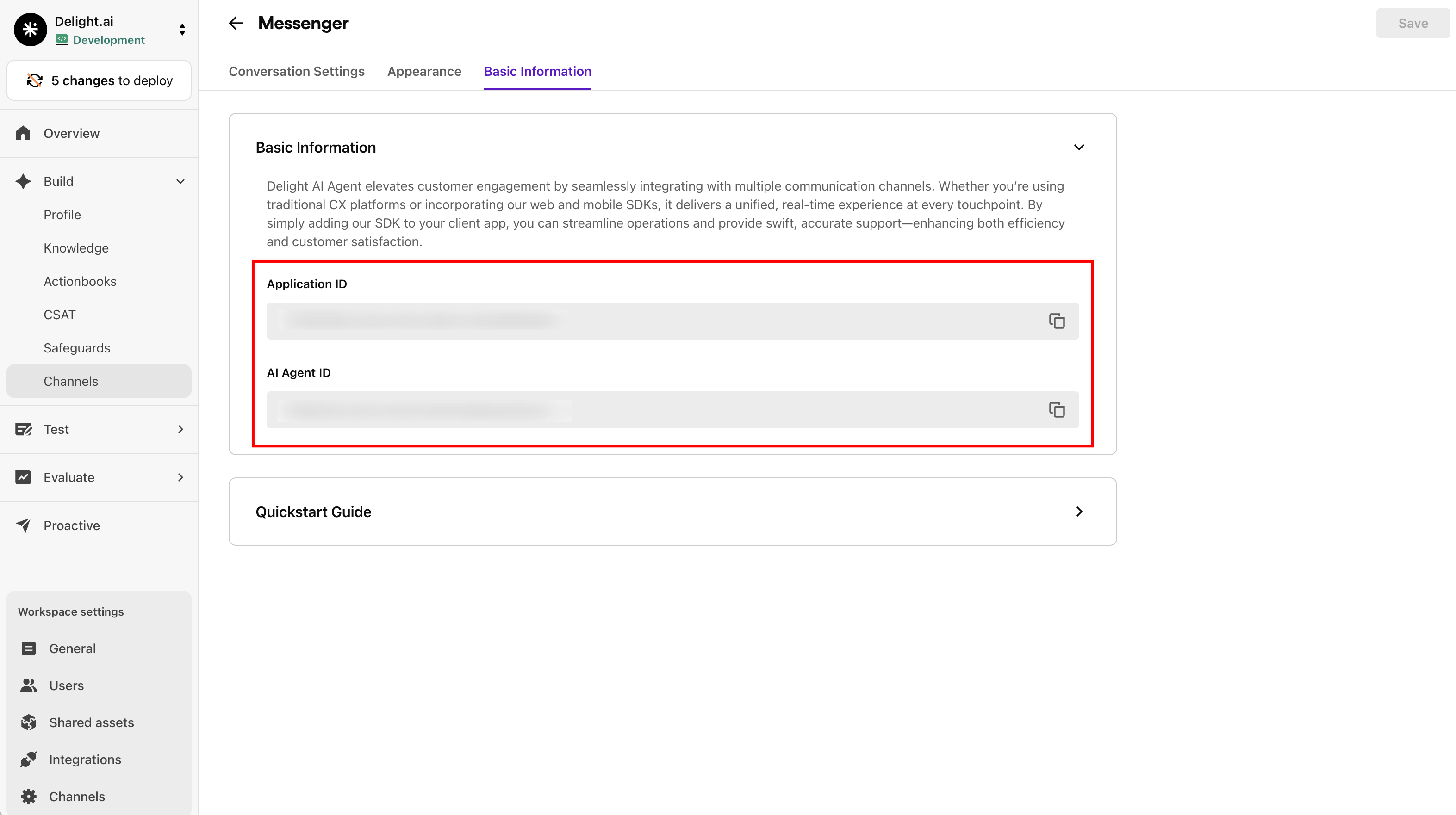
Before you start, you'll need your **Application ID** and **AI Agent ID**.
|
|
28
|
+
|
|
29
|
+
You can find them under the **Channels** > **Messenger** menu on the Delight AI dashboard.
|
|
30
|
+
|
|
31
|
+
|
|
32
|
+
|
|
33
|
+
**System Requirements:**
|
|
34
|
+
|
|
35
|
+
- React >= 18.0.0
|
|
36
|
+
- React Native >= 0.80.0
|
|
37
|
+
- @sendbird/chat ^4.19.0
|
|
38
|
+
- react-native-mmkv >= 3.0.0
|
|
39
|
+
- react-native-safe-area-context >= 5.0.0
|
|
40
|
+
- date-fns >= 4.0.0
|
|
41
|
+
|
|
42
|
+
---
|
|
43
|
+
|
|
44
|
+
## Getting started
|
|
45
|
+
|
|
46
|
+
Quickly install and initialize the AI Agent SDK by following the steps below.
|
|
47
|
+
|
|
48
|
+
### Step 1. Install AI Agent SDK
|
|
49
|
+
|
|
50
|
+
Install the package with its peer dependencies using npm or yarn:
|
|
51
|
+
|
|
52
|
+
```bash
|
|
53
|
+
npm install @sendbird/ai-agent-messenger-react-native @sendbird/chat react-native-mmkv react-native-safe-area-context date-fns
|
|
54
|
+
```
|
|
55
|
+
|
|
56
|
+
**(Optional) File attachment support:**
|
|
57
|
+
|
|
58
|
+
If file attachment is enabled in your AI Agent settings, install one of the following picker modules:
|
|
59
|
+
|
|
60
|
+
**Option A: Expo modules (Recommended for Expo projects)**
|
|
61
|
+
|
|
62
|
+
```bash
|
|
63
|
+
npm install expo-image-picker expo-document-picker
|
|
64
|
+
```
|
|
65
|
+
|
|
66
|
+
**Option B: Community modules (for bare React Native projects)**
|
|
67
|
+
|
|
68
|
+
```bash
|
|
69
|
+
npm install react-native-image-picker @react-native-documents/picker react-native-permissions
|
|
70
|
+
```
|
|
71
|
+
|
|
72
|
+
{% hint style="info" %}
|
|
73
|
+
When using `react-native-image-picker`, you must also install `react-native-permissions` for camera access.
|
|
74
|
+
{% endhint %}
|
|
75
|
+
|
|
76
|
+
### Step 2. Configure native modules
|
|
77
|
+
|
|
78
|
+
The SDK requires native module configuration. Only `mmkv` is required; picker modules are optional.
|
|
79
|
+
|
|
80
|
+
**Minimal setup (without file attachment):**
|
|
81
|
+
|
|
82
|
+
```tsx
|
|
83
|
+
import { createMMKV } from 'react-native-mmkv';
|
|
84
|
+
|
|
85
|
+
const mmkv = createMMKV();
|
|
86
|
+
|
|
87
|
+
const nativeModules = {
|
|
88
|
+
mmkv,
|
|
89
|
+
};
|
|
90
|
+
```
|
|
91
|
+
|
|
92
|
+
**With file attachment support (Expo modules):**
|
|
93
|
+
|
|
94
|
+
```tsx
|
|
95
|
+
import { createMMKV } from 'react-native-mmkv';
|
|
96
|
+
import * as ImagePicker from 'expo-image-picker';
|
|
97
|
+
import * as DocumentPicker from 'expo-document-picker';
|
|
98
|
+
|
|
99
|
+
const mmkv = createMMKV();
|
|
100
|
+
|
|
101
|
+
const nativeModules = {
|
|
102
|
+
mmkv,
|
|
103
|
+
imagePicker: ImagePicker,
|
|
104
|
+
documentPicker: DocumentPicker,
|
|
105
|
+
};
|
|
106
|
+
```
|
|
107
|
+
|
|
108
|
+
**With file attachment support (Community modules):**
|
|
109
|
+
|
|
110
|
+
```tsx
|
|
111
|
+
import { createMMKV } from 'react-native-mmkv';
|
|
112
|
+
import * as ImagePicker from 'react-native-image-picker';
|
|
113
|
+
import * as DocumentPicker from '@react-native-documents/picker';
|
|
114
|
+
import * as Permissions from 'react-native-permissions';
|
|
115
|
+
|
|
116
|
+
const mmkv = createMMKV();
|
|
117
|
+
|
|
118
|
+
const nativeModules = {
|
|
119
|
+
mmkv,
|
|
120
|
+
imagePicker: ImagePicker,
|
|
121
|
+
documentPicker: DocumentPicker,
|
|
122
|
+
permissions: Permissions, // Required for react-native-image-picker
|
|
123
|
+
};
|
|
124
|
+
```
|
|
125
|
+
|
|
126
|
+
### Step 3. Initialize AI Agent SDK
|
|
127
|
+
|
|
128
|
+
The React Native SDK provides two main approaches for integration:
|
|
129
|
+
|
|
130
|
+
**Option 1: FixedMessenger (Recommended for quick setup)**
|
|
131
|
+
|
|
132
|
+
FixedMessenger provides a predefined UI toolkit with launcher and messenger:
|
|
133
|
+
|
|
134
|
+
```tsx
|
|
135
|
+
import { AIAgentProviderContainer, FixedMessenger, AnonymousSessionInfo } from '@sendbird/ai-agent-messenger-react-native';
|
|
136
|
+
|
|
137
|
+
function App() {
|
|
138
|
+
return (
|
|
139
|
+
<AIAgentProviderContainer
|
|
140
|
+
appId={'YOUR_APP_ID'}
|
|
141
|
+
aiAgentId={'YOUR_AI_AGENT_ID'}
|
|
142
|
+
nativeModules={nativeModules}
|
|
143
|
+
userSessionInfo={new AnonymousSessionInfo()}
|
|
144
|
+
>
|
|
145
|
+
<FixedMessenger />
|
|
146
|
+
</AIAgentProviderContainer>
|
|
147
|
+
);
|
|
148
|
+
}
|
|
149
|
+
```
|
|
150
|
+
|
|
151
|
+
**Option 2: AIAgentProviderContainer with Conversation (For custom UI implementations)**
|
|
152
|
+
|
|
153
|
+
AIAgentProviderContainer allows for custom UI implementations and component-level integration:
|
|
154
|
+
|
|
155
|
+
```tsx
|
|
156
|
+
import { AIAgentProviderContainer, Conversation, AnonymousSessionInfo } from '@sendbird/ai-agent-messenger-react-native';
|
|
157
|
+
import { View } from 'react-native';
|
|
158
|
+
|
|
159
|
+
function App() {
|
|
160
|
+
return (
|
|
161
|
+
<AIAgentProviderContainer
|
|
162
|
+
appId={'YOUR_APP_ID'}
|
|
163
|
+
aiAgentId={'YOUR_AI_AGENT_ID'}
|
|
164
|
+
nativeModules={nativeModules}
|
|
165
|
+
userSessionInfo={new AnonymousSessionInfo()}
|
|
166
|
+
>
|
|
167
|
+
<View style={{ flex: 1 }}>
|
|
168
|
+
<Conversation />
|
|
169
|
+
</View>
|
|
170
|
+
</AIAgentProviderContainer>
|
|
171
|
+
);
|
|
172
|
+
}
|
|
173
|
+
```
|
|
174
|
+
|
|
175
|
+
---
|
|
176
|
+
|
|
177
|
+
## Component overview
|
|
178
|
+
|
|
179
|
+
### FixedMessenger vs AIAgentProviderContainer
|
|
180
|
+
|
|
181
|
+
#### Comparison of FixedMessenger and AIAgentProviderContainer
|
|
182
|
+
|
|
183
|
+
| Feature | FixedMessenger | AIAgentProviderContainer + Conversation |
|
|
184
|
+
|---------|---------------|----------------------------------------|
|
|
185
|
+
| UI toolkit | Complete UI with launcher and messenger window | Provider for custom UI implementations |
|
|
186
|
+
| Window modes | Supports floating and fullscreen | Custom layouts and components |
|
|
187
|
+
| Navigation | Includes Conversation and ConversationList navigation | Must combine with conversation components like `<Conversation />` |
|
|
188
|
+
| Back button | Handles Android back button automatically | Manual implementation required |
|
|
189
|
+
| Recommended for | Most use cases | Specific UI layouts or custom components |
|
|
190
|
+
|
|
191
|
+
---
|
|
192
|
+
|
|
193
|
+
## Running your application
|
|
194
|
+
|
|
195
|
+
Now that you have installed and initialized the AI Agent SDK, follow the steps below to run your application.
|
|
196
|
+
|
|
197
|
+
To launch and display the messenger, implement the code below:
|
|
198
|
+
|
|
199
|
+
{% hint style="info" %}
|
|
200
|
+
Replace `YOUR_APP_ID` and `YOUR_AI_AGENT_ID` with your Application ID and AI agent ID which you can obtain from the Delight AI dashboard. To learn how to do so, refer to the [prerequisites](#prerequisites) section.
|
|
201
|
+
{% endhint %}
|
|
202
|
+
|
|
203
|
+
```tsx
|
|
204
|
+
function App() {
|
|
205
|
+
return (
|
|
206
|
+
<AIAgentProviderContainer
|
|
207
|
+
appId={'YOUR_APP_ID'}
|
|
208
|
+
aiAgentId={'YOUR_AI_AGENT_ID'}
|
|
209
|
+
nativeModules={nativeModules}
|
|
210
|
+
userSessionInfo={new AnonymousSessionInfo()}
|
|
211
|
+
>
|
|
212
|
+
<FixedMessenger />
|
|
213
|
+
</AIAgentProviderContainer>
|
|
214
|
+
);
|
|
215
|
+
}
|
|
216
|
+
```
|
|
217
|
+
|
|
218
|
+
### FixedMessenger styles
|
|
219
|
+
|
|
220
|
+
When using the fixed messenger, `FixedMessenger.Style` allows you to customize its appearance and positioning:
|
|
221
|
+
|
|
222
|
+
- `position`: Determines which corner of the screen the launcher will appear in. Available options are `start-top`, `start-bottom`, `end-top`, and `end-bottom`.
|
|
223
|
+
- `margin`: Defines the margin around the fixed messenger and its launcher.
|
|
224
|
+
- `launcherSize`: Defines the size of the launcher button in pixels (width and height are equal).
|
|
225
|
+
- `spacing`: Defines the spacing between the launcher and the messenger window.
|
|
226
|
+
|
|
227
|
+
```tsx
|
|
228
|
+
function App() {
|
|
229
|
+
return (
|
|
230
|
+
<AIAgentProviderContainer {...props}>
|
|
231
|
+
<FixedMessenger>
|
|
232
|
+
<FixedMessenger.Style
|
|
233
|
+
position={'end-bottom'}
|
|
234
|
+
launcherSize={56}
|
|
235
|
+
spacing={16}
|
|
236
|
+
margin={{ start: 16, end: 16, bottom: 16, top: 16 }}
|
|
237
|
+
/>
|
|
238
|
+
</FixedMessenger>
|
|
239
|
+
</AIAgentProviderContainer>
|
|
240
|
+
);
|
|
241
|
+
}
|
|
242
|
+
```
|
|
243
|
+
|
|
244
|
+
### Window modes
|
|
245
|
+
|
|
246
|
+
FixedMessenger supports two window modes:
|
|
247
|
+
|
|
248
|
+
- `floating` (default): The messenger appears as a floating window above your app content.
|
|
249
|
+
- `fullscreen`: The messenger takes up the full screen.
|
|
250
|
+
|
|
251
|
+
```tsx
|
|
252
|
+
<FixedMessenger windowMode={'fullscreen'} />
|
|
253
|
+
```
|
|
254
|
+
|
|
255
|
+
When using fullscreen mode, you can specify insets:
|
|
256
|
+
|
|
257
|
+
```tsx
|
|
258
|
+
<FixedMessenger
|
|
259
|
+
windowMode={'fullscreen'}
|
|
260
|
+
fullscreenInsets={{ top: 50, bottom: 34, left: 0, right: 0 }}
|
|
261
|
+
/>
|
|
262
|
+
```
|
|
263
|
+
|
|
264
|
+
### Entry points
|
|
265
|
+
|
|
266
|
+
You can configure which screen appears first when opening the messenger:
|
|
267
|
+
|
|
268
|
+
- `Conversation` (default): Opens directly to a conversation.
|
|
269
|
+
- `ConversationList`: Opens to the list of conversations.
|
|
270
|
+
|
|
271
|
+
```tsx
|
|
272
|
+
<FixedMessenger entryPoint={'ConversationList'} />
|
|
273
|
+
```
|
|
274
|
+
|
|
275
|
+
You can also specify an initial channel URL to open a specific conversation:
|
|
276
|
+
|
|
277
|
+
```tsx
|
|
278
|
+
<FixedMessenger initialChannelUrl={'sendbird_group_channel_xxx'} />
|
|
279
|
+
```
|
|
280
|
+
|
|
281
|
+
### Manage user sessions
|
|
282
|
+
|
|
283
|
+
The SDK supports two types of user sessions: **Manual Session** for authenticated users and **Anonymous Session** for temporary users.
|
|
284
|
+
|
|
285
|
+
#### Session types
|
|
286
|
+
|
|
287
|
+
**1. Manual Session (ManualSessionInfo):**
|
|
288
|
+
Use this when you have an authenticated user with a specific user ID and session token.
|
|
289
|
+
|
|
290
|
+
```tsx
|
|
291
|
+
import { ManualSessionInfo } from '@sendbird/ai-agent-messenger-react-native';
|
|
292
|
+
|
|
293
|
+
<AIAgentProviderContainer
|
|
294
|
+
appId={'YOUR_APP_ID'}
|
|
295
|
+
aiAgentId={'YOUR_AI_AGENT_ID'}
|
|
296
|
+
nativeModules={nativeModules}
|
|
297
|
+
userSessionInfo={new ManualSessionInfo({
|
|
298
|
+
userId: 'user_id',
|
|
299
|
+
authToken: 'auth_token',
|
|
300
|
+
sessionHandler: {
|
|
301
|
+
onSessionTokenRequired: async (resolve, reject) => {
|
|
302
|
+
try {
|
|
303
|
+
const response = await fetch('new-token-endpoint');
|
|
304
|
+
resolve(response.token);
|
|
305
|
+
} catch (error) {
|
|
306
|
+
reject(error);
|
|
307
|
+
}
|
|
308
|
+
},
|
|
309
|
+
onSessionClosed: () => { },
|
|
310
|
+
onSessionError: (error) => { },
|
|
311
|
+
onSessionRefreshed: () => { }
|
|
312
|
+
}
|
|
313
|
+
})}
|
|
314
|
+
>
|
|
315
|
+
<FixedMessenger />
|
|
316
|
+
</AIAgentProviderContainer>
|
|
317
|
+
```
|
|
318
|
+
|
|
319
|
+
**2. Anonymous Session (AnonymousSessionInfo):**
|
|
320
|
+
Use this when you don't have user authentication or want to allow guest access. The server will automatically create a temporary user.
|
|
321
|
+
|
|
322
|
+
```tsx
|
|
323
|
+
import { AnonymousSessionInfo } from '@sendbird/ai-agent-messenger-react-native';
|
|
324
|
+
|
|
325
|
+
<AIAgentProviderContainer
|
|
326
|
+
appId={'YOUR_APP_ID'}
|
|
327
|
+
aiAgentId={'YOUR_AI_AGENT_ID'}
|
|
328
|
+
nativeModules={nativeModules}
|
|
329
|
+
userSessionInfo={new AnonymousSessionInfo()}
|
|
330
|
+
>
|
|
331
|
+
<FixedMessenger />
|
|
332
|
+
</AIAgentProviderContainer>
|
|
333
|
+
```
|
|
334
|
+
|
|
335
|
+
#### Authentication
|
|
336
|
+
|
|
337
|
+
You can manually control user authentication using `useMessengerSessionContext`. Call `authenticate()` before showing the messenger to avoid loading delays.
|
|
338
|
+
|
|
339
|
+
```tsx
|
|
340
|
+
import { useMessengerSessionContext } from '@sendbird/ai-agent-messenger-react-native';
|
|
341
|
+
|
|
342
|
+
const App = () => {
|
|
343
|
+
const { authenticate, sdkUser } = useMessengerSessionContext();
|
|
344
|
+
|
|
345
|
+
useEffect(() => {
|
|
346
|
+
authenticate();
|
|
347
|
+
}, []);
|
|
348
|
+
|
|
349
|
+
return <FixedMessenger />;
|
|
350
|
+
};
|
|
351
|
+
```
|
|
352
|
+
|
|
353
|
+
#### Deauthentication
|
|
354
|
+
|
|
355
|
+
To log out the current user, call `deauthenticate()`. This disconnects the user session and clears the authentication state.
|
|
356
|
+
|
|
357
|
+
```tsx
|
|
358
|
+
import { useMessengerSessionContext } from '@sendbird/ai-agent-messenger-react-native';
|
|
359
|
+
|
|
360
|
+
const LogoutButton = () => {
|
|
361
|
+
const { deauthenticate } = useMessengerSessionContext();
|
|
362
|
+
|
|
363
|
+
const handleLogout = () => {
|
|
364
|
+
deauthenticate();
|
|
365
|
+
};
|
|
366
|
+
|
|
367
|
+
return <Button title={'Logout'} onPress={handleLogout} />;
|
|
368
|
+
};
|
|
369
|
+
```
|
|
370
|
+
|
|
371
|
+
---
|
|
372
|
+
|
|
373
|
+
## Advanced features
|
|
374
|
+
|
|
375
|
+
The following are available advanced features.
|
|
376
|
+
|
|
377
|
+
### Customizing theme
|
|
378
|
+
|
|
379
|
+
You can customize the messenger theme by passing a `theme` prop to `AIAgentProviderContainer`.
|
|
380
|
+
|
|
381
|
+
```tsx
|
|
382
|
+
<AIAgentProviderContainer
|
|
383
|
+
appId={'YOUR_APP_ID'}
|
|
384
|
+
aiAgentId={'YOUR_AI_AGENT_ID'}
|
|
385
|
+
nativeModules={nativeModules}
|
|
386
|
+
userSessionInfo={new AnonymousSessionInfo()}
|
|
387
|
+
theme={{
|
|
388
|
+
mode: 'dark', // 'light' or 'dark'
|
|
389
|
+
typography: {
|
|
390
|
+
h1: { fontSize: 24, fontWeight: '700' },
|
|
391
|
+
body1: { fontSize: 16, fontWeight: '400' },
|
|
392
|
+
},
|
|
393
|
+
}}
|
|
394
|
+
>
|
|
395
|
+
<FixedMessenger />
|
|
396
|
+
</AIAgentProviderContainer>
|
|
397
|
+
```
|
|
398
|
+
|
|
399
|
+
### Display messenger without launcher button
|
|
400
|
+
|
|
401
|
+
Build custom messenger UI using AIAgentProviderContainer with Conversation directly:
|
|
402
|
+
|
|
403
|
+
```tsx
|
|
404
|
+
import { AIAgentProviderContainer, Conversation, AnonymousSessionInfo } from '@sendbird/ai-agent-messenger-react-native';
|
|
405
|
+
import { View } from 'react-native';
|
|
406
|
+
|
|
407
|
+
function App() {
|
|
408
|
+
return (
|
|
409
|
+
<View style={{ flex: 1 }}>
|
|
410
|
+
<AIAgentProviderContainer
|
|
411
|
+
appId={'YOUR_APP_ID'}
|
|
412
|
+
aiAgentId={'YOUR_AI_AGENT_ID'}
|
|
413
|
+
nativeModules={nativeModules}
|
|
414
|
+
userSessionInfo={new AnonymousSessionInfo()}
|
|
415
|
+
>
|
|
416
|
+
<Conversation />
|
|
417
|
+
</AIAgentProviderContainer>
|
|
418
|
+
</View>
|
|
419
|
+
);
|
|
420
|
+
}
|
|
421
|
+
```
|
|
422
|
+
|
|
423
|
+
### Passing context object to agent
|
|
424
|
+
|
|
425
|
+
You can predefine customer-specific information such as country, language, or other custom context data to guide the AI agent in providing faster and more accurate responses.
|
|
426
|
+
|
|
427
|
+
This allows for a more personalized and context-aware interaction experience.
|
|
428
|
+
|
|
429
|
+
{% hint style="warning" %}
|
|
430
|
+
These settings can only be configured during initialization.
|
|
431
|
+
{% endhint %}
|
|
432
|
+
|
|
433
|
+
```tsx
|
|
434
|
+
<AIAgentProviderContainer
|
|
435
|
+
appId={'YOUR_APP_ID'}
|
|
436
|
+
aiAgentId={'YOUR_AI_AGENT_ID'}
|
|
437
|
+
nativeModules={nativeModules}
|
|
438
|
+
userSessionInfo={new AnonymousSessionInfo()}
|
|
439
|
+
// Language setting (IETF BCP 47 format)
|
|
440
|
+
language={'en-US'}
|
|
441
|
+
// Country code setting (ISO 3166 format)
|
|
442
|
+
countryCode={'US'}
|
|
443
|
+
// Context object for the AI Agent
|
|
444
|
+
context={{
|
|
445
|
+
userPreference: 'technical',
|
|
446
|
+
customerTier: 'premium',
|
|
447
|
+
}}
|
|
448
|
+
>
|
|
449
|
+
<FixedMessenger />
|
|
450
|
+
</AIAgentProviderContainer>
|
|
451
|
+
```
|
|
452
|
+
|
|
453
|
+
### Localization and language support
|
|
454
|
+
|
|
455
|
+
The SDK supports multiple languages and allows you to customize UI strings. You can:
|
|
456
|
+
|
|
457
|
+
- Set the language during initialization
|
|
458
|
+
- Customize specific strings in supported languages
|
|
459
|
+
- Add support for additional languages
|
|
460
|
+
|
|
461
|
+
**Supported languages:** German (de), English (en), Spanish (es), French (fr), Hindi (hi), Italian (it), Japanese (ja), Korean (ko), Portuguese (pt), Turkish (tr)
|
|
462
|
+
|
|
463
|
+
**Example of customizing strings:**
|
|
464
|
+
|
|
465
|
+
```tsx
|
|
466
|
+
<AIAgentProviderContainer
|
|
467
|
+
appId={'YOUR_APP_ID'}
|
|
468
|
+
aiAgentId={'YOUR_AI_AGENT_ID'}
|
|
469
|
+
nativeModules={nativeModules}
|
|
470
|
+
userSessionInfo={new AnonymousSessionInfo()}
|
|
471
|
+
language={'ko-KR'}
|
|
472
|
+
strings={{
|
|
473
|
+
conversation: {
|
|
474
|
+
input_placeholder: '질문을 입력하세요...',
|
|
475
|
+
},
|
|
476
|
+
}}
|
|
477
|
+
>
|
|
478
|
+
<FixedMessenger />
|
|
479
|
+
</AIAgentProviderContainer>
|
|
480
|
+
```
|
|
481
|
+
|
|
482
|
+
To learn more about localization options and the full list of available string sets, refer to the [Localization guide](MULTILANGUAGE.md).
|