@oddle.me/react-calendar-timeline 0.28.1-0
This diff represents the content of publicly available package versions that have been released to one of the supported registries. The information contained in this diff is provided for informational purposes only and reflects changes between package versions as they appear in their respective public registries.
- package/LICENSE.md +8 -0
- package/README.md +1298 -0
- package/lib/Timeline.css +110 -0
- package/lib/index.js +77 -0
- package/lib/lib/Timeline.js +966 -0
- package/lib/lib/columns/Columns.js +137 -0
- package/lib/lib/default-config.js +73 -0
- package/lib/lib/headers/CustomDateHeader.js +48 -0
- package/lib/lib/headers/CustomHeader.js +276 -0
- package/lib/lib/headers/DateHeader.js +206 -0
- package/lib/lib/headers/HeadersContext.js +94 -0
- package/lib/lib/headers/Interval.js +131 -0
- package/lib/lib/headers/SidebarHeader.js +130 -0
- package/lib/lib/headers/TimelineHeaders.js +180 -0
- package/lib/lib/headers/constants.js +10 -0
- package/lib/lib/interaction/PreventClickOnDrag.js +99 -0
- package/lib/lib/items/Item.js +627 -0
- package/lib/lib/items/Items.js +178 -0
- package/lib/lib/items/defaultItemRenderer.js +40 -0
- package/lib/lib/items/styles.js +65 -0
- package/lib/lib/layout/Sidebar.js +138 -0
- package/lib/lib/markers/MarkerCanvas.js +164 -0
- package/lib/lib/markers/MarkerCanvasContext.js +28 -0
- package/lib/lib/markers/TimelineMarkersContext.js +157 -0
- package/lib/lib/markers/TimelineMarkersRenderer.js +69 -0
- package/lib/lib/markers/implementations/CursorMarker.js +137 -0
- package/lib/lib/markers/implementations/CustomMarker.js +79 -0
- package/lib/lib/markers/implementations/TodayMarker.js +123 -0
- package/lib/lib/markers/implementations/shared.js +51 -0
- package/lib/lib/markers/markerType.js +12 -0
- package/lib/lib/markers/public/CursorMarker.js +97 -0
- package/lib/lib/markers/public/CustomMarker.js +116 -0
- package/lib/lib/markers/public/TimelineMarkers.js +27 -0
- package/lib/lib/markers/public/TodayMarker.js +121 -0
- package/lib/lib/row/GroupRow.js +94 -0
- package/lib/lib/row/GroupRows.js +117 -0
- package/lib/lib/scroll/ScrollElement.js +285 -0
- package/lib/lib/timeline/TimelineStateContext.js +155 -0
- package/lib/lib/utility/calendar.js +672 -0
- package/lib/lib/utility/dom-helpers.js +62 -0
- package/lib/lib/utility/events.js +23 -0
- package/lib/lib/utility/generic.js +44 -0
- package/lib/resize-detector/container.js +36 -0
- package/lib/resize-detector/window.js +25 -0
- package/package.json +162 -0
- package/src/global.d.ts +373 -0
package/README.md
ADDED
|
@@ -0,0 +1,1298 @@
|
|
|
1
|
+
# Forked from <https://github.com/namespace-ee/react-calendar-timeline>
|
|
2
|
+
|
|
3
|
+
# React Calendar Timeline
|
|
4
|
+
|
|
5
|
+
A modern and responsive React timeline component.
|
|
6
|
+
|
|
7
|
+
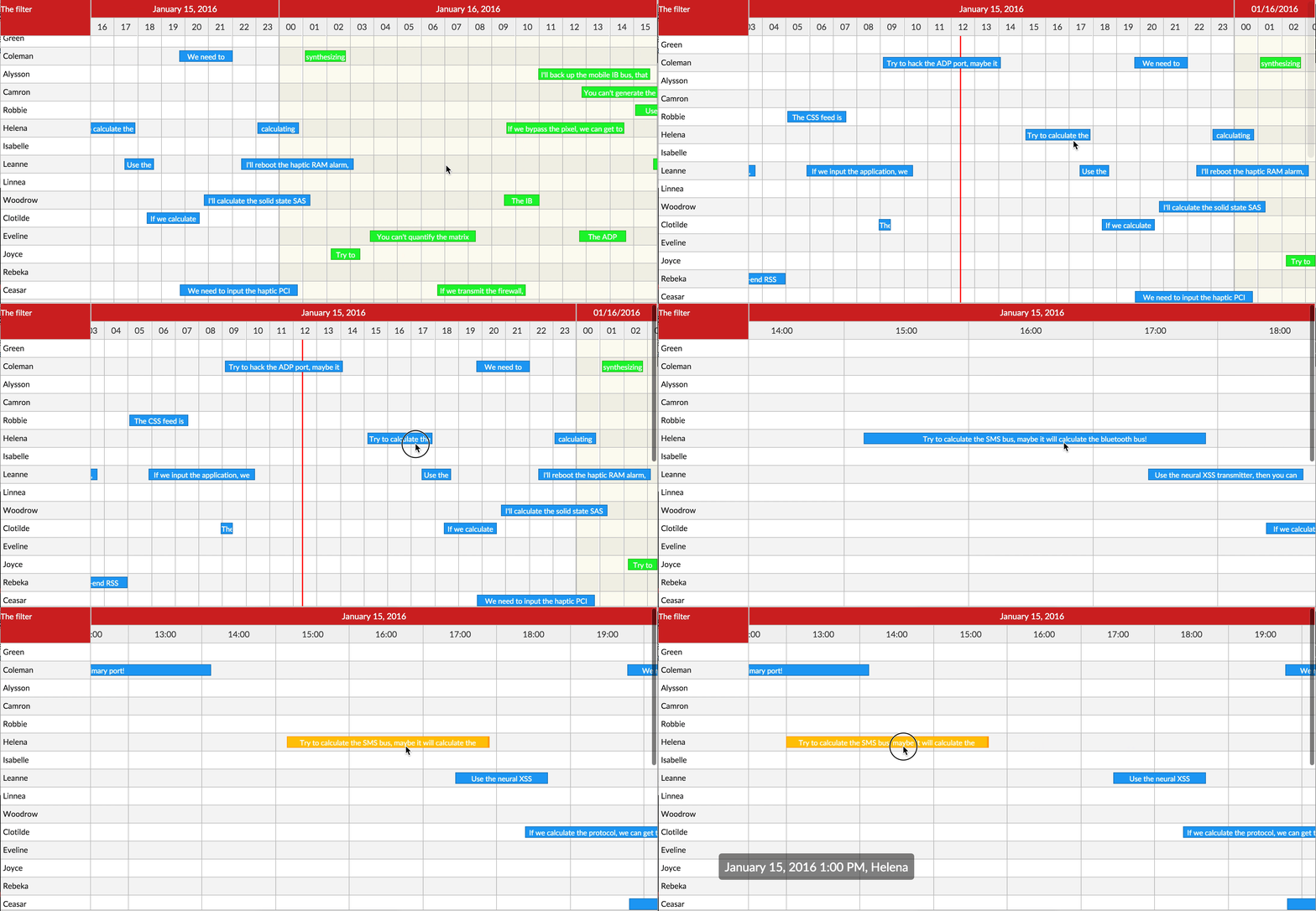
|
|
8
|
+
|
|
9
|
+
Checkout the [examples here](https://github.com/namespace-ee/react-calendar-timeline/tree/master/examples)!
|
|
10
|
+
|
|
11
|
+
# Contents
|
|
12
|
+
|
|
13
|
+
- [Getting Started](#getting-started)
|
|
14
|
+
- [Usage](#usage)
|
|
15
|
+
- [API](#api)
|
|
16
|
+
- [Timeline Markers](#timeline-markers)
|
|
17
|
+
- [Timeline Headers](#timeline-headers)
|
|
18
|
+
- [FAQ](#faq)
|
|
19
|
+
- [Contribute](#contribute)
|
|
20
|
+
|
|
21
|
+
# Getting started
|
|
22
|
+
|
|
23
|
+
```bash
|
|
24
|
+
# via yarn
|
|
25
|
+
yarn add react-calendar-timeline
|
|
26
|
+
|
|
27
|
+
# via npm
|
|
28
|
+
npm install --save react-calendar-timeline
|
|
29
|
+
```
|
|
30
|
+
|
|
31
|
+
`react-calendar-timeline` has [react](https://reactjs.org/), [react-dom](https://reactjs.org/docs/react-dom.html), [`moment`](http://momentjs.com/) and [`interactjs`](http://interactjs.io/docs/) as peer dependencies.
|
|
32
|
+
|
|
33
|
+
# Usage
|
|
34
|
+
|
|
35
|
+
At the very minimum:
|
|
36
|
+
|
|
37
|
+
```jsx
|
|
38
|
+
import Timeline from 'react-calendar-timeline'
|
|
39
|
+
// make sure you include the timeline stylesheet or the timeline will not be styled
|
|
40
|
+
import 'react-calendar-timeline/lib/Timeline.css'
|
|
41
|
+
import moment from 'moment'
|
|
42
|
+
|
|
43
|
+
const groups = [{ id: 1, title: 'group 1' }, { id: 2, title: 'group 2' }]
|
|
44
|
+
|
|
45
|
+
const items = [
|
|
46
|
+
{
|
|
47
|
+
id: 1,
|
|
48
|
+
group: 1,
|
|
49
|
+
title: 'item 1',
|
|
50
|
+
start_time: moment(),
|
|
51
|
+
end_time: moment().add(1, 'hour')
|
|
52
|
+
},
|
|
53
|
+
{
|
|
54
|
+
id: 2,
|
|
55
|
+
group: 2,
|
|
56
|
+
title: 'item 2',
|
|
57
|
+
start_time: moment().add(-0.5, 'hour'),
|
|
58
|
+
end_time: moment().add(0.5, 'hour')
|
|
59
|
+
},
|
|
60
|
+
{
|
|
61
|
+
id: 3,
|
|
62
|
+
group: 1,
|
|
63
|
+
title: 'item 3',
|
|
64
|
+
start_time: moment().add(2, 'hour'),
|
|
65
|
+
end_time: moment().add(3, 'hour')
|
|
66
|
+
}
|
|
67
|
+
]
|
|
68
|
+
|
|
69
|
+
ReactDOM.render(
|
|
70
|
+
<div>
|
|
71
|
+
Rendered by react!
|
|
72
|
+
<Timeline
|
|
73
|
+
groups={groups}
|
|
74
|
+
items={items}
|
|
75
|
+
defaultTimeStart={moment().add(-12, 'hour')}
|
|
76
|
+
defaultTimeEnd={moment().add(12, 'hour')}
|
|
77
|
+
/>
|
|
78
|
+
</div>,
|
|
79
|
+
document.getElementById('root')
|
|
80
|
+
)
|
|
81
|
+
```
|
|
82
|
+
|
|
83
|
+
# API
|
|
84
|
+
|
|
85
|
+
_NB!_ All props need to be immutable. For example, this means if you wish to change the title of one of your items, please pass in a whole new items array instead of changing the title in the old array. [Here's more info.](http://reactkungfu.com/2015/08/pros-and-cons-of-using-immutability-with-react-js/)
|
|
86
|
+
|
|
87
|
+
The component can take many props:
|
|
88
|
+
|
|
89
|
+
## groups
|
|
90
|
+
|
|
91
|
+
Expects either a vanilla JS array or an immutableJS array, consisting of objects with the following attributes:
|
|
92
|
+
|
|
93
|
+
```js
|
|
94
|
+
{
|
|
95
|
+
id: 1,
|
|
96
|
+
title: 'group 1',
|
|
97
|
+
rightTitle: 'title in the right sidebar',
|
|
98
|
+
stackItems?: true,
|
|
99
|
+
height?: 30
|
|
100
|
+
}
|
|
101
|
+
```
|
|
102
|
+
|
|
103
|
+
If you use the right sidebar, you can pass optional `rightTitle` property here.
|
|
104
|
+
If you want to overwrite the calculated height with a custom height, you can pass a `height` property as an int in pixels here. This can be very useful for categorized groups.
|
|
105
|
+
|
|
106
|
+
## items
|
|
107
|
+
|
|
108
|
+
Expects either a vanilla JS array or an immutableJS array, consisting of objects with the following attributes:
|
|
109
|
+
|
|
110
|
+
```js
|
|
111
|
+
{
|
|
112
|
+
id: 1,
|
|
113
|
+
group: 1,
|
|
114
|
+
title: 'Random title',
|
|
115
|
+
start_time: 1457902922261,
|
|
116
|
+
end_time: 1457902922261 + 86400000,
|
|
117
|
+
canMove: true,
|
|
118
|
+
canResize: false,
|
|
119
|
+
canChangeGroup: false,
|
|
120
|
+
itemProps: {
|
|
121
|
+
// these optional attributes are passed to the root <div /> of each item as <div {...itemProps} />
|
|
122
|
+
'data-custom-attribute': 'Random content',
|
|
123
|
+
'aria-hidden': true,
|
|
124
|
+
onDoubleClick: () => { console.log('You clicked double!') },
|
|
125
|
+
className: 'weekend',
|
|
126
|
+
style: {
|
|
127
|
+
background: 'fuchsia'
|
|
128
|
+
}
|
|
129
|
+
}
|
|
130
|
+
}
|
|
131
|
+
```
|
|
132
|
+
|
|
133
|
+
The preferred (fastest) option is to give Unix timestamps in milliseconds for `start_time` and `end_time`. Objects that convert to them (JavaScript `Date` or `moment()`) will also work, but will be a lot slower.
|
|
134
|
+
|
|
135
|
+
## defaultTimeStart and defaultTimeEnd
|
|
136
|
+
|
|
137
|
+
Unless overridden by `visibleTimeStart` and `visibleTimeEnd`, specify where the calendar begins and where it ends. This parameter expects a Date or moment object.
|
|
138
|
+
|
|
139
|
+
## visibleTimeStart and visibleTimeEnd
|
|
140
|
+
|
|
141
|
+
The exact viewport of the calendar. When these are specified, scrolling in the calendar must be orchestrated by the `onTimeChange` function. This parameter expects a Unix timestamp in milliseconds.
|
|
142
|
+
|
|
143
|
+
**Note that you need to provide either `defaultTimeStart/End` or `visibleTimeStart/End` for the timeline to function**
|
|
144
|
+
|
|
145
|
+
## buffer
|
|
146
|
+
|
|
147
|
+
a number (default to 3) which represents the extra timeline rendered on right and lift of the visible area which the user will scroll through before the time rerenders.
|
|
148
|
+
|
|
149
|
+
more explication in section [behind the scenes](#behind-the-scenes)
|
|
150
|
+
|
|
151
|
+
Note: setting buffer to 1 will disable the scrolling on the timeline
|
|
152
|
+
|
|
153
|
+
## selected
|
|
154
|
+
|
|
155
|
+
An array with id's corresponding to id's in items (`item.id`). If this prop is set you have to manage the selected items yourself within the `onItemSelect` handler to update the property with new id's and use `onItemDeselect` handler to clear selection. This overwrites the default behaviour of selecting one item on click.
|
|
156
|
+
|
|
157
|
+
## keys
|
|
158
|
+
|
|
159
|
+
An array specifying keys in the `items` and `groups` objects. Defaults to
|
|
160
|
+
|
|
161
|
+
```js
|
|
162
|
+
{
|
|
163
|
+
groupIdKey: 'id',
|
|
164
|
+
groupTitleKey: 'title',
|
|
165
|
+
groupRightTitleKey: 'rightTitle',
|
|
166
|
+
itemIdKey: 'id',
|
|
167
|
+
itemTitleKey: 'title', // key for item div content
|
|
168
|
+
itemDivTitleKey: 'title', // key for item div title (<div title="text"/>)
|
|
169
|
+
itemGroupKey: 'group',
|
|
170
|
+
itemTimeStartKey: 'start_time',
|
|
171
|
+
itemTimeEndKey: 'end_time',
|
|
172
|
+
}
|
|
173
|
+
```
|
|
174
|
+
|
|
175
|
+
## className
|
|
176
|
+
|
|
177
|
+
Additional class names as a string for the root Timeline element.
|
|
178
|
+
|
|
179
|
+
## sidebarWidth
|
|
180
|
+
|
|
181
|
+
Width of the sidebar in pixels. If set to `0`, the sidebar is not rendered. Defaults to `150`.
|
|
182
|
+
|
|
183
|
+
## sidebarContent
|
|
184
|
+
|
|
185
|
+
Everything passed here will be displayed above the left sidebar. Use this to display small filters or so. Defaults to `null`.
|
|
186
|
+
|
|
187
|
+
## rightSidebarWidth
|
|
188
|
+
|
|
189
|
+
Width of the right sidebar in pixels. If set to `0`, the right sidebar is not rendered. Defaults to `0`.
|
|
190
|
+
|
|
191
|
+
## rightSidebarContent
|
|
192
|
+
|
|
193
|
+
Everything passed here will be displayed above the right sidebar. Use this to display small filters or so. Defaults to `null`.
|
|
194
|
+
|
|
195
|
+
## dragSnap
|
|
196
|
+
|
|
197
|
+
Snapping unit when dragging items. Defaults to `15 * 60 * 1000` or 15min. When so, the items will snap to 15min intervals when dragging.
|
|
198
|
+
|
|
199
|
+
## minResizeWidth
|
|
200
|
+
|
|
201
|
+
The minimum width, in pixels, of a timeline entry when it's possible to resize. If not reached, you must zoom in to resize more. Default to `20`.
|
|
202
|
+
|
|
203
|
+
## lineHeight
|
|
204
|
+
|
|
205
|
+
Height of one line in the calendar in pixels. Default `30`
|
|
206
|
+
|
|
207
|
+
## itemHeightRatio
|
|
208
|
+
|
|
209
|
+
What percentage of the height of the line is taken by the item? Default `0.65`
|
|
210
|
+
|
|
211
|
+
## minZoom
|
|
212
|
+
|
|
213
|
+
Smallest time the calendar can zoom to in milliseconds. Default `60 * 60 * 1000` (1 hour)
|
|
214
|
+
|
|
215
|
+
__notes__: please note than second won't show up unless you change this to `60 * 1000`
|
|
216
|
+
## maxZoom
|
|
217
|
+
|
|
218
|
+
Largest time the calendar can zoom to in milliseconds. Default `5 * 365.24 * 86400 * 1000` (5 years)
|
|
219
|
+
|
|
220
|
+
## clickTolerance
|
|
221
|
+
|
|
222
|
+
How many pixels we can drag the background for it to be counted as a click on the background. Default `3`
|
|
223
|
+
|
|
224
|
+
## canMove
|
|
225
|
+
|
|
226
|
+
Can items be dragged around? Can be overridden in the `items` array. Defaults to `true`
|
|
227
|
+
|
|
228
|
+
## canChangeGroup
|
|
229
|
+
|
|
230
|
+
Can items be moved between groups? Can be overridden in the `items` array. Defaults to `true`
|
|
231
|
+
|
|
232
|
+
## canResize
|
|
233
|
+
|
|
234
|
+
Can items be resized? Can be overridden in the `items` array. Accepted values: `false`, `"left"`, `"right"`, `"both"`. Defaults to `"right"`. If you pass `true`, it will be treated as `"right"` to not break compatibility with versions 0.9 and below.
|
|
235
|
+
|
|
236
|
+
## useResizeHandle
|
|
237
|
+
|
|
238
|
+
Append a special `.rct-drag-right` handle to the elements and only resize if dragged from there. Defaults to `false`
|
|
239
|
+
|
|
240
|
+
### stackItems
|
|
241
|
+
|
|
242
|
+
Stack items under each other, so there is no visual overlap when times collide. Can be overridden in the `groups` array. Defaults to `false`. Requires millisecond or `Moment` timestamps, not native JavaScript `Date` objects.
|
|
243
|
+
|
|
244
|
+
## traditionalZoom
|
|
245
|
+
|
|
246
|
+
Zoom in when scrolling the mouse up/down. Defaults to `false`
|
|
247
|
+
|
|
248
|
+
## itemTouchSendsClick
|
|
249
|
+
|
|
250
|
+
Normally tapping (touching) an item selects it. If this is set to true, a tap will have the same effect, as selecting with the first click and then clicking again to open and send the onItemClick event. Defaults to `false`.
|
|
251
|
+
|
|
252
|
+
## timeSteps
|
|
253
|
+
|
|
254
|
+
With what step to display different units. E.g. `15` for `minute` means only minutes 0, 15, 30 and 45 will be shown.
|
|
255
|
+
|
|
256
|
+
Default:
|
|
257
|
+
|
|
258
|
+
```js
|
|
259
|
+
{
|
|
260
|
+
second: 1,
|
|
261
|
+
minute: 1,
|
|
262
|
+
hour: 1,
|
|
263
|
+
day: 1,
|
|
264
|
+
month: 1,
|
|
265
|
+
year: 1
|
|
266
|
+
}
|
|
267
|
+
```
|
|
268
|
+
|
|
269
|
+
## scrollRef
|
|
270
|
+
|
|
271
|
+
Ref callback that gets a DOM reference to the scroll body element. Can be useful to programmatically scroll.
|
|
272
|
+
|
|
273
|
+
## onItemDrag(itemDragObject)
|
|
274
|
+
|
|
275
|
+
Called when an item is moving or resizing. Returns an object with the following properties:
|
|
276
|
+
|
|
277
|
+
| property | type | description |
|
|
278
|
+
| ------------------ | -------- | ---------------------------------------------------------------------- |
|
|
279
|
+
| `eventType` | `string` | retuns either `move` or `resize` |
|
|
280
|
+
| `itemId` | `number` | ID of the item being moved or resized |
|
|
281
|
+
| `time` | `number` | UNIX timestamp in milliseconds |
|
|
282
|
+
| `edge` | `string` | on `resize`, returns a value of either `left` or `right` |
|
|
283
|
+
| `newGroupOrder` | `number` | on `move`, index position of the new group that the item is moving to |
|
|
284
|
+
|
|
285
|
+
|
|
286
|
+
## onItemMove(itemId, dragTime, newGroupOrder)
|
|
287
|
+
|
|
288
|
+
Callback when an item is moved. Returns 1) the item's ID, 2) the new start time and 3) the index of the new group in the `groups` array.
|
|
289
|
+
|
|
290
|
+
## onItemResize(itemId, time, edge)
|
|
291
|
+
|
|
292
|
+
Callback when an item is resized. Returns 1) the item's ID, 2) the new start or end time of the item 3) The edge that was dragged (`left` or `right`)
|
|
293
|
+
|
|
294
|
+
## onItemSelect(itemId, e, time)
|
|
295
|
+
|
|
296
|
+
Called when an item is selected. This is sent on the first click on an item. `time` is the time that corresponds to where you click/select on the item in the timeline.
|
|
297
|
+
|
|
298
|
+
## onItemDeselect(e)
|
|
299
|
+
|
|
300
|
+
Called when deselecting an item. Used to clear controlled selected prop.
|
|
301
|
+
|
|
302
|
+
## onItemClick(itemId, e, time)
|
|
303
|
+
|
|
304
|
+
Called when an item is clicked. Note: the item must be selected before it's clicked... except if it's a touch event and `itemTouchSendsClick` is enabled. `time` is the time that corresponds to where you click on the item in the timeline.
|
|
305
|
+
|
|
306
|
+
## onItemDoubleClick(itemId, e, time)
|
|
307
|
+
|
|
308
|
+
Called when an item was double clicked. `time` is the time that corresponds to where you double click on the item in the timeline.
|
|
309
|
+
|
|
310
|
+
## onItemContextMenu(itemId, e, time)
|
|
311
|
+
|
|
312
|
+
Called when the item is clicked by the right button of the mouse. `time` is the time that corresponds to where you context click on the item in the timeline. Note: If this property is set the default context menu doesn't appear.
|
|
313
|
+
|
|
314
|
+
## onCanvasClick(groupId, time, e)
|
|
315
|
+
|
|
316
|
+
Called when an empty spot on the canvas was clicked. Get the group ID and the time as arguments. For example open a "new item" window after this.
|
|
317
|
+
|
|
318
|
+
## onCanvasDoubleClick(groupId, time, e)
|
|
319
|
+
|
|
320
|
+
Called when an empty spot on the canvas was double clicked. Get the group ID and the time as arguments.
|
|
321
|
+
|
|
322
|
+
## onCanvasContextMenu(groupId, time, e)
|
|
323
|
+
|
|
324
|
+
Called when the canvas is clicked by the right button of the mouse. Note: If this property is set the default context menu doesn't appear
|
|
325
|
+
|
|
326
|
+
## onZoom(timelineContext, unit)
|
|
327
|
+
|
|
328
|
+
Called when the timeline is zoomed, either via mouse/pinch zoom or clicking header to change timeline units
|
|
329
|
+
|
|
330
|
+
## moveResizeValidator(action, itemId, time, resizeEdge)
|
|
331
|
+
|
|
332
|
+
This function is called when an item is being moved or resized. It's up to this function to return a new version of `change`, when the proposed move would violate business logic.
|
|
333
|
+
|
|
334
|
+
The argument `action` is one of `move` or `resize`.
|
|
335
|
+
|
|
336
|
+
The argument `resizeEdge` is when resizing one of `left` or `right`.
|
|
337
|
+
|
|
338
|
+
The argument `time` describes the proposed new time for either the start time of the item (for move) or the start or end time (for resize).
|
|
339
|
+
|
|
340
|
+
The function must return a new unix timestamp in milliseconds... or just `time` if the proposed new time doesn't interfere with business logic.
|
|
341
|
+
|
|
342
|
+
For example, to prevent moving of items into the past, but to keep them at 15min intervals, use this code:
|
|
343
|
+
|
|
344
|
+
```js
|
|
345
|
+
function (action, item, time, resizeEdge) {
|
|
346
|
+
if (time < new Date().getTime()) {
|
|
347
|
+
var newTime = Math.ceil(new Date().getTime() / (15*60*1000)) * (15*60*1000);
|
|
348
|
+
return newTime;
|
|
349
|
+
}
|
|
350
|
+
|
|
351
|
+
return time
|
|
352
|
+
}
|
|
353
|
+
```
|
|
354
|
+
|
|
355
|
+
|
|
356
|
+
## onTimeChange(visibleTimeStart, visibleTimeEnd, updateScrollCanvas, unit)
|
|
357
|
+
|
|
358
|
+
A function that's called when the user tries to scroll. Call the passed `updateScrollCanvas(start, end)` with the updated visibleTimeStart and visibleTimeEnd (as unix timestamps in milliseconds) to change the scroll behavior, for example to limit scrolling.
|
|
359
|
+
|
|
360
|
+
Here is an example that limits the timeline to only show dates starting 6 months from now and ending in 6 months.
|
|
361
|
+
|
|
362
|
+
```js
|
|
363
|
+
// this limits the timeline to -6 months ... +6 months
|
|
364
|
+
const minTime = moment().add(-6, 'months').valueOf()
|
|
365
|
+
const maxTime = moment().add(6, 'months').valueOf()
|
|
366
|
+
|
|
367
|
+
function (visibleTimeStart, visibleTimeEnd, updateScrollCanvas) {
|
|
368
|
+
if (visibleTimeStart < minTime && visibleTimeEnd > maxTime) {
|
|
369
|
+
updateScrollCanvas(minTime, maxTime)
|
|
370
|
+
} else if (visibleTimeStart < minTime) {
|
|
371
|
+
updateScrollCanvas(minTime, minTime + (visibleTimeEnd - visibleTimeStart))
|
|
372
|
+
} else if (visibleTimeEnd > maxTime) {
|
|
373
|
+
updateScrollCanvas(maxTime - (visibleTimeEnd - visibleTimeStart), maxTime)
|
|
374
|
+
} else {
|
|
375
|
+
updateScrollCanvas(visibleTimeStart, visibleTimeEnd)
|
|
376
|
+
}
|
|
377
|
+
}
|
|
378
|
+
```
|
|
379
|
+
|
|
380
|
+
## onBoundsChange(canvasTimeStart, canvasTimeEnd)
|
|
381
|
+
|
|
382
|
+
Called when the bounds in the calendar's canvas change. Use it for example to load new data to display. (see "Behind the scenes" below). `canvasTimeStart` and `canvasTimeEnd` are unix timestamps in milliseconds.
|
|
383
|
+
|
|
384
|
+
## itemRenderer
|
|
385
|
+
|
|
386
|
+
Render prop function used to render a customized item. The function provides multiple parameters that can be used to render each item.
|
|
387
|
+
|
|
388
|
+
Parameters provided to the function has two types: context params which have the state of the item and timeline, and prop getters functions
|
|
389
|
+
|
|
390
|
+
#### Render props params
|
|
391
|
+
|
|
392
|
+
##### context
|
|
393
|
+
|
|
394
|
+
* `item` has the item we passed as a prop to the calendar.
|
|
395
|
+
|
|
396
|
+
* `timelineContext`
|
|
397
|
+
|
|
398
|
+
| property | type | description |
|
|
399
|
+
| ------------------ | -------- | ---------------------------------------------------- |
|
|
400
|
+
| `timelineWidth` | `number` | returns the full width of the timeline. |
|
|
401
|
+
| `visibleTimeStart` | `number` | returns the exact start of view port of the calendar |
|
|
402
|
+
| `visibleTimeEnd` | `number` | returns the exact end of view port of the calendar. |
|
|
403
|
+
| `canvasTimeStart` | `number` | denotes the start time in ms of the canvas timeline |
|
|
404
|
+
| `canvasTimeEnd` | `number` | denotes the end time in ms of the canvas timeline |
|
|
405
|
+
|
|
406
|
+
* `itemContext`
|
|
407
|
+
|
|
408
|
+
| property | type | description |
|
|
409
|
+
| ----------------- | --------------- | ------------------------------------------------------------------------------------------------------------------------------------------------------------------------- |
|
|
410
|
+
| `dimensions` | `object` | returns the dimensions of the item which includes `collisionLeft`, `collisionWidth`, `height`, `isDragging`, `left`, `order`, `originalLeft`, `stack`, `top`, and `width` |
|
|
411
|
+
| `useResizeHandle` | `boolean` | returns the prop `useResizeHandle` from calendar root component |
|
|
412
|
+
| `title` | `string` | returns title to render in content element. |
|
|
413
|
+
| `canMove` | `boolean` | returns if the item is movable. |
|
|
414
|
+
| `canResizeLeft` | `boolean` | returns if the item can resize from the left |
|
|
415
|
+
| `canResizeRight` | `boolean` | returns if the item can resize from the right. |
|
|
416
|
+
| `selected` | `boolean` | returns if the item is selected. |
|
|
417
|
+
| `dragging` | `boolean` | returns if the item is being dragged |
|
|
418
|
+
| `dragStart` | `object` | returns `x` and `y` of the start dragging point of the item. |
|
|
419
|
+
| `dragTime` | `number` | current drag time. |
|
|
420
|
+
| `dragGroupDelta` | `number` | returns number of groups the item moved. if negative, moving was to top. If positive, moving was to down |
|
|
421
|
+
| `resizing` | `boolean` | returns if the item is being resized. |
|
|
422
|
+
| `resizeEdge` | `left`, `right` | the side from which the component is being resized form |
|
|
423
|
+
| `resizeStart` | `number` | returns the x value from where the component start moving |
|
|
424
|
+
| `resizeTime` | `number` | current resize time |
|
|
425
|
+
| `width` | `boolean` | returns the width of the item (same as in dimensions) |
|
|
426
|
+
|
|
427
|
+
##### prop getters functions
|
|
428
|
+
|
|
429
|
+
These functions are used to apply props to the elements that you render. This gives you maximum flexibility to render what, when, and wherever you like.
|
|
430
|
+
|
|
431
|
+
Rather than applying props on the element yourself and to avoid your props being overridden (or overriding the props returned). You can pass an object to the prop getters to avoid any problems. This object will only accept some properties that our component manage so the component make sure to combine them correctly.
|
|
432
|
+
|
|
433
|
+
| property | type | description |
|
|
434
|
+
| ---------------- | -------------------- | ----------------------------------------------------------------------------------------------------------------------------------------- |
|
|
435
|
+
| `getItemProps` | `function(props={})` | returns the props you should apply to the root item element. |
|
|
436
|
+
| `getResizeProps` | `function(props={})` | returns two sets of props to apply on the `left` and `right` elements as resizing elements if you have `useResizeHandle` prop set to true |
|
|
437
|
+
|
|
438
|
+
* `getItemProps` returns the props you should apply to the root item element. The returned props are:
|
|
439
|
+
|
|
440
|
+
* key: item id
|
|
441
|
+
* ref: function to get item reference
|
|
442
|
+
* className: classnames to be applied to the item
|
|
443
|
+
* onMouseDown: event handler
|
|
444
|
+
* onMouseUp: event handler
|
|
445
|
+
* onTouchStart: event handler
|
|
446
|
+
* onTouchEnd: event handler
|
|
447
|
+
* onDoubleClick: event handler
|
|
448
|
+
* onContextMenu: event handler
|
|
449
|
+
* style: inline object
|
|
450
|
+
|
|
451
|
+
|
|
452
|
+
\*\* _the given styles will only override the styles that are not a requirement for positioning the item. Other styles like `color`, `radius` and others_
|
|
453
|
+
|
|
454
|
+
These properties can be overriden using the prop argument with properties:
|
|
455
|
+
|
|
456
|
+
* className: class names to be added
|
|
457
|
+
* onMouseDown: event handler will be called after the component's event handler
|
|
458
|
+
* onMouseUp: event handler will be called after the component's event handler
|
|
459
|
+
* onTouchStart: event handler will be called after the component's event handler
|
|
460
|
+
* onTouchEnd: event handler will be called after the component's event handler
|
|
461
|
+
* onDoubleClick: event handler will be called after the component's event handler
|
|
462
|
+
* onContextMenu: event handler will be called after the component's event handler
|
|
463
|
+
* style: extra inline styles to be applied to the component
|
|
464
|
+
|
|
465
|
+
* `getResizeProps` returns the props you should apply to the left and right resize handlers only if `useResizeHandle` set to true. The returned object has the props for the left element under property `left` and the props to be applied to the right element under `right` :
|
|
466
|
+
|
|
467
|
+
* left
|
|
468
|
+
* ref: function to get element reference
|
|
469
|
+
* style: style to be applied to the left element
|
|
470
|
+
* className: class names to be applied to left className
|
|
471
|
+
* right
|
|
472
|
+
* ref: function to get element reference
|
|
473
|
+
* style: style to be applied to the right element
|
|
474
|
+
* className: class names to be applied to left className
|
|
475
|
+
|
|
476
|
+
These properties can be override using the prop argument with properties:
|
|
477
|
+
|
|
478
|
+
* leftStyle: style to be added to left style
|
|
479
|
+
* rightStyle: style to be added to right style
|
|
480
|
+
* leftClassName: classes to be added to left handler
|
|
481
|
+
* rightClassName: classes to be added to right handler
|
|
482
|
+
|
|
483
|
+
example
|
|
484
|
+
|
|
485
|
+
```jsx
|
|
486
|
+
let items = [
|
|
487
|
+
{
|
|
488
|
+
id: 1,
|
|
489
|
+
group: 1,
|
|
490
|
+
title: 'Title',
|
|
491
|
+
tip: 'additional information',
|
|
492
|
+
color: 'rgb(158, 14, 206)',
|
|
493
|
+
selectedBgColor: 'rgba(225, 166, 244, 1)',
|
|
494
|
+
bgColor : 'rgba(225, 166, 244, 0.6)',
|
|
495
|
+
...
|
|
496
|
+
}
|
|
497
|
+
]
|
|
498
|
+
|
|
499
|
+
itemRenderer: ({
|
|
500
|
+
item,
|
|
501
|
+
itemContext,
|
|
502
|
+
getItemProps,
|
|
503
|
+
getResizeProps
|
|
504
|
+
}) => {
|
|
505
|
+
const { left: leftResizeProps, right: rightResizeProps } = getResizeProps()
|
|
506
|
+
return (
|
|
507
|
+
<div {...getItemProps(item.itemProps)}>
|
|
508
|
+
{itemContext.useResizeHandle ? <div {...leftResizeProps} /> : ''}
|
|
509
|
+
|
|
510
|
+
<div
|
|
511
|
+
className="rct-item-content"
|
|
512
|
+
style={{ maxHeight: `${itemContext.dimensions.height}` }}
|
|
513
|
+
>
|
|
514
|
+
{itemContext.title}
|
|
515
|
+
</div>
|
|
516
|
+
|
|
517
|
+
{itemContext.useResizeHandle ? <div {...rightResizeProps} /> : ''}
|
|
518
|
+
</div>
|
|
519
|
+
)}
|
|
520
|
+
|
|
521
|
+
}
|
|
522
|
+
```
|
|
523
|
+
|
|
524
|
+
## groupRenderer
|
|
525
|
+
|
|
526
|
+
React component that will be used to render the content of groups in the
|
|
527
|
+
sidebar. Will be passed the `group` and `isRightSidebar` as props.
|
|
528
|
+
|
|
529
|
+
```jsx
|
|
530
|
+
let groups = [
|
|
531
|
+
{
|
|
532
|
+
id: 1,
|
|
533
|
+
title: 'Title',
|
|
534
|
+
tip: 'additional information'
|
|
535
|
+
}
|
|
536
|
+
]
|
|
537
|
+
|
|
538
|
+
groupRenderer = ({ group }) => {
|
|
539
|
+
return (
|
|
540
|
+
<div className="custom-group">
|
|
541
|
+
<span className="title">{group.title}</span>
|
|
542
|
+
<p className="tip">{group.tip}</p>
|
|
543
|
+
</div>
|
|
544
|
+
)
|
|
545
|
+
}
|
|
546
|
+
```
|
|
547
|
+
|
|
548
|
+
## resizeDetector
|
|
549
|
+
|
|
550
|
+
The component automatically detects when the window has been resized. Optionally you can also detect when the component's DOM element has been resized.
|
|
551
|
+
To do this, pass a `resizeDetector`. Since bundling it by default would add ~18kb of minimized JS, you need to opt in to this like so:
|
|
552
|
+
|
|
553
|
+
```jsx
|
|
554
|
+
import containerResizeDetector from 'react-calendar-timeline/lib/resize-detector/container'
|
|
555
|
+
|
|
556
|
+
<Timeline resizeDetector={containerResizeDetector} ... />
|
|
557
|
+
```
|
|
558
|
+
|
|
559
|
+
## verticalLineClassNamesForTime(start, end)
|
|
560
|
+
|
|
561
|
+
This function is called when the vertical line is rendered. `start` and `end` are unix timestamps in milliseconds for the current column. The function should return an array of strings containing the classNames which should be applied to the column. This makes it possible to visually highlight e.g. public holidays or office hours.
|
|
562
|
+
An example could look like (see: demo/vertical-classes):
|
|
563
|
+
|
|
564
|
+
```jsx
|
|
565
|
+
verticalLineClassNamesForTime = (timeStart, timeEnd) => {
|
|
566
|
+
const currentTimeStart = moment(timeStart)
|
|
567
|
+
const currentTimeEnd = moment(timeEnd)
|
|
568
|
+
|
|
569
|
+
for (let holiday of holidays) {
|
|
570
|
+
if (
|
|
571
|
+
holiday.isSame(currentTimeStart, 'day') &&
|
|
572
|
+
holiday.isSame(currentTimeEnd, 'day')
|
|
573
|
+
) {
|
|
574
|
+
return ['holiday']
|
|
575
|
+
}
|
|
576
|
+
}
|
|
577
|
+
}
|
|
578
|
+
```
|
|
579
|
+
|
|
580
|
+
Be aware that this function should be as optimized for performance as possible as it will be called on each render of the timeline (i.e. when the canvas is reset, when zooming, etc)
|
|
581
|
+
|
|
582
|
+
## horizontalLineClassNamesForGroup(group)
|
|
583
|
+
|
|
584
|
+
This function is called when the horizontal line is rendered. `group` is the group which will be rendered into the current row. The function should return an array of strings containing the classNames which should be applied to the row. This makes it possible to visually highlight categories or important items.
|
|
585
|
+
An example could look like:
|
|
586
|
+
|
|
587
|
+
```jsx
|
|
588
|
+
horizontalLineClassNamesForGroup={(group) => group.root ? ["row-root"] : []}
|
|
589
|
+
```
|
|
590
|
+
|
|
591
|
+
# Timeline Markers
|
|
592
|
+
|
|
593
|
+
Timeline markers are markers that are overlayed on the canvas at specific datepoints.
|
|
594
|
+
|
|
595
|
+
## Overview
|
|
596
|
+
|
|
597
|
+
Markers can be placed in the Timeline by declaring them as `children` of the `Timeline` component:
|
|
598
|
+
|
|
599
|
+
```jsx
|
|
600
|
+
import Timeline, {
|
|
601
|
+
TimelineMarkers,
|
|
602
|
+
CustomMarker,
|
|
603
|
+
TodayMarker,
|
|
604
|
+
CursorMarker
|
|
605
|
+
} from 'react-calendar-timeline'
|
|
606
|
+
|
|
607
|
+
<Timeline>
|
|
608
|
+
<TimelineMarkers>
|
|
609
|
+
<TodayMarker />
|
|
610
|
+
<CustomMarker date={today} />
|
|
611
|
+
<CustomMarker date={tomorrow}>
|
|
612
|
+
{/* custom renderer for this marker */}
|
|
613
|
+
{({ styles, date }) => {
|
|
614
|
+
const customStyles = {
|
|
615
|
+
...styles,
|
|
616
|
+
backgroundColor: 'deeppink',
|
|
617
|
+
width: '4px'
|
|
618
|
+
}
|
|
619
|
+
return <div style={customStyles} onClick={someCustomHandler} />
|
|
620
|
+
}}
|
|
621
|
+
</CustomMarker>
|
|
622
|
+
<CursorMarker />
|
|
623
|
+
</TimelineMarkers>
|
|
624
|
+
</Timeline>
|
|
625
|
+
```
|
|
626
|
+
|
|
627
|
+
Each marker allows for passing in a custom renderer via a [function as a child component](https://medium.com/merrickchristensen/function-as-child-components-5f3920a9ace9). This allows the user to render whatever they want (event handlers, custom styling, etc). This custom renderer receives an object with two properties:
|
|
628
|
+
|
|
629
|
+
> styles: {position: 'absolute', top: 0, bottom: 0, left: number}
|
|
630
|
+
|
|
631
|
+
This object _must_ be passed to the root component's `style` prop in order to be rendered properly. Note that you can merge this object with any other properties.
|
|
632
|
+
|
|
633
|
+
> date: number
|
|
634
|
+
|
|
635
|
+
Date in unix timestamp of this marker. This can be used to change how your marker is rendered (or if its rendered at all)
|
|
636
|
+
|
|
637
|
+
## TimelineMarkers
|
|
638
|
+
|
|
639
|
+
Wrapper for timeline markers that you want rendered.
|
|
640
|
+
|
|
641
|
+
## TodayMarker
|
|
642
|
+
|
|
643
|
+
Marker that is placed on the current date/time.
|
|
644
|
+
|
|
645
|
+
> interval: number | default: 10000
|
|
646
|
+
|
|
647
|
+
How often the TodayMarker refreshes. Value represents milliseconds.
|
|
648
|
+
|
|
649
|
+
> children: function({styles: object, date: number}) => JSX.Element
|
|
650
|
+
|
|
651
|
+
Custom renderer for this marker. Ensure that you always pass `styles` to the root component's `style` prop as this object contains positioning of the marker.
|
|
652
|
+
|
|
653
|
+
```jsx
|
|
654
|
+
// custom interval
|
|
655
|
+
const twoSeconds = 2000
|
|
656
|
+
|
|
657
|
+
<TodayMarker interval={twoSeconds} />
|
|
658
|
+
|
|
659
|
+
//custom renderer
|
|
660
|
+
|
|
661
|
+
<TodayMarker>
|
|
662
|
+
{({ styles, date }) =>
|
|
663
|
+
// date is value of current date. Use this to render special styles for the marker
|
|
664
|
+
// or any other custom logic based on date:
|
|
665
|
+
// e.g. styles = {...styles, backgroundColor: isDateInAfternoon(date) ? 'red' : 'limegreen'}
|
|
666
|
+
<div style={styles} />
|
|
667
|
+
}
|
|
668
|
+
</TodayMarker>
|
|
669
|
+
```
|
|
670
|
+
|
|
671
|
+
## CustomMarker
|
|
672
|
+
|
|
673
|
+
Marker that is placed on the current date/time.
|
|
674
|
+
|
|
675
|
+
> date: number | required
|
|
676
|
+
|
|
677
|
+
Where to place the marker on the timeline. `date` value is unix timestamp.
|
|
678
|
+
|
|
679
|
+
> children: function({styles: object, date: number}) => JSX.Element
|
|
680
|
+
|
|
681
|
+
Custom renderer for this marker. Ensure that you always pass `styles` to the root component's `style` prop as this object contains positioning of the marker.
|
|
682
|
+
|
|
683
|
+
```jsx
|
|
684
|
+
const today = Date.now()
|
|
685
|
+
<CustomMarker date={today} />
|
|
686
|
+
|
|
687
|
+
//custom renderer
|
|
688
|
+
<CustomMarker date={today}>
|
|
689
|
+
{({ styles, date }) => <div style={styles} />}
|
|
690
|
+
</CustomMarker>
|
|
691
|
+
|
|
692
|
+
// multiple CustomMarkers
|
|
693
|
+
const markerDates = [
|
|
694
|
+
{date: today, id: 1,},
|
|
695
|
+
{date: tomorrow, id: 2,},
|
|
696
|
+
{date: nextFriday, id: 3,},
|
|
697
|
+
]
|
|
698
|
+
|
|
699
|
+
<TimelineMarkers>
|
|
700
|
+
{markerDates.map(marker => <CustomMarker key={marker.date} date={marker.date}/> )}
|
|
701
|
+
</TimelineMarkers>
|
|
702
|
+
```
|
|
703
|
+
|
|
704
|
+
## CursorMarker
|
|
705
|
+
|
|
706
|
+
Marker that is displayed when hovering over the timeline and matches where your cursor is.
|
|
707
|
+
|
|
708
|
+
> children: function({styles: object, date: number}) => JSX.Element
|
|
709
|
+
|
|
710
|
+
Custom renderer for this marker. Ensure that you always pass `styles` to the root component's `style` prop as this object contains positioning of the marker.
|
|
711
|
+
|
|
712
|
+
```jsx
|
|
713
|
+
// render default marker for Cursor
|
|
714
|
+
<CursorMarker />
|
|
715
|
+
|
|
716
|
+
//custom renderer
|
|
717
|
+
<CursorMarker>
|
|
718
|
+
{({ styles, date }) =>
|
|
719
|
+
// date is value of current date. Use this to render special styles for the marker
|
|
720
|
+
// or any other custom logic based on date:
|
|
721
|
+
// e.g. styles = {...styles, backgroundColor: isDateInAfternoon(date) ? 'red' : 'limegreen'}
|
|
722
|
+
<div style={styles} />
|
|
723
|
+
}
|
|
724
|
+
</CursorMarker>
|
|
725
|
+
```
|
|
726
|
+
|
|
727
|
+
# Timeline Headers
|
|
728
|
+
|
|
729
|
+
Timeline headers are the section above the timeline which consist of two main parts: First, the calender header which is a scrolable div containing the dates of the calendar called `DateHeader`. Second, is the headers for the sidebars, called `SidebarHeader`, the left one and optionally the right one.
|
|
730
|
+
|
|
731
|
+
## Default usage
|
|
732
|
+
|
|
733
|
+
For the default case, two `DateHeader`s are rendered above the timeline, one `primary` and `secondary`. The secondary has the same date unit as the timeline and a `primary` which has a unit larger than the timeline unit by one.
|
|
734
|
+
|
|
735
|
+
For the `SidebarHeader`s an empty `SidebarHeader` will be render for the left and optionally an empty right sidebar header if `rightSidebarWith` exists.
|
|
736
|
+
|
|
737
|
+
## Overview
|
|
738
|
+
|
|
739
|
+
To provide any custom headers for `DateHeader` or `SidebarHeader`. You need to provide basic usage to provide any custom headers. These Custom headers should be always included inside `TimelineHeaders` component in the component's children.
|
|
740
|
+
|
|
741
|
+
```jsx
|
|
742
|
+
import Timeline, {
|
|
743
|
+
TimelineHeaders,
|
|
744
|
+
SidebarHeader,
|
|
745
|
+
DateHeader
|
|
746
|
+
} from 'react-calendar-timeline'
|
|
747
|
+
|
|
748
|
+
<Timeline>
|
|
749
|
+
<TimelineHeaders>
|
|
750
|
+
<SidebarHeader>
|
|
751
|
+
{({ getRootProps }) => {
|
|
752
|
+
return <div {...getRootProps()}>Left</div>
|
|
753
|
+
}}
|
|
754
|
+
</SidebarHeader>
|
|
755
|
+
<DateHeader unit="primaryHeader" />
|
|
756
|
+
<DateHeader />
|
|
757
|
+
</TimelineHeaders>
|
|
758
|
+
<Timeline>
|
|
759
|
+
```
|
|
760
|
+
## Components
|
|
761
|
+
|
|
762
|
+
Custom headers are implemented through a set of component with mostly [function as a child component](https://medium.com/merrickchristensen/function-as-child-components-5f3920a9ace9) pattern, designed to give the user the most control on how to render the headers.
|
|
763
|
+
|
|
764
|
+
### `TimelineHeader`
|
|
765
|
+
|
|
766
|
+
Is the core component wrapper component for custom headers
|
|
767
|
+
|
|
768
|
+
#### props
|
|
769
|
+
|
|
770
|
+
| Prop | type | description |
|
|
771
|
+
| ----------------- | --------------- | ------------------------------------------------------------------------------------------------------------------------------------------------------------------------- |
|
|
772
|
+
| `style`| `object`| applied to the root component of headers |
|
|
773
|
+
| `className` | `string`| applied to the root component of the headers|
|
|
774
|
+
| `calendarHeaderStyle`| `object`| applied to the root component of the calendar headers -scrolable div- `DateHeader` and `CustomHeader`)|
|
|
775
|
+
| `calendarHeaderClassName`| `string`| applied to the root component of the calendar headers -scrolable div- `DateHeader` and `CustomHeader`)|
|
|
776
|
+
| `headerRef` | `function` | used to get the ref of the header element
|
|
777
|
+
|
|
778
|
+
### `SidebarHeader`
|
|
779
|
+
|
|
780
|
+
Responsible for rendering the headers above the left and right sidebars.
|
|
781
|
+
|
|
782
|
+
#### props
|
|
783
|
+
|
|
784
|
+
| Prop | type | description |
|
|
785
|
+
| ----------------- | --------------- | ------------------------------------------------------------------------------------------------------------------------------------------------------------------------- |
|
|
786
|
+
| `variant`| `left` (default), `right`| renders above the left or right sidebar |
|
|
787
|
+
| `children` | `Function`| function as a child component to render the header|
|
|
788
|
+
| `headerData` | `any`| Contextual data to be passed to the item renderer as a data prop |
|
|
789
|
+
|
|
790
|
+
#### Child function renderer
|
|
791
|
+
|
|
792
|
+
a Function provides multiple parameters that can be used to render the sidebar headers
|
|
793
|
+
|
|
794
|
+
##### Prop getters functions
|
|
795
|
+
|
|
796
|
+
Rather than applying props on the element yourself and to avoid your props being overridden (or overriding the props returned). You can pass an object to the prop getters to avoid any problems. This object will only accept some properties that our component manage so the component make sure to combine them correctly.
|
|
797
|
+
|
|
798
|
+
| property | type | description|
|
|
799
|
+
| ---------------- | -------------------- | ----------------------------------------------------------------------------------------------------------------------------------------- |
|
|
800
|
+
| `getRootProps` | `function(props={})` | returns the props you should apply to the root div element.|
|
|
801
|
+
| `data` | `any` | Contextual data passed by `headerData` prop|
|
|
802
|
+
|
|
803
|
+
* `getRootProps` The returned props are:
|
|
804
|
+
|
|
805
|
+
* style: inline object style
|
|
806
|
+
|
|
807
|
+
These properties can be override using the prop argument with properties:
|
|
808
|
+
|
|
809
|
+
* style: extra inline styles to be applied to the component
|
|
810
|
+
|
|
811
|
+
#### example
|
|
812
|
+
|
|
813
|
+
```jsx
|
|
814
|
+
import Timeline, {
|
|
815
|
+
TimelineHeaders,
|
|
816
|
+
SidebarHeader,
|
|
817
|
+
DateHeader
|
|
818
|
+
} from 'react-calendar-timeline'
|
|
819
|
+
|
|
820
|
+
<Timeline>
|
|
821
|
+
<TimelineHeaders>
|
|
822
|
+
<SidebarHeader>
|
|
823
|
+
{({ getRootProps }) => {
|
|
824
|
+
return <div {...getRootProps()}>Left</div>
|
|
825
|
+
}}
|
|
826
|
+
</SidebarHeader>
|
|
827
|
+
<SidebarHeader variant="right" headerData={{someData: 'extra'}}>
|
|
828
|
+
{({ getRootProps, data }) => {
|
|
829
|
+
return <div {...getRootProps()}>Right {data.someData}</div>
|
|
830
|
+
}}
|
|
831
|
+
</SidebarHeader>
|
|
832
|
+
<DateHeader unit="primaryHeader" />
|
|
833
|
+
<DateHeader />
|
|
834
|
+
</TimelineHeaders>
|
|
835
|
+
<Timeline>
|
|
836
|
+
```
|
|
837
|
+
|
|
838
|
+
_Note_ : the Child function renderer can be a component or a function for convenience
|
|
839
|
+
|
|
840
|
+
### `DateHeader`
|
|
841
|
+
|
|
842
|
+
|
|
843
|
+
Responsible for rendering the headers above calendar part of the timeline. Consists of time intervals dividing the headers in columns.
|
|
844
|
+
|
|
845
|
+
#### props
|
|
846
|
+
|
|
847
|
+
| Prop | type | description|
|
|
848
|
+
| ----------------- | --------------- | ------------------------------------------------------------------------------------------------------------------------------------------------------------------------- |
|
|
849
|
+
| `style`| `object`| applied to the root of the header |
|
|
850
|
+
| `className` | `string`| applied to the root of the header|
|
|
851
|
+
| `unit`| `second`, `minute`, `hour`, `day`, `week`, `month`, `year` or `primaryHeader` | intervals between columns |
|
|
852
|
+
| `labelFormat` | `Function` or `string`| controls the how to format the interval label |
|
|
853
|
+
| `intervalRenderer`| `Function`| render prop to render each interval in the header
|
|
854
|
+
| `headerData` | `any`| Contextual data to be passed to the item renderer as a data prop |
|
|
855
|
+
| `height` | `number` default (30)| height of the header in pixels |
|
|
856
|
+
|
|
857
|
+
_Note_: passing `primaryHeader` to unit the header will act as the main header with interval unit larger than timeline unit by 1
|
|
858
|
+
|
|
859
|
+
#### Interval unit
|
|
860
|
+
|
|
861
|
+
intervals are decided through the prop: `unit`. By default, the unit of the intervals will be the same the timeline.
|
|
862
|
+
|
|
863
|
+
If `primaryHeader` is passed to unit, it will override the unit with a unit a unit larger by 1 of the timeline unit.
|
|
864
|
+
|
|
865
|
+
If `unit` is set, the unit of the header will be the unit passed though the prop and can be any `unit of time` from `momentjs`.
|
|
866
|
+
|
|
867
|
+
#### Label format
|
|
868
|
+
|
|
869
|
+
To format each interval label you can use 2 types of props to format which are:
|
|
870
|
+
|
|
871
|
+
- `string`: if a string was passed it will be passed to `startTime` method `format` which is a `momentjs` object .
|
|
872
|
+
|
|
873
|
+
|
|
874
|
+
- `Function`: This is the more powerful method and offers the most control over what is rendered. The returned `string` will be rendered inside the interval
|
|
875
|
+
|
|
876
|
+
```typescript
|
|
877
|
+
type Unit = `second` | `minute` | `hour` | `day` | `month` | `year`
|
|
878
|
+
([startTime, endTime] : [Moment, Moment], unit: Unit, labelWidth: number, formatOptions: LabelFormat = defaultFormat ) => string
|
|
879
|
+
```
|
|
880
|
+
##### Default format
|
|
881
|
+
|
|
882
|
+
by default we provide a responsive format for the dates based on the label width. it follows the following rules:
|
|
883
|
+
|
|
884
|
+
The `long`, `mediumLong`, `medium` and `short` will be be decided through the `labelWidth` value according to where it lays upon the following scale:
|
|
885
|
+
|
|
886
|
+
```
|
|
887
|
+
|-----`short`-----50px-----`medium`-----100px-----`mediumLong`-----150px--------`long`-----
|
|
888
|
+
```
|
|
889
|
+
|
|
890
|
+
|
|
891
|
+
```typescript
|
|
892
|
+
// default format object
|
|
893
|
+
const format : LabelFormat = {
|
|
894
|
+
year: {
|
|
895
|
+
long: 'YYYY',
|
|
896
|
+
mediumLong: 'YYYY',
|
|
897
|
+
medium: 'YYYY',
|
|
898
|
+
short: 'YY'
|
|
899
|
+
},
|
|
900
|
+
month: {
|
|
901
|
+
long: 'MMMM YYYY',
|
|
902
|
+
mediumLong: 'MMMM',
|
|
903
|
+
medium: 'MMMM',
|
|
904
|
+
short: 'MM/YY'
|
|
905
|
+
},
|
|
906
|
+
week: {
|
|
907
|
+
long: 'w',
|
|
908
|
+
mediumLong: 'w',
|
|
909
|
+
medium: 'w',
|
|
910
|
+
short: 'w'
|
|
911
|
+
},
|
|
912
|
+
day: {
|
|
913
|
+
long: 'dddd, LL',
|
|
914
|
+
mediumLong: 'dddd, LL',
|
|
915
|
+
medium: 'dd D',
|
|
916
|
+
short: 'D'
|
|
917
|
+
},
|
|
918
|
+
hour: {
|
|
919
|
+
long: 'dddd, LL, HH:00',
|
|
920
|
+
mediumLong: 'L, HH:00',
|
|
921
|
+
medium: 'HH:00',
|
|
922
|
+
short: 'HH'
|
|
923
|
+
},
|
|
924
|
+
minute: {
|
|
925
|
+
long: 'HH:mm',
|
|
926
|
+
mediumLong: 'HH:mm',
|
|
927
|
+
medium: 'HH:mm',
|
|
928
|
+
short: 'mm',
|
|
929
|
+
},
|
|
930
|
+
second: {
|
|
931
|
+
"long": 'mm:ss',
|
|
932
|
+
mediumLong: 'mm:ss',
|
|
933
|
+
medium: 'mm:ss',
|
|
934
|
+
"short": 'ss'
|
|
935
|
+
}
|
|
936
|
+
}
|
|
937
|
+
```
|
|
938
|
+
|
|
939
|
+
_Note_: this is only an implementation of the function param. You can do this on your own easily
|
|
940
|
+
|
|
941
|
+
|
|
942
|
+
#### intervalRenderer
|
|
943
|
+
|
|
944
|
+
Render prop function used to render a customized interval. The function provides multiple parameters that can be used to render each interval.
|
|
945
|
+
|
|
946
|
+
Paramters provided to the function has two types: context params which have the state of the item and timeline, and prop getters functions
|
|
947
|
+
|
|
948
|
+
_Note_ : the renderProp can be a component or a function for convenience
|
|
949
|
+
|
|
950
|
+
##### interval context
|
|
951
|
+
|
|
952
|
+
An object contains the following properties:
|
|
953
|
+
|
|
954
|
+
| property | type | description |
|
|
955
|
+
| ------------------ | -------- | ---------------------------------------------------- |
|
|
956
|
+
| `interval` | `object : {startTime, endTime, labelWidth, left}` | an object containing data related to the interval|
|
|
957
|
+
| `intervalText` | `string` | the string returned from `labelFormat` prop |
|
|
958
|
+
|
|
959
|
+
|
|
960
|
+
##### Prop getters functions
|
|
961
|
+
|
|
962
|
+
Rather than applying props on the element yourself and to avoid your props being overridden (or overriding the props returned). You can pass an object to the prop getters to avoid any problems. This object will only accept some properties that our component manage so the component make sure to combine them correctly.
|
|
963
|
+
|
|
964
|
+
| property | type | description|
|
|
965
|
+
| ---------------- | -------------------- | ----------------------------------------------------------------------------------------------------------------------------------------- |
|
|
966
|
+
| `getIntervalProps` | `function(props={})` | returns the props you should apply to the root div element.|
|
|
967
|
+
|
|
968
|
+
* `getIntervalProps` The returned props are:
|
|
969
|
+
|
|
970
|
+
* style: inline object style
|
|
971
|
+
* onClick: event handler
|
|
972
|
+
* key
|
|
973
|
+
|
|
974
|
+
These properties can be extended using the prop argument with properties:
|
|
975
|
+
|
|
976
|
+
* style: extra inline styles to be applied to the component
|
|
977
|
+
* onClick: extra click handler added to the normal `showPeriod callback`
|
|
978
|
+
|
|
979
|
+
##### data
|
|
980
|
+
|
|
981
|
+
data passed through headerData
|
|
982
|
+
|
|
983
|
+
#### example
|
|
984
|
+
|
|
985
|
+
```jsx
|
|
986
|
+
import Timeline, {
|
|
987
|
+
TimelineHeaders,
|
|
988
|
+
SidebarHeader,
|
|
989
|
+
DateHeader
|
|
990
|
+
} from 'react-calendar-timeline'
|
|
991
|
+
|
|
992
|
+
<Timeline>
|
|
993
|
+
<TimelineHeaders>
|
|
994
|
+
<SidebarHeader>
|
|
995
|
+
{({ getRootProps }) => {
|
|
996
|
+
return <div {...getRootProps()}>Left</div>
|
|
997
|
+
}}
|
|
998
|
+
</SidebarHeader>
|
|
999
|
+
<DateHeader unit="primaryHeader" />
|
|
1000
|
+
<DateHeader />
|
|
1001
|
+
<DateHeader
|
|
1002
|
+
unit="day"
|
|
1003
|
+
labelFormat="MM/DD"
|
|
1004
|
+
style={{ height: 50 }}
|
|
1005
|
+
data={{someData: 'example'}}
|
|
1006
|
+
intervalRenderer={({ getIntervalProps, intervalContext, data }) => {
|
|
1007
|
+
return <div {...getIntervalProps()}>
|
|
1008
|
+
{intervalContext.intervalText}
|
|
1009
|
+
{data.example}
|
|
1010
|
+
</div>
|
|
1011
|
+
}}
|
|
1012
|
+
/>
|
|
1013
|
+
</TimelineHeaders>
|
|
1014
|
+
</Timeline>
|
|
1015
|
+
```
|
|
1016
|
+
|
|
1017
|
+
### `CustomHeader`
|
|
1018
|
+
|
|
1019
|
+
Responsible for rendering the headers above calendar part of the timeline. This is the base component for `DateHeader` and offers more control with less features.
|
|
1020
|
+
|
|
1021
|
+
#### props
|
|
1022
|
+
|
|
1023
|
+
| Prop | type | description|
|
|
1024
|
+
| ----------------- | --------------- | ---|
|
|
1025
|
+
| `unit`| `second`, `minute`, `hour`, `day`, `week`, `month`, `year` (default `timelineUnit`) | intervals |
|
|
1026
|
+
| `children` | `Function`| function as a child component to render the header|
|
|
1027
|
+
| `headerData` | `any`| Contextual data to be passed to the item renderer as a data prop |
|
|
1028
|
+
| `height` | `number` default (30)| height of the header in pixels |
|
|
1029
|
+
|
|
1030
|
+
#### unit
|
|
1031
|
+
|
|
1032
|
+
The unit of the header will be the unit passed though the prop and can be any `unit of time` from `momentjs`. The default value for unit is `timelineUnit`
|
|
1033
|
+
|
|
1034
|
+
#### Children
|
|
1035
|
+
|
|
1036
|
+
Function as a child component to render the header
|
|
1037
|
+
|
|
1038
|
+
Paramters provided to the function has three types: context params which have the state of the item and timeline, prop getters functions and helper functions.
|
|
1039
|
+
|
|
1040
|
+
_Note_ : the Child function renderer can be a component or a function for convenience
|
|
1041
|
+
|
|
1042
|
+
```
|
|
1043
|
+
({
|
|
1044
|
+
timelineContext: {
|
|
1045
|
+
timelineWidth,
|
|
1046
|
+
visibleTimeStart,
|
|
1047
|
+
visibleTimeEnd,
|
|
1048
|
+
canvasTimeStart,
|
|
1049
|
+
canvasTimeEnd
|
|
1050
|
+
},
|
|
1051
|
+
headerContext: {
|
|
1052
|
+
unit,
|
|
1053
|
+
intervals: this.state.intervals
|
|
1054
|
+
},
|
|
1055
|
+
getRootProps: this.getRootProps,
|
|
1056
|
+
getIntervalProps: this.getIntervalProps,
|
|
1057
|
+
showPeriod,
|
|
1058
|
+
//contextual data passed through headerData
|
|
1059
|
+
data,
|
|
1060
|
+
})=> React.Node
|
|
1061
|
+
```
|
|
1062
|
+
|
|
1063
|
+
##### context
|
|
1064
|
+
|
|
1065
|
+
An object contains context for `timeline` and `header`:
|
|
1066
|
+
|
|
1067
|
+
|
|
1068
|
+
###### Timeline context
|
|
1069
|
+
|
|
1070
|
+
| property | type | description |
|
|
1071
|
+
| ------------------ | -------- | ---------------------------------------------------- |
|
|
1072
|
+
| `timelineWidth` | `number` | width of timeline|
|
|
1073
|
+
| `visibleTimeStart` | `number` | unix milliseconds of start visible time |
|
|
1074
|
+
| `visibleTimeEnd` | `number` | unix milliseconds of end visible time|
|
|
1075
|
+
| `canvasTimeStart` | `number` | unix milliseconds of start buffer time |
|
|
1076
|
+
| `canvasTimeEnd` | `number` |unix milliseconds of end buffer time|
|
|
1077
|
+
|
|
1078
|
+
###### Header context
|
|
1079
|
+
|
|
1080
|
+
| property | type | description |
|
|
1081
|
+
| ------------------ | -------- | ---------------------------------------------------- |
|
|
1082
|
+
| `intervals` | `array` | an array with all intervals|
|
|
1083
|
+
| `unit` | `string` | unit passed or timelineUnit |
|
|
1084
|
+
|
|
1085
|
+
** `interval`: `[startTime: Moment, endTime: Moment]`
|
|
1086
|
+
|
|
1087
|
+
##### Prop getters functions
|
|
1088
|
+
|
|
1089
|
+
Rather than applying props on the element yourself and to avoid your props being overridden (or overriding the props returned). You can pass an object to the prop getters to avoid any problems. This object will only accept some properties that our component manage so the component make sure to combine them correctly.
|
|
1090
|
+
|
|
1091
|
+
| property | type | description|
|
|
1092
|
+
| ---------------- | -------------------- | ----------------------------------------------------------------------------------------------------------------------------------------- |
|
|
1093
|
+
| `getRootProps` | `function(props={})` | returns the props you should apply to the root div element.|
|
|
1094
|
+
| `getIntervalProps` | `function(props={})` | returns the props you should apply to the interval div element.|
|
|
1095
|
+
|
|
1096
|
+
* `getIntervalProps` The returned props are:
|
|
1097
|
+
|
|
1098
|
+
* style: inline object style
|
|
1099
|
+
* onClick: event handler
|
|
1100
|
+
* key
|
|
1101
|
+
|
|
1102
|
+
These properties can be extended using the prop argument with properties:
|
|
1103
|
+
|
|
1104
|
+
* style: extra inline styles to be applied to the component
|
|
1105
|
+
* onClick: extra click handler added to the normal `showPeriod callback`
|
|
1106
|
+
|
|
1107
|
+
##### helpers:
|
|
1108
|
+
|
|
1109
|
+
| property | type | description|
|
|
1110
|
+
| ---------------- | -------------------- | ----------------------------------------------------------------------------------------------------------------------------------------- |
|
|
1111
|
+
| `showPeriod` | `function(props={})` | returns the props you should apply to the root div element.|
|
|
1112
|
+
|
|
1113
|
+
##### data:
|
|
1114
|
+
|
|
1115
|
+
pass through the `headerData` prop content
|
|
1116
|
+
|
|
1117
|
+
#### example
|
|
1118
|
+
|
|
1119
|
+
```jsx
|
|
1120
|
+
import Timeline, {
|
|
1121
|
+
TimelineHeaders,
|
|
1122
|
+
SidebarHeader,
|
|
1123
|
+
DateHeader
|
|
1124
|
+
} from 'react-calendar-timeline'
|
|
1125
|
+
|
|
1126
|
+
<Timeline>
|
|
1127
|
+
<TimelineHeaders>
|
|
1128
|
+
<SidebarHeader>
|
|
1129
|
+
{({ getRootProps }) => {
|
|
1130
|
+
return <div {...getRootProps()}>Left</div>
|
|
1131
|
+
}}
|
|
1132
|
+
</SidebarHeader>
|
|
1133
|
+
<DateHeader unit="primaryHeader" />
|
|
1134
|
+
<DateHeader />
|
|
1135
|
+
<CustomHeader height={50} headerData={{someData: 'data'}} unit="year">
|
|
1136
|
+
{({
|
|
1137
|
+
headerContext: { intervals },
|
|
1138
|
+
getRootProps,
|
|
1139
|
+
getIntervalProps,
|
|
1140
|
+
showPeriod,
|
|
1141
|
+
data,
|
|
1142
|
+
}) => {
|
|
1143
|
+
return (
|
|
1144
|
+
<div {...getRootProps()}>
|
|
1145
|
+
{intervals.map(interval => {
|
|
1146
|
+
const intervalStyle = {
|
|
1147
|
+
lineHeight: '30px',
|
|
1148
|
+
textAlign: 'center',
|
|
1149
|
+
borderLeft: '1px solid black',
|
|
1150
|
+
cursor: 'pointer',
|
|
1151
|
+
backgroundColor: 'Turquoise',
|
|
1152
|
+
color: 'white'
|
|
1153
|
+
}
|
|
1154
|
+
return (
|
|
1155
|
+
<div
|
|
1156
|
+
onClick={() => {
|
|
1157
|
+
showPeriod(interval.startTime, interval.endTime)
|
|
1158
|
+
}}
|
|
1159
|
+
{...getIntervalProps({
|
|
1160
|
+
interval,
|
|
1161
|
+
style: intervalStyle
|
|
1162
|
+
})}
|
|
1163
|
+
>
|
|
1164
|
+
<div className="sticky">
|
|
1165
|
+
{interval.startTime.format('YYYY')}
|
|
1166
|
+
</div>
|
|
1167
|
+
</div>
|
|
1168
|
+
)
|
|
1169
|
+
})}
|
|
1170
|
+
</div>
|
|
1171
|
+
)
|
|
1172
|
+
}}
|
|
1173
|
+
</CustomHeader>
|
|
1174
|
+
</TimelineHeaders>
|
|
1175
|
+
</Timeline>
|
|
1176
|
+
```
|
|
1177
|
+
|
|
1178
|
+
# FAQ
|
|
1179
|
+
|
|
1180
|
+
## My timeline is unstyled
|
|
1181
|
+
|
|
1182
|
+
You need to include the `Timeline.css` file, either via static file reference or webpack stylesheet bundling. The file is located at `lib/Timeline.css`
|
|
1183
|
+
|
|
1184
|
+
## How can I have items with different colors?
|
|
1185
|
+
|
|
1186
|
+
Now you can use item renderer for rendering items with different colors [itemRenderer](https://github.com/namespace-ee/react-calendar-timeline#itemrenderer).
|
|
1187
|
+
Please refer to [examples](https://github.com/namespace-ee/react-calendar-timeline/tree/master/examples#custom-item-rendering) for a sandbox example
|
|
1188
|
+
|
|
1189
|
+
## How can I add a sidebar on the right?
|
|
1190
|
+
|
|
1191
|
+
The library supports right sidebar.
|
|
1192
|
+

|
|
1193
|
+
|
|
1194
|
+
To use it, you need to add a props to the `<Timeline />` component:
|
|
1195
|
+
|
|
1196
|
+
```jsx
|
|
1197
|
+
rightSidebarWidth={150}
|
|
1198
|
+
```
|
|
1199
|
+
|
|
1200
|
+
And add `rightTitle` prop to the groups objects:
|
|
1201
|
+
|
|
1202
|
+
```js
|
|
1203
|
+
{
|
|
1204
|
+
id: 1,
|
|
1205
|
+
title: 'group 1',
|
|
1206
|
+
rightTitle: 'additional info about group 1'
|
|
1207
|
+
}
|
|
1208
|
+
```
|
|
1209
|
+
|
|
1210
|
+
If you are using Custom Headers then you need to add `SidebarHeader` component under `TimelineHeader` with variant `right`
|
|
1211
|
+
|
|
1212
|
+
## The timeline header doesn't fix to the top of the container when I scroll down.
|
|
1213
|
+
|
|
1214
|
+
you need to add sticky to the header like [this example](https://github.com/FoothillSolutions/react-calendar-timeline/tree/dest-build/examples#sticky-header).
|
|
1215
|
+
|
|
1216
|
+
## I'm using Babel with Rollup or Webpack 2+ and I'm getting strange bugs with click events
|
|
1217
|
+
|
|
1218
|
+
These module bundlers don't use the transpiled (ES5) code of this module. They load the original ES2015+ source. Thus your babel configuration needs to match ours. We recommend adding the [`stage-0` preset](https://babeljs.io/docs/plugins/preset-stage-0/) to your `.babelrc` to make sure everything works as intended.
|
|
1219
|
+
|
|
1220
|
+
If that's too experimental, then the minimum you need is to add is the [`transform-class-properties`](https://babeljs.io/docs/plugins/transform-class-properties/) plugin that's in stage-2 and possibly the [`transform-object-rest-spread`](https://babeljs.io/docs/plugins/transform-object-rest-spread/) plugin from stage-3. However in this case it's easier to make sure you have at least [`stage-2`](https://babeljs.io/docs/plugins/preset-stage-2/) enabled.
|
|
1221
|
+
|
|
1222
|
+
See [issue 51](https://github.com/namespace-ee/react-calendar-timeline/issues/51) for more details.
|
|
1223
|
+
|
|
1224
|
+
Alternatively you may import the transpiled version of the timeline like this:
|
|
1225
|
+
|
|
1226
|
+
```js
|
|
1227
|
+
// import Timeline from 'react-calendar-timeline' // ESnext version
|
|
1228
|
+
import Timeline from 'react-calendar-timeline/lib' // ES5 version
|
|
1229
|
+
```
|
|
1230
|
+
|
|
1231
|
+
However doing so you lose on some of the features of webpack 2 and will potentially get a slightly larger bundle.
|
|
1232
|
+
|
|
1233
|
+
## It doesn't work with `create-react-app`
|
|
1234
|
+
|
|
1235
|
+
It's the same issue as above. See [issue 134](https://github.com/namespace-ee/react-calendar-timeline/issues/134#issuecomment-314215244) for details and options.
|
|
1236
|
+
|
|
1237
|
+
## What are the zIndex values for all the elements?
|
|
1238
|
+
|
|
1239
|
+
This is useful when using the plugins (that you pass as children to the component). Override the CSS to change:
|
|
1240
|
+
|
|
1241
|
+
* Horizontal Lines: 30
|
|
1242
|
+
* Vertical Lines: 40
|
|
1243
|
+
* Items: 80-88 (depending on selection, dragging, etc)
|
|
1244
|
+
* Header: 90
|
|
1245
|
+
|
|
1246
|
+
## Behind the scenes
|
|
1247
|
+
|
|
1248
|
+
The timeline is built with speed, usability and extensibility in mind.
|
|
1249
|
+
|
|
1250
|
+
Speed: The calendar itself is actually a 3x wide scrolling canvas of the screen. All scroll events left and right happen naturally, like scrolling any website. When the timeline has scrolled enough (50% of the invisible surface on one side), we change the "position:absolute;left:{num}px;" variables of each of the visible items and scroll the canvas back. When this happens, the `onBoundsChange` prop is called.
|
|
1251
|
+
|
|
1252
|
+
This results in a visually endless scrolling canvas with optimal performance.
|
|
1253
|
+
|
|
1254
|
+
Extensibility and usability: While some parameters (`onTimeChange`, `moveResizeValidator`) might be hard to configure, these are design decisions to make it as extensible as possible. If you have recipes for common tasks regarding those parameters, send a PR to add them to this doc.
|
|
1255
|
+
|
|
1256
|
+
Note: 3x can be controlled by changing the buffer
|
|
1257
|
+
|
|
1258
|
+
## Interaction
|
|
1259
|
+
|
|
1260
|
+
To interact and navigate within the timeline there are the following options for the user:
|
|
1261
|
+
|
|
1262
|
+
```
|
|
1263
|
+
shift + mousewheel = move timeline left/right
|
|
1264
|
+
alt + mousewheel = zoom in/out
|
|
1265
|
+
ctrl + mousewheel = zoom in/out 10× faster
|
|
1266
|
+
meta + mousewheel = zoom in/out 3x faster (win or cmd + mousewheel)
|
|
1267
|
+
```
|
|
1268
|
+
|
|
1269
|
+
Plus there is a handling for pinch-in and pinch-out zoom gestures (two touch points).
|
|
1270
|
+
The pinch gesture on a trackpad (not a touch device) works in Chrome and Firefox (v55+) because these browsers map the gesture to `ctrl + mousewheel`.
|
|
1271
|
+
|
|
1272
|
+
# Contribute
|
|
1273
|
+
|
|
1274
|
+
If you like to improve React Calendar Timeline fork the repo and get started by running the following:
|
|
1275
|
+
|
|
1276
|
+
```bash
|
|
1277
|
+
$ git clone https://github.com/namespace-ee/react-calendar-timeline.git react-calendar-timeline
|
|
1278
|
+
$ cd react-calendar-timeline
|
|
1279
|
+
$ yarn
|
|
1280
|
+
$ yarn start
|
|
1281
|
+
```
|
|
1282
|
+
|
|
1283
|
+
Check http://0.0.0.0:8888/ in your browser and have fun!
|
|
1284
|
+
|
|
1285
|
+
Please run `npm run lint` before you send a pull request. `npm run test` runs the jest tests.
|
|
1286
|
+
|
|
1287
|
+
<!--
|
|
1288
|
+
|
|
1289
|
+
If you are core member team to patch npm run:
|
|
1290
|
+
|
|
1291
|
+
```bash
|
|
1292
|
+
npm version patch
|
|
1293
|
+
```
|
|
1294
|
+
|
|
1295
|
+
-->
|
|
1296
|
+
|
|
1297
|
+
## License
|
|
1298
|
+
[MIT licensed](/LICENSE.md).
|