@nocobase/plugin-theme-editor 1.4.0-alpha.0 → 1.4.0-alpha.10
This diff represents the content of publicly available package versions that have been released to one of the supported registries. The information contained in this diff is provided for informational purposes only and reflects changes between package versions as they appear in their respective public registries.
- package/README.md +19 -48
- package/dist/client/index.js +7 -58
- package/dist/externalVersion.js +4 -4
- package/package.json +2 -2
- package/README.zh-CN.md +0 -59
package/README.md
CHANGED
|
@@ -1,59 +1,30 @@
|
|
|
1
|
-
|
|
1
|
+
# NocoBase
|
|
2
2
|
|
|
3
|
-
|
|
3
|
+
<video width="100%" controls>
|
|
4
|
+
<source src="https://static-docs.nocobase.com/NocoBase0510.mp4" type="video/mp4">
|
|
5
|
+
</video>
|
|
4
6
|
|
|
5
|
-
> Note: The current theme feature is implemented based on antd 5.x version. It is recommended to read about the [Customizing Theme](https://ant.design/docs/react/customize-theme#%E8%87%AA%E5%AE%9A%E4%B9%89%E4%B8%BB%E9%A2%98) concept before proceeding with this document.
|
|
6
7
|
|
|
7
|
-
##
|
|
8
|
+
## What is NocoBase
|
|
8
9
|
|
|
9
|
-
|
|
10
|
+
NocoBase is a scalability-first, open-source no-code development platform.
|
|
11
|
+
Instead of investing years of time and millions of dollars in research and development, deploy NocoBase in a few minutes and you'll have a private, controllable, and extremely scalable no-code development platform!
|
|
10
12
|
|
|
11
|
-
|
|
13
|
+
Homepage:
|
|
14
|
+
https://www.nocobase.com/
|
|
12
15
|
|
|
13
|
-
|
|
16
|
+
Online Demo:
|
|
17
|
+
https://demo.nocobase.com/new
|
|
14
18
|
|
|
15
|
-
|
|
19
|
+
Documents:
|
|
20
|
+
https://docs.nocobase.com/
|
|
16
21
|
|
|
17
|
-
|
|
22
|
+
Commericial license & plugins:
|
|
23
|
+
https://www.nocobase.com/en/commercial
|
|
18
24
|
|
|
19
|
-
|
|
25
|
+
License agreement:
|
|
26
|
+
https://www.nocobase.com/en/agreement
|
|
20
27
|
|
|
21
|
-
After enabling, click on the settings button at the bottom left of the card, and you will be redirected to the theme editing page. By default, there are four theme options: `Default Theme`, `Dark Theme`, `Compact Theme`, and `Compact Dark Theme`.
|
|
22
28
|
|
|
23
|
-
|
|
24
|
-
|
|
25
|
-
## Adding a New Theme
|
|
26
|
-
|
|
27
|
-
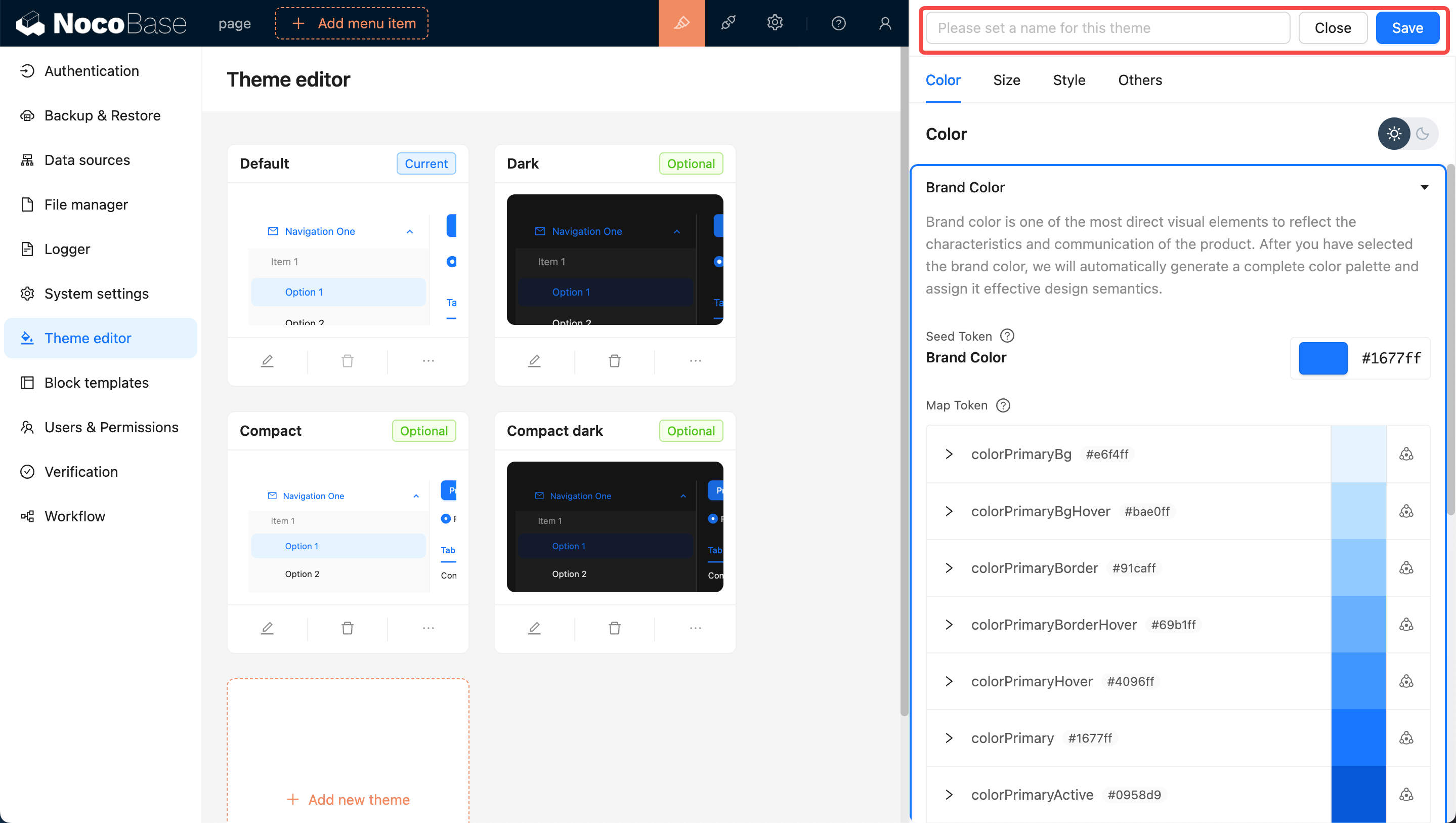
Click the `Add New Theme` button and choose `Create a Brand New Theme`. A Theme Editor will pop up on the right side of the page, allowing you to edit Colors, Sizes, Styles, and more. After editing, enter a theme name and click save to add the new theme.
|
|
28
|
-
|
|
29
|
-
|
|
30
|
-
|
|
31
|
-
## Applying the New Theme
|
|
32
|
-
|
|
33
|
-
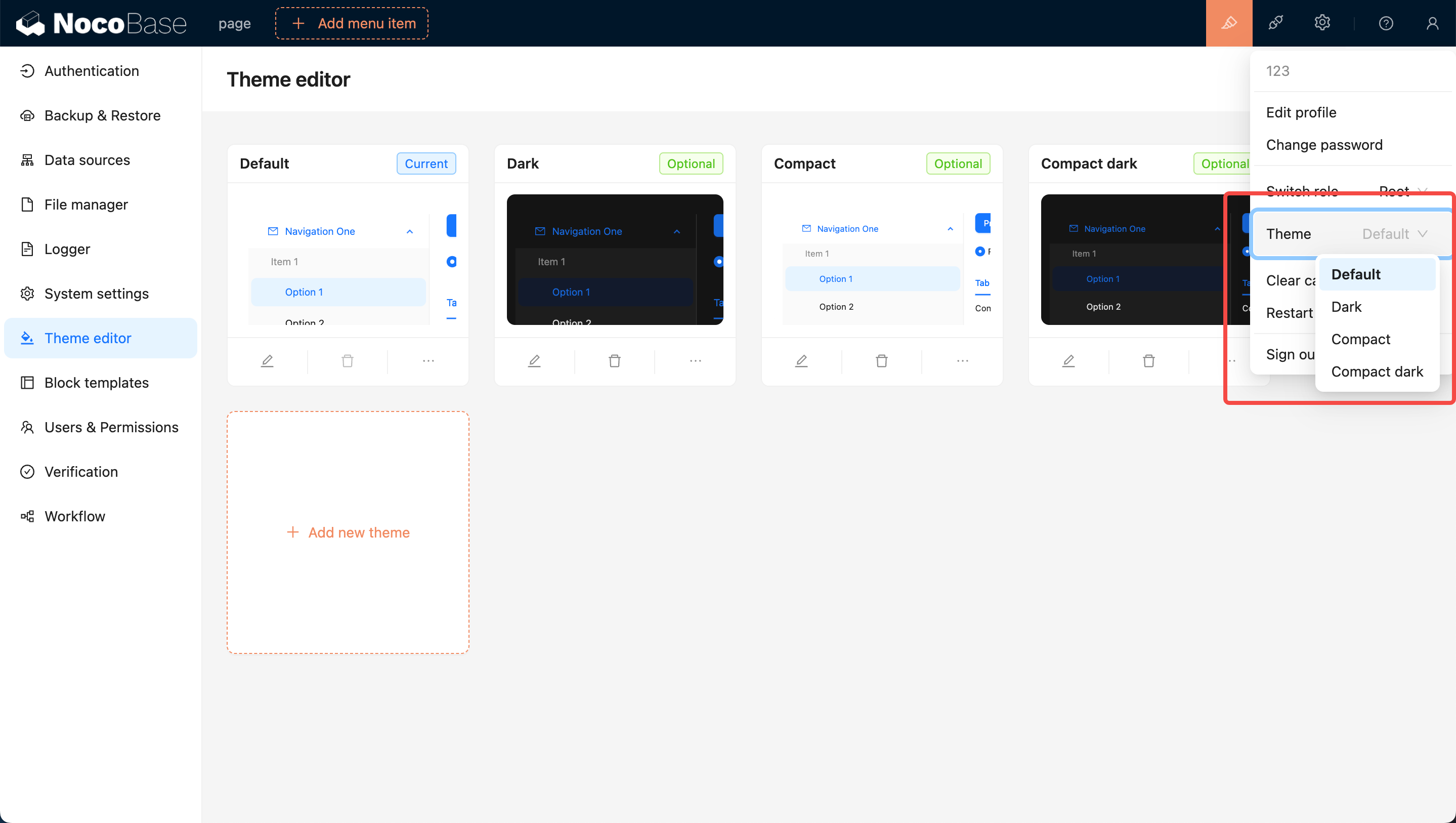
You can move the mouse to the top right corner of the page, where you will see a theme switcher. Clicking on it allows you to switch to other themes, such as the newly added theme.
|
|
34
|
-
|
|
35
|
-
|
|
36
|
-
|
|
37
|
-
## Editing an Existing Theme
|
|
38
|
-
|
|
39
|
-
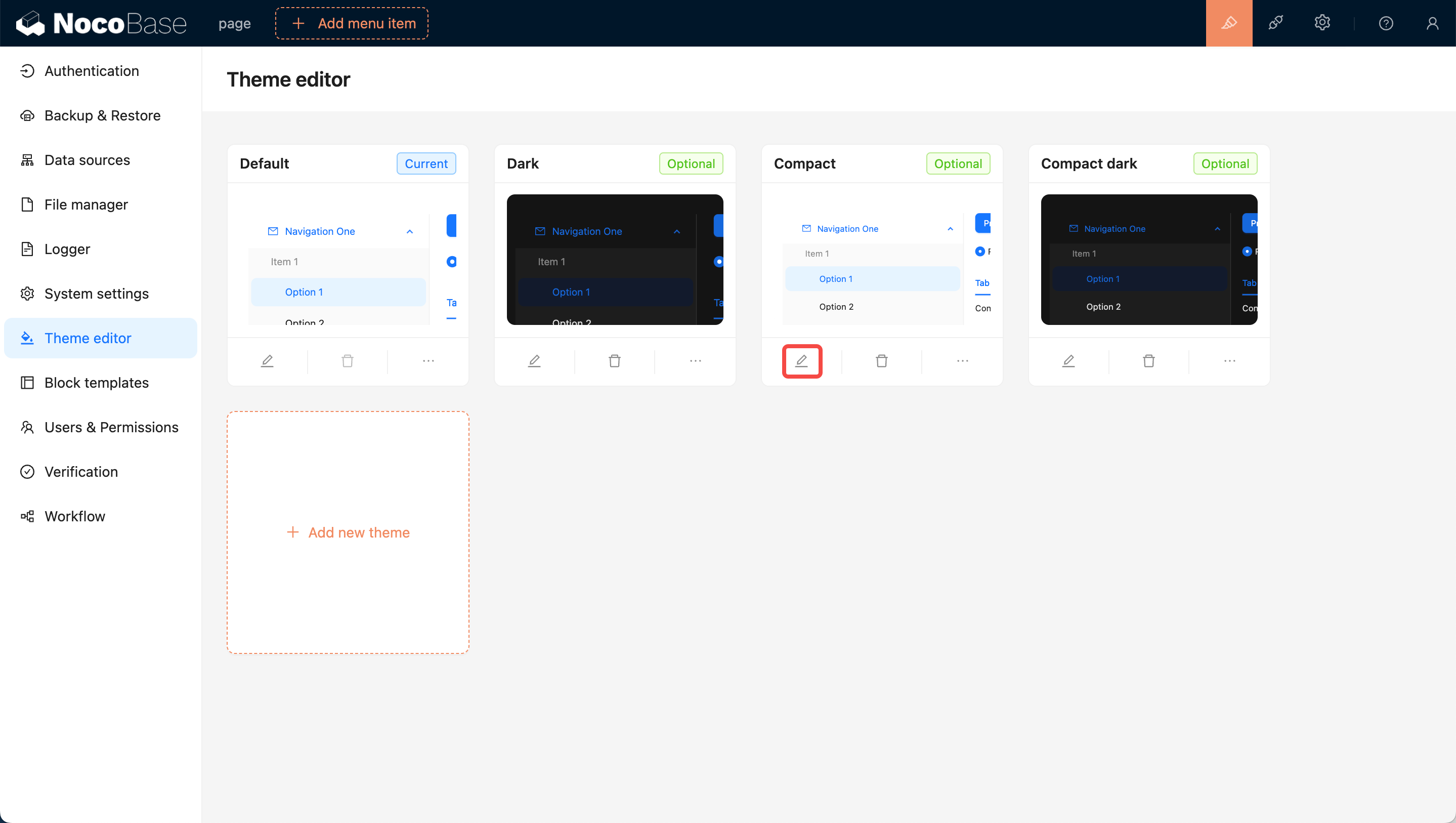
Click the `Edit` button at the bottom left of the card. Similar to adding a new theme, a Theme Editor will pop up on the right side of the page. After editing, click save to complete the theme modification.
|
|
40
|
-
|
|
41
|
-
|
|
42
|
-
|
|
43
|
-
## User Options for Theme Switching
|
|
44
|
-
|
|
45
|
-
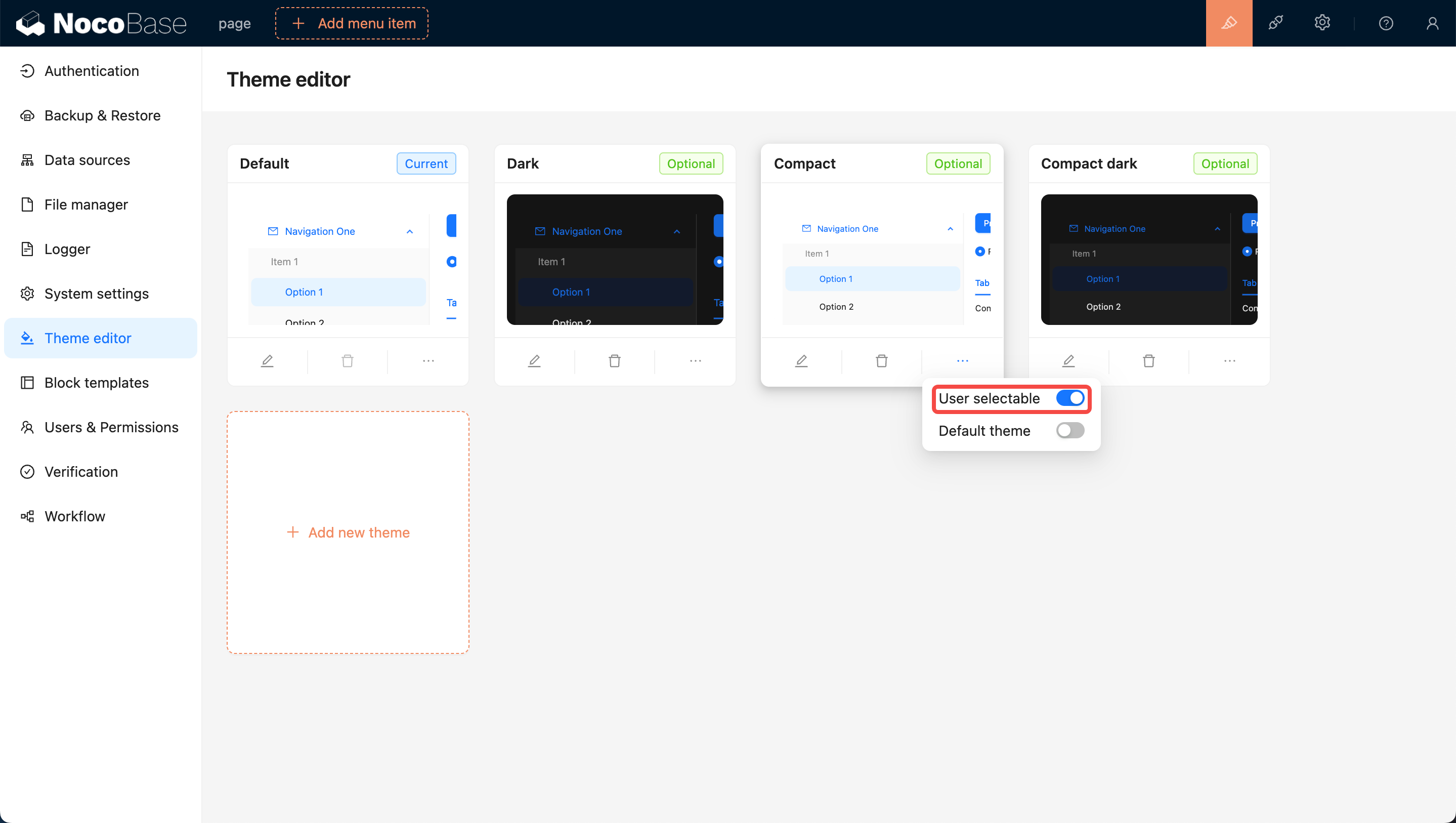
Newly added themes are by default available for users to switch to. If you do not want users to switch to a certain theme, you can turn off the `User selectable` switch at the bottom right of the theme card, making it unavailable for users to choose.
|
|
46
|
-
|
|
47
|
-
|
|
48
|
-
|
|
49
|
-
## Setting as Default Theme (The Default Theme Cannot Be Deleted)
|
|
50
|
-
|
|
51
|
-
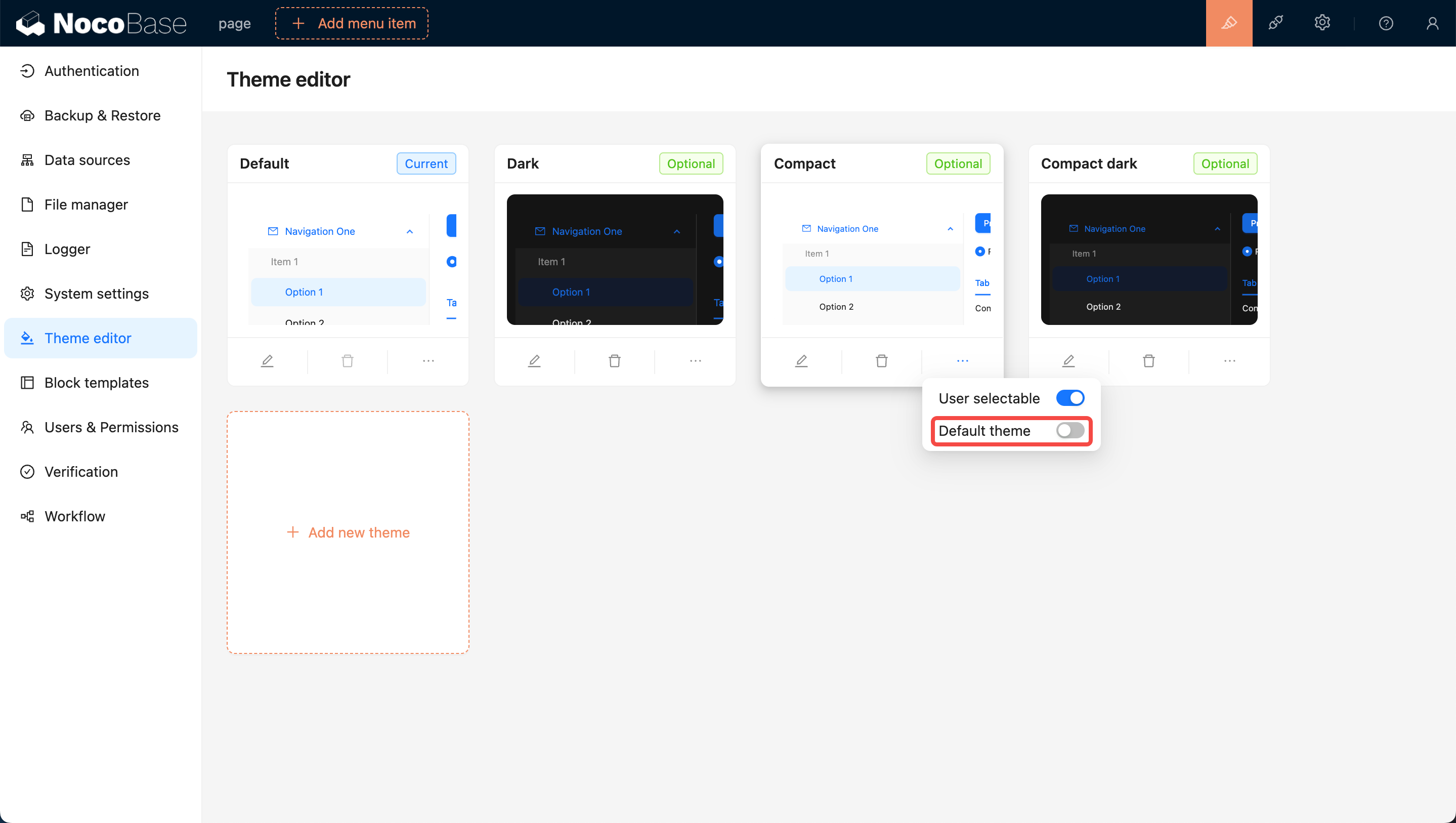
Initially, the `Default Theme` is set as the default. If you want to set a specific theme as the new default, switch on the `Default Theme` toggle at the bottom right of the card. This will ensure that when users open the page for the first time, they will be presented with this theme.
|
|
52
|
-
|
|
53
|
-
|
|
54
|
-
|
|
55
|
-
## Deleting a Theme
|
|
56
|
-
|
|
57
|
-
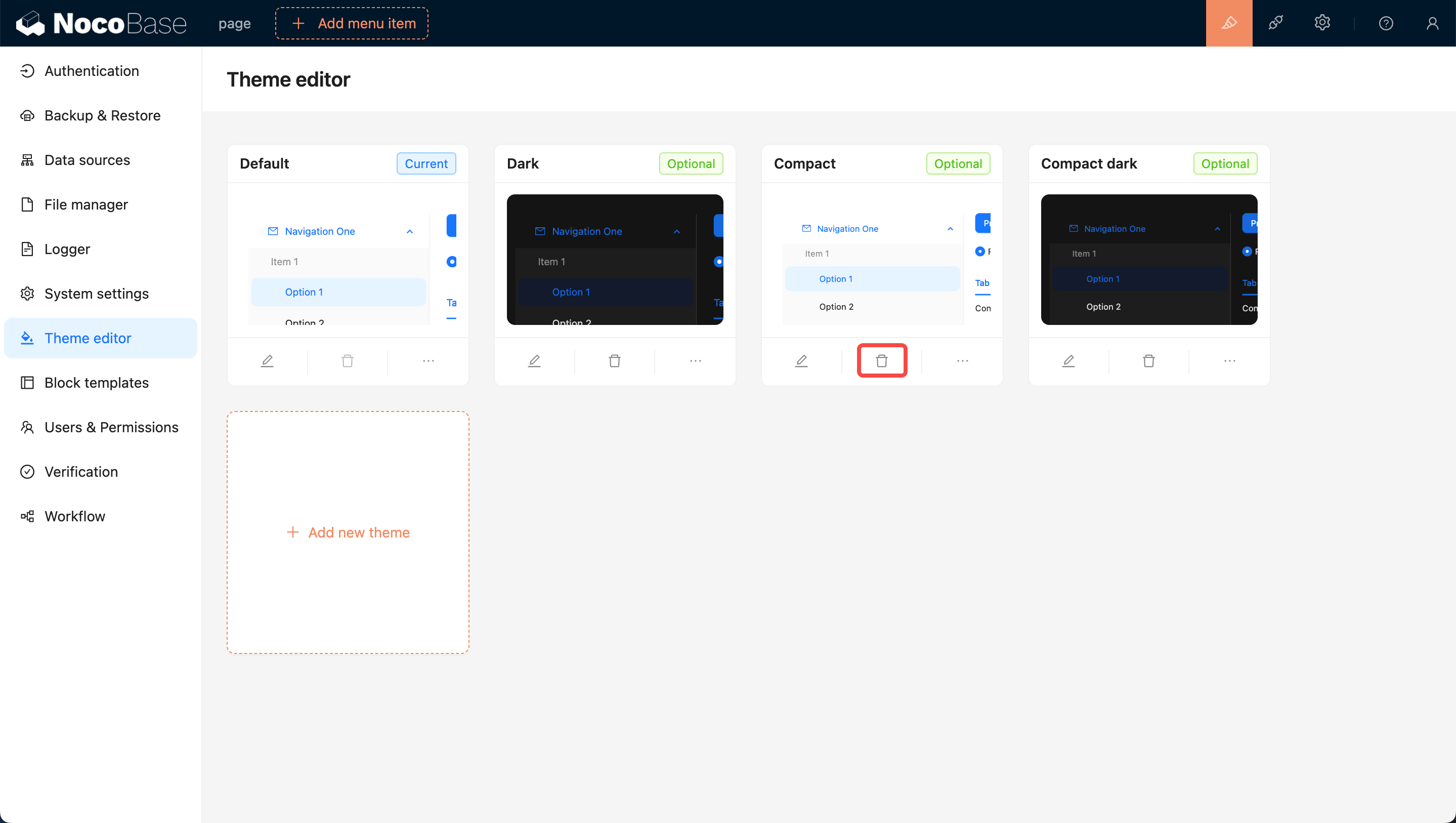
Click on the Delete button below the card, then click on the confirmation button that pops up to remove the theme.
|
|
58
|
-
|
|
59
|
-
|
|
29
|
+
## Contact Us:
|
|
30
|
+
hello@nocobase.com
|