@nocobase/plugin-theme-editor 1.3.47-beta → 1.3.49-beta
This diff represents the content of publicly available package versions that have been released to one of the supported registries. The information contained in this diff is provided for informational purposes only and reflects changes between package versions as they appear in their respective public registries.
- package/README.md +19 -48
- package/dist/externalVersion.js +4 -4
- package/package.json +2 -2
- package/README.zh-CN.md +0 -59
package/README.md
CHANGED
|
@@ -1,59 +1,30 @@
|
|
|
1
|
-
|
|
1
|
+
# NocoBase
|
|
2
2
|
|
|
3
|
-
|
|
3
|
+
<video width="100%" controls>
|
|
4
|
+
<source src="https://static-docs.nocobase.com/NocoBase0510.mp4" type="video/mp4">
|
|
5
|
+
</video>
|
|
4
6
|
|
|
5
|
-
> Note: The current theme feature is implemented based on antd 5.x version. It is recommended to read about the [Customizing Theme](https://ant.design/docs/react/customize-theme#%E8%87%AA%E5%AE%9A%E4%B9%89%E4%B8%BB%E9%A2%98) concept before proceeding with this document.
|
|
6
7
|
|
|
7
|
-
##
|
|
8
|
+
## What is NocoBase
|
|
8
9
|
|
|
9
|
-
|
|
10
|
+
NocoBase is a scalability-first, open-source no-code development platform.
|
|
11
|
+
Instead of investing years of time and millions of dollars in research and development, deploy NocoBase in a few minutes and you'll have a private, controllable, and extremely scalable no-code development platform!
|
|
10
12
|
|
|
11
|
-
|
|
13
|
+
Homepage:
|
|
14
|
+
https://www.nocobase.com/
|
|
12
15
|
|
|
13
|
-
|
|
16
|
+
Online Demo:
|
|
17
|
+
https://demo.nocobase.com/new
|
|
14
18
|
|
|
15
|
-
|
|
19
|
+
Documents:
|
|
20
|
+
https://docs.nocobase.com/
|
|
16
21
|
|
|
17
|
-
|
|
22
|
+
Commericial license & plugins:
|
|
23
|
+
https://www.nocobase.com/en/commercial
|
|
18
24
|
|
|
19
|
-
|
|
25
|
+
License agreement:
|
|
26
|
+
https://www.nocobase.com/en/agreement
|
|
20
27
|
|
|
21
|
-
After enabling, click on the settings button at the bottom left of the card, and you will be redirected to the theme editing page. By default, there are four theme options: `Default Theme`, `Dark Theme`, `Compact Theme`, and `Compact Dark Theme`.
|
|
22
28
|
|
|
23
|
-
|
|
24
|
-
|
|
25
|
-
## Adding a New Theme
|
|
26
|
-
|
|
27
|
-
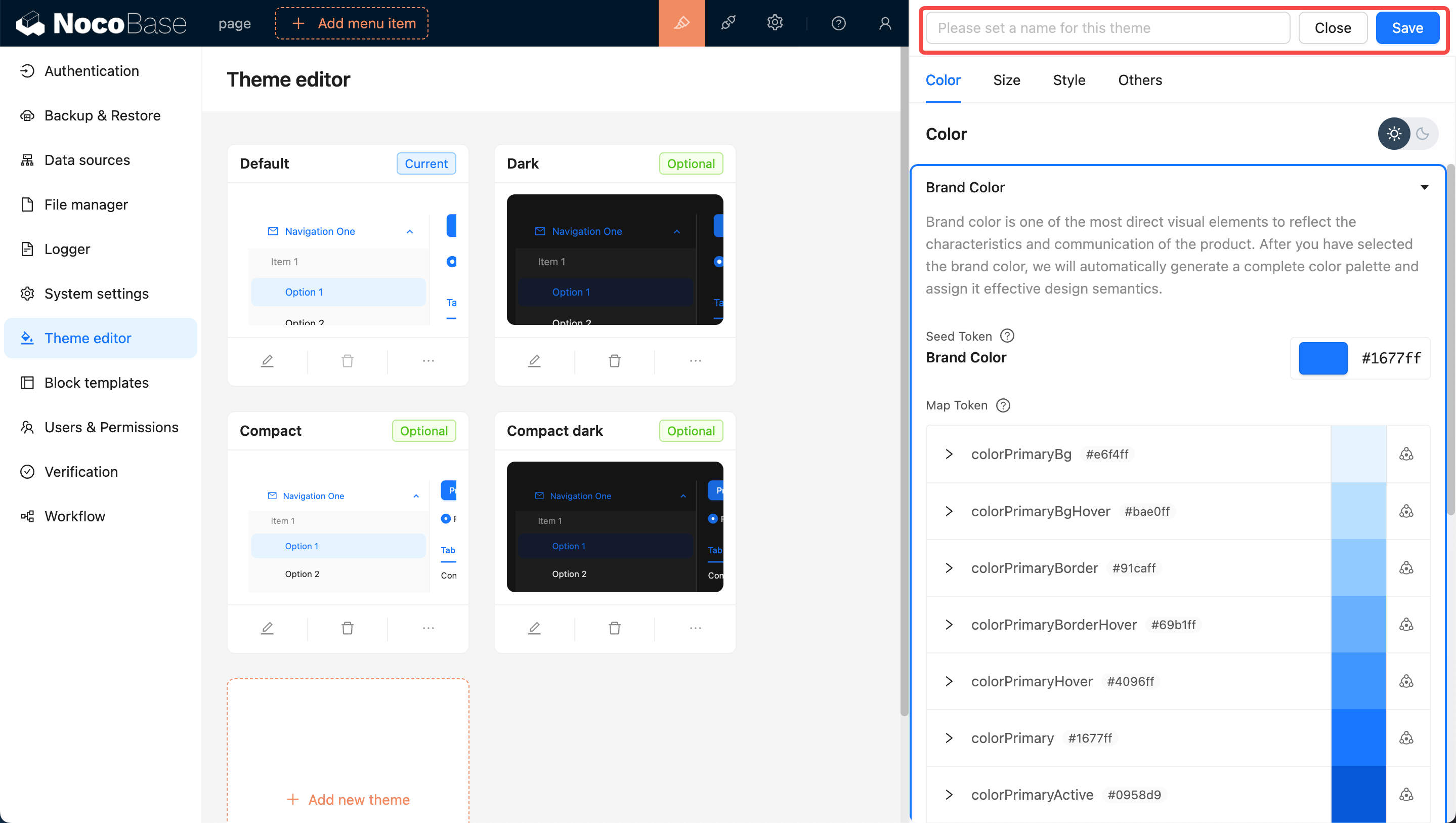
Click the `Add New Theme` button and choose `Create a Brand New Theme`. A Theme Editor will pop up on the right side of the page, allowing you to edit Colors, Sizes, Styles, and more. After editing, enter a theme name and click save to add the new theme.
|
|
28
|
-
|
|
29
|
-
|
|
30
|
-
|
|
31
|
-
## Applying the New Theme
|
|
32
|
-
|
|
33
|
-
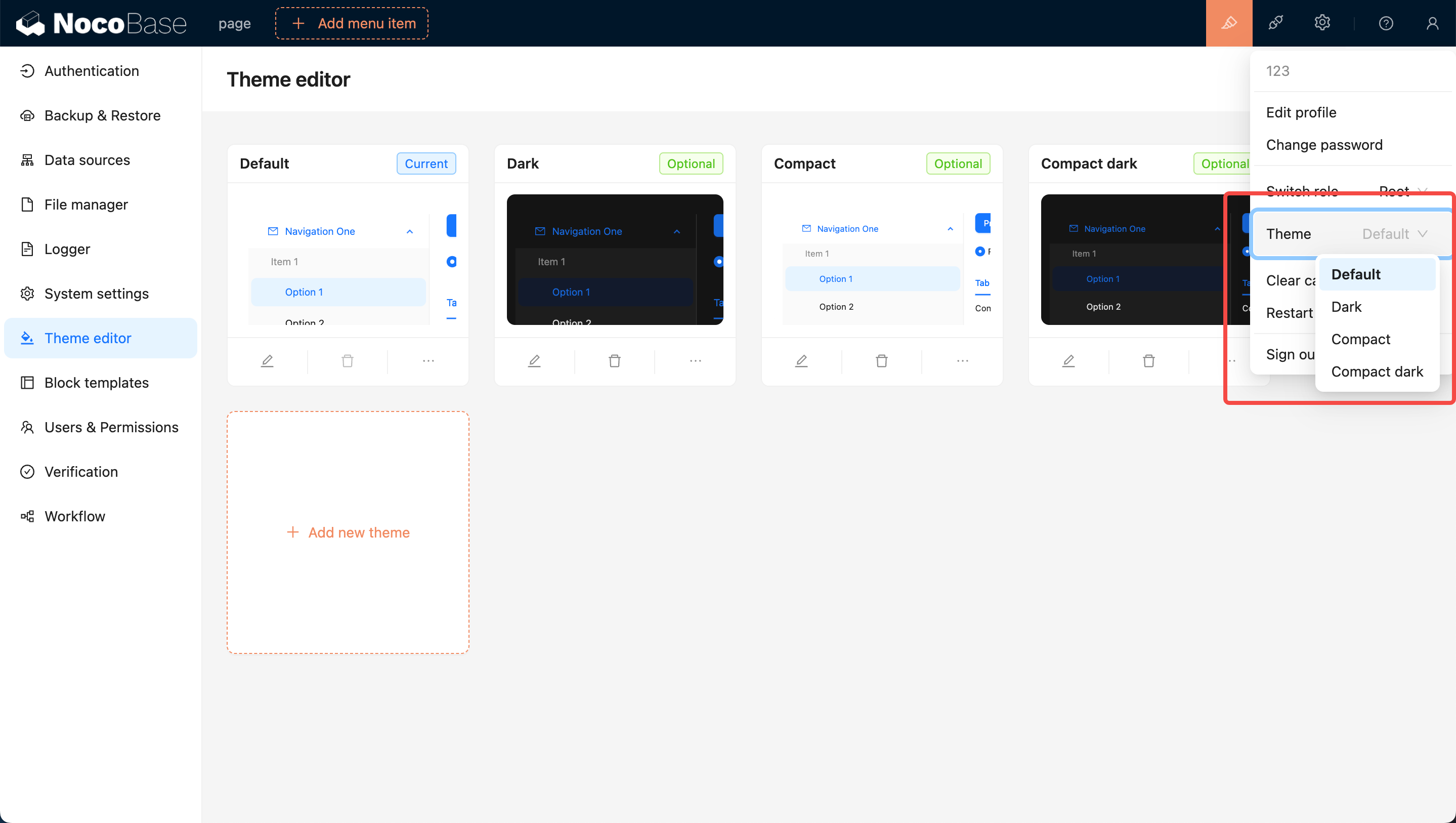
You can move the mouse to the top right corner of the page, where you will see a theme switcher. Clicking on it allows you to switch to other themes, such as the newly added theme.
|
|
34
|
-
|
|
35
|
-
|
|
36
|
-
|
|
37
|
-
## Editing an Existing Theme
|
|
38
|
-
|
|
39
|
-
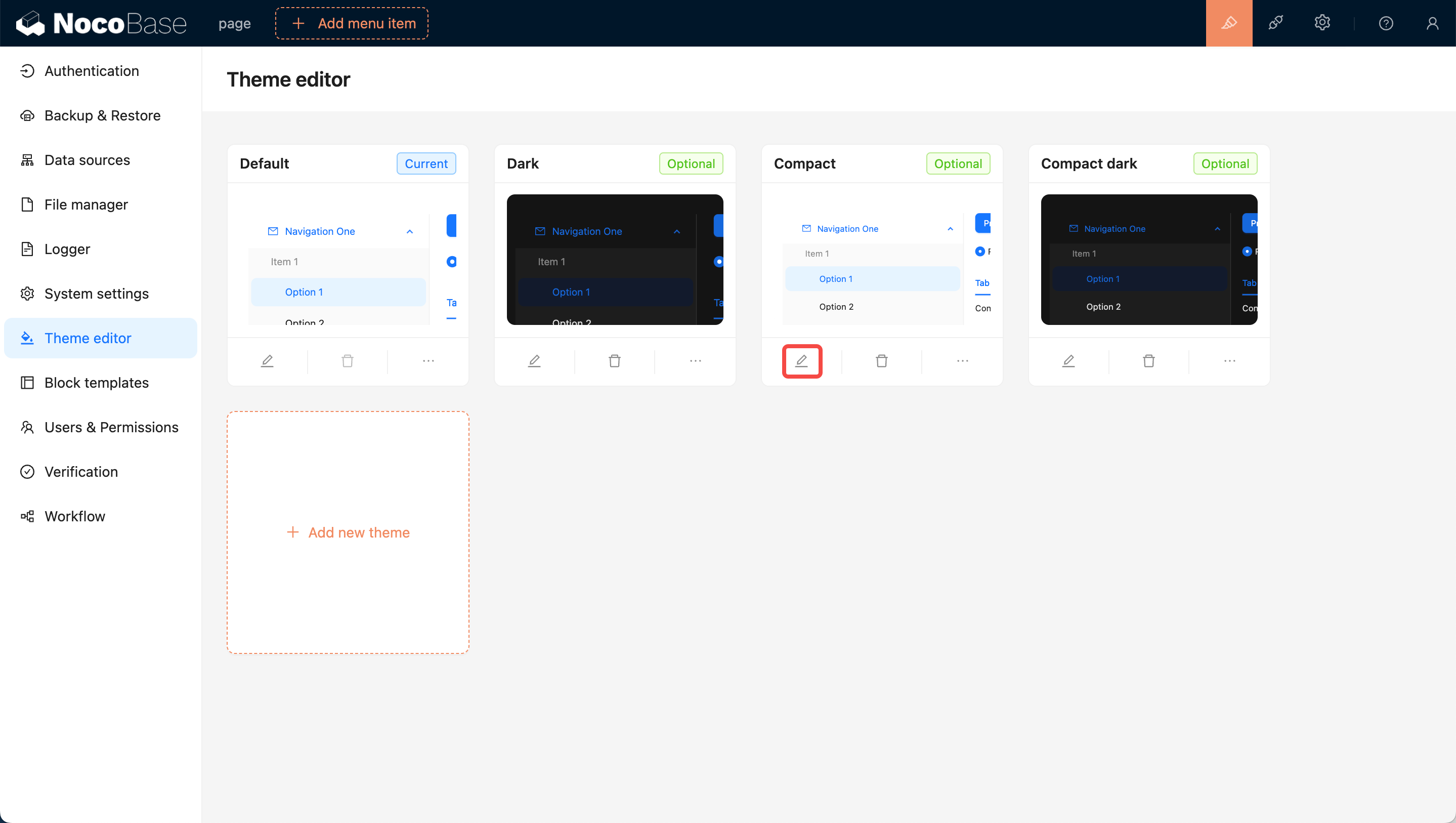
Click the `Edit` button at the bottom left of the card. Similar to adding a new theme, a Theme Editor will pop up on the right side of the page. After editing, click save to complete the theme modification.
|
|
40
|
-
|
|
41
|
-
|
|
42
|
-
|
|
43
|
-
## User Options for Theme Switching
|
|
44
|
-
|
|
45
|
-
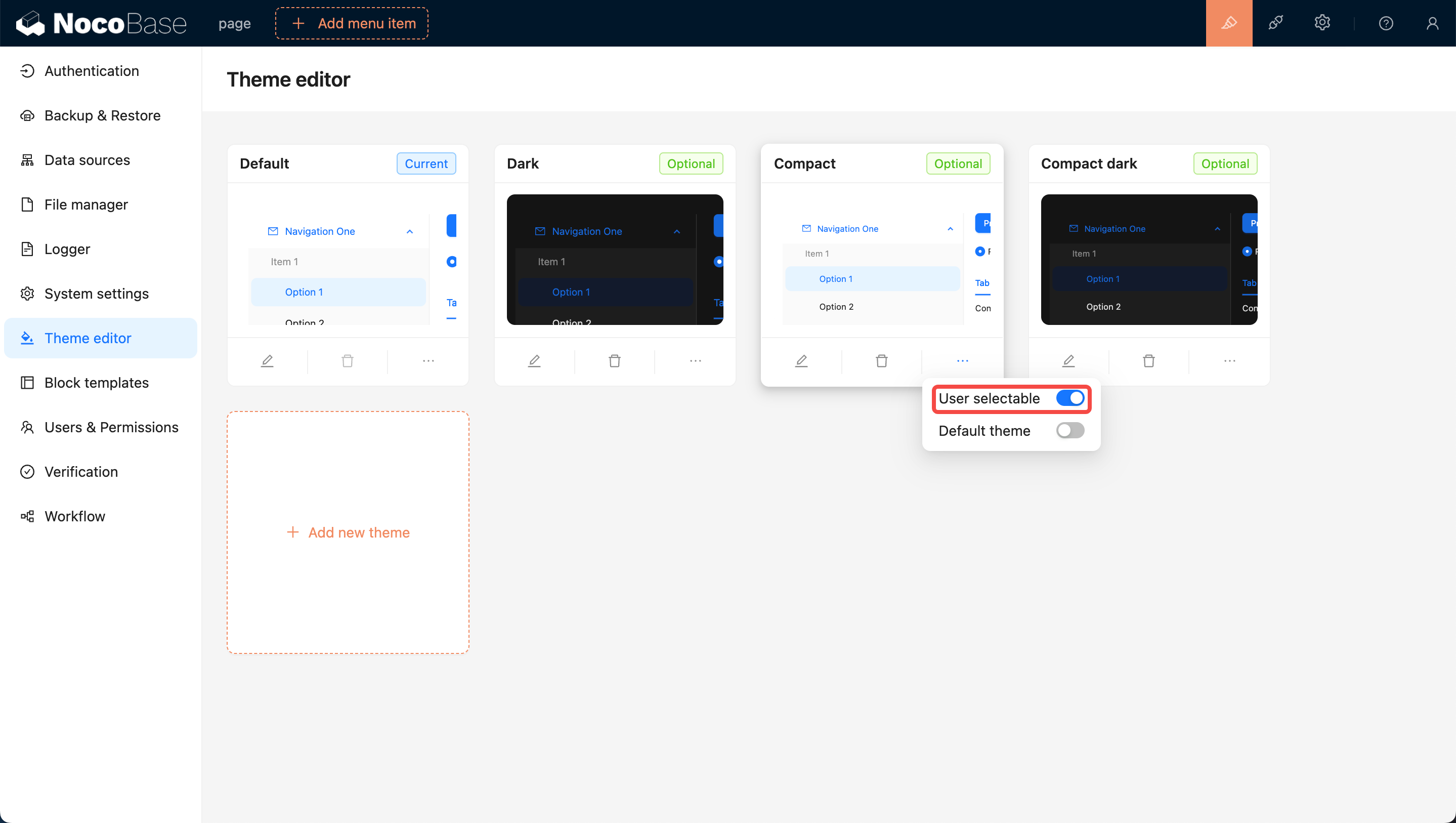
Newly added themes are by default available for users to switch to. If you do not want users to switch to a certain theme, you can turn off the `User selectable` switch at the bottom right of the theme card, making it unavailable for users to choose.
|
|
46
|
-
|
|
47
|
-
|
|
48
|
-
|
|
49
|
-
## Setting as Default Theme (The Default Theme Cannot Be Deleted)
|
|
50
|
-
|
|
51
|
-
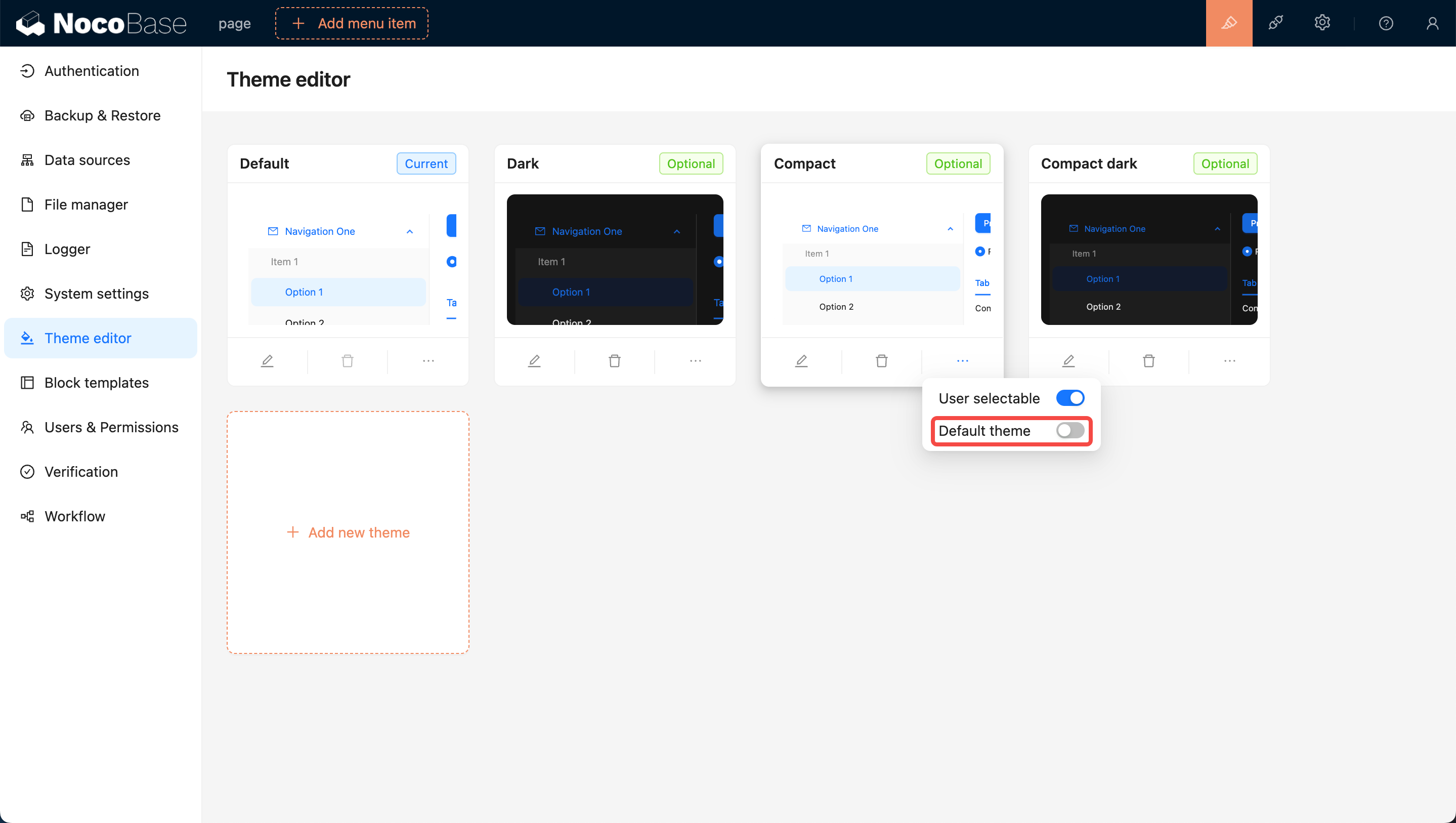
Initially, the `Default Theme` is set as the default. If you want to set a specific theme as the new default, switch on the `Default Theme` toggle at the bottom right of the card. This will ensure that when users open the page for the first time, they will be presented with this theme.
|
|
52
|
-
|
|
53
|
-
|
|
54
|
-
|
|
55
|
-
## Deleting a Theme
|
|
56
|
-
|
|
57
|
-
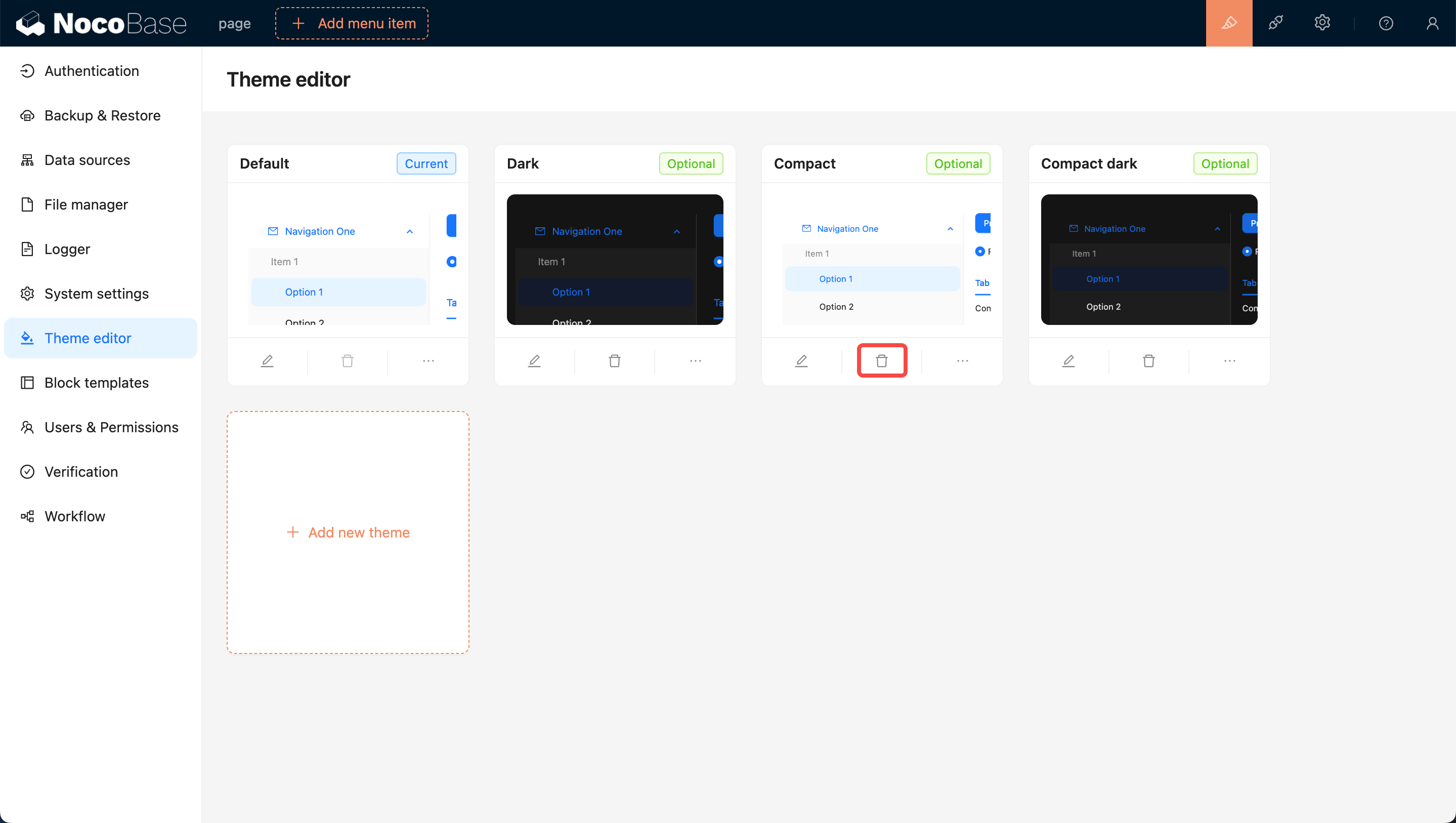
Click on the Delete button below the card, then click on the confirmation button that pops up to remove the theme.
|
|
58
|
-
|
|
59
|
-
|
|
29
|
+
## Contact Us:
|
|
30
|
+
hello@nocobase.com
|
package/dist/externalVersion.js
CHANGED
|
@@ -8,15 +8,15 @@
|
|
|
8
8
|
*/
|
|
9
9
|
|
|
10
10
|
module.exports = {
|
|
11
|
-
"@nocobase/client": "1.3.
|
|
11
|
+
"@nocobase/client": "1.3.49-beta",
|
|
12
12
|
"react": "18.2.0",
|
|
13
13
|
"antd": "5.12.8",
|
|
14
14
|
"lodash": "4.17.21",
|
|
15
|
-
"@nocobase/server": "1.3.
|
|
15
|
+
"@nocobase/server": "1.3.49-beta",
|
|
16
16
|
"@ant-design/cssinjs": "1.21.1",
|
|
17
17
|
"@ant-design/icons": "5.2.6",
|
|
18
|
-
"@nocobase/utils": "1.3.
|
|
18
|
+
"@nocobase/utils": "1.3.49-beta",
|
|
19
19
|
"react-i18next": "11.18.6",
|
|
20
|
-
"@nocobase/database": "1.3.
|
|
20
|
+
"@nocobase/database": "1.3.49-beta",
|
|
21
21
|
"@emotion/css": "11.13.0"
|
|
22
22
|
};
|
package/package.json
CHANGED
|
@@ -1,6 +1,6 @@
|
|
|
1
1
|
{
|
|
2
2
|
"name": "@nocobase/plugin-theme-editor",
|
|
3
|
-
"version": "1.3.
|
|
3
|
+
"version": "1.3.49-beta",
|
|
4
4
|
"main": "dist/server/index.js",
|
|
5
5
|
"homepage": "https://docs.nocobase.com/handbook/theme-editor",
|
|
6
6
|
"homepage.zh-CN": "https://docs-cn.nocobase.com/handbook/theme-editor",
|
|
@@ -32,7 +32,7 @@
|
|
|
32
32
|
"@nocobase/test": "1.x",
|
|
33
33
|
"@nocobase/utils": "1.x"
|
|
34
34
|
},
|
|
35
|
-
"gitHead": "
|
|
35
|
+
"gitHead": "46dde74e2c220ae19bc275bb40be9ddf52485fa9",
|
|
36
36
|
"keywords": [
|
|
37
37
|
"System management"
|
|
38
38
|
]
|
package/README.zh-CN.md
DELETED
|
@@ -1,59 +0,0 @@
|
|
|
1
|
-
[English](./README.md) | 中文
|
|
2
|
-
|
|
3
|
-
# 主题编辑器
|
|
4
|
-
|
|
5
|
-
> 当前主题功能是在 antd 5.x 版本的基础上实现的,所以在阅读本文之前最好先阅读一下[定制主题](https://ant.design/docs/react/customize-theme-cn#%E8%87%AA%E5%AE%9A%E4%B9%89%E4%B8%BB%E9%A2%98)相关的概念。
|
|
6
|
-
|
|
7
|
-
## 介绍
|
|
8
|
-
|
|
9
|
-
可以简单理解为该插件就是用来修改整个前端页面的样式的。目前支持编辑全局范围的 [SeedToken](https://ant.design/docs/react/customize-theme-cn#seedtoken)、[MapToken](https://ant.design/docs/react/customize-theme-cn#maptoken)、[AliasToken](https://ant.design/docs/react/customize-theme-cn#aliastoken),和支持[切换](https://ant.design/docs/react/customize-theme-cn#%E4%BD%BF%E7%94%A8%E9%A2%84%E8%AE%BE%E7%AE%97%E6%B3%95)为 `暗黑模式` 和 `紧凑模式`。后期有可能会支持[组件级别](https://ant.design/docs/react/customize-theme-cn#%E4%BF%AE%E6%94%B9%E7%BB%84%E4%BB%B6%E5%8F%98%E9%87%8F-component-token)的主题定制。
|
|
10
|
-
|
|
11
|
-
## 使用说明
|
|
12
|
-
|
|
13
|
-
### 启用主题插件
|
|
14
|
-
|
|
15
|
-
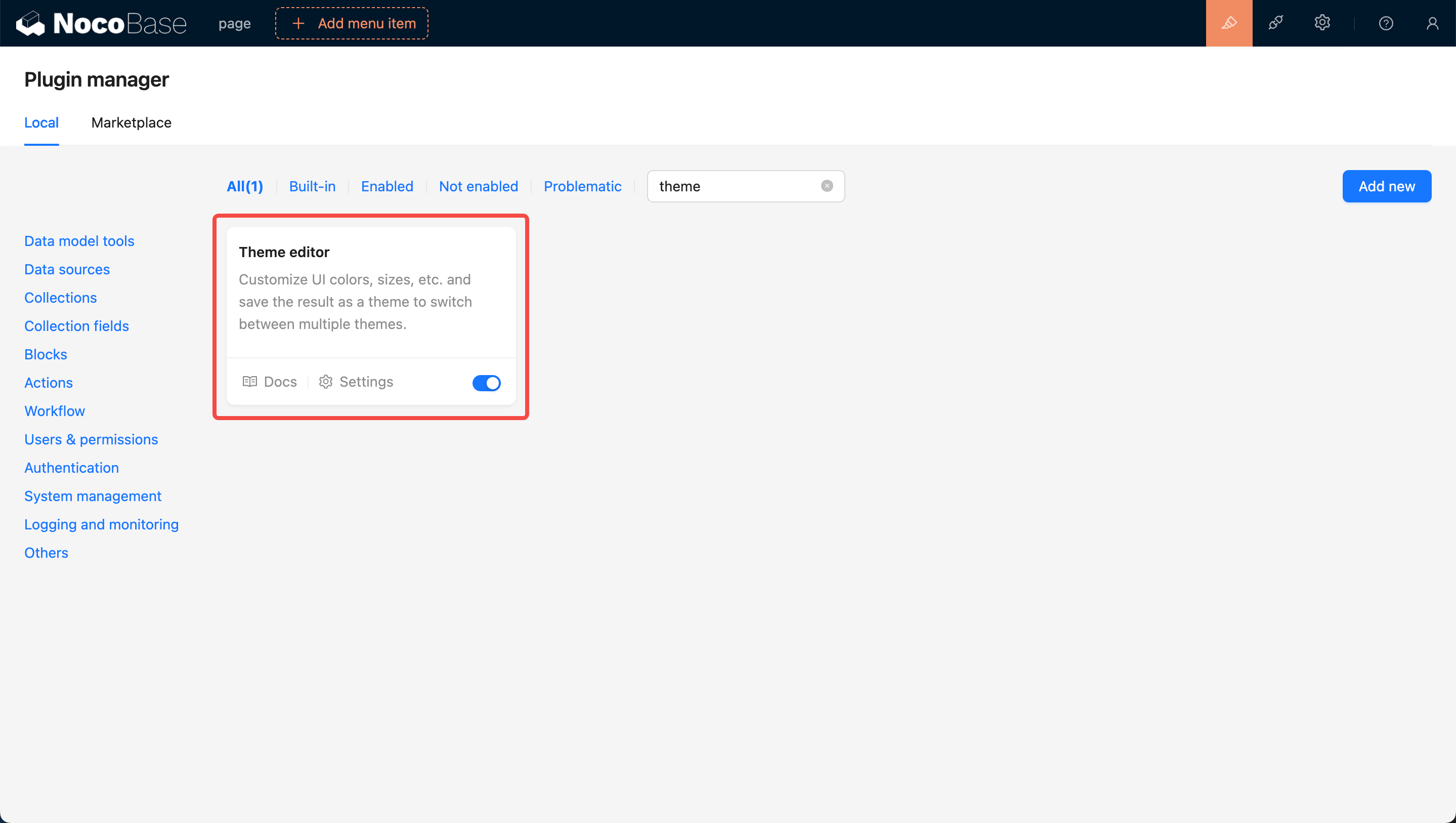
首先把 NocoBase 更新到最新版本(v0.11.1 及以上),然后在 `插件管理页面` 搜索 `主题编辑器` 的卡片,点击卡片右下角的 `启用` 按钮等待页面刷新。
|
|
16
|
-
|
|
17
|
-
|
|
18
|
-
|
|
19
|
-
### 跳转到主题配置页面
|
|
20
|
-
|
|
21
|
-
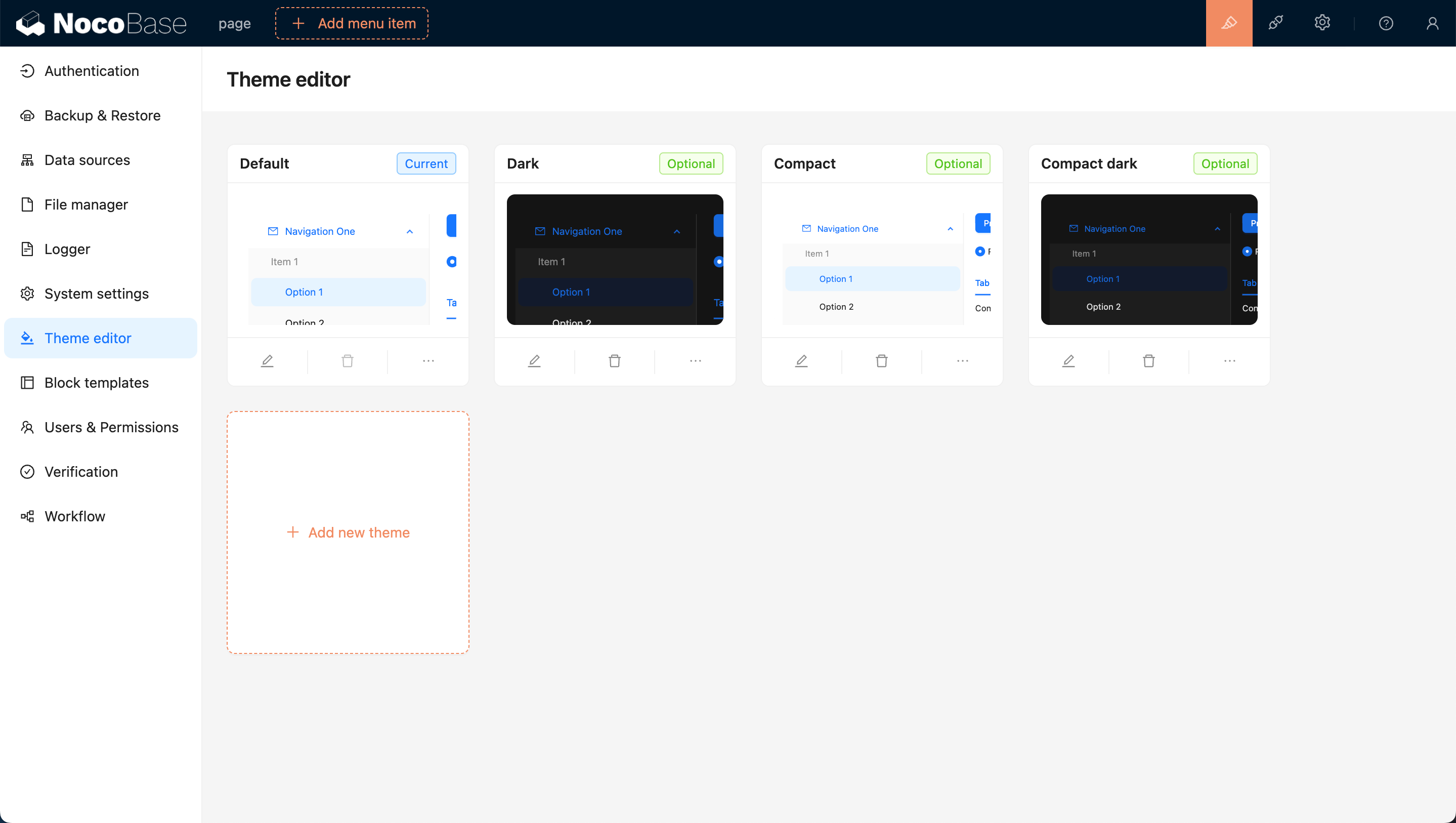
启用之后点击卡片左下角的设置按钮,会跳转到主题编辑页面。默认会有四个主题选项,分别是 `默认主题`、`暗黑主题` 、 `紧凑主题` 和 `紧凑暗黑主题`。
|
|
22
|
-
|
|
23
|
-
|
|
24
|
-
|
|
25
|
-
## 新增一个主题
|
|
26
|
-
|
|
27
|
-
点击 `添加新主题` 按钮,选择 `新增一个全新的主题`,然后会在页面右侧弹出一个 `主题编辑器`,支持编辑 `颜色`、`尺寸`、`风格`等。编辑好之后输入主题名称然后点击保存即可完成主题的新增。
|
|
28
|
-
|
|
29
|
-

|
|
30
|
-
|
|
31
|
-
## 应用新主题
|
|
32
|
-
|
|
33
|
-
可以把鼠标移到页面右上角,可以看到一个主题切换项,点击可以切换到其他主题,比如可以切换刚才新增的主题。
|
|
34
|
-
|
|
35
|
-

|
|
36
|
-
|
|
37
|
-
## 编辑已经存在的主题
|
|
38
|
-
|
|
39
|
-
点击卡片左下角的 `编辑` 按钮,如同新增主题一样,会在页面右侧弹出一个 `主题编辑器`,编辑好之后点击保存即可完成主题的编辑。
|
|
40
|
-
|
|
41
|
-

|
|
42
|
-
|
|
43
|
-
## 用户切换主题时的可选项
|
|
44
|
-
|
|
45
|
-
新添加的主题默认是允许用户切换的,如果不想让用户切换到某个主题,可以关闭主题卡片右下角的 `可被用户选择` 开关,这样用户就无法切换到该主题了。
|
|
46
|
-
|
|
47
|
-

|
|
48
|
-
|
|
49
|
-
## 设置为默认主题(默认主题不可删除)
|
|
50
|
-
|
|
51
|
-
在初始状态下,默认主题是 `默认主题`,如果想把某个主题设置为默认主题,可以开启卡片右下角的 `默认主题` 开关,这样当用户第一次打开页面时看到的就是该主题。
|
|
52
|
-
|
|
53
|
-

|
|
54
|
-
|
|
55
|
-
## 删除主题
|
|
56
|
-
|
|
57
|
-
点击卡片下方的 `删除` 按钮,然后点击弹出的确认按钮即可删除主题。
|
|
58
|
-
|
|
59
|
-

|