@mogura/moguchart-core 1.1.0 → 1.2.0
This diff represents the content of publicly available package versions that have been released to one of the supported registries. The information contained in this diff is provided for informational purposes only and reflects changes between package versions as they appear in their respective public registries.
- package/README.ja.md +962 -0
- package/README.md +973 -0
- package/dist/components/controllers/dependency-controller.d.ts +75 -0
- package/dist/components/controllers/drag-drop-controller.d.ts +84 -0
- package/dist/components/controllers/index.d.ts +9 -0
- package/dist/components/controllers/keyboard-controller.d.ts +60 -0
- package/dist/components/controllers/marquee-controller.d.ts +37 -0
- package/dist/components/controllers/row-reorder-controller.d.ts +67 -0
- package/dist/components/controllers/task-drag-controller.d.ts +95 -0
- package/dist/components/controllers/tooltip-controller.d.ts +27 -0
- package/dist/components/controllers/tree-controller.d.ts +41 -0
- package/dist/components/controllers/zoom-controller.d.ts +96 -0
- package/dist/components/gantt-chart-dependency-svg.d.ts +29 -0
- package/dist/components/gantt-chart.d.ts +154 -135
- package/dist/core/constants.d.ts +9 -0
- package/dist/core/history.d.ts +120 -0
- package/dist/core/types.d.ts +102 -11
- package/dist/index.d.ts +2 -0
- package/dist/moguchart-core.mjs +2117 -1184
- package/dist/moguchart-core.umd.js +138 -68
- package/package.json +4 -3
package/README.ja.md
ADDED
|
@@ -0,0 +1,962 @@
|
|
|
1
|
+
# @mogura/moguchart-core
|
|
2
|
+
|
|
3
|
+
|
|
4
|
+
|
|
5
|
+
[English](./README.md) | [Demo](https://moguchart-core.vercel.app/)
|
|
6
|
+
|
|
7
|
+
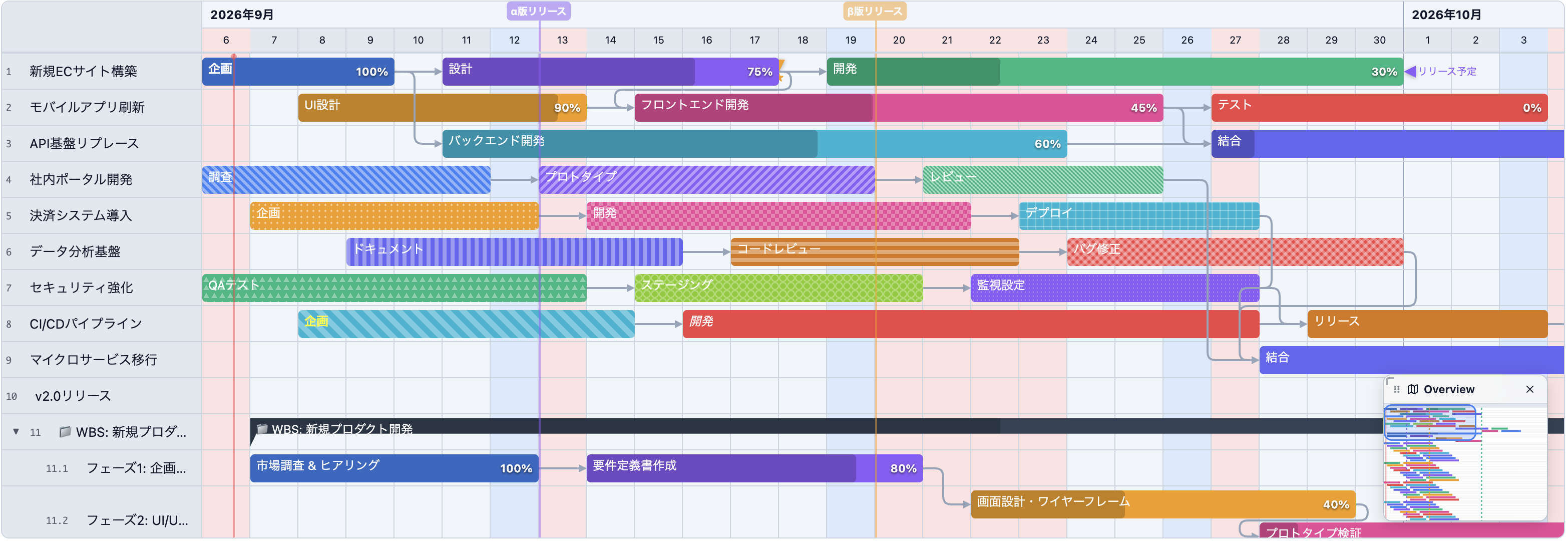
Vue, React, Angular, Svelte など、どのフレームワークでも動作する、軽量で高機能な Web Components 製ガントチャートコンポーネントです。Lit で構築されています。
|
|
8
|
+
|
|
9
|
+
- **デモ**: [https://moguchart-core.vercel.app/](https://moguchart-core.vercel.app/)
|
|
10
|
+
- **npm パッケージ**: [@mogura/moguchart-core](https://www.npmjs.com/package/@mogura/moguchart-core)
|
|
11
|
+
|
|
12
|
+
## 特徴
|
|
13
|
+
|
|
14
|
+
- 🚀 **フレームワーク非依存**: Web Components (Custom Elements) として実装されており、あらゆる環境で動作します。
|
|
15
|
+
- ⚡ **仮想スクロール**: 大量のタスクや行があってもスムーズに動作します。
|
|
16
|
+
- ↩️ **操作履歴管理 (Undo / Redo)**: コマンドパターンによる直感的な履歴管理。タスクの移動・リサイズ・進捗変更・削除、行の並び替え、依存関係の作成・削除など主要な編集操作の取り消し・やり直しを完全サポート(`Ctrl+Z` / `Ctrl+Y` 対応)。
|
|
17
|
+
- 🔍 **包括的なズーム制御**: パーセンテージ(50%〜200%)やスケール倍率(0.5〜2.0)に基づく柔軟な拡大縮小。カレンダー列幅・行ヘッダー幅・タスクバー高さ・フォントサイズ(`--moguchart-font-scale`)の一括連動スケーリング。ショートカットキー(`Ctrl/Cmd + + / - / 0`)やホイール操作に対応。
|
|
18
|
+
- 🖱️ **インタラクティブ**:
|
|
19
|
+
- ドラッグ&ドロップによるタスク移動(行間移動対応)
|
|
20
|
+
- ハンドル操作による期間リサイズ
|
|
21
|
+
- ドラッグ&ドロップによる行の並び替え
|
|
22
|
+
- 列ヘッダーの幅リサイズ
|
|
23
|
+
- 矩形範囲選択(ラバーバンドドラッグ選択)による複数タスク一括選択(Shift/Ctrl/Cmdキーでの追加選択対応)
|
|
24
|
+
- 複数タスクの選択&一括ドラッグ(Ctrl/Cmd + クリック、矩形選択)
|
|
25
|
+
- ダブルクリックや右クリックイベントのハンドリング
|
|
26
|
+
- 🎨 **高度なカスタマイズ**:
|
|
27
|
+
- タスクバー、行ヘッダー、ツールチップ、ドラッグ情報のコンテンツを自由にレンダリング可能
|
|
28
|
+
- ライト/ダーク/システムテーマの切り替え+カスタムカラーテーマ
|
|
29
|
+
- タスクバーの塗りつぶしパターン(ストライプ、ドット、チェッカーボードなど13種類)
|
|
30
|
+
- CSSによるスタイリング
|
|
31
|
+
- 🔗 **依存関係の対話的操作**:
|
|
32
|
+
- タスク間の依存関係を矢印付き直線・曲線(直角折れ線/ベジェ曲線)で可視化
|
|
33
|
+
- 依存関係線のクリック選択とハイライト表示
|
|
34
|
+
- 選択中の線上の削除「×」ボタンまたは `Delete` / `Backspace` キーによるワンクリック削除
|
|
35
|
+
- クリティカルパス(最長チェーン)の自動検出+ハイライト表示
|
|
36
|
+
- 📅 **柔軟なカレンダー**:
|
|
37
|
+
- 日単位 / 週単位 / 月単位の表示切り替え
|
|
38
|
+
- ズームレベル(1日・1ヶ月あたりの幅)や表示期間の調整が可能
|
|
39
|
+
- 現在時刻ラインの表示(バッジ付き、自動更新対応)
|
|
40
|
+
- 祝日判定のカスタムロジック
|
|
41
|
+
- 週の始まり曜日の設定
|
|
42
|
+
- ロケール対応(日本語・英語、カスタムロケールも可能)
|
|
43
|
+
- 🔤 **フォントサイズ倍率 (`fontScale`)**: `fontScale` オプションや CSS 変数 `--moguchart-font-scale` でチャート全体のフォントサイズを一括スケーリング。表示倍率や画面解像度に合わせた文字サイズの最適化に対応
|
|
44
|
+
- 🏁 **マイルストーン**: チャート上にマイルストーン(縦線+名前バッジ)を表示
|
|
45
|
+
- 📍 **マーカー**: 行のタイムライン上に三角形アイコンとラベルで目印を表示
|
|
46
|
+
- 🗺️ **ミニマップ(Overview Minimap)**: チャート全体の鳥瞰プレビュー表示、ドラッグによるスクロール同期・パン操作、クリックジャンプ、ドラッグ移動・リサイズ、折りたたみ対応
|
|
47
|
+
- 📊 **タスク進捗管理**:
|
|
48
|
+
- タスクバー上への進捗バー(オーバーレイ/下部・上部インジケーター)描画
|
|
49
|
+
- ハンドル操作による直感的な進捗率のドラッグ編集(スナップ対応)
|
|
50
|
+
- 進捗ラベル表示(配置カスタマイズ・カスタムフォーマット対応)
|
|
51
|
+
- サマリータスク(親集計バー)への進捗ラベル自動表示および専用カスタム色(`summaryColor`)対応
|
|
52
|
+
- 進捗変更イベント(`task-progress-change`)の発火
|
|
53
|
+
- 行・プロジェクト全体の進捗率計算ユーティリティ関数
|
|
54
|
+
- 🧩 **プラグインアーキテクチャ**: コア本体を超軽量(数十KB)に保ちつつ、画像・PDFエクスポート等の機能をプラグインとして柔軟に拡張可能
|
|
55
|
+
- 📷 **エクスポート(プラグイン)**: `@mogura/moguchart-plugin-export` による PNG画像およびPDF形式でのガントチャート全体エクスポート(自動ダウンロード対応、エクスポート時のズーム正規化 `normalizeZoom`、スクロール位置保持)
|
|
56
|
+
- 外部からのドラッグ&ドロップによるタスク作成
|
|
57
|
+
- タスクの移動/コピーモード
|
|
58
|
+
- スナップ機能(時間単位でのグリッドスナップ)
|
|
59
|
+
- 座標から行・日時を取得する `hitTest` メソッド
|
|
60
|
+
- プログラムによるタスク選択+自動スクロール (`selectTask`)
|
|
61
|
+
- 🌳 **WBS(階層ツリー・展開/折りたたみ)**:
|
|
62
|
+
- `parentId` による無制限の親子階層構造
|
|
63
|
+
- インデント表示と開閉トグルボタン(▶/▼)
|
|
64
|
+
- 配下の子タスクから自動計算されるサマリータスクバー(ブラケット形状)
|
|
65
|
+
- サマリータスクバーの色設定(プロジェクト既定色および行単位の個別色指定)
|
|
66
|
+
- 親行におけるサマリータスクと通常タスクの共存・同時描画
|
|
67
|
+
- 仮想スクロールやミニマップと完全に連動する折りたたみ
|
|
68
|
+
- 階層を壊さない安全なD&D並び替え(子タスクのブロック連動移動・循環参照防止)
|
|
69
|
+
- プログラムからの開閉操作(`toggleRowCollapse`, `collapseAll`, `expandAll`)
|
|
70
|
+
- ⌨️ **キーボード操作**: 矢印キーでのナビゲーション・選択・Shift+矢印キーでのタスク移動・Deleteキーでのタスク/依存関係線削除・Undo/Redo・ズームショートカット
|
|
71
|
+
|
|
72
|
+
## パッケージ一覧(エコシステム)
|
|
73
|
+
|
|
74
|
+
Moguchart は柔軟なモノレポ構成となっており、用途やフレームワークに合わせてパッケージを選択できます:
|
|
75
|
+
|
|
76
|
+
| パッケージ | 説明 |
|
|
77
|
+
|---|---|
|
|
78
|
+
| **[@mogura/moguchart-core](https://www.npmjs.com/package/@mogura/moguchart-core)** | コア Web Component(Lit製)。フレームワーク非依存で単体動作します。 |
|
|
79
|
+
| **[@mogura/moguchart-react](https://www.npmjs.com/package/@mogura/moguchart-react)** | **公式 React ラッパー**。型安全な Props、イベント、ref を提供します。 |
|
|
80
|
+
| **[@mogura/moguchart-vue](https://www.npmjs.com/package/@mogura/moguchart-vue)** | **公式 Vue 3 ラッパー**。Composition API、リアクティブ Props、emits を提供します。 |
|
|
81
|
+
| **[@mogura/moguchart-plugin-export](https://www.npmjs.com/package/@mogura/moguchart-plugin-export)** | **公式エクスポートプラグイン**。高解像度 PNG および PDF 出力を提供します。 |
|
|
82
|
+
|
|
83
|
+
---
|
|
84
|
+
|
|
85
|
+
## インストール
|
|
86
|
+
|
|
87
|
+
お使いの環境に合わせてインストールしてください:
|
|
88
|
+
|
|
89
|
+
```bash
|
|
90
|
+
# Core (Web Components / Vanilla JS)
|
|
91
|
+
pnpm add @mogura/moguchart-core
|
|
92
|
+
|
|
93
|
+
# React アプリケーションの場合
|
|
94
|
+
pnpm add @mogura/moguchart-react @mogura/moguchart-core
|
|
95
|
+
|
|
96
|
+
# Vue 3 アプリケーションの場合
|
|
97
|
+
pnpm add @mogura/moguchart-vue @mogura/moguchart-core
|
|
98
|
+
```
|
|
99
|
+
|
|
100
|
+
## APIリファレンス
|
|
101
|
+
|
|
102
|
+
詳細な API リファレンスは [API.ja.md](./doc/API.ja.md) または [英語版 (API.md)](./doc/API.md) を参照してください。
|
|
103
|
+
|
|
104
|
+
---
|
|
105
|
+
|
|
106
|
+
## React での使用例(公式ラッパー)
|
|
107
|
+
|
|
108
|
+
[`@mogura/moguchart-react`](./packages/react/README.ja.md) を使用すると、React の合成イベントや Props、`ref` を通じた命令的メソッド呼び出しが完全に型安全に動作します:
|
|
109
|
+
|
|
110
|
+
```tsx
|
|
111
|
+
import React, { useRef } from 'react'
|
|
112
|
+
import {
|
|
113
|
+
GanttChart,
|
|
114
|
+
type GanttChartElement,
|
|
115
|
+
type GanttRow,
|
|
116
|
+
type GanttChartOption,
|
|
117
|
+
type TaskUpdateEventDetail,
|
|
118
|
+
} from '@mogura/moguchart-react'
|
|
119
|
+
import { ExportPlugin } from '@mogura/moguchart-plugin-export'
|
|
120
|
+
|
|
121
|
+
export default function App() {
|
|
122
|
+
const chartRef = useRef<GanttChartElement>(null)
|
|
123
|
+
|
|
124
|
+
const rows: GanttRow[] = [
|
|
125
|
+
{
|
|
126
|
+
id: 'row-1',
|
|
127
|
+
name: '開発フェーズ',
|
|
128
|
+
tasks: [
|
|
129
|
+
{
|
|
130
|
+
id: 'task-1',
|
|
131
|
+
name: '要件定義',
|
|
132
|
+
start: new Date('2026-04-01'),
|
|
133
|
+
end: new Date('2026-04-10'),
|
|
134
|
+
progress: 100,
|
|
135
|
+
},
|
|
136
|
+
{
|
|
137
|
+
id: 'task-2',
|
|
138
|
+
name: '実装',
|
|
139
|
+
start: new Date('2026-04-11'),
|
|
140
|
+
end: new Date('2026-04-25'),
|
|
141
|
+
progress: 50,
|
|
142
|
+
},
|
|
143
|
+
],
|
|
144
|
+
},
|
|
145
|
+
]
|
|
146
|
+
|
|
147
|
+
const option: GanttChartOption = {
|
|
148
|
+
calendar: {
|
|
149
|
+
start: new Date('2026-04-01'),
|
|
150
|
+
end: new Date('2026-04-30'),
|
|
151
|
+
pxPerDay: 40,
|
|
152
|
+
},
|
|
153
|
+
plugins: [new ExportPlugin()],
|
|
154
|
+
}
|
|
155
|
+
|
|
156
|
+
const handleTaskUpdate = (e: CustomEvent<TaskUpdateEventDetail>) => {
|
|
157
|
+
console.log('タスクが更新されました:', e.detail)
|
|
158
|
+
}
|
|
159
|
+
|
|
160
|
+
const handleExportPng = async () => {
|
|
161
|
+
await chartRef.current?.exportImage({ format: 'png', scale: 2 })
|
|
162
|
+
}
|
|
163
|
+
|
|
164
|
+
return (
|
|
165
|
+
<div style={{ height: '600px' }}>
|
|
166
|
+
<button onClick={handleExportPng}>PNGエクスポート</button>
|
|
167
|
+
<GanttChart
|
|
168
|
+
ref={chartRef}
|
|
169
|
+
rows={rows}
|
|
170
|
+
option={option}
|
|
171
|
+
theme="light"
|
|
172
|
+
onTaskUpdate={handleTaskUpdate}
|
|
173
|
+
style={{ width: '100%', height: '100%' }}
|
|
174
|
+
/>
|
|
175
|
+
</div>
|
|
176
|
+
)
|
|
177
|
+
}
|
|
178
|
+
```
|
|
179
|
+
|
|
180
|
+
---
|
|
181
|
+
|
|
182
|
+
## Vue 3 での使用例(公式ラッパー)
|
|
183
|
+
|
|
184
|
+
[`@mogura/moguchart-vue`](./packages/vue/README.ja.md) を使用すると、Composition API(`<script setup>`)でリアクティブな Props や Vue 標準のイベントハンドリング(`@task-update` 等)を直感的に扱えます:
|
|
185
|
+
|
|
186
|
+
```vue
|
|
187
|
+
<script setup lang="ts">
|
|
188
|
+
import { ref } from 'vue'
|
|
189
|
+
import {
|
|
190
|
+
GanttChart,
|
|
191
|
+
type GanttChartInstance,
|
|
192
|
+
type GanttRow,
|
|
193
|
+
type GanttChartOption,
|
|
194
|
+
type TaskUpdateEventDetail,
|
|
195
|
+
} from '@mogura/moguchart-vue'
|
|
196
|
+
import { ExportPlugin } from '@mogura/moguchart-plugin-export'
|
|
197
|
+
|
|
198
|
+
const chartRef = ref<GanttChartInstance | null>(null)
|
|
199
|
+
|
|
200
|
+
const rows = ref<GanttRow[]>([
|
|
201
|
+
{
|
|
202
|
+
id: 'row-1',
|
|
203
|
+
name: '開発フェーズ',
|
|
204
|
+
tasks: [
|
|
205
|
+
{
|
|
206
|
+
id: 'task-1',
|
|
207
|
+
name: '要件定義',
|
|
208
|
+
start: new Date('2026-04-01'),
|
|
209
|
+
end: new Date('2026-04-10'),
|
|
210
|
+
progress: 100,
|
|
211
|
+
},
|
|
212
|
+
],
|
|
213
|
+
},
|
|
214
|
+
])
|
|
215
|
+
|
|
216
|
+
const option: GanttChartOption = {
|
|
217
|
+
calendar: {
|
|
218
|
+
start: new Date('2026-04-01'),
|
|
219
|
+
end: new Date('2026-04-30'),
|
|
220
|
+
pxPerDay: 40,
|
|
221
|
+
},
|
|
222
|
+
plugins: [new ExportPlugin()],
|
|
223
|
+
}
|
|
224
|
+
|
|
225
|
+
const handleTaskUpdate = (detail: TaskUpdateEventDetail) => {
|
|
226
|
+
console.log('タスクが更新されました:', detail)
|
|
227
|
+
}
|
|
228
|
+
|
|
229
|
+
const handleExportPng = async () => {
|
|
230
|
+
await chartRef.value?.exportImage({ format: 'png', scale: 2 })
|
|
231
|
+
}
|
|
232
|
+
</script>
|
|
233
|
+
|
|
234
|
+
<template>
|
|
235
|
+
<div style="height: 600px;">
|
|
236
|
+
<button @click="handleExportPng">PNGエクスポート</button>
|
|
237
|
+
<GanttChart
|
|
238
|
+
ref="chartRef"
|
|
239
|
+
:rows="rows"
|
|
240
|
+
:option="option"
|
|
241
|
+
theme="light"
|
|
242
|
+
@task-update="handleTaskUpdate"
|
|
243
|
+
style="width: 100%; height: 100%;"
|
|
244
|
+
/>
|
|
245
|
+
</div>
|
|
246
|
+
</template>
|
|
247
|
+
```
|
|
248
|
+
|
|
249
|
+
---
|
|
250
|
+
|
|
251
|
+
## Web Components (Vanilla JS) での使用例
|
|
252
|
+
|
|
253
|
+
フレームワークを使わずにプレーンな HTML / JavaScript で使用する場合:
|
|
254
|
+
|
|
255
|
+
```html
|
|
256
|
+
<!DOCTYPE html>
|
|
257
|
+
<html>
|
|
258
|
+
<head>
|
|
259
|
+
<script type="module">
|
|
260
|
+
import '@mogura/moguchart-core'
|
|
261
|
+
|
|
262
|
+
const chart = document.querySelector('gantt-chart')
|
|
263
|
+
chart.rows = [
|
|
264
|
+
{
|
|
265
|
+
id: 'row-1',
|
|
266
|
+
name: 'タスクグループ 1',
|
|
267
|
+
tasks: [
|
|
268
|
+
{
|
|
269
|
+
id: 'task-1',
|
|
270
|
+
name: 'タスク 1',
|
|
271
|
+
start: new Date('2026-04-01'),
|
|
272
|
+
end: new Date('2026-04-10'),
|
|
273
|
+
},
|
|
274
|
+
],
|
|
275
|
+
},
|
|
276
|
+
]
|
|
277
|
+
chart.option = {
|
|
278
|
+
calendar: {
|
|
279
|
+
start: new Date('2026-04-01'),
|
|
280
|
+
end: new Date('2026-04-30'),
|
|
281
|
+
pxPerDay: 40,
|
|
282
|
+
},
|
|
283
|
+
}
|
|
284
|
+
|
|
285
|
+
chart.addEventListener('task-update', (e) => {
|
|
286
|
+
console.log('Updated:', e.detail)
|
|
287
|
+
})
|
|
288
|
+
</script>
|
|
289
|
+
</head>
|
|
290
|
+
<body>
|
|
291
|
+
<gantt-chart style="width: 100%; height: 500px;"></gantt-chart>
|
|
292
|
+
</body>
|
|
293
|
+
</html>
|
|
294
|
+
```
|
|
295
|
+
|
|
296
|
+
## 主要機能
|
|
297
|
+
|
|
298
|
+
### テーマ
|
|
299
|
+
|
|
300
|
+
ライト/ダーク/システムの3つのテーマモードをサポートしています。`customTheme` で個別のカラーを上書きすることも可能です。
|
|
301
|
+
|
|
302
|
+
```javascript
|
|
303
|
+
const option = {
|
|
304
|
+
theme: 'dark', // 'light' | 'dark' | 'system'
|
|
305
|
+
customTheme: {
|
|
306
|
+
bg: '#1a1a2e',
|
|
307
|
+
text: '#e0e0e0',
|
|
308
|
+
currentTimeLine: '#ff6b6b',
|
|
309
|
+
},
|
|
310
|
+
// ...
|
|
311
|
+
}
|
|
312
|
+
```
|
|
313
|
+
|
|
314
|
+
### マイルストーン
|
|
315
|
+
|
|
316
|
+
`calendar.milestones` にマイルストーンの配列を渡すことで、チャート上に縦線とバッジを表示できます。マウスオーバーで透明度が変化するホバーエフェクト付きです。
|
|
317
|
+
|
|
318
|
+
```javascript
|
|
319
|
+
option.calendar.milestones = [
|
|
320
|
+
{
|
|
321
|
+
id: 'ms-1',
|
|
322
|
+
name: 'α版リリース',
|
|
323
|
+
start: new Date('2025-04-08'),
|
|
324
|
+
color: '#8b5cf6',
|
|
325
|
+
width: 4,
|
|
326
|
+
},
|
|
327
|
+
{
|
|
328
|
+
id: 'ms-2',
|
|
329
|
+
name: '正式リリース',
|
|
330
|
+
start: new Date('2025-05-01'),
|
|
331
|
+
color: '#10b981',
|
|
332
|
+
},
|
|
333
|
+
]
|
|
334
|
+
```
|
|
335
|
+
|
|
336
|
+
### マーカー
|
|
337
|
+
|
|
338
|
+
各行の `markers` プロパティにマーカーの配列を渡すことで、タイムライン上に三角形アイコンとラベルを表示できます。
|
|
339
|
+
|
|
340
|
+
```javascript
|
|
341
|
+
const rows = [
|
|
342
|
+
{
|
|
343
|
+
id: 'row-1',
|
|
344
|
+
name: 'タスクA',
|
|
345
|
+
tasks: [/* ... */],
|
|
346
|
+
markers: [
|
|
347
|
+
{
|
|
348
|
+
id: 'marker-1',
|
|
349
|
+
name: 'レビュー期限',
|
|
350
|
+
date: new Date('2025-04-10'),
|
|
351
|
+
anchor: 'end',
|
|
352
|
+
type: 'triangle-right',
|
|
353
|
+
color: '#ef4444',
|
|
354
|
+
},
|
|
355
|
+
],
|
|
356
|
+
},
|
|
357
|
+
]
|
|
358
|
+
```
|
|
359
|
+
|
|
360
|
+
### タスクバーのパターン
|
|
361
|
+
|
|
362
|
+
タスクバーに13種類の塗りつぶしパターンを適用できます。プリセット定数も用意されています。
|
|
363
|
+
|
|
364
|
+
```javascript
|
|
365
|
+
import { PATTERN_DIAGONAL_STRIPE } from '@mogura/moguchart-core'
|
|
366
|
+
|
|
367
|
+
const task = {
|
|
368
|
+
id: 't-1',
|
|
369
|
+
name: 'WIP',
|
|
370
|
+
start: new Date('2024-01-01'),
|
|
371
|
+
end: new Date('2024-01-05'),
|
|
372
|
+
style: 'background-color: #60a5fa',
|
|
373
|
+
pattern: PATTERN_DIAGONAL_STRIPE, // プリセット使用
|
|
374
|
+
// または直接指定:
|
|
375
|
+
// pattern: { type: 'checkerboard', color: '#ffffff80' }
|
|
376
|
+
}
|
|
377
|
+
```
|
|
378
|
+
|
|
379
|
+
利用可能なパターン: `diagonal-stripe` `diagonal-stripe-thin` `diagonal-stripe-thick` `diagonal-stripe-reverse` `vertical-stripe` `horizontal-stripe` `checkerboard` `dots` `dots-dense` `triangle` `circle` `grid` `diagonal-grid`
|
|
380
|
+
|
|
381
|
+
### 行の並び替え
|
|
382
|
+
|
|
383
|
+
`enableRowReordering: true` でドラッグ&ドロップによる行の並び替えが有効になります。
|
|
384
|
+
|
|
385
|
+
```javascript
|
|
386
|
+
const option = {
|
|
387
|
+
enableRowReordering: true,
|
|
388
|
+
// ...
|
|
389
|
+
}
|
|
390
|
+
|
|
391
|
+
chart.addEventListener('row-reordered', (e) => {
|
|
392
|
+
console.log('並び替え後の行データ:', e.detail.rows)
|
|
393
|
+
})
|
|
394
|
+
```
|
|
395
|
+
|
|
396
|
+
### 行を跨いだタスク移動の制御 (enableCrossRowMove)
|
|
397
|
+
|
|
398
|
+
デフォルトでは、タスクバーを上下にドラッグすることで別の行へ移動できます(`enableCrossRowMove: true`)。`false` に設定すると同一行内での日付移動のみに制限されます。
|
|
399
|
+
|
|
400
|
+
```javascript
|
|
401
|
+
const option = {
|
|
402
|
+
enableCrossRowMove: false, // 行間移動を無効化(横方向の移動のみに限定)
|
|
403
|
+
// ...
|
|
404
|
+
}
|
|
405
|
+
```
|
|
406
|
+
|
|
407
|
+
### 複数タスクの選択&一括操作
|
|
408
|
+
|
|
409
|
+
`Ctrl`(Mac: `Cmd`)キーを押しながらタスクバーをクリックして複数選択し、一括でドラッグ移動できます。
|
|
410
|
+
|
|
411
|
+
```javascript
|
|
412
|
+
chart.addEventListener('task-update', (e) => {
|
|
413
|
+
const detail = e.detail
|
|
414
|
+
if (!detail.isDragging && detail.selectedTaskIds?.length > 1) {
|
|
415
|
+
// 複数選択ドラッグのドロップ: 全選択タスクに同じdxを適用
|
|
416
|
+
for (const taskId of detail.selectedTaskIds) {
|
|
417
|
+
applyDxToTask(taskId, detail.dx)
|
|
418
|
+
}
|
|
419
|
+
}
|
|
420
|
+
})
|
|
421
|
+
```
|
|
422
|
+
|
|
423
|
+
### スナップ機能
|
|
424
|
+
|
|
425
|
+
`snapDuration`(分単位)でタスクのドラッグ時のスナップ間隔を制御できます。月表示モード(`pxPerMonth` 指定時)では、スナップは自動的に月単位になります。
|
|
426
|
+
|
|
427
|
+
```javascript
|
|
428
|
+
const option = {
|
|
429
|
+
snapDuration: 60, // 1時間ごとにスナップ (デフォルト: 1440 = 1日)
|
|
430
|
+
// ...
|
|
431
|
+
}
|
|
432
|
+
```
|
|
433
|
+
|
|
434
|
+
### 表示モード
|
|
435
|
+
|
|
436
|
+
#### 週表示モード
|
|
437
|
+
|
|
438
|
+
`calendar.showWeeks: true` で週番号表示の2段カレンダーになります。`pxPerDay` が20未満の場合は自動的に有効化されます。
|
|
439
|
+
|
|
440
|
+
```javascript
|
|
441
|
+
const option = {
|
|
442
|
+
calendar: {
|
|
443
|
+
start: new Date('2025-01-01'),
|
|
444
|
+
end: new Date('2025-12-31'),
|
|
445
|
+
pxPerDay: 15,
|
|
446
|
+
showWeeks: true,
|
|
447
|
+
weekStartDay: 1, // 1=月曜始まり (デフォルト)
|
|
448
|
+
weekFormat: (weekNum) => `W${weekNum}`,
|
|
449
|
+
},
|
|
450
|
+
}
|
|
451
|
+
```
|
|
452
|
+
|
|
453
|
+
#### 月表示モード
|
|
454
|
+
|
|
455
|
+
`calendar.pxPerMonth` を設定すると、各月が等幅で表示される月単位ビューになります。
|
|
456
|
+
|
|
457
|
+
```javascript
|
|
458
|
+
const option = {
|
|
459
|
+
calendar: {
|
|
460
|
+
start: new Date('2025-01-01'),
|
|
461
|
+
end: new Date('2027-12-31'),
|
|
462
|
+
pxPerDay: 1,
|
|
463
|
+
pxPerMonth: 120, // 1ヶ月あたり120px
|
|
464
|
+
showMonthsRow: true, // 上段=年、下段=月の2段ヘッダー
|
|
465
|
+
},
|
|
466
|
+
}
|
|
467
|
+
```
|
|
468
|
+
|
|
469
|
+
### フォントサイズ倍率 (`fontScale`)
|
|
470
|
+
|
|
471
|
+
`fontScale` オプション(または CSS カスタムプロパティ `--moguchart-font-scale`)を指定することで、ガントチャート全体のフォントサイズを一括で拡大・縮小できます。
|
|
472
|
+
|
|
473
|
+
チャートの表示倍率(ズーム)に合わせて文字の大きさを連動させたい場合や、高密度・コンパクトな一覧表示を作成したい場合に最適です。
|
|
474
|
+
|
|
475
|
+
```javascript
|
|
476
|
+
const option = {
|
|
477
|
+
// フォントサイズを80%に縮小
|
|
478
|
+
fontScale: 0.8,
|
|
479
|
+
// ...
|
|
480
|
+
}
|
|
481
|
+
```
|
|
482
|
+
|
|
483
|
+
CSS 変数から制御することも可能です:
|
|
484
|
+
|
|
485
|
+
```css
|
|
486
|
+
gantt-chart {
|
|
487
|
+
--moguchart-font-scale: 0.85;
|
|
488
|
+
}
|
|
489
|
+
```
|
|
490
|
+
|
|
491
|
+
フォント倍率はカレンダーヘッダー(年月・週・日・時・バッジ)、行ヘッダー、WBSコードバッジ、ツリー開閉トグル、タスクバーラベル、進捗率ラベル、マーカー、ツールチップ、ドラッグ情報オーバーレイに自動反映されます。
|
|
492
|
+
|
|
493
|
+
### 依存関係線の設定
|
|
494
|
+
|
|
495
|
+
`dependency` オプションで依存関係線の表示や操作をカスタマイズできます。
|
|
496
|
+
矢印の表示/非表示や大きさ、接続コネクター、最長チェーン(クリティカルパス)の自動検出ハイライトを制御できます。
|
|
497
|
+
線のクリックによる選択(ハイライト表示)、選択時の削除「×」ボタン、`Delete` / `Backspace` キーによる直感的な削除に対応しています。
|
|
498
|
+
|
|
499
|
+
```javascript
|
|
500
|
+
const option = {
|
|
501
|
+
dependency: {
|
|
502
|
+
lineStyle: 'orthogonal', // 接続線の形状 ('orthogonal': 角丸直角折れ線, 'curve': ベジェ曲線)
|
|
503
|
+
cornerRadius: 8, // 直角折れ線時の角丸半径 (px)
|
|
504
|
+
showArrows: true, // 矢印を表示するかどうか (デフォルト: true)
|
|
505
|
+
arrowSize: 10, // 矢印の大きさ (px、デフォルト: 8)
|
|
506
|
+
showConnectors: true, // コネクター接続ポイント(丸印)を表示するかどうか (デフォルト: true)
|
|
507
|
+
showCriticalPath: true, // クリティカルパス(最長チェーン)を自動計算しハイライト表示
|
|
508
|
+
creatable: true, // コネクタからのドラッグによる依存関係作成を許可 (デフォルト: true)
|
|
509
|
+
deletable: true, // 依存関係の削除を許可 (デフォルト: true)
|
|
510
|
+
showDeleteButton: true, // 選択時の削除「×」ボタンを表示 (デフォルト: true)
|
|
511
|
+
},
|
|
512
|
+
// ...
|
|
513
|
+
}
|
|
514
|
+
|
|
515
|
+
// 依存関係の選択・削除イベント
|
|
516
|
+
chart.addEventListener('dependency-select', (e) => {
|
|
517
|
+
console.log('選択された依存関係:', e.detail.selected)
|
|
518
|
+
})
|
|
519
|
+
chart.addEventListener('dependency-delete', (e) => {
|
|
520
|
+
console.log('削除された依存関係:', e.detail.sourceTaskId, '->', e.detail.targetTaskId)
|
|
521
|
+
})
|
|
522
|
+
```
|
|
523
|
+
|
|
524
|
+
### タスク進捗管理
|
|
525
|
+
|
|
526
|
+
各タスクの `progress` プロパティ(`0` 〜 `100`)を設定することで、タスクバー上に進捗状況を視覚的に表示できます。`editable: true` を設定すると、進捗ハンドルのドラッグによる直感的な進捗率変更が可能になります。また、`showLabel: true` の場合、サマリータスクにも自動的に進捗ラベルが表示されます。
|
|
527
|
+
|
|
528
|
+
```javascript
|
|
529
|
+
import {
|
|
530
|
+
clampProgress,
|
|
531
|
+
calculateRowProgress,
|
|
532
|
+
calculateWeightedRowProgress,
|
|
533
|
+
calculateProjectProgress,
|
|
534
|
+
} from '@mogura/moguchart-core'
|
|
535
|
+
|
|
536
|
+
const option = {
|
|
537
|
+
progress: {
|
|
538
|
+
enabled: true,
|
|
539
|
+
editable: true, // ドラッグによる進捗編集を有効化
|
|
540
|
+
color: '#3b82f6', // 通常タスクの進捗バー色
|
|
541
|
+
summaryColor: 'rgba(255, 255, 255, 0.35)', // サマリータスク専用の進捗バー色
|
|
542
|
+
showLabel: true, // 進捗ラベルを表示 (例: "50%")
|
|
543
|
+
showSummaryLabel: true, // サマリータスクにも進捗ラベルを表示するかどうか (デフォルト: true)
|
|
544
|
+
labelPosition: 'inside', // 'inside' | 'right' | 'left' | 'center'
|
|
545
|
+
snapStep: 5, // 5%刻みでスナップ
|
|
546
|
+
indicatorPosition: 'full', // 'full' | 'bottom' | 'top'
|
|
547
|
+
},
|
|
548
|
+
}
|
|
549
|
+
|
|
550
|
+
// 進捗変更イベント
|
|
551
|
+
chart.addEventListener('task-progress-change', (e) => {
|
|
552
|
+
const { task, progress, originalProgress, cancelled } = e.detail
|
|
553
|
+
console.log(`Task ${task.id}: ${originalProgress}% -> ${progress}%`)
|
|
554
|
+
})
|
|
555
|
+
|
|
556
|
+
// 行・プロジェクト全体の進捗率計算
|
|
557
|
+
const rowSimpleAvg = calculateRowProgress(row)
|
|
558
|
+
const rowWeightedAvg = calculateWeightedRowProgress(row)
|
|
559
|
+
const projectWeightedAvg = calculateProjectProgress(rows)
|
|
560
|
+
```
|
|
561
|
+
|
|
562
|
+
### 矩形範囲選択(ラバーバンド選択)
|
|
563
|
+
|
|
564
|
+
チャートの空白背景領域をマウスでドラッグすることで、矩形に重なる複数のタスクバーを一括選択できます。
|
|
565
|
+
`Shift`、`Ctrl`、または `Cmd` キーを押しながらドラッグすると、既存の選択を保持したまま追加選択できます。
|
|
566
|
+
|
|
567
|
+
```javascript
|
|
568
|
+
const option = {
|
|
569
|
+
selection: {
|
|
570
|
+
marquee: true, // 矩形範囲選択を有効化 (デフォルト: true)
|
|
571
|
+
borderColor: '#3b82f6', // 選択枠線の色 (オプション)
|
|
572
|
+
backgroundColor: 'rgba(59, 130, 246, 0.15)', // 選択背景色 (オプション)
|
|
573
|
+
},
|
|
574
|
+
}
|
|
575
|
+
|
|
576
|
+
// バー選択変更イベント
|
|
577
|
+
chart.addEventListener('bar-selection-change', (e) => {
|
|
578
|
+
console.log('Selected task IDs:', e.detail.selectedIds)
|
|
579
|
+
})
|
|
580
|
+
```
|
|
581
|
+
|
|
582
|
+
### ミニマップ(Overview Minimap)
|
|
583
|
+
|
|
584
|
+
チャート全体のタスク配置やマイルストーンを鳥瞰できるフローティング小窓型のミニマップを表示できます。
|
|
585
|
+
|
|
586
|
+
```javascript
|
|
587
|
+
const option = {
|
|
588
|
+
minimap: {
|
|
589
|
+
enabled: true,
|
|
590
|
+
width: 240,
|
|
591
|
+
preserveAspectRatio: true,
|
|
592
|
+
resizable: true,
|
|
593
|
+
collapsible: true,
|
|
594
|
+
collapsed: false,
|
|
595
|
+
position: { right: 16, bottom: 16 }, // 右下基準の初期位置 (px)
|
|
596
|
+
opacity: 0.85,
|
|
597
|
+
},
|
|
598
|
+
}
|
|
599
|
+
|
|
600
|
+
// ミニマップの操作イベント
|
|
601
|
+
chart.addEventListener('minimap-move', (e) => console.log('位置変更:', e.detail.position))
|
|
602
|
+
chart.addEventListener('minimap-resize', (e) => console.log('サイズ変更:', e.detail.width, e.detail.height))
|
|
603
|
+
chart.addEventListener('minimap-collapse', (e) => console.log('折りたたみ変更:', e.detail.collapsed))
|
|
604
|
+
```
|
|
605
|
+
|
|
606
|
+
### ロケール
|
|
607
|
+
|
|
608
|
+
ツールチップやドラッグオーバーレイの表示文字列を変更できます。`jaLocale`(デフォルト)と `enLocale` が内蔵されています。`MoguchartLocale` インターフェースを実装することでカスタムロケールも作成可能です。
|
|
609
|
+
|
|
610
|
+
```javascript
|
|
611
|
+
import { enLocale } from '@mogura/moguchart-core'
|
|
612
|
+
|
|
613
|
+
const option = {
|
|
614
|
+
locale: enLocale,
|
|
615
|
+
// ...
|
|
616
|
+
}
|
|
617
|
+
```
|
|
618
|
+
|
|
619
|
+
カスタムロケールの実装例(フランス語の場合):
|
|
620
|
+
|
|
621
|
+
```typescript
|
|
622
|
+
import type { MoguchartLocale } from '@mogura/moguchart-core'
|
|
623
|
+
|
|
624
|
+
const frLocale: MoguchartLocale = {
|
|
625
|
+
monthFormat: 'MMM YYYY',
|
|
626
|
+
monthRowFormat: 'MMM',
|
|
627
|
+
dateFormat: (d) => `${d.getDate()}/${d.getMonth() + 1}/${d.getFullYear()}`,
|
|
628
|
+
timeUnitDateFormat: (d) =>
|
|
629
|
+
`${d.getDate()} ${['jan', 'fév', 'mar', 'avr', 'mai', 'jun', 'jul', 'aoû', 'sep', 'oct', 'nov', 'déc'][d.getMonth()]} ${d.getFullYear()}`,
|
|
630
|
+
dateTimeFormat: (d) => {
|
|
631
|
+
const date = `${d.getDate()}/${d.getMonth() + 1}/${d.getFullYear()}`
|
|
632
|
+
const h = d.getHours()
|
|
633
|
+
const m = d.getMinutes()
|
|
634
|
+
if (h === 0 && m === 0) return date
|
|
635
|
+
return `${date} ${h.toString().padStart(2, '0')}:${m.toString().padStart(2, '0')}`
|
|
636
|
+
},
|
|
637
|
+
yearMonthFormat: (d) => `${d.getFullYear()}/${d.getMonth() + 1}`,
|
|
638
|
+
duration: {
|
|
639
|
+
days: (n) => `${n} jour${n > 1 ? 's' : ''}`,
|
|
640
|
+
hours: (n) => `${n} heure${n > 1 ? 's' : ''}`,
|
|
641
|
+
minutes: (n) => `${n} minute${n > 1 ? 's' : ''}`,
|
|
642
|
+
zero: '0 minute',
|
|
643
|
+
},
|
|
644
|
+
tooltip: {
|
|
645
|
+
duration: (d) => `Durée: ${d} jour${d > 1 ? 's' : ''}`,
|
|
646
|
+
progress: (p) => `Progression: ${p}%`,
|
|
647
|
+
},
|
|
648
|
+
dragOverlay: {
|
|
649
|
+
noTitle: 'Sans titre',
|
|
650
|
+
moveTo: (name) => `Déplacer vers: ${name}`,
|
|
651
|
+
movingTasks: (c) => `Déplacement de ${c} tâche${c > 1 ? 's' : ''}`,
|
|
652
|
+
},
|
|
653
|
+
}
|
|
654
|
+
```
|
|
655
|
+
|
|
656
|
+
### WBS(階層ツリー・展開/折りたたみ・サマリータスク)
|
|
657
|
+
|
|
658
|
+
各行に `parentId` を指定するだけで、無制限の階層ツリー(大工程 > 中工程 > タスク)を構築できます。
|
|
659
|
+
親行には自動的に開閉トグルボタン(▼/▶)が表示され、配下の子タスクから自動計算されたサマリータスクバー(ブラケット形状)が描画されます。親行自身に通常タスクが存在する場合、上段にサマリータスク、下段に通常タスクが並んで表示されます。
|
|
660
|
+
|
|
661
|
+
```javascript
|
|
662
|
+
const rows = [
|
|
663
|
+
{
|
|
664
|
+
id: 'project-1',
|
|
665
|
+
name: 'プロジェクト Alpha',
|
|
666
|
+
parentId: null,
|
|
667
|
+
tasks: [], // autoSummary: true により配下タスクから自動集計
|
|
668
|
+
},
|
|
669
|
+
{
|
|
670
|
+
id: 'task-1-1',
|
|
671
|
+
name: '要件定義',
|
|
672
|
+
parentId: 'project-1',
|
|
673
|
+
tasks: [
|
|
674
|
+
{
|
|
675
|
+
id: 't-1',
|
|
676
|
+
name: 'ヒアリング',
|
|
677
|
+
start: new Date('2025-04-01'),
|
|
678
|
+
end: new Date('2025-04-10'),
|
|
679
|
+
progress: 100,
|
|
680
|
+
},
|
|
681
|
+
],
|
|
682
|
+
},
|
|
683
|
+
{
|
|
684
|
+
id: 'task-1-2',
|
|
685
|
+
name: '基本設計',
|
|
686
|
+
parentId: 'project-1',
|
|
687
|
+
tasks: [
|
|
688
|
+
{
|
|
689
|
+
id: 't-2',
|
|
690
|
+
name: '設計書作成',
|
|
691
|
+
start: new Date('2025-04-11'),
|
|
692
|
+
end: new Date('2025-04-25'),
|
|
693
|
+
dependencies: ['t-1'],
|
|
694
|
+
progress: 50,
|
|
695
|
+
},
|
|
696
|
+
],
|
|
697
|
+
},
|
|
698
|
+
]
|
|
699
|
+
|
|
700
|
+
const option = {
|
|
701
|
+
tree: {
|
|
702
|
+
enabled: true, // ツリー表示を有効化 (デフォルト: true)
|
|
703
|
+
indentWidth: 16, // レベルあたりのインデント幅 (px)
|
|
704
|
+
showToggleIcon: true, // 開閉トグルアイコン (デフォルト: true)
|
|
705
|
+
showWbsCode: true, // "1", "1.1" 等のWBS番号を表示
|
|
706
|
+
autoSummary: true, // 子タスクから期間・進捗率を自動集計
|
|
707
|
+
summaryColor: '#334155', // サマリータスクバーの既定色 (行側の summaryColor で個別上書き可能)
|
|
708
|
+
},
|
|
709
|
+
}
|
|
710
|
+
|
|
711
|
+
// 折りたたみ切り替えイベント
|
|
712
|
+
chart.addEventListener('row-toggle-collapse', (e) => {
|
|
713
|
+
const { rowId, collapsed } = e.detail
|
|
714
|
+
console.log(`行 ${rowId} が ${collapsed ? '折りたたまれました' : '展開されました'}`)
|
|
715
|
+
})
|
|
716
|
+
```
|
|
717
|
+
|
|
718
|
+
### パブリックメソッド
|
|
719
|
+
|
|
720
|
+
#### selectTask
|
|
721
|
+
|
|
722
|
+
指定したIDのタスクを選択状態にし、画面外の場合は自動スクロールします。
|
|
723
|
+
|
|
724
|
+
```javascript
|
|
725
|
+
const chart = document.querySelector('gantt-chart')
|
|
726
|
+
const found = chart.selectTask('task-1')
|
|
727
|
+
```
|
|
728
|
+
|
|
729
|
+
#### hitTest
|
|
730
|
+
|
|
731
|
+
クライアント座標(画面上のピクセル位置)から、対応する行IDと日時を返します。
|
|
732
|
+
|
|
733
|
+
```javascript
|
|
734
|
+
document.addEventListener('mousemove', (e) => {
|
|
735
|
+
const result = chart.hitTest(e.clientX, e.clientY)
|
|
736
|
+
if (result) {
|
|
737
|
+
console.log(`行: ${result.rowId}, 日付: ${result.date}`)
|
|
738
|
+
}
|
|
739
|
+
})
|
|
740
|
+
```
|
|
741
|
+
|
|
742
|
+
#### エクスポートプラグイン (`@mogura/moguchart-plugin-export`)
|
|
743
|
+
|
|
744
|
+
ガントチャート全体を PNG 画像または PDF 形式でエクスポートします。エクスポート機能はプラグイン(`@mogura/moguchart-plugin-export`)として提供されており、必要な場合のみ導入することでコア本体を超軽量に保てます。
|
|
745
|
+
|
|
746
|
+
```bash
|
|
747
|
+
pnpm add @mogura/moguchart-plugin-export
|
|
748
|
+
```
|
|
749
|
+
|
|
750
|
+
```javascript
|
|
751
|
+
import '@mogura/moguchart-core'
|
|
752
|
+
import { exportPlugin } from '@mogura/moguchart-plugin-export'
|
|
753
|
+
|
|
754
|
+
// チャートにプラグインを登録(chart.use または option.plugins)
|
|
755
|
+
chart.use(exportPlugin())
|
|
756
|
+
|
|
757
|
+
// PNG画像として自動ダウンロード
|
|
758
|
+
await chart.exportImage('png', {
|
|
759
|
+
filename: 'gantt-chart',
|
|
760
|
+
download: true,
|
|
761
|
+
scale: 2,
|
|
762
|
+
})
|
|
763
|
+
|
|
764
|
+
// PDFとしてBlobを取得
|
|
765
|
+
const pdfBlob = await chart.exportImage('pdf', {
|
|
766
|
+
filename: 'gantt-chart',
|
|
767
|
+
download: true,
|
|
768
|
+
})
|
|
769
|
+
```
|
|
770
|
+
|
|
771
|
+
または、エクスポートボタン押下時など必要なタイミングでのみ遅延ロード(Dynamic Import)してスタンドアロン関数を実行することも可能です:
|
|
772
|
+
|
|
773
|
+
```javascript
|
|
774
|
+
const { exportChart } = await import('@mogura/moguchart-plugin-export')
|
|
775
|
+
await exportChart(chart, 'png', { download: true })
|
|
776
|
+
```
|
|
777
|
+
|
|
778
|
+
#### ズーム操作 (zoomToPercent / zoomToScale / zoomIn / zoomOut / resetZoom)
|
|
779
|
+
|
|
780
|
+
`zoom` オプションを有効にすることで、Ctrl/Cmd + マウスホイール、ショートカットキー(`Ctrl/Cmd + + / - / 0`)、またはパブリックメソッドによる柔軟なズーム(50%〜200%)が可能になります。カレンダー列幅・行ヘッダー幅・バー高さ・フォントサイズ(`scaleElements`)が一括連動します。
|
|
781
|
+
|
|
782
|
+
```javascript
|
|
783
|
+
const option = {
|
|
784
|
+
zoom: {
|
|
785
|
+
enabled: true, // ズーム機能を有効化 (デフォルト: false)
|
|
786
|
+
minPercent: 50, // 最小倍率 (50%)
|
|
787
|
+
maxPercent: 200, // 最大倍率 (200%)
|
|
788
|
+
initialPercent: 100, // 初期倍率 (100%)
|
|
789
|
+
shortcuts: true, // キーボードショートカット有効化
|
|
790
|
+
scaleElements: {
|
|
791
|
+
calendar: true,
|
|
792
|
+
rowHeader: true,
|
|
793
|
+
barHeight: true,
|
|
794
|
+
fontScale: true,
|
|
795
|
+
},
|
|
796
|
+
},
|
|
797
|
+
}
|
|
798
|
+
|
|
799
|
+
// プログラムによるズーム操作
|
|
800
|
+
chart.zoomIn() // 1段階拡大 (Chrome準拠レベル)
|
|
801
|
+
chart.zoomOut() // 1段階縮小
|
|
802
|
+
chart.zoomToPercent(125) // 125% にズーム
|
|
803
|
+
chart.zoomToScale(1.5) // 1.5倍 にズーム
|
|
804
|
+
chart.zoomToFit() // 全タスクが表示領域に収まるよう自動調整
|
|
805
|
+
chart.resetZoom() // 100%(標準スケール)にリセット
|
|
806
|
+
|
|
807
|
+
// ズーム変更イベント
|
|
808
|
+
chart.addEventListener('zoom-change', (e) => {
|
|
809
|
+
console.log('ズーム変更:', e.detail.zoomPercent + '%', 'scale:', e.detail.zoomScale)
|
|
810
|
+
})
|
|
811
|
+
```
|
|
812
|
+
|
|
813
|
+
#### 操作履歴・Undo / Redo (undo / redo / clearHistory)
|
|
814
|
+
|
|
815
|
+
ユーザーによる各種操作(タスク移動・リサイズ・進捗変更・削除、行並び替え、依存関係作成/削除)を自動記録し、プログラムまたはキーボード(`Ctrl+Z` / `Ctrl+Y`)から取り消し・やり直しが可能です。
|
|
816
|
+
|
|
817
|
+
```javascript
|
|
818
|
+
const option = {
|
|
819
|
+
history: {
|
|
820
|
+
enabled: true, // 履歴管理を有効化 (デフォルト: true)
|
|
821
|
+
maxDepth: 50, // 保持する最大履歴数
|
|
822
|
+
keyboard: true, // ショートカットを有効化
|
|
823
|
+
},
|
|
824
|
+
}
|
|
825
|
+
|
|
826
|
+
// Undo / Redo の実行
|
|
827
|
+
if (chart.canUndo) {
|
|
828
|
+
await chart.undo()
|
|
829
|
+
}
|
|
830
|
+
if (chart.canRedo) {
|
|
831
|
+
await chart.redo()
|
|
832
|
+
}
|
|
833
|
+
|
|
834
|
+
// 履歴クリア
|
|
835
|
+
chart.clearHistory()
|
|
836
|
+
|
|
837
|
+
// 履歴状態の変更検知
|
|
838
|
+
chart.addEventListener('history-change', (e) => {
|
|
839
|
+
undoBtn.disabled = !e.detail.canUndo
|
|
840
|
+
redoBtn.disabled = !e.detail.canRedo
|
|
841
|
+
})
|
|
842
|
+
```
|
|
843
|
+
|
|
844
|
+
#### 依存関係の削除 (triggerDependencyDelete)
|
|
845
|
+
|
|
846
|
+
プログラムから特定の依存関係線を削除できます。
|
|
847
|
+
|
|
848
|
+
```javascript
|
|
849
|
+
chart.triggerDependencyDelete('task-1', 'task-2')
|
|
850
|
+
```
|
|
851
|
+
|
|
852
|
+
#### WBS・折りたたみ操作 (toggleRowCollapse / collapseAll / expandAll)
|
|
853
|
+
|
|
854
|
+
```javascript
|
|
855
|
+
// 特定の行の折りたたみを切り替え
|
|
856
|
+
chart.toggleRowCollapse('row-1') // トグル
|
|
857
|
+
chart.toggleRowCollapse('row-1', true) // 折りたたみ
|
|
858
|
+
chart.toggleRowCollapse('row-1', false) // 展開
|
|
859
|
+
|
|
860
|
+
// 一括操作
|
|
861
|
+
chart.collapseAll() // 子行を持つ親行をすべて折りたたみ
|
|
862
|
+
chart.expandAll() // すべての行を展開
|
|
863
|
+
```
|
|
864
|
+
|
|
865
|
+
#### getRowPositions
|
|
866
|
+
|
|
867
|
+
仮想コンテナ内の各行のY座標レイアウト情報(`top`, `height`, `bottom`)の配列を取得します。
|
|
868
|
+
|
|
869
|
+
```javascript
|
|
870
|
+
const positions = chart.getRowPositions()
|
|
871
|
+
console.log('行レイアウト情報:', positions)
|
|
872
|
+
```
|
|
873
|
+
|
|
874
|
+
### ユーティリティ関数
|
|
875
|
+
|
|
876
|
+
`@mogura/moguchart-core` では、ガントチャートの計算や状態管理に役立つ各種ユーティリティ関数をエクスポートしています。
|
|
877
|
+
|
|
878
|
+
```typescript
|
|
879
|
+
import {
|
|
880
|
+
// WBS・階層ツリー計算
|
|
881
|
+
computeRowLevels,
|
|
882
|
+
computeRowWbsCodes,
|
|
883
|
+
computeChildRowIds,
|
|
884
|
+
computeVisibleTreeRows,
|
|
885
|
+
computeSummaryTask,
|
|
886
|
+
canDropRow,
|
|
887
|
+
// クリティカルパス計算
|
|
888
|
+
computeCriticalPath,
|
|
889
|
+
// 進捗率計算
|
|
890
|
+
clampProgress,
|
|
891
|
+
calculateRowProgress,
|
|
892
|
+
calculateWeightedRowProgress,
|
|
893
|
+
calculateProjectProgress,
|
|
894
|
+
} from '@mogura/moguchart-core'
|
|
895
|
+
|
|
896
|
+
// 1. 各行のツリー階層レベル(深さ)の計算
|
|
897
|
+
const levels = computeRowLevels(rows) // Map<string, number> (rowId -> level: 0, 1, 2...)
|
|
898
|
+
|
|
899
|
+
// 2. WBSコード("1", "1.1", "1.2" 等)の自動採番
|
|
900
|
+
const wbsCodes = computeRowWbsCodes(rows) // Map<string, string> (rowId -> wbsCode)
|
|
901
|
+
|
|
902
|
+
// 3. 指定行の子孫行IDの一覧取得
|
|
903
|
+
const allDescendants = computeChildRowIds('project-1', rows, true) // 再帰的に全子孫を取得
|
|
904
|
+
const directChildren = computeChildRowIds('project-1', rows, false) // 直下の子行のみ取得
|
|
905
|
+
|
|
906
|
+
// 4. 折りたたみ状態を考慮した表示行配列の抽出
|
|
907
|
+
const visibleRows = computeVisibleTreeRows(rows)
|
|
908
|
+
|
|
909
|
+
// 5. 配下タスクからのサマリータスク算出
|
|
910
|
+
const summaryTask = computeSummaryTask(childTasks, 'project-1') // 開始日・終了日・加重平均進捗率
|
|
911
|
+
|
|
912
|
+
// 6. 循環参照を防ぐ安全なD&Dドロップ可否判定
|
|
913
|
+
const isSafe = canDropRow('source-row-id', 'target-row-id', rows) // boolean
|
|
914
|
+
|
|
915
|
+
// 7. クリティカルパス(最長依存関係チェーン)の計算
|
|
916
|
+
const criticalTaskIds = computeCriticalPath(allTasks) // Set<string>
|
|
917
|
+
```
|
|
918
|
+
|
|
919
|
+
### キーボード操作
|
|
920
|
+
|
|
921
|
+
ガントチャートにフォーカスがある状態で、キーボードによるタスクのナビゲーション・選択・移動・削除・Undo/Redo・ズームが可能です。
|
|
922
|
+
|
|
923
|
+
| キー | 動作 |
|
|
924
|
+
| :--------------------- | :--------------------------- |
|
|
925
|
+
| `←` `→` | フォーカスをタスク間で移動 |
|
|
926
|
+
| `↑` `↓` | フォーカスを別の行に移動 |
|
|
927
|
+
| `Enter` / `Space` | フォーカス中のタスクを選択 |
|
|
928
|
+
| `Ctrl/Cmd + Enter` | 選択をトグル(複数選択) |
|
|
929
|
+
| `Shift + ←` `→` | 選択中のタスクを移動 |
|
|
930
|
+
| `Delete` / `Backspace` | 選択中のタスクまたは依存関係線を削除 |
|
|
931
|
+
| `Ctrl+Z` / `Cmd+Z` | 直前の操作を取り消す (Undo) |
|
|
932
|
+
| `Ctrl+Y` / `Cmd+Shift+Z` | 直前の操作をやり直す (Redo) |
|
|
933
|
+
| `Ctrl/Cmd + +` | ズームイン(拡大) |
|
|
934
|
+
| `Ctrl/Cmd + -` | ズームアウト(縮小) |
|
|
935
|
+
| `Ctrl/Cmd + 0` | ズーム倍率を100%にリセット |
|
|
936
|
+
| `Ctrl/Cmd + ホイール` | ズームイン / ズームアウト |
|
|
937
|
+
| `Escape` | 選択・フォーカスをクリア |
|
|
938
|
+
|
|
939
|
+
```javascript
|
|
940
|
+
const option = {
|
|
941
|
+
keyboard: {
|
|
942
|
+
enabled: true, // デフォルト: true
|
|
943
|
+
moveStep: 60, // Shift+矢印キーでの移動量(分)
|
|
944
|
+
},
|
|
945
|
+
history: {
|
|
946
|
+
keyboard: true, // Undo/Redo ショートカット (デフォルト: true)
|
|
947
|
+
},
|
|
948
|
+
zoom: {
|
|
949
|
+
shortcuts: true, // ズームショートカット (デフォルト: true)
|
|
950
|
+
},
|
|
951
|
+
// ...
|
|
952
|
+
}
|
|
953
|
+
```
|
|
954
|
+
|
|
955
|
+
## 更新履歴
|
|
956
|
+
|
|
957
|
+
変更履歴の詳細は [CHANGELOG.ja.md](CHANGELOG.ja.md)([英語版: CHANGELOG.md](CHANGELOG.md))をご覧ください。
|
|
958
|
+
|
|
959
|
+
## ライセンス
|
|
960
|
+
|
|
961
|
+
MIT
|
|
962
|
+
|