@exam_guard/core 10.1.6 → 10.1.8
This diff represents the content of publicly available package versions that have been released to one of the supported registries. The information contained in this diff is provided for informational purposes only and reflects changes between package versions as they appear in their respective public registries.
- package/dist/65.proctor.js +1 -1
- package/dist/proctor.js +1 -1
- package/dist/tsconfig.tsbuildinfo +1 -1
- package/package.json +1 -1
package/dist/65.proctor.js
CHANGED
|
@@ -1 +1 @@
|
|
|
1
|
-
"use strict";(this.webpackChunkProctor=this.webpackChunkProctor||[]).push([[65],{2065(e,t,n){n.d(t,["default",0,"# **
|
|
1
|
+
"use strict";(this.webpackChunkProctor=this.webpackChunkProctor||[]).push([[65],{2065(e,t,n){n.d(t,["default",0,"# **Troubleshooting Guide: Laptop Camera Issues in Proctoring**\n\nFollow these steps to resolve common camera issues during proctoring.\n\n### �� [Step 1: Check the Camera LED Indicator](#step-1-check-the-camera-led-indicator) \n### �� [Step 2: Close Other Apps Using the Camera](#step-2-close-other-apps-using-the-camera) \n### �� [Step 3: Check Browser Camera Permissions](#step-3-check-browser-camera-permissions) \n### �� [Step 4: Verify System-Level Camera Permissions](#step-4-verify-system-level-camera-permissions) \n### �� [Step 5: Disconnect Mobile Devices That May Block Your Laptop Camera](#step-5-disconnect-mobile-devices-that-may-block-your-laptop-camera) \n### �� [Step 6: Check for Camera Block Shortcuts](#step-6-check-for-camera-block-shortcuts) \n### �� [Step 7: Test Camera Preview](#step-7-test-camera-preview) \n### �� [Step 8: Additional Troubleshooting](#step-8-additional-troubleshooting) \n\n---\n\n## **Step 1: Check the Camera LED Indicator** \n**Is the camera light ON, but the camera is not visible?** \n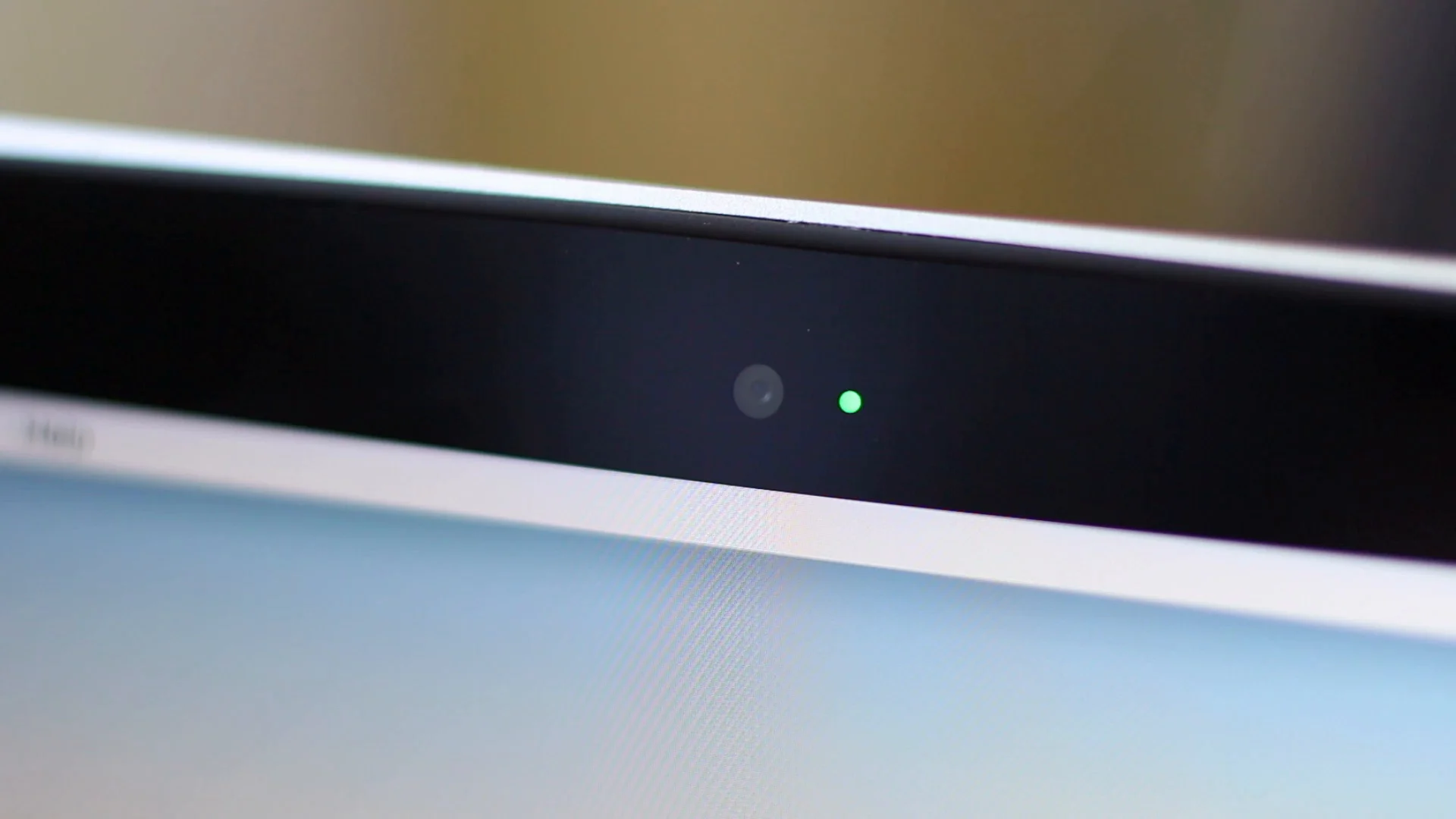\n - ✅ **Yes** → [Go to Step 2](#step-2-close-other-apps-using-the-camera) \n - ❌ **No** → [Go to Step 3](#step-3-check-browser-camera-permissions) \n\n---\n\n## **Step 2: Close Other Apps Using the Camera** \n🧐 **Check for background apps with camera access: Follow these steps -** \n- **Windows:** `Start > Settings > Privacy & Security > Camera` \n- **Mac:** `Apple Menu > System Settings > Privacy & Security > Camera` \n\n- �� **Close all such apps** and restart your browser and try again\n\n📵 **Disable phone-based camera apps** that may interfere: \n - Samsung Flow, Dell Mobile Connect, Apple Continuity Camera etc may interfere with your camera feed\n - Disconnect phone from **Bluetooth or USB tethering** before starting the test. \n\n---\n\n## **Step 3: Check Browser Camera Permissions** \n🔍 Ensure camera access is **allowed** for your browser: \n\n💻 **For Chrome (Windows & Mac)** \n\n 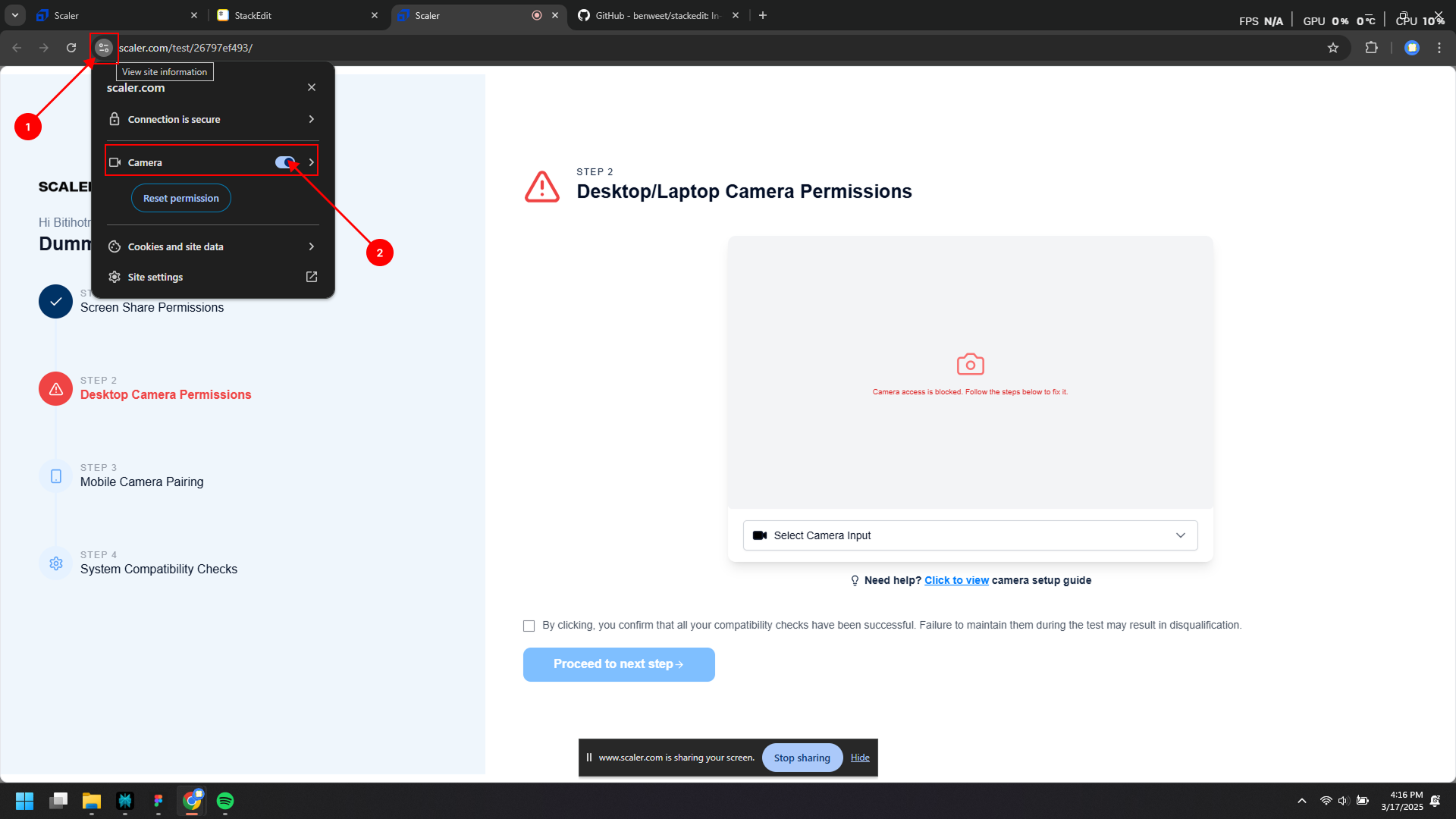\n - Click the **camera icon** in the address bar → **Site settings** → Set **Camera** to **Allow**. \n - Under **Default Behavior,** select **Sites can ask to use your camera**. \n - Disable **Ask before accessing**\n - If present, under **Allowed to use your camera,** next to the proctoring site's entry, click **Delete**. \n - Refresh the proctoring page and grant camera access when prompted. \n\n💻 **For Safari (Mac)** \n\n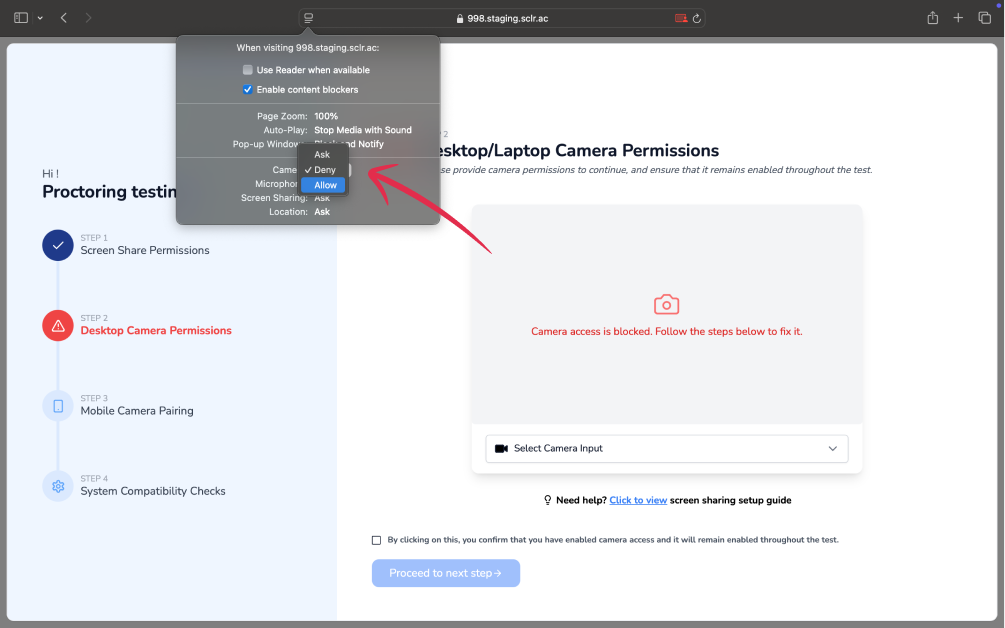 \n - `Safari > Settings > Websites > Camera` → Ensure the website has access. \n - Choose **Apple Menu > System Settings > Privacy & Security**. \n - Click **Camera** and ensure access is turned **ON** for the browser. \n - If **Camera** is not visible, upgrade to macOS Mojave or later. \n - The camera turns on automatically when used by an app, indicated by a green light. \n\n- **ForFirefox** \n - Refer to [this article](https://support.mozilla.org/en-US/kb/how-manage-your-camera-and-microphone-permissions#:~:text=If%20you've%20turned%20off,submenu%20for%20the%20Firefox%20app) for detailed steps. \n\n🔄 **Refresh the page** after adjusting settings. \n\n---\n\n## **Step 4: Verify System-Level Camera Permissions** \n🖥️ **Windows:** \n\n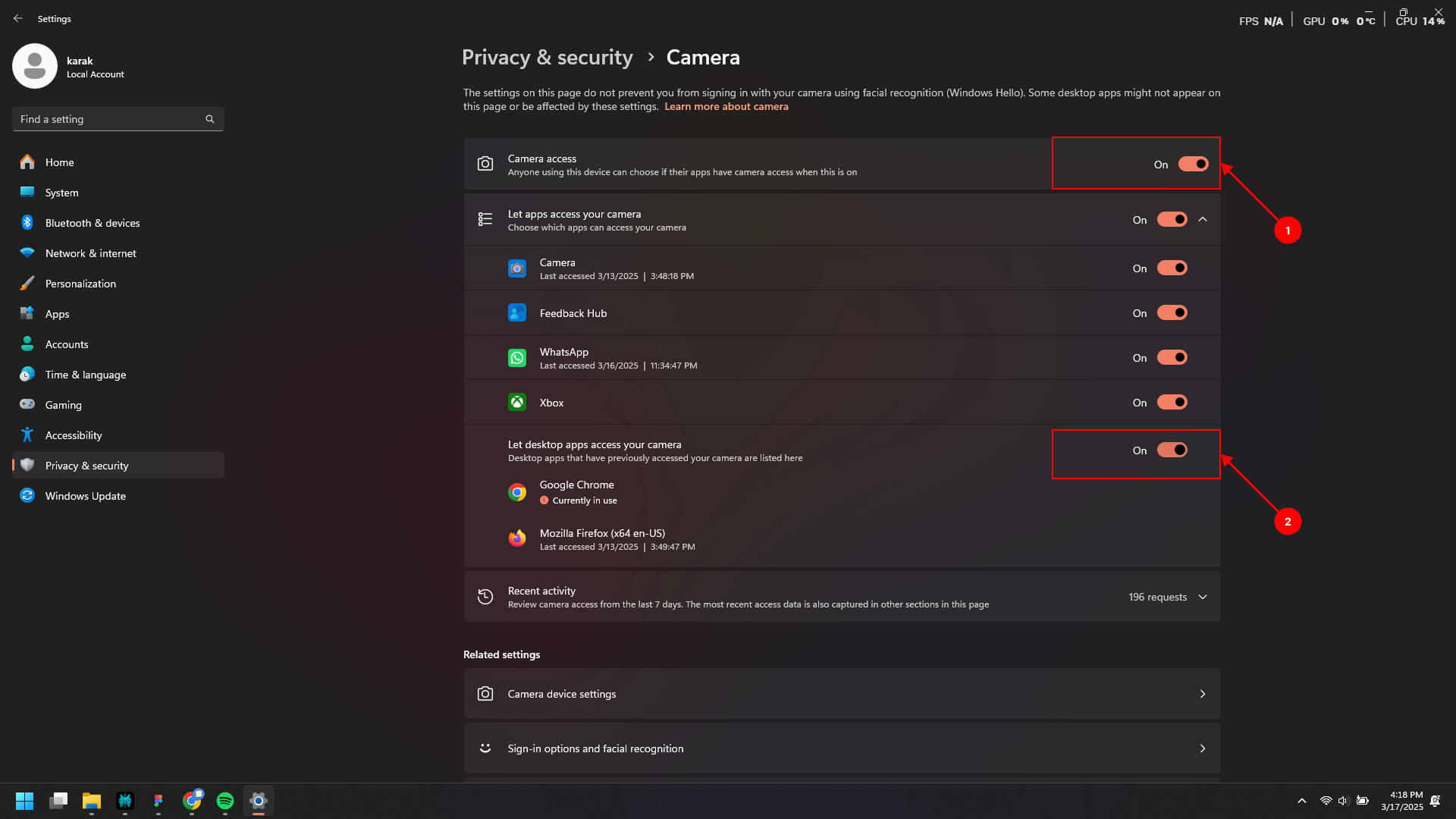\n - `Start > Settings > Privacy & Security > Camera` (Windows 11) \n - Ensure **Camera access for this device** and **Let apps access your camera** are **ON**. \n\n💻 **Mac:** \n\n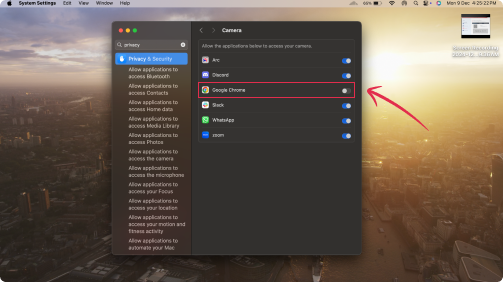\n - `Apple Menu > System Settings > Privacy & Security > Camera` \n - Ensure the checkbox next to your browser is **enabled**. \n - The list shows apps that have requested camera access; ensure the browser is checked. \n\n⚙️ If using non-Microsoft Store apps, ensure **desktop app access is enabled**. \n\n---\n\n## **Step 5: Disconnect Mobile Devices That May Block Your Laptop Camera** \n🖥️ **Windows:** \n\n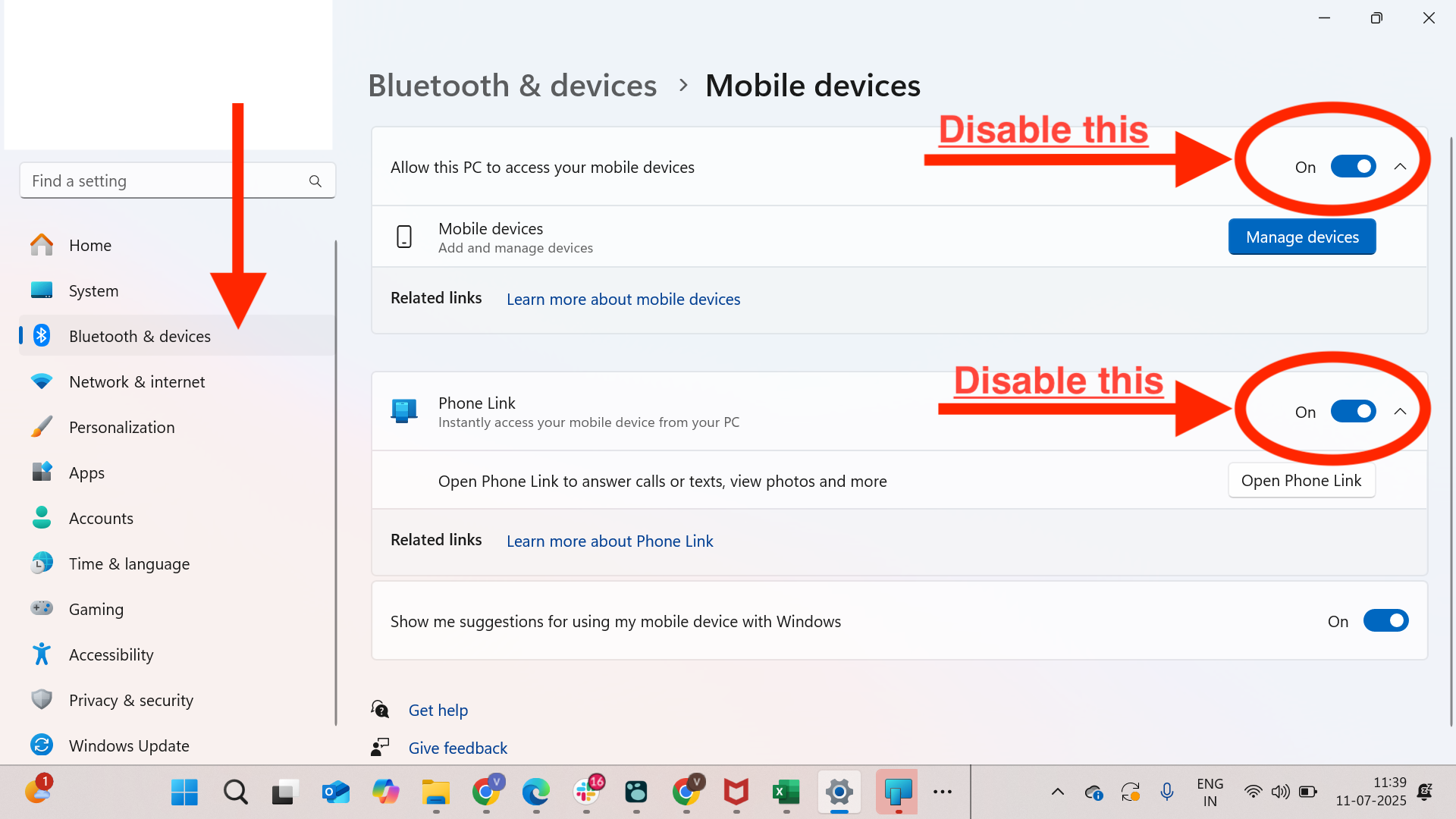\n\n1. Open `Settings → Bluetooth & devices → Mobile devices`\n2. Disable the following toggles:\n - **Allow this PC to access your mobile devices**\n - **Phone Link**\n\n🖥️ **Mac:** \n\n1. Open **System Settings** → **General** → **AirDrop & Handoff**\n2. Turn off the following:\n - `Allow Handoff between this Mac and your iCloud devices`\n - **AirDrop** (set to *Receiving Off*, if not required)\n\n\n---\n\n\n## **Step 6: Check for Camera Block Shortcuts** \n⌨️ **Physical Camera Switch:** Some laptops have a physical toggle/button for the webcam. Ensure it is **ON**. (Below image is an example of the same)\n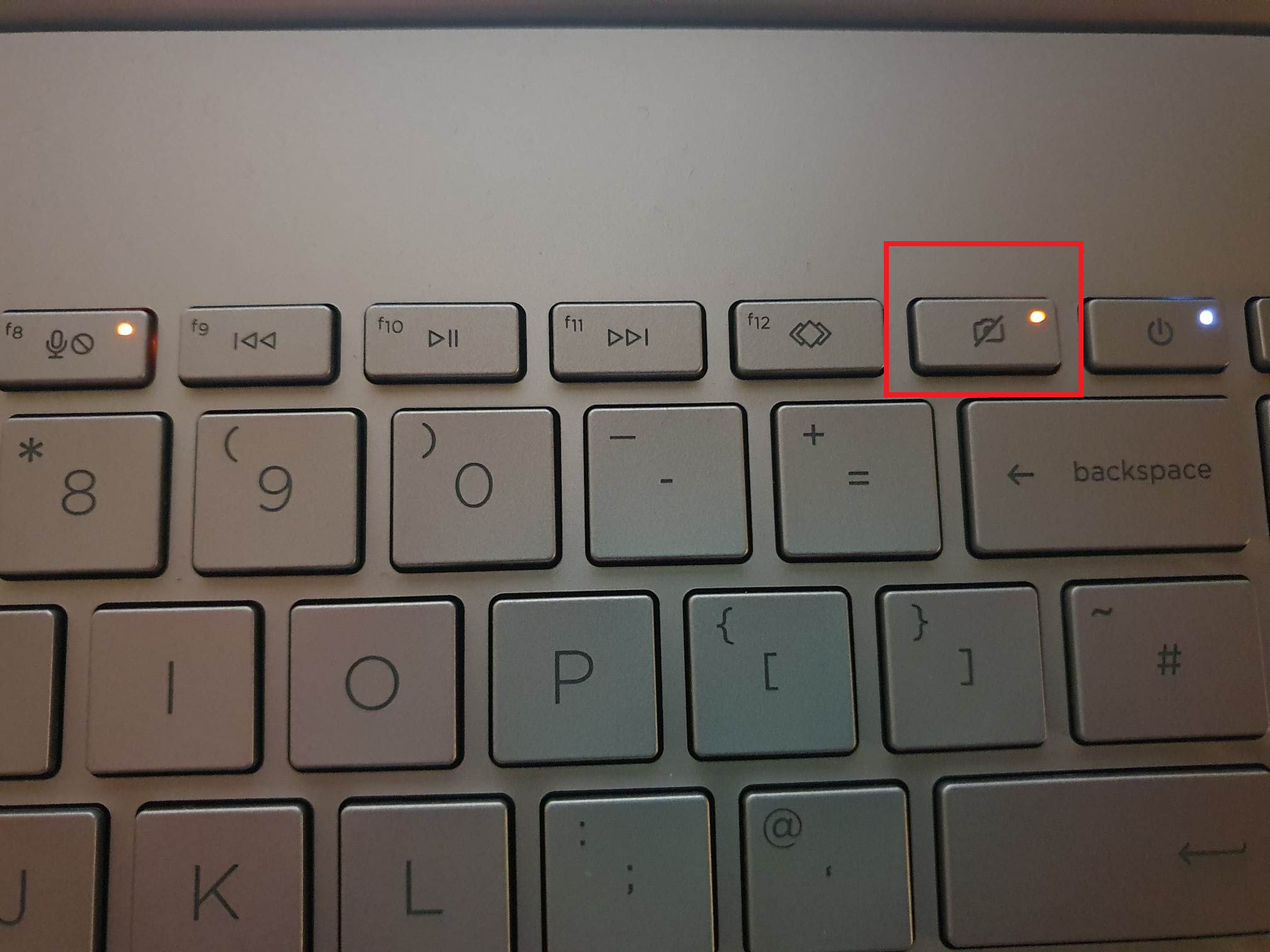\n⌨️ **Function Key Lock:** Press `Fn + Camera (F8/F10)` to toggle camera access. \n⚙️ **BIOS Settings:** Restart your laptop → Enter **BIOS settings** → Check for **camera-related options**. \n\n---\n\n## **Step 7: Test Camera Preview** \n🔄 **Reload the proctoring page**. \n📷 **Test the camera using:** \n - **Windows:** Open the **Camera** app. \n - **Mac:** Use **FaceTime** or **Photo Booth**. \n\n---\n\n## **Step 8: Additional Troubleshooting** \n🔄 **Update camera drivers** via `Device Manager` (Windows) or `Software Update` (Mac). \n🛠️ **Run the Windows Camera Troubleshooter** to detect and fix common issues. \n🔐 **Check antivirus/firewall settings** that may be blocking camera access. \n\n---\n\n✅ **If the issue persists, contact support for further assistance.** "])}}]);
|