@builder.io/plugin-sfcc-commerce-api 0.0.5 → 0.0.7-0
This diff represents the content of publicly available package versions that have been released to one of the supported registries. The information contained in this diff is provided for informational purposes only and reflects changes between package versions as they appear in their respective public registries.
- package/README.md +118 -2
- package/dist/plugin.system.js +51 -5
- package/dist/plugin.system.js.map +1 -1
- package/package.json +2 -2
package/README.md
CHANGED
|
@@ -1,3 +1,119 @@
|
|
|
1
|
-
# Builder.io
|
|
1
|
+
# Builder.io Salesforce Commerce Api plugin
|
|
2
|
+
|
|
3
|
+
Easily connect your SalesForce B2C Commerce API to your Builder.io content!
|
|
4
|
+
|
|
5
|
+
## Setup Salesforce Commerce API Access
|
|
6
|
+
Read through this [get started guide](https://developer.salesforce.com/docs/commerce/pwa-kit-managed-runtime/guide/setting-up-api-access.html) to make sure you have your *Shopper Login and API Access Service (SLAS)* client setup ready.
|
|
7
|
+
|
|
8
|
+
|
|
9
|
+
## Installation
|
|
10
|
+
|
|
11
|
+
On any builder space, go to the [integrations tab](https://builder.io/app/integrations) and find the Salesforce B2C Commerce API integration
|
|
12
|
+
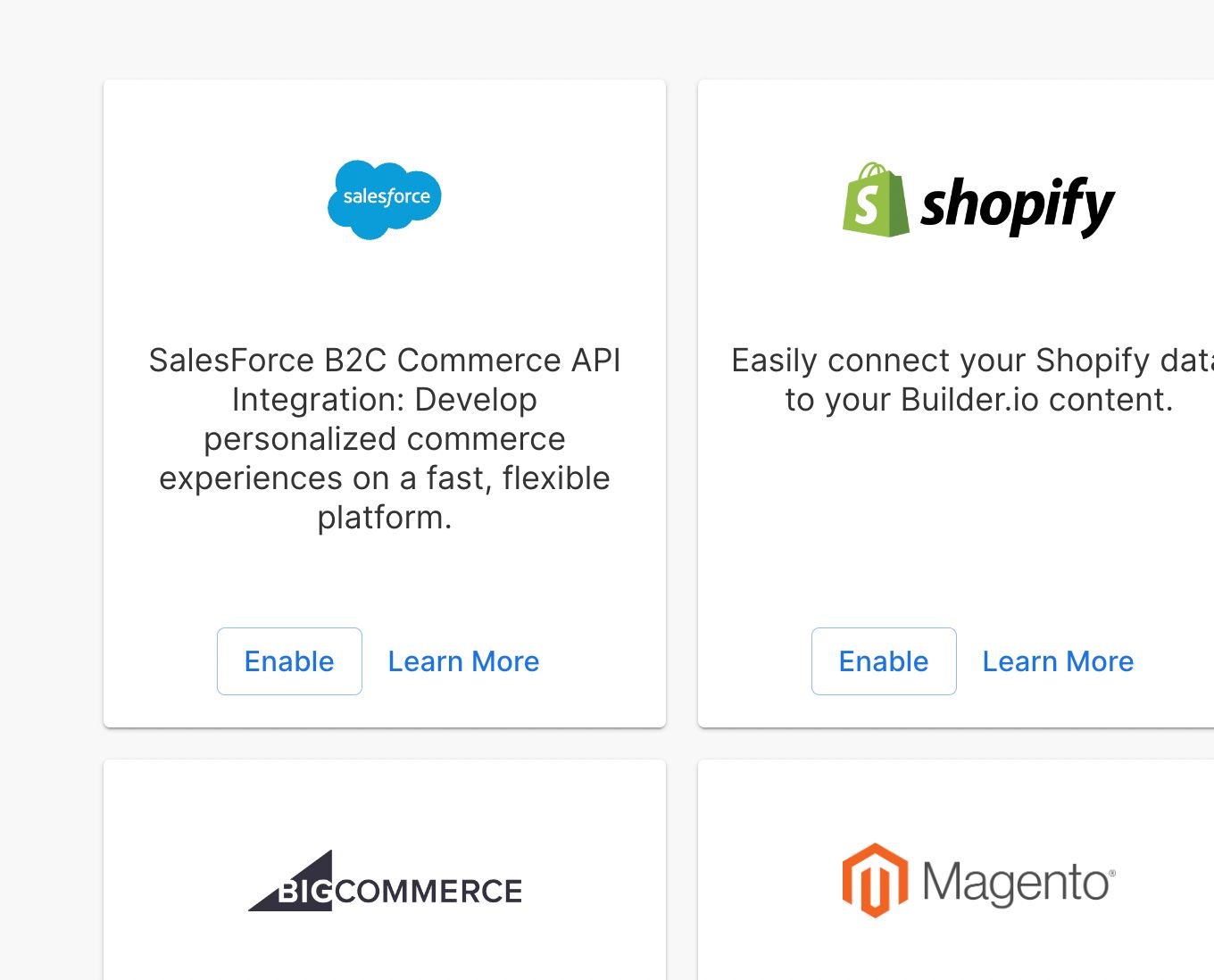 and click `enable`,
|
|
13
|
+
Following, you'll be prompted to enter the following data:
|
|
14
|
+
* Client ID
|
|
15
|
+
* Organization ID
|
|
16
|
+
* Proxy Address
|
|
17
|
+
* Short Code
|
|
18
|
+
* Site ID
|
|
19
|
+
|
|
20
|
+
And optionally:
|
|
21
|
+
* Einstein API Client ID.
|
|
22
|
+
* Einstein Site ID.
|
|
23
|
+
|
|
24
|
+
|
|
25
|
+
**If you're using Salesforce's Composable Storefront kit it should be the same configuration you find at your config/default.js file**
|
|
26
|
+

|
|
27
|
+
|
|
28
|
+
Then enter it in your Builder's space integration configuration options:
|
|
29
|
+
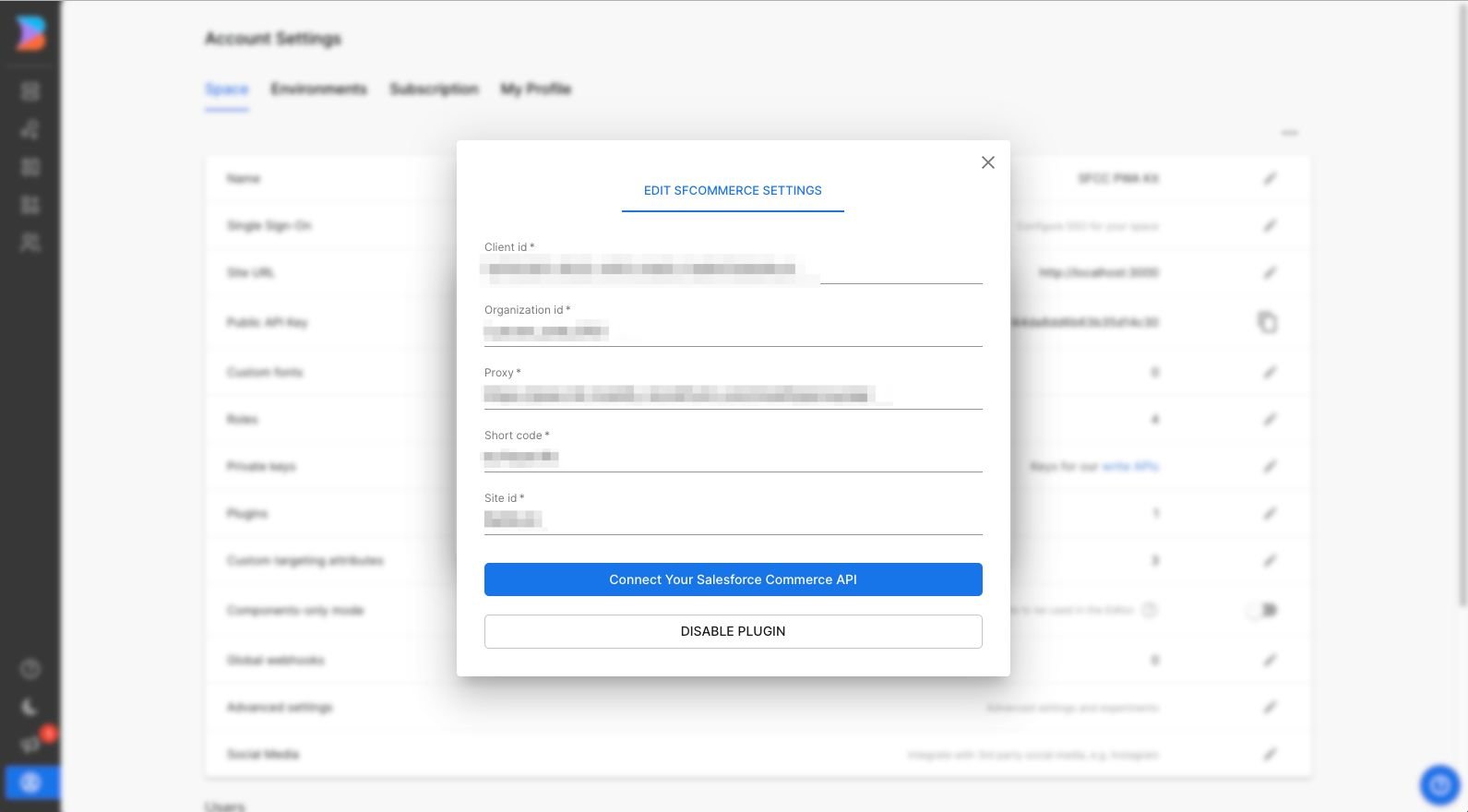
|
|
30
|
+
|
|
31
|
+
|
|
32
|
+
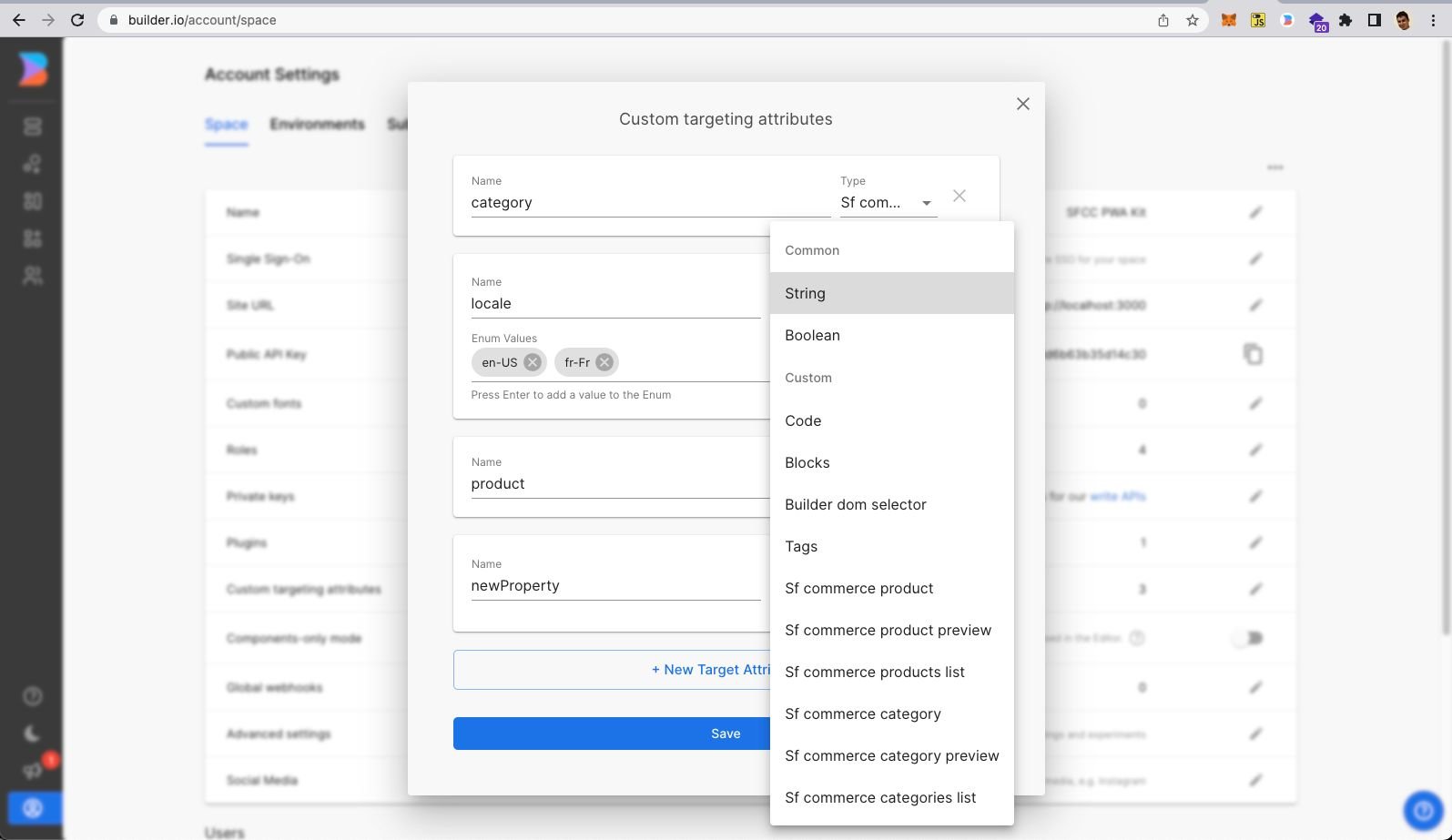
After putting the required info, hit the connect button. You will now see a few new field types (for [model](https://builder.io/c/docs/guides/getting-started-with-models) fields, [symbol](https://builder.io/c/docs/guides/symbols) inputs, [custom components](https://builder.io/c/docs/custom-react-components) fields), and [custom targeting attributes](https://www.builder.io/c/docs/guides/targeting-and-scheduling#custom-targeting) that can be used in three different contexts:
|
|
33
|
+
|
|
34
|
+
|
|
35
|
+
|
|
36
|
+
|
|
37
|
+
|
|
38
|
+
### Custom targeting
|
|
39
|
+
|
|
40
|
+
Custom targeting in Builder.io allow users to target content by a multitude of attributes, and in this plugin you'll be able to add specific content from SFCC products, for this you'll need first to set the target attributes on the host site, either by setting the `userAttributes` if you're rendering client side:
|
|
41
|
+
|
|
42
|
+
```ts
|
|
43
|
+
// example for fetching content specific for a product in a product details page
|
|
44
|
+
const productFooterContent = await builder.get('product-footer', {
|
|
45
|
+
userAttributes: {
|
|
46
|
+
product: product.productId,
|
|
47
|
+
}
|
|
48
|
+
})
|
|
49
|
+
```
|
|
50
|
+
|
|
51
|
+
Or by passing it as a query param to the [content API](https://www.builder.io/c/docs/query-api#:~:text=userAttributes) call, or in [graqhql query](https://www.builder.io/c/docs/graphql-api#:~:text=with%20targeting) for e.g in Gatsby or nextjs.
|
|
52
|
+
|
|
53
|
+
|
|
54
|
+
### Custom Components and input types
|
|
55
|
+
Once you install the plugin, you will also be able to use the SFCC types as inputs for your components, such as:
|
|
56
|
+
|
|
57
|
+
- `SFCommerceProduct` when used as an input type, you will be able to search and select a specific Product to provide to your component and consume the product data however you want from inside the component.
|
|
58
|
+
|
|
59
|
+
- `SFCommerceCategory` when used as an input type, you will be able to search and select a specific category of products to provide to your component, as example you can fetch products from a specific category from inside your component.
|
|
60
|
+
|
|
61
|
+
- `SFCommerceProductsList` when used as an input type, it enables users to select multiple products to provide to your component. As an example you can select multiple products and display them on a grid.
|
|
62
|
+
|
|
63
|
+
- `SFCommerceCategoriesList` when used as an input type enables users to select multiple categories to provide to your component.
|
|
64
|
+
|
|
65
|
+
#### Example of a Custom Component with SFCommerceProduct input type:
|
|
66
|
+
|
|
67
|
+
Example of a custom component called 'ProductBox' that receives a SFCommerceProduct as input:
|
|
68
|
+
|
|
69
|
+
```JSX
|
|
70
|
+
import React from 'react'
|
|
71
|
+
import {Builder} from '@builder.io/react'
|
|
72
|
+
import ProductBox from './ProductBox' // this is your component with it's logic
|
|
73
|
+
|
|
74
|
+
Builder.registerComponent(ProductBox, {
|
|
75
|
+
name: 'ProductBox',
|
|
76
|
+
image: 'https://unpkg.com/css.gg@2.0.0/icons/svg/box.svg',
|
|
77
|
+
inputs: [
|
|
78
|
+
{
|
|
79
|
+
name: 'productRef',
|
|
80
|
+
friendlyName: 'Product',
|
|
81
|
+
type: 'SFCommerceProduct',
|
|
82
|
+
required: true
|
|
83
|
+
}
|
|
84
|
+
]
|
|
85
|
+
})
|
|
86
|
+
```
|
|
87
|
+
To see more details about the usage of this component see [here](https://github.com/BuilderIO/sfcc-composable-storefront-starter/tree/main/app/components/blocks/product-box).
|
|
88
|
+
|
|
89
|
+
To understanding more about custom components also see [this article](https://www.builder.io/c/docs/custom-components-setup).
|
|
90
|
+
|
|
91
|
+
### Fetch Content and References
|
|
92
|
+
|
|
93
|
+
On our [docs](https://www.builder.io/c/docs/query-api), you can check more about how to fetch content from [builder.io](https://builder.io) and also see how the option ```includeRefs=true``` works, fecthing any specific content from a given reference, such as a chosen SFCommerceProduct in the example above to support server side rendering.
|
|
94
|
+
|
|
95
|
+
|
|
96
|
+
### Auto-resolving the Product/Categories data
|
|
97
|
+
In an effort to support SSR and making sure all the input data are available at the time of render, Builder’s support the resolving of the inputs for your custom components, for example if you have a product box with input of ```SFCommerceProduct``` you can get the json value of that product by passsing includeRefs: true when you fetch the content json:
|
|
98
|
+
```JSX
|
|
99
|
+
const page = await builder.get('page', {
|
|
100
|
+
url: '...',
|
|
101
|
+
options: {
|
|
102
|
+
includeRefs: true
|
|
103
|
+
}
|
|
104
|
+
})
|
|
105
|
+
```
|
|
106
|
+
Also passing the same option to the rendering component to auto-resolve while editing:
|
|
107
|
+
|
|
108
|
+
```JSX
|
|
109
|
+
<BuilderComponent model="page" options={{ includeRefs: true}} content={page} />
|
|
110
|
+
```
|
|
111
|
+
|
|
112
|
+
For more information on the available options check our [Content API documentation](https://www.builder.io/c/docs/query-api).
|
|
113
|
+
|
|
114
|
+
|
|
115
|
+
### Seeing the plugin in action
|
|
116
|
+
|
|
117
|
+
Try creating a custom [model](https://builder.io/c/docs/guides/getting-started-with-models), [component](https://builder.io/c/docs/custom-react-components), or [symbol](https://builder.io/c/docs/guides/symbols) using any of the SFCC field types, and edit away!
|
|
118
|
+
|
|
2
119
|
|
|
3
|
-
TODO
|
package/dist/plugin.system.js
CHANGED
|
@@ -33563,7 +33563,7 @@ System.register(['@builder.io/react', '@emotion/core', '@material-ui/core', 'rea
|
|
|
33563
33563
|
}); };
|
|
33564
33564
|
|
|
33565
33565
|
var name = "@builder.io/plugin-sfcc-commerce-api";
|
|
33566
|
-
var version = "0.0.
|
|
33566
|
+
var version = "0.0.6";
|
|
33567
33567
|
var description = "";
|
|
33568
33568
|
var keywords = [
|
|
33569
33569
|
];
|
|
@@ -33634,7 +33634,7 @@ System.register(['@builder.io/react', '@emotion/core', '@material-ui/core', 'rea
|
|
|
33634
33634
|
]
|
|
33635
33635
|
};
|
|
33636
33636
|
var devDependencies = {
|
|
33637
|
-
"@builder.io/react": "^
|
|
33637
|
+
"@builder.io/react": "^2.0.4",
|
|
33638
33638
|
"@commitlint/cli": "^7.1.2",
|
|
33639
33639
|
"@commitlint/config-conventional": "^7.1.2",
|
|
33640
33640
|
"@rollup/plugin-commonjs": "^19.0.1",
|
|
@@ -33734,6 +33734,21 @@ System.register(['@builder.io/react', '@emotion/core', '@material-ui/core', 'rea
|
|
|
33734
33734
|
src: cat.image || "https://unpkg.com/css.gg@2.0.0/icons/svg/box.svg"
|
|
33735
33735
|
}
|
|
33736
33736
|
});
|
|
33737
|
+
const transformRecommender = (rec) => ({
|
|
33738
|
+
...rec,
|
|
33739
|
+
id: rec.name,
|
|
33740
|
+
title: rec.name,
|
|
33741
|
+
image: {
|
|
33742
|
+
src: "https://cdn.builder.io/api/v1/image/assets%2Fd1ed12c3338144da8dd6b63b35d14c30%2Fe1439f0d991c4e2d968c84a38059f1d2"
|
|
33743
|
+
}
|
|
33744
|
+
});
|
|
33745
|
+
const getRecommenders = (siteId, clientId) => {
|
|
33746
|
+
const url = new URL("https://cdn.builder.io/api/v1/proxy-api");
|
|
33747
|
+
url.searchParams.set("url", `https://api.cquotient.com/v3/personalization/recommenders/${siteId}`);
|
|
33748
|
+
url.searchParams.set("headers.x-cq-client-id", clientId);
|
|
33749
|
+
url.searchParams.set("apiKey", appState.user.apiKey);
|
|
33750
|
+
return fetch(url).then((res) => res.json()).then((res) => res.recommenders.map(transformRecommender));
|
|
33751
|
+
};
|
|
33737
33752
|
class Api {
|
|
33738
33753
|
constructor(apiKey, pluginId) {
|
|
33739
33754
|
this.apiKey = apiKey;
|
|
@@ -33745,7 +33760,7 @@ System.register(['@builder.io/react', '@emotion/core', '@material-ui/core', 'rea
|
|
|
33745
33760
|
pluginId: this.pluginId,
|
|
33746
33761
|
apiKey: this.apiKey
|
|
33747
33762
|
});
|
|
33748
|
-
const root =
|
|
33763
|
+
const root = appState.config.apiRoot();
|
|
33749
33764
|
const baseUrl = new URL(`${root}/api/v1/sfcc-commerce/${path}`);
|
|
33750
33765
|
baseUrl.search = params.toString();
|
|
33751
33766
|
return baseUrl.toString();
|
|
@@ -33797,6 +33812,7 @@ System.register(['@builder.io/react', '@emotion/core', '@material-ui/core', 'rea
|
|
|
33797
33812
|
registerCommercePlugin({
|
|
33798
33813
|
name: "SFCommerce",
|
|
33799
33814
|
id: pkg.name,
|
|
33815
|
+
noPreviewTypes: true,
|
|
33800
33816
|
settings: [
|
|
33801
33817
|
{
|
|
33802
33818
|
name: "clientId",
|
|
@@ -33822,11 +33838,40 @@ System.register(['@builder.io/react', '@emotion/core', '@material-ui/core', 'rea
|
|
|
33822
33838
|
name: "siteId",
|
|
33823
33839
|
type: "string",
|
|
33824
33840
|
required: true
|
|
33841
|
+
},
|
|
33842
|
+
{
|
|
33843
|
+
name: "einsteinId",
|
|
33844
|
+
friendlyName: "Einstein API Client ID",
|
|
33845
|
+
type: "string"
|
|
33846
|
+
},
|
|
33847
|
+
{
|
|
33848
|
+
name: "einsteinSiteId",
|
|
33849
|
+
friendlyName: "Einstein API Site ID",
|
|
33850
|
+
type: "string"
|
|
33825
33851
|
}
|
|
33826
33852
|
],
|
|
33827
33853
|
ctaText: `Connect your Salesforce Commerce API`
|
|
33828
|
-
}, async () => {
|
|
33854
|
+
}, async (settings) => {
|
|
33829
33855
|
const api = new Api(appState.user.apiKey, pkg.name);
|
|
33856
|
+
const einsteinId = settings.get("einsteinId");
|
|
33857
|
+
const einsteinSiteId = settings.get("einsteinSiteId");
|
|
33858
|
+
let recommendersType = {};
|
|
33859
|
+
if (einsteinId && einsteinSiteId) {
|
|
33860
|
+
const recommenders = await getRecommenders(einsteinSiteId, einsteinId);
|
|
33861
|
+
recommendersType = {
|
|
33862
|
+
recommender: {
|
|
33863
|
+
search(search = "") {
|
|
33864
|
+
return Promise.resolve(recommenders.filter((rec) => JSON.stringify(rec).includes(search)));
|
|
33865
|
+
},
|
|
33866
|
+
findById(id) {
|
|
33867
|
+
return Promise.resolve(recommenders.find((rec) => rec.id === id));
|
|
33868
|
+
},
|
|
33869
|
+
getRequestObject(id) {
|
|
33870
|
+
return id;
|
|
33871
|
+
}
|
|
33872
|
+
}
|
|
33873
|
+
};
|
|
33874
|
+
}
|
|
33830
33875
|
return {
|
|
33831
33876
|
product: {
|
|
33832
33877
|
async findById(id) {
|
|
@@ -33865,7 +33910,8 @@ System.register(['@builder.io/react', '@emotion/core', '@material-ui/core', 'rea
|
|
|
33865
33910
|
}
|
|
33866
33911
|
};
|
|
33867
33912
|
}
|
|
33868
|
-
}
|
|
33913
|
+
},
|
|
33914
|
+
...recommendersType
|
|
33869
33915
|
};
|
|
33870
33916
|
});
|
|
33871
33917
|
|