@arcgis/map-components 5.0.12 → 5.0.13
This diff represents the content of publicly available package versions that have been released to one of the supported registries. The information contained in this diff is provided for informational purposes only and reflects changes between package versions as they appear in their respective public registries.
- package/dist/cdn/{SGIYN2YV.js → 2BSCMCAZ.js} +1 -1
- package/dist/cdn/{HKOW6E75.js → 2GLF4DQN.js} +1 -1
- package/dist/cdn/{H7BST4WE.js → 2S2XGTN4.js} +1 -1
- package/dist/cdn/{F5CEJR6E.js → 2TM6BIYL.js} +1 -1
- package/dist/cdn/{YDQZZV3P.js → 3DXM7TOT.js} +1 -1
- package/dist/cdn/{5MGE6RKY.js → 3HLJHNJE.js} +1 -1
- package/dist/cdn/{QAZXZZRD.js → 3K6LPRYW.js} +1 -1
- package/dist/cdn/{JZNC5RPG.js → 3KIT64LY.js} +1 -1
- package/dist/cdn/{MSDJ4J72.js → 3OJ54CLA.js} +1 -1
- package/dist/cdn/{CWSH6ABD.js → 3Q3RKOCB.js} +1 -1
- package/dist/cdn/{JF5MSIDO.js → 4T74FTD2.js} +1 -1
- package/dist/cdn/{ZGBQZPFM.js → 4WSRZ6U3.js} +1 -1
- package/dist/cdn/{OUVF5KOE.js → 5AI6MQMZ.js} +1 -1
- package/dist/cdn/{TKKFH4ZK.js → 5I3CGQAS.js} +1 -1
- package/dist/cdn/5MQKBR3P.js +2 -0
- package/dist/cdn/{7WV2KGFI.js → 5OXKDNJY.js} +1 -1
- package/dist/cdn/{OHKNM542.js → 5Q4WGNEN.js} +1 -1
- package/dist/cdn/{KQ3ANL7Q.js → 5WKC6ZCV.js} +1 -1
- package/dist/cdn/{QVQ5SS5C.js → 5YC7ADYG.js} +1 -1
- package/dist/cdn/{W4X4JIJC.js → 6B3IBO36.js} +1 -1
- package/dist/cdn/{YW6R6MDN.js → 6DUAKZHM.js} +1 -1
- package/dist/cdn/{ULND5A5Z.js → 6NZNHH7F.js} +1 -1
- package/dist/cdn/{XFTWLHQY.js → 6PLEZE5Y.js} +1 -1
- package/dist/cdn/{OKSG5RMW.js → 6QVFIIWJ.js} +1 -1
- package/dist/cdn/{WIMZORMK.js → 72WZ4OEL.js} +1 -1
- package/dist/cdn/{BXN4VTU6.js → 7JHGOMKB.js} +1 -1
- package/dist/cdn/{2YRDYOK7.js → 7LVMURSH.js} +1 -1
- package/dist/cdn/{NPXFM5C6.js → 7NTWGK3S.js} +1 -1
- package/dist/cdn/{ENERCE5V.js → 7QUWPH4P.js} +1 -1
- package/dist/cdn/{7MYAQ27V.js → A2JX2YNF.js} +1 -1
- package/dist/cdn/{LPBCWFSL.js → A3ENFQFI.js} +1 -1
- package/dist/cdn/{LFR4RHG7.js → AALZ37LY.js} +1 -1
- package/dist/cdn/{4VP6GQ2A.js → ANHJG6JL.js} +1 -1
- package/dist/cdn/{FTFAVGGG.js → APPJ57YO.js} +1 -1
- package/dist/cdn/{3L5JO7SA.js → AXUKCYMB.js} +1 -1
- package/dist/cdn/{OUKZCCGH.js → AY2XRNGK.js} +1 -1
- package/dist/cdn/{OMIQDJ4B.js → AYWY6YQQ.js} +1 -1
- package/dist/cdn/{ECGOLYRC.js → BBYY33FH.js} +1 -1
- package/dist/cdn/{HICD6KZN.js → BGBTI7S5.js} +1 -1
- package/dist/cdn/{IWVL7BCD.js → BHKHWGRR.js} +1 -1
- package/dist/cdn/{YXDLDSVH.js → BSJCCOMX.js} +1 -1
- package/dist/cdn/{IWNGWICC.js → BT446EY3.js} +1 -1
- package/dist/cdn/{JJWNJVF7.js → BXIKT45T.js} +1 -1
- package/dist/cdn/{ANC4XKM7.js → CF7I4ZJ3.js} +1 -1
- package/dist/cdn/{FLB7IDTC.js → CHSDKQFP.js} +1 -1
- package/dist/cdn/{66D4W3NE.js → CM7BNS6A.js} +1 -1
- package/dist/cdn/{CJGADATA.js → D2MQQKUY.js} +1 -1
- package/dist/cdn/{UEOHVILO.js → DDUUL46G.js} +1 -1
- package/dist/cdn/{VHMRV5D6.js → DWBW6UWX.js} +1 -1
- package/dist/cdn/{TRQCIDIC.js → ECNKPERL.js} +1 -1
- package/dist/cdn/{DWP6WO64.js → EETUTBRA.js} +1 -1
- package/dist/cdn/{P3NIJQGI.js → EJ4YE5XN.js} +1 -1
- package/dist/cdn/{S6F2DL6Z.js → ELU27HID.js} +1 -1
- package/dist/cdn/{BIEIAVBU.js → EU7EOMVR.js} +1 -1
- package/dist/cdn/{4VRQYVVF.js → EUYSSHX7.js} +1 -1
- package/dist/cdn/{WFTLB3TR.js → EWZPSVP3.js} +1 -1
- package/dist/cdn/{KN6CIPIL.js → F2H4IKND.js} +1 -1
- package/dist/cdn/{HZJGNPS5.js → F3EGXIEF.js} +1 -1
- package/dist/cdn/{AV3JZPVF.js → FAKDPH5S.js} +1 -1
- package/dist/cdn/{T4ZMD4RZ.js → FDXW3MPD.js} +1 -1
- package/dist/cdn/{PAOKXCI3.js → G3MEU4C7.js} +1 -1
- package/dist/cdn/{ME2YSIDJ.js → G6DGKDKU.js} +1 -1
- package/dist/cdn/{36BHPMAX.js → G7RYG6ZT.js} +1 -1
- package/dist/cdn/{VH6J6GS2.js → GDVLIUGC.js} +1 -1
- package/dist/cdn/{EK626V7O.js → GHAIY4VG.js} +1 -1
- package/dist/cdn/{6AHDEWJS.js → GMYXBO6L.js} +1 -1
- package/dist/cdn/{Z5PMRNPB.js → GOXD5LJK.js} +1 -1
- package/dist/cdn/{L23UMDH7.js → GTEJEZMW.js} +1 -1
- package/dist/cdn/{53NLWLOK.js → GVZPRWMM.js} +1 -1
- package/dist/cdn/{DORW2LWD.js → HBFWKLEP.js} +1 -1
- package/dist/cdn/{EHDRWNU7.js → HRZ6LWPS.js} +1 -1
- package/dist/cdn/{AW6OCXXO.js → HURXBDMM.js} +1 -1
- package/dist/cdn/{DJR4NP75.js → HVGBVKDN.js} +1 -1
- package/dist/cdn/{DJHSLZYG.js → I2KLE3G6.js} +1 -1
- package/dist/cdn/{UNPMMZ4E.js → IV3MYX7J.js} +1 -1
- package/dist/cdn/{ZHRHCMJQ.js → IVOTHSYS.js} +1 -1
- package/dist/cdn/{WVHSQJ33.js → IWLYQC6E.js} +1 -1
- package/dist/cdn/{E4G2DFST.js → IWZQMWZ5.js} +1 -1
- package/dist/cdn/{CNORJKAN.js → J2KB44KF.js} +1 -1
- package/dist/cdn/{LLRGKMAO.js → JFXXBJZ6.js} +1 -1
- package/dist/cdn/{Q3CQJDJU.js → JM2UMGHZ.js} +1 -1
- package/dist/cdn/{K2GJXS6M.js → JNSULVWY.js} +1 -1
- package/dist/cdn/{PRMAAVYM.js → JUYWZGLW.js} +1 -1
- package/dist/cdn/{FUWVQHGU.js → K2C5W73K.js} +1 -1
- package/dist/cdn/{WGN2LL7W.js → K3L5Q6OR.js} +1 -1
- package/dist/cdn/{MF7A7FP3.js → K7DRFBGU.js} +1 -1
- package/dist/cdn/{IMLRL4TT.js → KALFLBWA.js} +1 -1
- package/dist/cdn/{3JWEYJQ3.js → KEICJDCN.js} +1 -1
- package/dist/cdn/{WASSAAX3.js → KTUWLKQC.js} +1 -1
- package/dist/cdn/{7OXRDF4E.js → KVN3DJ2D.js} +1 -1
- package/dist/cdn/{3CARTNXL.js → L2Y5F2ON.js} +1 -1
- package/dist/cdn/{KBZRZ7FE.js → L4T73YYG.js} +1 -1
- package/dist/cdn/{PA7TTVHW.js → LA3B25VF.js} +1 -1
- package/dist/cdn/{L2IA7REJ.js → LHCK7EYE.js} +1 -1
- package/dist/cdn/{QRKLM35H.js → M3DY6NT5.js} +1 -1
- package/dist/cdn/{Y47MW44T.js → M3GMRZU6.js} +1 -1
- package/dist/cdn/{FIXHAXNJ.js → M4NGKXDM.js} +1 -1
- package/dist/cdn/{OQ3OTXA5.js → MBLJ3B3Z.js} +1 -1
- package/dist/cdn/{P5PUNRR5.js → MC7DCGXZ.js} +1 -1
- package/dist/cdn/{BSAE7TJM.js → MF6G4EJX.js} +1 -1
- package/dist/cdn/{6WYBPZZF.js → MHXVYYEF.js} +1 -1
- package/dist/cdn/MM4KQ64T.js +2 -0
- package/dist/cdn/{3UH4N4UP.js → MMCQTQ2B.js} +1 -1
- package/dist/cdn/{BGROYXFG.js → MUPEYUVW.js} +1 -1
- package/dist/cdn/{63LZ2ABP.js → MYMC3S66.js} +1 -1
- package/dist/cdn/{ILYRBART.js → N3GXK5IW.js} +1 -1
- package/dist/cdn/{MWXBO253.js → N4UUKO4C.js} +1 -1
- package/dist/cdn/NB5FUHDA.js +2 -0
- package/dist/cdn/{QC3JHUEY.js → NBH5RGNB.js} +1 -1
- package/dist/cdn/{FOJTY2PN.js → NGQP2ACK.js} +1 -1
- package/dist/cdn/{IVSF6LF7.js → NJDOYGD2.js} +1 -1
- package/dist/cdn/{VJAO4YEW.js → NVJQC2FV.js} +1 -1
- package/dist/cdn/{JAYBYVK2.js → NVPNK7HN.js} +1 -1
- package/dist/cdn/{IL67G5ES.js → O6Q3N7YX.js} +1 -1
- package/dist/cdn/{LFLO3K7S.js → OBCHDLP7.js} +1 -1
- package/dist/cdn/{IUCRZBTS.js → OSTK2XMM.js} +1 -1
- package/dist/cdn/{R2SCOXNL.js → P66UCN4J.js} +1 -1
- package/dist/cdn/{V767TMLL.js → PBGYQMJN.js} +1 -1
- package/dist/cdn/{BOU3WL2N.js → PDVSJ6S4.js} +1 -1
- package/dist/cdn/{W4IAXXGY.js → PJ5JRLA3.js} +1 -1
- package/dist/cdn/{2C4AKJ6C.js → POFTH774.js} +1 -1
- package/dist/cdn/{ONPKLGB5.js → POMYARUW.js} +1 -1
- package/dist/cdn/{DDEQXTIN.js → PSA247UB.js} +1 -1
- package/dist/cdn/{D4TOQNCU.js → PXDKBB4C.js} +1 -1
- package/dist/cdn/{DBNKQMIS.js → PZVQIWRS.js} +1 -1
- package/dist/cdn/{3SNF5ZML.js → QDYRRD7S.js} +1 -1
- package/dist/cdn/{JXR3Z5BL.js → QH7HWXWT.js} +1 -1
- package/dist/cdn/{FOEI4BIF.js → QN2RKJ33.js} +1 -1
- package/dist/cdn/{RAVQH7SL.js → R3ACKBE3.js} +1 -1
- package/dist/cdn/{QC6JD4Q6.js → RAZODWY7.js} +1 -1
- package/dist/cdn/{NJCBI53B.js → RE4OL47F.js} +1 -1
- package/dist/cdn/{PIJRH7XZ.js → RFG6I476.js} +1 -1
- package/dist/cdn/{A25DQJO2.js → RPLR37CD.js} +1 -1
- package/dist/cdn/{HO5EHD4Q.js → RQNCW4RX.js} +1 -1
- package/dist/cdn/{NZ72I4MD.js → RSBHOFEN.js} +1 -1
- package/dist/cdn/{X3KE7ZGS.js → RSPKNP4F.js} +1 -1
- package/dist/cdn/{SKOJF2MZ.js → RUSHFIIV.js} +1 -1
- package/dist/cdn/{MLCDAZXG.js → RW5XPXTW.js} +1 -1
- package/dist/cdn/{7SXN75DR.js → S5BLONXO.js} +1 -1
- package/dist/cdn/{RHQDTTLQ.js → SF6ZJEEP.js} +1 -1
- package/dist/cdn/{GIUWHWKP.js → SKWRVZ7O.js} +1 -1
- package/dist/cdn/{4CR4N46B.js → SMZWHJO7.js} +1 -1
- package/dist/cdn/{756YKTLT.js → SP3YVCIS.js} +1 -1
- package/dist/cdn/{TUNDHODB.js → T4GSJHDN.js} +1 -1
- package/dist/cdn/{B6H2JZ5L.js → TAJZ7T7T.js} +1 -1
- package/dist/cdn/{XE3GCIXB.js → TI7XRYD3.js} +1 -1
- package/dist/cdn/{TG6IUKL5.js → TJ2I5BXW.js} +1 -1
- package/dist/cdn/{IJA6A5XJ.js → TRAOBRME.js} +1 -1
- package/dist/cdn/{EFZGV7BB.js → TTYGYRFH.js} +1 -1
- package/dist/cdn/{76UAWT7T.js → UEALOBCD.js} +1 -1
- package/dist/cdn/{BW3SD2UX.js → UN4CBUAO.js} +1 -1
- package/dist/cdn/{4UQZ3QYM.js → URI5O4ZW.js} +1 -1
- package/dist/cdn/{E6CHHNGI.js → V2MFV3QR.js} +1 -1
- package/dist/cdn/{D2FHJKEM.js → VCRYUCOY.js} +1 -1
- package/dist/cdn/{JO35XI2Q.js → VFKDTBIX.js} +1 -1
- package/dist/cdn/{YYQT3KUC.js → VV7HPG2E.js} +1 -1
- package/dist/cdn/{2JZZ7W2Z.js → W2UY26QC.js} +1 -1
- package/dist/cdn/{PZXLONQZ.js → WDHE5GRH.js} +1 -1
- package/dist/cdn/{Q3SGD4CQ.js → WK7JSRCX.js} +1 -1
- package/dist/cdn/{QR5755FP.js → WKZYZLNL.js} +1 -1
- package/dist/cdn/{PCZXZD67.js → WLCNWM4T.js} +1 -1
- package/dist/cdn/{LQSPOOBC.js → WNAAFXWP.js} +1 -1
- package/dist/cdn/{AEVXZNFE.js → WRIG4OJF.js} +1 -1
- package/dist/cdn/{XEL7P6GL.js → WRKT62OT.js} +1 -1
- package/dist/cdn/{KHX3QKLY.js → WTRE72IW.js} +1 -1
- package/dist/cdn/{ZSONBH36.js → WVY37VU3.js} +1 -1
- package/dist/cdn/{EOWJMICO.js → X2LU2W3E.js} +1 -1
- package/dist/cdn/{JI5SELO3.js → X4OU6LH4.js} +1 -1
- package/dist/cdn/{MD37AP6L.js → XGFQI67H.js} +1 -1
- package/dist/cdn/{EGTZGR5Q.js → XN6HHOTU.js} +1 -1
- package/dist/cdn/{TFKJ4ASO.js → XSXHV576.js} +1 -1
- package/dist/cdn/{AQ4RUGBN.js → XU2JXUDZ.js} +1 -1
- package/dist/cdn/{UIHJBUN3.js → XWS4AMTT.js} +1 -1
- package/dist/cdn/{LUXON2DK.js → Y4THGOOZ.js} +1 -1
- package/dist/cdn/{24QECPZF.js → Y5NQUKN5.js} +1 -1
- package/dist/cdn/{IYGLH3HC.js → YJNY3N2D.js} +1 -1
- package/dist/cdn/{JZV4ZA33.js → YL7QL76P.js} +1 -1
- package/dist/cdn/{ZXEFQS3E.js → YNU3KUKJ.js} +1 -1
- package/dist/cdn/{2OKMRP4E.js → Z3HFUEN3.js} +1 -1
- package/dist/cdn/{P25JZU6K.js → Z4VKVKZJ.js} +1 -1
- package/dist/cdn/{AXKH454C.js → ZGKKSBED.js} +1 -1
- package/dist/cdn/{IIJWWPTR.js → ZHVZ52NN.js} +1 -1
- package/dist/cdn/{CRG2WEJC.js → ZI7RP3GX.js} +1 -1
- package/dist/cdn/{CEZN3IZC.js → ZO2JG7UP.js} +1 -1
- package/dist/cdn/index.js +1 -1
- package/dist/chunks/runtime.js +1 -1
- package/dist/components/arcgis-building-explorer/customElement.js +14 -9
- package/dist/components/arcgis-feature-templates-legacy/customElement.d.ts +98 -0
- package/dist/docs/api.json +1 -1
- package/dist/docs/docs.json +1 -1
- package/dist/docs/vscode.html-custom-data.json +1 -1
- package/dist/docs/web-types.json +1 -1
- package/dist/types/lumina.d.ts +1 -1
- package/dist/types/preact.d.ts +1 -1
- package/dist/types/react.d.ts +1 -1
- package/dist/types/stencil.d.ts +1 -1
- package/package.json +4 -4
- package/dist/cdn/4VXRCUIR.js +0 -2
- package/dist/cdn/LYE4XH2C.js +0 -2
- package/dist/cdn/UGAQS53P.js +0 -2
|
@@ -1 +1 @@
|
|
|
1
|
-
{"$schema":"https://raw.githubusercontent.com/microsoft/vscode-html-languageservice/main/docs/customData.schema.json","version":1.1,"tags":[{"name":"arcgis-area-measurement-2d","description":"The Area Measurement 2D component can be added to an [arcgis-map](https://developers.arcgis.com/javascript/latest/references/map-components/components/arcgis-map/)\ncomponent to calculate and display the area and perimeter of a polygon.\n\nHow areas and perimeters are computed depends on the map's spatial reference.\n\nIn **geographic coordinate systems** (GCS), and in **Web Mercator**, areas and perimeters are computed geodetically, taking into consideration the curvature of the planet.\n\nIn **projected coordinate systems** (PCS), apart from Web Mercator, areas and perimeters are computed in a Euclidean manner (in their respective PCS).\n--\n\n### Events\n- **arcgisPropertyChange** - Emitted when the value of a property is changed. Use this to listen to changes to properties.\n- **arcgisReady** - Emitted when the component associated with a map or scene view is ready to be interacted with.\n\n### Methods\n- `clear(): Promise<void>` - Clears the current measurement.\n- `componentOnReady(): Promise<this>` - Creates a promise that resolves once the component is fully loaded.\n- `destroy(): Promise<void>` - Permanently destroy the component.\n- `start(): Promise<void>` - Starts a new measurement.","attributes":[{"name":"auto-destroy-disabled","description":"If true, the component will not be destroyed automatically when it is\ndisconnected from the document. This is useful when you want to move the\ncomponent to a different place on the page, or temporarily hide it. If this\nis set, make sure to call the [destroy()](https://developers.arcgis.com/javascript/latest/references/map-components/components/arcgis-area-measurement-2d/#destroy) method when you are done to\nprevent memory leaks.","values":[]},{"name":"hide-start-button","description":"If true, the button that starts a new measurement will be hidden.","values":[]},{"name":"hide-unit-select","description":"If true, the unit selection dropdown will be hidden.","values":[]},{"name":"hide-visualization","description":"Indicates whether the component's visualization is hidden in the view.","values":[]},{"name":"icon","description":"Icon which represents the component.\nTypically used when the component is controlled by another component (e.g. by the Expand component).","values":[]},{"name":"label","description":"The component's default label.","values":[]},{"name":"reference-element","description":"By assigning the `id` attribute of the Map or Scene component to this property, you can position a child component anywhere in the DOM while still maintaining a connection to the Map or Scene.","values":[]},{"name":"unit","description":"Unit system (imperial, metric) or specific unit used for displaying the distance values. Possible values are listed in\n[unitOptions](https://developers.arcgis.com/javascript/latest/references/map-components/components/arcgis-area-measurement-2d/#unitOptions).","values":[{"name":"metric"},{"name":"imperial"},{"name":"square-inches"},{"name":"square-feet"},{"name":"square-yards"},{"name":"square-miles"},{"name":"square-nautical-miles"},{"name":"square-us-feet"},{"name":"square-millimeters"},{"name":"square-centimeters"},{"name":"square-decimeters"},{"name":"square-meters"},{"name":"square-kilometers"},{"name":"acres"},{"name":"ares"},{"name":"hectares"}]}],"references":[{"name":"Docs","url":"https://developers.arcgis.com/javascript/latest/references/map-components/components/arcgis-area-measurement-2d/"},{"name":"Area Measurement 2D","url":"https://developers.arcgis.com/javascript/latest/storybook/map-components/?path=/story/arcgis-area-measurement-2d--demo&singleStory=true"}]},{"name":"arcgis-area-measurement-3d","description":"The Area Measurement 3D component can be added to an [arcgis-scene](https://developers.arcgis.com/javascript/latest/references/map-components/components/arcgis-scene/)\ncomponent to calculate and display area and perimeter of polygons.\n\n[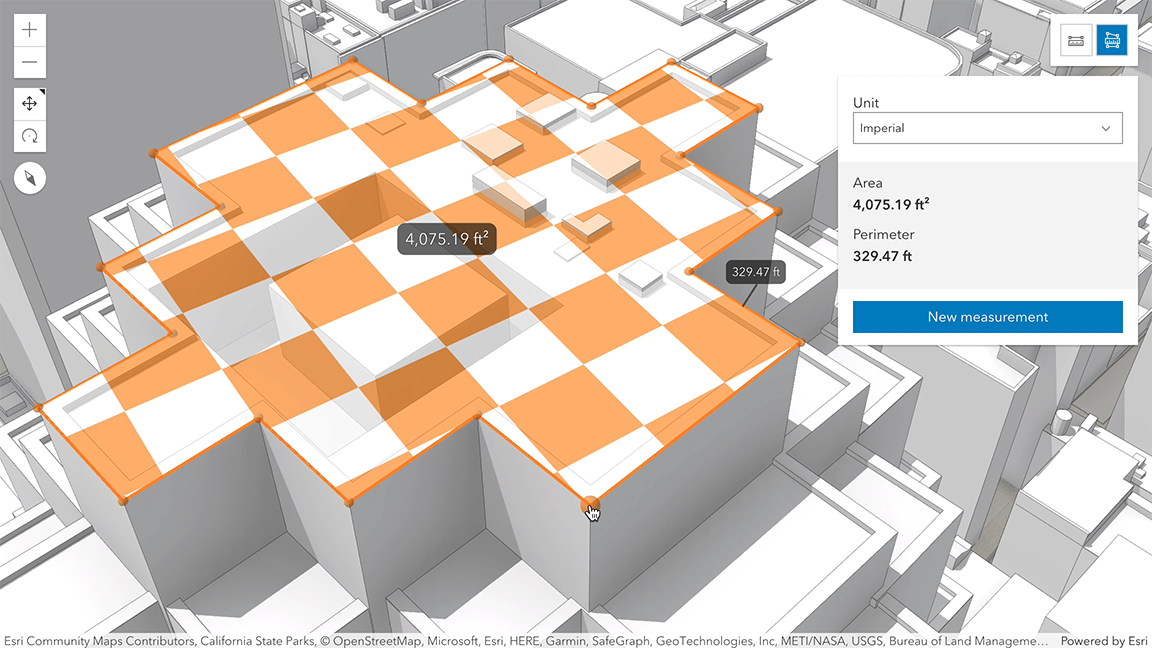](https://developers.arcgis.com/javascript/latest/sample-code/measurement-3d/)\n\nHow the area and perimeter are computed depends on the scene's spatial reference and the length of the measured perimeter.\n\nIn **geographic coordinate systems** (GCS) and in **Web Mercator**:\n- If the measurement's perimeter is below 100 km, they are computed in a Euclidean manner,\n in an [ECEF](https://en.wikipedia.org/wiki/ECEF) coordinate system (or equivalent on other planets).\n- If the perimeter is above 100 km, they are computed geodetically, and the visualization takes\n the curvature of the planet into consideration.\n\nIn **projected coordinate systems** (PCS), apart from Web Mercator, the area and perimeter\nare always calculated in a Euclidean manner (in their respective PCS).\n\nThe area may be visualized and calculated in two ways:\n1. If all the vertices are mostly coplanar (lying on the same plane),\n the measurement polygon is formed on that plane, and area and perimeter are calculated from its geometry.\n2. If the vertices don't form a planar surface, the measurement polygon\n is projected to a horizontal plane, and area and perimeter are calculated from its geometry.\n\n\n\nWhen the component is active, a horizontal \"laser\" line is drawn which indicates the height at the current mouse position.\nThis line can help in analyzing the heights of objects relative to each other and the terrain.\n\n**Things to consider**\n\n* Area Measurement 3D is designed to work in the Scene component. For measurements in the [arcgis-map](https://developers.arcgis.com/javascript/latest/references/map-components/components/arcgis-map/)\ncomponent, use [arcgis-area-measurement-2d](https://developers.arcgis.com/javascript/latest/references/map-components/components/arcgis-area-measurement-2d/).\n* Snapping is enabled by default. Holding the `CTRL` key disables it.\n* Layer types currently supported for snapping are:\n[FeatureLayer](https://developers.arcgis.com/javascript/latest/references/core/layers/FeatureLayer/),\n[GraphicsLayer](https://developers.arcgis.com/javascript/latest/references/core/layers/GraphicsLayer/) (except Mesh geometries),\n[GeoJSONLayer](https://developers.arcgis.com/javascript/latest/references/core/layers/GeoJSONLayer/),\n[WFSLayer](https://developers.arcgis.com/javascript/latest/references/core/layers/WFSLayer/),\n[CSVLayer](https://developers.arcgis.com/javascript/latest/references/core/layers/CSVLayer/),\n[3D Object SceneLayer](https://developers.arcgis.com/javascript/latest/references/core/layers/SceneLayer/),\nand [BuildingSceneLayer](https://developers.arcgis.com/javascript/latest/references/core/layers/BuildingSceneLayer/).\n\n**See also**\n\n- [AreaMeasurementAnalysis](https://developers.arcgis.com/javascript/latest/references/core/analysis/AreaMeasurementAnalysis/)\n- [Sample - Measurement in 3D](https://developers.arcgis.com/javascript/latest/sample-code/measurement-3d/)\n- [Sample - Analysis objects](https://developers.arcgis.com/javascript/latest/sample-code/analysis-objects/)\n--\n\n### Events\n- **arcgisPropertyChange** - Emitted when the value of a property is changed. Use this to listen to changes to properties.\n- **arcgisReady** - Emitted when the component associated with a map or scene view is ready to be interacted with.\n\n### Methods\n- `clear(): Promise<void>` - Clears the current measurement.\n- `componentOnReady(): Promise<this>` - Creates a promise that resolves once the component is fully loaded.\n- `destroy(): Promise<void>` - Permanently destroy the component.\n- `start(): Promise<void>` - Starts a new measurement.","attributes":[{"name":"auto-destroy-disabled","description":"If true, the component will not be destroyed automatically when it is\ndisconnected from the document. This is useful when you want to move the\ncomponent to a different place on the page, or temporarily hide it. If this\nis set, make sure to call the [destroy()](https://developers.arcgis.com/javascript/latest/references/map-components/components/arcgis-area-measurement-3d/#destroy) method when you are done to\nprevent memory leaks.","values":[]},{"name":"hide-start-button","description":"If true, the button that starts a new measurement will be hidden.","values":[]},{"name":"hide-unit-select","description":"If true, the unit selection dropdown will be hidden.","values":[]},{"name":"hide-visualization","description":"Indicates whether the component's visualization is hidden in the view.","values":[]},{"name":"icon","description":"Icon which represents the component.\nTypically used when the component is controlled by another component (e.g. by the Expand component).","values":[]},{"name":"label","description":"The component's default label.","values":[]},{"name":"reference-element","description":"By assigning the `id` attribute of the Map or Scene component to this property, you can position a child component anywhere in the DOM while still maintaining a connection to the Map or Scene.","values":[]},{"name":"unit","description":"Unit system (imperial, metric) or specific unit used for displaying the area values. Possible values are listed in\n[unitOptions](https://developers.arcgis.com/javascript/latest/references/map-components/components/arcgis-area-measurement-3d/#unitOptions).","values":[{"name":"metric"},{"name":"imperial"},{"name":"square-inches"},{"name":"square-feet"},{"name":"square-yards"},{"name":"square-miles"},{"name":"square-nautical-miles"},{"name":"square-us-feet"},{"name":"square-millimeters"},{"name":"square-centimeters"},{"name":"square-decimeters"},{"name":"square-meters"},{"name":"square-kilometers"},{"name":"acres"},{"name":"ares"},{"name":"hectares"}]}],"references":[{"name":"Docs","url":"https://developers.arcgis.com/javascript/latest/references/map-components/components/arcgis-area-measurement-3d/"},{"name":"Area Measurement 3D","url":"https://developers.arcgis.com/javascript/latest/storybook/map-components/?path=/story/arcgis-area-measurement-3d--demo&singleStory=true"}]},{"name":"arcgis-attachments","description":"### Events\n- **arcgisPropertyChange** - Emitted when the value of a property is changed. Use this to listen to changes to properties.\n- **arcgisReady** - Emitted when the component associated with a map or scene view is ready to be interacted with.\n\n### Methods\n- `componentOnReady(): Promise<this>` - Creates a promise that resolves once the component is fully loaded.\n- `destroy(): Promise<void>` - Permanently destroy the component.","attributes":[{"name":"auto-destroy-disabled","description":"If true, the component will not be destroyed automatically when it is\ndisconnected from the document. This is useful when you want to move the\ncomponent to a different place on the page, or temporarily hide it. If this\nis set, make sure to call the [destroy()](https://developers.arcgis.com/javascript/latest/references/map-components/components/arcgis-attachments/#destroy) method when you are done to\nprevent memory leaks.","values":[]},{"name":"display-type","description":"String indicating how to [display](https://developers.arcgis.com/javascript/latest/references/core/widgets/Attachments/#displayType) the attachments.\n\n| Value | Description |\n| ------ | ----------- |\n| auto | Default value. If a feature layer's capabilities supports [resizing attachments](https://developers.arcgis.com/javascript/latest/references/core/layers/FeatureLayer/#capabilities), the popup will display attachments in `preview` mode.|\n| preview | Shows a thumbnail image of the attachment.|\n| list | Shows a list of attachment links. |","values":[{"name":"list"},{"name":"auto"},{"name":"preview"}]},{"name":"hide-add-button","description":"Indicates whether to hide the `Add` button which prompts the dialog to add a new attachment.","values":[]},{"name":"hide-add-submit-button","description":"Indicates whether to hide the `add` button after selecting the attachment to add..","values":[]},{"name":"hide-cancel-add-button","description":"Indicates whether to hide the `cancel` button after selecting the attachment to add.","values":[]},{"name":"hide-cancel-update-button","description":"Indicates whether to hide the `cancel` button after selecting an attachment to update an existing attachment.","values":[]},{"name":"hide-delete-button","description":"Indicates whether to hide the `delete` button to delete an existing attachment.","values":[]},{"name":"hide-error-message","description":"Indicates whether to hide an error message if adding or updating an attachment results in errors.","values":[]},{"name":"hide-progress-bar","description":"Indicates whether to hide a progress bar when adding an attachment.","values":[]},{"name":"hide-update-button","description":"Indicates whether to hide an `update` button to allow updating on existing attachments.","values":[]},{"name":"icon","description":"Icon which represents the component.\nTypically used when the component is controlled by another component (e.g. by the Expand component).","values":[]},{"name":"label","description":"The component's default label.","values":[]},{"name":"reference-element","description":"By assigning the `id` attribute of the Map or Scene component to this property, you can position a child component anywhere in the DOM while still maintaining a connection to the Map or Scene.","values":[]}],"references":[{"name":"Docs","url":"https://developers.arcgis.com/javascript/latest/references/map-components/components/arcgis-attachments/"}]},{"name":"arcgis-basemap-gallery","description":"The Basemap Gallery component displays a collection images representing basemaps from [ArcGIS.com](https://www.arcgis.com/index.html) or a user-defined set of map or image services. When a new basemap is selected from the Basemap Gallery, the map's basemap layers are removed and replaced with the basemap layers of the associated basemap selected in the gallery.\n--\n\n### Events\n- **arcgisPropertyChange** - Emitted when the value of a property is changed. Use this to listen to changes to properties.\n- **arcgisReady** - Emitted when the component associated with a map or scene view is ready to be interacted with.\n\n### Methods\n- `componentOnReady(): Promise<this>` - Creates a promise that resolves once the component is fully loaded.\n- `destroy(): Promise<void>` - Permanently destroy the component.","attributes":[{"name":"active-basemap","description":"The map's current [basemap](https://developers.arcgis.com/javascript/latest/references/core/Map/#basemap).","values":[]},{"name":"auto-destroy-disabled","description":"If true, the component will not be destroyed automatically when it is\ndisconnected from the document. This is useful when you want to move the\ncomponent to a different place on the page, or temporarily hide it. If this\nis set, make sure to call the [destroy()](https://developers.arcgis.com/javascript/latest/references/map-components/components/arcgis-basemap-gallery/#destroy) method when you are done to\nprevent memory leaks.","values":[]},{"name":"disabled","description":"When true, the component is visually withdrawn and cannot receive user interaction.","values":[]},{"name":"heading-level","description":"Indicates the heading level to use for the message \"No basemaps available\"\nwhen no basemaps are available in the Basemap Gallery.","values":[{"name":"1"},{"name":"2"},{"name":"3"},{"name":"4"},{"name":"5"},{"name":"6"}]},{"name":"icon","description":"Icon which represents the component.\nTypically used when the component is controlled by another component (e.g. by the Expand component).","values":[]},{"name":"label","description":"The component's default label.","values":[]},{"name":"reference-element","description":"By assigning the `id` attribute of the Map or Scene component to this property, you can position a child component anywhere in the DOM while still maintaining a connection to the Map or Scene.","values":[]}],"references":[{"name":"Docs","url":"https://developers.arcgis.com/javascript/latest/references/map-components/components/arcgis-basemap-gallery/"},{"name":"Basemap Gallery","url":"https://developers.arcgis.com/javascript/latest/storybook/map-components/?path=/story/arcgis-basemap-gallery--demo&singleStory=true"}]},{"name":"arcgis-basemap-layer-list","description":"The Basemap Layer List component provides a way to display a list of [Basemap](https://developers.arcgis.com/javascript/latest/references/core/Basemap/) layers and switch on/off their visibility. [Base layers](https://developers.arcgis.com/javascript/latest/references/core/Basemap/#baseLayers) and [reference layers](https://developers.arcgis.com/javascript/latest/references/core/Basemap/#referenceLayers) are divided into separate sections. When editing is enabled, layers can be reordered by dragging and dropping between the lists and the title can be edited.\n--\n\n### Events\n- **arcgisClose** - Emitted when the component's close button is clicked.\n- **arcgisPropertyChange** - Emitted when the value of a property is changed. Use this to listen to changes to properties.\n- **arcgisReady** - Emitted when the component associated with a map or scene view is ready to be interacted with.\n- **arcgisTriggerAction** - Emitted when an action is triggered on the component.\n\n### Methods\n- `componentOnReady(): Promise<this>` - Creates a promise that resolves once the component is fully loaded.\n- `destroy(): Promise<void>` - Permanently destroy the component.","attributes":[{"name":"auto-destroy-disabled","description":"If true, the component will not be destroyed automatically when it is\ndisconnected from the document. This is useful when you want to move the\ncomponent to a different place on the page, or temporarily hide it. If this\nis set, make sure to call the [destroy()](https://developers.arcgis.com/javascript/latest/references/map-components/components/arcgis-basemap-layer-list/#destroy) method when you are done to\nprevent memory leaks.","values":[]},{"name":"base-filter-text","description":"The value of the filter input text string if [showFilter](https://developers.arcgis.com/javascript/latest/references/map-components/components/arcgis-basemap-layer-list/#showFilter) is true.","values":[]},{"name":"basemap-title","description":"The current basemap's title.","values":[]},{"name":"closed","description":"Indicates whether a component is closed. When `true`, the component will be hidden.","values":[]},{"name":"collapsed","description":"Indicates whether the component is collapsed.\nWhen collapsed, only the collapse button and heading are displayed.","values":[]},{"name":"drag-enabled","description":"Indicates whether [list items](https://developers.arcgis.com/javascript/latest/references/core/widgets/LayerList/ListItem/) may be reordered within the list by dragging and dropping.\nMapImageLayer [sublayers](https://developers.arcgis.com/javascript/latest/references/core/layers/MapImageLayer/#sublayers) can be reordered only within their parent MapImageLayer and can not be dragged out as a separate layer.","values":[]},{"name":"editing-title","description":"Indicates whether the form to edit the basemap's title is currently visible.\nAny edits made will only be shown locally and will not be saved.","values":[]},{"name":"filter-placeholder","description":"Placeholder text used in the filter input if [showFilter](https://developers.arcgis.com/javascript/latest/references/map-components/components/arcgis-basemap-layer-list/#showFilter) is true.","values":[]},{"name":"heading-level","description":"Indicates the heading level to use for the component's title (i.e. \"Navigation\").\nBy default, the basemap's title is rendered\nas a level 2 heading (e.g. `<h2>Navigation</h2>`). Depending on the component's placement\nin your app, you may need to adjust this heading for proper semantics. This is\nimportant for meeting accessibility standards.","values":[{"name":"1"},{"name":"2"},{"name":"3"},{"name":"4"},{"name":"5"},{"name":"6"}]},{"name":"hide-base-layers","description":"Indicates whether the base layers will be displayed.","values":[]},{"name":"hide-heading","description":"Indicates whether the basemap layer list displays a heading. The heading text is the title of the basemap. The heading level can be set with the [BasemapLayerList#headingLevel](https://developers.arcgis.com/javascript/latest/references/core/widgets/BasemapLayerList/#headingLevel).","values":[]},{"name":"hide-reference-layers","description":"Indicates whether to the reference layers will be displayed.","values":[]},{"name":"hide-status-indicators","description":"Indicates whether the status indicators will be displayed.","values":[]},{"name":"icon","description":"Icon which represents the component.\nTypically used when the component is controlled by another component (e.g. by the Expand component).","values":[]},{"name":"label","description":"The component's default label.","values":[]},{"name":"min-filter-items","description":"The minimum number of list items required to display the [showFilter](https://developers.arcgis.com/javascript/latest/references/map-components/components/arcgis-basemap-layer-list/#showFilter) input box.","values":[]},{"name":"reference-element","description":"By assigning the `id` attribute of the Map or Scene component to this property, you can position a child component anywhere in the DOM while still maintaining a connection to the Map or Scene.","values":[]},{"name":"reference-filter-text","description":"The value of the filter input text string if [showFilter](https://developers.arcgis.com/javascript/latest/references/map-components/components/arcgis-basemap-layer-list/#showFilter) is true.","values":[]},{"name":"selection-mode","description":"Specifies the selection mode.\nSelected items are available in the [selectedItems](https://developers.arcgis.com/javascript/latest/references/core/widgets/BasemapLayerList/#selectedItems) property.\n\n| Value | Description |\n| ----- | ----------- |\n| multiple | Allows any number of items to be selected at once. This is useful when you want to apply an operation to multiple items at the same time. |\n| none | Disables selection. Use this when you want to prevent selecting items. |\n| single | Allows only one item to be selected at a time. If another item is selected, the previous selection is cleared. This is useful when you want to ensure that a maximum of one item is selected at a time. |\n| single-persist | Allows only one item to be selected at a time and prevents de-selection. Once an item is selected, it remains selected until another item is selected. This is useful when you want to ensure that there is always exactly one selected item. |","values":[{"name":"multiple"},{"name":"single"},{"name":"none"},{"name":"single-persist"}]},{"name":"show-close-button","description":"Indicates whether to display a close button in the header.","values":[]},{"name":"show-collapse-button","description":"Indicates whether to display a collapse button in the header.","values":[]},{"name":"show-edit-title-button","description":"Indicates whether to display a button in the header to edit the basemap title.","values":[]},{"name":"show-errors","description":"Indicates whether to display layers with load errors.","values":[]},{"name":"show-filter","description":"Indicates whether to display a filter input box when then number of list items is equal to or greater than the value set in [BasemapLayerList#minFilterItems](https://developers.arcgis.com/javascript/latest/references/core/widgets/BasemapLayerList/#minFilterItems), allowing users to filter layers by their title.","values":[]},{"name":"show-temporary-layer-indicators","description":"Indicates whether temporary layer indicators will be displayed for layers with [Layer#persistenceEnabled](https://developers.arcgis.com/javascript/latest/references/core/layers/Layer/#persistenceEnabled) set to `false`. A [temporary icon](https://developers.arcgis.com/calcite-design-system/icons/?icon=temporary&library=Calcite%20UI&query=temporary) will be displayed on the near side of the layer title.","values":[]},{"name":"visibility-appearance","description":"Determines the icons used to indicate visibility.\n\n| Value | Description | Example |\n| ----- | ----------- | ------- |\n| default | Displays view icons on the far side. Icons are hidden except on hover or if they have keyboard focus. See [view-visible](https://developers.arcgis.com/calcite-design-system/icons/?icon=view-visible&library=Calcite%20UI&query=view) and [view-hide](https://developers.arcgis.com/calcite-design-system/icons/?icon=view-hide&library=Calcite%20UI&query=view) calcite icons. |  |\n| checkbox | Displays checkbox icons on the near side. See [check-square-f](https://developers.arcgis.com/calcite-design-system/icons/?icon=check-square-f&library=Calcite%20UI&query=check) and [square](https://developers.arcgis.com/calcite-design-system/icons/?icon=square&library=Calcite%20UI&query=square) calcite icons. |  |","values":[{"name":"default"},{"name":"checkbox"}]}],"references":[{"name":"Docs","url":"https://developers.arcgis.com/javascript/latest/references/map-components/components/arcgis-basemap-layer-list/"},{"name":"Basemap Layer List","url":"https://developers.arcgis.com/javascript/latest/storybook/map-components/?path=/story/arcgis-basemap-layer-list--demo&singleStory=true"}]},{"name":"arcgis-basemap-toggle","description":"The Basemap Toggle component allows an end-user to switch between two basemaps.\n\nThe basemaps can have different spatial references.\n--\n\n### Events\n- **arcgisPropertyChange** - Emitted when the value of a property is changed. Use this to listen to changes to properties.\n- **arcgisReady** - Emitted when the component associated with a map or scene view is ready to be interacted with.\n\n### Methods\n- `componentOnReady(): Promise<this>` - Creates a promise that resolves once the component is fully loaded.\n- `destroy(): Promise<void>` - Permanently destroy the component.\n- `toggle(): Promise<any>` - Toggles to the [nextBasemap](https://developers.arcgis.com/javascript/latest/references/map-components/components/arcgis-basemap-toggle/#nextBasemap).","attributes":[{"name":"auto-destroy-disabled","description":"If true, the component will not be destroyed automatically when it is\ndisconnected from the document. This is useful when you want to move the\ncomponent to a different place on the page, or temporarily hide it. If this\nis set, make sure to call the [destroy()](https://developers.arcgis.com/javascript/latest/references/map-components/components/arcgis-basemap-toggle/#destroy) method when you are done to\nprevent memory leaks.","values":[]},{"name":"icon","description":"Icon which represents the component.\nTypically used when the component is controlled by another component (e.g. by the Expand component).","values":[]},{"name":"label","description":"The component's default label.","values":[]},{"name":"next-basemap","description":"The next basemap for toggling.","values":[]},{"name":"reference-element","description":"By assigning the `id` attribute of the Map or Scene component to this property, you can position a child component anywhere in the DOM while still maintaining a connection to the Map or Scene.","values":[]},{"name":"show-title","description":"Indicates if the Basemap title is displayed.","values":[]}],"references":[{"name":"Docs","url":"https://developers.arcgis.com/javascript/latest/references/map-components/components/arcgis-basemap-toggle/"},{"name":"Basemap Toggle","url":"https://developers.arcgis.com/javascript/latest/storybook/map-components/?path=/story/arcgis-basemap-toggle--demo&singleStory=true"}]},{"name":"arcgis-bookmarks","description":"The Bookmarks component allows end users to quickly navigate to a particular area of interest.\nIt displays a list of [bookmarks](https://developers.arcgis.com/javascript/latest/references/core/webmap/Bookmark/),\nwhich are typically defined inside the [WebMap](https://developers.arcgis.com/javascript/latest/references/core/WebMap/#bookmarks).\n\nEach bookmark may contain the following properties: `name`, `thumbnail`, `viewpoint` (defines rotation, scale, and target geometry), and `timeExtent`.\nWhen a bookmark with a timeExtent is selected, the [arcgis-map.timeExtent](https://developers.arcgis.com/javascript/latest/references/map-components/components/arcgis-map/#timeExtent) of the Map will be set to the timeExtent of the selected bookmark.\nTo disable time capability in the Bookmarks component, set [timeDisabled](https://developers.arcgis.com/javascript/latest/references/map-components/components/arcgis-bookmarks/#timeDisabled) to `true`.\n\nThe Bookmarks component can be used to create, edit, reorder, and delete bookmarks.\nTo enable these features, set the following properties to `true`:\n[showAddBookmarkButton](https://developers.arcgis.com/javascript/latest/references/map-components/components/arcgis-bookmarks/#showAddBookmarkButton), [showEditBookmarkButton](https://developers.arcgis.com/javascript/latest/references/map-components/components/arcgis-bookmarks/#showEditBookmarkButton), and [dragEnabled](https://developers.arcgis.com/javascript/latest/references/map-components/components/arcgis-bookmarks/#dragEnabled).\n\n**Note:** Bookmarks are supported in a 3D [Scene](https://developers.arcgis.com/javascript/latest/references/map-components/components/arcgis-scene/) only if they come from a [WebMap](https://developers.arcgis.com/javascript/latest/references/core/WebMap/#bookmarks) or are provided manually from [bookmarks](https://developers.arcgis.com/javascript/latest/references/map-components/components/arcgis-bookmarks/#bookmarks). [Presentation](https://developers.arcgis.com/javascript/latest/references/core/webscene/Presentation/) provides a similar experience for [WebScenes](https://developers.arcgis.com/javascript/latest/references/core/webscene/Presentation/).\n--\n\n### Events\n- **arcgisBookmarkEdit** - Fires when a [Bookmark](https://developers.arcgis.com/javascript/latest/references/core/webmap/Bookmark/) is edited.\n- **arcgisBookmarkSelect** - Fires when a [Bookmark](https://developers.arcgis.com/javascript/latest/references/core/webmap/Bookmark/) is selected.\n- **arcgisClose** - Emitted when the component's close button is clicked.\n- **arcgisPropertyChange** - Emitted when the value of a property is changed. Use this to listen to changes to properties.\n- **arcgisReady** - Emitted when the component associated with a map or scene view is ready to be interacted with.\n\n### Methods\n- `componentOnReady(): Promise<this>` - Creates a promise that resolves once the component is fully loaded.\n- `destroy(): Promise<void>` - Permanently destroy the component.\n- `goTo(bookmark: Bookmark): Promise<void>` - Zoom to a specific bookmark.","attributes":[{"name":"auto-destroy-disabled","description":"If true, the component will not be destroyed automatically when it is\ndisconnected from the document. This is useful when you want to move the\ncomponent to a different place on the page, or temporarily hide it. If this\nis set, make sure to call the [destroy()](https://developers.arcgis.com/javascript/latest/references/map-components/components/arcgis-bookmarks/#destroy) method when you are done to\nprevent memory leaks.","values":[]},{"name":"bookmarks","description":"A collection of [Bookmark](https://developers.arcgis.com/javascript/latest/references/core/webmap/Bookmark/)s. These are typically defined inside of a [WebMap](https://developers.arcgis.com/javascript/latest/references/core/WebMap/#bookmarks), but can also be defined manually, as shown in the code snippet below.","values":[]},{"name":"closed","description":"Indicates whether a component is closed. When `true`, the component will be hidden.","values":[]},{"name":"disabled","description":"When true, the component is visually withdrawn and cannot receive user interaction.","values":[]},{"name":"drag-enabled","description":"Indicates if a Bookmark is able to be dragged in order to update its position in the list.","values":[]},{"name":"filter-placeholder","description":"Defines the text used as a placeholder when [showFilter](https://developers.arcgis.com/javascript/latest/references/map-components/components/arcgis-bookmarks/#showFilter) is set to `true`.","values":[]},{"name":"filter-text","description":"Defines the text used to filter the bookmarks when [showFilter](https://developers.arcgis.com/javascript/latest/references/map-components/components/arcgis-bookmarks/#showFilter) is set to `true`.","values":[]},{"name":"heading-level","description":"Indicates the heading level to use for the message \"No bookmarks\" when no bookmarks\nare available. By default, this message is rendered\nas a level 2 heading (e.g. `<h2>No bookmarks</h2>`). Depending on the component's placement\nin your app, you may need to adjust this heading for proper semantics. This is\nimportant for meeting accessibility standards.","values":[{"name":"1"},{"name":"2"},{"name":"3"},{"name":"4"},{"name":"5"},{"name":"6"}]},{"name":"hide-thumbnail","description":"Indicates whether the thumbnail associated with the bookmark is hidden.","values":[]},{"name":"hide-time","description":"Indicates whether the time (`h:m:s`) displayed next to the date is hidden if the bookmark has a time extent defined.","values":[]},{"name":"icon","description":"Icon which represents the component.\nTypically used when the component is controlled by another component (e.g. by the Expand component).","values":[]},{"name":"label","description":"The component's default label.","values":[]},{"name":"reference-element","description":"By assigning the `id` attribute of the Map or Scene component to this property, you can position a child component anywhere in the DOM while still maintaining a connection to the Map or Scene.","values":[]},{"name":"show-add-bookmark-button","description":"Indicates whether to display the button to add a new bookmark.","values":[]},{"name":"show-close-button","description":"Indicates whether to display the close button.","values":[]},{"name":"show-collapse-button","description":"Indicates whether to display the collapse button.","values":[]},{"name":"show-edit-bookmark-button","description":"Indicates whether to display the button to edit a bookmark.","values":[]},{"name":"show-filter","description":"Indicates whether to display the bookmark filter.","values":[]},{"name":"show-heading","description":"Indicates whether to display the heading.","values":[]},{"name":"time-disabled","description":"Indicates whether to disable the time capability of the Bookmarks component.","values":[]}],"references":[{"name":"Docs","url":"https://developers.arcgis.com/javascript/latest/references/map-components/components/arcgis-bookmarks/"},{"name":"Bookmarks","url":"https://developers.arcgis.com/javascript/latest/storybook/map-components/?path=/story/arcgis-bookmarks--demo&singleStory=true"}]},{"name":"arcgis-building-explorer","description":"The Building Explorer component is used to filter and explore the various building elements of [BuildingSceneLayers](https://developers.arcgis.com/javascript/latest/references/core/layers/BuildingSceneLayer/). BuildingSceneLayers are complex digital models of buildings and interiors and can contain thousands of building elements grouped in sublayers. Using the Building Explorer component, buildings can be filtered by [level](https://developers.arcgis.com/javascript/latest/references/map-components/components/arcgis-building-explorer/#level), [phase](https://developers.arcgis.com/javascript/latest/references/map-components/components/arcgis-building-explorer/#phase) or by disciplines and categories.\nThe visibility of these elements can be configured using the component's [hideLevels](https://developers.arcgis.com/javascript/latest/references/map-components/components/arcgis-building-explorer/#hideLevels), [hidePhases](https://developers.arcgis.com/javascript/latest/references/map-components/components/arcgis-building-explorer/#hidePhases) and [hideDisciplines](https://developers.arcgis.com/javascript/latest/references/map-components/components/arcgis-building-explorer/#hideDisciplines) properties.\n\n[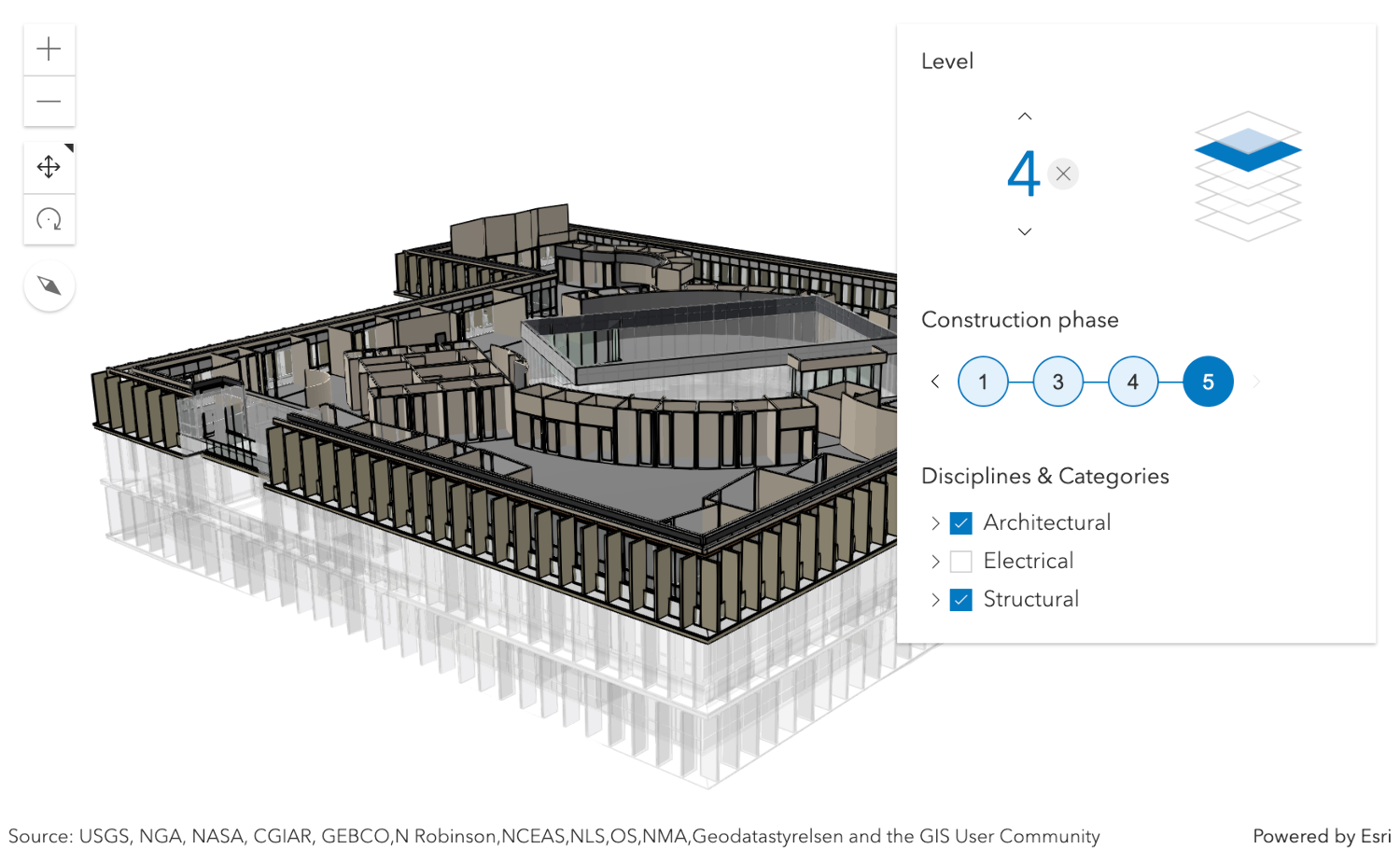](https://developers.arcgis.com/javascript/latest/sample-code/building-scene-layer-filter/)\n\nThe [BuildingSceneLayers](https://developers.arcgis.com/javascript/latest/references/core/layers/BuildingSceneLayer/) to be explored have to be set on the [layers](https://developers.arcgis.com/javascript/latest/references/map-components/components/arcgis-building-explorer/#layers) property of the component. When setting multiple layers, the filters set by the Building Explorer component will be applied on all layers. The component doesn't allow the user to select between multiple layers present in a scene.\n\nOften, [BuildingSceneLayers](https://developers.arcgis.com/javascript/latest/references/core/layers/BuildingSceneLayer/) contain an _Overview_ [BuildingComponentSublayer](https://developers.arcgis.com/javascript/latest/references/core/layers/buildingSublayers/BuildingComponentSublayer/) that serves as an exterior shell and views the building model as a single feature. When a layer is added to the Building Explorer component, the visibility of the _Overview_ layer is turned off, so that the user can directly interact with the individual features in the _Full Model_ [BuildingGroupSublayer](https://developers.arcgis.com/javascript/latest/references/core/layers/buildingSublayers/BuildingGroupSublayer/).\n\nThe Level element of the Building Explorer component allows to select a single level in one or several buildings. When selecting a level, the levels above it are hidden and the levels below it become semi-transparent for added visual context.\n\nSome [BuildingSceneLayers](https://developers.arcgis.com/javascript/latest/references/core/layers/BuildingSceneLayer/) include information indicating the phase in which building elements, such as doors or pipes, were created and, optionally, when they were demolished. If a layer has multiple construction phases, these will be displayed in the Construction phases element. When selecting a construction phase, all the building elements created during or before the phase are selected. Demolished building elements aren't displayed.\n\nDiscipline layers are [group layers](https://developers.arcgis.com/javascript/latest/references/core/layers/buildingSublayers/BuildingGroupSublayer/) that organize the [BuildingSceneLayers](https://developers.arcgis.com/javascript/latest/references/core/layers/BuildingSceneLayer/) content into architectural, structural, mechanical, or electrical groups. These layers contain a number of Category layers such as walls, windows, furniture, and lighting fixtures. These layers can be turned on and off in the Disciplines and Categories list.\n\nThe Building Explorer component can only display filters set by the component itself. Filters set by other applications will be ignored.\n\n**Known limitations**\n\nBuilding Explorer is only supported in a 3D [arcgis-scene](https://developers.arcgis.com/javascript/latest/references/map-components/components/arcgis-scene/) component.\n\n**See also**\n\n- [Sample - Filter BuildingSceneLayer with Building Explorer](https://developers.arcgis.com/javascript/latest/sample-code/building-scene-layer-filter/)\n- [Sample - BuildingSceneLayer with Slice component](https://developers.arcgis.com/javascript/latest/sample-code/building-scene-layer-slice/)\n--\n\n### Events\n- **arcgisBuildingLevelChange** - Emitted when the user changes the selected building level, or when a new filter instance is loaded.\n- **arcgisBuildingPhaseChange** - Emitted when the user changes the selected construction phase, or when a new filter instance is loaded.\n- **arcgisReady** - Emitted when the component associated with a map or scene view is ready to be interacted with.\n\n### Methods\n- `componentOnReady(): Promise<this>` - Creates a promise that resolves once the component is fully loaded.\n- `destroy(): Promise<void>` - Permanently destroy the component.","attributes":[{"name":"auto-destroy-disabled","description":"If true, the component will not be destroyed automatically when it is\ndisconnected from the document. This is useful when you want to move the\ncomponent to a different place on the page, or temporarily hide it. If this\nis set, make sure to call the [destroy()](https://developers.arcgis.com/javascript/latest/references/map-components/components/arcgis-building-explorer/#destroy) method when you are done to\nprevent memory leaks.","values":[]},{"name":"heading-level","description":"Indicates the heading level to use for the component title.","values":[{"name":"1"},{"name":"2"},{"name":"3"},{"name":"4"},{"name":"5"},{"name":"6"}]},{"name":"hide-disciplines","description":"If true, the disciplines tree will be hidden.","values":[]},{"name":"hide-levels","description":"If true, the levels filter will be hidden.","values":[]},{"name":"hide-phases","description":"If true, the phases filter will be hidden.","values":[]},{"name":"icon","description":"Icon which represents the component.\nTypically used when the component is controlled by another component (e.g. by the Expand component).","values":[]},{"name":"label","description":"The component's default label.","values":[]},{"name":"level","description":"The currently selected value for the building level filter.","values":[]},{"name":"phase","description":"The currently selected value for the construction phase filter.\nConstruction phases are used to track site development for a [BuildingSceneLayers](https://developers.arcgis.com/javascript/latest/references/core/layers/BuildingSceneLayer/). Setting a construction phase in the Building Explorer selects everything in the layer which is already constructed at that phase (created phase <= selected phase) but not yet demolished (demolished phase > selected phase). The goal is to display what the building or construction site looks like at that selected phase.","values":[]},{"name":"reference-element","description":"By assigning the `id` attribute of the Map or Scene component to this property, you can position a child component anywhere in the DOM while still maintaining a connection to the Map or Scene.","values":[]}],"references":[{"name":"Docs","url":"https://developers.arcgis.com/javascript/latest/references/map-components/components/arcgis-building-explorer/"},{"name":"Building Explorer","url":"https://developers.arcgis.com/javascript/latest/storybook/map-components/?path=/story/arcgis-building-explorer--demo&singleStory=true"}]},{"name":"arcgis-catalog-layer-list","description":"The Catalog Layer List provides a way to display and interact with [CatalogLayers](https://developers.arcgis.com/javascript/latest/references/core/layers/CatalogLayer/).\nThe component displays a list of layers in the [dynamicGroupLayer](https://developers.arcgis.com/javascript/latest/references/core/layers/CatalogLayer/#dynamicGroupLayer)\nand allows you to toggle their visibility.\n\nThe [ListItem](https://developers.arcgis.com/javascript/latest/references/core/widgets/LayerList/ListItem/) API provides access to each layer's properties, allows\nthe developer to configure actions related to the layer, and allows the developer to add content to the item related to the layer.\n--\n\n### Events\n- **arcgisClose** - Emitted when the component's close button is clicked.\n- **arcgisPropertyChange** - Emitted when the value of a property is changed. Use this to listen to changes to properties.\n- **arcgisReady** - Emitted when the component associated with a map or scene view is ready to be interacted with.\n- **arcgisTriggerAction** - Emitted when an action is triggered on the component.\n\n### Methods\n- `componentOnReady(): Promise<this>` - Creates a promise that resolves once the component is fully loaded.\n- `destroy(): Promise<void>` - Permanently destroy the component.","attributes":[{"name":"auto-destroy-disabled","description":"If true, the component will not be destroyed automatically when it is\ndisconnected from the document. This is useful when you want to move the\ncomponent to a different place on the page, or temporarily hide it. If this\nis set, make sure to call the [destroy()](https://developers.arcgis.com/javascript/latest/references/map-components/components/arcgis-catalog-layer-list/#destroy) method when you are done to\nprevent memory leaks.","values":[]},{"name":"closed","description":"Indicates whether a component is closed. When `true`, the component will be hidden.","values":[]},{"name":"collapsed","description":"Indicates whether the component is collapsed.\nWhen collapsed, only the collapse button and the heading are displayed.","values":[]},{"name":"filter-placeholder","description":"Placeholder text used in the filter input if [showFilter](https://developers.arcgis.com/javascript/latest/references/map-components/components/arcgis-catalog-layer-list/#showFilter) is true.","values":[]},{"name":"filter-text","description":"The value of the filter input if [showFilter](https://developers.arcgis.com/javascript/latest/references/map-components/components/arcgis-catalog-layer-list/#showFilter) is true.","values":[]},{"name":"heading-level","description":"Indicates the heading level to use for the heading of the component.\nBy default, the heading is rendered as a level 2 heading (e.g., `<h2>Catalog Layer List</h2>`).\nDepending on the component's placement in your app, you may need to adjust this heading for proper semantics.\nThis is important for meeting accessibility standards.","values":[{"name":"1"},{"name":"2"},{"name":"3"},{"name":"4"},{"name":"5"},{"name":"6"}]},{"name":"hide-status-indicators","description":"Indicates whether the status indicators will be displayed.","values":[]},{"name":"icon","description":"Icon which represents the component.\nTypically used when the component is controlled by another component (e.g. by the Expand component).","values":[]},{"name":"label","description":"The component's default label.","values":[]},{"name":"min-filter-items","description":"The minimum number of list items required to display the [showFilter](https://developers.arcgis.com/javascript/latest/references/map-components/components/arcgis-catalog-layer-list/#showFilter) input box.","values":[]},{"name":"reference-element","description":"By assigning the `id` attribute of the Map or Scene component to this property, you can position a child component anywhere in the DOM while still maintaining a connection to the Map or Scene.","values":[]},{"name":"selection-mode","description":"Specifies the selection mode.\nSelected items are available in the [selectedItems](https://developers.arcgis.com/javascript/latest/references/core/widgets/CatalogLayerList/#selectedItems) property.\n\n| Value | Description |\n| ----- | ----------- |\n| multiple | Allows any number of items to be selected at once. This is useful when you want to apply an operation to multiple items at the same time. |\n| none | Disables selection. Use this when you want to prevent selecting items. |\n| single | Allows only one item to be selected at a time. If another item is selected, the previous selection is cleared. This is useful when you want to ensure that a maximum of one item is selected at a time. |\n| single-persist | Allows only one item to be selected at a time and prevents de-selection. Once an item is selected, it remains selected until another item is selected. This is useful when you want to ensure that there is always exactly one selected item. |","values":[{"name":"multiple"},{"name":"single"},{"name":"none"},{"name":"single-persist"}]},{"name":"show-close-button","description":"Indicates whether to display a close button in the header.","values":[]},{"name":"show-collapse-button","description":"Indicates whether to display a collapse button in the header.","values":[]},{"name":"show-errors","description":"Indicates whether to display layers with load errors.","values":[]},{"name":"show-filter","description":"Indicates whether to display a filter input box when then number of list items is equal to or greater than the value set in [CatalogLayerList#minFilterItems](https://developers.arcgis.com/javascript/latest/references/core/widgets/CatalogLayerList/#minFilterItems), allowing users to filter layers by their title.","values":[]},{"name":"show-heading","description":"Indicates whether to display the component's heading. The heading text is \"Layer List\". The heading level can be set with the [CatalogLayerList#headingLevel](https://developers.arcgis.com/javascript/latest/references/core/widgets/CatalogLayerList/#headingLevel).","values":[]},{"name":"show-temporary-layer-indicators","description":"Indicates whether temporary layer indicators will be displayed for layers with [Layer#persistenceEnabled](https://developers.arcgis.com/javascript/latest/references/core/layers/Layer/#persistenceEnabled) set to `false`. A [temporary icon](https://developers.arcgis.com/calcite-design-system/icons/?icon=temporary&library=Calcite%20UI&query=temporary) will be displayed on the near side of the layer title.","values":[]},{"name":"visibility-appearance","description":"Determines the icons used to indicate visibility.\n\n| Value | Description | Example |\n| ----- | ----------- | ------- |\n| default | Displays view icons on the far side. Icons are hidden except on hover or if they have keyboard focus. See [view-visible](https://developers.arcgis.com/calcite-design-system/icons/?icon=view-visible&library=Calcite%20UI&query=view) and [view-hide](https://developers.arcgis.com/calcite-design-system/icons/?icon=view-hide&library=Calcite%20UI&query=view) calcite icons. | 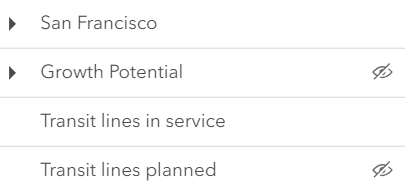 |\n| checkbox | Displays checkbox icons on the near side. See [check-square-f](https://developers.arcgis.com/calcite-design-system/icons/?icon=check-square-f&library=Calcite%20UI&query=check) and [square](https://developers.arcgis.com/calcite-design-system/icons/?icon=square&library=Calcite%20UI&query=square) calcite icons. | 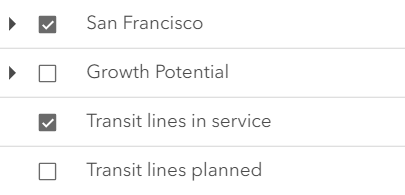 |","values":[{"name":"default"},{"name":"checkbox"}]}],"references":[{"name":"Docs","url":"https://developers.arcgis.com/javascript/latest/references/map-components/components/arcgis-catalog-layer-list/"},{"name":"Catalog Layer List","url":"https://developers.arcgis.com/javascript/latest/storybook/map-components/?path=/story/arcgis-catalog-layer-list--demo&singleStory=true"}]},{"name":"arcgis-compass","description":"The Compass component indicates where north is in relation to the current view [rotation](https://developers.arcgis.com/javascript/latest/references/core/views/MapView/#rotation) or [camera heading](https://developers.arcgis.com/javascript/latest/references/core/Camera/#heading).\n--\n\n### Events\n- **arcgisPropertyChange** - Emitted when the value of a property is changed. Use this to listen to changes to properties.\n- **arcgisReady** - Emitted when the component associated with a map or scene view is ready to be interacted with.\n\n### Methods\n- `componentOnReady(): Promise<this>` - Creates a promise that resolves once the component is fully loaded.\n- `destroy(): Promise<void>`\n- `reset(): Promise<void>`","attributes":[{"name":"auto-destroy-disabled","description":"If true, the component will not be destroyed automatically when it is\ndisconnected from the document. This is useful when you want to move the\ncomponent to a different place on the page, or temporarily hide it. If this\nis set, make sure to call the [destroy()](https://developers.arcgis.com/javascript/latest/references/map-components/components/arcgis-compass/#destroy) method when you are done to\nprevent memory leaks.","values":[]},{"name":"icon","description":"Icon displayed in the component's button.","values":[]},{"name":"label","description":"The component's default label.","values":[]},{"name":"reference-element","description":"By assigning the `id` attribute of the Map or Scene component to this property, you can position a child component anywhere in the DOM while still maintaining a connection to the Map or Scene.","values":[]},{"name":"visual-scale","description":"Specifies the size of the component.","values":[{"name":"s"},{"name":"m"},{"name":"l"}]}],"references":[{"name":"Docs","url":"https://developers.arcgis.com/javascript/latest/references/map-components/components/arcgis-compass/"},{"name":"Compass","url":"https://developers.arcgis.com/javascript/latest/storybook/map-components/?path=/story/arcgis-compass--demo&singleStory=true"}]},{"name":"arcgis-coordinate-conversion","description":"The Coordinate Conversion component provides a way to display user cursor position either as map coordinates or\nas any of several popular coordinate notations. Additionally, the component provides a way to convert\nuser input coordinates into a [point](https://developers.arcgis.com/javascript/latest/references/core/geometry/Point/).\n\n\nSeveral common formats are included by default:\n* XY - Longitude, Latitude (WGS84)\n* MGRS - [Military Grid Reference System](https://earth-info.nga.mil/index.php?dir=coordsys&action=coordsys#mgrs)\n* UTM - [Universal Transverse Mercator](https://earth-info.nga.mil/index.php?dir=coordsys&action=coordsys#utm)\n* DD - Decimal Degrees\n* DDM - Degrees Decimal Minutes\n* DMS - Degrees Minutes Seconds\n* Basemap - X, Y in the coordinate system used by the current basemap in the units used by the basemap.\nWeb Mercator is the standard for Esri-provided basemaps.\n\nAdditional formats can be created by a developer and made available\nthrough the component\n--\n\n### Events\n- **arcgisConversionChange** - Emitted when a conversion is added or removed, or when the order of conversions changes.\n- **arcgisPropertyChange** - Emitted when the value of a property is changed. Use this to listen to changes to properties.\n- **arcgisReady** - Emitted when the component associated with a map or scene view is ready to be interacted with.\n\n### Methods\n- `componentOnReady(): Promise<this>` - Creates a promise that resolves once the component is fully loaded.\n- `destroy(): Promise<void>` - Permanently destroy the component.\n- `reverseConvert(coordinate: string, format: Format): Promise<Point | null | undefined>` - Attempt to convert a string into a [point](https://developers.arcgis.com/javascript/latest/references/core/geometry/Point/). The format of the\nstring must be specified. A [collection](https://developers.arcgis.com/javascript/latest/references/core/core/Collection/) of available formats can be\nobtained from the [formats](https://developers.arcgis.com/javascript/latest/references/map-components/components/arcgis-coordinate-conversion/#formats) property.","attributes":[{"name":"auto-destroy-disabled","description":"If true, the component will not be destroyed automatically when it is\ndisconnected from the document. This is useful when you want to move the\ncomponent to a different place on the page, or temporarily hide it. If this\nis set, make sure to call the [destroy()](https://developers.arcgis.com/javascript/latest/references/map-components/components/arcgis-coordinate-conversion/#destroy) method when you are done to\nprevent memory leaks.","values":[]},{"name":"expanded","description":"Describes whether the component is expanded or not. If `true`, the component is expanded and all conversions are visible.","values":[]},{"name":"heading-level","description":"Indicates the heading level to use for the coordinate input and coordinate settings headings. By default,\nthese headings are rendered as level 4 headings (e.g. `<h4>Input coordinate</h4>`). Depending on the coordinate conversion component's\nplacement in your app, you may need to adjust this heading for proper semantics. This is important for meeting\naccessibility standards.","values":[{"name":"1"},{"name":"2"},{"name":"3"},{"name":"4"},{"name":"5"},{"name":"6"}]},{"name":"hide-capture-button","description":"Determines whether the capture button will be shown in the component. If `true`, the capture button will be hidden.","values":[]},{"name":"hide-expand-button","description":"Determines whether the expand button will be shown in the component. If `true`, the expand button will be hidden.","values":[]},{"name":"hide-input-button","description":"Determines whether the input coordinate button will be shown in the component. If `true`, the input button will be hidden.","values":[]},{"name":"hide-settings-button","description":"Determines whether the settings button will be shown in the component. If `true`, the settings button will be hidden.","values":[]},{"name":"icon","description":"Icon which represents the component.\nTypically used when the component is controlled by another component (e.g. by the Expand component).\nSearch [Calcite Icons](https://developers.arcgis.com/calcite-design-system/icons/) for possible values.","values":[]},{"name":"label","description":"The component's default label.","values":[]},{"name":"mode","description":"Describes the current mode of the component.\n\n* While in `live` mode, the component will update as the cursor moves.\n* While in `capture` mode, the component will update on mouse click and display a graphic\nmarking the current location.","values":[{"name":"live"},{"name":"capture"}]},{"name":"multiple-conversions-disabled","description":"If this property is set to `true`, multiple conversions will be disabled, and only a single conversion will be displayed. Otherwise, multiple conversions will be shown.","values":[]},{"name":"orientation","description":"Determines whether the component should expand up or down. If set to `auto`,\nthe component will be oriented based on its position in the view.","values":[{"name":"auto"},{"name":"expand-down"},{"name":"expand-up"}]},{"name":"reference-element","description":"By assigning the `id` attribute of the Map or Scene component to this property, you can position a child component anywhere in the DOM while still maintaining a connection to the Map or Scene.","values":[]},{"name":"storage-disabled","description":"If this property is set to `true`, sessionStorage or localStorage (depending on [storageType](https://developers.arcgis.com/javascript/latest/references/core/widgets/CoordinateConversion/#storageType))\nwill not be used to hydrate and persist the component's state.","values":[]},{"name":"storage-type","description":"This property determines whether sessionStorage or localStorage will be used to store component's state.","values":[{"name":"local"},{"name":"session"}]}],"references":[{"name":"Docs","url":"https://developers.arcgis.com/javascript/latest/references/map-components/components/arcgis-coordinate-conversion/"},{"name":"Coordinate Conversion","url":"https://developers.arcgis.com/javascript/latest/storybook/map-components/?path=/story/arcgis-coordinate-conversion--demo&singleStory=true"}]},{"name":"arcgis-daylight","description":"The Daylight component can be used to manipulate the lighting conditions of an\n[arcgis-scene](https://developers.arcgis.com/javascript/latest/references/map-components/components/arcgis-scene/).\nTo achieve this, the component modifies the `lighting` property of the\n[arcgis-scene.environment](https://developers.arcgis.com/javascript/latest/references/map-components/components/arcgis-scene/#environment) of the Scene component.\n\nTo illuminate the scene, one can either use a configuration of date and time to position the\n[sun](https://developers.arcgis.com/javascript/latest/references/core/views/3d/environment/SunLighting/) or switch to the\n[virtual](https://developers.arcgis.com/javascript/latest/references/core/views/3d/environment/VirtualLighting/) mode,\nwhere the light source is relative to the camera.\n\nWhen illuminating the scene with **[sunlight](https://developers.arcgis.com/javascript/latest/references/core/views/3d/environment/SunLighting/)**\nand adjusting the time and date, the positions of the sun and stars are updated accordingly. This also updates the\n[date](https://developers.arcgis.com/javascript/latest/references/core/views/3d/environment/SunLighting/#date) property of\n[arcgis-scene.environment](https://developers.arcgis.com/javascript/latest/references/map-components/components/arcgis-scene/#environment).\n\n[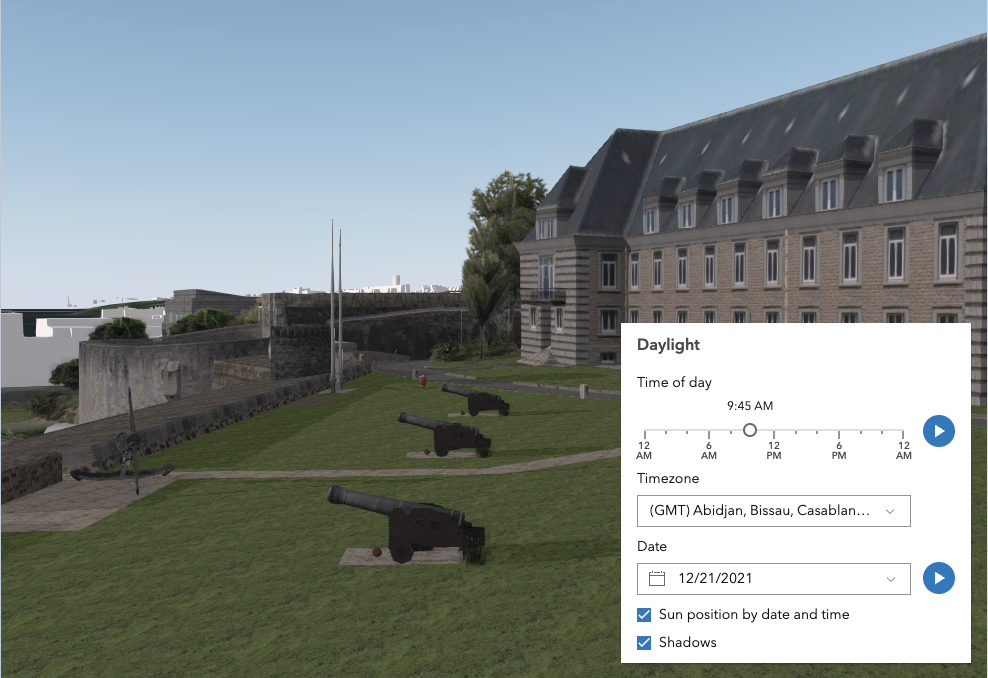](https://developers.arcgis.com/javascript/latest/sample-code/daylight/)\n\nThe component has an option to select the timezone. When the user makes any adjustments here, a new time\nin the chosen timezone is calculated and displayed in the slider. The timezone selector can be disabled\nby using the [hideTimezone](https://developers.arcgis.com/javascript/latest/references/map-components/components/arcgis-daylight/#hideTimezone) property.\n\nBy default, a calendar is displayed to select the day, month, and year.\nWith the [dateOrSeason](https://developers.arcgis.com/javascript/latest/references/map-components/components/arcgis-daylight/#dateOrSeason) property, the calendar can be replaced with\na dropdown menu where a season can be selected instead:\n\n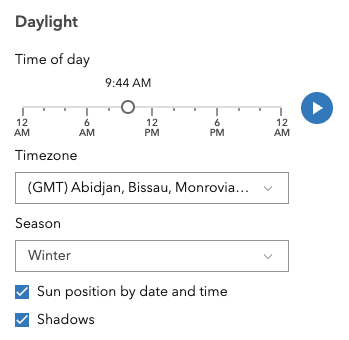\n\nThere are two play buttons: one corresponds to the time-of-day slider and animates the lighting\nover the course of a day, while the other corresponds to the date picker\nand animates the lighting over the course of a year (month by month). The speed of the time-of-day animation can\nbe set using the [playSpeedMultiplier](https://developers.arcgis.com/javascript/latest/references/map-components/components/arcgis-daylight/#playSpeedMultiplier) property.\n\n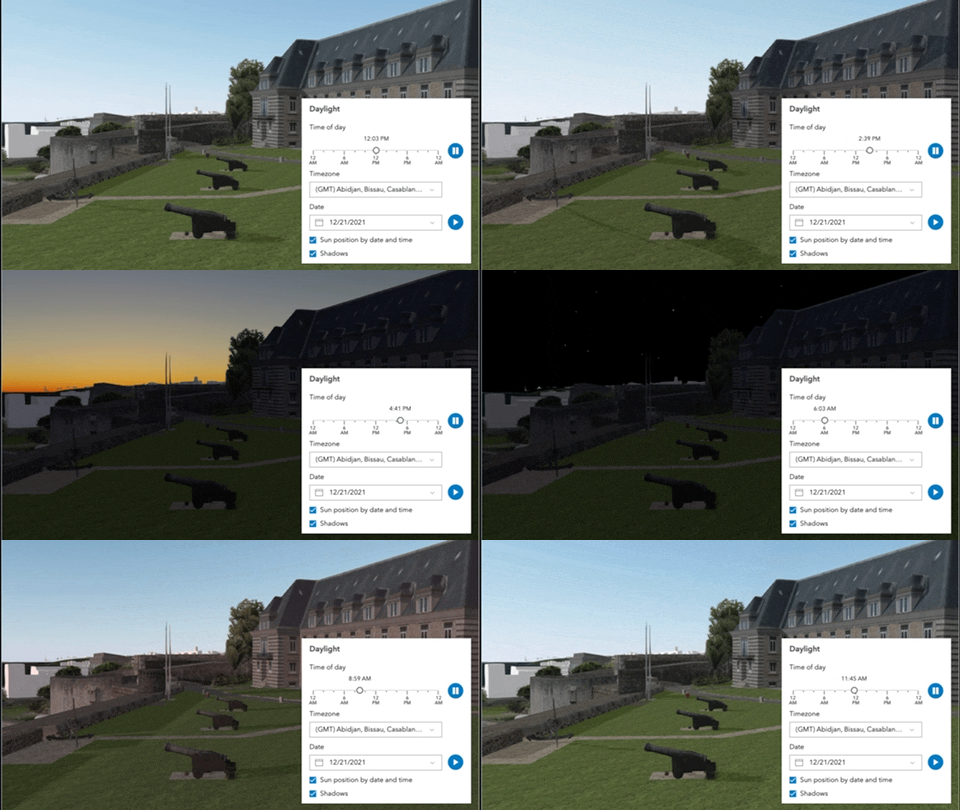\n\nExcept for the daytime slider, all the elements in the Daylight component can be hidden:\n\n\n\nWhenever the sun position option is unchecked, the scene applies the\n**[virtual light](https://developers.arcgis.com/javascript/latest/references/core/views/3d/environment/VirtualLighting/)** source relative to the camera.\nWith this, the component's time slider, timezone, and date picker get automatically disabled:\n\n\n\n**Things to consider**\n\n* Daylight is only supported in a 3D [arcgis-scene](https://developers.arcgis.com/javascript/latest/references/map-components/components/arcgis-scene/) component.\n* The Daylight component uses UTC time and does not account for the daylight savings times in different countries and regions of the world.\n* When using the [virtual light](https://developers.arcgis.com/javascript/latest/references/core/views/3d/environment/VirtualLighting/),\nsetting the time and date programmatically does not have an influence on the lighting conditions of the scene.\n* When using the [sunlight](https://developers.arcgis.com/javascript/latest/references/core/views/3d/environment/SunLighting/),\nthe time slider and time zone automatically react to the changes of the camera (e.g., position, rotation, pan, zoom) because the position of the simulated sun\nis updated to maintain a consistent solar time of day based on the camera's current longitude. This can be adjusted using the\n[cameraTrackingEnabled](https://developers.arcgis.com/javascript/latest/references/core/views/3d/environment/SunLighting/#cameraTrackingEnabled)\nproperty on [arcgis-scene.environment](https://developers.arcgis.com/javascript/latest/references/map-components/components/arcgis-scene/#environment).\n--\n\n### Events\n- **arcgisReady** - Emitted when the component associated with a map or scene view is ready to be interacted with.\n- **arcgisUserDateTimeChange** - Fires when the user changes the date or time in the component by interacting with the slider, the date picker, the\nseason selector or the play buttons.\n\n### Methods\n- `componentOnReady(): Promise<this>` - Creates a promise that resolves once the component is fully loaded.\n- `destroy(): Promise<void>` - Permanently destroy the component.","attributes":[{"name":"auto-destroy-disabled","description":"If true, the component will not be destroyed automatically when it is\ndisconnected from the document. This is useful when you want to move the\ncomponent to a different place on the page, or temporarily hide it. If this\nis set, make sure to call the [destroy()](https://developers.arcgis.com/javascript/latest/references/map-components/components/arcgis-daylight/#destroy) method when you are done to\nprevent memory leaks.","values":[]},{"name":"current-season","description":"Sets the season that is used when the component displays the season picker.\nEach season uses a fixed date corresponding to the seasonal equinoxes and solstices.","values":[{"name":"fall"},{"name":"spring"},{"name":"summer"},{"name":"winter"}]},{"name":"date-or-season","description":"Controls whether the component displays a date or a season picker. When the date picker is set, the user selects the date from a calendar. The season picker allows the user to choose a season from a drop-down list. Each season uses a fixed date corresponding to the equinoxes and solstices of 2014.","values":[{"name":"date"},{"name":"season"}]},{"name":"day-playing","description":"Starts or pauses the daytime animation cycling through the minutes of the day.\nSet the property to `true` to start the animation and to `false` to pause it.","values":[]},{"name":"heading-level","description":"Indicates the heading level to use for the component title.","values":[{"name":"1"},{"name":"2"},{"name":"3"},{"name":"4"},{"name":"5"},{"name":"6"}]},{"name":"hide-date-picker","values":[]},{"name":"hide-header","values":[]},{"name":"hide-play-buttons","values":[]},{"name":"hide-shadows-toggle","values":[]},{"name":"hide-sun-lighting-toggle","values":[]},{"name":"hide-timezone","values":[]},{"name":"icon","description":"Icon which represents the component. Typically used when the component is controlled by another component (e.g. by the Expand component).","values":[]},{"name":"label","description":"The component's default label.","values":[]},{"name":"local-date","description":"The calendar date in the timezone given by [utcOffset](https://developers.arcgis.com/javascript/latest/references/map-components/components/arcgis-daylight/#utcOffset).","values":[]},{"name":"play-speed-multiplier","description":"Controls the daytime animation speed.","values":[]},{"name":"reference-element","description":"By assigning the `id` attribute of the Map or Scene component to this property, you can position a child component anywhere in the DOM while still maintaining a connection to the Map or Scene.","values":[]},{"name":"time-slider-position","description":"Slider position for the time of day in the timezone\ngiven by [utcOffset](https://developers.arcgis.com/javascript/latest/references/map-components/components/arcgis-daylight/#utcOffset). The position represents the time\nof the day in minutes. Possible values range between 0 and 1440.","values":[]},{"name":"time-slider-steps","description":"Sets the interval, in minutes, with which the time slider increments or decrements as it is dragged or changed via the keyboard.","values":[]},{"name":"utc-offset","description":"The difference in hours between UTC time and the time displayed in the component.","values":[]},{"name":"year-playing","description":"Starts or pauses the date animation cycling through the months of the year.\nSet the property to `true` to start the animation and to `false` to pause it.","values":[]}],"references":[{"name":"Docs","url":"https://developers.arcgis.com/javascript/latest/references/map-components/components/arcgis-daylight/"},{"name":"Daylight","url":"https://developers.arcgis.com/javascript/latest/storybook/map-components/?path=/story/arcgis-daylight--demo&singleStory=true"}]},{"name":"arcgis-directional-pad","description":"A directional pad (D-Pad) component can be used to control the position and\nrotation of the map. The D-Pad provides eight directions of movement, a small\ncompass which indicates the current orientation of the map and a slider for\nrotating the map.\n\nIt is also possible to disable the map's rotation controls or change the size\nof the component.\n\nThe Directional Pad component is not supported in 3D.\n--\n\n### Events\n- **arcgisPropertyChange** - Emitted when the value of a property is changed. Use this to listen to changes to properties.\n- **arcgisReady** - Emitted when the component associated with a map or scene view is ready to be interacted with.\n\n### Methods\n- `componentOnReady(): Promise<this>` - Creates a promise that resolves once the component is fully loaded.\n- `destroy(): Promise<void>` - Permanently destroy the component.","attributes":[{"name":"auto-destroy-disabled","description":"If true, the component will not be destroyed automatically when it is\ndisconnected from the document. This is useful when you want to move the\ncomponent to a different place on the page, or temporarily hide it. If this\nis set, make sure to call the [destroy()](https://developers.arcgis.com/javascript/latest/references/map-components/components/arcgis-directional-pad/#destroy) method when you are done to\nprevent memory leaks.","values":[]},{"name":"disabled","description":"When true, the component is visually withdrawn and cannot receive user interaction.","values":[]},{"name":"hide-directional-buttons","description":"Whether to hide directional pad buttons.","values":[]},{"name":"icon","description":"Icon which represents the component.\nTypically used when the component is controlled by another component (e.g. by the Expand component).","values":[]},{"name":"label","description":"The component's default label.","values":[]},{"name":"reference-element","description":"By assigning the `id` attribute of the Map or Scene component to this property, you can position a child component anywhere in the DOM while still maintaining a connection to the Map or Scene.","values":[]},{"name":"show-rotation-reset-button","description":"Whether to display the button to reset the rotation angle. This only takes\neffect if showRotationSlider is true.","values":[]},{"name":"show-rotation-slider","description":"Whether to display the map rotation slider.","values":[]},{"name":"visual-scale","description":"Determines the size of directional pad buttons and the slider.\n\nIn addition to this parameter, you can set the width on the component\ncontainer to dictate directional pad size.","values":[{"name":"s"},{"name":"m"},{"name":"l"}]}],"references":[{"name":"Docs","url":"https://developers.arcgis.com/javascript/latest/references/map-components/components/arcgis-directional-pad/"},{"name":"Directional Pad","url":"https://developers.arcgis.com/javascript/latest/storybook/map-components/?path=/story/arcgis-directional-pad--demo&singleStory=true"}]},{"name":"arcgis-directions","description":"The Directions component provides a way to calculate directions, between two or more input locations with a [RouteLayer](https://developers.arcgis.com/javascript/latest/references/core/layers/RouteLayer/), using ArcGIS Online and custom Network Analysis Route services.\nThis component generates a route finding a least-cost path between multiple points using the routing service associated with the assigned RouteLayer. The route is calculated based on the stops and barriers added to the RouteLayer. The component provides a user interface for adding, removing, and reordering stops and barriers. Once the route is solved, the component displays the route on the map and provides turn-by-turn directions in a list format.\n\nDirections uses the [Search component](https://developers.arcgis.com/javascript/latest/references/map-components/components/arcgis-search/) to locate each stop, either by selecting a point on the map, or by entering a search term into the textbox.\nSearch uses settings defined in the `Search properties`. This includes the `locationType`, which defines the type of geocoding result that is returned, and defaults to \"street\".\n\nDirections requires a RouteLayer to be associated with the `layer` property or using the `useDefaultRouteLayer` property. A RouteLayer can be programmatically created or derived from an external source like a portal item or webmap.\nPlease note that in order to view or interact with routing inputs and results, the RouteLayer must be added to the map. Routing service and symbology is configured in the layer, specifically the `url` and `defaultSymbols` properties respectively.\n\nThe ArcGIS Online routing service requires authentication. If an API key is specified at the app level (see [Config#apiKey](https://developers.arcgis.com/javascript/latest/references/core/config/#Config-apiKey)) or component level (see [apiKey](https://developers.arcgis.com/javascript/latest/references/map-components/components/arcgis-directions/#apiKey))) then this key will accompany requests to both the routing service and geocoder/reverse-geocoder.\nPlease refer to the Search component for more information on geocoding.\n\nLocations on the map can be reverse geocoded and used as stops in the route. Click the button with a crosshairs icon to associate a location with a new or existing stop. After clicking the button, click the map once. To cancel this process, press the `escape` key.\nThe resulting driving directions are automatically collapsed and can be optionally saved to a new or existing portal item. This can be achieved programically with `save` and `saveAs`. The `Clear` button calls the `reset()` method, which removes all stops, directions, and the solved route.\n\nSelecting the `Edit route` button allows you to add/move/remove stops, add/move/remove/reshape polyline barriers, and add/move/remove waypoints. To add a new waypoint, first hover the cursor over the route and select the desired point. Then select and drag the point to move and place the waypoint. By default the route will be automatically resolve at the completion of any editing operation. For more complex routes, it may be advantageous to disable auto-solving and solve as and when needed with the dedicated solve button. Currently, this is only supported in 2D MapViews.\n\n**Note:** Printing in Directions is in beta and considered experimental. The print preview dialog, in some scenarios, may not display as aniticipated.\n--\n\n### Events\n- **arcgisPropertyChange** - Emitted when the value of a property is changed. Use this to listen to changes to properties.\n- **arcgisReady** - Emitted when the component associated with a map or scene view is ready to be interacted with.\n\n### Methods\n- `componentOnReady(): Promise<this>` - Creates a promise that resolves once the component is fully loaded.\n- `destroy(): Promise<void>` - Permanently destroy the component.\n- `getDirections(): Promise<RouteLayerSolveResult>` - Computes a route and directions. If successfully computed, results will be assigned to the [lastRoute](https://developers.arcgis.com/javascript/latest/references/map-components/components/arcgis-directions/#lastRoute) property.\n- `save(): Promise<PortalItem>` - Saves the currently assigned [RouteLayer](https://developers.arcgis.com/javascript/latest/references/core/layers/RouteLayer/)\n(see [layer](https://developers.arcgis.com/javascript/latest/references/map-components/components/arcgis-directions/#layer)) to an existing portal item.\n- `saveAs(portalItem: PortalItem, options: { folder: PortalFolder; }): Promise<PortalItem>` - Saves the currently assigned [RouteLayer](https://developers.arcgis.com/javascript/latest/references/core/layers/RouteLayer/)\n(see [layer](https://developers.arcgis.com/javascript/latest/references/map-components/components/arcgis-directions/#layer)) to a new portal item.\n- `startEditing(): Promise<void>` - Starts an edit session for interactive addition, modification, and deletion of stops, barriers, and waypoints.\n- `stopEditing(): Promise<void>` - Ends an interactive edit session.\n- `zoomToRoute(): Promise<void>` - Zoom so that the entire route is displayed within the current map extent.","attributes":[{"name":"api-key","description":"An authorization string used to access a resource or service.\n[API keys](https://developers.arcgis.com/documentation/security-and-authentication/api-key-authentication/) are generated\nand managed in the portal. An API key is tied\nexplicitly to an ArcGIS account; it is also used to monitor service usage.\nSetting a fine-grained API key on a specific class overrides the [global API key](https://developers.arcgis.com/javascript/latest/references/core/config/#ConfigWithApiKey).\n\nBy default, the following URLs will be used (unless overwritten in the app, or if using different defaults from a portal):\n\nGeocoding URL: `https://geocode-api.arcgis.com/arcgis/rest/services/World/GeocodeServer`\n\nRouting URL: `https://route-api.arcgis.com/arcgis/rest/services/World/Route/NAServer/Route_World`","values":[]},{"name":"auto-destroy-disabled","description":"If true, the component will not be destroyed automatically when it is\ndisconnected from the document. This is useful when you want to move the\ncomponent to a different place on the page, or temporarily hide it. If this\nis set, make sure to call the [destroy()](https://developers.arcgis.com/javascript/latest/references/map-components/components/arcgis-directions/#destroy) method when you are done to\nprevent memory leaks.","values":[]},{"name":"auto-solve-on-edit-active","description":"When `true`, the route will re-solve continuously as an interactive operation is ongoing (e.g., while dragging a stop or waypoint).","values":[]},{"name":"heading-level","description":"Indicates the heading level to use for the origin and destination addresses (i.e. \"380 New York Street\").\nBy default, this is rendered\nas a level 2 heading (e.g. `<h2>380 New York Street</h2>`). Depending on the component's placement\nin your app, you may need to adjust this heading for proper semantics. This is\nimportant for meeting accessibility standards.","values":[{"name":"1"},{"name":"2"},{"name":"3"},{"name":"4"},{"name":"5"},{"name":"6"}]},{"name":"hide-layer-details","description":"Indicates whether to a link to the route layer portal-item (if any) will be displayed","values":[]},{"name":"hide-print-button","description":"Indicates whether to the Print button will be displayed","values":[]},{"name":"hide-save-as-button","description":"Indicates whether to the Save As button will be displayed","values":[]},{"name":"hide-save-button","description":"Indicates whether to the Save button will be displayed","values":[]},{"name":"icon","description":"Icon which represents the component.\nTypically used when the component is controlled by another component (e.g. by the Expand component).","values":[]},{"name":"label","description":"The component's default label.","values":[]},{"name":"max-stops","description":"The maximum number of stops allowed for routing.","values":[]},{"name":"reference-element","description":"By assigning the `id` attribute of the Map or Scene component to this property, you can position a child component anywhere in the DOM while still maintaining a connection to the Map or Scene.","values":[]},{"name":"route-layer-item-id","values":[]},{"name":"unit","description":"Unit system (imperial, metric) or specific unit used for displaying the distance values.\nIf not set, the component will attempt to pick \"imperial\" or \"metric\" based on the user's portal settings.\n\nThis property will affect the summary distance as well as distance for each turn-by-turn maneuver.","values":[{"name":"meters"},{"name":"metric"},{"name":"millimeters"},{"name":"centimeters"},{"name":"feet"},{"name":"us-feet"},{"name":"nautical-miles"},{"name":"kilometers"},{"name":"yards"},{"name":"decimeters"},{"name":"inches"},{"name":"miles"},{"name":"imperial"}]},{"name":"use-default-route-layer","description":"If `true`, a new [RouteLayer](https://developers.arcgis.com/javascript/latest/references/core/layers/RouteLayer/) will be created, added to the map and assigned to the `layer` property.","values":[]}],"references":[{"name":"Docs","url":"https://developers.arcgis.com/javascript/latest/references/map-components/components/arcgis-directions/"},{"name":"Directions","url":"https://developers.arcgis.com/javascript/latest/storybook/map-components/?path=/story/arcgis-directions--demo&singleStory=true"}]},{"name":"arcgis-direct-line-measurement-3d","description":"The Direct Line Measurement 3D component can be added to an [arcgis-scene](https://developers.arcgis.com/javascript/latest/references/map-components/components/arcgis-scene/)\ncomponent to calculate and display vertical, horizontal, and direct distances between two points.\n\n[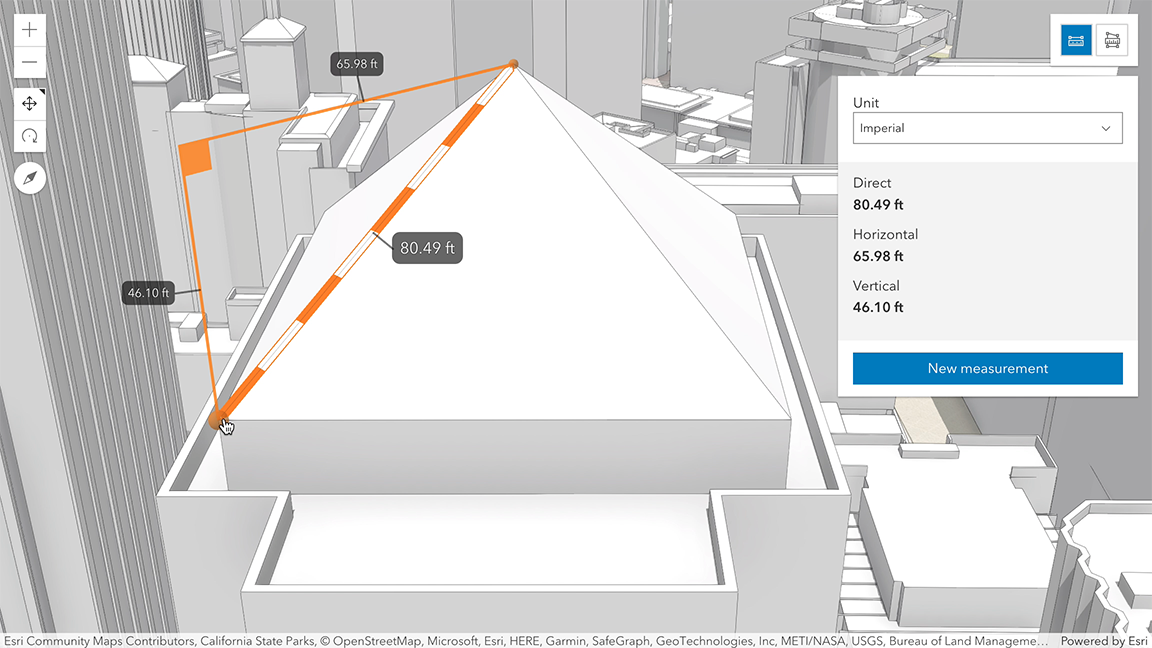](https://developers.arcgis.com/javascript/latest/sample-code/measurement-3d/)\n\nHow distances are computed depends on the scene's spatial reference.\n\nIn **geographic coordinate systems** (GCS) and in **Web Mercator**:\n- Direct distance is computed in a Euclidean manner, in an [ECEF](https://en.wikipedia.org/wiki/ECEF) coordinate system (or equivalent on other planets);\n- Horizontal distance is computed geodetically, taking into consideration the curvature of the planet;\n- Vertical distance is computed as an elevation difference.\n\nIn **projected coordinate systems** (PCS), apart from Web Mercator, all three distances (direct, horizontal, and vertical)\n are computed in a Euclidean manner (in their respective PCS).\n\nDirect Line Measurement 3D component visualizes and labels the direct, horizontal, and vertical distances and displays the same values\nin the UI panel. When the distance between the points is greater than 100 kilometers,\nthe measurement visualization is simplified, and only the horizontal and vertical distances are calculated.\nThe direct distance option becomes unavailable.\n\n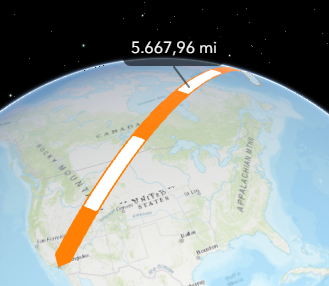\n\nWhen the component is active, a horizontal \"laser\" line is drawn which indicates the height at the current mouse position.\nThis line can help in analyzing the heights of objects relative to each other and the terrain.\nA second laser line shows the intersection of the scene with the vertical plane that passes through the checkered line.\n\n**Things to consider**\n\n* Direct Line Measurement 3D is designed to work in the Scene component. For measurements in the [arcgis-map](https://developers.arcgis.com/javascript/latest/references/map-components/components/arcgis-map/)\ncomponent, use [arcgis-distance-measurement-2d](https://developers.arcgis.com/javascript/latest/references/map-components/components/arcgis-distance-measurement-2d/).\n* Snapping is enabled by default. This can be temporarily disabled by holding the `CTRL` key.\n* Layer types currently supported for snapping are:\n[FeatureLayer](https://developers.arcgis.com/javascript/latest/references/core/layers/FeatureLayer/),\n[GraphicsLayer](https://developers.arcgis.com/javascript/latest/references/core/layers/GraphicsLayer/) (except Mesh geometries),\n[GeoJSONLayer](https://developers.arcgis.com/javascript/latest/references/core/layers/GeoJSONLayer/),\n[WFSLayer](https://developers.arcgis.com/javascript/latest/references/core/layers/WFSLayer/),\n[CSVLayer](https://developers.arcgis.com/javascript/latest/references/core/layers/CSVLayer/),\n[3D Object SceneLayer](https://developers.arcgis.com/javascript/latest/references/core/layers/SceneLayer/),\nand [BuildingSceneLayer](https://developers.arcgis.com/javascript/latest/references/core/layers/BuildingSceneLayer/).\n\n**See also**\n\n- [DirectLineMeasurementAnalysis](https://developers.arcgis.com/javascript/latest/references/core/analysis/DirectLineMeasurementAnalysis/)\n- [Sample - Measurement in 3D](https://developers.arcgis.com/javascript/latest/sample-code/measurement-3d/)\n- [Sample - Analysis objects](https://developers.arcgis.com/javascript/latest/sample-code/analysis-objects/)\n- [Sample - Color theming for interactive tools](https://developers.arcgis.com/javascript/latest/sample-code/view-theme/)\n--\n\n### Events\n- **arcgisPropertyChange** - Emitted when the value of a property is changed. Use this to listen to changes to properties.\n- **arcgisReady** - Emitted when the component associated with a map or scene view is ready to be interacted with.\n\n### Methods\n- `clear(): Promise<void>` - Clears the current measurement.\n- `componentOnReady(): Promise<this>` - Creates a promise that resolves once the component is fully loaded.\n- `destroy(): Promise<void>` - Permanently destroy the component.\n- `start(): Promise<void>` - Starts a new measurement.","attributes":[{"name":"auto-destroy-disabled","description":"If true, the component will not be destroyed automatically when it is\ndisconnected from the document. This is useful when you want to move the\ncomponent to a different place on the page, or temporarily hide it. If this\nis set, make sure to call the [destroy()](https://developers.arcgis.com/javascript/latest/references/map-components/components/arcgis-direct-line-measurement-3d/#destroy) method when you are done to\nprevent memory leaks.","values":[]},{"name":"hide-start-button","description":"If true, the button that starts a new measurement will be hidden.","values":[]},{"name":"hide-unit-select","description":"If true, the unit selection dropdown will be hidden.","values":[]},{"name":"hide-visualization","description":"Indicates whether the component's visualization is hidden in the view.","values":[]},{"name":"icon","description":"Icon which represents the component.\nTypically used when the component is controlled by another component (e.g. by the Expand component).","values":[]},{"name":"label","description":"The component's default label.","values":[]},{"name":"reference-element","description":"By assigning the `id` attribute of the Map or Scene component to this property, you can position a child component anywhere in the DOM while still maintaining a connection to the Map or Scene.","values":[]},{"name":"unit","description":"Unit system (imperial, metric) or specific unit used for displaying the distance values. Possible values are listed in\n[unitOptions](https://developers.arcgis.com/javascript/latest/references/map-components/components/arcgis-direct-line-measurement-3d/#unitOptions).","values":[{"name":"meters"},{"name":"metric"},{"name":"millimeters"},{"name":"centimeters"},{"name":"feet"},{"name":"us-feet"},{"name":"nautical-miles"},{"name":"kilometers"},{"name":"yards"},{"name":"decimeters"},{"name":"inches"},{"name":"miles"},{"name":"imperial"}]}],"references":[{"name":"Docs","url":"https://developers.arcgis.com/javascript/latest/references/map-components/components/arcgis-direct-line-measurement-3d/"},{"name":"Direct Line Measurement 3D","url":"https://developers.arcgis.com/javascript/latest/storybook/map-components/?path=/story/arcgis-direct-line-measurement-3d--demo&singleStory=true"}]},{"name":"arcgis-distance-measurement-2d","description":"The Distance Measurement 2D component can be added to an [arcgis-map](https://developers.arcgis.com/javascript/latest/references/map-components/components/arcgis-map/)\ncomponent to calculate and display the length of a polyline.\n\nHow distances are computed depends on the scene's spatial reference.\n\nIn **geographic coordinate systems** (GCS), and in **Web Mercator**, lengths are computed geodetically, taking into consideration the curvature of the planet.\n\nIn **projected coordinate systems** (PCS), apart from Web Mercator, lengths are computed in a Euclidean manner (in their respective PCS).\n--\n\n### Events\n- **arcgisPropertyChange** - Emitted when the value of a property is changed. Use this to listen to changes to properties.\n- **arcgisReady** - Emitted when the component associated with a map or scene view is ready to be interacted with.\n\n### Methods\n- `clear(): Promise<void>` - Clears the current measurement.\n- `componentOnReady(): Promise<this>` - Creates a promise that resolves once the component is fully loaded.\n- `destroy(): Promise<void>` - Permanently destroy the component.\n- `start(): Promise<void>` - Starts a new measurement.","attributes":[{"name":"auto-destroy-disabled","description":"If true, the component will not be destroyed automatically when it is\ndisconnected from the document. This is useful when you want to move the\ncomponent to a different place on the page, or temporarily hide it. If this\nis set, make sure to call the [destroy()](https://developers.arcgis.com/javascript/latest/references/map-components/components/arcgis-distance-measurement-2d/#destroy) method when you are done to\nprevent memory leaks.","values":[]},{"name":"hide-start-button","description":"If true, the button that starts a new measurement will be hidden.","values":[]},{"name":"hide-unit-select","description":"If true, the unit selection dropdown will be hidden.","values":[]},{"name":"hide-visualization","description":"Indicates whether the component's visualization is hidden in the view.","values":[]},{"name":"icon","description":"Icon which represents the component.\nTypically used when the component is controlled by another component (e.g. by the Expand component).","values":[]},{"name":"label","description":"The component's default label.","values":[]},{"name":"reference-element","description":"By assigning the `id` attribute of the Map or Scene component to this property, you can position a child component anywhere in the DOM while still maintaining a connection to the Map or Scene.","values":[]},{"name":"unit","description":"Unit system (imperial, metric) or specific unit used for displaying the distance values. Possible values are listed in\n[unitOptions](https://developers.arcgis.com/javascript/latest/references/map-components/components/arcgis-distance-measurement-2d/#unitOptions).","values":[{"name":"meters"},{"name":"metric"},{"name":"millimeters"},{"name":"centimeters"},{"name":"feet"},{"name":"us-feet"},{"name":"nautical-miles"},{"name":"kilometers"},{"name":"yards"},{"name":"decimeters"},{"name":"inches"},{"name":"miles"},{"name":"imperial"}]}],"references":[{"name":"Docs","url":"https://developers.arcgis.com/javascript/latest/references/map-components/components/arcgis-distance-measurement-2d/"},{"name":"Distance Measurement 2D","url":"https://developers.arcgis.com/javascript/latest/storybook/map-components/?path=/story/arcgis-distance-measurement-2d--demo&singleStory=true"}]},{"name":"arcgis-editor","description":"The Editor component provides an out-of-the-box editing experience to help streamline editing within a web application.\n--\n\n### Events\n- **arcgisPropertyChange** - Emitted when the value of a property is changed. Use this to listen to changes to properties.\n- **arcgisReady** - Emitted when the component associated with a map or scene view is ready to be interacted with.\n- **arcgisSketchCreate** - Fires when a user starts drawing a feature, is actively drawing a feature, and completes drawing a feature.\n- **arcgisSketchUpdate** - Fires when a user starts updating a feature's geometry, is actively updating a feature's geometry, and completes updating a feature's geometry.\n\n### Methods\n- `cancelSelectionTool(): void` - Cancels any active selection operation.\n- `cancelWorkflow(): Promise<void>`\n- `componentOnReady(): Promise<this>` - Creates a promise that resolves once the component is fully loaded.\n- `deleteFeatureFromWorkflow(): Promise<void>`\n- `destroy(): Promise<void>` - Permanently destroy the component.\n- `startCreateFeaturesWorkflowAtFeatureCreation(info: CreateFeaturesCreationInfo): Promise<void>`\n- `startCreateFeaturesWorkflowAtFeatureTypeSelection(): Promise<void>`\n- `startMergeFeaturesWorkflow(features: FeatureInfo | Graphic[], options: EditorStartMergeFeaturesWorkflowOptions): Promise<void>` - Starts a [MergeFeaturesWorkflow](https://developers.arcgis.com/javascript/latest/references/core/widgets/Editor/MergeFeaturesWorkflow/) using\nthe provided features. All features must belong to the same layer.\n- `startSplitFeatureWorkflow(feature: Graphic, options: EditorStartSplitFeatureWorkflowOptions): Promise<void>` - Starts a [SplitFeatureWorkflow](https://developers.arcgis.com/javascript/latest/references/core/widgets/Editor/SplitFeatureWorkflow/) using the provided feature.\n- `startUpdateFeaturesWorkflow(features: FeatureInfo | Graphic[]): Promise<void>` - Starts an [UpdateFeaturesWorkflow](https://developers.arcgis.com/javascript/latest/references/core/widgets/Editor/UpdateFeaturesWorkflow/) using\nthe provided features.\n- `startUpdateWorkflowAtFeatureEdit(feature: Graphic): Promise<void>`\n- `startUpdateWorkflowAtFeatureSelection(): Promise<void>`\n- `startUpdateWorkflowAtMultipleFeatureSelection(candidates: Graphic[]): Promise<void>`","attributes":[{"name":"auto-destroy-disabled","description":"If true, the component will not be destroyed automatically when it is\ndisconnected from the document. This is useful when you want to move the\ncomponent to a different place on the page, or temporarily hide it. If this\nis set, make sure to call the [destroy()](https://developers.arcgis.com/javascript/latest/references/map-components/components/arcgis-editor/#destroy) method when you are done to\nprevent memory leaks.","values":[]},{"name":"heading-level","description":"Indicates the heading level to use for title of the component. By default, the title (i.e. \"Editor\") is rendered\nas a level 4 heading (e.g. `<h4>Editor</h4>`). Depending on the component's placement\nin your app, you may need to adjust this heading for proper semantics. This is\nimportant for meeting accessibility standards.","values":[{"name":"1"},{"name":"2"},{"name":"3"},{"name":"4"},{"name":"5"},{"name":"6"}]},{"name":"hide-create-features-section","description":"Indicates whether to hide the \"create features\" section of the component in the default view.","values":[]},{"name":"hide-edit-features-section","description":"Indicates whether to hide the \"edit features\" section of the component in the default view.","values":[]},{"name":"hide-labels-toggle","description":"Indicates whether to hide the sketch labels toggle.","values":[]},{"name":"hide-merge-button","description":"Indicates whether to hide the \"Merge features\" button in contexts where that command is available. Default value is `true`.","values":[]},{"name":"hide-settings-menu","description":"Indicates whether to hide the settings menu. This menu contains the snapping and tooltips settings.","values":[]},{"name":"hide-sketch","description":"Determines whether the component should display an embedded Sketch component to provide graphical controls for choosing drawing tools.","values":[]},{"name":"hide-snapping-controls-elements-enabled-toggle","description":"Indicates whether to hide the `enabledToggle` (Enable snapping). This toggles\nthe [SnappingOptions#enabled](https://developers.arcgis.com/javascript/latest/references/core/views/interactive/snapping/SnappingOptions/#enabled) property.\n> [!WARNING]\n>\n> **Note**\n>\n> It is recommended to set `SnappingControls.snappingOptions.enabled = true` if `enabledToggle` is set to `false`.\n> This is because `selfEnabledToggle` and `featureEnabledToggle` require snapping globally to be enabled in order to be interactive. Otherwise, these toggles will not be responsive.","values":[]},{"name":"hide-snapping-controls-elements-feature-enabled-toggle","description":"Indicates whether to hide the `featureEnabledToggle` (Feature to feature). This toggles\nthe [SnappingOptions#featureEnabled](https://developers.arcgis.com/javascript/latest/references/core/views/interactive/snapping/SnappingOptions/#featureEnabled) property.","values":[]},{"name":"hide-snapping-controls-elements-layer-list","description":"Indicates whether to hide the [FeatureSnappingLayerSource](https://developers.arcgis.com/javascript/latest/references/core/views/interactive/snapping/FeatureSnappingLayerSource/) layerList. The layerlist provides the available layer sources supported for snapping.","values":[]},{"name":"hide-snapping-controls-elements-self-enabled-toggle","description":"Indicates whether to hide the `selfEnabledToggle` (Geometry guides). This toggles\nthe [SnappingOptions#selfEnabled](https://developers.arcgis.com/javascript/latest/references/core/views/interactive/snapping/SnappingOptions/#selfEnabled) property.","values":[]},{"name":"hide-split-button","description":"Indicates whether to hide the \"Split\" button in contexts where that command is available. Default value is `true`.","values":[]},{"name":"hide-tooltips-toggle","description":"Indicates whether to hide the tooltips toggle. Default value is `true`.","values":[]},{"name":"hide-undo-redo-buttons","description":"Indicates whether to hide undo/redo buttons in the embedded Sketch toolbar. Default value is `true`.","values":[]},{"name":"hide-zoom-to-button","description":"Indicates whether to hide the \"Zoom to\" button when creating and editing features. Default value is `true`.","values":[]},{"name":"icon","description":"Icon which represents the component.\nTypically used when the component is controlled by another component (e.g. by the Expand component).","values":[]},{"name":"label","description":"The component's default label.","values":[]},{"name":"reference-element","description":"By assigning the `id` attribute of the Map or Scene component to this property, you can position a child component anywhere in the DOM while still maintaining a connection to the Map or Scene.","values":[]},{"name":"show-snapping-controls-elements-header","description":"Indicates whether to display the header. Default is `false`.","values":[]},{"name":"sync-view-selection","description":"Controls whether the editor should sync with the view's selection manager.\nThis does not include selection sources, which must be configured independently\non the view's selection manager.","values":[]},{"name":"use-legacy-create-tools","description":"**Deprecated**. Starting at version 5.0, `arcgis-editor` is transitioning to a next generation geometry\ncreation experience. This new experience provides advanced curve creation tools\nand allows multiple tools to be used in combination to define a single geometry.\n\nAs of 5.0, this experience is only available in 2D (e.g. [`arcgis-map`](https://developers.arcgis.com/javascript/latest/references/map-components/arcgis-map)).\n\nThis property is available to allow 2D applications to temporarily\nopt out of this experience.\n\n> [!CAUTION]\n>\n> This option will be removed in an upcoming release.","values":[]}],"references":[{"name":"Docs","url":"https://developers.arcgis.com/javascript/latest/references/map-components/components/arcgis-editor/"},{"name":"Editor","url":"https://developers.arcgis.com/javascript/latest/storybook/map-components/?path=/story/arcgis-editor--demo&singleStory=true"}]},{"name":"arcgis-elevation-profile","description":"The Elevation Profile component manages an [ElevationProfileAnalysis](https://developers.arcgis.com/javascript/latest/references/core/analysis/ElevationProfileAnalysis/) and displays its elevation profiles.\n\n[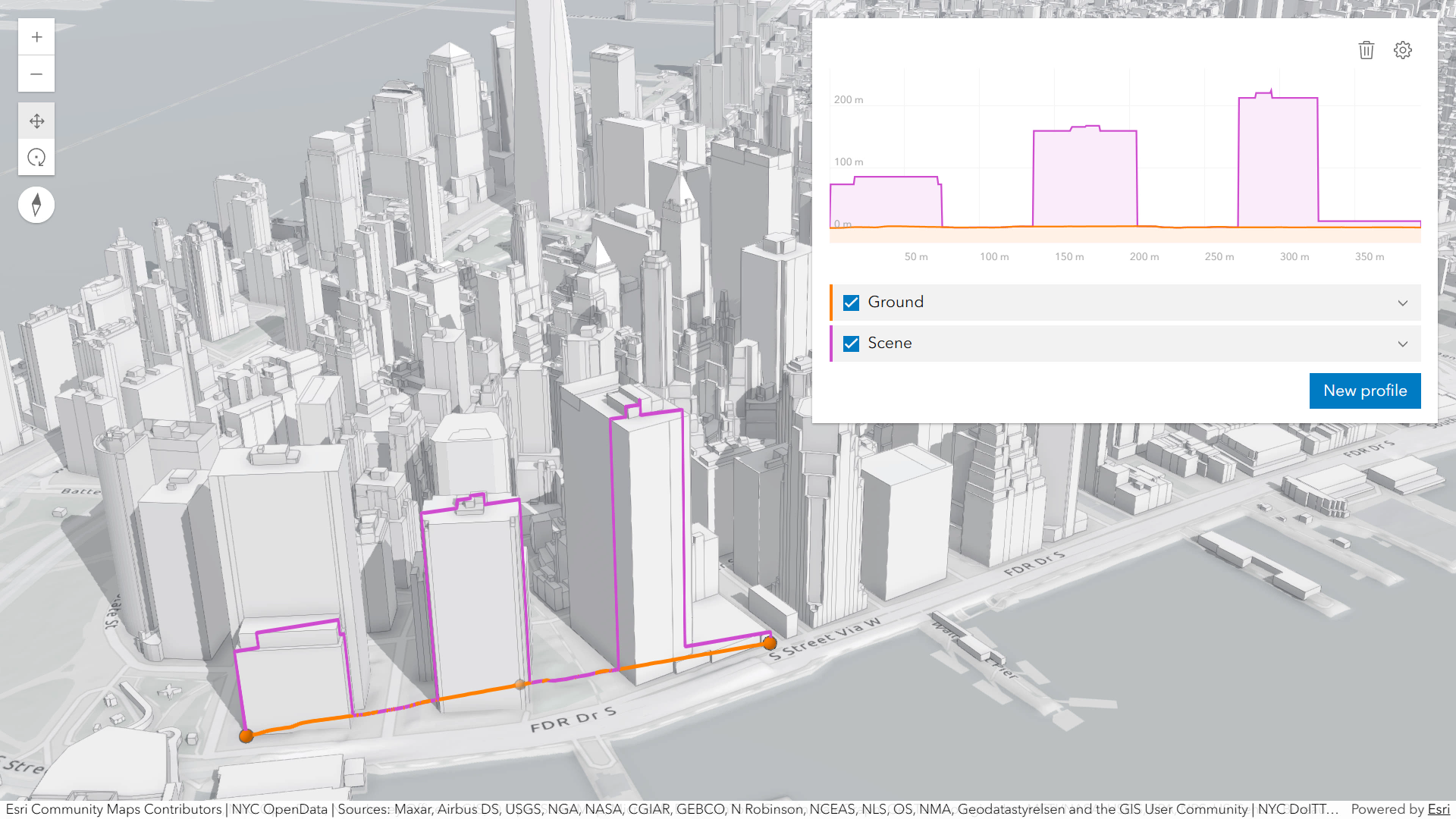](https://developers.arcgis.com/javascript/latest/sample-code/elevation-profile/)\n\nThe component can visualize multiple profile lines, depending on whether it is used in an [arcgis-map](https://developers.arcgis.com/javascript/latest/references/map-components/components/arcgis-map/) component or an [arcgis-scene](https://developers.arcgis.com/javascript/latest/references/map-components/components/arcgis-scene/) component and on the available elevation source data:\n\n* [**ElevationProfileLineGround**](https://developers.arcgis.com/javascript/latest/references/core/analysis/ElevationProfile/ElevationProfileLineGround/): represents a profile line that uses elevation from [arcgis-map.ground](https://developers.arcgis.com/javascript/latest/references/map-components/components/arcgis-map/#ground) of the connected Map or Scene component. The profile recomputes automatically when ground layers are added, removed, or their visibility changes.\n* [**ElevationProfileLineInput**](https://developers.arcgis.com/javascript/latest/references/core/analysis/ElevationProfile/ElevationProfileLineInput/): represents a profile line that reads elevation from the analysis geometry itself; typically used for polylines with z values. If the line lacks z values but is displayed with a non-draped elevation mode, a profile is still computed. If `elevationInfo` is set to `on-the-ground`, elevation comes from the Ground (when ground layers are present). An elevation offset can be applied. In a Map this requires client-side graphics that already contain z values.\n* [**ElevationProfileLineQuery**](https://developers.arcgis.com/javascript/latest/references/core/analysis/ElevationProfile/ElevationProfileLineQuery/): represents a profile line that samples elevation from the elevation source set in the [source](https://developers.arcgis.com/javascript/latest/references/core/analysis/ElevationProfile/ElevationProfileLineQuery/#source) property. The elevation source can be an [ElevationLayer](https://developers.arcgis.com/javascript/latest/references/core/layers/ElevationLayer/) or an object with a method called `queryElevation` that has the same signature as [queryElevation()](https://developers.arcgis.com/javascript/latest/references/core/layers/ElevationLayer/#queryElevation).\n* [**ElevationProfileLineScene**](https://developers.arcgis.com/javascript/latest/references/core/analysis/ElevationProfile/ElevationProfileLineScene/): represents a profile line that derives elevation from the `Scene` and all its volumetric objects (e.g. SceneLayer, IntegratedMeshLayer).\n\nYou can choose to display one or several profile lines in the chart, by setting them in the [profiles](https://developers.arcgis.com/javascript/latest/references/map-components/components/arcgis-elevation-profile/#profiles) property.\n\nHovering over the chart shows an overlaid tooltip with elevation values of all profiles, and displays colored dot markers at the matching positions.\n\n[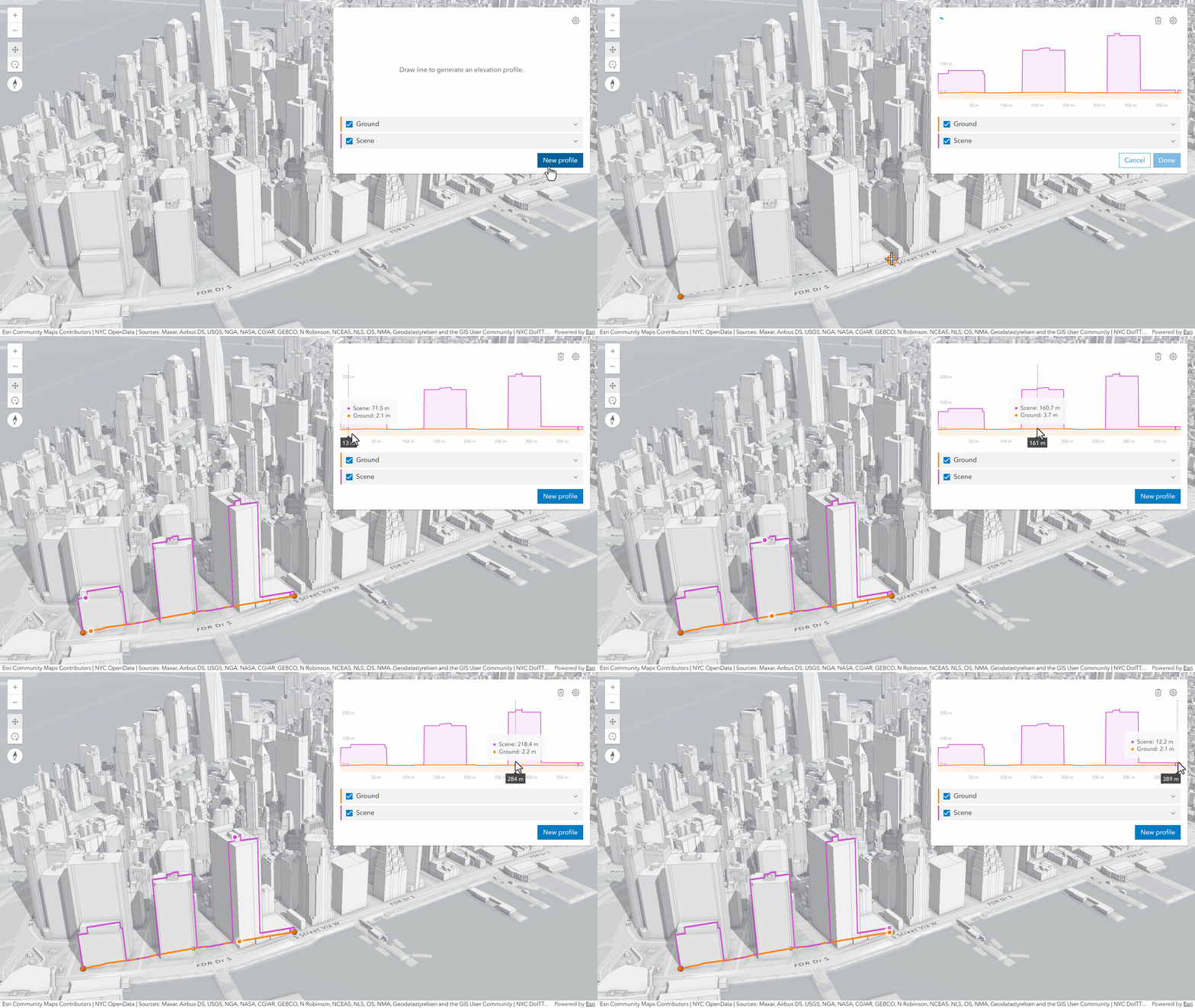](https://developers.arcgis.com/javascript/latest/sample-code/elevation-profile/)\n\nCheckboxes in the legend allow hiding individual profiles. Chart units can be set via the settings menu to metric, imperial or a specific unit.\n\nScrolling the chart zooms in to a specific part of the profile chart. When zoomed in, click the minus button to reset the zoom. On touch devices, pinch to zoom in and out.\n\nHow distance values are computed depends on the map's spatial reference:\n\n* In geographic coordinate systems (GCS) and in Web Mercator, distances are computed geodetically.\n* In projected coordinate systems (PCS), apart from Web Mercator, distances are computed in a Euclidean manner (in their respective PCS).\n\n**Known limitations**\n\n- [ElevationProfileLineInput](https://developers.arcgis.com/javascript/latest/references/core/analysis/ElevationProfile/ElevationProfileLineInput/) in 2D is only valid when the analysis [geometry](https://developers.arcgis.com/javascript/latest/references/core/analysis/ElevationProfileAnalysis/#geometry) has z values, `hasZ===true` and no [elevationInfo](https://developers.arcgis.com/javascript/latest/references/core/analysis/ElevationProfileAnalysis/#elevationInfo) is set.\n- [ElevationProfileLineScene](https://developers.arcgis.com/javascript/latest/references/core/analysis/ElevationProfile/ElevationProfileLineScene/) is only supported in a 3D [arcgis-scene](https://developers.arcgis.com/javascript/latest/references/map-components/components/arcgis-scene/) component.\n\n**See also**\n\n- [ElevationProfileAnalysis](https://developers.arcgis.com/javascript/latest/references/core/analysis/ElevationProfileAnalysis/)\n- [Sample - Elevation Profile component](https://developers.arcgis.com/javascript/latest/sample-code/elevation-profile/)\n- [Sample - Elevation Profile analysis](https://developers.arcgis.com/javascript/latest/sample-code/analysis-elevation-profile/)\n--\n\n### Events\n- **arcgisPropertyChange** - Emitted when the value of a property is changed. Use this to listen to changes to properties.\n- **arcgisReady** - Emitted when the component associated with a map or scene view is ready to be interacted with.\n\n### Methods\n- `clear(): Promise<void>` - Clear the current elevation profile. If an interactive operation is in progress, it will also be stopped.\n- `componentOnReady(): Promise<this>` - Creates a promise that resolves once the component is fully loaded.\n- `destroy(): Promise<void>` - Permanently destroy the component.\n- `select(): Promise<void>` - Start an interactive operation to pick an existing polyline feature in the view to use as the input for the\nelevation profile. The operation ends when the user presses the <kbd>Escape</kbd> key.\nTo programmatically cancel the operation, call the [stop()](https://developers.arcgis.com/javascript/latest/references/map-components/components/arcgis-elevation-profile/#stop) method.\n- `start(): Promise<void>` - Start an interactive operation that lets the user sketch a new path in the view along which the elevation profile\nwill be generated. The operation completes when the user double-clicks, presses the <kbd>Escape</kbd> key or clicks\nthe Done button in the UI.\nTo programmatically cancel the operation, call the [stop()](https://developers.arcgis.com/javascript/latest/references/map-components/components/arcgis-elevation-profile/#stop) method.\n- `stop(): Promise<void>` - Stop any ongoing interactive operation (for example, selecting or sketching a profile line). This can be used to\nprogrammatically cancel operations started by [start()](https://developers.arcgis.com/javascript/latest/references/map-components/components/arcgis-elevation-profile/#start) or\n[select()](https://developers.arcgis.com/javascript/latest/references/map-components/components/arcgis-elevation-profile/#select).","attributes":[{"name":"auto-destroy-disabled","description":"If true, the component will not be destroyed automatically when it is\ndisconnected from the document. This is useful when you want to move the\ncomponent to a different place on the page, or temporarily hide it. If this\nis set, make sure to call the [destroy()](https://developers.arcgis.com/javascript/latest/references/map-components/components/arcgis-elevation-profile/#destroy) method when you are done to\nprevent memory leaks.","values":[]},{"name":"distance-unit","description":"The measurement system (imperial, metric) or specific unit (e.g. feet, kilometers) used to display distance values\nin the chart, results and legend.","values":[{"name":"meters"},{"name":"metric"},{"name":"millimeters"},{"name":"centimeters"},{"name":"feet"},{"name":"us-feet"},{"name":"nautical-miles"},{"name":"kilometers"},{"name":"yards"},{"name":"decimeters"},{"name":"inches"},{"name":"miles"},{"name":"imperial"}]},{"name":"elevation-unit","description":"The measurement system (imperial, metric) or specific unit (e.g. feet, kilometers) used to display elevation values\nin the chart, results and legend.","values":[{"name":"meters"},{"name":"metric"},{"name":"millimeters"},{"name":"centimeters"},{"name":"feet"},{"name":"us-feet"},{"name":"nautical-miles"},{"name":"kilometers"},{"name":"yards"},{"name":"decimeters"},{"name":"inches"},{"name":"miles"},{"name":"imperial"}]},{"name":"hide-chart","description":"If true, the elevation profile chart will be hidden.","values":[]},{"name":"hide-clear-button","description":"If true, the clear button will be hidden.","values":[]},{"name":"hide-distance-display-unit-select","description":"If true, the distance display unit dropdown will be hidden in the settings popover.","values":[]},{"name":"hide-elevation-display-unit-select","description":"If true, the elevation display unit dropdown will be hidden in the settings popover.","values":[]},{"name":"hide-legend","description":"If true, the legend will be hidden.","values":[]},{"name":"hide-select-button","description":"If true, the button to select features in the view will be hidden.","values":[]},{"name":"hide-settings-button","description":"If true, the button which opens the settings popover will be hidden.","values":[]},{"name":"hide-start-button","description":"If true, the button to start sketching a new profile line will be hidden.","values":[]},{"name":"hide-uniform-chart-scaling-toggle","description":"If true, the uniform chart scaling toggle will be hidden in the settings popover.","values":[]},{"name":"hide-visualization","description":"Indicates whether the component's visualization is hidden in the view.","values":[]},{"name":"highlight-disabled","description":"If true, the component will not highlight features selected in the view.","values":[]},{"name":"icon","description":"Icon which represents the component.\nTypically used when the component is controlled by another component (e.g. by the Expand component).","values":[]},{"name":"label","description":"The component's default label.","values":[]},{"name":"reference-element","description":"By assigning the `id` attribute of the Map or Scene component to this property, you can position a child component anywhere in the DOM while still maintaining a connection to the Map or Scene.","values":[]},{"name":"uniform-chart-scaling","description":"Whether the chart should use a uniform scale for the X and Y axes.","values":[]}],"references":[{"name":"Docs","url":"https://developers.arcgis.com/javascript/latest/references/map-components/components/arcgis-elevation-profile/"},{"name":"Elevation Profile","url":"https://developers.arcgis.com/javascript/latest/storybook/map-components/?path=/story/arcgis-elevation-profile--demo&singleStory=true"}]},{"name":"arcgis-expand","description":"Expand acts as a clickable button for displaying interactive content, most commonly other components.\n--\n\n### Events\n- **arcgisPropertyChange** - Emitted when the value of a property is changed. Use this to listen to changes to properties.\n- **arcgisReady** - Emitted when the component associated with a map or scene view is ready to be interacted with.\n\n### Methods\n- `collapse(): Promise<void>` - Collapse the component.\n- `componentOnReady(): Promise<this>` - Creates a promise that resolves once the component is fully loaded.\n- `destroy(): Promise<void>` - Permanently destroy the component.\n- `expand(): Promise<void>` - Expand the component.","attributes":[{"name":"auto-collapse","description":"Automatically collapses the Expand component when the\n[viewpoint](https://developers.arcgis.com/javascript/latest/references/core/views/View/#viewpoint) updates.","values":[]},{"name":"auto-destroy-disabled","description":"If true, the component will not be destroyed automatically when it is\ndisconnected from the document. This is useful when you want to move the\ncomponent to a different place on the page, or temporarily hide it. If this\nis set, make sure to call the [destroy()](https://developers.arcgis.com/javascript/latest/references/map-components/components/arcgis-expand/#destroy) method when you are done to\nprevent memory leaks.","values":[]},{"name":"close-on-esc-disabled","description":"When `true`, the Expand component will not close itself if the Escape key is pressed while its content has keyboard focus.\nThis property can also be set to a function that returns a boolean, allowing for more customization for when to allow the\nExpand component to be closed via the Escape key.","values":[]},{"name":"collapse-icon","description":"Calcite icon used to style the Expand when it can be collapsed.","values":[]},{"name":"collapse-tooltip","description":"Tooltip to display to indicate the Expand can be collapsed.","values":[]},{"name":"expanded","description":"Indicates whether the component is currently expanded or not.","values":[]},{"name":"expand-icon","description":"Calcite icon used to style the Expand when it can be expanded.\nThe component will automatically use the icon of the component placed within the Expand if it has one.","values":[]},{"name":"expand-tooltip","description":"Tooltip to display to indicate Expand can be expanded.","values":[]},{"name":"focus-trap-disabled","description":"Whether the user's keyboard focus should be trapped in the expanded panel state. If `true`, tabbing\nforward or backward will cycle through elements only within the panel content.","values":[]},{"name":"group","description":"This value associates two or more Expand components with each other, allowing one\ncomponent to auto collapse when another in the same group is expanded. For auto collapsing\nto take effect, all components in the group must be included in the same Map, Scene, or Link Chart component.\n\nFor example, if you place multiple Expand components in the `top-left` slot of the Map, you can assign them to a\ngroup called `top-left`. If one Expand component is expanded and the user clicks on a different component in the\n`top-left` group, then the first component is collapsed, allowing the content of the second component to be\nfully visible.","values":[]},{"name":"icon-number","description":"A number to display at the corner of the component to indicate the number of, for example, open issues or unread notices.\n\n","values":[]},{"name":"label","description":"The component's default label.","values":[]},{"name":"mode","description":"The mode in which the component displays. These modes are listed below:\n\n- `auto`: This is the default mode. It is responsive to browser size changes and will update based on whether the component is viewed in a desktop or mobile application.\n- `floating`: Use this mode if you wish to always display the component as floating in a [Calcite Popover component](https://developers.arcgis.com/calcite-design-system/components/popover/) regardless of browser size.\n- `drawer`: Use this mode if you wish to always display the component in a [Calcite Sheet component](https://developers.arcgis.com/calcite-design-system/components/sheet/) regardless of browser size.","values":[{"name":"auto"},{"name":"drawer"},{"name":"floating"}]},{"name":"placement","description":"The placement used by the [Calcite Popover](https://developers.arcgis.com/calcite-design-system/components/popover/) when the component is expanded.\nThis property has no effect when the component is in `drawer` mode.","values":[{"name":"top-start"},{"name":"top-end"},{"name":"bottom-start"},{"name":"bottom-end"},{"name":"bottom"},{"name":"left"},{"name":"right"},{"name":"top"},{"name":"auto"},{"name":"auto-start"},{"name":"auto-end"},{"name":"right-start"},{"name":"right-end"},{"name":"left-start"},{"name":"left-end"},{"name":"leading-start"},{"name":"leading"},{"name":"leading-end"},{"name":"trailing-end"},{"name":"trailing"},{"name":"trailing-start"}]},{"name":"reference-element","description":"By assigning the `id` attribute of the Map or Scene component to this property, you can position a child component anywhere in the DOM while still maintaining a connection to the Map or Scene.","values":[]},{"name":"top-layer-disabled","description":"When true, disables rendering in the top layer (above overlays and modals).\nThis can be useful for controlling stacking context in complex UI layouts.","values":[]},{"name":"visual-scale","description":"Specifies the size of the component.","values":[{"name":"s"},{"name":"m"},{"name":"l"}]}],"references":[{"name":"Docs","url":"https://developers.arcgis.com/javascript/latest/references/map-components/components/arcgis-expand/"},{"name":"Expand with Custom Content\nThe Expand component with custom content.","url":"https://developers.arcgis.com/javascript/latest/storybook/map-components/?path=/story/arcgis-expand--custom-content&singleStory=true"},{"name":"Expand with Component Content\nThe Expand component with the [Basemap Gallery](https://developers.arcgis.com/javascript/latest/references/map-components/components/arcgis-basemap-gallery/) component.","url":"https://developers.arcgis.com/javascript/latest/storybook/map-components/?path=/story/arcgis-expand--component-content&singleStory=true"}]},{"name":"arcgis-feature","description":"The Feature component displays a graphic according to its [PopupTemplate](https://developers.arcgis.com/javascript/latest/references/core/PopupTemplate/).\nThis component is useful in instances where you want to display information about a feature but without\nthe use of a [Popup](https://developers.arcgis.com/javascript/latest/references/core/widgets/Popup/).\n\nIf wanting to show a feature's content with [actions](https://developers.arcgis.com/javascript/latest/references/core/PopupTemplate/#actions), [related](https://developers.arcgis.com/javascript/latest/references/core/popup/content/RelationshipContent/), or [clustering](https://developers.arcgis.com/javascript/latest/references/core/layers/support/FeatureReductionCluster/#popupTemplate), etc., then use the [arcgis-features](https://developers.arcgis.com/javascript/latest/references/map-components/components/arcgis-features/) component.\n\nWhen Arcade expressions that use `$map` or [geometry functions](https://developers.arcgis.com/arcade/function-reference/geometry_functions/) are defined in any popup template content or as expression elements,\nthe [map](https://developers.arcgis.com/javascript/latest/references/map-components/components/arcgis-feature/#map) and [spatialReference](https://developers.arcgis.com/javascript/latest/references/map-components/components/arcgis-feature/#spatialReference) properties need to be defined in the Feature component.\n--\n\n### Events\n- **arcgisPropertyChange** - Emitted when the value of a property is changed. Use this to listen to changes to properties.\n- **arcgisReady** - Emitted when the component associated with a map or scene view is ready to be interacted with.\n\n### Methods\n- `componentOnReady(): Promise<this>` - Creates a promise that resolves once the component is fully loaded.\n- `destroy(): Promise<void>` - Permanently destroy the component.\n- `nextMedia(contentElementIndex: number): Promise<void>` - Paginates to the next [media](https://developers.arcgis.com/javascript/latest/references/core/popup/content/MediaContent/) info.\n- `previousMedia(contentElementIndex: number): Promise<void>` - Paginates to the previous [media](https://developers.arcgis.com/javascript/latest/references/core/popup/content/MediaContent/) info.\n- `setActiveMedia(contentElementIndex: number, mediaInfoIndex: number): Promise<void>` - Paginates to a specified [media](https://developers.arcgis.com/javascript/latest/references/core/popup/content/MediaContent/) info object. For example,\nyou may have [media](https://developers.arcgis.com/javascript/latest/references/core/popup/content/MediaContent/) content which contains\nmultiple `mediaInfos`. This method allows you to specify the index of the `mediaInfos`\nyou wish to display.\n- `updateGeometry(): Promise<void>` - Updates the geometry of the graphic.","attributes":[{"name":"auto-destroy-disabled","description":"If true, the component will not be destroyed automatically when it is\ndisconnected from the document. This is useful when you want to move the\ncomponent to a different place on the page, or temporarily hide it. If this\nis set, make sure to call the [destroy()](https://developers.arcgis.com/javascript/latest/references/map-components/components/arcgis-feature/#destroy) method when you are done to\nprevent memory leaks.","values":[]},{"name":"chart-animation-disabled","description":"Disables chart animation within the component.","values":[]},{"name":"default-popup-template-enabled","description":"Enables automatic creation of a popup template for layers that have popups enabled but no\npopupTemplate defined. Automatic popup templates are supported for layers that\nsupport the `createPopupTemplate()` method. (Supported for\n[FeatureLayer](https://developers.arcgis.com/javascript/latest/references/core/layers/FeatureLayer/),\n[GeoJSONLayer](https://developers.arcgis.com/javascript/latest/references/core/layers/GeoJSONLayer/),\n[SceneLayer](https://developers.arcgis.com/javascript/latest/references/core/layers/SceneLayer/),\n[CSVLayer](https://developers.arcgis.com/javascript/latest/references/core/layers/CSVLayer/),\n[OGCFeatureLayer](https://developers.arcgis.com/javascript/latest/references/core/layers/OGCFeatureLayer/)\n[PointCloudLayer](https://developers.arcgis.com/javascript/latest/references/core/layers/PointCloudLayer/),\n[StreamLayer](https://developers.arcgis.com/javascript/latest/references/core/layers/StreamLayer/), and\n[ImageryLayer](https://developers.arcgis.com/javascript/latest/references/core/layers/ImageryLayer/)).\n\n**Note:**\nStarting with version 4.28, `date` fields are formatted using the `short-date-short-time` preset [dateFormat](https://developers.arcgis.com/javascript/latest/references/core/popup/support/FieldInfoFormat/#dateFormat)\nrather than `long-month-day-year` in the default [popup](https://developers.arcgis.com/javascript/latest/references/core/PopupTemplate/) created by setting the `defaultPopupTemplateEnabled` property to `true`.\nFor example, previously a date that may have appeared as `\"December 30, 1997\"` will now appear as `\"12/30/1997 6:00 PM\"`.","values":[]},{"name":"heading-level","description":"Indicates the heading level to use for the [heading](https://developers.arcgis.com/javascript/latest/references/map-components/components/arcgis-feature/#heading) of the component.\nBy default, the title is rendered\nas a level 2 heading (e.g. `<h2>Title of content</h2>`). Depending on the component's placement\nin your app, you may need to adjust this heading for proper semantics. This is\nimportant for meeting accessibility standards.","values":[{"name":"1"},{"name":"2"},{"name":"3"},{"name":"4"},{"name":"5"},{"name":"6"}]},{"name":"hide-attachments-content","description":"This property provides the ability to hide or show [attachments content](https://developers.arcgis.com/javascript/latest/references/core/popup/content/AttachmentsContent/) within the component.","values":[]},{"name":"hide-content","description":"This property provides the ability to hide or show content within the component.","values":[]},{"name":"hide-custom-content","description":"This property provides the ability to hide or show [custom content](https://developers.arcgis.com/javascript/latest/references/core/popup/content/CustomContent/) within the component.","values":[]},{"name":"hide-expression-content","description":"This property provides the ability to hide or show [expression content](https://developers.arcgis.com/javascript/latest/references/core/popup/content/ExpressionContent/) within the component.","values":[]},{"name":"hide-fields-content","description":"This property provides the ability to hide or show [fields content](https://developers.arcgis.com/javascript/latest/references/core/popup/content/FieldsContent/) within the component.","values":[]},{"name":"hide-heading","description":"This property provides the ability to hide or show the component's [heading](https://developers.arcgis.com/javascript/latest/references/map-components/components/arcgis-feature/#heading).","values":[]},{"name":"hide-last-edited-info","description":"This property provides the ability to hide or show the last edited info within the component.","values":[]},{"name":"hide-media-content","description":"This property provides the ability to hide or show [media content](https://developers.arcgis.com/javascript/latest/references/core/popup/content/MediaContent/) within the component.","values":[]},{"name":"hide-text-content","description":"This property provides the ability to hide or show [text content](https://developers.arcgis.com/javascript/latest/references/core/popup/content/TextContent/) within the component.","values":[]},{"name":"icon","description":"Icon which represents the component.\nTypically used when the component is controlled by another component (e.g. by the Expand component).","values":[]},{"name":"label","description":"The component's default label.","values":[]},{"name":"reference-element","description":"By assigning the `id` attribute of the Map or Scene component to this property, you can position a child component anywhere in the DOM while still maintaining a connection to the Map or Scene.","values":[]},{"name":"show-relationship-content","description":"This property provides the ability to hide or show [relationship content](https://developers.arcgis.com/javascript/latest/references/core/popup/content/RelationshipContent/) within the component.","values":[]},{"name":"show-utility-network-content","description":"This property provides the ability to hide or show [utility network content](https://developers.arcgis.com/javascript/latest/references/core/popup/content/UtilityNetworkAssociationsContent/) within the component.","values":[]},{"name":"time-zone","description":"Dates and times displayed in the component will be displayed in this time zone. By default this time zone is\ninherited from [MapView.timeZone](https://developers.arcgis.com/javascript/latest/references/core/views/MapView/#timeZone). When a MapView is not associated with the component,\nthen the property will fallback to the `system` time zone.\n\n**Possible Values**\n- `system`: Dates and times will be displayed in the timezone of the device or browser.\n- `unknown`: Dates and time are not adjusted for any timezone.\n- Specified IANA timezone: Dates and times will be displayed in the specified IANA time zone. See [wikipedia - List of tz database time zones](https://en.wikipedia.org/wiki/List_of_tz_database_time_zones).","values":[]}],"references":[{"name":"Docs","url":"https://developers.arcgis.com/javascript/latest/references/map-components/components/arcgis-feature/"},{"name":"Feature\nThe Feature component displays on hover.","url":"https://developers.arcgis.com/javascript/latest/storybook/map-components/?path=/story/arcgis-feature--hover&singleStory=true"}]},{"name":"arcgis-feature-form","description":"### Events\n- **arcgisPropertyChange** - Emitted when the value of a property is changed. Use this to listen to changes to properties.\n- **arcgisReady** - Emitted when the component associated with a map or scene view is ready to be interacted with.\n- **arcgisSubmit** - Fires when the [submit()](https://developers.arcgis.com/javascript/latest/references/map-components/components/arcgis-feature-form/#submit) method is called.\n- **arcgisValueChange** - Fires when a field value is updated.\n\n### Methods\n- `componentOnReady(): Promise<this>` - Creates a promise that resolves once the component is fully loaded.\n- `destroy(): Promise<void>` - Permanently destroy the component.\n- `getValues(): Promise<any>` - Returns all of the field values, regardless of update status.\n- `submit(): Promise<void>` - Fires the submit event.","attributes":[{"name":"auto-destroy-disabled","description":"If true, the component will not be destroyed automatically when it is\ndisconnected from the document. This is useful when you want to move the\ncomponent to a different place on the page, or temporarily hide it. If this\nis set, make sure to call the [destroy()](https://developers.arcgis.com/javascript/latest/references/map-components/components/arcgis-feature-form/#destroy) method when you are done to\nprevent memory leaks.","values":[]},{"name":"disabled","description":"When true, the component is visually withdrawn and cannot receive user interaction.","values":[]},{"name":"edit-type","description":"The edit type for the form, which determines the editing context and behavior.\n\nThis property is used in two primary ways:\n\n1. **Arcade Expressions Context**: When evaluating [Arcade expressions](https://developers.arcgis.com/javascript/latest/arcade/#form-calculation),\nthe value of this property is assigned to the `$editContext.editType` variable.\n This allows Arcade expressions to adapt their behavior based on the type of edit\n being performed (e.g., \"INSERT\", \"UPDATE\", \"DELETE\", or \"NA\").\n\n2. **Layer Editing Capabilities**: This property is also used to determine whether\n the layer allows the specified type of edit. For example:\n - If `editType` is set to `\"INSERT\"` but the layer has `supportsAdd: false`,\n all inputs in the form will be read-only.\n - If `editType` is set to `\"UPDATE\"` but the layer has `supportsUpdate: false`,\n all inputs will also be read-only.\n\nThis behavior applies regardless of whether a form template or Arcade expressions\nare present. For instance:\n- If a layer has `{ supportsAdd: true, supportsUpdate: false }` and no form template,\n setting `editType` to `\"INSERT\"` will allow the user to modify all fields, while\n setting it to `\"UPDATE\"` will make all fields read-only.\n- If a form template is present with field elements that include `editableExpression`\n or `valueExpression`, the `editType` still determines whether the layer permits\n editing in the given context.","values":[{"name":"INSERT"},{"name":"UPDATE"},{"name":"DELETE"},{"name":"NA"}]},{"name":"group-display","description":"String indicating the\n[groupDisplay](https://developers.arcgis.com/javascript/latest/references/core/widgets/FeatureForm/#groupDisplay) and how they will be displayed to the end user. This only applies if using [grouped field elements](https://developers.arcgis.com/javascript/latest/references/core/form/elements/GroupElement/) configured in the Editor's [layer infos](https://developers.arcgis.com/javascript/latest/references/core/widgets/Editor/types/#LayerInfo).\n\n**Possible Values**\n\nValue | Description |\n----- | ----------- |\nall | All groups will be expanded.\nsequential | A single group will be expanded at a time.","values":[{"name":"all"},{"name":"sequential"}]},{"name":"heading-level","description":"Indicates the heading level to use for the [FormTemplate#title](https://developers.arcgis.com/javascript/latest/references/core/form/FormTemplate/#title) of the form.\nBy default, the title is rendered as a level 2 heading (e.g. `<h2>Form title</h2>`).\nIn addition, group element labels default to a level 3 heading (e.g. `<h3>Group element label</h3>`).\nDepending on the component's placement\nin your app, you may need to adjust this heading for proper semantics. This is\nimportant for meeting accessibility standards.","values":[{"name":"1"},{"name":"2"},{"name":"3"},{"name":"4"},{"name":"5"},{"name":"6"}]},{"name":"hide-read-only-notice","values":[]},{"name":"icon","description":"Icon which represents the component.\nTypically used when the component is controlled by another component (e.g. by the Expand component).","values":[]},{"name":"label","description":"The component's default label.","values":[]},{"name":"reference-element","description":"By assigning the `id` attribute of the Map or Scene component to this property, you can position a child component anywhere in the DOM while still maintaining a connection to the Map or Scene.","values":[]},{"name":"time-zone","description":"The timezone displayed within the form. If `unknown`, it first checks if the layer has a [FeatureLayer#preferredTimeZone](https://developers.arcgis.com/javascript/latest/references/core/layers/FeatureLayer/#preferredTimeZone). If so, it displays this. If not, it will default to UTC.","values":[]}],"references":[{"name":"Docs","url":"https://developers.arcgis.com/javascript/latest/references/map-components/components/arcgis-feature-form/"},{"name":"Feature Form","url":"https://developers.arcgis.com/javascript/latest/storybook/map-components/?path=/story/arcgis-feature-form--demo&singleStory=true"}]},{"name":"arcgis-feature-table","description":"The Feature Table component provides an interactive tabular view of each feature's attributes in a feature layer.\n--\n\n### Events\n- **arcgisCellClick**\n- **arcgisCellKeydown**\n- **arcgisCellPointerout**\n- **arcgisCellPointerover**\n- **arcgisColumnReorder**\n- **arcgisPropertyChange** - Emitted when the value of a property is changed. Use this to listen to changes to properties.\n- **arcgisReady** - Emitted when the component associated with a map or scene view is ready to be interacted with.\n- **arcgisSelectionChange**\n\n### Methods\n- `addPendingEdits(edits: FeatureStoreEdits[]): void` - Creates a pending edit with the specified parameters.\nA pending edit is not immediately saved to the layer.\n- `componentOnReady(): Promise<this>` - Creates a promise that resolves once the component is fully loaded.\n- `deleteSelection(showWarningPrompt?: boolean): Promise<void>`\n- `destroy(): Promise<void>` - Permanently destroy the component.\n- `discardPendingEdits(edits?: DiscardPendingEditsParameters[] | null, showWarningPrompt?: boolean): Promise<boolean>` - Cancels any pending edits. This might be edits for a specific field or column, or\nall pending edits for a specific feature. If no parameters are supplied, all pending edits\nfor all features are discarded. Additionally, if showWarningPrompt is 'true', the value returned\nfrom this method will reflect whether or not the user chose to discard the pending edits.\n- `exportSelectionToCSV(includeGeometry?: boolean): Promise<void>`\n- `findColumn(fieldName: string): Promise<ActionColumn | AttachmentsColumn | Column | GroupColumn | RelationshipColumn | null | undefined>`\n- `getFeatureStoreItemByObjectId(objectId: number | string): Promise<FeatureStoreItem | null | undefined>` - Returns information about the feature with the provided object ID from the internal store.\n- `goToPage(index: number): Promise<void>`\n- `hideColumn(fieldName: string): Promise<void>`\n- `nextPage(): Promise<void>`\n- `previousPage(): Promise<void>`\n- `refresh(): Promise<void>`\n- `refreshCellContent(): Promise<void>`\n- `savePendingEdits(): Promise<void>` - Attempts to save any pending edits. If any edits are invalid, the save will be rejected until the edits are in a valid state.\n- `scrollToBottom(): Promise<void>`\n- `scrollToIndex(index: number): Promise<void>`\n- `scrollToLeft(): Promise<void>`\n- `scrollToRow(objectId: number | string): Promise<void>`\n- `scrollToTop(): Promise<void>`\n- `showAllColumns(): Promise<void>`\n- `showColumn(fieldName: string): Promise<void>`\n- `sortColumn(path: string, direction: \"asc\" | \"desc\"): Promise<void>`\n- `toggleColumnVisibility(fieldName: string): Promise<void>`\n- `zoomToSelection(): Promise<void>`","attributes":[{"name":"attachments-enabled","description":"Indicates whether to display the `Attachments` field in the table. It displays the count of attachments per feature and is only applicable if the feature layer [supports attachments](https://developers.arcgis.com/javascript/latest/references/core/layers/FeatureLayer/#capabilities).\n\n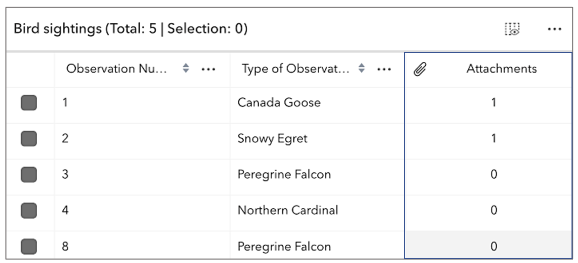","values":[]},{"name":"auto-destroy-disabled","description":"If true, the component will not be destroyed automatically when it is\ndisconnected from the document. This is useful when you want to move the\ncomponent to a different place on the page, or temporarily hide it. If this\nis set, make sure to call the [destroy()](https://developers.arcgis.com/javascript/latest/references/map-components/components/arcgis-feature-table/#destroy) method when you are done to\nprevent memory leaks.","values":[]},{"name":"auto-refresh-disabled","description":"Indicates whether the table should automatically refresh when the underlying data changes.","values":[]},{"name":"auto-save-disabled","description":"Indicates whether the table should automatically save when the underlying data changes.","values":[]},{"name":"column-performance-mode-disabled","description":"Indicates whether to enable the table's column performance mode.\nThis mode is designed to improve the performance of the table when working with a large number of columns.","values":[]},{"name":"column-reordering-disabled","description":"Indicates whether the table should allow reordering of columns.","values":[]},{"name":"definition-expression","description":"The SQL where clause used to filter features visible in the table. Only the features that satisfy the definition\nexpression are displayed in the table. This value takes priority over any definition expression set on the\nassociated layer.","values":[]},{"name":"description","description":"Text displayed in the table header, under the title. This can be a basic string or custom function that returns a string. This is useful in situations where additional context is needed for the table.","values":[]},{"name":"disabled","description":"When true, the component is visually withdrawn and cannot receive user interaction.","values":[]},{"name":"editing-enabled","description":"Indicates whether [editing](https://developers.arcgis.com/javascript/latest/references/core/widgets/FeatureTable/#editing-in-featuretable) is enabled on the data within the feature table. Double-clicking in a cell will enable editing for that value. In order to edit a feature, the layer must be editable and the user must have the appropriate permissions. In addition, the layer must contain an object ID field.","values":[]},{"name":"filter-by-selection-enabled","description":"Indicates whether the table only displays rows that are considered selected. Row selection can be modified by adding or removing associated object IDs from `highlightIds`. This will cause the store to fetch fresh features to ensure the expected sort order is honored.","values":[]},{"name":"hide-column-descriptions","description":"Indicates whether to display descriptions in the header cells of individual columns.","values":[]},{"name":"hide-column-menu-items-sort-ascending","description":"Indicates whether to display the Sort Ascending menu item.","values":[]},{"name":"hide-column-menu-items-sort-descending","description":"Indicates whether to display the Sort Descending menu item.","values":[]},{"name":"hide-column-menus","description":"Indicates whether to display the menu items within the individual columns","values":[]},{"name":"hide-header","description":"Indicates whether to display the feature table's header information.","values":[]},{"name":"hide-layer-dropdown-icons","description":"Indicates whether to display layer-specific icons in the layer drop down menu.","values":[]},{"name":"hide-menu","description":"Indicates whether to display the feature table's menu.","values":[]},{"name":"hide-menu-items-clear-selection","description":"Indicates whether to display the Clear selection menu item.","values":[]},{"name":"hide-menu-items-delete-selection","description":"Indicates whether to display the Delete Selection menu item.","values":[]},{"name":"hide-menu-items-export-selection-to-csv","description":"Indicates whether to display the Export selection to CSV menu item.","values":[]},{"name":"hide-menu-items-refresh-data","description":"Indicates whether to display the Refresh data menu item.","values":[]},{"name":"hide-menu-items-selected-records-show-all-toggle","description":"Indicates whether to toggle between showing only selected records in the table to showing all of the records.","values":[]},{"name":"hide-menu-items-selected-records-show-selected-toggle","description":"Indicates whether to display the Show selected records menu item.","values":[]},{"name":"hide-menu-items-toggle-columns","description":"Indicates whether to enable toggling column visibility within the menu.","values":[]},{"name":"hide-menu-items-zoom-to-selection","description":"Indicates whether to display the Zoom to selected menu item.","values":[]},{"name":"hide-progress","description":"Indicates whether to display the progress indicator when the table is querying or syncing data.","values":[]},{"name":"hide-selection-column","description":"Indicates whether to display the selection column in the table.\nEach row has a checkbox that selects its corresponding feature.","values":[]},{"name":"hide-tooltips","description":"Indicates whether to display the tooltip for the Show/hide columns button.","values":[]},{"name":"highlight-disabled","description":"Indicates whether to highlight the associated feature when a row is selected by checking the corresponding checkbox. This property is only applicable when working with a map and the [view](https://developers.arcgis.com/javascript/latest/references/core/widgets/FeatureTable/#view) property is set.","values":[]},{"name":"icon","description":"Icon which represents the component.\nTypically used when the component is controlled by another component (e.g. by the Expand component).","values":[]},{"name":"initial-size","description":"The user-provided number of total features accessed from the data source. This is used for initial load of the data store as opposed to querying a specified layer. Additionally, the table will query data counts to verify the data's integrity, or when requested via [refresh()](https://developers.arcgis.com/javascript/latest/references/core/widgets/FeatureTable/#refresh).","values":[]},{"name":"label","description":"The components label.","values":[]},{"name":"layer-item-id","description":"Portal Item Id for a layer to load. You can set, `layer`, `layerUrl`, or `itemId`,\nbut not more than one.","values":[]},{"name":"layer-url","description":"Url for a layer to load. You can set, `layer`, `layerUrl`, or `itemId`,\nbut not more than one.","values":[]},{"name":"max-size","description":"This property is applicable when working with layers that contain a large number of features, as it provides the ability to limit the displayed total feature count. If [paginationEnabled](https://developers.arcgis.com/javascript/latest/references/core/widgets/FeatureTable/#paginationEnabled) is `true`, and `maxSize` is greater than the current value of [pageSize](https://developers.arcgis.com/javascript/latest/references/core/widgets/FeatureTable/#pageSize), multiple pages usually display. If `maxSize` is less than [pageSize](https://developers.arcgis.com/javascript/latest/references/core/widgets/FeatureTable/#pageSize), a single page shows the total number of features limited to `maxSize`.","values":[]},{"name":"multiple-selection-disabled","description":"Controls whether the table allows multiple selected rows.","values":[]},{"name":"multiple-sort-enabled","description":"Indicates whether sorting multiple columns is supported within the table.","values":[]},{"name":"multiple-sort-priority","description":"This property can be used to determine how newly sorted columns are prioritized. By default, newly sorted columns are\ngiven the highest sort priority.","values":[{"name":"append"},{"name":"prepend"}]},{"name":"navigation-scale","description":"This property controls the scale of all components in the navigation bar displayed when\nviewing attachments or related records.","values":[{"name":"s"},{"name":"m"},{"name":"l"}]},{"name":"no-data-message","description":"This property can be used to override the text displayed when the table is fully loaded but no rows are available.","values":[]},{"name":"page-index","description":"Represents the index of the page of the feature currently being displayed. The number of features per page can be adjusted by modifying the [pageSize](https://developers.arcgis.com/javascript/latest/references/core/widgets/FeatureTable/#pageSize). [Pagination](https://developers.arcgis.com/javascript/latest/references/core/widgets/FeatureTable/#paginationEnabled) must be enabled or the value of this property may not be not reliable due to virtualization of visible pages.","values":[]},{"name":"page-size","description":"The default page size used when displaying features within the table. By default, the page loads the first 50 features returned by the service. It can be used with [paginationEnabled](https://developers.arcgis.com/javascript/latest/references/core/widgets/FeatureTable/#paginationEnabled) to display a subset of features.\n\n> [!WARNING]\n>\n> It is not possible to overwrite the maximum page size on the server, ie. `maxRecordCount`, as this property only applies to set values less than the maximum page size, i.e. `maxRecordCount`, set on the service.","values":[]},{"name":"pagination-enabled","description":"Controls whether the table should only display a single page of features at any time. Current page can be determined via the [pageIndex](https://developers.arcgis.com/javascript/latest/references/core/widgets/FeatureTable/#pageIndex) property. The current page can be modified by calling the [goToPage()](https://developers.arcgis.com/javascript/latest/references/core/widgets/FeatureTable/#goToPage) method and passing in the desired [page index](https://developers.arcgis.com/javascript/latest/references/core/widgets/FeatureTable/#pageIndex).","values":[]},{"name":"reference-element","description":"By assigning the `id` attribute of the Map or Scene component to this property, you can position a child component anywhere in the DOM while still maintaining a connection to the Map or Scene.","values":[]},{"name":"related-records-enabled","description":"Indicates whether to display any related records associated with rows within the table. Take note that related layers must be provided via the [layers](https://developers.arcgis.com/javascript/latest/references/core/widgets/FeatureTable/#layers) property when there is no associated [view](https://developers.arcgis.com/javascript/latest/references/core/widgets/FeatureTable/#view).","values":[]},{"name":"return-geometry-enabled","description":"Indicates whether to fetch geometries for the corresponding features displayed in the table.\n\n> [!WARNING]\n>\n> Setting this to `true` can potentially impact the component's performance.","values":[]},{"name":"return-m-enabled","description":"Indicates whether geometries fetched for the corresponding features contain M values, if supported.\nThe [returnGeometryEnabled](https://developers.arcgis.com/javascript/latest/references/core/widgets/FeatureTable/#returnGeometryEnabled) property must also be true.\n\n> [!WARNING]\n>\n> Setting this to `true` can potentially impact the component's performance.","values":[]},{"name":"return-z-enabled","description":"Indicates whether the fetched features' geometries contain Z values. This is only applicable if Z-values are supported.\nThe [returnGeometryEnabled](https://developers.arcgis.com/javascript/latest/references/core/widgets/FeatureTable/#returnGeometryEnabled) property must also be true.\n\n> [!WARNING]\n>\n> Setting this to `true` can potentially impact the component's performance.","values":[]},{"name":"show-layer-dropdown","description":"Indicates whether to display the feature table's layer switch drop down menu.","values":[]},{"name":"sync-template-on-changes-disabled","description":"Indicates whether the table should synchronize the current attributeTableTemplate\nbeing used based on changes made to the table's UI.","values":[]},{"name":"sync-view-selection","description":"Controls whether the table should sync with the view's selection manager.\nThis does not include selection sources, which must be configured independently\non the view's selection manager.","values":[]},{"name":"table-disabled","description":"**Deprecated**: since 5.0, use `element.disabled` instead.. ","values":[]},{"name":"table-title","description":"Replacement title for the table. This can be a basic string or custom function that returns a string. This is useful in situations where it may be necessary to dynamically update titles based on the current state of the table.","values":[]},{"name":"time-zone","description":"Dates and times displayed in the component will be in terms of this time zone. If not supplied, the view's time zone is used (if available). Depending on the field type, individual columns may have their own unique time zone behavior when the time zone itself is `unknown`.\n\n> [!WARNING]\n>\n> The following considerations apply when working with date, time, and big integer field types:\n>\n> By default, the [FeatureTable](https://developers.arcgis.com/javascript/latest/references/core/widgets/FeatureTable/) displays timezones for `date` and `timestamp-offset` field [types](https://developers.arcgis.com/javascript/latest/references/core/layers/support/Field/#type) reflecting the MapView's timezone. This timezone can be overridden by setting the table's [timeZone](https://developers.arcgis.com/javascript/latest/references/core/widgets/FeatureTable/#timeZone) property.\n> If the table's [view](https://developers.arcgis.com/javascript/latest/references/core/widgets/FeatureTable/#view) isn't set, and the table's [Feature#timeZone](https://developers.arcgis.com/javascript/latest/references/core/widgets/Feature/#timeZone) isn't set, the table defaults to `system` time. The only time that this is not the case is when there is a [FeatureLayer#preferredTimeZone](https://developers.arcgis.com/javascript/latest/references/core/layers/FeatureLayer/#preferredTimeZone) set on the table's layer. If the latter is true, the preferred time zone is used as opposed to `system`.","values":[]}],"references":[{"name":"Docs","url":"https://developers.arcgis.com/javascript/latest/references/map-components/components/arcgis-feature-table/"},{"name":"Feature Table","url":"https://developers.arcgis.com/javascript/latest/storybook/map-components/?path=/story/arcgis-feature-table--demo&singleStory=true"}]},{"name":"arcgis-feature-templates-legacy","description":"> [!WARNING]\n>\n> This is a **legacy component**. It relies on an underlying widget as part of our migration to native web components.\n>\n> A fully native replacement for this component is in development. Once it reaches feature parity, the legacy component will be deprecated and no longer maintained. At that point, development should use the native component.\n\nThe FeatureTemplates component is part of an editing workflow. Its main purpose is to display [FeatureLayer](https://developers.arcgis.com/javascript/latest/references/core/layers/FeatureLayer/) templates from one or more feature layers.\n--\n\n### Events\n- **arcgisPropertyChange** - Emitted when the value of a property is changed. Use this to listen to changes to properties.\n- **arcgisReady** - Emitted when the component associated with a map or scene view is ready to be interacted with.\n- **arcgisSelect**\n\n### Methods\n- `componentOnReady(): Promise<this>` - Creates a promise that resolves once the component is fully loaded.\n- `destroy(): Promise<void>` - Permanently destroy the component.\n- `select(item: null | undefined | TemplateItem): void` - Selects the template item to use.","attributes":[{"name":"auto-destroy-disabled","description":"If true, the component will not be destroyed automatically when it is\ndisconnected from the document. This is useful when you want to move the\ncomponent to a different place on the page, or temporarily hide it. If this\nis set, make sure to call the [destroy()](https://developers.arcgis.com/javascript/latest/references/map-components/components/arcgis-feature-templates-legacy/#destroy) method when you are done to\nprevent memory leaks.","values":[]},{"name":"filter-text","description":"Text used to filter items.","values":[]},{"name":"heading-level","description":"Indicates the heading level to use for the labels of grouped feature templates.\nBy default, the group label is rendered\nas a level 4 heading (e.g. `<h4>Group label</h4>`). Depending on the component's placement\nin your app, you may need to adjust this heading for proper semantics. This is\nimportant for meeting accessibility standards.","values":[{"name":"1"},{"name":"2"},{"name":"3"},{"name":"4"},{"name":"5"},{"name":"6"}]},{"name":"hide-filter","description":"Indicates whether the templates filter displays.","values":[]},{"name":"icon","description":"Icon which represents the component.\nTypically used when the component is controlled by another component (e.g. by the Expand component).","values":[]},{"name":"label","description":"The component's default label.","values":[]},{"name":"reference-element","description":"By assigning the `id` attribute of the Map or Scene component to this property, you can position a child component anywhere in the DOM while still maintaining a connection to the Map or Scene.","values":[]},{"name":"selection-mode","description":"Specifies the selection behavior of list items. The `\"single\"` selection mode keeps the clicked list item selected. Whereas, `\"none\"` does not preserve the selection after clicking the list item.","values":[{"name":"single"},{"name":"none"}]}],"references":[{"name":"Docs","url":"https://developers.arcgis.com/javascript/latest/references/map-components/components/arcgis-feature-templates-legacy/"}]},{"name":"arcgis-features","description":"The Features component allows users to view a feature's popupTemplate content such as attributes,\nactions, related records, etc., without having to be tied to an [arcgis-map](https://developers.arcgis.com/javascript/latest/references/map-components/components/arcgis-map/) or [arcgis-scene](https://developers.arcgis.com/javascript/latest/references/map-components/components/arcgis-scene/) component.\nThis component looks and behaves similarly to the [arcgis-popup](https://developers.arcgis.com/javascript/latest/references/map-components/components/arcgis-popup/) component,\nhowever unlike Popup, the Features component can be placed outside of the map or scene component.\nFor example, when features are selected in the [arcgis-map](https://developers.arcgis.com/javascript/latest/references/map-components/components/arcgis-map/),\nthe [arcgis-popup](https://developers.arcgis.com/javascript/latest/references/map-components/components/arcgis-popup/) opens within the map whether it is docked\nor anchored to the selected feature.\nWith the Features component, the same information that Popup provides is shown in a separate container from the map, such as\na HTML div within a Calcite Design System\n[Shell Panel](https://developers.arcgis.com/calcite-design-system/components/shell-panel/).\n\nIf multiple features are passed into the Features component, the component provides buttons to page though the features and a feature menu that allows the\nlist of features to be displayed so the user can choose which feature content to display in the component. The component also respects\nfeature reduction PopupTemplates for [binning](https://developers.arcgis.com/javascript/latest/references/core/layers/support/FeatureReductionBinning/#popupTemplate) and [clustering](https://developers.arcgis.com/javascript/latest/references/core/layers/support/FeatureReductionCluster/#popupTemplate).\n\nThe Features component should be used if needing to use the Popup functionality outside of the map or scene component. If wanting to show a single feature's content without\nactions, related records, clustering configuration, etc., then use the [arcgis-feature](https://developers.arcgis.com/javascript/latest/references/map-components/components/arcgis-feature/) component.\n--\n\n### Events\n- **arcgisClose** - Emitted when the component's close button is clicked.\n- **arcgisPropertyChange** - Emitted when the value of a property is changed. Use this to listen to changes to properties.\n- **arcgisReady** - Emitted when the component associated with a map or scene view is ready to be interacted with.\n- **arcgisTriggerAction** - Fires after the user clicks on an action in the component.\nThis event may be used to define a custom function to execute when particular actions are clicked.\n\n### Methods\n- `clear(): Promise<void>` - Removes [promises](https://developers.arcgis.com/javascript/latest/references/map-components/components/arcgis-features/#promises), [features](https://developers.arcgis.com/javascript/latest/references/map-components/components/arcgis-features/#features), [content](https://developers.arcgis.com/javascript/latest/references/map-components/components/arcgis-features/#content), and\n[heading](https://developers.arcgis.com/javascript/latest/references/map-components/components/arcgis-features/#heading) from the Features component.\n- `close(): Promise<void>` - A convenience method to close the component.\n- `componentOnReady(): Promise<this>` - Creates a promise that resolves once the component is fully loaded.\n- `destroy(): Promise<void>` - Permanently destroy the component.\n- `fetchFeatures(screenPoint?: ScreenPoint, options?: FetchFeaturesOptions): Promise<void>` - Use this method to return feature(s) at a given screen location. These features are fetched from all of the [LayerViews](https://developers.arcgis.com/javascript/latest/references/core/views/layers/LayerView/) in the [view](https://developers.arcgis.com/javascript/latest/references/core/views/View/). In order to use this, a layer must already have an associated [PopupTemplate](https://developers.arcgis.com/javascript/latest/references/core/PopupTemplate/) and have its [popupEnabled](https://developers.arcgis.com/javascript/latest/references/core/layers/FeatureLayer/#popupEnabled). This method allows a developer to control how the input location is handled. For example, you may want to fetch features on a `click` event or on a `pointer-move` event. This method automatically sets the [location](https://developers.arcgis.com/javascript/latest/references/map-components/components/arcgis-features/#location) based on the input event's screen coordinates.\n- `next(): Promise<FeaturesViewModel>` - Selects the feature at the next index in relation to the [selectedFeature](https://developers.arcgis.com/javascript/latest/references/map-components/components/arcgis-features/#selectedFeature).\n- `previous(): Promise<FeaturesViewModel>` - Selects the feature at the previous index in relation to the [selectedFeature](https://developers.arcgis.com/javascript/latest/references/map-components/components/arcgis-features/#selectedFeature).\n- `setFocus(): Promise<void>` - Use this method to give focus to the Component if the component is able to be focused.\n- `triggerAction(action: ActionButton | ActionToggle): Promise<void>` - Triggers the [@arcgisTriggerAction](https://developers.arcgis.com/javascript/latest/references/map-components/components/arcgis-features/#event-arcgisTriggerAction) event and executes the action\nat the specified index in the [actions](https://developers.arcgis.com/javascript/latest/references/map-components/components/arcgis-features/#actions) array.","attributes":[{"name":"auto-destroy-disabled","description":"If true, the component will not be destroyed automatically when it is\ndisconnected from the document. This is useful when you want to move the\ncomponent to a different place on the page, or temporarily hide it. If this\nis set, make sure to call the [destroy()](https://developers.arcgis.com/javascript/latest/references/map-components/components/arcgis-features/#destroy) method when you are done to\nprevent memory leaks.","values":[]},{"name":"chart-animation-disabled","description":"Disables chart animation within the component.","values":[]},{"name":"collapsed","description":"Indicates whether the component displays its content. If `true`, only the header displays.\nThis property is only honored if [showCollapseButton](https://developers.arcgis.com/javascript/latest/references/map-components/components/arcgis-features/#showCollapseButton) is `true`.","values":[]},{"name":"content","description":"The content of the component. When set directly on the component, this content is static and cannot use fields to set content templates. To set a template for the content based on field or attribute names, see [PopupTemplate.content](https://developers.arcgis.com/javascript/latest/references/core/PopupTemplate/#content).","values":[]},{"name":"default-popup-template-enabled","description":"Enables automatic creation of a popup template for layers that have popups enabled but no popupTemplate defined. Automatic popup templates are supported for layers that support the `createPopupTemplate` method.\n\n**Note:** Starting with version 4.28, `date` fields are formatted using the `short-date-short-time` preset [dateFormat](https://developers.arcgis.com/javascript/latest/references/core/popup/support/FieldInfoFormat/#dateFormat) rather than `long-month-day-year` in default [popup](https://developers.arcgis.com/javascript/latest/references/core/PopupTemplate/) created by setting the `defaultPopupTemplateEnabled` property to `true`.\nFor example, previously a date that may have appeared as `\"December 30, 1997\"` will now appear as `\"12/30/1997 6:00 PM\"`.","values":[]},{"name":"feature-count","description":"The number of [features](https://developers.arcgis.com/javascript/latest/references/map-components/components/arcgis-features/#features) available in the component.","values":[]},{"name":"feature-menu-open","description":"This property enables multiple features in the component to display in a list rather than displaying the first selected feature. Setting this to `true` allows the user to scroll through the list of features. This value will only be honored if [initialDisplayMode](https://developers.arcgis.com/javascript/latest/references/map-components/components/arcgis-features/#initialDisplayMode) is set to \"feature\".","values":[]},{"name":"feature-menu-title","description":"Sets the title to display on the component while viewing the feature menu.","values":[]},{"name":"feature-navigation-top","description":"Indicates whether the feature navigation arrows are displayed at the top of the component.\nBy default, the navigation arrows are displayed at the bottom of the component.","values":[]},{"name":"features-per-page","description":"The number of features to fetch at one time.","values":[]},{"name":"heading","description":"The title of the Features component. This can be set to any string value no\nmatter the features that are selected. If the [selectedFeature](https://developers.arcgis.com/javascript/latest/references/map-components/components/arcgis-features/#selectedFeature)\nhas a [PopupTemplate](https://developers.arcgis.com/javascript/latest/references/core/PopupTemplate/), then the title set in the\ncorresponding template is used here.","values":[]},{"name":"heading-level","description":"Indicates the heading level to use for the [heading](https://developers.arcgis.com/javascript/latest/references/map-components/components/arcgis-features/#heading) of the component.\nBy default, the heading is rendered\nas a level 2 heading (e.g. `<h2>Popup title</h2>`). Depending on the component's placement\nin your app, you may need to adjust this heading for proper semantics. This is\nimportant for meeting accessibility standards.","values":[{"name":"1"},{"name":"2"},{"name":"3"},{"name":"4"},{"name":"5"},{"name":"6"}]},{"name":"hide-action-bar","description":"Indicates whether to hide the action bar that holds the feature's [actions](https://developers.arcgis.com/javascript/latest/references/map-components/components/arcgis-features/#actions).","values":[]},{"name":"hide-attachments-content","description":"This property provides the ability to hide or show [attachments content](https://developers.arcgis.com/javascript/latest/references/core/popup/content/AttachmentsContent/) within the component.","values":[]},{"name":"hide-close-button","description":"Indicates whether to hide the close button in the component.","values":[]},{"name":"hide-content","description":"This property provides the ability to hide or show content within the component.","values":[]},{"name":"hide-custom-content","description":"This property provides the ability to hide or show [custom content](https://developers.arcgis.com/javascript/latest/references/core/popup/content/CustomContent/) within the component.","values":[]},{"name":"hide-expression-content","description":"This property provides the ability to hide or show [expression content](https://developers.arcgis.com/javascript/latest/references/core/popup/content/ExpressionContent/) within the component.","values":[]},{"name":"hide-feature-list-layer-title","description":"Indicates whether to hide the group heading for a list of multiple features.","values":[]},{"name":"hide-feature-menu-heading","description":"Indicates whether to hide the feature menu heading and description in the component's feature menu list.","values":[]},{"name":"hide-feature-navigation","description":"Indicates whether to hide the feature navigation in the component. This allows the user to scroll through various [features](https://developers.arcgis.com/javascript/latest/references/map-components/components/arcgis-features/#features) using pagination arrows.","values":[]},{"name":"hide-fields-content","description":"This property provides the ability to hide or show [fields content](https://developers.arcgis.com/javascript/latest/references/core/popup/content/FieldsContent/) within the component.","values":[]},{"name":"hide-heading","description":"Indicates whether to hide the heading in the component.","values":[]},{"name":"hide-last-edited-info","description":"This property provides the ability to hide or show the last edited info within the component.","values":[]},{"name":"hide-media-content","description":"This property provides the ability to hide or show [media content](https://developers.arcgis.com/javascript/latest/references/core/popup/content/MediaContent/) within the component.","values":[]},{"name":"hide-relationship-content","description":"This property provides the ability to hide or show [relationship content](https://developers.arcgis.com/javascript/latest/references/core/popup/content/RelationshipContent/) within the component.","values":[]},{"name":"hide-spinner","description":"Indicates whether to hide the spinner in the component.","values":[]},{"name":"hide-text-content","description":"This property provides the ability to hide or show [text content](https://developers.arcgis.com/javascript/latest/references/core/popup/content/TextContent/) within the component.","values":[]},{"name":"hide-utility-network-content","description":"This property provides the ability to hide or show [utility network content](https://developers.arcgis.com/javascript/latest/references/core/popup/content/UtilityNetworkAssociationsContent/) within the component.","values":[]},{"name":"highlight-disabled","description":"Indicates whether to highlight the [selectedFeature](https://developers.arcgis.com/javascript/latest/references/map-components/components/arcgis-features/#selectedFeature) in the associated\n[arcgis-map](https://developers.arcgis.com/javascript/latest/references/map-components/components/arcgis-map/) or [arcgis-scene](https://developers.arcgis.com/javascript/latest/references/map-components/components/arcgis-scene/) component.","values":[]},{"name":"icon","description":"Icon which represents the component.\nTypically used when the component is controlled by another component (e.g. by the Expand component).","values":[]},{"name":"include-default-actions-disabled","description":"Indicates whether to include the default actions in the component.\nIn order to disable any default actions, it is necessary to set `includeDefaultActionsDisabled` to `true`.","values":[]},{"name":"initial-display-mode","description":"Indicates whether to initially display a list of features, or the content for one feature.","values":[{"name":"list"},{"name":"feature"}]},{"name":"label","description":"The component's default label.","values":[]},{"name":"open","description":"Indicates whether the component is visible. This property is `true` when the component is querying for results, even if it is not open. Use this property to check if the component is visible.\n\nWhen setting the [content](https://developers.arcgis.com/javascript/latest/references/map-components/components/arcgis-features/#content) and [heading](https://developers.arcgis.com/javascript/latest/references/map-components/components/arcgis-features/#heading) directly, it is recommended to call [clear()](https://developers.arcgis.com/javascript/latest/references/map-components/components/arcgis-features/#clear) before setting `open` to `true` to remove any existing promises, features, heading, location, and content from the component. Otherwise, the old content will display.","values":[]},{"name":"reference-element","description":"By assigning the `id` attribute of the Map or Scene component to this property, you can position a child component anywhere in the DOM while still maintaining a connection to the Map or Scene.","values":[]},{"name":"selected-feature-index","description":"Index of the feature that is [selectedFeature](https://developers.arcgis.com/javascript/latest/references/map-components/components/arcgis-features/#selectedFeature). When [features](https://developers.arcgis.com/javascript/latest/references/map-components/components/arcgis-features/#features) are set,\nthe first index is automatically selected.","values":[]},{"name":"show-collapse-button","description":"Indicates whether to show the collapse button in the component.","values":[]},{"name":"time-zone","description":"Dates and times displayed in the component will be displayed in this time zone. By default this time zone is\ninherited from [arcgis-map.timeZone](https://developers.arcgis.com/javascript/latest/references/map-components/components/arcgis-map/#timeZone) if the [view](https://developers.arcgis.com/javascript/latest/references/map-components/components/arcgis-features/#view) property is set. When a MapView is not associated with the component\nthen the property will fallback to the `system` time zone.\n\n**Possible Values**\n- `system`: Dates and times will be displayed in the timezone of the device or browser.\n- `unknown`: Dates and time are not adjusted for any timezone.\n- `Specified IANA timezone`: Dates and times will be displayed in the specified IANA time zone. See [wikipedia - List of tz database time zones](https://en.wikipedia.org/wiki/List_of_tz_database_time_zones).","values":[]},{"name":"update-location-enabled","description":"Indicates whether to update the [location](https://developers.arcgis.com/javascript/latest/references/map-components/components/arcgis-features/#location) when the [selectedFeatureIndex](https://developers.arcgis.com/javascript/latest/references/map-components/components/arcgis-features/#selectedFeatureIndex) changes.","values":[]}],"references":[{"name":"Docs","url":"https://developers.arcgis.com/javascript/latest/references/map-components/components/arcgis-features/"},{"name":"Features\nThe Features component displays in a Calcite shell panel on click.","url":"https://developers.arcgis.com/javascript/latest/storybook/map-components/?path=/story/arcgis-features--demo&singleStory=true"}]},{"name":"arcgis-floor-filter","description":"The Floor Filter component simplifies visualization of GIS data for a specific floor of a\nbuilding in your application. It allows you to filter down the floor plan data displayed in your\n[arcgis-map](https://developers.arcgis.com/javascript/latest/references/map-components/components/arcgis-map/) or [arcgis-scene](https://developers.arcgis.com/javascript/latest/references/map-components/components/arcgis-scene/) to a [site](https://developers.arcgis.com/javascript/latest/references/map-components/components/arcgis-floor-filter/#site), a [facility](https://developers.arcgis.com/javascript/latest/references/map-components/components/arcgis-floor-filter/#facility) in the site,\nor a [level](https://developers.arcgis.com/javascript/latest/references/map-components/components/arcgis-floor-filter/#level) in the facility.\n\nTo visualize your data based on [site](https://developers.arcgis.com/javascript/latest/references/map-components/components/arcgis-floor-filter/#site), [facility](https://developers.arcgis.com/javascript/latest/references/map-components/components/arcgis-floor-filter/#facility), or [level](https://developers.arcgis.com/javascript/latest/references/map-components/components/arcgis-floor-filter/#level), your map must contain the related\nfloor plan layers, with features linked together in a floor plan hierarchy.\nOnce you define your map as floor-aware in the map properties, the interactive, on-screen\nFloor Filter component appears and can be used to explore the floor-aware data based on the\nconfigured site, facility, and levels layers.\nThe Floor Filter component currently supports\n[FeatureLayers](https://developers.arcgis.com/javascript/latest/references/core/layers/FeatureLayer/),\n[SceneLayers](https://developers.arcgis.com/javascript/latest/references/core/layers/SceneLayer/) and\n[MapImageLayers](https://developers.arcgis.com/javascript/latest/references/core/layers/MapImageLayer/) (map services).\n\nThe component can also be used alongside other filtering functionalities, such as definition queries,\nselection, range, and time, to further control visualization.\nFor example, you may want to visualize all of the features on a specific level in a facility,\nor all the office units within a range of levels in a facility.\n\n**Note**\n\nIf a default site, facility, or level is selected in the floor filter when sharing a floor-aware web map from ArcGIS Pro,\nit will also be the default selection within the Floor Filter component.\n--\n\n### Events\n- **arcgisReady** - Emitted when the component associated with a map or scene view is ready to be interacted with.\n\n### Methods\n- `componentOnReady(): Promise<this>` - Creates a promise that resolves once the component is fully loaded.\n- `destroy(): Promise<void>` - Permanently destroy the component.\n- `updateWebDocument(webMap: WebMap | WebScene): Promise<void>`","attributes":[{"name":"auto-destroy-disabled","description":"If true, the component will not be destroyed automatically when it is\ndisconnected from the document. This is useful when you want to move the\ncomponent to a different place on the page, or temporarily hide it. If this\nis set, make sure to call the [destroy()](https://developers.arcgis.com/javascript/latest/references/map-components/components/arcgis-floor-filter/#destroy) method when you are done to\nprevent memory leaks.","values":[]},{"name":"facility","description":"The currently selected facility.","values":[]},{"name":"heading-level","description":"Indicates the heading level to use for the headings separating floors in buildings.\nBy default, the building name is rendered\nas a level 2 heading (e.g. `<h2>Building name</h2>`). Depending on the component's placement\nin your app, you may need to adjust this heading for proper semantics. This is\nimportant for meeting accessibility standards.","values":[{"name":"1"},{"name":"2"},{"name":"3"},{"name":"4"},{"name":"5"},{"name":"6"}]},{"name":"icon","description":"Icon which represents the component.\nTypically used when the component is controlled by another component (e.g. by the Expand component).","values":[]},{"name":"label","description":"The component's default label.","values":[]},{"name":"level","description":"The currently selected floor level.","values":[]},{"name":"long-names","description":"Determines if the component is expanded or collapsed.\nIf the value is `true`, the component is expanded and the long names appear.\nOtherwise, short names are used and icons appear alone on buttons.","values":[]},{"name":"reference-element","description":"By assigning the `id` attribute of the Map or Scene component to this property, you can position a child component anywhere in the DOM while still maintaining a connection to the Map or Scene.","values":[]},{"name":"site","description":"The currently selected site.","values":[]}],"references":[{"name":"Docs","url":"https://developers.arcgis.com/javascript/latest/references/map-components/components/arcgis-floor-filter/"},{"name":"Floor Filter","url":"https://developers.arcgis.com/javascript/latest/storybook/map-components/?path=/story/arcgis-floor-filter--demo&singleStory=true"}]},{"name":"arcgis-fullscreen","description":"The Fullscreen component allows users to toggle the map or scene to fullscreen mode.\nUse the escape key (`esc`) to exit fullscreen mode.\n\n**Known limitations**\n\n* Fullscreen only works with browsers that implement the [Fullscreen](https://developer.mozilla.org/en-US/docs/Web/API/Fullscreen_API) API.\n Thus, iOS Safari is not supported.\n--\n\n### Events\n- **arcgisPropertyChange** - Emitted when the value of a property is changed. Use this to listen to changes to properties.\n- **arcgisReady** - Emitted when the component associated with a map or scene view is ready to be interacted with.\n\n### Methods\n- `componentOnReady(): Promise<this>` - Creates a promise that resolves once the component is fully loaded.","attributes":[{"name":"element","description":"The [HTMLElement](https://developer.mozilla.org/en-US/docs/Web/API/HTMLElement) to present in fullscreen mode.","values":[]},{"name":"label","description":"The component's default label.","values":[]},{"name":"reference-element","description":"By assigning the `id` attribute of the Map or Scene component to this property, you can position a child component anywhere in the DOM while still maintaining a connection to the Map or Scene.","values":[]},{"name":"state","values":[{"name":"active"},{"name":"disabled"},{"name":"ready"},{"name":"unsupported"}]},{"name":"visual-scale","description":"Specifies the size of the component.","values":[{"name":"s"},{"name":"m"},{"name":"l"}]}],"references":[{"name":"Docs","url":"https://developers.arcgis.com/javascript/latest/references/map-components/components/arcgis-fullscreen/"},{"name":"Fullscreen","url":"https://developers.arcgis.com/javascript/latest/storybook/map-components/?path=/story/arcgis-fullscreen--demo&singleStory=true"}]},{"name":"arcgis-grid-controls","description":"The Grid Controls component provides a user interface (UI) for configuring and displaying a two-dimensional grid.\nThe grid displayed provides a network of horizontal and vertical lines used to divide the view into equal cells.\nWith support for snapping, the grid lines can be used as a reference when drawing features.\nNote: grid controls are embedded in snapping controls for Sketch and Editor by default.\n\n**Known limitations**\n\n- Grid Controls is only supported in a 2D Map component.\n- The grid spacing does not correspond to real world measurements. Distortion will be minimized when used in conjunction with an equal area basemap.\n- The grid spacing input will be hidden when working with Web Mercator and Geographic Coordinate Systems.\n--\n\n### Events\n- **arcgisPropertyChange** - Emitted when the value of a property is changed. Use this to listen to changes to properties.\n- **arcgisReady** - Emitted when the component associated with a map or scene view is ready to be interacted with.\n\n### Methods\n- `componentOnReady(): Promise<this>` - Creates a promise that resolves once the component is fully loaded.\n- `destroy(): Promise<void>` - Permanently destroy the component.\n- `trySetDisplayEnabled(enabled: boolean): void` - Call this to turn the grid on/off.","attributes":[{"name":"auto-destroy-disabled","description":"If true, the component will not be destroyed automatically when it is\ndisconnected from the document. This is useful when you want to move the\ncomponent to a different place on the page, or temporarily hide it. If this\nis set, make sure to call the [destroy()](https://developers.arcgis.com/javascript/latest/references/map-components/components/arcgis-grid-controls/#destroy) method when you are done to\nprevent memory leaks.","values":[]},{"name":"custom-color","description":"The custom color used for drawing the grid, if any.","values":[]},{"name":"dynamic-scaling","description":"Returns `true` if the grid is set to scale dynamically. When dynamic scaling is enabled,\ngrid cells are added or removed to ensure that grid cells are a reasonable size on screen as the user zooms.\nThe way additional grid lines are shown is controlled by the [majorLineInterval](https://developers.arcgis.com/javascript/latest/references/map-components/components/arcgis-grid-controls/#majorLineInterval) property.","values":[]},{"name":"effective-spacing-after-dynamic-scaling","description":"Returns the actual spacing of grid lines after dynamic scaling has been applied at the current scale.","values":[]},{"name":"grid-color","description":"Controls the color of the major grid lines. Minor grid lines are a slightly transparent version of this color.","values":[]},{"name":"grid-out-of-scale","description":"True if the grid is currently not displayed (and therefore also not a valid snap target),\nbecause [dynamicScaling](https://developers.arcgis.com/javascript/latest/references/map-components/components/arcgis-grid-controls/#dynamicScaling) is off and the grid cells are too small\nto render at the current scale.","values":[]},{"name":"hide-color-selection","description":"Controls display of the color and theme selection options.","values":[]},{"name":"hide-dynamic-scale-toggle","description":"Controls display of the dynamic scaling toggle. Dynamic scaling adjusts the size of the grid to work\nwell regardless of view scale.","values":[]},{"name":"hide-grid-enabled-toggle","description":"Controls display of the grid enabled toggle. This toggle controls whether the grid is displayed.","values":[]},{"name":"hide-grid-snap-enabled-toggle","description":"Controls display of the grid snapping enabled toggle. This toggle controls whether snapping is enabled.","values":[]},{"name":"hide-line-interval-input","description":"Controls display of the line interval input field for setting the interval between major grid lines.","values":[]},{"name":"hide-numeric-inputs","description":"Controls display of the numeric input fields for setting grid spacing and rotation.","values":[]},{"name":"hide-out-of-scale-warning","description":"Controls display of the out of scale warning. This warning is displayed when the grid is not shown\nbecause it would be too small at the current scale and dynamic scaling is disabled.","values":[]},{"name":"hide-placement-buttons","description":"Controls display of the grid placement buttons. These buttons allow the user to start interactive\nconfiguration of the grid.","values":[]},{"name":"hide-rotate-with-map-toggle","description":"Controls display of the rotate with map toggle. This toggle controls whether the grid rotates with the map.","values":[]},{"name":"icon","description":"Icon which represents the component.\nTypically used when the component is controlled by another component (e.g. by the Expand component).","values":[]},{"name":"interactive-placement-state","description":"Sets the interactive placement state, either starting or ending a draw operation that implicitly adjusts the grid.\nInteractive placement allows the user to define the center of the grid, then the scale and rotation of the grid by\ndrawing a second point. Setting this to \"place\" allows the user to move the grid center only. Setting this to \"rotate\"\nkeeps the scale and center of the grid constant while rotating the grid by defining a second point.","values":[{"name":"rotate"},{"name":"place"},{"name":"interactive"}]},{"name":"label","description":"The component's default label.","values":[]},{"name":"major-line-interval","description":"Controls the number of grid cells shown between major grid lines. Can be anything between 1 and 15.\nNo minor grid lines are shown when this is set to 1.","values":[]},{"name":"placement-disabled","description":"Use this property to disable the interactive grid placement buttons as needed.\nAn example use case might be to block interaction while another interactive operation\n(e.g. sketching) is in progress.","values":[]},{"name":"reference-element","description":"By assigning the `id` attribute of the Map or Scene component to this property, you can position a child component anywhere in the DOM while still maintaining a connection to the Map or Scene.","values":[]},{"name":"rotate-with-map","description":"Controls whether the grid rotates with the map, or stays fixed to the screen.","values":[]},{"name":"rotation","description":"Rotation of the grid in radians. NOTE: UI controls convert to and from degrees automatically.","values":[]},{"name":"snapping-enabled","description":"Controls snapping behavior if [snappingOptions](https://developers.arcgis.com/javascript/latest/references/map-components/components/arcgis-grid-controls/#snappingOptions) has been defined.\nIf [snappingOptions](https://developers.arcgis.com/javascript/latest/references/map-components/components/arcgis-grid-controls/#snappingOptions) have been defined, disabling or enabling grid snapping will\nalso disable or enable grid display.","values":[]},{"name":"spacing","description":"Length of a grid cell. Grid cells are always square. Defined in [unit](https://developers.arcgis.com/javascript/latest/references/map-components/components/arcgis-grid-controls/#unit).","values":[]},{"name":"theme","description":"The color scheme used to display the grid. This will be light, dark, or custom. When theme is set to custom,\nthe [customColor](https://developers.arcgis.com/javascript/latest/references/map-components/components/arcgis-grid-controls/#customColor) is shown, otherwise a default light or dark theme color is used.","values":[{"name":"dark"},{"name":"light"},{"name":"custom"}]},{"name":"unit","description":"Unit of measure (foot, meter, etc) used when defining the [spacing](https://developers.arcgis.com/javascript/latest/references/map-components/components/arcgis-grid-controls/#spacing) grid cell.\nNote that units are defined relatively to the map's spatial reference length unit,\nwhich will not correspond to geographic distance unless using a special-purpose basemap\nwithin a supported target area.\n\nWhen using Web Mercator, the projection defines the length of a meter in projection system units;\nthis length is equal to a geographic meter only at the equator. On screen, the size of the grid cells is constant\nfrom the equator to the poles, but the real-world size of the grid cell is much larger further from the equator.\n\nThe length of the grid cells can usefully correspond to a geographic length when the Grid is used with an\nappropriate spatial reference (for example a local system or a State Plane system) within the reference's area of interest.","values":[{"name":"meters"},{"name":"millimeters"},{"name":"centimeters"},{"name":"feet"},{"name":"us-feet"},{"name":"nautical-miles"},{"name":"kilometers"},{"name":"yards"},{"name":"decimeters"},{"name":"inches"},{"name":"miles"}]}],"references":[{"name":"Docs","url":"https://developers.arcgis.com/javascript/latest/references/map-components/components/arcgis-grid-controls/"},{"name":"Grid Controls","url":"https://developers.arcgis.com/javascript/latest/storybook/map-components/?path=/story/arcgis-grid-controls--demo&singleStory=true"}]},{"name":"arcgis-histogram-range-slider","description":"### Events\n- **arcgisPropertyChange** - Emitted when the value of a property is changed. Use this to listen to changes to properties.\n- **arcgisReady** - Emitted when the component associated with a map or scene view is ready to be interacted with.\n\n### Methods\n- `componentOnReady(): Promise<this>` - Creates a promise that resolves once the component is fully loaded.\n- `destroy(): Promise<void>` - Permanently destroy the component.\n- `generateWhereClause(field: string): Promise<string | null | undefined>` - Generates a SQL where clause based on a given field and the slider's\nrangeType","attributes":[{"name":"auto-destroy-disabled","description":"If true, the component will not be destroyed automatically when it is\ndisconnected from the document. This is useful when you want to move the\ncomponent to a different place on the page, or temporarily hide it. If this\nis set, make sure to call the [destroy()](https://developers.arcgis.com/javascript/latest/references/map-components/components/arcgis-histogram-range-slider/#destroy) method when you are done to\nprevent memory leaks.","values":[]},{"name":"average","description":"The statistical average of the data in the histogram. You would typically\nget this value from the `avg` property of\n[SummaryStatisticsResult](https://developers.arcgis.com/javascript/latest/references/core/smartMapping/statistics/types/#SummaryStatisticsResult),\nwhich is the result of the\n[summaryStatistics](https://developers.arcgis.com/javascript/latest/references/core/smartMapping/statistics/summaryStatistics/) function.\n\nWhen set, this value will render on the histogram with a line and an average symbol.","values":[]},{"name":"excluded-bar-color","description":"Sets the color of the histogram bars that are excluded based on the specified\n[rangeType](https://developers.arcgis.com/javascript/latest/references/core/widgets/HistogramRangeSlider/#rangeType). For example, when a rangeType of `between` is used,\nall bars **not** between the slider thumbs will be rendered with the color set here.\n\nTo change the style of histogram bars representing included data based on the\n[rangeType](https://developers.arcgis.com/javascript/latest/references/core/widgets/HistogramRangeSlider/#rangeType), use the [includedBarColor](https://developers.arcgis.com/javascript/latest/references/core/widgets/HistogramRangeSlider/#includedBarColor) property.","values":[]},{"name":"icon","description":"Icon which represents the component.\nTypically used when the component is controlled by another component (e.g. by the Expand component).","values":[]},{"name":"included-bar-color","description":"Sets the color of the histogram bars that are included in the specified\n[rangeType](https://developers.arcgis.com/javascript/latest/references/core/widgets/HistogramRangeSlider/#rangeType). For example, when a rangeType of `between` is used,\nall bars between the slider thumbs will be rendered with the color set here.\n\nTo change the style of histogram bars representing excluded data based on the\n[rangeType](https://developers.arcgis.com/javascript/latest/references/core/widgets/HistogramRangeSlider/#rangeType), use the [excludedBarColor](https://developers.arcgis.com/javascript/latest/references/core/widgets/HistogramRangeSlider/#excludedBarColor) property.","values":[]},{"name":"label","description":"The component's default label.","values":[]},{"name":"max","description":"The maximum value or upper bound of the slider. If the largest\nslider [value](https://developers.arcgis.com/javascript/latest/references/core/widgets/HistogramRangeSlider/#values) _in the constructor_ is greater than the `maxValue` set in\nthis property, then the `maxValue` will update to match the largest\nslider [value](https://developers.arcgis.com/javascript/latest/references/core/widgets/HistogramRangeSlider/#values).","values":[]},{"name":"min","description":"The minimum value or lower bound of the slider. If the smallest\nslider [value](https://developers.arcgis.com/javascript/latest/references/core/widgets/HistogramRangeSlider/#values) _in the constructor_ is greater than the `minValue` set in\nthis property, then the `minValue` will update to match the smallest\nslider [value](https://developers.arcgis.com/javascript/latest/references/core/widgets/HistogramRangeSlider/#values).","values":[]},{"name":"precision","description":"Defines how slider thumb values should be rounded. This number indicates the number\nof decimal places slider thumb values should round to when they have been moved.\n\nThis value also indicates the precision of thumb [HistogramRangeSliderViewModel#labels](https://developers.arcgis.com/javascript/latest/references/core/widgets/HistogramRangeSlider/HistogramRangeSliderViewModel/#labels) when the data range\n([max](https://developers.arcgis.com/javascript/latest/references/core/widgets/HistogramRangeSlider/#max) - [min](https://developers.arcgis.com/javascript/latest/references/core/widgets/HistogramRangeSlider/#min)) is less than `10`.\n\nWhen the data range is larger than `10`, [HistogramRangeSliderViewModel#labels](https://developers.arcgis.com/javascript/latest/references/core/widgets/HistogramRangeSlider/HistogramRangeSliderViewModel/#labels) display with a precision of\nno more than two decimal places, though actual slider thumb values will maintain the\nprecision specified in this property.\n\nFor example, given the default precision of `4`, and the following slider configuration,\nThe label of the thumb will display two decimal places, but the precision of the actual\nthumb value will not be lost even when the user slides or moves the thumb.\n\n```js\nconst slider = new HistogramRangeSliderViewModel({\n min: 20,\n max: 100, // data range of 80\n values: [50.4331],\n // thumb label will display 50.43\n // thumb value will maintain precision, so\n // value will remain at 50.4331\n});\n```\n\nIf the user manually enters a value that has a higher precision than what's indicated by\nthis property, the precision of that thumb value will be maintained until the thumb\nis moved by the user. At that point, the value will be rounded according to the indicated precision.\n\nKeep in mind this property rounds thumb [values](https://developers.arcgis.com/javascript/latest/references/core/widgets/HistogramRangeSlider/#values) and shouldn't be used exclusively\nfor formatting purposes. To format thumb `labels`, use the [labelFormatFunction](https://developers.arcgis.com/javascript/latest/references/core/widgets/HistogramRangeSlider/#labelFormatFunction)\nproperty.","values":[]},{"name":"range-type","description":"Indicates how the histogram bins should be rendered as the user slides the thumbs. By default,\nblue bars indicate data bins included in the range. Gray bars indicate data bins excluded from\nthe range. These colors can be customized with the [includedBarColor](https://developers.arcgis.com/javascript/latest/references/core/widgets/HistogramRangeSlider/#includedBarColor) and\n[excludedBarColor](https://developers.arcgis.com/javascript/latest/references/core/widgets/HistogramRangeSlider/#includedBarColor) properties.\n\nThis property also determines the SQL where clause generated in [generateWhereClause()](https://developers.arcgis.com/javascript/latest/references/core/widgets/HistogramRangeSlider/#generateWhereClause)\nfor filtering purposes. The value set here determines the number of [values](https://developers.arcgis.com/javascript/latest/references/core/widgets/HistogramRangeSlider/#values)\nallowed on the slider.\n\nSee the table below for a description and requirements of all possible values. `value1` refers to\nthe value of the first thumb position. `value2` refers to the value of the final thumb position, if applicable.\n\nPossible Value | Number of [values](https://developers.arcgis.com/javascript/latest/references/core/widgets/HistogramRangeSlider/#values) | [Where clause](https://developers.arcgis.com/javascript/latest/references/core/widgets/HistogramRangeSlider/#generateWhereClause)\n---------------|----------------------------|----------------------\nequal | 1 | `${field} = ${value1}`\nnot-equal | 1 | `${field} <> ${value1}`\nless-than | 1 | `${field} < ${value1}`\ngreater-than | 1 | `${field} > ${value1}`\nat-most | 1 | `${field} <= ${value1}`\nat-least | 1 | `${field} >= ${value1}`\nbetween | 2 | `${field} BETWEEN ${value1} AND ${value2}`\nnot-between | 2 | `${field} NOT BETWEEN ${value1} AND ${value2}`","values":[{"name":"equal"},{"name":"not-equal"},{"name":"less-than"},{"name":"greater-than"},{"name":"at-most"},{"name":"at-least"},{"name":"between"},{"name":"not-between"}]},{"name":"reference-element","description":"By assigning the `id` attribute of the Map or Scene component to this property, you can position a child component anywhere in the DOM while still maintaining a connection to the Map or Scene.","values":[]},{"name":"standard-deviation","description":"Indicates the standard deviation of the dataset.\nWhen set, computed [dataLines](https://developers.arcgis.com/javascript/latest/references/core/widgets/HistogramRangeSlider/#dataLines) will render on the histogram\nat the location of the given standard deviation\nabove and below the `average`.","values":[]},{"name":"standard-deviation-count","description":"Indicates the number of standard deviation lines to render on the histogram\nfrom the [average].","values":[]}],"references":[{"name":"Docs","url":"https://developers.arcgis.com/javascript/latest/references/map-components/components/arcgis-histogram-range-slider/"}]},{"name":"arcgis-home","description":"The Home component is a button that navigates back to the\ninitial [Viewpoint](https://developers.arcgis.com/javascript/latest/references/core/Viewpoint/)\nor a previously defined `viewpoint`.\n--\n\n### Events\n- **arcgisGo** - Fires when the go() method is called.\n- **arcgisPropertyChange** - Emitted when the value of a property is changed. Use this to listen to changes to properties.\n- **arcgisReady** - Emitted when the component associated with a map or scene view is ready to be interacted with.\n\n### Methods\n- `cancelGo(): Promise<void>` - This function provides the ability to interrupt and cancel the process\nof navigating back to the initial extent.\n- `componentOnReady(): Promise<this>` - Creates a promise that resolves once the component is fully loaded.\n- `destroy(): Promise<void>` - Permanently destroy the component.\n- `go(): Promise<void>` - Animates the map or scene to its initial Viewpoint or the\nvalue of `viewpoint`.","attributes":[{"name":"auto-destroy-disabled","description":"If true, the component will not be destroyed automatically when it is\ndisconnected from the document. This is useful when you want to move the\ncomponent to a different place on the page, or temporarily hide it. If this\nis set, make sure to call the [destroy()](https://developers.arcgis.com/javascript/latest/references/map-components/components/arcgis-home/#destroy) method when you are done to\nprevent memory leaks.","values":[]},{"name":"icon","description":"Icon displayed in the component's button.","values":[]},{"name":"label","description":"The component's default label.","values":[]},{"name":"reference-element","description":"By assigning the `id` attribute of the Map or Scene component to this property, you can position a child component anywhere in the DOM while still maintaining a connection to the Map or Scene.","values":[]},{"name":"visual-scale","description":"Specifies the size of the component.","values":[{"name":"s"},{"name":"m"},{"name":"l"}]}],"references":[{"name":"Docs","url":"https://developers.arcgis.com/javascript/latest/references/map-components/components/arcgis-home/"},{"name":"Home","url":"https://developers.arcgis.com/javascript/latest/storybook/map-components/?path=/story/arcgis-home--demo&singleStory=true"}]},{"name":"arcgis-layer-list","description":"The Layer List provides a way to display a list of layers and switch on/off their visibility.\nThe [listItemCreatedFunction](https://developers.arcgis.com/javascript/latest/references/map-components/components/arcgis-layer-list/#listItemCreatedFunction) and the [ListItem](https://developers.arcgis.com/javascript/latest/references/core/widgets/LayerList/ListItem/) API provides access to each layer's properties, allows\nthe developer to configure actions related to the layer, and allows the developer to add content to the item related to the layer.\n\n> **Notes**\n>\n> - The Layer List does not emit an event when the visibility of a layer changes. To respond to layer visibility changes, watch the [visible](https://developers.arcgis.com/javascript/latest/references/core/layers/Layer/#visible) property of layers in the [allLayers](https://developers.arcgis.com/javascript/latest/references/core/Map/#allLayers) property with [reactiveUtils](https://developers.arcgis.com/javascript/latest/references/core/core/reactiveUtils/).\n> - To hide layers in the map from the Layer List, you must set the [listMode](https://developers.arcgis.com/javascript/latest/references/core/layers/Layer/#listMode) property on the desired layers to `hide`.\n> - When a [KnowledgeGraphLayer](https://developers.arcgis.com/javascript/latest/references/core/layers/KnowledgeGraphLayer/) is present in the map, the Layer List will display the [tables](https://developers.arcgis.com/javascript/latest/references/core/layers/KnowledgeGraphLayer/#tables) as a [tableList](https://developers.arcgis.com/javascript/latest/references/map-components/components/arcgis-layer-list/#tableList) ListItem.\n> - When a [CatalogLayer](https://developers.arcgis.com/javascript/latest/references/core/layers/CatalogLayer/) is present in the map, the Layer List will display the [dynamicGroupLayer](https://developers.arcgis.com/javascript/latest/references/core/layers/CatalogLayer/#dynamicGroupLayer) in a [catalogLayerList](https://developers.arcgis.com/javascript/latest/references/map-components/components/arcgis-layer-list/#catalogLayerList) ListItem.\n\n> **Keyboard Navigation**\n>\n> - The Layer List supports keyboard navigation using the [Treegrid Pattern](https://www.w3.org/WAI/ARIA/apg/patterns/treegrid/) for improved accessibility. Refer to the Calcite List component documentation for detailed keyboard interaction guidelines: [Calcite List Keyboard Navigation](https://developers.arcgis.com/calcite-design-system/components/list/#keyboard-navigation).\n--\n\n### Events\n- **arcgisClose** - Emitted when the component's close button is clicked.\n- **arcgisPropertyChange** - Emitted when the value of a property is changed. Use this to listen to changes to properties.\n- **arcgisReady** - Emitted when the component associated with a map or scene view is ready to be interacted with.\n- **arcgisTriggerAction** - Emitted when an action is triggered on the component.\n\n### Methods\n- `componentOnReady(): Promise<this>` - Creates a promise that resolves once the component is fully loaded.\n- `destroy(): Promise<void>` - Permanently destroy the component.\n- `triggerAction(action: ActionButton | ActionToggle, item: ListItem): Promise<void>`","attributes":[{"name":"auto-destroy-disabled","description":"If true, the component will not be destroyed automatically when it is\ndisconnected from the document. This is useful when you want to move the\ncomponent to a different place on the page, or temporarily hide it. If this\nis set, make sure to call the [destroy()](https://developers.arcgis.com/javascript/latest/references/map-components/components/arcgis-layer-list/#destroy) method when you are done to\nprevent memory leaks.","values":[]},{"name":"closed","description":"Indicates whether a component is closed. When `true`, the component will be hidden.","values":[]},{"name":"collapsed","description":"Indicates whether the component is collapsed.\nWhen collapsed, only the collapse button and heading are displayed.","values":[]},{"name":"drag-enabled","description":"Indicates whether [list items](https://developers.arcgis.com/javascript/latest/references/core/widgets/LayerList/ListItem/) may be reordered within the list by dragging and dropping.\nMapImageLayer [MapImageLayer#sublayers](https://developers.arcgis.com/javascript/latest/references/core/layers/MapImageLayer/#sublayers) can be reordered only within their parent MapImageLayer and can not be dragged out as a separate layer.\nDrag won't be enabled until the number of list items is equal to or greater than than the value set set in [minDragEnabledItems](https://developers.arcgis.com/javascript/latest/references/core/widgets/LayerList/#minDragEnabledItems).","values":[]},{"name":"filter-placeholder","description":"Placeholder text used in the filter input if [visibleElements.filter](https://developers.arcgis.com/javascript/latest/references/core/widgets/LayerList/#visibleElements) is true.","values":[]},{"name":"filter-text","description":"The value of the filter input if [visibleElements.filter](https://developers.arcgis.com/javascript/latest/references/core/widgets/LayerList/#visibleElements) is true.","values":[]},{"name":"heading-level","description":"Indicates the heading level to use for the heading of the component.\nBy default, the heading is rendered as a level 2 heading (e.g., `<h2>Layer List</h2>`).\nDepending on the component's placement in your app, you may need to adjust this heading for proper semantics.\nThis is important for meeting accessibility standards.","values":[{"name":"1"},{"name":"2"},{"name":"3"},{"name":"4"},{"name":"5"},{"name":"6"}]},{"name":"hide-catalog-layer-list","description":"Indicates whether to display the [LayerList#catalogLayerList](https://developers.arcgis.com/javascript/latest/references/core/widgets/LayerList/#catalogLayerList).","values":[]},{"name":"hide-status-indicators","description":"Indicates whether the status indicators will be displayed.","values":[]},{"name":"icon","description":"Icon which represents the component.\nTypically used when the component is controlled by another component (e.g. by the Expand component).","values":[]},{"name":"label","description":"The component's default label.","values":[]},{"name":"min-drag-enabled-items","description":"The minimum number of list items required to enable drag and drop reordering with [dragEnabled](https://developers.arcgis.com/javascript/latest/references/core/widgets/LayerList/#dragEnabled).","values":[]},{"name":"min-filter-items","description":"The minimum number of list items required to display the [visibleElements.filter](https://developers.arcgis.com/javascript/latest/references/core/widgets/LayerList/LayerListVisibleElements/) input box.","values":[]},{"name":"reference-element","description":"By assigning the `id` attribute of the Map or Scene component to this property, you can position a child component anywhere in the DOM while still maintaining a connection to the Map or Scene.","values":[]},{"name":"selection-mode","description":"Specifies the selection mode.\nSelected items are available in the [selectedItems](https://developers.arcgis.com/javascript/latest/references/core/widgets/LayerList/#selectedItems) property.\n\n| Value | Description |\n| ----- | ----------- |\n| multiple | Allows any number of items to be selected at once. This is useful when you want to apply an operation to multiple items at the same time. |\n| none | Disables selection. Use this when you want to prevent selecting items. |\n| single | Allows only one item to be selected at a time. If another item is selected, the previous selection is cleared. This is useful when you want to ensure that a maximum of one item is selected at a time. |\n| single-persist | Allows only one item to be selected at a time and prevents de-selection. Once an item is selected, it remains selected until another item is selected. This is useful when you want to ensure that there is always exactly one selected item. |","values":[{"name":"multiple"},{"name":"single"},{"name":"none"},{"name":"single-persist"}]},{"name":"show-close-button","description":"Indicates whether to display a close button in the header.","values":[]},{"name":"show-collapse-button","description":"Indicates whether to display a collapse button in the header.","values":[]},{"name":"show-errors","description":"Indicates whether to display layers with load errors.","values":[]},{"name":"show-filter","description":"Indicates whether to display a filter input box when then number of list items is equal to or greater than the value set in [LayerList#minFilterItems](https://developers.arcgis.com/javascript/latest/references/core/widgets/LayerList/#minFilterItems), allowing users to filter layers by their title.","values":[]},{"name":"show-heading","description":"Indicates whether to display the layer list heading. The heading text is \"Layer List\". The heading level can be set with the [LayerList#headingLevel](https://developers.arcgis.com/javascript/latest/references/core/widgets/LayerList/#headingLevel).","values":[]},{"name":"show-temporary-layer-indicators","description":"Indicates whether temporary layer indicators will be displayed for layers with [Layer#persistenceEnabled](https://developers.arcgis.com/javascript/latest/references/core/layers/Layer/#persistenceEnabled) set to `false`. A [temporary icon](https://developers.arcgis.com/calcite-design-system/icons/?icon=temporary&library=Calcite%20UI&query=temporary) will be displayed on the near side of the layer title.","values":[]},{"name":"visibility-appearance","description":"Determines the icons used to indicate visibility.\n\n| Value | Description | Example |\n| ----- | ----------- | ------- |\n| default | Displays view icons on the far side. Icons are hidden except on hover or if they have keyboard focus. See [view-visible](https://developers.arcgis.com/calcite-design-system/icons/?icon=view-visible&library=Calcite%20UI&query=view) and [view-hide](https://developers.arcgis.com/calcite-design-system/icons/?icon=view-hide&library=Calcite%20UI&query=view) calcite icons. |  |\n| checkbox | Displays checkbox icons on the near side. See [check-square-f](https://developers.arcgis.com/calcite-design-system/icons/?icon=check-square-f&library=Calcite%20UI&query=check) and [square](https://developers.arcgis.com/calcite-design-system/icons/?icon=square&library=Calcite%20UI&query=square) calcite icons. |  |","values":[{"name":"default"},{"name":"checkbox"}]}],"references":[{"name":"Docs","url":"https://developers.arcgis.com/javascript/latest/references/map-components/components/arcgis-layer-list/"},{"name":"Layer List","url":"https://developers.arcgis.com/javascript/latest/storybook/map-components/?path=/story/arcgis-layer-list--demo&singleStory=true"}]},{"name":"arcgis-legend","description":"The Legend component displays the symbols and labels used to represent layers in an [arcgis-map](https://developers.arcgis.com/javascript/latest/references/map-components/components/arcgis-map/) or [arcgis-scene](https://developers.arcgis.com/javascript/latest/references/map-components/components/arcgis-scene/).\nOnly layers and sublayers visible in the view are shown, unless [ignoreLayerVisibility](https://developers.arcgis.com/javascript/latest/references/map-components/components/arcgis-legend/#ignoreLayerVisibility) is set to `true`.\n\nThe legend automatically updates when:\n - the visibility of a layer or sublayer changes\n - a layer is added or removed from the map\n - a layer's `renderer`, `opacity`, or `title` is changed\n - the `legendEnabled` property is changed (set to `true` or `false` on the layer)\n\n## Known Limitations\n\n* Currently, the legend component does not support the following layer types:\n[ElevationLayer](https://developers.arcgis.com/javascript/latest/references/core/layers/ElevationLayer/),\n[GraphicsLayer](https://developers.arcgis.com/javascript/latest/references/core/layers/GraphicsLayer/),\n[IntegratedMeshLayer](https://developers.arcgis.com/javascript/latest/references/core/layers/IntegratedMeshLayer/),\n[KMLLayer](https://developers.arcgis.com/javascript/latest/references/core/layers/KMLLayer/),\n[MapNotesLayer](https://developers.arcgis.com/javascript/latest/references/core/layers/MapNotesLayer/),\n[OpenStreetMapLayer](https://developers.arcgis.com/javascript/latest/references/core/layers/OpenStreetMapLayer/),\n[VectorTileLayer](https://developers.arcgis.com/javascript/latest/references/core/layers/VectorTileLayer/),\n[VideoLayer](https://developers.arcgis.com/javascript/latest/references/core/layers/VideoLayer/), and\n[WebTileLayer](https://developers.arcgis.com/javascript/latest/references/core/layers/WebTileLayer/).\n* [Symbol3D](https://developers.arcgis.com/javascript/latest/references/core/symbols/Symbol3D/) with more than one\n[symbol](https://developers.arcgis.com/javascript/latest/references/core/symbols/Symbol3DLayer/) are not supported.\n* [DictionaryRenderer](https://developers.arcgis.com/javascript/latest/references/core/renderers/DictionaryRenderer/) is not supported.\n* [TrackInfo](https://developers.arcgis.com/javascript/latest/references/core/layers/support/TrackInfo/) is not supported.\n* CIM Symbol [primitiveOverride](https://developers.arcgis.com/javascript/latest/references/core/symbols/CIMSymbol/#PrimitiveOverride) is not supported.\n* RasterStretchRenderer [dynamicRangeAdjustment](https://developers.arcgis.com/javascript/latest/references/core/renderers/RasterStretchRenderer/#dynamicRangeAdjustment) is not supported.\n\n## Various examples of legends based on renderer type.\n\n### Unique values\n\n[](https://developers.arcgis.com/javascript/latest/sample-code/visualization-location-types/)\n\n### Continuous color\n\n[](https://developers.arcgis.com/javascript/latest/sample-code/visualization-vv-color/)\n\n### Classed color\n\n[](https://developers.arcgis.com/javascript/latest/sample-code/visualization-classbreaks/)\n\n### Continuous size\n\n[](https://developers.arcgis.com/javascript/latest/sample-code/visualization-sm-size/)\n\n### Size - above and below\n\n[](https://developers.arcgis.com/javascript/latest/sample-code/visualization-sm-size-themes/)\n\n### Dot density\n\n[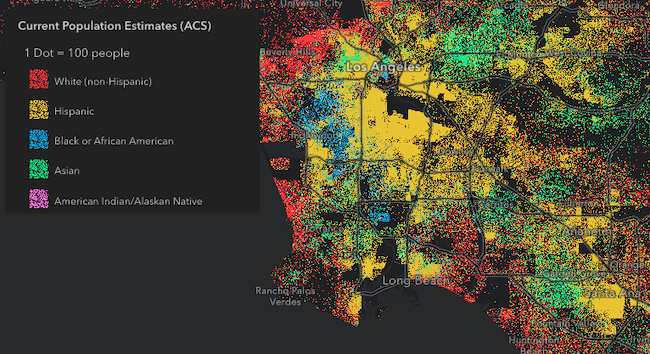](https://developers.arcgis.com/javascript/latest/sample-code/visualization-dot-density/)\n\n### Predominance\n\n[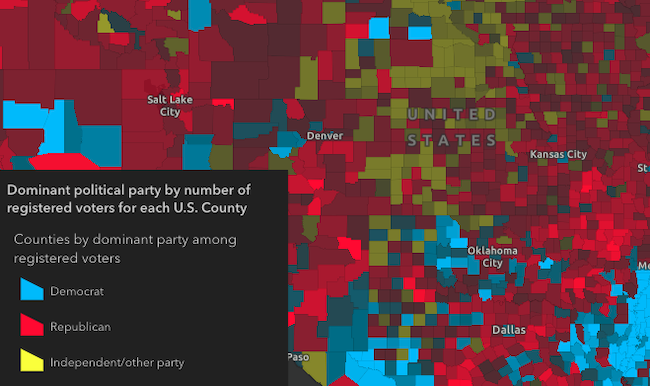](https://developers.arcgis.com/javascript/latest/sample-code/visualization-arcade/)\n\n### Relationship\n\n[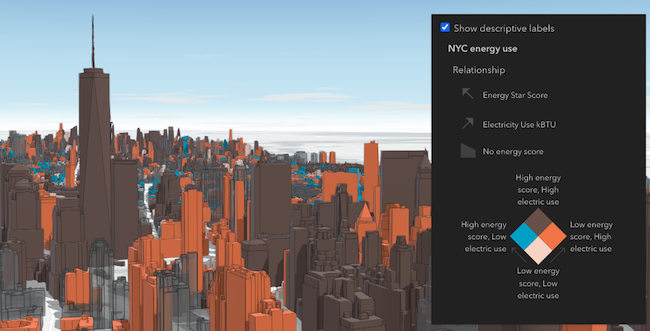](https://developers.arcgis.com/javascript/latest/sample-code/visualization-sm-relationship/)\n\n\n## Legend labels\n\nLegend text is directly controlled through the [layer](https://developers.arcgis.com/javascript/latest/references/core/layers/Layer/) and [renderer](https://developers.arcgis.com/javascript/latest/references/core/renderers/Renderer/) properties. For example, `layer.title` is directly used by the legend to present a layer's symbology to the end user. To override this text, you can directly update `layer.title`.\n\nFurthermore, you can control date and number formatting in Legend by using the [FieldConfiguration](https://developers.arcgis.com/javascript/latest/references/core/layers/support/FieldConfiguration/) formatting options on the layer. As an alternative to this, you can override Legend text via the renderer's properties. For example, the renderer may have a [legendOptions](https://developers.arcgis.com/javascript/latest/references/core/renderers/ClassBreaksRenderer/#legendOptions) property (or a label property in the case of visual variable stops or UniqueValueInfos) that can be used to override default legend text describing the renderer element in question. The [Update legend text sample](https://developers.arcgis.com/javascript/latest/sample-code/legend-update/) provides an example of overriding legend text via the renderer.\n\nNote that when you override legend text, all formatting and localization that would otherwise be dynamically applied to labels will no longer apply.\n--\n\n### Events\n- **arcgisPropertyChange** - Emitted when the value of a property is changed. Use this to listen to changes to properties.\n- **arcgisReady** - Emitted when the component associated with a map or scene view is ready to be interacted with.\n\n### Methods\n- `componentOnReady(): Promise<this>` - Creates a promise that resolves once the component is fully loaded.\n- `destroy(): Promise<void>` - Permanently destroy the component.","attributes":[{"name":"auto-destroy-disabled","description":"If true, the component will not be destroyed automatically when it is\ndisconnected from the document. This is useful when you want to move the\ncomponent to a different place on the page, or temporarily hide it. If this\nis set, make sure to call the [destroy()](https://developers.arcgis.com/javascript/latest/references/map-components/components/arcgis-legend/#destroy) method when you are done to\nprevent memory leaks.","values":[]},{"name":"basemap-legend-visible","description":"Indicates whether to show the [Basemap](https://developers.arcgis.com/javascript/latest/references/core/Basemap/) layers in the Legend. If you set this property to\n`true` and specify [layerInfos](https://developers.arcgis.com/javascript/latest/references/map-components/components/arcgis-legend/#layerInfos) that include the basemap layers, the basemap will be displayed in the legend.\n\n> **Known limitation:**\n>\n> [VectorTileLayers](https://developers.arcgis.com/javascript/latest/references/core/layers/VectorTileLayer/) in the basemap are not currently supported in the legend.\n> This includes most Esri basemaps such as \"Streets\", \"Topographic\", \"Navigation\", and others that use vector tiles.","values":[]},{"name":"card-style-layout","description":"Indicates the layout of the legend when the [legendStyle](https://developers.arcgis.com/javascript/latest/references/map-components/components/arcgis-legend/#legendStyle) is set to the string value of `\"card\"`.\nThe layout determines how the legend's content is arranged.\n\n[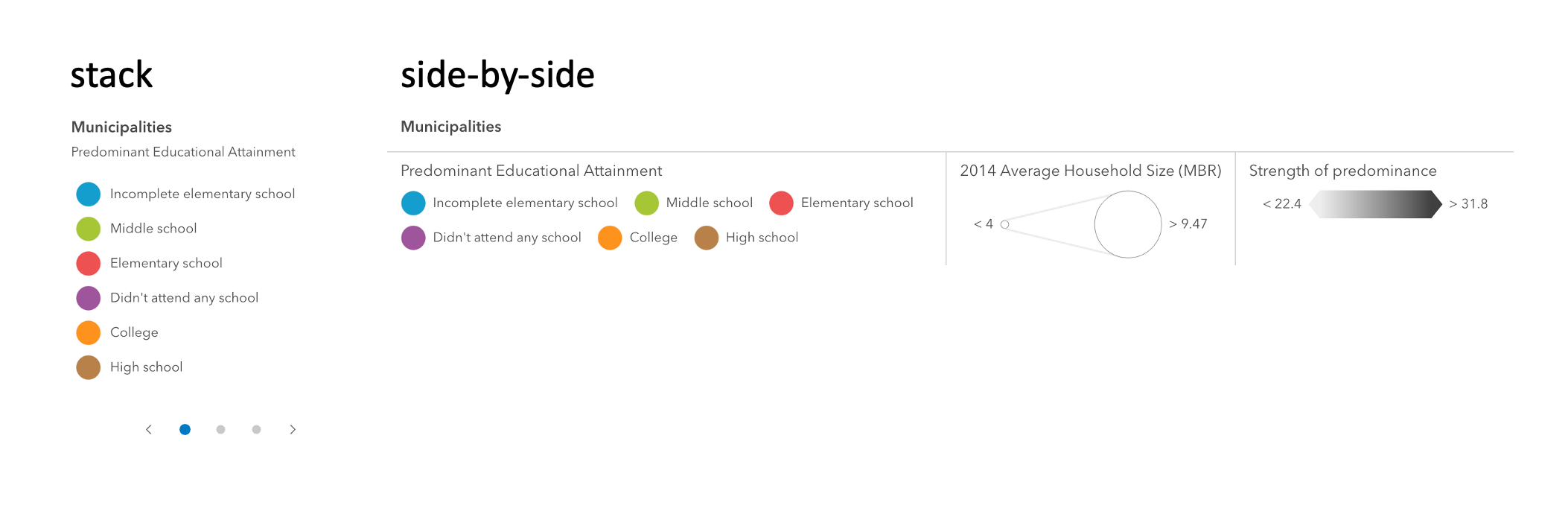](https://developers.arcgis.com/javascript/latest/sample-code/legend-card/)","values":[{"name":"auto"},{"name":"side-by-side"},{"name":"stack"}]},{"name":"heading-level","description":"Indicates the heading level to use for the legend title. By default, legend titles are rendered as level 3 headings (e.g. `<h3>Legend title</h3>`). Depending on the legend placement\nin your app, you may need to adjust this heading for proper semantics. This is important for meeting accessibility standards.","values":[{"name":"1"},{"name":"2"},{"name":"3"},{"name":"4"},{"name":"5"},{"name":"6"}]},{"name":"hide-layers-not-in-current-view","description":"When `true`, layers will only be shown in the legend if they are visible in the view's extent. When data from a layer\nis not visible in the view, the layer's legend information will be hidden. Only layers that implement the `createQuery()`\nand `queryFeatureCount()` methods are supported by `hideLayersNotInCurrentView`.\n\nTo hide layers completely from the legend, you should set the `legendEnabled` property of the layer to `false`.","values":[]},{"name":"icon","description":"Icon which represents the component.\nTypically used when the component is controlled by another component (e.g. by the Expand component).","values":[]},{"name":"ignore-layer-visibility","description":"Determines whether to respect the properties of the layers in the map that control the legend's visibility (`minScale`, `maxScale`, `legendEnabled`).\nBy default, a layer's legend elements **will not render** in the legend given the following conditions:\n\n- The layer's [legendEnabled](https://developers.arcgis.com/javascript/latest/references/core/layers/FeatureLayer/#legendEnabled) property\nis set to `false`.\n- If the view's scale is outside the visibility range\ndefined by the layer's [minScale](https://developers.arcgis.com/javascript/latest/references/core/layers/FeatureLayer/#minScale) and\n[maxScale](https://developers.arcgis.com/javascript/latest/references/core/layers/FeatureLayer/#maxScale) properties.\n\nWhen the `ignoreLayerVisibility` property of the legend is set to `true`, the legend elements for each\nlayer in the map will always display, thus disregarding the `minScale`, `maxScale`,\nand `legendEnabled` properties for each layer in the map.","values":[]},{"name":"label","description":"The component's default label.","values":[]},{"name":"legend-style","description":"Indicates the style of the legend. The style determines the legend's layout and behavior.\nYou can either specify a string or an object to indicate the style. The known string values are the same values listed in\nthe table within the `type` property.\n\n[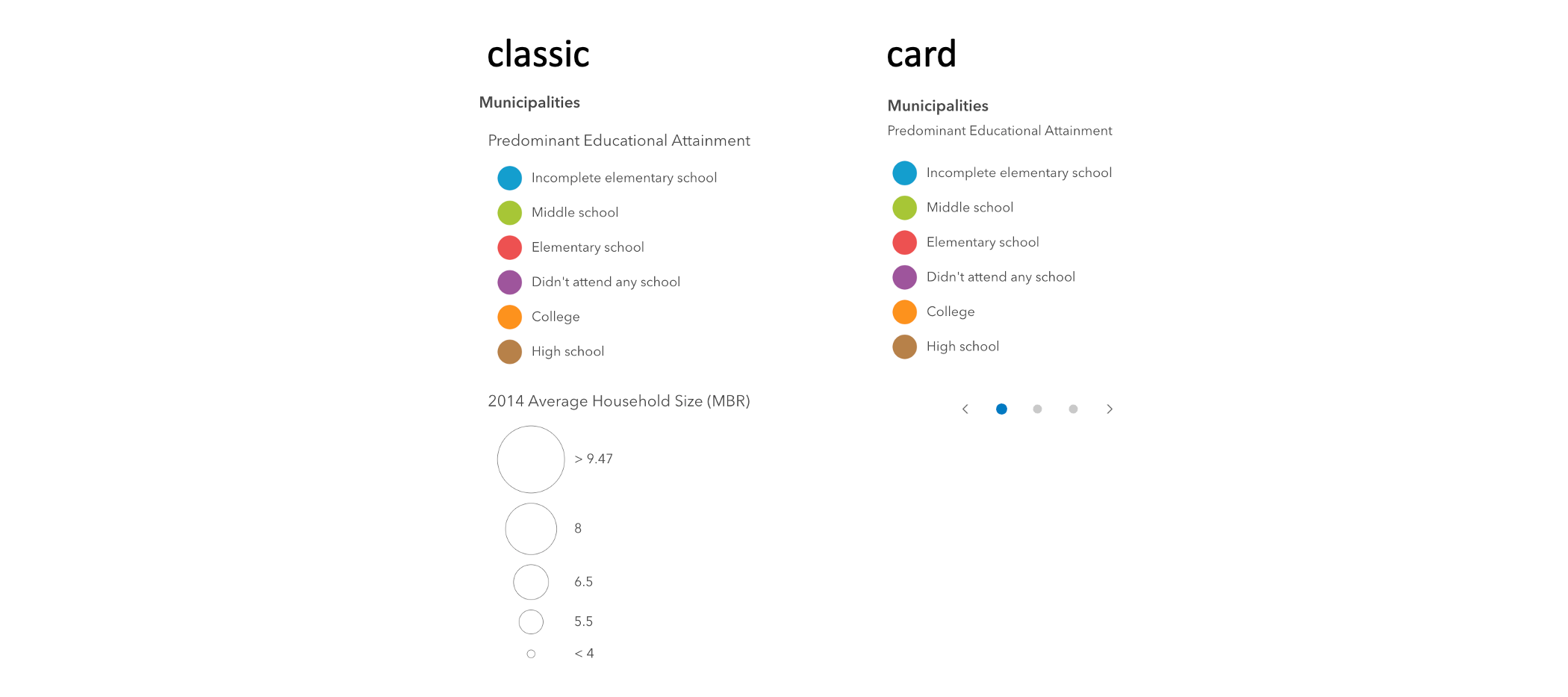](https://developers.arcgis.com/javascript/latest/sample-code/legend-card/)","values":[{"name":"card"},{"name":"classic"}]},{"name":"loading","description":"Indicates whether the legend is currently loading.","values":[]},{"name":"reference-element","description":"By assigning the `id` attribute of the Map or Scene component to this property, you can position a child component anywhere in the DOM while still maintaining a connection to the Map or Scene.","values":[]},{"name":"respect-layer-definition-expression","description":"If a layer uses a unique value render, only features that satisfy the layer's\n[definition](https://developers.arcgis.com/javascript/latest/references/core/layers/FeatureLayer/#definitionExpression)\nwill be displayed in the legend when set to true.","values":[]}],"references":[{"name":"Docs","url":"https://developers.arcgis.com/javascript/latest/references/map-components/components/arcgis-legend/"},{"name":"Legend","url":"https://developers.arcgis.com/javascript/latest/storybook/map-components/?path=/story/arcgis-legend--demo&singleStory=true"}]},{"name":"arcgis-line-of-sight","description":"The Line Of Sight component is a 3D analysis tool that allows you to perform\n[line of sight visibility analysis](https://developers.arcgis.com/javascript/latest/references/core/analysis/LineOfSightAnalysis/)\nin an [arcgis-scene](https://developers.arcgis.com/javascript/latest/references/map-components/components/arcgis-scene/). Visibility between a given observer and multiple target points is calculated against the currently\ndisplayed content in the view, including the ground, integrated meshes, and 3D objects such as buildings or trees.\n\n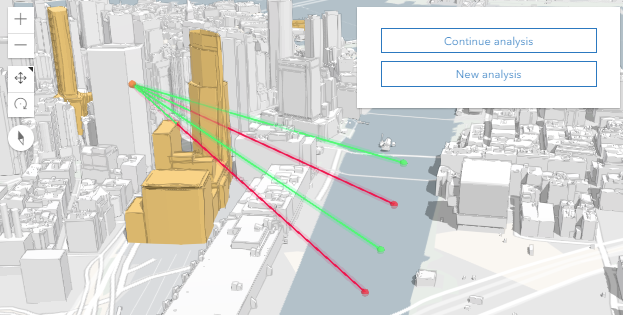\n\nThe analysis results are displayed as colored lines, where areas visible to the observer are\nshown green and occluded parts are marked in red. Also, the color of the target points indicates their visibility.\nWhen the line of sight cannot be calculated, it will be displayed with a gray color. This may happen if either\nthe target or the observer is not in the view.\n\nWhen creating a new line of sight analysis, the first click in the Scene creates the\n[observer](https://developers.arcgis.com/javascript/latest/references/core/analysis/LineOfSightAnalysisObserver/)\nand subsequent clicks place the [targets](https://developers.arcgis.com/javascript/latest/references/core/analysis/LineOfSightAnalysisTarget/).\nBoth the observer and target points can be moved by dragging. Additionally, the target points can be removed with a right click.\n\n**Known limitation**\n\nLine Of Sight is only supported in a 3D [arcgis-scene](https://developers.arcgis.com/javascript/latest/references/map-components/components/arcgis-scene/) component.\n\n**See also**\n\n- [LineOfSightAnalysis](https://developers.arcgis.com/javascript/latest/references/core/analysis/LineOfSightAnalysis/)\n- [Sample - Line of sight component](https://developers.arcgis.com/javascript/latest/sample-code/line-of-sight/)\n- [Sample - Analysis objects](https://developers.arcgis.com/javascript/latest/sample-code/analysis-objects/)\n--\n\n### Events\n- **arcgisPropertyChange** - Emitted when the value of a property is changed. Use this to listen to changes to properties.\n- **arcgisReady** - Emitted when the component associated with a map or scene view is ready to be interacted with.\n\n### Methods\n- `clear(): Promise<void>` - Clear the current analysis results. After calling this method, the user can set a new observer and targets.\n- `componentOnReady(): Promise<this>` - Creates a promise that resolves once the component is fully loaded.\n- `continue(): Promise<void>` - After [stop()](https://developers.arcgis.com/javascript/latest/references/map-components/components/arcgis-line-of-sight/#stop) was called, this method allows to continue the line of sight analysis and add more targets.\n- `destroy(): Promise<void>` - Permanently destroy the component.\n- `start(): Promise<void>` - Start a new line of sight analysis.\n- `stop(): Promise<void>` - Stop the current placing of line of sight analysis. Any lines added this far are kept in the view.\nUsers can still interact with existing targets and the observer, but they cannot place new target points.","attributes":[{"name":"auto-destroy-disabled","description":"If true, the component will not be destroyed automatically when it is\ndisconnected from the document. This is useful when you want to move the\ncomponent to a different place on the page, or temporarily hide it. If this\nis set, make sure to call the [destroy()](https://developers.arcgis.com/javascript/latest/references/map-components/components/arcgis-line-of-sight/#destroy) method when you are done to\nprevent memory leaks.","values":[]},{"name":"hide-continue-button","description":"If true, the button that allows the user to continue placing more targets.","values":[]},{"name":"hide-done-button","description":"If true, the button that ends the current placement will be hidden.","values":[]},{"name":"hide-start-button","description":"If true, the button that starts a new analysis will be hidden.","values":[]},{"name":"hide-visualization","description":"Indicates whether the component's visualization is hidden in the view.","values":[]},{"name":"icon","description":"Icon which represents the component.\nTypically used when the component is controlled by another component (e.g. by the Expand component).","values":[]},{"name":"label","description":"The component's default label.","values":[]},{"name":"reference-element","description":"By assigning the `id` attribute of the Map or Scene component to this property, you can position a child component anywhere in the DOM while still maintaining a connection to the Map or Scene.","values":[]}],"references":[{"name":"Docs","url":"https://developers.arcgis.com/javascript/latest/references/map-components/components/arcgis-line-of-sight/"},{"name":"Line of Sight","url":"https://developers.arcgis.com/javascript/latest/storybook/map-components/?path=/story/arcgis-line-of-sight--demo&singleStory=true"}]},{"name":"arcgis-link-chart","description":"Loads a [WebLinkChart](https://developers.arcgis.com/javascript/latest/references/core/WebLinkChart/) from an [ArcGIS Enterprise portal](https://enterprise.arcgis.com/en/portal/latest/administer/windows/what-is-portal-for-arcgis-.htm) into a [LinkChartView](https://developers.arcgis.com/javascript/latest/references/core/views/LinkChartView/).\n\nNote: Sign in to access the data in this demo, U/P: `viewer01`/`I68VGU^nMurF`\n--\n\n### Events\n- **arcgisLoadError** - Fires when an arcgis-link-chart fails to load or if one of its dependencies fails to load (e.g., basemap, ground, layers).\n- **arcgisViewAnalysisViewCreate** - Fires when the view for an analysis is created.\n\n[Read more](https://developers.arcgis.com/javascript/latest/references/core/views/MapView/#event-analysis-view-create)\n- **arcgisViewAnalysisViewCreateError** - Fires when an error occurs during the creation of an analysis view after an analysis is added to the view.\n\n[Read more](https://developers.arcgis.com/javascript/latest/references/core/views/MapView/#event-analysis-view-create-error)\n- **arcgisViewAnalysisViewDestroy** - Fires after an analysis view is destroyed.\n\n[Read more](https://developers.arcgis.com/javascript/latest/references/core/views/MapView/#event-analysis-view-destroy)\n- **arcgisViewChange** - This event is for view related property changes: zoom, scale, center, rotation, extent, camera, viewpoint.\nThis event will also emit if stationary toggles from true to false.\n- **arcgisViewClick** - Fires after a user clicks on the view.\n- **arcgisViewDoubleClick** - Fires after double-clicking on the view.\n- **arcgisViewDoubleTapDrag** - Fires while the pointer is dragged following a double-tap gesture on the view.\n- **arcgisViewDrag** - Fires during a pointer drag on the view.\n- **arcgisViewHold** - Fires during a pointer drag on the view.\n- **arcgisViewImmediateClick** - Fires right after a user clicks on the view.\n- **arcgisViewImmediateDoubleClick** - Is emitted after two consecutive immediate-click events.\n- **arcgisViewKeyDown** - Fires after a keyboard key is pressed.\n- **arcgisViewKeyUp** - Fires after a keyboard key is pressed.\n- **arcgisViewLayerviewCreate** - Fires after each layer in the link chart has a corresponding LayerView created and rendered in the view.\n- **arcgisViewLayerviewCreateError** - Fires when an error emits during the creation of a LayerView after a layer has been added to the link chart.\n- **arcgisViewLayerviewDestroy** - Fires after a LayerView is destroyed and is no longer rendered in the view.\n- **arcgisViewMouseWheel** - Fires when a wheel button of a pointing device (typically a mouse) is scrolled on the view.\n- **arcgisViewPointerDown** - Fires after a mouse button is pressed, or a finger touches the display.\n- **arcgisViewPointerEnter** - Fires after a mouse cursor enters the view, or a display touch begins.\n- **arcgisViewPointerLeave** - Fires after a mouse cursor leaves the view, or a display touch ends.\n- **arcgisViewPointerMove** - Fires after the mouse or a finger on the display moves.\n- **arcgisViewPointerUp** - Fires after a mouse button is released, or a display touch ends.\n- **arcgisViewReadyChange** - This event is for the `ready` property and will be emitted when the view is ready.\nThis event will also emit if the `map` property is changed.\n- **arcgisViewReadyError** - Fires if the view encounters a content or rendering error.\n- **arcgisViewVerticalTwoFingerDrag** - Fires while the two pointers are dragged vertically on the view.\n\n### Methods\n- `closePopup(): Promise<void>` - Closes the popup.\n- `componentOnReady(): Promise<this>` - Creates a promise that resolves once the component is fully loaded.\n- `destroy(): Promise<void>` - Destroys the view, and any associated resources, including its map, popup, and UI elements.\n- `goTo(target: GoToTarget2D, options?: GoToOptions2D): Promise<unknown>` - Sets the view to a given target.\n- `openPopup(options?: ViewPopupOpenOptions): Promise<void>` - Opens the popup at the given location with content defined either explicitly with content or driven\nfrom the PopupTemplate of input features.\n- `toMap(screenPoint: MouseEvent | ScreenPoint): Point`\n- `toScreen(point: Point, options?: ToScreenOptions2D): ScreenPoint | null | undefined`\n- `tryFatalErrorRecovery(): Promise<void>` - Call this method to clear any fatal errors resulting from a lost WebGL context.\n- `viewOnReady(callback?: () => void, errback?: (error: Error) => void): Promise<void>` - `viewOnReady()` may be leveraged once an instance of the component and its underlying [view](https://developers.arcgis.com/javascript/latest/references/map-components/components/arcgis-link-chart/#view) is created and ready.\nThis method takes two input parameters, a `callback` function and an `errback` function, and returns a promise. The `callback` executes when the promise resolves, and the `errback` executes if the promise is rejected.\n- `whenAnalysisView(analysis: Analysis): Promise<AnalysisView2DUnion>` - Gets the analysis view created for the given analysis object.\n\n[Read more](https://developers.arcgis.com/javascript/latest/references/core/views/MapView/#whenAnalysisView)\n- `whenLayerView(layer: Layer): Promise<LayerView>` - Gets the LayerView created on the view for the given layer.\n- `zoomIn(): Promise<void>` - Zooms in the view component by a factor of 2.\n- `zoomOut(): Promise<void>` - Zooms out the view component by a factor of 2.\n\n### Slots\n- _default_ - Default slot for adding components to the link chart. User is responsible for positioning the content via CSS.\n- **top-left** - Slot for components positioned in the top-left corner.\n- **top-right** - Slot for components positioned in the top-right corner.\n- **bottom-left** - Slot for components positioned in the bottom-left corner.\n- **bottom-right** - Slot for components positioned in the bottom-right corner.\n- **top-start** - Slot for components positioned at the top-start (top-left in LTR, top-right in RTL).\n- **top-end** - Slot for components positioned at the top-end (top-right in LTR, top-left in RTL).\n- **bottom-start** - Slot for components positioned at the bottom-start (bottom-left in LTR, bottom-right in RTL).\n- **bottom-end** - Slot for components positioned at the bottom-end (bottom-right in LTR, bottom-left in RTL).\n- **popup** - Slot for the [arcgis-popup](https://developers.arcgis.com/javascript/latest/references/map-components/components/arcgis-popup/) component to open automatically on click. Only the Popup component can be placed in this slot.\n\n### CSS Properties\n- **--arcgis-layout-overlay-space-top** - _Since 4.34_ Specifies the top padding for the layout. \n- **--arcgis-layout-overlay-space-bottom** - _Since 4.34_ Specifies the bottom padding for the layout. \n- **--arcgis-layout-overlay-space-left** - _Since 4.34_ Specifies the left padding for the layout. \n- **--arcgis-layout-overlay-space-right** - _Since 4.34_ Specifies the right padding for the layout. \n- **--arcgis-view-color-focus** - _Since 5.0_ Specifies the focus outline color for the view. ","attributes":[{"name":"animations-disabled","description":"Indicates whether animations are disabled in the view. This includes animated symbols (animated\n[CIMSymbol](https://developers.arcgis.com/javascript/latest/references/core/symbols/CIMSymbol/),\n[PictureMarkerSymbol](https://developers.arcgis.com/javascript/latest/references/core/symbols/PictureMarkerSymbol/)\nfrom a GIF/animated PNG), animated renderers\n([FlowRenderer](https://developers.arcgis.com/javascript/latest/references/core/rasterRenderers/#FlowRenderer)),\nanimated layers ([MediaLayer](https://developers.arcgis.com/javascript/latest/references/core/layers/MediaLayer/),\n[VideoLayer](https://developers.arcgis.com/javascript/latest/references/core/layers/VideoLayer/)), and\nanimations triggered by view navigation (for example,\n[goTo()](https://developers.arcgis.com/javascript/latest/references/core/views/LinkChartView/#goTo)).\nSetting this property to `true` disables all animations in the view.","values":[]},{"name":"attribution-mode","description":"The light or dark mode used to display the attribution.\nBy default, the mode is inherited from the [Calcite's mode](https://developers.arcgis.com/calcite-design-system/core-concepts/#modes).\nYou can override the value to style the attribution alongside the map or scene content.","values":[{"name":"dark"},{"name":"light"}]},{"name":"auto-destroy-disabled","description":"If true, the component will not be destroyed automatically when it is\ndisconnected from the document. This is useful when you want to move the\ncomponent to a different place on the page, or temporarily hide it. If this\nis set, make sure to call the [destroy()](https://developers.arcgis.com/javascript/latest/references/map-components/components/arcgis-link-chart/#destroy) method when you are done to\nprevent memory leaks.","values":[]},{"name":"base-cypher-query","description":"A Knowledge Open Cypher Query that will be used to generate the link chart. The serviceUrl property must also be set\n\nPlease note that this query only runs once and is used to initialize the link chart. Once link charts are generated, their membership is \"locked\" unless modified by the WebLinkChart API. Refresh events on the link chart canvas do not re-run the query for new data","values":[]},{"name":"basemap","description":"Specifies a basemap for the link chart. The basemap is only visible when the link\nchart is set to a geographic layout. See\n[documentation on layouts](https://enterprise.arcgis.com/en/knowledge/latest/knowledge-studio/change-the-layout-applied-to-a-link-chart.htm)\nfor more detail. The basemap is a set of layers that give\ngeographic context to the LinkChartView and the other operational layers\nin the link chart.","values":[]},{"name":"center","description":"Represents the view's center point; when setting the center, you may pass a\nesri/geometry/Point instance or a string representing\na longitude/latitude pair (`\"-100.4593, 36.9014\"`).\nSetting the center immediately changes the current view.\nFor animating the view, see this component's goTo() method.","values":[]},{"name":"display-filter-disabled","description":"Indicates whether layer's displayFilter are honored when rendering layers in the view.\nIf `false`, display filters are ignored and all features are rendered.","values":[]},{"name":"hide-attribution","description":"Indicates whether the attribution is hidden in the view.\n\nEsri requires that when you use an ArcGIS Online basemap in your app, the map must include Esri attribution and you must be licensed to use the content.\nFor detailed guidelines on working with attribution, please visit the official [attribution in your app](https://developers.arcgis.com/terms/attribution/) documentation.\nFor information on terms of use, see the [Terms of Use FAQ](https://developers.arcgis.com/terms/faq/).","values":[]},{"name":"item-id","description":"The ID of a WebLinkChart from an ArcGIS Enterprise portal.\n\nTo configure the portal url you must set the [`portalUrl` property on `config`](https://developers.arcgis.com/javascript/latest/references/core/config/#portalUrl) before the Link Chart component loads.","values":[]},{"name":"popup-component-enabled","description":"Indicates whether the [popup component](https://developers.arcgis.com/javascript/latest/references/map-components/components/arcgis-link-chart/#popupElement) (beta) is enabled as the default popup. When set to `true`, the [popupElement](https://developers.arcgis.com/javascript/latest/references/map-components/components/arcgis-link-chart/#popupElement) property (representing the component) will be used for popups instead of the [popup](https://developers.arcgis.com/javascript/latest/references/map-components/components/arcgis-link-chart/#popup) property (representing the widget).\n\n**Note:** This is a beta feature and may change in future releases. At version 6.0, the Popup component will be used by default instead of the Popup widget and the `popup-component-enabled` attribute will no longer be necessary.","values":[]},{"name":"popup-disabled","description":"Controls whether the default popup opens automatically when users click on the view. This controls both the [popupElement](https://developers.arcgis.com/javascript/latest/references/map-components/components/arcgis-link-chart/#popupElement) and [popup](https://developers.arcgis.com/javascript/latest/references/map-components/components/arcgis-link-chart/#popup) properties. When set to `true`, the popup will not open on click or when triggered programmatically.","values":[]},{"name":"resize-align","description":"Defines which anchor stays still while resizing the browser window. The default, `center`,\nensures the view's center point remains constantly visible as the window size changes. The other\noptions allow the respective portion of the view to remain visible when the window's size is changed.","values":[{"name":"center"},{"name":"top-left"},{"name":"top-right"},{"name":"bottom-left"},{"name":"bottom-right"},{"name":"bottom"},{"name":"left"},{"name":"right"},{"name":"top"}]},{"name":"rotation","description":"The clockwise rotation of due north in relation to the top of the view in degrees.\nThe view may be rotated by directly setting\nthe rotation or by using the following mouse event: `Right-click + Drag`.\nWebLinkChart rotation may be disabled by setting the `rotationEnabled` property\nin [constraints](https://developers.arcgis.com/javascript/latest/references/map-components/components/arcgis-link-chart/#constraints) to `false`.","values":[]},{"name":"scale","description":"Represents the link chart scale at the center of the view. Setting the scale immediately changes the view. For animating\nthe view, see this component's goTo() method.","values":[]},{"name":"service-url","description":"The URL of the Knowledge Graph Service to load the link chart from.\n\nIf no Base Cypher Query is defined, then the entire dataset will be used to generate the link chart.","values":[]},{"name":"suspended","description":"Indicates if the view is visible on the page.","values":[]},{"name":"time-zone","description":"Defines the time zone of the view.\nThe time zone property determines how dates and times are represented to the user,\nbut the underlying data is unchanged.","values":[]},{"name":"zoom","description":"Represents the level of detail (LOD) at the center of the view.\nA zoom level (or scale) is a number that defines how large or small the contents of a link chart appear in a link chart view.\nZoom level is a number usually between 0 (global view) and 23 (very detailed view) and is used as a shorthand for predetermined scale values.\nA value of -1 means the view has no LODs.\nWhen setting the zoom value, the LinkChartView converts it to the corresponding scale, or interpolates it if the zoom is a fractional number.\nLinkChartView can display link charts with different projections at a full range of scales, and so use the scale property on this component rather than zoom level.\n\nSetting the zoom immediately changes the current view. For animating the view, see this component's goTo() method.\nSetting this property in conjunction with `center` is a convenient way to set the initial extent of the view.","values":[]}],"references":[{"name":"Docs","url":"https://developers.arcgis.com/javascript/latest/references/map-components/components/arcgis-link-chart/"},{"name":"Link Chart","url":"https://developers.arcgis.com/javascript/latest/storybook/map-components/?path=/story/arcgis-link-chart--demo&singleStory=true"}]},{"name":"arcgis-link-chart-layout-switcher","description":"A component for use in link charts that allows users to switch between different layouts. See [documentation on layouts](https://enterprise.arcgis.com/en/knowledge/latest/knowledge-studio/change-the-layout-applied-to-a-link-chart.htm) for more details.\n\nNote: Sign in to access the data in this demo, U/P: `viewer01`/`I68VGU^nMurF`\n--\n\n### Events\n- **arcgisPropertyChange** - Emitted when the value of a property is changed. Use this to listen to changes to properties.\n- **arcgisReady** - Emitted when the component associated with a map or scene view is ready to be interacted with.\n- **arcgisSwitchLayout** - Fires when component has completed the layout switch\n\n### Methods\n- `componentOnReady(): Promise<this>` - Creates a promise that resolves once the component is fully loaded.\n- `destroy(): Promise<void>` - Permanently destroy the component.\n- `switchLayout(newLayout: \"basic-grid\" | \"chronological-mono-timeline\" | \"chronological-multi-timeline\" | \"geographic-organic-standard\" | \"hierarchical-bottom-to-top\" | \"organic-community\" | \"organic-standard\" | \"radial-root-centric\" | \"tree-left-to-right\"): Promise<void>` - Switches the layout of the link chart to the value provided.","attributes":[{"name":"appearance","description":"The appearance of the layout switcher. `dropdown` displays a button that is clicked to reveal a dropdown menu, while `menu-bar` displays a menu bar.","values":[{"name":"dropdown"},{"name":"menu-bar"}]},{"name":"auto-destroy-disabled","description":"If true, the component will not be destroyed automatically when it is\ndisconnected from the document. This is useful when you want to move the\ncomponent to a different place on the page, or temporarily hide it. If this\nis set, make sure to call the [destroy()](https://developers.arcgis.com/javascript/latest/references/map-components/components/arcgis-link-chart-layout-switcher/#destroy) method when you are done to\nprevent memory leaks.","values":[]},{"name":"close-on-select-disabled","description":"When `true`, the layout menu will not close when a layout is selected. Only applicable when `appearance` is `dropdown`.","values":[]},{"name":"icon","description":"Icon displayed in the component's button, when `appearance` is `dropdown`.","values":[]},{"name":"label","description":"The component's default label.","values":[]},{"name":"prevent-extent-update","description":"Prevents extent from updating on changes to the layout.","values":[]},{"name":"reference-element","description":"By assigning the `id` attribute of the Map or Scene component to this property, you can position a child component anywhere in the DOM while still maintaining a connection to the Map or Scene.\n\nSee also:\n- [Associate components with a Map or Scene component](https://developers.arcgis.com/javascript/latest/programming-patterns/#associate-components-with-a-map-or-scene-component)","values":[]}],"references":[{"name":"Docs","url":"https://developers.arcgis.com/javascript/latest/references/map-components/components/arcgis-link-chart-layout-switcher/"},{"name":"Link Chart Layout Switcher","url":"https://developers.arcgis.com/javascript/latest/storybook/map-components/?path=/story/arcgis-link-chart-layout-switcher--demo&singleStory=true"}]},{"name":"arcgis-link-chart-nonspatial-visibility-toggle","description":"The <link-chart-nonspatial-visibility-toggle> component is for use in link charts that allows users to switch whether or not nonspatial data is visible in the view. Spatial entities are those with a value in a defined geometry property in a traditional map context. A Spatial relationship is one where both endpoints are spatial\n\nNote: Sign in to access the data in this demo, U/P: `viewer01`/`I68VGU^nMurF`\n--\n\n### Events\n- **arcgisPropertyChange** - Emitted when the value of a property is changed. Use this to listen to changes to properties.\n- **arcgisReady** - Emitted when the component associated with a map or scene view is ready to be interacted with.\n\n### Methods\n- `componentOnReady(): Promise<this>` - Creates a promise that resolves once the component is fully loaded.\n- `destroy(): Promise<void>` - Permanently destroy the component.\n- `switchNonspatialVisibility(nonspatialVisibilitySetting: NonspatialMode): Promise<void>` - Switches the nonspatial visibility setting","attributes":[{"name":"auto-destroy-disabled","description":"If true, the component will not be destroyed automatically when it is\ndisconnected from the document. This is useful when you want to move the\ncomponent to a different place on the page, or temporarily hide it. If this\nis set, make sure to call the [destroy()](https://developers.arcgis.com/javascript/latest/references/map-components/components/arcgis-link-chart-nonspatial-visibility-toggle/#destroy) method when you are done to\nprevent memory leaks.","values":[]},{"name":"icon","values":[]},{"name":"label","description":"The component's default label.","values":[]},{"name":"reference-element","description":"By assigning the `id` attribute of the LinkChart component to this property, you can position a child component anywhere in the DOM while still maintaining a connection to the LinkChart.\n\nSee also:\n- [Associate components with a Map or Scene component](https://developers.arcgis.com/javascript/latest/programming-patterns/#associate-components-with-a-map-or-scene-component)","values":[]},{"name":"visual-scale","description":"Specifies the size of the component.","values":[{"name":"l"},{"name":"m"},{"name":"s"}]}],"references":[{"name":"Docs","url":"https://developers.arcgis.com/javascript/latest/references/map-components/components/arcgis-link-chart-nonspatial-visibility-toggle/"},{"name":"Link Chart Nonspatial Visibility Toggle","url":"https://developers.arcgis.com/javascript/latest/storybook/map-components/?path=/story/arcgis-link-chart-nonspatial-visibility-toggle--demo&singleStory=true"}]},{"name":"arcgis-locate","description":"The Locate component animates the Map or Scene to the user's current location.\n\nThis component uses the browser's [Geolocation API](https://developer.mozilla.org/en-US/docs/Web/API/Geolocation_API) which is only available in [secure contexts](https://developer.mozilla.org/en-US/docs/Web/Security/Secure_Contexts), such as HTTPS.\nNote that localhost is considered \"potentially secure\" and can be used for easy testing in browsers that support\n[Window.isSecureContext](https://developer.mozilla.org/en-US/docs/Web/API/isSecureContext#browser_compatibility).\n--\n\n### Events\n- **arcgisError**\n- **arcgisPropertyChange** - Emitted when the value of a property is changed. Use this to listen to changes to properties.\n- **arcgisReady** - Emitted when the component associated with a map or scene view is ready to be interacted with.\n- **arcgisSuccess**\n\n### Methods\n- `cancelLocate(): Promise<void>` - This function provides the ability to interrupt and cancel the process of\nprogrammatically obtaining the location of the user's device.\n- `componentOnReady(): Promise<this>` - Creates a promise that resolves once the component is fully loaded.\n- `destroy(): Promise<void>` - Permanently destroy the component.\n- `locate(): Promise<GeolocationPosition | null>`","attributes":[{"name":"auto-destroy-disabled","description":"If true, the component will not be destroyed automatically when it is\ndisconnected from the document. This is useful when you want to move the\ncomponent to a different place on the page, or temporarily hide it. If this\nis set, make sure to call the [destroy()](https://developers.arcgis.com/javascript/latest/references/map-components/components/arcgis-locate/#destroy) method when you are done to\nprevent memory leaks.","values":[]},{"name":"go-to-location-disabled","description":"Indicates whether to navigate the view to the position and scale of the geolocated result.","values":[]},{"name":"icon","description":"Icon displayed in the component's button.","values":[]},{"name":"label","description":"The component's default label.","values":[]},{"name":"popup-disabled","values":[]},{"name":"reference-element","description":"By assigning the `id` attribute of the Map or Scene component to this property, you can position a child component anywhere in the DOM while still maintaining a connection to the Map or Scene.","values":[]},{"name":"scale","description":"Indicates the scale to set on the view when navigating to the position of the geolocated\nresult, after a location is returned from the [@arcgisSuccess](https://developers.arcgis.com/javascript/latest/references/map-components/components/arcgis-locate/#event-arcgisSuccess) event.","values":[]},{"name":"visual-scale","description":"Specifies the size of the component.","values":[{"name":"s"},{"name":"m"},{"name":"l"}]}],"references":[{"name":"Docs","url":"https://developers.arcgis.com/javascript/latest/references/map-components/components/arcgis-locate/"},{"name":"Locate","url":"https://developers.arcgis.com/javascript/latest/storybook/map-components/?path=/story/arcgis-locate--demo&singleStory=true"}]},{"name":"arcgis-map","description":"The ArcGIS Map component is used to add 2D maps to web applications. For 3D maps, use the\n[arcgis-scene](https://developers.arcgis.com/javascript/latest/references/map-components/components/arcgis-scene/).\n\n#### Initializing the Map component\nThe Map component creates a [MapView](https://developers.arcgis.com/javascript/latest/references/core/views/MapView/)\nand can be initialized in one of three ways:\n\n##### 1. Using a WebMap\nLoad a [WebMap](https://developers.arcgis.com/javascript/latest/references/core/WebMap/) from [ArcGIS Online](https://www.arcgis.com/home/index.html)\nor an [ArcGIS Enterprise portal](https://enterprise.arcgis.com/en/portal/latest/administer/windows/what-is-portal-for-arcgis-.htm) by specifying the [itemId](https://developers.arcgis.com/javascript/latest/references/map-components/components/arcgis-map/#itemId) attribute.\n\n```html\n<arcgis-map item-id=\"05e015c5f0314db9a487a9b46cb37eca\"></arcgis-map>\n```\n\n##### 2. Setting Map component attributes directly\nDefine the Map component using attributes like [basemap](https://developers.arcgis.com/javascript/latest/references/map-components/components/arcgis-map/#basemap), [center](https://developers.arcgis.com/javascript/latest/references/map-components/components/arcgis-map/#center), and [zoom](https://developers.arcgis.com/javascript/latest/references/map-components/components/arcgis-map/#zoom) directly.\n\n```html\n<arcgis-map basemap=\"satellite\" center=\"-154.88, 19.46\" zoom=\"15\"></arcgis-map>\n```\n\n##### 3. Providing a Map instance\nAlternatively, you can provide your own [Map](https://developers.arcgis.com/javascript/latest/references/core/Map/) instance to the component.\nThis allows full control over map configuration, including [basemap](https://developers.arcgis.com/javascript/latest/references/map-components/components/arcgis-map/#basemap), operational [layers](https://developers.arcgis.com/javascript/latest/references/core/Map/#layers)\nand [spatialReference](https://developers.arcgis.com/javascript/latest/references/map-components/components/arcgis-map/#spatialReference). See the [Select features by rectangle sample](https://developers.arcgis.com/javascript/latest/sample-code/highlight-features-by-geometry/)\nfor an example of this approach in action.\n\n```html\n<arcgis-map></arcgis-map>\n<script type=\"module\">\n const viewElement = document.querySelector(\"arcgis-map\");\n\n // set the basemap of the map to states feature layer\n // add national parks feature layer and a polygon graphics layer\n viewElement.map = new Map({\n basemap: new Basemap({ baseLayers: [states] }),\n layers: [nationalParksLayer, polygonGraphicsLayer]\n });\n\n // set the spatial reference of the map to NAD 1983 Albers contiguous USA\n viewElement.spatialReference = { wkid: 102003 };\n</script>\n```\n#### Adding components and customizing the Map\n\nOther components can be added and connected to the Map component.\n\n```html\n<arcgis-map item-id=\"05e015c5f0314db9a487a9b46cb37eca\">\n <arcgis-zoom slot=\"top-left\"></arcgis-zoom>\n <arcgis-legend slot=\"bottom-left\"></arcgis-legend>\n</arcgis-map>\n```\n\nThe Map component can be customized further using any of the [core API functionalities](https://developers.arcgis.com/javascript/latest/references/core/) of the ArcGIS Maps SDK for JavaScript.\n\n```js\nconst viewElement = document.querySelector(\"arcgis-map\");\nviewElement.addEventListener(\"arcgisViewReadyChange\", () => {\n const layer = new GraphicsLayer({ title: \"My Layer\" });\n viewElement.map.add(layer);\n});\n```\n\nSee also:\n- [SDK sample apps using the Map component](https://developers.arcgis.com/javascript/latest/sample-code/?tagged=arcgis-map)\n- [Get started](https://developers.arcgis.com/javascript/latest/get-started/)\n- [Programming patterns](https://developers.arcgis.com/javascript/latest/programming-patterns/)\n--\n\n### Events\n- **arcgisLoadError** - Fires when an arcgis-map fails to load or if one of its dependencies fails to load (e.g., basemap, ground, layers).\n- **arcgisViewAnalysisViewCreate** - Fires when the view for an analysis is created.\n\n[Read more](https://developers.arcgis.com/javascript/latest/references/core/views/MapView/#event-analysis-view-create)\n- **arcgisViewAnalysisViewCreateError** - Fires when an error occurs during the creation of an analysis view after an analysis is added to the view.\n\n[Read more](https://developers.arcgis.com/javascript/latest/references/core/views/MapView/#event-analysis-view-create-error)\n- **arcgisViewAnalysisViewDestroy** - Fires after an analysis view is destroyed.\n\n[Read more](https://developers.arcgis.com/javascript/latest/references/core/views/MapView/#event-analysis-view-destroy)\n- **arcgisViewChange** - This event is triggered when view-related properties change, such as [zoom](https://developers.arcgis.com/javascript/latest/references/map-components/components/arcgis-map/#zoom), [scale](https://developers.arcgis.com/javascript/latest/references/map-components/components/arcgis-map/#scale), [center](https://developers.arcgis.com/javascript/latest/references/map-components/components/arcgis-map/#center), [rotation](https://developers.arcgis.com/javascript/latest/references/map-components/components/arcgis-map/#rotation), [extent](https://developers.arcgis.com/javascript/latest/references/map-components/components/arcgis-map/#extent),\n[viewpoint](https://developers.arcgis.com/javascript/latest/references/map-components/components/arcgis-map/#viewpoint), or [stationary](https://developers.arcgis.com/javascript/latest/references/map-components/components/arcgis-map/#stationary).\nIt reflects user interactions (e.g. panning or zooming) or programmatic updates to the view.\n- **arcgisViewClick** - Fires after a user clicks on the view. This event emits slightly slower than an [@arcgisViewImmediateClick](https://developers.arcgis.com/javascript/latest/references/map-components/components/arcgis-map/#event-arcgisViewImmediateClick)\nevent to make sure that an [@arcgisViewDoubleClick](https://developers.arcgis.com/javascript/latest/references/map-components/components/arcgis-map/#event-arcgisViewDoubleClick) event isn't triggered instead. The `arcgisViewImmediateClick`\nevent can be used for responding to an `arcgisViewClick` event without delay.\n- **arcgisViewDoubleClick** - Fires after double-clicking on the view.\n- **arcgisViewDoubleTapDrag** - Fires while the pointer is dragged following a double-tap gesture on the view.\n\n[Read more](https://developers.arcgis.com/javascript/latest/references/core/views/MapView/#event-double-tap-drag)\n- **arcgisViewDrag** - Fires during a pointer drag on the view.\n- **arcgisViewHold** - Fires after holding either a mouse button or a single finger on the view for a short amount of time.\n- **arcgisViewImmediateClick** - Fires right after a user clicks on the view. In contrast to the [@arcgisViewClick](https://developers.arcgis.com/javascript/latest/references/map-components/components/arcgis-map/#event-arcgisViewClick) event, the `arcgisViewImmediateClick`\nis emitted as soon as the user clicks on the view, and is not inhibited by a [@arcgisViewDoubleClick](https://developers.arcgis.com/javascript/latest/references/map-components/components/arcgis-map/#event-arcgisViewDoubleClick) event.\nThis event is useful for interactive experiences that require feedback without delay.\n- **arcgisViewImmediateDoubleClick** - Fires after two consecutive [@arcgisViewImmediateClick](https://developers.arcgis.com/javascript/latest/references/map-components/components/arcgis-map/#event-arcgisViewImmediateClick) events. In contrast to [@arcgisViewDoubleClick](https://developers.arcgis.com/javascript/latest/references/map-components/components/arcgis-map/#event-arcgisViewDoubleClick),\nan `arcgisViewImmediateDoubleClick` cannot be prevented by use of `stopPropagation()` on the [@arcgisViewImmediateClick](https://developers.arcgis.com/javascript/latest/references/map-components/components/arcgis-map/#event-arcgisViewImmediateClick)\nevent and can therefore be used to react to double-clicking independently of usage of the [@arcgisViewImmediateClick](https://developers.arcgis.com/javascript/latest/references/map-components/components/arcgis-map/#event-arcgisViewImmediateClick) event.\n- **arcgisViewKeyDown** - Fires after a keyboard key is pressed.\n- **arcgisViewKeyUp** - Fires after a keyboard key is released.\n- **arcgisViewLayerviewCreate** - Fires after each layer in the map has a corresponding\n[LayerView](https://developers.arcgis.com/javascript/latest/references/core/views/layers/LayerView/)\ncreated and rendered in the view.\n- **arcgisViewLayerviewCreateError** - Fires when an error occurs during the creation of a [LayerView](https://developers.arcgis.com/javascript/latest/references/core/views/layers/LayerView/)\nafter a layer has been added to the map.\n- **arcgisViewLayerviewDestroy** - Fires after a [LayerView](https://developers.arcgis.com/javascript/latest/references/core/views/layers/LayerView/)\nis destroyed and is no longer rendered in the view.\n- **arcgisViewMouseWheel** - Fires when a wheel button of a pointing device (typically a mouse) is scrolled on the view.\n- **arcgisViewPointerDown** - Fires after a mouse button is pressed, or a finger touches the display.\n- **arcgisViewPointerEnter** - Fires after a mouse cursor enters the view, or a display touch begins.\n- **arcgisViewPointerLeave** - Fires after a mouse cursor leaves the view, or a display touch ends.\n- **arcgisViewPointerMove** - Fires after the mouse or a finger on the display moves.\n- **arcgisViewPointerUp** - Fires after a mouse button is released, or a display touch ends.\n- **arcgisViewReadyChange** - This event is for the `ready` property and is emitted when the view is ready.\nFires also when the [map](https://developers.arcgis.com/javascript/latest/references/map-components/components/arcgis-map/#map) is updated.\n- **arcgisViewReadyError** - Fires if the view encounters a content or rendering error.\n- **arcgisViewVerticalTwoFingerDrag** - Fires while the two pointers are dragged vertically on the view.\n\n[Read more](https://developers.arcgis.com/javascript/latest/references/core/views/MapView/#event-vertical-two-finger-drag)\n\n### Methods\n- `closePopup(): Promise<void>` - Closes the popup.\n- `componentOnReady(): Promise<this>` - Creates a promise that resolves once the component is fully loaded.\n- `destroy(): Promise<void>` - Destroys the view, and any associated resources, including its map, popup, and UI elements.\n- `goTo(target: GoToTarget2D, options?: GoToOptions2D): Promise<unknown>` - Sets the view to a given target.\n- `hitTest(screenPoint: MouseEvent | ScreenPoint, options?: HitTestOptions): Promise<ViewHitTestResult>` - Returns [hit test results](https://developers.arcgis.com/javascript/latest/references/core/views/MapView/#HitTestResult)\nfrom each layer that intersects the specified screen coordinates. The results are\norganized as an array of objects containing different [result types](https://developers.arcgis.com/javascript/latest/references/core/views/MapView/#HitTestResult).\n\nThe following layer types will return all [features](https://developers.arcgis.com/javascript/latest/references/core/views/MapView/#GraphicHit) if a hit is\nmade on intersecting features: [FeatureLayer](https://developers.arcgis.com/javascript/latest/references/core/layers/FeatureLayer/),\n[CatalogLayer](https://developers.arcgis.com/javascript/latest/references/core/layers/CatalogLayer/),\n[CSVLayer](https://developers.arcgis.com/javascript/latest/references/core/layers/CSVLayer/),\n[GeoJSONLayer](https://developers.arcgis.com/javascript/latest/references/core/layers/GeoJSONLayer/),\n[GeoRSSLayer](https://developers.arcgis.com/javascript/latest/references/core/layers/GeoRSSLayer/),\n[GraphicsLayer](https://developers.arcgis.com/javascript/latest/references/core/layers/GraphicsLayer/),\n[KMLLayer](https://developers.arcgis.com/javascript/latest/references/core/layers/KMLLayer/),\n[MapNotesLayer](https://developers.arcgis.com/javascript/latest/references/core/layers/MapNotesLayer/),\n[OGCFeatureLayer](https://developers.arcgis.com/javascript/latest/references/core/layers/OGCFeatureLayer/),\n[StreamLayer](https://developers.arcgis.com/javascript/latest/references/core/layers/StreamLayer/),\n[SubtypeSublayer](https://developers.arcgis.com/javascript/latest/references/core/layers/support/SubtypeSublayer/),\n[VectorTileLayer](https://developers.arcgis.com/javascript/latest/references/core/layers/VectorTileLayer/), and\n[WFSLayer](https://developers.arcgis.com/javascript/latest/references/core/layers/WFSLayer/).\n\nThe [ParquetLayer](https://developers.arcgis.com/javascript/latest/references/core/layers/ParquetLayer/) hit result returns only the topmost feature\nwhen the hit occurs on overlapping features in a ParquetLayer.\n\nThe [VectorTileLayer](https://developers.arcgis.com/javascript/latest/references/core/layers/VectorTileLayer/) hit test result contains an array of objects containing\na [graphic](https://developers.arcgis.com/javascript/latest/references/core/views/MapView/#GraphicHit).\nThe graphic returns attributes of a style layer. In addition, the graphic's [origin](https://developers.arcgis.com/javascript/latest/references/core/Graphic/#origin)\ncontains the style layer's [id](https://maplibre.org/maplibre-style-spec/layers/#id) and layer index within the [vector tile style](https://doc.arcgis.com/en/arcgis-online/reference/tile-layers.htm#ESRI_SECTION1_8F68399EB47B48FF9EF46719FCC96978).\nSpatial information about the actual feature represented in the style layer is returned only if the style layer is a [symbol layer](https://maplibre.org/maplibre-style-spec/layers/#symbol).\nOtherwise, the graphic's geometry is `null`.\n\nThe [MediaLayer](https://developers.arcgis.com/javascript/latest/references/core/layers/MediaLayer/) hit test result contains all media elements if the hit is made on intersecting elements.\nThe [RouteLayer](https://developers.arcgis.com/javascript/latest/references/core/layers/RouteLayer/) hit test result contains all route elements if the hit is made on intersecting elements.\n\nIf the [polygon](https://developers.arcgis.com/javascript/latest/references/core/geometry/Polygon/) feature's symbol\n[style](https://developers.arcgis.com/javascript/latest/references/core/symbols/SimpleFillSymbol/#style) is set to `none`, the hitTest method will not\nreturn results when the fill is clicked. However, it will return results when the outline is clicked. To get results when clicking the fill, set the\n[color](https://developers.arcgis.com/javascript/latest/references/core/symbols/SimpleFillSymbol/#color) to a transparent color instead.\n- `openPopup(options?: ViewPopupOpenOptions): Promise<void>` - Opens the popup at the given location with content defined either explicitly with content or driven\nfrom the PopupTemplate of input features.\n- `takeScreenshot(options?: UserSettings): Promise<Screenshot>` - Create a screenshot of the current view.\n- `toMap(screenPoint: MouseEvent | ScreenPoint): Point`\n- `toScreen(point: Point, options?: ToScreenOptions2D): ScreenPoint | null | undefined`\n- `tryFatalErrorRecovery(): Promise<void>` - Call this method to clear any fatal errors resulting from a lost WebGL context.\n- `viewOnReady(callback?: () => void, errback?: (error: Error) => void): Promise<void>` - `viewOnReady()` may be leveraged once an instance of the component and its underlying [view](https://developers.arcgis.com/javascript/latest/references/map-components/components/arcgis-map/#view) is created and ready.\nThis method takes two input parameters, a `callback` function and an `errback` function, and returns a promise. The `callback` executes when the promise resolves, and the `errback` executes if the promise is rejected.\n- `whenAnalysisView(analysis: Analysis): Promise<AnalysisView2DUnion>` - Gets the analysis view created for the given analysis object.\n\n[Read more](https://developers.arcgis.com/javascript/latest/references/core/views/MapView/#whenAnalysisView)\n- `whenLayerView<TLayer extends Layer>(layer: TLayer): Promise<LayerView2DFor<TLayer>>` - Gets the LayerView created on the view for the given layer.\n\n[Read more](https://developers.arcgis.com/javascript/latest/references/core/views/MapView/#whenLayerView)\n- `zoomIn(): Promise<void>` - Zooms in the view component by a factor of 2.\n- `zoomOut(): Promise<void>` - Zooms out the view component by a factor of 2.\n\n### Slots\n- _default_ - Default slot for adding components to the map. User is responsible for positioning the content via CSS.\n- **top-left** - Slot for components positioned in the top-left corner.\n- **top-right** - Slot for components positioned in the top-right corner.\n- **bottom-left** - Slot for components positioned in the bottom-left corner.\n- **bottom-right** - Slot for components positioned in the bottom-right corner.\n- **top-start** - Slot for components positioned at the top-start (top-left in LTR, top-right in RTL).\n- **top-end** - Slot for components positioned at the top-end (top-right in LTR, top-left in RTL).\n- **bottom-start** - Slot for components positioned at the bottom-start (bottom-left in LTR, bottom-right in RTL).\n- **bottom-end** - Slot for components positioned at the bottom-end (bottom-right in LTR, bottom-left in RTL).\n- **popup** - Slot for the [arcgis-popup](https://developers.arcgis.com/javascript/latest/references/map-components/components/arcgis-popup/) component to open automatically on click. Only the Popup component can be placed in this slot.\n\n### CSS Properties\n- **--arcgis-layout-overlay-space-top** - _Since 4.34_ Specifies the top padding for the layout. \n- **--arcgis-layout-overlay-space-bottom** - _Since 4.34_ Specifies the bottom padding for the layout. \n- **--arcgis-layout-overlay-space-left** - _Since 4.34_ Specifies the left padding for the layout. \n- **--arcgis-layout-overlay-space-right** - _Since 4.34_ Specifies the right padding for the layout. \n- **--arcgis-view-color-focus** - _Since 5.0_ Specifies the focus outline color for the view. ","attributes":[{"name":"animations-disabled","description":"Indicates whether animations are disabled in the view. This includes animated symbols (animated\n[CIMSymbol](https://developers.arcgis.com/javascript/latest/references/core/symbols/CIMSymbol/),\n[PictureMarkerSymbol](https://developers.arcgis.com/javascript/latest/references/core/symbols/PictureMarkerSymbol/)\nfrom a GIF/animated PNG), animated renderers\n([FlowRenderer](https://developers.arcgis.com/javascript/latest/references/core/rasterRenderers/#FlowRenderer)),\nanimated layers ([MediaLayer](https://developers.arcgis.com/javascript/latest/references/core/layers/MediaLayer/),\n[VideoLayer](https://developers.arcgis.com/javascript/latest/references/core/layers/VideoLayer/)), and\nanimations triggered by view navigation (for example,\n[goTo()](https://developers.arcgis.com/javascript/latest/references/core/views/MapView/#goTo)).\nSetting this property to `true` disables all animations in the view.","values":[]},{"name":"attribution-mode","description":"The light or dark mode used to display the attribution.\nBy default, the mode is inherited from the [Calcite's mode](https://developers.arcgis.com/calcite-design-system/core-concepts/#modes).\nYou can override the value to style the attribution alongside the map or scene content.","values":[{"name":"dark"},{"name":"light"}]},{"name":"auto-destroy-disabled","description":"If true, the component will not be destroyed automatically when it is\ndisconnected from the document. This is useful when you want to move the\ncomponent to a different place on the page, or temporarily hide it. If this\nis set, make sure to call the [destroy()](https://developers.arcgis.com/javascript/latest/references/map-components/components/arcgis-map/#destroy) method when you are done to\nprevent memory leaks.","values":[]},{"name":"basemap","description":"Specifies a basemap for the map. The basemap is a set of layers that give\ngeographic context to the view and the other operational layers\nin the map.\nIt can either be set using a basemap ID string ([see values](https://developers.arcgis.com/javascript/latest/references/core/Map/#basemap)),\n[Basemap](https://developers.arcgis.com/javascript/latest/references/core/Basemap/)\nor [BasemapStyle](https://developers.arcgis.com/javascript/latest/references/core/support/BasemapStyle/).\n\n[Read more](https://developers.arcgis.com/javascript/latest/references/core/Map/#basemap)","values":[]},{"name":"center","description":"Represents the view's center point; when setting the center, you may pass a\n[Point](https://developers.arcgis.com/javascript/latest/references/core/geometry/Point/) instance, numbers representing\na longitude/latitude pair (`[-100.4593, 36.9014]`), or a string attribute representing a longitude/latitude pair (\"-100.4593, 36.9014\").\nSetting the `center` immediately changes the current view. For animating the view, see this component's [goTo()](https://developers.arcgis.com/javascript/latest/references/map-components/components/arcgis-map/#goTo) method.\n\nThe returned [Point](https://developers.arcgis.com/javascript/latest/references/core/geometry/Point/) object is always\nin the spatial reference of the view and may be modified internally.\nTo persist the returned object, create a clone using [clone()](https://developers.arcgis.com/javascript/latest/references/core/geometry/Point/#clone) method.\n\n**Notes**\n\n* If the spatial reference of `center` set in the constructor does not match the [spatialReference](https://developers.arcgis.com/javascript/latest/references/map-components/components/arcgis-map/#spatialReference) of the view, then the\n[projectOperator](https://developers.arcgis.com/javascript/latest/references/core/geometry/operators/projectOperator/) will be loaded dynamically.\n* At runtime, the [projectOperator](https://developers.arcgis.com/javascript/latest/references/core/geometry/operators/projectOperator/) must be\n[loaded](https://developers.arcgis.com/javascript/latest/references/core/geometry/operators/projectOperator/#load) when\nsetting the `center` to a spatial reference that doesn't match the view spatial reference. You can check if the projectOperator is\nloaded prior to setting the center by calling [isLoaded()](https://developers.arcgis.com/javascript/latest/references/core/geometry/operators/projectOperator/#isLoaded)\nmethod. If it is not yet loaded, you can call [load()](https://developers.arcgis.com/javascript/latest/references/core/geometry/operators/projectOperator/#load) method.","values":[]},{"name":"display-filter-disabled","description":"Indicates whether a layer's `displayFilterInfo` is honored when rendering layers in the view.\nIf `false`, display filters are ignored and all features are rendered.","values":[]},{"name":"ground","description":"Specifies the surface properties for the map.","values":[]},{"name":"hide-attribution","description":"Indicates whether the attribution is hidden in the view.\n\nEsri requires that when you use an ArcGIS Online basemap in your app, the map must include Esri attribution and you must be licensed to use the content.\nFor detailed guidelines on working with attribution, please visit the official [attribution in your app](https://developers.arcgis.com/terms/attribution/) documentation.\nFor information on terms of use, see the [Terms of Use FAQ](https://developers.arcgis.com/terms/faq/).","values":[]},{"name":"item-id","description":"The ID of a WebMap from ArcGIS Online or ArcGIS Enterprise portal.\n\nTo configure the portal url you must set the [`portalUrl` property on `config`](https://developers.arcgis.com/javascript/latest/references/core/config/#portalUrl) before the Map component loads.","values":[]},{"name":"popup-component-enabled","description":"Indicates whether the [popup component](https://developers.arcgis.com/javascript/latest/references/map-components/components/arcgis-map/#popupElement) (beta) is enabled as the default popup. When set to `true`, the [popupElement](https://developers.arcgis.com/javascript/latest/references/map-components/components/arcgis-map/#popupElement) property (representing the component) will be used for popups instead of the [popup](https://developers.arcgis.com/javascript/latest/references/map-components/components/arcgis-map/#popup) property (representing the widget).\n\n**Note:** This is a beta feature and may change in future releases. At version 6.0, the Popup component will be used by default instead of the Popup widget and the `popup-component-enabled` attribute will no longer be necessary.","values":[]},{"name":"popup-disabled","description":"Controls whether the default popup opens automatically when users click on the view. This controls both the [popupElement](https://developers.arcgis.com/javascript/latest/references/map-components/components/arcgis-map/#popupElement) and [popup](https://developers.arcgis.com/javascript/latest/references/map-components/components/arcgis-map/#popup) properties. When set to `true`, the popup will not open on click or when triggered programmatically.","values":[]},{"name":"resize-align","description":"Defines which anchor stays still while resizing the browser window. The default, `center`,\nensures the view's center point remains constantly visible as the window size changes. The other\noptions allow the respective portion of the view to remain visible when the window's size is changed.","values":[{"name":"center"},{"name":"top-left"},{"name":"top-right"},{"name":"bottom-left"},{"name":"bottom-right"},{"name":"bottom"},{"name":"left"},{"name":"right"},{"name":"top"}]},{"name":"rotation","description":"The clockwise rotation of due north in relation to the top of the view in degrees.\nThe view may be rotated by directly setting\nthe rotation or by using the following mouse event: `Right-click + Drag`.\nMap rotation may be disabled by setting the `rotationEnabled` property\nin [constraints](https://developers.arcgis.com/javascript/latest/references/map-components/components/arcgis-map/#constraints) to `false`. See the code snippet below for\nan example of this.","values":[]},{"name":"scale","description":"Represents the map scale at the center of the view. Setting the scale immediately changes the view. For animating\nthe view, see this component's [goTo()](https://developers.arcgis.com/javascript/latest/references/map-components/components/arcgis-map/#goTo) method.","values":[]},{"name":"spatial-reference-locked","description":"Indicates if the map's [spatialReference](https://developers.arcgis.com/javascript/latest/references/map-components/components/arcgis-map/#spatialReference) can be changed after it is ready.\nThe default is `false`, indicating the map's spatialReference can be changed at runtime.\nWhen true, basemaps with spatial references that do not match the map's spatial reference\nwill be disabled in [arcgis-basemap-gallery](https://developers.arcgis.com/javascript/latest/references/map-components/components/arcgis-basemap-gallery/) and [arcgis-basemap-toggle](https://developers.arcgis.com/javascript/latest/references/map-components/components/arcgis-basemap-toggle/) components and the map's spatialReference cannot be changed at runtime.","values":[]},{"name":"suspended","description":"Indicates if the view is visible on the page.","values":[]},{"name":"time-zone","description":"Defines the time zone of the view.\nThe time zone property determines how dates and times are represented to the user,\nbut the underlying data is unchanged.","values":[]},{"name":"zoom","description":"Represents the level of detail (LOD) at the center of the map.\nA zoom level (or scale) is a number that defines how large or small the contents of a map appear in a Map component.\nZoom level is a number usually between 0 (global view) and 23 (very detailed view) and is used as a shorthand for predetermined scale values.\nA value of -1 means the map has no LODs.\nWhen setting the zoom value, the component converts it to the corresponding scale, or interpolates it if the zoom is a fractional number.\n\nSetting the zoom immediately changes the current view. For animating the view, see this component's [goTo()](https://developers.arcgis.com/javascript/latest/references/map-components/components/arcgis-map/#goTo) method.\nSetting this property in conjunction with `center` is a convenient way to set the initial extent of the view.","values":[]}],"references":[{"name":"Docs","url":"https://developers.arcgis.com/javascript/latest/references/map-components/components/arcgis-map/"},{"name":"Map","url":"https://developers.arcgis.com/javascript/latest/storybook/map-components/?path=/story/arcgis-map--demo&singleStory=true"}]},{"name":"arcgis-measurement","description":"The Measurement component groups and manages multiple measurement tools and allows you to easily switch between them using\nthe [activeTool](https://developers.arcgis.com/javascript/latest/references/map-components/components/arcgis-measurement/#activeTool) property. The tools correspond to the measurement components for area and distance in 2D\n[arcgis-area-measurement-2d](https://developers.arcgis.com/javascript/latest/references/map-components/components/arcgis-area-measurement-2d/), [arcgis-distance-measurement-2d](https://developers.arcgis.com/javascript/latest/references/map-components/components/arcgis-distance-measurement-2d/) and in 3D\n[arcgis-area-measurement-3d](https://developers.arcgis.com/javascript/latest/references/map-components/components/arcgis-area-measurement-3d/), [arcgis-direct-line-measurement-3d](https://developers.arcgis.com/javascript/latest/references/map-components/components/arcgis-direct-line-measurement-3d/).\n\nThis component follows a composite pattern that allows developers to configure the UI to best match their specific requirements.\nThe measurement tools, placements, and icons can all be configured, which offers great flexibility to use with tabbed\ninterfaces or other customized UI.\n\nHow distances, areas, and perimeters are computed depends on the view type and its spatial reference.\n\nIn 2D Maps:\n- In geographic coordinate systems (GCS) and in Web Mercator, they are computed geodetically.\n- In projected coordinate systems (PCS), apart from Web Mercator, they are computed\n in a Euclidean manner (in their respective PCS).\n\nIn 3D Scenes:\n- In geographic coordinate systems (GCS) and in Web Mercator:\n - horizontal distance is computed geodetically;\n - vertical distance is computed as a difference in z-values;\n - direct distance is computed in a Euclidean manner;\n - area and perimeter are computed:\n - in a Euclidean manner if the perimeter is below 100km;\n - geodetically if the perimeter is above 100km.\n- In projected coordinate systems (PCS), apart from Web Mercator:\n - all three distances (direct, horizontal, and vertical), areas, and perimeters are computed in a Euclidean manner (in their respective PCS).\n--\n\n### Events\n- **arcgisPropertyChange** - Emitted when the value of a property is changed. Use this to listen to changes to properties.\n- **arcgisReady** - Emitted when the component associated with a map or scene view is ready to be interacted with.\n\n### Methods\n- `clear(): Promise<void>` - Removes all measurement widgets and associated graphics.\n- `componentOnReady(): Promise<this>` - Creates a promise that resolves once the component is fully loaded.\n- `destroy(): Promise<void>` - Permanently destroy the component.\n- `startMeasurement(): Promise<void>` - Starts a new measurement for the active measurement widget.","attributes":[{"name":"active-tool","description":"Specifies the current measurement tool to display. Setting its value to `area` activates\nthe area measurement tool and it works in both [arcgis-map](https://developers.arcgis.com/javascript/latest/references/map-components/components/arcgis-map/) and [arcgis-scene](https://developers.arcgis.com/javascript/latest/references/map-components/components/arcgis-scene/). To measure distance in an [arcgis-map](https://developers.arcgis.com/javascript/latest/references/map-components/components/arcgis-map/),\nset the property to `distance` and in an [arcgis-scene](https://developers.arcgis.com/javascript/latest/references/map-components/components/arcgis-scene/) set it to `direct-line`.\nIf this property is not set, the component will not be displayed.","values":[{"name":"area"},{"name":"distance"},{"name":"direct-line"}]},{"name":"area-unit","description":"Unit system (imperial, metric) or specific unit used for displaying the area values.","values":[{"name":"metric"},{"name":"imperial"},{"name":"square-inches"},{"name":"square-feet"},{"name":"square-yards"},{"name":"square-miles"},{"name":"square-nautical-miles"},{"name":"square-us-feet"},{"name":"square-millimeters"},{"name":"square-centimeters"},{"name":"square-decimeters"},{"name":"square-meters"},{"name":"square-kilometers"},{"name":"acres"},{"name":"ares"},{"name":"hectares"}]},{"name":"auto-destroy-disabled","description":"If true, the component will not be destroyed automatically when it is\ndisconnected from the document. This is useful when you want to move the\ncomponent to a different place on the page, or temporarily hide it. If this\nis set, make sure to call the [destroy()](https://developers.arcgis.com/javascript/latest/references/map-components/components/arcgis-measurement/#destroy) method when you are done to\nprevent memory leaks.","values":[]},{"name":"icon","description":"Icon which represents the component.\nTypically used when the component is controlled by another component (e.g. by the Expand component).","values":[]},{"name":"label","description":"The component's default label.","values":[]},{"name":"linear-unit","description":"Unit system (imperial, metric) or specific unit used for displaying the distance values.","values":[{"name":"meters"},{"name":"metric"},{"name":"millimeters"},{"name":"centimeters"},{"name":"feet"},{"name":"us-feet"},{"name":"nautical-miles"},{"name":"kilometers"},{"name":"yards"},{"name":"decimeters"},{"name":"inches"},{"name":"miles"},{"name":"imperial"}]},{"name":"reference-element","description":"By assigning the `id` attribute of the Map or Scene component to this property, you can position a child component anywhere in the DOM while still maintaining a connection to the Map or Scene.","values":[]}],"references":[{"name":"Docs","url":"https://developers.arcgis.com/javascript/latest/references/map-components/components/arcgis-measurement/"}]},{"name":"arcgis-navigation-toggle","description":"The Navigation Toggle component can be used to control the navigation mode of a Scene component.\n\nWhen the navigation mode is set to \"pan\" (default), the mouse drag gesture pans the view and right-click + drag allows the user\nto rotate the view. When the navigation mode is set to \"rotate\", the mouse drag gesture rotates the view and\nright-click + drag pans the view.\n\n**Known limitations**\n\nNavigation Toggle is only supported in a 3D [arcgis-scene](https://developers.arcgis.com/javascript/latest/references/map-components/components/arcgis-scene/) component.\n\n @since 4.28\n--\n\n### Events\n- **arcgisPropertyChange** - Emitted when the value of a property is changed. Use this to listen to changes to properties.\n- **arcgisReady** - Emitted when the component associated with a map or scene view is ready to be interacted with.\n\n### Methods\n- `componentOnReady(): Promise<this>` - Creates a promise that resolves once the component is fully loaded.\n- `destroy(): Promise<void>` - Permanently destroy the component.\n- `toggle(): Promise<void>`","attributes":[{"name":"auto-destroy-disabled","description":"If true, the component will not be destroyed automatically when it is\ndisconnected from the document. This is useful when you want to move the\ncomponent to a different place on the page, or temporarily hide it. If this\nis set, make sure to call the [destroy()](https://developers.arcgis.com/javascript/latest/references/map-components/components/arcgis-navigation-toggle/#destroy) method when you are done to\nprevent memory leaks.","values":[]},{"name":"icon","description":"Icon which represents the component.\nTypically used when the component is controlled by another component (e.g. by the Expand component).","values":[]},{"name":"label","description":"The component's default label.","values":[]},{"name":"layout","description":"The layout direction of the component.","values":[{"name":"horizontal"},{"name":"vertical"}]},{"name":"navigation-mode","description":"The navigation mode of the view. The possible values:\n\n* `pan` - The mouse drag gesture pans the view. Right-click + drag allows the user to perform a 3D rotate around the center of the view.\n* `rotate` - The mouse drag gesture performs a 3D rotate around the center of the view and the right-click + drag gesture pans the view.","values":[{"name":"pan"},{"name":"rotate"}]},{"name":"reference-element","description":"By assigning the `id` attribute of the Map or Scene component to this property, you can position a child component anywhere in the DOM while still maintaining a connection to the Map or Scene.","values":[]},{"name":"state","description":"The current state of the component.","values":[{"name":"disabled"},{"name":"ready"}]},{"name":"visual-scale","description":"Specifies the size of the component.","values":[{"name":"s"},{"name":"m"},{"name":"l"}]}],"references":[{"name":"Docs","url":"https://developers.arcgis.com/javascript/latest/references/map-components/components/arcgis-navigation-toggle/"},{"name":"Navigation Toggle","url":"https://developers.arcgis.com/javascript/latest/storybook/map-components/?path=/story/arcgis-navigation-toggle--demo&singleStory=true"}]},{"name":"arcgis-oriented-imagery-viewer","description":"The Oriented Imagery Viewer component allows the user to explore and use their oriented images.\n--\n\n### Events\n- **arcgisPropertyChange** - Emitted when the value of a property is changed. Use this to listen to changes to properties.\n- **arcgisReady** - Emitted when the component associated with a map or scene view is ready to be interacted with.\n\n### Methods\n- `componentOnReady(): Promise<this>` - Creates a promise that resolves once the component is fully loaded.\n- `destroy(): Promise<void>` - Permanently destroy the component.","attributes":[{"name":"auto-destroy-disabled","description":"If true, the component will not be destroyed automatically when it is\ndisconnected from the document. This is useful when you want to move the\ncomponent to a different place on the page, or temporarily hide it. If this\nis set, make sure to call the [destroy()](https://developers.arcgis.com/javascript/latest/references/map-components/components/arcgis-oriented-imagery-viewer/#destroy) method when you are done to\nprevent memory leaks.","values":[]},{"name":"current-coverage-visible","description":"Toggles the visibility of the current footprint polygon associated with the selected image loaded in the viewer.\nCurrent footprint coverage allows you to better understand how the images in the oriented imagery layer relate to the map.\nThe footprint of the image is symbolized with red fill on the map. If you zoom or pan in the oriented imagery viewer,\nthe footprint coverage graphic will update on the map to highlight the area on the map that is visible in the image.","values":[]},{"name":"data-capture-enabled","description":"Indicates whether the data capture tools are enabled in the oriented imagery viewer for digitization.\nWhen set to `true` , the data capture (edit) option will be visible on the digitizable overlayed feature layers available in the image overlays tab.\nOn clicking the data capture option, the digitization tools will appear at the bottom of the viewer once the overlay tab is closed.","values":[]},{"name":"disabled","description":"When `false`, the view click interaction is enabled for the oriented imagery viewer component. This allows users to pick a location on the map and display the best image to the viewer.\nWhen `true` the view click interaction will be defaulted to map navigation.","values":[]},{"name":"gallery-opened","description":"Indicates if the image gallery functionality is available in the component.\nTo visualize additional images of the same location, select the image gallery from the oriented imagery viewer.\nThe galley is a carousel of low-resolution thumbnails of all images that depict the selected map location. Click a thumbnail to view the full-resolution image in the oriented imagery viewer.","values":[]},{"name":"icon","description":"Icon which represents the component.\nTypically used when the component is controlled by another component (e.g. by the Expand component).","values":[]},{"name":"image-enhancement-tool-active","description":"Indicates if the image enhancement tool is active. When `true` the component displays the functionalities to adjust the brightness, contrast, and sharpness of the\nimage in the oriented imagery viewer using interactive sliders.\nSettings will be preserved for subsequent images loaded in the oriented imagery viewer.","values":[]},{"name":"image-overlays-opened","description":"Indicates whether the image overlays tab in the oriented imagery viewer is open.\nWhen set to `true` , the overlays tab appears at the bottom of the viewer. It includes two toggle options: overlay camera locations and overlay map features.\nThese options enable users to visualize and overlay map features that intersect with the image’s footprint within the viewer.","values":[]},{"name":"is-additional-coverage-visible","description":"Indicates if the additional footprint polygons are visible for the selected image loaded in the viewer.\nThe footprint graphics (appearing in blue) show the coverage footprints of all the additional images in the\nlayer that depict the location selected by the user.","values":[]},{"name":"is-additional-point-sources-visible","description":"Indicates if the additional camera locations are visible for the selected image loaded in the viewer.\nThe point location graphics (appearing in blue) show the camera locations for additional images that depict the location the user selects.","values":[]},{"name":"label","description":"The component's default label.","values":[]},{"name":"map-image-conversion-tool-state","description":"Indicates if the map-image location tool is available in the component.\nWhen `true`, the user can select a point on the map and the corresponding location in pixel space will be displayed in the image, and vice versa.","values":[]},{"name":"navigation-tool-active","description":"When `true`, the navigation tool is available in the component.\nThe navigation tool can be used to explore the images that contain the selected location on the map using a compass.\nTo view a different image of the selected map location, click the camera locations (blue dots), or click a segment to view\nthe best image from that segment (segments with images are shown in white; segments without images are gray).","values":[]},{"name":"oriented-imagery-layer-item-id","values":[]},{"name":"preload-media","description":"When true, loading an image via directional or sequential navigation caches all neighboring images associated with that image.\nNavigating to adjacent images then uses the cached assets, reducing load times and improving viewer performance.","values":[]},{"name":"reference-element","description":"By assigning the `id` attribute of the Map or Scene component to this property, you can position a child component anywhere in the DOM while still maintaining a connection to the Map or Scene.","values":[]}],"references":[{"name":"Docs","url":"https://developers.arcgis.com/javascript/latest/references/map-components/components/arcgis-oriented-imagery-viewer/"},{"name":"Oriented Imagery Viewer","url":"https://developers.arcgis.com/javascript/latest/storybook/map-components/?path=/story/arcgis-oriented-imagery-viewer--demo&singleStory=true"}]},{"name":"arcgis-paste","description":"The Paste component provides a UX for working with a Clipboard and\ncopy and pasting features and/or geometries.\n--\n\n### Events\n- **arcgisApplyPasteCommand** - The user has initiated a paste command.\n- **arcgisApplyPasteError** - An error occurred performing a paste command\n- **arcgisBeforeClipboardMove** - The clipboard move interactive operation is about to start\n- **arcgisClipboardMoveStateChanged** - The clipboard move interactive operation has changed state.\n- **arcgisClose** - Emitted when the component's close button is clicked.\n- **arcgisPropertyChange** - Emitted when the value of a property is changed. Use this to listen to changes to properties.\n- **arcgisReady** - Emitted when the component associated with a map or scene view is ready to be interacted with.\n\n### Methods\n- `cancelMoveClipboard(): Promise<void>` - Cancels any running Clipboard Move Interaction\n- `componentOnReady(): Promise<this>` - Creates a promise that resolves once the component is fully loaded.\n- `destroy(): Promise<void>` - Permanently destroy the component\n- `executePasteCommand(id: SupportedPasteCommand, options?: {\n silent?: boolean;\n showFeatureForm?: boolean;\n}): Promise<PasteExecuteResult>` - Execute a paste command without opening the panel.\n\nparam id - The paste commands identifier\nparam options.silent - Determines if the command is being run without UX, or if it is running with the panel open\n- `registerPasteCommand(pasteCommand: CustomPasteCommand): Promise<void>` - Registers a custom Paste Command\n- `reset(): Promise<void>` - Resets the Paste panel to its home page\n- `showClipboardItems(visible: boolean): Promise<void>` - Method to show the clipboard items on the map\n- `startMoveClipboard(continuous: boolean): Promise<void>` - Start an interactive clipboard move operation\n- `writeChanges(applySet: ApplySet): Promise<(ApplySetLayerEditResult | ApplySetServiceEditResult)[]>` - Method to write the paste edits to the geodatabase(s).\n\n### Slots\n- **home-header-actions-start** - Slot for adding actions to the start of the header on the entry page.\n- **header-actions-end** - Slot for adding actions to the end of the header.\n- **gallery-page-message** - Slot for adding content to the template gallery page.\n- **commands-page-message** - Slot for adding content to commands page.\n\n### CSS Properties\n- **--arcgis-paste-height** - Specifies the height of the component. \n- **--arcgis-paste-width** - Specifies the width of the component. \n- **--arcgis-paste-blocks-padding** - Specifies the padding for elements within the component. ","attributes":[{"name":"always-show-feature-form","description":"Determines if the attributes panel should be shown for newly created paste features. If not set\nthe panel will only be shown if there are mandatory fields that have not been provided.","values":[]},{"name":"auto-destroy-disabled","description":"If true, the component will not be destroyed automatically when it is\ndisconnected from the document. This is useful when you want to move the\ncomponent to a different place on the page, or temporarily hide it. If this\nis set, make sure to call the [destroy()](https://developers.arcgis.com/javascript/latest/references/map-components/components/arcgis-paste/#destroy) method when you are done to\nprevent memory leaks.","values":[]},{"name":"closed","description":"Indicates whether a component is closed. When true, the component will be hidden.","values":[]},{"name":"close-on-apply","description":"Determines if the panel will automatically close after it has applied a Paste.","values":[]},{"name":"hide-error-notice","description":"Determines if the component should show error notices","values":[]},{"name":"hide-footer","description":"Determines if the footer should be hidden.","values":[]},{"name":"hide-footer-cancel-button","description":"Determines if the attributes panel should have a Cancel button in the Footer, or rely on the close header action","values":[]},{"name":"hide-header-close-button","description":"Determines if the component should have a close button. A close button can be added by using the header-actions-end slot.","values":[]},{"name":"hide-tooltips","description":"Indicates whether to display the tooltip for clipboard and other actions.","values":[]},{"name":"hide-view-clipboard","description":"Determines if the view clipboard action is available","values":[]},{"name":"highlight-group","description":"The highlight group to use when highlighting features when they are being created.","values":[]},{"name":"maximum-feature-count","description":"The maximum number of features that created by a paste operation.","values":[]},{"name":"maximum-feature-count-with-complex-forms","description":"The maximum number of features that can created by a paste operation,\nwhen there are complex Arcade expressions that must be executed.","values":[]},{"name":"paste-with-multiple-features-enabled","description":"Determines whether pasting multiple features is supported","values":[]},{"name":"paste-with-multiple-layers-enabled","description":"Determines whether pasting new features into multiple layers is allowed","values":[]},{"name":"reference-element","description":"By assigning the `id` attribute of the Map or Scene component to this property, you can position a child component anywhere in the DOM while still maintaining a connection to the Map or Scene.","values":[]},{"name":"supported-commands","description":"The list of supported paste operations. New types of operations can be registered using the 'registerPasteOperation'","values":[{"name":"paste"},{"name":"paste-append"},{"name":"paste-as"},{"name":"paste-merge"},{"name":"paste-subtract"}]}],"references":[{"name":"Docs","url":"https://developers.arcgis.com/javascript/latest/references/map-components/components/arcgis-paste/"}]},{"name":"arcgis-clipboard","description":"The Feature Clipboard displays the current contents of the clipboard.\n--\n\n### Events\n- **arcgisReady** - Emitted when the component associated with a map or scene view is ready to be interacted with.\n\n### Methods\n- `componentOnReady(): Promise<this>` - Creates a promise that resolves once the component is fully loaded.","attributes":[{"name":"hide-tooltips","description":"Indicates whether to display tooltips on clipboard items.","values":[]},{"name":"max-show-count","values":[]},{"name":"reference-element","description":"By assigning the `id` attribute of the Map or Scene component to this property, you can position a child component anywhere in the DOM while still maintaining a connection to the Map or Scene.","values":[]}],"references":[{"name":"Docs","url":"https://developers.arcgis.com/javascript/latest/references/map-components/components/arcgis-clipboard/"}]},{"name":"arcgis-feature-image","description":"The Feature Image component generates a feature swatch representing a\nFeature.\nThe component can be configured to only generate a swatch, when the element\nis within the visible scope of the page.\n--\n\n### Methods\n- `componentOnReady(): Promise<this>` - Creates a promise that resolves once the component is fully loaded.","attributes":[{"name":"height-in-pixels","description":"The generated thumbnail height","values":[]},{"name":"min-width","values":[]},{"name":"use-true-shape","description":"Specifies whether to use the shape of the feature. If set to false, then a simple symbol swatch will be used.","values":[]},{"name":"width-in-pixels","description":"The generated thumbnail width","values":[]}],"references":[{"name":"Docs","url":"https://developers.arcgis.com/javascript/latest/references/map-components/components/arcgis-feature-image/"}]},{"name":"arcgis-feature-title","description":"The Feature Title component generates a feature title for a graphic\nThe component can be configured to only generate a title, when the element\nis within the visible scope of the page.\n--\n\n### Methods\n- `componentOnReady(): Promise<this>` - Creates a promise that resolves once the component is fully loaded.","attributes":[{"name":"is-new-feature","description":"Flag to indicate that the graphic is a new feature and may not have an OID field","values":[]},{"name":"no-title-label","description":"Label to show if the feature does not have a","values":[]}],"references":[{"name":"Docs","url":"https://developers.arcgis.com/javascript/latest/references/map-components/components/arcgis-feature-title/"}]},{"name":"arcgis-multi-feature-form","description":"The Multi Feature Form component provides a Feature Form which works with\nlayer FeatureForm templates. It allows for multiple features to be edited at once.\n--\n\n### Events\n- **arcgisPropertyChange** - Emitted when the value of a property is changed. Use this to listen to changes to properties.\n- **arcgisReady** - Emitted when the component associated with a map or scene view is ready to be interacted with.\n- **arcgisSubmit** - Fires when the [submit()](https://developers.arcgis.com/javascript/latest/references/core/widgets/BatchAttributeForm/#submit) method is called.\n- **arcgisValueChange** - Fires when a field value is updated.\n\n### Methods\n- `componentOnReady(): Promise<this>` - Creates a promise that resolves once the component is fully loaded.\n- `destroy(): Promise<void>` - Permanently destroy the component.\n- `getValues(graphic: Graphic): Record<string, unknown>`\n- `goToFirstError(): void`\n- `userChangesHaveMadeFeatureInvalid(feature: Graphic): boolean`","attributes":[{"name":"active-feature-index","values":[]},{"name":"auto-destroy-disabled","description":"If true, the component will not be destroyed automatically when it is\ndisconnected from the document. This is useful when you want to move the\ncomponent to a different place on the page, or temporarily hide it. If this\nis set, make sure to call the [destroy()](https://developers.arcgis.com/javascript/latest/references/map-components/components/arcgis-multi-feature-form/#destroy) method when you are done to\nprevent memory leaks.","values":[]},{"name":"disabled","values":[]},{"name":"edit-type","values":[{"name":"INSERT"},{"name":"UPDATE"},{"name":"DELETE"},{"name":"NA"}]},{"name":"group-display","values":[{"name":"all"},{"name":"sequential"}]},{"name":"has-too-many-complex-features","values":[]},{"name":"has-too-many-features","values":[]},{"name":"heading-level","description":"Indicates the heading level to use for the headings in the component.","values":[{"name":"1"},{"name":"2"},{"name":"3"},{"name":"4"},{"name":"5"},{"name":"6"}]},{"name":"icon","description":"Icon which represents the component.\nTypically used when the component is controlled by another component (e.g. by the Expand component).","values":[]},{"name":"label","description":"The component's default label.","values":[]},{"name":"maximum-feature-count","values":[]},{"name":"maximum-feature-count-with-complex-forms","values":[]},{"name":"position","description":"**Deprecated**: since 4.34, use [`slot`](https://developers.arcgis.com/javascript/latest/building-your-ui/#slots) instead.. ","values":[{"name":"top-left"},{"name":"top-right"},{"name":"bottom-left"},{"name":"bottom-right"},{"name":"manual"},{"name":"top-leading"},{"name":"top-trailing"},{"name":"bottom-leading"},{"name":"bottom-trailing"}]},{"name":"read-only","values":[]},{"name":"reference-element","description":"By assigning the `id` attribute of the Map or Scene component to this property, you can position a child component anywhere in the DOM while still maintaining a connection to the Map or Scene.","values":[]},{"name":"status","values":[{"name":"loaded"},{"name":"loading"},{"name":"not-loaded"},{"name":"failed"}]},{"name":"submit-has-been-attempted","values":[]},{"name":"time-zone","values":[]},{"name":"updating","values":[]},{"name":"valid","values":[]}],"references":[{"name":"Docs","url":"https://developers.arcgis.com/javascript/latest/references/map-components/components/arcgis-multi-feature-form/"}]},{"name":"arcgis-popup","description":"## Overview\nThe Popup component allows users to view content from feature attributes. Popups enhance web applications\nby providing users with a simple way to interact with and view attributes in a layer.\nThey play an important role in relaying information to the user, which improves the storytelling capabilities of the application.\n\nThe popup component can be added to the [arcgis-map](https://developers.arcgis.com/javascript/latest/references/map-components/components/arcgis-map/), [arcgis-scene](https://developers.arcgis.com/javascript/latest/references/map-components/components/arcgis-scene/), or [arcgis-link-chart](https://developers.arcgis.com/javascript/latest/references/map-components/components/arcgis-link-chart/) using the `popup` slot.\nWhen added to a view component, the popup is automatically populated with content from the selected feature in the view and displays when clicking on features in the view.\nThe content of the popup is determined based on the [PopupTemplate](https://developers.arcgis.com/javascript/latest/references/core/PopupTemplate/) assigned to the selected feature.\n\n```html\n<arcgis-map id=\"06ca49d0ddb447e7817cfc343ca30df9\">\n <arcgis-popup slot=\"popup\"></arcgis-popup>\n</arcgis-map>\n```\n\nThe Popup component can also be opened manually at a specific location using the [open](https://developers.arcgis.com/javascript/latest/references/map-components/components/arcgis-popup/#open) property.\nTo prevent the popup from opening automatically when clicking on features within view components, set the `popup-disabled` attribute to `true` and add the Popup component to the [arcgis-map](https://developers.arcgis.com/javascript/latest/references/map-components/components/arcgis-map/), [arcgis-scene](https://developers.arcgis.com/javascript/latest/references/map-components/components/arcgis-scene/), or [arcgis-link-chart](https://developers.arcgis.com/javascript/latest/references/map-components/components/arcgis-link-chart/) using the `popup` slot.\nBefore setting the `open` property to `true`, you must set the [location](https://developers.arcgis.com/javascript/latest/references/map-components/components/arcgis-popup/#location) property to specify where the popup should open or call the [fetchFeatures()](https://developers.arcgis.com/javascript/latest/references/map-components/components/arcgis-popup/#fetchFeatures) method to open the popup template for features at a specific screen location.\n\nExample of opening the popup at a clicked location with custom content:\n\n```html\n<!-- Set popup-disabled and popup-component-enabled attributes -->\n<arcgis-map id=\"06ca49d0ddb447e7817cfc343ca30df9\" popup-disabled>\n <!-- Add the popup component to the popup slot. -->\n <arcgis-popup slot=\"popup\"></arcgis-popup>\n</arcgis-map>\n<script>\nconst viewElement = document.querySelector(\"arcgis-map\");\nconst popupComponent = document.querySelector(\"arcgis-popup\");\n// Listen for clicks on the view and open the popup at the clicked location with custom content.\nviewElement.addEventListener(\"arcgisViewClick\", (event) => {\n const { mapPoint } = event.detail;\n popupComponent.clear();\n popupComponent.location = mapPoint;\n popupComponent.heading = \"You clicked here\";\n popupComponent.content = \"Latitude: \" + mapPoint.latitude.toFixed(3) + \", Longitude: \" + mapPoint.longitude.toFixed(3);\n popupComponent.open = true;\n});\n</script>\n```\n\nAlternatively, you can call the [fetchFeatures()](https://developers.arcgis.com/javascript/latest/references/map-components/components/arcgis-popup/#fetchFeatures) method within the view element's click event listener to open the popup with features at the clicked location.\n```html\n<!-- Set popup-disabled and popup-component-enabled attributes -->\n<arcgis-map id=\"06ca49d0ddb447e7817cfc343ca30df9\" popup-disabled>\n <!-- Add the popup component to the popup slot. -->\n <arcgis-popup slot=\"popup\"></arcgis-popup>\n</arcgis-map>\n<script>\nconst viewElement = document.querySelector(\"arcgis-map\");\nconst popupComponent = document.querySelector(\"arcgis-popup\");\n// Listen for clicks on the view and populate the popup with features at that location.\nviewElement.addEventListener(\"arcgisViewClick\", async (event) => {\n await popupComponent.fetchFeatures(event.detail);\n});\n// Open the popup when the features property changes.\nreactiveUtils.watch(\n() => popupComponent.features,\n() => {\n popupComponent.open = popupComponent.features ? true : false;\n});\n</script>\n```\n\nThe popup component can be used with the view components by default. Set the `popup-component-enabled` attribute to `true` using [arcgis-map.popupComponentEnabled](https://developers.arcgis.com/javascript/latest/references/map-components/components/arcgis-map/#popupComponentEnabled), [arcgis-scene.popupComponentEnabled](https://developers.arcgis.com/javascript/latest/references/map-components/components/arcgis-scene/#popupComponentEnabled), or [arcgis-link-chart.popupComponentEnabled](https://developers.arcgis.com/javascript/latest/references/map-components/components/arcgis-link-chart/#popupComponentEnabled) to open the popup component automatically when clicking on features.\n\n```html\n<arcgis-map id=\"06ca49d0ddb447e7817cfc343ca30df9\" popup-component-enabled></arcgis-map>\n```\n> At version 6.0, the Popup component will be used by default and setting the `popup-component-enabled` attribute will no longer be necessary.\n\n## Popup UI\nThe [arcgis-map](https://developers.arcgis.com/javascript/latest/references/map-components/components/arcgis-map/), [arcgis-scene](https://developers.arcgis.com/javascript/latest/references/map-components/components/arcgis-scene/), or [arcgis-link-chart](https://developers.arcgis.com/javascript/latest/references/map-components/components/arcgis-link-chart/) components contain a default popup.\nThis popup can display generic content, which is set in its [heading](https://developers.arcgis.com/javascript/latest/references/map-components/components/arcgis-popup/#heading)\nand [content](https://developers.arcgis.com/javascript/latest/references/map-components/components/arcgis-popup/#content) properties.\nWhen content is set directly on the Popup instance it is not tied to a specific feature or layer.\n\n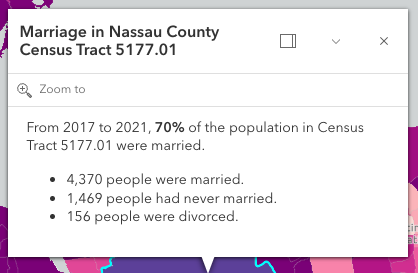\n\nIn the image above, the text \"Marriage in Nassau County Census Tract 5177.01\" is the popup's [heading](https://developers.arcgis.com/javascript/latest/references/map-components/components/arcgis-popup/#heading).\nThe remaining text is the popup's [content](https://developers.arcgis.com/javascript/latest/references/map-components/components/arcgis-popup/#content).\nA dock button is displayed in the top right corner of the popup allowing the user to dock the popup to one of the sides or corners of the view.\nThe options for docking may be set in the [dockOptions](https://developers.arcgis.com/javascript/latest/references/map-components/components/arcgis-popup/#dockOptions) property.\nThe popup may also be collapsed by clicking the collapse button (the down arrow icon) in the top right corner of the popup.\nWhen collapsed, only the heading of the popup displays.\nThe popup may be closed by clicking the close button (the \"x\" icon) in the top right corner of the popup.\n\nPopups can also contain [actions](https://developers.arcgis.com/javascript/latest/references/map-components/components/arcgis-popup/#actions) which execute a function defined by the developer when clicked.\nBy default, every popup has a \"Zoom to\" action (as shown in the image above with the magnifying glass) that allows users to zoom to the selected feature.\nSee the [actions](https://developers.arcgis.com/javascript/latest/references/map-components/components/arcgis-popup/#actions) property for information about adding custom actions to a popup.\n\nThe Popup component is tied to an [arcgis-map](https://developers.arcgis.com/javascript/latest/references/map-components/components/arcgis-map/), [arcgis-scene](https://developers.arcgis.com/javascript/latest/references/map-components/components/arcgis-scene/), or [arcgis-link-chart](https://developers.arcgis.com/javascript/latest/references/map-components/components/arcgis-link-chart/) component, whether it's docked or anchored to the selected feature.\nIf wanting to utilize the Popup functionality outside of [arcgis-map](https://developers.arcgis.com/javascript/latest/references/map-components/components/arcgis-map/), [arcgis-scene](https://developers.arcgis.com/javascript/latest/references/map-components/components/arcgis-scene/), or [arcgis-link-chart](https://developers.arcgis.com/javascript/latest/references/map-components/components/arcgis-link-chart/), the [arcgis-features](https://developers.arcgis.com/javascript/latest/references/map-components/components/arcgis-features/) component can be used to display the same content\nin its own container.\n\n## Popup and PopupTemplate\n[PopupTemplates](https://developers.arcgis.com/javascript/latest/references/core/PopupTemplate/) are closely related to Popup, but are more specific to [layers](https://developers.arcgis.com/javascript/latest/references/core/layers/Layer/)\nand [graphics](https://developers.arcgis.com/javascript/latest/references/core/Graphic/). Popup templates allow you to define custom titles and content templates based on the source of the\n[selectedFeature](https://developers.arcgis.com/javascript/latest/references/map-components/components/arcgis-popup/#selectedFeature). When a layer or a graphic has a defined\npopup template, the popup will display the content defined in the popup template when the feature is clicked.\nThe content may contain field values from the attributes of the [selectedFeature](https://developers.arcgis.com/javascript/latest/references/map-components/components/arcgis-popup/#selectedFeature).\n\nCustom PopupTemplates may also be assigned directly to a popup by setting [graphics](https://developers.arcgis.com/javascript/latest/references/core/Graphic/) on the\n[features](https://developers.arcgis.com/javascript/latest/references/map-components/components/arcgis-popup/#features) property.\n--\n\n### Events\n- **arcgisClose** - Emitted when the component's close button is clicked.\n- **arcgisPropertyChange**\n- **arcgisReady** - Emitted when the component associated with a map or scene view is ready to be interacted with.\n- **arcgisTriggerAction** - Fires after the user clicks on an action in the Popup component.\nThis event may be used to define a custom function to execute when particular actions are clicked.\n\n### Methods\n- `clear(): Promise<void>` - Removes all [promises](https://developers.arcgis.com/javascript/latest/references/map-components/components/arcgis-popup/#promises), [features](https://developers.arcgis.com/javascript/latest/references/map-components/components/arcgis-popup/#features), [content](https://developers.arcgis.com/javascript/latest/references/map-components/components/arcgis-popup/#content),\n[heading](https://developers.arcgis.com/javascript/latest/references/map-components/components/arcgis-popup/#heading) and [location](https://developers.arcgis.com/javascript/latest/references/map-components/components/arcgis-popup/#location) from the Popup.\n- `componentOnReady(): Promise<this>` - Creates a promise that resolves once the component is fully loaded.\n- `destroy(): Promise<void>` - Permanently destroy the component.\n- `fetchFeatures(screenPoint?: ScreenPoint, options?: FetchFeaturesOptions): Promise<void>` - Use this method to return feature(s) at a given screen location. These features are fetched from all of the [LayerViews](https://developers.arcgis.com/javascript/latest/references/core/views/layers/LayerView/) in the [view](https://developers.arcgis.com/javascript/latest/references/core/views/View/). In order to use this, a layer must already have an associated [PopupTemplate](https://developers.arcgis.com/javascript/latest/references/core/PopupTemplate/) and have its [popupEnabled](https://developers.arcgis.com/javascript/latest/references/core/layers/FeatureLayer/#popupEnabled). This method allows a developer to control how the input location is handled. For example, you may want to fetch features on a `click` event or on a `pointer-move` event. This method automatically sets the [location](https://developers.arcgis.com/javascript/latest/references/map-components/components/arcgis-popup/#location) based on the input event's screen coordinates.\n- `handleViewClick(event: ClickEvent): Promise<PopupOpenOptions>`\n- `next(): Promise<FeaturesViewModel>` - Selects the feature at the next index in relation to the selected feature.\n- `previous(): Promise<FeaturesViewModel>` - Selects the feature at the previous index in relation to the selected feature.\n- `setFocus(): Promise<void>` - Use this method to give focus to the component if the component is able to be focused.\n- `triggerAction(action: ActionButton | ActionToggle): Promise<void>` - Triggers the [@arcgisTriggerAction](https://developers.arcgis.com/javascript/latest/references/map-components/components/arcgis-popup/#event-arcgisTriggerAction) event and executes the [actions](https://developers.arcgis.com/javascript/latest/references/map-components/components/arcgis-popup/#actions)\nat the specified index in the [actions](https://developers.arcgis.com/javascript/latest/references/map-components/components/arcgis-popup/#actions) array.","attributes":[{"name":"alignment","description":"Position of the popup in relation to the selected feature. The default behavior\nis to display above the feature and adjust if not enough room. If needing\nto explicitly control where the popup displays in relation to the feature, choose\nan option besides `auto`.","values":[{"name":"top-left"},{"name":"top-right"},{"name":"bottom-left"},{"name":"bottom-right"},{"name":"top-start"},{"name":"top-end"},{"name":"bottom-start"},{"name":"bottom-end"},{"name":"auto"},{"name":"bottom-center"},{"name":"top-center"}]},{"name":"auto-close-enabled","description":"This closes the popup when the [View](https://developers.arcgis.com/javascript/latest/references/core/views/View/) camera or [Viewpoint](https://developers.arcgis.com/javascript/latest/references/core/Viewpoint/) changes.","values":[]},{"name":"auto-destroy-disabled","description":"If true, the component will not be destroyed automatically when it is\ndisconnected from the document. This is useful when you want to move the\ncomponent to a different place on the page, or temporarily hide it. If this\nis set, make sure to call the [destroy()](https://developers.arcgis.com/javascript/latest/references/map-components/components/arcgis-popup/#destroy) method when you are done to\nprevent memory leaks.","values":[]},{"name":"collapsed","description":"Indicates whether the popup displays its content. If `true`, only the header displays.","values":[]},{"name":"content","description":"The content of the component. When set directly on the component, this content is static and cannot use fields to set content templates. To set a template for the content based on field or attribute names, see [PopupTemplate.content](https://developers.arcgis.com/javascript/latest/references/core/PopupTemplate/#content).","values":[]},{"name":"default-popup-template-enabled","description":"Enables automatic creation of a popup template for layers that have popups enabled but no popupTemplate defined. Automatic popup templates are supported for layers that support the `createPopupTemplate` method.\n\n**Note:** Starting with version 4.28, `date` fields are formatted using the `short-date-short-time` preset [dateFormat](https://developers.arcgis.com/javascript/latest/references/core/popup/support/FieldInfoFormat/#dateFormat) rather than `long-month-day-year` in default [popup](https://developers.arcgis.com/javascript/latest/references/core/PopupTemplate/) created by setting the `defaultPopupTemplateEnabled` property to `true`.\nFor example, previously a date that may have appeared as `\"December 30, 1997\"` will now appear as `\"12/30/1997 6:00 PM\"`.","values":[]},{"name":"dock-enabled","description":"Indicates whether the placement of the popup is docked to the side of the view.\n\nDocking the popup allows for a better user experience, particularly when opening\npopups in apps on mobile devices. When a popup is \"dockEnabled\" it means the popup no\nlonger points to the [selectedFeature](https://developers.arcgis.com/javascript/latest/references/map-components/components/arcgis-popup/#selectedFeature) or the [location](https://developers.arcgis.com/javascript/latest/references/map-components/components/arcgis-popup/#location)\nassigned to it. Rather it is attached to a side, the top, or the bottom of the view.\n\nSee [dockOptions](https://developers.arcgis.com/javascript/latest/references/map-components/components/arcgis-popup/#dockOptions) to override default options related to docking the popup.","values":[]},{"name":"feature-menu-open","description":"This property enables multiple features in the component to display in a list rather than displaying the first selected feature. Setting this to `true` allows the user to scroll through the list of features. This value will only be honored if [initialDisplayMode](https://developers.arcgis.com/javascript/latest/references/map-components/components/arcgis-popup/#initialDisplayMode) is set to \"feature\".","values":[]},{"name":"feature-menu-title","description":"Sets the title to display on the component while viewing the feature menu.","values":[]},{"name":"heading","description":"The title of the popup. This can be set generically on the popup no\nmatter the features that are selected. If the [selectedFeature](https://developers.arcgis.com/javascript/latest/references/map-components/components/arcgis-popup/#selectedFeature)\nhas a [PopupTemplate](https://developers.arcgis.com/javascript/latest/references/core/PopupTemplate/), then the title set in the\ncorresponding template is used here.","values":[]},{"name":"heading-level","description":"Indicates the heading level to use for the [heading](https://developers.arcgis.com/javascript/latest/references/map-components/components/arcgis-popup/#heading) of the popup.\nBy default, the heading is rendered\nas a level 2 heading (e.g. `<h2>Popup title</h2>`). Depending on the component's placement\nin your app, you may need to adjust this heading for proper semantics. This is\nimportant for meeting accessibility standards.","values":[{"name":"1"},{"name":"2"},{"name":"3"},{"name":"4"},{"name":"5"},{"name":"6"}]},{"name":"hide-action-bar","description":"Indicates whether to hide the action bar that holds the feature's [actions](https://developers.arcgis.com/javascript/latest/references/map-components/components/arcgis-popup/#actions).","values":[]},{"name":"hide-close-button","description":"Indicates whether to hide the close button in the component.","values":[]},{"name":"hide-collapse-button","description":"Indicates whether to hide the collapse button in the component.","values":[]},{"name":"hide-feature-list-layer-title","description":"Indicates whether to hide the group heading for a list of multiple features.","values":[]},{"name":"hide-feature-menu-heading","description":"Indicates whether to hide the feature menu heading and description in the component's feature menu list.","values":[]},{"name":"hide-feature-navigation","description":"Indicates whether to hide the feature navigation in the component. This allows the user to scroll through various [features](https://developers.arcgis.com/javascript/latest/references/map-components/components/arcgis-popup/#features) using pagination arrows.","values":[]},{"name":"hide-heading","description":"Indicates whether to hide the heading in the component.","values":[]},{"name":"hide-spinner","description":"Indicates whether to hide the spinner in the component.","values":[]},{"name":"highlight-disabled","description":"Indicates if the selected feature will be highlighted.\nThis is done using the [arcgis-map.highlights](https://developers.arcgis.com/javascript/latest/references/map-components/components/arcgis-map/#highlights) or the [arcgis-scene.highlights](https://developers.arcgis.com/javascript/latest/references/map-components/components/arcgis-scene/#highlights).","values":[]},{"name":"include-default-actions-disabled","description":"Indicates whether to include the default actions in the component.\nIn order to disable any default actions, it is necessary to set `includeDefaultActionsDisabled` to `true`.","values":[]},{"name":"initial-display-mode","description":"Indicates whether to initially display a list of features, or the content for one feature.","values":[{"name":"list"},{"name":"feature"}]},{"name":"label","description":"The component's default label.","values":[]},{"name":"open","description":"Indicates whether the component is visible. This property is `true` when the component is querying for results, even if it is not open. Use this property to check if the component is visible.\n\nWhen setting the [content](https://developers.arcgis.com/javascript/latest/references/map-components/components/arcgis-popup/#content) and [heading](https://developers.arcgis.com/javascript/latest/references/map-components/components/arcgis-popup/#heading) directly, it is recommended to call [clear()](https://developers.arcgis.com/javascript/latest/references/map-components/components/arcgis-popup/#clear) before setting `open` to `true` to remove any existing promises, features, heading, location, and content from the component. Otherwise, the old content will display.","values":[]},{"name":"reference-element","description":"By assigning the `id` attribute of the Map or Scene component to this property, you can position a child component anywhere in the DOM while still maintaining a connection to the Map or Scene.","values":[]},{"name":"selected-feature-index","description":"Index of the feature that is [selectedFeature](https://developers.arcgis.com/javascript/latest/references/map-components/components/arcgis-popup/#selectedFeature). When [features](https://developers.arcgis.com/javascript/latest/references/map-components/components/arcgis-popup/#features) are set,\nthe first index is automatically selected.","values":[]},{"name":"top-layer-disabled","description":"When true, disables rendering in the top layer (above overlays and modals).\nThis can be useful for controlling stacking context in complex UI layouts.","values":[]},{"name":"update-location-enabled","description":"Indicates whether to update the [location](https://developers.arcgis.com/javascript/latest/references/map-components/components/arcgis-popup/#location) when the [selectedFeatureIndex](https://developers.arcgis.com/javascript/latest/references/map-components/components/arcgis-popup/#selectedFeatureIndex) changes.","values":[]}],"references":[{"name":"Docs","url":"https://developers.arcgis.com/javascript/latest/references/map-components/components/arcgis-popup/"},{"name":"Popup\nThe Popup component opens on view element click.","url":"https://developers.arcgis.com/javascript/latest/storybook/map-components/?path=/story/arcgis-popup--demo&singleStory=true"},{"name":"Custom Popup\nThe Popup component opens manually within a click event.","url":"https://developers.arcgis.com/javascript/latest/storybook/map-components/?path=/story/arcgis-popup--custom-popup&singleStory=true"},{"name":"Small Map","url":"https://developers.arcgis.com/javascript/latest/storybook/map-components/?path=/story/arcgis-popup--small-map&singleStory=true"}]},{"name":"arcgis-presentation","description":"The Presentation component allows to present slides of a web scene in a presentation mode\nand supports navigating between the slides of a web scene.\n--\n\n### Events\n- **arcgisReady** - Emitted when the component associated with a map or scene view is ready to be interacted with.\n\n### Methods\n- `componentOnReady(): Promise<this>` - Creates a promise that resolves once the component is fully loaded.\n- `destroy(): Promise<void>` - Permanently destroy the component","attributes":[{"name":"auto-destroy-disabled","description":"If true, the component will not be destroyed automatically when it is\ndisconnected from the document. This is useful when you want to move the\ncomponent to a different place on the page, or temporarily hide it. If this\nis set, make sure to call the [destroy()](https://developers.arcgis.com/javascript/latest/references/map-components/components/arcgis-presentation/#destroy) method when you are done to\nprevent memory leaks.","values":[]},{"name":"keyboard-navigation-enabled","description":"Enable navigation with the keyboard\nby using the arrow keys or page up/page down keys","values":[]},{"name":"scale","description":"specifies the size of the component","values":[{"name":"l"},{"name":"m"},{"name":"s"}]},{"name":"slide-id","description":"The id of the slide applied to the view","values":[]}],"references":[{"name":"Docs","url":"https://developers.arcgis.com/javascript/latest/references/map-components/components/arcgis-presentation/"}]},{"name":"arcgis-print","description":"The Print component connects your application with a [printing service](https://enterprise.arcgis.com/en/portal/latest/administer/windows/configure-the-portal-to-print-maps.htm) to allow the map to be printed.\nIt takes advantage of server-side, high-quality, full cartographic print functionality using the ExportWebMap service of ArcGIS,\nwhich can be configured with custom layout templates. One is provided that shows the map only, while another provides a layout with legend, etc.\nThe Print component works with the [print](https://developers.arcgis.com/javascript/latest/references/core/rest/print/) module, which generates a printer-ready version of the map.\n\nThe Print component uses the ArcGIS Online print service by default, but it can be configured to use a custom print service with the [printServiceUrl](https://developers.arcgis.com/javascript/latest/references/map-components/components/arcgis-print/#printServiceUrl) property.\nThe component can preserve map scale or map extent in the printout. By default, the map extent is preserved. Use\n[TemplateOptions.scaleEnabled](https://developers.arcgis.com/javascript/latest/references/core/widgets/Print/TemplateOptions/#scaleEnabled) to preserve scale instead.\n\nThe Print component prints a localized date for all [layouts](https://developers.arcgis.com/javascript/latest/references/core/rest/support/PrintTemplate/#layout)\nexcept `map-only`. If using a custom print service, then `customTextElements` are supported for each print\ntemplate. Values found there will be populated in the Print component under `Advanced options`. These values can\nbe overwritten in the Print component UI, or programmatically using the\n[templateCustomTextElements](https://developers.arcgis.com/javascript/latest/references/map-components/components/arcgis-print/#templateCustomTextElements) property.\n\nFor more information about printing with the `MAP_ONLY` layout, please see\n[exportOptions](https://developers.arcgis.com/javascript/latest/references/core/rest/support/PrintTemplate/#exportOptions).\n\n**Known limitations**\n\nSee [print](https://developers.arcgis.com/javascript/latest/references/core/rest/print/) for a detailed list of known limitations.\n\n```html\n<arcgis-map item-id=\"45725ba7d9fb47a0925398919b13d1fa\">\n <arcgis-print slot=\"top-right\"></arcgis-print>\n</arcgis-map>\n```\n\n```js\n// get a reference to the component\nconst components = document.querySelectorAll(\"arcgis-print\");\n\nconst portal = new Portal({\n url: \"https://user.maps.arcgis.com/sharing\",\n authMode: \"immediate\",\n authorizedCrossOriginDomains: [\"https://user.maps.arcgis.com\"],\n});\n\ncomponents.forEach((component) => {\n component.portal = portal;\n});\n```\n--\n\n### Events\n- **arcgisBrowseTemplatesChange** - Emitted when the collection of browse templates changes.\n- **arcgisComplete** - Emitted when the component is complete.\n- **arcgisPropertyChange** - Emitted when the value of a property is changed. Use this to listen to changes to properties.\n- **arcgisReady** - Emitted when the component associated with a map or scene view is ready to be interacted with.\n- **arcgisSaveAs** - Emitted when the user saves an exported map printout.\n- **arcgisSubmit** - Emitted when the component is submitted.\n\n### Methods\n- `addPortalTemplate(portalItem: PortalItem): Promise<void>` - Adds a portal item to a collection of browse templates available in the Print component UI.\n- `componentOnReady(): Promise<this>` - Creates a promise that resolves once the component is fully loaded.\n- `destroy(): Promise<void>` - Permanently destroy the component.","attributes":[{"name":"allowed-formats","description":"Specify the print output file format(s) that the user can select based on the options available from the print service.\nThis property can take a string value or an array of string values.\n\nWhen this value is \"all\" (default value), all the print service formats are available to be used.\nWhen an array of string values is used, only those values that match the options available from the print service will be used.\nIf none of the input string values match those available from the print service, `allowedFormats` will fallback to default behavior.","values":[{"name":"all"}]},{"name":"allowed-formats-for-saving","description":"Specifies the print output file format(s) that the user can select when saving the exported map printout.\nThis property can take a string value or an array of string values.","values":[{"name":"all"}]},{"name":"allowed-layouts","description":"Specify the print output layout(s) that the user can select based on the options available from the print service.\nThis property can take a string value or an array of string values.\n\nWhen this value is \"all\" (default value), all the print service layouts are available to be used.\nWhen an array of string values is used, only those values that match the options available from the print service will be used.\nIf none of the input string values match those available from the print service, `allowedLayouts` will fallback to default behavior.","values":[{"name":"all"}]},{"name":"auto-destroy-disabled","description":"If true, the component will not be destroyed automatically when it is\ndisconnected from the document. This is useful when you want to move the\ncomponent to a different place on the page, or temporarily hide it. If this\nis set, make sure to call the [destroy()](https://developers.arcgis.com/javascript/latest/references/map-components/components/arcgis-print/#destroy) method when you are done to\nprevent memory leaks.","values":[]},{"name":"auto-populate-author","description":"Indicates whether to automatically populate the author field in the print layout advanced options\nwith the username of the current portal user.\n\nThis only takes effect if there is a portal with a signed-in user assigned to the [portal](https://developers.arcgis.com/javascript/latest/references/map-components/components/arcgis-print/#portal) property.","values":[]},{"name":"exclude-default-templates","description":"Indicates whether or not to include [defaultTemplates](https://developers.arcgis.com/javascript/latest/references/core/widgets/Print/PrintViewModel/#defaultTemplates).","values":[]},{"name":"exclude-organization-templates","description":"Indicates whether or not to include templates from an organization's portal.","values":[]},{"name":"heading-level","description":"Indicates the heading level to use for the \"Exported files\" text where users can\naccess the exported map printout. By default, this text is rendered\nas a level 3 heading (e.g. `<h3>Exported files</h3>`). Depending on the component's placement\nin your app, you may need to adjust this heading for proper semantics. This is\nimportant for meeting accessibility standards.","values":[{"name":"1"},{"name":"2"},{"name":"3"},{"name":"4"},{"name":"5"},{"name":"6"}]},{"name":"hide-advanced-options","description":"Indicates whether the advanced options section in the Print component UI is hidden.","values":[]},{"name":"hide-feature-attributes","values":[]},{"name":"hide-header","description":"Indicates whether the component's header is hidden.","values":[]},{"name":"hide-include-tables","values":[]},{"name":"icon","description":"Icon which represents the component.\nTypically used when the component is controlled by another component (e.g. by the Expand component).","values":[]},{"name":"label","description":"The component's default label.","values":[]},{"name":"print-service-url","description":"The URL of the REST endpoint of the Export Web Map Task.\nDefaults to the ArcGIS Online print service if this property is not specified.\nIf the [portal](https://developers.arcgis.com/javascript/latest/references/map-components/components/arcgis-print/#portal) property is set, this property will use the portal's print service URL.","values":[]},{"name":"reference-element","description":"By passing the `id` of the Map or Scene component into this property, you can position components from the `@arcgis/map-components`\npackage anywhere in the DOM while still maintaining a connection to the Map or Scene.\n\nSee [Associate components with a Map or Scene component](https://developers.arcgis.com/javascript/latest/programming-patterns/#associate-components-with-a-map-or-scene-component).","values":[]},{"name":"show-print-area-enabled","description":"The initial state of the print area toggle in the Print component UI.\nWhen set to `true`, the print area toggle is enabled by default.\nWhen set to `false`, the print area toggle is disabled by default.","values":[]},{"name":"show-save-as","description":"Indicates whether to show the \"Save As\" option in the Print component UI.","values":[]}],"references":[{"name":"Docs","url":"https://developers.arcgis.com/javascript/latest/references/map-components/components/arcgis-print/"},{"name":"Print","url":"https://developers.arcgis.com/javascript/latest/storybook/map-components/?path=/story/arcgis-print--demo&singleStory=true"}]},{"name":"arcgis-reverse-geocode-list","description":"The Reverse Geocode List component displays a list of addresses obtained by reverse geocoding a given location.\nThis is the component behind the What's Here functionality in Map Viewer. This class was created for MV for 5.0,\nbut is internal for 5.0, and will be wider released at 5.1 or later.\n--\n\n### Events\n- **arcgisReverseGeocodeResultsChange**\n\n### Methods\n- `componentOnReady(): Promise<this>` - Creates a promise that resolves once the component is fully loaded.\n- `destroy(): Promise<void>` - Permanently destroy the component.","attributes":[{"name":"heading-level","description":"Indicates the heading level to use for the component title.","values":[{"name":"1"},{"name":"2"},{"name":"3"},{"name":"4"},{"name":"5"},{"name":"6"}]}],"references":[{"name":"Docs","url":"https://developers.arcgis.com/javascript/latest/references/map-components/components/arcgis-reverse-geocode-list/"},{"name":"Reverse Geocode List","url":"https://developers.arcgis.com/javascript/latest/storybook/map-components/?path=/story/arcgis-reverse-geocode-list--demo&singleStory=true"}]},{"name":"arcgis-scale-bar","description":"The Scale Bar component displays a scale bar representing the scale of the map.\nIt respects various coordinate systems and displays units in metric or imperial values.\nMetric values show either kilometers, meters, centimeters, or millimeters depending on the scale, and likewise, imperial values show miles, feet, or inches depending on the scale.\nWhen working with Web Mercator or geographic coordinate systems the scale bar takes into account projection distortion and dynamically adjusts the scale bar.\n\nWhen the scale bar is inside the map, the actual location of the scale bar is used to calculate the scale.\nOtherwise, the center of the map is used to calculate the scale.\n\n**Known limitations**\n\n- This component is not currently supported within a Scene component.\n--\n\n### Events\n- **arcgisReady** - Emitted when the component associated with a map or scene view is ready to be interacted with.\n\n### Methods\n- `componentOnReady(): Promise<this>` - Creates a promise that resolves once the component is fully loaded.\n- `destroy(): Promise<void>` - Permanently destroy the component.","attributes":[{"name":"auto-destroy-disabled","description":"If true, the component will not be destroyed automatically when it is\ndisconnected from the document. This is useful when you want to move the\ncomponent to a different place on the page, or temporarily hide it. If this\nis set, make sure to call the [destroy()](https://developers.arcgis.com/javascript/latest/references/map-components/components/arcgis-scale-bar/#destroy) method when you are done to\nprevent memory leaks.","values":[]},{"name":"bar-style","description":"The style for the scale bar.\nWhen `unit` is set to `dual`, the style will always be `line`.","values":[{"name":"line"},{"name":"ruler"}]},{"name":"icon","description":"Icon which represents the component.\nTypically used when the component is controlled by another component (e.g. by the Expand component).","values":[]},{"name":"label","description":"The component's default label.","values":[]},{"name":"reference-element","description":"By assigning the `id` attribute of the Map or Scene component to this property, you can position a child component anywhere in the DOM while still maintaining a connection to the Map or Scene.","values":[]},{"name":"unit","description":"Units to use for the scale bar.\nWhen using `dual`, the scale bar displays both metric and imperial units.\nWhen metric, distances will be shown in either kilometers, meters, centimeters, or millimeters depending on the scale. Similarly, imperial\nunits will be shown in either miles, feet, or inches.","values":[{"name":"dual"},{"name":"metric"},{"name":"imperial"}]}],"references":[{"name":"Docs","url":"https://developers.arcgis.com/javascript/latest/references/map-components/components/arcgis-scale-bar/"},{"name":"Scale Bar","url":"https://developers.arcgis.com/javascript/latest/storybook/map-components/?path=/story/arcgis-scale-bar--demo&singleStory=true"}]},{"name":"arcgis-scale-range-slider","description":"The Scale Range Slider component allows the user to set a minimum and maximum scale based on named scale ranges.\n--\n\n### Events\n- **arcgisPropertyChange** - Emitted when the value of a property is changed. Use this to listen to changes to properties.\n- **arcgisReady** - Emitted when the component associated with a map or scene view is ready to be interacted with.\n\n### Methods\n- `componentOnReady(): Promise<this>` - Creates a promise that resolves once the component is fully loaded.\n- `destroy(): Promise<void>` - Permanently destroy the component.","attributes":[{"name":"auto-destroy-disabled","description":"If true, the component will not be destroyed automatically when it is\ndisconnected from the document. This is useful when you want to move the\ncomponent to a different place on the page, or temporarily hide it. If this\nis set, make sure to call the [destroy()](https://developers.arcgis.com/javascript/latest/references/map-components/components/arcgis-scale-range-slider/#destroy) method when you are done to\nprevent memory leaks.","values":[]},{"name":"disabled","description":"When true, the component is visually withdrawn and cannot receive user interaction.","values":[]},{"name":"hide-preview","description":"Indicates whether the preview thumbnail of the scale is visible.\nDefault value is `true`.","values":[]},{"name":"hide-scale-menus-max-scale-menu","description":"Indicates whether the maximum scale dropdown menu is visible. Default value is `true`.","values":[]},{"name":"hide-scale-menus-min-scale-menu","description":"Indicates whether the minimum scale dropdown menu is visible. Default value is `true`.","values":[]},{"name":"icon","description":"Icon which represents the component.\nTypically used when the component is controlled by another component (e.g. by the Expand component).","values":[]},{"name":"label","description":"The component's default label.","values":[]},{"name":"max-scale","description":"The maximum scale of the active scale range. When the maxScale\nreaches the [maxScaleLimit](https://developers.arcgis.com/javascript/latest/references/core/widgets/ScaleRangeSlider/#maxScaleLimit), the maxScale\nvalue becomes 0 and there is no maximum scale set.","values":[]},{"name":"max-scale-limit","description":"The lowest possible maximum scale value on the slider.","values":[]},{"name":"min-scale","description":"The minimum scale of the active scale range. When the minScale\nreaches the [minScaleLimit](https://developers.arcgis.com/javascript/latest/references/core/widgets/ScaleRangeSlider/#minScaleLimit), the minScale\nvalue becomes 0 and there is no minimum scale.","values":[]},{"name":"min-scale-limit","description":"The highest possible minimum scale value on the slider.","values":[]},{"name":"mode","description":"The mode of the component, indicating which slider thumbs can be adjusted.","values":[{"name":"range"},{"name":"max-scale-only"},{"name":"min-scale-only"}]},{"name":"reference-element","description":"By assigning the `id` attribute of the Map or Scene component to this property, you can position a child component anywhere in the DOM while still maintaining a connection to the Map or Scene.","values":[]},{"name":"region","description":"The region that the scale thumbnails will focus on.\nEach region comes from the [ISO 3166-1 alpha-2 code](https://en.wikipedia.org/wiki/List_of_ISO_3166_country_codes).\nSee [SupportedRegion](https://developers.arcgis.com/javascript/latest/references/core/widgets/ScaleRangeSlider/types/#SupportedRegion) for the list of regions that are currently supported.","values":[]},{"name":"show-world-value","description":"Indicates whether the world scale value is shown in the scale menu.","values":[]}],"references":[{"name":"Docs","url":"https://developers.arcgis.com/javascript/latest/references/map-components/components/arcgis-scale-range-slider/"},{"name":"Demo","url":"https://developers.arcgis.com/javascript/latest/storybook/map-components/?path=/story/arcgis-scale-range-slider--demo&singleStory=true"}]},{"name":"arcgis-scene","description":"The ArcGIS Scene component is used to add 3D maps to web applications. For 2D maps, use the\n[arcgis-map](https://developers.arcgis.com/javascript/latest/references/map-components/components/arcgis-map/).\n\nThe Scene component creates a [SceneView](https://developers.arcgis.com/javascript/latest/references/core/views/SceneView/)\nand loads a [WebScene](https://developers.arcgis.com/javascript/latest/references/core/WebScene/) item from either\n[ArcGIS Online](https://www.arcgis.com/home/index.html) or [ArcGIS Enterprise portal](https://enterprise.arcgis.com/en/portal/latest/administer/windows/what-is-portal-for-arcgis-.htm).\n\n```html\n<arcgis-scene item-id=\"e2da7564e4f24eaaa918ffd70378056a\"></arcgis-scene>\n```\n\nAlternatively, the Scene component can be initialized without a WebScene item:\n\n```html\n<arcgis-scene\n basemap=\"satellite\"\n ground=\"world-elevation\"\n camera-position=\"12.3808, 46.3959, 4400\"\n camera-tilt=\"75\"\n camera-heading=\"300\">\n</arcgis-scene>\n```\n\nFurther components can be added and connected to the Scene component:\n\n```html\n<arcgis-scene item-id=\"e2da7564e4f24eaaa918ffd70378056a\">\n <arcgis-layer-list slot=\"bottom-right\"></arcgis-layer-list>\n</arcgis-scene>\n```\n\nThe Scene component can be customized further using any of the [core API functionalities](https://developers.arcgis.com/javascript/latest/references/core/)\nof the ArcGIS Maps SDK for JavaScript.\n\n```js\nconst viewElement = document.querySelector(\"arcgis-scene\");\nawait viewElement.viewOnReady();\n// The view is now ready to be used.\nconst layer = new GraphicsLayer({ title: \"My layer\"});\nviewElement.map.add(layer);\n```\n\n**See also**\n\n- [SDK sample apps using the Scene component](https://developers.arcgis.com/javascript/latest/sample-code/?tagged=arcgis-scene)\n- [Get started](https://developers.arcgis.com/javascript/latest/get-started/)\n- [Programming patterns](https://developers.arcgis.com/javascript/latest/programming-patterns/)\n--\n\n### Events\n- **arcgisLoadError** - Fires when an arcgis-scene fails to load or if one of its dependencies fails to load (e.g., basemap, ground, layers).\n- **arcgisViewAnalysisViewCreate** - Fires when the view for an analysis is created.\n\n[Read more](https://developers.arcgis.com/javascript/latest/references/core/views/SceneView/#event-analysis-view-create)\n- **arcgisViewAnalysisViewCreateError** - Fires when an error occurs during the creation of an analysis view after an analysis is added to the view.\n\n[Read more](https://developers.arcgis.com/javascript/latest/references/core/views/SceneView/#event-analysis-view-create-error)\n- **arcgisViewAnalysisViewDestroy** - Fires after an analysis view is destroyed.\n\n[Read more](https://developers.arcgis.com/javascript/latest/references/core/views/SceneView/#event-analysis-view-destroy)\n- **arcgisViewChange** - This event is for view related property changes: [zoom](https://developers.arcgis.com/javascript/latest/references/map-components/components/arcgis-scene/#zoom), [scale](https://developers.arcgis.com/javascript/latest/references/map-components/components/arcgis-scene/#scale), [center](https://developers.arcgis.com/javascript/latest/references/map-components/components/arcgis-scene/#center), [extent](https://developers.arcgis.com/javascript/latest/references/map-components/components/arcgis-scene/#extent),\n[camera](https://developers.arcgis.com/javascript/latest/references/map-components/components/arcgis-scene/#camera), [viewpoint](https://developers.arcgis.com/javascript/latest/references/map-components/components/arcgis-scene/#viewpoint). This event will also emit if [stationary](https://developers.arcgis.com/javascript/latest/references/map-components/components/arcgis-scene/#stationary) toggles from `true` to `false`.\n- **arcgisViewClick** - Fires after a user clicks on the view.\n\n```js\nviewElement.addEventListener(\"arcgisViewClick\", (event) => {\n viewElement.hitTest(event.detail).then((response) => {\n const result = response.results[0];\n // ....\n });\n});\n```\n\n[Read more](https://developers.arcgis.com/javascript/latest/references/core/views/SceneView/#event-click)\n- **arcgisViewDoubleClick** - Fires after double-clicking on the view.\n\n[Read more](https://developers.arcgis.com/javascript/latest/references/core/views/SceneView/#event-double-click)\n- **arcgisViewDoubleTapDrag** - Fires while the pointer is dragged following a double-tap gesture on the view.\n\n[Read more](https://developers.arcgis.com/javascript/latest/references/core/views/SceneView/#event-double-tap-drag)\n- **arcgisViewDrag** - Fires during a pointer drag on the view.\n\n[Read more](https://developers.arcgis.com/javascript/latest/references/core/views/SceneView/#event-drag)\n- **arcgisViewHold** - Fires after holding either a mouse button or a single finger on the view for a short amount of time.\n\n[Read more](https://developers.arcgis.com/javascript/latest/references/core/views/SceneView/#event-hold)\n- **arcgisViewImmediateClick** - Fires right after a user clicks on the view.\n\n[Read more](https://developers.arcgis.com/javascript/latest/references/core/views/SceneView/#event-immediate-click)\n- **arcgisViewImmediateDoubleClick** - Is emitted after two consecutive immediate-click events.\n\n[Read more](https://developers.arcgis.com/javascript/latest/references/core/views/SceneView/#event-immediate-double-click)\n- **arcgisViewKeyDown** - Fires after a keyboard key is pressed.\n\n[Read more](https://developers.arcgis.com/javascript/latest/references/core/views/SceneView/#event-key-down)\n- **arcgisViewKeyUp** - Fires after a keyboard key is released.\n\n[Read more](https://developers.arcgis.com/javascript/latest/references/core/views/SceneView/#event-key-up)\n- **arcgisViewLayerviewCreate** - Fires after each layer in the map has a corresponding LayerView created and rendered in the view.\n\n[Read more](https://developers.arcgis.com/javascript/latest/references/core/views/SceneView/#event-layerview-create)\n- **arcgisViewLayerviewCreateError** - Fires when an error emits during the creation of a LayerView after a layer has been added to the map.\n\n[Read more](https://developers.arcgis.com/javascript/latest/references/core/views/SceneView/#event-layerview-create-error)\n- **arcgisViewLayerviewDestroy** - Fires after a LayerView is destroyed and is no longer rendered in the view.\n\n[Read more](https://developers.arcgis.com/javascript/latest/references/core/views/SceneView/#event-layerview-destroy)\n- **arcgisViewMouseWheel** - Fires when a wheel button of a pointing device (typically a mouse) is scrolled on the view.\n\n[Read more](https://developers.arcgis.com/javascript/latest/references/core/views/SceneView/#event-mouse-wheel)\n- **arcgisViewPointerDown** - Fires after a mouse button is pressed, or a finger touches the display.\n\n[Read more](https://developers.arcgis.com/javascript/latest/references/core/views/SceneView/#event-pointer-down)\n- **arcgisViewPointerEnter** - Fires after a mouse cursor enters the view, or a display touch begins.\n\n[Read more](https://developers.arcgis.com/javascript/latest/references/core/views/SceneView/#event-pointer-enter)\n- **arcgisViewPointerLeave** - Fires after a mouse cursor leaves the view, or a display touch ends.\n\n[Read more](https://developers.arcgis.com/javascript/latest/references/core/views/SceneView/#event-pointer-leave)\n- **arcgisViewPointerMove** - Fires after the mouse or a finger on the display moves.\n\n[Read more](https://developers.arcgis.com/javascript/latest/references/core/views/SceneView/#event-pointer-move)\n- **arcgisViewPointerUp** - Fires after a mouse button is released, or a display touch ends.\n\n[Read more](https://developers.arcgis.com/javascript/latest/references/core/views/SceneView/#event-pointer-up)\n- **arcgisViewReadyChange** - This event is for the [ready](https://developers.arcgis.com/javascript/latest/references/map-components/components/arcgis-scene/#ready) property and will be emitted when the view is ready.\nThis event will also emit if the [map](https://developers.arcgis.com/javascript/latest/references/map-components/components/arcgis-scene/#map) property is changed.\n- **arcgisViewReadyError** - Fires if the view encounters a content or rendering error.\n- **arcgisViewVerticalTwoFingerDrag** - Fires while the two pointers are dragged vertically on the view.\n\n[Read more](https://developers.arcgis.com/javascript/latest/references/core/views/SceneView/#event-vertical-two-finger-drag)\n\n### Methods\n- `closePopup(): Promise<void>` - Closes the [popup](https://developers.arcgis.com/javascript/latest/references/map-components/components/arcgis-scene/#popup).\n- `componentOnReady(): Promise<this>` - Creates a promise that resolves once the component is fully loaded.\n- `destroy(): Promise<void>` - Destroys the Scene component, and any associated resources, including its [map](https://developers.arcgis.com/javascript/latest/references/map-components/components/arcgis-scene/#map), [popup](https://developers.arcgis.com/javascript/latest/references/map-components/components/arcgis-scene/#popup),\nand removes components or other UI DOM elements added to it.\n- `goTo(target: GoToTarget3D, options?: GoToOptions3D): Promise<unknown>` - Sets the view to a given target.\n\n[Read more](https://developers.arcgis.com/javascript/latest/references/core/views/SceneView/#goTo)\n- `hitTest(screenPoint: MouseEvent | ScreenPoint, options?: HitTestOptions3D): Promise<SceneViewHitTestResult>` - Returns [hit test results](https://developers.arcgis.com/javascript/latest/references/core/views/SceneView/#HitTestResult)\nfrom each layer that intersects the specified screen coordinates.\n\n```js\nviewElement.addEventListener(\"arcgisViewClick\", (event) => {\n viewElement.hitTest(event.detail).then((response) => {\n const result = response.results[0];\n if (result?.type === \"graphic\") {\n const { longitude, latitude } = result.mapPoint;\n console.log(\"Hit graphic at (\" + longitude + \", \" + latitude + \")\", result.graphic);\n } else {\n console.log(\"Did not hit any graphic\");\n }\n });\n});\n```\n\n[Read more](https://developers.arcgis.com/javascript/latest/references/core/views/SceneView/#hitTest)\n- `openPopup(options?: ViewPopupOpenOptions): Promise<void>` - Opens the popup based on input options.\n\n[Read more](https://developers.arcgis.com/javascript/latest/references/core/views/SceneView/#openPopup)\n- `takeScreenshot(options?: UserSettings): Promise<Screenshot>` - Creates a screenshot of the current view.\n\n[Read more](https://developers.arcgis.com/javascript/latest/references/core/views/SceneView/#takeScreenshot)\n- `toMap(screenPoint: MouseEvent | ScreenPoint, options?: HitTestOptions3D): Point | null | undefined` - Converts the given screen point to a [map point](https://developers.arcgis.com/javascript/latest/references/core/geometry/Point/).\n- `toScreen(point: Point): ScreenPoint` - Converts the given [map point](https://developers.arcgis.com/javascript/latest/references/core/geometry/Point/) to a screen point.\n- `tryFatalErrorRecovery(): Promise<void>` - Call this method to clear any fatal errors resulting from a lost WebGL context.\n- `viewOnReady(callback?: () => void, errback?: (error: Error) => void): Promise<void>` - `viewOnReady()` may be leveraged once an instance of the component and its underlying [view](https://developers.arcgis.com/javascript/latest/references/map-components/components/arcgis-scene/#view) is created and ready.\nThis method takes two input parameters, a `callback` function and an `errback` function, and returns a promise. The `callback` executes when the promise resolves, and the `errback` executes if the promise is rejected.\n- `whenAnalysisView<AnalysisType extends Analysis>(analysis: AnalysisType): Promise<AnalysisView3DFor<AnalysisType>>` - Gets the analysis view created for the given analysis object.\n\n[Read more](https://developers.arcgis.com/javascript/latest/references/core/views/SceneView/#whenAnalysisView)\n- `whenLayerView<TLayer extends Layer>(layer: TLayer): Promise<Layer extends TLayer ? LayerView : LayerView3DFor<TLayer>>` - Gets the layer view created on the view for the given layer.\n\n[Read more](https://developers.arcgis.com/javascript/latest/references/core/views/SceneView/#whenLayerView)\n- `zoomIn(): Promise<void>` - Zooms in the view component by a factor of 2.\n- `zoomOut(): Promise<void>` - Zooms out the view component by a factor of 2.\n\n### Slots\n- _default_ - Default slot for adding components to the scene. User is responsible for positioning the content via CSS.\n- **top-left** - Slot for components positioned in the top-left corner.\n- **top-right** - Slot for components positioned in the top-right corner.\n- **bottom-left** - Slot for components positioned in the bottom-left corner.\n- **bottom-right** - Slot for components positioned in the bottom-right corner.\n- **top-start** - Slot for components positioned at the top-start (top-left in LTR, top-right in RTL).\n- **top-end** - Slot for components positioned at the top-end (top-right in LTR, top-left in RTL).\n- **bottom-start** - Slot for components positioned at the bottom-start (bottom-left in LTR, bottom-right in RTL).\n- **bottom-end** - Slot for components positioned at the bottom-end (bottom-right in LTR, bottom-left in RTL).\n- **popup** - Slot for the [arcgis-popup](https://developers.arcgis.com/javascript/latest/references/map-components/components/arcgis-popup/) component to open automatically on click. Only the Popup component can be placed in this slot.\n\n### CSS Properties\n- **--arcgis-layout-overlay-space-top** - _Since 4.34_ Specifies the top padding for the layout. \n- **--arcgis-layout-overlay-space-bottom** - _Since 4.34_ Specifies the bottom padding for the layout. \n- **--arcgis-layout-overlay-space-left** - _Since 4.34_ Specifies the left padding for the layout. \n- **--arcgis-layout-overlay-space-right** - _Since 4.34_ Specifies the right padding for the layout. \n- **--arcgis-view-color-focus** - _Since 5.0_ Specifies the focus outline color for the view. ","attributes":[{"name":"alpha-compositing-enabled","description":"Allows the view to be partially or fully transparent when composited with the webpage elements behind it.\n\nThis property can only be set once at construction time. When alpha compositing is enabled, web scenes are less\nperformant. It is important to set this property to `true` only when you need to apply transparency on the view.","values":[]},{"name":"animations-disabled","description":"Indicates whether animations are disabled in the view. This includes animated symbols (animated\n[CIMSymbol](https://developers.arcgis.com/javascript/latest/references/core/symbols/CIMSymbol/),\n[PictureMarkerSymbol](https://developers.arcgis.com/javascript/latest/references/core/symbols/PictureMarkerSymbol/)\nfrom a GIF/animated PNG), animated renderers\n([FlowRenderer](https://developers.arcgis.com/javascript/latest/references/core/rasterRenderers/#FlowRenderer)),\nanimated layers ([MediaLayer](https://developers.arcgis.com/javascript/latest/references/core/layers/MediaLayer/),\n[VideoLayer](https://developers.arcgis.com/javascript/latest/references/core/layers/VideoLayer/)), and\nanimations triggered by view navigation (for example,\n[goTo()](https://developers.arcgis.com/javascript/latest/references/core/views/SceneView/#goTo)).\nSetting this property to `true` disables all animations in the view.","values":[]},{"name":"attribution-mode","description":"The light or dark mode used to display the attribution.\nBy default, the mode is inherited from the [Calcite's mode](https://developers.arcgis.com/calcite-design-system/core-concepts/#modes).\nYou can override the value to style the attribution alongside the map or scene content.","values":[{"name":"dark"},{"name":"light"}]},{"name":"auto-destroy-disabled","description":"If true, the component will not be destroyed automatically when it is\ndisconnected from the document. This is useful when you want to move the\ncomponent to a different place on the page, or temporarily hide it. If this\nis set, make sure to call the [destroy()](https://developers.arcgis.com/javascript/latest/references/map-components/components/arcgis-scene/#destroy) method when you are done to\nprevent memory leaks.","values":[]},{"name":"basemap","description":"Specifies a basemap for the map. The basemap is a set of layers that give\ngeographic context to the view and the other operational layers\nin the map.\nIt can either be set using a basemap ID string ([see values](https://developers.arcgis.com/javascript/latest/references/core/Map/#basemap)),\n[Basemap](https://developers.arcgis.com/javascript/latest/references/core/Basemap/)\nor [BasemapStyle](https://developers.arcgis.com/javascript/latest/references/core/support/BasemapStyle/).\n\n[Read more](https://developers.arcgis.com/javascript/latest/references/core/Map/#basemap)","values":[]},{"name":"camera-fov","description":"The diagonal field of view (fov) angle for the camera. The range of angles must be between 1 and 170 degrees.\n\nSetting the camera fov immediately changes the current view. For animating the view, see this component's\n[goTo()](https://developers.arcgis.com/javascript/latest/references/map-components/components/arcgis-scene/#goTo) method.\n\n[Read more](https://developers.arcgis.com/javascript/latest/references/core/Camera/#fov)","values":[]},{"name":"camera-heading","description":"The compass heading of the camera in degrees.\n\nSetting the camera heading immediately changes the current view. For animating the view, see this component's\n[goTo()](https://developers.arcgis.com/javascript/latest/references/map-components/components/arcgis-scene/#goTo) method.\n\n[Read more](https://developers.arcgis.com/javascript/latest/references/core/Camera/#heading)","values":[]},{"name":"camera-position","description":"The position of the camera defined by a map point. It can either be set with a\n[Point](https://developers.arcgis.com/javascript/latest/references/core/geometry/Point/) instance\nor a string in the format: longitude, latitude, elevation. E.g. `\"12.3808, 46.3959, 4400\"`.\n\nSetting the camera position immediately changes the current view. For animating the view, see this component's\n[goTo()](https://developers.arcgis.com/javascript/latest/references/map-components/components/arcgis-scene/#goTo) method.\n\n[Read more](https://developers.arcgis.com/javascript/latest/references/core/Camera/#position)","values":[]},{"name":"camera-tilt","description":"The tilt of the camera in degrees with respect to the surface as projected down from the camera position.\n\nSetting the camera tilt immediately changes the current view. For animating the view, see this component's\n[goTo()](https://developers.arcgis.com/javascript/latest/references/map-components/components/arcgis-scene/#goTo) method.\n\n[Read more](https://developers.arcgis.com/javascript/latest/references/core/Camera/#tilt)","values":[]},{"name":"center","description":"Represents the center point of the view. It can be a string with the format `\"<longitude>, <latitude>\"`\nor a [Point](https://developers.arcgis.com/javascript/latest/references/core/geometry/Point/) instance.\n\nSetting the center immediately changes the current view. For animating the view, see this component's\n[goTo()](https://developers.arcgis.com/javascript/latest/references/map-components/components/arcgis-scene/#goTo) method.\n\n[Read more](https://developers.arcgis.com/javascript/latest/references/core/views/SceneView/#center)","values":[]},{"name":"display-filter-disabled","description":"Indicates whether a layer's `displayFilter` is honored when rendering layers in the view.\nIf `false`, the display filters are ignored and all features are rendered.","values":[]},{"name":"ground","description":"Specifies the surface properties for the [map](https://developers.arcgis.com/javascript/latest/references/map-components/components/arcgis-scene/#map). It can be either a [Ground](https://developers.arcgis.com/javascript/latest/references/core/Ground/)\ninstance or a string with one of the following values:\n * `\"world-elevation\"`\n * `\"world-topobathymetry\"`\n\n[Read more](https://developers.arcgis.com/javascript/latest/references/core/Map/#ground)","values":[]},{"name":"hide-attribution","description":"Indicates whether the attribution is hidden in the view.\n\nEsri requires that when you use an ArcGIS Online basemap in your app, the map must include Esri attribution and you must be licensed to use the content.\nFor detailed guidelines on working with attribution, please visit the official [attribution in your app](https://developers.arcgis.com/terms/attribution/) documentation.\nFor information on terms of use, see the [Terms of Use FAQ](https://developers.arcgis.com/terms/faq/).","values":[]},{"name":"item-id","description":"The ID of a [WebScene](https://developers.arcgis.com/javascript/latest/references/core/WebScene/) item from either\n[ArcGIS Online](https://www.arcgis.com/home/index.html) or [ArcGIS Enterprise portal](https://enterprise.arcgis.com/en/portal/latest/administer/windows/what-is-portal-for-arcgis-.htm).\n\nTo configure the portal url you must set the [config.portalUrl](https://developers.arcgis.com/javascript/latest/references/core/config/#portalUrl) property before the Scene component loads.","values":[]},{"name":"popup-component-enabled","description":"Indicates whether the [popup component](https://developers.arcgis.com/javascript/latest/references/map-components/components/arcgis-scene/#popupElement) (beta) is enabled as the default popup. When set to `true`, the [popupElement](https://developers.arcgis.com/javascript/latest/references/map-components/components/arcgis-scene/#popupElement) property (representing the component) will be used for popups instead of the [popup](https://developers.arcgis.com/javascript/latest/references/map-components/components/arcgis-scene/#popup) property (representing the widget).\n\n**Note:** This is a beta feature and may change in future releases. At version 6.0, the Popup component will be used by default instead of the Popup widget and the `popup-component-enabled` attribute will no longer be necessary.","values":[]},{"name":"popup-disabled","description":"Controls whether the default popup opens automatically when users click on the view. This controls both the [popupElement](https://developers.arcgis.com/javascript/latest/references/map-components/components/arcgis-scene/#popupElement) and [popup](https://developers.arcgis.com/javascript/latest/references/map-components/components/arcgis-scene/#popup) properties. When set to `true`, the popup will not open on click or when triggered programmatically.","values":[]},{"name":"quality-profile","description":"Scenes can be drawn in three different quality modes: `high`, `medium` and `low`.\n\n[Read more](https://developers.arcgis.com/javascript/latest/references/core/views/SceneView/#qualityProfile)","values":[{"name":"medium"},{"name":"low"},{"name":"high"}]},{"name":"scale","description":"Represents the map scale at the center of the view.\n\nSetting the scale immediately changes the view. For animating\nthe view, see this component's [goTo()](https://developers.arcgis.com/javascript/latest/references/map-components/components/arcgis-scene/#goTo) method.\n\n[Read more](https://developers.arcgis.com/javascript/latest/references/core/views/SceneView/#scale)","values":[]},{"name":"suspended","description":"Indicates if the view is visible on the page.\n\n[Read more](https://developers.arcgis.com/javascript/latest/references/core/views/SceneView/#suspended)","values":[]},{"name":"viewing-mode","description":"The viewing mode sets whether the view renders the earth as a sphere (global mode) or on a flat plane (local mode).\n\nNote that the viewing mode must be set before the Scene component loads.\nDepending on the viewing mode different [supported coordinate systems](https://developers.arcgis.com/javascript/latest/references/core/views/SceneView/#supported-coordinate-systems) are available.\n\n[Read more](https://developers.arcgis.com/javascript/latest/references/core/views/SceneView/#viewingMode)","values":[{"name":"global"},{"name":"local"}]},{"name":"zoom","description":"Represents the level of detail (LOD) at the center of the view.\n\nSetting the zoom immediately changes the current view. For animating the view, see this component's [goTo()](https://developers.arcgis.com/javascript/latest/references/map-components/components/arcgis-scene/#goTo) method.\nSetting this property in conjunction with [center](https://developers.arcgis.com/javascript/latest/references/map-components/components/arcgis-scene/#center)\nis a convenient way to set the initial extent of the view.\n\n[Read more](https://developers.arcgis.com/javascript/latest/references/core/views/SceneView/#zoom)","values":[]}],"references":[{"name":"Docs","url":"https://developers.arcgis.com/javascript/latest/references/map-components/components/arcgis-scene/"},{"name":"Scene","url":"https://developers.arcgis.com/javascript/latest/storybook/map-components/?path=/story/arcgis-scene--demo&singleStory=true"}]},{"name":"arcgis-search","description":"The Search component provides a way to perform search operations on locator service(s), map/feature service feature layer(s), SceneLayers with an associated feature layer,\nBuildingComponentSublayer with an associated feature layer, GeoJSONLayer, CSVLayer, OGCFeatureLayer, and/or table(s). If using a locator with a geocoding service, the\nfindAddressCandidates operation is used, whereas queries are used on feature layers.\n\nBy default, the Search component uses the ArcGIS World Geocoding Service via this URL: `https://geocode.arcgis.com/arcgis/rest/services/World/GeocodeServer`.\nIf a global apiKey is present, the Search component uses this URL: `https://geocode-api.arcgis.com/arcgis/rest/services/World/GeocodeServer`. If an apiKey\nis present on the LocatorSearchSource, then the Search component uses the URL defined by the LocatorSearchSource.url property.\n\nThe Search component sets the view on the Search result. The level of detail (LOD) at the center of the view depends on the data source, with higher quality data\nsources returning extents closer to the `feature` obtained from the search. To manually define the scale of the view at the Search result, use the `zoomScale` property\nof the LocatorSearchSource or LayerSearchSource. Search component results are typically sorted according to their relevance to the search and their relative importance.\nHowever, when the scale of the MapView or SceneView is less than or equal to 300,000, the operations support prioritization of candidates based on their distance from a\nspecified point (the center of the view) by passing in the `location parameter`. Features closest to the input location show up higher in the list of results.\nThis behavior can be changed by using the localSearchDisabled property.\n--\n\n### Events\n- **arcgisPropertyChange** - Emitted when the value of a property is changed. Use this to listen to changes to properties.\n- **arcgisReady** - Emitted when the component associated with a map or scene view is ready to be interacted with.\n- **arcgisSearchClear** - Fires when a result is cleared from the input box or a new result is selected.\n- **arcgisSearchComplete** - Fires when the [search()](https://developers.arcgis.com/javascript/latest/references/map-components/components/arcgis-search/#search) method is called and returns its results.\n- **arcgisSearchStart** - Fires when the [search()](https://developers.arcgis.com/javascript/latest/references/map-components/components/arcgis-search/#search) method starts.\n- **arcgisSelectResult** - Fires when a search result is selected.\n- **arcgisSuggestComplete** - Fires when the [suggest()](https://developers.arcgis.com/javascript/latest/references/map-components/components/arcgis-search/#suggest) method is called and returns its results.\n- **arcgisSuggestStart** - Fires when the [suggest()](https://developers.arcgis.com/javascript/latest/references/map-components/components/arcgis-search/#suggest) method starts.\n\n### Methods\n- `clear(): void` - Clears the current searchTerm, search results, suggest results, graphic, and graphics layer.\nIt also hides any open menus.\n- `componentOnReady(): Promise<this>` - Creates a promise that resolves once the component is fully loaded.\n- `destroy(): Promise<void>` - Permanently destroy the component.\n- `search(searchItem?: Graphic | null | undefined | number[] | Point | SuggestResult | string): Promise<null | undefined | SearchResponse>` - Depending on the sources specified, search() queries the feature layer(s) and/or performs\naddress matching using any specified [locator(s)](https://developers.arcgis.com/javascript/latest/references/core/rest/locator/) and\nreturns any applicable results.\n- `setFocus(): Promise<void>` - Brings focus to the component's text input.\n- `suggest(query?: string): Promise<null | undefined | SuggestResponse>` - Performs a suggest() request on the active Locator. It also uses the current value of\nthe component or one that is passed in.\n\nSuggestions are available if working with a 10.3 or greater geocoding service that has\n[suggest capability\nloaded](https://developers.arcgis.com/rest/geocode/api-reference/geocoding-suggest.htm) or a 10.3 or greater feature layer that supports pagination, i.e.\n`supportsPagination = true`.","attributes":[{"name":"active-menu","description":"The current active menu of the Search component.","values":[{"name":"source"},{"name":"none"},{"name":"suggestion"}]},{"name":"active-source-index","description":"The selected source's index. This value is `-1` when all sources are selected.","values":[]},{"name":"all-placeholder","description":"String value used as a hint for input text when searching on multiple sources. See\nthe image below to view the location and style of this text in the context of the component.\n\n","values":[]},{"name":"auto-destroy-disabled","description":"If true, the component will not be destroyed automatically when it is\ndisconnected from the document. This is useful when you want to move the\ncomponent to a different place on the page, or temporarily hide it. If this\nis set, make sure to call the [destroy()](https://developers.arcgis.com/javascript/latest/references/map-components/components/arcgis-search/#destroy) method when you are done to\nprevent memory leaks.","values":[]},{"name":"auto-navigate-disabled","description":"Indicates whether to automatically navigate to the selected result. If `true`, will not automatically navigate to the selected result.","values":[]},{"name":"auto-select-disabled","description":"By default, the component will automatically select and zoom to the first geocoded result. When `true`, the\n[findAddressCandidates](https://developers.arcgis.com/rest/geocode/api-reference/geocoding-find-address-candidates.htm)\noperation will still geocode the input string, but the top result will not be selected. To work with the\ngeocoded results, you can set up a [@arcgisSearchComplete](https://developers.arcgis.com/javascript/latest/references/map-components/components/arcgis-search/#event-arcgisSearchComplete) event handler and get the results\nthrough the event object.","values":[]},{"name":"disabled","description":"When true, the component is visually withdrawn and cannot receive user interaction.","values":[]},{"name":"icon","description":"Icon which represents the component.\nTypically used when the component is controlled by another component (e.g. by the Expand component).","values":[]},{"name":"include-default-sources-disabled","description":"When `true`, will not include [defaultSources](https://developers.arcgis.com/javascript/latest/references/core/widgets/Search/SearchViewModel/#defaultSources) in the Search UI.","values":[]},{"name":"label","description":"The component's default label.","values":[]},{"name":"location-disabled","description":"When `true`, will disable location services within the component.\n\n\n\n**Note:**\nThe use of this property is only supported on secure origins.\nTo use it, switch your application to a secure origin, such as HTTPS.\nNote that localhost is considered \"potentially secure\" and can be used for easy testing in browsers that supports\n[Window.isSecureContext](https://developer.mozilla.org/en-US/docs/Web/API/isSecureContext#browser_compatibility)\n(currently Chrome and Firefox).","values":[]},{"name":"max-results","description":"The maximum number of results returned by the component if not specified by the source.","values":[]},{"name":"max-suggestions","description":"The maximum number of suggestions returned by the component if not specified by the source.\n\nIf working with the default\n[ArcGIS Online Geocoding service](https://developers.arcgis.com/rest/geocode/api-reference/overview-world-geocoding-service.htm),\nthe default remains at `5`.","values":[]},{"name":"min-suggest-characters","description":"The minimum number of characters needed for the search if not specified by the source.","values":[]},{"name":"popup-disabled","description":"By default, the graphic can be clicked to display a [Popup](https://developers.arcgis.com/javascript/latest/references/core/widgets/Popup/).\nWhen `true`, disables displaying the [Popup](https://developers.arcgis.com/javascript/latest/references/core/widgets/Popup/) on feature click.","values":[]},{"name":"reference-element","description":"By assigning the `id` attribute of the Map or Scene component to this property, you can position a child component anywhere in the DOM while still maintaining a connection to the Map or Scene.","values":[]},{"name":"result-graphic-disabled","description":"If `true`, the [resultGraphic](https://developers.arcgis.com/javascript/latest/references/map-components/components/arcgis-search/#resultGraphic) will not display at the\nlocation of the selected feature.","values":[]},{"name":"search-all-disabled","description":"By default, the \"All\" option is displayed by default to search all sources:\n\n\n\nWhen `true`, no option to search all sources at once is available:\n\n","values":[]},{"name":"search-term","description":"The value of the search box input text string.","values":[]},{"name":"suggestions-disabled","description":"If `true`, disables suggestions for the component.\n\nThis is only available if working with a 10.3 or greater geocoding service that has [suggest capability\nloaded](https://developers.arcgis.com/rest/geocode/api-reference/geocoding-suggest.htm) or a 10.3 or greater feature layer that supports pagination, i.e. `supportsPagination = true`.","values":[]},{"name":"top-layer-disabled","description":"When true, disables rendering in the top layer (above overlays and modals).\nThis can be useful for controlling stacking context in complex UI layouts.","values":[]}],"references":[{"name":"Docs","url":"https://developers.arcgis.com/javascript/latest/references/map-components/components/arcgis-search/"},{"name":"Search","url":"https://developers.arcgis.com/javascript/latest/storybook/map-components/?path=/story/arcgis-search--demo&singleStory=true"}]},{"name":"arcgis-search-result-renderer","description":"The Search Result Renderer renders the Search component results and allows expanding a DOM element to show alternative matches.\nThese alternative matches appear in the Show more results link.\n--\n\n### Events\n- **arcgisReady** - Emitted when the component associated with a map or scene view is ready to be interacted with.\n\n### Methods\n- `componentOnReady(): Promise<this>` - Creates a promise that resolves once the component is fully loaded.\n- `destroy(): Promise<void>` - Permanently destroy the component.","attributes":[{"name":"auto-destroy-disabled","description":"If true, the component will not be destroyed automatically when it is\ndisconnected from the document. This is useful when you want to move the\ncomponent to a different place on the page, or temporarily hide it. If this\nis set, make sure to call the [destroy()](https://developers.arcgis.com/javascript/latest/references/map-components/components/arcgis-search-result-renderer/#destroy) method when you are done to\nprevent memory leaks.","values":[]}],"references":[{"name":"Docs","url":"https://developers.arcgis.com/javascript/latest/references/map-components/components/arcgis-search-result-renderer/"}]},{"name":"arcgis-shadow-cast","description":"The Shadow Cast component displays the cumulative shadows of 3D features in a\n[arcgis-scene](https://developers.arcgis.com/javascript/latest/references/map-components/components/arcgis-scene/).\nThis type of analysis is helpful in urban development, where new projects have to satisfy certain shadow duration constraints.\n\nThe component calculates the cumulative shadows for a time range during a single day. The user can\nconfigure the time range and select a calendar date. This time range and calendar date are only used\nfor the shadow analysis and are not connected to the lighting in the scene.\nTo control the lighting in the scene, use the\n[arcgis-daylight](https://developers.arcgis.com/javascript/latest/references/map-components/components/arcgis-daylight/) component.\nChanging the timezone in the component updates the visualization by interpreting the time range as being\nin that timezone. This behavior is different from the\n[arcgis-daylight](https://developers.arcgis.com/javascript/latest/references/map-components/components/arcgis-daylight/) component,\nwhere selecting a timezone updates the\n[arcgis-scene.environment](https://developers.arcgis.com/javascript/latest/references/map-components/components/arcgis-scene/#environment)\ndate and time according to the camera position.\n\nThe component provides three [mode](https://developers.arcgis.com/javascript/latest/references/map-components/components/arcgis-shadow-cast/#mode): minimum duration, total duration, and discrete mode.\n\n**Minimum duration** mode displays shadows only in areas where shading accumulates for longer than a specified duration\nwithin the selected time range. Areas that receive less shading than the minimum show no shadow. In the image below,\non May 1, 2021, shadows are displayed only where shading exceeds 4 hours between 10AM and 4PM.\n\n[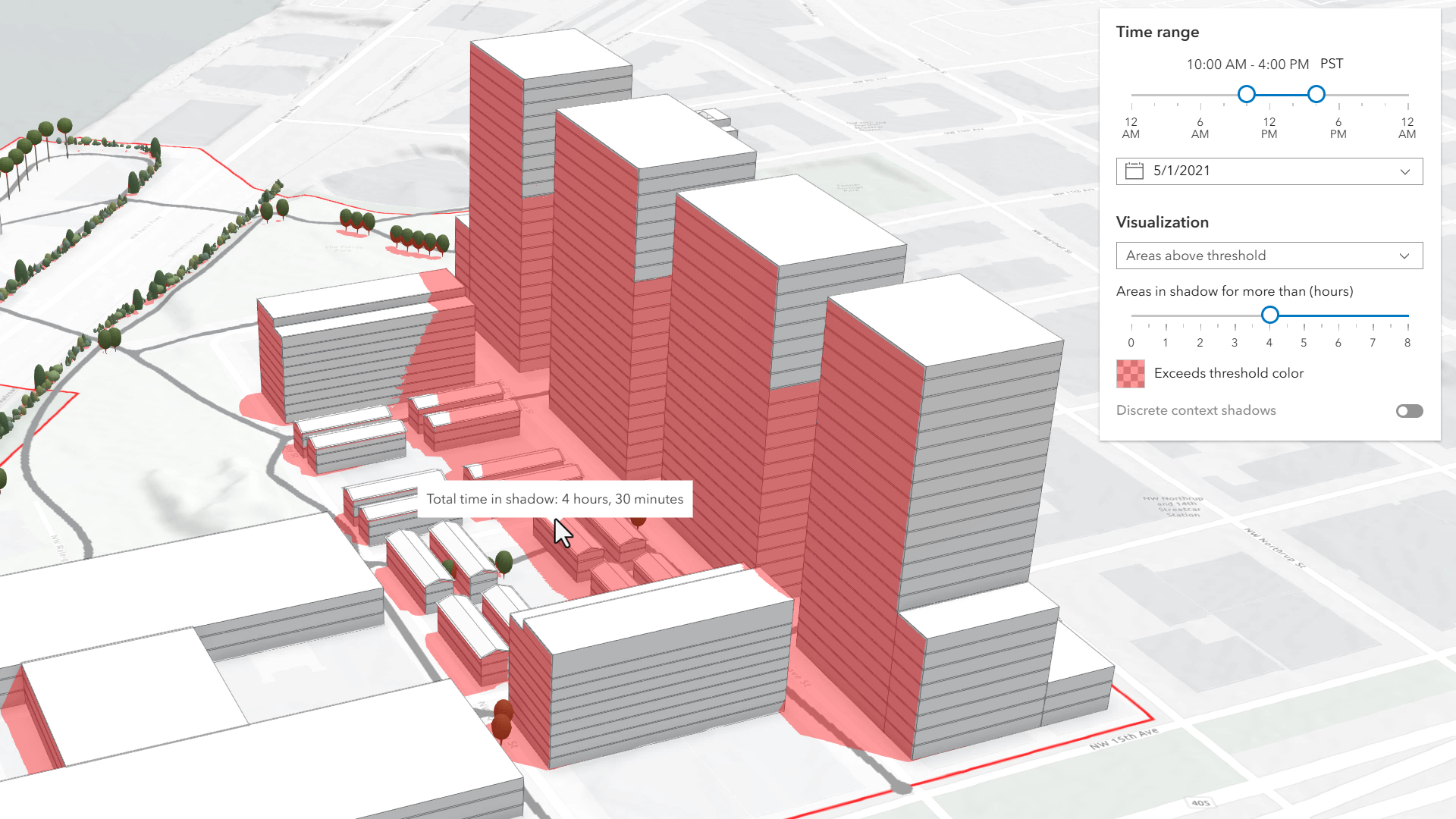](https://developers.arcgis.com/javascript/latest/sample-code/shadow-cast/)\n\n**Total shadow duration** mode displays the cumulative duration of shadow within the selected time range using opacity:\nareas that receive no shadow remain fully transparent, while areas receiving the highest accumulated shadow duration\nuse a default opacity of 0.7. Intermediate values are interpolated. This mode can visualize shadows continuously or\nin 1-hour intervals.\n\n[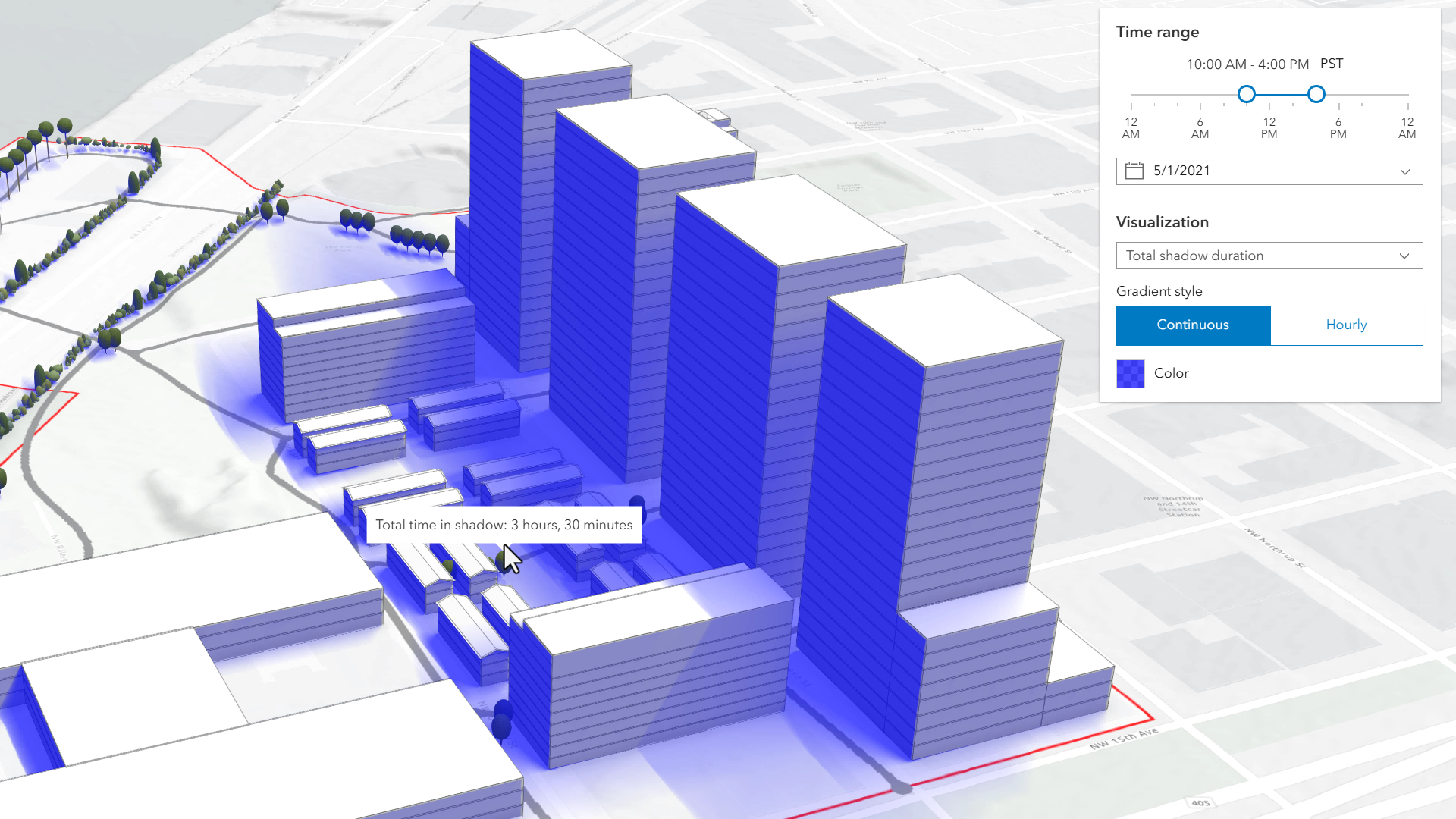](https://developers.arcgis.com/javascript/latest/sample-code/shadow-cast/)\n\n**Discrete shadows** mode displays individual shadows at regular intervals within the selected time range.\nFor example, with a time range from 10AM to 11AM and an interval set to 30 minutes, the shadows at 10AM, 10:30AM and\n11:00AM will be displayed.\n\n[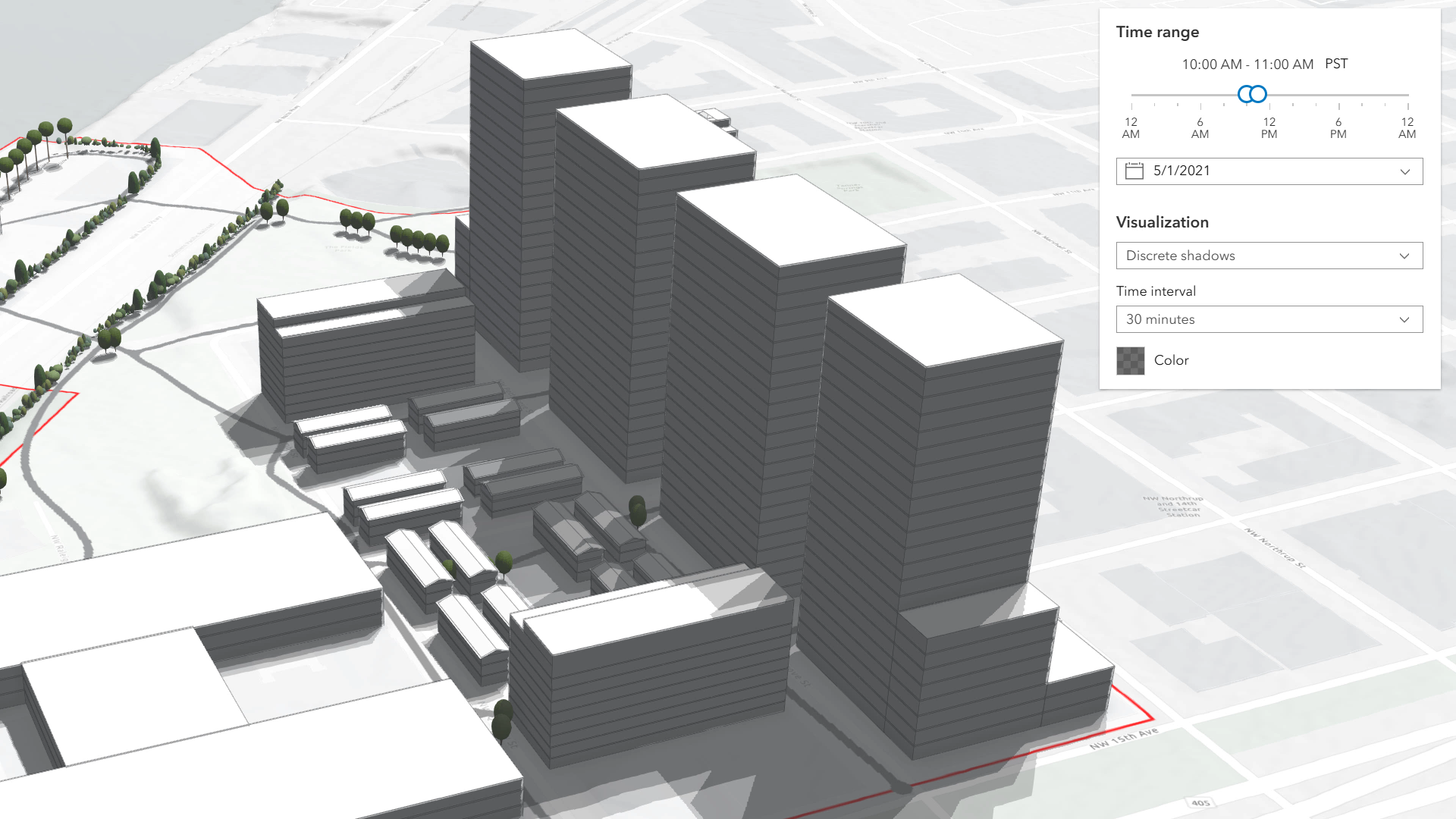](https://developers.arcgis.com/javascript/latest/sample-code/shadow-cast/)\n\nHovering over the Scene will display a tooltip showing the amount of time that location is in shadow, rounded to 15-minute intervals.\n\nThe defaults for the time range and visualization settings can be changed using the [startTimeOfDay](https://developers.arcgis.com/javascript/latest/references/map-components/components/arcgis-shadow-cast/#startTimeOfDay),\n[endTimeOfDay](https://developers.arcgis.com/javascript/latest/references/map-components/components/arcgis-shadow-cast/#endTimeOfDay), and [mode](https://developers.arcgis.com/javascript/latest/references/map-components/components/arcgis-shadow-cast/#mode) properties.\n\n**Known limitations**\n\n* Shadow Cast is only supported in a 3D [arcgis-scene](https://developers.arcgis.com/javascript/latest/references/map-components/components/arcgis-scene/) component.\n* Terrain does not cast shadows in this analysis. As a result, to avoid incorrect shadow visualization, `startTimeOfDay`\nshould be set after local sunrise and `endTimeOfDay` before local sunset. If these times fall outside daylight hours,\nshadows may be missing in areas where terrain would normally block sunlight.\n* The analysis does not take daylight savings into account. Use the timezone dropdown to adjust the offset from the\nCoordinated Universal Time (UTC) and account for the daylight saving time.\n* The timezone is automatically detected by the component based on the camera location. In some situations, this might not be accurate.\nIn case of an inaccurate timezone, users can set it manually using the timezone dropdown.\n\n**See also**\n\n- [Sample - Shadow cast component](https://developers.arcgis.com/javascript/latest/sample-code/shadow-cast/)\n--\n\n### Events\n- **arcgisPropertyChange** - Emitted when the value of a property is changed. Use this to listen to changes to properties.\n- **arcgisReady** - Emitted when the component associated with a map or scene view is ready to be interacted with.\n\n### Methods\n- `componentOnReady(): Promise<this>` - Creates a promise that resolves once the component is fully loaded.\n- `destroy(): Promise<void>` - Permanently destroy the component.\n- `getDurationAtScreen(point: Point): Promise<number>` - Returns the time (in milliseconds) spent in shadow for a certain point on the screen.\n\n[Read more](https://developers.arcgis.com/javascript/latest/references/core/views/3d/analysis/ShadowCast/ShadowCastAnalysisView3D/#getDurationAtScreen)","attributes":[{"name":"auto-destroy-disabled","description":"If true, the component will not be destroyed automatically when it is\ndisconnected from the document. This is useful when you want to move the\ncomponent to a different place on the page, or temporarily hide it. If this\nis set, make sure to call the [destroy()](https://developers.arcgis.com/javascript/latest/references/map-components/components/arcgis-shadow-cast/#destroy) method when you are done to\nprevent memory leaks.","values":[]},{"name":"date","description":"The calendar date used to calculate the shadow cast. This date excludes the time. If a date with a time is set, the time value will be set to midnight (`00:00:00`) of that date in local system time.\nIf no date is set, then it defaults to the current date in local system time.\n\n_See also_\n\n* [Date](https://developer.mozilla.org/en-US/docs/Web/JavaScript/Reference/Global_Objects/Date/Date)","values":[]},{"name":"discrete-interval","description":"Individual shadows are displayed at this time interval in \"discrete\" [mode](https://developers.arcgis.com/javascript/latest/references/map-components/components/arcgis-shadow-cast/#mode), starting with the start time of\nday. The interval is expressed in milliseconds. If set to 0, we'll use the smallest possible interval, up to a\nmaximum of 255 samples.","values":[]},{"name":"end-time-of-day","description":"Time (in milliseconds from midnight of the [date](https://developers.arcgis.com/javascript/latest/references/map-components/components/arcgis-shadow-cast/#date)) when the shadow cast computation should stop.\n\n[Read more](https://developers.arcgis.com/javascript/latest/references/core/analysis/ShadowCastAnalysis/#endTimeOfDay)","values":[]},{"name":"heading-level","description":"Indicates the heading level to use for the component title.","values":[{"name":"1"},{"name":"2"},{"name":"3"},{"name":"4"},{"name":"5"},{"name":"6"}]},{"name":"hide-date-picker","description":"If true, the date picker will be hidden.","values":[]},{"name":"hide-discrete-color-picker","description":"If true, the color picker will be hidden in the discrete mode options.","values":[]},{"name":"hide-discrete-interval","description":"If true, the interval selector will be hidden in the discrete mode options.","values":[]},{"name":"hide-discrete-options","description":"If true, the visualization options will be hidden in discrete mode.","values":[]},{"name":"hide-min-duration-color-picker","description":"If true, the color picker will be hidden in the minimum duration mode options.","values":[]},{"name":"hide-min-duration-context-color-picker","description":"If true, the color picker will be hidden in the context options in minimum duration mode.","values":[]},{"name":"hide-min-duration-context-interval","description":"If true, the interval selector will be hidden in the context options in minimum duration mode.","values":[]},{"name":"hide-min-duration-context-options","description":"If true, the context options will be hidden in the minimum duration mode options.","values":[]},{"name":"hide-min-duration-context-toggle","description":"If true, the toggle used to show or hide the context options will be hidden.","values":[]},{"name":"hide-min-duration-options","description":"If true, the visualization options will be hidden in minimum duration mode.","values":[]},{"name":"hide-min-duration-slider","description":"If true, the minimum duration slider will be hidden in the minimum duration mode options.","values":[]},{"name":"hide-shadow-duration-tooltip","description":"If true, the tooltip which displays the amount of shadow at a certain location will be hidden.","values":[]},{"name":"hide-time-range-slider","description":"If true, the time range slider will be hidden.","values":[]},{"name":"hide-timezone","description":"If true, the timezone picker will be hidden.","values":[]},{"name":"hide-total-duration-color-picker","description":"If true, the color picker will be hidden in the total duration mode options.","values":[]},{"name":"hide-total-duration-mode-select","description":"If true, the mode selector will be hidden in the total duration mode options.","values":[]},{"name":"hide-total-duration-options","description":"If true, the visualization options will be hidden in the total duration mode.","values":[]},{"name":"hide-visualization","description":"Indicates whether the component's visualization is hidden in the view.","values":[]},{"name":"hide-visualization-options","description":"If true, the visualization options will be hidden.","values":[]},{"name":"icon","description":"Icon which represents the component.\nTypically used when the component is controlled by another component (e.g. by the Expand component).","values":[]},{"name":"label","description":"The component's default label.","values":[]},{"name":"max-min-duration","description":"Maximum allowed value for the [minDuration](https://developers.arcgis.com/javascript/latest/references/map-components/components/arcgis-shadow-cast/#minDuration) property, in milliseconds.","values":[]},{"name":"min-duration","description":"The minimum duration (in milliseconds) used in \"min-duration\" [mode](https://developers.arcgis.com/javascript/latest/references/map-components/components/arcgis-shadow-cast/#mode) to determine which shadow areas are displayed.","values":[]},{"name":"min-duration-context-enabled","description":"Whether to enable additional context showing discrete shadows at the same time as displaying shadows above a\nminimum duration when in the \"min-duration\" [mode](https://developers.arcgis.com/javascript/latest/references/map-components/components/arcgis-shadow-cast/#mode). The [minDurationContextColor](https://developers.arcgis.com/javascript/latest/references/map-components/components/arcgis-shadow-cast/#minDurationContextColor)\nand [minDurationContextInterval](https://developers.arcgis.com/javascript/latest/references/map-components/components/arcgis-shadow-cast/#minDurationContextInterval) properties are used to configure the visualization of the\ndiscrete shadows when context is enabled.","values":[]},{"name":"min-duration-context-interval","description":"The interval in milliseconds used when showing additional context in \"min-duration\" [mode](https://developers.arcgis.com/javascript/latest/references/map-components/components/arcgis-shadow-cast/#mode) when\n[minDurationContextEnabled](https://developers.arcgis.com/javascript/latest/references/map-components/components/arcgis-shadow-cast/#minDurationContextEnabled) is true.","values":[]},{"name":"min-min-duration","description":"Minimum allowed value for the [minDuration](https://developers.arcgis.com/javascript/latest/references/map-components/components/arcgis-shadow-cast/#minDuration) property, in milliseconds.","values":[]},{"name":"mode","description":"Mode of analysis to use when computing and displaying the shadows. There are 3 types:\n- \"discrete\": Displays individual shadow snapshots at regular time intervals within the selected time range.\n- \"min-duration\": Displays shadows only in areas where accumulated shading exceeds a user‑defined minimum duration\nwithin the selected time range. Optional discrete shadow overlays can provide additional context.\n- \"total-duration\": Displays total shadow accumulation within the selected time range using opacity: areas with\nlonger shadow duration appear more opaque. Supports continuous or 1‑hour aggregated modes.","values":[{"name":"discrete"},{"name":"min-duration"},{"name":"total-duration"}]},{"name":"reference-element","description":"By assigning the `id` attribute of the Map or Scene component to this property, you can position a child component anywhere in the DOM while still maintaining a connection to the Map or Scene.","values":[]},{"name":"start-time-of-day","description":"Time (in milliseconds from midnight of the [date](https://developers.arcgis.com/javascript/latest/references/map-components/components/arcgis-shadow-cast/#date)) when the shadow cast computation should start.\n\n[Read more](https://developers.arcgis.com/javascript/latest/references/core/analysis/ShadowCastAnalysis/#startTimeOfDay)","values":[]},{"name":"total-duration-mode","description":"Mode in which the cumulative shadow duration should be displayed in \"total-duration\" [mode](https://developers.arcgis.com/javascript/latest/references/map-components/components/arcgis-shadow-cast/#mode): as a continuous\nsurface or as an hourly aggregation of values.","values":[{"name":"continuous"},{"name":"hourly"}]},{"name":"utc-offset","description":"The difference in hours between UTC time and the times displayed in the component.","values":[]},{"name":"visual-scale","description":"Specifies the size of the component.","values":[{"name":"l"},{"name":"m"},{"name":"s"}]}],"references":[{"name":"Docs","url":"https://developers.arcgis.com/javascript/latest/references/map-components/components/arcgis-shadow-cast/"},{"name":"Shadow Cast","url":"https://developers.arcgis.com/javascript/latest/storybook/map-components/?path=/story/arcgis-shadow-cast--demo&singleStory=true"}]},{"name":"arcgis-sketch","description":"The Sketch component provides a simple UI for creating and updating graphics on a [MapView](https://developers.arcgis.com/javascript/latest/references/core/views/MapView/) or a [SceneView](https://developers.arcgis.com/javascript/latest/references/core/views/SceneView/).\n--\n\n### Events\n- **arcgisCreate**\n- **arcgisDelete**\n- **arcgisPropertyChange** - Emitted when the value of a property is changed. Use this to listen to changes to properties.\n- **arcgisReady** - Emitted when the component associated with a map or scene view is ready to be interacted with.\n- **arcgisRedo**\n- **arcgisUndo**\n- **arcgisUpdate**\n\n### Methods\n- `cancel(): Promise<void>`\n- `complete(): Promise<void>`\n- `componentOnReady(): Promise<this>` - Creates a promise that resolves once the component is fully loaded.\n- `create(tool: CreateTool, createOptions?: CreateOptions): Promise<void>`\n- `delete(): Promise<void>`\n- `destroy(): Promise<void>` - Permanently destroy the component.\n- `duplicate(): Promise<void>`\n- `redo(): Promise<void>`\n- `triggerUpdate(graphic: Parameters<Sketch[\"update\"]>[0], updateOptions?: Parameters<Sketch[\"update\"]>[1]): Promise<void>`\n- `undo(): Promise<void>`","attributes":[{"name":"active-tool","description":"When creating new graphics (for example after [create()](https://developers.arcgis.com/javascript/latest/references/core/widgets/Sketch/#create) has been called),\nthis property reflects the create tool being used. When updating graphics\n(for example after [update()](https://developers.arcgis.com/javascript/latest/references/core/widgets/Sketch/#update) has been called), this property reflects the\nupdate tool being used. If no create or update operation is in progress, this is `null`.\n\nPrior to 4.32, creation tools were modeled as a combination of a geometry type (point, line, polygon)\nand an interaction mode (click, freehand, hybrid).\nAt 4.32, the available create tools were expanded to include \"freehandPolyline\" and \"freehandPolygon\".\nThese tools are made available to enable interoperability with other components of the ArcGIS system,\nwhere freehand polyline is a distinct create tool from polyline.\n\nTo minimize compatibility issues, if \"freehandPolyline\" and \"freehandPolygon\" are not in the list\nof available create tools, they will not be returned by this property, even if the user is drawing a\npolygon in freehand mode.\n\nTo opt in to freehandPolyline and freehandPolygon tools, include them when setting availableCreateTools,\nand hideCreateTools* properties","values":[{"name":"circle"},{"name":"move"},{"name":"point"},{"name":"polygon"},{"name":"rectangle"},{"name":"text"},{"name":"reshape"},{"name":"polyline"},{"name":"multipoint"},{"name":"mesh"},{"name":"transform"},{"name":"freehandPolyline"},{"name":"freehandPolygon"},{"name":"lasso-selection"},{"name":"rectangle-selection"},{"name":"custom-selection"}]},{"name":"auto-destroy-disabled","description":"If true, the component will not be destroyed automatically when it is\ndisconnected from the document. This is useful when you want to move the\ncomponent to a different place on the page, or temporarily hide it. If this\nis set, make sure to call the [destroy()](https://developers.arcgis.com/javascript/latest/references/map-components/components/arcgis-sketch/#destroy) method when you are done to\nprevent memory leaks.","values":[]},{"name":"creation-mode","description":"Defines the default behavior once the [create()](https://developers.arcgis.com/javascript/latest/references/core/widgets/Sketch/#create) operation is completed. By default, the user will be\nable to continuously create graphics with same geometry types.\n\n**Possible Values**\n\nValue | Description |\n----- | ----------- |\ncontinuous | This is the default. Users can continue creating graphics with same geometry types.\nsingle | User can create a single graphic with the specified geometry type. User must choose an operation once the graphic is created.\nupdate | The graphic will be selected for an [update()](https://developers.arcgis.com/javascript/latest/references/core/widgets/Sketch/#update) operation once the `create` operation is completed.","values":[{"name":"update"},{"name":"single"},{"name":"continuous"}]},{"name":"default-graphics-layer-disabled","description":"By default, sketch will auto-create a new graphics layer if none was\nprovided. Set this prop to true to disable this behavior.","values":[]},{"name":"hide-create-tools-circle","description":"Indicates whether to hide the circle sketch tool.","values":[]},{"name":"hide-create-tools-multipoint","description":"Indicates whether to hide the multipoint tool. Regardless of setting, multipoint is not available when working with a scene view.\n\nThe multipoint tool is excluded from `availableCreateTools` by default. Even if this property is false,\nmultipoint will not be available until it is added to `availableCreateTools`.","values":[]},{"name":"hide-create-tools-point","description":"Indicates whether to hide the point sketch tool.","values":[]},{"name":"hide-create-tools-polygon","description":"Indicates whether to hide the polygon sketch tool.","values":[]},{"name":"hide-create-tools-polyline","description":"Indicates whether to hide the polyline sketch tool.","values":[]},{"name":"hide-create-tools-rectangle","description":"Indicates whether to hide the rectangle sketch tool.","values":[]},{"name":"hide-delete-button","description":"Indicates whether to hide the 'delete' button while a graphic is selected. Do not hide this button without giving users on touch devices another way to delete selected geometries.","values":[]},{"name":"hide-duplicate-button","description":"Indicates whether to hide the 'duplicate' button while a graphic is selected.","values":[]},{"name":"hide-labels-toggle","description":"Indicates whether to hide the sketch labels toggle`.","values":[]},{"name":"hide-selection-count-label","description":"Indicates whether to hide a label indicating the length of the currently selected feature set.","values":[]},{"name":"hide-selection-tools-lasso-selection","values":[]},{"name":"hide-selection-tools-rectangle-selection","values":[]},{"name":"hide-settings-menu","description":"Indicates whether to hide the settings menu. Currently this menu contains snapping options`.","values":[]},{"name":"hide-snapping-controls","description":"Indicates whether to hide the `SnappingControls` component.","values":[]},{"name":"hide-snapping-controls-elements-enabled-toggle","description":"Indicates whether to hide the `enabledToggle` (Enable snapping). This toggles\nthe [SnappingOptions#enabled](https://developers.arcgis.com/javascript/latest/references/core/views/interactive/snapping/SnappingOptions/#enabled) property.\n> [!WARNING]\n>\n> **Note**\n>\n> It is recommended to set `SnappingControls.snappingOptions.enabled = true` if `enabledToggle` is set to `false`.\n> This is because `selfEnabledToggle` and `featureEnabledToggle` require snapping globally to be enabled in order to be interactive. Otherwise, these toggles will not be responsive.","values":[]},{"name":"hide-snapping-controls-elements-feature-enabled-toggle","description":"Indicates whether to hide the `featureEnabledToggle` (Feature to feature). This toggles\nthe [SnappingOptions#featureEnabled](https://developers.arcgis.com/javascript/latest/references/core/views/interactive/snapping/SnappingOptions/#featureEnabled) property.","values":[]},{"name":"hide-snapping-controls-elements-layer-list","description":"Indicates whether to hide the [FeatureSnappingLayerSource](https://developers.arcgis.com/javascript/latest/references/core/views/interactive/snapping/FeatureSnappingLayerSource/) layerList. The layerlist provides the available layer sources supported for snapping.","values":[]},{"name":"hide-snapping-controls-elements-self-enabled-toggle","description":"Indicates whether to hide the `selfEnabledToggle` (Geometry guides). This toggles\nthe [SnappingOptions#selfEnabled](https://developers.arcgis.com/javascript/latest/references/core/views/interactive/snapping/SnappingOptions/#selfEnabled) property.","values":[]},{"name":"hide-tooltips-toggle","description":"Indicates whether to hide the tooltips toggle`.","values":[]},{"name":"hide-undo-redo-menu","description":"Indicates whether to hide the undo/redo menu within the component.","values":[]},{"name":"icon","description":"Icon which represents the component.\nTypically used when the component is controlled by another component (e.g. by the Expand component).","values":[]},{"name":"label","description":"The component's default label.","values":[]},{"name":"layout","description":"Determines the layout/orientation of the Sketch component.","values":[{"name":"horizontal"},{"name":"vertical"}]},{"name":"reference-element","description":"By assigning the `id` attribute of the Map or Scene component to this property, you can position a child component anywhere in the DOM while still maintaining a connection to the Map or Scene.","values":[]},{"name":"scale","description":"**Deprecated**: since 5.0, use `element.visualScale` instead.. Determines the size of component elements.","values":[{"name":"s"},{"name":"m"},{"name":"l"}]},{"name":"show-create-tools-freehand-polygon","description":"Indicates whether to display the freehandPolygon tool.","values":[]},{"name":"show-create-tools-freehand-polyline","description":"Indicates whether to display the freehandPolyline tool.","values":[]},{"name":"show-create-tools-text","description":"Indicates whether to display the text tool.","values":[]},{"name":"show-snapping-controls-elements-header","description":"Indicates whether to display the header.","values":[]},{"name":"toolbar-kind","description":"Controls the appearance of the sketch component, allowing the toolbar to adapt its appearance appropriately based on context.\n\nSet this to `docked` for use within the Expand component, or any other situation\nwhere Sketch is not floating within a large canvas.","values":[{"name":"floating"},{"name":"docked"}]},{"name":"use-legacy-create-tools","description":"**Deprecated**. Starting at version 5.0, `arcgis-sketch` is transitioning to a next generation geometry\ncreation experience. This new experience provides advanced curve creation tools\nand allows multiple tools to be used in combination to define a single geometry.\n\nAs of 5.0, this experience is only available in 2D (e.g. [`arcgis-map`](https://developers.arcgis.com/javascript/latest/references/map-components/arcgis-map)).\n\nThis property is available to allow 2D applications to temporarily\nopt out of this experience.\n\n> [!CAUTION]\n>\n> This option will be removed in an upcoming release.","values":[]},{"name":"visual-scale","description":"Specifies the size of the component.","values":[{"name":"s"},{"name":"m"},{"name":"l"}]}],"references":[{"name":"Docs","url":"https://developers.arcgis.com/javascript/latest/references/map-components/components/arcgis-sketch/"},{"name":"Sketch","url":"https://developers.arcgis.com/javascript/latest/storybook/map-components/?path=/story/arcgis-sketch--demo&singleStory=true"}]},{"name":"arcgis-slice","description":"The Slice component is a 3D analysis tool that can be used to reveal occluded content in a\n[arcgis-scene](https://developers.arcgis.com/javascript/latest/references/map-components/components/arcgis-scene/). It applies\n[slice analysis](https://developers.arcgis.com/javascript/latest/references/core/analysis/SliceAnalysis/)\nto any layer type, making it possible to see inside buildings or to explore geological surfaces.\n\n[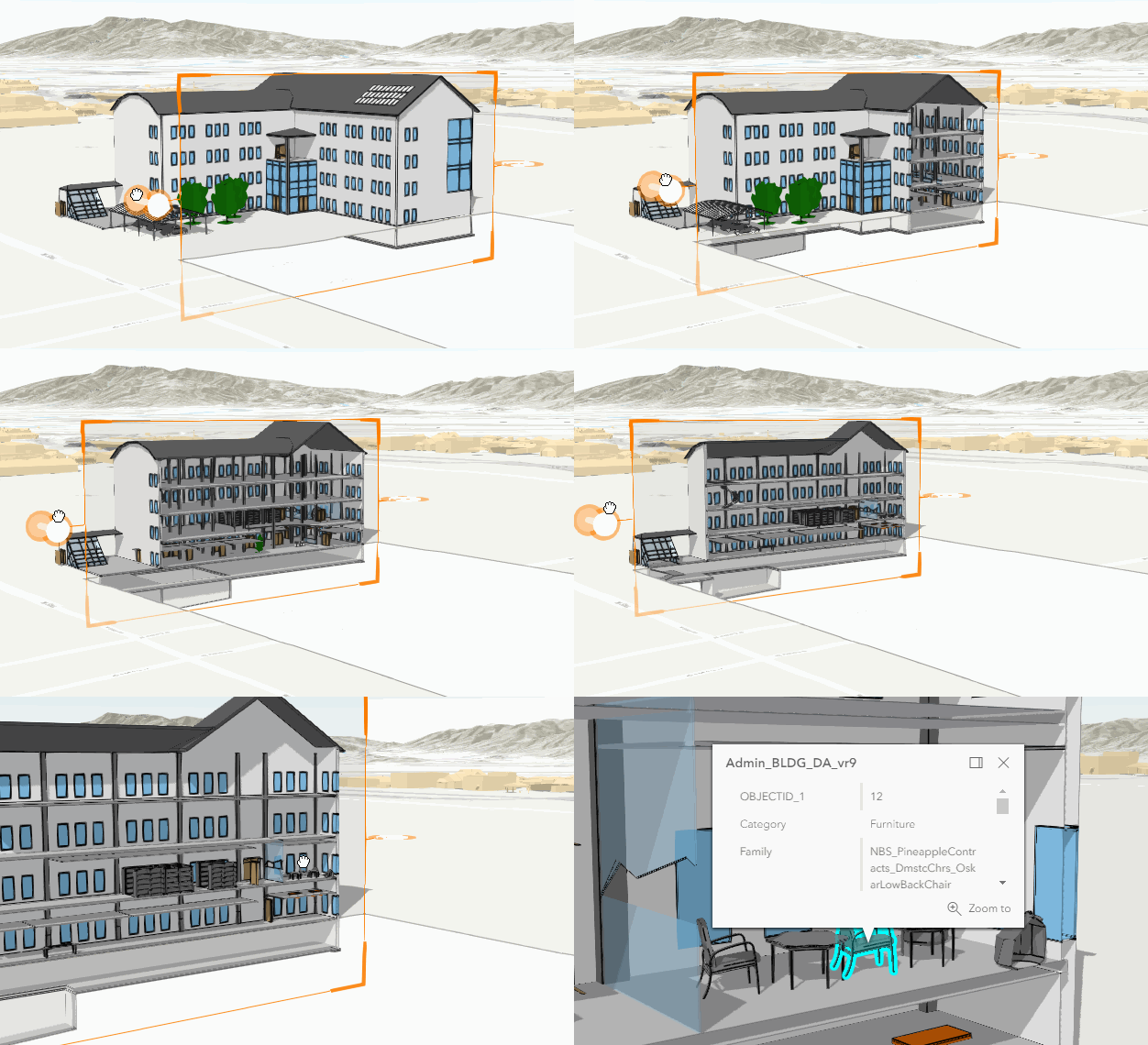](https://developers.arcgis.com/javascript/latest/sample-code/building-scene-layer-slice/index.html)\n\nThe slicing [shape](https://developers.arcgis.com/javascript/latest/references/map-components/components/arcgis-slice/#shape)\nis always a [plane](https://developers.arcgis.com/javascript/latest/references/core/analysis/SlicePlane/).\nBy default, the plane is either horizontal or vertical. To allow a tilt angle for the plane, set\n[tiltEnabled](https://developers.arcgis.com/javascript/latest/references/map-components/components/arcgis-slice/#tiltEnabled)\nto `true`. The slice hides any content in front of the surface. The handles on the sides of the plane can be used to adjust\nthe size, heading, tilt, and position of the slice plane.\nThe [SlicePlane](https://developers.arcgis.com/javascript/latest/references/core/analysis/SlicePlane/)\ncan be set or retrieved using the [shape](https://developers.arcgis.com/javascript/latest/references/map-components/components/arcgis-slice/#shape) property.\n\nOnce the slice plane is applied, layers can be excluded from the slicing. For example, by excluding the sublayers which include\ncolumns and floor slabs, the inner structure of a building can investigated.\n\n[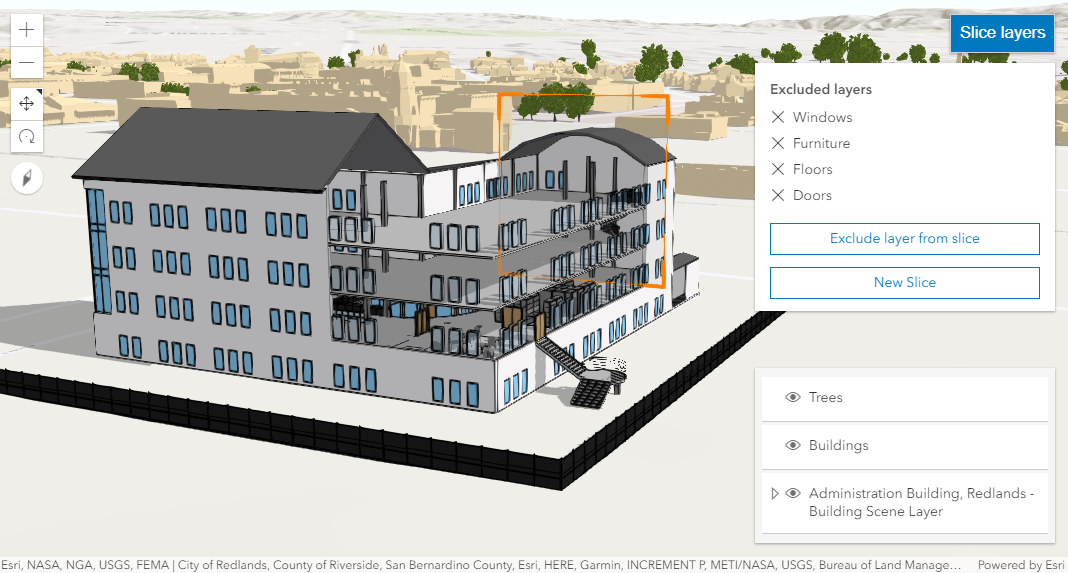](https://developers.arcgis.com/javascript/latest/sample-code/building-scene-layer-slice/index.html)\n\nHolding the `Shift` key while placing a new slice applies it vertically.\n\n**Known limitation**\n\nSlice is only supported in a 3D [arcgis-scene](https://developers.arcgis.com/javascript/latest/references/map-components/components/arcgis-scene/) component.\n\n**See also**\n\n- [SliceAnalysis](https://developers.arcgis.com/javascript/latest/references/core/analysis/SliceAnalysis/)\n- [Sample - BuildingSceneLayer with Slice component](https://developers.arcgis.com/javascript/latest/sample-code/building-scene-layer-slice/)\n- [Sample - Analysis objects](https://developers.arcgis.com/javascript/latest/sample-code/analysis-objects/)\n--\n\n### Events\n- **arcgisPropertyChange** - Emitted when the value of a property is changed. Use this to listen to changes to properties.\n- **arcgisReady** - Emitted when the component associated with a map or scene view is ready to be interacted with.\n\n### Methods\n- `clear(): Promise<void>` - Clear the [shape](https://developers.arcgis.com/javascript/latest/references/map-components/components/arcgis-slice/#shape) of the slice, effectively removing it from the view. Other properties like [excludedLayers](https://developers.arcgis.com/javascript/latest/references/map-components/components/arcgis-slice/#excludedLayers)\nand [excludeGroundSurface](https://developers.arcgis.com/javascript/latest/references/map-components/components/arcgis-slice/#excludeGroundSurface) are not modified.\nCalling this method changes the [state](https://developers.arcgis.com/javascript/latest/references/map-components/components/arcgis-slice/#state) to `ready`.\n- `componentOnReady(): Promise<this>` - Creates a promise that resolves once the component is fully loaded.\n- `destroy(): Promise<void>` - Permanently destroy the component.\n- `start(): Promise<void>` - Start the interactive placement of a new slice, clearing the previous [shape](https://developers.arcgis.com/javascript/latest/references/map-components/components/arcgis-slice/#shape).\nCalling this method changes the [state](https://developers.arcgis.com/javascript/latest/references/map-components/components/arcgis-slice/#state) to `slicing`.","attributes":[{"name":"auto-destroy-disabled","description":"If true, the component will not be destroyed automatically when it is\ndisconnected from the document. This is useful when you want to move the\ncomponent to a different place on the page, or temporarily hide it. If this\nis set, make sure to call the [destroy()](https://developers.arcgis.com/javascript/latest/references/map-components/components/arcgis-slice/#destroy) method when you are done to\nprevent memory leaks.","values":[]},{"name":"exclude-ground-surface","description":"Indicates whether the [Ground](https://developers.arcgis.com/javascript/latest/references/core/Ground/) and layers that\nare draped on the ground surface are excluded from the slice.","values":[]},{"name":"heading-level","description":"Indicates the heading level to use for the \"Excluded layers\" heading.","values":[{"name":"1"},{"name":"2"},{"name":"3"},{"name":"4"},{"name":"5"},{"name":"6"}]},{"name":"hide-start-button","description":"If true, the button that starts a new slice will be hidden.","values":[]},{"name":"hide-visualization","description":"Indicates whether the component's visualization is hidden in the view.","values":[]},{"name":"icon","description":"Icon which represents the component.\nTypically used when the component is controlled by another component (e.g. by the Expand component).","values":[]},{"name":"label","description":"The component's default label.","values":[]},{"name":"reference-element","description":"By assigning the `id` attribute of the Map or Scene component to this property, you can position a child component anywhere in the DOM while still maintaining a connection to the Map or Scene.","values":[]},{"name":"tilt-enabled","description":"Enable tilting the slice shape. If set to true, the slice shape will orient itself as best as\npossible to the surface under the cursor when first placing the shape. If set to false, the slice shape is\nrestricted to be either horizontal or vertical.","values":[]}],"references":[{"name":"Docs","url":"https://developers.arcgis.com/javascript/latest/references/map-components/components/arcgis-slice/"},{"name":"Slice","url":"https://developers.arcgis.com/javascript/latest/storybook/map-components/?path=/story/arcgis-slice--demo&singleStory=true"}]},{"name":"arcgis-slider-binary-color-size-legacy","description":"> [!WARNING]\n>\n> This is a **legacy component**. It relies on an underlying widget as part of our migration to native web components.\n>\n> A fully native replacement for this component is in development. Once it reaches feature parity, the legacy component will be deprecated and no longer maintained.\nAt that point, development should use the native component.\n\nThe Binary Color Size Slider component is intended for authoring and exploring diverging data-driven visualizations in any\nlayer that can be rendered with an above and below theme for a [SizeVariable](https://developers.arcgis.com/javascript/latest/references/core/renderers/visualVariables/SizeVariable/).\n\nThe [updateFromRendererResult()](https://developers.arcgis.com/javascript/latest/references/core/widgets/smartMapping/BinaryColorSizeSlider/#fromRendererResult)\nmethod can be used to intelligently populate slider properties including [max](https://developers.arcgis.com/javascript/latest/references/map-components/components/arcgis-slider-binary-color-size-legacy/#max), [min](https://developers.arcgis.com/javascript/latest/references/map-components/components/arcgis-slider-binary-color-size-legacy/#min), [size visual variable](https://developers.arcgis.com/javascript/latest/references/core/renderers/visualVariables/SizeVariable/)\nconfiguration, and the slider's histogram after the renderer has been created from the result of the\n[createContinuousRenderer()](https://developers.arcgis.com/javascript/latest/references/core/smartMapping/renderers/univariateColorSize/#createContinuousRenderer) method.\n\n```js\nconst univariateColorSizeRendererCreator = await import(\n \"@arcgis/core/smartMapping/renderers/univariateColorSize.js\"\n);\nconst viewElement = document.querySelector(\"arcgis-map\")!;\nconst binaryColorSizeSlider = document.querySelector(\"arcgis-slider-binary-color-size-legacy\");\n\nconst featureLayer = new FeatureLayer({\n url: \"https://services.arcgis.com/P3ePLMYs2RVChkJx/arcgis/rest/services/ACS_Poverty_by_Age_Boundaries/FeatureServer/1\",\n});\n\nawait viewElement.viewOnReady();\nviewElement.map?.add(featureLayer);\n\nconst params = {\n layer: featureLayer,\n field: \"B17020_calc_pctPovE\",\n view: viewElement.view,\n theme: \"above-and-below\",\n};\n\nconst rendererResult = await univariateColorSizeRendererCreator.createContinuousRenderer(params);\n\nfeatureLayer.renderer = rendererResult.renderer;\n\nconst histogramResult = await histogram({\n ...params,\n numBins: 30,\n});\n\nawait binaryColorSizeSlider?.updateFromRendererResult(rendererResult, histogramResult);\n```\n\nThis slider should be used to update an above and below (diverging) visualization in a layer's renderer.\nIt is the responsibility of the app developer to set up event listeners on that update the size variable of the appropriate renderer.\n\n```js\nconst updateRendererFromSlider = async () => {\n const result = await binaryColorSizeSlider.updateRenderer(featureLayer.renderer);\n featureLayer.renderer = result;\n};\n\nbinaryColorSizeSlider.addEventListener(\"arcgisThumbChange\", updateRendererFromSlider);\nbinaryColorSizeSlider.addEventListener(\"arcgisThumbDrag\", updateRendererFromSlider);\nbinaryColorSizeSlider.addEventListener(\"arcgisPropertyChange\", updateRendererFromSlider);\n```\n--\n\n### Events\n- **arcgisPropertyChange** - Emitted when the value of a property is changed. Use this to listen to changes to properties.\n- **arcgisReady** - Emitted when the component associated with a map or scene view is ready to be interacted with.\n- **arcgisThumbChange** - Fires when a user changes the value of a thumb via the arrow keys or by keyboard editing of the label on the slider.\n- **arcgisThumbDrag** - Fires when a user drags a thumb on the component.\n\n### Methods\n- `componentOnReady(): Promise<this>` - Creates a promise that resolves once the component is fully loaded.\n- `destroy(): Promise<void>` - Permanently destroy the component.\n- `updateFromRendererResult(rendererResult: RendererResult, histogramResult?: HistogramResult): Promise<void>` - A convenience function used to update the properties of a Binary Color Size Slider component instance from the\n[result](https://developers.arcgis.com/javascript/latest/references/core/smartMapping/renderers/univariateColorSize/#RendererResult) of\nthe [createContinuousRenderer()](https://developers.arcgis.com/javascript/latest/references/core/smartMapping/renderers/univariateColorSize/#createContinuousRenderer)\nmethod. This method is useful for cases when the app allows the end user to switch data variables used to render the data.\nNote that this method always expects `rendererResult` to be defined for the slider to function, but `histogramResult` is optional.\n- `updateRenderer(renderer: ClassBreaksRenderer): Promise<ClassBreaksRenderer | null | undefined>` - A convenience function used to update the input renderer based on\nthe values of the slider [stops](https://developers.arcgis.com/javascript/latest/references/core/widgets/smartMapping/BinaryColorSizeSlider/#stops).","attributes":[{"name":"auto-destroy-disabled","description":"If true, the component will not be destroyed automatically when it is\ndisconnected from the document. This is useful when you want to move the\ncomponent to a different place on the page, or temporarily hide it. If this\nis set, make sure to call the [destroy()](https://developers.arcgis.com/javascript/latest/references/map-components/components/arcgis-slider-binary-color-size-legacy/#destroy) method when you are done to\nprevent memory leaks.","values":[]},{"name":"handles-synced-to-primary","description":"This property indicates whether the position of the outside handles are synced with the middle, or primary,\nhandle. When enabled, if the primary handle is moved then the outside handle positions are updated\nwhile maintaining a fixed distance from the primary handle.","values":[]},{"name":"icon","description":"Icon which represents the component.\nTypically used when the component is controlled by another component (e.g. by the Expand component).","values":[]},{"name":"max","description":"The maximum value or upper bound of the slider. Once the slider has rendered with the [updateFromRendererResult()](https://developers.arcgis.com/javascript/latest/references/map-components/components/arcgis-slider-binary-color-size-legacy/#updateFromRendererResult) method,\nthe user may change this property by selecting the label containing the max value on the slider UI. It is the responsibility of the app developer\nto set up event listeners that update the size variable of the appropriate renderer.","values":[]},{"name":"min","description":"The minimum value or lower bound of the slider. Once the slider has rendered with the [updateFromRendererResult()](https://developers.arcgis.com/javascript/latest/references/map-components/components/arcgis-slider-binary-color-size-legacy/#updateFromRendererResult) method,\nthe user may change this property by selecting the label containing the min value on the slider UI. It is the responsibility of the app developer\nto set up event listeners that update the size variable of the appropriate renderer.","values":[]},{"name":"persist-size-range-enabled","description":"When `true`, ensures symbol sizes in the `above` range\nare consistent with symbol sizes in the `below` range for all slider thumb positions.\nIn other words, the size values in the [stops](https://developers.arcgis.com/javascript/latest/references/map-components/components/arcgis-slider-binary-color-size-legacy/#stops) will adjust\nproportionally according to the positions of the data values within the\nconstraints of the size range (maxSize - minSize) as the slider thumbs update.\nWhen `false`, size values in the stops will remain the same even when slider thumb values\nchange.\n\nIn most cases, this should be set to `true` to keep sizes in the `above` range consistent with\nsizes in the `below` range to avoid map misinterpretation.","values":[]},{"name":"precision","description":"Defines how slider thumb values should be rounded. This number indicates the number\nof decimal places slider thumb _values_ should round to when they have been moved.\n\nKeep in mind this property rounds thumb values and shouldn't be used exclusively for formatting purposes.","values":[]},{"name":"reference-element","description":"By assigning the `id` attribute of the Map or Scene component to this property, you can position a child component anywhere in the DOM while still maintaining a connection to the Map or Scene.","values":[]}],"references":[{"name":"Docs","url":"https://developers.arcgis.com/javascript/latest/references/map-components/components/arcgis-slider-binary-color-size-legacy/"},{"name":"Slider Binary Color Size (Legacy)","url":"https://developers.arcgis.com/javascript/latest/storybook/map-components/?path=/story/arcgis-slider-binary-color-size-legacy--demo&singleStory=true"}]},{"name":"arcgis-slider-classed-color-legacy","description":"> [!WARNING]\n>\n> This is a **legacy component**. It relies on an underlying widget as part of our migration to native web components.\n>\n> A fully native replacement for this component is in development. Once it reaches feature parity, the legacy component will be deprecated and no longer maintained. At that point, development should use the native component.\n\nThe Classed Color Slider component is designed for authoring and exploring data-driven visualizations in any\nlayer that can be rendered with color in a [ClassBreaksRenderer](https://developers.arcgis.com/javascript/latest/references/core/renderers/ClassBreaksRenderer/).\n\n<span id=\"image-annotations\"></span>\nSee the image below for a summary of the configurable options available on this slider.\n\n\n\nThe [updateFromRendererResult()](https://developers.arcgis.com/javascript/latest/references/core/widgets/smartMapping/ClassedColorSlider/#fromRendererResult) method can be used to intelligently populate slider properties including\n[max](https://developers.arcgis.com/javascript/latest/references/map-components/components/arcgis-slider-classed-color-legacy/#max), [min](https://developers.arcgis.com/javascript/latest/references/map-components/components/arcgis-slider-classed-color-legacy/#min), the [classBreakInfos](https://developers.arcgis.com/javascript/latest/references/core/renderers/ClassBreaksRenderer/#classBreakInfos) configuration,\nand the slider's histogram after the renderer has been created from the result of the\n[createClassBreaksRenderer()](https://developers.arcgis.com/javascript/latest/references/core/smartMapping/renderers/color/#createClassBreaksRenderer) method.\n\n```js\nconst colorRendererCreator = await import(\"@arcgis/core/smartMapping/renderers/color.js\");\nconst viewElement = document.querySelector(\"arcgis-map\")!;\nconst classedColorSlider = document.querySelector(\"arcgis-slider-classed-color-legacy\")!;\n\nconst featureLayer = new FeatureLayer({\n url: \"https://services.arcgis.com/P3ePLMYs2RVChkJx/arcgis/rest/services/ACS_Poverty_by_Age_Boundaries/FeatureServer/1\",\n});\n\nawait viewElement.viewOnReady();\nviewElement.map?.add(featureLayer);\n\nconst params = {\n layer: featureLayer,\n field: \"B17020_calc_pctPovE\",\n view: viewElement.view,\n numClasses: 4\n};\n\nconst rendererResult = await colorRendererCreator.createClassBreaksRenderer(params);\n\nfeatureLayer.renderer = rendererResult.renderer;\n\nconst histogramResult = await histogram({\n ...params,\n numBins: 30,\n});\n\nawait classedColorSlider?.updateFromRendererResult(rendererResult, histogramResult);\n```\n\nThis slider should be used to update the [classBreakInfos](https://developers.arcgis.com/javascript/latest/references/core/renderers/ClassBreaksRenderer/#classBreakInfos)\nin a ClassBreaksRenderer. It is the responsibility of the app developer\nto set up event listeners on this slider that update the breaks of the appropriate renderer.\n\n```js\nconst updateRendererFromSlider = async () => {\n const renderer = featureLayer?.renderer?.clone();\n if (!renderer || !(\"classBreakInfos\" in renderer) || !renderer.classBreakInfos?.[0]) {\n return;\n }\n\n const updatedClassBreakInfos = await classedColorSlider.updateClassBreakInfos(renderer.classBreakInfos);\n if (!updatedClassBreakInfos) {\n return;\n }\n\n renderer.classBreakInfos = updatedClassBreakInfos;\n featureLayer.renderer = renderer;\n};\n\nclassedColorSlider.addEventListener(\"arcgisThumbChange\", updateRendererFromSlider);\nclassedColorSlider.addEventListener(\"arcgisThumbDrag\", updateRendererFromSlider);\nclassedColorSlider.addEventListener(\"arcgisPropertyChange\", updateRendererFromSlider);\n```\n--\n\n### Events\n- **arcgisPropertyChange** - Emitted when the value of a property is changed. Use this to listen to changes to properties.\n- **arcgisReady** - Emitted when the component associated with a map or scene view is ready to be interacted with.\n- **arcgisThumbChange** - Fires when a user changes the value of a thumb via the arrow keys or by keyboard editing of the label on the slider.\n- **arcgisThumbDrag** - Fires when a user drags a thumb on the component.\n\n### Methods\n- `componentOnReady(): Promise<this>` - Creates a promise that resolves once the component is fully loaded.\n- `destroy(): Promise<void>` - Permanently destroy the component.\n- `updateClassBreakInfos(breakInfos: ClassBreakInfo[]): Promise<ClassBreakInfo[] | null | undefined>` - A convenience function used to update the\n[classBreakInfos](https://developers.arcgis.com/javascript/latest/references/core/renderers/ClassBreaksRenderer/#classBreakInfos)\nof a [ClassBreaksRenderer](https://developers.arcgis.com/javascript/latest/references/core/renderers/ClassBreaksRenderer/) associated with this slider.\n\nThe number of breaks from the renderer must match the number of breaks in the slider.\nGenerally, the input breaks for this method should come from the same renderer as one\nused to create the slider with the [updateFromRendererResult()](https://developers.arcgis.com/javascript/latest/references/map-components/components/arcgis-slider-classed-color-legacy/#updateFromRendererResult) method.\n- `updateFromRendererResult(rendererResult: ClassBreaksRendererResult, histogramResult?: HistogramResult): Promise<void>` - A convenience function used to update the properties a ClassedColorSlider from the result\nof the [createClassBreaksRenderer()](https://developers.arcgis.com/javascript/latest/references/core/smartMapping/renderers/color/#createClassBreaksRenderer) method.\nNote that this method always expects `rendererResult` to be defined for the slider to function, but `histogramResult` is optional.","attributes":[{"name":"auto-destroy-disabled","description":"If true, the component will not be destroyed automatically when it is\ndisconnected from the document. This is useful when you want to move the\ncomponent to a different place on the page, or temporarily hide it. If this\nis set, make sure to call the [destroy()](https://developers.arcgis.com/javascript/latest/references/map-components/components/arcgis-slider-classed-color-legacy/#destroy) method when you are done to\nprevent memory leaks.","values":[]},{"name":"icon","description":"Icon which represents the component.\nTypically used when the component is controlled by another component (e.g. by the Expand component).","values":[]},{"name":"max","description":"The maximum value or upper bound of the slider. Once the slider has rendered with the [updateFromRendererResult()](https://developers.arcgis.com/javascript/latest/references/map-components/components/arcgis-slider-classed-color-legacy/#updateFromRendererResult) method,\nthe user may change this property by selecting the label containing the max value on the slider UI. It is the responsibility of the app developer\nto set up event listeners that update the breaks of the appropriate renderer.","values":[]},{"name":"min","description":"The minimum value or lower bound of the slider. Once the slider has rendered with the [updateFromRendererResult()](https://developers.arcgis.com/javascript/latest/references/map-components/components/arcgis-slider-classed-color-legacy/#updateFromRendererResult) method,\nthe user may change this property by selecting the label containing the min value on the slider UI. It is the responsibility of the app developer\nto set up event listeners that update the breaks of the appropriate renderer.","values":[]},{"name":"precision","description":"Defines how slider thumb values should be rounded. This number indicates the number\nof decimal places slider thumb _values_ should round to when they have been moved.\n\nKeep in mind this property rounds thumb values and shouldn't be used exclusively for formatting purposes.","values":[]},{"name":"reference-element","description":"By assigning the `id` attribute of the Map or Scene component to this property, you can position a child component anywhere in the DOM while still maintaining a connection to the Map or Scene.","values":[]}],"references":[{"name":"Docs","url":"https://developers.arcgis.com/javascript/latest/references/map-components/components/arcgis-slider-classed-color-legacy/"},{"name":"Slider Classed Color (Legacy)","url":"https://developers.arcgis.com/javascript/latest/storybook/map-components/?path=/story/arcgis-slider-classed-color-legacy--demo&singleStory=true"}]},{"name":"arcgis-slider-classed-size-legacy","description":"> [!WARNING]\n>\n> This is a **legacy component**. It relies on an underlying widget as part of our migration to native web components.\n>\n> A fully native replacement for this component is in development. Once it reaches feature parity, the legacy component will be deprecated and no longer maintained. At that point, development should use the native component.\n\nThe Classed Size Slider component is designed for authoring and exploring data-driven visualizations in any\nlayer that can be rendered with size in a [ClassBreaksRenderer](https://developers.arcgis.com/javascript/latest/references/core/renderers/ClassBreaksRenderer/).\n\nSee the image below for a summary of the configurable options available on this slider.\n\n\n\nThe [updateFromRendererResult()](https://developers.arcgis.com/javascript/latest/references/map-components/components/arcgis-slider-classed-size-legacy/#updateFromRendererResult) method can be used to intelligently populate slider properties including\n[max](https://developers.arcgis.com/javascript/latest/references/map-components/components/arcgis-slider-classed-size-legacy/#max), [min](https://developers.arcgis.com/javascript/latest/references/map-components/components/arcgis-slider-classed-size-legacy/#min), the [classBreakInfos](https://developers.arcgis.com/javascript/latest/references/core/renderers/ClassBreaksRenderer/#classBreakInfos) configuration,\nand the slider's histogram after the renderer has been created from the result of the [createClassBreaksRenderer](https://developers.arcgis.com/javascript/latest/references/core/smartMapping/renderers/size/#createClassBreaksRenderer)\nmethod.\n\n```js\nconst sizeRendererCreator = await import(\"@arcgis/core/smartMapping/renderers/size.js\");\nconst viewElement = document.querySelector(\"arcgis-map\")!;\nconst classedSizeSlider = document.querySelector(\"arcgis-slider-classed-size-legacy\")!;\n\nconst featureLayer = new FeatureLayer({\n url: \"https://services.arcgis.com/P3ePLMYs2RVChkJx/arcgis/rest/services/ACS_Median_Income_by_Race_and_Age_Selp_Emp_Boundaries/FeatureServer/1\",\n});\n\nawait viewElement.viewOnReady();\nviewElement.map?.add(featureLayer);\n\nconst params = {\n layer: featureLayer,\n field: \"B19049_001E\",\n view: viewElement.view,\n numClasses: 4,\n};\n\nconst rendererResult = await sizeRendererCreator.createClassBreaksRenderer(params);\n\nfeatureLayer.renderer = rendererResult.renderer;\n\nconst histogramResult = await histogram({\n ...params,\n numBins: 30,\n});\n\nawait classedSizeSlider?.updateFromRendererResult(rendererResult, histogramResult);\n```\n\nThis slider should be used to update the [classBreakInfos](https://developers.arcgis.com/javascript/latest/references/core/renderers/ClassBreaksRenderer/#classBreakInfos)\nin a ClassBreaksRenderer. It is the responsibility of the app developer\nto set up event listeners on this slider that update the breaks of the appropriate renderer.\n\n```js\nconst updateRendererFromSlider = async () => {\n const renderer = featureLayer?.renderer?.clone();\n if (!renderer || !(\"classBreakInfos\" in renderer) || !renderer.classBreakInfos?.[0]) {\n return;\n }\n renderer.classBreakInfos = (await classedSizeSlider.updateClassBreakInfos(renderer.classBreakInfos);\n featureLayer.renderer = renderer;\n};\n\nclassedSizeSlider.addEventListener(\"arcgisThumbChange\", updateRendererFromSlider);\nclassedSizeSlider.addEventListener(\"arcgisThumbDrag\", updateRendererFromSlider);\nclassedSizeSlider.addEventListener(\"arcgisPropertyChange\", updateRendererFromSlider);\n```\n--\n\n### Events\n- **arcgisPropertyChange** - Emitted when the value of a property is changed. Use this to listen to changes to properties.\n- **arcgisReady** - Emitted when the component associated with a map or scene view is ready to be interacted with.\n- **arcgisThumbChange** - Fires when a user changes the value of a thumb via the arrow keys or by keyboard editing of the label on the slider.\n- **arcgisThumbDrag** - Fires when a user drags a thumb on the component.\n\n### Methods\n- `componentOnReady(): Promise<this>` - Creates a promise that resolves once the component is fully loaded.\n- `destroy(): Promise<void>` - Permanently destroy the component.\n- `updateClassBreakInfos(breakInfos: ClassBreakInfo[]): Promise<ClassBreakInfo[] | null | undefined>` - A convenience function used to update the\n[classBreakInfos](https://developers.arcgis.com/javascript/latest/references/core/renderers/ClassBreaksRenderer/#classBreakInfos)\nof a [ClassBreaksRenderer](https://developers.arcgis.com/javascript/latest/references/core/renderers/ClassBreaksRenderer/) associated with this slider.\n\nThe number of breaks from the renderer must match the number of breaks in the slider.\nGenerally, the input breaks for this method should come from the same renderer as one\nused to create the slider with the [updateFromRendererResult()](https://developers.arcgis.com/javascript/latest/references/map-components/components/arcgis-slider-classed-size-legacy/#updateFromRendererResult) method.\n- `updateFromRendererResult(rendererResult: ClassBreaksRendererResult, histogramResult?: HistogramResult): Promise<void>` - A convenience function used to update the properties a ClassedSizeSlider from the result\nof the [createClassBreaksRenderer()](https://developers.arcgis.com/javascript/latest/references/core/smartMapping/renderers/size/#createClassBreaksRenderer) method.\nThis method is used to configure an empty ClassedSizeSlider to be used with the layer data, and is useful for cases when the app allows the end user to switch data variables.\nNote that this method always expects `rendererResult` to be defined for the slider to function, but `histogramResult` is optional.","attributes":[{"name":"auto-destroy-disabled","description":"If true, the component will not be destroyed automatically when it is\ndisconnected from the document. This is useful when you want to move the\ncomponent to a different place on the page, or temporarily hide it. If this\nis set, make sure to call the [destroy()](https://developers.arcgis.com/javascript/latest/references/map-components/components/arcgis-slider-classed-size-legacy/#destroy) method when you are done to\nprevent memory leaks.","values":[]},{"name":"icon","description":"Icon which represents the component.\nTypically used when the component is controlled by another component (e.g. by the Expand component).","values":[]},{"name":"max","description":"The maximum value or upper bound of the slider. Once the slider has rendered with the [updateFromRendererResult()](https://developers.arcgis.com/javascript/latest/references/map-components/components/arcgis-slider-classed-size-legacy/#updateFromRendererResult) method,\nthe user may change this property by selecting the label containing the max value on the slider UI. It is the responsibility of the app developer\nto set up event listeners that update the breaks of the appropriate renderer.","values":[]},{"name":"min","description":"The minimum value or lower bound of the slider. Once the slider has rendered with the [updateFromRendererResult()](https://developers.arcgis.com/javascript/latest/references/map-components/components/arcgis-slider-classed-size-legacy/#updateFromRendererResult) method,\nthe user may change this property by selecting the label containing the min value on the slider UI. It is the responsibility of the app developer\nto set up event listeners that update the breaks of the appropriate renderer.","values":[]},{"name":"precision","description":"Defines how slider thumb values should be rounded. This number indicates the number\nof decimal places slider thumb _values_ should round to when they have been moved.\n\nKeep in mind this property rounds thumb values and shouldn't be used exclusively for formatting purposes.","values":[]},{"name":"reference-element","description":"By assigning the `id` attribute of the Map or Scene component to this property, you can position a child component anywhere in the DOM while still maintaining a connection to the Map or Scene.","values":[]}],"references":[{"name":"Docs","url":"https://developers.arcgis.com/javascript/latest/references/map-components/components/arcgis-slider-classed-size-legacy/"},{"name":"Slider Classed Size (Legacy)","url":"https://developers.arcgis.com/javascript/latest/storybook/map-components/?path=/story/arcgis-slider-classed-size-legacy--demo&singleStory=true"}]},{"name":"arcgis-slider-color-legacy","description":"> [!WARNING]\n>\n> This is a **legacy component**. It relies on an underlying widget as part of our migration to native web components.\n>\n> A fully native replacement for this component is in development. Once it reaches feature parity, the legacy component will be deprecated and no longer maintained. At that point, development should use the native component.\n\nThe Color Slider component is intended for authoring and exploring data-driven visualizations in any\nlayer that can be rendered with a [ColorVariable](https://developers.arcgis.com/javascript/latest/references/core/renderers/visualVariables/ColorVariable/).\n\n<span id=\"image-annotations\"></span>\nSee the image below for a summary of the configurable options available on this slider.\n\n\n\nThe [updateFromRendererResult()](https://developers.arcgis.com/javascript/latest/references/map-components/components/arcgis-slider-color-legacy/#updateFromRendererResult) method can be used to intelligently populate slider properties including\n[max](https://developers.arcgis.com/javascript/latest/references/map-components/components/arcgis-slider-color-legacy/#max), [min](https://developers.arcgis.com/javascript/latest/references/map-components/components/arcgis-slider-color-legacy/#min), the [color visual variable](https://developers.arcgis.com/javascript/latest/references/core/renderers/visualVariables/ColorVariable/) configuration,\nand the slider's histogram after the renderer has been created from the result of the [createContinuousRenderer()](https://developers.arcgis.com/javascript/latest/references/core/smartMapping/renderers/color/#createContinuousRenderer) method.\n\n```js\nconst colorRendererCreator = await import(\"@arcgis/core/smartMapping/renderers/color.js\");\nconst viewElement = document.querySelector(\"arcgis-map\")!;\nconst colorSlider = document.querySelector(\"arcgis-slider-color-legacy\")!;\n\nconst featureLayer = new FeatureLayer({\n url: \"https://services.arcgis.com/P3ePLMYs2RVChkJx/arcgis/rest/services/ACS_Poverty_by_Age_Boundaries/FeatureServer/1\",\n});\n\nawait viewElement.viewOnReady();\nviewElement.map?.add(featureLayer);\n\nconst params: ContinuousRendererParameters = {\n layer: featureLayer,\n field: \"B17020_calc_pctPovE\",\n view: viewElement.view,\n theme: \"above-and-below\",\n};\n\nconst rendererResult = await colorRendererCreator.createContinuousRenderer(params);\n\nfeatureLayer.renderer = rendererResult.renderer;\n\nconst histogramResult = await histogram({\n ...params,\n numBins: 30,\n});\n\ncolorSlider.updateFromRendererResult(rendererResult, histogramResult);\n```\n\nThis slider should be used to update a [color visual variable](https://developers.arcgis.com/javascript/latest/references/core/renderers/visualVariables/ColorVariable/)\nin a layer's renderer. It is the responsibility of the app developer to set up event listeners on this slider that update the color variable of the appropriate renderer.\n\n```js\n// when the user slides the handle(s), update the renderer\n// with the updated color stops\ncolorSlider.updateFromRendererResult(rendererResult, histogramResult);\n\nconst updateRendererFromSlider = () => {\n const renderer = featureLayer.renderer?.clone();\n if (!renderer || !(\"visualVariables\" in renderer) || !renderer.visualVariables?.[0]) {\n return;\n }\n\n const colorVariable = renderer.visualVariables[0].clone();\n colorVariable.stops = colorSlider.stops;\n\n renderer.visualVariables = [colorVariable];\n featureLayer.renderer = renderer;\n};\n\ncolorSlider.addEventListener(\"arcgisThumbChange\", updateRendererFromSlider);\ncolorSlider.addEventListener(\"arcgisThumbDrag\", updateRendererFromSlider);\ncolorSlider.addEventListener(\"arcgisPropertyChange\", updateRendererFromSlider);\n```\n--\n\n### Events\n- **arcgisPropertyChange** - Emitted when the value of a property is changed. Use this to listen to changes to properties.\n- **arcgisReady** - Emitted when the component associated with a map or scene view is ready to be interacted with.\n- **arcgisThumbChange** - Fires when a user changes the value of a thumb via the arrow keys or by keyboard editing of the label on the slider.\n- **arcgisThumbDrag** - Fires when a user drags a thumb on the component.\n\n### Methods\n- `componentOnReady(): Promise<this>` - Creates a promise that resolves once the component is fully loaded.\n- `destroy(): Promise<void>` - Permanently destroy the component.\n- `updateFromRendererResult(rendererResult: ContinuousRendererResult, histogramResult?: HistogramResult): void` - A convenience function used to update the properties of a Color Slider component instance from the\n[result](https://developers.arcgis.com/javascript/latest/references/core/smartMapping/renderers/color/#ContinuousRendererResult) of\nthe [createContinuousRenderer()](https://developers.arcgis.com/javascript/latest/references/core/smartMapping/renderers/color/#createContinuousRenderer)\nmethod. This method is used to configure an empty Color Slider to be used with the layer data, and is useful for cases when the app allows the end user to switch data variables.\nNote that this method always expects `rendererResult` to be defined for the slider to function, but `histogramResult` is optional.","attributes":[{"name":"auto-destroy-disabled","description":"If true, the component will not be destroyed automatically when it is\ndisconnected from the document. This is useful when you want to move the\ncomponent to a different place on the page, or temporarily hide it. If this\nis set, make sure to call the [destroy()](https://developers.arcgis.com/javascript/latest/references/map-components/components/arcgis-slider-color-legacy/#destroy) method when you are done to\nprevent memory leaks.","values":[]},{"name":"handles-synced-to-primary","description":"Only applicable when three thumbs (i.e. handles) are set on the\nslider (i.e. when [primaryHandleEnabled](https://developers.arcgis.com/javascript/latest/references/map-components/components/arcgis-slider-color-legacy/#primaryHandleEnabled) is `true`). This property\nindicates whether the position of the outside handles are synced with the middle, or primary,\nhandle. When enabled, if the primary handle is moved then the outside handle positions are updated\nwhile maintaining a fixed distance from the primary handle.","values":[]},{"name":"icon","description":"Icon which represents the component.\nTypically used when the component is controlled by another component (e.g. by the Expand component).","values":[]},{"name":"max","description":"The maximum value or upper bound of the slider. Once the slider has rendered with the [updateFromRendererResult()](https://developers.arcgis.com/javascript/latest/references/map-components/components/arcgis-slider-color-legacy/#updateFromRendererResult) method,\nthe user may change this property by selecting the label containing the max value on the slider UI. It is the responsibility of the app developer\nto set up event listeners that update the color variable of the appropriate renderer.","values":[]},{"name":"min","description":"The minimum value or lower bound of the slider. Once the slider has rendered with the [updateFromRendererResult()](https://developers.arcgis.com/javascript/latest/references/map-components/components/arcgis-slider-color-legacy/#updateFromRendererResult) method,\nthe user may change this property by selecting the label containing the min value on the slider UI. It is the responsibility of the app developer\nto set up event listeners that update the color variable of the appropriate renderer.","values":[]},{"name":"precision","description":"Defines how slider thumb values should be rounded. This number indicates the number\nof decimal places slider thumb _values_ should round to when they have been moved.\n\nKeep in mind this property rounds thumb values and shouldn't be used exclusively for formatting purposes.","values":[]},{"name":"primary-handle-enabled","description":"When `true`, the slider will render a third handle between the two handles already provided by default. This is the primary handle.\nThree or five [stops](https://developers.arcgis.com/javascript/latest/references/map-components/components/arcgis-slider-color-legacy/#stops) must be defined for the primary handle to render.\nThe primary handle represents the middle stop.\n\nWhen [handlesSyncedToPrimary](https://developers.arcgis.com/javascript/latest/references/map-components/components/arcgis-slider-color-legacy/#handlesSyncedToPrimary) is `true`, then this handle will control the position of the others when moved.\n\nThis is typically used in diverging, or `above-and-below` renderer configurations.","values":[]},{"name":"reference-element","description":"By assigning the `id` attribute of the Map or Scene component to this property, you can position a child component anywhere in the DOM while still maintaining a connection to the Map or Scene.","values":[]}],"references":[{"name":"Docs","url":"https://developers.arcgis.com/javascript/latest/references/map-components/components/arcgis-slider-color-legacy/"},{"name":"Slider Color (Legacy)","url":"https://developers.arcgis.com/javascript/latest/storybook/map-components/?path=/story/arcgis-slider-color-legacy--demo&singleStory=true"}]},{"name":"arcgis-slider-color-size-legacy","description":"> [!WARNING]\n>\n> This is a **legacy component**. It relies on an underlying widget as part of our migration to native web components.\n>\n> A fully native replacement for this component is in development. Once it reaches feature parity, the legacy component will be deprecated and no longer maintained. At that point, development should use the native component.\n\nThe Color Size Slider component is intended for authoring and exploring data-driven visualizations in any\nlayer that can be rendered with a [ColorVariable](https://developers.arcgis.com/javascript/latest/references/core/renderers/visualVariables/ColorVariable/) and\na [SizeVariable](https://developers.arcgis.com/javascript/latest/references/core/renderers/visualVariables/SizeVariable/). Both visual variables should be used\nto visualize the same data variable.\n\nThis slider and visualization style is designed specifically for\n3D thematic visualizations where both size and color are used to visualize the same data variable in order\nto minimize confusion because of distortion in perception. For example, a visualization of extruded points\nmay be difficult to understand if two features of similar sizes (and therefore data values) are located\nfar apart from one another; the feature furthest from the [Camera](https://developers.arcgis.com/javascript/latest/references/core/Camera/) will appear smaller than\nthe feature closer to the camera. The color variable can help the user understand that both features have similar values.\n\n\n\nSee the image below for a summary of the configurable options available on this slider.\n\n\n\nThe [updateFromRendererResult()](https://developers.arcgis.com/javascript/latest/references/map-components/components/arcgis-slider-color-size-legacy/#updateFromRendererResult) method can be used to intelligently populate slider properties including\n[max](https://developers.arcgis.com/javascript/latest/references/map-components/components/arcgis-slider-color-size-legacy/#max), [min](https://developers.arcgis.com/javascript/latest/references/map-components/components/arcgis-slider-color-size-legacy/#min), [size visual variable](https://developers.arcgis.com/javascript/latest/references/core/renderers/visualVariables/SizeVariable/) configuration,\n[color visual variable](https://developers.arcgis.com/javascript/latest/references/core/renderers/visualVariables/ColorVariable/) configuration, and the slider's histogram after the\nrenderer has been created from the result of the [createContinuousRenderer()](https://developers.arcgis.com/javascript/latest/references/core/smartMapping/renderers/univariateColorSize/#createContinuousRenderer) method.\n\n```js\nconst colorAndSizeRendererCreator = await import(\"@arcgis/core/smartMapping/renderers/univariateColorSize.js\");\nconst viewElement = document.querySelector(\"arcgis-map\")!;\nconst colorSizeSlider = document.querySelector(\"arcgis-slider-color-size-legacy\")!;\n\nconst featureLayer = new FeatureLayer({\n url: \"https://services.arcgis.com/P3ePLMYs2RVChkJx/arcgis/rest/services/ACS_Poverty_by_Age_Boundaries/FeatureServer/1\",\n});\n\nawait viewElement.viewOnReady();\nviewElement.map?.add(featureLayer);\n\nconst params = {\n layer: featureLayer,\n field: \"B17020_calc_pctPovE\",\n view: viewElement.view,\n};\n\nconst rendererResult = await colorAndSizeRendererCreator.createContinuousRenderer(params);\n\nfeatureLayer.renderer = rendererResult.renderer;\n\nconst histogramResult = await histogram({\n ...params,\n numBins: 30,\n});\n\nawait colorSizeSlider?.updateFromRendererResult(rendererResult, histogramResult);\n```\n\nThis slider should be used to update the corresponding [color](https://developers.arcgis.com/javascript/latest/references/core/renderers/visualVariables/ColorVariable/)\nand [size](https://developers.arcgis.com/javascript/latest/references/core/renderers/visualVariables/SizeVariable/) visual variables in a layer's renderer. It is the responsibility of the app developer\nto set up event listeners on this slider that update these variables in the appropriate renderer.\n\n```js\nconst updateRendererFromSlider = () => {\n const renderer = featureLayer?.renderer?.clone();\n if (!renderer || !(\"visualVariables\" in renderer) || !renderer.visualVariables?.[0]) {\n return;\n }\n renderer.visualVariables = colorSizeSlider.updateVisualVariables(\n renderer.visualVariables as VisualVariable[],\n );\n featureLayer.renderer = renderer;\n};\n\ncolorSizeSlider.addEventListener(\"arcgisThumbChange\", updateRendererFromSlider);\ncolorSizeSlider.addEventListener(\"arcgisThumbDrag\", updateRendererFromSlider);\ncolorSizeSlider.addEventListener(\"arcgisPropertyChange\", updateRendererFromSlider);\n```\n--\n\n### Events\n- **arcgisPropertyChange** - Emitted when the value of a property is changed. Use this to listen to changes to properties.\n- **arcgisReady** - Emitted when the component associated with a map or scene view is ready to be interacted with.\n- **arcgisThumbChange** - Fires when a user changes the value of a thumb via the arrow keys or by keyboard editing of the label on the slider.\n- **arcgisThumbDrag** - Fires when a user drags a thumb on the component.\n\n### Methods\n- `componentOnReady(): Promise<this>` - Creates a promise that resolves once the component is fully loaded.\n- `destroy(): Promise<void>` - Permanently destroy the component.\n- `updateFromRendererResult(rendererResult: RendererResult, histogramResult?: HistogramResult): Promise<void>` - A convenience function used to update the properties of a Slider Color Size component instance from the\n[result](https://developers.arcgis.com/javascript/latest/references/core/smartMapping/renderers/univariateColorSize/#RendererResult) of\nthe [createContinuousRenderer()](https://developers.arcgis.com/javascript/latest/references/core/smartMapping/renderers/univariateColorSize/#createContinuousRenderer)\nmethod. Note that this method always expects `rendererResult` to be defined for the slider to function, but `histogramResult` is optional.\n- `updateVisualVariables(variables: VisualVariable[]): VisualVariable[]` - A convenience function used to update the visual variables of a renderer generated with the\n[createContinuousRenderer()](https://developers.arcgis.com/javascript/latest/references/core/smartMapping/renderers/univariateColorSize/#createContinuousRenderer)\nmethod with the values obtained from the slider. This method is useful for cases when the app allows the end user to switch data variables\nused to render the data.","attributes":[{"name":"auto-destroy-disabled","description":"If true, the component will not be destroyed automatically when it is\ndisconnected from the document. This is useful when you want to move the\ncomponent to a different place on the page, or temporarily hide it. If this\nis set, make sure to call the [destroy()](https://developers.arcgis.com/javascript/latest/references/map-components/components/arcgis-slider-color-size-legacy/#destroy) method when you are done to\nprevent memory leaks.","values":[]},{"name":"handles-synced-to-primary","description":"Only applicable when three thumbs (i.e. handles) are set on the\nslider (i.e. when [primaryHandleEnabled](https://developers.arcgis.com/javascript/latest/references/map-components/components/arcgis-slider-color-size-legacy/#primaryHandleEnabled) is `true`). This property\nindicates whether the position of the outside handles are synced with the middle, or primary,\nhandle. When enabled, if the primary handle is moved then the outside handle positions are updated\nwhile maintaining a fixed distance from the primary handle.","values":[]},{"name":"icon","description":"Icon which represents the component.\nTypically used when the component is controlled by another component (e.g. by the Expand component).","values":[]},{"name":"max","description":"The maximum value or upper bound of the slider. Once the slider has rendered with the [updateFromRendererResult()](https://developers.arcgis.com/javascript/latest/references/map-components/components/arcgis-slider-color-size-legacy/#updateFromRendererResult) method,\nthe user may change this property by selecting the label containing the max value on the slider UI. It is the responsibility of the app developer\nto set up event listeners that update the color and size variables of the appropriate renderer.","values":[]},{"name":"min","description":"The minimum value or lower bound of the slider. Once the slider has rendered with the [updateFromRendererResult()](https://developers.arcgis.com/javascript/latest/references/map-components/components/arcgis-slider-color-size-legacy/#updateFromRendererResult) method,\nthe user may change this property by selecting the label containing the min value on the slider UI. It is the responsibility of the app developer\nto set up event listeners that update the color and size variables of the appropriate renderer.","values":[]},{"name":"persist-size-range-enabled","description":"Only applicable when three thumbs (i.e. handles) are set on the\nslider (i.e. when [primaryHandleEnabled](https://developers.arcgis.com/javascript/latest/references/map-components/components/arcgis-slider-color-size-legacy/#primaryHandleEnabled) is `true`).\nThis property is typically used in diverging, or `above-and-below` renderer configurations.\n\nWhen `true`, ensures symbol sizes in the `above` range\nare consistent with symbol sizes in the `below` range for all slider thumb positions.\nIn other words, the size values in the [stops](https://developers.arcgis.com/javascript/latest/references/map-components/components/arcgis-slider-color-size-legacy/#stops) will adjust\nproportionally according to the positions of the data values within the\nconstraints of the size range (maxSize - minSize) as the slider thumbs update.\nWhen `false`, size values in the stops will remain the same even when slider thumb values\nchange.\n\nIn most cases, this should be set to `true` to keep sizes in the `above` range consistent with\nsizes in the `below` range to avoid map misinterpretation.","values":[]},{"name":"precision","description":"Defines how slider thumb values should be rounded. This number indicates the number\nof decimal places slider thumb _values_ should round to when they have been moved.\n\nKeep in mind this property rounds thumb values and shouldn't be used exclusively for formatting purposes.","values":[]},{"name":"primary-handle-enabled","description":"When `true`, the slider will render a third handle between the\ntwo handles already provided by default. This is the primary handle.\nThree or five [stops](https://developers.arcgis.com/javascript/latest/references/map-components/components/arcgis-slider-color-size-legacy/#stops) must be defined for the primary handle to render.\nThe primary handle represents the middle stop.\n\nWhen [handlesSyncedToPrimary](https://developers.arcgis.com/javascript/latest/references/map-components/components/arcgis-slider-color-size-legacy/#handlesSyncedToPrimary) is `true`, then\nthis handle will control the position of the others when moved.\n\nThis is typically used in diverging, or `above-and-below` renderer configurations.","values":[]},{"name":"reference-element","description":"By assigning the `id` attribute of the Map or Scene component to this property, you can position a child component anywhere in the DOM while still maintaining a connection to the Map or Scene.","values":[]}],"references":[{"name":"Docs","url":"https://developers.arcgis.com/javascript/latest/references/map-components/components/arcgis-slider-color-size-legacy/"},{"name":"Slider Color Size (Legacy)","url":"https://developers.arcgis.com/javascript/latest/storybook/map-components/?path=/story/arcgis-slider-color-size-legacy--demo&singleStory=true"}]},{"name":"arcgis-slider-heatmap-legacy","description":"> [!WARNING]\n>\n> This is a **legacy component**. It relies on an underlying widget as part of our migration to native web components.\n>\n> A fully native replacement for this component is in development. Once it reaches feature parity, the legacy component will be deprecated and no longer maintained. At that point, development should use the native component.\n\nThe Heatmap Slider component is intended for authoring and exploring data-driven visualizations in any\nlayer that can be rendered with a [HeatmapRenderer](https://developers.arcgis.com/javascript/latest/references/core/renderers/HeatmapRenderer/).\n\nSee the image below for a summary of the configurable options available on this slider.\n\n\n\n```js\nconst viewElement = document.querySelector(\"arcgis-map\")!;\nconst heatmapSlider = document.querySelector(\"arcgis-slider-heatmap-legacy\")!;\n\nconst layer = new CSVLayer({\n url: \"https://earthquake.usgs.gov/earthquakes/feed/v1.0/summary/2.5_week.csv\",\n});\n\nawait viewElement.viewOnReady();\nviewElement.map?.add(layer);\n\nconst params = {\n layer,\n valueExpression: \"($feature.mag)\",\n view: viewElement.view,\n};\n\nconst rendererResult = await heatmapRendererCreator.createRenderer(params);\n\nlayer.renderer = rendererResult.renderer;\n\nheatmapSlider.stops = rendererResult.renderer.colorStops;\n```\n\nThis slider should be used to update the [colorStops](https://developers.arcgis.com/javascript/latest/references/core/renderers/HeatmapRenderer/#colorStops)\nproperty in a HeatmapRenderer. It is the responsibility of the app developer\nto set up event listeners on this slider to update the renderer's colorStops based on how the [stops](https://developers.arcgis.com/javascript/latest/references/map-components/components/arcgis-slider-heatmap-legacy/#stops) property was recalculated.\n\n```js\nconst updateRendererFromSlider = () => {\n const renderer = layer.renderer?.clone();\n if (!renderer || !(\"colorStops\" in renderer)) {\n return;\n }\n renderer.colorStops = heatmapSlider.stops;\n layer.renderer = renderer;\n};\n\nheatmapSlider.addEventListener(\"arcgisThumbChange\", updateRendererFromSlider);\nheatmapSlider.addEventListener(\"arcgisThumbDrag\", updateRendererFromSlider);\nheatmapSlider.addEventListener(\"arcgisPropertyChange\", updateRendererFromSlider);\n```\n--\n\n### Events\n- **arcgisPropertyChange** - Emitted when the value of a property is changed. Use this to listen to changes to properties.\n- **arcgisReady** - Emitted when the component associated with a map or scene view is ready to be interacted with.\n- **arcgisThumbChange** - Fires when a user changes the value of a thumb via the arrow keys or by keyboard editing of the label on the slider.\n- **arcgisThumbDrag** - Fires when a user drags a thumb on the component.\n\n### Methods\n- `componentOnReady(): Promise<this>` - Creates a promise that resolves once the component is fully loaded.\n- `destroy(): Promise<void>` - Permanently destroy the component.","attributes":[{"name":"auto-destroy-disabled","description":"If true, the component will not be destroyed automatically when it is\ndisconnected from the document. This is useful when you want to move the\ncomponent to a different place on the page, or temporarily hide it. If this\nis set, make sure to call the [destroy()](https://developers.arcgis.com/javascript/latest/references/map-components/components/arcgis-slider-heatmap-legacy/#destroy) method when you are done to\nprevent memory leaks.","values":[]},{"name":"icon","description":"Icon which represents the component.\nTypically used when the component is controlled by another component (e.g. by the Expand component).","values":[]},{"name":"precision","description":"Defines how slider thumb values should be rounded. This number indicates the number\nof decimal places slider thumb _values_ should round to when they have been moved.\n\nKeep in mind this property rounds thumb values and shouldn't be used exclusively for formatting purposes.","values":[]},{"name":"reference-element","description":"By assigning the `id` attribute of the Map or Scene component to this property, you can position a child component anywhere in the DOM while still maintaining a connection to the Map or Scene.","values":[]}],"references":[{"name":"Docs","url":"https://developers.arcgis.com/javascript/latest/references/map-components/components/arcgis-slider-heatmap-legacy/"},{"name":"Slider Heatmap (Legacy)","url":"https://developers.arcgis.com/javascript/latest/storybook/map-components/?path=/story/arcgis-slider-heatmap-legacy--demo&singleStory=true"}]},{"name":"arcgis-slider-opacity-legacy","description":"> [!WARNING]\n>\n> This is a **legacy component**. It relies on an underlying widget as part of our migration to native web components.\n>\n> A fully native replacement for this component is in development. Once it reaches feature parity, the legacy component will be deprecated and no longer maintained. At that point, development should use the native component.\n\nThe Opacity Slider component is intended for authoring and exploring data-driven visualizations in any\nlayer that can be rendered with an [OpacityVariable](https://developers.arcgis.com/javascript/latest/references/core/renderers/visualVariables/OpacityVariable/).\n\n<span id=\"image-annotations\"></span>\nSee the image below for a summary of the configurable options available on this slider.\n\n\n\nThe [updateFromVisualVariableResult()](https://developers.arcgis.com/javascript/latest/references/map-components/components/arcgis-slider-opacity-legacy/#updateFromVisualVariableResult) method can be used to intelligently populate slider properties including [max](https://developers.arcgis.com/javascript/latest/references/map-components/components/arcgis-slider-opacity-legacy/#max), [min](https://developers.arcgis.com/javascript/latest/references/map-components/components/arcgis-slider-opacity-legacy/#min),\nthe [opacity visual variable](https://developers.arcgis.com/javascript/latest/references/core/renderers/visualVariables/OpacityVariable/) configuration,\nand the slider's histogram after the renderer has been created from the result of the\n[createVisualVariable()](https://developers.arcgis.com/javascript/latest/references/core/smartMapping/renderers/opacity/#createVisualVariable) method.\n\n```js\nconst opacityVariableCreator = await import(\"@arcgis/core/smartMapping/renderers/opacity.js\");\nconst viewElement = document.querySelector(\"arcgis-map\")!;\nconst opacitySlider = document.querySelector(\"arcgis-slider-opacity-legacy\")!;\n\nconst featureLayer = new FeatureLayer({\n url: \"https://services.arcgis.com/P3ePLMYs2RVChkJx/ArcGIS/rest/services/USA_Census_2020_DHC_Total_Population/FeatureServer/2\",\n});\n\nawait viewElement.viewOnReady();\nviewElement.map?.add(featureLayer);\n\nconst params = {\n layer: featureLayer,\n view: viewElement.view,\n field: \"P002_calc_pct0002\",\n};\n\nconst variableResult = await opacityVariableCreator.createVisualVariable(params);\n\nif (featureLayer.renderer && \"visualVariables\" in featureLayer.renderer) {\n featureLayer.renderer.visualVariables = [variableResult.visualVariable];\n}\n\nconst histogramResult = await histogram({\n ...params,\n numBins: 30,\n});\n\nawait opacitySlider.updateFromVisualVariableResult(variableResult, histogramResult);\n```\n\nThis slider should be used to update an [opacity visual variable](https://developers.arcgis.com/javascript/latest/references/core/renderers/visualVariables/OpacityVariable/)\nin a layer's renderer. It is the responsibility of the app developer\nto set up event listeners on this slider to update the opacity variable of the appropriate renderer.\n\n```js\nconst updateRendererFromSlider = () => {\n const renderer = featureLayer.renderer?.clone();\n if (!renderer || !(\"visualVariables\" in renderer) || !renderer.visualVariables?.[0]) {\n return;\n }\n\n const visualVariable = renderer.visualVariables[0];\n if (visualVariable.type !== \"opacity\") {\n return;\n }\n\n const opacityVariable = visualVariable.clone();\n opacityVariable.stops = opacitySlider.stops;\n renderer.visualVariables = [opacityVariable];\n featureLayer.renderer = renderer;\n};\n\nopacitySlider.addEventListener(\"arcgisThumbChange\", updateRendererFromSlider);\nopacitySlider.addEventListener(\"arcgisThumbDrag\", updateRendererFromSlider);\nopacitySlider.addEventListener(\"arcgisPropertyChange\", updateRendererFromSlider);\n```\n--\n\n### Events\n- **arcgisPropertyChange** - Emitted when the value of a property is changed. Use this to listen to changes to properties.\n- **arcgisReady** - Emitted when the component associated with a map or scene view is ready to be interacted with.\n- **arcgisThumbChange** - Fires when a user changes the value of a thumb via the arrow keys or by keyboard editing of the label on the slider.\n- **arcgisThumbDrag** - Fires when a user drags a thumb on the component.\n\n### Methods\n- `componentOnReady(): Promise<this>` - Creates a promise that resolves once the component is fully loaded.\n- `destroy(): Promise<void>` - Permanently destroy the component.\n- `updateFromVisualVariableResult(visualVariable: VisualVariableResult, histogramResult?: HistogramResult): Promise<void>` - A convenience function used to update the properties of an OpacitySlider component instance from the\n[result](https://developers.arcgis.com/javascript/latest/references/core/smartMapping/renderers/opacity/#VisualVariableResult) of\nthe [createVisualVariable()](https://developers.arcgis.com/javascript/latest/references/core/smartMapping/renderers/opacity/#createVisualVariable)\nmethod. This method is used to configure an empty OpacitySlider to be used with the layer data, and is useful for cases when the app allows the end user to switch data variables.\nNote that this method always expects `rendererResult` to be defined for the slider to function, but `histogramResult` is optional.","attributes":[{"name":"auto-destroy-disabled","description":"If true, the component will not be destroyed automatically when it is\ndisconnected from the document. This is useful when you want to move the\ncomponent to a different place on the page, or temporarily hide it. If this\nis set, make sure to call the [destroy()](https://developers.arcgis.com/javascript/latest/references/map-components/components/arcgis-slider-opacity-legacy/#destroy) method when you are done to\nprevent memory leaks.","values":[]},{"name":"icon","description":"Icon which represents the component.\nTypically used when the component is controlled by another component (e.g. by the Expand component).","values":[]},{"name":"max","description":"The maximum value or upper bound of the slider. Once the slider has rendered with the [updateFromVisualVariableResult()](https://developers.arcgis.com/javascript/latest/references/map-components/components/arcgis-slider-opacity-legacy/#updateFromVisualVariableResult) method,\nthe user may change this property by selecting the label containing the max value on the slider UI. It is the responsibility of the app developer\nto set up event listeners that update the opacity variable of the appropriate renderer.","values":[]},{"name":"min","description":"The minimum value or lower bound of the slider. Once the slider has rendered with the [updateFromVisualVariableResult()](https://developers.arcgis.com/javascript/latest/references/map-components/components/arcgis-slider-opacity-legacy/#updateFromVisualVariableResult) method,\nthe user may change this property by selecting the label containing the min value on the slider UI. It is the responsibility of the app developer\nto set up event listeners that update the opacity variable of the appropriate renderer.","values":[]},{"name":"precision","description":"Defines how slider thumb values should be rounded. This number indicates the number\nof decimal places slider thumb _values_ should round to when they have been moved.\n\nKeep in mind this property rounds thumb values and shouldn't be used exclusively for formatting purposes.","values":[]},{"name":"reference-element","description":"By assigning the `id` attribute of the Map or Scene component to this property, you can position a child component anywhere in the DOM while still maintaining a connection to the Map or Scene.","values":[]}],"references":[{"name":"Docs","url":"https://developers.arcgis.com/javascript/latest/references/map-components/components/arcgis-slider-opacity-legacy/"},{"name":"Slider Opacity (Legacy)","url":"https://developers.arcgis.com/javascript/latest/storybook/map-components/?path=/story/arcgis-slider-opacity-legacy--demo&singleStory=true"}]},{"name":"arcgis-slider-size-legacy","description":"> [!WARNING]\n>\n> This is a **legacy component**. It relies on an underlying widget as part of our migration to native web components.\n>\n> A fully native replacement for this component is in development. Once it reaches feature parity, the legacy component will be deprecated and no longer maintained. At that point, development should use the native component.\n\nThe Size Slider component is intended for authoring and exploring data-driven visualizations in any\nlayer that can be rendered with a [SizeVariable](https://developers.arcgis.com/javascript/latest/references/core/renderers/visualVariables/SizeVariable/).\n\nSee the image below for a summary of the configurable options available on this slider.\n\n\n\nThe [updateFromRendererResult()](https://developers.arcgis.com/javascript/latest/references/map-components/components/arcgis-slider-size-legacy/#updateFromRendererResult) method can be used to intelligently populate slider properties including\n[max](https://developers.arcgis.com/javascript/latest/references/map-components/components/arcgis-slider-size-legacy/#max), [min](https://developers.arcgis.com/javascript/latest/references/map-components/components/arcgis-slider-size-legacy/#min), [size visual variable](https://developers.arcgis.com/javascript/latest/references/core/renderers/visualVariables/SizeVariable/)\nintervals, and the slider's histogram after the renderer has been created from the result of the\n[createContinuousRenderer()](https://developers.arcgis.com/javascript/latest/references/core/smartMapping/renderers/size/#createContinuousRenderer) method.\n\n```js\nconst sizeRendererCreator = await import(\"@arcgis/core/smartMapping/renderers/size.js\");\nconst viewElement = document.querySelector(\"arcgis-map\")!;\nconst sizeSlider = document.querySelector(\"arcgis-slider-size-legacy\")!;\n\nconst featureLayer = new FeatureLayer({\n url: \"https://services.arcgis.com/P3ePLMYs2RVChkJx/arcgis/rest/services/USA_Major_Cities_/FeatureServer/0\",\n});\n\nawait viewElement.viewOnReady();\nviewElement.map?.add(featureLayer);\n\nconst params = {\n layer: featureLayer,\n view: viewElement.view,\n field: \"POPULATION\",\n};\n\nconst rendererResult = await sizeRendererCreator.createContinuousRenderer(params);\n\nfeatureLayer.renderer = rendererResult.renderer;\n\nconst histogramResult = await histogram({\n ...params,\n numBins: 30,\n});\n\nsizeSlider.updateFromRendererResult(rendererResult, histogramResult);\n```\n\nThis slider should be used to update a [size visual variable](https://developers.arcgis.com/javascript/latest/references/core/renderers/visualVariables/SizeVariable/)\nin a layer's renderer. It is the responsibility of the app developer\nto set up event listeners that update the size variable of the appropriate renderer.\n\n```js\nconst updateRendererFromSlider = () => {\n const renderer = featureLayer.renderer?.clone();\n if (!renderer || !(\"visualVariables\" in renderer) || !renderer.visualVariables?.[0]) {\n return;\n }\n\n const sizeVariable = renderer.visualVariables[0];\n const updatedSizeVariable = sizeSlider.updateVisualVariable(sizeVariable);\n if (!updatedSizeVariable) {\n return;\n }\n\n renderer.visualVariables = [updatedSizeVariable];\n featureLayer.renderer = renderer;\n};\n\nsizeSlider.addEventListener(\"arcgisThumbChange\", updateRendererFromSlider);\nsizeSlider.addEventListener(\"arcgisThumbDrag\", updateRendererFromSlider);\nsizeSlider.addEventListener(\"arcgisPropertyChange\", updateRendererFromSlider);\n```\n--\n\n### Events\n- **arcgisPropertyChange** - Emitted when the value of a property is changed. Use this to listen to changes to properties.\n- **arcgisReady** - Emitted when the component associated with a map or scene view is ready to be interacted with.\n- **arcgisThumbChange** - Fires when a user changes the value of a thumb via the arrow keys or by keyboard editing of the label on the slider.\n- **arcgisThumbDrag** - Fires when a user drags a thumb on the component.\n\n### Methods\n- `componentOnReady(): Promise<this>` - Creates a promise that resolves once the component is fully loaded.\n- `destroy(): Promise<void>` - Permanently destroy the component.\n- `updateFromRendererResult(rendererResult: ContinuousRendererResult, histogramResult?: HistogramResult): void` - A convenience function used to update the properties of a SizeSlider component instance from the\n[result](https://developers.arcgis.com/javascript/latest/references/core/smartMapping/renderers/size/#ContinuousRendererResult) of\nthe [createContinuousRenderer()](https://developers.arcgis.com/javascript/latest/references/core/smartMapping/renderers/size/#createContinuousRenderer)\nmethod. This method is used to configure an empty SizeSlider to be used with the layer data, and is useful for cases when the app allows the end user to switch data variables.\nNote that this method always expects `rendererResult` to be defined for the slider to function, but `histogramResult` is optional.\n- `updateVisualVariable(sizeVariable: SizeVariable): null | undefined | SizeVariable` - A convenience function used to update the [SizeVariable](https://developers.arcgis.com/javascript/latest/references/core/renderers/visualVariables/SizeVariable/)\nto match the values of the [stops](https://developers.arcgis.com/javascript/latest/references/map-components/components/arcgis-slider-size-legacy/#stops) on the slider.\nThe slider stops are automatically updated internally when the user drags a thumb slider.\n\nThis is particularly useful for Size visual variables that have a set\n[minDataValue](https://developers.arcgis.com/javascript/latest/references/core/renderers/visualVariables/SizeVariable/#minDataValue) and\n[maxDataValue](https://developers.arcgis.com/javascript/latest/references/core/renderers/visualVariables/SizeVariable/#minDataValue).\nThis method will properly reconstruct the variable to set on the renderer so it matches the stops on the slider.","attributes":[{"name":"auto-destroy-disabled","description":"If true, the component will not be destroyed automatically when it is\ndisconnected from the document. This is useful when you want to move the\ncomponent to a different place on the page, or temporarily hide it. If this\nis set, make sure to call the [destroy()](https://developers.arcgis.com/javascript/latest/references/map-components/components/arcgis-slider-size-legacy/#destroy) method when you are done to\nprevent memory leaks.","values":[]},{"name":"icon","description":"Icon which represents the component.\nTypically used when the component is controlled by another component (e.g. by the Expand component).","values":[]},{"name":"max","description":"The maximum value or upper bound of the slider. Once the slider has rendered with the [updateFromRendererResult()](https://developers.arcgis.com/javascript/latest/references/map-components/components/arcgis-slider-size-legacy/#updateFromRendererResult) method,\nthe user may change this property by selecting the label containing the max value on the slider UI. It is the responsibility of the app developer\nto set up event listeners that update the size variable of the appropriate renderer.","values":[]},{"name":"min","description":"The minimum value or lower bound of the slider. Once the slider has rendered with the [updateFromRendererResult()](https://developers.arcgis.com/javascript/latest/references/map-components/components/arcgis-slider-size-legacy/#updateFromRendererResult) method,\nthe user may change this property by selecting the label containing the min value on the slider UI. It is the responsibility of the app developer\nto set up event listeners that update the size variable of the appropriate renderer.","values":[]},{"name":"precision","description":"Defines how slider thumb values should be rounded. This number indicates the number\nof decimal places slider thumb _values_ should round to when they have been moved.\n\nKeep in mind this property rounds thumb values and shouldn't be used exclusively for formatting purposes.","values":[]},{"name":"reference-element","description":"By assigning the `id` attribute of the Map or Scene component to this property, you can position a child component anywhere in the DOM while still maintaining a connection to the Map or Scene.","values":[]}],"references":[{"name":"Docs","url":"https://developers.arcgis.com/javascript/latest/references/map-components/components/arcgis-slider-size-legacy/"},{"name":"Slider Size (Legacy)","url":"https://developers.arcgis.com/javascript/latest/storybook/map-components/?path=/story/arcgis-slider-size-legacy--demo&singleStory=true"}]},{"name":"arcgis-snapping-controls","description":"### Events\n- **arcgisPropertyChange** - Emitted when the value of a property is changed. Use this to listen to changes to properties.\n- **arcgisReady** - Emitted when the component associated with a map or scene view is ready to be interacted with.\n\n### Methods\n- `componentOnReady(): Promise<this>` - Creates a promise that resolves once the component is fully loaded.\n- `destroy(): Promise<void>` - Permanently destroy the component.","attributes":[{"name":"auto-destroy-disabled","description":"If true, the component will not be destroyed automatically when it is\ndisconnected from the document. This is useful when you want to move the\ncomponent to a different place on the page, or temporarily hide it. If this\nis set, make sure to call the [destroy()](https://developers.arcgis.com/javascript/latest/references/map-components/components/arcgis-snapping-controls/#destroy) method when you are done to\nprevent memory leaks.","values":[]},{"name":"hide-enabled-toggle","description":"Controls display of the \"Enable snapping\" toggle.","values":[]},{"name":"hide-feature-enabled-toggle","description":"Controls display of the \"Feature to feature\" toggle. This controls feature snapping.","values":[]},{"name":"hide-grid-controls","description":"Controls display of the [arcgis-grid-controls](https://developers.arcgis.com/javascript/latest/references/map-components/components/arcgis-grid-controls/).","values":[]},{"name":"hide-grid-controls-elements-color-selection","description":"Controls display of the buttons to change the color of the grid.","values":[]},{"name":"hide-grid-controls-elements-dynamic-scale-toggle","description":"Controls display of the toggle that modifies [dynamicScaling](https://developers.arcgis.com/javascript/latest/references/map-components/components/arcgis-grid-controls/#dynamicScaling).","values":[]},{"name":"hide-grid-controls-elements-line-interval-input","description":"Controls display of the line interval input. The input sets the interval between major grid lines.","values":[]},{"name":"hide-grid-controls-elements-numeric-inputs","description":"Controls display of the numeric inputs that allow for setting grid spacing and rotation","values":[]},{"name":"hide-grid-controls-elements-out-of-scale-warning","description":"Controls display of the out of scale warning. This warning is displayed when the grid is not shown because it would be too small at the current scale and dynamic scaling is disabled.","values":[]},{"name":"hide-grid-controls-elements-placement-buttons","description":"Controls display of the grid placement buttons. These buttons allow the user to start interactive configuration of the grid.","values":[]},{"name":"hide-grid-controls-elements-rotate-with-map-toggle","description":"Controls display of the \"Rotate grid with map\" toggle. This toggle controls whether the grid rotates with the map.","values":[]},{"name":"hide-layer-list","description":"Controls display of the \"Snapping layers\" dropdown. The list displays the available layers to configure snapping.","values":[]},{"name":"hide-self-enabled-toggle","description":"Controls display of the “Geometry guides” toggle. This toggle controls the self-snapping configuration which handles showing right-angle and parallel line indicators while constructing or modifying geometries.","values":[]},{"name":"icon","description":"Icon which represents the component.\nTypically used when the component is controlled by another component (e.g. by the Expand component).","values":[]},{"name":"label","description":"The component's default label.","values":[]},{"name":"reference-element","description":"By assigning the `id` attribute of the Map or Scene component to this property, you can position a child component anywhere in the DOM while still maintaining a connection to the Map or Scene.","values":[]},{"name":"show-grid-controls-elements-grid-enabled-toggle","description":"Controls display of the \"Enable grid\" toggle. This toggle controls whether the grid is displayed.","values":[]},{"name":"show-header","description":"Controls display of the header","values":[]},{"name":"state","description":"The current state of the component.","values":[{"name":"disabled"},{"name":"ready"}]}],"references":[{"name":"Docs","url":"https://developers.arcgis.com/javascript/latest/references/map-components/components/arcgis-snapping-controls/"},{"name":"Snapping Controls","url":"https://developers.arcgis.com/javascript/latest/storybook/map-components/?path=/story/arcgis-snapping-controls--demo&singleStory=true"}]},{"name":"arcgis-color-select","description":"Labeled swatch which opens a color picker popover to select a color.\n--\n\n### Events\n- **arcgisColorChanged** - Emitted when the color value changes.\n\n### Methods\n- `componentOnReady(): Promise<this>` - Creates a promise that resolves once the component is fully loaded.","attributes":[{"name":"color","description":"The current color value.","values":[]},{"name":"label","description":"The label for the component.","values":[]}],"references":[{"name":"Docs","url":"https://developers.arcgis.com/javascript/latest/references/map-components/components/arcgis-color-select/"}]},{"name":"arcgis-time-of-day-slider","description":"Component which displays a slider to select a specific time of day or a range of times within a day.\n--\n\n### Events\n- **arcgisTimeChange** - Emitted when the time is changed.\n\n### Methods\n- `componentOnReady(): Promise<this>` - Creates a promise that resolves once the component is fully loaded.","attributes":[{"name":"disabled","description":"Whether the slider is disabled.","values":[]},{"name":"end-time","description":"The end time of the time range in minutes since midnight.","values":[]},{"name":"label","description":"The label for the component.","values":[]},{"name":"mode","description":"The mode of the slider - single time or time range.","values":[{"name":"range"},{"name":"single"}]},{"name":"start-time","description":"The start time of the time range in minutes since midnight.","values":[]},{"name":"steps","description":"If specified, sets an incremental step for the slider.","values":[]},{"name":"visual-scale","description":"The scale of the component.","values":[{"name":"l"},{"name":"m"},{"name":"s"}]}],"references":[{"name":"Docs","url":"https://developers.arcgis.com/javascript/latest/references/map-components/components/arcgis-time-of-day-slider/"}]},{"name":"arcgis-webgl-error","description":"Warning for WebGL errors.\n--\n\n### Methods\n- `componentOnReady(): Promise<this>` - Creates a promise that resolves once the component is fully loaded.","attributes":[{"name":"error-name","description":"The WebGL Error name.","values":[]}],"references":[{"name":"Docs","url":"https://developers.arcgis.com/javascript/latest/references/map-components/components/arcgis-webgl-error/"}]},{"name":"arcgis-swipe","description":"The Swipe component provides a tool to show a portion of a layer or layers\non top of a map. Layers can be swiped vertically or horizontally to easily\ncompare two layers or see what is underneath a layer.\n\nTo use the Swipe component, set the `startLayers` and `endLayers`\nproperties to determine what will be compared on either side of the component. If one of these properties\nis not set, then the Swipe component will overlay the existing map.\n\n**Known limitations**\n\n- This component is not currently supported within a Scene component.\n--\n\n### Events\n- **arcgisPropertyChange** - Emitted when the value of a property is changed. Use this to listen to changes to properties.\n- **arcgisReady** - Emitted when the component associated with a map or scene view is ready to be interacted with.\n- **arcgisSwipeChange** - Fires when the swipe position changes and the drag handle is released on the component.\n\n**Note:** To constantly listen to changes while dragging, use the `arcgisSwipeInput` event instead.\n- **arcgisSwipeInput** - Fires when the swipe position is updated.\nThis event is fired continuously while dragging the handle.\n\n### Methods\n- `componentOnReady(): Promise<this>` - Creates a promise that resolves once the component is fully loaded.\n- `destroy(): Promise<void>` - Permanently destroy the component.","attributes":[{"name":"auto-destroy-disabled","description":"If true, the component will not be destroyed automatically when it is\ndisconnected from the document. This is useful when you want to move the\ncomponent to a different place on the page, or temporarily hide it. If this\nis set, make sure to call the [destroy()](https://developers.arcgis.com/javascript/latest/references/map-components/components/arcgis-swipe/#destroy) method when you are done to\nprevent memory leaks.","values":[]},{"name":"direction","description":"The direction the Swipe component moves across the view.\nIf `\"horizontal\"`, the component will move left and right and\nif `\"vertical\"`, the component will move up and down.","values":[{"name":"horizontal"},{"name":"vertical"}]},{"name":"disabled","description":"When true, the component is visually withdrawn and cannot receive user interaction.","values":[]},{"name":"hide-divider","description":"When `true`, the divider between the leading and trailing layers will be hidden.","values":[]},{"name":"hide-handle","description":"When `true`, the handle from which you drag the component will be hidden.","values":[]},{"name":"icon","description":"Icon which represents the component.\nTypically used when the component is controlled by another component (e.g. by the Expand component).","values":[]},{"name":"label","description":"The component's default label.","values":[]},{"name":"position","description":"The position of the Swipe component. This determines what percentage\nof the view will be taken up by the [startLayers](https://developers.arcgis.com/javascript/latest/references/map-components/components/arcgis-swipe/#startLayers).","values":[]},{"name":"reference-element","description":"By assigning the `id` attribute of the Map or Scene component to this property, you can position a child component anywhere in the DOM while still maintaining a connection to the Map or Scene.","values":[]},{"name":"swipe-position","description":"**Deprecated**: since 5.0, use [position](https://developers.arcgis.com/javascript/latest/references/map-components/components/arcgis-swipe/#position) instead.. The position of the Swipe component. This determines what percentage\nof the view will be taken up by the [startLayers](https://developers.arcgis.com/javascript/latest/references/map-components/components/arcgis-swipe/#startLayers).","values":[]}],"references":[{"name":"Docs","url":"https://developers.arcgis.com/javascript/latest/references/map-components/components/arcgis-swipe/"},{"name":"Swipe","url":"https://developers.arcgis.com/javascript/latest/storybook/map-components/?path=/story/arcgis-swipe--demo&singleStory=true"}]},{"name":"arcgis-table-list","description":"The Table List component provides a way to display a list of tables associated with a [Map](https://developers.arcgis.com/javascript/latest/references/core/Map/).\nIt is meant to be used with [feature layer](https://developers.arcgis.com/javascript/latest/references/core/layers/FeatureLayer/) tables.\n\nIf a map contains feature layer tables, they will display within the component. Tables can also be added to the Map's\n[tables](https://developers.arcgis.com/javascript/latest/references/core/Map/#tables) collection. Any tables referenced in the [map](https://developers.arcgis.com/javascript/latest/references/map-components/components/arcgis-table-list/#map)\nproperty will display in the component. If unsure of whether the layer is a table, check the feature layer's\n[isTable](https://developers.arcgis.com/javascript/latest/references/core/layers/FeatureLayer/#isTable) property.\n\nThe [ListItem](https://developers.arcgis.com/javascript/latest/references/core/widgets/TableList/ListItem/) API provides access to each table, allows\nthe developer to configure actions related to the table, and allows the developer to add content to the item related to the table.\n\n\n**Known Limitations**\n* The TableList component is not supported with [arcgis-scene](https://developers.arcgis.com/javascript/latest/references/map-components/components/arcgis-scene/).\n--\n\n### Events\n- **arcgisClose** - Emitted when the component's close button is clicked.\n- **arcgisPropertyChange** - Emitted when the value of a property is changed. Use this to listen to changes to properties.\n- **arcgisReady** - Emitted when the component associated with a map or scene view is ready to be interacted with.\n- **arcgisTriggerAction** - Emitted when an action is triggered on the component.\n\n### Methods\n- `componentOnReady(): Promise<this>` - Creates a promise that resolves once the component is fully loaded.\n- `destroy(): Promise<void>` - Permanently destroy the component.","attributes":[{"name":"auto-destroy-disabled","description":"If true, the component will not be destroyed automatically when it is\ndisconnected from the document. This is useful when you want to move the\ncomponent to a different place on the page, or temporarily hide it. If this\nis set, make sure to call the [destroy()](https://developers.arcgis.com/javascript/latest/references/map-components/components/arcgis-table-list/#destroy) method when you are done to\nprevent memory leaks.","values":[]},{"name":"closed","description":"Indicates whether a component is closed. When `true`, the component will be hidden.","values":[]},{"name":"collapsed","description":"Indicates whether the component is collapsed.\nWhen collapsed, only the collapse button and heading are displayed.","values":[]},{"name":"drag-enabled","description":"Indicates whether [list items](https://developers.arcgis.com/javascript/latest/references/core/widgets/TableList/ListItem/) may be reordered within the list by dragging and dropping.\nDrag won't be enabled until the number of list items is equal to or greater than than the value set set in [minDragEnabledItems](https://developers.arcgis.com/javascript/latest/references/core/widgets/TableList/#minDragEnabledItems).","values":[]},{"name":"filter-placeholder","description":"Placeholder text used in the filter input if [showFilter](https://developers.arcgis.com/javascript/latest/references/map-components/components/arcgis-table-list/#showFilter) is true.","values":[]},{"name":"filter-text","description":"The value of the filter input text string if [showFilter](https://developers.arcgis.com/javascript/latest/references/map-components/components/arcgis-table-list/#showFilter) is true.","values":[]},{"name":"hide-status-indicators","description":"Indicates whether the status indicators will be displayed.","values":[]},{"name":"icon","description":"Icon which represents the component.\nTypically used when the component is controlled by another component (e.g. by the Expand component).","values":[]},{"name":"label","description":"The component's default label.","values":[]},{"name":"min-drag-enabled-items","description":"The minimum number of list items required to enable drag and drop reordering with [dragEnabled](https://developers.arcgis.com/javascript/latest/references/core/widgets/TableList/#dragEnabled).","values":[]},{"name":"min-filter-items","description":"The minimum number of list items required to display the [showFilter](https://developers.arcgis.com/javascript/latest/references/map-components/components/arcgis-table-list/#showFilter) input box.","values":[]},{"name":"reference-element","description":"By assigning the `id` attribute of the Map or Scene component to this property, you can position a child component anywhere in the DOM while still maintaining a connection to the Map or Scene.","values":[]},{"name":"selection-mode","description":"Specifies the selection mode.\nSelected items are available in the [selectedItems](https://developers.arcgis.com/javascript/latest/references/core/widgets/TableList/#selectedItems) property.\n\n| Value | Description |\n| ----- | ----------- |\n| multiple | Allows any number of items to be selected at once. This is useful when you want to apply an operation to multiple items at the same time. |\n| none | Disables selection. Use this when you want to prevent selecting items. |\n| single | Allows only one item to be selected at a time. If another item is selected, the previous selection is cleared. This is useful when you want to ensure that a maximum of one item is selected at a time. |\n| single-persist | Allows only one item to be selected at a time and prevents de-selection. Once an item is selected, it remains selected until another item is selected. This is useful when you want to ensure that there is always exactly one selected item. |","values":[{"name":"multiple"},{"name":"single"},{"name":"none"},{"name":"single-persist"}]},{"name":"show-close-button","description":"Indicates whether to display a close button in the header.","values":[]},{"name":"show-collapse-button","description":"Indicates whether to display a collapse button in the header.","values":[]},{"name":"show-errors","description":"Indicates whether to display layers with load errors.","values":[]},{"name":"show-filter","description":"Indicates whether to display a filter input box when then number of list items is equal to or greater than the value set in [TableList#minFilterItems](https://developers.arcgis.com/javascript/latest/references/core/widgets/TableList/#minFilterItems), allowing users to filter tables by their title.","values":[]},{"name":"show-heading","description":"Indicates whether to display the table list heading. The heading text is \"Table List\". The heading level can be set with the [TableList#headingLevel](https://developers.arcgis.com/javascript/latest/references/core/widgets/TableList/#headingLevel).","values":[]},{"name":"show-temporary-table-indicators","description":"Indicates whether temporary table indicators will be displayed for tables with [Layer#persistenceEnabled](https://developers.arcgis.com/javascript/latest/references/core/layers/Layer/#persistenceEnabled) set to `false`. A [temporary icon](https://developers.arcgis.com/calcite-design-system/icons/?icon=temporary&library=Calcite%20UI&query=temporary) will be displayed on the near side of the table title.","values":[]}],"references":[{"name":"Docs","url":"https://developers.arcgis.com/javascript/latest/references/map-components/components/arcgis-table-list/"},{"name":"Table List","url":"https://developers.arcgis.com/javascript/latest/storybook/map-components/?path=/story/arcgis-table-list--demo&singleStory=true"}]},{"name":"arcgis-time-slider","description":"The Time Slider component simplifies visualization of temporal data in your application.\n--\n\n### Events\n- **arcgisPropertyChange** - Emitted when the value of a property is changed. Use this to listen to changes to properties.\n- **arcgisReady** - Emitted when the component associated with a map or scene view is ready to be interacted with.\n- **arcgisTriggerAction** - Emitted when an action is triggered on the component.\n\n### Methods\n- `applyTimeSliderSettings(settings: TimeSliderSettings): Promise<void>`\n- `componentOnReady(): Promise<this>` - Creates a promise that resolves once the component is fully loaded.\n- `destroy(): Promise<void>` - Permanently destroy the component.\n- `next(): Promise<void>`\n- `play(): Promise<void>`\n- `previous(): Promise<void>`\n- `stop(): Promise<void>`\n- `updateWebDocument(webmap: WebMap): Promise<void>`","attributes":[{"name":"auto-destroy-disabled","description":"If true, the component will not be destroyed automatically when it is\ndisconnected from the document. This is useful when you want to move the\ncomponent to a different place on the page, or temporarily hide it. If this\nis set, make sure to call the [destroy()](https://developers.arcgis.com/javascript/latest/references/map-components/components/arcgis-time-slider/#destroy) method when you are done to\nprevent memory leaks.","values":[]},{"name":"disabled","description":"When true, the component is visually withdrawn and cannot receive user interaction.","values":[]},{"name":"icon","description":"Icon which represents the component.\nTypically used when the component is controlled by another component (e.g. by the Expand component).","values":[]},{"name":"label","description":"The component's default label.","values":[]},{"name":"layout","description":"Determines the layout used by the TimeSlider component.\n\nPossible values are listed below:\n| Value | Description |\n| --- | --- |\n| auto | Automatically uses the \"compact\" layout when the component width is less than 858 pixels. Otherwise the \"wide\" layout it used. |\n| compact | Component elements are oriented vertically. This layout is better suited to narrower widths. |\n| wide | Component elements are oriented laterally. This thinner design is better suited to wide applications. |","values":[{"name":"auto"},{"name":"compact"},{"name":"wide"}]},{"name":"loop","description":"When `true`, the time slider will play its animation in a loop.","values":[]},{"name":"mode","description":"The time slider mode. This property is used for defining if the temporal data will be displayed\ncumulatively up to a point in time, a single instant in time, or within a time range. See\nthe following table for possible values.\n\nPossible Values | Description | Example |\n----------------------|-------------- | ------- |\ninstant | The slider will show temporal data that falls on a single instance in time. Set the [timeExtent](https://developers.arcgis.com/javascript/latest/references/core/widgets/TimeSlider/#timeExtent) property's `start` and `end` dates to same date: `{start: sameDate, end: sameDate}` | <img alt=\"mode-instance\" src=\"https://developers.arcgis.com/javascript/latest/assets/references/core/widgets/timeslider/mode-instance.png\"> |\ntime-window | The slider will show temporal data that falls within a given time range. This is the default. Set [timeExtent](https://developers.arcgis.com/javascript/latest/references/core/widgets/TimeSlider/#timeExtent) property's `start` and `date` properties to desired dates. | <img alt=\"mode-instance\" src=\"https://developers.arcgis.com/javascript/latest/assets/references/core/widgets/timeslider/mode-time-window.png\"> |\ncumulative-from-start | Similar to `time-window` with the start time is always pinned to the start of the slider. Set the [timeExtent](https://developers.arcgis.com/javascript/latest/references/core/widgets/TimeSlider/#timeExtent) property's `start` date to `null` and set `end` date to a desired date: `{start: null, end: date}` | <img alt=\"mode-instance\" src=\"https://developers.arcgis.com/javascript/latest/assets/references/core/widgets/timeslider/mode-from-start.png\"> |\ncumulative-from-end | Also, similar to the `time-window` with the end time pinned to the end of the slider. Set the [timeExtent](https://developers.arcgis.com/javascript/latest/references/core/widgets/TimeSlider/#timeExtent) property's `start` date to a desired date and set `end` date to `null`: `{start: date, end: null}` | <img alt=\"mode-instance\" src=\"https://developers.arcgis.com/javascript/latest/assets/references/core/widgets/timeslider/mode-from-end.png\"> |","values":[{"name":"time-window"},{"name":"instant"},{"name":"cumulative-from-start"},{"name":"cumulative-from-end"}]},{"name":"play-rate","description":"The time (in milliseconds) between animation steps.\n\n> [!WARNING]\n>\n> When a [View](https://developers.arcgis.com/javascript/latest/references/core/views/View/) is associated with a TimeSlider and the TimeSlider is playing, the playback will pause before advancing if the View is still updating.\n> For example, if the `playRate` is set to 1,000 (one second) and the `View` takes 1.5 seconds to render then the TimeSlider thumb(s) will advance every\n> 1.5 seconds rather than every second.","values":[]},{"name":"reference-element","description":"By assigning the `id` attribute of the Map or Scene component to this property, you can position a child component anywhere in the DOM while still maintaining a connection to the Map or Scene.","values":[]},{"name":"time-visible","description":"Shows/hides time in the display.","values":[]},{"name":"time-zone","description":"Dates and times displayed in the component will be displayed in this time zone. By default this time zone is\ninherited from [MapView#timeZone](https://developers.arcgis.com/javascript/latest/references/core/views/MapView/#timeZone). When a MapView is not associated with the component\nthen the property will fallback to the `system` time zone.\n\n**Possible Values**\n\nValue | Description |\n----- | ----------- |\nsystem | Dates and times will be displayed in the timezone of the device or browser.\nunknown | Dates and time are not adjusted for any timezone. [TimeSlider](https://developers.arcgis.com/javascript/latest/references/core/widgets/TimeSlider/) will be disabled.\nSpecified IANA timezone | Dates and times will be displayed in the specified IANA time zone. See [wikipedia - List of tz database time zones](https://en.wikipedia.org/wiki/List_of_tz_database_time_zones).","values":[]}],"references":[{"name":"Docs","url":"https://developers.arcgis.com/javascript/latest/references/map-components/components/arcgis-time-slider/"},{"name":"Time Slider (Associated with View)","url":"https://developers.arcgis.com/javascript/latest/storybook/map-components/?path=/story/arcgis-time-slider--demo&singleStory=true"},{"name":"Time Slider (Independent of View)","url":"https://developers.arcgis.com/javascript/latest/storybook/map-components/?path=/story/arcgis-time-slider--standalone&singleStory=true"}]},{"name":"arcgis-time-zone-label","description":"Time Zone Label is a component for displaying the current [arcgis-map.timeZone](https://developers.arcgis.com/javascript/latest/references/map-components/components/arcgis-map/#timeZone) of an [arcgis-map](https://developers.arcgis.com/javascript/latest/references/map-components/components/arcgis-map/).\n--\n\n### Events\n- **arcgisPropertyChange** - Emitted when the value of a property is changed. Use this to listen to changes to properties.\n- **arcgisReady** - Emitted when the component associated with a map or scene view is ready to be interacted with.\n\n### Methods\n- `componentOnReady(): Promise<this>` - Creates a promise that resolves once the component is fully loaded.","attributes":[{"name":"action-icon","description":"An optional leading icon that is displayed within the component.","values":[]},{"name":"disabled","description":"When true, the component is visually withdrawn and cannot receive user interaction.","values":[]},{"name":"icon","description":"Icon which represents the component.\nTypically used when the component is controlled by another component (e.g. by the Expand component).","values":[]},{"name":"label","description":"The component's default label.","values":[]},{"name":"reference-element","description":"By assigning the `id` attribute of the Map or Scene component to this property, you can position a child component anywhere in the DOM while still maintaining a connection to the Map or Scene.","values":[]}],"references":[{"name":"Docs","url":"https://developers.arcgis.com/javascript/latest/references/map-components/components/arcgis-time-zone-label/"},{"name":"Time Zone Label","url":"https://developers.arcgis.com/javascript/latest/storybook/map-components/?path=/story/arcgis-time-zone-label--demo-1&singleStory=true"},{"name":"Time Zone Label with Expand","url":"https://developers.arcgis.com/javascript/latest/storybook/map-components/?path=/story/arcgis-time-zone-label--demo-2&singleStory=true"}]},{"name":"arcgis-track","description":"The Track component is a button that when activated continuously animates the Map or Scene\nto the user's location as the user moves.\nThe view rotates based on device heading, and the default heading symbol will display\nwhen speed is greater than zero and the browser provides heading information.\n\nThis component uses the browser's [Geolocation API](https://developer.mozilla.org/en-US/docs/Web/API/Geolocation_API) which is only available in [secure contexts](https://developer.mozilla.org/en-US/docs/Web/Security/Secure_Contexts), such as HTTPS.\nNote that localhost is considered \"potentially secure\" and can be used for easy testing in browsers that support\n[Window.isSecureContext](https://developer.mozilla.org/en-US/docs/Web/API/isSecureContext#browser_compatibility).\n\n**Known limitations**\n\n- The heading symbol is not currently supported within an [arcgis-scene](https://developers.arcgis.com/javascript/latest/references/map-components/components/arcgis-scene/).\n--\n\n### Events\n- **arcgisComplete**\n- **arcgisError**\n- **arcgisPropertyChange** - Emitted when the value of a property is changed. Use this to listen to changes to properties.\n- **arcgisReady** - Emitted when the component associated with a map or scene view is ready to be interacted with.\n\n### Methods\n- `componentOnReady(): Promise<this>` - Creates a promise that resolves once the component is fully loaded.\n- `destroy(): Promise<void>` - Permanently destroy the component.\n- `start(): Promise<void>` - Start tracking the user's location. Only start the component on a user gesture such as a click event.\n- `stop(): Promise<void>` - Stop tracking the user's location.","attributes":[{"name":"auto-destroy-disabled","description":"If true, the component will not be destroyed automatically when it is\ndisconnected from the document. This is useful when you want to move the\ncomponent to a different place on the page, or temporarily hide it. If this\nis set, make sure to call the [destroy()](https://developers.arcgis.com/javascript/latest/references/map-components/components/arcgis-track/#destroy) method when you are done to\nprevent memory leaks.","values":[]},{"name":"go-to-location-disabled","description":"Indicates whether to navigate the view to the position and scale of the geolocated result.","values":[]},{"name":"icon","description":"Icon displayed in the component's button.","values":[]},{"name":"label","description":"The component's default label.","values":[]},{"name":"reference-element","description":"By assigning the `id` attribute of the Map or Scene component to this property, you can position a child component anywhere in the DOM while still maintaining a connection to the Map or Scene.","values":[]},{"name":"rotation-disabled","description":"Indicates whether the component will automatically rotate to the device heading based on\nthe Geolocation APIs [`GeolocationCoordinates.heading`](https://developer.mozilla.org/en-US/docs/Web/API/GeolocationCoordinates/heading)\nproperty. The map will not rotate if the speed is `0`,\nor if the device is unable to provide heading information.","values":[]},{"name":"scale","description":"Indicates the scale to set on the view when navigating to the position of the geolocated\nresult, after a location is returned.\n\nBy default, the view will navigate to a scale of `2500` for 3D and `4514` for 2D.\nTo override the default in 2D, set the `scale` property and also set [snapToZoom](https://developers.arcgis.com/javascript/latest/references/core/views/MapView/#constraints) to `false`.\nFor 2D views the value should be within the [effectiveMinScale](https://developers.arcgis.com/javascript/latest/references/core/views/MapView/#constraints)\nand [effectiveMaxScale](https://developers.arcgis.com/javascript/latest/references/core/views/MapView/#constraints).","values":[]},{"name":"visual-scale","description":"Specifies the size of the component.","values":[{"name":"s"},{"name":"m"},{"name":"l"}]}],"references":[{"name":"Docs","url":"https://developers.arcgis.com/javascript/latest/references/map-components/components/arcgis-track/"},{"name":"Track","url":"https://developers.arcgis.com/javascript/latest/storybook/map-components/?path=/story/arcgis-track--demo&singleStory=true"}]},{"name":"arcgis-utility-network-associations","description":"The Utility Network Associations component offers an intuitive user interface, reducing the complexity of working with utility network associations.\n\n> The Utility Network Associations component does not support proxied feature services or feature services that utilize stored credentials.\n--\n\n### Events\n- **arcgisReady** - Emitted when the component associated with a map or scene view is ready to be interacted with.\n\n### Methods\n- `componentOnReady(): Promise<this>` - Creates a promise that resolves once the component is fully loaded.\n- `destroy(): Promise<void>` - Permanently destroy the component.","attributes":[{"name":"auto-destroy-disabled","description":"If true, the component will not be destroyed automatically when it is\ndisconnected from the document. This is useful when you want to move the\ncomponent to a different place on the page, or temporarily hide it. If this\nis set, make sure to call the [destroy()](https://developers.arcgis.com/javascript/latest/references/map-components/components/arcgis-utility-network-associations/#destroy) method when you are done to\nprevent memory leaks.","values":[]},{"name":"auto-refresh-associations-disabled","description":"Indicates whether to show a toggle to automatically show associations every time the map\nextent changes, or an action button to show associations within the current map extent on demand.","values":[]},{"name":"hide-connectivity-associations-settings-color-picker","description":"If true, hides the connectivity association color picker.","values":[]},{"name":"hide-connectivity-associations-settings-style-picker","description":"If true, hides the connectivity association style picker.","values":[]},{"name":"hide-connectivity-associations-settings-width-input","description":"If true, hides the connectivity association width input.","values":[]},{"name":"hide-structural-attachment-associations-settings-color-picker","description":"If true, hides the structural attachment associations color picker.","values":[]},{"name":"hide-structural-attachment-associations-settings-style-picker","description":"If true, hides the structural attachment associations style picker.","values":[]},{"name":"hide-structural-attachment-associations-settings-width-input","description":"If true, hides the structural attachment associations width input.","values":[]},{"name":"icon","description":"Icon which represents the component.\nTypically used when the component is controlled by another component (e.g. by the Expand component).","values":[]},{"name":"include-connectivity-associations-disabled","description":"Indicates whether to query and display connectivity associations.","values":[]},{"name":"include-structural-attachment-associations-disabled","description":"Indicates whether to query and display structural attachment associations.","values":[]},{"name":"label","description":"The component's default label.","values":[]},{"name":"max-allowable-associations","description":"The maximum number of associations that can be returned from the server.","values":[]},{"name":"max-allowable-associations-slider-max","description":"The maximum value or upper bound of the Maximum allowable associations slider.\n\nIf the value in the constructor is less than or equal to the value set for\n[maxAllowableAssociationsSliderMin](https://developers.arcgis.com/javascript/latest/references/core/widgets/UtilityNetworkAssociations/#maxAllowableAssociationsSliderMin), the property will be set to a default value (1000).","values":[]},{"name":"max-allowable-associations-slider-min","description":"The minimum value or lower bound of the Maximum allowable associations slider.\n\nIf the value in the constructor is less than 0, the property will be set to a default value (250).\nIf the value in the constructor is greater than or equal to [maxAllowableAssociationsSliderMax](https://developers.arcgis.com/javascript/latest/references/core/widgets/UtilityNetworkAssociations/#maxAllowableAssociationsSliderMax),\nthe property will be set to a default value (250).","values":[]},{"name":"max-allowable-associations-slider-step","description":"Specifies the interval to move the maximum allowable associations slider with the up, or down keys.","values":[]},{"name":"reference-element","description":"By assigning the `id` attribute of the Map or Scene component to this property, you can position a child component anywhere in the DOM while still maintaining a connection to the Map or Scene.","values":[]},{"name":"show-arrows-connectivity","description":"Indicates whether to show arrows for connectivity associations.","values":[]},{"name":"show-arrows-structural-attachment","description":"Indicates whether to show arrows for structural attachment associations.","values":[]},{"name":"show-associations-enabled","description":"When `autoRefreshAssociations` is `true`, indicates whether to automatically show associations\nevery time the current map extent changes.","values":[]},{"name":"show-connectivity-associations-settings-arrows-toggle","description":"If true, shows the connectivity association arrows toggle.","values":[]},{"name":"show-connectivity-associations-settings-cap-select","description":"If true, shows the connectivity association cap select.","values":[]},{"name":"show-max-allowable-associations-slider","description":"If true, hides the max allowable associations slider.","values":[]},{"name":"show-structural-attachment-associations-settings-arrows-toggle","description":"If true, shows the structural attachment associations arrow toggle.","values":[]},{"name":"show-structural-attachment-associations-settings-cap-select","description":"If true, shows the structural attachment associations cap select.","values":[]}],"references":[{"name":"Docs","url":"https://developers.arcgis.com/javascript/latest/references/map-components/components/arcgis-utility-network-associations/"}]},{"name":"arcgis-utility-network-trace","description":"**Deprecated**: since 5.0, use [arcgis-utility-network-trace-analysis](https://developers.arcgis.com/javascript/latest/references/map-components/components/arcgis-utility-network-trace-analysis/) instead.. > [!WARNING]\n>\n> This component is **deprecated**. [arcgis-utility-network-trace-analysis](https://developers.arcgis.com/javascript/latest/references/map-components/components/arcgis-utility-network-trace-analysis/) is the preferred component for utility network tracing and should be used for all new development.\n\nUtility Network Trace component provides a way to run traces in a Utility Network based on connectivity or traversability from set trace locations. Trace locations (starting points and barriers) can be set by clicking the view.\n\n> The Utility Network Trace component does not support proxied feature services or feature services that utilize stored credentials.\n\nNote: Sign in to access the data in this sample, U/P: `viewer01`/`I68VGU^nMurF`\n--\n\n### Events\n- **arcgisAddFlag**\n- **arcgisAddFlagComplete**\n- **arcgisAddFlagError**\n- **arcgisAddResultArea**\n- **arcgisPropertyChange** - Emitted when the value of a property is changed. Use this to listen to changes to properties.\n- **arcgisReady** - Emitted when the component associated with a map or scene view is ready to be interacted with.\n- **arcgisRemoveResultArea**\n\n### Methods\n- `checkCanTrace(): Promise<void>`\n- `componentOnReady(): Promise<this>` - Creates a promise that resolves once the component is fully loaded.\n- `confirmReset(): Promise<void>`\n- `destroy(): Promise<void>` - Permanently destroy the component.","attributes":[{"name":"auto-destroy-disabled","description":"If true, the component will not be destroyed automatically when it is\ndisconnected from the document. This is useful when you want to move the\ncomponent to a different place on the page, or temporarily hide it. If this\nis set, make sure to call the [destroy()](https://developers.arcgis.com/javascript/latest/references/map-components/components/arcgis-utility-network-trace/#destroy) method when you are done to\nprevent memory leaks.","values":[]},{"name":"disabled","description":"When true, the component is visually withdrawn and cannot receive user interaction.","values":[]},{"name":"enable-result-area","description":"When `true`, provides the ability to show the convex hull or buffer.","values":[]},{"name":"icon","description":"Icon which represents the component.\nTypically used when the component is controlled by another component (e.g. by the Expand component).","values":[]},{"name":"label","description":"The component's default label.","values":[]},{"name":"reference-element","description":"By assigning the `id` attribute of the Map or Scene component to this property, you can position a child component anywhere in the DOM while still maintaining a connection to the Map or Scene.","values":[]},{"name":"select-on-complete-disabled","description":"When true, the utility network elements are selected in the view when traces are completed.","values":[]},{"name":"show-graphics-on-complete-disabled","description":"When true, a graphic layer is added to the view to highlight the utility network elements when traces are completed.","values":[]},{"name":"show-selection-attributes-disabled","description":"Determines whether to show list of selection attributes","values":[]}],"references":[{"name":"Docs","url":"https://developers.arcgis.com/javascript/latest/references/map-components/components/arcgis-utility-network-trace/"},{"name":"Utility Network Trace","url":"https://developers.arcgis.com/javascript/latest/storybook/map-components/?path=/story/arcgis-utility-network-trace--demo&singleStory=true"}]},{"name":"arcgis-utility-network-trace-analysis","description":"## Overview\n\nThe Utility Network Trace Analysis component allows users to run traces and view trace results in a utility network.\n\n- The component supports selecting a utility network and a named trace configuration in that utility network. Both the utility network and trace configuration must be [stored in the map](https://developers.arcgis.com/javascript/latest/references/core/WebMap/#utilityNetworks).\n- Trace locations (starting points and barriers) are set by selecting features on the view.\n- When a subnetwork-based trace is selected, the component displays the domain, tier, and target tier specified by the selected named trace configuration.\n- If the user selects a subnetwork trace with a specified subnetwork name, the component provides an option to choose a subnetwork name instead of starting location(s) to run the trace with.\n\nSupported trace types are: `connected`, `upstream`, `downstream`, `shortest-path`, `subnetwork`, `subnetwork-controller`, `loops`, and `isolation`.\n\nThe component can display the following from a trace result: elements (as [features](https://developers.arcgis.com/javascript/latest/references/map-components/components/arcgis-utility-network-trace-analysis/#traceResultFeatures)), aggregated geometries, and function results.\nIf the trace result includes elements that originate from a [feature layer](https://developers.arcgis.com/javascript/latest/references/core/layers/FeatureLayer/)\nthat is not included in the map, the Results tab displays an `Unknown` layer with a count of those elements.\nThe component's [traceResultFeatures](https://developers.arcgis.com/javascript/latest/references/map-components/components/arcgis-utility-network-trace-analysis/#traceResultFeatures) property also does not include these elements.\n\n> [!WARNING]\n>\n> The Utility Network Trace Analysis component does not support proxied feature services or feature services that utilize stored credentials.\n>\n> This component also does not support `path` and `circuit` trace types or the `paths` and `circuits` result types.\n\n## Working with nonspatial objects\n\nThe Utility Network Trace Analysis component supports selecting nonspatial objects as trace locations by traversing associations.\n\nWhen selecting a trace location or viewing a trace result feature, information about the feature is displayed according to the\n[PopupTemplate](https://developers.arcgis.com/javascript/latest/references/core/PopupTemplate/) of the layer that the feature belongs to.\nIf the feature's layer has no PopupTemplate, a default template is used to display the feature's attributes.\n\nTo select a nonspatial object as a trace location, first select a spatial feature on the map that is associated with the target nonspatial object.\nThe spatial feature's layer must have a PopupTemplate that includes a [UtilityNetworkAssociationsContent](https://developers.arcgis.com/javascript/latest/references/core/popup/content/UtilityNetworkAssociationsContent/).\nNavigate through the spatial feature's associations to the target nonspatial object, then add the object as a trace location.\n\n## Examples\n\nThis component can be used slotted into an [arcgis-map](https://developers.arcgis.com/javascript/latest/references/map-components/components/arcgis-map/):\n\n```html\n<arcgis-map item-id=\"471eb0bf37074b1fbb972b1da70fb310\">\n <arcgis-utility-network-trace-analysis slot=\"bottom-left\"></arcgis-utility-network-trace-analysis>\n</arcgis-map>\n```\n\nAlternatively, this component can be used outside of a map by providing a [referenceElement](https://developers.arcgis.com/javascript/latest/references/map-components/components/arcgis-utility-network-trace-analysis/#referenceElement):\n\n```html\n<calcite-shell>\n <calcite-shell-panel slot=\"panel-start\" position=\"start\" width-scale=\"l\">\n <arcgis-utility-network-trace-analysis reference-element=\"#map-element\"></arcgis-utility-network-trace-analysis>\n </calcite-shell-panel>\n <arcgis-map id=\"map-element\" item-id=\"471eb0bf37074b1fbb972b1da70fb310\"></arcgis-map>\n</calcite-shell>\n```\n\nNote: Sign in to access the data in this demo, U/P: `viewer01`/`I68VGU^nMurF`\n--\n\n### Events\n- **arcgisHideGraphicsChange** - Fires when the user toggles displaying aggregated geometry results in the result pane.\nEvent payload contains a boolean representing whether the aggregated geometry graphics are hidden.\nIf true, the aggregated geometry graphics are hidden on the view.\n- **arcgisReady** - Emitted when the component associated with a map or scene view is ready to be interacted with.\n- **arcgisTraceLocationSelectEnd** - Fires when the user completes the selection of a trace location.\n- **arcgisTraceLocationSelectStart** - Fires when the user begins selection of a trace location.\nEvent payload contains a callback method `cancelSelect` to cancel a selection in progress.\nThe event can also be prevented with `event.preventDefault()` to stop the selection.\n- **arcgisTraceResultClear** - Fires when the trace result is cleared from the results tab.\n- **arcgisTraceResultFeaturesReady** - Fires when the trace result features are ready.\nCheck property [traceResultFeatures](https://developers.arcgis.com/javascript/latest/references/map-components/components/arcgis-utility-network-trace-analysis/#traceResultFeatures) for the trace result features.\n\n### Methods\n- `componentOnReady(): Promise<this>` - Creates a promise that resolves once the component is fully loaded.\n- `destroy(): Promise<void>` - Permanently destroy the component.","attributes":[{"name":"auto-destroy-disabled","description":"If true, the component will not be destroyed automatically when it is\ndisconnected from the document. This is useful when you want to move the\ncomponent to a different place on the page, or temporarily hide it. If this\nis set, make sure to call the [destroy()](https://developers.arcgis.com/javascript/latest/references/map-components/components/arcgis-utility-network-trace-analysis/#destroy) method when you are done to\nprevent memory leaks.","values":[]},{"name":"disable-highlight-feature-results","description":"Whether to disable highlighting trace result features on the map.\n\nIf true, the features returned by a trace will not be highlighted on the map.","values":[]},{"name":"hide-action-bar","description":"Indicates whether to hide the action bar that holds the feature's\n[actions](https://developers.arcgis.com/javascript/latest/references/map-components/components/arcgis-features/#actions)\nwhen selecting trace locations and viewing trace result features.","values":[]},{"name":"hide-feature-results","description":"Whether to hide feature results in the results tab.\n\nIf true, when features are returned by a trace, they will not be visible in the results tab.\nA message will be displayed in its place indicating that features were returned by the trace, but are not visible in the results pane.\nThis string can be overridden with the `messageOverrides` property.","values":[]},{"name":"label","description":"The component's default label.","values":[]},{"name":"reference-element","description":"By assigning the `id` attribute of the Map or Scene component to this property, you can position a child component anywhere in the DOM while still maintaining a connection to the Map or Scene.","values":[]}],"references":[{"name":"Docs","url":"https://developers.arcgis.com/javascript/latest/references/map-components/components/arcgis-utility-network-trace-analysis/"},{"name":"Utility Network Trace Analysis","url":"https://developers.arcgis.com/javascript/latest/storybook/map-components/?path=/story/arcgis-utility-network-trace-analysis--demo&singleStory=true"}]},{"name":"arcgis-utility-network-aggregated-geometry","description":"This is a sub-component used by the **ArcgisUtilityNetworkTraceAnalysis** component.\n\nThis sub-component renders the aggregated geometry from a `TraceResult` on a view.\nThe component does not project the geometry on the client.\nThis sub-component also renders a \"Show graphics\" toggle which shows or hides the aggregated geometry graphics.\n\nThe user can specify a color to render the aggregated geometry graphics in.\n\nThe map layer with the aggregated geometry graphics is removed on component disconnect.\nThe graphics layer is added to the map again when reconnected.\n--\n\n### Events\n- **arcgisHideGraphicsChange**\n\n### Methods\n- `componentOnReady(): Promise<this>` - Creates a promise that resolves once the component is fully loaded.\n- `destroy(): Promise<void>` - Permanently destroy the component.","attributes":[{"name":"auto-destroy-disabled","description":"If true, the component will not be destroyed automatically when it is\ndisconnected from the document. This is useful when you want to move the\ncomponent to a different place on the page, or temporarily hide it. If this\nis set, make sure to call the [destroy()](https://developers.arcgis.com/javascript/latest/references/map-components/components/arcgis-utility-network-aggregated-geometry/#destroy) method when you are done to\nprevent memory leaks.","values":[]},{"name":"hide-graphics","values":[]}],"references":[{"name":"Docs","url":"https://developers.arcgis.com/javascript/latest/references/map-components/components/arcgis-utility-network-aggregated-geometry/"}]},{"name":"arcgis-utility-network-subnetwork-info","description":"This is a sub-component used by the **ArcgisUtilityNetworkTraceAnalysis** component.\n\nThis sub-component takes a utility network and named trace configuration as input.\nThe sub-component displays information from the trace configuration relevant to subnetworks:\nDomain network name, tier name, and target tier name.\n--\n\n### Methods\n- `componentOnReady(): Promise<this>` - Creates a promise that resolves once the component is fully loaded.","attributes":[],"references":[{"name":"Docs","url":"https://developers.arcgis.com/javascript/latest/references/map-components/components/arcgis-utility-network-subnetwork-info/"}]},{"name":"arcgis-utility-network-trace-inputs","description":"This is a sub-component used by the **ArcgisUtilityNetworkTraceAnalysis** component.\n\nThis sub-component takes a map view as an input.\nIt allows users to select utility networks, trace configurations, and input features for tracing.\n--\n\n### Events\n- **arcgisPropertyChange**\n- **arcgisSelectedNamedTraceConfigurationChange** - Fires when the user changes the selected named trace configuration.\n- **arcgisTraceInputsChange** - There will be more added to this event as we increase the functionality of this component\n- **arcgisTraceLocationSelectEnd** - Fires when the user completes the selection of a trace location.\n- **arcgisTraceLocationSelectStart** - Fires when the user begins selection of a trace location.\nCan be prevented to stop the selection.\n- **arcgisUtilityNetworkChange** - This will be fired less often than above, only when the utility network changes\n\n### Methods\n- `componentOnReady(): Promise<this>` - Creates a promise that resolves once the component is fully loaded.\n- `destroy(): Promise<void>` - Permanently destroy the component.","attributes":[{"name":"auto-destroy-disabled","description":"If true, the component will not be destroyed automatically when it is\ndisconnected from the document. This is useful when you want to move the\ncomponent to a different place on the page, or temporarily hide it. If this\nis set, make sure to call the [destroy()](https://developers.arcgis.com/javascript/latest/references/map-components/components/arcgis-utility-network-trace-inputs/#destroy) method when you are done to\nprevent memory leaks.","values":[]},{"name":"hide-action-bar","values":[]},{"name":"mode","values":[{"name":"default"},{"name":"add-spatial-feature-list"},{"name":"add-spatial-feature"},{"name":"add-spatial-instructions"}]},{"name":"reference-element","values":[]}],"references":[{"name":"Docs","url":"https://developers.arcgis.com/javascript/latest/references/map-components/components/arcgis-utility-network-trace-inputs/"}]},{"name":"arcgis-utility-network-trace-location","description":"This is a sub-component used by the **ArcgisUtilityNetworkTraceAnalysis** component.\n\nThis sub-component takes a map view as an input.\nIt allows users to select locations on the map to use as trace inputs.\n--\n\n### Events\n- **arcgisTraceLocationChange**\n- **arcgisTraceLocationSelectEnd** - Fires when the user completes the selection of a trace location.\n- **arcgisTraceLocationSelectStart** - Fires when the user begins selection of a trace location.\nCan be prevented to stop the selection.\n\n### Methods\n- `componentOnReady(): Promise<this>` - Creates a promise that resolves once the component is fully loaded.\n- `destroy(): Promise<void>` - Permanently destroy the component.","attributes":[{"name":"auto-destroy-disabled","values":[]},{"name":"spatial-tolerance","values":[]},{"name":"trace-location-type","values":[{"name":"barrier"},{"name":"starting-point"},{"name":"stopping-point"}]}],"references":[{"name":"Docs","url":"https://developers.arcgis.com/javascript/latest/references/map-components/components/arcgis-utility-network-trace-location/"}]},{"name":"arcgis-utility-network-trace-location-list","description":"This is a sub-component used by the **ArcgisUtilityNetworkTraceAnalysis** component.\n\nThis sub-component renders a collection of trace locations as a list.\n--\n\n### Methods\n- `componentOnReady(): Promise<this>` - Creates a promise that resolves once the component is fully loaded.","attributes":[{"name":"trace-location-type","values":[{"name":"barrier"},{"name":"starting-point"},{"name":"stopping-point"}]}],"references":[{"name":"Docs","url":"https://developers.arcgis.com/javascript/latest/references/map-components/components/arcgis-utility-network-trace-location-list/"}]},{"name":"arcgis-utility-network-trace-results","description":"This is a sub-component used by the **ArcgisUtilityNetworkTraceAnalysis** component.\n\nThis sub-component takes a `TraceResult` instance as input.\nOptionally, the title of a trace configuration can be provided as a heading to display.\n--\n\n### Events\n- **arcgisAggregatedGeometryGraphicsColorChange**\n- **arcgisHideGraphicsChange**\n- **arcgisSelectedLayerChange**\n- **arcgisSelectedResultTypeChange**\n- **arcgisTraceResultFeaturesReady**\n\n### Methods\n- `clearAggregatedGeometryGraphics(): void`\n- `componentOnReady(): Promise<this>` - Creates a promise that resolves once the component is fully loaded.\n- `destroy(): Promise<void>` - Permanently destroy the component.","attributes":[{"name":"auto-destroy-disabled","description":"If true, the component will not be destroyed automatically when it is\ndisconnected from the document. This is useful when you want to move the\ncomponent to a different place on the page, or temporarily hide it. If this\nis set, make sure to call the [destroy()](https://developers.arcgis.com/javascript/latest/references/map-components/components/arcgis-utility-network-trace-results/#destroy) method when you are done to\nprevent memory leaks.","values":[]},{"name":"hide-action-bar","values":[]},{"name":"hide-feature-results","values":[]},{"name":"is-elements-selected","values":[]},{"name":"reference-element","description":"By assigning the `id` attribute of the Map or Scene component to this property, you can position a child component anywhere in the DOM while still maintaining a connection to the Map or Scene.","values":[]},{"name":"state","values":[{"name":"ready"},{"name":"loading"}]},{"name":"trace-config-title","values":[]}],"references":[{"name":"Docs","url":"https://developers.arcgis.com/javascript/latest/references/map-components/components/arcgis-utility-network-trace-results/"}]},{"name":"arcgis-utility-network-validate-topology","description":"The UtilityNetworkValidateTopology component simplifies the process of validating a DirtyArea within a utility network. It offers an intuitive user interface, reducing the complexity of working with utility network associations.\n\n> The UtilityNetworkValidateTopology Component does not support proxied feature services or feature services that utilize stored credentials.\n--\n\n### Events\n- **arcgisPropertyChange** - Emitted when the value of a property is changed. Use this to listen to changes to properties.\n- **arcgisReady** - Emitted when the component associated with a map or scene view is ready to be interacted with.\n\n### Methods\n- `componentOnReady(): Promise<this>` - Creates a promise that resolves once the component is fully loaded.\n- `destroy(): Promise<void>` - Permanently destroy the component.","attributes":[{"name":"auto-destroy-disabled","description":"If true, the component will not be destroyed automatically when it is\ndisconnected from the document. This is useful when you want to move the\ncomponent to a different place on the page, or temporarily hide it. If this\nis set, make sure to call the [destroy()](https://developers.arcgis.com/javascript/latest/references/map-components/components/arcgis-utility-network-validate-topology/#destroy) method when you are done to\nprevent memory leaks.","values":[]},{"name":"extent-to-validate","description":"Specifies the extent of the validation.","values":[{"name":"current"},{"name":"entire"}]},{"name":"icon","description":"Icon which represents the component.\nTypically used when the component is controlled by another component (e.g. by the Expand component).","values":[]},{"name":"label","description":"The component's default label.","values":[]},{"name":"reference-element","description":"By assigning the `id` attribute of the Map or Scene component to this property, you can position a child component anywhere in the DOM while still maintaining a connection to the Map or Scene.","values":[]}],"references":[{"name":"Docs","url":"https://developers.arcgis.com/javascript/latest/references/map-components/components/arcgis-utility-network-validate-topology/"}]},{"name":"arcgis-value-picker-legacy","description":"> [!WARNING]\n>\n> This is a **legacy component**. It relies on an underlying widget as part of our migration to native web components.\n>\n> A fully native replacement for this component is in development. Once it reaches feature parity, the legacy component will be deprecated and no longer maintained. At that point, development should use the native component.\n\nValue Picker is a component that allows users to step or play through a list of values. Value Picker component can be configured\nwith an optional [collection](https://developers.arcgis.com/javascript/latest/references/map-components/components/arcgis-value-picker-legacy/#from-collection),\n[label](https://developers.arcgis.com/javascript/latest/references/map-components/components/arcgis-value-picker-legacy/#from-labels),\n[combobox](https://developers.arcgis.com/javascript/latest/references/map-components/components/arcgis-value-picker-legacy/#selectable-items) or\n[slider](https://developers.arcgis.com/javascript/latest/references/map-components/components/arcgis-value-picker-legacy/#numeric-values)\ncontrol to help users navigate values.\n\nSimilar to a media player, values can be interactively stepped through using the `next` and `previous` buttons.\nValue Picker can also be set to automatically progress (play) through an ordered\nlist of items at a [playRate](https://developers.arcgis.com/javascript/latest/references/map-components/components/arcgis-value-picker-legacy/#playRate).\n\n### Configuring Value Picker\n\nValue Picker can be configured in variety of ways, depending on your use case.\nThe following are the five possible configurations of the Value Picker component.\n\n<span id=\"nodata\"></span>\n#### 1. Configuring Value Picker without data\n\nIt is important to note that the Value Picker component is not associated with a [View](https://developers.arcgis.com/javascript/latest/references/core/views/View/) nor does it\nnecessarily require data.\n\n\n\n```html\n<arcgis-map itemId=\"462c629e8e604c15baf45627c4f337d6\">\n <arcgis-value-picker-legacy slot=\"top-right\"></arcgis-value-picker-legacy>\n</arcgis-map>\n```\n\nSince the component is not associated with any data, it is necessary to listen and respond to component events generated by\nthe component. This could be useful when data is not static like positional changes for bus features currently in service, for example.\n\n```js\nvaluePicker.addEventListener(\"arcgisPlay\", () => { console.log(\"user clicks play\"); });\nvaluePicker.addEventListener(\"arcgisPause\", () => { console.log(\"user clicks pause\"); });\nvaluePicker.addEventListener(\"arcgisPrevious\", () => { console.log(\"user clicks previous\"); });\nvaluePicker.addEventListener(\"arcgisNext\", () => { console.log(\"user clicks next\"); });\n```\n\n<span id=\"nodata\"></span>\n#### 2. Using the label component to present items\n\nConsider using the [label component](https://developers.arcgis.com/javascript/latest/references/core/widgets/ValuePicker/ValuePickerLabel/) to step through a fixed list of predefined values like land use zones.\nIn the following snippet a Value Picker component is created containing three coded land use zones.\n\n\n\n```js\nconst ValuePickerLabel = (await import(\"@arcgis/core/widgets/ValuePicker/ValuePickerLabel.js\")).default;\n\nconst valuePicker = document.querySelector(\"arcgis-value-picker-legacy\");\n\nconst labelItems = [\n { value: \"ind\", label: \"Industrial\" },\n { value: \"res\", label: \"Residential\" },\n { value: \"com\", label: \"Commercial\" }\n];\n\nvaluePicker.component = new ValuePickerLabel({\n items: labelItems,\n});\n\nvaluePicker.values = [\"ind\"];\n```\n\nThe user's interaction can be handled by monitoring the [values](https://developers.arcgis.com/javascript/latest/references/map-components/components/arcgis-value-picker-legacy/#values) property.\n\n```js\nvaluePicker.addEventListener(\"arcgisPropertyChange\", () => {\n console.log(\"The current land use zone is: \", valuePicker.values[0]);\n layer.rasterFunction = {\n functionName: valuePicker.values[0],\n };\n});\n```\n\n<span id=\"from-collection\"></span>\n#### 3. Using an arbitrary collection component to present predefined list\n\nIt may be required to step through a fixed collection of items like [extents](https://developers.arcgis.com/javascript/latest/references/core/geometry/Extent/),\n[bookmarks](https://developers.arcgis.com/javascript/latest/references/core/webmap/Bookmark/), or\n[basemaps](https://developers.arcgis.com/javascript/latest/references/core/Basemap/). If only the `play`,\n`next` and `previous` buttons are required then the collection component may be used. The [collection component](https://developers.arcgis.com/javascript/latest/references/core/widgets/ValuePicker/ValuePickerCollection/)\nconsists of the same user interface as option 1 above with the distinction that the current item is accessible and\ntracked.\n\nIn the following example, a Value Picker component is created with a [collection](https://developers.arcgis.com/javascript/latest/references/core/core/Collection/) of three items. Value Picker is\ninitialized with starting value of \"topo-vector\". Since \"topo-vector\" is the first item in the collection, only the _next_\nbutton will be enabled.\n\n\n\n```js\nconst Collection = (await import(\"@arcgis/core/core/Collection.js\")).default;\nconst ValuePickerCollection = (await import(\"@arcgis/core/widgets/ValuePicker/ValuePickerCollection.js\")).default;\n\nconst valuePicker = document.querySelector(\"arcgis-value-picker-legacy\");\n\nconst basemapCollection = new Collection([\"topo-vector\", \"streets\", \"osm\"]);\n\nvaluePicker.component = new ValuePickerCollection({\n collection: basemapCollection,\n});\n\nvaluePicker.values = [\"topo-vector\"];\n```\n\nAs the user clicks the _next_, _previous_, and _play_ buttons, the [values](https://developers.arcgis.com/javascript/latest/references/map-components/components/arcgis-value-picker-legacy/#values) property updates.\nHandle this by listening for the [@arcgisPropertyChange](https://developers.arcgis.com/javascript/latest/references/map-components/components/arcgis-value-picker-legacy/#event-arcgisPropertyChange)\nevent when the component’s [values](https://developers.arcgis.com/javascript/latest/references/map-components/components/arcgis-value-picker-legacy/#values)\nproperty changes, as shown below.\n\n```js\nvaluePicker.addEventListener(\"arcgisPropertyChange\", () => {\n console.log(\"The current basemap is: \", valuePicker.values[0]);\n mapElement.basemap = valuePicker.values[0];\n});\n```\n\n<span id=\"selectable-items\"></span>\n#### 4. Using the combobox component to present selectable items\n\nConsider using the [combobox component](https://developers.arcgis.com/javascript/latest/references/core/widgets/ValuePicker/ValuePickerCombobox/) when a searchable\ndropdown list is required. In the following snippet the Value Picker component is created containing three coded land use zones.\n\n\n\n```js\nconst ValuePickerCombobox = (await import(\"@arcgis/core/widgets/ValuePicker/ValuePickerCombobox.js\")).default;\n\nconst valuePicker = document.querySelector(\"arcgis-value-picker-legacy\");\n\nconst comboboxItems = [\n { value: \"ind\", label: \"Industrial\" },\n { value: \"res\", label: \"Residential\" },\n { value: \"com\", label: \"Commercial\" }\n];\n\nvaluePicker.component = new ValuePickerCombobox({\n placeholder: \"Pick Zoning Type\",\n items: comboboxItems,\n});\n\nvaluePicker.values = [\"res\"];\n```\n\nThe user's interaction can be handled by monitoring the [values](https://developers.arcgis.com/javascript/latest/references/map-components/components/arcgis-value-picker-legacy/#values) property.\n\n```js\nvaluePicker.addEventListener(\"arcgisPropertyChange\", () => {\n console.log(\"The current land use zone is: \", valuePicker.values[0]);\n layer.rasterFunction = {\n functionName: valuePicker.values[0],\n };\n});\n```\n\n<span id=\"numeric-values\"></span>\n#### 5. Using the slider component to navigate numeric values\n\nThe [slider component](https://developers.arcgis.com/javascript/latest/references/core/widgets/ValuePicker/ValuePickerSlider/),\nas the name suggests, appends a slider to end of the Value Picker component. The slider is ideal\nfor users that need to select a value within a fixed numeric range. For example, the snippet below presents a\nValue Picker with a slider for picking a layer's opacity. The starting value is 50%.\n\n\n\n```js\nconst ValuePickerSlider = (await import(\"@arcgis/core/widgets/ValuePicker/ValuePickerSlider.js\")).default;\n\nconst valuePicker = document.querySelector(\"arcgis-value-picker-legacy\");\n\nvaluePicker.component = new ValuePickerSlider({\n min: 0,\n max: 10,\n steps: [0, 1, 2, 3, 4, 5, 6, 7, 8, 9, 10],\n minorTicks: [.5, 1.5, 2.5, 3.5, 4.5, 5.5, 6.5, 7.5, 8.5, 9.5],\n majorTicks: [0, 1, 2, 3, 4, 5, 6, 7, 8, 9, 10],\n labels: [0, 1, 2, 3, 4, 5, 6, 7, 8, 9, 10],\n});\n\nvaluePicker.values = [5];\n```\n\nNote that [steps](https://developers.arcgis.com/javascript/latest/references/core/widgets/ValuePicker/ValuePickerSlider/#steps) (positions the slider thumb snaps\nto), [minorTicks](https://developers.arcgis.com/javascript/latest/references/core/widgets/ValuePicker/ValuePickerSlider/#minorTicks),\n[majorTicks](https://developers.arcgis.com/javascript/latest/references/core/widgets/ValuePicker/ValuePickerSlider/#majorTicks) and\n[labels](https://developers.arcgis.com/javascript/latest/references/core/widgets/ValuePicker/ValuePickerSlider/#labels) are independent of each other and optional.\n\nThe following code will watch for changes and apply the user's modification to a feature layer.\n```js\nvaluePicker.addEventListener(\"arcgisPropertyChange\", () => {\n console.log(\"The current opacity is: \", valuePicker.values[0]);\n layer.opacity = valuePicker.values[0] / 100;\n});\n```\n\n<span id=\"orientation\"></span>\n### Value Picker Orientation\n\nBy default Value Picker is oriented horizontally. Value Picker (with the exception of combobox and label components) can be oriented\nvertically. The following snippet demonstrates how to orient a collection based Value Picker vertically.\n\n```js\nconst Collection = (await import(\"@arcgis/core/core/Collection.js\")).default;\nconst ValuePickerCollection = (await import(\"@arcgis/core/widgets/ValuePicker/ValuePickerCollection.js\")).default;\n\nconst valuePicker = document.querySelector(\"arcgis-value-picker-legacy\");\n\nconst basemapCollection = new Collection([\"topo-vector\", \"streets\", \"osm\"]);\n\nvaluePicker.component = new ValuePickerCollection({\n layout: \"vertical\", // default is \"horizontal\"\n collection: basemapCollection,\n});\n\nvaluePickerBasemap.values = [\"topo-vector\"];\n```\n--\n\n### Events\n- **arcgisAnimate** - Fires when the Value Picker is playing at a rate defined by [playRate](https://developers.arcgis.com/javascript/latest/references/map-components/components/arcgis-value-picker-legacy/#playRate).\n- **arcgisNext** - Fires when the Value Picker's next button is clicked.\n- **arcgisPause** - Fires when the Value Picker's pause button is clicked.\n- **arcgisPlay** - Fires when the Value Picker's play button is clicked.\n- **arcgisPrevious** - Fires when the Value Picker's previous button is clicked.\n- **arcgisPropertyChange** - Emitted when the value of a property is changed. Use this to listen to changes to properties.\n- **arcgisReady** - Emitted when the component associated with a map or scene view is ready to be interacted with.\n\n### Methods\n- `componentOnReady(): Promise<this>` - Creates a promise that resolves once the component is fully loaded.\n- `destroy(): Promise<void>` - Permanently destroy the component.\n- `next(): Promise<void>` - Select the next value or advance to next.\n- `pause(): Promise<void>` - Pause playing.\n- `play(): Promise<void>` - Start playing. Value Picker will advance at the rate specified by [playRate](https://developers.arcgis.com/javascript/latest/references/map-components/components/arcgis-value-picker-legacy/#playRate).\n- `previous(): Promise<void>` - Select the previous value.","attributes":[{"name":"auto-destroy-disabled","description":"If true, the component will not be destroyed automatically when it is\ndisconnected from the document. This is useful when you want to move the\ncomponent to a different place on the page, or temporarily hide it. If this\nis set, make sure to call the [destroy()](https://developers.arcgis.com/javascript/latest/references/map-components/components/arcgis-value-picker-legacy/#destroy) method when you are done to\nprevent memory leaks.","values":[]},{"name":"caption","description":"An optional caption that appears on the Value Picker component to give context for the user. This is particularly\nuseful when an application is using more than one Value Picker component.","values":[]},{"name":"hide-next-button","description":"When set to `false`, the next button (or up button when vertical) is not displayed.","values":[]},{"name":"hide-play-button","description":"When set to `false`, the play/pause button is not displayed.","values":[]},{"name":"hide-previous-button","description":"When set to `false`, the previous button (or down button when vertical) is not displayed.","values":[]},{"name":"icon","description":"Icon which represents the component.\nTypically used when the component is controlled by another component (e.g. by the Expand component).","values":[]},{"name":"label","description":"The component's default label.","values":[]},{"name":"layout","description":"Indicates if the component should be orientated horizontally (default) or vertically.\n\nPlease note that [ValuePickerCombobox](https://developers.arcgis.com/javascript/latest/references/core/widgets/ValuePicker/ValuePickerCombobox/) and\n[ValuePickerLabel](https://developers.arcgis.com/javascript/latest/references/core/widgets/ValuePicker/ValuePickerLabel/) do not support vertical layout.","values":[{"name":"horizontal"},{"name":"vertical"}]},{"name":"loop","description":"If true, playback will restart when it reaches the end.","values":[]},{"name":"play-rate","description":"The pause, in milliseconds between playback advancement.","values":[]},{"name":"reference-element","description":"By assigning the `id` attribute of the Map or Scene component to this property, you can position a child component anywhere in the DOM while still maintaining a connection to the Map or Scene.","values":[]}],"references":[{"name":"Docs","url":"https://developers.arcgis.com/javascript/latest/references/map-components/components/arcgis-value-picker-legacy/"},{"name":"Value Picker (Legacy)","url":"https://developers.arcgis.com/javascript/latest/storybook/map-components/?path=/story/arcgis-value-picker-legacy--demo&singleStory=true"}]},{"name":"arcgis-version-management","description":"The Version Management component allows users to view available versions, change versions, delete versions, and alter versions.\nThe [View](https://developers.arcgis.com/javascript/latest/references/core/views/View/) will update to match the features on the selected version.\nTo learn more about version management please visit the [versioning guide doc](https://developers.arcgis.com/javascript/latest/utility-network/version-management-service/).\n\n> The Version Management component does not support proxied feature services or feature services that utilize stored credentials.\n\nNote: Sign in to access the data in this sample, U/P: `viewer01`/`I68VGU^nMurF`\n--\n\n### Events\n- **arcgisReady** - Emitted when the component associated with a map or scene view is ready to be interacted with.\n- **arcgisVersioningStateChanged**\n\n### Methods\n- `componentOnReady(): Promise<this>` - Creates a promise that resolves once the component is fully loaded.\n- `destroy(): Promise<void>` - Permanently destroy the component.","attributes":[{"name":"allow-editing-disabled","values":[]},{"name":"auto-destroy-disabled","description":"If true, the component will not be destroyed automatically when it is\ndisconnected from the document. This is useful when you want to move the\ncomponent to a different place on the page, or temporarily hide it. If this\nis set, make sure to call the [destroy()](https://developers.arcgis.com/javascript/latest/references/map-components/components/arcgis-version-management/#destroy) method when you are done to\nprevent memory leaks.","values":[]},{"name":"closable","values":[]},{"name":"icon","description":"Icon which represents the component.\nTypically used when the component is controlled by another component (e.g. by the Expand component).","values":[]},{"name":"label","values":[]},{"name":"mode","values":[]},{"name":"page-size","description":"Specifies the number of versions displayed on each page of the Version Management component.","values":[]},{"name":"reference-element","description":"By assigning the `id` attribute of the Map or Scene component to this property, you can position a child component anywhere in the DOM while still maintaining a connection to the Map or Scene.","values":[]}],"references":[{"name":"Docs","url":"https://developers.arcgis.com/javascript/latest/references/map-components/components/arcgis-version-management/"},{"name":"Version Management","url":"https://developers.arcgis.com/javascript/latest/storybook/map-components/?path=/story/arcgis-version-management--demo&singleStory=true"}]},{"name":"arcgis-video","description":"The ArcGIS Video component provides a view for displaying video feeds from a\n[VideoLayer](https://developers.arcgis.com/javascript/latest/references/core/layers/VideoLayer/).\nIt is designed to render and interact with video layers.\n\nA Video component must have a valid VideoLayer.\nIt supports various features such as navigating, zooming, and panning, making it suitable for\napplications that require interactive video overlays.\n--\n\n### Events\n- **arcgisViewReadyChange**\n\n### Methods\n- `componentOnReady(): Promise<this>` - Creates a promise that resolves once the component is fully loaded.\n- `destroy(): Promise<void>` - Destroys the view, and any associated resources, including its map, popup, and UI elements.\n\n### Slots\n- _default_ - Default slot for adding components to the video. User is responsible for positioning the content via CSS.\n- **top-left** - Slot for components positioned in the top-left corner.\n- **top-right** - Slot for components positioned in the top-right corner.\n- **bottom-left** - Slot for components positioned in the bottom-left corner.\n- **bottom-right** - Slot for components positioned in the bottom-right corner.\n- **top-start** - Slot for components positioned at the top-start (top-left in LTR, top-right in RTL).\n- **top-end** - Slot for components positioned at the top-end (top-right in LTR, top-left in RTL).\n- **bottom-start** - Slot for components positioned at the bottom-start (bottom-left in LTR, bottom-right in RTL).\n- **bottom-end** - Slot for components positioned at the bottom-end (bottom-right in LTR, bottom-left in RTL).\n\n### CSS Properties\n- **--arcgis-layout-overlay-space-top** - _Since 4.34_ Specifies the top padding for the layout. \n- **--arcgis-layout-overlay-space-bottom** - _Since 4.34_ Specifies the bottom padding for the layout. \n- **--arcgis-layout-overlay-space-left** - _Since 4.34_ Specifies the left padding for the layout. \n- **--arcgis-layout-overlay-space-right** - _Since 4.34_ Specifies the right padding for the layout. \n- **--arcgis-view-color-focus** - _Since 5.0_ Specifies the focus outline color for the view. ","attributes":[{"name":"attribution-mode","description":"The light or dark mode used to display the attribution.\nBy default, the mode is inherited from the [Calcite's mode](https://developers.arcgis.com/calcite-design-system/core-concepts/#modes).\nYou can override the value to style the attribution alongside the map or scene content.","values":[{"name":"dark"},{"name":"light"}]},{"name":"auto-destroy-disabled","values":[]}],"references":[{"name":"Docs","url":"https://developers.arcgis.com/javascript/latest/references/map-components/components/arcgis-video/"}]},{"name":"arcgis-video-player","description":"The Video Player component provides a user interface for interacting with a [VideoLayer](https://developers.arcgis.com/javascript/latest/references/core/layers/VideoLayer/).\nIt displays the original video content and provides controls for playing, pausing, seeking, and changing the video speed and quality.\n\nThe Video Player component provides the following capabilities:\n - Control operations (play, pause, seek)\n - Time and duration display\n - Customizable graphics colors\n - Following options (sensor, frame, video)\n - Adjustable speed and quality\n - Access to frame metadata\n\nThe [VideoPlayerViewModel](https://developers.arcgis.com/javascript/latest/references/core/widgets/VideoPlayer/VideoPlayerViewModel/) class provides the logic for the Video Player.\n\n**Known limitations**\n\n* Not supported in 3D [arcgis-scene](https://developers.arcgis.com/javascript/latest/references/map-components/components/arcgis-scene/).\n* Not supported on macOS and iOS devices.\n\n[](https://mediaspace.esri.com/media/1_ctc3psfr)\n--\n\n### Events\n- **arcgisPropertyChange** - Emitted when the value of a property is changed. Use this to listen to changes to properties.\n- **arcgisReady** - Emitted when the component associated with a map or scene view is ready to be interacted with.\n- **arcgisVideoReady**\n\n### Methods\n- `componentOnReady(): Promise<this>` - Creates a promise that resolves once the component is fully loaded.\n- `destroy(): Promise<void>` - Permanently destroy the component.","attributes":[{"name":"auto-destroy-disabled","description":"If true, the component will not be destroyed automatically when it is\ndisconnected from the document. This is useful when you want to move the\ncomponent to a different place on the page, or temporarily hide it. If this\nis set, make sure to call the [destroy()](https://developers.arcgis.com/javascript/latest/references/map-components/components/arcgis-video-player/#destroy) method when you are done to\nprevent memory leaks.","values":[]},{"name":"following-mode","description":"Determines which telemetry elements to follow when the video layer is playing.","values":[{"name":"none"},{"name":"follow-sensor"},{"name":"follow-frame"},{"name":"follow-both"}]},{"name":"hide-header","description":"Indicates whether to display the video player's header information.","values":[]},{"name":"icon","description":"Icon which represents the component.\nTypically used when the component is controlled by another component (e.g. by the Expand component).","values":[]},{"name":"inline","values":[]},{"name":"label","description":"The component's default label.","values":[]},{"name":"reference-element","description":"By assigning the `id` attribute of the Map or Scene component to this property, you can position a child component anywhere in the DOM while still maintaining a connection to the Map or Scene.","values":[]},{"name":"show-fullscreen-toggle","values":[]}],"references":[{"name":"Docs","url":"https://developers.arcgis.com/javascript/latest/references/map-components/components/arcgis-video-player/"}]},{"name":"arcgis-volume-measurement","description":"> The Volume Measurement component is currently in beta.\n> To learn about features in beta, see the [Frequently Asked Questions](https://developers.arcgis.com/javascript/latest/faq/#what-does-the-beta-tag-mean)\n\nThe Volume Measurement component can be added to a\n[arcgis-scene](https://developers.arcgis.com/javascript/latest/references/map-components/components/arcgis-scene/) to\ncalculate and visualize the volume of ground surfaces within a defined polygonal area.\n\n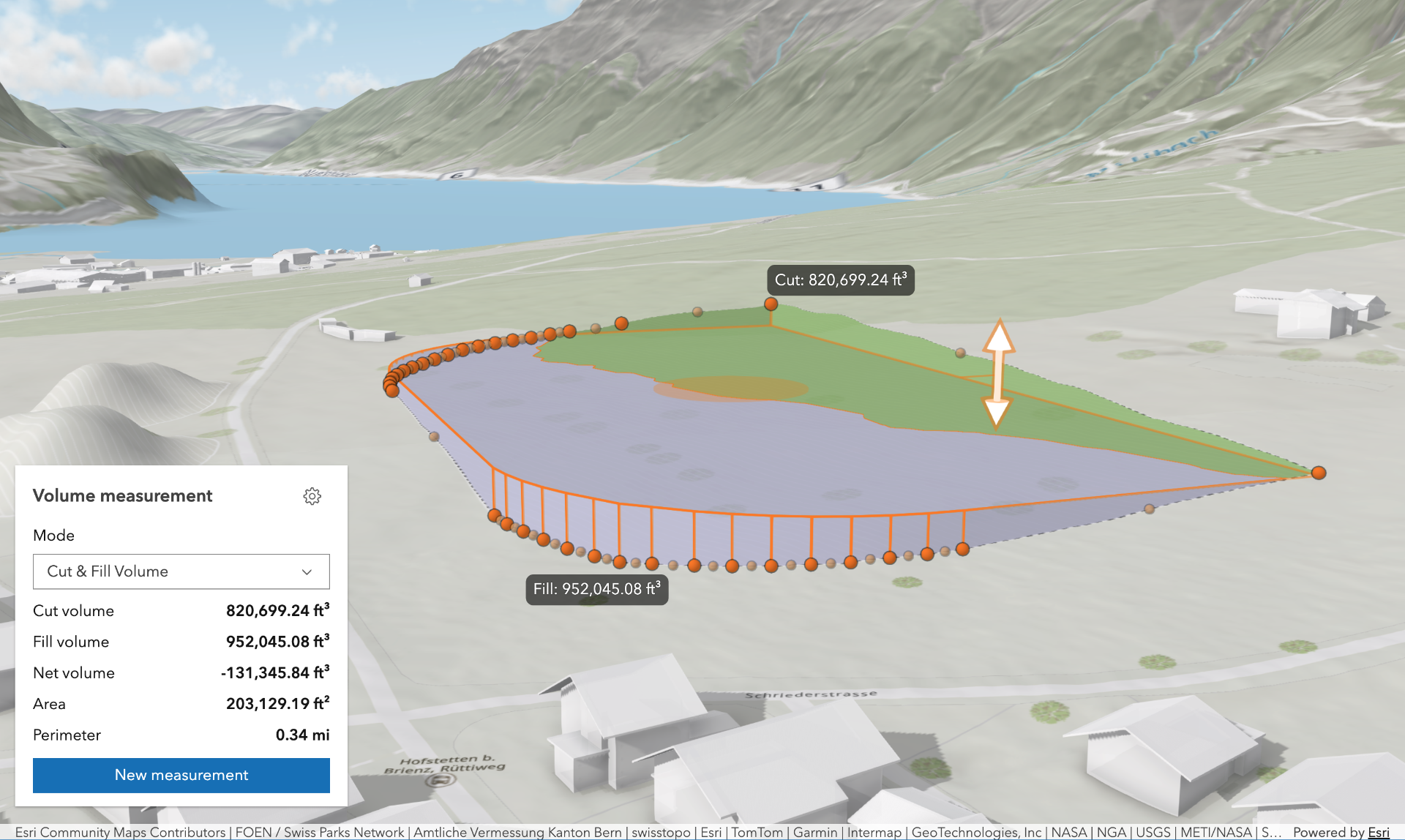\n\nThe Volume Measurement component offers multiple volume measurement modes:\n\n- **Cut & Fill Volume**: Computes cut and fill volumes relative to a flat, horizontal surface defined by the input\npolygon. Ideal for estimating the amount of material to remove or add to level terrain for construction.\n\n- **Stockpile Volume**: Calculates cut and fill volumes against a surface approximated from the polygon's coordinates.\nUseful for estimating the volume of temporary ground features such as piles of material, mounds or depressions.\n\nThe analysis depends on the scene's spatial reference, and the length of the measured perimeter:\n\n- In **Projected Coordinate Systems (PCS)**, apart from Web Mercator used in **local** viewing mode, there is no limit\nto the measurement's perimeter, making it the recommended setup for analysis as accuracy is not compromised.\n\n- In **Web Mercator PCS** used in **local** viewing mode, if the measurement's perimeter exceeds 10 km, the analysis is considered invalid due to potential accuracy issues.\n\n- In **Geographic Coordinate Systems (GCS)** and **Web Mercator** in **global** viewing mode, if the measurement's perimeter exceeds 50 km, the analysis is considered invalid due to potential accuracy issues.\n\n\n**Known Limitations**\n\n- The Volume Measurement component can only be added to a\n[arcgis-scene](https://developers.arcgis.com/javascript/latest/references/map-components/components/arcgis-scene/) component.\n- The results of the tool vary depending on the zoom level, as changes in zoom level affect the level of detail (LOD) of the scene geometry.\n- If the view is too close or too far from the measurement polygon, the results will not be computed due to LOD-induced inaccuracies.\n- The elevation of the target surface in the \"Cut & Fill Volume\" mode is restricted to the range of -11 km and +9 km.\n- This tool operates only on the non-transparent [Map.ground](https://developers.arcgis.com/javascript/latest/references/core/Map/#ground),\n[IntegratedMeshLayer](https://developers.arcgis.com/javascript/latest/references/core/layers/IntegratedMeshLayer/)\nand an [IntegratedMesh3DTilesLayer](https://developers.arcgis.com/javascript/latest/references/core/layers/IntegratedMesh3DTilesLayer/).\n- This tool does not support WGS 1984 spatial reference in a local\n[viewing mode](https://developers.arcgis.com/javascript/latest/references/core/webscene/InitialViewProperties/#viewingMode).\n\n**Things to consider**\n\n- In \"Cut & Fill Volume\" mode, you can hover over the shift manipulator, press `Tab` to enable tooltip input,\nand enter the target surface elevation.\n- Snapping is enabled by default. This can be temporarily disabled by holding the `CTRL` key.\n- Layer types currently supported for snapping are:\n[FeatureLayer](https://developers.arcgis.com/javascript/latest/references/core/layers/FeatureLayer/),\n[GraphicsLayer](https://developers.arcgis.com/javascript/latest/references/core/layers/GraphicsLayer/) (except Mesh geometries),\n[GeoJSONLayer](https://developers.arcgis.com/javascript/latest/references/core/layers/GeoJSONLayer/),\n[WFSLayer](https://developers.arcgis.com/javascript/latest/references/core/layers/WFSLayer/),\n[CSVLayer](https://developers.arcgis.com/javascript/latest/references/core/layers/CSVLayer/),\n[3D Object SceneLayer](https://developers.arcgis.com/javascript/latest/references/core/layers/SceneLayer/),\nand [BuildingSceneLayer](https://developers.arcgis.com/javascript/latest/references/core/layers/BuildingSceneLayer/).\n\n**See also**\n\n- [Volume Measurement Analysis](https://developers.arcgis.com/javascript/latest/references/core/analysis/VolumeMeasurementAnalysis/)\n- [VolumeMeasurementAnalysisView3D](https://developers.arcgis.com/javascript/latest/references/core/views/3d/analysis/VolumeMeasurementAnalysisView3D/)\n- [VolumeMeasurementResult](https://developers.arcgis.com/javascript/latest/references/core/views/3d/analysis/VolumeMeasurement/VolumeMeasurementResult/)\n- [VolumeMeasurementDisplayUnits](https://developers.arcgis.com/javascript/latest/references/core/analysis/VolumeMeasurement/VolumeMeasurementDisplayUnits/)\nand [VolumeMeasurementInputUnits](https://developers.arcgis.com/javascript/latest/references/core/analysis/VolumeMeasurement/VolumeMeasurementInputUnits/)\n- [VolumeMeasurementError](https://developers.arcgis.com/javascript/latest/references/core/views/3d/analysis/VolumeMeasurement/VolumeMeasurementError/)\n- [Sample - Volume measurement analysis object](https://developers.arcgis.com/javascript/latest/sample-code/analysis-volume-measurement/)\n--\n\n### Events\n- **arcgisPropertyChange** - Emitted when the value of a property is changed. Use this to listen to changes to properties.\n- **arcgisReady** - Emitted when the component associated with a map or scene view is ready to be interacted with.\n\n### Methods\n- `clear(): Promise<void>` - Clears the current measurement.\n- `componentOnReady(): Promise<this>` - Creates a promise that resolves once the component is fully loaded.\n- `destroy(): Promise<void>` - Permanently destroy the component.\n- `start(): Promise<void>` - Starts a new measurement.","attributes":[{"name":"area-display-unit","description":"Unit system (imperial, metric) or specific unit used for displaying the area. Possible values are listed in\n[areaDisplayUnitOptions](https://developers.arcgis.com/javascript/latest/references/map-components/components/arcgis-volume-measurement/#areaDisplayUnitOptions).","values":[{"name":"metric"},{"name":"imperial"},{"name":"square-inches"},{"name":"square-feet"},{"name":"square-yards"},{"name":"square-miles"},{"name":"square-nautical-miles"},{"name":"square-us-feet"},{"name":"square-millimeters"},{"name":"square-centimeters"},{"name":"square-decimeters"},{"name":"square-meters"},{"name":"square-kilometers"},{"name":"acres"},{"name":"ares"},{"name":"hectares"}]},{"name":"auto-destroy-disabled","description":"If true, the component will not be destroyed automatically when it is\ndisconnected from the document. This is useful when you want to move the\ncomponent to a different place on the page, or temporarily hide it. If this\nis set, make sure to call the [destroy()](https://developers.arcgis.com/javascript/latest/references/map-components/components/arcgis-volume-measurement/#destroy) method when you are done to\nprevent memory leaks.","values":[]},{"name":"elevation-display-unit","description":"Unit system (imperial, metric) or specific unit used for displaying the cut and fill target elevation. Possible values are listed in\n[elevationDisplayUnitOptions](https://developers.arcgis.com/javascript/latest/references/map-components/components/arcgis-volume-measurement/#elevationDisplayUnitOptions).","values":[{"name":"meters"},{"name":"metric"},{"name":"millimeters"},{"name":"centimeters"},{"name":"feet"},{"name":"us-feet"},{"name":"nautical-miles"},{"name":"kilometers"},{"name":"yards"},{"name":"decimeters"},{"name":"inches"},{"name":"miles"},{"name":"imperial"}]},{"name":"elevation-input-unit","description":"Unit used for inputting the cut and fill target elevation.\nPossible values are listed in [elevationInputUnitOptions](https://developers.arcgis.com/javascript/latest/references/map-components/components/arcgis-volume-measurement/#elevationInputUnitOptions).\n\nThis controls which unit is used when entering an elevation value via the tool's UI (for example, using the\nshift manipulator tooltip input in \"Cut & Fill Volume\" mode).","values":[{"name":"meters"},{"name":"millimeters"},{"name":"centimeters"},{"name":"feet"},{"name":"us-feet"},{"name":"nautical-miles"},{"name":"kilometers"},{"name":"yards"},{"name":"decimeters"},{"name":"inches"},{"name":"miles"}]},{"name":"heading-level","description":"Indicates the heading level to use for the headings in the component.","values":[{"name":"1"},{"name":"2"},{"name":"3"},{"name":"4"},{"name":"5"},{"name":"6"}]},{"name":"hide-area-display-unit-select","description":"If true, the area display unit dropdown will be hidden.","values":[]},{"name":"hide-elevation-display-unit-select","description":"If true, the elevation display unit dropdown will be hidden.","values":[]},{"name":"hide-elevation-input-unit-select","description":"If true, the elevation input unit dropdown will be hidden.","values":[]},{"name":"hide-header","description":"If true, the header will be hidden.","values":[]},{"name":"hide-mode-select","description":"If true, the mode selection dropdown will be hidden.","values":[]},{"name":"hide-perimeter-display-unit-select","description":"If true, the perimeter display unit dropdown will be hidden.","values":[]},{"name":"hide-settings-button","description":"If true, the settings button that opens the settings popover will be hidden.","values":[]},{"name":"hide-start-button","description":"If true, the button that starts a new measurement will be hidden.","values":[]},{"name":"hide-visualization","description":"Indicates whether the component's visualization is hidden in the view.","values":[]},{"name":"hide-volume-display-unit-select","description":"If true, the volume display unit dropdown will be hidden.","values":[]},{"name":"icon","description":"Icon which represents the component.\nTypically used when the component is controlled by another component (e.g. by the Expand component).","values":[]},{"name":"label","description":"The component's default label.","values":[]},{"name":"mode","description":"Specifies the analysis' desired measurement type.","values":[{"name":"cut-fill"},{"name":"stockpile"}]},{"name":"perimeter-display-unit","description":"Unit system (imperial, metric) or specific unit used for displaying the perimeter values. Possible values are\nlisted in [perimeterDisplayUnitOptions](https://developers.arcgis.com/javascript/latest/references/map-components/components/arcgis-volume-measurement/#perimeterDisplayUnitOptions).","values":[{"name":"meters"},{"name":"metric"},{"name":"millimeters"},{"name":"centimeters"},{"name":"feet"},{"name":"us-feet"},{"name":"nautical-miles"},{"name":"kilometers"},{"name":"yards"},{"name":"decimeters"},{"name":"inches"},{"name":"miles"},{"name":"imperial"}]},{"name":"reference-element","description":"By assigning the `id` attribute of the Map or Scene component to this property, you can position a child component anywhere in the DOM while still maintaining a connection to the Map or Scene.","values":[]},{"name":"volume-display-unit","description":"Unit system (imperial, metric) or specific unit used for displaying the volume values. Possible values are listed in\n[volumeDisplayUnitOptions](https://developers.arcgis.com/javascript/latest/references/map-components/components/arcgis-volume-measurement/#volumeDisplayUnitOptions).","values":[{"name":"metric"},{"name":"imperial"},{"name":"cubic-inches"},{"name":"cubic-feet"},{"name":"cubic-yards"},{"name":"cubic-miles"},{"name":"cubic-us-feet"},{"name":"liters"},{"name":"megaliters"},{"name":"gigaliters"},{"name":"cubic-millimeters"},{"name":"cubic-centimeters"},{"name":"cubic-decimeters"},{"name":"cubic-meters"},{"name":"cubic-kilometers"}]}],"references":[{"name":"Docs","url":"https://developers.arcgis.com/javascript/latest/references/map-components/components/arcgis-volume-measurement/"},{"name":"Volume Measurement","url":"https://developers.arcgis.com/javascript/latest/storybook/map-components/?path=/story/arcgis-volume-measurement--demo&singleStory=true"}]},{"name":"arcgis-weather","description":"The Weather component allows easy selection and configuration of weather effects in a\n[arcgis-scene](https://developers.arcgis.com/javascript/latest/references/map-components/components/arcgis-scene/) component.\nThe available weather types are:\n[sunny](https://developers.arcgis.com/javascript/latest/references/core/views/3d/environment/SunnyWeather/),\n[cloudy](https://developers.arcgis.com/javascript/latest/references/core/views/3d/environment/CloudyWeather/),\n[rainy](https://developers.arcgis.com/javascript/latest/references/core/views/3d/environment/RainyWeather/),\n[snowy](https://developers.arcgis.com/javascript/latest/references/core/views/3d/environment/SnowyWeather/), and\n[foggy](https://developers.arcgis.com/javascript/latest/references/core/views/3d/environment/FoggyWeather/).\n\nTo set the weather programmatically, apply the desired weather type to the\n[arcgis-scene.environment](https://developers.arcgis.com/javascript/latest/references/map-components/components/arcgis-scene/#environment) property of the Scene component.\n\n```js\n// Access the Scene component.\nconst viewElement = document.querySelector(\"arcgis-scene\");\nawait viewElement.viewOnReady();\n// Specify the weather settings.\nviewElement.environment.weather = {\n type: \"rainy\", // autocasts as new RainyWeather({ cloudCover: 0.7, precipitation: 0.3 })\n cloudCover: 0.7,\n precipitation: 0.3\n};\n```\n\nTo determine if the weather visualization is available, check the boolean value of `viewElement.environment.weatherAvailable`. The weather is only available:\n * in `global` [arcgis-scene.viewingMode](https://developers.arcgis.com/javascript/latest/references/map-components/components/arcgis-scene/#viewingMode),\n * when `atmosphereEnabled` property on [arcgis-scene.environment](https://developers.arcgis.com/javascript/latest/references/map-components/components/arcgis-scene/#environment) is `true`,\n * at lower altitudes, near the ground.\n\n**Known limitations**\n\nWeather is only supported in a 3D [arcgis-scene](https://developers.arcgis.com/javascript/latest/references/map-components/components/arcgis-scene/) component.\n\n**See also**\n\n- [SunnyWeather](https://developers.arcgis.com/javascript/latest/references/core/views/3d/environment/SunnyWeather/)\n- [CloudyWeather](https://developers.arcgis.com/javascript/latest/references/core/views/3d/environment/CloudyWeather/)\n- [RainyWeather](https://developers.arcgis.com/javascript/latest/references/core/views/3d/environment/RainyWeather/)\n- [SnowyWeather](https://developers.arcgis.com/javascript/latest/references/core/views/3d/environment/SnowyWeather/)\n- [FoggyWeather](https://developers.arcgis.com/javascript/latest/references/core/views/3d/environment/FoggyWeather/)\n- [Sample - Weather component](https://developers.arcgis.com/javascript/latest/sample-code/weather/)\n--\n\n### Events\n- **arcgisPropertyChange** - Emitted when the value of a property is changed. Use this to listen to changes to properties.\n- **arcgisReady** - Emitted when the component associated with a map or scene view is ready to be interacted with.\n\n### Methods\n- `componentOnReady(): Promise<this>` - Creates a promise that resolves once the component is fully loaded.\n- `destroy(): Promise<void>` - Permanently destroy the component.","attributes":[{"name":"auto-destroy-disabled","description":"If true, the component will not be destroyed automatically when it is\ndisconnected from the document. This is useful when you want to move the\ncomponent to a different place on the page, or temporarily hide it. If this\nis set, make sure to call the [destroy()](https://developers.arcgis.com/javascript/latest/references/map-components/components/arcgis-weather/#destroy) method when you are done to\nprevent memory leaks.","values":[]},{"name":"heading-level","description":"Indicates the heading level to use for the title of the component. By default, this message is rendered as a level 4\nheading (e.g. `<h4>Time range</h4>`). Depending on the component's placement in your app, you may need to adjust\nthis heading for proper semantics. This is important for meeting accessibility standards.","values":[{"name":"1"},{"name":"2"},{"name":"3"},{"name":"4"},{"name":"5"},{"name":"6"}]},{"name":"hide-header","description":"Whether to hide the component's header.","values":[]},{"name":"icon","description":"Icon which represents the component.\nTypically used when the component is controlled by another component (e.g. by the Expand component).","values":[]},{"name":"label","description":"The component's default label.","values":[]},{"name":"reference-element","description":"By assigning the `id` attribute of the Map or Scene component to this property, you can position a child component anywhere in the DOM while still maintaining a connection to the Map or Scene.","values":[]}],"references":[{"name":"Docs","url":"https://developers.arcgis.com/javascript/latest/references/map-components/components/arcgis-weather/"},{"name":"Weather","url":"https://developers.arcgis.com/javascript/latest/storybook/map-components/?path=/story/arcgis-weather--demo&singleStory=true"}]},{"name":"arcgis-zoom","description":"The Zoom component allows users to zoom in/out within a map or scene.\n--\n\n### Events\n- **arcgisActionZoom** - Emitted when one of the zoom controls is activated.\n- **arcgisPropertyChange** - Emitted when the value of a property is changed. Use this to listen to changes to properties.\n- **arcgisReady** - Emitted when the component associated with a map or scene view is ready to be interacted with.\n\n### Methods\n- `componentOnReady(): Promise<this>` - Creates a promise that resolves once the component is fully loaded.\n- `destroy(): Promise<void>` - Permanently destroy the component.\n- `zoomIn(): Promise<void>` - Zooms the view in by an LOD factor of 0.5.\n- `zoomOut(): Promise<void>` - Zooms the view out by an LOD factor of 2.","attributes":[{"name":"auto-destroy-disabled","description":"If true, the component will not be destroyed automatically when it is\ndisconnected from the document. This is useful when you want to move the\ncomponent to a different place on the page, or temporarily hide it. If this\nis set, make sure to call the [destroy()](https://developers.arcgis.com/javascript/latest/references/map-components/components/arcgis-zoom/#destroy) method when you are done to\nprevent memory leaks.","values":[]},{"name":"icon","description":"Icon which represents the component.\nTypically used when the component is controlled by another component (e.g. by the Expand component).","values":[]},{"name":"label","description":"The component's default label.","values":[]},{"name":"layout","description":"Determines the layout/orientation of the Zoom component.","values":[{"name":"horizontal"},{"name":"vertical"}]},{"name":"reference-element","description":"By assigning the `id` attribute of the Map or Scene component to this property, you can position a child component anywhere in the DOM while still maintaining a connection to the Map or Scene.","values":[]},{"name":"visual-scale","description":"Specifies the size of the component.","values":[{"name":"s"},{"name":"m"},{"name":"l"}]}],"references":[{"name":"Docs","url":"https://developers.arcgis.com/javascript/latest/references/map-components/components/arcgis-zoom/"},{"name":"Zoom","url":"https://developers.arcgis.com/javascript/latest/storybook/map-components/?path=/story/arcgis-zoom--demo&singleStory=true"}]}]}
|
|
1
|
+
{"$schema":"https://raw.githubusercontent.com/microsoft/vscode-html-languageservice/main/docs/customData.schema.json","version":1.1,"tags":[{"name":"arcgis-area-measurement-2d","description":"The Area Measurement 2D component can be added to an [arcgis-map](https://developers.arcgis.com/javascript/latest/references/map-components/components/arcgis-map/)\ncomponent to calculate and display the area and perimeter of a polygon.\n\nHow areas and perimeters are computed depends on the map's spatial reference.\n\nIn **geographic coordinate systems** (GCS), and in **Web Mercator**, areas and perimeters are computed geodetically, taking into consideration the curvature of the planet.\n\nIn **projected coordinate systems** (PCS), apart from Web Mercator, areas and perimeters are computed in a Euclidean manner (in their respective PCS).\n--\n\n### Events\n- **arcgisPropertyChange** - Emitted when the value of a property is changed. Use this to listen to changes to properties.\n- **arcgisReady** - Emitted when the component associated with a map or scene view is ready to be interacted with.\n\n### Methods\n- `clear(): Promise<void>` - Clears the current measurement.\n- `componentOnReady(): Promise<this>` - Creates a promise that resolves once the component is fully loaded.\n- `destroy(): Promise<void>` - Permanently destroy the component.\n- `start(): Promise<void>` - Starts a new measurement.","attributes":[{"name":"auto-destroy-disabled","description":"If true, the component will not be destroyed automatically when it is\ndisconnected from the document. This is useful when you want to move the\ncomponent to a different place on the page, or temporarily hide it. If this\nis set, make sure to call the [destroy()](https://developers.arcgis.com/javascript/latest/references/map-components/components/arcgis-area-measurement-2d/#destroy) method when you are done to\nprevent memory leaks.","values":[]},{"name":"hide-start-button","description":"If true, the button that starts a new measurement will be hidden.","values":[]},{"name":"hide-unit-select","description":"If true, the unit selection dropdown will be hidden.","values":[]},{"name":"hide-visualization","description":"Indicates whether the component's visualization is hidden in the view.","values":[]},{"name":"icon","description":"Icon which represents the component.\nTypically used when the component is controlled by another component (e.g. by the Expand component).","values":[]},{"name":"label","description":"The component's default label.","values":[]},{"name":"reference-element","description":"By assigning the `id` attribute of the Map or Scene component to this property, you can position a child component anywhere in the DOM while still maintaining a connection to the Map or Scene.","values":[]},{"name":"unit","description":"Unit system (imperial, metric) or specific unit used for displaying the distance values. Possible values are listed in\n[unitOptions](https://developers.arcgis.com/javascript/latest/references/map-components/components/arcgis-area-measurement-2d/#unitOptions).","values":[{"name":"metric"},{"name":"imperial"},{"name":"square-inches"},{"name":"square-feet"},{"name":"square-yards"},{"name":"square-miles"},{"name":"square-nautical-miles"},{"name":"square-us-feet"},{"name":"square-millimeters"},{"name":"square-centimeters"},{"name":"square-decimeters"},{"name":"square-meters"},{"name":"square-kilometers"},{"name":"acres"},{"name":"ares"},{"name":"hectares"}]}],"references":[{"name":"Docs","url":"https://developers.arcgis.com/javascript/latest/references/map-components/components/arcgis-area-measurement-2d/"},{"name":"Area Measurement 2D","url":"https://developers.arcgis.com/javascript/latest/storybook/map-components/?path=/story/arcgis-area-measurement-2d--demo&singleStory=true"}]},{"name":"arcgis-area-measurement-3d","description":"The Area Measurement 3D component can be added to an [arcgis-scene](https://developers.arcgis.com/javascript/latest/references/map-components/components/arcgis-scene/)\ncomponent to calculate and display area and perimeter of polygons.\n\n[](https://developers.arcgis.com/javascript/latest/sample-code/measurement-3d/)\n\nHow the area and perimeter are computed depends on the scene's spatial reference and the length of the measured perimeter.\n\nIn **geographic coordinate systems** (GCS) and in **Web Mercator**:\n- If the measurement's perimeter is below 100 km, they are computed in a Euclidean manner,\n in an [ECEF](https://en.wikipedia.org/wiki/ECEF) coordinate system (or equivalent on other planets).\n- If the perimeter is above 100 km, they are computed geodetically, and the visualization takes\n the curvature of the planet into consideration.\n\nIn **projected coordinate systems** (PCS), apart from Web Mercator, the area and perimeter\nare always calculated in a Euclidean manner (in their respective PCS).\n\nThe area may be visualized and calculated in two ways:\n1. If all the vertices are mostly coplanar (lying on the same plane),\n the measurement polygon is formed on that plane, and area and perimeter are calculated from its geometry.\n2. If the vertices don't form a planar surface, the measurement polygon\n is projected to a horizontal plane, and area and perimeter are calculated from its geometry.\n\n\n\nWhen the component is active, a horizontal \"laser\" line is drawn which indicates the height at the current mouse position.\nThis line can help in analyzing the heights of objects relative to each other and the terrain.\n\n**Things to consider**\n\n* Area Measurement 3D is designed to work in the Scene component. For measurements in the [arcgis-map](https://developers.arcgis.com/javascript/latest/references/map-components/components/arcgis-map/)\ncomponent, use [arcgis-area-measurement-2d](https://developers.arcgis.com/javascript/latest/references/map-components/components/arcgis-area-measurement-2d/).\n* Snapping is enabled by default. Holding the `CTRL` key disables it.\n* Layer types currently supported for snapping are:\n[FeatureLayer](https://developers.arcgis.com/javascript/latest/references/core/layers/FeatureLayer/),\n[GraphicsLayer](https://developers.arcgis.com/javascript/latest/references/core/layers/GraphicsLayer/) (except Mesh geometries),\n[GeoJSONLayer](https://developers.arcgis.com/javascript/latest/references/core/layers/GeoJSONLayer/),\n[WFSLayer](https://developers.arcgis.com/javascript/latest/references/core/layers/WFSLayer/),\n[CSVLayer](https://developers.arcgis.com/javascript/latest/references/core/layers/CSVLayer/),\n[3D Object SceneLayer](https://developers.arcgis.com/javascript/latest/references/core/layers/SceneLayer/),\nand [BuildingSceneLayer](https://developers.arcgis.com/javascript/latest/references/core/layers/BuildingSceneLayer/).\n\n**See also**\n\n- [AreaMeasurementAnalysis](https://developers.arcgis.com/javascript/latest/references/core/analysis/AreaMeasurementAnalysis/)\n- [Sample - Measurement in 3D](https://developers.arcgis.com/javascript/latest/sample-code/measurement-3d/)\n- [Sample - Analysis objects](https://developers.arcgis.com/javascript/latest/sample-code/analysis-objects/)\n--\n\n### Events\n- **arcgisPropertyChange** - Emitted when the value of a property is changed. Use this to listen to changes to properties.\n- **arcgisReady** - Emitted when the component associated with a map or scene view is ready to be interacted with.\n\n### Methods\n- `clear(): Promise<void>` - Clears the current measurement.\n- `componentOnReady(): Promise<this>` - Creates a promise that resolves once the component is fully loaded.\n- `destroy(): Promise<void>` - Permanently destroy the component.\n- `start(): Promise<void>` - Starts a new measurement.","attributes":[{"name":"auto-destroy-disabled","description":"If true, the component will not be destroyed automatically when it is\ndisconnected from the document. This is useful when you want to move the\ncomponent to a different place on the page, or temporarily hide it. If this\nis set, make sure to call the [destroy()](https://developers.arcgis.com/javascript/latest/references/map-components/components/arcgis-area-measurement-3d/#destroy) method when you are done to\nprevent memory leaks.","values":[]},{"name":"hide-start-button","description":"If true, the button that starts a new measurement will be hidden.","values":[]},{"name":"hide-unit-select","description":"If true, the unit selection dropdown will be hidden.","values":[]},{"name":"hide-visualization","description":"Indicates whether the component's visualization is hidden in the view.","values":[]},{"name":"icon","description":"Icon which represents the component.\nTypically used when the component is controlled by another component (e.g. by the Expand component).","values":[]},{"name":"label","description":"The component's default label.","values":[]},{"name":"reference-element","description":"By assigning the `id` attribute of the Map or Scene component to this property, you can position a child component anywhere in the DOM while still maintaining a connection to the Map or Scene.","values":[]},{"name":"unit","description":"Unit system (imperial, metric) or specific unit used for displaying the area values. Possible values are listed in\n[unitOptions](https://developers.arcgis.com/javascript/latest/references/map-components/components/arcgis-area-measurement-3d/#unitOptions).","values":[{"name":"metric"},{"name":"imperial"},{"name":"square-inches"},{"name":"square-feet"},{"name":"square-yards"},{"name":"square-miles"},{"name":"square-nautical-miles"},{"name":"square-us-feet"},{"name":"square-millimeters"},{"name":"square-centimeters"},{"name":"square-decimeters"},{"name":"square-meters"},{"name":"square-kilometers"},{"name":"acres"},{"name":"ares"},{"name":"hectares"}]}],"references":[{"name":"Docs","url":"https://developers.arcgis.com/javascript/latest/references/map-components/components/arcgis-area-measurement-3d/"},{"name":"Area Measurement 3D","url":"https://developers.arcgis.com/javascript/latest/storybook/map-components/?path=/story/arcgis-area-measurement-3d--demo&singleStory=true"}]},{"name":"arcgis-attachments","description":"### Events\n- **arcgisPropertyChange** - Emitted when the value of a property is changed. Use this to listen to changes to properties.\n- **arcgisReady** - Emitted when the component associated with a map or scene view is ready to be interacted with.\n\n### Methods\n- `componentOnReady(): Promise<this>` - Creates a promise that resolves once the component is fully loaded.\n- `destroy(): Promise<void>` - Permanently destroy the component.","attributes":[{"name":"auto-destroy-disabled","description":"If true, the component will not be destroyed automatically when it is\ndisconnected from the document. This is useful when you want to move the\ncomponent to a different place on the page, or temporarily hide it. If this\nis set, make sure to call the [destroy()](https://developers.arcgis.com/javascript/latest/references/map-components/components/arcgis-attachments/#destroy) method when you are done to\nprevent memory leaks.","values":[]},{"name":"display-type","description":"String indicating how to [display](https://developers.arcgis.com/javascript/latest/references/core/widgets/Attachments/#displayType) the attachments.\n\n| Value | Description |\n| ------ | ----------- |\n| auto | Default value. If a feature layer's capabilities supports [resizing attachments](https://developers.arcgis.com/javascript/latest/references/core/layers/FeatureLayer/#capabilities), the popup will display attachments in `preview` mode.|\n| preview | Shows a thumbnail image of the attachment.|\n| list | Shows a list of attachment links. |","values":[{"name":"list"},{"name":"auto"},{"name":"preview"}]},{"name":"hide-add-button","description":"Indicates whether to hide the `Add` button which prompts the dialog to add a new attachment.","values":[]},{"name":"hide-add-submit-button","description":"Indicates whether to hide the `add` button after selecting the attachment to add..","values":[]},{"name":"hide-cancel-add-button","description":"Indicates whether to hide the `cancel` button after selecting the attachment to add.","values":[]},{"name":"hide-cancel-update-button","description":"Indicates whether to hide the `cancel` button after selecting an attachment to update an existing attachment.","values":[]},{"name":"hide-delete-button","description":"Indicates whether to hide the `delete` button to delete an existing attachment.","values":[]},{"name":"hide-error-message","description":"Indicates whether to hide an error message if adding or updating an attachment results in errors.","values":[]},{"name":"hide-progress-bar","description":"Indicates whether to hide a progress bar when adding an attachment.","values":[]},{"name":"hide-update-button","description":"Indicates whether to hide an `update` button to allow updating on existing attachments.","values":[]},{"name":"icon","description":"Icon which represents the component.\nTypically used when the component is controlled by another component (e.g. by the Expand component).","values":[]},{"name":"label","description":"The component's default label.","values":[]},{"name":"reference-element","description":"By assigning the `id` attribute of the Map or Scene component to this property, you can position a child component anywhere in the DOM while still maintaining a connection to the Map or Scene.","values":[]}],"references":[{"name":"Docs","url":"https://developers.arcgis.com/javascript/latest/references/map-components/components/arcgis-attachments/"}]},{"name":"arcgis-basemap-gallery","description":"The Basemap Gallery component displays a collection images representing basemaps from [ArcGIS.com](https://www.arcgis.com/index.html) or a user-defined set of map or image services. When a new basemap is selected from the Basemap Gallery, the map's basemap layers are removed and replaced with the basemap layers of the associated basemap selected in the gallery.\n--\n\n### Events\n- **arcgisPropertyChange** - Emitted when the value of a property is changed. Use this to listen to changes to properties.\n- **arcgisReady** - Emitted when the component associated with a map or scene view is ready to be interacted with.\n\n### Methods\n- `componentOnReady(): Promise<this>` - Creates a promise that resolves once the component is fully loaded.\n- `destroy(): Promise<void>` - Permanently destroy the component.","attributes":[{"name":"active-basemap","description":"The map's current [basemap](https://developers.arcgis.com/javascript/latest/references/core/Map/#basemap).","values":[]},{"name":"auto-destroy-disabled","description":"If true, the component will not be destroyed automatically when it is\ndisconnected from the document. This is useful when you want to move the\ncomponent to a different place on the page, or temporarily hide it. If this\nis set, make sure to call the [destroy()](https://developers.arcgis.com/javascript/latest/references/map-components/components/arcgis-basemap-gallery/#destroy) method when you are done to\nprevent memory leaks.","values":[]},{"name":"disabled","description":"When true, the component is visually withdrawn and cannot receive user interaction.","values":[]},{"name":"heading-level","description":"Indicates the heading level to use for the message \"No basemaps available\"\nwhen no basemaps are available in the Basemap Gallery.","values":[{"name":"1"},{"name":"2"},{"name":"3"},{"name":"4"},{"name":"5"},{"name":"6"}]},{"name":"icon","description":"Icon which represents the component.\nTypically used when the component is controlled by another component (e.g. by the Expand component).","values":[]},{"name":"label","description":"The component's default label.","values":[]},{"name":"reference-element","description":"By assigning the `id` attribute of the Map or Scene component to this property, you can position a child component anywhere in the DOM while still maintaining a connection to the Map or Scene.","values":[]}],"references":[{"name":"Docs","url":"https://developers.arcgis.com/javascript/latest/references/map-components/components/arcgis-basemap-gallery/"},{"name":"Basemap Gallery","url":"https://developers.arcgis.com/javascript/latest/storybook/map-components/?path=/story/arcgis-basemap-gallery--demo&singleStory=true"}]},{"name":"arcgis-basemap-layer-list","description":"The Basemap Layer List component provides a way to display a list of [Basemap](https://developers.arcgis.com/javascript/latest/references/core/Basemap/) layers and switch on/off their visibility. [Base layers](https://developers.arcgis.com/javascript/latest/references/core/Basemap/#baseLayers) and [reference layers](https://developers.arcgis.com/javascript/latest/references/core/Basemap/#referenceLayers) are divided into separate sections. When editing is enabled, layers can be reordered by dragging and dropping between the lists and the title can be edited.\n--\n\n### Events\n- **arcgisClose** - Emitted when the component's close button is clicked.\n- **arcgisPropertyChange** - Emitted when the value of a property is changed. Use this to listen to changes to properties.\n- **arcgisReady** - Emitted when the component associated with a map or scene view is ready to be interacted with.\n- **arcgisTriggerAction** - Emitted when an action is triggered on the component.\n\n### Methods\n- `componentOnReady(): Promise<this>` - Creates a promise that resolves once the component is fully loaded.\n- `destroy(): Promise<void>` - Permanently destroy the component.","attributes":[{"name":"auto-destroy-disabled","description":"If true, the component will not be destroyed automatically when it is\ndisconnected from the document. This is useful when you want to move the\ncomponent to a different place on the page, or temporarily hide it. If this\nis set, make sure to call the [destroy()](https://developers.arcgis.com/javascript/latest/references/map-components/components/arcgis-basemap-layer-list/#destroy) method when you are done to\nprevent memory leaks.","values":[]},{"name":"base-filter-text","description":"The value of the filter input text string if [showFilter](https://developers.arcgis.com/javascript/latest/references/map-components/components/arcgis-basemap-layer-list/#showFilter) is true.","values":[]},{"name":"basemap-title","description":"The current basemap's title.","values":[]},{"name":"closed","description":"Indicates whether a component is closed. When `true`, the component will be hidden.","values":[]},{"name":"collapsed","description":"Indicates whether the component is collapsed.\nWhen collapsed, only the collapse button and heading are displayed.","values":[]},{"name":"drag-enabled","description":"Indicates whether [list items](https://developers.arcgis.com/javascript/latest/references/core/widgets/LayerList/ListItem/) may be reordered within the list by dragging and dropping.\nMapImageLayer [sublayers](https://developers.arcgis.com/javascript/latest/references/core/layers/MapImageLayer/#sublayers) can be reordered only within their parent MapImageLayer and can not be dragged out as a separate layer.","values":[]},{"name":"editing-title","description":"Indicates whether the form to edit the basemap's title is currently visible.\nAny edits made will only be shown locally and will not be saved.","values":[]},{"name":"filter-placeholder","description":"Placeholder text used in the filter input if [showFilter](https://developers.arcgis.com/javascript/latest/references/map-components/components/arcgis-basemap-layer-list/#showFilter) is true.","values":[]},{"name":"heading-level","description":"Indicates the heading level to use for the component's title (i.e. \"Navigation\").\nBy default, the basemap's title is rendered\nas a level 2 heading (e.g. `<h2>Navigation</h2>`). Depending on the component's placement\nin your app, you may need to adjust this heading for proper semantics. This is\nimportant for meeting accessibility standards.","values":[{"name":"1"},{"name":"2"},{"name":"3"},{"name":"4"},{"name":"5"},{"name":"6"}]},{"name":"hide-base-layers","description":"Indicates whether the base layers will be displayed.","values":[]},{"name":"hide-heading","description":"Indicates whether the basemap layer list displays a heading. The heading text is the title of the basemap. The heading level can be set with the [BasemapLayerList#headingLevel](https://developers.arcgis.com/javascript/latest/references/core/widgets/BasemapLayerList/#headingLevel).","values":[]},{"name":"hide-reference-layers","description":"Indicates whether to the reference layers will be displayed.","values":[]},{"name":"hide-status-indicators","description":"Indicates whether the status indicators will be displayed.","values":[]},{"name":"icon","description":"Icon which represents the component.\nTypically used when the component is controlled by another component (e.g. by the Expand component).","values":[]},{"name":"label","description":"The component's default label.","values":[]},{"name":"min-filter-items","description":"The minimum number of list items required to display the [showFilter](https://developers.arcgis.com/javascript/latest/references/map-components/components/arcgis-basemap-layer-list/#showFilter) input box.","values":[]},{"name":"reference-element","description":"By assigning the `id` attribute of the Map or Scene component to this property, you can position a child component anywhere in the DOM while still maintaining a connection to the Map or Scene.","values":[]},{"name":"reference-filter-text","description":"The value of the filter input text string if [showFilter](https://developers.arcgis.com/javascript/latest/references/map-components/components/arcgis-basemap-layer-list/#showFilter) is true.","values":[]},{"name":"selection-mode","description":"Specifies the selection mode.\nSelected items are available in the [selectedItems](https://developers.arcgis.com/javascript/latest/references/core/widgets/BasemapLayerList/#selectedItems) property.\n\n| Value | Description |\n| ----- | ----------- |\n| multiple | Allows any number of items to be selected at once. This is useful when you want to apply an operation to multiple items at the same time. |\n| none | Disables selection. Use this when you want to prevent selecting items. |\n| single | Allows only one item to be selected at a time. If another item is selected, the previous selection is cleared. This is useful when you want to ensure that a maximum of one item is selected at a time. |\n| single-persist | Allows only one item to be selected at a time and prevents de-selection. Once an item is selected, it remains selected until another item is selected. This is useful when you want to ensure that there is always exactly one selected item. |","values":[{"name":"multiple"},{"name":"single"},{"name":"none"},{"name":"single-persist"}]},{"name":"show-close-button","description":"Indicates whether to display a close button in the header.","values":[]},{"name":"show-collapse-button","description":"Indicates whether to display a collapse button in the header.","values":[]},{"name":"show-edit-title-button","description":"Indicates whether to display a button in the header to edit the basemap title.","values":[]},{"name":"show-errors","description":"Indicates whether to display layers with load errors.","values":[]},{"name":"show-filter","description":"Indicates whether to display a filter input box when then number of list items is equal to or greater than the value set in [BasemapLayerList#minFilterItems](https://developers.arcgis.com/javascript/latest/references/core/widgets/BasemapLayerList/#minFilterItems), allowing users to filter layers by their title.","values":[]},{"name":"show-temporary-layer-indicators","description":"Indicates whether temporary layer indicators will be displayed for layers with [Layer#persistenceEnabled](https://developers.arcgis.com/javascript/latest/references/core/layers/Layer/#persistenceEnabled) set to `false`. A [temporary icon](https://developers.arcgis.com/calcite-design-system/icons/?icon=temporary&library=Calcite%20UI&query=temporary) will be displayed on the near side of the layer title.","values":[]},{"name":"visibility-appearance","description":"Determines the icons used to indicate visibility.\n\n| Value | Description | Example |\n| ----- | ----------- | ------- |\n| default | Displays view icons on the far side. Icons are hidden except on hover or if they have keyboard focus. See [view-visible](https://developers.arcgis.com/calcite-design-system/icons/?icon=view-visible&library=Calcite%20UI&query=view) and [view-hide](https://developers.arcgis.com/calcite-design-system/icons/?icon=view-hide&library=Calcite%20UI&query=view) calcite icons. |  |\n| checkbox | Displays checkbox icons on the near side. See [check-square-f](https://developers.arcgis.com/calcite-design-system/icons/?icon=check-square-f&library=Calcite%20UI&query=check) and [square](https://developers.arcgis.com/calcite-design-system/icons/?icon=square&library=Calcite%20UI&query=square) calcite icons. |  |","values":[{"name":"default"},{"name":"checkbox"}]}],"references":[{"name":"Docs","url":"https://developers.arcgis.com/javascript/latest/references/map-components/components/arcgis-basemap-layer-list/"},{"name":"Basemap Layer List","url":"https://developers.arcgis.com/javascript/latest/storybook/map-components/?path=/story/arcgis-basemap-layer-list--demo&singleStory=true"}]},{"name":"arcgis-basemap-toggle","description":"The Basemap Toggle component allows an end-user to switch between two basemaps.\n\nThe basemaps can have different spatial references.\n--\n\n### Events\n- **arcgisPropertyChange** - Emitted when the value of a property is changed. Use this to listen to changes to properties.\n- **arcgisReady** - Emitted when the component associated with a map or scene view is ready to be interacted with.\n\n### Methods\n- `componentOnReady(): Promise<this>` - Creates a promise that resolves once the component is fully loaded.\n- `destroy(): Promise<void>` - Permanently destroy the component.\n- `toggle(): Promise<any>` - Toggles to the [nextBasemap](https://developers.arcgis.com/javascript/latest/references/map-components/components/arcgis-basemap-toggle/#nextBasemap).","attributes":[{"name":"auto-destroy-disabled","description":"If true, the component will not be destroyed automatically when it is\ndisconnected from the document. This is useful when you want to move the\ncomponent to a different place on the page, or temporarily hide it. If this\nis set, make sure to call the [destroy()](https://developers.arcgis.com/javascript/latest/references/map-components/components/arcgis-basemap-toggle/#destroy) method when you are done to\nprevent memory leaks.","values":[]},{"name":"icon","description":"Icon which represents the component.\nTypically used when the component is controlled by another component (e.g. by the Expand component).","values":[]},{"name":"label","description":"The component's default label.","values":[]},{"name":"next-basemap","description":"The next basemap for toggling.","values":[]},{"name":"reference-element","description":"By assigning the `id` attribute of the Map or Scene component to this property, you can position a child component anywhere in the DOM while still maintaining a connection to the Map or Scene.","values":[]},{"name":"show-title","description":"Indicates if the Basemap title is displayed.","values":[]}],"references":[{"name":"Docs","url":"https://developers.arcgis.com/javascript/latest/references/map-components/components/arcgis-basemap-toggle/"},{"name":"Basemap Toggle","url":"https://developers.arcgis.com/javascript/latest/storybook/map-components/?path=/story/arcgis-basemap-toggle--demo&singleStory=true"}]},{"name":"arcgis-bookmarks","description":"The Bookmarks component allows end users to quickly navigate to a particular area of interest.\nIt displays a list of [bookmarks](https://developers.arcgis.com/javascript/latest/references/core/webmap/Bookmark/),\nwhich are typically defined inside the [WebMap](https://developers.arcgis.com/javascript/latest/references/core/WebMap/#bookmarks).\n\nEach bookmark may contain the following properties: `name`, `thumbnail`, `viewpoint` (defines rotation, scale, and target geometry), and `timeExtent`.\nWhen a bookmark with a timeExtent is selected, the [arcgis-map.timeExtent](https://developers.arcgis.com/javascript/latest/references/map-components/components/arcgis-map/#timeExtent) of the Map will be set to the timeExtent of the selected bookmark.\nTo disable time capability in the Bookmarks component, set [timeDisabled](https://developers.arcgis.com/javascript/latest/references/map-components/components/arcgis-bookmarks/#timeDisabled) to `true`.\n\nThe Bookmarks component can be used to create, edit, reorder, and delete bookmarks.\nTo enable these features, set the following properties to `true`:\n[showAddBookmarkButton](https://developers.arcgis.com/javascript/latest/references/map-components/components/arcgis-bookmarks/#showAddBookmarkButton), [showEditBookmarkButton](https://developers.arcgis.com/javascript/latest/references/map-components/components/arcgis-bookmarks/#showEditBookmarkButton), and [dragEnabled](https://developers.arcgis.com/javascript/latest/references/map-components/components/arcgis-bookmarks/#dragEnabled).\n\n**Note:** Bookmarks are supported in a 3D [Scene](https://developers.arcgis.com/javascript/latest/references/map-components/components/arcgis-scene/) only if they come from a [WebMap](https://developers.arcgis.com/javascript/latest/references/core/WebMap/#bookmarks) or are provided manually from [bookmarks](https://developers.arcgis.com/javascript/latest/references/map-components/components/arcgis-bookmarks/#bookmarks). [Presentation](https://developers.arcgis.com/javascript/latest/references/core/webscene/Presentation/) provides a similar experience for [WebScenes](https://developers.arcgis.com/javascript/latest/references/core/webscene/Presentation/).\n--\n\n### Events\n- **arcgisBookmarkEdit** - Fires when a [Bookmark](https://developers.arcgis.com/javascript/latest/references/core/webmap/Bookmark/) is edited.\n- **arcgisBookmarkSelect** - Fires when a [Bookmark](https://developers.arcgis.com/javascript/latest/references/core/webmap/Bookmark/) is selected.\n- **arcgisClose** - Emitted when the component's close button is clicked.\n- **arcgisPropertyChange** - Emitted when the value of a property is changed. Use this to listen to changes to properties.\n- **arcgisReady** - Emitted when the component associated with a map or scene view is ready to be interacted with.\n\n### Methods\n- `componentOnReady(): Promise<this>` - Creates a promise that resolves once the component is fully loaded.\n- `destroy(): Promise<void>` - Permanently destroy the component.\n- `goTo(bookmark: Bookmark): Promise<void>` - Zoom to a specific bookmark.","attributes":[{"name":"auto-destroy-disabled","description":"If true, the component will not be destroyed automatically when it is\ndisconnected from the document. This is useful when you want to move the\ncomponent to a different place on the page, or temporarily hide it. If this\nis set, make sure to call the [destroy()](https://developers.arcgis.com/javascript/latest/references/map-components/components/arcgis-bookmarks/#destroy) method when you are done to\nprevent memory leaks.","values":[]},{"name":"bookmarks","description":"A collection of [Bookmark](https://developers.arcgis.com/javascript/latest/references/core/webmap/Bookmark/)s. These are typically defined inside of a [WebMap](https://developers.arcgis.com/javascript/latest/references/core/WebMap/#bookmarks), but can also be defined manually, as shown in the code snippet below.","values":[]},{"name":"closed","description":"Indicates whether a component is closed. When `true`, the component will be hidden.","values":[]},{"name":"disabled","description":"When true, the component is visually withdrawn and cannot receive user interaction.","values":[]},{"name":"drag-enabled","description":"Indicates if a Bookmark is able to be dragged in order to update its position in the list.","values":[]},{"name":"filter-placeholder","description":"Defines the text used as a placeholder when [showFilter](https://developers.arcgis.com/javascript/latest/references/map-components/components/arcgis-bookmarks/#showFilter) is set to `true`.","values":[]},{"name":"filter-text","description":"Defines the text used to filter the bookmarks when [showFilter](https://developers.arcgis.com/javascript/latest/references/map-components/components/arcgis-bookmarks/#showFilter) is set to `true`.","values":[]},{"name":"heading-level","description":"Indicates the heading level to use for the message \"No bookmarks\" when no bookmarks\nare available. By default, this message is rendered\nas a level 2 heading (e.g. `<h2>No bookmarks</h2>`). Depending on the component's placement\nin your app, you may need to adjust this heading for proper semantics. This is\nimportant for meeting accessibility standards.","values":[{"name":"1"},{"name":"2"},{"name":"3"},{"name":"4"},{"name":"5"},{"name":"6"}]},{"name":"hide-thumbnail","description":"Indicates whether the thumbnail associated with the bookmark is hidden.","values":[]},{"name":"hide-time","description":"Indicates whether the time (`h:m:s`) displayed next to the date is hidden if the bookmark has a time extent defined.","values":[]},{"name":"icon","description":"Icon which represents the component.\nTypically used when the component is controlled by another component (e.g. by the Expand component).","values":[]},{"name":"label","description":"The component's default label.","values":[]},{"name":"reference-element","description":"By assigning the `id` attribute of the Map or Scene component to this property, you can position a child component anywhere in the DOM while still maintaining a connection to the Map or Scene.","values":[]},{"name":"show-add-bookmark-button","description":"Indicates whether to display the button to add a new bookmark.","values":[]},{"name":"show-close-button","description":"Indicates whether to display the close button.","values":[]},{"name":"show-collapse-button","description":"Indicates whether to display the collapse button.","values":[]},{"name":"show-edit-bookmark-button","description":"Indicates whether to display the button to edit a bookmark.","values":[]},{"name":"show-filter","description":"Indicates whether to display the bookmark filter.","values":[]},{"name":"show-heading","description":"Indicates whether to display the heading.","values":[]},{"name":"time-disabled","description":"Indicates whether to disable the time capability of the Bookmarks component.","values":[]}],"references":[{"name":"Docs","url":"https://developers.arcgis.com/javascript/latest/references/map-components/components/arcgis-bookmarks/"},{"name":"Bookmarks","url":"https://developers.arcgis.com/javascript/latest/storybook/map-components/?path=/story/arcgis-bookmarks--demo&singleStory=true"}]},{"name":"arcgis-building-explorer","description":"The Building Explorer component is used to filter and explore the various building elements of [BuildingSceneLayers](https://developers.arcgis.com/javascript/latest/references/core/layers/BuildingSceneLayer/). BuildingSceneLayers are complex digital models of buildings and interiors and can contain thousands of building elements grouped in sublayers. Using the Building Explorer component, buildings can be filtered by [level](https://developers.arcgis.com/javascript/latest/references/map-components/components/arcgis-building-explorer/#level), [phase](https://developers.arcgis.com/javascript/latest/references/map-components/components/arcgis-building-explorer/#phase) or by disciplines and categories.\nThe visibility of these elements can be configured using the component's [hideLevels](https://developers.arcgis.com/javascript/latest/references/map-components/components/arcgis-building-explorer/#hideLevels), [hidePhases](https://developers.arcgis.com/javascript/latest/references/map-components/components/arcgis-building-explorer/#hidePhases) and [hideDisciplines](https://developers.arcgis.com/javascript/latest/references/map-components/components/arcgis-building-explorer/#hideDisciplines) properties.\n\n[](https://developers.arcgis.com/javascript/latest/sample-code/building-scene-layer-filter/)\n\nThe [BuildingSceneLayers](https://developers.arcgis.com/javascript/latest/references/core/layers/BuildingSceneLayer/) to be explored have to be set on the [layers](https://developers.arcgis.com/javascript/latest/references/map-components/components/arcgis-building-explorer/#layers) property of the component. When setting multiple layers, the filters set by the Building Explorer component will be applied on all layers. The component doesn't allow the user to select between multiple layers present in a scene.\n\nOften, [BuildingSceneLayers](https://developers.arcgis.com/javascript/latest/references/core/layers/BuildingSceneLayer/) contain an _Overview_ [BuildingComponentSublayer](https://developers.arcgis.com/javascript/latest/references/core/layers/buildingSublayers/BuildingComponentSublayer/) that serves as an exterior shell and views the building model as a single feature. When a layer is added to the Building Explorer component, the visibility of the _Overview_ layer is turned off, so that the user can directly interact with the individual features in the _Full Model_ [BuildingGroupSublayer](https://developers.arcgis.com/javascript/latest/references/core/layers/buildingSublayers/BuildingGroupSublayer/).\n\nThe Level element of the Building Explorer component allows to select a single level in one or several buildings. When selecting a level, the levels above it are hidden and the levels below it become semi-transparent for added visual context.\n\nSome [BuildingSceneLayers](https://developers.arcgis.com/javascript/latest/references/core/layers/BuildingSceneLayer/) include information indicating the phase in which building elements, such as doors or pipes, were created and, optionally, when they were demolished. If a layer has multiple construction phases, these will be displayed in the Construction phases element. When selecting a construction phase, all the building elements created during or before the phase are selected. Demolished building elements aren't displayed.\n\nDiscipline layers are [group layers](https://developers.arcgis.com/javascript/latest/references/core/layers/buildingSublayers/BuildingGroupSublayer/) that organize the [BuildingSceneLayers](https://developers.arcgis.com/javascript/latest/references/core/layers/BuildingSceneLayer/) content into architectural, structural, mechanical, or electrical groups. These layers contain a number of Category layers such as walls, windows, furniture, and lighting fixtures. These layers can be turned on and off in the Disciplines and Categories list.\n\nThe Building Explorer component can only display filters set by the component itself. Filters set by other applications will be ignored.\n\n**Known limitations**\n\nBuilding Explorer is only supported in a 3D [arcgis-scene](https://developers.arcgis.com/javascript/latest/references/map-components/components/arcgis-scene/) component.\n\n**See also**\n\n- [Sample - Filter BuildingSceneLayer with Building Explorer](https://developers.arcgis.com/javascript/latest/sample-code/building-scene-layer-filter/)\n- [Sample - BuildingSceneLayer with Slice component](https://developers.arcgis.com/javascript/latest/sample-code/building-scene-layer-slice/)\n--\n\n### Events\n- **arcgisBuildingLevelChange** - Emitted when the user changes the selected building level, or when a new filter instance is loaded.\n- **arcgisBuildingPhaseChange** - Emitted when the user changes the selected construction phase, or when a new filter instance is loaded.\n- **arcgisReady** - Emitted when the component associated with a map or scene view is ready to be interacted with.\n\n### Methods\n- `componentOnReady(): Promise<this>` - Creates a promise that resolves once the component is fully loaded.\n- `destroy(): Promise<void>` - Permanently destroy the component.","attributes":[{"name":"auto-destroy-disabled","description":"If true, the component will not be destroyed automatically when it is\ndisconnected from the document. This is useful when you want to move the\ncomponent to a different place on the page, or temporarily hide it. If this\nis set, make sure to call the [destroy()](https://developers.arcgis.com/javascript/latest/references/map-components/components/arcgis-building-explorer/#destroy) method when you are done to\nprevent memory leaks.","values":[]},{"name":"heading-level","description":"Indicates the heading level to use for the component title.","values":[{"name":"1"},{"name":"2"},{"name":"3"},{"name":"4"},{"name":"5"},{"name":"6"}]},{"name":"hide-disciplines","description":"If true, the disciplines tree will be hidden.","values":[]},{"name":"hide-levels","description":"If true, the levels filter will be hidden.","values":[]},{"name":"hide-phases","description":"If true, the phases filter will be hidden.","values":[]},{"name":"icon","description":"Icon which represents the component.\nTypically used when the component is controlled by another component (e.g. by the Expand component).","values":[]},{"name":"label","description":"The component's default label.","values":[]},{"name":"level","description":"The currently selected value for the building level filter.","values":[]},{"name":"phase","description":"The currently selected value for the construction phase filter.\nConstruction phases are used to track site development for a [BuildingSceneLayers](https://developers.arcgis.com/javascript/latest/references/core/layers/BuildingSceneLayer/). Setting a construction phase in the Building Explorer selects everything in the layer which is already constructed at that phase (created phase <= selected phase) but not yet demolished (demolished phase > selected phase). The goal is to display what the building or construction site looks like at that selected phase.","values":[]},{"name":"reference-element","description":"By assigning the `id` attribute of the Map or Scene component to this property, you can position a child component anywhere in the DOM while still maintaining a connection to the Map or Scene.","values":[]}],"references":[{"name":"Docs","url":"https://developers.arcgis.com/javascript/latest/references/map-components/components/arcgis-building-explorer/"},{"name":"Building Explorer","url":"https://developers.arcgis.com/javascript/latest/storybook/map-components/?path=/story/arcgis-building-explorer--demo&singleStory=true"}]},{"name":"arcgis-catalog-layer-list","description":"The Catalog Layer List provides a way to display and interact with [CatalogLayers](https://developers.arcgis.com/javascript/latest/references/core/layers/CatalogLayer/).\nThe component displays a list of layers in the [dynamicGroupLayer](https://developers.arcgis.com/javascript/latest/references/core/layers/CatalogLayer/#dynamicGroupLayer)\nand allows you to toggle their visibility.\n\nThe [ListItem](https://developers.arcgis.com/javascript/latest/references/core/widgets/LayerList/ListItem/) API provides access to each layer's properties, allows\nthe developer to configure actions related to the layer, and allows the developer to add content to the item related to the layer.\n--\n\n### Events\n- **arcgisClose** - Emitted when the component's close button is clicked.\n- **arcgisPropertyChange** - Emitted when the value of a property is changed. Use this to listen to changes to properties.\n- **arcgisReady** - Emitted when the component associated with a map or scene view is ready to be interacted with.\n- **arcgisTriggerAction** - Emitted when an action is triggered on the component.\n\n### Methods\n- `componentOnReady(): Promise<this>` - Creates a promise that resolves once the component is fully loaded.\n- `destroy(): Promise<void>` - Permanently destroy the component.","attributes":[{"name":"auto-destroy-disabled","description":"If true, the component will not be destroyed automatically when it is\ndisconnected from the document. This is useful when you want to move the\ncomponent to a different place on the page, or temporarily hide it. If this\nis set, make sure to call the [destroy()](https://developers.arcgis.com/javascript/latest/references/map-components/components/arcgis-catalog-layer-list/#destroy) method when you are done to\nprevent memory leaks.","values":[]},{"name":"closed","description":"Indicates whether a component is closed. When `true`, the component will be hidden.","values":[]},{"name":"collapsed","description":"Indicates whether the component is collapsed.\nWhen collapsed, only the collapse button and the heading are displayed.","values":[]},{"name":"filter-placeholder","description":"Placeholder text used in the filter input if [showFilter](https://developers.arcgis.com/javascript/latest/references/map-components/components/arcgis-catalog-layer-list/#showFilter) is true.","values":[]},{"name":"filter-text","description":"The value of the filter input if [showFilter](https://developers.arcgis.com/javascript/latest/references/map-components/components/arcgis-catalog-layer-list/#showFilter) is true.","values":[]},{"name":"heading-level","description":"Indicates the heading level to use for the heading of the component.\nBy default, the heading is rendered as a level 2 heading (e.g., `<h2>Catalog Layer List</h2>`).\nDepending on the component's placement in your app, you may need to adjust this heading for proper semantics.\nThis is important for meeting accessibility standards.","values":[{"name":"1"},{"name":"2"},{"name":"3"},{"name":"4"},{"name":"5"},{"name":"6"}]},{"name":"hide-status-indicators","description":"Indicates whether the status indicators will be displayed.","values":[]},{"name":"icon","description":"Icon which represents the component.\nTypically used when the component is controlled by another component (e.g. by the Expand component).","values":[]},{"name":"label","description":"The component's default label.","values":[]},{"name":"min-filter-items","description":"The minimum number of list items required to display the [showFilter](https://developers.arcgis.com/javascript/latest/references/map-components/components/arcgis-catalog-layer-list/#showFilter) input box.","values":[]},{"name":"reference-element","description":"By assigning the `id` attribute of the Map or Scene component to this property, you can position a child component anywhere in the DOM while still maintaining a connection to the Map or Scene.","values":[]},{"name":"selection-mode","description":"Specifies the selection mode.\nSelected items are available in the [selectedItems](https://developers.arcgis.com/javascript/latest/references/core/widgets/CatalogLayerList/#selectedItems) property.\n\n| Value | Description |\n| ----- | ----------- |\n| multiple | Allows any number of items to be selected at once. This is useful when you want to apply an operation to multiple items at the same time. |\n| none | Disables selection. Use this when you want to prevent selecting items. |\n| single | Allows only one item to be selected at a time. If another item is selected, the previous selection is cleared. This is useful when you want to ensure that a maximum of one item is selected at a time. |\n| single-persist | Allows only one item to be selected at a time and prevents de-selection. Once an item is selected, it remains selected until another item is selected. This is useful when you want to ensure that there is always exactly one selected item. |","values":[{"name":"multiple"},{"name":"single"},{"name":"none"},{"name":"single-persist"}]},{"name":"show-close-button","description":"Indicates whether to display a close button in the header.","values":[]},{"name":"show-collapse-button","description":"Indicates whether to display a collapse button in the header.","values":[]},{"name":"show-errors","description":"Indicates whether to display layers with load errors.","values":[]},{"name":"show-filter","description":"Indicates whether to display a filter input box when then number of list items is equal to or greater than the value set in [CatalogLayerList#minFilterItems](https://developers.arcgis.com/javascript/latest/references/core/widgets/CatalogLayerList/#minFilterItems), allowing users to filter layers by their title.","values":[]},{"name":"show-heading","description":"Indicates whether to display the component's heading. The heading text is \"Layer List\". The heading level can be set with the [CatalogLayerList#headingLevel](https://developers.arcgis.com/javascript/latest/references/core/widgets/CatalogLayerList/#headingLevel).","values":[]},{"name":"show-temporary-layer-indicators","description":"Indicates whether temporary layer indicators will be displayed for layers with [Layer#persistenceEnabled](https://developers.arcgis.com/javascript/latest/references/core/layers/Layer/#persistenceEnabled) set to `false`. A [temporary icon](https://developers.arcgis.com/calcite-design-system/icons/?icon=temporary&library=Calcite%20UI&query=temporary) will be displayed on the near side of the layer title.","values":[]},{"name":"visibility-appearance","description":"Determines the icons used to indicate visibility.\n\n| Value | Description | Example |\n| ----- | ----------- | ------- |\n| default | Displays view icons on the far side. Icons are hidden except on hover or if they have keyboard focus. See [view-visible](https://developers.arcgis.com/calcite-design-system/icons/?icon=view-visible&library=Calcite%20UI&query=view) and [view-hide](https://developers.arcgis.com/calcite-design-system/icons/?icon=view-hide&library=Calcite%20UI&query=view) calcite icons. |  |\n| checkbox | Displays checkbox icons on the near side. See [check-square-f](https://developers.arcgis.com/calcite-design-system/icons/?icon=check-square-f&library=Calcite%20UI&query=check) and [square](https://developers.arcgis.com/calcite-design-system/icons/?icon=square&library=Calcite%20UI&query=square) calcite icons. |  |","values":[{"name":"default"},{"name":"checkbox"}]}],"references":[{"name":"Docs","url":"https://developers.arcgis.com/javascript/latest/references/map-components/components/arcgis-catalog-layer-list/"},{"name":"Catalog Layer List","url":"https://developers.arcgis.com/javascript/latest/storybook/map-components/?path=/story/arcgis-catalog-layer-list--demo&singleStory=true"}]},{"name":"arcgis-compass","description":"The Compass component indicates where north is in relation to the current view [rotation](https://developers.arcgis.com/javascript/latest/references/core/views/MapView/#rotation) or [camera heading](https://developers.arcgis.com/javascript/latest/references/core/Camera/#heading).\n--\n\n### Events\n- **arcgisPropertyChange** - Emitted when the value of a property is changed. Use this to listen to changes to properties.\n- **arcgisReady** - Emitted when the component associated with a map or scene view is ready to be interacted with.\n\n### Methods\n- `componentOnReady(): Promise<this>` - Creates a promise that resolves once the component is fully loaded.\n- `destroy(): Promise<void>`\n- `reset(): Promise<void>`","attributes":[{"name":"auto-destroy-disabled","description":"If true, the component will not be destroyed automatically when it is\ndisconnected from the document. This is useful when you want to move the\ncomponent to a different place on the page, or temporarily hide it. If this\nis set, make sure to call the [destroy()](https://developers.arcgis.com/javascript/latest/references/map-components/components/arcgis-compass/#destroy) method when you are done to\nprevent memory leaks.","values":[]},{"name":"icon","description":"Icon displayed in the component's button.","values":[]},{"name":"label","description":"The component's default label.","values":[]},{"name":"reference-element","description":"By assigning the `id` attribute of the Map or Scene component to this property, you can position a child component anywhere in the DOM while still maintaining a connection to the Map or Scene.","values":[]},{"name":"visual-scale","description":"Specifies the size of the component.","values":[{"name":"s"},{"name":"m"},{"name":"l"}]}],"references":[{"name":"Docs","url":"https://developers.arcgis.com/javascript/latest/references/map-components/components/arcgis-compass/"},{"name":"Compass","url":"https://developers.arcgis.com/javascript/latest/storybook/map-components/?path=/story/arcgis-compass--demo&singleStory=true"}]},{"name":"arcgis-coordinate-conversion","description":"The Coordinate Conversion component provides a way to display user cursor position either as map coordinates or\nas any of several popular coordinate notations. Additionally, the component provides a way to convert\nuser input coordinates into a [point](https://developers.arcgis.com/javascript/latest/references/core/geometry/Point/).\n\n\nSeveral common formats are included by default:\n* XY - Longitude, Latitude (WGS84)\n* MGRS - [Military Grid Reference System](https://earth-info.nga.mil/index.php?dir=coordsys&action=coordsys#mgrs)\n* UTM - [Universal Transverse Mercator](https://earth-info.nga.mil/index.php?dir=coordsys&action=coordsys#utm)\n* DD - Decimal Degrees\n* DDM - Degrees Decimal Minutes\n* DMS - Degrees Minutes Seconds\n* Basemap - X, Y in the coordinate system used by the current basemap in the units used by the basemap.\nWeb Mercator is the standard for Esri-provided basemaps.\n\nAdditional formats can be created by a developer and made available\nthrough the component\n--\n\n### Events\n- **arcgisConversionChange** - Emitted when a conversion is added or removed, or when the order of conversions changes.\n- **arcgisPropertyChange** - Emitted when the value of a property is changed. Use this to listen to changes to properties.\n- **arcgisReady** - Emitted when the component associated with a map or scene view is ready to be interacted with.\n\n### Methods\n- `componentOnReady(): Promise<this>` - Creates a promise that resolves once the component is fully loaded.\n- `destroy(): Promise<void>` - Permanently destroy the component.\n- `reverseConvert(coordinate: string, format: Format): Promise<Point | null | undefined>` - Attempt to convert a string into a [point](https://developers.arcgis.com/javascript/latest/references/core/geometry/Point/). The format of the\nstring must be specified. A [collection](https://developers.arcgis.com/javascript/latest/references/core/core/Collection/) of available formats can be\nobtained from the [formats](https://developers.arcgis.com/javascript/latest/references/map-components/components/arcgis-coordinate-conversion/#formats) property.","attributes":[{"name":"auto-destroy-disabled","description":"If true, the component will not be destroyed automatically when it is\ndisconnected from the document. This is useful when you want to move the\ncomponent to a different place on the page, or temporarily hide it. If this\nis set, make sure to call the [destroy()](https://developers.arcgis.com/javascript/latest/references/map-components/components/arcgis-coordinate-conversion/#destroy) method when you are done to\nprevent memory leaks.","values":[]},{"name":"expanded","description":"Describes whether the component is expanded or not. If `true`, the component is expanded and all conversions are visible.","values":[]},{"name":"heading-level","description":"Indicates the heading level to use for the coordinate input and coordinate settings headings. By default,\nthese headings are rendered as level 4 headings (e.g. `<h4>Input coordinate</h4>`). Depending on the coordinate conversion component's\nplacement in your app, you may need to adjust this heading for proper semantics. This is important for meeting\naccessibility standards.","values":[{"name":"1"},{"name":"2"},{"name":"3"},{"name":"4"},{"name":"5"},{"name":"6"}]},{"name":"hide-capture-button","description":"Determines whether the capture button will be shown in the component. If `true`, the capture button will be hidden.","values":[]},{"name":"hide-expand-button","description":"Determines whether the expand button will be shown in the component. If `true`, the expand button will be hidden.","values":[]},{"name":"hide-input-button","description":"Determines whether the input coordinate button will be shown in the component. If `true`, the input button will be hidden.","values":[]},{"name":"hide-settings-button","description":"Determines whether the settings button will be shown in the component. If `true`, the settings button will be hidden.","values":[]},{"name":"icon","description":"Icon which represents the component.\nTypically used when the component is controlled by another component (e.g. by the Expand component).\nSearch [Calcite Icons](https://developers.arcgis.com/calcite-design-system/icons/) for possible values.","values":[]},{"name":"label","description":"The component's default label.","values":[]},{"name":"mode","description":"Describes the current mode of the component.\n\n* While in `live` mode, the component will update as the cursor moves.\n* While in `capture` mode, the component will update on mouse click and display a graphic\nmarking the current location.","values":[{"name":"live"},{"name":"capture"}]},{"name":"multiple-conversions-disabled","description":"If this property is set to `true`, multiple conversions will be disabled, and only a single conversion will be displayed. Otherwise, multiple conversions will be shown.","values":[]},{"name":"orientation","description":"Determines whether the component should expand up or down. If set to `auto`,\nthe component will be oriented based on its position in the view.","values":[{"name":"auto"},{"name":"expand-down"},{"name":"expand-up"}]},{"name":"reference-element","description":"By assigning the `id` attribute of the Map or Scene component to this property, you can position a child component anywhere in the DOM while still maintaining a connection to the Map or Scene.","values":[]},{"name":"storage-disabled","description":"If this property is set to `true`, sessionStorage or localStorage (depending on [storageType](https://developers.arcgis.com/javascript/latest/references/core/widgets/CoordinateConversion/#storageType))\nwill not be used to hydrate and persist the component's state.","values":[]},{"name":"storage-type","description":"This property determines whether sessionStorage or localStorage will be used to store component's state.","values":[{"name":"local"},{"name":"session"}]}],"references":[{"name":"Docs","url":"https://developers.arcgis.com/javascript/latest/references/map-components/components/arcgis-coordinate-conversion/"},{"name":"Coordinate Conversion","url":"https://developers.arcgis.com/javascript/latest/storybook/map-components/?path=/story/arcgis-coordinate-conversion--demo&singleStory=true"}]},{"name":"arcgis-daylight","description":"The Daylight component can be used to manipulate the lighting conditions of an\n[arcgis-scene](https://developers.arcgis.com/javascript/latest/references/map-components/components/arcgis-scene/).\nTo achieve this, the component modifies the `lighting` property of the\n[arcgis-scene.environment](https://developers.arcgis.com/javascript/latest/references/map-components/components/arcgis-scene/#environment) of the Scene component.\n\nTo illuminate the scene, one can either use a configuration of date and time to position the\n[sun](https://developers.arcgis.com/javascript/latest/references/core/views/3d/environment/SunLighting/) or switch to the\n[virtual](https://developers.arcgis.com/javascript/latest/references/core/views/3d/environment/VirtualLighting/) mode,\nwhere the light source is relative to the camera.\n\nWhen illuminating the scene with **[sunlight](https://developers.arcgis.com/javascript/latest/references/core/views/3d/environment/SunLighting/)**\nand adjusting the time and date, the positions of the sun and stars are updated accordingly. This also updates the\n[date](https://developers.arcgis.com/javascript/latest/references/core/views/3d/environment/SunLighting/#date) property of\n[arcgis-scene.environment](https://developers.arcgis.com/javascript/latest/references/map-components/components/arcgis-scene/#environment).\n\n[](https://developers.arcgis.com/javascript/latest/sample-code/daylight/)\n\nThe component has an option to select the timezone. When the user makes any adjustments here, a new time\nin the chosen timezone is calculated and displayed in the slider. The timezone selector can be disabled\nby using the [hideTimezone](https://developers.arcgis.com/javascript/latest/references/map-components/components/arcgis-daylight/#hideTimezone) property.\n\nBy default, a calendar is displayed to select the day, month, and year.\nWith the [dateOrSeason](https://developers.arcgis.com/javascript/latest/references/map-components/components/arcgis-daylight/#dateOrSeason) property, the calendar can be replaced with\na dropdown menu where a season can be selected instead:\n\n\n\nThere are two play buttons: one corresponds to the time-of-day slider and animates the lighting\nover the course of a day, while the other corresponds to the date picker\nand animates the lighting over the course of a year (month by month). The speed of the time-of-day animation can\nbe set using the [playSpeedMultiplier](https://developers.arcgis.com/javascript/latest/references/map-components/components/arcgis-daylight/#playSpeedMultiplier) property.\n\n\n\nExcept for the daytime slider, all the elements in the Daylight component can be hidden:\n\n\n\nWhenever the sun position option is unchecked, the scene applies the\n**[virtual light](https://developers.arcgis.com/javascript/latest/references/core/views/3d/environment/VirtualLighting/)** source relative to the camera.\nWith this, the component's time slider, timezone, and date picker get automatically disabled:\n\n\n\n**Things to consider**\n\n* Daylight is only supported in a 3D [arcgis-scene](https://developers.arcgis.com/javascript/latest/references/map-components/components/arcgis-scene/) component.\n* The Daylight component uses UTC time and does not account for the daylight savings times in different countries and regions of the world.\n* When using the [virtual light](https://developers.arcgis.com/javascript/latest/references/core/views/3d/environment/VirtualLighting/),\nsetting the time and date programmatically does not have an influence on the lighting conditions of the scene.\n* When using the [sunlight](https://developers.arcgis.com/javascript/latest/references/core/views/3d/environment/SunLighting/),\nthe time slider and time zone automatically react to the changes of the camera (e.g., position, rotation, pan, zoom) because the position of the simulated sun\nis updated to maintain a consistent solar time of day based on the camera's current longitude. This can be adjusted using the\n[cameraTrackingEnabled](https://developers.arcgis.com/javascript/latest/references/core/views/3d/environment/SunLighting/#cameraTrackingEnabled)\nproperty on [arcgis-scene.environment](https://developers.arcgis.com/javascript/latest/references/map-components/components/arcgis-scene/#environment).\n--\n\n### Events\n- **arcgisReady** - Emitted when the component associated with a map or scene view is ready to be interacted with.\n- **arcgisUserDateTimeChange** - Fires when the user changes the date or time in the component by interacting with the slider, the date picker, the\nseason selector or the play buttons.\n\n### Methods\n- `componentOnReady(): Promise<this>` - Creates a promise that resolves once the component is fully loaded.\n- `destroy(): Promise<void>` - Permanently destroy the component.","attributes":[{"name":"auto-destroy-disabled","description":"If true, the component will not be destroyed automatically when it is\ndisconnected from the document. This is useful when you want to move the\ncomponent to a different place on the page, or temporarily hide it. If this\nis set, make sure to call the [destroy()](https://developers.arcgis.com/javascript/latest/references/map-components/components/arcgis-daylight/#destroy) method when you are done to\nprevent memory leaks.","values":[]},{"name":"current-season","description":"Sets the season that is used when the component displays the season picker.\nEach season uses a fixed date corresponding to the seasonal equinoxes and solstices.","values":[{"name":"fall"},{"name":"spring"},{"name":"summer"},{"name":"winter"}]},{"name":"date-or-season","description":"Controls whether the component displays a date or a season picker. When the date picker is set, the user selects the date from a calendar. The season picker allows the user to choose a season from a drop-down list. Each season uses a fixed date corresponding to the equinoxes and solstices of 2014.","values":[{"name":"date"},{"name":"season"}]},{"name":"day-playing","description":"Starts or pauses the daytime animation cycling through the minutes of the day.\nSet the property to `true` to start the animation and to `false` to pause it.","values":[]},{"name":"heading-level","description":"Indicates the heading level to use for the component title.","values":[{"name":"1"},{"name":"2"},{"name":"3"},{"name":"4"},{"name":"5"},{"name":"6"}]},{"name":"hide-date-picker","values":[]},{"name":"hide-header","values":[]},{"name":"hide-play-buttons","values":[]},{"name":"hide-shadows-toggle","values":[]},{"name":"hide-sun-lighting-toggle","values":[]},{"name":"hide-timezone","values":[]},{"name":"icon","description":"Icon which represents the component. Typically used when the component is controlled by another component (e.g. by the Expand component).","values":[]},{"name":"label","description":"The component's default label.","values":[]},{"name":"local-date","description":"The calendar date in the timezone given by [utcOffset](https://developers.arcgis.com/javascript/latest/references/map-components/components/arcgis-daylight/#utcOffset).","values":[]},{"name":"play-speed-multiplier","description":"Controls the daytime animation speed.","values":[]},{"name":"reference-element","description":"By assigning the `id` attribute of the Map or Scene component to this property, you can position a child component anywhere in the DOM while still maintaining a connection to the Map or Scene.","values":[]},{"name":"time-slider-position","description":"Slider position for the time of day in the timezone\ngiven by [utcOffset](https://developers.arcgis.com/javascript/latest/references/map-components/components/arcgis-daylight/#utcOffset). The position represents the time\nof the day in minutes. Possible values range between 0 and 1440.","values":[]},{"name":"time-slider-steps","description":"Sets the interval, in minutes, with which the time slider increments or decrements as it is dragged or changed via the keyboard.","values":[]},{"name":"utc-offset","description":"The difference in hours between UTC time and the time displayed in the component.","values":[]},{"name":"year-playing","description":"Starts or pauses the date animation cycling through the months of the year.\nSet the property to `true` to start the animation and to `false` to pause it.","values":[]}],"references":[{"name":"Docs","url":"https://developers.arcgis.com/javascript/latest/references/map-components/components/arcgis-daylight/"},{"name":"Daylight","url":"https://developers.arcgis.com/javascript/latest/storybook/map-components/?path=/story/arcgis-daylight--demo&singleStory=true"}]},{"name":"arcgis-directional-pad","description":"A directional pad (D-Pad) component can be used to control the position and\nrotation of the map. The D-Pad provides eight directions of movement, a small\ncompass which indicates the current orientation of the map and a slider for\nrotating the map.\n\nIt is also possible to disable the map's rotation controls or change the size\nof the component.\n\nThe Directional Pad component is not supported in 3D.\n--\n\n### Events\n- **arcgisPropertyChange** - Emitted when the value of a property is changed. Use this to listen to changes to properties.\n- **arcgisReady** - Emitted when the component associated with a map or scene view is ready to be interacted with.\n\n### Methods\n- `componentOnReady(): Promise<this>` - Creates a promise that resolves once the component is fully loaded.\n- `destroy(): Promise<void>` - Permanently destroy the component.","attributes":[{"name":"auto-destroy-disabled","description":"If true, the component will not be destroyed automatically when it is\ndisconnected from the document. This is useful when you want to move the\ncomponent to a different place on the page, or temporarily hide it. If this\nis set, make sure to call the [destroy()](https://developers.arcgis.com/javascript/latest/references/map-components/components/arcgis-directional-pad/#destroy) method when you are done to\nprevent memory leaks.","values":[]},{"name":"disabled","description":"When true, the component is visually withdrawn and cannot receive user interaction.","values":[]},{"name":"hide-directional-buttons","description":"Whether to hide directional pad buttons.","values":[]},{"name":"icon","description":"Icon which represents the component.\nTypically used when the component is controlled by another component (e.g. by the Expand component).","values":[]},{"name":"label","description":"The component's default label.","values":[]},{"name":"reference-element","description":"By assigning the `id` attribute of the Map or Scene component to this property, you can position a child component anywhere in the DOM while still maintaining a connection to the Map or Scene.","values":[]},{"name":"show-rotation-reset-button","description":"Whether to display the button to reset the rotation angle. This only takes\neffect if showRotationSlider is true.","values":[]},{"name":"show-rotation-slider","description":"Whether to display the map rotation slider.","values":[]},{"name":"visual-scale","description":"Determines the size of directional pad buttons and the slider.\n\nIn addition to this parameter, you can set the width on the component\ncontainer to dictate directional pad size.","values":[{"name":"s"},{"name":"m"},{"name":"l"}]}],"references":[{"name":"Docs","url":"https://developers.arcgis.com/javascript/latest/references/map-components/components/arcgis-directional-pad/"},{"name":"Directional Pad","url":"https://developers.arcgis.com/javascript/latest/storybook/map-components/?path=/story/arcgis-directional-pad--demo&singleStory=true"}]},{"name":"arcgis-directions","description":"The Directions component provides a way to calculate directions, between two or more input locations with a [RouteLayer](https://developers.arcgis.com/javascript/latest/references/core/layers/RouteLayer/), using ArcGIS Online and custom Network Analysis Route services.\nThis component generates a route finding a least-cost path between multiple points using the routing service associated with the assigned RouteLayer. The route is calculated based on the stops and barriers added to the RouteLayer. The component provides a user interface for adding, removing, and reordering stops and barriers. Once the route is solved, the component displays the route on the map and provides turn-by-turn directions in a list format.\n\nDirections uses the [Search component](https://developers.arcgis.com/javascript/latest/references/map-components/components/arcgis-search/) to locate each stop, either by selecting a point on the map, or by entering a search term into the textbox.\nSearch uses settings defined in the `Search properties`. This includes the `locationType`, which defines the type of geocoding result that is returned, and defaults to \"street\".\n\nDirections requires a RouteLayer to be associated with the `layer` property or using the `useDefaultRouteLayer` property. A RouteLayer can be programmatically created or derived from an external source like a portal item or webmap.\nPlease note that in order to view or interact with routing inputs and results, the RouteLayer must be added to the map. Routing service and symbology is configured in the layer, specifically the `url` and `defaultSymbols` properties respectively.\n\nThe ArcGIS Online routing service requires authentication. If an API key is specified at the app level (see [Config#apiKey](https://developers.arcgis.com/javascript/latest/references/core/config/#Config-apiKey)) or component level (see [apiKey](https://developers.arcgis.com/javascript/latest/references/map-components/components/arcgis-directions/#apiKey))) then this key will accompany requests to both the routing service and geocoder/reverse-geocoder.\nPlease refer to the Search component for more information on geocoding.\n\nLocations on the map can be reverse geocoded and used as stops in the route. Click the button with a crosshairs icon to associate a location with a new or existing stop. After clicking the button, click the map once. To cancel this process, press the `escape` key.\nThe resulting driving directions are automatically collapsed and can be optionally saved to a new or existing portal item. This can be achieved programically with `save` and `saveAs`. The `Clear` button calls the `reset()` method, which removes all stops, directions, and the solved route.\n\nSelecting the `Edit route` button allows you to add/move/remove stops, add/move/remove/reshape polyline barriers, and add/move/remove waypoints. To add a new waypoint, first hover the cursor over the route and select the desired point. Then select and drag the point to move and place the waypoint. By default the route will be automatically resolve at the completion of any editing operation. For more complex routes, it may be advantageous to disable auto-solving and solve as and when needed with the dedicated solve button. Currently, this is only supported in 2D MapViews.\n\n**Note:** Printing in Directions is in beta and considered experimental. The print preview dialog, in some scenarios, may not display as aniticipated.\n--\n\n### Events\n- **arcgisPropertyChange** - Emitted when the value of a property is changed. Use this to listen to changes to properties.\n- **arcgisReady** - Emitted when the component associated with a map or scene view is ready to be interacted with.\n\n### Methods\n- `componentOnReady(): Promise<this>` - Creates a promise that resolves once the component is fully loaded.\n- `destroy(): Promise<void>` - Permanently destroy the component.\n- `getDirections(): Promise<RouteLayerSolveResult>` - Computes a route and directions. If successfully computed, results will be assigned to the [lastRoute](https://developers.arcgis.com/javascript/latest/references/map-components/components/arcgis-directions/#lastRoute) property.\n- `save(): Promise<PortalItem>` - Saves the currently assigned [RouteLayer](https://developers.arcgis.com/javascript/latest/references/core/layers/RouteLayer/)\n(see [layer](https://developers.arcgis.com/javascript/latest/references/map-components/components/arcgis-directions/#layer)) to an existing portal item.\n- `saveAs(portalItem: PortalItem, options: { folder: PortalFolder; }): Promise<PortalItem>` - Saves the currently assigned [RouteLayer](https://developers.arcgis.com/javascript/latest/references/core/layers/RouteLayer/)\n(see [layer](https://developers.arcgis.com/javascript/latest/references/map-components/components/arcgis-directions/#layer)) to a new portal item.\n- `startEditing(): Promise<void>` - Starts an edit session for interactive addition, modification, and deletion of stops, barriers, and waypoints.\n- `stopEditing(): Promise<void>` - Ends an interactive edit session.\n- `zoomToRoute(): Promise<void>` - Zoom so that the entire route is displayed within the current map extent.","attributes":[{"name":"api-key","description":"An authorization string used to access a resource or service.\n[API keys](https://developers.arcgis.com/documentation/security-and-authentication/api-key-authentication/) are generated\nand managed in the portal. An API key is tied\nexplicitly to an ArcGIS account; it is also used to monitor service usage.\nSetting a fine-grained API key on a specific class overrides the [global API key](https://developers.arcgis.com/javascript/latest/references/core/config/#ConfigWithApiKey).\n\nBy default, the following URLs will be used (unless overwritten in the app, or if using different defaults from a portal):\n\nGeocoding URL: `https://geocode-api.arcgis.com/arcgis/rest/services/World/GeocodeServer`\n\nRouting URL: `https://route-api.arcgis.com/arcgis/rest/services/World/Route/NAServer/Route_World`","values":[]},{"name":"auto-destroy-disabled","description":"If true, the component will not be destroyed automatically when it is\ndisconnected from the document. This is useful when you want to move the\ncomponent to a different place on the page, or temporarily hide it. If this\nis set, make sure to call the [destroy()](https://developers.arcgis.com/javascript/latest/references/map-components/components/arcgis-directions/#destroy) method when you are done to\nprevent memory leaks.","values":[]},{"name":"auto-solve-on-edit-active","description":"When `true`, the route will re-solve continuously as an interactive operation is ongoing (e.g., while dragging a stop or waypoint).","values":[]},{"name":"heading-level","description":"Indicates the heading level to use for the origin and destination addresses (i.e. \"380 New York Street\").\nBy default, this is rendered\nas a level 2 heading (e.g. `<h2>380 New York Street</h2>`). Depending on the component's placement\nin your app, you may need to adjust this heading for proper semantics. This is\nimportant for meeting accessibility standards.","values":[{"name":"1"},{"name":"2"},{"name":"3"},{"name":"4"},{"name":"5"},{"name":"6"}]},{"name":"hide-layer-details","description":"Indicates whether to a link to the route layer portal-item (if any) will be displayed","values":[]},{"name":"hide-print-button","description":"Indicates whether to the Print button will be displayed","values":[]},{"name":"hide-save-as-button","description":"Indicates whether to the Save As button will be displayed","values":[]},{"name":"hide-save-button","description":"Indicates whether to the Save button will be displayed","values":[]},{"name":"icon","description":"Icon which represents the component.\nTypically used when the component is controlled by another component (e.g. by the Expand component).","values":[]},{"name":"label","description":"The component's default label.","values":[]},{"name":"max-stops","description":"The maximum number of stops allowed for routing.","values":[]},{"name":"reference-element","description":"By assigning the `id` attribute of the Map or Scene component to this property, you can position a child component anywhere in the DOM while still maintaining a connection to the Map or Scene.","values":[]},{"name":"route-layer-item-id","values":[]},{"name":"unit","description":"Unit system (imperial, metric) or specific unit used for displaying the distance values.\nIf not set, the component will attempt to pick \"imperial\" or \"metric\" based on the user's portal settings.\n\nThis property will affect the summary distance as well as distance for each turn-by-turn maneuver.","values":[{"name":"meters"},{"name":"metric"},{"name":"millimeters"},{"name":"centimeters"},{"name":"feet"},{"name":"us-feet"},{"name":"nautical-miles"},{"name":"kilometers"},{"name":"yards"},{"name":"decimeters"},{"name":"inches"},{"name":"miles"},{"name":"imperial"}]},{"name":"use-default-route-layer","description":"If `true`, a new [RouteLayer](https://developers.arcgis.com/javascript/latest/references/core/layers/RouteLayer/) will be created, added to the map and assigned to the `layer` property.","values":[]}],"references":[{"name":"Docs","url":"https://developers.arcgis.com/javascript/latest/references/map-components/components/arcgis-directions/"},{"name":"Directions","url":"https://developers.arcgis.com/javascript/latest/storybook/map-components/?path=/story/arcgis-directions--demo&singleStory=true"}]},{"name":"arcgis-direct-line-measurement-3d","description":"The Direct Line Measurement 3D component can be added to an [arcgis-scene](https://developers.arcgis.com/javascript/latest/references/map-components/components/arcgis-scene/)\ncomponent to calculate and display vertical, horizontal, and direct distances between two points.\n\n[](https://developers.arcgis.com/javascript/latest/sample-code/measurement-3d/)\n\nHow distances are computed depends on the scene's spatial reference.\n\nIn **geographic coordinate systems** (GCS) and in **Web Mercator**:\n- Direct distance is computed in a Euclidean manner, in an [ECEF](https://en.wikipedia.org/wiki/ECEF) coordinate system (or equivalent on other planets);\n- Horizontal distance is computed geodetically, taking into consideration the curvature of the planet;\n- Vertical distance is computed as an elevation difference.\n\nIn **projected coordinate systems** (PCS), apart from Web Mercator, all three distances (direct, horizontal, and vertical)\n are computed in a Euclidean manner (in their respective PCS).\n\nDirect Line Measurement 3D component visualizes and labels the direct, horizontal, and vertical distances and displays the same values\nin the UI panel. When the distance between the points is greater than 100 kilometers,\nthe measurement visualization is simplified, and only the horizontal and vertical distances are calculated.\nThe direct distance option becomes unavailable.\n\n\n\nWhen the component is active, a horizontal \"laser\" line is drawn which indicates the height at the current mouse position.\nThis line can help in analyzing the heights of objects relative to each other and the terrain.\nA second laser line shows the intersection of the scene with the vertical plane that passes through the checkered line.\n\n**Things to consider**\n\n* Direct Line Measurement 3D is designed to work in the Scene component. For measurements in the [arcgis-map](https://developers.arcgis.com/javascript/latest/references/map-components/components/arcgis-map/)\ncomponent, use [arcgis-distance-measurement-2d](https://developers.arcgis.com/javascript/latest/references/map-components/components/arcgis-distance-measurement-2d/).\n* Snapping is enabled by default. This can be temporarily disabled by holding the `CTRL` key.\n* Layer types currently supported for snapping are:\n[FeatureLayer](https://developers.arcgis.com/javascript/latest/references/core/layers/FeatureLayer/),\n[GraphicsLayer](https://developers.arcgis.com/javascript/latest/references/core/layers/GraphicsLayer/) (except Mesh geometries),\n[GeoJSONLayer](https://developers.arcgis.com/javascript/latest/references/core/layers/GeoJSONLayer/),\n[WFSLayer](https://developers.arcgis.com/javascript/latest/references/core/layers/WFSLayer/),\n[CSVLayer](https://developers.arcgis.com/javascript/latest/references/core/layers/CSVLayer/),\n[3D Object SceneLayer](https://developers.arcgis.com/javascript/latest/references/core/layers/SceneLayer/),\nand [BuildingSceneLayer](https://developers.arcgis.com/javascript/latest/references/core/layers/BuildingSceneLayer/).\n\n**See also**\n\n- [DirectLineMeasurementAnalysis](https://developers.arcgis.com/javascript/latest/references/core/analysis/DirectLineMeasurementAnalysis/)\n- [Sample - Measurement in 3D](https://developers.arcgis.com/javascript/latest/sample-code/measurement-3d/)\n- [Sample - Analysis objects](https://developers.arcgis.com/javascript/latest/sample-code/analysis-objects/)\n- [Sample - Color theming for interactive tools](https://developers.arcgis.com/javascript/latest/sample-code/view-theme/)\n--\n\n### Events\n- **arcgisPropertyChange** - Emitted when the value of a property is changed. Use this to listen to changes to properties.\n- **arcgisReady** - Emitted when the component associated with a map or scene view is ready to be interacted with.\n\n### Methods\n- `clear(): Promise<void>` - Clears the current measurement.\n- `componentOnReady(): Promise<this>` - Creates a promise that resolves once the component is fully loaded.\n- `destroy(): Promise<void>` - Permanently destroy the component.\n- `start(): Promise<void>` - Starts a new measurement.","attributes":[{"name":"auto-destroy-disabled","description":"If true, the component will not be destroyed automatically when it is\ndisconnected from the document. This is useful when you want to move the\ncomponent to a different place on the page, or temporarily hide it. If this\nis set, make sure to call the [destroy()](https://developers.arcgis.com/javascript/latest/references/map-components/components/arcgis-direct-line-measurement-3d/#destroy) method when you are done to\nprevent memory leaks.","values":[]},{"name":"hide-start-button","description":"If true, the button that starts a new measurement will be hidden.","values":[]},{"name":"hide-unit-select","description":"If true, the unit selection dropdown will be hidden.","values":[]},{"name":"hide-visualization","description":"Indicates whether the component's visualization is hidden in the view.","values":[]},{"name":"icon","description":"Icon which represents the component.\nTypically used when the component is controlled by another component (e.g. by the Expand component).","values":[]},{"name":"label","description":"The component's default label.","values":[]},{"name":"reference-element","description":"By assigning the `id` attribute of the Map or Scene component to this property, you can position a child component anywhere in the DOM while still maintaining a connection to the Map or Scene.","values":[]},{"name":"unit","description":"Unit system (imperial, metric) or specific unit used for displaying the distance values. Possible values are listed in\n[unitOptions](https://developers.arcgis.com/javascript/latest/references/map-components/components/arcgis-direct-line-measurement-3d/#unitOptions).","values":[{"name":"meters"},{"name":"metric"},{"name":"millimeters"},{"name":"centimeters"},{"name":"feet"},{"name":"us-feet"},{"name":"nautical-miles"},{"name":"kilometers"},{"name":"yards"},{"name":"decimeters"},{"name":"inches"},{"name":"miles"},{"name":"imperial"}]}],"references":[{"name":"Docs","url":"https://developers.arcgis.com/javascript/latest/references/map-components/components/arcgis-direct-line-measurement-3d/"},{"name":"Direct Line Measurement 3D","url":"https://developers.arcgis.com/javascript/latest/storybook/map-components/?path=/story/arcgis-direct-line-measurement-3d--demo&singleStory=true"}]},{"name":"arcgis-distance-measurement-2d","description":"The Distance Measurement 2D component can be added to an [arcgis-map](https://developers.arcgis.com/javascript/latest/references/map-components/components/arcgis-map/)\ncomponent to calculate and display the length of a polyline.\n\nHow distances are computed depends on the scene's spatial reference.\n\nIn **geographic coordinate systems** (GCS), and in **Web Mercator**, lengths are computed geodetically, taking into consideration the curvature of the planet.\n\nIn **projected coordinate systems** (PCS), apart from Web Mercator, lengths are computed in a Euclidean manner (in their respective PCS).\n--\n\n### Events\n- **arcgisPropertyChange** - Emitted when the value of a property is changed. Use this to listen to changes to properties.\n- **arcgisReady** - Emitted when the component associated with a map or scene view is ready to be interacted with.\n\n### Methods\n- `clear(): Promise<void>` - Clears the current measurement.\n- `componentOnReady(): Promise<this>` - Creates a promise that resolves once the component is fully loaded.\n- `destroy(): Promise<void>` - Permanently destroy the component.\n- `start(): Promise<void>` - Starts a new measurement.","attributes":[{"name":"auto-destroy-disabled","description":"If true, the component will not be destroyed automatically when it is\ndisconnected from the document. This is useful when you want to move the\ncomponent to a different place on the page, or temporarily hide it. If this\nis set, make sure to call the [destroy()](https://developers.arcgis.com/javascript/latest/references/map-components/components/arcgis-distance-measurement-2d/#destroy) method when you are done to\nprevent memory leaks.","values":[]},{"name":"hide-start-button","description":"If true, the button that starts a new measurement will be hidden.","values":[]},{"name":"hide-unit-select","description":"If true, the unit selection dropdown will be hidden.","values":[]},{"name":"hide-visualization","description":"Indicates whether the component's visualization is hidden in the view.","values":[]},{"name":"icon","description":"Icon which represents the component.\nTypically used when the component is controlled by another component (e.g. by the Expand component).","values":[]},{"name":"label","description":"The component's default label.","values":[]},{"name":"reference-element","description":"By assigning the `id` attribute of the Map or Scene component to this property, you can position a child component anywhere in the DOM while still maintaining a connection to the Map or Scene.","values":[]},{"name":"unit","description":"Unit system (imperial, metric) or specific unit used for displaying the distance values. Possible values are listed in\n[unitOptions](https://developers.arcgis.com/javascript/latest/references/map-components/components/arcgis-distance-measurement-2d/#unitOptions).","values":[{"name":"meters"},{"name":"metric"},{"name":"millimeters"},{"name":"centimeters"},{"name":"feet"},{"name":"us-feet"},{"name":"nautical-miles"},{"name":"kilometers"},{"name":"yards"},{"name":"decimeters"},{"name":"inches"},{"name":"miles"},{"name":"imperial"}]}],"references":[{"name":"Docs","url":"https://developers.arcgis.com/javascript/latest/references/map-components/components/arcgis-distance-measurement-2d/"},{"name":"Distance Measurement 2D","url":"https://developers.arcgis.com/javascript/latest/storybook/map-components/?path=/story/arcgis-distance-measurement-2d--demo&singleStory=true"}]},{"name":"arcgis-editor","description":"The Editor component provides an out-of-the-box editing experience to help streamline editing within a web application.\n--\n\n### Events\n- **arcgisPropertyChange** - Emitted when the value of a property is changed. Use this to listen to changes to properties.\n- **arcgisReady** - Emitted when the component associated with a map or scene view is ready to be interacted with.\n- **arcgisSketchCreate** - Fires when a user starts drawing a feature, is actively drawing a feature, and completes drawing a feature.\n- **arcgisSketchUpdate** - Fires when a user starts updating a feature's geometry, is actively updating a feature's geometry, and completes updating a feature's geometry.\n\n### Methods\n- `cancelSelectionTool(): void` - Cancels any active selection operation.\n- `cancelWorkflow(): Promise<void>`\n- `componentOnReady(): Promise<this>` - Creates a promise that resolves once the component is fully loaded.\n- `deleteFeatureFromWorkflow(): Promise<void>`\n- `destroy(): Promise<void>` - Permanently destroy the component.\n- `startCreateFeaturesWorkflowAtFeatureCreation(info: CreateFeaturesCreationInfo): Promise<void>`\n- `startCreateFeaturesWorkflowAtFeatureTypeSelection(): Promise<void>`\n- `startMergeFeaturesWorkflow(features: FeatureInfo | Graphic[], options: EditorStartMergeFeaturesWorkflowOptions): Promise<void>` - Starts a [MergeFeaturesWorkflow](https://developers.arcgis.com/javascript/latest/references/core/widgets/Editor/MergeFeaturesWorkflow/) using\nthe provided features. All features must belong to the same layer.\n- `startSplitFeatureWorkflow(feature: Graphic, options: EditorStartSplitFeatureWorkflowOptions): Promise<void>` - Starts a [SplitFeatureWorkflow](https://developers.arcgis.com/javascript/latest/references/core/widgets/Editor/SplitFeatureWorkflow/) using the provided feature.\n- `startUpdateFeaturesWorkflow(features: FeatureInfo | Graphic[]): Promise<void>` - Starts an [UpdateFeaturesWorkflow](https://developers.arcgis.com/javascript/latest/references/core/widgets/Editor/UpdateFeaturesWorkflow/) using\nthe provided features.\n- `startUpdateWorkflowAtFeatureEdit(feature: Graphic): Promise<void>`\n- `startUpdateWorkflowAtFeatureSelection(): Promise<void>`\n- `startUpdateWorkflowAtMultipleFeatureSelection(candidates: Graphic[]): Promise<void>`","attributes":[{"name":"auto-destroy-disabled","description":"If true, the component will not be destroyed automatically when it is\ndisconnected from the document. This is useful when you want to move the\ncomponent to a different place on the page, or temporarily hide it. If this\nis set, make sure to call the [destroy()](https://developers.arcgis.com/javascript/latest/references/map-components/components/arcgis-editor/#destroy) method when you are done to\nprevent memory leaks.","values":[]},{"name":"heading-level","description":"Indicates the heading level to use for title of the component. By default, the title (i.e. \"Editor\") is rendered\nas a level 4 heading (e.g. `<h4>Editor</h4>`). Depending on the component's placement\nin your app, you may need to adjust this heading for proper semantics. This is\nimportant for meeting accessibility standards.","values":[{"name":"1"},{"name":"2"},{"name":"3"},{"name":"4"},{"name":"5"},{"name":"6"}]},{"name":"hide-create-features-section","description":"Indicates whether to hide the \"create features\" section of the component in the default view.","values":[]},{"name":"hide-edit-features-section","description":"Indicates whether to hide the \"edit features\" section of the component in the default view.","values":[]},{"name":"hide-labels-toggle","description":"Indicates whether to hide the sketch labels toggle.","values":[]},{"name":"hide-merge-button","description":"Indicates whether to hide the \"Merge features\" button in contexts where that command is available. Default value is `true`.","values":[]},{"name":"hide-settings-menu","description":"Indicates whether to hide the settings menu. This menu contains the snapping and tooltips settings.","values":[]},{"name":"hide-sketch","description":"Determines whether the component should display an embedded Sketch component to provide graphical controls for choosing drawing tools.","values":[]},{"name":"hide-snapping-controls-elements-enabled-toggle","description":"Indicates whether to hide the `enabledToggle` (Enable snapping). This toggles\nthe [SnappingOptions#enabled](https://developers.arcgis.com/javascript/latest/references/core/views/interactive/snapping/SnappingOptions/#enabled) property.\n> [!WARNING]\n>\n> **Note**\n>\n> It is recommended to set `SnappingControls.snappingOptions.enabled = true` if `enabledToggle` is set to `false`.\n> This is because `selfEnabledToggle` and `featureEnabledToggle` require snapping globally to be enabled in order to be interactive. Otherwise, these toggles will not be responsive.","values":[]},{"name":"hide-snapping-controls-elements-feature-enabled-toggle","description":"Indicates whether to hide the `featureEnabledToggle` (Feature to feature). This toggles\nthe [SnappingOptions#featureEnabled](https://developers.arcgis.com/javascript/latest/references/core/views/interactive/snapping/SnappingOptions/#featureEnabled) property.","values":[]},{"name":"hide-snapping-controls-elements-layer-list","description":"Indicates whether to hide the [FeatureSnappingLayerSource](https://developers.arcgis.com/javascript/latest/references/core/views/interactive/snapping/FeatureSnappingLayerSource/) layerList. The layerlist provides the available layer sources supported for snapping.","values":[]},{"name":"hide-snapping-controls-elements-self-enabled-toggle","description":"Indicates whether to hide the `selfEnabledToggle` (Geometry guides). This toggles\nthe [SnappingOptions#selfEnabled](https://developers.arcgis.com/javascript/latest/references/core/views/interactive/snapping/SnappingOptions/#selfEnabled) property.","values":[]},{"name":"hide-split-button","description":"Indicates whether to hide the \"Split\" button in contexts where that command is available. Default value is `true`.","values":[]},{"name":"hide-tooltips-toggle","description":"Indicates whether to hide the tooltips toggle. Default value is `true`.","values":[]},{"name":"hide-undo-redo-buttons","description":"Indicates whether to hide undo/redo buttons in the embedded Sketch toolbar. Default value is `true`.","values":[]},{"name":"hide-zoom-to-button","description":"Indicates whether to hide the \"Zoom to\" button when creating and editing features. Default value is `true`.","values":[]},{"name":"icon","description":"Icon which represents the component.\nTypically used when the component is controlled by another component (e.g. by the Expand component).","values":[]},{"name":"label","description":"The component's default label.","values":[]},{"name":"reference-element","description":"By assigning the `id` attribute of the Map or Scene component to this property, you can position a child component anywhere in the DOM while still maintaining a connection to the Map or Scene.","values":[]},{"name":"show-snapping-controls-elements-header","description":"Indicates whether to display the header. Default is `false`.","values":[]},{"name":"sync-view-selection","description":"Controls whether the editor should sync with the view's selection manager.\nThis does not include selection sources, which must be configured independently\non the view's selection manager.","values":[]},{"name":"use-legacy-create-tools","description":"**Deprecated**. Starting at version 5.0, `arcgis-editor` is transitioning to a next generation geometry\ncreation experience. This new experience provides advanced curve creation tools\nand allows multiple tools to be used in combination to define a single geometry.\n\nAs of 5.0, this experience is only available in 2D (e.g. [`arcgis-map`](https://developers.arcgis.com/javascript/latest/references/map-components/arcgis-map)).\n\nThis property is available to allow 2D applications to temporarily\nopt out of this experience.\n\n> [!CAUTION]\n>\n> This option will be removed in an upcoming release.","values":[]}],"references":[{"name":"Docs","url":"https://developers.arcgis.com/javascript/latest/references/map-components/components/arcgis-editor/"},{"name":"Editor","url":"https://developers.arcgis.com/javascript/latest/storybook/map-components/?path=/story/arcgis-editor--demo&singleStory=true"}]},{"name":"arcgis-elevation-profile","description":"The Elevation Profile component manages an [ElevationProfileAnalysis](https://developers.arcgis.com/javascript/latest/references/core/analysis/ElevationProfileAnalysis/) and displays its elevation profiles.\n\n[](https://developers.arcgis.com/javascript/latest/sample-code/elevation-profile/)\n\nThe component can visualize multiple profile lines, depending on whether it is used in an [arcgis-map](https://developers.arcgis.com/javascript/latest/references/map-components/components/arcgis-map/) component or an [arcgis-scene](https://developers.arcgis.com/javascript/latest/references/map-components/components/arcgis-scene/) component and on the available elevation source data:\n\n* [**ElevationProfileLineGround**](https://developers.arcgis.com/javascript/latest/references/core/analysis/ElevationProfile/ElevationProfileLineGround/): represents a profile line that uses elevation from [arcgis-map.ground](https://developers.arcgis.com/javascript/latest/references/map-components/components/arcgis-map/#ground) of the connected Map or Scene component. The profile recomputes automatically when ground layers are added, removed, or their visibility changes.\n* [**ElevationProfileLineInput**](https://developers.arcgis.com/javascript/latest/references/core/analysis/ElevationProfile/ElevationProfileLineInput/): represents a profile line that reads elevation from the analysis geometry itself; typically used for polylines with z values. If the line lacks z values but is displayed with a non-draped elevation mode, a profile is still computed. If `elevationInfo` is set to `on-the-ground`, elevation comes from the Ground (when ground layers are present). An elevation offset can be applied. In a Map this requires client-side graphics that already contain z values.\n* [**ElevationProfileLineQuery**](https://developers.arcgis.com/javascript/latest/references/core/analysis/ElevationProfile/ElevationProfileLineQuery/): represents a profile line that samples elevation from the elevation source set in the [source](https://developers.arcgis.com/javascript/latest/references/core/analysis/ElevationProfile/ElevationProfileLineQuery/#source) property. The elevation source can be an [ElevationLayer](https://developers.arcgis.com/javascript/latest/references/core/layers/ElevationLayer/) or an object with a method called `queryElevation` that has the same signature as [queryElevation()](https://developers.arcgis.com/javascript/latest/references/core/layers/ElevationLayer/#queryElevation).\n* [**ElevationProfileLineScene**](https://developers.arcgis.com/javascript/latest/references/core/analysis/ElevationProfile/ElevationProfileLineScene/): represents a profile line that derives elevation from the `Scene` and all its volumetric objects (e.g. SceneLayer, IntegratedMeshLayer).\n\nYou can choose to display one or several profile lines in the chart, by setting them in the [profiles](https://developers.arcgis.com/javascript/latest/references/map-components/components/arcgis-elevation-profile/#profiles) property.\n\nHovering over the chart shows an overlaid tooltip with elevation values of all profiles, and displays colored dot markers at the matching positions.\n\n[](https://developers.arcgis.com/javascript/latest/sample-code/elevation-profile/)\n\nCheckboxes in the legend allow hiding individual profiles. Chart units can be set via the settings menu to metric, imperial or a specific unit.\n\nScrolling the chart zooms in to a specific part of the profile chart. When zoomed in, click the minus button to reset the zoom. On touch devices, pinch to zoom in and out.\n\nHow distance values are computed depends on the map's spatial reference:\n\n* In geographic coordinate systems (GCS) and in Web Mercator, distances are computed geodetically.\n* In projected coordinate systems (PCS), apart from Web Mercator, distances are computed in a Euclidean manner (in their respective PCS).\n\n**Known limitations**\n\n- [ElevationProfileLineInput](https://developers.arcgis.com/javascript/latest/references/core/analysis/ElevationProfile/ElevationProfileLineInput/) in 2D is only valid when the analysis [geometry](https://developers.arcgis.com/javascript/latest/references/core/analysis/ElevationProfileAnalysis/#geometry) has z values, `hasZ===true` and no [elevationInfo](https://developers.arcgis.com/javascript/latest/references/core/analysis/ElevationProfileAnalysis/#elevationInfo) is set.\n- [ElevationProfileLineScene](https://developers.arcgis.com/javascript/latest/references/core/analysis/ElevationProfile/ElevationProfileLineScene/) is only supported in a 3D [arcgis-scene](https://developers.arcgis.com/javascript/latest/references/map-components/components/arcgis-scene/) component.\n\n**See also**\n\n- [ElevationProfileAnalysis](https://developers.arcgis.com/javascript/latest/references/core/analysis/ElevationProfileAnalysis/)\n- [Sample - Elevation Profile component](https://developers.arcgis.com/javascript/latest/sample-code/elevation-profile/)\n- [Sample - Elevation Profile analysis](https://developers.arcgis.com/javascript/latest/sample-code/analysis-elevation-profile/)\n--\n\n### Events\n- **arcgisPropertyChange** - Emitted when the value of a property is changed. Use this to listen to changes to properties.\n- **arcgisReady** - Emitted when the component associated with a map or scene view is ready to be interacted with.\n\n### Methods\n- `clear(): Promise<void>` - Clear the current elevation profile. If an interactive operation is in progress, it will also be stopped.\n- `componentOnReady(): Promise<this>` - Creates a promise that resolves once the component is fully loaded.\n- `destroy(): Promise<void>` - Permanently destroy the component.\n- `select(): Promise<void>` - Start an interactive operation to pick an existing polyline feature in the view to use as the input for the\nelevation profile. The operation ends when the user presses the <kbd>Escape</kbd> key.\nTo programmatically cancel the operation, call the [stop()](https://developers.arcgis.com/javascript/latest/references/map-components/components/arcgis-elevation-profile/#stop) method.\n- `start(): Promise<void>` - Start an interactive operation that lets the user sketch a new path in the view along which the elevation profile\nwill be generated. The operation completes when the user double-clicks, presses the <kbd>Escape</kbd> key or clicks\nthe Done button in the UI.\nTo programmatically cancel the operation, call the [stop()](https://developers.arcgis.com/javascript/latest/references/map-components/components/arcgis-elevation-profile/#stop) method.\n- `stop(): Promise<void>` - Stop any ongoing interactive operation (for example, selecting or sketching a profile line). This can be used to\nprogrammatically cancel operations started by [start()](https://developers.arcgis.com/javascript/latest/references/map-components/components/arcgis-elevation-profile/#start) or\n[select()](https://developers.arcgis.com/javascript/latest/references/map-components/components/arcgis-elevation-profile/#select).","attributes":[{"name":"auto-destroy-disabled","description":"If true, the component will not be destroyed automatically when it is\ndisconnected from the document. This is useful when you want to move the\ncomponent to a different place on the page, or temporarily hide it. If this\nis set, make sure to call the [destroy()](https://developers.arcgis.com/javascript/latest/references/map-components/components/arcgis-elevation-profile/#destroy) method when you are done to\nprevent memory leaks.","values":[]},{"name":"distance-unit","description":"The measurement system (imperial, metric) or specific unit (e.g. feet, kilometers) used to display distance values\nin the chart, results and legend.","values":[{"name":"meters"},{"name":"metric"},{"name":"millimeters"},{"name":"centimeters"},{"name":"feet"},{"name":"us-feet"},{"name":"nautical-miles"},{"name":"kilometers"},{"name":"yards"},{"name":"decimeters"},{"name":"inches"},{"name":"miles"},{"name":"imperial"}]},{"name":"elevation-unit","description":"The measurement system (imperial, metric) or specific unit (e.g. feet, kilometers) used to display elevation values\nin the chart, results and legend.","values":[{"name":"meters"},{"name":"metric"},{"name":"millimeters"},{"name":"centimeters"},{"name":"feet"},{"name":"us-feet"},{"name":"nautical-miles"},{"name":"kilometers"},{"name":"yards"},{"name":"decimeters"},{"name":"inches"},{"name":"miles"},{"name":"imperial"}]},{"name":"hide-chart","description":"If true, the elevation profile chart will be hidden.","values":[]},{"name":"hide-clear-button","description":"If true, the clear button will be hidden.","values":[]},{"name":"hide-distance-display-unit-select","description":"If true, the distance display unit dropdown will be hidden in the settings popover.","values":[]},{"name":"hide-elevation-display-unit-select","description":"If true, the elevation display unit dropdown will be hidden in the settings popover.","values":[]},{"name":"hide-legend","description":"If true, the legend will be hidden.","values":[]},{"name":"hide-select-button","description":"If true, the button to select features in the view will be hidden.","values":[]},{"name":"hide-settings-button","description":"If true, the button which opens the settings popover will be hidden.","values":[]},{"name":"hide-start-button","description":"If true, the button to start sketching a new profile line will be hidden.","values":[]},{"name":"hide-uniform-chart-scaling-toggle","description":"If true, the uniform chart scaling toggle will be hidden in the settings popover.","values":[]},{"name":"hide-visualization","description":"Indicates whether the component's visualization is hidden in the view.","values":[]},{"name":"highlight-disabled","description":"If true, the component will not highlight features selected in the view.","values":[]},{"name":"icon","description":"Icon which represents the component.\nTypically used when the component is controlled by another component (e.g. by the Expand component).","values":[]},{"name":"label","description":"The component's default label.","values":[]},{"name":"reference-element","description":"By assigning the `id` attribute of the Map or Scene component to this property, you can position a child component anywhere in the DOM while still maintaining a connection to the Map or Scene.","values":[]},{"name":"uniform-chart-scaling","description":"Whether the chart should use a uniform scale for the X and Y axes.","values":[]}],"references":[{"name":"Docs","url":"https://developers.arcgis.com/javascript/latest/references/map-components/components/arcgis-elevation-profile/"},{"name":"Elevation Profile","url":"https://developers.arcgis.com/javascript/latest/storybook/map-components/?path=/story/arcgis-elevation-profile--demo&singleStory=true"}]},{"name":"arcgis-expand","description":"Expand acts as a clickable button for displaying interactive content, most commonly other components.\n--\n\n### Events\n- **arcgisPropertyChange** - Emitted when the value of a property is changed. Use this to listen to changes to properties.\n- **arcgisReady** - Emitted when the component associated with a map or scene view is ready to be interacted with.\n\n### Methods\n- `collapse(): Promise<void>` - Collapse the component.\n- `componentOnReady(): Promise<this>` - Creates a promise that resolves once the component is fully loaded.\n- `destroy(): Promise<void>` - Permanently destroy the component.\n- `expand(): Promise<void>` - Expand the component.","attributes":[{"name":"auto-collapse","description":"Automatically collapses the Expand component when the\n[viewpoint](https://developers.arcgis.com/javascript/latest/references/core/views/View/#viewpoint) updates.","values":[]},{"name":"auto-destroy-disabled","description":"If true, the component will not be destroyed automatically when it is\ndisconnected from the document. This is useful when you want to move the\ncomponent to a different place on the page, or temporarily hide it. If this\nis set, make sure to call the [destroy()](https://developers.arcgis.com/javascript/latest/references/map-components/components/arcgis-expand/#destroy) method when you are done to\nprevent memory leaks.","values":[]},{"name":"close-on-esc-disabled","description":"When `true`, the Expand component will not close itself if the Escape key is pressed while its content has keyboard focus.\nThis property can also be set to a function that returns a boolean, allowing for more customization for when to allow the\nExpand component to be closed via the Escape key.","values":[]},{"name":"collapse-icon","description":"Calcite icon used to style the Expand when it can be collapsed.","values":[]},{"name":"collapse-tooltip","description":"Tooltip to display to indicate the Expand can be collapsed.","values":[]},{"name":"expanded","description":"Indicates whether the component is currently expanded or not.","values":[]},{"name":"expand-icon","description":"Calcite icon used to style the Expand when it can be expanded.\nThe component will automatically use the icon of the component placed within the Expand if it has one.","values":[]},{"name":"expand-tooltip","description":"Tooltip to display to indicate Expand can be expanded.","values":[]},{"name":"focus-trap-disabled","description":"Whether the user's keyboard focus should be trapped in the expanded panel state. If `true`, tabbing\nforward or backward will cycle through elements only within the panel content.","values":[]},{"name":"group","description":"This value associates two or more Expand components with each other, allowing one\ncomponent to auto collapse when another in the same group is expanded. For auto collapsing\nto take effect, all components in the group must be included in the same Map, Scene, or Link Chart component.\n\nFor example, if you place multiple Expand components in the `top-left` slot of the Map, you can assign them to a\ngroup called `top-left`. If one Expand component is expanded and the user clicks on a different component in the\n`top-left` group, then the first component is collapsed, allowing the content of the second component to be\nfully visible.","values":[]},{"name":"icon-number","description":"A number to display at the corner of the component to indicate the number of, for example, open issues or unread notices.\n\n","values":[]},{"name":"label","description":"The component's default label.","values":[]},{"name":"mode","description":"The mode in which the component displays. These modes are listed below:\n\n- `auto`: This is the default mode. It is responsive to browser size changes and will update based on whether the component is viewed in a desktop or mobile application.\n- `floating`: Use this mode if you wish to always display the component as floating in a [Calcite Popover component](https://developers.arcgis.com/calcite-design-system/components/popover/) regardless of browser size.\n- `drawer`: Use this mode if you wish to always display the component in a [Calcite Sheet component](https://developers.arcgis.com/calcite-design-system/components/sheet/) regardless of browser size.","values":[{"name":"auto"},{"name":"drawer"},{"name":"floating"}]},{"name":"placement","description":"The placement used by the [Calcite Popover](https://developers.arcgis.com/calcite-design-system/components/popover/) when the component is expanded.\nThis property has no effect when the component is in `drawer` mode.","values":[{"name":"top-start"},{"name":"top-end"},{"name":"bottom-start"},{"name":"bottom-end"},{"name":"bottom"},{"name":"left"},{"name":"right"},{"name":"top"},{"name":"auto"},{"name":"auto-start"},{"name":"auto-end"},{"name":"right-start"},{"name":"right-end"},{"name":"left-start"},{"name":"left-end"},{"name":"leading-start"},{"name":"leading"},{"name":"leading-end"},{"name":"trailing-end"},{"name":"trailing"},{"name":"trailing-start"}]},{"name":"reference-element","description":"By assigning the `id` attribute of the Map or Scene component to this property, you can position a child component anywhere in the DOM while still maintaining a connection to the Map or Scene.","values":[]},{"name":"top-layer-disabled","description":"When true, disables rendering in the top layer (above overlays and modals).\nThis can be useful for controlling stacking context in complex UI layouts.","values":[]},{"name":"visual-scale","description":"Specifies the size of the component.","values":[{"name":"s"},{"name":"m"},{"name":"l"}]}],"references":[{"name":"Docs","url":"https://developers.arcgis.com/javascript/latest/references/map-components/components/arcgis-expand/"},{"name":"Expand with Custom Content\nThe Expand component with custom content.","url":"https://developers.arcgis.com/javascript/latest/storybook/map-components/?path=/story/arcgis-expand--custom-content&singleStory=true"},{"name":"Expand with Component Content\nThe Expand component with the [Basemap Gallery](https://developers.arcgis.com/javascript/latest/references/map-components/components/arcgis-basemap-gallery/) component.","url":"https://developers.arcgis.com/javascript/latest/storybook/map-components/?path=/story/arcgis-expand--component-content&singleStory=true"}]},{"name":"arcgis-feature","description":"The Feature component displays a graphic according to its [PopupTemplate](https://developers.arcgis.com/javascript/latest/references/core/PopupTemplate/).\nThis component is useful in instances where you want to display information about a feature but without\nthe use of a [Popup](https://developers.arcgis.com/javascript/latest/references/core/widgets/Popup/).\n\nIf wanting to show a feature's content with [actions](https://developers.arcgis.com/javascript/latest/references/core/PopupTemplate/#actions), [related](https://developers.arcgis.com/javascript/latest/references/core/popup/content/RelationshipContent/), or [clustering](https://developers.arcgis.com/javascript/latest/references/core/layers/support/FeatureReductionCluster/#popupTemplate), etc., then use the [arcgis-features](https://developers.arcgis.com/javascript/latest/references/map-components/components/arcgis-features/) component.\n\nWhen Arcade expressions that use `$map` or [geometry functions](https://developers.arcgis.com/arcade/function-reference/geometry_functions/) are defined in any popup template content or as expression elements,\nthe [map](https://developers.arcgis.com/javascript/latest/references/map-components/components/arcgis-feature/#map) and [spatialReference](https://developers.arcgis.com/javascript/latest/references/map-components/components/arcgis-feature/#spatialReference) properties need to be defined in the Feature component.\n--\n\n### Events\n- **arcgisPropertyChange** - Emitted when the value of a property is changed. Use this to listen to changes to properties.\n- **arcgisReady** - Emitted when the component associated with a map or scene view is ready to be interacted with.\n\n### Methods\n- `componentOnReady(): Promise<this>` - Creates a promise that resolves once the component is fully loaded.\n- `destroy(): Promise<void>` - Permanently destroy the component.\n- `nextMedia(contentElementIndex: number): Promise<void>` - Paginates to the next [media](https://developers.arcgis.com/javascript/latest/references/core/popup/content/MediaContent/) info.\n- `previousMedia(contentElementIndex: number): Promise<void>` - Paginates to the previous [media](https://developers.arcgis.com/javascript/latest/references/core/popup/content/MediaContent/) info.\n- `setActiveMedia(contentElementIndex: number, mediaInfoIndex: number): Promise<void>` - Paginates to a specified [media](https://developers.arcgis.com/javascript/latest/references/core/popup/content/MediaContent/) info object. For example,\nyou may have [media](https://developers.arcgis.com/javascript/latest/references/core/popup/content/MediaContent/) content which contains\nmultiple `mediaInfos`. This method allows you to specify the index of the `mediaInfos`\nyou wish to display.\n- `updateGeometry(): Promise<void>` - Updates the geometry of the graphic.","attributes":[{"name":"auto-destroy-disabled","description":"If true, the component will not be destroyed automatically when it is\ndisconnected from the document. This is useful when you want to move the\ncomponent to a different place on the page, or temporarily hide it. If this\nis set, make sure to call the [destroy()](https://developers.arcgis.com/javascript/latest/references/map-components/components/arcgis-feature/#destroy) method when you are done to\nprevent memory leaks.","values":[]},{"name":"chart-animation-disabled","description":"Disables chart animation within the component.","values":[]},{"name":"default-popup-template-enabled","description":"Enables automatic creation of a popup template for layers that have popups enabled but no\npopupTemplate defined. Automatic popup templates are supported for layers that\nsupport the `createPopupTemplate()` method. (Supported for\n[FeatureLayer](https://developers.arcgis.com/javascript/latest/references/core/layers/FeatureLayer/),\n[GeoJSONLayer](https://developers.arcgis.com/javascript/latest/references/core/layers/GeoJSONLayer/),\n[SceneLayer](https://developers.arcgis.com/javascript/latest/references/core/layers/SceneLayer/),\n[CSVLayer](https://developers.arcgis.com/javascript/latest/references/core/layers/CSVLayer/),\n[OGCFeatureLayer](https://developers.arcgis.com/javascript/latest/references/core/layers/OGCFeatureLayer/)\n[PointCloudLayer](https://developers.arcgis.com/javascript/latest/references/core/layers/PointCloudLayer/),\n[StreamLayer](https://developers.arcgis.com/javascript/latest/references/core/layers/StreamLayer/), and\n[ImageryLayer](https://developers.arcgis.com/javascript/latest/references/core/layers/ImageryLayer/)).\n\n**Note:**\nStarting with version 4.28, `date` fields are formatted using the `short-date-short-time` preset [dateFormat](https://developers.arcgis.com/javascript/latest/references/core/popup/support/FieldInfoFormat/#dateFormat)\nrather than `long-month-day-year` in the default [popup](https://developers.arcgis.com/javascript/latest/references/core/PopupTemplate/) created by setting the `defaultPopupTemplateEnabled` property to `true`.\nFor example, previously a date that may have appeared as `\"December 30, 1997\"` will now appear as `\"12/30/1997 6:00 PM\"`.","values":[]},{"name":"heading-level","description":"Indicates the heading level to use for the [heading](https://developers.arcgis.com/javascript/latest/references/map-components/components/arcgis-feature/#heading) of the component.\nBy default, the title is rendered\nas a level 2 heading (e.g. `<h2>Title of content</h2>`). Depending on the component's placement\nin your app, you may need to adjust this heading for proper semantics. This is\nimportant for meeting accessibility standards.","values":[{"name":"1"},{"name":"2"},{"name":"3"},{"name":"4"},{"name":"5"},{"name":"6"}]},{"name":"hide-attachments-content","description":"This property provides the ability to hide or show [attachments content](https://developers.arcgis.com/javascript/latest/references/core/popup/content/AttachmentsContent/) within the component.","values":[]},{"name":"hide-content","description":"This property provides the ability to hide or show content within the component.","values":[]},{"name":"hide-custom-content","description":"This property provides the ability to hide or show [custom content](https://developers.arcgis.com/javascript/latest/references/core/popup/content/CustomContent/) within the component.","values":[]},{"name":"hide-expression-content","description":"This property provides the ability to hide or show [expression content](https://developers.arcgis.com/javascript/latest/references/core/popup/content/ExpressionContent/) within the component.","values":[]},{"name":"hide-fields-content","description":"This property provides the ability to hide or show [fields content](https://developers.arcgis.com/javascript/latest/references/core/popup/content/FieldsContent/) within the component.","values":[]},{"name":"hide-heading","description":"This property provides the ability to hide or show the component's [heading](https://developers.arcgis.com/javascript/latest/references/map-components/components/arcgis-feature/#heading).","values":[]},{"name":"hide-last-edited-info","description":"This property provides the ability to hide or show the last edited info within the component.","values":[]},{"name":"hide-media-content","description":"This property provides the ability to hide or show [media content](https://developers.arcgis.com/javascript/latest/references/core/popup/content/MediaContent/) within the component.","values":[]},{"name":"hide-text-content","description":"This property provides the ability to hide or show [text content](https://developers.arcgis.com/javascript/latest/references/core/popup/content/TextContent/) within the component.","values":[]},{"name":"icon","description":"Icon which represents the component.\nTypically used when the component is controlled by another component (e.g. by the Expand component).","values":[]},{"name":"label","description":"The component's default label.","values":[]},{"name":"reference-element","description":"By assigning the `id` attribute of the Map or Scene component to this property, you can position a child component anywhere in the DOM while still maintaining a connection to the Map or Scene.","values":[]},{"name":"show-relationship-content","description":"This property provides the ability to hide or show [relationship content](https://developers.arcgis.com/javascript/latest/references/core/popup/content/RelationshipContent/) within the component.","values":[]},{"name":"show-utility-network-content","description":"This property provides the ability to hide or show [utility network content](https://developers.arcgis.com/javascript/latest/references/core/popup/content/UtilityNetworkAssociationsContent/) within the component.","values":[]},{"name":"time-zone","description":"Dates and times displayed in the component will be displayed in this time zone. By default this time zone is\ninherited from [MapView.timeZone](https://developers.arcgis.com/javascript/latest/references/core/views/MapView/#timeZone). When a MapView is not associated with the component,\nthen the property will fallback to the `system` time zone.\n\n**Possible Values**\n- `system`: Dates and times will be displayed in the timezone of the device or browser.\n- `unknown`: Dates and time are not adjusted for any timezone.\n- Specified IANA timezone: Dates and times will be displayed in the specified IANA time zone. See [wikipedia - List of tz database time zones](https://en.wikipedia.org/wiki/List_of_tz_database_time_zones).","values":[]}],"references":[{"name":"Docs","url":"https://developers.arcgis.com/javascript/latest/references/map-components/components/arcgis-feature/"},{"name":"Feature\nThe Feature component displays on hover.","url":"https://developers.arcgis.com/javascript/latest/storybook/map-components/?path=/story/arcgis-feature--hover&singleStory=true"}]},{"name":"arcgis-feature-form","description":"### Events\n- **arcgisPropertyChange** - Emitted when the value of a property is changed. Use this to listen to changes to properties.\n- **arcgisReady** - Emitted when the component associated with a map or scene view is ready to be interacted with.\n- **arcgisSubmit** - Fires when the [submit()](https://developers.arcgis.com/javascript/latest/references/map-components/components/arcgis-feature-form/#submit) method is called.\n- **arcgisValueChange** - Fires when a field value is updated.\n\n### Methods\n- `componentOnReady(): Promise<this>` - Creates a promise that resolves once the component is fully loaded.\n- `destroy(): Promise<void>` - Permanently destroy the component.\n- `getValues(): Promise<any>` - Returns all of the field values, regardless of update status.\n- `submit(): Promise<void>` - Fires the submit event.","attributes":[{"name":"auto-destroy-disabled","description":"If true, the component will not be destroyed automatically when it is\ndisconnected from the document. This is useful when you want to move the\ncomponent to a different place on the page, or temporarily hide it. If this\nis set, make sure to call the [destroy()](https://developers.arcgis.com/javascript/latest/references/map-components/components/arcgis-feature-form/#destroy) method when you are done to\nprevent memory leaks.","values":[]},{"name":"disabled","description":"When true, the component is visually withdrawn and cannot receive user interaction.","values":[]},{"name":"edit-type","description":"The edit type for the form, which determines the editing context and behavior.\n\nThis property is used in two primary ways:\n\n1. **Arcade Expressions Context**: When evaluating [Arcade expressions](https://developers.arcgis.com/javascript/latest/arcade/#form-calculation),\nthe value of this property is assigned to the `$editContext.editType` variable.\n This allows Arcade expressions to adapt their behavior based on the type of edit\n being performed (e.g., \"INSERT\", \"UPDATE\", \"DELETE\", or \"NA\").\n\n2. **Layer Editing Capabilities**: This property is also used to determine whether\n the layer allows the specified type of edit. For example:\n - If `editType` is set to `\"INSERT\"` but the layer has `supportsAdd: false`,\n all inputs in the form will be read-only.\n - If `editType` is set to `\"UPDATE\"` but the layer has `supportsUpdate: false`,\n all inputs will also be read-only.\n\nThis behavior applies regardless of whether a form template or Arcade expressions\nare present. For instance:\n- If a layer has `{ supportsAdd: true, supportsUpdate: false }` and no form template,\n setting `editType` to `\"INSERT\"` will allow the user to modify all fields, while\n setting it to `\"UPDATE\"` will make all fields read-only.\n- If a form template is present with field elements that include `editableExpression`\n or `valueExpression`, the `editType` still determines whether the layer permits\n editing in the given context.","values":[{"name":"INSERT"},{"name":"UPDATE"},{"name":"DELETE"},{"name":"NA"}]},{"name":"group-display","description":"String indicating the\n[groupDisplay](https://developers.arcgis.com/javascript/latest/references/core/widgets/FeatureForm/#groupDisplay) and how they will be displayed to the end user. This only applies if using [grouped field elements](https://developers.arcgis.com/javascript/latest/references/core/form/elements/GroupElement/) configured in the Editor's [layer infos](https://developers.arcgis.com/javascript/latest/references/core/widgets/Editor/types/#LayerInfo).\n\n**Possible Values**\n\nValue | Description |\n----- | ----------- |\nall | All groups will be expanded.\nsequential | A single group will be expanded at a time.","values":[{"name":"all"},{"name":"sequential"}]},{"name":"heading-level","description":"Indicates the heading level to use for the [FormTemplate#title](https://developers.arcgis.com/javascript/latest/references/core/form/FormTemplate/#title) of the form.\nBy default, the title is rendered as a level 2 heading (e.g. `<h2>Form title</h2>`).\nIn addition, group element labels default to a level 3 heading (e.g. `<h3>Group element label</h3>`).\nDepending on the component's placement\nin your app, you may need to adjust this heading for proper semantics. This is\nimportant for meeting accessibility standards.","values":[{"name":"1"},{"name":"2"},{"name":"3"},{"name":"4"},{"name":"5"},{"name":"6"}]},{"name":"hide-read-only-notice","values":[]},{"name":"icon","description":"Icon which represents the component.\nTypically used when the component is controlled by another component (e.g. by the Expand component).","values":[]},{"name":"label","description":"The component's default label.","values":[]},{"name":"reference-element","description":"By assigning the `id` attribute of the Map or Scene component to this property, you can position a child component anywhere in the DOM while still maintaining a connection to the Map or Scene.","values":[]},{"name":"time-zone","description":"The timezone displayed within the form. If `unknown`, it first checks if the layer has a [FeatureLayer#preferredTimeZone](https://developers.arcgis.com/javascript/latest/references/core/layers/FeatureLayer/#preferredTimeZone). If so, it displays this. If not, it will default to UTC.","values":[]}],"references":[{"name":"Docs","url":"https://developers.arcgis.com/javascript/latest/references/map-components/components/arcgis-feature-form/"},{"name":"Feature Form","url":"https://developers.arcgis.com/javascript/latest/storybook/map-components/?path=/story/arcgis-feature-form--demo&singleStory=true"}]},{"name":"arcgis-feature-table","description":"The Feature Table component provides an interactive tabular view of each feature's attributes in a feature layer.\n--\n\n### Events\n- **arcgisCellClick**\n- **arcgisCellKeydown**\n- **arcgisCellPointerout**\n- **arcgisCellPointerover**\n- **arcgisColumnReorder**\n- **arcgisPropertyChange** - Emitted when the value of a property is changed. Use this to listen to changes to properties.\n- **arcgisReady** - Emitted when the component associated with a map or scene view is ready to be interacted with.\n- **arcgisSelectionChange**\n\n### Methods\n- `addPendingEdits(edits: FeatureStoreEdits[]): void` - Creates a pending edit with the specified parameters.\nA pending edit is not immediately saved to the layer.\n- `componentOnReady(): Promise<this>` - Creates a promise that resolves once the component is fully loaded.\n- `deleteSelection(showWarningPrompt?: boolean): Promise<void>`\n- `destroy(): Promise<void>` - Permanently destroy the component.\n- `discardPendingEdits(edits?: DiscardPendingEditsParameters[] | null, showWarningPrompt?: boolean): Promise<boolean>` - Cancels any pending edits. This might be edits for a specific field or column, or\nall pending edits for a specific feature. If no parameters are supplied, all pending edits\nfor all features are discarded. Additionally, if showWarningPrompt is 'true', the value returned\nfrom this method will reflect whether or not the user chose to discard the pending edits.\n- `exportSelectionToCSV(includeGeometry?: boolean): Promise<void>`\n- `findColumn(fieldName: string): Promise<ActionColumn | AttachmentsColumn | Column | GroupColumn | RelationshipColumn | null | undefined>`\n- `getFeatureStoreItemByObjectId(objectId: number | string): Promise<FeatureStoreItem | null | undefined>` - Returns information about the feature with the provided object ID from the internal store.\n- `goToPage(index: number): Promise<void>`\n- `hideColumn(fieldName: string): Promise<void>`\n- `nextPage(): Promise<void>`\n- `previousPage(): Promise<void>`\n- `refresh(): Promise<void>`\n- `refreshCellContent(): Promise<void>`\n- `savePendingEdits(): Promise<void>` - Attempts to save any pending edits. If any edits are invalid, the save will be rejected until the edits are in a valid state.\n- `scrollToBottom(): Promise<void>`\n- `scrollToIndex(index: number): Promise<void>`\n- `scrollToLeft(): Promise<void>`\n- `scrollToRow(objectId: number | string): Promise<void>`\n- `scrollToTop(): Promise<void>`\n- `showAllColumns(): Promise<void>`\n- `showColumn(fieldName: string): Promise<void>`\n- `sortColumn(path: string, direction: \"asc\" | \"desc\"): Promise<void>`\n- `toggleColumnVisibility(fieldName: string): Promise<void>`\n- `zoomToSelection(): Promise<void>`","attributes":[{"name":"attachments-enabled","description":"Indicates whether to display the `Attachments` field in the table. It displays the count of attachments per feature and is only applicable if the feature layer [supports attachments](https://developers.arcgis.com/javascript/latest/references/core/layers/FeatureLayer/#capabilities).\n\n","values":[]},{"name":"auto-destroy-disabled","description":"If true, the component will not be destroyed automatically when it is\ndisconnected from the document. This is useful when you want to move the\ncomponent to a different place on the page, or temporarily hide it. If this\nis set, make sure to call the [destroy()](https://developers.arcgis.com/javascript/latest/references/map-components/components/arcgis-feature-table/#destroy) method when you are done to\nprevent memory leaks.","values":[]},{"name":"auto-refresh-disabled","description":"Indicates whether the table should automatically refresh when the underlying data changes.","values":[]},{"name":"auto-save-disabled","description":"Indicates whether the table should automatically save when the underlying data changes.","values":[]},{"name":"column-performance-mode-disabled","description":"Indicates whether to enable the table's column performance mode.\nThis mode is designed to improve the performance of the table when working with a large number of columns.","values":[]},{"name":"column-reordering-disabled","description":"Indicates whether the table should allow reordering of columns.","values":[]},{"name":"definition-expression","description":"The SQL where clause used to filter features visible in the table. Only the features that satisfy the definition\nexpression are displayed in the table. This value takes priority over any definition expression set on the\nassociated layer.","values":[]},{"name":"description","description":"Text displayed in the table header, under the title. This can be a basic string or custom function that returns a string. This is useful in situations where additional context is needed for the table.","values":[]},{"name":"disabled","description":"When true, the component is visually withdrawn and cannot receive user interaction.","values":[]},{"name":"editing-enabled","description":"Indicates whether [editing](https://developers.arcgis.com/javascript/latest/references/core/widgets/FeatureTable/#editing-in-featuretable) is enabled on the data within the feature table. Double-clicking in a cell will enable editing for that value. In order to edit a feature, the layer must be editable and the user must have the appropriate permissions. In addition, the layer must contain an object ID field.","values":[]},{"name":"filter-by-selection-enabled","description":"Indicates whether the table only displays rows that are considered selected. Row selection can be modified by adding or removing associated object IDs from `highlightIds`. This will cause the store to fetch fresh features to ensure the expected sort order is honored.","values":[]},{"name":"hide-column-descriptions","description":"Indicates whether to display descriptions in the header cells of individual columns.","values":[]},{"name":"hide-column-menu-items-sort-ascending","description":"Indicates whether to display the Sort Ascending menu item.","values":[]},{"name":"hide-column-menu-items-sort-descending","description":"Indicates whether to display the Sort Descending menu item.","values":[]},{"name":"hide-column-menus","description":"Indicates whether to display the menu items within the individual columns","values":[]},{"name":"hide-header","description":"Indicates whether to display the feature table's header information.","values":[]},{"name":"hide-layer-dropdown-icons","description":"Indicates whether to display layer-specific icons in the layer drop down menu.","values":[]},{"name":"hide-menu","description":"Indicates whether to display the feature table's menu.","values":[]},{"name":"hide-menu-items-clear-selection","description":"Indicates whether to display the Clear selection menu item.","values":[]},{"name":"hide-menu-items-delete-selection","description":"Indicates whether to display the Delete Selection menu item.","values":[]},{"name":"hide-menu-items-export-selection-to-csv","description":"Indicates whether to display the Export selection to CSV menu item.","values":[]},{"name":"hide-menu-items-refresh-data","description":"Indicates whether to display the Refresh data menu item.","values":[]},{"name":"hide-menu-items-selected-records-show-all-toggle","description":"Indicates whether to toggle between showing only selected records in the table to showing all of the records.","values":[]},{"name":"hide-menu-items-selected-records-show-selected-toggle","description":"Indicates whether to display the Show selected records menu item.","values":[]},{"name":"hide-menu-items-toggle-columns","description":"Indicates whether to enable toggling column visibility within the menu.","values":[]},{"name":"hide-menu-items-zoom-to-selection","description":"Indicates whether to display the Zoom to selected menu item.","values":[]},{"name":"hide-progress","description":"Indicates whether to display the progress indicator when the table is querying or syncing data.","values":[]},{"name":"hide-selection-column","description":"Indicates whether to display the selection column in the table.\nEach row has a checkbox that selects its corresponding feature.","values":[]},{"name":"hide-tooltips","description":"Indicates whether to display the tooltip for the Show/hide columns button.","values":[]},{"name":"highlight-disabled","description":"Indicates whether to highlight the associated feature when a row is selected by checking the corresponding checkbox. This property is only applicable when working with a map and the [view](https://developers.arcgis.com/javascript/latest/references/core/widgets/FeatureTable/#view) property is set.","values":[]},{"name":"icon","description":"Icon which represents the component.\nTypically used when the component is controlled by another component (e.g. by the Expand component).","values":[]},{"name":"initial-size","description":"The user-provided number of total features accessed from the data source. This is used for initial load of the data store as opposed to querying a specified layer. Additionally, the table will query data counts to verify the data's integrity, or when requested via [refresh()](https://developers.arcgis.com/javascript/latest/references/core/widgets/FeatureTable/#refresh).","values":[]},{"name":"label","description":"The components label.","values":[]},{"name":"layer-item-id","description":"Portal Item Id for a layer to load. You can set, `layer`, `layerUrl`, or `itemId`,\nbut not more than one.","values":[]},{"name":"layer-url","description":"Url for a layer to load. You can set, `layer`, `layerUrl`, or `itemId`,\nbut not more than one.","values":[]},{"name":"max-size","description":"This property is applicable when working with layers that contain a large number of features, as it provides the ability to limit the displayed total feature count. If [paginationEnabled](https://developers.arcgis.com/javascript/latest/references/core/widgets/FeatureTable/#paginationEnabled) is `true`, and `maxSize` is greater than the current value of [pageSize](https://developers.arcgis.com/javascript/latest/references/core/widgets/FeatureTable/#pageSize), multiple pages usually display. If `maxSize` is less than [pageSize](https://developers.arcgis.com/javascript/latest/references/core/widgets/FeatureTable/#pageSize), a single page shows the total number of features limited to `maxSize`.","values":[]},{"name":"multiple-selection-disabled","description":"Controls whether the table allows multiple selected rows.","values":[]},{"name":"multiple-sort-enabled","description":"Indicates whether sorting multiple columns is supported within the table.","values":[]},{"name":"multiple-sort-priority","description":"This property can be used to determine how newly sorted columns are prioritized. By default, newly sorted columns are\ngiven the highest sort priority.","values":[{"name":"append"},{"name":"prepend"}]},{"name":"navigation-scale","description":"This property controls the scale of all components in the navigation bar displayed when\nviewing attachments or related records.","values":[{"name":"s"},{"name":"m"},{"name":"l"}]},{"name":"no-data-message","description":"This property can be used to override the text displayed when the table is fully loaded but no rows are available.","values":[]},{"name":"page-index","description":"Represents the index of the page of the feature currently being displayed. The number of features per page can be adjusted by modifying the [pageSize](https://developers.arcgis.com/javascript/latest/references/core/widgets/FeatureTable/#pageSize). [Pagination](https://developers.arcgis.com/javascript/latest/references/core/widgets/FeatureTable/#paginationEnabled) must be enabled or the value of this property may not be not reliable due to virtualization of visible pages.","values":[]},{"name":"page-size","description":"The default page size used when displaying features within the table. By default, the page loads the first 50 features returned by the service. It can be used with [paginationEnabled](https://developers.arcgis.com/javascript/latest/references/core/widgets/FeatureTable/#paginationEnabled) to display a subset of features.\n\n> [!WARNING]\n>\n> It is not possible to overwrite the maximum page size on the server, ie. `maxRecordCount`, as this property only applies to set values less than the maximum page size, i.e. `maxRecordCount`, set on the service.","values":[]},{"name":"pagination-enabled","description":"Controls whether the table should only display a single page of features at any time. Current page can be determined via the [pageIndex](https://developers.arcgis.com/javascript/latest/references/core/widgets/FeatureTable/#pageIndex) property. The current page can be modified by calling the [goToPage()](https://developers.arcgis.com/javascript/latest/references/core/widgets/FeatureTable/#goToPage) method and passing in the desired [page index](https://developers.arcgis.com/javascript/latest/references/core/widgets/FeatureTable/#pageIndex).","values":[]},{"name":"reference-element","description":"By assigning the `id` attribute of the Map or Scene component to this property, you can position a child component anywhere in the DOM while still maintaining a connection to the Map or Scene.","values":[]},{"name":"related-records-enabled","description":"Indicates whether to display any related records associated with rows within the table. Take note that related layers must be provided via the [layers](https://developers.arcgis.com/javascript/latest/references/core/widgets/FeatureTable/#layers) property when there is no associated [view](https://developers.arcgis.com/javascript/latest/references/core/widgets/FeatureTable/#view).","values":[]},{"name":"return-geometry-enabled","description":"Indicates whether to fetch geometries for the corresponding features displayed in the table.\n\n> [!WARNING]\n>\n> Setting this to `true` can potentially impact the component's performance.","values":[]},{"name":"return-m-enabled","description":"Indicates whether geometries fetched for the corresponding features contain M values, if supported.\nThe [returnGeometryEnabled](https://developers.arcgis.com/javascript/latest/references/core/widgets/FeatureTable/#returnGeometryEnabled) property must also be true.\n\n> [!WARNING]\n>\n> Setting this to `true` can potentially impact the component's performance.","values":[]},{"name":"return-z-enabled","description":"Indicates whether the fetched features' geometries contain Z values. This is only applicable if Z-values are supported.\nThe [returnGeometryEnabled](https://developers.arcgis.com/javascript/latest/references/core/widgets/FeatureTable/#returnGeometryEnabled) property must also be true.\n\n> [!WARNING]\n>\n> Setting this to `true` can potentially impact the component's performance.","values":[]},{"name":"show-layer-dropdown","description":"Indicates whether to display the feature table's layer switch drop down menu.","values":[]},{"name":"sync-template-on-changes-disabled","description":"Indicates whether the table should synchronize the current attributeTableTemplate\nbeing used based on changes made to the table's UI.","values":[]},{"name":"sync-view-selection","description":"Controls whether the table should sync with the view's selection manager.\nThis does not include selection sources, which must be configured independently\non the view's selection manager.","values":[]},{"name":"table-disabled","description":"**Deprecated**: since 5.0, use `element.disabled` instead.. ","values":[]},{"name":"table-title","description":"Replacement title for the table. This can be a basic string or custom function that returns a string. This is useful in situations where it may be necessary to dynamically update titles based on the current state of the table.","values":[]},{"name":"time-zone","description":"Dates and times displayed in the component will be in terms of this time zone. If not supplied, the view's time zone is used (if available). Depending on the field type, individual columns may have their own unique time zone behavior when the time zone itself is `unknown`.\n\n> [!WARNING]\n>\n> The following considerations apply when working with date, time, and big integer field types:\n>\n> By default, the [FeatureTable](https://developers.arcgis.com/javascript/latest/references/core/widgets/FeatureTable/) displays timezones for `date` and `timestamp-offset` field [types](https://developers.arcgis.com/javascript/latest/references/core/layers/support/Field/#type) reflecting the MapView's timezone. This timezone can be overridden by setting the table's [timeZone](https://developers.arcgis.com/javascript/latest/references/core/widgets/FeatureTable/#timeZone) property.\n> If the table's [view](https://developers.arcgis.com/javascript/latest/references/core/widgets/FeatureTable/#view) isn't set, and the table's [Feature#timeZone](https://developers.arcgis.com/javascript/latest/references/core/widgets/Feature/#timeZone) isn't set, the table defaults to `system` time. The only time that this is not the case is when there is a [FeatureLayer#preferredTimeZone](https://developers.arcgis.com/javascript/latest/references/core/layers/FeatureLayer/#preferredTimeZone) set on the table's layer. If the latter is true, the preferred time zone is used as opposed to `system`.","values":[]}],"references":[{"name":"Docs","url":"https://developers.arcgis.com/javascript/latest/references/map-components/components/arcgis-feature-table/"},{"name":"Feature Table","url":"https://developers.arcgis.com/javascript/latest/storybook/map-components/?path=/story/arcgis-feature-table--demo&singleStory=true"}]},{"name":"arcgis-feature-templates-legacy","description":"> [!WARNING]\n>\n> This is a **legacy component**. It relies on an underlying widget as part of our migration to native web components.\n>\n> A fully native replacement for this component is in development. Once it reaches feature parity, the legacy component will be deprecated and no longer maintained. At that point, development should use the native component.\n\nThe FeatureTemplates component is part of an editing workflow. Its main purpose is to display [FeatureLayer](https://developers.arcgis.com/javascript/latest/references/core/layers/FeatureLayer/) templates from one or more feature layers.\n--\n\n### Events\n- **arcgisPropertyChange** - Emitted when the value of a property is changed. Use this to listen to changes to properties.\n- **arcgisReady** - Emitted when the component associated with a map or scene view is ready to be interacted with.\n- **arcgisSelect**\n\n### Methods\n- `componentOnReady(): Promise<this>` - Creates a promise that resolves once the component is fully loaded.\n- `destroy(): Promise<void>` - Permanently destroy the component.\n- `select(item: null | undefined | TemplateItem): void` - Selects the template item to use.","attributes":[{"name":"auto-destroy-disabled","description":"If true, the component will not be destroyed automatically when it is\ndisconnected from the document. This is useful when you want to move the\ncomponent to a different place on the page, or temporarily hide it. If this\nis set, make sure to call the [destroy()](https://developers.arcgis.com/javascript/latest/references/map-components/components/arcgis-feature-templates-legacy/#destroy) method when you are done to\nprevent memory leaks.","values":[]},{"name":"enable-list-scroll","description":"Indicates whether the list of available feature [template items](https://developers.arcgis.com/javascript/latest/references/core/widgets/FeatureTemplates/TemplateItem/) should scroll within its containing element.","values":[]},{"name":"filter-text","description":"Text used to filter items.","values":[]},{"name":"group-by","description":"It is possible to group [template items](https://developers.arcgis.com/javascript/latest/references/core/widgets/FeatureTemplates/TemplateItem/). This can aid\nin managing various template items and how they display within the component. The values are discussed below.\n\nType | Description | Example\n----- | ----------- | -------\nlayer | This is the *default* grouping. Groups template items by layers. | \ngeometry | Groups template items by geometry type. | \nnone | The component displays everything in one list with no grouping. | \n[GroupByFunction](https://developers.arcgis.com/javascript/latest/references/core/widgets/FeatureTemplates/types/#GroupByFunction) | Custom function that takes an object containing a [FeatureTemplate](https://developers.arcgis.com/javascript/latest/references/core/layers/support/FeatureTemplate/) and [FeatureLayer](https://developers.arcgis.com/javascript/latest/references/core/layers/FeatureLayer/). | ","values":[{"name":"layer"},{"name":"geometry"},{"name":"none"}]},{"name":"heading-level","description":"Indicates the heading level to use for the labels of grouped feature templates.\nBy default, the group label is rendered\nas a level 4 heading (e.g. `<h4>Group label</h4>`). Depending on the component's placement\nin your app, you may need to adjust this heading for proper semantics. This is\nimportant for meeting accessibility standards.","values":[{"name":"1"},{"name":"2"},{"name":"3"},{"name":"4"},{"name":"5"},{"name":"6"}]},{"name":"hide-filter","description":"Indicates whether the templates filter displays.","values":[]},{"name":"icon","description":"Icon which represents the component.\nTypically used when the component is controlled by another component (e.g. by the Expand component).","values":[]},{"name":"label","description":"The component's default label.","values":[]},{"name":"reference-element","description":"By assigning the `id` attribute of the Map or Scene component to this property, you can position a child component anywhere in the DOM while still maintaining a connection to the Map or Scene.","values":[]},{"name":"selection-mode","description":"Specifies the selection behavior of list items. The `\"single\"` selection mode keeps the clicked list item selected. Whereas, `\"none\"` does not preserve the selection after clicking the list item.","values":[{"name":"single"},{"name":"none"}]}],"references":[{"name":"Docs","url":"https://developers.arcgis.com/javascript/latest/references/map-components/components/arcgis-feature-templates-legacy/"}]},{"name":"arcgis-features","description":"The Features component allows users to view a feature's popupTemplate content such as attributes,\nactions, related records, etc., without having to be tied to an [arcgis-map](https://developers.arcgis.com/javascript/latest/references/map-components/components/arcgis-map/) or [arcgis-scene](https://developers.arcgis.com/javascript/latest/references/map-components/components/arcgis-scene/) component.\nThis component looks and behaves similarly to the [arcgis-popup](https://developers.arcgis.com/javascript/latest/references/map-components/components/arcgis-popup/) component,\nhowever unlike Popup, the Features component can be placed outside of the map or scene component.\nFor example, when features are selected in the [arcgis-map](https://developers.arcgis.com/javascript/latest/references/map-components/components/arcgis-map/),\nthe [arcgis-popup](https://developers.arcgis.com/javascript/latest/references/map-components/components/arcgis-popup/) opens within the map whether it is docked\nor anchored to the selected feature.\nWith the Features component, the same information that Popup provides is shown in a separate container from the map, such as\na HTML div within a Calcite Design System\n[Shell Panel](https://developers.arcgis.com/calcite-design-system/components/shell-panel/).\n\nIf multiple features are passed into the Features component, the component provides buttons to page though the features and a feature menu that allows the\nlist of features to be displayed so the user can choose which feature content to display in the component. The component also respects\nfeature reduction PopupTemplates for [binning](https://developers.arcgis.com/javascript/latest/references/core/layers/support/FeatureReductionBinning/#popupTemplate) and [clustering](https://developers.arcgis.com/javascript/latest/references/core/layers/support/FeatureReductionCluster/#popupTemplate).\n\nThe Features component should be used if needing to use the Popup functionality outside of the map or scene component. If wanting to show a single feature's content without\nactions, related records, clustering configuration, etc., then use the [arcgis-feature](https://developers.arcgis.com/javascript/latest/references/map-components/components/arcgis-feature/) component.\n--\n\n### Events\n- **arcgisClose** - Emitted when the component's close button is clicked.\n- **arcgisPropertyChange** - Emitted when the value of a property is changed. Use this to listen to changes to properties.\n- **arcgisReady** - Emitted when the component associated with a map or scene view is ready to be interacted with.\n- **arcgisTriggerAction** - Fires after the user clicks on an action in the component.\nThis event may be used to define a custom function to execute when particular actions are clicked.\n\n### Methods\n- `clear(): Promise<void>` - Removes [promises](https://developers.arcgis.com/javascript/latest/references/map-components/components/arcgis-features/#promises), [features](https://developers.arcgis.com/javascript/latest/references/map-components/components/arcgis-features/#features), [content](https://developers.arcgis.com/javascript/latest/references/map-components/components/arcgis-features/#content), and\n[heading](https://developers.arcgis.com/javascript/latest/references/map-components/components/arcgis-features/#heading) from the Features component.\n- `close(): Promise<void>` - A convenience method to close the component.\n- `componentOnReady(): Promise<this>` - Creates a promise that resolves once the component is fully loaded.\n- `destroy(): Promise<void>` - Permanently destroy the component.\n- `fetchFeatures(screenPoint?: ScreenPoint, options?: FetchFeaturesOptions): Promise<void>` - Use this method to return feature(s) at a given screen location. These features are fetched from all of the [LayerViews](https://developers.arcgis.com/javascript/latest/references/core/views/layers/LayerView/) in the [view](https://developers.arcgis.com/javascript/latest/references/core/views/View/). In order to use this, a layer must already have an associated [PopupTemplate](https://developers.arcgis.com/javascript/latest/references/core/PopupTemplate/) and have its [popupEnabled](https://developers.arcgis.com/javascript/latest/references/core/layers/FeatureLayer/#popupEnabled). This method allows a developer to control how the input location is handled. For example, you may want to fetch features on a `click` event or on a `pointer-move` event. This method automatically sets the [location](https://developers.arcgis.com/javascript/latest/references/map-components/components/arcgis-features/#location) based on the input event's screen coordinates.\n- `next(): Promise<FeaturesViewModel>` - Selects the feature at the next index in relation to the [selectedFeature](https://developers.arcgis.com/javascript/latest/references/map-components/components/arcgis-features/#selectedFeature).\n- `previous(): Promise<FeaturesViewModel>` - Selects the feature at the previous index in relation to the [selectedFeature](https://developers.arcgis.com/javascript/latest/references/map-components/components/arcgis-features/#selectedFeature).\n- `setFocus(): Promise<void>` - Use this method to give focus to the Component if the component is able to be focused.\n- `triggerAction(action: ActionButton | ActionToggle): Promise<void>` - Triggers the [@arcgisTriggerAction](https://developers.arcgis.com/javascript/latest/references/map-components/components/arcgis-features/#event-arcgisTriggerAction) event and executes the action\nat the specified index in the [actions](https://developers.arcgis.com/javascript/latest/references/map-components/components/arcgis-features/#actions) array.","attributes":[{"name":"auto-destroy-disabled","description":"If true, the component will not be destroyed automatically when it is\ndisconnected from the document. This is useful when you want to move the\ncomponent to a different place on the page, or temporarily hide it. If this\nis set, make sure to call the [destroy()](https://developers.arcgis.com/javascript/latest/references/map-components/components/arcgis-features/#destroy) method when you are done to\nprevent memory leaks.","values":[]},{"name":"chart-animation-disabled","description":"Disables chart animation within the component.","values":[]},{"name":"collapsed","description":"Indicates whether the component displays its content. If `true`, only the header displays.\nThis property is only honored if [showCollapseButton](https://developers.arcgis.com/javascript/latest/references/map-components/components/arcgis-features/#showCollapseButton) is `true`.","values":[]},{"name":"content","description":"The content of the component. When set directly on the component, this content is static and cannot use fields to set content templates. To set a template for the content based on field or attribute names, see [PopupTemplate.content](https://developers.arcgis.com/javascript/latest/references/core/PopupTemplate/#content).","values":[]},{"name":"default-popup-template-enabled","description":"Enables automatic creation of a popup template for layers that have popups enabled but no popupTemplate defined. Automatic popup templates are supported for layers that support the `createPopupTemplate` method.\n\n**Note:** Starting with version 4.28, `date` fields are formatted using the `short-date-short-time` preset [dateFormat](https://developers.arcgis.com/javascript/latest/references/core/popup/support/FieldInfoFormat/#dateFormat) rather than `long-month-day-year` in default [popup](https://developers.arcgis.com/javascript/latest/references/core/PopupTemplate/) created by setting the `defaultPopupTemplateEnabled` property to `true`.\nFor example, previously a date that may have appeared as `\"December 30, 1997\"` will now appear as `\"12/30/1997 6:00 PM\"`.","values":[]},{"name":"feature-count","description":"The number of [features](https://developers.arcgis.com/javascript/latest/references/map-components/components/arcgis-features/#features) available in the component.","values":[]},{"name":"feature-menu-open","description":"This property enables multiple features in the component to display in a list rather than displaying the first selected feature. Setting this to `true` allows the user to scroll through the list of features. This value will only be honored if [initialDisplayMode](https://developers.arcgis.com/javascript/latest/references/map-components/components/arcgis-features/#initialDisplayMode) is set to \"feature\".","values":[]},{"name":"feature-menu-title","description":"Sets the title to display on the component while viewing the feature menu.","values":[]},{"name":"feature-navigation-top","description":"Indicates whether the feature navigation arrows are displayed at the top of the component.\nBy default, the navigation arrows are displayed at the bottom of the component.","values":[]},{"name":"features-per-page","description":"The number of features to fetch at one time.","values":[]},{"name":"heading","description":"The title of the Features component. This can be set to any string value no\nmatter the features that are selected. If the [selectedFeature](https://developers.arcgis.com/javascript/latest/references/map-components/components/arcgis-features/#selectedFeature)\nhas a [PopupTemplate](https://developers.arcgis.com/javascript/latest/references/core/PopupTemplate/), then the title set in the\ncorresponding template is used here.","values":[]},{"name":"heading-level","description":"Indicates the heading level to use for the [heading](https://developers.arcgis.com/javascript/latest/references/map-components/components/arcgis-features/#heading) of the component.\nBy default, the heading is rendered\nas a level 2 heading (e.g. `<h2>Popup title</h2>`). Depending on the component's placement\nin your app, you may need to adjust this heading for proper semantics. This is\nimportant for meeting accessibility standards.","values":[{"name":"1"},{"name":"2"},{"name":"3"},{"name":"4"},{"name":"5"},{"name":"6"}]},{"name":"hide-action-bar","description":"Indicates whether to hide the action bar that holds the feature's [actions](https://developers.arcgis.com/javascript/latest/references/map-components/components/arcgis-features/#actions).","values":[]},{"name":"hide-attachments-content","description":"This property provides the ability to hide or show [attachments content](https://developers.arcgis.com/javascript/latest/references/core/popup/content/AttachmentsContent/) within the component.","values":[]},{"name":"hide-close-button","description":"Indicates whether to hide the close button in the component.","values":[]},{"name":"hide-content","description":"This property provides the ability to hide or show content within the component.","values":[]},{"name":"hide-custom-content","description":"This property provides the ability to hide or show [custom content](https://developers.arcgis.com/javascript/latest/references/core/popup/content/CustomContent/) within the component.","values":[]},{"name":"hide-expression-content","description":"This property provides the ability to hide or show [expression content](https://developers.arcgis.com/javascript/latest/references/core/popup/content/ExpressionContent/) within the component.","values":[]},{"name":"hide-feature-list-layer-title","description":"Indicates whether to hide the group heading for a list of multiple features.","values":[]},{"name":"hide-feature-menu-heading","description":"Indicates whether to hide the feature menu heading and description in the component's feature menu list.","values":[]},{"name":"hide-feature-navigation","description":"Indicates whether to hide the feature navigation in the component. This allows the user to scroll through various [features](https://developers.arcgis.com/javascript/latest/references/map-components/components/arcgis-features/#features) using pagination arrows.","values":[]},{"name":"hide-fields-content","description":"This property provides the ability to hide or show [fields content](https://developers.arcgis.com/javascript/latest/references/core/popup/content/FieldsContent/) within the component.","values":[]},{"name":"hide-heading","description":"Indicates whether to hide the heading in the component.","values":[]},{"name":"hide-last-edited-info","description":"This property provides the ability to hide or show the last edited info within the component.","values":[]},{"name":"hide-media-content","description":"This property provides the ability to hide or show [media content](https://developers.arcgis.com/javascript/latest/references/core/popup/content/MediaContent/) within the component.","values":[]},{"name":"hide-relationship-content","description":"This property provides the ability to hide or show [relationship content](https://developers.arcgis.com/javascript/latest/references/core/popup/content/RelationshipContent/) within the component.","values":[]},{"name":"hide-spinner","description":"Indicates whether to hide the spinner in the component.","values":[]},{"name":"hide-text-content","description":"This property provides the ability to hide or show [text content](https://developers.arcgis.com/javascript/latest/references/core/popup/content/TextContent/) within the component.","values":[]},{"name":"hide-utility-network-content","description":"This property provides the ability to hide or show [utility network content](https://developers.arcgis.com/javascript/latest/references/core/popup/content/UtilityNetworkAssociationsContent/) within the component.","values":[]},{"name":"highlight-disabled","description":"Indicates whether to highlight the [selectedFeature](https://developers.arcgis.com/javascript/latest/references/map-components/components/arcgis-features/#selectedFeature) in the associated\n[arcgis-map](https://developers.arcgis.com/javascript/latest/references/map-components/components/arcgis-map/) or [arcgis-scene](https://developers.arcgis.com/javascript/latest/references/map-components/components/arcgis-scene/) component.","values":[]},{"name":"icon","description":"Icon which represents the component.\nTypically used when the component is controlled by another component (e.g. by the Expand component).","values":[]},{"name":"include-default-actions-disabled","description":"Indicates whether to include the default actions in the component.\nIn order to disable any default actions, it is necessary to set `includeDefaultActionsDisabled` to `true`.","values":[]},{"name":"initial-display-mode","description":"Indicates whether to initially display a list of features, or the content for one feature.","values":[{"name":"list"},{"name":"feature"}]},{"name":"label","description":"The component's default label.","values":[]},{"name":"open","description":"Indicates whether the component is visible. This property is `true` when the component is querying for results, even if it is not open. Use this property to check if the component is visible.\n\nWhen setting the [content](https://developers.arcgis.com/javascript/latest/references/map-components/components/arcgis-features/#content) and [heading](https://developers.arcgis.com/javascript/latest/references/map-components/components/arcgis-features/#heading) directly, it is recommended to call [clear()](https://developers.arcgis.com/javascript/latest/references/map-components/components/arcgis-features/#clear) before setting `open` to `true` to remove any existing promises, features, heading, location, and content from the component. Otherwise, the old content will display.","values":[]},{"name":"reference-element","description":"By assigning the `id` attribute of the Map or Scene component to this property, you can position a child component anywhere in the DOM while still maintaining a connection to the Map or Scene.","values":[]},{"name":"selected-feature-index","description":"Index of the feature that is [selectedFeature](https://developers.arcgis.com/javascript/latest/references/map-components/components/arcgis-features/#selectedFeature). When [features](https://developers.arcgis.com/javascript/latest/references/map-components/components/arcgis-features/#features) are set,\nthe first index is automatically selected.","values":[]},{"name":"show-collapse-button","description":"Indicates whether to show the collapse button in the component.","values":[]},{"name":"time-zone","description":"Dates and times displayed in the component will be displayed in this time zone. By default this time zone is\ninherited from [arcgis-map.timeZone](https://developers.arcgis.com/javascript/latest/references/map-components/components/arcgis-map/#timeZone) if the [view](https://developers.arcgis.com/javascript/latest/references/map-components/components/arcgis-features/#view) property is set. When a MapView is not associated with the component\nthen the property will fallback to the `system` time zone.\n\n**Possible Values**\n- `system`: Dates and times will be displayed in the timezone of the device or browser.\n- `unknown`: Dates and time are not adjusted for any timezone.\n- `Specified IANA timezone`: Dates and times will be displayed in the specified IANA time zone. See [wikipedia - List of tz database time zones](https://en.wikipedia.org/wiki/List_of_tz_database_time_zones).","values":[]},{"name":"update-location-enabled","description":"Indicates whether to update the [location](https://developers.arcgis.com/javascript/latest/references/map-components/components/arcgis-features/#location) when the [selectedFeatureIndex](https://developers.arcgis.com/javascript/latest/references/map-components/components/arcgis-features/#selectedFeatureIndex) changes.","values":[]}],"references":[{"name":"Docs","url":"https://developers.arcgis.com/javascript/latest/references/map-components/components/arcgis-features/"},{"name":"Features\nThe Features component displays in a Calcite shell panel on click.","url":"https://developers.arcgis.com/javascript/latest/storybook/map-components/?path=/story/arcgis-features--demo&singleStory=true"}]},{"name":"arcgis-floor-filter","description":"The Floor Filter component simplifies visualization of GIS data for a specific floor of a\nbuilding in your application. It allows you to filter down the floor plan data displayed in your\n[arcgis-map](https://developers.arcgis.com/javascript/latest/references/map-components/components/arcgis-map/) or [arcgis-scene](https://developers.arcgis.com/javascript/latest/references/map-components/components/arcgis-scene/) to a [site](https://developers.arcgis.com/javascript/latest/references/map-components/components/arcgis-floor-filter/#site), a [facility](https://developers.arcgis.com/javascript/latest/references/map-components/components/arcgis-floor-filter/#facility) in the site,\nor a [level](https://developers.arcgis.com/javascript/latest/references/map-components/components/arcgis-floor-filter/#level) in the facility.\n\nTo visualize your data based on [site](https://developers.arcgis.com/javascript/latest/references/map-components/components/arcgis-floor-filter/#site), [facility](https://developers.arcgis.com/javascript/latest/references/map-components/components/arcgis-floor-filter/#facility), or [level](https://developers.arcgis.com/javascript/latest/references/map-components/components/arcgis-floor-filter/#level), your map must contain the related\nfloor plan layers, with features linked together in a floor plan hierarchy.\nOnce you define your map as floor-aware in the map properties, the interactive, on-screen\nFloor Filter component appears and can be used to explore the floor-aware data based on the\nconfigured site, facility, and levels layers.\nThe Floor Filter component currently supports\n[FeatureLayers](https://developers.arcgis.com/javascript/latest/references/core/layers/FeatureLayer/),\n[SceneLayers](https://developers.arcgis.com/javascript/latest/references/core/layers/SceneLayer/) and\n[MapImageLayers](https://developers.arcgis.com/javascript/latest/references/core/layers/MapImageLayer/) (map services).\n\nThe component can also be used alongside other filtering functionalities, such as definition queries,\nselection, range, and time, to further control visualization.\nFor example, you may want to visualize all of the features on a specific level in a facility,\nor all the office units within a range of levels in a facility.\n\n**Note**\n\nIf a default site, facility, or level is selected in the floor filter when sharing a floor-aware web map from ArcGIS Pro,\nit will also be the default selection within the Floor Filter component.\n--\n\n### Events\n- **arcgisReady** - Emitted when the component associated with a map or scene view is ready to be interacted with.\n\n### Methods\n- `componentOnReady(): Promise<this>` - Creates a promise that resolves once the component is fully loaded.\n- `destroy(): Promise<void>` - Permanently destroy the component.\n- `updateWebDocument(webMap: WebMap | WebScene): Promise<void>`","attributes":[{"name":"auto-destroy-disabled","description":"If true, the component will not be destroyed automatically when it is\ndisconnected from the document. This is useful when you want to move the\ncomponent to a different place on the page, or temporarily hide it. If this\nis set, make sure to call the [destroy()](https://developers.arcgis.com/javascript/latest/references/map-components/components/arcgis-floor-filter/#destroy) method when you are done to\nprevent memory leaks.","values":[]},{"name":"facility","description":"The currently selected facility.","values":[]},{"name":"heading-level","description":"Indicates the heading level to use for the headings separating floors in buildings.\nBy default, the building name is rendered\nas a level 2 heading (e.g. `<h2>Building name</h2>`). Depending on the component's placement\nin your app, you may need to adjust this heading for proper semantics. This is\nimportant for meeting accessibility standards.","values":[{"name":"1"},{"name":"2"},{"name":"3"},{"name":"4"},{"name":"5"},{"name":"6"}]},{"name":"icon","description":"Icon which represents the component.\nTypically used when the component is controlled by another component (e.g. by the Expand component).","values":[]},{"name":"label","description":"The component's default label.","values":[]},{"name":"level","description":"The currently selected floor level.","values":[]},{"name":"long-names","description":"Determines if the component is expanded or collapsed.\nIf the value is `true`, the component is expanded and the long names appear.\nOtherwise, short names are used and icons appear alone on buttons.","values":[]},{"name":"reference-element","description":"By assigning the `id` attribute of the Map or Scene component to this property, you can position a child component anywhere in the DOM while still maintaining a connection to the Map or Scene.","values":[]},{"name":"site","description":"The currently selected site.","values":[]}],"references":[{"name":"Docs","url":"https://developers.arcgis.com/javascript/latest/references/map-components/components/arcgis-floor-filter/"},{"name":"Floor Filter","url":"https://developers.arcgis.com/javascript/latest/storybook/map-components/?path=/story/arcgis-floor-filter--demo&singleStory=true"}]},{"name":"arcgis-fullscreen","description":"The Fullscreen component allows users to toggle the map or scene to fullscreen mode.\nUse the escape key (`esc`) to exit fullscreen mode.\n\n**Known limitations**\n\n* Fullscreen only works with browsers that implement the [Fullscreen](https://developer.mozilla.org/en-US/docs/Web/API/Fullscreen_API) API.\n Thus, iOS Safari is not supported.\n--\n\n### Events\n- **arcgisPropertyChange** - Emitted when the value of a property is changed. Use this to listen to changes to properties.\n- **arcgisReady** - Emitted when the component associated with a map or scene view is ready to be interacted with.\n\n### Methods\n- `componentOnReady(): Promise<this>` - Creates a promise that resolves once the component is fully loaded.","attributes":[{"name":"element","description":"The [HTMLElement](https://developer.mozilla.org/en-US/docs/Web/API/HTMLElement) to present in fullscreen mode.","values":[]},{"name":"label","description":"The component's default label.","values":[]},{"name":"reference-element","description":"By assigning the `id` attribute of the Map or Scene component to this property, you can position a child component anywhere in the DOM while still maintaining a connection to the Map or Scene.","values":[]},{"name":"state","values":[{"name":"active"},{"name":"disabled"},{"name":"ready"},{"name":"unsupported"}]},{"name":"visual-scale","description":"Specifies the size of the component.","values":[{"name":"s"},{"name":"m"},{"name":"l"}]}],"references":[{"name":"Docs","url":"https://developers.arcgis.com/javascript/latest/references/map-components/components/arcgis-fullscreen/"},{"name":"Fullscreen","url":"https://developers.arcgis.com/javascript/latest/storybook/map-components/?path=/story/arcgis-fullscreen--demo&singleStory=true"}]},{"name":"arcgis-grid-controls","description":"The Grid Controls component provides a user interface (UI) for configuring and displaying a two-dimensional grid.\nThe grid displayed provides a network of horizontal and vertical lines used to divide the view into equal cells.\nWith support for snapping, the grid lines can be used as a reference when drawing features.\nNote: grid controls are embedded in snapping controls for Sketch and Editor by default.\n\n**Known limitations**\n\n- Grid Controls is only supported in a 2D Map component.\n- The grid spacing does not correspond to real world measurements. Distortion will be minimized when used in conjunction with an equal area basemap.\n- The grid spacing input will be hidden when working with Web Mercator and Geographic Coordinate Systems.\n--\n\n### Events\n- **arcgisPropertyChange** - Emitted when the value of a property is changed. Use this to listen to changes to properties.\n- **arcgisReady** - Emitted when the component associated with a map or scene view is ready to be interacted with.\n\n### Methods\n- `componentOnReady(): Promise<this>` - Creates a promise that resolves once the component is fully loaded.\n- `destroy(): Promise<void>` - Permanently destroy the component.\n- `trySetDisplayEnabled(enabled: boolean): void` - Call this to turn the grid on/off.","attributes":[{"name":"auto-destroy-disabled","description":"If true, the component will not be destroyed automatically when it is\ndisconnected from the document. This is useful when you want to move the\ncomponent to a different place on the page, or temporarily hide it. If this\nis set, make sure to call the [destroy()](https://developers.arcgis.com/javascript/latest/references/map-components/components/arcgis-grid-controls/#destroy) method when you are done to\nprevent memory leaks.","values":[]},{"name":"custom-color","description":"The custom color used for drawing the grid, if any.","values":[]},{"name":"dynamic-scaling","description":"Returns `true` if the grid is set to scale dynamically. When dynamic scaling is enabled,\ngrid cells are added or removed to ensure that grid cells are a reasonable size on screen as the user zooms.\nThe way additional grid lines are shown is controlled by the [majorLineInterval](https://developers.arcgis.com/javascript/latest/references/map-components/components/arcgis-grid-controls/#majorLineInterval) property.","values":[]},{"name":"effective-spacing-after-dynamic-scaling","description":"Returns the actual spacing of grid lines after dynamic scaling has been applied at the current scale.","values":[]},{"name":"grid-color","description":"Controls the color of the major grid lines. Minor grid lines are a slightly transparent version of this color.","values":[]},{"name":"grid-out-of-scale","description":"True if the grid is currently not displayed (and therefore also not a valid snap target),\nbecause [dynamicScaling](https://developers.arcgis.com/javascript/latest/references/map-components/components/arcgis-grid-controls/#dynamicScaling) is off and the grid cells are too small\nto render at the current scale.","values":[]},{"name":"hide-color-selection","description":"Controls display of the color and theme selection options.","values":[]},{"name":"hide-dynamic-scale-toggle","description":"Controls display of the dynamic scaling toggle. Dynamic scaling adjusts the size of the grid to work\nwell regardless of view scale.","values":[]},{"name":"hide-grid-enabled-toggle","description":"Controls display of the grid enabled toggle. This toggle controls whether the grid is displayed.","values":[]},{"name":"hide-grid-snap-enabled-toggle","description":"Controls display of the grid snapping enabled toggle. This toggle controls whether snapping is enabled.","values":[]},{"name":"hide-line-interval-input","description":"Controls display of the line interval input field for setting the interval between major grid lines.","values":[]},{"name":"hide-numeric-inputs","description":"Controls display of the numeric input fields for setting grid spacing and rotation.","values":[]},{"name":"hide-out-of-scale-warning","description":"Controls display of the out of scale warning. This warning is displayed when the grid is not shown\nbecause it would be too small at the current scale and dynamic scaling is disabled.","values":[]},{"name":"hide-placement-buttons","description":"Controls display of the grid placement buttons. These buttons allow the user to start interactive\nconfiguration of the grid.","values":[]},{"name":"hide-rotate-with-map-toggle","description":"Controls display of the rotate with map toggle. This toggle controls whether the grid rotates with the map.","values":[]},{"name":"icon","description":"Icon which represents the component.\nTypically used when the component is controlled by another component (e.g. by the Expand component).","values":[]},{"name":"interactive-placement-state","description":"Sets the interactive placement state, either starting or ending a draw operation that implicitly adjusts the grid.\nInteractive placement allows the user to define the center of the grid, then the scale and rotation of the grid by\ndrawing a second point. Setting this to \"place\" allows the user to move the grid center only. Setting this to \"rotate\"\nkeeps the scale and center of the grid constant while rotating the grid by defining a second point.","values":[{"name":"rotate"},{"name":"place"},{"name":"interactive"}]},{"name":"label","description":"The component's default label.","values":[]},{"name":"major-line-interval","description":"Controls the number of grid cells shown between major grid lines. Can be anything between 1 and 15.\nNo minor grid lines are shown when this is set to 1.","values":[]},{"name":"placement-disabled","description":"Use this property to disable the interactive grid placement buttons as needed.\nAn example use case might be to block interaction while another interactive operation\n(e.g. sketching) is in progress.","values":[]},{"name":"reference-element","description":"By assigning the `id` attribute of the Map or Scene component to this property, you can position a child component anywhere in the DOM while still maintaining a connection to the Map or Scene.","values":[]},{"name":"rotate-with-map","description":"Controls whether the grid rotates with the map, or stays fixed to the screen.","values":[]},{"name":"rotation","description":"Rotation of the grid in radians. NOTE: UI controls convert to and from degrees automatically.","values":[]},{"name":"snapping-enabled","description":"Controls snapping behavior if [snappingOptions](https://developers.arcgis.com/javascript/latest/references/map-components/components/arcgis-grid-controls/#snappingOptions) has been defined.\nIf [snappingOptions](https://developers.arcgis.com/javascript/latest/references/map-components/components/arcgis-grid-controls/#snappingOptions) have been defined, disabling or enabling grid snapping will\nalso disable or enable grid display.","values":[]},{"name":"spacing","description":"Length of a grid cell. Grid cells are always square. Defined in [unit](https://developers.arcgis.com/javascript/latest/references/map-components/components/arcgis-grid-controls/#unit).","values":[]},{"name":"theme","description":"The color scheme used to display the grid. This will be light, dark, or custom. When theme is set to custom,\nthe [customColor](https://developers.arcgis.com/javascript/latest/references/map-components/components/arcgis-grid-controls/#customColor) is shown, otherwise a default light or dark theme color is used.","values":[{"name":"dark"},{"name":"light"},{"name":"custom"}]},{"name":"unit","description":"Unit of measure (foot, meter, etc) used when defining the [spacing](https://developers.arcgis.com/javascript/latest/references/map-components/components/arcgis-grid-controls/#spacing) grid cell.\nNote that units are defined relatively to the map's spatial reference length unit,\nwhich will not correspond to geographic distance unless using a special-purpose basemap\nwithin a supported target area.\n\nWhen using Web Mercator, the projection defines the length of a meter in projection system units;\nthis length is equal to a geographic meter only at the equator. On screen, the size of the grid cells is constant\nfrom the equator to the poles, but the real-world size of the grid cell is much larger further from the equator.\n\nThe length of the grid cells can usefully correspond to a geographic length when the Grid is used with an\nappropriate spatial reference (for example a local system or a State Plane system) within the reference's area of interest.","values":[{"name":"meters"},{"name":"millimeters"},{"name":"centimeters"},{"name":"feet"},{"name":"us-feet"},{"name":"nautical-miles"},{"name":"kilometers"},{"name":"yards"},{"name":"decimeters"},{"name":"inches"},{"name":"miles"}]}],"references":[{"name":"Docs","url":"https://developers.arcgis.com/javascript/latest/references/map-components/components/arcgis-grid-controls/"},{"name":"Grid Controls","url":"https://developers.arcgis.com/javascript/latest/storybook/map-components/?path=/story/arcgis-grid-controls--demo&singleStory=true"}]},{"name":"arcgis-histogram-range-slider","description":"### Events\n- **arcgisPropertyChange** - Emitted when the value of a property is changed. Use this to listen to changes to properties.\n- **arcgisReady** - Emitted when the component associated with a map or scene view is ready to be interacted with.\n\n### Methods\n- `componentOnReady(): Promise<this>` - Creates a promise that resolves once the component is fully loaded.\n- `destroy(): Promise<void>` - Permanently destroy the component.\n- `generateWhereClause(field: string): Promise<string | null | undefined>` - Generates a SQL where clause based on a given field and the slider's\nrangeType","attributes":[{"name":"auto-destroy-disabled","description":"If true, the component will not be destroyed automatically when it is\ndisconnected from the document. This is useful when you want to move the\ncomponent to a different place on the page, or temporarily hide it. If this\nis set, make sure to call the [destroy()](https://developers.arcgis.com/javascript/latest/references/map-components/components/arcgis-histogram-range-slider/#destroy) method when you are done to\nprevent memory leaks.","values":[]},{"name":"average","description":"The statistical average of the data in the histogram. You would typically\nget this value from the `avg` property of\n[SummaryStatisticsResult](https://developers.arcgis.com/javascript/latest/references/core/smartMapping/statistics/types/#SummaryStatisticsResult),\nwhich is the result of the\n[summaryStatistics](https://developers.arcgis.com/javascript/latest/references/core/smartMapping/statistics/summaryStatistics/) function.\n\nWhen set, this value will render on the histogram with a line and an average symbol.","values":[]},{"name":"excluded-bar-color","description":"Sets the color of the histogram bars that are excluded based on the specified\n[rangeType](https://developers.arcgis.com/javascript/latest/references/core/widgets/HistogramRangeSlider/#rangeType). For example, when a rangeType of `between` is used,\nall bars **not** between the slider thumbs will be rendered with the color set here.\n\nTo change the style of histogram bars representing included data based on the\n[rangeType](https://developers.arcgis.com/javascript/latest/references/core/widgets/HistogramRangeSlider/#rangeType), use the [includedBarColor](https://developers.arcgis.com/javascript/latest/references/core/widgets/HistogramRangeSlider/#includedBarColor) property.","values":[]},{"name":"icon","description":"Icon which represents the component.\nTypically used when the component is controlled by another component (e.g. by the Expand component).","values":[]},{"name":"included-bar-color","description":"Sets the color of the histogram bars that are included in the specified\n[rangeType](https://developers.arcgis.com/javascript/latest/references/core/widgets/HistogramRangeSlider/#rangeType). For example, when a rangeType of `between` is used,\nall bars between the slider thumbs will be rendered with the color set here.\n\nTo change the style of histogram bars representing excluded data based on the\n[rangeType](https://developers.arcgis.com/javascript/latest/references/core/widgets/HistogramRangeSlider/#rangeType), use the [excludedBarColor](https://developers.arcgis.com/javascript/latest/references/core/widgets/HistogramRangeSlider/#excludedBarColor) property.","values":[]},{"name":"label","description":"The component's default label.","values":[]},{"name":"max","description":"The maximum value or upper bound of the slider. If the largest\nslider [value](https://developers.arcgis.com/javascript/latest/references/core/widgets/HistogramRangeSlider/#values) _in the constructor_ is greater than the `maxValue` set in\nthis property, then the `maxValue` will update to match the largest\nslider [value](https://developers.arcgis.com/javascript/latest/references/core/widgets/HistogramRangeSlider/#values).","values":[]},{"name":"min","description":"The minimum value or lower bound of the slider. If the smallest\nslider [value](https://developers.arcgis.com/javascript/latest/references/core/widgets/HistogramRangeSlider/#values) _in the constructor_ is greater than the `minValue` set in\nthis property, then the `minValue` will update to match the smallest\nslider [value](https://developers.arcgis.com/javascript/latest/references/core/widgets/HistogramRangeSlider/#values).","values":[]},{"name":"precision","description":"Defines how slider thumb values should be rounded. This number indicates the number\nof decimal places slider thumb values should round to when they have been moved.\n\nThis value also indicates the precision of thumb [HistogramRangeSliderViewModel#labels](https://developers.arcgis.com/javascript/latest/references/core/widgets/HistogramRangeSlider/HistogramRangeSliderViewModel/#labels) when the data range\n([max](https://developers.arcgis.com/javascript/latest/references/core/widgets/HistogramRangeSlider/#max) - [min](https://developers.arcgis.com/javascript/latest/references/core/widgets/HistogramRangeSlider/#min)) is less than `10`.\n\nWhen the data range is larger than `10`, [HistogramRangeSliderViewModel#labels](https://developers.arcgis.com/javascript/latest/references/core/widgets/HistogramRangeSlider/HistogramRangeSliderViewModel/#labels) display with a precision of\nno more than two decimal places, though actual slider thumb values will maintain the\nprecision specified in this property.\n\nFor example, given the default precision of `4`, and the following slider configuration,\nThe label of the thumb will display two decimal places, but the precision of the actual\nthumb value will not be lost even when the user slides or moves the thumb.\n\n```js\nconst slider = new HistogramRangeSliderViewModel({\n min: 20,\n max: 100, // data range of 80\n values: [50.4331],\n // thumb label will display 50.43\n // thumb value will maintain precision, so\n // value will remain at 50.4331\n});\n```\n\nIf the user manually enters a value that has a higher precision than what's indicated by\nthis property, the precision of that thumb value will be maintained until the thumb\nis moved by the user. At that point, the value will be rounded according to the indicated precision.\n\nKeep in mind this property rounds thumb [values](https://developers.arcgis.com/javascript/latest/references/core/widgets/HistogramRangeSlider/#values) and shouldn't be used exclusively\nfor formatting purposes. To format thumb `labels`, use the [labelFormatFunction](https://developers.arcgis.com/javascript/latest/references/core/widgets/HistogramRangeSlider/#labelFormatFunction)\nproperty.","values":[]},{"name":"range-type","description":"Indicates how the histogram bins should be rendered as the user slides the thumbs. By default,\nblue bars indicate data bins included in the range. Gray bars indicate data bins excluded from\nthe range. These colors can be customized with the [includedBarColor](https://developers.arcgis.com/javascript/latest/references/core/widgets/HistogramRangeSlider/#includedBarColor) and\n[excludedBarColor](https://developers.arcgis.com/javascript/latest/references/core/widgets/HistogramRangeSlider/#includedBarColor) properties.\n\nThis property also determines the SQL where clause generated in [generateWhereClause()](https://developers.arcgis.com/javascript/latest/references/core/widgets/HistogramRangeSlider/#generateWhereClause)\nfor filtering purposes. The value set here determines the number of [values](https://developers.arcgis.com/javascript/latest/references/core/widgets/HistogramRangeSlider/#values)\nallowed on the slider.\n\nSee the table below for a description and requirements of all possible values. `value1` refers to\nthe value of the first thumb position. `value2` refers to the value of the final thumb position, if applicable.\n\nPossible Value | Number of [values](https://developers.arcgis.com/javascript/latest/references/core/widgets/HistogramRangeSlider/#values) | [Where clause](https://developers.arcgis.com/javascript/latest/references/core/widgets/HistogramRangeSlider/#generateWhereClause)\n---------------|----------------------------|----------------------\nequal | 1 | `${field} = ${value1}`\nnot-equal | 1 | `${field} <> ${value1}`\nless-than | 1 | `${field} < ${value1}`\ngreater-than | 1 | `${field} > ${value1}`\nat-most | 1 | `${field} <= ${value1}`\nat-least | 1 | `${field} >= ${value1}`\nbetween | 2 | `${field} BETWEEN ${value1} AND ${value2}`\nnot-between | 2 | `${field} NOT BETWEEN ${value1} AND ${value2}`","values":[{"name":"equal"},{"name":"not-equal"},{"name":"less-than"},{"name":"greater-than"},{"name":"at-most"},{"name":"at-least"},{"name":"between"},{"name":"not-between"}]},{"name":"reference-element","description":"By assigning the `id` attribute of the Map or Scene component to this property, you can position a child component anywhere in the DOM while still maintaining a connection to the Map or Scene.","values":[]},{"name":"standard-deviation","description":"Indicates the standard deviation of the dataset.\nWhen set, computed [dataLines](https://developers.arcgis.com/javascript/latest/references/core/widgets/HistogramRangeSlider/#dataLines) will render on the histogram\nat the location of the given standard deviation\nabove and below the `average`.","values":[]},{"name":"standard-deviation-count","description":"Indicates the number of standard deviation lines to render on the histogram\nfrom the [average].","values":[]}],"references":[{"name":"Docs","url":"https://developers.arcgis.com/javascript/latest/references/map-components/components/arcgis-histogram-range-slider/"}]},{"name":"arcgis-home","description":"The Home component is a button that navigates back to the\ninitial [Viewpoint](https://developers.arcgis.com/javascript/latest/references/core/Viewpoint/)\nor a previously defined `viewpoint`.\n--\n\n### Events\n- **arcgisGo** - Fires when the go() method is called.\n- **arcgisPropertyChange** - Emitted when the value of a property is changed. Use this to listen to changes to properties.\n- **arcgisReady** - Emitted when the component associated with a map or scene view is ready to be interacted with.\n\n### Methods\n- `cancelGo(): Promise<void>` - This function provides the ability to interrupt and cancel the process\nof navigating back to the initial extent.\n- `componentOnReady(): Promise<this>` - Creates a promise that resolves once the component is fully loaded.\n- `destroy(): Promise<void>` - Permanently destroy the component.\n- `go(): Promise<void>` - Animates the map or scene to its initial Viewpoint or the\nvalue of `viewpoint`.","attributes":[{"name":"auto-destroy-disabled","description":"If true, the component will not be destroyed automatically when it is\ndisconnected from the document. This is useful when you want to move the\ncomponent to a different place on the page, or temporarily hide it. If this\nis set, make sure to call the [destroy()](https://developers.arcgis.com/javascript/latest/references/map-components/components/arcgis-home/#destroy) method when you are done to\nprevent memory leaks.","values":[]},{"name":"icon","description":"Icon displayed in the component's button.","values":[]},{"name":"label","description":"The component's default label.","values":[]},{"name":"reference-element","description":"By assigning the `id` attribute of the Map or Scene component to this property, you can position a child component anywhere in the DOM while still maintaining a connection to the Map or Scene.","values":[]},{"name":"visual-scale","description":"Specifies the size of the component.","values":[{"name":"s"},{"name":"m"},{"name":"l"}]}],"references":[{"name":"Docs","url":"https://developers.arcgis.com/javascript/latest/references/map-components/components/arcgis-home/"},{"name":"Home","url":"https://developers.arcgis.com/javascript/latest/storybook/map-components/?path=/story/arcgis-home--demo&singleStory=true"}]},{"name":"arcgis-layer-list","description":"The Layer List provides a way to display a list of layers and switch on/off their visibility.\nThe [listItemCreatedFunction](https://developers.arcgis.com/javascript/latest/references/map-components/components/arcgis-layer-list/#listItemCreatedFunction) and the [ListItem](https://developers.arcgis.com/javascript/latest/references/core/widgets/LayerList/ListItem/) API provides access to each layer's properties, allows\nthe developer to configure actions related to the layer, and allows the developer to add content to the item related to the layer.\n\n> **Notes**\n>\n> - The Layer List does not emit an event when the visibility of a layer changes. To respond to layer visibility changes, watch the [visible](https://developers.arcgis.com/javascript/latest/references/core/layers/Layer/#visible) property of layers in the [allLayers](https://developers.arcgis.com/javascript/latest/references/core/Map/#allLayers) property with [reactiveUtils](https://developers.arcgis.com/javascript/latest/references/core/core/reactiveUtils/).\n> - To hide layers in the map from the Layer List, you must set the [listMode](https://developers.arcgis.com/javascript/latest/references/core/layers/Layer/#listMode) property on the desired layers to `hide`.\n> - When a [KnowledgeGraphLayer](https://developers.arcgis.com/javascript/latest/references/core/layers/KnowledgeGraphLayer/) is present in the map, the Layer List will display the [tables](https://developers.arcgis.com/javascript/latest/references/core/layers/KnowledgeGraphLayer/#tables) as a [tableList](https://developers.arcgis.com/javascript/latest/references/map-components/components/arcgis-layer-list/#tableList) ListItem.\n> - When a [CatalogLayer](https://developers.arcgis.com/javascript/latest/references/core/layers/CatalogLayer/) is present in the map, the Layer List will display the [dynamicGroupLayer](https://developers.arcgis.com/javascript/latest/references/core/layers/CatalogLayer/#dynamicGroupLayer) in a [catalogLayerList](https://developers.arcgis.com/javascript/latest/references/map-components/components/arcgis-layer-list/#catalogLayerList) ListItem.\n\n> **Keyboard Navigation**\n>\n> - The Layer List supports keyboard navigation using the [Treegrid Pattern](https://www.w3.org/WAI/ARIA/apg/patterns/treegrid/) for improved accessibility. Refer to the Calcite List component documentation for detailed keyboard interaction guidelines: [Calcite List Keyboard Navigation](https://developers.arcgis.com/calcite-design-system/components/list/#keyboard-navigation).\n--\n\n### Events\n- **arcgisClose** - Emitted when the component's close button is clicked.\n- **arcgisPropertyChange** - Emitted when the value of a property is changed. Use this to listen to changes to properties.\n- **arcgisReady** - Emitted when the component associated with a map or scene view is ready to be interacted with.\n- **arcgisTriggerAction** - Emitted when an action is triggered on the component.\n\n### Methods\n- `componentOnReady(): Promise<this>` - Creates a promise that resolves once the component is fully loaded.\n- `destroy(): Promise<void>` - Permanently destroy the component.\n- `triggerAction(action: ActionButton | ActionToggle, item: ListItem): Promise<void>`","attributes":[{"name":"auto-destroy-disabled","description":"If true, the component will not be destroyed automatically when it is\ndisconnected from the document. This is useful when you want to move the\ncomponent to a different place on the page, or temporarily hide it. If this\nis set, make sure to call the [destroy()](https://developers.arcgis.com/javascript/latest/references/map-components/components/arcgis-layer-list/#destroy) method when you are done to\nprevent memory leaks.","values":[]},{"name":"closed","description":"Indicates whether a component is closed. When `true`, the component will be hidden.","values":[]},{"name":"collapsed","description":"Indicates whether the component is collapsed.\nWhen collapsed, only the collapse button and heading are displayed.","values":[]},{"name":"drag-enabled","description":"Indicates whether [list items](https://developers.arcgis.com/javascript/latest/references/core/widgets/LayerList/ListItem/) may be reordered within the list by dragging and dropping.\nMapImageLayer [MapImageLayer#sublayers](https://developers.arcgis.com/javascript/latest/references/core/layers/MapImageLayer/#sublayers) can be reordered only within their parent MapImageLayer and can not be dragged out as a separate layer.\nDrag won't be enabled until the number of list items is equal to or greater than than the value set set in [minDragEnabledItems](https://developers.arcgis.com/javascript/latest/references/core/widgets/LayerList/#minDragEnabledItems).","values":[]},{"name":"filter-placeholder","description":"Placeholder text used in the filter input if [visibleElements.filter](https://developers.arcgis.com/javascript/latest/references/core/widgets/LayerList/#visibleElements) is true.","values":[]},{"name":"filter-text","description":"The value of the filter input if [visibleElements.filter](https://developers.arcgis.com/javascript/latest/references/core/widgets/LayerList/#visibleElements) is true.","values":[]},{"name":"heading-level","description":"Indicates the heading level to use for the heading of the component.\nBy default, the heading is rendered as a level 2 heading (e.g., `<h2>Layer List</h2>`).\nDepending on the component's placement in your app, you may need to adjust this heading for proper semantics.\nThis is important for meeting accessibility standards.","values":[{"name":"1"},{"name":"2"},{"name":"3"},{"name":"4"},{"name":"5"},{"name":"6"}]},{"name":"hide-catalog-layer-list","description":"Indicates whether to display the [LayerList#catalogLayerList](https://developers.arcgis.com/javascript/latest/references/core/widgets/LayerList/#catalogLayerList).","values":[]},{"name":"hide-status-indicators","description":"Indicates whether the status indicators will be displayed.","values":[]},{"name":"icon","description":"Icon which represents the component.\nTypically used when the component is controlled by another component (e.g. by the Expand component).","values":[]},{"name":"label","description":"The component's default label.","values":[]},{"name":"min-drag-enabled-items","description":"The minimum number of list items required to enable drag and drop reordering with [dragEnabled](https://developers.arcgis.com/javascript/latest/references/core/widgets/LayerList/#dragEnabled).","values":[]},{"name":"min-filter-items","description":"The minimum number of list items required to display the [visibleElements.filter](https://developers.arcgis.com/javascript/latest/references/core/widgets/LayerList/LayerListVisibleElements/) input box.","values":[]},{"name":"reference-element","description":"By assigning the `id` attribute of the Map or Scene component to this property, you can position a child component anywhere in the DOM while still maintaining a connection to the Map or Scene.","values":[]},{"name":"selection-mode","description":"Specifies the selection mode.\nSelected items are available in the [selectedItems](https://developers.arcgis.com/javascript/latest/references/core/widgets/LayerList/#selectedItems) property.\n\n| Value | Description |\n| ----- | ----------- |\n| multiple | Allows any number of items to be selected at once. This is useful when you want to apply an operation to multiple items at the same time. |\n| none | Disables selection. Use this when you want to prevent selecting items. |\n| single | Allows only one item to be selected at a time. If another item is selected, the previous selection is cleared. This is useful when you want to ensure that a maximum of one item is selected at a time. |\n| single-persist | Allows only one item to be selected at a time and prevents de-selection. Once an item is selected, it remains selected until another item is selected. This is useful when you want to ensure that there is always exactly one selected item. |","values":[{"name":"multiple"},{"name":"single"},{"name":"none"},{"name":"single-persist"}]},{"name":"show-close-button","description":"Indicates whether to display a close button in the header.","values":[]},{"name":"show-collapse-button","description":"Indicates whether to display a collapse button in the header.","values":[]},{"name":"show-errors","description":"Indicates whether to display layers with load errors.","values":[]},{"name":"show-filter","description":"Indicates whether to display a filter input box when then number of list items is equal to or greater than the value set in [LayerList#minFilterItems](https://developers.arcgis.com/javascript/latest/references/core/widgets/LayerList/#minFilterItems), allowing users to filter layers by their title.","values":[]},{"name":"show-heading","description":"Indicates whether to display the layer list heading. The heading text is \"Layer List\". The heading level can be set with the [LayerList#headingLevel](https://developers.arcgis.com/javascript/latest/references/core/widgets/LayerList/#headingLevel).","values":[]},{"name":"show-temporary-layer-indicators","description":"Indicates whether temporary layer indicators will be displayed for layers with [Layer#persistenceEnabled](https://developers.arcgis.com/javascript/latest/references/core/layers/Layer/#persistenceEnabled) set to `false`. A [temporary icon](https://developers.arcgis.com/calcite-design-system/icons/?icon=temporary&library=Calcite%20UI&query=temporary) will be displayed on the near side of the layer title.","values":[]},{"name":"visibility-appearance","description":"Determines the icons used to indicate visibility.\n\n| Value | Description | Example |\n| ----- | ----------- | ------- |\n| default | Displays view icons on the far side. Icons are hidden except on hover or if they have keyboard focus. See [view-visible](https://developers.arcgis.com/calcite-design-system/icons/?icon=view-visible&library=Calcite%20UI&query=view) and [view-hide](https://developers.arcgis.com/calcite-design-system/icons/?icon=view-hide&library=Calcite%20UI&query=view) calcite icons. |  |\n| checkbox | Displays checkbox icons on the near side. See [check-square-f](https://developers.arcgis.com/calcite-design-system/icons/?icon=check-square-f&library=Calcite%20UI&query=check) and [square](https://developers.arcgis.com/calcite-design-system/icons/?icon=square&library=Calcite%20UI&query=square) calcite icons. |  |","values":[{"name":"default"},{"name":"checkbox"}]}],"references":[{"name":"Docs","url":"https://developers.arcgis.com/javascript/latest/references/map-components/components/arcgis-layer-list/"},{"name":"Layer List","url":"https://developers.arcgis.com/javascript/latest/storybook/map-components/?path=/story/arcgis-layer-list--demo&singleStory=true"}]},{"name":"arcgis-legend","description":"The Legend component displays the symbols and labels used to represent layers in an [arcgis-map](https://developers.arcgis.com/javascript/latest/references/map-components/components/arcgis-map/) or [arcgis-scene](https://developers.arcgis.com/javascript/latest/references/map-components/components/arcgis-scene/).\nOnly layers and sublayers visible in the view are shown, unless [ignoreLayerVisibility](https://developers.arcgis.com/javascript/latest/references/map-components/components/arcgis-legend/#ignoreLayerVisibility) is set to `true`.\n\nThe legend automatically updates when:\n - the visibility of a layer or sublayer changes\n - a layer is added or removed from the map\n - a layer's `renderer`, `opacity`, or `title` is changed\n - the `legendEnabled` property is changed (set to `true` or `false` on the layer)\n\n## Known Limitations\n\n* Currently, the legend component does not support the following layer types:\n[ElevationLayer](https://developers.arcgis.com/javascript/latest/references/core/layers/ElevationLayer/),\n[GraphicsLayer](https://developers.arcgis.com/javascript/latest/references/core/layers/GraphicsLayer/),\n[IntegratedMeshLayer](https://developers.arcgis.com/javascript/latest/references/core/layers/IntegratedMeshLayer/),\n[KMLLayer](https://developers.arcgis.com/javascript/latest/references/core/layers/KMLLayer/),\n[MapNotesLayer](https://developers.arcgis.com/javascript/latest/references/core/layers/MapNotesLayer/),\n[OpenStreetMapLayer](https://developers.arcgis.com/javascript/latest/references/core/layers/OpenStreetMapLayer/),\n[VectorTileLayer](https://developers.arcgis.com/javascript/latest/references/core/layers/VectorTileLayer/),\n[VideoLayer](https://developers.arcgis.com/javascript/latest/references/core/layers/VideoLayer/), and\n[WebTileLayer](https://developers.arcgis.com/javascript/latest/references/core/layers/WebTileLayer/).\n* [Symbol3D](https://developers.arcgis.com/javascript/latest/references/core/symbols/Symbol3D/) with more than one\n[symbol](https://developers.arcgis.com/javascript/latest/references/core/symbols/Symbol3DLayer/) are not supported.\n* [DictionaryRenderer](https://developers.arcgis.com/javascript/latest/references/core/renderers/DictionaryRenderer/) is not supported.\n* [TrackInfo](https://developers.arcgis.com/javascript/latest/references/core/layers/support/TrackInfo/) is not supported.\n* CIM Symbol [primitiveOverride](https://developers.arcgis.com/javascript/latest/references/core/symbols/CIMSymbol/#PrimitiveOverride) is not supported.\n* RasterStretchRenderer [dynamicRangeAdjustment](https://developers.arcgis.com/javascript/latest/references/core/renderers/RasterStretchRenderer/#dynamicRangeAdjustment) is not supported.\n\n## Various examples of legends based on renderer type.\n\n### Unique values\n\n[](https://developers.arcgis.com/javascript/latest/sample-code/visualization-location-types/)\n\n### Continuous color\n\n[](https://developers.arcgis.com/javascript/latest/sample-code/visualization-vv-color/)\n\n### Classed color\n\n[](https://developers.arcgis.com/javascript/latest/sample-code/visualization-classbreaks/)\n\n### Continuous size\n\n[](https://developers.arcgis.com/javascript/latest/sample-code/visualization-sm-size/)\n\n### Size - above and below\n\n[](https://developers.arcgis.com/javascript/latest/sample-code/visualization-sm-size-themes/)\n\n### Dot density\n\n[](https://developers.arcgis.com/javascript/latest/sample-code/visualization-dot-density/)\n\n### Predominance\n\n[](https://developers.arcgis.com/javascript/latest/sample-code/visualization-arcade/)\n\n### Relationship\n\n[](https://developers.arcgis.com/javascript/latest/sample-code/visualization-sm-relationship/)\n\n\n## Legend labels\n\nLegend text is directly controlled through the [layer](https://developers.arcgis.com/javascript/latest/references/core/layers/Layer/) and [renderer](https://developers.arcgis.com/javascript/latest/references/core/renderers/Renderer/) properties. For example, `layer.title` is directly used by the legend to present a layer's symbology to the end user. To override this text, you can directly update `layer.title`.\n\nFurthermore, you can control date and number formatting in Legend by using the [FieldConfiguration](https://developers.arcgis.com/javascript/latest/references/core/layers/support/FieldConfiguration/) formatting options on the layer. As an alternative to this, you can override Legend text via the renderer's properties. For example, the renderer may have a [legendOptions](https://developers.arcgis.com/javascript/latest/references/core/renderers/ClassBreaksRenderer/#legendOptions) property (or a label property in the case of visual variable stops or UniqueValueInfos) that can be used to override default legend text describing the renderer element in question. The [Update legend text sample](https://developers.arcgis.com/javascript/latest/sample-code/legend-update/) provides an example of overriding legend text via the renderer.\n\nNote that when you override legend text, all formatting and localization that would otherwise be dynamically applied to labels will no longer apply.\n--\n\n### Events\n- **arcgisPropertyChange** - Emitted when the value of a property is changed. Use this to listen to changes to properties.\n- **arcgisReady** - Emitted when the component associated with a map or scene view is ready to be interacted with.\n\n### Methods\n- `componentOnReady(): Promise<this>` - Creates a promise that resolves once the component is fully loaded.\n- `destroy(): Promise<void>` - Permanently destroy the component.","attributes":[{"name":"auto-destroy-disabled","description":"If true, the component will not be destroyed automatically when it is\ndisconnected from the document. This is useful when you want to move the\ncomponent to a different place on the page, or temporarily hide it. If this\nis set, make sure to call the [destroy()](https://developers.arcgis.com/javascript/latest/references/map-components/components/arcgis-legend/#destroy) method when you are done to\nprevent memory leaks.","values":[]},{"name":"basemap-legend-visible","description":"Indicates whether to show the [Basemap](https://developers.arcgis.com/javascript/latest/references/core/Basemap/) layers in the Legend. If you set this property to\n`true` and specify [layerInfos](https://developers.arcgis.com/javascript/latest/references/map-components/components/arcgis-legend/#layerInfos) that include the basemap layers, the basemap will be displayed in the legend.\n\n> **Known limitation:**\n>\n> [VectorTileLayers](https://developers.arcgis.com/javascript/latest/references/core/layers/VectorTileLayer/) in the basemap are not currently supported in the legend.\n> This includes most Esri basemaps such as \"Streets\", \"Topographic\", \"Navigation\", and others that use vector tiles.","values":[]},{"name":"card-style-layout","description":"Indicates the layout of the legend when the [legendStyle](https://developers.arcgis.com/javascript/latest/references/map-components/components/arcgis-legend/#legendStyle) is set to the string value of `\"card\"`.\nThe layout determines how the legend's content is arranged.\n\n[](https://developers.arcgis.com/javascript/latest/sample-code/legend-card/)","values":[{"name":"auto"},{"name":"side-by-side"},{"name":"stack"}]},{"name":"heading-level","description":"Indicates the heading level to use for the legend title. By default, legend titles are rendered as level 3 headings (e.g. `<h3>Legend title</h3>`). Depending on the legend placement\nin your app, you may need to adjust this heading for proper semantics. This is important for meeting accessibility standards.","values":[{"name":"1"},{"name":"2"},{"name":"3"},{"name":"4"},{"name":"5"},{"name":"6"}]},{"name":"hide-layers-not-in-current-view","description":"When `true`, layers will only be shown in the legend if they are visible in the view's extent. When data from a layer\nis not visible in the view, the layer's legend information will be hidden. Only layers that implement the `createQuery()`\nand `queryFeatureCount()` methods are supported by `hideLayersNotInCurrentView`.\n\nTo hide layers completely from the legend, you should set the `legendEnabled` property of the layer to `false`.","values":[]},{"name":"icon","description":"Icon which represents the component.\nTypically used when the component is controlled by another component (e.g. by the Expand component).","values":[]},{"name":"ignore-layer-visibility","description":"Determines whether to respect the properties of the layers in the map that control the legend's visibility (`minScale`, `maxScale`, `legendEnabled`).\nBy default, a layer's legend elements **will not render** in the legend given the following conditions:\n\n- The layer's [legendEnabled](https://developers.arcgis.com/javascript/latest/references/core/layers/FeatureLayer/#legendEnabled) property\nis set to `false`.\n- If the view's scale is outside the visibility range\ndefined by the layer's [minScale](https://developers.arcgis.com/javascript/latest/references/core/layers/FeatureLayer/#minScale) and\n[maxScale](https://developers.arcgis.com/javascript/latest/references/core/layers/FeatureLayer/#maxScale) properties.\n\nWhen the `ignoreLayerVisibility` property of the legend is set to `true`, the legend elements for each\nlayer in the map will always display, thus disregarding the `minScale`, `maxScale`,\nand `legendEnabled` properties for each layer in the map.","values":[]},{"name":"label","description":"The component's default label.","values":[]},{"name":"legend-style","description":"Indicates the style of the legend. The style determines the legend's layout and behavior.\nYou can either specify a string or an object to indicate the style. The known string values are the same values listed in\nthe table within the `type` property.\n\n[](https://developers.arcgis.com/javascript/latest/sample-code/legend-card/)","values":[{"name":"card"},{"name":"classic"}]},{"name":"loading","description":"Indicates whether the legend is currently loading.","values":[]},{"name":"reference-element","description":"By assigning the `id` attribute of the Map or Scene component to this property, you can position a child component anywhere in the DOM while still maintaining a connection to the Map or Scene.","values":[]},{"name":"respect-layer-definition-expression","description":"If a layer uses a unique value render, only features that satisfy the layer's\n[definition](https://developers.arcgis.com/javascript/latest/references/core/layers/FeatureLayer/#definitionExpression)\nwill be displayed in the legend when set to true.","values":[]}],"references":[{"name":"Docs","url":"https://developers.arcgis.com/javascript/latest/references/map-components/components/arcgis-legend/"},{"name":"Legend","url":"https://developers.arcgis.com/javascript/latest/storybook/map-components/?path=/story/arcgis-legend--demo&singleStory=true"}]},{"name":"arcgis-line-of-sight","description":"The Line Of Sight component is a 3D analysis tool that allows you to perform\n[line of sight visibility analysis](https://developers.arcgis.com/javascript/latest/references/core/analysis/LineOfSightAnalysis/)\nin an [arcgis-scene](https://developers.arcgis.com/javascript/latest/references/map-components/components/arcgis-scene/). Visibility between a given observer and multiple target points is calculated against the currently\ndisplayed content in the view, including the ground, integrated meshes, and 3D objects such as buildings or trees.\n\n\n\nThe analysis results are displayed as colored lines, where areas visible to the observer are\nshown green and occluded parts are marked in red. Also, the color of the target points indicates their visibility.\nWhen the line of sight cannot be calculated, it will be displayed with a gray color. This may happen if either\nthe target or the observer is not in the view.\n\nWhen creating a new line of sight analysis, the first click in the Scene creates the\n[observer](https://developers.arcgis.com/javascript/latest/references/core/analysis/LineOfSightAnalysisObserver/)\nand subsequent clicks place the [targets](https://developers.arcgis.com/javascript/latest/references/core/analysis/LineOfSightAnalysisTarget/).\nBoth the observer and target points can be moved by dragging. Additionally, the target points can be removed with a right click.\n\n**Known limitation**\n\nLine Of Sight is only supported in a 3D [arcgis-scene](https://developers.arcgis.com/javascript/latest/references/map-components/components/arcgis-scene/) component.\n\n**See also**\n\n- [LineOfSightAnalysis](https://developers.arcgis.com/javascript/latest/references/core/analysis/LineOfSightAnalysis/)\n- [Sample - Line of sight component](https://developers.arcgis.com/javascript/latest/sample-code/line-of-sight/)\n- [Sample - Analysis objects](https://developers.arcgis.com/javascript/latest/sample-code/analysis-objects/)\n--\n\n### Events\n- **arcgisPropertyChange** - Emitted when the value of a property is changed. Use this to listen to changes to properties.\n- **arcgisReady** - Emitted when the component associated with a map or scene view is ready to be interacted with.\n\n### Methods\n- `clear(): Promise<void>` - Clear the current analysis results. After calling this method, the user can set a new observer and targets.\n- `componentOnReady(): Promise<this>` - Creates a promise that resolves once the component is fully loaded.\n- `continue(): Promise<void>` - After [stop()](https://developers.arcgis.com/javascript/latest/references/map-components/components/arcgis-line-of-sight/#stop) was called, this method allows to continue the line of sight analysis and add more targets.\n- `destroy(): Promise<void>` - Permanently destroy the component.\n- `start(): Promise<void>` - Start a new line of sight analysis.\n- `stop(): Promise<void>` - Stop the current placing of line of sight analysis. Any lines added this far are kept in the view.\nUsers can still interact with existing targets and the observer, but they cannot place new target points.","attributes":[{"name":"auto-destroy-disabled","description":"If true, the component will not be destroyed automatically when it is\ndisconnected from the document. This is useful when you want to move the\ncomponent to a different place on the page, or temporarily hide it. If this\nis set, make sure to call the [destroy()](https://developers.arcgis.com/javascript/latest/references/map-components/components/arcgis-line-of-sight/#destroy) method when you are done to\nprevent memory leaks.","values":[]},{"name":"hide-continue-button","description":"If true, the button that allows the user to continue placing more targets.","values":[]},{"name":"hide-done-button","description":"If true, the button that ends the current placement will be hidden.","values":[]},{"name":"hide-start-button","description":"If true, the button that starts a new analysis will be hidden.","values":[]},{"name":"hide-visualization","description":"Indicates whether the component's visualization is hidden in the view.","values":[]},{"name":"icon","description":"Icon which represents the component.\nTypically used when the component is controlled by another component (e.g. by the Expand component).","values":[]},{"name":"label","description":"The component's default label.","values":[]},{"name":"reference-element","description":"By assigning the `id` attribute of the Map or Scene component to this property, you can position a child component anywhere in the DOM while still maintaining a connection to the Map or Scene.","values":[]}],"references":[{"name":"Docs","url":"https://developers.arcgis.com/javascript/latest/references/map-components/components/arcgis-line-of-sight/"},{"name":"Line of Sight","url":"https://developers.arcgis.com/javascript/latest/storybook/map-components/?path=/story/arcgis-line-of-sight--demo&singleStory=true"}]},{"name":"arcgis-link-chart","description":"Loads a [WebLinkChart](https://developers.arcgis.com/javascript/latest/references/core/WebLinkChart/) from an [ArcGIS Enterprise portal](https://enterprise.arcgis.com/en/portal/latest/administer/windows/what-is-portal-for-arcgis-.htm) into a [LinkChartView](https://developers.arcgis.com/javascript/latest/references/core/views/LinkChartView/).\n\nNote: Sign in to access the data in this demo, U/P: `viewer01`/`I68VGU^nMurF`\n--\n\n### Events\n- **arcgisLoadError** - Fires when an arcgis-link-chart fails to load or if one of its dependencies fails to load (e.g., basemap, ground, layers).\n- **arcgisViewAnalysisViewCreate** - Fires when the view for an analysis is created.\n\n[Read more](https://developers.arcgis.com/javascript/latest/references/core/views/MapView/#event-analysis-view-create)\n- **arcgisViewAnalysisViewCreateError** - Fires when an error occurs during the creation of an analysis view after an analysis is added to the view.\n\n[Read more](https://developers.arcgis.com/javascript/latest/references/core/views/MapView/#event-analysis-view-create-error)\n- **arcgisViewAnalysisViewDestroy** - Fires after an analysis view is destroyed.\n\n[Read more](https://developers.arcgis.com/javascript/latest/references/core/views/MapView/#event-analysis-view-destroy)\n- **arcgisViewChange** - This event is for view related property changes: zoom, scale, center, rotation, extent, camera, viewpoint.\nThis event will also emit if stationary toggles from true to false.\n- **arcgisViewClick** - Fires after a user clicks on the view.\n- **arcgisViewDoubleClick** - Fires after double-clicking on the view.\n- **arcgisViewDoubleTapDrag** - Fires while the pointer is dragged following a double-tap gesture on the view.\n- **arcgisViewDrag** - Fires during a pointer drag on the view.\n- **arcgisViewHold** - Fires during a pointer drag on the view.\n- **arcgisViewImmediateClick** - Fires right after a user clicks on the view.\n- **arcgisViewImmediateDoubleClick** - Is emitted after two consecutive immediate-click events.\n- **arcgisViewKeyDown** - Fires after a keyboard key is pressed.\n- **arcgisViewKeyUp** - Fires after a keyboard key is pressed.\n- **arcgisViewLayerviewCreate** - Fires after each layer in the link chart has a corresponding LayerView created and rendered in the view.\n- **arcgisViewLayerviewCreateError** - Fires when an error emits during the creation of a LayerView after a layer has been added to the link chart.\n- **arcgisViewLayerviewDestroy** - Fires after a LayerView is destroyed and is no longer rendered in the view.\n- **arcgisViewMouseWheel** - Fires when a wheel button of a pointing device (typically a mouse) is scrolled on the view.\n- **arcgisViewPointerDown** - Fires after a mouse button is pressed, or a finger touches the display.\n- **arcgisViewPointerEnter** - Fires after a mouse cursor enters the view, or a display touch begins.\n- **arcgisViewPointerLeave** - Fires after a mouse cursor leaves the view, or a display touch ends.\n- **arcgisViewPointerMove** - Fires after the mouse or a finger on the display moves.\n- **arcgisViewPointerUp** - Fires after a mouse button is released, or a display touch ends.\n- **arcgisViewReadyChange** - This event is for the `ready` property and will be emitted when the view is ready.\nThis event will also emit if the `map` property is changed.\n- **arcgisViewReadyError** - Fires if the view encounters a content or rendering error.\n- **arcgisViewVerticalTwoFingerDrag** - Fires while the two pointers are dragged vertically on the view.\n\n### Methods\n- `closePopup(): Promise<void>` - Closes the popup.\n- `componentOnReady(): Promise<this>` - Creates a promise that resolves once the component is fully loaded.\n- `destroy(): Promise<void>` - Destroys the view, and any associated resources, including its map, popup, and UI elements.\n- `goTo(target: GoToTarget2D, options?: GoToOptions2D): Promise<unknown>` - Sets the view to a given target.\n- `openPopup(options?: ViewPopupOpenOptions): Promise<void>` - Opens the popup at the given location with content defined either explicitly with content or driven\nfrom the PopupTemplate of input features.\n- `toMap(screenPoint: MouseEvent | ScreenPoint): Point`\n- `toScreen(point: Point, options?: ToScreenOptions2D): ScreenPoint | null | undefined`\n- `tryFatalErrorRecovery(): Promise<void>` - Call this method to clear any fatal errors resulting from a lost WebGL context.\n- `viewOnReady(callback?: () => void, errback?: (error: Error) => void): Promise<void>` - `viewOnReady()` may be leveraged once an instance of the component and its underlying [view](https://developers.arcgis.com/javascript/latest/references/map-components/components/arcgis-link-chart/#view) is created and ready.\nThis method takes two input parameters, a `callback` function and an `errback` function, and returns a promise. The `callback` executes when the promise resolves, and the `errback` executes if the promise is rejected.\n- `whenAnalysisView(analysis: Analysis): Promise<AnalysisView2DUnion>` - Gets the analysis view created for the given analysis object.\n\n[Read more](https://developers.arcgis.com/javascript/latest/references/core/views/MapView/#whenAnalysisView)\n- `whenLayerView(layer: Layer): Promise<LayerView>` - Gets the LayerView created on the view for the given layer.\n- `zoomIn(): Promise<void>` - Zooms in the view component by a factor of 2.\n- `zoomOut(): Promise<void>` - Zooms out the view component by a factor of 2.\n\n### Slots\n- _default_ - Default slot for adding components to the link chart. User is responsible for positioning the content via CSS.\n- **top-left** - Slot for components positioned in the top-left corner.\n- **top-right** - Slot for components positioned in the top-right corner.\n- **bottom-left** - Slot for components positioned in the bottom-left corner.\n- **bottom-right** - Slot for components positioned in the bottom-right corner.\n- **top-start** - Slot for components positioned at the top-start (top-left in LTR, top-right in RTL).\n- **top-end** - Slot for components positioned at the top-end (top-right in LTR, top-left in RTL).\n- **bottom-start** - Slot for components positioned at the bottom-start (bottom-left in LTR, bottom-right in RTL).\n- **bottom-end** - Slot for components positioned at the bottom-end (bottom-right in LTR, bottom-left in RTL).\n- **popup** - Slot for the [arcgis-popup](https://developers.arcgis.com/javascript/latest/references/map-components/components/arcgis-popup/) component to open automatically on click. Only the Popup component can be placed in this slot.\n\n### CSS Properties\n- **--arcgis-layout-overlay-space-top** - _Since 4.34_ Specifies the top padding for the layout. \n- **--arcgis-layout-overlay-space-bottom** - _Since 4.34_ Specifies the bottom padding for the layout. \n- **--arcgis-layout-overlay-space-left** - _Since 4.34_ Specifies the left padding for the layout. \n- **--arcgis-layout-overlay-space-right** - _Since 4.34_ Specifies the right padding for the layout. \n- **--arcgis-view-color-focus** - _Since 5.0_ Specifies the focus outline color for the view. ","attributes":[{"name":"animations-disabled","description":"Indicates whether animations are disabled in the view. This includes animated symbols (animated\n[CIMSymbol](https://developers.arcgis.com/javascript/latest/references/core/symbols/CIMSymbol/),\n[PictureMarkerSymbol](https://developers.arcgis.com/javascript/latest/references/core/symbols/PictureMarkerSymbol/)\nfrom a GIF/animated PNG), animated renderers\n([FlowRenderer](https://developers.arcgis.com/javascript/latest/references/core/rasterRenderers/#FlowRenderer)),\nanimated layers ([MediaLayer](https://developers.arcgis.com/javascript/latest/references/core/layers/MediaLayer/),\n[VideoLayer](https://developers.arcgis.com/javascript/latest/references/core/layers/VideoLayer/)), and\nanimations triggered by view navigation (for example,\n[goTo()](https://developers.arcgis.com/javascript/latest/references/core/views/LinkChartView/#goTo)).\nSetting this property to `true` disables all animations in the view.","values":[]},{"name":"attribution-mode","description":"The light or dark mode used to display the attribution.\nBy default, the mode is inherited from the [Calcite's mode](https://developers.arcgis.com/calcite-design-system/core-concepts/#modes).\nYou can override the value to style the attribution alongside the map or scene content.","values":[{"name":"dark"},{"name":"light"}]},{"name":"auto-destroy-disabled","description":"If true, the component will not be destroyed automatically when it is\ndisconnected from the document. This is useful when you want to move the\ncomponent to a different place on the page, or temporarily hide it. If this\nis set, make sure to call the [destroy()](https://developers.arcgis.com/javascript/latest/references/map-components/components/arcgis-link-chart/#destroy) method when you are done to\nprevent memory leaks.","values":[]},{"name":"base-cypher-query","description":"A Knowledge Open Cypher Query that will be used to generate the link chart. The serviceUrl property must also be set\n\nPlease note that this query only runs once and is used to initialize the link chart. Once link charts are generated, their membership is \"locked\" unless modified by the WebLinkChart API. Refresh events on the link chart canvas do not re-run the query for new data","values":[]},{"name":"basemap","description":"Specifies a basemap for the link chart. The basemap is only visible when the link\nchart is set to a geographic layout. See\n[documentation on layouts](https://enterprise.arcgis.com/en/knowledge/latest/knowledge-studio/change-the-layout-applied-to-a-link-chart.htm)\nfor more detail. The basemap is a set of layers that give\ngeographic context to the LinkChartView and the other operational layers\nin the link chart.","values":[]},{"name":"center","description":"Represents the view's center point; when setting the center, you may pass a\nesri/geometry/Point instance or a string representing\na longitude/latitude pair (`\"-100.4593, 36.9014\"`).\nSetting the center immediately changes the current view.\nFor animating the view, see this component's goTo() method.","values":[]},{"name":"display-filter-disabled","description":"Indicates whether layer's displayFilter are honored when rendering layers in the view.\nIf `false`, display filters are ignored and all features are rendered.","values":[]},{"name":"hide-attribution","description":"Indicates whether the attribution is hidden in the view.\n\nEsri requires that when you use an ArcGIS Online basemap in your app, the map must include Esri attribution and you must be licensed to use the content.\nFor detailed guidelines on working with attribution, please visit the official [attribution in your app](https://developers.arcgis.com/terms/attribution/) documentation.\nFor information on terms of use, see the [Terms of Use FAQ](https://developers.arcgis.com/terms/faq/).","values":[]},{"name":"item-id","description":"The ID of a WebLinkChart from an ArcGIS Enterprise portal.\n\nTo configure the portal url you must set the [`portalUrl` property on `config`](https://developers.arcgis.com/javascript/latest/references/core/config/#portalUrl) before the Link Chart component loads.","values":[]},{"name":"popup-component-enabled","description":"Indicates whether the [popup component](https://developers.arcgis.com/javascript/latest/references/map-components/components/arcgis-link-chart/#popupElement) (beta) is enabled as the default popup. When set to `true`, the [popupElement](https://developers.arcgis.com/javascript/latest/references/map-components/components/arcgis-link-chart/#popupElement) property (representing the component) will be used for popups instead of the [popup](https://developers.arcgis.com/javascript/latest/references/map-components/components/arcgis-link-chart/#popup) property (representing the widget).\n\n**Note:** This is a beta feature and may change in future releases. At version 6.0, the Popup component will be used by default instead of the Popup widget and the `popup-component-enabled` attribute will no longer be necessary.","values":[]},{"name":"popup-disabled","description":"Controls whether the default popup opens automatically when users click on the view. This controls both the [popupElement](https://developers.arcgis.com/javascript/latest/references/map-components/components/arcgis-link-chart/#popupElement) and [popup](https://developers.arcgis.com/javascript/latest/references/map-components/components/arcgis-link-chart/#popup) properties. When set to `true`, the popup will not open on click or when triggered programmatically.","values":[]},{"name":"resize-align","description":"Defines which anchor stays still while resizing the browser window. The default, `center`,\nensures the view's center point remains constantly visible as the window size changes. The other\noptions allow the respective portion of the view to remain visible when the window's size is changed.","values":[{"name":"center"},{"name":"top-left"},{"name":"top-right"},{"name":"bottom-left"},{"name":"bottom-right"},{"name":"bottom"},{"name":"left"},{"name":"right"},{"name":"top"}]},{"name":"rotation","description":"The clockwise rotation of due north in relation to the top of the view in degrees.\nThe view may be rotated by directly setting\nthe rotation or by using the following mouse event: `Right-click + Drag`.\nWebLinkChart rotation may be disabled by setting the `rotationEnabled` property\nin [constraints](https://developers.arcgis.com/javascript/latest/references/map-components/components/arcgis-link-chart/#constraints) to `false`.","values":[]},{"name":"scale","description":"Represents the link chart scale at the center of the view. Setting the scale immediately changes the view. For animating\nthe view, see this component's goTo() method.","values":[]},{"name":"service-url","description":"The URL of the Knowledge Graph Service to load the link chart from.\n\nIf no Base Cypher Query is defined, then the entire dataset will be used to generate the link chart.","values":[]},{"name":"suspended","description":"Indicates if the view is visible on the page.","values":[]},{"name":"time-zone","description":"Defines the time zone of the view.\nThe time zone property determines how dates and times are represented to the user,\nbut the underlying data is unchanged.","values":[]},{"name":"zoom","description":"Represents the level of detail (LOD) at the center of the view.\nA zoom level (or scale) is a number that defines how large or small the contents of a link chart appear in a link chart view.\nZoom level is a number usually between 0 (global view) and 23 (very detailed view) and is used as a shorthand for predetermined scale values.\nA value of -1 means the view has no LODs.\nWhen setting the zoom value, the LinkChartView converts it to the corresponding scale, or interpolates it if the zoom is a fractional number.\nLinkChartView can display link charts with different projections at a full range of scales, and so use the scale property on this component rather than zoom level.\n\nSetting the zoom immediately changes the current view. For animating the view, see this component's goTo() method.\nSetting this property in conjunction with `center` is a convenient way to set the initial extent of the view.","values":[]}],"references":[{"name":"Docs","url":"https://developers.arcgis.com/javascript/latest/references/map-components/components/arcgis-link-chart/"},{"name":"Link Chart","url":"https://developers.arcgis.com/javascript/latest/storybook/map-components/?path=/story/arcgis-link-chart--demo&singleStory=true"}]},{"name":"arcgis-link-chart-layout-switcher","description":"A component for use in link charts that allows users to switch between different layouts. See [documentation on layouts](https://enterprise.arcgis.com/en/knowledge/latest/knowledge-studio/change-the-layout-applied-to-a-link-chart.htm) for more details.\n\nNote: Sign in to access the data in this demo, U/P: `viewer01`/`I68VGU^nMurF`\n--\n\n### Events\n- **arcgisPropertyChange** - Emitted when the value of a property is changed. Use this to listen to changes to properties.\n- **arcgisReady** - Emitted when the component associated with a map or scene view is ready to be interacted with.\n- **arcgisSwitchLayout** - Fires when component has completed the layout switch\n\n### Methods\n- `componentOnReady(): Promise<this>` - Creates a promise that resolves once the component is fully loaded.\n- `destroy(): Promise<void>` - Permanently destroy the component.\n- `switchLayout(newLayout: \"basic-grid\" | \"chronological-mono-timeline\" | \"chronological-multi-timeline\" | \"geographic-organic-standard\" | \"hierarchical-bottom-to-top\" | \"organic-community\" | \"organic-standard\" | \"radial-root-centric\" | \"tree-left-to-right\"): Promise<void>` - Switches the layout of the link chart to the value provided.","attributes":[{"name":"appearance","description":"The appearance of the layout switcher. `dropdown` displays a button that is clicked to reveal a dropdown menu, while `menu-bar` displays a menu bar.","values":[{"name":"dropdown"},{"name":"menu-bar"}]},{"name":"auto-destroy-disabled","description":"If true, the component will not be destroyed automatically when it is\ndisconnected from the document. This is useful when you want to move the\ncomponent to a different place on the page, or temporarily hide it. If this\nis set, make sure to call the [destroy()](https://developers.arcgis.com/javascript/latest/references/map-components/components/arcgis-link-chart-layout-switcher/#destroy) method when you are done to\nprevent memory leaks.","values":[]},{"name":"close-on-select-disabled","description":"When `true`, the layout menu will not close when a layout is selected. Only applicable when `appearance` is `dropdown`.","values":[]},{"name":"icon","description":"Icon displayed in the component's button, when `appearance` is `dropdown`.","values":[]},{"name":"label","description":"The component's default label.","values":[]},{"name":"prevent-extent-update","description":"Prevents extent from updating on changes to the layout.","values":[]},{"name":"reference-element","description":"By assigning the `id` attribute of the Map or Scene component to this property, you can position a child component anywhere in the DOM while still maintaining a connection to the Map or Scene.\n\nSee also:\n- [Associate components with a Map or Scene component](https://developers.arcgis.com/javascript/latest/programming-patterns/#associate-components-with-a-map-or-scene-component)","values":[]}],"references":[{"name":"Docs","url":"https://developers.arcgis.com/javascript/latest/references/map-components/components/arcgis-link-chart-layout-switcher/"},{"name":"Link Chart Layout Switcher","url":"https://developers.arcgis.com/javascript/latest/storybook/map-components/?path=/story/arcgis-link-chart-layout-switcher--demo&singleStory=true"}]},{"name":"arcgis-link-chart-nonspatial-visibility-toggle","description":"The <link-chart-nonspatial-visibility-toggle> component is for use in link charts that allows users to switch whether or not nonspatial data is visible in the view. Spatial entities are those with a value in a defined geometry property in a traditional map context. A Spatial relationship is one where both endpoints are spatial\n\nNote: Sign in to access the data in this demo, U/P: `viewer01`/`I68VGU^nMurF`\n--\n\n### Events\n- **arcgisPropertyChange** - Emitted when the value of a property is changed. Use this to listen to changes to properties.\n- **arcgisReady** - Emitted when the component associated with a map or scene view is ready to be interacted with.\n\n### Methods\n- `componentOnReady(): Promise<this>` - Creates a promise that resolves once the component is fully loaded.\n- `destroy(): Promise<void>` - Permanently destroy the component.\n- `switchNonspatialVisibility(nonspatialVisibilitySetting: NonspatialMode): Promise<void>` - Switches the nonspatial visibility setting","attributes":[{"name":"auto-destroy-disabled","description":"If true, the component will not be destroyed automatically when it is\ndisconnected from the document. This is useful when you want to move the\ncomponent to a different place on the page, or temporarily hide it. If this\nis set, make sure to call the [destroy()](https://developers.arcgis.com/javascript/latest/references/map-components/components/arcgis-link-chart-nonspatial-visibility-toggle/#destroy) method when you are done to\nprevent memory leaks.","values":[]},{"name":"icon","values":[]},{"name":"label","description":"The component's default label.","values":[]},{"name":"reference-element","description":"By assigning the `id` attribute of the LinkChart component to this property, you can position a child component anywhere in the DOM while still maintaining a connection to the LinkChart.\n\nSee also:\n- [Associate components with a Map or Scene component](https://developers.arcgis.com/javascript/latest/programming-patterns/#associate-components-with-a-map-or-scene-component)","values":[]},{"name":"visual-scale","description":"Specifies the size of the component.","values":[{"name":"l"},{"name":"m"},{"name":"s"}]}],"references":[{"name":"Docs","url":"https://developers.arcgis.com/javascript/latest/references/map-components/components/arcgis-link-chart-nonspatial-visibility-toggle/"},{"name":"Link Chart Nonspatial Visibility Toggle","url":"https://developers.arcgis.com/javascript/latest/storybook/map-components/?path=/story/arcgis-link-chart-nonspatial-visibility-toggle--demo&singleStory=true"}]},{"name":"arcgis-locate","description":"The Locate component animates the Map or Scene to the user's current location.\n\nThis component uses the browser's [Geolocation API](https://developer.mozilla.org/en-US/docs/Web/API/Geolocation_API) which is only available in [secure contexts](https://developer.mozilla.org/en-US/docs/Web/Security/Secure_Contexts), such as HTTPS.\nNote that localhost is considered \"potentially secure\" and can be used for easy testing in browsers that support\n[Window.isSecureContext](https://developer.mozilla.org/en-US/docs/Web/API/isSecureContext#browser_compatibility).\n--\n\n### Events\n- **arcgisError**\n- **arcgisPropertyChange** - Emitted when the value of a property is changed. Use this to listen to changes to properties.\n- **arcgisReady** - Emitted when the component associated with a map or scene view is ready to be interacted with.\n- **arcgisSuccess**\n\n### Methods\n- `cancelLocate(): Promise<void>` - This function provides the ability to interrupt and cancel the process of\nprogrammatically obtaining the location of the user's device.\n- `componentOnReady(): Promise<this>` - Creates a promise that resolves once the component is fully loaded.\n- `destroy(): Promise<void>` - Permanently destroy the component.\n- `locate(): Promise<GeolocationPosition | null>`","attributes":[{"name":"auto-destroy-disabled","description":"If true, the component will not be destroyed automatically when it is\ndisconnected from the document. This is useful when you want to move the\ncomponent to a different place on the page, or temporarily hide it. If this\nis set, make sure to call the [destroy()](https://developers.arcgis.com/javascript/latest/references/map-components/components/arcgis-locate/#destroy) method when you are done to\nprevent memory leaks.","values":[]},{"name":"go-to-location-disabled","description":"Indicates whether to navigate the view to the position and scale of the geolocated result.","values":[]},{"name":"icon","description":"Icon displayed in the component's button.","values":[]},{"name":"label","description":"The component's default label.","values":[]},{"name":"popup-disabled","values":[]},{"name":"reference-element","description":"By assigning the `id` attribute of the Map or Scene component to this property, you can position a child component anywhere in the DOM while still maintaining a connection to the Map or Scene.","values":[]},{"name":"scale","description":"Indicates the scale to set on the view when navigating to the position of the geolocated\nresult, after a location is returned from the [@arcgisSuccess](https://developers.arcgis.com/javascript/latest/references/map-components/components/arcgis-locate/#event-arcgisSuccess) event.","values":[]},{"name":"visual-scale","description":"Specifies the size of the component.","values":[{"name":"s"},{"name":"m"},{"name":"l"}]}],"references":[{"name":"Docs","url":"https://developers.arcgis.com/javascript/latest/references/map-components/components/arcgis-locate/"},{"name":"Locate","url":"https://developers.arcgis.com/javascript/latest/storybook/map-components/?path=/story/arcgis-locate--demo&singleStory=true"}]},{"name":"arcgis-map","description":"The ArcGIS Map component is used to add 2D maps to web applications. For 3D maps, use the\n[arcgis-scene](https://developers.arcgis.com/javascript/latest/references/map-components/components/arcgis-scene/).\n\n#### Initializing the Map component\nThe Map component creates a [MapView](https://developers.arcgis.com/javascript/latest/references/core/views/MapView/)\nand can be initialized in one of three ways:\n\n##### 1. Using a WebMap\nLoad a [WebMap](https://developers.arcgis.com/javascript/latest/references/core/WebMap/) from [ArcGIS Online](https://www.arcgis.com/home/index.html)\nor an [ArcGIS Enterprise portal](https://enterprise.arcgis.com/en/portal/latest/administer/windows/what-is-portal-for-arcgis-.htm) by specifying the [itemId](https://developers.arcgis.com/javascript/latest/references/map-components/components/arcgis-map/#itemId) attribute.\n\n```html\n<arcgis-map item-id=\"05e015c5f0314db9a487a9b46cb37eca\"></arcgis-map>\n```\n\n##### 2. Setting Map component attributes directly\nDefine the Map component using attributes like [basemap](https://developers.arcgis.com/javascript/latest/references/map-components/components/arcgis-map/#basemap), [center](https://developers.arcgis.com/javascript/latest/references/map-components/components/arcgis-map/#center), and [zoom](https://developers.arcgis.com/javascript/latest/references/map-components/components/arcgis-map/#zoom) directly.\n\n```html\n<arcgis-map basemap=\"satellite\" center=\"-154.88, 19.46\" zoom=\"15\"></arcgis-map>\n```\n\n##### 3. Providing a Map instance\nAlternatively, you can provide your own [Map](https://developers.arcgis.com/javascript/latest/references/core/Map/) instance to the component.\nThis allows full control over map configuration, including [basemap](https://developers.arcgis.com/javascript/latest/references/map-components/components/arcgis-map/#basemap), operational [layers](https://developers.arcgis.com/javascript/latest/references/core/Map/#layers)\nand [spatialReference](https://developers.arcgis.com/javascript/latest/references/map-components/components/arcgis-map/#spatialReference). See the [Select features by rectangle sample](https://developers.arcgis.com/javascript/latest/sample-code/highlight-features-by-geometry/)\nfor an example of this approach in action.\n\n```html\n<arcgis-map></arcgis-map>\n<script type=\"module\">\n const viewElement = document.querySelector(\"arcgis-map\");\n\n // set the basemap of the map to states feature layer\n // add national parks feature layer and a polygon graphics layer\n viewElement.map = new Map({\n basemap: new Basemap({ baseLayers: [states] }),\n layers: [nationalParksLayer, polygonGraphicsLayer]\n });\n\n // set the spatial reference of the map to NAD 1983 Albers contiguous USA\n viewElement.spatialReference = { wkid: 102003 };\n</script>\n```\n#### Adding components and customizing the Map\n\nOther components can be added and connected to the Map component.\n\n```html\n<arcgis-map item-id=\"05e015c5f0314db9a487a9b46cb37eca\">\n <arcgis-zoom slot=\"top-left\"></arcgis-zoom>\n <arcgis-legend slot=\"bottom-left\"></arcgis-legend>\n</arcgis-map>\n```\n\nThe Map component can be customized further using any of the [core API functionalities](https://developers.arcgis.com/javascript/latest/references/core/) of the ArcGIS Maps SDK for JavaScript.\n\n```js\nconst viewElement = document.querySelector(\"arcgis-map\");\nviewElement.addEventListener(\"arcgisViewReadyChange\", () => {\n const layer = new GraphicsLayer({ title: \"My Layer\" });\n viewElement.map.add(layer);\n});\n```\n\nSee also:\n- [SDK sample apps using the Map component](https://developers.arcgis.com/javascript/latest/sample-code/?tagged=arcgis-map)\n- [Get started](https://developers.arcgis.com/javascript/latest/get-started/)\n- [Programming patterns](https://developers.arcgis.com/javascript/latest/programming-patterns/)\n--\n\n### Events\n- **arcgisLoadError** - Fires when an arcgis-map fails to load or if one of its dependencies fails to load (e.g., basemap, ground, layers).\n- **arcgisViewAnalysisViewCreate** - Fires when the view for an analysis is created.\n\n[Read more](https://developers.arcgis.com/javascript/latest/references/core/views/MapView/#event-analysis-view-create)\n- **arcgisViewAnalysisViewCreateError** - Fires when an error occurs during the creation of an analysis view after an analysis is added to the view.\n\n[Read more](https://developers.arcgis.com/javascript/latest/references/core/views/MapView/#event-analysis-view-create-error)\n- **arcgisViewAnalysisViewDestroy** - Fires after an analysis view is destroyed.\n\n[Read more](https://developers.arcgis.com/javascript/latest/references/core/views/MapView/#event-analysis-view-destroy)\n- **arcgisViewChange** - This event is triggered when view-related properties change, such as [zoom](https://developers.arcgis.com/javascript/latest/references/map-components/components/arcgis-map/#zoom), [scale](https://developers.arcgis.com/javascript/latest/references/map-components/components/arcgis-map/#scale), [center](https://developers.arcgis.com/javascript/latest/references/map-components/components/arcgis-map/#center), [rotation](https://developers.arcgis.com/javascript/latest/references/map-components/components/arcgis-map/#rotation), [extent](https://developers.arcgis.com/javascript/latest/references/map-components/components/arcgis-map/#extent),\n[viewpoint](https://developers.arcgis.com/javascript/latest/references/map-components/components/arcgis-map/#viewpoint), or [stationary](https://developers.arcgis.com/javascript/latest/references/map-components/components/arcgis-map/#stationary).\nIt reflects user interactions (e.g. panning or zooming) or programmatic updates to the view.\n- **arcgisViewClick** - Fires after a user clicks on the view. This event emits slightly slower than an [@arcgisViewImmediateClick](https://developers.arcgis.com/javascript/latest/references/map-components/components/arcgis-map/#event-arcgisViewImmediateClick)\nevent to make sure that an [@arcgisViewDoubleClick](https://developers.arcgis.com/javascript/latest/references/map-components/components/arcgis-map/#event-arcgisViewDoubleClick) event isn't triggered instead. The `arcgisViewImmediateClick`\nevent can be used for responding to an `arcgisViewClick` event without delay.\n- **arcgisViewDoubleClick** - Fires after double-clicking on the view.\n- **arcgisViewDoubleTapDrag** - Fires while the pointer is dragged following a double-tap gesture on the view.\n\n[Read more](https://developers.arcgis.com/javascript/latest/references/core/views/MapView/#event-double-tap-drag)\n- **arcgisViewDrag** - Fires during a pointer drag on the view.\n- **arcgisViewHold** - Fires after holding either a mouse button or a single finger on the view for a short amount of time.\n- **arcgisViewImmediateClick** - Fires right after a user clicks on the view. In contrast to the [@arcgisViewClick](https://developers.arcgis.com/javascript/latest/references/map-components/components/arcgis-map/#event-arcgisViewClick) event, the `arcgisViewImmediateClick`\nis emitted as soon as the user clicks on the view, and is not inhibited by a [@arcgisViewDoubleClick](https://developers.arcgis.com/javascript/latest/references/map-components/components/arcgis-map/#event-arcgisViewDoubleClick) event.\nThis event is useful for interactive experiences that require feedback without delay.\n- **arcgisViewImmediateDoubleClick** - Fires after two consecutive [@arcgisViewImmediateClick](https://developers.arcgis.com/javascript/latest/references/map-components/components/arcgis-map/#event-arcgisViewImmediateClick) events. In contrast to [@arcgisViewDoubleClick](https://developers.arcgis.com/javascript/latest/references/map-components/components/arcgis-map/#event-arcgisViewDoubleClick),\nan `arcgisViewImmediateDoubleClick` cannot be prevented by use of `stopPropagation()` on the [@arcgisViewImmediateClick](https://developers.arcgis.com/javascript/latest/references/map-components/components/arcgis-map/#event-arcgisViewImmediateClick)\nevent and can therefore be used to react to double-clicking independently of usage of the [@arcgisViewImmediateClick](https://developers.arcgis.com/javascript/latest/references/map-components/components/arcgis-map/#event-arcgisViewImmediateClick) event.\n- **arcgisViewKeyDown** - Fires after a keyboard key is pressed.\n- **arcgisViewKeyUp** - Fires after a keyboard key is released.\n- **arcgisViewLayerviewCreate** - Fires after each layer in the map has a corresponding\n[LayerView](https://developers.arcgis.com/javascript/latest/references/core/views/layers/LayerView/)\ncreated and rendered in the view.\n- **arcgisViewLayerviewCreateError** - Fires when an error occurs during the creation of a [LayerView](https://developers.arcgis.com/javascript/latest/references/core/views/layers/LayerView/)\nafter a layer has been added to the map.\n- **arcgisViewLayerviewDestroy** - Fires after a [LayerView](https://developers.arcgis.com/javascript/latest/references/core/views/layers/LayerView/)\nis destroyed and is no longer rendered in the view.\n- **arcgisViewMouseWheel** - Fires when a wheel button of a pointing device (typically a mouse) is scrolled on the view.\n- **arcgisViewPointerDown** - Fires after a mouse button is pressed, or a finger touches the display.\n- **arcgisViewPointerEnter** - Fires after a mouse cursor enters the view, or a display touch begins.\n- **arcgisViewPointerLeave** - Fires after a mouse cursor leaves the view, or a display touch ends.\n- **arcgisViewPointerMove** - Fires after the mouse or a finger on the display moves.\n- **arcgisViewPointerUp** - Fires after a mouse button is released, or a display touch ends.\n- **arcgisViewReadyChange** - This event is for the `ready` property and is emitted when the view is ready.\nFires also when the [map](https://developers.arcgis.com/javascript/latest/references/map-components/components/arcgis-map/#map) is updated.\n- **arcgisViewReadyError** - Fires if the view encounters a content or rendering error.\n- **arcgisViewVerticalTwoFingerDrag** - Fires while the two pointers are dragged vertically on the view.\n\n[Read more](https://developers.arcgis.com/javascript/latest/references/core/views/MapView/#event-vertical-two-finger-drag)\n\n### Methods\n- `closePopup(): Promise<void>` - Closes the popup.\n- `componentOnReady(): Promise<this>` - Creates a promise that resolves once the component is fully loaded.\n- `destroy(): Promise<void>` - Destroys the view, and any associated resources, including its map, popup, and UI elements.\n- `goTo(target: GoToTarget2D, options?: GoToOptions2D): Promise<unknown>` - Sets the view to a given target.\n- `hitTest(screenPoint: MouseEvent | ScreenPoint, options?: HitTestOptions): Promise<ViewHitTestResult>` - Returns [hit test results](https://developers.arcgis.com/javascript/latest/references/core/views/MapView/#HitTestResult)\nfrom each layer that intersects the specified screen coordinates. The results are\norganized as an array of objects containing different [result types](https://developers.arcgis.com/javascript/latest/references/core/views/MapView/#HitTestResult).\n\nThe following layer types will return all [features](https://developers.arcgis.com/javascript/latest/references/core/views/MapView/#GraphicHit) if a hit is\nmade on intersecting features: [FeatureLayer](https://developers.arcgis.com/javascript/latest/references/core/layers/FeatureLayer/),\n[CatalogLayer](https://developers.arcgis.com/javascript/latest/references/core/layers/CatalogLayer/),\n[CSVLayer](https://developers.arcgis.com/javascript/latest/references/core/layers/CSVLayer/),\n[GeoJSONLayer](https://developers.arcgis.com/javascript/latest/references/core/layers/GeoJSONLayer/),\n[GeoRSSLayer](https://developers.arcgis.com/javascript/latest/references/core/layers/GeoRSSLayer/),\n[GraphicsLayer](https://developers.arcgis.com/javascript/latest/references/core/layers/GraphicsLayer/),\n[KMLLayer](https://developers.arcgis.com/javascript/latest/references/core/layers/KMLLayer/),\n[MapNotesLayer](https://developers.arcgis.com/javascript/latest/references/core/layers/MapNotesLayer/),\n[OGCFeatureLayer](https://developers.arcgis.com/javascript/latest/references/core/layers/OGCFeatureLayer/),\n[StreamLayer](https://developers.arcgis.com/javascript/latest/references/core/layers/StreamLayer/),\n[SubtypeSublayer](https://developers.arcgis.com/javascript/latest/references/core/layers/support/SubtypeSublayer/),\n[VectorTileLayer](https://developers.arcgis.com/javascript/latest/references/core/layers/VectorTileLayer/), and\n[WFSLayer](https://developers.arcgis.com/javascript/latest/references/core/layers/WFSLayer/).\n\nThe [ParquetLayer](https://developers.arcgis.com/javascript/latest/references/core/layers/ParquetLayer/) hit result returns only the topmost feature\nwhen the hit occurs on overlapping features in a ParquetLayer.\n\nThe [VectorTileLayer](https://developers.arcgis.com/javascript/latest/references/core/layers/VectorTileLayer/) hit test result contains an array of objects containing\na [graphic](https://developers.arcgis.com/javascript/latest/references/core/views/MapView/#GraphicHit).\nThe graphic returns attributes of a style layer. In addition, the graphic's [origin](https://developers.arcgis.com/javascript/latest/references/core/Graphic/#origin)\ncontains the style layer's [id](https://maplibre.org/maplibre-style-spec/layers/#id) and layer index within the [vector tile style](https://doc.arcgis.com/en/arcgis-online/reference/tile-layers.htm#ESRI_SECTION1_8F68399EB47B48FF9EF46719FCC96978).\nSpatial information about the actual feature represented in the style layer is returned only if the style layer is a [symbol layer](https://maplibre.org/maplibre-style-spec/layers/#symbol).\nOtherwise, the graphic's geometry is `null`.\n\nThe [MediaLayer](https://developers.arcgis.com/javascript/latest/references/core/layers/MediaLayer/) hit test result contains all media elements if the hit is made on intersecting elements.\nThe [RouteLayer](https://developers.arcgis.com/javascript/latest/references/core/layers/RouteLayer/) hit test result contains all route elements if the hit is made on intersecting elements.\n\nIf the [polygon](https://developers.arcgis.com/javascript/latest/references/core/geometry/Polygon/) feature's symbol\n[style](https://developers.arcgis.com/javascript/latest/references/core/symbols/SimpleFillSymbol/#style) is set to `none`, the hitTest method will not\nreturn results when the fill is clicked. However, it will return results when the outline is clicked. To get results when clicking the fill, set the\n[color](https://developers.arcgis.com/javascript/latest/references/core/symbols/SimpleFillSymbol/#color) to a transparent color instead.\n- `openPopup(options?: ViewPopupOpenOptions): Promise<void>` - Opens the popup at the given location with content defined either explicitly with content or driven\nfrom the PopupTemplate of input features.\n- `takeScreenshot(options?: UserSettings): Promise<Screenshot>` - Create a screenshot of the current view.\n- `toMap(screenPoint: MouseEvent | ScreenPoint): Point`\n- `toScreen(point: Point, options?: ToScreenOptions2D): ScreenPoint | null | undefined`\n- `tryFatalErrorRecovery(): Promise<void>` - Call this method to clear any fatal errors resulting from a lost WebGL context.\n- `viewOnReady(callback?: () => void, errback?: (error: Error) => void): Promise<void>` - `viewOnReady()` may be leveraged once an instance of the component and its underlying [view](https://developers.arcgis.com/javascript/latest/references/map-components/components/arcgis-map/#view) is created and ready.\nThis method takes two input parameters, a `callback` function and an `errback` function, and returns a promise. The `callback` executes when the promise resolves, and the `errback` executes if the promise is rejected.\n- `whenAnalysisView(analysis: Analysis): Promise<AnalysisView2DUnion>` - Gets the analysis view created for the given analysis object.\n\n[Read more](https://developers.arcgis.com/javascript/latest/references/core/views/MapView/#whenAnalysisView)\n- `whenLayerView<TLayer extends Layer>(layer: TLayer): Promise<LayerView2DFor<TLayer>>` - Gets the LayerView created on the view for the given layer.\n\n[Read more](https://developers.arcgis.com/javascript/latest/references/core/views/MapView/#whenLayerView)\n- `zoomIn(): Promise<void>` - Zooms in the view component by a factor of 2.\n- `zoomOut(): Promise<void>` - Zooms out the view component by a factor of 2.\n\n### Slots\n- _default_ - Default slot for adding components to the map. User is responsible for positioning the content via CSS.\n- **top-left** - Slot for components positioned in the top-left corner.\n- **top-right** - Slot for components positioned in the top-right corner.\n- **bottom-left** - Slot for components positioned in the bottom-left corner.\n- **bottom-right** - Slot for components positioned in the bottom-right corner.\n- **top-start** - Slot for components positioned at the top-start (top-left in LTR, top-right in RTL).\n- **top-end** - Slot for components positioned at the top-end (top-right in LTR, top-left in RTL).\n- **bottom-start** - Slot for components positioned at the bottom-start (bottom-left in LTR, bottom-right in RTL).\n- **bottom-end** - Slot for components positioned at the bottom-end (bottom-right in LTR, bottom-left in RTL).\n- **popup** - Slot for the [arcgis-popup](https://developers.arcgis.com/javascript/latest/references/map-components/components/arcgis-popup/) component to open automatically on click. Only the Popup component can be placed in this slot.\n\n### CSS Properties\n- **--arcgis-layout-overlay-space-top** - _Since 4.34_ Specifies the top padding for the layout. \n- **--arcgis-layout-overlay-space-bottom** - _Since 4.34_ Specifies the bottom padding for the layout. \n- **--arcgis-layout-overlay-space-left** - _Since 4.34_ Specifies the left padding for the layout. \n- **--arcgis-layout-overlay-space-right** - _Since 4.34_ Specifies the right padding for the layout. \n- **--arcgis-view-color-focus** - _Since 5.0_ Specifies the focus outline color for the view. ","attributes":[{"name":"animations-disabled","description":"Indicates whether animations are disabled in the view. This includes animated symbols (animated\n[CIMSymbol](https://developers.arcgis.com/javascript/latest/references/core/symbols/CIMSymbol/),\n[PictureMarkerSymbol](https://developers.arcgis.com/javascript/latest/references/core/symbols/PictureMarkerSymbol/)\nfrom a GIF/animated PNG), animated renderers\n([FlowRenderer](https://developers.arcgis.com/javascript/latest/references/core/rasterRenderers/#FlowRenderer)),\nanimated layers ([MediaLayer](https://developers.arcgis.com/javascript/latest/references/core/layers/MediaLayer/),\n[VideoLayer](https://developers.arcgis.com/javascript/latest/references/core/layers/VideoLayer/)), and\nanimations triggered by view navigation (for example,\n[goTo()](https://developers.arcgis.com/javascript/latest/references/core/views/MapView/#goTo)).\nSetting this property to `true` disables all animations in the view.","values":[]},{"name":"attribution-mode","description":"The light or dark mode used to display the attribution.\nBy default, the mode is inherited from the [Calcite's mode](https://developers.arcgis.com/calcite-design-system/core-concepts/#modes).\nYou can override the value to style the attribution alongside the map or scene content.","values":[{"name":"dark"},{"name":"light"}]},{"name":"auto-destroy-disabled","description":"If true, the component will not be destroyed automatically when it is\ndisconnected from the document. This is useful when you want to move the\ncomponent to a different place on the page, or temporarily hide it. If this\nis set, make sure to call the [destroy()](https://developers.arcgis.com/javascript/latest/references/map-components/components/arcgis-map/#destroy) method when you are done to\nprevent memory leaks.","values":[]},{"name":"basemap","description":"Specifies a basemap for the map. The basemap is a set of layers that give\ngeographic context to the view and the other operational layers\nin the map.\nIt can either be set using a basemap ID string ([see values](https://developers.arcgis.com/javascript/latest/references/core/Map/#basemap)),\n[Basemap](https://developers.arcgis.com/javascript/latest/references/core/Basemap/)\nor [BasemapStyle](https://developers.arcgis.com/javascript/latest/references/core/support/BasemapStyle/).\n\n[Read more](https://developers.arcgis.com/javascript/latest/references/core/Map/#basemap)","values":[]},{"name":"center","description":"Represents the view's center point; when setting the center, you may pass a\n[Point](https://developers.arcgis.com/javascript/latest/references/core/geometry/Point/) instance, numbers representing\na longitude/latitude pair (`[-100.4593, 36.9014]`), or a string attribute representing a longitude/latitude pair (\"-100.4593, 36.9014\").\nSetting the `center` immediately changes the current view. For animating the view, see this component's [goTo()](https://developers.arcgis.com/javascript/latest/references/map-components/components/arcgis-map/#goTo) method.\n\nThe returned [Point](https://developers.arcgis.com/javascript/latest/references/core/geometry/Point/) object is always\nin the spatial reference of the view and may be modified internally.\nTo persist the returned object, create a clone using [clone()](https://developers.arcgis.com/javascript/latest/references/core/geometry/Point/#clone) method.\n\n**Notes**\n\n* If the spatial reference of `center` set in the constructor does not match the [spatialReference](https://developers.arcgis.com/javascript/latest/references/map-components/components/arcgis-map/#spatialReference) of the view, then the\n[projectOperator](https://developers.arcgis.com/javascript/latest/references/core/geometry/operators/projectOperator/) will be loaded dynamically.\n* At runtime, the [projectOperator](https://developers.arcgis.com/javascript/latest/references/core/geometry/operators/projectOperator/) must be\n[loaded](https://developers.arcgis.com/javascript/latest/references/core/geometry/operators/projectOperator/#load) when\nsetting the `center` to a spatial reference that doesn't match the view spatial reference. You can check if the projectOperator is\nloaded prior to setting the center by calling [isLoaded()](https://developers.arcgis.com/javascript/latest/references/core/geometry/operators/projectOperator/#isLoaded)\nmethod. If it is not yet loaded, you can call [load()](https://developers.arcgis.com/javascript/latest/references/core/geometry/operators/projectOperator/#load) method.","values":[]},{"name":"display-filter-disabled","description":"Indicates whether a layer's `displayFilterInfo` is honored when rendering layers in the view.\nIf `false`, display filters are ignored and all features are rendered.","values":[]},{"name":"ground","description":"Specifies the surface properties for the map.","values":[]},{"name":"hide-attribution","description":"Indicates whether the attribution is hidden in the view.\n\nEsri requires that when you use an ArcGIS Online basemap in your app, the map must include Esri attribution and you must be licensed to use the content.\nFor detailed guidelines on working with attribution, please visit the official [attribution in your app](https://developers.arcgis.com/terms/attribution/) documentation.\nFor information on terms of use, see the [Terms of Use FAQ](https://developers.arcgis.com/terms/faq/).","values":[]},{"name":"item-id","description":"The ID of a WebMap from ArcGIS Online or ArcGIS Enterprise portal.\n\nTo configure the portal url you must set the [`portalUrl` property on `config`](https://developers.arcgis.com/javascript/latest/references/core/config/#portalUrl) before the Map component loads.","values":[]},{"name":"popup-component-enabled","description":"Indicates whether the [popup component](https://developers.arcgis.com/javascript/latest/references/map-components/components/arcgis-map/#popupElement) (beta) is enabled as the default popup. When set to `true`, the [popupElement](https://developers.arcgis.com/javascript/latest/references/map-components/components/arcgis-map/#popupElement) property (representing the component) will be used for popups instead of the [popup](https://developers.arcgis.com/javascript/latest/references/map-components/components/arcgis-map/#popup) property (representing the widget).\n\n**Note:** This is a beta feature and may change in future releases. At version 6.0, the Popup component will be used by default instead of the Popup widget and the `popup-component-enabled` attribute will no longer be necessary.","values":[]},{"name":"popup-disabled","description":"Controls whether the default popup opens automatically when users click on the view. This controls both the [popupElement](https://developers.arcgis.com/javascript/latest/references/map-components/components/arcgis-map/#popupElement) and [popup](https://developers.arcgis.com/javascript/latest/references/map-components/components/arcgis-map/#popup) properties. When set to `true`, the popup will not open on click or when triggered programmatically.","values":[]},{"name":"resize-align","description":"Defines which anchor stays still while resizing the browser window. The default, `center`,\nensures the view's center point remains constantly visible as the window size changes. The other\noptions allow the respective portion of the view to remain visible when the window's size is changed.","values":[{"name":"center"},{"name":"top-left"},{"name":"top-right"},{"name":"bottom-left"},{"name":"bottom-right"},{"name":"bottom"},{"name":"left"},{"name":"right"},{"name":"top"}]},{"name":"rotation","description":"The clockwise rotation of due north in relation to the top of the view in degrees.\nThe view may be rotated by directly setting\nthe rotation or by using the following mouse event: `Right-click + Drag`.\nMap rotation may be disabled by setting the `rotationEnabled` property\nin [constraints](https://developers.arcgis.com/javascript/latest/references/map-components/components/arcgis-map/#constraints) to `false`. See the code snippet below for\nan example of this.","values":[]},{"name":"scale","description":"Represents the map scale at the center of the view. Setting the scale immediately changes the view. For animating\nthe view, see this component's [goTo()](https://developers.arcgis.com/javascript/latest/references/map-components/components/arcgis-map/#goTo) method.","values":[]},{"name":"spatial-reference-locked","description":"Indicates if the map's [spatialReference](https://developers.arcgis.com/javascript/latest/references/map-components/components/arcgis-map/#spatialReference) can be changed after it is ready.\nThe default is `false`, indicating the map's spatialReference can be changed at runtime.\nWhen true, basemaps with spatial references that do not match the map's spatial reference\nwill be disabled in [arcgis-basemap-gallery](https://developers.arcgis.com/javascript/latest/references/map-components/components/arcgis-basemap-gallery/) and [arcgis-basemap-toggle](https://developers.arcgis.com/javascript/latest/references/map-components/components/arcgis-basemap-toggle/) components and the map's spatialReference cannot be changed at runtime.","values":[]},{"name":"suspended","description":"Indicates if the view is visible on the page.","values":[]},{"name":"time-zone","description":"Defines the time zone of the view.\nThe time zone property determines how dates and times are represented to the user,\nbut the underlying data is unchanged.","values":[]},{"name":"zoom","description":"Represents the level of detail (LOD) at the center of the map.\nA zoom level (or scale) is a number that defines how large or small the contents of a map appear in a Map component.\nZoom level is a number usually between 0 (global view) and 23 (very detailed view) and is used as a shorthand for predetermined scale values.\nA value of -1 means the map has no LODs.\nWhen setting the zoom value, the component converts it to the corresponding scale, or interpolates it if the zoom is a fractional number.\n\nSetting the zoom immediately changes the current view. For animating the view, see this component's [goTo()](https://developers.arcgis.com/javascript/latest/references/map-components/components/arcgis-map/#goTo) method.\nSetting this property in conjunction with `center` is a convenient way to set the initial extent of the view.","values":[]}],"references":[{"name":"Docs","url":"https://developers.arcgis.com/javascript/latest/references/map-components/components/arcgis-map/"},{"name":"Map","url":"https://developers.arcgis.com/javascript/latest/storybook/map-components/?path=/story/arcgis-map--demo&singleStory=true"}]},{"name":"arcgis-measurement","description":"The Measurement component groups and manages multiple measurement tools and allows you to easily switch between them using\nthe [activeTool](https://developers.arcgis.com/javascript/latest/references/map-components/components/arcgis-measurement/#activeTool) property. The tools correspond to the measurement components for area and distance in 2D\n[arcgis-area-measurement-2d](https://developers.arcgis.com/javascript/latest/references/map-components/components/arcgis-area-measurement-2d/), [arcgis-distance-measurement-2d](https://developers.arcgis.com/javascript/latest/references/map-components/components/arcgis-distance-measurement-2d/) and in 3D\n[arcgis-area-measurement-3d](https://developers.arcgis.com/javascript/latest/references/map-components/components/arcgis-area-measurement-3d/), [arcgis-direct-line-measurement-3d](https://developers.arcgis.com/javascript/latest/references/map-components/components/arcgis-direct-line-measurement-3d/).\n\nThis component follows a composite pattern that allows developers to configure the UI to best match their specific requirements.\nThe measurement tools, placements, and icons can all be configured, which offers great flexibility to use with tabbed\ninterfaces or other customized UI.\n\nHow distances, areas, and perimeters are computed depends on the view type and its spatial reference.\n\nIn 2D Maps:\n- In geographic coordinate systems (GCS) and in Web Mercator, they are computed geodetically.\n- In projected coordinate systems (PCS), apart from Web Mercator, they are computed\n in a Euclidean manner (in their respective PCS).\n\nIn 3D Scenes:\n- In geographic coordinate systems (GCS) and in Web Mercator:\n - horizontal distance is computed geodetically;\n - vertical distance is computed as a difference in z-values;\n - direct distance is computed in a Euclidean manner;\n - area and perimeter are computed:\n - in a Euclidean manner if the perimeter is below 100km;\n - geodetically if the perimeter is above 100km.\n- In projected coordinate systems (PCS), apart from Web Mercator:\n - all three distances (direct, horizontal, and vertical), areas, and perimeters are computed in a Euclidean manner (in their respective PCS).\n--\n\n### Events\n- **arcgisPropertyChange** - Emitted when the value of a property is changed. Use this to listen to changes to properties.\n- **arcgisReady** - Emitted when the component associated with a map or scene view is ready to be interacted with.\n\n### Methods\n- `clear(): Promise<void>` - Removes all measurement widgets and associated graphics.\n- `componentOnReady(): Promise<this>` - Creates a promise that resolves once the component is fully loaded.\n- `destroy(): Promise<void>` - Permanently destroy the component.\n- `startMeasurement(): Promise<void>` - Starts a new measurement for the active measurement widget.","attributes":[{"name":"active-tool","description":"Specifies the current measurement tool to display. Setting its value to `area` activates\nthe area measurement tool and it works in both [arcgis-map](https://developers.arcgis.com/javascript/latest/references/map-components/components/arcgis-map/) and [arcgis-scene](https://developers.arcgis.com/javascript/latest/references/map-components/components/arcgis-scene/). To measure distance in an [arcgis-map](https://developers.arcgis.com/javascript/latest/references/map-components/components/arcgis-map/),\nset the property to `distance` and in an [arcgis-scene](https://developers.arcgis.com/javascript/latest/references/map-components/components/arcgis-scene/) set it to `direct-line`.\nIf this property is not set, the component will not be displayed.","values":[{"name":"area"},{"name":"distance"},{"name":"direct-line"}]},{"name":"area-unit","description":"Unit system (imperial, metric) or specific unit used for displaying the area values.","values":[{"name":"metric"},{"name":"imperial"},{"name":"square-inches"},{"name":"square-feet"},{"name":"square-yards"},{"name":"square-miles"},{"name":"square-nautical-miles"},{"name":"square-us-feet"},{"name":"square-millimeters"},{"name":"square-centimeters"},{"name":"square-decimeters"},{"name":"square-meters"},{"name":"square-kilometers"},{"name":"acres"},{"name":"ares"},{"name":"hectares"}]},{"name":"auto-destroy-disabled","description":"If true, the component will not be destroyed automatically when it is\ndisconnected from the document. This is useful when you want to move the\ncomponent to a different place on the page, or temporarily hide it. If this\nis set, make sure to call the [destroy()](https://developers.arcgis.com/javascript/latest/references/map-components/components/arcgis-measurement/#destroy) method when you are done to\nprevent memory leaks.","values":[]},{"name":"icon","description":"Icon which represents the component.\nTypically used when the component is controlled by another component (e.g. by the Expand component).","values":[]},{"name":"label","description":"The component's default label.","values":[]},{"name":"linear-unit","description":"Unit system (imperial, metric) or specific unit used for displaying the distance values.","values":[{"name":"meters"},{"name":"metric"},{"name":"millimeters"},{"name":"centimeters"},{"name":"feet"},{"name":"us-feet"},{"name":"nautical-miles"},{"name":"kilometers"},{"name":"yards"},{"name":"decimeters"},{"name":"inches"},{"name":"miles"},{"name":"imperial"}]},{"name":"reference-element","description":"By assigning the `id` attribute of the Map or Scene component to this property, you can position a child component anywhere in the DOM while still maintaining a connection to the Map or Scene.","values":[]}],"references":[{"name":"Docs","url":"https://developers.arcgis.com/javascript/latest/references/map-components/components/arcgis-measurement/"}]},{"name":"arcgis-navigation-toggle","description":"The Navigation Toggle component can be used to control the navigation mode of a Scene component.\n\nWhen the navigation mode is set to \"pan\" (default), the mouse drag gesture pans the view and right-click + drag allows the user\nto rotate the view. When the navigation mode is set to \"rotate\", the mouse drag gesture rotates the view and\nright-click + drag pans the view.\n\n**Known limitations**\n\nNavigation Toggle is only supported in a 3D [arcgis-scene](https://developers.arcgis.com/javascript/latest/references/map-components/components/arcgis-scene/) component.\n\n @since 4.28\n--\n\n### Events\n- **arcgisPropertyChange** - Emitted when the value of a property is changed. Use this to listen to changes to properties.\n- **arcgisReady** - Emitted when the component associated with a map or scene view is ready to be interacted with.\n\n### Methods\n- `componentOnReady(): Promise<this>` - Creates a promise that resolves once the component is fully loaded.\n- `destroy(): Promise<void>` - Permanently destroy the component.\n- `toggle(): Promise<void>`","attributes":[{"name":"auto-destroy-disabled","description":"If true, the component will not be destroyed automatically when it is\ndisconnected from the document. This is useful when you want to move the\ncomponent to a different place on the page, or temporarily hide it. If this\nis set, make sure to call the [destroy()](https://developers.arcgis.com/javascript/latest/references/map-components/components/arcgis-navigation-toggle/#destroy) method when you are done to\nprevent memory leaks.","values":[]},{"name":"icon","description":"Icon which represents the component.\nTypically used when the component is controlled by another component (e.g. by the Expand component).","values":[]},{"name":"label","description":"The component's default label.","values":[]},{"name":"layout","description":"The layout direction of the component.","values":[{"name":"horizontal"},{"name":"vertical"}]},{"name":"navigation-mode","description":"The navigation mode of the view. The possible values:\n\n* `pan` - The mouse drag gesture pans the view. Right-click + drag allows the user to perform a 3D rotate around the center of the view.\n* `rotate` - The mouse drag gesture performs a 3D rotate around the center of the view and the right-click + drag gesture pans the view.","values":[{"name":"pan"},{"name":"rotate"}]},{"name":"reference-element","description":"By assigning the `id` attribute of the Map or Scene component to this property, you can position a child component anywhere in the DOM while still maintaining a connection to the Map or Scene.","values":[]},{"name":"state","description":"The current state of the component.","values":[{"name":"disabled"},{"name":"ready"}]},{"name":"visual-scale","description":"Specifies the size of the component.","values":[{"name":"s"},{"name":"m"},{"name":"l"}]}],"references":[{"name":"Docs","url":"https://developers.arcgis.com/javascript/latest/references/map-components/components/arcgis-navigation-toggle/"},{"name":"Navigation Toggle","url":"https://developers.arcgis.com/javascript/latest/storybook/map-components/?path=/story/arcgis-navigation-toggle--demo&singleStory=true"}]},{"name":"arcgis-oriented-imagery-viewer","description":"The Oriented Imagery Viewer component allows the user to explore and use their oriented images.\n--\n\n### Events\n- **arcgisPropertyChange** - Emitted when the value of a property is changed. Use this to listen to changes to properties.\n- **arcgisReady** - Emitted when the component associated with a map or scene view is ready to be interacted with.\n\n### Methods\n- `componentOnReady(): Promise<this>` - Creates a promise that resolves once the component is fully loaded.\n- `destroy(): Promise<void>` - Permanently destroy the component.","attributes":[{"name":"auto-destroy-disabled","description":"If true, the component will not be destroyed automatically when it is\ndisconnected from the document. This is useful when you want to move the\ncomponent to a different place on the page, or temporarily hide it. If this\nis set, make sure to call the [destroy()](https://developers.arcgis.com/javascript/latest/references/map-components/components/arcgis-oriented-imagery-viewer/#destroy) method when you are done to\nprevent memory leaks.","values":[]},{"name":"current-coverage-visible","description":"Toggles the visibility of the current footprint polygon associated with the selected image loaded in the viewer.\nCurrent footprint coverage allows you to better understand how the images in the oriented imagery layer relate to the map.\nThe footprint of the image is symbolized with red fill on the map. If you zoom or pan in the oriented imagery viewer,\nthe footprint coverage graphic will update on the map to highlight the area on the map that is visible in the image.","values":[]},{"name":"data-capture-enabled","description":"Indicates whether the data capture tools are enabled in the oriented imagery viewer for digitization.\nWhen set to `true` , the data capture (edit) option will be visible on the digitizable overlayed feature layers available in the image overlays tab.\nOn clicking the data capture option, the digitization tools will appear at the bottom of the viewer once the overlay tab is closed.","values":[]},{"name":"disabled","description":"When `false`, the view click interaction is enabled for the oriented imagery viewer component. This allows users to pick a location on the map and display the best image to the viewer.\nWhen `true` the view click interaction will be defaulted to map navigation.","values":[]},{"name":"gallery-opened","description":"Indicates if the image gallery functionality is available in the component.\nTo visualize additional images of the same location, select the image gallery from the oriented imagery viewer.\nThe galley is a carousel of low-resolution thumbnails of all images that depict the selected map location. Click a thumbnail to view the full-resolution image in the oriented imagery viewer.","values":[]},{"name":"icon","description":"Icon which represents the component.\nTypically used when the component is controlled by another component (e.g. by the Expand component).","values":[]},{"name":"image-enhancement-tool-active","description":"Indicates if the image enhancement tool is active. When `true` the component displays the functionalities to adjust the brightness, contrast, and sharpness of the\nimage in the oriented imagery viewer using interactive sliders.\nSettings will be preserved for subsequent images loaded in the oriented imagery viewer.","values":[]},{"name":"image-overlays-opened","description":"Indicates whether the image overlays tab in the oriented imagery viewer is open.\nWhen set to `true` , the overlays tab appears at the bottom of the viewer. It includes two toggle options: overlay camera locations and overlay map features.\nThese options enable users to visualize and overlay map features that intersect with the image’s footprint within the viewer.","values":[]},{"name":"is-additional-coverage-visible","description":"Indicates if the additional footprint polygons are visible for the selected image loaded in the viewer.\nThe footprint graphics (appearing in blue) show the coverage footprints of all the additional images in the\nlayer that depict the location selected by the user.","values":[]},{"name":"is-additional-point-sources-visible","description":"Indicates if the additional camera locations are visible for the selected image loaded in the viewer.\nThe point location graphics (appearing in blue) show the camera locations for additional images that depict the location the user selects.","values":[]},{"name":"label","description":"The component's default label.","values":[]},{"name":"map-image-conversion-tool-state","description":"Indicates if the map-image location tool is available in the component.\nWhen `true`, the user can select a point on the map and the corresponding location in pixel space will be displayed in the image, and vice versa.","values":[]},{"name":"navigation-tool-active","description":"When `true`, the navigation tool is available in the component.\nThe navigation tool can be used to explore the images that contain the selected location on the map using a compass.\nTo view a different image of the selected map location, click the camera locations (blue dots), or click a segment to view\nthe best image from that segment (segments with images are shown in white; segments without images are gray).","values":[]},{"name":"oriented-imagery-layer-item-id","values":[]},{"name":"preload-media","description":"When true, loading an image via directional or sequential navigation caches all neighboring images associated with that image.\nNavigating to adjacent images then uses the cached assets, reducing load times and improving viewer performance.","values":[]},{"name":"reference-element","description":"By assigning the `id` attribute of the Map or Scene component to this property, you can position a child component anywhere in the DOM while still maintaining a connection to the Map or Scene.","values":[]}],"references":[{"name":"Docs","url":"https://developers.arcgis.com/javascript/latest/references/map-components/components/arcgis-oriented-imagery-viewer/"},{"name":"Oriented Imagery Viewer","url":"https://developers.arcgis.com/javascript/latest/storybook/map-components/?path=/story/arcgis-oriented-imagery-viewer--demo&singleStory=true"}]},{"name":"arcgis-paste","description":"The Paste component provides a UX for working with a Clipboard and\ncopy and pasting features and/or geometries.\n--\n\n### Events\n- **arcgisApplyPasteCommand** - The user has initiated a paste command.\n- **arcgisApplyPasteError** - An error occurred performing a paste command\n- **arcgisBeforeClipboardMove** - The clipboard move interactive operation is about to start\n- **arcgisClipboardMoveStateChanged** - The clipboard move interactive operation has changed state.\n- **arcgisClose** - Emitted when the component's close button is clicked.\n- **arcgisPropertyChange** - Emitted when the value of a property is changed. Use this to listen to changes to properties.\n- **arcgisReady** - Emitted when the component associated with a map or scene view is ready to be interacted with.\n\n### Methods\n- `cancelMoveClipboard(): Promise<void>` - Cancels any running Clipboard Move Interaction\n- `componentOnReady(): Promise<this>` - Creates a promise that resolves once the component is fully loaded.\n- `destroy(): Promise<void>` - Permanently destroy the component\n- `executePasteCommand(id: SupportedPasteCommand, options?: {\n silent?: boolean;\n showFeatureForm?: boolean;\n}): Promise<PasteExecuteResult>` - Execute a paste command without opening the panel.\n\nparam id - The paste commands identifier\nparam options.silent - Determines if the command is being run without UX, or if it is running with the panel open\n- `registerPasteCommand(pasteCommand: CustomPasteCommand): Promise<void>` - Registers a custom Paste Command\n- `reset(): Promise<void>` - Resets the Paste panel to its home page\n- `showClipboardItems(visible: boolean): Promise<void>` - Method to show the clipboard items on the map\n- `startMoveClipboard(continuous: boolean): Promise<void>` - Start an interactive clipboard move operation\n- `writeChanges(applySet: ApplySet): Promise<(ApplySetLayerEditResult | ApplySetServiceEditResult)[]>` - Method to write the paste edits to the geodatabase(s).\n\n### Slots\n- **home-header-actions-start** - Slot for adding actions to the start of the header on the entry page.\n- **header-actions-end** - Slot for adding actions to the end of the header.\n- **gallery-page-message** - Slot for adding content to the template gallery page.\n- **commands-page-message** - Slot for adding content to commands page.\n\n### CSS Properties\n- **--arcgis-paste-height** - Specifies the height of the component. \n- **--arcgis-paste-width** - Specifies the width of the component. \n- **--arcgis-paste-blocks-padding** - Specifies the padding for elements within the component. ","attributes":[{"name":"always-show-feature-form","description":"Determines if the attributes panel should be shown for newly created paste features. If not set\nthe panel will only be shown if there are mandatory fields that have not been provided.","values":[]},{"name":"auto-destroy-disabled","description":"If true, the component will not be destroyed automatically when it is\ndisconnected from the document. This is useful when you want to move the\ncomponent to a different place on the page, or temporarily hide it. If this\nis set, make sure to call the [destroy()](https://developers.arcgis.com/javascript/latest/references/map-components/components/arcgis-paste/#destroy) method when you are done to\nprevent memory leaks.","values":[]},{"name":"closed","description":"Indicates whether a component is closed. When true, the component will be hidden.","values":[]},{"name":"close-on-apply","description":"Determines if the panel will automatically close after it has applied a Paste.","values":[]},{"name":"hide-error-notice","description":"Determines if the component should show error notices","values":[]},{"name":"hide-footer","description":"Determines if the footer should be hidden.","values":[]},{"name":"hide-footer-cancel-button","description":"Determines if the attributes panel should have a Cancel button in the Footer, or rely on the close header action","values":[]},{"name":"hide-header-close-button","description":"Determines if the component should have a close button. A close button can be added by using the header-actions-end slot.","values":[]},{"name":"hide-tooltips","description":"Indicates whether to display the tooltip for clipboard and other actions.","values":[]},{"name":"hide-view-clipboard","description":"Determines if the view clipboard action is available","values":[]},{"name":"highlight-group","description":"The highlight group to use when highlighting features when they are being created.","values":[]},{"name":"maximum-feature-count","description":"The maximum number of features that created by a paste operation.","values":[]},{"name":"maximum-feature-count-with-complex-forms","description":"The maximum number of features that can created by a paste operation,\nwhen there are complex Arcade expressions that must be executed.","values":[]},{"name":"paste-with-multiple-features-enabled","description":"Determines whether pasting multiple features is supported","values":[]},{"name":"paste-with-multiple-layers-enabled","description":"Determines whether pasting new features into multiple layers is allowed","values":[]},{"name":"reference-element","description":"By assigning the `id` attribute of the Map or Scene component to this property, you can position a child component anywhere in the DOM while still maintaining a connection to the Map or Scene.","values":[]},{"name":"supported-commands","description":"The list of supported paste operations. New types of operations can be registered using the 'registerPasteOperation'","values":[{"name":"paste"},{"name":"paste-append"},{"name":"paste-as"},{"name":"paste-merge"},{"name":"paste-subtract"}]}],"references":[{"name":"Docs","url":"https://developers.arcgis.com/javascript/latest/references/map-components/components/arcgis-paste/"}]},{"name":"arcgis-clipboard","description":"The Feature Clipboard displays the current contents of the clipboard.\n--\n\n### Events\n- **arcgisReady** - Emitted when the component associated with a map or scene view is ready to be interacted with.\n\n### Methods\n- `componentOnReady(): Promise<this>` - Creates a promise that resolves once the component is fully loaded.","attributes":[{"name":"hide-tooltips","description":"Indicates whether to display tooltips on clipboard items.","values":[]},{"name":"max-show-count","values":[]},{"name":"reference-element","description":"By assigning the `id` attribute of the Map or Scene component to this property, you can position a child component anywhere in the DOM while still maintaining a connection to the Map or Scene.","values":[]}],"references":[{"name":"Docs","url":"https://developers.arcgis.com/javascript/latest/references/map-components/components/arcgis-clipboard/"}]},{"name":"arcgis-feature-image","description":"The Feature Image component generates a feature swatch representing a\nFeature.\nThe component can be configured to only generate a swatch, when the element\nis within the visible scope of the page.\n--\n\n### Methods\n- `componentOnReady(): Promise<this>` - Creates a promise that resolves once the component is fully loaded.","attributes":[{"name":"height-in-pixels","description":"The generated thumbnail height","values":[]},{"name":"min-width","values":[]},{"name":"use-true-shape","description":"Specifies whether to use the shape of the feature. If set to false, then a simple symbol swatch will be used.","values":[]},{"name":"width-in-pixels","description":"The generated thumbnail width","values":[]}],"references":[{"name":"Docs","url":"https://developers.arcgis.com/javascript/latest/references/map-components/components/arcgis-feature-image/"}]},{"name":"arcgis-feature-title","description":"The Feature Title component generates a feature title for a graphic\nThe component can be configured to only generate a title, when the element\nis within the visible scope of the page.\n--\n\n### Methods\n- `componentOnReady(): Promise<this>` - Creates a promise that resolves once the component is fully loaded.","attributes":[{"name":"is-new-feature","description":"Flag to indicate that the graphic is a new feature and may not have an OID field","values":[]},{"name":"no-title-label","description":"Label to show if the feature does not have a","values":[]}],"references":[{"name":"Docs","url":"https://developers.arcgis.com/javascript/latest/references/map-components/components/arcgis-feature-title/"}]},{"name":"arcgis-multi-feature-form","description":"The Multi Feature Form component provides a Feature Form which works with\nlayer FeatureForm templates. It allows for multiple features to be edited at once.\n--\n\n### Events\n- **arcgisPropertyChange** - Emitted when the value of a property is changed. Use this to listen to changes to properties.\n- **arcgisReady** - Emitted when the component associated with a map or scene view is ready to be interacted with.\n- **arcgisSubmit** - Fires when the [submit()](https://developers.arcgis.com/javascript/latest/references/core/widgets/BatchAttributeForm/#submit) method is called.\n- **arcgisValueChange** - Fires when a field value is updated.\n\n### Methods\n- `componentOnReady(): Promise<this>` - Creates a promise that resolves once the component is fully loaded.\n- `destroy(): Promise<void>` - Permanently destroy the component.\n- `getValues(graphic: Graphic): Record<string, unknown>`\n- `goToFirstError(): void`\n- `userChangesHaveMadeFeatureInvalid(feature: Graphic): boolean`","attributes":[{"name":"active-feature-index","values":[]},{"name":"auto-destroy-disabled","description":"If true, the component will not be destroyed automatically when it is\ndisconnected from the document. This is useful when you want to move the\ncomponent to a different place on the page, or temporarily hide it. If this\nis set, make sure to call the [destroy()](https://developers.arcgis.com/javascript/latest/references/map-components/components/arcgis-multi-feature-form/#destroy) method when you are done to\nprevent memory leaks.","values":[]},{"name":"disabled","values":[]},{"name":"edit-type","values":[{"name":"INSERT"},{"name":"UPDATE"},{"name":"DELETE"},{"name":"NA"}]},{"name":"group-display","values":[{"name":"all"},{"name":"sequential"}]},{"name":"has-too-many-complex-features","values":[]},{"name":"has-too-many-features","values":[]},{"name":"heading-level","description":"Indicates the heading level to use for the headings in the component.","values":[{"name":"1"},{"name":"2"},{"name":"3"},{"name":"4"},{"name":"5"},{"name":"6"}]},{"name":"icon","description":"Icon which represents the component.\nTypically used when the component is controlled by another component (e.g. by the Expand component).","values":[]},{"name":"label","description":"The component's default label.","values":[]},{"name":"maximum-feature-count","values":[]},{"name":"maximum-feature-count-with-complex-forms","values":[]},{"name":"position","description":"**Deprecated**: since 4.34, use [`slot`](https://developers.arcgis.com/javascript/latest/building-your-ui/#slots) instead.. ","values":[{"name":"top-left"},{"name":"top-right"},{"name":"bottom-left"},{"name":"bottom-right"},{"name":"manual"},{"name":"top-leading"},{"name":"top-trailing"},{"name":"bottom-leading"},{"name":"bottom-trailing"}]},{"name":"read-only","values":[]},{"name":"reference-element","description":"By assigning the `id` attribute of the Map or Scene component to this property, you can position a child component anywhere in the DOM while still maintaining a connection to the Map or Scene.","values":[]},{"name":"status","values":[{"name":"loaded"},{"name":"loading"},{"name":"not-loaded"},{"name":"failed"}]},{"name":"submit-has-been-attempted","values":[]},{"name":"time-zone","values":[]},{"name":"updating","values":[]},{"name":"valid","values":[]}],"references":[{"name":"Docs","url":"https://developers.arcgis.com/javascript/latest/references/map-components/components/arcgis-multi-feature-form/"}]},{"name":"arcgis-popup","description":"## Overview\nThe Popup component allows users to view content from feature attributes. Popups enhance web applications\nby providing users with a simple way to interact with and view attributes in a layer.\nThey play an important role in relaying information to the user, which improves the storytelling capabilities of the application.\n\nThe popup component can be added to the [arcgis-map](https://developers.arcgis.com/javascript/latest/references/map-components/components/arcgis-map/), [arcgis-scene](https://developers.arcgis.com/javascript/latest/references/map-components/components/arcgis-scene/), or [arcgis-link-chart](https://developers.arcgis.com/javascript/latest/references/map-components/components/arcgis-link-chart/) using the `popup` slot.\nWhen added to a view component, the popup is automatically populated with content from the selected feature in the view and displays when clicking on features in the view.\nThe content of the popup is determined based on the [PopupTemplate](https://developers.arcgis.com/javascript/latest/references/core/PopupTemplate/) assigned to the selected feature.\n\n```html\n<arcgis-map id=\"06ca49d0ddb447e7817cfc343ca30df9\">\n <arcgis-popup slot=\"popup\"></arcgis-popup>\n</arcgis-map>\n```\n\nThe Popup component can also be opened manually at a specific location using the [open](https://developers.arcgis.com/javascript/latest/references/map-components/components/arcgis-popup/#open) property.\nTo prevent the popup from opening automatically when clicking on features within view components, set the `popup-disabled` attribute to `true` and add the Popup component to the [arcgis-map](https://developers.arcgis.com/javascript/latest/references/map-components/components/arcgis-map/), [arcgis-scene](https://developers.arcgis.com/javascript/latest/references/map-components/components/arcgis-scene/), or [arcgis-link-chart](https://developers.arcgis.com/javascript/latest/references/map-components/components/arcgis-link-chart/) using the `popup` slot.\nBefore setting the `open` property to `true`, you must set the [location](https://developers.arcgis.com/javascript/latest/references/map-components/components/arcgis-popup/#location) property to specify where the popup should open or call the [fetchFeatures()](https://developers.arcgis.com/javascript/latest/references/map-components/components/arcgis-popup/#fetchFeatures) method to open the popup template for features at a specific screen location.\n\nExample of opening the popup at a clicked location with custom content:\n\n```html\n<!-- Set popup-disabled and popup-component-enabled attributes -->\n<arcgis-map id=\"06ca49d0ddb447e7817cfc343ca30df9\" popup-disabled>\n <!-- Add the popup component to the popup slot. -->\n <arcgis-popup slot=\"popup\"></arcgis-popup>\n</arcgis-map>\n<script>\nconst viewElement = document.querySelector(\"arcgis-map\");\nconst popupComponent = document.querySelector(\"arcgis-popup\");\n// Listen for clicks on the view and open the popup at the clicked location with custom content.\nviewElement.addEventListener(\"arcgisViewClick\", (event) => {\n const { mapPoint } = event.detail;\n popupComponent.clear();\n popupComponent.location = mapPoint;\n popupComponent.heading = \"You clicked here\";\n popupComponent.content = \"Latitude: \" + mapPoint.latitude.toFixed(3) + \", Longitude: \" + mapPoint.longitude.toFixed(3);\n popupComponent.open = true;\n});\n</script>\n```\n\nAlternatively, you can call the [fetchFeatures()](https://developers.arcgis.com/javascript/latest/references/map-components/components/arcgis-popup/#fetchFeatures) method within the view element's click event listener to open the popup with features at the clicked location.\n```html\n<!-- Set popup-disabled and popup-component-enabled attributes -->\n<arcgis-map id=\"06ca49d0ddb447e7817cfc343ca30df9\" popup-disabled>\n <!-- Add the popup component to the popup slot. -->\n <arcgis-popup slot=\"popup\"></arcgis-popup>\n</arcgis-map>\n<script>\nconst viewElement = document.querySelector(\"arcgis-map\");\nconst popupComponent = document.querySelector(\"arcgis-popup\");\n// Listen for clicks on the view and populate the popup with features at that location.\nviewElement.addEventListener(\"arcgisViewClick\", async (event) => {\n await popupComponent.fetchFeatures(event.detail);\n});\n// Open the popup when the features property changes.\nreactiveUtils.watch(\n() => popupComponent.features,\n() => {\n popupComponent.open = popupComponent.features ? true : false;\n});\n</script>\n```\n\nThe popup component can be used with the view components by default. Set the `popup-component-enabled` attribute to `true` using [arcgis-map.popupComponentEnabled](https://developers.arcgis.com/javascript/latest/references/map-components/components/arcgis-map/#popupComponentEnabled), [arcgis-scene.popupComponentEnabled](https://developers.arcgis.com/javascript/latest/references/map-components/components/arcgis-scene/#popupComponentEnabled), or [arcgis-link-chart.popupComponentEnabled](https://developers.arcgis.com/javascript/latest/references/map-components/components/arcgis-link-chart/#popupComponentEnabled) to open the popup component automatically when clicking on features.\n\n```html\n<arcgis-map id=\"06ca49d0ddb447e7817cfc343ca30df9\" popup-component-enabled></arcgis-map>\n```\n> At version 6.0, the Popup component will be used by default and setting the `popup-component-enabled` attribute will no longer be necessary.\n\n## Popup UI\nThe [arcgis-map](https://developers.arcgis.com/javascript/latest/references/map-components/components/arcgis-map/), [arcgis-scene](https://developers.arcgis.com/javascript/latest/references/map-components/components/arcgis-scene/), or [arcgis-link-chart](https://developers.arcgis.com/javascript/latest/references/map-components/components/arcgis-link-chart/) components contain a default popup.\nThis popup can display generic content, which is set in its [heading](https://developers.arcgis.com/javascript/latest/references/map-components/components/arcgis-popup/#heading)\nand [content](https://developers.arcgis.com/javascript/latest/references/map-components/components/arcgis-popup/#content) properties.\nWhen content is set directly on the Popup instance it is not tied to a specific feature or layer.\n\n\n\nIn the image above, the text \"Marriage in Nassau County Census Tract 5177.01\" is the popup's [heading](https://developers.arcgis.com/javascript/latest/references/map-components/components/arcgis-popup/#heading).\nThe remaining text is the popup's [content](https://developers.arcgis.com/javascript/latest/references/map-components/components/arcgis-popup/#content).\nA dock button is displayed in the top right corner of the popup allowing the user to dock the popup to one of the sides or corners of the view.\nThe options for docking may be set in the [dockOptions](https://developers.arcgis.com/javascript/latest/references/map-components/components/arcgis-popup/#dockOptions) property.\nThe popup may also be collapsed by clicking the collapse button (the down arrow icon) in the top right corner of the popup.\nWhen collapsed, only the heading of the popup displays.\nThe popup may be closed by clicking the close button (the \"x\" icon) in the top right corner of the popup.\n\nPopups can also contain [actions](https://developers.arcgis.com/javascript/latest/references/map-components/components/arcgis-popup/#actions) which execute a function defined by the developer when clicked.\nBy default, every popup has a \"Zoom to\" action (as shown in the image above with the magnifying glass) that allows users to zoom to the selected feature.\nSee the [actions](https://developers.arcgis.com/javascript/latest/references/map-components/components/arcgis-popup/#actions) property for information about adding custom actions to a popup.\n\nThe Popup component is tied to an [arcgis-map](https://developers.arcgis.com/javascript/latest/references/map-components/components/arcgis-map/), [arcgis-scene](https://developers.arcgis.com/javascript/latest/references/map-components/components/arcgis-scene/), or [arcgis-link-chart](https://developers.arcgis.com/javascript/latest/references/map-components/components/arcgis-link-chart/) component, whether it's docked or anchored to the selected feature.\nIf wanting to utilize the Popup functionality outside of [arcgis-map](https://developers.arcgis.com/javascript/latest/references/map-components/components/arcgis-map/), [arcgis-scene](https://developers.arcgis.com/javascript/latest/references/map-components/components/arcgis-scene/), or [arcgis-link-chart](https://developers.arcgis.com/javascript/latest/references/map-components/components/arcgis-link-chart/), the [arcgis-features](https://developers.arcgis.com/javascript/latest/references/map-components/components/arcgis-features/) component can be used to display the same content\nin its own container.\n\n## Popup and PopupTemplate\n[PopupTemplates](https://developers.arcgis.com/javascript/latest/references/core/PopupTemplate/) are closely related to Popup, but are more specific to [layers](https://developers.arcgis.com/javascript/latest/references/core/layers/Layer/)\nand [graphics](https://developers.arcgis.com/javascript/latest/references/core/Graphic/). Popup templates allow you to define custom titles and content templates based on the source of the\n[selectedFeature](https://developers.arcgis.com/javascript/latest/references/map-components/components/arcgis-popup/#selectedFeature). When a layer or a graphic has a defined\npopup template, the popup will display the content defined in the popup template when the feature is clicked.\nThe content may contain field values from the attributes of the [selectedFeature](https://developers.arcgis.com/javascript/latest/references/map-components/components/arcgis-popup/#selectedFeature).\n\nCustom PopupTemplates may also be assigned directly to a popup by setting [graphics](https://developers.arcgis.com/javascript/latest/references/core/Graphic/) on the\n[features](https://developers.arcgis.com/javascript/latest/references/map-components/components/arcgis-popup/#features) property.\n--\n\n### Events\n- **arcgisClose** - Emitted when the component's close button is clicked.\n- **arcgisPropertyChange**\n- **arcgisReady** - Emitted when the component associated with a map or scene view is ready to be interacted with.\n- **arcgisTriggerAction** - Fires after the user clicks on an action in the Popup component.\nThis event may be used to define a custom function to execute when particular actions are clicked.\n\n### Methods\n- `clear(): Promise<void>` - Removes all [promises](https://developers.arcgis.com/javascript/latest/references/map-components/components/arcgis-popup/#promises), [features](https://developers.arcgis.com/javascript/latest/references/map-components/components/arcgis-popup/#features), [content](https://developers.arcgis.com/javascript/latest/references/map-components/components/arcgis-popup/#content),\n[heading](https://developers.arcgis.com/javascript/latest/references/map-components/components/arcgis-popup/#heading) and [location](https://developers.arcgis.com/javascript/latest/references/map-components/components/arcgis-popup/#location) from the Popup.\n- `componentOnReady(): Promise<this>` - Creates a promise that resolves once the component is fully loaded.\n- `destroy(): Promise<void>` - Permanently destroy the component.\n- `fetchFeatures(screenPoint?: ScreenPoint, options?: FetchFeaturesOptions): Promise<void>` - Use this method to return feature(s) at a given screen location. These features are fetched from all of the [LayerViews](https://developers.arcgis.com/javascript/latest/references/core/views/layers/LayerView/) in the [view](https://developers.arcgis.com/javascript/latest/references/core/views/View/). In order to use this, a layer must already have an associated [PopupTemplate](https://developers.arcgis.com/javascript/latest/references/core/PopupTemplate/) and have its [popupEnabled](https://developers.arcgis.com/javascript/latest/references/core/layers/FeatureLayer/#popupEnabled). This method allows a developer to control how the input location is handled. For example, you may want to fetch features on a `click` event or on a `pointer-move` event. This method automatically sets the [location](https://developers.arcgis.com/javascript/latest/references/map-components/components/arcgis-popup/#location) based on the input event's screen coordinates.\n- `handleViewClick(event: ClickEvent): Promise<PopupOpenOptions>`\n- `next(): Promise<FeaturesViewModel>` - Selects the feature at the next index in relation to the selected feature.\n- `previous(): Promise<FeaturesViewModel>` - Selects the feature at the previous index in relation to the selected feature.\n- `setFocus(): Promise<void>` - Use this method to give focus to the component if the component is able to be focused.\n- `triggerAction(action: ActionButton | ActionToggle): Promise<void>` - Triggers the [@arcgisTriggerAction](https://developers.arcgis.com/javascript/latest/references/map-components/components/arcgis-popup/#event-arcgisTriggerAction) event and executes the [actions](https://developers.arcgis.com/javascript/latest/references/map-components/components/arcgis-popup/#actions)\nat the specified index in the [actions](https://developers.arcgis.com/javascript/latest/references/map-components/components/arcgis-popup/#actions) array.","attributes":[{"name":"alignment","description":"Position of the popup in relation to the selected feature. The default behavior\nis to display above the feature and adjust if not enough room. If needing\nto explicitly control where the popup displays in relation to the feature, choose\nan option besides `auto`.","values":[{"name":"top-left"},{"name":"top-right"},{"name":"bottom-left"},{"name":"bottom-right"},{"name":"top-start"},{"name":"top-end"},{"name":"bottom-start"},{"name":"bottom-end"},{"name":"auto"},{"name":"bottom-center"},{"name":"top-center"}]},{"name":"auto-close-enabled","description":"This closes the popup when the [View](https://developers.arcgis.com/javascript/latest/references/core/views/View/) camera or [Viewpoint](https://developers.arcgis.com/javascript/latest/references/core/Viewpoint/) changes.","values":[]},{"name":"auto-destroy-disabled","description":"If true, the component will not be destroyed automatically when it is\ndisconnected from the document. This is useful when you want to move the\ncomponent to a different place on the page, or temporarily hide it. If this\nis set, make sure to call the [destroy()](https://developers.arcgis.com/javascript/latest/references/map-components/components/arcgis-popup/#destroy) method when you are done to\nprevent memory leaks.","values":[]},{"name":"collapsed","description":"Indicates whether the popup displays its content. If `true`, only the header displays.","values":[]},{"name":"content","description":"The content of the component. When set directly on the component, this content is static and cannot use fields to set content templates. To set a template for the content based on field or attribute names, see [PopupTemplate.content](https://developers.arcgis.com/javascript/latest/references/core/PopupTemplate/#content).","values":[]},{"name":"default-popup-template-enabled","description":"Enables automatic creation of a popup template for layers that have popups enabled but no popupTemplate defined. Automatic popup templates are supported for layers that support the `createPopupTemplate` method.\n\n**Note:** Starting with version 4.28, `date` fields are formatted using the `short-date-short-time` preset [dateFormat](https://developers.arcgis.com/javascript/latest/references/core/popup/support/FieldInfoFormat/#dateFormat) rather than `long-month-day-year` in default [popup](https://developers.arcgis.com/javascript/latest/references/core/PopupTemplate/) created by setting the `defaultPopupTemplateEnabled` property to `true`.\nFor example, previously a date that may have appeared as `\"December 30, 1997\"` will now appear as `\"12/30/1997 6:00 PM\"`.","values":[]},{"name":"dock-enabled","description":"Indicates whether the placement of the popup is docked to the side of the view.\n\nDocking the popup allows for a better user experience, particularly when opening\npopups in apps on mobile devices. When a popup is \"dockEnabled\" it means the popup no\nlonger points to the [selectedFeature](https://developers.arcgis.com/javascript/latest/references/map-components/components/arcgis-popup/#selectedFeature) or the [location](https://developers.arcgis.com/javascript/latest/references/map-components/components/arcgis-popup/#location)\nassigned to it. Rather it is attached to a side, the top, or the bottom of the view.\n\nSee [dockOptions](https://developers.arcgis.com/javascript/latest/references/map-components/components/arcgis-popup/#dockOptions) to override default options related to docking the popup.","values":[]},{"name":"feature-menu-open","description":"This property enables multiple features in the component to display in a list rather than displaying the first selected feature. Setting this to `true` allows the user to scroll through the list of features. This value will only be honored if [initialDisplayMode](https://developers.arcgis.com/javascript/latest/references/map-components/components/arcgis-popup/#initialDisplayMode) is set to \"feature\".","values":[]},{"name":"feature-menu-title","description":"Sets the title to display on the component while viewing the feature menu.","values":[]},{"name":"heading","description":"The title of the popup. This can be set generically on the popup no\nmatter the features that are selected. If the [selectedFeature](https://developers.arcgis.com/javascript/latest/references/map-components/components/arcgis-popup/#selectedFeature)\nhas a [PopupTemplate](https://developers.arcgis.com/javascript/latest/references/core/PopupTemplate/), then the title set in the\ncorresponding template is used here.","values":[]},{"name":"heading-level","description":"Indicates the heading level to use for the [heading](https://developers.arcgis.com/javascript/latest/references/map-components/components/arcgis-popup/#heading) of the popup.\nBy default, the heading is rendered\nas a level 2 heading (e.g. `<h2>Popup title</h2>`). Depending on the component's placement\nin your app, you may need to adjust this heading for proper semantics. This is\nimportant for meeting accessibility standards.","values":[{"name":"1"},{"name":"2"},{"name":"3"},{"name":"4"},{"name":"5"},{"name":"6"}]},{"name":"hide-action-bar","description":"Indicates whether to hide the action bar that holds the feature's [actions](https://developers.arcgis.com/javascript/latest/references/map-components/components/arcgis-popup/#actions).","values":[]},{"name":"hide-close-button","description":"Indicates whether to hide the close button in the component.","values":[]},{"name":"hide-collapse-button","description":"Indicates whether to hide the collapse button in the component.","values":[]},{"name":"hide-feature-list-layer-title","description":"Indicates whether to hide the group heading for a list of multiple features.","values":[]},{"name":"hide-feature-menu-heading","description":"Indicates whether to hide the feature menu heading and description in the component's feature menu list.","values":[]},{"name":"hide-feature-navigation","description":"Indicates whether to hide the feature navigation in the component. This allows the user to scroll through various [features](https://developers.arcgis.com/javascript/latest/references/map-components/components/arcgis-popup/#features) using pagination arrows.","values":[]},{"name":"hide-heading","description":"Indicates whether to hide the heading in the component.","values":[]},{"name":"hide-spinner","description":"Indicates whether to hide the spinner in the component.","values":[]},{"name":"highlight-disabled","description":"Indicates if the selected feature will be highlighted.\nThis is done using the [arcgis-map.highlights](https://developers.arcgis.com/javascript/latest/references/map-components/components/arcgis-map/#highlights) or the [arcgis-scene.highlights](https://developers.arcgis.com/javascript/latest/references/map-components/components/arcgis-scene/#highlights).","values":[]},{"name":"include-default-actions-disabled","description":"Indicates whether to include the default actions in the component.\nIn order to disable any default actions, it is necessary to set `includeDefaultActionsDisabled` to `true`.","values":[]},{"name":"initial-display-mode","description":"Indicates whether to initially display a list of features, or the content for one feature.","values":[{"name":"list"},{"name":"feature"}]},{"name":"label","description":"The component's default label.","values":[]},{"name":"open","description":"Indicates whether the component is visible. This property is `true` when the component is querying for results, even if it is not open. Use this property to check if the component is visible.\n\nWhen setting the [content](https://developers.arcgis.com/javascript/latest/references/map-components/components/arcgis-popup/#content) and [heading](https://developers.arcgis.com/javascript/latest/references/map-components/components/arcgis-popup/#heading) directly, it is recommended to call [clear()](https://developers.arcgis.com/javascript/latest/references/map-components/components/arcgis-popup/#clear) before setting `open` to `true` to remove any existing promises, features, heading, location, and content from the component. Otherwise, the old content will display.","values":[]},{"name":"reference-element","description":"By assigning the `id` attribute of the Map or Scene component to this property, you can position a child component anywhere in the DOM while still maintaining a connection to the Map or Scene.","values":[]},{"name":"selected-feature-index","description":"Index of the feature that is [selectedFeature](https://developers.arcgis.com/javascript/latest/references/map-components/components/arcgis-popup/#selectedFeature). When [features](https://developers.arcgis.com/javascript/latest/references/map-components/components/arcgis-popup/#features) are set,\nthe first index is automatically selected.","values":[]},{"name":"top-layer-disabled","description":"When true, disables rendering in the top layer (above overlays and modals).\nThis can be useful for controlling stacking context in complex UI layouts.","values":[]},{"name":"update-location-enabled","description":"Indicates whether to update the [location](https://developers.arcgis.com/javascript/latest/references/map-components/components/arcgis-popup/#location) when the [selectedFeatureIndex](https://developers.arcgis.com/javascript/latest/references/map-components/components/arcgis-popup/#selectedFeatureIndex) changes.","values":[]}],"references":[{"name":"Docs","url":"https://developers.arcgis.com/javascript/latest/references/map-components/components/arcgis-popup/"},{"name":"Popup\nThe Popup component opens on view element click.","url":"https://developers.arcgis.com/javascript/latest/storybook/map-components/?path=/story/arcgis-popup--demo&singleStory=true"},{"name":"Custom Popup\nThe Popup component opens manually within a click event.","url":"https://developers.arcgis.com/javascript/latest/storybook/map-components/?path=/story/arcgis-popup--custom-popup&singleStory=true"},{"name":"Small Map","url":"https://developers.arcgis.com/javascript/latest/storybook/map-components/?path=/story/arcgis-popup--small-map&singleStory=true"}]},{"name":"arcgis-presentation","description":"The Presentation component allows to present slides of a web scene in a presentation mode\nand supports navigating between the slides of a web scene.\n--\n\n### Events\n- **arcgisReady** - Emitted when the component associated with a map or scene view is ready to be interacted with.\n\n### Methods\n- `componentOnReady(): Promise<this>` - Creates a promise that resolves once the component is fully loaded.\n- `destroy(): Promise<void>` - Permanently destroy the component","attributes":[{"name":"auto-destroy-disabled","description":"If true, the component will not be destroyed automatically when it is\ndisconnected from the document. This is useful when you want to move the\ncomponent to a different place on the page, or temporarily hide it. If this\nis set, make sure to call the [destroy()](https://developers.arcgis.com/javascript/latest/references/map-components/components/arcgis-presentation/#destroy) method when you are done to\nprevent memory leaks.","values":[]},{"name":"keyboard-navigation-enabled","description":"Enable navigation with the keyboard\nby using the arrow keys or page up/page down keys","values":[]},{"name":"scale","description":"specifies the size of the component","values":[{"name":"l"},{"name":"m"},{"name":"s"}]},{"name":"slide-id","description":"The id of the slide applied to the view","values":[]}],"references":[{"name":"Docs","url":"https://developers.arcgis.com/javascript/latest/references/map-components/components/arcgis-presentation/"}]},{"name":"arcgis-print","description":"The Print component connects your application with a [printing service](https://enterprise.arcgis.com/en/portal/latest/administer/windows/configure-the-portal-to-print-maps.htm) to allow the map to be printed.\nIt takes advantage of server-side, high-quality, full cartographic print functionality using the ExportWebMap service of ArcGIS,\nwhich can be configured with custom layout templates. One is provided that shows the map only, while another provides a layout with legend, etc.\nThe Print component works with the [print](https://developers.arcgis.com/javascript/latest/references/core/rest/print/) module, which generates a printer-ready version of the map.\n\nThe Print component uses the ArcGIS Online print service by default, but it can be configured to use a custom print service with the [printServiceUrl](https://developers.arcgis.com/javascript/latest/references/map-components/components/arcgis-print/#printServiceUrl) property.\nThe component can preserve map scale or map extent in the printout. By default, the map extent is preserved. Use\n[TemplateOptions.scaleEnabled](https://developers.arcgis.com/javascript/latest/references/core/widgets/Print/TemplateOptions/#scaleEnabled) to preserve scale instead.\n\nThe Print component prints a localized date for all [layouts](https://developers.arcgis.com/javascript/latest/references/core/rest/support/PrintTemplate/#layout)\nexcept `map-only`. If using a custom print service, then `customTextElements` are supported for each print\ntemplate. Values found there will be populated in the Print component under `Advanced options`. These values can\nbe overwritten in the Print component UI, or programmatically using the\n[templateCustomTextElements](https://developers.arcgis.com/javascript/latest/references/map-components/components/arcgis-print/#templateCustomTextElements) property.\n\nFor more information about printing with the `MAP_ONLY` layout, please see\n[exportOptions](https://developers.arcgis.com/javascript/latest/references/core/rest/support/PrintTemplate/#exportOptions).\n\n**Known limitations**\n\nSee [print](https://developers.arcgis.com/javascript/latest/references/core/rest/print/) for a detailed list of known limitations.\n\n```html\n<arcgis-map item-id=\"45725ba7d9fb47a0925398919b13d1fa\">\n <arcgis-print slot=\"top-right\"></arcgis-print>\n</arcgis-map>\n```\n\n```js\n// get a reference to the component\nconst components = document.querySelectorAll(\"arcgis-print\");\n\nconst portal = new Portal({\n url: \"https://user.maps.arcgis.com/sharing\",\n authMode: \"immediate\",\n authorizedCrossOriginDomains: [\"https://user.maps.arcgis.com\"],\n});\n\ncomponents.forEach((component) => {\n component.portal = portal;\n});\n```\n--\n\n### Events\n- **arcgisBrowseTemplatesChange** - Emitted when the collection of browse templates changes.\n- **arcgisComplete** - Emitted when the component is complete.\n- **arcgisPropertyChange** - Emitted when the value of a property is changed. Use this to listen to changes to properties.\n- **arcgisReady** - Emitted when the component associated with a map or scene view is ready to be interacted with.\n- **arcgisSaveAs** - Emitted when the user saves an exported map printout.\n- **arcgisSubmit** - Emitted when the component is submitted.\n\n### Methods\n- `addPortalTemplate(portalItem: PortalItem): Promise<void>` - Adds a portal item to a collection of browse templates available in the Print component UI.\n- `componentOnReady(): Promise<this>` - Creates a promise that resolves once the component is fully loaded.\n- `destroy(): Promise<void>` - Permanently destroy the component.","attributes":[{"name":"allowed-formats","description":"Specify the print output file format(s) that the user can select based on the options available from the print service.\nThis property can take a string value or an array of string values.\n\nWhen this value is \"all\" (default value), all the print service formats are available to be used.\nWhen an array of string values is used, only those values that match the options available from the print service will be used.\nIf none of the input string values match those available from the print service, `allowedFormats` will fallback to default behavior.","values":[{"name":"all"}]},{"name":"allowed-formats-for-saving","description":"Specifies the print output file format(s) that the user can select when saving the exported map printout.\nThis property can take a string value or an array of string values.","values":[{"name":"all"}]},{"name":"allowed-layouts","description":"Specify the print output layout(s) that the user can select based on the options available from the print service.\nThis property can take a string value or an array of string values.\n\nWhen this value is \"all\" (default value), all the print service layouts are available to be used.\nWhen an array of string values is used, only those values that match the options available from the print service will be used.\nIf none of the input string values match those available from the print service, `allowedLayouts` will fallback to default behavior.","values":[{"name":"all"}]},{"name":"auto-destroy-disabled","description":"If true, the component will not be destroyed automatically when it is\ndisconnected from the document. This is useful when you want to move the\ncomponent to a different place on the page, or temporarily hide it. If this\nis set, make sure to call the [destroy()](https://developers.arcgis.com/javascript/latest/references/map-components/components/arcgis-print/#destroy) method when you are done to\nprevent memory leaks.","values":[]},{"name":"auto-populate-author","description":"Indicates whether to automatically populate the author field in the print layout advanced options\nwith the username of the current portal user.\n\nThis only takes effect if there is a portal with a signed-in user assigned to the [portal](https://developers.arcgis.com/javascript/latest/references/map-components/components/arcgis-print/#portal) property.","values":[]},{"name":"exclude-default-templates","description":"Indicates whether or not to include [defaultTemplates](https://developers.arcgis.com/javascript/latest/references/core/widgets/Print/PrintViewModel/#defaultTemplates).","values":[]},{"name":"exclude-organization-templates","description":"Indicates whether or not to include templates from an organization's portal.","values":[]},{"name":"heading-level","description":"Indicates the heading level to use for the \"Exported files\" text where users can\naccess the exported map printout. By default, this text is rendered\nas a level 3 heading (e.g. `<h3>Exported files</h3>`). Depending on the component's placement\nin your app, you may need to adjust this heading for proper semantics. This is\nimportant for meeting accessibility standards.","values":[{"name":"1"},{"name":"2"},{"name":"3"},{"name":"4"},{"name":"5"},{"name":"6"}]},{"name":"hide-advanced-options","description":"Indicates whether the advanced options section in the Print component UI is hidden.","values":[]},{"name":"hide-feature-attributes","values":[]},{"name":"hide-header","description":"Indicates whether the component's header is hidden.","values":[]},{"name":"hide-include-tables","values":[]},{"name":"icon","description":"Icon which represents the component.\nTypically used when the component is controlled by another component (e.g. by the Expand component).","values":[]},{"name":"label","description":"The component's default label.","values":[]},{"name":"print-service-url","description":"The URL of the REST endpoint of the Export Web Map Task.\nDefaults to the ArcGIS Online print service if this property is not specified.\nIf the [portal](https://developers.arcgis.com/javascript/latest/references/map-components/components/arcgis-print/#portal) property is set, this property will use the portal's print service URL.","values":[]},{"name":"reference-element","description":"By passing the `id` of the Map or Scene component into this property, you can position components from the `@arcgis/map-components`\npackage anywhere in the DOM while still maintaining a connection to the Map or Scene.\n\nSee [Associate components with a Map or Scene component](https://developers.arcgis.com/javascript/latest/programming-patterns/#associate-components-with-a-map-or-scene-component).","values":[]},{"name":"show-print-area-enabled","description":"The initial state of the print area toggle in the Print component UI.\nWhen set to `true`, the print area toggle is enabled by default.\nWhen set to `false`, the print area toggle is disabled by default.","values":[]},{"name":"show-save-as","description":"Indicates whether to show the \"Save As\" option in the Print component UI.","values":[]}],"references":[{"name":"Docs","url":"https://developers.arcgis.com/javascript/latest/references/map-components/components/arcgis-print/"},{"name":"Print","url":"https://developers.arcgis.com/javascript/latest/storybook/map-components/?path=/story/arcgis-print--demo&singleStory=true"}]},{"name":"arcgis-reverse-geocode-list","description":"The Reverse Geocode List component displays a list of addresses obtained by reverse geocoding a given location.\nThis is the component behind the What's Here functionality in Map Viewer. This class was created for MV for 5.0,\nbut is internal for 5.0, and will be wider released at 5.1 or later.\n--\n\n### Events\n- **arcgisReverseGeocodeResultsChange**\n\n### Methods\n- `componentOnReady(): Promise<this>` - Creates a promise that resolves once the component is fully loaded.\n- `destroy(): Promise<void>` - Permanently destroy the component.","attributes":[{"name":"heading-level","description":"Indicates the heading level to use for the component title.","values":[{"name":"1"},{"name":"2"},{"name":"3"},{"name":"4"},{"name":"5"},{"name":"6"}]}],"references":[{"name":"Docs","url":"https://developers.arcgis.com/javascript/latest/references/map-components/components/arcgis-reverse-geocode-list/"},{"name":"Reverse Geocode List","url":"https://developers.arcgis.com/javascript/latest/storybook/map-components/?path=/story/arcgis-reverse-geocode-list--demo&singleStory=true"}]},{"name":"arcgis-scale-bar","description":"The Scale Bar component displays a scale bar representing the scale of the map.\nIt respects various coordinate systems and displays units in metric or imperial values.\nMetric values show either kilometers, meters, centimeters, or millimeters depending on the scale, and likewise, imperial values show miles, feet, or inches depending on the scale.\nWhen working with Web Mercator or geographic coordinate systems the scale bar takes into account projection distortion and dynamically adjusts the scale bar.\n\nWhen the scale bar is inside the map, the actual location of the scale bar is used to calculate the scale.\nOtherwise, the center of the map is used to calculate the scale.\n\n**Known limitations**\n\n- This component is not currently supported within a Scene component.\n--\n\n### Events\n- **arcgisReady** - Emitted when the component associated with a map or scene view is ready to be interacted with.\n\n### Methods\n- `componentOnReady(): Promise<this>` - Creates a promise that resolves once the component is fully loaded.\n- `destroy(): Promise<void>` - Permanently destroy the component.","attributes":[{"name":"auto-destroy-disabled","description":"If true, the component will not be destroyed automatically when it is\ndisconnected from the document. This is useful when you want to move the\ncomponent to a different place on the page, or temporarily hide it. If this\nis set, make sure to call the [destroy()](https://developers.arcgis.com/javascript/latest/references/map-components/components/arcgis-scale-bar/#destroy) method when you are done to\nprevent memory leaks.","values":[]},{"name":"bar-style","description":"The style for the scale bar.\nWhen `unit` is set to `dual`, the style will always be `line`.","values":[{"name":"line"},{"name":"ruler"}]},{"name":"icon","description":"Icon which represents the component.\nTypically used when the component is controlled by another component (e.g. by the Expand component).","values":[]},{"name":"label","description":"The component's default label.","values":[]},{"name":"reference-element","description":"By assigning the `id` attribute of the Map or Scene component to this property, you can position a child component anywhere in the DOM while still maintaining a connection to the Map or Scene.","values":[]},{"name":"unit","description":"Units to use for the scale bar.\nWhen using `dual`, the scale bar displays both metric and imperial units.\nWhen metric, distances will be shown in either kilometers, meters, centimeters, or millimeters depending on the scale. Similarly, imperial\nunits will be shown in either miles, feet, or inches.","values":[{"name":"dual"},{"name":"metric"},{"name":"imperial"}]}],"references":[{"name":"Docs","url":"https://developers.arcgis.com/javascript/latest/references/map-components/components/arcgis-scale-bar/"},{"name":"Scale Bar","url":"https://developers.arcgis.com/javascript/latest/storybook/map-components/?path=/story/arcgis-scale-bar--demo&singleStory=true"}]},{"name":"arcgis-scale-range-slider","description":"The Scale Range Slider component allows the user to set a minimum and maximum scale based on named scale ranges.\n--\n\n### Events\n- **arcgisPropertyChange** - Emitted when the value of a property is changed. Use this to listen to changes to properties.\n- **arcgisReady** - Emitted when the component associated with a map or scene view is ready to be interacted with.\n\n### Methods\n- `componentOnReady(): Promise<this>` - Creates a promise that resolves once the component is fully loaded.\n- `destroy(): Promise<void>` - Permanently destroy the component.","attributes":[{"name":"auto-destroy-disabled","description":"If true, the component will not be destroyed automatically when it is\ndisconnected from the document. This is useful when you want to move the\ncomponent to a different place on the page, or temporarily hide it. If this\nis set, make sure to call the [destroy()](https://developers.arcgis.com/javascript/latest/references/map-components/components/arcgis-scale-range-slider/#destroy) method when you are done to\nprevent memory leaks.","values":[]},{"name":"disabled","description":"When true, the component is visually withdrawn and cannot receive user interaction.","values":[]},{"name":"hide-preview","description":"Indicates whether the preview thumbnail of the scale is visible.\nDefault value is `true`.","values":[]},{"name":"hide-scale-menus-max-scale-menu","description":"Indicates whether the maximum scale dropdown menu is visible. Default value is `true`.","values":[]},{"name":"hide-scale-menus-min-scale-menu","description":"Indicates whether the minimum scale dropdown menu is visible. Default value is `true`.","values":[]},{"name":"icon","description":"Icon which represents the component.\nTypically used when the component is controlled by another component (e.g. by the Expand component).","values":[]},{"name":"label","description":"The component's default label.","values":[]},{"name":"max-scale","description":"The maximum scale of the active scale range. When the maxScale\nreaches the [maxScaleLimit](https://developers.arcgis.com/javascript/latest/references/core/widgets/ScaleRangeSlider/#maxScaleLimit), the maxScale\nvalue becomes 0 and there is no maximum scale set.","values":[]},{"name":"max-scale-limit","description":"The lowest possible maximum scale value on the slider.","values":[]},{"name":"min-scale","description":"The minimum scale of the active scale range. When the minScale\nreaches the [minScaleLimit](https://developers.arcgis.com/javascript/latest/references/core/widgets/ScaleRangeSlider/#minScaleLimit), the minScale\nvalue becomes 0 and there is no minimum scale.","values":[]},{"name":"min-scale-limit","description":"The highest possible minimum scale value on the slider.","values":[]},{"name":"mode","description":"The mode of the component, indicating which slider thumbs can be adjusted.","values":[{"name":"range"},{"name":"max-scale-only"},{"name":"min-scale-only"}]},{"name":"reference-element","description":"By assigning the `id` attribute of the Map or Scene component to this property, you can position a child component anywhere in the DOM while still maintaining a connection to the Map or Scene.","values":[]},{"name":"region","description":"The region that the scale thumbnails will focus on.\nEach region comes from the [ISO 3166-1 alpha-2 code](https://en.wikipedia.org/wiki/List_of_ISO_3166_country_codes).\nSee [SupportedRegion](https://developers.arcgis.com/javascript/latest/references/core/widgets/ScaleRangeSlider/types/#SupportedRegion) for the list of regions that are currently supported.","values":[]},{"name":"show-world-value","description":"Indicates whether the world scale value is shown in the scale menu.","values":[]}],"references":[{"name":"Docs","url":"https://developers.arcgis.com/javascript/latest/references/map-components/components/arcgis-scale-range-slider/"},{"name":"Demo","url":"https://developers.arcgis.com/javascript/latest/storybook/map-components/?path=/story/arcgis-scale-range-slider--demo&singleStory=true"}]},{"name":"arcgis-scene","description":"The ArcGIS Scene component is used to add 3D maps to web applications. For 2D maps, use the\n[arcgis-map](https://developers.arcgis.com/javascript/latest/references/map-components/components/arcgis-map/).\n\nThe Scene component creates a [SceneView](https://developers.arcgis.com/javascript/latest/references/core/views/SceneView/)\nand loads a [WebScene](https://developers.arcgis.com/javascript/latest/references/core/WebScene/) item from either\n[ArcGIS Online](https://www.arcgis.com/home/index.html) or [ArcGIS Enterprise portal](https://enterprise.arcgis.com/en/portal/latest/administer/windows/what-is-portal-for-arcgis-.htm).\n\n```html\n<arcgis-scene item-id=\"e2da7564e4f24eaaa918ffd70378056a\"></arcgis-scene>\n```\n\nAlternatively, the Scene component can be initialized without a WebScene item:\n\n```html\n<arcgis-scene\n basemap=\"satellite\"\n ground=\"world-elevation\"\n camera-position=\"12.3808, 46.3959, 4400\"\n camera-tilt=\"75\"\n camera-heading=\"300\">\n</arcgis-scene>\n```\n\nFurther components can be added and connected to the Scene component:\n\n```html\n<arcgis-scene item-id=\"e2da7564e4f24eaaa918ffd70378056a\">\n <arcgis-layer-list slot=\"bottom-right\"></arcgis-layer-list>\n</arcgis-scene>\n```\n\nThe Scene component can be customized further using any of the [core API functionalities](https://developers.arcgis.com/javascript/latest/references/core/)\nof the ArcGIS Maps SDK for JavaScript.\n\n```js\nconst viewElement = document.querySelector(\"arcgis-scene\");\nawait viewElement.viewOnReady();\n// The view is now ready to be used.\nconst layer = new GraphicsLayer({ title: \"My layer\"});\nviewElement.map.add(layer);\n```\n\n**See also**\n\n- [SDK sample apps using the Scene component](https://developers.arcgis.com/javascript/latest/sample-code/?tagged=arcgis-scene)\n- [Get started](https://developers.arcgis.com/javascript/latest/get-started/)\n- [Programming patterns](https://developers.arcgis.com/javascript/latest/programming-patterns/)\n--\n\n### Events\n- **arcgisLoadError** - Fires when an arcgis-scene fails to load or if one of its dependencies fails to load (e.g., basemap, ground, layers).\n- **arcgisViewAnalysisViewCreate** - Fires when the view for an analysis is created.\n\n[Read more](https://developers.arcgis.com/javascript/latest/references/core/views/SceneView/#event-analysis-view-create)\n- **arcgisViewAnalysisViewCreateError** - Fires when an error occurs during the creation of an analysis view after an analysis is added to the view.\n\n[Read more](https://developers.arcgis.com/javascript/latest/references/core/views/SceneView/#event-analysis-view-create-error)\n- **arcgisViewAnalysisViewDestroy** - Fires after an analysis view is destroyed.\n\n[Read more](https://developers.arcgis.com/javascript/latest/references/core/views/SceneView/#event-analysis-view-destroy)\n- **arcgisViewChange** - This event is for view related property changes: [zoom](https://developers.arcgis.com/javascript/latest/references/map-components/components/arcgis-scene/#zoom), [scale](https://developers.arcgis.com/javascript/latest/references/map-components/components/arcgis-scene/#scale), [center](https://developers.arcgis.com/javascript/latest/references/map-components/components/arcgis-scene/#center), [extent](https://developers.arcgis.com/javascript/latest/references/map-components/components/arcgis-scene/#extent),\n[camera](https://developers.arcgis.com/javascript/latest/references/map-components/components/arcgis-scene/#camera), [viewpoint](https://developers.arcgis.com/javascript/latest/references/map-components/components/arcgis-scene/#viewpoint). This event will also emit if [stationary](https://developers.arcgis.com/javascript/latest/references/map-components/components/arcgis-scene/#stationary) toggles from `true` to `false`.\n- **arcgisViewClick** - Fires after a user clicks on the view.\n\n```js\nviewElement.addEventListener(\"arcgisViewClick\", (event) => {\n viewElement.hitTest(event.detail).then((response) => {\n const result = response.results[0];\n // ....\n });\n});\n```\n\n[Read more](https://developers.arcgis.com/javascript/latest/references/core/views/SceneView/#event-click)\n- **arcgisViewDoubleClick** - Fires after double-clicking on the view.\n\n[Read more](https://developers.arcgis.com/javascript/latest/references/core/views/SceneView/#event-double-click)\n- **arcgisViewDoubleTapDrag** - Fires while the pointer is dragged following a double-tap gesture on the view.\n\n[Read more](https://developers.arcgis.com/javascript/latest/references/core/views/SceneView/#event-double-tap-drag)\n- **arcgisViewDrag** - Fires during a pointer drag on the view.\n\n[Read more](https://developers.arcgis.com/javascript/latest/references/core/views/SceneView/#event-drag)\n- **arcgisViewHold** - Fires after holding either a mouse button or a single finger on the view for a short amount of time.\n\n[Read more](https://developers.arcgis.com/javascript/latest/references/core/views/SceneView/#event-hold)\n- **arcgisViewImmediateClick** - Fires right after a user clicks on the view.\n\n[Read more](https://developers.arcgis.com/javascript/latest/references/core/views/SceneView/#event-immediate-click)\n- **arcgisViewImmediateDoubleClick** - Is emitted after two consecutive immediate-click events.\n\n[Read more](https://developers.arcgis.com/javascript/latest/references/core/views/SceneView/#event-immediate-double-click)\n- **arcgisViewKeyDown** - Fires after a keyboard key is pressed.\n\n[Read more](https://developers.arcgis.com/javascript/latest/references/core/views/SceneView/#event-key-down)\n- **arcgisViewKeyUp** - Fires after a keyboard key is released.\n\n[Read more](https://developers.arcgis.com/javascript/latest/references/core/views/SceneView/#event-key-up)\n- **arcgisViewLayerviewCreate** - Fires after each layer in the map has a corresponding LayerView created and rendered in the view.\n\n[Read more](https://developers.arcgis.com/javascript/latest/references/core/views/SceneView/#event-layerview-create)\n- **arcgisViewLayerviewCreateError** - Fires when an error emits during the creation of a LayerView after a layer has been added to the map.\n\n[Read more](https://developers.arcgis.com/javascript/latest/references/core/views/SceneView/#event-layerview-create-error)\n- **arcgisViewLayerviewDestroy** - Fires after a LayerView is destroyed and is no longer rendered in the view.\n\n[Read more](https://developers.arcgis.com/javascript/latest/references/core/views/SceneView/#event-layerview-destroy)\n- **arcgisViewMouseWheel** - Fires when a wheel button of a pointing device (typically a mouse) is scrolled on the view.\n\n[Read more](https://developers.arcgis.com/javascript/latest/references/core/views/SceneView/#event-mouse-wheel)\n- **arcgisViewPointerDown** - Fires after a mouse button is pressed, or a finger touches the display.\n\n[Read more](https://developers.arcgis.com/javascript/latest/references/core/views/SceneView/#event-pointer-down)\n- **arcgisViewPointerEnter** - Fires after a mouse cursor enters the view, or a display touch begins.\n\n[Read more](https://developers.arcgis.com/javascript/latest/references/core/views/SceneView/#event-pointer-enter)\n- **arcgisViewPointerLeave** - Fires after a mouse cursor leaves the view, or a display touch ends.\n\n[Read more](https://developers.arcgis.com/javascript/latest/references/core/views/SceneView/#event-pointer-leave)\n- **arcgisViewPointerMove** - Fires after the mouse or a finger on the display moves.\n\n[Read more](https://developers.arcgis.com/javascript/latest/references/core/views/SceneView/#event-pointer-move)\n- **arcgisViewPointerUp** - Fires after a mouse button is released, or a display touch ends.\n\n[Read more](https://developers.arcgis.com/javascript/latest/references/core/views/SceneView/#event-pointer-up)\n- **arcgisViewReadyChange** - This event is for the [ready](https://developers.arcgis.com/javascript/latest/references/map-components/components/arcgis-scene/#ready) property and will be emitted when the view is ready.\nThis event will also emit if the [map](https://developers.arcgis.com/javascript/latest/references/map-components/components/arcgis-scene/#map) property is changed.\n- **arcgisViewReadyError** - Fires if the view encounters a content or rendering error.\n- **arcgisViewVerticalTwoFingerDrag** - Fires while the two pointers are dragged vertically on the view.\n\n[Read more](https://developers.arcgis.com/javascript/latest/references/core/views/SceneView/#event-vertical-two-finger-drag)\n\n### Methods\n- `closePopup(): Promise<void>` - Closes the [popup](https://developers.arcgis.com/javascript/latest/references/map-components/components/arcgis-scene/#popup).\n- `componentOnReady(): Promise<this>` - Creates a promise that resolves once the component is fully loaded.\n- `destroy(): Promise<void>` - Destroys the Scene component, and any associated resources, including its [map](https://developers.arcgis.com/javascript/latest/references/map-components/components/arcgis-scene/#map), [popup](https://developers.arcgis.com/javascript/latest/references/map-components/components/arcgis-scene/#popup),\nand removes components or other UI DOM elements added to it.\n- `goTo(target: GoToTarget3D, options?: GoToOptions3D): Promise<unknown>` - Sets the view to a given target.\n\n[Read more](https://developers.arcgis.com/javascript/latest/references/core/views/SceneView/#goTo)\n- `hitTest(screenPoint: MouseEvent | ScreenPoint, options?: HitTestOptions3D): Promise<SceneViewHitTestResult>` - Returns [hit test results](https://developers.arcgis.com/javascript/latest/references/core/views/SceneView/#HitTestResult)\nfrom each layer that intersects the specified screen coordinates.\n\n```js\nviewElement.addEventListener(\"arcgisViewClick\", (event) => {\n viewElement.hitTest(event.detail).then((response) => {\n const result = response.results[0];\n if (result?.type === \"graphic\") {\n const { longitude, latitude } = result.mapPoint;\n console.log(\"Hit graphic at (\" + longitude + \", \" + latitude + \")\", result.graphic);\n } else {\n console.log(\"Did not hit any graphic\");\n }\n });\n});\n```\n\n[Read more](https://developers.arcgis.com/javascript/latest/references/core/views/SceneView/#hitTest)\n- `openPopup(options?: ViewPopupOpenOptions): Promise<void>` - Opens the popup based on input options.\n\n[Read more](https://developers.arcgis.com/javascript/latest/references/core/views/SceneView/#openPopup)\n- `takeScreenshot(options?: UserSettings): Promise<Screenshot>` - Creates a screenshot of the current view.\n\n[Read more](https://developers.arcgis.com/javascript/latest/references/core/views/SceneView/#takeScreenshot)\n- `toMap(screenPoint: MouseEvent | ScreenPoint, options?: HitTestOptions3D): Point | null | undefined` - Converts the given screen point to a [map point](https://developers.arcgis.com/javascript/latest/references/core/geometry/Point/).\n- `toScreen(point: Point): ScreenPoint` - Converts the given [map point](https://developers.arcgis.com/javascript/latest/references/core/geometry/Point/) to a screen point.\n- `tryFatalErrorRecovery(): Promise<void>` - Call this method to clear any fatal errors resulting from a lost WebGL context.\n- `viewOnReady(callback?: () => void, errback?: (error: Error) => void): Promise<void>` - `viewOnReady()` may be leveraged once an instance of the component and its underlying [view](https://developers.arcgis.com/javascript/latest/references/map-components/components/arcgis-scene/#view) is created and ready.\nThis method takes two input parameters, a `callback` function and an `errback` function, and returns a promise. The `callback` executes when the promise resolves, and the `errback` executes if the promise is rejected.\n- `whenAnalysisView<AnalysisType extends Analysis>(analysis: AnalysisType): Promise<AnalysisView3DFor<AnalysisType>>` - Gets the analysis view created for the given analysis object.\n\n[Read more](https://developers.arcgis.com/javascript/latest/references/core/views/SceneView/#whenAnalysisView)\n- `whenLayerView<TLayer extends Layer>(layer: TLayer): Promise<Layer extends TLayer ? LayerView : LayerView3DFor<TLayer>>` - Gets the layer view created on the view for the given layer.\n\n[Read more](https://developers.arcgis.com/javascript/latest/references/core/views/SceneView/#whenLayerView)\n- `zoomIn(): Promise<void>` - Zooms in the view component by a factor of 2.\n- `zoomOut(): Promise<void>` - Zooms out the view component by a factor of 2.\n\n### Slots\n- _default_ - Default slot for adding components to the scene. User is responsible for positioning the content via CSS.\n- **top-left** - Slot for components positioned in the top-left corner.\n- **top-right** - Slot for components positioned in the top-right corner.\n- **bottom-left** - Slot for components positioned in the bottom-left corner.\n- **bottom-right** - Slot for components positioned in the bottom-right corner.\n- **top-start** - Slot for components positioned at the top-start (top-left in LTR, top-right in RTL).\n- **top-end** - Slot for components positioned at the top-end (top-right in LTR, top-left in RTL).\n- **bottom-start** - Slot for components positioned at the bottom-start (bottom-left in LTR, bottom-right in RTL).\n- **bottom-end** - Slot for components positioned at the bottom-end (bottom-right in LTR, bottom-left in RTL).\n- **popup** - Slot for the [arcgis-popup](https://developers.arcgis.com/javascript/latest/references/map-components/components/arcgis-popup/) component to open automatically on click. Only the Popup component can be placed in this slot.\n\n### CSS Properties\n- **--arcgis-layout-overlay-space-top** - _Since 4.34_ Specifies the top padding for the layout. \n- **--arcgis-layout-overlay-space-bottom** - _Since 4.34_ Specifies the bottom padding for the layout. \n- **--arcgis-layout-overlay-space-left** - _Since 4.34_ Specifies the left padding for the layout. \n- **--arcgis-layout-overlay-space-right** - _Since 4.34_ Specifies the right padding for the layout. \n- **--arcgis-view-color-focus** - _Since 5.0_ Specifies the focus outline color for the view. ","attributes":[{"name":"alpha-compositing-enabled","description":"Allows the view to be partially or fully transparent when composited with the webpage elements behind it.\n\nThis property can only be set once at construction time. When alpha compositing is enabled, web scenes are less\nperformant. It is important to set this property to `true` only when you need to apply transparency on the view.","values":[]},{"name":"animations-disabled","description":"Indicates whether animations are disabled in the view. This includes animated symbols (animated\n[CIMSymbol](https://developers.arcgis.com/javascript/latest/references/core/symbols/CIMSymbol/),\n[PictureMarkerSymbol](https://developers.arcgis.com/javascript/latest/references/core/symbols/PictureMarkerSymbol/)\nfrom a GIF/animated PNG), animated renderers\n([FlowRenderer](https://developers.arcgis.com/javascript/latest/references/core/rasterRenderers/#FlowRenderer)),\nanimated layers ([MediaLayer](https://developers.arcgis.com/javascript/latest/references/core/layers/MediaLayer/),\n[VideoLayer](https://developers.arcgis.com/javascript/latest/references/core/layers/VideoLayer/)), and\nanimations triggered by view navigation (for example,\n[goTo()](https://developers.arcgis.com/javascript/latest/references/core/views/SceneView/#goTo)).\nSetting this property to `true` disables all animations in the view.","values":[]},{"name":"attribution-mode","description":"The light or dark mode used to display the attribution.\nBy default, the mode is inherited from the [Calcite's mode](https://developers.arcgis.com/calcite-design-system/core-concepts/#modes).\nYou can override the value to style the attribution alongside the map or scene content.","values":[{"name":"dark"},{"name":"light"}]},{"name":"auto-destroy-disabled","description":"If true, the component will not be destroyed automatically when it is\ndisconnected from the document. This is useful when you want to move the\ncomponent to a different place on the page, or temporarily hide it. If this\nis set, make sure to call the [destroy()](https://developers.arcgis.com/javascript/latest/references/map-components/components/arcgis-scene/#destroy) method when you are done to\nprevent memory leaks.","values":[]},{"name":"basemap","description":"Specifies a basemap for the map. The basemap is a set of layers that give\ngeographic context to the view and the other operational layers\nin the map.\nIt can either be set using a basemap ID string ([see values](https://developers.arcgis.com/javascript/latest/references/core/Map/#basemap)),\n[Basemap](https://developers.arcgis.com/javascript/latest/references/core/Basemap/)\nor [BasemapStyle](https://developers.arcgis.com/javascript/latest/references/core/support/BasemapStyle/).\n\n[Read more](https://developers.arcgis.com/javascript/latest/references/core/Map/#basemap)","values":[]},{"name":"camera-fov","description":"The diagonal field of view (fov) angle for the camera. The range of angles must be between 1 and 170 degrees.\n\nSetting the camera fov immediately changes the current view. For animating the view, see this component's\n[goTo()](https://developers.arcgis.com/javascript/latest/references/map-components/components/arcgis-scene/#goTo) method.\n\n[Read more](https://developers.arcgis.com/javascript/latest/references/core/Camera/#fov)","values":[]},{"name":"camera-heading","description":"The compass heading of the camera in degrees.\n\nSetting the camera heading immediately changes the current view. For animating the view, see this component's\n[goTo()](https://developers.arcgis.com/javascript/latest/references/map-components/components/arcgis-scene/#goTo) method.\n\n[Read more](https://developers.arcgis.com/javascript/latest/references/core/Camera/#heading)","values":[]},{"name":"camera-position","description":"The position of the camera defined by a map point. It can either be set with a\n[Point](https://developers.arcgis.com/javascript/latest/references/core/geometry/Point/) instance\nor a string in the format: longitude, latitude, elevation. E.g. `\"12.3808, 46.3959, 4400\"`.\n\nSetting the camera position immediately changes the current view. For animating the view, see this component's\n[goTo()](https://developers.arcgis.com/javascript/latest/references/map-components/components/arcgis-scene/#goTo) method.\n\n[Read more](https://developers.arcgis.com/javascript/latest/references/core/Camera/#position)","values":[]},{"name":"camera-tilt","description":"The tilt of the camera in degrees with respect to the surface as projected down from the camera position.\n\nSetting the camera tilt immediately changes the current view. For animating the view, see this component's\n[goTo()](https://developers.arcgis.com/javascript/latest/references/map-components/components/arcgis-scene/#goTo) method.\n\n[Read more](https://developers.arcgis.com/javascript/latest/references/core/Camera/#tilt)","values":[]},{"name":"center","description":"Represents the center point of the view. It can be a string with the format `\"<longitude>, <latitude>\"`\nor a [Point](https://developers.arcgis.com/javascript/latest/references/core/geometry/Point/) instance.\n\nSetting the center immediately changes the current view. For animating the view, see this component's\n[goTo()](https://developers.arcgis.com/javascript/latest/references/map-components/components/arcgis-scene/#goTo) method.\n\n[Read more](https://developers.arcgis.com/javascript/latest/references/core/views/SceneView/#center)","values":[]},{"name":"display-filter-disabled","description":"Indicates whether a layer's `displayFilter` is honored when rendering layers in the view.\nIf `false`, the display filters are ignored and all features are rendered.","values":[]},{"name":"ground","description":"Specifies the surface properties for the [map](https://developers.arcgis.com/javascript/latest/references/map-components/components/arcgis-scene/#map). It can be either a [Ground](https://developers.arcgis.com/javascript/latest/references/core/Ground/)\ninstance or a string with one of the following values:\n * `\"world-elevation\"`\n * `\"world-topobathymetry\"`\n\n[Read more](https://developers.arcgis.com/javascript/latest/references/core/Map/#ground)","values":[]},{"name":"hide-attribution","description":"Indicates whether the attribution is hidden in the view.\n\nEsri requires that when you use an ArcGIS Online basemap in your app, the map must include Esri attribution and you must be licensed to use the content.\nFor detailed guidelines on working with attribution, please visit the official [attribution in your app](https://developers.arcgis.com/terms/attribution/) documentation.\nFor information on terms of use, see the [Terms of Use FAQ](https://developers.arcgis.com/terms/faq/).","values":[]},{"name":"item-id","description":"The ID of a [WebScene](https://developers.arcgis.com/javascript/latest/references/core/WebScene/) item from either\n[ArcGIS Online](https://www.arcgis.com/home/index.html) or [ArcGIS Enterprise portal](https://enterprise.arcgis.com/en/portal/latest/administer/windows/what-is-portal-for-arcgis-.htm).\n\nTo configure the portal url you must set the [config.portalUrl](https://developers.arcgis.com/javascript/latest/references/core/config/#portalUrl) property before the Scene component loads.","values":[]},{"name":"popup-component-enabled","description":"Indicates whether the [popup component](https://developers.arcgis.com/javascript/latest/references/map-components/components/arcgis-scene/#popupElement) (beta) is enabled as the default popup. When set to `true`, the [popupElement](https://developers.arcgis.com/javascript/latest/references/map-components/components/arcgis-scene/#popupElement) property (representing the component) will be used for popups instead of the [popup](https://developers.arcgis.com/javascript/latest/references/map-components/components/arcgis-scene/#popup) property (representing the widget).\n\n**Note:** This is a beta feature and may change in future releases. At version 6.0, the Popup component will be used by default instead of the Popup widget and the `popup-component-enabled` attribute will no longer be necessary.","values":[]},{"name":"popup-disabled","description":"Controls whether the default popup opens automatically when users click on the view. This controls both the [popupElement](https://developers.arcgis.com/javascript/latest/references/map-components/components/arcgis-scene/#popupElement) and [popup](https://developers.arcgis.com/javascript/latest/references/map-components/components/arcgis-scene/#popup) properties. When set to `true`, the popup will not open on click or when triggered programmatically.","values":[]},{"name":"quality-profile","description":"Scenes can be drawn in three different quality modes: `high`, `medium` and `low`.\n\n[Read more](https://developers.arcgis.com/javascript/latest/references/core/views/SceneView/#qualityProfile)","values":[{"name":"medium"},{"name":"low"},{"name":"high"}]},{"name":"scale","description":"Represents the map scale at the center of the view.\n\nSetting the scale immediately changes the view. For animating\nthe view, see this component's [goTo()](https://developers.arcgis.com/javascript/latest/references/map-components/components/arcgis-scene/#goTo) method.\n\n[Read more](https://developers.arcgis.com/javascript/latest/references/core/views/SceneView/#scale)","values":[]},{"name":"suspended","description":"Indicates if the view is visible on the page.\n\n[Read more](https://developers.arcgis.com/javascript/latest/references/core/views/SceneView/#suspended)","values":[]},{"name":"viewing-mode","description":"The viewing mode sets whether the view renders the earth as a sphere (global mode) or on a flat plane (local mode).\n\nNote that the viewing mode must be set before the Scene component loads.\nDepending on the viewing mode different [supported coordinate systems](https://developers.arcgis.com/javascript/latest/references/core/views/SceneView/#supported-coordinate-systems) are available.\n\n[Read more](https://developers.arcgis.com/javascript/latest/references/core/views/SceneView/#viewingMode)","values":[{"name":"global"},{"name":"local"}]},{"name":"zoom","description":"Represents the level of detail (LOD) at the center of the view.\n\nSetting the zoom immediately changes the current view. For animating the view, see this component's [goTo()](https://developers.arcgis.com/javascript/latest/references/map-components/components/arcgis-scene/#goTo) method.\nSetting this property in conjunction with [center](https://developers.arcgis.com/javascript/latest/references/map-components/components/arcgis-scene/#center)\nis a convenient way to set the initial extent of the view.\n\n[Read more](https://developers.arcgis.com/javascript/latest/references/core/views/SceneView/#zoom)","values":[]}],"references":[{"name":"Docs","url":"https://developers.arcgis.com/javascript/latest/references/map-components/components/arcgis-scene/"},{"name":"Scene","url":"https://developers.arcgis.com/javascript/latest/storybook/map-components/?path=/story/arcgis-scene--demo&singleStory=true"}]},{"name":"arcgis-search","description":"The Search component provides a way to perform search operations on locator service(s), map/feature service feature layer(s), SceneLayers with an associated feature layer,\nBuildingComponentSublayer with an associated feature layer, GeoJSONLayer, CSVLayer, OGCFeatureLayer, and/or table(s). If using a locator with a geocoding service, the\nfindAddressCandidates operation is used, whereas queries are used on feature layers.\n\nBy default, the Search component uses the ArcGIS World Geocoding Service via this URL: `https://geocode.arcgis.com/arcgis/rest/services/World/GeocodeServer`.\nIf a global apiKey is present, the Search component uses this URL: `https://geocode-api.arcgis.com/arcgis/rest/services/World/GeocodeServer`. If an apiKey\nis present on the LocatorSearchSource, then the Search component uses the URL defined by the LocatorSearchSource.url property.\n\nThe Search component sets the view on the Search result. The level of detail (LOD) at the center of the view depends on the data source, with higher quality data\nsources returning extents closer to the `feature` obtained from the search. To manually define the scale of the view at the Search result, use the `zoomScale` property\nof the LocatorSearchSource or LayerSearchSource. Search component results are typically sorted according to their relevance to the search and their relative importance.\nHowever, when the scale of the MapView or SceneView is less than or equal to 300,000, the operations support prioritization of candidates based on their distance from a\nspecified point (the center of the view) by passing in the `location parameter`. Features closest to the input location show up higher in the list of results.\nThis behavior can be changed by using the localSearchDisabled property.\n--\n\n### Events\n- **arcgisPropertyChange** - Emitted when the value of a property is changed. Use this to listen to changes to properties.\n- **arcgisReady** - Emitted when the component associated with a map or scene view is ready to be interacted with.\n- **arcgisSearchClear** - Fires when a result is cleared from the input box or a new result is selected.\n- **arcgisSearchComplete** - Fires when the [search()](https://developers.arcgis.com/javascript/latest/references/map-components/components/arcgis-search/#search) method is called and returns its results.\n- **arcgisSearchStart** - Fires when the [search()](https://developers.arcgis.com/javascript/latest/references/map-components/components/arcgis-search/#search) method starts.\n- **arcgisSelectResult** - Fires when a search result is selected.\n- **arcgisSuggestComplete** - Fires when the [suggest()](https://developers.arcgis.com/javascript/latest/references/map-components/components/arcgis-search/#suggest) method is called and returns its results.\n- **arcgisSuggestStart** - Fires when the [suggest()](https://developers.arcgis.com/javascript/latest/references/map-components/components/arcgis-search/#suggest) method starts.\n\n### Methods\n- `clear(): void` - Clears the current searchTerm, search results, suggest results, graphic, and graphics layer.\nIt also hides any open menus.\n- `componentOnReady(): Promise<this>` - Creates a promise that resolves once the component is fully loaded.\n- `destroy(): Promise<void>` - Permanently destroy the component.\n- `search(searchItem?: Graphic | null | undefined | number[] | Point | SuggestResult | string): Promise<null | undefined | SearchResponse>` - Depending on the sources specified, search() queries the feature layer(s) and/or performs\naddress matching using any specified [locator(s)](https://developers.arcgis.com/javascript/latest/references/core/rest/locator/) and\nreturns any applicable results.\n- `setFocus(): Promise<void>` - Brings focus to the component's text input.\n- `suggest(query?: string): Promise<null | undefined | SuggestResponse>` - Performs a suggest() request on the active Locator. It also uses the current value of\nthe component or one that is passed in.\n\nSuggestions are available if working with a 10.3 or greater geocoding service that has\n[suggest capability\nloaded](https://developers.arcgis.com/rest/geocode/api-reference/geocoding-suggest.htm) or a 10.3 or greater feature layer that supports pagination, i.e.\n`supportsPagination = true`.","attributes":[{"name":"active-menu","description":"The current active menu of the Search component.","values":[{"name":"source"},{"name":"none"},{"name":"suggestion"}]},{"name":"active-source-index","description":"The selected source's index. This value is `-1` when all sources are selected.","values":[]},{"name":"all-placeholder","description":"String value used as a hint for input text when searching on multiple sources. See\nthe image below to view the location and style of this text in the context of the component.\n\n","values":[]},{"name":"auto-destroy-disabled","description":"If true, the component will not be destroyed automatically when it is\ndisconnected from the document. This is useful when you want to move the\ncomponent to a different place on the page, or temporarily hide it. If this\nis set, make sure to call the [destroy()](https://developers.arcgis.com/javascript/latest/references/map-components/components/arcgis-search/#destroy) method when you are done to\nprevent memory leaks.","values":[]},{"name":"auto-navigate-disabled","description":"Indicates whether to automatically navigate to the selected result. If `true`, will not automatically navigate to the selected result.","values":[]},{"name":"auto-select-disabled","description":"By default, the component will automatically select and zoom to the first geocoded result. When `true`, the\n[findAddressCandidates](https://developers.arcgis.com/rest/geocode/api-reference/geocoding-find-address-candidates.htm)\noperation will still geocode the input string, but the top result will not be selected. To work with the\ngeocoded results, you can set up a [@arcgisSearchComplete](https://developers.arcgis.com/javascript/latest/references/map-components/components/arcgis-search/#event-arcgisSearchComplete) event handler and get the results\nthrough the event object.","values":[]},{"name":"disabled","description":"When true, the component is visually withdrawn and cannot receive user interaction.","values":[]},{"name":"icon","description":"Icon which represents the component.\nTypically used when the component is controlled by another component (e.g. by the Expand component).","values":[]},{"name":"include-default-sources-disabled","description":"When `true`, will not include [defaultSources](https://developers.arcgis.com/javascript/latest/references/core/widgets/Search/SearchViewModel/#defaultSources) in the Search UI.","values":[]},{"name":"label","description":"The component's default label.","values":[]},{"name":"location-disabled","description":"When `true`, will disable location services within the component.\n\n\n\n**Note:**\nThe use of this property is only supported on secure origins.\nTo use it, switch your application to a secure origin, such as HTTPS.\nNote that localhost is considered \"potentially secure\" and can be used for easy testing in browsers that supports\n[Window.isSecureContext](https://developer.mozilla.org/en-US/docs/Web/API/isSecureContext#browser_compatibility)\n(currently Chrome and Firefox).","values":[]},{"name":"max-results","description":"The maximum number of results returned by the component if not specified by the source.","values":[]},{"name":"max-suggestions","description":"The maximum number of suggestions returned by the component if not specified by the source.\n\nIf working with the default\n[ArcGIS Online Geocoding service](https://developers.arcgis.com/rest/geocode/api-reference/overview-world-geocoding-service.htm),\nthe default remains at `5`.","values":[]},{"name":"min-suggest-characters","description":"The minimum number of characters needed for the search if not specified by the source.","values":[]},{"name":"popup-disabled","description":"By default, the graphic can be clicked to display a [Popup](https://developers.arcgis.com/javascript/latest/references/core/widgets/Popup/).\nWhen `true`, disables displaying the [Popup](https://developers.arcgis.com/javascript/latest/references/core/widgets/Popup/) on feature click.","values":[]},{"name":"reference-element","description":"By assigning the `id` attribute of the Map or Scene component to this property, you can position a child component anywhere in the DOM while still maintaining a connection to the Map or Scene.","values":[]},{"name":"result-graphic-disabled","description":"If `true`, the [resultGraphic](https://developers.arcgis.com/javascript/latest/references/map-components/components/arcgis-search/#resultGraphic) will not display at the\nlocation of the selected feature.","values":[]},{"name":"search-all-disabled","description":"By default, the \"All\" option is displayed by default to search all sources:\n\n\n\nWhen `true`, no option to search all sources at once is available:\n\n","values":[]},{"name":"search-term","description":"The value of the search box input text string.","values":[]},{"name":"suggestions-disabled","description":"If `true`, disables suggestions for the component.\n\nThis is only available if working with a 10.3 or greater geocoding service that has [suggest capability\nloaded](https://developers.arcgis.com/rest/geocode/api-reference/geocoding-suggest.htm) or a 10.3 or greater feature layer that supports pagination, i.e. `supportsPagination = true`.","values":[]},{"name":"top-layer-disabled","description":"When true, disables rendering in the top layer (above overlays and modals).\nThis can be useful for controlling stacking context in complex UI layouts.","values":[]}],"references":[{"name":"Docs","url":"https://developers.arcgis.com/javascript/latest/references/map-components/components/arcgis-search/"},{"name":"Search","url":"https://developers.arcgis.com/javascript/latest/storybook/map-components/?path=/story/arcgis-search--demo&singleStory=true"}]},{"name":"arcgis-search-result-renderer","description":"The Search Result Renderer renders the Search component results and allows expanding a DOM element to show alternative matches.\nThese alternative matches appear in the Show more results link.\n--\n\n### Events\n- **arcgisReady** - Emitted when the component associated with a map or scene view is ready to be interacted with.\n\n### Methods\n- `componentOnReady(): Promise<this>` - Creates a promise that resolves once the component is fully loaded.\n- `destroy(): Promise<void>` - Permanently destroy the component.","attributes":[{"name":"auto-destroy-disabled","description":"If true, the component will not be destroyed automatically when it is\ndisconnected from the document. This is useful when you want to move the\ncomponent to a different place on the page, or temporarily hide it. If this\nis set, make sure to call the [destroy()](https://developers.arcgis.com/javascript/latest/references/map-components/components/arcgis-search-result-renderer/#destroy) method when you are done to\nprevent memory leaks.","values":[]}],"references":[{"name":"Docs","url":"https://developers.arcgis.com/javascript/latest/references/map-components/components/arcgis-search-result-renderer/"}]},{"name":"arcgis-shadow-cast","description":"The Shadow Cast component displays the cumulative shadows of 3D features in a\n[arcgis-scene](https://developers.arcgis.com/javascript/latest/references/map-components/components/arcgis-scene/).\nThis type of analysis is helpful in urban development, where new projects have to satisfy certain shadow duration constraints.\n\nThe component calculates the cumulative shadows for a time range during a single day. The user can\nconfigure the time range and select a calendar date. This time range and calendar date are only used\nfor the shadow analysis and are not connected to the lighting in the scene.\nTo control the lighting in the scene, use the\n[arcgis-daylight](https://developers.arcgis.com/javascript/latest/references/map-components/components/arcgis-daylight/) component.\nChanging the timezone in the component updates the visualization by interpreting the time range as being\nin that timezone. This behavior is different from the\n[arcgis-daylight](https://developers.arcgis.com/javascript/latest/references/map-components/components/arcgis-daylight/) component,\nwhere selecting a timezone updates the\n[arcgis-scene.environment](https://developers.arcgis.com/javascript/latest/references/map-components/components/arcgis-scene/#environment)\ndate and time according to the camera position.\n\nThe component provides three [mode](https://developers.arcgis.com/javascript/latest/references/map-components/components/arcgis-shadow-cast/#mode): minimum duration, total duration, and discrete mode.\n\n**Minimum duration** mode displays shadows only in areas where shading accumulates for longer than a specified duration\nwithin the selected time range. Areas that receive less shading than the minimum show no shadow. In the image below,\non May 1, 2021, shadows are displayed only where shading exceeds 4 hours between 10AM and 4PM.\n\n[](https://developers.arcgis.com/javascript/latest/sample-code/shadow-cast/)\n\n**Total shadow duration** mode displays the cumulative duration of shadow within the selected time range using opacity:\nareas that receive no shadow remain fully transparent, while areas receiving the highest accumulated shadow duration\nuse a default opacity of 0.7. Intermediate values are interpolated. This mode can visualize shadows continuously or\nin 1-hour intervals.\n\n[](https://developers.arcgis.com/javascript/latest/sample-code/shadow-cast/)\n\n**Discrete shadows** mode displays individual shadows at regular intervals within the selected time range.\nFor example, with a time range from 10AM to 11AM and an interval set to 30 minutes, the shadows at 10AM, 10:30AM and\n11:00AM will be displayed.\n\n[](https://developers.arcgis.com/javascript/latest/sample-code/shadow-cast/)\n\nHovering over the Scene will display a tooltip showing the amount of time that location is in shadow, rounded to 15-minute intervals.\n\nThe defaults for the time range and visualization settings can be changed using the [startTimeOfDay](https://developers.arcgis.com/javascript/latest/references/map-components/components/arcgis-shadow-cast/#startTimeOfDay),\n[endTimeOfDay](https://developers.arcgis.com/javascript/latest/references/map-components/components/arcgis-shadow-cast/#endTimeOfDay), and [mode](https://developers.arcgis.com/javascript/latest/references/map-components/components/arcgis-shadow-cast/#mode) properties.\n\n**Known limitations**\n\n* Shadow Cast is only supported in a 3D [arcgis-scene](https://developers.arcgis.com/javascript/latest/references/map-components/components/arcgis-scene/) component.\n* Terrain does not cast shadows in this analysis. As a result, to avoid incorrect shadow visualization, `startTimeOfDay`\nshould be set after local sunrise and `endTimeOfDay` before local sunset. If these times fall outside daylight hours,\nshadows may be missing in areas where terrain would normally block sunlight.\n* The analysis does not take daylight savings into account. Use the timezone dropdown to adjust the offset from the\nCoordinated Universal Time (UTC) and account for the daylight saving time.\n* The timezone is automatically detected by the component based on the camera location. In some situations, this might not be accurate.\nIn case of an inaccurate timezone, users can set it manually using the timezone dropdown.\n\n**See also**\n\n- [Sample - Shadow cast component](https://developers.arcgis.com/javascript/latest/sample-code/shadow-cast/)\n--\n\n### Events\n- **arcgisPropertyChange** - Emitted when the value of a property is changed. Use this to listen to changes to properties.\n- **arcgisReady** - Emitted when the component associated with a map or scene view is ready to be interacted with.\n\n### Methods\n- `componentOnReady(): Promise<this>` - Creates a promise that resolves once the component is fully loaded.\n- `destroy(): Promise<void>` - Permanently destroy the component.\n- `getDurationAtScreen(point: Point): Promise<number>` - Returns the time (in milliseconds) spent in shadow for a certain point on the screen.\n\n[Read more](https://developers.arcgis.com/javascript/latest/references/core/views/3d/analysis/ShadowCast/ShadowCastAnalysisView3D/#getDurationAtScreen)","attributes":[{"name":"auto-destroy-disabled","description":"If true, the component will not be destroyed automatically when it is\ndisconnected from the document. This is useful when you want to move the\ncomponent to a different place on the page, or temporarily hide it. If this\nis set, make sure to call the [destroy()](https://developers.arcgis.com/javascript/latest/references/map-components/components/arcgis-shadow-cast/#destroy) method when you are done to\nprevent memory leaks.","values":[]},{"name":"date","description":"The calendar date used to calculate the shadow cast. This date excludes the time. If a date with a time is set, the time value will be set to midnight (`00:00:00`) of that date in local system time.\nIf no date is set, then it defaults to the current date in local system time.\n\n_See also_\n\n* [Date](https://developer.mozilla.org/en-US/docs/Web/JavaScript/Reference/Global_Objects/Date/Date)","values":[]},{"name":"discrete-interval","description":"Individual shadows are displayed at this time interval in \"discrete\" [mode](https://developers.arcgis.com/javascript/latest/references/map-components/components/arcgis-shadow-cast/#mode), starting with the start time of\nday. The interval is expressed in milliseconds. If set to 0, we'll use the smallest possible interval, up to a\nmaximum of 255 samples.","values":[]},{"name":"end-time-of-day","description":"Time (in milliseconds from midnight of the [date](https://developers.arcgis.com/javascript/latest/references/map-components/components/arcgis-shadow-cast/#date)) when the shadow cast computation should stop.\n\n[Read more](https://developers.arcgis.com/javascript/latest/references/core/analysis/ShadowCastAnalysis/#endTimeOfDay)","values":[]},{"name":"heading-level","description":"Indicates the heading level to use for the component title.","values":[{"name":"1"},{"name":"2"},{"name":"3"},{"name":"4"},{"name":"5"},{"name":"6"}]},{"name":"hide-date-picker","description":"If true, the date picker will be hidden.","values":[]},{"name":"hide-discrete-color-picker","description":"If true, the color picker will be hidden in the discrete mode options.","values":[]},{"name":"hide-discrete-interval","description":"If true, the interval selector will be hidden in the discrete mode options.","values":[]},{"name":"hide-discrete-options","description":"If true, the visualization options will be hidden in discrete mode.","values":[]},{"name":"hide-min-duration-color-picker","description":"If true, the color picker will be hidden in the minimum duration mode options.","values":[]},{"name":"hide-min-duration-context-color-picker","description":"If true, the color picker will be hidden in the context options in minimum duration mode.","values":[]},{"name":"hide-min-duration-context-interval","description":"If true, the interval selector will be hidden in the context options in minimum duration mode.","values":[]},{"name":"hide-min-duration-context-options","description":"If true, the context options will be hidden in the minimum duration mode options.","values":[]},{"name":"hide-min-duration-context-toggle","description":"If true, the toggle used to show or hide the context options will be hidden.","values":[]},{"name":"hide-min-duration-options","description":"If true, the visualization options will be hidden in minimum duration mode.","values":[]},{"name":"hide-min-duration-slider","description":"If true, the minimum duration slider will be hidden in the minimum duration mode options.","values":[]},{"name":"hide-shadow-duration-tooltip","description":"If true, the tooltip which displays the amount of shadow at a certain location will be hidden.","values":[]},{"name":"hide-time-range-slider","description":"If true, the time range slider will be hidden.","values":[]},{"name":"hide-timezone","description":"If true, the timezone picker will be hidden.","values":[]},{"name":"hide-total-duration-color-picker","description":"If true, the color picker will be hidden in the total duration mode options.","values":[]},{"name":"hide-total-duration-mode-select","description":"If true, the mode selector will be hidden in the total duration mode options.","values":[]},{"name":"hide-total-duration-options","description":"If true, the visualization options will be hidden in the total duration mode.","values":[]},{"name":"hide-visualization","description":"Indicates whether the component's visualization is hidden in the view.","values":[]},{"name":"hide-visualization-options","description":"If true, the visualization options will be hidden.","values":[]},{"name":"icon","description":"Icon which represents the component.\nTypically used when the component is controlled by another component (e.g. by the Expand component).","values":[]},{"name":"label","description":"The component's default label.","values":[]},{"name":"max-min-duration","description":"Maximum allowed value for the [minDuration](https://developers.arcgis.com/javascript/latest/references/map-components/components/arcgis-shadow-cast/#minDuration) property, in milliseconds.","values":[]},{"name":"min-duration","description":"The minimum duration (in milliseconds) used in \"min-duration\" [mode](https://developers.arcgis.com/javascript/latest/references/map-components/components/arcgis-shadow-cast/#mode) to determine which shadow areas are displayed.","values":[]},{"name":"min-duration-context-enabled","description":"Whether to enable additional context showing discrete shadows at the same time as displaying shadows above a\nminimum duration when in the \"min-duration\" [mode](https://developers.arcgis.com/javascript/latest/references/map-components/components/arcgis-shadow-cast/#mode). The [minDurationContextColor](https://developers.arcgis.com/javascript/latest/references/map-components/components/arcgis-shadow-cast/#minDurationContextColor)\nand [minDurationContextInterval](https://developers.arcgis.com/javascript/latest/references/map-components/components/arcgis-shadow-cast/#minDurationContextInterval) properties are used to configure the visualization of the\ndiscrete shadows when context is enabled.","values":[]},{"name":"min-duration-context-interval","description":"The interval in milliseconds used when showing additional context in \"min-duration\" [mode](https://developers.arcgis.com/javascript/latest/references/map-components/components/arcgis-shadow-cast/#mode) when\n[minDurationContextEnabled](https://developers.arcgis.com/javascript/latest/references/map-components/components/arcgis-shadow-cast/#minDurationContextEnabled) is true.","values":[]},{"name":"min-min-duration","description":"Minimum allowed value for the [minDuration](https://developers.arcgis.com/javascript/latest/references/map-components/components/arcgis-shadow-cast/#minDuration) property, in milliseconds.","values":[]},{"name":"mode","description":"Mode of analysis to use when computing and displaying the shadows. There are 3 types:\n- \"discrete\": Displays individual shadow snapshots at regular time intervals within the selected time range.\n- \"min-duration\": Displays shadows only in areas where accumulated shading exceeds a user‑defined minimum duration\nwithin the selected time range. Optional discrete shadow overlays can provide additional context.\n- \"total-duration\": Displays total shadow accumulation within the selected time range using opacity: areas with\nlonger shadow duration appear more opaque. Supports continuous or 1‑hour aggregated modes.","values":[{"name":"discrete"},{"name":"min-duration"},{"name":"total-duration"}]},{"name":"reference-element","description":"By assigning the `id` attribute of the Map or Scene component to this property, you can position a child component anywhere in the DOM while still maintaining a connection to the Map or Scene.","values":[]},{"name":"start-time-of-day","description":"Time (in milliseconds from midnight of the [date](https://developers.arcgis.com/javascript/latest/references/map-components/components/arcgis-shadow-cast/#date)) when the shadow cast computation should start.\n\n[Read more](https://developers.arcgis.com/javascript/latest/references/core/analysis/ShadowCastAnalysis/#startTimeOfDay)","values":[]},{"name":"total-duration-mode","description":"Mode in which the cumulative shadow duration should be displayed in \"total-duration\" [mode](https://developers.arcgis.com/javascript/latest/references/map-components/components/arcgis-shadow-cast/#mode): as a continuous\nsurface or as an hourly aggregation of values.","values":[{"name":"continuous"},{"name":"hourly"}]},{"name":"utc-offset","description":"The difference in hours between UTC time and the times displayed in the component.","values":[]},{"name":"visual-scale","description":"Specifies the size of the component.","values":[{"name":"l"},{"name":"m"},{"name":"s"}]}],"references":[{"name":"Docs","url":"https://developers.arcgis.com/javascript/latest/references/map-components/components/arcgis-shadow-cast/"},{"name":"Shadow Cast","url":"https://developers.arcgis.com/javascript/latest/storybook/map-components/?path=/story/arcgis-shadow-cast--demo&singleStory=true"}]},{"name":"arcgis-sketch","description":"The Sketch component provides a simple UI for creating and updating graphics on a [MapView](https://developers.arcgis.com/javascript/latest/references/core/views/MapView/) or a [SceneView](https://developers.arcgis.com/javascript/latest/references/core/views/SceneView/).\n--\n\n### Events\n- **arcgisCreate**\n- **arcgisDelete**\n- **arcgisPropertyChange** - Emitted when the value of a property is changed. Use this to listen to changes to properties.\n- **arcgisReady** - Emitted when the component associated with a map or scene view is ready to be interacted with.\n- **arcgisRedo**\n- **arcgisUndo**\n- **arcgisUpdate**\n\n### Methods\n- `cancel(): Promise<void>`\n- `complete(): Promise<void>`\n- `componentOnReady(): Promise<this>` - Creates a promise that resolves once the component is fully loaded.\n- `create(tool: CreateTool, createOptions?: CreateOptions): Promise<void>`\n- `delete(): Promise<void>`\n- `destroy(): Promise<void>` - Permanently destroy the component.\n- `duplicate(): Promise<void>`\n- `redo(): Promise<void>`\n- `triggerUpdate(graphic: Parameters<Sketch[\"update\"]>[0], updateOptions?: Parameters<Sketch[\"update\"]>[1]): Promise<void>`\n- `undo(): Promise<void>`","attributes":[{"name":"active-tool","description":"When creating new graphics (for example after [create()](https://developers.arcgis.com/javascript/latest/references/core/widgets/Sketch/#create) has been called),\nthis property reflects the create tool being used. When updating graphics\n(for example after [update()](https://developers.arcgis.com/javascript/latest/references/core/widgets/Sketch/#update) has been called), this property reflects the\nupdate tool being used. If no create or update operation is in progress, this is `null`.\n\nPrior to 4.32, creation tools were modeled as a combination of a geometry type (point, line, polygon)\nand an interaction mode (click, freehand, hybrid).\nAt 4.32, the available create tools were expanded to include \"freehandPolyline\" and \"freehandPolygon\".\nThese tools are made available to enable interoperability with other components of the ArcGIS system,\nwhere freehand polyline is a distinct create tool from polyline.\n\nTo minimize compatibility issues, if \"freehandPolyline\" and \"freehandPolygon\" are not in the list\nof available create tools, they will not be returned by this property, even if the user is drawing a\npolygon in freehand mode.\n\nTo opt in to freehandPolyline and freehandPolygon tools, include them when setting availableCreateTools,\nand hideCreateTools* properties","values":[{"name":"circle"},{"name":"move"},{"name":"point"},{"name":"polygon"},{"name":"rectangle"},{"name":"text"},{"name":"reshape"},{"name":"polyline"},{"name":"multipoint"},{"name":"mesh"},{"name":"transform"},{"name":"freehandPolyline"},{"name":"freehandPolygon"},{"name":"lasso-selection"},{"name":"rectangle-selection"},{"name":"custom-selection"}]},{"name":"auto-destroy-disabled","description":"If true, the component will not be destroyed automatically when it is\ndisconnected from the document. This is useful when you want to move the\ncomponent to a different place on the page, or temporarily hide it. If this\nis set, make sure to call the [destroy()](https://developers.arcgis.com/javascript/latest/references/map-components/components/arcgis-sketch/#destroy) method when you are done to\nprevent memory leaks.","values":[]},{"name":"creation-mode","description":"Defines the default behavior once the [create()](https://developers.arcgis.com/javascript/latest/references/core/widgets/Sketch/#create) operation is completed. By default, the user will be\nable to continuously create graphics with same geometry types.\n\n**Possible Values**\n\nValue | Description |\n----- | ----------- |\ncontinuous | This is the default. Users can continue creating graphics with same geometry types.\nsingle | User can create a single graphic with the specified geometry type. User must choose an operation once the graphic is created.\nupdate | The graphic will be selected for an [update()](https://developers.arcgis.com/javascript/latest/references/core/widgets/Sketch/#update) operation once the `create` operation is completed.","values":[{"name":"update"},{"name":"single"},{"name":"continuous"}]},{"name":"default-graphics-layer-disabled","description":"By default, sketch will auto-create a new graphics layer if none was\nprovided. Set this prop to true to disable this behavior.","values":[]},{"name":"hide-create-tools-circle","description":"Indicates whether to hide the circle sketch tool.","values":[]},{"name":"hide-create-tools-multipoint","description":"Indicates whether to hide the multipoint tool. Regardless of setting, multipoint is not available when working with a scene view.\n\nThe multipoint tool is excluded from `availableCreateTools` by default. Even if this property is false,\nmultipoint will not be available until it is added to `availableCreateTools`.","values":[]},{"name":"hide-create-tools-point","description":"Indicates whether to hide the point sketch tool.","values":[]},{"name":"hide-create-tools-polygon","description":"Indicates whether to hide the polygon sketch tool.","values":[]},{"name":"hide-create-tools-polyline","description":"Indicates whether to hide the polyline sketch tool.","values":[]},{"name":"hide-create-tools-rectangle","description":"Indicates whether to hide the rectangle sketch tool.","values":[]},{"name":"hide-delete-button","description":"Indicates whether to hide the 'delete' button while a graphic is selected. Do not hide this button without giving users on touch devices another way to delete selected geometries.","values":[]},{"name":"hide-duplicate-button","description":"Indicates whether to hide the 'duplicate' button while a graphic is selected.","values":[]},{"name":"hide-labels-toggle","description":"Indicates whether to hide the sketch labels toggle`.","values":[]},{"name":"hide-selection-count-label","description":"Indicates whether to hide a label indicating the length of the currently selected feature set.","values":[]},{"name":"hide-selection-tools-lasso-selection","values":[]},{"name":"hide-selection-tools-rectangle-selection","values":[]},{"name":"hide-settings-menu","description":"Indicates whether to hide the settings menu. Currently this menu contains snapping options`.","values":[]},{"name":"hide-snapping-controls","description":"Indicates whether to hide the `SnappingControls` component.","values":[]},{"name":"hide-snapping-controls-elements-enabled-toggle","description":"Indicates whether to hide the `enabledToggle` (Enable snapping). This toggles\nthe [SnappingOptions#enabled](https://developers.arcgis.com/javascript/latest/references/core/views/interactive/snapping/SnappingOptions/#enabled) property.\n> [!WARNING]\n>\n> **Note**\n>\n> It is recommended to set `SnappingControls.snappingOptions.enabled = true` if `enabledToggle` is set to `false`.\n> This is because `selfEnabledToggle` and `featureEnabledToggle` require snapping globally to be enabled in order to be interactive. Otherwise, these toggles will not be responsive.","values":[]},{"name":"hide-snapping-controls-elements-feature-enabled-toggle","description":"Indicates whether to hide the `featureEnabledToggle` (Feature to feature). This toggles\nthe [SnappingOptions#featureEnabled](https://developers.arcgis.com/javascript/latest/references/core/views/interactive/snapping/SnappingOptions/#featureEnabled) property.","values":[]},{"name":"hide-snapping-controls-elements-layer-list","description":"Indicates whether to hide the [FeatureSnappingLayerSource](https://developers.arcgis.com/javascript/latest/references/core/views/interactive/snapping/FeatureSnappingLayerSource/) layerList. The layerlist provides the available layer sources supported for snapping.","values":[]},{"name":"hide-snapping-controls-elements-self-enabled-toggle","description":"Indicates whether to hide the `selfEnabledToggle` (Geometry guides). This toggles\nthe [SnappingOptions#selfEnabled](https://developers.arcgis.com/javascript/latest/references/core/views/interactive/snapping/SnappingOptions/#selfEnabled) property.","values":[]},{"name":"hide-tooltips-toggle","description":"Indicates whether to hide the tooltips toggle`.","values":[]},{"name":"hide-undo-redo-menu","description":"Indicates whether to hide the undo/redo menu within the component.","values":[]},{"name":"icon","description":"Icon which represents the component.\nTypically used when the component is controlled by another component (e.g. by the Expand component).","values":[]},{"name":"label","description":"The component's default label.","values":[]},{"name":"layout","description":"Determines the layout/orientation of the Sketch component.","values":[{"name":"horizontal"},{"name":"vertical"}]},{"name":"reference-element","description":"By assigning the `id` attribute of the Map or Scene component to this property, you can position a child component anywhere in the DOM while still maintaining a connection to the Map or Scene.","values":[]},{"name":"scale","description":"**Deprecated**: since 5.0, use `element.visualScale` instead.. Determines the size of component elements.","values":[{"name":"s"},{"name":"m"},{"name":"l"}]},{"name":"show-create-tools-freehand-polygon","description":"Indicates whether to display the freehandPolygon tool.","values":[]},{"name":"show-create-tools-freehand-polyline","description":"Indicates whether to display the freehandPolyline tool.","values":[]},{"name":"show-create-tools-text","description":"Indicates whether to display the text tool.","values":[]},{"name":"show-snapping-controls-elements-header","description":"Indicates whether to display the header.","values":[]},{"name":"toolbar-kind","description":"Controls the appearance of the sketch component, allowing the toolbar to adapt its appearance appropriately based on context.\n\nSet this to `docked` for use within the Expand component, or any other situation\nwhere Sketch is not floating within a large canvas.","values":[{"name":"floating"},{"name":"docked"}]},{"name":"use-legacy-create-tools","description":"**Deprecated**. Starting at version 5.0, `arcgis-sketch` is transitioning to a next generation geometry\ncreation experience. This new experience provides advanced curve creation tools\nand allows multiple tools to be used in combination to define a single geometry.\n\nAs of 5.0, this experience is only available in 2D (e.g. [`arcgis-map`](https://developers.arcgis.com/javascript/latest/references/map-components/arcgis-map)).\n\nThis property is available to allow 2D applications to temporarily\nopt out of this experience.\n\n> [!CAUTION]\n>\n> This option will be removed in an upcoming release.","values":[]},{"name":"visual-scale","description":"Specifies the size of the component.","values":[{"name":"s"},{"name":"m"},{"name":"l"}]}],"references":[{"name":"Docs","url":"https://developers.arcgis.com/javascript/latest/references/map-components/components/arcgis-sketch/"},{"name":"Sketch","url":"https://developers.arcgis.com/javascript/latest/storybook/map-components/?path=/story/arcgis-sketch--demo&singleStory=true"}]},{"name":"arcgis-slice","description":"The Slice component is a 3D analysis tool that can be used to reveal occluded content in a\n[arcgis-scene](https://developers.arcgis.com/javascript/latest/references/map-components/components/arcgis-scene/). It applies\n[slice analysis](https://developers.arcgis.com/javascript/latest/references/core/analysis/SliceAnalysis/)\nto any layer type, making it possible to see inside buildings or to explore geological surfaces.\n\n[](https://developers.arcgis.com/javascript/latest/sample-code/building-scene-layer-slice/index.html)\n\nThe slicing [shape](https://developers.arcgis.com/javascript/latest/references/map-components/components/arcgis-slice/#shape)\nis always a [plane](https://developers.arcgis.com/javascript/latest/references/core/analysis/SlicePlane/).\nBy default, the plane is either horizontal or vertical. To allow a tilt angle for the plane, set\n[tiltEnabled](https://developers.arcgis.com/javascript/latest/references/map-components/components/arcgis-slice/#tiltEnabled)\nto `true`. The slice hides any content in front of the surface. The handles on the sides of the plane can be used to adjust\nthe size, heading, tilt, and position of the slice plane.\nThe [SlicePlane](https://developers.arcgis.com/javascript/latest/references/core/analysis/SlicePlane/)\ncan be set or retrieved using the [shape](https://developers.arcgis.com/javascript/latest/references/map-components/components/arcgis-slice/#shape) property.\n\nOnce the slice plane is applied, layers can be excluded from the slicing. For example, by excluding the sublayers which include\ncolumns and floor slabs, the inner structure of a building can investigated.\n\n[](https://developers.arcgis.com/javascript/latest/sample-code/building-scene-layer-slice/index.html)\n\nHolding the `Shift` key while placing a new slice applies it vertically.\n\n**Known limitation**\n\nSlice is only supported in a 3D [arcgis-scene](https://developers.arcgis.com/javascript/latest/references/map-components/components/arcgis-scene/) component.\n\n**See also**\n\n- [SliceAnalysis](https://developers.arcgis.com/javascript/latest/references/core/analysis/SliceAnalysis/)\n- [Sample - BuildingSceneLayer with Slice component](https://developers.arcgis.com/javascript/latest/sample-code/building-scene-layer-slice/)\n- [Sample - Analysis objects](https://developers.arcgis.com/javascript/latest/sample-code/analysis-objects/)\n--\n\n### Events\n- **arcgisPropertyChange** - Emitted when the value of a property is changed. Use this to listen to changes to properties.\n- **arcgisReady** - Emitted when the component associated with a map or scene view is ready to be interacted with.\n\n### Methods\n- `clear(): Promise<void>` - Clear the [shape](https://developers.arcgis.com/javascript/latest/references/map-components/components/arcgis-slice/#shape) of the slice, effectively removing it from the view. Other properties like [excludedLayers](https://developers.arcgis.com/javascript/latest/references/map-components/components/arcgis-slice/#excludedLayers)\nand [excludeGroundSurface](https://developers.arcgis.com/javascript/latest/references/map-components/components/arcgis-slice/#excludeGroundSurface) are not modified.\nCalling this method changes the [state](https://developers.arcgis.com/javascript/latest/references/map-components/components/arcgis-slice/#state) to `ready`.\n- `componentOnReady(): Promise<this>` - Creates a promise that resolves once the component is fully loaded.\n- `destroy(): Promise<void>` - Permanently destroy the component.\n- `start(): Promise<void>` - Start the interactive placement of a new slice, clearing the previous [shape](https://developers.arcgis.com/javascript/latest/references/map-components/components/arcgis-slice/#shape).\nCalling this method changes the [state](https://developers.arcgis.com/javascript/latest/references/map-components/components/arcgis-slice/#state) to `slicing`.","attributes":[{"name":"auto-destroy-disabled","description":"If true, the component will not be destroyed automatically when it is\ndisconnected from the document. This is useful when you want to move the\ncomponent to a different place on the page, or temporarily hide it. If this\nis set, make sure to call the [destroy()](https://developers.arcgis.com/javascript/latest/references/map-components/components/arcgis-slice/#destroy) method when you are done to\nprevent memory leaks.","values":[]},{"name":"exclude-ground-surface","description":"Indicates whether the [Ground](https://developers.arcgis.com/javascript/latest/references/core/Ground/) and layers that\nare draped on the ground surface are excluded from the slice.","values":[]},{"name":"heading-level","description":"Indicates the heading level to use for the \"Excluded layers\" heading.","values":[{"name":"1"},{"name":"2"},{"name":"3"},{"name":"4"},{"name":"5"},{"name":"6"}]},{"name":"hide-start-button","description":"If true, the button that starts a new slice will be hidden.","values":[]},{"name":"hide-visualization","description":"Indicates whether the component's visualization is hidden in the view.","values":[]},{"name":"icon","description":"Icon which represents the component.\nTypically used when the component is controlled by another component (e.g. by the Expand component).","values":[]},{"name":"label","description":"The component's default label.","values":[]},{"name":"reference-element","description":"By assigning the `id` attribute of the Map or Scene component to this property, you can position a child component anywhere in the DOM while still maintaining a connection to the Map or Scene.","values":[]},{"name":"tilt-enabled","description":"Enable tilting the slice shape. If set to true, the slice shape will orient itself as best as\npossible to the surface under the cursor when first placing the shape. If set to false, the slice shape is\nrestricted to be either horizontal or vertical.","values":[]}],"references":[{"name":"Docs","url":"https://developers.arcgis.com/javascript/latest/references/map-components/components/arcgis-slice/"},{"name":"Slice","url":"https://developers.arcgis.com/javascript/latest/storybook/map-components/?path=/story/arcgis-slice--demo&singleStory=true"}]},{"name":"arcgis-slider-binary-color-size-legacy","description":"> [!WARNING]\n>\n> This is a **legacy component**. It relies on an underlying widget as part of our migration to native web components.\n>\n> A fully native replacement for this component is in development. Once it reaches feature parity, the legacy component will be deprecated and no longer maintained.\nAt that point, development should use the native component.\n\nThe Binary Color Size Slider component is intended for authoring and exploring diverging data-driven visualizations in any\nlayer that can be rendered with an above and below theme for a [SizeVariable](https://developers.arcgis.com/javascript/latest/references/core/renderers/visualVariables/SizeVariable/).\n\nThe [updateFromRendererResult()](https://developers.arcgis.com/javascript/latest/references/core/widgets/smartMapping/BinaryColorSizeSlider/#fromRendererResult)\nmethod can be used to intelligently populate slider properties including [max](https://developers.arcgis.com/javascript/latest/references/map-components/components/arcgis-slider-binary-color-size-legacy/#max), [min](https://developers.arcgis.com/javascript/latest/references/map-components/components/arcgis-slider-binary-color-size-legacy/#min), [size visual variable](https://developers.arcgis.com/javascript/latest/references/core/renderers/visualVariables/SizeVariable/)\nconfiguration, and the slider's histogram after the renderer has been created from the result of the\n[createContinuousRenderer()](https://developers.arcgis.com/javascript/latest/references/core/smartMapping/renderers/univariateColorSize/#createContinuousRenderer) method.\n\n```js\nconst univariateColorSizeRendererCreator = await import(\n \"@arcgis/core/smartMapping/renderers/univariateColorSize.js\"\n);\nconst viewElement = document.querySelector(\"arcgis-map\")!;\nconst binaryColorSizeSlider = document.querySelector(\"arcgis-slider-binary-color-size-legacy\");\n\nconst featureLayer = new FeatureLayer({\n url: \"https://services.arcgis.com/P3ePLMYs2RVChkJx/arcgis/rest/services/ACS_Poverty_by_Age_Boundaries/FeatureServer/1\",\n});\n\nawait viewElement.viewOnReady();\nviewElement.map?.add(featureLayer);\n\nconst params = {\n layer: featureLayer,\n field: \"B17020_calc_pctPovE\",\n view: viewElement.view,\n theme: \"above-and-below\",\n};\n\nconst rendererResult = await univariateColorSizeRendererCreator.createContinuousRenderer(params);\n\nfeatureLayer.renderer = rendererResult.renderer;\n\nconst histogramResult = await histogram({\n ...params,\n numBins: 30,\n});\n\nawait binaryColorSizeSlider?.updateFromRendererResult(rendererResult, histogramResult);\n```\n\nThis slider should be used to update an above and below (diverging) visualization in a layer's renderer.\nIt is the responsibility of the app developer to set up event listeners on that update the size variable of the appropriate renderer.\n\n```js\nconst updateRendererFromSlider = async () => {\n const result = await binaryColorSizeSlider.updateRenderer(featureLayer.renderer);\n featureLayer.renderer = result;\n};\n\nbinaryColorSizeSlider.addEventListener(\"arcgisThumbChange\", updateRendererFromSlider);\nbinaryColorSizeSlider.addEventListener(\"arcgisThumbDrag\", updateRendererFromSlider);\nbinaryColorSizeSlider.addEventListener(\"arcgisPropertyChange\", updateRendererFromSlider);\n```\n--\n\n### Events\n- **arcgisPropertyChange** - Emitted when the value of a property is changed. Use this to listen to changes to properties.\n- **arcgisReady** - Emitted when the component associated with a map or scene view is ready to be interacted with.\n- **arcgisThumbChange** - Fires when a user changes the value of a thumb via the arrow keys or by keyboard editing of the label on the slider.\n- **arcgisThumbDrag** - Fires when a user drags a thumb on the component.\n\n### Methods\n- `componentOnReady(): Promise<this>` - Creates a promise that resolves once the component is fully loaded.\n- `destroy(): Promise<void>` - Permanently destroy the component.\n- `updateFromRendererResult(rendererResult: RendererResult, histogramResult?: HistogramResult): Promise<void>` - A convenience function used to update the properties of a Binary Color Size Slider component instance from the\n[result](https://developers.arcgis.com/javascript/latest/references/core/smartMapping/renderers/univariateColorSize/#RendererResult) of\nthe [createContinuousRenderer()](https://developers.arcgis.com/javascript/latest/references/core/smartMapping/renderers/univariateColorSize/#createContinuousRenderer)\nmethod. This method is useful for cases when the app allows the end user to switch data variables used to render the data.\nNote that this method always expects `rendererResult` to be defined for the slider to function, but `histogramResult` is optional.\n- `updateRenderer(renderer: ClassBreaksRenderer): Promise<ClassBreaksRenderer | null | undefined>` - A convenience function used to update the input renderer based on\nthe values of the slider [stops](https://developers.arcgis.com/javascript/latest/references/core/widgets/smartMapping/BinaryColorSizeSlider/#stops).","attributes":[{"name":"auto-destroy-disabled","description":"If true, the component will not be destroyed automatically when it is\ndisconnected from the document. This is useful when you want to move the\ncomponent to a different place on the page, or temporarily hide it. If this\nis set, make sure to call the [destroy()](https://developers.arcgis.com/javascript/latest/references/map-components/components/arcgis-slider-binary-color-size-legacy/#destroy) method when you are done to\nprevent memory leaks.","values":[]},{"name":"handles-synced-to-primary","description":"This property indicates whether the position of the outside handles are synced with the middle, or primary,\nhandle. When enabled, if the primary handle is moved then the outside handle positions are updated\nwhile maintaining a fixed distance from the primary handle.","values":[]},{"name":"icon","description":"Icon which represents the component.\nTypically used when the component is controlled by another component (e.g. by the Expand component).","values":[]},{"name":"max","description":"The maximum value or upper bound of the slider. Once the slider has rendered with the [updateFromRendererResult()](https://developers.arcgis.com/javascript/latest/references/map-components/components/arcgis-slider-binary-color-size-legacy/#updateFromRendererResult) method,\nthe user may change this property by selecting the label containing the max value on the slider UI. It is the responsibility of the app developer\nto set up event listeners that update the size variable of the appropriate renderer.","values":[]},{"name":"min","description":"The minimum value or lower bound of the slider. Once the slider has rendered with the [updateFromRendererResult()](https://developers.arcgis.com/javascript/latest/references/map-components/components/arcgis-slider-binary-color-size-legacy/#updateFromRendererResult) method,\nthe user may change this property by selecting the label containing the min value on the slider UI. It is the responsibility of the app developer\nto set up event listeners that update the size variable of the appropriate renderer.","values":[]},{"name":"persist-size-range-enabled","description":"When `true`, ensures symbol sizes in the `above` range\nare consistent with symbol sizes in the `below` range for all slider thumb positions.\nIn other words, the size values in the [stops](https://developers.arcgis.com/javascript/latest/references/map-components/components/arcgis-slider-binary-color-size-legacy/#stops) will adjust\nproportionally according to the positions of the data values within the\nconstraints of the size range (maxSize - minSize) as the slider thumbs update.\nWhen `false`, size values in the stops will remain the same even when slider thumb values\nchange.\n\nIn most cases, this should be set to `true` to keep sizes in the `above` range consistent with\nsizes in the `below` range to avoid map misinterpretation.","values":[]},{"name":"precision","description":"Defines how slider thumb values should be rounded. This number indicates the number\nof decimal places slider thumb _values_ should round to when they have been moved.\n\nKeep in mind this property rounds thumb values and shouldn't be used exclusively for formatting purposes.","values":[]},{"name":"reference-element","description":"By assigning the `id` attribute of the Map or Scene component to this property, you can position a child component anywhere in the DOM while still maintaining a connection to the Map or Scene.","values":[]}],"references":[{"name":"Docs","url":"https://developers.arcgis.com/javascript/latest/references/map-components/components/arcgis-slider-binary-color-size-legacy/"},{"name":"Slider Binary Color Size (Legacy)","url":"https://developers.arcgis.com/javascript/latest/storybook/map-components/?path=/story/arcgis-slider-binary-color-size-legacy--demo&singleStory=true"}]},{"name":"arcgis-slider-classed-color-legacy","description":"> [!WARNING]\n>\n> This is a **legacy component**. It relies on an underlying widget as part of our migration to native web components.\n>\n> A fully native replacement for this component is in development. Once it reaches feature parity, the legacy component will be deprecated and no longer maintained. At that point, development should use the native component.\n\nThe Classed Color Slider component is designed for authoring and exploring data-driven visualizations in any\nlayer that can be rendered with color in a [ClassBreaksRenderer](https://developers.arcgis.com/javascript/latest/references/core/renderers/ClassBreaksRenderer/).\n\n<span id=\"image-annotations\"></span>\nSee the image below for a summary of the configurable options available on this slider.\n\n\n\nThe [updateFromRendererResult()](https://developers.arcgis.com/javascript/latest/references/core/widgets/smartMapping/ClassedColorSlider/#fromRendererResult) method can be used to intelligently populate slider properties including\n[max](https://developers.arcgis.com/javascript/latest/references/map-components/components/arcgis-slider-classed-color-legacy/#max), [min](https://developers.arcgis.com/javascript/latest/references/map-components/components/arcgis-slider-classed-color-legacy/#min), the [classBreakInfos](https://developers.arcgis.com/javascript/latest/references/core/renderers/ClassBreaksRenderer/#classBreakInfos) configuration,\nand the slider's histogram after the renderer has been created from the result of the\n[createClassBreaksRenderer()](https://developers.arcgis.com/javascript/latest/references/core/smartMapping/renderers/color/#createClassBreaksRenderer) method.\n\n```js\nconst colorRendererCreator = await import(\"@arcgis/core/smartMapping/renderers/color.js\");\nconst viewElement = document.querySelector(\"arcgis-map\")!;\nconst classedColorSlider = document.querySelector(\"arcgis-slider-classed-color-legacy\")!;\n\nconst featureLayer = new FeatureLayer({\n url: \"https://services.arcgis.com/P3ePLMYs2RVChkJx/arcgis/rest/services/ACS_Poverty_by_Age_Boundaries/FeatureServer/1\",\n});\n\nawait viewElement.viewOnReady();\nviewElement.map?.add(featureLayer);\n\nconst params = {\n layer: featureLayer,\n field: \"B17020_calc_pctPovE\",\n view: viewElement.view,\n numClasses: 4\n};\n\nconst rendererResult = await colorRendererCreator.createClassBreaksRenderer(params);\n\nfeatureLayer.renderer = rendererResult.renderer;\n\nconst histogramResult = await histogram({\n ...params,\n numBins: 30,\n});\n\nawait classedColorSlider?.updateFromRendererResult(rendererResult, histogramResult);\n```\n\nThis slider should be used to update the [classBreakInfos](https://developers.arcgis.com/javascript/latest/references/core/renderers/ClassBreaksRenderer/#classBreakInfos)\nin a ClassBreaksRenderer. It is the responsibility of the app developer\nto set up event listeners on this slider that update the breaks of the appropriate renderer.\n\n```js\nconst updateRendererFromSlider = async () => {\n const renderer = featureLayer?.renderer?.clone();\n if (!renderer || !(\"classBreakInfos\" in renderer) || !renderer.classBreakInfos?.[0]) {\n return;\n }\n\n const updatedClassBreakInfos = await classedColorSlider.updateClassBreakInfos(renderer.classBreakInfos);\n if (!updatedClassBreakInfos) {\n return;\n }\n\n renderer.classBreakInfos = updatedClassBreakInfos;\n featureLayer.renderer = renderer;\n};\n\nclassedColorSlider.addEventListener(\"arcgisThumbChange\", updateRendererFromSlider);\nclassedColorSlider.addEventListener(\"arcgisThumbDrag\", updateRendererFromSlider);\nclassedColorSlider.addEventListener(\"arcgisPropertyChange\", updateRendererFromSlider);\n```\n--\n\n### Events\n- **arcgisPropertyChange** - Emitted when the value of a property is changed. Use this to listen to changes to properties.\n- **arcgisReady** - Emitted when the component associated with a map or scene view is ready to be interacted with.\n- **arcgisThumbChange** - Fires when a user changes the value of a thumb via the arrow keys or by keyboard editing of the label on the slider.\n- **arcgisThumbDrag** - Fires when a user drags a thumb on the component.\n\n### Methods\n- `componentOnReady(): Promise<this>` - Creates a promise that resolves once the component is fully loaded.\n- `destroy(): Promise<void>` - Permanently destroy the component.\n- `updateClassBreakInfos(breakInfos: ClassBreakInfo[]): Promise<ClassBreakInfo[] | null | undefined>` - A convenience function used to update the\n[classBreakInfos](https://developers.arcgis.com/javascript/latest/references/core/renderers/ClassBreaksRenderer/#classBreakInfos)\nof a [ClassBreaksRenderer](https://developers.arcgis.com/javascript/latest/references/core/renderers/ClassBreaksRenderer/) associated with this slider.\n\nThe number of breaks from the renderer must match the number of breaks in the slider.\nGenerally, the input breaks for this method should come from the same renderer as one\nused to create the slider with the [updateFromRendererResult()](https://developers.arcgis.com/javascript/latest/references/map-components/components/arcgis-slider-classed-color-legacy/#updateFromRendererResult) method.\n- `updateFromRendererResult(rendererResult: ClassBreaksRendererResult, histogramResult?: HistogramResult): Promise<void>` - A convenience function used to update the properties a ClassedColorSlider from the result\nof the [createClassBreaksRenderer()](https://developers.arcgis.com/javascript/latest/references/core/smartMapping/renderers/color/#createClassBreaksRenderer) method.\nNote that this method always expects `rendererResult` to be defined for the slider to function, but `histogramResult` is optional.","attributes":[{"name":"auto-destroy-disabled","description":"If true, the component will not be destroyed automatically when it is\ndisconnected from the document. This is useful when you want to move the\ncomponent to a different place on the page, or temporarily hide it. If this\nis set, make sure to call the [destroy()](https://developers.arcgis.com/javascript/latest/references/map-components/components/arcgis-slider-classed-color-legacy/#destroy) method when you are done to\nprevent memory leaks.","values":[]},{"name":"icon","description":"Icon which represents the component.\nTypically used when the component is controlled by another component (e.g. by the Expand component).","values":[]},{"name":"max","description":"The maximum value or upper bound of the slider. Once the slider has rendered with the [updateFromRendererResult()](https://developers.arcgis.com/javascript/latest/references/map-components/components/arcgis-slider-classed-color-legacy/#updateFromRendererResult) method,\nthe user may change this property by selecting the label containing the max value on the slider UI. It is the responsibility of the app developer\nto set up event listeners that update the breaks of the appropriate renderer.","values":[]},{"name":"min","description":"The minimum value or lower bound of the slider. Once the slider has rendered with the [updateFromRendererResult()](https://developers.arcgis.com/javascript/latest/references/map-components/components/arcgis-slider-classed-color-legacy/#updateFromRendererResult) method,\nthe user may change this property by selecting the label containing the min value on the slider UI. It is the responsibility of the app developer\nto set up event listeners that update the breaks of the appropriate renderer.","values":[]},{"name":"precision","description":"Defines how slider thumb values should be rounded. This number indicates the number\nof decimal places slider thumb _values_ should round to when they have been moved.\n\nKeep in mind this property rounds thumb values and shouldn't be used exclusively for formatting purposes.","values":[]},{"name":"reference-element","description":"By assigning the `id` attribute of the Map or Scene component to this property, you can position a child component anywhere in the DOM while still maintaining a connection to the Map or Scene.","values":[]}],"references":[{"name":"Docs","url":"https://developers.arcgis.com/javascript/latest/references/map-components/components/arcgis-slider-classed-color-legacy/"},{"name":"Slider Classed Color (Legacy)","url":"https://developers.arcgis.com/javascript/latest/storybook/map-components/?path=/story/arcgis-slider-classed-color-legacy--demo&singleStory=true"}]},{"name":"arcgis-slider-classed-size-legacy","description":"> [!WARNING]\n>\n> This is a **legacy component**. It relies on an underlying widget as part of our migration to native web components.\n>\n> A fully native replacement for this component is in development. Once it reaches feature parity, the legacy component will be deprecated and no longer maintained. At that point, development should use the native component.\n\nThe Classed Size Slider component is designed for authoring and exploring data-driven visualizations in any\nlayer that can be rendered with size in a [ClassBreaksRenderer](https://developers.arcgis.com/javascript/latest/references/core/renderers/ClassBreaksRenderer/).\n\nSee the image below for a summary of the configurable options available on this slider.\n\n\n\nThe [updateFromRendererResult()](https://developers.arcgis.com/javascript/latest/references/map-components/components/arcgis-slider-classed-size-legacy/#updateFromRendererResult) method can be used to intelligently populate slider properties including\n[max](https://developers.arcgis.com/javascript/latest/references/map-components/components/arcgis-slider-classed-size-legacy/#max), [min](https://developers.arcgis.com/javascript/latest/references/map-components/components/arcgis-slider-classed-size-legacy/#min), the [classBreakInfos](https://developers.arcgis.com/javascript/latest/references/core/renderers/ClassBreaksRenderer/#classBreakInfos) configuration,\nand the slider's histogram after the renderer has been created from the result of the [createClassBreaksRenderer](https://developers.arcgis.com/javascript/latest/references/core/smartMapping/renderers/size/#createClassBreaksRenderer)\nmethod.\n\n```js\nconst sizeRendererCreator = await import(\"@arcgis/core/smartMapping/renderers/size.js\");\nconst viewElement = document.querySelector(\"arcgis-map\")!;\nconst classedSizeSlider = document.querySelector(\"arcgis-slider-classed-size-legacy\")!;\n\nconst featureLayer = new FeatureLayer({\n url: \"https://services.arcgis.com/P3ePLMYs2RVChkJx/arcgis/rest/services/ACS_Median_Income_by_Race_and_Age_Selp_Emp_Boundaries/FeatureServer/1\",\n});\n\nawait viewElement.viewOnReady();\nviewElement.map?.add(featureLayer);\n\nconst params = {\n layer: featureLayer,\n field: \"B19049_001E\",\n view: viewElement.view,\n numClasses: 4,\n};\n\nconst rendererResult = await sizeRendererCreator.createClassBreaksRenderer(params);\n\nfeatureLayer.renderer = rendererResult.renderer;\n\nconst histogramResult = await histogram({\n ...params,\n numBins: 30,\n});\n\nawait classedSizeSlider?.updateFromRendererResult(rendererResult, histogramResult);\n```\n\nThis slider should be used to update the [classBreakInfos](https://developers.arcgis.com/javascript/latest/references/core/renderers/ClassBreaksRenderer/#classBreakInfos)\nin a ClassBreaksRenderer. It is the responsibility of the app developer\nto set up event listeners on this slider that update the breaks of the appropriate renderer.\n\n```js\nconst updateRendererFromSlider = async () => {\n const renderer = featureLayer?.renderer?.clone();\n if (!renderer || !(\"classBreakInfos\" in renderer) || !renderer.classBreakInfos?.[0]) {\n return;\n }\n renderer.classBreakInfos = (await classedSizeSlider.updateClassBreakInfos(renderer.classBreakInfos);\n featureLayer.renderer = renderer;\n};\n\nclassedSizeSlider.addEventListener(\"arcgisThumbChange\", updateRendererFromSlider);\nclassedSizeSlider.addEventListener(\"arcgisThumbDrag\", updateRendererFromSlider);\nclassedSizeSlider.addEventListener(\"arcgisPropertyChange\", updateRendererFromSlider);\n```\n--\n\n### Events\n- **arcgisPropertyChange** - Emitted when the value of a property is changed. Use this to listen to changes to properties.\n- **arcgisReady** - Emitted when the component associated with a map or scene view is ready to be interacted with.\n- **arcgisThumbChange** - Fires when a user changes the value of a thumb via the arrow keys or by keyboard editing of the label on the slider.\n- **arcgisThumbDrag** - Fires when a user drags a thumb on the component.\n\n### Methods\n- `componentOnReady(): Promise<this>` - Creates a promise that resolves once the component is fully loaded.\n- `destroy(): Promise<void>` - Permanently destroy the component.\n- `updateClassBreakInfos(breakInfos: ClassBreakInfo[]): Promise<ClassBreakInfo[] | null | undefined>` - A convenience function used to update the\n[classBreakInfos](https://developers.arcgis.com/javascript/latest/references/core/renderers/ClassBreaksRenderer/#classBreakInfos)\nof a [ClassBreaksRenderer](https://developers.arcgis.com/javascript/latest/references/core/renderers/ClassBreaksRenderer/) associated with this slider.\n\nThe number of breaks from the renderer must match the number of breaks in the slider.\nGenerally, the input breaks for this method should come from the same renderer as one\nused to create the slider with the [updateFromRendererResult()](https://developers.arcgis.com/javascript/latest/references/map-components/components/arcgis-slider-classed-size-legacy/#updateFromRendererResult) method.\n- `updateFromRendererResult(rendererResult: ClassBreaksRendererResult, histogramResult?: HistogramResult): Promise<void>` - A convenience function used to update the properties a ClassedSizeSlider from the result\nof the [createClassBreaksRenderer()](https://developers.arcgis.com/javascript/latest/references/core/smartMapping/renderers/size/#createClassBreaksRenderer) method.\nThis method is used to configure an empty ClassedSizeSlider to be used with the layer data, and is useful for cases when the app allows the end user to switch data variables.\nNote that this method always expects `rendererResult` to be defined for the slider to function, but `histogramResult` is optional.","attributes":[{"name":"auto-destroy-disabled","description":"If true, the component will not be destroyed automatically when it is\ndisconnected from the document. This is useful when you want to move the\ncomponent to a different place on the page, or temporarily hide it. If this\nis set, make sure to call the [destroy()](https://developers.arcgis.com/javascript/latest/references/map-components/components/arcgis-slider-classed-size-legacy/#destroy) method when you are done to\nprevent memory leaks.","values":[]},{"name":"icon","description":"Icon which represents the component.\nTypically used when the component is controlled by another component (e.g. by the Expand component).","values":[]},{"name":"max","description":"The maximum value or upper bound of the slider. Once the slider has rendered with the [updateFromRendererResult()](https://developers.arcgis.com/javascript/latest/references/map-components/components/arcgis-slider-classed-size-legacy/#updateFromRendererResult) method,\nthe user may change this property by selecting the label containing the max value on the slider UI. It is the responsibility of the app developer\nto set up event listeners that update the breaks of the appropriate renderer.","values":[]},{"name":"min","description":"The minimum value or lower bound of the slider. Once the slider has rendered with the [updateFromRendererResult()](https://developers.arcgis.com/javascript/latest/references/map-components/components/arcgis-slider-classed-size-legacy/#updateFromRendererResult) method,\nthe user may change this property by selecting the label containing the min value on the slider UI. It is the responsibility of the app developer\nto set up event listeners that update the breaks of the appropriate renderer.","values":[]},{"name":"precision","description":"Defines how slider thumb values should be rounded. This number indicates the number\nof decimal places slider thumb _values_ should round to when they have been moved.\n\nKeep in mind this property rounds thumb values and shouldn't be used exclusively for formatting purposes.","values":[]},{"name":"reference-element","description":"By assigning the `id` attribute of the Map or Scene component to this property, you can position a child component anywhere in the DOM while still maintaining a connection to the Map or Scene.","values":[]}],"references":[{"name":"Docs","url":"https://developers.arcgis.com/javascript/latest/references/map-components/components/arcgis-slider-classed-size-legacy/"},{"name":"Slider Classed Size (Legacy)","url":"https://developers.arcgis.com/javascript/latest/storybook/map-components/?path=/story/arcgis-slider-classed-size-legacy--demo&singleStory=true"}]},{"name":"arcgis-slider-color-legacy","description":"> [!WARNING]\n>\n> This is a **legacy component**. It relies on an underlying widget as part of our migration to native web components.\n>\n> A fully native replacement for this component is in development. Once it reaches feature parity, the legacy component will be deprecated and no longer maintained. At that point, development should use the native component.\n\nThe Color Slider component is intended for authoring and exploring data-driven visualizations in any\nlayer that can be rendered with a [ColorVariable](https://developers.arcgis.com/javascript/latest/references/core/renderers/visualVariables/ColorVariable/).\n\n<span id=\"image-annotations\"></span>\nSee the image below for a summary of the configurable options available on this slider.\n\n\n\nThe [updateFromRendererResult()](https://developers.arcgis.com/javascript/latest/references/map-components/components/arcgis-slider-color-legacy/#updateFromRendererResult) method can be used to intelligently populate slider properties including\n[max](https://developers.arcgis.com/javascript/latest/references/map-components/components/arcgis-slider-color-legacy/#max), [min](https://developers.arcgis.com/javascript/latest/references/map-components/components/arcgis-slider-color-legacy/#min), the [color visual variable](https://developers.arcgis.com/javascript/latest/references/core/renderers/visualVariables/ColorVariable/) configuration,\nand the slider's histogram after the renderer has been created from the result of the [createContinuousRenderer()](https://developers.arcgis.com/javascript/latest/references/core/smartMapping/renderers/color/#createContinuousRenderer) method.\n\n```js\nconst colorRendererCreator = await import(\"@arcgis/core/smartMapping/renderers/color.js\");\nconst viewElement = document.querySelector(\"arcgis-map\")!;\nconst colorSlider = document.querySelector(\"arcgis-slider-color-legacy\")!;\n\nconst featureLayer = new FeatureLayer({\n url: \"https://services.arcgis.com/P3ePLMYs2RVChkJx/arcgis/rest/services/ACS_Poverty_by_Age_Boundaries/FeatureServer/1\",\n});\n\nawait viewElement.viewOnReady();\nviewElement.map?.add(featureLayer);\n\nconst params: ContinuousRendererParameters = {\n layer: featureLayer,\n field: \"B17020_calc_pctPovE\",\n view: viewElement.view,\n theme: \"above-and-below\",\n};\n\nconst rendererResult = await colorRendererCreator.createContinuousRenderer(params);\n\nfeatureLayer.renderer = rendererResult.renderer;\n\nconst histogramResult = await histogram({\n ...params,\n numBins: 30,\n});\n\ncolorSlider.updateFromRendererResult(rendererResult, histogramResult);\n```\n\nThis slider should be used to update a [color visual variable](https://developers.arcgis.com/javascript/latest/references/core/renderers/visualVariables/ColorVariable/)\nin a layer's renderer. It is the responsibility of the app developer to set up event listeners on this slider that update the color variable of the appropriate renderer.\n\n```js\n// when the user slides the handle(s), update the renderer\n// with the updated color stops\ncolorSlider.updateFromRendererResult(rendererResult, histogramResult);\n\nconst updateRendererFromSlider = () => {\n const renderer = featureLayer.renderer?.clone();\n if (!renderer || !(\"visualVariables\" in renderer) || !renderer.visualVariables?.[0]) {\n return;\n }\n\n const colorVariable = renderer.visualVariables[0].clone();\n colorVariable.stops = colorSlider.stops;\n\n renderer.visualVariables = [colorVariable];\n featureLayer.renderer = renderer;\n};\n\ncolorSlider.addEventListener(\"arcgisThumbChange\", updateRendererFromSlider);\ncolorSlider.addEventListener(\"arcgisThumbDrag\", updateRendererFromSlider);\ncolorSlider.addEventListener(\"arcgisPropertyChange\", updateRendererFromSlider);\n```\n--\n\n### Events\n- **arcgisPropertyChange** - Emitted when the value of a property is changed. Use this to listen to changes to properties.\n- **arcgisReady** - Emitted when the component associated with a map or scene view is ready to be interacted with.\n- **arcgisThumbChange** - Fires when a user changes the value of a thumb via the arrow keys or by keyboard editing of the label on the slider.\n- **arcgisThumbDrag** - Fires when a user drags a thumb on the component.\n\n### Methods\n- `componentOnReady(): Promise<this>` - Creates a promise that resolves once the component is fully loaded.\n- `destroy(): Promise<void>` - Permanently destroy the component.\n- `updateFromRendererResult(rendererResult: ContinuousRendererResult, histogramResult?: HistogramResult): void` - A convenience function used to update the properties of a Color Slider component instance from the\n[result](https://developers.arcgis.com/javascript/latest/references/core/smartMapping/renderers/color/#ContinuousRendererResult) of\nthe [createContinuousRenderer()](https://developers.arcgis.com/javascript/latest/references/core/smartMapping/renderers/color/#createContinuousRenderer)\nmethod. This method is used to configure an empty Color Slider to be used with the layer data, and is useful for cases when the app allows the end user to switch data variables.\nNote that this method always expects `rendererResult` to be defined for the slider to function, but `histogramResult` is optional.","attributes":[{"name":"auto-destroy-disabled","description":"If true, the component will not be destroyed automatically when it is\ndisconnected from the document. This is useful when you want to move the\ncomponent to a different place on the page, or temporarily hide it. If this\nis set, make sure to call the [destroy()](https://developers.arcgis.com/javascript/latest/references/map-components/components/arcgis-slider-color-legacy/#destroy) method when you are done to\nprevent memory leaks.","values":[]},{"name":"handles-synced-to-primary","description":"Only applicable when three thumbs (i.e. handles) are set on the\nslider (i.e. when [primaryHandleEnabled](https://developers.arcgis.com/javascript/latest/references/map-components/components/arcgis-slider-color-legacy/#primaryHandleEnabled) is `true`). This property\nindicates whether the position of the outside handles are synced with the middle, or primary,\nhandle. When enabled, if the primary handle is moved then the outside handle positions are updated\nwhile maintaining a fixed distance from the primary handle.","values":[]},{"name":"icon","description":"Icon which represents the component.\nTypically used when the component is controlled by another component (e.g. by the Expand component).","values":[]},{"name":"max","description":"The maximum value or upper bound of the slider. Once the slider has rendered with the [updateFromRendererResult()](https://developers.arcgis.com/javascript/latest/references/map-components/components/arcgis-slider-color-legacy/#updateFromRendererResult) method,\nthe user may change this property by selecting the label containing the max value on the slider UI. It is the responsibility of the app developer\nto set up event listeners that update the color variable of the appropriate renderer.","values":[]},{"name":"min","description":"The minimum value or lower bound of the slider. Once the slider has rendered with the [updateFromRendererResult()](https://developers.arcgis.com/javascript/latest/references/map-components/components/arcgis-slider-color-legacy/#updateFromRendererResult) method,\nthe user may change this property by selecting the label containing the min value on the slider UI. It is the responsibility of the app developer\nto set up event listeners that update the color variable of the appropriate renderer.","values":[]},{"name":"precision","description":"Defines how slider thumb values should be rounded. This number indicates the number\nof decimal places slider thumb _values_ should round to when they have been moved.\n\nKeep in mind this property rounds thumb values and shouldn't be used exclusively for formatting purposes.","values":[]},{"name":"primary-handle-enabled","description":"When `true`, the slider will render a third handle between the two handles already provided by default. This is the primary handle.\nThree or five [stops](https://developers.arcgis.com/javascript/latest/references/map-components/components/arcgis-slider-color-legacy/#stops) must be defined for the primary handle to render.\nThe primary handle represents the middle stop.\n\nWhen [handlesSyncedToPrimary](https://developers.arcgis.com/javascript/latest/references/map-components/components/arcgis-slider-color-legacy/#handlesSyncedToPrimary) is `true`, then this handle will control the position of the others when moved.\n\nThis is typically used in diverging, or `above-and-below` renderer configurations.","values":[]},{"name":"reference-element","description":"By assigning the `id` attribute of the Map or Scene component to this property, you can position a child component anywhere in the DOM while still maintaining a connection to the Map or Scene.","values":[]}],"references":[{"name":"Docs","url":"https://developers.arcgis.com/javascript/latest/references/map-components/components/arcgis-slider-color-legacy/"},{"name":"Slider Color (Legacy)","url":"https://developers.arcgis.com/javascript/latest/storybook/map-components/?path=/story/arcgis-slider-color-legacy--demo&singleStory=true"}]},{"name":"arcgis-slider-color-size-legacy","description":"> [!WARNING]\n>\n> This is a **legacy component**. It relies on an underlying widget as part of our migration to native web components.\n>\n> A fully native replacement for this component is in development. Once it reaches feature parity, the legacy component will be deprecated and no longer maintained. At that point, development should use the native component.\n\nThe Color Size Slider component is intended for authoring and exploring data-driven visualizations in any\nlayer that can be rendered with a [ColorVariable](https://developers.arcgis.com/javascript/latest/references/core/renderers/visualVariables/ColorVariable/) and\na [SizeVariable](https://developers.arcgis.com/javascript/latest/references/core/renderers/visualVariables/SizeVariable/). Both visual variables should be used\nto visualize the same data variable.\n\nThis slider and visualization style is designed specifically for\n3D thematic visualizations where both size and color are used to visualize the same data variable in order\nto minimize confusion because of distortion in perception. For example, a visualization of extruded points\nmay be difficult to understand if two features of similar sizes (and therefore data values) are located\nfar apart from one another; the feature furthest from the [Camera](https://developers.arcgis.com/javascript/latest/references/core/Camera/) will appear smaller than\nthe feature closer to the camera. The color variable can help the user understand that both features have similar values.\n\n\n\nSee the image below for a summary of the configurable options available on this slider.\n\n\n\nThe [updateFromRendererResult()](https://developers.arcgis.com/javascript/latest/references/map-components/components/arcgis-slider-color-size-legacy/#updateFromRendererResult) method can be used to intelligently populate slider properties including\n[max](https://developers.arcgis.com/javascript/latest/references/map-components/components/arcgis-slider-color-size-legacy/#max), [min](https://developers.arcgis.com/javascript/latest/references/map-components/components/arcgis-slider-color-size-legacy/#min), [size visual variable](https://developers.arcgis.com/javascript/latest/references/core/renderers/visualVariables/SizeVariable/) configuration,\n[color visual variable](https://developers.arcgis.com/javascript/latest/references/core/renderers/visualVariables/ColorVariable/) configuration, and the slider's histogram after the\nrenderer has been created from the result of the [createContinuousRenderer()](https://developers.arcgis.com/javascript/latest/references/core/smartMapping/renderers/univariateColorSize/#createContinuousRenderer) method.\n\n```js\nconst colorAndSizeRendererCreator = await import(\"@arcgis/core/smartMapping/renderers/univariateColorSize.js\");\nconst viewElement = document.querySelector(\"arcgis-map\")!;\nconst colorSizeSlider = document.querySelector(\"arcgis-slider-color-size-legacy\")!;\n\nconst featureLayer = new FeatureLayer({\n url: \"https://services.arcgis.com/P3ePLMYs2RVChkJx/arcgis/rest/services/ACS_Poverty_by_Age_Boundaries/FeatureServer/1\",\n});\n\nawait viewElement.viewOnReady();\nviewElement.map?.add(featureLayer);\n\nconst params = {\n layer: featureLayer,\n field: \"B17020_calc_pctPovE\",\n view: viewElement.view,\n};\n\nconst rendererResult = await colorAndSizeRendererCreator.createContinuousRenderer(params);\n\nfeatureLayer.renderer = rendererResult.renderer;\n\nconst histogramResult = await histogram({\n ...params,\n numBins: 30,\n});\n\nawait colorSizeSlider?.updateFromRendererResult(rendererResult, histogramResult);\n```\n\nThis slider should be used to update the corresponding [color](https://developers.arcgis.com/javascript/latest/references/core/renderers/visualVariables/ColorVariable/)\nand [size](https://developers.arcgis.com/javascript/latest/references/core/renderers/visualVariables/SizeVariable/) visual variables in a layer's renderer. It is the responsibility of the app developer\nto set up event listeners on this slider that update these variables in the appropriate renderer.\n\n```js\nconst updateRendererFromSlider = () => {\n const renderer = featureLayer?.renderer?.clone();\n if (!renderer || !(\"visualVariables\" in renderer) || !renderer.visualVariables?.[0]) {\n return;\n }\n renderer.visualVariables = colorSizeSlider.updateVisualVariables(\n renderer.visualVariables as VisualVariable[],\n );\n featureLayer.renderer = renderer;\n};\n\ncolorSizeSlider.addEventListener(\"arcgisThumbChange\", updateRendererFromSlider);\ncolorSizeSlider.addEventListener(\"arcgisThumbDrag\", updateRendererFromSlider);\ncolorSizeSlider.addEventListener(\"arcgisPropertyChange\", updateRendererFromSlider);\n```\n--\n\n### Events\n- **arcgisPropertyChange** - Emitted when the value of a property is changed. Use this to listen to changes to properties.\n- **arcgisReady** - Emitted when the component associated with a map or scene view is ready to be interacted with.\n- **arcgisThumbChange** - Fires when a user changes the value of a thumb via the arrow keys or by keyboard editing of the label on the slider.\n- **arcgisThumbDrag** - Fires when a user drags a thumb on the component.\n\n### Methods\n- `componentOnReady(): Promise<this>` - Creates a promise that resolves once the component is fully loaded.\n- `destroy(): Promise<void>` - Permanently destroy the component.\n- `updateFromRendererResult(rendererResult: RendererResult, histogramResult?: HistogramResult): Promise<void>` - A convenience function used to update the properties of a Slider Color Size component instance from the\n[result](https://developers.arcgis.com/javascript/latest/references/core/smartMapping/renderers/univariateColorSize/#RendererResult) of\nthe [createContinuousRenderer()](https://developers.arcgis.com/javascript/latest/references/core/smartMapping/renderers/univariateColorSize/#createContinuousRenderer)\nmethod. Note that this method always expects `rendererResult` to be defined for the slider to function, but `histogramResult` is optional.\n- `updateVisualVariables(variables: VisualVariable[]): VisualVariable[]` - A convenience function used to update the visual variables of a renderer generated with the\n[createContinuousRenderer()](https://developers.arcgis.com/javascript/latest/references/core/smartMapping/renderers/univariateColorSize/#createContinuousRenderer)\nmethod with the values obtained from the slider. This method is useful for cases when the app allows the end user to switch data variables\nused to render the data.","attributes":[{"name":"auto-destroy-disabled","description":"If true, the component will not be destroyed automatically when it is\ndisconnected from the document. This is useful when you want to move the\ncomponent to a different place on the page, or temporarily hide it. If this\nis set, make sure to call the [destroy()](https://developers.arcgis.com/javascript/latest/references/map-components/components/arcgis-slider-color-size-legacy/#destroy) method when you are done to\nprevent memory leaks.","values":[]},{"name":"handles-synced-to-primary","description":"Only applicable when three thumbs (i.e. handles) are set on the\nslider (i.e. when [primaryHandleEnabled](https://developers.arcgis.com/javascript/latest/references/map-components/components/arcgis-slider-color-size-legacy/#primaryHandleEnabled) is `true`). This property\nindicates whether the position of the outside handles are synced with the middle, or primary,\nhandle. When enabled, if the primary handle is moved then the outside handle positions are updated\nwhile maintaining a fixed distance from the primary handle.","values":[]},{"name":"icon","description":"Icon which represents the component.\nTypically used when the component is controlled by another component (e.g. by the Expand component).","values":[]},{"name":"max","description":"The maximum value or upper bound of the slider. Once the slider has rendered with the [updateFromRendererResult()](https://developers.arcgis.com/javascript/latest/references/map-components/components/arcgis-slider-color-size-legacy/#updateFromRendererResult) method,\nthe user may change this property by selecting the label containing the max value on the slider UI. It is the responsibility of the app developer\nto set up event listeners that update the color and size variables of the appropriate renderer.","values":[]},{"name":"min","description":"The minimum value or lower bound of the slider. Once the slider has rendered with the [updateFromRendererResult()](https://developers.arcgis.com/javascript/latest/references/map-components/components/arcgis-slider-color-size-legacy/#updateFromRendererResult) method,\nthe user may change this property by selecting the label containing the min value on the slider UI. It is the responsibility of the app developer\nto set up event listeners that update the color and size variables of the appropriate renderer.","values":[]},{"name":"persist-size-range-enabled","description":"Only applicable when three thumbs (i.e. handles) are set on the\nslider (i.e. when [primaryHandleEnabled](https://developers.arcgis.com/javascript/latest/references/map-components/components/arcgis-slider-color-size-legacy/#primaryHandleEnabled) is `true`).\nThis property is typically used in diverging, or `above-and-below` renderer configurations.\n\nWhen `true`, ensures symbol sizes in the `above` range\nare consistent with symbol sizes in the `below` range for all slider thumb positions.\nIn other words, the size values in the [stops](https://developers.arcgis.com/javascript/latest/references/map-components/components/arcgis-slider-color-size-legacy/#stops) will adjust\nproportionally according to the positions of the data values within the\nconstraints of the size range (maxSize - minSize) as the slider thumbs update.\nWhen `false`, size values in the stops will remain the same even when slider thumb values\nchange.\n\nIn most cases, this should be set to `true` to keep sizes in the `above` range consistent with\nsizes in the `below` range to avoid map misinterpretation.","values":[]},{"name":"precision","description":"Defines how slider thumb values should be rounded. This number indicates the number\nof decimal places slider thumb _values_ should round to when they have been moved.\n\nKeep in mind this property rounds thumb values and shouldn't be used exclusively for formatting purposes.","values":[]},{"name":"primary-handle-enabled","description":"When `true`, the slider will render a third handle between the\ntwo handles already provided by default. This is the primary handle.\nThree or five [stops](https://developers.arcgis.com/javascript/latest/references/map-components/components/arcgis-slider-color-size-legacy/#stops) must be defined for the primary handle to render.\nThe primary handle represents the middle stop.\n\nWhen [handlesSyncedToPrimary](https://developers.arcgis.com/javascript/latest/references/map-components/components/arcgis-slider-color-size-legacy/#handlesSyncedToPrimary) is `true`, then\nthis handle will control the position of the others when moved.\n\nThis is typically used in diverging, or `above-and-below` renderer configurations.","values":[]},{"name":"reference-element","description":"By assigning the `id` attribute of the Map or Scene component to this property, you can position a child component anywhere in the DOM while still maintaining a connection to the Map or Scene.","values":[]}],"references":[{"name":"Docs","url":"https://developers.arcgis.com/javascript/latest/references/map-components/components/arcgis-slider-color-size-legacy/"},{"name":"Slider Color Size (Legacy)","url":"https://developers.arcgis.com/javascript/latest/storybook/map-components/?path=/story/arcgis-slider-color-size-legacy--demo&singleStory=true"}]},{"name":"arcgis-slider-heatmap-legacy","description":"> [!WARNING]\n>\n> This is a **legacy component**. It relies on an underlying widget as part of our migration to native web components.\n>\n> A fully native replacement for this component is in development. Once it reaches feature parity, the legacy component will be deprecated and no longer maintained. At that point, development should use the native component.\n\nThe Heatmap Slider component is intended for authoring and exploring data-driven visualizations in any\nlayer that can be rendered with a [HeatmapRenderer](https://developers.arcgis.com/javascript/latest/references/core/renderers/HeatmapRenderer/).\n\nSee the image below for a summary of the configurable options available on this slider.\n\n\n\n```js\nconst viewElement = document.querySelector(\"arcgis-map\")!;\nconst heatmapSlider = document.querySelector(\"arcgis-slider-heatmap-legacy\")!;\n\nconst layer = new CSVLayer({\n url: \"https://earthquake.usgs.gov/earthquakes/feed/v1.0/summary/2.5_week.csv\",\n});\n\nawait viewElement.viewOnReady();\nviewElement.map?.add(layer);\n\nconst params = {\n layer,\n valueExpression: \"($feature.mag)\",\n view: viewElement.view,\n};\n\nconst rendererResult = await heatmapRendererCreator.createRenderer(params);\n\nlayer.renderer = rendererResult.renderer;\n\nheatmapSlider.stops = rendererResult.renderer.colorStops;\n```\n\nThis slider should be used to update the [colorStops](https://developers.arcgis.com/javascript/latest/references/core/renderers/HeatmapRenderer/#colorStops)\nproperty in a HeatmapRenderer. It is the responsibility of the app developer\nto set up event listeners on this slider to update the renderer's colorStops based on how the [stops](https://developers.arcgis.com/javascript/latest/references/map-components/components/arcgis-slider-heatmap-legacy/#stops) property was recalculated.\n\n```js\nconst updateRendererFromSlider = () => {\n const renderer = layer.renderer?.clone();\n if (!renderer || !(\"colorStops\" in renderer)) {\n return;\n }\n renderer.colorStops = heatmapSlider.stops;\n layer.renderer = renderer;\n};\n\nheatmapSlider.addEventListener(\"arcgisThumbChange\", updateRendererFromSlider);\nheatmapSlider.addEventListener(\"arcgisThumbDrag\", updateRendererFromSlider);\nheatmapSlider.addEventListener(\"arcgisPropertyChange\", updateRendererFromSlider);\n```\n--\n\n### Events\n- **arcgisPropertyChange** - Emitted when the value of a property is changed. Use this to listen to changes to properties.\n- **arcgisReady** - Emitted when the component associated with a map or scene view is ready to be interacted with.\n- **arcgisThumbChange** - Fires when a user changes the value of a thumb via the arrow keys or by keyboard editing of the label on the slider.\n- **arcgisThumbDrag** - Fires when a user drags a thumb on the component.\n\n### Methods\n- `componentOnReady(): Promise<this>` - Creates a promise that resolves once the component is fully loaded.\n- `destroy(): Promise<void>` - Permanently destroy the component.","attributes":[{"name":"auto-destroy-disabled","description":"If true, the component will not be destroyed automatically when it is\ndisconnected from the document. This is useful when you want to move the\ncomponent to a different place on the page, or temporarily hide it. If this\nis set, make sure to call the [destroy()](https://developers.arcgis.com/javascript/latest/references/map-components/components/arcgis-slider-heatmap-legacy/#destroy) method when you are done to\nprevent memory leaks.","values":[]},{"name":"icon","description":"Icon which represents the component.\nTypically used when the component is controlled by another component (e.g. by the Expand component).","values":[]},{"name":"precision","description":"Defines how slider thumb values should be rounded. This number indicates the number\nof decimal places slider thumb _values_ should round to when they have been moved.\n\nKeep in mind this property rounds thumb values and shouldn't be used exclusively for formatting purposes.","values":[]},{"name":"reference-element","description":"By assigning the `id` attribute of the Map or Scene component to this property, you can position a child component anywhere in the DOM while still maintaining a connection to the Map or Scene.","values":[]}],"references":[{"name":"Docs","url":"https://developers.arcgis.com/javascript/latest/references/map-components/components/arcgis-slider-heatmap-legacy/"},{"name":"Slider Heatmap (Legacy)","url":"https://developers.arcgis.com/javascript/latest/storybook/map-components/?path=/story/arcgis-slider-heatmap-legacy--demo&singleStory=true"}]},{"name":"arcgis-slider-opacity-legacy","description":"> [!WARNING]\n>\n> This is a **legacy component**. It relies on an underlying widget as part of our migration to native web components.\n>\n> A fully native replacement for this component is in development. Once it reaches feature parity, the legacy component will be deprecated and no longer maintained. At that point, development should use the native component.\n\nThe Opacity Slider component is intended for authoring and exploring data-driven visualizations in any\nlayer that can be rendered with an [OpacityVariable](https://developers.arcgis.com/javascript/latest/references/core/renderers/visualVariables/OpacityVariable/).\n\n<span id=\"image-annotations\"></span>\nSee the image below for a summary of the configurable options available on this slider.\n\n\n\nThe [updateFromVisualVariableResult()](https://developers.arcgis.com/javascript/latest/references/map-components/components/arcgis-slider-opacity-legacy/#updateFromVisualVariableResult) method can be used to intelligently populate slider properties including [max](https://developers.arcgis.com/javascript/latest/references/map-components/components/arcgis-slider-opacity-legacy/#max), [min](https://developers.arcgis.com/javascript/latest/references/map-components/components/arcgis-slider-opacity-legacy/#min),\nthe [opacity visual variable](https://developers.arcgis.com/javascript/latest/references/core/renderers/visualVariables/OpacityVariable/) configuration,\nand the slider's histogram after the renderer has been created from the result of the\n[createVisualVariable()](https://developers.arcgis.com/javascript/latest/references/core/smartMapping/renderers/opacity/#createVisualVariable) method.\n\n```js\nconst opacityVariableCreator = await import(\"@arcgis/core/smartMapping/renderers/opacity.js\");\nconst viewElement = document.querySelector(\"arcgis-map\")!;\nconst opacitySlider = document.querySelector(\"arcgis-slider-opacity-legacy\")!;\n\nconst featureLayer = new FeatureLayer({\n url: \"https://services.arcgis.com/P3ePLMYs2RVChkJx/ArcGIS/rest/services/USA_Census_2020_DHC_Total_Population/FeatureServer/2\",\n});\n\nawait viewElement.viewOnReady();\nviewElement.map?.add(featureLayer);\n\nconst params = {\n layer: featureLayer,\n view: viewElement.view,\n field: \"P002_calc_pct0002\",\n};\n\nconst variableResult = await opacityVariableCreator.createVisualVariable(params);\n\nif (featureLayer.renderer && \"visualVariables\" in featureLayer.renderer) {\n featureLayer.renderer.visualVariables = [variableResult.visualVariable];\n}\n\nconst histogramResult = await histogram({\n ...params,\n numBins: 30,\n});\n\nawait opacitySlider.updateFromVisualVariableResult(variableResult, histogramResult);\n```\n\nThis slider should be used to update an [opacity visual variable](https://developers.arcgis.com/javascript/latest/references/core/renderers/visualVariables/OpacityVariable/)\nin a layer's renderer. It is the responsibility of the app developer\nto set up event listeners on this slider to update the opacity variable of the appropriate renderer.\n\n```js\nconst updateRendererFromSlider = () => {\n const renderer = featureLayer.renderer?.clone();\n if (!renderer || !(\"visualVariables\" in renderer) || !renderer.visualVariables?.[0]) {\n return;\n }\n\n const visualVariable = renderer.visualVariables[0];\n if (visualVariable.type !== \"opacity\") {\n return;\n }\n\n const opacityVariable = visualVariable.clone();\n opacityVariable.stops = opacitySlider.stops;\n renderer.visualVariables = [opacityVariable];\n featureLayer.renderer = renderer;\n};\n\nopacitySlider.addEventListener(\"arcgisThumbChange\", updateRendererFromSlider);\nopacitySlider.addEventListener(\"arcgisThumbDrag\", updateRendererFromSlider);\nopacitySlider.addEventListener(\"arcgisPropertyChange\", updateRendererFromSlider);\n```\n--\n\n### Events\n- **arcgisPropertyChange** - Emitted when the value of a property is changed. Use this to listen to changes to properties.\n- **arcgisReady** - Emitted when the component associated with a map or scene view is ready to be interacted with.\n- **arcgisThumbChange** - Fires when a user changes the value of a thumb via the arrow keys or by keyboard editing of the label on the slider.\n- **arcgisThumbDrag** - Fires when a user drags a thumb on the component.\n\n### Methods\n- `componentOnReady(): Promise<this>` - Creates a promise that resolves once the component is fully loaded.\n- `destroy(): Promise<void>` - Permanently destroy the component.\n- `updateFromVisualVariableResult(visualVariable: VisualVariableResult, histogramResult?: HistogramResult): Promise<void>` - A convenience function used to update the properties of an OpacitySlider component instance from the\n[result](https://developers.arcgis.com/javascript/latest/references/core/smartMapping/renderers/opacity/#VisualVariableResult) of\nthe [createVisualVariable()](https://developers.arcgis.com/javascript/latest/references/core/smartMapping/renderers/opacity/#createVisualVariable)\nmethod. This method is used to configure an empty OpacitySlider to be used with the layer data, and is useful for cases when the app allows the end user to switch data variables.\nNote that this method always expects `rendererResult` to be defined for the slider to function, but `histogramResult` is optional.","attributes":[{"name":"auto-destroy-disabled","description":"If true, the component will not be destroyed automatically when it is\ndisconnected from the document. This is useful when you want to move the\ncomponent to a different place on the page, or temporarily hide it. If this\nis set, make sure to call the [destroy()](https://developers.arcgis.com/javascript/latest/references/map-components/components/arcgis-slider-opacity-legacy/#destroy) method when you are done to\nprevent memory leaks.","values":[]},{"name":"icon","description":"Icon which represents the component.\nTypically used when the component is controlled by another component (e.g. by the Expand component).","values":[]},{"name":"max","description":"The maximum value or upper bound of the slider. Once the slider has rendered with the [updateFromVisualVariableResult()](https://developers.arcgis.com/javascript/latest/references/map-components/components/arcgis-slider-opacity-legacy/#updateFromVisualVariableResult) method,\nthe user may change this property by selecting the label containing the max value on the slider UI. It is the responsibility of the app developer\nto set up event listeners that update the opacity variable of the appropriate renderer.","values":[]},{"name":"min","description":"The minimum value or lower bound of the slider. Once the slider has rendered with the [updateFromVisualVariableResult()](https://developers.arcgis.com/javascript/latest/references/map-components/components/arcgis-slider-opacity-legacy/#updateFromVisualVariableResult) method,\nthe user may change this property by selecting the label containing the min value on the slider UI. It is the responsibility of the app developer\nto set up event listeners that update the opacity variable of the appropriate renderer.","values":[]},{"name":"precision","description":"Defines how slider thumb values should be rounded. This number indicates the number\nof decimal places slider thumb _values_ should round to when they have been moved.\n\nKeep in mind this property rounds thumb values and shouldn't be used exclusively for formatting purposes.","values":[]},{"name":"reference-element","description":"By assigning the `id` attribute of the Map or Scene component to this property, you can position a child component anywhere in the DOM while still maintaining a connection to the Map or Scene.","values":[]}],"references":[{"name":"Docs","url":"https://developers.arcgis.com/javascript/latest/references/map-components/components/arcgis-slider-opacity-legacy/"},{"name":"Slider Opacity (Legacy)","url":"https://developers.arcgis.com/javascript/latest/storybook/map-components/?path=/story/arcgis-slider-opacity-legacy--demo&singleStory=true"}]},{"name":"arcgis-slider-size-legacy","description":"> [!WARNING]\n>\n> This is a **legacy component**. It relies on an underlying widget as part of our migration to native web components.\n>\n> A fully native replacement for this component is in development. Once it reaches feature parity, the legacy component will be deprecated and no longer maintained. At that point, development should use the native component.\n\nThe Size Slider component is intended for authoring and exploring data-driven visualizations in any\nlayer that can be rendered with a [SizeVariable](https://developers.arcgis.com/javascript/latest/references/core/renderers/visualVariables/SizeVariable/).\n\nSee the image below for a summary of the configurable options available on this slider.\n\n\n\nThe [updateFromRendererResult()](https://developers.arcgis.com/javascript/latest/references/map-components/components/arcgis-slider-size-legacy/#updateFromRendererResult) method can be used to intelligently populate slider properties including\n[max](https://developers.arcgis.com/javascript/latest/references/map-components/components/arcgis-slider-size-legacy/#max), [min](https://developers.arcgis.com/javascript/latest/references/map-components/components/arcgis-slider-size-legacy/#min), [size visual variable](https://developers.arcgis.com/javascript/latest/references/core/renderers/visualVariables/SizeVariable/)\nintervals, and the slider's histogram after the renderer has been created from the result of the\n[createContinuousRenderer()](https://developers.arcgis.com/javascript/latest/references/core/smartMapping/renderers/size/#createContinuousRenderer) method.\n\n```js\nconst sizeRendererCreator = await import(\"@arcgis/core/smartMapping/renderers/size.js\");\nconst viewElement = document.querySelector(\"arcgis-map\")!;\nconst sizeSlider = document.querySelector(\"arcgis-slider-size-legacy\")!;\n\nconst featureLayer = new FeatureLayer({\n url: \"https://services.arcgis.com/P3ePLMYs2RVChkJx/arcgis/rest/services/USA_Major_Cities_/FeatureServer/0\",\n});\n\nawait viewElement.viewOnReady();\nviewElement.map?.add(featureLayer);\n\nconst params = {\n layer: featureLayer,\n view: viewElement.view,\n field: \"POPULATION\",\n};\n\nconst rendererResult = await sizeRendererCreator.createContinuousRenderer(params);\n\nfeatureLayer.renderer = rendererResult.renderer;\n\nconst histogramResult = await histogram({\n ...params,\n numBins: 30,\n});\n\nsizeSlider.updateFromRendererResult(rendererResult, histogramResult);\n```\n\nThis slider should be used to update a [size visual variable](https://developers.arcgis.com/javascript/latest/references/core/renderers/visualVariables/SizeVariable/)\nin a layer's renderer. It is the responsibility of the app developer\nto set up event listeners that update the size variable of the appropriate renderer.\n\n```js\nconst updateRendererFromSlider = () => {\n const renderer = featureLayer.renderer?.clone();\n if (!renderer || !(\"visualVariables\" in renderer) || !renderer.visualVariables?.[0]) {\n return;\n }\n\n const sizeVariable = renderer.visualVariables[0];\n const updatedSizeVariable = sizeSlider.updateVisualVariable(sizeVariable);\n if (!updatedSizeVariable) {\n return;\n }\n\n renderer.visualVariables = [updatedSizeVariable];\n featureLayer.renderer = renderer;\n};\n\nsizeSlider.addEventListener(\"arcgisThumbChange\", updateRendererFromSlider);\nsizeSlider.addEventListener(\"arcgisThumbDrag\", updateRendererFromSlider);\nsizeSlider.addEventListener(\"arcgisPropertyChange\", updateRendererFromSlider);\n```\n--\n\n### Events\n- **arcgisPropertyChange** - Emitted when the value of a property is changed. Use this to listen to changes to properties.\n- **arcgisReady** - Emitted when the component associated with a map or scene view is ready to be interacted with.\n- **arcgisThumbChange** - Fires when a user changes the value of a thumb via the arrow keys or by keyboard editing of the label on the slider.\n- **arcgisThumbDrag** - Fires when a user drags a thumb on the component.\n\n### Methods\n- `componentOnReady(): Promise<this>` - Creates a promise that resolves once the component is fully loaded.\n- `destroy(): Promise<void>` - Permanently destroy the component.\n- `updateFromRendererResult(rendererResult: ContinuousRendererResult, histogramResult?: HistogramResult): void` - A convenience function used to update the properties of a SizeSlider component instance from the\n[result](https://developers.arcgis.com/javascript/latest/references/core/smartMapping/renderers/size/#ContinuousRendererResult) of\nthe [createContinuousRenderer()](https://developers.arcgis.com/javascript/latest/references/core/smartMapping/renderers/size/#createContinuousRenderer)\nmethod. This method is used to configure an empty SizeSlider to be used with the layer data, and is useful for cases when the app allows the end user to switch data variables.\nNote that this method always expects `rendererResult` to be defined for the slider to function, but `histogramResult` is optional.\n- `updateVisualVariable(sizeVariable: SizeVariable): null | undefined | SizeVariable` - A convenience function used to update the [SizeVariable](https://developers.arcgis.com/javascript/latest/references/core/renderers/visualVariables/SizeVariable/)\nto match the values of the [stops](https://developers.arcgis.com/javascript/latest/references/map-components/components/arcgis-slider-size-legacy/#stops) on the slider.\nThe slider stops are automatically updated internally when the user drags a thumb slider.\n\nThis is particularly useful for Size visual variables that have a set\n[minDataValue](https://developers.arcgis.com/javascript/latest/references/core/renderers/visualVariables/SizeVariable/#minDataValue) and\n[maxDataValue](https://developers.arcgis.com/javascript/latest/references/core/renderers/visualVariables/SizeVariable/#minDataValue).\nThis method will properly reconstruct the variable to set on the renderer so it matches the stops on the slider.","attributes":[{"name":"auto-destroy-disabled","description":"If true, the component will not be destroyed automatically when it is\ndisconnected from the document. This is useful when you want to move the\ncomponent to a different place on the page, or temporarily hide it. If this\nis set, make sure to call the [destroy()](https://developers.arcgis.com/javascript/latest/references/map-components/components/arcgis-slider-size-legacy/#destroy) method when you are done to\nprevent memory leaks.","values":[]},{"name":"icon","description":"Icon which represents the component.\nTypically used when the component is controlled by another component (e.g. by the Expand component).","values":[]},{"name":"max","description":"The maximum value or upper bound of the slider. Once the slider has rendered with the [updateFromRendererResult()](https://developers.arcgis.com/javascript/latest/references/map-components/components/arcgis-slider-size-legacy/#updateFromRendererResult) method,\nthe user may change this property by selecting the label containing the max value on the slider UI. It is the responsibility of the app developer\nto set up event listeners that update the size variable of the appropriate renderer.","values":[]},{"name":"min","description":"The minimum value or lower bound of the slider. Once the slider has rendered with the [updateFromRendererResult()](https://developers.arcgis.com/javascript/latest/references/map-components/components/arcgis-slider-size-legacy/#updateFromRendererResult) method,\nthe user may change this property by selecting the label containing the min value on the slider UI. It is the responsibility of the app developer\nto set up event listeners that update the size variable of the appropriate renderer.","values":[]},{"name":"precision","description":"Defines how slider thumb values should be rounded. This number indicates the number\nof decimal places slider thumb _values_ should round to when they have been moved.\n\nKeep in mind this property rounds thumb values and shouldn't be used exclusively for formatting purposes.","values":[]},{"name":"reference-element","description":"By assigning the `id` attribute of the Map or Scene component to this property, you can position a child component anywhere in the DOM while still maintaining a connection to the Map or Scene.","values":[]}],"references":[{"name":"Docs","url":"https://developers.arcgis.com/javascript/latest/references/map-components/components/arcgis-slider-size-legacy/"},{"name":"Slider Size (Legacy)","url":"https://developers.arcgis.com/javascript/latest/storybook/map-components/?path=/story/arcgis-slider-size-legacy--demo&singleStory=true"}]},{"name":"arcgis-snapping-controls","description":"### Events\n- **arcgisPropertyChange** - Emitted when the value of a property is changed. Use this to listen to changes to properties.\n- **arcgisReady** - Emitted when the component associated with a map or scene view is ready to be interacted with.\n\n### Methods\n- `componentOnReady(): Promise<this>` - Creates a promise that resolves once the component is fully loaded.\n- `destroy(): Promise<void>` - Permanently destroy the component.","attributes":[{"name":"auto-destroy-disabled","description":"If true, the component will not be destroyed automatically when it is\ndisconnected from the document. This is useful when you want to move the\ncomponent to a different place on the page, or temporarily hide it. If this\nis set, make sure to call the [destroy()](https://developers.arcgis.com/javascript/latest/references/map-components/components/arcgis-snapping-controls/#destroy) method when you are done to\nprevent memory leaks.","values":[]},{"name":"hide-enabled-toggle","description":"Controls display of the \"Enable snapping\" toggle.","values":[]},{"name":"hide-feature-enabled-toggle","description":"Controls display of the \"Feature to feature\" toggle. This controls feature snapping.","values":[]},{"name":"hide-grid-controls","description":"Controls display of the [arcgis-grid-controls](https://developers.arcgis.com/javascript/latest/references/map-components/components/arcgis-grid-controls/).","values":[]},{"name":"hide-grid-controls-elements-color-selection","description":"Controls display of the buttons to change the color of the grid.","values":[]},{"name":"hide-grid-controls-elements-dynamic-scale-toggle","description":"Controls display of the toggle that modifies [dynamicScaling](https://developers.arcgis.com/javascript/latest/references/map-components/components/arcgis-grid-controls/#dynamicScaling).","values":[]},{"name":"hide-grid-controls-elements-line-interval-input","description":"Controls display of the line interval input. The input sets the interval between major grid lines.","values":[]},{"name":"hide-grid-controls-elements-numeric-inputs","description":"Controls display of the numeric inputs that allow for setting grid spacing and rotation","values":[]},{"name":"hide-grid-controls-elements-out-of-scale-warning","description":"Controls display of the out of scale warning. This warning is displayed when the grid is not shown because it would be too small at the current scale and dynamic scaling is disabled.","values":[]},{"name":"hide-grid-controls-elements-placement-buttons","description":"Controls display of the grid placement buttons. These buttons allow the user to start interactive configuration of the grid.","values":[]},{"name":"hide-grid-controls-elements-rotate-with-map-toggle","description":"Controls display of the \"Rotate grid with map\" toggle. This toggle controls whether the grid rotates with the map.","values":[]},{"name":"hide-layer-list","description":"Controls display of the \"Snapping layers\" dropdown. The list displays the available layers to configure snapping.","values":[]},{"name":"hide-self-enabled-toggle","description":"Controls display of the “Geometry guides” toggle. This toggle controls the self-snapping configuration which handles showing right-angle and parallel line indicators while constructing or modifying geometries.","values":[]},{"name":"icon","description":"Icon which represents the component.\nTypically used when the component is controlled by another component (e.g. by the Expand component).","values":[]},{"name":"label","description":"The component's default label.","values":[]},{"name":"reference-element","description":"By assigning the `id` attribute of the Map or Scene component to this property, you can position a child component anywhere in the DOM while still maintaining a connection to the Map or Scene.","values":[]},{"name":"show-grid-controls-elements-grid-enabled-toggle","description":"Controls display of the \"Enable grid\" toggle. This toggle controls whether the grid is displayed.","values":[]},{"name":"show-header","description":"Controls display of the header","values":[]},{"name":"state","description":"The current state of the component.","values":[{"name":"disabled"},{"name":"ready"}]}],"references":[{"name":"Docs","url":"https://developers.arcgis.com/javascript/latest/references/map-components/components/arcgis-snapping-controls/"},{"name":"Snapping Controls","url":"https://developers.arcgis.com/javascript/latest/storybook/map-components/?path=/story/arcgis-snapping-controls--demo&singleStory=true"}]},{"name":"arcgis-color-select","description":"Labeled swatch which opens a color picker popover to select a color.\n--\n\n### Events\n- **arcgisColorChanged** - Emitted when the color value changes.\n\n### Methods\n- `componentOnReady(): Promise<this>` - Creates a promise that resolves once the component is fully loaded.","attributes":[{"name":"color","description":"The current color value.","values":[]},{"name":"label","description":"The label for the component.","values":[]}],"references":[{"name":"Docs","url":"https://developers.arcgis.com/javascript/latest/references/map-components/components/arcgis-color-select/"}]},{"name":"arcgis-time-of-day-slider","description":"Component which displays a slider to select a specific time of day or a range of times within a day.\n--\n\n### Events\n- **arcgisTimeChange** - Emitted when the time is changed.\n\n### Methods\n- `componentOnReady(): Promise<this>` - Creates a promise that resolves once the component is fully loaded.","attributes":[{"name":"disabled","description":"Whether the slider is disabled.","values":[]},{"name":"end-time","description":"The end time of the time range in minutes since midnight.","values":[]},{"name":"label","description":"The label for the component.","values":[]},{"name":"mode","description":"The mode of the slider - single time or time range.","values":[{"name":"range"},{"name":"single"}]},{"name":"start-time","description":"The start time of the time range in minutes since midnight.","values":[]},{"name":"steps","description":"If specified, sets an incremental step for the slider.","values":[]},{"name":"visual-scale","description":"The scale of the component.","values":[{"name":"l"},{"name":"m"},{"name":"s"}]}],"references":[{"name":"Docs","url":"https://developers.arcgis.com/javascript/latest/references/map-components/components/arcgis-time-of-day-slider/"}]},{"name":"arcgis-webgl-error","description":"Warning for WebGL errors.\n--\n\n### Methods\n- `componentOnReady(): Promise<this>` - Creates a promise that resolves once the component is fully loaded.","attributes":[{"name":"error-name","description":"The WebGL Error name.","values":[]}],"references":[{"name":"Docs","url":"https://developers.arcgis.com/javascript/latest/references/map-components/components/arcgis-webgl-error/"}]},{"name":"arcgis-swipe","description":"The Swipe component provides a tool to show a portion of a layer or layers\non top of a map. Layers can be swiped vertically or horizontally to easily\ncompare two layers or see what is underneath a layer.\n\nTo use the Swipe component, set the `startLayers` and `endLayers`\nproperties to determine what will be compared on either side of the component. If one of these properties\nis not set, then the Swipe component will overlay the existing map.\n\n**Known limitations**\n\n- This component is not currently supported within a Scene component.\n--\n\n### Events\n- **arcgisPropertyChange** - Emitted when the value of a property is changed. Use this to listen to changes to properties.\n- **arcgisReady** - Emitted when the component associated with a map or scene view is ready to be interacted with.\n- **arcgisSwipeChange** - Fires when the swipe position changes and the drag handle is released on the component.\n\n**Note:** To constantly listen to changes while dragging, use the `arcgisSwipeInput` event instead.\n- **arcgisSwipeInput** - Fires when the swipe position is updated.\nThis event is fired continuously while dragging the handle.\n\n### Methods\n- `componentOnReady(): Promise<this>` - Creates a promise that resolves once the component is fully loaded.\n- `destroy(): Promise<void>` - Permanently destroy the component.","attributes":[{"name":"auto-destroy-disabled","description":"If true, the component will not be destroyed automatically when it is\ndisconnected from the document. This is useful when you want to move the\ncomponent to a different place on the page, or temporarily hide it. If this\nis set, make sure to call the [destroy()](https://developers.arcgis.com/javascript/latest/references/map-components/components/arcgis-swipe/#destroy) method when you are done to\nprevent memory leaks.","values":[]},{"name":"direction","description":"The direction the Swipe component moves across the view.\nIf `\"horizontal\"`, the component will move left and right and\nif `\"vertical\"`, the component will move up and down.","values":[{"name":"horizontal"},{"name":"vertical"}]},{"name":"disabled","description":"When true, the component is visually withdrawn and cannot receive user interaction.","values":[]},{"name":"hide-divider","description":"When `true`, the divider between the leading and trailing layers will be hidden.","values":[]},{"name":"hide-handle","description":"When `true`, the handle from which you drag the component will be hidden.","values":[]},{"name":"icon","description":"Icon which represents the component.\nTypically used when the component is controlled by another component (e.g. by the Expand component).","values":[]},{"name":"label","description":"The component's default label.","values":[]},{"name":"position","description":"The position of the Swipe component. This determines what percentage\nof the view will be taken up by the [startLayers](https://developers.arcgis.com/javascript/latest/references/map-components/components/arcgis-swipe/#startLayers).","values":[]},{"name":"reference-element","description":"By assigning the `id` attribute of the Map or Scene component to this property, you can position a child component anywhere in the DOM while still maintaining a connection to the Map or Scene.","values":[]},{"name":"swipe-position","description":"**Deprecated**: since 5.0, use [position](https://developers.arcgis.com/javascript/latest/references/map-components/components/arcgis-swipe/#position) instead.. The position of the Swipe component. This determines what percentage\nof the view will be taken up by the [startLayers](https://developers.arcgis.com/javascript/latest/references/map-components/components/arcgis-swipe/#startLayers).","values":[]}],"references":[{"name":"Docs","url":"https://developers.arcgis.com/javascript/latest/references/map-components/components/arcgis-swipe/"},{"name":"Swipe","url":"https://developers.arcgis.com/javascript/latest/storybook/map-components/?path=/story/arcgis-swipe--demo&singleStory=true"}]},{"name":"arcgis-table-list","description":"The Table List component provides a way to display a list of tables associated with a [Map](https://developers.arcgis.com/javascript/latest/references/core/Map/).\nIt is meant to be used with [feature layer](https://developers.arcgis.com/javascript/latest/references/core/layers/FeatureLayer/) tables.\n\nIf a map contains feature layer tables, they will display within the component. Tables can also be added to the Map's\n[tables](https://developers.arcgis.com/javascript/latest/references/core/Map/#tables) collection. Any tables referenced in the [map](https://developers.arcgis.com/javascript/latest/references/map-components/components/arcgis-table-list/#map)\nproperty will display in the component. If unsure of whether the layer is a table, check the feature layer's\n[isTable](https://developers.arcgis.com/javascript/latest/references/core/layers/FeatureLayer/#isTable) property.\n\nThe [ListItem](https://developers.arcgis.com/javascript/latest/references/core/widgets/TableList/ListItem/) API provides access to each table, allows\nthe developer to configure actions related to the table, and allows the developer to add content to the item related to the table.\n\n\n**Known Limitations**\n* The TableList component is not supported with [arcgis-scene](https://developers.arcgis.com/javascript/latest/references/map-components/components/arcgis-scene/).\n--\n\n### Events\n- **arcgisClose** - Emitted when the component's close button is clicked.\n- **arcgisPropertyChange** - Emitted when the value of a property is changed. Use this to listen to changes to properties.\n- **arcgisReady** - Emitted when the component associated with a map or scene view is ready to be interacted with.\n- **arcgisTriggerAction** - Emitted when an action is triggered on the component.\n\n### Methods\n- `componentOnReady(): Promise<this>` - Creates a promise that resolves once the component is fully loaded.\n- `destroy(): Promise<void>` - Permanently destroy the component.","attributes":[{"name":"auto-destroy-disabled","description":"If true, the component will not be destroyed automatically when it is\ndisconnected from the document. This is useful when you want to move the\ncomponent to a different place on the page, or temporarily hide it. If this\nis set, make sure to call the [destroy()](https://developers.arcgis.com/javascript/latest/references/map-components/components/arcgis-table-list/#destroy) method when you are done to\nprevent memory leaks.","values":[]},{"name":"closed","description":"Indicates whether a component is closed. When `true`, the component will be hidden.","values":[]},{"name":"collapsed","description":"Indicates whether the component is collapsed.\nWhen collapsed, only the collapse button and heading are displayed.","values":[]},{"name":"drag-enabled","description":"Indicates whether [list items](https://developers.arcgis.com/javascript/latest/references/core/widgets/TableList/ListItem/) may be reordered within the list by dragging and dropping.\nDrag won't be enabled until the number of list items is equal to or greater than than the value set set in [minDragEnabledItems](https://developers.arcgis.com/javascript/latest/references/core/widgets/TableList/#minDragEnabledItems).","values":[]},{"name":"filter-placeholder","description":"Placeholder text used in the filter input if [showFilter](https://developers.arcgis.com/javascript/latest/references/map-components/components/arcgis-table-list/#showFilter) is true.","values":[]},{"name":"filter-text","description":"The value of the filter input text string if [showFilter](https://developers.arcgis.com/javascript/latest/references/map-components/components/arcgis-table-list/#showFilter) is true.","values":[]},{"name":"hide-status-indicators","description":"Indicates whether the status indicators will be displayed.","values":[]},{"name":"icon","description":"Icon which represents the component.\nTypically used when the component is controlled by another component (e.g. by the Expand component).","values":[]},{"name":"label","description":"The component's default label.","values":[]},{"name":"min-drag-enabled-items","description":"The minimum number of list items required to enable drag and drop reordering with [dragEnabled](https://developers.arcgis.com/javascript/latest/references/core/widgets/TableList/#dragEnabled).","values":[]},{"name":"min-filter-items","description":"The minimum number of list items required to display the [showFilter](https://developers.arcgis.com/javascript/latest/references/map-components/components/arcgis-table-list/#showFilter) input box.","values":[]},{"name":"reference-element","description":"By assigning the `id` attribute of the Map or Scene component to this property, you can position a child component anywhere in the DOM while still maintaining a connection to the Map or Scene.","values":[]},{"name":"selection-mode","description":"Specifies the selection mode.\nSelected items are available in the [selectedItems](https://developers.arcgis.com/javascript/latest/references/core/widgets/TableList/#selectedItems) property.\n\n| Value | Description |\n| ----- | ----------- |\n| multiple | Allows any number of items to be selected at once. This is useful when you want to apply an operation to multiple items at the same time. |\n| none | Disables selection. Use this when you want to prevent selecting items. |\n| single | Allows only one item to be selected at a time. If another item is selected, the previous selection is cleared. This is useful when you want to ensure that a maximum of one item is selected at a time. |\n| single-persist | Allows only one item to be selected at a time and prevents de-selection. Once an item is selected, it remains selected until another item is selected. This is useful when you want to ensure that there is always exactly one selected item. |","values":[{"name":"multiple"},{"name":"single"},{"name":"none"},{"name":"single-persist"}]},{"name":"show-close-button","description":"Indicates whether to display a close button in the header.","values":[]},{"name":"show-collapse-button","description":"Indicates whether to display a collapse button in the header.","values":[]},{"name":"show-errors","description":"Indicates whether to display layers with load errors.","values":[]},{"name":"show-filter","description":"Indicates whether to display a filter input box when then number of list items is equal to or greater than the value set in [TableList#minFilterItems](https://developers.arcgis.com/javascript/latest/references/core/widgets/TableList/#minFilterItems), allowing users to filter tables by their title.","values":[]},{"name":"show-heading","description":"Indicates whether to display the table list heading. The heading text is \"Table List\". The heading level can be set with the [TableList#headingLevel](https://developers.arcgis.com/javascript/latest/references/core/widgets/TableList/#headingLevel).","values":[]},{"name":"show-temporary-table-indicators","description":"Indicates whether temporary table indicators will be displayed for tables with [Layer#persistenceEnabled](https://developers.arcgis.com/javascript/latest/references/core/layers/Layer/#persistenceEnabled) set to `false`. A [temporary icon](https://developers.arcgis.com/calcite-design-system/icons/?icon=temporary&library=Calcite%20UI&query=temporary) will be displayed on the near side of the table title.","values":[]}],"references":[{"name":"Docs","url":"https://developers.arcgis.com/javascript/latest/references/map-components/components/arcgis-table-list/"},{"name":"Table List","url":"https://developers.arcgis.com/javascript/latest/storybook/map-components/?path=/story/arcgis-table-list--demo&singleStory=true"}]},{"name":"arcgis-time-slider","description":"The Time Slider component simplifies visualization of temporal data in your application.\n--\n\n### Events\n- **arcgisPropertyChange** - Emitted when the value of a property is changed. Use this to listen to changes to properties.\n- **arcgisReady** - Emitted when the component associated with a map or scene view is ready to be interacted with.\n- **arcgisTriggerAction** - Emitted when an action is triggered on the component.\n\n### Methods\n- `applyTimeSliderSettings(settings: TimeSliderSettings): Promise<void>`\n- `componentOnReady(): Promise<this>` - Creates a promise that resolves once the component is fully loaded.\n- `destroy(): Promise<void>` - Permanently destroy the component.\n- `next(): Promise<void>`\n- `play(): Promise<void>`\n- `previous(): Promise<void>`\n- `stop(): Promise<void>`\n- `updateWebDocument(webmap: WebMap): Promise<void>`","attributes":[{"name":"auto-destroy-disabled","description":"If true, the component will not be destroyed automatically when it is\ndisconnected from the document. This is useful when you want to move the\ncomponent to a different place on the page, or temporarily hide it. If this\nis set, make sure to call the [destroy()](https://developers.arcgis.com/javascript/latest/references/map-components/components/arcgis-time-slider/#destroy) method when you are done to\nprevent memory leaks.","values":[]},{"name":"disabled","description":"When true, the component is visually withdrawn and cannot receive user interaction.","values":[]},{"name":"icon","description":"Icon which represents the component.\nTypically used when the component is controlled by another component (e.g. by the Expand component).","values":[]},{"name":"label","description":"The component's default label.","values":[]},{"name":"layout","description":"Determines the layout used by the TimeSlider component.\n\nPossible values are listed below:\n| Value | Description |\n| --- | --- |\n| auto | Automatically uses the \"compact\" layout when the component width is less than 858 pixels. Otherwise the \"wide\" layout it used. |\n| compact | Component elements are oriented vertically. This layout is better suited to narrower widths. |\n| wide | Component elements are oriented laterally. This thinner design is better suited to wide applications. |","values":[{"name":"auto"},{"name":"compact"},{"name":"wide"}]},{"name":"loop","description":"When `true`, the time slider will play its animation in a loop.","values":[]},{"name":"mode","description":"The time slider mode. This property is used for defining if the temporal data will be displayed\ncumulatively up to a point in time, a single instant in time, or within a time range. See\nthe following table for possible values.\n\nPossible Values | Description | Example |\n----------------------|-------------- | ------- |\ninstant | The slider will show temporal data that falls on a single instance in time. Set the [timeExtent](https://developers.arcgis.com/javascript/latest/references/core/widgets/TimeSlider/#timeExtent) property's `start` and `end` dates to same date: `{start: sameDate, end: sameDate}` | <img alt=\"mode-instance\" src=\"https://developers.arcgis.com/javascript/latest/assets/references/core/widgets/timeslider/mode-instance.png\"> |\ntime-window | The slider will show temporal data that falls within a given time range. This is the default. Set [timeExtent](https://developers.arcgis.com/javascript/latest/references/core/widgets/TimeSlider/#timeExtent) property's `start` and `date` properties to desired dates. | <img alt=\"mode-instance\" src=\"https://developers.arcgis.com/javascript/latest/assets/references/core/widgets/timeslider/mode-time-window.png\"> |\ncumulative-from-start | Similar to `time-window` with the start time is always pinned to the start of the slider. Set the [timeExtent](https://developers.arcgis.com/javascript/latest/references/core/widgets/TimeSlider/#timeExtent) property's `start` date to `null` and set `end` date to a desired date: `{start: null, end: date}` | <img alt=\"mode-instance\" src=\"https://developers.arcgis.com/javascript/latest/assets/references/core/widgets/timeslider/mode-from-start.png\"> |\ncumulative-from-end | Also, similar to the `time-window` with the end time pinned to the end of the slider. Set the [timeExtent](https://developers.arcgis.com/javascript/latest/references/core/widgets/TimeSlider/#timeExtent) property's `start` date to a desired date and set `end` date to `null`: `{start: date, end: null}` | <img alt=\"mode-instance\" src=\"https://developers.arcgis.com/javascript/latest/assets/references/core/widgets/timeslider/mode-from-end.png\"> |","values":[{"name":"time-window"},{"name":"instant"},{"name":"cumulative-from-start"},{"name":"cumulative-from-end"}]},{"name":"play-rate","description":"The time (in milliseconds) between animation steps.\n\n> [!WARNING]\n>\n> When a [View](https://developers.arcgis.com/javascript/latest/references/core/views/View/) is associated with a TimeSlider and the TimeSlider is playing, the playback will pause before advancing if the View is still updating.\n> For example, if the `playRate` is set to 1,000 (one second) and the `View` takes 1.5 seconds to render then the TimeSlider thumb(s) will advance every\n> 1.5 seconds rather than every second.","values":[]},{"name":"reference-element","description":"By assigning the `id` attribute of the Map or Scene component to this property, you can position a child component anywhere in the DOM while still maintaining a connection to the Map or Scene.","values":[]},{"name":"time-visible","description":"Shows/hides time in the display.","values":[]},{"name":"time-zone","description":"Dates and times displayed in the component will be displayed in this time zone. By default this time zone is\ninherited from [MapView#timeZone](https://developers.arcgis.com/javascript/latest/references/core/views/MapView/#timeZone). When a MapView is not associated with the component\nthen the property will fallback to the `system` time zone.\n\n**Possible Values**\n\nValue | Description |\n----- | ----------- |\nsystem | Dates and times will be displayed in the timezone of the device or browser.\nunknown | Dates and time are not adjusted for any timezone. [TimeSlider](https://developers.arcgis.com/javascript/latest/references/core/widgets/TimeSlider/) will be disabled.\nSpecified IANA timezone | Dates and times will be displayed in the specified IANA time zone. See [wikipedia - List of tz database time zones](https://en.wikipedia.org/wiki/List_of_tz_database_time_zones).","values":[]}],"references":[{"name":"Docs","url":"https://developers.arcgis.com/javascript/latest/references/map-components/components/arcgis-time-slider/"},{"name":"Time Slider (Associated with View)","url":"https://developers.arcgis.com/javascript/latest/storybook/map-components/?path=/story/arcgis-time-slider--demo&singleStory=true"},{"name":"Time Slider (Independent of View)","url":"https://developers.arcgis.com/javascript/latest/storybook/map-components/?path=/story/arcgis-time-slider--standalone&singleStory=true"}]},{"name":"arcgis-time-zone-label","description":"Time Zone Label is a component for displaying the current [arcgis-map.timeZone](https://developers.arcgis.com/javascript/latest/references/map-components/components/arcgis-map/#timeZone) of an [arcgis-map](https://developers.arcgis.com/javascript/latest/references/map-components/components/arcgis-map/).\n--\n\n### Events\n- **arcgisPropertyChange** - Emitted when the value of a property is changed. Use this to listen to changes to properties.\n- **arcgisReady** - Emitted when the component associated with a map or scene view is ready to be interacted with.\n\n### Methods\n- `componentOnReady(): Promise<this>` - Creates a promise that resolves once the component is fully loaded.","attributes":[{"name":"action-icon","description":"An optional leading icon that is displayed within the component.","values":[]},{"name":"disabled","description":"When true, the component is visually withdrawn and cannot receive user interaction.","values":[]},{"name":"icon","description":"Icon which represents the component.\nTypically used when the component is controlled by another component (e.g. by the Expand component).","values":[]},{"name":"label","description":"The component's default label.","values":[]},{"name":"reference-element","description":"By assigning the `id` attribute of the Map or Scene component to this property, you can position a child component anywhere in the DOM while still maintaining a connection to the Map or Scene.","values":[]}],"references":[{"name":"Docs","url":"https://developers.arcgis.com/javascript/latest/references/map-components/components/arcgis-time-zone-label/"},{"name":"Time Zone Label","url":"https://developers.arcgis.com/javascript/latest/storybook/map-components/?path=/story/arcgis-time-zone-label--demo-1&singleStory=true"},{"name":"Time Zone Label with Expand","url":"https://developers.arcgis.com/javascript/latest/storybook/map-components/?path=/story/arcgis-time-zone-label--demo-2&singleStory=true"}]},{"name":"arcgis-track","description":"The Track component is a button that when activated continuously animates the Map or Scene\nto the user's location as the user moves.\nThe view rotates based on device heading, and the default heading symbol will display\nwhen speed is greater than zero and the browser provides heading information.\n\nThis component uses the browser's [Geolocation API](https://developer.mozilla.org/en-US/docs/Web/API/Geolocation_API) which is only available in [secure contexts](https://developer.mozilla.org/en-US/docs/Web/Security/Secure_Contexts), such as HTTPS.\nNote that localhost is considered \"potentially secure\" and can be used for easy testing in browsers that support\n[Window.isSecureContext](https://developer.mozilla.org/en-US/docs/Web/API/isSecureContext#browser_compatibility).\n\n**Known limitations**\n\n- The heading symbol is not currently supported within an [arcgis-scene](https://developers.arcgis.com/javascript/latest/references/map-components/components/arcgis-scene/).\n--\n\n### Events\n- **arcgisComplete**\n- **arcgisError**\n- **arcgisPropertyChange** - Emitted when the value of a property is changed. Use this to listen to changes to properties.\n- **arcgisReady** - Emitted when the component associated with a map or scene view is ready to be interacted with.\n\n### Methods\n- `componentOnReady(): Promise<this>` - Creates a promise that resolves once the component is fully loaded.\n- `destroy(): Promise<void>` - Permanently destroy the component.\n- `start(): Promise<void>` - Start tracking the user's location. Only start the component on a user gesture such as a click event.\n- `stop(): Promise<void>` - Stop tracking the user's location.","attributes":[{"name":"auto-destroy-disabled","description":"If true, the component will not be destroyed automatically when it is\ndisconnected from the document. This is useful when you want to move the\ncomponent to a different place on the page, or temporarily hide it. If this\nis set, make sure to call the [destroy()](https://developers.arcgis.com/javascript/latest/references/map-components/components/arcgis-track/#destroy) method when you are done to\nprevent memory leaks.","values":[]},{"name":"go-to-location-disabled","description":"Indicates whether to navigate the view to the position and scale of the geolocated result.","values":[]},{"name":"icon","description":"Icon displayed in the component's button.","values":[]},{"name":"label","description":"The component's default label.","values":[]},{"name":"reference-element","description":"By assigning the `id` attribute of the Map or Scene component to this property, you can position a child component anywhere in the DOM while still maintaining a connection to the Map or Scene.","values":[]},{"name":"rotation-disabled","description":"Indicates whether the component will automatically rotate to the device heading based on\nthe Geolocation APIs [`GeolocationCoordinates.heading`](https://developer.mozilla.org/en-US/docs/Web/API/GeolocationCoordinates/heading)\nproperty. The map will not rotate if the speed is `0`,\nor if the device is unable to provide heading information.","values":[]},{"name":"scale","description":"Indicates the scale to set on the view when navigating to the position of the geolocated\nresult, after a location is returned.\n\nBy default, the view will navigate to a scale of `2500` for 3D and `4514` for 2D.\nTo override the default in 2D, set the `scale` property and also set [snapToZoom](https://developers.arcgis.com/javascript/latest/references/core/views/MapView/#constraints) to `false`.\nFor 2D views the value should be within the [effectiveMinScale](https://developers.arcgis.com/javascript/latest/references/core/views/MapView/#constraints)\nand [effectiveMaxScale](https://developers.arcgis.com/javascript/latest/references/core/views/MapView/#constraints).","values":[]},{"name":"visual-scale","description":"Specifies the size of the component.","values":[{"name":"s"},{"name":"m"},{"name":"l"}]}],"references":[{"name":"Docs","url":"https://developers.arcgis.com/javascript/latest/references/map-components/components/arcgis-track/"},{"name":"Track","url":"https://developers.arcgis.com/javascript/latest/storybook/map-components/?path=/story/arcgis-track--demo&singleStory=true"}]},{"name":"arcgis-utility-network-associations","description":"The Utility Network Associations component offers an intuitive user interface, reducing the complexity of working with utility network associations.\n\n> The Utility Network Associations component does not support proxied feature services or feature services that utilize stored credentials.\n--\n\n### Events\n- **arcgisReady** - Emitted when the component associated with a map or scene view is ready to be interacted with.\n\n### Methods\n- `componentOnReady(): Promise<this>` - Creates a promise that resolves once the component is fully loaded.\n- `destroy(): Promise<void>` - Permanently destroy the component.","attributes":[{"name":"auto-destroy-disabled","description":"If true, the component will not be destroyed automatically when it is\ndisconnected from the document. This is useful when you want to move the\ncomponent to a different place on the page, or temporarily hide it. If this\nis set, make sure to call the [destroy()](https://developers.arcgis.com/javascript/latest/references/map-components/components/arcgis-utility-network-associations/#destroy) method when you are done to\nprevent memory leaks.","values":[]},{"name":"auto-refresh-associations-disabled","description":"Indicates whether to show a toggle to automatically show associations every time the map\nextent changes, or an action button to show associations within the current map extent on demand.","values":[]},{"name":"hide-connectivity-associations-settings-color-picker","description":"If true, hides the connectivity association color picker.","values":[]},{"name":"hide-connectivity-associations-settings-style-picker","description":"If true, hides the connectivity association style picker.","values":[]},{"name":"hide-connectivity-associations-settings-width-input","description":"If true, hides the connectivity association width input.","values":[]},{"name":"hide-structural-attachment-associations-settings-color-picker","description":"If true, hides the structural attachment associations color picker.","values":[]},{"name":"hide-structural-attachment-associations-settings-style-picker","description":"If true, hides the structural attachment associations style picker.","values":[]},{"name":"hide-structural-attachment-associations-settings-width-input","description":"If true, hides the structural attachment associations width input.","values":[]},{"name":"icon","description":"Icon which represents the component.\nTypically used when the component is controlled by another component (e.g. by the Expand component).","values":[]},{"name":"include-connectivity-associations-disabled","description":"Indicates whether to query and display connectivity associations.","values":[]},{"name":"include-structural-attachment-associations-disabled","description":"Indicates whether to query and display structural attachment associations.","values":[]},{"name":"label","description":"The component's default label.","values":[]},{"name":"max-allowable-associations","description":"The maximum number of associations that can be returned from the server.","values":[]},{"name":"max-allowable-associations-slider-max","description":"The maximum value or upper bound of the Maximum allowable associations slider.\n\nIf the value in the constructor is less than or equal to the value set for\n[maxAllowableAssociationsSliderMin](https://developers.arcgis.com/javascript/latest/references/core/widgets/UtilityNetworkAssociations/#maxAllowableAssociationsSliderMin), the property will be set to a default value (1000).","values":[]},{"name":"max-allowable-associations-slider-min","description":"The minimum value or lower bound of the Maximum allowable associations slider.\n\nIf the value in the constructor is less than 0, the property will be set to a default value (250).\nIf the value in the constructor is greater than or equal to [maxAllowableAssociationsSliderMax](https://developers.arcgis.com/javascript/latest/references/core/widgets/UtilityNetworkAssociations/#maxAllowableAssociationsSliderMax),\nthe property will be set to a default value (250).","values":[]},{"name":"max-allowable-associations-slider-step","description":"Specifies the interval to move the maximum allowable associations slider with the up, or down keys.","values":[]},{"name":"reference-element","description":"By assigning the `id` attribute of the Map or Scene component to this property, you can position a child component anywhere in the DOM while still maintaining a connection to the Map or Scene.","values":[]},{"name":"show-arrows-connectivity","description":"Indicates whether to show arrows for connectivity associations.","values":[]},{"name":"show-arrows-structural-attachment","description":"Indicates whether to show arrows for structural attachment associations.","values":[]},{"name":"show-associations-enabled","description":"When `autoRefreshAssociations` is `true`, indicates whether to automatically show associations\nevery time the current map extent changes.","values":[]},{"name":"show-connectivity-associations-settings-arrows-toggle","description":"If true, shows the connectivity association arrows toggle.","values":[]},{"name":"show-connectivity-associations-settings-cap-select","description":"If true, shows the connectivity association cap select.","values":[]},{"name":"show-max-allowable-associations-slider","description":"If true, hides the max allowable associations slider.","values":[]},{"name":"show-structural-attachment-associations-settings-arrows-toggle","description":"If true, shows the structural attachment associations arrow toggle.","values":[]},{"name":"show-structural-attachment-associations-settings-cap-select","description":"If true, shows the structural attachment associations cap select.","values":[]}],"references":[{"name":"Docs","url":"https://developers.arcgis.com/javascript/latest/references/map-components/components/arcgis-utility-network-associations/"}]},{"name":"arcgis-utility-network-trace","description":"**Deprecated**: since 5.0, use [arcgis-utility-network-trace-analysis](https://developers.arcgis.com/javascript/latest/references/map-components/components/arcgis-utility-network-trace-analysis/) instead.. > [!WARNING]\n>\n> This component is **deprecated**. [arcgis-utility-network-trace-analysis](https://developers.arcgis.com/javascript/latest/references/map-components/components/arcgis-utility-network-trace-analysis/) is the preferred component for utility network tracing and should be used for all new development.\n\nUtility Network Trace component provides a way to run traces in a Utility Network based on connectivity or traversability from set trace locations. Trace locations (starting points and barriers) can be set by clicking the view.\n\n> The Utility Network Trace component does not support proxied feature services or feature services that utilize stored credentials.\n\nNote: Sign in to access the data in this sample, U/P: `viewer01`/`I68VGU^nMurF`\n--\n\n### Events\n- **arcgisAddFlag**\n- **arcgisAddFlagComplete**\n- **arcgisAddFlagError**\n- **arcgisAddResultArea**\n- **arcgisPropertyChange** - Emitted when the value of a property is changed. Use this to listen to changes to properties.\n- **arcgisReady** - Emitted when the component associated with a map or scene view is ready to be interacted with.\n- **arcgisRemoveResultArea**\n\n### Methods\n- `checkCanTrace(): Promise<void>`\n- `componentOnReady(): Promise<this>` - Creates a promise that resolves once the component is fully loaded.\n- `confirmReset(): Promise<void>`\n- `destroy(): Promise<void>` - Permanently destroy the component.","attributes":[{"name":"auto-destroy-disabled","description":"If true, the component will not be destroyed automatically when it is\ndisconnected from the document. This is useful when you want to move the\ncomponent to a different place on the page, or temporarily hide it. If this\nis set, make sure to call the [destroy()](https://developers.arcgis.com/javascript/latest/references/map-components/components/arcgis-utility-network-trace/#destroy) method when you are done to\nprevent memory leaks.","values":[]},{"name":"disabled","description":"When true, the component is visually withdrawn and cannot receive user interaction.","values":[]},{"name":"enable-result-area","description":"When `true`, provides the ability to show the convex hull or buffer.","values":[]},{"name":"icon","description":"Icon which represents the component.\nTypically used when the component is controlled by another component (e.g. by the Expand component).","values":[]},{"name":"label","description":"The component's default label.","values":[]},{"name":"reference-element","description":"By assigning the `id` attribute of the Map or Scene component to this property, you can position a child component anywhere in the DOM while still maintaining a connection to the Map or Scene.","values":[]},{"name":"select-on-complete-disabled","description":"When true, the utility network elements are selected in the view when traces are completed.","values":[]},{"name":"show-graphics-on-complete-disabled","description":"When true, a graphic layer is added to the view to highlight the utility network elements when traces are completed.","values":[]},{"name":"show-selection-attributes-disabled","description":"Determines whether to show list of selection attributes","values":[]}],"references":[{"name":"Docs","url":"https://developers.arcgis.com/javascript/latest/references/map-components/components/arcgis-utility-network-trace/"},{"name":"Utility Network Trace","url":"https://developers.arcgis.com/javascript/latest/storybook/map-components/?path=/story/arcgis-utility-network-trace--demo&singleStory=true"}]},{"name":"arcgis-utility-network-trace-analysis","description":"## Overview\n\nThe Utility Network Trace Analysis component allows users to run traces and view trace results in a utility network.\n\n- The component supports selecting a utility network and a named trace configuration in that utility network. Both the utility network and trace configuration must be [stored in the map](https://developers.arcgis.com/javascript/latest/references/core/WebMap/#utilityNetworks).\n- Trace locations (starting points and barriers) are set by selecting features on the view.\n- When a subnetwork-based trace is selected, the component displays the domain, tier, and target tier specified by the selected named trace configuration.\n- If the user selects a subnetwork trace with a specified subnetwork name, the component provides an option to choose a subnetwork name instead of starting location(s) to run the trace with.\n\nSupported trace types are: `connected`, `upstream`, `downstream`, `shortest-path`, `subnetwork`, `subnetwork-controller`, `loops`, and `isolation`.\n\nThe component can display the following from a trace result: elements (as [features](https://developers.arcgis.com/javascript/latest/references/map-components/components/arcgis-utility-network-trace-analysis/#traceResultFeatures)), aggregated geometries, and function results.\nIf the trace result includes elements that originate from a [feature layer](https://developers.arcgis.com/javascript/latest/references/core/layers/FeatureLayer/)\nthat is not included in the map, the Results tab displays an `Unknown` layer with a count of those elements.\nThe component's [traceResultFeatures](https://developers.arcgis.com/javascript/latest/references/map-components/components/arcgis-utility-network-trace-analysis/#traceResultFeatures) property also does not include these elements.\n\n> [!WARNING]\n>\n> The Utility Network Trace Analysis component does not support proxied feature services or feature services that utilize stored credentials.\n>\n> This component also does not support `path` and `circuit` trace types or the `paths` and `circuits` result types.\n\n## Working with nonspatial objects\n\nThe Utility Network Trace Analysis component supports selecting nonspatial objects as trace locations by traversing associations.\n\nWhen selecting a trace location or viewing a trace result feature, information about the feature is displayed according to the\n[PopupTemplate](https://developers.arcgis.com/javascript/latest/references/core/PopupTemplate/) of the layer that the feature belongs to.\nIf the feature's layer has no PopupTemplate, a default template is used to display the feature's attributes.\n\nTo select a nonspatial object as a trace location, first select a spatial feature on the map that is associated with the target nonspatial object.\nThe spatial feature's layer must have a PopupTemplate that includes a [UtilityNetworkAssociationsContent](https://developers.arcgis.com/javascript/latest/references/core/popup/content/UtilityNetworkAssociationsContent/).\nNavigate through the spatial feature's associations to the target nonspatial object, then add the object as a trace location.\n\n## Examples\n\nThis component can be used slotted into an [arcgis-map](https://developers.arcgis.com/javascript/latest/references/map-components/components/arcgis-map/):\n\n```html\n<arcgis-map item-id=\"471eb0bf37074b1fbb972b1da70fb310\">\n <arcgis-utility-network-trace-analysis slot=\"bottom-left\"></arcgis-utility-network-trace-analysis>\n</arcgis-map>\n```\n\nAlternatively, this component can be used outside of a map by providing a [referenceElement](https://developers.arcgis.com/javascript/latest/references/map-components/components/arcgis-utility-network-trace-analysis/#referenceElement):\n\n```html\n<calcite-shell>\n <calcite-shell-panel slot=\"panel-start\" position=\"start\" width-scale=\"l\">\n <arcgis-utility-network-trace-analysis reference-element=\"#map-element\"></arcgis-utility-network-trace-analysis>\n </calcite-shell-panel>\n <arcgis-map id=\"map-element\" item-id=\"471eb0bf37074b1fbb972b1da70fb310\"></arcgis-map>\n</calcite-shell>\n```\n\nNote: Sign in to access the data in this demo, U/P: `viewer01`/`I68VGU^nMurF`\n--\n\n### Events\n- **arcgisHideGraphicsChange** - Fires when the user toggles displaying aggregated geometry results in the result pane.\nEvent payload contains a boolean representing whether the aggregated geometry graphics are hidden.\nIf true, the aggregated geometry graphics are hidden on the view.\n- **arcgisReady** - Emitted when the component associated with a map or scene view is ready to be interacted with.\n- **arcgisTraceLocationSelectEnd** - Fires when the user completes the selection of a trace location.\n- **arcgisTraceLocationSelectStart** - Fires when the user begins selection of a trace location.\nEvent payload contains a callback method `cancelSelect` to cancel a selection in progress.\nThe event can also be prevented with `event.preventDefault()` to stop the selection.\n- **arcgisTraceResultClear** - Fires when the trace result is cleared from the results tab.\n- **arcgisTraceResultFeaturesReady** - Fires when the trace result features are ready.\nCheck property [traceResultFeatures](https://developers.arcgis.com/javascript/latest/references/map-components/components/arcgis-utility-network-trace-analysis/#traceResultFeatures) for the trace result features.\n\n### Methods\n- `componentOnReady(): Promise<this>` - Creates a promise that resolves once the component is fully loaded.\n- `destroy(): Promise<void>` - Permanently destroy the component.","attributes":[{"name":"auto-destroy-disabled","description":"If true, the component will not be destroyed automatically when it is\ndisconnected from the document. This is useful when you want to move the\ncomponent to a different place on the page, or temporarily hide it. If this\nis set, make sure to call the [destroy()](https://developers.arcgis.com/javascript/latest/references/map-components/components/arcgis-utility-network-trace-analysis/#destroy) method when you are done to\nprevent memory leaks.","values":[]},{"name":"disable-highlight-feature-results","description":"Whether to disable highlighting trace result features on the map.\n\nIf true, the features returned by a trace will not be highlighted on the map.","values":[]},{"name":"hide-action-bar","description":"Indicates whether to hide the action bar that holds the feature's\n[actions](https://developers.arcgis.com/javascript/latest/references/map-components/components/arcgis-features/#actions)\nwhen selecting trace locations and viewing trace result features.","values":[]},{"name":"hide-feature-results","description":"Whether to hide feature results in the results tab.\n\nIf true, when features are returned by a trace, they will not be visible in the results tab.\nA message will be displayed in its place indicating that features were returned by the trace, but are not visible in the results pane.\nThis string can be overridden with the `messageOverrides` property.","values":[]},{"name":"label","description":"The component's default label.","values":[]},{"name":"reference-element","description":"By assigning the `id` attribute of the Map or Scene component to this property, you can position a child component anywhere in the DOM while still maintaining a connection to the Map or Scene.","values":[]}],"references":[{"name":"Docs","url":"https://developers.arcgis.com/javascript/latest/references/map-components/components/arcgis-utility-network-trace-analysis/"},{"name":"Utility Network Trace Analysis","url":"https://developers.arcgis.com/javascript/latest/storybook/map-components/?path=/story/arcgis-utility-network-trace-analysis--demo&singleStory=true"}]},{"name":"arcgis-utility-network-aggregated-geometry","description":"This is a sub-component used by the **ArcgisUtilityNetworkTraceAnalysis** component.\n\nThis sub-component renders the aggregated geometry from a `TraceResult` on a view.\nThe component does not project the geometry on the client.\nThis sub-component also renders a \"Show graphics\" toggle which shows or hides the aggregated geometry graphics.\n\nThe user can specify a color to render the aggregated geometry graphics in.\n\nThe map layer with the aggregated geometry graphics is removed on component disconnect.\nThe graphics layer is added to the map again when reconnected.\n--\n\n### Events\n- **arcgisHideGraphicsChange**\n\n### Methods\n- `componentOnReady(): Promise<this>` - Creates a promise that resolves once the component is fully loaded.\n- `destroy(): Promise<void>` - Permanently destroy the component.","attributes":[{"name":"auto-destroy-disabled","description":"If true, the component will not be destroyed automatically when it is\ndisconnected from the document. This is useful when you want to move the\ncomponent to a different place on the page, or temporarily hide it. If this\nis set, make sure to call the [destroy()](https://developers.arcgis.com/javascript/latest/references/map-components/components/arcgis-utility-network-aggregated-geometry/#destroy) method when you are done to\nprevent memory leaks.","values":[]},{"name":"hide-graphics","values":[]}],"references":[{"name":"Docs","url":"https://developers.arcgis.com/javascript/latest/references/map-components/components/arcgis-utility-network-aggregated-geometry/"}]},{"name":"arcgis-utility-network-subnetwork-info","description":"This is a sub-component used by the **ArcgisUtilityNetworkTraceAnalysis** component.\n\nThis sub-component takes a utility network and named trace configuration as input.\nThe sub-component displays information from the trace configuration relevant to subnetworks:\nDomain network name, tier name, and target tier name.\n--\n\n### Methods\n- `componentOnReady(): Promise<this>` - Creates a promise that resolves once the component is fully loaded.","attributes":[],"references":[{"name":"Docs","url":"https://developers.arcgis.com/javascript/latest/references/map-components/components/arcgis-utility-network-subnetwork-info/"}]},{"name":"arcgis-utility-network-trace-inputs","description":"This is a sub-component used by the **ArcgisUtilityNetworkTraceAnalysis** component.\n\nThis sub-component takes a map view as an input.\nIt allows users to select utility networks, trace configurations, and input features for tracing.\n--\n\n### Events\n- **arcgisPropertyChange**\n- **arcgisSelectedNamedTraceConfigurationChange** - Fires when the user changes the selected named trace configuration.\n- **arcgisTraceInputsChange** - There will be more added to this event as we increase the functionality of this component\n- **arcgisTraceLocationSelectEnd** - Fires when the user completes the selection of a trace location.\n- **arcgisTraceLocationSelectStart** - Fires when the user begins selection of a trace location.\nCan be prevented to stop the selection.\n- **arcgisUtilityNetworkChange** - This will be fired less often than above, only when the utility network changes\n\n### Methods\n- `componentOnReady(): Promise<this>` - Creates a promise that resolves once the component is fully loaded.\n- `destroy(): Promise<void>` - Permanently destroy the component.","attributes":[{"name":"auto-destroy-disabled","description":"If true, the component will not be destroyed automatically when it is\ndisconnected from the document. This is useful when you want to move the\ncomponent to a different place on the page, or temporarily hide it. If this\nis set, make sure to call the [destroy()](https://developers.arcgis.com/javascript/latest/references/map-components/components/arcgis-utility-network-trace-inputs/#destroy) method when you are done to\nprevent memory leaks.","values":[]},{"name":"hide-action-bar","values":[]},{"name":"mode","values":[{"name":"default"},{"name":"add-spatial-feature-list"},{"name":"add-spatial-feature"},{"name":"add-spatial-instructions"}]},{"name":"reference-element","values":[]}],"references":[{"name":"Docs","url":"https://developers.arcgis.com/javascript/latest/references/map-components/components/arcgis-utility-network-trace-inputs/"}]},{"name":"arcgis-utility-network-trace-location","description":"This is a sub-component used by the **ArcgisUtilityNetworkTraceAnalysis** component.\n\nThis sub-component takes a map view as an input.\nIt allows users to select locations on the map to use as trace inputs.\n--\n\n### Events\n- **arcgisTraceLocationChange**\n- **arcgisTraceLocationSelectEnd** - Fires when the user completes the selection of a trace location.\n- **arcgisTraceLocationSelectStart** - Fires when the user begins selection of a trace location.\nCan be prevented to stop the selection.\n\n### Methods\n- `componentOnReady(): Promise<this>` - Creates a promise that resolves once the component is fully loaded.\n- `destroy(): Promise<void>` - Permanently destroy the component.","attributes":[{"name":"auto-destroy-disabled","values":[]},{"name":"spatial-tolerance","values":[]},{"name":"trace-location-type","values":[{"name":"barrier"},{"name":"starting-point"},{"name":"stopping-point"}]}],"references":[{"name":"Docs","url":"https://developers.arcgis.com/javascript/latest/references/map-components/components/arcgis-utility-network-trace-location/"}]},{"name":"arcgis-utility-network-trace-location-list","description":"This is a sub-component used by the **ArcgisUtilityNetworkTraceAnalysis** component.\n\nThis sub-component renders a collection of trace locations as a list.\n--\n\n### Methods\n- `componentOnReady(): Promise<this>` - Creates a promise that resolves once the component is fully loaded.","attributes":[{"name":"trace-location-type","values":[{"name":"barrier"},{"name":"starting-point"},{"name":"stopping-point"}]}],"references":[{"name":"Docs","url":"https://developers.arcgis.com/javascript/latest/references/map-components/components/arcgis-utility-network-trace-location-list/"}]},{"name":"arcgis-utility-network-trace-results","description":"This is a sub-component used by the **ArcgisUtilityNetworkTraceAnalysis** component.\n\nThis sub-component takes a `TraceResult` instance as input.\nOptionally, the title of a trace configuration can be provided as a heading to display.\n--\n\n### Events\n- **arcgisAggregatedGeometryGraphicsColorChange**\n- **arcgisHideGraphicsChange**\n- **arcgisSelectedLayerChange**\n- **arcgisSelectedResultTypeChange**\n- **arcgisTraceResultFeaturesReady**\n\n### Methods\n- `clearAggregatedGeometryGraphics(): void`\n- `componentOnReady(): Promise<this>` - Creates a promise that resolves once the component is fully loaded.\n- `destroy(): Promise<void>` - Permanently destroy the component.","attributes":[{"name":"auto-destroy-disabled","description":"If true, the component will not be destroyed automatically when it is\ndisconnected from the document. This is useful when you want to move the\ncomponent to a different place on the page, or temporarily hide it. If this\nis set, make sure to call the [destroy()](https://developers.arcgis.com/javascript/latest/references/map-components/components/arcgis-utility-network-trace-results/#destroy) method when you are done to\nprevent memory leaks.","values":[]},{"name":"hide-action-bar","values":[]},{"name":"hide-feature-results","values":[]},{"name":"is-elements-selected","values":[]},{"name":"reference-element","description":"By assigning the `id` attribute of the Map or Scene component to this property, you can position a child component anywhere in the DOM while still maintaining a connection to the Map or Scene.","values":[]},{"name":"state","values":[{"name":"ready"},{"name":"loading"}]},{"name":"trace-config-title","values":[]}],"references":[{"name":"Docs","url":"https://developers.arcgis.com/javascript/latest/references/map-components/components/arcgis-utility-network-trace-results/"}]},{"name":"arcgis-utility-network-validate-topology","description":"The UtilityNetworkValidateTopology component simplifies the process of validating a DirtyArea within a utility network. It offers an intuitive user interface, reducing the complexity of working with utility network associations.\n\n> The UtilityNetworkValidateTopology Component does not support proxied feature services or feature services that utilize stored credentials.\n--\n\n### Events\n- **arcgisPropertyChange** - Emitted when the value of a property is changed. Use this to listen to changes to properties.\n- **arcgisReady** - Emitted when the component associated with a map or scene view is ready to be interacted with.\n\n### Methods\n- `componentOnReady(): Promise<this>` - Creates a promise that resolves once the component is fully loaded.\n- `destroy(): Promise<void>` - Permanently destroy the component.","attributes":[{"name":"auto-destroy-disabled","description":"If true, the component will not be destroyed automatically when it is\ndisconnected from the document. This is useful when you want to move the\ncomponent to a different place on the page, or temporarily hide it. If this\nis set, make sure to call the [destroy()](https://developers.arcgis.com/javascript/latest/references/map-components/components/arcgis-utility-network-validate-topology/#destroy) method when you are done to\nprevent memory leaks.","values":[]},{"name":"extent-to-validate","description":"Specifies the extent of the validation.","values":[{"name":"current"},{"name":"entire"}]},{"name":"icon","description":"Icon which represents the component.\nTypically used when the component is controlled by another component (e.g. by the Expand component).","values":[]},{"name":"label","description":"The component's default label.","values":[]},{"name":"reference-element","description":"By assigning the `id` attribute of the Map or Scene component to this property, you can position a child component anywhere in the DOM while still maintaining a connection to the Map or Scene.","values":[]}],"references":[{"name":"Docs","url":"https://developers.arcgis.com/javascript/latest/references/map-components/components/arcgis-utility-network-validate-topology/"}]},{"name":"arcgis-value-picker-legacy","description":"> [!WARNING]\n>\n> This is a **legacy component**. It relies on an underlying widget as part of our migration to native web components.\n>\n> A fully native replacement for this component is in development. Once it reaches feature parity, the legacy component will be deprecated and no longer maintained. At that point, development should use the native component.\n\nValue Picker is a component that allows users to step or play through a list of values. Value Picker component can be configured\nwith an optional [collection](https://developers.arcgis.com/javascript/latest/references/map-components/components/arcgis-value-picker-legacy/#from-collection),\n[label](https://developers.arcgis.com/javascript/latest/references/map-components/components/arcgis-value-picker-legacy/#from-labels),\n[combobox](https://developers.arcgis.com/javascript/latest/references/map-components/components/arcgis-value-picker-legacy/#selectable-items) or\n[slider](https://developers.arcgis.com/javascript/latest/references/map-components/components/arcgis-value-picker-legacy/#numeric-values)\ncontrol to help users navigate values.\n\nSimilar to a media player, values can be interactively stepped through using the `next` and `previous` buttons.\nValue Picker can also be set to automatically progress (play) through an ordered\nlist of items at a [playRate](https://developers.arcgis.com/javascript/latest/references/map-components/components/arcgis-value-picker-legacy/#playRate).\n\n### Configuring Value Picker\n\nValue Picker can be configured in variety of ways, depending on your use case.\nThe following are the five possible configurations of the Value Picker component.\n\n<span id=\"nodata\"></span>\n#### 1. Configuring Value Picker without data\n\nIt is important to note that the Value Picker component is not associated with a [View](https://developers.arcgis.com/javascript/latest/references/core/views/View/) nor does it\nnecessarily require data.\n\n\n\n```html\n<arcgis-map itemId=\"462c629e8e604c15baf45627c4f337d6\">\n <arcgis-value-picker-legacy slot=\"top-right\"></arcgis-value-picker-legacy>\n</arcgis-map>\n```\n\nSince the component is not associated with any data, it is necessary to listen and respond to component events generated by\nthe component. This could be useful when data is not static like positional changes for bus features currently in service, for example.\n\n```js\nvaluePicker.addEventListener(\"arcgisPlay\", () => { console.log(\"user clicks play\"); });\nvaluePicker.addEventListener(\"arcgisPause\", () => { console.log(\"user clicks pause\"); });\nvaluePicker.addEventListener(\"arcgisPrevious\", () => { console.log(\"user clicks previous\"); });\nvaluePicker.addEventListener(\"arcgisNext\", () => { console.log(\"user clicks next\"); });\n```\n\n<span id=\"nodata\"></span>\n#### 2. Using the label component to present items\n\nConsider using the [label component](https://developers.arcgis.com/javascript/latest/references/core/widgets/ValuePicker/ValuePickerLabel/) to step through a fixed list of predefined values like land use zones.\nIn the following snippet a Value Picker component is created containing three coded land use zones.\n\n\n\n```js\nconst ValuePickerLabel = (await import(\"@arcgis/core/widgets/ValuePicker/ValuePickerLabel.js\")).default;\n\nconst valuePicker = document.querySelector(\"arcgis-value-picker-legacy\");\n\nconst labelItems = [\n { value: \"ind\", label: \"Industrial\" },\n { value: \"res\", label: \"Residential\" },\n { value: \"com\", label: \"Commercial\" }\n];\n\nvaluePicker.component = new ValuePickerLabel({\n items: labelItems,\n});\n\nvaluePicker.values = [\"ind\"];\n```\n\nThe user's interaction can be handled by monitoring the [values](https://developers.arcgis.com/javascript/latest/references/map-components/components/arcgis-value-picker-legacy/#values) property.\n\n```js\nvaluePicker.addEventListener(\"arcgisPropertyChange\", () => {\n console.log(\"The current land use zone is: \", valuePicker.values[0]);\n layer.rasterFunction = {\n functionName: valuePicker.values[0],\n };\n});\n```\n\n<span id=\"from-collection\"></span>\n#### 3. Using an arbitrary collection component to present predefined list\n\nIt may be required to step through a fixed collection of items like [extents](https://developers.arcgis.com/javascript/latest/references/core/geometry/Extent/),\n[bookmarks](https://developers.arcgis.com/javascript/latest/references/core/webmap/Bookmark/), or\n[basemaps](https://developers.arcgis.com/javascript/latest/references/core/Basemap/). If only the `play`,\n`next` and `previous` buttons are required then the collection component may be used. The [collection component](https://developers.arcgis.com/javascript/latest/references/core/widgets/ValuePicker/ValuePickerCollection/)\nconsists of the same user interface as option 1 above with the distinction that the current item is accessible and\ntracked.\n\nIn the following example, a Value Picker component is created with a [collection](https://developers.arcgis.com/javascript/latest/references/core/core/Collection/) of three items. Value Picker is\ninitialized with starting value of \"topo-vector\". Since \"topo-vector\" is the first item in the collection, only the _next_\nbutton will be enabled.\n\n\n\n```js\nconst Collection = (await import(\"@arcgis/core/core/Collection.js\")).default;\nconst ValuePickerCollection = (await import(\"@arcgis/core/widgets/ValuePicker/ValuePickerCollection.js\")).default;\n\nconst valuePicker = document.querySelector(\"arcgis-value-picker-legacy\");\n\nconst basemapCollection = new Collection([\"topo-vector\", \"streets\", \"osm\"]);\n\nvaluePicker.component = new ValuePickerCollection({\n collection: basemapCollection,\n});\n\nvaluePicker.values = [\"topo-vector\"];\n```\n\nAs the user clicks the _next_, _previous_, and _play_ buttons, the [values](https://developers.arcgis.com/javascript/latest/references/map-components/components/arcgis-value-picker-legacy/#values) property updates.\nHandle this by listening for the [@arcgisPropertyChange](https://developers.arcgis.com/javascript/latest/references/map-components/components/arcgis-value-picker-legacy/#event-arcgisPropertyChange)\nevent when the component’s [values](https://developers.arcgis.com/javascript/latest/references/map-components/components/arcgis-value-picker-legacy/#values)\nproperty changes, as shown below.\n\n```js\nvaluePicker.addEventListener(\"arcgisPropertyChange\", () => {\n console.log(\"The current basemap is: \", valuePicker.values[0]);\n mapElement.basemap = valuePicker.values[0];\n});\n```\n\n<span id=\"selectable-items\"></span>\n#### 4. Using the combobox component to present selectable items\n\nConsider using the [combobox component](https://developers.arcgis.com/javascript/latest/references/core/widgets/ValuePicker/ValuePickerCombobox/) when a searchable\ndropdown list is required. In the following snippet the Value Picker component is created containing three coded land use zones.\n\n\n\n```js\nconst ValuePickerCombobox = (await import(\"@arcgis/core/widgets/ValuePicker/ValuePickerCombobox.js\")).default;\n\nconst valuePicker = document.querySelector(\"arcgis-value-picker-legacy\");\n\nconst comboboxItems = [\n { value: \"ind\", label: \"Industrial\" },\n { value: \"res\", label: \"Residential\" },\n { value: \"com\", label: \"Commercial\" }\n];\n\nvaluePicker.component = new ValuePickerCombobox({\n placeholder: \"Pick Zoning Type\",\n items: comboboxItems,\n});\n\nvaluePicker.values = [\"res\"];\n```\n\nThe user's interaction can be handled by monitoring the [values](https://developers.arcgis.com/javascript/latest/references/map-components/components/arcgis-value-picker-legacy/#values) property.\n\n```js\nvaluePicker.addEventListener(\"arcgisPropertyChange\", () => {\n console.log(\"The current land use zone is: \", valuePicker.values[0]);\n layer.rasterFunction = {\n functionName: valuePicker.values[0],\n };\n});\n```\n\n<span id=\"numeric-values\"></span>\n#### 5. Using the slider component to navigate numeric values\n\nThe [slider component](https://developers.arcgis.com/javascript/latest/references/core/widgets/ValuePicker/ValuePickerSlider/),\nas the name suggests, appends a slider to end of the Value Picker component. The slider is ideal\nfor users that need to select a value within a fixed numeric range. For example, the snippet below presents a\nValue Picker with a slider for picking a layer's opacity. The starting value is 50%.\n\n\n\n```js\nconst ValuePickerSlider = (await import(\"@arcgis/core/widgets/ValuePicker/ValuePickerSlider.js\")).default;\n\nconst valuePicker = document.querySelector(\"arcgis-value-picker-legacy\");\n\nvaluePicker.component = new ValuePickerSlider({\n min: 0,\n max: 10,\n steps: [0, 1, 2, 3, 4, 5, 6, 7, 8, 9, 10],\n minorTicks: [.5, 1.5, 2.5, 3.5, 4.5, 5.5, 6.5, 7.5, 8.5, 9.5],\n majorTicks: [0, 1, 2, 3, 4, 5, 6, 7, 8, 9, 10],\n labels: [0, 1, 2, 3, 4, 5, 6, 7, 8, 9, 10],\n});\n\nvaluePicker.values = [5];\n```\n\nNote that [steps](https://developers.arcgis.com/javascript/latest/references/core/widgets/ValuePicker/ValuePickerSlider/#steps) (positions the slider thumb snaps\nto), [minorTicks](https://developers.arcgis.com/javascript/latest/references/core/widgets/ValuePicker/ValuePickerSlider/#minorTicks),\n[majorTicks](https://developers.arcgis.com/javascript/latest/references/core/widgets/ValuePicker/ValuePickerSlider/#majorTicks) and\n[labels](https://developers.arcgis.com/javascript/latest/references/core/widgets/ValuePicker/ValuePickerSlider/#labels) are independent of each other and optional.\n\nThe following code will watch for changes and apply the user's modification to a feature layer.\n```js\nvaluePicker.addEventListener(\"arcgisPropertyChange\", () => {\n console.log(\"The current opacity is: \", valuePicker.values[0]);\n layer.opacity = valuePicker.values[0] / 100;\n});\n```\n\n<span id=\"orientation\"></span>\n### Value Picker Orientation\n\nBy default Value Picker is oriented horizontally. Value Picker (with the exception of combobox and label components) can be oriented\nvertically. The following snippet demonstrates how to orient a collection based Value Picker vertically.\n\n```js\nconst Collection = (await import(\"@arcgis/core/core/Collection.js\")).default;\nconst ValuePickerCollection = (await import(\"@arcgis/core/widgets/ValuePicker/ValuePickerCollection.js\")).default;\n\nconst valuePicker = document.querySelector(\"arcgis-value-picker-legacy\");\n\nconst basemapCollection = new Collection([\"topo-vector\", \"streets\", \"osm\"]);\n\nvaluePicker.component = new ValuePickerCollection({\n layout: \"vertical\", // default is \"horizontal\"\n collection: basemapCollection,\n});\n\nvaluePickerBasemap.values = [\"topo-vector\"];\n```\n--\n\n### Events\n- **arcgisAnimate** - Fires when the Value Picker is playing at a rate defined by [playRate](https://developers.arcgis.com/javascript/latest/references/map-components/components/arcgis-value-picker-legacy/#playRate).\n- **arcgisNext** - Fires when the Value Picker's next button is clicked.\n- **arcgisPause** - Fires when the Value Picker's pause button is clicked.\n- **arcgisPlay** - Fires when the Value Picker's play button is clicked.\n- **arcgisPrevious** - Fires when the Value Picker's previous button is clicked.\n- **arcgisPropertyChange** - Emitted when the value of a property is changed. Use this to listen to changes to properties.\n- **arcgisReady** - Emitted when the component associated with a map or scene view is ready to be interacted with.\n\n### Methods\n- `componentOnReady(): Promise<this>` - Creates a promise that resolves once the component is fully loaded.\n- `destroy(): Promise<void>` - Permanently destroy the component.\n- `next(): Promise<void>` - Select the next value or advance to next.\n- `pause(): Promise<void>` - Pause playing.\n- `play(): Promise<void>` - Start playing. Value Picker will advance at the rate specified by [playRate](https://developers.arcgis.com/javascript/latest/references/map-components/components/arcgis-value-picker-legacy/#playRate).\n- `previous(): Promise<void>` - Select the previous value.","attributes":[{"name":"auto-destroy-disabled","description":"If true, the component will not be destroyed automatically when it is\ndisconnected from the document. This is useful when you want to move the\ncomponent to a different place on the page, or temporarily hide it. If this\nis set, make sure to call the [destroy()](https://developers.arcgis.com/javascript/latest/references/map-components/components/arcgis-value-picker-legacy/#destroy) method when you are done to\nprevent memory leaks.","values":[]},{"name":"caption","description":"An optional caption that appears on the Value Picker component to give context for the user. This is particularly\nuseful when an application is using more than one Value Picker component.","values":[]},{"name":"hide-next-button","description":"When set to `false`, the next button (or up button when vertical) is not displayed.","values":[]},{"name":"hide-play-button","description":"When set to `false`, the play/pause button is not displayed.","values":[]},{"name":"hide-previous-button","description":"When set to `false`, the previous button (or down button when vertical) is not displayed.","values":[]},{"name":"icon","description":"Icon which represents the component.\nTypically used when the component is controlled by another component (e.g. by the Expand component).","values":[]},{"name":"label","description":"The component's default label.","values":[]},{"name":"layout","description":"Indicates if the component should be orientated horizontally (default) or vertically.\n\nPlease note that [ValuePickerCombobox](https://developers.arcgis.com/javascript/latest/references/core/widgets/ValuePicker/ValuePickerCombobox/) and\n[ValuePickerLabel](https://developers.arcgis.com/javascript/latest/references/core/widgets/ValuePicker/ValuePickerLabel/) do not support vertical layout.","values":[{"name":"horizontal"},{"name":"vertical"}]},{"name":"loop","description":"If true, playback will restart when it reaches the end.","values":[]},{"name":"play-rate","description":"The pause, in milliseconds between playback advancement.","values":[]},{"name":"reference-element","description":"By assigning the `id` attribute of the Map or Scene component to this property, you can position a child component anywhere in the DOM while still maintaining a connection to the Map or Scene.","values":[]}],"references":[{"name":"Docs","url":"https://developers.arcgis.com/javascript/latest/references/map-components/components/arcgis-value-picker-legacy/"},{"name":"Value Picker (Legacy)","url":"https://developers.arcgis.com/javascript/latest/storybook/map-components/?path=/story/arcgis-value-picker-legacy--demo&singleStory=true"}]},{"name":"arcgis-version-management","description":"The Version Management component allows users to view available versions, change versions, delete versions, and alter versions.\nThe [View](https://developers.arcgis.com/javascript/latest/references/core/views/View/) will update to match the features on the selected version.\nTo learn more about version management please visit the [versioning guide doc](https://developers.arcgis.com/javascript/latest/utility-network/version-management-service/).\n\n> The Version Management component does not support proxied feature services or feature services that utilize stored credentials.\n\nNote: Sign in to access the data in this sample, U/P: `viewer01`/`I68VGU^nMurF`\n--\n\n### Events\n- **arcgisReady** - Emitted when the component associated with a map or scene view is ready to be interacted with.\n- **arcgisVersioningStateChanged**\n\n### Methods\n- `componentOnReady(): Promise<this>` - Creates a promise that resolves once the component is fully loaded.\n- `destroy(): Promise<void>` - Permanently destroy the component.","attributes":[{"name":"allow-editing-disabled","values":[]},{"name":"auto-destroy-disabled","description":"If true, the component will not be destroyed automatically when it is\ndisconnected from the document. This is useful when you want to move the\ncomponent to a different place on the page, or temporarily hide it. If this\nis set, make sure to call the [destroy()](https://developers.arcgis.com/javascript/latest/references/map-components/components/arcgis-version-management/#destroy) method when you are done to\nprevent memory leaks.","values":[]},{"name":"closable","values":[]},{"name":"icon","description":"Icon which represents the component.\nTypically used when the component is controlled by another component (e.g. by the Expand component).","values":[]},{"name":"label","values":[]},{"name":"mode","values":[]},{"name":"page-size","description":"Specifies the number of versions displayed on each page of the Version Management component.","values":[]},{"name":"reference-element","description":"By assigning the `id` attribute of the Map or Scene component to this property, you can position a child component anywhere in the DOM while still maintaining a connection to the Map or Scene.","values":[]}],"references":[{"name":"Docs","url":"https://developers.arcgis.com/javascript/latest/references/map-components/components/arcgis-version-management/"},{"name":"Version Management","url":"https://developers.arcgis.com/javascript/latest/storybook/map-components/?path=/story/arcgis-version-management--demo&singleStory=true"}]},{"name":"arcgis-video","description":"The ArcGIS Video component provides a view for displaying video feeds from a\n[VideoLayer](https://developers.arcgis.com/javascript/latest/references/core/layers/VideoLayer/).\nIt is designed to render and interact with video layers.\n\nA Video component must have a valid VideoLayer.\nIt supports various features such as navigating, zooming, and panning, making it suitable for\napplications that require interactive video overlays.\n--\n\n### Events\n- **arcgisViewReadyChange**\n\n### Methods\n- `componentOnReady(): Promise<this>` - Creates a promise that resolves once the component is fully loaded.\n- `destroy(): Promise<void>` - Destroys the view, and any associated resources, including its map, popup, and UI elements.\n\n### Slots\n- _default_ - Default slot for adding components to the video. User is responsible for positioning the content via CSS.\n- **top-left** - Slot for components positioned in the top-left corner.\n- **top-right** - Slot for components positioned in the top-right corner.\n- **bottom-left** - Slot for components positioned in the bottom-left corner.\n- **bottom-right** - Slot for components positioned in the bottom-right corner.\n- **top-start** - Slot for components positioned at the top-start (top-left in LTR, top-right in RTL).\n- **top-end** - Slot for components positioned at the top-end (top-right in LTR, top-left in RTL).\n- **bottom-start** - Slot for components positioned at the bottom-start (bottom-left in LTR, bottom-right in RTL).\n- **bottom-end** - Slot for components positioned at the bottom-end (bottom-right in LTR, bottom-left in RTL).\n\n### CSS Properties\n- **--arcgis-layout-overlay-space-top** - _Since 4.34_ Specifies the top padding for the layout. \n- **--arcgis-layout-overlay-space-bottom** - _Since 4.34_ Specifies the bottom padding for the layout. \n- **--arcgis-layout-overlay-space-left** - _Since 4.34_ Specifies the left padding for the layout. \n- **--arcgis-layout-overlay-space-right** - _Since 4.34_ Specifies the right padding for the layout. \n- **--arcgis-view-color-focus** - _Since 5.0_ Specifies the focus outline color for the view. ","attributes":[{"name":"attribution-mode","description":"The light or dark mode used to display the attribution.\nBy default, the mode is inherited from the [Calcite's mode](https://developers.arcgis.com/calcite-design-system/core-concepts/#modes).\nYou can override the value to style the attribution alongside the map or scene content.","values":[{"name":"dark"},{"name":"light"}]},{"name":"auto-destroy-disabled","values":[]}],"references":[{"name":"Docs","url":"https://developers.arcgis.com/javascript/latest/references/map-components/components/arcgis-video/"}]},{"name":"arcgis-video-player","description":"The Video Player component provides a user interface for interacting with a [VideoLayer](https://developers.arcgis.com/javascript/latest/references/core/layers/VideoLayer/).\nIt displays the original video content and provides controls for playing, pausing, seeking, and changing the video speed and quality.\n\nThe Video Player component provides the following capabilities:\n - Control operations (play, pause, seek)\n - Time and duration display\n - Customizable graphics colors\n - Following options (sensor, frame, video)\n - Adjustable speed and quality\n - Access to frame metadata\n\nThe [VideoPlayerViewModel](https://developers.arcgis.com/javascript/latest/references/core/widgets/VideoPlayer/VideoPlayerViewModel/) class provides the logic for the Video Player.\n\n**Known limitations**\n\n* Not supported in 3D [arcgis-scene](https://developers.arcgis.com/javascript/latest/references/map-components/components/arcgis-scene/).\n* Not supported on macOS and iOS devices.\n\n[](https://mediaspace.esri.com/media/1_ctc3psfr)\n--\n\n### Events\n- **arcgisPropertyChange** - Emitted when the value of a property is changed. Use this to listen to changes to properties.\n- **arcgisReady** - Emitted when the component associated with a map or scene view is ready to be interacted with.\n- **arcgisVideoReady**\n\n### Methods\n- `componentOnReady(): Promise<this>` - Creates a promise that resolves once the component is fully loaded.\n- `destroy(): Promise<void>` - Permanently destroy the component.","attributes":[{"name":"auto-destroy-disabled","description":"If true, the component will not be destroyed automatically when it is\ndisconnected from the document. This is useful when you want to move the\ncomponent to a different place on the page, or temporarily hide it. If this\nis set, make sure to call the [destroy()](https://developers.arcgis.com/javascript/latest/references/map-components/components/arcgis-video-player/#destroy) method when you are done to\nprevent memory leaks.","values":[]},{"name":"following-mode","description":"Determines which telemetry elements to follow when the video layer is playing.","values":[{"name":"none"},{"name":"follow-sensor"},{"name":"follow-frame"},{"name":"follow-both"}]},{"name":"hide-header","description":"Indicates whether to display the video player's header information.","values":[]},{"name":"icon","description":"Icon which represents the component.\nTypically used when the component is controlled by another component (e.g. by the Expand component).","values":[]},{"name":"inline","values":[]},{"name":"label","description":"The component's default label.","values":[]},{"name":"reference-element","description":"By assigning the `id` attribute of the Map or Scene component to this property, you can position a child component anywhere in the DOM while still maintaining a connection to the Map or Scene.","values":[]},{"name":"show-fullscreen-toggle","values":[]}],"references":[{"name":"Docs","url":"https://developers.arcgis.com/javascript/latest/references/map-components/components/arcgis-video-player/"}]},{"name":"arcgis-volume-measurement","description":"> The Volume Measurement component is currently in beta.\n> To learn about features in beta, see the [Frequently Asked Questions](https://developers.arcgis.com/javascript/latest/faq/#what-does-the-beta-tag-mean)\n\nThe Volume Measurement component can be added to a\n[arcgis-scene](https://developers.arcgis.com/javascript/latest/references/map-components/components/arcgis-scene/) to\ncalculate and visualize the volume of ground surfaces within a defined polygonal area.\n\n\n\nThe Volume Measurement component offers multiple volume measurement modes:\n\n- **Cut & Fill Volume**: Computes cut and fill volumes relative to a flat, horizontal surface defined by the input\npolygon. Ideal for estimating the amount of material to remove or add to level terrain for construction.\n\n- **Stockpile Volume**: Calculates cut and fill volumes against a surface approximated from the polygon's coordinates.\nUseful for estimating the volume of temporary ground features such as piles of material, mounds or depressions.\n\nThe analysis depends on the scene's spatial reference, and the length of the measured perimeter:\n\n- In **Projected Coordinate Systems (PCS)**, apart from Web Mercator used in **local** viewing mode, there is no limit\nto the measurement's perimeter, making it the recommended setup for analysis as accuracy is not compromised.\n\n- In **Web Mercator PCS** used in **local** viewing mode, if the measurement's perimeter exceeds 10 km, the analysis is considered invalid due to potential accuracy issues.\n\n- In **Geographic Coordinate Systems (GCS)** and **Web Mercator** in **global** viewing mode, if the measurement's perimeter exceeds 50 km, the analysis is considered invalid due to potential accuracy issues.\n\n\n**Known Limitations**\n\n- The Volume Measurement component can only be added to a\n[arcgis-scene](https://developers.arcgis.com/javascript/latest/references/map-components/components/arcgis-scene/) component.\n- The results of the tool vary depending on the zoom level, as changes in zoom level affect the level of detail (LOD) of the scene geometry.\n- If the view is too close or too far from the measurement polygon, the results will not be computed due to LOD-induced inaccuracies.\n- The elevation of the target surface in the \"Cut & Fill Volume\" mode is restricted to the range of -11 km and +9 km.\n- This tool operates only on the non-transparent [Map.ground](https://developers.arcgis.com/javascript/latest/references/core/Map/#ground),\n[IntegratedMeshLayer](https://developers.arcgis.com/javascript/latest/references/core/layers/IntegratedMeshLayer/)\nand an [IntegratedMesh3DTilesLayer](https://developers.arcgis.com/javascript/latest/references/core/layers/IntegratedMesh3DTilesLayer/).\n- This tool does not support WGS 1984 spatial reference in a local\n[viewing mode](https://developers.arcgis.com/javascript/latest/references/core/webscene/InitialViewProperties/#viewingMode).\n\n**Things to consider**\n\n- In \"Cut & Fill Volume\" mode, you can hover over the shift manipulator, press `Tab` to enable tooltip input,\nand enter the target surface elevation.\n- Snapping is enabled by default. This can be temporarily disabled by holding the `CTRL` key.\n- Layer types currently supported for snapping are:\n[FeatureLayer](https://developers.arcgis.com/javascript/latest/references/core/layers/FeatureLayer/),\n[GraphicsLayer](https://developers.arcgis.com/javascript/latest/references/core/layers/GraphicsLayer/) (except Mesh geometries),\n[GeoJSONLayer](https://developers.arcgis.com/javascript/latest/references/core/layers/GeoJSONLayer/),\n[WFSLayer](https://developers.arcgis.com/javascript/latest/references/core/layers/WFSLayer/),\n[CSVLayer](https://developers.arcgis.com/javascript/latest/references/core/layers/CSVLayer/),\n[3D Object SceneLayer](https://developers.arcgis.com/javascript/latest/references/core/layers/SceneLayer/),\nand [BuildingSceneLayer](https://developers.arcgis.com/javascript/latest/references/core/layers/BuildingSceneLayer/).\n\n**See also**\n\n- [Volume Measurement Analysis](https://developers.arcgis.com/javascript/latest/references/core/analysis/VolumeMeasurementAnalysis/)\n- [VolumeMeasurementAnalysisView3D](https://developers.arcgis.com/javascript/latest/references/core/views/3d/analysis/VolumeMeasurementAnalysisView3D/)\n- [VolumeMeasurementResult](https://developers.arcgis.com/javascript/latest/references/core/views/3d/analysis/VolumeMeasurement/VolumeMeasurementResult/)\n- [VolumeMeasurementDisplayUnits](https://developers.arcgis.com/javascript/latest/references/core/analysis/VolumeMeasurement/VolumeMeasurementDisplayUnits/)\nand [VolumeMeasurementInputUnits](https://developers.arcgis.com/javascript/latest/references/core/analysis/VolumeMeasurement/VolumeMeasurementInputUnits/)\n- [VolumeMeasurementError](https://developers.arcgis.com/javascript/latest/references/core/views/3d/analysis/VolumeMeasurement/VolumeMeasurementError/)\n- [Sample - Volume measurement analysis object](https://developers.arcgis.com/javascript/latest/sample-code/analysis-volume-measurement/)\n--\n\n### Events\n- **arcgisPropertyChange** - Emitted when the value of a property is changed. Use this to listen to changes to properties.\n- **arcgisReady** - Emitted when the component associated with a map or scene view is ready to be interacted with.\n\n### Methods\n- `clear(): Promise<void>` - Clears the current measurement.\n- `componentOnReady(): Promise<this>` - Creates a promise that resolves once the component is fully loaded.\n- `destroy(): Promise<void>` - Permanently destroy the component.\n- `start(): Promise<void>` - Starts a new measurement.","attributes":[{"name":"area-display-unit","description":"Unit system (imperial, metric) or specific unit used for displaying the area. Possible values are listed in\n[areaDisplayUnitOptions](https://developers.arcgis.com/javascript/latest/references/map-components/components/arcgis-volume-measurement/#areaDisplayUnitOptions).","values":[{"name":"metric"},{"name":"imperial"},{"name":"square-inches"},{"name":"square-feet"},{"name":"square-yards"},{"name":"square-miles"},{"name":"square-nautical-miles"},{"name":"square-us-feet"},{"name":"square-millimeters"},{"name":"square-centimeters"},{"name":"square-decimeters"},{"name":"square-meters"},{"name":"square-kilometers"},{"name":"acres"},{"name":"ares"},{"name":"hectares"}]},{"name":"auto-destroy-disabled","description":"If true, the component will not be destroyed automatically when it is\ndisconnected from the document. This is useful when you want to move the\ncomponent to a different place on the page, or temporarily hide it. If this\nis set, make sure to call the [destroy()](https://developers.arcgis.com/javascript/latest/references/map-components/components/arcgis-volume-measurement/#destroy) method when you are done to\nprevent memory leaks.","values":[]},{"name":"elevation-display-unit","description":"Unit system (imperial, metric) or specific unit used for displaying the cut and fill target elevation. Possible values are listed in\n[elevationDisplayUnitOptions](https://developers.arcgis.com/javascript/latest/references/map-components/components/arcgis-volume-measurement/#elevationDisplayUnitOptions).","values":[{"name":"meters"},{"name":"metric"},{"name":"millimeters"},{"name":"centimeters"},{"name":"feet"},{"name":"us-feet"},{"name":"nautical-miles"},{"name":"kilometers"},{"name":"yards"},{"name":"decimeters"},{"name":"inches"},{"name":"miles"},{"name":"imperial"}]},{"name":"elevation-input-unit","description":"Unit used for inputting the cut and fill target elevation.\nPossible values are listed in [elevationInputUnitOptions](https://developers.arcgis.com/javascript/latest/references/map-components/components/arcgis-volume-measurement/#elevationInputUnitOptions).\n\nThis controls which unit is used when entering an elevation value via the tool's UI (for example, using the\nshift manipulator tooltip input in \"Cut & Fill Volume\" mode).","values":[{"name":"meters"},{"name":"millimeters"},{"name":"centimeters"},{"name":"feet"},{"name":"us-feet"},{"name":"nautical-miles"},{"name":"kilometers"},{"name":"yards"},{"name":"decimeters"},{"name":"inches"},{"name":"miles"}]},{"name":"heading-level","description":"Indicates the heading level to use for the headings in the component.","values":[{"name":"1"},{"name":"2"},{"name":"3"},{"name":"4"},{"name":"5"},{"name":"6"}]},{"name":"hide-area-display-unit-select","description":"If true, the area display unit dropdown will be hidden.","values":[]},{"name":"hide-elevation-display-unit-select","description":"If true, the elevation display unit dropdown will be hidden.","values":[]},{"name":"hide-elevation-input-unit-select","description":"If true, the elevation input unit dropdown will be hidden.","values":[]},{"name":"hide-header","description":"If true, the header will be hidden.","values":[]},{"name":"hide-mode-select","description":"If true, the mode selection dropdown will be hidden.","values":[]},{"name":"hide-perimeter-display-unit-select","description":"If true, the perimeter display unit dropdown will be hidden.","values":[]},{"name":"hide-settings-button","description":"If true, the settings button that opens the settings popover will be hidden.","values":[]},{"name":"hide-start-button","description":"If true, the button that starts a new measurement will be hidden.","values":[]},{"name":"hide-visualization","description":"Indicates whether the component's visualization is hidden in the view.","values":[]},{"name":"hide-volume-display-unit-select","description":"If true, the volume display unit dropdown will be hidden.","values":[]},{"name":"icon","description":"Icon which represents the component.\nTypically used when the component is controlled by another component (e.g. by the Expand component).","values":[]},{"name":"label","description":"The component's default label.","values":[]},{"name":"mode","description":"Specifies the analysis' desired measurement type.","values":[{"name":"cut-fill"},{"name":"stockpile"}]},{"name":"perimeter-display-unit","description":"Unit system (imperial, metric) or specific unit used for displaying the perimeter values. Possible values are\nlisted in [perimeterDisplayUnitOptions](https://developers.arcgis.com/javascript/latest/references/map-components/components/arcgis-volume-measurement/#perimeterDisplayUnitOptions).","values":[{"name":"meters"},{"name":"metric"},{"name":"millimeters"},{"name":"centimeters"},{"name":"feet"},{"name":"us-feet"},{"name":"nautical-miles"},{"name":"kilometers"},{"name":"yards"},{"name":"decimeters"},{"name":"inches"},{"name":"miles"},{"name":"imperial"}]},{"name":"reference-element","description":"By assigning the `id` attribute of the Map or Scene component to this property, you can position a child component anywhere in the DOM while still maintaining a connection to the Map or Scene.","values":[]},{"name":"volume-display-unit","description":"Unit system (imperial, metric) or specific unit used for displaying the volume values. Possible values are listed in\n[volumeDisplayUnitOptions](https://developers.arcgis.com/javascript/latest/references/map-components/components/arcgis-volume-measurement/#volumeDisplayUnitOptions).","values":[{"name":"metric"},{"name":"imperial"},{"name":"cubic-inches"},{"name":"cubic-feet"},{"name":"cubic-yards"},{"name":"cubic-miles"},{"name":"cubic-us-feet"},{"name":"liters"},{"name":"megaliters"},{"name":"gigaliters"},{"name":"cubic-millimeters"},{"name":"cubic-centimeters"},{"name":"cubic-decimeters"},{"name":"cubic-meters"},{"name":"cubic-kilometers"}]}],"references":[{"name":"Docs","url":"https://developers.arcgis.com/javascript/latest/references/map-components/components/arcgis-volume-measurement/"},{"name":"Volume Measurement","url":"https://developers.arcgis.com/javascript/latest/storybook/map-components/?path=/story/arcgis-volume-measurement--demo&singleStory=true"}]},{"name":"arcgis-weather","description":"The Weather component allows easy selection and configuration of weather effects in a\n[arcgis-scene](https://developers.arcgis.com/javascript/latest/references/map-components/components/arcgis-scene/) component.\nThe available weather types are:\n[sunny](https://developers.arcgis.com/javascript/latest/references/core/views/3d/environment/SunnyWeather/),\n[cloudy](https://developers.arcgis.com/javascript/latest/references/core/views/3d/environment/CloudyWeather/),\n[rainy](https://developers.arcgis.com/javascript/latest/references/core/views/3d/environment/RainyWeather/),\n[snowy](https://developers.arcgis.com/javascript/latest/references/core/views/3d/environment/SnowyWeather/), and\n[foggy](https://developers.arcgis.com/javascript/latest/references/core/views/3d/environment/FoggyWeather/).\n\nTo set the weather programmatically, apply the desired weather type to the\n[arcgis-scene.environment](https://developers.arcgis.com/javascript/latest/references/map-components/components/arcgis-scene/#environment) property of the Scene component.\n\n```js\n// Access the Scene component.\nconst viewElement = document.querySelector(\"arcgis-scene\");\nawait viewElement.viewOnReady();\n// Specify the weather settings.\nviewElement.environment.weather = {\n type: \"rainy\", // autocasts as new RainyWeather({ cloudCover: 0.7, precipitation: 0.3 })\n cloudCover: 0.7,\n precipitation: 0.3\n};\n```\n\nTo determine if the weather visualization is available, check the boolean value of `viewElement.environment.weatherAvailable`. The weather is only available:\n * in `global` [arcgis-scene.viewingMode](https://developers.arcgis.com/javascript/latest/references/map-components/components/arcgis-scene/#viewingMode),\n * when `atmosphereEnabled` property on [arcgis-scene.environment](https://developers.arcgis.com/javascript/latest/references/map-components/components/arcgis-scene/#environment) is `true`,\n * at lower altitudes, near the ground.\n\n**Known limitations**\n\nWeather is only supported in a 3D [arcgis-scene](https://developers.arcgis.com/javascript/latest/references/map-components/components/arcgis-scene/) component.\n\n**See also**\n\n- [SunnyWeather](https://developers.arcgis.com/javascript/latest/references/core/views/3d/environment/SunnyWeather/)\n- [CloudyWeather](https://developers.arcgis.com/javascript/latest/references/core/views/3d/environment/CloudyWeather/)\n- [RainyWeather](https://developers.arcgis.com/javascript/latest/references/core/views/3d/environment/RainyWeather/)\n- [SnowyWeather](https://developers.arcgis.com/javascript/latest/references/core/views/3d/environment/SnowyWeather/)\n- [FoggyWeather](https://developers.arcgis.com/javascript/latest/references/core/views/3d/environment/FoggyWeather/)\n- [Sample - Weather component](https://developers.arcgis.com/javascript/latest/sample-code/weather/)\n--\n\n### Events\n- **arcgisPropertyChange** - Emitted when the value of a property is changed. Use this to listen to changes to properties.\n- **arcgisReady** - Emitted when the component associated with a map or scene view is ready to be interacted with.\n\n### Methods\n- `componentOnReady(): Promise<this>` - Creates a promise that resolves once the component is fully loaded.\n- `destroy(): Promise<void>` - Permanently destroy the component.","attributes":[{"name":"auto-destroy-disabled","description":"If true, the component will not be destroyed automatically when it is\ndisconnected from the document. This is useful when you want to move the\ncomponent to a different place on the page, or temporarily hide it. If this\nis set, make sure to call the [destroy()](https://developers.arcgis.com/javascript/latest/references/map-components/components/arcgis-weather/#destroy) method when you are done to\nprevent memory leaks.","values":[]},{"name":"heading-level","description":"Indicates the heading level to use for the title of the component. By default, this message is rendered as a level 4\nheading (e.g. `<h4>Time range</h4>`). Depending on the component's placement in your app, you may need to adjust\nthis heading for proper semantics. This is important for meeting accessibility standards.","values":[{"name":"1"},{"name":"2"},{"name":"3"},{"name":"4"},{"name":"5"},{"name":"6"}]},{"name":"hide-header","description":"Whether to hide the component's header.","values":[]},{"name":"icon","description":"Icon which represents the component.\nTypically used when the component is controlled by another component (e.g. by the Expand component).","values":[]},{"name":"label","description":"The component's default label.","values":[]},{"name":"reference-element","description":"By assigning the `id` attribute of the Map or Scene component to this property, you can position a child component anywhere in the DOM while still maintaining a connection to the Map or Scene.","values":[]}],"references":[{"name":"Docs","url":"https://developers.arcgis.com/javascript/latest/references/map-components/components/arcgis-weather/"},{"name":"Weather","url":"https://developers.arcgis.com/javascript/latest/storybook/map-components/?path=/story/arcgis-weather--demo&singleStory=true"}]},{"name":"arcgis-zoom","description":"The Zoom component allows users to zoom in/out within a map or scene.\n--\n\n### Events\n- **arcgisActionZoom** - Emitted when one of the zoom controls is activated.\n- **arcgisPropertyChange** - Emitted when the value of a property is changed. Use this to listen to changes to properties.\n- **arcgisReady** - Emitted when the component associated with a map or scene view is ready to be interacted with.\n\n### Methods\n- `componentOnReady(): Promise<this>` - Creates a promise that resolves once the component is fully loaded.\n- `destroy(): Promise<void>` - Permanently destroy the component.\n- `zoomIn(): Promise<void>` - Zooms the view in by an LOD factor of 0.5.\n- `zoomOut(): Promise<void>` - Zooms the view out by an LOD factor of 2.","attributes":[{"name":"auto-destroy-disabled","description":"If true, the component will not be destroyed automatically when it is\ndisconnected from the document. This is useful when you want to move the\ncomponent to a different place on the page, or temporarily hide it. If this\nis set, make sure to call the [destroy()](https://developers.arcgis.com/javascript/latest/references/map-components/components/arcgis-zoom/#destroy) method when you are done to\nprevent memory leaks.","values":[]},{"name":"icon","description":"Icon which represents the component.\nTypically used when the component is controlled by another component (e.g. by the Expand component).","values":[]},{"name":"label","description":"The component's default label.","values":[]},{"name":"layout","description":"Determines the layout/orientation of the Zoom component.","values":[{"name":"horizontal"},{"name":"vertical"}]},{"name":"reference-element","description":"By assigning the `id` attribute of the Map or Scene component to this property, you can position a child component anywhere in the DOM while still maintaining a connection to the Map or Scene.","values":[]},{"name":"visual-scale","description":"Specifies the size of the component.","values":[{"name":"s"},{"name":"m"},{"name":"l"}]}],"references":[{"name":"Docs","url":"https://developers.arcgis.com/javascript/latest/references/map-components/components/arcgis-zoom/"},{"name":"Zoom","url":"https://developers.arcgis.com/javascript/latest/storybook/map-components/?path=/story/arcgis-zoom--demo&singleStory=true"}]}]}
|