unhog 0.5.0__tar.gz
This diff represents the content of publicly available package versions that have been released to one of the supported registries. The information contained in this diff is provided for informational purposes only and reflects changes between package versions as they appear in their respective public registries.
- unhog-0.5.0/DEVELOPMENT.md +275 -0
- unhog-0.5.0/LICENSE +21 -0
- unhog-0.5.0/MANIFEST.in +5 -0
- unhog-0.5.0/PKG-INFO +135 -0
- unhog-0.5.0/README.md +104 -0
- unhog-0.5.0/USAGE.md +113 -0
- unhog-0.5.0/Unhog.pyw +10 -0
- unhog-0.5.0/build_exe.py +96 -0
- unhog-0.5.0/pyproject.toml +50 -0
- unhog-0.5.0/requirements.txt +1 -0
- unhog-0.5.0/setup.cfg +4 -0
- unhog-0.5.0/tests/test_demo.py +150 -0
- unhog-0.5.0/tests/test_scanner.py +332 -0
- unhog-0.5.0/tests/test_treemap.py +194 -0
- unhog-0.5.0/tests/test_version.py +20 -0
- unhog-0.5.0/tools/make_screenshots.py +144 -0
- unhog-0.5.0/unhog/__init__.py +42 -0
- unhog-0.5.0/unhog/__main__.py +8 -0
- unhog-0.5.0/unhog/_version.py +24 -0
- unhog-0.5.0/unhog/app.py +1237 -0
- unhog-0.5.0/unhog/demo.py +388 -0
- unhog-0.5.0/unhog/scanner.py +475 -0
- unhog-0.5.0/unhog/treemap.py +236 -0
- unhog-0.5.0/unhog/win_dialogs.py +193 -0
- unhog-0.5.0/unhog.egg-info/PKG-INFO +135 -0
- unhog-0.5.0/unhog.egg-info/SOURCES.txt +30 -0
- unhog-0.5.0/unhog.egg-info/dependency_links.txt +1 -0
- unhog-0.5.0/unhog.egg-info/entry_points.txt +2 -0
- unhog-0.5.0/unhog.egg-info/requires.txt +1 -0
- unhog-0.5.0/unhog.egg-info/scm_file_list.json +32 -0
- unhog-0.5.0/unhog.egg-info/scm_version.json +8 -0
- unhog-0.5.0/unhog.egg-info/top_level.txt +1 -0
|
@@ -0,0 +1,275 @@
|
|
|
1
|
+
# Developing Unhog
|
|
2
|
+
|
|
3
|
+
User documentation is in [README.md](README.md) and [USAGE.md](USAGE.md). This page covers running from
|
|
4
|
+
source, testing, building the standalone exe and publishing releases.
|
|
5
|
+
|
|
6
|
+
## Requirements
|
|
7
|
+
|
|
8
|
+
- Windows, Python 3.9+
|
|
9
|
+
- `pip install -r requirements.txt` (only dependency: [Dear PyGui](https://github.com/hoffstadt/DearPyGui))
|
|
10
|
+
|
|
11
|
+
Alternatively `pip install -e .` installs the checkout as an editable package,
|
|
12
|
+
which also puts an `unhog` command on the path (the same GUI entry point the
|
|
13
|
+
PyPI package provides).
|
|
14
|
+
|
|
15
|
+
## Run from source
|
|
16
|
+
|
|
17
|
+
```
|
|
18
|
+
python -m unhog # scans %OneDrive% (the home folder on Linux and macOS)
|
|
19
|
+
python -m unhog D:\Other # scans another folder
|
|
20
|
+
```
|
|
21
|
+
|
|
22
|
+
or double-click `Unhog.pyw`.
|
|
23
|
+
|
|
24
|
+
## Demo mode
|
|
25
|
+
|
|
26
|
+
```
|
|
27
|
+
python -m unhog --demo
|
|
28
|
+
```
|
|
29
|
+
|
|
30
|
+
shows a made-up but plausible OneDrive folder tree instead of scanning the
|
|
31
|
+
disk (the built exe accepts `--demo` too). Use it to try the UI without a
|
|
32
|
+
cloud-synced folder or to reproduce a layout issue with data that can be
|
|
33
|
+
shared. The tree comes from `unhog/demo.py`: a fixed random seed generates the
|
|
34
|
+
same names and sizes every time, and modification times are relative to the
|
|
35
|
+
current time, so the **Modified** filter behaves the same whenever it is run.
|
|
36
|
+
Nothing is read from or written to disk; *Open in Explorer* on a demo item
|
|
37
|
+
therefore opens nothing useful.
|
|
38
|
+
|
|
39
|
+
The demo "scan" is not instant: `demo_scan` replays the generated tree file by
|
|
40
|
+
file through the same `TreeBuilder` the real scanner uses, spread over about
|
|
41
|
+
8 seconds (`DEMO_SCAN_SECONDS`), so the live-updating treemap can be watched
|
|
42
|
+
filling in. Callers that need the tree at once pass `duration=0`, as the tests
|
|
43
|
+
and the screenshot tool do. `demo_disk_usage` supplies made-up drive figures
|
|
44
|
+
for the free-space tile.
|
|
45
|
+
|
|
46
|
+
## Layout
|
|
47
|
+
|
|
48
|
+
- `unhog/scanner.py` walks the folder tree and builds the size model. Its
|
|
49
|
+
`TreeBuilder` adds each folder's files to the totals of all folders above
|
|
50
|
+
as soon as the folder is listed and reports the growing tree to a progress
|
|
51
|
+
callback, so the app can draw the treemap while the scan is still running.
|
|
52
|
+
- `unhog/treemap.py` lays out the squarified treemap and does hit testing.
|
|
53
|
+
- `unhog/app.py` is the Dear PyGui user interface.
|
|
54
|
+
- `unhog/win_dialogs.py` wraps the native Windows folder picker via ctypes.
|
|
55
|
+
- `unhog/demo.py` generates the made-up folder tree for demo mode and screenshots.
|
|
56
|
+
- `tools/make_screenshots.py` renders the README screenshots from that tree.
|
|
57
|
+
- `tests/` holds unit tests for the scanner, the treemap layout and the demo tree.
|
|
58
|
+
|
|
59
|
+
## How "local storage" is detected
|
|
60
|
+
|
|
61
|
+
A OneDrive placeholder that is online-only carries the Win32 attribute
|
|
62
|
+
`FILE_ATTRIBUTE_RECALL_ON_DATA_ACCESS`. Files without it are hydrated and use
|
|
63
|
+
local disk. The scanner reads attributes from the directory listing
|
|
64
|
+
(`os.scandir`) and never opens files, so scanning does not trigger downloads.
|
|
65
|
+
|
|
66
|
+
This attribute only exists on Windows. On other platforms every file currently
|
|
67
|
+
counts as local, so the app degrades to a plain disk-usage treemap.
|
|
68
|
+
|
|
69
|
+
The scan loop in `_scan_dir` runs once per entry of the scanned tree, so it
|
|
70
|
+
is kept lean: on Windows the entry's kind (folder, file, symlink or junction)
|
|
71
|
+
is read from the attributes the directory listing already supplied, with no
|
|
72
|
+
per-entry method calls or extra system calls, and a folder's files are added
|
|
73
|
+
to the tree in one batch (`TreeBuilder.add_files`), so the folders above are
|
|
74
|
+
updated once per folder rather than once per file. Roughly two thirds of a
|
|
75
|
+
warm-cache scan's time is now the directory listing itself.
|
|
76
|
+
|
|
77
|
+
## Drawing while scanning
|
|
78
|
+
|
|
79
|
+
The scan runs in a worker thread and grows the tree in place; the UI thread
|
|
80
|
+
lays out and draws that same tree while the scan runs, at most every
|
|
81
|
+
`LIVE_REDRAW_S` seconds and, after a slow redraw (very large trees), no sooner
|
|
82
|
+
than `LIVE_REDRAW_BUDGET` times the redraw's own duration. No lock is taken:
|
|
83
|
+
attribute updates are atomic under the GIL, and `TreeBuilder` adds a folder's
|
|
84
|
+
files to the totals of the folders above before appending them to the
|
|
85
|
+
folder's children, so a folder never shows less than its visible contents. A
|
|
86
|
+
redraw may see a folder whose children do not yet add up to its total; the
|
|
87
|
+
next redraw corrects it.
|
|
88
|
+
|
|
89
|
+
The two threads do not run in parallel: both are Python code, so the GIL
|
|
90
|
+
serializes them, and every millisecond the UI thread spends laying out or
|
|
91
|
+
drawing is a millisecond the scan stands still (more threads would not help;
|
|
92
|
+
only a separate process would, at the cost of shipping the tree across). The
|
|
93
|
+
redraw limits above therefore double as a cap on how much the live view slows
|
|
94
|
+
the scan: with a redraw taking `t`, redraws take at most
|
|
95
|
+
`t / max(LIVE_REDRAW_S, LIVE_REDRAW_BUDGET * t)` of the time, under a tenth
|
|
96
|
+
either way. The layout weighs every child of every visible folder on each
|
|
97
|
+
redraw, so `redraw` uses a C-level attribute getter as the weight when no
|
|
98
|
+
filter is active, and `make_aggregate` sums the folded-away small items in a
|
|
99
|
+
single pass; for a 650,000-file tree a redraw takes about 60 ms. The drive figures behind the optional
|
|
100
|
+
free-space tile and the whole-drive progress bar come from `shutil.disk_usage`,
|
|
101
|
+
fetched by the same worker before the scan starts.
|
|
102
|
+
|
|
103
|
+
*Rescan* in the right-click menu scans one folder again in place:
|
|
104
|
+
`scanner.detach` takes the old subtree's numbers out of the folders above and
|
|
105
|
+
unlinks it, an empty node is attached where it was, and `scanner.scan_into`
|
|
106
|
+
fills that node, propagating totals upwards as usual, so the treemap shows the
|
|
107
|
+
folder filling in. `scanner.refresh_upwards` then restores child order, newest
|
|
108
|
+
file and pinned state up the chain. The demo uses `demo_rescan`, which replays
|
|
109
|
+
the matching part of the demo tree.
|
|
110
|
+
|
|
111
|
+
Dear PyGui normally runs widget callbacks on its own thread. The app switches
|
|
112
|
+
that off (`manual_callback_management`) and runs the queued callbacks itself
|
|
113
|
+
at the start of every frame, so button, combo and mouse handlers execute on
|
|
114
|
+
the UI thread and can never rebuild the drawlist while a live redraw is in
|
|
115
|
+
progress. Mouse moves only set a flag; the hover tooltip is redrawn once per
|
|
116
|
+
frame.
|
|
117
|
+
|
|
118
|
+
## Display scaling
|
|
119
|
+
|
|
120
|
+
`win_dialogs.ui_scale` declares the process DPI-aware (otherwise Windows
|
|
121
|
+
renders it at 96 DPI and stretches the bitmap, which blurs all text) and
|
|
122
|
+
returns the display scale. `app.py` calls it at import time, before the
|
|
123
|
+
viewport exists, and puts every pixel size through `px()`, so fonts, widget
|
|
124
|
+
widths and treemap paddings keep their physical size at 100%, 150% or 200%
|
|
125
|
+
scaling. Setting `UNHOG_SCALE` (for example `1.25`) overrides the detected
|
|
126
|
+
scale; the screenshot tool sets it to `1` so the images do not depend on the
|
|
127
|
+
machine that renders them.
|
|
128
|
+
|
|
129
|
+
## Progress estimate
|
|
130
|
+
|
|
131
|
+
`TreeBuilder.progress` judges how far a scan has got from folders alone, since
|
|
132
|
+
nothing is known about a folder's size before it is scanned. `enter_dir`
|
|
133
|
+
records how many subfolders a folder has and `finish_dir` counts them off; the
|
|
134
|
+
estimate is the share of the root's subfolders finished, plus the current
|
|
135
|
+
one's share times the same estimate one level down, and so on. It never goes
|
|
136
|
+
backwards and reaches 1 when the root is finished. When a whole drive is
|
|
137
|
+
scanned the app ignores it and shows bytes found against the drive's used
|
|
138
|
+
bytes instead, which is exact.
|
|
139
|
+
|
|
140
|
+
## Tests
|
|
141
|
+
|
|
142
|
+
```
|
|
143
|
+
python -m unittest discover -s tests
|
|
144
|
+
```
|
|
145
|
+
|
|
146
|
+
## Building the release files
|
|
147
|
+
|
|
148
|
+
The exe needs no Python on the target machine. Use a regular python.org
|
|
149
|
+
install (not the Microsoft Store one) to build it:
|
|
150
|
+
|
|
151
|
+
```
|
|
152
|
+
python -m venv .venv-build
|
|
153
|
+
.venv-build\Scripts\pip install -r requirements.txt pyinstaller
|
|
154
|
+
.venv-build\Scripts\python build_exe.py
|
|
155
|
+
```
|
|
156
|
+
|
|
157
|
+
This produces two files in `dist\`:
|
|
158
|
+
|
|
159
|
+
- `Unhog.zip` (about 11 MB): PyInstaller's one-folder build, a folder
|
|
160
|
+
`Unhog` with a small `Unhog.exe` and its runtime in `_internal`. This is
|
|
161
|
+
the download the README points to. It runs in place, which keeps Windows
|
|
162
|
+
Defender's heuristics much quieter than the single-file build.
|
|
163
|
+
- `Unhog.exe` (about 12 MB): the single-file build. It unpacks itself to a
|
|
164
|
+
temp folder on every start, which Defender's machine-learning detection
|
|
165
|
+
has flagged as a false positive in the past.
|
|
166
|
+
|
|
167
|
+
Both are windowed (no console) and take an optional folder argument like
|
|
168
|
+
`python -m unhog` does. The zip's name has no version in it so that the
|
|
169
|
+
README's link to the latest release keeps working; the version is in the
|
|
170
|
+
window title and on the release page.
|
|
171
|
+
|
|
172
|
+
## Version number
|
|
173
|
+
|
|
174
|
+
There is no version number in the source. The version shown in the window
|
|
175
|
+
title comes from git:
|
|
176
|
+
|
|
177
|
+
- Running from a source checkout, `unhog/__init__.py` asks git directly, so a
|
|
178
|
+
tagged commit reports `0.1.0` and later commits something like
|
|
179
|
+
`0.1.0-3-g1a2b3c4`, with `-dirty` appended for uncommitted changes. Git is
|
|
180
|
+
consulted first so that a leftover `unhog/_version.py` from an earlier
|
|
181
|
+
build cannot show a stale version.
|
|
182
|
+
- `build_exe.py` runs `git describe --tags` (or uses the `UNHOG_VERSION`
|
|
183
|
+
environment variable if set) and writes the result to `unhog/_version.py`,
|
|
184
|
+
which is packaged into the exe and ignored by git.
|
|
185
|
+
- The PyPI package gets its version from
|
|
186
|
+
[setuptools-scm](https://setuptools-scm.readthedocs.io/), configured in
|
|
187
|
+
`pyproject.toml`, which reads the same tag (`v0.4.1` gives `0.4.1`; an
|
|
188
|
+
untagged commit gives a PEP 440 version like `0.4.2.dev3+g1a2b3c4`) and
|
|
189
|
+
writes the same `unhog/_version.py` into the wheel. When running from an
|
|
190
|
+
installed package that file supplies the version; failing that, the
|
|
191
|
+
package metadata does.
|
|
192
|
+
- Without any of these the version is `dev`.
|
|
193
|
+
|
|
194
|
+
The release workflow passes the tag name as `UNHOG_VERSION`, so a release
|
|
195
|
+
built from tag `v0.2.0` shows "Unhog 0.2.0".
|
|
196
|
+
|
|
197
|
+
## Updating the screenshots
|
|
198
|
+
|
|
199
|
+
The images in `docs/images` are rendered from the demo tree, so they never
|
|
200
|
+
show anyone's real files, and they can be regenerated after any change to the
|
|
201
|
+
look of the app:
|
|
202
|
+
|
|
203
|
+
```
|
|
204
|
+
python tools/make_screenshots.py
|
|
205
|
+
```
|
|
206
|
+
|
|
207
|
+
This opens the app window briefly, drives it through the scenes listed in
|
|
208
|
+
`tools/make_screenshots.py` (home view, a folder zoomed in, the "Older than
|
|
209
|
+
1 year" filter, "Local files only" unchecked, and "Show free space" checked) and writes one PNG per
|
|
210
|
+
scene using Dear PyGui's frame-buffer capture. It must run on Windows with
|
|
211
|
+
Segoe UI installed so the text matches what users see. The window is set to
|
|
212
|
+
a fixed size, so the images have the same dimensions every time. Re-render
|
|
213
|
+
after changing anything visible (colors, fonts, layout rules, toolbar) and
|
|
214
|
+
commit the PNGs together with the change. The dates in tooltips shift with the
|
|
215
|
+
time of rendering, which is expected.
|
|
216
|
+
|
|
217
|
+
To add a scene, add a block to `ScreenshotApp.shoot()`: navigate with
|
|
218
|
+
`set_view`, `set_modified`, `set_local_only` or `set_show_free`, call `hover` on the node to
|
|
219
|
+
show a tooltip for, then `save` with the file name. Reference the new image
|
|
220
|
+
from `USAGE.md` (or `README.md` for the overview image). To change what the demo tree contains, edit `unhog/demo.py`
|
|
221
|
+
and run the tests, which check that the tree is internally consistent.
|
|
222
|
+
|
|
223
|
+
## Making a release
|
|
224
|
+
|
|
225
|
+
Pushing a tag that starts with `v` runs the GitHub Actions workflow in
|
|
226
|
+
`.github/workflows/release.yml`, which builds the exe on a Windows runner, runs
|
|
227
|
+
the tests, and attaches `Unhog.zip` and `Unhog.exe` to a GitHub release
|
|
228
|
+
for that tag:
|
|
229
|
+
|
|
230
|
+
```
|
|
231
|
+
git tag v0.1.0
|
|
232
|
+
git push origin v0.1.0
|
|
233
|
+
```
|
|
234
|
+
|
|
235
|
+
If a release for the tag already exists (e.g. one created by hand on GitHub),
|
|
236
|
+
the exe is added to it. The tag name is the version, so nothing in the source
|
|
237
|
+
needs to be changed before tagging.
|
|
238
|
+
|
|
239
|
+
The download link in the README points at the latest release's `Unhog.zip`
|
|
240
|
+
asset, so it updates automatically whenever a new release is published.
|
|
241
|
+
|
|
242
|
+
### PyPI
|
|
243
|
+
|
|
244
|
+
The same workflow has a second job, `pypi`, which runs after the exe build
|
|
245
|
+
and tests succeed on a tag. It builds the sdist and wheel with
|
|
246
|
+
`python -m build`, checks them with `twine check`, and uploads them to
|
|
247
|
+
[PyPI](https://pypi.org/project/unhog/) with
|
|
248
|
+
[trusted publishing](https://docs.pypi.org/trusted-publishers/), so no API
|
|
249
|
+
token is stored in the repository. This needs a one-time setup:
|
|
250
|
+
|
|
251
|
+
1. On PyPI, log in and open *Your account*, *Publishing*. Under *Add a new
|
|
252
|
+
pending publisher* choose GitHub and enter: PyPI project name `unhog`,
|
|
253
|
+
owner `lassoan`, repository name `unhog`, workflow name `release.yml`,
|
|
254
|
+
environment name `pypi`. (Once the project exists, the same form is under
|
|
255
|
+
the project's *Manage*, *Publishing* page.)
|
|
256
|
+
2. On GitHub, in the repository's *Settings*, *Environments*, create an
|
|
257
|
+
environment named `pypi`. Optionally restrict it to tags matching `v*` or
|
|
258
|
+
require a reviewer; that is where a manual approval step for PyPI uploads
|
|
259
|
+
would go.
|
|
260
|
+
|
|
261
|
+
After that, every `v*` tag publishes to PyPI. A version can only be uploaded
|
|
262
|
+
once; to fix a broken release, tag a new patch version rather than re-tagging.
|
|
263
|
+
|
|
264
|
+
To build and check the package locally (the files land in `dist/`):
|
|
265
|
+
|
|
266
|
+
```
|
|
267
|
+
pip install build twine
|
|
268
|
+
python -m build
|
|
269
|
+
python -m twine check dist/*
|
|
270
|
+
```
|
|
271
|
+
|
|
272
|
+
To try the upload path without touching the real index, `python -m twine
|
|
273
|
+
upload --repository testpypi dist/*` publishes to
|
|
274
|
+
[TestPyPI](https://test.pypi.org/), which needs a separate account and API
|
|
275
|
+
token there.
|
unhog-0.5.0/LICENSE
ADDED
|
@@ -0,0 +1,21 @@
|
|
|
1
|
+
MIT License
|
|
2
|
+
|
|
3
|
+
Copyright (c) 2026 Andras Lasso
|
|
4
|
+
|
|
5
|
+
Permission is hereby granted, free of charge, to any person obtaining a copy
|
|
6
|
+
of this software and associated documentation files (the "Software"), to deal
|
|
7
|
+
in the Software without restriction, including without limitation the rights
|
|
8
|
+
to use, copy, modify, merge, publish, distribute, sublicense, and/or sell
|
|
9
|
+
copies of the Software, and to permit persons to whom the Software is
|
|
10
|
+
furnished to do so, subject to the following conditions:
|
|
11
|
+
|
|
12
|
+
The above copyright notice and this permission notice shall be included in all
|
|
13
|
+
copies or substantial portions of the Software.
|
|
14
|
+
|
|
15
|
+
THE SOFTWARE IS PROVIDED "AS IS", WITHOUT WARRANTY OF ANY KIND, EXPRESS OR
|
|
16
|
+
IMPLIED, INCLUDING BUT NOT LIMITED TO THE WARRANTIES OF MERCHANTABILITY,
|
|
17
|
+
FITNESS FOR A PARTICULAR PURPOSE AND NONINFRINGEMENT. IN NO EVENT SHALL THE
|
|
18
|
+
AUTHORS OR COPYRIGHT HOLDERS BE LIABLE FOR ANY CLAIM, DAMAGES OR OTHER
|
|
19
|
+
LIABILITY, WHETHER IN AN ACTION OF CONTRACT, TORT OR OTHERWISE, ARISING FROM,
|
|
20
|
+
OUT OF OR IN CONNECTION WITH THE SOFTWARE OR THE USE OR OTHER DEALINGS IN THE
|
|
21
|
+
SOFTWARE.
|
unhog-0.5.0/MANIFEST.in
ADDED
unhog-0.5.0/PKG-INFO
ADDED
|
@@ -0,0 +1,135 @@
|
|
|
1
|
+
Metadata-Version: 2.4
|
|
2
|
+
Name: unhog
|
|
3
|
+
Version: 0.5.0
|
|
4
|
+
Summary: Treemap of the files that use local disk space in OneDrive, Dropbox and SharePoint folders
|
|
5
|
+
Author: Andras Lasso
|
|
6
|
+
License-Expression: MIT
|
|
7
|
+
Project-URL: Homepage, https://github.com/lassoan/unhog
|
|
8
|
+
Project-URL: Documentation, https://github.com/lassoan/unhog/blob/main/USAGE.md
|
|
9
|
+
Project-URL: Changelog, https://github.com/lassoan/unhog/releases
|
|
10
|
+
Project-URL: Issues, https://github.com/lassoan/unhog/issues
|
|
11
|
+
Keywords: onedrive,dropbox,sharepoint,files-on-demand,treemap,disk-usage,disk-space
|
|
12
|
+
Classifier: Development Status :: 4 - Beta
|
|
13
|
+
Classifier: Environment :: Win32 (MS Windows)
|
|
14
|
+
Classifier: Intended Audience :: End Users/Desktop
|
|
15
|
+
Classifier: Operating System :: Microsoft :: Windows
|
|
16
|
+
Classifier: Programming Language :: Python :: 3
|
|
17
|
+
Classifier: Programming Language :: Python :: 3 :: Only
|
|
18
|
+
Classifier: Programming Language :: Python :: 3.9
|
|
19
|
+
Classifier: Programming Language :: Python :: 3.10
|
|
20
|
+
Classifier: Programming Language :: Python :: 3.11
|
|
21
|
+
Classifier: Programming Language :: Python :: 3.12
|
|
22
|
+
Classifier: Programming Language :: Python :: 3.13
|
|
23
|
+
Classifier: Topic :: Desktop Environment :: File Managers
|
|
24
|
+
Classifier: Topic :: System :: Filesystems
|
|
25
|
+
Classifier: Topic :: Utilities
|
|
26
|
+
Requires-Python: >=3.9
|
|
27
|
+
Description-Content-Type: text/markdown
|
|
28
|
+
License-File: LICENSE
|
|
29
|
+
Requires-Dist: dearpygui>=2.0
|
|
30
|
+
Dynamic: license-file
|
|
31
|
+
|
|
32
|
+
# Unhog
|
|
33
|
+
|
|
34
|
+
Reclaim space on your disk hogged by OneDrive, Dropbox, SharePoint offline files.
|
|
35
|
+
|
|
36
|
+
Unhog draws a SpaceMonger-style treemap of the files in a cloud-synced folder
|
|
37
|
+
that actually occupy local disk space. "Files On-Demand" keeps most files
|
|
38
|
+
online-only; Unhog shows only the hydrated ones, so you can see where the
|
|
39
|
+
local space goes and free it up.
|
|
40
|
+
|
|
41
|
+
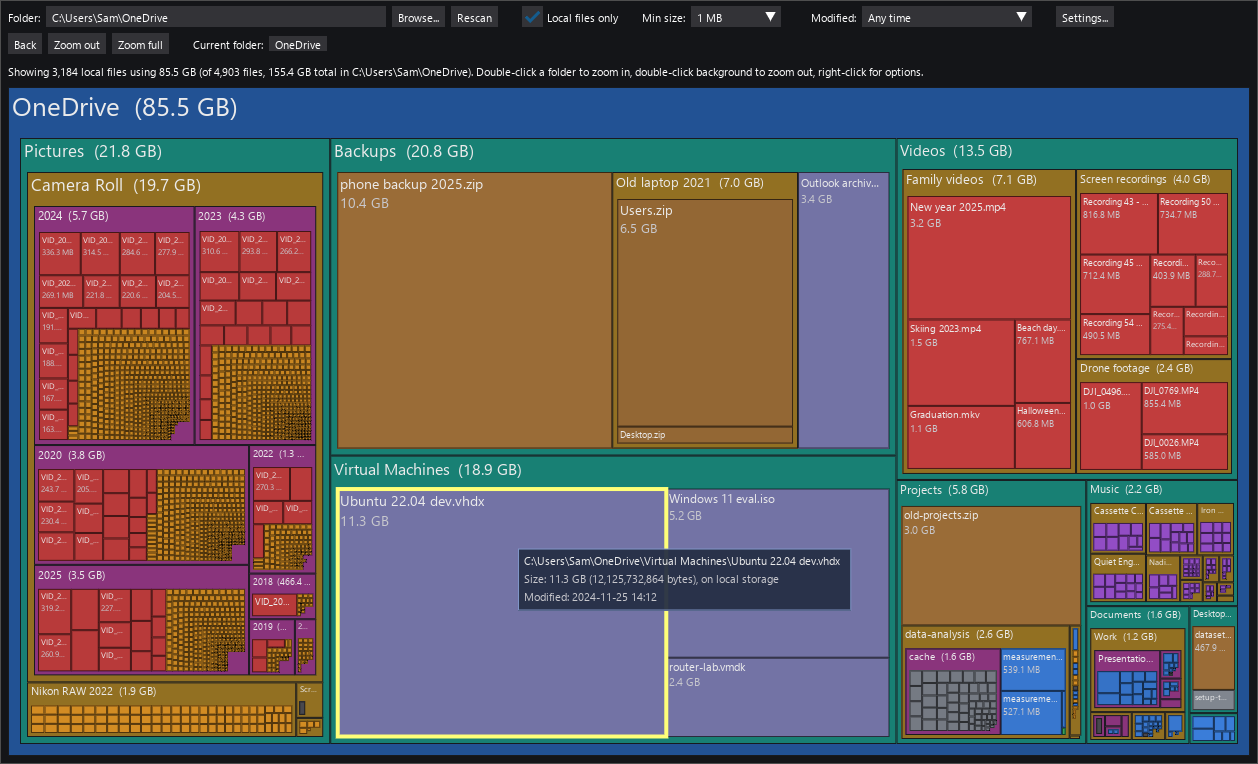
|
|
42
|
+
|
|
43
|
+
The treemap fills in while the folder is being scanned, so large folders can
|
|
44
|
+
be explored right away, with a progress bar showing how far the scan has got.
|
|
45
|
+
Optionally the free space on the drive is drawn next to the folder, on the
|
|
46
|
+
same scale, to show how much the local copies matter.
|
|
47
|
+
|
|
48
|
+
## Download
|
|
49
|
+
|
|
50
|
+
**[Download Unhog.zip (latest release)](https://github.com/lassoan/unhog/releases/latest/download/Unhog.zip)**
|
|
51
|
+
|
|
52
|
+
Requires Windows 10 or 11. No installation needed. All releases, with release
|
|
53
|
+
notes, are listed on the [releases page](https://github.com/lassoan/unhog/releases).
|
|
54
|
+
Each release also offers `Unhog.exe`, the same program packed into a single
|
|
55
|
+
file; it is handy for copying around, but Windows Defender is more likely to
|
|
56
|
+
mistrust it, so the zip is the recommended download.
|
|
57
|
+
|
|
58
|
+
The files are not code-signed. When you run Unhog the first time, Windows
|
|
59
|
+
SmartScreen may show "Windows protected your PC". Click **More info**, then
|
|
60
|
+
**Run anyway**. If Defender removes the file as a suspected threat instead
|
|
61
|
+
(a false positive that new unsigned programs sometimes trigger), open Windows
|
|
62
|
+
Security, *Protection history*, find the entry and choose *Restore* or
|
|
63
|
+
*Allow*.
|
|
64
|
+
|
|
65
|
+
## Run
|
|
66
|
+
|
|
67
|
+
Unzip `Unhog.zip` anywhere, for example into your Documents or
|
|
68
|
+
Downloads folder. This creates a folder named `Unhog`. Open it and double-click
|
|
69
|
+
`Unhog.exe`. It scans your OneDrive folder and shows the treemap.
|
|
70
|
+
|
|
71
|
+
Keep `Unhog.exe` together with the `_internal` folder next to it; the program
|
|
72
|
+
does not run if the exe is copied out on its own. To put it on the desktop or
|
|
73
|
+
Start menu, right-click `Unhog.exe` and create a shortcut.
|
|
74
|
+
|
|
75
|
+
To scan a different folder, use the **Browse...** button, or start it from a
|
|
76
|
+
command prompt with the folder as argument:
|
|
77
|
+
|
|
78
|
+
```
|
|
79
|
+
Unhog.exe D:\Other
|
|
80
|
+
```
|
|
81
|
+
|
|
82
|
+
## Install with pip
|
|
83
|
+
|
|
84
|
+
If Python 3.9 or later is installed, Unhog can also be installed from
|
|
85
|
+
[PyPI](https://pypi.org/project/unhog/) instead of downloading the zip:
|
|
86
|
+
|
|
87
|
+
```
|
|
88
|
+
pip install unhog
|
|
89
|
+
unhog
|
|
90
|
+
```
|
|
91
|
+
|
|
92
|
+
or, to keep it in its own environment, `pipx install unhog`. The `unhog`
|
|
93
|
+
command takes the same optional folder argument as the exe. Windows Defender
|
|
94
|
+
and SmartScreen have nothing to say about this route, since no unsigned exe is
|
|
95
|
+
involved.
|
|
96
|
+
|
|
97
|
+
## Freeing up space
|
|
98
|
+
|
|
99
|
+
Unhog only shows where the space goes; it does not delete or change anything.
|
|
100
|
+
To free the space a file or folder uses, right-click it in Unhog and choose
|
|
101
|
+
*Open folder in Explorer* (the item is selected there), then in Explorer
|
|
102
|
+
right-click it and choose **Free up space**. The file stays in
|
|
103
|
+
the cloud and is downloaded again when you open it. Back in Unhog, right-click
|
|
104
|
+
the folder and choose *Rescan* to see the result without scanning everything
|
|
105
|
+
again.
|
|
106
|
+
|
|
107
|
+
## How to use
|
|
108
|
+
|
|
109
|
+
Hover a rectangle for details, double-click a folder to zoom in, right-click for
|
|
110
|
+
options. The toolbar filters by modification time, size and local storage.
|
|
111
|
+
All controls and settings are explained in
|
|
112
|
+
[USAGE.md](https://github.com/lassoan/unhog/blob/main/USAGE.md).
|
|
113
|
+
|
|
114
|
+
## How it works
|
|
115
|
+
|
|
116
|
+
Unhog asks Windows which files in the folder are online-only placeholders and
|
|
117
|
+
which are actually present on disk. It reads only the directory listing and
|
|
118
|
+
never opens files, so scanning does not download anything.
|
|
119
|
+
|
|
120
|
+
It is tested with OneDrive, OneDrive for Business (SharePoint), and Dropbox
|
|
121
|
+
but it should be compatible with other cloud storage providers as well.
|
|
122
|
+
|
|
123
|
+
## Privacy
|
|
124
|
+
|
|
125
|
+
Unhog runs entirely on your PC, does not connect to the internet, and does not
|
|
126
|
+
send any information anywhere.
|
|
127
|
+
|
|
128
|
+
## For developers
|
|
129
|
+
|
|
130
|
+
Running from source, tests, building the exe and making releases are described
|
|
131
|
+
in [DEVELOPMENT.md](https://github.com/lassoan/unhog/blob/main/DEVELOPMENT.md).
|
|
132
|
+
|
|
133
|
+
## License
|
|
134
|
+
|
|
135
|
+
[MIT](https://github.com/lassoan/unhog/blob/main/LICENSE)
|
unhog-0.5.0/README.md
ADDED
|
@@ -0,0 +1,104 @@
|
|
|
1
|
+
# Unhog
|
|
2
|
+
|
|
3
|
+
Reclaim space on your disk hogged by OneDrive, Dropbox, SharePoint offline files.
|
|
4
|
+
|
|
5
|
+
Unhog draws a SpaceMonger-style treemap of the files in a cloud-synced folder
|
|
6
|
+
that actually occupy local disk space. "Files On-Demand" keeps most files
|
|
7
|
+
online-only; Unhog shows only the hydrated ones, so you can see where the
|
|
8
|
+
local space goes and free it up.
|
|
9
|
+
|
|
10
|
+

|
|
11
|
+
|
|
12
|
+
The treemap fills in while the folder is being scanned, so large folders can
|
|
13
|
+
be explored right away, with a progress bar showing how far the scan has got.
|
|
14
|
+
Optionally the free space on the drive is drawn next to the folder, on the
|
|
15
|
+
same scale, to show how much the local copies matter.
|
|
16
|
+
|
|
17
|
+
## Download
|
|
18
|
+
|
|
19
|
+
**[Download Unhog.zip (latest release)](https://github.com/lassoan/unhog/releases/latest/download/Unhog.zip)**
|
|
20
|
+
|
|
21
|
+
Requires Windows 10 or 11. No installation needed. All releases, with release
|
|
22
|
+
notes, are listed on the [releases page](https://github.com/lassoan/unhog/releases).
|
|
23
|
+
Each release also offers `Unhog.exe`, the same program packed into a single
|
|
24
|
+
file; it is handy for copying around, but Windows Defender is more likely to
|
|
25
|
+
mistrust it, so the zip is the recommended download.
|
|
26
|
+
|
|
27
|
+
The files are not code-signed. When you run Unhog the first time, Windows
|
|
28
|
+
SmartScreen may show "Windows protected your PC". Click **More info**, then
|
|
29
|
+
**Run anyway**. If Defender removes the file as a suspected threat instead
|
|
30
|
+
(a false positive that new unsigned programs sometimes trigger), open Windows
|
|
31
|
+
Security, *Protection history*, find the entry and choose *Restore* or
|
|
32
|
+
*Allow*.
|
|
33
|
+
|
|
34
|
+
## Run
|
|
35
|
+
|
|
36
|
+
Unzip `Unhog.zip` anywhere, for example into your Documents or
|
|
37
|
+
Downloads folder. This creates a folder named `Unhog`. Open it and double-click
|
|
38
|
+
`Unhog.exe`. It scans your OneDrive folder and shows the treemap.
|
|
39
|
+
|
|
40
|
+
Keep `Unhog.exe` together with the `_internal` folder next to it; the program
|
|
41
|
+
does not run if the exe is copied out on its own. To put it on the desktop or
|
|
42
|
+
Start menu, right-click `Unhog.exe` and create a shortcut.
|
|
43
|
+
|
|
44
|
+
To scan a different folder, use the **Browse...** button, or start it from a
|
|
45
|
+
command prompt with the folder as argument:
|
|
46
|
+
|
|
47
|
+
```
|
|
48
|
+
Unhog.exe D:\Other
|
|
49
|
+
```
|
|
50
|
+
|
|
51
|
+
## Install with pip
|
|
52
|
+
|
|
53
|
+
If Python 3.9 or later is installed, Unhog can also be installed from
|
|
54
|
+
[PyPI](https://pypi.org/project/unhog/) instead of downloading the zip:
|
|
55
|
+
|
|
56
|
+
```
|
|
57
|
+
pip install unhog
|
|
58
|
+
unhog
|
|
59
|
+
```
|
|
60
|
+
|
|
61
|
+
or, to keep it in its own environment, `pipx install unhog`. The `unhog`
|
|
62
|
+
command takes the same optional folder argument as the exe. Windows Defender
|
|
63
|
+
and SmartScreen have nothing to say about this route, since no unsigned exe is
|
|
64
|
+
involved.
|
|
65
|
+
|
|
66
|
+
## Freeing up space
|
|
67
|
+
|
|
68
|
+
Unhog only shows where the space goes; it does not delete or change anything.
|
|
69
|
+
To free the space a file or folder uses, right-click it in Unhog and choose
|
|
70
|
+
*Open folder in Explorer* (the item is selected there), then in Explorer
|
|
71
|
+
right-click it and choose **Free up space**. The file stays in
|
|
72
|
+
the cloud and is downloaded again when you open it. Back in Unhog, right-click
|
|
73
|
+
the folder and choose *Rescan* to see the result without scanning everything
|
|
74
|
+
again.
|
|
75
|
+
|
|
76
|
+
## How to use
|
|
77
|
+
|
|
78
|
+
Hover a rectangle for details, double-click a folder to zoom in, right-click for
|
|
79
|
+
options. The toolbar filters by modification time, size and local storage.
|
|
80
|
+
All controls and settings are explained in
|
|
81
|
+
[USAGE.md](https://github.com/lassoan/unhog/blob/main/USAGE.md).
|
|
82
|
+
|
|
83
|
+
## How it works
|
|
84
|
+
|
|
85
|
+
Unhog asks Windows which files in the folder are online-only placeholders and
|
|
86
|
+
which are actually present on disk. It reads only the directory listing and
|
|
87
|
+
never opens files, so scanning does not download anything.
|
|
88
|
+
|
|
89
|
+
It is tested with OneDrive, OneDrive for Business (SharePoint), and Dropbox
|
|
90
|
+
but it should be compatible with other cloud storage providers as well.
|
|
91
|
+
|
|
92
|
+
## Privacy
|
|
93
|
+
|
|
94
|
+
Unhog runs entirely on your PC, does not connect to the internet, and does not
|
|
95
|
+
send any information anywhere.
|
|
96
|
+
|
|
97
|
+
## For developers
|
|
98
|
+
|
|
99
|
+
Running from source, tests, building the exe and making releases are described
|
|
100
|
+
in [DEVELOPMENT.md](https://github.com/lassoan/unhog/blob/main/DEVELOPMENT.md).
|
|
101
|
+
|
|
102
|
+
## License
|
|
103
|
+
|
|
104
|
+
[MIT](https://github.com/lassoan/unhog/blob/main/LICENSE)
|
unhog-0.5.0/USAGE.md
ADDED
|
@@ -0,0 +1,113 @@
|
|
|
1
|
+
# How to use Unhog
|
|
2
|
+
|
|
3
|
+
Download and run Unhog as described in [README.md](README.md). This page explains
|
|
4
|
+
the controls and settings.
|
|
5
|
+
|
|
6
|
+
The treemap appears as soon as the scan starts and fills in while it runs; a
|
|
7
|
+
progress bar and the status line show how far it has got, and the folder title
|
|
8
|
+
says "scanning". You can hover, zoom and use every control before the scan is
|
|
9
|
+
finished. Sizes grow until the status line reports the final totals. For a
|
|
10
|
+
whole drive (such as `C:\`) the progress bar compares the bytes found with the
|
|
11
|
+
drive's used space; for a folder nothing says in advance how big it is, so the
|
|
12
|
+
bar is an estimate from the folders found but not yet finished.
|
|
13
|
+
|
|
14
|
+
- **Hover** a rectangle for its full path, local size and file counts.
|
|
15
|
+
- **Double-click a folder** to zoom in: show only that folder's contents.
|
|
16
|
+
Double-click the background (or the current folder's title bar) to zoom out
|
|
17
|
+
one level. The breadcrumb row and the **Zoom out** / **Zoom full** buttons
|
|
18
|
+
navigate too; **Zoom full** returns to the whole scanned folder. **Back**
|
|
19
|
+
(button, or in the right-click menu) returns to the previously shown view,
|
|
20
|
+
step by step.
|
|
21
|
+
- **Right-click** an item for a menu: **Back** (when there is a view to
|
|
22
|
+
return to) and *Zoom in* (the same as double-clicking a folder); then *Open
|
|
23
|
+
in Explorer* (folders), *Open folder in Explorer* (a file's folder, or a
|
|
24
|
+
folder's parent with the folder selected), *Copy path* and *Open Properties*
|
|
25
|
+
(the Windows Properties dialog); and *Rescan*, which reads just that folder
|
|
26
|
+
(for a file, its folder) again and updates the treemap in place, handy after
|
|
27
|
+
freeing space in Explorer; and *Hide*, which takes that folder out of the
|
|
28
|
+
treemap (see below). Entries that do not apply are left out. **Escape**
|
|
29
|
+
closes the menu (and the Settings window).
|
|
30
|
+
- **Hide** (right-click menu, folders only) removes a folder from the display,
|
|
31
|
+
as if it were not there: the folders above it shrink accordingly, so the
|
|
32
|
+
rest of the treemap gets the space and the remaining items can be compared
|
|
33
|
+
without it. Use it to set aside folders that are known and wanted (a photo
|
|
34
|
+
archive, say) and see what else takes up space. Any number of folders can be
|
|
35
|
+
hidden; the status line counts them. While folders are hidden, an
|
|
36
|
+
**Unhide N folders (size)** button appears next to **Zoom full**, showing
|
|
37
|
+
how many folders are hidden and how much space they take together; click it
|
|
38
|
+
to show all of them again. Hiding is only a view setting: nothing is changed
|
|
39
|
+
on disk, and a new scan (**Browse...**, the folder box or the **Rescan**
|
|
40
|
+
button) starts with nothing hidden. Rescanning a folder from the right-click
|
|
41
|
+
menu keeps the hidden folders hidden.
|
|
42
|
+
- **Browse...** / the folder box + **Rescan** scan a different folder.
|
|
43
|
+
- **Modified** filters by last-modified time: "Older than …" (1 month to
|
|
44
|
+
5 years) or "Newer than …" (1 week to 1 year). Only matching files count
|
|
45
|
+
toward folder sizes and are drawn; folders act as containers for whatever
|
|
46
|
+
inside them matches. A folder's own time is the newest file anywhere inside
|
|
47
|
+
it (shown in the tooltip), so a folder whose newest file is older than the
|
|
48
|
+
cutoff shows in full under "Older than", while a folder with recent changes
|
|
49
|
+
shows just its old parts and is drawn gray to mark it as a container only.
|
|
50
|
+
The tooltip also shows each file's modification date and the unfiltered
|
|
51
|
+
sizes. Switching does not rescan.
|
|
52
|
+
- **Local files only** (checked by default) sizes the treemap by bytes on local
|
|
53
|
+
disk and hides online-only placeholders. Uncheck it to see every file sized by
|
|
54
|
+
its full logical size; online-only files are drawn dimmed. Switching does not
|
|
55
|
+
rescan.
|
|
56
|
+
- **Min size** (default 1 MB) hides files and folders smaller than the limit as
|
|
57
|
+
separate rectangles. Within each folder they are folded into one grey
|
|
58
|
+
"N smaller items" tile that carries their combined size, so the parent's area
|
|
59
|
+
stays accurate. Double-click that tile (or right-click it and choose *Zoom
|
|
60
|
+
in*) to view the folded items on their own; the limit shrinks with the
|
|
61
|
+
view, so they appear individually. Right-click the tile to open its folder
|
|
62
|
+
in Explorer. "Off" shows everything. The limit applies to the scanned root: when you drill into
|
|
63
|
+
a folder it shrinks in proportion to that folder's share of the total, so you
|
|
64
|
+
see the same level of detail at every depth. The effective limit for the
|
|
65
|
+
current folder is shown next to the dropdown.
|
|
66
|
+
|
|
67
|
+
**Settings...** opens a dialog with the appearance settings, followed by an
|
|
68
|
+
*About* section with the version, author and website (click the address to
|
|
69
|
+
open it in your browser):
|
|
70
|
+
|
|
71
|
+
- **Scale fonts and padding by folder size** (on by default) grows folder
|
|
72
|
+
titles (and file labels) with the item's share of the folder currently
|
|
73
|
+
shown, from 10 px up to 34 px, so the biggest space hogs jump out. Title
|
|
74
|
+
strips grow to match, and folder frames scale the same way: the folder shown
|
|
75
|
+
gets the full padding, smaller folders get proportionally thinner frames.
|
|
76
|
+
- **Padding** (1 px to 32 px, default 12 px) sets how wide the frame is that
|
|
77
|
+
each folder draws around its children.
|
|
78
|
+
- **Padding scaling** (Off to Extreme) sets how much thinner the frames of
|
|
79
|
+
smaller folders get: the percentage is what the smallest folders keep of the
|
|
80
|
+
chosen padding, from 100% (uniform) down to 5%. Default is Firm (20%).
|
|
81
|
+
Only applies while scaling by size is on.
|
|
82
|
+
- **Show free space on the drive** (off by default) adds a hatched dark tile
|
|
83
|
+
for the free space on the drive the scanned folder is on, sized on the same
|
|
84
|
+
scale as the folder, so you can see at a glance how the space the files take
|
|
85
|
+
compares with what is left on the disk.
|
|
86
|
+
The tile appears only in the top-level view. Hover it for the exact numbers;
|
|
87
|
+
the status line shows them too.
|
|
88
|
+
|
|
89
|
+
Files are colored by type (video, image, audio, document, archive, code, disk
|
|
90
|
+
image, other) and shaded darker the deeper they sit.
|
|
91
|
+
|
|
92
|
+
Text and controls follow the Windows display scaling. To make everything
|
|
93
|
+
larger or smaller than that, start Unhog with the environment variable
|
|
94
|
+
`UNHOG_SCALE` set, for example `set UNHOG_SCALE=1.25` before running it.
|
|
95
|
+
|
|
96
|
+
Zoomed into a folder, with the tooltip for one of its subfolders:
|
|
97
|
+
|
|
98
|
+

|
|
99
|
+
|
|
100
|
+
**Modified** set to "Older than 1 year". Gray folder titles mark folders that
|
|
101
|
+
have newer files too and are shown only as containers:
|
|
102
|
+
|
|
103
|
+

|
|
104
|
+
|
|
105
|
+
**Local files only** unchecked: every file is sized by its full size and
|
|
106
|
+
online-only files are dimmed:
|
|
107
|
+
|
|
108
|
+

|
|
109
|
+
|
|
110
|
+
**Show free space on the drive** checked: the free space on drive C: appears
|
|
111
|
+
as a hatched tile next to the OneDrive folder, on the same scale:
|
|
112
|
+
|
|
113
|
+

|
unhog-0.5.0/Unhog.pyw
ADDED
|
@@ -0,0 +1,10 @@
|
|
|
1
|
+
"""Double-click launcher (no console window). Scans %OneDrive% by default (the home folder on Linux and macOS)."""
|
|
2
|
+
|
|
3
|
+
import os
|
|
4
|
+
import sys
|
|
5
|
+
|
|
6
|
+
sys.path.insert(0, os.path.dirname(os.path.abspath(__file__)))
|
|
7
|
+
|
|
8
|
+
from unhog.app import main # noqa: E402
|
|
9
|
+
|
|
10
|
+
sys.exit(main())
|