textual-console 0.1.0__tar.gz
This diff represents the content of publicly available package versions that have been released to one of the supported registries. The information contained in this diff is provided for informational purposes only and reflects changes between package versions as they appear in their respective public registries.
- textual_console-0.1.0/.gitignore +9 -0
- textual_console-0.1.0/CHANGELOG.md +18 -0
- textual_console-0.1.0/LICENSE +21 -0
- textual_console-0.1.0/PKG-INFO +308 -0
- textual_console-0.1.0/README.md +289 -0
- textual_console-0.1.0/pyproject.toml +61 -0
- textual_console-0.1.0/src/textual_console/__init__.py +26 -0
- textual_console-0.1.0/src/textual_console/__main__.py +254 -0
- textual_console-0.1.0/src/textual_console/_ansi.py +36 -0
- textual_console-0.1.0/src/textual_console/_argparse.py +443 -0
- textual_console-0.1.0/src/textual_console/_autocomplete.py +394 -0
- textual_console-0.1.0/src/textual_console/_console_input.py +436 -0
- textual_console-0.1.0/src/textual_console/_console_log.py +109 -0
- textual_console-0.1.0/src/textual_console/_console_output.py +544 -0
- textual_console-0.1.0/src/textual_console/_history.py +120 -0
- textual_console-0.1.0/src/textual_console/_selection.py +119 -0
- textual_console-0.1.0/src/textual_console/_tokens.py +66 -0
- textual_console-0.1.0/src/textual_console/py.typed +0 -0
|
@@ -0,0 +1,18 @@
|
|
|
1
|
+
# Changelog
|
|
2
|
+
|
|
3
|
+
## 0.1.0 (unreleased)
|
|
4
|
+
|
|
5
|
+
- `ConsoleOutput`: Rich output with drag, word and line selection, and OSC 52 copy.
|
|
6
|
+
- `ConsoleInput` and `CommandHistory`: a `TextArea` command prompt that grows up to
|
|
7
|
+
`max_height` rows, with a `prompt` gutter, a `suggester`, history
|
|
8
|
+
(`command_history`), newline keys (shift+enter, alt+enter, ctrl+j), a quiet Tab and
|
|
9
|
+
middle-click paste of all selected lines.
|
|
10
|
+
- `ConsoleInput`: double Escape clears the input (`double_escape_clear`).
|
|
11
|
+
- `CommandAutoComplete`: completes the last word of the cursor's line and keeps quotes.
|
|
12
|
+
Tab opens the dropdown.
|
|
13
|
+
- `CommandItem` and `CompletionHint`: dropdown rows with a help column, and a hint row.
|
|
14
|
+
- `ArgparseCompleter` and `set_completer`: completion from `argparse` parsers.
|
|
15
|
+
- `ConsoleLog` and `strip_ansi`: plain-text transcript of the output.
|
|
16
|
+
- Demo (`python -m textual_console`, with `--log PATH` and `--max-lines N`) and
|
|
17
|
+
examples.
|
|
18
|
+
- Project skeleton and CI.
|
|
@@ -0,0 +1,21 @@
|
|
|
1
|
+
MIT License
|
|
2
|
+
|
|
3
|
+
Copyright (c) 2026 thespicybyte
|
|
4
|
+
|
|
5
|
+
Permission is hereby granted, free of charge, to any person obtaining a copy
|
|
6
|
+
of this software and associated documentation files (the "Software"), to deal
|
|
7
|
+
in the Software without restriction, including without limitation the rights
|
|
8
|
+
to use, copy, modify, merge, publish, distribute, sublicense, and/or sell
|
|
9
|
+
copies of the Software, and to permit persons to whom the Software is
|
|
10
|
+
furnished to do so, subject to the following conditions:
|
|
11
|
+
|
|
12
|
+
The above copyright notice and this permission notice shall be included in all
|
|
13
|
+
copies or substantial portions of the Software.
|
|
14
|
+
|
|
15
|
+
THE SOFTWARE IS PROVIDED "AS IS", WITHOUT WARRANTY OF ANY KIND, EXPRESS OR
|
|
16
|
+
IMPLIED, INCLUDING BUT NOT LIMITED TO THE WARRANTIES OF MERCHANTABILITY,
|
|
17
|
+
FITNESS FOR A PARTICULAR PURPOSE AND NONINFRINGEMENT. IN NO EVENT SHALL THE
|
|
18
|
+
AUTHORS OR COPYRIGHT HOLDERS BE LIABLE FOR ANY CLAIM, DAMAGES OR OTHER
|
|
19
|
+
LIABILITY, WHETHER IN AN ACTION OF CONTRACT, TORT OR OTHERWISE, ARISING FROM,
|
|
20
|
+
OUT OF OR IN CONNECTION WITH THE SOFTWARE OR THE USE OR OTHER DEALINGS IN THE
|
|
21
|
+
SOFTWARE.
|
|
@@ -0,0 +1,308 @@
|
|
|
1
|
+
Metadata-Version: 2.5
|
|
2
|
+
Name: textual-console
|
|
3
|
+
Version: 0.1.0
|
|
4
|
+
Summary: Console widgets for Textual: color output with word/line mouse selection and OSC 52 copy, a command input with history and autocomplete, and a plain-text transcript.
|
|
5
|
+
Project-URL: Repository, https://github.com/thespicybyte/textual-console
|
|
6
|
+
Author-email: spicybyte <spicybyte@git.sbs>
|
|
7
|
+
License-Expression: MIT
|
|
8
|
+
License-File: LICENSE
|
|
9
|
+
Classifier: Environment :: Console
|
|
10
|
+
Classifier: Programming Language :: Python :: 3.11
|
|
11
|
+
Classifier: Programming Language :: Python :: 3.12
|
|
12
|
+
Classifier: Programming Language :: Python :: 3.13
|
|
13
|
+
Classifier: Typing :: Typed
|
|
14
|
+
Requires-Python: >=3.11
|
|
15
|
+
Requires-Dist: rich>=14
|
|
16
|
+
Requires-Dist: textual-autocomplete<4.1,>=4.0.6
|
|
17
|
+
Requires-Dist: textual<9,>=8.2
|
|
18
|
+
Description-Content-Type: text/markdown
|
|
19
|
+
|
|
20
|
+
# textual-console
|
|
21
|
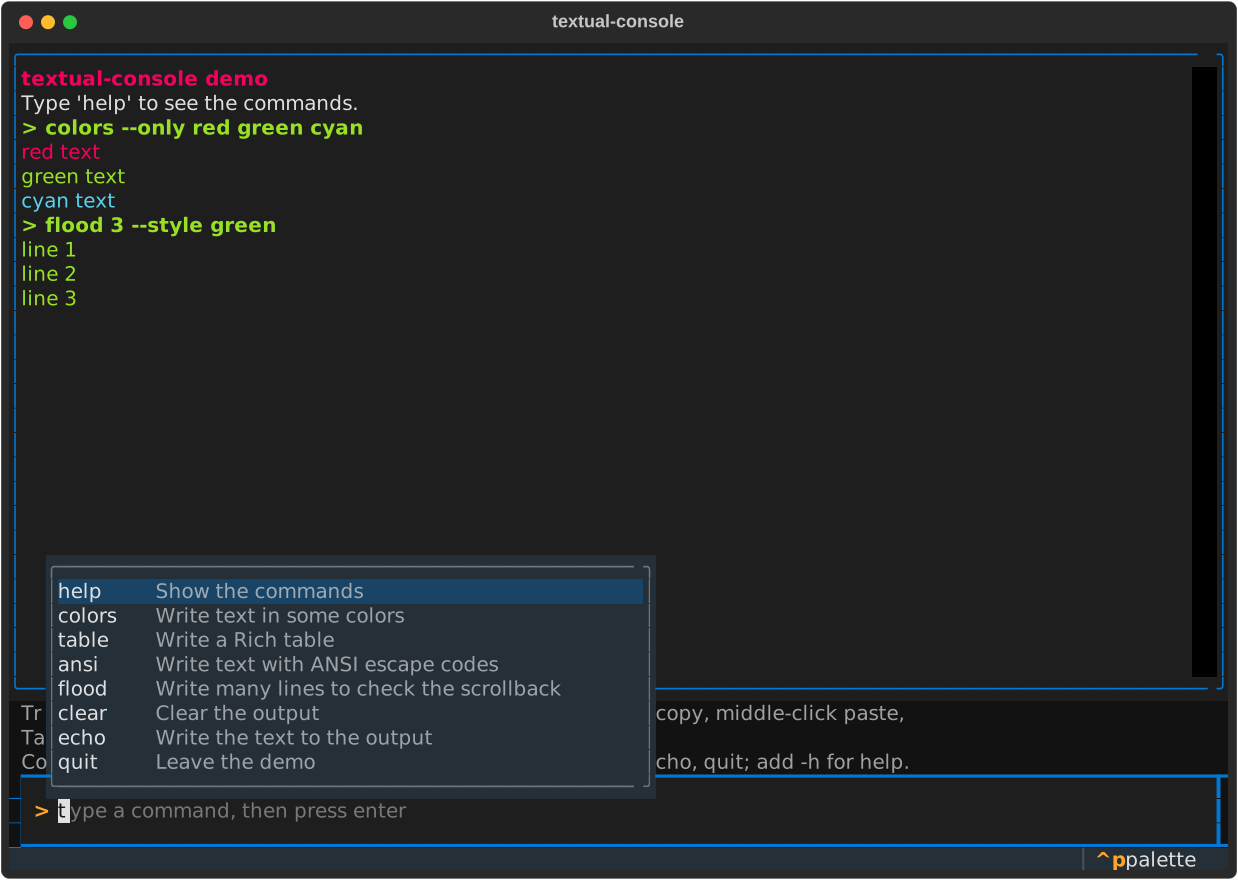
+
|
|
22
|
+
Console widgets for [Textual](https://textual.textualize.io/): color output with
|
|
23
|
+
word and line mouse selection and OSC 52 copy, a multi-line command input with
|
|
24
|
+
history and autocomplete (also from `argparse` parsers), and a plain-text transcript.
|
|
25
|
+
|
|
26
|
+
|
|
27
|
+
|
|
28
|
+
- `ConsoleOutput`: read-only output for Rich renderables. Drag, double-click (word)
|
|
29
|
+
and triple-click (line) select text. `ctrl+c` copies it.
|
|
30
|
+
- `ConsoleInput`: a command prompt (a `TextArea`) that grows with its text, with a prompt
|
|
31
|
+
string, history, a quiet Tab and middle-click paste.
|
|
32
|
+
- `CommandAutoComplete`: completes the last word of the cursor's line. Tab opens it.
|
|
33
|
+
- `ArgparseCompleter`: gives `CommandAutoComplete` its candidates from `argparse` parsers.
|
|
34
|
+
- `ConsoleLog`: a plain-text transcript file of the output.
|
|
35
|
+
|
|
36
|
+
Python 3.11 or later. Tested on Textual 8.x.
|
|
37
|
+
|
|
38
|
+
## Install
|
|
39
|
+
|
|
40
|
+
```bash
|
|
41
|
+
pip install textual-console
|
|
42
|
+
```
|
|
43
|
+
|
|
44
|
+
Try the demo:
|
|
45
|
+
|
|
46
|
+
```bash
|
|
47
|
+
python -m textual_console
|
|
48
|
+
python -m textual_console --log session.log --max-lines 200
|
|
49
|
+
```
|
|
50
|
+
|
|
51
|
+
## Quick start
|
|
52
|
+
|
|
53
|
+
```python
|
|
54
|
+
from rich.text import Text
|
|
55
|
+
from textual import on
|
|
56
|
+
from textual.app import App, ComposeResult
|
|
57
|
+
|
|
58
|
+
from textual_console import CommandAutoComplete, ConsoleInput, ConsoleOutput
|
|
59
|
+
|
|
60
|
+
|
|
61
|
+
class Repl(App[None]):
|
|
62
|
+
def compose(self) -> ComposeResult:
|
|
63
|
+
yield ConsoleOutput(id="output", max_lines=5000)
|
|
64
|
+
yield ConsoleInput(prompt="> ", placeholder="command", id="prompt")
|
|
65
|
+
yield CommandAutoComplete("#prompt", lambda line: ["help", "quit"])
|
|
66
|
+
|
|
67
|
+
@on(ConsoleInput.Submitted)
|
|
68
|
+
def run_command(self, event: ConsoleInput.Submitted) -> None:
|
|
69
|
+
self.query_one(ConsoleOutput).write(Text(f"> {event.value}", style="green"))
|
|
70
|
+
|
|
71
|
+
|
|
72
|
+
Repl().run()
|
|
73
|
+
```
|
|
74
|
+
|
|
75
|
+
More programs are in [`examples/`](https://github.com/thespicybyte/textual-console/tree/main/examples): `basic.py` (text, tables, copy),
|
|
76
|
+
`repl.py` (all widgets, argparse completion and a transcript) and `ansi_stream.py` (ANSI output of a
|
|
77
|
+
subprocess).
|
|
78
|
+
|
|
79
|
+
## ConsoleOutput
|
|
80
|
+
|
|
81
|
+
A `RichLog` that takes part in the Textual screen selection.
|
|
82
|
+
|
|
83
|
+
```python
|
|
84
|
+
output = ConsoleOutput(max_lines=5000, copy_on_select=False)
|
|
85
|
+
output.write(Text("done", style="bold green"))
|
|
86
|
+
output.write_ansi("\x1b[31mred\x1b[0m")
|
|
87
|
+
```
|
|
88
|
+
|
|
89
|
+
- Drag to select. The view scrolls at the edges.
|
|
90
|
+
- Double-click selects a word. Triple-click selects a line.
|
|
91
|
+
- `ctrl+c` copies the selection with `App.copy_to_clipboard` (OSC 52). `Escape` or a
|
|
92
|
+
single click clears the selection.
|
|
93
|
+
- `copy_on_select=True` copies when a selection ends and posts `ConsoleOutput.SelectionCopied`.
|
|
94
|
+
`ctrl+c` does not post `SelectionCopied`: only `copy_on_select` and `copy_selection()` do.
|
|
95
|
+
To react to every copy, override `App.copy_to_clipboard` (the demo does this to show a
|
|
96
|
+
notification).
|
|
97
|
+
- The widget cannot take focus, so the focus stays on your prompt.
|
|
98
|
+
- Copied text has one line for each rendered line, without trailing spaces.
|
|
99
|
+
- **Set `max_lines` for long-running apps.** The default is no limit, so memory grows
|
|
100
|
+
with the session.
|
|
101
|
+
- To change the highlight, style the `console-output--selection` component class.
|
|
102
|
+
If you do not, the theme `screen--selection` colors are used.
|
|
103
|
+
|
|
104
|
+
## ConsoleInput
|
|
105
|
+
|
|
106
|
+
A `TextArea` that works as a command prompt. It is one row high when it is empty, grows
|
|
107
|
+
row by row up to `max_height` rows (the default is 10), and then scrolls.
|
|
108
|
+
|
|
109
|
+
```python
|
|
110
|
+
history = CommandHistory(["help", "quit"])
|
|
111
|
+
prompt = ConsoleInput(prompt="> ", history=history, max_height=10)
|
|
112
|
+
```
|
|
113
|
+
|
|
114
|
+
| Key | Action |
|
|
115
|
+
|---|---|
|
|
116
|
+
| Enter | Submit the whole text as one command. |
|
|
117
|
+
| shift+enter, alt+enter, ctrl+j | Insert a newline. |
|
|
118
|
+
| Up, down | Move the cursor between rows. On the first row up walks the history, and on the last row down does. |
|
|
119
|
+
| Tab | Nothing, so the focus stays in the prompt. Use `tab_moves_focus=True` to move the focus. |
|
|
120
|
+
| Esc Esc | Clear the input if both presses come within `double_escape_clear` seconds (default 0.5). Undo with ctrl+z. An Escape that closes the dropdown does not count. |
|
|
121
|
+
| Right | Accept the ghost text of a `suggester`. |
|
|
122
|
+
|
|
123
|
+
- `prompt` is drawn in the left gutter of the first row. It is not part of the text. Other
|
|
124
|
+
rows get blank padding of the same width. It can change at run time, and the
|
|
125
|
+
`console-input--prompt` component class styles it.
|
|
126
|
+
- `suggester` is a Textual `Suggester`. While the text is one line and the cursor is at
|
|
127
|
+
its end, the suggestion shows as ghost text.
|
|
128
|
+
- `max_height` is checked when the widget is created (a value below 1 raises `ValueError`)
|
|
129
|
+
and applied when the widget is mounted. `max_height=None` sets no limit, so a CSS
|
|
130
|
+
`max-height` applies.
|
|
131
|
+
- The text is `prompt.value`. The history is `prompt.command_history`, a `CommandHistory`.
|
|
132
|
+
Save it with `prompt.command_history.entries`.
|
|
133
|
+
- The first up saves the text you typed, and down past the newest entry restores it. A
|
|
134
|
+
recalled multi-line command is shown with all its rows.
|
|
135
|
+
- Submit records the command, clears the input (unless `clear_on_submit=False`) and posts
|
|
136
|
+
`ConsoleInput.Submitted` with `value`, the whole text.
|
|
137
|
+
- A `read_only` input keeps its text: paste, history, submit, completion and Esc Esc do
|
|
138
|
+
nothing.
|
|
139
|
+
- `ConsoleInput.Changed` is `TextArea.Changed`: use `textual.widgets.TextArea.Changed`.
|
|
140
|
+
- `ConsoleInput` is not an `Input` any more. The arguments that only `Input` has
|
|
141
|
+
(`password`, `restrict`, `type`, `max_length`, `validators`, `validate_on`,
|
|
142
|
+
`valid_empty`, `select_on_focus`) raise `TypeError`. The editor settings of `TextArea`
|
|
143
|
+
(`soft_wrap`, line numbers, `tab_behavior`) are fixed.
|
|
144
|
+
|
|
145
|
+
### Multi-line text
|
|
146
|
+
|
|
147
|
+
**Enter submits the whole text, newlines included, as one command.** One submit gives one
|
|
148
|
+
`Submitted` message and one history entry. To run each line as its own command, split the
|
|
149
|
+
value in your handler. This is the choice of your app, not of the widget:
|
|
150
|
+
|
|
151
|
+
```python
|
|
152
|
+
@on(ConsoleInput.Submitted)
|
|
153
|
+
def run_commands(self, event: ConsoleInput.Submitted) -> None:
|
|
154
|
+
for line in event.value.splitlines():
|
|
155
|
+
if line.strip():
|
|
156
|
+
self.run_command(line)
|
|
157
|
+
```
|
|
158
|
+
|
|
159
|
+
**Terminals and the newline keys.** Many terminals send `shift+enter` as a plain Enter,
|
|
160
|
+
so the app cannot see the difference. Only terminals with the kitty keyboard protocol (or
|
|
161
|
+
a similar extension) report it. `alt+enter` and `ctrl+j` work in more terminals. Use
|
|
162
|
+
them as the fallback. In herdr, `shift+enter` arrives as Enter and submits.
|
|
163
|
+
|
|
164
|
+
### Middle-click paste
|
|
165
|
+
|
|
166
|
+
**Middle-click pastes text from inside the app.** It pastes the text selected in the
|
|
167
|
+
output. If nothing is selected, it pastes the last text that the app copied.
|
|
168
|
+
**All lines of a multi-line selection are pasted.**
|
|
169
|
+
**To paste text from other apps, use the terminal paste** (`cmd+v` or `ctrl+shift+v`).
|
|
170
|
+
It keeps all lines too. `ctrl+v` is different: it pastes the last text that the app
|
|
171
|
+
copied (`app.clipboard`), with all lines, and not the system clipboard.
|
|
172
|
+
|
|
173
|
+
Some terminals use the middle-click for their own paste and do not send it to the
|
|
174
|
+
app. Then you get the terminal paste. Check 4 in
|
|
175
|
+
[docs/manual-testing.md](https://github.com/thespicybyte/textual-console/blob/main/docs/manual-testing.md)
|
|
176
|
+
shows which one your terminal does.
|
|
177
|
+
|
|
178
|
+
## CommandAutoComplete
|
|
179
|
+
|
|
180
|
+
```python
|
|
181
|
+
CommandAutoComplete("#prompt", lambda line: ["open", "close", "help"])
|
|
182
|
+
```
|
|
183
|
+
|
|
184
|
+
The function gets the line of the cursor and returns the options for its last word. The
|
|
185
|
+
text before the last word stays as typed. A completion that needs quotes is quoted. In a
|
|
186
|
+
multi-line input only the cursor's line is used, and a completion changes only that line.
|
|
187
|
+
|
|
188
|
+
- **Automatic opening:** the dropdown opens while you type a word. It does not open after
|
|
189
|
+
a space, in an empty line, or while you walk the history.
|
|
190
|
+
- **Tab opens the dropdown** when it is closed, also after a space. If there is one
|
|
191
|
+
option, Tab applies it at once. If there are none, Tab does what the input does.
|
|
192
|
+
- **Key order:** when the dropdown is open, up and down move in the dropdown, and Tab or
|
|
193
|
+
Enter accept the option. When it is closed, up and down move between rows or walk the
|
|
194
|
+
history.
|
|
195
|
+
- **Items:** a function can return strings, `DropdownItem`s, `CommandItem(value, help)`
|
|
196
|
+
(shows `help` in a dim second column, aligned) and `CompletionHint(text)` (a dim,
|
|
197
|
+
disabled row that tells what to type. It is never applied).
|
|
198
|
+
- **The candidate source is synchronous.** It runs on the event loop. If the source is
|
|
199
|
+
slow (files, network), cache the result.
|
|
200
|
+
- The package needs `textual-autocomplete` 4.0.x, because `CommandAutoComplete` overrides
|
|
201
|
+
some of its private methods.
|
|
202
|
+
|
|
203
|
+
## Argparse completion
|
|
204
|
+
|
|
205
|
+
`ArgparseCompleter` reads `argparse` parsers and gives the candidates for the word at the
|
|
206
|
+
cursor. It never calls `parse_args`, so nothing prints and nothing exits.
|
|
207
|
+
|
|
208
|
+
```python
|
|
209
|
+
import argparse
|
|
210
|
+
|
|
211
|
+
from textual_console import ArgparseCompleter, CommandAutoComplete, set_completer
|
|
212
|
+
|
|
213
|
+
flood = argparse.ArgumentParser(prog="flood", description="Write many lines")
|
|
214
|
+
flood.add_argument("count", nargs="?", type=int, metavar="COUNT", help="how many lines")
|
|
215
|
+
flood.add_argument("--style", choices=["plain", "red", "green"], help="line style")
|
|
216
|
+
open_ = argparse.ArgumentParser(prog="open", description="Open a file")
|
|
217
|
+
set_completer(open_.add_argument("file", metavar="FILE", help="the file"), list_files)
|
|
218
|
+
|
|
219
|
+
parsers = {"flood": flood, "open": open_}
|
|
220
|
+
CommandAutoComplete("#prompt", ArgparseCompleter(parsers))
|
|
221
|
+
```
|
|
222
|
+
|
|
223
|
+
- Describe the commands with a mapping `{name: parser}` (read on every call, so you can
|
|
224
|
+
add commands later) or with one root parser that has subparsers.
|
|
225
|
+
- It offers the command names, the options not used yet (with their help), the `choices`
|
|
226
|
+
of an option or positional (also after `--option=`), and the next positional, counted
|
|
227
|
+
with `nargs`. It descends into subparsers. After a lone `--` it offers only positionals.
|
|
228
|
+
- `set_completer(action, function)` attaches a function that gets the current word and
|
|
229
|
+
returns strings or items. It is stored in `action.completer`, the name that
|
|
230
|
+
`argcomplete` uses. If it raises, there are no candidates and the error is logged.
|
|
231
|
+
- `hints=True` (the default) adds a `CompletionHint` such as `FILE: the file` where the
|
|
232
|
+
user must type a value. `show_help_option=True` offers `-h` and `--help`.
|
|
233
|
+
- It reads some private `argparse` attributes that have been stable since Python 3.2. If
|
|
234
|
+
they change, completion is reduced and the error is logged.
|
|
235
|
+
|
|
236
|
+
**Run the command with the same parsers.** `parse_args` prints for `-h` and on errors, and
|
|
237
|
+
then raises `SystemExit`. Catch it and write the text to the output, so the app keeps
|
|
238
|
+
running:
|
|
239
|
+
|
|
240
|
+
```python
|
|
241
|
+
import contextlib
|
|
242
|
+
import io
|
|
243
|
+
import shlex
|
|
244
|
+
|
|
245
|
+
name, *args = shlex.split(line)
|
|
246
|
+
buffer = io.StringIO()
|
|
247
|
+
try:
|
|
248
|
+
with contextlib.redirect_stdout(buffer), contextlib.redirect_stderr(buffer):
|
|
249
|
+
namespace = parsers[name].parse_args(args)
|
|
250
|
+
except SystemExit:
|
|
251
|
+
output.write(buffer.getvalue())
|
|
252
|
+
```
|
|
253
|
+
|
|
254
|
+
The demo (`python -m textual_console`) does this, so `flood -h` shows the usage.
|
|
255
|
+
|
|
256
|
+
## ConsoleLog
|
|
257
|
+
|
|
258
|
+
A plain-text copy of the output, with ANSI codes removed.
|
|
259
|
+
|
|
260
|
+
```python
|
|
261
|
+
log = ConsoleLog("session.log")
|
|
262
|
+
yield ConsoleOutput(log=log)
|
|
263
|
+
```
|
|
264
|
+
|
|
265
|
+
`ConsoleInput` does not write to the log. **To put commands in the transcript, echo
|
|
266
|
+
them into the output.** Then each command is written once, in order with its result:
|
|
267
|
+
|
|
268
|
+
```python
|
|
269
|
+
@on(ConsoleInput.Submitted)
|
|
270
|
+
def run_command(self, event: ConsoleInput.Submitted) -> None:
|
|
271
|
+
output = self.query_one(ConsoleOutput)
|
|
272
|
+
output.write(f"> {event.value}")
|
|
273
|
+
...
|
|
274
|
+
```
|
|
275
|
+
|
|
276
|
+
`ConsoleOutput.clear()` does not change the file. If the file cannot be written,
|
|
277
|
+
`ConsoleOutput.LogFailed` is posted once and the app keeps running. `strip_ansi(text)`
|
|
278
|
+
is also public.
|
|
279
|
+
|
|
280
|
+
## Terminals and OSC 52
|
|
281
|
+
|
|
282
|
+
Copy uses OSC 52, which asks the terminal to set the clipboard. The app cannot detect
|
|
283
|
+
whether it worked. `ctrl+c` is the reliable key. `cmd+c` reaches the app only on
|
|
284
|
+
terminals with the kitty keyboard protocol. Native terminal selection (shift-drag or
|
|
285
|
+
option-drag) is not changed.
|
|
286
|
+
|
|
287
|
+
Maintainers test these things by hand in each terminal. The steps and the results table
|
|
288
|
+
are in [docs/manual-testing.md](https://github.com/thespicybyte/textual-console/blob/main/docs/manual-testing.md).
|
|
289
|
+
|
|
290
|
+
**tmux:** add `set -g set-clipboard on` to `~/.tmux.conf`. Without it, OSC 52 copy does
|
|
291
|
+
not reach the outer terminal. Some terminals limit the size of the copied text or ask
|
|
292
|
+
for permission first.
|
|
293
|
+
|
|
294
|
+
## Development
|
|
295
|
+
|
|
296
|
+
```bash
|
|
297
|
+
uv sync --group test --group lint
|
|
298
|
+
uv run pytest
|
|
299
|
+
uv run ruff check . && uv run ruff format --check . && uv run mypy && uv run pyright
|
|
300
|
+
```
|
|
301
|
+
|
|
302
|
+
Repository: <https://github.com/thespicybyte/textual-console>
|
|
303
|
+
|
|
304
|
+
For maintainers: see `RELEASING.md` for the release steps.
|
|
305
|
+
|
|
306
|
+
## License
|
|
307
|
+
|
|
308
|
+
MIT. See `LICENSE`.
|
|
@@ -0,0 +1,289 @@
|
|
|
1
|
+
# textual-console
|
|
2
|
+
|
|
3
|
+
Console widgets for [Textual](https://textual.textualize.io/): color output with
|
|
4
|
+
word and line mouse selection and OSC 52 copy, a multi-line command input with
|
|
5
|
+
history and autocomplete (also from `argparse` parsers), and a plain-text transcript.
|
|
6
|
+
|
|
7
|
+

|
|
8
|
+
|
|
9
|
+
- `ConsoleOutput`: read-only output for Rich renderables. Drag, double-click (word)
|
|
10
|
+
and triple-click (line) select text. `ctrl+c` copies it.
|
|
11
|
+
- `ConsoleInput`: a command prompt (a `TextArea`) that grows with its text, with a prompt
|
|
12
|
+
string, history, a quiet Tab and middle-click paste.
|
|
13
|
+
- `CommandAutoComplete`: completes the last word of the cursor's line. Tab opens it.
|
|
14
|
+
- `ArgparseCompleter`: gives `CommandAutoComplete` its candidates from `argparse` parsers.
|
|
15
|
+
- `ConsoleLog`: a plain-text transcript file of the output.
|
|
16
|
+
|
|
17
|
+
Python 3.11 or later. Tested on Textual 8.x.
|
|
18
|
+
|
|
19
|
+
## Install
|
|
20
|
+
|
|
21
|
+
```bash
|
|
22
|
+
pip install textual-console
|
|
23
|
+
```
|
|
24
|
+
|
|
25
|
+
Try the demo:
|
|
26
|
+
|
|
27
|
+
```bash
|
|
28
|
+
python -m textual_console
|
|
29
|
+
python -m textual_console --log session.log --max-lines 200
|
|
30
|
+
```
|
|
31
|
+
|
|
32
|
+
## Quick start
|
|
33
|
+
|
|
34
|
+
```python
|
|
35
|
+
from rich.text import Text
|
|
36
|
+
from textual import on
|
|
37
|
+
from textual.app import App, ComposeResult
|
|
38
|
+
|
|
39
|
+
from textual_console import CommandAutoComplete, ConsoleInput, ConsoleOutput
|
|
40
|
+
|
|
41
|
+
|
|
42
|
+
class Repl(App[None]):
|
|
43
|
+
def compose(self) -> ComposeResult:
|
|
44
|
+
yield ConsoleOutput(id="output", max_lines=5000)
|
|
45
|
+
yield ConsoleInput(prompt="> ", placeholder="command", id="prompt")
|
|
46
|
+
yield CommandAutoComplete("#prompt", lambda line: ["help", "quit"])
|
|
47
|
+
|
|
48
|
+
@on(ConsoleInput.Submitted)
|
|
49
|
+
def run_command(self, event: ConsoleInput.Submitted) -> None:
|
|
50
|
+
self.query_one(ConsoleOutput).write(Text(f"> {event.value}", style="green"))
|
|
51
|
+
|
|
52
|
+
|
|
53
|
+
Repl().run()
|
|
54
|
+
```
|
|
55
|
+
|
|
56
|
+
More programs are in [`examples/`](https://github.com/thespicybyte/textual-console/tree/main/examples): `basic.py` (text, tables, copy),
|
|
57
|
+
`repl.py` (all widgets, argparse completion and a transcript) and `ansi_stream.py` (ANSI output of a
|
|
58
|
+
subprocess).
|
|
59
|
+
|
|
60
|
+
## ConsoleOutput
|
|
61
|
+
|
|
62
|
+
A `RichLog` that takes part in the Textual screen selection.
|
|
63
|
+
|
|
64
|
+
```python
|
|
65
|
+
output = ConsoleOutput(max_lines=5000, copy_on_select=False)
|
|
66
|
+
output.write(Text("done", style="bold green"))
|
|
67
|
+
output.write_ansi("\x1b[31mred\x1b[0m")
|
|
68
|
+
```
|
|
69
|
+
|
|
70
|
+
- Drag to select. The view scrolls at the edges.
|
|
71
|
+
- Double-click selects a word. Triple-click selects a line.
|
|
72
|
+
- `ctrl+c` copies the selection with `App.copy_to_clipboard` (OSC 52). `Escape` or a
|
|
73
|
+
single click clears the selection.
|
|
74
|
+
- `copy_on_select=True` copies when a selection ends and posts `ConsoleOutput.SelectionCopied`.
|
|
75
|
+
`ctrl+c` does not post `SelectionCopied`: only `copy_on_select` and `copy_selection()` do.
|
|
76
|
+
To react to every copy, override `App.copy_to_clipboard` (the demo does this to show a
|
|
77
|
+
notification).
|
|
78
|
+
- The widget cannot take focus, so the focus stays on your prompt.
|
|
79
|
+
- Copied text has one line for each rendered line, without trailing spaces.
|
|
80
|
+
- **Set `max_lines` for long-running apps.** The default is no limit, so memory grows
|
|
81
|
+
with the session.
|
|
82
|
+
- To change the highlight, style the `console-output--selection` component class.
|
|
83
|
+
If you do not, the theme `screen--selection` colors are used.
|
|
84
|
+
|
|
85
|
+
## ConsoleInput
|
|
86
|
+
|
|
87
|
+
A `TextArea` that works as a command prompt. It is one row high when it is empty, grows
|
|
88
|
+
row by row up to `max_height` rows (the default is 10), and then scrolls.
|
|
89
|
+
|
|
90
|
+
```python
|
|
91
|
+
history = CommandHistory(["help", "quit"])
|
|
92
|
+
prompt = ConsoleInput(prompt="> ", history=history, max_height=10)
|
|
93
|
+
```
|
|
94
|
+
|
|
95
|
+
| Key | Action |
|
|
96
|
+
|---|---|
|
|
97
|
+
| Enter | Submit the whole text as one command. |
|
|
98
|
+
| shift+enter, alt+enter, ctrl+j | Insert a newline. |
|
|
99
|
+
| Up, down | Move the cursor between rows. On the first row up walks the history, and on the last row down does. |
|
|
100
|
+
| Tab | Nothing, so the focus stays in the prompt. Use `tab_moves_focus=True` to move the focus. |
|
|
101
|
+
| Esc Esc | Clear the input if both presses come within `double_escape_clear` seconds (default 0.5). Undo with ctrl+z. An Escape that closes the dropdown does not count. |
|
|
102
|
+
| Right | Accept the ghost text of a `suggester`. |
|
|
103
|
+
|
|
104
|
+
- `prompt` is drawn in the left gutter of the first row. It is not part of the text. Other
|
|
105
|
+
rows get blank padding of the same width. It can change at run time, and the
|
|
106
|
+
`console-input--prompt` component class styles it.
|
|
107
|
+
- `suggester` is a Textual `Suggester`. While the text is one line and the cursor is at
|
|
108
|
+
its end, the suggestion shows as ghost text.
|
|
109
|
+
- `max_height` is checked when the widget is created (a value below 1 raises `ValueError`)
|
|
110
|
+
and applied when the widget is mounted. `max_height=None` sets no limit, so a CSS
|
|
111
|
+
`max-height` applies.
|
|
112
|
+
- The text is `prompt.value`. The history is `prompt.command_history`, a `CommandHistory`.
|
|
113
|
+
Save it with `prompt.command_history.entries`.
|
|
114
|
+
- The first up saves the text you typed, and down past the newest entry restores it. A
|
|
115
|
+
recalled multi-line command is shown with all its rows.
|
|
116
|
+
- Submit records the command, clears the input (unless `clear_on_submit=False`) and posts
|
|
117
|
+
`ConsoleInput.Submitted` with `value`, the whole text.
|
|
118
|
+
- A `read_only` input keeps its text: paste, history, submit, completion and Esc Esc do
|
|
119
|
+
nothing.
|
|
120
|
+
- `ConsoleInput.Changed` is `TextArea.Changed`: use `textual.widgets.TextArea.Changed`.
|
|
121
|
+
- `ConsoleInput` is not an `Input` any more. The arguments that only `Input` has
|
|
122
|
+
(`password`, `restrict`, `type`, `max_length`, `validators`, `validate_on`,
|
|
123
|
+
`valid_empty`, `select_on_focus`) raise `TypeError`. The editor settings of `TextArea`
|
|
124
|
+
(`soft_wrap`, line numbers, `tab_behavior`) are fixed.
|
|
125
|
+
|
|
126
|
+
### Multi-line text
|
|
127
|
+
|
|
128
|
+
**Enter submits the whole text, newlines included, as one command.** One submit gives one
|
|
129
|
+
`Submitted` message and one history entry. To run each line as its own command, split the
|
|
130
|
+
value in your handler. This is the choice of your app, not of the widget:
|
|
131
|
+
|
|
132
|
+
```python
|
|
133
|
+
@on(ConsoleInput.Submitted)
|
|
134
|
+
def run_commands(self, event: ConsoleInput.Submitted) -> None:
|
|
135
|
+
for line in event.value.splitlines():
|
|
136
|
+
if line.strip():
|
|
137
|
+
self.run_command(line)
|
|
138
|
+
```
|
|
139
|
+
|
|
140
|
+
**Terminals and the newline keys.** Many terminals send `shift+enter` as a plain Enter,
|
|
141
|
+
so the app cannot see the difference. Only terminals with the kitty keyboard protocol (or
|
|
142
|
+
a similar extension) report it. `alt+enter` and `ctrl+j` work in more terminals. Use
|
|
143
|
+
them as the fallback. In herdr, `shift+enter` arrives as Enter and submits.
|
|
144
|
+
|
|
145
|
+
### Middle-click paste
|
|
146
|
+
|
|
147
|
+
**Middle-click pastes text from inside the app.** It pastes the text selected in the
|
|
148
|
+
output. If nothing is selected, it pastes the last text that the app copied.
|
|
149
|
+
**All lines of a multi-line selection are pasted.**
|
|
150
|
+
**To paste text from other apps, use the terminal paste** (`cmd+v` or `ctrl+shift+v`).
|
|
151
|
+
It keeps all lines too. `ctrl+v` is different: it pastes the last text that the app
|
|
152
|
+
copied (`app.clipboard`), with all lines, and not the system clipboard.
|
|
153
|
+
|
|
154
|
+
Some terminals use the middle-click for their own paste and do not send it to the
|
|
155
|
+
app. Then you get the terminal paste. Check 4 in
|
|
156
|
+
[docs/manual-testing.md](https://github.com/thespicybyte/textual-console/blob/main/docs/manual-testing.md)
|
|
157
|
+
shows which one your terminal does.
|
|
158
|
+
|
|
159
|
+
## CommandAutoComplete
|
|
160
|
+
|
|
161
|
+
```python
|
|
162
|
+
CommandAutoComplete("#prompt", lambda line: ["open", "close", "help"])
|
|
163
|
+
```
|
|
164
|
+
|
|
165
|
+
The function gets the line of the cursor and returns the options for its last word. The
|
|
166
|
+
text before the last word stays as typed. A completion that needs quotes is quoted. In a
|
|
167
|
+
multi-line input only the cursor's line is used, and a completion changes only that line.
|
|
168
|
+
|
|
169
|
+
- **Automatic opening:** the dropdown opens while you type a word. It does not open after
|
|
170
|
+
a space, in an empty line, or while you walk the history.
|
|
171
|
+
- **Tab opens the dropdown** when it is closed, also after a space. If there is one
|
|
172
|
+
option, Tab applies it at once. If there are none, Tab does what the input does.
|
|
173
|
+
- **Key order:** when the dropdown is open, up and down move in the dropdown, and Tab or
|
|
174
|
+
Enter accept the option. When it is closed, up and down move between rows or walk the
|
|
175
|
+
history.
|
|
176
|
+
- **Items:** a function can return strings, `DropdownItem`s, `CommandItem(value, help)`
|
|
177
|
+
(shows `help` in a dim second column, aligned) and `CompletionHint(text)` (a dim,
|
|
178
|
+
disabled row that tells what to type. It is never applied).
|
|
179
|
+
- **The candidate source is synchronous.** It runs on the event loop. If the source is
|
|
180
|
+
slow (files, network), cache the result.
|
|
181
|
+
- The package needs `textual-autocomplete` 4.0.x, because `CommandAutoComplete` overrides
|
|
182
|
+
some of its private methods.
|
|
183
|
+
|
|
184
|
+
## Argparse completion
|
|
185
|
+
|
|
186
|
+
`ArgparseCompleter` reads `argparse` parsers and gives the candidates for the word at the
|
|
187
|
+
cursor. It never calls `parse_args`, so nothing prints and nothing exits.
|
|
188
|
+
|
|
189
|
+
```python
|
|
190
|
+
import argparse
|
|
191
|
+
|
|
192
|
+
from textual_console import ArgparseCompleter, CommandAutoComplete, set_completer
|
|
193
|
+
|
|
194
|
+
flood = argparse.ArgumentParser(prog="flood", description="Write many lines")
|
|
195
|
+
flood.add_argument("count", nargs="?", type=int, metavar="COUNT", help="how many lines")
|
|
196
|
+
flood.add_argument("--style", choices=["plain", "red", "green"], help="line style")
|
|
197
|
+
open_ = argparse.ArgumentParser(prog="open", description="Open a file")
|
|
198
|
+
set_completer(open_.add_argument("file", metavar="FILE", help="the file"), list_files)
|
|
199
|
+
|
|
200
|
+
parsers = {"flood": flood, "open": open_}
|
|
201
|
+
CommandAutoComplete("#prompt", ArgparseCompleter(parsers))
|
|
202
|
+
```
|
|
203
|
+
|
|
204
|
+
- Describe the commands with a mapping `{name: parser}` (read on every call, so you can
|
|
205
|
+
add commands later) or with one root parser that has subparsers.
|
|
206
|
+
- It offers the command names, the options not used yet (with their help), the `choices`
|
|
207
|
+
of an option or positional (also after `--option=`), and the next positional, counted
|
|
208
|
+
with `nargs`. It descends into subparsers. After a lone `--` it offers only positionals.
|
|
209
|
+
- `set_completer(action, function)` attaches a function that gets the current word and
|
|
210
|
+
returns strings or items. It is stored in `action.completer`, the name that
|
|
211
|
+
`argcomplete` uses. If it raises, there are no candidates and the error is logged.
|
|
212
|
+
- `hints=True` (the default) adds a `CompletionHint` such as `FILE: the file` where the
|
|
213
|
+
user must type a value. `show_help_option=True` offers `-h` and `--help`.
|
|
214
|
+
- It reads some private `argparse` attributes that have been stable since Python 3.2. If
|
|
215
|
+
they change, completion is reduced and the error is logged.
|
|
216
|
+
|
|
217
|
+
**Run the command with the same parsers.** `parse_args` prints for `-h` and on errors, and
|
|
218
|
+
then raises `SystemExit`. Catch it and write the text to the output, so the app keeps
|
|
219
|
+
running:
|
|
220
|
+
|
|
221
|
+
```python
|
|
222
|
+
import contextlib
|
|
223
|
+
import io
|
|
224
|
+
import shlex
|
|
225
|
+
|
|
226
|
+
name, *args = shlex.split(line)
|
|
227
|
+
buffer = io.StringIO()
|
|
228
|
+
try:
|
|
229
|
+
with contextlib.redirect_stdout(buffer), contextlib.redirect_stderr(buffer):
|
|
230
|
+
namespace = parsers[name].parse_args(args)
|
|
231
|
+
except SystemExit:
|
|
232
|
+
output.write(buffer.getvalue())
|
|
233
|
+
```
|
|
234
|
+
|
|
235
|
+
The demo (`python -m textual_console`) does this, so `flood -h` shows the usage.
|
|
236
|
+
|
|
237
|
+
## ConsoleLog
|
|
238
|
+
|
|
239
|
+
A plain-text copy of the output, with ANSI codes removed.
|
|
240
|
+
|
|
241
|
+
```python
|
|
242
|
+
log = ConsoleLog("session.log")
|
|
243
|
+
yield ConsoleOutput(log=log)
|
|
244
|
+
```
|
|
245
|
+
|
|
246
|
+
`ConsoleInput` does not write to the log. **To put commands in the transcript, echo
|
|
247
|
+
them into the output.** Then each command is written once, in order with its result:
|
|
248
|
+
|
|
249
|
+
```python
|
|
250
|
+
@on(ConsoleInput.Submitted)
|
|
251
|
+
def run_command(self, event: ConsoleInput.Submitted) -> None:
|
|
252
|
+
output = self.query_one(ConsoleOutput)
|
|
253
|
+
output.write(f"> {event.value}")
|
|
254
|
+
...
|
|
255
|
+
```
|
|
256
|
+
|
|
257
|
+
`ConsoleOutput.clear()` does not change the file. If the file cannot be written,
|
|
258
|
+
`ConsoleOutput.LogFailed` is posted once and the app keeps running. `strip_ansi(text)`
|
|
259
|
+
is also public.
|
|
260
|
+
|
|
261
|
+
## Terminals and OSC 52
|
|
262
|
+
|
|
263
|
+
Copy uses OSC 52, which asks the terminal to set the clipboard. The app cannot detect
|
|
264
|
+
whether it worked. `ctrl+c` is the reliable key. `cmd+c` reaches the app only on
|
|
265
|
+
terminals with the kitty keyboard protocol. Native terminal selection (shift-drag or
|
|
266
|
+
option-drag) is not changed.
|
|
267
|
+
|
|
268
|
+
Maintainers test these things by hand in each terminal. The steps and the results table
|
|
269
|
+
are in [docs/manual-testing.md](https://github.com/thespicybyte/textual-console/blob/main/docs/manual-testing.md).
|
|
270
|
+
|
|
271
|
+
**tmux:** add `set -g set-clipboard on` to `~/.tmux.conf`. Without it, OSC 52 copy does
|
|
272
|
+
not reach the outer terminal. Some terminals limit the size of the copied text or ask
|
|
273
|
+
for permission first.
|
|
274
|
+
|
|
275
|
+
## Development
|
|
276
|
+
|
|
277
|
+
```bash
|
|
278
|
+
uv sync --group test --group lint
|
|
279
|
+
uv run pytest
|
|
280
|
+
uv run ruff check . && uv run ruff format --check . && uv run mypy && uv run pyright
|
|
281
|
+
```
|
|
282
|
+
|
|
283
|
+
Repository: <https://github.com/thespicybyte/textual-console>
|
|
284
|
+
|
|
285
|
+
For maintainers: see `RELEASING.md` for the release steps.
|
|
286
|
+
|
|
287
|
+
## License
|
|
288
|
+
|
|
289
|
+
MIT. See `LICENSE`.
|