romlm 1.0.1__tar.gz
This diff represents the content of publicly available package versions that have been released to one of the supported registries. The information contained in this diff is provided for informational purposes only and reflects changes between package versions as they appear in their respective public registries.
- romlm-1.0.1/LICENSE +22 -0
- romlm-1.0.1/PKG-INFO +217 -0
- romlm-1.0.1/README.md +198 -0
- romlm-1.0.1/pyproject.toml +32 -0
- romlm-1.0.1/romlm.egg-info/PKG-INFO +217 -0
- romlm-1.0.1/romlm.egg-info/SOURCES.txt +10 -0
- romlm-1.0.1/romlm.egg-info/dependency_links.txt +1 -0
- romlm-1.0.1/romlm.egg-info/entry_points.txt +2 -0
- romlm-1.0.1/romlm.egg-info/requires.txt +3 -0
- romlm-1.0.1/romlm.egg-info/top_level.txt +1 -0
- romlm-1.0.1/romlm.py +820 -0
- romlm-1.0.1/setup.cfg +4 -0
romlm-1.0.1/LICENSE
ADDED
|
@@ -0,0 +1,22 @@
|
|
|
1
|
+
|
|
2
|
+
The MIT License (MIT)
|
|
3
|
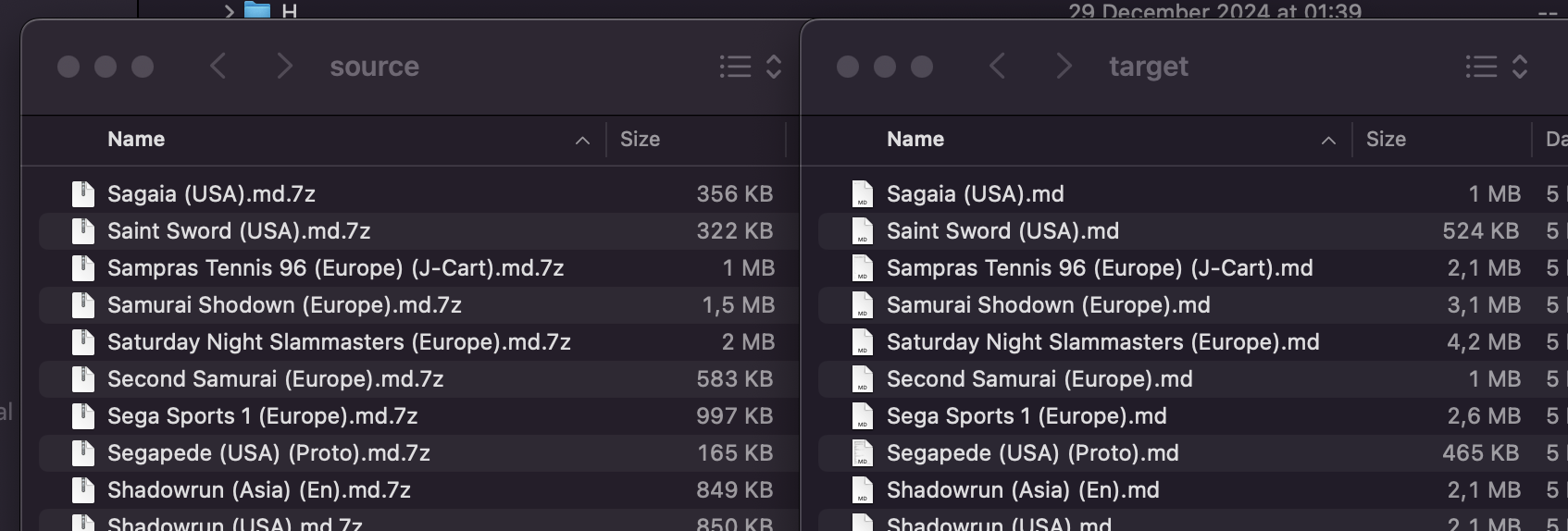
+
|
|
4
|
+
Copyright (c) 2024-2025 Ilia Petrov-Komotskii (Mane Function)
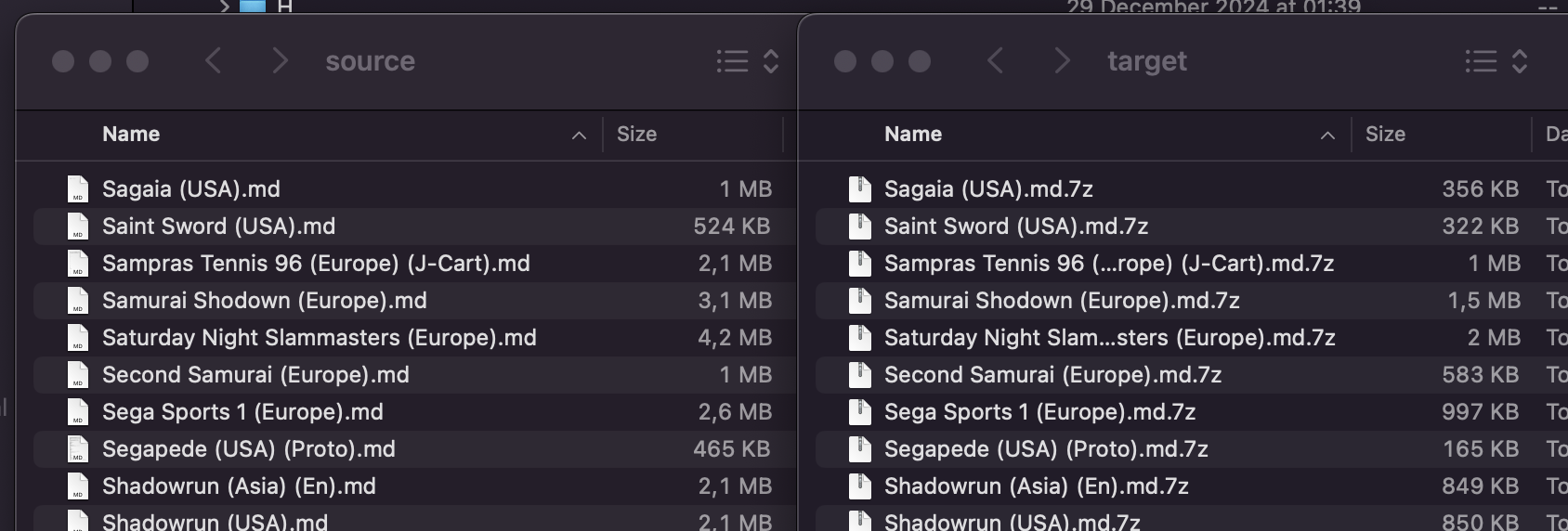
|
|
5
|
+
|
|
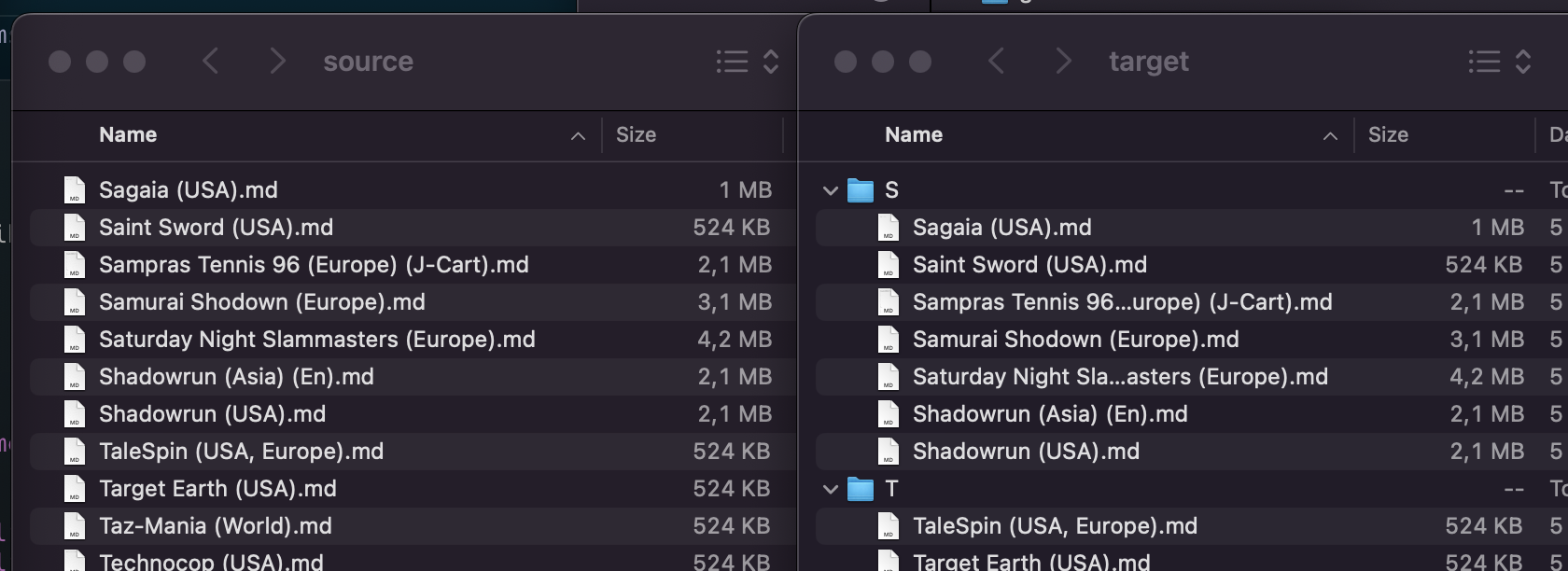
6
|
+
Permission is hereby granted, free of charge, to any person obtaining a copy
|
|
7
|
+
of this software and associated documentation files (the "Software"), to deal
|
|
8
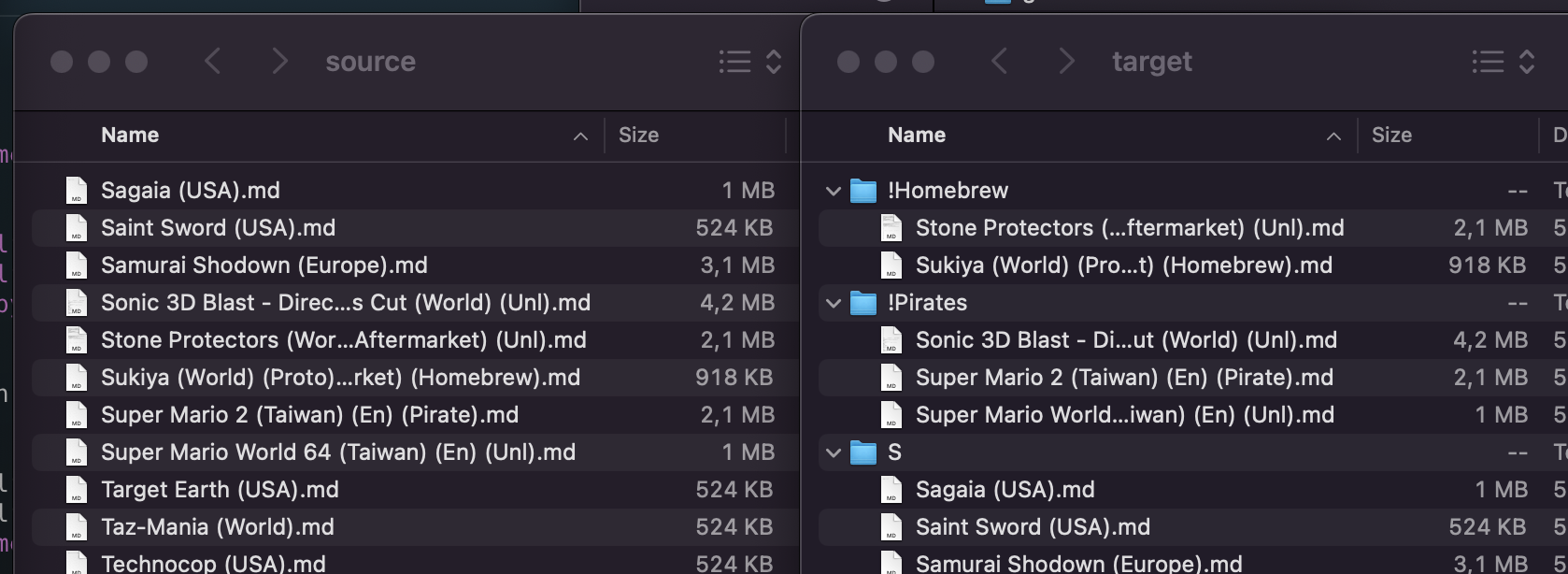
|
+
in the Software without restriction, including without limitation the rights
|
|
9
|
+
to use, copy, modify, merge, publish, distribute, sublicense, and/or sell
|
|
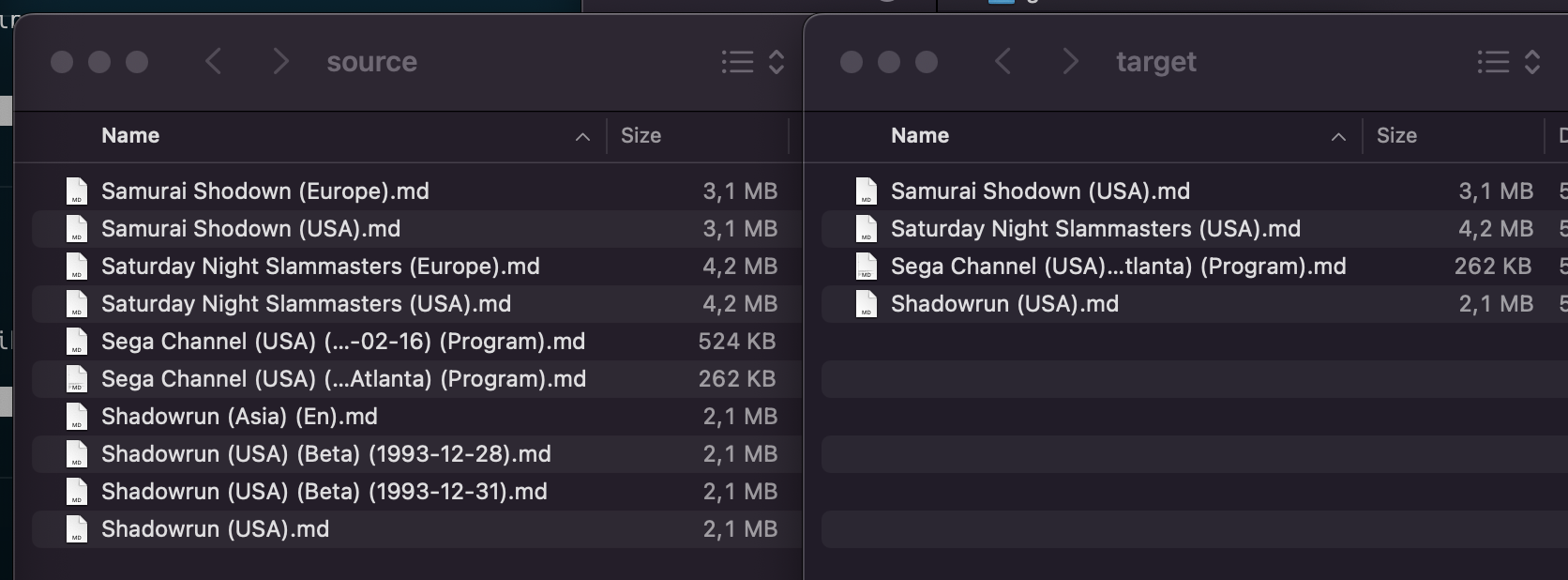
10
|
+
copies of the Software, and to permit persons to whom the Software is
|
|
11
|
+
furnished to do so, subject to the following conditions:
|
|
12
|
+
|
|
13
|
+
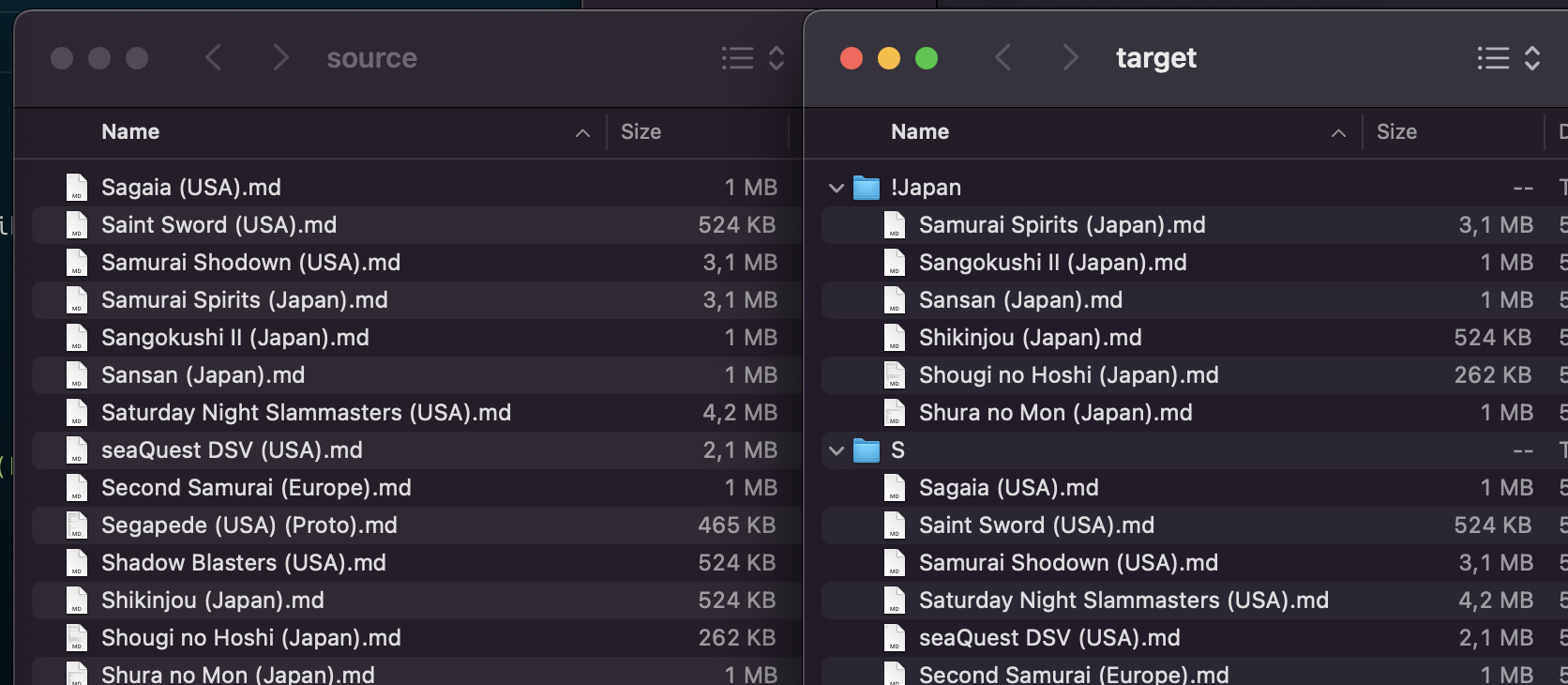
The above copyright notice and this permission notice shall be included in all
|
|
14
|
+
copies or substantial portions of the Software.
|
|
15
|
+
|
|
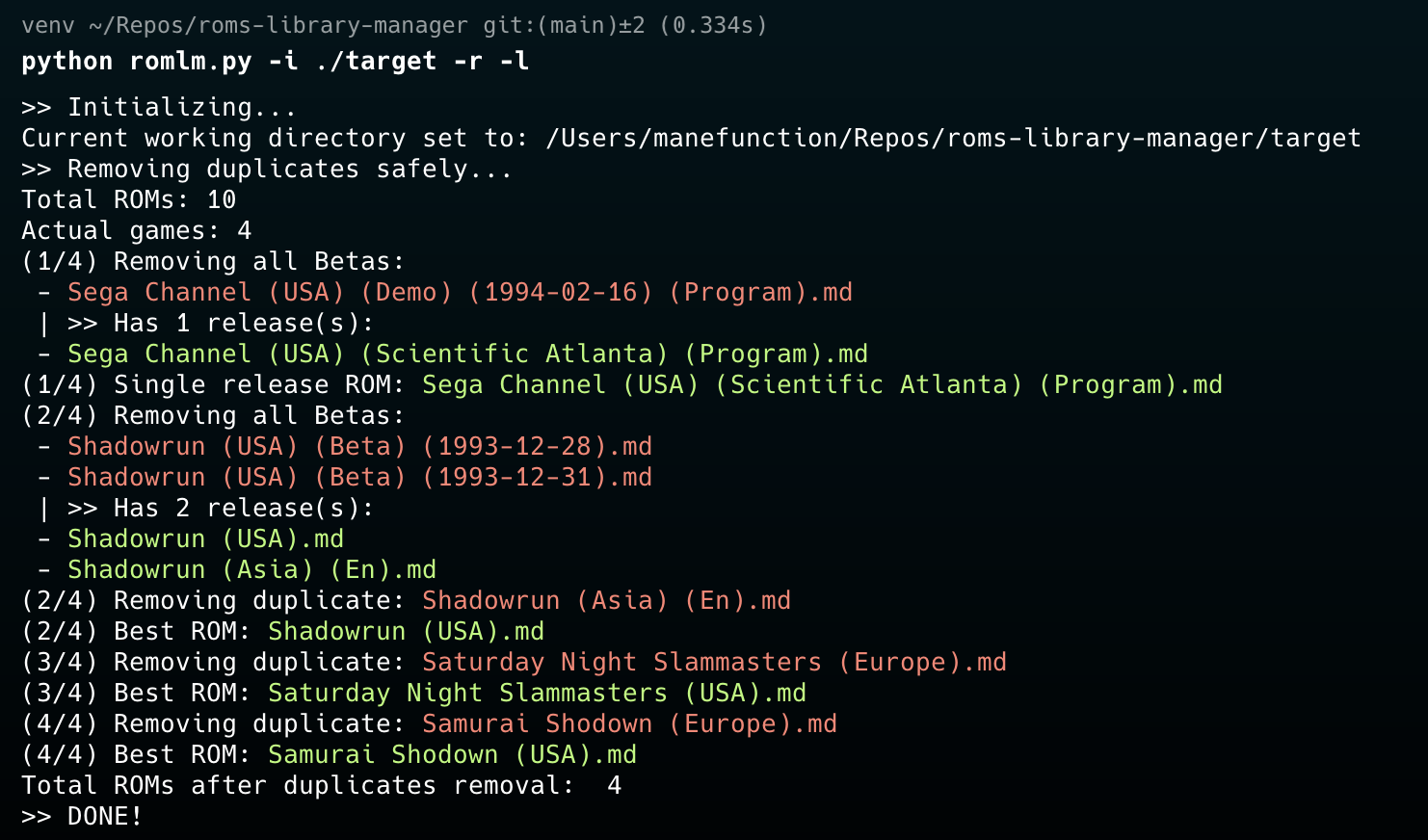
16
|
+
THE SOFTWARE IS PROVIDED "AS IS", WITHOUT WARRANTY OF ANY KIND, EXPRESS OR
|
|
17
|
+
IMPLIED, INCLUDING BUT NOT LIMITED TO THE WARRANTIES OF MERCHANTABILITY,
|
|
18
|
+
FITNESS FOR A PARTICULAR PURPOSE AND NONINFRINGEMENT. IN NO EVENT SHALL THE
|
|
19
|
+
AUTHORS OR COPYRIGHT HOLDERS BE LIABLE FOR ANY CLAIM, DAMAGES OR OTHER
|
|
20
|
+
LIABILITY, WHETHER IN AN ACTION OF CONTRACT, TORT OR OTHERWISE, ARISING FROM,
|
|
21
|
+
OUT OF OR IN CONNECTION WITH THE SOFTWARE OR THE USE OR OTHER DEALINGS IN THE
|
|
22
|
+
SOFTWARE.
|
romlm-1.0.1/PKG-INFO
ADDED
|
@@ -0,0 +1,217 @@
|
|
|
1
|
+
Metadata-Version: 2.1
|
|
2
|
+
Name: romlm
|
|
3
|
+
Version: 1.0.1
|
|
4
|
+
Summary: A ROM library management tool.
|
|
5
|
+
Author-email: Ilia Petrov-Komotskii <ilia@inkedkettle.art>
|
|
6
|
+
License: MIT
|
|
7
|
+
Project-URL: Homepage, https://github.com/ManeFunction/romlm
|
|
8
|
+
Project-URL: Repository, https://github.com/ManeFunction/romlm
|
|
9
|
+
Keywords: ROM,library,management,tools
|
|
10
|
+
Classifier: Programming Language :: Python :: 3
|
|
11
|
+
Classifier: License :: OSI Approved :: MIT License
|
|
12
|
+
Classifier: Operating System :: OS Independent
|
|
13
|
+
Requires-Python: >=3.6
|
|
14
|
+
Description-Content-Type: text/markdown
|
|
15
|
+
License-File: LICENSE
|
|
16
|
+
Requires-Dist: py7zr==0.22.0
|
|
17
|
+
Requires-Dist: tqdm==4.67.1
|
|
18
|
+
Requires-Dist: colorama==0.4.6
|
|
19
|
+
|
|
20
|
+
# romlm (ROMs Library Manager)
|
|
21
|
+
|
|
22
|
+
A Python-based command line tool that helps you organize and manage your ROM collections effortlessly.
|
|
23
|
+
Whether you want to pack, unpack, sort, or remove duplicates, **romlm** has got you covered.
|
|
24
|
+
|
|
25
|
+
All features are tested on the no-intro ROM sets (which I personally recommend), but it should work with any
|
|
26
|
+
ROM collection that follows a similar naming convention.
|
|
27
|
+
If you have some issues with other ROM sets, that can't be worked-around with the current implementation,
|
|
28
|
+
feel free to open an issue on the [GitHub issues](https://github.com/ManeFunction/romlm/issues) page.
|
|
29
|
+
|
|
30
|
+
---
|
|
31
|
+
|
|
32
|
+
## Features
|
|
33
|
+
|
|
34
|
+
- **Extract (`-x, --extract`)**
|
|
35
|
+
Automatically unpacks all `.7z` or `.zip` files in the current directory (or a specified folder) into subfolders.
|
|
36
|
+
Supports nested subfolders, keeping all the structure.
|
|
37
|
+
|
|
38
|
+
|
|
39
|
+
|
|
40
|
+
|
|
41
|
+
- **Pack (`-p, --pack`)**
|
|
42
|
+
Compresses all uncompressed files in the current directory (or a specified folder) into `.7z` or `.zip` archives.
|
|
43
|
+
Supports nested subfolders, keeping all the structure.
|
|
44
|
+
|
|
45
|
+
|
|
46
|
+
|
|
47
|
+
|
|
48
|
+
- **Sort (`-s, --sort`)**
|
|
49
|
+
Moves files into alphabetically organized subfolders (A–Z). Optionally handles special folders for
|
|
50
|
+
Homebrew (`!Homebrew`), Pirates (`!Pirates`), or user-defined subfolders (`-f`).
|
|
51
|
+
- `h` will also sort files into homebrew subfolder.
|
|
52
|
+
- `p` will also sort files into pirates subfolder.
|
|
53
|
+
- `f` will also sort files into user-defined subfolders (`-f`).
|
|
54
|
+
- `a` will also sort files into homebrew, pirates and all user-defined subfolders (`-f`). Equal to `hpf`.
|
|
55
|
+
- You can also use any combination of `h`, `p` and `f` options, for example `hp` or `fh`.
|
|
56
|
+
- `-s reverse` will reverse-sort files, i.e., move them all back into the root folder.
|
|
57
|
+
|
|
58
|
+
|
|
59
|
+
|
|
60
|
+
|
|
61
|
+
- **Separate Homebrew and Pirate ROMs (`-u, --unlicensed`)**
|
|
62
|
+
By default, romlm detects and separates Homebrew or Pirate files into dedicated folders. Can be customized with
|
|
63
|
+
options:
|
|
64
|
+
- `none` disables separation completely,
|
|
65
|
+
- `h` separates Homebrew files only,
|
|
66
|
+
- `p` separates Pirate files only.
|
|
67
|
+
|
|
68
|
+
|
|
69
|
+
|
|
70
|
+
|
|
71
|
+
- **Remove Duplicates (`-r, --remove-duplicates`)**
|
|
72
|
+
Automatically detects duplicate files, preserving the best candidate according
|
|
73
|
+
to region, beta status, revision, version, release date and other data that can be received from the filename.
|
|
74
|
+
Behavior for the situations when script can't decide the best file itself, can be specified:
|
|
75
|
+
- `ask` prompts you which file to keep, default with `-l`,
|
|
76
|
+
- `all` keeps all equally good files, default without `-l`,
|
|
77
|
+
- `one` keeps exactly one of the best ROMs, taken randomly.
|
|
78
|
+
|
|
79
|
+
I highly recommend to **use this feature with `-l` option** to see the results, and **make a backup of your ROMs before**!
|
|
80
|
+
|
|
81
|
+
In the current scenario it removes all the beta and prototype files if there is a final version of the game exists.
|
|
82
|
+
If not, it tries to keep only one the latest version. USA retro ROMs (not Virtual Console versions) counts as
|
|
83
|
+
the best version of the game. Also, Europe and EN releases have a higher priority over JP and Asia versions,
|
|
84
|
+
as well as NTSC counts better, than PAL. **romlm** will never remove all copies of one game!
|
|
85
|
+
|
|
86
|
+
If you want to keep a Japanese collection intact, I recommend to separate it first. See Usage Examples below.
|
|
87
|
+
|
|
88
|
+
|
|
89
|
+
|
|
90
|
+
|
|
91
|
+
- **User-defined Folders (`-f, --folders`)**
|
|
92
|
+
Easily map certain tags to user-defined folders. For example, specifying `-f Japan` will move ROMs tagged
|
|
93
|
+
as `(Japan)` into dedicated subfolder. Works only with `--sort` process as a part of it. Search only within tags,
|
|
94
|
+
to not be confused with a game name, so if you just want all your Mario games in one place, just search it manually,
|
|
95
|
+
**romlm** not for that.
|
|
96
|
+
|
|
97
|
+
- **Exclude Tags (`-e, --exclude`)**
|
|
98
|
+
Combine with `-f` to skip specified tags from the subfolders sorting process. For example, `-f Japan -e USA`
|
|
99
|
+
will move all `(Japan)` tagged ROMs into a dedicated subfolder, excluding any `(USA)` tagged ROMs
|
|
100
|
+
if `(Japan, USA)` combination is met.
|
|
101
|
+
|
|
102
|
+
|
|
103
|
+
|
|
104
|
+
|
|
105
|
+
- **Logging (`-l, --log`)**
|
|
106
|
+
Enables verbose output to see exactly what the script is doing. Extremely useful when `--remove-duplicates` is enabled.
|
|
107
|
+
|
|
108
|
+
|
|
109
|
+
|
|
110
|
+
|
|
111
|
+
- **Other Utilities**
|
|
112
|
+
- Cleans out unwanted system meta-files (e.g., `desktop.ini`, `.DS_Store`).
|
|
113
|
+
- Removes empty subdirectories after sorting.
|
|
114
|
+
- Provides an in-script help guide (`-h, --help`).
|
|
115
|
+
|
|
116
|
+
---
|
|
117
|
+
|
|
118
|
+
## Usage examples and backstory
|
|
119
|
+
|
|
120
|
+
As a user of Analogue Pocket and an Emulation Station based handheld system, there are some nuances from both worlds
|
|
121
|
+
that I'm trying to cover with **romlm**. Analogue Poket is a highly precise FPGA-based console, but it covers only
|
|
122
|
+
earlier generations and a scoop of Arcade games. Though, those platforms, like NES, SNES and Genesis have a huge
|
|
123
|
+
library of games, that should be sorted to have an easy access. Also, Pocket do not support archives, so all the ROMs
|
|
124
|
+
should be unpacked. Standard software emulators, on the other hand, can play archived ROMs, and with the support
|
|
125
|
+
of more later platforms, where games became bigger, it's great to have them packed, but also, it's good to have
|
|
126
|
+
old systems packed as well, to save some Gigs for a few more CD games. So, I've need a tool to prepare my ROMs
|
|
127
|
+
for both systems in a few clicks. That's how **romlm** was born.
|
|
128
|
+
|
|
129
|
+
|
|
130
|
+
Personally, I keep all my ROMs on Analogue Pocket, to be able to quickly launch any version of any game it supports.
|
|
131
|
+
But I do not need all of those for a device that made for casual play. To be honest, I have Powkidy RGB30 with
|
|
132
|
+
a rectangular screen, specifically for the Pico-8. Emulation capabilities of this device is just a neat bonus
|
|
133
|
+
for me :) So, to prepare ROMs for Emulation Station devices, like Powkiddy, Anbernic, Miyoo, etc. we can clean
|
|
134
|
+
our library from all the stuff we never play anyway.
|
|
135
|
+
|
|
136
|
+
|
|
137
|
+
There is an example how to separate and work with your Japanese library, if you need it. But it also can be a great
|
|
138
|
+
example of **romlm** capabilities for you to learn. Emulation Station have a separate folders for Japanese libraries
|
|
139
|
+
(at least for the 3 whales of retro gaming: NES, SNES and Genesis) as well as for homebrew,
|
|
140
|
+
so it's good to separate them first, if you are interested in them. Here is the way:
|
|
141
|
+
1) `-i ./your-roms -s a -f Japan -e USA,EN` command first to separate non-en Japanese releases
|
|
142
|
+
(they ends up in `!Japan` folder). Alternatively, you can use `-s f` if your collection do not have a lot of homebrew
|
|
143
|
+
and pirates, and you do not need to sort them in (A-Z) folders.
|
|
144
|
+
1) Put all sorted folders (A-Z) from `your-roms` folder to `your-roms/sorted` for example, to be able to treat them
|
|
145
|
+
separately later.
|
|
146
|
+
1) Now you should have `sorted`, `!Japan`, `!Homebrew` (if there was any) and `!Pirates` (if there was any)
|
|
147
|
+
folders in your `your-roms` folder. `!` is used here to keep them on top of the list, as Emulation Station sorts
|
|
148
|
+
folders alphabetically, but remember, that you should escape it with `\!` in the command line, so path
|
|
149
|
+
for the next commands should look like `-i ./your-roms/\!Japan` for example.
|
|
150
|
+
1) Do `-i ./your-roms/sorted -r -l` for all the subfolders separately to remove duplicates, but keep them in
|
|
151
|
+
sorted (mostly USA for now) and Japanese folders.
|
|
152
|
+
1) After that you can pack all the ROMs in one command `-i ./your-roms -p`. This command keeps our new folders structure.
|
|
153
|
+
|
|
154
|
+
This way you will keep all the Japanese versions of the games, separated into a dedicated folder, and anyways
|
|
155
|
+
all other duplicates will be removed, easing the access to the games you want to play in the future and
|
|
156
|
+
saving the space on your device for more great games.
|
|
157
|
+
|
|
158
|
+
|
|
159
|
+
---
|
|
160
|
+
|
|
161
|
+
## Installation
|
|
162
|
+
|
|
163
|
+
**romlm** is available to use in a variety of ways.
|
|
164
|
+
`pip` or `brew` is recommended ways, because they can handle dependencies and updates automatically.
|
|
165
|
+
1) **brew (Recommended for Mac users)**
|
|
166
|
+
- You can install **romlm** through the [Homebrew](https://brew.sh/) formula for macOS users (if you have **brew** installed),
|
|
167
|
+
typing `brew install romlm` in the Terminal.
|
|
168
|
+
- Verify the installation with `romlm -h` command.
|
|
169
|
+
- You are perfect, you can use the app with `romlm [parameters]` command from any folder in your system.
|
|
170
|
+
1) **Ready to use binaries (Mac and Windows)**
|
|
171
|
+
- Download ready-to-use binaries from the [GitHub Releases](https://github.com/ManeFunction/romlm/releases) and run it with `./romlm`.
|
|
172
|
+
- Unpack the downloaded archive.
|
|
173
|
+
- On Mac:
|
|
174
|
+
- Open Terminal or any other CL app you prefer to use.
|
|
175
|
+
- Run `cd path/to/unpacked/folder` to go to the folder (you can just drag'n'drop a folder to the Terminal
|
|
176
|
+
to copy-paste its path).
|
|
177
|
+
- Run `xattr -r -d com.apple.quarantine ./` to remove the quarantine attribute from binaries
|
|
178
|
+
(I do not have an Apple Developer status at the moment and cannot sign binaries properly,
|
|
179
|
+
this, hopefully, will be fixed in the future).
|
|
180
|
+
- Run `./romlm -h` to verify the script is working
|
|
181
|
+
(be aware, that macOS still running security checks, so the first start of the app will be longer for about 10-15 sec.).
|
|
182
|
+
- You are perfect, you can use the app now with `./romlm [parameters]` command.
|
|
183
|
+
- On Windows (cmd):
|
|
184
|
+
- Open Command Prompt (cmd) with `Win+R` and typing `cmd`, or just searching `cmd` in a Start menu.
|
|
185
|
+
- Run `cd path\to\folder` to go to the folder with `romlm.exe`.
|
|
186
|
+
Don't forget to use `cd` with `/d` option to change the drive, if needed (`cd /d path\to\folder`).
|
|
187
|
+
- Run `romlm -h` to verify the script is working.
|
|
188
|
+
- You are perfect, you can use the app now with `romlm [parameters]` command.
|
|
189
|
+
- On Windows (PowerShell):
|
|
190
|
+
- Open PowerShell searching it in a Start menu.
|
|
191
|
+
- Run `cd path\to\folder` to go to the folder with `romlm.exe`.
|
|
192
|
+
- Run `./romlm -h` to verify the script is working.
|
|
193
|
+
- You are perfect, you can use the app now with `./romlm [parameters]` command.
|
|
194
|
+
1) **Python package (manual installation)**
|
|
195
|
+
- Clone the repository or download the source code from the GitHub.
|
|
196
|
+
- Go to the folder with the script in your Terminal.
|
|
197
|
+
- Run `pip install .` to install `romlm` to your system.
|
|
198
|
+
- Run `romlm -h` to verify the script is working.
|
|
199
|
+
- You are perfect, you can use `romlm [parameters]` command from anywhere in your system.
|
|
200
|
+
1) **Python script (manual usage, for advanced users)**
|
|
201
|
+
- if you know how to work with Python scripts, venv, and dependencies, you can simply clone the repository
|
|
202
|
+
and run `romlm.py`. In that way, feel free to modify the script for yourself as you want.
|
|
203
|
+
|
|
204
|
+
---
|
|
205
|
+
|
|
206
|
+
## Credits
|
|
207
|
+
|
|
208
|
+
Created and maintained by ManeFunction.
|
|
209
|
+
|
|
210
|
+
Huge thanks to the [no-intro](http://www.no-intro.org/) team for their amazing work on the ROM sets and retro games
|
|
211
|
+
preservation.
|
|
212
|
+
|
|
213
|
+
Also, big shoutout to the [Nuitka](https://github.com/Nuitka/Nuitka) project for the great Python compiler.
|
|
214
|
+
|
|
215
|
+
And of course, thanks for your contributions and feedback!
|
|
216
|
+
If you have any questions, suggestions, or issues, feel free to open an issue on the [GitHub issues](https://github.com/ManeFunction/romlm/issues) page
|
|
217
|
+
or create a or pull request.
|
romlm-1.0.1/README.md
ADDED
|
@@ -0,0 +1,198 @@
|
|
|
1
|
+
# romlm (ROMs Library Manager)
|
|
2
|
+
|
|
3
|
+
A Python-based command line tool that helps you organize and manage your ROM collections effortlessly.
|
|
4
|
+
Whether you want to pack, unpack, sort, or remove duplicates, **romlm** has got you covered.
|
|
5
|
+
|
|
6
|
+
All features are tested on the no-intro ROM sets (which I personally recommend), but it should work with any
|
|
7
|
+
ROM collection that follows a similar naming convention.
|
|
8
|
+
If you have some issues with other ROM sets, that can't be worked-around with the current implementation,
|
|
9
|
+
feel free to open an issue on the [GitHub issues](https://github.com/ManeFunction/romlm/issues) page.
|
|
10
|
+
|
|
11
|
+
---
|
|
12
|
+
|
|
13
|
+
## Features
|
|
14
|
+
|
|
15
|
+
- **Extract (`-x, --extract`)**
|
|
16
|
+
Automatically unpacks all `.7z` or `.zip` files in the current directory (or a specified folder) into subfolders.
|
|
17
|
+
Supports nested subfolders, keeping all the structure.
|
|
18
|
+
|
|
19
|
+

|
|
20
|
+
|
|
21
|
+
|
|
22
|
+
- **Pack (`-p, --pack`)**
|
|
23
|
+
Compresses all uncompressed files in the current directory (or a specified folder) into `.7z` or `.zip` archives.
|
|
24
|
+
Supports nested subfolders, keeping all the structure.
|
|
25
|
+
|
|
26
|
+

|
|
27
|
+
|
|
28
|
+
|
|
29
|
+
- **Sort (`-s, --sort`)**
|
|
30
|
+
Moves files into alphabetically organized subfolders (A–Z). Optionally handles special folders for
|
|
31
|
+
Homebrew (`!Homebrew`), Pirates (`!Pirates`), or user-defined subfolders (`-f`).
|
|
32
|
+
- `h` will also sort files into homebrew subfolder.
|
|
33
|
+
- `p` will also sort files into pirates subfolder.
|
|
34
|
+
- `f` will also sort files into user-defined subfolders (`-f`).
|
|
35
|
+
- `a` will also sort files into homebrew, pirates and all user-defined subfolders (`-f`). Equal to `hpf`.
|
|
36
|
+
- You can also use any combination of `h`, `p` and `f` options, for example `hp` or `fh`.
|
|
37
|
+
- `-s reverse` will reverse-sort files, i.e., move them all back into the root folder.
|
|
38
|
+
|
|
39
|
+

|
|
40
|
+
|
|
41
|
+
|
|
42
|
+
- **Separate Homebrew and Pirate ROMs (`-u, --unlicensed`)**
|
|
43
|
+
By default, romlm detects and separates Homebrew or Pirate files into dedicated folders. Can be customized with
|
|
44
|
+
options:
|
|
45
|
+
- `none` disables separation completely,
|
|
46
|
+
- `h` separates Homebrew files only,
|
|
47
|
+
- `p` separates Pirate files only.
|
|
48
|
+
|
|
49
|
+

|
|
50
|
+
|
|
51
|
+
|
|
52
|
+
- **Remove Duplicates (`-r, --remove-duplicates`)**
|
|
53
|
+
Automatically detects duplicate files, preserving the best candidate according
|
|
54
|
+
to region, beta status, revision, version, release date and other data that can be received from the filename.
|
|
55
|
+
Behavior for the situations when script can't decide the best file itself, can be specified:
|
|
56
|
+
- `ask` prompts you which file to keep, default with `-l`,
|
|
57
|
+
- `all` keeps all equally good files, default without `-l`,
|
|
58
|
+
- `one` keeps exactly one of the best ROMs, taken randomly.
|
|
59
|
+
|
|
60
|
+
I highly recommend to **use this feature with `-l` option** to see the results, and **make a backup of your ROMs before**!
|
|
61
|
+
|
|
62
|
+
In the current scenario it removes all the beta and prototype files if there is a final version of the game exists.
|
|
63
|
+
If not, it tries to keep only one the latest version. USA retro ROMs (not Virtual Console versions) counts as
|
|
64
|
+
the best version of the game. Also, Europe and EN releases have a higher priority over JP and Asia versions,
|
|
65
|
+
as well as NTSC counts better, than PAL. **romlm** will never remove all copies of one game!
|
|
66
|
+
|
|
67
|
+
If you want to keep a Japanese collection intact, I recommend to separate it first. See Usage Examples below.
|
|
68
|
+
|
|
69
|
+

|
|
70
|
+
|
|
71
|
+
|
|
72
|
+
- **User-defined Folders (`-f, --folders`)**
|
|
73
|
+
Easily map certain tags to user-defined folders. For example, specifying `-f Japan` will move ROMs tagged
|
|
74
|
+
as `(Japan)` into dedicated subfolder. Works only with `--sort` process as a part of it. Search only within tags,
|
|
75
|
+
to not be confused with a game name, so if you just want all your Mario games in one place, just search it manually,
|
|
76
|
+
**romlm** not for that.
|
|
77
|
+
|
|
78
|
+
- **Exclude Tags (`-e, --exclude`)**
|
|
79
|
+
Combine with `-f` to skip specified tags from the subfolders sorting process. For example, `-f Japan -e USA`
|
|
80
|
+
will move all `(Japan)` tagged ROMs into a dedicated subfolder, excluding any `(USA)` tagged ROMs
|
|
81
|
+
if `(Japan, USA)` combination is met.
|
|
82
|
+
|
|
83
|
+

|
|
84
|
+
|
|
85
|
+
|
|
86
|
+
- **Logging (`-l, --log`)**
|
|
87
|
+
Enables verbose output to see exactly what the script is doing. Extremely useful when `--remove-duplicates` is enabled.
|
|
88
|
+
|
|
89
|
+

|
|
90
|
+
|
|
91
|
+
|
|
92
|
+
- **Other Utilities**
|
|
93
|
+
- Cleans out unwanted system meta-files (e.g., `desktop.ini`, `.DS_Store`).
|
|
94
|
+
- Removes empty subdirectories after sorting.
|
|
95
|
+
- Provides an in-script help guide (`-h, --help`).
|
|
96
|
+
|
|
97
|
+
---
|
|
98
|
+
|
|
99
|
+
## Usage examples and backstory
|
|
100
|
+
|
|
101
|
+
As a user of Analogue Pocket and an Emulation Station based handheld system, there are some nuances from both worlds
|
|
102
|
+
that I'm trying to cover with **romlm**. Analogue Poket is a highly precise FPGA-based console, but it covers only
|
|
103
|
+
earlier generations and a scoop of Arcade games. Though, those platforms, like NES, SNES and Genesis have a huge
|
|
104
|
+
library of games, that should be sorted to have an easy access. Also, Pocket do not support archives, so all the ROMs
|
|
105
|
+
should be unpacked. Standard software emulators, on the other hand, can play archived ROMs, and with the support
|
|
106
|
+
of more later platforms, where games became bigger, it's great to have them packed, but also, it's good to have
|
|
107
|
+
old systems packed as well, to save some Gigs for a few more CD games. So, I've need a tool to prepare my ROMs
|
|
108
|
+
for both systems in a few clicks. That's how **romlm** was born.
|
|
109
|
+
|
|
110
|
+
|
|
111
|
+
Personally, I keep all my ROMs on Analogue Pocket, to be able to quickly launch any version of any game it supports.
|
|
112
|
+
But I do not need all of those for a device that made for casual play. To be honest, I have Powkidy RGB30 with
|
|
113
|
+
a rectangular screen, specifically for the Pico-8. Emulation capabilities of this device is just a neat bonus
|
|
114
|
+
for me :) So, to prepare ROMs for Emulation Station devices, like Powkiddy, Anbernic, Miyoo, etc. we can clean
|
|
115
|
+
our library from all the stuff we never play anyway.
|
|
116
|
+
|
|
117
|
+
|
|
118
|
+
There is an example how to separate and work with your Japanese library, if you need it. But it also can be a great
|
|
119
|
+
example of **romlm** capabilities for you to learn. Emulation Station have a separate folders for Japanese libraries
|
|
120
|
+
(at least for the 3 whales of retro gaming: NES, SNES and Genesis) as well as for homebrew,
|
|
121
|
+
so it's good to separate them first, if you are interested in them. Here is the way:
|
|
122
|
+
1) `-i ./your-roms -s a -f Japan -e USA,EN` command first to separate non-en Japanese releases
|
|
123
|
+
(they ends up in `!Japan` folder). Alternatively, you can use `-s f` if your collection do not have a lot of homebrew
|
|
124
|
+
and pirates, and you do not need to sort them in (A-Z) folders.
|
|
125
|
+
1) Put all sorted folders (A-Z) from `your-roms` folder to `your-roms/sorted` for example, to be able to treat them
|
|
126
|
+
separately later.
|
|
127
|
+
1) Now you should have `sorted`, `!Japan`, `!Homebrew` (if there was any) and `!Pirates` (if there was any)
|
|
128
|
+
folders in your `your-roms` folder. `!` is used here to keep them on top of the list, as Emulation Station sorts
|
|
129
|
+
folders alphabetically, but remember, that you should escape it with `\!` in the command line, so path
|
|
130
|
+
for the next commands should look like `-i ./your-roms/\!Japan` for example.
|
|
131
|
+
1) Do `-i ./your-roms/sorted -r -l` for all the subfolders separately to remove duplicates, but keep them in
|
|
132
|
+
sorted (mostly USA for now) and Japanese folders.
|
|
133
|
+
1) After that you can pack all the ROMs in one command `-i ./your-roms -p`. This command keeps our new folders structure.
|
|
134
|
+
|
|
135
|
+
This way you will keep all the Japanese versions of the games, separated into a dedicated folder, and anyways
|
|
136
|
+
all other duplicates will be removed, easing the access to the games you want to play in the future and
|
|
137
|
+
saving the space on your device for more great games.
|
|
138
|
+
|
|
139
|
+
|
|
140
|
+
---
|
|
141
|
+
|
|
142
|
+
## Installation
|
|
143
|
+
|
|
144
|
+
**romlm** is available to use in a variety of ways.
|
|
145
|
+
`pip` or `brew` is recommended ways, because they can handle dependencies and updates automatically.
|
|
146
|
+
1) **brew (Recommended for Mac users)**
|
|
147
|
+
- You can install **romlm** through the [Homebrew](https://brew.sh/) formula for macOS users (if you have **brew** installed),
|
|
148
|
+
typing `brew install romlm` in the Terminal.
|
|
149
|
+
- Verify the installation with `romlm -h` command.
|
|
150
|
+
- You are perfect, you can use the app with `romlm [parameters]` command from any folder in your system.
|
|
151
|
+
1) **Ready to use binaries (Mac and Windows)**
|
|
152
|
+
- Download ready-to-use binaries from the [GitHub Releases](https://github.com/ManeFunction/romlm/releases) and run it with `./romlm`.
|
|
153
|
+
- Unpack the downloaded archive.
|
|
154
|
+
- On Mac:
|
|
155
|
+
- Open Terminal or any other CL app you prefer to use.
|
|
156
|
+
- Run `cd path/to/unpacked/folder` to go to the folder (you can just drag'n'drop a folder to the Terminal
|
|
157
|
+
to copy-paste its path).
|
|
158
|
+
- Run `xattr -r -d com.apple.quarantine ./` to remove the quarantine attribute from binaries
|
|
159
|
+
(I do not have an Apple Developer status at the moment and cannot sign binaries properly,
|
|
160
|
+
this, hopefully, will be fixed in the future).
|
|
161
|
+
- Run `./romlm -h` to verify the script is working
|
|
162
|
+
(be aware, that macOS still running security checks, so the first start of the app will be longer for about 10-15 sec.).
|
|
163
|
+
- You are perfect, you can use the app now with `./romlm [parameters]` command.
|
|
164
|
+
- On Windows (cmd):
|
|
165
|
+
- Open Command Prompt (cmd) with `Win+R` and typing `cmd`, or just searching `cmd` in a Start menu.
|
|
166
|
+
- Run `cd path\to\folder` to go to the folder with `romlm.exe`.
|
|
167
|
+
Don't forget to use `cd` with `/d` option to change the drive, if needed (`cd /d path\to\folder`).
|
|
168
|
+
- Run `romlm -h` to verify the script is working.
|
|
169
|
+
- You are perfect, you can use the app now with `romlm [parameters]` command.
|
|
170
|
+
- On Windows (PowerShell):
|
|
171
|
+
- Open PowerShell searching it in a Start menu.
|
|
172
|
+
- Run `cd path\to\folder` to go to the folder with `romlm.exe`.
|
|
173
|
+
- Run `./romlm -h` to verify the script is working.
|
|
174
|
+
- You are perfect, you can use the app now with `./romlm [parameters]` command.
|
|
175
|
+
1) **Python package (manual installation)**
|
|
176
|
+
- Clone the repository or download the source code from the GitHub.
|
|
177
|
+
- Go to the folder with the script in your Terminal.
|
|
178
|
+
- Run `pip install .` to install `romlm` to your system.
|
|
179
|
+
- Run `romlm -h` to verify the script is working.
|
|
180
|
+
- You are perfect, you can use `romlm [parameters]` command from anywhere in your system.
|
|
181
|
+
1) **Python script (manual usage, for advanced users)**
|
|
182
|
+
- if you know how to work with Python scripts, venv, and dependencies, you can simply clone the repository
|
|
183
|
+
and run `romlm.py`. In that way, feel free to modify the script for yourself as you want.
|
|
184
|
+
|
|
185
|
+
---
|
|
186
|
+
|
|
187
|
+
## Credits
|
|
188
|
+
|
|
189
|
+
Created and maintained by ManeFunction.
|
|
190
|
+
|
|
191
|
+
Huge thanks to the [no-intro](http://www.no-intro.org/) team for their amazing work on the ROM sets and retro games
|
|
192
|
+
preservation.
|
|
193
|
+
|
|
194
|
+
Also, big shoutout to the [Nuitka](https://github.com/Nuitka/Nuitka) project for the great Python compiler.
|
|
195
|
+
|
|
196
|
+
And of course, thanks for your contributions and feedback!
|
|
197
|
+
If you have any questions, suggestions, or issues, feel free to open an issue on the [GitHub issues](https://github.com/ManeFunction/romlm/issues) page
|
|
198
|
+
or create a or pull request.
|
|
@@ -0,0 +1,32 @@
|
|
|
1
|
+
[build-system]
|
|
2
|
+
requires = ["setuptools>=42", "wheel"]
|
|
3
|
+
build-backend = "setuptools.build_meta"
|
|
4
|
+
|
|
5
|
+
[project]
|
|
6
|
+
name = "romlm"
|
|
7
|
+
version = "1.0.1"
|
|
8
|
+
description = "A ROM library management tool."
|
|
9
|
+
authors = [
|
|
10
|
+
{ name = "Ilia Petrov-Komotskii", email = "ilia@inkedkettle.art" }
|
|
11
|
+
]
|
|
12
|
+
license = { text = "MIT" }
|
|
13
|
+
readme = "README.md"
|
|
14
|
+
requires-python = ">=3.6"
|
|
15
|
+
keywords = ["ROM", "library", "management", "tools"]
|
|
16
|
+
classifiers = [
|
|
17
|
+
"Programming Language :: Python :: 3",
|
|
18
|
+
"License :: OSI Approved :: MIT License",
|
|
19
|
+
"Operating System :: OS Independent"
|
|
20
|
+
]
|
|
21
|
+
dependencies = [
|
|
22
|
+
"py7zr==0.22.0",
|
|
23
|
+
"tqdm==4.67.1",
|
|
24
|
+
"colorama==0.4.6"
|
|
25
|
+
]
|
|
26
|
+
|
|
27
|
+
[project.urls]
|
|
28
|
+
Homepage = "https://github.com/ManeFunction/romlm"
|
|
29
|
+
Repository = "https://github.com/ManeFunction/romlm"
|
|
30
|
+
|
|
31
|
+
[project.scripts]
|
|
32
|
+
romlm = "romlm:mane"
|